Ever felt frustrated by Instagram’s link limit? You’re not alone! While Instagram now allows up to five links in your bio, that might not be enough if you have multiple websites, social media accounts, or affiliate links to share.
That’s where Replug comes in. It lets you create a single, sleek bio link page where you can add unlimited links, making it easier for your audience to find everything in one place.
Let’s dive into how you can set up multiple links in your Instagram bio using this top-notch URL shortener!
Why add a Replug link to your Instagram bio?
Before we discuss the how, let’s know the why.
Why should you even consider integrating a Replug link into your Instagram bio?
Beyond the obvious advantage of offering an in-depth view of your presence, here are some compelling reasons:
Boost your follower base: Direct your Instagram followers to explore your other platforms, encouraging them to follow you on those as well. You can also add links to your Instagram in the bios of your other accounts to drive cross-platform engagement and get leads from social media.
Monetize your audience: Replug helps you turn Instagram followers into customers by linking to your e-commerce store, Etsy shop, or other products. Direct users to your purchasable content, turning your followers into potential buyers and boosting sales for Instagram business accounts.
Monitor analytics: Replug provides insights into user engagement, tracking clicks, views, and click-through rates (CTR). For influencers, this data is essential for refining your content strategy, helping you optimize performance and improve audience engagement across platforms.
Offline connection: Share your Instagram QR code with followers to connect them to your other platforms. Whether it’s for a restaurant menu or event info, the offline-to-online connection creates an easy way for users to engage with your content anytime, anywhere.
Customizable landing pages: Build a personalized landing page with Replug that reflects your brand’s style and identity. Customize everything from layout to colors to create an on-brand experience for your audience.
Unlimited links: Replug allows you to share an unlimited number of links through its bio link feature. From your website and blog posts to products and affiliate content, it gives you a simple place to drive traffic and keep your audience engaged.
Retargeting pixel support: Improve your ad campaigns with retargeting by tracking visitors who clicked your links. This feature helps you stay connected with your audience and drive conversions by reaching users who have shown interest.
Mobile-friendly and fast: Replug ensures that your landing pages and links work seamlessly on all devices, offering a fast and smooth experience for users accessing your content from smartphones, tablets, or desktops.
Step 2: Access the “bio links” feature on the Replug dashboard.
Step 3: Click the “New Bio Link” button to create a new bio link specifically for your Instagram bio.
Step 4: Personalize your bio profile to your heart’s content. With Replug, you can add a profile picture, profile title, bio description, and even a verification badge!
Now comes the creative and fun part. You choose from stunning pre-designed templates or create your own. You can also customize colours, select from button styles, and customize colours.
Step 5: Now customize the content you want on your bio link landing page. You can choose from multiple blocks, including social, links, RSS, video, card, and text. This is a great way to add all your links inside a single and clean landing page. It prevents your bio from looking cluttered and messy because of multiple links.
Step6: The final step is to customize SEO and social media preview. Here, you’ll have the option to add your custom meta title, description, custom favicon image, and retargeting pixel to improve the link presence in search engines and social media channels.
Step 7: Customize your bio link slug for a personalized touch.
Step 8: Update your bio link and preview it for final touches.
Step 9: Go back to your bio link dashboard. You will now see that your bio link has been generated and is live.
You can now copy your bio link URL, view your bio link analytics, download the QR for easy sharing, edit your bio link if required, or delete it permanently.
Add bio link URL to Instagram bio:
Step 1: Copy your bio link URL from Replug.
Step 2: Open Instagram on your mobile and tap your profile icon in the bottom right corner.
Step 3: Tap on the edit profile button on your profile page.
Step 4: Now, you will see the add link section on your mobile screen. Tap on it.
Step 5: Tap the add external link section to add your website address.
Step 6: Paste the bio link URL in the URL section and add a title in the title section.
Step 7: Your link in the bio will now appear in your profile.
Step 8: Your Instagram profile now has multiple links in the bio. The bio link URL is now clickable. Here’s what the landing page looks like in our example:
Adding multiple links to your Instagram bio can enhance your profile’s functionality and engagement. By using services like Replug and following the steps mentioned earlier, you can efficiently manage and share multiple links within your Instagram bio.
Keep your audience informed and connected with your content. Explore the possibilities and make the most of your Instagram presence!
Every day, billions of web requests zoom through our networks, yet just one misguided click can bypass thousands of dollars of cybersecurity investment.
Without adequate controls, employees or users might land on malicious or irrelevant sites. It’s more than just annoying; it can cost both time and expose your systems.
In fact, 96% of large organizations today block at least one type of website to mitigate risk and maintain productivity.
The solution? Intelligent and automated URL filtering: The perfect way to stay in control of what’s accessed, when, and by whom.
Ready to see exactly how this works? Let’s jump in and explore what’s happening behind the scenes.
URL filtering: A brief overview
A URL (Uniform Resource Locator) is basically the web address, like https://www.example.com/page. Think of it as the exact address for a webpage or online resource.
So, what is URL filtering, then?
Simply put, URL filtering is a security and access-control technique where an organization (or network administrator) decides which web addresses users can visit and which should be blocked. This is done by comparing each requested URL against a database of known safe, risky, or disallowed addresses.
Why is there a need for URL filtering
The need for this amazing technique is quite obvious nowadays.
To allow specific websites:
Grant staff access to trusted business tools and sites, while still enforcing policies.
Enable access to category-based URLs (e.g., professional resource sites) for specific departments or roles.
Fine-tune who can go where. Filters often let you set rules by user, group, or device.
To block certain websites:
Prevent access to malicious or phishing URLs that might deliver malware or steal credentials.
Reduce distractions and non-work-related browsing (e.g., social media, streaming) during working hours to boost productivity.
Limit bandwidth drain by blocking streaming or large downloads that aren’t business-critical.
Meet compliance or regulatory requirements by blocking categories such as gambling, adult content, or other unacceptable content in a professional or educational environment.
It’s easy to think that the internet is just open access, but for organizations that care about security, productivity, and reputation, controlling where people go matters more than ever.
Here’s why URL filtering isn’t just a nice-to-have, but a real business essential:
Shield users and data from web-based threats
By blocking risky or malicious web addresses, you reduce the chances of people landing on fake login pages, ransomware traps, or malicious downloads.
Controls bandwidth waste and lost focus from non-work browsing
When employees wander off to personal social media, streaming, or gaming sites, it eats up bandwidth and time. URL filtering helps guide users toward useful sites, and away from productivity drains.
Reduce your organization’s liability by stopping access to inappropriate content
Whether it’s compliance with regulations or maintaining professional standards, blocking access to unsuitable or disallowed categories of sites protects your brand. It also secures users and keeps you on the right side of the rules and policies.
With that foundation laid, let’s get straight into how URL filtering works in practice.
How URL filtering works
It might seem like blocking a website is as simple as clicking “block,” but behind the scenes, there’s a clear workflow that keeps the process both accurate and efficient.
Let’s walk through the three main steps: URL comparison, policy enforcement, and database & caching.
Step #1: URL comparison
When a user tries to access a webpage, the system takes the exact URL (think www.example.com/page) and checks it against a list of known categories and reputations.
It determines whether that URL is flagged as malicious, non-productive, allowed, or needs review. The check can happen in real-time, even before the full page loads.
Step #2: Policy enforcement
After comparison, the system applies defined rules:
maybe URLs in “social media” are blocked after 3 pm,
“streaming” is allowed only for certain teams, and
all “phishing-risk” sites are blocked entirely.
If the URL is allowed, the user proceeds as usual. However, if not, they might get a block page or a “proceed with caution” warning.
Note: Policies can be user-specific, group-based, time-based, or device/location-based for extra granularity.
Step #3: Database & caching
To keep things fast and up to date, the filtering system uses a database (cloud-based or local) containing URL categories and reputations.
To reduce delay, popular or recently used URLs are stored in a cache, so future checks happen faster. And when the system encounters a URL not in its local list, it may query the cloud service to retrieve the category and reputation, then store the result locally for next time.
In short, it’s a loop of “see URL → check it → apply policy → allow or block,” backed by smart lookups and caching to keep things smooth.
Major benefits of URL filtering
When your organization sets up URL filtering, you’re doing more than just blocking random sites. You’re unlocking real value across security, productivity, and control.
Here are the primary wins:
Better security: Blocking access to known malicious or risky web addresses helps stop everything from phishing attempts to ransomware or drive-by downloads. Studies show this is a key reason companies adopt filtering.
Higher productivity: Filtering helps cut down on those sneaky distractions (social media, streaming, endless browsing), which means people spend more time doing work and less time sneaking off.
Bandwidth optimization: When the network isn’t choked with large downloads, videos, or non-essential traffic, you free up bandwidth for mission-critical tasks like video calls, cloud apps, and collaboration tools.
More vigorous policy enforcement: Having clearly defined rules about what can and cannot be accessed helps you enforce your acceptable-use policy, reduce risks, and stay consistent across users and devices.
Coverage for endpoints everywhere: Whether someone is in the office, working from home, on a laptop or mobile device, URL filtering can protect those endpoints too. This ensures remote or mobile users follow the same web-access rules.
Advantages of advanced URL filtering
If basic URL filtering gives you a simple “block or allow” decision, the advanced one takes it a step further, bringing smarter, faster, more adaptable control over web access.
Here’s how it excels:
Instead of static rules that rarely change, advanced filtering lets you craft flexible policies based on user roles, time of day, device type, or department. This means your rules stay relevant and practical.
Advanced solutions use real-time threat feeds, machine learning, and behavioral analysis to identify malicious or risky URLs, far beyond simple category blocking.
The advanced filtering adapts to context: who is accessing, where they are accessing from, and under what conditions. That means someone in HR may have different access than someone in R&D.
These systems don’t just look at the URL text; they can inspect encrypted (HTTPS) traffic, check for hidden threats or evasive techniques, and evaluate more than surface-level patterns.
Advanced URL filtering integrates with other security tools (firewalls, endpoint protection, SIEM systems). This is so that information is shared, policies are aligned, and your defense works together, not in silos.
Whether your organization has one office or many remote workers, advanced filtering scales. It adapts as your needs grow and supports distributed, cloud-hybrid environments.
The system can automatically update reputations, categorize new URLs, trigger actions with minimal human effort, and learn over time. This ultimately reduces manual workload and boosts speed.
Additional URL filtering vital features & capabilities
When you dig a bit deeper into modern URL filtering, you’ll find it offers much more than simple allow/block lists. These extra capabilities give you stronger control, better insight, and more thoughtful decision-making.
Here are the key features:
Granular control: Instead of “everyone sees the same web,” you get the power to set rules for particular groups: by user role, device type, location, or time of day. This means HR might have different access than Sales, for example.
Customizable policies: You’re not stuck with a one-size-fits-all policy. You can carve out custom rules, maybe allow a site for a project team, restrict a sub-page of a domain, or create exceptions.
Real-time threat intelligence: Because threats evolve quickly, modern filtering tools integrate with live feeds and reputation services to spot newly malicious URLs and apply policy without waiting for manual updates.
Reporting & monitoring: You get dashboards and logs showing which sites are being accessed, which were blocked, by whom, and when. That way, you’re not just enforcing rules, you’re tracking what happens and adjusting accordingly.
SSL inspection: Since so much of the web is encrypted (HTTPS), good URL filtering solutions also inspect encrypted traffic (after decryption) so hidden threats inside secure connections don’t slip through.
Bandwidth quota & duration: It’s not just simple blocking or allowing, you can also set limits like “this category gets 500 MB per day” or “only 2 hours of access after work hours” so you manage resources and usage more smartly.
Multiple action options: Rather than a strict yes/no, you get variations: show a warning (“caution”), let a user ask for override permission, or apply a softer block for certain categories. This gives flexibility without losing control.
That wraps up the significant benefits and amazing features of URL filtering. Next up, we’ll look at common use cases of this technique, so you can see exactly how these benefits apply in real-world scenarios.
Everyday use cases of URL filtering
Web access isn’t just black-and-white these days. Many businesses use URL filtering to handle scenarios where control, security, and productivity all matter.
Here are some typical situations where URL filtering comes into play:
Blocking specific URLs or categories of websites: Organizations can block access to particular sites or entire groups of sites (for example, “all sites in the gambling category”) so users cannot open them anyway.
Preventing visits to malware- or phishing-laden sites: By checking URLs against threat lists and categories known to host malicious content, you prevent users from landing on sites that could infect devices or compromise credentials.
Restricting access to explicit or illegal content: Whether it’s adult content, illegal downloads, or other unacceptable material for a professional or educational setting, URL filtering keeps such content out of reach.
Limiting access to social media or other non-work-related sites/apps: To increase productivity or optimize network resources, companies may restrict access to entertainment sites, online games, or social platforms during work hours.
Best URL filtering examples
When it comes to practical success, seeing how URL filtering has helped actual organizations makes all the difference.
Here are five strong examples of how companies and institutions have applied it, and what they gained.
Example 1: Large manufacturer improves accuracy and productivity
A global manufacturing firm deployed a hybrid web-filtering solution (including URL filtering) via Blue Coat and its intelligence network. They reported over 90% accuracy in URL classification, reduced help-desk complaints about latency, and cut their URL blacklist-maintenance costs by 90%.
Example 2: Educational district boosts compliance and performance
In Texas, Pearland ISD rolled out next-gen firewalls with URL filtering and other protections. They saw stronger compliance with the Children’s Internet Protection Act (CIPA) and improved network performance for both staff and students.
Example 3: Retail & manufacturing company tightens browsing control
Bata India Ltd implemented URL + application filtering across its many retail-store locations. Their goal was to achieve better control over browsing, fewer distractions, unwanted traffic, and improved bandwidth usage.
Example 4: Finance firm secures network with integrated URL filtering
A.C. Choksi (a financial services firm in India) adopted URL filtering as part of a larger security appliance. They addressed exposure via web, improved productivity, and achieved better visibility into internet usage.
Example 5: Survey shows broad industry use and productivity gains
A survey of 645 organizations across North America & Europe found 89% have web filters (including URL filtering) in place. 96% of large enterprises block at least one web service. Among companies that don’t filter, 26% estimated staff spent 7+ hours/week on non-work sites, after filtering, that dropped to 18%.
URL filtering vs DNS filtering vs Web filtering
Here’s a friendly comparison of URL filtering, DNS filtering, and web filtering, showing how they stack up across key aspects:
Aspect
URL Filtering
DNS Filtering
Web Filtering
Definition
A process that blocks or allows access to specific web addresses (URLs) based on a predefined list or category.
A method of preventing access to domains by intercepting and evaluating DNS queries before a connection is made.
A broader technique that controls or restricts user access to websites or web content (URLs, domains, IPs, categories) in accordance with policy.
Scope of control
Looks at complete web addresses (including path and page) so you can block or allow individual pages.
Works at the domain level. If you block “example.com”, you block all its pages.
A broader term that can include URL filtering, DNS filtering, content scanning, etc. It covers all kinds of web access controls.
Granularity
High — you can permit some pages while blocking others within the same domain.
Lower — you generally block or allow the entire domain. No selective page control option available.
Varies — depending on the system, might offer coarse or fine control, but typically less granular than URL filtering alone.
Performance
Slightly slower because it often inspects HTTP/HTTPS content or complete URLs.
Usually faster. Blocking happens at the DNS lookup stage, before full page load.
Performance depends on how deeply the inspection goes (e.g., file scanning or content inspection). Can be more resource-intensive.
Ideal use case
Ideal when you need to allow a domain but block specific sections, or when only parts of a site are risky.
Good when you want broad, quick blocking of known bad domains across the board.
Fits when you need a comprehensive web-access policy with multiple layers (domains, pages, content types, devices).
Regulatory compliance
Strong — you can target specific unacceptable content (pages/paths) while leaving other parts open.
Limited — blocking entire domains may be overly broad and block legitimate content, making compliance tricky.
Variable — if the tool includes deep inspection and logging, it can help meet audit or regulatory requirements.
Best for
When you need fine control and want to filter at the page-level (for example, a mixed-use domain with both safe and risky content).
When you need a fast, domain-wide filter layer to stop known bad domains or as a first line of defense.
When you need full web traffic control, i.e, blocking, logging, inspecting, across many devices and web types.
How does URL filtering help block malware and phishing attacks?
When someone clicks a link, the URL filtering system checks the address against a constantly updated database of known bad URLs (such as phishing sites or malware hosts). It also evaluates its reputation and historical behavior.
If the URL is flagged as dangerous, access is blocked before a user ever lands on the page or downloads anything harmful.
For URLs not yet flagged, some solutions use real-time analysis (including content inspection or machine learning) to spot suspicious traits (such as forms mimicking legitimate services or new domains rapidly created for attacks), and can then block them too.
In short, by comparing URLs, enforcing rules, and using live intelligence, URL filtering acts as a gatekeeper that prevents users from walking into phishing traps or letting malware sneak in.
How URL filtering assists businesses in enhancing their cybersecurity defenses
Sometimes, it’s not just about blocking sites! Good URL filtering lays a strong foundation for cyber defense within an organization.
Here’s how it steps up the game:
By restricting access to dangerous or infected sites
By checking every web address against up-to-date threat lists, URL filtering stops users from reaching websites known to host malware, ransomware, or exploit kits. This reduces the chances of infections before they hit.
By mitigating phishing risks & identity attacks
Phishing often starts with a fake URL that tricks users into entering credentials. URL filtering can identify and block those malicious links or suspicious domains, helping stop credential theft and fraudulent access.
By continuous adaptation to the dynamic cyber threat landscape
Since attackers constantly spin up new URLs and schemes, modern filtering tools use real-time feeds, behavioral analytics, and cloud intelligence to keep pace. This certifies that newly malicious URLs get blocked quickly.
By designing & implementing adaptive security rules
Not every user or device needs the same level of web access. URL filtering allows you to craft tailored policies (by role, location, time, or device) so you grant the right access while locking down risky windows.
By enforcing security without hindering productivity
The best filtering doesn’t just say “no” to everything. It guarantees employees can access the web resources they need, while keeping distractions and hazards out. This balance means your team stays safe and able to work at its full potential.
With these things in place, URL filtering becomes more than just a tech box. It turns into a key layer of defense that works alongside firewalls, endpoint protection, and user education.
Limitations of URL filtering: Common challenges at hand
It’s true that while URL filtering is a valuable tool, it doesn’t solve everything. Here are some of the typical problems you’ll want to be aware of:
Too much blocking (Over-blocking): Sometimes filters end up blocking legitimate websites or useful content simply because they get lumped into a blocked category. That frustrates users and slows down work.
Keywords gone wrong (Incorrect site blocking): A site might get blocked simply because it contains a word considered “risky,” even if its content is perfectly okay, making filtering a blunt instrument at times.
Missed threats (Under-blocking or “not blocking sites that should be blocked”): New malicious URLs, encrypted threats, or cleverly hidden pages can slip through filters, leaving gaps in your coverage.
Evasion tactics by attackers: Bad actors use tricks like changing domains, using encrypted traffic, or bypassing filters with proxies, meaning filtering alone can’t always keep up.
Performance and resource load issues: Scanning every URL, especially over encrypted traffic, can slow networks, require additional hardware, and increase IT workload.
Maintenance and upkeep: Databases need constant updating, rules need tweaking, and monitoring is required. Without this ongoing work, filtering can weaken over time.
Wrapping Up
To sum up, URL filtering plays a massive role in keeping businesses safe online, from blocking malware and phishing sites to improving productivity and controlling web access.
While it’s not perfect and comes with a few challenges like overblocking or constant upkeep, its benefits far outweigh the downsides when managed right.
With the right setup, it becomes a vital part of your overall cybersecurity strategy, protecting both your data and your team’s workflow.
If you’re looking for a reliable way to manage and monitor links, give Replug a try. It’s not just a top-notch custom URL shortener for generating short URLs, but it also helps businesses with URL filtering and smarter link management!
Frequently Asked Questions
What does URL filtering do?
URL filtering checks the exact web addresses (URLs) users attempt to reach and either permits or blocks access based on a predefined list or category rules. It helps organizations control where users go online, prevent access to dangerous or inappropriate sites, and enforce web-access policies.
Should I enable the URL filter?
Yes! If you want to restrict web access for security, compliance, or productivity reasons, enabling URL filtering is a smart move. It offers an added layer of protection and control over internet usage. However, make sure to balance rules so you don’t block legitimate work pages and that you maintain the filtering database and policies.
What is the difference between a firewall and URL filtering?
A firewall primarily controls network traffic based on IP addresses, ports, and protocols (at the network or transport layers). In contrast, URL filtering operates at the application layer to permit or block specific web addresses or pages. In short, firewall = broad traffic control; URL filter = fine-grained web content control.
What does it mean if something is infected with a URL blacklist?
If a URL is on a blacklist, it means it’s been identified as unsafe, perhaps hosting malware, phishing, or other risky content, and your filter will block access or flag it accordingly. It doesn’t mean your device is infected; it just means the link or site you tried to visit is known or suspected to be bad.
What are the default elements for URL filtering?
The typical default elements include:
– a database of known URL categories and reputations, – pre-defined allow/deny lists by category, and – a mechanism to apply these rules automatically to user requests.
Also, default block pages or notifications often come configured, so users see a message when access is denied.
How often should I schedule URL filtering?
You should regularly review and update URL filtering rules and lists. Ideally, daily or weekly for the reputation database, and monthly for policy reviews. This keeps you protected from new threats and ensures your rules continue to reflect your organization’s needs.
What is URL filtering customization?
URL filtering customization means tailoring the filtering rules to your business’s specific needs:
– Selecting which URL categories apply, – Setting different rules for user groups or devices, – Creating exceptions, and – Adjusting actions (block, warn, allow).
This helps ensure filtering is both effective and practical for your users.
What are the limitations of basic URL filtering software and tools?
Basic tools may:
– Over-block legitimate sites (false positives), – Under-block new or obscure threats, – Struggle with encrypted traffic, and – Require extensive manual updates
They may not inspect content deeply or integrate with other security systems, so they can’t cover every angle of web-based risk.
Why stand-alone URL filtering falls short?
When deployed alone, URL filtering lacks integration with other security systems, such as intrusion detection, sandboxing, or endpoint protection, so advanced threats might slip through. It also often fails to inspect encrypted traffic or adapt quickly enough without support from broader security tools.
Does URL filtering address the different types of security threats?
URL filtering helps block many web-based threats, such as malicious websites, phishing links, ransomware delivery pages, and non-work content that poses a risk. But it cannot replace other security measures. It’s not enough on its own to address threats like insider attacks, vulnerability exploits, zero-day malware, or lateral movements, so it works best as part of a layered defense.
Have you ever shared an interesting post, recommended a funny video, or perhaps even critiqued an article that missed the mark? We’ve all been there.
However, what you may not realize is that the way you share these online treasures can have a significant impact on your brand identity.
If you’ve been using plain, generic short links to share content, it’s time to take a closer look. By doing so, you may unknowingly promote other brands instead of your own.
We’ll get straight to the point and discuss the difference between branded links vs. short links inside this blog. We’ll help you understand the implications of your choice and how it can affect your brand’s online presence.
So, let’s get straight to it!
What is a short link?
A short link, also known as a “short URL” or a “generic short link”, uses a public domain from a third-party service to compress a long version of a web address or URL.
Short links are created to simplify lengthy URLs, making them easier to share, remember, and use. They play a key role, especially in contexts where character limits are a concern, such as social media or printed materials.
Generic short links typically redirect users to the original, longer URL when clicked.
Check out this example of a short link:
👉 Example: bit.ly/3XyZ9aL
This type of link uses a generic shortening domain and a random string of characters. It’s quick to create and works across any platform, but doesn’t reflect your brand identity.
What makes short links so practical & powerful
Higher click-through rates (CTRs): Short links are clean, simple, and visually appealing, encouraging users to click more often compared to long, cluttered URLs.
Enhanced recognition: Even generic short links can reflect consistency and professionalism, helping users associate your content with reliability and trust.
Data-driven insights: These links provide measurable analytics, such as click counts, location, and device type, enabling you to optimize your campaigns with actionable data.
Seamless user experience: Shortened links load quickly, look better across platforms, and make sharing effortless, improving the overall experience for your audience.
Major use cases for short links
SMS marketing: Short links save character space in text messages while tracking engagement, making them perfect for concise, measurable mobile campaigns.
Social media: Generic short links appear clean, fit better within character limits, and enable consistent tracking across platforms like X, Instagram, and LinkedIn.
Email campaigns: Using short links keeps your emails neat and improves click tracking, helping marketers measure the effectiveness of each link more accurately.
QR codes: Short links integrate seamlessly with QR codes, ensuring faster scans, shorter URLs, and flexible tracking of offline-to-online traffic.
Organic sharing: These links make content easier to share across blogs, forums, and emails, increasing reach without cluttering the message.
Offline marketing materials: Placing short links on posters, flyers, or packaging makes it easy for users to type or scan, bridging the gap between offline and online engagement.
Customer support & feedback: Support teams use such links to quickly direct users to FAQs, surveys, or troubleshooting pages without confusing them with long URLs.
A branded link, also known as a “custom short link” or a “vanity URL”, is a type of shortened URL that includes a brand’s or organization’s name or a custom keyword as part of the link.
Unlike generic short links that use a random combination of characters and numbers, branded links are customized to reflect the brand’s identity, making them more recognizable and trustworthy to users.
3 key elements of a branded link are:
Domain – The custom name that represents your brand (e.g., go.yourbrand.com), helping build recognition and trust.
TLD (top-level domain) – The extension that follows the domain (e.g., .com, .io, .link), which can be chosen to align with your brand’s identity or industry.
URL slug – The customizable part after the slash (e.g., /summer-sale), used to describe the content or campaign clearly and memorably.
Example of a branded link:
👉 Example: go.yourbrand.com/offer
A branded link uses a custom domain (e.g., go.yourbrand.com, link.apple.com, etc.). It reinforces brand recognition, looks more trustworthy, and still provides all the tracking and analytics benefits of a short link.
What makes branded links so practical & powerful
Stronger brand identity: Branded links carry your custom domain, reinforcing your brand’s identity every time someone shares or clicks your link.
Increased trust & credibility: Users are more likely to click links that clearly display a recognizable brand name, making them appear legitimate and secure.
Easy to remember & share: Simple, descriptive branded links are easier to recall and share, helping your campaigns gain more organic traction.
Enhanced brand awareness: Every branded link acts as a micro touchpoint, spreading your brand name across social media, email, and digital channels.
Actionable insights & control: You can track clicks, sources, and audience behavior in detail, allowing you to optimize your campaigns with data-driven precision.
Clean & consistent link appearance: Branded links look professional and tidy across all platforms, maintaining consistency in tone and presentation.
Improved SEO & discoverability: Descriptive, keyword-rich branded links can enhance search visibility, helping both users and search engines better understand your content.
Major use cases for branded links
Marketing campaigns: Use branded links to track and analyze engagement across multiple campaigns, improving ROI measurement.
Social media marketing: Create short, on-brand links for platforms like X, Instagram, and LinkedIn to increase clicks and maintain brand consistency.
Affiliate marketing: Provide affiliates with custom-branded URLs to ensure trust, improve conversions, and monitor performance.
Email marketing: Include branded links in newsletters or promotional emails to increase click-through rates and minimize the risk of being filtered as spam.
Influencer collaborations: Give influencers branded links to share, securing brand visibility and accurate tracking of their impact.
Paid advertising: Use branded short links in PPC ads or sponsored content to make URLs look cleaner and more credible.
Event promotion: Share memorable branded links for event registrations, webinars, or launches to simplify access and tracking.
Offline & print media: Utilize branded URLs in flyers, posters, or business cards for easy recall and consistent branding.
Product launches or updates: Direct audiences to specific landing pages for new products or announcements with clear, branded links.
Branded links offer several advantages, particularly in strengthening your brand identity and enhancing user trust. They are valuable for businesses and individuals seeking to establish a cohesive online presence and improve user engagement.
Short links, on the other hand, are helpful in cases where you need a precise link to share with friends or family members, without worrying about online presence.
Feature
Branded Links
Short Links
Domain
Uses a custom, brand-specific domain (e.g., brand.co/link).
Uses a third-party domain (e.g., bit.ly, tinyurl.com).
Branding
Reinforces brand visibility and consistency in every link.
Offers no brand identity or recognition.
Credibility & Trust
Instantly recognizable and trusted due to brand association.
It may appear suspicious or spammy to users.
Click-Through Rate
Higher CTR because branded links look professional and secure.
Typically lower, as users hesitate to click on unfamiliar links.
Use Case
Ideal for marketing, promotions, and professional brand communication.
Suitable for quick personal sharing or temporary links.
Best For
Businesses, marketers, and organizations focused on brand growth and analytics.
Individuals or small-scale, non-branded usage.
The choice depends on your priorities
The choice between branded links and short links eventually depends on your specific goals and the context in which you plan to use them.
Branded links: If strengthening your brand identity, increasing trust, and improving user recognition are important to you, branded links are an excellent choice. They excel in marketing campaigns and content sharing where branding matters.
Short links: If brevity and saving space are crucial, short links are suitable. They are especially dominant in platforms with character constraints. They also make shared URLs look easier to remember, improving overall user experience.
How to create a branded short link using Replug
Are you ready to start using branded links for your own brand? Replug, a powerful free link shortener and branding tool, simplifies the process of creating custom, branded short links.
Let’s walk through the steps to create these links and amplify your brand’s reach.
Step 1: Add your custom domain
The first step in creating branded links with Replug.io is to incorporate your custom domain.
While Replug provides a default shortener domain (rplg.co), using your custom domain strengthens your brand identity and reputation.
Open your Replug dashboard and navigate to “Settings.” Then select “Custom Domains” from the dropdown menu.
Click on “Add Domain” to begin setting up your custom short URL.
On the next screen, provide the essential details, including your custom domain and settings such as the 404 redirect URL and branded domain.
Click “Connect” to add your custom domain to your Replug account.
After successfully connecting your custom domain, you can manage it within your Replug account. Check connectivity status, edit domain settings, or delete domains as needed.
With your custom domain integrated into Replug, you’re now ready to create your custom-branded link. Here’s how:
Paste your long URL in the bar under “Quickly shorten your link”.
Next, click on the blue arrow. Replug will automatically generate a short link for your long URL.
You can rename the link easily. All you need to do is change the slug of your short link.
Finally, save your shortened link. Now your link is ready to share anywhere on Instagram, Discord, or in an email campaign.
Note: You can add some amazing Replug features to your generated link, like customizing your link preview, adding custom favicons, A/B test your links, and more! You can also add retargeting pixels or custom CTAs to your link-shortening campaigns.
Leading brands & businesses prefer branded short links
Let’s take a look at how some of the most popular brands use branded links to their advantage:
The New York Times – nyti.ms
The renowned newspaper, “The New York Times”, simplifies sharing long article URLs on social media and beyond by using the branded link nyti.ms. This branded link not only shortens the URL but also reinforces the brand’s identity with every click.
Nike – swoo.sh
When it comes to sports and lifestyle, Nike is a standout name. They utilize the branded link swoo.sh to create a memorable link for their products and promotions. This reinforces the Nike brand with every shared link.
Amazon – amzn.to
E-commerce giant “Amazon” opts for the branded link amzn.to, to shorten product URLs. This not only saves space in printed materials but also keeps the focus on their products rather than the URL itself.
Coca-Cola – cokeurl.com
Coca-Cola, a global beverage icon, maintains brand consistency by using branded links, such as cokeurl.com. This approach guarantees that every link shared aligns with their brand image.
Starbucks – sbux.co
Starbucks is a renowned global coffee chain that utilizes branded links with the domain sbux.co to simplify the sharing of promotional content. This reinforces their brand identity and keeps their links looking clean and professional.
Conclusion
At the end of the day, the choice between branded links and generic short links comes down to your goals.
Short links are ideal when you need something quick, simple, and space-saving. But if you want to strengthen brand identity, build trust, and boost engagement, branded links clearly stand out. That’s why brands like Nike, Amazon, and Starbucks rely on them.
It’s not just about shortening a URL, it’s about making every click count.
With tools like Replug, you don’t have to choose between convenience and branding; you can get both. Whether you’re sharing on social media, in emails, or even offline, branded links let you stay consistent, professional, and memorable.
So instead of sending traffic through someone else’s domain, take control of your links and make them work harder for your brand.
Frequently asked questions
Why should I consider using branded links for my brand or business?
Branded links, which use your custom domain (e.g., yourbrand.ly/link), enhance brand visibility and recognition with every share, fostering customer loyalty. They improve click-through rates by up to 34% compared to generic links, as they appear more professional and trustworthy. Additionally, they protect against link hijacking and provide valuable analytics to refine marketing strategies.
Are branded links more trustworthy than short links?
Yes, branded links are generally more trustworthy because they incorporate your recognizable domain, signaling legitimacy and reducing user hesitation from unknown shorteners. Studies show they can boost trust by 25-30%, minimizing phishing concerns. In contrast, generic short links often hide the destination, potentially alarming users in an era of heightened cybersecurity awareness.
Can I track the performance of branded links?
Absolutely, most branded link services, such as Replug or Rebrandly, offer rich analytics, including click counts, geographic data, referral sources, and device types. This enables real-time monitoring and A/B testing to optimize campaigns for maximum effectiveness. Integration with tools like Google Analytics further enhances tracking, providing insights into user behavior and ROI.
Why should short links be a part of every marketer’s strategy?
Short links condense lengthy URLs, making them ideal for character-limited platforms like X (Twitter) and improving shareability across social media. They enable precise tracking of engagement metrics, helping marketers measure campaign effectiveness and audience preferences. Moreover, they enhance aesthetics in emails and ads, potentially increasing click rates by 20-40% while supporting retargeting efforts.
When to use short links and branded links?
Use generic short links for quick, internal, or low-stakes sharing where branding isn’t crucial, such as casual social posts or temporary redirects. Opt for branded links in marketing campaigns, email newsletters, or affiliate programs to reinforce brand identity and build trust. Branded links excel in professional contexts, such as ads or content syndication, while short links are sufficient for everyday use.
Provide some valuable tips when using short links?
When using short links:
– Make sure they’re concise yet recognizable to build trust, avoiding overly cryptic formats. – Maintain consistency across your organization by using a unified link structure or platform to reinforce branding and simplify tracking. – Incorporate UTM parameters in destination URLs to effectively monitor traffic sources and campaign performance in analytics tools.
No, it’s not measuring how many people fall asleep on their keyboards while reading your blog.
Although, if that were a metric, some of us would be setting records!
We get it; creating engaging content in 2026 can be a real challenge.
But worry not!
We’ve put together a practical guide with tips and tricks to help you out. Let’s get started.
What is content engagement?
The term “content engagement” describes a level at which a person is interested in and involved with a specific content. This interaction can take various forms, such as:
Engaging content builds trust and credibility, enhances visibility, and drives conversions. Moreover, it provides valuable feedback for content improvement and fosters long-term relationships with your audience.
To make that process easier, from branding to tracking link performance, many content creators rely on Replug.io as their go-to solution for professional link management and optimization.
Steps to create engaging content
Step 1: Understand your audience – The secret key
Before you put pen to paper, you need to get inside the minds of your readers. What are their pain points?
What keeps them up at night?
Tailoring your content to their needs and desires is the first step to engagement.
Step 2: Craft a catchy headline – Reel ’em in
Your headline is the first thing people see.
Make it count!
All the best headlines have the following qualities:
Emotionally compelling
Problems, questions, and curiosities
Relevant keywords
Perfect length
Clear and specific
Without a catchy headline, your content won’t get a chance to engage readers. So craft headlines that stop readers and compel them to click through. Creating engaging challenges as part of your strategy can motivate readers to interact and participate, enhancing their overall experience with your content.
Step 3: The storytelling magic
Stories connect with people. They remind us that we are more alike than we tend to think. That’s why storytelling is one of the most popular writing methods among marketers.
Some of the stories you can tell:
Success stories
Case studies
Showcase your brand’s values
Your challenging beginnings
Choosing to take chances
Remember, great storytelling combines high-quality content, using real-life stories and testimonials from customers and employees.
Nobody has time for long, dense paragraphs. Format your content for easy scanning, making it accessible and engaging. Lists, for example, are shared more frequently than other types of content.
Try Adding:
Contests
Quizzes
Assessments
Infographics
Learning doesn’t have to be boring or monotonous. It can be a thrilling adventure that keeps you hooked and wanting more.
Step 5: Add some personality – Don’t be a robot
Readers can easily spot when something feels forced or insincere. Try adding some personality.
Whether you’re writing a blog post, an article, or even a social media caption.
Let your true self shine through.
Write as you talk
Be Relatable and Trendy
Use a “behind the curtains” approach
Build suspense
Use User-Generated Content
Be witty or humorous
We know adopting a more formal or generic tone when writing is easy. But when you add relatable content, it builds trust with your readers and also keeps them coming back for more.
Step 6: Power of visuals
Gone are the days when plain text alone could captivate an audience. In this age of “pics or it didn’t happen,” visual content is a must.
A well-designed image or video can instantly capture the viewer’s interest. Stats showed that
Video content generates 1200% more shares than text content.
Infographics are shared 300% more often than text-only articles.
Images are shared 94% more often than text-only articles.
This content format is highly suitable for sharing on social media platforms as it allows for compelling storytelling and visual representation of events.
Step 7: Guide your readers with CTA’s
Every piece of content should have a purpose. So craft compelling CTA’s (calls to action) that guide your readers toward the desired action, whether subscribing, sharing, or purchasing.
Boost your conversion rates with irresistable CTAs with
Some of the evergreen brand-friendly CTA’s include:
Learn more
Sign me up
Get for free
Shop now
Let’s do this
Check now
Try now
Create benefit-oriented CTAs for your websites and multiply your conversion rate and lead generation.
Step 8: Optimize your content
Increase your credibility with potential readers by making it easy for them to find the information they want in your content.
Some tips to optimize your content
Target long-tail keywords
Use key phrases with less competition to rank better
Matching the search intent of a search query
Adding an optimized meta title, meta description, and URL
Fixing technical SEO issues affecting your website
Adding relevant internal links and working on your backlink strategy.
Answer frequently asked questions.
While content optimization focuses on improving the user experience and providing value to visitors, SEO primarily drives traffic and improves a website’s visibility in SERPs.
Step 9: Use of AI tools
You can produce high-quality content that resonates with your audience, thanks to Ai. Here’s how AI helps you in the following fields:
Keyword Suggestions: AI tools can suggest topic keywords, helping you hit the bullseye with your content.
Content Structuring: They help structure your ideas, ensuring your content flows seamlessly and keeps readers engaged.
Data Analysis: AI tools analyze data and trends, giving you precious insights to make your content stand out in the crowd.
Grammar and Spelling: Bid farewell to embarrassing typos and grammar slip-ups. AI tools ensure your content is polished and error-free.
Enhanced Readability: AI paraphrasing tools offer style and tone suggestions, making your writing more engaging and enjoyable.
SEO Optimization: Boost your content’s visibility with AI’s SEO process. They analyze keywords and offer tips to improve your content’s search engine ranking.
AI Checker Support: Many creators now rely on an AI checker to ensure their content remains authentic, high-quality, and free from unintentional overuse of automation. Many writers now use an AI humanizer to make their content sound more natural and emotionally engaging, ensuring every piece feels authentic and truly written by a human. In addition, platforms like Coursiv can help creators integrate these AI insights seamlessly into their workflow, making the process more organized and actionable.
In short, AI tools have transformed content creation into an efficient, streamlined process, saving time and effort.
How do we measure content engagement?
There is a famous saying; ‘what doesn’t kill you makes you stronger.’ When you have a detailed report, you can measure your achievements and identify past mistakes However, tools like Usermavenprovide privacy-friendly websites and product analytics with pre-built reports.
Here are some key metrics to consider:
1. Session metrics
Understanding the average session length helps decipher user behavior. Long sessions signal that your content structure effectively guides users to explore more. Short sessions, on the other hand, can be positive if users quickly find what they seek.
2. Page views and (CTR)
These basic metrics show how many people view your content and click through to read more. While they don’t provide deep insights into engagement, they are still essential indicators.
3. Time spent on page
This metric tells you how much time users are spending on your content. A longer time spent typically indicates higher engagement as it suggests that users are reading or consuming the content rather than quickly bouncing away.
4. Social shares and likes
Monitoring how often your content is shared on social media platforms, and how many likes or reactions it receives, can provide insights into its popularity and appeal.
Utilizing specialized analytics tools like ContentStudio and staying up-to-date with trends in the field is crucial for successful social media engagement tracking.
5. Scroll depth
This metric measures how far users scroll down a webpage. If users are scrolling deeply into your content, they find it engaging and valuable.
6. Email sign-ups
Email sign-ups are the link that connects visitors to leads and future customers. They represent an urge to remain connected. You may efficiently nurture leads by including a simple sign-up option within your content.
7. CTAs & conversion rates
Conversion rates for various CTAs might shed light on how effective they are. However, if your content is part of a larger marketing funnel, track how many users take a desired action (e.g., signing up for a newsletter and purchasing) after going through your content. You may also like
8. Bounce rate
This is the percentage of visitors who leave your website after viewing only one page. A high bounce rate can indicate that your content is not engaging enough or irrelevant to the audience.
Final Word
To measure content engagement effectively, it’s essential to use a combination of these metrics and tools. Additionally, the specific metrics you focus on may vary depending on your goals and the type of content you’re producing.
Regularly analyzing these metrics and adjusting your content strategy based on the insights gained is vital to improving content engagement over time.
You can even use this brilliant link shortener to turn long, messy URLs into polished, branded links, making sharing easier and more trustworthy across social, email, and content platforms.
Ever wondered how to make your online engagement more personalized and effective? That’s where link rotators come into play, and they’re pretty awesome.
Picture this: You have a single link, but you want to send people to different web pages based on where they’re located, what language they speak, or even the device they’re using. That’s exactly what link rotators do, and they can seriously up your online game.
In this guide, we’re going to walk you through link rotators. We’ll break down how they work, why they’re so important, and how you can use them to boost your online strategy.
So, if you’re ready to take your online engagement to the next level, let’s dive in!
What is a link rotator?
A link rotator is a web service or software tool that dynamically redirects users clicking on a single link to various destination URLs based on predefined conditions or rules. These conditions can include factors like user location, language, device, or specific time frames.
This tool is commonly used in online marketing and website optimization to deliver personalized and contextually relevant content to different segments of an audience, enhancing user engagement and campaign effectiveness.
How does a link rotator work?
Here’s a simplified explanation of how it operates:
Incoming Click: When a user clicks on a link that is managed by a link rotator, their action triggers the link rotator’s evaluation process.
Condition Check: The link rotator checks the user’s click against a set of predefined conditions. These conditions can include factors like the user’s location, language preferences, device type, or even the time and date of the click.
Rule-Based Redirect: If the user’s click aligns with one or more of the predefined conditions, the link rotator automatically redirects the user to a specific destination URL associated with that condition.
Personalized Experience: This dynamic redirection process ensures that users are directed to content or web pages that are most relevant to their specific characteristics or context.
Example Scenario:
Imagine a user clicks on your link from a mobile device located in Germany. In this case, the link rotator will recognize both the mobile device and the user’s location. It will then execute the predefined rule, directing the user to the European mobile page, ensuring a tailored and user-centric experience.
In essence, a link rotator is your dynamic tool for creating personalized, efficient, and responsive journeys for your online audience. It’s about delivering the right content to the right audience, at the right time, and in the right way.
Replug’s link rotator empowers personalized online journeys by directing users to different URLs based on factors like date, language, and location.
It’s perfect for time-sensitive campaigns, multilingual support, and regional targeting. Plus, it distinguishes between devices for a tailored experience.
Here’s how to use Replug’s link rotator feature:
Utilizing the traffic routing feature in Replug.io is a straightforward process. Follow the steps below:
Click on the “Add new rule” button to open a modal window.
In this modal, you can define filters based on criteria like country, device, browser, and operating system.
Configure the rules based on your criteria. For example:
If the visitor’s country is Pakistan,
the browser is Chrome,
the device is Desktop/Laptop, and
the operating system is Windows,
then route them to: https://replug.io/special-offer/.
Otherwise, if the IP Address is 192.168.13.12, the day of the week is Friday/Sunday, and the date is 2021-11-15, then route them to: https://contentstudio.io/.
If none of the specified conditions match, direct them to the default destination URL.
Step 4: Save and Share
You can create up to 10 rules, and each rule can consist of multiple blocks with multiple filters.
For a rule to take effect, at least one block within that rule must match the user’s conditions; otherwise, the default destination URL will be used.
Once you’ve configured your rules, click the “Save” button at the bottom left of the popup.
Your branded link with the Traffic Routing feature enabled is now ready for use. Share it with your audience to provide them with a personalized experience.
Important Note: It’s crucial to select the appropriate campaign type, especially when using the Traffic Routing feature. When opting for a CTA-type campaign, the destination URLs must be iframed (displayed within another website).
A complete link management solution
for marketing professionals & agencies.
Try Replug for free
Why Use Replug’s Dynamic Link Rotator?
When it comes to optimizing your online engagement strategy, Replug’s dynamic link rotator stands out as a game-changing tool. Here’s why it should be a vital part of your campaigns:
Dynamic URL redirection:
At its core, Replug’s traffic routing feature dynamically redirects users to various destination URLs based on predefined conditions or rules. This dynamic flexibility means that your audience can be sent to precisely the right place based on factors like location, language, and device type.
Personalization:
Replug’s traffic routing feature empowers you to deliver a highly personalized user experience. By analyzing user data and behavior, you can tailor their journey, providing content that matches their unique preferences and needs.
Marketing campaigns:
Link rotators are essential for marketing campaigns, especially time-sensitive promotions. They allow for effortless transitions between different offers, making them ideal for rotating product promotions and limited-time deals.
Multilingual support:
For businesses with a diverse, multilingual audience, Replug’s link rotator automatically redirects users to content in their preferred language, significantly boosting user engagement and satisfaction.
Geographic targeting:
Replug’s link rotator can detect a user’s location and seamlessly redirect them to content or offers specific to their region. This is particularly beneficial for global businesses seeking to tailor campaigns for different countries or regions.
Device-specific routing:
Replug’s link rotator distinguishes between various devices, such as mobile phones and desktop computers. It ensures that users are directed to pages optimized for their specific device, providing an exceptional user experience.
A/B testing:
Marketers love Replug’s link rotator for A/B testing. By directing users to different versions of a web page, you can analyze which version performs better in terms of conversion rates, user engagement, and other crucial metrics.
Analytics and tracking:
Replug’s traffic routing comes equipped with comprehensive analytics and tracking features. This allows you to closely monitor link performance, track click-through rates, and gather valuable data to refine your campaigns for maximum impact.
By integrating Replug’s dynamic traffic routing feature into your online strategy, you unlock a world of possibilities. You can create highly targeted, personalized, and data-driven campaigns that not only deliver results but also enhance the overall user experience.
You can seamlessly uplift this strategy even further by using Replug’s link shortener tool to optimize and track your URLs, ensuring every campaign is both measurable and performance-driven.
Boost your conversion rates with irresistable CTAs with
Do I need technical expertise to set up traffic routing?
No, most Link Rotator tools are designed with user-friendly interfaces, making it accessible even for non-technical users to set up and configure.
Are there any limitations to using a Link Rotator?
Some limitations may include a maximum number of rules or conditions, and it’s essential to ensure the destination websites allow iframing for certain campaigns.
Can I track the performance of links in a Link Rotator?
Yes, most Link Rotators come with built-in analytics and tracking features that allow you to monitor link performance, track click-through rates, and gather valuable data for optimization.
Are Link Rotators compatible with different devices and browsers?
Yes, Link Rotators can be configured to work with various devices and browsers, ensuring a seamless user experience regardless of the platform.
Can I change the destination URLs in a Link Rotator after they’re set up?
Yes, you can typically modify the rules and destination URLs in a Link Rotator as needed, offering flexibility in your campaigns.
Is there a limit to the number of rules or conditions I can set in a Link Rotator?
Many Link Rotators allow you to create up to a certain number of rules or conditions, but this limit can vary depending on the specific tool or service you’re using. It’s important to check the capabilities of the Link Rotator you choose.
Have you ever heard the phrase “leaving money on the table”?
Well, cart abandonment is somewhat similar – the customers leave the website without completing the transaction.
Bummer. Right?
Most e-commerce brands struggle with minimizing cart abandonment so that they can squeeze more money from their website traffic.
However, it doesn’t happen unless they have a bullet-proof strategy in place.
To fix the problem, one needs to come up with an excellent shopping cart abandonment email template that tempts the reader to get back to the website and complete the purchase process.
You’re about to learn:
What is a cart abandonment email?
Why do marketers send out cart abandonment emails?
Why buyers abandon shopping carts in the first place?
The best cart abandonment email templates to get inspiration from
How to approach a prospect who has abandoned the cart
But first things first, you must know what the heck is cart abandonment email.
What is an abandoned cart email?
The abandoned cart email is the one that you receive in your inbox when you add a product to your shopping cart on an e-commerce website, but leave the site without completing the transaction.
The purpose of sending an abandoned cart email is to re-engage the customers who left the website without placing the order.
In some cases, e-commerce brands successfully convert those customers who left the website without buying by sending them the best-abandoned cart emails.
I’ve seen some SAAS companies send out a discount offer to website visitors who abandon the shopping cart on their website.
There could be several reasons why customers might abandon a shopping cart, for instance:
Got distracted and left the website
Found the product on a competitor’s website
Changed their mind about buying it
The reason why it’s important to understand abandoned carts and reach out to those customers is that a customer with a buying intent would add a product to the shopping cart.
Such customers are way more valuable than those lurkers who click through your offers from social media ads but never end up buying anything.
So the next time you leave Target or Amazon’s website after adding a product to your shopping cart and receive an email reminder about that product, don’t be surprised.
Do abandoned cart emails work?
Most of the time, they do work unless you mess it up in the email newsletter formatting or send it out too late. No wonder it’s a widely adopted sales strategy. It looks like a lot of brands recover lost sales through abandoned cart emails.
Statistics by Moosend are clear proof that abandoned cart emails actually convert.
Cart abandonment emails exhibit impressive engagement statistics. They achieve open rates of over 40%, occasionally even reaching a remarkable 45%.
Furthermore, half of these abandonment emails are not just opened but also clicked on, with 21% of the opened emails resulting in click-throughs.
The most compelling fact is that 50% of the users who click through these emails go on to complete their purchase. In essence, half of the recipients who engage with the email content ultimately make a purchase, underlining the effectiveness of these campaigns in converting potential customers into buyers.
What do you write in an abandoned cart email?
There is a not rocket science. You have to quickly explain to the customers where they left off when shopping on your website. Showcase the product they added to the cart, and place a CTA button that takes them straight to the shopping.
10 abandoned cart email examples to learn from
Let’s take a look at some of the best-abandoned cart email templates that work for businesses:
1. Fiverr
Fiverr is quick to send out an email to buyers who search for a specific gig but never end up placing an order on the platform.
The freelancing platform finds a bunch of relevant gigs and emails to the buyer. Here’s what I got when I searched for dog-related gigs while doing some research on the platform:
2. Daraz
Daraz is a popular e-commerce website in Pakistan. It was acquired by Alibaba in 2018. Here’s how Daraz sends out emails if you abandoned carts on their platforms.
Here’s what I found:
3. Kayak Media
Kayak Media is a software company that makes small software.
I once wanted to test out one of their softwares, but somehow, I didn’t go through the purchase process.
Then I received this cart abandonment email which sounds about right:
4. NetPeak Software
Netpeak is yet another software company that immediately sends out cart abandonment emails if you don’t complete the purchase process. Here’s an example:
5. Away
Away is an e-commerce website that sells travel and fashion accessories. I stumbled upon their abandoned cart email template while researching this topic. Here’s what their abandoned cart email looks like:
Ugmonk is a desk accessories e-commerce store that sells aesthetically pleasing and classy office and desk accessories. They send out abandoned cart emails in style as well:
Peel is a well-known brand in the phone case space. They sell all sorts of iPhone and Android phone cases. They also send out cart abandonment emails if you don’t complete the purchase and leave their website. Here’s how they send out a reminder via email:
8. Bearsville Soap Company
Bearsville Soap Company has an interesting approach to sending out abandoned cart emails. They have a brief email copy with a CTA that says, “Return to your cart.”
9. ThredUp
ThredUp comes with a straightforward message in their abandoned cart. They have several things added to their abandoned cart email, for instance, discounted prices, coupon codes, and the CTA.
10. Vans
Vans is a footwear brand that sells sneakers for kids, women, and men. They adopted a unique yet interesting approach in their abandoned cart email. They quickly remind the customers who abandoned the cart that they’re still holding the shopping cart for them.
Plus, they go on to mention the products that the customer might also like, which is quite an ambitious approach.
These were some of the examples of abandoned cart newsletters which were using unique and diverse email newsletter templates to attract, re-engage, and convert abandoned visitors. Sure, marketers could take away a lot from these newsletter examples.
Note: If you handle multiple campaigns and want full control over how your links are shared, tracked, and retargeted, Replug is a comprehensive solution that simplifies link management for modern e-commerce marketers.
A complete link management solution
for marketing professionals & agencies.
Try Replug for free
Moreover, by using a branded custom URL shortener, you can generate neat, memorable links for your cart-recovery emails, improving link click rates, brand recall, and overall campaign performance.
Abandoned Cart Email Best Practices
Wondering how do I email someone who’s abandoned a cart?
If you’re curious about emailing customers who have abandoned the shopping cart and are not sure what to do or say, then this section might come in handy.
Compliance with the best practices will give you better results in turning cart abandoners to customers.
Without any further ado, let’s get right into it:
1. Set up the email automation
Email automation is the process of setting up an email sequence that sends out a series of emails to customers depending on the situation.
When a customer signs up on an e-commerce website, usually the first email that comes through is an account verification email. Similarly, when a purchase is made by the user, a confirmation email goes out to the customer.
So most e-commerce platforms seamlessly integrate with email marketing softwares and allow merchants to send out abandoned cart emails.
To get started with sending abandoned cart emails, simply set up an email sequence in your e-commerce platform or email marketing software to get going.
An email newsletter template is an email theme that a sender uses to compose and design the email message.
Keep in mind that most e-commerce businesses go for a fancy email newsletter template when setting up an abandonment cart email.
While an attractive email newsletter template could attract the customers to take action, it could also create a hurdle in engaging the customers.
The reason is that sometimes the email services block out the email template and notify the email receiver to unblock the template if they want to.
This could impact the clickability of the email and divert the attention of the customer to somewhere else. Similarly, a text-only email doesn’t appeal to the customers to take any section.
Therefore, it’s necessary to find a middle ground where you use an email newsletter template that increases the click-through rate of your email.
3. Write a compelling email subject and body
The email subject line and the in-body message are essential parts of the email. No matter how good your offer is, it won’t work out unless you don’t get the email subject line and body right.
The subject line of your cart abandonment email is the gateway to engagement. This can be achieved through various techniques, such as humor, creating a sense of urgency, or utilizing personalized language.
Writing a compelling email subject and body would significantly help you succeed in generating sales from abandoned carts. Whereas, the body of the email message would convince readers to take action or ignore it altogether.
There has always been a debate about the length of the email newsletters. Some believe that it has to be short, sweet, and brief as a well-crafted subject line entices recipients to open the email and explore its contents further. Whereas, a lot of marketers prefer to send out in-depth email newsletters.
Moreover, a catchy and attractive email subject line would massively impact your abandoned cart email open rate.
4. The first email reminder:
The first email should ideally be dispatched within an hour or two of cart abandonment. At this point, the shopper’s interest is at its peak, making them more likely to return and complete the purchase.
Subsequent reminder emails can be strategically spaced out over a few days or a week to gently encourage the customer to take action without bombarding them with messages.
5. Test out the email sequence
It’s vital to do testing before you move on to the next thing. Don’t shy away from sending out a few test email sequences to yourself to be 100% sure about this.
If you don’t test your abandoned cart email sequence, you’ll never know what customers receive when they abandon the cart.
6. Follow-up sequences:
Achieving the right balance in terms of email frequency and timing is crucial. While follow-up emails are effective, sending too many in quick succession can irritate recipients. Experiment with different timing strategies to identify what resonates best with your audience without inundating them with reminders.
A series of follow-up emails can be a powerful strategy if the initial reminder email doesn’t lead to a conversion. These subsequent emails can build upon the previous messages, progressively strengthening the offer or message. By providing additional incentives or addressing specific objections, you increase the likelihood of convincing hesitant shoppers to complete their purchase.
7. Clear & compelling content:
The content of your cart abandonment email should be clear, concise, and compelling. It should remind the shopper about the items they left behind, emphasizing the unique benefits of those products. Explain why completing the purchase is an excellent decision, using persuasive language and complementing your message with high-quality images of the products. The aim is to reignite the shopper’s interest and urgency to buy.
8. Personalization:
Personalization adds a human touch to your emails. It involves addressing the recipient by their first name and referencing the specific items left in their cart. This level of personalization can significantly increase engagement because it demonstrates that you’re paying attention to their preferences and needs.
Urgency and scarcity tactics can create a sense of FOMO (fear of missing out). You can implement these tactics by mentioning limited stock quantities or including countdown timers for discounts or promotions. These elements encourage recipients to take prompt action, fearing they may miss out on a great deal.
10. Call-to-Action (CTA):
The call-to-action (CTA) is the key element that prompts recipients to take action. It should be clear, visually striking, and placed prominently within the email. The CTA button should guide the recipient directly back to their abandoned cart or the checkout page. Use action-oriented language in the CTA, such as “Complete Your Purchase” or “Get Started Now,” to motivate immediate action.
Boost your conversion rates with irresistable CTAs with
Incentives are powerful tools to entice shoppers to return and complete their purchase. Common incentives include limited-time discounts, free shipping, or complimentary gifts. To maximize the effectiveness of incentives, ensure they are directly relevant to the items left in the abandoned cart. Additionally, clearly communicate the urgency of these incentives to drive immediate action.
12. Mobile responsiveness:
Given the prevalence of mobile shopping, it’s imperative that your cart abandonment emails are mobile-responsive. Mobile-responsive design ensures that your emails display correctly and are easy to navigate on smartphones and tablets. To ensure compatibility, thoroughly test your emails on various devices and email clients to guarantee a seamless experience for all recipients.
13. Segmentation:
Segmentation is a strategic approach to dividing your email list into distinct groups based on customer behavior, purchase history, and the value of the abandoned cart. Once segmented, you can tailor your email messaging to suit the unique preferences and needs of each group. This level of personalization can significantly enhance engagement and conversion rates.
14. Social proof:
Social proof is a psychological phenomenon that influences behavior. In your cart abandonment emails, you can leverage social proof by showcasing positive reviews, testimonials, or product ratings from satisfied customers. By highlighting the experiences of others, you build trust and demonstrate the popularity and quality of your products, making recipients more inclined to complete their purchase.
15. Privacy and trust:
In an age of heightened concern for data security and privacy, assuring customers of their information’s safety is paramount. In your cart abandonment emails, display trust symbols, security badges, and contact information prominently to instill confidence. By addressing these concerns, you build trust and reduce potential barriers to completing the purchase.
16. A/B Testing:
A/B testing, also known as split testing, is a method of experimentation where you compare two versions of an element within your emails to determine which performs better. This can involve testing different subject lines, email content, CTA buttons, or incentives. A/B testing is an ongoing process that allows you to fine-tune your emails and optimize their performance based on data-driven insights.
Providing accessible customer support options in your cart abandonment emails demonstrates your commitment to customer satisfaction. Include easy-to-find contact information or a chat option for recipients who may have questions or need assistance. A responsive and helpful customer support system can contribute to higher satisfaction levels and increased conversions.
18. Opt-out option:
Including an opt-out or unsubscribe option is both a best practice and a legal requirement to comply with email regulations. This feature allows recipients to stop receiving emails if they no longer wish to be contacted. Respecting recipients’ preferences is not only ethical but also important for maintaining a positive brand reputation.
19. Analytics and monitoring:
Leveraging analytics tools is essential for tracking the performance of your cart abandonment email campaign. Key metrics to monitor include open rates, click-through rates, conversion rates, and the revenue generated from the campaign. By closely analyzing these metrics, you gain valuable insights into the effectiveness of your strategy and can make informed adjustments.
FAQs About Abandoned Cart Emails
Let’s shed some light on the frequently asked questions about abandoned carts:
How many abandoned cart emails should I send?
There is no right or wrong way of doing this, especially when it comes to the number of emails one should send out when a customer abandons the shopping cart. Most brands send out one email to remind customers to complete the transaction. However, some brands send up to three abandoned cart emails.
How to keep unwanted emails away?
There are several settings available in the user account settings area on almost every e-commerce platform. Users must go through the settings and alter the settings for notifications, promotional offers, and emails. That’s the perfect way to keep unwanted emails away from your inbox.
Is it legal to send abandoned cart emails?
An abandoned cart email is just another email newsletter that you send to your customers. Make sure you have mentioned in the email or communication section of the terms and conditions of your e-commerce website that the customers may receive promotional or abandoned cart emails from the brand.
What is the best time delay for an abandoned cart email?
It depends on multiple factors, such as time zone, genre, demographics, etc. For instance, if a customer is shopping at 3 a.m. and abandons the cart, you might not want to send out that abandoned cart email at 4 a.m. because he might have gone to bed.
Therefore, you can always test out different time delays so that you can decide what works best for you. Give it at least 10 to 12 hours before you send out the first email.
Using only tried-and-true advertising methods won’t cut it in the 21st century. Nowadays, consumers are flooded with knowledge, so companies need to do something creative to stand out.
In such a case, collaborative marketing is an innovative and fruitful marketing method. In this approach, two brands can work together to build positive connections, share resources, boost sales, and increase their respective audiences.
To make collaborative campaigns simpler and more trackable, especially when multiple partners are involved, many teams rely on a dedicated link management platform to organize, share, and monitor their marketing URLs.
Let’s dive into the world of co-branding by looking at its advantages and some inspiring examples of how businesses use it to bring about incredible results.
What is collaborative marketing?
Collaborative marketing is a straightforward and exciting idea. Instead of competing against each other, businesses typically choose to team up and form collaborative partnerships.
This way, brands get to hit the jackpot in making sales and getting their brand out there to a broader audience.
Collaborative marketing definition:
When two or more companies work together to promote their goods and services, it’s known as the practice of collaborative marketing, frequently referred to as co-branding.
How do brand collaborations work?
Brand collaborations aim to utilize each brand’s strengths and equity to achieve specific business goals. In the notion of co-branding, here’s how brand collaborations work.
Determining the Goal
Choosing Suitable Partners
Establishing Responsibility and Values
Creating Co-Branded Products or Services
Quality Assurance and Product Growth
Customer Engagement
Success Metrics
Retaining the Connection
5 benefits of collaborative marketing
Here are 5 benefits of collaborative marketing or co-branding:
1. Greater brand awareness and recognition
Collaborative marketing leverages other businesses’ reach and resources to boost market presence. When two businesses work together to promote one another’s goods or services, it can boost both companies’ reputations and attract new customers.
Note: By using branded and easy-to-share short link URLs for co-branded campaigns and cross-promotions, both partners make it easier for audiences to remember and engage, increasing the chance of conversion or sharing.
2. New leads and a strong customer base
Having a new audience increases brand awareness and expands the sources of lead generation and potential customers for both companies. By introducing new and improved products through unique campaigns, co-brands have the potential to encourage potential customers to purchase their products and services.
Furthermore, brands can potentially attract conversions from customers not typically part of their target audience.
3. Cost-effective and better (ROI)
Businesses can cut down on their marketing budgets by working together. This is a more cost-effective method of advertising for smaller companies. Also, brands can increase their return on investment (ROI) and build a growth marketing strategy with a more significant impact by combining their resources, experience, and marketing expenditures.
4. Greater credibility
By engaging in strategic partnerships with established businesses, companies can strengthen their credibility and foster trust among their intended audience. This partnership may provide an image that is more dependable and trustworthy in the eyes of the customer.
5. Data insights
Collaborative efforts can provide access to valuable customer data and insights, helping brands better understand their target audiences and refine their marketing strategies for improved results.
Steps to a successful collaborative marketing approach
Identify Potential Partners
Determine which brands or businesses align with your goals, target audience, and values. Look for mutually beneficial partnerships.
Set goals
Define clear goals for your collaborative marketing campaign, such as increasing brand awareness, expanding customer reach, or boosting sales.
Plan a Marketing Strategy
Plan a unique marketing strategy with the partner brand, including co-branded ads, PR campaigns, publications, discounts, shared social media, referral/commission plans, and joint promotions.
Setup terms and conditions
Once you establish a partnership, set up terms such as the products or services, promotional plans, launch plan, budget breakdown, and time frame.
Create Co-Branded Content
Create co-branded commercials, content, and materials that reflect both brands and connect to your mutual audience.
Track and Measure Results
Continuously monitor the campaign’s performance using key performance indicators (KPIs) and analytics to assess its impact and make necessary adjustments.
Some creative examples of collaborative marketing
Here are some examples of successful co-branding:
1. Nike & Apple
Nike and Apple’s collaboration resulted in the iconic Nike+ Running app seamlessly integrating with Apple devices.
This partnership encouraged users to track their runs, share progress on social media, and compete with friends, ultimately enhancing the user experience and benefiting both brands.
2. Doritos and Taco Bell
The collaboration between Doritos and Taco Bell resulted in the creation of the “Doritos Locos Tacos,” which quickly became a sensation.
This unique product showcased Taco Bell’s taco wrapped in a crunchy Dorito shell, maintaining the delightful flavors fans adore. The packaging featured clever co-branding to reach out to a wider audience.
3. BMW & Louis Vuitton
Louis Vuitton has developed an exclusive assortment of luggage specifically designed for the plug-in hybrid BMW i8 by BMW. The objective of this collaboration was to reach a specific, high-end audience by capitalizing on their shared values and admiration for talent and innovation.
4. Burger King & McDonald’s
In an unexpected move, Burger King collaborated with its competitor, McDonald’s, to promote each other’s brands.
The popular whopper food item was temporarily taken off the menu at Burger King in favor of a charitable project. The public’s response to this imaginative effort was overwhelmingly positive and highlighted an innovative viewpoint within the same field.
In conclusion, collaborative marketing is a powerful and adaptable tactic that is changing the face of business. Brands can get increased visibility, lower production costs, higher reputation, access to a wider range of expertise, and much more.
Knowing how to create website links is vital in today’s digital world. Whether you’re working with documents, using your smartphone, sending emails, or even building web pages, the ability to connect users to web content is essential.
This guide offers simple, step-by-step instructions for creating website links in four critical contexts: Microsoft Word, HTML for web pages, smartphones, and emails.
Discover how to make online interactions more efficient, engaging, and user-friendly. Whether you’re a web designer, a content creator, or an everyday user, we’ve got you covered. Let’s dive in!
How to create a link to a website in HTML?
Creating a link to a website is a simple task, and it’s typically done using HTML if you’re working on a web page.
Here’s how you can create a basic hyperlink:
In this HTML code:
“<a>” is the anchor element, which is used to create links.
“href” is an attribute within the anchor element that specifies the URL (web address) of the website you want to link to. Replace “https://www.example.com” with the actual URL of the website you want to link to.
The text “Visit Example.com” is the visible link text that users will see on your web page. You can replace this with any text you prefer.
Here’s a breakdown of the steps:
Step 1: Replace “https://www.example.com” with the URL of the website you want to link to.
Step 2: Replace “Visit Example.com” with the text you want to display for the link.
Once you’ve added this HTML code to your webpage, the text “Visit Example.com” will be a clickable link, and when users click on it, they will be taken to the specified website.
Step 3: Remember to save your HTML file with a “.html” extension and open it in a web browser to test the link.
How to create a link to a website in Word?
Here’s how to create a link to a website in Microsoft Word:
Step 1: Open your Microsoft Word document.
Step 2: Select the text or image you want to turn into a hyperlink. Highlight the text or click on the image.
Step 3: In the menu bar at the top, click on the “Insert” tab and Look for the “Link” or “Hyperlink” option (the label may vary depending on your Word version). Click on it.
Step 5: A dialog box will appear. In the “Enter Link” field enter the URL (web address) of the website you want to link to (e.g., “https://www.example.com”).
Step 6: You can also give your link a display text if you selected text in Step 2. This is the text that will be visible to readers. If you link an image, this option may not be available.
Step 7: The text you selected will now be a clickable link in your Word document.
A complete link management solution
for marketing professionals & agencies.
Try Replug for free
Creating a link to a website in Microsoft Word is a useful skill, especially for client reports or branded content. Many businesses also consult a web designer to integrate links seamlessly across landing pages, ensuring both visual appeal and conversion efficiency.
How to create a link to a website on a phone?
Creating a website link on a phone typically involves adding a website shortcut to your home screen for easy access. Here are the steps for Android and iOS:
For Android:
Step 1: Open the web browser on your Android phone.
Step 2: Visit the website you want to create a link for.
Step 3: Tap the three-dot menu icon (usually located at the top right or bottom of the screen).
Step 4: Select “Add to Home screen” or a similar option from the menu.
Step 5: Give the shortcut a name (this will be the label on your home screen).
The website link will now appear as an icon on your home screen for easy access.
Step 1: Open the Safari web browser on your iOS device.
Step 2: Visit the website you want to create a link for.
Step 3: Tap the “Share” button (it looks like a square with an arrow pointing up, usually located at the bottom center or top of the screen).
Step 4: Scroll down and select “Add to Home Screen.”
Step 5: Customize the name of the shortcut (if desired) and tap “Add.”
The website link will now appear as an icon on your home screen.
How to create a link to a website in an email?
Creating a link to a website in an email depends on the email client you’re using. Here are general steps that apply to many email clients:
Step 1: Open your email client and compose a new email.
Step 2: In the body of the email, type the text that you want to turn into a link.
Step 3: Highlight the text you just typed and look for an option in your email client’s toolbar that resembles a chain link icon or says “Insert Link” or “Hyperlink.” Click on it.
Step 4: A dialog box should appear. In the URL or Link field, enter the web address (e.g., “https://www.example.com”) you want to link to.
Step 5: Optionally, you can specify link text or a title (if your email client allows).
Step 6: Send your email. The text you highlighted will now be a clickable link when recipients open the email.
Boost ROI with branded URLs!
Enhance your marketing campaigns by creating shareable, trackable, and fully multi-purpose
customizable branded URLs.
For those seeking a simple, reliable tool to manage all your link needs, from creation to tracking, Replug.io offers an intuitive dashboard that simplifies link building across documents, web pages, and more.
Moreover, if you want to make those links cleaner and more manageable, especially for sharing or marketing, you can shorten link using Replug’s built-in link shortener to produce crisp, user-friendly URLs.
FAQs
What is a website link?
A website link, also known as a hyperlink, is a clickable element that connects one web page or online resource to another. Clicking on a link typically takes you to the linked web page or resource.
What is the purpose of creating website links in emails?
Creating website links in emails allows you to direct recipients to specific web pages, resources, or information relevant to the email’s content, making it easy for them to access additional information.
How do I create links in WordPress when building a website?
In WordPress, highlight the text or image you want to link, click the “Insert/edit link” button in the editor toolbar, and enter the URL you want to link to. Click “Add Link” to create the hyperlink.
How can I troubleshoot issues with broken links on my website?
You can use online link-checking tools, verify the link’s correctness, and update or fix broken links by correcting the URLs.
Instagram has made it easier than ever to share valuable resources and information with your followers. You can now add links to your Instagram Stories, regardless of your account size. Whether you’re a business, creator, or an individual, this feature empowers you to connect with your audience in new ways.
In this guide, we’ll show you how to add a link to your Instagram story, enabling you to share what matters most to you. Let’s get started.
Why do you need to add a link to your Instagram story?
Adding a link to your Instagram story serves several important purposes:
Share resources: You can direct your followers to external websites, articles, or resources related to the content of your story. This is valuable for sharing information, promoting products or services, or providing additional context.
Drive traffic: If you have a website, blog, or online store, adding a link to your story can help drive traffic to your site. This is essential for businesses and content creators looking to expand their online presence.
Enhance engagement: Links in stories can prompt user interaction. When viewers tap on the link, it provides a way for them to engage further with your content, whether it’s to learn more, shop, or explore related content.
Promote events: If you’re hosting an event, webinar, or live stream, you can use links in stories to invite your audience and provide event details or registration links.
Support causes: Advocates and change-makers can use links to share information about social causes, fundraisers, or petitions, helping raise awareness and drive action.
Connect with your audience: Adding links enables you to offer your followers valuable resources, making your content more relevant and engaging.
Ensure you have the Instagram app installed on your mobile device. Log in to your Instagram account if you’re not already logged in.
Step 2: Access your story creator
Tap your profile picture or swipe right from your home feed to access the story creator.
Step 3: Capture or upload content
At the bottom of the screen, you’ll see options to capture a photo or record a video using your device’s camera. Alternatively, you can swipe up or tap on the gallery icon to upload existing content from your camera roll. Choose the content you want to add to your story.
Step 4: Access the sticker tool
After capturing or uploading your content, you can enhance your story with various stickers and features. To add a link to your story, tap the “Sticker” icon from the top navigation bar.
In the sticker options, locate and tap on the “Link” sticker. This sticker is used to add the link you want to share with your followers.
Step 6: Enter your desired link
A pop-up window will appear, allowing you to enter the web link you want to share. Type or paste the URL into the provided space.
Step 7: Confirm and customize
After entering the link, tap “Done” to confirm. You can also customize the appearance of the Link sticker by tapping on it, which may allow you to choose from different color variations or styles, depending on Instagram’s features at the time.
Step 8: Place the sticker on your story
Now, you can place the Link sticker on your story. Simply drag and drop it onto your image or video, just like you would with other stickers.
Once you’re satisfied with how your story looks with the added link, you can proceed to share it with your followers. Tap the “Your Story” button at the bottom of the screen to post your story.
Step 10: Viewers interact with the link
When someone views your story and taps on the Link sticker, they will be redirected to the web page you’ve shared.
Important Note: Instagram has certain safety measures in place. New accounts and accounts that repeatedly share harmful content or violate community guidelines may not have access to the Link sticker feature. Be sure to follow Instagram’s guidelines and policies to maintain access to this and other features.
Replug: Simplify your social media link management
Managing links on social media platforms like Instagram can be a crucial part of your online strategy. Replug is a comprehensive link management platform and bio-link tool designed to simplify this process.
With Replug’s efficient short URL generator, you can create shortened, trackable links that are perfect for Instagram bio links or sharing in your stories. This Instagram link shortener provides valuable analytics to help you measure the performance of your links, including click-through rates and audience engagement data.
Whether you’re a marketer, business owner, or content creator, Replug can enhance your social media marketing efforts by making link management effortless and effective.
Try Replug today and take control of your links to maximize your online presence.
A complete link management solution
for marketing professionals & agencies.
Try Replug for free
FAQs on adding a link to Instagram Story
Can I add links to any type of Instagram Story, including photos and videos?
Yes, you can add links to both photos and videos in your Instagram Stories.
Is there a limit to the number of links I can add to a single Instagram Story?
You can typically add one link per Instagram Story. If you want to share multiple links, consider creating multiple stories or using the link in the bio feature.
Who can add links to their Instagram Stories?
Instagram has expanded access to this feature, so now, users of all account sizes, including businesses, creators, and individuals, can add links to their stories.
Are there any restrictions on the types of links I can share in my Instagram Story?
Instagram has guidelines in place and links that violate their Community Guidelines may be restricted. It’s important to ensure your content adheres to Instagram’s policies.
Can I track how many people clicked on the link in my Instagram Story?
Yes, Instagram provides insights on the number of clicks your link receives. You can view this data by swiping up your story.
Have you ever clicked a link only to end up somewhere unexpected, or worse, hit a dead end? That tiny URL redirect you didn’t notice might be the culprit.
Around 25–40% of legitimate web URLs involve some form of redirection, and nearly half of the external links you click have been redirected at least once, just to keep the web usable and up to date.
But here’s the catch!
While redirects help fix broken links and support site moves, they can also slow down pages, confuse search engines, and chip away at hard-earned SEO value if misused.
That’s why understanding how redirects really work matters more than ever, especially in 2026, when performance and search rankings go hand-in-hand.
So what exactly is URL redirection, and why should every site owner know it?
Let’s get started!
What is URL redirection?
At its simplest, “URL redirection” is when one web address (a URL) automatically sends you to another without you having to click anything.
Think of it like someone gently guiding you to the right room in a huge conference hall. You ask for one door, and a host points you straight to the correct one.
In technical terms, when a browser requests a specific URL, the server tells it, “Hey, this content has moved. Go here instead!”
The primary goal of this technique is to keep users and search engines happy. It ensures that even when content moves, links don’t break, visitors land where they expect, and your website doesn’t lose hard-earned traffic or SEO value.
That’s why good redirects matter so much in web design and site maintenance. They help prevent those annoying dead ends that frustrate users and damage your site’s credibility.
URL redirect types
When we talk about the different types of URL redirects, we’re really just grouping the ways one URL sends users (and search engines) to another.
Redirects can be short- or long-term, and each has its own purpose and impact on how browsers and search bots behave.
They’re a big deal when you’re managing a website because the wrong one can hurt traffic or search rankings if you’re not careful.
Permanent redirects
A permanent redirect tells the browser and search engines that a page has moved for good. The most common permanent status code is 301 (“Moved Permanently”), which signals that the original URL should no longer be used and that the new one takes its place.
Search engines typically carry over most of the original’s SEO value to the new URL, making it ideal for site moves, structural changes, or page consolidation.
Temporary redirects
A temporary redirect (like 302, 303, or 307) sends visitors to another URL for now, but indicates the original URL is only temporarily unavailable. The idea is that the original one might come back someday.
Search engines usually keep the old URL indexed and don’t pass along SEO value as a permanent redirect does. This type is handy for things like short-term promotions, maintenance pages, or A/B testing.
Server-side redirects
Server-side redirects happen at the web server level before any content loads. The server simply returns a special HTTP status code and a new destination URL, and the browser follows it immediately.
These are usually the best choice because they’re fast and clear to browsers and search engines.
Permanent server-side redirects
This is the classic “set it and forget it” move, using a server-side permanent status (like 301 or 308) to point an old URL to a new one forever.
It tells crawlers and browsers to update their records so that, over time, users and search engines only experience the new address.
Temporary server-side redirects
With temporary server-side redirects (like 302 or 307), you tell the server to send people elsewhere, but only for a limited time. The server itself handles the redirect, but search engines recognize that the original URL remains the “real” one in the long run.
That makes this perfect for things like site maintenance or seasonal campaigns where you expect to revert back.
How does URL redirection work?
URL redirection might sound technical, but it’s really just about guiding a browser from the URL someone requests to another URL that actually has the content you want them to see.
Behind the scenes, there’s a simple conversation between your browser and the server that makes it happen.
Here’s the complete process explained:
1. Request
It all starts when someone types a URL into their browser or clicks a link. That browser sends a request to the server that hosts that address, asking for the resource (page, image, etc.).
Think of it like knocking on the server’s door and saying, “Hey, can I see this page?”
2. Server response
The server examines the request and checks whether the URL needs to be redirected. If it’s been set up to redirect, the server doesn’t send the page content.
Instead, it sends a special redirect response with a status code in the 300 range, along with a “Location” header that tells the browser the new URL to use.
3. Browser action
Once the browser receives that special response with the new URL, it doesn’t sit there; it follows the instruction immediately.
The browser makes a new request to the destination URL that the server told it about. That’s why when a redirect happens, you might see the address in the browser change (updated).
4. Content served
Now that the browser has requested the correct final URL, the server at that location sends back the real content you were after, no matter if that’s a web page, image, file, or anything else. The browser then displays it as if it were a normal page load.
So, in short:your browser asks for a URL → the server says “go to this other URL instead” → your browser follows it → and then you get the content you wanted. Simple, smooth, and essential for keeping the web working properly!
Common reasons for performing URL redirection
URL redirection isn’t just a typical tech trick! It’s used in lots of everyday web situations to make the internet smoother and more user-friendly.
From cleaning up links to protecting user privacy (and yes, even the bad stuff), redirects play a role in how we get around online.
To shorten URLs or links
Sometimes URLs are long, messy, or hard to remember, especially when you’re sharing them in a tweet or text. Redirects let you use short links that forward users to the original, long URL while keeping things neat and easy to share.
To exclude broken links
When pages move or get deleted, clicking old links can lead to a dead end (like a 404 error). Redirects help by sending visitors from the old URL to a working page instead, keeping links alive and users happy.
To permit multiple domain names
Many site owners register several domain names (like “.com”, “.net”, or common misspellings) but want them all to show the same website. Redirects make this possible by directing everyone to a single primary domain.
To facilitate smooth website navigation
Redirects help guide users around your site hassle-free, e.g., when a page has moved, during maintenance, or when content is reorganized. They assist visitors so they don’t run into confusing errors or outdated pages.
For privacy and data protection
Some services redirect links through intermediary systems to hide things like referrer information and other sensitive details before sending users to their destination. This can help protect user privacy and obscure internal URLs.
For malicious intent (not recommended)
Unfortunately, redirects can also be abused. Cybercriminals sometimes use them to hide phishing pages or distribute malware by making a link look safe before sending you somewhere dangerous. That’s why it’s always best to be cautious with unfamiliar or suspicious links.
URL redirection isn’t just a geeky server trick; it’s used every day on the web to make sure people land where they should, protect data, improve usability, and sometimes (unfortunately) for shady stuff.
Let’s walk through the primary objectives for which this happens!
Ensuring secure site access (HTTPS)
Websites often redirect visitors from HTTP (insecure) to HTTPS(secure) URLs, so data such as passwords and personal information is encrypted. This is critical for privacy and defense against snooping or tampering.
Redirecting misspelled or variant domain names
People often make typos or try different domain endings, like “.net” or “.org”. Redirecting these to your leading site helps capture that traffic instead of losing it or showing errors.
Seamless transition to a new domain
If you redesign your site, rebrand, or change domains, redirects make sure old links still point people to the right place so bookmarks and search results don’t break.
Redirects can be used to log when someone leaves your site, for example, to track which external links get clicked most, helping with link analytics and marketing insights.
Simplifying messy, long URLs with short aliases
Short links (like replug.io links) are easier to share and remember. They work by redirecting people from a short alias to the full, complex URL in the background.
Long-lasting redirect aliases for dynamic URLs
Some services create stable URLs that always point to changing or complex content. This is especially handy with long query strings or dynamic parameters. This makes sharing and linking cleaner.
“Post-Redirect-Get” design pattern to prevent duplicate submissions
In web forms, redirecting after a “POST” request prevents a user from accidentally resubmitting the form if or when they refresh the page, which prevents duplicate actions like double purchases.
Device-specific and geo-based routing
Redirects can send users to different URLs based on their device (mobile vs desktop) or where they’re browsing from (country/language), giving a tailored experience.
Some people try to use redirects to game rankings or send search traffic to pages that shouldn’t rank otherwise, but major search engines now detect and penalize these tricks.
Misleading site visitors
Redirects can be exploited to confuse users, like sending someone to a spammy or unexpected page. Modern browsers show the real URL, but this can still be part of phishing or scam tactics.
Stripping off “referrer” information
When you click a link, browsers send the page you came from in the referrer field. Some redirects hide or strip this to protect privacy or sensitive info before loading the destination.
Various URL redirect implementation methods
There are several ways to make one URL send visitors to another, depending on your access, needs, and how strict you want to be about standards, SEO, or user experience.
Now, let’s walk through the main methods you’ll run into.
Manual redirect
This is the simplest kind! You just put a normal link on a page, asking users to click it to go somewhere else. It’s not automatic, but it works as a fallback or basic suggestion if more advanced redirects aren’t available.
HTTP status codes
This is the most reliable, standard way to redirect. The server responds with a “3xx status code” (e.g., 301, 302, or 307) and a Location header pointing to the new URL. Browsers and search engines understand this instantly and act on it before loading content.
Refresh Meta tag & HTTP refresh header
If you can’t set server headers, you can use an HTML <meta http-equiv=”refresh”> tag in the <head> of a page. With a zero-second delay, browsers will automatically load the new address.
Note: It’s a fallback method and usually less preferred for SEO, but it’s useful when you don’t control the server.
JavaScript URL redirects
You can use JavaScript in a page to change the “window.location” to a new URL. This happens in the browser after the page starts loading and works great for conditional or interactive redirects, but search engines may not always follow it during crawling.
Frame URL redirects
Older sites sometimes use “frames” or “iframes”, where one page loads another inside a frame. This redirect loads the target URL inside the frame, giving a similar effect.
Note: It’s not common anymore and can cause usability or SEO problems, but you may still see it on legacy systems.
Redirect chains & loops
These aren’t methods you want; they’re pitfalls. A redirect chain is when A → B → C happens instead of a direct A → C, which slows loading and can lose SEO value.
On the other hand, a redirect loop occurs when URLs keep pointing back to each other, forming an endless cycle that traps browsers. Both should be avoided with careful planning and testing.
Create & manage URL redirects
Once you know why redirects matter, the next step is figuring out how to actually set them up and manage them, whether you’re using a website platform, a server, a DNS service, or even a browser tool.
Different environments offer different tools and levels of control, so let’s go through the most common ones you’ll encounter.
WordPress URL redirect
On WordPress, the easiest way to create and manage redirects without touching server files is to use a redirect plugin like “Redirection”.
This lets you set up 301s, 302s, and more right from your dashboard, track 404 errors, and handle query parameters without editing “.htaccess” or Nginx configs. It’s especially handy for non-technical users or larger sites with lots of redirects.
Cloudflare URL redirect
If your site uses Cloudflare, you can manage redirects at the edge using “Page Rules”, “Single Redirects”, or “Bulk Redirects” in the dashboard.
These tools let you send traffic from one URL to another before it even reaches your server, which is fast and efficient. You choose the source and destination patterns and set the HTTP status code (e.g., HTTP 301 or HTTP 302).
DNS URL redirect
Some DNS providers let you create simple redirects at the DNS level by pointing a hostname (like a root domain) to an IP and combining it with a redirect rule in your DNS or host settings.
This redirects traffic for the whole domain. It is particularly useful if you want domain-wide forwarding without a web server.
Note: Pure DNS records without associated redirect rules won’t forward URLs on their own.
Google URL redirect
When you set up redirects, Google will follow them and understand relationships between old and new URLs.
For example, with a 301 (permanent) redirect, Google treats the destination as the canonical URL for indexing. This means pages you’ve moved or consolidated can stay visible to search engines with minimal SEO impact.
URL redirect Chrome
On your own browser, tools like Chrome extensions (e.g., “Requestly” or “Redirect Path”) let you test, debug, or override redirects locally.
These are especially useful for developers or QA testers who want to simulate or observe a redirect or a redirect chain in the browser in real-time.
nginx URL redirect
If your site runs on an Nginx server, you can define redirects in your server block using “return” or “rewrite” directives.
For instance, a simple 301 redirect from an old path to a new one can be done in the Nginx “config” file. This is very flexible and powerful, but it requires server access.
Django URL redirect
In Django (a Python web framework), redirects are handled in your app’s URL configuration or views using functions like “redirect()” and careful validation to prevent open redirect vulnerabilities.
Django also provides tools to help ensure safety when redirecting based on request parameters.
URL redirect with parameters
Sometimes you need redirects that include parameters (e.g., “?ref=123”) or that pass query strings through to the new URL.
Many redirect tools, whether in WordPress plugins, Cloudflare rules, or server configurations, let you preserve or customize query parameters so your tracking or dynamic values aren’t lost during redirection.
URL redirection benefits
Now, you guys are well aware that URL redirection isn’t just a behind-the-scenes web thing. It has real perks for your website, your visitors, and your brand.
From keeping your SEO strong to making links easier to use and remember, redirects play a significant role in modern web management.
Preserving SEO value by passing link equity
When you move or rename a page, search engines like Google transfer the link equity (the SEO value built up through backlinks and ranking signals) from the old URL to the new one using a redirect. This keeps your rankings steady and prevents you from losing hard-earned SEO visibility.
Preventing traffic loss from broken links
Without redirects, old links can result in 404 errors, which frustrate users and drive them away. Redirects guide visitors from outdated URLs to the right content, helping you keep traffic flowing where it should.
Improving user experience (UX)
Redirects make sure visitors always land on relevant content, even if they click an old or shared link. This smooth browsing experience keeps people engaged and reduces bounce rates, which search engines appreciate too.
Maintaining brand consistency
No matter if you’ve moved to a new domain or reorganized content, redirects help keep your brand message consistent. Instead of ending up on error pages or old URLs, visitors always see your current, branded content.
Simplifying marketing with memorable, short URLs
Using tactics like a vanity URL (custom, branded short links) makes your URLs easier to remember and share. These clean, descriptive redirects not only look professional, but also encourage more clicks in campaigns and social posts.
Summing up
In a continuously transforming digital world, URL redirection is one of those tools that quietly keep everything running smoothly.
From preserving SEO value and preventing broken links to improving user experience and simplifying marketing with clean, memorable links, everything is done efficiently (behind the scenes).
Whether you’re managing redirects on a CMS, server, or with tools like a URL shortener, understanding how redirects work helps you keep your site healthy and your users happy.
We’ve covered types, purposes, methods, and real-world reasons you’d use them, so you’re set to make smart redirection decisions moving forward.
And if you’re looking to streamline and optimize your links even more, give Replug, i.e., an all-in-one link optimization platform, a try today. It is a reliable URL shortener that shortens links in seconds, with built-in tracking and testing features.
A complete link management solution
for marketing professionals & agencies.
Try Replug for free
Frequently asked questions
How do I redirect a URL to another URL online?
URL redirection is the automatic redirection of a user from one URL to another. A web server usually does this to ensure visitors are directed to the correct page, even if the URL has changed or the page is moved.
What does it mean to redirect a URL?
Redirecting a URL means automatically sending anyone who visits one web address to a different one instead.
When a browser requests a URL that has a redirect, the server tells it to go to a new location, so the visitor ends up at a different page or site without manually typing the new address.
This is commonly used when pages move, domains change, or you want to forward traffic to a new address.
In this case, when someone visits the old URL, they are automatically redirected to the new one.
How to check if a URL is redirecting?
To check if a URL is redirecting, you can:
– Use a URL redirect checker tool (like “Redirect Checker”). – Check the HTTP headers for a “301” or “302” response, indicating a permanent or temporary redirect.
Alternatively, you can use browser developer tools to see the redirection in real-time.
How to set up a URL redirect for a domain?
To set up a URL redirect, you typically:
1. Log in to your domain hosting account. 2. Find the URL forwarding or redirect settings (this may vary depending on your hosting provider). 3. Choose the type of redirect (301 for permanent or 302 for temporary). 4. Enter the destination URL where users should be redirected. 5. Save the settings.
Do URL redirects have a bad impact on SEO?
URL redirects generally do not harm SEO if done correctly, especially when using permanent redirects (301). However, excessive or improper redirection can slow down a website and confuse search engines. Keeping redirects clean and minimal is key to good SEO.
When to use URL redirects?
You should use URL redirects in cases such as:
– When a page is permanently moved to a new URL (301 redirect). – If a page or site has been deleted, but you want to redirect traffic to a related page. – When you restructure your website and URLs change. – To manage changes in domains.
Mention the ways to redirect a website URL efficiently?
Efficient ways to redirect a URL include:
– 301 redirect for permanent redirection. – 302 redirect for temporary redirection. – Using .htaccess files(on Apache servers). – Setting up redirects in CMS platforms like WordPress or Shopify. – Managing redirects through DNS settings for domain-level redirects.
How to redirect a URL in Shopify?
In Shopify, to set up a URL redirect:
1. Go to the Shopify admin panel. 2. Navigate to Online Store > Navigation. 3. Scroll down to URL Redirects and click Add URL Redirect. 4. Enter the old URL in the “Redirect from” field and the new URL in the “Redirect to” field. 5. Save the redirect.
What is the best way to manage URL redirects?
To manage URL redirects effectively:
– Use a URL redirect manager or plugin(if on platforms like WordPress, Shopify, etc.). – Utilize URL redirect services that track and update broken links and redirects. – Set up redirects via the server or CMS settings to ensure they’re applied consistently.
What tools are best for managing large-scale URL redirects?
Some of the best tools for managing large-scale URL redirects include:
–Screaming Frog SEO Spider ( the best URL redirect tool for checking and managing large redirects). –Redirection (URL redirect checker plugin for WordPress). –Ahrefs (URL redirect tester tool with redirect management and SEO features). –Replug (for simple redirects). –Usermaven (for monitoring and managing site redirects).
Are free URL redirection services legit?
Yes, free redirection services can be legitimate, but they vary in quality. It’s essential to use a reputable service to ensure security and performance. Services like Replug offer free redirection, but for professional or business use, premium services may provide more control and fewer limitations.
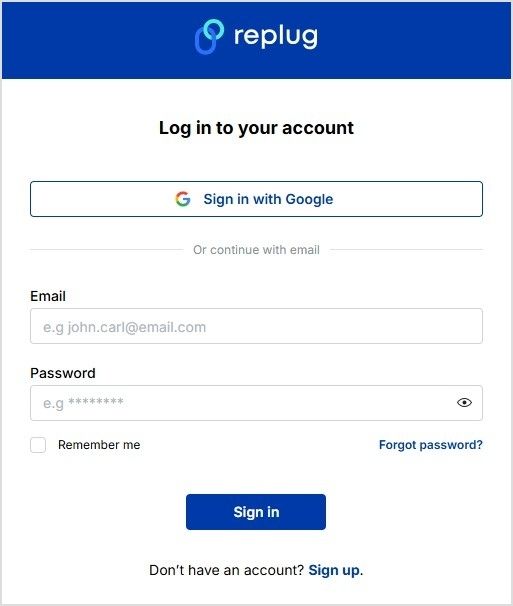
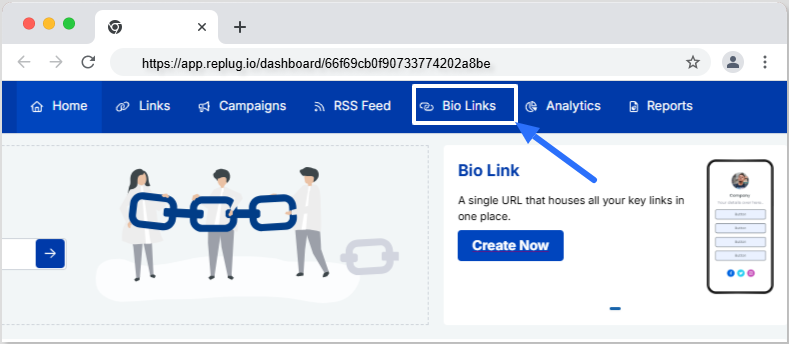
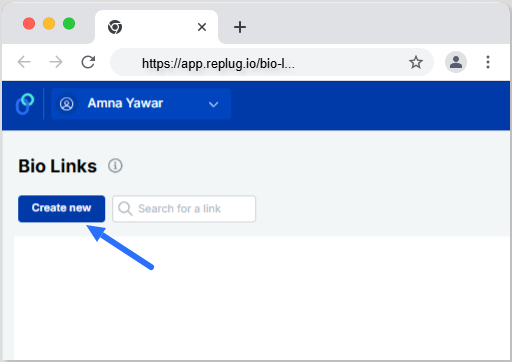
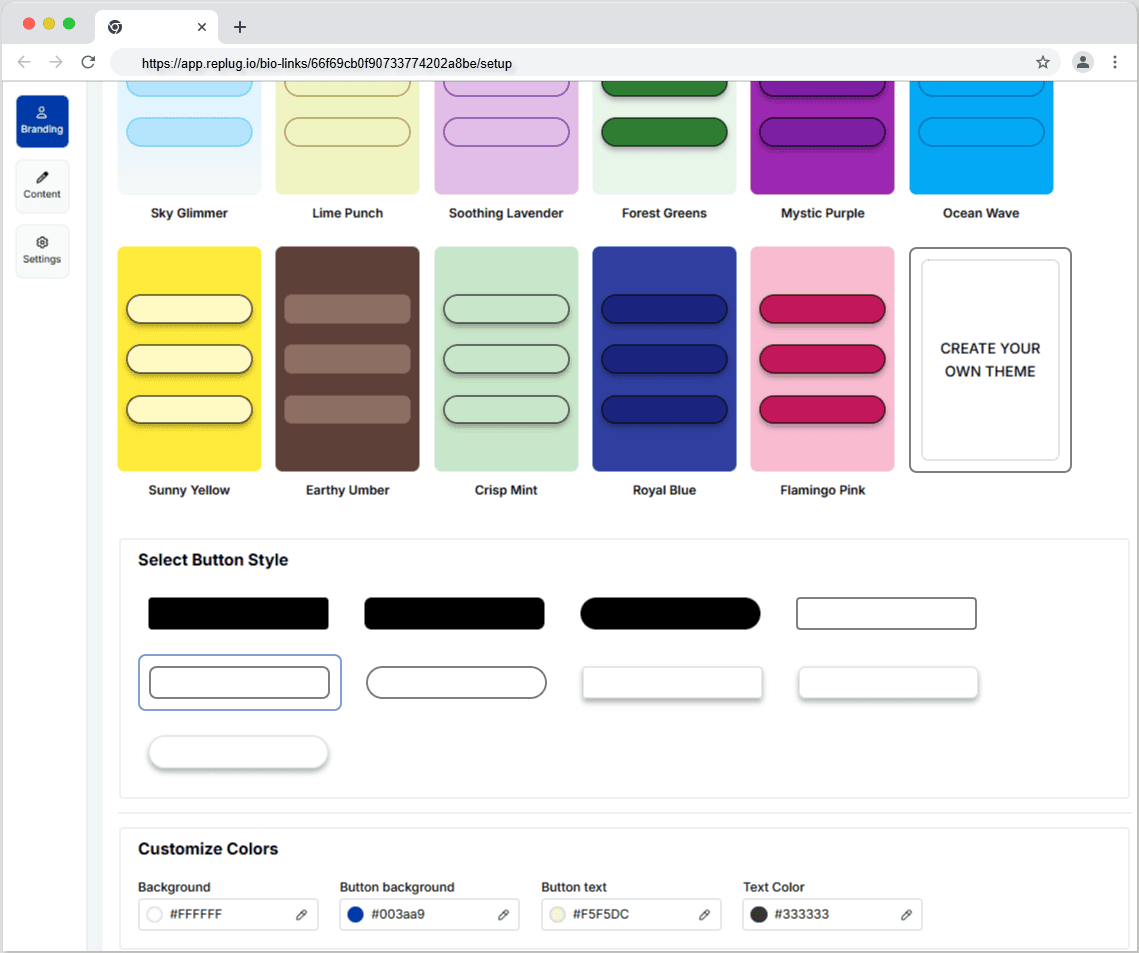
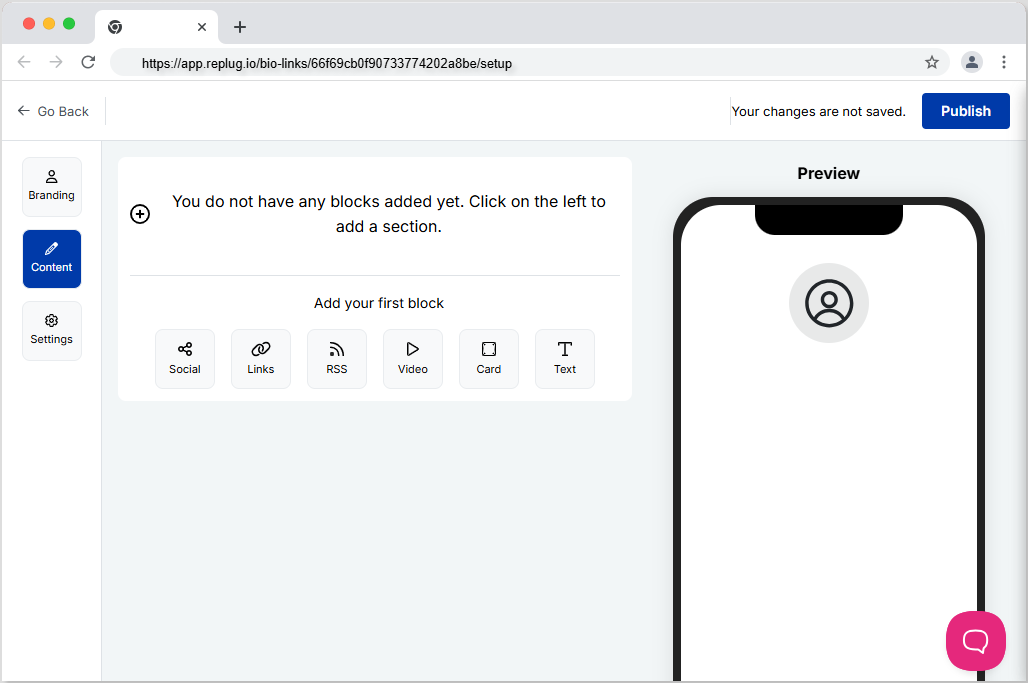
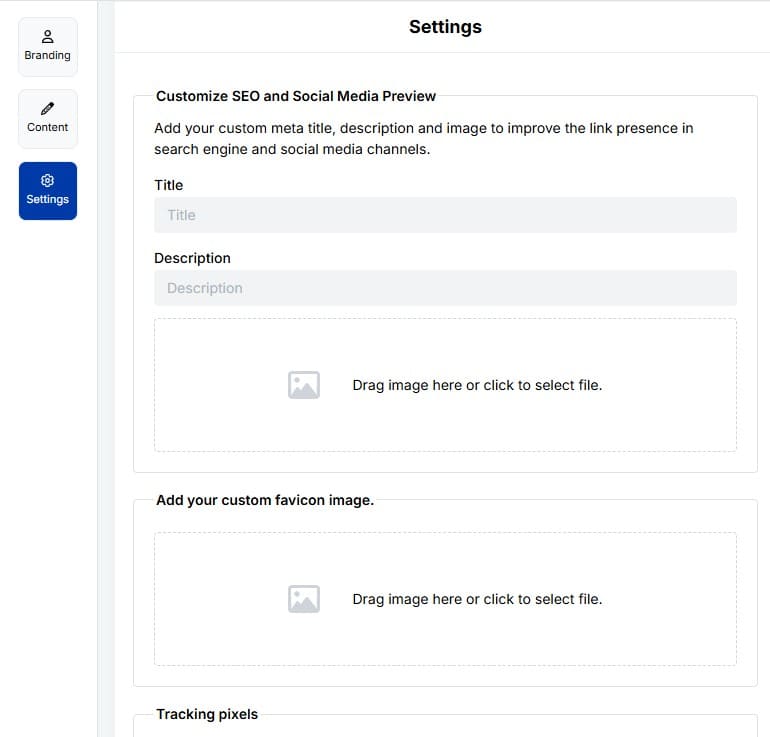
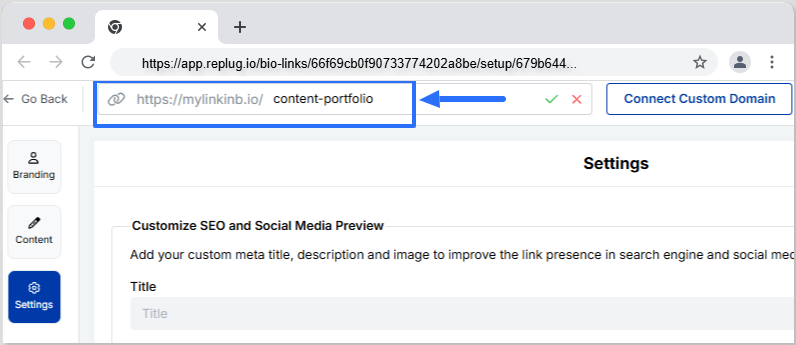
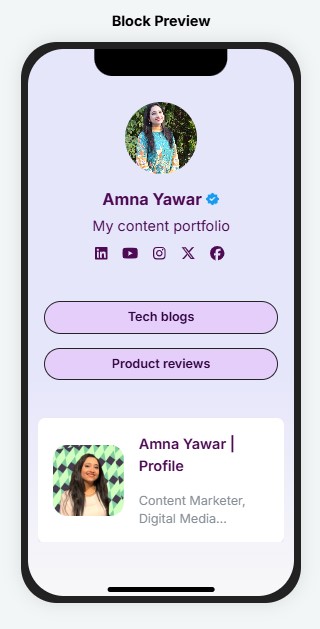
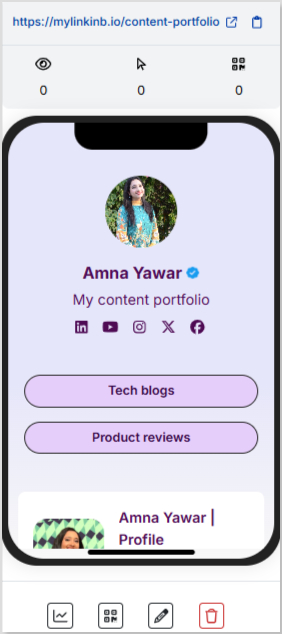
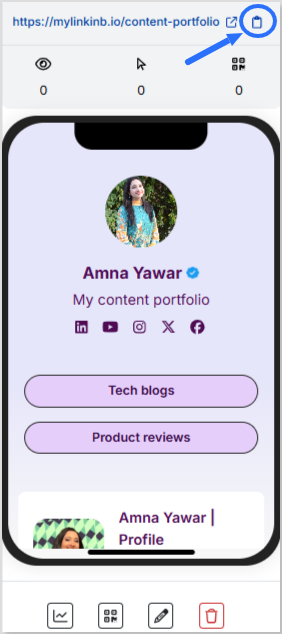

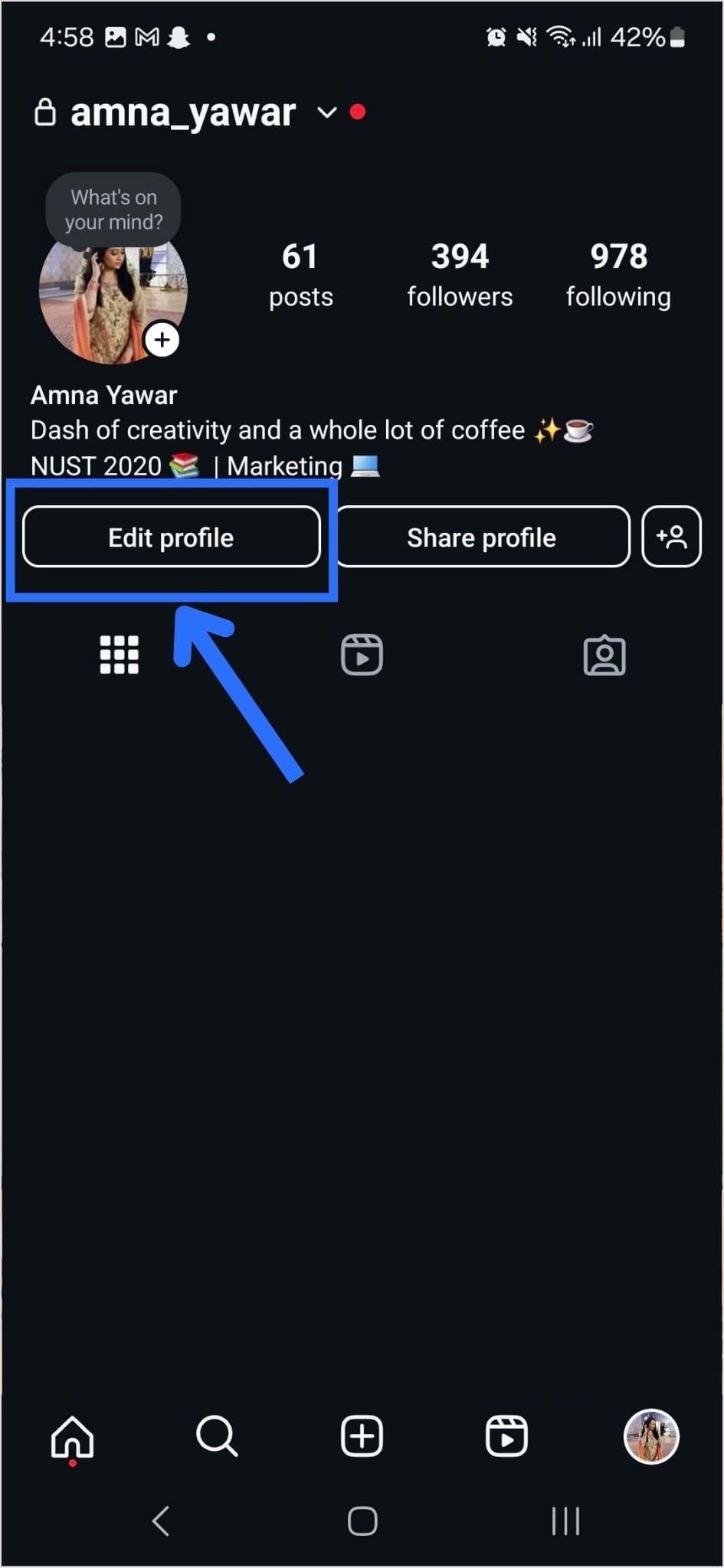
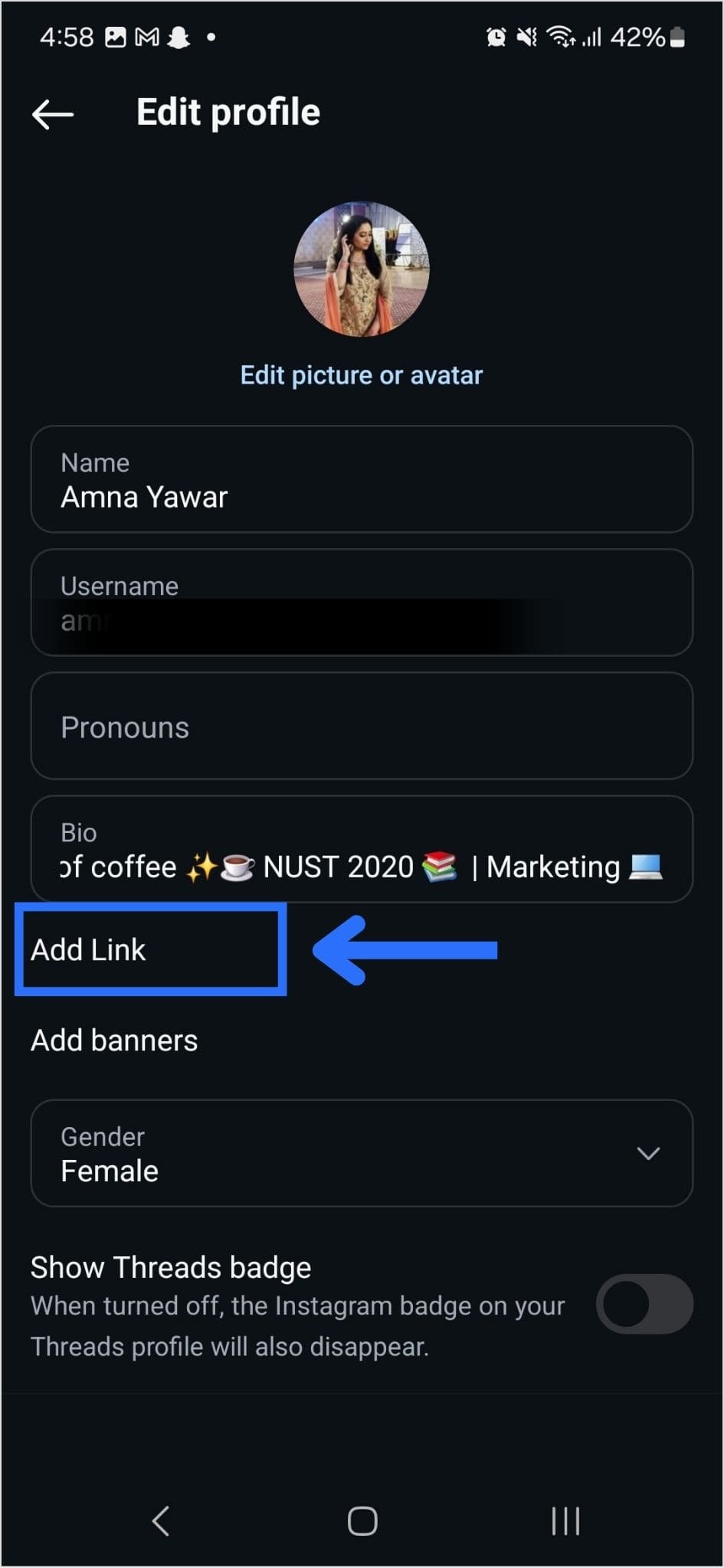
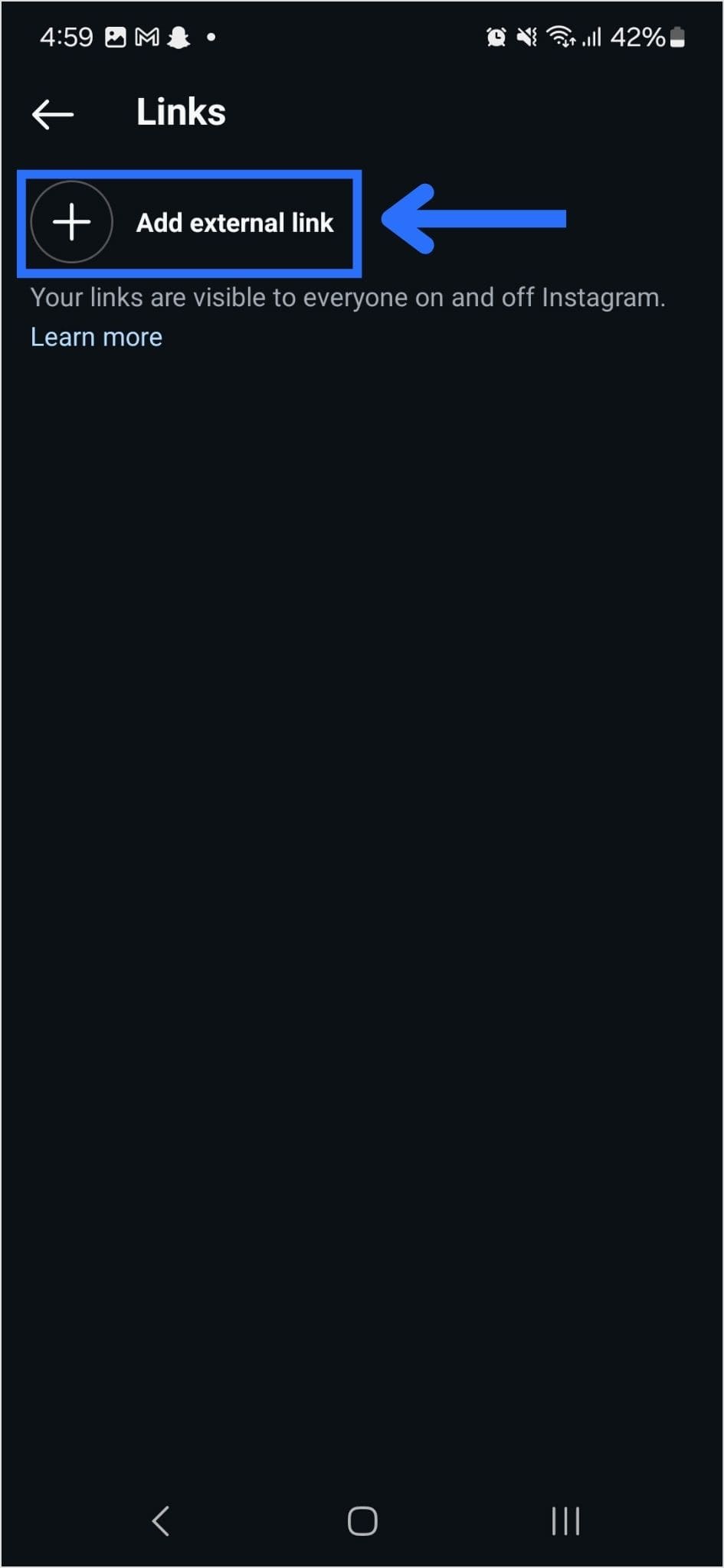
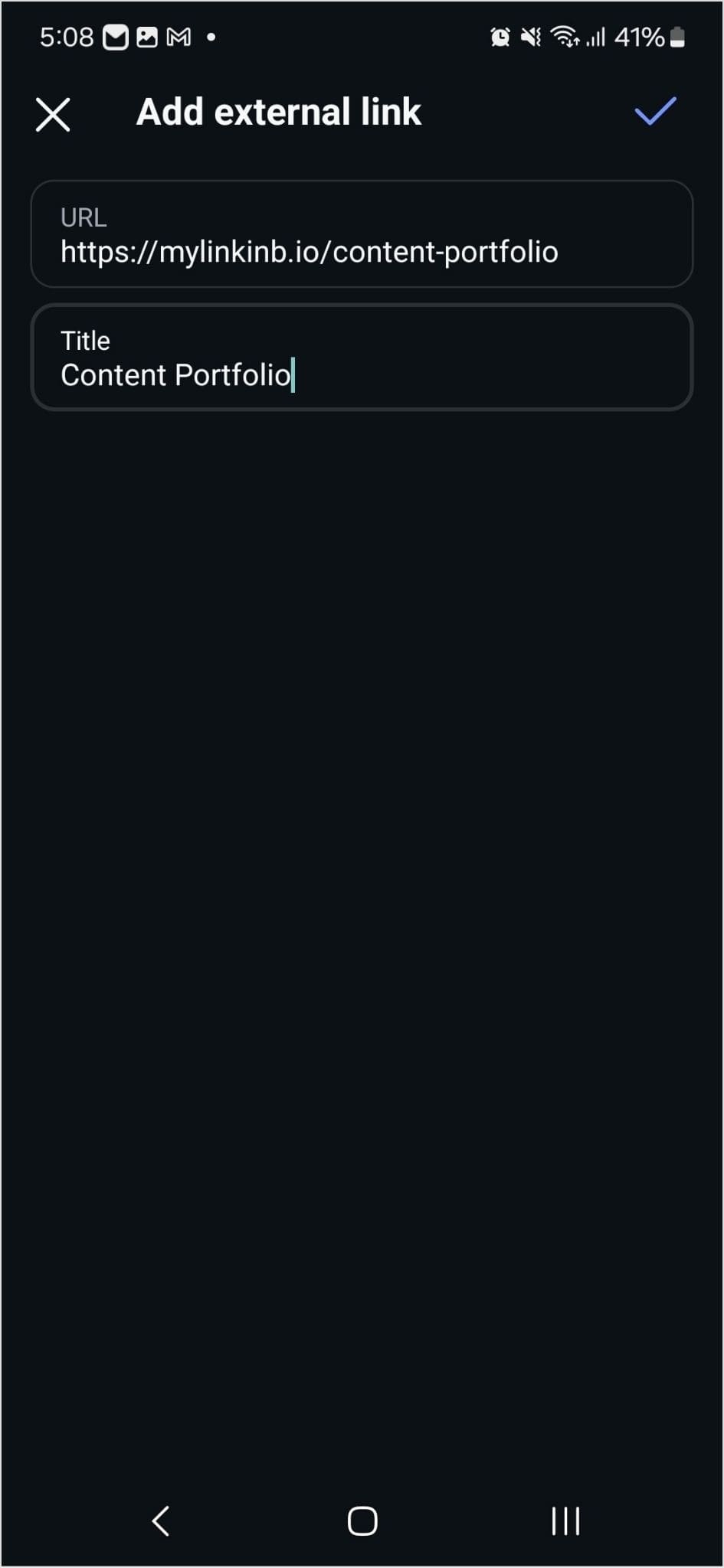
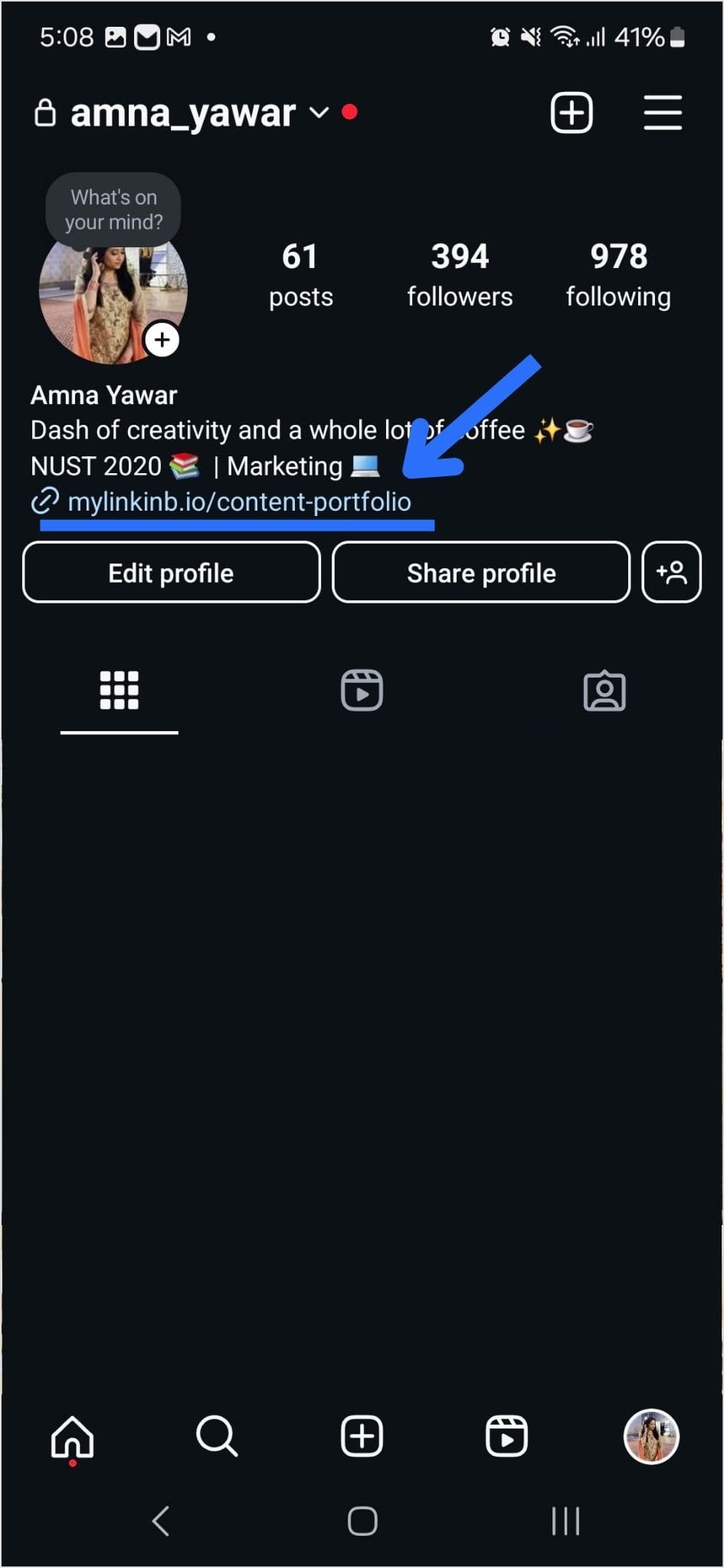
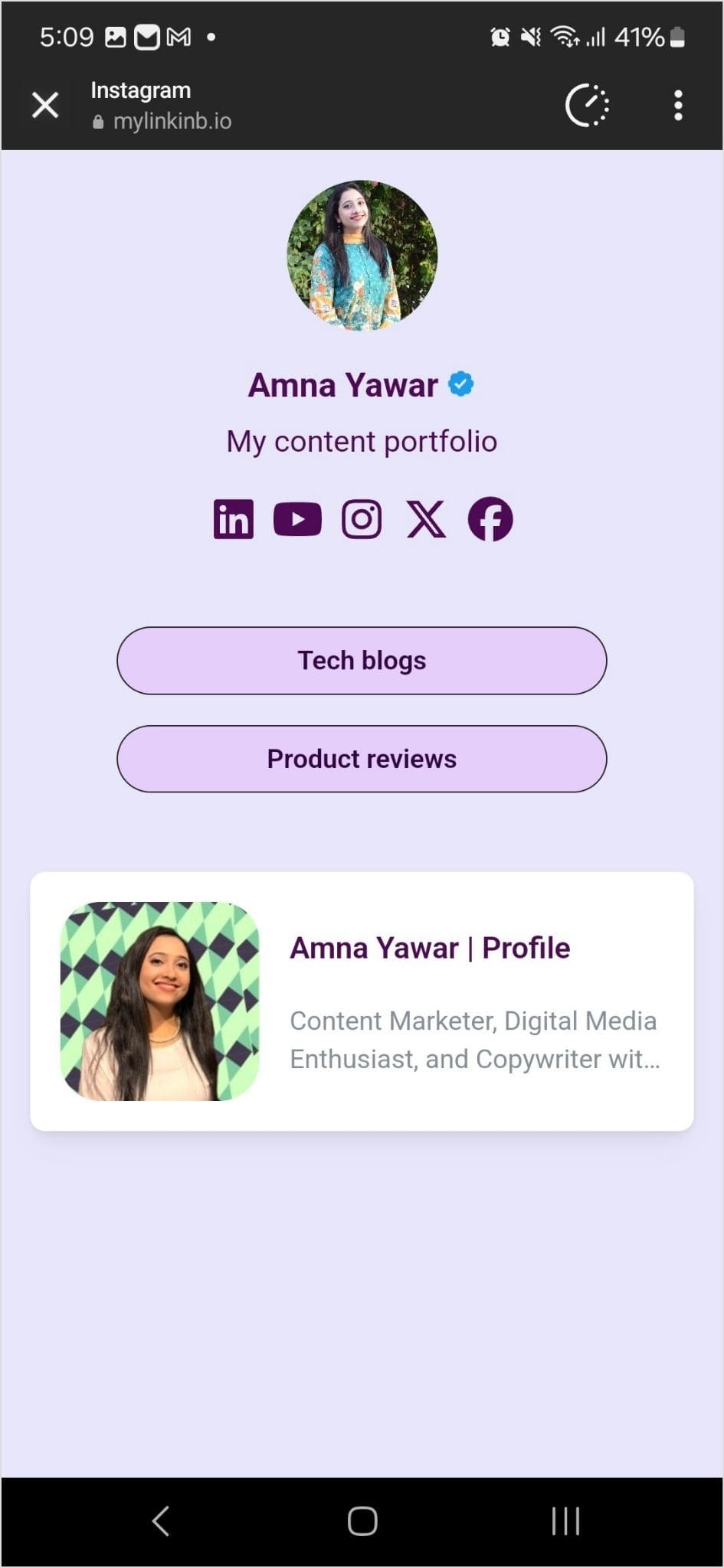


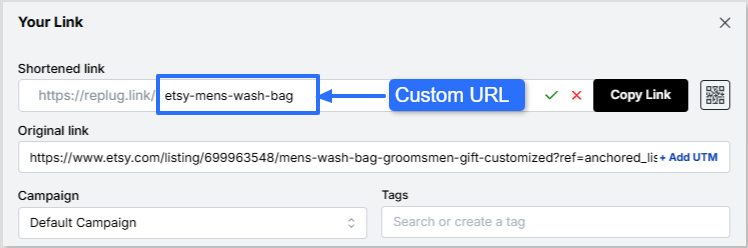
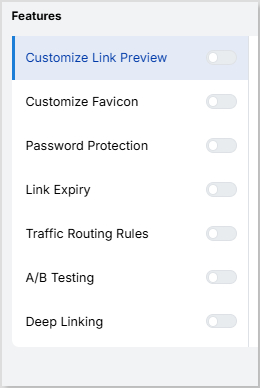
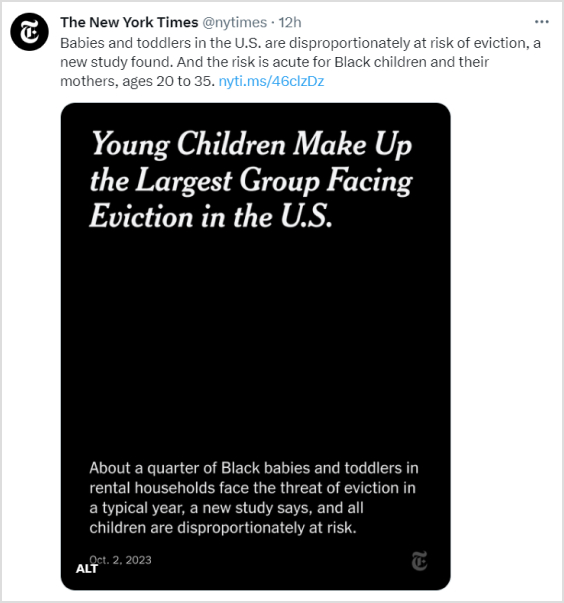
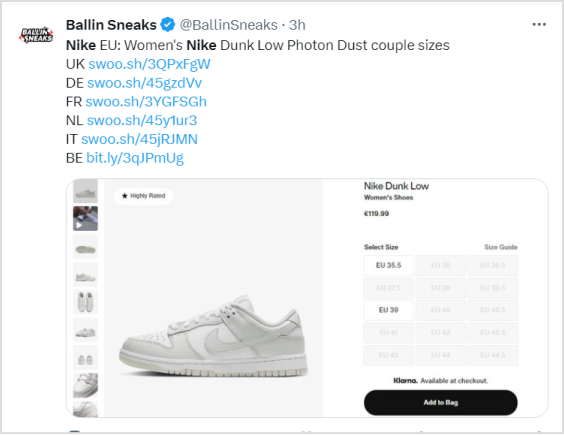
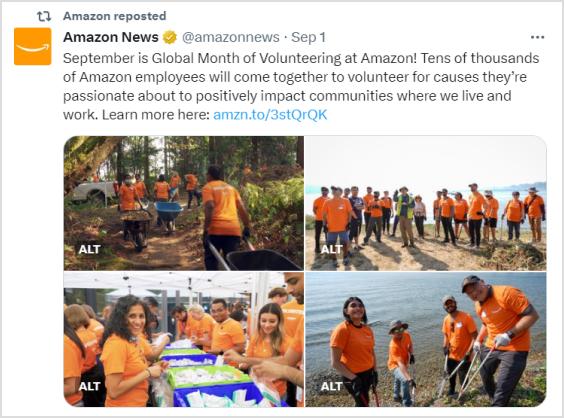

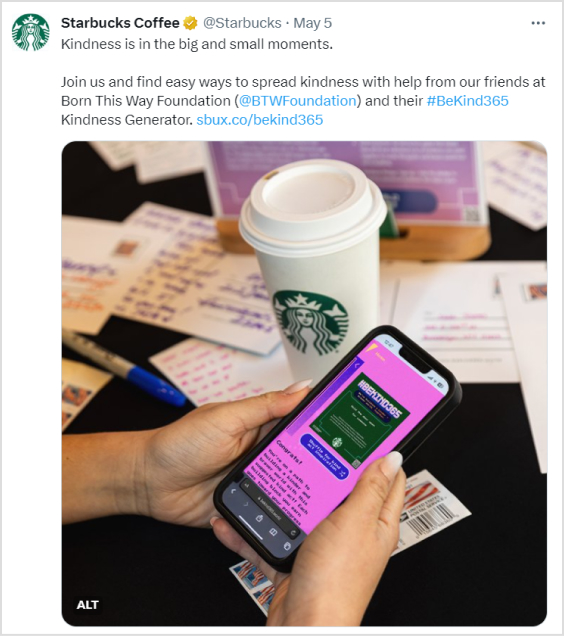

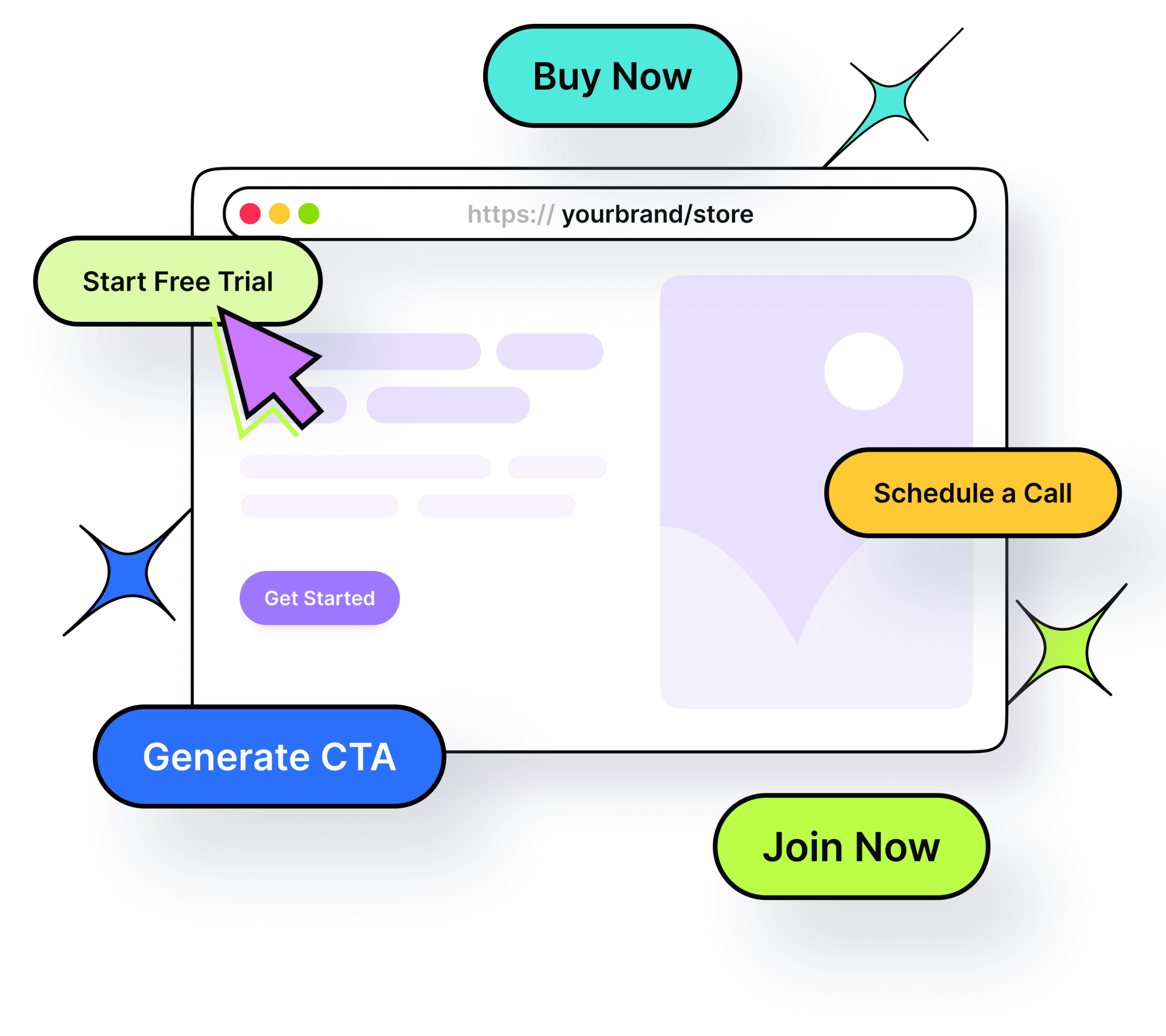
 However, tools like

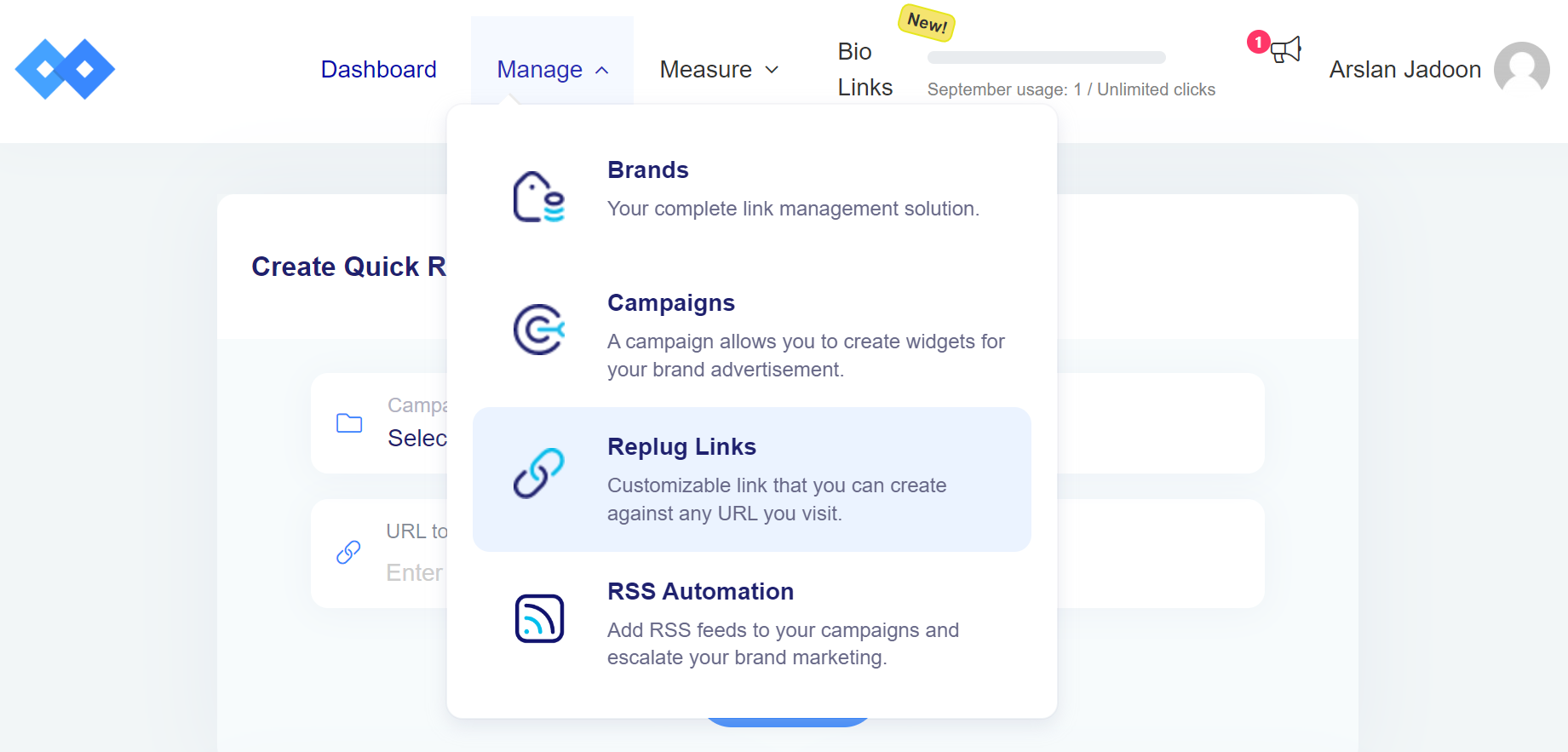
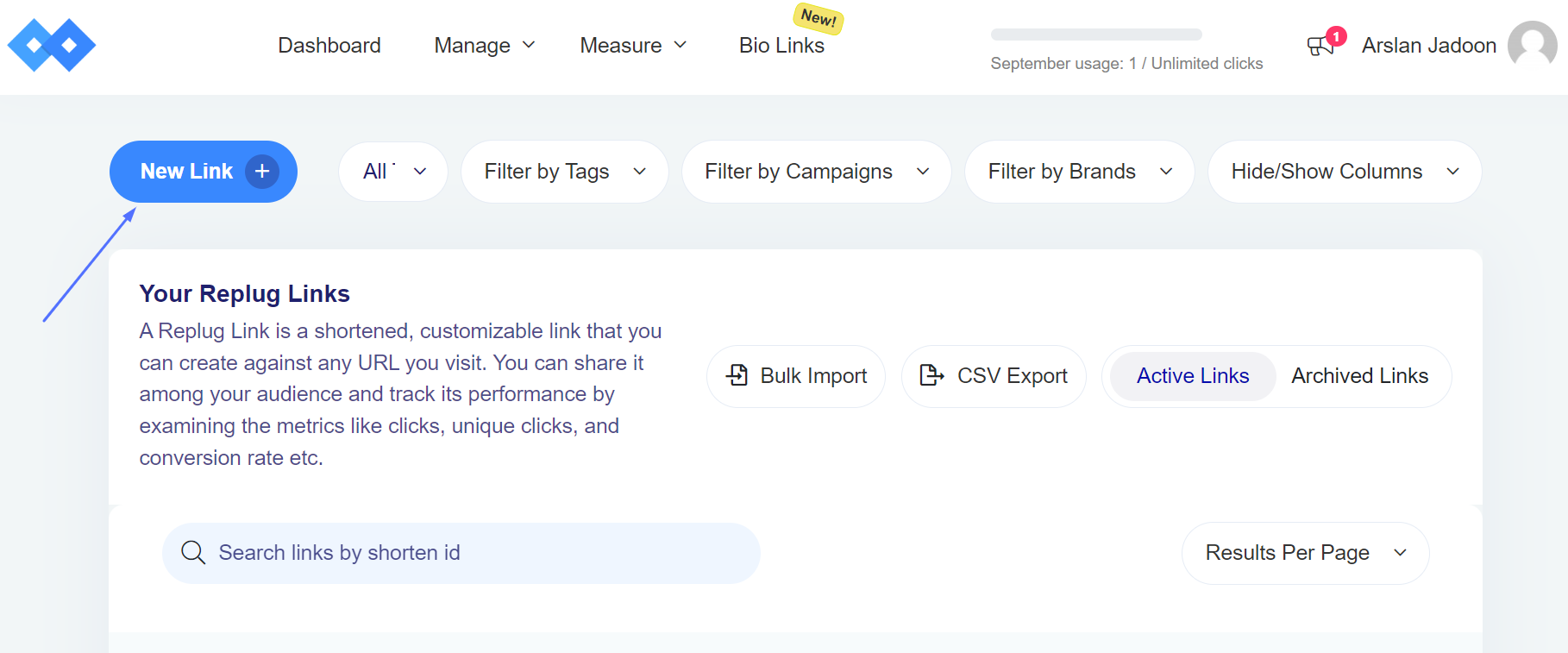
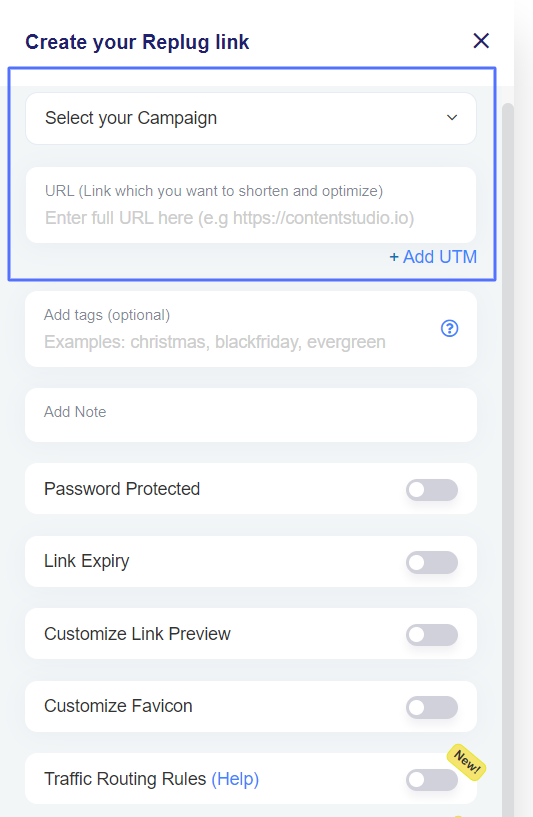
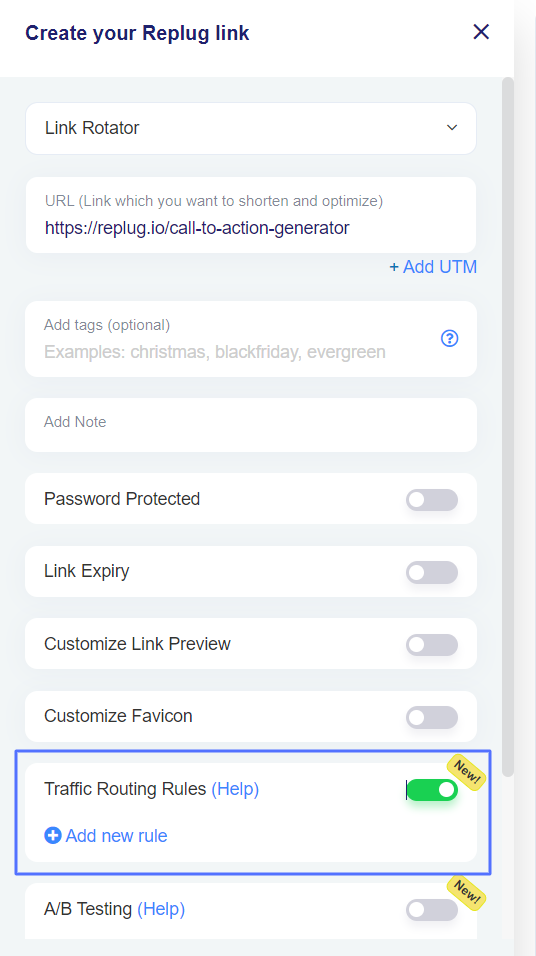
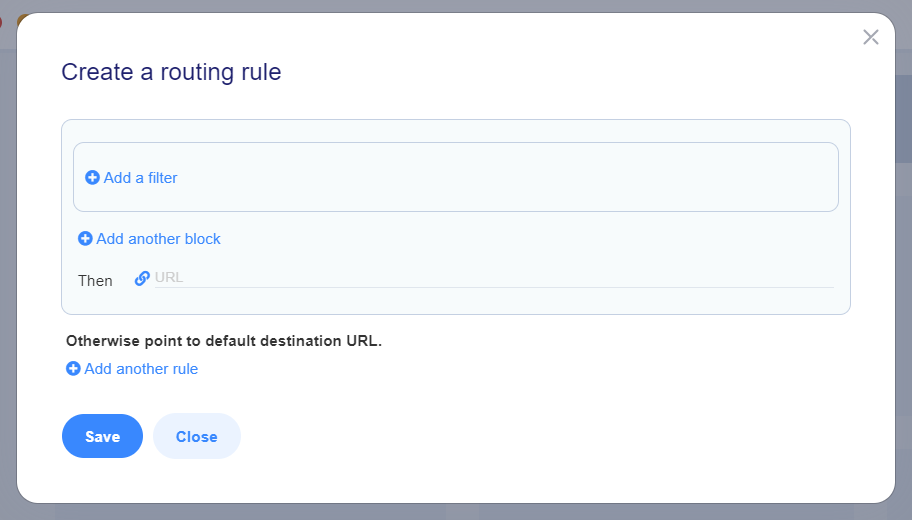
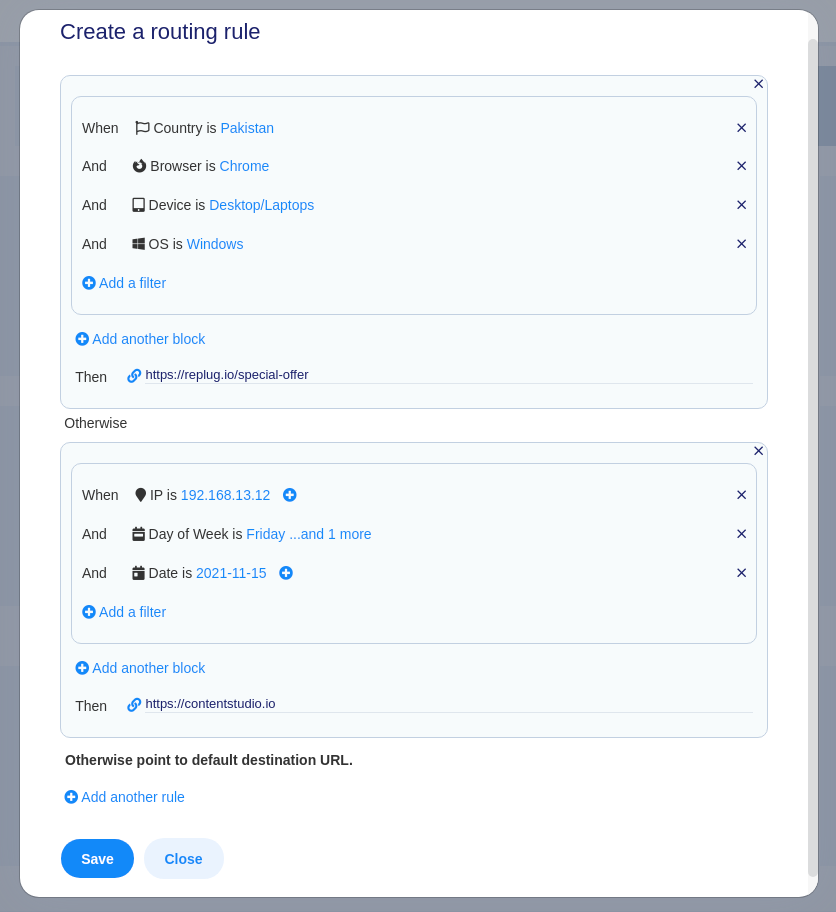

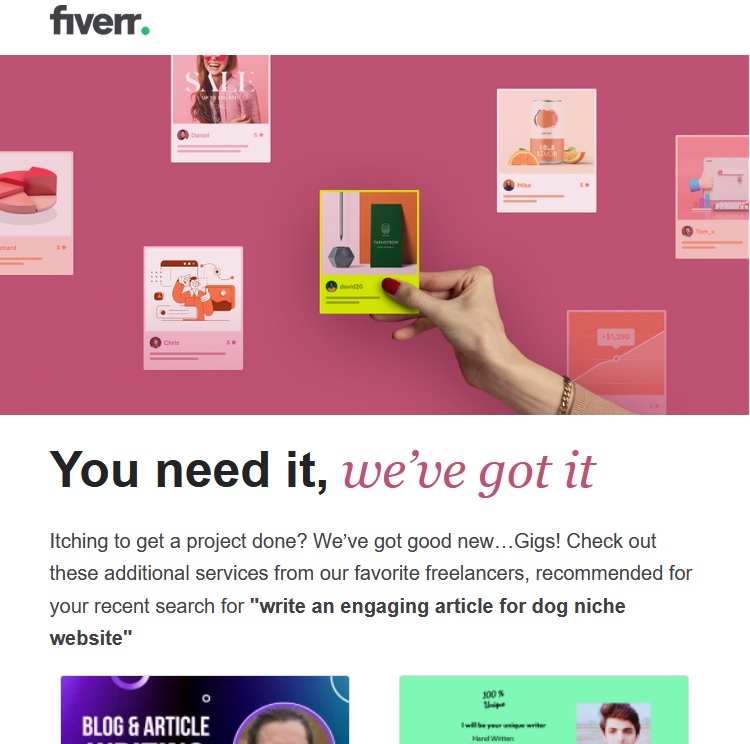
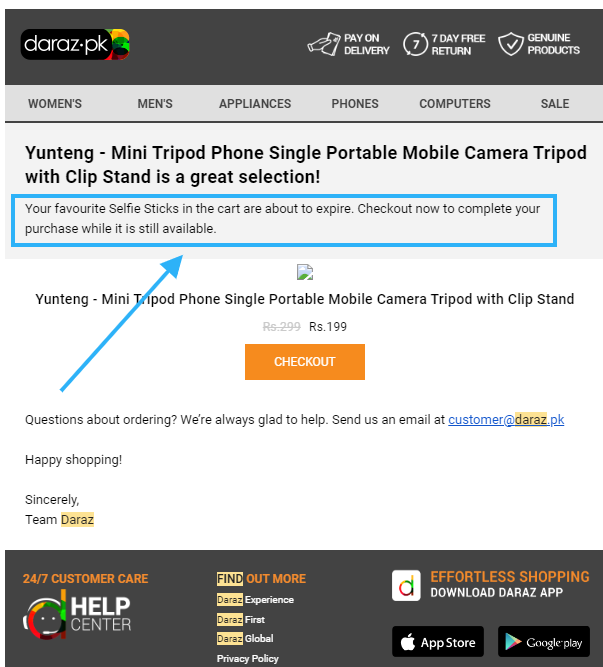
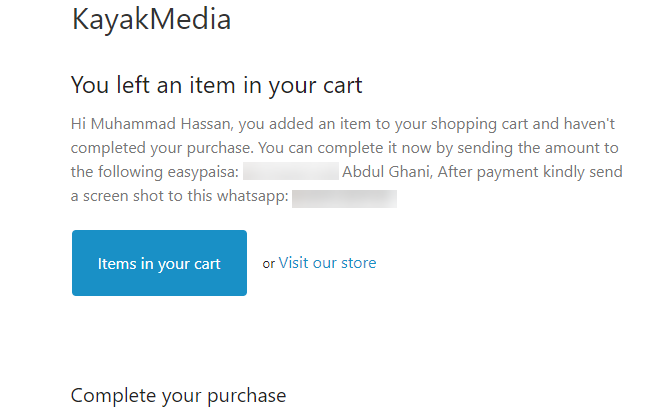
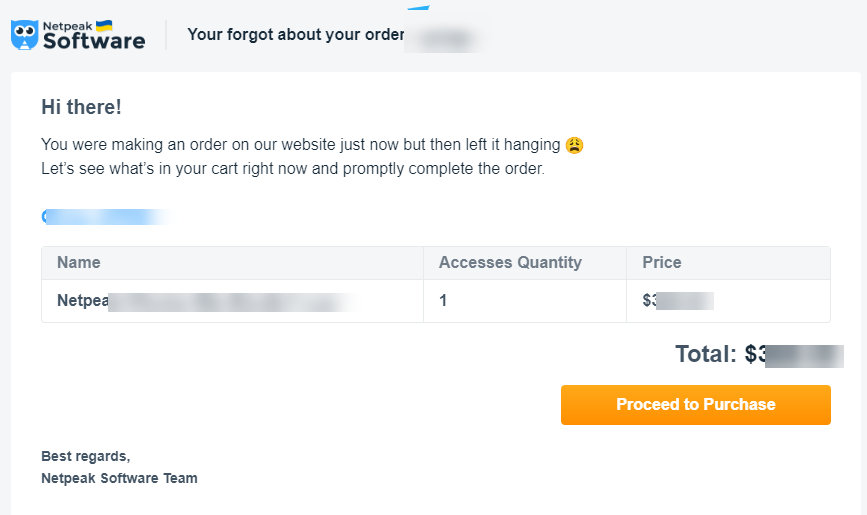
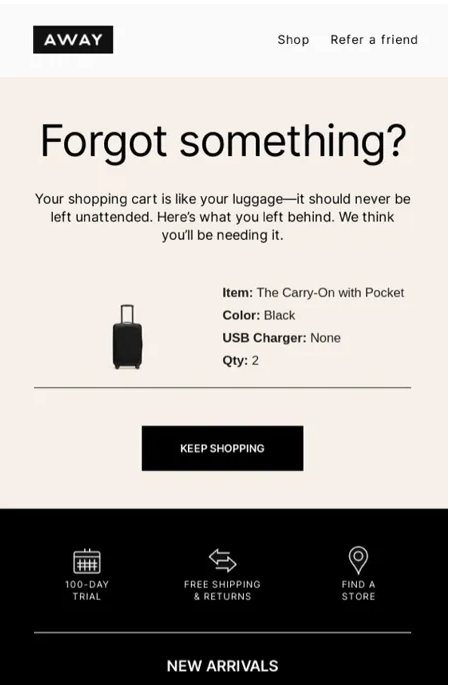
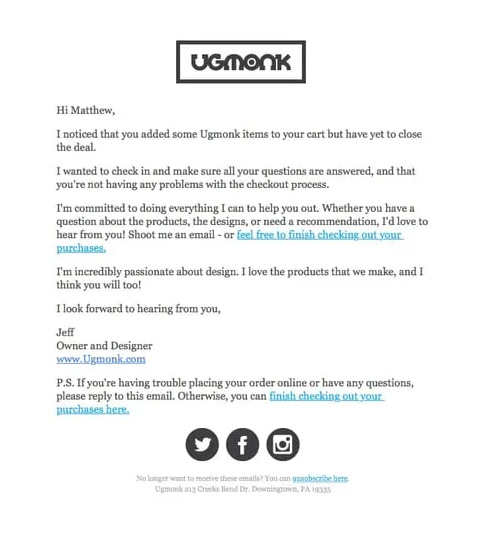
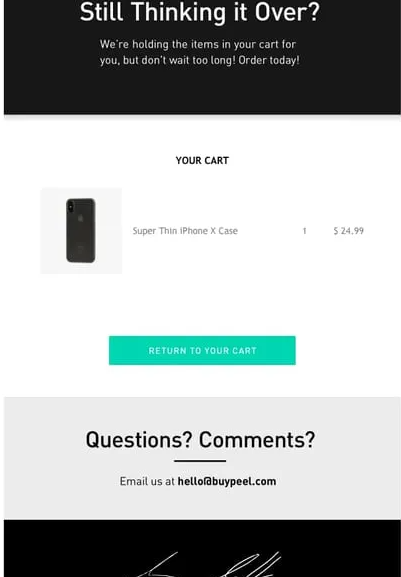
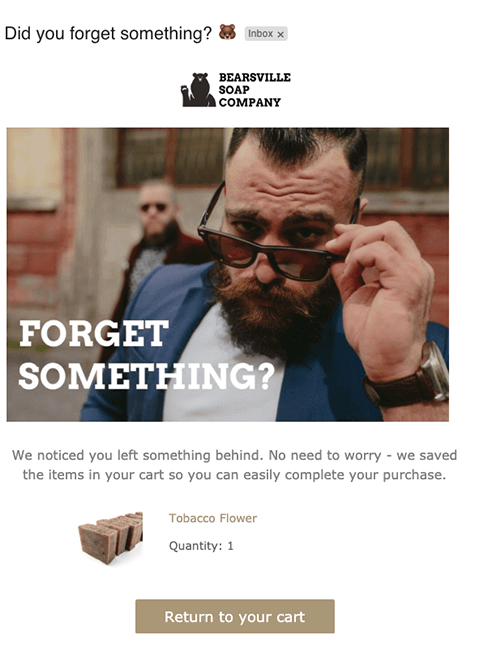
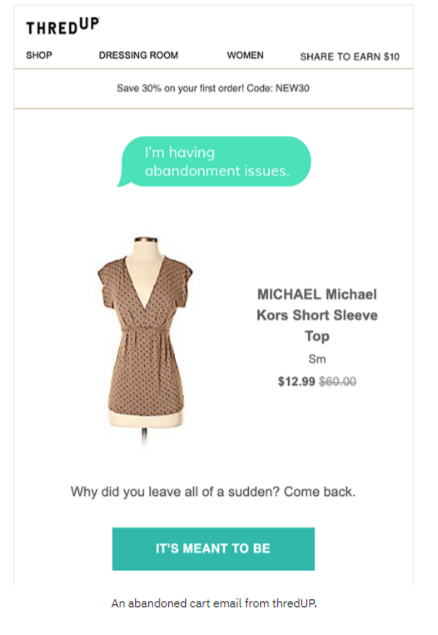
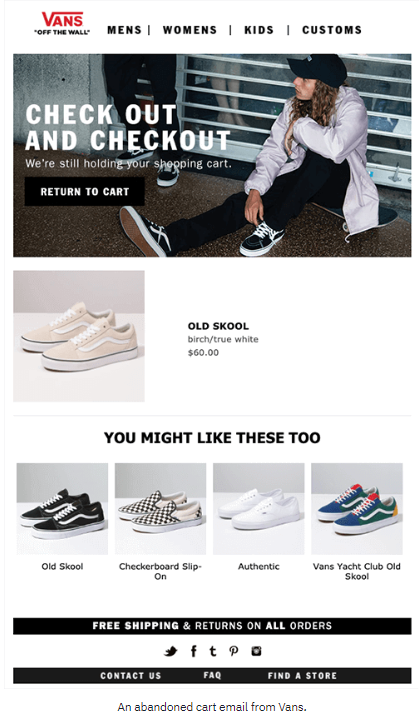
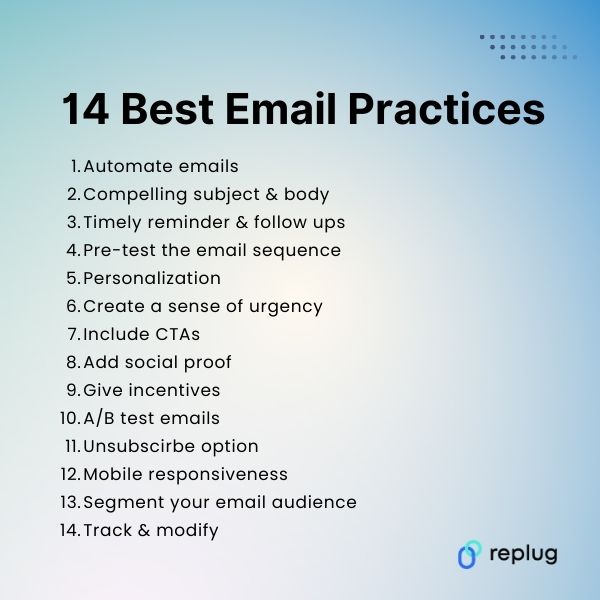
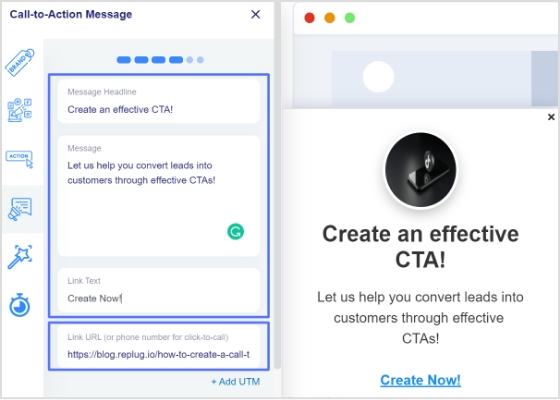
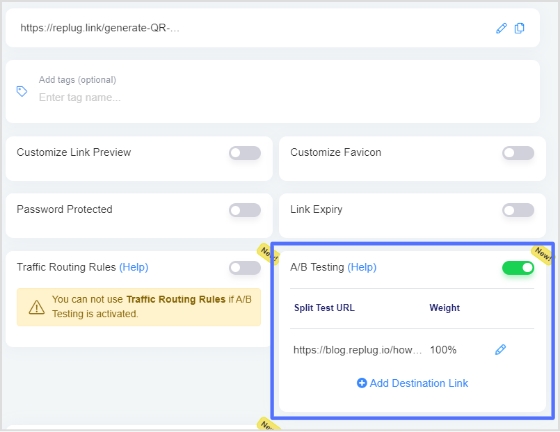
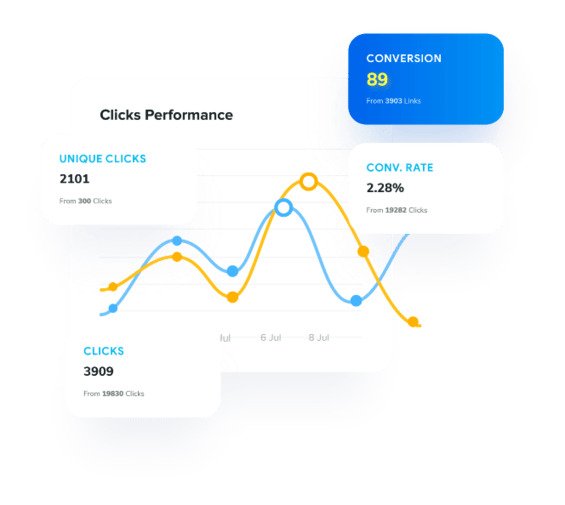


 Furthermore, brands can potentially attract conversions from customers not typically part of their target audience.
 Louis Vuitton has developed an exclusive assortment of luggage specifically designed for the plug-in hybrid BMW i8 by BMW. The objective of this collaboration was to reach a specific, high-end audience by capitalizing on their shared values and admiration for talent and innovation.