Marketers use link rotation tools to understand the website visitors or audience response towards the provided URL links, so to speak. So if you share your website or actively share content on social media then use short URLs on social media to drive traffic to your website pages, blog posts or fan pages. Adding link rotation to your marketing repertoire can be a good way to convert more audience.
URL shortening is a popular link management tactic. However, the story doesn’t end withutilizing short links on social media. This is why we decided to shed some light on the concept of link rotation .
For those who are curiously waiting to find out where exactly we could use link rotators, this section is written for them. There are several occasions when you could use link rotators. Let’s find out:
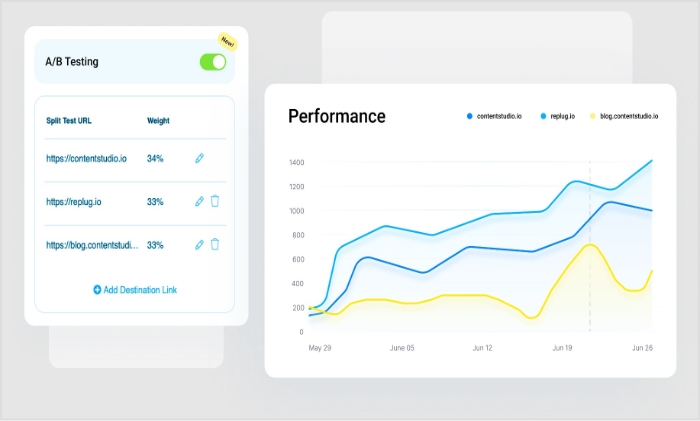
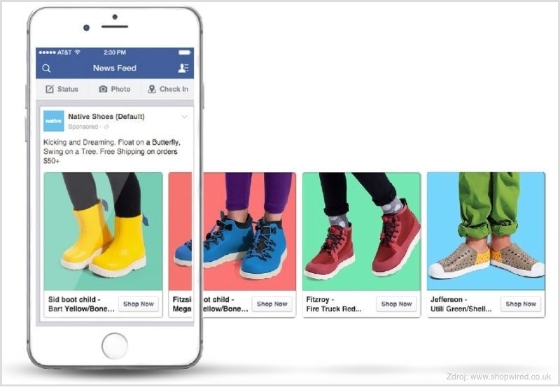
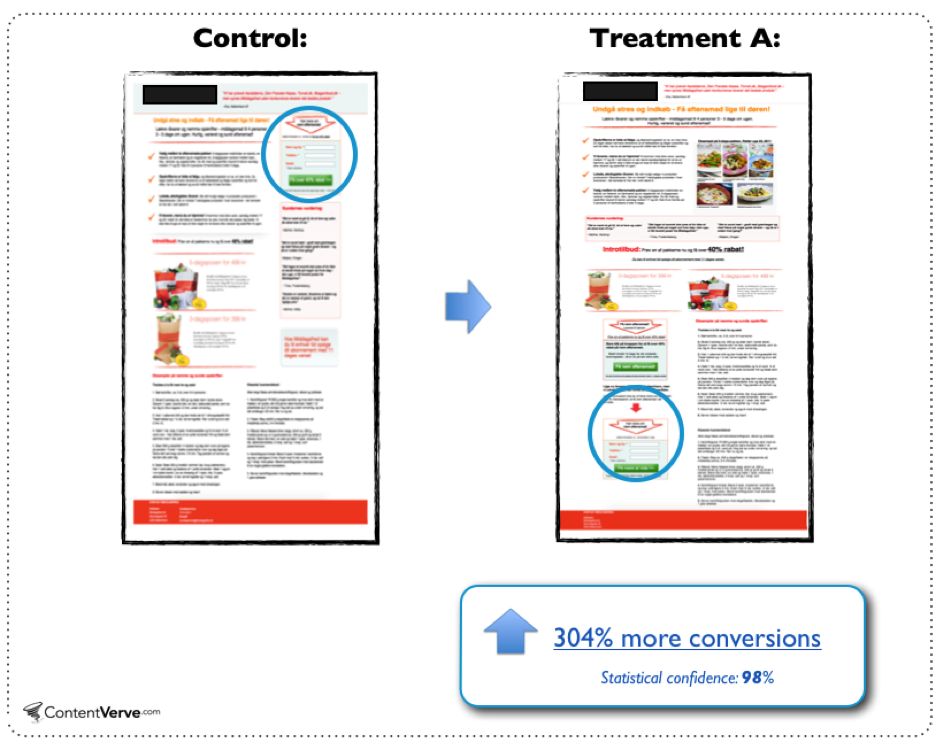
Link rotators could come in handy when you want to run A/B split testing campaigns with your links. Digital marketing may have a million ways to market your product or content, but the end goal of every strategy ortactic is to attract the audience to take action. Therefore, embrace the link management strategies.
Most top-notch URL shorteners have a link rotator feature for A/B testing. A/B testing is a testing strategy of creating two options for comparison. Usually, marketers test out two ad designs or ad headlines to do a comparison between them.
Since link rotators allow users to split the traffic to two different destinations, it helps them understand which one performed better. It could be two sales pages or separate websites.
2. Promoting products in affiliate marketing
Affiliate marketing is a monetization model that allows marketers to earn commissions on sales. Affiliate marketers – whether they’re bloggers, YouTubers, or Instagram influencers – the majority of themuse short links for their affiliate links.
Plus, short URLs are used for almost all the outbound links that they need to track. There are short URL WordPress plugins that most of them use for shortening their URLs.
Link rotation could be used in affiliate marketing by setting up two different links to see which drives more visitors or which one attracts more eyeballs. It could quite be an experiment, because affiliate marketing depends on link clickability. One can’t earn a living with affiliate marketing if links aren’t being clicked.
59%of companies use A/B testing on their email marketing campaigns.
(QY Research)
Email marketing is a digital marketing strategy that allows brands, businesses, and marketers to reach out to their subscribers via email. The subscribers must opt-in to receive the email newsletters.
Email marketers use their email content to convey their message and insert links to drive traffic to their websites or landing pages.
Link rotators could be infused into anemail marketing campaign by adding two or more links with different anchor texts across multiple emails to see which one works best. However, one has to make sure that all the links are pointing to the same page.
Social media is a powerful source of website traffic. Marketers heavily rely on social media platforms such as Pinterest, YouTube, Quora, andFacebook to get website traffic. A small portion of that social media website traffic couldconvert into paying customers.
Link rotation could be used on social media when driving website traffic. Since link rotation helps you understand how theaudience behavestowards your links, it gets easier to understand the acceptability of a specific URL or website page.
5. Running ad campaigns
Online ad campaignsare incomplete without providing the destination URLs. Advertisers usuallydrive traffic through their online ads to the landing/sales pages or product pages on the website.
Link rotation could help advertisers with creating multiple links for their pages to analyze how those users receive those links.
So these were a few of the use cases of link rotators in digital marketing, but I’m sure there are plenty of other areas where link rotators could help marketers.
6. Link Rotators and SEO
“We find that content marketing is by far one of the highest performing channels over the long-term. On average, our clients see that people who subscribe to their blog are 50% more likely to become paying customers than non-subscribers. That’s a big difference,”
Jenna Alburger, Digital Marketing Strategist @ Outlier Creative (Data Box)
Link management is a vast domain and doesn’t only cover URL shortening. You must have learned so far that link rotation is a vital feature of URL-shortening tools.
Link rotators could come in handy in SEO for many reasons. One of those reasons is that link rotators go hand-in-hand with A/B testing and SEO experts split tests with landing pages, CTAs, navigation, content, and other stuff all the time .
Link rotators assist marketers and conversion specialists with driving traffic to specific pages or rotating some visitors for testing purposes. The reason behind pivoting some of the website visitors could be bringing some attention to the specific offer or landing page.
Similarly, the clickability on the CTAs or banners could also be analyzed by using the link rotation technology.
7. Rotate multiple links
One of the reasons why you should be trying out the link rotating feature is to rotate multiple links for testing purposes. You might want to see which one works best for you. For instance, if you have a dedicated domain registered for your short URLs, you could test out the link shortening with the custom domain and the regular domain to see the difference.
8. Alter destination URLs
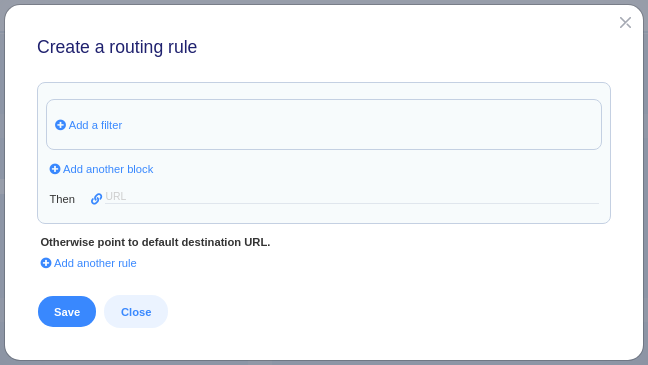
Altering or rotating destination URLs is one of the features that most URL rotators offer . It allows marketers and bloggers to test the outcome if they switched the destination URLs, meaning if the traffic lands on a different destination page.
9. Add a link weight
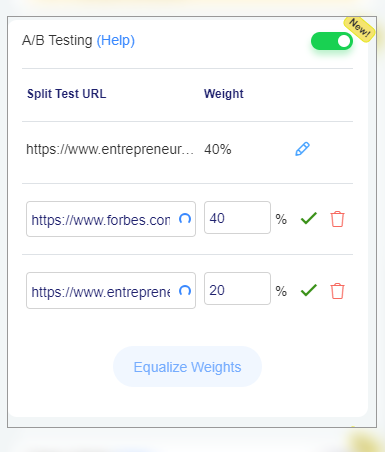
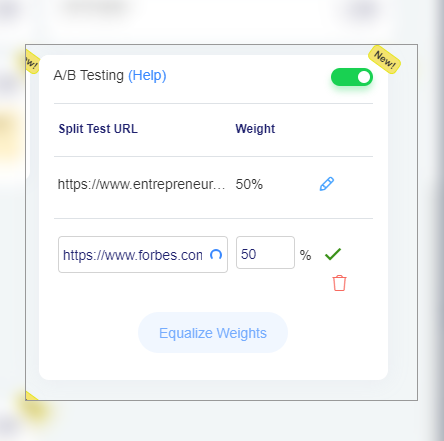
Adding a link weight is the ability to tell the link rotator about the importance of two or more links by setting a certain percentage for each link. Replug allows users to set the weight while A/B tests the URLs.
In conclusion, link rotators provide a number of benefits for online marketers and businesses. They allow for easy tracking and analysis of traffic, enabling users to see which links are performing well and which are not. They also offer the ability to rotate multiple links, providing a way to test different campaigns and marketing strategies. Overall, link rotators offer a powerful tool for optimizing online marketing efforts and are an essential part of any online business strategy.
To further enhance and uplift your marketing campaigns, consider using Replug’s top-notch URL shortener with custom name to create branded, trackable links that complement your link rotator strategy.
Downloading your TikTok videos without the watermark can be challenging, as there is no straightforward method. This can be an issue if you create videos within the TikTok app and later want to share them on another social media platform, as the TikTok watermark will appear on the downloaded version of the video.
TikTok does not offer native tools for downloading videos without watermarks, but third-party apps and websites do. These apps and websites are created by independent developers and are not affiliated with TikTok. They can be used to download videos from TikTok with the watermark removed.
Most of these third-party tools are relatively straightforward, making downloading videos from TikTok as quick and easy as using the platform’s native tools. So, let’s get started and explore a reliable TikTok video downloader to simplify the process!
Save TikTok videos without watermarks with these free tools:
The process is quite simple to save a TikTok video without a watermark. All you need to do is copy the link of the video that you wish to download. This link can typically be found by clicking the “Share” button beneath the video on the TikTok app or website. Once you have copied the link, you can proceed to one of the tools mentioned.
Once you are on the website or application, you will likely see an input field where you can paste the video link you have copied. After you paste the link, you will be prompted to hit a download button or process. The tool will process the link, and the video will be ready for download in a few seconds without the watermark.
It’s important to note that saving a video without a watermark may not comply with the terms and conditions of TikTok and the content creator. So users should be careful while using these kinds of tools and take necessary precautions.
TikSave.io allows you to download TikTok videos without watermarks or user IDs. This means that when you download a video from TikTok using TikSave.io, the video will not have any overlaid text or logos that indicate the original creator of the video. Additionally, the video will not include any information about the user who uploaded it, such as their user ID.
To use TikSave.io, you must copy the link to the TikTok video you want to download and paste it into the input box on the website. Once you have done this, you can download the video in the format and quality you prefer. Downloading videos from TikTok using TikSave.io is simple and does not require special software or technical knowledge.
Overall this allows the user to download any TikTok video of their choice and save it to their device without any watermarks or UserID linked to it, making it an easy process.
SnapTik allows users to download TikTok videos without watermarks, which are then overlaid text or logos that indicate the original creator of the video. By using SnapTik.App, you can download TikTok videos in their original form without any branding or identification of the creator.
One of the main advantages of SnapTik is that it does not require users to install any software on their computers or mobile phones to use it. All you need is the link to the TikTok video you want to download, and you can use the website to download the video with just one click. The processing of the video is done on the SnapTik.App’s side and the user must just paste the link and download it.
This makes downloading TikTok videos simple and easy for the user, with no need for additional downloads or technical know-how. So SnapTik can be considered a user-friendly and efficient TikTok downloader.
TTDL (tiktokdownload) is a tool that can save as many videos as you want without limitations or restrictions. In addition, you can download videos without any watermarks, which means that the videos will not have any overlaid text or logos that indicate the original creator of the video. This allows you to have a clean and unbranded version of the videos.
SSSTik.io is one of the most popular TikTok story downloaders. It allows users to save videos without any watermarks, which are overlaid text or logos that indicate the original creator of the video.
One of the main advantages of SSSTik.io is that users don’t have to install any additional apps or software to use the service. All that is needed is a web browser and the link to the TikTok story you want to download. You simply paste the link into the input field on the website, and it processes the link and allows you to download the story without any watermarks.
TikMate is another excellent tool for downloading TikTok videos without a watermark. The process is the same as for the above-explained tools. First, open the TikTok app and find the video you want to download. Next, click the “Share” button on the video to “Copy the Link.” Then paste the video link into the TikMate website or application. After that, click the “Download” button and the “Download Without Watermark” button to download the video in Mp4 format without the watermark. Eventually, You’ll have your TikTok video downloaded without the watermark.
Note: If you’re interested in more than just watermark-free downloads, such as managing and optimizing all your shared links across social platforms, this all-in-one link optimization platform offers tools to help you do that efficiently.
Frequently asked questions
Do I have to pay to download TikTok videos without watermarks?
No, you don’t need to pay a single penny to download a TikTok video without a watermark. All you need to do is to visit one of the downloaders we discussed above, and you’ll have your video in just a few minutes.
Do I need to install the extension to download TikTok videos without a watermark?
No, you don’t need any extension to remove watermarks from the videos. Just paste the link to the video into any of the downloaders mentioned above, and you’ll have the video downloaded.
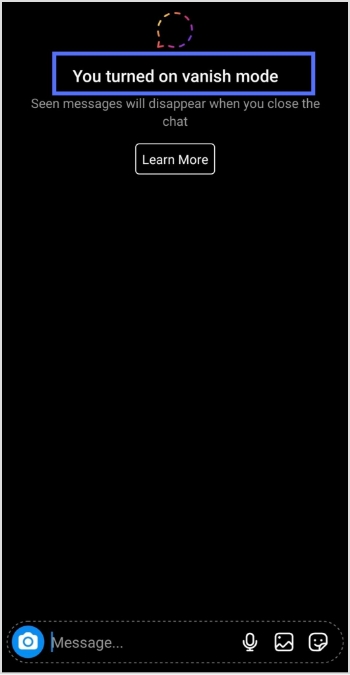
Vanish mode is a feature in Instagram that allows users to send messages that disappear as soon as they are read by the recipient. This feature is only available in Instagram Direct conversations, and both the sender and recipient must have vanish mode enabled to use it.
When vanish mode is enabled, all messages sent in the chat will disappear after they are read. The sender will also have the option to delete any messages they have sent in the chat, even if they have not been read yet.
Vanish mode is useful for sending temporary or ephemeral messages, such as quick notes or reminders, that do not need to be saved or archived. It can also be used to have more private or casual conversations with friends and family.
How To Turn On Vanish Mode On Instagram?
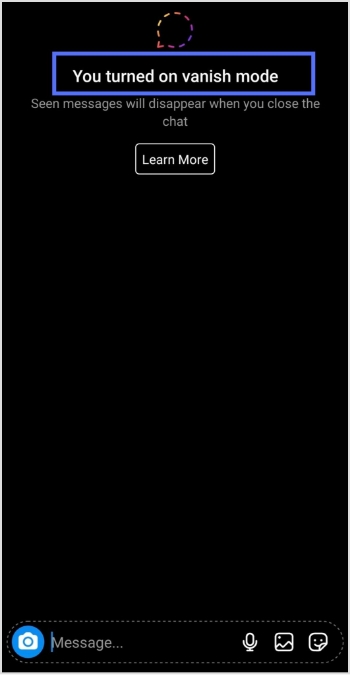
First, let’s see how to turn on vanish mode on Instagram. Follow the steps below:
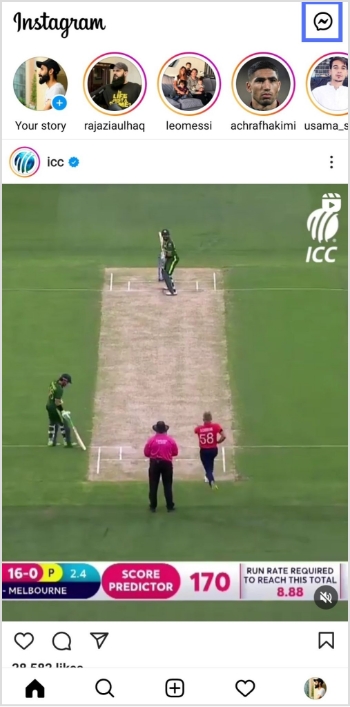
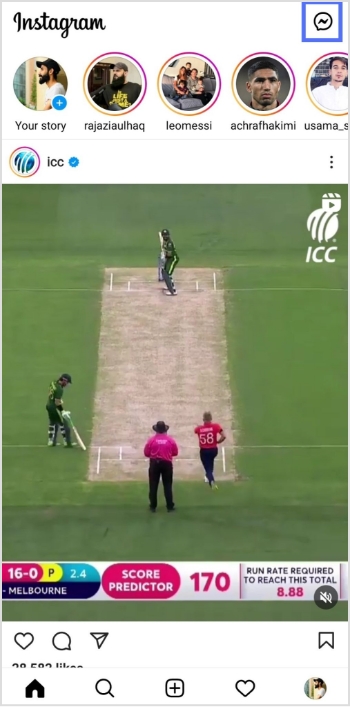
Step 1: Open the Instagram app on your device and tap the message icon in the top right corner.
Step 2: Start a new chat or go to an existing conversation.
Step 3: Swipe up from the bottom of the screen to access the vanish mode.
Note: Once you’re in vanish mode, you’ll be able to send messages that will disappear as soon as they are read by the recipient.
Maximize marketing ROI
by transforming ordinary URLs into branded short links that convert.
Try Replug for free
To turn off vanish mode on Instagram, follow these steps:
Step 1: Open the Instagram app on your device and tap the message icon in the top right corner.
Step 2: Go to the chat or conversation where vanish mode is enabled.
Step 3: Swipe up on the screen to exit vanish mode.
You should keep in mind the following:
Disappearing messages cannot be copied, saved, or forwarded.
Only accounts you have connected with previously can send you message requests in vanish mode.
Vanish mode can only be used in a chat with another Instagram account, not in group chats or with Messenger or Facebook accounts.
Some professional accounts may not be able to receive messages in vanish mode.
Only use vanish mode with people you trust, as it is possible for someone to take a screenshot or screen recording of a message in vanish mode before it disappears. You will be notified if this occurs. It is also possible for someone to take a photo of a disappearing message with a camera or other device before it disappears.
If you manage multiple social-media links or share content frequently across platforms, Replug.io can help you organize, shorten and track all your links from one centralized dashboard.
Frequently asked questions
How does vanish mode work on Instagram?
On Instagram, Vanish mode allows you to send messages that disappear after they are read. To use Vanish mode on Instagram, you must have the latest app version, and the feature turned on in your settings.
Note that Vanish mode only works in one-on-one conversations. It is also important to be aware that while the messages you send in Vanish mode will disappear from the recipient’s device, they may still be able to take a screenshot or capture the message in some other way. As with any sensitive information, it is important to use caution and consider whether Vanish mode is appropriate for your needs.
Why should you use vanish mode?
Vanish mode feature can be useful in several different situations, such as:
– Sending sensitive or personal information you don’t want to be saved or shared. – Having casual conversations with friends that you don’t want to be documented on your Instagram account. – Make plans or arrangements with people you don’t want to clutter up your main chat thread. – Sending fun or silly messages to friends without worrying about them being saved or shared.
Vanish mode can be a useful tool for maintaining privacy and control over your conversations on Instagram.
With around 1.9 billion monthly active users and roughly 23 million videos uploaded every single day, TikTok is basically the internet’s busiest social media platform right now.
That’s a lot of content, and honestly, not every video deserves a permanent spot on your profile. Maybe it’s an old cringe post, a trend you jumped on too early, or a video that just didn’t land the way you hoped.
Whatever the reason, knowing how to clean up your profile or build a solid TikTok archive before hitting delete is a skill every creator needs.
Ready to take control of your content? Let’s walk you through exactly how to delete a TikTok video, step-by-step.
How to delete a TikTok video
No matter if you’re doing a quick profile cleanup or just removing one awkward post, deleting a TikTok video is super straightforward. Just follow these simple steps, and that video will be gone in seconds.
Here’s how to delete a video on TikTok (step-by-step):
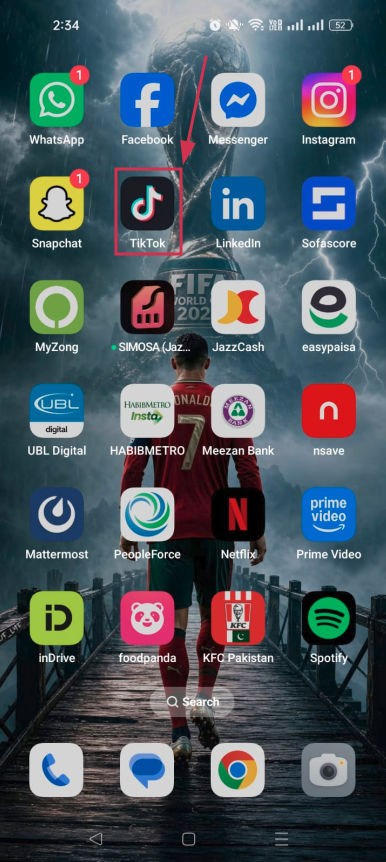
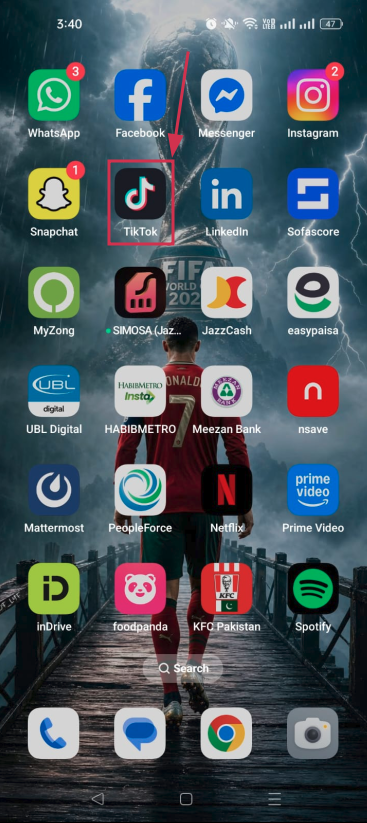
Step#01: Open the TikTok app
Launch TikTok on your phone and make sure you’re logged into the right account.
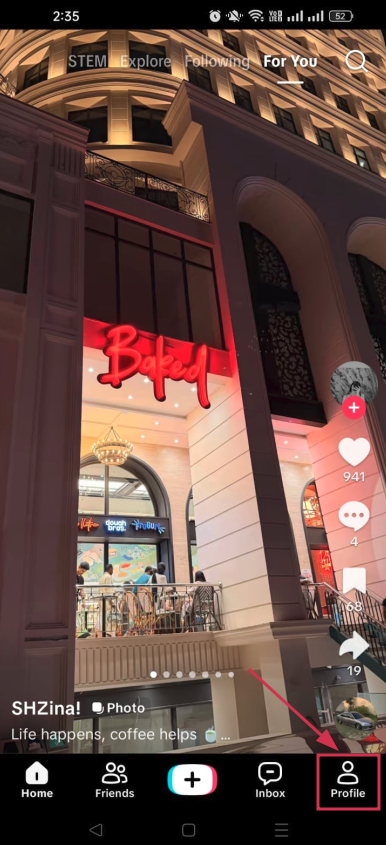
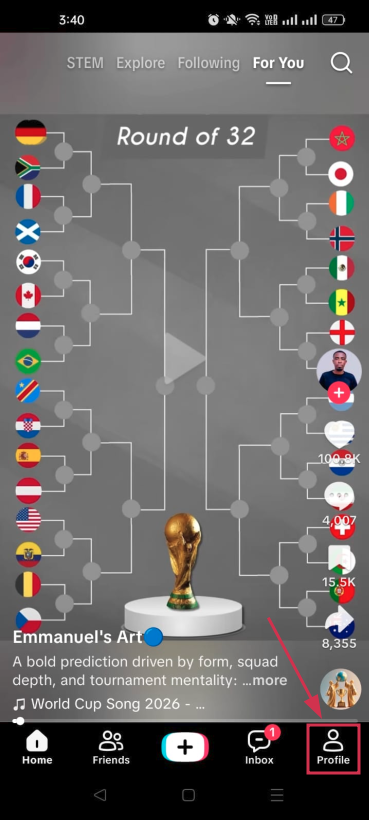
Step#02: Tap “Profile”
Hit the “Profile” icon at the bottom right corner of your screen to head over to your personal profile page.
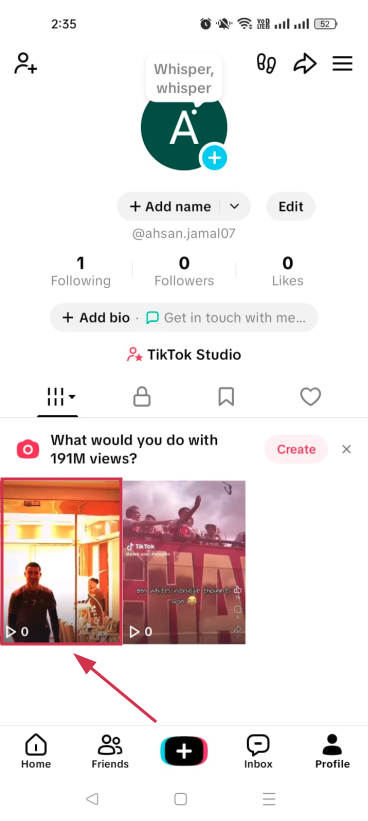
Step#03: Tap on the specific video
Scroll through your posted videos and tap on the one you want to delete.
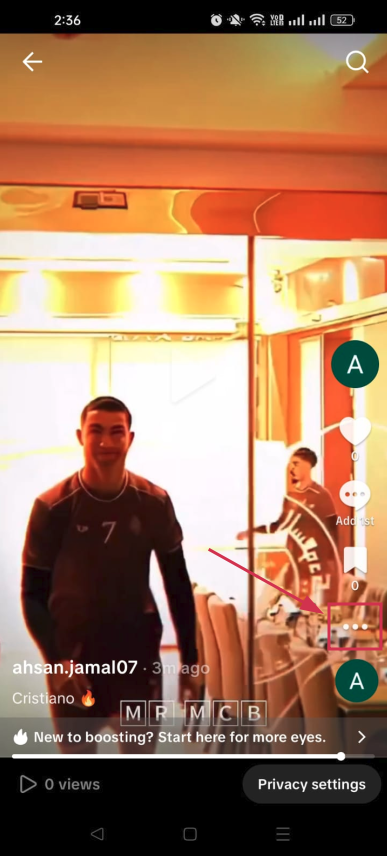
Step#04: Tap the three dots icon (⋯)
Once the video is playing, look for the three dots icon (⋯) on the right side of the screen and tap it to open more options.
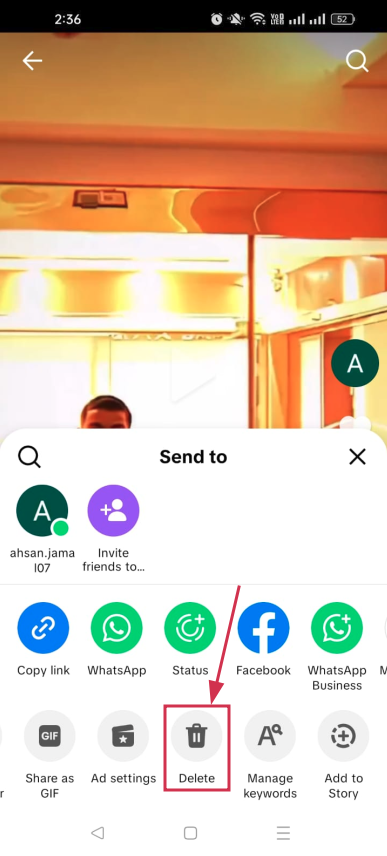
Step#05: Tap the “Delete” icon
A menu will pop up at the bottom. Scroll through the options and tap the “Delete” icon. It looks like a trash can.
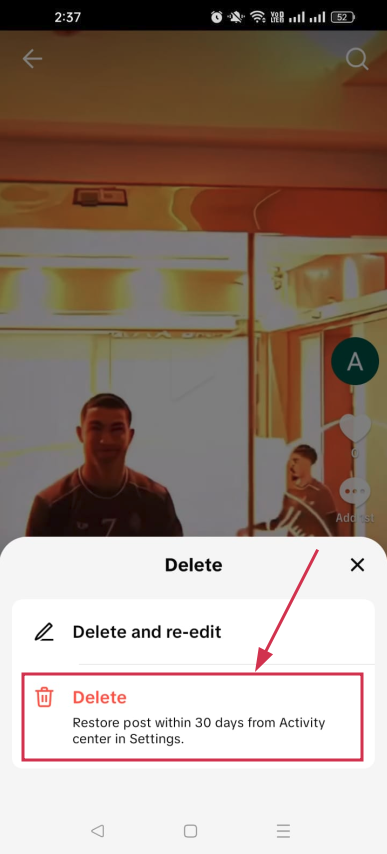
Step#06: Tap “Delete”
A confirmation prompt will appear. Tap “Delete” one final time, and your video will be removed from your profile. That’s it!
Note: If you need to make minor edits to a video you’ve recently uploaded, TikTok offers a “Delete and re-edit” feature. This option removes the post from your profile while preserving your original footage, audio, and caption, allowing you to update the video without starting from scratch.
How to delete videos on TikTok
TikTok currently doesn’t offer a feature that lets users delete all of their posts at once. As an alternative, you can use the “Activity Center” to make up to 50 videos private in a single action.
This removes them from public view, leaving them visible only to you, which can serve as a practical alternative to deletion.
To bulk-privatize your videos, follow the steps below:
Step#01: Launch the TikTok app
Open TikTok on your iPhone or Android device and make sure you’re signed into your account.
Step#02: Tap “Profile”
Tap the “Profile” icon in the bottom right corner to navigate to your personal TikTok profile page.
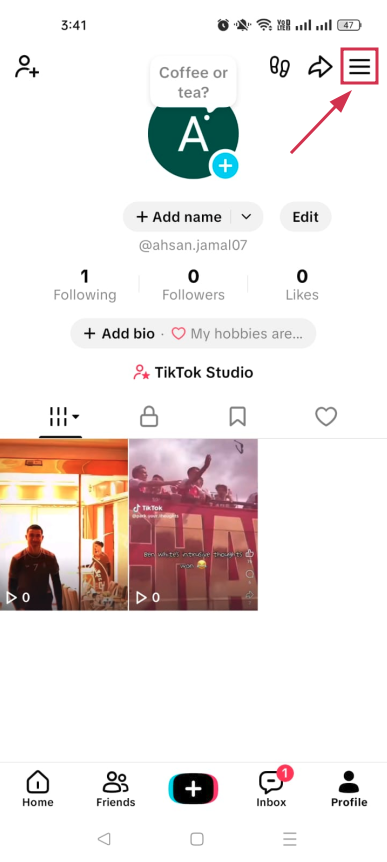
Step#03: Tap the “Menu” icon (☰)
Look for the three horizontal lines (☰) in the top right corner of your profile and tap on it.
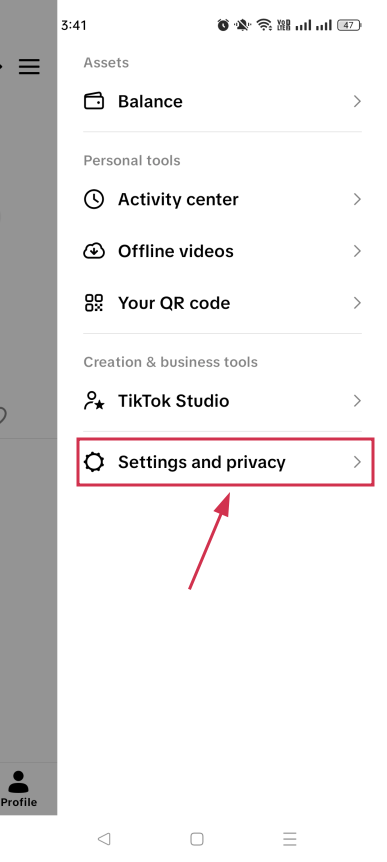
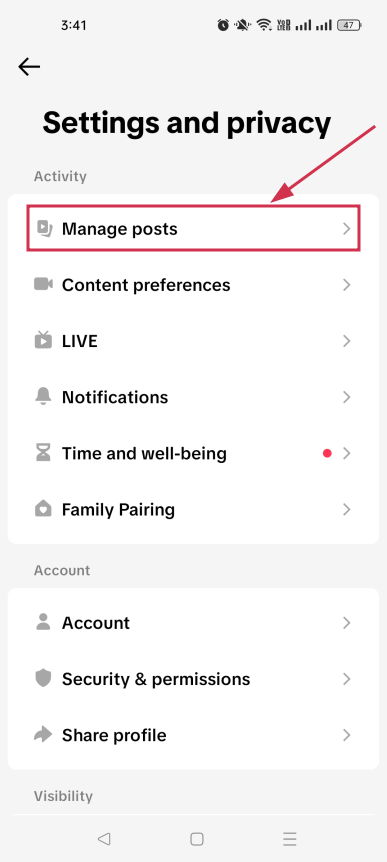
Step#04: Tap “Settings and privacy”
From the menu that slides open, tap “Settings and privacy” to access your account settings.
Step#05: Tap “Manage posts”
Under the Activity section, find the “Manage posts” option and tap on it to see your content management options.
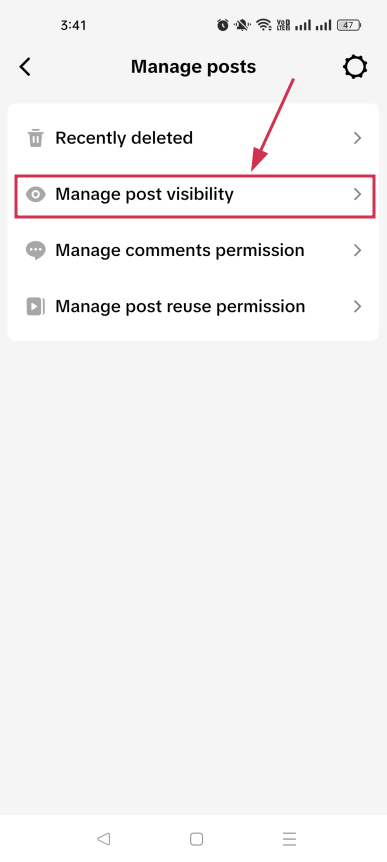
Step#06: Tap “Manage post visibility”
Tap on the “Manage post visibility” option. This is where you can control who sees your videos all in one place.
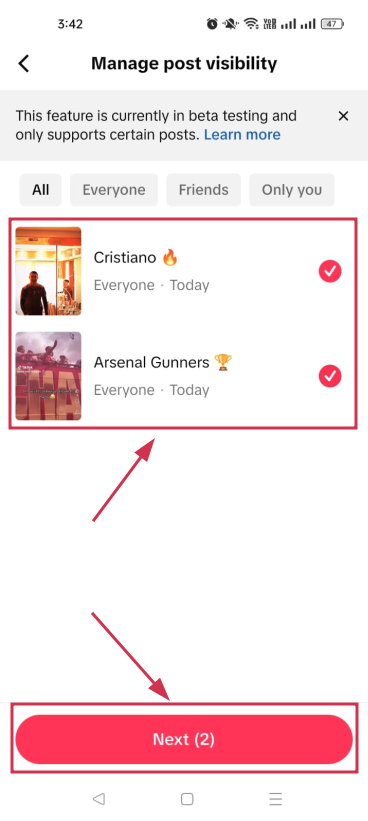
Step#07: Select the videos and tap “Next”
Select all the videos you want to hide from your profile, then tap the “Next” button to move forward.
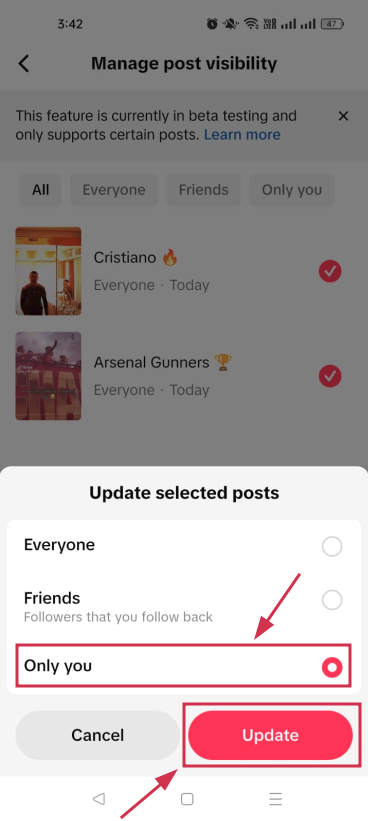
Step#08: Tap “Only you”, and hit “Update”
Select “Only you” from the prompted options to make the selected videos private. Then tap the “Update” button to save the changes instantly.
Note: Keep in mind that if your goal is to permanently remove videos from your account, TikTok requires each video to be deleted manually, one at a time.
Whether you’re deleting a single video or quietly hiding a bunch of old posts, TikTok gives you simple ways to keep your profile looking exactly how you want it.
While you’re tidying things up, it’s also worth thinking about how you share your content going forward. Tools like Replug can genuinely level up your TikTok game!
Its custom URL shortener lets you turn messy links into clean, branded ones you can actually track. Plus, if you ever want to save a video before deleting it, Replug’s free TikTok downloader has you covered.
Give it a try; it’s free and takes seconds to get started!
Frequently asked questions
How to delete TikTok video after posting?
Yes, you can absolutely delete a TikTok video after it’s already been posted. Simply go to your profile, tap on the video you want to remove, hit the three dots icon (⋯), and select “Delete”. Confirm it one more time, and it’s gone for good.
Just keep in mind that once deleted, all the likes, comments, and shares on that video disappear along with it. So make sure you actually want it gone before tapping that final button.
How to mass delete TikTok videos?
TikTok doesn’t have a built-in feature that lets you delete all TikTok videos at once. You’d have to go through each one manually, which can take forever if you have a lot of posts.
The good news is there are free third-party tools (e.g., ClearTok or Redact) that make this much easier, or you can simply privatize the videos you don’t want to show up on your profile.
How to delete a TikTok video without the three dots?
If the three dots icon isn’t showing up on your video, don’t panic. You can also try going to your profile, tapping on the video, and then tapping the “Share” button instead.
It will open a list of options, inside which you will also find the “Delete” option. Tap it, and your video will be deleted right away.
Note: Deleted videos aren’t permanently gone immediately. They remain in your account’s Activity Center for 30 days before being fully erased.
How to recover a deleted TikTok video?
To recover deleted TikTok videos, you have 30 days to restore them directly from the app’s Activity Center. After 30 days, videos are permanently removed from the platform.
Open TikTok → go to your profile → tap the menu (three-line) icon → go to “Settings and privacy” → tap “Activity Center” → look for “Recently Deleted”.
Now, tap the video you want to recover, followed by tapping the “Restore” button to confirm.
How to delete TikTok story?
TikTok Stories automatically disappear after 24 hours, but if you want to remove one before that, it’s easy.
Open the TikTok app and go to your profile. Tap your active story to open it, then swipe up on your story to open the full options menu. Tap “Delete”, and confirm by tapping “Delete” again. Your story will be removed instantly.
Alternatively, you can tap the three dots (•••) at the bottom-right of the story screen and select “Delete” from there.
It is necessary to deactivate your Facebook account before you can deactivate your Messenger account. Once you have deactivated your Facebook account, the option to deactivate your Messenger account will become available.
Deactivating your Messenger account from a computer or laptop is impossible. You can only deactivate a Messenger account from the Messenger application settings on your smart devices, i.e., mobile or tablet.
Here’s how to deactivate Messenger app quickly:
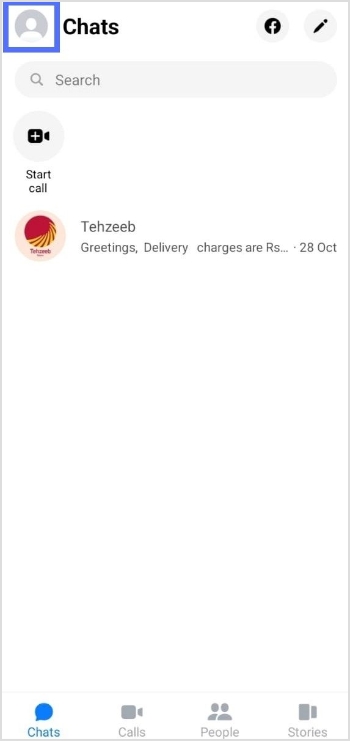
Step 1: Open the messenger app from your mobile phone.
Step 2: Tap the profile icon in the top right corner.
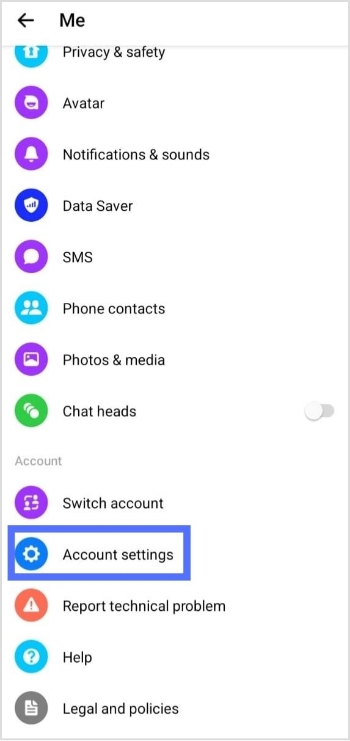
Step 3: Tap account setting from the account menu.
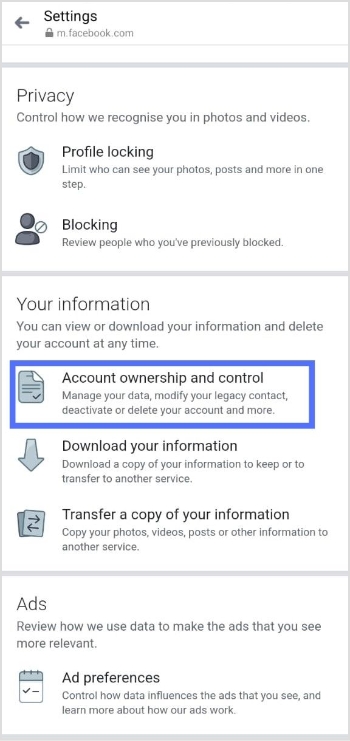
Step 4: Tap account ownership and control.
Step 5: Tap deactivation and deletion.
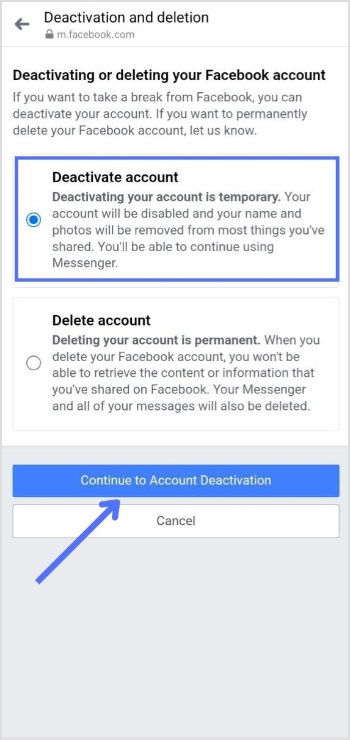
Step 6:Select Deactivate account, then tap continue to account deactivation.
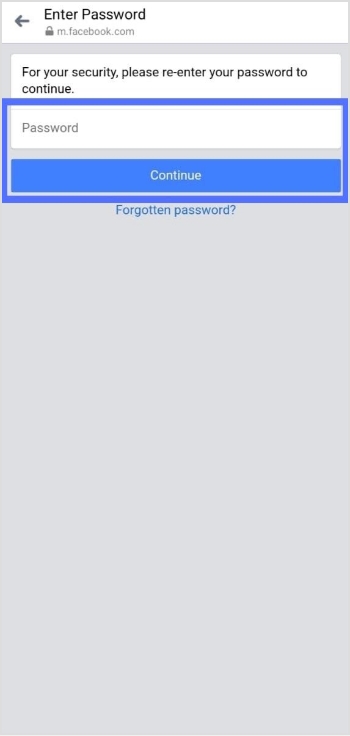
Step 7: Enter the password and tap continue, and your Facebook account is deactivated.
Now your Facebook account is deactivated, you can easily deactivate your Messenger account.
Maximize marketing ROI
by transforming ordinary URLs into branded short links that convert.
Try Replug for free
Step 8: Again tap the profile icon in the top right corner.
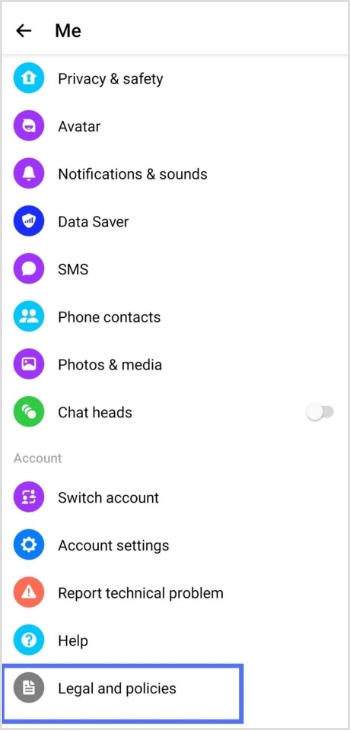
Step 9: Scroll to the bottom and select legal and policies.
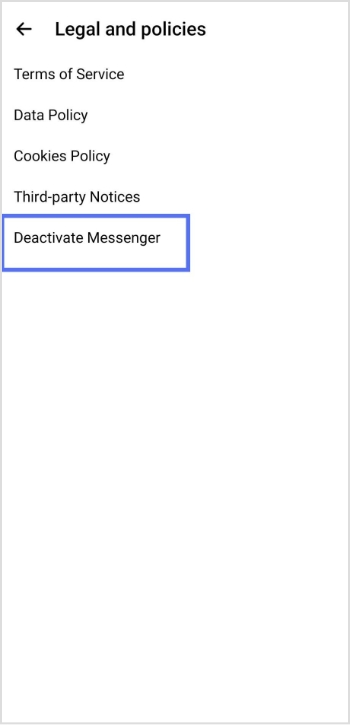
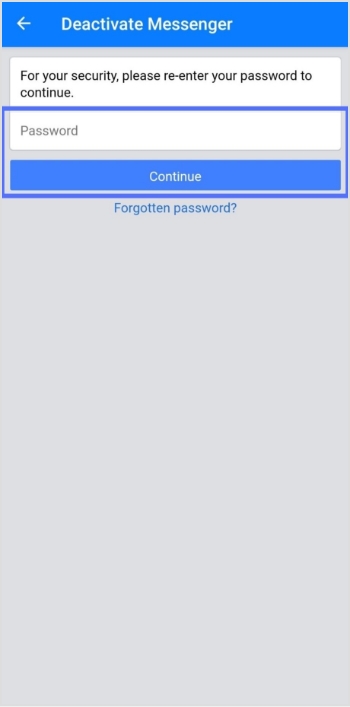
Step 10: Tap deactivate Messenger.
Step 11: Enter your password and tap continue. Your Messenger account will be deactivated.
To reactivate Messenger, simply log in with your username and password.
Deactivating your Facebook account will not automatically deactivate your Messenger account, as the two are separate platforms.
If you deactivate your Messenger account, your profile will not appear in search results, but your past messages and comments will still be visible to others. If you want your messages to disappear after a certain time, you can turn on the vanish mode by swiping up while in a conversation.
Important Note: If you manage many links, perhaps sharing guides or resources about privacy and account settings, Replug.io can help you keep your URLs organized and trackable in one place. Also, if you plan to share this guide with friends afterward, using this efficient link shortener makes the URL cleaner and easier to share!
If your Messenger account has been deactivated, you will not be able to access your account or use the Messenger app. When you try to log in to the app, you will see a message indicating that your account has been deactivated.
If you are unsure whether your Messenger account has been deactivated, you can try logging in to the app to see if you can access your account. If you cannot log in and see a message that your account has been deactivated, your account has been deactivated.
If you want to reactivate your Messenger account, you will need to follow the steps to reactivate your Facebook account first, as your Messenger account is linked to your Facebook account. Once you have reactivated your Facebook account, you can use the Messenger app again.
What will my friends see if I deactivate Messenger?
If you deactivate your Messenger account, your friends will no longer be able to see your online status or send you messages through Messenger. However, your past messages and comments will still be visible to them, but they will not be able to contact you through the app.
Your profile will also be removed from the Messenger app’s search results, so your friends will not be able to find you within the app. If they try to send you a message, they will receive a notification that you are unavailable.
If you want to make all your messages and comments disappear from the app, you can switch on the vanish mode by swiping up while conversing. This will cause all of your messages in the conversation to disappear after they have been read. However, this feature is optional and will not affect your account status.
Are you a TikTok creator or business looking to track the performance of your content on the platform?
Understanding your analytics can help you create more effective and engaging content and optimize your TikTok marketing efforts.
If you’re looking for a powerful tool to manage link tracking, marketing campaigns, and social traffic, Replug.io offers a full suite of link-management and analytics capabilities that seamlessly integrate with your TikTok strategy.
This ultimate guide will show you how to check your TikTok analytics. Also, get the insights you need to succeed on TikTok.
So, keep reading till the very end!
How to check analytics on TikTok through a mobile phone?
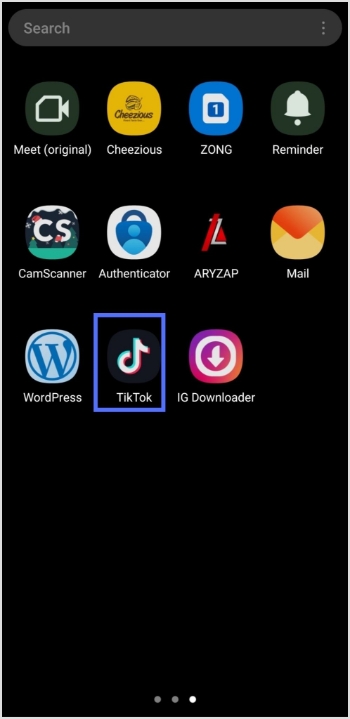
Step 1: Open the TikTok app on your mobile phone.
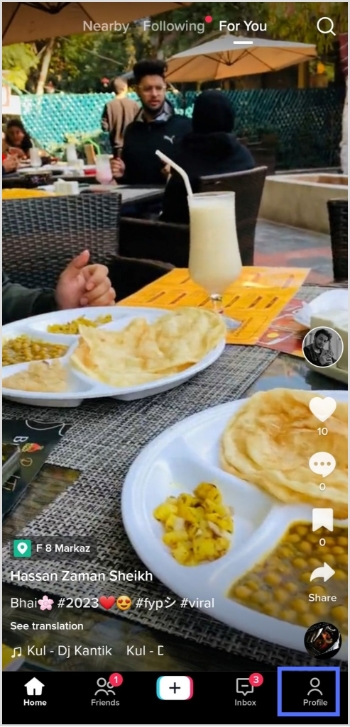
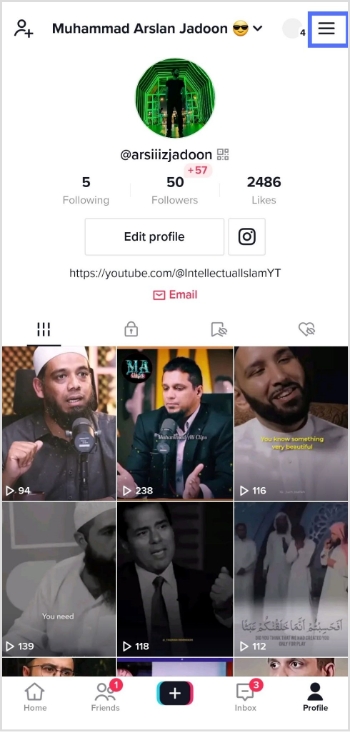
Step 2: Tap on the profile icon in the bottom right corner.
Step 3: Tap on three horizontal lines in the top right corner.
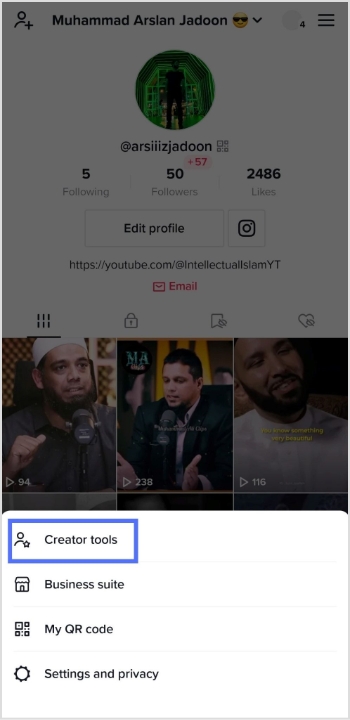
Step 4: Tap the creator tools menu to see the analytics.
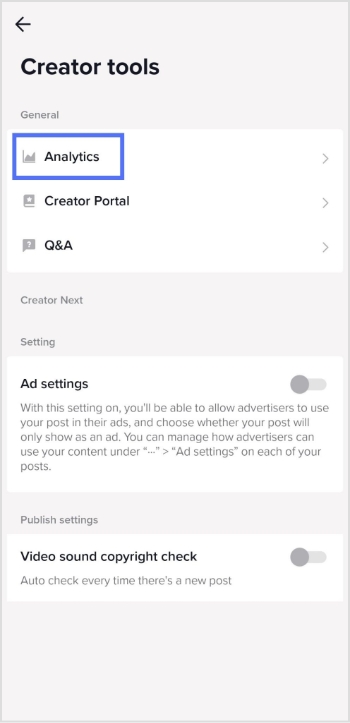
Step 5:Tap the analytics menu on your mobile screen.
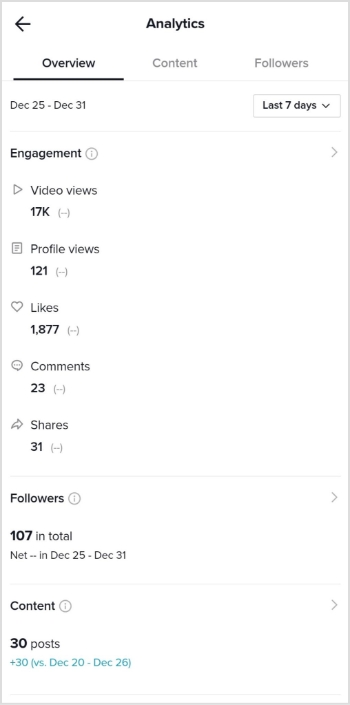
Step 6: You will now see the Analytics screen on your mobile device.
It’s worth noting that TikTok’s analytics may not be 100% accurate, as the platform uses algorithms to estimate specific metrics. However, the data should still give you a good overall idea of your content’s performance and how it compares to other content on the platform.
Note: Want to clean up long, messy URLs before you post them on TikTok? You can easily shorten a URL for free to make your bio links look neat and professional, helping you boost click-through and overall engagement. Also, tracking link is never easier than before with Replug!
Maximize marketing ROI
by transforming ordinary URLs into branded short links that convert.
Try Replug for free
How to Check analytics on TikTok Through a computer device?
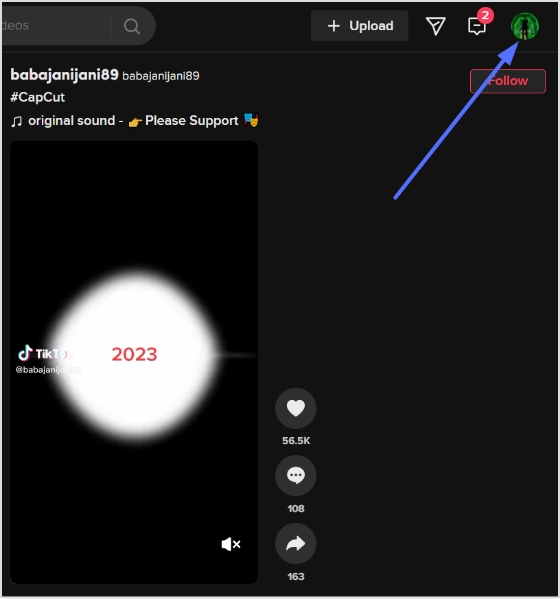
Step 1:Log in to TikTok on your computer or laptop.
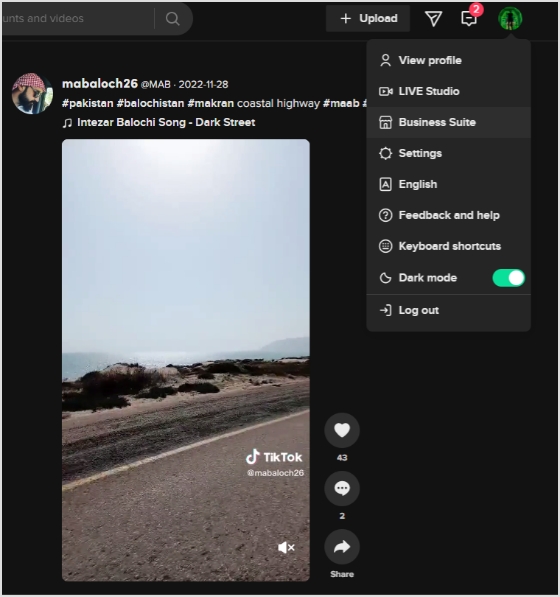
Step 2: Click on your profile icon in the top right corner.
Step 3:A drop-down menu will open. Click business suite from the drop-down menu.
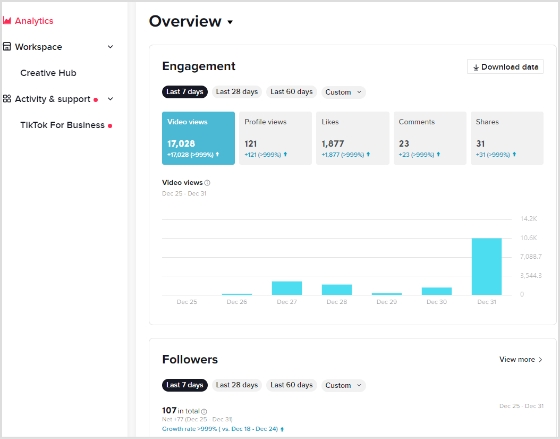
Step 4: Analytics screen will now open. You can check the performance of your content and more.
How to Understand Tiktok Analytics?
On TikTok, you can access analytics for your account by navigating to the Creator Studio. There are three main categories of analytics: Overview, Content, and Followers.
Overview: The Overview section provides information about your followers, video views, profile views, likes, and comments. Within this section, the Engagement tab lets you see metrics such as likes, comments, and shares for your videos within the chosen time frame.
Content: The Content tab offers more in-depth data and analytics for each video you post, including total views, total likes, comments, shares, average watch time, percentage of people watching the entire video, traffic source type (such as your profile or the For You feed), and audience territories. All content metrics are only available for the last seven days.
Followers: The Followers tab shows you insights about the community you’ve built on TikTok, including information about the locations of your followers and their activity times. You can also see your profile views and track changes in follower growth. If you have LIVE access, you can view analytics for your live streams in the LIV tab. This includes metrics like total views, new followers, total time, and diamonds earned.
Creating a call to action using a URL shortener can effectively drive conversions and encourage users to take a specific action. Using a reliable URL shortener like Replug to create a call to action has a few key benefits.
First, it can shorten link that are long and complex, making them easier to share and more visually to appeal. Sharing a link in a social media post or on a platform with limited space for long URLs can be beneficial.
Second, URL shorteners can help to track clicks on a link, which can help understand the effectiveness of your call to action.
Finally, URL shorteners can make creating custom and branded links easier, which can help build brand awareness and make your link more memorable.
How to create a call to action using Replug?
Follow these simple steps to create a CTA using Replug’s call to action generator that inspires users to take action that will benefit your business or organization.
Step 1: Sign in to Replug or create an account if you’re new.
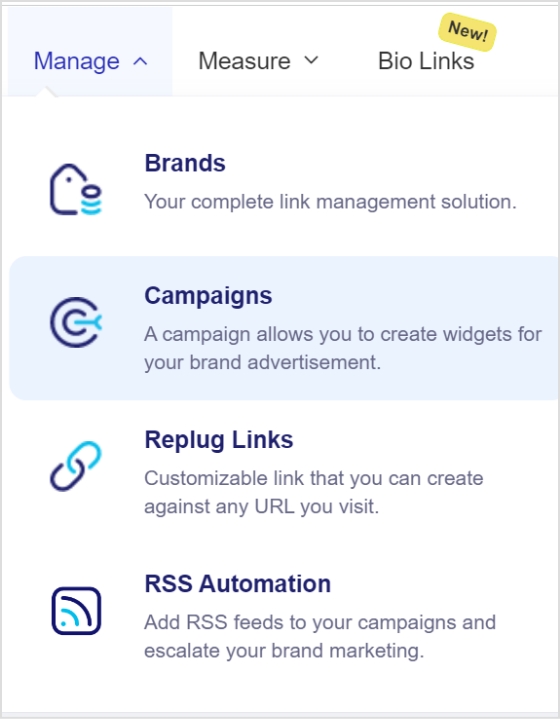
Step 2: Go to the manage section on the main dashboard page and select campaign.
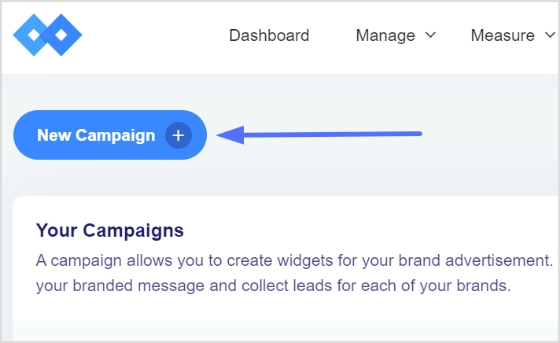
Step 3: Click on the “create new campaign” button in the campaign section.
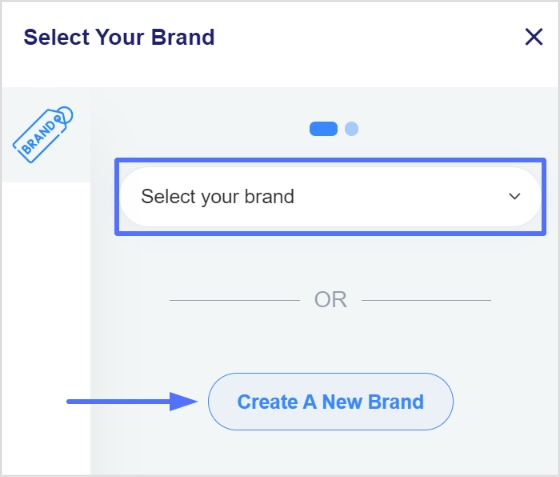
Step 4: To create a new campaign, you must select a brand first. You may choose an existing brand or create a new one if not already been created.
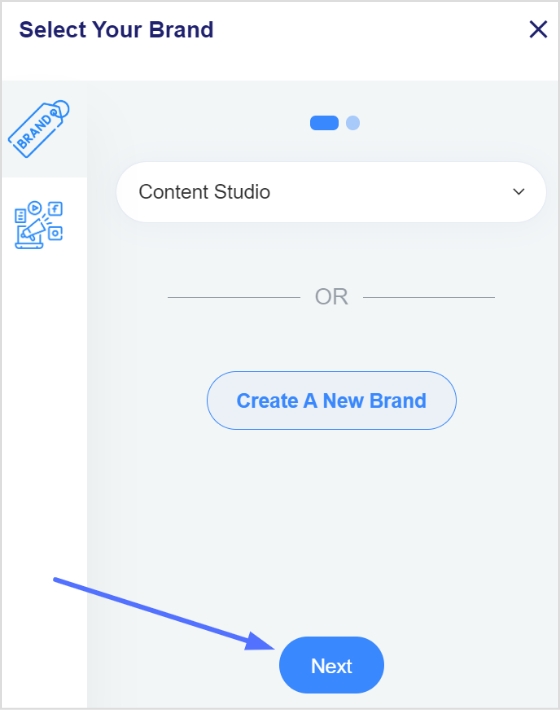
Step 5: Click the next button once you’ve selected or created a brand.
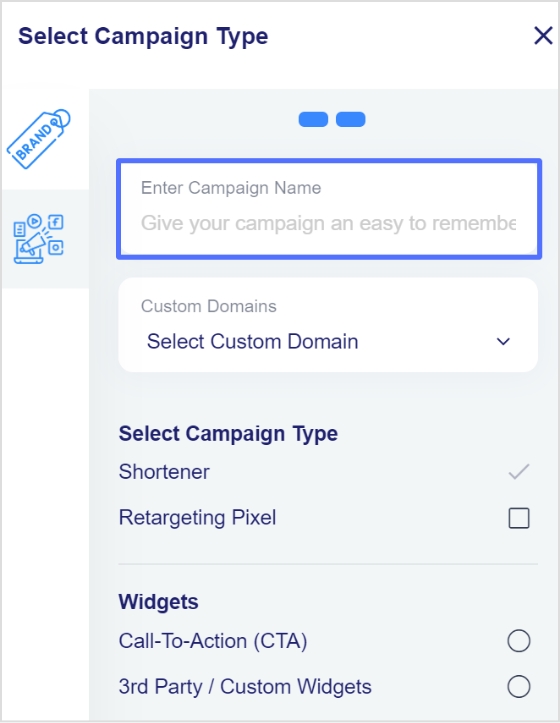
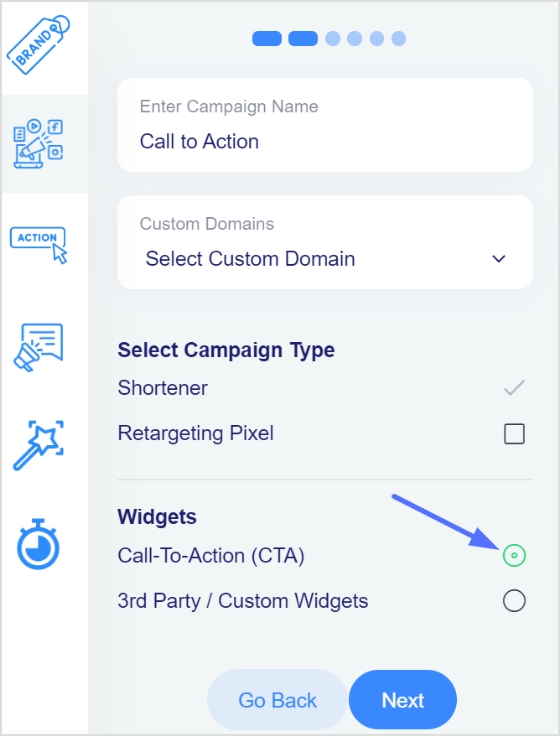
Step 6: You will now see a page for choosing a campaign type. Choose a name for your call-to-action campaign here.
Step 7: Select the call to action option from the campaign type page and click the next button.
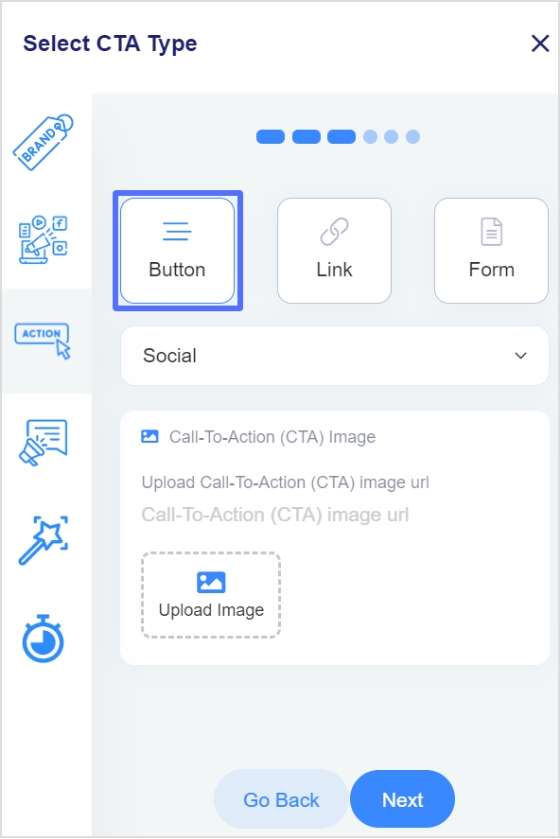
Step 8: Next, select your CTA type; here, we’ve selected a button CTA.
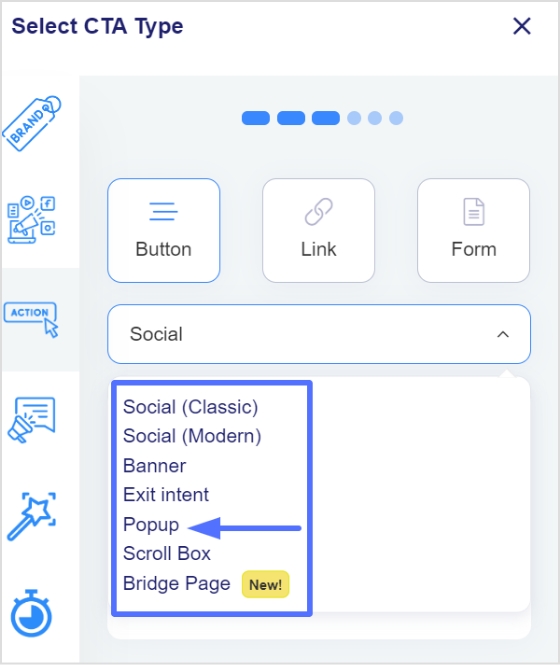
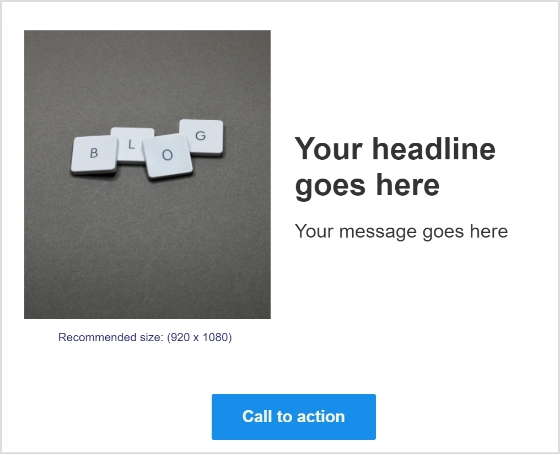
Step 9: After selecting the CTA type, you need to select the theme for your CTA. Your CTA’s appearance depends on your CTA’s purpose. As for this case, we have chosen a popup CTA theme to appear after clicking the shortened link.
Note: Read more about the use cases for different theme types to understand which CTA theme is perfect for you.
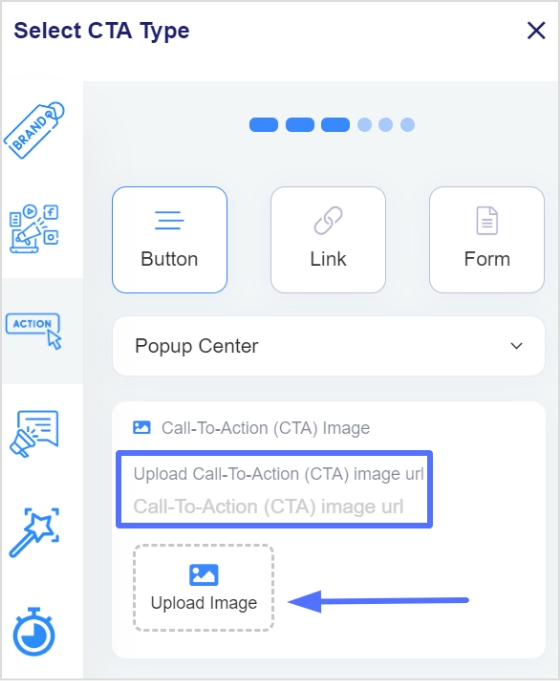
Step 10: Enter your URL, upload an image for the CTA, and click Next.
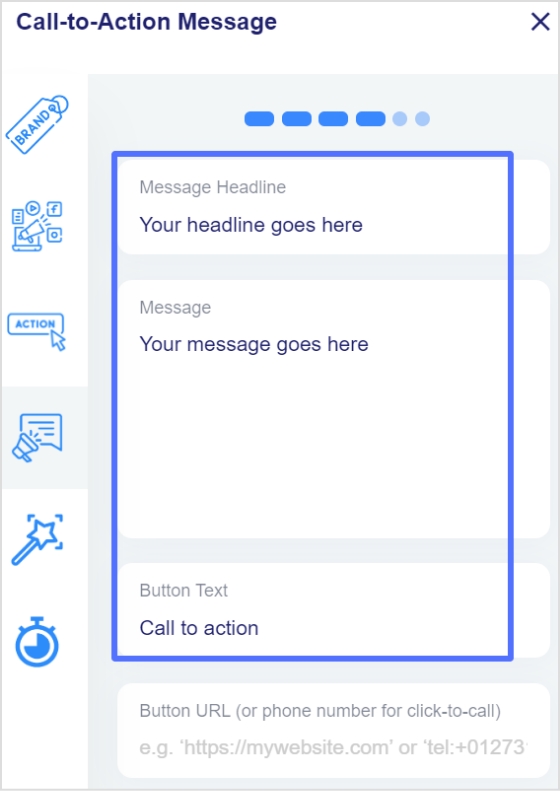
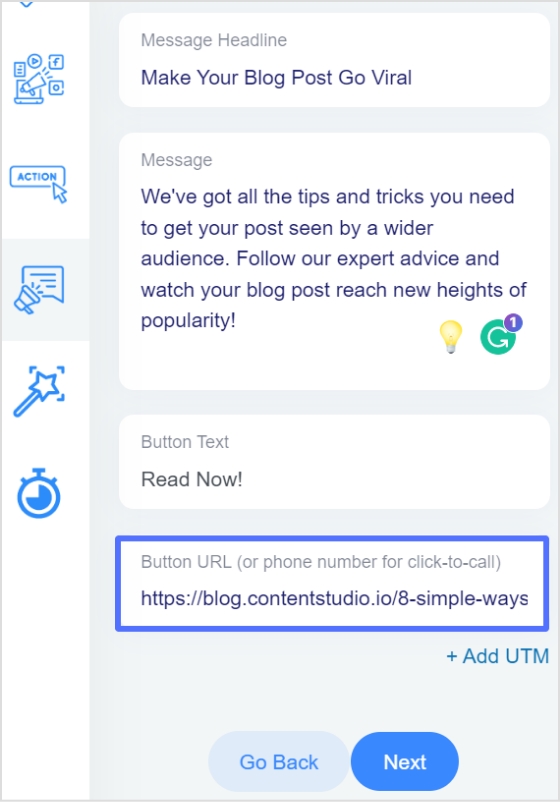
Step 12: You are now in the CTA message section. Write your headline, message, and CTA button text.
Step 13: Enter your CTA button’s URL or phone numberin the last block, and click Next.
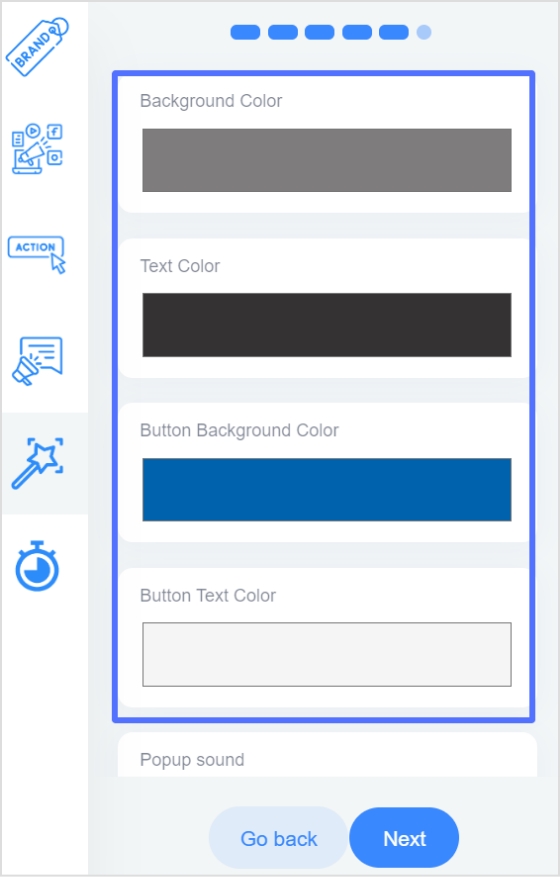
Step 14: You’re now in the CTA customization section, where you can add colors. (Background colors, text colors, CTA button background colors, CTA button text colors). Choose your colors and click next.
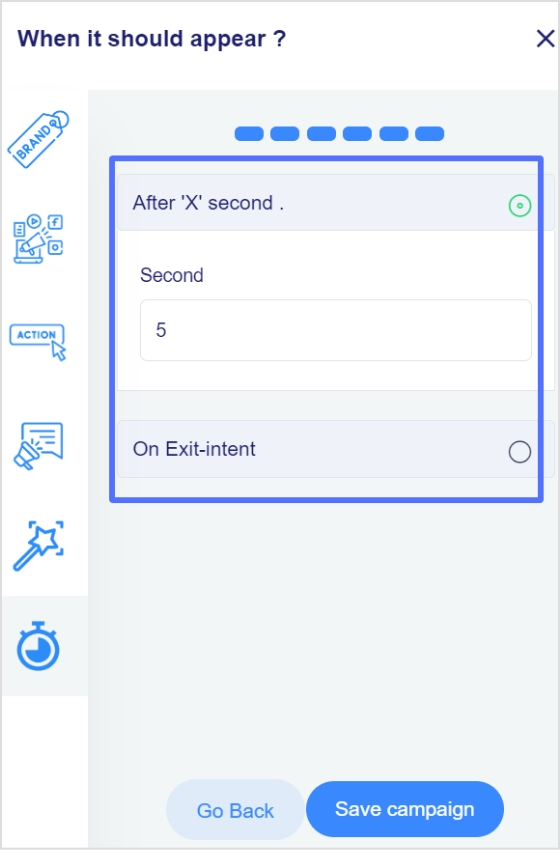
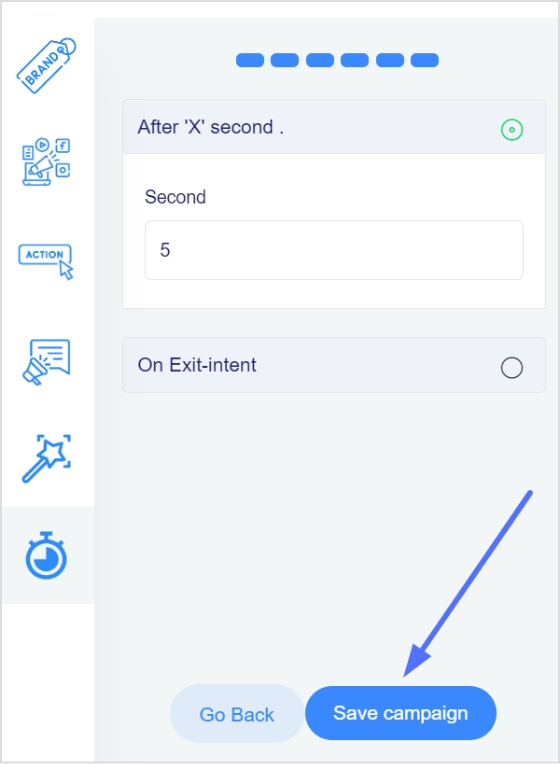
Step 15: In the final step, you will select the seconds, after which the CTA will be displayed to the user. Alternatively, you can select the “On exit-intent” option, which will display the CTA when the user wants to exit the page.
Step 16: Save the campaign; now, you can share it across other platforms. Ensure that your newly created campaign appears in the campaigns section.
Did You Know?
Replug is a top-notch link optimization platform that can also help to track the effectiveness of the CTA. It offers analytics tools that allow you to track how many clicks the CTA receives. This can help you determine which CTAs are most effective and optimize your marketing efforts accordingly.
FAQs
What are the 3 features of a strong call to action?
Any CTA should have these three key features:
1. Clarity: A strong call to action should be clear and straightforward so that the reader knows exactly what they are being asked to do. This means using actionable language, such as “click here” or “sign up now,” and avoiding vague or confusing phrases.
2. Urgency: A sense of urgency can be a powerful motivator, and a strong call to action should convey a sense that the reader needs to take action immediately. This can be achieved through time-sensitive language, such as “limited time offer,” “act now,” or by highlighting the benefits of taking action immediately.
3. Relevance: A strong call to action should be relevant to the reader and the context in which it appears. This means that it should be tailored to the specific needs and interests of the audience and should align with the overall goals and message of the campaign or piece of content. By focusing on the reader and their needs, a strong call to action can increase the chances of conversion.
What elements are in CTA?
There are a few key elements that are typically included in a CTA:
– Action verb: The CTA should include an action verb that tells the reader what to do. Some common action verbs used in CTAs include “click,” “sign up,” “download,” and “register.”
– Button or link: The CTA should be in the form of a button or link that the reader can click to take the desired action. The CTA button or link should be prominently placed and easy to find.
– Benefit: The CTA should include a benefit or reason for the reader to take the desired action. This could be a discount, exclusive content, or a chance to win a prize.
– Sense of urgency: The CTA should convey a sense of urgency or time sensitivity to encourage the reader to take action immediately. This can be achieved through time-sensitive language or by immediately highlighting the benefits of taking action.
In 2026, standing out on YouTube isn’t just about great content; it’s about being easily found.
With over 2 billion+ logged-in monthly users and millions of new channels launching every year, discoverability is more competitive than ever.
One simple yet powerful way to boost your channel’s visibility and memorability is by optimizing your YouTube URL. Turning that long, auto-generated link into something sleek, branded, and easy to share.
According to creator insights, channels with branded URLs see significantly higher engagement and clickthrough compared to generic ones, making it a small tweak that delivers a big impact.
Whether you’re building a personal brand or scaling your business on YouTube, conquering your URL is a practical step every creator must know.
So, without any further ado, let’s get started!
What is the YouTube URL name?
When we talk about URL names on YouTube, we’re simply referring to the web addresses that take people straight to your content, i.e., a specific video, a playlist, or your entire channel.
A URL is the address you type in the browser bar to reach something online, like:
https://www.youtube.com/watch?v=…for a video or
https://www.youtube.com/@YourHandle for a channel.
On YouTube, every piece of content has its own unique URL. The primary purpose of these links is to make it easy for viewers to find, share, and come back to what you’ve created.
For channels, YouTube used to let creators set a custom URL (like /c/YourChannel), but now handles (starting with @) effectively act as your channel’s branded URL.
In short, your YouTube URL name (or handle) is the human-friendly web address people use to find your channel or videos, and choosing a clear one helps with branding and sharing.
Can I change my YouTube channel URL name?
Yes, but with one important twist (and it’s different from how it worked in the old days).
You can’t directly edit an old custom URL once it’s been set, but you can change your YouTube channel’s address by updating your handle.
Handles now act as your official channel URL (e.g., youtube.com/@YourHandle), so picking a new handle effectively gives you a new URL.
Here’s the latest update on this:
📌 Custom URLs you set in the past can’t be changed now. They’ll still work, but you can’t edit them.
🔁 You can change your YouTube handle, which updates the newer handle-based URL format.
This means yes, you can change how your channel link looks. You just do it by picking a new handle in YouTube Studio. Feel free to tweak your handle until it feels right for your brand!
Note: You can edit/update your handle twice every 2 weeks (14 days). However, keep in mind that changing your channel name may remove your verification badge.
How to change the YouTube channel URL name?
Changing your YouTube channel’s URL name today means updating your YouTube handle, because that’s what creates your branded address like youtube.com/@YourHandle.
Once you pick a new handle, YouTube automatically updates your channel URL to match it, as long as the handle is available.
Here’s a simple step-by-step guide you can follow:
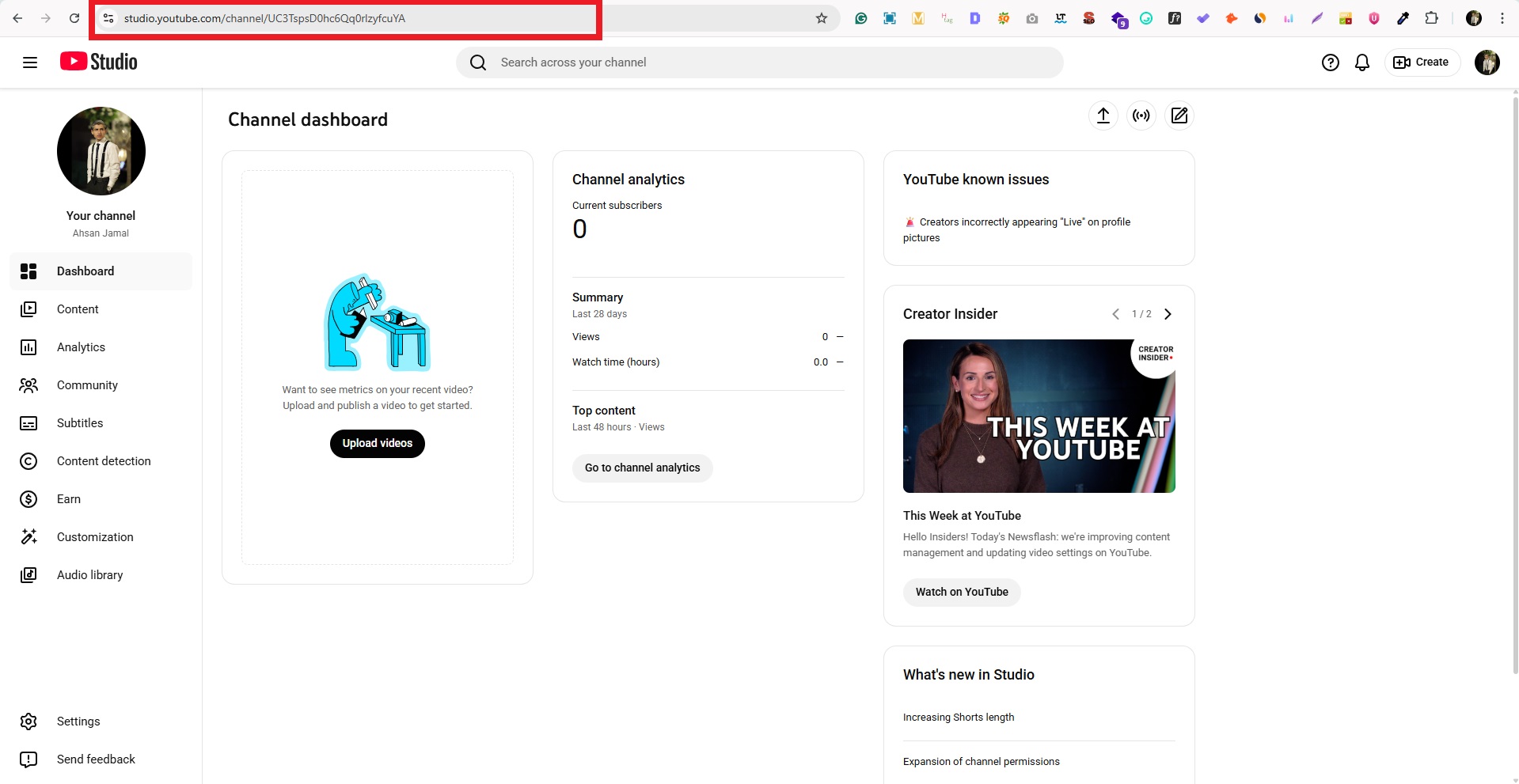
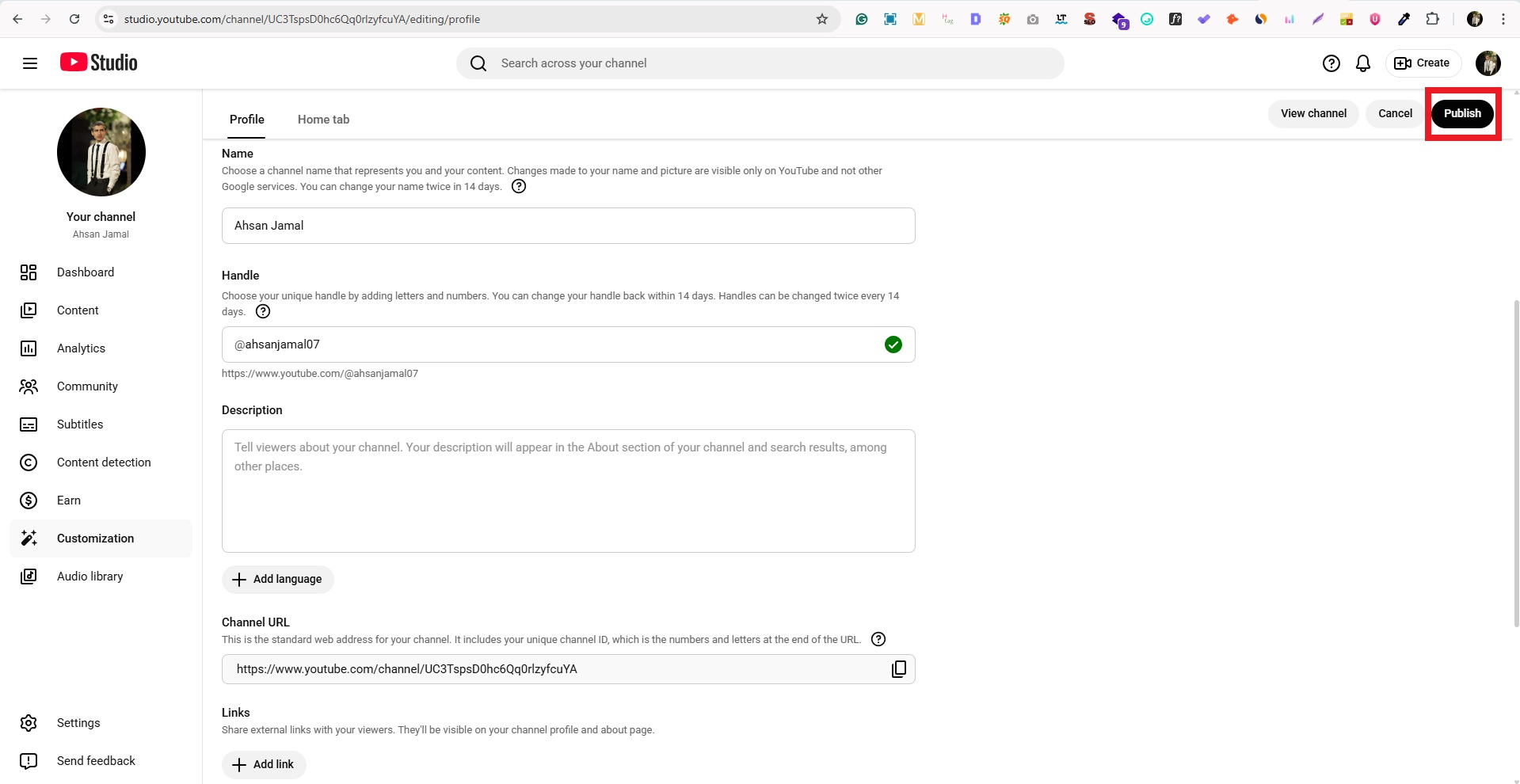
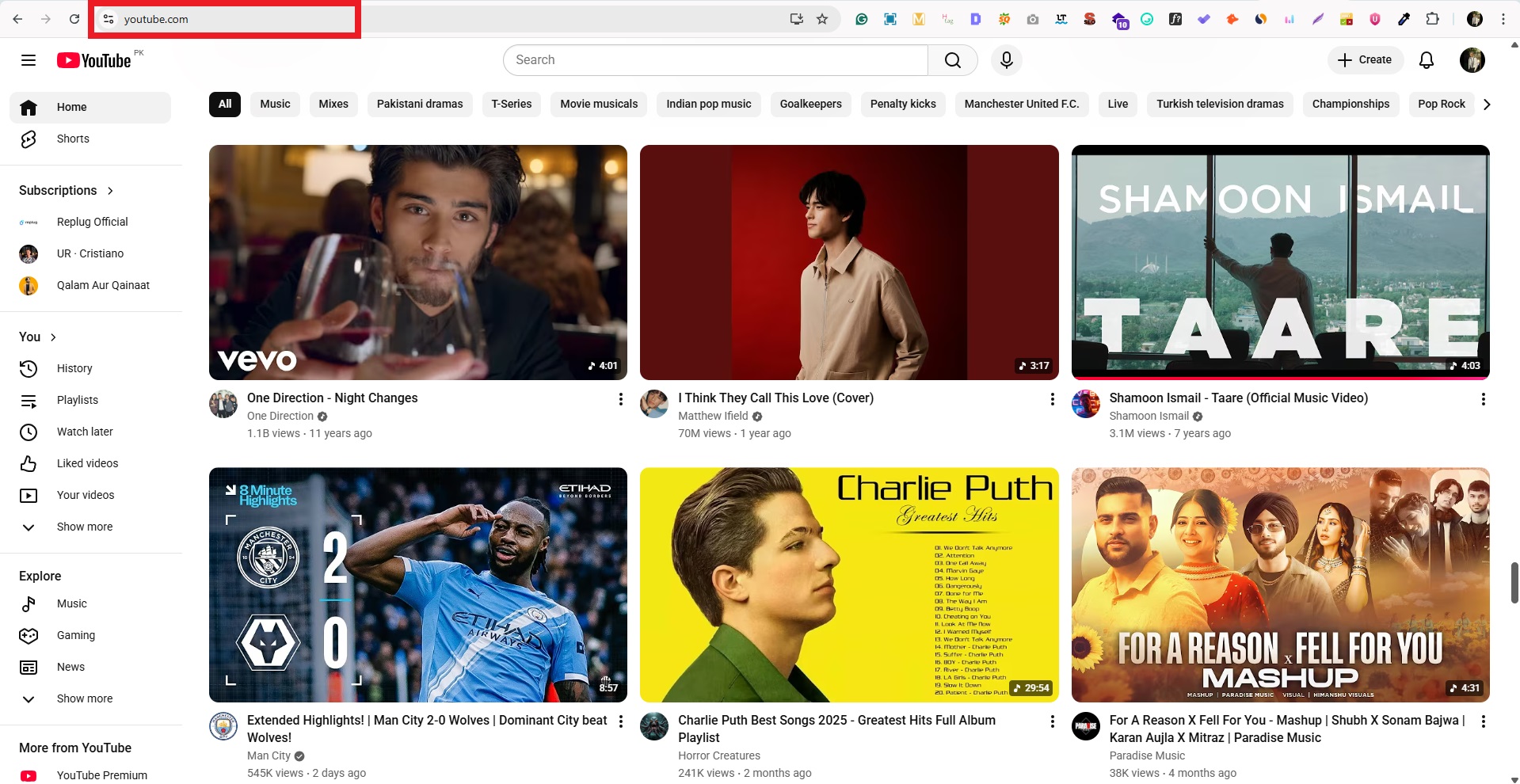
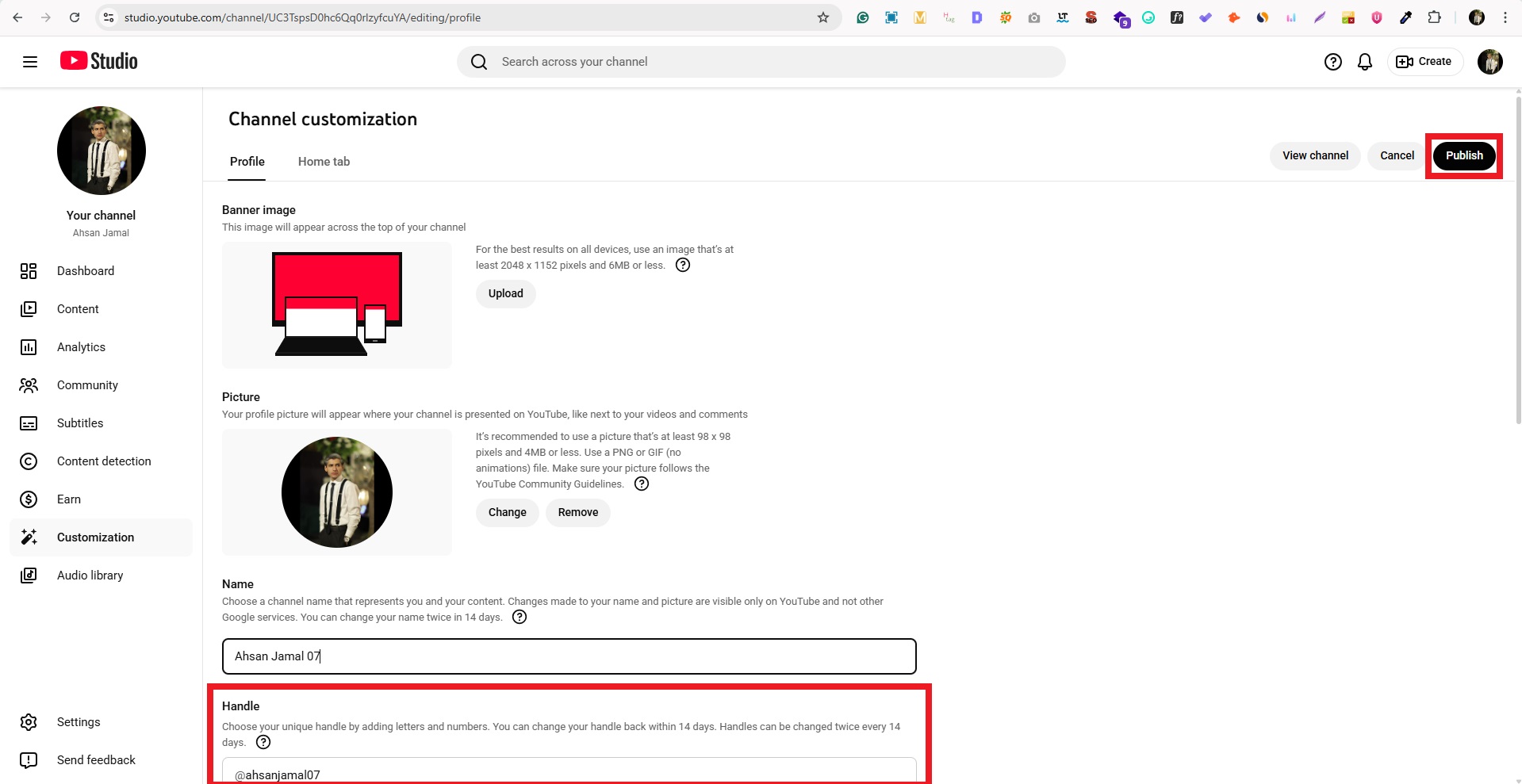
1. Sign in to YouTube Studio: Log in to your YouTube account and go to YouTube Studio.
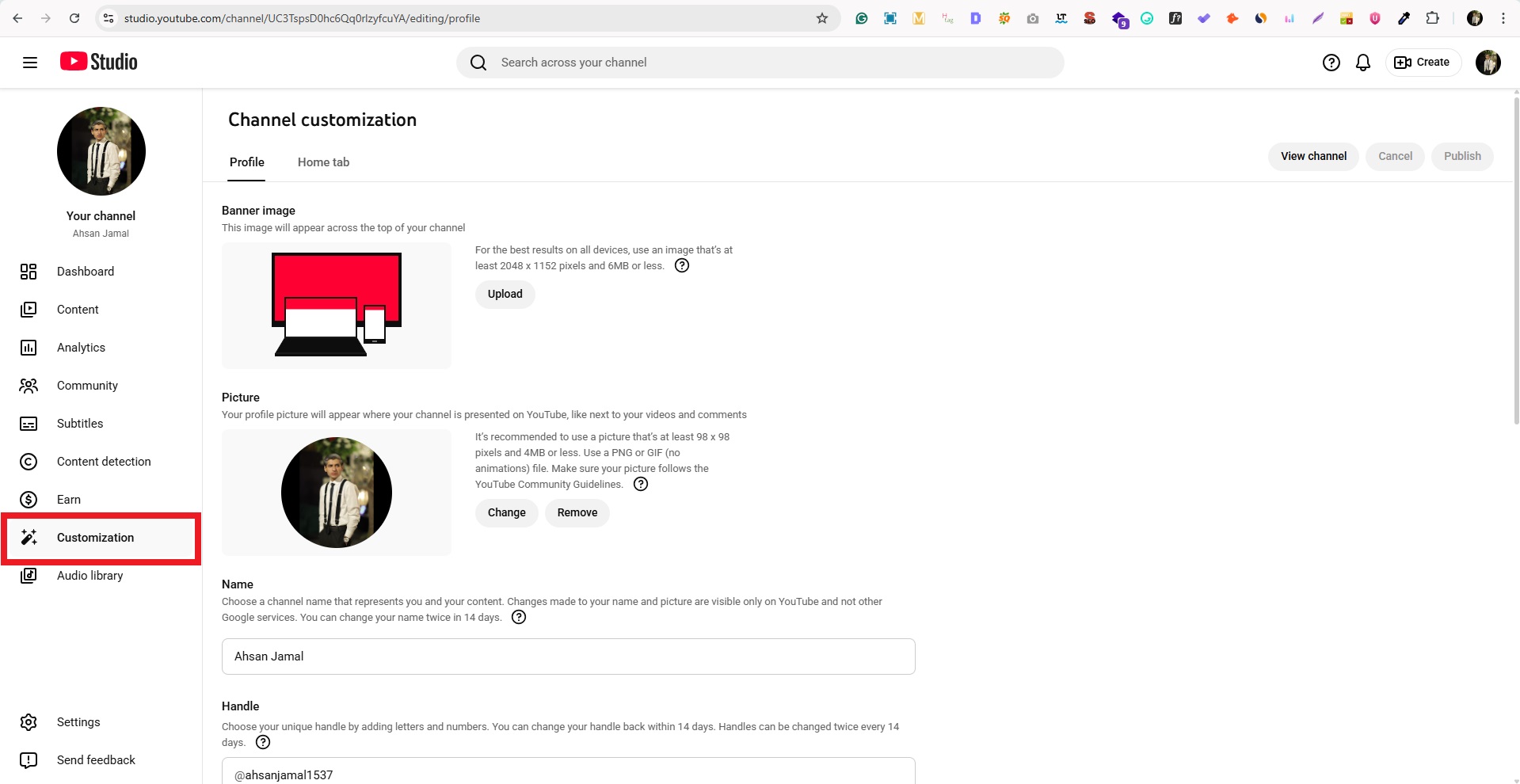
2. Go to “Customization”: From the left menu, click “Customization,” then “Basic info.”
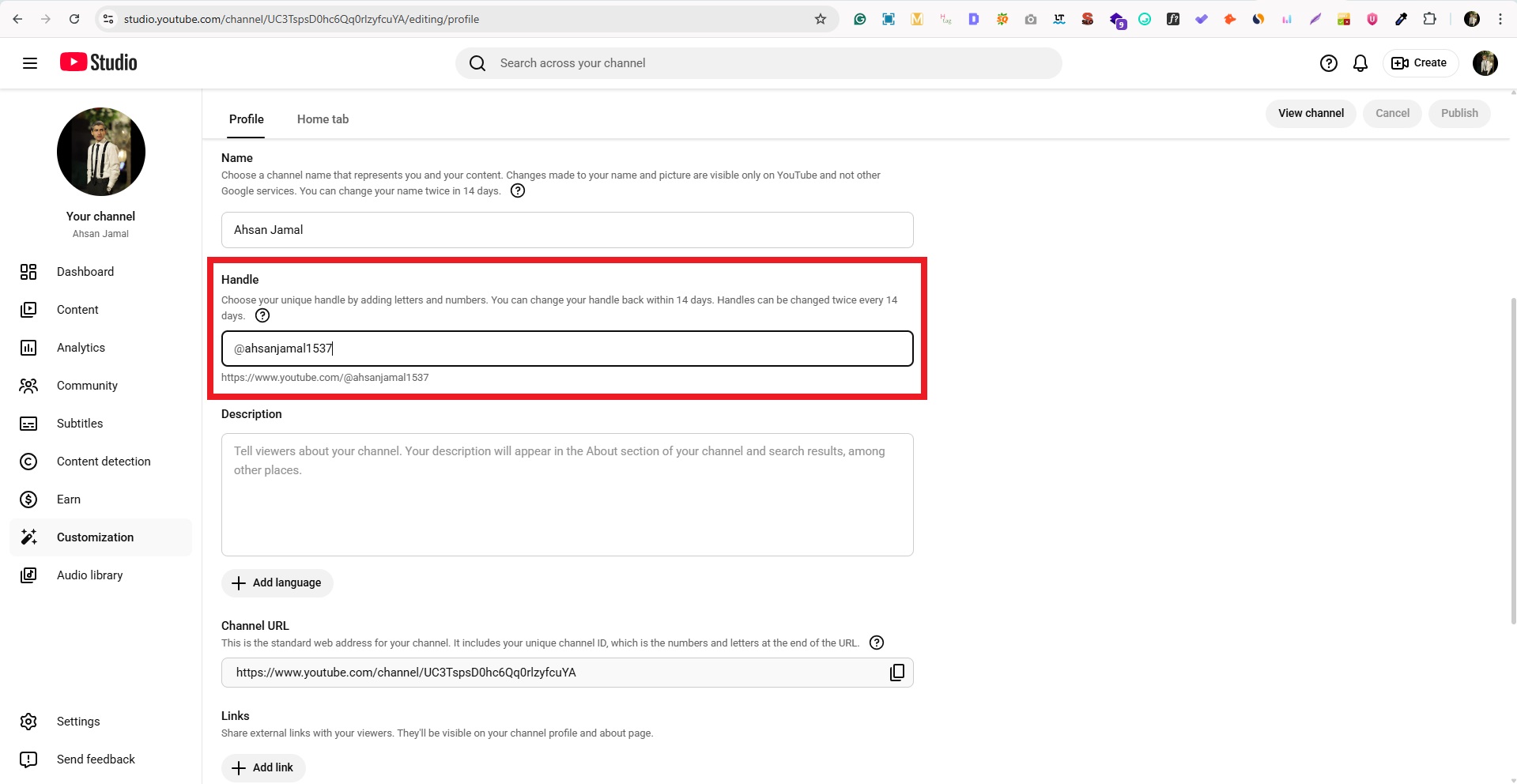
3. Edit your handle: Under the “Handle” section, click the text box to edit the current handle.
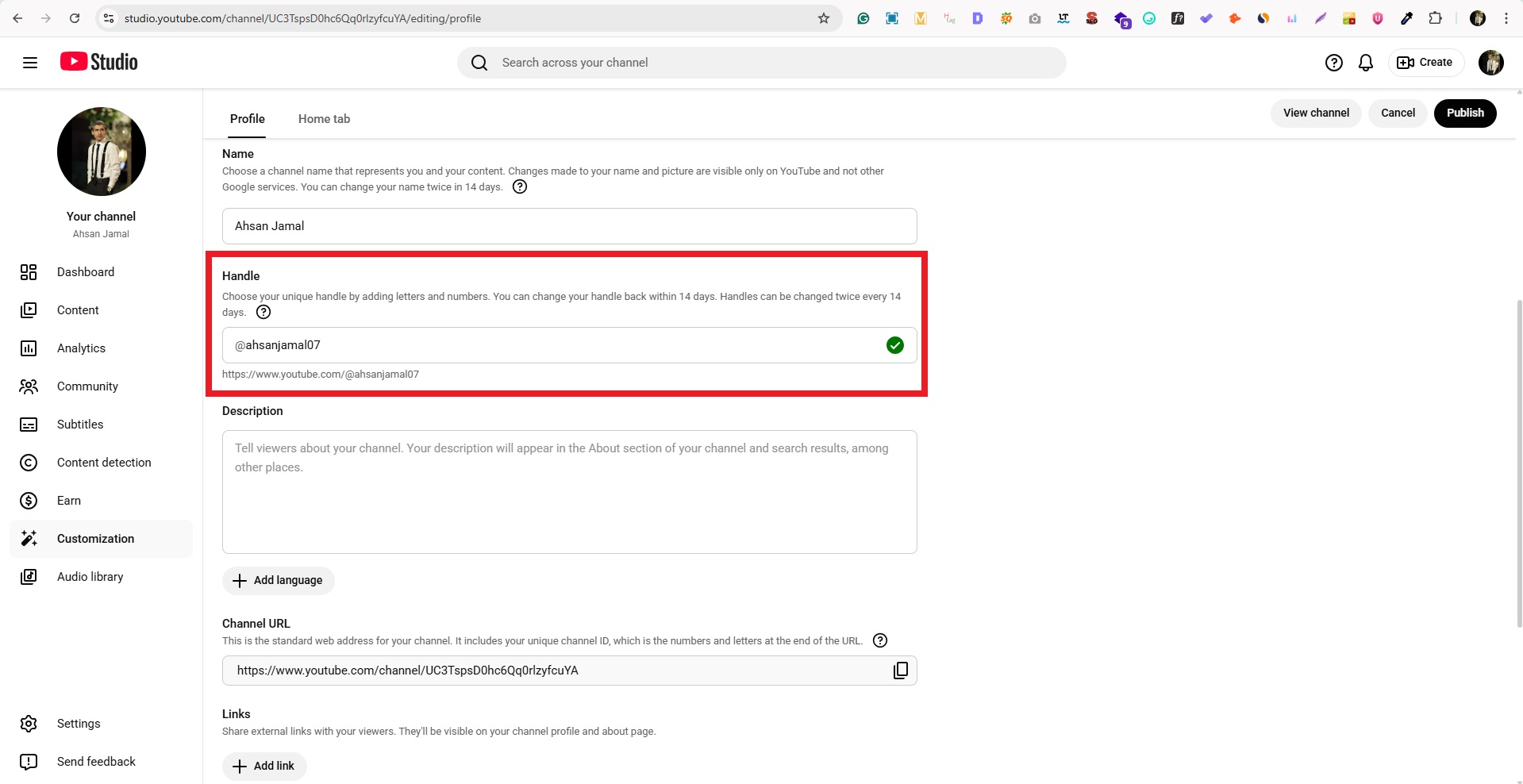
4. Choose a new handle: Type your new @handle (like @YourBrand) and check if it’s available.
5. Publish your changes: Once you’re happy with it, click “Publish” to save and update your channel URL.
That’s all there is to it!
After this, your channel URL will work with the new handle. And, please don’t forget to update any old links you’ve shared elsewhere online!
How to change URL name on YouTube on phone?
Updating your YouTube URL name on your phone is all about changing your handle in the YouTube app, since that’s what now determines your channel’s web address.
Handles are free to update and show up everywhere on the platform once saved.
Here’s how to change link name on YouTube on phone, step-by-step:
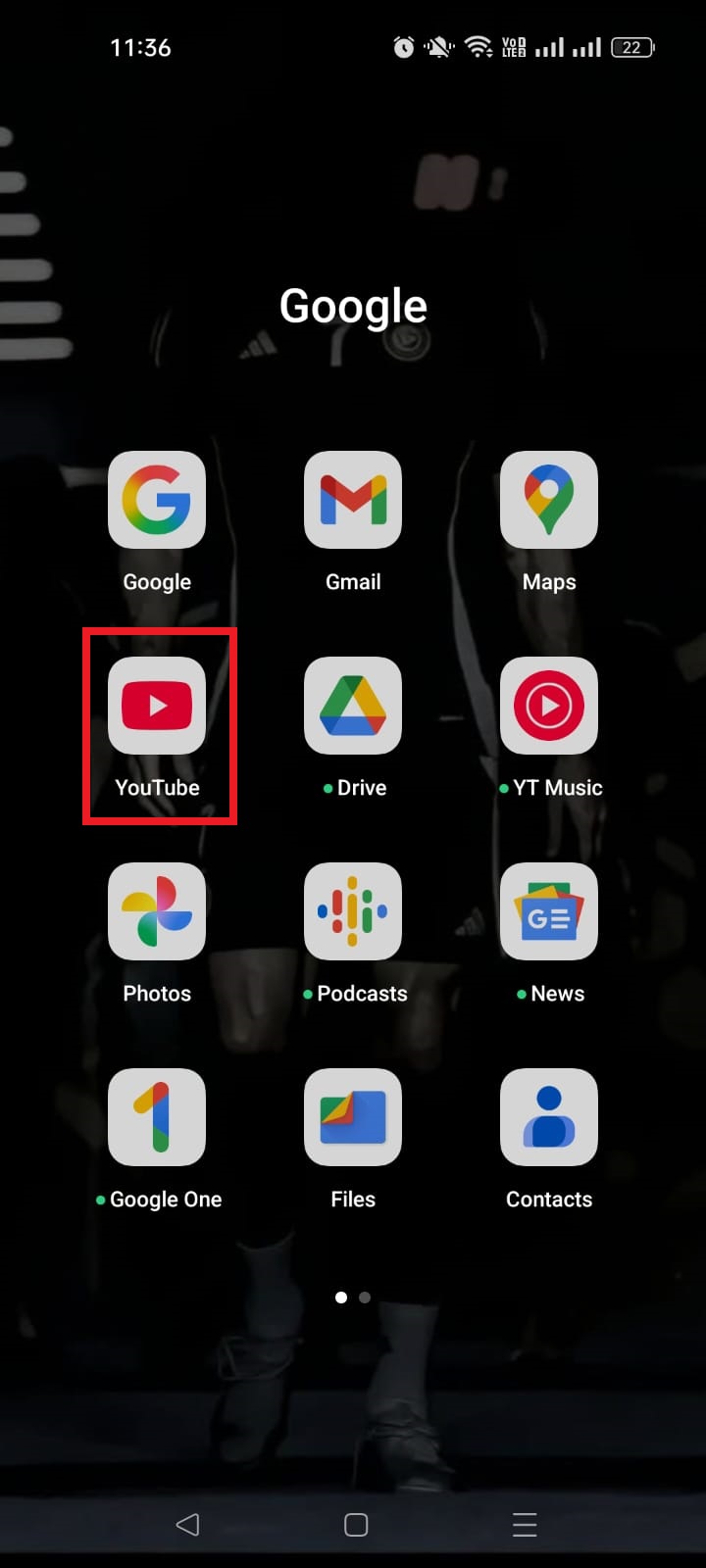
1. Open the YouTube app on your phone and sign in to your account.
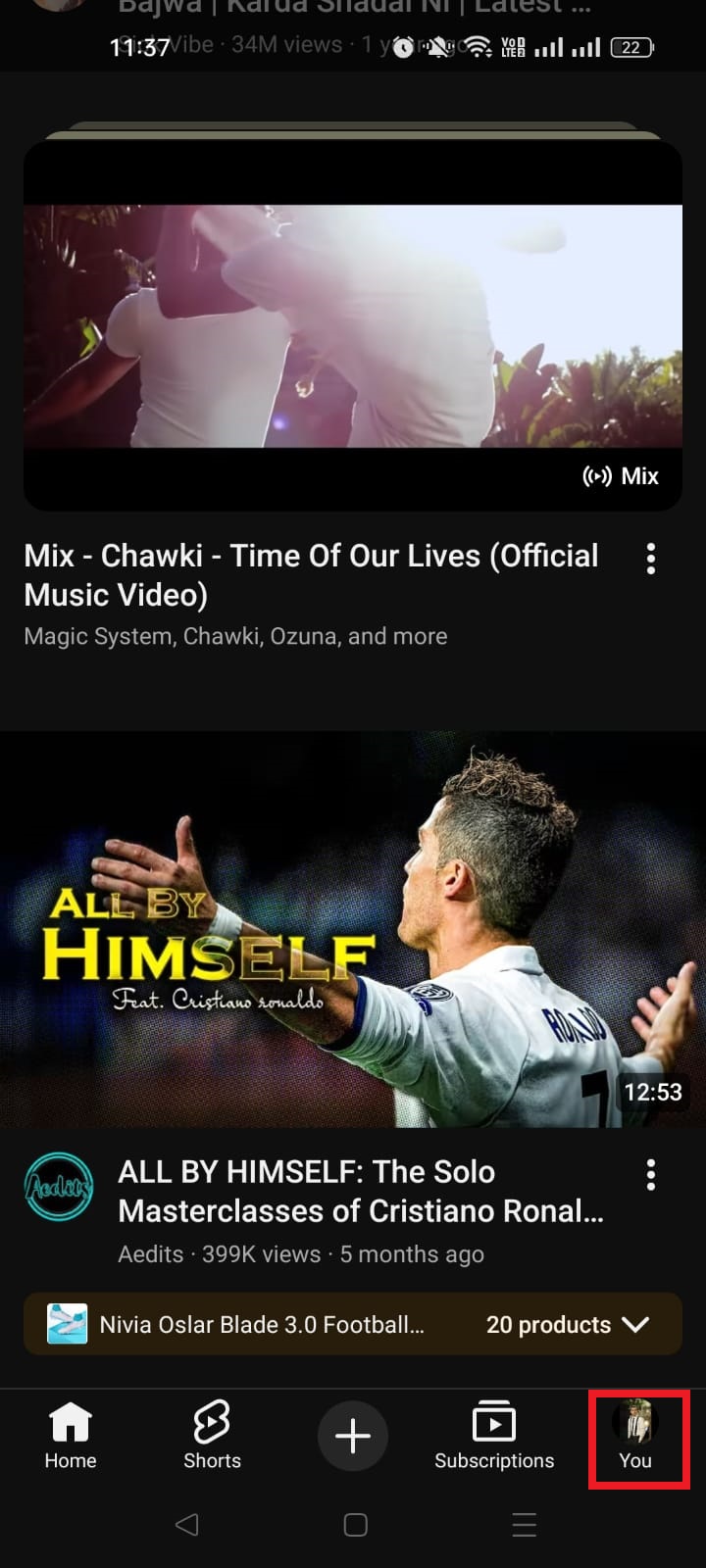
2. Tap your profile photo in the bottom-right corner to open your account menu.
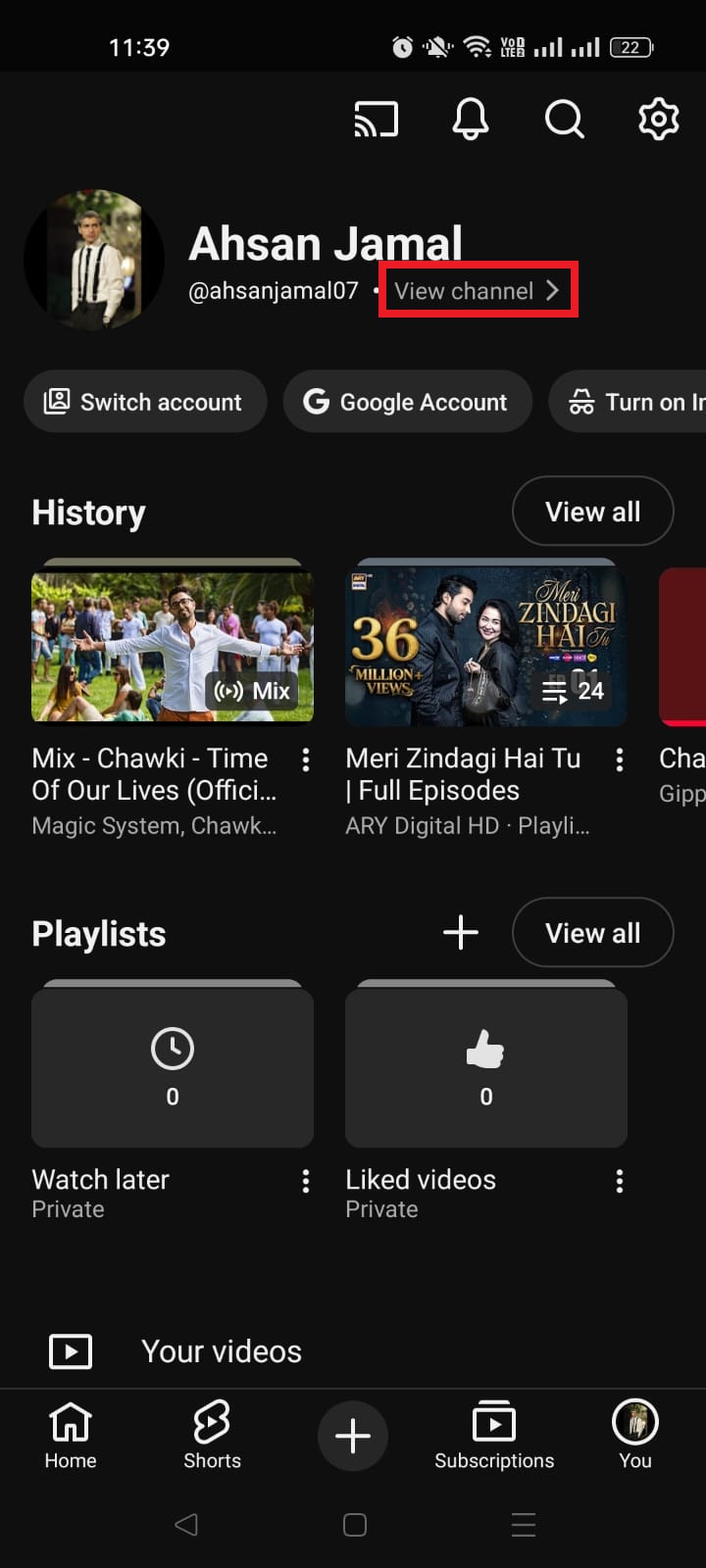
3. Tap View Channel to go to your channel page.
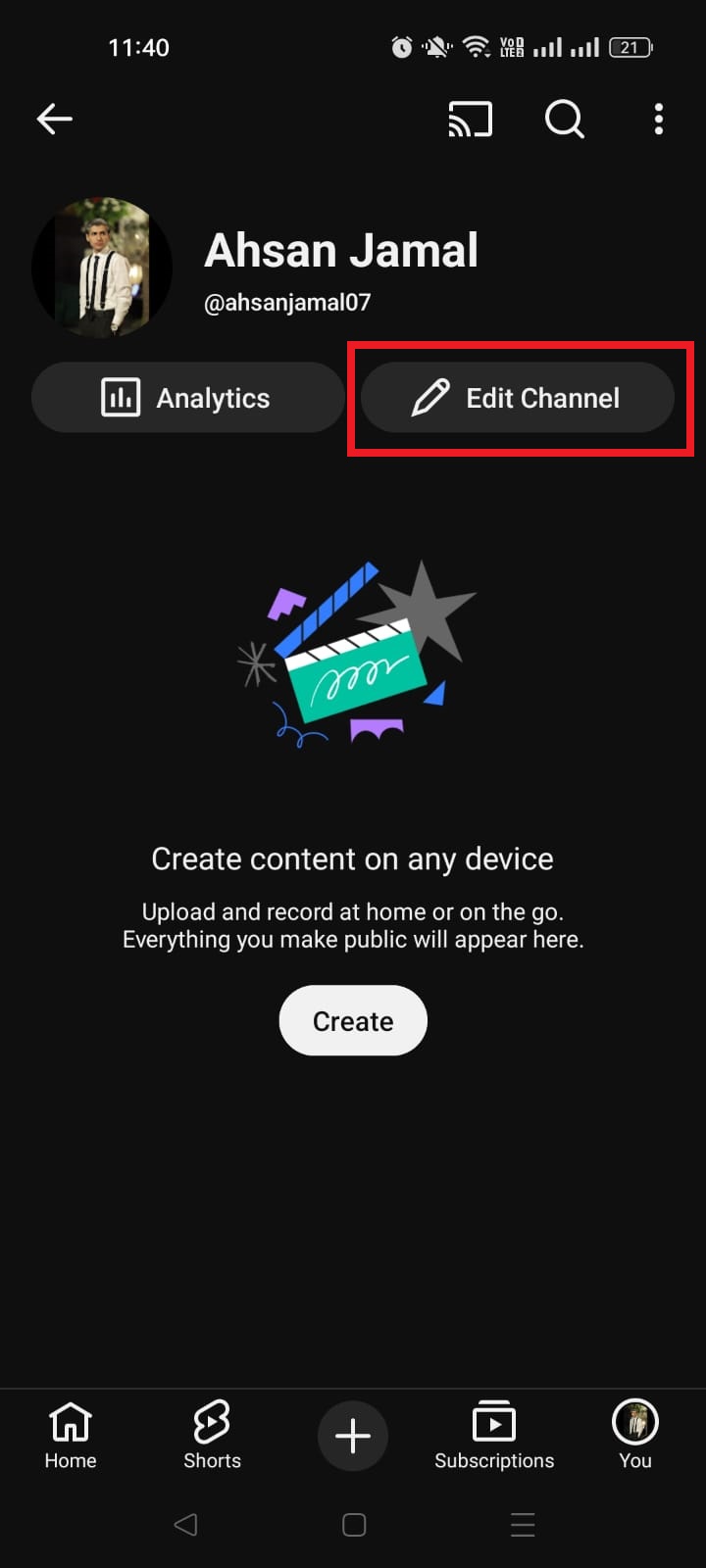
4. Tap the Edit Channel (pencil) button right below your channel name/handle.
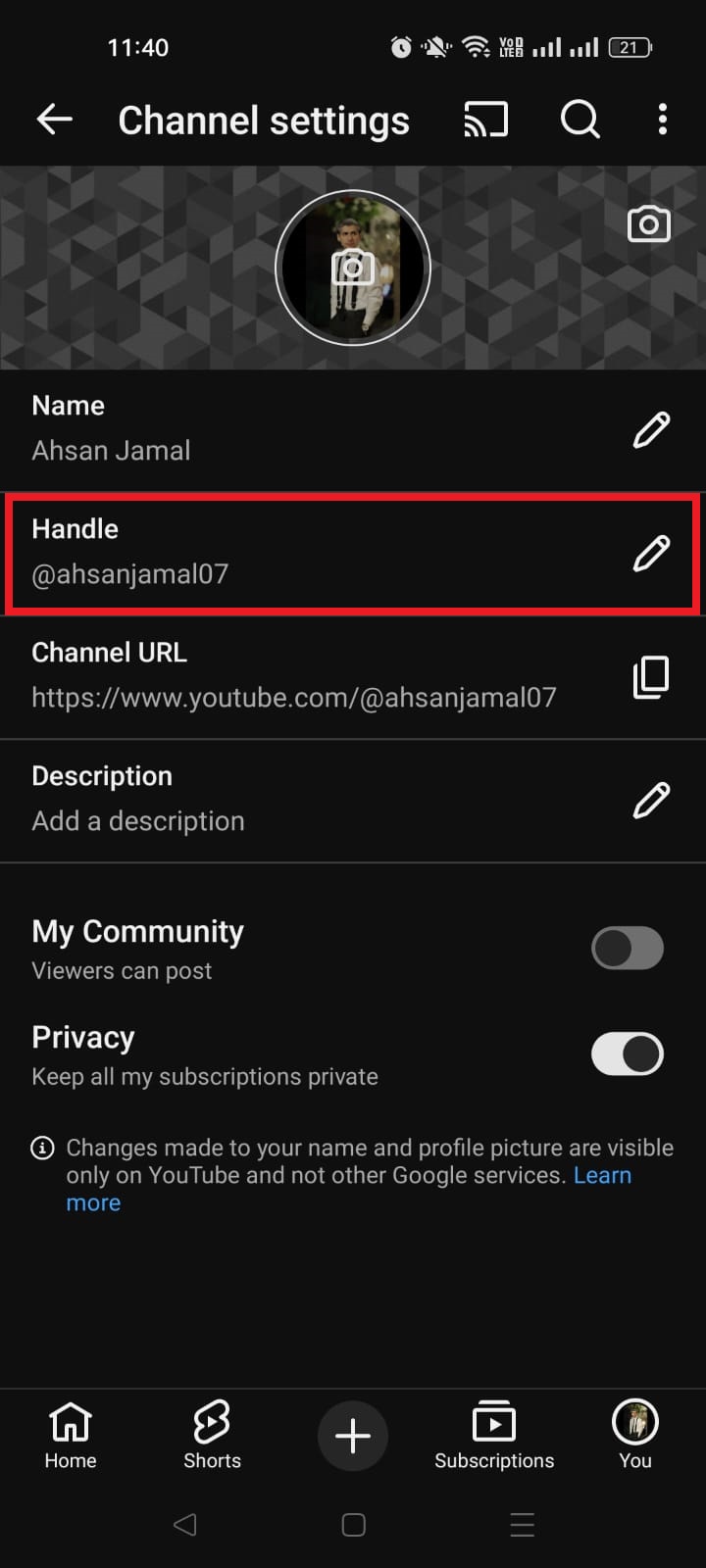
5. Find the Handle field. It shows your current @username. Tap the pencil icon next to it.
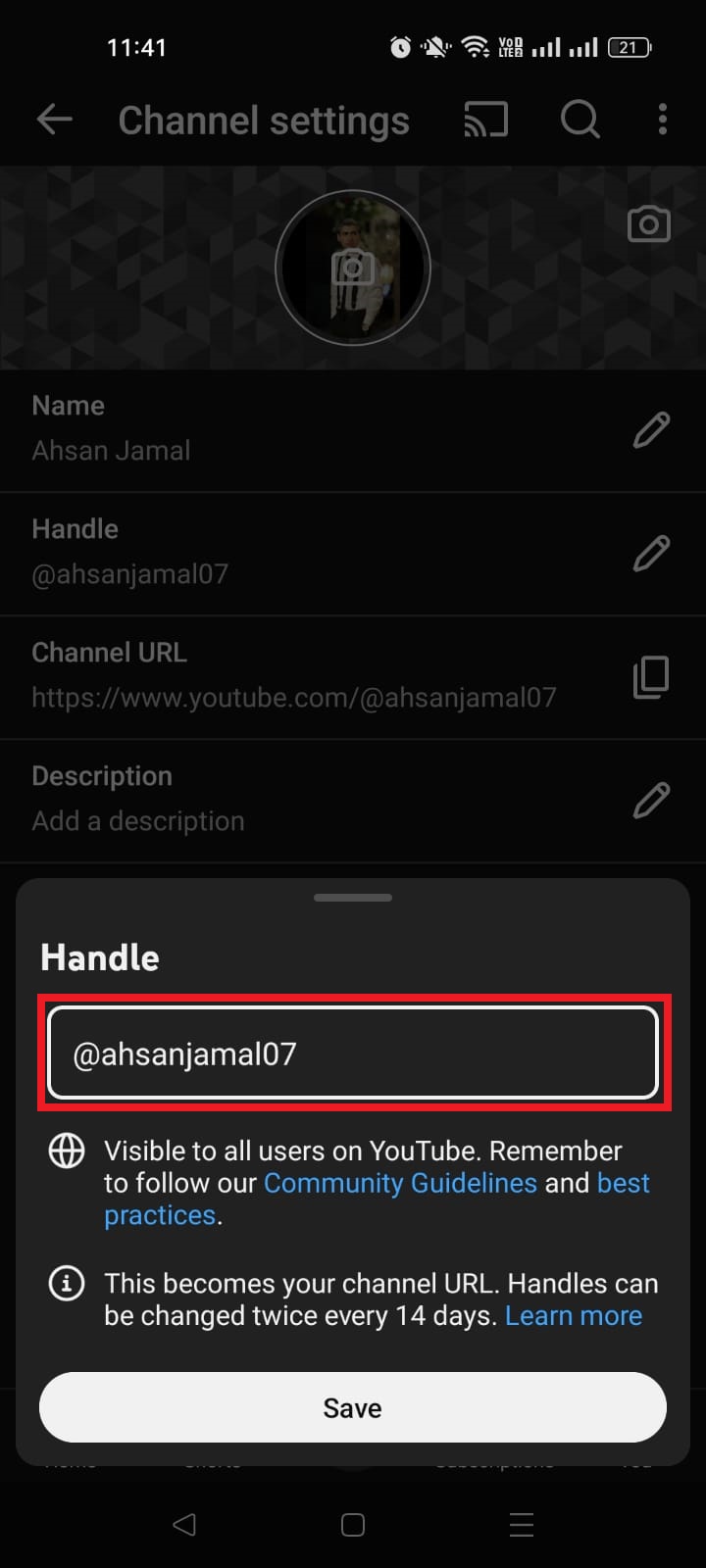
6. Type your new handle. Make sure it’s unique and available.
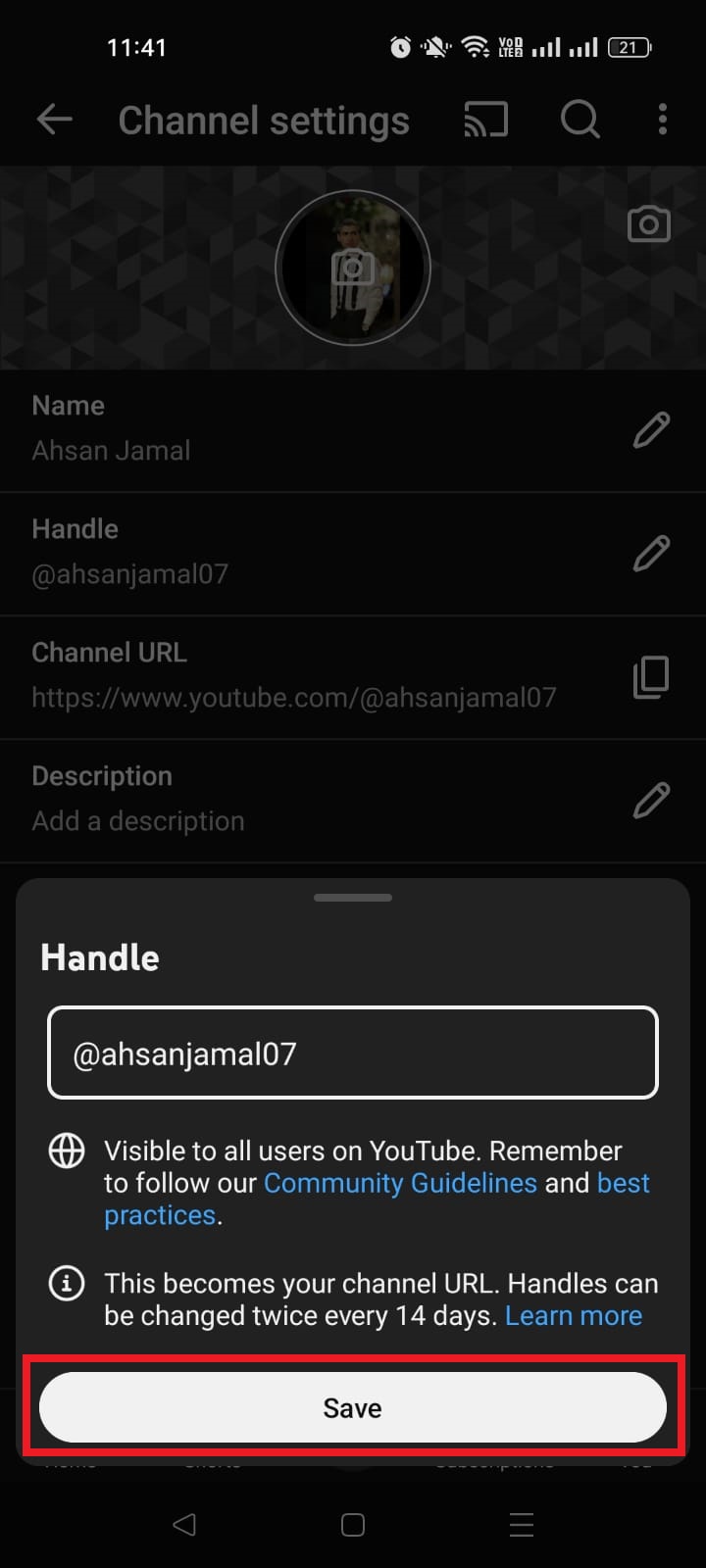
7. Save your changes by tapping the “Save” button or the check mark.
Once saved, YouTube updates your channel URL to use the new handle instantly!
Changing your name on the YouTube website is quick and simple, and it updates how your profile/channel appears to viewers across YouTube. It’s done through YouTube Studio in your browser.
Here’s how to change it, step-by-step:
1. Sign in to YouTube: Open your browser, go to youtube.com, and log in to your account.
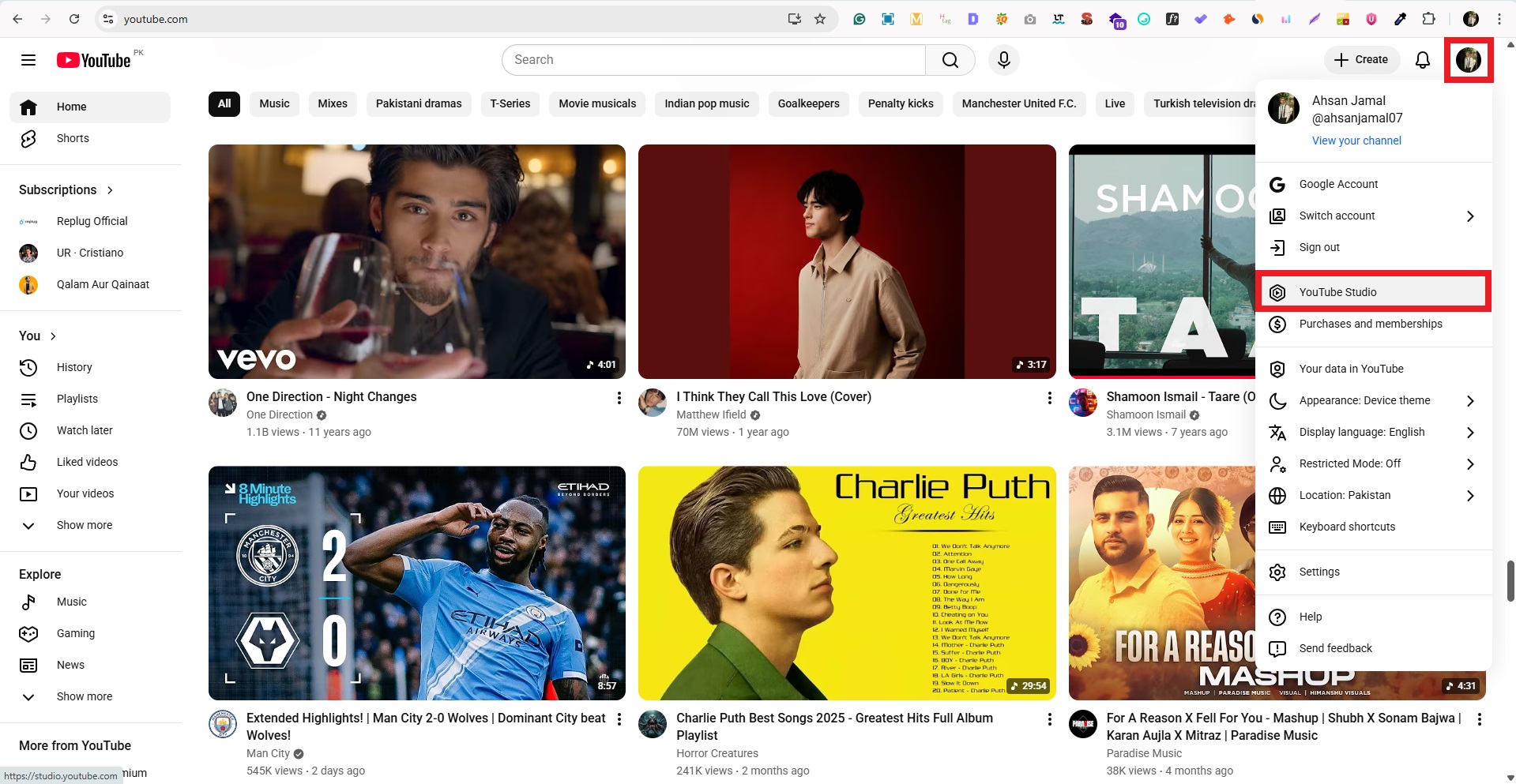
2. Go to YouTube Studio: Click your profile icon in the top-right corner, then select YouTube Studio from the dropdown.
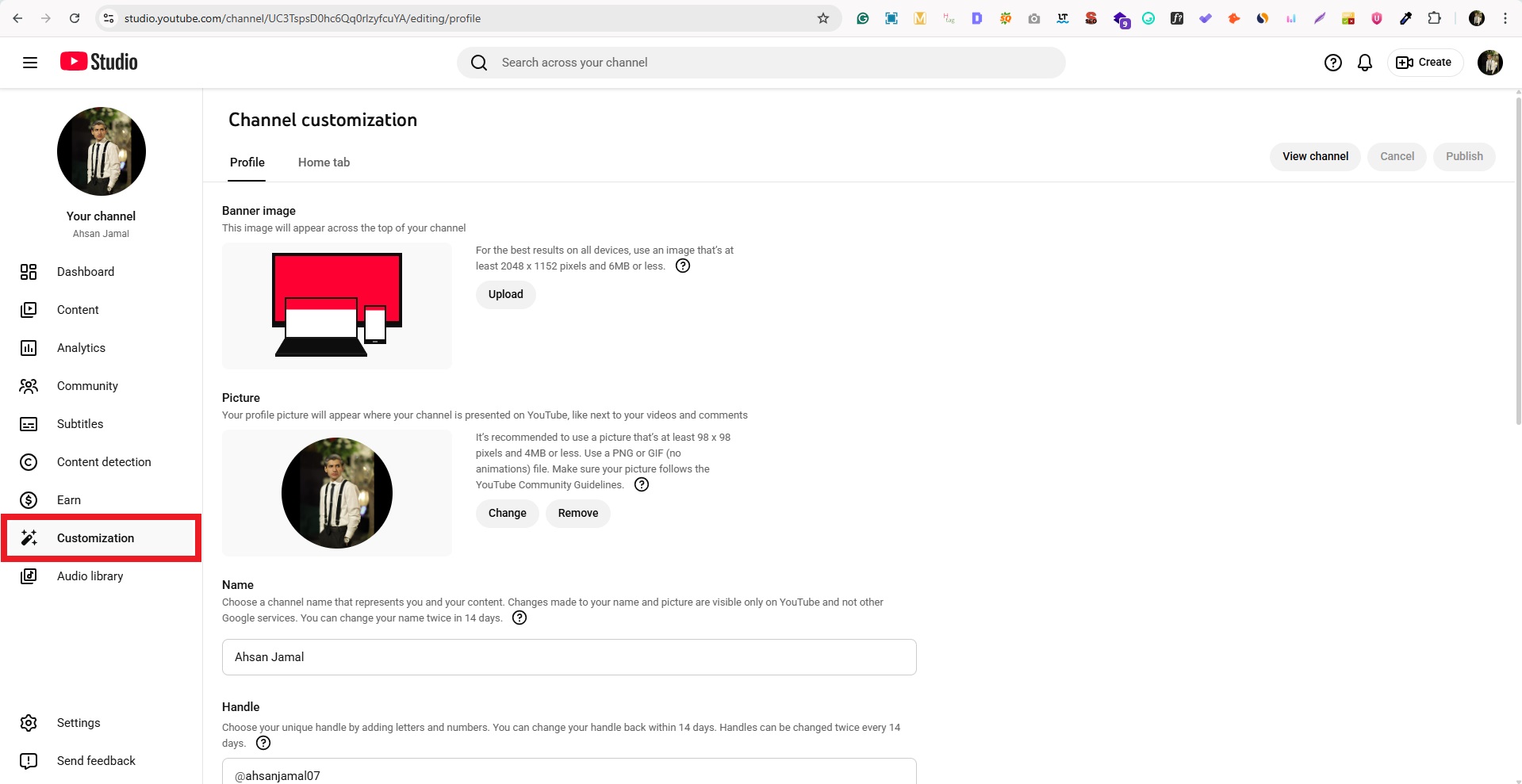
3. Open Customization: In the left sidebar, click“Customization.”
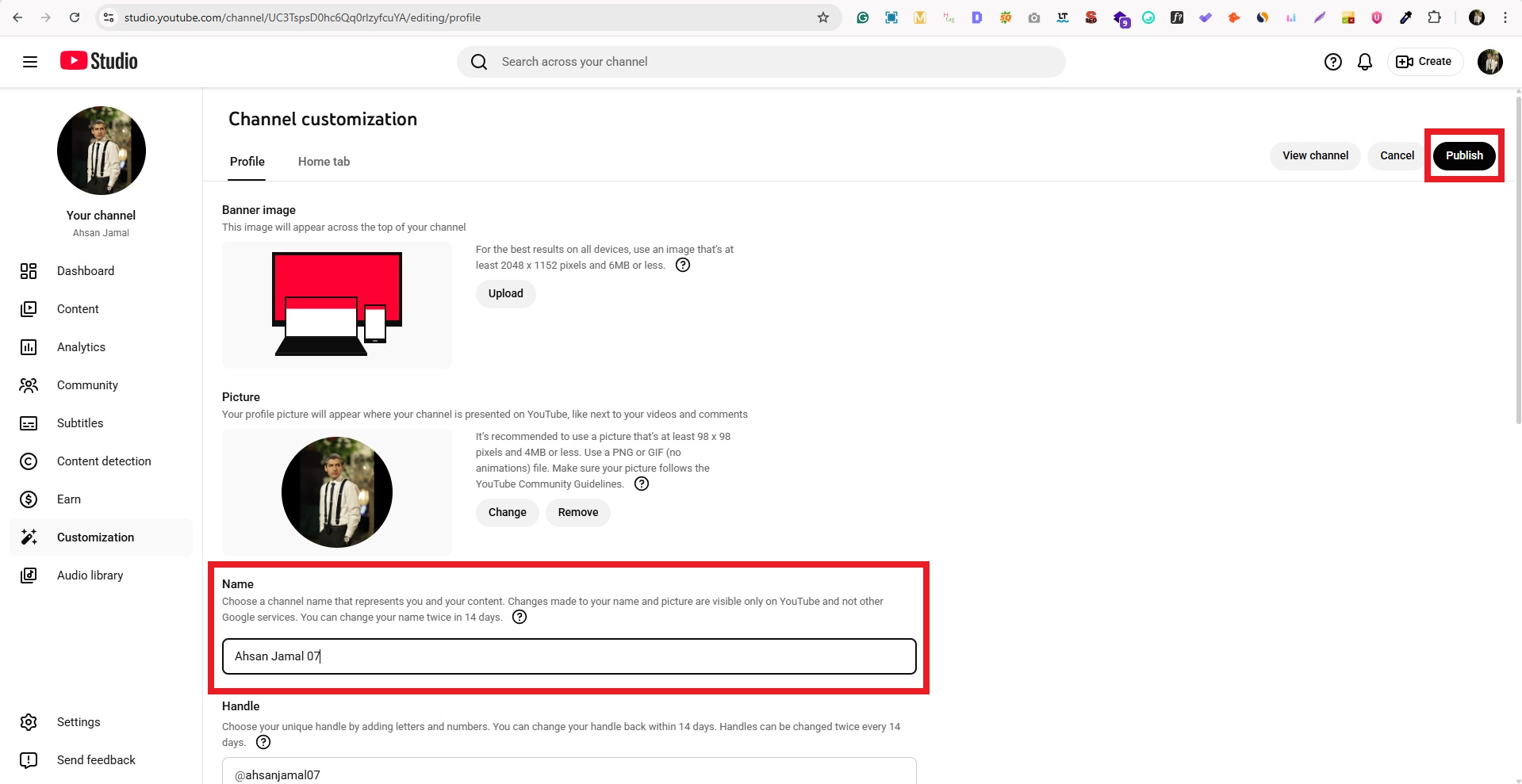
4. Edit your channel name: Click the text box titled “Name,” type your new one, and click the Publish button to save.
5. Update your handle (optional): If you want your URL to reflect the new name, edit the Handle (@username) field and publish it, as well.
That’s it! Your updated name (and handle, if changed) will go live and show across YouTube soon.
Shorten your YouTube URLs with Replug!
If you’re sharing YouTube content across social media, email, or anywhere online, sometimes those long YouTube links just don’t cut it. That’s where Replug comes in!
It is a brilliant link optimization platform that helps you shorten a link and turn it into something clean, branded, and professional before you share it with your audience.
A complete link management solution
for marketing professionals & agencies.
Try Replug for free
Replug goes beyond just shortening URLs by giving you full control over link tracking, branding, analytics, and more.
Here’s why using Replug for your YouTube URLs is worth it:
🔗 Create short, branded URLs: Transform messy YouTube links into sleek ones that are easier to share and remember.
📊 Track link performance: See clicks, sources, and engagement data to understand what’s working.
👥 Perfect for creators & marketers: Replug helps you boost visibility, improve engagement, and make your URLs look more professional.
Using this trustworthy platform makes your YouTube links more effective and user-friendly, so every share gets noticed!
Wrapping up
All in all, changing your YouTube URL name in 2026 is easier and more effective than ever, not just for branding, but for helping your audience find and remember you.
We walked through what URLs are on YouTube, how to update them via handles on desktop and mobile, and why keeping everything consistent matters.
And if you’re sharing links beyond YouTube, this reliable YouTube link shortener makes any long video or channel URL clean, memorable, and trackable before you post it anywhere.
With tools like this, you’re in control of how your content looks and performs across platforms. A simple change that can make a big difference for your growth.
Feel free to go ahead and apply these steps with confidence!
Frequently asked questions
How do I change my YouTube URL name?
YouTube no longer lets you edit old legacy custom URLs directly. Instead, YouTube uses handles (your @name) as part of your public URL (like youtube.com/@yourhandle).
Here’s how to change your YouTube URL name:
Go to YouTube Studio → Customization → Basic Info → Handle. Once you pick, edit, and publish a new handle, your channel URL will update to youtube.com/@newhandle.
How do I change my @name in YouTube?
Here’s how to change it:
1. Open YouTube Studio(on a browser or app). 2. Go to Customization → Basic Info. 3. Under Handle (@name), click the text box to edit. 4. Type your new @name and Publish/Save.
Your handle will update your public URL too! Remember, you can change your handle up to 2 times in 14 days.
How to change YouTube URL on phone (Android)?
You can’t change the URL directly from the main YouTube app. But you can change your handle (which updates your URL):
– Open the YouTube app → Your profile → Your channel → Edit channel → Handle (if shown). – If not visible in the YouTube app, open the YouTube Studio app, go to Customization → Basic Info, then edit your Handle and save.
Once changed, your URL becomes youtube.com/@newhandle.
How to change YouTube URL on iPhone?
Use the YouTube Studio app (best method) → Customization → Basic Info → Edit Handle → Publish. If trying the YouTube app directly, look under Your channel → Edit channel for Handle options. Changing the handle updates your URL automatically.
How to change URL on YouTube channel?
Today, YouTube channels use handles instead of old custom URLs. So to change your channel’s URL, you must update your handle in YouTube Studio. Once saved, your new channel URL will reflect that handle (like youtube.com/@yourhandle).
How do I edit a YouTube URL?
You can’t edit an old custom URL if you already set one. YouTube doesn’t let you change it anymore. Instead, you can change your YouTube handle (your @name), which will update the link people share (like youtube.com/@yourhandle).
How do I rename the URL link?
You rename your link by changing your handle. Go to YouTube Studio → Customization → Basic Info → Handle, type your new handle, and save. That new handle becomes your new visible URL (like youtube.com/@newhandle).
How to create a YouTube URL link?
Any channel always has a unique URL. Right now, if you want a clean, easy-to-remember URL, you pick a handle. YouTube then makes your link like youtube.com/@yourhandle. Default links like youtube.com/channel/UC… still work too.
Can the URL of YouTube app be changed?
You can’t change the raw app’s link that shows in the browser bar while watching videos. But you can change your channel’s public URL (handle link) through YouTube Studio, and that works on both phone and desktop.
If you’re active on both Instagram and TikTok, and let’s be real, who isn’t these days, you already know the struggle of sending followers from one platform to the other.
TikTok now has nearly 2 billion monthly active users worldwide, and its engagement rate sits at 3.70%, almost eight times higher than Instagram’s. That’s a massive, highly engaged audience you could be funneling straight to your Instagram page.
No matter if you’re a content creator, a small business, or just someone building a personal brand, connecting these two platforms is a no-brainer move. But how exactly do you do it?
Let’s start with the most common question people ask first: Is it even possible to add an Instagram link to your TikTok profile?
Is it possible to add an Instagram link to TikTok?
Yes, absolutely!
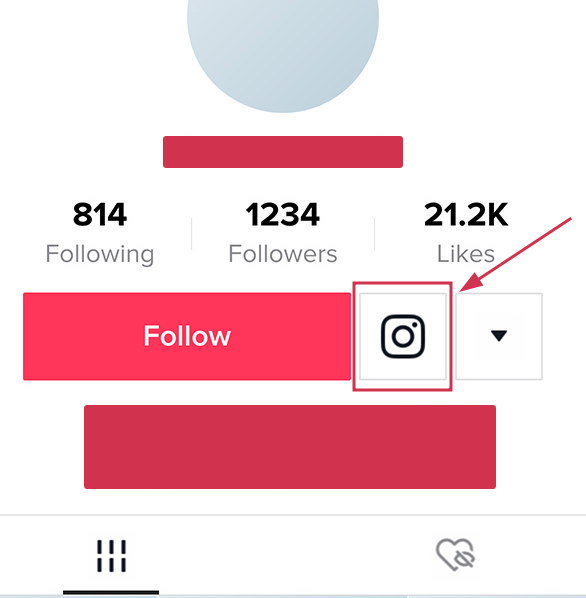
TikTok lets you link your Instagram account directly from your profile. You just head to “Edit Profile,” and tap “Add Instagram” under the “Social” section. Follow the prompts, and once connected, a clickable Instagram icon shows up right on your TikTok profile page.
Pretty neat, right?
Now, there’s one small catch. You can link social platforms like Instagram without needing to hit any follower threshold, unlike website links, which require at least 1,000 followers for personal accounts.
So whether you’re just starting out or already growing, this feature is available to you!
How to link Instagram to TikTok account
Linking your Instagram to TikTok is honestly super simple and takes less than two minutes. There are two ways to do it:
The direct method (recommended) through TikTok’s built-in social linking feature, or
An alternative manual method using Instagram’s “Share Profile” option.
Let’s walk through both!
Here’s how to add Instagram link to TikTok profile, step-by-step:
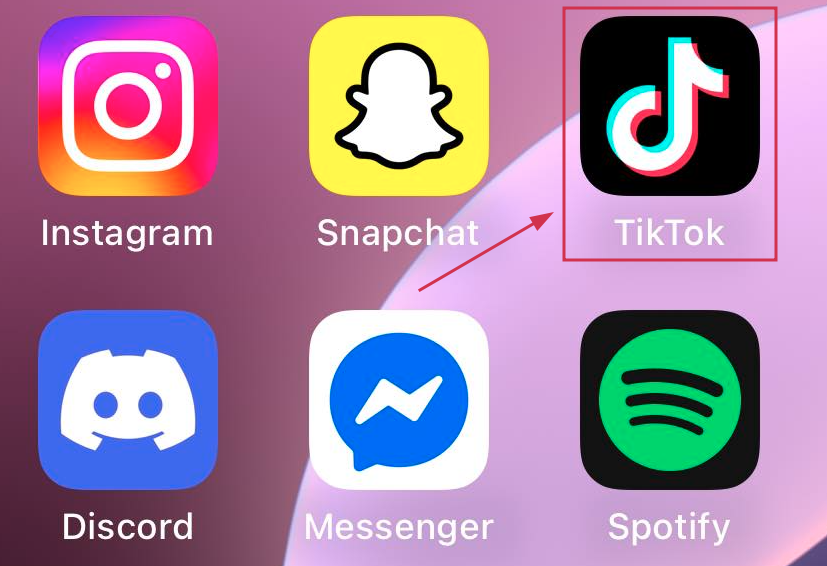
Step #01: Open the TikTok app
Grab your smartphone and launch the TikTok app. Make sure you’re logged into the account you want to link your Instagram to.
Step #02: Go to your profile
Tap the profile icon at the bottom right corner of your screen to open your TikTok profile page.
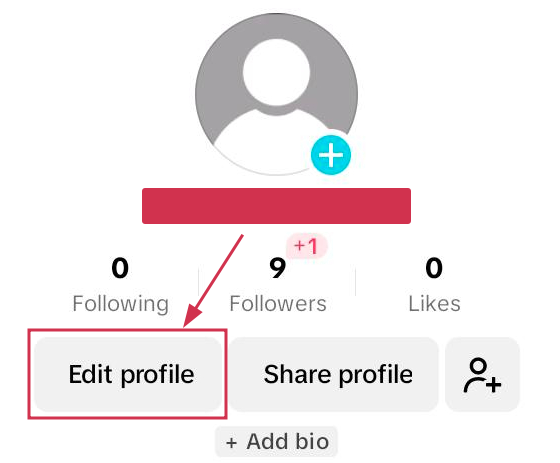
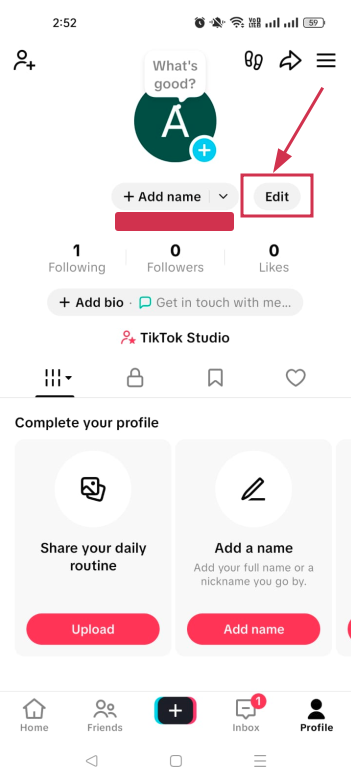
Step #03: Tap the “Edit profile” button
You’ll see the “Edit profile” button right next to your TikTok handle or just below your bio. Go ahead and tap it!
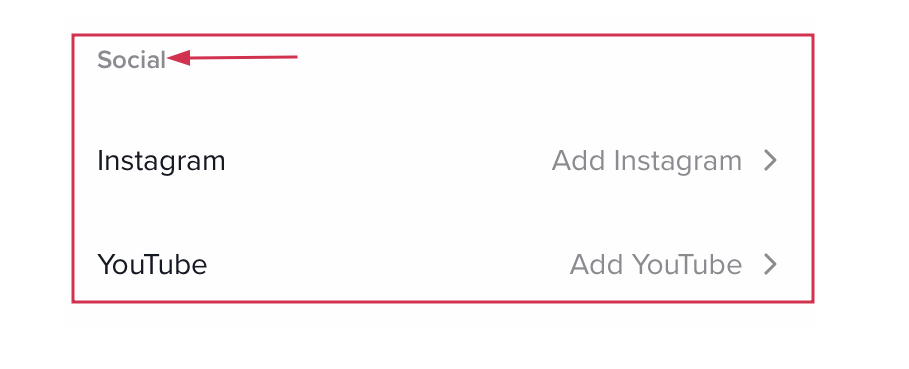
Step #04: Scroll down to the “Social” section
Once you’re inside the “Edit profile” screen, scroll down a little until you spot the “Social” section. That’s where all the magic happens.
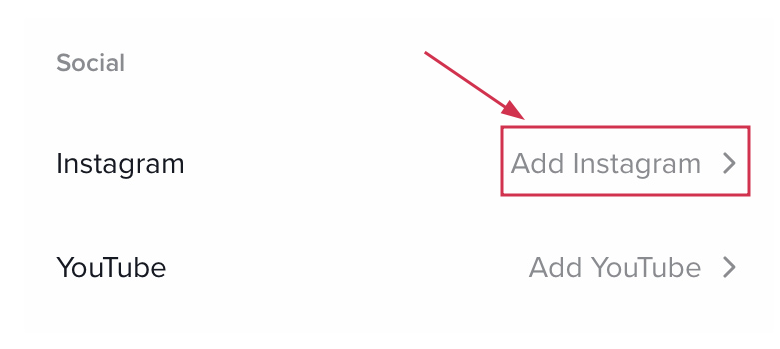
Step #05: Select “Add Instagram”
Tap on “Add Instagram,” and TikTok will prompt you to connect your account. You can choose from available platforms, including Instagram, YouTube, or Lemon8.
Step #06: Follow the login prompts
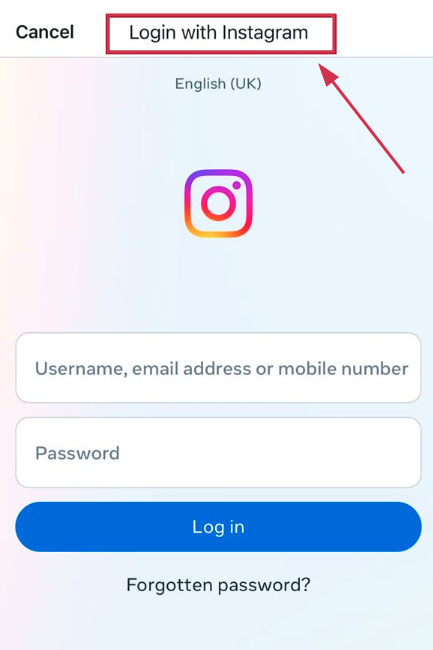
Simply log into your Instagram account when asked, hit “Authorize,” and you’re done!
Once connected, your Instagram icon will appear right beneath your TikTok bio for anyone to tap.
Alternative method:
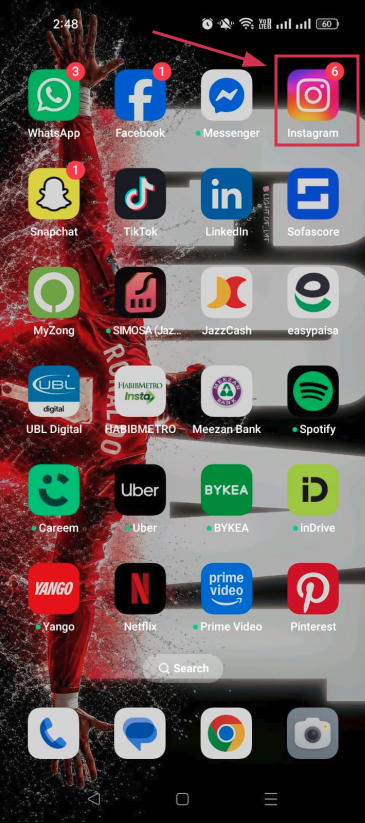
Step #01: Open the Instagram app
Head over to Instagram and make sure you’re logged into the account you want to share.
Step #02: Go to your profile
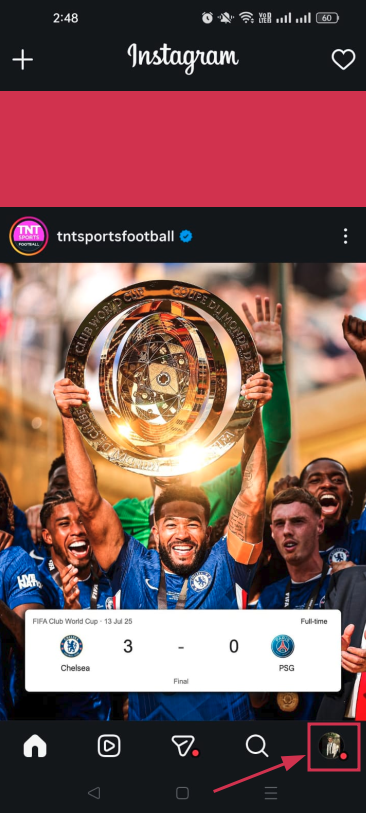
Tap your profile picture at the bottom right to open your Instagram profile.
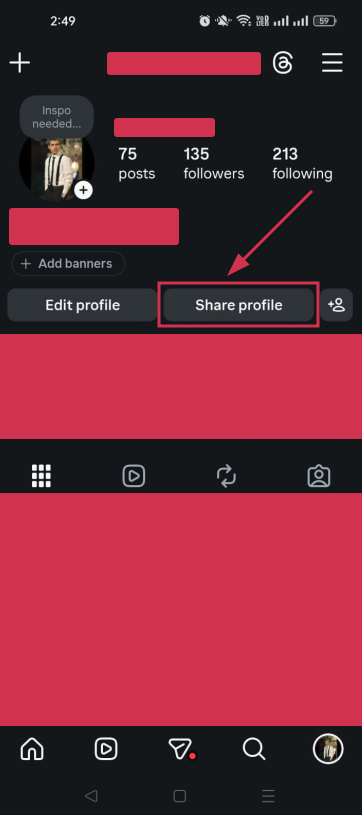
Step #03: Tap on “Share profile”
Hit the “Share profile” option. You’ll usually find it on your profile page, either as a button or through the menu.
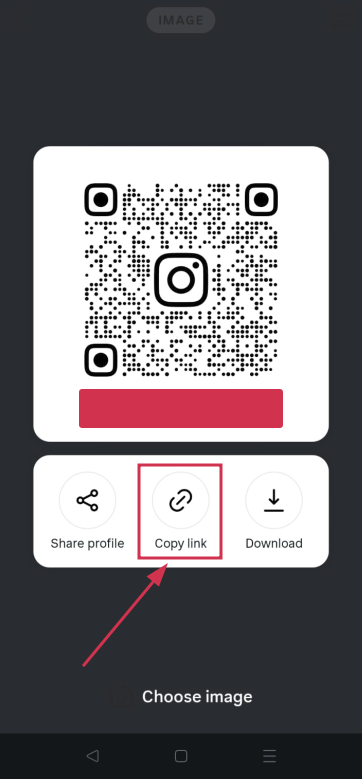
Step #04: Tap on “Copy link”
Once the share options pop up, tap “Copy link” to copy your Instagram profile URL to your clipboard.
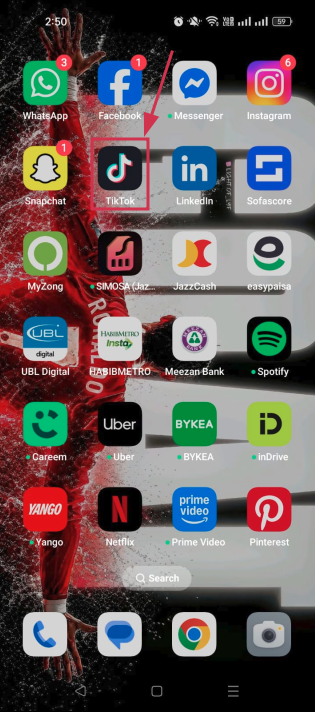
Step #05: Go to the TikTok app
Switch over to TikTok. Your copied link is ready to paste.
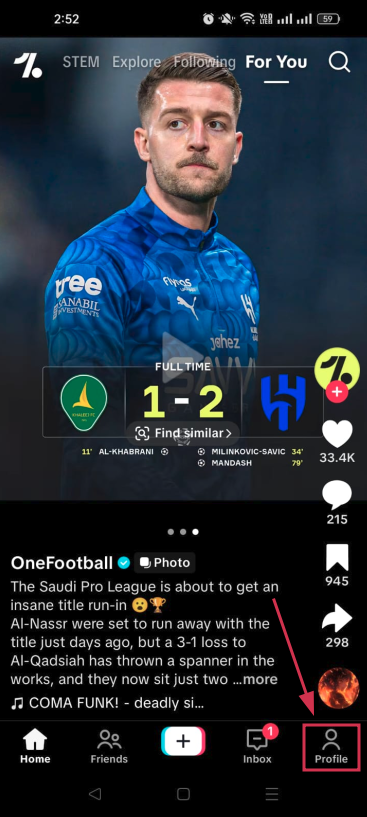
Step #06: Tap on your profile icon
Hit the profile icon at the bottom right corner of TikTok to land on your profile page.
Step #07: Tap “Edit”
Just like before, tap the “Edit” button to open your profile settings.
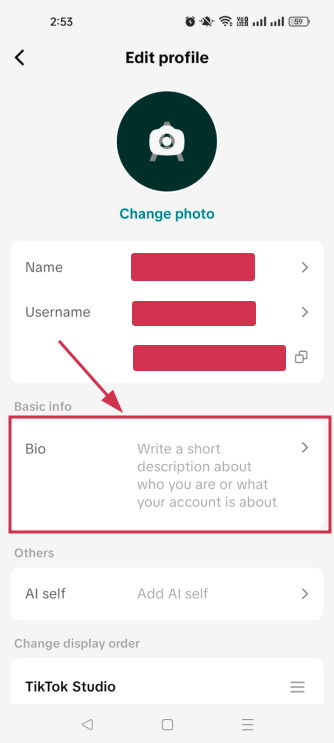
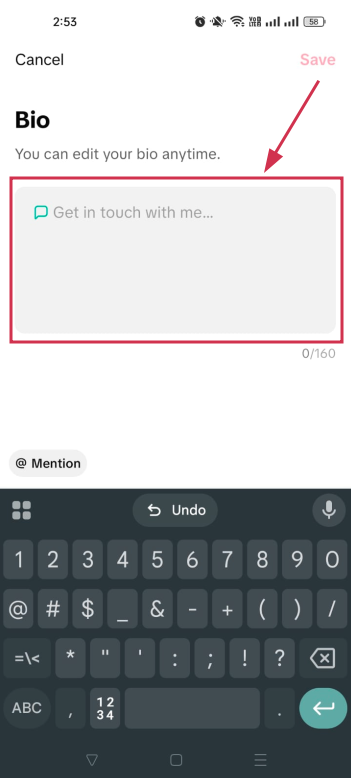
Step #08: Paste the copied link into the “Bio” or “Website” field
Paste your Instagram link into the “Bio” field for a quick and easy fix, and tap the “Save” option. And that’s all there is to it!
👉 Note that the “Website” field is only available for business accounts or personal accounts with at least 1,000 followers, so if you don’t see it, the “Bio” field works just fine as a workaround!
The process for a TikTok Business account is almost identical to what we covered above. You follow the same steps:
Go to your TikTok profile → tap “Edit profile” → scroll to the “Social” section → and connect your Instagram.
The difference is that business accounts unlock the website link field right away (no follower count needed).
Just make sure both apps are fully updated and linked to the same email or phone number to avoid any authentication hiccups.
👉 One trade-off to keep in mind: Business accounts lose access to certain trending sounds and copyrighted music, so factor that in before switching!
Why linking Instagram to TikTok is worth it!
If you’re still uncertain about connecting your accounts, let us give you a few solid reasons to just go for it.
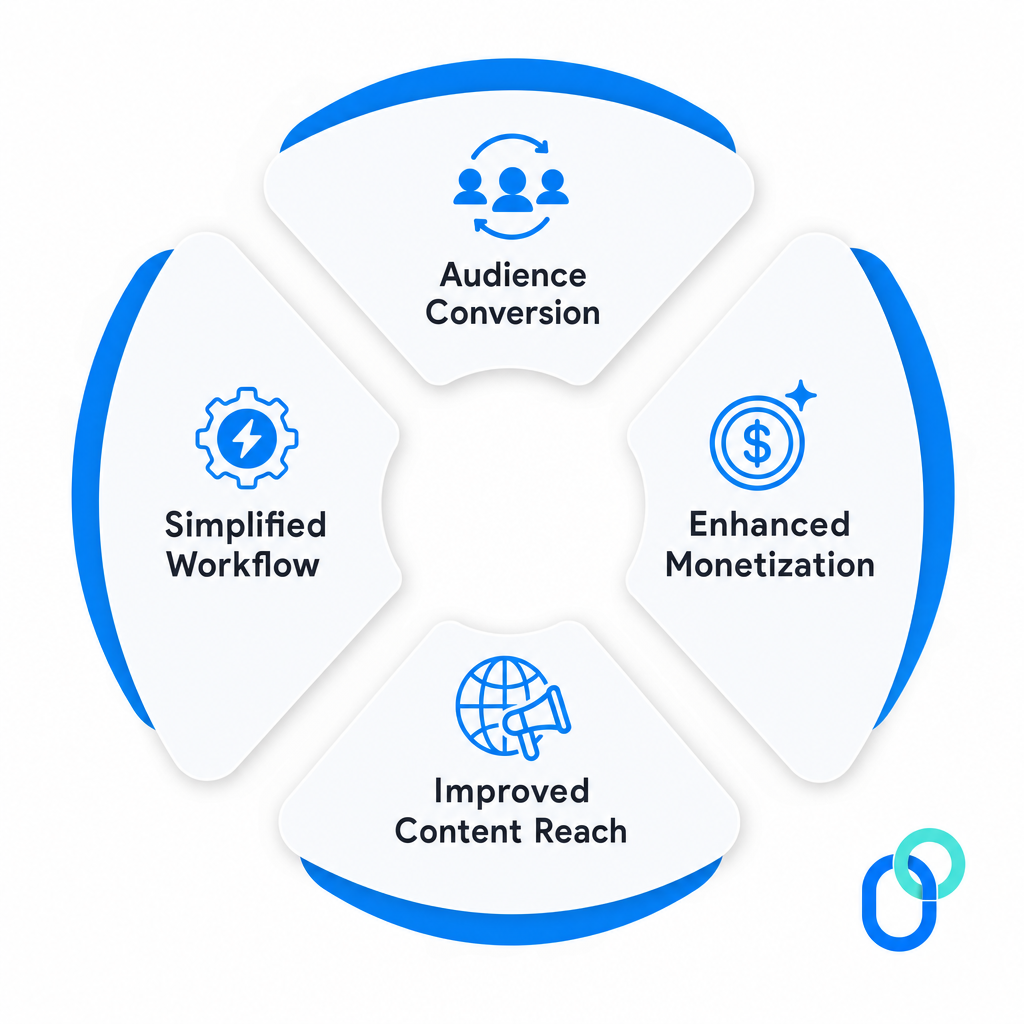
Linking Instagram to TikTok isn’t just a convenience thing at present. It’s actually a smart move for growing your presence and making your content work harder for you across both platforms.
Audience conversion
Think about it: Someone comes across your TikTok, loves your content, and wants to see more of it. If your Instagram is right there on your profile, that curiosity instantly turns into a follow.
TikTok is where your content gets discovered and explodes overnight, while Instagram is your home base for building a more curated brand and nurturing a loyal community. Linking the two makes that journey seamless.
Enhanced monetization
Having a strong presence on both platforms opens up way more doors when it comes to brand deals, sponsorships, and collaborations.
Brands love working with creators who have a cross-platform audience because it means more eyes on their product. The bigger and more connected your following looks across TikTok and Instagram, the more attractive you become to potential partners (and that directly impacts what you can charge).
Improved content reach
Not everyone is present on both platforms, so linking your accounts helps you tap into two completely different audiences at once.
TikTok pulls in over 60% of users aged 16–34 who are chasing trends and rapid discovery. Whereas Instagram reaches an 18–44 age group with higher income brackets who expect more polished, longer-form content.
Bridging the two means your content gets in front of a much wider and more diverse crowd.
Simplified workflow
When your accounts are linked, managing your online presence becomes a whole lot easier. You can repurpose content across both platforms without the hassle of manually directing people from one app to the other.
Cross-posting and repurposing videos becomes easier, and guiding your audience from one platform to the next feels natural, saving you both time and effort in the long run.
Why won’t TikTok let me link my Instagram?
Running into issues while trying to link your Instagram to TikTok? Don’t worry, you’re not alone; it’s actually pretty common.
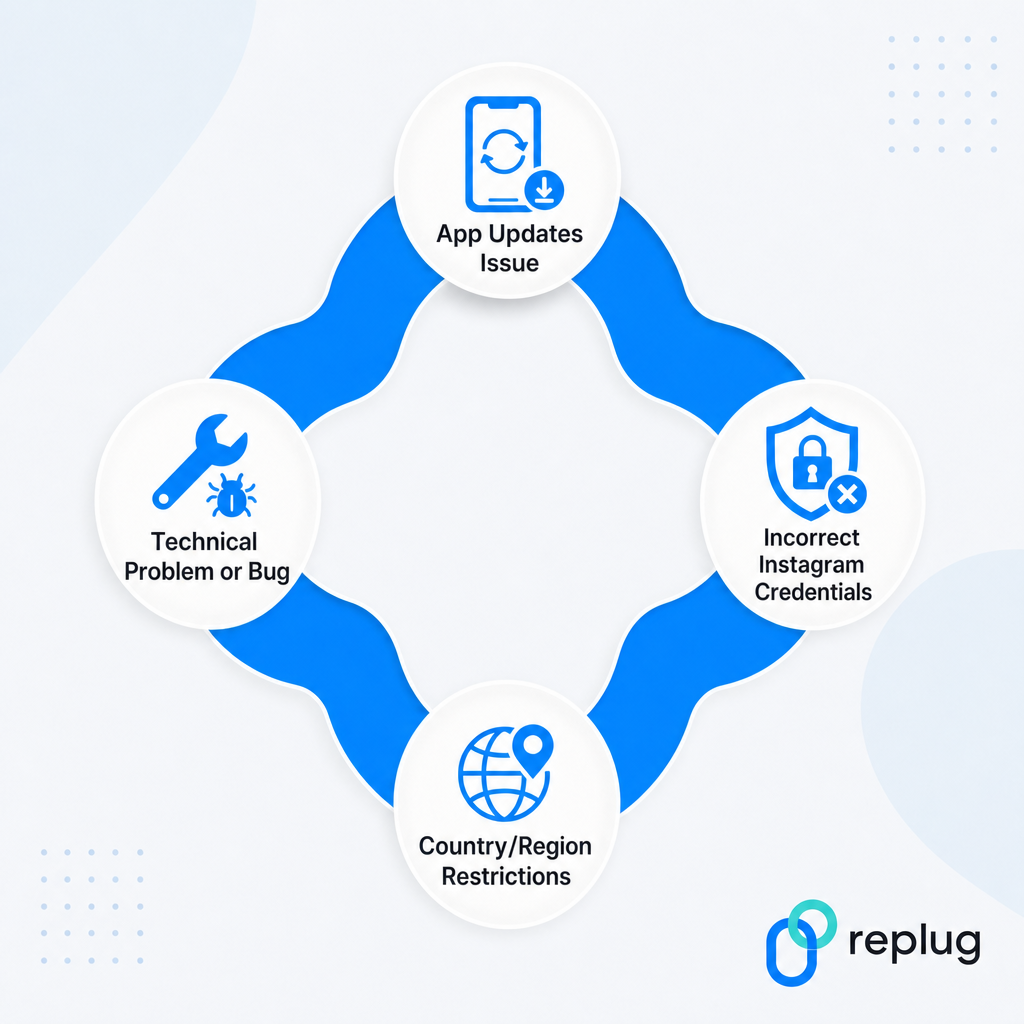
Most of the time, it comes down to one of these four reasons, and the good news is they’re all pretty easy to fix.
App updates issue
This one catches a lot of people off guard.
Both apps need to be fully updated to avoid authentication errors during the linking process. If either your TikTok or Instagram app is running on an older version, the connection simply won’t go through.
Head to your app store, check for any pending updates, and try linking again. That usually does the trick.
Incorrect Instagram credentials
If you’re getting an error during the login step, double-check that you’re entering the right Instagram username and password. It sounds obvious, but it’s one of the most common reasons the linking fails.
Also, if you have two-factor authentication enabled on Instagram, it can block TikTok’s linking request. Temporarily disabling 2FA, completing the connection, and then re-enabling it usually fixes this.
Country/region restrictions
This one’s a bit frustrating because it’s out of your hands.
TikTok is rolling out the Instagram linking feature gradually across different countries, with North America, Europe, and parts of Asia typically getting access first, while other regions follow weeks or even months later.
If the “Add Instagram” option simply isn’t showing up on your profile, chances are the feature just hasn’t reached your region yet.
Technical problem or bug
Sometimes it’s not you; it’s just a random glitch. Apps have bugs, and TikTok is no exception.
If you’re facing issues, try updating both apps, double-checking your login credentials, or checking your account type and region settings.
Logging out and back into TikTok, restarting your phone, or even switching from Wi-Fi to mobile data can also clear things up surprisingly fast.
What if my Instagram link isn’t showing on TikTok: Learn the troubleshooting steps!
So you’ve followed all the steps, but your Instagram link still isn’t showing up on TikTok? Super annoying, but totally fixable!
Here’s what you should try:
Update both apps: Make sure TikTok and Instagram are both running on their latest versions before attempting to re-link.
Log out and back in: Sometimes simply signing out of TikTok and logging back in refreshes everything and makes the link appear.
Switch to mobile data: Wi-Fi networks, especially managed or public ones, can block app authentication. Try switching to mobile data and linking again.
Check your account type: If you recently switched to a business account, TikTok may prioritize the website URL field over the Instagram icon. Double-check your profile settings.
Re-link your account: Go back to “Edit Profile,” remove the existing Instagram connection, and add it again.
Restart your phone: Sounds simple, but a quick restart clears out minor bugs that might be causing the display issue.
If none of these work, give it a day or two. It could just be a temporary glitch on TikTok’s end!
Convert Instagram & TikTok traffic into valuable leads with Replug!
Once your Instagram and TikTok are linked up, the next step is making sure that traffic actually works for you, and that’s where Replug comes in.
Whether you’re a solo creator or running a full business account, Replug helps you turn every click into a real opportunity. Worth checking out!
Summing up
And that’s a wrap!
Linking your Instagram to TikTok really is one of the simplest yet smartest moves you can make as a creator or business owner. It takes less than two minutes, helps you grow across both platforms, and makes your overall social media presence feel way more connected and intentional.
No matter if you followed the direct method or the alternative route, the result is the same: more visibility, better audience flow, and more opportunities to grow.
And if you ever run into any problem, you now know exactly how to troubleshoot it. So go ahead, link those accounts, and start making your content work harder for you!
Frequently asked questions
How to link Instagram to TikTok on PC?
Here’s how to link Instagram to TikTok on desktop:
1. Open a web browser like Google Chrome or Microsoft Edge and head to Instagram’s official website. 2. Sign in to your Instagram account and copy the link from the address bar. It’s the link to your Instagram profile. 3. Now, head over to TikTok’s official webpage and log in to your account. 4. Then, click on the “Edit profile” button. 5. After that, paste the copied link inside the “Bio” section and hit the “Save” button.
That’s all!
However, keep in mind that it will be displayed as text and not as a clickable link.
How to link Instagram to TikTok bio?
Here’s how to add Instagram link to TikTok bio, step-by-step:
1. Open the Instagram app and head over to your profile. 2. Tap on the “Share profile” option, followed by tapping on “Copy link”. 3. Now, open the TikTok app and tap the “Profile” option in the bottom right-hand corner. 4. From the opened page, tap on “Edit”. 5. After that, from the “Edit profile” screen, tap on the option labelled “Bio”. 6. Here, paste the copied link and tap the “Save” option.
Congratulations, you have successfully linked your Instagram profile inside the Tiktok bio.
How to link Instagram to TikTok if it is not working?
If the linking isn’t going through, start by updating both apps to their latest versions. Then check that you’re using the correct Instagram login credentials.
If you have two-factor authentication on, temporarily turn it off, complete the linking, then switch it back on.
Still not working? Try switching from Wi-Fi to mobile data, or log out of TikTok and back in. The email or phone number used for both Instagram and TikTok must also match.
If the option isn’t showing up at all, it may not be available in your region yet.
How to unlink Instagram from TikTok?
Pretty straightforward process!
1. Open the TikTok app and go to your profile. 2. Tap “Edit profile” and scroll down to the “Social” section where your Instagram is connected. 3. Tap on your Instagram username and select “Unlink” or “Remove” to confirm your decision.
The Instagram icon will disappear from your TikTok profile instantly. Although keep in mind that some background permissions on Instagram’s end may still need to be manually removed through Instagram’s app settings.
How to link TikTok to Instagram?
Here’s how to add TikTok link to Instagram bio:
1. Copy your TikTok profile URL from the TikTok app (“Share profile” → “Copy link”). 2. Simply go to your Instagram profile, tap “Edit profile,” and select “Add link.” 3. From there, paste your copied TikTok profile URL into the URL field and add a title. 4. Save it by tapping the (✔) icon in the top right-hand corner of the screen.
Your TikTok link will now be visible and clickable on your Instagram profile, making it easy for your Instagram audience to find and follow your TikTok content too.
How to add link to TikTok bio?
Knowing how to add a link to TikTok bio is simple once your account meets the requirements. Personal accounts need at least 1,000 followers to unlock the clickable website field, while business accounts get immediate access.
Once eligible, go to “Edit Profile,” → tap the “Website” field → paste your link → and hit “Save.”
If you’re not eligible yet, you can still paste a plain text URL in your bio description as a temporary workaround.
How to add your TikTok link to Instagram Story?
Here is how to add your TikTok link to an Instagram Story:
Copy your TikTok video or profile link → open the Instagram story composer → tap the sticker icon → select link → and paste the URL.
Your followers can simply tap the sticker to land straight on your TikTok profile. It’s a quick and effective way to drive your Instagram audience over to your TikTok content.
Why is it beneficial to cross-post between TikTok and Instagram?
Cross-posting saves you a ton of time since you’re creating one piece of content and putting it to work on two platforms at once.
It also helps you reach completely different audiences. TikTok skews toward trend-driven users, while Instagram reaches a broader demographic with higher purchasing power.
More reach, more engagement, and more chances to grow your following without doubling your workload. It’s honestly one of the easiest wins in content marketing.
A link in your Instagram bio is a great way to drive traffic to your website and increase engagement with your content. In addition, it allows you to direct potential followers to a landing page, portfolio, or blog post you want to promote.
You can also link to an email sign-up page, product page, or shop. This feature is handy for businesses, brands, and influencers who want to increase their reach and promote their content.
Follow this step-by-step guide to quickly find any profile’s link in the bio on mobile and desktop.
How to get to the link in the bio on Instagram on a mobile device?
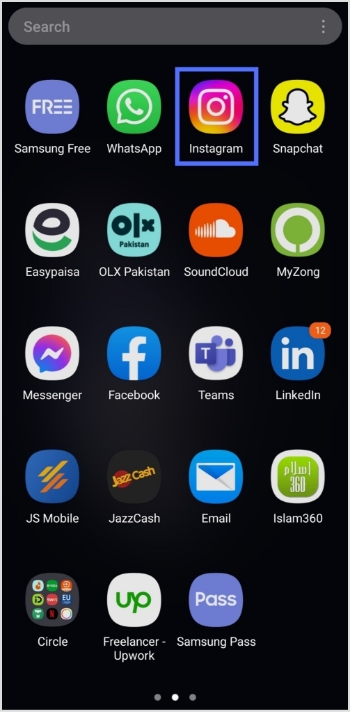
Step 1:Open the Instagram app on your mobile device.
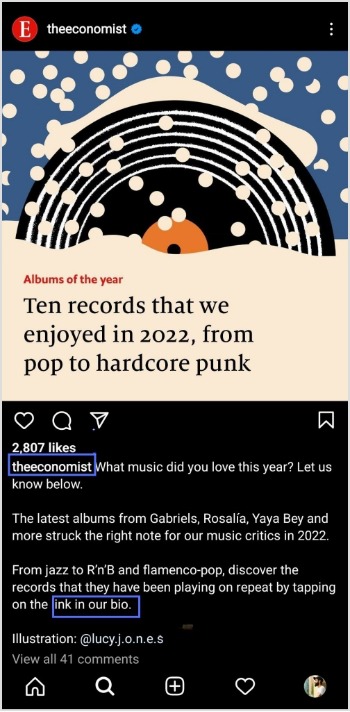
Step 2:Tap on the user’s profile name (username) on whose caption you noticed the Link in Bio.
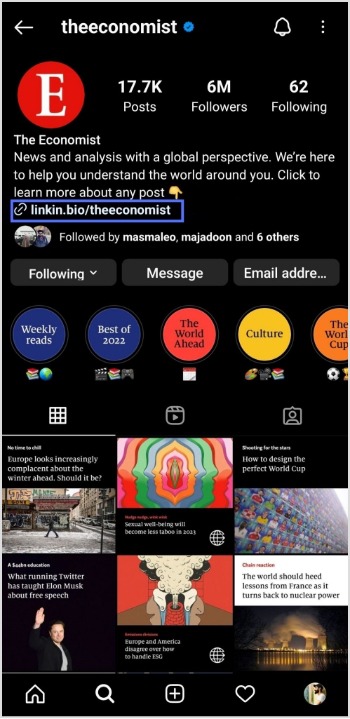
Step 3:You will be taken to the user’s profile screen. Here you will see a website link that’s your “Link in Bio.” Just tap on the link to open it.
How to get to the link in the bio on Instagram on a computer device?
Here are two simple steps to find the Instagram link in the bio on a computer.
Step 1: Click on the profile that says Link in bio in a post.
Step 2:The website link will show up under their bio on their profile screen. Click on it to open the link.
How To Add A Instagram Link In Bio?
Adding an Instagram link in bio helps direct your followers and potential customers to your dedicated page.
As a result, makes it easier for them to find your profile and learn more about your brand. It also encourages followers to engage with your content, which can help drive sales and increase brand awareness.
Here’s how to add an Instagram link in the bio:
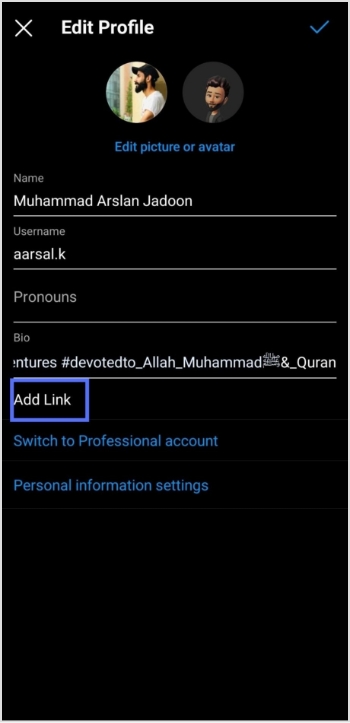
Step 1: Open Instagram on your mobile and tap your profile icon in the bottom right corner.
Step 2: Tap on the edit profile button on your profile page.
Step 3: Now, you will see the add link section on your mobile screen. Tap on it.
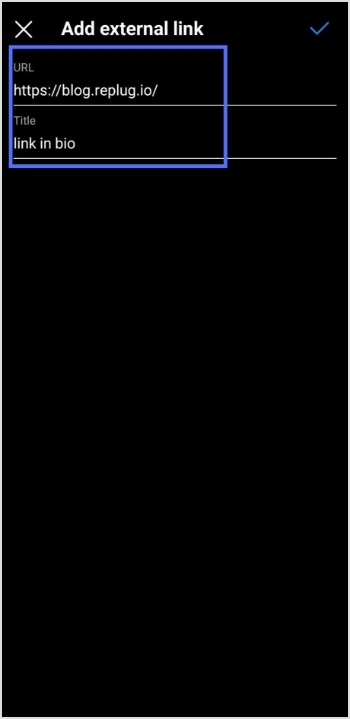
Step 4: Tap the add external link section to add your website address.
Step 5: Copy and paste the URL in the URL section and add a title in the title section.
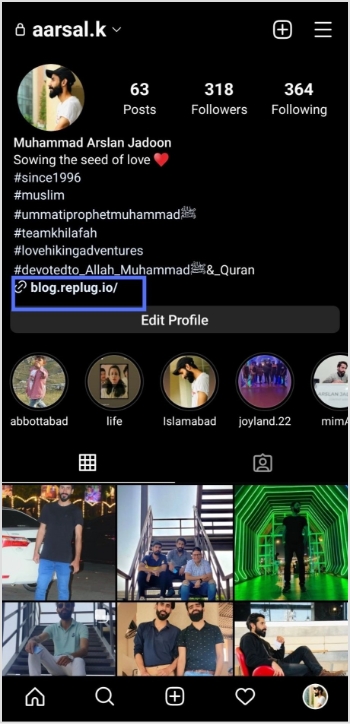
Step 6: Your link in the bio will now appear in your profile.
Your Instagram profile now has a link in the bio.
Instagram bio page with multiple bio links – Is it possible?
Adding multiple bio links to your Instagram bio is a great way to drive more traffic to your website and other online resources. By adding links to your Instagram bio, you can easily direct your followers to your website, blog, YouTube channel, and other platforms where they can learn more about you and your business.
Additionally, including multiple bio links allows you to showcase your work, products, or services in an efficient and organized way. You can use a free link shortener to create a single, short URL that links to multiple websites.
Follow these steps to add multiple bio links to your Instagram profile.
Step 1:Sign in to your Replug account or create a new one if you don’t have one.
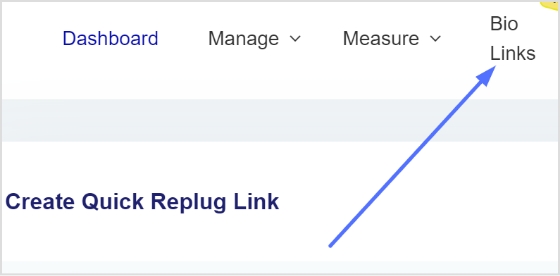
Step 2: You’ll be taken to the main dashboard page. Click on the bio links section from the main dashboard page.
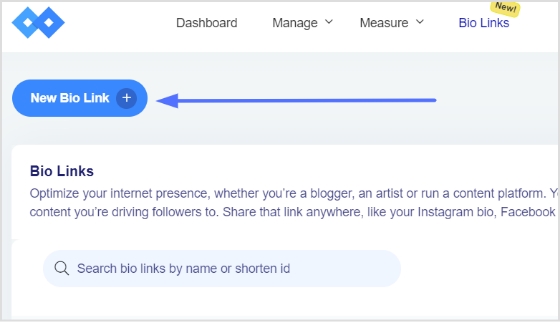
Step 3: Click the new bio link button to create your bio link.
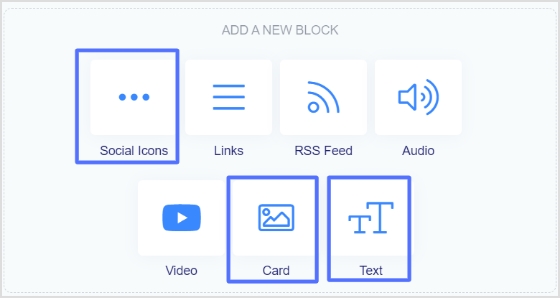
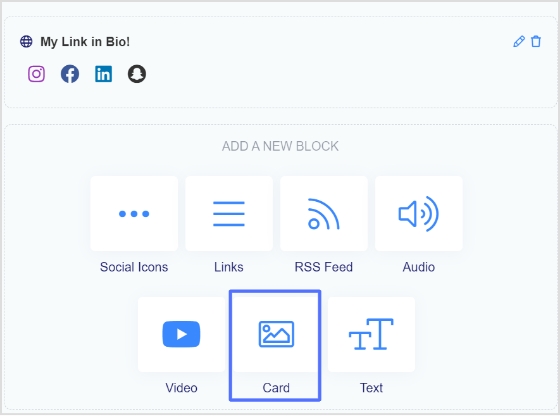
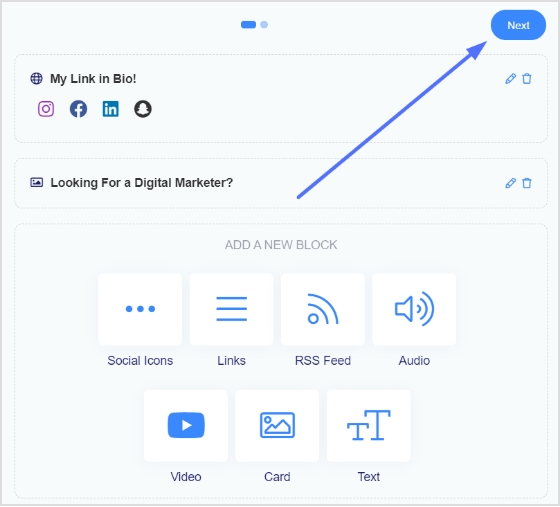
Step 4: Add Social Icons, Links, RSS Feed, Audio, Video, Card, and Text as part of your bio links. Our bio link page, for example, has social icons and a card.
Note: The above image shows you the options (blocks) you can choose for your Instagram bio or landing page.
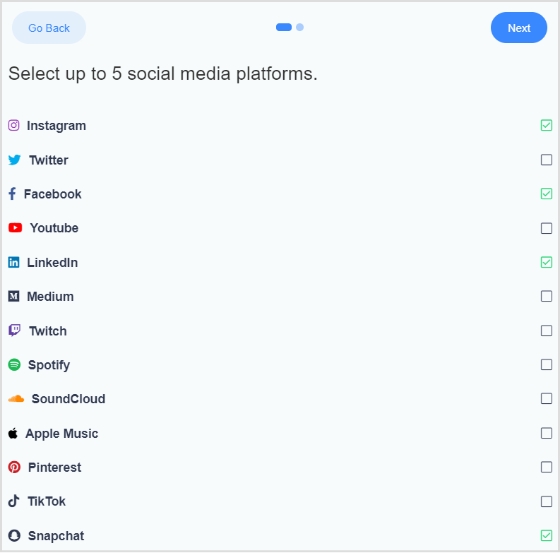
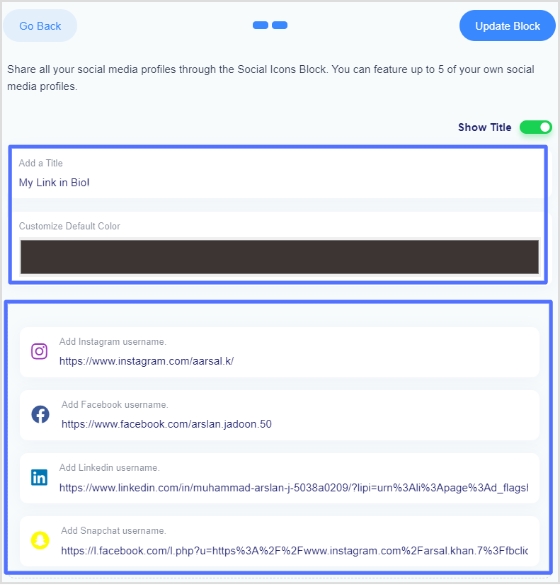
Step 5: Choose social icons and click next. You can choose up to 5 social icons (profiles).
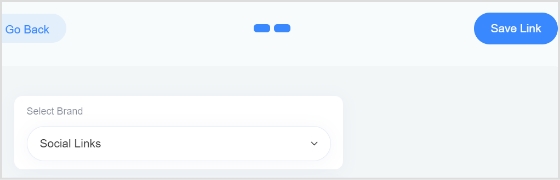
Step 6: Now, add a title to your social links, customize the icon’s color and enter the links or usernames for your social media accounts, as shown in the picture below.
Note: When someone clicks on any of your social icons, they will go to the relevant social media profile.
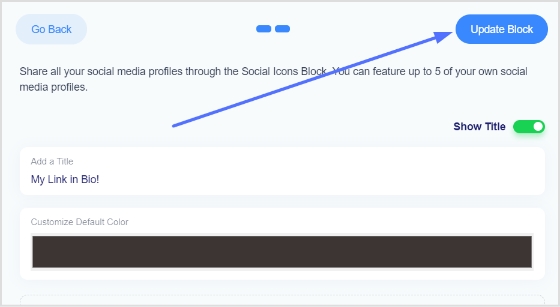
Step 7: Now, click the update block button to add other blocks, like card, text, video, etc.
Step 8: Now, choose another block, for example, a card.
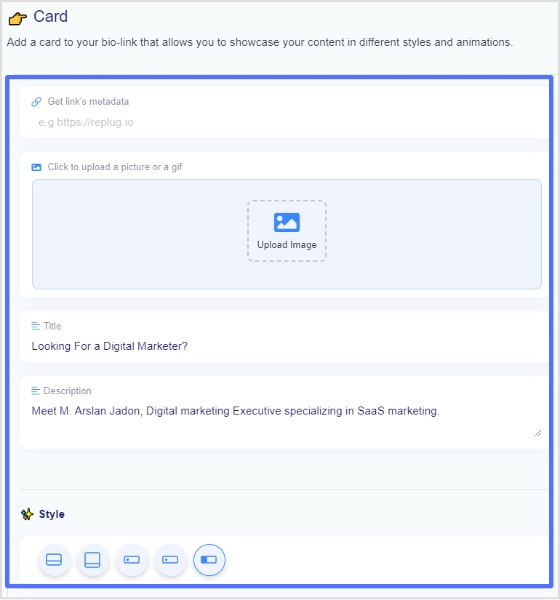
Step 9: In the card section, add your destination URL add the card image,title, and description. Also, choose the style of the card and click the save block button.
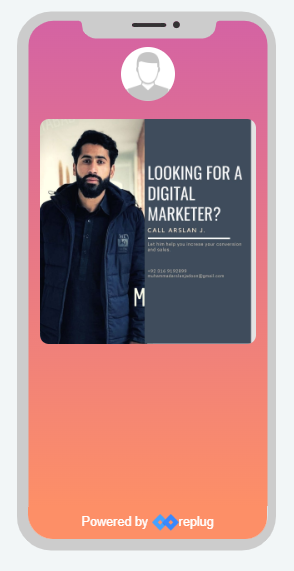
If you want to see how any section or block looks, you can preview it side by side. Here is an example of how the card looks.
Step 8: Once you have added all the necessary blocks, click the next button.
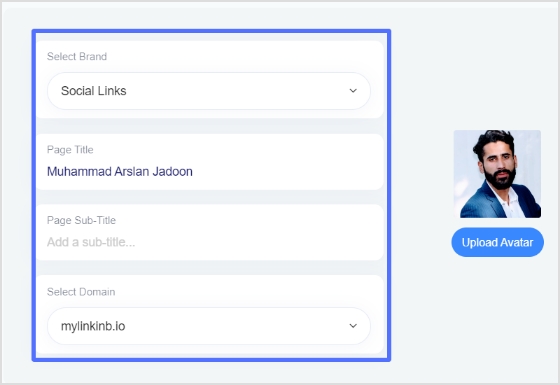
Step 9: You are now on the final page. Upload your avatar, select a brand, add a title and sub-title, and choose a domain.
Note: Replug is an all-in-one link optimization platform that allows you to create a brand with a custom domain in seconds.
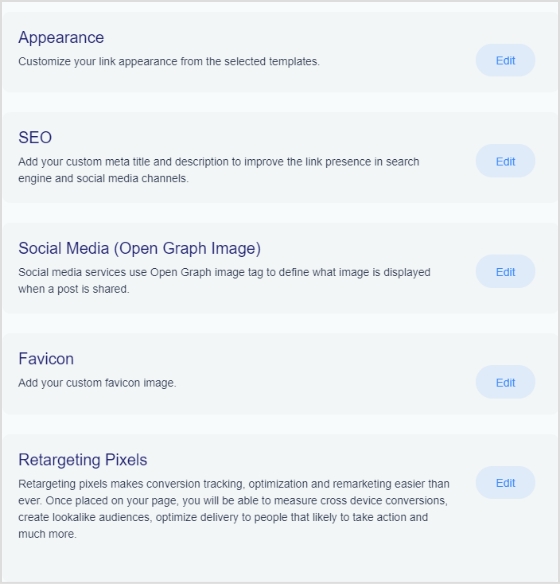
Step 10: As you scroll down, you’ll find other cool features, such as custom appearances,SEO, social media open graph images, favicons, and retargeting pixels. Make your bio link more appealing by adding these features.
Step 11: Once you’re done, click the save link button, and your bio link is ready to share on any social platform.
Frequently asked questions
Can you have more than one link in your bio?
Yes, you can have more than one link in your bio with the help of a free bio link tool like Replug. However, it is important to remember that a bio should be concise, so it is advisable to limit the number of links to two or three.
Can I create a link with multiple links on Instagram?
Yes, you can create a link with multiple links using a top-notch Instagram bio link generator online. Simply create an account and follow the instructions to create a link with multiple links, often called bio links.






![How to change URL name on YouTube: A practical guide for content creators & YouTubers [2026]](https://internal-blog.replug.io/wp-content/uploads/2022/12/How-to-change-URL-name-on-YouTube-A-practical-guide-for-content-creators-YouTubers-2026.png)

![How to link Instagram to TikTok profile in no time: A step-by-step guide [2026]!](https://internal-blog.replug.io/wp-content/uploads/2022/12/How-to-link-Instagram-to-TikTok-profile-in-no-time-A-step-by-step-guide-2026.png)