
With around 1.9 billion monthly active users and roughly 23 million videos uploaded every single day, TikTok is basically the internet’s busiest social media platform right now.
That’s a lot of content, and honestly, not every video deserves a permanent spot on your profile. Maybe it’s an old cringe post, a trend you jumped on too early, or a video that just didn’t land the way you hoped.
Whatever the reason, knowing how to clean up your profile or build a solid TikTok archive before hitting delete is a skill every creator needs.
Ready to take control of your content? Let’s walk you through exactly how to delete a TikTok video, step-by-step.
How to delete a TikTok video
No matter if you’re doing a quick profile cleanup or just removing one awkward post, deleting a TikTok video is super straightforward. Just follow these simple steps, and that video will be gone in seconds.
Here’s how to delete a video on TikTok (step-by-step):
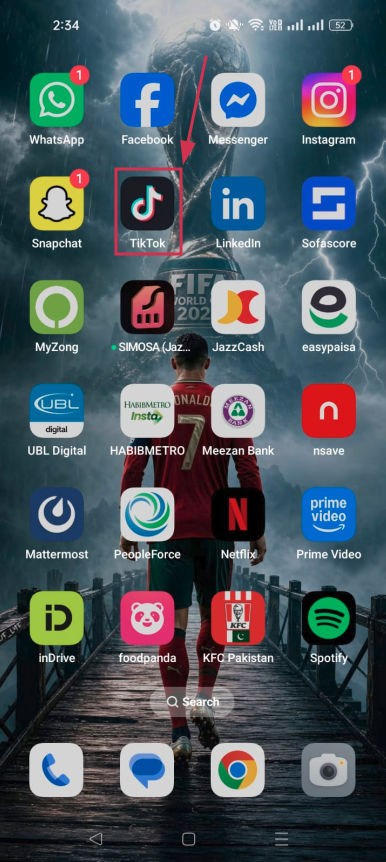
Step#01: Open the TikTok app
Launch TikTok on your phone and make sure you’re logged into the right account.
Step#02: Tap “Profile”
Hit the “Profile” icon at the bottom right corner of your screen to head over to your personal profile page.

Step#03: Tap on the specific video
Scroll through your posted videos and tap on the one you want to delete.

Step#04: Tap the three dots icon (⋯)
Once the video is playing, look for the three dots icon (⋯) on the right side of the screen and tap it to open more options.

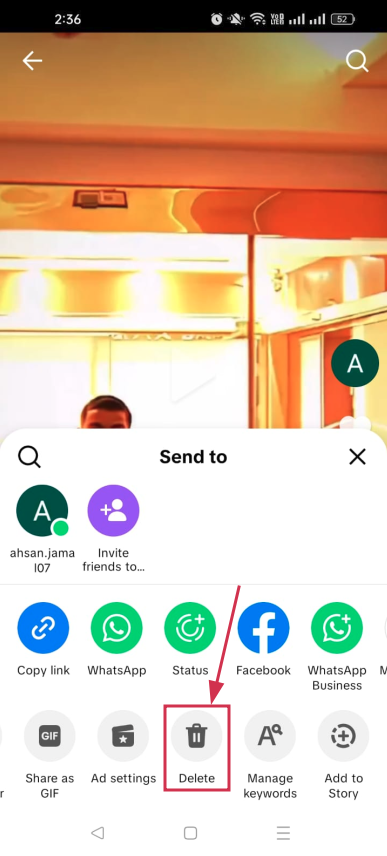
Step#05: Tap the “Delete” icon
A menu will pop up at the bottom. Scroll through the options and tap the “Delete” icon. It looks like a trash can.
Step#06: Tap “Delete”
A confirmation prompt will appear. Tap “Delete” one final time, and your video will be removed from your profile. That’s it!
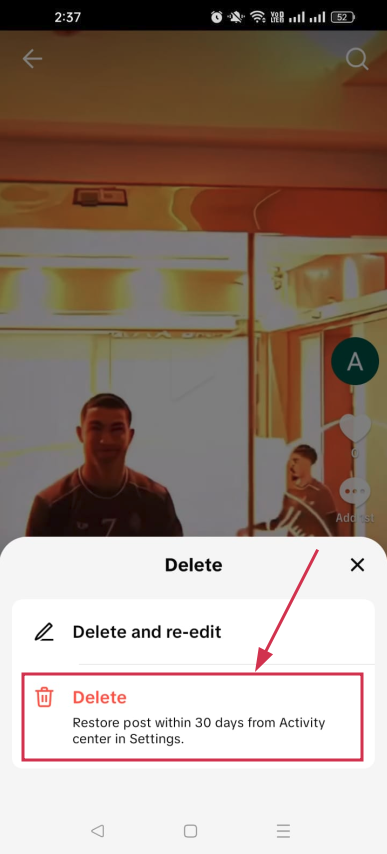
Note: If you need to make minor edits to a video you’ve recently uploaded, TikTok offers a “Delete and re-edit” feature. This option removes the post from your profile while preserving your original footage, audio, and caption, allowing you to update the video without starting from scratch.
How to delete videos on TikTok
TikTok currently doesn’t offer a feature that lets users delete all of their posts at once. As an alternative, you can use the “Activity Center” to make up to 50 videos private in a single action.
This removes them from public view, leaving them visible only to you, which can serve as a practical alternative to deletion.
To bulk-privatize your videos, follow the steps below:
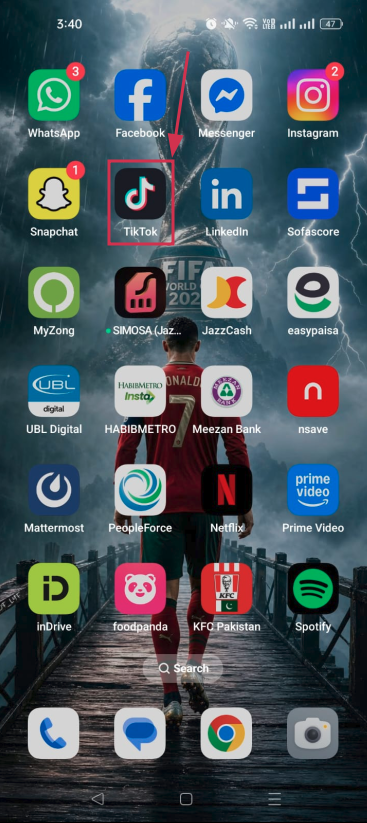
Step#01: Launch the TikTok app
Open TikTok on your iPhone or Android device and make sure you’re signed into your account.
Step#02: Tap “Profile”
Tap the “Profile” icon in the bottom right corner to navigate to your personal TikTok profile page.

Step#03: Tap the “Menu” icon (☰)
Look for the three horizontal lines (☰) in the top right corner of your profile and tap on it.

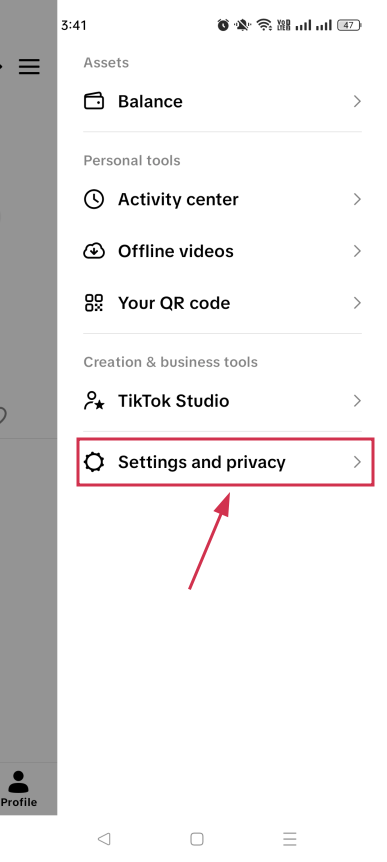
Step#04: Tap “Settings and privacy”
From the menu that slides open, tap “Settings and privacy” to access your account settings.
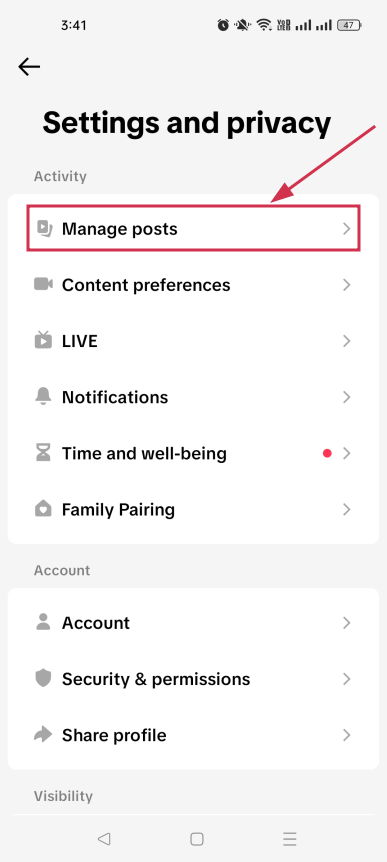
Step#05: Tap “Manage posts”
Under the Activity section, find the “Manage posts” option and tap on it to see your content management options.
Step#06: Tap “Manage post visibility”
Tap on the “Manage post visibility” option. This is where you can control who sees your videos all in one place.

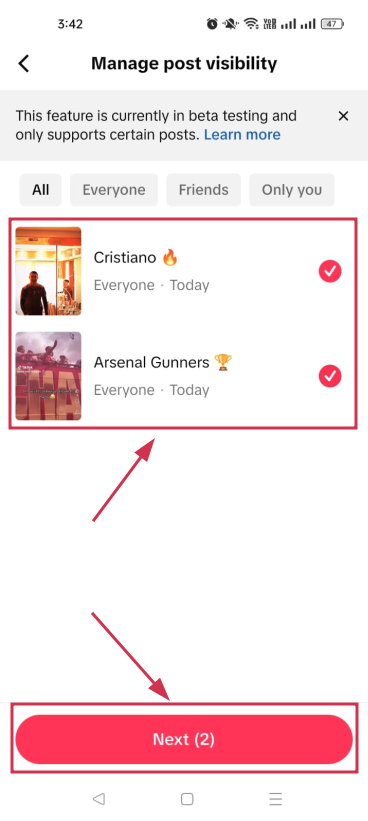
Step#07: Select the videos and tap “Next”
Select all the videos you want to hide from your profile, then tap the “Next” button to move forward.
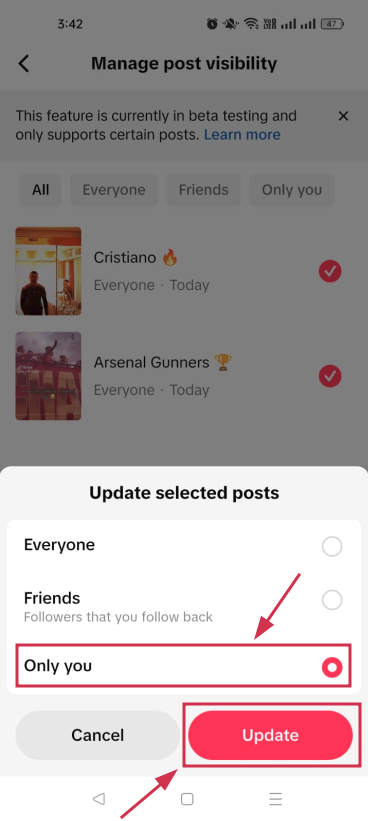
Step#08: Tap “Only you”, and hit “Update”
Select “Only you” from the prompted options to make the selected videos private. Then tap the “Update” button to save the changes instantly.
Note: Keep in mind that if your goal is to permanently remove videos from your account, TikTok requires each video to be deleted manually, one at a time.
You may also like: How to delete a TikTok account on mobile & desktop in 2026: An updated step-by-step guide!
Wrapping up
And that’s really all there is to it!
Whether you’re deleting a single video or quietly hiding a bunch of old posts, TikTok gives you simple ways to keep your profile looking exactly how you want it.
While you’re tidying things up, it’s also worth thinking about how you share your content going forward. Tools like Replug can genuinely level up your TikTok game!
Its custom URL shortener lets you turn messy links into clean, branded ones you can actually track. Plus, if you ever want to save a video before deleting it, Replug’s free TikTok downloader has you covered.
Give it a try; it’s free and takes seconds to get started!
Frequently asked questions
How to delete TikTok video after posting?
Yes, you can absolutely delete a TikTok video after it’s already been posted. Simply go to your profile, tap on the video you want to remove, hit the three dots icon (⋯), and select “Delete”. Confirm it one more time, and it’s gone for good.
Just keep in mind that once deleted, all the likes, comments, and shares on that video disappear along with it. So make sure you actually want it gone before tapping that final button.
How to mass delete TikTok videos?
TikTok doesn’t have a built-in feature that lets you delete all TikTok videos at once. You’d have to go through each one manually, which can take forever if you have a lot of posts.
The good news is there are free third-party tools (e.g., ClearTok or Redact) that make this much easier, or you can simply privatize the videos you don’t want to show up on your profile.
How to delete a TikTok video without the three dots?
If the three dots icon isn’t showing up on your video, don’t panic. You can also try going to your profile, tapping on the video, and then tapping the “Share” button instead.
It will open a list of options, inside which you will also find the “Delete” option. Tap it, and your video will be deleted right away.
Note: Deleted videos aren’t permanently gone immediately. They remain in your account’s Activity Center for 30 days before being fully erased.
How to recover a deleted TikTok video?
To recover deleted TikTok videos, you have 30 days to restore them directly from the app’s Activity Center. After 30 days, videos are permanently removed from the platform.
Open TikTok → go to your profile → tap the menu (three-line) icon → go to “Settings and privacy” → tap “Activity Center” → look for “Recently Deleted”.
Now, tap the video you want to recover, followed by tapping the “Restore” button to confirm.
How to delete TikTok story?
TikTok Stories automatically disappear after 24 hours, but if you want to remove one before that, it’s easy.
Open the TikTok app and go to your profile. Tap your active story to open it, then swipe up on your story to open the full options menu. Tap “Delete”, and confirm by tapping “Delete” again. Your story will be removed instantly.
Alternatively, you can tap the three dots (•••) at the bottom-right of the story screen and select “Delete” from there.