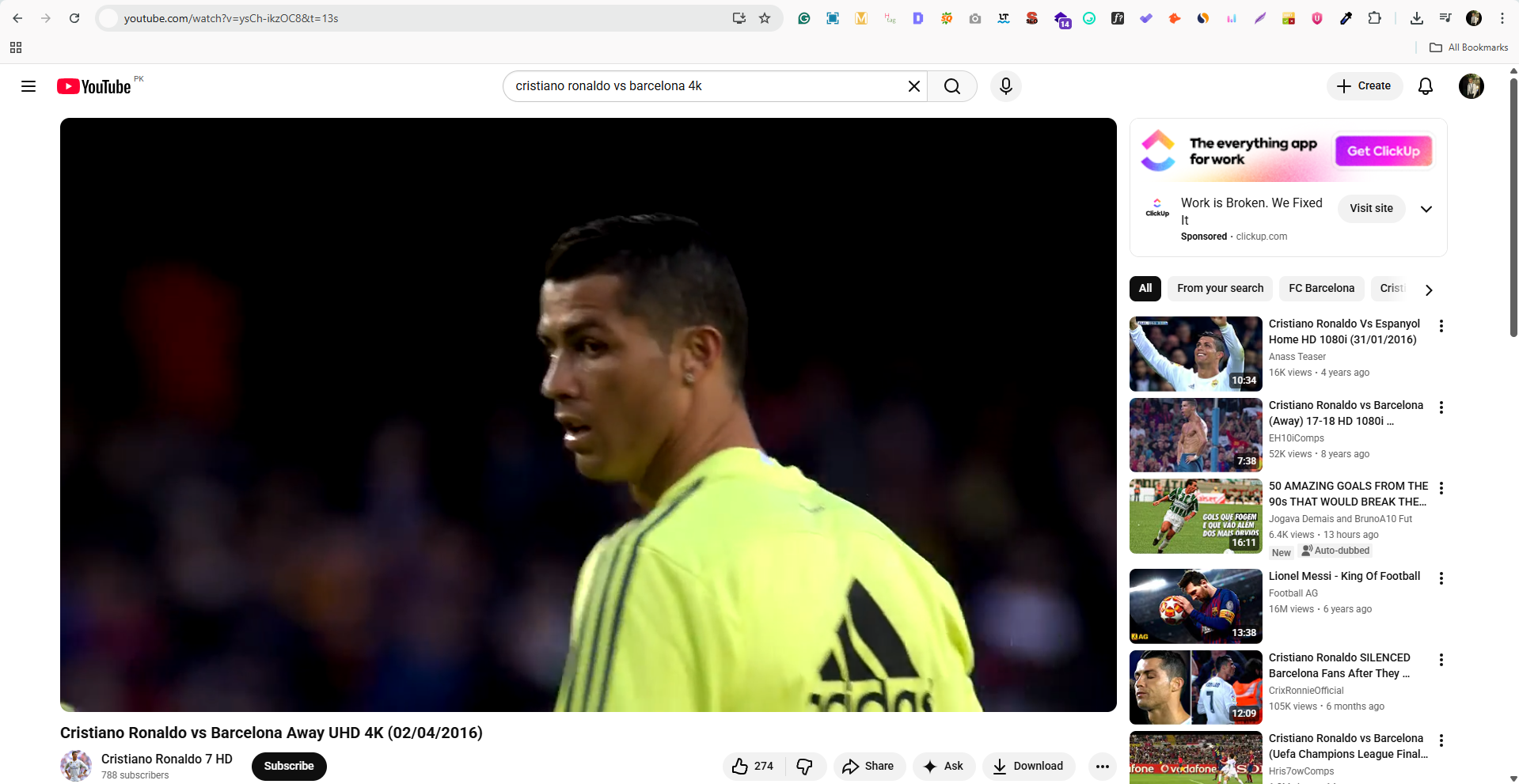
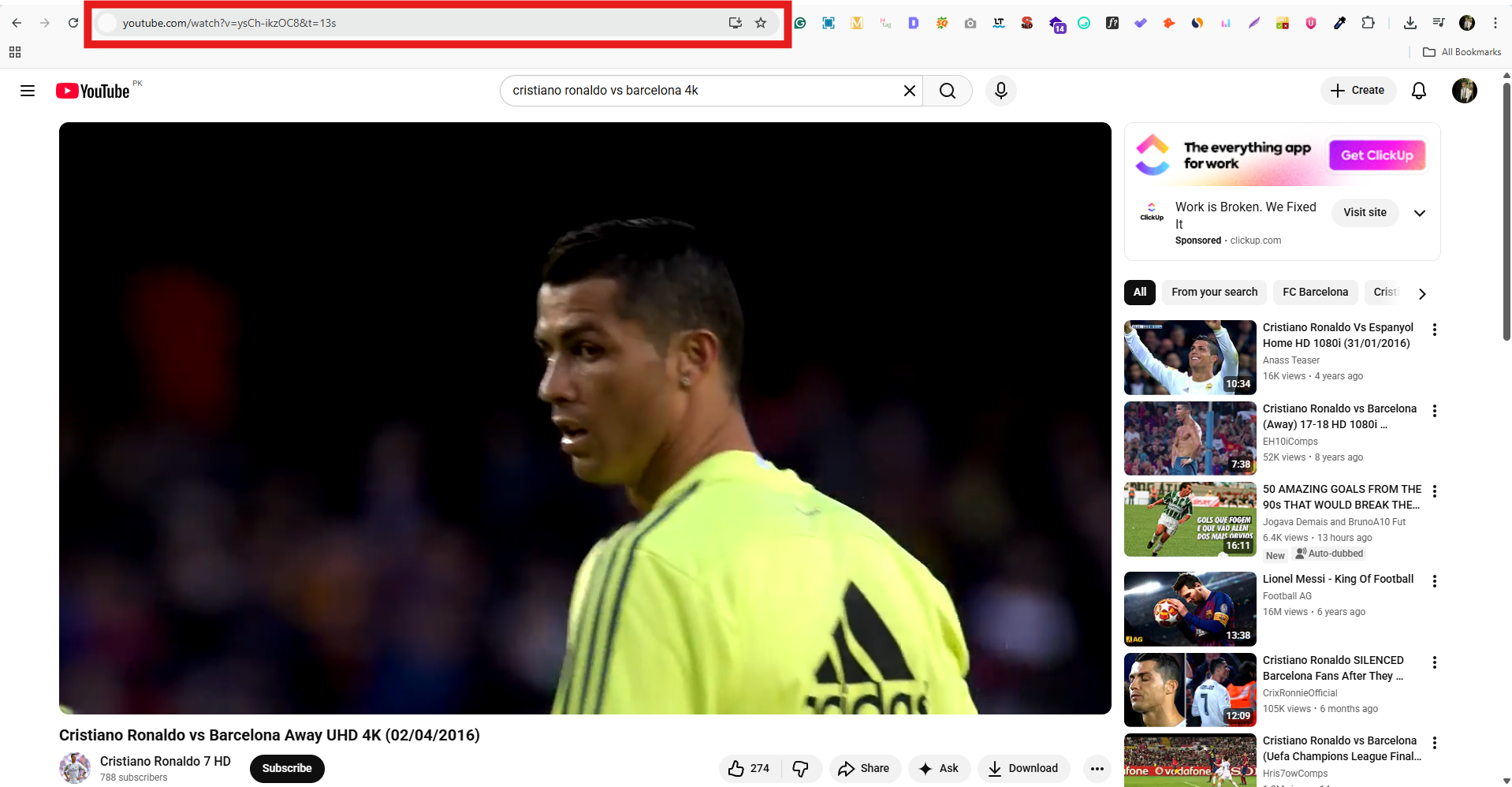
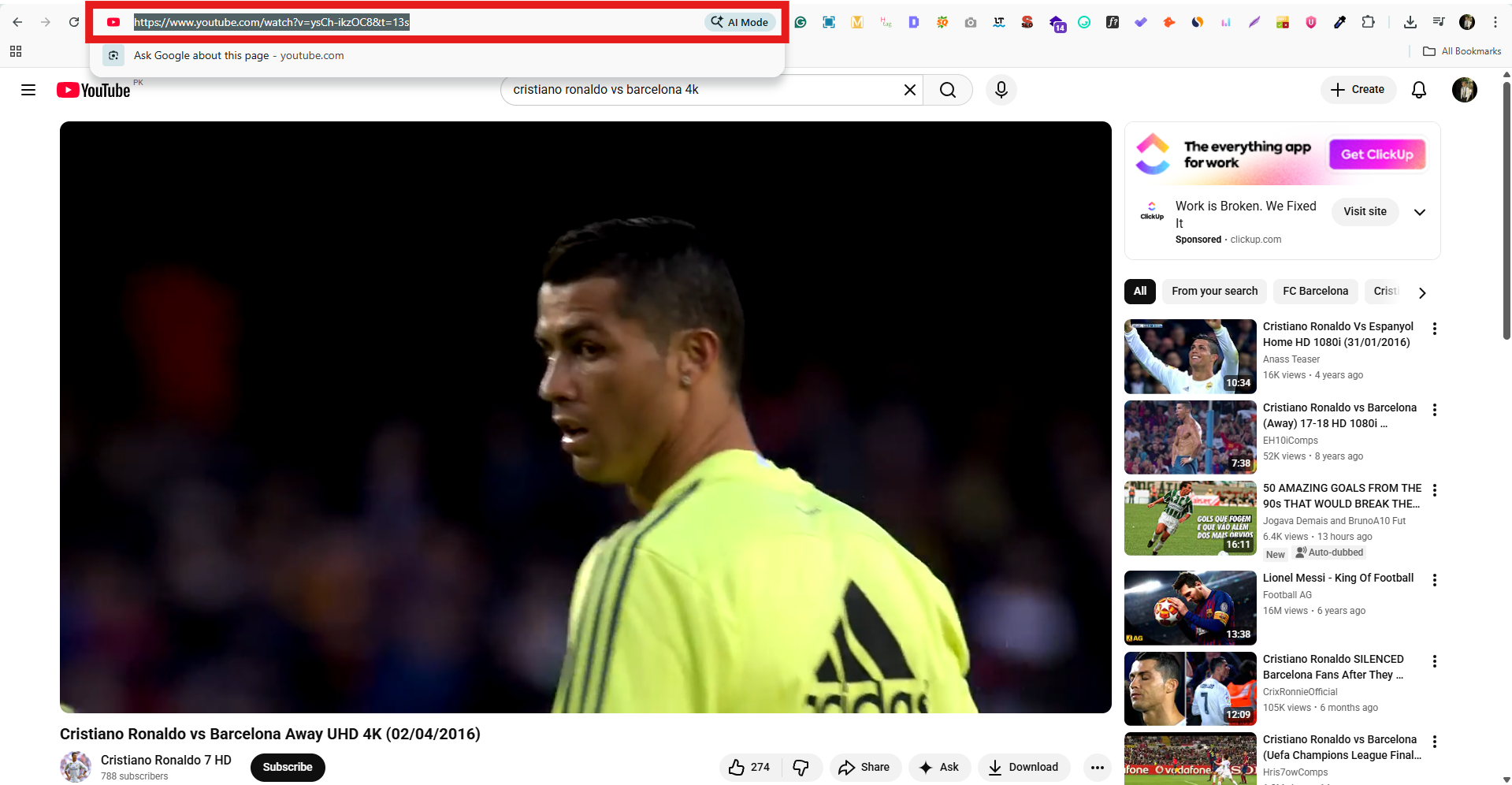
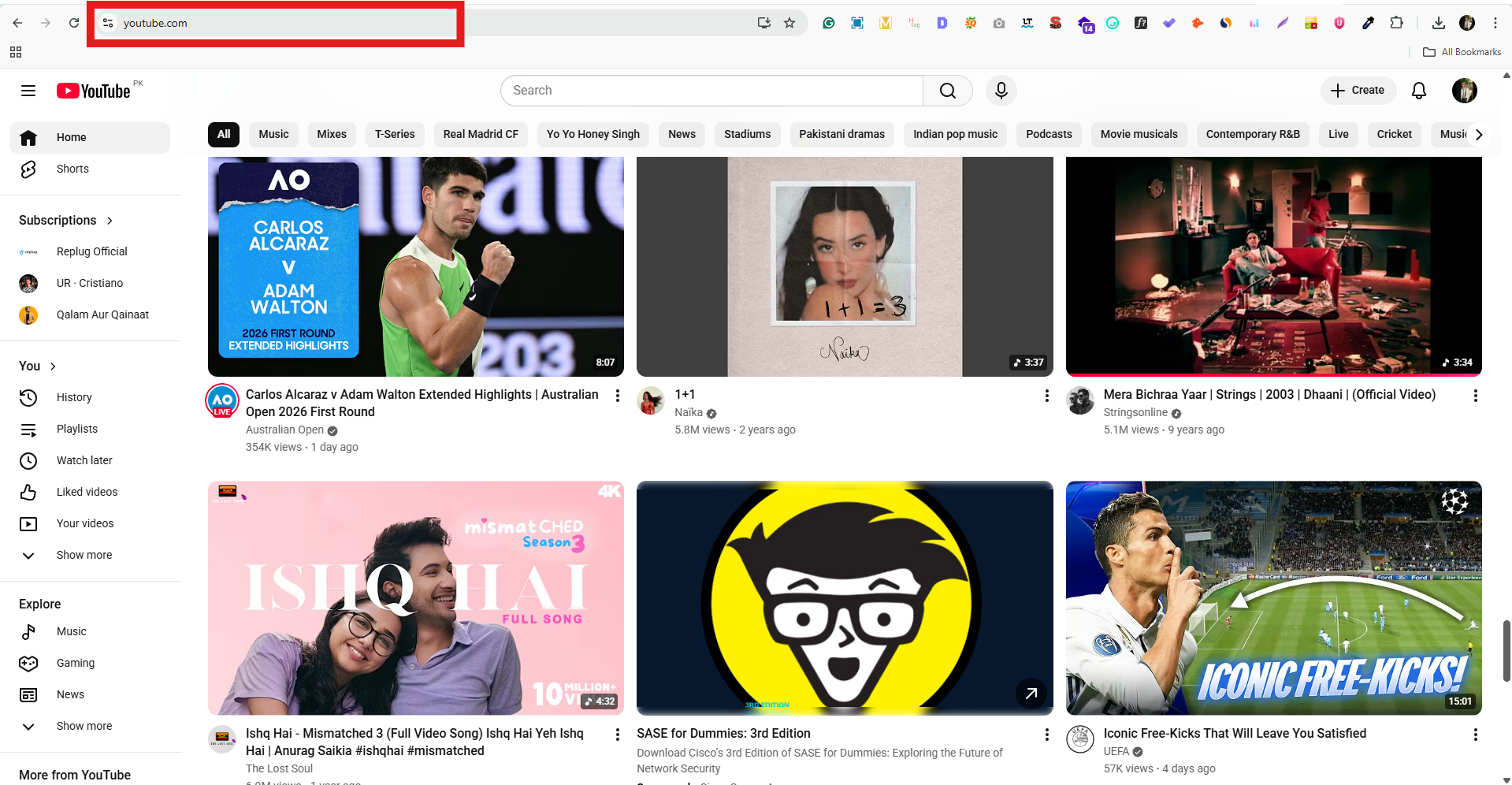
YouTube playlists are a feature that allows users to organize and view a series of videos together. Users can create their playlists or add videos to existing playlists created by other users. Videos in a playlist can be rearranged, edited, or removed at anytime.
Deep links directly link to specific content within an app rather than simply linking to the app’s home page.
Using a deep link to share a YouTube playlist allows the recipient to immediately access and view the playlist without having to search for it within the app. Also, deep links can contain information about the content, such as the specific video or playlist, so recipients know what they click on and why it is relevant.
Using deep links to share YouTube playlists can also help increase the app’s engagement and retention. As a result, recipients are more likely to continue using the app after being directed to the specific content they are interested in.
Here’s how to share YouTube playlists on mobile and computer devices:
How to share Youtube playlist with deep links on a mobile device?
Follow the steps below:
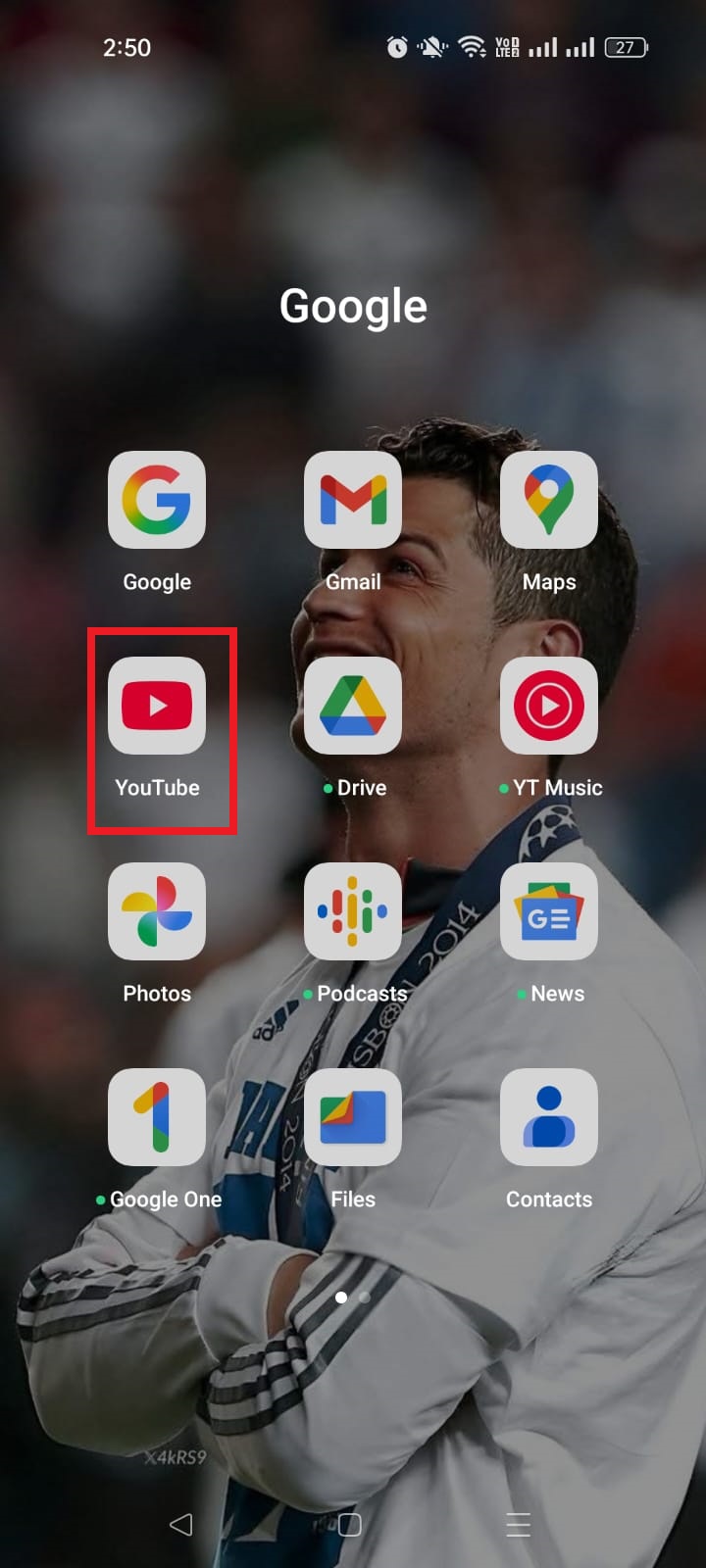
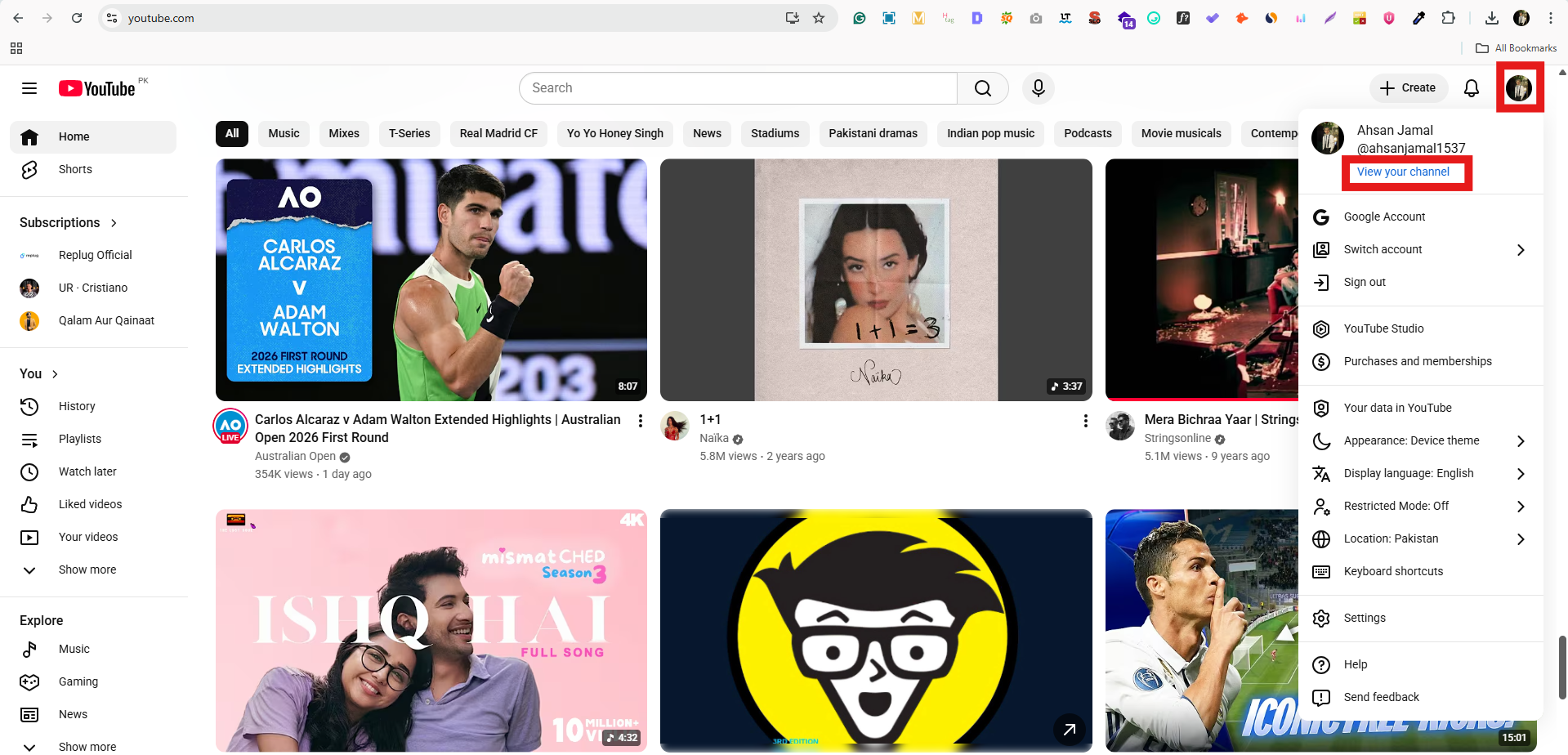
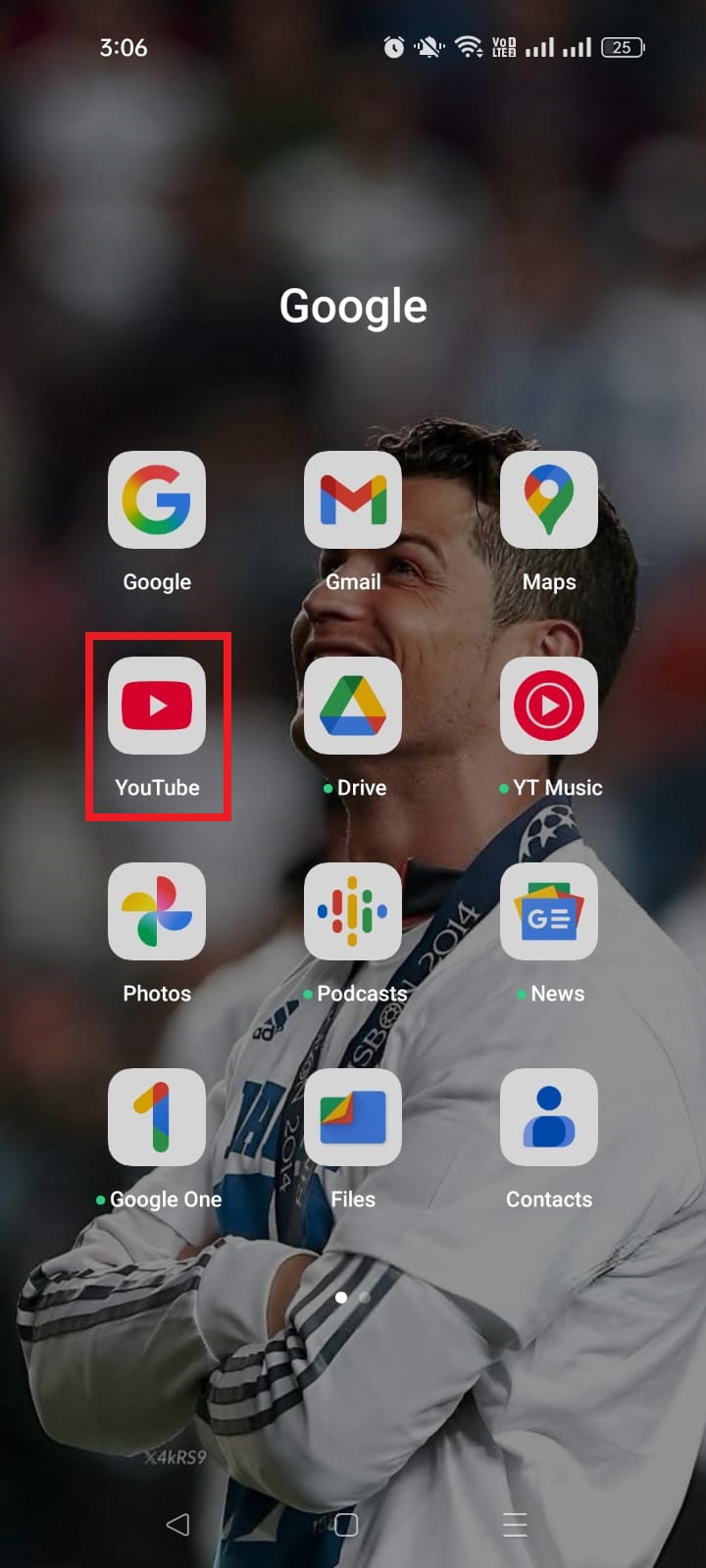
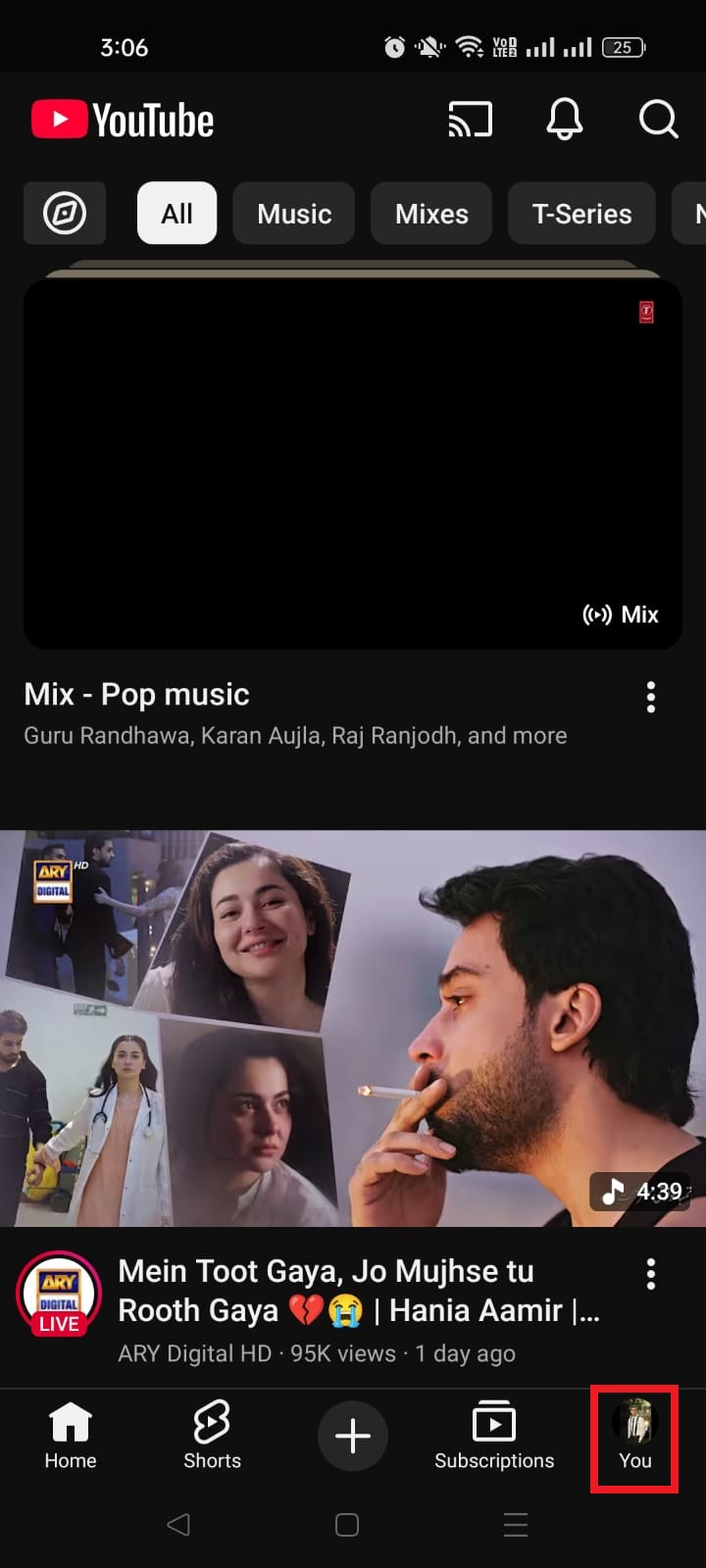
Step 1: Open YouTube on your mobile phone and tap the profile icon in the top right corner.
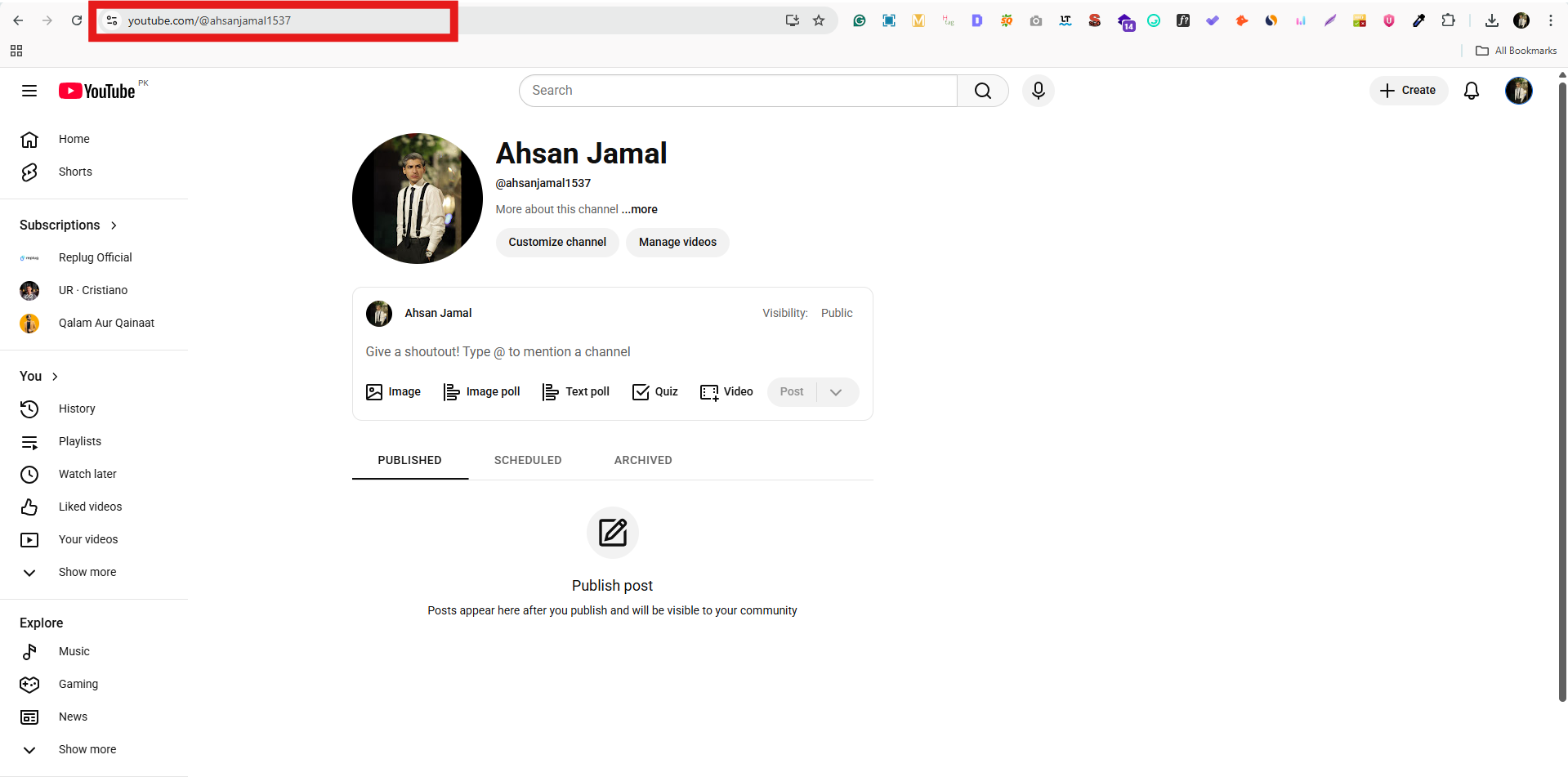
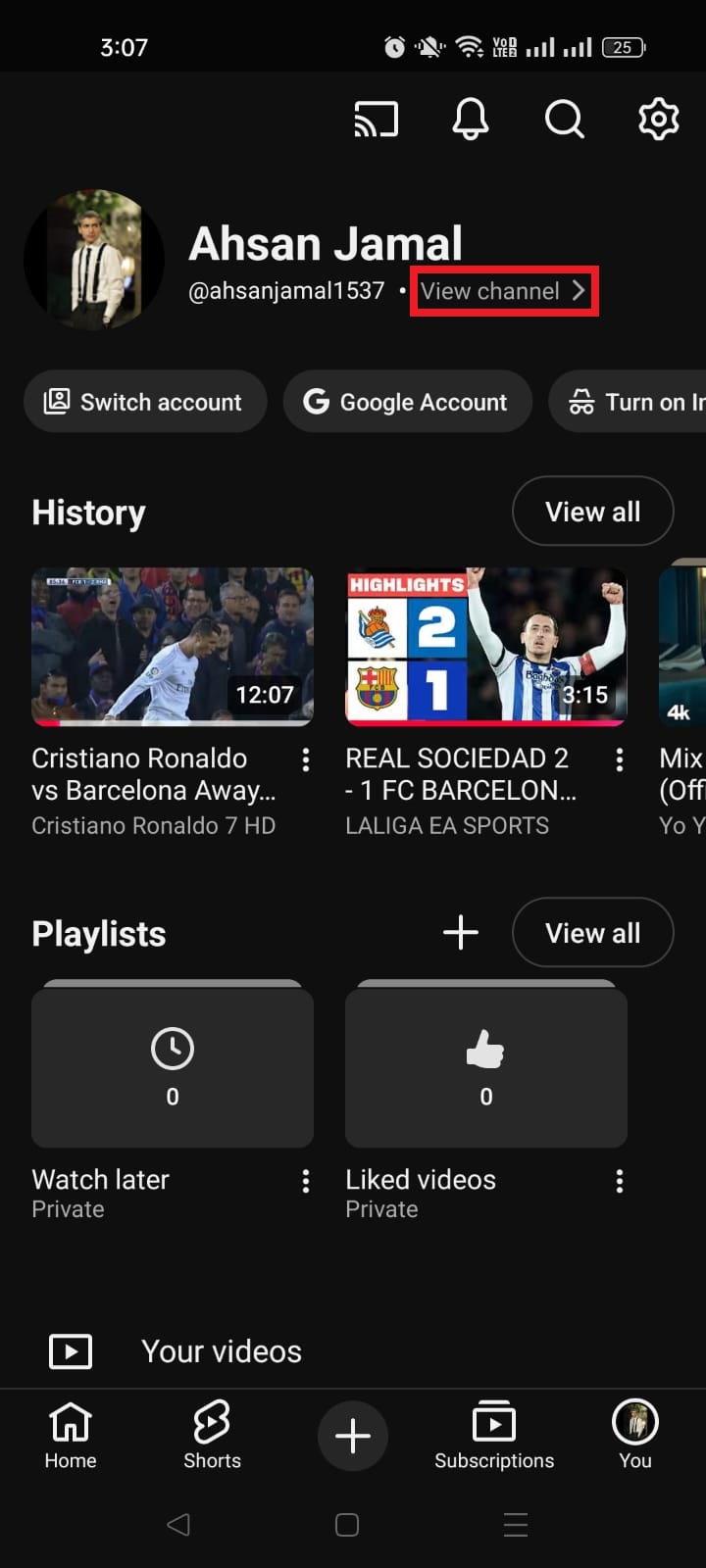
Step 2: Tap “your channel” from the drop-down menu.
Step 3: Tap “playlist” on your mobile screen.
Step 4: Open the playlist you want to share.
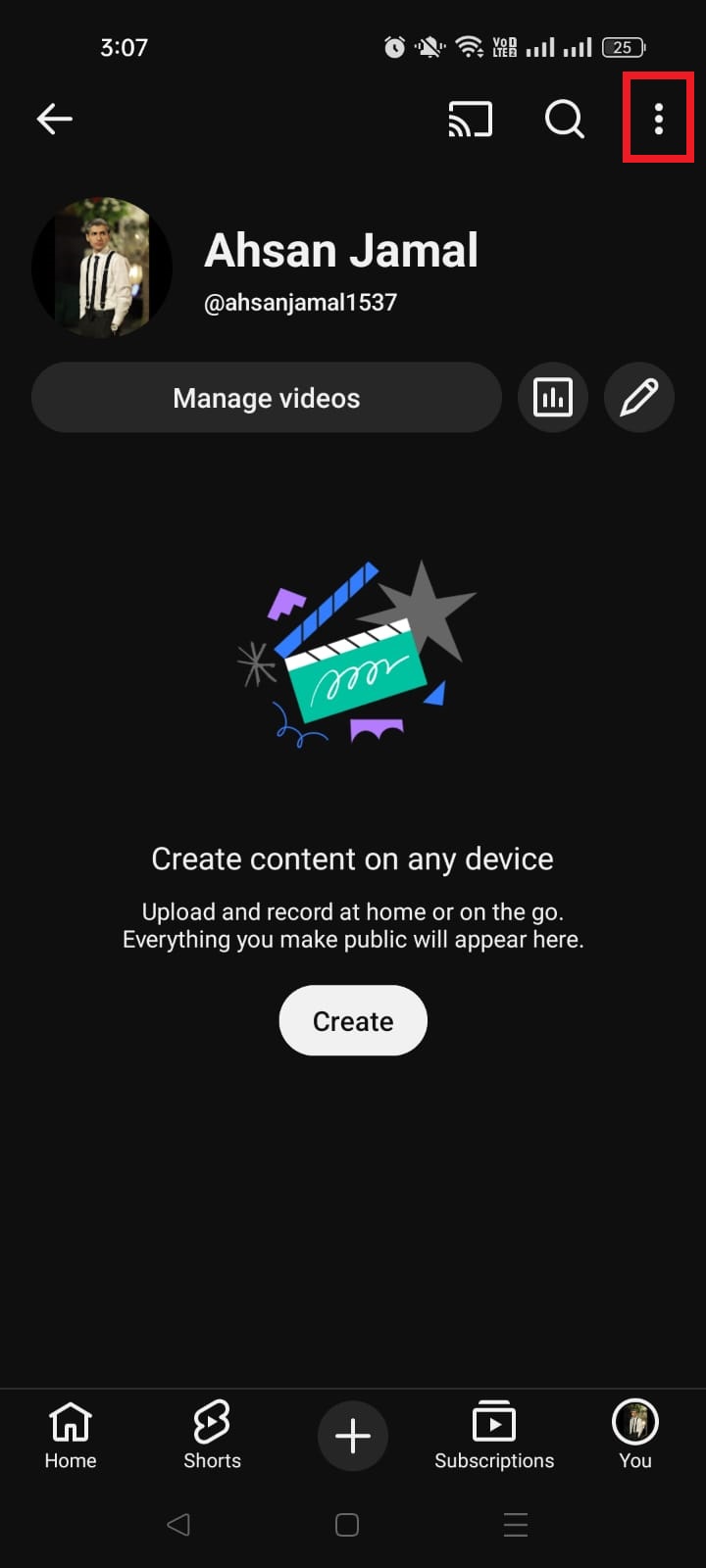
Step 5: Tap three dots alongside the playlist.
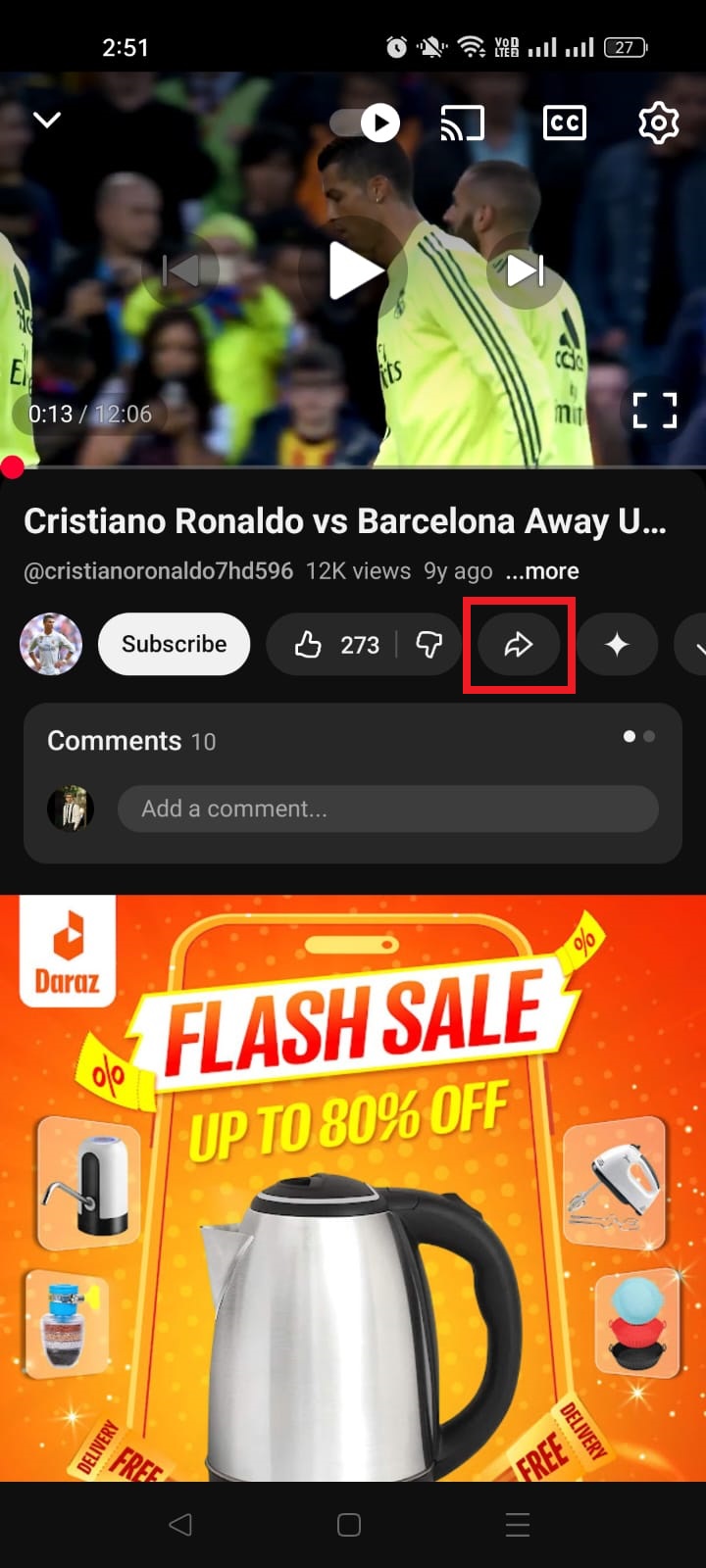
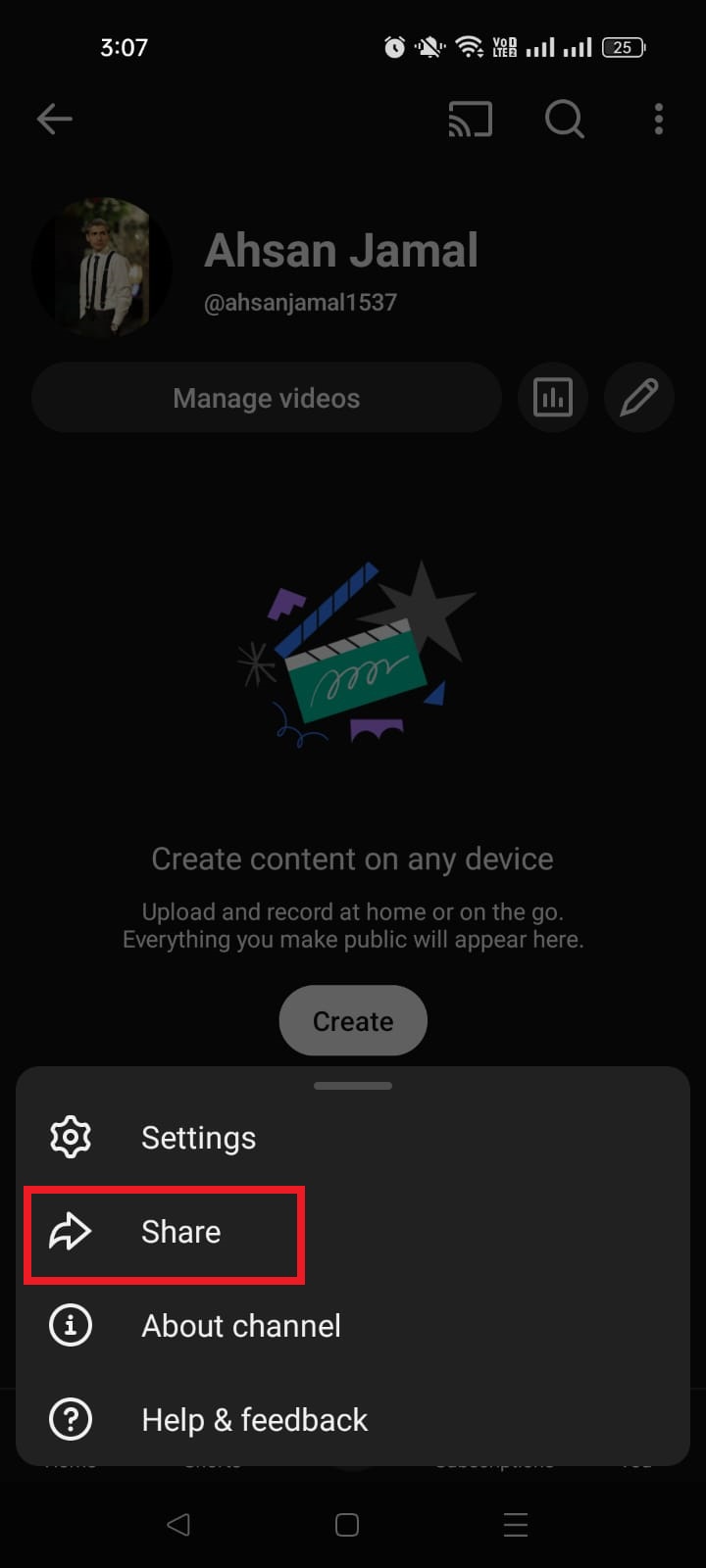
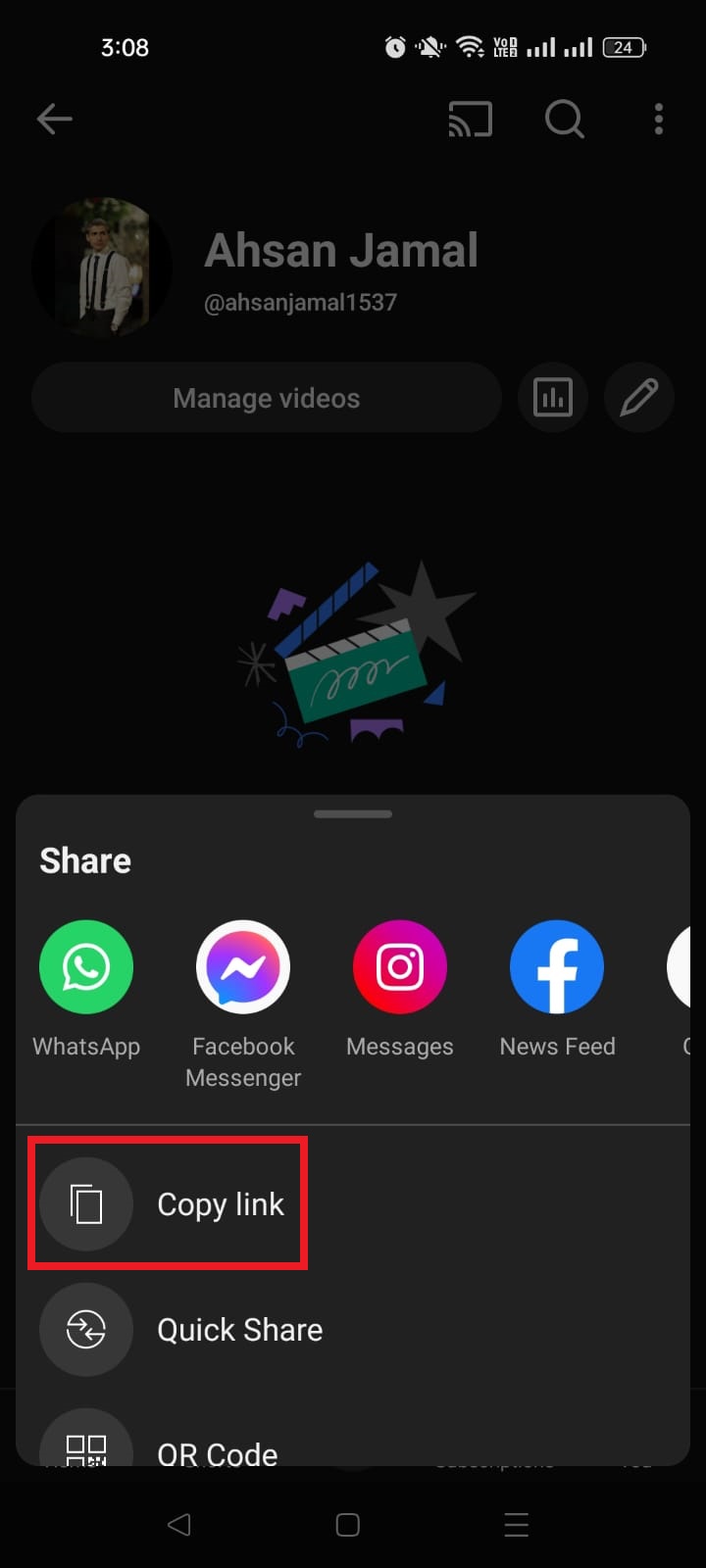
Step 6: Tap share to share the playlist.
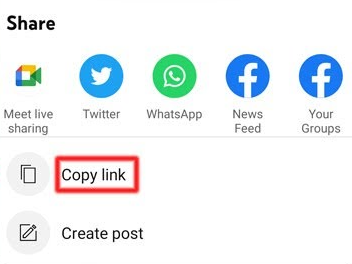
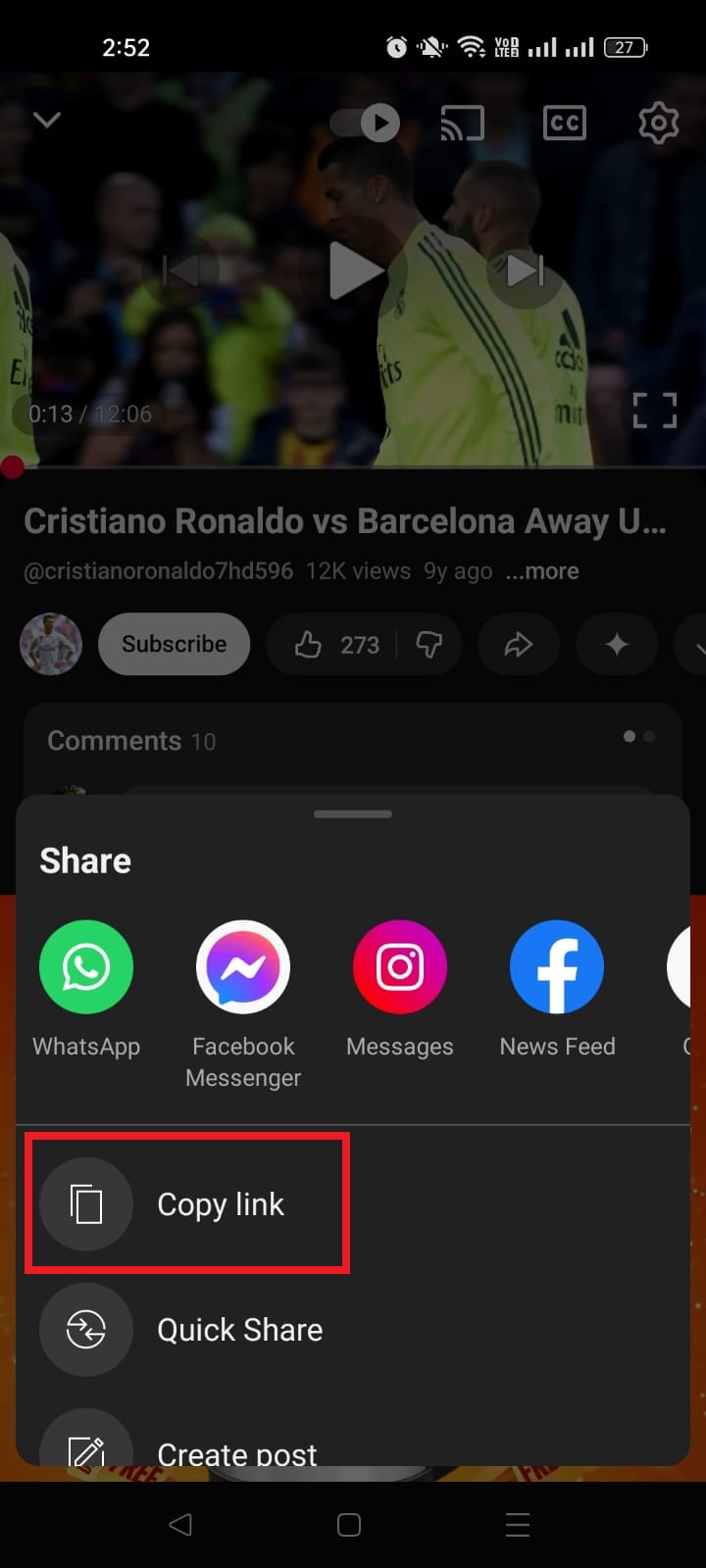
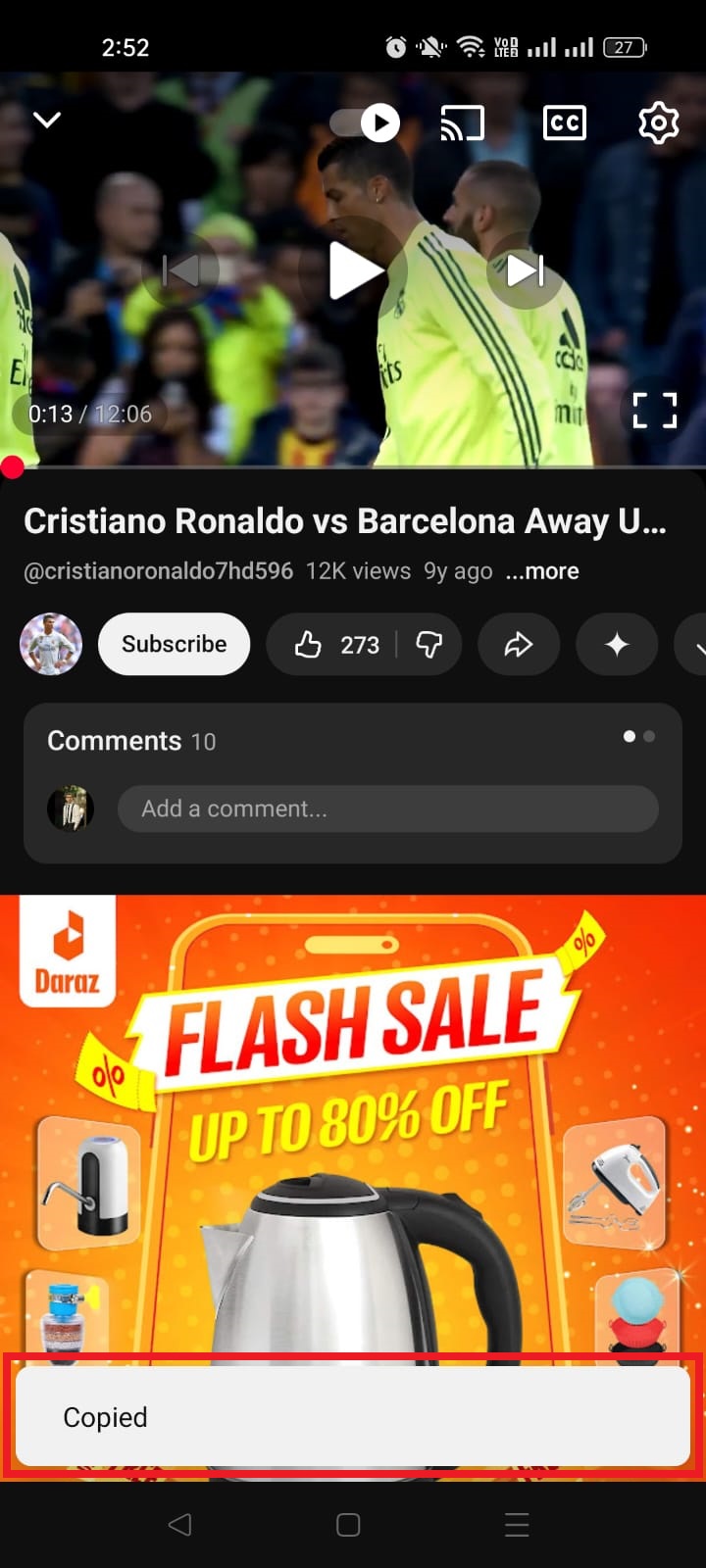
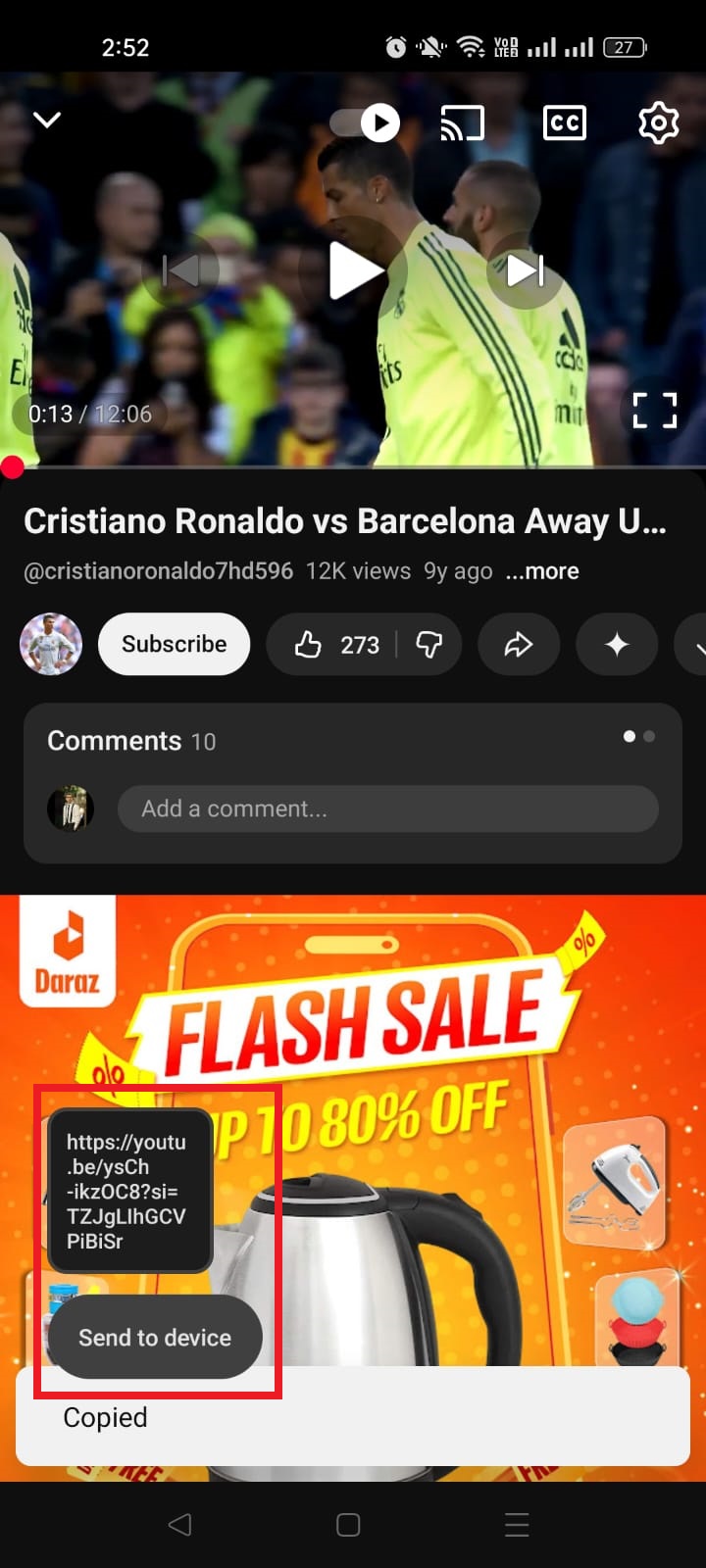
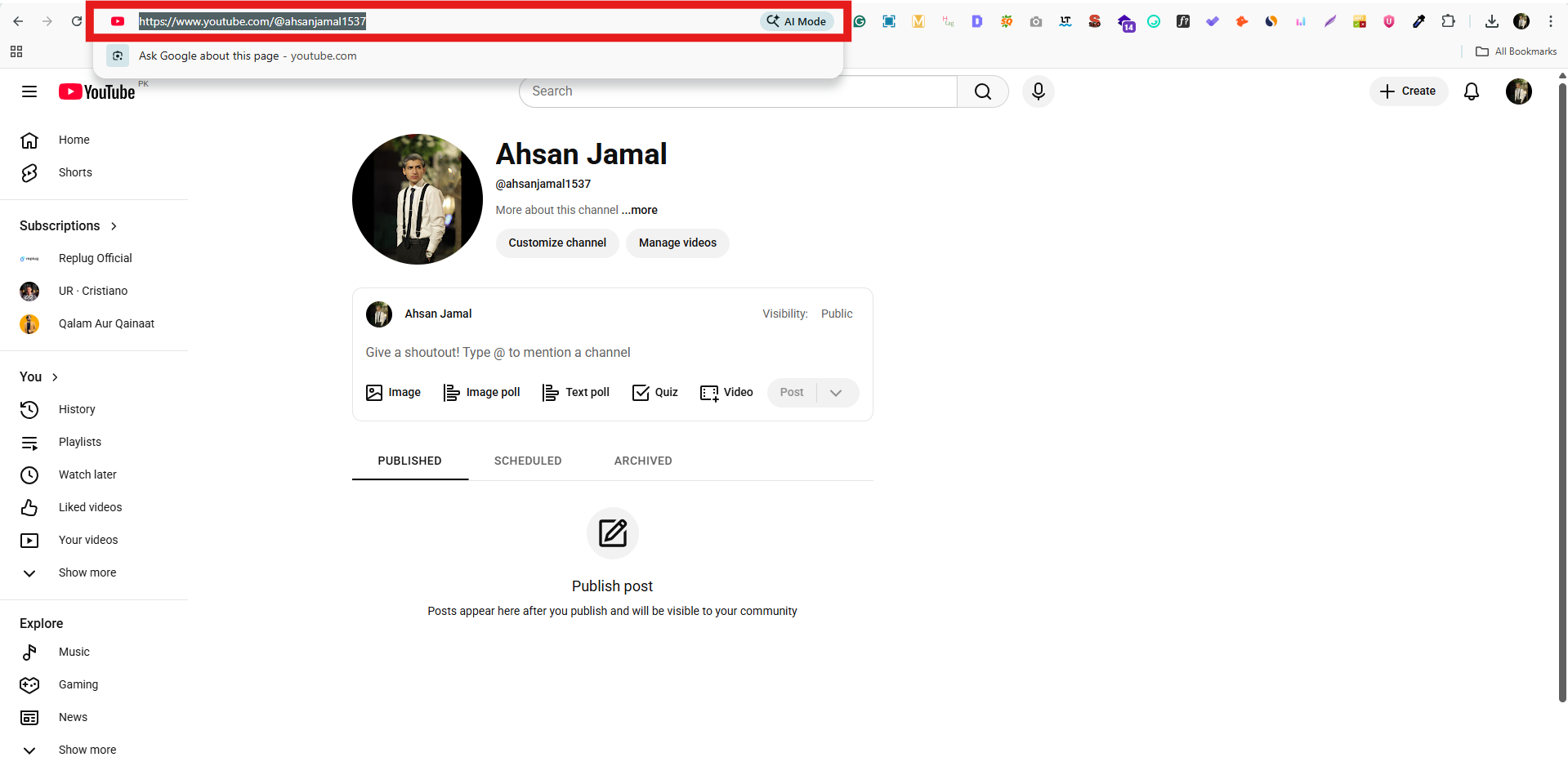
Step 7: Tap Copy link to copy the link and create a deep link for your YouTube playlist.
Maximize marketing ROI
by transforming ordinary URLs into branded short links that convert.
Try Replug for free
Create a deep link for YouTube Mobile Playlist:
Step 8:Go to Replug and sign in or create an account for free.
Step 9: Select the desired campaign on the main dashboard or create a new campaign.
Step 10: Enter the YouTube playlist link in the “URL to shorten” section under the campaigns section, and click create.
Step 11: You’ve your newly created Replug link. Click the edit icon to customize the link.
Step 12: Turn on the Deep link button and verify that deep links are allowed for the link.
Step 13: Click the update button to create a deep link for your YouTube playlist.
Note: To find the deep link, Go to the manage section on the main dashboard > Click Replug links.
Create a deep link for a YouTube computer playlist:
Step 8:Sign in to Replug or create an account for free.
Step 9: Select the desired campaign on the main dashboard or create a new campaign.
Step 10: Enter the YouTube playlist link in the “URL to shorten” section under the campaigns section, and click create.
Step 11: You’ve your newly created Replug link. Click the edit icon to customize the link.
Step 12: Turn on the Deep link button and verify that deep links are allowed for the link.
Step 13: Click the update button to create a deep link for your YouTube playlist.
Note: To find the deep link, Go to the manage section on the main dashboard > Click Replug links.
Once you have the playlist link, you can create a branded short URL using Replug to make sharing cleaner and more memorable.
FAQs
How to share a YouTube playlist on WhatsApp?
To share a YouTube playlist on WhatsApp:
1. Open the YouTube app on your mobile device and sign in to your account. 2. Find the playlist you want to share and tap on it. 3. Tap the “Share” button, usually represented by an icon of two arrows pointing in opposite directions. 4. Select “Share on WhatsApp”. 5. Select the contact you want to share the playlist with. 6. Your contact will receive a message with a link to the playlist.
Alternatively, you can share the link by copying it and then sharing it on WhatsApp by creating a new message or pasting it into an existing conversation.
Please note that the person you share the link with needs to have the YouTube app installed on their device to view the playlist.
Adding a YouTube link to an Instagram story allows the user to share a video from YouTube on their Instagram story. This allows their followers to view the video directly from the Instagram story without leaving the app and going to YouTube.
It can also help direct more traffic to the YouTube video, increasing its visibility and gaining more views and engagement.
Here’s how to add YouTube links to the Instagram stories:
Step 1: Go to the YouTube app and play the video you want to share in Instagram Story.
Step 2: Tap “share” right below the YouTube video.
Step 3: Tap “copy link” to copy the link you want to share in the Instagram story.
Note: Before pasting the URL into your Instagram story’s link sticker, you might want to shorten a link first for a cleaner, more shareable URL that looks better in your story and is easier for followers to click. Replug is the reliable link optimization platform to perform this task in the best possible manner.
Step 4: Now open the Instagram app and tap the “profile icon’’ in the bottom right corner.
Step 5: Tap the “add (+)’’ sign in the top right corner.
Step 6: Tap “story” to add a new story.
Step 7: Tap the “camera” from different gallery options.
Step 8: Tap “create or Aa” for a new story.
Step 9: Tap the “sticker icon” from the screen’s top.
Step 10: Tap the “link sticker” from the options.
Step 11: Add link screen will open. Paste the YouTube video URL in the URL field and tap done.
Step 12: Tap “your story,” and your YouTube video link will be posted in your Instagram stories.
Point to note:
Adding YouTube links to Instagram stories can increase the visibility and reach of YouTube content and drive more traffic to a YouTube channel. This can benefit creators looking to grow their audience and expand their brand. Additionally, it allows viewers to access and watch YouTube videos directly from the Instagram app, making the viewing experience more seamless and convenient. Adding YouTube links to Instagram stories can be a valuable strategy for growing a YouTube channel and engaging with viewers on both platforms.
Frequently asked questions
How To Put Youtube Link In Instagram Bio?
To add a YouTube link to your Instagram bio, you need to have a YouTube account. Also, the link to the YouTube video or channel you want to share. Once you have that, follow these steps:
1. Open the Instagram app and go to your profile. 2. Tap the “Edit Profile” button. 3. In the “Website” section, enter the link to the specific YouTube video or channel you want to share. 4. Tap “Done” to save the changes to your profile. 5. Return to your profile and see the YouTube link in the bio section.
Your TikTok bio has roughly 2-3 seconds to convince a stranger to hit follow, so it better be good.
With nearly 1.9 billion monthly active users on TikTok as of early 2026, the competition for attention has never been more proactive. Everyone’s scrolling fast, and your bio is often the first (and last) thing someone reads before deciding whether you’re worth their time.
The major problem?
Most people patch together a random quote, a few emojis, and call it a day. Then they wonder why their follower count is stuck.
A great bio doesn’t just describe you; it tells visitors exactly who you are, what you offer, and why they should stick around. That one tiny text box can genuinely make or break your growth.
So no matter if you’re a brand, a creator, or just getting started, we’ve got you covered with 500+ bio ideas for TikTok you can simply copy, paste, and make your own.
But first, what exactly is a TikTok bio, and why is it so significant?
What is a TikTok bio?
A TikTok bio is the short description that sits right below your profile picture and username on TikTok. You’ve got 80 characters to work with, that’s it. But don’t let the size fool you.
It’s basically your elevator pitch to every single person who lands on your profile. Its main job is simple: tell people who you are, what kind of content you make, and give them a solid reason to follow you.
Why is your TikTok bio important?
Here are the key reasons your TikTok bio is crucial and matters so much:
Acts as your first impression: Most people decide whether to follow you within seconds of visiting your profile. A clear, compelling bio makes that decision quite easy for them.
Enhances searchability (SEO): Using the right keywords in your bio helps TikTok understand your niche and makes your profile easier to find in search results.
Defines your brand & niche: It instantly tells people what you’re about, so the intended audience knows they’re in the right place.
Drives traffic: Your bio is the only spot on TikTok where you can drop a clickable link, making it a direct gateway to your website, store, or other platforms.
Increases conversions: A well-written bio with a clear call to action nudges visitors to follow, click, or buy, turning profile visitors into actual followers or customers.
Establishes credibility: A polished, focused bio signals that you’re serious about what you do, which naturally builds trust with new visitors.
A complete catalog of good TikTok bio ideas for every kind of profile!
No matter what your vibe is or what kind of content you create, there’s a perfect bio out there for you. Here’s a big collection of ideas broken down by style. Just pick what feels like you and run with it.
Short TikTok bio ideas
Sometimes less really is more. These bios say a lot without saying too much. Perfect if you want to keep it punchy and straight to the point.
Creating content that hits different 🎯
Just here to make you smile
Living my best life, one video at a time 🎬
Storyteller | Creator | Dreamer
Good vibes only 🔥 Scroll and stay a while!
Minimalist TikTok bio ideas
Less clutter, more personality! Minimalist bios work because they’re clean, confident, and let your content do the talking.
Creating | Growing | Evolving 🤍
▸ coffee + gym + sleep: on repeat
Quiet ambition; Loud results 🖤
Just a person with a camera and a vision
✦ here. present. making things.
Simple TikTok bio ideas
You don’t need to be clever or witty at all times. Sometimes a simple, clear bio is all it takes to connect with the right people.
👋 Hey! I make short video clips about everyday life and things I love
Sharing simple tips on food, fitness, and feeling good 💪
Book lover 📚 Sharing honest reviews and reading recommendations
Home decor ideas for people on a real budget 🏠
🎵 fan posting covers, playlists, and everything in between
Effective TikTok bio ideas
These bios are built with the purpose of converting visitors to followers. They’re clear about what you offer, who it’s for, and what someone should do next.
Helping small business owners grow online | New video every week | Free guide below 👇
🏋️ Fitness coach sharing workouts you can actually stick to | DMs open | Start here 👇
📈 Marketing tips for beginners | No fluff, just what works | Follow for weekly strategies
👩🍳 Easy recipes for busy people | 5 ingredients or less | New video every Tuesday 🍴
💸 Personal finance made simple | Saving tips + money hacks | Check the link below 👇
Funny TikTok bio ideas
A good laugh goes a long way. If humor is your thing, let your bio set the tone before people even watch a single video.
Professional overthinker. Part-time human 😂
Here for the comments and the snacks 🍕
My therapist said I need a hobby — so here we are😅
Warning: Following me may cause uncontrollable snorting 🤣
I put the “pro” in procrastination 😎
Sad TikTok bio ideas
Sometimes you just want your bio to reflect exactly how you’re feeling (raw, real, and honest). These bios hit that emotional note without being overdramatic.
Smiling on the outside, figuring it out on the inside 🌧️
Not every story has a happy ending — and that’s okay 🖤
Healing slowly 🌑 Some days are harder than others.
Tired eyes, full heart, empty hands 💔
Still blooming, even on the darkest days 🥀
Cute TikTok bio ideas
Adorable, warm, and instantly likeable, these bios give off the best kind of energy and make people want to stick around.
Spreading good vibes and soft energy, one smile at a time 🌸
Sweet, simple, and full of good stuff — just like my content
🐾 Dog mom | Snack enthusiast | Here to make your day a little brighter 🌈
Just a girl/guy who loves cozy days, good food, and happy moments ✨
Soft heart. Big dreams. Even bigger smile 🌻
Cool TikTok bio ideas
These bios have that effortlessly confident energy, the kind that makes people think okay, I need to follow this person.
Not trying to fit in. Never have, never will 😏
Creating my own lane — no GPS needed 🕶️
Built different | Moving different |Staying different ⚡
Too focused to be distracted. Too driven to stop 🔥
The cool you didn’t know you were looking for — until now 🖤
Creative TikTok bio ideas
Perfect for artists, designers, writers, and anyone who sees the world a little differently. These bios show off that imaginative side right away.
Turning ideas into visuals & feelings into content 🎨
Part-time artist and storyteller ✏️ | Full-time dreamer 💭
My mind never stops creating — and neither does my feed 🌀
Finding beauty in the ordinary, one frame at a time 📷
Stitching together creativity, color, and chaos 🧵 — Welcome to my 🌍
Attitude TikTok bio ideas
For those who walk into every room as if they own it. These bios carry confidence, boldness, and zero apologies.
Unbothered | Moisturized | Thriving 💅
Not everyone’s cup of tea — and I’m perfectly fine with that 👑
I don’t follow trends. I set them 🔱
Worked hard for this physique. I’ve earned it 😤
Underestimate me. That’ll be fun to watch ⚔️
Swag TikTok bio ideas
Dripping in sheer confidence and unique style. These bios are for the ones who know their worth and aren’t afraid to show it.
Drip too hard to be ignored 💎
Designer mindset. Hustle mentality. Zero excuses. 🥂
Fresh fits 👗 | Super fresh content
Born to stand out 🏆 — blending in was never the plan
Main character energy. Always and forever 💫
Savage TikTok bio ideas
No filter, no apologies! These bios are sharp, bold, and say exactly what needs to be said without sugarcoating a thing.
My vibe ain’t for everyone, honestly 😈
I don’t burn bridges. I just stop crossing them 🔥
Too real for fake people 💀 | Too smart for nonsense
Maybe they hate me, because I am too good ⚡
Sweet? Sometimes. Savage? Always.
Beautiful TikTok bio ideas
Elegant, warm, and genuinely heartfelt, these bios radiate beauty from the inside out and leave a lasting impression.
Beauty isn’t a look — it’s the energy you bring to the room 🌷
Glowing, growing, and grateful every single day ✨
Grace in every step. Light in every video clip 🕊️
Pretty on the outside, kinder on the inside 🌸
Blooming at my own pace — and loving every moment of it 💐
Nature TikTok bio ideas
For the outdoor lovers, earth souls, and anyone who feels most alive when they’re surrounded by trees, water, or open skies.
Chasing trails, sunsets, and fresh air — follow along 🌲
🌊 Ocean heart | Wild mind | Free spirit
Happiest when I’m off the grid and under the stars 🏔️
Living slow, breathing deep, and soaking up every bit of nature 🌿
Just a human who belongs in the woods more than the city 🦋
Impressive TikTok bio ideas
These bios instantly command respect and attention. Perfect if you want people to land on your profile and think this person means business.
Turning passion into purpose, one video at a time — Join the journey 📌
Helping people level up their mindset, money, and lifestyle 🎯 | Follow for weekly value
Big ideas. Real talk. Zero fluff — you’re in the right place 💯
From 0 to 5K+ followers, and still climbing 🚀 | New content every week
Building something real in public | Entrepreneur | Creator | Let’s grow together 🤝
Dance TikTok bio ideas
For the ones who let their body do the talking, these bios are full of rhythm, passion, and that contagious love for movement.
Born to 💃, forced to do everything else
If there’s 🎶, my feet are already moving — come dance with me
Turning every floor into a stage since day one 🕺
Dance is my love language — and I’ve got a lot to say 🥂
Not a backup dancer | Never the understudy | Always the main act 😎
Lyric-based TikTok bio ideas
Song lyrics hit different when they perfectly describe who you are. These bio ideas borrow that poetic energy to say what words alone sometimes can’t.
“Against the odds, I’d bet on myself ❤️🔥”
“Sunshine mixed with a little hurricane 🌪️”
“Somewhere over the rainbow 🌈, that’s where you’ll find me”
“Time isn’t healing, time is revealing ⏳”
“Nothing can stop me, I’m all the way up 🔥”
Fashion TikTok bio ideas
Style is self-expression, and these bios make that clear at first glance. Ideal for fashion creators, outfit posters, and trendsetters.
Your daily dose of outfit inspiration — no stylist required 👗
Fashion is my mood board, and my content is the proof 😉
Affordable style for real people 🛍️ | Outfit ideas that won’t break the bank
Dressing up is self-care — and I take my self-care very seriously 👠
Helping you find your style before you spend a single 💲
Stylish TikTok bio ideas
Cool, polished, and effortlessly put together, these bios give off that “I woke up like this” energy without trying too hard.
Style isn’t what you wear — it’s how you carry it 🖤
Minimal wardrobe | Maximum impact | Always intentional
Curating a feed as clean and sharp as my fits 🕶️
Less trend-chasing, more timeless — that’s the whole vibe here ✨
Every outfit tells a story — here’s mine 🪡
Personal TikTok bio ideas
Real, relatable, and genuinely you. These bios feel like a proper introduction, the kind you’d give to someone you actually want to connect with.
Just a regular person sharing the good, the bad, and the in-between 👋
☕ Coffee addict | 🐶 Dog parent | Figuring life out one day at a time
✈️ Traveler | 😋 Foodie | 🤔 Overthinker | Welcome to my little corner of TikTok
Living a simple life and documenting the parts worth remembering 📖
Not an influencer — just someone with a phone, a story, and a lot of feelings 🙋
Professional TikTok bio ideas
Whether you’re building a personal brand or growing a business, these bios strike the right balance between polished and approachable, because professional doesn’t have to mean boring.
These bios are perfect for educators, experts, and anyone whose content is all about teaching, explaining, or breaking things down in a way that actually makes sense.
🧠 Making complicated topics simple — one short video at a time.
Your go-to source for bite-sized facts, tips, and things worth knowing 📚
Science lover explaining the world around us in plain, everyday language 🔬
💡 Daily tips on health, wealth, and everything in between — follow to stay informed 🔔
Breaking down the news and current events so they actually make sense to you 🗞️
Inspirational TikTok bio ideas
For the creators who want to lift people up, spark something inside them, and remind their audience that better days are always possible.
Every day is a fresh start — your reminder to keep going lives here 🌅
Sharing stories, lessons, and moments that remind you how far you’ve come 💛
From rock bottom to rebuilding — sharing every honest step of the journey 🦋
Growth isn’t always visible, but it’s always happening | Stay the course 🌱
Helping you believe in yourself on the days it feels impossible to do so 🕊️
Motivational TikTok bio ideas
High energy, no excuses, and straight to the point! These bios are built to fire people up and keep them coming back for that daily push they didn’t know they needed.
Remember, discipline will carry you when motivation quits 🔥
Showing up every single day so you remember that you can too 💪
Hard work | Consistency | Results: That’s the only formula you need ⚡
Your daily reminder that the only competition that matters is yesterday’s version of you 🏆
Stop waiting for the right moment — this is it | Let’s get to work 🚀
Memorable TikTok bio ideas
These bios stick with you long after you’ve left the profile. Clever, punchy, and just unique enough to make someone stop scrolling and think okay, I like this person.
Plot twist: The best content on your feed is about to be mine 🎲
I can’t promise to change your life — but I’ll definitely make it more interesting 🌀
You came for the content. You’ll stay for the amazing, unmatched vibe 🤎
Something about this page just feels different — stick around, and you’ll see why 🪄
Professionally unforgettable | Accidentally hilarious | Always worth the follow
Thematic TikTok bio ideas
These bios are built around a central theme or concept. They give your profile a cohesive identity that instantly tells visitors what world they’re stepping into.
🎓 Dark academia enthusiast | Books, coffee, and candlelight | Welcome to my corner
🏰 Cottagecore living | Slow mornings, wildflowers, and homemade everything | Stay a while
🎃 Horror lover | Spooky content year round — not just in October | Enter if you dare
🌆 City life chronicles | Documenting the chaos, beauty, and everything in between
🚀 Sci-fi nerd | Space, technology, and the future | Come explore what’s possible
Niche-focused TikTok bio ideas
When you know exactly who you’re talking to, your bio should reflect that. These bios are laser-focused and speak directly to a specific target audience.
🐾 Pet nutrition tips for dog parents who want the best for their fur babies | Follow along
🎮 Gaming content for players who take their craft seriously | Reviews, tips & live streams
🧘 Yoga and mindfulness for beginners | No experience needed | Just show up and breathe
📸 Photography tutorials for hobbyists who want pro-level shots on a beginner budget
🌱 Sustainable living tips for people who want to go green without going broke
Christian TikTok bio ideas
Faith-filled, genuine, and grounded, these bios are ideal for creators who want their profile to reflect their relationship with GOD and their desire to spread positivity.
✝️ Living for something greater | Faith, grace, and daily reminders of God’s goodness
🙏 Sharing scriptures, prayers, and real talk about walking with God every day
📖 Bible study made simple | Growing in faith one verse at a time | Join the journey
🕊️ Saved by grace | Sharing my faith journey — the struggles, the blessings, all of it
💛 God first, always | Spreading love, light, and a little scripture to brighten your day
TikTok bio ideas aesthetic
Aesthetic bios are all about the look and feel. They use formatting, symbols, and carefully chosen words to create a visual mood before anyone even watches your content.
✿ coziness ✿ creativity ✿ calm ✿ come stay a while
·˚ ༘ wandering soul ♡ chasing light ₊˚
TikTok bio ideas copy and paste
Ready to use, zero effort required! Just pick the one that fits, copy it, paste it, and you’re good to go.
Content creator | Good vibes only | New videos weekly | Follow & stay a while 👇
Just a human sharing real moments, honest thoughts, and things that make life better ✨
Tips, tricks & real talk — Follow if you want content that actually adds value to your day 💡
Living simply | Creating intentionally | Grateful always | Welcome to my little 🌏
New here? Hit follow — you won’t regret it | Fresh content dropping every single week 🔥
TikTok bio ideas with emoji
Emojis aren’t just decoration; they add personality, break up text, and make your bio pop on a small screen. These bios use them in just the right way.
🎬 Creator by passion | 📜 Storyteller by nature | ☕ Coffee addict by choice | Follow along 👇
🌍 Traveler | 💼 Entrepreneur | 📚 Lifelong learner | Sharing the journey one post at a time 🚀
Music is life 🎧 | Covers, playlists & good vibes only 🌊 | New content dropping weekly 🔔
Fitness 💪🏋️ | Nutrition 🥗 | Real progress 📈 | No filters, no shortcuts — just honest results ✅💯
Spreading positivity one video at a time 🌸😊 | Good energy is contagious 💛 | Come get some ✨
Famous quotes TikTok bio ideas
A well-placed quote can say everything about you without using a single word of your own. These bios borrow wisdom from the greats and make it feel personal.
“Be yourself — everyone else is already taken.” | Just here doing exactly that!
“She believed she could, so she did.” — living proof that this one’s true ✨
“Work hard in silence. Let success make the noise.” That’s the whole plan 🔥
“In the middle of every difficulty lies an opportunity 🌱” | Einstein knew what he was talking about.
“Create the things you wish existed.” That’s exactly what I’m doing here every day 🌞
Entrepreneurial TikTok bio ideas
For the builders, the hustlers, and the ones betting on themselves every single day. These bios mean business, literally.
Building a brand from scratch | The wins, the losses, all of it | Follow the journey
Entrepreneur sharing real talk about startups, money, and making it work on your own terms 💼
📈 Went from 9-5 to full-time founder | Sharing everything, so you can do it faster
🔑 Business tips for people who are serious about turning their idea into actual income
Side hustle to main hustle 🚀 | Documenting the grind so you know it’s possible
TikTok bio ideas for boys
Confident, real, and straight to the point, these bios are built for guys who want their profile to reflect exactly who they are without overcomplicating it.
Just a random guy chasing goals, lifting heavy, and figuring the rest out along the way 🎯💪
🏀 Hoops | Hustle | Good times | Living life on my own terms and loving every second ❤️
🎮 Gamer | 🎬 Creator | 🍕 Lover | Come hang — the content’s actually worth your time
No excuses, no shortcuts | Just a guy putting in the work and documenting the results 🔥
🤙 Laid back but locked in | 🪂 Adventure seeker | Always down for something new | Let’s go!
TikTok bio ideas for girls
Fun, expressive, and full of personality, these bios are perfect for girls who want their profile to feel like a warm, genuine introduction.
Girl boss in the making 👩🏻💻 | Coffee in hand, goals in mind, good vibes always ✨
Beauty, fashion & real talk | Keeping it honest since the internet needs more of that 😇
Just a girl figuring it all out, and sharing every messy, beautiful part of the journey 🦋
Chasing dreams, building habits, and making memories worth posting about 📸🌻
💅 Confident, kind, and completely unbothered | Living my best life 🥂
TikTok bio ideas for men
Grounded, confident, and no-nonsense, these bios are for men who know what they’re about and want their profile to reflect that energy right away.
Husband | Father | Grinder | Building a better life every single day ✨
Sharing lessons on mindset, money, and becoming a better version of yourself 📝
⚙️ Engineer by day | ✍ Writer by night | Documenting the grind b/w both worlds 📲
🏕️ Outdoors | 🏋🏻💪🏻 Fitness | 👥 Real talk | Just a man who loves the simple things
Focused, disciplined, & moving forward 🎯 | Tips on career, health & life | Follow for weekly value
TikTok bio ideas for women
Empowering, authentic, and full of heart, these bios celebrate what it means to be a woman owning her story and building her life on her own terms.
Boss. Dreamer. Work in progress ⏳ | Sharing the real side of building something from nothing
Empowering women to show up fully, live boldly, & stop shrinking for anyone 🌺 | Join me!
💛 Wife | 💻 Entrepreneur | 🌿 Wellness lover | Sharing real life moments
A woman supporting women 🤝🏻 | Career tips, life advice & honest conversations | Pull up a seat
Not the one I was last year — and it’s just the beginning | Follow the glow-up 💫
TikTok bio ideas for moms
Real, relatable, and refreshingly honest, these bios are for the lovely moms who are managing everything and still somehow showing up every single day.
👶 Mama of three | Sharing the chaos, the cuddles & everything in between 🤗
🤱🏻 Stay-at-home mom keeping it real | No perfect parenting here — just pure love 🫶🏻
Mom life content for mommies who need a laugh, or a tip 💛
Motherhood is messy & magical 🌸 | Filming all of it so we can figure this out together 👉
👩🏻💻 Working mom | 👸🏻 Meal prep queen | 🎬 Nap time content creator
TikTok bio ideas for dads
Funny, warm, and proudly all about the dad life. These bios are for the fathers who are present, proud, and not afraid to show it.
👨🏻🍼 Girl dad | Loving every second of it ♥️
Dad of two little angels 🪽 | 💪 Fitness freak
🏈 Sports dad | 🍖 BBQ enthusiast | Having a great time in 🇺🇸
Professional dad joke supplier 😂 | Father of two 🧒👧 | Chief household snack officer 🍕
🛠️ Hands-on dad | DIY projects | Showing up for my kids every single day 💙
TikTok bio ideas for couples
Cute, fun, and totally couple goals, these bios are perfect for duos who create content together and want their profile to feel like an invitation into their world.
Two people. One adventure. Zero filters 💑 | Follow our story as it unfolds 🌍
He makes her laugh. She keeps him sane 👫 | Sharing our life, love & a lot of good moments 🥰🫶
Dating since [year] 🥂 | Traveling, cooking & figuring out life together ❤️
Just two people wildly in love and documenting every beautiful, messy moment of it 💞
Building a life, a home & a TikTok worth following | Couples content that keeps it real 💛🏠
TikTok bio ideas for baddies
Unapologetically bold, dripping in confidence, and owning every single inch of it. These bios are for the ones who walk differently from the rest and actually know it.
Dangerous in heels 👠 | Deadly with a vision 🧐 | Unstoppable by default 🔥
I’m not a handful — I’m a whole experience 🖤 Come find out why 😏
Bad vibes get rewarded 😈 | Good energy gets blocked 🚫 | Pick your side wisely
Flawless isn’t something I try to be — it’s in my blood by birth ❤️🔥
Too hot to be ignored | Too focused to be distracted | Too real to be replaced
TikTok bio ideas for LGBTQ+
Proud, vibrant, and beautifully authentic, these bios celebrate identity, community, and the courage it takes to show up exactly as you are.
🏳️🌈 Queer creator | Sharing my story, my truth & my community | Pride every single day
💜 Living out loud and loving it | LGBTQ+ content rooted in joy, realness & representation
🌈 Gay | Proud | Unbothered | Creating space for the community to feel seen and celebrated
✨ Trans and thriving | Documenting my journey so others know they’re never alone
🏳️⚧️ Queer joy is resistance | Spreading love, visibility & good vibes to everyone who needs it
TikTok bio ideas for influencers
Top-notch ideas for the creators who’ve built an audience and want their bio to reflect both their personality and their professional value in the same breath.
📲 Content creator & brand partner | Helping brands connect with real people | For collabs 👇
🏃 Pro Runner | Wellness advocate | Sharing the journey from couch to consistent
💚 Holistic health coach | Mind, body & gut health tips that actually fit into real everyday life
TikTok bio ideas for real estate agents
Professional yet personable, these bios help real estate agents build instant trust and show potential clients exactly why they should reach out.
Licensed real estate agent helping buyers find their perfect home 🏡 | Let’s make it happen 👇
Selling homes & simplifying the buying process 🔑 | Real estate tips you actually need to know
Your local property expert 🏘️ | Market updates, home tours & honest real estate advice | DMs open 📩
Helping first-time buyers navigate the market without the stress 📊 | Free consult available 👇
Real estate made simple 🏠 | From listing to closing, I’ll walk you through every single step
TikTok bio ideas for business professionals
Sharp, credible, and straight to the point, these bios are perfect for professionals who want to grow their personal brand while keeping things polished.
For the ones whose eyes light up at a menu and whose phone eats first, these bios are warm, delicious, and impossible not to love.
Food lover recording every incredible bite 🍜 | Restaurant reviews + home recipes
Home cook sharing easy, budget-friendly meals that taste like you spent hours in the kitchen 👨🍳
On a lifelong mission to find the best tacos on earth 🌮 | Come eat your way around the world with me
Pastry obsessed 🍰 | Baking tutorials for beginners who want impressive results
Foodie 🍽️ | Recipe developer 👩🏻🍳 | Honest restaurant reviewer | Your next favorite meal starts here 👇
TikTok bio ideas for chefs
For the culinary creatives who live in the kitchen and want their bio to taste just as good as their food looks on camera.
Professional chef sharing restaurant-quality recipes you can actually make at home | Cook with me 👨🍳
Classically trained, creatively driven 🔪 | Breaking down techniques so anyone can cook like a pro.
Bold flavors. Simple methods. Zero boring meals 🌶️ | New recipe dropping every single week 🍳
Private chef turned content creator 🍱 | Behind the scenes of real kitchens, real food, real passion
BBQ & grill master 🥩 | Teaching you how to nail every cook from weeknight dinners to weekend feasts
TikTok bio ideas for artists/art lovers
Whether you paint, sketch, sculpt, or simply appreciate the beauty in everything, these bios let that creative soul shine through instantly.
Visual artist sharing the full process | The sketches, the mistakes & the finished pieces too 🎨
Painting my way through life one canvas at a time 🖌️ | Art tutorials for all skill levels welcome
Illustrator & doodler ✏️ | Turning blank pages into entire worlds | Watch it happen here daily
Art lover & gallery enthusiast 🖼️ | Sharing pieces, artists & movements that deserve way more eyes
Where creativity has no rules and every imperfection is part of the art 🎭 | Come create with me
TikTok bio ideas for gamers
Amazing ideas for the players who live for the next level, the clutch moments, and the community that makes gaming so much more than just a hobby.
Full-time console gamer 🎮 | Walkthroughs, reviews & hot takes on everything dropping in the gaming world
🕹️ Casual gamer, serious opinions | Keeping it real about every game I play
RPG lover & strategy nerd ⚔️ | Deep dives, lore breakdowns & gameplay you’ll actually learn from
Competitive gamer chasing rank 🏆 | Follow the grind — wins, losses & everything the game throws at me
Retro gaming meets modern commentary here 👾 | Old school games deserve new school attention | Press start ▶
TikTok bio ideas for pop culture
Actually, for the ones who always know what’s trending, what’s dropping, and what everyone’s going to be talking about before they even know it themselves.
Your go-to source for pop culture news, hot takes & everything the internet is obsessing over 📺
🎬 Film & TV fanatic | Reviews, recaps & opinions delivered fresh before you’ve finished your coffee ☕
🎤 Music | 🎥 Movies | 📸 Moments | Covering the culture as it happens — no delay, no filter
🌐 Pop culture commentator keeping up so you don’t have to | Daily updates on everything worth knowing
Celebrity news, trending moments & cultural deep dives ⭐ | If the internet is talking, we’re covering it
TikTok bio ideas for travel/tourism
For the wanderers, explorers, and adventure seekers who see the whole world as their content and want to bring their audience along for every mile.
Adventure seeker documenting every destination, detour & unexpected moment along the way 🗺️
Beach chaser 🏝️ | City explorer 🏙️ | Mountain lover ⛰️ | Helping you plan trips you’ll never forget 👇
Solo traveler sharing real experiences 🎒 | The highlights, the hiccups & the lessons in between
Travel creator 🌏 | Affordable adventures for people who want to see the world without going broke
TikTok bio ideas for the best first impressions
You’ve got one shot to make someone stop and hit follow. These bios are crafted to do exactly that from the very first word.
👋 You just found your new favorite creator | Welcome, stick around & hit that follow button 🔔
Not sure what made you click on my profile — but now that you’re here, you won’t regret staying ✨
This is the part where you follow me and wonder why you didn’t do it sooner | Come on in 🙌
First impressions matter — so here’s mine: real content, real value & zero wasted scrolling time 💯
Welcome to the best decision you’ve made on TikTok today 🌟 | New content weekly | Let’s go 👇
TikTok bio ideas to grow your account followers
These bios are strategically written to turn profile visitors into followers by giving them a clear reason to hit that “Follow” button right now.
New video every Tuesday & Friday | Follow so you never miss what’s coming next 🔔 | See you there!
Thousands already following for a reason 📲 | Join them & find out what you’ve been missing
💡 Follow for daily [your niche] tips that actually make a difference | New here? Start below 👇
Growing together one post at a time 📈 | Hit follow & become part of a community that shows up
🎁 Free value. Every single week. No catch | Just follow, watch & take what helps you most 👇
TikTok bio ideas to boost engagement
Engagement doesn’t happen by accident. These bios invite interaction, spark curiosity, and give visitors a reason to comment, share, and come back for more.
Drop a comment on my latest video 💬. I read and reply to every single one | Let’s talk 📩
Share this page with someone who needs this content 🔁 | Let’s build something together in 2️⃣0️⃣2️⃣6️⃣
I post what my audience wishes for 🗳️ | Tell me in the comments what you need & I’ll make it happen 🪄
This is a community, not just a page 🤝 | Follow, engage & let’s grow something real together
Got a question about [your niche]? Drop it below 👇🏻 Your next answer might be my next video 🎬
How to write the perfect TikTok bio: Craft a creative & unique bio for your TikTok profile!
Writing a great TikTok bio isn’t rocket science, but it does take a little thought. You’ve got limited space, a short attention span to work with, and one shot to make someone hit follow.
Here’s exactly how to make every character count!
Keep it under 80 characters
TikTok gives you exactly 80 characters for your bio, so make every single one count. Skip the fluff, get straight to the point, and say more with less.
Include relevant keywords
Just like Google, TikTok’s search function picks up on keywords in your bio. Use words your target audience is actually searching for, like “fitness coach,” “recipe creator,” or “travel tips,” to make your profile easier to find.
Show off your personality
Your bio should sound like you, not a corporate tagline. No matter if you’re funny, warm, bold, or inspirational, let that come through so the right people instantly feel connected to your vibe.
Highlight your unique selling point (USP)
What makes you different from the other thousand creators in your niche? Spell it out clearly! Maybe it’s your approach, your experience, or your specific audience. Whatever sets you apart, lead with it.
Keep your target audience in mind
Write your bio for the people you actually want to attract, not just anyone scrolling by. When your ideal follower lands on your profile, they should immediately think, “this is made for me.”
Use the “why watch” approach
Give visitors a concrete reason to follow you before they’ve even watched a video. Think of it as a one-line pitch: what will they get from following you that they won’t get anywhere else?
Use emojis & symbols
Emojis break up text, add visual personality, and make your bio easier to scan in seconds. Use them to replace words where it makes sense, but don’t go overboard. Two to four well-placed emojis are usually the sweet spot.
Include a link in bio
Your bio is the only place on TikTok where you can drop a clickable link, so use it wisely. Whether it’s your website, a product page, a newsletter, or a Linktree, make sure it’s there and relevant.
Add a call to action (CTA)
Tell people exactly what you want them to do next (follow, click the link, watch your latest video, or DM you). A simple, direct CTA can make a surprisingly big difference in how many people actually take action.
Hash it up
Adding one or two relevant hashtags directly in your bio can improve your discoverability and signal to TikTok’s algorithm exactly what your content is about. Keep them niche-specific and genuinely relevant, not just trending for the sake of it.
Optimize your TikTok profile using Replug!
Once your bio is written, the next step is making sure the link inside it is actually working hard for you, and that’s exactly where Replug.io comes in.
Replug is a powerful free link shortener that does a whole lot more than just shorten URLs. Its standout feature is the link in bio tool, which lets you create a clean, branded landing page that lives behind your single TikTok link in bio.
Instead of sending followers to just one destination, you can direct them to multiple links at once (your website, latest content, store, newsletter, and more), all from one place.
Go beyond generic link pages!
Create custom bio links that truly fit your brand
With Replug, you can create bio links that are unique, engaging, and built to convert.
You can also use Replug to track clicks, monitor your TikTok status in real time, and see exactly how your audience is engaging with your links.
It’s genuinely one of the best link in bio free options out there for creators and businesses who want to turn profile visitors into actual customers.
It’s simple, effective, and completely worth adding to your TikTok setup!
Wrapping up
Your TikTok bio is one of the smallest things on your profile, but it carries some of the biggest weight.
No matter if you’re a content creator, a business owner, a fitness coach, or just someone building their personal brand, the right bio can genuinely change how fast your account grows.
With 500+ ideas covered across every style, niche, and personality type, you’ve now got everything you need to craft something that truly represents you.
Pick what fits, make it your own, and don’t forget to back it up with a solid link in bio tool like Replug.
Now go update that bio; Your next follower is already on their way. 🚀
Frequently asked questions
What is a good bio for my TikTok?
A good TikTok bio clearly tells visitors who you are, what kind of content you make, and why they should follow you (all within 80 characters). It should reflect your personality, include a relevant keyword or two, and ideally end with a simple call to action. The best bios feel natural, not forced.
What is a 3-line bio for TikTok?
A 3-line TikTok bio is a short, structured format that covers three quick things about you, usually who you are, what you do, and what someone should do next. Here’s a simple example:
Content creator & storyteller 🎬📜 Practical tips on marketing & growth 💡 Free resources — check the link below 👇
How to add a link to TikTok bio?
Adding a link to your TikTok bio is straightforward:
1. Open the TikTok app. 2. Go to your profile. 3. Tap “Edit Profile”. 4. Scroll down to the “Website” field. 5. Paste your link. 6. Hit “Save”.
Keep in mind that clickable links in bios are currently only available to business accounts and creators who meet TikTok’s eligibility requirements (at least 1,000 followers).
How to edit your TikTok bio?
To edit your TikTok bio, open the app, tap the “Profile” icon (bottom right), select “Edit profile,” and click on the “Bio” field to input your new text (up to 80 characters). Once finished, click “Save” to update your bio immediately.
Where is the TikTok bio located on the TikTok app?
Your TikTok bio sits right on your profile page, just below your profile picture and display name. It’s one of the first things anyone sees when they visit your profile, which is exactly why getting it right matters so much.
Why can’t I add a clickable link to my TikTok bio?
TikTok only allows clickable links in bios for business accounts and creators who meet certain eligibility thresholds. If you’re on a personal account or haven’t yet met the requirements, the link field may not be available to you. Switching to a business or creator account in your settings is usually the quickest fix.
What is the ideal TikTok bio length?
TikTok allows a maximum of 80 characters in your bio, which includes letters, spaces, emojis, and symbols. While you don’t have to use all 80, aim to use enough to clearly communicate who you are and what you offer. Short, punchy, and purposeful is always the way to go.
Are hashtags allowed in TikTok bio?
Yes, you can add hashtags to your TikTok bio, and they are clickable, meaning anyone who taps them will be taken to that hashtag’s feed. Using one or two niche-relevant hashtags in your bio can improve your discoverability and help TikTok understand what your content is about.
How often should I update my TikTok bio?
There’s no hard rule, but a good practice is to review your bio every one to three months or whenever something significant changes (like your content focus, a new offer, a fresh CTA, or a new link). Keeping it current ensures it always reflects exactly where you are and what you’re offering right now.
Provide a list of the 10 best TikTok bio quotes?
Here are ten quotes that work brilliantly in a TikTok bio:
1. 💡 Create the things you wish existed. — Unknown 2. 🔥 Work hard in silence. Let success make the noise. — Unknown 3. 🌱 Grow through what you go through. — Unknown 4. 👑 Be a voice, not an echo. — Albert Einstein 5. ✨ She believed she could, so she did. — R.S. Grey 6. 🎯 Done is better than perfect. — Sheryl Sandberg 7. 💪 Push yourself because no one else is going to do it for you. — Unknown 8. 🚀 Start before you’re ready. — Steven Pressfield 9. 🌊 Be yourself — everyone else is already taken. — Oscar Wilde 10. 🧠 The secret of getting ahead is getting started. — Mark Twain
HTTP 302 status code is a temporary redirect that indicates the requested resource has been temporarily moved to a new URL.
URL shorteners use HTTP 302 redirects to temporarily redirect users from the original long URL. This helps to track clicks, gather analytics, and manage link lifecycles
HTTP 302 redirects can have a positive impact on SEO by preserving backlinks, improving user experience, and maintaining search engine rankings.
You may have experienced HTTP code 302 if you’ve ever visited a website and been redirected to a different page or domain. In this blog post, we’ll define HTTP 302, explain how it works, and discuss recommended practices for using it.
To manage and shorten your own links with reliable redirects, many developers and marketers turn to Replug.io!
What exactly is HTTP 302 status code?
HTTP 302 is a status code that indicates that a client’s request has been temporarily redirected. When a client asks a server for a resource, the server may answer with an HTTP 302 status code and a new location where the resource can be found. To obtain the resource, the client then submits a new request to the new location.
Importance of understanding HTTP status codes
Understanding HTTP status codes is vital because they are required for keeping a well-performing and optimized website. Further, understanding the meaning of various status codes allows website owners and developers to rapidly diagnose and resolve issues such as broken links or server faults.
HTTP status codes are also significant in search engine optimization (SEO). When a search engine crawls a website, the status codes are used to determine the status of each page. To understand HTTP status codes like HTTP 302 is also vital for improving user experience. If a person gets diverted to a different place and does not understand why, they may feel puzzled or upset.
Website owners and developers may guarantee that users enjoy a smooth and seamless experience by giving clear and succinct status codes.
In conclusion, understanding HTTP status codes, such as HTTP 302, is critical for keeping a well-performing and optimized website, as well as for SEO and user experience.
Website owners and developers may guarantee that their websites stay speedy, user-friendly, and search engine optimized by following best practices for managing HTTP 302 redirection.
When a client (for example, a web browser) submits a request to a server for a resource (for example, a web page), the server may respond with an HTTP status code of 302 and a new URL where the requested resource may be accessed. This updated URL is often given in the response headers in the “Location” field. To obtain the resource, the client then submits a new request to the updated URL.
The server may utilize HTTP 302 for a variety of reasons, including redirecting users to a temporary landing page while a website is being maintained, diverting traffic away from an overcrowded server, and so on.
Overall, the HTTP 302 status code is an important aspect of how web servers and clients communicate about the location of requested resources, and it plays a crucial role in ensuring that users have rapid and easy access to the information they require.
How does the 302 code differ from other HTTP status codes?
HTTP status codes are a standardized means for web servers to send to a client’s browser information about the outcome of a request. The HTTP 302 status code is one of many that are used to send various types of information.
A “Found” HTTP 302 status code indicates that the requested resource has been temporarily relocated to a different URL. When a client submits a request to a server and receives a 302 status code response, the client’s browser will immediately redirect the user to the new URL given in the response header.
This is typically used when a website has been relocated to a new domain or when a page has been temporarily moved or deleted for maintenance.
Other HTTP status codes provide other sorts of information. A 200 status code, for example, indicates that the requested resource was successfully located, whereas a 404 status code indicates that the requested resource could not be located. A 500 status code indicates that an issue occurred while the server was processing the client’s request.
When to use HTTP 302 redirects?
Here are some examples of why an HTTP 302 redirect could be useful:
Temporary Page Unavailability: If a webpage is temporarily inaccessible or undergoing maintenance, you may use an HTTP 302 redirect to transfer viewers to a temporary page informing them of the issue. This can assist to enhance the user experience and avoid people from receiving 404 errors.
Product Availability: If a product is temporarily out of stock or unavailable, you may redirect consumers to a comparable product or a waitlist page using an HTTP 302 redirect. This can assist to increase user engagement and decrease bounce rates.
Site Migration: When migrating your website to a new domain or URL structure, an HTTP 302 redirect may be used to temporarily redirect users and search engines to the new URL. This can help you keep backlinks and avoid 404 issues while also updating the URL structure of your website.
A/B Testing: If you’re doing an A/B test on your website, you may split traffic between multiple variants of your page by using an HTTP 302 redirect. This enables you to test many versions of your page without compromising SEO or user experience.
Temporary Promotions: If you’re holding a temporary promotion or sale on your website, you may redirect customers to a landing page that explains the deal using an HTTP 302 redirect. This can aid in increasing user engagement and driving sales.
The role of HTTP 302 code in the performance of URL shorteners
URL shorteners frequently utilize 302 redirects. When a user clicks on a shortened URL, the server responds with a 302 status code and the new URL in the response header, causing the user’s browser to redirect to the original URL.
Here is a general overview of how this process works:
The user enters a long URL into the URL shortening tool.
The URL shortening tool generates a unique, shortened URL for the long URL and saves both URLs in its database.
When a user clicks on the shortened URL, the server hosting the link shortening tool responds with a 302 status code and the original, long URL in the response header.
The user’s browser then automatically redirects to the original, long URL.
Note: By using a dedicated link shortener, you can generate clean, branded URLs that rely on 302 redirects, giving you both flexibility and tracking capabilities.
Advantages of using 302 redirects
The usage of a 302 redirect in this procedure offers various advantages, such as…
One advantage is that it allows to simply alter or update the redirection in the future without affecting any current links that are utilizing the abbreviated URL.
For example, if the long URL or the website domain changes, the URL shortening tool’s database may be updated to redirect the abbreviated URL to the new address, and all old links will continue to function normally.
Another benefit of employing a 302 redirect is that the URL shortening service can measure clicks on the reduced URL. Because the user’s browser instantly redirects to the original URL, the URL shortening service can track how many times the abbreviated URL is clicked and utilize this data for analytics or other reasons. Overall, using a 302 redirect is a frequent and successful method for URL shortening providers to transfer consumers from a short URL to a larger, original URL while still providing flexibility and click monitoring.
Lastly, it also has positive impacts on SEO i.e. preserving backlinks, providing flexibility, improving user experience, and speeding up the redirect process. Lastly, a HTTP 302 redirect can help maintain a website’s authority, relevance, and search engine rankings.
What impact does HTTP 302 status code have on SEO?
Backlink Preservation: When a webpage is relocated, establishing a temporary 302 redirect can assist maintain backlinks that point to the old URL. The search engine can follow the redirect and credit backlinks to the new URL, which can help the website keep its authority and relevancy.
Flexibility: The HTTP 302 status code is a versatile redirect that enables webmasters to make temporary adjustments to their website without affecting the URL structure. This might be handy when a website is being maintained or a page is temporarily inaccessible.
Improved User Experience: When used properly, the HTTP 302 status code may provide a consistent user experience by redirecting users to appropriate information. If a user clicks on a product that is temporarily out of stock, an HTTP 302 redirect might take them to a comparable product or a waitlist page. This can assist increase user engagement and decrease bounce rates, which can enhance search engine rankings.
Enhances Speed: HTTP 302 redirects are reasonably fast since they do not require a fresh DNS query or TCP handshake. This guarantees that consumers are swiftly routed to the new URL, which can enhance both user experience and search engine results.
Easy to Implement: Setting up an HTTP 302 redirect is simple and needs no technical knowledge. This makes it usable for webmasters who may not be well-versed in site building or server management.
URL shorteners can use 301 redirects, but it is not recommended for a few reasons.
To begin, a 301 redirect is a permanent redirect, indicating that the original URL has been permanently relocated to a new destination. This is not always the case when using a URL shortener because the abbreviated URL may be connected with a specific campaign, event, or other transitory purpose. In this case, if a 301 redirect is utilized, search engines and other online services may continue to route consumers to the original URL long after the campaign or event has concluded, resulting in a bad user experience.
Second, temporarily employing a 301 redirect might have bad SEO repercussions. A 301 redirect may be seen by search engines as a signal that the original URL has been permanently relocated, and any authority or link equity connected with the original URL may be transferred to the new URL. If the original URL is restored later, search engines may take some time to identify it as the canonical URL and restore any lost authority or link equity.
How to fix and prevent HTTP 302 code errors in shortened URLs?
The following are some measures you may take to resolve the 302 error:
Check the URL:
Make sure you’ve typed the proper URL for the page you’re looking for. A 302 error might be caused by a mistyped URL or a missing character.
Clear the cache in your browser:
Your browser may have cached a previous version of the page, causing the new page to conflict. Clearing your cache may resolve the problem.
Check your redirects:
If you are the website’s owner and are experiencing this issue on your own site, make sure your redirects are working properly. To find problems with your redirects, utilize a tool like Redirect Checker.
Examine your website for malware:
Malware can occasionally generate a 302 error by forwarding users to a malicious page. Run a malware check on your computer and website to ensure they are free of malware.
Check with the website’s owner:
If you’re having trouble accessing a third-party website, the problem might be on their end. Contact the website’s owner to check if there are any known problems or if they can help.
If the problem persists, try viewing the page from a different browser or device. This will assist you in determining whether the problem is particular to your device or browser.
If none of these solutions work, you may need to contact the website’s owner or your web host.
FAQs for HTTP 302 code for URL shorteners
What is the difference between HTTP 302 and 200?
HTTP 302 is a status code that indicates a temporary redirect, meaning the requested resource has been temporarily moved to a different URL. HTTP 200 is a status code that indicates a successful response to a client’s request, meaning the requested resource has been found and returned to the client.
What is a 301 request?
A 301 request is a status code that indicates a permanent redirect, meaning the requested resource has been permanently moved to a different URL. The client should update its bookmarks or links to point to the new URL.
What is HTTP 404?
HTTP 404 is a status code that indicates the requested resource could not be found on the server. This typically means the URL or file path is invalid or the resource has been removed.
What is 302 and 304 errors?
HTTP 302 is a status code that indicates a temporary redirect, while HTTP 304 is a status code that indicates a “not modified” response. A 302 error occurs when a requested resource has been temporarily moved to a different URL, while a 304 error occurs when the client already has a cached version of the requested resource and the server determines that this cached version is still valid.
How many times have you heard the buzzword “deep links” and thought about googling it?
Deep linking has been around for a while, and if you’re a developer working in the tech industry or you have been doing affiliate marketing to make money, then you may know about this.
However, the rest of the readers might not be exactly sure what deep linking is and why they need to learn about it.
Replug users and blog readers are online marketers, affiliate bloggers, digital marketing gurus, web developers, and social media experts.
So, we need to discuss a vital topic in the link management industry to make sure that you don’t miss out on any user engagement opportunities.
Well, this article is going to help you explain what deep linking is and your brand can benefit from deep linking.
So buckle up because you might want to pick a few nuggets from the sections below.
Drive more clicks, conversions, and app installations by deep linking
to your favorite platforms.
Try deep links for free
What is deep linking?
A deep link is a pathway that drives users directly to a specific page or section of the website or mobile app without having to launch the app or open the website from the home page.
In simple words, deep links are administered by marketers or app developers to direct the users to a specific in-app location or website URL before the user decides to take off.
A brief history of deep linking
The concept of deep linking has been around since the early days of the web, but it wasn’t until the widespread adoption of smartphones and apps that deep linking really took off.
Deep linking went mainstream when social media platforms took over the internet marketing realm. In a nutshell, the convenience of linking to specific content or section within an app, rather than just launching the app from the home screen turned things around for this marketing tactic.
Imagine opening an app and going across different sections to reach a specific section within the app. It would surely take a while to do that. Therefore, deep linking is immediately adopted by digital marketers and app developers to improve engagement and conversion.
Importance of deep links
Brands now understand the power of quick user engagement. Therefore, they try to squeeze every marketing channel to attract, engage, and convert the audience.
No doubt, such engagement tactics do wonders for social media marketing along the way. Not only does a deep link improve user engagement, but it also positively impacts the conversion rate.
In 2026, deep links are specifically linked to mobile apps and social media platforms. However, deep linking has been around for a long time.
Pro-bloggers and veteran affiliate marketing would know that many affiliate networks offer a deep linking tool for affiliate marketers to generate deep links to advertisers’/brands’ product pages.
So affiliate marketers copy and paste the landing pages or specific product pages of brands/advertisers into the deep link tools to generate their custom affiliate URLs for their campaign.
Several affiliate networks offer the facility to create a deep link for the specific page of the advertiser’s website. Usually, it’s the landing page or a product page that affiliate marketers want to promote.
Impact Radius is a popular affiliate network that provides a deep linking tool for affiliate marketers. Take a look at the screenshot below:
Similarly, ShareASale is another well-known affiliate network that offers a custom link generator, which does the same thing. Here’s the screenshot:
How Does a Deep Link Work?
The way deep links work is that such links are created using a specific URL format that includes the full path to the specific page or content within the website or app.
Suppose a website that has a page with information about a particular product. The URL for the homepage of this website might be “http://www.examplewebsite123.com”, while the URL for the product page might be “http://www.examplewebsite123.com/products/product-name”.
In this case, when the deep link to the product page would be created, the web browser or app will open and navigate visitors directly to the specific product page using the deep link system.
Moreover, in the case of a mobile app, the app may need to be installed on the user’s device in order for the deep link to work properly.
Deep links can be created and used in a variety of contexts, including in emails, social media posts, advertising campaigns, and more. However, they’re widely used in the social media industry mostly by top-tier social media and communication apps.
Why deep linking is so critical in building great mobile journeys?
Deep linking helps brands and influencers create a seo friendly and effective engagement experience that facilities the overall user experience of the prospects and customers.
A great mobile journey is a term that describes how easy and quick the accessibility of a tool or app is for the target audience.
It’s the era of smart devices and mobile communication, so brands might not want to comprise the mobile-first user experience. No wonder companies pay close attention to building responsive websites these days.
Since deep linking assists businesses in providing customers with quick access to resources, it directly influences the conversion rate.
To understand why deep linking is crucial to building a great mobile journey for the audience, it’s important to dive deep into the key reasons to use deep linking for better mobile journeys:
Seamless integration
Deep linking allows for more seamless integration of mobile apps into the overall user experience, as it enables developers to create links that take users directly to specific pages or features within an app, rather than just the home screen. This can help to improve the overall flow and continuity of the user journey.
Intuitive user experience
By allowing developers to link directly to specific content or features within an app, deep linking can help to create a more intuitive user experience, as it makes it easier for users to find and access the information or functionality that they are looking for.
Conversion optimization
Deep linking can be used to optimize the conversion process by allowing developers to create links that take users directly to the pages or features within an app that are most relevant to their needs or interests. This can help to increase the chances of a successful conversion by making it easier for users to find and engage with the content or functionality that they are looking for.
Fast communication
Deep linking can help to facilitate fast communication between apps and websites, as it allows developers to create links that can be used to quickly open specific pages or features within an app. This can help to improve the overall speed and efficiency of the user journey.
User engagement
Deep linking can be used to drive user engagement by allowing developers to create links that take users directly to specific sections or features within an app that are likely to be of interest to them. This can help to increase the amount of time that users spend within an app, and can help to improve the overall user experience.
Customer retention
Deep linking can be used to improve customer retention by allowing developers to create links that take users directly to the features or content within an app that are most relevant to their needs or interests. This can help to keep users engaged with an app and can help to increase the likelihood of them returning to the app in the future.
Deep linking has essentially become more useful to social media platforms and mobile applications after the vast adoption of mobile devices globally. The concept seems more like an engagement strategy for mobile users, let’s dive deep into the benefits of deep linking in mobile apps:
Access to location-based content
Deep linking allows you to link directly to a specific location-based page within an app, which can be useful if you want to direct users to content that is relevant to their current location.
Often companies have different versions of the apps or websites, so deep linking helps them navigate the users to the appropriate app or website version based on their country or city.
Personalized user experience
It can be used to provide a more personalized user experience by linking users directly to the content that is most relevant to them or the app version designed for them.
This can be especially useful for e-commerce websites where deep linking can be used to direct users to a specific homepage based on their IP address or other location-detecting parameters.
Target a specific audience segment
Brands and entrepreneurs try to segment their audience whether they’re doing email marketing or social media advertising. Once they successfully do that, it makes it easier for them to reach out to a specific segment of the audience.
This is where deep linking comes in handy when companies and experts can generate specialized deep links based on the credentials of the specific segment.
Speed up the communication
No doubt that deep linking can speed up the communication process by allowing users to access specific content within an app quickly and easily. This can be especially useful in situations where users need to access information quickly, such as when they are trying to make a purchase decision.
Improve conversion rate
By providing a more personalized and relevant user experience, deep linking can help to improve the conversion rate for an app or website. This can be especially important for e-commerce apps, where deep linking can be used to direct users to specific product pages and increase the likelihood of a sale.
You must have noticed that sometimes when you visit a rather big e-commerce store, it automatically detects your country or sometimes directs you to your country-specific online store version.
Improves search engine discoverability
One of the key benefits of deep linking is that it also allows search engines to easily index and rank specific pages or content within a website or app, which can lead to better search engine optimization (SEO) and improved discoverability.
One of the top-notch features of Replug is a deep link generator. I’ll use the TikTok example, meaning I’ll create a deep link for a TikTok video just to showcase how it’s done.
If everything goes perfectly, the short URL will be created as a deep link and it would open the same TikTok video in the TikTok app on clicking on that short link.
Let me walk you through how you can create deep links using Replug:
Step1: Log in to your Replug account
To create a deep link using Replug, log in to your account. Create an account if you haven’t signed up yet. Replug has a 14-day free trial offer.
Step 2: Create brand & a shortener campaign (skip if it’s already created)
In the next step, you have to create a brand. Navigate to manage and click on Brands.
Once you have landed on the brand’s webpage. Click on the New Brand tab and create your custom brand.
Now create a shortener campaign. Navigate to Manage and click on the Campaigns tab.
Go ahead and create a campaign. Provide an appropriate campaign name.
Note: Remember you need to create a link-shortening campaign. Don’t check any other boxes such as retargeting or call-to-action, etc.
Step 3 : Go to the deep links section
Once you successfully create your campaign in the Replug account, go to the deep links area.
To access the deep links section, click on the profile icon from the top left of the dashboard and then click on the “deep links” option.
Step 4: Choose the platform
This is the step where you’d have to choose the platform for the deep link campaign. After landing on the deep links section page, there will be dozens of options across different categories.
Click on the icon of the platform you want to create your deep link for, for instance, TikTok or Pinterest. Once you click on the platform icon, a popup window would appear.
Step 5: Adjust the formatting
The popup window as shown in the above image would be a deep link integration area where you get a chance to adjust the formatting of the deep link.
Moreover, this integration area would also showcase different available deep link formats/options for each platform.
Once everything looks okay, just click on the “create deep link” button to go ahead.
Step 6: Create a deep link-enabled short URL
The last step is also crucial to the whole deep link creation process. It’s the section where you input the associated URL as well as choose the appropriate campaign.
When everything goes smoothly, there shouldn’t be a problem. Turn on the deep link option for the link using the toggle, just in case.
Also, makes sure that the deep link is supported for the URL. Fix the URL formatting if the deep link is displaying an error.
Once everything seems okay, go ahead and save the link. Now you have created a deep link for your favorite social media platform.
As I said earlier that if everything works out fine, the short link would be used as a deep link and it would open the TikTok video in the TikTok app. I tested this short URL and it did open the TikTok video in the TikTok app.
Try it yourself: https://replug.link/CS2titok
FAQs about deep links
What happens when the user is deep linked into an app they don’t have installed?
When a user clicks on a deep link but doesn’t have the relevant app installed, then there are two possibilities that could happen depending on the platform or app. The deep linking system would either open the web version of the app or take you to the relevant app store to install the specific app.
Deep link vs. hyperlink – what is the difference?
A deep link is a mobile link that directs the user toward the relevant app instead of the website. Whereas the hyperlink is a link that sends the website visitor to the specific page or website it’s linking to using a web browser regardless of the device.
What is the biggest benefit of deep linking?
The most important one is that it provides end-users with quick access to the content within the app or website.
Creating a TikTok account can offer a number of benefits depending on your goals and interests. It’s a great way to discover and view the latest and trendiest videos, from funny memes to lip-syncs to dance challenges.
Additionally, TikTok provides a platform for users to showcase their creative talents and share their own videos with a wide audience. It can also be a great way to connect with others who share similar interests and hobbies.
Businesses and brands can also benefit from TikTok by connecting with their target audience. Thus, creating effective marketing campaigns and allowing users to purchase products directly from the app.
It can also be used for personal brand building by consistently creating and sharing engaging content. In addition, you can build a following and establish yourself as an expert in your field.
Overall, having a TikTok account can be a great way to connect with others, and grow your personal or professional brand.
How to create a TikTok account?
Step 1: Download the TikTok app from the App Store (iOS) or Google Play Store (Android).
Step 2: Open the app and tap the profile icon in the bottom right corner.
Step 3: Tap the sign-up button and choose how you like to sign up.
Step 4: Select how you want to create your account, either by using a phone number, or email address, or through a third-party account (such as Facebook or Google).
Step 5: Fill in the required information, including your name, birthday, and phone number.
Step 6: Once your account is created, you will be prompted to fill in your profile information.
Step 7: You can also customize your account by selecting your preferred privacy settings, and connecting your other social media accounts.
Once you’ve finished customizing your account, you can start browsing and creating TikTok videos.
Note: You must be at least 13 years old to create a TikTok account.
For those of you who are into managing multiple links, whether for social accounts, content hubs, or marketing campaigns, Replug makes it much easier to organize, track, and optimize every URL from a single dashboard.
FAQs
Is making a TikTok account free?
Yes, making a TikTok account is free. Users can create an account using their email address, or phone number, or by connecting to their Google or Facebook account.
Does TikTok pay you?
TikTok has a monetization program called the TikTok Creator Fund that pays creators based on their engagement and the number of views they receive on the platform. To be eligible for the Creator Fund, a user must have a minimum of 1,000 followers and meet other requirements set by TikTok. Additionally, TikTok also allows creators to monetize their content through brand partnerships and sponsored posts.
Many people share YouTube videos to introduce others to new music, movies, or other content they have discovered and enjoyed. Sharing YouTube videos can be a great way to connect with others and share your interests and passions.
Deep links allow you to share a specific point in a YouTube video rather than just the video’s main link. This can be useful if you want to share a specific video section, such as a specific song or scene.
Additionally, deep links can allow users to bypass ads or other content at the beginning of a video.
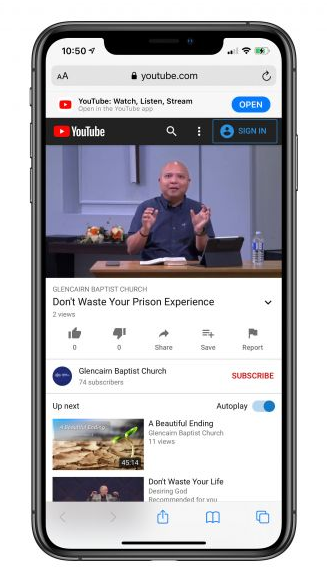
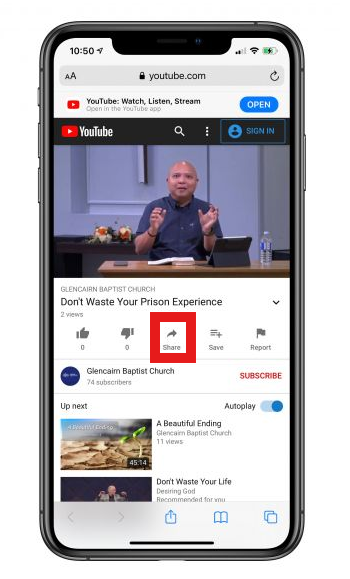
You can share YouTube videos with deep links from your mobile device or computer. Follow the steps below to get started:
How to share YouTube videos with Deep links on mobile phones:
Step 1: Open Youtube from your mobile phone and play the video you want to share.
Step 2: Tap the share button below the video you played.
Step 3: Tap copy link to copy the link and add a deep link feature to your link.
Maximize marketing ROI
by transforming ordinary URLs into branded short links that convert.
Try Replug for free
Step 4: Go to Replug.io. Sign in or create an account.
Step 5: Choose the desired campaign on the main dashboard or if you’re new, create a new campaign in just a few seconds.
Step 6: Once selected the campaign, paste the YouTube video link in the “URL to shorten” section below the campaign section. Using Replug’s YouTube link shortener, you can create a clean, branded, and trackable link for your video.
Note:You can quickly shorten link to make it cleaner, easier to share and track. Here, you can add UTM parameters to your video link.
Step 7: Click the create button to create a new link.
Step 8: Click the edit icon and customize your link.
Step 9:Turn on the deep link button and click update. Your YouTube video link now has deep link enabled.
Note: To find your newly created Replug link, go to manage on the main dashboard and click Replug links.
How to share YouTube videos with Deep links on computer devices:
Step 1: Open YouTube on your computer and play the video you want to share.
Step 2: Click share below the video you just played.
Step 3: Click copy to share the video link or to create a deep link for your video.
Step 4:Sign in to Replug or create an account.
Step 5: Choose the desired campaign on the main dashboard or if you’re new, create a new campaign in just a few seconds.
Step 6: Once selected the campaign, paste the YouTube video link in the “URL to shorten” section below the campaign section.
Step 7: Click the create button to create a new link.
Step 8: Click the edit icon and customize your link.
Step 9: Turn on the deep link button and click update. Your YouTube video link now has deep link enabled.
Note: To find your newly created Replug link, go to manage on the main dashboard and click Replug links.
FAQs
What is YouTube deep linking?
YouTube deep linking refers to a specific video or playlist on the YouTube platform rather than the YouTube homepage or channel. This allows users to easily access the desired content without searching for it or navigating through a channel. It can be done by using the unique URL of a video or playlist.
What is the difference between deep links and dynamic links?
Deep links and dynamic links are both types of links that can be used to redirect users to specific content within an app or website. However, there are some key differences between the two.
Deep links take users directly to a specific location within an app or website. They typically provide direct access to specific content, such as a product page or website section. Deep links can also trigger specific actions within an app, such as opening a page or performing a specific task.
Dynamic links, however, can change depending on the context in which they are used. These links can redirect users to different locations or content based on factors such as the device they are using, the platform they are on, or the time of day. Dynamic links can also redirect users to different versions of an app or website depending on their devices, such as a mobile app or a web-based version.
Static URL QR codes are QR codes that can be scanned with your smartphone or another device to open a specific webpage once you scan them. There are several benefits to using this type of QR code.
One benefit is that it allows people to easily access a webpage without manually typing the full URL into a browser. This can save time and reduce the potential for errors. Additionally, most modern smartphones come equipped with a built-in QR code reader, making it easy for people to scan the code and access the webpage.
Another benefit is that it is free and easy to implement. Anyone can generate one by using a QR code generator and linking it to a specific URL. Plus, it is the standard way of using a QR code, so it is widely adopted and recognized worldwide.
Modern short URL generator, such as Replug can also track clicks and other analytics on the link, which can be useful for understanding how the QR code is used.
Let’s continue with how to create a QR code for a URL.
How to create a QR code for a URL using Replug?
Follow these simple steps to create a QR code for any URL with Replug in just a few minutes.
Step 1: Sign in to Replug or create a new account for free.
Step 2: Select the desired campaign on the main dashboard or create a new one.
Step 3: Paste the URL in the “URL to shorten” section below the “select your campaign” section and click create.
Step 4: You’ll first see a shortened version of your URL. Click the edit icon to customize your URL and click update.
Step 5: To access your newly created URL, go to the manage section on the main dashboard and click Replug links.
Step 6: Here you’ll see your newly created URL. click three dots at the end of the URL and then click download QR code.
Maximize marketing ROI
by transforming ordinary URLs into branded short links that convert.
Try Replug for free
A URL QR code is a type of QR code that, when scanned by a QR code reader, directs the user to a specific webpage or website URL. The QR code contains a string of characters that represents the URL and can be easily scanned with a smartphone camera and QR code reader app. This allows users to quickly and easily access a webpage without having to manually type in a long and complicated URL.
Is there an expiration date for URL QR codes?
URL QR codes do not have an expiration date built into them, but the webpage or website that the QR code directs to may change or be taken down, which would render the QR code unusable. Also, if the website or the URL changes, the QR code will not work anymore
With nearly 2 billion active users worldwide, TikTok is one of the biggest social media platforms on the planet right now. It’s easier than ever to create a TikTok account and jump into the fun, but walking away? That’s a whole different story!
No matter if you’re cutting back on screen time, protecting your privacy, or just done with the endless scroll, deleting your account isn’t always as straightforward as people expect.
The good news?
We’ve got you covered with a simple, up-to-date guide for both mobile and desktop. But before you hit that delete button, there are a few important things you’ll want to know first.
What to know before deleting your TikTok account: Important points to consider!
Before you go ahead and delete your account, hold on for just a second. There are a few things worth checking off your list first. Skipping these could mean losing your data, money, or content that you can’t get back.
What to consider before deleting:
Download your data
TikTok lets you download a full copy of your data (videos, messages, watch history, and more) before you leave. Head to your profile settings and download your data, or request your file. Think of it as your personal TikTok downloader that saves everything locally before it’s gone for good.
Sent messages & stitches
Once your account is deleted, all your direct messages (DMs) will disappear permanently, and any “Stitches” you’ve created will vanish from the platform too. If there’s a conversation or a piece of content you want to hold onto, screenshot or save it before pulling the trigger.
Active subscriptions
If you’re subscribed to any “TikTok LIVE” creators or have an active “TikTok Series” subscription, deleting your account won’t automatically cancel or refund those. Make sure to cancel any active subscriptions manually beforehand to avoid being charged after you’re already gone.
Deactivation vs. Deletion
Not ready to fully commit?
TikTok gives you a 30-day deactivation window after you request deletion. During this period, your account is hidden but not yet permanently removed. If you log back in within those 30 days, everything gets restored, so it’s basically a safety net if you change your mind.
How to delete TikTok account (mobile)
Deleting TikTok on mobile is pretty simple once you know where to look. Just follow these steps carefully, and you’ll have your account deletion request submitted in just a few minutes.
Step#01: Open the TikTok app
Launch the TikTok app on your phone and make sure you’re logged into the account you want to delete.
Step#02: Tap “Profile”
Hit the “Profile” icon at the bottom right corner of your screen to go to your account page.
Step#03: Tap the menu (☰) icon
Look for the three horizontal lines (☰) in the top right corner and tap on them to open the side menu.
Step#04: Select “Settings and privacy”
From the menu that appears, tap “Settings and privacy” to access your account settings.
Step#05: Tap “Account”
Inside settings, tap on “Account”. This is where all your core account management options live.
Step#06: Select “Deactivate or delete account”
Scroll down and tap “Deactivate or delete account” to begin the process of removing your TikTok account.
Step#07: Tap “Delete account permanently”
TikTok will show you two options. Choose “Delete account permanently” to proceed with full deletion.
Step#08: Provide a reason for leaving or tap “Skip”
TikTok may ask why you’re leaving. You can select a reason from the list or simply tap “Skip” in the top right-hand corner if you’d rather not share.
Step#09: You may be prompted to “Download your TikTok data”
TikTok will remind you to save your data before leaving. It’s worth doing; tap the “Request download” option to download if you haven’t already.
Step#10: Once acknowledged, tap “Continue”
After reviewing or dismissing the data download prompt, tap “Continue” to move to the next step.
Step#11: Tap “Continue” once again
TikTok will show you one more confirmation screen. Tap “Continue” again to confirm you’re ready to proceed.
Step#12: Enter the verification code
TikTok will send a verification code to your registered email or phone number. Enter it in the field provided to verify your identity.
Step#13: Tap “Delete account”
Once your identity is verified, tap “Delete account” to officially submit your deletion request.
TikTok will ask for one final confirmation. Tap “Delete” to complete the process. Your account will now enter the 30-day deactivation window before permanent deletion.
How to delete TikTok account (desktop)
Prefer doing things on a bigger screen?
You can delete your TikTok account from a desktop browser just as easily. The steps are a little fewer compared to mobile, but the end result is exactly the same.
Step#01: Go to the TikTok website
Open your preferred browser and head over to https://www.tiktok.com/en/ to get started.
Step#02: Log into your account
Sign in with the credentials of the account you want to delete. Make sure it’s the right one before moving forward.
Step#03: Click “Profile” from the left-hand menu
Once logged in, look at the left-hand sidebar and click on “Profile” to navigate to your account page.
Step#04: Click the “Settings” icon
On your profile page, locate and click the “Settings” icon to open your account settings. It looks like a gear icon, right next to the “Edit profile” option.
Step#05: Click “Deactivate or delete account”
Inside settings, under the “Manage account” section, find and click “Deactivate or delete account” to begin the deletion process.
Step#06: Click “Delete account permanently”
TikTok will present you with two options. Select “Delete account permanently” to proceed with full removal.
Step#07: Provide a reason or click “Skip”
You’ll be asked to select a reason for leaving. Feel free to pick one or just click “Skip” to move on without answering.
Step#08: Follow the on-screen prompts
From here, TikTok will walk you through the remaining steps, including a verification check. Just follow each prompt until the deletion request is fully submitted.
How to deactivate TikTok account temporarily
Not completely sure about leaving?
Deactivating is a softer option. Your account goes hidden for up to 30 days, and you can restore it anytime simply by logging back in.
Here’s how to do it:
Step#01: Open the TikTok app
Launch TikTok on your phone and make sure you’re signed into the account you want to deactivate.
Step#02: Tap “Profile”
Tap the “Profile” icon at the bottom right of your screen to land on your account page.
Step#03: Tap the menu icon (☰)
Tap the three horizontal lines (☰) in the top right corner to open the side menu.
Step#04: Select “Settings and privacy”
From the menu, tap “Settings and privacy” to head into your account settings.
Step#05: Tap “Account”
Inside settings, tap “Account” to access the options related to your account management.
Step#06: Select “Deactivate or delete account”
Scroll down and tap “Deactivate or delete account”. This is where both the deactivation and deletion options are housed.
Step#07: Tap “Deactivate account”
This time, choose “Deactivate account” instead of the permanent deletion option to keep things reversible.
Step#08: Tap “Deactivate”
TikTok will show you a confirmation screen explaining what happens if you deactivate your account. Tap “Deactivate” to move forward.
Step#09: Enter verification code
A verification code will be sent to your registered email or phone number. Enter it in the field provided to confirm it’s really you.
Step#10: Tap “Deactivate account”
Hit “Deactivate account” one final time to complete the process. Your account will now be hidden until you decide to log back in.
Primary reasons to delete or deactivate your TikTok account
People leave TikTok for all kinds of reasons, and honestly, most of them are pretty valid. Whether it’s about mental health, privacy, or just needing a break, understanding why others make this call can help you feel more confident about your own decision.
To escape the platform’s addictive doomscrolling
TikTok’s algorithm is literally designed to keep you watching. One video leads to another, and suddenly an hour has disappeared.
This endless loop of content, often called doomscrolling, can seriously eat into your productivity and sleep. Many users delete their accounts simply to break free from a cycle they feel they can’t control otherwise.
Improve mental health & avoid negative content
Constant exposure to highlight reels, unrealistic beauty standards, and emotionally charged content can quietly take a toll on how you feel about yourself.
Studies have linked heavy social media use to increased anxiety, low self-esteem, and feelings of inadequacy. Stepping away from TikTok gives your mind the breathing room it genuinely needs.
Avoid dopamine overload & attention span issues
Every like, comment, and viral video triggers a small dopamine hit, and over time, your brain starts craving that constant stimulation.
This can make it harder to focus on slower, deeper tasks like reading, studying, or working. Deleting TikTok is one way people are actively trying to reclaim their attention span.
Address strict data privacy concerns & policy changes
TikTok has faced ongoing scrutiny over how it collects and handles user data, with concerns raised by governments across the US, EU, and beyond.
If you’re uncomfortable with how much the platform knows about you (your location, behavior, device info), that’s a completely legitimate reason to leave. Deleting your account cuts off that data collection at the source.
To take temporary digital detoxes
Sometimes you don’t want to quit forever; you just need a real break from the noise.
A temporary deactivation lets you step away without losing your account, giving you space to reset without the pressure of constant content. Many users find that even a short digital detox does wonders for their focus and overall mood.
To escape toxic comment sections
TikTok’s comment sections can get pretty brutal, from unsolicited criticism to full-blown harassment; the negativity can be overwhelming.
Even if you’re not the target, constantly reading hostile exchanges can affect your mood more than you’d expect. For many users, removing themselves from that environment entirely is the healthiest choice they can make.
Issues faced when deleting a TikTok account & their solutions
The deletion process isn’t always perfectly smooth. A few common hiccups can leave you stuck or second-guessing whether it actually worked.
Here’s a quick rundown of the most frequent issues users run into and exactly how to fix them:
Just deleted the app instead of the account
Remember, uninstalling the TikTok app does not delete your account. It just removes the app from your device while your profile, data, and content remain fully intact on TikTok’s servers.
If this were you, simply reinstall the app or visit tiktok.com on a browser and follow the proper account deletion steps. The account stays alive until you officially go through the in-app or desktop deletion process.
The “Delete account” button is missing or unresponsive
This usually happens when the app is outdated or running into a temporary glitch. Try updating TikTok to the latest version, clearing your app cache, or switching to a different browser if you’re on desktop.
If the issue persists, logging out and back in, or restarting your device, tends to do the trick.
Verification code not arriving in time
If the verification code isn’t showing up, first check your spam or junk folder if it’s being sent to your email. Make sure your registered phone number or email address is still active and accessible.
If it’s not, you may need to update it before proceeding. You can also try requesting the code again after a short wait, as delays sometimes happen on TikTok’s end.
Account locked during deactivation (30-day grace period)
Once you submit a deletion request, TikTok enters a 30-day grace period where your account is essentially locked and hidden from public view. This is completely normal; it’s not a glitch.
If you didn’t mean to initiate deletion, simply log back in within those 30 days, and your account will be fully restored.
Unable to delete due to third-party logins
If you signed up using Google, Apple, or Facebook, TikTok may require you to first set a standalone password before allowing account deletion.
Head to Settings → Account → Password to create one, and then proceed with the deletion steps as normal. This is a quick fix that most users aren’t aware of until they hit this wall.
Best alternatives to deleting your TikTok account
Deleting your account is a big, permanent step, and it’s not the only option on the table. If you’re on the fence, these alternatives let you take back control without losing everything you’ve built on the platform.
Temporary deactivation
As covered earlier, TikTok’s built-in deactivation option hides your account for up to 30 days without permanently removing it. It’s a great middle ground if you’re feeling overburdened but aren’t 100% sure you want to leave for good.
Just log back in anytime within that window, and your account bounces right back to normal.
App-level screen time limits
Both iOS and Android let you set daily time limits on specific apps directly from your phone’s settings (no willpower required).
On iPhone, you can use “Screen Time” under Settings, while Android users can find it under “Digital Wellbeing”. Setting a hard daily cap on TikTok usage is often enough to break the doomscrolling habit without having to delete anything.
Account privatization
Switching your account to private means only approved followers can see your content, which significantly cuts down on unwanted interactions and toxic comment sections.
It’s a solid option if your main concern is harassment, strangers, or just feeling too exposed online. You can toggle this on instantly under Settings and privacy → Visibility → Private account.
Optimize the algorithm (starting fresh)
If your “For You Page” feels like a rabbit hole of negativity, you don’t necessarily need to wipe out your account. You just need to retrain the algorithm.
Clear your watch history, use the “Not interested” option aggressively, and start engaging only with content that actually adds value to your day. Within a week or two, TikTok’s algorithm will shift to reflect your updated preferences, making the whole experience feel a lot healthier.
Wrapping up
And that’s really everything you need to know about deleting or deactivating your TikTok account in 2026.
No matter if you’re leaving for good, taking a short break, or simply tightening up your privacy, the most important thing is that you’re making a deliberate choice about how you spend your time and attention online.
Just remember to download your data, cancel any active subscriptions, and weigh your alternatives before making a final decision.
And if you’re a creator or marketer still active on TikTok, keeping your links clean and trackable matters. That’s where Replug.io comes in handy.
Its link shortener feature makes generating shortened TikTok links effortless. Must give it a try!
Maximize marketing ROI
by transforming ordinary URLs into branded short links that convert.
Try Replug for free
Frequently asked questions
How long does it take to delete a TikTok account?
When you delete TikTok account online or through the app, the process isn’t instant. TikTok gives you a 30-day grace period after submitting your deletion request. During this time, your account is hidden but not yet permanently removed.
If you don’t log back in within those 30 days, your account and all associated data will be permanently deleted from TikTok’s servers.
How to permanently delete a TikTok account?
Here’s how to delete a TikTok account permanently:
Open the TikTok app → tap Profile → tap the (☰) icon → go to Settings and privacy → Account → Deactivate or delete account, and select Delete account permanently.
Follow the on-screen steps, verify your identity with the code sent to your email or phone, and confirm the deletion. After the 30-day grace period passes without logging back in, your account is gone for good.
How to delete a TikTok account without logging in?
To delete a TikTok account without logging in, you can email TikTok Support at support@tiktok.com. Request account deletion and include your username, the email address, the phone number, and your birthday to verify ownership.
If you’ve forgotten your password, use the Forgot Password option on the login screen to reset it via your email or phone number, and then proceed with the deletion steps once you’re back in.
How to delete a TikTok account without email?
If you don’t have access to your registered email, you can still recover your account using your phone number instead. TikTok allows verification through either.
Go to the login screen, tap Forgot Password, and select the phone number option to reset access. Once you’re logged in, follow the standard deletion steps to remove your account.
How to delete a TikTok account without password?
If you can’t remember your password, tap Forgot Password on the login screen and reset it using your registered email or phone number.
Alternatively, if you originally signed up through Google, Apple, or Facebook, you can log in using that same third-party option without needing a password at all. Once inside, head to Settings and privacy → Account → Deactivate or delete account to proceed.
How to reactivate TikTok account?
If you’ve deactivated or recently submitted a deletion request, you can reactivate your account simply by logging back in within the 30-day grace period.
Just open the app or visit tiktok.com, sign in with your credentials, and your account will be fully restored (posts, followers, and all). After the 30 days are up, however, the account is permanently deleted and cannot be recovered.
YouTube isn’t just that video app anymore; it’s a digital powerhouse shaping what we watch, how we learn, and how creators connect with the world.
In 2026, YouTube proudly owns over 2.5 billion monthly active users, meaning roughly one in every four people online visits the platform regularly. That’s more than almost any other site on Earth, WOW!!!
Every single day, hundreds of millions of people are watching, uploading, and sharing content, from cooking tips to trending music videos, news clips to killer tutorials.
No matter if you’re a hobbyist YouTuber looking to share your first clip or a seasoned creator building your brand, knowing how to grab and share a YouTube URL link is a foundational skill you must possess. And we’re about to break it down step by step!
Now, let’s start with the basics: What is a URL on YouTube?
What is the YouTube URL link?
Think of URLs as the web addresses that take you exactly where you want to go online, kind of like entering a street address into Google Maps to find a friend’s house.
A “YouTube URL link” is just that: a specific web address that points directly to something on YouTube, whether that’s a video, playlist, or channel.
The URL stands for Uniform Resource Locator, and it’s essentially the address that loads a specific piece of YouTube content when entered into a browser or tapped in a message.
The main objective of a YouTube URL is simple, i.e., to direct viewers straight to the content you want them to watch or explore. Without it, you’d be guessing around the platform trying to find that one video, playlist, or creator you intended to share.
An example of a YouTube URL link
Here’s a classic example of a YouTube video URL link that takes you straight to a specific video:
https://www.youtube.com/watch?v=ysCh-ikzOC1
Here, everything after watch?v= is the unique ID YouTube uses to find that exact video.
This same idea applies to channel or playlist links. Just a slightly different URL structure that still points you right where you want to go.
How to get YouTube URL on phone
Getting a YouTube URL on your phone is something almost every user does, no matter if you’re sharing a funny clip with a friend or linking your latest vlog in a message.
On both iPhone and Android, the YouTube app makes it quick and easy to grab the link you need so you can paste it anywhere you want, hassle-free.
How to get YouTube URL on iPhone
Here’s a friendly step-by-step guide for iPhone users:
1. Open the YouTube app on your iPhone.
2. Find the video you want the URL for and tap it to open it.
3. Look for the “Share” icon (it’s usually an arrow pointing right, available below the video).
4. Tap “Share,” then tap “Copy link.” iOS will put that URL into your clipboard.
Now you can paste the copied link into Messages, Notes, email, social media, or wherever you need it.
How to get YouTube URL on Android
Here’s how to get a YouTube URL from the app on an Android smartphone:
1. Launch the YouTube app on your Android device.
2. Search for and open the video you want to share.
3. Tap the “Share” button(an arrow pointing right) under the video player.
4. From the share menu, select “Copy link.” This copies the full YouTube URL.
5. Paste that link wherever you need it, e.g., chat, apps, posts, etc.
Whether you’re on an iPhone or an Android device, it’s usually just a few taps to grab a YouTube URL and get your content out into the world.
Grabbing a YouTube URL on your iPad is super simple! It’s just a couple of taps, no matter if you’re using the official YouTube app or the Safari browser.
This lets you copy the link to share with friends, post on social media, or save for later.
Step-by-step guide (iPad):
1. Open the YouTube app (or visit youtube.com in Safari) on your iPad.
2. Find the video you want to get the URL for. Scroll, search, or open it from your subscriptions.
3. Tap the “Share” button. It’s usually an arrow pointing right just below the video player. You can also tap the URL address bar at the top of the browser to select the URL, and then copy it.
4. In the share options that pop up, look for “Copy link” and tap it. That URL is now copied to your iPad’s clipboard.
5. Paste the link wherever you want by tapping and holding the text field and selecting “Paste.”
That’s it!
A few taps and you’ve got the exact web address (URL) for the YouTube video ready to share or save for later.
Note: If you ever want to copy playlist or channel URLs, the process is similar. Just open the playlist or channel page → tap the three dots (More) in the top right → tap Share → tap Copy link.
How to get YouTube URL on PC/Desktop
Getting a YouTube URL on PC is one of the easiest things you’ll do online, whether you’re sharing a video with friends, linking to a playlist, or embedding content on your blog.
On a computer, all you really need to do is open YouTube in your browser and copy the link from the right place.
Step-by-step guide (PC):
1. Open your web browser and go to “youtube.com.”
2. Find and click the video you want to get the URL for. The video page will open in your browser.
3. Look at the address bar at the top of your browser window. This shows the full YouTube URL. It usually looks like: https://www.youtube.com/watch?v=VIDEO_ID.
4. Click inside the address bar to highlight the whole link, then press “Ctrl + C”(Windows) or “Cmd + C”(Mac)to copy it.
5. Paste the link(Ctrl/Cmd + V) wherever you need it, in an email, message, social post, or document.
Useful tip: You can also click the “Share” button under the video player and choose “Copy link.” That usually gives you a shorter youtu.be version of the URL that works just as well. One more way is to right-click the video and choose “Copy link address.”
How to find URL for your YouTube channel (Desktop)
Finding your YouTube channel URL on a desktop is super useful, no matter if you’re linking your channel on your website, sharing it with friends, or promoting it on social media.
On a computer, it’s pretty straightforward: you just navigate to your channel page and grab the address from your browser.
Step-by-step guide (Desktop):
1. Sign in to YouTube: Open your web browser (like Chrome, Safari, or Firefox) and go to youtube.com. Make sure you’re logged into the Google account that owns the channel.
2. Go to your channel: In the top right corner, click your profile picture. From the dropdown that appears, select “View your channel.” This will take you to your public channel page.
3. Look at the address bar: Once your channel page is open, look at the URL in your browser’s address bar. That’s your channel’s link! It might look like:
https://www.youtube.com/channel/UCabcdef123456…
Or, if you have a custom handle: https://www.youtube.com/@YourHandle
Both are valid and take people straight to your channel.
4. Copy the URL: Click inside the address bar to highlight the link, then copy it using Ctrl + C (Windows) or Cmd + C (Mac).
Now you can paste that link (Ctrl/Cmd + V) anywhere you’d like without hesitation!
How to find URL for your YouTube channel (Mobile App)
Getting your YouTube channel URL right from the YouTube mobile app is handy when you want to share your channel with friends, add it to your Instagram bio, or send it in a message. And yes, you can do it directly from your phone without needing a desktop.
Here’s how to get the URL from the YouTube app for your YT channel:
1. Open the YouTube app on your phone and make sure you’re signed into the account that owns the channel.
2. Tap your profile picture in the bottom-right corner to open the account profile.
3. From the screen, tap “View channel.” This will take you to your channel’s home page.
4. On your channel page, tap the three dots (⋮) or the “More” icon in the top-right corner.
5. Choose “Share” from the listed options. A share sheet will appear with several choices.
6. Tap “Copy link.” That’s your YouTube channel URL. It’s now saved to your clipboard and ready to paste anywhere you want.
Once copied, you can paste your channel link into text messages, social apps, or email by long-pressing any text field and selecting “Paste.”
That’s all there is to it! Quick, simple, and perfect for sharing your channel on the go!
To sum up, learning how to find and share YouTube URLs (whether it’s a video, your channel, playlist, or a link on mobile or PC) makes sharing your content way easier and more professional.
We’ve covered everything from grabbing links on iPhone, Android, iPad, and desktop to finding your own channel’s URL so you can share it anywhere you want without the guesswork.
You now have all the steps you need to confidently navigate YouTube links like a pro!
Before you go, here’s a tip!
If you’re tired of messy, long URLs and want to make your YouTube links cleaner and more clickable, give Replug.io a try!
Replug is an all-in-one link management platform that doubles as a URL shortener. It lets you generate branded short links in seconds and easily shorten long, cluttered YouTube URLs.
Maximize marketing ROI
by transforming ordinary URLs into branded short links that convert.
Try Replug for free
Whether you’re sharing videos, promoting your channel, or running a campaign, Replug gives you clean, trackable links that look great and perform even better.
Frequently asked questions
How can I copy a YouTube URL?
To copy any YouTube URL (video, playlist, channel, or profile), open it in the YouTube app or in your browser.
– On mobile, tap the “Share” button under the video or on the channel page and select “Copy link.” – On desktop, simply highlight the URL in the address bar and copy it (Ctrl/Cmd + C).
For a channel URL or personal profile URL, go to the channel or profile page first. Then use the share/copy option or copy the address from your browser. This gets you the proper link you can paste anywhere you need.
How do I get my own profile YouTube URL?
Open YouTube and sign in, then visit your profile page.
– On desktop, copy the URL from your browser’s address bar. It will look like youtube.com/channel/… or a handle like youtube.com/@YourHandle. – On mobile, tap your profile icon → go to your channel → then use the Share > Copy link option. That’s your personal channel URL you can share.
How to get a YouTube URL from YouTube in 2026?
In 2026, getting a YouTube URL is still super simple. Just open the video or channel on YouTube, click or tap the “Share” button, and select “Copy link.” On a desktop, you can also copy the link directly from the browser’s address bar. Both methods give you a working URL you can paste anywhere.
How to get the YouTube URL on the app?
Here’s how to do it:
1. Open the YouTube app. 2. Play the video (or open a channel). 3. Tap the “Share” icon below the video. 4. From the options, tap “Copy link,” and the URL is saved to your clipboard.
You can now paste it in messages, social apps, or anywhere else.
How to get YouTube URL and stream key?
To get your YouTube stream key and URL for live streaming, open YouTube Studio (studio.youtube.com), click “Go live”, then select the streaming software option.
Under “Stream settings,” you’ll see both the “Stream/Server URL” and the “Stream Key” with buttons to copy them. You use these in streaming software like OBS to connect to your channel’s live feed.
Always remember to never share your stream key publicly. Treat it like a password!
How to get YouTube URL for Roblox?
If you want to paste your YouTube link into Roblox social fields, use your standard channel URL (from the share/copy link method above) rather than just using your handle URL. Some platforms, including Roblox, may reject new handle formats, so using the regular channel link (with /channel/) often works better.
How to get the YouTube URL for a video?
Here’s how to get the YouTube video URL link:
Open the video, then either copy the link from the browser’s address bar or tap the “Share” button and hit “Copy link.” The copied link may be a full URL (youtube.com/watch?v=…) or a shorter version (youtu.be/…). However, there is no need to worry, because both work the same.
How to get a short URL for a YouTube video?
To get a short URL for a YouTube video, simply copy the video link and use YouTube’s built-in “youtu.be” format by replacing youtube.com/watch?v= with youtu.be/. For enhanced tracking and custom branding, you can also use a link management tool like Replug to create a branded short URL that monitors clicks and engagement.
How to get YouTube channel URL after suspension?
If your channel is suspended, you typically can’t sign in to access the usual dashboard and copy the link from within YouTube Studio.
What you can do is find its public URL by searching the channel name on YouTube or via cached pages, but if it’s fully removed, you may not be able to retrieve it directly.
If you need the URL for an appeal, check your email notifications from YouTube (it often includes the channel link) or contact YouTube support for help during the appeal process.
What is YouTube URL for shortcut?
A YouTube shortcut URL usually refers to a shorter, more direct link format that takes you to specific YouTube content fast.
– For videos, this is often the shortened youtu.be/VIDEO_ID link. It’s cleaner and easier to share than the long watch?v= version. – For channels, YouTube provides handle URLs like youtube.com/@YourHandle, which act like shortcut links to a channel’s homepage.
All of these formats get people straight to the content with minimal characters.
What is the URL of YouTube app?
The basic YouTube app URL isn’t a web page link; it’s a mobile app scheme (like youtube://) that can open the YouTube app directly from other apps or shortcuts, though support can vary by device.
For general purposes, most people use standard links (e.g., https://www.youtube.com/…) and rely on their phone to open them in the YouTube app or browser.
Note: There isn’t a single URL for the YouTube app because it uses standard web URLs like youtube.com or m.youtube.com, and it automatically redirects users to the app on devices with it installed.
How to find your YouTube embed code?
To get a YouTube embed code for a video, open the video in a browser, click the “Share” button below it, and then tap “Embed (< >)”.
You’ll see a small box with HTML iframe code (it starts with <iframe … src=”https://www.youtube.com/embed/…”>). Copy that code and paste it into your website or blog to embed the video easily.
How to find your YouTube Music Artist URL?
If you’re an artist on YouTube Music, open your artist profile on music.youtube.com, click the three dots next to your name or profile, choose “Share,” and then “Copy.” That gives you your YouTube Music Artist URL (a web address you can share so fans can find your music page easily).
How to find your YouTube handle URL, channel URL (ID-based), custom URL, and legacy username URL?
YouTube channels can have different link formats that lead to the same page:
– Handle URL:youtube.com/@YourHandle — your current friendly link format. – Channel ID URL:youtube.com/channel/UC… — the standard permanent link with your unique ID. – Custom URL: if you have one from before handles rolled out, like youtube.com/c/CustomName. – Legacy username URL: older formats like youtube.com/user/OldName, still valid but no longer newly created.
All of these URLs point to your channel, but the handle and channel ID links are the most common today.
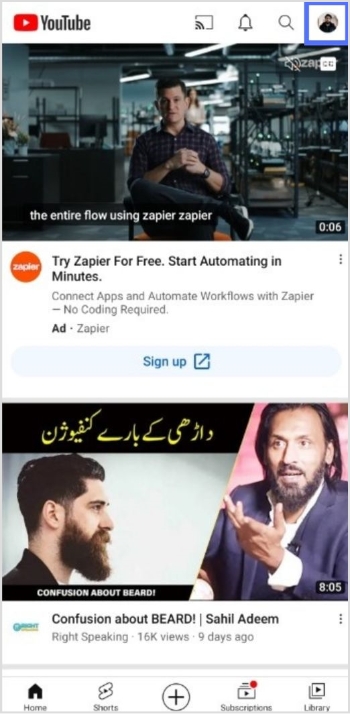
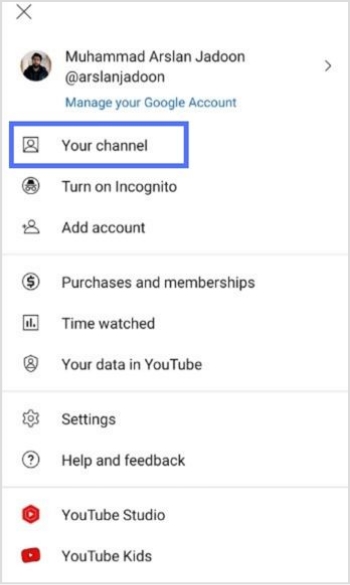
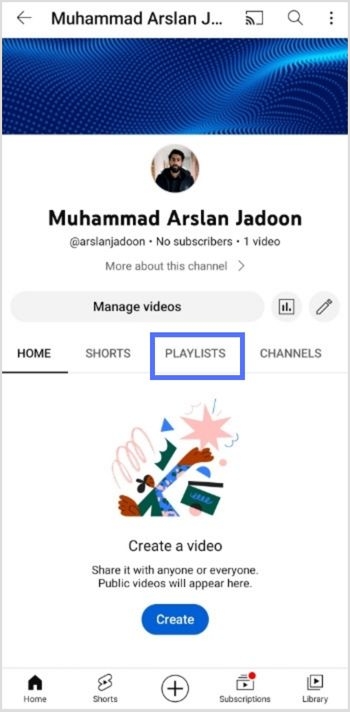
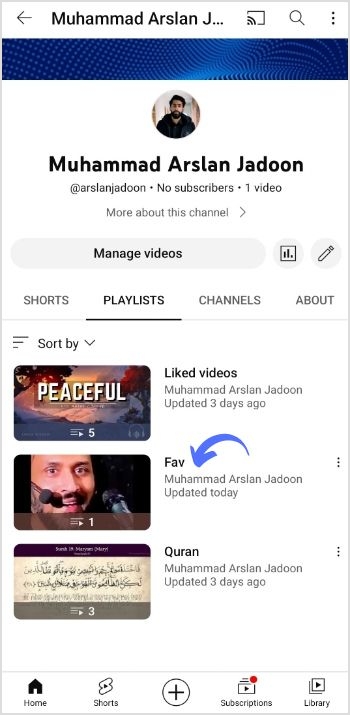
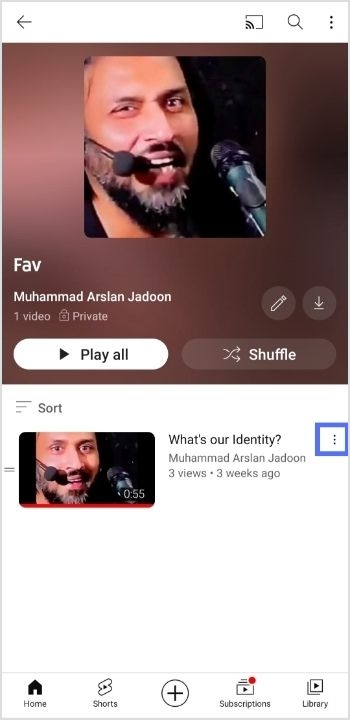
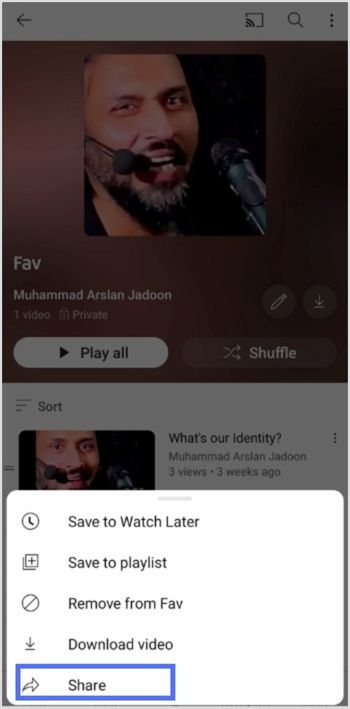
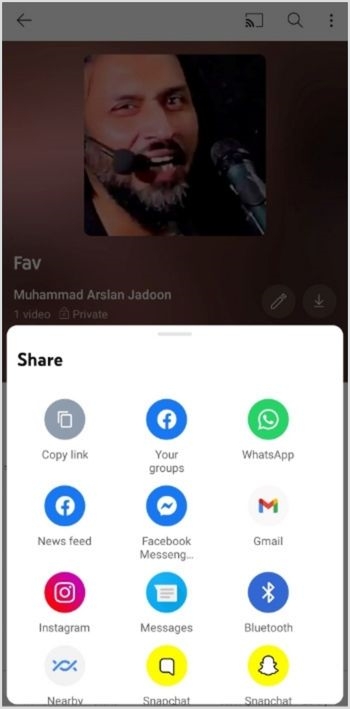


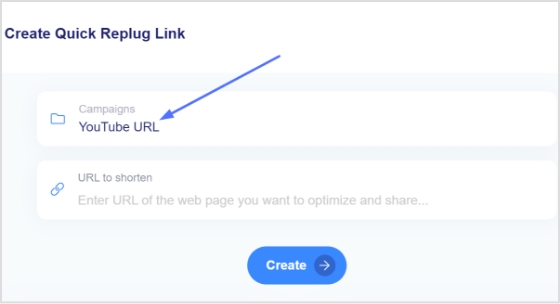
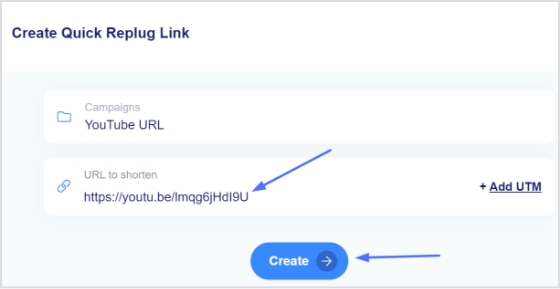
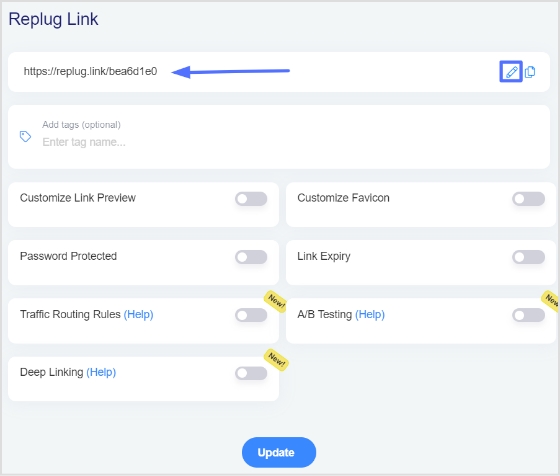
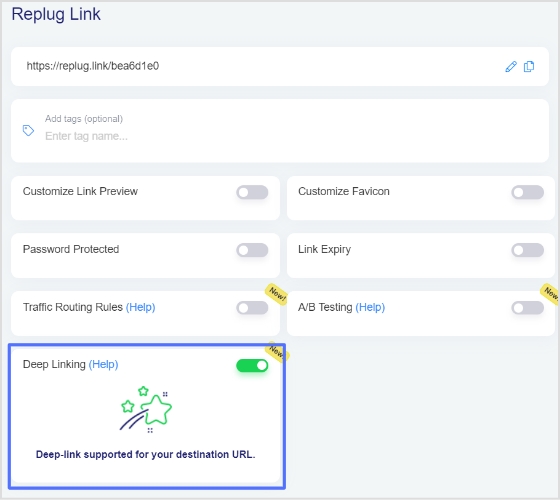
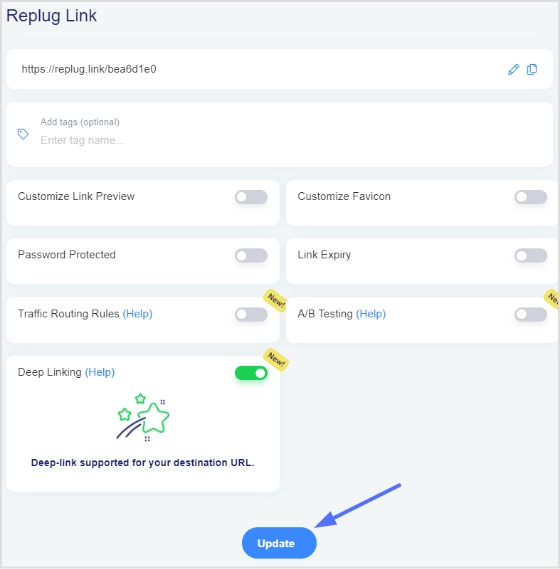
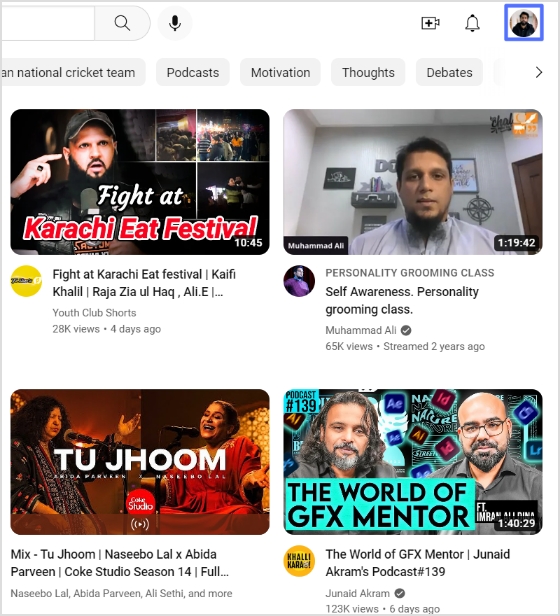
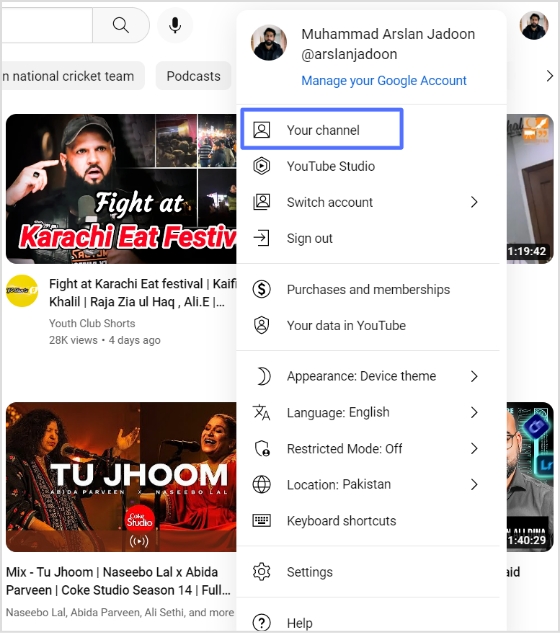
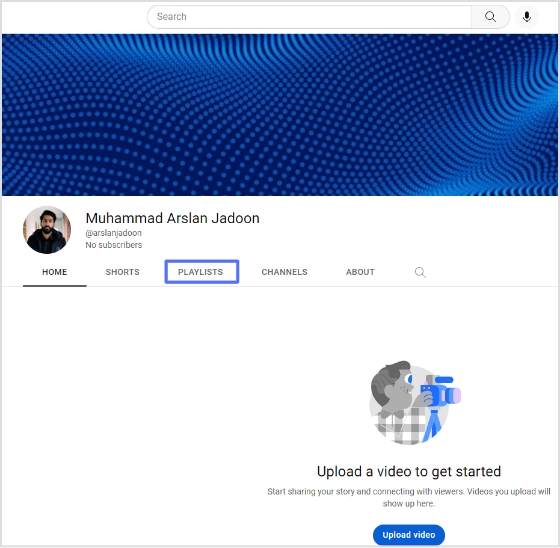
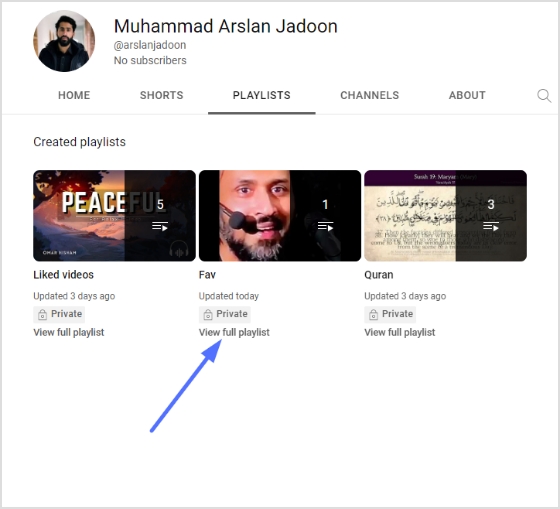
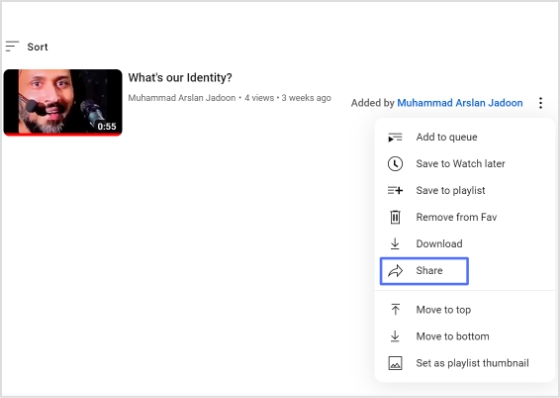
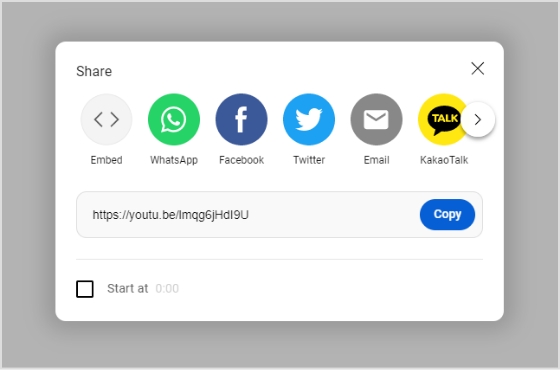
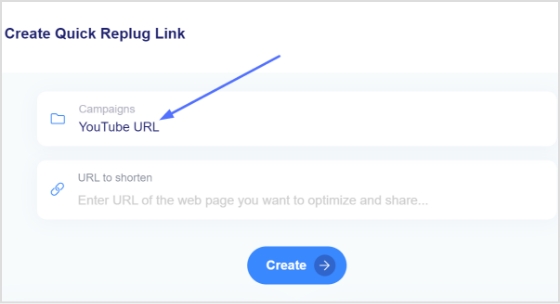
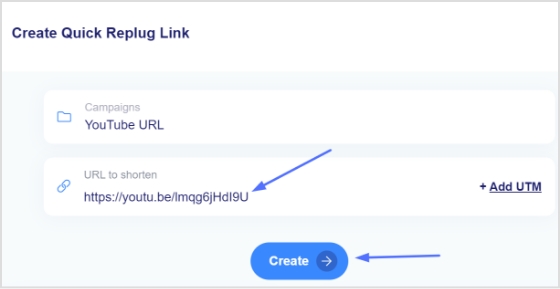
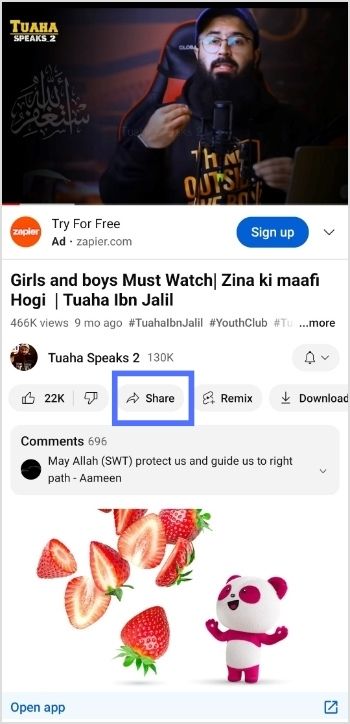
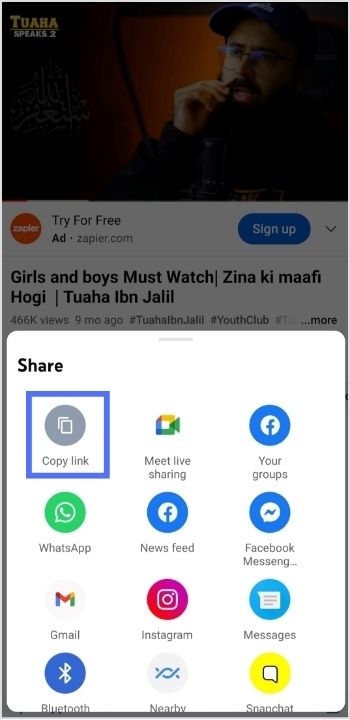
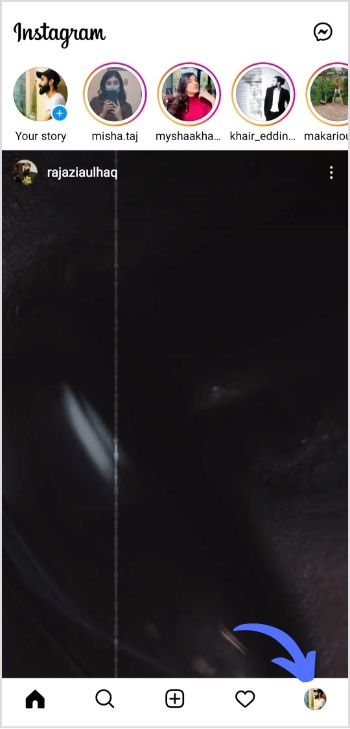
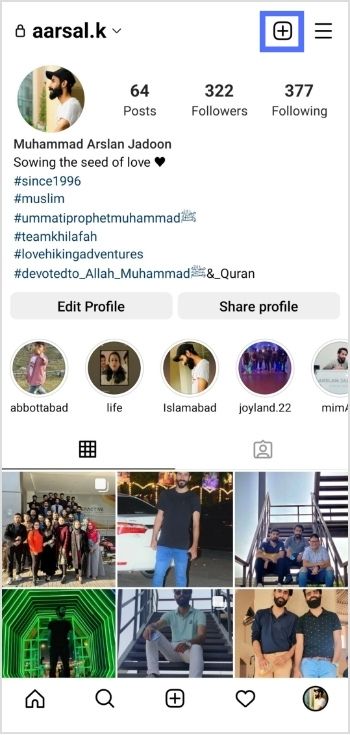
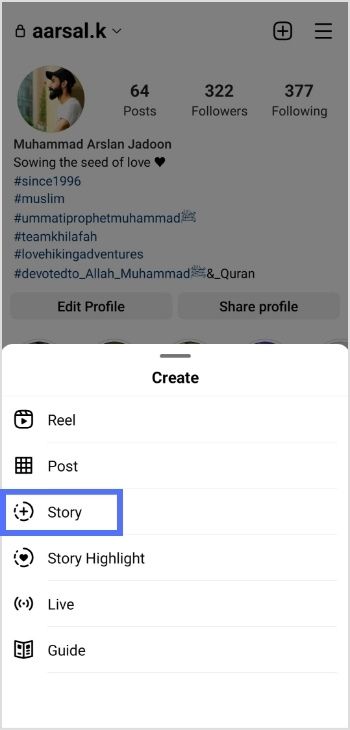
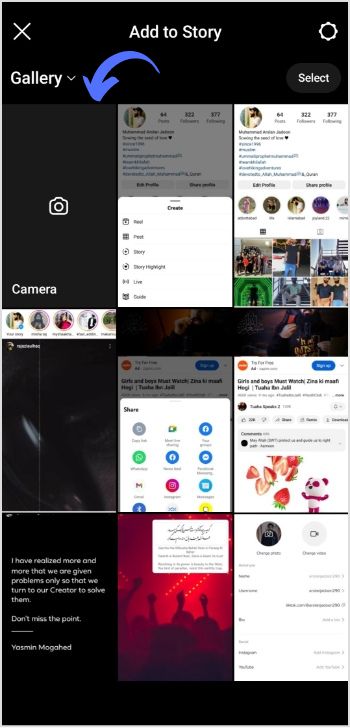
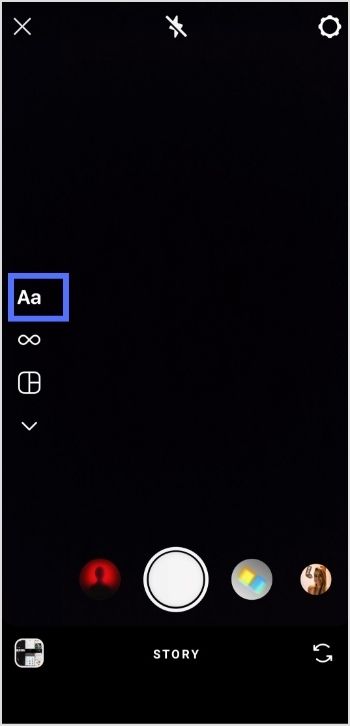
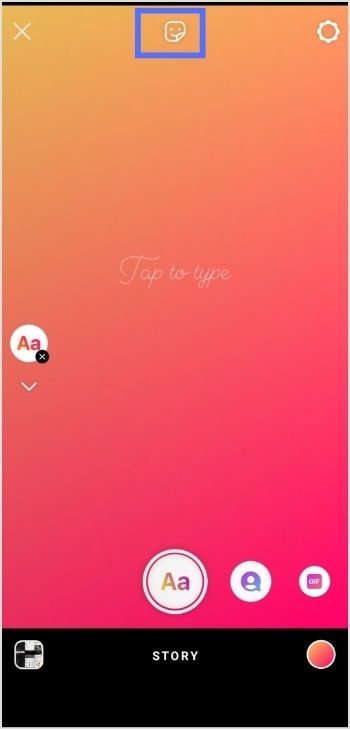
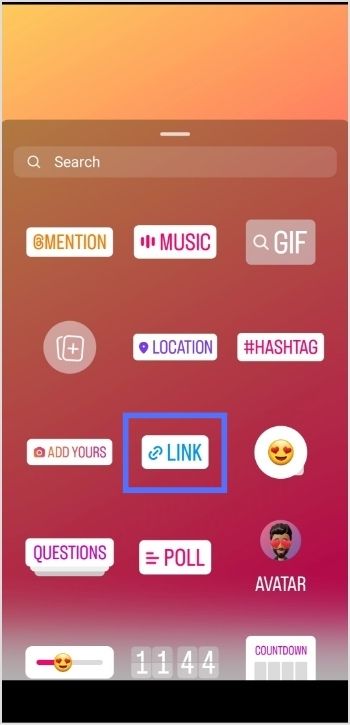
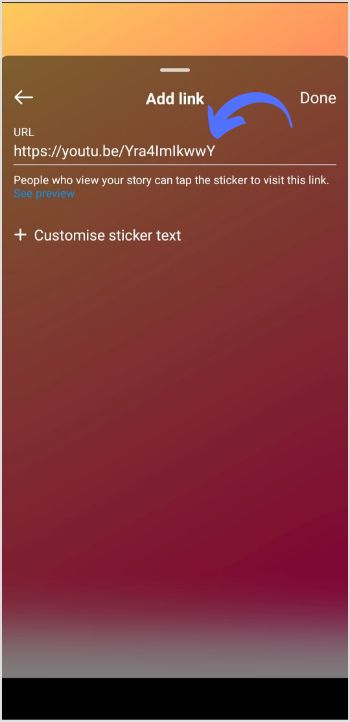
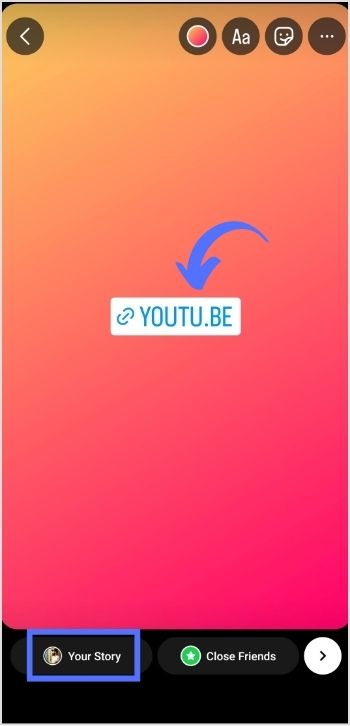

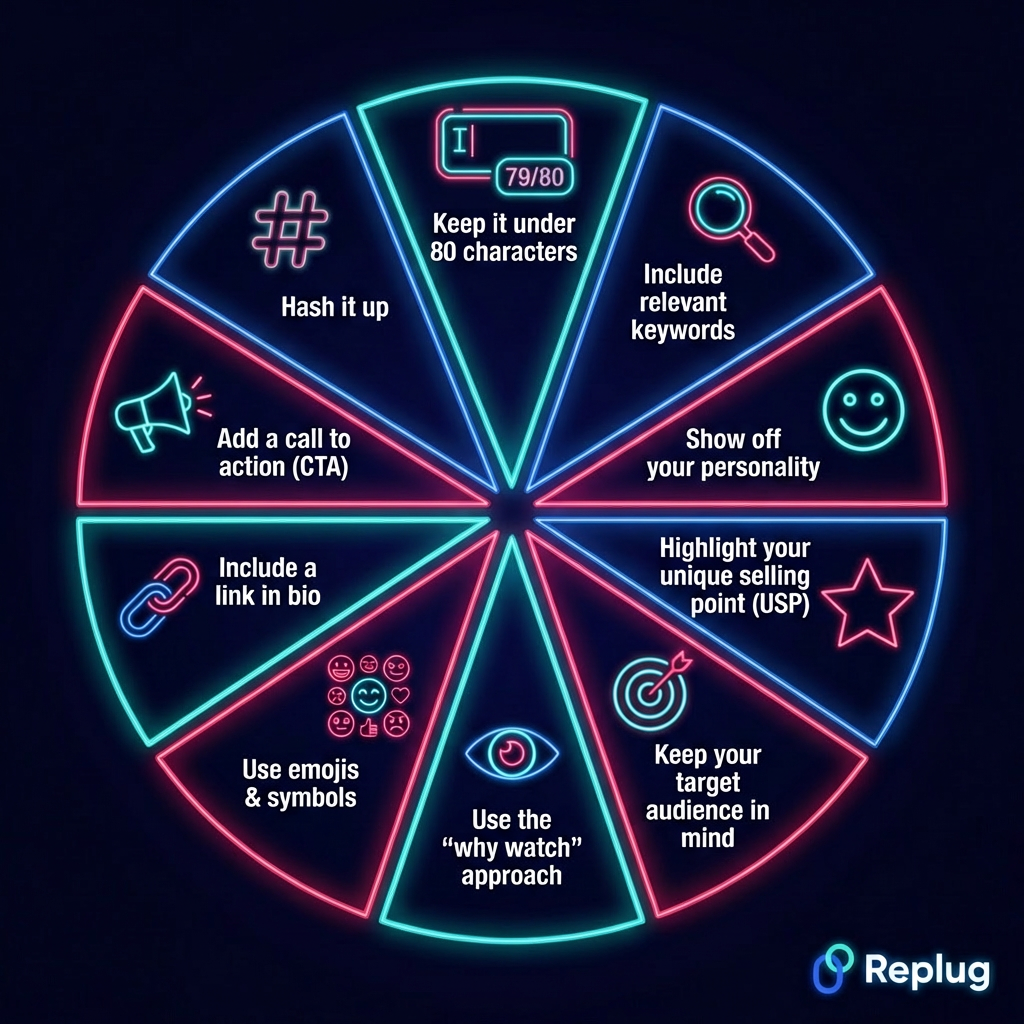


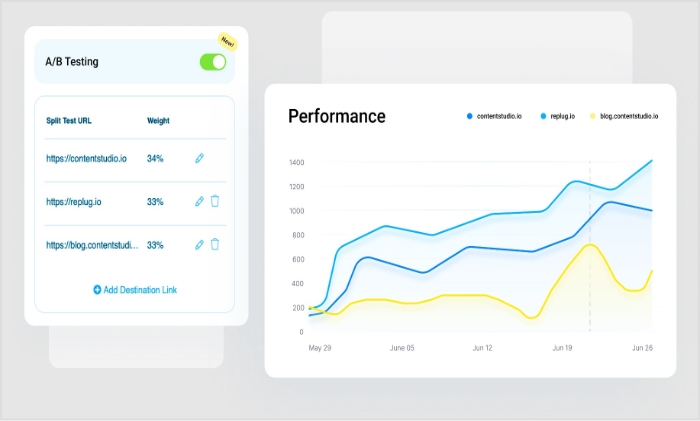


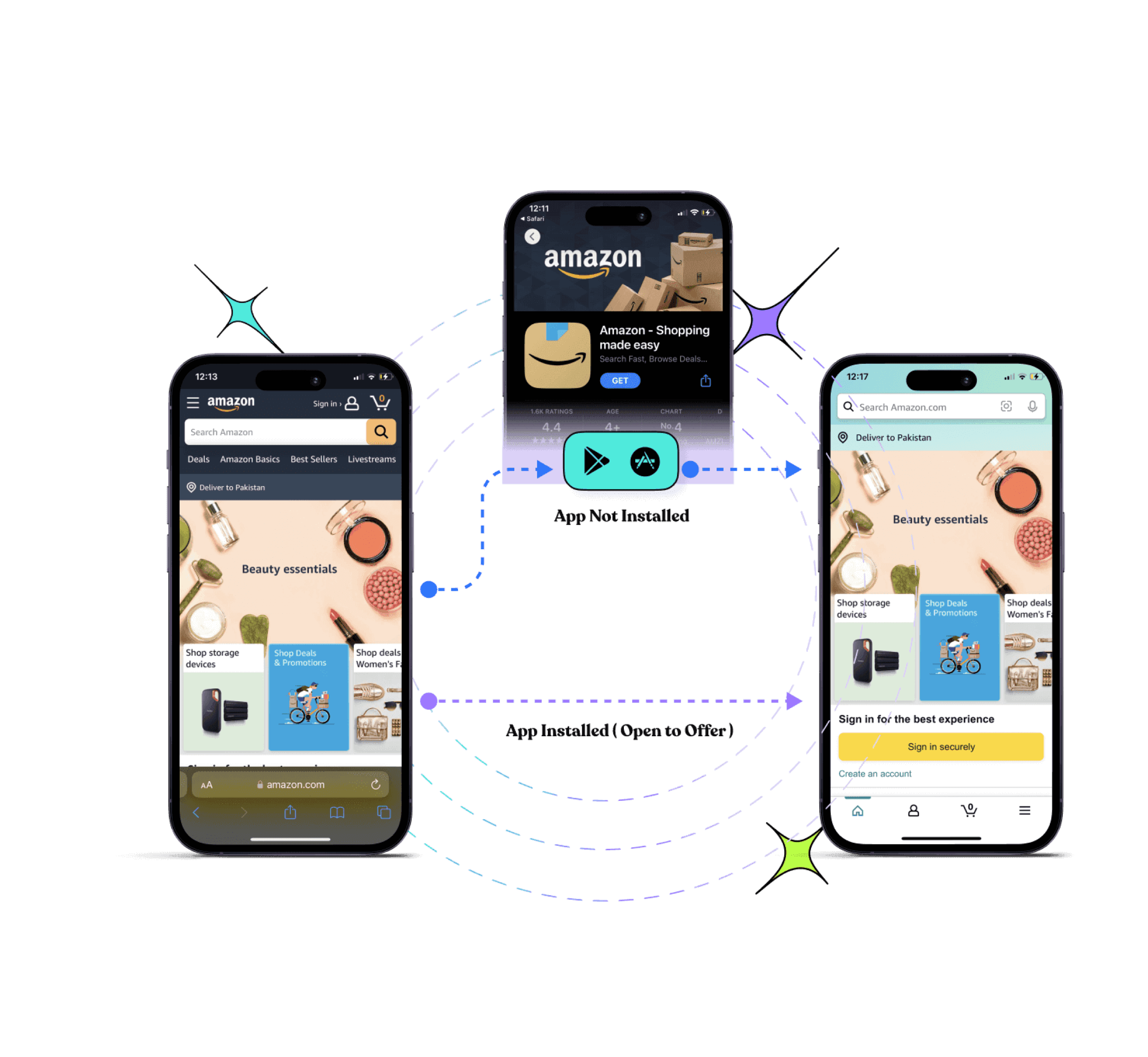
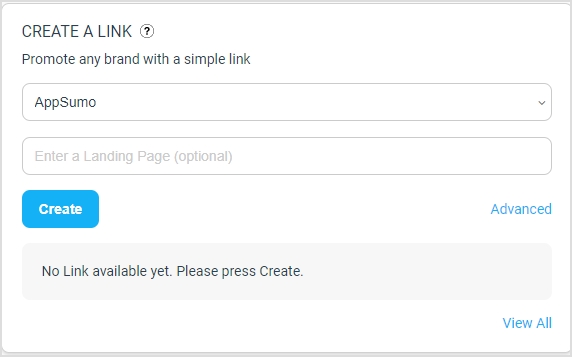
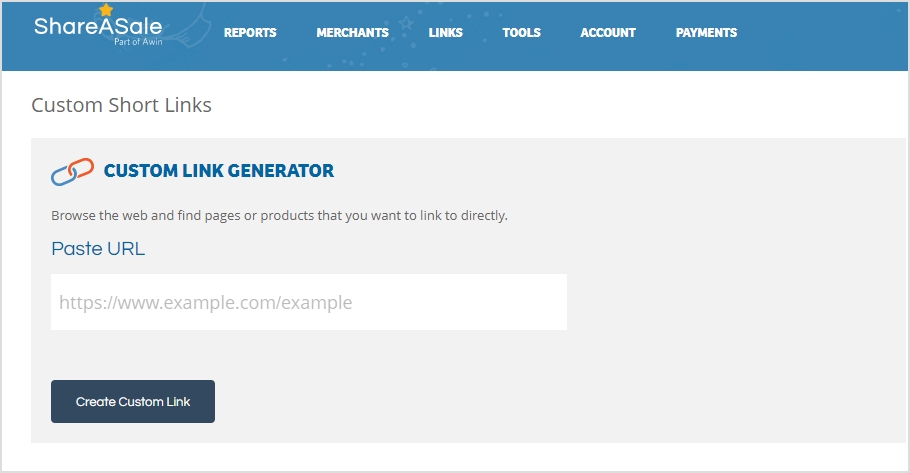
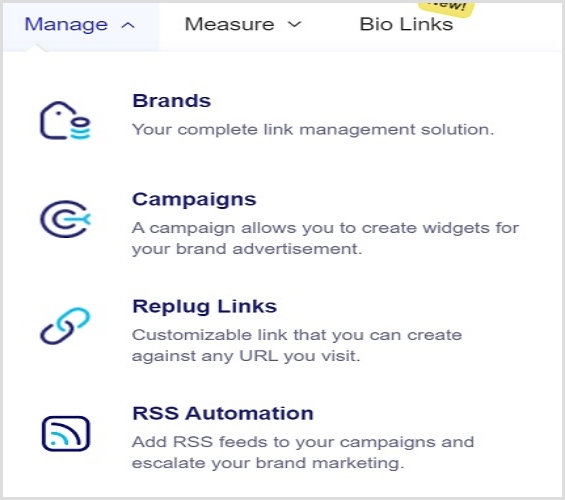
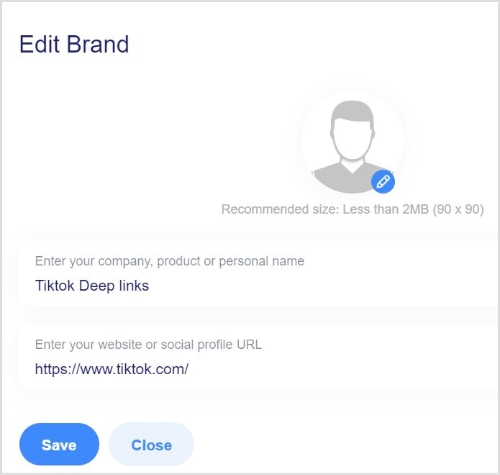
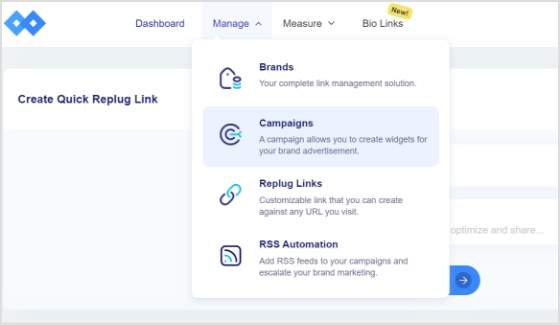
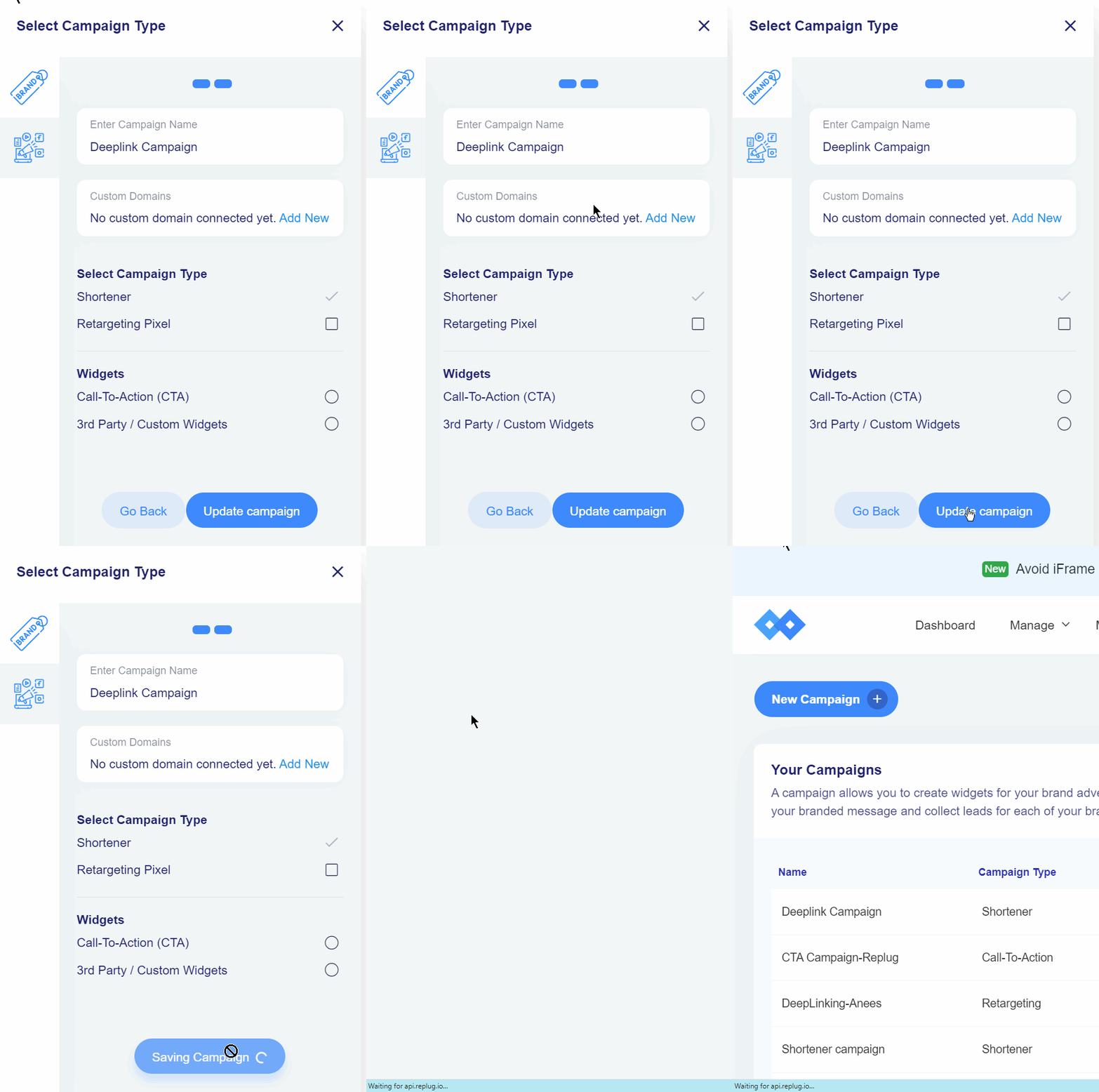
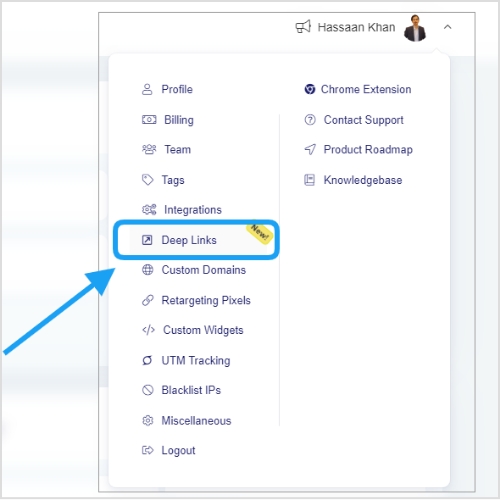
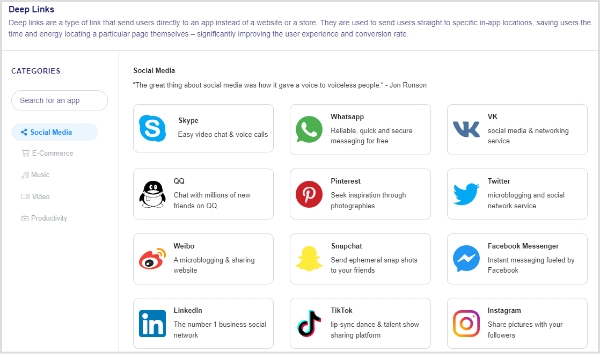
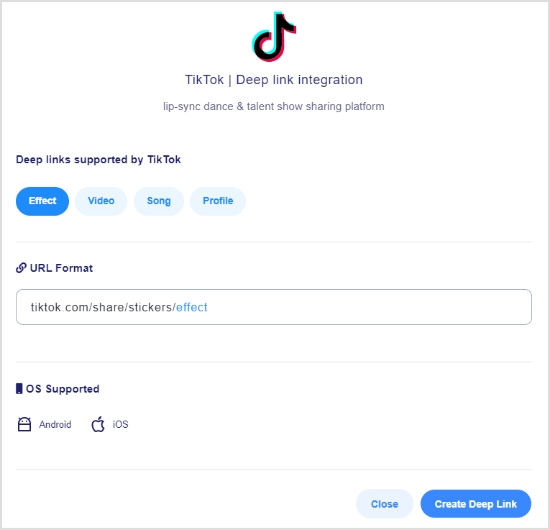
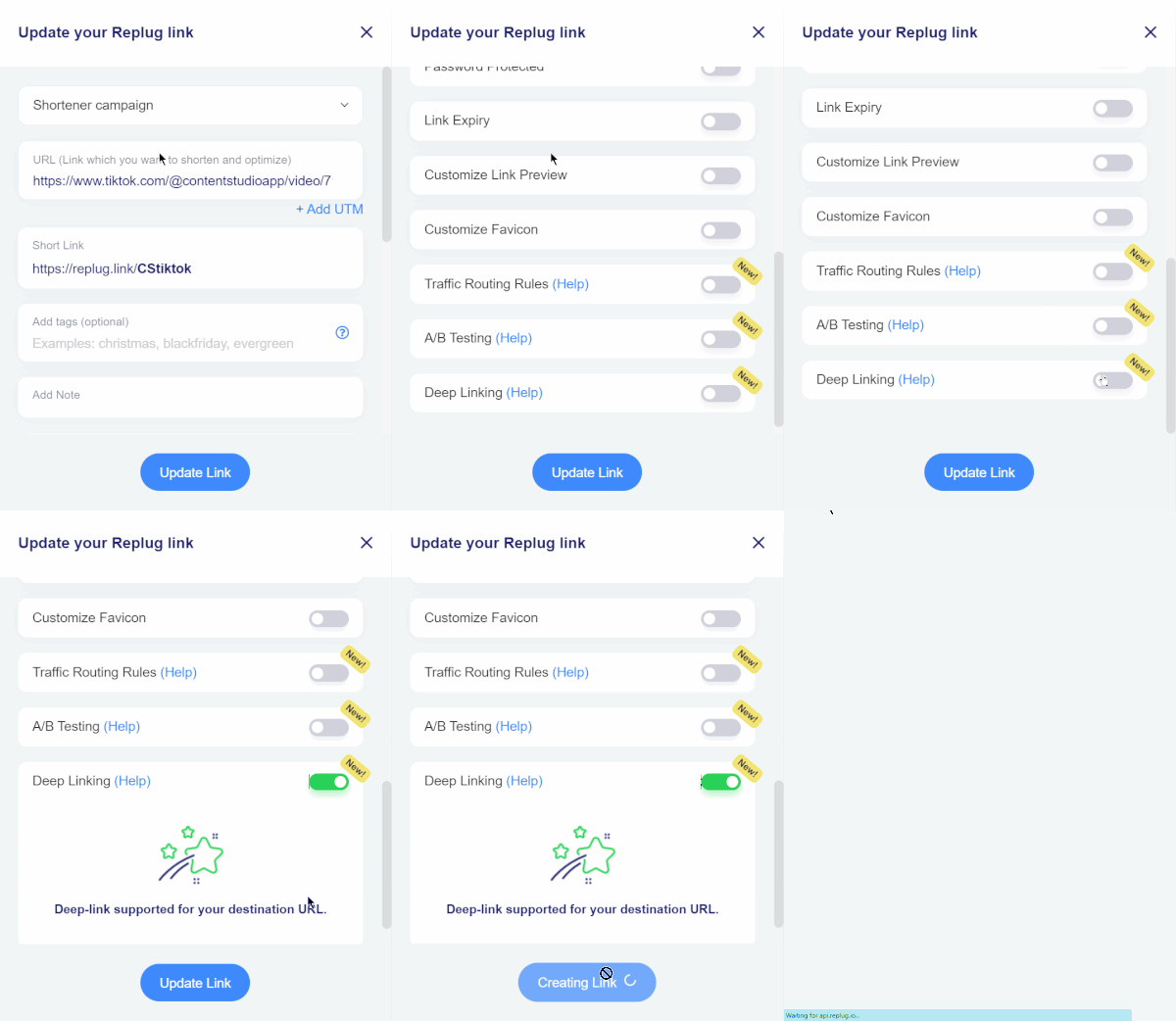
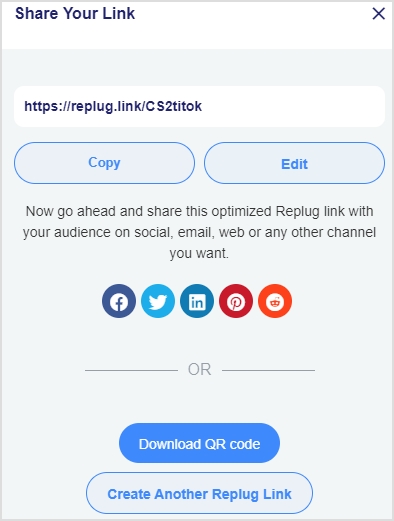
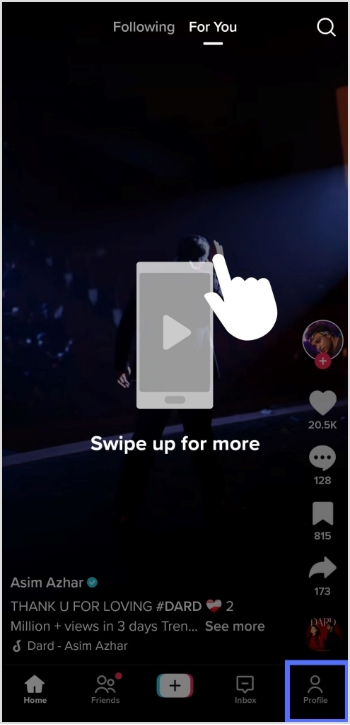
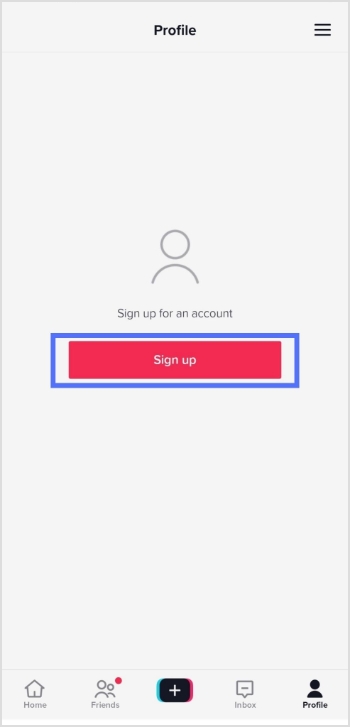
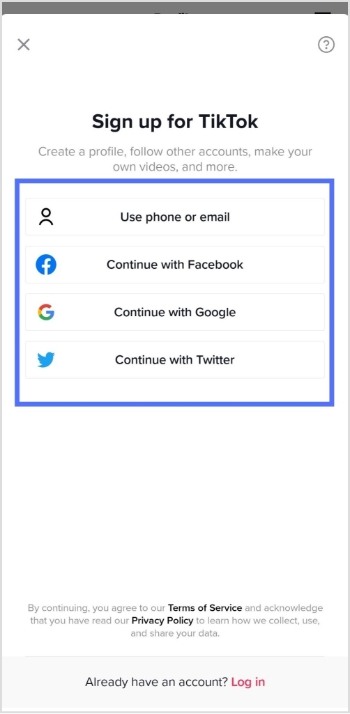
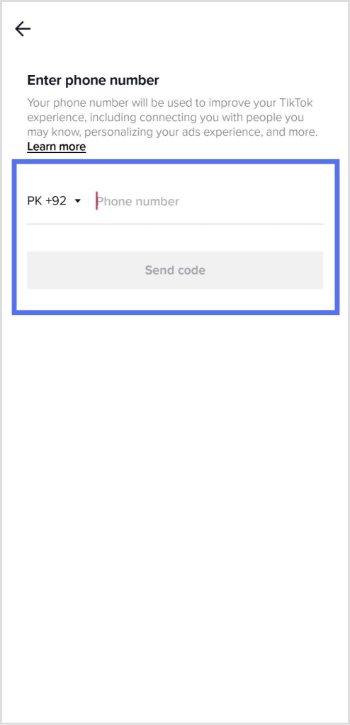
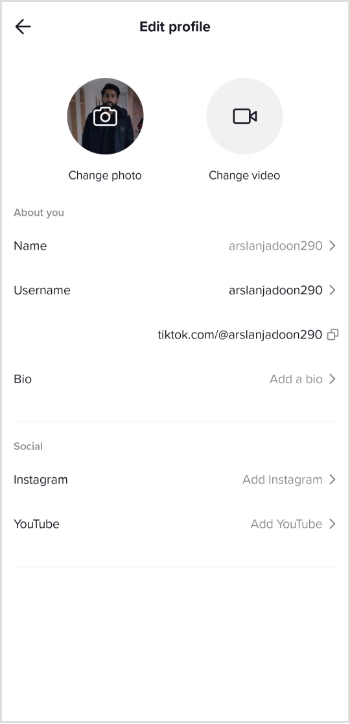
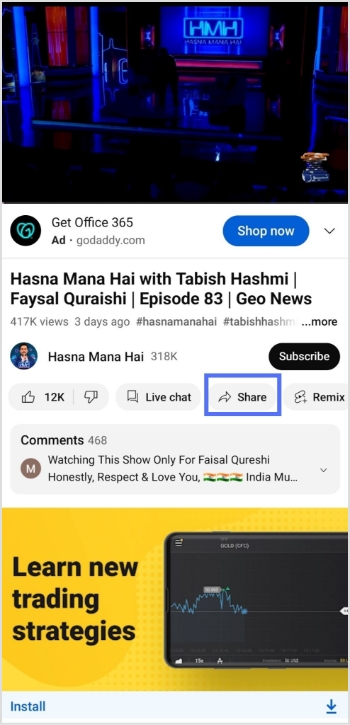
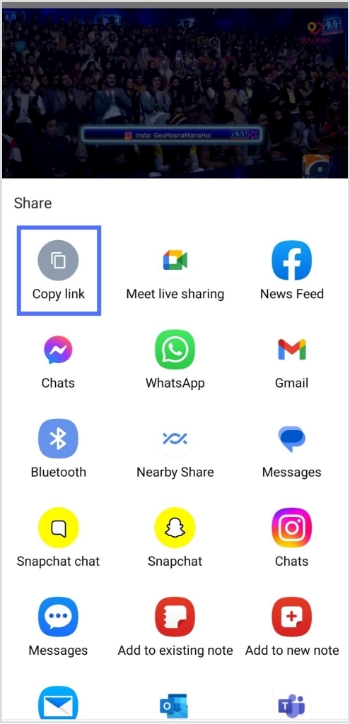
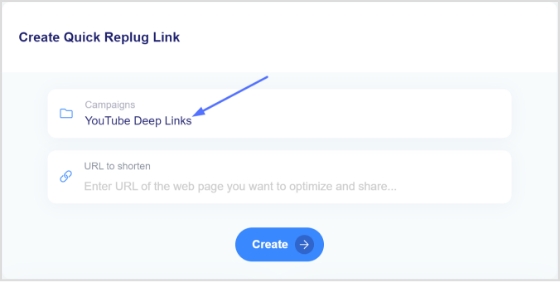
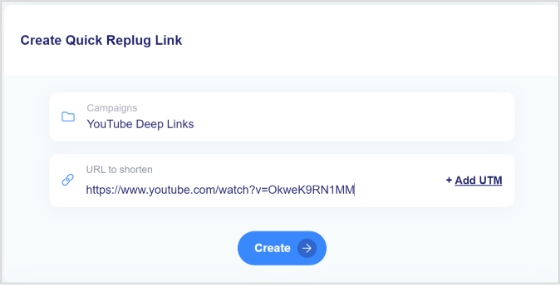
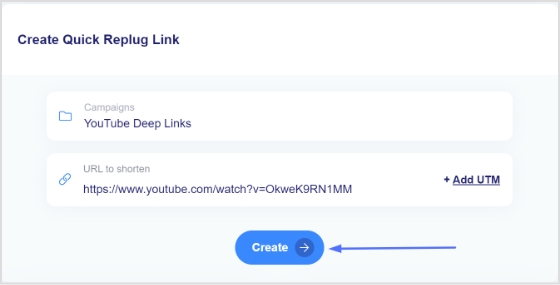
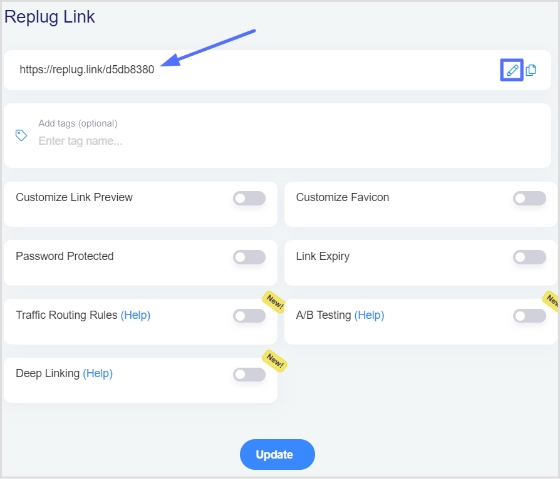
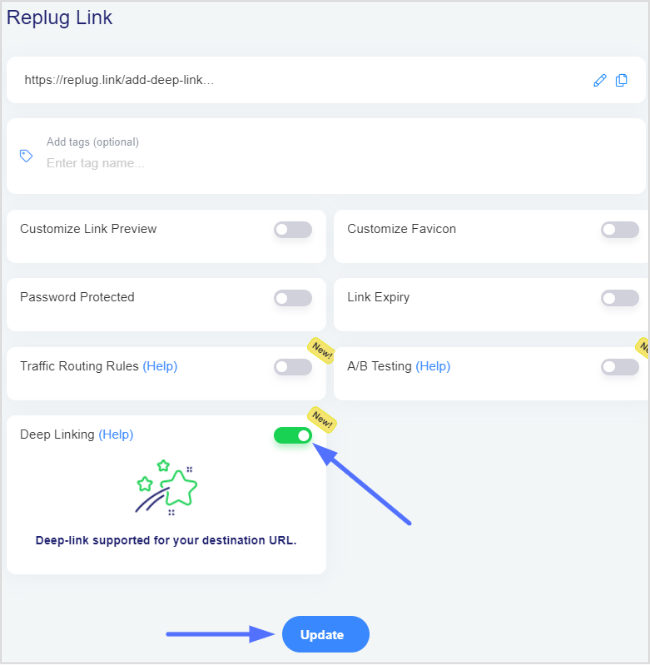
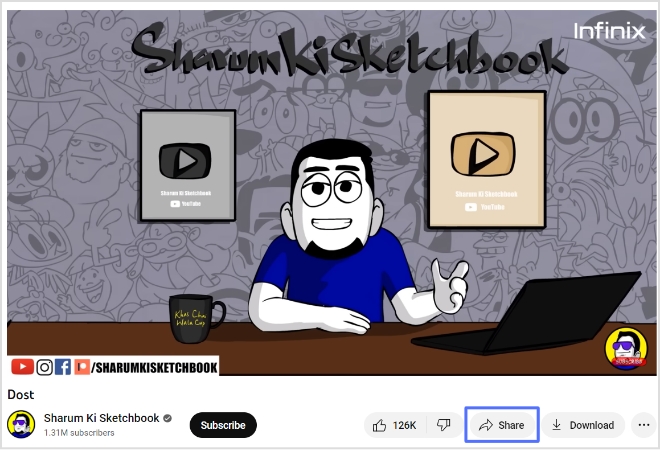
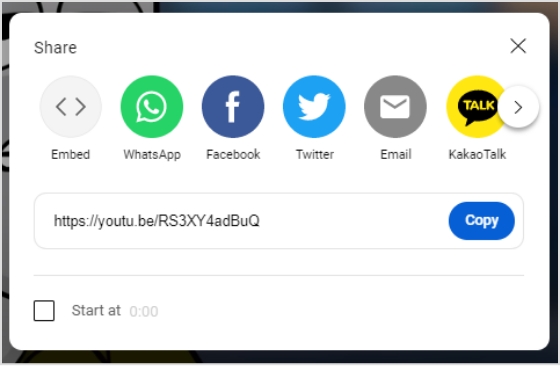
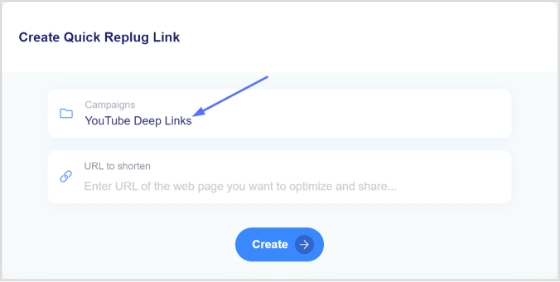
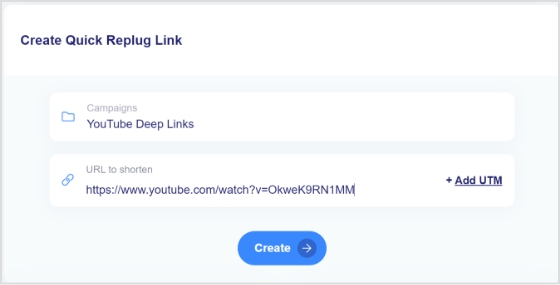
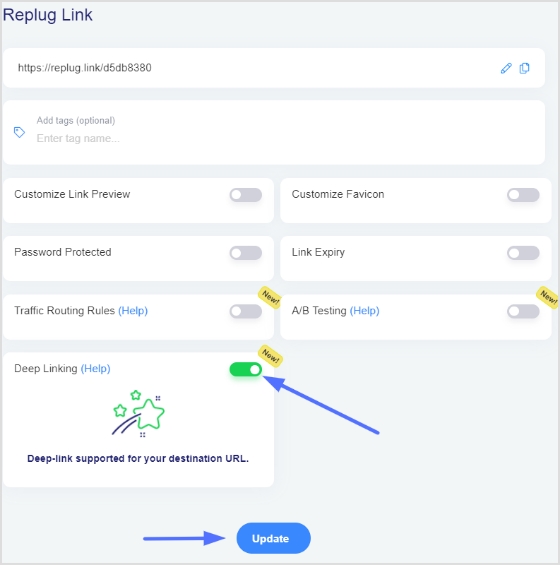

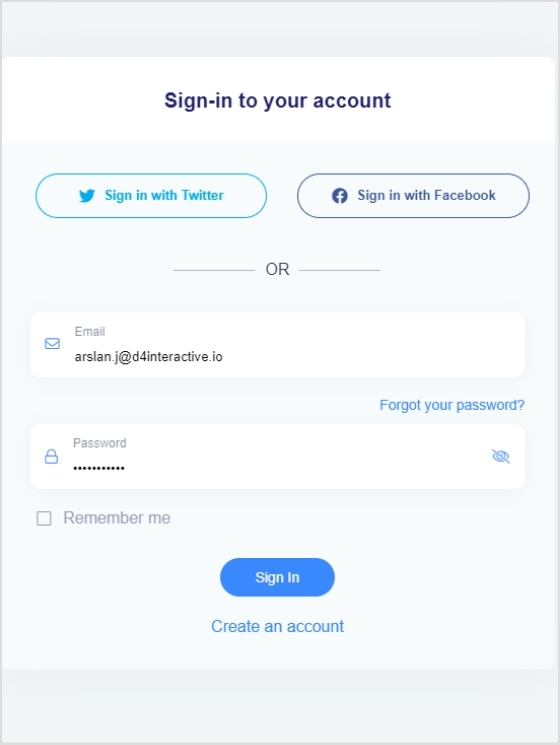
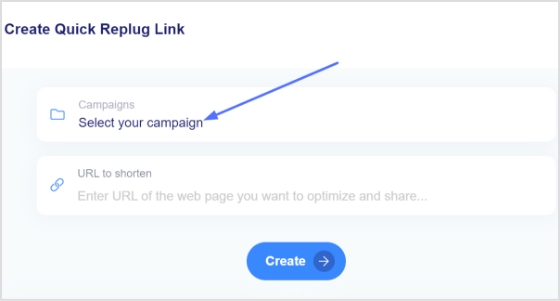
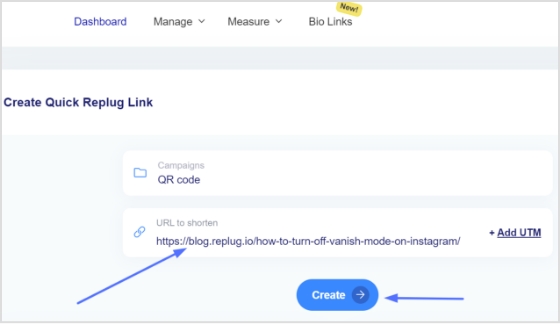
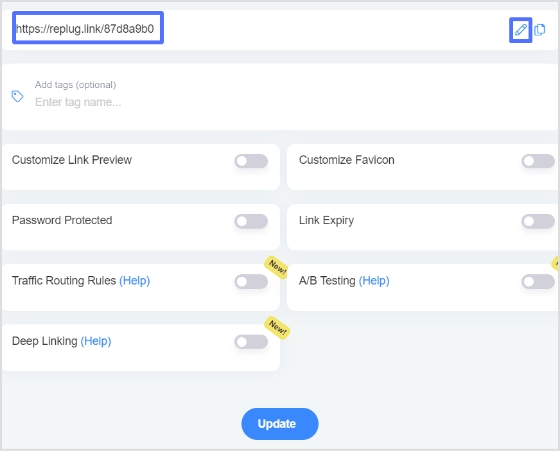
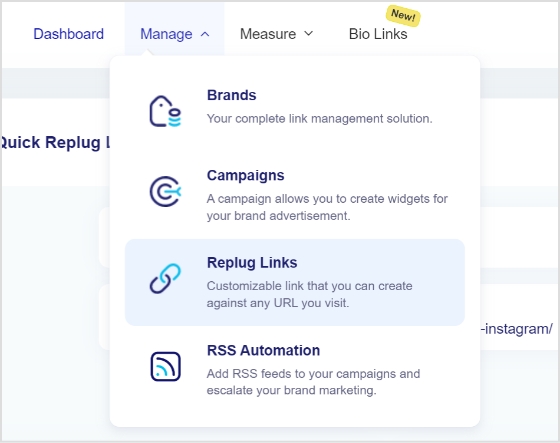
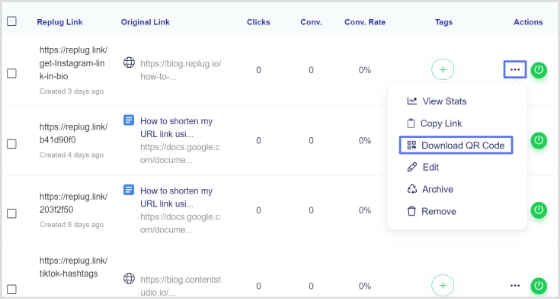
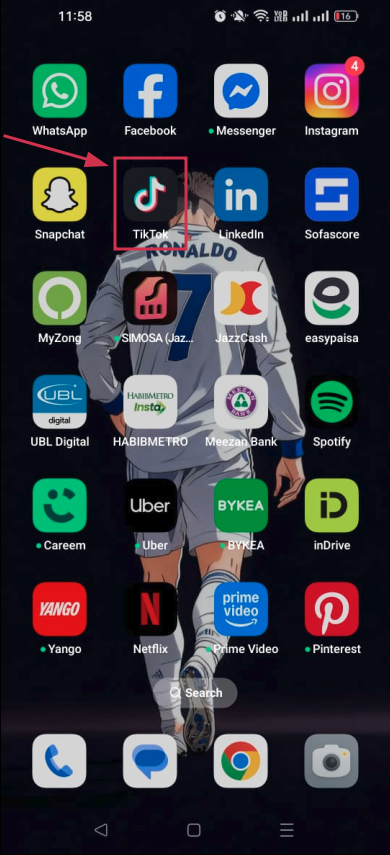
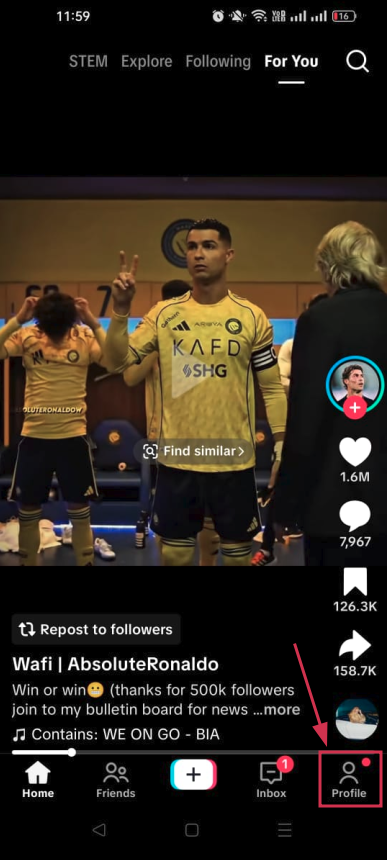
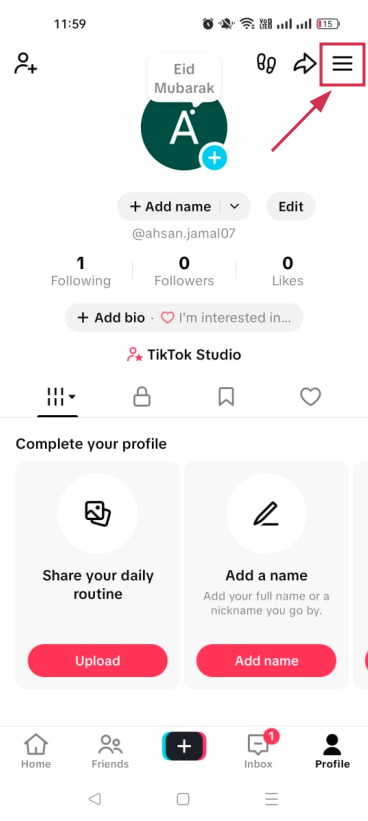
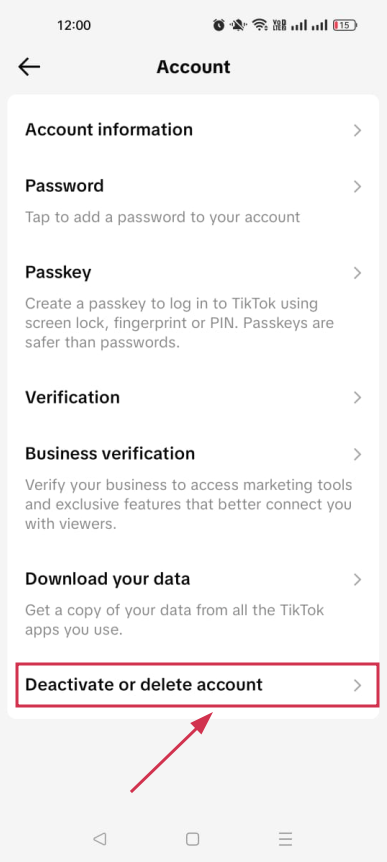
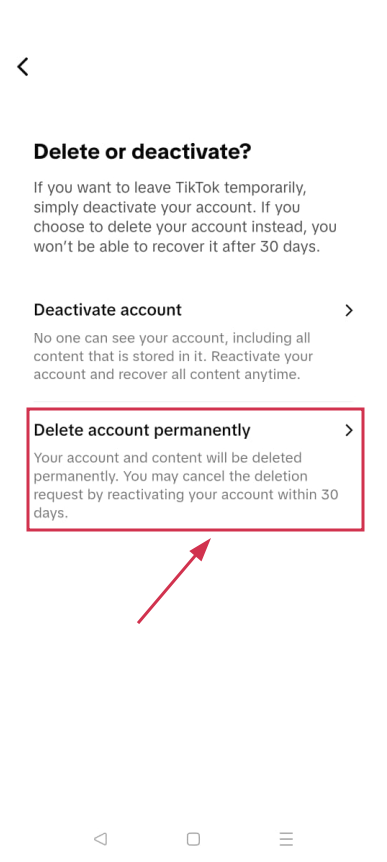
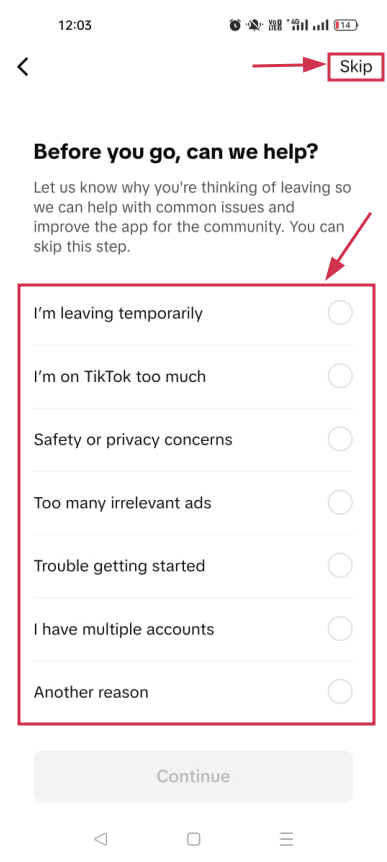
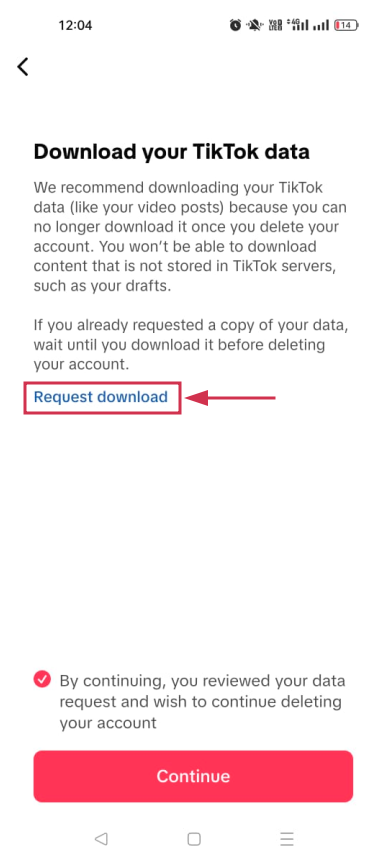
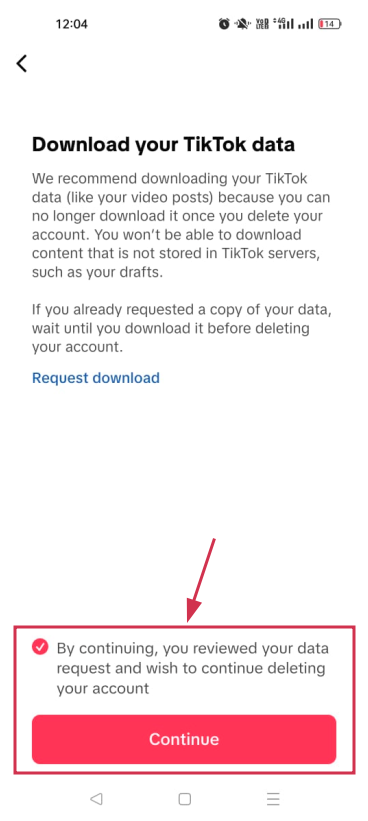
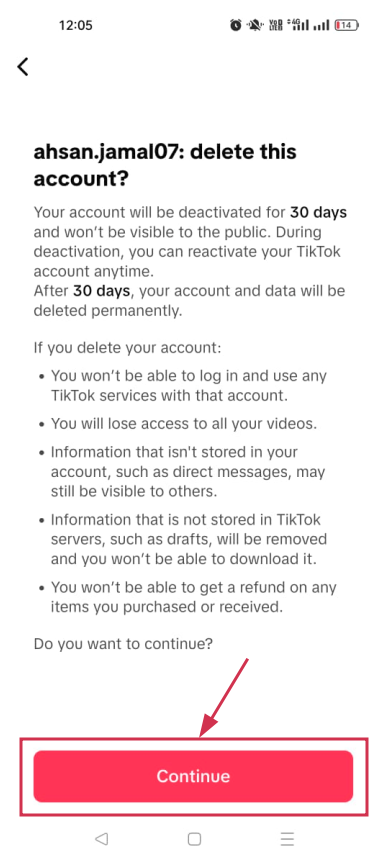
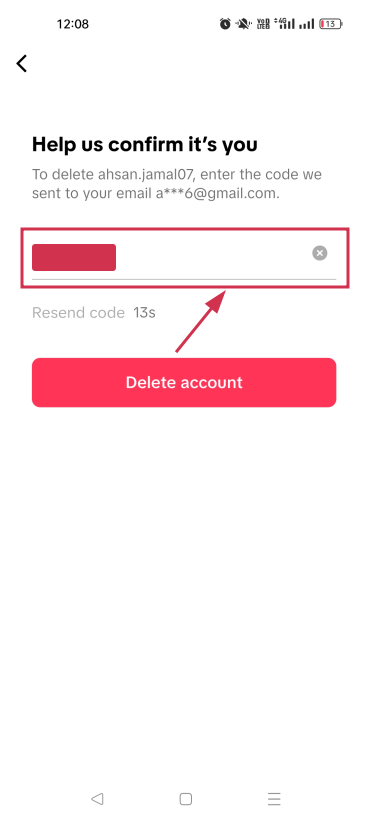
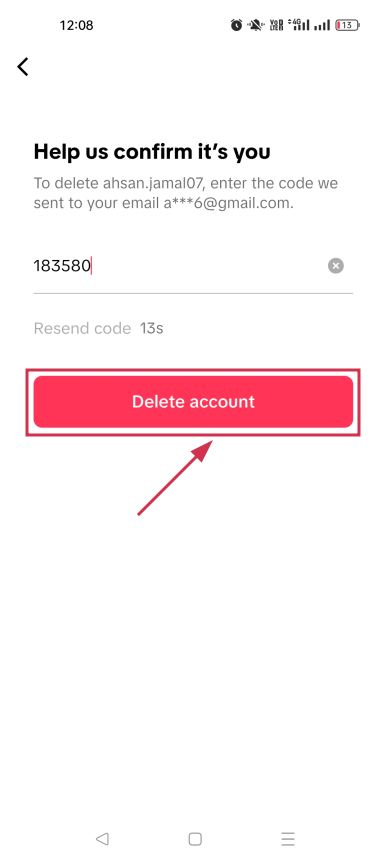
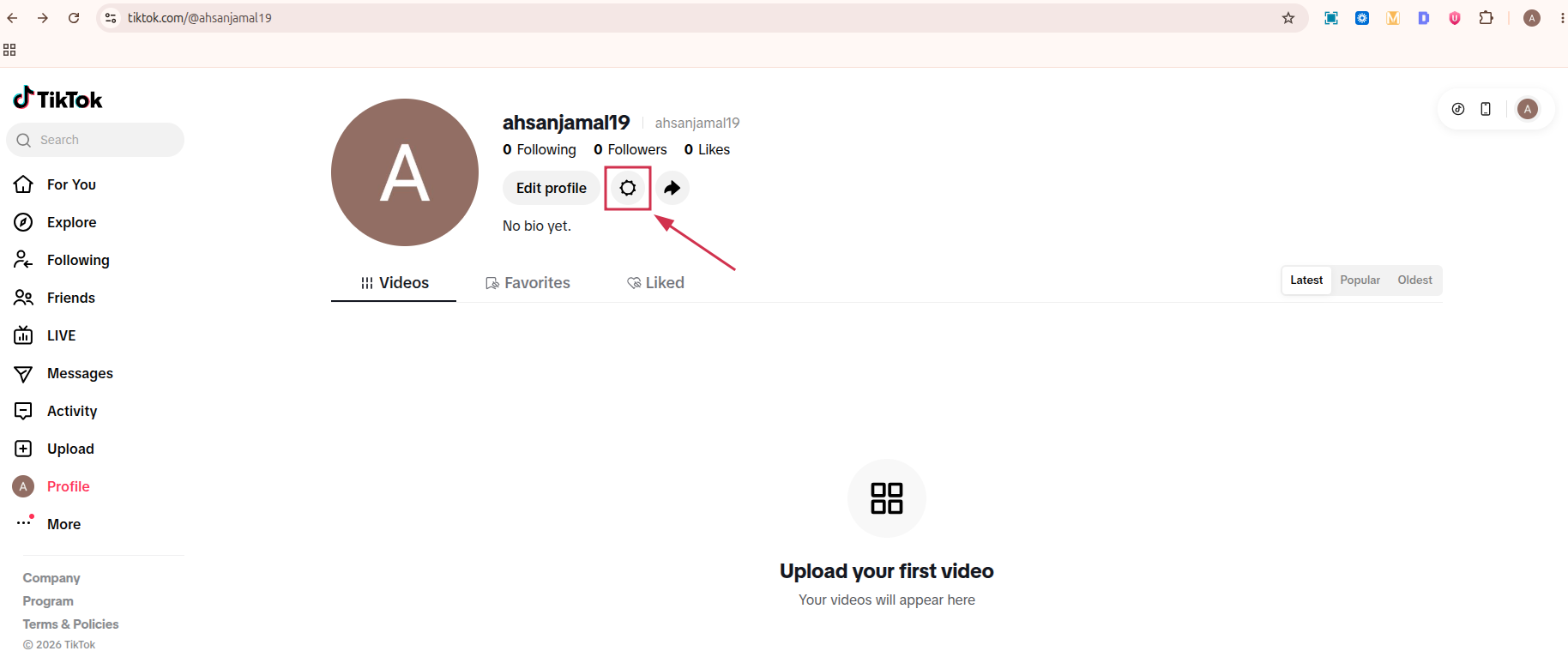
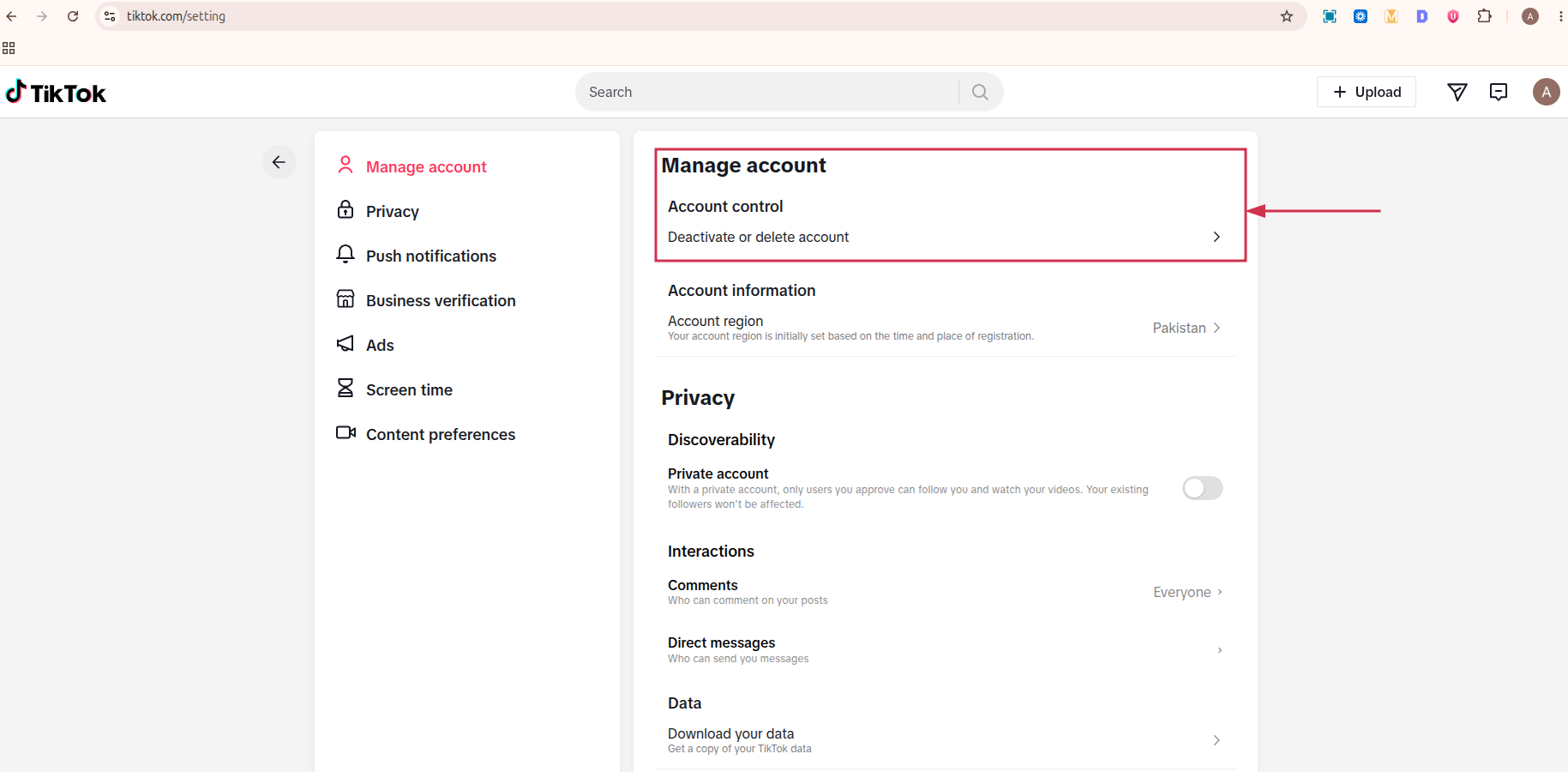
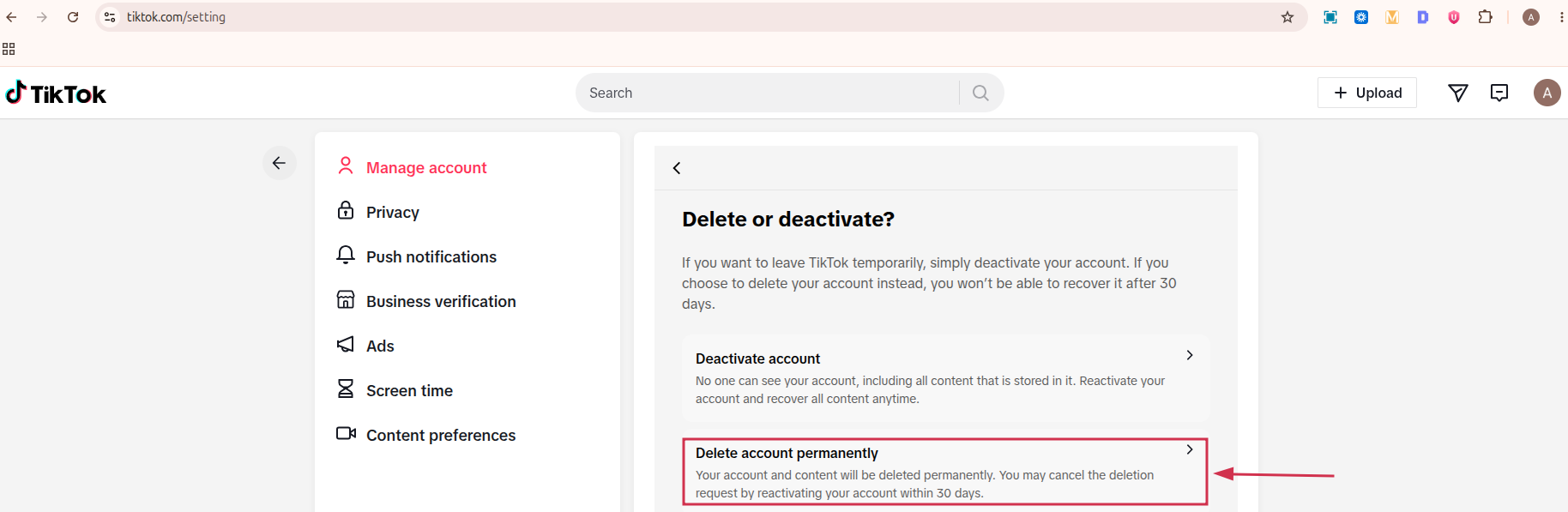
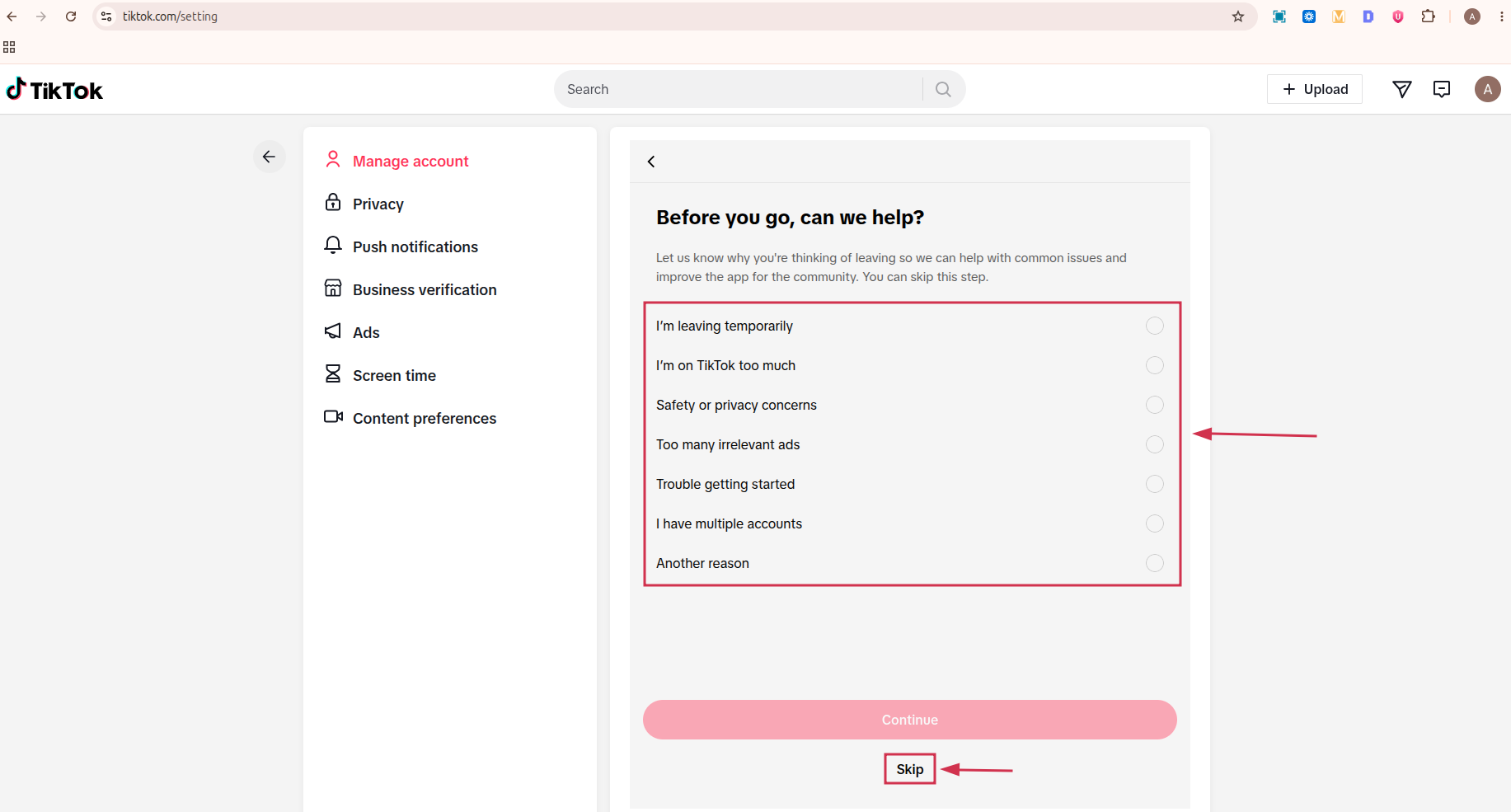
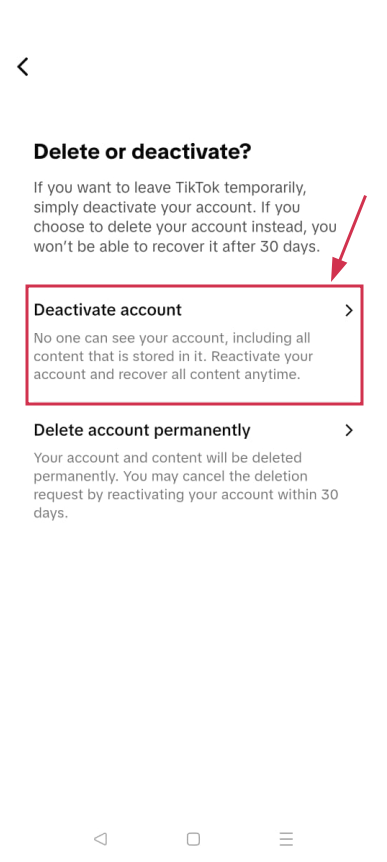
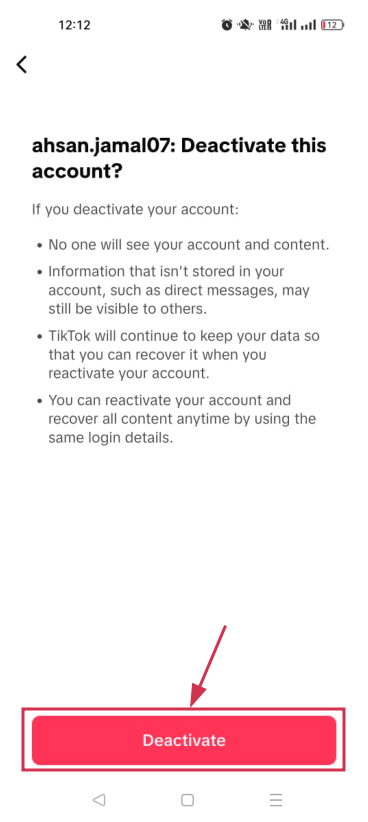
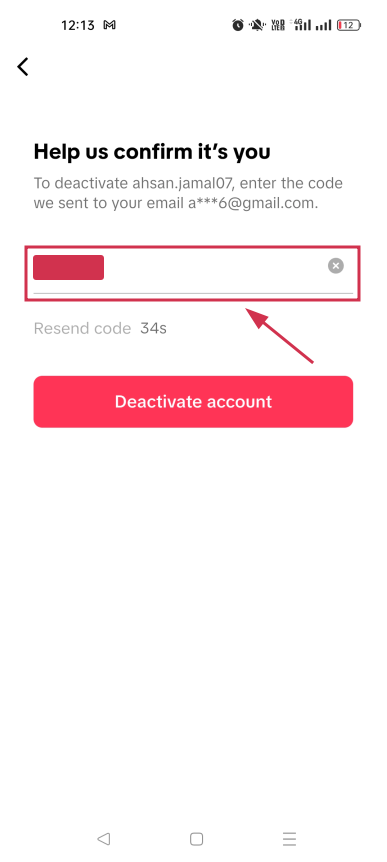
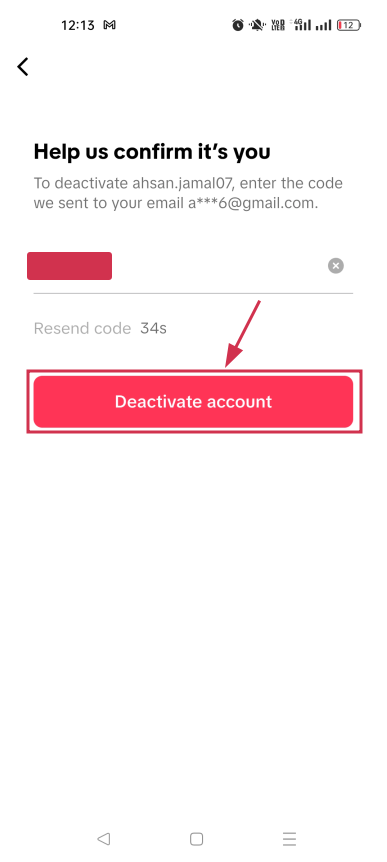
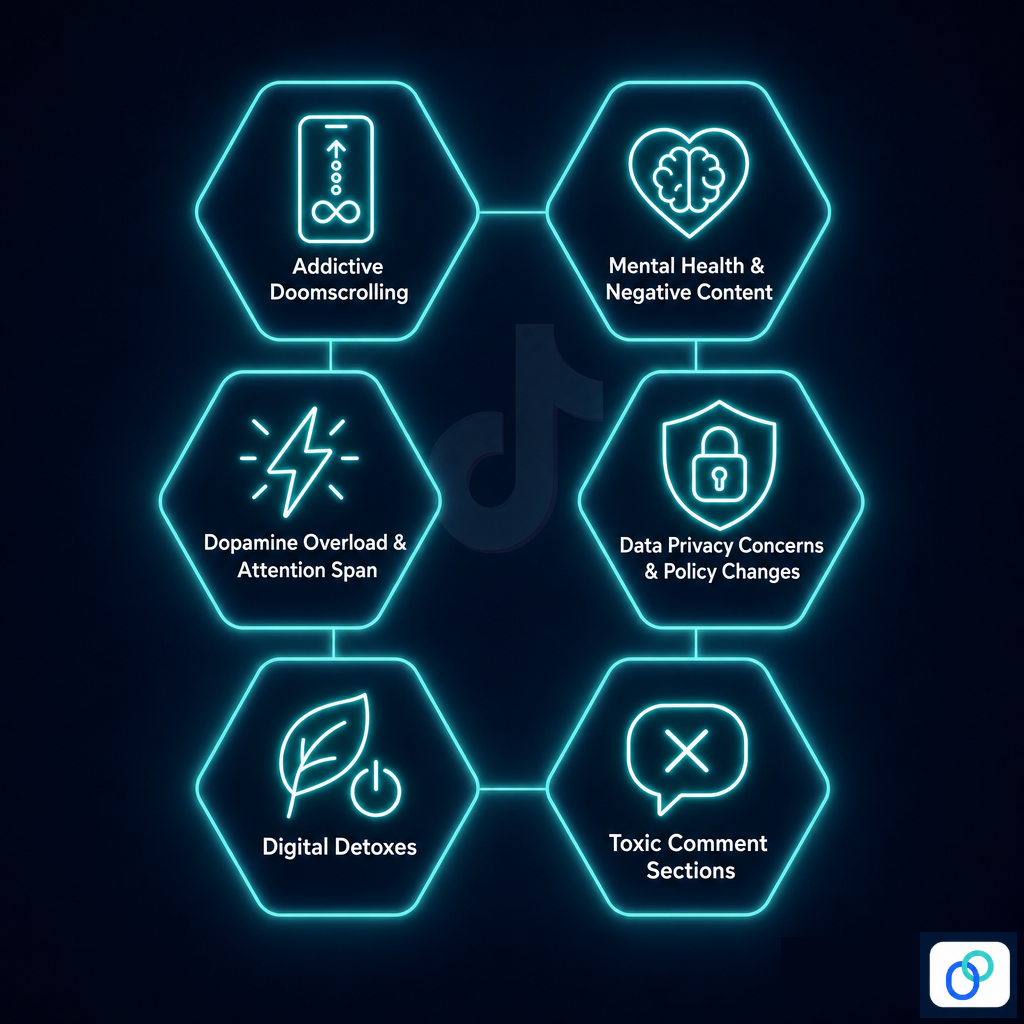
![How to get YouTube URL link: A detailed guide for everyday YouTubers [2026]](https://internal-blog.replug.io/wp-content/uploads/2023/01/How-to-get-YouTube-URL-link-A-detailed-guide-for-everyday-YouTubers-2026.png)