Blog

  • Content marketing best practices

    Content marketing best practices

    Want to tap into the latest content marketing best practices to ensure you’re doing what’s best for your business? Then, you are in the right place. In this piece, we dive into the latest content marketing best practices for 2026 that are a must-do. 

    Content marketing is one of the most critical marketing strategies for companies today. After all, content is king. The right content can help you win new customers, expand your company’s reach, and generate more leads. But inappropriate content can backfire and hurt your brand more than anything else.

    That’s why smart marketers use Replug.io, to manage, brand, and track all content-related links in one place and make content distribution more efficient across channels.

    Here are some Semrush stats and facts that you must know before developing a content strategy for 2026.

    • High-performing content types were videos followed by blog posts, success stories, and case studies.
    • The top channels for AI content distribution were organic social media, email marketing, paid social media, and organic search.
    • The top 5 content marketing challenges were attracting quality leads with content, promoting content, creating content that resonates with the audience, proving ROI of content, and improving the SEO performance of the content.

    What are the Pillars of Content Marketing?

    The pillars of content marketing are as follows

    • Creation
    • Insights
    • Audience
    • Distribution
    • Experience

    Content Marketing Best Practices

    Below we have discussed each of the content marketing best practices. We’ve also shared amazing content marketing tips to help you put them into action and overcome the challenges. By organizing information into structured content, you can make your strategy more scalable, consistent, and easier to repurpose across different channels. Ready to up your content marketing game?

    Let’s dig in:  

    1. Increase Use of AI-Technology

    AI Technology is becoming a significant game-changer, and it will add more innovation to the business practices in the coming years. For example, AI-based content generation tools like Vondy, Jarvis, and Sonic help put out larger quantities of content with lesser effort.
    But the negative side of AI tools is that they can affect the authenticity of the content.

    How to Make the Most of AI Tools?

    Google AI is getting smarter day by day, and it can detect AI-generated content. However, using cheap AI will surely cost you as Google will not rank such articles. Here’s what you can do:
    • Do not completely generate a piece of content as user-generated content has a higher value.
    • Write a piece of content and improve the content structure using an AI writing tool.
    • Use AI tools such as Grammarly to refine your content.
    • Use Super AI Humanizer or Quillbot’s AI humanizer to efficiently humanize the AI-generated text.
    • Many keyword research and content analysis tools, such as SEMrush, Ahrefs, etc.., give you a better idea of what keywords to use and perform better to rank Google SERP. However, it’s always good to explore other options as well. If you’re looking for different solutions, Semrush alternatives can offer unique features and pricing models that may better suit your needs.
    • Tools like answerthepublic.com and Sparktoro.com help determine what the audience is talking about.

    AI is not confined to automatic writing but also other technologies. For example, the use of AI-based chatbots is increasing, and by 2027 it will drive $112B in retail sales. In addition, as AI, machine learning, and Natural Language Processing grow, chatbots will become more used as 24/7 customer service agents.These advancements also play a crucial role in managing high call volume, ensuring efficient and timely responses to customer inquiries

    Here’s a statement of SEO expert Eli Schwartz on AI Technology

    Eli-Schwartz-on-AI-Technology
    Source:contentmarketinginstitute.com

    2. Use of AR and VR

    Since 2020, augmented and virtual reality use has doubled as 85 million people used VR/AR technology in 2025. It is expected that the market size of the VR industry will grow up to $300 billion by 2026. Also, VR and AR enhance user experience so that they will become an integral part of the content marketer’s strategy and content. With innovations like Apple VR, companies are pushing boundaries, making these technologies more accessible and immersive for consumers and businesses alike. Another practical example is Banuba makeup AR, which lets brands add virtual try-on experiences that make AR-powered content more interactive and conversion-friendly.

    Why Incorporate AR and VR into Your Content Marketing Strategy?

    • Augment Reality

    3D imaging and AR have become a popular part of the e-commerce industry. Incorporating AR tech gives customers higher visibility on how the products will fit the actual space. Evolve your content strategy to evolve the customer’s shopping experience for years to come. 71% of consumers believe AR technology will positively impact their purchase decision.

    Future of Augment Reality
    • Hybrid Events

    The pandemic has given businesses a long break from hosting in-person events. Now that doors of streaming events live have reopened, 93% of marketers plan to invest in virtual events as it is allowing them to reach a wider audience. It’s believed that a hybrid solution of both offline and virtual events is the way to go in the future.

    If you are a start-up or if it’s your first time hosting an event, then holding an online webinar or live session would be suitable for you. However, a hybrid strategy is better for more prominent companies as virtual events significantly drive traffic and leads. Do invest in a good microphone and camera setup.

    3. Incorporate Data Driven Content Marketing

    When people think content, they often think creative. But in reality, great content marketing is a blend of both creativity and data.
    A proper data-driven approach to a content strategy can help brands avoid wasting resources by trying to connect with the wrong audiences in the wrong places. Data can help identify target audiences and their trending topics, channel-specific preferences of potential customers, and the influencers most relevant to those groups.

    The difference between good and great will be a brand’s ability to leverage data-backed insights. Data insights empower content marketers to create more impactful content. Be sure to incorporate data-driven analysis into the following areas of your content strategy.

    Deliver data-driven content marketing using the below tips.

    Go for Hyper-Personalization

    Customer hyper-personalization goes beyond simply addressing them by name. Instead, it caters to their wants, needs, and preferences. Hyper-personalization creates unique interactions with each customer by using data, analytics, automation, AI gateway, and artificial intelligence.

    In doing this, marketers cater content to each buyer’s persona, using targeted products, marketing channels, and language. Brands such as Amazon, Netflix, Stitch Fix, Naked Wines, WES, and VI Trainer already using hyper-personalization strategies effectively.

    Leverage Influencer Marketing

    What makes influencer marketing so powerful?

    Trust cannot be manufactured. An influencer’s fan base is as powerful as a friend’s recommendation when endorsing a product, service, or business.

    In addition, real stories shared by real people have an impact. Considering all these factors, you will see higher sales and better-qualified clients.

    Understand what your target audience discusses and to whom they listen. For example, if you create joint content with other companies and people in your field with a broader audience, your content marketing will be most successful.

    These brands attribute their social media following gains according to their influencer strategies. Over a single year, GNC credited social influencer targeting with over 380,000 new Facebook fans.

    In the B2C and D2C spaces, influencer marketing is now established, and the days when influencer marketing was a dirty word in the B2B sector are now long over.

    More B2B businesses will embrace influencer marketing and sponsored user-generated content this year, two of the most successful marketing methods.

    Related: Top 10 Ecommerce Influencers You Should Follow in 2026

     A/B Testing Of Content

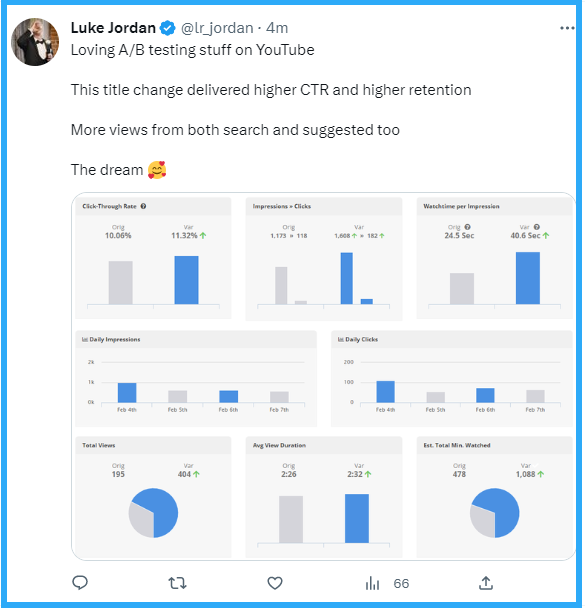
    Content creation requires more than intuition. The aim is to create content that’s accurate, relevant, and based on user needs. It’s possible to test your content’s effectiveness using A/B tests.

    Through A/B tests, you can gain insights into user behavior and what elements influence vital metrics. Conversions, bounce rates, customer confidence, and revenue generation are some metrics. Revenue increases are a more tangible metric than something subjective like visitor experience.

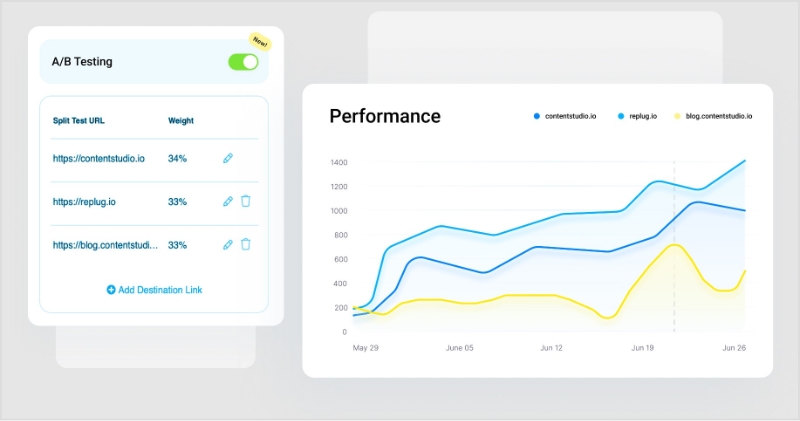
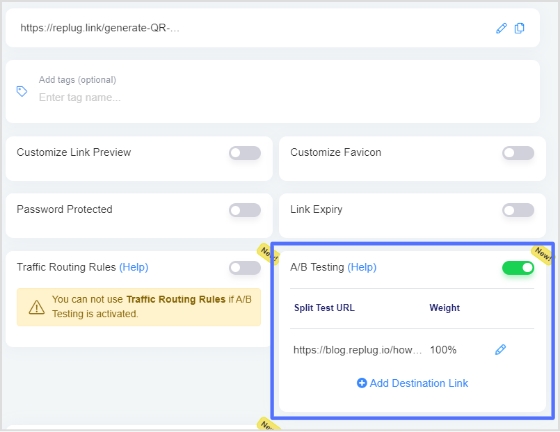
    Best URL shorteners include features such as creation of branded links, A/B testing of landing pages, traffic routing, traffic analytics, etc., that amplify your content marketing campaigns. Get a URL shortener, create branded short links and use the content that gives you the most traffic and conversions.

    4. SEO Content will Win  

    In 2019, Google processed over 3.5 billion searches daily. In 2022, it’s 8.5 billion searches per day. Translation: everyone will race for the search engine results pages (SERPs) to rank better for improved brand awareness and organic traffic. 

    We have a comprehensive guide on how to publish content that ranks, but here are some quick tips to get you started:   

    Content Optimization

    •  Target long-tail keywords or key phrases with less competition to rank better  
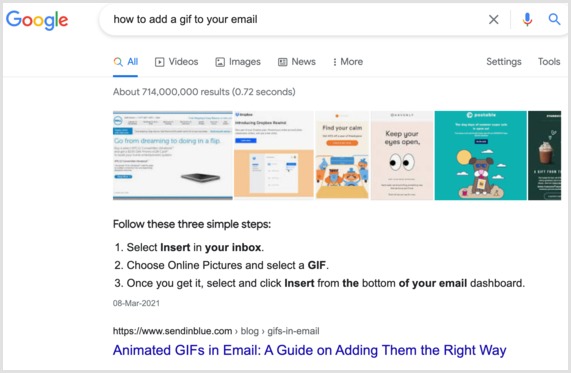
    •  Answer frequently asked questions. Perhaps they’ll land you in Google’s Featured Snippet. 
    SEO Content Trends
    • Structure your content based on questions asked by the searchers. Get these insights from the ‘People also ask’ and ‘Related searches’ sections.  

    Not to forget, focus on quality now more than ever. “It will become more difficult to crush it with SEO because the competition will be stiffer, but we’ll see a major increase in the quality of content that brands publish.” Odak comments.  
    So what’s quality content, again? First, it’s content that solves your audience’s problems–thoroughly answering their questions. Second, the content reflects expertise, authority, and trust (E.A.T.).  

    While building your brand’s authority takes time, for instance, by consistently creating content on specific topics to help visitors, you can work on improving your expertise right away. How? By interviewing subject experts.  

    Let’s give you an example: for this piece on how you can grow your YouTube subscribers, we reached out to someone who’s done it so that we can share actionable advice with you. See? Doesn’t that make the guide even more trustworthy? 

    Additional tip: Use AI tools to create SEO-optimized content. Explore the best AI tools for business to streamline your workflow. As AI becomes a bigger discovery channel, platforms like ZeroRank AI help brands track and improve how they appear in AI-generated answers.

    Mobile Optimization

    It doesn’t matter how great your website content is. However, suppose it isn’t optimized for mobile. Then, You are about to lose out on a massive part of your audience. Content marketers will probably continue to pay close attention to this trend as most searches will come from mobile devices.

    Voice search is expected to rise as apps like Siri or Alexa have become popular in asking about any random query.

    One of our top content marketing best practices for 2026 is to answer questions with long-tail keywords.

    Significance of Core Web Vitals

    Algorithms and search engines have improved and are more sophisticated. Strong web vitals contribute to better search engine results. All content marketers should optimize speed for desktop and mobile, images with the proper tags and labels, and even a site map.

    These technical elements must contribute to the visibility of your content, just as a wall hook or picture hanger contributes to a painting on your wall. A big mess is inevitable if you do not follow the proper structure or fundamentals. Don’t let this happen to your content! Instead, implement technical SEO tactics to maximize your content visibility.

    5. Prefer User Generated Content

    User-generated content (UGC) has become an essential component of content marketing strategy in today’s era when customers are ready to talk about your services and products online. In UGC, users create content about brands.

    The Nielsen Consumer Trust Index reports that 92% of consumers trust organic, user-generated content over traditional advertising.

    Ways to Use UGC 

    • Reviews

    User reviews show potential customers that your products and services are reliable. 

    • Video

    You can connect with your audience through videos in ways that other media cannot. In addition, you are much more likely to gain sales from user-generated videos since they are more likely to go viral.

    • Gamification

    It is another way to create UGC and engage users. Gamification aims to allow users to earn points and rewards for completing specific tasks.

    • Holiday Season Content

    During the holiday season or other special events, consider great ways to incorporate UGC into your content marketing strategy. Businesses can engage with customers at an emotional level in several ways. For example, Starbucks runs the #RedCupContest every year during the holiday season and invites its fans to take part by sharing their personalized coffee cups across social media to win Starbucks gift cards.

    Holiday-Season-Content-Marketing

    Related: 10 content marketing tips to drive conversions and build loyalty

    6. Content Repurposing will Grow

    Speaking of creating content, content marketers are getting smarter with repurposing it to get the most from it.  

    60% of content marketers repurpose content. 

    This alone reveals how marketers value reusing content. Essentially, content repurposing helps you get more eyeballs to the content you create. Not everyone in your audience might be a reader, for example. So you can always take the blog post’s content and make a video of it for the video-lovers in your audience. 

    Repurposing helps keep your content bank full to the brim. With your content pool complete, you can consistently grow your online presence and support your community-engaged while saving time.  

    How to Repurpose Content?

    It’s easy to assume that content repurposing involves copying and pasting content from one platform to another, from your blog to a Medium publication. But that’s not what it is about.  

    Content repurposing is creatively tweaking and reusing content you’ve created in different formats to use on other platforms. For example, curating medium-length articles on the same topic idea into an eBook by developing a narrative for them, so they’re all arranged. Then, reading them is easy for the reader (and makes sense too). Capeesh?  

    Now follow these two steps to start content repurposing today:  

     One, look at your content performance metrics 

    Example: dig them out from Google Analytics. If a piece on evergreen content is doing relatively good or a video has impressive views, consider repurposing it. But hang on. Why look at this metrics? So you know that you’re recycling content that’s popular with your audience since it resonates with them.  

     Two, decide which format you want to recycle content into  

    You can always turn blog posts into videos, Facebook and LinkedIn posts, Quora answers, and Twitter threads. You can get exciting stats from your written content into social media graphics or present steps in a LinkedIn carousel.  

    Also, you can do the exact reverse. For example, if you write Quora answers addressing different questions people have on the same topic, you can put them together into a blog post. Similarly, you can take all the social media stats graphics and package them into an infographic for your blog.  

    These are but a few ideas to repurpose content. Check out these 50+ ideas to repurpose content here.

    Related: The complete guide to content remarketing: 20 tips and examples to re-engage audience

    7. Infographics

    Diversifying your content will allow you to reach different audiences.

    To achieve success, companies need various content types across all marketing channels. The human brain is receptive to images, increasing the likelihood of consumers engaging with them more quickly. As a result, consumers will continue to be attracted to visual content, particularly infographics.

    Well-created infographics can be a great source of helpful information.

    Infographics allow consumers to engage, gain information, and understand quickly what you are presenting simply by a glance. Visual learners will particularly benefit from infographics.

    For example, Hiive recently used a simple yet powerful infographic in their breakdown of Figma IPO insights, visually comparing the IPO performance of multiple companies, making complex market insights easier to grasp at a glance.

    Visually appealing and informative content contributes to a more engaging customer experience and improves message and communication.

    It can convey information using graphic representations of data or knowledge in less time.

    Infographics are essential for content marketing because, as the saying goes, a picture speaks a thousand words.

    Infographics: a Content Marketing Trend

    Here are some additional stats from recent HubSpot Blog Research:

    • Infographics are graphics that provide a visual representation of data or explain a concept. They are typically used to communicate important information quickly, and 45% of marketers who leverage content marketing use them.
    • According to 56% of content marketers, it’s the most effective marketing type.
    • Most marketers will invest the same amount in infographics over the next 12 months.
    • Information graphics are popular because of their shareability, aesthetic appeal, informative nature, and ability to provide helpful information to the reader.

    8. Personal Brands will Take Over

    For businesses, personal branding has been the talk of the town lately. That translates as having a brand identity and a voice while letting your employees take the online stage.  

    This comes with multiple benefits: it shows your work culture, helps you grow brand awareness as people come to know your employees, employees share behind-the-scenes content, and many other things.  

    Having an online presence also means you can keep a pulse on your target audience’s likes and interests and maybe even source content ideas from them. It also means you can grow your authority, promote content and grow an online community.  

    If you’re not ready, simply bring your social team forward. SEMrush’s Diana Richardson is famous in their Twitter circle. 

    SEMrush's Diana Richardson

    How to grow your Online Presence? 

    • Pick a Platform 

    This could be a social media channel or a Q&A community like Quora or Reddit.  

    • Create an Action plan 

    Answer: How do you plan to engage on the channel? What content will you share with your audience? How much time will you invest? Who’s going to be involved? Don’t forget to jot down precisely what you stand about so people can see your human side.  

    • Be Consistent 

    When all’s said and done, consistency is what’s going to take you to success. Show up regularly, share value, and focus more on ‘giving’ than ‘taking.’

    Related Read: 9 hottest content marketing platforms to look for in 2026

    9. Video Marketing is going to be big, including Live Streaming

    People are in love with videos, and whether it’s a virtual event, a social media live streaming session, an informal Zoom coffee hour, live audio streaming, or a pre-planned webinar series. And marketers are already making the most of it in a zillion ways. In 2026, videos will be the leading source of internet traffic (82%). Furthermore, 93% of marketers say videos are essential for their marketing strategy. While, 86% of marketers believe videos will be a crucial source in getting leads.

    Video Trends to watch out for in 2026

    • Short-form videos will be the significant video trend.
    • Using interactive videos will increase.
    • CTA’s in videos will increase leads.
    • Live streaming videos, such as Vlogs, Webinars, etc., are becoming an essential part of content marketing strategy.

    Using videos as a storytelling approach in content marketing connects you with your target audience. People watch live streams 10-20 times longer than on-demand content. You know what that means, right? So you got to invest in video marketing if you already haven’t. But don’t worry, you don’t have to break the bank doing so.  

    DIY video creation tools can help you create videos from templates. Thus, making the job easy to do, quick and cost-effective. Besides using a DIY video tool to create intro videos, customer testimonial videos, client onboarding tutorials, etc. Therefore, considering going live is a must. Exclusive AMA sessions, masterclasses, fireside chats, live tutorials, and sharing behind the scenes content are some ways to engage your audience with live video.  

    How to start with Video Marketing  

    The following steps will help:  

    • Get Started with a Plan First 

    How many videos do you aim to create? What content will you cover? Who will you target, and at which stage of the buyer’s journey?  

    You’ll need an action plan covering where you want to stream (YouTube, Facebook, Instagram, TikTok, or LinkedIn), what content you want to protect, and how you’ll engage your audience.  

    Don’t forget that you need a content sharing plan for videos and live streams. 

    • Get your Gear  

    We’ve already suggested InVideo as a video-creating tool. Just make sure your video specs are correct since each social platform has a different requirement. 

    If you’re planning to create a video by recording your screen, plenty of AI tools and Loom alternatives can make the process easier and more professional. For live streaming, most social platforms already offer free built-in options. The key is to choose the platform where your target audience spends the most time and start creating from there.

    Suppose you find yourself divided between two or more platforms. Then consider live streaming on multiple platforms. How? By simulcasting using a tool such as Vimeo that supports it.  

    Suppose you are ready to shell out some money. In that case, it’s a good idea to get some low-cost live streaming tools, including a microphone, camera, or even a tripod and an encoder. 

    • Prepare an outline and Shoot  

    The script is also a crucial part of the video content. Whether it’s a live stream or template-based video for your social media, you need to be careful with your words. So, an essential step is to work on your script. Then, once ready, start creating.  

    10. Audio Content

    Audio content is as popular as video content. Instead of a video ad, real human voice-based interaction builds trust among consumers. The number of voice assistants users is continually growing. Therefore, optimizing content for voice search has become a necessity. It’s no hidden truth that the trend of Podcasts will keep growing. Apps like Clubhouse (audio chatroom) provided new ways to reach out to customers.

    voice-search-optimization

    What to Do?

    • Set up your podcast as it offers an excellent opportunity for marketers to reach out to new audiences.
    • Optimize content for voice search.
    • Use good audio tools like Audacity’s Levelator tool to adjust audio levels in segments and ensure that your content is of top quality. This saves you time, so you don’t have to do it yourself!

    11. Targeted Content that Resonates with your Audience  

    Last year also taught content folks the significance of creating content that resonates with their audience and helps them through their buyer’s journey (the awareness, consideration, and decision stages).

    This understanding becomes even more practical for companies that outsource customer support services, as real customer questions often map directly to each stage of that journey.

    The Creative Marketing Alliance’s Director of Content Strategy, Kenneth Hitchner, notes, “Structured content that addressed a specific part of the buyer’s journey will go mainstream. More companies will adopt this style to reach their prospects along the sales funnel no matter where they are.

    This type of content program is long-term cost-effective — remember, this content is slowly replacing your ad budget, which is gone once it’s spent, at three critical things:  

    • Moving future customers down the sales funnel in a way that makes them believe it was their idea,  
    • Drive content engagement, which is a new-fangled word for ‘involvement’ that breeds commitment, and  
    • Connecting the marketing team with the sales team, blaming others for shortfalls. 

    How can you get to know your Audience in-Depth? 

    Four ways to learn about your audience:  

    • Talk to your Customers or Target Audience  

    Ask your sales team to get you connected with your loyal customers. So you can ask them about the challenges they face, how they prefer to consume content, and so on and on.  

    • Survey your Email list

    You can also share the same survey with your connections on social media. But remember: take the time to study the study to create better content.  

    • Take to Social Listening  

    Surf through hashtags to uncover what troubles your target audience and what sort of content they prefer to consume.  

    • Analyze Google Analytics  

    This lets you see what content gets the most views (therefore, resonates with your audience), your target demographic, and other details to polish your content strategy.  

    12. Improve Content Experience 

    Next up on content marketing best practices is a better content experience or making it easy for your audience to enjoy your content. Visitors need to stay on your site, love the content you’ve created, and enter your sales funnel.  

    How to improve the Content Experience? 

    Good page design involves a few fundamental things: readable font size and type, optimal use of white space, and a good color scheme. Medium, for example, is designed with content experience on the front with everything from the font type and size, white space, design elements used, navigation, and so on.

    Interactive content is one that your audience can engage with.  

    That doesn’t mean you create the next Black Mirror: Bandersnatch. A Netflix interactive film about a game developer, Stefan, who had to decide (that users made on his behalf) to develop a game. 

    Quizzes will also do instead. Women.com credits over half of its engagement to online quizzes, which helps it dominate even BuzzFeed! 

    Other ideas for interactive content include sliders, timers, calculators, tools, and interactive visuals. 

    Last, make it easy for readers to consume content. While the design does half the job, the way you format your content and write does the rest. We know that lengthy content may rank first on SERP, but most readers likely move on towards something shorter and digestible.

    Hitchner applauds storytelling as he states, “we’ve come a long way from keyword stuffing.” As search engine algorithms continue to advance, so will online marketing content.  

    Start connecting people to brands through the story. It will drive engagement and cut through the noise by helping others.

    Follow these tips to make your content easy to read,:  

    • Write short sentences and paragraphs 
    • Use active voice and get rid of fluff words  
    • Get straight to the point or use the BLUF (bottom line up front), giving the essential details first.

    13. Community Building will continue its Upward Trajectory 

    Last year saw the rise of personalization in marketing, Money Heist trending, and creative ways to make the most of chopped marketing budgets. One such approach included community building. Whether it’s a content community or a customer community, the benefits of both are unparalleled.  

    According to the 2022 Community Industry Trends Report87% of community professionals say that community is essential to their company’s mission. 

    So how can growing an engaged community help you? If it’s a content community, you can: 

    • Exchange content ideas  
    • Build different types of backlinks  
    • Promote content
    • Get feedback on what you’ve created 
    • Welcome guest posts to keep your content pipeline full and  
    • Pool subject experts or request community members to connect you to experts in their network  

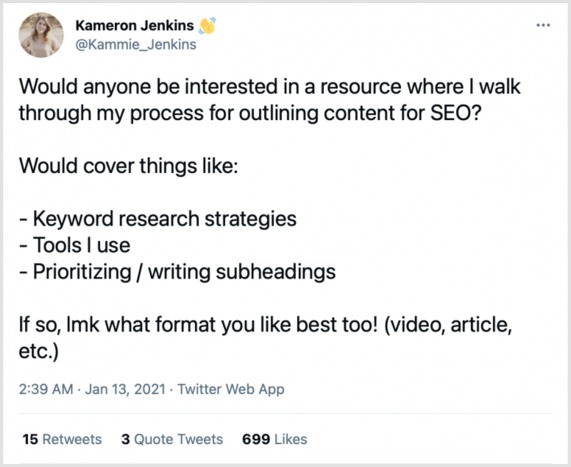
    Here’s Shopify’s Content and SEO Lead, Kameron Jenkins, leveraging the content marketing community on Twitter:

    Shopify Content Marketing Example

    On the flip side, a customer community delivers the following benefits: 

    • Better learn your target audience’s pain points to create targeted content. 
    • Source user-generated content to share on your marketing channels 
    • Improve customer journey and trust as customers or customers-to- learn about the humans behind your brand, your values, processes, and more.  

    In short, online communities can help enhance brand awareness and credibility, giving you the most bang for your buck.

    How to start an Online Community today? 

    Now that you know how fruitful an online community can be, how do you start one? 

    Starting a community is no rocket science and doesn’t require you to invest early. However, you might need to later on. For example, host giveaways for keeping your community engaged.  

    Take the following steps:  

    • One, decide whom your target audience is by selecting whether you’d like to start a customer or content community. 
    • Two, pick a platform. Slack is a great paid platform for starting a community. Facebook and LinkedIn groups are free to make. Similarly, Twitter chats are free to start. Or, if you’re an email marketing enthusiast, create a newsletter to grow your community. 

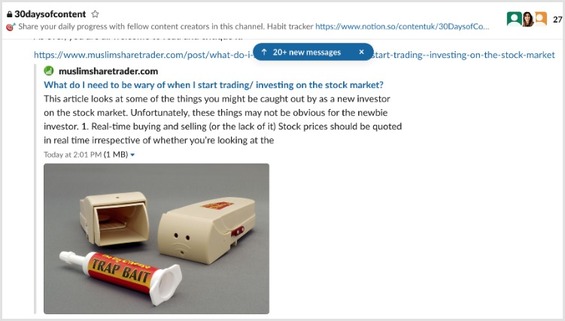
    Here’s an inside look at Christina Pashialis’ paid Content community

    • ContentUK
    • Third, prepare an action plan, answering questions like,

    What will your community be about? 

    How will you promote it? 

    How do you plan to provide value to your audience and stand out from similar communities? 

    What steps will you take to keep your community engaged?  

    Once done, get started.

    Alternative plan: if it’s a content community you are after, join one. How? Look for relevant Facebook and LinkedIn groups. The Content Marketing Lounge on Facebook, for example, is a valuable community for content marketers. Are you looking for social media marketers in the community?  

    We have a Facebook community named ContentStudio.io Community (Marketing Strategies, Tips, and Hacks).

    Join us! It’s much fun.

    Content Studio

    And That’s a Wrap

    There’s a lot to be excited about, from working on establishing your online presence to creating an engaged community, repurposing content, and polishing your storytelling skills. Focus on these content marketing best practices to stay competitive and updated with the market. 

    Bonus: You can also use a reliable link shortener to convert long, messy URLs into clean, branded links, ideal for sharing content or repurposing posts across social media and email.

  • Affiliate link tracking to optimize your earnings

    Affiliate link tracking to optimize your earnings

    Do you know, affiliate marketers earn $59,060 per year? It is considered a reliable source of passive income. Isn’t it amazing? But how to set up and track affiliate links? Let’s find out in this blog.

    What are affiliate links? 

    Affiliate links are special URLs that contain a unique identifier that associates a sale with an affiliate marketer. When a user clicks on an affiliate link and makes a purchase, the affiliate marketer earns a commission on the sale.

    Affiliate marketing is a popular way for bloggers, influencers, and website owners to earn money by promoting products or services to their audience. It can also be a cost-effective way for businesses to reach new customers and increase sales.

    What does affiliate tracking mean?

    Affiliate tracking refers to the process of tracking the performance of affiliate marketing campaigns. It involves using a unique tracking URL, link, or code to monitor clicks, conversions, and sales generated by affiliate marketers.

    When an affiliate marketer promotes a product or service, they include a special affiliate tracking link or code in their content. When a user clicks on the link and makes a purchase, the affiliate tracking software records the transaction and attributes the sale to the affiliate.

    The tracking software then calculates the commission owed to the affiliate based on the agreed-upon commission rate and other terms and conditions of the affiliate program. 

    This allows businesses and affiliates to track the performance of their campaigns, monitor their earnings, and make informed decisions about their marketing strategies.

    Affiliate tracking can be done using a variety of software tools and platforms, including affiliate networks, third-party tracking software, and in-house tracking systems. 

    These tools typically provide detailed analytics and reporting features, which allow businesses and affiliates to analyze their performance data and optimize their campaigns for better results.

    Why is link tracking important for affiliate marketers?

    Let’s look into a few reasons why link tracking is important for affiliate marketing:

    Monitor campaign performance:

    Link tracking enables businesses and affiliates to track clicks, conversions, and sales generated by their marketing campaigns. This information can help them identify which campaigns are performing well and which ones need improvement.

    Optimize marketing strategies:

    With link tracking, businesses, and affiliates can analyze data to identify trends and patterns that can inform their marketing strategies. For example, they can determine which marketing channels or tactics are driving the most sales and focus their efforts on those areas.

    Calculate commissions accurately:

    Link tracking ensures that affiliates are credited for the sales they generate, and they receive accurate commissions based on the agreed-upon commission rate and other terms and conditions of the affiliate program.

    Avoid Scam:

    Link tracking can help prevent fraudulent activities, such as click fraud or cookie stuffing, which can artificially inflate clicks and conversions and result in inaccurate commission payments.

    What to look for in affiliate tracking software?

    When selecting an affiliate tracking software, there are several key features and factors to consider. Here are some important things to look for:

    Reliability and uptime:

    The software should be reliable and have a high uptime to ensure that tracking is accurate and uninterrupted.

    Compatibility:

    The software should be compatible with the platforms and systems used by your business and affiliates, such as website platforms, payment gateways, and advertising networks.

    Customization:

    The software should be customizable to meet the unique needs of your business and affiliates, such as commission structures, tracking parameters, and reporting features.

    Tracking accuracy:

    The software should provide accurate tracking to prevent fraudulent activities such as click fraud or cookie stuffing.

    Reporting and analytics:

    The software should provide detailed reporting and analytics features, such as campaign performance data, earnings reports, and conversion rates.

    Integration with third-party tools:

    The software should integrate with other tools and services used by your business and affiliates, such as marketing automation tools, email marketing software, and customer relationship management (CRM) systems.

    Customer support:

    The software provider should offer reliable customer support and resources to help businesses and affiliates use the software effectively and resolve any issues that may arise.

    Best affiliate link tracking tools 

    Selecting the right affiliate tracking software is an important decision for businesses and affiliates, as it can have a significant impact on the accuracy, effectiveness, and profitability of their affiliate marketing campaigns.

    Here are some of our recommended tools.

    Replug

    Whether you’re an affiliate marketer or looking to enhance your personal brand, Replug is a top contender. With Replug, affiliates can create custom short links that feature their own branding and logo, making it easy to promote their business or product across different channels.

    Replug’s powerful set of features help you promote your brand across multiple channels and monitor your performance with its analytics and reporting capabilities.

    Additionally, its retargeting pixels and call-to-action features can help you increase engagement and conversions on your content. Thus, making Replug an excellent choice for those looking to enhance their branding and track their performance.
    Some of the key features of Replug include:

    • Branded URL Shortening: The platform enables users to create custom-branded short links with its efficient short URL generator, which can help increase brand visibility and recognition.
    • Link Tracking: This feature enables users to monitor how their links are performing and make data-driven decisions.
    • Call-to-Action Overlays: The platform allows users to add call-to-action overlays to their links, which can help increase engagement and drive conversions.
    • Custom Domains: Custom domains give the user the option to use custom domains, which can enhance the credibility and trustworthiness of the links.
    • Link Rotators: The platform provides link rotators, which allow users to rotate multiple links within a single shortened URL, making it easier to manage and track campaigns.
    • Retargeting: Replug enables users to create retargeting campaigns for their links, which can increase the effectiveness of their marketing efforts.
    • Bio Links: Users can create custom bio link webpages to market their links on social media platforms, including Facebook, Twitter, and LinkedIn.

    How to set up affiliate link tracking using Replug?

    To set up affiliate link tracking with Replug, follow these steps:

    If you haven’t already, sign up for an account with Replug.

    Let’s say we want to change a long messy URL into an affiliate link.

    Make a new campaign or select any previous one (if you have one).

    For the said case, I am using an already created campaign.
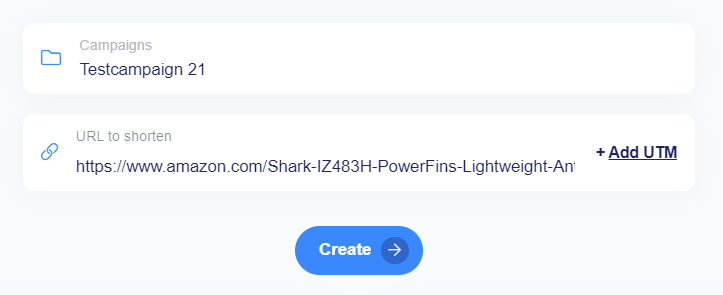
    Now copy and paste the link to shorten and click on create.

    ENter the url to shorten

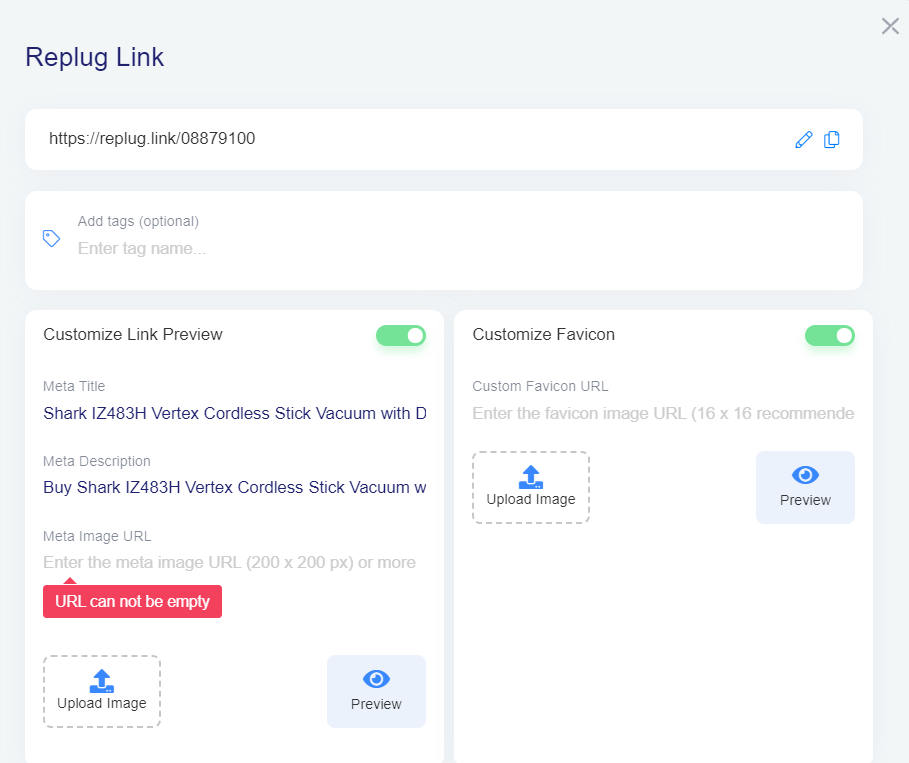
    Now you can edit this shortened link with your brand name or affiliate e-commerce store name.

    Customize your affiliate link

    With Replug, monitor the performance of your links and make data-driven decisions. Lastly, share your branded links on social media platforms, email campaigns, or other marketing channels to drive traffic and conversions.

    Pricing: It offers three pricing plans, Basic $19, Professional $49, and Agency $79.

    Tapfiliate

    tapfiliate

    Tapfiliate provides an easy-to-use platform that allows businesses to set up their affiliate programs quickly. It also allows businesses to track sales from their affiliates. Tapfiliate offers white-labeling options that allow businesses to customize the platform’s branding to match their own.

    Pricing: It offers three plans; Essential $89, Pro $149, and a custom plan.

    Pretty Links

    Pretty links

    Pretty Links can be a useful tool for affiliates, as it provides a way to create customized, shortened links to use in their marketing efforts. Affiliates can track clicks and conversions on their links, as well as monitor which sources are driving the most traffic and revenue.

    It also provides an automatic link replacement feature, which can be useful for affiliates looking to update their links across their entire site. Pretty Links also offers advanced features such as split testing, which allows affiliates to test different variations of their links to see which performs best.

    Pricing: It offers three pricing plans; Beginners $99, Marketer $149, Super Affiliate $199.

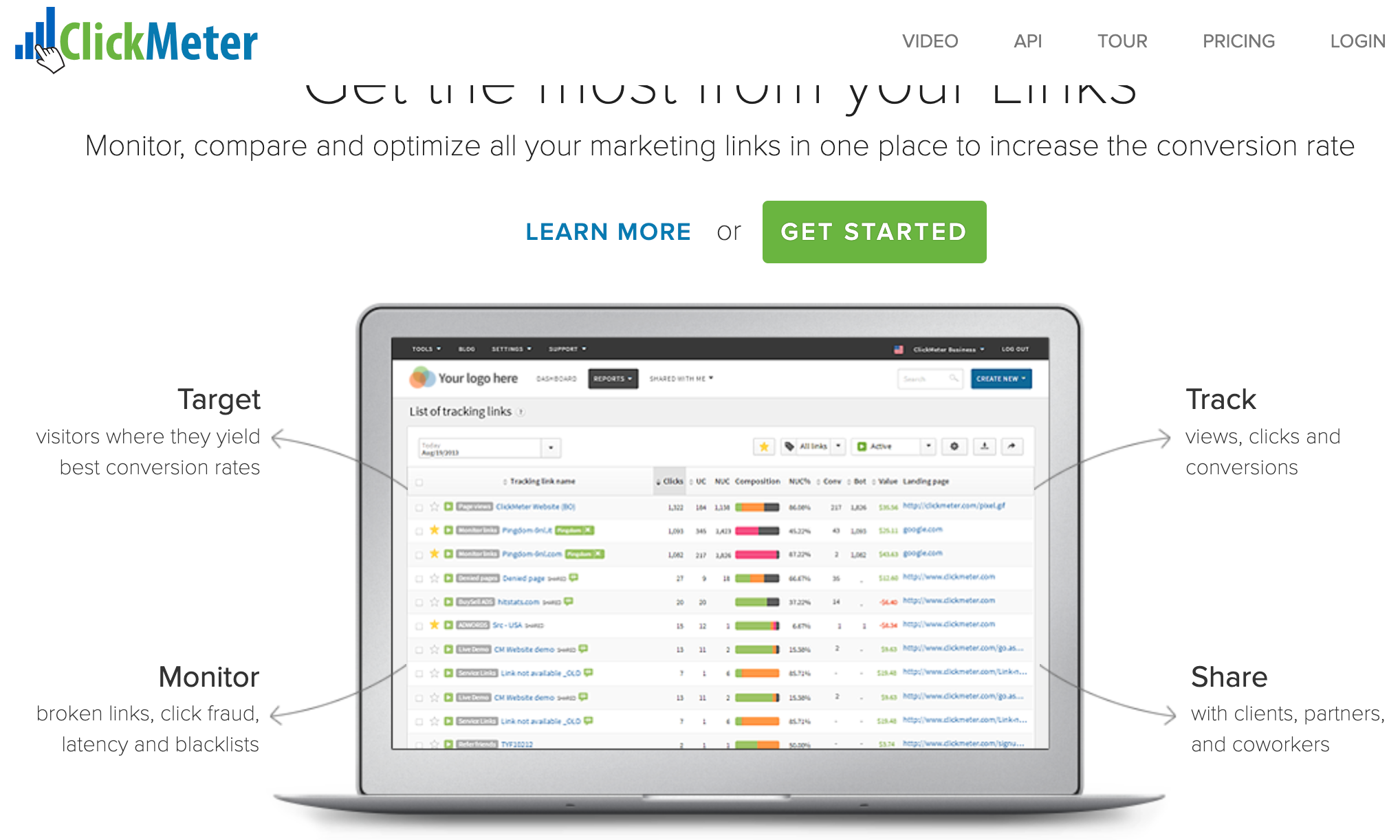
    Click Meter

    ClickMeter

    ClickMeter is a web-based link tracking and optimization tool that provides users with powerful insights into how their links are performing. It also enables users to create custom tracking domains, which can help improve the credibility and trustworthiness of their links. ClickMeter allows users to perform A/B testing on their links, which can help optimize their performance over time. 

    Pricing: It offers two different plans in two categories
    For everyone: Lite $12/month, Essential $28/month, Professional $85/month.
    For business: Professional plus $359/month and a custom plan. 

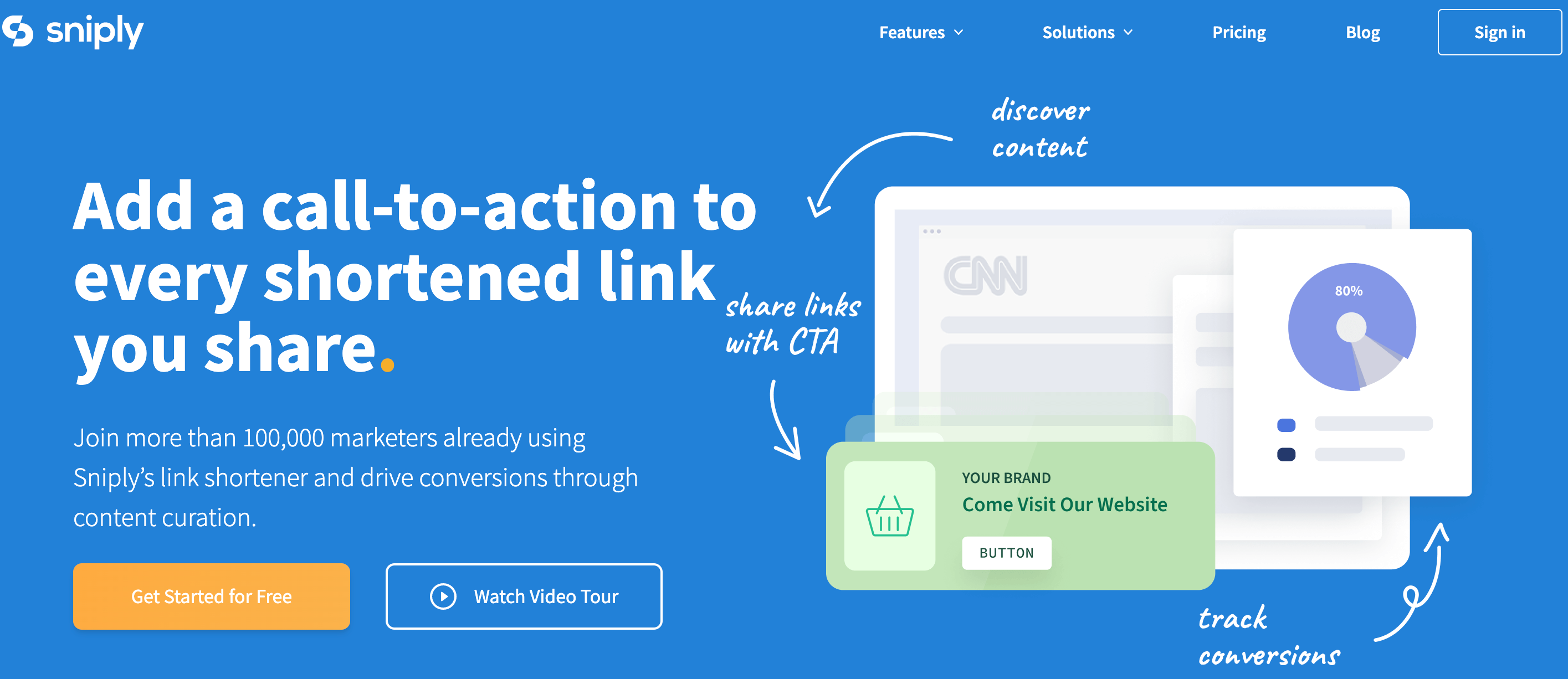
    Sniply

    Sniply

    Sniply offers a unique perspective on affiliate marketing, with its call-to-action overlay feature allowing you to promote your own products or services while sharing third-party content with your audience. 

    By directing traffic back to your own site, you can increase visibility and potentially boost conversions. Moreover, Sniply’s analytics and reporting features help you track your success and identify areas for improvement.

    Pricing: It offers a basic plan of $9 per month, a pro of $29 per month, a Business $59/per month, and custom pricing.

    Bitly

    Bitly

    Bitly is a versatile and powerful tool for anyone looking to manage and track their affiliate links and campaigns. This link management platform allows users to create shortened, customized links to share on social media, email, or other online channels.

    With Bitly, users can create branded links that incorporate their own domain name, as well as track clicks and conversions on their links.

    Pricing: It offers a free plan, starter $8/month, basic $29/month & premium $199/month.

    Voluum

    voluum-logo-

    Voluum is a comprehensive affiliate marketing platform that provides tools for tracking, optimizing, and managing affiliate campaigns. One of the key benefits of Voluum is its ability to track traffic from multiple sources, including paid advertising, organic search, and social media.
    It also offers integrations with a wide range of advertising networks, affiliate programs, and other marketing tools, making it easy to manage all aspects of an affiliate campaign in one place.

    Pricing: It has 3 pricing plans, profit $149/month, scale $299/month, and start-up $499/month.

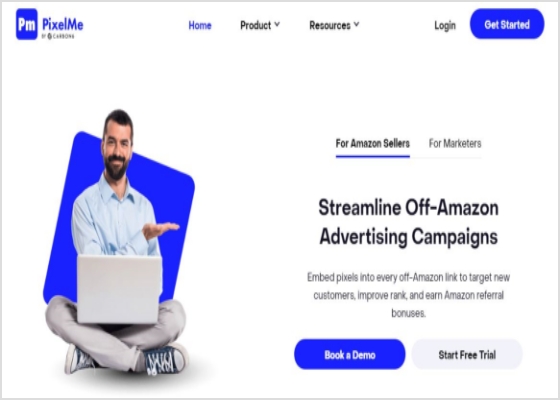
    PixelMe

    PixelMe

    Customize the appearance of your links to match your brand using PixelMe. PixelMe allows users to create shortened, trackable links for their marketing campaigns. It also provides features such as retargeting and conversion tracking to help users optimize their advertising efforts. PixelMe integrates with tools, such as Google Analytics and Facebook Ads.

    Pricing: It offers Growth at $99/month, Scale at $149/month, Elite at $249/month, and a customized pricing plan.

    Affiliate tracking: Wrap up

    In conclusion, affiliate links have become a popular and effective way for businesses to expand their marketing reach and drive sales, while also providing an opportunity for affiliates to earn a commission for promoting products or services. 

    By using affiliate tracking tools such as Replug and tagging links with UTM parameters, businesses, and affiliates can track the performance of their affiliate campaigns. Overall, affiliate links can be a valuable tool for businesses and affiliates alike, as they provide a way to reach new audiences, increase revenue, and build long-term partnerships.

    FAQs on affiliate link tracking

    Can Google Analytics track affiliate links?

    Yes, Google Analytics can track affiliate links, provided that the links are tagged with UTM parameters. UTM parameters are tags that can be added to the end of a URL to track the source, medium, and campaign name of traffic to a website.

    What is a good percentage of affiliates?

    The percentage of commission for affiliates can vary widely depending on the product or service being promoted, the industry, and the affiliate program. Generally, commissions for affiliates can range between 5% to 30% of the sale price.


    You may also like:
    What Is Affiliate Link Cloaking & How To Do It?
    What Are Tracking Pixels & How Do They Work?

  • What is my TikTok URL: How to get your TikTok profile URL (3 easy methods)

    What is my TikTok URL: How to get your TikTok profile URL (3 easy methods)

    Have you ever wondered why everyone keeps asking for your exact TikTok profile link? 

    With TikTok skyrocketing to roughly 1.6–1.9 billion monthly active users worldwide in 2025, it’s not just a place for dance trends anymore. It’s a global hub where creators, brands, and everyday people build communities and make real connections.

    No matter if you’re sharing your latest skit, promoting a small business, or just want friends to find you faster, knowing your TikTok URL is an essential first step.

    But if you’re scratching your head, wondering “What is my TikTok URL?”, you’re in the right place. 

    Buckle up, guys!

    In the next section, we’ll break down exactly what a TikTok URL is and why it matters, then show you three easy ways to grab yours seamlessly.

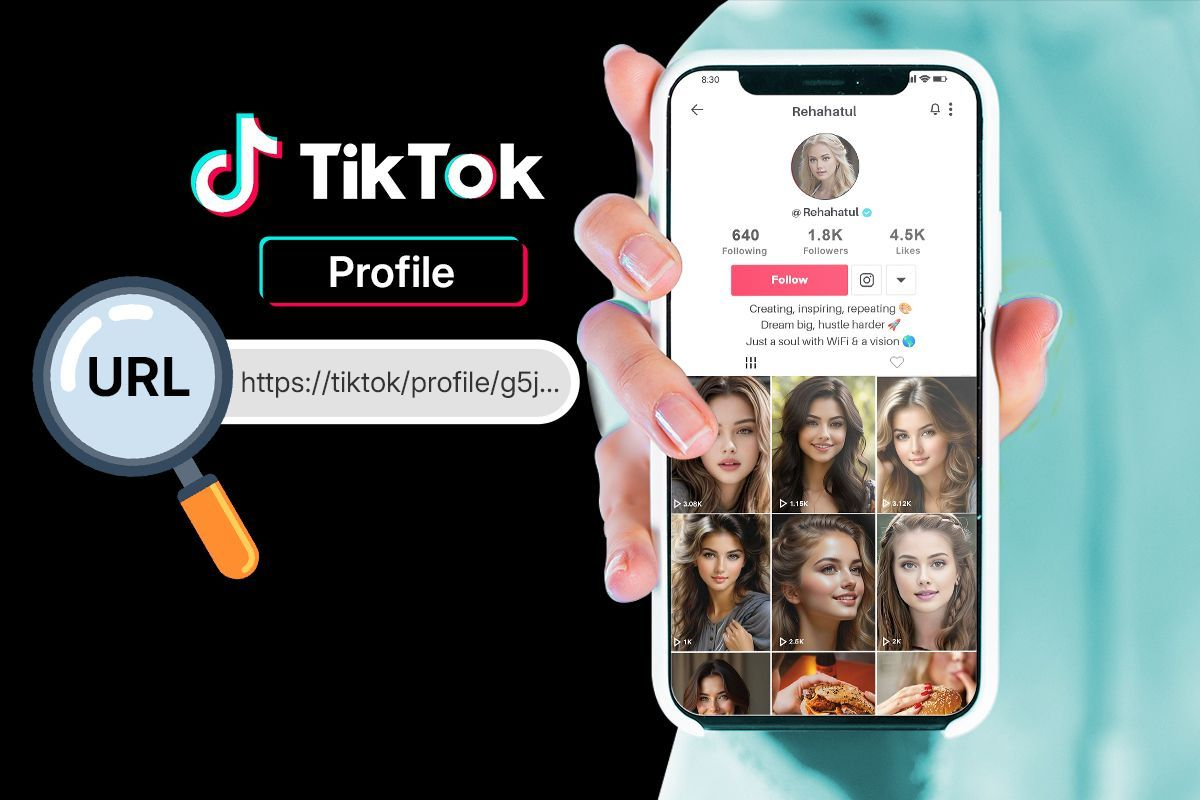
    What is a TikTok URL?

    When we talk about URLs, we’re really just talking about web addresses, the exact link that takes someone straight to a specific place on the internet. 

    In TikTok’s case, a “TikTok URL” is the address that leads directly to your TikTok profile, so anyone can view your videos and follow you without having to search for you manually.

    What is a TikTok URL

     It’s kind of like your digital calling card, super helpful if you want to share your profile on Instagram, WhatsApp, your website, or in an email.

    Think of it as the internet’s way of pointing right at you on TikTok. Without your unique URL, someone would need to search through the app to find your account, which isn’t always easy if your username isn’t super unique!

    What is the TikTok URL format?

    The standard TikTok profile URL follows a very simple structure:

    https://www.tiktok.com/@username

    In this format, replaceusername” with your exact TikTok handle (the one that starts with the @ symbol).

    What is an example of a TikTok URL?

    Here’s a real example of what a TikTok URL looks like:

    https://www.tiktok.com/@charlidamelio

    This exact link takes you to Charli D’Amelio’s TikTok profile (one of the platform’s most-followed creators).

    Note: Once you know your TikTok URL, sharing your profile with the world becomes a whole lot easier!

    Proven methods to get your TikTok account/profile URL

    Here’s the deal: finding your TikTok URL doesn’t have to be confusing anymore. 

    Whether you’re using the app, typing it based on your username, or grabbing it from a desktop browser, there are simple ways to do it. And once you’ve got it, you can share your profile easily anywhere online.

    Get your TikTok URL

    Method #01: From the username on TikTok

    This is the quickest way to figure out your profile address if you know your actual username:

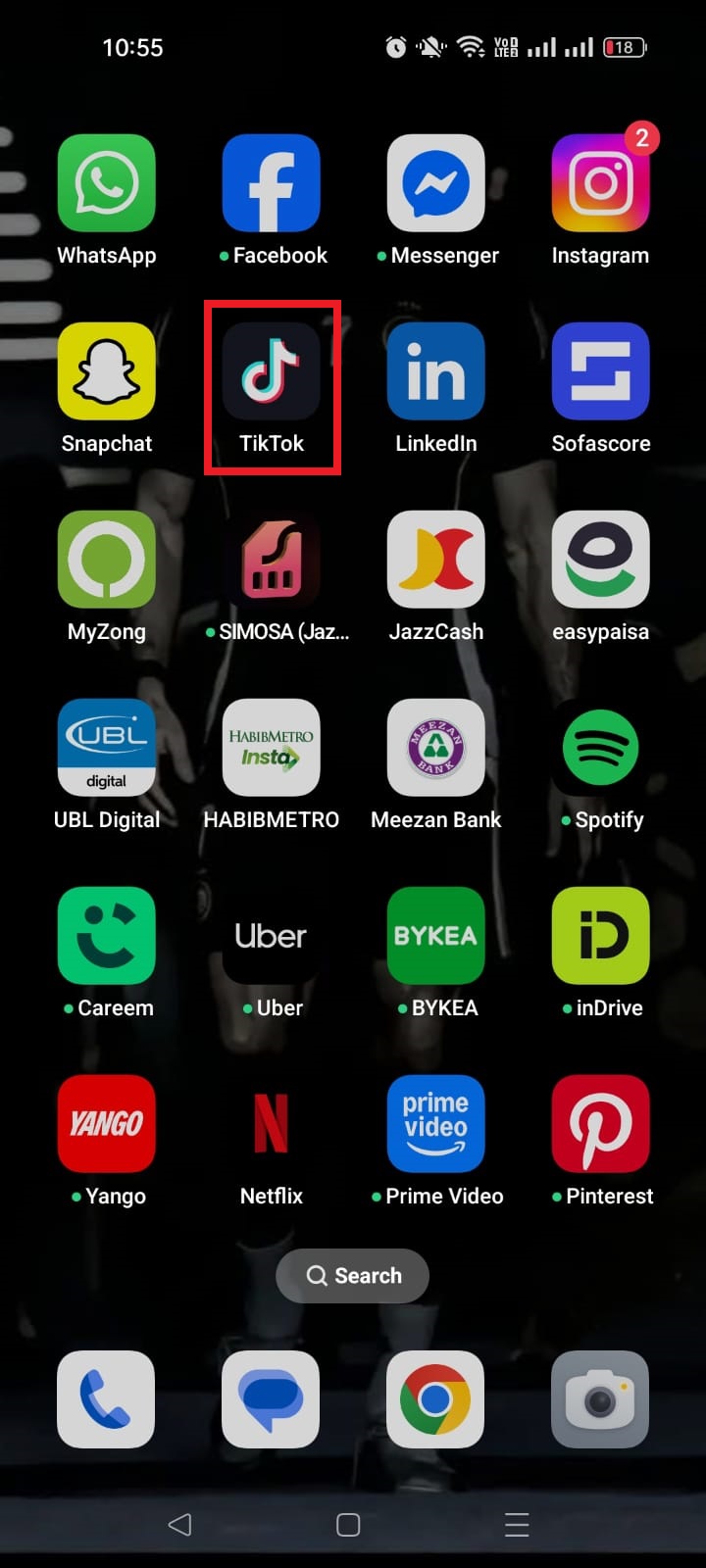
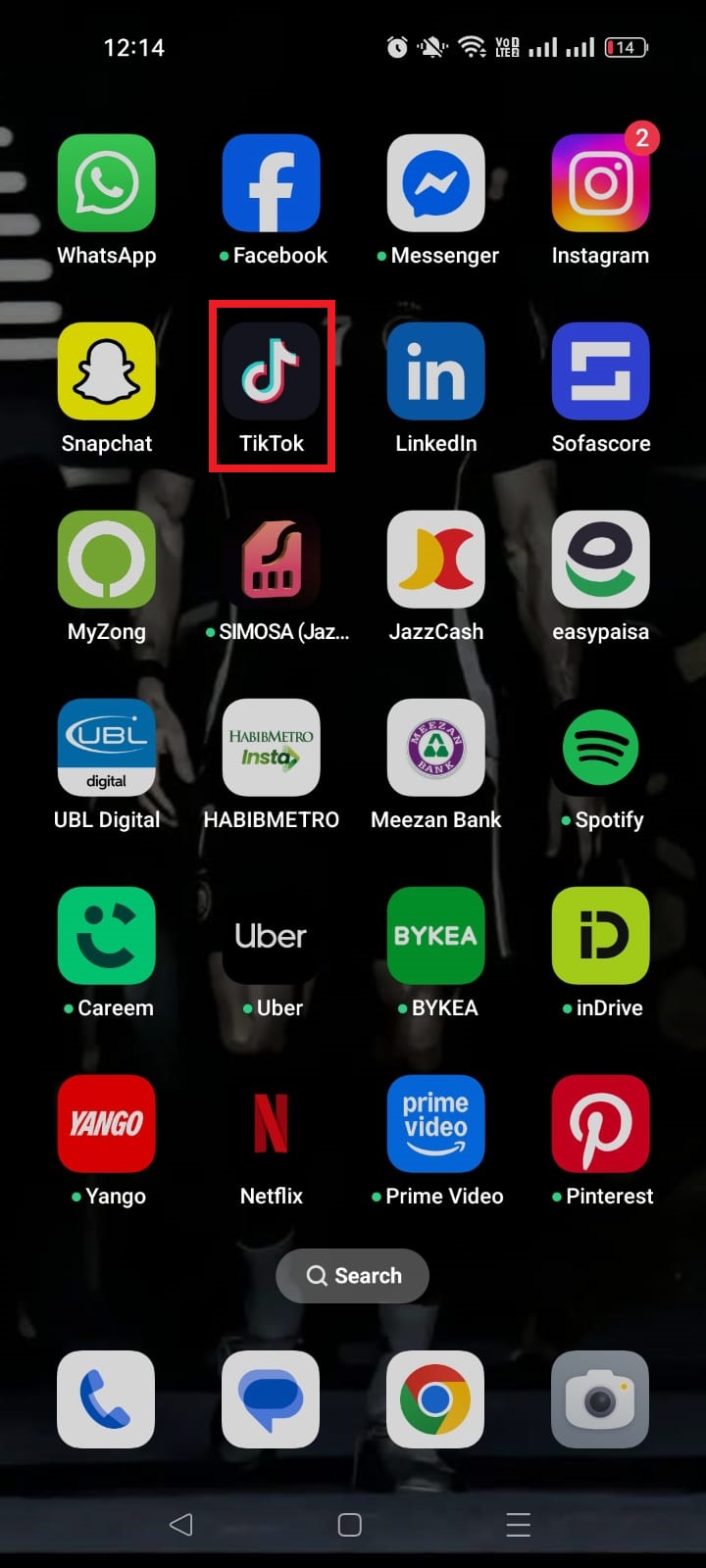
    1. Open TikTok.

    TikTok app

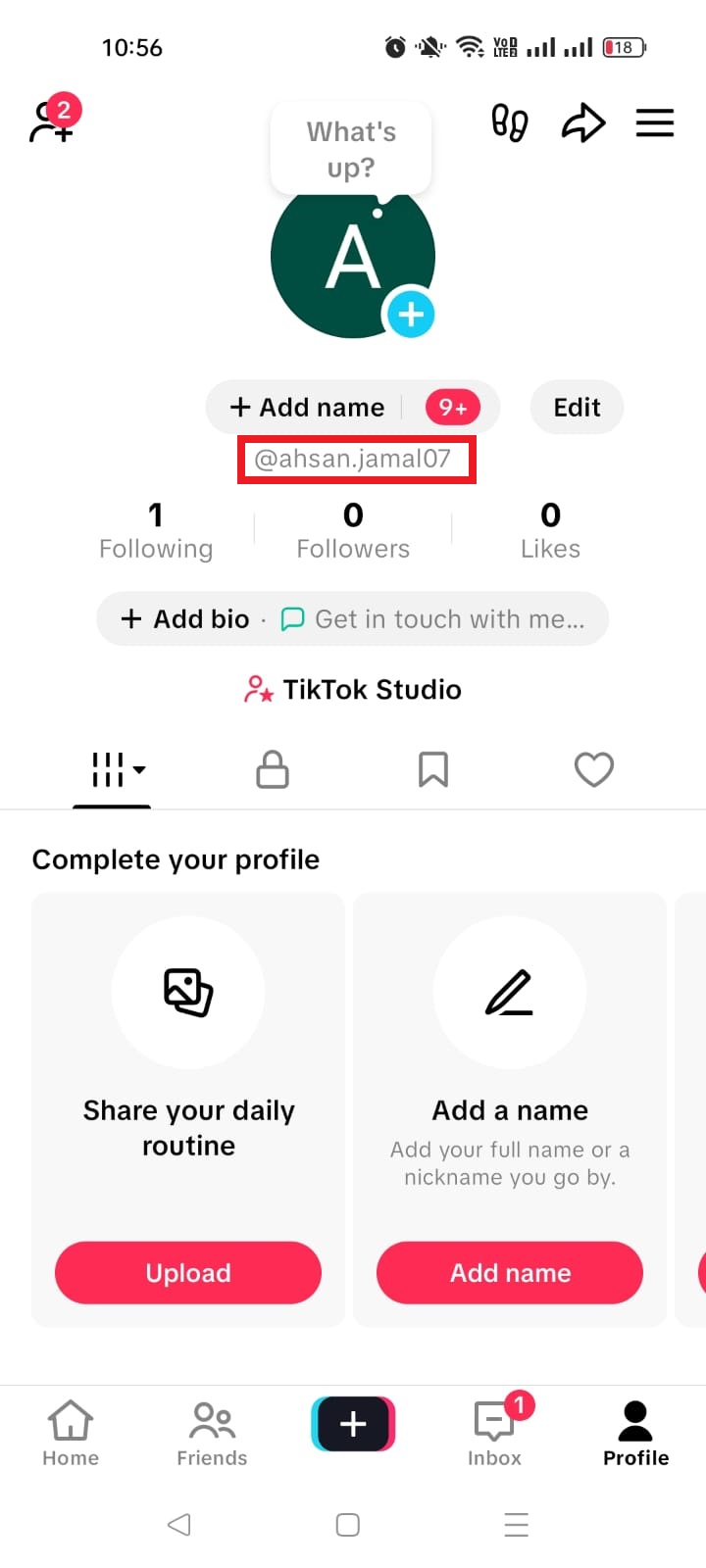
    2. Go to your profile page.

    TikTok profile icon

    3. Look at your username. It starts with an “@” sign.

    TikTok username

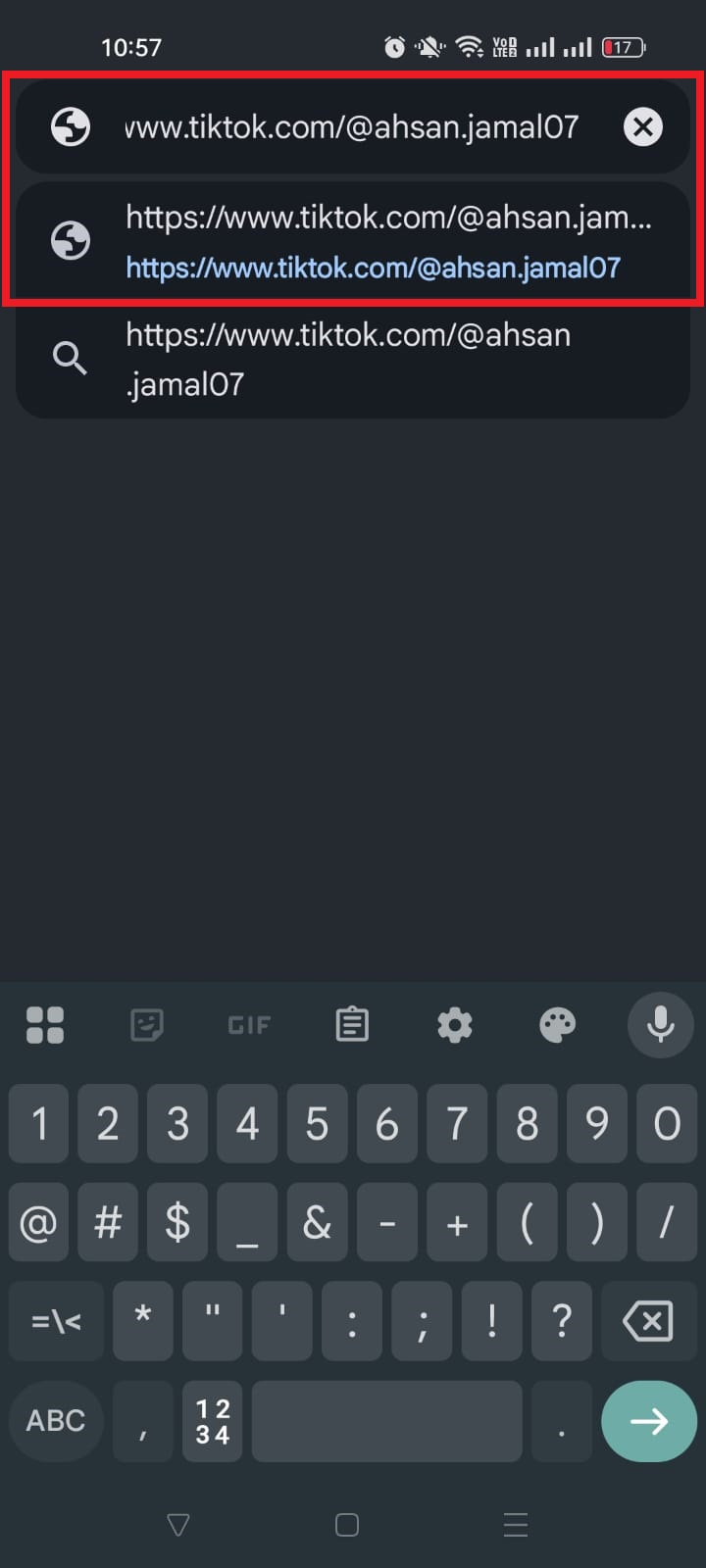
    4. Use the standard TikTok URL structure:

    https://www.tiktok.com/@yourusername

    Replace “yourusername” with your actual handle.

    TikTok profile URL

    That’s it!

    You now have your TikTok profile link that you can share anywhere (in emails, on your website, or on other social channels).

    This method is great if you just want a clean way to share your TikTok account URL without copying it from the settings.

    Method #02: Using the TikTok mobile app

    If you want TikTok to grab the link for you in a few taps:

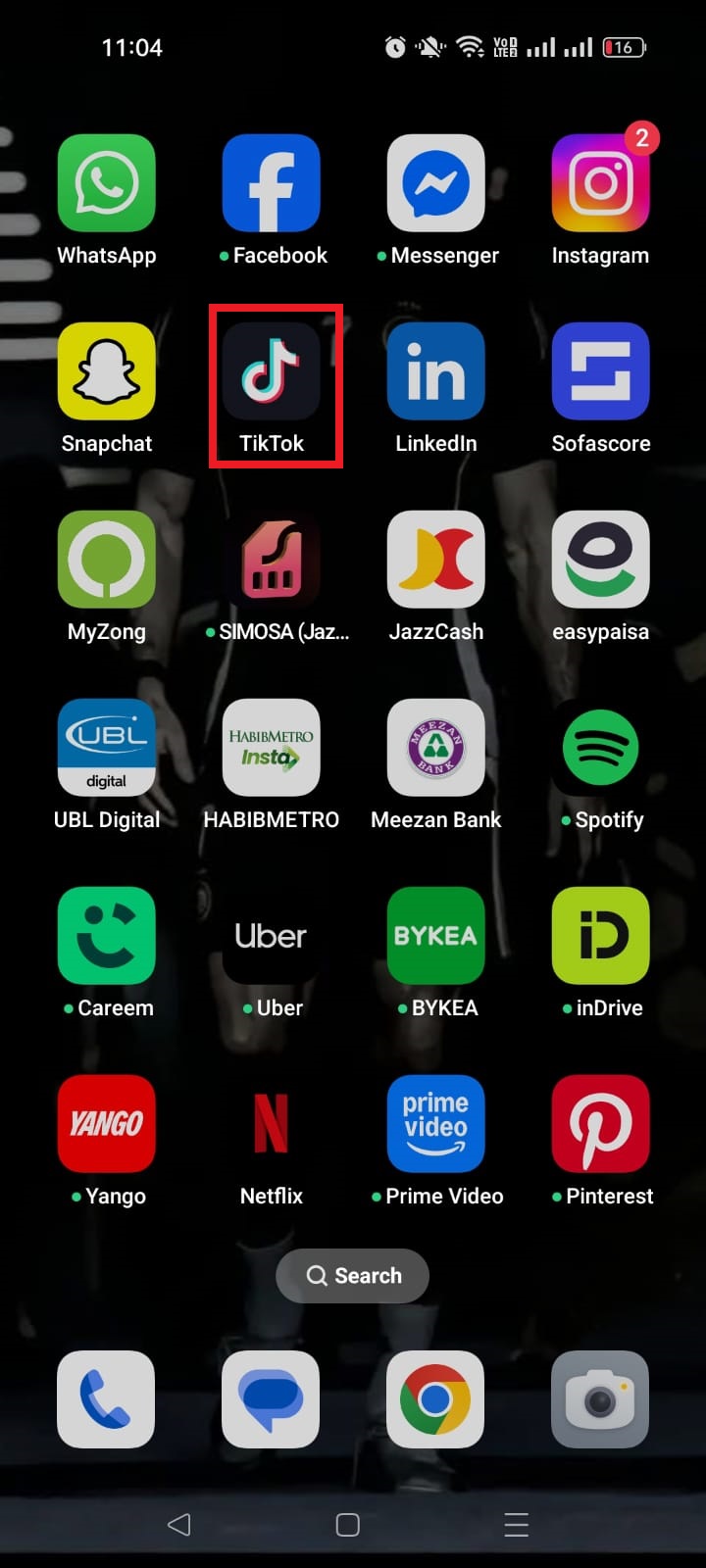
    1. Open the TikTok app on your phone.

    TikTok mobile app

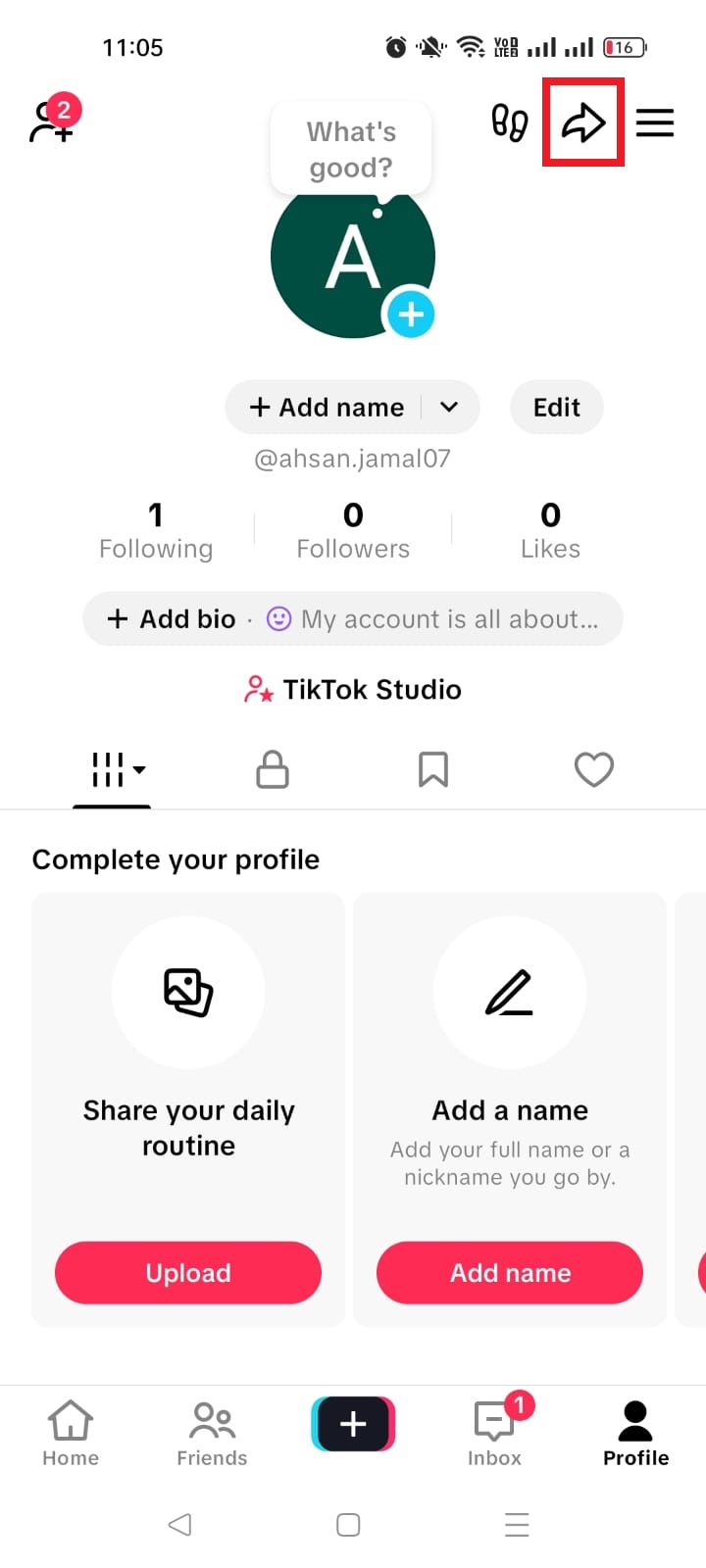
    2. Tap the “Profile” icon at the bottom right to go to your profile.

    TikTok profile option

    3. Tap the “Share profile” icon (it usually looks like an arrow pointing right).

    TikTok share profile icon

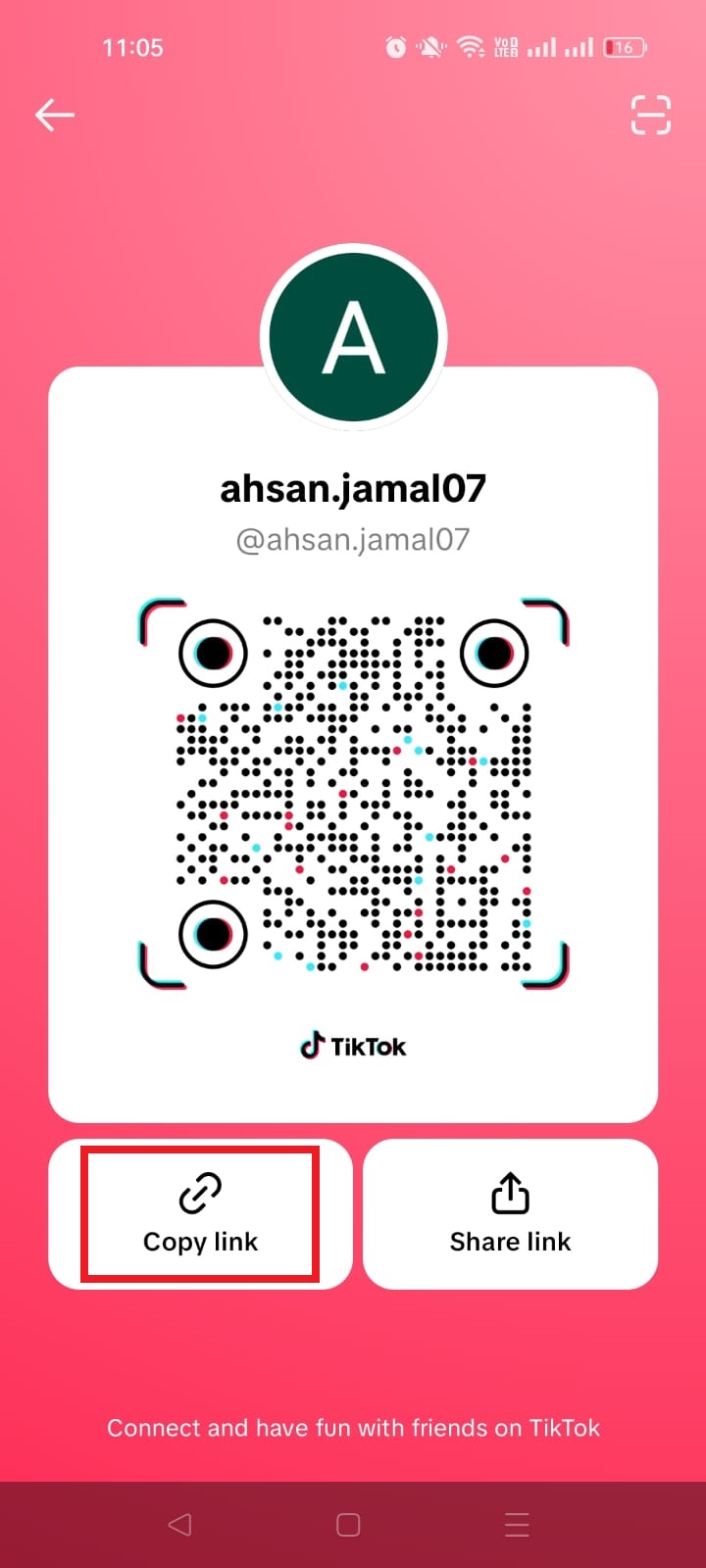
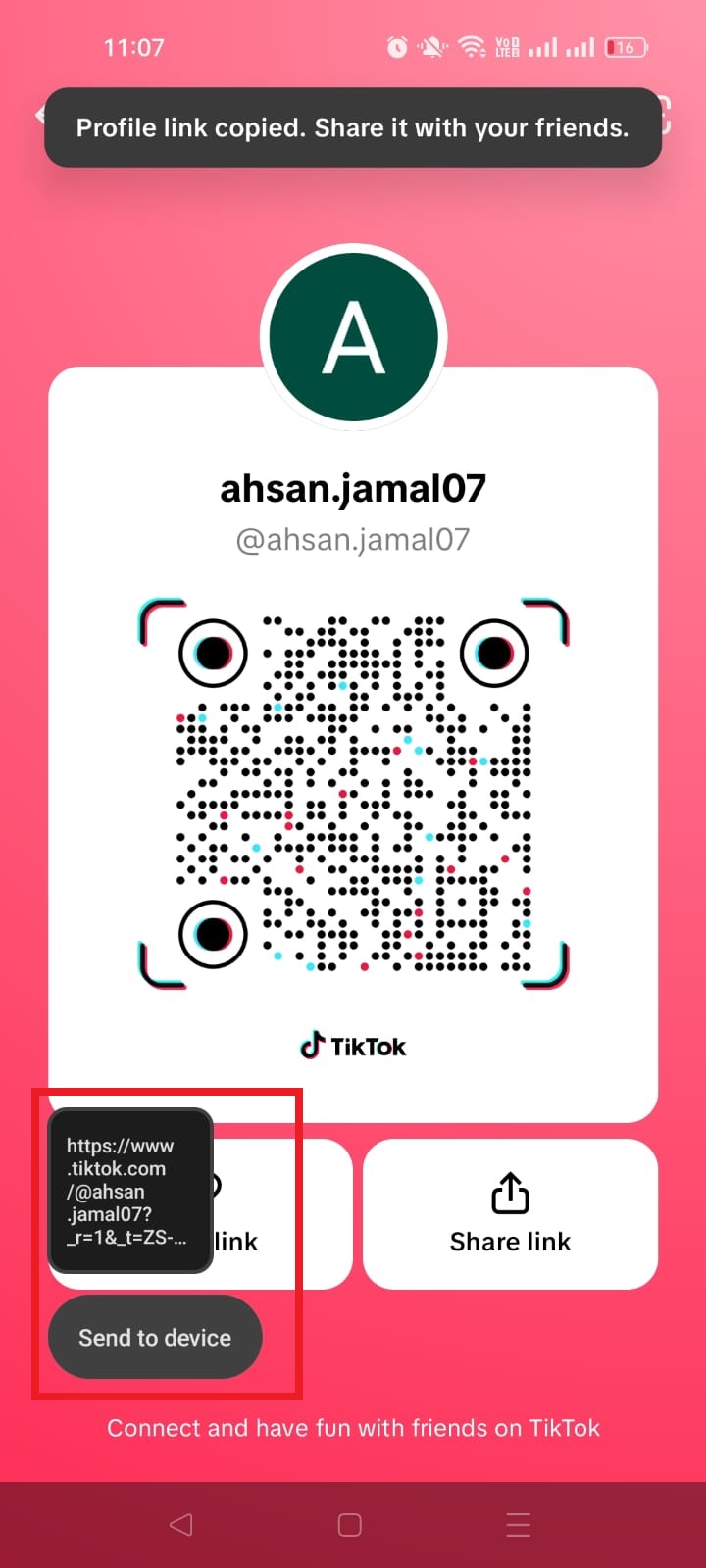
    4. On the pop-up screen, tap “Copy link.” TikTok will copy your full URL to your clipboard.

    TikTok copy link option
    TikTok profile URL copied to clipboard

    Now you can paste it anywhere you want!

    This is especially handy if someone literally asked me, “What is my TikTok URL on the app?” and I want to show them exactly where to click.

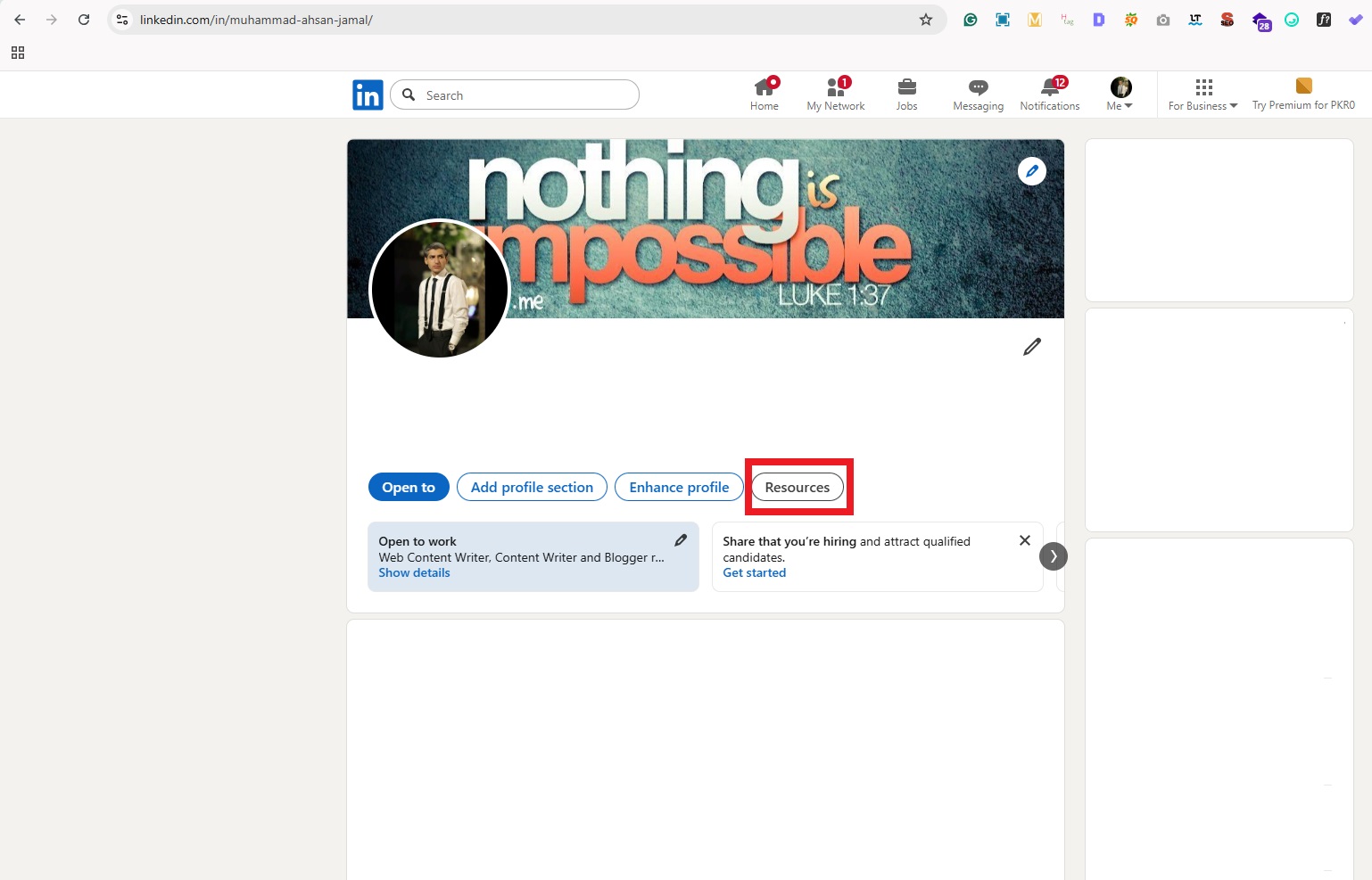
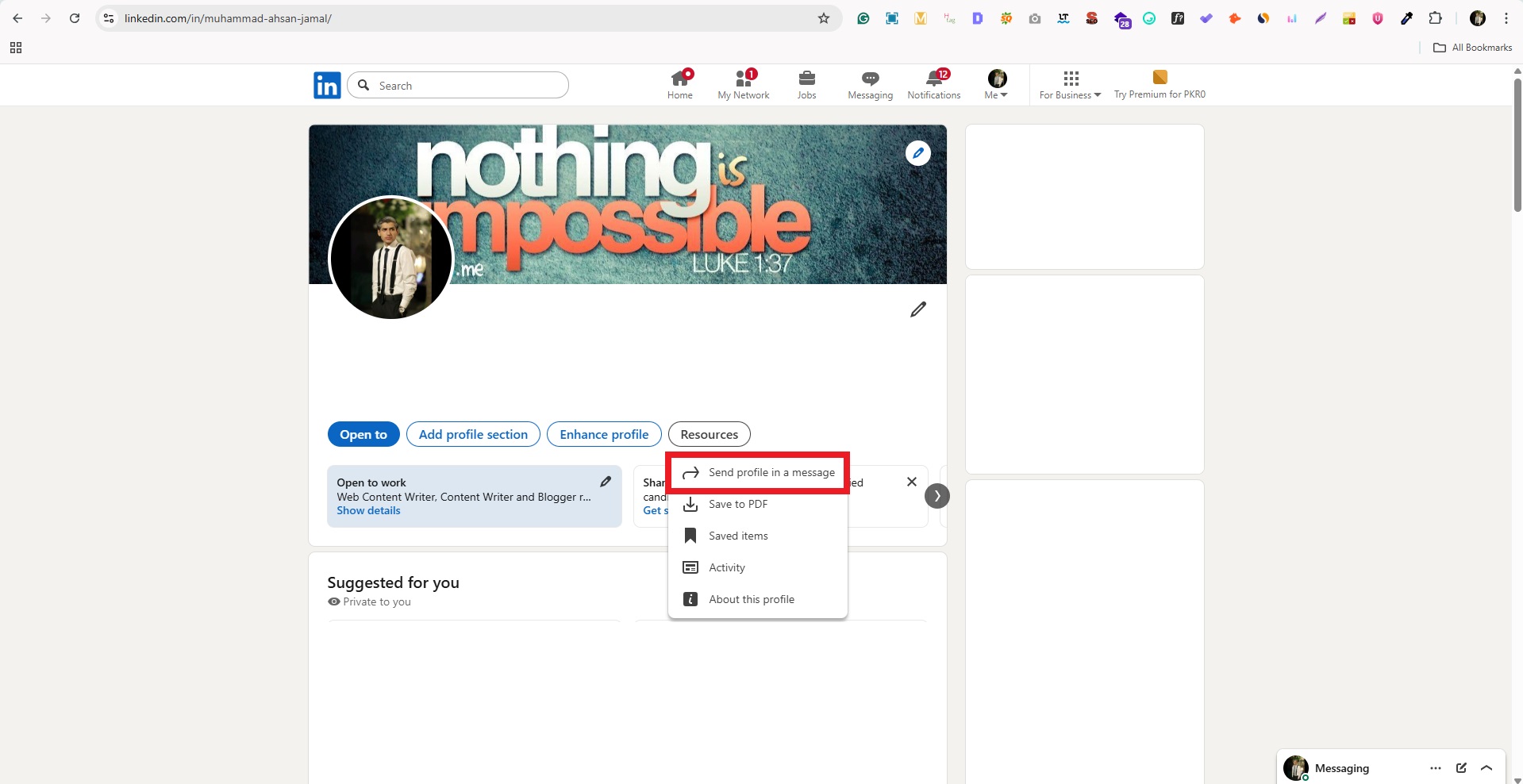
    Method #03: Via TikTok web

    If you’re on a PC/laptop:

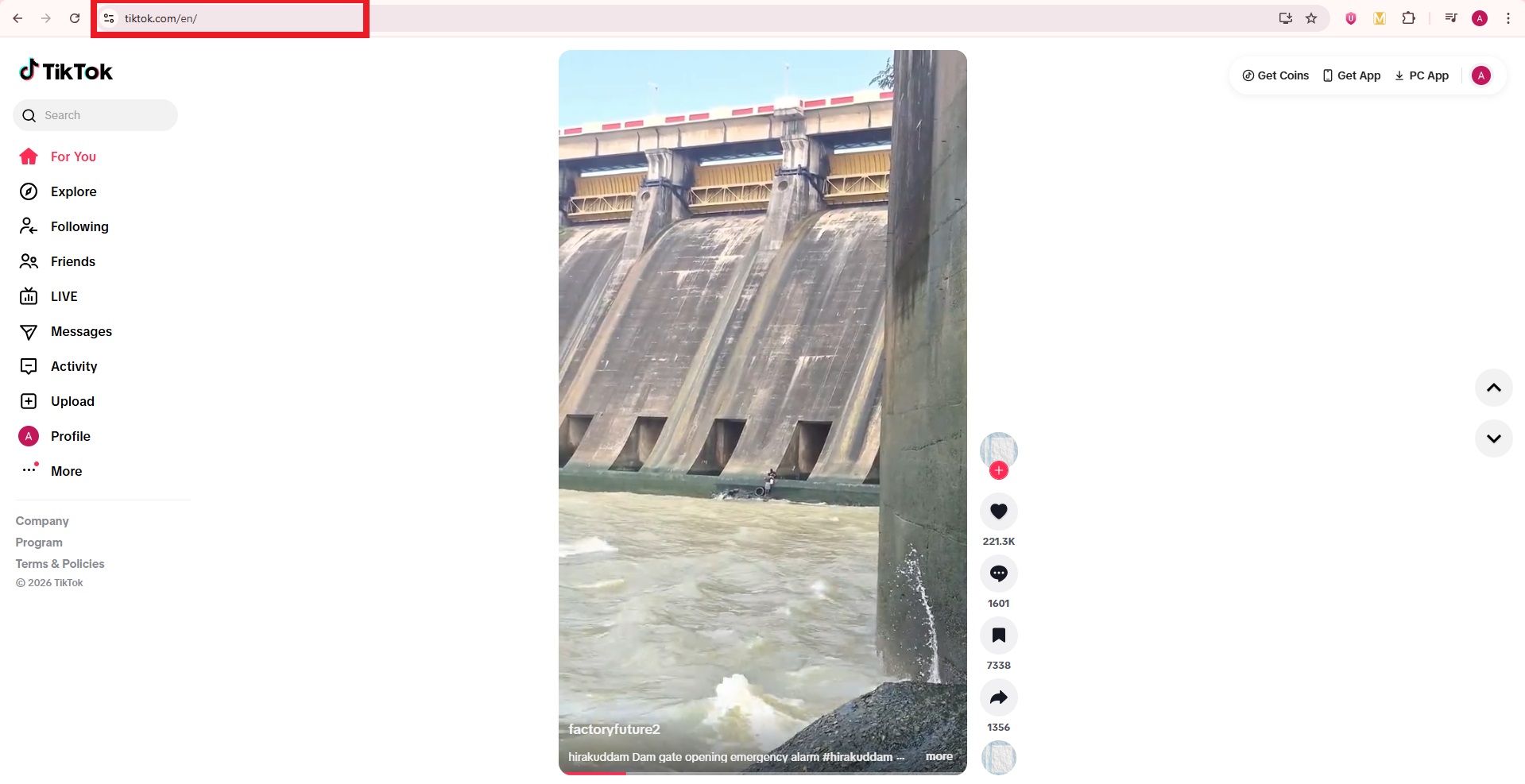
    1. Visit “https://www.tiktok.com/en/” and log in with your account.

    TikTok website on PC

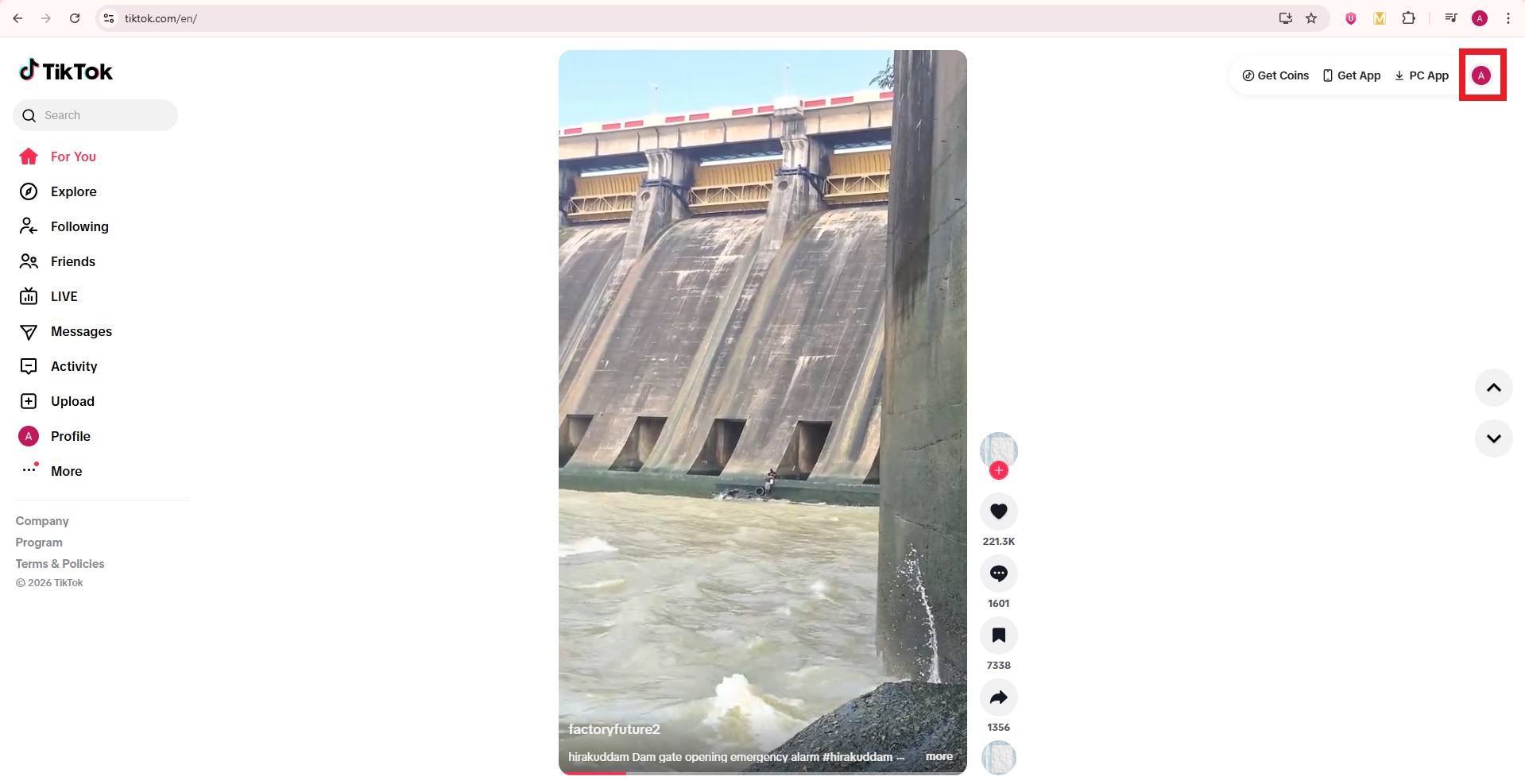
    2. Click your “profile picture” in the top right corner.

    TikTok profile picture on web

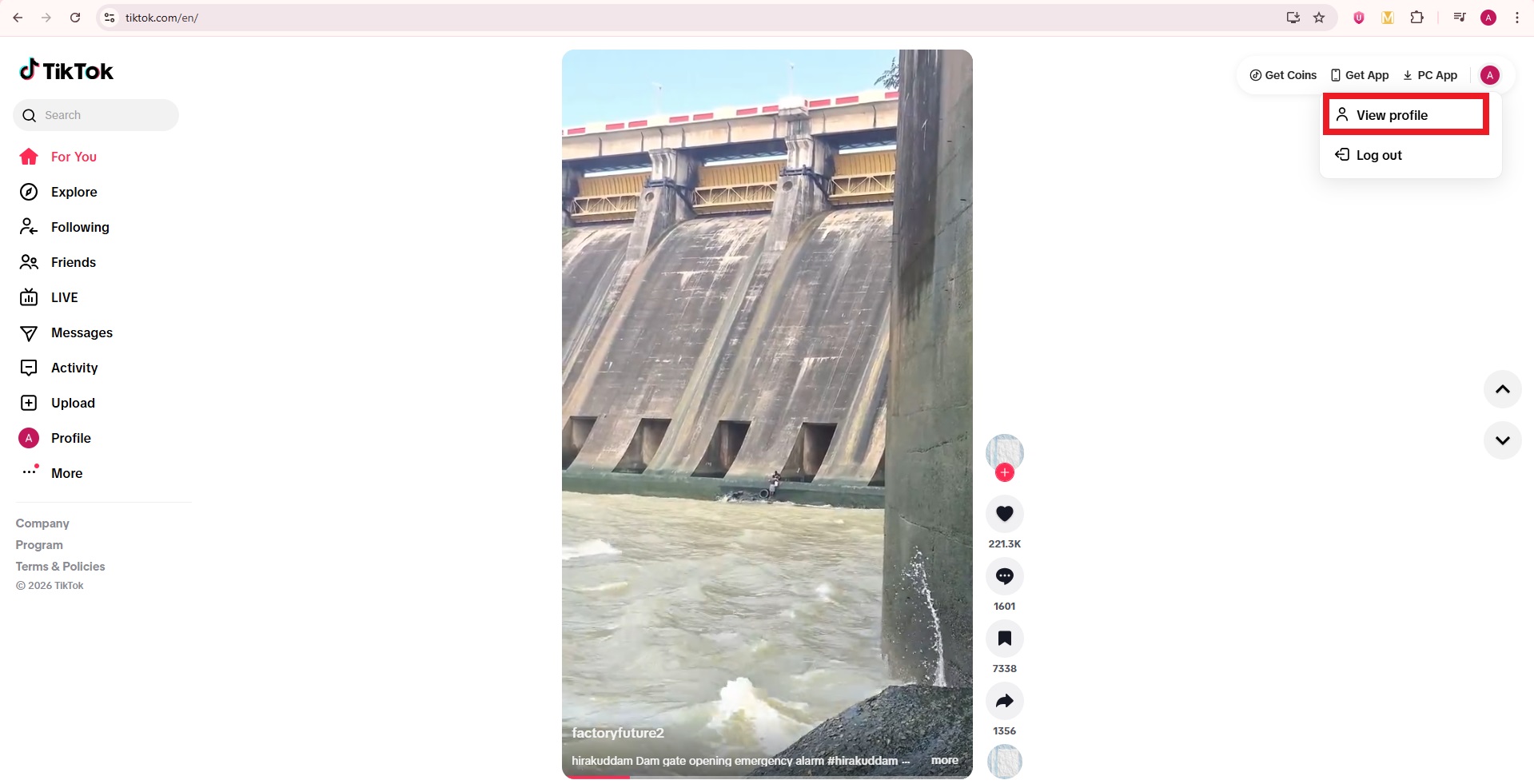
    3. From the dropdown menu, select “View profile.”

    TikTok view profile option on web

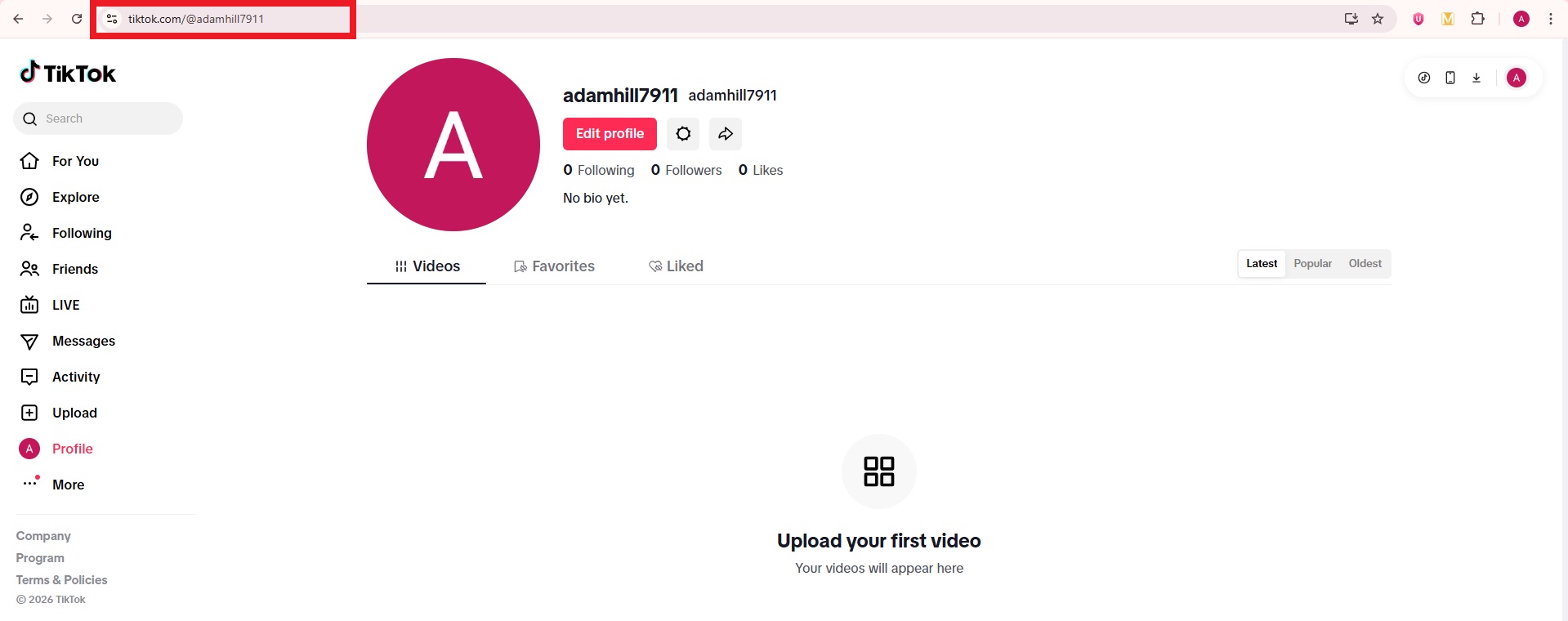
    4. Once your profile loads, look at the browser’s address bar. That’s your TikTok profile URL.

    TikTok profile URL on web

    5. Highlight it by double-clicking it, and then press “Ctrl + C” to copy it to your clipboard.

    Highlighted TikTok profile URL on web

    This method is perfect when you’re on a computer or desktop and want to share your link quickly without fumbling through your phone.

    With these three methods, getting your TikTok URL becomes a whole lot easier, whether you’re on mobile or desktop. Once you have it, you can share your profile instantly and grow your audience with less effort.

    Read also: How to get Snapchat URL: A detailed guide for Snapchat users in 2026

    Why must one care about his/her TikTok URL?

    Even something as simple as your TikTok URL deserves a bit of thought. It’s how people find, follow, and interact with your profile online. 

    But there are some real reasons why you should care about how and where you share it.

    Why must one care about his or her TikTok URL

    Unintentional privacy exposure (Doxxing risk)

    Sharing your TikTok link can sometimes expose more than you intend. If someone clicks the link, it can reveal your account details and make your profile easier to track down, which could lead to unwanted attention or doxxing. 

    TikTok’s guidelines take privacy seriously and warn against sharing personal information that could cause harm.

    Tracking & data harvesting

    TikTok collects a lot of information to personalize your experience and for advertising, including data tied to your activity and how links are accessed (even via profiles). This means clicks on your URL could feed into tracking systems you might not be thinking about.

    Persistent profile suggestion

    If someone opens or shares your TikTok link, the platform may suggest your profile to others, which is great for growth, but not ideal if you prefer privacy or didn’t mean to boost visibility.

    Brand security & “link in bio”

    For creators and businesses, a clean TikTok URL is essential for top-notch brand security. It’s what you put in your “link in bio,” on your website, and in promotions, so people know exactly they’re going to the right place.

    Reputation management

    Once someone has your TikTok URL, it’s tied to your online reputation. If your content or profile information changes, others may form impressions based on what they see, so managing when and how you share that URL matters most!

    Staying aware of these points helps you use your TikTok URL in ways that support your goals, no matter if that’s privacy, growth, or brand building (without surprises).

    Different types of URLs you can find on the TikTok platform in 2026!

    On TikTok, you’ll run into a few different kinds of links depending on what you’re trying to share, from your profile to shopping pages and even live streaming addresses. 

    Knowing what each type of TikTok URL looks like helps you use and share them the right way.

    Types of URLs you can find on the TikTok platform

    What is my TikTok mobile app URL?

    This is the link you get when you tap Share → Copy Link in the mobile TikTok app. It still leads to your profile but may include extra tracking bits that indicate it came from the app (like _t= or _r= in the link). 

    For example:

    https://www.tiktok.com/@coolusername?_t=12345&_r=1

    This still points to your profile, no matter what device someone opens it on.

    What is my TikTok website URL?

    This is the clean, browser-friendly version you see when you open TikTok in a web browser and look at your profile’s address bar. 

    It usually follows this simple format:

    https://www.tiktok.com/@coolusername

    Perfect for sharing on websites or messages without extra tracking info.

    What is my TikTok account URL?

    This is another way of saying your profile link. The main link that takes people straight to your personal TikTok page. 

    It looks the same whether you phrase it as a website URL or an account URL:

    https://www.tiktok.com/@coolusername

    Just replace “coolusername” with your own.

    What is my TikTok shop URL?

    If you’re selling through TikTok Shop, you’ll have a specific shop link that leads to your storefront or product page inside the platform’s e-commerce area. It usually looks like a TikTok Shop link tied to your profile or products.

    For instance:

    https://www.tiktok.com/shop/coolstore

    This takes customers straight to your item collection.

    What is my TikTok RTMP URL?

    This one’s a bit more technical. If you’re using custom RTMP to stream live to TikTok from external software (like OBS or Streamlabs), TikTok gives you a server RTMP URL plus a stream key. 

    For example, your RTMP info might include something like:

    rtmp://live.tiktokcdn.com/…

    You plug this into your streaming software to go live.

    What is my TikTok live URL?

    Your TikTok live URL is the link that takes someone directly to a user’s live broadcast on TikTok. You can usually get it by copying the link while a live stream is active or by editing a profile URL to point to the live section. 

    A common format looks like: https://www.tiktok.com/@username/live

    For example:

    https://www.tiktok.com/@coolcreator/live

    This will open that user’s live session if they’re currently broadcasting.

    What is my TikTok video URL?

    A TikTok video URL is the unique link that takes someone straight to a specific video post. You can share it by tapping “Share → Copy link” on a video you’re watching. 

    A standard example looks like:

    https://www.tiktok.com/@username/video/7036641620883737861

    Replace the username and video ID with the real ones.

    What is my TikTok channel URL?

    On TikTok, the term channel URL is often just another way to refer to your profile link (the web address for your account page). This is where people find all your videos, bio, and posts. 

    For instance:

    https://www.tiktok.com/@coolusername

    Takes someone to that person’s channel profile effortlessly.

    What is my TikTok server URL?

    A TikTok server URL is part of the technical setup for live streaming with external software (such as OBS or TikTok LIVE Studio). It’s the address your streaming tool connects to, alongside your stream key. 

    For example, when setting up a live stream, you might see an RTMP-style address like:

    rtmp://live.tiktokcdn.com/…

    This directs your software to TikTok’s live servers so your broadcast goes live on your account.

    In short, each of these URLs serves a different purpose, from basic profile sharing to live streaming or e-commerce. Knowing what they do makes it easier to use TikTok to its full potential!

    How to change your TikTok URL: A step-by-step guide!

    Changing your TikTok URL basically happens when you update your TikTok username, since your profile link is built from your username. 

    Updating this can give your profile a fresh look or better match your brand, and it’s easy to do right from the app.

    How to change your TikTok URL

    Here’s how to do it step by step:

    1. Open TikTok and log in: Launch the TikTok app on your phone and make sure you’re signed in to the account you want to update the URL of.

    TikTok app on mobile

    2. Go to your profile page: Tap the “Profile” icon at the bottom right corner. This is where you can see your current username and profile details.

    TikTok profile icon on mobile

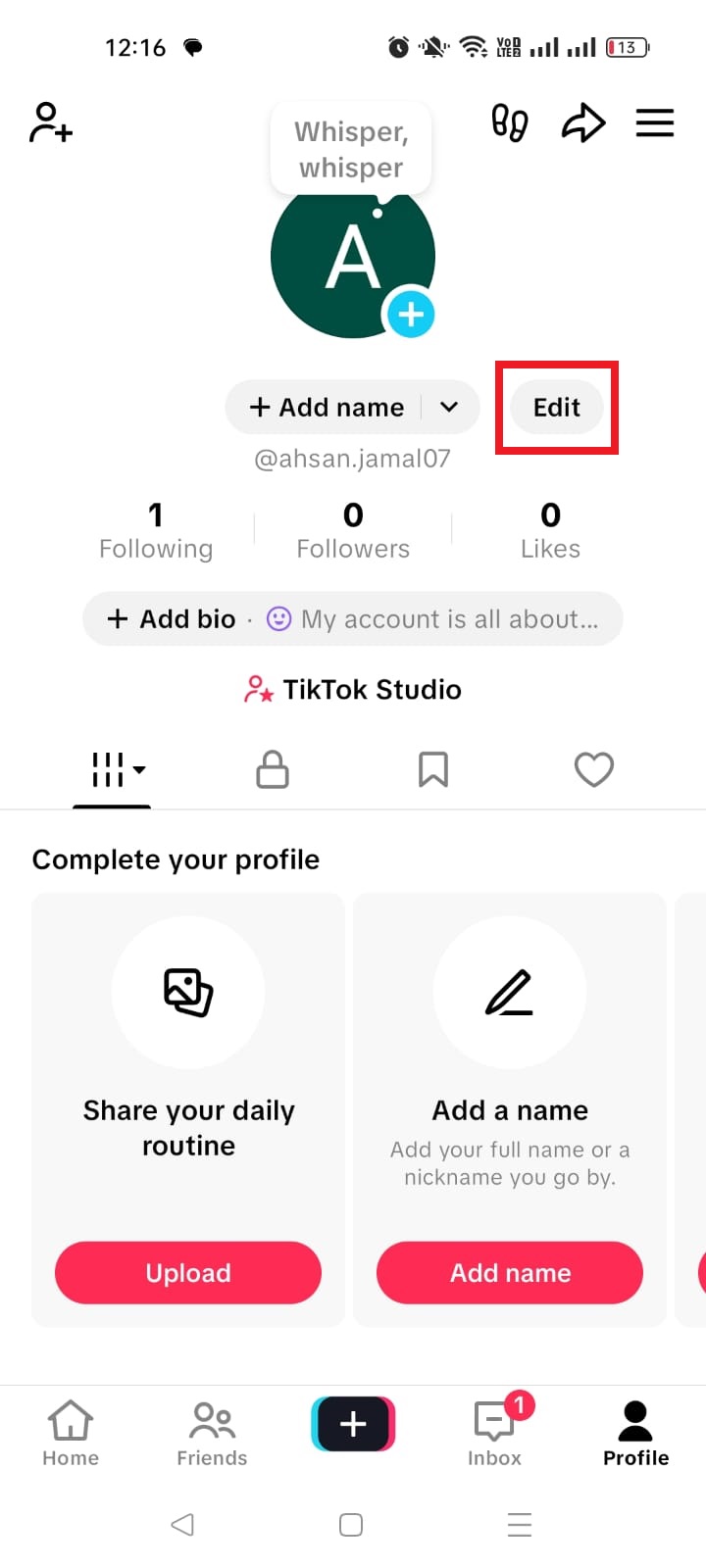
    3. Tap “Edit profile”: Just below your profile photo and username, you’ll see the “Edit” button. Tap that!

    TikTok edit profile option on mobile

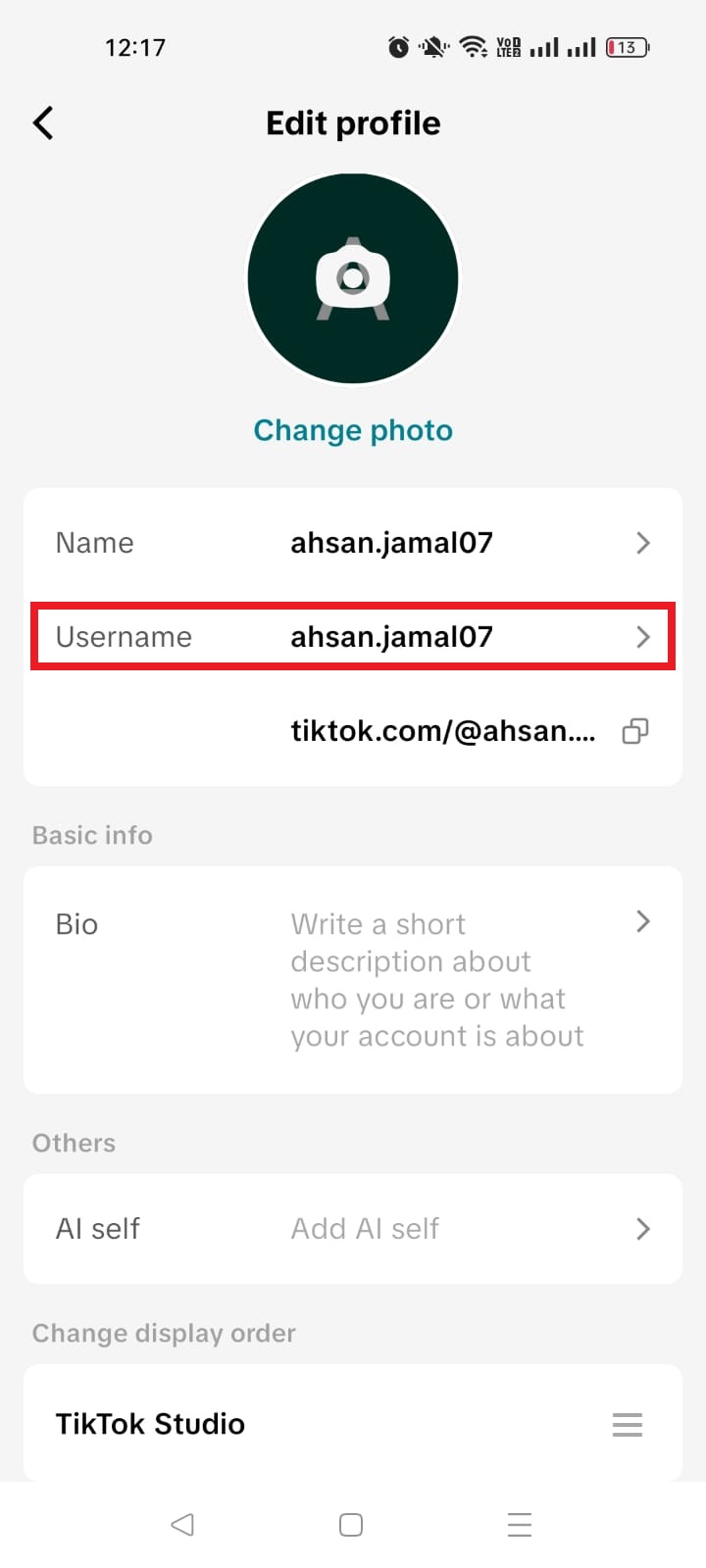
    4. Select the username field: On the “Edit profile” screen, tap the option that says “Username.”

    TikTok edit username option on mobile

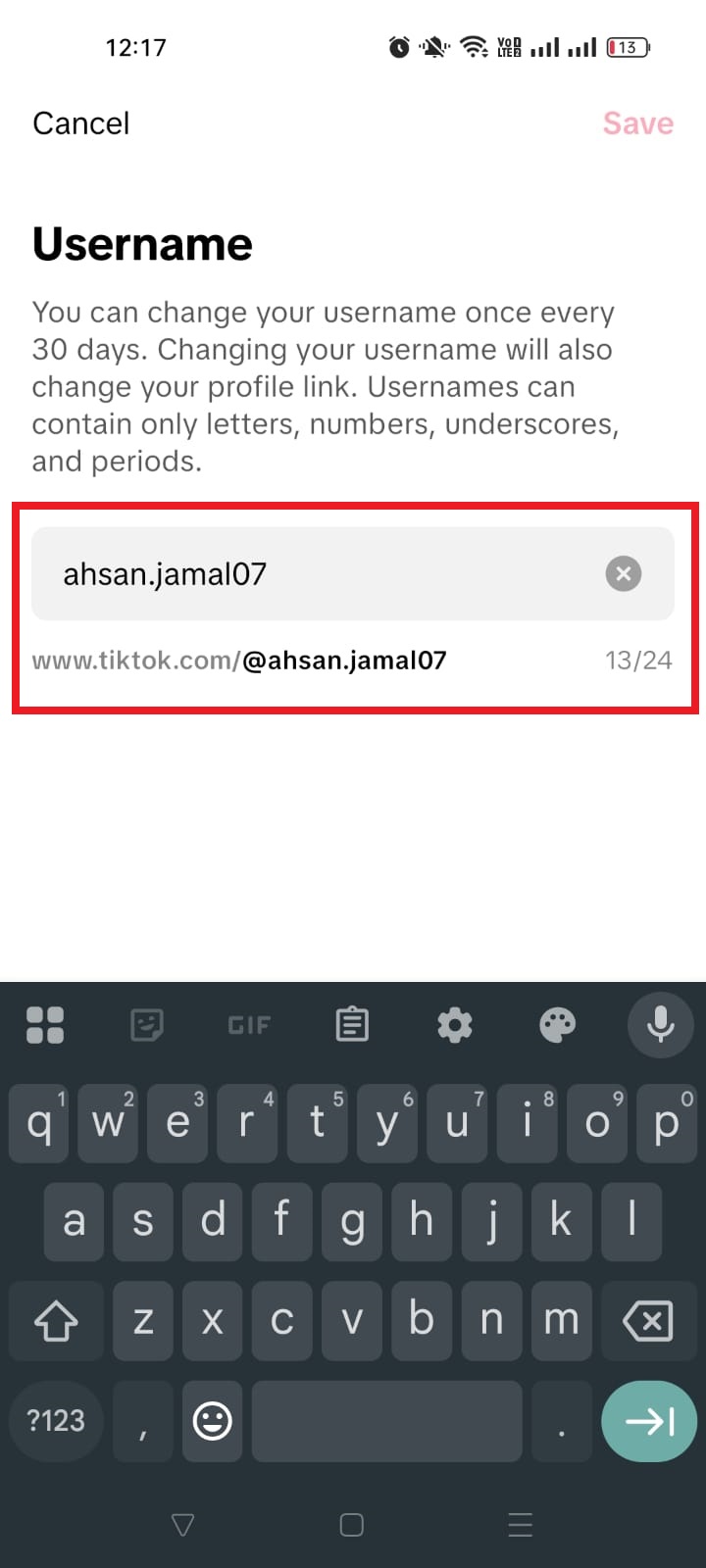
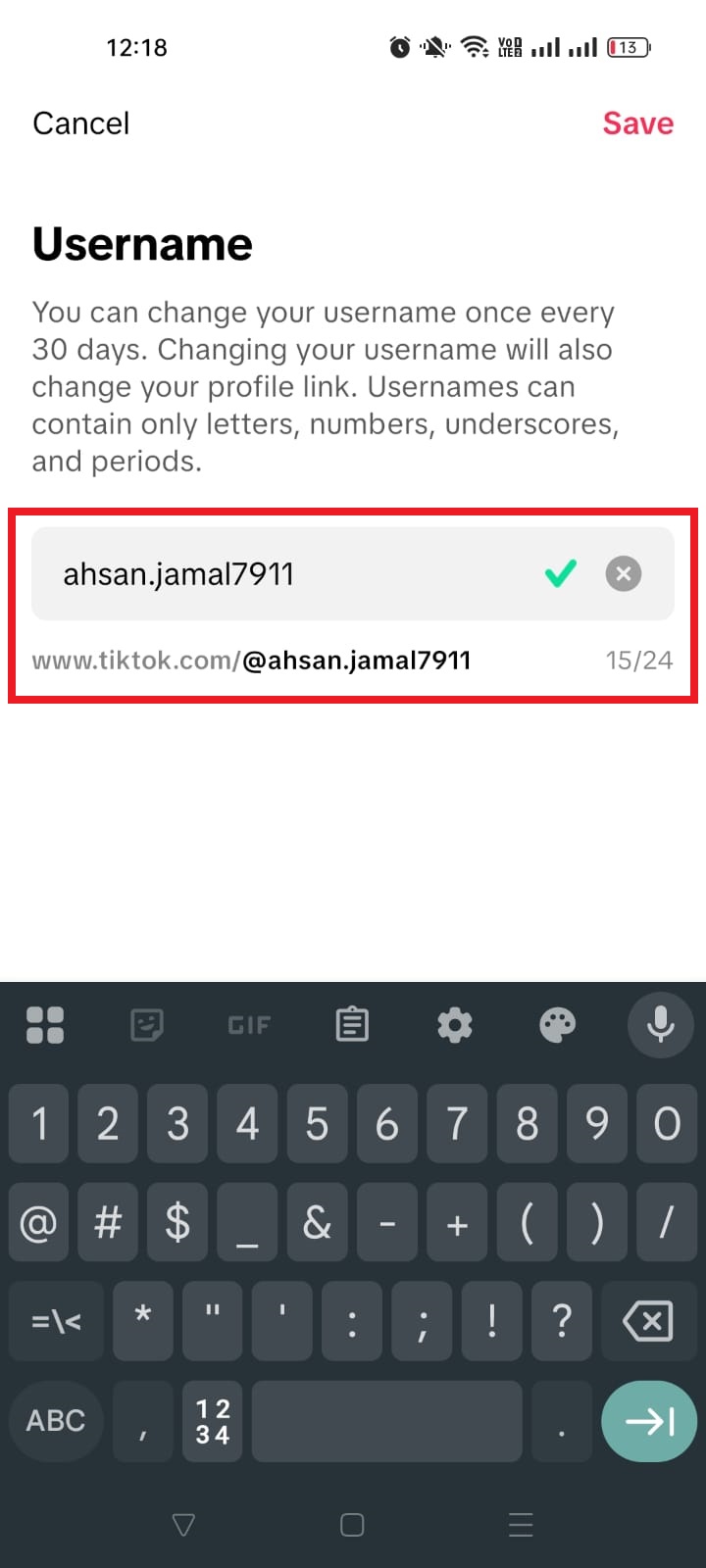
    5. Enter your new username: Type in the name you want. TikTok will automatically check if it’s available. If someone else is already using it, you’ll need to try a different one.

    TikTok current username on mobile
    TikTok new or updated username on mobile

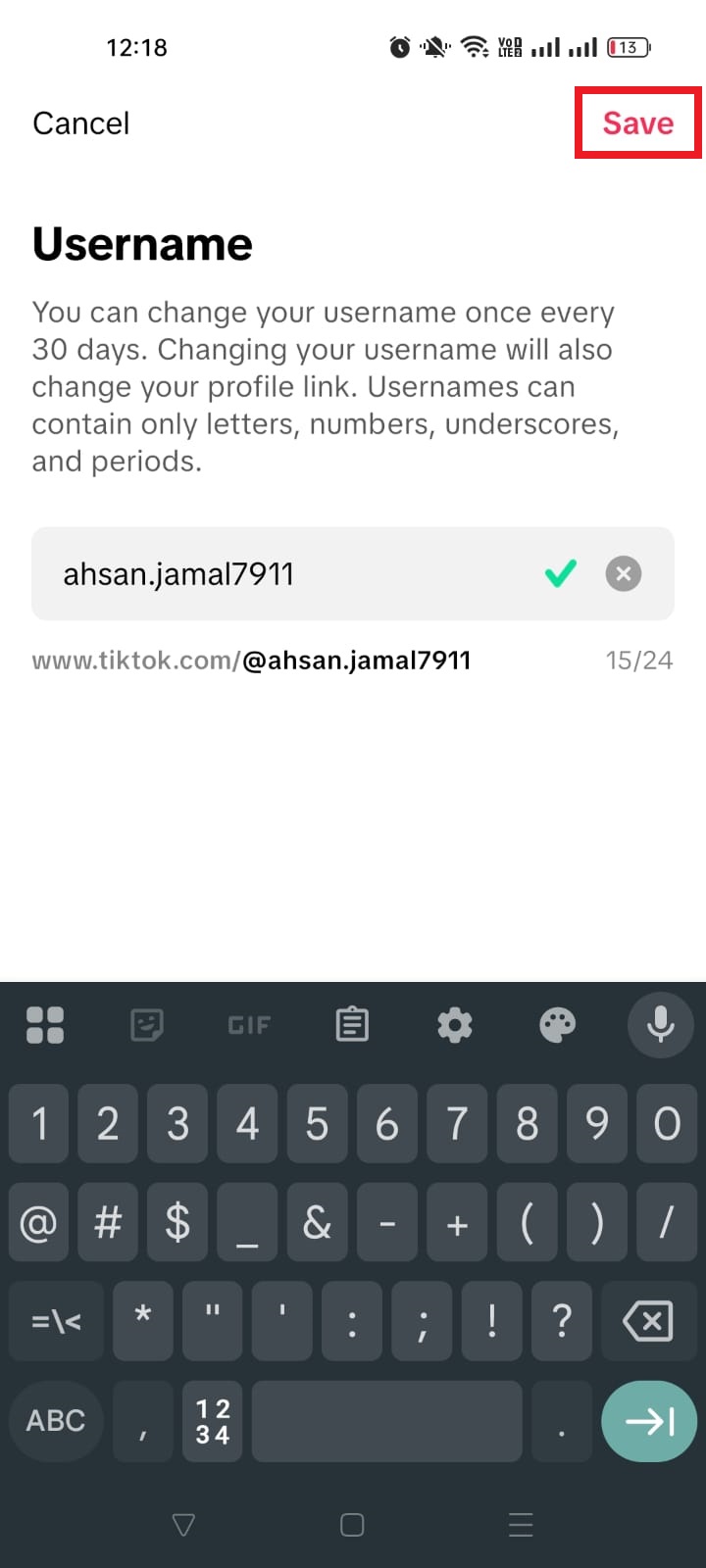
    6. Save your changes: Once you’ve entered your new username and it’s available, tap “Save” (usually in the top-right corner). Your profile link, and therefore your TikTok URL, will update instantly.

    TikTok save username option on mobile

    📌 Things to keep in mind: TikTok only lets you change your username once every 30 days, so make sure you’re happy with your new name before saving.

    That’s it!

    Now you’ve got a brand-new URL that matches your vibe or brand. If you’ve shared your old link anywhere (like in your Instagram bio), be sure to update it so people can still find you hassle-free!

    Shorten your TikTok profile URL using Replug!

    If you want your TikTok profile link to look cleaner, more professional, and easier to share, using a short link generator like Replug is a smart move.

    Replug is an all-in-one link management platform that not only shortens messy, long URLs but also lets you track clicks, brand your links, and even create smart bio pages, all from a single dashboard.

    Replug Branded Short Links CTA
    A complete link management solution
    for marketing professionals & agencies.
    Try Replug for free

    Here’s why this helps: 

    Long TikTok links with tracking codes or extra characters can be hard to read and don’t always look great in bios, messages, or marketing posts. 

    With Replug, you turn them into short, branded links people are more likely to click, and you get useful data to see how they’re performing in real time.

    Here’s how to shorten your TikTok account URL with Replug: 4 simple steps to follow!

    1. Sign up or log in to Replug: Head to Replug’s website and sign up for a free account. It’s quick and beginner-friendly. Once signed up, log in to your account.

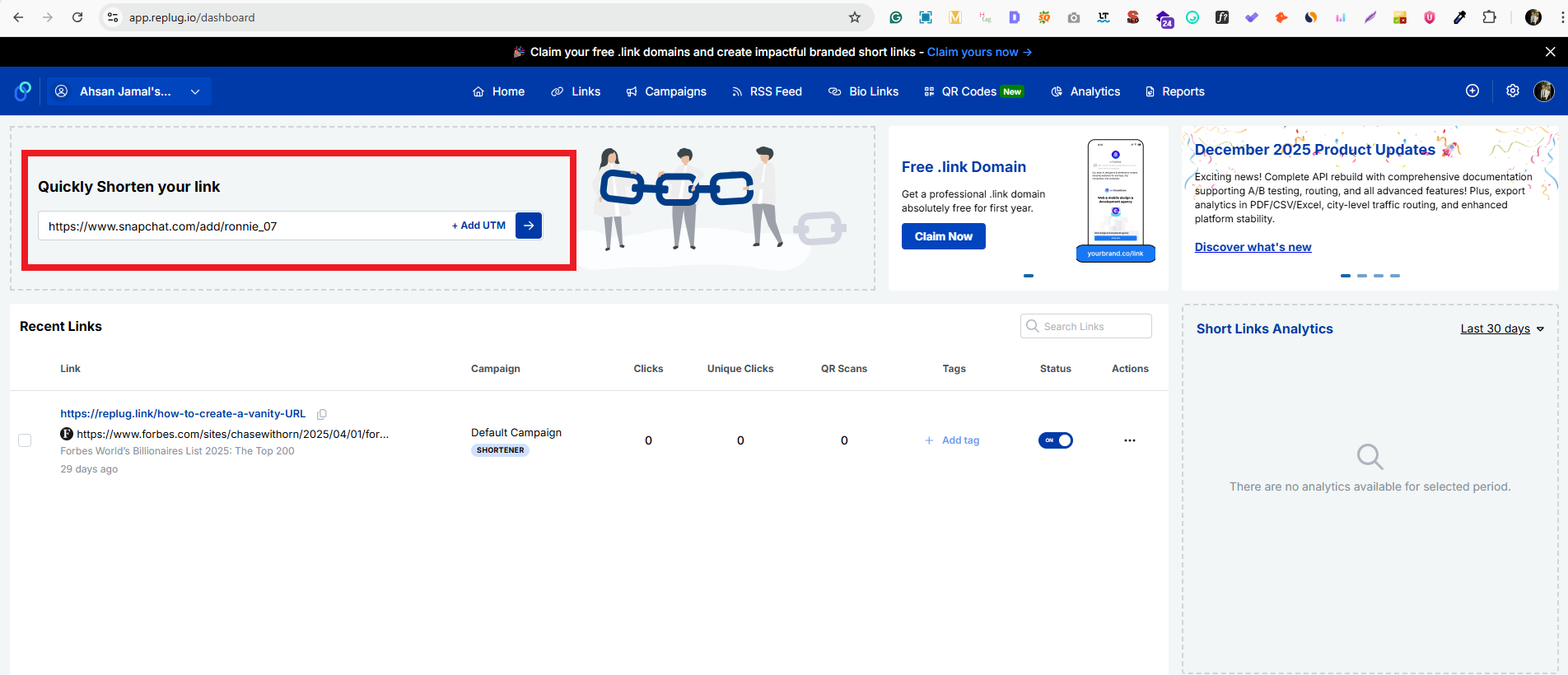
    2. Paste your TikTok profile link: Once you’re in the dashboard, look for the link shortener box titled “Quickly Shorten your link” and paste your full TikTok URL (e.g., https://www.tiktok.com/@yourusername).

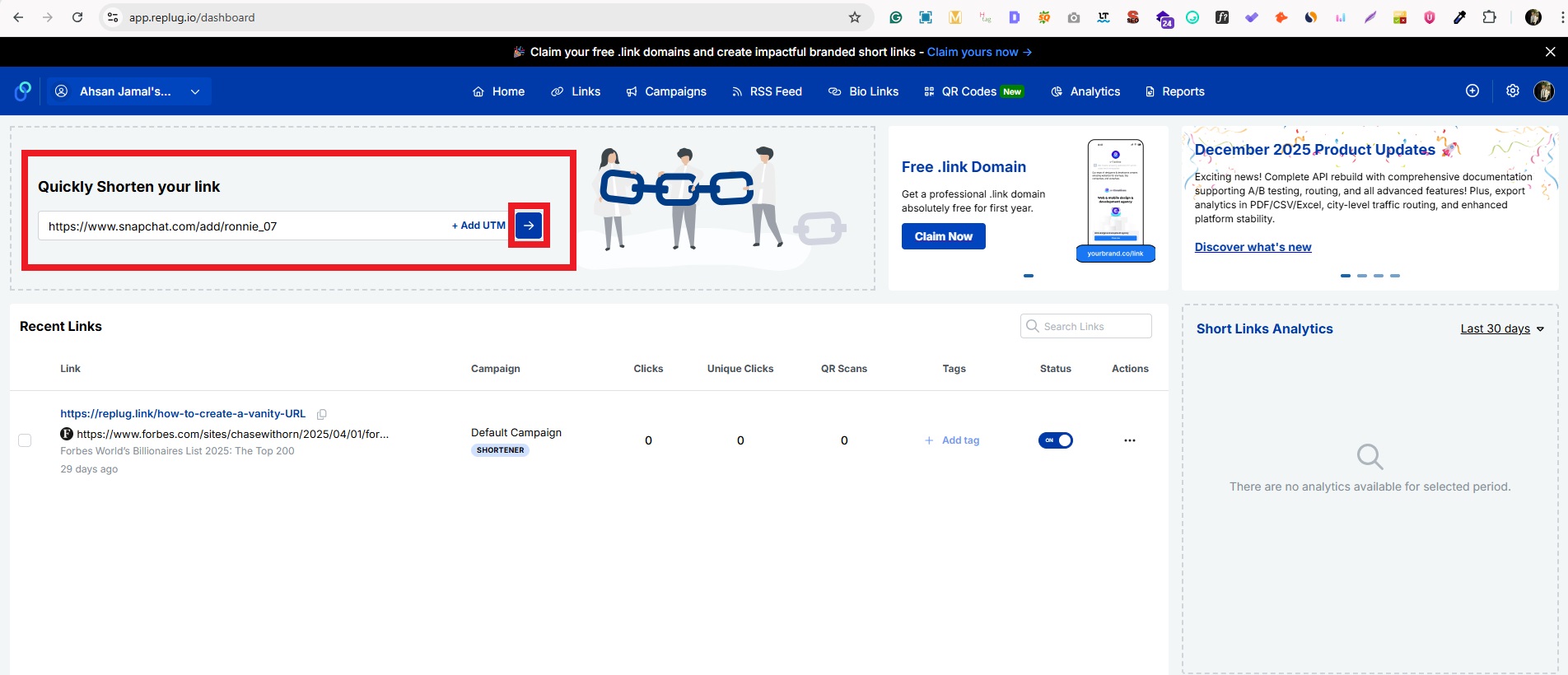
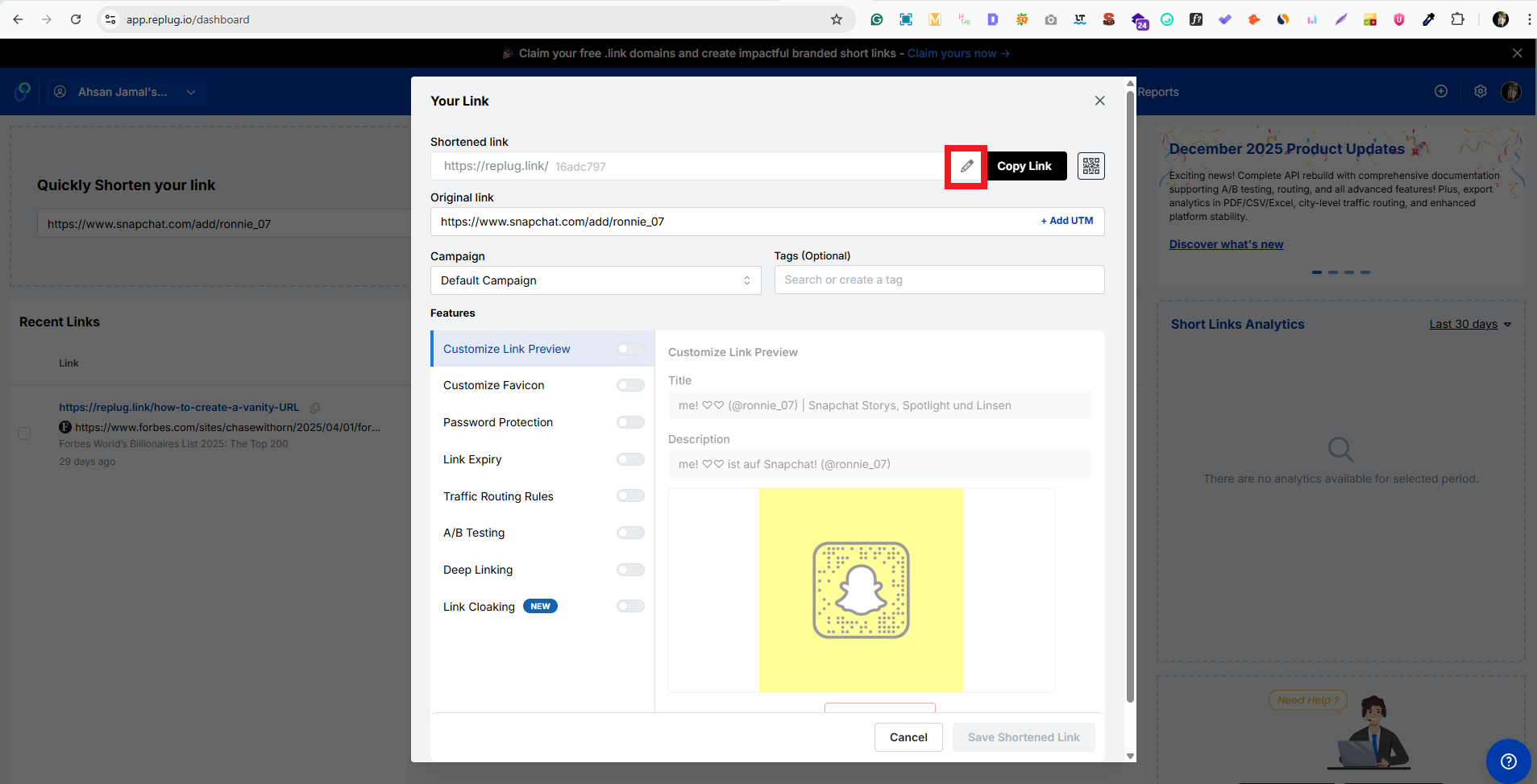
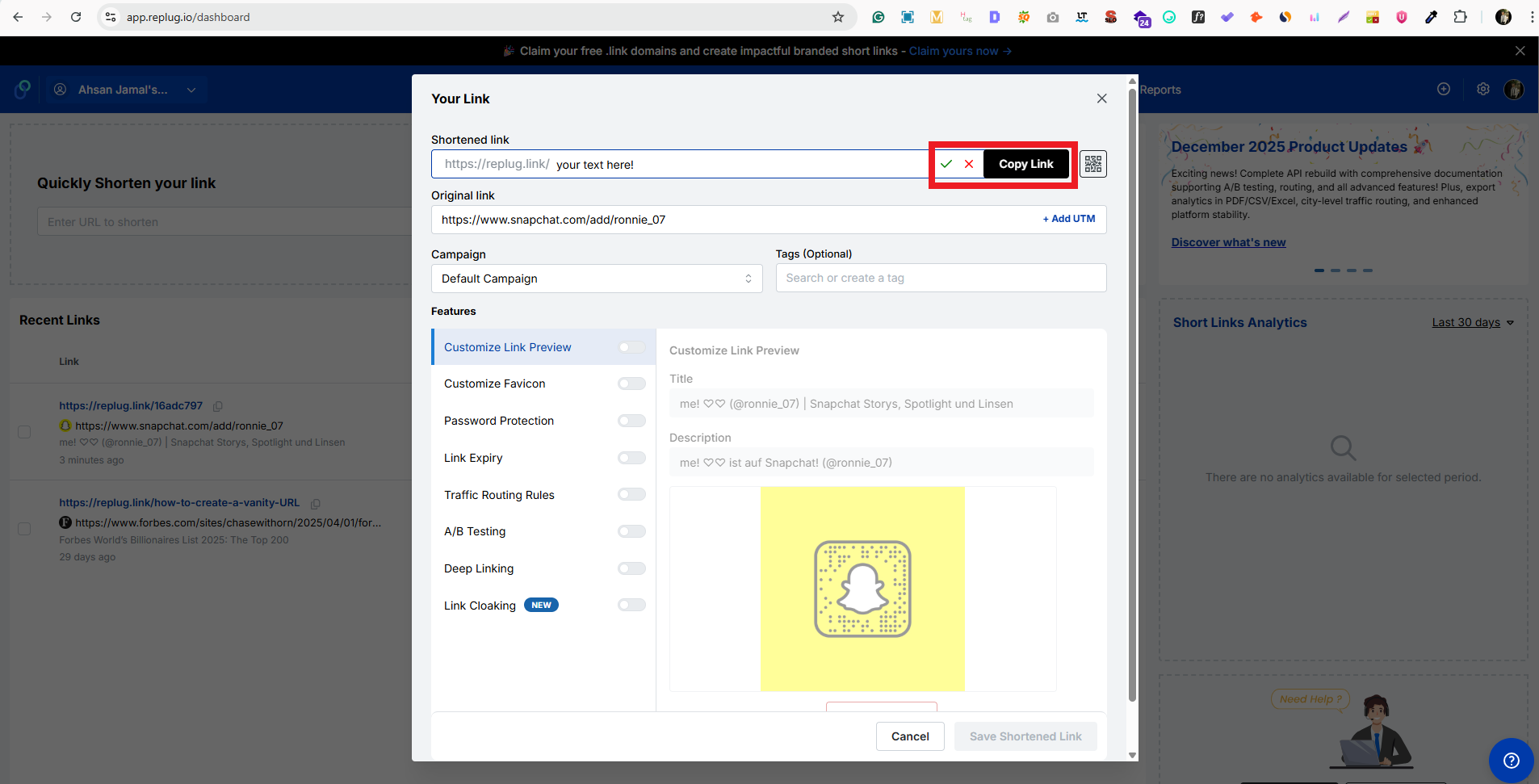
    3. Generate & customize: Click the blue right arrow button to shorten the link. Replug will create a clean, short version within seconds. You can also edit the slug (the part after the slash) to make it match your name or brand.

    4. Save & share: Your new short link is ready! Copy it, and add it to your TikTok bio, Instagram, website, or anywhere you want to promote your profile.

    🌟 Bonus: With Replug’s tracking and analytics, you can see how many people click your link and where they’re coming from.

    Summing up

    From figuring out what your TikTok URL is to customizing and shortening it, and even understanding the different types of links you might share, you now have everything you need to manage your TikTok presence like a pro. 

    No matter if you’re growing your brand, sharing content with friends, or using tools like Replug to tidy up your links and track clicks, having a clear handle on your URLs makes your life easier.

    And for those who want to save videos for editing or offline viewing, Replug’s free TikTok downloader lets you quickly grab clips without fuss.

    So go ahead, update that profile link, share it everywhere, and start turning those clicks into real engagement and growth!

    Frequently asked questions

    What is my TikTok link?

    Your TikTok link is the web address that takes someone directly to your TikTok profile. It normally looks like: https://www.tiktok.com/@yourusername, where “yourusername” is your TikTok username.

    How do I know what my TikTok URL is?

    To know your TikTok URL, just look for the link that includes your username (@username) after the main TikTok web address (tiktok.com). You can also open your profile in the app and copy the link from the sharing option. That’s your personal TikTok URL link!

    How do I find my TikTok URL?

    Here’s how to find your TikTok URL:

    1. Open TikTok and go to your profile.
    2. Tap “Share Profile” and then “Copy link.”

    That gives you your profile’s TikTok URL link.

    Note: To find someone else’s TikTok URL from their profile, do the same. Open their profile page and tap ShareCopy link.

    Where to find the TikTok server URL?

    If by TikTok server URL you mean the link used for live streaming (RTMP server URL), that is only available to users who have TikTok Live access and streaming enabled via TikTok Live Studio. It’s not shown in the normal app sharing options.

    What is my TikTok URL for a specific video?

    Every TikTok video has its own unique URL. To get a specific video’s TikTok link:

    1. Find the video in the app.
    2. Tap the “Share” arrow.
    3. Choose “Copy link.”

    You’ll get a link that looks like: https://www.tiktok.com/@username/video/123456789 (the numbers are the video’s ID).

    What is my TikTok URL on iPhone?

    On an iPhone:

    1. Open the TikTok app.
    2. Go to your profile.
    3. Tap the three dots or “Share” icon.
    4. Tap “Copy link.”

    Now the TikTok URL link is on your clipboard. You can paste it anywhere you want to share it.

    What is my TikTok URL on Android?

    On an Android phone:

    Open the TikTok app → Go to your profile → Tap the “Share” icon (the right arrow) → Tap “Copy link.”

    That gives you your TikTok profile URL. It usually looks like https://www.tiktok.com/@yourusername.

    Can you find a TikTok video URL with only the video ID (without the username)?

    No, TikTok video URLs normally include both the username and the video ID in the link (tiktok.com/@username/video/123…). There isn’t a reliable official way to construct a full video URL with just the numeric video ID alone. However, you can opt for a specific embed player format, since it works with just the ID.

    How to copy TikTok profile link URL?

    To copy any TikTok profile link URL (yours or someone else’s):

    1. Open TikTok and go to the profile.
    2. Tap the “Share” icon on the profile page.
    3. Tap “Copy link.”

    The TikTok URL will be copied to your clipboard.

    How to copy my TikTok profile link on PC?

    On a computer/PC:

    1. Go to tiktok.com and log in.
    2. Navigate to your TikTok profile page.
    3. Click the address bar and copy the full URL. It will be in the format https://www.tiktok.com/@yourusername.

    How to find a TikTok username?

    Your TikTok username is shown on your profile page below your display name (e.g., @username). You can also open someone else’s profile; their username shows near the top of the page. No extra tools are required!

    How to add a link to your TikTok profile?

    To add an external link in your TikTok bio:

    1. Open the TikTok app on your phone.
    2. Go to ProfileEdit profile.
    3. Find the “Links” or “Website” field and enter your link (it must start with http:// or https://).
    4. Save your changes.

  • How to find Pinterest URL?

    How to find Pinterest URL?

    Are you an avid Pinterest user looking to share your beautiful boards and pins with friends, family, or potential clients? Or maybe you’re new to the platform and trying to figure out how to navigate its features. Whatever the case may be, one important piece of information you’ll need is your Pinterest URL. 

    Your Pinterest URL is your unique identifier on the platform and allows others to find and follow your account. But with so many options and features on Pinterest, it can be confusing to locate your URL. Don’t worry though, in this article, we’ll guide you through the steps to find your Pinterest URL and get you on your way to share your amazing content with the world.

    Where to Look for Your Pinterest URL?

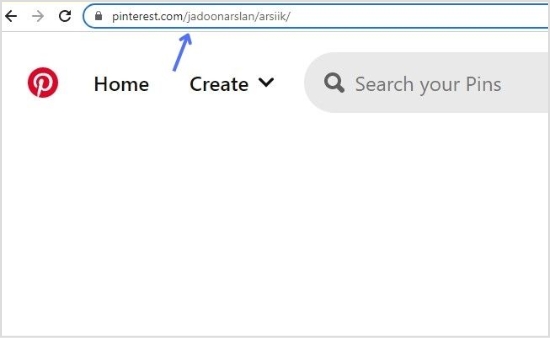
    Your Pinterest URL can be found in a few different places, depending on what you’re looking for. Here’s how to find your profile, pin, and board URL.

    To find your Pinterest profile URL:

    Step 1: Log in to your Pinterest account or create a new account. 

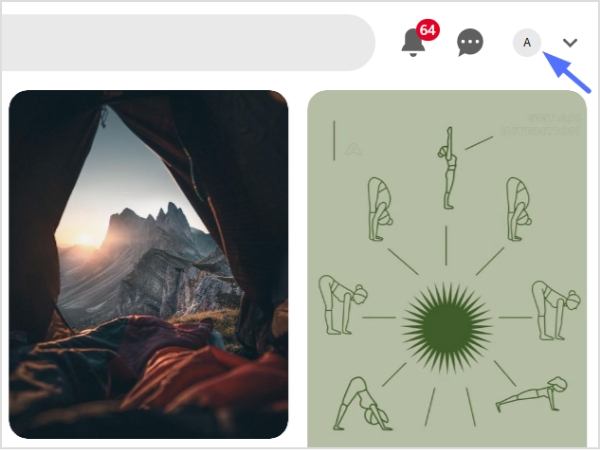
    Step 2: Click your profile icon in the top right corner to open your profile page. 

    profile-icon

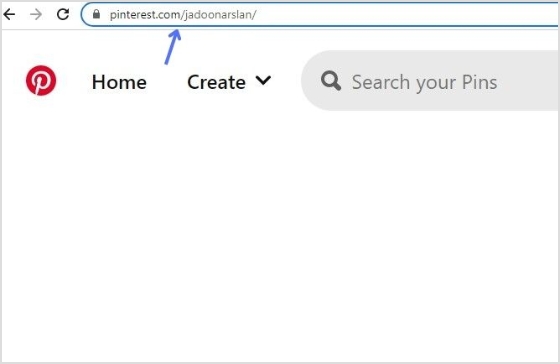
    Step 3: Copy the URL from the address bar. That’s your Pinterest profile URL. 

    copy-profile-url

    To find your Pinterest board URL:

    Step 1: Log in to Pinterest and open your profile page. 

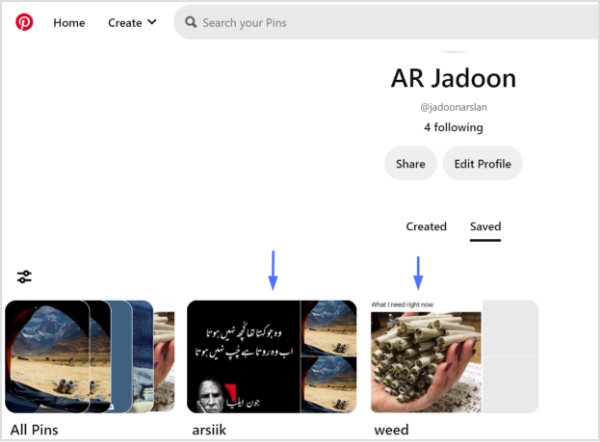
    Step 2: Select the board you want to share. 

    select-board

    Step 3: Copy the URL from the address bar. That’s your Pinterest board URL.  

    copy-board-url

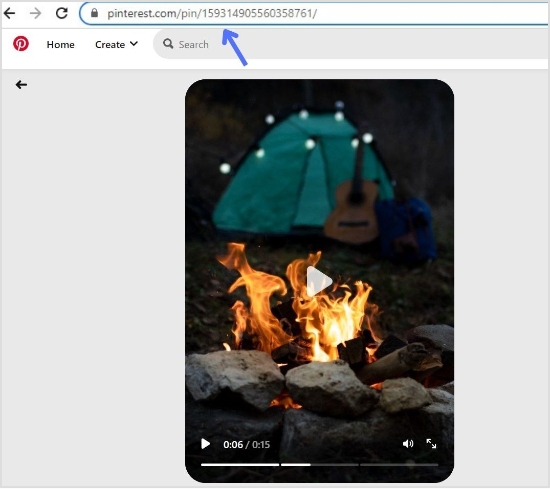
    To find your Pinterest pin URL:

    Step 1: Log in to your Pinterest account. 

    Step 2: Select the relevant pin (either from your own board or someone else’s).

    select-pin

    Step 3: Copy the URL from the address bar. That’s your Pinterest pin URL.

    copy-pin-url

    Also check out: How to find Steam URL: Step-by-step guide

    Final Words

    Your Pinterest URL is a vital part of your presence on the platform, allowing others to find and follow your content. Whether you’re sharing your entire profile, a specific pin, or a board, knowing where to find your URL is essential.

    By following the simple steps outlined in this article, you’ll be able to locate your Pinterest URL quickly and easily. Plus, to boost shareability even further, you can shorten link for cleaner, trackable shares. This helps you to grow your reach and connect with others on this visually-driven social media platform.

    If you’re using a tool like Replug.io to manage your links and strengthen your sharing strategy, the URL you locate here will feed directly into your broader system.

    FAQs

    What is a Pinterest board?

    A Pinterest board is a collection of related pins organized around a particular theme or topic. Users can create multiple boards on their Pinterest account and save or “pin” content to them, such as images, videos, and links from around the web. These boards can be shared with others and used for inspiration, planning, and bookmarking.

    What is a Pinterest pin?

    A Pinterest pin is a visual bookmark that users save to their Pinterest boards. Pins can include images, videos, or GIFs, and are typically linked to a website or online resource. Users can save pins they find on the platform or add their own pins to share with others. Pins are organized into boards based on topics or themes and can be discovered through search, recommendations, or by following other users.

    How do I change my Pinterest URL?

    1. Log in to your Pinterest account and go to your profile.
    2. Select “Settings” from the drop-down menu.
    3. Scroll down to the “Profile” section and click “Claim” next to the URL option.
    4. Enter your desired username and click “Claim“.
    5. If the username is available, you’ll be prompted to confirm the change. Click “Yes, let’s do it!” to save your new URL.

    Note that you can only change your Pinterest URL once, and the new URL must be available and meet Pinterest’s guidelines for usernames. Once you’ve changed your URL, your old URL will no longer work, so be sure to update any links or references to your profile.

    Trending:

    How to Add Instagram Link to Facebook Bio?

    Track Your Success: How to Create a Tracking Link?

    A Quick Guide To Deep Linking And Its Benefits

  • How to find live videos on Instagram?

    How to find live videos on Instagram?

    Instagram, like all social media platforms, constantly changes and evolves. In October 2021, one of the biggest updates was the removal of IGTV. Previously, users could find all live videos on Instagram by searching the hashtag #IGTV.

    Live videos on Instagram are now integrated into the “Stories” feature. After a live video ends, it is only available to be replayed for 24 hours, after which it is stored in the user’s “Video Archive.” Whether the video is republished or deleted is up to the discretion of the content creator.

    When you want to share a live-video replay or archive link, using a link shortener helps make the URL cleaner and more user-friendly, especially if you plan to post it across different platforms or in messages.

    Also, if you are someone who manage lots of social-media links and want a unified tool to organize, track and optimize all of them, Replug.io can be a helpful hub to keep your URLs clean and manageable.

    How to find live videos on Instagram? 

    There are two ways to find live videos on Instagram:

    • Find Instagram live videos from the accounts you follow
    • Find random live videos on Instagram

    Let’s begin:

    Find Instagram live videos from the accounts you follow:

    You can easily view the live streams of the accounts you follow without much effort. Follow the steps below to find the live videos from the people you follow:

    Step 1: Open the Instagram app on your mobile phone, or log in to Instagram from a browser. 

    Step 2: Live video will appear in the stories feed with a colorful ring around it and the word Live. 

    Step 3: Tap on the live video to see the live broadcast from the people you follow. 

    During the live broadcast, you can interact by: 

    When watching a live broadcast, remember that the broadcaster and other viewers may see you’ve joined. 

    Leaving a comment (tap Comment on the app or Add a comment on the website), liking a comment, replying to a comment, reacting to the video with an emoji, or sharing the video. All actions taken during the broadcast, such as liking or commenting, are visible to other viewers.

    How to find random Instagram live videos?

    Discovering random live streams on Instagram can be frustrating if you don’t get any results. However, you can try the following steps for searching for random live streams:

    On Instagram mobile app:

    Step 1: Open the Instagram app on your mobile phone. 

    Step 2: Tap the “search icon” at the bottom menu. 

    search icon

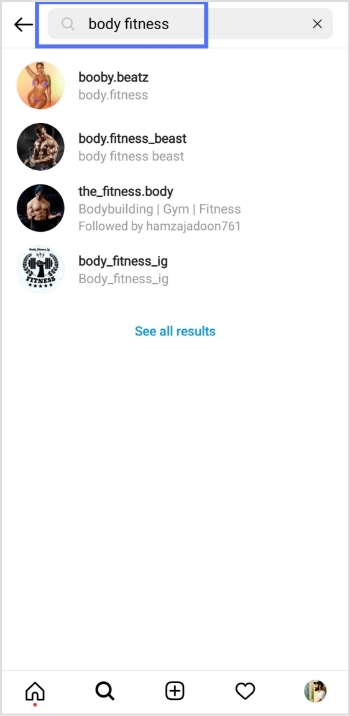
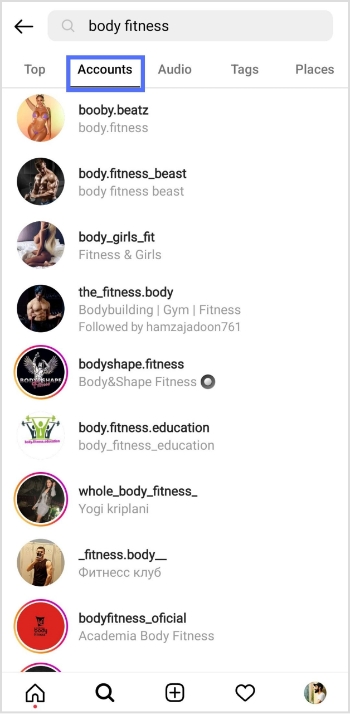
    Step 3: Enter the intended live video keyword in the search bar and tap the search button on your mobile keypad. 

    enter search

    Step 4: Tap the “accounts” tab to open accounts with the live videos. 

    accounts

    Step 5: Tap the profile icon with the “live” to open the live stream. 

    On a web browser:

    Step 1: Log in to Instagram from your browser. 

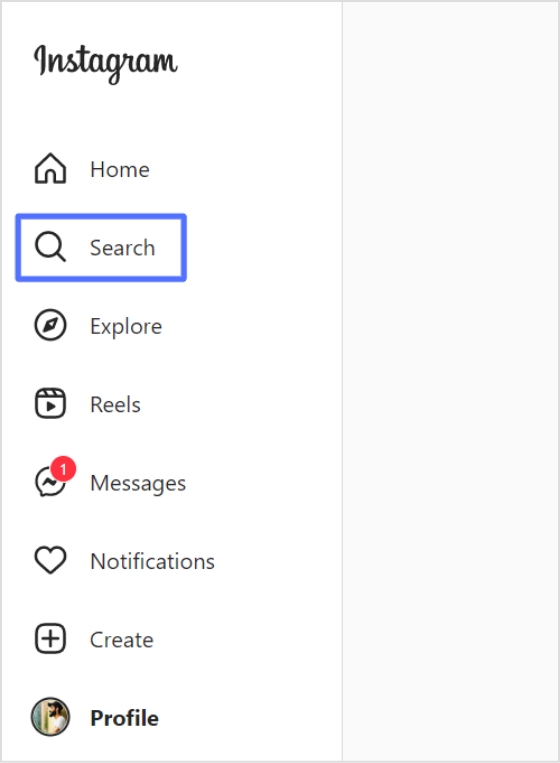
    Step 2: Click “search” in the left side menu. 

    Search

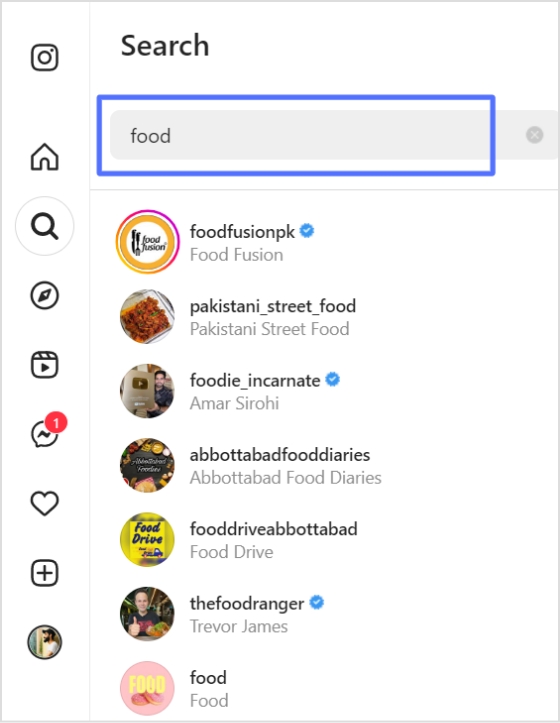
    Step 3: Enter the intended keyword in the search bar and look for the “live” profile.  

    enter keyword

    Also Read: How to download Instagram videos?

    How to start a live video on Instagram?

    Follow the steps below to start a live broadcast on Instagram:

    Step 1: Open the Instagram app and tap the “add icon” in the bottom menu. 

    add icon

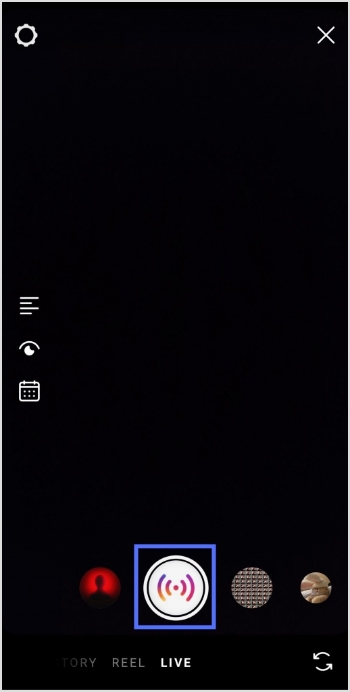
    Step 2: Swipe left to go to live and tap the live button to start the live video. 

    live button

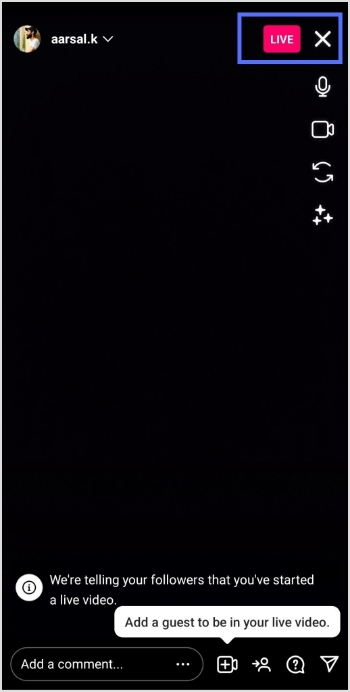
    Step 3: The device will check for the internet connection momentarily, then you’ll see the “you are now live” message on the screen. 

    Step 4: Tap the “exit (X)” on the top right corner to end the live stream. 

    exit live

    Step 5: Tap the “end video” button and confirm to end the live stream. 

    end video

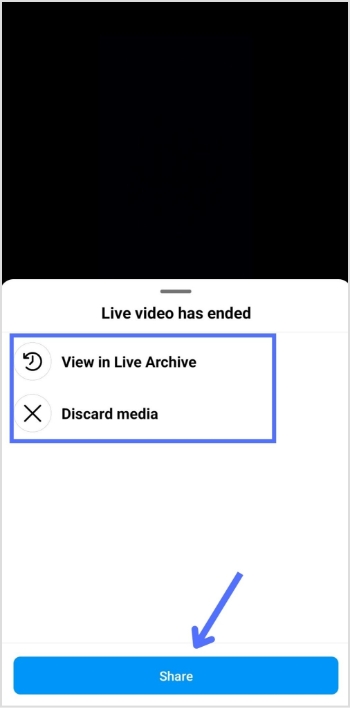
    Step 6: You will see the following options: View in Live Archive, Discard media or Share. Make your selection according to your preference.

    archive share discard

    Frequently asked questions

    Why can’t I find live videos on Instagram?

    There could be several reasons why you are not able to find live videos on Instagram:

    – Your account may not have access to live videos. Instagram has certain restrictions and requirements to access live videos.
    – The person you are trying to view the live video may not be broadcasting.
    – The person you are trying to view the live video of may have a private account, and you may not be following them.
    – Your internet connection may be slow or unstable, affecting the live video quality.
    – There could be a technical issue with the Instagram app or your device.

    Try troubleshooting these issues, or contact Instagram support for further assistance.

    Trending now:

    How To Save TikTok Videos Without The Watermark?

    15 proven Facebook SEO techniques to try in 2026

    How To Put A Link In TikTok Bio?


  • How to get Snapchat URL: A detailed guide for Snapchat users in 2026

    How to get Snapchat URL: A detailed guide for Snapchat users in 2026

    Have you ever tried sharing your Snapchat profile only to find everyone asking, “What’s your link?” You’re not alone! 

    With over 900 million monthly users and roughly 469 million people opening the app every single day in 2025, Snapchat remains one of the most buzzed-about social platforms of 2026.

    But despite its massive popularity, many users still don’t know how to get or share their Snapchat URL, leaving them frustrated and stuck when connecting with friends, followers, or customers.

    That confusion can make something as simple as building your presence feel way harder than it should be. 

    In this guide, we’ll walk you through exactly how to find your Snapchat URL, starting with the basics. So let’s step in and clear things up!

    First up:What is a Snapchat URL link?

    What is a Snapchat URL?

    A “Snapchat URL” is simply a web link that leads straight to a specific Snapchat profile or piece of content. It’s like a shortcut that saves people from searching around for your username.

    Instead of telling someone to type your exact username (which is easy to mess up), you can just send a link that instantly opens your profile in Snapchat. This makes connecting way faster and smoother than the old days of only searching or scanning Snapcodes or QR codes.

    What is a Snapchat URL

    The main purpose of a Snapchat URL is to make sharing and adding friends easier. When someone taps the URL, they’ll see your Snapchat page with an “Add” button right away (no extra steps).

    That’s especially handy if you’re trying to grow your audience, promote yourself, or just make it simple for friends to find you online.

    Snapchat URL example

    Here’s what a typical Snapchat profile link looks like:

    https://www.snapchat.com/add/yourusername

    In this example, replace yourusername with your actual Snapchat username. Now, the resulting link becomes your personal Snapchat URL that you can share anywhere, anytime!

    How to get my Snapchat URL on the app: Step-by-step guide!

    Getting your Snapchat URL right from the app is super simple! It’s just a few taps, and you’ll have a link ready to share with friends, followers, or in your bio.

    📱 Here’s how to get the Snapchat URL on the app:

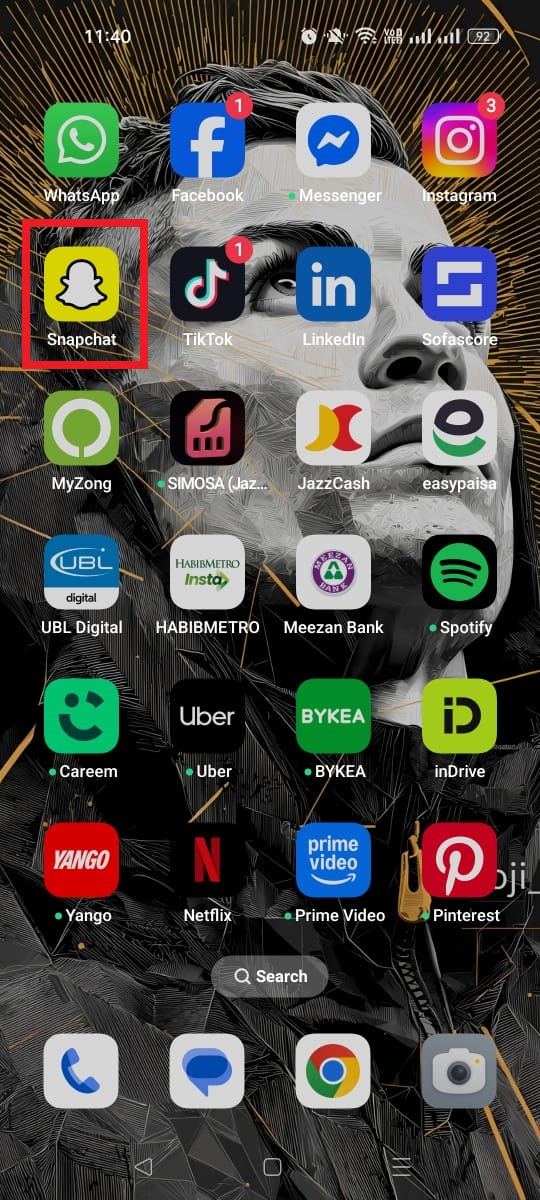
    Step #01: Open the Snapchat app on your phone like you normally would.

    Snapchat app

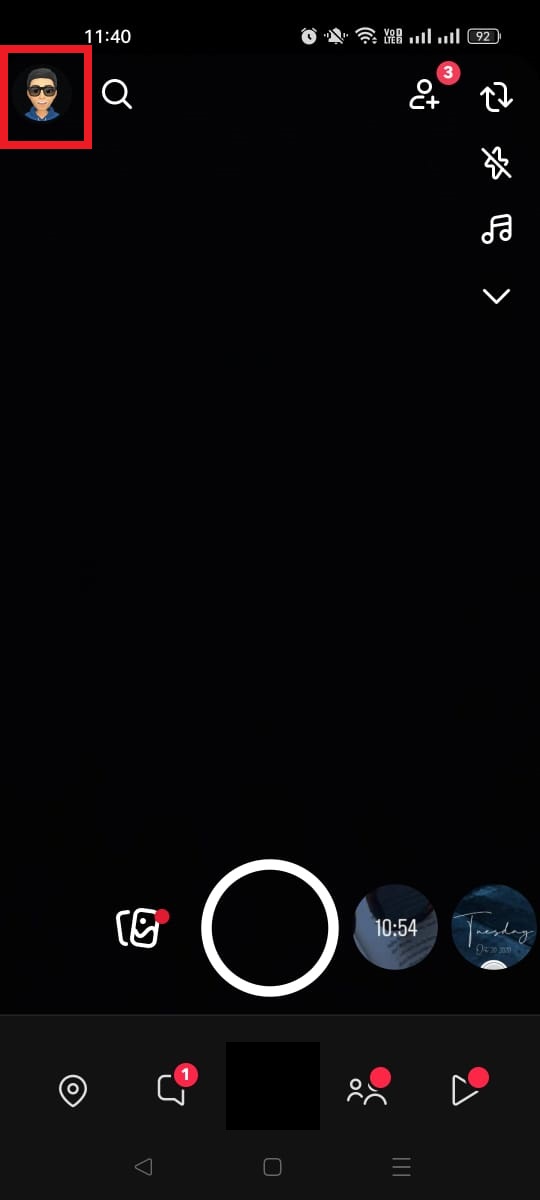
    Step #02: Go to your profile by tapping your Bitmoji or profile icon in the top left corner.

    Bitmoji or profile icon in Snapchat

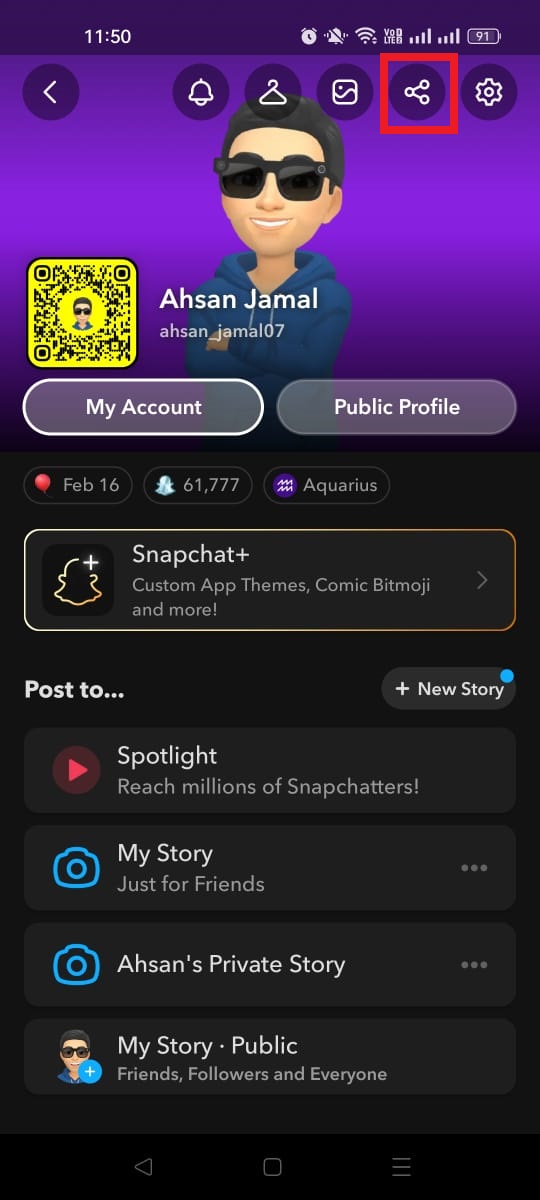
    Step #03: Look for the “Share” icon and tap it. It will be on the left side of the “Settings” icon.

    Share icon on Snapchat

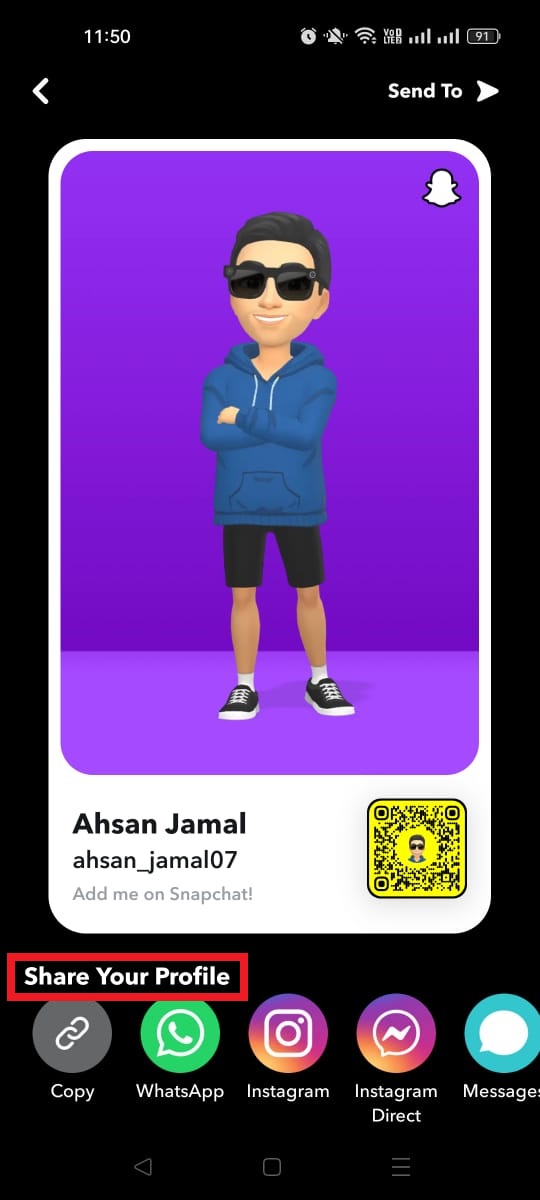
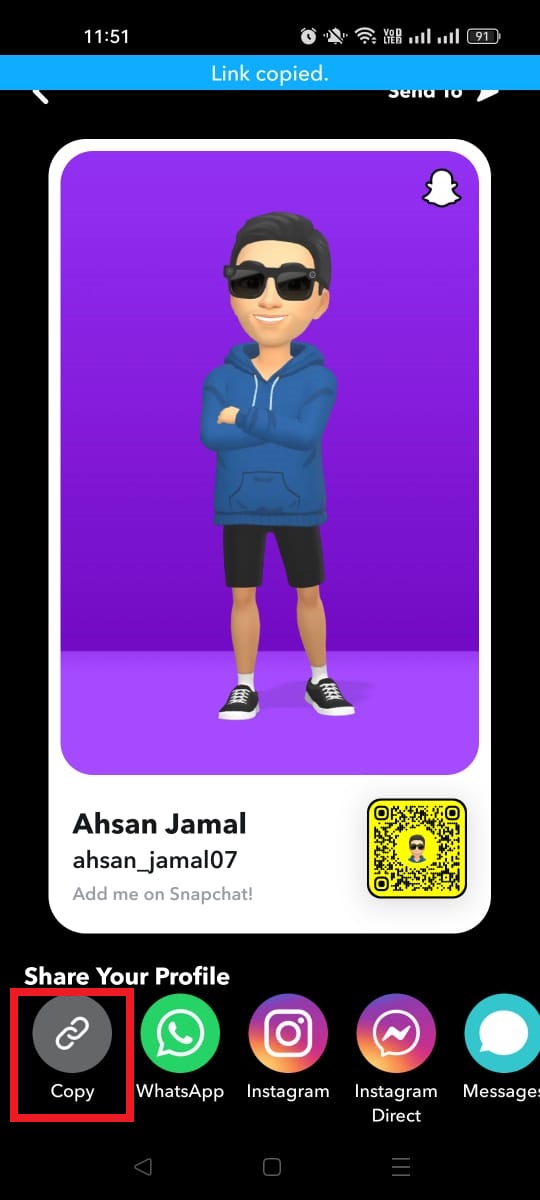
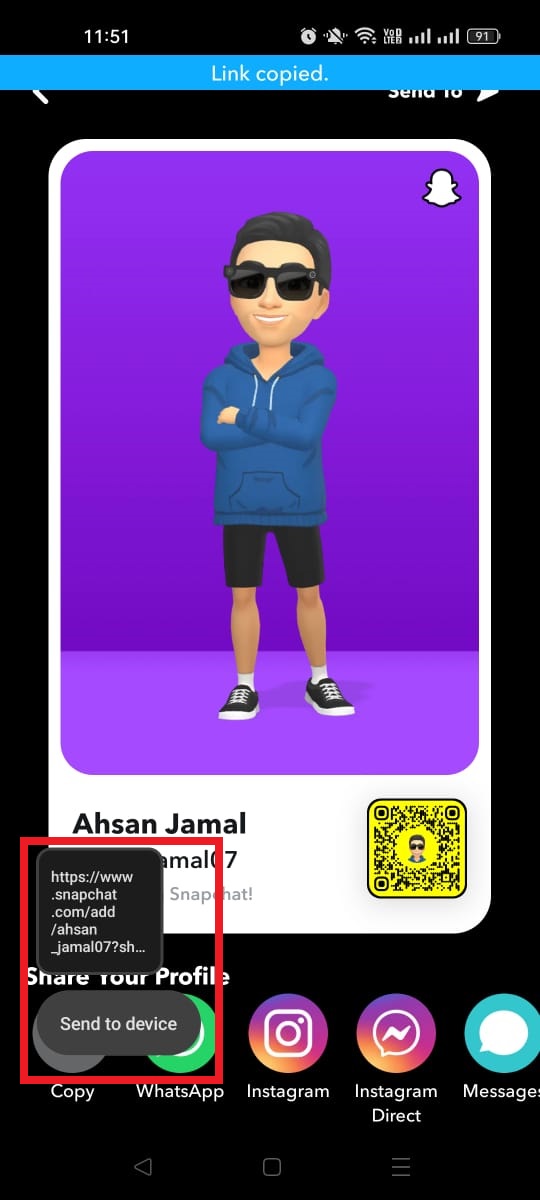
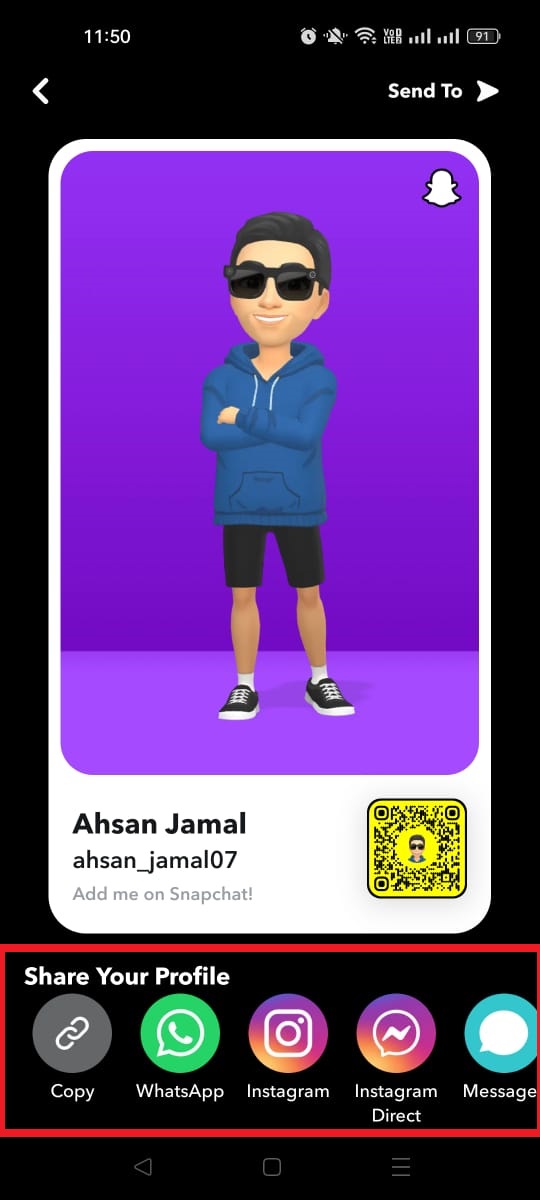
    Step #04: On the next screen, you will see an option that says “Share Your Profile.” Under it, tap on the option labeled “Copy.”

    Share Your Profile option on Snapchat
    Copy option for your Snapchat profile URL

    Step #05: Snapchat will show you your unique URL (it usually looks like https://www.snapchat.com/add/yourusername).

    Unique Snapchat Profile URL

    Step #06: From here, pick how you want to share it. You can copy it to your clipboard, send it in a message, post it on social media (like WhatsApp or Instagram), or save it for later.

    Unique Snapchat Profile URL sharing options

    And that’s it! You’ve now got your personal Snapchat link ready to go 🥳. It makes adding you way easier than asking people to type your username by hand.

    How to copy a Snapchat URL from the app: Grab your link straight from your phone!

    Copying your Snapchat URL right from the app is one of the easiest ways to share your profile with others, whether you want friends to add you or you’re promoting your account online.

    Here’s how to copy a Snapchat profile link URL:

    Step #01: Open the Snapchat app on your phone and make sure you’re logged in.

    Snapchat app

    Step #02: Go to your profile by tapping your Bitmoji or profile icon in the top-left corner of the screen.

    Bitmoji or profile icon in Snapchat

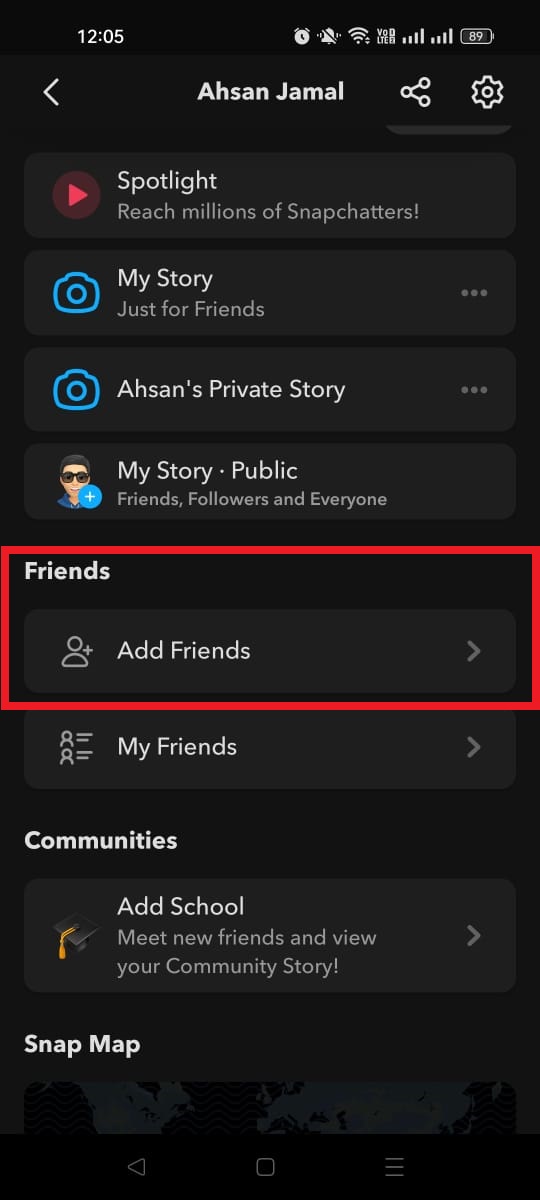
    Step #03: Look for the “Add Friends” option and tap it. It will be under the section titled “Friends.”

    Add Friends option on Snapchat app

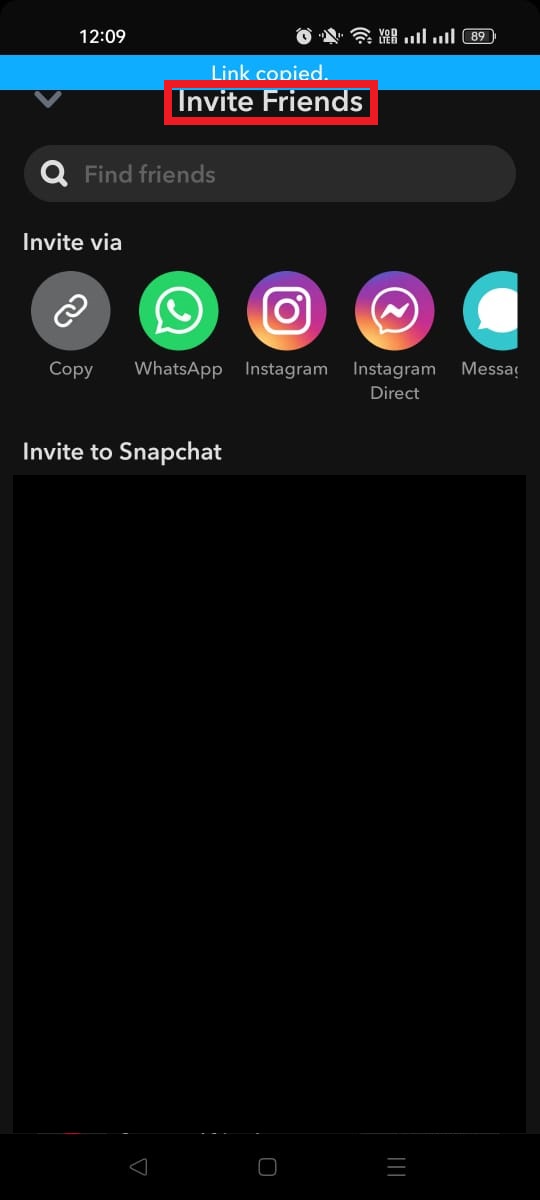
    Step #04: On the next screen, you will see an option that says “Invite friends.” Tap that!

    Invite friends option on Snapchat app

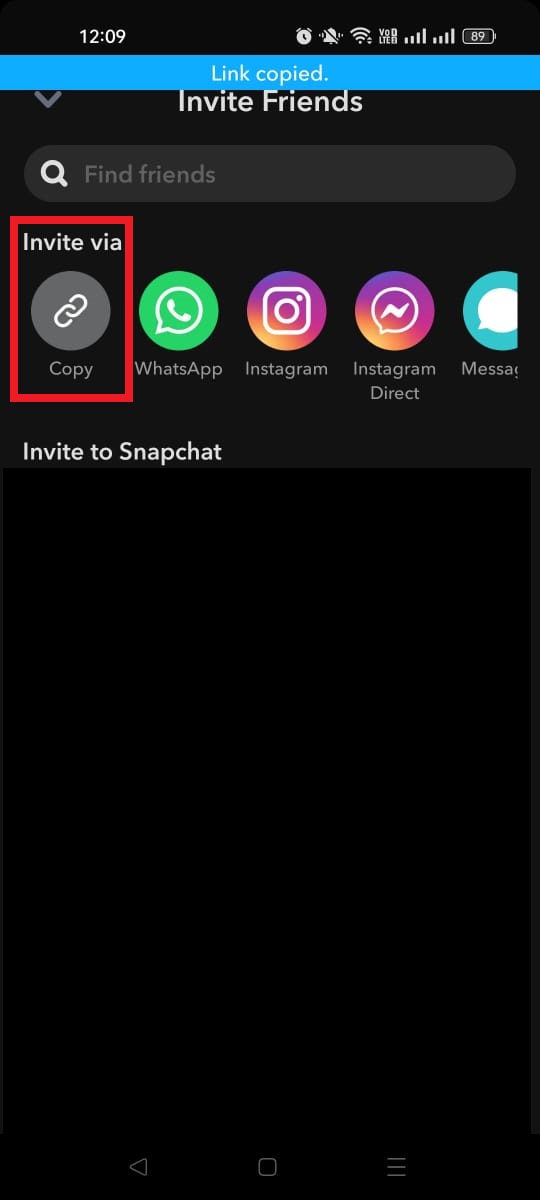
    Step #05: Now, under the “Invite via” heading, tap “Copy.” This displays your Snapchat profile URL (something like https://www.snapchat.com/add/yourusername) and copies it to your clipboard.

    Invite via option on Snapchat app

    Step #06: Paste it wherever you want, e.g., like in a message, your Instagram bio, or a blog post, by long-pressing and selecting “Paste.”

    That’s it! Now you’ve got your Snapchat URL copied and ready to go, making it way easier for people to find and add you.

    How to view links on Snapchat: Inside direct snaps & in stories

    Sometimes friends send you web links inside snaps or add them to their stories, and Snapchat makes it pretty easy to see what they’re sharing.

    No matter if it’s a link in a direct snap or a swipe-up link in a story, you just need to know where to look and how to interact with it. 

    Here’s a friendly, simple run-through so you never miss a link someone shares with you!

    🔍 Viewing links in direct snaps

    Step #01: Tap the snap in your chat feed or conversation list to view it.

    Step #02: Check the bottom center of the screen for a small arrow pointing up, and you might also see the name or title of the website that’s linked.

    Step #03: Drag your finger upward on the screen to load the web page that’s connected to the snap.

    Step #04: When you’re done, either tap the down arrow in the corner or pull the page downward to go back to the snap or chat.

    That’s all there is to it!

    📖 Viewing links in stories

    Step #01: Go to the “Stories” section by swiping left from the camera screen, and then tapping the option labelled “Stories.” You’ll see all recent stories from your friends or accounts you follow.

    Step #02: As you watch a story, if the creator has attached a link to a snap (using the paper clip icon when they posted it), you’ll see a prompt like “Swipe up to view” or the website title at the bottom.

    Step #03: Swipe up on the screen when that prompt appears. This opens the web link right in Snapchat’s browser.

    Note: If there isn’t a link included, swiping upward won’t do anything. You need to have the Snapchat app installed on your phone or tablet in order to see the linked content easily.

    Read also: How to add a link to Snapchat story: 6 simple steps

    How to attach a link to a snap: 5 quick steps to follow!

    Attaching a web link to your snap lets people swipe up to open a site right from your photo or video. Perfect option for sharing articles, products, events, or anything cool you’ve found online.

    It’s quick and works right inside the Snapchat app!

    Step #01: Open Snapchat and take a snap. Just shoot a photo or record a video like you normally do.

    Take a snap on Snapchat app

    Step #02: Tap the paperclip icon. On the preview/edit screen, look for this icon in the vertical toolbar on the right; that’s Snapchat’s link button.

    Paperclip icon on Snapchat app

    Step #03: Enter or paste your URL. Type in the web address you want to share, or paste one you’ve copied from elsewhere.

    Enter or paste your URL on Snapchat app

    Step #04: Tap the “Attach to Snap” button. Once the link looks right, hit this blue button. Snapchat will show a little preview so you can double-check it.

    Attach to Snap button on Snapchat app
    Link preview on Snapchat app

    Step #05: Send or post your snap. Now just send it to friends or add it to your story. Anyone who sees the snap can swipe up to open the link in Snapchat’s internal browser.

    That’s it! This feature makes sharing useful web content super easy without leaving the app. 😊

    Also read: How to get an image URL: Get the URL of a photo on different devices & platforms within seconds!

    Shorten your Snapchat links with Replug!

    If your Snapchat URL feels too long and cluttered to share, especially in places like Instagram bios, texts, or tweets, a link shortener like Replug can help you turn it into a clean, simple, and more professional link that’s easier to share and remember. 

    Shortened links also tend to look better and can boost engagement when you drop them on social media or in your content.

    Here’s a simple step-by-step guide to help you shorten your Snapchat URL using Replug:

    Step #01: Sign in or create an account on Replug. Go to the Replug website and log in to your account. If you don’t have one yet, signing up is quick, and there’s a free option to get started.

    Replug app login page

    or

    Replug app signup page

    Step #02: Paste your Snapchat URL. On the dashboard, find the box labeled “Quickly Shorten your link” and paste your copied Snapchat URL (like https://www.snapchat.com/add/ronnie_07).

    Quickly Shorten your link box in Replug app

    Step #03: Generate your short link. Click the blue button to create the short link. Replug will instantly generate a cleaner, shorter version of your Snapchat URL.

    Blue button to create the short link in Replug app

    Step #04: Customize your short link (optional). You can adjust the text after the slash (called the slug), so it matches your name or brand, making it even more memorable. For this, click the pencil icon.

    Customize your short link in Replug app

    Step #05: Copy your shortened link and share it. Once you’re happy with it, click the “✔” icon. Then, copy the shortened link by pressing the “Copy Link” button and use it anywhere you like, such as in bios, emails, posts, or chats.

    Copy Link button in Replug app

    Note: Using a Snapchat URL shortener like Replug not only tidies up your link but also gives you options like link tracking, how many people click it, adding custom call-to-actions, or even using your own domain if you want to look extra polished.

    Wrapping up

    To wrap up, now you’ve learned how easy it is to find, copy, share, and even shorten your Snapchat URL (no guessing, no confusion)

    You saw simple steps for grabbing your Snapchat link, viewing shared links in chats and stories, attaching links to your own snaps, and using a reliable URL shortener to make those links easier to share on socials and beyond. 

    These tools don’t just clean up long URLs; they help you look more professional and boost engagement wherever you post.

    If you’re ready to take your Snapchat sharing to the next level, give Replug a try today!

    It’s an all-in-one link optimization platform with features like branded short links, click tracking, personalized CTAs, bio links, QR codes, and more. The ideal option for making every link count!

    Replug Branded Short Links CTA
    A complete link management solution
    for marketing professionals & agencies.
    Try Replug for free

    Frequently asked questions

    What is my Snapchat URL?

    Your Snapchat URL is a unique web link that points directly to your Snapchat profile, usually in the format https://www.snapchat.com/add/yourusername. When someone taps it, they’ll see your profile with an option to add you immediately.

    How to find my Snapchat URL?

    Here’s how to find a Snapchat URL in the app: 

    Open Snapchat → Go to your profile (tap your Bitmoji or profile icon) → Tap “Add Friends”“Invite your friends.” “Copy.” 

    This shows your unique profile link that you can copy and share anywhere you want, hassle-free!

    What is the Snapchat app URL?

    The Snapchat app URL refers to the official download or access links for the Snapchat mobile app, such as the Google Play or Apple App Store pages. These are the links people use to install the Snapchat app on their devices (e.g., the Play Store link with package ID com.snapchat.android).

    What is Snapchat’s Share Sheet API?

    The “Share Sheet API” is a developer tool from Snapchat that lets third-party websites and apps create links users can click to share a URL directly in Snapchat (as in the desktop experience). The shared link opens Snapchat’s web interface, allowing users to send it to friends seamlessly.

    What is the URL for Snapchat Web?

    Snapchat Web, i.e., the browser version of Snapchat, is available at https://web.snapchat.com. You can log in with your account to chat, call friends, and use other core features without the need for a mobile app.

    How to make a URL on Snapchat?

    You make a Snapchat URL by using the “Share Username” feature: 

    Open Snapchat → Go to your profile → Tap the “Share” icon → Under “Share your profile,” tap on “Copy.” 

    The generated link looks something like: https://www.snapchat.com/add/yourusername

    Is it possible to add bio links to your Snapchat profile?

    Yes, if you’ve set up a public Snapchat profile, you can add a link (like your website or another social profile) in your bio when editing your public profile settings. This lets visitors tap through directly to your external URL.

    How can brands capitalize on Snapchat URLs or links?

    Brands can use Snapchat URLs to drive traffic straight from snaps, stories, or bios to product pages, landing pages, or promotions. By placing links where followers can swipe up or tap, companies can guide engagement, track how users interact with content, and convert attention into action (whether that’s a sale, a signup, or a follow).

    What is the easiest way to link to any Snapchat account?

    The easiest way to link to a Snapchat account is to use the profile’s Snapchat URL (like https://www.snapchat.com/add/yourusername) and share it wherever you want to direct people. For instance, in messages, on websites, or on other social networks.

    How to generate a Snapchat profile deep link? What are its major benefits for businesses and influencers?

    A Snapchat profile deep link is a special link that opens the Snapchat app directly to your profile from outside the app (a great option for marketing)

    To generate one, start with your Snapchat profile link and use a deep-linking tool that adds app-specific routing and fallbacks. 

    The big benefits are higher engagement and a smoother user experience. Users click once and land right where you want them without extra steps, helping boost followers and conversions.

    Are there any specific Snapchat URLs to block?

    Snapchat itself doesn’t publish a list of URLs to block, but avoid linking to unsafe, illegal, or explicit content, as that violates community guidelines and can result in account penalties. Always focus on trustworthy destinations when sharing links.

    What is the best free Snapchat link generator online in 2026?

    One of the best free tools you can use in 2026 is Boei’s Snapchat Link Generator. Just enter your username, and it creates a shareable Snapchat link instantly. This free generator is easy to use and great for quickly crafting a link you can share in bios, posts, or messages.

  • A/B testing benefits, examples & other factors to consider

    A/B testing benefits, examples & other factors to consider

    What is A/B Testing?

    A/B testing is a side-by-side comparison of two or more marketing campaigns, landing page designs or other elements to find out which one gets more attention in terms of clicks, conversion and overall performance.

    A/B testing is a buzzword in the digital marketing industry. We have been hearing A/B testing or A/B split testing terms for website designs, logos, or banner ads for a while now.

    It’s time to pay close attention to this concept and figure out what it is. More importantly, how and where else you could use A/B testing for our good.

    It doesn’t matter whether you’re a beginner copywriter or a freelance graphic designer – as long as you’re working in any creative and digital marketing field, it’s going to help you out.

    In this blog, you’ll also learn the important factors to consider before doing A/B testing with Replug to see which URLs perform better than the others.

    11 Benefits of A/B Testing

    Let’s discuss the benefits of A/B testing that every marketer and conversion optimizer should know:

    1. Test URLs Performance

    Replug-A/B-testing-Tool

    Short URLs are in the trend now-a-days. No wonder every major brand uses short links for social media and content sharing across all social platforms.

    The best URL shorteners allow marketers and brands to A/B test their URLs to see how people react to different versions of the same URL.

    You can take your link management to the next level with Replug’s short url shortener. It is a simple yet powerful tool to create, track, and optimize branded links for better engagement.

    Overall, this brilliant link optimization platform assists brands and experts in understanding URL performance effortlessly.

    2. Increases Conversion Rates

    Conversion rate is a term used for calculating or analyzing the percentage of users who are clicking and buying/downloading the product. For instance, if 100 visitors clicked on an affiliate link and only 10 eventually bought the item, then the conversion rate would be 10%.

    One of the reasons why marketers and conversion optimization experts do some sort of A/B testing is that they want to increase the conversion rate. Hence, they make an alternation on the page or copy and test it pans out. So without a doubt, A/B testing is crucial to increasing conversion rates regardless of the industry or product category.

    3. Improves User Engagement

    User engagement refers to the process of how a website or app keeps the user abreast. The reason why a business would want a user to stick around is that the longer the user stays, the higher the chance of a conversion.

    Moreover, it plays an essential role in the success of any website or online business. E-commerce stores, digital product sellers, and affiliate marketers pay close attention to improving user engagement on website pages.

    4. Makes Everything Testable

    A/B testing allows marketers to test out a wide range of things just to make sure that they prioritize the best-performing unit. One of the huge benefits of A/B testing is that it quickly makes anything testable regardless of the nature of the product, type, and layout.

    For instance, if you hire a graphics designer to design three Facebook ad designs and you use all three ad units in an ad set; you could easily analyze which one outperforms the other.

    5. Reduce Risk by Assessing User Behavior

    Understanding user behaviors saves time, effort, and energy. More importantly, it reduces the risk of putting in the work, effort, and money into something that may not yield positive ROI.

    For example, digital marketers build an email list using opt-in forms. Sometimes, they change the design and layout of the opt-in form to see how users behave afterwards. If the number of sign-ups increases, it shows that it’s worth doing it.

    So it’s safe to say that A/B testing helps understand user behavior. Therefore, it contributes to reducing the risk.

    6. Easier to Analyze the Performance

    AB-testing

    One of the biggest benefits of A/B testing is that it gets easier to analyze the performance of marketing strategies or organizational management by testing two more cases along the way.

    For example, if a blogger puts two types of banner ads to test which type gets more clicks while only one of them gets clicks, then it’s obvious that something is wrong with the other banner ad.

    7. Reduce Bounce Rates

    A lot of digital marketers and conversion optimization experts want to reduce the bounce rates of their sales pages or overall websites, so they use A/B split testing to see what works for them.

    The experts try all sorts of things, for instance, changing the sales page design, colors, fonts, etc. The purpose is to stop people from bouncing off the site sooner. They use engagement tactics such as tables, CTAs, forms, FAQs, pictures, and several other things to stop people from leaving the site.

    8. Minimize Cart Abandonment

    Car abandonment is a huge problem with e-commerce businesses. Brands and online stores try different tactics to deal with the cart abandonment problem.

    One of the ways to deal with cart abandonment is by doing A/B testing across different areas. You could A/B test on the pricing model, call-to-action buttons, and the website theme just to see how it works for you.

    9. Help Solve Visitors’ Pain Point

    A/B testing assists marketers and merchants in understanding the choices and preferences that users make while browsing through the website. As a result, it helps them make better decisions along the way.

    Affiliate marketers and bloggers often put lead magnets on their blogs to build email lists. If their lead magnet is niche-relevant and useful for the audience, it starts to convert well. However, it doesn’t resonate with the audience, and it doesn’t work very well.

    So as long as you’re understanding the visitors’ pain points, you have a better chance to get attention and convert prospects into customers.

    10. Redesign Website to Increase Future Business Gains

    A/B testing is incredibly important for improving the UI/UX of a website or app. User interface and user experience are terms used for noticing how users react to any design or layout or interface.

    Usually, marketers test out a landing page or opt-in form designs and layouts to see which ones perform better than others.

    A website design revamp is an excellent strategy to rejuvenate your digital marketing campaign. Often companies redesign their websites after four to five years just to stay relevant and up-to-date.

    You can always A/B test your site conversion through a website redesign. Analyze how many conversions are happening every month and then do a site design revamp and reevaluate the performance afterwards.

    11. Improve Content Engagement

    A/B testing isn’t just limited to ad banners or logo designs. You could A/B test all sorts of marketing and engagement content to see what works for you.

    Use this A/B testing strategy on your content. You could test out a specific type of content or certain content formatting to notice the difference.

    For instance, if you’re doing more sales/commercial content on your blog, try putting out informational content to see the difference in engagement.

    Increase User Retention

    User retention is how well a website or app retains users through engagement tactics – these engagement tactics could be tools, offers, quality content, etc.

    One of the benefits of A/B testing is that one can increase user retention on the website. All it takes is to figure out what needs to be improved, for instance, website copy, design, layout, or call-to-actions, so that the plan of action is determined.

    Real-world examples of A/B Testing

    Let’s dive deep into a couple of real-world examples of A/B testing:

    Example #1: Adding a call-to-action to my blog header

    I have first-hand experience adding a call-to-action button on my blog that turned things around for me.

    I have been telling this story for years that how a CTA button helped me grow my freelance writing business.

    Here’s the short version of the story: I was struggling to earn a living with freelance writing. Little did I know that just a single CTA could change everything for me. As soon as I added that CTA to my blog’s header, I started getting email inquiries about my per-word pricing. I eventually landed some clients afterward.

    Here’s what my blog’s header looked like before adding the CTA button:

    Before-Adding-CTA-Button

    This is what my blog looked like after adding a text-based CTA button on the header:

    After-adding-CTA

    In fact, I had to remove that CTA button after a few months because the response was overwhelming – I was unable to handle the burden of work.

    I vividly remember forwarding some prospective clients to other writers I knew at that time.

    So it’s safe to say that A/B testing has had a huge impact on my success in the writing business.

    Example #2: Changing the YouTube video titles helped get traction

    The second example of A/B testing is from a blogger and YouTuber named Luke Jordan. He has been quite active on Twitter in the niche site-building and blogging community.

    He shared the screenshots of video analytics that he was experimenting with. He shared the side-by-side stats before and after changing the title.

    youtube-video-title-a-b-testing

    The analytics covered were click-through rate, impressions, and clicks, watch time, daily impressions, daily clicks, total views, average view duration, and est. total minutes watched.

    The core point of the experiment was the effect on the performance of the video after changing the title. In the statistics shown from the TubeBuddy screen, the video skyrocketed after the video title was updated.

    YouTubers and Vloggers have been changing their low-performing video titles and thumbnails for a long time, and it works in most cases. So you can do the same by A/B testing different variations of content.

    6 Key factors to consider before conducting A/B tests

    enable AB testing

    It’s vital to know how to do A/B testing efficiently, so that the results are worth paying attention to afterwards. Here are six key elements of conducting an effective A/B test:

    1. Choose one variable to test

    A/B testing is not rocket science, but you have to take care of several things to find an accurate result. One of those things is one variable to test out. You might want to be testing several things at once. Instead, focus on one thing and don’t get distracted by testing everything at once.

    2. Divide your audience equally

    Make sure the size of the audience is the same in either case. You don’t want to have some variations in the sample or audience size. If the audience isn’t properly divided or the sample size differs from each other, then it’d be against the essence of A/B testing.

    3. Test versions simultaneously

    It’s also recommended to test the versions or samples at the same time or at least give equal time, for instance, if you put a banner ad with image A for 30 days, then put the banner ad with the image B for exactly 30 days to see the accurate result.

    4. Give tests time to run

    It’s vital to set a proper duration for the test. Once the time is set, don’t make an alternation in the test timing. Instead, stick with the schedule. Don’t rush into concluding your A/B testing before the time.

    5. Measure and analyze results

    It’s essential to share the results once the testing is over. When the A/B testing completes, analyze the results without any bias or liking for a specific side. Present the results as they are.

    6. Act on your results

    When you put in the work in conducting the A/B testing, it’s important to put your findings into action. It doesn’t matter whether it’s the link management and you’re doing A/B testing for short links or it’s an opt-in form for email newsletter sign-up, act on your results.

    3 Major A/B testing mistakes to avoid

    Sometimes, you could do everything you have planned or asked for, but there is always a possibility of something going wrong in the marketing world.

    Here are some A/B testing mistakes you should be aware of and try to avoid:

    1. Ending tests too soon

    If you stop the test too soon or before the actual time, the results may not be accurate. Keep in mind that A/B testing isn’t any kind of prediction. It’s a side-by-side comparison of two cases. You can’t compare a 5-minute test with a 10-minute test.

    2. Including too many variables to test

    It’ll be difficult to analyze if you include too many variables to test. The reason is that it becomes difficult to manage several factors during an analysis. The smaller the list of key elements, the better.

    3. Calling a test prematurely

    One of the mistakes rookie marketers make is that they instantly decide to start an A/B test. There is always a little bit of brainstorming that goes behind such activities. So try to avoid this mistake when starting an A/B testing campaign.

    FAQs about A/B Testing

    Are A/B tests worth it?

    A/B testing is worth trying because it’s a tried-and-tested strategy in the digital marketing field. Marketers and conversion optimization experts do all kinds of A/B testing, whether it’s the color scheme of the website, Facebook image ad, or article title. Such A/B tests help them determine the better option to work with.

    Why is A/B testing important for social media?

    A/B testing is important not just for social media but also for overall digital marketing. One of the reasons why A/B testing is crucial for social media is that you have to be spot-on with your marketing and engagement strategies on social media. Otherwise, you won’t get noticed in the noisy and busy world of social media.

    Who needs A/B testing?

    Anyone who is trying to put out content, engage the audience through digital media, marketing online through websites/blogs, and run online ads must try A/B testing. It’ll helps to analyze the audience’s behavior and figure out what audiences like the best.

  • How to get an image URL: Get the URL of a photo within seconds!

    How to get an image URL: Get the URL of a photo within seconds!

    Ever wondered why finding an image URL feels like a tiny digital superpower? You’re not alone!

    With over 95 million photos uploaded to Instagram every day and nearly every webpage requesting at least one image (99.9% of them, to be exact), visuals have become the backbone of the internet we scroll, share, and screenshot daily. 

    No matter if you’re blogging, building a website, or sharing content on social, knowing how to grab an image’s direct link can save you minutes (or even hours) of frustration. 

    And with content featuring images getting up to 94% more views than text-only posts, mastering this simple trick could seriously boost your creative workflow.

    Ready to get started? 

    First things first, let’s clear up what an image URL actually is…

    What is an image URL?

    Simply put, an “image URL” is just a URL that points directly to an image file on the internet. It is the exact address your browser uses to find and show that picture online.

    What is an image URL

    Just like regular links help your browser locate web pages, image URLs help it fetch and display images everywhere you see them: blogs, social media, websites, and apps.

    Think of an image URL as a direct path to a photo stored somewhere on a server. When you insert that URL into an <img> tag or paste it into a browser’s address bar, the browser knows exactly where to go and what image to pull up.

    Image URL example

    Here’s what an image URL actually looks like:

    https://www.example.com/images/photo.jpg

    In this case:

    • https:// is the protocol telling your browser how to connect.
    • www.example.com is the domain name where the image lives.
    • /images/photo.jpg is the path leading right to the picture file.

    How to get an image URL on mobile

    If you’re on the go and need to grab a direct link to a photo from the internet, your smartphone makes it surprisingly easy (whether you’re using an iPhone or an Android device)

    How to get an image URL on mobile

    This quick guide will walk you through it step by step so you can copy image URLs straight from your mobile browser without hassle.

    How to get an image URL on iPhone

    Here’s how to get the URL of an image on an iPhone using a browser (like Safari or Chrome):

    1. Open your web browser (Safari or Chrome) and go to the page with the image you want.

    2. Tap and hold on the image until a menu pops up.

    3. If you see “Copy Image Address” or “Copy”, tap it. This saves the image URL to your clipboard.

    4. If you don’t see that option, choose “Open Image in New Tab”, then long-press the image again to see the copy option.

    5. Paste the link anywhere you need it. Just tap and hold a text field and hit “Paste”.

    This works great in most browsers, and once the image URL is in your clipboard, you can easily share or save it.

    How to get an image URL on an Android smartphone

    On Android, the process is very similar and usually even more straightforward:

    1. Open your mobile browser (like Chrome or Firefox).

    2. Find the image you want the link to, then long-press it.

    3. From the menu that appears, tap “Copy image address” or something like “Copy link address” or simply “Copy link”. This grabs the image URL.

    4. If that option doesn’t show up, choose “Open Image in New Tab”, then copy the URL from the browser’s address bar.

    5. Paste the URL into a message, note, or blog editor by tapping and holding a text area and hitting “Paste”.

    And that’s it! 

    With these simple steps, you can learn how to get an image URL on a phone in just a few taps. Perfect for sharing, embedding, or saving photos online!

    How to get an image URL on iPad

    Grabbing an image URL on an iPad is similar to doing it on other mobile devices, but iPads don’t always show a direct “copy image address” option in Safari as desktops do. 

    Instead, you’ll use a long-press or alternative browser features to get the link, then paste it wherever you need.

    Step-by-step guide to get an image URL on iPad:

    1. Open your browser (Safari, Chrome, or another web browser)

    • If the site you’re viewing has images you want the URL for, start by navigating to that page.

    2. Long-press the image

    • Tap and hold your finger on the image until a menu appears.
    • In some browsers, you’ll see options like “Share” or “Copy.”

    3. Use the Share option

    • In Safari or the Google app, tap the “More (⋯)” or “Share” button next to the image, then choose “Copy”. This copies the URL (the image’s web address) to your clipboard.

    4. Alternatively use Chrome

    • If Safari doesn’t show the right options, open the same webpage in the Chrome app.
    • Long-press the image, then choose Share (three dots) > Copy link to get the image’s URL.

    5. Paste the URL

    • Go to the text field where you want to use the link (notes, email, blog editor, etc.), tap and hold, then select “Paste” to insert the image URL.

    That’s all there is to it!

    With these quick steps on your iPad, you can pull the direct web address of an image quickly and easily, ready to use in your writing, sharing, or content planning.

    How to get an image URL from a picture on your computer

    Sometimes you have a great photo sitting on your computer, and you want a link (URL) you can share or embed online. But unfortunately, local files don’t automatically have web addresses. 

    To turn your computer image into a proper image URL, you’ll need to upload it to an online host first, which then gives you that link you can use anywhere.

    Here’s how to get the URL of an image on your computer:

    1. Choose a trusted image-hosting site. There are free tools like ImgBB, Imghippo, or ImageToURL that let you upload pictures from your computer and instantly generate shareable URLs.

    2. Open the site in your browser. Go to the host’s upload page. Most modern browsers work fine (Chrome, Safari, Firefox, Edge).

    3. Upload your image file. Click the “Upload” or “Choose File” button, then pick the picture from your computer that you want to turn into a link.

    4. Wait for the upload to finish. Most services upload quickly, usually within a few seconds, depending on your file size and internet speed.

    5. Copy the generated URL. Once your image is uploaded, the site will show you one or more links, typically a direct image URL you can copy. This is the address that points to your uploaded picture on the web.

    6. Use the link wherever you need it. Paste the URL into emails, blogs, websites, or social posts. Anyone with the link can now access the image.

    That’s all! 

    By uploading your picture to a reliable host, you quickly get a proper URL that works just like the image links you find online every day.

    Note: You can open your image file in a browser. Either drag the file into an open browser window, or use the keyboard shortcut Ctrl+O on Windows or Command-O on a Mac to browse and select it. Once the image loads, look at the address bar. You’ll see a file:///… URL (for example, file:///C:/Users/YourName/image.jpg), which points to the location of that image on your own computer. This is the local file URL (not for web sharing)!

    How to get an image URL from a website on your computer

    When you’re browsing the web on a computer and find an image you want to use or share, it’s usually just a couple of clicks to grab its direct image URL. 

    Most modern browsers make this super easy, and you can then paste that link wherever you need (in a document, blog post, or email).

    Get an image URL from a website, step-by-step:

    1. Open the webpage in your favorite browser (Chrome, Firefox, Edge, Safari).

    • Navigate to the page where the picture you want is displayed.

    2. Right-click the image you want.

    • On a Windows PC or Mac with a mouse/trackpad, right-click directly on the picture. (If you’re using a laptop touchpad, a two-finger click usually works the same.)

    3. Choose “Copy Image Address” (or similar).

    • Most browsers will show an option like “Copy image address,” “Copy image URL,” or “Copy image link” in the menu that pops up. Click it!

    4. Paste the URL where you need it.

    • Go to a text field, right-click (or press Ctrl + V / Cmd + V), and paste the link you just copied.

    👍 Tip: If the right-click menu doesn’t offer a direct copy (some sites block it), you can often open the image in a new tab and then copy the URL from your browser’s address bar.

    And that’s it! You’ve got the image’s web address ready to share anywhere you want!

    How to get an image URL from Google Drive (Cloud Service)

    If you’ve stored a photo in Google Drive and need to use it online or share it on your blog, you can turn that file into a link. However, keep in mind that Google Drive doesn’t give you a ready-made direct image URL right away.

    You’ll first share the file publicly and then tweak the link so it points straight to the image itself.

    Here’s how to do it:

    1. Sign in and find your image: Open Google Drive in your web browser and locate the image file you want a URL for. Make sure it’s an image (like JPG, PNG, etc.).

    2. Share the image: Right-click the image and choose “Share”. In the sharing settings, set access to “Anyone with the link (Viewer)” so others can view it. Then click “Copy link”.

    3. Grab the file ID: The shared link looks something like:

    • https://drive.google.com/file/d/FILE_ID/view?usp=sharing
    • Copy the part in the middle (between /d/ and /view). That’s your file ID.

    4. Build a usable image URL: Google Drive’s default share link doesn’t show the full image directly, so make a direct image link like this:

    • https://drive.google.com/uc?export=view&id=FILE_ID
    • Replace FILE_ID with the text you copied. This new URL will display the image itself.

    5. Test your link: Paste the final URL into a new browser tab. If it shows just the image and nothing else, you’re all set!

    Now you can use that image URL in blogs, websites, or wherever you need it. Just remember that the image must be shared publicly for others to see it.

    How to get an image URL from File Explorer

    Unlike web browsers, File Explorer on your computer doesn’t give you a shareable online URL for an image, because local files don’t live on the web by default. 

    What you can do in File Explorer is copy the full file path (the local address of the image on your PC), and if you need a clickable link, convert it into a file-URL format. 

    This local path is useful for linking to files on your own machine or a shared network or for debugging.

    Here’s how to get an image URL (or path) in File Explorer:

    1. Open File Explorer: Press Windows + E or click the folder icon on the taskbar to launch File Explorer and navigate to the folder with your image.

    2. Select the image file: Click once on the image file you want to get the path for, so it gets highlighted.

    3. Copy the full file path

    • Right-click the file and choose “Copy as path” from the context menu. This copies the image’s full path to your clipboard.
    • In Windows 11, you can also select the file, click the three dots (…) in the toolbar, then choose Copy Path.
    • Or press Ctrl + Shift + C as a shortcut in newer versions of Windows.

    4. Paste the path where you need it: Go to a text box, document, or message and press Ctrl + V to paste the file path you copied.

    5. Turn it into a file-url (optional): If you want a clickable file link (for example, in an email), add file:// in front of the path you copied. For instance:

    file:///C:/Users/YourName/Pictures/photo.jpg

    This tells Windows and some apps that it’s a file URL rather than plain text.

    💡 Note: This local path isn’t a web URL that everyone can open online. It only works on your computer or on a shared network where others have access to the same location.

    How to get an image URL from files

    Getting a shareable image URL from a file on your computer isn’t something your file system does by itself. Local files don’t automatically have web addresses.

    To turn a photo into a usable online link, you need to upload it to an image-hosting service, which then gives you a link (URL) you can paste anywhere. 

    These tools take your image and generate a link that works just like any other image URL online.

    Here is a step-by-step guide to get the job done:

    1. Pick an online image host or converter tool: Use a free service that lets you upload images and generate a link instantly. Popular options include PictureToLink and ImageToURL. Both let you upload files and get a direct URL you can use online.

    2. Open the tool in your browser: Go to the image-to-URL site using a browser on your computer like Chrome, Safari, or Firefox.

    3. Upload your image file: Click the upload button or drag & drop your image into the upload area. Most tools support common formats like JPG, PNG, GIF, and WebP.

    4. Wait for the upload to complete: The site will usually take just a couple of seconds to upload and process your picture.

    5. Copy the generated URL: Once the image is uploaded, the tool will display a direct link (URL) to your image file. Copy it!

    6. Use the link wherever you need it: Paste the image URL into your blog post, social media, website editor, or any other place where you want the picture to show up.

    That’s it! 

    By using an image hosting or link generation service, you turn files on your computer into real, shareable URLs in just a few steps.

    How to get an image URL from downloads

    When you’ve downloaded an image to your computer or phone, it doesn’t automatically have a web-ready image URL, because downloads live locally on your device, not on the internet. 

    To turn a downloaded photo into a shareable image URL, you’ll need to upload it to an online platform that can host your file and give you a link you can use anywhere online.

    Step-by-step guide to get an image URL from downloads:

    1. Locate the downloaded image file

    • On a computer, open your Downloads folder (usually found in “File Explorer” on Windows or “Finder” on Mac).
    • On a phone or tablet, open your Files or Downloads app and find the picture you just saved.

    2. Pick an image hosting service. Select a free tool online that lets you upload files and quickly turns them into online URLs you can copy.

    3. Upload the image. Go to the hosting site in your browser, click the upload button (or drag & drop), and select your downloaded image.

    4. Wait for the upload to finish. Most sites only take a few seconds to process your image and generate a link.

    5. Copy the generated URL. Once your image is uploaded, the service will provide a direct URL to the image. Just copy it!

    6. Use that link wherever you need it. Paste the URL into your blog, social media post, website, or message so others can view the image online.

    That’s all!

    By uploading your downloaded photo to an online host, you turn a local file into a usable image URL that works anywhere online.

    How to get an image URL from a screenshot

    Since screenshots live on your device and don’t automatically have a web address, you can’t just copy a URL like you would with an online image. 

    To get a shareable image URL from a screenshot, you’ll need to upload it to a hosting service that stores your picture online and gives you a link you can use anywhere. 

    The approach is super simple and only takes a few minutes!

    Here’s how to do it:

    1. Take the screenshot: Capture the part of your screen you need. On Windows, use PrtScn or Windows + Shift + S. On Mac, use Cmd + Shift + 4, and on mobile, use the button combo or gesture for your particular device.

    2. Open a free image uploader: Go to a site like SnipFly, ScrinX, FastSnap, Snipboard.io, or ImgShare.cc in your browser. These services let you upload screenshots or images without creating an account, and they give you a link you can share instantly.

    3. Upload or paste your screenshot: Most tools let you drag and drop your file, paste it from your clipboard, or browse to select it from your device. Just follow what the page tells you.

    4. Wait a second for processing: These sites handle uploads quickly, usually within a couple of seconds.

    5. Copy the generated URL: Once uploaded, the service will show a link that points directly to your screenshot online. Click Copy or highlight and copy the URL.

    6. Use the link anywhere: Paste that URL in emails, blog editors, chat apps, or anywhere else you want to share the screenshot.

    Just like that, your local screenshot becomes a usable image URL on the internet!

    Also read: How to scan QR code from screenshot or photo: A practical guide for iPhone & Android users

    How to get an image URL for HTML

    If you want to show an image inside a webpage using HTML, you need to use the image’s URL inside an <img> tag, which tells the browser where to find and load the picture. 

    The src attribute holds that image URL, and when the page loads, the browser uses it to fetch and display your image.

    Here’s a friendly, step-by-step walk-through to make it simple:

    1. Make sure the image is hosted online: Your image must be available somewhere on the web, either on your own server, a cloud drive with public access, or an image host. The URL must point directly to the image file (ending in .jpg, .png, .gif, etc.).

    2. Start with a basic HTML file: Open your HTML file in a text editor (like Notepad, VS Code, Sublime, etc.) and make sure it has the basic structure:

    <!DOCTYPE html>

    <html>

      <head>

        <title>My Page</title>

      </head>

      <body>

        <!– Image goes here –>

      </body>

    </html>

    3. Add the <img> tag with the image URL: Inside the <body> section, write the <img> tag like this:

    <img src=”https://example.com/myphoto.jpg” alt=”A description of the image”>

    • src=”…” is where your image URL goes. This is what the browser uses to load the picture.
    • alt=”…” helps people who can’t see the image and also boosts accessibility.

    4. Save and open your HTML file: Once you save your changes and open the file in your browser, your image will show up. The browser fetches the file from the URL you provided and displays it on the page.

    5. Use relative URLs when possible: If the image file is stored in your website’s folder (like /images/photo.jpg), you can use a relative URL instead of a full web address. The browser will look in the right place based on your site’s folder structure.

    And that’s all there is to it! 

    By putting the correct image URL in the src attribute of an <img> tag, your picture becomes part of your webpage and will load for anyone who visits.

    How to get an image URL online using image hosting sites

    If you want a shareable image URL without hosting the file yourself, services like ImgBB and Imgur make this super simple. 

    How to get an image URL online using image hosting sites

    These platforms let you upload pictures from your computer or phone and then provide a public link you can use anywhere, such as blogs, websites, forums, messages, and more

    Each service works a little differently, so here’s a clear walkthrough for both!

    Using ImgBB

    “ImgBB” is a free image hosting site that’s really beginner-friendly and doesn’t require an account to upload images.

    Steps to get an image URL with ImgBB:

    1. Open your browser and go to ImgBB: Visit the site, and you’ll see the upload area right away.

    2. Upload your image: Drag and drop your photo into the upload box, or click the upload button and pick the file from your device. 

    3. Wait for the upload to finish: It usually only takes a few seconds.

    4. Copy the link(s) shown: After uploading, ImgBB gives you several link options, including a direct image URL that ends in the file extension, like .jpg or .png. Just click Copy next to that link to save it.

    5. Use your image URL: Paste it wherever you want the picture to appear online.

    Using Imgur

    “Imgur” is one of the most popular image-hosting sites on the web, having been around since 2009. It’s known for fast uploads and easy sharing!

    Steps to get an image URL with Imgur:

    1. Go to imgur.com or the Imgur upload page: You can use the main site or a direct uploader tool. 

    2. Add your image: Click “New post” (or drag and drop on some upload pages) and select the photo from your computer or phone.

    3. Wait for the upload: After selecting, Imgur will process and upload the image.

    4. Get the share link: Once uploaded, Imgur shows your image. Pick the “three dots (•••) or the share icon,” or use the site’s share options (“Get share links”) to copy the URL ending in .jpg, .png, etc. That’s your direct image link.

    5. Paste and use: Now you can paste that link wherever you need it online.

    How to get an image URL for your own uploaded images

    Getting a URL for an image you upload just means uploading the picture to a place on the internet and then copying the web link that points directly to that image. Uploading your own image and grabbing its URL is easier than it sounds.

    Here’s a simple guide you can follow step by step:

    1. Choose where you’ll upload your image: First, pick a service that lets you upload images and gives you a link.

    • Free image link tools like ImageToURL let you upload and generate a link instantly, with no login required.
    • Other sites (e.g., ImgBB) also let you upload images and then copy different kinds of links, like direct links or HTML embed codes.

    You can choose whichever one feels easiest.

    2. Upload the image file: Once you’re on the tool’s page:

    • Click the upload button or drag your image file into the box.
    • Or, pick the image you want from your device.

    As soon as the upload finishes, the tool will process your image and prepare a link.

    3. Find and copy your image URL: After uploading:

    • Look for a field labeled “Direct Link,” “Copy Link,” “Image URL,” or “Shareable Link.”
    • Click the Copy button next to that link, or select the link and copy it manually.

    This link is the public web address you can share with others.

    4. Use the image URL wherever you want: Now that you’ve copied the link:

    • Paste it in chat apps, emails, forums, blogs, or your website.
    • If you’re writing HTML, you can even embed it like this:

     <img src=”YOUR_IMAGE_URL_HERE” alt=”My Image”>

    That’s all! Your uploaded image now has its own web address!

    5. Manage or delete your image later (optional): Some image hosts let you manage your uploaded files later:

    • You might need to create an account to keep a gallery or delete old images.
    • With free tools that don’t require an account, the image might remain public as long as the service keeps it online.

    How to get an image URL from Pinterest

    Getting an image URL from Pinterest means finding a link that points directly to an image file used in a “Pin” so you can share it, download it, or use it elsewhere. 

    Unlike a normal web image, Pinterest doesn’t always make the file link obvious, but there are a few ways to grab one.

    Here’s how to get the job done, step by step:

    1. Open the pin you want: First, go to Pinterest and open the pin whose image you’re interested in. You can do this on your phone (in the app or in the browser) or on a desktop.

    2. Copy the pin’s page URL: While this isn’t technically the image file URL, it’s the first part you’ll need.

    • On desktop: click into the pin and copy the link from your browser’s address bar.
    • On mobile: tap the Share button (usually “⋯” or a share icon) and choose Copy Link.

    This gives you the Pinterest pin page link that points to the content you want.

    Note: This link is to the Pin page itself, not the direct image file, but it’s the most reliable way to locate the image with online tools.

    3. Use a Pinterest image downloader tool: Because Pinterest doesn’t show the actual image file URL in the app by default, most people use a simple online tool that extracts the image for you.

    4. Right-click to copy direct image URL (desktop): If you’re on a desktop browser and the tool shows the loaded image in your browser window:

    • Right-click the image and choose “Copy Image Address,” “Copy Image Link,” or “Open Image in New Tab.”
    • The URL that appears in the browser when it’s opened alone is the actual image file URL (often hosted on Pinterest’s i.pinimg.com).

    This method sometimes works best when you want the original, full-resolution image link.

    Friendly tips:

    ✔️ Pinterest doesn’t always let you directly copy an image URL from the app as a simple “Copy image address”. That’s just how their system works. A pin page link and a downloader tool are usually the easiest route.

    ✔️ Only public pins are accessible this way. Private boards and protected content won’t show up properly.

    ✔️ Use the direct image URL responsibly and respect copyright. These images belong to other users unless they’re your own content.

    How to get an image URL from Canva

    Getting an image URL from Canva means finding a direct link to an image you’ve created or exported in Canva so you can share it, embed it in a webpage, or use it elsewhere (not just a link to the Canva project page itself).

    Here’s a simple, friendly step-by-step guide to help you do that without any confusing jargon:

    1. Open your design in Canva: First, log in to your Canva account and open the design that has the image you want a URL for. This could be a logo, graphic, photo, or anything you created in Canva.

    2. Export or download the image: Canva doesn’t always show the raw image URL inside the editor, so the easiest way to get a usable link is to export the image first:

    • Click Share (top right) → Download.
    • Pick an image format like PNG or JPG.
    • Click Download to save it to your device.

    This gives you an image file (like .png or .jpg), but not a URL yet. Don’t worry, we’ll get that next.

    3. Upload your exported image somewhere public: Once the image is saved to your device, you need to upload it somewhere that gives you a direct image URL. Common places include:

    • Imgur
    • Google Drive / Dropbox (shared publicly)
    • Online image hosts like FreeImageHosting, Imgbb, etc.

    Make sure the upload is set to public view so anyone with the link can see it.

    4. Copy the direct image link: After uploading:

    • Find your uploaded image in the host you chose.
    • Right-click (or tap the share icon on mobile) and select Copy image address or Copy link.

    This link now points to a direct image URL. You can paste it anywhere, and it will show the image.

    Quick tips to keep in mind:

    ✔️ Canva’s share link isn’t the same as an image URL. The regular share link points to the design, not the raw image file.

    ✔️ Direct image URLs are usually created by uploading the exported file to an image host or cloud storage and then copying the public link.

    ✔️ Respect copyright and ownership. Only use multimedia you have rights to share.

    Read also: How to get Snapchat URL: A detailed guide for Snapchat users in 2026

    How to get image URLs in bulk

    Getting image URLs in bulk means grabbing a bunch of direct image links at once, rather than doing it one by one. 

    You can use online tools or browser add-ons that scan a webpage (or a list of pages) and collect all the images they find. Then show or export all those image URLs together so you can download, save, or work with them as needed. 

    It’s super handy when you’re pulling photos or AI images for research, design boards, social media planning, or archiving.

    Various ways you can use these image URLs/links

    Image URLs are direct web links that point straight to pictures online, and they can be used in lots of helpful ways across the internet. They make sharing and embedding images super easy and flexible.

    Here are some common and useful ways you can use image URLs:

    • Embed images on websites: Paste the image link into HTML or a content editor to display the picture on your site.
    • Share on social media or chats: Drop the URL in a message or post to show the image without uploading it again.
    • Insert into blogs or articles: Use the URL to quickly add visuals to blog posts or online guides.
    • Add images in web apps or editors: Paste the link directly into tools like WordPress or rich-text editors that accept image URLs.
    • Use in code or email signatures: Include the URL in HTML <img> tags for emails, newsletters, or site code.
    • Reference hosted images: Keep the images hosted in one place and reuse the same links across multiple projects without storing multiple copies.

    These simple image links make life easier when you want to display, share, or reuse visuals online without having to upload them from scratch.

    Shorten long image URLs using Replug!

    If you’re looking for a free, short image URL generator that makes messy, long URLs or links clean and easy to share, Replug is a solid choice that does just that while giving you tracking and customization options, too.

    Replug Branded Short Links CTA
    Maximize marketing ROI
    by transforming ordinary URLs into
    branded short links that convert.
    Try Replug for free

    Here’s how to use Replug to shorten long image URLs step by step:

    1. Sign in or make a free Replug account: Go to Replug and either log in or sign up.

    2. Find the URL field: On your Replug dashboard, look for the box labeled “Quickly Shorten your link.”

    3. Paste your long image URL: Paste the long link you want to shorten (this can be the direct link to your image) into that box.

    4. Generate the short link: Click the blue arrow button to shorten it. Replug will instantly create a neat, trimmed-down version of your original URL.

    5. Customize (optional): If you’d like, you can edit the ending part of the short link (i.e., the URL slug) to make it easier to remember or more on-brand.

    6. Copy and use it anywhere: Once it’s ready, copy your new short link and paste it in your social posts, emails, or wherever you need to share your image.

    That’s it! A quick way to turn long image URLs into simple, shareable links that look clean and professional.

    Summing up

    In this blog, we’ve walked through what an image URL is and all the practical ways you can find one, whether you’re on mobile, your computer, from screenshots, cloud storage, or even sites like Pinterest and Canva. 

    We also covered how to grab these links in bulk and the many ways you can use image URLs in your projects. 

    And if you’re dealing with long, messy links, remember you can shorten such URLs using Replug to keep everything tidy and trackable. 

    If you’re looking for an easy way to manage and optimize your links with features that actually help you grow, why not give Replug’s short URL tool a try? It’s a solid all-in-one platform worth checking out!

    Replug Branded Short Links CTA
    A complete link management solution
    for marketing professionals & agencies.
    Try Replug for free

    Frequently asked questions

    How do I make a URL for an image?

    Here’s how to generate a URL for an image:

    1. Upload the picture to an online image host or sharing tool (like a free image-to-URL converter).
    2. Once it’s uploaded, the site will give you a link that points directly to that image. That’s your URL!

    How do I find the URL of my image?

    Here’s how to find the URL of a page or image:

    1. If the image is already online, open it in a browser and right-click → Copy image address/URL. 
    2. If it’s on your device, upload it to a hosting service first. Then you can copy the link they give you.

    How do I turn a screenshot into a URL?

    Take the screenshot and save it. Then upload that file to a free image host or converter tool. Once uploaded, copy the shareable link you’re given. That’s your screenshot’s unique URL.

    How to convert a JPG image to a URL link?

    Use an online tool (e.g., Imgur, Postimage, Cloudinary) where you upload your JPG file, and it instantly creates a web link for it. After uploading, just copy the generated URL and use it wherever you need.

    How to get an image URL from Google Images (on mobile and computer)?

    Here’s how to do it:

    1. Search for the image on images.google.com.
    2. Tap/click the image to open it.
    3. Press and hold/right-click the image, and from the menu, tap/click “Copy image link” or “Copy image address” to grab the URL.

    This method works for both mobile and computer!

    How to get an image URL using developer tools (Inspect Element)?

    Here’s how to do it:

    1. On a computer browser (Chrome, Firefox, Edge), right-click the page and choose “Inspect” or “Inspect Element” to open developer tools.
    2. Look for the <img> ⁣tag and find the src attribute. That’s the image URL. 
    3. Double-click and copy it. This helps especially when right-clicking the image doesn’t show “Copy image address.”

    How to get an image URL using Google Images (reverse search)?

    Here’s how to do it:

    1. Go to images.google.com.
    2. Click the camera icon, and either paste an image URL or upload your image. 
    3. After results load, click the image you want, then copy its URL from your browser’s address bar or long-press/click and choose “Copy image address.”

    How to get an image URL using browser extensions?

    Install an extension, such as an image downloader or URL copier, in your browser. These add options (like “Copy Image URL”) when you hover over or right-click an image, making it easier to grab the link without digging into developer tools.

    How to get an image URL from your phone’s gallery (for your own photos)?

    Photos in your phone’s gallery don’t have public URLs unless you upload them somewhere online first (like an image host or cloud service). Once uploaded, open the uploaded image in your browser or app and copy the link it provides. Remember, photos stored only on your device don’t automatically have web URLs.

    How to get an image URL using the Photos app on an iPhone?

    iPhone’s Photos app doesn’t give a direct web URL for photos stored locally. To get a link, you usually have to upload the photo to a service (like Imgur or Google Photos) that gives shareable URLs. Then you can copy that link. 

    You can also use shortcuts or third-party tools to help extract URLs once the image is online.

    How to get an image URL from a saved image?

    If an image is saved on your device, it doesn’t automatically have a public URL because it isn’t hosted on the internet. To get a usable image URL, upload the saved image to an image hosting site or cloud storage (like Imgur, ImgBB, or Google Drive). After uploading, the platform will generate a shareable link. Simply copy that link; it becomes the image URL you can use online.

    How to get an image URL for Discord?

    Here’s how to do it:

    1. Upload the image to a Discord chat or server first. 
    2. After it appears in the conversation, click the image to open it. 
    3. Then right-click (desktop) and choose “Copy Image Address” or “Copy Link,” or long-press on mobile and copy the media link. 

    The copied link is the direct image URL hosted on Discord’s servers, which you can paste anywhere.

    How to get an image URL manually?

    You can find an image URL directly from a webpage’s HTML code. Right-click the page and choose “Inspect” or “Inspect Element.” In the developer panel, locate the <img> tag and check the src attribute. The value inside it is the image URL. 

    For example:

    <img src=”https://example.com/images/photo.jpg” alt=”Example image”>

    In this code, the link inside src is the image’s URL that the browser uses to load and display the picture.

  • 25+ ecommerce marketing tools for successful marketing

    25+ ecommerce marketing tools for successful marketing

    What are e-commerce marketing tools?

    E-commerce marketing tools are platforms used to promote, sell, and optimize online businesses. These include email and social media marketing, search engine optimization (SEO), pay-per-click (PPC) advertising, content marketing, affiliate marketing, and retargeting. By using a combination of these tools businesses can establish a strong online presence and increase their brand awareness.

    Picture this: You have a great product, a beautiful online store, and the determination it takes to succeed in the world of e-commerce marketing. But for some reason, you just can’t seem to get the traffic, conversions, and sales that you need to grow your online business.

    Well, in today’s digital age, it’s no longer enough to simply have a great product or website – you need to actively market your brand and products to stand out from the crowd. That’s where the right marketing tools can make all the difference. 

    In this blog post, we’ve compiled a list of 25 of the best e-commerce marketing tools. From email marketing to social media management, SEO optimization to customer management, we’ve got you covered with a comprehensive list of tools that cater to all your marketing needs.

    And the best part? We’ve included both free and paid options, so you can choose the tools that work best for your budget.

    Let’s get started.

    Social media branding and management

    These tools are like your personal assistants that make your life easier by handling tasks such as scheduling posts, tracking metrics, managing multiple accounts, creating and curating content, and analyzing audience engagement.

    Below are some useful social media branding and management tools that you can use to manage the social media presence of your e-commerce business.

    1. Replug

    Replug is an all in one platform that provides link management and conversion optimization to businesses and digital marketers. It is an awesome e-commerce marketing tool that offers several features to help businesses like yours grow.

    First off, there’s pixel retargeting – this feature lets you track your website visitors and retarget them with relevant ads on other platforms – such as Facebook, Instagram, and Google. This help boosts your conversion rates, enhances ad efficiency and reduces marketing costs.

    Next up, there’s social branding with branded URLs. With this amazing URL shortener, you can create branded URLs by adding your domain name that can be shared on social media, email campaigns, and other promotional materials. Custom URLs help increase brand recognition and improve the click-through rate of your campaigns.

    Another awesome feature is customizable call-to-action (CTAs). With Replug, you can add CTAs to any piece of content, encouraging users to take a specific action – like signing up for a newsletter or making a purchase. This can help you drive more conversions and sales.

    But that’s not all – Replug also offers a bio link feature that lets you create a landing page with multiple links to your products, services, and social media profiles. This simplifies the user experience and is ideal for platforms with limited link options e.g. Instagram. 

    Replug review

    Finally, Replug offers detailed tracking and analytics tools to track the number of clicks, conversation rate, referral sources, locations and devices of your visitors on any link. So you can analyze which of your digital campaigns are working and adjust your strategy accordingly for a high ROI.
    Here’s a review on G2 from one of Replug’s loyal customers.

    Pricing of Replug: Starts at $19 per month.

    Free trial: 14-day free trial.

    2. ContentStudio

    ContentStudio-Ecommerce-Marketing-Tool

    ContentStudio is an all-in-one solution for content marketing and social media management. You can use it to discover new content, curate posts, plan your content calendar, schedule your social media posts, and analyze your social channels’ performance using detailed analytics.

    ContentStudio-Scheduling

    The best part? It integrates with popular social media platforms like Facebook, Twitter, LinkedIn, Instagram and content marketing platforms like WordPress, Medium, etc, so you can manage everything from one place. Plus, it supports third-party tools like Canva, Giphy, and Google Drive, giving you even more flexibility to create and share engaging content.

    Pricing of ContentStudio: Starts at $25 per month.

    Free trial: 14-day free trial.

    3. Google Trends

    Have you ever wondered how to keep up with the latest trends and find out what people are searching for on the internet? Well, that’s where Google Trends comes in. It’s an online tool that allows you to track and analyze the popularity of search terms and topics across different regions and languages.

    With Google Trends, you can get a glimpse into the search behaviour of internet users, and see how different topics or keywords are trending. You can also discover related queries and topics that people are interested in, and even find out which regions in the world are most curious about certain search terms.

    Pricing of Google Trends: Free. (certain features or data sets may require a paid Google Ads account or a Google Cloud account)

    Also Read: Top 7 E-commerce Payment Trends of 2026

    4. UpPromote

    UpPromote is an affiliate management software to grow your online business through affiliate programs. This tool helps you onboard affiliates, track their performance, manage commissions, and automate payouts. 

    With UpPromote, you can create different commission structures and rules tailored to your business needs, and monitor your affiliates’ activity with real-time reports and analytics. You can also list your affiliate offer on their marketplace and get discovered by potential affiliates/influencers.

    Pricing of UpPromote: Free plan available with basic features. Paid plan starts from $29.99 per month.

    Free trial: 14-day free trial.

    Also Read: What Is Affiliate Link Cloaking & How To Do It?

    5. Brandwatch

    brandwatch

    Brandwatch is a social media listening and analytics platform that you can use to keep an eye on what’s being said about your brand online. 

    With Brandwatch, you can monitor and analyze online conversations about your brand, competitors, industry trends, and consumer insights. The platform uses AI and machine learning algorithms to gather data from various social media channels, news sites, forums, and blogs.

    Pricing of Brandwatch: No fixed pricing is mentioned on their website. Contact their sales team for customized pricing.

    Free trial: Not mentioned on their website.

    Also Read: What Are Tracking Pixels & How Do They Work?

    Graphic designing tools

    Visual content plays a vital role in e-commerce marketing. Graphic designing tools help you create visually appealing and persuasive content for your website, social media profiles, and marketing campaigns. These tools include graphic design software, image editors, and templates for creating images, videos, and animations.

    Here are some of the best graphic designing tools for e-commerce businesses.

    6. Canva

    canva-Tweet-CTA

    Canva is a great option if you’re looking for a user-friendly tool that offers a wide variety of templates and design elements to help you create stunning graphics. It’s perfect for creating social media posts, product images, and other visual content for your e-commerce store. And the best part is it allows you to create stunning visuals even if you don’t have extensive design experience.

    Pricing of Canva: Free plan available with basic features. Paid plan starts from $54.99 per year per user.

    Free trial: 1-month free trial.

    7. Compressor.io

    Are you tired of slow loading times and large file sizes for your website’s images?

    Well, have you heard of Compressor.io? It’s an online tool that can compress your images and decrease their file size without losing quality.

    logo-compressor

    Whether you have JPEGs, PNGs, GIFs, or SVGs, Compressor.io can help you convert from PNG to SVG. By optimizing the compression algorithm for each image, the tool can achieve the smallest possible file size without sacrificing image quality.

    This e-commerce marketing tool is an absolute game-changer. Your website’s loading times will significantly improve with smaller file sizes, and your bandwidth usage will decrease.

    Pricing of Compressor.io: Free plan available with basic features. Paid plan is priced at $50 per year for 1 user.

    Free trial: Not mentioned on their website.

    Email marketing/survey tools

    If you’re running an online store, you know how important it is to stay in touch with your customers. That’s where email marketing comes in. With email marketing and survey tools, you can create, send, and track email campaigns, newsletters, and surveys segment your audience, automate your campaigns, and even do A/B testing to ensure that your emails are optimized for success. 

    Here are some of the best email marketing tools.

    8. Mailchimp

    mailchimp

    Mailchimp is an email marketing platform to create and send targeted email campaigns that engage your customers and drive sales. It integrates with popular e-commerce platforms such as Shopify, WooCommerce, and Magento allowing you to seamlessly synchronize your customer data and track your sales.

    Mailchimp also offers automation features such as abandoned cart emails and product recommendations, making it easier than ever to reach your customers at the right time with the right message.

    Pricing of Mailchimp: Free plan available with basic features. Paid plan starts from $13 per month for 500 contacts. 

    Free trial: 1-month free trial.

    Also Read: How to Create an Email Marketing Strategy to Grow Your Business

    9. ConvertKit

    convertkit

    ConvertKit is an email marketing platform designed for content creators and online businesses. While it is not specific to e-commerce, it can be used by online stores to create and manage email marketing campaigns to promote products, communicate with customers, and build relationships with subscribers. 

    ConvertKit offers features such as customizable forms and landing pages, automation workflows, and subscriber tagging and segmentation, making it a valuable tool for e-commerce businesses looking to improve their email marketing efforts.

    Pricing of ConvertKit: Free for 300 subscribers with basic features. Paid plan starts from $9 per month.

    Free trial: Available.

    10. SurveyMonkey

    If you’re looking for an online tool that can help you collect feedback and insights from your customers, then SurveyMonkey is worth considering. With SurveyMonkey, you can create and conduct online surveys, polls, and questionnaires that can provide you with information to improve your products or services.

    survey-monkey-Ecommerce-Marketing-Tool

    Whether you need to ask multiple-choice questions, open-ended questions, or Likert scale questions, SurveyMonkey has got you covered. And if you need more advanced options like branching logic or skip logic, SurveyMonkey has those too.

    Pricing of SurveyMonkey: The basic plan is free with limited features. Paid plan starts from $35 per month. 

    Free trial: Not mentioned on their website.

    11. ReferralCandy

    Imagine being able to reward your customers for simply telling their friends and family about your business. You can do this with ReferralCandy!

    ReferralCandy is a referral marketing platform designed specifically for e-commerce businesses. It allows you to create and manage referral programs that incentivize your customers to refer new customers to your store. Then you can offer them enticing rewards such as discounts, store credits, or even cash.

    Pricing of ReferralCandy: Starts at $59 per month.

    Free trial: 1-month free trial.

    12. GetResponse

    GetResponse is an all-in-one email marketing platform that helps businesses create engaging email campaigns and newsletters with ease. It offers powerful tools for automation, list segmentation, and performance tracking to help you connect with your audience and boost sales.

    You can use its drag-and-drop email editor to design professional-looking emails, or choose from a wide range of pre-built templates. GetResponse also supports autoresponders, allowing you to send welcome emails, product updates, or follow-ups automatically.

    Whether you’re a small business or an online store, GetResponse makes it simple to manage your subscribers and deliver the right message at the right time.

    Pricing of GetResponse: Free plan available with basic features. Paid plan starts from $15 per month.

    Free trial: 30-day free trial.

    Monitoring and analytics

    These tools provide you with insights into your e-commerce business’s performance, customer behaviour, and the latest market trends. With these powerful tools at your disposal, you can track your website traffic, measure conversions, analyze bounce rates, and monitor click-through rates, among other metrics. Armed with this information, you can make data-driven decisions that will help you achieve your goals.

    Here are some of the best monitoring and analytics tools for e-commerce businesses.

    13. AdRoll

    adroll

    AdRoll is a digital marketing platform that offers retargeting and prospecting solutions for businesses. With AdRoll, you can target your ads to potential customers who have already shown interest in your brand or website, which can lead to more conversions and increased revenue. Using machine learning algorithms and customer data, AdRoll delivers personalized ads across various channels, including social media, email, and websites.

    Pricing of AdRoll: Pay-as-you-go option or you can opt for a fixed pricing plan at $36 per month.

    Free trial: Not mentioned on their website

    Also Read: Retargeting Ad Examples That Convert & Drive Growth

    14. Google Alerts

    Google Alerts for e-commerce is a tool provided by Google that allows you to monitor your online presence by receiving alerts whenever there are mentions of your brand, products, or competitors across the web. These alerts can help you stay informed about industry trends, identify potential opportunities or threats, and monitor customer feedback.

    Pricing of Google Alerts: Free. 

    15. Google Analytics

    With Google Analytics for e-commerce, you can dive deep into your customer demographics, track their behaviour, and analyze their purchasing patterns. This data can help you make informed decisions about your online store and marketing strategies, as you can see exactly what’s working and what’s not.

    google-analytics-utm-tracking

    Some of the features that come with Google Analytics for e-commerce include sales and conversion tracking, custom reports, funnel analysis, and real-time data monitoring.

    Pricing of Google Analytics: The basic version is free with limited features. For paid version, no fixed pricing is mentioned on their website. Contact their sales team for a pricing quote.

    Free trial: Not mentioned on their website.

    SEO optimization tools

    These tools can do wonders for your e-commerce business by improving your website’s search engine rankings and visibility. With SEO tools, you can perform keyword research, analyze your website’s backlinks and your competitors’ strategies, and optimize your website’s content and structure for search engines. 

    Here are some suggestions for top SEO optimization tools for e-commerce. 

    16. Google Optimize

    Google-Optimize

    Google Optimize is an online tool that allows you to create and run A/B tests and personalization campaigns on your website to improve conversion rates and overall user experience. What’s more, it integrates seamlessly with Google Analytics, providing you with insights and recommendations to optimize your website’s performance. With features like A/B testing, multivariate testing, redirect tests, and personalization, Google Optimize is a must-have for any serious e-commerce business owner.

    Pricing of Google Optimize: The basic version is free with limited features. For paid version, no fixed pricing is mentioned on their website. Contact their sales team for a pricing quote.

    Free trial: Not mentioned on their website.

    17. Moz

    MOZ

    If you are looking to boost your e-commerce business’s online visibility and drive more traffic to your website then Moz is a comprehensive software toolset for search engine optimization.

    With Moz, you can easily analyze your website’s keywords, identify opportunities for optimization, and receive recommendations for on-page and off-page SEO strategies to improve your search engine rankings. Plus, Moz offers other helpful features like site crawling, backlink analysis, and competitor research to help you stay ahead of the competition.

    Pricing of Moz: Starts at $14 per month.

    Free trial: 1-month free trial.

    18. Ahrefs

    Aheref

    Ahrefs is a popular SEO tool that provides you with insights and data to improve your website’s search engine rankings and traffic. By using Ahrefs, you can analyze your competitors, identify the most effective keywords, track your backlinks, and monitor your website’s SEO performance. This tool can help you develop an effective SEO strategy for your e-commerce business to increase visibility and sales.

    Pricing of Ahrefs: Starts at $99 per month.

    Free trial: Not mentioned on their website.

    19. Coupler.io

    Coupler.io

    Coupler.io is a data integration and AI analytics platform that lets you automatically collect and blend data from 400+ business apps in one place. You can set up automated data flows to Google Sheets, Looker Studio, Power BI, or your preferred reporting tool without writing a single line of code. It also comes with ready-made dashboard templates so you can start tracking your e-commerce performance right away. In addition, it offers AI-powered insights from business data that highlight trends and deliver actionable recommendations, helping you make smarter decisions faster.

    Pricing of Coupler.io: Free plan available. The paid plan starts at $24 per month.

    Free trial: 14-day free trial.

    E-commerce management tools

    If you are tired of spending countless hours managing your online store, inventory, orders, shipping, and payments, then listen up. E-commerce management tools can make your life a whole lot easier! With features like product listings, order management, and customer management, these tools are designed to streamline your e-commerce operations. Integrating field service management software can be a game-changer for businesses that extend beyond e-commerce and into physical services. Not only does it enhance the management of on-site tasks, but it also aligns with streamlining your overall business operations efficiently. Trusted by various industries, this innovative software facilitates the optimal allocation of resources by tracking locations and managing workloads seamlessly.

    Here are our top recommendations for e-commerce management tools.

    20. BigCommerce

    BigCommerce is a cloud-based e-commerce platform that enables you to create online stores and sell products or services online. It offers a wide range of features, including customizable website design, product and order management, payment processing, and marketing tools. With its user-friendly interface and comprehensive features, BigCommerce is the perfect choice for any business looking to succeed in the world of online sales.

    Pricing of BigCommerce: Starts at $29 per month.

    Free trial: 15-day free trial.

    Also Read: How to Build a Successful E-commerce Website?

    21. WooCommerce

    woo commerce-Ecommerce-Marketing-Tool

    WooCommerce is an open-source e-commerce platform designed as a plugin for WordPress. It helps you to create an online store and sell products and services online. WooCommerce offers a wide range of features, including payment and shipping options, inventory management, order tracking, and tax calculation. 

    Pricing of WooCommerce: Free. (you may need to pay for additional services such as web hosting, domain name registration, premium themes, and plugins)

    22. Magento

    Magento-logo2-1-scaled

    Magento, now Adobe Commerce is an open-source e-commerce platform that allows you to build and manage your online stores. With Magento, you’ll have access to powerful tools for managing your product catalogue, processing payments, and handling orders. Plus, its built-in SEO and marketing capabilities will help you attract more customers and increase your online visibility.

    Pricing of Magento: Their pricing is not publicly disclosed. Contact their sales team for customized pricing.

    Free trial: Not mentioned on their website.

    23. SearchSpring

    SearchSpring is an eCommerce search and merchandising platform designed to help you deliver relevant search results, personalized product recommendations, and optimize your site search and merchandising strategies. SearchSpring offers features such as natural language search, product autocomplete, dynamic filters, personalized product recommendations, and visual merchandising tools. 

    Pricing of SearchSpring: Starts at $599 per month.

    Free trial: Not mentioned on their website.

    24. ShipStation

    ShipStation is an e-commerce shipping software designed specifically to help online sellers like you manage their shipping processes with ease. With ShipStation, you can import and manage all your orders in one central location. It automates tasks like label printing, tracking, and order management, making your life much easier. 

    shipstation-review-Ecommerce-Marketing-Tool

    You also get access to real-time rate comparisons from various carriers. That means you can find the best deal for your shipping needs and save even more money.

    Pricing of ShipStation: Starts at $9.99 per month.

    Free trial: Available.

    Also Read: How to increase sales on Shopify: 25 winning strategies

    25. Drip

    If you want to build stronger relationships with your customers and increase sales then Drip is a marketing automation platform designed specifically for online businesses like yours.

    With Drip, you can create personalized email campaigns, targeted advertising, and messaging that speak directly to your audience’s interests and behavior. By segmenting your customer base and using automation, you can send timely and relevant communications that will keep your customers engaged and coming back for more.

    Pricing of Drip: Priced at $39 per month.

    Free trial: 14-day free trial.

    26. Partial.ly

    partially-Ecommerce-Marketing-Tool

    Partial.ly is a payment platform that provides a flexible payment solution for e-commerce businesses. With Partial.ly, your customers can pay for their purchases over time with scheduled payments, instead of paying the full amount upfront. This means that customers can make purchases that fit their budget and financial situation, which can result in increased sales and reduced cart abandonment rates for your business.

    Pricing of Partial.ly: 5% + 30¢ per transaction.

    27. Klarna

    Sometimes, shoppers hesitate at the checkout page because they don’t have the funds to pay for everything upfront. Or maybe their paycheck hasn’t arrived yet. That’s where Klarna comes in.

    Klarna is a payment solutions provider for e-commerce businesses that allow customers to pay for products and services through different payment methods, such as instalment plans, deferred payment, or pay later options. This flexibility increases conversion rates and reduces cart abandonment, as customers can complete their purchase without having to pay the full amount upfront.

    Klarna-Ecommerce-Marketing-Tool

    Pricing of Klarna: You will be charged per transaction. Fees will be outlined during the onboarding process depending on the size of your business.

    28. Visme

    Visme

    Visme is a web-based tool that allows users to create a variety of visual content, including presentations, infographics, reports, social media graphics, and more. It’s designed to be user-friendly, making it accessible even to those without design experience.

    Visme offers a wide range of customizable templates, graphics, icons, and charts, enabling users to create visually appealing content quickly and easily. It also supports collaboration, allowing teams to work together on projects. Visme is popular among businesses, educators, and marketers who need to produce professional-looking visuals for various purposes.

    Pricing of Visme: The basic plan starts from 0$.

    Also Read: A Quick Guide To Deep Linking & Its Benefits

    Wrapping up 

    With these e-commerce marketing tools in your arsenal, you have everything you need to boost your online presence, increase your sales, and transform your online store into a sales and conversion magnet. So what are you waiting for? Start implementing these tools today and watch your e-commerce business soar!

    FAQs on ecommerce marketing tools

    What are the top 6 e-commerce platforms?

    These are the 6 best e-commerce platforms.

    1. Shopify
    2. WooCommerce
    3. Magento
    4. BigCommerce
    5. Wix
    6. Squarespace

    What are the 7 C’s of online marketing?

    The 7 C’s of online marketing refer to a set of essential principles for effective digital marketing. These are:

    1. Customer: Knowing your target audience
    2. Content: Creating and sharing valuable, relevant, and engaging content 
    3. Context: Delivering your content at the right time and in the right format 
    4. Connection: Building relationships with your target audience 
    5. Community: Creating a sense of community around your brand 
    6. Customization: Personalizing content and user experiences
    7. Conversion: Optimizing your online marketing efforts to drive conversions

  • How to share videos using deep links?

    How to share videos using deep links?

    Do you want to share a video with your followers, but can’t find the right way to do it? Are you tired of sending long, cumbersome links that often get lost in translation? Well, look no further because we’ve got you covered! 

    Deep linking allows you to share a video directly to a specific point within the app or website, saving time and effort for you and the person receiving the link. 

    Imagine you’ve just found the perfect video to share with your audience. It’s engaging, informative, and sure to make an impact. But, there’s one problem – the link is long, convoluted, and almost impossible to remember. 

    Enter Replug’s deep links – the superhero that saves the day!

    Replug’s deep links work by taking that long and cumbersome link and turning it into a short and snappy one. But, that’s not all – Replug’s deep links can direct your audience to a specific point within the video or website, ensuring they get to the meat of the content and don’t miss out on anything important.

    But wait, there’s more! Replug’s deep links also come with advanced features that give you the power to track and optimize your links. You can add custom CTAs, retargeting pixels, and more, giving you valuable insights into how your links are performing and how you can improve them.

    So, what are you waiting for? Say goodbye to long and confusing links and hello to Replug’s deep links – which take your audience on a seamless journey to the content they crave.

    Looking to simplify all your URLs even further? Try this precise link shortener to create clean, branded links that perfectly complement your deep linking strategy.

    Replug deep links for videos: how do I do it?

    Here’s how to share videos using the deep link generator offered by Replug.io:

    Step 1: Sign in to Replug or create an account for free.

    Step 2: On the main dashboard page, click the “drop-down icon” in the top right corner and choose “deep links’’ from the drop-down list. 

    choose-deep-link-feature

    Step 3: On the deep links page, click “video” to create a deep link for a video, then choose the video platform you want to create a deep link for. Let’s choose “YouTube”. 

    Note: Deep links are allowed on up to 70 applications under Social Media, e-Commerce, Music, Video, and Productivity categories.

    video-deep-link

    Step 4: When a deep link for YouTube is generated, clicking on it will open the desired live stream, video or share, profile, channel, home, or playlist directly in the YouTube application. Select the option you want and click the ‘create deep link’ button (here we’ll select the video or share option as we are creating a deep link for a YouTube video).

    create-deep-link

    Step 5:  Now you’re on the “Replug link” page. Select the desired “campaign” name, and paste the video URL in the “URL field”. 

    select-campaign-paste-link

    Step 6: To enable Deep Links, toggle the state. If the destination URL can be used as a Deep Link, the following indicator will appear.

    deep-linking

    Note: If the destination URL can not be used as a Deep Link, the following indication will appear.

    deep-link-not-supported

    Step 7: Click the “save link’’ button and your link with the deep linking feature will be saved and available for sharing.

    save-link

    FAQs

    What are the two types of deep links?

    The two types of deep links are:

    1. Standard Deep Links: These are deep links that take users directly to a specific page or content within an app. For example, a standard deep link could take a user to a specific product page within an e-commerce app.

    2. Deferred Deep Links: These are deep links that not only take users to a specific page within an app but also carry additional information about the user or the context of the link. This information can be used to personalize the user experience within the app. For example, a deferred deep link could take a user to a specific product page within an e-commerce app and also provide information about a promotion that the user is eligible for. Deferred deep linking is typically used in marketing campaigns to deliver personalized experiences to users.

    How do you create a deep link in HTML?

    You can create a deep link in HTML by adding an anchor tag with a specific target location. Here’s an example:

    <a href=”https://example.com/page#section”>Click here to go to the section</a>

    In this example, “https://example.com/page” is the URL of the webpage, and “#section” is the ID of the section you want to link to. To create a deep link, you simply add a “#section” to the end of the URL in the “href” attribute of the anchor tag.