Are you tired of manually checking multiple websites for updates on your favorite topics? Do you wish there was a simpler way to stay informed without getting lost in the sea of information online? Enter RSS feed, a tool designed to streamline content delivery and help you keep up with your favorite websites and topics. But what exactly is an RSS feed, and why should you consider creating one for your website?
In this article, we’ll explore the ins and outs of RSS feeds and show you how this powerful tool can improve your website’s content delivery, increase engagement with your audience, and save you time in the process. So if you’re ready to take your content to the next level, let’s dive in and discover the power of RSS feed.
What is an RSS feed?
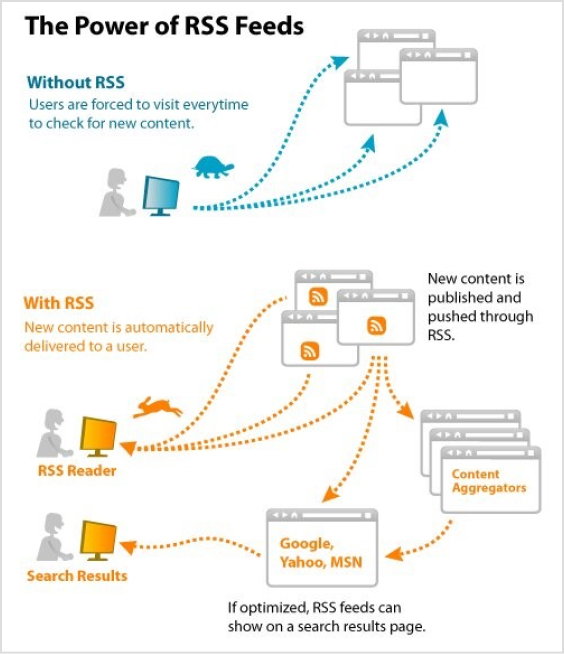
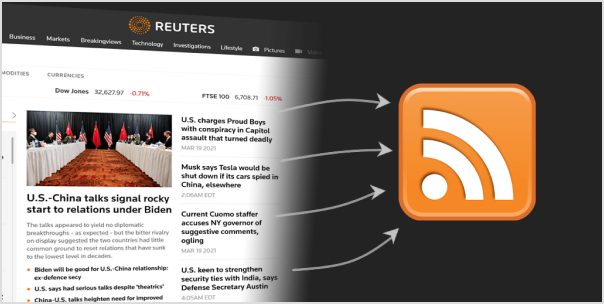
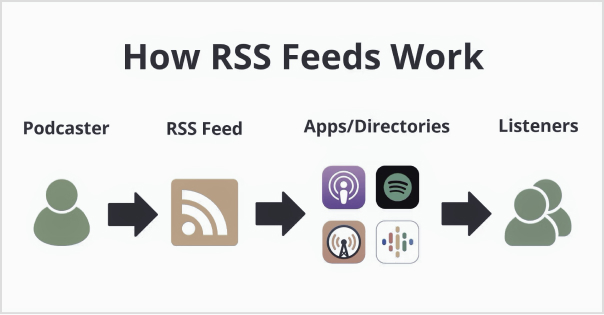
An RSS feed is a technology that allows websites to automatically syndicate their content to users who subscribe to their feed. In simple terms, it’s a way for websites to push new content to subscribers as soon as it’s published, without the need for users to manually check the website for updates.
Here’s an example of how an RSS feed works:
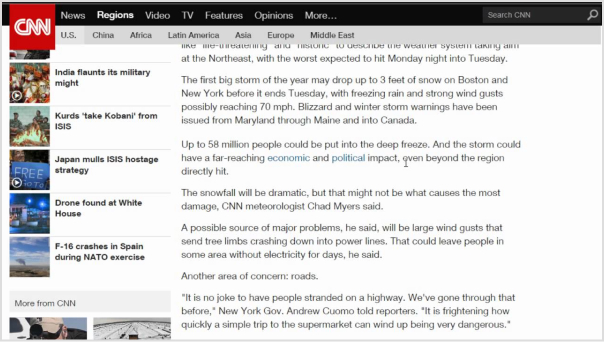
Imagine you are an avid reader of a CNN news website that covers a variety of topics. You want to stay up-to-date with the latest news, but checking the website multiple times a day for new articles is time-consuming and inefficient.
Therefore, CNN offers RSS feeds for various topics such as top stories, world news, politics, business, entertainment, and more. By subscribing to one or more of CNN’s RSS feeds, users can receive updates on the latest news articles as soon as they are published, without the need to constantly check the CNN website for updates.
In short, an RSS feed is a powerful tool that benefits both website owners and users, by streamlining content delivery and improving the user experience.
A brief history of RSS feeds:
The history of RSS feeds dates back to the late 1990s, with the emergence of the Really Simple Syndication (RSS) technology. It was developed as a means to simplify the distribution and aggregation of web content.
The roots of RSS can be traced back to a format called RDF (Resource Description Framework), which was developed by the World Wide Web Consortium (W3C) in 1997. RDF aimed to provide a standardized way of describing metadata for web resources.
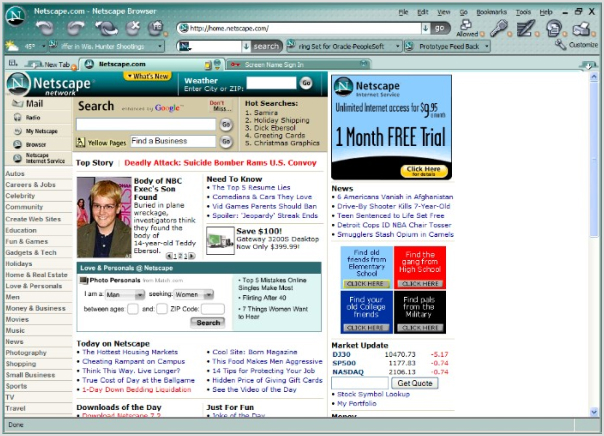
In 1999, Netscape, a prominent web browser at the time, introduced a simplified version of RDF called RDF Site Summary (RSS). It was created by Dan Libby and Ramanathan V. Guha, and its purpose was to allow websites to easily syndicate their content.
The initial versions of RSS were relatively basic, allowing websites to provide a list of headlines and summaries of their articles. However, as RSS gained popularity, new versions were developed to enhance its capabilities. RSS 1.0, based on RDF, offered more flexibility in terms of data representation and allowed for more detailed metadata.
In 2002, a different version of RSS emerged, known as RSS 2.0. It was developed by Dave Winer and included improvements such as better support for enclosures (allowing the inclusion of multimedia content) and increased compatibility with various web applications and platforms.
As the popularity of RSS feeds grew, many software applications and online services were developed to facilitate their use. RSS feed readers, also known as RSS aggregators, allowed users to subscribe to their favorite websites and receive updates automatically. Popular feed readers included Google Reader, Feedly, and Netvibes.
Yes, RSS feeds are still widely used in 2023. In fact, RSS feeds have not only endured the test of time but have also evolved into a convenient, efficient, and personalized method of staying up to date with the latest news and developments.
With RSS, you have the power to curate your own digital universe. Say goodbye to information overload and hello to a carefully crafted newsstand brimming with the sources you love. Customize your subscriptions with ease, effortlessly adding, removing, and organizing your favorite news outlets. What’s more, you can set up automated systems that whisk the latest updates right to your digital doorstep as soon as they hit the digital realm.
But it’s not just users who benefit from RSS feeds. Savvy businesses have tapped into the power of RSS as a marketing tool, offering subscription links on their websites or even exclusive promotions through RSS feeds. It’s a win-win situation, allowing businesses to reach wider audiences while still targeting the most engaged and interested customers.
How RSS works?
RSS (Really Simple Syndication) works based on a structured XML (Extensible Markup Language) format. Here’s a step-by-step breakdown of how RSS works:
Step 1: Content Creation
Website owners or content creators generate new articles, blog posts, or other forms of content on their websites.
Step 2: RSS feed generation
The website’s content management system or specialized software generates an RSS feed that contains the metadata and information about the new content. This includes the title, summary, publication date, and a link to the full article.
Step 3: RSS feed publication
The website publishes the RSS feed file on a specific URL, often indicated as the website’s RSS feed URL.
Step 4: User subscription
Users who are interested in receiving updates from the website subscribe to its RSS feed. They can do this by using an RSS feed reader, which is a software application or online service designed to read and aggregate RSS feeds.
Step 5: Feed reading
The RSS feed reader regularly checks the subscribed RSS feeds for updates. It sends a request to the website’s RSS feed URL to fetch the latest feed content.
Step 6: Content delivery
If there are new articles or updates in the RSS feed, the RSS reader retrieves the content and presents it to the user in a readable format. This typically includes the title, summary, and a link to the full article on the website.
Step 7: User interaction
Users can click on the links within the RSS reader to access the full content on the original website. They can read, share, or bookmark the articles based on their preferences.
Step 8: Update notifications
RSS readers can be configured to provide notifications or display unread item counts to keep users informed about new content.
Step 9: Synchronization
Some RSS readers offer synchronization across multiple devices, allowing users to access their subscribed feeds from different devices and keep their reading progress and subscriptions up to date.
The process repeats itself as new content is published on the website. RSS feeds provide a standardized and efficient method for content distribution, enabling users to stay updated with the latest information from multiple sources without the need to manually visit each website separately.
Using RSS feeds can significantly boost productivity by streamlining the process of accessing and managing relevant information. Here are some ways to leverage RSS feeds to enhance productivity:
Consolidate information
Subscribe to RSS feeds from your favorite websites, blogs, news outlets, and industry publications. By aggregating content from various sources into a single RSS feed reader, you can access all the updates and news in one central location, eliminating the need to visit multiple websites individually.
Efficient information consumption
RSS feeds allow you to scan headlines, summaries, and key points of articles without visiting the full web page. This enables you to quickly assess the relevance and importance of each item, saving time by focusing on the most essential content.
Customized content curation
Tailor your RSS feed subscriptions to specific topics, industries, or areas of interest. This customization ensures that you receive content that aligns with your needs and eliminates unnecessary noise. By fine-tuning your feed, you can access high-quality information that directly impacts your work or personal interests.
Time-saving automation
RSS feeds deliver updates automatically, eliminating the need to manually check each website for new content. Set up regular intervals for your RSS reader to refresh and fetch updates, ensuring you stay up to date without wasting time on repetitive manual checks.
Prioritize and organize
RSS readers often provide features to categorize and organize feeds. Take advantage of these capabilities to create folders or tags based on topics, importance, or urgency. This helps you prioritize the content you consume and ensures you don’t miss critical updates.
Mobile and cross-device access
Many RSS readers offer mobile apps and cloud synchronization, enabling you to access your feeds and read content across different devices. This flexibility ensures you can stay productive and consume information wherever you are, whether on your computer, smartphone, or tablet.
Reduce information overload
With RSS feeds, you have control over the sources and types of content you consume. By curating a focused selection of feeds, you can avoid being overwhelmed by excessive information. This reduction in information overload enables you to concentrate on what truly matters, improving your productivity.
By leveraging the power of RSS feeds, you can streamline information consumption, stay informed efficiently, and focus on content that is most relevant to your work and interests. With reduced distractions and improved content management, you can enhance your productivity and make the most of your valuable time.
To find the RSS feed of a website, you can try the following methods:
Method 1: Look for the RSS icon
Many websites that offer RSS feeds display a recognizable RSS icon or a link to their feed. Look for the RSS icon, usually in the header, footer, or sidebar of the website. It typically looks like a square or rectangle with a curved line in the corner resembling a Wi-Fi signal icon.
Method 2: Check the source code
Right-click on the website’s page and select “View Page Source” or “Inspect” (depending on your browser). This will open the HTML source code of the webpage. Search for “RSS” or “feed” using the browser’s search function (usually accessible by pressing Ctrl+F or Command+F). Look for URLs containing “RSS” or “feed” that may indicate the presence of an RSS feed.
Method 3: Use browser extensions or add-ons
Some web browser extensions or add-ons are specifically designed to detect and display RSS feeds for websites. Examples include “RSS Subscription Extension” for Chrome and “RSSPreview” for Firefox. Install these extensions, and they will automatically scan the webpage for RSS feeds and provide a convenient way to subscribe.
Method 4: Search the website
Use the website’s search functionality and enter keywords such as “RSS” or “feed” to see if any relevant results appear. Some websites may have dedicated pages or sections that provide information or links to their RSS feeds.
Method 5: Utilize online RSS feed directories
There are online directories that catalog RSS feeds from various websites. These directories can be searched by topic, website name, or keyword. Examples include Feedly,RSS.com, and Feedspot. Enter the website’s name or topic of interest in the search bar of the directory to see if the website’s RSS feed is listed.
It’s worth noting that not all websites offer RSS feeds, as some have transitioned to other content distribution methods. If you are unable to find an RSS feed for a specific website, it is possible that they do not provide one.
How to create an RSS feed for a Podcast?
To create an RSS feed for a podcast, you’ll need to follow the steps below:
Step 1: Choose a content hosting platform
Choose a podcast hosting platform that offers RSS feed generation as part of its services. Popular options include Libsyn,Podbean, and Buzzsprout. These platforms provide tools to upload and manage your podcast episodes, as well as automatically generate an RSS feed for your podcast.
If you’re comparing hosting options, a Libsyn vs Buzzsprout guide can help you evaluate differences in pricing, analytics, distribution features, and ease of use before making a decision.
Step 2: Sign up and set up your account
Create an account on your chosen podcast hosting platform. Follow the platform’s instructions to set up your podcast profile, including providing necessary details such as podcast title, description, cover art, and other metadata.
Step 3: Upload episodes
Use the hosting platform’s interface to upload your podcast episodes. Typically, you’ll need to provide the audio files, episode titles, descriptions, and any additional information required. The platform will store and organize your podcast episodes.
Step 4: Customize settings
Configure settings specific to your podcast, such as episode release schedule, episode numbering, categories, and tags. These settings help categorize and promote your podcast effectively.
Step 5: Verify and preview
Review and verify the information and settings for your podcast episodes. Ensure that the episode titles, descriptions, and other metadata are accurate and formatted correctly. Preview how your podcast will appear in the RSS feed.
Step 6: Obtain the RSS feed URL
Once you’ve uploaded your episodes and configured the necessary settings, your podcast hosting platform will generate an RSS feed URL for your podcast. This URL is crucial for distributing and sharing your podcast with various podcast directories and platforms.
Escalate your brand marketing through Replug RSS Automation
Replug RSS Automation is a powerful feature that can significantly enhance your brand marketing efforts. Here’s how Replug RSS Automation can take your brand marketing to the next level:
Efficient content distribution:
With Replug RSS Automation, you can automatically distribute your content to various channels, including social media platforms, email newsletters, and content aggregators. This ensures that your brand’s message reaches a wider audience without the need for manual sharing and promotion.
Customized messaging:
Replug RSS Automation allows you to tailor your marketing messages based on the specific content being shared. You can add personalized call-to-actions, branding elements, and tracking links to maximize engagement and drive desired actions from your audience.
Targeted audience segmentation:
Through Replug RSS Automation, you can segment your audience based on their interests, preferences, and behavior. This enables you to deliver highly relevant content to specific segments, increasing the chances of capturing their attention and driving conversions.
Data-driven insights:
Replug RSS Automation provides valuable analytics and performance metrics to help you optimize your content marketing strategy. You can track the engagement, click-through rates, and conversions generated from your automated RSS campaigns. These insights allow you to refine your approach and make data-driven decisions to improve your marketing efforts.
Yes, RSS feeds are completely legal to use either for personal or commercial purposes. But, as there is a rule for using anyone’s personal content commercially one must have its owner’s concern and the same goes for RSS feeds. RSS feeds are free and easy to use. That’s why everyone tries to add them to websites. Moreover, all these perks can be achieved if you are using RSS feeds in a legal way.
Can RSS feeds be tracked?
RSS feeds can be tracked easily with Replug’s analytics feature. It is the best tool for estimating the traffic on your websites and achieving meaningful data.
Are RSS feeds public?
Yes, RSS feeds are public as they facilitate users. It has a public URL link anyone can access. RSS feeds are unencrypted readable XML files that are acceptable by any platform that supports RSS. Private security functions are not built into RSS feeds.
Can RSS feed have images?
Yes, Images are the crux of all the content available. Generally, graphical representation gives more captivating looks so images play an important role in content ranking. Content can be of any type like images it can be as written media or audio media even. Images must support all the requirements for uploading like size, quality, and pixels so, it must not affect the performance of the website.
Does Google use RSS feed?
Google does use RSS feed indirectly but it doesn’t have any such ranking factor pre-defined in its algorithm. However, you can create an RSS feed on any niche by Google Alerts in the settings option. Its major role is, searching for new and updated content for users to get a high ranking. Google News uses RSS feeds to increase the audience and content visibility.
What replaced the RSS feed?
Yes, it is replaced by new advanced techniques. It is human nature that one is always curious to get into new things and the same goes for this RSS Feeds. Email subscriptions, push notifications, and even social media platforms like Facebook, and Twitter are based on a such algorithm that automatically generates user-demanding content on the basis of previous history. Whereas, RSS Feeds are still vastly used to enable the syndication of their content.
Have you ever tried clicking a link only to get hit with the “This site is not available in your region” message?
Frustrating, right? You’re not alone, not even close.
Internet shutdowns and systemic censorship affected 4.6 billion people in 2025, which is more than half the world’s population. And roughly 80% of global internet users live in countries that practice some form of online censorship or surveillance.
Whether it’s a government firewall, a workplace filter, school restrictions, or plain old geo-blocking, chances are you’ve knocked into a digital wall at some point.
The good news?
Those walls aren’t as solid as they look. There are dozens of reliable ways to get around them, some technical, some surprisingly simple.
In this post, we’re breaking down 22 proven methods to unblock websites and access restricted content in 2026.
But first, let’s get clear on the basics: What exactly is a blocked website, and why does it happen?
What is a blocked website?
A blocked website is any site you can’t access because someone (a government, your ISP, your school, or your employer) has deliberately restricted it.
Think of it like a locked door. The website exists, it’s running fine, but you’re simply not being allowed in based on your location, network, or device.
The goal behind blocking varies:
Governments do it to control information.
Schools and workplaces do it to limit distractions.
Streaming platforms do it to enforce licensing deals.
Whatever the reason, the result is the same: you hit a wall!
Why are websites blocked/banned?
Websites get blocked for all kinds of reasons, and it’s not always a government pulling the strings. From your office Wi-Fi to your internet provider, restrictions can come from multiple directions.
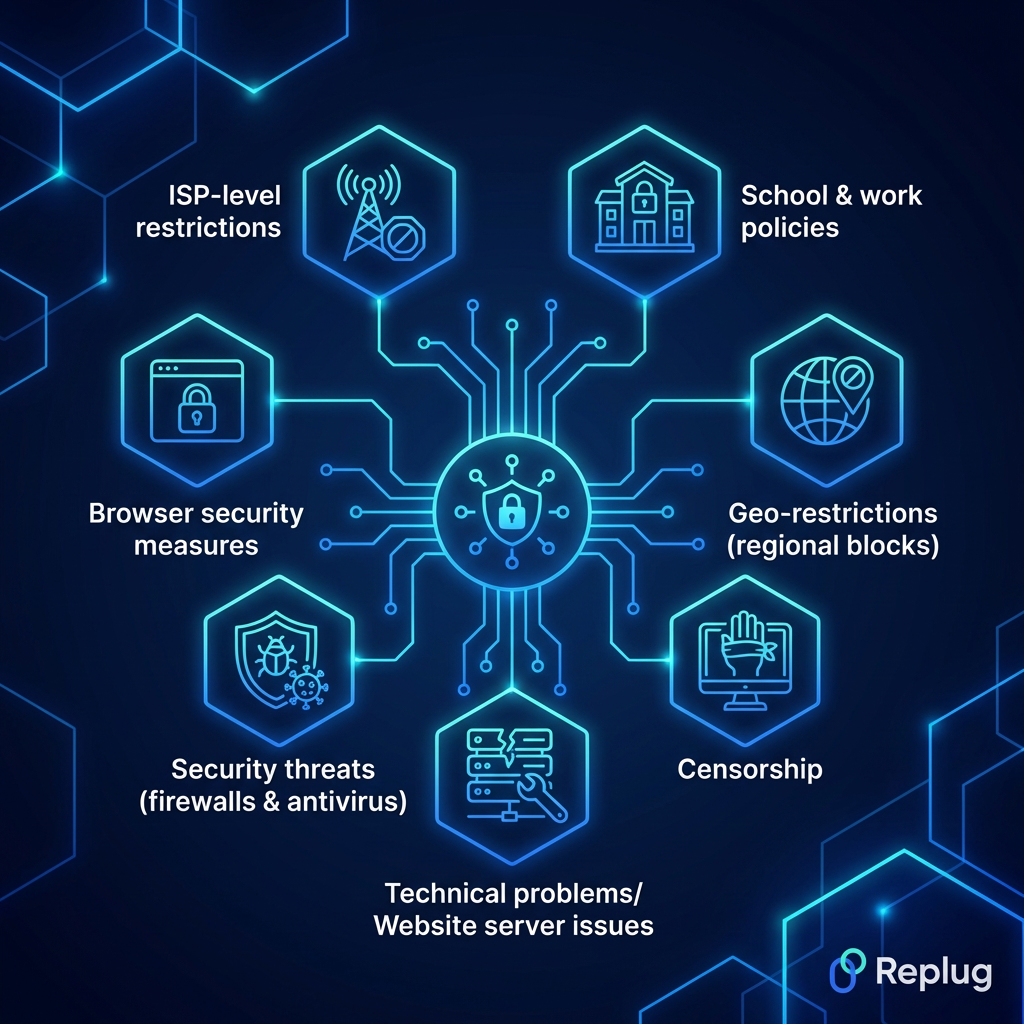
Here’s a breakdown of the most common culprits:
School & work policies
Schools and workplaces block sites like social media, gaming platforms, or streaming services to keep students and employees focused. These restrictions are applied at the network level, so even if a site is perfectly legal, it’s off-limits on their Wi-Fi.
Geo-restrictions (regional blocks)
Ever seen “this content is not available in your country”? That’s geo-blocking. Platforms like Netflix, Hulu, or BBC iPlayer license their content by region, so they restrict access based on your IP address and location.
Censorship
Some governments block websites to control what their citizens can see or read online. Social media platforms, news outlets, and even messaging apps get restricted this way (China’s Great Firewall being the most well-known example).
Technical problems/Website server issues
Sometimes a site isn’t blocked on purpose; it’s just down. Server crashes, maintenance, or technical glitches can make a website temporarily inaccessible, and it can look a lot like a deliberate block from the user’s end.
Network admins (the people managing a Wi-Fi network) are privileged to block specific websites or entire categories of content for everyone connected. This is common in offices, hospitals, universities, and public hotspots.
Security threats (firewalls & antivirus)
Firewalls and antivirus software sometimes block websites they flag as dangerous (malware-infected pages, phishing sites, or suspicious domains). This type of block is actually protective, even if it occasionally catches harmless sites by mistake.
Browser security measures
Browsers like Chrome or Firefox have built-in safety features that warn you or block access to sites flagged for phishing, malware, or deceptive content. It’s your browser looking out for you, though it can sometimes be overly cautious.
ISP-level restrictions
Your Internet Service Provider can block or throttle access to certain websites, either by government mandate or their own policies. In many countries, ISPs are legally required to block specific categories of content, like piracy sites or adult (18+) platforms.
Is it legal to unblock websites?
Honestly, it depends on where you live.
In most Western countries, like the US, UK, Canada, and Australia, using tools like VPNs or proxies to access blocked content is completely legal. You might break a platform’s terms of service, but that’s not the same as breaking the law.
However, in countries like China, Russia, Iran, and North Korea, bypassing internet restrictions can land you in serious legal trouble. The rules vary wildly from one place to another.
So before you try any method to unblock a website, it’s worth doing a quick check on the laws in your specific country. When in doubt, err on the side of caution.
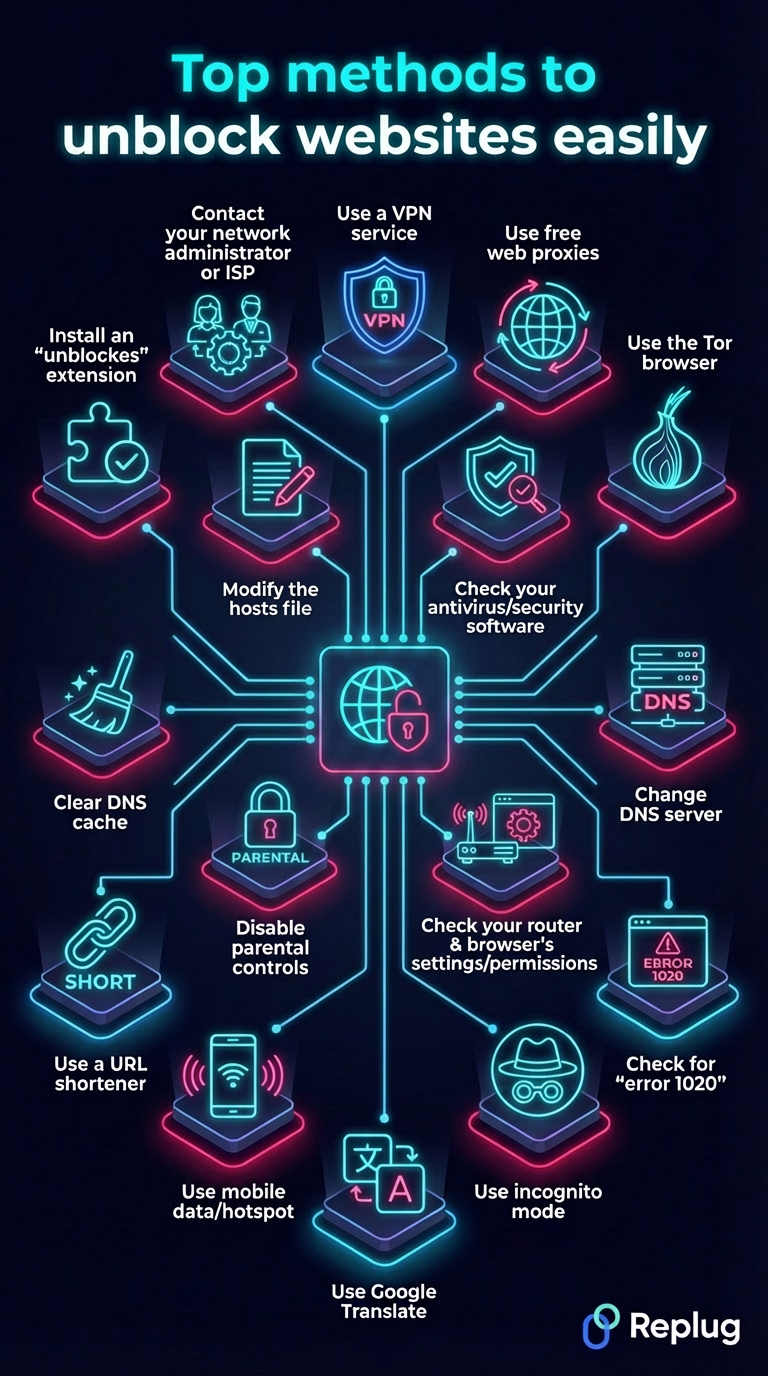
Top methods to unblock websites easily
There’s no single “one size fits all” solution when it comes to unblocking websites. Different situations call for different tools.
Below, we’ve rounded up the most effective ways people actually use, starting with the most powerful and effective one.
Method #01: Use a VPN service (best security)
A VPN(Virtual Private Network) is hands down the most popular and reliable way to unblock websites.
It works by routing your internet traffic through a server in another country, masking your real IP address and making it look like you’re browsing from somewhere else entirely.
The biggest benefits?
You get access to geo-blocked content, your traffic is encrypted, and your online activity stays private, all at the same time. It’s a clean, all-in-one solution.
For faster connections with less overhead, the WireGuard VPN protocol uses a lightweight, modern design built around efficient encryption.
That said, not all VPNs are created equal. A reputable VPN service will offer strong encryption, a strict no-logs policy, and fast server speeds; things that budget or free VPNs often cut corners on.
Watch out for VPNs that cap your bandwidth, log your data, or lack basic security features. For best results, always go with a paid, well-reviewed provider.
Method #02: Use free web proxies (fast & easy)
A web proxy acts as a middleman between you and the website you’re trying to reach.
You type the blocked URL into the proxy site, it fetches the page on your behalf, and boom, you’re in, without changing any settings on your device.
The biggest appeal here is convenience. No downloads, no sign-ups, no configuration. Just open your browser, find a proxy site, and you’re good to go in seconds. It’s a solid quick fix when you need access fast.
However, there are a few things to keep in mind. Free proxies are generally slower than VPNs, don’t encrypt your traffic, and some of them can be outright shady (logging your data or serving you ads laced with malware).
Users looking for more reliable performance often turn to a US proxy because they offer a balance between speed, stability, and lower detection rates during long browsing sessions.
Also, always verify that the proxy you’re using is actually working and safe. Tools like a free online proxy checker can help you confirm this before you commit.
For finding reliable and tested proxy options, resources like ProxyCoupons can point you toward trustworthy choices without the guesswork.
Method #03: Use the Tor browser (high anonymity)
If privacy is your top concern, Tor is about as anonymous as it gets.
The Tor browser routes your traffic through multiple encrypted layers across a network of volunteer-run servers called “nodes” before it reaches its destination. This makes it extremely difficult for anyone to trace your activity back to you.
It’s completely free, requires no account, and works right out of the box. Journalists, activists, and whistleblowers in heavily censored countries rely on it regularly for unblocking certain websites.
The main downside, however, is speed. Because your traffic is bouncing through several relays around the world, browsing can feel noticeably slow. It’s not ideal for streaming or downloading large files.
Some websites also block Tor exit nodes entirely, so you might still hit walls on certain platforms. Another thing worth noting is that Tor keeps you anonymous, but it doesn’t make you invincible.
Avoid logging into personal accounts or sharing sensitive information while using it, as that can quickly undo the anonymity it provides.
Method #04: Change DNS server to Cloudflare’s 1.1.1.1 or Google’s 8.8.8.8
When you type a website address or a URL into your browser, your DNS server is what translates it into an actual IP address.
By default, your ISP assigns you its own DNS, and that’s often where the blocking happens. Switching to a public DNS like Cloudflare’s 1.1.1.1 or Google’s 8.8.8.8 can bypass those restrictions pretty effectively.
The best part?
It’s free, takes just a few minutes to set up, and noticeably improves your browsing speed in many cases. No extra software needed, just a small tweak in your network settings.
That said, this method only works against DNS-level blocking. If a website is blocked through IP blocking or deep packet inspection, changing your DNS won’t help.
It also doesn’t encrypt your traffic or hide your activity as a VPN does, so your ISP can still see what sites you’re visiting, just not block them through DNS filtering.
Overall, it’s a great lightweight option for mild restrictions, but not a complete privacy solution on its own.
Method #05: Check for “error 1020” or similar warnings
Before trying any technical workaround, it’s worth pausing and reading the error message on your screen.
Error codes like “Error 1020”(Cloudflare access denied), “Error 403”(forbidden), or “Error 404”(not found) each tell a different story. Knowing which one you’re dealing with saves you a lot of wasted effort.
For example, Error 1020 usually means the website’s firewall is blocking your IP address specifically, not a government or ISP restriction.
In that case, simply clearing your cookies, switching browsers, or using a different network might fix it instantly without needing a VPN or proxy at all.
The benefit here is simple: diagnose first, act second. Jumping straight into complex solutions when a basic fix would do is just unnecessary hassle.
The thing to watch out for is misreading the error. Not every blocked page looks the same, and some sites show generic error pages that don’t reveal the real cause.
If the error message is vague, a quick Google search of the exact code will usually tell you exactly what you’re dealing with.
Method #06: Use incognito mode
Incognito mode(or “private browsing”) is probably the quickest thing you can try when a website isn’t loading.
It opens a fresh session with no cookies, cached data, or browser extensions running in the background. Sometimes that’s all it takes to get a blocked or misbehaving site to load normally.
This works particularly well when a site is blocked due to cookies tracking your location or login history, or when a browser extension like an AD Blocker is accidentally interfering with the page.
The benefits are pretty obvious. It’s instant, built into every major browser, and requires zero technical knowledge. Just press Ctrl+Shift+N(or Cmd+Shift+N on Mac), and you’re in.
However, don’t mistake incognito for a real privacy or unblocking tool. It doesn’t hide your IP address, bypass network-level restrictions, or fool your ISP in any way.
If a website is blocked by your school, workplace, or government, incognito mode won’t make a difference. Think of it as a first quick check rather than a proper solution.
Method #07: Use Google Translate
This method surprises a lot of people, but it actually works!
Google Translate can function as a makeshift proxy. Simply paste the blocked website’s URL into the translation box, set it to translate from any language into English, and click the link in the output.
Google fetches the page on your behalf, and you end up viewing it through Google’s servers rather than accessing it directly.
It’s completely free, requires no downloads or setup, and since the traffic appears to come from Google’s IP address, basic network filters often don’t catch it. Pretty clever for something that wasn’t designed for this purpose at all.
That said, it does have real limitations. The formatting of the page often looks broken or messy through the translation interface. Dynamic features, videos, and login-based content frequently don’t work properly. It also won’t bypass heavy government-level censorship or sophisticated firewalls.
Think of it as a handy little trick for occasional use. Great option for quickly reading a blocked article, but not something you’d want to rely on for regular browsing.
Method #08: Use mobile data or mobile hotspot
Sometimes the simplest fix is just switching networks entirely.
If a website is blocked on your school, office, or home Wi-Fi, it might load just fine on your mobile data. This is because your cellular network operates independently from whoever is managing that Wi-Fi.
You can either browse directly on your phone or turn on a mobile hotspot and connect your laptop to it.
The beauty of this method is how effortless it is. No settings to change, no apps to install; just toggle off Wi-Fi and switch to mobile data. It bypasses network-level and administrator-level blocks almost instantly.
The main thing to watch out for is your data usage. Streaming videos or downloading files over mobile data can eat up your plan surprisingly fast.
It’s also worth remembering that if a website is blocked at the ISP level or by government mandate in your country, your mobile carrier (being another ISP) may enforce the exact same restrictions.
So this method works brilliantly for workplace and school blocks, but won’t necessarily help with broader regional or government-imposed restrictions.
Method #09: Use a reliable URL shortener
Here’s a lesser-known trick that can work surprisingly well in certain situations.
When a specific URL is blacklisted by a network filter, the block is often tied to that exact web address. Running it through a URL shortener generates a brand new link pointing to the same destination, and many basic filters simply don’t recognize it as blocked content.
Maximize marketing ROI
by transforming ordinary URLs into branded short links that convert.
Try Replug for free
Tools like Replug.io go beyond just shortening links. They come packed with features like click tracking, branded links, and even A/B testing for different URLs. This makes them genuinely useful for marketers and everyday users alike, not just people trying to bypass restrictions.
The setup is dead simple. Paste your blocked URL, generate a shortened version, and try accessing it through that new link.
That said, this method only works against unsophisticated, URL-based filters. More advanced network systems that inspect traffic by destination IP address or domain won’t be fooled by a shortened link.
It’s also worth noting that some network filters have caught on to popular shortener domains and block those, too. Use it as a quick first attempt, but don’t rely on it as a permanent solution.
Method #10: Clear DNS cache
Your device stores a local record of previously visited websites called a DNS cache to speed up future visits.
However, sometimes this cache holds outdated or corrupted information, which can make a perfectly accessible website appear blocked or simply refuse to load.
Clearing your DNS cache forces your device to fetch fresh DNS information, which can instantly resolve access issues that have nothing to do with actual blocking.
It’s one of those fixes that takes under a minute but gets overlooked surprisingly often.
On Windows, it’s as simple as opening Command Prompt and running this command as administrator: ipconfig /flushdns.
On Mac, a quick Terminal command sudo killall -HUP mDNSResponder does the job, and
On mobile devices, toggling airplane mode or a simple restart usually clears it automatically.
The main thing to keep in mind is that this method only fixes locally stored DNS issues. It won’t help if a website is genuinely blocked by your ISP, network administrator, or government.
Think of it more as a housekeeping step than a full unblocking solution. Try it early in your troubleshooting process before jumping to more complex methods. You might be surprised how often it works.
Method #11: Install an “unblock websites” browser extension
Browser extensions designed to unblock websites are essentially lightweight VPNs or proxies that work directly inside your browser.
Popular options like Windscribe, Hola, or Browsec can be installed in just a couple of clicks from your browser’s extension store and start working almost immediately. No separate app or complicated setup required.
The appeal is obvious. They’re quick to install, beginner-friendly, and many offer a decent free tier that’s good enough for casual unblocking.
If you just need to access a blocked site occasionally without committing to a full VPN subscription, an extension is a pretty convenient middle ground.
That said, there are some real limitations. Browser extensions only route your browser traffic, not your entire device’s connection. So other apps remain unaffected.
Free extensions in particular can be hit or miss on privacy, with some known to log browsing data or inject ads into pages.
Before installing anything, check the reviews carefully and stick to well-known, reputable extensions. Avoid random ones with little to no user feedback.
The browser extension store, unfortunately, has its fair share of shady options dressed up to look legitimate.
Method #12: Contact your network administrator or ISP
Sometimes the most straightforward solution is just asking.
If a website you genuinely need access to is blocked on your work or school network, reaching out to your network administrator and explaining why you need it unblocked can actually work.
The same goes for your ISP. If a site appears to be incorrectly blocked, a simple support call or ticket can get it resolved faster than you’d expect.
This approach is especially useful in professional settings where you need access to a specific tool or platform for legitimate work purposes. A reasonable request with a clear explanation often gets approved without much pushback.
The thing to keep in mind is that this only works when the block is unintentional or when you have a valid, justifiable reason.
Don’t expect a school IT department to unblock social media just because you asked nicely. Timing and context matter too.
Framing your request around productivity or work necessity goes a long way compared to a vague “can you just unblock this?”
It won’t always work, but when it does, it’s the cleanest and most hassle-free solution on this entire list.
Method #13: Modify the hosts file (advanced)
Every computer has a hosts file, a small but powerful local text file that maps domain names to IP addresses before your DNS server even gets involved.
By editing this file, you can manually redirect a blocked domain to its correct IP address, effectively bypassing DNS-level blocks on your device.
It’s a genuinely effective method for technically savvy users, and since it works locally on your machine, it doesn’t rely on any third-party tools or services. No subscriptions, no extensions, no extra software needed.
However, this one comes with a clear warning: it’s not for beginners. Editing the hosts file incorrectly can break your internet connection or stop certain websites from loading altogether.
On Windows, you’ll find it at C:\Windows\System32\drivers\etc\hosts, and
On Mac or Linux, it sits at /etc/hosts.
You’ll need administrator privileges to make any changes!
It’s also worth noting that this method only bypasses DNS-based blocking. If the website is blocked through IP filtering or deep packet inspection, modifying the hosts file won’t help.
Always back up the original file before making any edits. That way, you can easily restore it if something goes wrong.
Method #14: Check your antivirus or security software
If a website suddenly stops loading and you can’t figure out why, your antivirus or security software might quietly be the culprit.
Many security tools come with built-in web filtering features that automatically block sites they flag as suspicious. And sometimes they get it wrong, flagging perfectly safe websites as threats.
The fix is usually straightforward. Open your antivirus dashboard, look for web protection or URL filtering settings, and check if the site in question has been added to a blocklist.
Most programs let you whitelist specific websites, which tells the software to stop interfering with them (in the future).
The benefit of catching this early is that it saves you from going down a rabbit hole of VPNs and proxies when the real issue is sitting right on your own device.
That said, be cautious about what you whitelist. Your antivirus flagged that site for a reason, and while false positives do happen regularly, it’s worth doing a quick check on the website’s credibility before overriding the block.
Tools like Google’s Safe Browsing checker or VirusTotal can help you verify if a site is genuinely safe before you grant it unrestricted access.
Method #15: Check your router & browser’s settings/permissions
Before assuming a website is blocked externally, it’s worth checking closer to home.
Many routers come with built-in parental controls or content filtering features that can block specific websites or entire categories of content. And, these settings sometimes get enabled without everyone in the household even knowing about it.
Log in to your router’s admin panel (usually accessible by typing 192.168.1.1 or 192.168.0.1 into your browser). Then navigate to the content filtering or parental controls section, and check if the site you’re trying to reach has been restricted there.
On the other side, certain browser permissions and settings, like strict safe browsing modes or content restrictions, can also prevent specific pages from loading correctly.
The benefit of checking here first is that it’s a quick, free fix that requires no extra tools. If something was accidentally misconfigured, you can sort it out in minutes.
Just be mindful that if you’re on someone else’s network (a family member’s or roommate’s), changing router settings without permission isn’t great etiquette. Have a conversation first, rather than quietly modifying settings that affect everyone connected to that network.
Method #16: Disable parental controls
Parental controls are one of the most overlooked reasons why a website might be blocked, especially on home networks and family devices.
These controls can be set up at multiple levels:
on the router,
directly on your device,
through your ISP, or
even within specific apps and browsers
If you’re scratching your head, wondering why a completely harmless site won’t load, parental controls might be quietly doing their job in the background.
Disabling or adjusting them is usually simple once you locate where they’ve been set up.
On Windows, check Family Safety settings.
On Mac, look under Screen Time.
Router-level controls are accessible through the admin panel, as covered in the previous method.
The obvious benefit is that once removed, your access is restored instantly (no third-party tools required).
That said, this one comes with a common-sense reminder. If the parental controls were set up by a parent or guardian for a minor, disabling them without permission isn’t appropriate.
This method is really aimed at adults who’ve inherited restricted settings on a device or network, or situations where controls were set up and simply forgotten about over time.
How to unblock websites without a VPN
Not everyone wants to pay for a VPN or go through the hassle of setting one up, and that’s completely fair. The good news is that there are several solid ways to access blocked content without one.
Here are some of the best alternatives worth trying:
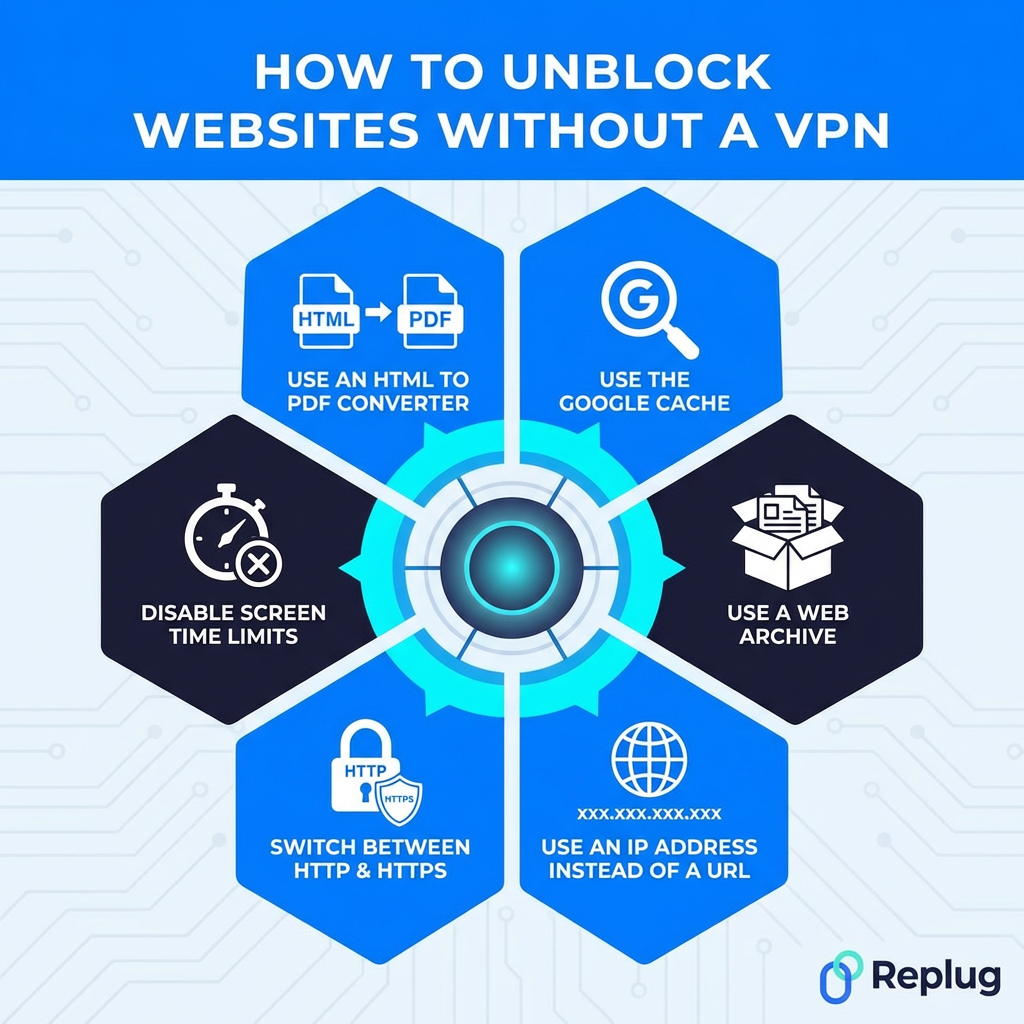
Method #17: Use the Google cache
Google regularly saves snapshots of web pages every time it crawls them. By accessing the cached version, you’re essentially viewing a saved copy stored on Google’s servers rather than the live site itself, bypassing the block entirely.
Just type cache:websiteurl.com directly into Google’s search bar to access it.
It’s free, instant, and requires nothing extra. The downside is that cached pages can be outdated, and interactive or login-based content won’t work.
Method #18: Use a web archive
Web archives like the Wayback Machine(web.archive.org) store historical snapshots of websites going back years. If a site is blocked, you can often access a saved version simply by entering the URL into the archive’s search bar.
It’s completely free and requires no setup whatsoever. Great for accessing blocked articles, research pages, or reference content.
The catch is that archived versions are static snapshots, so dynamic content, videos, and anything requiring a login won’t function. It’s best suited for reading text-based content rather than interactive browsing.
Method #19: Use an IP address instead of a URL
Most website blocks target domain names rather than the actual IP address sitting behind them. So instead of typing www.website.com, try entering the site’s direct IP address into your browser.
You can find a website’s IP by running a simple nslookup <domain> or ping <domain> command in your device’s terminal or command prompt.
It’s free, instant, and requires no extra tools. However, this only works if the block is purely DNS-based. If the IP address itself is blocked, or the site uses shared hosting with multiple sites on one IP, this method won’t get you through.
Method #20: Switch between HTTP & HTTPS
Some network filters block either the HTTP or HTTPS version of a website, but not both. So if http://website.com isn’t loading, try https://website.com instead, or vice versa.
It sounds almost too simple, but it genuinely works in certain situations. No tools, no setup, completely free. Just manually edit the URL in your address bar and hit “Enter.”
The limitation is obvious. This only works when the block is version-specific and inconsistent. Against properly configured filters that block both versions simultaneously, simply switching protocols won’t make any difference.
Method #21: Disable screen time limits
Screen time features on iOS, Android, macOS, and Windows allow users to restrict access to specific websites or apps during set hours.
If a site suddenly becomes inaccessible at certain times of the day, screen time limits could be the reason rather than an external block. Check your device’s screen time or digital wellbeing settings and adjust or disable the restrictions as needed.
It’s a quick, free fix requiring no extra tools. Just keep in mind that on family-shared devices, these settings may be password-protected by a parent or guardian, so bypassing them without permission isn’t appropriate.
Method #22: Use an HTML to PDF converter
Online HTML to PDF converters like PDFcrowd or Web2PDF fetch a webpage on your behalf and convert it into a downloadable PDF file, similar to how a proxy works. Since the request comes from the converter’s servers rather than your device, basic network filters often don’t catch it.
It’s free, requires no installation, and works directly in your browser. Perfect for accessing blocked articles or text-heavy pages.
The downside is that it only works for reading static content. Videos, interactive elements, and login-required pages simply won’t convert properly.
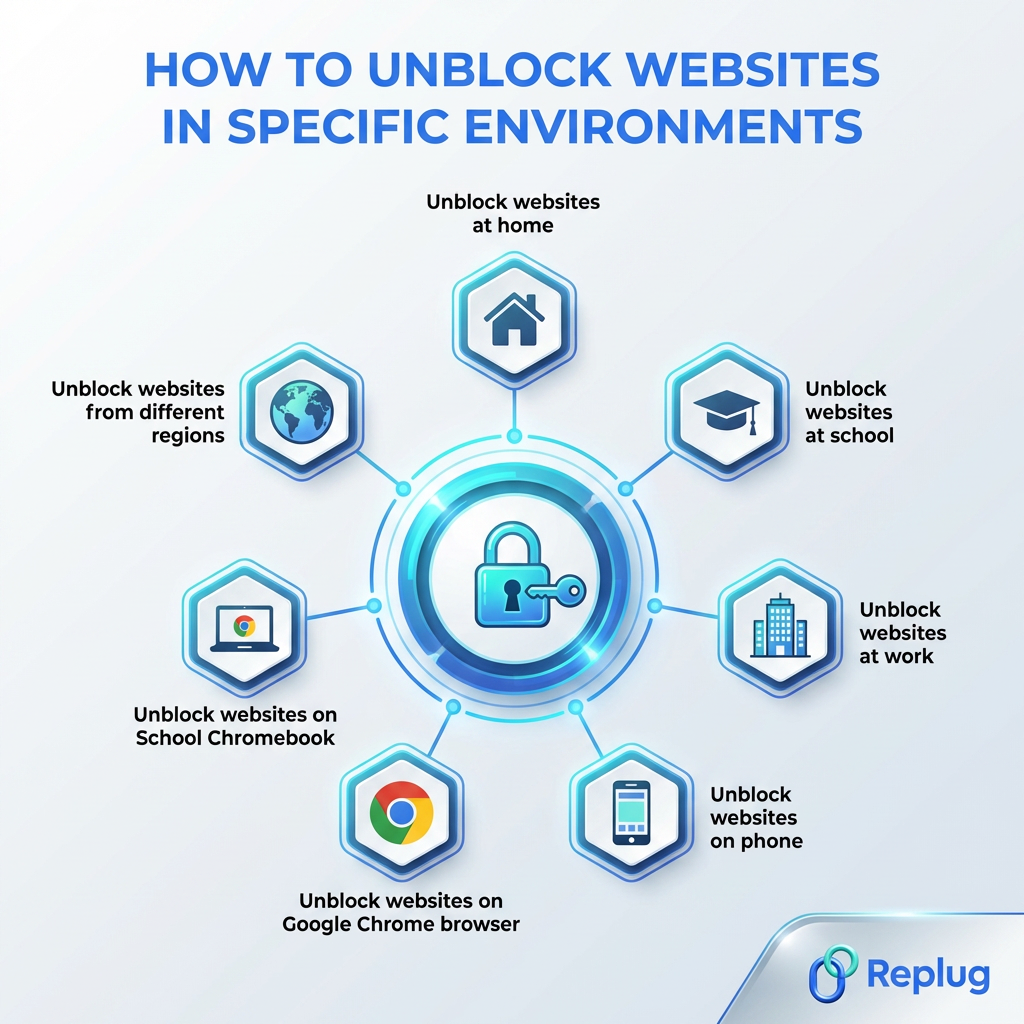
How to unblock websites in specific environments
The right unblocking method often depends on where you are and what device you’re using. A fix that works perfectly at home might be completely useless at school or work. Here’s a quick environment-by-environment breakdown to point you in the right direction.
Unblock websites at home
At home, you have the most control.
Start by checking your router’s content filtering settings and disabling any parental controls that might be active.
Switching your DNS to Cloudflare’s 1.1.1.1 or Google’s 8.8.8.8 is another easy win.
If your ISP is the one doing the blocking, a VPN is your best bet.
Since it’s your own network, you have full freedom to adjust settings without needing anyone’s permission, making your home the easiest environment to unblock websites in.
Unblock websites at school
School networks are typically locked down pretty tightly by IT administrators. Your best options here are:
Using mobile data instead of the school Wi-Fi, or installing a browser extension with built-in proxy or VPN functionality.
Google Translate and web proxies can also work against basic filters.
Just be aware that many schools actively monitor network activity, so it’s worth understanding your school’s policy before attempting any workaround. This is because some can get you in genuine trouble if caught.
Unblock websites at work
Workplace restrictions are similar to school blocks but often more sophisticated.
A reputable VPN app installed on your personal device is the cleanest solution, especially if you’re using your own laptop.
If you’re on a company-managed device, be cautious. IT departments can often see exactly what’s running on those machines. Using mobile data for personal browsing is a safer, less risky approach.
For work-related sites that are unnecessarily blocked, simply contacting your IT department with a clear business reason is always worth trying first.
Unblock websites on phone
To unblock websites on iPhone:
1. Start by checking screen time settings under Settings → Screen Time → Content & Privacy Restrictions → Content Restrictions → Web Content.
2. Select “Unrestricted Access” to allow all websites, or remove specific sites from the “Never Allow” list.
3. A screen time passcode is required if one was set.
To unblock websites on an Android smartphone:
Use a VPN,
Change your Private DNS to 1dns.cloudflare.net in settings, or
Use a proxy site.
If your Wi-Fi network is the issue, switching to mobile data usually bypasses it instantly.
For broader restrictions, installing a VPN app from the App Store is the most reliable fix.
iOS/Android also supports manual DNS changes under Wi-Fi settings, so swapping to a public DNS like 1.1.1.1 is another quick option worth trying.
Unblock websites on Google Chrome browser
Chrome has several built-in tools worth checking first.
Make sure Safe Browsing settings aren’t overly aggressive, and check that no extensions are interfering with site access.
Trying the site in an Incognito window rules out cookie or cache-related issues.
If the block is network-based, installing a Chrome VPN or proxy extension directly from the Chrome Web Store is the most straightforward browser-level fix.
Switching Chrome’s DNS settings to a public DNS server under Settings → Privacy and Security → Security is another solid option.
Unblock websites on School Chromebook
School-issued Chromebooks are among the toughest to work around because they’re typically enrolled in Google Admin, giving IT full control over what’s accessible. Most VPN extensions get blocked at the admin level before you can even use them.
Your most practical option is switching to mobile data via a hotspot rather than the school’s network entirely.
Alternatively, accessing cached versions or web archives of blocked content can work for reading purposes.
You can use proxy websites, browser-based proxies (“browser in a browser”), or translation services to bypass firewalls.
Specific unblocker platforms like Space Unblocker or Red Exploit Center can often be your friend.
For legitimate access needs, speaking directly to your teacher or IT administrator is genuinely the most effective route.
Unblock websites from different regions
Geo-blocked content (like streaming libraries, news sites, or regional platforms) requires tools that can mask or change your apparent location.
A VPN with servers in the target country is the most reliable and widely used solution here.
Proxy servers set to the relevant region work too, though with less security.
Smart DNS services are another popular option specifically for streaming, as they unblock geo-restricted content without slowing down your connection the way some VPNs can.
What is the best way to access a blocked website in 2026?
Honestly, it depends on your situation, but if we had to pick one method that works reliably across the board, a secure VPN is still the winner in 2026.
It handles geo-blocks, network restrictions, and ISP-level blocks all at once, while keeping your connection encrypted and your activity private. Nothing else on this list does all three simultaneously.
That said, if a VPN feels like too much for what you need, switching your DNS or using a web proxy gets the job done for lighter restrictions without any fuss.
The smartest approach is matching the method to the problem. For regional access testing, residential proxies can help simulate normal browsing from specific locations more naturally than basic proxy servers.
Always identify why a site is blocked first, then pick the tool that fits in the best. Don’t use a sledgehammer when a simple fix will do the job!
Wrapping up
And there you have it!
22 proven ways to unblock websites and take back control of your browsing experience. As internet restrictions continue to tighten globally, knowing your options isn’t just handy, it’s becoming essential.
No matter if you go with a full VPN setup, a quick DNS switch, or a simple Google Cache workaround, there’s genuinely something on this list for every situation and skill level.
The key takeaway is simple: no single method works for everything, so understanding why a site is blocked gets you halfway to fixing it.
Stay curious, browse smart, and always make sure whatever method you choose is legal and appropriate in your region.
Happy browsing!
Frequently asked questions
How do I unblock a website at school?
Your quickest options are:
– switching to mobile data, – using a web proxy, or – installing a browser extension with built-in VPN functionality
Google Translate and cached versions also work against basic filters. If it’s a site you genuinely need for academic purposes, asking your IT administrator directly is always worth trying first.
How do I unblock a website in Safari?
Here’s how to do it:
– Start by clearing Safari’s cache and cookies, then check Screen Time restrictions under your device settings. – Switching your DNS to 1.1.1.1 or 8.8.8.8 in your Wi-Fi settings can help bypass DNS-level blocks. – For stronger restrictions, installing a VPN app on your iPhone or Mac and running it alongside Safari is the most reliable fix.
How do I disable blocked sites?
It depends on where the block is coming from. Check your router’s admin panel, antivirus settings, parental controls, and browser extensions (any of these could be the source). Identify which one is doing the blocking first, then disable or whitelist the site from within that specific setting.
How to unblock websites on computer?
Here are the possible options:
– Try switching your DNS to Google’s 8.8.8.8 or Cloudflare’s 1.1.1.1, clearing your DNS cache, or checking your antivirus and firewall settings. – If the block is network-based, a VPN is your most reliable option. – For locally stored blocks, checking your hosts file and browser settings can also quickly resolve the issue.
How do I remove certain websites from being blocked?
Locate where the block originates (your router, antivirus, parental controls, browser, or hosts file) and whitelist or remove the site from that specific blocklist. Each platform handles this differently, but most have a straightforward whitelist or “allowed sites” section within their settings where you can add exceptions easily.
How to unblock websites on school computer without VPN?
Here’s how to do it:
– Use mobile data via a hotspot to bypass the school network entirely. – Alternatively, try web proxies, Tor browser, Google Translate, Google Cache, or the Wayback Machine for accessing blocked content. – Switching between HTTP and HTTPS versions of the URL occasionally works, too, against basic filters.
How to unblock websites on school Wi-Fi without VPN?
Here’s how to do it:
– Switch to your phone’s mobile hotspot instead of the school Wi-Fi. This instantly bypasses network-level restrictions. – Web proxies, browser extensions with built-in proxy features, URL shorteners, and Google Translate are also solid alternatives. – For reading blocked articles specifically, Google Cache and web archives like the Wayback Machine are quick and easy options.
How to unblock a website blocked by administrator?
If it’s a legitimate access need, contact the administrator directly and explain your reason. This is genuinely the cleanest solution.
Otherwise, using mobile data bypasses administrator-level network blocks entirely. A VPN installed on a personal device also works, though on managed devices, IT may be able to detect and restrict it.
How to unblock websites on School Chromebook when blocked by an administrator?
This is tricky since School Chromebooks are enrolled in Google Admin, giving IT deep control. Your best practical option is connecting to a mobile hotspot instead of the school network.
Accessing cached or archived versions of blocked pages works for reading content. For anything beyond that, speaking to your teacher or administrator remains the most straightforward legitimate route.
What are the key features to look for when choosing a VPN to unblock websites?
Must look for:
– Strong encryption (AES-256), – A strict no-logs policy, – A wide server network across multiple countries, – Fast connection speeds, and – A reliable kill switch
Split tunneling is a handy bonus. Always choose a paid, well-reviewed provider. Free VPNs frequently compromise on privacy and performance in ways that matter.
Facebook is among the most popular social media platforms that billions of people use worldwide. Its vast collection of videos has become a go-to source for entertainment, information, and education.
However, users may want to download Facebook videos for offline viewing, sharing with friends, or reposting on other platforms.
In this context, downloading Facebook videos can be helpful for those who want to save their favorite videos, access them without an internet connection, or keep a backup copy.
But, it’s essential to remember that downloading videos without the owner’s consent violates copyright laws and Facebook’s terms of service.Therefore, respecting the creator’s rights and using downloaded videos ethically and responsibly is crucial.
If you often work with social media links or share content regularly across platforms, Replug can streamline your workflow, helping you manage and organize URLs alongside your video-sharing activities seamlessly!
How to download Facebook videos on a mobile device?
There are several ways to download Facebook videos on a mobile device. Here’s how:
Step 1: Log in to Facebook from your mobile phone.
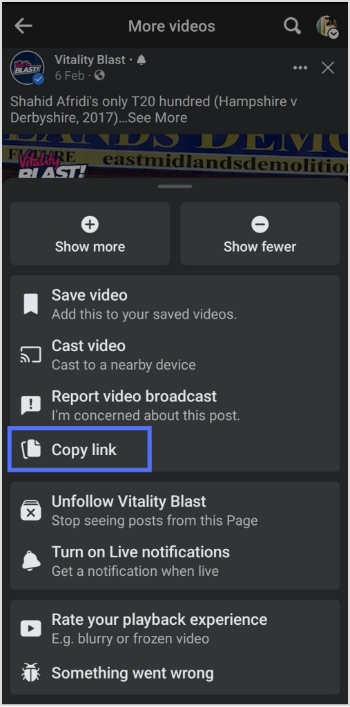
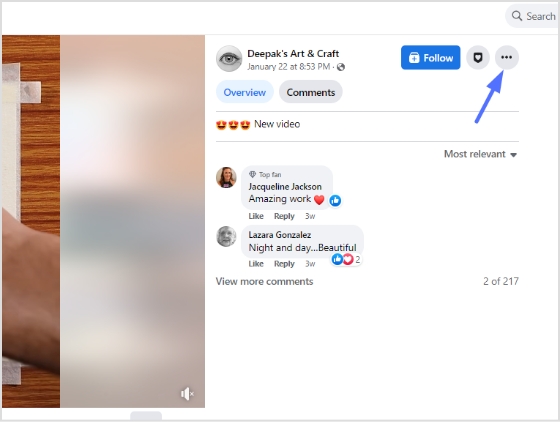
Step 2:Play the video you want to download and tap “3 dots” in the upper right corner of the video.
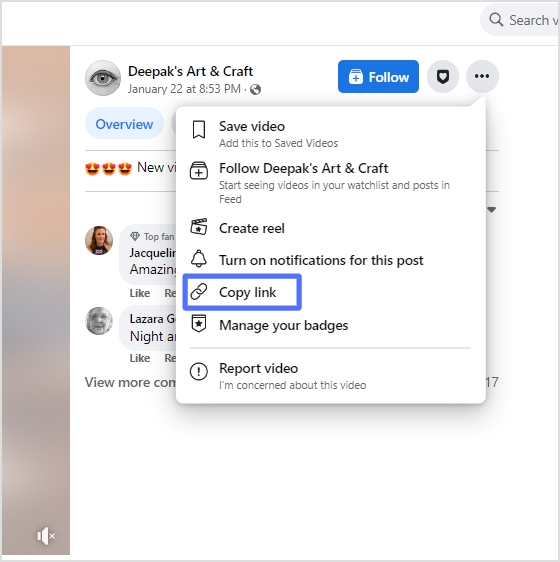
Step 3: Tap “copy link”.
Note: Before pasting the URL/link into a downloader or sharing it elsewhere, you could optionally use a custom URL shortener. That way the link stays clean, easy to share, and more manageable if you need to store or revisit it later.
Step 4: Open Chrome on your mobile device. Paste the link in the search bar to open the video in Chrome.
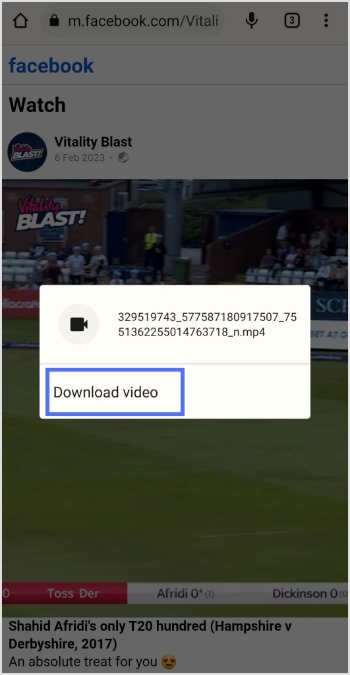
Step 5: Play the video and long-tap on it.
Step 6: Tap “download video,” and your video will be downloaded.
Maximize marketing ROI
by transforming ordinary URLs into branded short links that convert.
Try Replug for free
How to download Facebook videos on a computer device?
Step 1: Log in to Facebook on a computer using a browser.
Step 2: Open the video you want to download and click “3 dots” on the upper right side of the video.
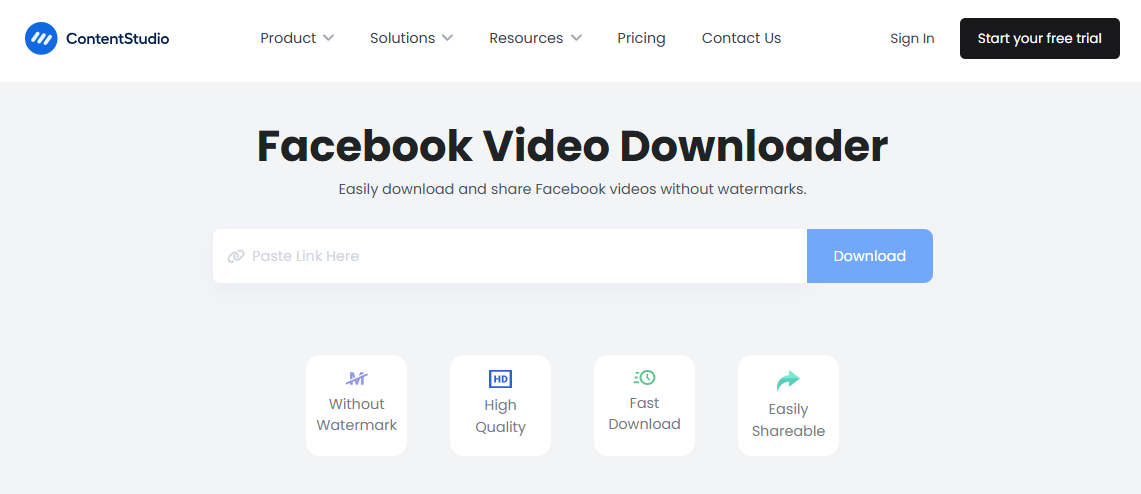
Step 5: Open a facebook Video Downloader online tool from the search results, paste the video link, click the download button, and select the preferred quality. Your video will be downloaded within a few moments.
To download Reels videos from Facebook, you can use the following method:
Open the Facebook app and find the Reels video you want to download.
Tap on the Reels video to open it in full screen.
Tap on the three dots in the bottom right corner of the screen.
Select “Save Video” or “Save Reel” from the options.
The Reels video will be saved to your device’s camera roll or gallery.
If the “Save Video” or “Save Reel” option is not available, it may be because the creator has disabled the option to save their videos. For a case like this, you can download Facebook reels with FvDownloader, an online option for saving Facebook reels for offline use.
However, downloading videos without the owner’s consent violates copyright laws and Facebook’s terms of service. Therefore, using downloaded videos ethically and responsibly is essential, respecting the creator’s rights.
Frequently asked questions
Is it legal to download Facebook videos?
It depends on the copyright laws of your country and Facebook’s terms of service. Downloading videos without the owner’s consent is generally considered a violation of copyright laws, and Facebook’s terms of service prohibit the downloading of videos without permission.
Can I download live videos from Facebook?
Live videos cannot be downloaded directly from Facebook, but some third-party tools can help you record and download live videos from Facebook.
How do I download private Facebook videos?
Private Facebook videos cannot be downloaded unless you can access the video or the owner’s permission. If you have access to the video, you can use the same methods as downloading public videos. You can try contacting the owner to request permission if you don’t have access.
Is there any app to download Facebook videos on iOS devices?
Yes, several apps, such as “Video Downloader for Facebook” or “MyMedia,” can be used to download Facebook videos on iOS devices.
Can I download Facebook videos in high quality?
Yes, some video downloader apps and websites allow you to download videos of high quality. However, remember that higher-quality videos take up more space on your device.
Are you an avid TikTok user and want to share your content with your Instagram followers? Do you wish to showcase your TikTok creations to a broader audience?
If you regularly share content across social platforms and want an easy way to manage, track, and organize all your shared links and posts, Replug offers a unified dashboard to manage everything in one place.
In this guide, we’ll show you how to post TikTok videos on Instagram, so you can double up your social media reach and get more eyes on your entertaining content.
So, get ready to learn the ropes and become a social media sensation!
Here’s how to share TikTok videos on Instagram:
TikTok has become a popular platform for creating and sharing short-form videos. But, if you want to share your TikTok content with your Instagram followers, you might be wondering how to do it. The good news is that it’s relatively easy to post TikTok videos on Instagram, and you can share them in various formats such as feeds, stories, and reels.
Plus, if you need a handy tool to download your TikTok videos for Instagram, consider using a TikTok video downloader to streamline the process.
How to post TikTok to your Instagram feed?
To post a TikTok video on your Instagram feed, follow these steps:
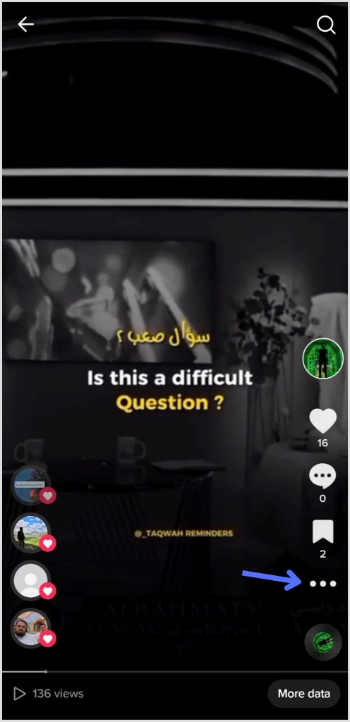
Step 1: Open the TikTok app and find the video you want to share.
Step 2: Tap on the “3 dots” or “share” icon located on the right side of the screen.
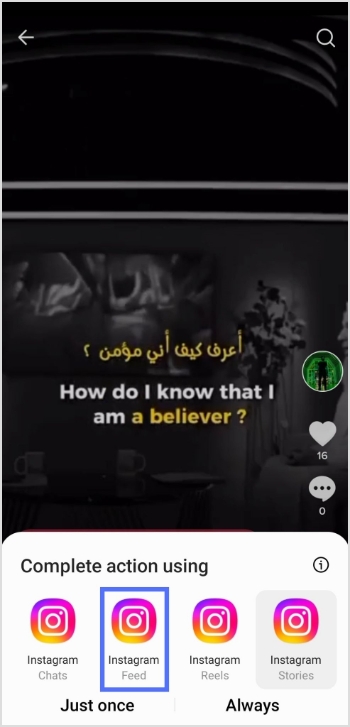
Step 3: Tap on the “Instagram” option.
Note: Before sharing or embedding the video link elsewhere, like in bios, descriptions, or other social media, you can use a trusted URL shortener to produce neat, brand-friendly URLs that look clean and are easy to manage.
Step 4: Choose to post the video to your Instagram feed.
Step 5: Edit the video as desired, add filters, captions, or other adjustments, and then tap “Next.”
Step 6: Tap “share” and your video will be shared on your Instagram feed.
How to post a TikTok to Instagram stories?
To post a TikTok video on your Instagram stories, follow these steps:
Step 1: Open the TikTok app and find the video you want to share.
Step 2: Tap on the “Share” or “3-dots” icon located on the right side of the screen.
Step 3: Tap on the “Instagram” option.
Step 4: Choose to post the video to your Instagram story.
Step 5: Edit the video as desired, add filters, captions, or other adjustments, and share.
To post a TikTok video on your Instagram reels, follow these steps:
Step 1: Open the TikTok app and find the video you want to share.
Step 2: Tap on the “Share” icon located on the right side of the screen.
Step 3: Tap on the “Save video” option to save the video to your device.
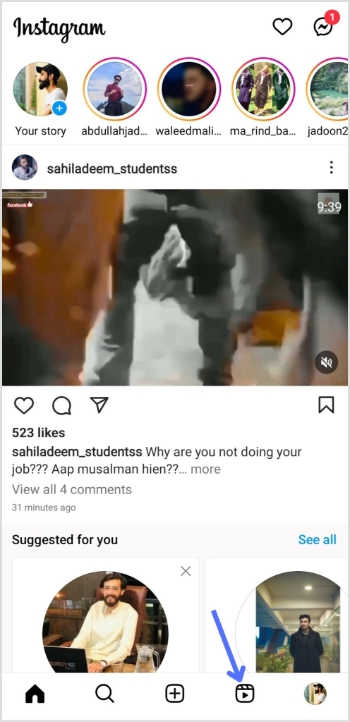
Step 4: Open the Instagram app and tap on the “Reels” option.
Step 5: Select the video you want to share from your device’s camera roll, add filters or other adjustments, and then tap “Share.”
And there you have it! Now you know how to post TikTok videos on Instagram, whether it’s for your feed, stories, or reels. So, go ahead and share your creative TikTok content with your Instagram followers and watch your social media presence grow!
FAQs
Can I post TikTok videos directly to Instagram?
No, you cannot post TikTok videos directly to Instagram. You need to save the TikTok video to your device first and then upload it to Instagram.
Will my TikTok video lose quality when I upload it to Instagram?
It’s possible that your TikTok video may lose some quality when you upload it to Instagram due to differences in compression and resolution. To minimize quality loss, try to save the TikTok video in the highest possible solution and choose the best Instagram video settings for your device.
Can I automate the process of sharing TikTok videos on Instagram?
While there is no direct way to automatically share TikTok videos to Instagram, you can use third-party apps or tools like Content Studio to automate the process to some extent. However, monitoring the results and making any necessary adjustments is important to ensure your content is shared accurately and effectively.
In today’s world, businesses increasingly turn to digital marketing strategies to reach their target audience. And one of the most popular and effective ways to do this is through social media platforms such as Facebook.
With over 2.9 billion monthly active users, Facebook has become a hub for businesses to connect with customers and drive sales.
For businesses handling multiple campaigns, ad audiences, and tracking links across various sources, a reliable link optimization platform such as Replug can make link management, analytics and retargeting far simpler and more organized.
However, with so many users on the Facebook crowded platform, businesses can need help to target the right audience for their products or services. This is where Facebook custom audience comes into play!
What are custom audiences?
Custom Audiences is an ad-targeting option that allows businesses to target specific groups of people based on their interests, behaviors, and demographics. This feature lets companies create personalized ads that resonate with their target audience, increasing engagement and conversion rates.
Creating a custom audience is easy and requires minimal effort. Businesses can upload their customer email lists or phone numbers to Facebook and build a custom audience based on this data. They can also create a customized audience using website traffic, app activity, social media analytics, and reporting tool.
Once you have created a Custom Audience, you can run targeted ad campaigns on Facebook, Instagram, or Audience Network. These ads can be in images, videos, or carousels, and they will be displayed only to the people in your custom audience.
Custom Audiences are still an essential tool for advertisers and marketers, as they allow businesses to target specific groups of people based on their past interactions with the company, such as website visits, app usage, and email engagement. This targeting can be highly effective as it allows businesses to focus their advertising efforts on people who have already shown an interest in their brand or products.
However, the effectiveness of Custom Audiences can depend on several factors, including the quality of the audience data, the relevance of the messaging and creativity, and the competitiveness of the advertising landscape. In addition, privacy concerns and new regulations related to data usage may impact the ability of businesses to use custom audiences in the future.
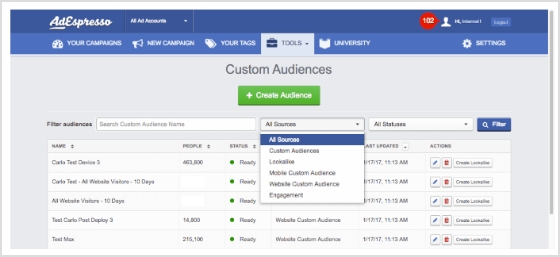
What type of Facebook custom audience can you use?
There are five types of custom audiences that you can create depending on your needs. So here’s the list to help you get started :
1. Customer file custom audiences
A custom audience is created by uploading a list of customer emails, phone numbers, or other identifying information. This allows businesses to target their existing customers or subscribers with personalized ads. One of the significant advantages of using customer file custom audiences is that companies can nurture their existing customer relationships by showing them relevant ads, promoting repeat purchases, and encouraging customer loyalty.
2. Website custom audiences
The website’s custom audience is a Facebook pixel-based custom audience. This pixel tracks the actions of visitors to your site and allows you to retarget them with ads on Facebook based on their behavior, such as pages they visited or actions they took. Businesses can retarget users who have already expressed interest in their goods or services using Website custom audiences. This encourages them to take action, like buying something or signing up for a newsletter.
Note: If you share your landing or campaign URLs publicly, say via social media, emails, or ads, you might also want to use a handy URL shortener to keep links neat, trackable, and easier for users to click and remember. Replug will assist you with this exceptionally!
3. App activity custom audiences
Businesses can target users who have performed particular actions within their mobile app using this type of custom audience, created using Facebook’s software development kit (SDK). Businesses can use App Activity Custom Audiences to their advantage by retargeting users who have abandoned their cart or stopped using the app, enticing users to return to their app, and offering personalized promotions to users who have carried out particular in-app actions.
4. Engagement custom audiences
This kind of custom audience is created based on user interaction with a company’s Facebook or Instagram page, such as liking or commenting on a post, watching a video, or reacting to an event. Businesses can use engagement custom audiences to target users who have expressed interest in their brand, boost page engagement, and persuade users to take action, like making a purchase or subscribing to a newsletter.
5. Lookalike custom audiences
Facebook develops Lookalike custom audiences by using information from the current custom audiences of a company. After analyzing the data, Facebook creates a new audience that resembles the existing audience in terms of interests, habits, and demographics. Utilizing Lookalike Custom Audiences has several benefits for businesses, including the ability to grow their customer base and improve the efficiency of their advertising campaigns by connecting with new users similar to their current clients or subscribers.
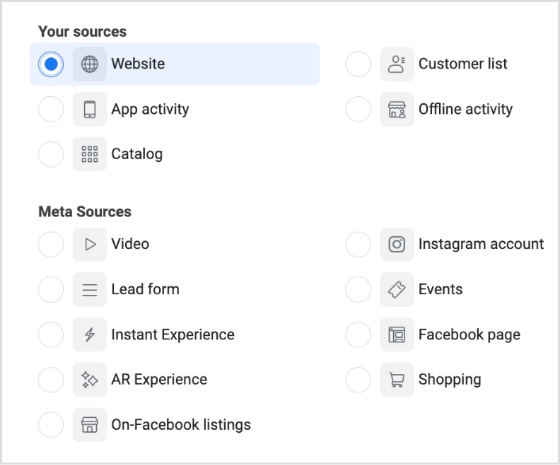
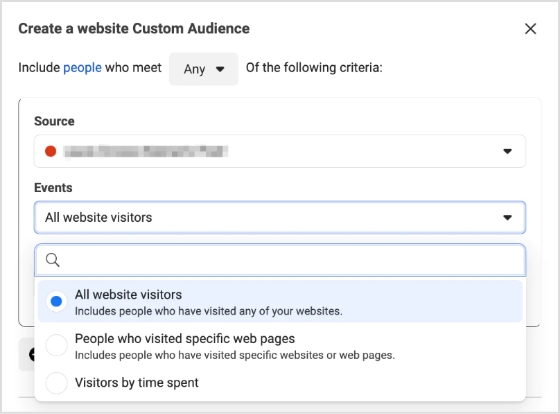
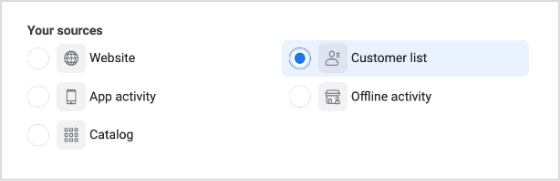
Step 1: Click on the website in the list of “your sources”
Step 2: Define rules
Select the source, occasions, duration of retention, and rules. Among the rules, you can create ones below according to your needs :
Target all website visitors.
Target visitors to particular pages.
Focus on visitors who spend more time on your website.
Categorize visitors ( include or exclude them from the list).
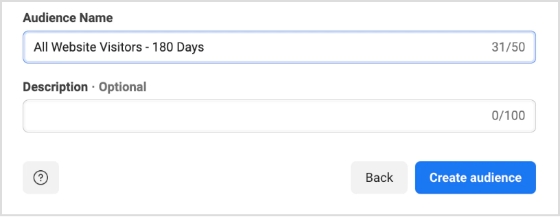
Step 3: Identify and explain the custom audience
Give each of the Custom Audiences you create distinct names so that you can keep track of them all more easily. If more explanation is required, a brief description can be written.
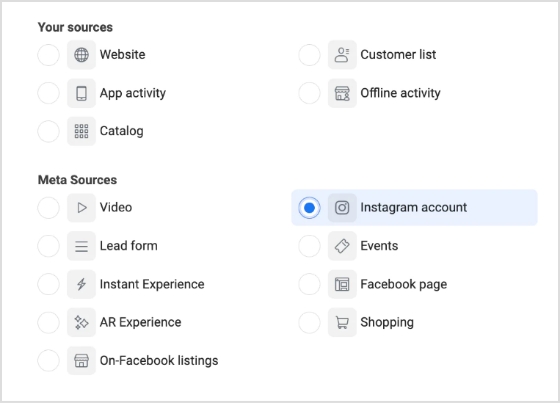
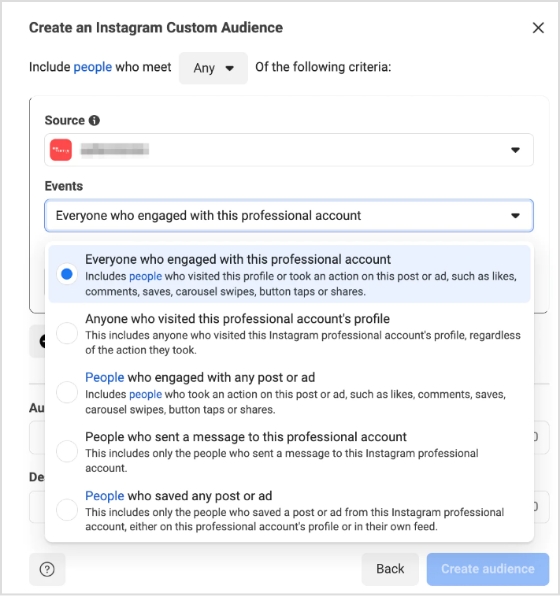
There are numerous Meta Sources available. As an illustration, we’re selecting “Instagram account.” Click “Next” after choosing the Meta Source you want to use.
Step 2: Establish rules
Every Meta Source comes with its rules, retention period, and events.
On Instagram, you can pick from a variety of events, including:
Visitors to your profile
Users who have interacted with or saved your Instagram ads
Users who have liked commented on, or held your posts
Users who have sent messages to your account.
Step 3: Identify the target audience
Assign your audience a clear and descriptive name, and provide a brief explanation if necessary. As an instance, you may create an audience named IG-PROFILE-VISIT-180, representing individuals who have viewed your profile in the last 180 days.
Step 4: Click “Create audience”
Finally, choose “Create audience,” and Facebook will generate your custom audience according to your set standards.
Creating customer file custom audiences
Step 1: Generate a list of customers
Prepare a CSV or TXT file that contains identifiers such as email addresses or phone numbers, allowing Facebook to match your data to Facebook profiles. Include as many identifiers as you can to form a well-defined audience.
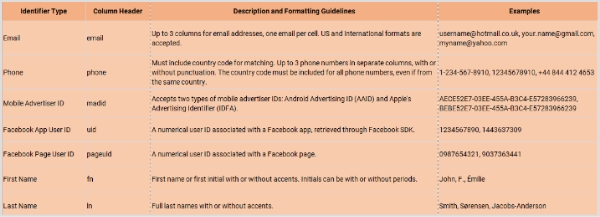
Before incorporating your list at the onset of the audience creation procedure, ensure that the column format conforms to the identifier type that Meta supports. This aids Meta in identifying matches from your hashed columns in the future. You must also ensure that your customer details are entered in the correct format.
For instance, if a column header pertains to first names, you should change the column header to “fn” (first name) to ensure proper mapping. To format customer information appropriately, refer to the following list of data types that Meta acknowledges :
The table above presents the primary identifiers; however, there are also some additional identifiers that you should check.
Step 2: Select the source labeled as “customer list”
Select the “Customer list” option and click “Next.”
Step 3: Upload the customer list.
To utilize a customer list, you can import it as a CSV or TXT file. This allows you to quickly bring in your customer data from various sources, such as your email marketing platform or CRM, and use it to create a highly targeted audience.
Step 4: Review your list and click “upload and create”
Once you have ensured that your identifiers are correctly mapped, you can proceed with the matching process by clicking the “Upload and Create” button. If your identifiers do not meet Facebook’s requirements, you will see a yellow exclamation symbol indicating that you need to update them. On the other hand, a green check mark symbol suggests that you are ready to proceed with matching.
Facebook custom audience is an invaluable tool for marketers targeting the right customers with ads. You can create personalized campaigns tailored to your audience using the platform’s robust targeting capabilities. Here’s a comprehensive guide on using custom audiences to enhance your marketing, from ad creation through post-campaign analysis.
Understanding retargeting campaigns
Retargeting is an incredibly effective way for companies to keep their products and services top-of-mind with customers who have shown interest before. By displaying highly relevant content based on past interactions, businesses can drive conversions from shoppers who may have forgotten them.
McBride Sisters Collection, a Black-owned wine company, used retargeting to reignite interest among their lapsed customers. They were able to pull the customer data they needed from their CRM database and then showcased dynamic ads featuring their entire wine collection. As a result of this campaign, the company saw an impressive 58% lift in purchases!
Retargeting campaigns can extend beyond eCommerce businesses. From B2B software companies to restaurant chains, any business with an online presence can benefit from reminding past website visitors about what they offer and motivating them to take action. Other notable companies like Shinesty Clothing have seen success using retargeting campaigns too – obtaining over 200% return on ad spend (ROAS) by targeting site visitors who’d been consumed by ‘shiny syndrome’ but hadn’t bought anything – ensuring that no potential customer went ignored!
Engage repeat customers
Turning casual customers into devoted fans is cost-effective to ensure business growth. One example of this strategy at work is Clinique US, which used custom audiences and lookalike audiences to target past purchasers and repeat customers to show dynamic ads. This method saw an impressive 5.2-point lift in action intent with a combination of people- and product-focused ads.
The success stories come as no surprise when you recognize customers’ loyalty with marketing efforts that are personal and relevant; you not only keep them coming back for more but also drive up your conversion rates even further. All you need to do is start with an analytics tool to monitor the users.
Increasing engagement with your app is critical to ensure long-term success. One strategy that has proven successful for many companies is using custom audiences of people who have already downloaded the app. This approach allows you to target your ad specifically to users who have demonstrated interest in your app, making it more likely that they will engage with it. By showing ads only to these users, you can get the most out of your ad budget and better target your message.
For example, Sephora used a combination of remarketing and retargeting campaigns to increase its app engagement by targeting users who had previously visited its website or had installed the Sephora app.
Similarly, Airbnb used Facebook custom audience feature to optimize its campaigns and increase user engagement. Through this strategy, Airbnb was able to reach existing customers more efficiently and reduce cost per install (CPI). This ultimately led to increased bookings through the app and increased customer retention rate growth.
Growing your Facebook following is essential in building a solid online presence and awareness of your brand. It would be best if you run a Facebook ad targeting a custom audience to do this. This could be based on website visitors or an existing customer list, excluding those who have already liked your page to avoid paying for unnecessary reach.
An example of this strategy in action is Lowe’s, which used the Custom Audiences feature to precisely target people who visited its site but who weren’t yet connected with Lowe’s via social media. By doing this, it could reach a geographically diverse group that was more likely to follow the page. This resulted in a sixfold increase in likes compared to other platforms and campaigns.
By using a customized audience strategy, you can ensure that you effectively reach the right people at the right time, leading to increased engagement with your Facebook page and ultimately helping you achieve better results.
Use lookalike audiences
Using lookalike audiences is also a great way to target potential customers who share similar characteristics with your existing custom audience. Many companies have successfully adopted this strategy, like Liquid IV, which used custom audiences to identify people who had purchased in the past, added an item to their cart, or engaged on social media and then created a lookalike audience from this group. The result was an impressive 19-point lift in ad recall for Liquid IV.
Other brands, like British fashion retailer ASOS, have also used lookalike audiences to increase reach and engagement with their products. ASOS targeted new markets by creating lookalike audiences from buyers of specific categories of products and noticed that engagement increased significantly compared to ads targeting broad audiences.
Set up pixel events
Custom Audiences can be further leveraged with Pixel events, allowing you to automate the process of building and refining your list of potential customers. The Meta pixel (formerly the Facebook pixel) enables you to add website visitors to a custom audience when they perform specific actions like adding a product to their cart, searching for something on your site, subscribing to your newsletter, or viewing certain things content. By setting up Pixel events, you can ensure that you’re only targeting people interested in your products individually, allowing for more effective retargeting and message personalization.
For instance, many airlines use the Pixel event audience targeting feature to provide personalized discounts in their ads based on previous behavior. For example, suppose a user has previously visited the airline’s website but has yet to book a flight. In that case, they might receive an ad featuring a discount code or special promotional offer. This helps increase conversions and establishes relationships between the customer and the brand, enabling future interactions through remarketing efforts.
Growing your custom audience can be vital to scaling your business and optimizing customer interactions. Here are tips that will help you grow your custom audience quickly and effectively:
Make effective use of Facebook Ad types
Utilizing suitable Facebook ad types is essential to growing your Facebook Custom Audience. When creating an ad, you should have a custom audience ready to track whoever engages with it, and this will help you retarget them further down the line, ensuring no one goes unnoticed.
Digging in more, another effective method is focusing on Awareness objectives which allows you to reach a higher number of people in your target group. With awareness-targeted campaigns, you’ll likely get more followers and fans than any other type of ad because they are apparent and cost-effective. You can also use lead ads for people interested in learning more about your product or service. Lead forms let visitors quickly fill out information without leaving the platform, making it easy for them to become potential customers. Remember carousels and collection ads that are perfect for showcasing multiple products in a visually appealing and interactive way.
Develop creative content
Now that you know your audience and how you should target them, it’s time to get creative! Remember that different audiences require different types of content; for example, Millennials may respond better to videos than older generations, so make sure you craft content accordingly to maximize ROI from each ad placement.
In addition, consider investing in sponsored content; allowing you to pay for influencers to promote your brand on Instagram or other social platforms can be a great way to introduce products and services to new people who may already have an affinity for the influencer.
Remember images. Captivating visuals can help capture attention and inspire engagement. You may also want to experiment with interactive elements such as surveys or polls that make it easier for audiences to get involved and interact with your brand directly.
After running your campaign for some time, look at the results and adjust accordingly based on what works best (or doesn’t). You can quickly identify which ads perform better than others by splitting tests into groups and A/B testing to determine what resonates most with specific subsets of your target audience; this could be done via split tests, polls, or simply gauging online feedback related to the campaign elements like visuals or textual content used across ads, etc.
For example, if you’re running an ad campaign for a new product launch and want to see what kind of visuals work best, consider running multiple versions featuring different photos and videos. Then, track the response from each version using analytics like engagement rates and post likes. This will help you gain valuable insights into which type of creatives resonate best with different people, allowing you to tailor future campaigns accordingly.
Other methods for analyzing performance include surveying customers or analyzing customer data patterns. Netflix is a good example; they use customer data patterns to customize their home page for viewers so that individual users receive personalized recommendations based on their past viewing habits. Using similar tactics in your campaigns can provide followers with more relevant content explicitly tailored toward them.
Optimize your ads
As mentioned above, analyzing performance requires optimization based on what works best (or not!). This includes continuously tweaking/adjusting settings related to things like audience segmentation/targeting parameters + optimizing creative elements such as color palette & copywriting style used within messages shared via social media channels regularly throughout various campaigns over their respective timelines, all designed with intent increasing conversions both short+long term when appropriately utilized!
FAQs
What are the best channels to reach your target audience?
Facebook Custom Audiences is a powerful tool that allows you to target your advertising to specific groups of people. By creating a custom audience, you can target people who have interacted with your business in some way, such as by visiting your website or engaging with your social media posts.
What is an example of a custom audience?
An example of a custom audience could be a list of email addresses or phone numbers you collected from your customers, which can then be uploaded to Facebook to create a custom audience for targeted advertising.
How do you develop an eCommerce audience?
Developing an eCommerce audience can involve various strategies such as creating quality content, optimizing SEO, utilizing social media platforms, running paid advertising campaigns, offering exclusive promotions, building email lists, and providing exceptional customer service. The specific approach will depend on your target audience and goals.
Who is the target audience for eCommerce?
The target audience for eCommerce can vary depending on the product or service being offered. Still, generally, it includes anyone who has access to the internet and is interested in purchasing products or services online. This can include people of different ages, genders, and geographic locations.
QR codes have become ubiquitous in recent years, and for good reason – their potential uses are virtually endless. From marketing to sustainability to convenience, QR codes are being used to enhance our daily lives in countless ways.
Marketing is one of the most popular uses of QR codes. By placing QR codes on product packaging, flyers, and other marketing materials, businesses can drive engagement and sales by providing easy access to additional information, promotions, and other interactive features.
But QR codes are also being used to promote sustainability and responsible consumption. By placing QR codes on products, businesses can track and monitor their lifecycle, from manufacturing to disposal, and ensure that they’re being produced and consumed in an environmentally friendly way.
So whether you’re a marketer looking to boost engagement, a sustainability advocate looking to promote responsible consumption, or just someone looking for an easier way to navigate your daily life, the uses of QR codes are sure to impress and inspire you.
How to use QR Codes to boost sustainable marketing strategies?
QR codes have become a popular tool for businesses to enhance their marketing strategies in a sustainable way. With the fast-paced technological advancements, QR codes offer a quick and efficient way for customers to access the information they need without wasting time in lengthy procedures. One of the most interesting features of QR codes is that anyone can use them without any prior knowledge. They offer a virtual communication platform between brands and customers, increasing the reach of advertising and enhancing the customer experience.
QR codes have a wide range of applications in various industries, from bookshops and restaurants to medical facilities and ticket booking services. They can store a variety of information, such as contact details, book data, website URLs, medical history, and educational material, making it easy for users to access all the information they need in one place with just one click.
QR codes also offer significant advantages in the medical field, allowing patients to access critical information about doctors, hospitals, and pharmacies with a single scan. For doctors, QR codes eliminate the need to wait for assistants to access patient history and authorization details, saving them valuable time. Integrating QR codes with practice management system features can further streamline patient management and improve overall efficiency
The rise of e-commerce has made transactions through mobile devices a popular way to shop. QR codes offer an authentic and secure pathway to facilitate these transactions, making them an essential tool for promoting websites and businesses. They can be incorporated into clothing tag details and shopping carts, allowing customers to choose an item, select its quantity, and complete the payment process with ease.
QR codes can also be used as a Call-to-Action (CTA) to engage target audiences with promotions, giveaways, launching offers, challenges, and scavenger hunts, among others. By providing a fast and secure way to access information, QR codes motivate people to join and gain maximum information from them.
Finally, QR codes are a secure way to facilitate cashless payments, which is increasingly important in the era of cybercrime and faulty transactions. Customers feel secure using QR codes for touch-free payment methods, making them a popular choice for businesses.
Did you know? Drones formed a giant QR Code in the sky of Shanghai
If you have not yet started your business marketing with QR codes means you are missing a blast of opportunities to grab your customers. Start creating dynamic QR codes and become a part of this booming technology. Hundred of drones were collectively displayed on Shanghai’s night sky to represent China’s remarkable work in the release of the Japanese game Prince.
On March 29, Hyundai’s brand launched 3100 drones in the sky of Shanghai. The sky gives a captivating look and is filled with fancy characters. These vibrant ideas reflect the booming technology to engage maximum consumerism.
Top 10 Ideas to Use QR Codes
There is a huge list of using QR codes. Let’s have a look at a few that are used in our daily life but still, we are not much aware of them. Right from our home for example very basic munching items that cannot be skipped all eatable do have these scans for detailed ingredients and allergic items as well. Moreover, we can have its price and it’s very handy to use.
While traveling we face a lot of hustle for reservations, timings, available slots, and missing flights and every solution to our problem ends up with just a tick of the clock scanning a QR code and here we go.
1. Direct customers to a landing page/website
Customers are a big asset for the business lead and it can be more productive if they are kept in high priority. Social media pages or the very first page that is the landing page of your website can easily be approachable with the help of a QR code scan. You can gain potential users once they are redirected to a landing page with detailed information about your brand. Brand recognition is of equal importance along with customer care, all depends upon sustainability and social accountability.
2. Shopping and e-commerce
Qr codes are of great edge for cashless payments as customers are always tilted toward comfort payment methods and what else is needed when you have a safe and secure cashless payment method. So QR code not only increases customer loyalty but also increase businesses’ marketing strategies. Here what’s more appealing to customers is touch-free hygiene and efficient method.
3. Use QR Codes for real estate marketing
Did you know what is a more attractive thing on your visiting cards or in advertisements? Marketing campaigns, strategies, and advertisements must be clearer and give a minimalistic look to have an attractive appearance. So, this can only be possible with QR codes and it shows all elaborated information with a single scan. Real estate marketing needs to be more expressive and catchy for attention grabbers. Our banners, visiting cards, billboards, and brochures only need to go with advanced technical marketing campaigns.By leveraging a Real Estate Drip Campaign, you can consistently nurture leads with targeted messages, ensuring your brand stays top-of-mind throughout the buyer’s journey.
4. Share your social media accounts
Social media account sharing is one of the best ways to get a maximum audience, users always go for a comfortable yet secure way and a QR code is the solution. You only need to copy your profile URL and paste it into the QR code generator. There is no need to put your credentials first then authentication codes everything is replaced by this QR scan. It is the pathway to engage more comments, likes, requests, and more traffic on your account.
5. Ask for reviews or feedback
Feedback is an efficient way to overcome our weaknesses and produce a better version. Rather than asking users to give feedback, and reviews on given cards within a limited space, one only has to scan the code and be directed to the feedback page. This gives a sound feeling between the reader and writer.
6. Track inventory, delivery, packaging, and people
Courier services and all applications where GPS is integrated for tracking and status activities everything can be controlled with the help of QR codes. Location is linked, you can follow your rider on the map by scanning the code and addressing him. It is the fastest and most reliable way to have better communication within no time. Integrating top courier management solutions can further streamline these processes, enhancing efficiency and customer satisfaction.
7. Offer incentives and coupons via QR codes
Everyone is crazy for coupons, bouncing offers, and amazing deals. All can easily be available under one scan and users can take full advantage of present or even upcoming offers. It is a brilliant idea to get detailed information on various brands, companies, restaurants, and hotels.
8. Integration with Search and social ads
Social media ads and different marketing strategies through QR codes are now commonplace and continue to give brilliant hype. Integrating such codes to attain customers’ attention and provide them with maximum information. QR codes prove to be an innovative idea and it also promotes brand awareness.
9. E-learning
QR codes guide every level of education. Scanning it can automatically lead to an open-source library with enormous knowledge. Suppose a researcher needs in detail guidance on a particular topic no matter whether it’s advanced or beginner level every kind of information is available behind QR codes. One can solve his maths problem or even programming within a few seconds only.
10. Authenticate people and documents
QR codes help to share the encrypted content in the QR code with the concerned person or system only. As authenticity is the most prior characteristic while exchanging information So, It is a mandatory step to follow a QR code scan to get access. Moreover, it is widely used in multiple organizations as a biometric verification. Users can scan the QR code and can see all detail of the document on mobile only with one scan.
How are brands using QR Codes?
Brands are using QR codes in various ways, such as providing quick access to product information, offering exclusive discounts or promotions, facilitating easy mobile payments, and enhancing customer engagement through interactive experiences like games and surveys.
Service-based businesses, including teams offering virtual assistant real estate support, also use QR codes to simplify onboarding, scheduling, and customer communication.
Here are some examples of how brands are using QR codes:
Nike: Nike used QR codes to provide customers with additional information about their products. By scanning the QR code on the product, customers could access videos that showcased the shoes in action, as well as tips on how to use them.
Pepsi: Pepsi used QR codes as part of a scavenger hunt promotion. Customers scanned the codes on various Pepsi products to find clues, which led to prizes and giveaways.
Heinz:Heinz used QR codes to create a more engaging experience for customers. By scanning the code on a ketchup bottle, customers were directed to a landing page where they could create their own personalized label and share it on social media.
Tesco: Tesco, a UK-based supermarket chain, used QR codes to provide customers with additional information about their products. Customers could scan the codes on produce items to learn more about where they were grown and how they were produced.
Starbucks: Starbucks used QR codes as part of its rewards program. Customers could scan the code on their app to earn points and redeem rewards.
These are just a few examples of how brands are using QR codes to enhance their marketing strategies and improve customer engagement.
How to generate a QR Code for any website or URL?
QR codes can easily be generated by following a few steps, this could be anything related to your marketing businesses, content, website pages, social profiles, documents, books and etc.
Here’s how to generate a QR code using Replug:
With Replug, you can easily create QR codes for everything from product information and promotional materials to event invitations and social media profiles. Simply design your code with our user-friendly interface, and watch as it comes to life in seconds.
Step 1: Sign in or create a Replug account Go to Replug and log in to your dashboard. If you don’t have an account, you can sign up in minutes — no credit card needed (free trial available).
Step 2: Go to the “QR Codes” section – In the dashboard menu, click on “QR Codes.” – Then click the “Create New” button to start building your QR code.
Step 3: Select the QR code type – Replug supports various QR code types; like URL, text, email, and more. – Pick the type that suits your needs. (For example: link to a webpage, vCard, etc.)
Step 4: Enter your content Based on the type you selected, add the content you want the QR code to contain. This could be a URL, plain text, contact info, or other data.
Step 5: Customize the QR code design (optional) You can:
Change the QR color
Add your logo in the center
Choose a frame or border
Add a call-to-action like “Scan Me”
Step 6: Download and use your QR code Once you’re happy with the design, click “Download.” You can now use it on print materials, websites, or social platforms.
How to track & measure QR code success?
Creating a QR code is just the first step in a successful marketing campaign – the real challenge lies in tracking and measuring its performance. Fortunately, with the right tools and strategies, it’s possible to track your QR code success and make data-driven decisions to improve your marketing efforts.
Replug offers analytics features that make it easy to track and measure the success of your QR code campaigns. With our advanced analytics platform, you can monitor everything from scan locations and devices to conversion rates and engagement metrics.
By tracking and measuring your QR code performance with Replug, you can identify which campaigns are resonating with your audience, and which ones need improvement. This information can help you make informed decisions about your marketing strategy, and optimize your campaigns for maximum impact and results.
So if you’re ready to take your QR code marketing to the next level, sign up for Replug today and start tracking your success. Enhance your campaigns further with our free link shortener, a perfect match for QR code optimization.
It is of more importance than static QR codes because dynamic QR codes can be updated and altered at any time and it helps in tracking data, number of visitors, and location. In this way, it is less time taking and more efficient as you can change it while it’s active.
What is the difference between a static and dynamic QR code?
Static QR codes can not be updated while dynamic QR codes can be updated easily. Static QR codes cannot fix mistakes if occur you have to recreate them from the start while dynamic QR codes can be fixed and no need to recreate them every time
Which countries used QR codes in Covid?
It proves to be a safe and secure way to avoid the spread of pandemic disease. Countries like China, India, Qatar, Singapore, and many more countries use QR codes.
Do QR codes expire?
Yes, QR codes can expire. The expiration time of a QR code depends on the creator and can range from a few minutes to indefinitely. The purpose of setting an expiration time is to ensure the security and effectiveness of the code. Once a QR code has expired, it will no longer be scannable.
YouTube isn’t just the world’s biggest video platform; it’s huge!
As of 2026, more than 2.5 billion people log in every month to watch, share, and engage with content from tens of millions of creators around the world.
But ask most new content creators what the one thing is that makes their channel look more professional and memorable, and you’ll hear one answer again and again: having a clean, custom URL.
Instead of a random string of characters, a custom YouTube URL (like youtube.com/YourName) gives you something easy to share, brandable, and instantly recognizable to your audience.
In this guide, we’ll break down exactly how to create, get, change, or delete a YouTube custom URL, starting with a clear answer to the question: what a YouTube custom URL actually is!
What is a YouTube custom URL: A brief overview
A “YouTube custom URL” is simply a personalized web address for your channel that replaces the auto-generated, long link YouTube gives you by default with something memorable, like youtube.com/c/YourBrandName.
Instead of a jumble of letters and numbers, a custom URL lets viewers remember and type your channel link easily, boosting your visibility and professionalism online.
The main goal of such URLs is to make it simple for fans to find and share your content, helping your brand or name stick in people’s minds and across social platforms.
Before you can grab a custom web address for your channel, you’ve got to meet YouTube’s basic YouTube custom URL requirements.
Think of these as the platform’s way of making sure you’re serious about your channel before handing you a memorable URL that’s easy to share.
Once these are in place, YouTube will let you claim a custom link that’s cleaner and more professional than a string of random characters.
Here’s what you need:
Have 100 or more subscribers on your channel.
Your channel must be at least 30 days old.
Upload a profile picture.
Upload a banner image (channel art).
Once you’ve ticked all these boxes, YouTube will usually show the option to set your custom URL in YouTube Studio.
How to create a YouTube custom URL?
Creating a custom URL for your channel is all about giving your viewers a clean, branded link that’s easier to remember and share. Think youtube.com/c/YourName or youtube.com/@YourHandle.
Once your channel meets the eligibility criteria, YouTube makes it pretty straightforward to set one up right from your dashboard.
Here’s a simple step-by-step guide:
1. Sign in to YouTube with the Google account tied to your channel.
2. Click your profile picture at the top right and go to “YouTube Studio.”
3. From the left menu, select “Customization” → “Basic info.”
4. Scroll down to the “Channel URL” section and click “Set a custom URL for your channel”(this appears once you’re eligible).
5. You’ll see suggested URLs based on your channel name. You can tweak them if allowed, then click “Publish” and “Confirm.”
Once confirmed, your new custom URL goes live, making your channel link way more unique!
Getting a custom URL (like youtube.com/c/YourName) is all about turning your channel’s messy default URL into something easy to remember and share.
YouTube only lets channels that qualify claim one, and the platform will either offer you a suggested URL or let you pick from options once you’re eligible.
Here’s a friendly step-by-step guide to help you claim it:
1. Sign in to YouTube with the Google account that manages your channel.
2. Click your profile picture and go to “YouTube Studio.”
3. From the left menu, click “Customization,” then “Basic info.”
4. Scroll down to the “Channel URL” section. If you’re eligible, you’ll see an option like “Set a custom URL for your channel.”
5. Copy or edit the suggested custom URL that YouTube provides.
6. Click “Publish” and “Confirm” to lock it in.
After that, your channel link becomes way easier to promote and remember. A small upgrade that really helps with branding and sharing online!
Can you change a YouTube custom URL?
Yes, but with some limits!
YouTube does let you do a YouTube custom URL change, yet it isn’t as simple as typing a new one whenever you feel like it.
Once you’ve claimed a custom URL, YouTube generally doesn’t let you edit it directly. Instead, you need to remove the old one and then claim a new one if eligible.
You can change your URL by updating your YouTube handle, which creates a new youtube.com/@handle URL. The old custom URL will redirect to the new handle URL.
Here’s how it works:
You can’t edit an existing custom URL in place.
To change it, you must remove/delete your current custom URL from your channel and update the handle.
Note: You can only remove and reclaim a custom URL a limited number of times per year, so choose carefully. The handle can be changed/updated up to three times per year!
How to change a YouTube custom URL?
If you’re wondering how to change the custom URL on YouTube, there is a way, but it’s not a simple “edit” like changing your display name.
YouTube doesn’t let you rename your existing custom URL directly. Instead, you must now update your channel handle at youtube.com/handle or in YouTube Studio.
Here’s a friendly step-by-step guide:
1. Sign in to YouTube Studio with the channel you want to change.
2. From the left menu, click “Customization,” then “Basic info.”
3. Scroll to the “Handle” section. Change your current handle to your desired new URL.
4. Now, check if the handle is available.
5. If available, click “Publish” in the top right corner to save the changes.
👉 Keep in mind, on YouTube, you can change/update your handle twice every 14 days!
Why is YouTube’s custom URL not showing?
Sometimes, even when it looks like you should see the option for a custom URL in your YouTube Studio, it just doesn’t appear.
This can be confusing, but there are a few common reasons the option to claim or set a custom URL on YouTube might not show up yet, even if you think you’ve done everything right.
Here’s what might be going on:
📊 Eligibility isn’t actually processed yet: YouTube can take time to recognize your channel meets all requirements (100+ subs, 30+ days old, profile & banner added).
📨 YouTube hasn’t offered the custom URL yet: Even eligible accounts sometimes must wait for YouTube to make the option available (probably around 2 weeks).
⚙️ Temporary glitches or UI update delays: Platform updates or bugs can hide the option temporarily. Clearing the cache or checking later can help.
📍 Feature rollout changes: YouTube has been shifting toward handles (@YourHandle) as the main way channels get easy-to-share URLs, which may affect how and where custom URL options appear.
Note: If you’re sure you meet the official requirements and still don’t see anything, give it a few days. YouTube sometimes takes time to update eligibility on all accounts.
Why is YouTube’s custom URL not changing?
If you’ve tried updating your channel link and it just won’t change, don’t worry. This happens for a few solid reasons that are tied to how YouTube currently handles URLs.
YouTube’s system has changed over the years, and legacy custom URLs (the old youtube.com/c/YourName style) behave differently today than they did before.
Here’s why it might not be changing:
❌ You can’t directly edit an existing custom URL anymore: Once set, legacy custom URLs generally stay as they are, and YouTube doesn’t offer a direct change function.
🔁 YouTube now uses handles instead: The current way to get a custom-looking URL is by setting or changing your handle, not the legacy custom URL itself.
🔄 If the old URL was created under the old system, YouTube may keep it locked to maintain backward compatibility and avoid breaking existing links.
📅 Rate limits or system updates can also block changes temporarily, especially as YouTube transitions features.
In short, YouTube doesn’t let you freely edit the old custom URLs anymore. Updating your handle is the modern way to refresh your channel’s public link. Make sure your desired handle isn’t taken, so you can use it hassle-free!
How to delete a YouTube custom URL?
Sometimes you want to get rid of your current custom URL, maybe because you rebranded or want a fresh new link.
YouTube lets you delete your custom URL so that it no longer directs viewers to your channel, and then you can claim a new one if you’re still eligible.
Here’s a clear step-by-step guide you can follow:
1. Sign in to YouTube Studio with the channel that has the custom URL you want to remove.
2. Go to “Customization” → “Basic info.”
3. Under “Channel URL,” you’ll see your current custom URL. Click “DELETE.”
4. Confirm the action by clicking “Remove”(in the pop-up window) again when prompted.
Once deleted, the URL will stop directing people to your channel (this can take a couple of days).
After that, if you still meet the eligibility requirements (like having 100+ subscribers and the channel being at least 30 days old), you can go ahead and claim a new custom URL.
Note: If you cannot delete a YouTube custom URL, you may need to delete your YouTube channel permanently to remove it, or wait for the system to allow changes.
Benefits of a YouTube custom URL
A YouTube custom URL makes your channel’s web address clean, easy to remember, and aligned with your brand instead of a long string of random letters and numbers.
It helps your channel look more professional and makes it easier for people to find and share you online.
Enhanced branding & professionalism
Having a custom URL puts your channel name or brand right in the link, instead of a messy default one. This makes your channel feel more polished and established, which is great for building a serious image. People are more likely to trust a channel that looks professional at first glance.
Improved memorability & sharing
Custom URLs are short and simple, so they’re way easier for people to remember than long auto-generated ones. That means if someone wants to tell a friend about your channel, they can just say your URL without fumbling through random characters. That’s a big win when you’re trying to grow your audience.
Boosted SEO & visibility
While a custom URL won’t magically make you rank at the top of search results, having relevant words in your link can make it easier for search engines and YouTube to understand what your channel is about. This can help your channel appear more naturally in search results.
Increased trust & click-through rates (CTR)
People are more likely to click links that look clean and trustworthy. Custom URLs that clearly display your channel name signal legitimacy and can drive more clicks when you share links on social media or elsewhere.
Simplified navigation
A custom URL basically becomes your channel’s shortcut address. Instead of copying a long link every time, you’ve got a simple one to type, share, print on business cards, or post everywhere. That makes it easier for fans, old and new, to reach you quickly and effortlessly.
How to maximize the impact of a YouTube custom URL: 8 useful tips to follow!
Making the most of your YouTube custom URL is more than just claiming it. It’s about using it in smart ways so your channel gets more visibility, looks stronger, and drives real growth.
Here are a few friendly, practical tips you can start using right away:
Tip #01: Make sure it is short & memorable
Keep your custom URL as short and simple as possible so people can remember it easily and type it without thinking. A short URL also looks cleaner and feels more personal, which makes it way easier to share in conversations, emails, or on social media.
Tip #02: Ensure it is consistent with your brand across all platforms
Try matching your YouTube URL to your name or brand on Instagram, TikTok, and other sites so people instantly recognize you. This consistency helps reinforce your brand identity wherever you show up or appear online.
Tip #03: Strategic promotion
Don’t just set the URL and forget it! Use it in video descriptions, on your “About” page, in email signatures, and in all your social bios. The more places you show it, the more likely people are to click and remember it.
Tip #04: Boost subscriptions automatically
A clear, branded custom URL makes your channel look professional and trustworthy, so people are more likely to click and subscribe when they land on your page. While a custom URL alone won’t compel subscribers, it definitely makes subscribing feel simple and natural.
Tip #05: Use in collaborations
When you work with other creators, share your custom URL with them so they can link directly to your channel in their video descriptions or promotions. This makes it super easy for both audiences to find each other’s content and boosts visibility on both sides.
Collaborations like this naturally grow your reach because viewers are more likely to check out a partnership they trust.
Tip #06: Drive traffic with incentives
You can encourage people to click your custom URL by offering something valuable, like bonus content, a downloadable guide, or a contest entry, when they visit your channel.
Incentives give people a clear reason to follow your link instead of scrolling past it. Small rewards or exclusive perks make your URL feel worth clicking and help bring in more engaged viewers.
Tip #07: SEO integration
Even though the custom URL itself doesn’t directly boost rankings, using it alongside good SEO practices, like including keywords in video titles, descriptions, and tags, helps both YouTube and search engines understand what your channel is about. This means your channel is more likely to show up when people search for topics you cover.
Placing your custom URL in places such as online profiles, blog posts, or embeds also strengthens your overall online visibility.
Tip #08: Track performance
Add tracking tags (like UTM parameters) to your custom URL when you share it across different platforms so you can see which posts or platforms are driving the most clicks.
Tools like Google Analytics or Usermaven then show you where your traffic came from and which efforts are working best. This makes it easier to adjust your strategy and focus on the promotion spots that actually drive viewership.
Get your shortened YouTube custom URL with Replug!
If you want a clean, branded version of your long YouTube links, you can use Replug today!
A complete link management solution
for marketing professionals & agencies.
Try Replug for free
It helps you create branded short URLs, bio links, QR codes, track clicks, run A/B tests, and get useful analytics all from one place, so sharing and promoting your content feels smooth and professional.
Here’s a simple step-by-step guide to get your shortened YouTube custom URL with Replug within seconds:
2. Go for shortening link: In your Replug dashboard, find the section for creating short links. This is usually on the main page under something like “Quickly Shorten your link.”
3. Paste your YouTube link: Copy the long YouTube URL you want to clean up, and paste it into the field.
4. Generate the short link: Hit the blue arrow button to shorten it! Replug will create a short, easy-to-remember URL that you can tailor with a branded slug if you want.
5. Customize your new URL (optional but useful): Once the short link is created, you can edit settings like the link text (called the slug), add UTM tracking, set an expiration, or even protect it with a password.
6. Optional advanced features: Replug also lets you add link previews, run A/B tests to see which links perform better, and attach retargeting pixels to learn more about who clicks your links.
7. Copy & start sharing: After you’re happy with your new short URL, copy it and use it wherever you want (social bios, email, video descriptions, or messages) to make your YouTube connections easy to click and remember.
Over time, check Replug’s analytics dashboard to see how your shortened YouTube links are performing. How many clicks they get, where the traffic comes from, and what’s working best!
To sum up, having a YouTube custom URL makes your channel easier to find, share, and remember.
And you now know everything from eligibility and how to create or change it, to what to do when it doesn’t show up, even how to delete it if needed.
You also learned why it matters, how to make the most of it, and how tools like Replug’s short URL generator can help you shorten, customize, and track your links with ease.
Maximize marketing ROI
by transforming ordinary URLs into branded short links that convert.
Try Replug for free
No matter if you’re just starting out or looking to grow your audience, using a custom URL and smart link tools together is a simple way to look more professional and get more eyes on your content.
Frequently asked questions
Can I customize my YouTube URL?
Yes, once your channel meets YouTube’s eligibility requirements, you can replace the long default link with a custom URL that’s easier to remember and looks cleaner. YouTube offers this option in YouTube Studio under Customization > Basic info when you’re eligible.
How to create a URL link for YouTube?
Every YouTube channel automatically gets a default URL when it’s created, something like https://www.youtube.com/channel/UCxxxxxxx. You can copy this anytime from your channel page or from YouTube Studio and share it directly with viewers.
How do you rename a YouTube link?
You can’t literally “rename” the default YouTube link itself, but you can create a custom URL that replaces the long default address with a simpler version once you meet the eligibility criteria. Otherwise, the best way to make a link look nicer is to use a link shortener or a branded link/URL.
How can I create a custom URL?
If you’re eligible (100+ subscribers, channel at least 30 days old, profile picture and banner uploaded):
Go to YouTube Studio → Customization → Basic info and look for “Set a custom URL for your channel.”
Pick the suggested option or tweak it slightly if available, then confirm to create it.
How to set and get a custom URL for your YouTube channel?
To set a YouTube custom URL channel name, make sure your channel meets YouTube’s requirements (100+ subs, 30+ days old, profile pic and banner uploaded).
Then open YouTube Studio, go to Customization → Basic info, and click Set a custom URL. You’ll see options based on the channel name you can choose or adjust before publishing.
How to customize your YouTube channel URL?
You can customize your YouTube channel’s web link by setting a handle (starts with @) in YouTube Studio under Customization → Basic info. Once you pick a handle that fits your channel and meets YouTube’s rules, your new URL (like youtube.com/@YourHandle) will go live right away.
What are the standard YouTube handle naming guidelines?
Your YouTube handle must be 3–30 characters long and can include letters, numbers, underscores, hyphens, periods, and certain language scripts. You can’t mix left-to-right and right-to-left scripts in a single handle except under specific conditions, and it must follow YouTube’s community rules to be accepted.
What is the best YouTube custom URL generator online?
YouTube itself provides official URLs based on handles or past custom options. However, third-party tools and link shorteners (such as Replug, Bitly, or TinyURL) are great for creating simple, branded short links for sharing. Select one that lets you customize endings, track clicks, and works well with your promotion strategy.
How to get the YouTube custom URL from the app?
Here’s how to do it:
1. Open the YouTube app. 2. Tap your profile icon. 3. Go to YouTube Studio → Customization → Basic info. 4. Then look for the handle or custom URL section. 5. From there, you can pick or edit your handle, and YouTube will automatically update your link.
What are the different types of YouTube channel URLs?
There are a few YouTube channel link formats you might see:
– Channel URL (ID-based): The default long link using your channel’s unique ID. – Handle URL: The new youtube.com/@YourHandle format, tied to your chosen handle. – Custom URL: Older customizable version like /c/YourName (still works if you had it before). – Legacy username URL: Older formats like /user/Name from back in the day that still redirect to your channel.
QR code is the bridge between your online and offline marketing efforts. Nurturing your consumers through the marketing funnel by giving them the correct information at the right time is the key to a successful influencer marketing campaign
Technology is meant to complement traditional print marketing and advertising instead of replacing it. The most successful and engaging marketing campaigns have one thing in common: integrating digital marketing approaches with conventional advertising.
What is QR Code?
QR are 2D barcodes that are scanned through smartphone devices through cameras or their QR code scanning capability.
The strategic use and placement of QR codes with access to the updated and relevant information can be the most significant asset.
Why does QR code marketing matter?
The QR codes were used by a Toyota subsidiary named Denso in 1994. They helped in tracking the vehicle parts and streamline the manufacturing process.
This allowed the fast-decoding process and thus called Quick Response Code.
Back when it was introduced, there was a minimum number of people leveraging this technology. With a tiny number of use-cases, marketers predicted the QR code trend not to last too long.
Fast forward to 2020; the pandemic catapulted the QR code adoption not because of its versatility but for the fact that it was a safe, hygienic and cost-effective solution.
Not just that, it also gave an option to collect data from the traditional marketing campaigns.
Is QR code marketing here to stay?
According to Bank My Cell, there are 6.648 billion smartphone users globally, which means 83.40% of the world population owns a smartphone.
With the growing rate of QR code adoption, they can help increase brand awareness, increase sales and enhance customer engagement with the brand.
Modern way to create QR codes is through URL shorteners. Tools like Replug (i.e., an all-in-one link optimization platform) and other allows users to create custom shortened URLs without needing to know anything about HTML.
If you’re just getting started and want a free tool to manage and shorten your links, check out this free link shortener.
When sharing these shortened links, users just need to scan the link with their smartphone camera. You can easily shorten a link and then create a QR code pointing to it, all in a few clicks. This method is great because no technical skills are required.
How can you use QR codes for your marketing goals?
Increase social media following:
Social media presence for any business is no longer an option. It’s a necessity. You can use QR codes on the products for your marketing material to direct users to your social media pages like Facebook, Instagram.
This is a great way to maximize reach on social media networks. You can also ask them for a review of your product or tag them in the user-generated content with your product.
Get app downloads:
If used strategically, QR code marketing can be one of the fastest ways to increase app downloads and drive users into the mobile app marketing funnel. Burger King used them during 2020 MTV VMAs to let viewers download the Burger King app. These ads encouraged the viewers to scan the codes to download the app and avail various discounts.
Drive more traffic to your website:
You can use the QR code to direct viewers to a page or website with detailed information. The information not covered in the print ad, such as product description, pricing list, dates and time, the procedure to place an order, can be communicated via the code. The luxury brand, Burberry, introduced sustainable labeling where they outlined the product attributes through this.
QR codes can be used on marketing materials from billboards, print ads and business cards to direct users to webpages. This helps marketers to build email lists by asking users to sign up to avail certain offers.
You can improve the user experience by offering them valuable and necessary information in the QR code—for example, an instructional video to set up the product or printable sheet or link to the recipe on food products.
QR codes can be strategically used for lead generation according to the kind of business. For example, a real estate agency had to sell a large office building. They used these to generate and track leads.
You can use QR codes for establishing product transparency through product packaging. This will help you to win your customer’s trust. It will increase the customer’s loyalty and engagement which is why they are more likely will stick to the brand.
With the vCard QR code, you can share your contact details such as email, work address, phone details, location etc., with your customers. The dynamic one gives you the freedom to edit the information many times without reprinting the code.
With the flexibility to embed multiple content formats into QR codes, brands have attracted customers with personalized shopping experiences. JC Penny on Christmas released “Santa tags”. The idea was to allow the giver to record a personalized message played when the recipient scans the code.
Increase post purchase engagement:
Avail the opportunity to engage your customer after the purchase. QR codes for rating and review pages are the one way to go about it. You can also link these to discount coupons for their future purchases, so they continue shopping with you. The Amazon QR codes drive repeat purchases and thus increasing the website traffic.
According to writers block hive, 86% of people said they trust online reviews as much as they believe in word of mouth. You can use a QR code to ask for product reviews and build the customer’s trust by providing them with the information they are looking for.
With the pandemic, restaurants looked for safe and hygienic options for their customers. From menus to payments, restaurants used QR codes to design a contactless experience for their customers.
QR code menus lower the printing price and are also more convenient to update about the availability of items, price, details etc., without reprinting.
One cannot deny the effectiveness of OOH advertising. According to Dash Two’s study, 71% of consumers said digital billboards are more appealing than online ads. Pairing the billboard with a QR code strategically can drive consumers to take action and thus getting you data.
Walmart, during the 2020 holidays, when their sales are supposed to be high, didn’t observe the shoppers due to the covid-19 pandemic, they launched virtual billboards at places where they did not have brick and mortar stores.
These virtual stores allowed people to scan and buy the products on the spot from their online stores.
Visitors scan the code next to a painting, and they get a series of stories about the artwork, its history and the painter themselves.
The intriguing stories about war, deception, insanity, love and romance added to the experience of the museum visitors.
4- Recycling:
PepsiCo used an integrated hydration platform with QR codes in their soda stream style dispenser. For single-use plastic, PepsiCo used an integrated hydration platform. Other companies are embracing this innovation as well. Waste Direct, a leading waste disposal and recycling service in the UK, is leveraging QR codes to simplify waste management for convenient waste collection scheduling and more.
The users can bring their bottles to fill them with still or carbonated options. Thus, replacing the vending machine with dispensers that use QR code stickers. The system was launched in schools and offices, but it was later expanded into public places.
Add a call for action next to your QR code: A QR code is like the door opening into the experience your customer wants to have. But if there is no sign on the door, nobody will enter. A compelling call to action is therefore necessary.
QR code Placement: Make sure your QR code is strategically placed in a well visible place where your target user can notice it and quickly scan it. It should be set against a bright background to increase its readability.
Brand your QR code: Make sure the QR code reflects your brand identity. Branding is an essential part of it as well to generate more scans. Make them more attractive by customising them with brand colours and logos. Source
Mind QR code proportion: While using it on the marketing material or packaging, make sure not to distort the ratio since it can make the scanning difficult.
Minimize the number of QR codes: If there are multiple QR codes on the package or your print ad, it’ll confuse the audience, and thus you’ll miss the opportunity. Ideally, you should go with one goal per QR code, but if you want to give them a holistic view of your product, then you should create a universal link and direct them to the information they are looking for.
Use interactive landing pages: When linking your QR code to the video, file or landing page, make the content accessible on a smartphone and mobile-friendly.
High-quality QR code: Make sure you use a high-quality QR code with well-maintained whitespace so it is easy to read and scan.
Track data: Once your QR code marketing goes live, keep track of data. This data will tell you about your best performing and underperforming campaigns, and you can optimise them accordingly.
Benefits of dynamic QR code:
Editable: You can edit your dynamic QR code’s content at any time, allowing you to print your active QR codes, and you can still change the content at any time.
Data tracking: You can track data of your dynamic QR code addresses, contact numbers, and names; you can follow the number of scans, time of a scan, location of the scan and even people used it to scan it.
Cost-effective: A QR code generator is very cost-effective, and some platforms even offer it for free
Choosing a QR code generator:
Making the right choice of a QR code generator is the prerequisite of leveraging QR code marketing for your business. There are unlimited free QR code generators available, but make sure to choose with:
The accurate data tracking feature
Cost-effective with unlimited scans
High-resolution printable QR codes
Excellent documentation
Excellent customer support service
Frequently Asked Questions:
What are the data points you can get from QR codes?
QR codes are easy to use and are a great tool to analyse users’ click behaviour. They offer multiple data points such as time of the scan, location of the scan, times it has been scanned etc. With the right messaging and strategy, you can ask your users for email addresses, contact numbers and names.
Is there any expiration date for QR codes?
Some QR code generators offer a limited period or a limited number of scans. Once that is over, your QR code expires. However, some QR codes provide a lifetime of free access, and there is no limit on time or number of scans. In this case, you only have to make sure the URL is not broken.
How can we use QR codes in marketing?
QR codes are one of the most widely used tools for marketing by brands and businesses of all sizes. You can use QR code for: – Directing customers to your website – Getting App downloads – Share the business and contact details with potential clients – Share the address and location – Building email lists – Encouraging customers to leave a review – Engaging the customers for post-purchase – Personalized marketing tools the marketing – Sending prompted SMS and emails – Access AR for marketing
How to promote QR codes for your business?
There are various ways in which you can promote QR codes: – Include QR codes on the packaging – Include QR codes on marketing material both online and offline – Include QR codes in email signatures – Include QR codes on your business cards – Stick QR codes on tables, doors and signage where it can grab customer’s attention
Meta Pixel, previously known as Facebook Pixel, is a small piece of code that can be added to the back-end of a website, mobile app, or partner application to track user’s footprints, making it easier for advertisers to retarget them on Facebook. Moreover, the Meta Pixel assists brands, organizations, entrepreneurs, and marketers with Facebook pages in determining and enhancing their return on investment from the largest social network in the world.
While e-commerce has never been this popular, social media platforms are adapting to the latest technologies and advancements.
Since Facebook is the number one social media platform with over one billion monthly active users, digital marketers and online advertisers need to tighten their grip on every aspect of Facebook ads.
In a world full of AI tools and chatbots, it’s crucial to figure out the basic online marketing techniques that could give you a slight edge over the competition.
Let’s dive deep into Meta Pixel and understand more about it.
Why is the Meta Pixel called “Pixel”?
Since Meta Pixel is a powerful analytical tool that tracks website visitors’ activities. The way it works is that it uses a short code that leaves a cookie on each website visitor and helps advertisers track them via Facebook ads.
Pixel is the industry-standard name for retargeting code that sits on the advertiser’s website or app and provides them with insights into consumer behaviors, actions, and choices.
Meta Pixel helps identify Facebook advertisers and how users are interacting with the content or products on their website.
Installing a pixel, whether you’re running Quora ads or Facebook ads, is vital to remarketing the previous website’s visitors and understanding the audience’s behavior toward your ad.
What are the benefits of installing the Meta Pixel?
Digital marketing gurus and online advertising experts rave about retargeting and often consider it one of the most important aspects of e-commerce sales growth.
Installing the Meta Pixel in your website or app can provide various benefits that can help improve your Facebook advertising efforts – no question about it.
So let me shed some light on the capabilities and benefits of installing or using the Meta Pixel:
Essential for Facebook remarketing:
Retargeting or remarketing is the core reason why meta-pixel is a thing now. With the help of the Meta Pixel, you can track the behavior of users who have visited your website or app, and target them with specific ads to encourage them to return to your site or complete a desired action.
Track and improve conversions:
Advertisers can track user behavior on their websites or apps and analyze the effectiveness of their advertising campaigns. The data can help them identify areas where they need to improve their campaigns and optimize their ads to increase conversions.
Helps build custom audiences:
Marketers and advertisers could create custom audiences based on the actions users take on their website or app. This can help them create targeted ads for specific groups of users and improve the relevance of their advertising campaigns.
Assists in building lookalike audiences:
By analyzing the behavior of users who have interacted with your website or app, the Meta Pixel can help advertisers identify similar audiences that are likely to be interested in their products or services. It can easily expand the reach of the advertising campaigns and help target new potential customers.
Measures the results of your ad campaigns:
The Meta Pixel provides advertisers with detailed data about the performance of your advertising campaigns. They can track the number of clicks, conversions, and other metrics that help them understand the effectiveness of their ads.
Enables advertisers to show ads to the right audience:
It gets easier to track user behavior with such a facility. Therefore, the advertisers could create targeted ads that are shown to the right people at the right time. It can significantly improve the relevance of their advertising campaigns and increase the chances of users taking action.
How does the Meta Pixel work?
The Meta Pixel works by inserting a one-time code into your website or app source so that it could track the users and allows you to remarket them using Facebook retargeting ads.
To use the Meta pixel effectively, you must first install it on the website or app – wherever you’re trying to capture the audience footprints for Facebook retargeting.
The retargeting pixel goes into the header section of the website or the source code of your app and helps you monitor, analyze, and track the audience visiting the pages/sections with the code on it.
For example, an author is selling an ebook through a website and has already set up a landing page, a checkout page, and a thank you page for the campaign. The Meta Pixel would be installed on all three pages to record the buyer’s journey.
In most content management systems (CMS), the header and footer are common on all pages. Therefore, adding any piece of code into the header or footer section means it’s been added to all pages eventually.
What does Meta Pixel collect?
The Meta Pixel is a powerful tool that enables advertisers to collect valuable data that can be used to improve the effectiveness of your Facebook ad campaigns.
The data collection using Meta Pixel begins by installing the Meta Pixel on the back end of your website or app. Once it’s added, you can monitor and track conversions on the website/app.
This valuable data can be used to optimize your ad campaigns, ensuring that they are delivering the best possible results.
The reason why advertisers collect data is because of its ability to facilitate remarketing to people who have already taken some kind of action on your website.
By tracking the actions of visitors, such as adding items to a cart or completing a purchase, the Meta pixel can help facilitate the delivery of targeted ads to those individuals.
Furthermore, one of the benefits of using the Meta pixel is that it allows you to build targeted audiences for future ads. As visitors interact with your website, their actions are recorded and analyzed by the Meta pixel.
This empowers you (or the advertiser) to create audience segments based on specific behaviors or interests, which can then be used to target future ads. This process is called retargeting or remarketing.
So the Meta Pixel collects valuable information about the website visitors so that the advertiser could design or create a relevant ad campaign to target the right audience.
What are Meta Pixel Events?
Meta has provided several “Events” for conversion optimization. If you’re new to Facebook advertising jargon, then let me make it easier for you.
Events are defined as any type of action that takes place on your website after the visitor lands on the website as a result of the ad.
There are several “Standard events” which are predefined by Meta and advertisers could use them to log user activities, conversion analysis, and build an audience.
Besides the “Standard events,” there are “Object properties” that are also predefined by Meta and can be included with “Standard events” based on compatibility. For more clarification on Meta Pixel or to access the event codes, check out this page.
How to setup Meta Pixel?
Setting up the Meta Pixel is not a complex process unless you haven’t done any Facebook ad campaigns before or you never edited even a simple HTML code.
I’ll try to break down the process into brief sections so that it gets easier for an average Joe to digest, comprehend, and implement it.
Before I head over to the next part, just remember that Meta Pixel is a code that works as a cookie and helps advertisers target the website audience on Facebook.
Since you have already learned about the Meta Pixel by now, it’s important to know how you can create it. It’s not a complex process so no need to panic.
Here are the steps involved in creating a meta pixel:
Step 1: Access the ads manager
Ads Manager is a platform provided by Facebook that allows you to manage and create advertisements for your business.
To create a meta pixel, you need to first access the Ads Manager by logging in to your Facebook account and clicking on the “Ads Manager” button in the top left corner of the screen.
Step 2: Go to the events manager
Once you are in the Ads Manager, you need to navigate to the Events Manager section. This can be done by clicking on the “Events Manager” button in the left-hand menu.
Step 3 Connect a data source:
After accessing the Events Manager, you need to connect a data source. A data source can be any platform that you use to collect data related to your websites or apps, such as Google Analytics or Shopify.
By connecting a data source, you can collect information about user behavior on your website or app and use it to create targeted ads.
Step 4: Choose the data source
Lastly, you need to choose the data source that you want to use for creating your meta pixel. This can be done by clicking on the “Connect Data Sources” button in the Events Manager. In most cases, the data source is the website, so you’ll need to provide the URL of your website.
Step 5: Select connection methods
You can either connect through the Conversion API method or Facebook Pixel method. For the said case we have selected the Facebook Pixel method.
Step 6: Connect website activity using Facebook Pixel
Once you have chosen the data source and followed the on-screen instructions to complete the process of creating a meta pixel, you’ll be able to generate your meta pixel for installation on your website or landing page.
How to install the Meta Pixel on your website?
There are two basic ways of installing the meta pixel on your website.
i. Insert Meta Pixel code manually
The simple yet basic method of inserting the meta pixel code into your website is by accessing the source code of the website and putting the code into it. It’s usually done by editing the HTML or PHP file using a code editor and pasting the code into it.
Make sure to add it to the pages that need the most or else you won’t be able to track the conversion. If your website is built with PHP, you might have a header.php file, just insert the code into it and it’ll be available/accessible on every page of the website.
Below are the steps to follow to install the Meta Pixel code manually.
1.Naviagte to the Events Manager in your FB Business Suite and click the Data Sources.
2. Select the Meta Pixel you want to setup, and click Continue Pixel setup.
3. Select Meta Pixel and click Connect.
4. Select Install code manually
5. Copy the pixel base code.
6. Paste the pixel code at the bottom of the header section above the closing header tag in your CMS or web platform.
Note: Ensure to toggle on Automatic Advanced Matching
ii. Add Meta Pixel code via Partner Integration
The second method is more convenient than the previous one. It will work only if you’re using a CMS like WordPress, Drupal, or Shopify. All you need is to edit the source file and insert the meta pixel into your website’s code.
Most people use WordPress for building their websites, blogs, and landing pages. So you could use any code insertion WordPress plugin for that matter. All you have to do is to install such a plugin and paste the code into it. The plugin would do the rest of the process of code placement on the website.
Here are some of the popular code insertion plugins: ⦁ WPCode ⦁ Woody code snippets ⦁ Header Footer Code Manager
Below video by digital marketer Jacob Lee explains the steps to add Meta Pixel code via WordPress partner integration.
How to find the Meta Pixel ID?
Locating the meta pixel ID might be difficult for beginners, but it’s quite simple. If you have created your meta pixel ID, then it won’t be difficult for you to find and access it.
However, if you’re new to Facebook ads, then it might seem intimidating at first. Don’t worry because I’ve got your back.
To find the Meta Pixel in the Facebook Ads Manager, you can follow these steps:
i. Log in to your Facebook account and go to the Ads Manager. ii. Click on the hamburger menu icon (three horizontal lines) in the top left corner of the screen. iii. Select the “Events Manager” option from the list of available options. iv. In the Events Manager section, click on the “Data sources” tab in the left-hand menu. v. Once you click on the data source button, you will be taken to your pixel page. Here, you can see the pixel ID, view the pixel code, and make any necessary changes to the pixel settings. vi. If you want to use the pixel to track specific events on your website or app, you can click on the “Settings” button next to the top menu and access the specific option. This is the area that will give you access to the cookies set, event setup, and conversion API.
That’s pretty much it!
Now you have successfully found your Meta Pixel in the Facebook Ads Manager and can now use it to track user behavior on your website or app and create targeted ads.
How to setup Events using the Event setup tool?
Setting up Events is an essential step in optimizing and improving the ad campaign as it directly influences the customer base targeting. Since retargeting is all about reaching out to the audience that has shown some interest in your website, setting up the right event helps identify the intent of the website visitors.
To start using Events, you first need to set them up. Facebook has a dedicated section for Events setup, and it’s called Event Setup Tool.
Step 1: Go to the Ads Manager The first step in setting up events using the Event Setup Tool is to log in to the Ads Manager. If you don’t have an account, you can create one for free by going to the Facebook Ads Manager.
Step 2: Open the Events Manager Once you have logged in to the Ads Manager, you will need to navigate to the Events Manager. You can do this by clicking on the hamburger icon in the top left corner of the screen and selecting “Events Manager” from the menu that appears.
Step 3: Access the Data Sources Once you have opened the Events Manager, you will see a menu on the left side of the screen. From here, click on “Data Sources,” which will take you to a page where you can manage your data sources, such as your website, app, or offline events.
Step 4: Go to the Settings Section After accessing the Data Sources page, you will see a list of your data sources. Select the data source you want to set up events for and click on its name. This will take you to the Settings section for that particular data source.
Step 5: Open the Events Setup Tool Within the Settings section, scroll down until you see the “Events” section. Here, you will find the option to open the Events Setup Tool.
Once you click on this button, you will be taken to a page where you can create and manage the events that you want to track on your website.
How to confirm that the Meta Pixel is working using the Meta Pixel Helper?
The Meta Pixel Helper is a convenient Chrome browser extension that can be used to check for the presence of Meta Pixel code on websites without any hassle.
This browser extension operates in the background and doesn’t bother the script or performance of the website. Plus, it is quite easy to install even for newbies.
After installation, an icon resembling </> – the Pixel Helper icon – will appear in the upper right corner of the browser alongside the address bar.
When a website has a Meta Pixel installed, the Pixel Helper icon will change color from grey to blue, and a badge will appear showing the number of Pixels found on the page.
If the icon does not turn blue, it means that there are no Meta Pixels installed on that particular webpage. To access the Pixel Helper, click on the Pixel Helper icon and a small popup will appear containing information that can be used to verify, troubleshoot, and improve the Pixel.
Therefore, the Pixel Helper is a helpful tool for confirming the installation or existence of the Meta Pixel on the website. To download this Chrome extension, visit this page.
How to use Meta Pixel with Replug?
Replug is a powerful URL shortener that offers several features such as URL shortening, branded short URLs, retargeting, deep links, and bio links.
You already know by now that Meta Pixel is used for retargeting people through Facebook ads. Since Replug also provides a link retargeting tool, it’s time to figure out how this deadly combo plays out.
You can use the short links created with Replug’s custom link maker to reach out and retarget the users that click on your short URLs through Facebook ads.
Here are the steps involved in using Meta Pixel with Replug:
i. Grab the Pixel ID from Facebook
You’d surely know by now where to get the pixel ID from your Facebook account. Here’s a quick guide if it all seems intimidating or too much to digest:
Go to the Ads Manager section and click on the Events Manager button from the options.
Then, go to the Data Sources from the left menu and you’ll see the Facebook pixel.
Open the settings area of your pixel and copy the pixel ID from there.
ii. Login to your Replug Account
Now go to the Replug website and log in to your Replug account.
In case, you haven’t signed up for a Replug account, I highly recommend doing it now. Replug has a 14-day free trial. Try Now!
iii. Add a Retargeting Pixel in Replug
Once you’re in, access the profile settings from the top-right corner. Just click on your profile icon to do so.
A drop-down menu would appear; click on the Retargeting Pixels.
You’ll land on the Retargeting Pixels page. Now click on the “Add Pixel” button.
Once you click the Add Pixel button, a popup window would appear. Choose Facebook, provide your pixel name, and paste your Facebook pixel ID.
Once it’s done, click on the “Add” button to proceed.
iv. Create a retargeting campaign
The next up is creating a new campaign for retargeting the Replug audience, meaning the visitors who click through your short links, so you could start retargeting them through Facebook ads.
To do this, go to your Replug dashboard and access the Campaign section.
Click on the “New Campaign” button to create a new campaign for this purpose.
Select the appropriate brand or create a new one for this campaign.
Name this campaign and select the campaign type. You must check the “retargeting” option at this stage to let Replug know that it’s a retargeting campaign.
Choose the retargeting script afterwards.
In this case, it’ll be the one associated with Facebook. Choose the Facebook pixel you created earlier in your Replug account.
Now save the campaign and you’re done with creating a new campaign using Replug.
How to change the Meta Pixel’s name?
Changing the meta pixel’s name might not be on your mind, but you should know whether or not you can do it, just in case.
It’s possible to change the meta pixel’s name. All you have to do is to follow a few simple steps to do this:
i. Go to your Ads Manager account after logging in to your Facebook account. ii. Access the Events Manager section from the Ads Manager. iii. Open the Data Sources to access your already created meta pixel. (Remember that you could create only one meta pixel per account). iv. Now click on the edit button next to your meta pixel’s name. This is where you could change the meta pixel’s name.
That’s it.
Easy-peasy!
FAQs about Meta Pixel
Is meta pixel a cookie?
The Meta Pixel is a pixel code that helps advertisers target the audience who have visited their websites through Facebook ads. A cookie also does the user-tracking on the websites, but may not be directly influencing the retargeting like the meta pixel.
How do I create the Meta Pixel?
Log in to your Facebook account, go to the Ads Manager, access the Events Manager, and click on the Data Sources. You’ll see the option to create your meta pixel.
Is the Meta pixel different from than Facebook pixel?
No. The Meta Pixel and the Facebook Pixel are the same. The Meta Pixel was formerly known as the Facebook Pixel.
What is Meta pixel in Facebook ads?
It’s a pixel code that helps advertisers track the website visitors and empowers them to advertise to those visitors using Facebook ads by retargeting them.
What is a Facebook Pixel notice?
This is by no means legal advice, but a lot of countries require websites to display the cookie consent notification which tells the website visitors that this website is using cookies to track visitors.
When a website is using Meta Pixel or any other user tracking tool to track website visitors’ activity, performance, and behavior, they must notify the website visitors about this.
Have you ever seen a cookie consent notification on websites, especially when you visit it for the first time?
The website is trying to tell you that they’re using some tracking tools or softwares to track the visitors’ activities and behaviors – it’s a very common website management practice.
I’m no expert on GDPR or CCPA, so you should consult your lawyer for more clarity. However, I simply use a cookie consent WordPress plugin on my website that displays a cookie consent notification on the website.
Some several tools and plugins automatically add cookies consent notices to the websites, but here are some of the popular website plugins for this purpose:
⦁ Cookie Notice & Compliance for GDPR / CCPA ⦁ Cookies and Content Security Policy ⦁ Cookie Script
Are you an avid gamer or just a casual viewer of gaming streams? Then you’ve likely come across Twitch, the popular live-streaming platform that has taken the gaming world by storm.
Whether you’re watching your favorite gamer or streaming your own gameplay, sharing your Twitch URL link is essential to getting more viewers and building your online presence.
That’s where Replug.io comes in to play. It helps you manage and brand the links you share, so every URL works harder for you.
But with all the different types of links available, from stream links to PDF links to channel URL links, it can be confusing to know which one to share and how to do it.
In this article, we’ll walk you through the process of sharing your Twitch URL link and give you some tips on how to make the most of it.
So, let’s get started and make sure your Twitch channel gets the recognition it deserves!
How to find and share your Twitch channel URL?
Your Twitch Channel URL is the link to your Twitch profile, which viewers can use to find and follow your channel. Here’s how to find and share your Twitch Channel URL:
How to find Twitch channel URL?
Step 1: Open Twitch on your preferred device and log in to your account.
Step 2: Click on your profile picture in the top right corner of the screen.
Step 3: Select “channel” from the dropdown menu.
Step 4: You can find the profile URL in the URL bar above. This is your Twitch ChannelURL.
How to share Twitch channel URL?
Step 1: Follow the above steps and copy the URL by selecting it and pressing Ctrl+C.
Step 2: Open the platform or social media where you want to share the link (e.g., Twitter, Discord, or Facebook).
Step 3: Create a new post or message and paste the copied URL into the text field.
Noteworthy Tip: Promoting your Twitch Channel URL on social media and other platforms is a great way to attract new viewers and build your audience. Consider joining Twitch communities and groups to connect with other gamers and potential viewers.
How to share a Twitch Link of a stream you’re watching?
Sharing a Twitch link of a stream you’re watching is a great way to introduce your friends and followers to new content and support your favorite streamers. Here’s how to do it:
Step 1: Open the Twitch stream you want to share on your preferred device.
Step 2: Click on the “Share” button located below the video player.
Step 3: Choose how you want to share the link. You can copy the link to share it on other platforms or share it directly to social media platforms like Twitter, Facebook, or Reddit. It’s totally up to you!
Note: To make your Twitch link even more shareable and trackable, you can utilize an efficient link shortener to brand it, shorten it, and measure clicks seamlessly.
Step 4: Add a message or comment to your post to provide context for your followers and encourage them to check out the stream.
Step 5: Publish your post and wait for your followers to start watching the stream!
Sharing Twitch links is an essential part of building an audience and connecting with other gamers on the platform. Whether you’re sharing your own stream link, your Twitch Channel URL, or a link to a stream you’re watching, it’s important to provide context and encourage viewers to tune in. By promoting your Twitch content on social media and other platforms, and by supporting other streamers in the community, you can build your audience and create a thriving Twitch channel.
So don’t be afraid to share your links and get involved in the Twitch community – the more you engage with other gamers and viewers, the more successful your channel will be!
FAQs
How to change your Twitch URL link?
Yes, Twitch allows you to change your Twitch URL (also known as your Twitch Channel URL) once every 60 days. Here’s how to do it: – Log in to your Twitch account and click on your profile picture in the top right corner. – Select “Settings” from the dropdown menu. – Scroll down to the “Profile” section and locate the “Profile URL” field. – Click on the “Edit” button next to the field. – Type in your desired username, making sure to follow Twitch’s guidelines for usernames. – Click on the “Check Availability” button to make sure the username is available. – If the username is available, click on the “Update” button to change your Twitch URL.
How do I share my Twitch stream link?
To share your Twitch stream link, navigate to your stream page and copy the URL from the address bar. Then, paste it into a post on your preferred social media platform or messaging app, along with a message encouraging viewers to tune in.
What is the best way to promote my Twitch channel?
The best way to promote your Twitch channel is to engage with your audience on social media and other platforms and to collaborate with other streamers in the community. You can also consider creating content for other platforms like YouTube or Instagram to attract new viewers.
How often should I share my Twitch links?
There’s no set rule for how often you should share your Twitch links, but it’s important to strike a balance between promoting your content and not overwhelming your followers. Aim to share your links a few times a week, and make sure to provide context and encourage viewers to tune in.