Sitemaps are vital roadmaps for search engines like Google. They ensure that every nook and cranny of your website is explored and indexed accurately. Without a sitemap, search engines might miss important pages or content updates.
By providing a clear layout of your website’s structure, you enhance its visibility and accessibility, leading to higher search rankings and better user experiences.
This guide will teach you everything you need to know about understanding, creating, and submitting your sitemaps to Google. Let’s get started!
What is a Sitemap URL?
A sitemap URL is a web address that points to a sitemap.
A sitemap is a list of all the pages on a website. It helps search engines find and index the pages on your website. The sitemap URL is usually in the format of https://www.example.com/sitemap.xml.
When you create a sitemap for your website, you typically save it as an XML (Extensible Markup Language) file. This XML file contains a list of URLs to different pages and sections of your website, along with additional information like when the page was last updated and its importance relative to other pages.
By submitting your Sitemap URL to search engines, you enable them to efficiently crawl and index your website’s content. This helps improve your website’s visibility in search results and ensures that search engines can accurately represent your website to users.
Important note: We are discussing XML sitemaps throughout this guide.
XML Sitemap URL example:
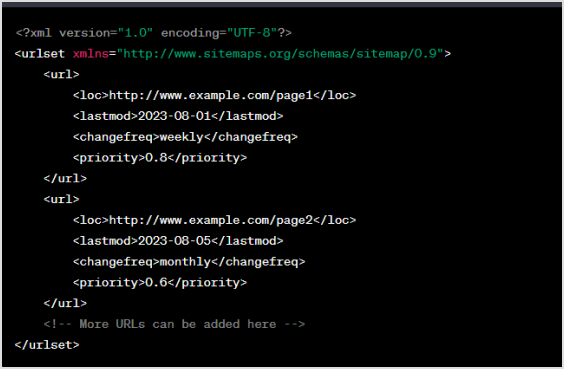
Here’s a simple example of what an XML sitemap might look like:
In this example, each `<url>` element represents a page on the website. The `<loc>` tag contains the URL of the page, `<lastmod>` indicates when the page was last modified, `<changefreq>` specifies how often the page’s content changes (options include “always,” “hourly,” “daily,” “weekly,” “monthly,” “yearly,” and “never”), and `<priority>` indicates the priority of the page relative to other pages (values range from 0.0 to 1.0).
Keep in mind that this is a basic example. Depending on your website’s structure and content, your XML sitemap might include more elements and attributes. Also, the URLs in the example should be replaced with the actual URLs of your website’s pages.
Boost your conversion rates with irresistable CTAs with
To find the Sitemap URL of your website, you can follow these methods:
Check the root domain:
Most websites place their sitemap file at the root of their domain. This means you can access it by adding “/sitemap.xml” to your domain name. For example, http://www.yourwebsite.com/sitemap.xml
Robots.txt file:
Open your website’s robots.txt file. For example, if you want to view the robots.txt file for yourwebsite.com, enter https://www.example.com/robots.txt into the browser’s address bar. This file often contains a line that indicates the location of the sitemap. Look for a line that looks like Sitemap: http://www.yourwebsite.com/sitemap.xml
Google search console:
If you’ve registered your website with Google Search Console, you can find the submitted sitemap URL there. Log in to Google Search Console, select your property, and navigate to the “Sitemaps” section. The sitemap URL should be listed there.
Content management system (CMS):
If you’re using a CMS like WordPress, there might be plugins that generate and manage your sitemap. In some cases, these plugins provide you with the sitemap URL directly in the plugin settings or dashboard.
In WordPress, finding your sitemap URL can be quite straightforward, especially if you’re using popular SEO plugins like Yoast SEO or All in One SEO Pack. Here’s how to find your sitemap URL on WordPress using these plugins:
Using Yoast SEO:
1. Log in to your WordPress dashboard.
2. Navigate to “SEO” in the left-hand menu and click on “General.”
3. Click on the “Features” tab.
4. Look for the “XML Sitemaps” feature and make sure it’s enabled.
5. Once enabled, you can access your sitemap by clicking on the “XML Sitemaps” link that appears.
Using all-in-one SEO pack:
1. Log in to your WordPress dashboard.
2. Go to “All in One SEO” in the left-hand menu.
3. Click on “Feature Manager.”
4. Find “XML Sitemaps” and make sure it’s enabled.
5. After enabling, a new menu item “XML Sitemap” will appear in the All in One SEO menu. Click on it to access your sitemap.
If you’re not using these plugins or want to find your sitemap manually, it’s often located at `http://www.yourwebsite.com/sitemap.xml` (replace “yourwebsite.com” with your actual domain name). However, please note that the actual location of the sitemap might vary based on your website’s setup or theme.
If you’re still having trouble finding your sitemap, consider checking your theme’s documentation or asking your website administrator for assistance.
Submitting a Sitemap URL to Google is an essential step to ensure that your website’s pages are properly indexed and displayed in search results. Here’s a simple guide on how to do it:
Create a Sitemap:
First, ensure you have a sitemap for your website. If you haven’t already, you can create a sitemap using various online tools, plugins, or even manually.
Sign in to Google search console:
If you don’t have a Google Search Console account, you’ll need to create one. Go to the Google Search Console website (search for “Google Search Console”) and sign in using your Google account.
Add your property:
Once logged in, click on the “Add a property” button and enter your website’s URL. Follow the verification process to prove that you’re the owner of the website.
Access the Sitemaps section:
After verifying your property, select your website from the Google Search Console dashboard. In the left-hand menu, click on “Sitemaps” under the “Index” section.
Submit your Sitemap URL:
On the Sitemaps page, you’ll see an “Add a new sitemap” button. Click it and enter just the part of the URL that comes after your domain name. For example, if your sitemap URL is http://www.yourwebsite.com/sitemap.xml, you would enter only /sitemap.xml. Then, click “Submit.”
Check status and errors:
Google will now process your sitemap submission. You can check the status of your submitted sitemap and any potential errors by refreshing the page or checking back later.
Monitor and update:
As your website evolves, it’s a good practice to regularly update your sitemap and resubmit it to Google whenever you add new content or make significant changes.
Remember, submitting a sitemap helps Google crawl and index your website more effectively, which can improve your website’s visibility in search results. If you encounter any issues during the process, Google Search Console provides helpful information and troubleshooting options.
Drive more clicks, conversions, and app installations by deep linking
to your favorite platforms.
Try deep links for free
Can I submit multiple sitemaps for different sections of my website?
Yes, you can submit multiple sitemaps for various sections or content types of your website. This helps Google understand the diverse content your site offers.
What should I do if my sitemap contains errors or broken links?
It’s crucial to fix errors and broken links in your sitemap to ensure proper indexing. Regularly review and update your sitemap to maintain its accuracy.
How often should I update and resubmit my sitemap to Google?
Update and resubmit your sitemap whenever you add new content, make structural changes, or when Google introduces updates that affect indexing.
Do other search engines besides Google also support sitemaps?
Yes, other major search engines like Bing and Yahoo also support sitemaps. Submitting sitemaps to multiple search engines can improve visibility across various platforms.
Picture this: you have a website, and you want to know where your visitors are coming from to improve your strategies. But there’s a tricky kind of traffic called “dark traffic.” It’s like visitors arriving in disguise – you can’t tell where they’re really from. This is a problem because you can’t figure out what’s working or not in your marketing.
Dark traffic happens because sometimes, visitors directly type in your website’s address or use bookmarks. Also, links shared in private messages or some apps can’t be tracked properly. So, even though they’re visiting your site, you don’t know where they’re coming from.
Solving this puzzle is essential. By understanding dark traffic better, you can make your marketing smarter and improve how you reach people. That’s exactly what Replug.io is built to help you with, shedding light on hidden traffic paths so you can make more data-driven decisions.
Let’s dive into the world of dark traffic, learn why it’s a challenge, and find ways to uncover the hidden paths your visitors take to reach your website.
What is dark traffic?
Dark traffic refers to the website or app traffic that is attributed as “direct” traffic in analytics tools, but its true source or origin is not accurately tracked or identified. In other words, it’s traffic that comes to your website or app without clear referral information.
Drive more clicks, conversions, and app installations by deep linking
to your favorite platforms.
Try deep links for free
How to resolve the dark traffic problem?
To deal with dark traffic, consider the following steps:
Implement UTM parameters:
Use UTM parameters in your links whenever you share them online. UTM parameters are tags added to the end of URLs that help track the source, medium, campaign, and other relevant information about the link. This can help you better categorize your traffic and attribute it accurately.
Note: When you need to shorten a link, using a branded link shortener like Replug can help you add UTM tags more cleanly and still get precise attribution, making your analytics much more reliable.
Use analytics tools:
Utilize web analytics tools like Google Analytics or Usermaven to track and analyze your website’s traffic. While these tools may not completely eliminate dark traffic, they can provide insights into trends and patterns that might help you identify sources of direct traffic that should be categorized differently.
Monitor referral sources:
Regularly check your analytics data to identify unexpected spikes in direct traffic. Investigate the source of these spikes to determine if they are the result of dark traffic or if there might be new referral sources that are not being properly tracked.
Educate team members:
Ensure that everyone who shares links on behalf of your organization is aware of the importance of using properly tagged links with UTM parameters.
Improve tagging:
If you’re using social media or other platforms to share links, ensure that these platforms are correctly handling referral information. Some platforms might strip out referral parameters, leading to inaccurate tracking.
Monitor trends:
Keep an eye on traffic patterns and trends. If you notice a consistent pattern of dark traffic from a specific source, it might be worth investigating and finding ways to properly attribute that traffic.
Regularly review and clean data:
Periodically review your analytics data to identify and clean up any discrepancies or misattributions.
While it’s challenging to completely eliminate dark traffic, taking these steps can help you minimize its impact and gain a clearer understanding of your website’s true traffic sources.
Dark traffic scenario
Imagine you’re the owner of a thriving online fashion store, and your website is bustling with activity. You’re excited about the traffic flooding in, but there’s a twist. A significant portion of your website’s visitors fall under the mysterious realm of “dark traffic.”
You log into your analytics dashboard and notice that a substantial chunk of your traffic is labeled as “direct traffic.” This is the category that includes visitors who type in your website’s URL or use bookmarks to access your site. While this is expected to some extent, you suspect that not all direct traffic is as it seems.
You’re aware that social media shares and private messages could be contributing to this direct traffic, but without proper tracking, you can’t pinpoint the exact sources. This puts a wrench in your efforts to measure the effectiveness of your marketing campaigns accurately.
You know that understanding your traffic sources is crucial for making informed decisions. You want to know which campaigns are driving the most visitors and which platforms are performing best. Without proper attribution, your marketing strategies could miss the mark.
Solution: Unmasking the shadows
Armed with the knowledge that dark traffic can skew your insights, you decide to take action:
UTM parameters: You start incorporating UTM parameters into your links whenever you share content. These magic tags allow you to tell Google exactly where the visitors are coming from. Now, whether it’s a link shared on Twitter, in a WhatsApp message, or through email, you’re covered.
Segmentation: You dive into your Google Analytics dashboard and create a segment specifically for direct traffic. This allows you to isolate the dark traffic and understand its impact better.
Page analysis: Navigating to the “All Pages” section, you look for anomalies. Certain pages seem to have unusually high direct traffic. You cross-reference these with your marketing campaigns and recent shares.
Education: You make sure your team is well-versed in using UTM parameters. You emphasize the importance of tagging links correctly to avoid the shadowy realm of dark traffic.
Refinement: Armed with insights from UTM-tagged links, you refine your marketing strategies. You identify which platforms are truly driving traffic and adjust your efforts accordingly.
Continual monitoring: You understand that dark traffic isn’t entirely escapable, but you commit to regular monitoring and adjustments to keep it at bay.
By unveiling the sources of your dark traffic, you’re not only improving your data accuracy but also making more informed decisions about your marketing efforts. The hidden paths are no longer a mystery – you’re shedding light on the shadows and navigating your website’s success with clarity.
Boost your conversion rates with irresistable CTAs with
Dark traffic makes it difficult to understand the true sources of your website’s traffic and the effectiveness of your marketing efforts. Without proper attribution, you might misinterpret the impact of your campaigns.
How does dark traffic happen?
Dark traffic can occur when users manually type in URLs, use bookmarked links or click on links shared through private messages or certain apps. Referral information can be lost in these cases.
What are UTM parameters?
UTM parameters are tags added to the end of URLs to track the source, medium, campaign, and other information about a link. They help in accurately attributing traffic to specific sources.
How can UTM parameters help with dark traffic?
UTM parameters provide a way to tag links shared on different platforms, ensuring that even if the traffic appears as direct, you know its true origin.
What are some common sources of dark traffic?
Direct bookmarks, links shared in private messages, traffic from certain mobile apps, and links clicked within social media apps can contribute to dark traffic.
How can I prevent dark traffic?
To minimize dark traffic, use UTM parameters consistently, educate your team on their importance, and monitor referral sources regularly to identify anomalies.
Can I completely eliminate dark traffic?
It’s challenging to eliminate dark traffic entirely since some direct traffic is legitimate. However, you can take steps to reduce its impact and improve tracking accuracy.
How do I analyze dark traffic in Google Analytics?
Use segmentation to isolate direct traffic. Analyze specific pages that might have unusually high direct traffic. Look for patterns and trends that can indicate the origin of this traffic.
Are you a music lover looking to share your favorite tunes on TikTok? Adding a Spotify link to your bio is a great way to let your followers know what you’re listening to and discover new tracks. However, the process of adding a Spotify link to your TikTok bio may seem confusing at first.
Don’t worry, though – in this guide, we’ll show you exactly how to do it in just a few simple steps. Whether you’re a seasoned TikTok user or just starting out, you’ll be able to share your musical taste with the world in no time!
What is a TikTok link in bio?
A TikTok link in bio is a clickable hyperlink that can be added to your TikTok profile page. This link appears in the “Bio” section of your profile and can be used to direct your followers to external websites, social media profiles, or any other online destination you want to promote
By default, TikTok only allows users to add one link to their bio. However, there are third-party tools like Replug that can be used to add multiple links to your bio section. This feature is especially useful for content creators, small business owners, and anyone else looking to promote their online presence to a wider audience.
How to add Spotify link to TikTok bio?
Adding a link to your TikTok bio is a great way to share more information with your followers and drive traffic to your website or other social media profiles. Here’s how to add a Spotify link to the TikTok bio:
Step 1: Open Spotify on your device and log in to your account.
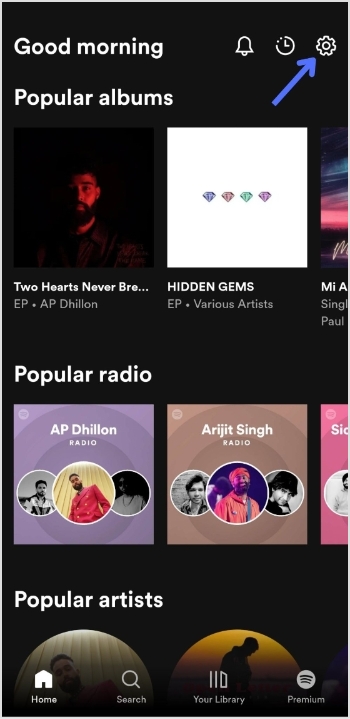
Step 2: Tap the “setting icon” in the top right of the screen.
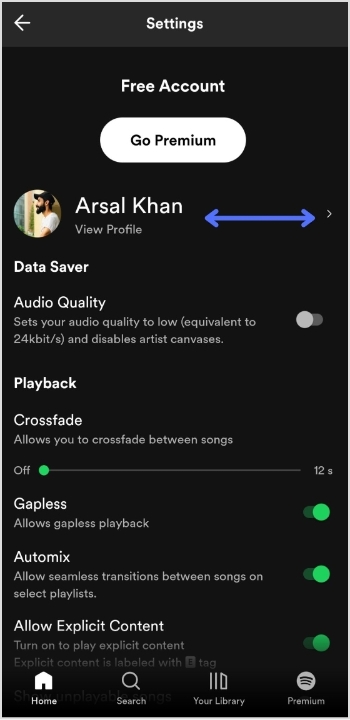
Step 3: Tap “view profile” under your profile name to open your profile.
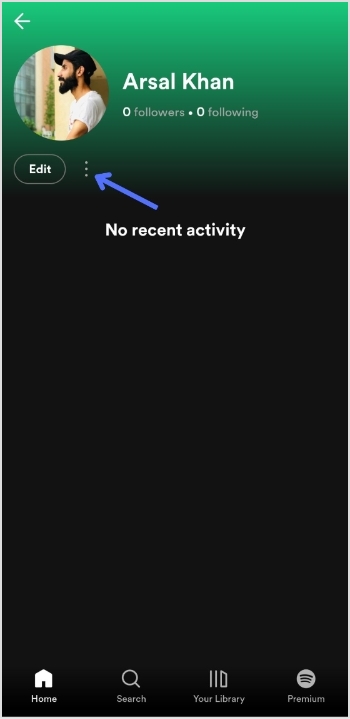
Step 4: Tap 3 “vertical dots” on your profile page.
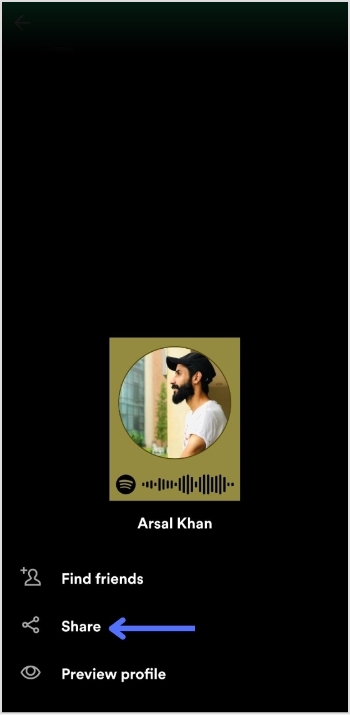
Step 5: Tap “share”.
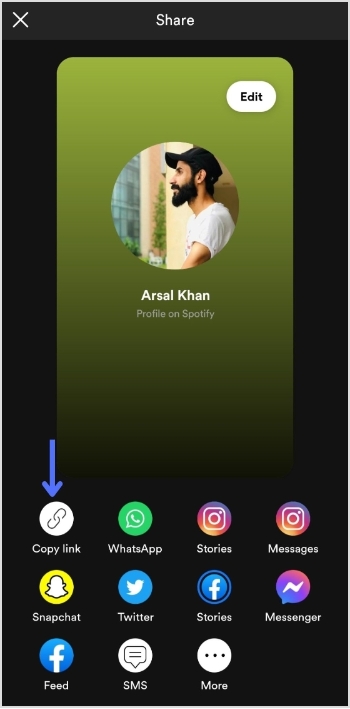
Step 6: Tap “copy link”.
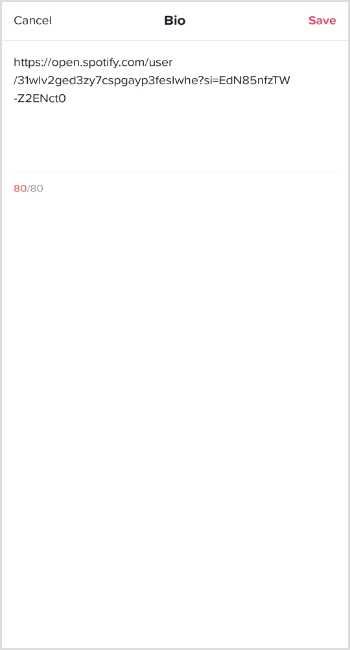
Add this link to your TikTok bio:
Step 1: Open TikTok on your mobile device and tap the “profile icon” in the bottom right corner.
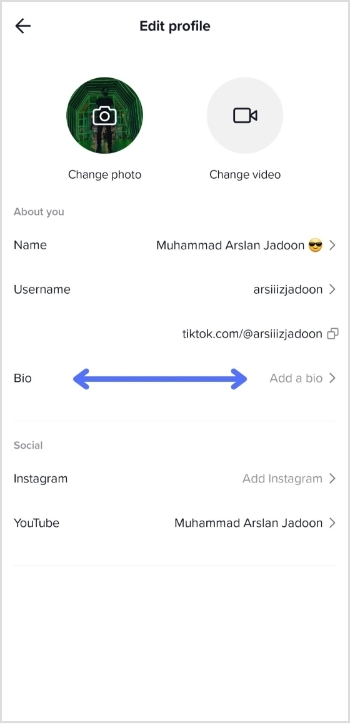
Step 2: Tap “edit profile”.
Step 3: Tap “add a bio” to open the bio section.
Step 4: Paste your Spotify link, tap “save” and you’re done.
Do you have more than one link you want to add to your TikTok bio?
Perhaps you want to share your social media profiles or promote your website alongside your Spotify account. Luckily, there’s an easy solution: Replug.
It offers a top-notch, free bio link maker that allows you to add multiple links to your TikTok bio, helping you to increase your reach and engagement on the platform.
With this efficient link optimization platform, you can create a single link that directs users to a landing page containing all of your important links. This means that you can easily promote your online presence in one convenient location.
Here’s a video showing you how to add multiple links to your TikTok bio using Replug.
FAQs
Can I add multiple links to my TikTok bio?
By default, TikTok only allows you to add one link to your bio. However, third-party tools or a dedicated online TikTok bio link tool can be used to add multiple links to your TikTok bio, hassle-free.
Is it free to use Replug to add multiple links to my TikTok bio?
Replug is a free link shortener with limited features inside its free plan. However, it also offers paid plans with more advanced functionality for its subscribed users.
How do I use Replug to add multiple links to my TikTok bio?
To use Replug to add multiple links to your TikTok bio, sign up for an account and create a branded landing page with your desired links. Then, copy the Replug landing page URL and paste it into the “Website” field in your TikTok bio.
Can I track clicks on my TikTok bio links with Replug?
Yes, Replug offers advanced analytics that allows you to track clicks and engagement on your TikTok bio links and other links across your online presence.
Have you ever noticed a “thank you” page pops up as soon as you complete an online purchase?Sometimes, e-commerce stores recommend products based on your previous purchases or showcase relevant products buyers purchase along with those products.
You might wonder how this happens. Well, the secret behind all this is something called conversion pixels.
I’ll explain the conversion pixels in a jiffy, but let’s discuss the pixels first.
What’s a pixel?
Pixel is a code inserted into a website, mobile app, or email. The purpose behind adding a pixel to a website or any other online real estate is to track a user’s activity.
The pixel observes the user behavior and reports back to the main source. Thus, it opens up a floodgate of opportunities for digital marketers, online businesses, and e-commerce stores to reach out to the same audience through retargeting.
What is retargeting?
Retargeting is an advertising strategy that allows brands and entrepreneurs to remarket the products or services to the audience that has visited their websites or used their apps. All this becomes possible due to the pixel.
Almost all major social media platforms provide pixels for advertisers. It helps marketers track website visitors and better understand how they interact with the products and content.
What’s a conversion pixel?
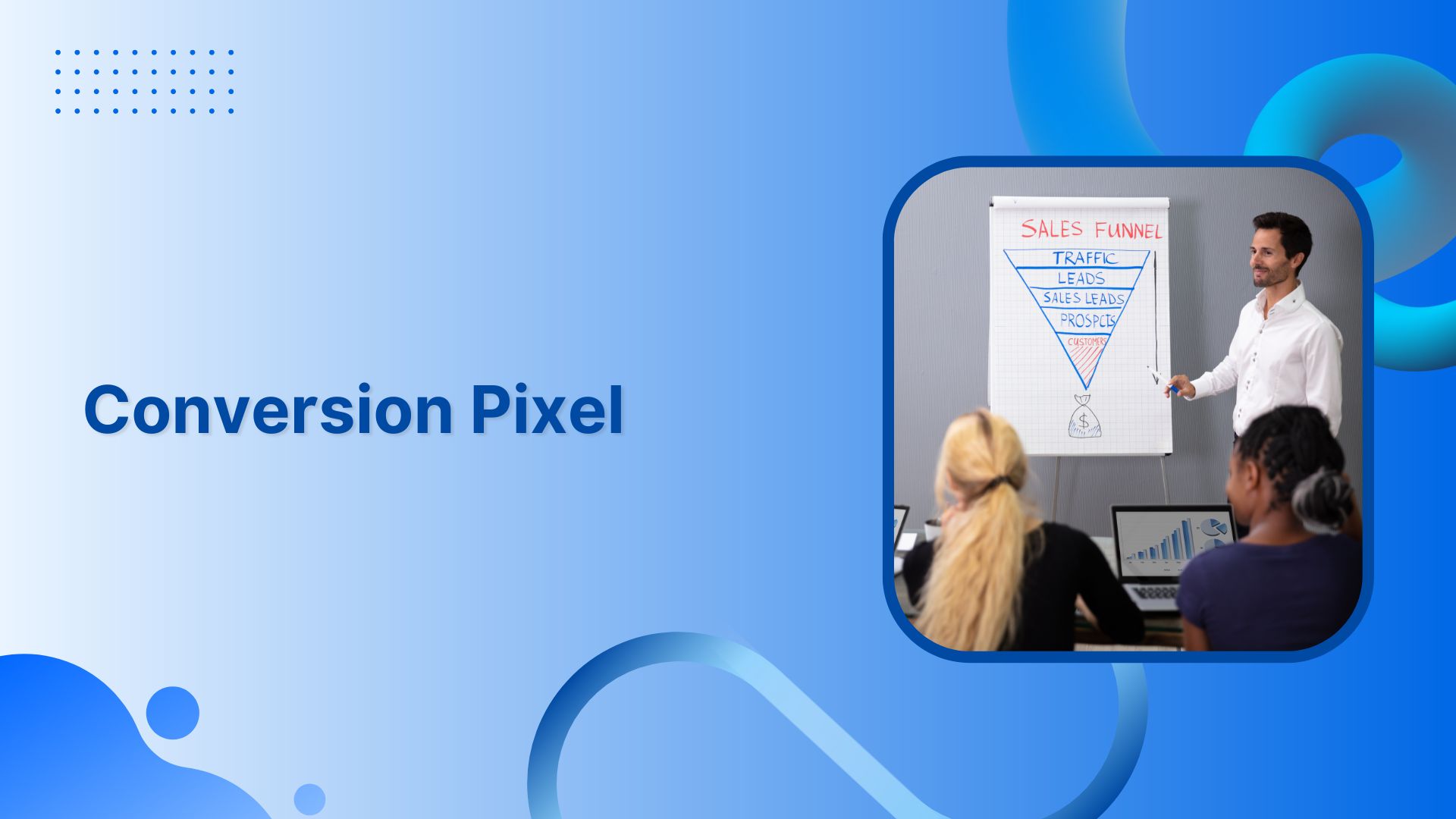
A conversion pixel is a piece of code placed on e-commerce websites and apps to track the conversions that occur on the websites, sales pages, and emails.
A conversion pixel is crucial to tracking conversions on websites and apps as it reports to the advertiser when a conversion event occurs. Usually, advertisers use conversion pixels to track the sales performances of their marketing campaigns.
Its code is embedded in the “payment successful” or “thank you for the purchase” pages on an e-commerce website.
When the conversion happens, the conversion pixel triggers a signal and the event gets recorded for the advertiser’s record.
If you ever run a Facebook ad campaign for generating sales on your website, the Meta Pixel is used to track the sales.
Note that a sale isn’t the only conversion metric used by advertisers. In some cases, a successfully generated lead or a downloaded file through an ad is also considered a conversion.
Why use a conversion pixel?
While the primary goal of using a conversion pixel is to keep track of the ad campaign’s performance, there’s more to the story.
Advertisers must know that conversion pixel is imperative to understand the performance of ad units, call-to-actions, and landing pages. Moreover, it doesn’t end here.
Here are four key reasons why to use a conversion pixel:
i. Measure conversion rate
The key benefit of injecting a conversion pixel on your website or landing page is to keep track of your conversion rate, especially after the conversion optimization tactics have been applied. Low or zero conversion is indicative of wrong tactics.
ii. A/B testing Ad strategies
When a conversion pixel is embedded into the website code, it’s pretty clear that the conversions are being closely analyzed. Therefore, it allows advertisers to test out different ad designs, ad copies, and color schemes to see what works the best.
iii. Analyze conversion cost
One of the most underrated metrics is the conversion cost. Some digital marketers pay attention to analyzing the conversion cost, especially if they’re running different marketing campaigns, such as social media advertising and influencer marketing campaigns. It helps them understand which one is outperforming the other one.
iv. Optimize campaigns
When the data of an ad campaign comes up — usually at the end of the campaign — it’s the time to reflect on the situation. Moreover, marketers could optimize campaigns based on the previous ad campaign’s data. This data analysis wouldn’t have been possible without placing the conversion pixel on the site or landing page to track performance.
Use cases for using a conversion pixel
Since conversion pixel provides valuable insights into visitor engagement, it assists brands make data-driven marketing decisions, optimize their digital marketing campaign, and skyrocket the conversion rate.
Here are different areas where marketers can use conversion pixels:
i. Email marketing
Most email marketing softwares have a built-in feature to track the open rate of emails so that users could keep track of their email campaigns’ performances. However, a conversion pixel is also linked with an email campaign to inform the merchant or brand about the action being taken. For instance, users often get confirmation emails when they sign up for a service, it triggers the confirmation signal that a conversion event has occurred.
iii. Online advertising
Running online ad campaigns without any check-and-balance might be a huge mistake. It’s essential to track the performance of an ad campaign. One of the easiest campaign measurement techniques is to place a conversion pixel in the website or landing code.
When advertisers utilize conversion pixels, it assists them track, record, and analyze the output of the ad campaign. As a result, it helps them make informed decisions based on the ROI.
iii. Affiliate marketing
An affiliate marketing campaign would fall flat if there is no conversion tracking available or the conversion pixel isn’t working properly.
The way affiliate marketing works is that an affiliate promotes a product of a merchant and when a web visitor makes a purchase through the affiliate partner’s link, the affiliate earns a commission.
However, the merchant uses the affiliate tracking software to keep track of the affiliate conversions so that the affiliate partners could be paid for their referrals.
iv. E-commerce sales
The most common use case of the conversion pixel is in the e-commerce industry. It assists e-commerce businesses track e-commerce sales.
All they need to do is to place a conversion pixel on their “thank you” or “order confirmation” page to trigger the successful sale signal.
It significantly helps users measure the sales numbers from online ads or any other marketing campaign. More importantly, it’ll give insight into which of the online campaigns or ad platforms are driving the most sales.
v. Track mobile app installations
Startups and mobile app developers can use conversion pixels to track app installs and downloads. Remember to add the conversion pixel to the app download completion page to track the data.
Once it starts working properly, the user can analyze which ad campaigns or marketing channel is driving the most traction.
vi. Lead generation
Lead generation is a process of gathering user details, such as name, phone, and email through a lead magnet or sign-up form.
Businesses and organizations can track the performance of their event registrations landing pages, whether they’re hosting a webinar or a physical event.
Most brands and entrepreneurs use opt-in bribes to generate leads whether it’s access to an email course or a downloadable content.
The conversion pixel comes in handy in lead generation. Without placing a conversion pixel, it won’t be possible to track the conversion of a specific campaign or platform.
For example, if you run a Quora ads campaign, you place Quore Pixel on your website to measure the campaign’s effectiveness.
All they need to do is to paste a conversion pixel, and it will track the performance and effectiveness of the copy, landing page layout design, and ad campaign.
Best conversion tracking tools
Here are some of the best conversion tracking tools to check out:
⦁ Replug
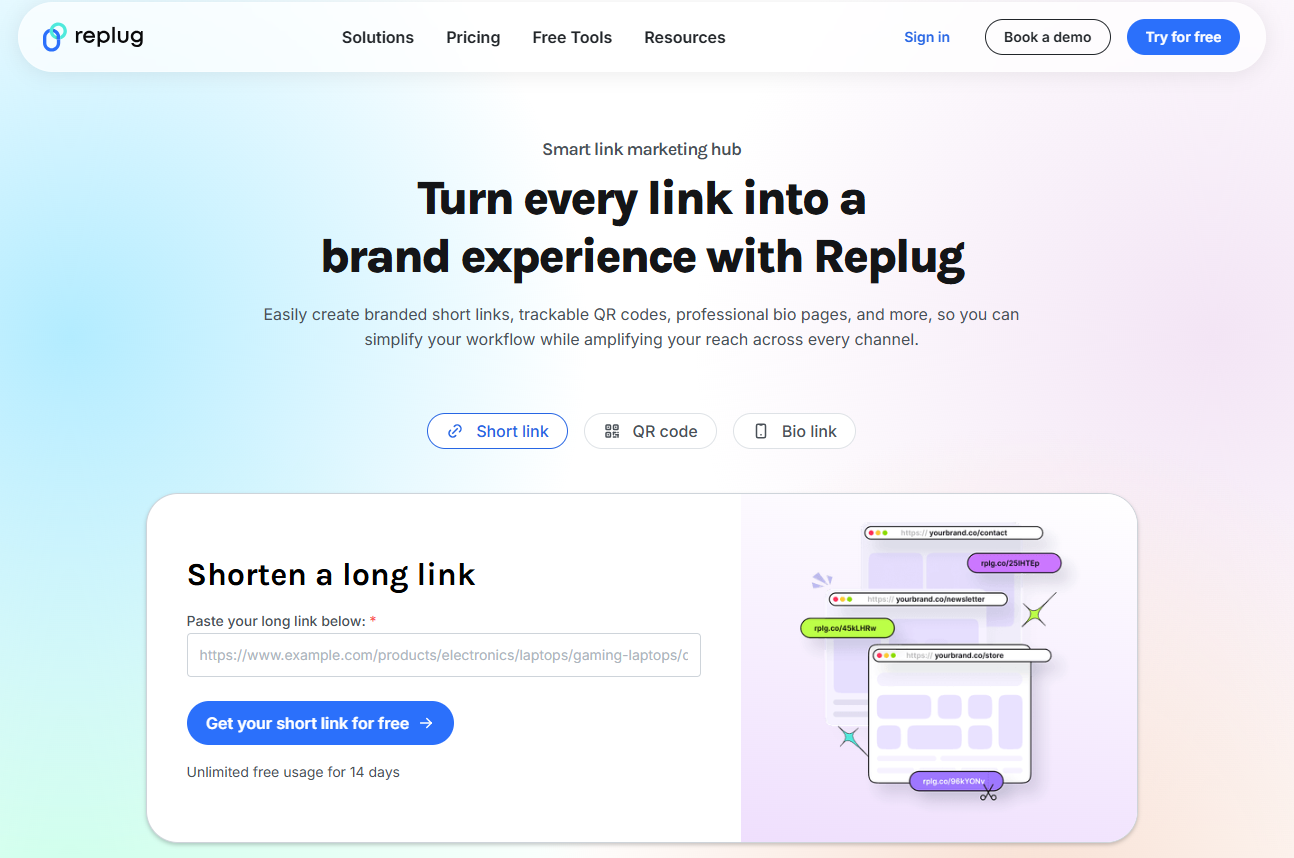
Replug is an all-in-one link management platform that provides a complete toolkit for URL management. The key features include a top-notch URL shortener, branded URLs, UTM codes, URL tracking, deep links, retargeting, and more. The link retargeting tool plays a vital role in setting up a retargeting campaign for brands and advertisers using pixel tracking.
⦁ Optimizely
Optimizely is yet another powerful URL-tracking tool for digital marketers and brands. It assists web developers and digital marketers in analyzing and optimizing landing pages and website content pages. This tool empowers brands and digital marketing agencies to implement visual editing, page optimization, and advanced targeting.
⦁ Google Analytics
Google Analytics is the widely popular website and app analytics tool from the house of the internet tech giant Google. It’s used to collect website visitors’ data, conversion reporting, site traffic sources, bounce rate, page views, and much more.
⦁ Woopra
Woopra is a well-known player in the website conversion optimization genre. It’s a powerful tool that helps users track, analyze, and improve the customer journey. It offers powerful features to empower brands with effective, real-time customer analytics.
How to set up conversion tracking pixel for your website?
Conversion pixels are a must-have tool for measuring the effectiveness of your online advertising efforts and digital marketing campaign.
Let’s shed some light on how to set up a conversion pixel for your website:
1. Create a Conversion Pixel
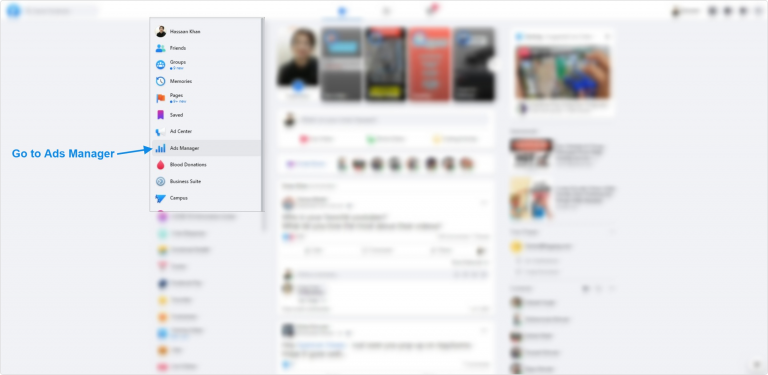
Most first-timers haven’t had a chance to generate their conversion pixel. So the first step while setting up the conversion pixels is to generate the pixel itself. To do this, marketers need to go to their advertising platforms, such as we have taken Facebook Ads Manager in this case.
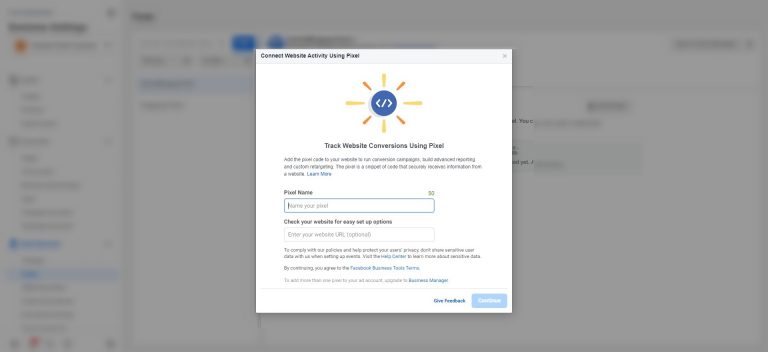
If it’s not created before, then select the option to create a new conversion pixel in the conversion tracking area. The process is pretty much the same across all social media ad platforms.
2. Choose a name for the pixel
All you need to do is to choose a name for the pixel and select the type of conversion you want to measure, such as a purchase or lead generation.
3. Generate the pixel code for your website
Once the conversion pixel is generated, grab it for installation on your web or app property. You don’t need to be a website developer to insert this piece of code into your website or application.
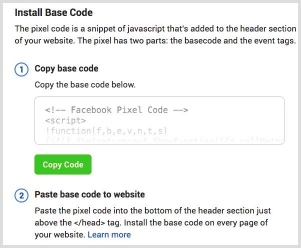
4. Add the pixel code to your website
Install your conversion pixel on your website or app by adding it to the source code. If you’re using WordPress, it’s better to use a link insertion service or plugin.
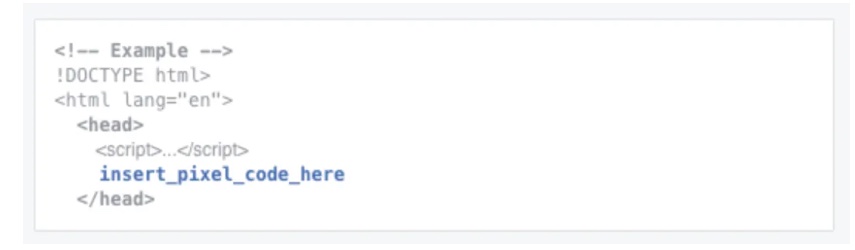
In some cases, you might have to manually inject the code into the website source. Make sure the code is in the right place on your page, such as the header or footer. Once it’s done, go ahead and connect it with your site.
So this entails adding a short piece of code to the page or website section where conversions are to be tracked. Once the code is added, save the changes and move on to the next step.
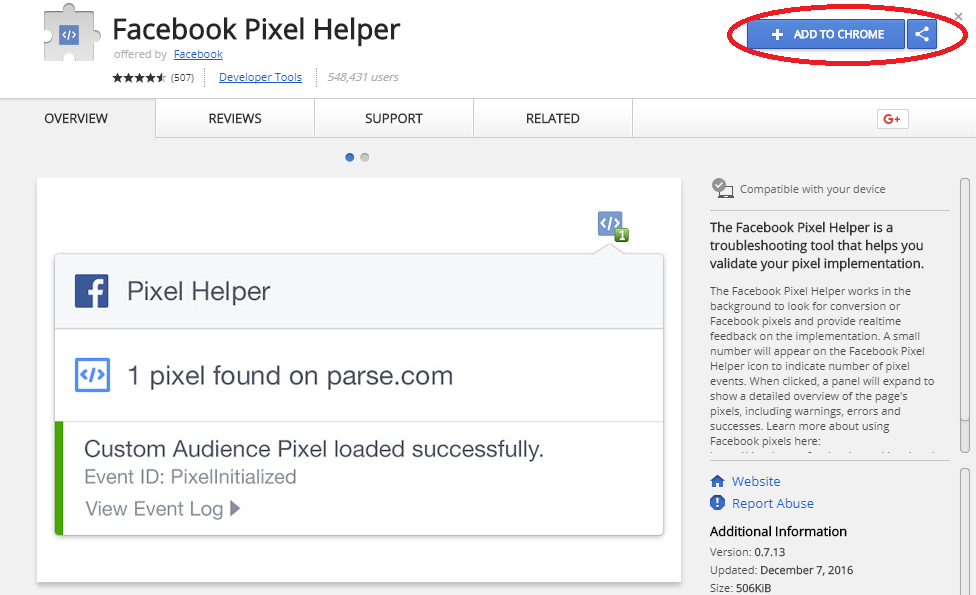
Now you can test traffic using Pixel Helper extension.
Setup Facebook conversion API
Click on the “Events Manager” tab in the Business Manager menu.
Click on “Data Sources” in the left-hand menu.
Select or create the event you want to configure for the Conversion API.
Now you have two options
If using Partner Integration, choose the partner and follow the provided instructions.
If using Manual, you’ll need to manually implement the API calls.
Just follow the prescribed steps and you will be done setting up your conversion API. If you still have any confusion, check the detail here.
Conversion tracking using GA4
Two steps for tracking conversions on Google Analytics4.
Create an event for the confirmation page
Mark the event as a conversion
Step 1: Create an event for the confirmation page
Access admin section and choose property:
Begin by accessing the admin section of your analytics tool or platform. Within this section, locate and select your preferred property. For this guide, let’s focus on the “events” property. Navigate to the property options where you can manage and set up events.
Create a new event:
Inside the “events” property settings, you’ll find the option to create a new event. Click on this option to initiate the event creation process. This is where you’ll define the specific event you want to track and analyze.
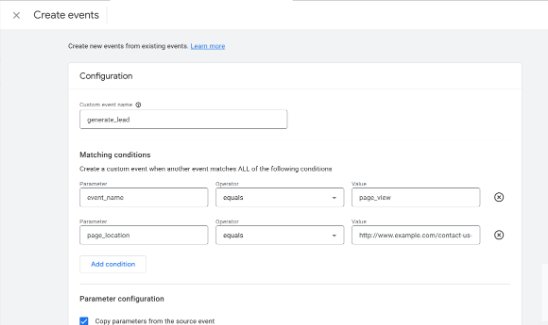
Enter custom event name:
As part of event creation, you’ll need to provide a unique name for the event. For instance, let’s use the example of tracking a lead generation event. In the “Custom event name” field, input a descriptive name such as “generate_lead.” This name should clearly represent the nature of the event you’re setting up.
Set matching conditions:
Matching conditions help define when the event should be triggered and recorded. In the “Matching conditions” section, you’ll configure these conditions for accurate tracking. Start by entering the first matching condition. For instance, if you want to track an event when a page is viewed, input “event_name equals page_view.”
Add first condition:
After entering the initial matching condition, click on the “Add condition” button. This step confirms the first condition you’ve specified. It’s essential for ensuring the event is only triggered when the specified conditions are met.
Enter second matching condition:
Now, proceed to input the second matching condition. This further refines when the event should be recorded. For the lead generation example, if you want to track a form submission on a specific page, enter “page_location equals https://www.example.com/contact-us-submitted.”
Finalize Event Setup:
After providing both matching conditions, review the details you’ve entered. Make sure the event name and conditions accurately represent the event you’re tracking. This step is crucial for proper data interpretation and analysis.
In the Parameter configuration section, click Add modification twice. Because you are using a recommended event, you need to define each of the required parameters. Otherwise, Google Analytics will treat the event as a custom event.
Step 2: Mark the event as a conversion
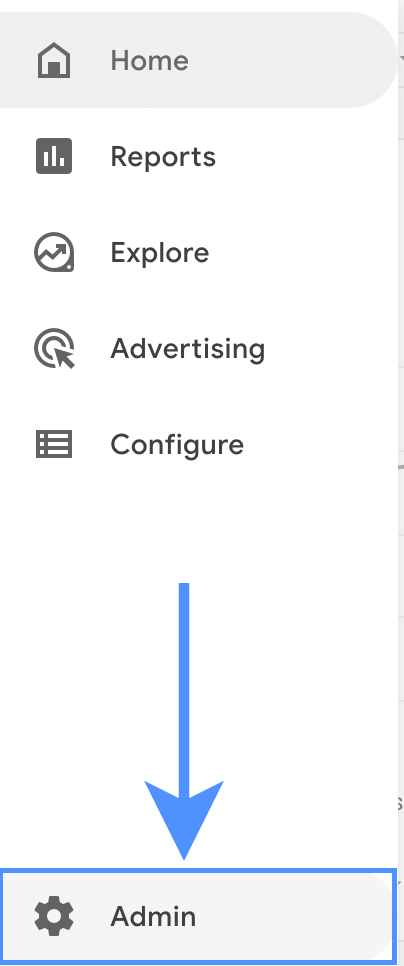
To set up a new conversion event in Google Analytics, start by clicking on the “Admin” option from the main menu. This will take you to the administrative section where you can manage various settings for your account.
Ensure that you’re working within the correct Google Analytics account and property. You’ll want to make sure you’re making changes to the right data. In the “Property” column, find and click on the “Conversions” option. This is where you can manage your conversion tracking settings.
Once you’re in the “Conversions” section, you’ll see an option to create a new conversion event. Click on “New conversion event” to initiate the event creation process. This is where you’ll define the specifics of the event you want to track.
Give your new event a descriptive name. For instance, let’s say you’re setting up an event to track lead generation. Enter the name “generate_lead” in the provided field. This name should clearly represent the action or interaction you’re interested in tracking.
Here’s a detailed video of tracking conversion goals in GA4.
That’s it from our side now get started with your conversion tracking process.
FAQs about Conversion Tracking Pixels
Let’s answer some of the frequently asked questions about conversion tracking:
What triggers a conversion pixel?
Any pre-defined action or event that matches the conversion criteria triggers the conversion pixel and ensures that the action or event gets recorded. The conversion pixel is a short piece of code that plays a crucial role in recording a specific event or action.
How do you set conversion pixels?
To set a conversion pixel, create and grab the conversion pixel from the desired social media advertising platform like Facebook ads or Quora ads, and then put it on the website property, such as a landing page or website to start tracking an action or event.
What is pixel-perfect conversion?
Pixel-perfect conversion refers to the process of understanding design principles and front-end development techniques for translating a design into a digital format with absolute precision. The goal is to ensure that the digital version replicates the original design with accuracy and avoids discrepancies in the output.
QR codes are a great way to share information quickly and easily. They can be used to encode various data, including URLs, text, contact information, and more.
To create a QR code, you must choose a reliable QR code generator, enter the information you want to encode, choose a design, download the QR code, and share it.
In this guide, you’ll find out how to create a dynamic QR code quickly and easily.
What is a dynamic QR code?
A dynamic QR code is a QR code that can be updated after it has been created. This is in contrast to a static QR code, which cannot be changed once it has been created. Dynamic QR codes are often used for marketing and advertising purposes, as they allow businesses to track the number of people who have scanned their code and to change the content of the code as needed.
Dynamic QR codes are created using a special type of software that allows the user to enter the desired information that they want to be included in the code. This information can then be changed at any time by simply updating the code in the software.
Dynamic QR codes can be scanned by any QR code reader, and they will typically open a web page or redirect the user to a specific location.
How to create a dynamic QR code?
Here’s how to create a dynamic QR code. Follow the step-by-step process below:
Step 1: Choose a QR code generator. There are many free and paid QR code generators available online. In this case, we are using the Beaconstac QR codes.
Step 2: Log in or create an account for free.
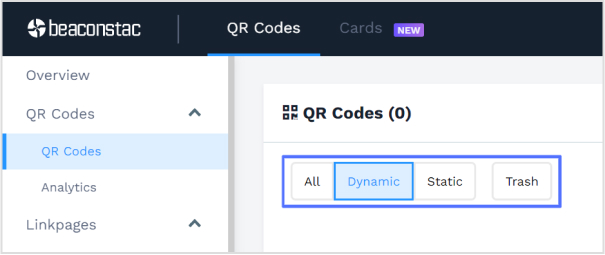
Step 3: Choose the type of QR code you want to create. There are two main types of QR codes: static and dynamic. Static QR codes cannot be changed after they are created, while dynamic QR codes can be updated with new information.
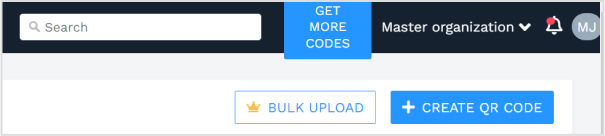
Step 4: Click the “+Create” or “Create QR code” button in the top right corner.
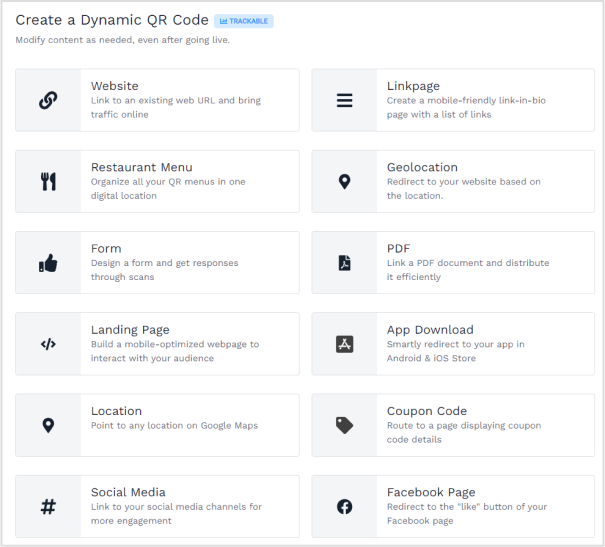
Step 5: Choose the information you want to include in your QR code. This can be a URL, text, contact information, or anything else you want people to be able to access when they scan the code.
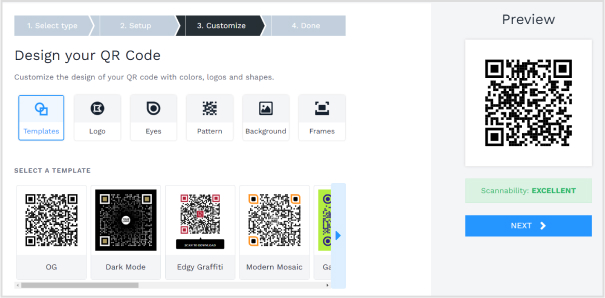
Step 6: Customize the design of your QR code with colors, logos, and shapes.
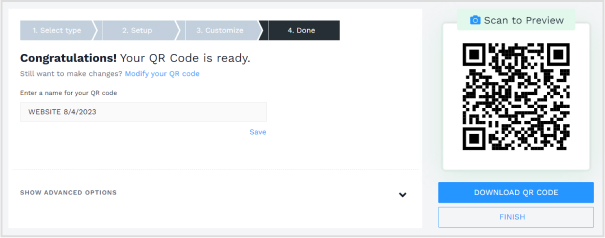
Step 7: Download your QR code. Once you have created your QR code, you can download it as an image file.
Step 8: Share your QR code. You can share your QR code online, print it out, or include it in your marketing materials.
Boost your conversion rates with irresistable CTAs with
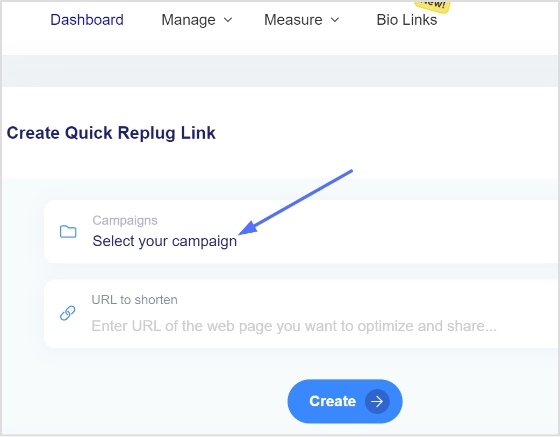
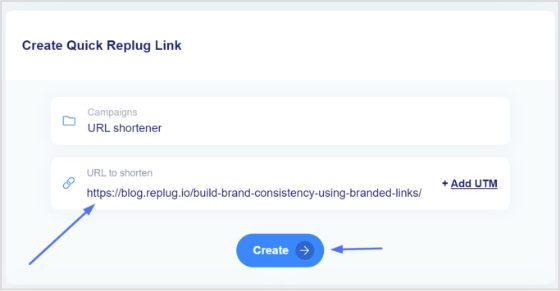
Important note: A longer URL makes your QR code more complex and difficult to scan. Use our link shortener tool to shorten long links and download them as QR codes. By doing so, your content will be easier to scan and access.
How to create a QR code for a URL?
To create a QR code for a URL follow the step-by-step guide below:
Note: Replug.io also provides powerful analytics and tracking features to monitor the performance of your short URLs, and QR codes including click-through rates, geographical data, and other valuable insights.
Static vs Dynamic QR code: What’s the difference?
Static and dynamic QR codes are two types of QR codes that differ in their functionality. Static QR codes are permanent and cannot be changed after they are created.
Dynamic QR codes, on the other hand, can be updated after they are created. This makes dynamic QR codes more versatile than static QR codes, as they can be used for a variety of purposes, such as tracking marketing campaigns or providing access to time-sensitive information.
Here are some of the key differences between static and dynamic QR codes:
Static QR codes are permanent and cannot be changed after they are created. Dynamic QR codes can be updated after they are created.
Static QR codes are typically used for simple tasks, such as directing users to a website or providing contact information. Dynamic QR codes can be used for more complex tasks, such as tracking marketing campaigns or providing access to time-sensitive information.
Static QR codes are typically less expensive to create than dynamic QR codes.
Static QR codes are a good option for simple tasks, such as directing users to a website or providing contact information.
Dynamic QR codes are a good option for more complex tasks, such as tracking marketing campaigns or providing access to time-sensitive information.
Here are some examples of when you might use a static QR code:
To direct users to your website
To provide contact information
To add a product to a shopping cart
Tips for creating a successful QR code:
Ensure the information you encode in your QR code is relevant to your target audience.
Choose a clear and concise design for your QR code.
Share your QR code in places where people are likely to see it and scan it.
Track the results of your QR code campaign to see how well it is performing.
A complete link management solution
for marketing professionals & agencies.
Try Replug for free
Frequently asked questions
Can I convert a static QR code to a dynamic QR code?
It is not possible to convert dynamic QR codes to static QR codes, or vice versa, as the two types of codes are fundamentally different.
How do I create a QR code for a dynamic link?
Use a QR code generator to create a QR code for a dynamic link. Enter the URL of the dynamic link and the generator will create the QR code.
Tired of guesswork in SEO? Embrace the science of SEO split testing!
Discover how small changes to your website’s structure, keywords, and content can have a big impact on search rankings, organic traffic, and user engagement.
Let’s supercharge your website’s organic search results with our SEO split testing guide.
What is SEO Split Testing?
SEO split testing is the process of comparing different versions of web pages to measure their impact on search engine rankings. It’s like a controlled experiment, where you have a variant page with changes and a control page. By tracking the performance of each variant, you can identify the best performing webpage and enhance your website’s visibility in search engines.
The benefits of SEO split testing
Data-driven decision-making: You can make informed decisions based on empirical evidence on the effectiveness of different variations.
Improved user experience: Testing different elements can lead to a better user experience, resulting in higher engagement and improved rankings.
Increased organic traffic: You can attract more organic traffic from search engines by optimizing your website based on test results.
Better conversion rates: Split testing helps identify the most effective strategies to drive conversions.
Adaptation to algorithm changes: It allows you to adjust your SEO strategies in response to algorithm updates.
Stakeholder buy-in: A/B Split test results provide tangible evidence of the impact of SEO efforts.
Below are the benefits of split testing the SEO strategy that might convince you to invest your time in them:
1. Improve Conversion Rates:
Conversion rate optimization (CRO) and SEO are closely related concepts. By split testing your SEO campaign, you can increase traffic and conversion rates. You can fine-tune your SEO strategy to enhance user experience and boost conversions by testing various iterations of landing pages and calls-to-action buttons.
2. Optimize SEO Efforts:
By using split-testing, you can compare various iterations of your SEO strategy, including :
Keyword usage
Meta tags/descriptions
On-page optimization
Content organization
This practice allows you to identify which tactic produces the best outcomes. It assists you in determining the best strategies to raise your search engine rankings and increase organic traffic.
3. Keeping up with algorithm changes:
Search engine algorithms are always changing, so what works today might not work tomorrow. Split-testing enables you to modify and polish your SEO approach to conform to algorithm updates. You can make sure your website maintains its search engine optimization and visibility in the constantly shifting environment by being proactive and conducting ongoing testing.
4. Convince stakeholders and quatify Impact:
The impact of SEO can be quantified by measuring key metrics both before and after changes by performing an SEO Split test. This data-driven strategy offers verifiable proof of the efficacy of your SEO strategy, enabling you to convince stakeholders of the value of your optimizations and make wise resource allocation choices.
5. Refine user experience:
Split-testing SEO components can help you improve your website’s overall user experience. By testing various layouts, navigation structures, page load times, and mobile responsiveness, you can find changes that make your website more user-friendly
Factors to consider before performing the SEO Split test?
These several factors must be considered before performing an SEO split test.
Clear objectives: Define clear objectives for your test. What specific aspect of your SEO strategy are you testing?
Testing scope: Determine the scope of your test. Decide whether you’ll be testing a single webpage or multiple pages.
Sample size: Strive for a sample size that provides meaningful insights without being too resource-intensive.
Test duration: Determine the appropriate duration for your test within the time frame of changing dynamics.
Statistical significance: Establish the level of statistical significance you require for your results to be reliable. This helps determine the confidence level you need to make decisions based on the test data.
Choosing the right testing tool: Use a reliable, user-friendly A/B split testing tool with a solid track record.
Consistency in testing conditions: Make sure the testing conditions, such as the user demographics, devices, browsers, and traffic sources, are constant throughout the test.
Segmentation and personalization: Depending on user characteristics, decide whether you want to segment your audience or personalize the variations.
Data collection and analysis: Establish a clear plan for data collection and analysis to derive actionable conclusions.
Documentation and reporting: Document your test process, including the variations tested, metrics measured, and results obtained. This documentation will be valuable for future reference
How do you know if an SEO test is successful?
Keyword rankings:
When it comes to evaluating your SEO results, one important aspect to consider is monitoring your keyword rankings on search engine results pages (SERPs). While rankings should not be the sole focus of your SEO campaign, they provide valuable insights into the performance and effectiveness of your targeted keywords. By regularly checking your rankings, you can track whether they are improving, declining, or remaining stagnant over time. If you find out that you are not ranking for the keywords you targeted, reevaluate whether it is worth continuing to focus on those keywords or considering alternative options.
Organic traffic:
Another way to see whether your SEO test was successful is by analyzing your website’s organic traffic. There are comprehensive tools like Content Studio that help you look for trends and changes in traffic volume, sources, and user behavior. Compare the data before and after implementing SEO strategies to identify any positive impact on organic traffic.
An increase in organic traffic serves as a strong indicator of the effectiveness of your SEO efforts. However, do keep in mind that organic traffic data is more important than overall traffic. It is because factors outside of SEO can influence overall traffic numbers. Conversely, a decrease in organic traffic suggests that your SEO tests are not working.
Backlinks:
Evaluate the quantity and quality of backlinks to your website. Backlinks from reputable and relevant sources can improve your website’s authority and search rankings. When implementing effective SEO practices, it is natural to witness an increase in backlinks. You need to assess whether the number of links and unique domains they originate from is growing, declining, or stagnant. However, quantity alone is not sufficient; the quality of backlinks also holds great importance. Low-quality backlinks can be detrimental to your website’s reputation, similar to having no links at all. Boost your business visibility in local search with professional services from Copify.
Check impressions:
Impressions refer to the number of times your website appears in search results without receiving any clicks. It serves as an initial metric to consider. This is because, when you begin optimizing for keywords, it’s unlikely that you’ll immediately land on the first page of search results.
Starting from lower pages means that even if your website appears in searches, there is a lower chance that it will be clicked. Knowing that you have begun ranking for those keywords will help you keep working toward the top of the page. You can use ‘Social Media Analytics’ by Content Studio to check your organic impressions. If it shows an increase in the number of organic impressions, your SEO tests are working if not better perform the tests again.
Bounce rate:
Another important aspect to consider when evaluating your SEO performance is analyzing the bounce rate of your website. The bounce rate refers to the percentage of visitors who leave your site after viewing only one page. By examining this metric, you can gain insights into how well your SEO tests are working. You should aim to have a lower bounce rate. This means that visitors find value in your content and are more likely to explore multiple pages on your website.
To improve your bounce rate, focus on creating high-quality content that is relevant, informative, and engaging. Ensure that your website is user-friendly, with clear navigation and intuitive design. Additionally, optimize your landing pages to align with the search intent of your target audience, delivering the information or solution they are seeking.
Conversion rates:
Tracking the number of conversions is one technique you can use to gauge the effectiveness of your SEO strategy. Start with form submissions, purchases, sign-ups, and any other desired actions on your website. A rise in conversion rates indicates that your SEO tactics are effectively attracting visitors who are genuinely interested in your offerings. It signifies that your website’s content, user experience, and overall SEO optimization are aligned with the needs and expectations of your target audience.
Note: To calculate the conversion rate, divide the number of conversions by the total number of visitors and multiply it by 100 to get the percentage.
This metric provides a clear indication of how well your website is performing in terms of converting visitors into customers or achieving your desired goals.
A/B Split Testing using Replug
Replug is a comprehensive platform for URL shortening and tracking. It provides many features to help you manage links and improve your marketing.
Users can shorten and customize URLs with Replug’s trustworhty URL shortener, track link performance, and enhance the overall link shortening experience.
It allows split A/B testing of various URL variations. By doing this you can determine their effect on click-through rates and overall performance.
Follow the steps given below using Replug’s A/B testing tool and perform A/B split tests efficiently in no time at all!
Step 1
To access the Replug application, begin by logging in to your account.
Once logged in, navigate to the Replug Links page.
Locate and click on the New Link button to initiate the process of creating a new link. Follow the subsequent steps provided to complete the link creation procedure.
Step 2
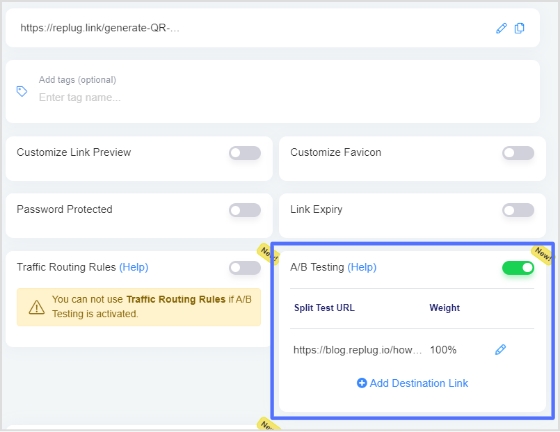
Before saving the link, activate the A/B Split testing feature by switching on the toggle button. This action will automatically set your destination URL as the initial A/B Testing Link with a weightage of 100%.
To include additional URLs for testing, simply click on the “Add Destination Link” button.
Step 3
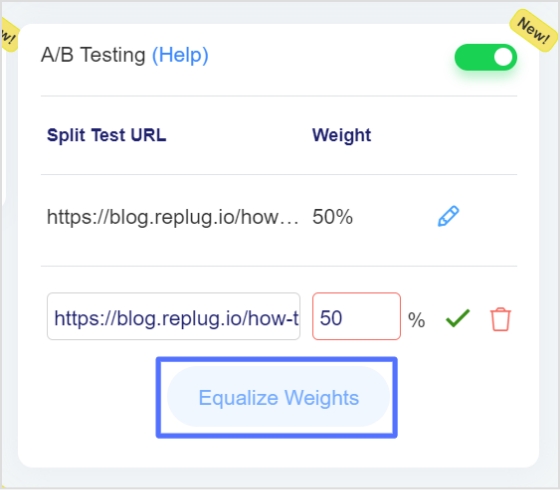
You have the flexibility to assign different weights to each URL, as long as the total weightage adds up to 100%.
To simplify the process, you can utilize the “Equalize Weights” button, which automatically distributes the weightage equally among the URLs.
This allows for easy adjustment and optimization of the weight distribution for your A/B testing purposes.
Step 4
After enabling the A/B Testing feature, you are ready to save your branded link. Start engaging your audience by sharing your Replug Link
Now analyze link performance and keep using the best performing one.
Note: It’s important to note that the weightage assigned to each URL is not influenced by previous visits and does not have strict constraints.Whenever the short link is accessed, the final destination URL is selected based on the defined weightage, ensuring a dynamic and varied user experience. However, it’s worth mentioning that if your campaign type is CTA (Call-to-Action) and the specified link does not support iframe functionality, the link cannot be saved for A/B Testing. This limitation is due to the requirement of displaying web page content within another website using an iframe. If the source website does not permit iframe inclusion, Replug displays a warning when creating CTA Campaigns.
FAQs
What is A/B testing?
A/B testing is a method used to compare two versions of a webpage, advertisement, email, or marketing campaign to determine which one performs better.
When discussing “what is A/B testing” in detail, it refers to showing different variations to separate audience groups and analyzing user behavior to identify the most effective option for improving conversions and engagement.
Does A/B Testing hurt SEO?
A/B testing itself does not hurt SEO. It can be a valuable strategy to optimize your website for better search engine rankings. When running A/B tests, it’s important to ensure that the changes you make align with SEO best practices and guidelines provided by search engines. By running tests you can improve your search engine ranking in Google search results.
Most common mistakes to avoid while running SEO split tests
– No clear goals/ objectives – Simultaneous testing of multiple variations – Not collecting and analyzing enough data to draw statistically significant conclusions. – Not giving the test enough time to run and produce valid data. – Not documenting and tracking the modifications that were made and their impact on SEO performance. – Ignoring additional outside elements that could affect the test results.
What SEO elements can I test using split testing?
You can test various SEO elements to improve your website’s performance. Some elements you can consider testing include:
– Page titles – Meta descriptions – Keyword usage and optimization – Headings and subheadings (H1, H2, etc.) – Content length and formatting – Navigation and site architecture – Calls-to-action – Linking strategies – Image optimization – Mobile responsiveness – URL structure – Site speed
What’s the difference between conducting a split test and an A/B test
A split test and an A/B test are two different terms used to refer to the same type of experiment. However, the term “split test” is a broader term that encompasses any test where different versions are compared including A/B tests. In other words, it refers to dividing the traffic between multiple variations to measure their impact on key metrics. Whereas an A/B test specifically refers to comparing two versions: a control version (A) and a variant version (B).
Have you ever clicked on a link that looked something like /page?id=84721 and got zero idea what you were about to open?
Now compare that to /what-is-a-url-slug. Entirely opposite or totally unlike each other, right?
That little snippet sitting at the end of a web address is called a URL slug, and it’s doing more work than most people give it credit for.
A well-crafted slug improves click-through rates by giving users an immediate idea of what to expect, increasing the likelihood they’ll visit your page.
And with AI-powered search platforms like ChatGPT and Perplexity increasingly recommending content, having keyword-rich slugs helps these systems understand and categorize your pages accurately. This makes SEO-friendly slugs more relevant than ever.
No matter if you’re a blogger, a marketer, or just someone trying to get their website to rank, getting your slugs right matters.
So, let’s start from the very beginning: what exactly does “URL slug” mean?
What is a URL slug?
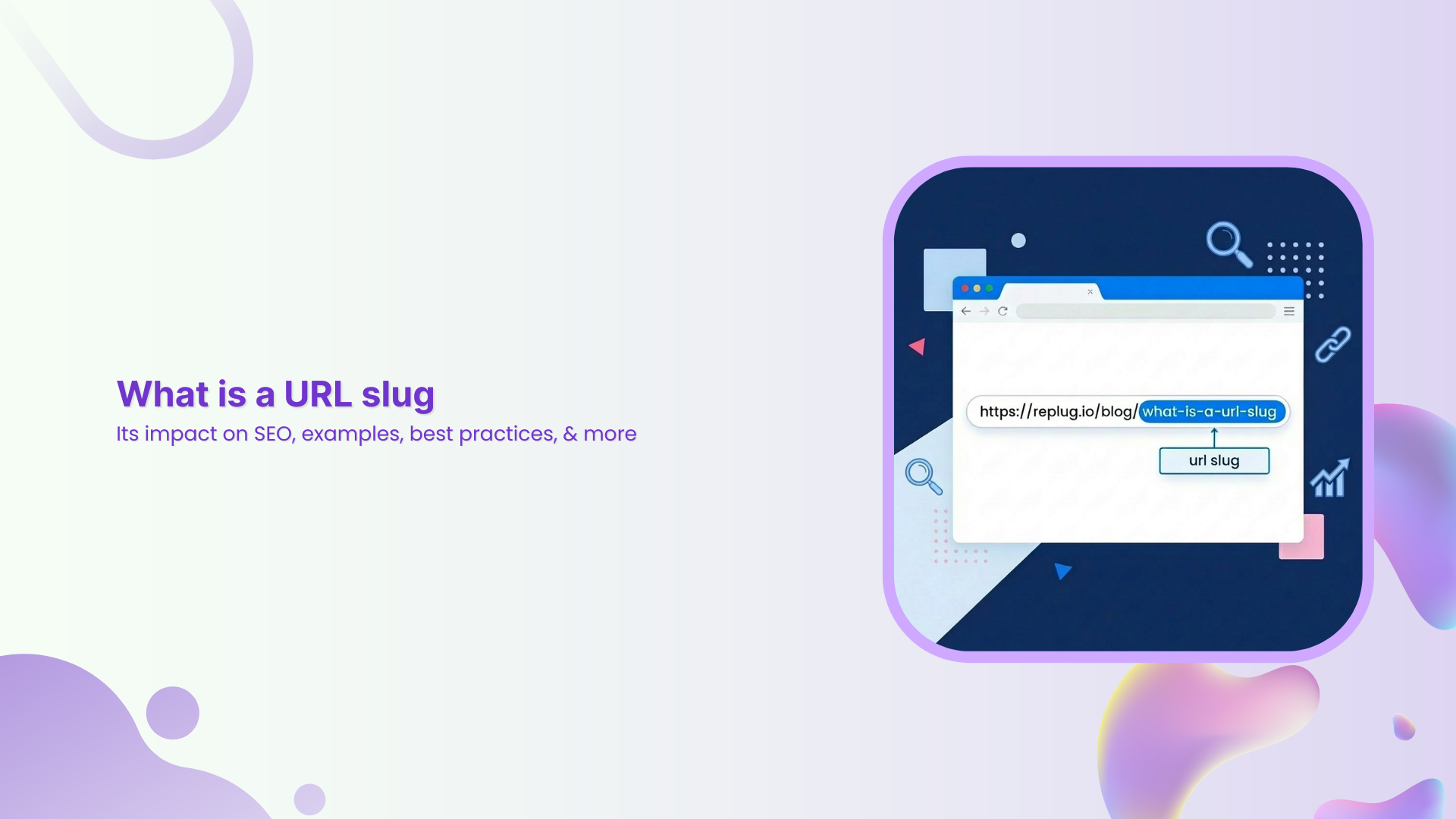
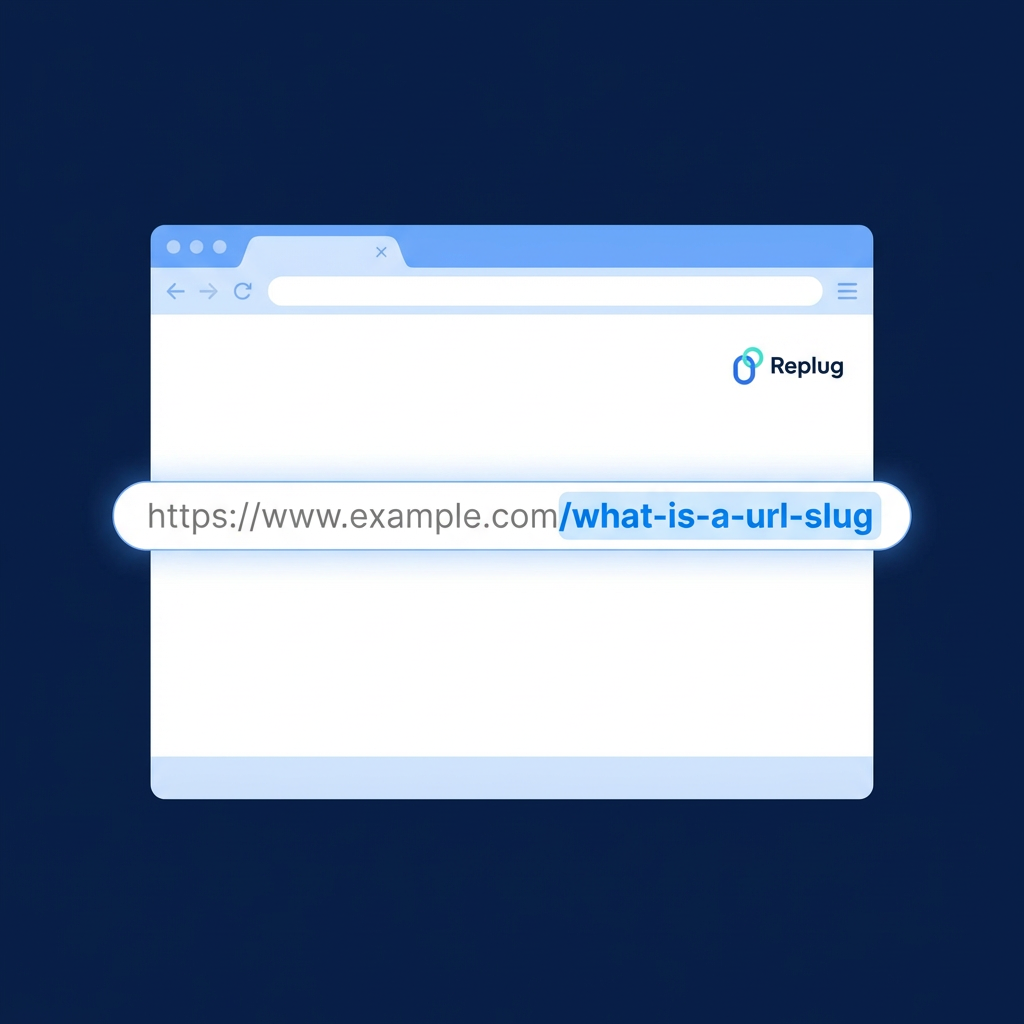
A URL slug is the part of a web address (or a URL) that comes after the domain name and identifies a specific page on a website.
For example, in https://www.example.com/what-is-a-url-slug, the slug is /what-is-a-url-slug.
Think of it as the “name tag” of a webpage. Its primary job is to tell both users and search engines what a page is about, in plain, readable language.
Instead of a confusing string of numbers or random characters, a good slug gives instant context. It’s a small detail, but it plays a key role in how your pages are found, understood, and clicked on.
Why is it called a URL slug?
The word“slug” might sound a little odd in a web context, but it actually comes from the world of journalism. Reporters would assign a short, informal label to a story while it was still being worked on. That label was called a slug.
When the web came along, the term carried over. Just like a journalist’s slug summarizes a story in a few words, a URL slug does the same for a webpage, giving it a short, descriptive identifier within the full web address.
URL slug etymology
The URL slug’s meaning traces back even further than journalism, all the way to the printing industry. In old-school typesetting, a “slug” referred to a solid line of metal type. Printers and editors later borrowed the term to label stories in production.
Over time, as digital publishing took over, the word found its way into the world of URLs, where it stuck. So the next time you’re crafting URLs for your website, you’re actually using a term with roots going back centuries in the publishing world.
What is an example of a slug?
A slug is quite easy to understand when you actually see one in action. Let’s look at some real-world examples, both the kind you want to avoid and the kind you should be aiming for.
URL slug examples (Bad)
Bad slugs are usually auto-generated, messy, or just plain confusing. They give users and search engines no real clue about what the page contains.
/page?id=48291
A random ID number tells nobody anything. It’s not readable, not memorable, and offers zero context about the page’s content.
Way too long. Slugs like this get truncated in search results and are a nightmare to share or remember.
/NEW-Article_SEO%20Tips!!
Uppercase letters, underscores, special characters, and encoded spaces! This slug breaks just about every best practice in the book.
URL slug examples (Good)
Good slugs are short, clean, and descriptive. They tell the reader exactly what to expect before they even click.
/seo-tips
Short, clear, and straight to the point. Anyone seeing this in a URL instantly knows what the page is about.
/best-project-management-tools
Descriptive without being wordy. It targets a clear topic and is easy to read, share, and remember.
/how-to-make-cold-brew-coffee
A great example of a longer slug done right. Every word earns its place, and the meaning is immediately obvious to anyone who reads it.
Why is a URL slug important for SEO in 2026
URL slugs might seem like a minor detail, but they quietly influence how your pages perform in search. From how Google reads your content to how users decide whether to click, a well-optimized slug touches more parts of SEO than most people realize.
Improves search visibility
A clear, keyword-relevant slug helps search engines quickly understand what your page is about, giving it a better shot at showing up for the right queries.
Boosts click-through rates (CTR)
When users see a clean, descriptive slug in search results, they’re more likely to trust the link and click on it. A messy, long URL, on the other hand, can easily put people off.
Google’s John Mueller has confirmed that words in a URL are a ranking factor to some extent. He said that they are a “very, very lightweight” one, helping search engines assess relevance, especially the first time they encounter a page. So, including your primary keyword in the slug still makes sense.
Enhances user experience (UX)
A readable slug sets clear expectations before anyone even lands on your page. Users appreciate knowing what they’re clicking into, and that trust translates into better engagement.
Builds contextual understanding
With AI-powered search platforms increasingly recommending content, keyword-rich slugs help these systems accurately understand and categorize your pages (something that’s only becoming more important).
Reinforces site structure
Consistent, logical slugs across your website make it easier for search engine crawlers to map out your content hierarchy and understand how your pages relate to one another. This ultimately results in excellent topical authority.
Key aspect of on-page optimization
Slugs are one of the first on-page elements search engines look at. Getting them right is a simple, low-effort win that complements everything else you’re doing (content, meta tags, internal linking, and more).
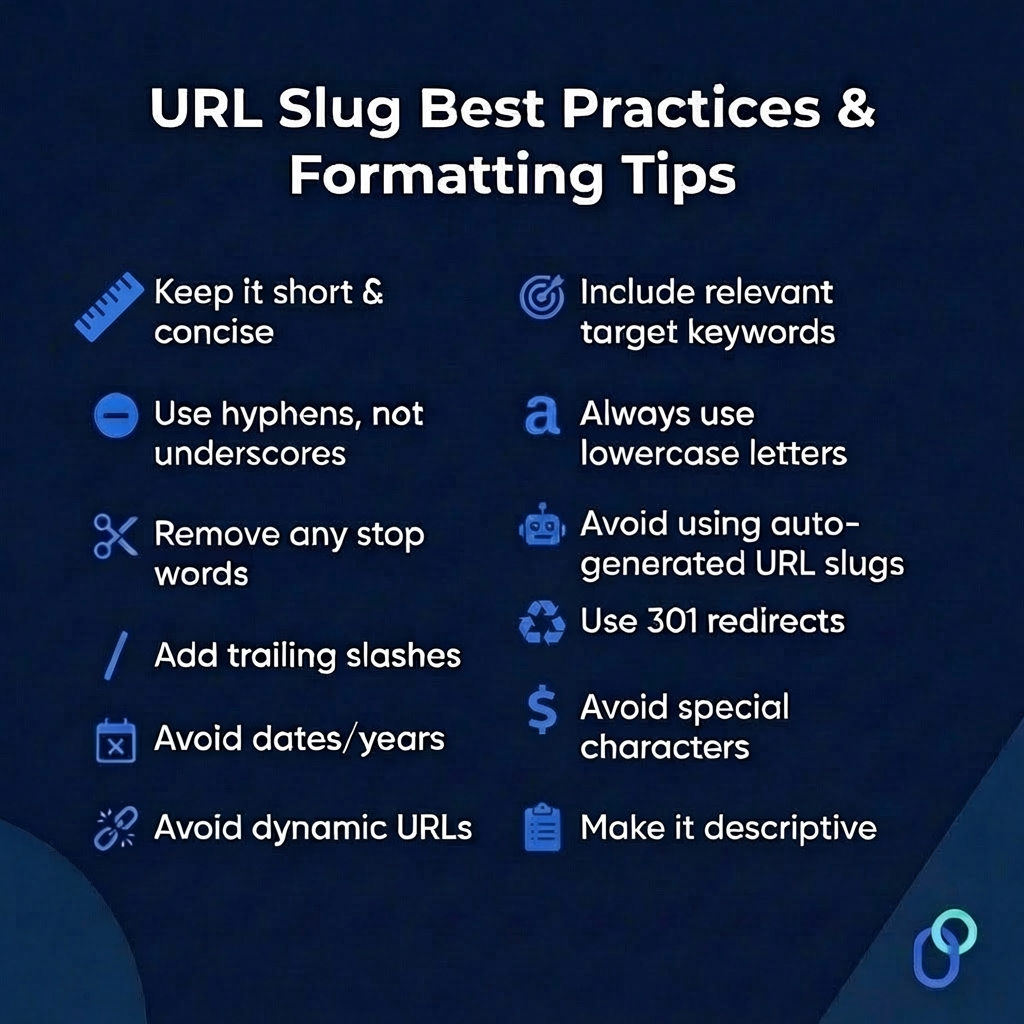
URL slug best practices & formatting tips
Getting your slugs right doesn’t require a lot of effort, but it does require knowing some critical rules. Here are the best practices you should follow every time you create or update a slug on your website.
Top strategies to optimize your URL slugs:
Keep it short & concise
Aim for 3–5 words wherever possible. Short slugs are easier to read, remember, and share, and they’re less likely to get cut off in search results.
Include relevant target keywords
Work your primary keyword naturally into the slug so both users and search engines immediately understand what the page is about. Just don’t force in extra keywords to the point it looks spammy.
Use hyphens, not underscores
Google treats hyphens as word separators, making your slug readable and effortlessly crawlable. Underscores, on the other hand, can cause words to be read as one, so /seo_tips could be interpreted as seotips.
Always use lowercase letters
URLs are case-sensitive, and mixing cases can create duplicate content issues. Sticking to lowercase across the board keeps things clean and consistent. Also, this is the recommended standard practice.
Remove any stop words
Words like “a,” “the,” “and,” and “of” add length without adding value. Trimming them keeps your slug tight. So, /the-best-ways-to-improve-the-seo simply becomes /best-ways-to-improve-seo.
Make it descriptive
Your slug should give anyone reading it a clear idea of what the page covers, even without seeing the page title. If it doesn’t describe the content, it needs reworking.
Add trailing slashes
While not a major ranking factor, using trailing slashes consistently (e.g., /seo-tips/) helps avoid duplicate content issues and keeps your URL structure uniform across the site.
Use 301 redirects
If you ever update an existing slug, always set up a 301 redirect from the old URL to the new one. Skipping this step can wipe out any rankings and backlinks the page had built up.
Avoid dates/years
Including something like “2026” in your slug makes the content look outdated the moment the year changes. Always stick to evergreen slugs that stay relevant long-term.
Avoid special characters
Characters like “%,” “&,” “#,” and “@” can break URLs or get encoded into unreadable strings. Keep your slugs limited to letters and hyphens only.
Avoid dynamic URLs
Auto-generated dynamic URLs like /page?id=5621&cat=3 are hard to read and offer no context. Static, descriptive slugs always perform better for both users and search engines.
Avoid using auto-generated URL slugs
Most CMS platforms generate slugs automatically from page titles, and they’re rarely optimized. Always take a moment to manually edit and clean up the slug before hitting the publish button.
What is a slug in WordPress?
WordPress makes it pretty straightforward to work with URL slugs. Every time you create a new page or post, WordPress automatically generates a slug based on your page title.
But as we’ve already covered, auto-generated slugs aren’t always the best option. The good news is that WordPress lets you edit them easily, giving you full control over how your URLs look.
How to change URL slug in WordPress?
Whether you’re setting a slug for a brand new post or cleaning up an old one, here’s exactly how to do it step-by-step:
Step #01: Open your post
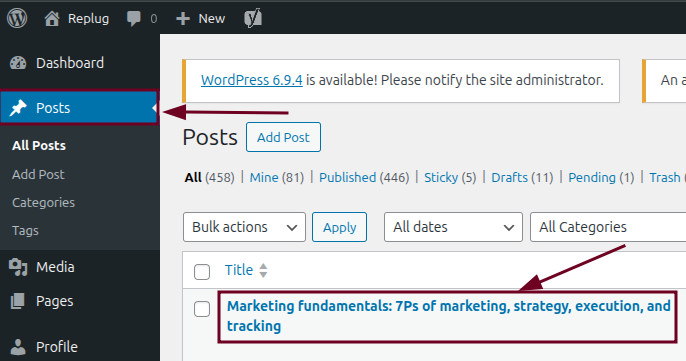
Log in to your WordPress dashboard and navigate to “Posts” from the left-hand menu. Click on the post whose slug you want to edit.
Step #02: Locate the slug field
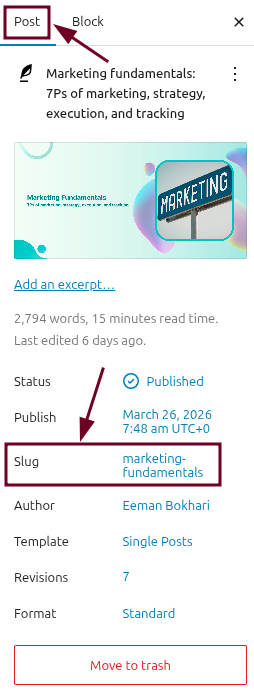
Once you’re inside the editor, look at the right-hand settings panel. Click on the “Post” tab and look for the “Slug” option.
Step #03: Click and edit the slug
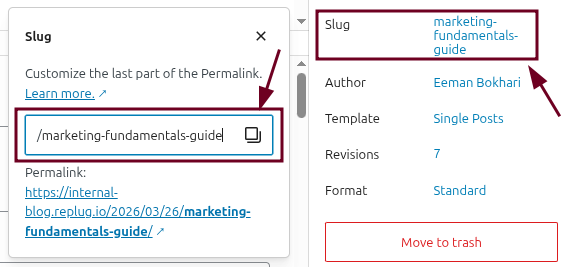
Click on the slug field and simply type in your new, optimized slug. Remember to keep it short, lowercase, keyword-relevant, and hyphen-separated. No special characters or spaces.
Step #04: Save the post
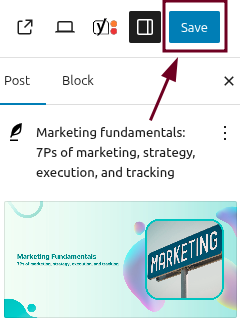
Once you’re happy with the new slug, click the “Save” button. It will be in the top right-hand corner of the screen.
Step #05: Set up a 301 redirect (for published posts only)
If the post was already live and ranking, this step is critical. Use a plugin like Rank Math or Yoast SEO to set up a 301 redirect from the old URL to the new one. Both plugins will actually prompt you to do this automatically when they detect a slug change (so don’t skip it).
Step #06: Verify the new URL
Visit your updated post in the browser and check that the new slug is showing correctly in the address bar. While you’re at it, make sure the old URL redirects properly to the new one.
💡 Quick tip: Always update your slug before publishing a new post if possible. Changing slugs on already-ranking pages comes with risks, so only do it when it’s genuinely necessary, and always use a redirect.
Common mistakes to avoid when generating URL slugs
Even small slug mistakes can quietly hurt your SEO and user experience over time. Here are the most common ones people make, and what you should do instead.
Using underscores instead of hyphens
Google reads underscores as connectors, not separators. So, /url_slug gets read as one word (urlslug) rather than two. Always use hyphens to keep your words properly separated.
Including stop words
Words like “the,” “a,” “and,” and “for” just add unnecessary length to your slug without contributing anything meaningful. Cut them out and keep only the words that actually matter.
Keyword stuffing
Fixing multiple keywords into a single slug, like /best-seo-tips-seo-guide-seo-strategies, looks spammy and unnatural. Stick to one primary keyword and keep it clean.
Not using lowercase letters
Uppercase letters in URLs can create case-sensitivity conflicts, leading to duplicate content issues. /SEO-TIPS and /seo-tips can be treated as two entirely different pages by some servers.
Including dates or temporary information
A slug like /best-seo-tools-2026 starts looking outdated the moment the year rolls over. Unless your content is strictly time-sensitive, keep your slugs evergreen so they stay relevant long-term.
Using special characters and spaces
Characters like “#,” “%,” “&,” and spaces don’t belong in slugs. Spaces get converted into %20, making your URL look messy and unprofessional, and some special characters can break the URL entirely. It’s best to avoid them entirely.
Relying on auto-generated slugs
CMS platforms like WordPress auto-generate slugs from your page title, which often results in long, cluttered URLs full of stop words. Always review and manually optimize the slug before publishing.
Changing slugs without redirects
Updating a slug on a live, ranking page without setting up a 301 redirect is one of the costlier SEO mistakes you can make. You’ll lose your backlink equity, your rankings, and send returning visitors to a dead “404” page.
Updating URLs frequently
Constantly tweaking your slugs (even with redirects in place) sends mixed signals to search engines and can destabilize your rankings. Get your slug right the first time and leave it alone.
Make your URL slugs SEO-friendly with Replug!
Managing your URL slugs manually across every page and campaign can get tedious fast. That’s where Replug comes in.
A complete link management solution
for marketing professionals & agencies.
Try Replug for free
But one feature that really stands out is its custom URL shortener. Instead of sharing long, cluttered links, Replug lets you create clean, branded, and SEO-friendly custom slugs within seconds.
You get full control over what appears in your URL, making your links more trustworthy, more clickable, and a lot easier to remember. If clean, professional URLs matter to your brand, Replug is absolutely worth checking out.
Wrapping up
URL slugs are one of those things that are easy to overlook, but once you understand how they work, you’ll never look at a web address the same way again.
From improving your search visibility and CTR to enhancing user experience and reinforcing your site structure, a well-crafted slug does a lot of heavy lifting for something so small.
The rules aren’t complicated either. Keep it short, make it descriptive, use hyphens, skip the stop words, and always redirect before changing a live URL.
Get these basics right from the start, and your slugs will quietly work in your favor for a long time to come.
Frequently asked questions
What is a slug on a website?
The URL slug definition is pretty straightforward. It’s the part of a web address that comes after the domain name and identifies a specific page.
For instance, in https://www.example.com/what-is-a-url-slug, the slug is /what-is-a-url-slug.
Every page on your website should have a unique URL slug. This is what helps both search engines and users distinguish one page from another.
Without a distinctive slug, search engines can get confused about which page to index, and users have no clear idea of what they’re about to open.
How to find a webpage’s URL slug?
This one’s simple. Here’s how to get the URL slug:
Just look at the address bar in your browser when you’re on any webpage. The slug is the part that comes after the domain name. So if you’re on https://www.example.com/seo-tips, the slug is /seo-tips. That’s it!
You can do this for any page on any website, anytime, without needing any special tools or technical knowledge.
What is an SEO slug?
An SEO slug is a URL slug that’s been intentionally optimized for search engines. It typically includes:
– the primary target keyword for that page, – uses hyphens between words, – stays short and descriptive, and – avoids any unnecessary clutter
Basically, it’s the clean, keyword-friendly version of a slug that helps both Google and your readers immediately understand what a page is about, before they even click on it.
Does the URL slug affect SEO?
Yes, but not in a dramatic way. A well-optimized slug contributes to your overall SEO by improving readability, signaling relevance to search engines, and boosting click-through rates.
It won’t single-handedly make or break your rankings, but combined with strong content, good internal linking, and solid technical SEO, it’s a worthwhile piece of the puzzle to get right.
Is the URL slug a ranking factor?
Technically, yes, but a very minor one. Google’s John Mueller has described words in a URL as a “very, very lightweight” ranking factor.
It helps Google get an initial read on your page before fully crawling it. But once the page is indexed, the content itself carries far more weight. So don’t obsess over it, but do make sure your slug is clean and relevant.
Does changing the slug change the URL?
Yes, it does. Your slug is part of your URL, so editing it automatically changes the full web address of that page.
This is why changing slugs on live, already-ranking pages needs to be handled pretty carefully. Always set up a 301 redirect from the old URL to the new one to make sure you don’t lose your traffic, rankings, or backlink value in the process.
What happens when you change or edit a URL slug?
When you change a slug, the old URL essentially stops working unless you set up a redirect. Anyone visiting the old link, no matter through a bookmark, a backlink, or a search result, will land on a 404 error page. That’s bad for both user experience and SEO.
A 301 redirect fixes this by automatically sending visitors and search engines from the old URL to the new one, preserving as much of your SEO value as possible.
What is the maximum length of a URL slug?
There’s no strict rule set by Google, but the general best practice is to keep your slug under 60 characters. Longer slugs tend to get truncated in search results, making them harder to read.
Most SEO professionals recommend sticking to 3–5 words, enough to be descriptive without being excessive. The shorter and clearer, the better!
What is the difference between a URL slug and a URL?
A URL is the full web address of a page, e.g., https://www.example.com/what-is-a-url-slug.
The slug is just one specific part of that URL. In this case, /what-is-a-url-slug.
Think of the URL as the complete home address and the slug as the apartment number. It’s the part that identifies the specific page within the broader domain.
What is the difference between URL path and slug?
When talking about URL slug vs path, the two terms are closely related but not exactly the same thing.
– The URL path is the full section of the web address that comes after the domain name, and it can include multiple levels, like /blog/seo/what-is-a-url-slug. – The slug, on the other hand, is specifically the last segment of that path. In this case, what-is-a-url-slug.
So, every slug is part of a URL path, whereas a URL path can contain multiple segments, with the slug being the final, page-specific identifier at the end.
What are the best tools online for detecting URL slug errors?
There are several solid options worth using:
– Google Search Console is a great free starting point. It flags crawl errors and URL issues directly from Google. – Semrush’s Site Audit and Ahrefs’ Site Audit both do a thorough job of detecting problematic slugs, duplicate URLs, and redirect issues. – Screaming Frog SEO Spider is another favourite among SEO professionals for deep URL analysis.
And if you’re on WordPress, plugins like Yoast SEO and Rank Math will flag slug issues right inside your editor as you work.
Smart URLs, also known as dynamic URLs, are generated automatically based on a set of rules. This contrasts static URLs, which are manually created and do not change. Smart URLs can be used to improve the user experience, track website traffic, and improve search engine optimization.
Smart URLs can be valuable for businesses of all sizes.
They can help businesses to:
Improve the user experience by making it easier for users to find the information they are looking for.
Track website traffic and see how users are interacting with the website.
Improve search engine optimization and make it easier for websites to rank higher in search engine results pages (SERPs).
Before using smart URLs, consider:
Make sure that the rules for generating smart URLs are clear and easy to understand.
Use a consistent naming convention for smart URLs.
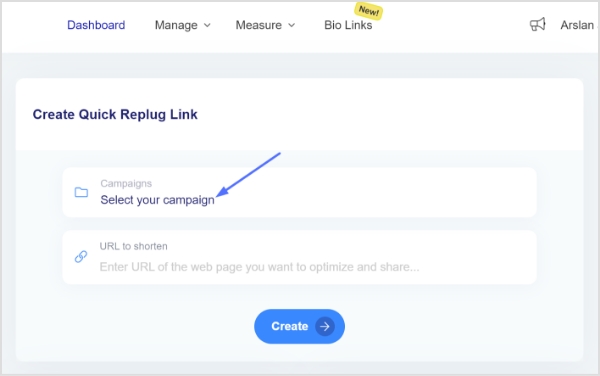
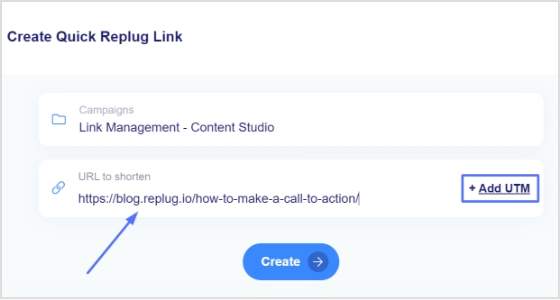
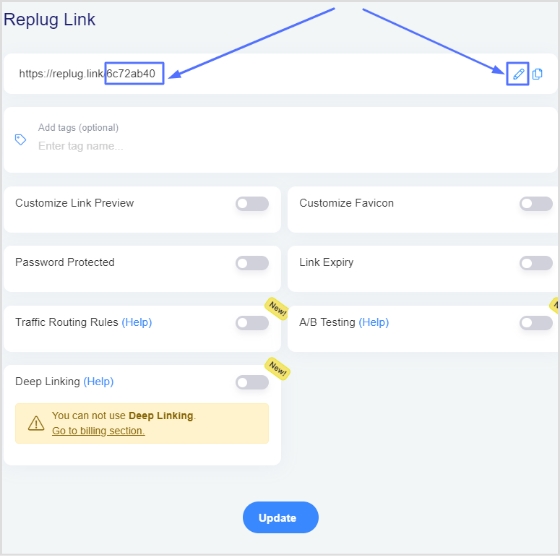
To create a smart URL link, you can use a custom link shortener online. Replug allows you to create short, easy-to-remember links for long URLs. When you create a smart URL link, you can also add keywords and other information to it. This can help people find your link more easily when they are searching for information online.
Here’s how to create a smart URL link using Replug
Make sure that the link is easy to remember and type.
Use keywords in the URL slug so that people can find it easily when they are searching for information online.
Keep the link short so that it is easy to share.
Track the number of clicks on your link to know how it’s performing.
Maximize marketing ROI
by transforming ordinary URLs into branded short links that convert.
Try Replug for free
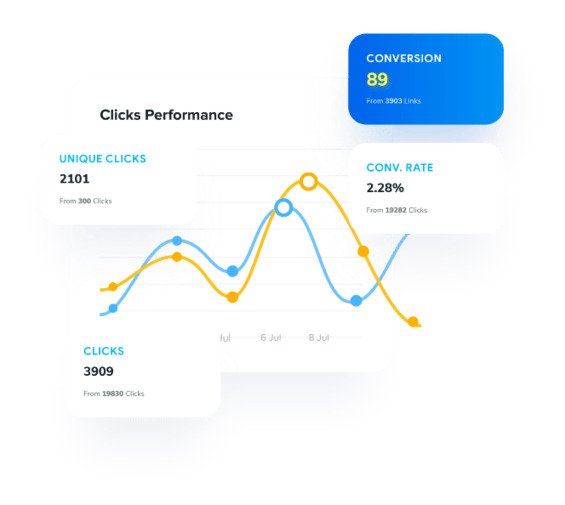
Replug link analytics: Track your link’s performance
Replug empowers you to unleash the true potential of your links by providing a comprehensive suite of analytics.
No more flying blind – with Replug’s data-driven insights, you can make informed decisions that amplify your marketing efforts.
Picture this: a dashboard that paints a vivid picture of your link’s journey across the web.
From the number of clicks and unique visitors to geographical data, referral sources, and even the devices your audience prefers – it’s all there at your fingertips.
A smart URL is a short, descriptive URL that is easy to remember and share. It is also more likely to be clicked on than a long, complex URL. Smart URLs are often used for marketing and advertising purposes, as they can help to increase website traffic and brand awareness.
What is the difference between hyperlinks and smart links?
Hyperlinks are simply links that point to another web page. They are typically used to provide additional information or to direct users to a related resource. Smart links, on the other hand, are more sophisticated. They can be used to track user behavior, personalize content, and even trigger actions.
Are smart links safe?
The safety of smart links depends on the platform or service that generates them. Some smart links are designed to track users and collect data, while others are simply a way to shorten long URLs. It is important to be aware of the risks associated with any smart link before clicking on it.
If you think the clash between Musk and Zuckerberg has cooled down, you’re wrong, as the show has just begun with the launch of Instagram Threads.
Now, we’re guessing you’re here because exploring Threads has left you exhausted. Or you may be curious to discover its hidden features!
If you manage multiple social-media profiles, share content across platforms, or distribute many links, Replug can help you organize and optimize all your URLs in one dashboard, keeping link management simple as you explore new apps like Threads.
And no need to worry anymore! We wrote this handy guide to help you get started. Discover new features, and develop your Threads account in no time.
First, let’s begin by defining Threads, discovering its hidden characteristics, its future, and comparing it with Twitter.
So, let’s get started!
What is Threads?
Threads is a text-based social app launched by Mark Zuckerberg in integration with Instagram on the 5th of July, 2023.
Over 100 million people have signed up on the app so far. However, the total number of active users is undefined yet. With Threads, users can create, share or repost multiple types of content, such as short-term texts, images, videos, URLs, etc.
Moreover, the new app is tied to Instagram, so users can automatically be able to connect with all the people they follow on Instagram.
Note: When sharing external links on Threads (or elsewhere), using a trusted short URL generator helps turn long or messy links into clean, easy-to-share URLs that look tidy in posts and are more user-friendly.
How to use Instagram Threads?
Threads offer a variety of popular features that are currently trending in the realm of social media. And have a very user-friendly interface.
However, some of you may be experiencing challenges when trying to sign up for your Threads accounts or when attempting to post a Thread.
Allow me to assist you here.
How do I sign up?
You can sign up directly from your Instagram account. The software will automatically fetch all your data from Instagram, such as your name, username, login credentials, block lists, followers, etc. Additionally, the app can be downloaded for free on iOS and Android devices in over a hundred nations.
Is Threads linked with Instagram?
Yes, Threads is fully integrated with Instagram. It’s like having a mini social network within Instagram.
I don’t have an Instagram account; can I still use Threads?
Currently, the only way to join Threads is through your Instagram account. So, if you want to sign up on the app, you must have an Instagram account first.
Is it safe to use Instagram threads?
One of the most important aspects of any social media platform is privacy, and Threads doesn’t disappoint in this regard. Just like Instagram, this app offers a range of privacy features that allow you to have control over your interactions. For instance, you have the power to block or report any user who may be causing you discomfort or violating your privacy.
How can I create a Thread?
It’s so simple.
Just tap on the new thread icon at the bottom of your screen.
Add your content, such as text (up to 500 characters), video, or image (up to 10 visual items), and press Done.
And your thread will be shared on your profile and feed right away.
You may have seen standard thread features like sharing text-based messages, images, video visuals, or reposting your threads post. But below are some hidden features on threads you may not know;
1. Managing replies
When you post a thread, a dialogue box will appear on your keyboard in the reply section. When you press that button, a menu with three choices will appear. Choose the one which suits you.
2. Modified shortcut
If you press return three times, a new thread shortcut will be created immediately, just below the last thread you posted.
3. Fast open the search bar
If you long-press the search icon. It brings up the search bar and pulls up the keyboard alongside. Or you can double-tap on the search tab to search.
4. Quick account following
To quickly follow an account, simply tap the Profile Icon on the user’s profile.
5. Mute a profile without unfollowing
If you don’t want to see threads from a specific user again. You can mute the user profile by tapping the three dots on the extreme right section of the profile that you want to mute.
Now just tap Mute and the selected user will be muted
Note: You’d still be following the user, but none of their Threads will show up in your feed until you unmute him.
6. Time limits option
Go to your profile by tapping the Profile icon at the bottom corner of the Threads feed
On the top right corner, tap on the right horizontal bars similar to the Hamburger Icon to navigate to the settings menu
Tap on Account
Tap on Take a break
Set the reminder as per your necessity, i.e. from every 10 minutes to 30 minutes
Now the app will remind you to take a break every 10 to 30 minutes after use.
Note: The earlier issues with the app have been resolved. The app now runs smoothly on iOS 17. Also, users can facepile, pill polish, expand pictures on profiles, make extra tall photos that are now fully viewable, trim the binary size, etc. However, Meta is still working on new features, such as following feeds, hashtags, editing posts, post search, web presence, like lists, translations, and many more.
Limitations in the Threads app
But even with all these perks, users are experiencing some limitations listed below.
If someone replies to your thread and you delete the Thread later on, that person’s reply will not be removed.
You can only post a thread text of up to 500 characters.
You won’t be able to view a response to your thread if it comes from a private profile you don’t follow.
Thread feeds show you a mix of posts from people you follow and posts suggested by AI.
You cannot send direct messages to other users.
Currently, no web version of the Threads service is available.
You can only post up to 10 media items (visuals such as images, videos, gifs, etc).
What does Adam Mosseri have to say about Instagram Threads?
There are a lot of rumors and chatter of forthcoming modifications going about the app right now. Such as how Meta will modify Threads. What will happen to Twitter? Is Threads for politics and business? etc.
Adam Mosseri says Threads is for public conversation, not business or politics.
He says in a statement that
“Politics and hard news are important, I don’t want to imply otherwise,”
Further, he says,
“But my take is, from a platform’s perspective, any incremental engagement or revenue they might drive is not at all worth the scrutiny, negativity (let’s be honest), or integrity risks that come along with them.”
After that, users were confused about what to put on Threads and how to develop a network on that platform.
In response to this, Mosseri said…
What are the key differences between Twitter and Threads?
Below are the key differences between Twitter and Threads;
You won’t hear anyone calling Instagram Threads the “Twitter Killer” other than Twitter itself.
In contrast to Twitter’s public, real-time, and open character, Threads provides a platform for private chatting and exchanging information with close pals.
Twitter is widely used because of its general nature, rapid news publication, and accessibility. So, both systems can coexist, with users taking advantage of each for interaction and content creation.
Elon’s rage against Instagram Threads
Musk has threatened to file a lawsuit against the platform(Threads), accusing it of recruiting former employees to work on a ‘copycat’ software to compete with Musk’s original company.
Musk tweeted,
“Competition is fine, cheating is not.”
Twitter lawyer Alex Spiro wrote in a letter:
‘Twitter has serious concerns that Meta Platforms (Threads’) has engaged in systematic, willful, and unlawful misappropriation of Twitter’s trade secrets and other intellectual property.
However, Meta has denied the claims, stating that no current or former Twitter workers are working within the Threads team.
“very optimistic about how the Threads community is coming together.
Competition between the two has become fierce. With Elon Musk rebranding Twitter’s bird logo with “X”. Musk has also repurchased its”X.com” domain (i.e. now redirected to Twitter’s original domain). This shows the intensity will only rise between the two platforms going forward.
The Threads app has already seen 70% decline in its daily active users. While many of the Twitter (now X) users are hating the rebranding of the Twitter app. However, Threads is in its new stages, while Twitter is going through some drastic branding changes, so only time will tell who is going to win this battle.
Frequently asked questions
How do you delete your Threads account?
You can delete your account on Threads; however, to do so, you will also need to erase your account on Instagram. After getting complaints from end-users over this issue, Mosseri announced that the organization is “looking into a way to delete your Threads account separately.“
What is the difference between Threads and Instagram?
Threads is a social media app primarily using texts, while Instagram focuses on multimedia content, particularly visuals.
What can you do on Instagram Threads?
You can actively share images, videos, and text updates on Instagram Threads and effortlessly share real-time updates with your close contacts.
Are there any well-known people posting on the Threads?
On Threads, there are a lot of well-known names, like Selena Gomez, who has more than 5.1 million followers. Kim Kardashian has more than 5 million followers; Mr. Beast has more than 4.6 million followers; and many other famous people.
Imagine you share a link and expect it to simply guide someone to your latest blog or product page, yet behind it might be a tangled mess of tech, misrouting, or even malice.
In fact, over 3.4 billion phishing-related emails are sent every day, many revolving around cleverly disguised URLs.
The problem?
Ordinary web addresses can betray you badly. They expose internal systems, confuse users, or open doors you never intended. That’s when frustration sets in; when clicks go astray, trust fades, and suddenly your neat link strategy becomes a liability.
The solution lies in learning the technique of URL masking. It is a simple yet powerful method that helps you shape how URLs appear, function, and are perceived.
In the next section, we’ll take a quick look at what URL masking actually is, before moving on to methods, best practices, and additional details.
So, let’s get started!
What is URL masking: A brief overview
Think of URL masking as giving your links a stylish mask or camouflage. Simply put, URL masking (also called link masking or link cloaking) is a technique that displays one web address in the browser’s address bar while the content actually comes from a different address behind the scenes.
The primary objective of URL masking is to maintain a clean, branded, or memorable URL for users while hiding the complexity, tracking parameters, or alternate domain that actually serves the content. This can help protect your brand’s appearance, simplify link sharing, and make the experience smoother for visitors.
Now that we’ve got a solid handle on what URL masking means and why it’s used, let’s roll into a concrete example to clarify how it looks in practice.
And you’d prefer it to look short, simpler, and more branded like:
https://yourbrand.com/great-deal
With URL masking, you could set things up so that users see “yourbrand.com/great-deal” in their browser, but behind the scenes, they are served the original long URL’s content.
Another scenario: Your company hosts content on a subsidiary domain like “subdomain.partner-host.com/page”, but you want users to browse while seeing “www.yourbrand.com”in the address bar. URL masking allows this kind of setup.
In either case, the visitor experience is smoother, the URL looks nicer, and you retain control over how your link appears.
Different techniques & types of URL masking
Here are several of the most common ways to mask or “cloak” links, each with its quirks, benefits, and trade-offs.
Domain masking
This technique means that you point a domain (or subdomain) to another target URL, but the user’s browser still shows your original domain in the address bar. Users think they’re on, say, “yourbrand.com”, while the content is being pulled from somewhere else.
Note: It’s great for branding and cleaner links, but keep in mind it can cause SEO issues if search engines see duplicate content at two different domains.
Frame masking
Here, you essentially load another site (or page) inside an <iframe> or similar frame while keeping your domain visible in the browser bar. The user stays on your domain visually, even if the content “behind the scenes” lives elsewhere.
Note: While this provides a seamless user experience, it may limit navigation and bookmarking, and it may also pose search engine optimization or security complications.
Proxy masking
With proxy masking, a proxy server fetches content from a destination site and presents it under your domain. The user hits “yourbrand.com/welcome”, the proxy pulls “otherdomain.com/page”, and you serve that content, but the address bar remains “yourbrand.com/welcome”.
Note: This method gives you more control and flexibility, but it’s more complex to set up and maintain (and you need to think about performance, caching, SSL, etc.).
Server-side scripting
Here, your server script (PHP, ASP.NET, Python, etc.) handles requests for a friendly URL and fetches content from another URL or service, while keeping the visible URL unchanged.
Note: This is a flexible approach if you’re comfortable with backend logic. You can use conditional logic, content transforms, etc., but you’ll still need to watch for SEO fallouts and ensure it’s transparent to users.
URL rewriting
This is more subtle; your server internally maps a user-friendly URL (or masked URL) to the “real” destination URL without changing what appears in the browser bar.
Think of rewriting “yourbrand.com/special-offer” to internally show content from “yourbrand.com/page.php?id=12345”.
Note: It’s commonly used for cleaner, SEO-friendly URLs and better user experience, and often plays nicely with search engine results if done well, because the visible URL corresponds with actual content.
JavaScript redirection
With JavaScript, you can on page load run something like window.location.replace(…) to redirect the user to the destination. However, cleverly, you might keep showing the original URL or manipulate history so it appears masked.
Note: This is relatively easy to implement but less reliable (some users block JS, and search bots may not execute it entirely), and it can feel less perfect.
Meta refresh
This is the simplest HTML trick: a <meta http-equiv=”refresh” content=”0; url=https://destination.com”> tag refreshes the page to the target URL after a short delay. The initial URL stays visible briefly.
Note: It works, but many experts consider it a bit of a legacy approach. It is not very SEO-friendly and is not always regarded as good practice for user experience.
Up next, we’ll explore the different techniques and practices for masking URLs, step by step.
How to do URL masking: Various methods for masking a URL
There are several practical ways to mask a URL, depending on how much control you have over your hosting setup and how fancy you want to get.
Let’s walk through three common approaches.
Server-level (e.g., .htaccess)
This method uses your web server’s configuration, specifically the .htaccess file on Apache servers, to internally map or proxy a visible URL to another destination while keeping the visible link unchanged.
It’s a “behind-the-scenes” technique in which you edit or add rules to the .htaccess file in your web root, and the visitor sees your chosen URL, but the content comes from somewhere else.
How it works:
1. Access your site’s root directory (often public_html or www) and locate or create the .htaccess file.
2. Make sure the server has mod_rewrite enabled (on Apache) so you can use RewriteEngine On, and other rules.
This means when someone visits yourdomain.com/custom-url, the browser address bar shows that, but the server fetches content from /actual/folder/or/page.
4. Test your setup by opening the masked URL and verifying the content shows, but the visible URL remains your custom one.
Important note: This method can create duplicate content or SEO issues if used across different domains without caution.
Using a third-party service or tool
This method uses an external online service (think “URL masking tool online”) that lets you enter a destination URL and handles the redirect/masking for you.
You don’t need to dig into server configuration yourself. Instead, you use a dashboard or a simple interface to get the job done. For instance, many link management or cloaking services let you easily mask affiliate links or vanity URLs without hassle.
How it works:
Sign up (if needed) with the service and go to the “create new link” or “mask URL” section.
Enter the original long, cluttered URL as the destination.
Choose a custom display URL or alias if the service allows it. Some services will say “cloak” or “hide” the destination.
Generate the link. The service returns a new link that shows your chosen alias but forwards to the real URL (behind the scenes).
Share the link. Users click the alias, see your branded, simplified, and unique URL, and are taken to the destination while your custom URL remains in the address bar (or at least appears so).
Finally, monitor performance (clicks, traffic) if the service offers analytics. Some services warn that frames or iframes may not work if the destination blocks them (due to security headers such as X-Frame-Options).
Important note: The “free URL masking online” services and tool versions often have click limits or analytics restrictions.
Using a URL shortener
A URL shortener creates a slim “short link” from a longer URL, which is ideal for sharing and looks much cleaner. Many modern URL shorteners available online let you brand the link, track clicks, and even perform “custom URL masking”.
Maximize marketing ROI
by transforming ordinary URLs into branded short links that convert.
Try Replug for free
How it works:
Pick a URL shortener and create an account if required. We recommend using Replug for this task.
Paste your long destination URL into the platform’s “shorten link” field.
Customize the slug(the part after the slash) to get something memorable or brandable.
Use options (if available) for “custom URL masking,” which may let you replace the domain with a custom one you own, making the short link look like go.yourbrand.com/offer instead of a generic domain.
Generate the short link. Now, when someone clicks it, they see your shortened link in the address bar, click through, and land on the long destination. The user experience is cleaner, and tracking is built in.
Share this link seamlessly. Because you’re using a short, clean URL, it’s easier to include in social media, emails, print, etc.
Important note: A short link doesn’t always “mask” in the most rigid technical sense (it redirects to the destination, and users might spot that). But when paired with a custom domain and branding, it functions effectively for many masking/clean-link use cases.
Using URL masking can bring a bunch of advantages when done thoughtfully. So let’s cover what it can do for you.
Enhances user experience
Masking a URL helps make links simpler, cleaner, and easier to remember. Rather than a long string full of tracking codes or weird characters, visitors see something tidy and on-brand, which makes it more likely they’ll click and feel comfortable.
Protects your brand’s reputation
When links look messy or appear to be affiliate-based, some users hesitate to click them. Masking URLs lets you hide cumbersome links or affiliate identifiers behind a more trusted domain or format. This helps your audience feel the link is legitimate and that your brand is looking after them.
Boosts brand visibility
Every time someone sees your domain (rather than some random partner domain or long URL), the brand imprint grows. A nicely masked link reinforces your brand name, keeps things consistent, and helps users associate the link with you.
Preserves privacy & security
Sometimes the actual URL contains sensitive parameters (trackers, IDs, internal paths) you’d rather keep hidden from view. Masking helps protect those bits and gives you more control over what the user sees, thereby improving perceived security.
Assists in domain parking
If you own multiple domains (or plan to), URL masking lets you forward a domain, so the visible address stays your branded one (even if the content lives elsewhere). This is handy when you’re dealing with domain portfolios or when you want to ensure visitors always see “yourbrand.com” even during transition.
Risks of URL masking
While masking a URL may seem like a handy shortcut, there are real risks involved. It’s good to be aware of them upfront so you can make smarter decisions.
SEO risks
When you mask a URL, you might unintentionally create problems for search engine bots. They could struggle to crawl or index the content correctly.
When the visible URL doesn’t clearly point to the actual content, you could end up with duplicate content issues or diluted authority. Over time, that can hurt your SEO ranking, which is the absolute opposite of what you want.
Loss of credibility
If visitors click a link that appears to lead to one place but actually behaves differently, or if your domain is masking something behind the scenes, you risk making users feel misled. That loss of trust can stick, hurting repeat visits, shares, or referrals.
Violates Google’s guidelines
Techniques that hide or misrepresent where a user or search engine bot is being sent can run afoul of major search engine rules.
For example, practices that resemble “cloaking” are flagged by Google as violations. If you’re seen to be deliberately disguising URLs in a way that misleads bots or users, you risk being penalized or removed from search results.
Requires technical setup
URL masking isn’t always plug-and-play. It might involve server settings, frames, proxies, or rewriting rules.
If you’re not comfortable with the tech side, you might set something up that breaks links, causes slow load times, or behaves inconsistently. This will ultimately result in spending time troubleshooting instead of benefiting.
Doesn’t always display correctly
Not all browsers, user setups, or crawlers will interpret masked URLs the way you expect. Sometimes, the original URL behind the scenes might pop into view, or sharing the link will show the weird internal address instead of your masked one. That kind of inconsistency can confuse users or lead to broken navigation or functionality.
URL masking vs. URL forwarding: Key differences mentioned!
Here’s a friendly look at the primary distinctions between URL masking and URL forwarding, so you can decide which works best for your goals.
Aspect
URL forwarding (Redirect)
URL masking (Cloaking)
What the user sees in the address bar
The browser’s address bar changes to the destination URL after the redirect.
The original domain remains visible, even though the content comes from a different URL.
Technical implementation
Typically done via HTTP status codes (301 or 302) or simple DNS/domain-forwarding settings.
Often uses frames (iFrames), proxy servers, or rewriting so the underlying destination remains hidden.
Impact on SEO & indexing
Generally considered SEO-friendly if done with proper redirects (especially 301).
Can cause SEO issues (duplicate content, indexing confusion) because the actual URL is hidden.
Branding & user trust
Transparent — users see the destination URL, which might be less branded.
Strong branding — original domain stays visible, boosting the appearance of consistency.
Use cases
When you’re permanently moving a site, uniting domains, or want clean redirects.
When you want to retain the appearance of your domain while pulling content from elsewhere.
Potential downsides
Less control over the visible domain; might lose branding opportunity.
May confuse users, interfere with bookmarking/sharing, and pose technical or UX issues.
In short: If you’re going for maximum clarity, SEO safety, and ease of setup, URL forwarding is usually your best companion. On the other hand, if you’re focused on keeping your brand in the spotlight and are okay with managing a little extra complexity, URL masking might be a good fit, but you’ll want to weigh its drawbacks.
Here are some of the most common ways people use this technique. It helps to see them side by side so you can spot which might make sense for your own site.
Affiliate marketing & link sharing: Masking is often used when you’re promoting someone else’s product or a referral link. Instead of sending users to a long, clunky URL with trackers, you show a clean, branded link and hide the real destination behind the scenes.
Branding & aesthetic cleanup: Sometimes you’ve got a link that looks quite messy: lots of parameters, partner domains, or subdomains you don’t want your users to see. Masking lets you present a friendly URL instead.
Embedding third-party content under your domain: If you use a platform or external service but want users to feel like they’re still on your site (your domain in the address bar), masking helps achieve that consistent user experience.
Domain parking or forwarding with your brand domain: You own several domains, or you want old domains to point to your new site without showing the old link. Masking lets visitors see your primary domain even if they typed in one of the other addresses.
Campaign or microsite links: For short-term promotions or specific landing pages, you might mask a long URL. Hence, it’s easier to remember, share on social media, or print on marketing material. The cleaner link also reinforces its origin brilliantly.
Best practices for effective URL masking
When you decide to mask a URL, it’s not just about hiding the real address. It’s about doing it in a way that keeps your users happy, protects your brand, and avoids getting penalized by search engines.
Here are the top things to keep in mind:
Be transparent and build trust: Make sure users aren’t tricked into clicking something unexpected. Masking should clean up or brand a link, not deceive. Transparency helps maintain your credibility and avoids confusing or annoying your visitors.
Think about SEO implications: Masking can introduce SEO risks like duplicate content, indexing issues, or loss of link equity. Always weigh whether a clean redirect or a branded short link might serve you better.
Keep an eye on functionality and test regularly: Test your masked links across browsers, devices, and platforms. Ensure they work properly and don’t break features like login, forms, or share links. Monitoring catches surprises before your users do.
Maintain consistent branding and clarity: Use a URL that aligns with your brand and is easy to remember. Avoid overly long or weird masked URLs, because if users are puzzled, you’ve lost half the benefit.
Use masking only when it adds real value: Masking isn’t necessary in every situation. If a simple redirect or branded short link covers your needs without the extra complexity, go that route instead.
By following these conventions, you’ll ensure you’re using URL masking for the right reasons and doing it in a way that looks professional and doesn’t backfire.
Alternatives to URL masking
If you’re not sure about masking URLs, there are other smart and innovative ways to achieve many of the same goals without the same risks.
Here are some alternatives worth considering:
URL forwarding (redirects): Instead of hiding the real address behind another one, URL forwarding sends users from one link to the destination and updates the browser’s address bar accordingly. It’s more straightforward, more transparent, and usually more friendly to SEO.
URL rewriting / pretty URLs: With this approach, you keep the real destination visible but clean it up: your site rewrites something like “site.com/index.php?page=123” into “site.com/news/latest” using server rules. It maintains transparency while giving users nicer links.
URL shortening & branded short links: Instead of full masking, you shorten a long URL into something like “yourbrand.co/offer”, often via a link management tool or custom domain. It doesn’t completely hide the destination like masking might, but it gives you clean, shareable links and retains trust.
Custom domain or subdomain setup for branding: If the main goal is branding, you can use a custom domain or subdomain (e.g., “go.yourbrand.com”) pointing directly to your content or site. This avoids hiding content entirely but keeps things consistent and branded.
Canonical URLs and self-explanatory paths: Specifically for SEO, focus on drafting URLs that clearly reflect the content (e.g., “yourbrand.com/blog/what-is-url-masking”). Using canonical tags helps avoid duplicate content issues while being honest about the destination.
Wrapping up
To sum up, URL masking can be handy when you want cleaner, more professional-looking links, but it’s not always the best long-term solution.
While it helps with branding and user experience, it also comes with a few risks, like SEO drawbacks and technical complexities.
The key is knowing when and how to use it responsibly, or exploring better alternatives like branded short links or redirects.
And if you’re serious about taking control of your links the smart way, give Replug.io a try today! It’s one of the best custom URL shorteners out there, built to help you create, manage, and track every short link with ease.
Frequently asked questions
What does it mean to mask a URL?
Masking a URL means displaying one web address in the browser’s address bar while secretly loading another page behind it. It’s often used to make long or complex URLs look cleaner and more branded.
Is there a way to hide a URL?
Yes! You can hide a URL using methods like iframe embedding, meta refresh, or server-side redirects. These techniques let you show a custom link while hiding the actual destination.
How to see masked URL?
To reveal a masked URL, right-click the page and select “View Page Source,” or inspect the link in the browser’s developer tools. The real destination URL will usually appear in the iframe or meta tag code.
How to mask a URL in Chrome?
You can’t directly mask a URL in Chrome itself, but you can use a third-party URL masking tool online or a custom redirect through your hosting or domain provider to display a different address.
What is the difference between URL masking and encryption?
URL masking hides the actual address, while encryption protects the data transmitted between your browser and the website using HTTPS. Masking doesn’t secure information; encryption does.
Does URL masking affect SEO?
Yes, it can. Masking hides the real source URL, which can confuse search engines, impact indexing, and even lower your rankings if not done correctly.
How to enable and remove URL masking on a website?
You can enable masking by setting it up in your domain’s control panel (using an iframe or redirect settings). To remove it, disable the masking or switch to a standard 301 redirect instead.
How to request URL masking?
Most domain registrars or hosting providers let you request URL masking through their dashboard or support team. You just need to provide the original URL and the one you want displayed.
How to detect and prevent URL masking attacks?
Use reliable security tools and keep your browser up to date. Avoid clicking suspicious links, and implement SSL certificates and anti-phishing filters to stay protected.
How is URL masking different from URL redirection?
In URL masking, the original link stays visible in the browser’s address bar. In contrast, URL redirection automatically redirects the user to the new destination (by changing or updating the visible link).