If you’re an active TikTok user, you know how tricky it can be to share multiple links when your bio only allows for one. You might want to share your website, your other social media pages, or maybe even a special offer, but there’s just no room. That’s where linktree enters the show. It’s a simple solution that lets you pack all your links into a single URL. In this guide, we’ll walk you through how to add a linktree on TikTok using Replug.io and why it’s a game-changer.
Why add a linktree to your TikTok bio?
TikTok is all about quick engagement, and your bio is prime real estate. But with only one link allowed, it can be tough to share everything you want your followers to check out. A linktree solves this by allowing you to bundle all your important links into one easy-to-find page, whether it’s your latest blog post, YouTube channel, or shop.
Using a linktree means you no longer need to constantly update your TikTok bio with different links whenever something new comes up. Instead, you can just add a single linktree link and let your audience find everything they need in one place.
How to add a linktree on TikTok?
Adding a linktree on your TikTok is quite simple, much like Instagram. It lets you feature a link directly on your profile, making it easy for followers to find your website, social pages, or any content you want to highlight.
Follow these simple steps to add a linktree to your TikTok bio in just a few minutes:
Open the TikTok app and go to your profile by tapping the profile icon in the bottom-right corner of the homepage.
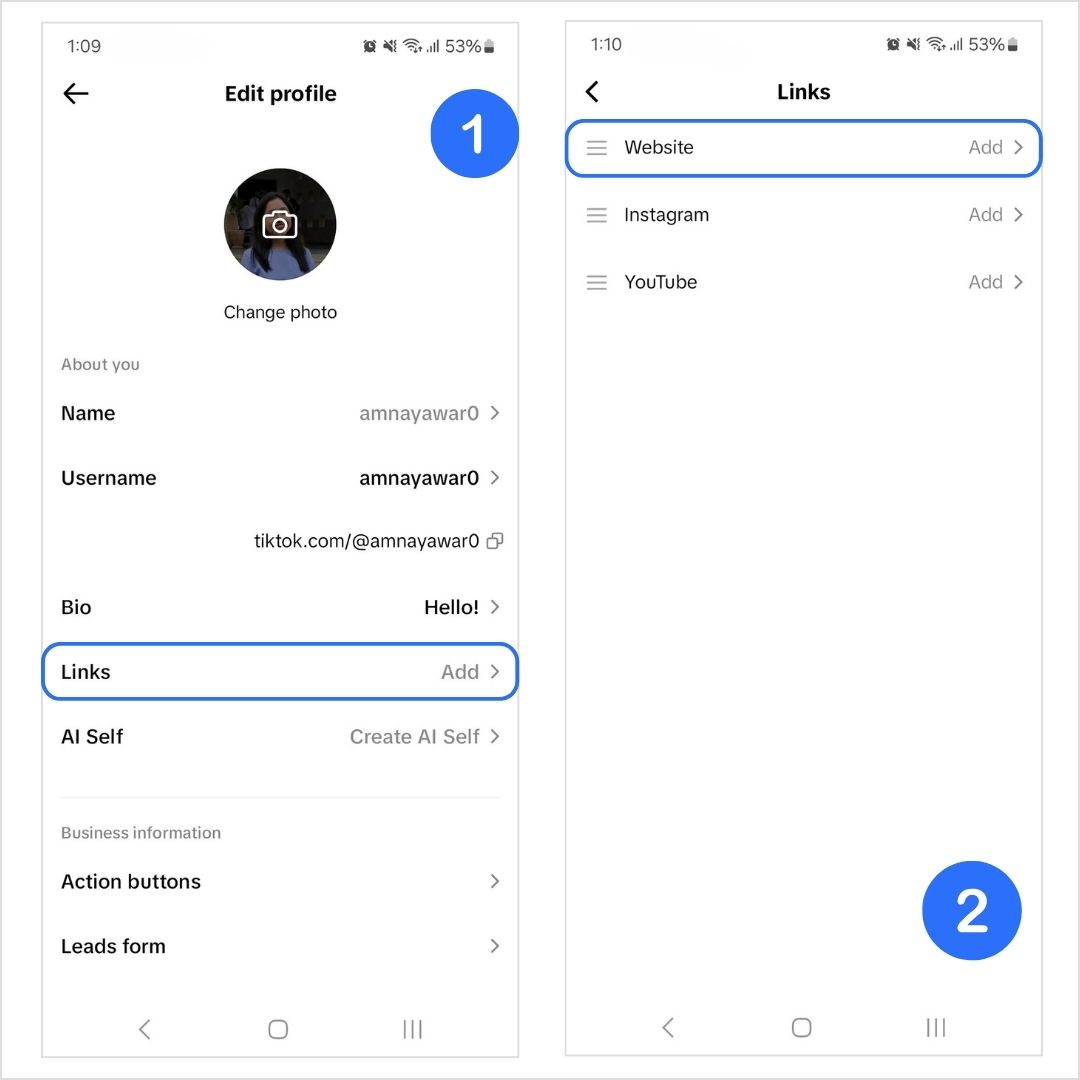
Tap “Edit Profile.”
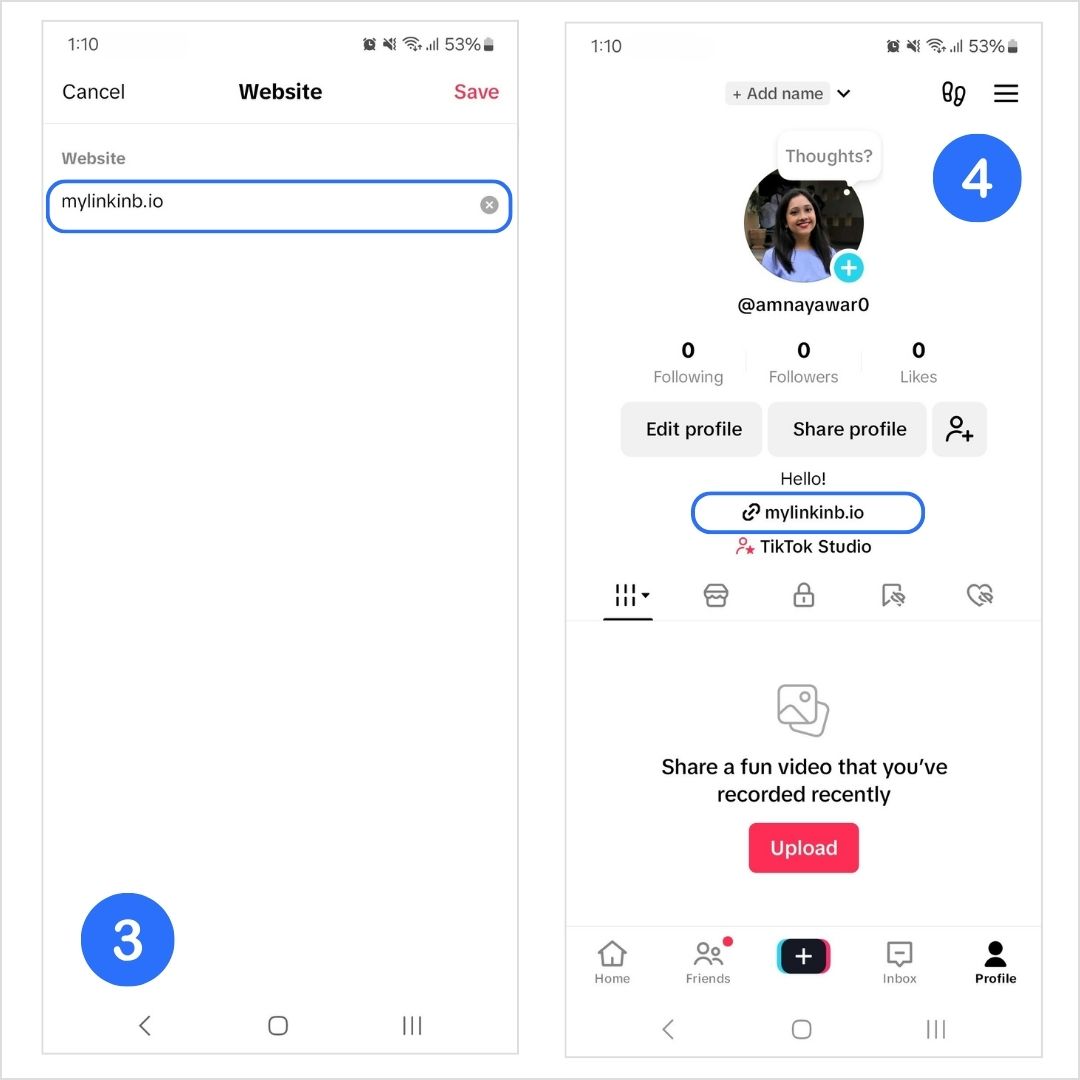
Click on “Links” to add your bio link to your TikTok profile. You can do this by clicking on “Website”
What to do if you can’t see the option for “Website”
The Website feature isn’t currently available everywhere. If the “Website” section isn’t showing up for you, there are a few things to consider:
Meet the follower requirement: Personal Accounts need at least 1,000 followers to add a website link.
Switch to a Business Account: Clickable links in bios without a follower limitation of 1,000 are only available for Business Accounts.
Use the Mobile app: Links can only be added through the TikTok mobile app, not the desktop version.
Switching to a TikTok business account
If you’re using a personal account but want to add a bio link for your business, consider switching to a Business Account. This will give you access to more features, including the ability to add a clickable link.
Here’s how to make the switch:
Tap on your profile icon in the bottom-right corner.
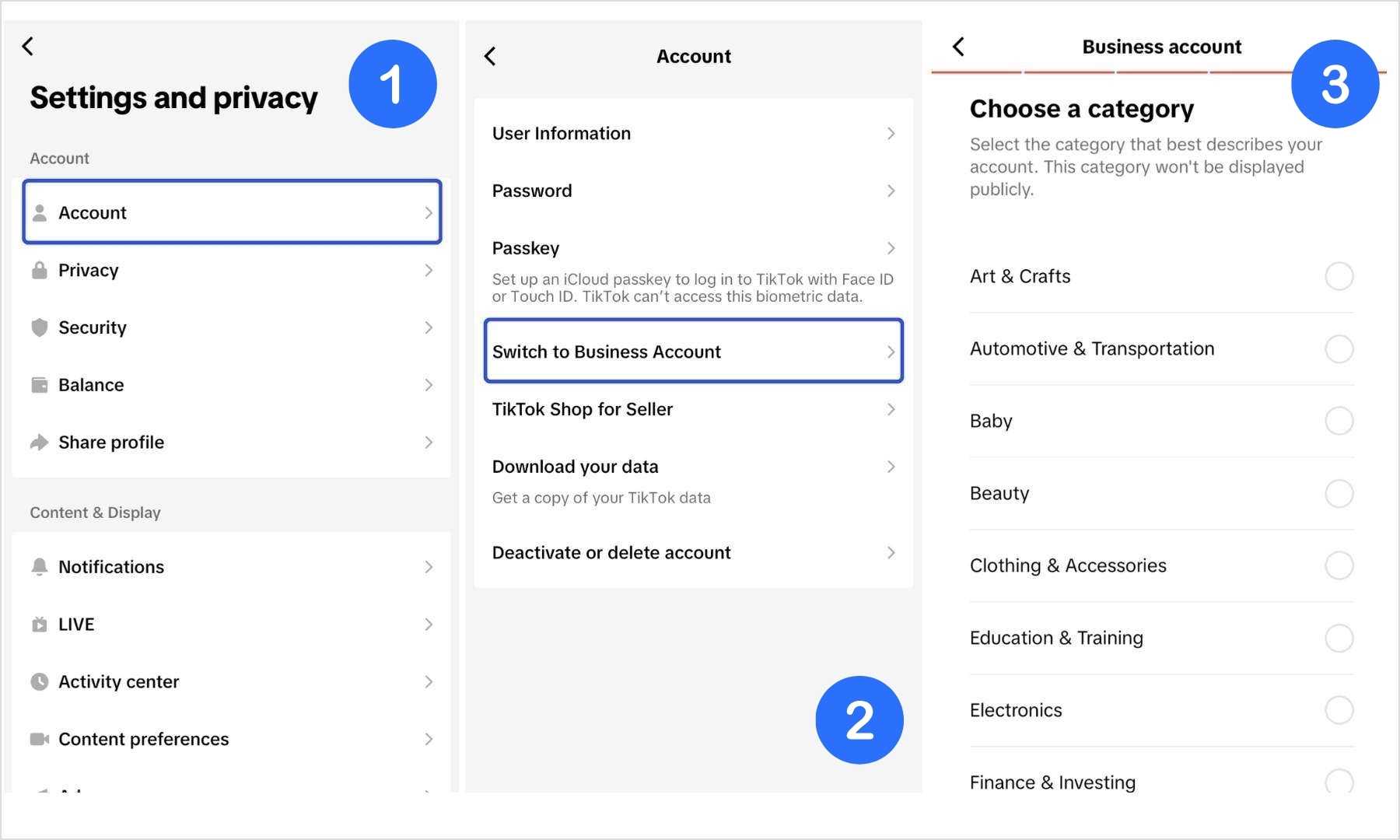
Tap the hamburger menu (three lines) in the top-right corner to open the Settings & Privacy menu.
Select Account.
Tap Switch to Business Account.
Once you’ve switched, head back to your profile, tap Edit Profile, add the linktree you’ve created using Replug under the Website section.
Now you’re all set to drive traffic to your website and other resources directly from your TikTok bio!
Replug is designed to elevate your TikTok linktree with advanced customization, powerful analytics, and other unique tools that can help you stand out and grow your audience.
Here’s why you should use Replug to generate a linktree for your TikTok bio:
Customize your linktree page: Replug gives you full control over the look of your linktree, making it easy to match the design with your TikTok vibe. With Replug, you can customize your template according to your brand personality, add a verification button, a custom favicon image, and multiple blocks (links, social, video, RSS, text, separator, and spacing) to your bio site. The possibilities are endless!
Custom and branded links: With this efficient link shortener, you can create a custom URL for your linktree. If you have a branded domain, even better! You can connect your domain to your custom URL and generate a branded short link that instantly tells your followers that your link it all about you.
Maximize marketing ROI
by transforming ordinary URLs into branded short links that convert.
Try Replug for free
Link analytics: Replug’s detailed analytics allow you to track a variety of metrics to understand what’s working and what’s not.
Advanced retargeting: Replug’s retargeting pixels feature allows you to reach out to people who have interacted with your linktree links but haven’t taken action yet. With personalized ads or follow-up campaigns, you can bring those users back to complete the conversion, whether that’s making a purchase, signing up for your newsletter, or another goal. Link management & quick updates: One of the best features of Replug is the ability to easily manage your links. TikTok moves fast, and what was relevant last week might not be today. With Replug, you can quickly update your linktree without having to constantly change your TikTok bio. Whether you’re pushing a limited-time offer or promoting a new TikTok video, you can ensure that your links are always up-to-date. Mobile-optimized: Since TikTok is a mobile-first platform, Replug’s linktree design is fully optimized for smartphones and tablets. You won’t have to worry about your linktree looking clunky or hard to navigate.
SEO-friendly: Replug allows you to adjust your linktree’s metadata, title, and description, making it easier to be discovered via search engines. This feature helps you increase your visibility, both on TikTok and beyond, driving organic traffic from Google and other search platforms to your linktree.
Conclusion
And that’s a wrap! Adding a linktree to your TikTok bio is an easy way to share multiple links in one place, making it easier for your followers to access all the important content you want to share. With Replug, you can take it a step further by customizing your linktree, tracking performance, and even retargeting visitors to drive more conversions.
If you haven’t created your linktree yet, now’s the time to give it a go and make your TikTok bio more impactful!
FAQs on how to add a linktree to Tiktok bio
Can I add a link to my TikTok bio without having 1,000 followers?
You can add a link to your TikTok bio without having 1,000 followers if you have a business account. However, this is not possible if you have a personal account.
What’s the best way to add multiple links to my TikTok bio?
Since TikTok only allows one bio link, using a bio link tool like Replug helps you create a mini landing page with multiple links, whether it’s your website, store, or latest content.
What are the requirements for adding a link to your TikTok bio?
To add a clickable link to your TikTok bio, you need:
– At least 1,000 followers if you have a personal account. Otherwise, you’ll need a registered business account. – You must have the TikTok app installed on your mobile phone. – Your account must comply with TikTok’s community guidelines and terms of service.
How can I put a link in my TikTok bio without having a business account?
– If you have 1,000 TikTok followers on your personal account, you’ll be able to add a website link or a linktree in your TikTok bio. – If you want to add a link with less than 1,000 followers, you can simply copy-paste your link in the bio section. It won’t be clickable, but it’s better than not having a link at all.
How do I add an Instagram link to my TikTok bio on iPhone?
To add an Instagram link to your TikTok bio on iPhone:
1. Open the TikTok app and go to your profile. 2. Tap “Edit profile.” 3. In the “Instagram/Youtube” section, tap “Instagram.” 4. Enter your Instagram username or link, then tap “Save.” 5. Your Instagram link will now be in your bio.
How can I measure the performance of my TikTok bio link?
Some bio link tools provide detailed insights, including total clicks, unique visitors, and traffic sources. This helps you understand what’s working and optimize your links for better engagement.
Instagram may have finally allowed multiple links in bios, but it’s still not the most user-friendly way to share all your important content. If you’re a creator, business owner, or marketer, you probably have more than just five links to share. That’s where a bio link tool, often called a ‘linktree’ tool, comes in handy. Instead of cluttering your bio or constantly swapping out links, you can create a single Instagram linktree that leads your followers to all your content.
In this blog, we’ll discuss how to add a linktree to Instagram and how linktree tools such as Replug can make your Instagram bio stand out.
How to add a linktree to Instagram using Replug
Step 1: Create a bio link using Replug
Replug’s bio link/linktree feature lets you add multiple links under one URL.
Copy the linktree URL that you want to display on your Instagram.
Step 3: Open the Instagram app and go to your profile
Open the Instagram app on your smartphone.
Tap the profile icon at the bottom right of your screen.
Step 4: Edit your profile
Once you’re on your profile, click on the Edit Profile button. This is where you can edit your bio and add links to your Instagram profile.
Step 5: Paste your linktree URL
Click Add Link
Click Add external link
Paste your Replug linktree in the URL bar and give it a title as well.
Save. Now, your linktree will be visible to your audience on your Instagram.
Why Replug is the best choice for your linktree
Your Instagram linktree should do more than just hold a few links. With Replug, you can create a fully customized, branded, and data-driven linktree that helps you drive more engagement and conversions.
Full customization: Replug allows you to create your bio site to match your brand’s look and feel. You can customize templates, colors, favicons, and add multiple content blocks, including links, videos, social icons, and more.
Branded links: Instead of a generic link, create a custom URL or connect your own domain to make your bio link look more professional and trustworthy, with this top-notch URL shortener.
Powerful analytics: Track total clicks, unique clicks, referral sources, and geographic data to see exactly where your audience is coming from and which links are performing best.
Retargeting features: Replug lets you add retargeting pixels so you can re-engage visitors with personalized ads and campaigns, helping you maximize conversions.
Easy link management: No need to change your Instagram linktree every time you have a new offer or post. With Replug, you can update your link page in seconds while keeping your bio link the same.
Optimized for mobile and SEO: Your link page will be mobile-friendly and optimized for search engines, helping you increase visibility beyond Instagram.
Conclusion
Adding a linktree to your Instagram bio is an easy yet effective way to share all your important content without cluttering your profile. By following the simple steps outlined above, you can quickly set up your Linktree using Replug and make your bio more organized and user-friendly.
Not only will this save you time and effort, but it will also give you the opportunity to personalize your linktree, track valuable data, and keep your audience engaged. With Replug’s powerful customization and analytics features, your Linktree will do much more than just link to your content; it will help drive conversions and boost your online presence.
So, get started today and optimize your Instagram bio like a pro!
FAQs for how to add linktree to Instagram
What are the best Linktree tools for Instagram?
There are several great Linktree tools, but Replug stands out with its advanced customization, analytics, and retargeting features, making it a top choice for creators and businesses.
Can I track the performance of my linktree links?
Yes, Replug offers detailed analytics that track clicks, sources, and geographic data, helping you understand your audience’s behavior and optimize your content.
Can I track the performance of my linktree links?
Yes, many linktree tools, including Replug, offer analytics to track clicks, sources, and engagement, helping you understand which content works best.
Can I update my linktree links without changing my Instagram bio?
Yes! You can update your linktree content in real-time using Replug, so your Instagram bio link stays the same while you refresh the links inside your linktree.
Can I customize the look of my Instagram linktree?
Yes! Replug is great for customizing your Instagram linktree. You can choose from a variety of templates, customize the colours, add blocks, and much more!
Is my Linktree mobile-friendly?
If you use a good linktree tool, then yes. Linktree pages are mostly optimized for mobile devices, ensuring they work well across all smartphones and tablets.
How do I manage multiple links in my bio?
Replug is great for managing multiple Instagram links in one place. With just one URL in your bio, you can guide your followers to all your important content.
You’ve got your Instagram bio all set up, but it feels like something’s missing. Maybe it’s neat, but it’s not “popping’’ the way you want it to. You’ve probably seen other profiles with those slick little threads in their bios and thought: That’s genius! How do I get in on this? Well, guess what? You’re in the right place because we’re about to show you exactly how to add threads to Instagram bio and make your profile stand out in a big way.
We’ll walk you through the three simple methods of adding threads to your Instagram bio, including a unique way to do it using Instagram bio links. It’s easier than you might think, and the results will be totally worth it. With threads, you can take your Instagram bio from basic to eye-catching in no time, creating a profile that feels fresh and dynamic.
So, let’s dive in and get your bio looking its best!
But wait… what even is “Threads”?
If you’re an Instagram pro, you’ve probably heard of Instagram Threads by now, and maybe even wondered how you can bring the two together.
Threads is Instagram’s text-based counterpart, built around promoting healthy conversations, while Instagram itself thrives on visual content.
Threads, the newer text-based app from Meta, is all about sparking meaningful conversations and staying connected with your audience in a more direct way. Since its launch in July 2023, Threads has skyrocketed to over 300 million monthly actives (Adam Mosseri, Head of Instagram), many of whom have come from Instagram. Why? Because these two platforms sync up perfectly, making it easy to link them and create a seamless experience.
Think of it as X’s/Twitter’s most popular alternative.
How to add threads to Instagram bio?
Now let’s get to the fun part! There are three methods to add threads in your Instagram bio:
Method 1: As a clickable icon directly through the Threads app
Method 2: Adding a Threads link using Instagram’s External link option.
Method 3: Using the Replug bio link feature
Method 1: How to add Threads to Instagram bio as a clickable icon directly through the Threads app
Open the threads app: If you don’t have the Threads app installed already, go to your Apple Store or Playstore to install it.
Sign in with Instagram: Before you start, make sure you have an active Instagram account to link with Threads. If you’re already logged into Instagram, Threads will automatically detect your profile and link the two.
Set up your experience: Choose whether you want to keep your profile public or private.
Tap “Join Threads”: Once done, you’ll see a button at the bottom to join Threads. Click on it to proceed.
Threads will be added to your Instagram profile: Once done, go to your Instagram profile. Here, you’ll see a clickable Threads icon at the top right, as well as in your bio section.
Note: You can easily hide your Threads badge inside your Instagram app by simply clicking “Edit profile” and toggling the “Show Threads badge” button.
Pros
Cons
Effortless setup: Threads automatically links to Instagram.
Easily overlooked: The icon is small and placed in a corner.
Minimalist look: No extra links cluttering your bio.
No clear call to action: The icon does not look like a clickable link.
Direct integration: Ensures a seamless experience between Instagram and Threads.
Limited awareness: Some users may not recognize the Threads icon yet.
Method 2: How to add Threads to Instagram bio using an external link
Access your Threads profile and click on Edit profile.
Copy your Threads link.
Open the Instagram app and click on Edit profile.
Click on Add external link
Paste your Threads URL.
Your Threads link will appear in your Instagram bio.
Pros and cons
Pros
Cons
Straightforward: Simply copy and paste the link.
Not visually appealing: A long URL can look messy and unprofessional.
Clickable and obvious: Users can clearly see it is a link.
Limited engagement: A single external link might not get much attention.
Recommendation: For maximum traffic, it’s optimal to duplicate the Threads link on your Instagram bio page through one of the best link in bio tool online.
The good news is that you can easily do that using Replug’s bio link feature! Which brings us to the next method.
Method 3: How to add Threads to Instagram bio using Replug’s bio link feature
Replug takes your Instagram bio to another level with its bio link feature. You can create a bio site that includes the link to your Instagram Threads account alongside other important links that you want to showcase to your audience.
Here are the simple steps that you need to follow if you use Replug’s Instagram link in bio tool to put Threads in your Instagram bio:
Open the Replug app and log in to your Replug account. If you don’t have an account, you can easily create one within minutes!
Access the Bio Links feature from your home page.
Click on Create new.
Click on Content and add a “Links” block.
Paste your Threads profile URLand give it a title.
Customize your bio link URL and copy it.
Go beyond generic link pages!
Create custom bio links that truly fit your brand
With Replug, you can create bio links that are unique, engaging, and built to convert.
Adding Threads to your Instagram bio helps you connect with your audience more effectively, but choosing the right method matters. While the built-in Threads badge and direct link options work, they come with limitations like low visibility and cluttered URLs.
This is where Replug stands out. With its bio link feature, you can create a branded, clickable landing page that includes your Threads profile along with other important links. This not only makes your Instagram bio look clean and professional but also boosts engagement and tracks clicks to see what’s working.
Replug is the ultimate solution if you want a seamless, customizable, and data-driven way to showcase your Threads profile. Start using it today!
What’s even better is that you can also enhance your links’ appearance with our free URL shortener with tracking, making it easier to share clean, trackable URLs across your desired platforms.
FAQs on how to add Threads to Instagram bio
How is Threads different from Instagram?
Threads focuses on text-based conversations, similar to Twitter (X), while Instagram is image and video-driven. Key differences include:
– Threads prioritizes discussions, updates, and engagement through text. Instagram is primarily used for sharing visual content like photos, reels, and stories. – Threads does not have hashtags, search trends, or a chronological feed, unlike Instagram.
Can I add Threads to my Instagram bio without using any third-party tools?
Yes! You can either use the Threads badge that appears automatically when you sign up for Threads or manually add your Threads profile link as an external link in your Instagram bio.
How to add Threads to Instagram bio after deleting it?
If you previously deleted your Threads profile from your Instagram profile, you cannot restore it. However, you can still add your Threads profile link again manually by using the methods listed above.
How to add Threads ID in Instagram bio?
Threads does not have a unique ID like Instagram usernames. Instead, your Threads profile is linked to your Instagram handle. To add it:
– Copy your Threads profile URL. – Paste it in your Instagram bio as text or add it as an external link under Edit Profile.
How to create a Threads account without Instagram?
Currently, you cannot create a Threads account without an Instagram account. Since Threads is an extension of Instagram, you must log in using your Instagram profile to access Threads.
Why can’t I see the Threads badge in my Instagram bio?
If the Threads badge is missing, it may have been hidden manually. You can check this by going to Edit Profile on Instagram and toggling the “Show Threads badge” option.
Will adding Threads to my Instagram bio improve engagement?
Yes! A well-placed Threads link makes it easier for followers to find your content. Using Replug’s bio link helps even more by organizing multiple links in a visually appealing way.
VSCO is a popular platform for photographers and creators to showcase their work, but sometimes, its links can be long and unappealing. Whether you’re sharing your VSCO profile on social media or adding it to your Instagram bio, a branded short link makes it cleaner, more professional, and easier to track.
With Replug, you can shorten, customize, and track your links effortlessly. In this guide, we’ll walk you through the simple steps to shorten a VSCO link using Replug.
Navigate to your profile or the specific post you want to share.
Tap the Share button and select copy your profile URL.
Step 2: Create a new shortened link
Go to the Replug app and log in to your account. If you don’t have an account, create a new one.
Once logged in, paste the VSCO link in the bar under Quickly Shorten your link.
Here’s what the auto-generated short VSCO link looks like:
Step 3: Save and copy your shortened link
Click Save Shortened Link to generate your final short URL.
Useful tip: Copy the shortened link and test it in your browser to ensure it redirects correctly.
Link shortener tools like Replug not only help you create short links but also make your link cleaner and more shareable, thus improving click-through rates. Plus, you’ll also save space, making them perfect for platforms with character limits.
What else can you do with Replug?
With Replug, you can do much more than just shorten and track your VSCO links. Here are a few ways Replug can enhance how you share your VSCO content:
Create custom links: You can personalize your shortened VSCO link to match your brand or make it more recognizable. Whether it’s for your photography portfolio or a specific post, shortening a URL ensures that your link is memorable and professional.
Maximize marketing ROI
by transforming ordinary URLs into branded short links that convert.
Try Replug for free
Track engagement: Replug allows you to add tracking and UTM parameters to your VSCO links. You can monitor which social platforms, websites, or campaigns drive the most traffic to your VSCO profile or posts. It’s a great way to measure your success and refine your strategy.
Create expiring links: Replug allows you to set expiration dates for links if you’re offering limited-time access to exclusive VSCO content (like behind-the-scenes shots or premium presets). Once the time is up, the link automatically redirects to another page, keeping your audience engaged with fresh content.
A/B test your links: Not sure which post or portfolio format attracts more visitors? With Replug, you can A/B test up to 10 VSCO links and track which one gets the most engagement.
Sharing across multiple platforms: Once you’ve shortened your VSCO link, sharing it becomes much easier. You can use your branded short link across various platforms, such as in your Instagram bio, social media posts, email newsletters, or even direct messages, without worrying about clutter or space limitations.
Optimizing for SEO: Creating an SEO-friendly URL builds trust with your audience and improves click-through rates. Plus, your VSCO link will always stay professional and on-brand with Replug.
Conclusion
Shortening your VSCO link with Replug makes it more professional, user-friendly, and trackable. Whether you’re sharing your photography portfolio or a specific post, a short and clean URL improves the user experience.
Start using Replug today and optimize how you share your VSCO content!
Frequently asked questions
Will a shortened VSCO link affect my profile’s visibility?
No, shortening your link won’t impact your profile’s visibility. In fact, a clean, branded short link can make it more appealing and clickable, leading to more visits.
How to get VSCO link for my profile or post?
To get a link for your VSCO profile or specific post, simply open the VSCO app or website, navigate to the profile or photo you want to share, and click the “Share” button. From there, you’ll see an option to “Copy Link,” which will give you the direct URL to your profile or post that you can share on social media, emails, or anywhere else!
Can I edit a shortened VSCO link later?
Yes! With Replug, you can edit the destination URL without changing the short link itself, which is super handy for updating content without resending a new link.
Will my VSCO link expire after shortening it?
No. Most link shorteners, including Replug, do not have an expiration date for standard shortened links. Your VSCO link will remain active unless you delete or modify it.
Does VSCO allow link sharing on social media?
Yes, you can share your VSCO link anywhere. It can be on your Instagram bio, X (Twitter), Facebook, or even in emails. However, some platforms may require you to use a bio link tool if you want to display multiple links.
Why should I track my VSCO link clicks?
Tracking helps you see where your audience is coming from and which platforms drive the most traffic to your VSCO content. It’s useful for creators who want to understand their audience better and optimize their sharing strategy.
YouTube is the world’s second-largest search engine and a powerhouse for content sharing, with billions of videos uploaded and watched daily. If you’re a brand with a vast presence on YouTube, a content creator, a marketer, or a casual user, sharing YouTube links is essential for reaching a wider audience.
However, long URLs can appear cluttered and unprofessional, especially on social media, in emails, and in marketing campaigns.
Shortening a YouTube URL makes it cleaner, easier to share, and increases the chances of getting clicks on it. In this guide, we’ll explore two simple ways to shorten YouTube links, using YouTube’s built-in short URL feature and Replug’s short link generator.
Let’s get started!
Maximize marketing ROI
by transforming ordinary URLs into branded short links that convert.
Try Replug for free
Method 1: Using YouTube’s built-in short URL feature
This is the easiest and quickest way to shorten a YouTube URL directly from the platform.
Step 1: Play the video
Search for a video of your choice on YouTube and play it.
Step 2: Click the share button
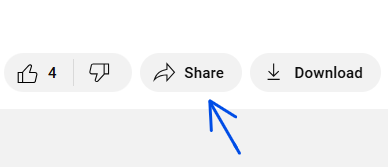
Below the video, you’ll see the “Share” button. Click on it! This will open a window with sharing options.
Step 3: Copy the shortened URL
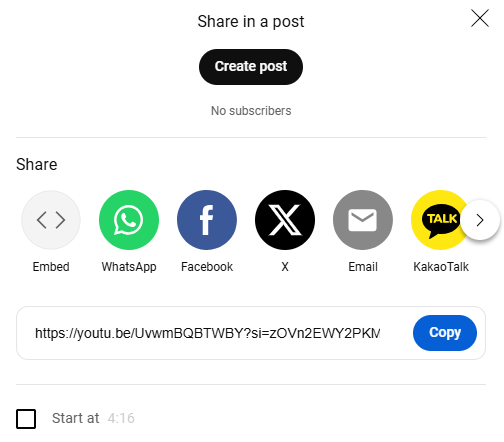
In the pop-up window, you’ll see a shorter version of the video’s URL. This link is much shorter and cleaner than the one in the address bar (URL bar).
Simply click the “Copy” button to copy the shortened URL to your clipboard. Then, share it as you like.
If you want a more professional and branded short URL that doesn’t look spammy or messy, you can use a Youtube URL shortener tool like Replug.
Unlike the previous method, this advanced link shortener lets you customize URLs for your YouTube channel, shorts, and videos, making them more memorable and trustworthy.
Getting started is simple:
Sign up for a free Replug account, or log in if you already have one, and start creating short, branded links in seconds!
Step 1: Copy and paste your URL
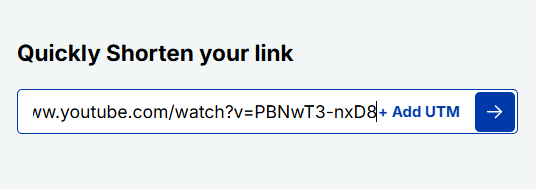
Once logged in, go to the Home page and paste the original YouTube URL into the provided “Quickly Shorten your link” field.
Click the arrow button, and a pop-up window will appear.
Step 2: Shorten your YouTube URL
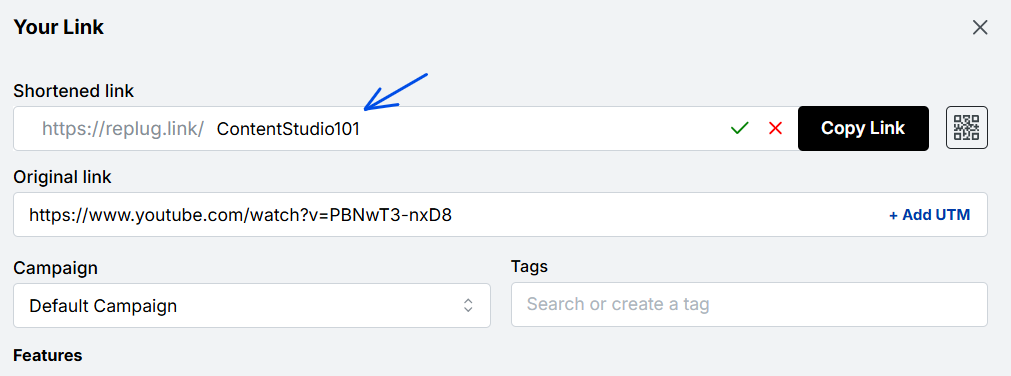
Personalize your shortened link by adding a branded keyword or phrase to make it more recognizable. Then, click the checkmark, and your shortened YouTube link will be saved.
Add UTM parameters: If you’re sharing the link for marketing purposes, you can add UTM parameters to track clicks and analyze performance. Replug makes it easy to add these parameters without manually editing the URL.
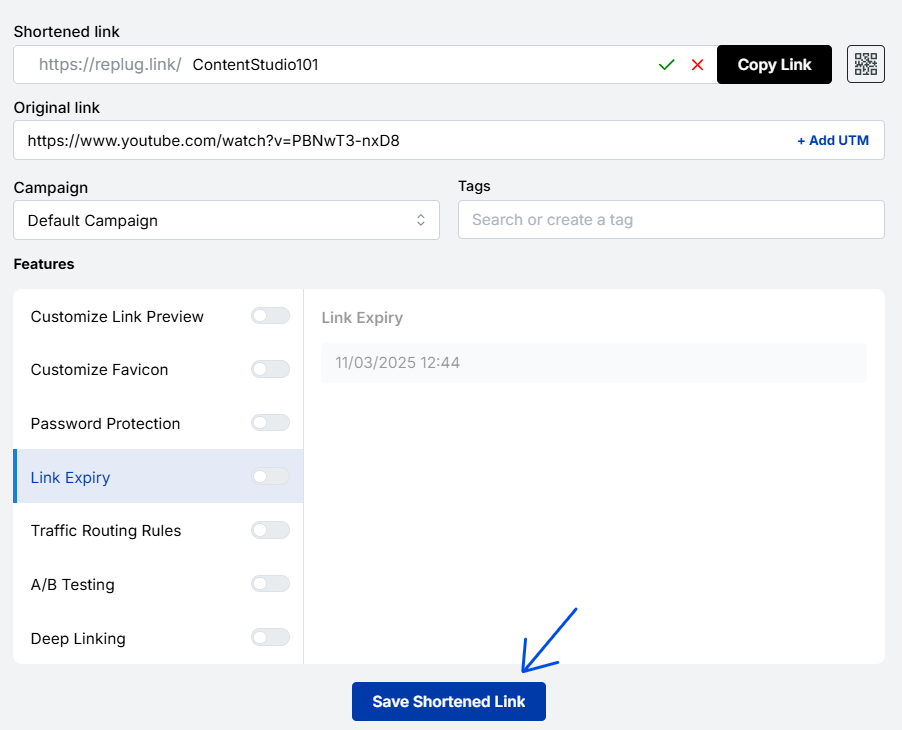
Step 3: Enhance your link with advanced features
Within the same pop-up window, you’ll find additional customization options, including:
Customize link preview: Control how your link appears when shared.
Customize favicon: Add a branded icon to your link.
Password protection: Restrict access to various users.
Link expiry: Set a time limit for link validity.
A/B testing: Compare different versions for performance.
A URL shortener offers many benefits, from making your links cleaner and easier to share to boosting trust and engagement with your audience.
Replug not only shortens your YouTube URLs but also adds powerful features like branding, analytics, and retargeting. This means you can share polished links while tracking and improving engagement.
Custom domains & vanity URLs: Brand your links with your own branded short domain to make them look professional and credible.
Click tracking & analytics: Track every click by device, location, time, and more, all viewable in your dashboard or exportable as CSV.
Retargeting integration: Add tracking pixels from Facebook, Google, Twitter, and others to retarget viewers and build warm audiences.
QR codes for YouTube videos: Instantly generate scannable and dynamic QR codes for offline promotions, packaging, or event marketing.
Shorter, shareable links: Clean, compact URLs that look professional and fit perfectly in bios, emails, and captions.
Better engagement rates: Short links appear more trustworthy, increasing the chances of clicks and views.
A/B testing with smart links: Test different YouTube thumbnails, CTAs, or landing pages to see what drives the most engagement.
UTM parameter support: Add campaign tags to track YouTube traffic in Google Analytics without messy long links.
Seamless social sharing: Optimized links that look polished across platforms like Instagram, X (Twitter), TikTok, and LinkedIn.
Centralized link management: Manage all your YouTube links, campaigns, and analytics from one easy dashboard.
Conclusion
In this blog, we discussed how to shorten a YouTube URL, its significance, and walked through two simple methods to do it. First, we looked at YouTube’s built-in short URL feature for quick sharing.
Then, we explored how Replug.io helps you create custom, branded short links with advanced features like UTM tracking, retargeting, A/B testing, and centralized link management.
If you haven’t already, give Replug’s URL shortener a try and experience the difference it can make in managing and optimizing your links.
Frequently asked questions
Why should I shorten a YouTube URL?
Long YouTube URLs can look cluttered and unprofessional, especially on social media and in marketing campaigns. Shortening them makes links cleaner, easier to share, and more clickable.
What’s the benefit of using a branded short URL with Replug?
Replug lets you customize your YouTube links with branded keywords, making them more recognizable, trustworthy, and engaging. It also provides tracking, retargeting, and link management features for marketers and businesses.
Is shortening YouTube URLs with Replug free?
Yes, you can start shortening YouTube links for free with Replug. Paid plans unlock advanced features like branded domains, retargeting pixels, and A/B testing.
Can I track clicks on my shortened YouTube URL?
Yes! Replug allows you to add UTM parameters and access detailed link analytics, tracking clicks, engagement, and campaign performance.
Where can I share my shortened YouTube URL?
You can share it anywhere, on social media (Twitter, Facebook, Pinterest, etc.), emails, blogs, SMS, or even QR codes, to reach a wider audience.
Are you the one who thinks QR codes are just for restaurant menus? Think again!
QR code usage has surged by over 323%between 2021 and 2025, and nearly 99.5 million smartphone users in the U.S. alone are expected to scan QR codes in 2025.
People aren’t just scanning them; they’re using them to discover brands, make payments, and connect with creators instantly.
If you’re a content creator or small business owner, that’s a huge opportunity sitting right in your pocket.
And when you combine the reach of Linktree (your all-in-one link hub) with the scan-and-go convenience of a QR code, you get a seriously powerful tool for driving traffic and growing your audience: both offline and online.
But how exactly does it work, and how do you set one up?
Let’s start with the basics!
What is a Linktree QR code?
A Linktree QR code is essentially a scannable shortcut to your Linktree profile page. Instead of asking someone to type out a URL, you give them a nice QR code they can scan with their phone camera easily. And boom, they land directly on your profile, where all your links are waiting for them.
Its whole purpose is simple: make it easier for people to find you. Whether that’s your YouTube channel, online store, Instagram, or booking page, one scan gets them there.
How does it work?
It’s pretty straightforward. Linktree generates a unique QR code that’s tied directly to your personal Linktree URL. When someone scans it, it opens your Linktree page in their device browser instantly.
You can then drop that QR code anywhere (a business card, flyer, product packaging, or even a slide in a presentation). Basically, anywhere people might see it in the real world.
It bridges the gap between the physical and digital world, making it incredibly easy for your audience to connect with you in just one scan.
How to create Linktree QR code
The whole process takes less than two to three minutes. Here’s exactly how to make a Linktree QR code, step-by-step:
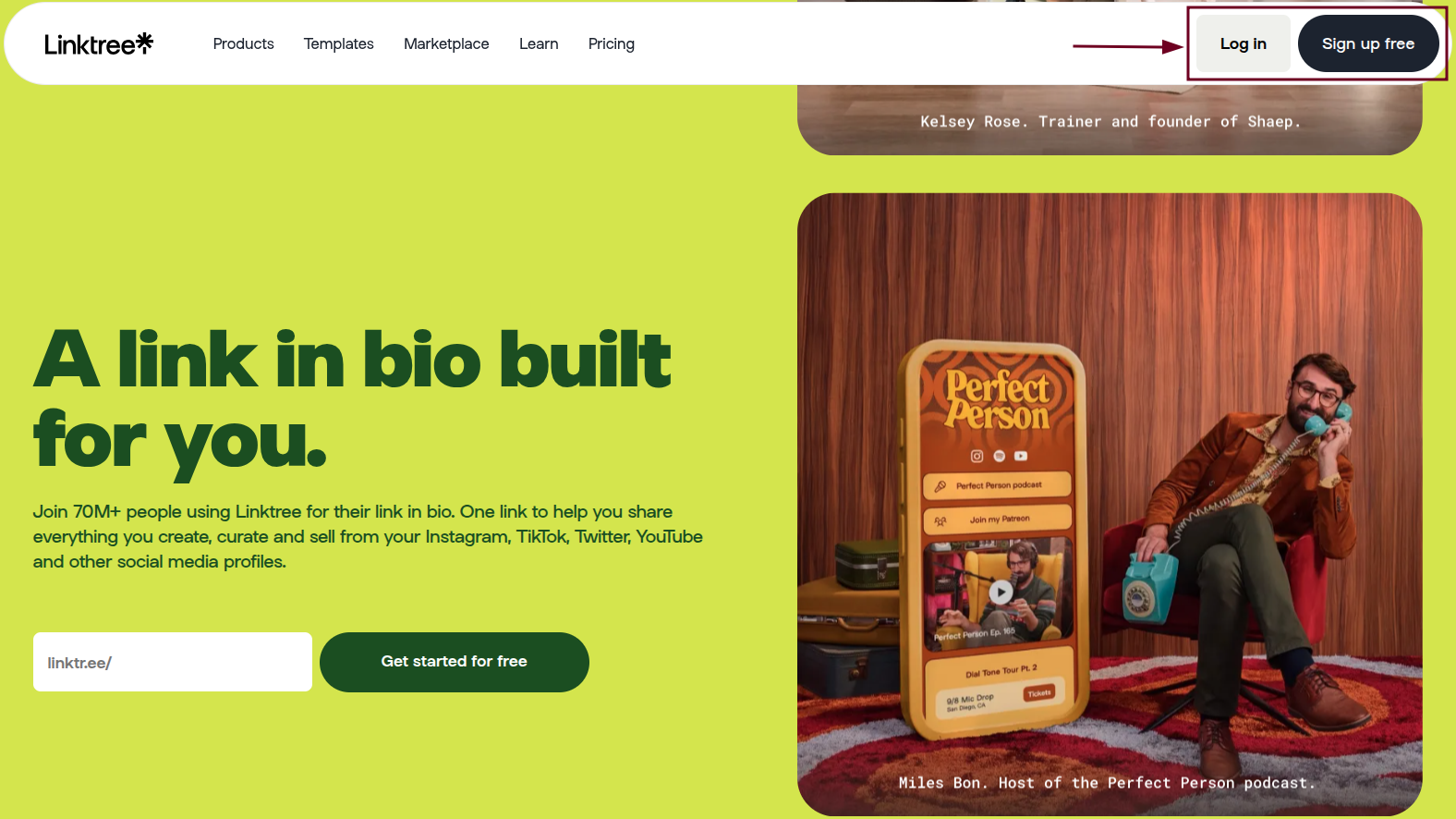
Step #01: Log in to Linktree
Head over to linktr.ee and sign in to your account. If you don’t have one yet, it’s free to sign up.
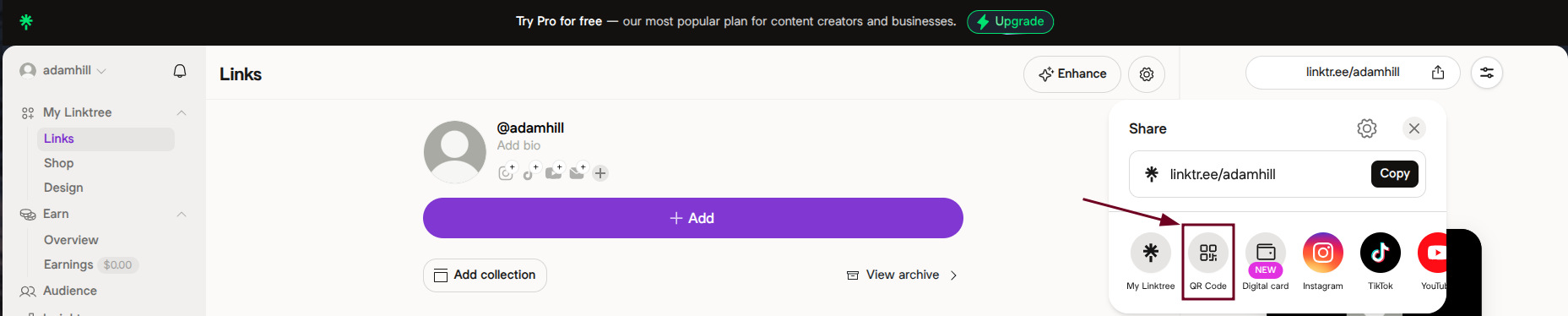
Step #02: Locate “Share”
Once you’re on your dashboard, look for the “Share” icon. You’ll find it near your profile link or at the top of the page.
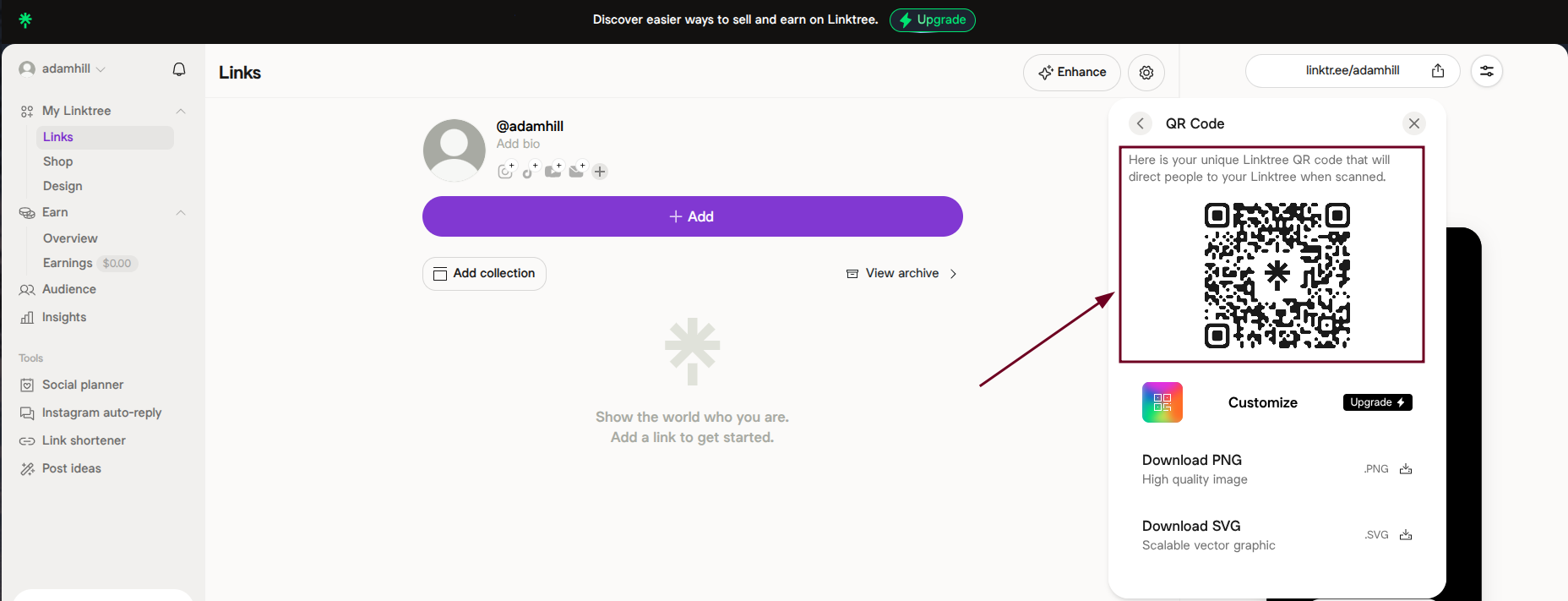
Step #03: Generate QR code
Click on the “Share” icon, and you’ll see your QR code already generated and ready to go.
Linktree automatically creates one linked to your unique Linktree URL.
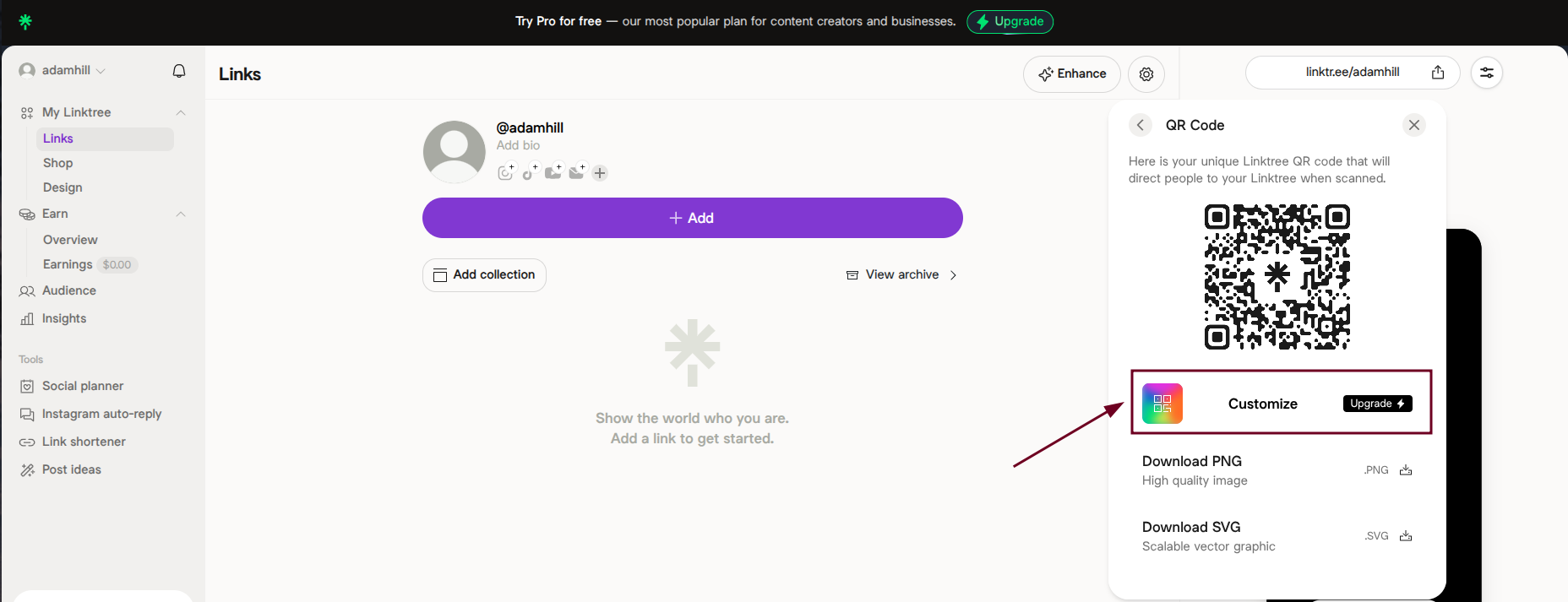
Step #04: Customize (optional)
If you’re on a paid plan, you can tweak the QR code’s colors and style to match your brand. A nice touch if you’re using it professionally.
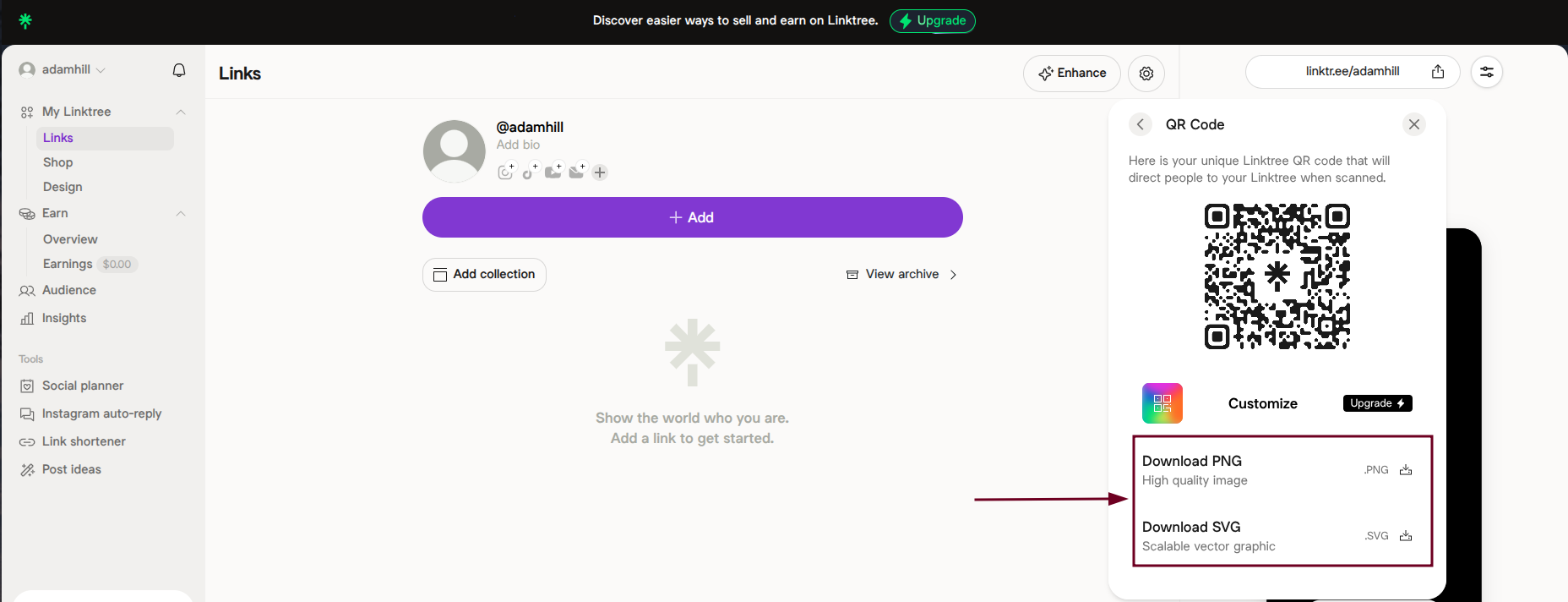
Step #05: Download
Hit the “Download PNG” or “Download SVG” option, save the QR code as an image file, and it’s yours to use wherever you need it.
How to create a Linktree QR code with Replug
Replug is a top-notch link management platform that also lets you create QR codes on the go. And it comes with some extra perks like tracking and retargeting as well.
Here’s how to generate a Linktree QR code using Replug in no time:
Step #01: Log in to Replug
Go to replug.io and sign in to your account. If you are new here, you can quickly create an account and get started.
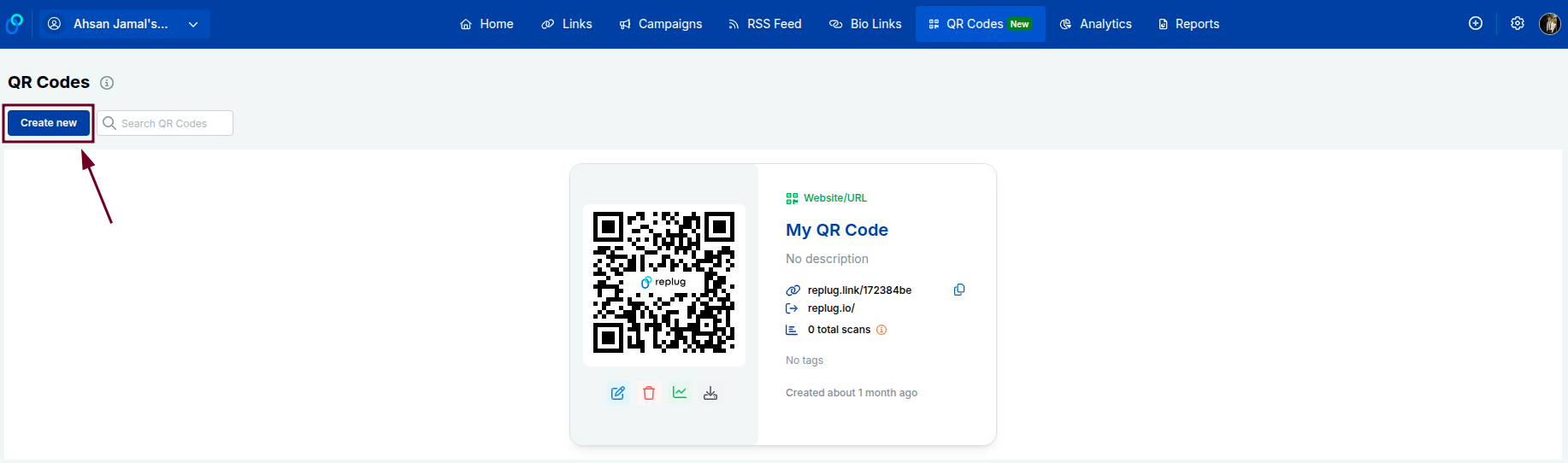
Step #02: Click “QR Codes”
From your Replug dashboard, find and click on the “QR Codes” option. It will be available in the top list of options.
Step #03: Click the “Create new” button
You’ll see a “Create new” button on the QR Codes page. Go ahead and click it to start building your QR code.
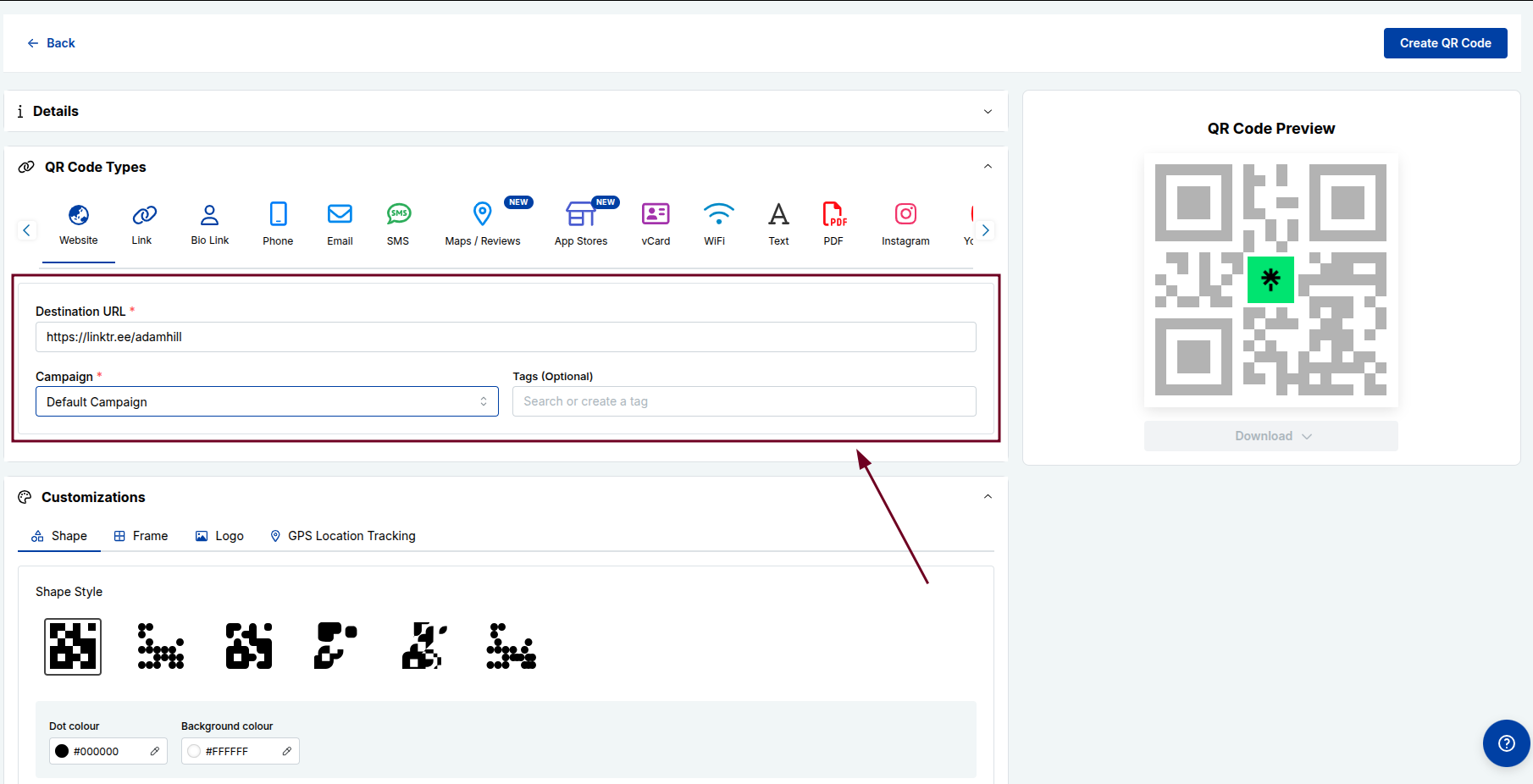
Step #04: Enter details
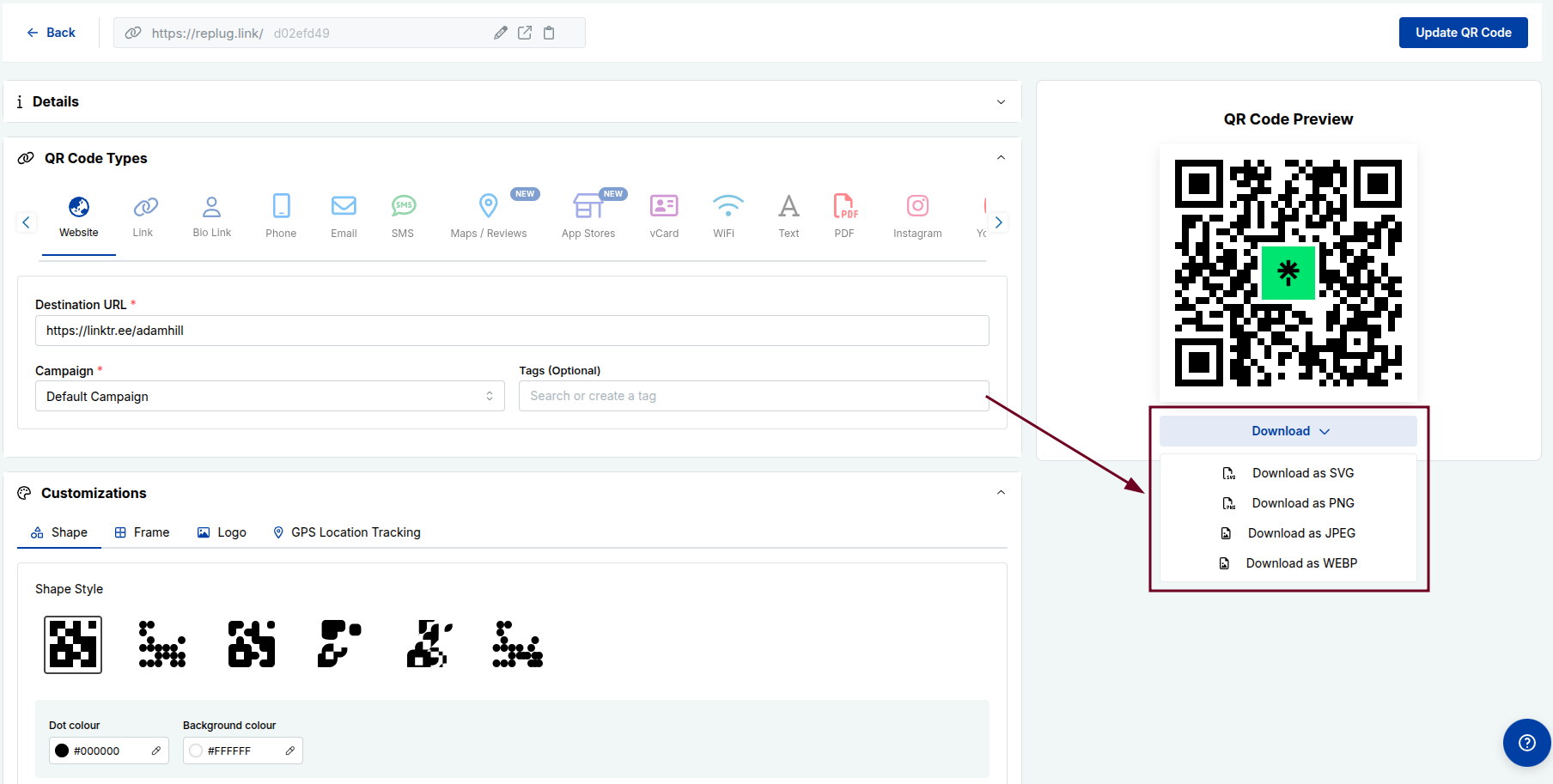
Paste your Linktree URL into the provided “Destination URL” field, and fill in any other required details. Also, customize the QR code the way you like.
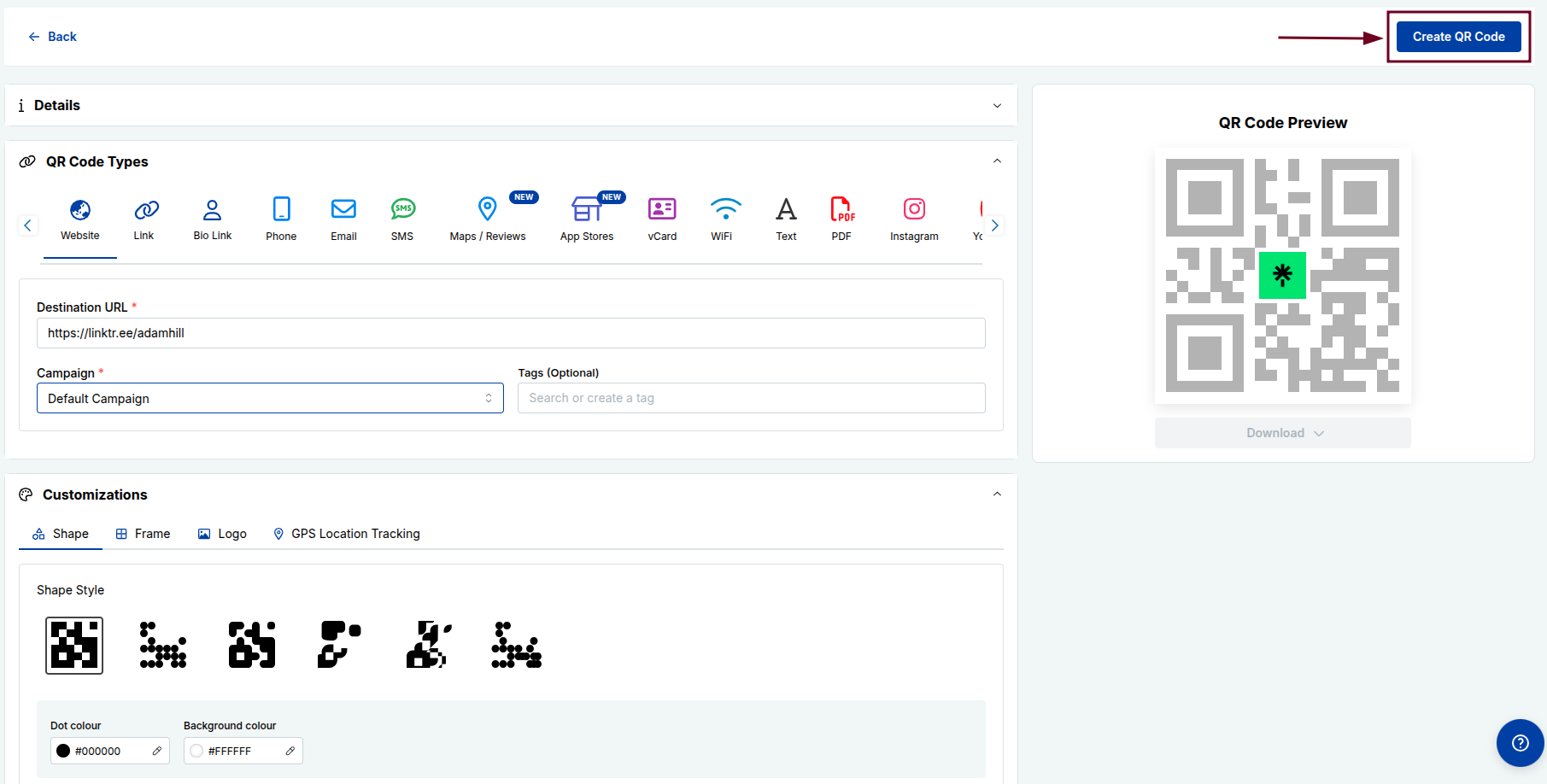
Step #05: Click “Create QR Code”
Once everything looks good, hit the “Create QR Code” button.
Your QR code will be generated instantly and ready to download and use. You can download in any format you like (SVG, PNG, JPEG, or WEBP).
Linktree QR codes aren’t just a cool-looking feature; they’re genuinely useful. No matter if you’re a creator, freelancer, or business owner, here’s why adding a QR code to your Linktree strategy just makes sense:
Instant access & convenience: No more typing out long URLs. People simply scan and land on your Linktree page within seconds, making the whole experience smoother for everyone.
Bridge physical & digital spaces: Add your QR code on a business card, poster, or product packaging and instantly connect your offline audience to your entire online presence.
Consolidation of multiple links: Instead of sharing five different links, one QR code scan takes people to your Linktree, where all your important links (social media, website, store, etc.) live in one place.
Real-time updates: Update your Linktree links anytime, and your QR code automatically reflects those changes. No need to reprint or regenerate anything.
Enhanced networking: At events, meetups, or conferences, sharing your QR code is way faster and more memorable than exchanging contact details the old-fashioned way.
Cost-effective marketing: Creating a Linktree QR code is free, and using it across print or digital materials saves you money compared to traditional marketing tools that do far less.
Benefits of using Replug QR codes instead
Linktree’s built-in QR code gets the job done, but Replug takes things a step further. If you’re serious about tracking performance and getting more out of every scan, here’s why Replug’s QR codes give you an edge:
Advanced retargeting: Replug lets you attach retargeting pixels to your QR codes, so you can re-engage people who scanned your code with targeted ads on Facebook, Google, and more.
Deep analytics & tracking: See exactly how many people scanned your code, when, and from where, giving you real data to understand what’s working and what’s not.
Personalized branding & custom domains: With Replug, you can use your own custom domain and brand your QR codes with your colors and logo, making everything look polished and professional.
Dynamic flexibility:Need to change the destination URL after printing? No problem. Replug’s dynamic QR codes let you update the link anytime without touching the QR code itself.
Efficient lead generation: Replug lets you add lead capture forms to your links, turning every QR code scan into a potential new subscriber or customer (something Linktree simply doesn’t offer).
Unlimited versatility: From marketing campaigns and product packaging to email signatures and event materials, Replug QR codes work seamlessly across virtually any channel or format.
Best practices & tips for using Linktree QR codes efficiently
Creating a QR code is easy, but making sure it actually works well and gets scanned is a different story. Follow these simple tips to get the most out of your Linktree QR codes:
Tip #01: High contrast
Always use dark colors on a light background. The stronger the contrast, the easier it is for phone cameras to scan your code quickly and accurately.
Tip #02: Minimalist design
Keep the design clean and simple. Overloading your QR code with too many colors or design elements can confuse scanners and cause read errors.
Tip #03: Use proper formats
Download your QR code as a high-resolution PNG or SVG file so it stays sharp and scannable, whether it’s printed small on a card or large on a banner.
Tip #04: Avoid inversion
Don’t flip your QR code to light-on-dark. Most scanners struggle with inverted codes, and it’s an easy way to kill your scan rate without realizing it.
Tip #05: Add a call to action (CTA)
Place a short CTA phrase like “Scan to see all my links” near your QR code. A slight nudge like this can significantly boost the number of people who actually scan it.
Tip #06: Size matters
Never print your QR code smaller than 2×2 cm. Anything smaller gets pretty difficult to scan, especially on low-quality prints or from a slight distance.
Tip #07: Test multiple devices
Before going live, test your QR code on both iOS and Android devices as well as PC screens and laptops to make sure it scans smoothly across different cameras and operating systems.
Tip #08: Use dynamic codes
Opt for dynamic QR codes over static ones so you can update your Linktree URL anytime without having to reprint or redistribute your materials.
Tip #09: Optimal placement
Put your QR code somewhere people can comfortably scan it (eye level works best). Also, avoid placing it on curved surfaces or in low-light areas where scanning becomes a hassle.
Turn QR codes into your smartest marketing asset using Replug!
If you want to do more than just generate a basic QR code, Replug is the tool you need in your corner.
It’s an all-in-one link management tool that helps you shorten links with its reliable link converter. Besides, it assists in tracking clicks, retarget audiences, and yes, creating stunning, fully personalized QR codes in seconds.
With Replug’s custom QR code generator, you can build dynamic QR codes branded with your own colors, logo, and custom domain, no design skills needed. And since they’re dynamic, you can update the destination link anytime without reprinting a thing.
Dynamic QR codes
for modern brands, marketers,
and creators.
No matter if you’re running a marketing campaign or just want smarter, trackable links, Replug turns every QR code scan into a real opportunity. It’s fast, intuitive, and built for people who mean business.
Wrapping up
QR codes have gone from a nice-to-have to a genuine marketing tool, and pairing them with your Linktree page makes them even more powerful.
Whether you’re sharing your links at an event, on a business card, or across printed materials, a Linktree QR code makes it effortless for people to find everything you offer in one tap.
And if you’re ready to take it up a notch with tracking, retargeting, and branded customization, Replug is the obvious next step.
The bottom line?
A well-designed, well-placed QR code can do a lot of the hard work for you — so why not let it?
Frequently asked questions
Does Linktree give a QR code?
Yes, Linktree automatically generates a QR code for every account (free and paid alike). You don’t have to create one from scratch or use a third-party tool. It’s built right into the platform and linked directly to your Linktree profile URL.
How do I get a QR code for my Linktree?
If you’re wondering how to get your Linktree QR code, it’s really simple. Just log in to your Linktree account, hit the “Share” button on your dashboard, and your QR code will be right there waiting for you. From there, you can download it and start using it wherever you need it.
Are Linktree QR codes permanent, or do they expire?
A common question most people ask is: Does a Linktree QR code expire? The short answer is no. As long as your Linktree account remains active, your QR code stays valid and functional. It won’t suddenly stop working unless you delete your account or change your Linktree username, which would break the link the QR code points to.
How to find my Linktree QR code on iPhone?
Here’s how to find the Linktree QR code on iPhone:
1. Open Safari or any browser. 2. Go to linktr.ee and log in to your account. 3. Once you’re on your dashboard, tap the “Share” button. The QR code option will appear on screen inside the box. 4. From there, you can download it directly to your iPhone’s camera roll for easy access anytime.
Which people and businesses benefit from Linktree QR codes?
Pretty much anyone with an online presence. Content creators, musicians, freelancers, coaches, restaurants, retail stores, event organizers, and small business owners all benefit from Linktree QR codes. If you have multiple links you want people to access quickly, it’s a no-brainer.
What if my Linktree QR code doesn’t scan?
First, check the contrast and size. Low contrast or too-small print is usually the culprit. Also, make sure the code isn’t distorted or pixelated. Try scanning it on a different device, and if it still doesn’t work, try regenerating the QR code altogether.
Is my Linktree QR code safe to share online?
Yes, it’s safe. Your Linktree QR code simply points to your public Linktree page, i.e., the same page you’d share as a regular link. Just make sure the links on your Linktree page itself are trustworthy and up to date.
What can I use my Linktree QR code for?
The possibilities are pretty wide: business cards, flyers, posters, product packaging, event booths, email signatures, YouTube video descriptions, Instagram bios, restaurant menus, and even merchandise. Anywhere you want people to quickly access your links works.
Does the Linktree QR code work across all devices?
Yes! Since most modern smartphones (both iOS and Android) have built-in QR code scanners in their camera apps, your Linktree QR code works seamlessly across virtually all devices without needing any extra app.
How to resolve the Linktree QR code not working issue?
Start by testing it on multiple devices. If it’s a print issue, reprint at a higher resolution. Moreover, if the link itself isn’t loading, log in to Linktree and make sure your profile is set to public and your links are active. Regenerating the QR code often fixes most issues.
How to get the Linktree QR code on a business card?
Download your Linktree QR code as a high-resolution PNG or SVG file. Then, upload it directly into your business card design, whether you’re using Canva, Adobe, or a print service like Vistaprint. Make sure it’s at least 2×2 cm for easy scanning. That’s it!
How to download the Linktree QR code for free?
Log in to your Linktree account and click the “Share” button on your dashboard. You’ll see your QR code ready to download completely free, no paid plan required. Just hit “Download PNG” or “Download SVG” and save it to your device.
How to monitor Linktree QR code usage?
On Linktree’s free plan, analytics are pretty limited. If you want detailed scan tracking, like how many people scanned, when, and from where, consider using the Starter, Pro, or Premium plan. You can also use a tool like Replug to monitor your QR code with full analytics built in.
Provide some examples of Linktree QR codes?
Here are a few real-world use cases:
– A musician placing a QR code on their album cover linking to their Spotify, merch store, and tour dates; – A food blogger adding one to their recipe cards linking to their YouTube and Instagram; – A freelancer putting it on their business card linking to their portfolio, LinkedIn, and booking page; and – A restaurant using it on table cards to link to their menu, reviews, and social pages.
What are the important points to consider for basic Linktree QR codes?
Keep these in mind:
– Always use high contrast colors, – Download in a high-resolution format, – Never print it too small, – Add a CTA near the code, – Test it before printing in bulk, – Keep your Linktree profile set to public, and – Regularly check that all your linked pages are still active and working.
QR codes have become a staple in our daily digital interactions. From restaurant menus to payment links, they simplify access to important information. But what if you receive a QR code as an image rather than a printed version? Fortunately, both iOS and Android provide easy ways to scan QR codes from images.
In this guide, we will walk you through the simple steps for both iOS and Android devices. We’ll explore smart techniques, troubleshooting tips, and best practices to get the best results. As you read on, you might even consider how tools like Replug can boost your digital campaigns by offering advanced QR code tracking and analytics.
Let’s get started!
Why scan a QR code from an image?
QR code scanning from images means reading a QR code that is stored as a picture rather than captured in real-time by your camera.
The user perspective
Scanning a QR code from an image is practical for users because it allows them to interact with QR code content at their own pace. You can store and revisit QR codes, making it easy to keep a record of important information without worrying about losing a physical copy.
There are many scenarios where you might need to scan QR code from image rather than using your camera:
A friend sends a QR code via WhatsApp or email.
You take a screenshot of a QR code from a website.
A business shares a digital flyer containing a QR code.
You save QR codes for later use.
The marketer perspective
The ability to scan a QR code from an image opens up new pathways in digital engagement and record-keeping. Some key marketing benefits of QR codes for marketers include:
Longer campaign visibility: QR codes in images can be shared and saved, extending the life of a campaign beyond a single interaction.
Increased engagement: Users can interact with QR codes whenever they want, making them more likely to scan and take action.
Better tracking and insights: Marketers can analyze QR scan data using link management tools such as Replug, to refine their strategies and optimize conversions.
How to scan QR code from image on iOS devices
Apple devices are designed to make QR code scanning straightforward. Most modern iPhones and iPads feature built-in tools that simplify the process. Here’s how you can scan a QR code from an image on iOS:
Using live text feature (iOS 15+)
If you’re running iOS 15 or later, you can use Live Text to scan QR codes:
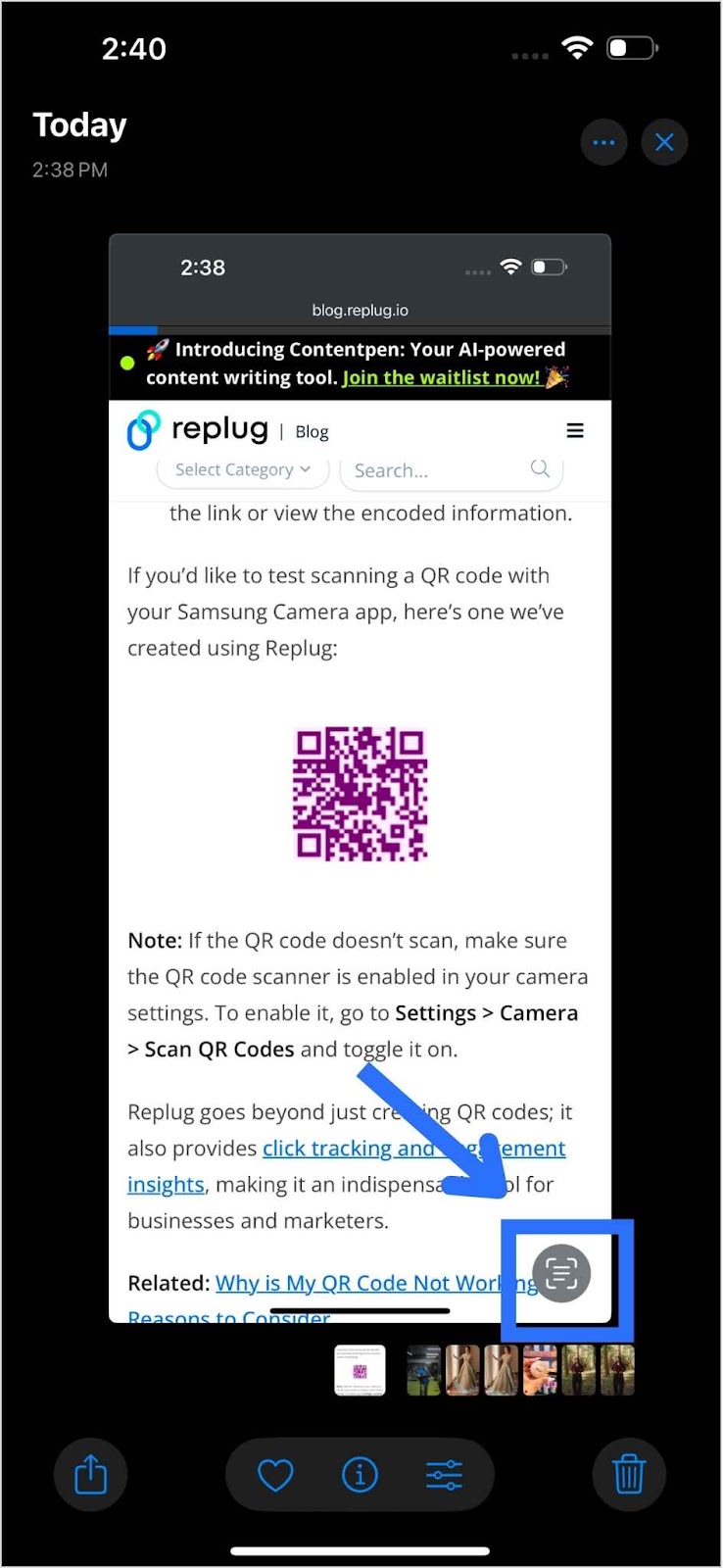
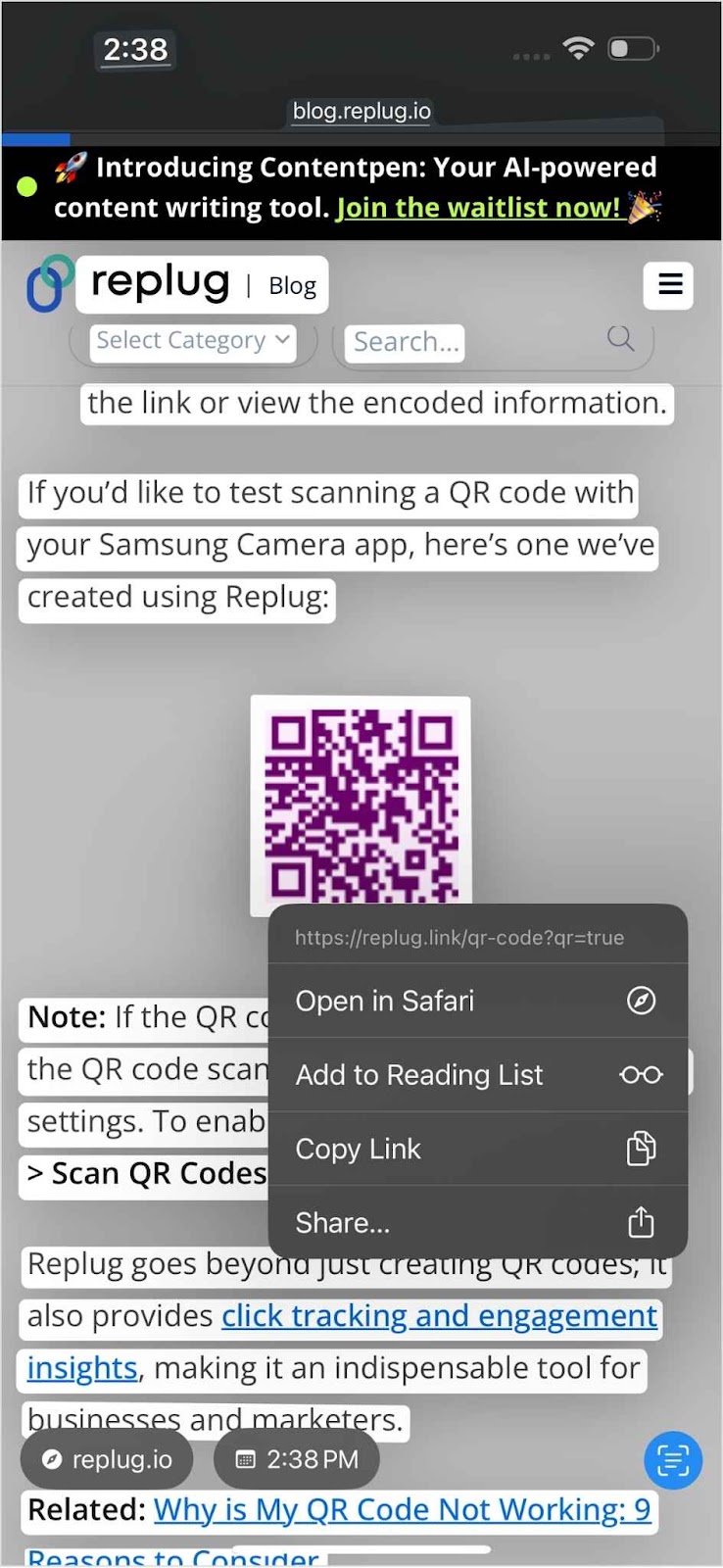
Open the Photos app and select the image.
Tap the Live Text button (a small square with lines inside).
Tap on the QR code. A menu will appear with options like “Open in Safari” if the QR code directs you to a web link.
Choose your desired action based on the QR code content.
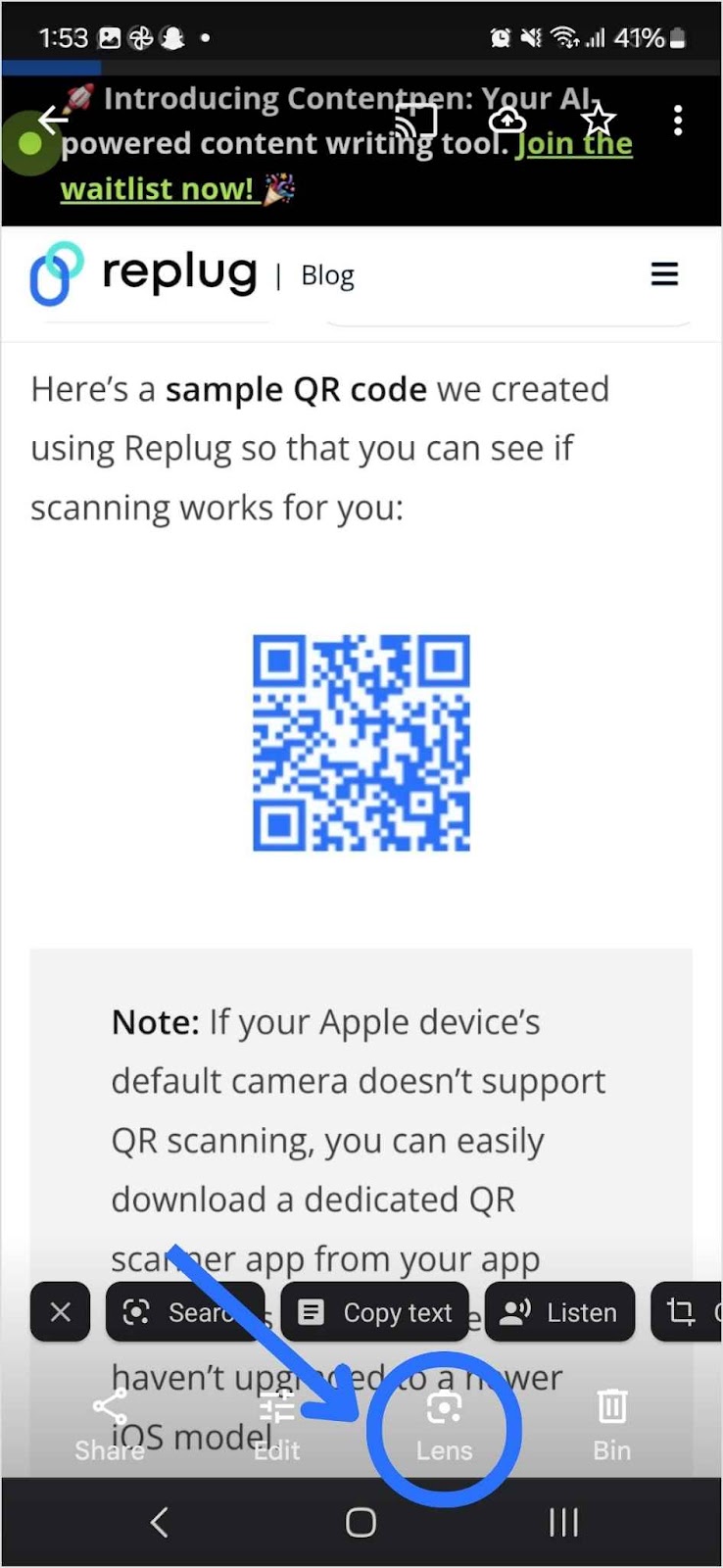
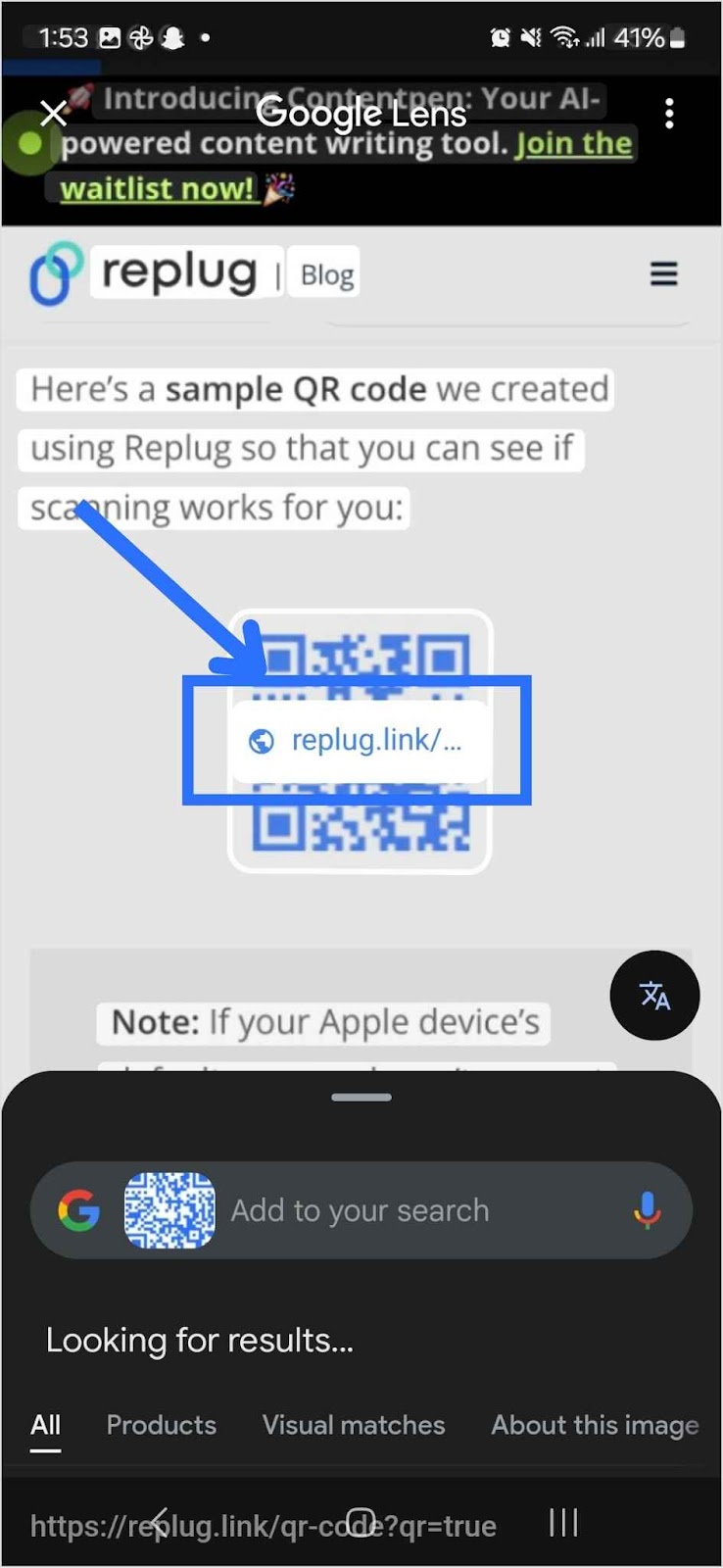
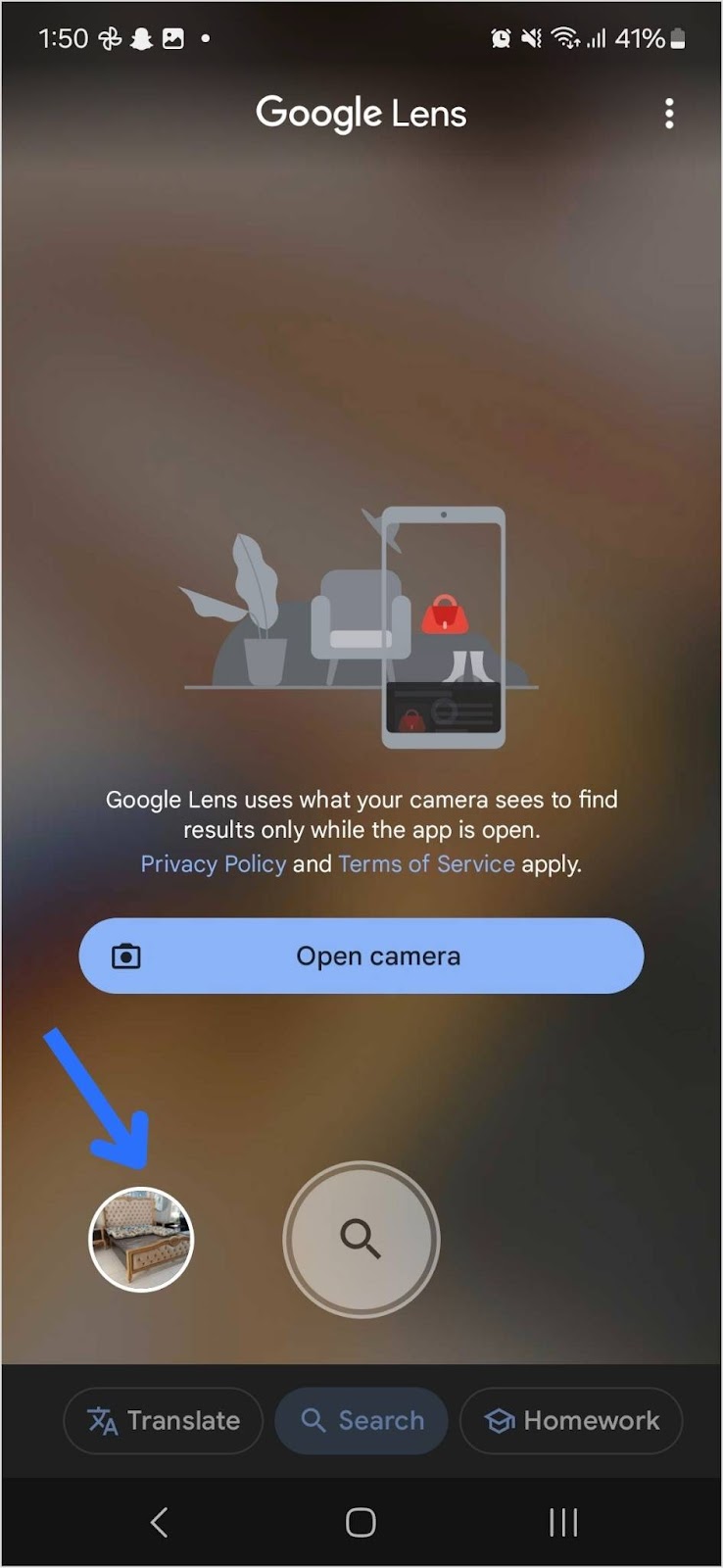
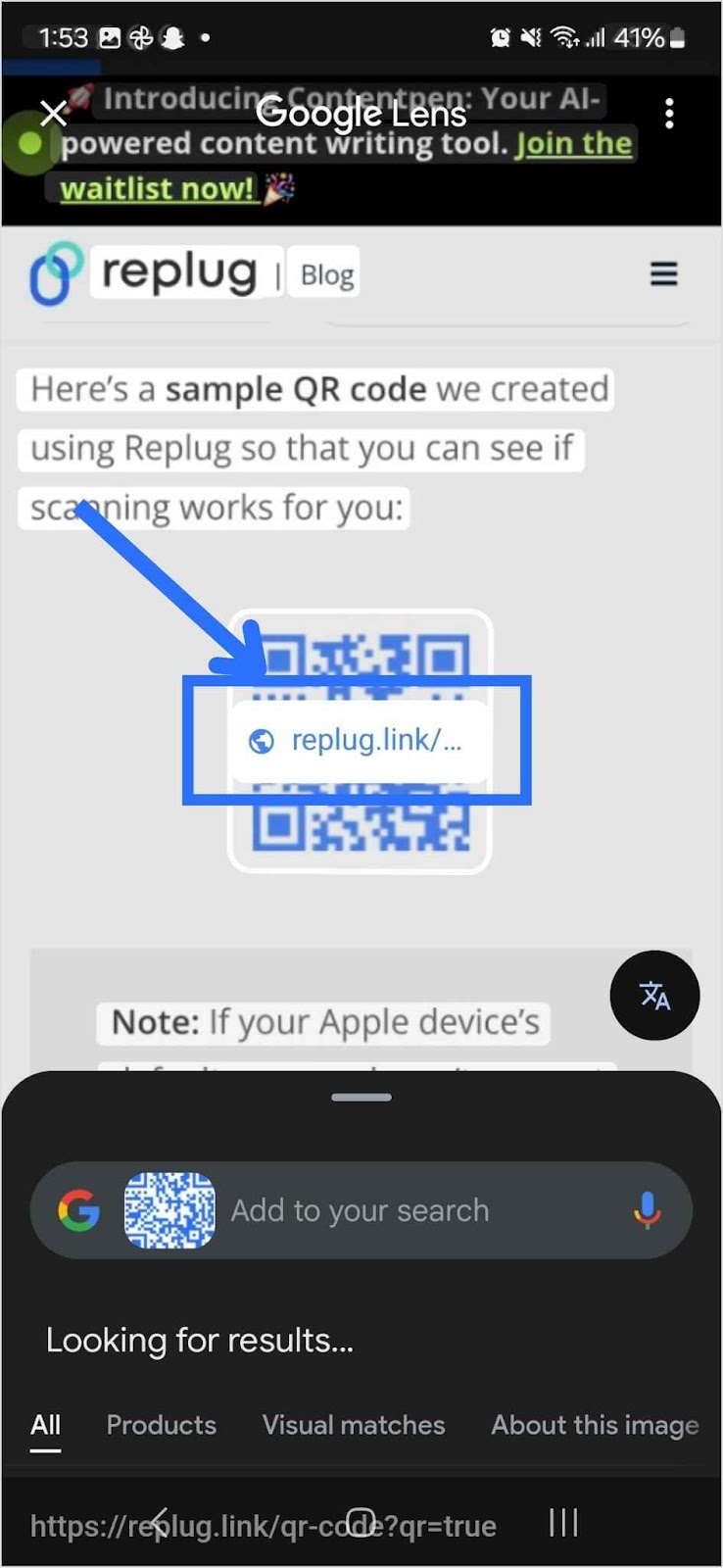
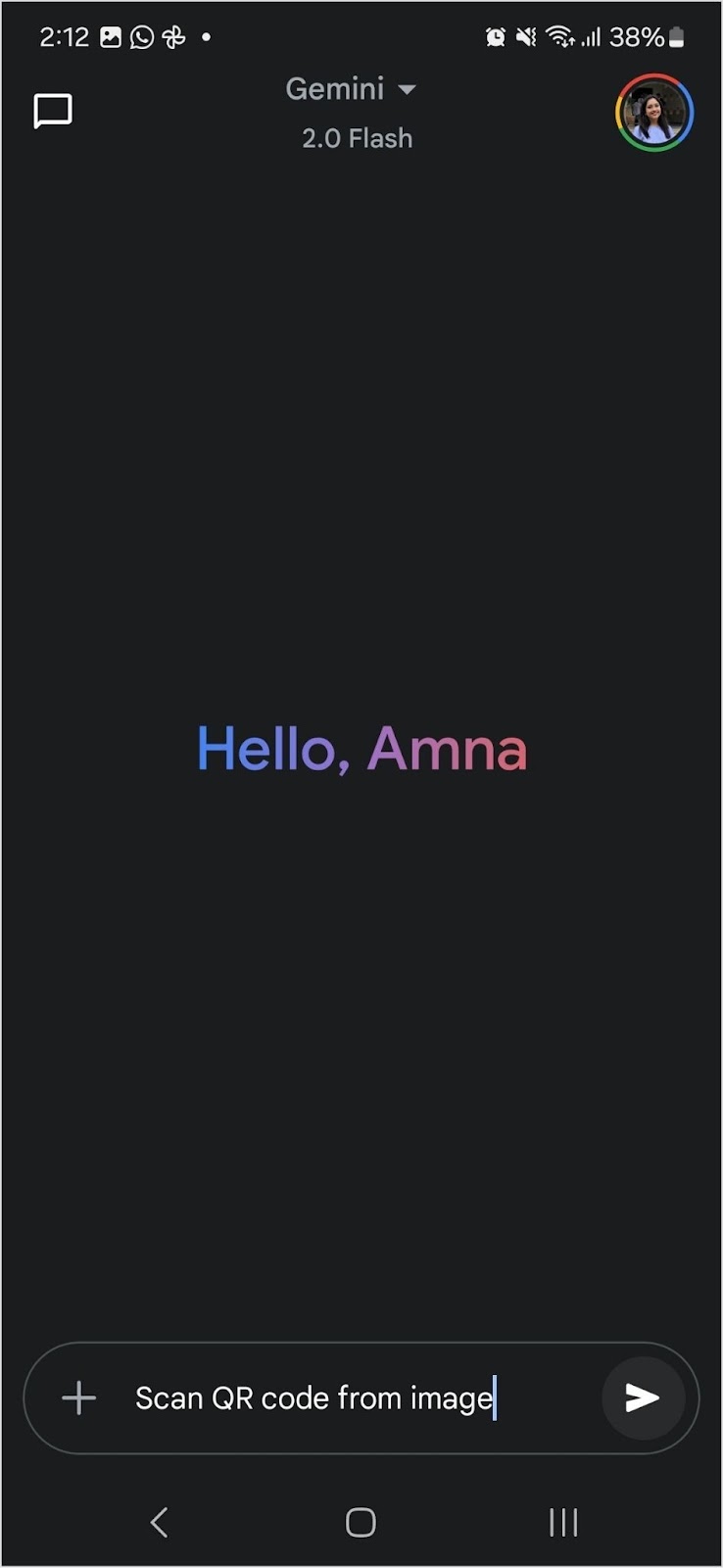
There might be a setting change where Gemini is the default assistant. This change might affect how your device responds to voice commands. If you prefer to use Google Gemini to scan QR code from image, here’s how to do it:
Look for Google Assistant on your Android device and Open Gemini.
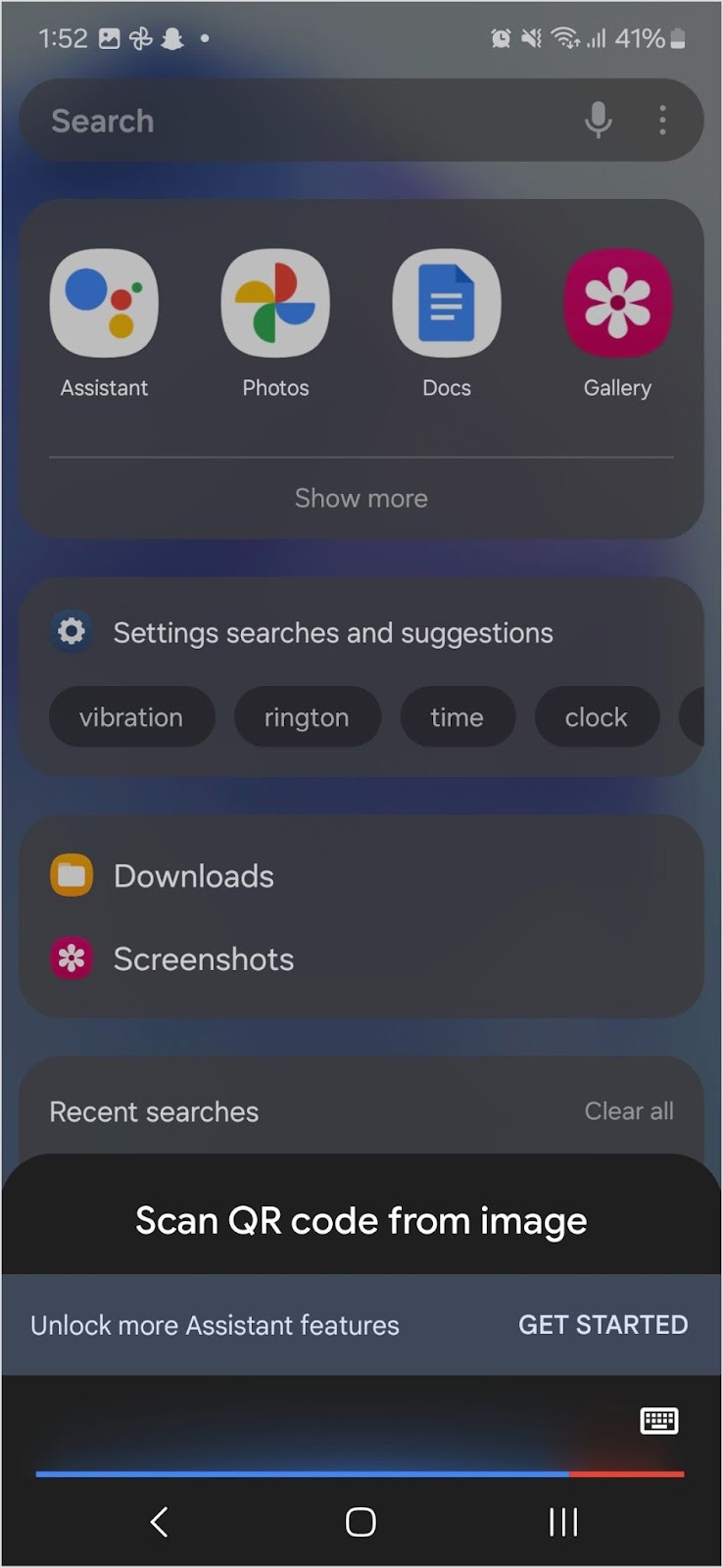
Type Scan QR code from image and enter.
Google Gemini will automatically lead you to a QR scanner app. Select Scan from the given options.
Go to Gallery.
Select the image with the QR code from Photos.
The QR scanner app will process the image and extract the QR code data.
How to scan a QR code from an image online
If you don’t want to install an app, you can scan QR code from image online using a browser. Several websites allow you to upload an image and extract the QR code content. Here’s how:
Visit a QR-scanning website.
Click on the Upload Image button.
Select the image containing the QR code.
The website will decode the QR code and display the result.
Maximize your brand with scans and more
QR codes aren’t just about scanning; they play a crucial role in marketing, branding, and link management. This is where a comprehensive link optimization platformsuch as Replug can help:
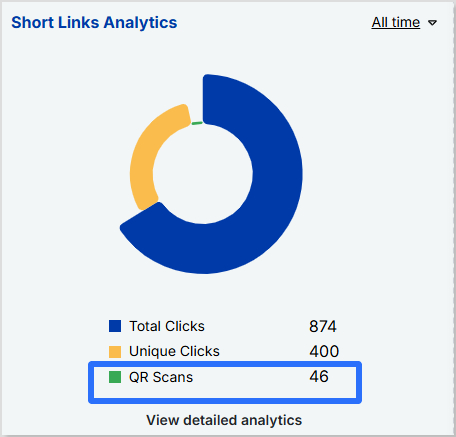
Track QR code scans
Monitor the performance of QR code scans in real-time.
Gather insights into user engagement and behaviour.
Identify the best-performing campaigns to optimize your strategy.
Manage QR campaigns
Create custom, branded short links with this efficient link shortener to attach to your QR codes to reinforce brand identity.
Manage all your QR code campaigns through a sleek and easy-to-navigate dashboard.
Give access to team members easily so that they can collaborate on campaigns, manage QR code designs, and share valuable insights.
Adjust campaigns based on what works best to increase engagement.
Maximize marketing ROI
by transforming ordinary URLs into branded short links that convert.
Try Replug for free
Benefits of using Replug for QR code campaigns:
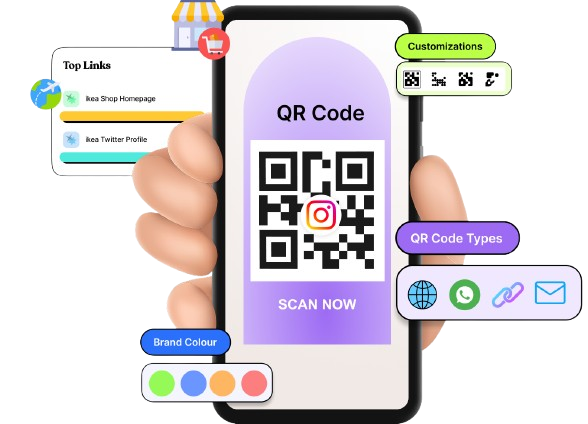
Customization: Create custom QR codes with this efficient QR code generator. Change your QR code’s background and foreground colours to reflect your brand.
Dynamic QR codes: Edit the destination URL anytime without generating a new code.
Multiple download formats: Download your QR code in PNG or SVG format for flexible sharing.
With Replug, QR codes are more than just a gateway; they’re a valuable tool for tracking and enhancing your marketing campaigns!
Best practices for scanning QR codes from images
Ensure the QR code is clear and not blurry.
If a QR code is cropped or incomplete, it may not scan properly.
Adjust the brightness if the image is too dark.
Use trusted apps or built-in tools to avoid security risks.
If your device does not have an in-built QR scanning feature for images, download a third-party QR code scanning app from Play Store or Apple Store.
Always preview the link before opening it to prevent phishing attacks.
Conclusion
Now you know multiple ways to scan QR code from image on iOS, Android, and online platforms. Scanning a QR code from an image is quick and easy whether you’re using Google Lens, the Photos app, or an online tool.
It’s a convenient way to access important links without needing a physical code. Whether for personal use or marketing, having the right tools makes all the difference. With Replug, you can create customizable, trackable, and dynamic QR codes to enhance your campaigns and maximize engagement.
FAQs on how to scan QR code from image
Can I scan a QR code from an image without using an app?
Yes! Both iOS and Android devices have built-in tools like Live Text (iOS) and Google Lens (Android) that allow you to scan QR codes from images without needing a third-party app.
Why isn’t my phone detecting the QR code from an image?
This may happen if the image is blurry, cropped, or too dark. Try zooming in, adjusting brightness, or using a dedicated QR scanner app for better results.
Is it safe to scan QR codes from images?
Generally, yes. However, always preview the link before opening it to avoid phishing scams.
What should I do if my iOS device isn’t detecting the QR code?
Ensure your device is updated to the latest OS version. If the code isn’t detected, zoom in to improve clarity. Check the image for blurriness and capture again if needed. Use the Notes app to scan the QR code by creating a new note, tapping the camera icon, and selecting “Scan Documents”.
Can I change the destination of a QR code after it’s been shared?
If you’re using a dynamic QR code, you can update the URL without changing the QR code itself. Replug allows you to edit and track QR codes in real-time.
Social media isn’t just for memes and viral trends anymore, it’s a powerhouse for ecommerce businesses. With more than half of social media marketers using platforms to sell products directly within apps, brands are leveraging social media to boost conversions. In fact, 87% of sellers say social selling has been effective for their business and has helped them increase ecommerce sales.
If you’re looking for ways to increase ecommerce sales through social media, you’re in the right place. This guide will walk you through proven strategies to turn your social media presence into a revenue-driving machine.
The role of social media in ecommerce growth
Social media has revolutionized how businesses operate, especially in ecommerce. What started as a platform for connecting with friends and sharing updates has now become a powerful tool for driving online sales and building brand loyalty. If you’re running an online store, understanding the role of social media in ecommerce growth is no longer optional; it’s essential.
With global ecommerce sales reaching an estimated $5.8 trillion in 2023 and projected to grow by 39% in the coming years, social media has emerged as a key driver of this growth (Statista). From increasing product discoverability to streamlining the purchase process, social media offers countless opportunities for businesses to connect with their audience and increase sales.
Why social media is a game-changer for online sales
Social media has fundamentally changed how consumers shop and interact with brands. Here’s why it’s a game-changer for online sales:
Elevates product discoverability: Targeted ads, engaging content, and collaborations introduce products to a broader audience.
Streamlines purchases: Features like Instagram Shop, Facebook Marketplace, and TikTok’s shopping tools simplify transactions.
Builds customer loyalty: Direct engagement, personalized responses, and community efforts build strong relationships and repeat sales.
Influencer marketing: Partnering with influencers builds brand credibility and connects products with engaged audiences.
Precision targeting: Social media allows brands to target specific demographics, increasing ROI and marketing efficiency.
Capitalizing on mobile shopping: As 60% of US adults consider mobile shopping essential, optimizing social shopping for mobile users enhances conversions.
16 ways to increase ecommerce sales through social media
1. Sell directly on social media platforms
Social commerce is gaining momentum, with 63% of businesses already using it to amplify sales. It simplifies the path from discovery to checkout, encouraging impulse buys and improving conversion rates.
Social commerce is the buying and selling of products directly within social media platforms, allowing users to shop without leaving the app.
By enabling businesses to sell directly on platforms like Instagram, Facebook, TikTok, and Pinterest, social commerce creates a seamless shopping experience. With 90% of people more likely to buy from brands they follow on social media, in-app features like checkout and “tap-to-buy” buttons make purchasing easy and drive sales while users browse.
Setting up shops on Instagram, Facebook, TikTok & Pinterest
To take advantage of this growing trend, you need to set up shops on the platforms your customers are using. Here’s how:
Instagram & Facebook: Build a virtual storefront that lets users browse and purchase directly from posts, stories, or shop sections.
TikTok: Integrate products into videos and live streams for instant sales.
Pinterest: Use shoppable pins that link directly to product pages, making it easy for users to shop as they explore.
These tools create frictionless shopping experiences that can boost conversions.
Live shopping: Turning engagement into sales
Live shopping is growing on platforms like TikTok and Instagram, where brands can host real-time events to showcase products, engage with viewers, and offer exclusive deals. This creates urgency and encourages immediate purchases, helping businesses build trust with followers and strengthen relationships.
2. Choose the right social media platforms
Not all social media platforms are created equal, especially when it comes to ecommerce. Identifying where your target audience spends their time is key to maximizing sales. Here’s a breakdown of the best platforms for driving ecommerce sales:
Aligning your brand with the right platform for your audience can drive engagement and boost e-commerce sales.
How to identify the right platform for your business
To determine which platform works best for you, consider these questions:
Who is my target audience? Each platform caters to different demographics. If you’re targeting younger consumers, TikTok might be your best option, while Facebook or Instagram can reach a broader age range.
What content works best for my business? Visual-heavy brands may excel on Instagram and Pinterest, while TikTok is perfect for businesses creating fun, engaging video content.
What are my business goals? Whether you’re focused on immediate sales or building and increasing brand awareness, each platform offers features that can help you meet specific goals (e.g., shoppable posts, live streams, ads).
Choosing the right social media platform for your ecommerce business comes down to understanding where your audience spends time and how they engage with content. A well-planned strategy, combined with effective eCommerce website development, can enhance user experience and drive better engagement
3. Use social media management tools
Social media management is a key factor in increasing ecommerce sales, and tools like ContentStudio can make a significant difference. These tools help businesses plan, schedule, and manage content across multiple platforms, simplifying the process and driving better results.
Benefits of ContentStudio for ecommerce
Content scheduling: Easily schedule posts in advance to maintain a steady content flow. ContentStudio offers this feature, helping you stay on top of your social media presence.
Content planning: With a built-in content calendar, ContentStudio allows for effortless planning and automation. This saves time and allows businesses to focus on creating quality content.
Content management: Handling multiple social media accounts from one platform is made easy with ContentStudio, which supports integration with Facebook, Instagram, Twitter, and others.
Such social media tools streamline the process of content scheduling, planning, and multi-account management, ultimately increasing e-commerce sales.
4. Increase sales with deep links
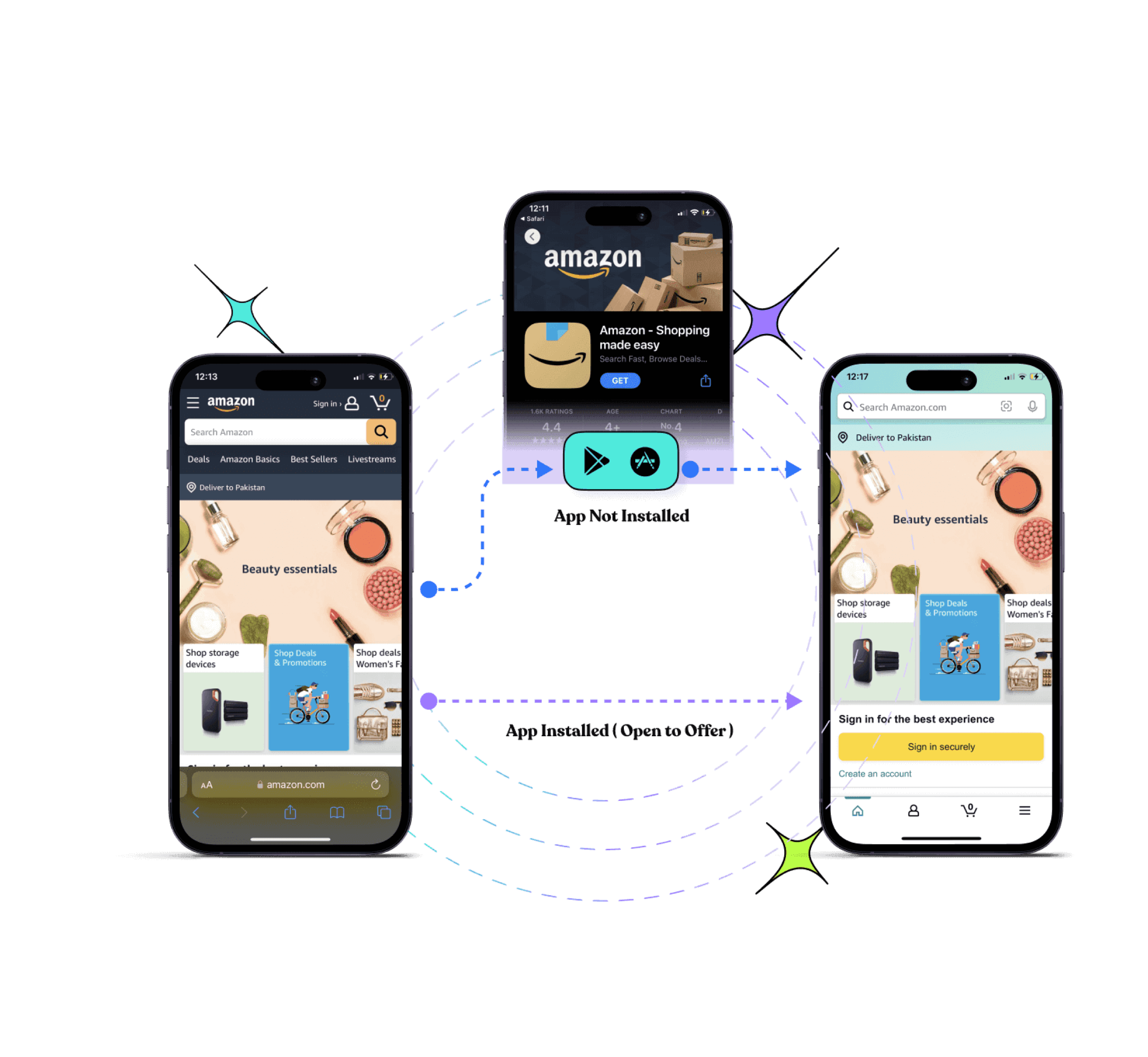
With Replug’s deep linking, you can guide potential customers directly to the content that matters most, whether they have your app installed or not. This means less friction and more opportunities to convert visitors into paying customers.
Here are the key advantages of deep lining:
Boost your app’s discovery: Whether users have your app installed or not, Replug’s deep links ensure they’re taken to the right destination on your ecommerce store, leading to higher chances of a successful purchase.
Drive traffic to your app from anywhere: Promote your app across social media, ads, emails, and more by using just one deep link to direct users to your app store or in-app content, reducing drop-off and increasing engagement.
Streamline the conversion funnel: Deep links allow you to bypass unnecessary steps, sending users straight to specific products or offers, increasing the likelihood of a purchase and improving sales.
Re-engage and win back users: With push notifications and targeted emails featuring deep links, you can bring back users who’ve lapsed, driving them back to your app and increasing retention.
Create deep links for any platform: Whether you’re marketing on Instagram, YouTube, or other apps, Replug’s social media deep links ensure users get exactly where they need to go, enhancing their experience and increasing conversions.
Drive more clicks, conversions, and app installations by deep linking
to your favorite platforms.
Try deep links for free
5. Leverage social media analytics for better targeting
Social media analytics play a vital role in optimizing marketing strategies by providing insights into customer behavior. Here are key ways to leverage analytics for better targeting and improving sales:
Understanding customer behavior through data
Through analyzing social media metrics such as likes, comments, and shares, businesses can uncover what resonates most with their audience. This data helps in crafting more personalized content and offers, improving engagement and conversions.
Tracking key metrics (CTR, engagement, ROI)
Tracking the right social media metrics is essential to assess the performance of your campaigns. Key metrics to monitor include:
Helps determine the financial success of your campaign.
Segmentation and audience insights for personalized marketing
Segmentation tools allow you to categorize your audience based on factors like behaviors, interests, and demographics. By personalizing campaigns for different segments, you can ensure that your content is more relevant, increasing the chances of conversion.
Cart abandonment & retargeting strategies
Social media analytics can help identify abandoned carts. With Replug’s retargeting pixel feature, you can easily track website visitors who didn’t complete their purchase and retarget them with personalized ads across various platforms.
A complete link management solution
for marketing professionals & agencies.
Try Replug for free
6. Get creative with social media content
The best part about social media? You can literally do whatever you want with your visuals! The freedom is unmatched, and it’s the perfect place to show off your products in ways that would be impossible in traditional marketing. From eye-catching video animations to scroll-stopping reels and behind-the-scenes content, the possibilities are endless. Want to level up your visuals even more?
Understanding the product photography cost can help you plan for high-impact content that adds an immersive, interactive edge to your social media strategy. Here are a few strategies to enhance your ecommerce sales using creative social media content:
Visual experimentation: Go wild with your content! Reels, carousels, stories—use all of it. Glossier keeps it dreamy and soft, while Rhode makes their products look so luxurious it’s almost unfair.
Sensory marketing: Make them feel something! Jacquemus creates bold, eye-catching visuals that draw people in, while Summer Fridays nails the soothing vibes that make their skincare impossible to ignore.
Oversized visuals: Big, bold, in-your-face visuals? Yes, please! Typology and The Ordinary keep it clean yet attention-grabbing, making their minimalist designs feel bold and premium.
Keep up with the trends: Jump on the trends! TikTok challenges, viral hashtags, or whatever’s blowing up—this stuff works. Airbnb absolutely nails it when it comes to following the trends.
the @barbie dreamhouse is back on airbnb. but this time—ken’s hosting. the pink palace has been revamped with maximum kenergy and is ready for guests. booking opens on july 17 at 10am PT. 🛼 barbie airbnb kendreamhouse don’t miss BarbieTheMovie only in theaters july 21.
Using memes: Memes are your secret weapon. They make your brand feel approachable and human. Wendy’s is a master at roasting the internet, and MoonPie is a meme machine that knows exactly how to turn the joke into a brand moment.
Interactive content: Get your followers involved! Polls, quizzes, and “choose your own adventure” stories make your audience feel like they’re a part of the experience. Starbucks uses Instagram polls to tease new drinks and get people buzzing.
Behind-the-scenes content: Everyone loves a sneak peek! Show what goes into your products or how your team works behind the scenes. Ben & Jerry’s shares quirky, fun content that lets their personality shine and keeps people connected.
User-generated content (UGC): Turn your customers into your best marketers. Repost their photos or videos using your products. Nike is fantastic at this, turning their customers into the face of their brand.
Social media is your playground. Don’t be afraid to experiment, have fun, and do what works!
7. Reduce cart abandonment with retargeting pixels
Retargeting is an essential tactic for bringing back lost visitors. Replug’s retargeting feature allows you to reach customers who have shown interest in your product but didn’t make a purchase.
Through personalized ads, you can encourage these users to return and complete their transactions, ultimately improving your conversion rates. Let’s dig into the benefits:
No coding required: Add your retargeting pixel to any link in seconds, without coding or technical skills.
Build your custom audience: With every click on your retargeted links, you can add users to your custom audience list for future remarketing campaigns, increasing your chances of conversion.
Reduce cart abandonments: Remind users who have abandoned their cart to complete their purchase, offering them an incentive to return, such as discounts or free shipping.
Add powerful CTAs to retargeted links: Replug makes it easy to add call-to-action buttons to your retargeting links, further encouraging users to click through and take action.
Leverage analytics for smarter retargeting: Use real-time analytics to track clicks, conversions, and campaign performance, helping you optimize your strategy and improve ROI.
Influencer marketing has become a powerful tool in ecommerce. By collaborating with influencers, you can increase brand awareness and drive traffic to your e-commerce store. The key is to find the right influencers and structure your partnerships for maximum return on investment (ROI).
Finding the right influencers for your niche
Choosing the right influencers depends on your brand’s niche. Whether you’re selling beauty products, tech gadgets, or fashion, it’s crucial to partner with influencers whose audience aligns with your target market.
Suppose your brand is leaning into e-commerce beverages. In that case, you can even launch a small-batch custom instant coffee line through a private-label platform, making influencer-driven campaigns easier to scale without having to handle production yourself.
And, if you’re in the beauty industry, collaborating with makeup artists on platforms like Instagram or TikTok can be effective.
Micro vs. macro influencers: which one drives more conversions?
Understanding the differences between micro and macro influencers can help you decide which one will provide the best results for your brand.
Aspect
Micro-influencers
Macro-influencers
Follower count
1K to 100K
100K+
Engagement rate
High (platforms like Instagram, TikTok)
Lower (more common on Facebook, Instagram)
Cost
Affordable
Expensive
ROI potential
High for conversions (Instagram, TikTok, YouTube)
High for brand awareness (Instagram, YouTube, Facebook)
Structuring influencer collaborations for ROI
To maximize the ROI of influencer collaborations, make sure to clearly define goals, set expectations, and track performance. Here are some strategies:
Offer clear value: Ensure that the partnership benefits both you and the influencer. Whether it’s through affiliate commissions, free products, or exposure, make the incentive attractive.
Use affiliate link cloaking: With Replug’s link cloaking feature, you can disguise long and messy affiliate links, making them look clean and professional. This improves the user experience and builds trust with your audience.
Create authentic content: Allow influencers creative freedom to produce content that resonates with their audience. Authentic content usually performs better and feels more genuine to followers.
Track performance: Use trackable links, promo codes, or UTM parameters to measure the effectiveness of influencer campaigns. Tools like Replug can help you generate and manage these trackable links, giving you insights into how well each influencer is driving sales.
Leverage multiple platforms: Don’t limit yourself to just one platform. A combination of Instagram, TikTok, and YouTube can help you reach a wider audience.
Maximize marketing ROI
by transforming ordinary URLs into branded short links that convert.
Try Replug for free
9. Drive engagement with QR codes
QR codes are an incredibly versatile tool for linking offline and online marketing efforts. Replug’s dynamic QR codes allow you to engage customers in-store, on print ads, or on packaging, building your brand presence both online and offline with detailed tracking to optimize your marketing strategies.
Here’s how it works:
Create instant QR codes: Generate QR codes for any shortened link and instantly connect users to your digital presence. This is perfect for stores, events, promotions, and more!
Enhance marketing with QR codes: Use QR codes for promotions, app installs, payments, digital menus, and more, integrating them into your physical marketing materials to bridge the gap between offline and online engagement.
Enjoy unlimited scans: Replug’s QR codes never expire, so you can keep reusing them without worrying about link expiration. Plus, you can update the destination URL anytime to keep your content relevant.
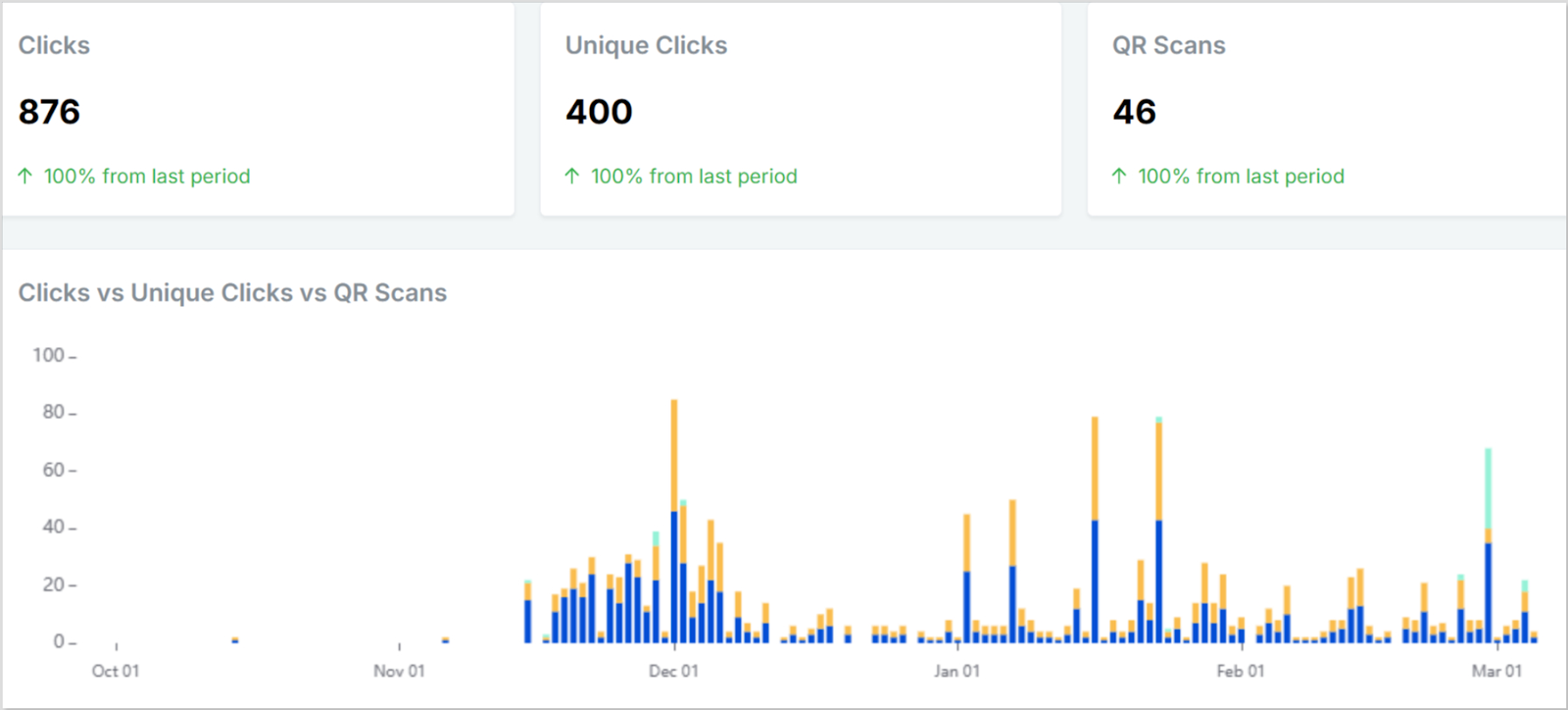
Track scans and conversions: With Replug’s link analytics, you can monitor how well your QR codes are performing. You can track scans, user actions, and conversions to optimize future campaigns.
10. Enhance brand visibility with branded links
When promoting products on social media, the links you share can make or break a sale. Branded links instantly make your product promotions look more trustworthy, professional, and click-worthy.
Instead of using long, random URLs or generic shorteners, Replug helps you create customized short links with its trustworthy short URL generator that feature your brand name, leading to higher engagement, more clicks, and, ultimately, more sales.
Why branded links drive more clicks & sales?
Shoppers are hesitant to click on unfamiliar links, especially on social media. Branded links eliminate that hesitation by making your product promotions look more authentic and credible.
Enhance click-through rates: Branded links can boost CTR by up to 39%, helping you drive more traffic to product pages.
Enhance brand trust: Customers are more likely to click when they recognize the brand in the link, leading to higher conversions.
Make promotions look cleaner: Instead of messy, long URLs, branded links keep your posts sleek and professional.
Prevent link suspicion: Generic short links can look spammy. A branded link reassures customers they’re landing on a legitimate product page.
Track campaign performance: With Replug’s click analytics, you can monitor which links get the most clicks and optimize your strategy for better results.
How to use branded links to increase ecommerce sales on social media?
Branded links aren’t just for looks; they’re a powerful tool to drive more purchases from your social media audience. Here’s how to use them effectively:
Strategy
How it helps
Add to product promotions
Makes product links look professional and clickable.
Use in influencer campaigns
Enhances credibility and directs traffic to your store.
Optimize for limited-time offers
Creates urgency and makes discount links easy to share.
Include in retargeting ads
Recaptures lost customers and drives them back to checkout.
Leverage UTM tracking
Helps track which social media platforms drive the most conversions.
11. Combining organic & paid strategies
To maximize your ecommerce sales, you need to blend organic content with paid ads. Organic content builds trust and long-term relationships, while paid ads on platforms like Instagram, Facebook, and TikTok give you a quick visibility boost. The key is knowing where and how to apply each strategy for optimal results.
Organic content: Building trust and engagement
Organic posts on platforms like Instagram, Facebook, and TikTok can help you nurture relationships with followers. When done right, your content doesn’t just show off your products—it builds trust. And trust is a major driver of sales. According to McKinsey, there was a 20% increase in consumers shifting to ecommerce in 2020, and 68% of social media marketers say they use it to direct traffic to their websites.
Platform
Organic Strategy
Instagram & Facebook
Regularly post engaging content like stories and reels, showcase products, and use shopping features like product tags.
TikTok
Use fun, creative videos that blend entertainment and promotion, and take advantage of the platform’s viral potential.
Paid campaigns: Quick visibility and actionable results
Paid campaigns on Facebook, Instagram, and TikTok allow you to target audiences based on data-driven insights. With Instagram, TikTok, and Facebook offering the highest ROI for social selling (HubSpot), these platforms provide great opportunities for ecommerce brands to thrive. Reaching thousands of people by running ads on Reddit’s public discussion platforms can provide excellent visibility and boost sales.
Additionally, Mobile commerce is expected to make up 44% of the ecommerce market in the United States by 2025, and platforms like Instagram and Facebook are designed to make mobile shopping as convenient as possible.
Platform
Paid Strategy
Instagram
Run carousel ads and story ads with a clear CTA, driving traffic to your product pages or website.
Facebook
Leverage dynamic ads that show personalized product recommendations based on user behavior.
TikTok
Use native ads like In-Feed ads to engage a younger audience and drive immediate purchases.
Driving traffic to your ecommerce store requires a blend of strategic efforts to nurture visibility, engage your audience, and convert them into customers. Let’s break it down:
Using link in bio tools for better conversions
Link-in-bio tools are essential for platforms like Instagram and TikTok, where only one clickable link is allowed in the bio. Tools like Replug allow you to showcase multiple links, such as product pages, blog posts, or special promotions. By directing traffic to a central hub, these tools simplify navigation, improve the user experience, and ultimately increase conversions. This feature allows your audience to easily find and purchase products directly from your bio.
Optimizing your social media for SEO is crucial for getting noticed. Here are some strategies to improve discoverability:
Profile optimization: Use clear, concise descriptions with relevant keywords in your bio. Ensure that your e-commerce website and contact details are easily visible.
Hashtags: Include trending and niche-specific hashtags in your posts. Hashtags increase your content’s visibility and help users find your store through social media search.
Engaging content: Post content that is shareable and engaging. The more people interact with your posts, the higher the chance of being seen by potential customers.
Your blog content can play a big role in driving traffic. Here’s how to make the most out of it:
Share blog snippets: Post visually engaging excerpts or summaries of your blog posts to drive traffic from social media. Add call-to-action phrases like “Learn more” or “Shop now.”
Engagement: Share blog posts and encourage your followers to engage with the content by asking questions or sharing their thoughts in the comments.
Consistency: Schedule regular blog post shares using social media management tools to keep your audience engaged and always have fresh content going out at peak times.
When you consistently share blog content across your social media channels, you expand your reach, drive traffic to your store, and build lasting relationships with your audience.
13. Leveraging user-generated content (UGC)
User-generated content (UGC) is one of the most effective ways to build trust with your audience and increase ecommerce sales. When customers share their experiences, whether through reviews, photos, or videos, it feels more authentic and relatable. According to Stackla, 79% of people trust UGC over branded content, making it a powerful tool to drive conversions.
Why UGC boosts conversions & engagement
UGC acts as social proof, showing potential customers that real people love your products. This kind of content is often perceived as more genuine than traditional advertising. When your existing customers share their positive experiences, it creates a ripple effect, encouraging others to follow suit and purchase from your brand.
A study found that the average consumer reads 10 online reviews before buying a new product. This makes UGC not only valuable for engagement but also crucial for converting leads into sales.
Encouraging customers to share reviews and testimonials
Reviews and testimonials are key to creating a strong foundation of trust. You should encourage customers to leave feedback by:
Offering incentives like discounts or exclusive access to products.
Highlighting positive reviews on your social media platforms to show appreciation and strenghten confidence in new customers.
Making it easy to leave reviews by integrating review options directly on your website or via email after a purchase.
When customers see that others are enjoying your products, they’re more likely to trust your brand and make a purchase.
Running UGC contests & giveaways for maximum reach
UGC contests and giveaways are great ways to encourage customer engagement and expand your reach. For example:
Host a photo contest where customers share photos of themselves using your products, with the chance to win a prize.
Encourage creative content such as short videos, reviews, or stories, which you can repost on your social media profiles.
Not only does this build community, but it also generates free shareable content that you can reuse in marketing campaigns.
14. Use shoppable posts
Shoppable posts help brands sell directly through social media platforms, eliminating the need for customers to leave the app to make a purchase. Here’s how you can use shoppable posts across different platforms:
Platform
How to use shoppable posts
Key benefit
Instagram
– Tag products in posts, stories, and reels. – Link your product catalog to your profile.
Direct in-app purchases and enhanced user experience.
Facebook
– Set up a Facebook Shop and tag products in posts. – Use “Shop Now” buttons.
Easy transition from post to product purchase.
Pinterest
– Use “Product Pins” to tag products. – Show real-time pricing.
Seamless shopping experience without leaving the platform.
TikTok
– Tag products in videos and live streams. – Connect your product catalog.
Maintaining a consistent presence on social media is crucial for increasing ecommerce sales and building brand awareness. However, the key to success lies in finding the right balance between posting frequently and maintaining quality content.
Here are some strategies to help you post consistently and keep your audience engaged:
The importance of a content calendar: A content calendar helps you stay on top of trends, plan for promotions, and stay consistent without scrambling for ideas at the last minute. With tools like ContentStudio, you can schedule your posts across multiple platforms, track performance, and align your content with important dates or sales events.
Finding the right posting frequency: It’s tempting to want to post as much as possible, but flooding your followers’ feeds can actually hurt engagement. On the flip side, posting too infrequently may cause your audience to forget about you. The key is to find a posting frequency that aligns with your audience’s preferences.
Engaging with your audience: Respond to DMs, like and comment on followers’ posts, and reply to comments on your stories and posts. Social media algorithms also reward engagement, meaning your content is more likely to be seen if you actively engage with your followers.
Social media isn’t just about posting—it’s about listening, too. Customers constantly share feedback, opinions, and experiences, giving ecommerce brands direct insights into their needs and expectations. Social listening tools help track these conversations, identify trends, and refine marketing strategies in real-time.
Here’s how it helps:
Monitoring brand mentions & customer conversations: Tools like Brandwatch, Mention, and Sprout Social allow businesses to track brand mentions across platforms, helping them respond to feedback, resolve issues, and engage with customers more effectively.
Identifying trends & buying behavior changes: Platforms like BuzzSumo and Talkwalker analyze trending topics, hashtags, and competitor activities, helping brands spot shifts in consumer behavior and adapt their strategies accordingly.
Using social listening means making informed decisions based on what customers are actually saying, not just guessing.
Key benefits of using social media for ecommerce
Using social media for ecommerce offers a wide range of benefits that can help your business grow. Here are some of the most significant advantages:
1. Increased traffic and conversions: Engaging content, ads, and deep linking drive users to product pages, reducing drop-offs. This is particularly important given the average cart abandonment rate of 70.19%. For instance, offering incentives like free shipping can motivate online shoppers.
2. Higher ROI through social selling: Platforms like Instagram, TikTok, and Facebook offer the highest ROI for social selling. Features such as shoppable posts, live shopping events, and influencer collaborations enable brands to monetize their social presence effectively.
3. Personalized marketing: Tailored content, loyalty programs, and targeted promotions enhance customer retention. For instance, according to eMarteker, features such asloyalty programs (63.4%) and exclusive offers (62.5%) are considered the most valuable to US consumers.
4. Reduced cart abandonment: Social media can help address common reasons for cart abandonment, such as unexpected costs (47%) and forced account creation (25%) (Forbes). This valuable data can reduce friction in the buying process and encourage customers to complete their purchases.
5. Building brand loyalty: Social media enables brands to engage with their audience on a deeper level. Through interactive content, user-generated posts, and community-building efforts, businesses can build long-term relationships with their customers.
Conclusion
Social media has evolved into a powerful ecommerce engine. By leveraging the right platforms, creative content strategies, influencer collaborations, and data-driven ecommerce marketing, businesses can drive traffic and build lasting relationships with customers.
Integrating advanced tools like Replug further amplifies sales potential, offering features like deep links, branded short URLs, and retargeting pixels to enhance marketing effectiveness.
A complete link management solution
for marketing professionals & agencies.
Try Replug for free
FAQs on how to increase ecommerce sales using social media
How can social media drive ecommerce sales?
Social media increases brand visibility, allows businesses to engage directly with customers, and offers shoppable posts that simplify the buying process. With targeted ads and influencer collaborations, brands can drive traffic and conversions.
Which social media platform is best for ecommerce?
The ideal platform depends on your audience. Instagram and Facebook are great for visual products, TikTok works well for younger demographics, and Pinterest is effective for high-intent shoppers.
How does Replug help in increasing ecommerce sales through social media?
Replug increases ecommerce sales through social media by offering branded short links, deep linking, and retargeting pixels, allowing businesses to optimize traffic, track engagement, and improve conversions.
What is deep linking, and why is it important for increasing ecommerce sales?
Deep linking directs users to specific product pages within an app instead of a generic homepage, reducing friction and increasing the likelihood of purchase. Replug’s deep linking feature ensures a seamless shopping experience.
How can I reduce cart abandonment using social media?
Using retargeting ads, engaging with customers through DMs, and promoting limited-time offers can encourage users to complete their purchases. Replug’s retargeting pixel allows businesses to reach users who abandon their carts and re-engage them effectively.
How often should I post on social media for ecommerce success?
Consistency is key. Posting at least 3-5 times per week ensures visibility and engagement. Using scheduling tools like ContentStudio can help maintain a steady posting schedule without overwhelming your audience.
It has become easier than ever to scan QR codes, especially if you’re using a Samsung device. You’ll find a QR code almost everywhere, from product labels and restaurant menus to posters and even emails! They’re a fast and convenient way to access websites, deals, and more.
If you’re using a Samsung phone, you’re in luck! Samsung has built-in tools that make scanning QR codes effortless. Let’s look into the different methods you can use to scan QR codes on your Samsung device!
6 methods to scan a QR code on Samsung
Method 1: Scan a QR Code with the Camera App
Samsung devices come with a native QR code scanner embedded directly in the Camera app. It’s simple, fast, and perfect for everyday use.
Launch the Camera App: Open your Camera app on your Samsung phone.
Point at the QR Code: Aim the camera at the QR code, ensuring it’s centered and clearly visible.
Tap the notification: A pop-up notification will appear once the QR code is recognized. Tap on the notification to open the link or view the encoded information.
If you’d like to test scanning a QR code with your Samsung Camera app, here’s one we’ve created using Replug.io
Note: If the QR code doesn’t scan, make sure the QR code scanner is enabled in your camera settings. To enable it, go to Settings > Camera > Scan QR Codes and toggle it on.
Replug goes beyond just creating QR codes. It also provides click tracking and engagement insights, making it an indispensable free link shortener for businesses and marketers.
Method 2: Scan a QR Code with Samsung Internet
Did you know Samsung’s built-in Internet browser also offers a QR code scanner? This method comes in handy if you’re already browsing and come across a QR code.
Open Samsung Internet: Launch the Samsung Internet app.
Tap the Menu button: Tap the three horizontal lines at the bottom-right corner to open the menu.
Enable the QR scanner: Navigate to Settings > Layout and menu > Customize menu. Ensure the QR Code Scanner option is added to your menu.
Scan the code: Once the scanner is enabled, tap the QR code icon in the menu to start scanning.
Method 3: Scan a QR Code using Quick Settings
For those times when you need to scan a QR code instantly, Samsung’s Quick Settings feature is a time-saver.
Swipe down: Swipe down from the top of your screen to access the Quick Settings menu.
Locate the QR scanner: Look for the Scan QR Code option. Tap Edit and drag it into your Quick Settings if it’s not visible.
Tap to scan: Once it’s set up, just tap Scan QR Code to start scanning quickly.
Method 4: Scan a QR Code with Bixby Vision
Bixby Vision is a Samsung feature that lets you get more information about the world around you using your phone’s camera. It can also scan QR codes and provide you with the link or content embedded within them.
Open the Camera App: Launch the Camera app on your Samsung device.
Activate Bixby Vision: Tap the Bixby Vision icon. You may need to grant it permission if it’s your first time using it.
Scan the QR Code: Point the camera at the QR code, and Bixby Vision will recognize it.
Tap “Go”: A prompt will appear with the URL or information embedded in the QR code. Tap Go to open the link.
Note: Bixby Vision may not be available on all Samsung devices. If you don’t see the Bixby Vision icon, check if your device supports this feature by visiting Samsung’s official site or looking through your device’s settings. If your device doesn’t support it, you can always rely on other methods like the Camera app or Samsung Internet.
Method 5: Scan a QR Code from Photos in Your Gallery
What if you’ve saved a picture of a QR code, and now you need to scan it? No worries! Samsung makes it easy to scan QR codes directly from your photo gallery using Google Lens or Bixby Vision.
Using Google Lens
Source: Google Play Store
Open Google Lens: Launch the Google Lens app.
Select the photo: Choose the image from your gallery that contains the QR code.
Click the link: Once Google Lens detects the QR code, it will show a clickable link. Tap on it to visit the website.
Using Bixby Vision from the Gallery
Open Your Gallery: Go to your phone’s gallery and find the saved image.
Activate Bixby Vision: Tap the Bixby Vision icon on the image.
Scan and open: Once Bixby Vision detects the QR code, it will present the link. Tap to open it.
Method 6: Scan a QR code using third-party scanners
If for some reason your Samsung phone doesn’t support the built-in QR code scanner, there’s always the option of using third-party QR code scanning apps. A quick search on the Play Store will give you plenty of reputable options to download and use. Simply install one, open the app, and follow the on-screen instructions to scan any QR code.
Smart QR Codes: Track, analyze, and optimize with Replug
QR codes aren’t just for quick link sharing—they’re a strategic tool for tracking engagement and optimizing marketing performance. Whether your audience scans a QR code on an iPhone or a QR code on Samsung devices, Replug helps you gather real-time insights and refine your campaigns for maximum impact.
Why choose Replug for QR code management?
Feature
What it does
Why It matters
Real-time tracking
Monitors QR scans, unique clicks, and total interactions.
Understand audience engagement instantly.
In-depth analytics
Provides scan locations, device types (including iPhone and Samsung), and referral sources.
Gain insights into how and where your QR codes are being scanned.
Tracks campaign performance across multiple channels.
Measure marketing effectiveness with precision.
Multiple download formats
Exports QR codes in high-quality formats (PNG, SVG).
Maintain a professional and branded appearance.
Final Thoughts
With all these options available, scanning QR codes on your Samsung phone has never been easier! Whether you’re using the Camera app, Samsung Internet, Quick Settings, Bixby Vision, or even third-party apps, you’ll be able to scan codes in no time.
Now that you’ve mastered QR code scanning, it’s time to enjoy seamless access to links, promotions, and content on the go.
FAQs for how to scan a QR code on Samsung
Why won’t my Samsung phone scan QR codes?
If your Samsung phone isn’t scanning QR codes, make sure your camera lens is clean, the code is well-lit, and you’re holding your phone steady. Also, check if QR scanning is enabled in your camera settings. If it’s still not working, try using Google Lens or a third-party QR code scanner app.
How to scan a QR code on Android?
Most Android phones allow you to scan QR codes directly from the Camera app. Just open the camera, point it at the QR code, and tap the link that appears. If that doesn’t work, try using Google Lens from the Camera app or Google Assistant.
How to scan a QR code on Samsung from the Gallery?
To scan a QR code from an image in your Samsung Gallery, open the image, tap the three-dot menu, and select “Scan QR Code” (if available). If your phone doesn’t have this option, use Google Photos or Samsung’s built-in Bixby Vision.
How can I track engagement on my shared QR codes?
If you’re using QR codes for business or marketing, a dynamic QR code generator like Replug helps track scans, clicks, and engagement. It also lets you edit the destination URL without needing to reprint the code.
Can I change a QR code’s destination link after creating it?
Standard QR codes are static, meaning the link cannot be changed. However, with Replug’s dynamic QR codes, you can update the destination anytime without reprinting or regenerating a new code.
What’s the best way to test a QR code before sharing it?
Scan it using your Samsung Camera app or Quick Settings. For added accuracy, generate and test your QR codes with Replug, ensuring they work across different devices.
Do you want to tap into the massive audience of 5.17 billion social media users worldwide? Choosing between the best social media management tools can help you with this goal by streamlining your workflow, maintaining a consistent presence, and boosting social media engagement.
With social media being an ever-evolving space, it is vital to use reliable social media management tools and remain at the forefront of the AI-driven digital era.
Social media management tools and apps are meant to streamline the processes involved in managing digital presence across numerous social media platforms.
In this comprehensive guide, we will explore the top 10 social media management tools available in 2026, the importance of using such tools, and some tips and tricks for choosing the right tool for your needs.
Quick overview of the best social media management tools
Let’s look at the summarized differences between the top 10 social media management platforms.
Omni-channel analytics, social listening, AI-powered social strategy suggestions
$800/month (3 users)
Large teams and organizations looking for an all-in-one digital marketing suite
Advanced cross-platform analytics
Approval processes, inbox collaboration
What is a social media management tool?
A social media management tool helps users connect and manage multiple social media accounts from a single platform. These tools offer comprehensive features to streamline and enhance social media marketing efforts.
Key features often include post scheduling, competitor analysis, and social media analytics—each playing a vital role in optimizing campaign performance. Many of these tools also integrate with third-party apps to boost content effectiveness. For example, pairing your scheduling platform with a URL shortener like Replug enables you to track link performance, optimize engagement, and create short URLs that strengthen brand identity.
Boost ROI with branded URLs!
Enhance your marketing campaigns by creating shareable, trackable, and fully multi-purpose
customizable branded URLs.
Today, many marketers also rely on AI features built into these platforms for tasks like writing captions, suggesting content ideas, or even drafting replies. While this can save time, it also creates a challenge because AI-generated text can sometimes sound too generic, making it harder for brands to stand out. To truly connect with audiences, it’s important to keep your messaging authentic, unique, and aligned with your brand personality.
That’s why it is recommended to humanize AI text. They help refine raw AI copy so it feels more natural and engaging, ensuring your social posts don’t just fill feeds but actually spark genuine interactions. This balance of automation and personalization is what makes social media marketing impactful.
When choosing a social media management tool, especially if you’re looking for the best social media scheduler, consider factors like user-friendliness, integration options, analytics capabilities, collaboration features, and scheduling flexibility to find the best fit for your needs.
While we will be discussing this criterion in great detail later, let’s dive straight into the best social media management platforms you should explore in 2026.
ContentStudio comes at the very top of the list of best social media management tools. It can connect with all major social media platforms, including Facebook, Twitter, Instagram, TikTok, LinkedIn, Meta Threads, Tumblr, Google Business Profile, Pinterest, YouTube, and Bluesky.
Moreover, ContentStudio also supports integration with the top URL shorteners, image editing platforms, and carousel generator, enhancing your social media content creation process.
The versatile features of ContentStudio, including content discovery, scheduling, detailed analytics, automation, and an AI-powered content generator, make it a great platform for end-to-end social media management.
Moreover, ContentStudio has a built-in ‘best time to post’ mechanism that allows you to post your content at the perfect time and reach more people. Most importantly, you don’t have to break the bank in social media management with ContentStudio, as you can get its starter package at only $19 per month.
Key features
An intuitive and user-friendly interface makes it easy to explore and use different features of ContentStudio.
An aggregated social inbox allows you to view, manage, and respond to all the comments, mentions, and messages on social media accounts from the same place.
AI-powered writing assistant to help users speed up the process of writing social media captions, hashtags, social media posts, and even images before scheduling and publishing them.
Price
2. Buffer
Buffer is a highly user-friendly social media management tool. It enjoys massive popularity among small businesses and individuals due to its affordability and ability to perform the most necessary functions.
It offers several features to streamline social media management, including regular post scheduling, engagement analytics, and landing page creation. Moreover, Buffer’s collaborative features make it a reliable tool for brands with multiple social media team members.
Buffer’s ability to create landing and shoppable pages is a unique feature typically not available in other social media management tools. Therefore, it is an intuitive tool for e-commerce businesses and other social media pages that want to sell products via social media marketing.
Despite all these features, Buffer’s major disadvantage is that it does not support real-time analytics, so users have to wait a significant amount of time before evaluating a post’s performance.
Key features
Create generic social media posts or platform-specific posts to reach more people on social media.
Buffer has a built-in AI assistant that generates a lot of social media content ideas within a few seconds.
Limited analytics and reporting give you basic information about the effectiveness of your social media efforts.
Price
Buffer pricing model is quite flexible as it is dependent on the number of channels you want to manage through the platform.
3. Hootsuite
Hootsuite is one of the most popular social media management tools. It has made its mark by being an all-in-one platform for creating and scheduling content for all major social media platforms. In addition to organic social media marketing, Hootsuite also supports running social media ads.
Like most other tools, Hootsuite has integrated AI to write engaging content and social media posts. With the ability to monitor social media presence across 35+ platforms, Hootsuite is a great platform for well-established brands with multiple social media accounts. The only disadvantage, however, is that Hootsuite is quite complicated for beginners to understand and use.
Key features
Hootsuite supports bulk scheduling and posting on more than 35 social media platforms from the same dashboard.
It supports integration with many third-party apps, such as Canva and Dropbox, to improve your social media management strategies.
View the messages and mentions and respond to them from Hootsuite’s inbox.
Price
Hootsuite’s pricing starts at $99 per month, making it an expensive option that is mainly suitable for medium- and large-sized companies.
4. ContentBridge
ContentBridge is a social media management platform built specifically for large organizations with 100 to 5,000 employees. It stands out from most tools on this list by enabling frontline workers to capture and submit content directly from the field using native mobile apps, while managers maintain full brand control through customizable multi-level approval workflows.
Its AI-powered assistant helps generate optimized captions, hashtags, and posts for Facebook, Instagram, X, LinkedIn, and TikTok simultaneously. While it is not the right fit for small teams or solo creators, its per-user cost is significantly lower than competing enterprise solutions at scale.
Key features
Customizable multi-level approval workflows to maintain brand consistency across distributed teams.
Native iOS and Android apps for real-time content capture and submission from the field.
AI-powered writing assistant to generate optimized captions, hashtags, and posts.
Built-in team chat for seamless collaboration during the content review process.
Price
Price: Starting at $499/month for 100 users
5. Sprout Social
Sprout Social is an all-in-one social media management platform most suitable for medium and large-scale businesses. Its features include automated posting, detailed analytics, and wide-ranging connectivity with social media platforms like Facebook, Pinterest, YouTube, and X (Twitter).
Moreover, Sprout Social also offers third-party integration with tools like UserVoice and Zendesk to streamline social media management processes. Despite all these amazing features, Sprout Social has limited itself to well-established businesses that can afford at least the basic package starting from $199 per month.
Key features
Post your content on social media with the highest chances of engagement via ViralPost.
A comprehensive inbox to manage communication on all social media platforms from the same platform.
Measure and track the performance of all your social media marketing campaigns with thorough reports.
Price
6. Agorapulse
Agorapulse is another app for social media management that focuses on building a robust online community with the help of constant competitor analysis and monitoring. Its user-friendly interface makes managing your social accounts and running marketing campaigns from a single platform easy.
Even though Agorapulse has multiple packages to target different types and sizes of businesses, the most standard package starts at $79 per month. Therefore, it is only suitable for those brands and individuals who can allocate a significant budget towards social media management.
Key features
Multiple tools to curate content for different social media platforms.
Optimize the existing as well as new content to increase engagement.
Comprehensive performance analysis to track the progress of your social media campaigns.
AI-powered writing assistant to write captivating captions and posts.
Price
7. Sendible
Sendible has become one of the most affordable social media management platforms. Its basic plan of $25 per month (with annual billing) is sufficient to fulfill the basic social media management requirements of an individual or a startup.
Even though Sendible does not offer detailed competitor analytics, it is still a great platform for scheduling social media posts on all major platforms. A significant drawback is that users have complained about the quality of its customer service and lack of advanced features.
Key features
A comprehensive shareable calendar to facilitate communication and collaboration among the social media and content team.
Performance analytics to analyze the key metrics of your social media and tweak the marketing strategies for better results.
Provide recommendations about optimum posting times to help users post at a perfect time and reach more people.
Price
8. SocialPilot
If you are looking for an app for social media management with impressive collaboration features, you should check out SocialPilot. Its user-friendly interface also makes it a reliable tool for beginners and small businesses.
Whether you are looking for content curation, thorough performance analytics, or a centralized dashboard to manage all social networks, you will get these features in SocialPilot.
Key features
Connect 50+ social media accounts under the most premium package of SocialPilot.
A built-in AI assistant to help you write and generate captions, hashtags, and the overall content of your social media accounts.
An extensive library to help you generate content for various industries like tech, education, and health.
Price
9. CoSchedule
CoSchedule is quite different from the other social media management tools on this list. It has a special focus on planning a comprehensive social media content calendar. You can use this drag-and-drop calendar to schedule, organize, and publish your social media posts across Facebook, Instagram, X, YouTube, LinkedIn, Tumblr, and Pinterest.
A user-friendly calendar provides an overall view of your social media content strategy, making it easier to plan and execute campaigns effectively. CoSchedule can also promote other types of content, such as blog posts or upcoming events.
Key features
Create your own social sharing templates and plan so you can reuse them and save time.
Use the ReQueue feature to repost your top-performing social media posts and get more engagement.
Use a CSV file import to upload and schedule all your social media posts in bulk across multiple social media platforms.
Price
10. Later
Later was initially an Instagram scheduling tool. It has now rebranded itself into a full-fledged social media management tool. The platform has a centralized dashboard through which you can connect and manage your social media accounts.
The user-friendliness of Later means anyone can learn its usage quickly. Other than agencies and growing businesses, individuals can also use Later to grow their presence on social media. The tool still has many features specific to Instagram, so Later is a great platform for people focused on growing their Instagram accounts.
The two major issues you might face while using Later are its limited collaboration features and lack of detailed analytics for LinkedIn and Facebook.
Key features
An intuitive drag-and-drop calendar to make scheduling social media posts easy for the users.
Make the links trackable to monitor the landing page’s performance and social media metrics.
View all comments, brand mentions, and messages in the same section to produce relevant responses.
Price
Later’s pricing for small teams and individuals:
Later’s pricing for agencies and enterprises:
11. MeetEdgar
MeetEdgar is a highly automated social media management tool. It allows you to schedule your social media posts in advance and repeat your top posts occasionally to reach more people. This feature of automatically filling your queue with evergreen posts is unique in MeetEdgar.
The overall interface and organization settings of MeetEdgar are also quite impressive. You can categorize your content into different categories for posting at suitable times.
However, you cannot get any advanced features, such as comprehensive analytics, in MeetEdgar. So, there is a high chance that you will have to choose another social media management platform to handle all aspects of your social media presence.
Key features
Create a large, personalized content library to save time when posting on social media.
Automate the posting process by either scheduling new posts or reposting your evergreen content.
MeetEdgar includes an AI assistant called Inky to help users generate social media post captions and hashtags.
Price
12. HubSpot Marketing Hub
HubSpot Marketing Hub includes a solid social media management solution that stands out through its social listening features. The platform’s keyword monitoring streams lets teams surface social conversations containing particular phrases from across multiple networks, Reddit included.
Team members can then prioritize critical feedback via HubSpot’s sentiment analytics, and also use HubSpot’s native CRM to link social interactions to in-depth customer profile databases – useful for lead generation and social customer service, for example.
Plus, the platform’s AI assistant provides ideal content topics, formats, and publishing times. Most importantly, Marketing Hub offers campaign management, tracking, and automation features that go beyond socials. It also handles websites, emails, SMS, ads, and more.
That means HubSpot Marketing Hub is an excellent option for companies looking to fully centralize cross-channel campaigns and see exactly how social media contributes to their overall marketing efforts.
Key features:
An intuitive interface with drag-and-drop calendars with easy access to social media-specific or general marketing automation features.
A unified inbox to view, manage, and respond to comments and mentions from across multiple channels.
AI assistants that help optimize publishing times, content formats, and topics.
Multi-network analytics dashboards with the option to compare metrics across other touchpoints (sites, emails, and more).
Price:
13. Soshie by Sintra AI (Bonus tool)
AI Social Media Manager Soshie by Sintra AI is the world’s first AI social media manager, designed to help businesses streamline and scale their social media presence across multiple platforms. Built to support marketing teams, maintain brand voice, and protect brand reputation, Soshie combines strategy, content creation, automation, and analytics into one unified assistant.
Trained on tens of thousands of social media best practices, Soshie understands what performs well across platforms like Instagram, TikTok, Facebook, LinkedIn, and X. It helps you plan campaigns, write posts, design content, schedule across accounts, and analyze results—all from a user-friendly dashboard. Whether you need strategic guidance, daily content, or automated posting, Soshie works as a full social media manager that boosts consistency, saves time, and improves performance.
Key features:
Handles content creation, campaign planning, post scheduling, and multi-platform publishing, all in one AI-powered workspace.
Generates social media campaigns, captions, images, and posts using pre-made templates and a media library.
Maintains consistent brand voice, supports marketing teams, and helps safeguard brand reputation across all platforms.
Uses natural language processing to analyze social media metrics, interpret conversations, and improve content strategy over time
Price:
The current Winter Sale plan gives you access to 12+ AI helpers, including Soshie, your AI-powered social media manager.
14. Sprinklr Social
Sprinklr Social is one of the most comprehensive social media management tools for organizations that need to manage publishing, engagement, analytics, and governance from a single platform. It supports planning and publishing content across major social networks while helping teams coordinate campaigns at scale.
Beyond scheduling, Sprinklr Social combines AI-powered content assistance, a unified inbox, approval workflows, and advanced analytics to simplify day-to-day social operations. Its reporting and governance capabilities make it particularly useful for organizations managing multiple brands, markets, or regional teams. The tradeoff is that the platform offers a broader enterprise feature set than many SMB-focused tools, so it may require more setup than lightweight schedulers.
Key features
Schedule and publish content across multiple social media platforms from a centralized dashboard.
Manage messages, comments, and customer interactions through a unified omnichannel inbox.
Measure campaign performance with AI-powered analytics, customizable dashboards, and executive-ready reports.
Streamline collaboration with approval workflows, user permissions, and governance controls.
Generate AI-powered captions, images, and videos directly within the publishing workflow to accelerate content creation.
Price
Custom pricing available on request.
Importance of social media management tools
Most businesses, organizations, and individuals have multiple social media profiles across different platforms. It is not always easy to manage these accounts from a social media platform’s built-in tools with limited functionalities. As a result, using third-party social media management tools like the ones discussed above is important to get the following benefits:
Manage your social media content and campaigns across multiple channels.
Streamline the social media management processes, including content creation, automation, scheduling, and publishing posts at the most suitable times.
Track the performance of your overall social media account and individual posts to measure your progress in real-time.
Enhance your engagement with the audience through consistent posting.
In short, using a comprehensive social media management tool is important for end-to-end social media management.
Key features to look for in a social media management tool
Now that you are familiar with the best social media management platforms available in 2026, you are probably wondering how you can choose the best tool in the first place. You can do it by looking for the following features in these tools:
Dashboard usability
The first thing you must look for in a social media management tool is its dashboard usability. Since a tool is meant to manage and analyze multiple social media accounts, the tool’s dashboard should be simple and efficient for juggling all social accounts.
Source: ContentStudio
Integration capabilities
Considering the integration capabilities is another important factor. Generally, a social media management tool should be capable of connecting with all major social media sites, such as X, Facebook, Instagram, TikTok, LinkedIn, YouTube, Tumblr, and new social media platforms like Threads and Bluesky.
It is always a good idea to analyze your specific requirements and list the platforms you are using to ensure you can manage them with a social media management app. Having multiple integration options means you can schedule and post your content across multiple platforms from the same dashboard.
Source: ContentStudio
Comprehensive analytics and reporting tools
Making sure your content is relevant and engaging enough for your target audience is vital to continually grow your business. At the same time, it is not always easy to determine what kind of content is performing well across different social media platforms.
Analyzing the key performance metrics of your social media posts will help you determine the effectiveness of your current social media strategies. Moreover, you can use such information to make any required changes to your social media and optimize your content for better reach.
Source: ContentStudio
Advanced scheduling and publishing features
An ideal social media management tool has advanced scheduling and publishing features. Keep in mind that most social media platforms do provide built-in schedulers, but they have very limited functionalities.
Therefore, you should go for a powerful social media content scheduler that has a user-friendly method of curating a content calendar. Moreover, with the rising use of AI, you should look for a tool equipped with a modern AI writing assistant to help you speed up writing captions and hashtags before scheduling such posts.
Effective social media engagement features
According to statistics, 62.3% of the world’s population uses social media. Targeting a massive audience and increasing engagement involves using a suitable social media management app. Ideally, it should have features to manage messages, comments, and mentions from the same platform. This ultimately improves communication and audience engagement.
Handling multiple social media platforms and curating different types of content can be quite overwhelming, especially for new and growing businesses. As a result, it is common to have multiple team members handling social media.
Therefore, it is important to choose a social media management platform that offers good collaboration and team management options. Collaboration features make it easy for multiple team members or even departments like sales, content curation, and marketing to work together and manage social media accounts.
The bottom line is that social media management tools are available online with varying features to cater to different businesses, individuals, and social media accounts. Ideally, the tool of your choice should be user-friendly, affordable, and have comprehensive features like ContentStudio.
As you explore the best social media management tools, it’s important to choose one that aligns with your goals and workflow. Whether you prioritize scheduling, analytics, or collaboration, selecting the right platform can streamline your social media efforts and boost engagement.
No matter which social media management tool you choose, integrating additional optimization tools can make a difference. Replug, for example, is an all-in-one link management platform that helps marketers enhance link tracking, retarget audiences, and drive better conversions—all essential for maximizing your social media strategy.
By combining a powerful social media management tool with the right enhancements, you can create a well-rounded approach that improves efficiency, engagement, and results.
A complete link management solution
for marketing professionals & agencies.
Try Replug for free
FAQs for the best social media management tools
What is the most effective social media tool?
ContentStudio is the most effective social media management tool because it has all important features like analytics and reporting, content discovery, scheduling, a drag-and-drop content calendar and planner, bulk scheduling, a combined social media inbox, competitor analysis, and much more.
What are the best social media management tools?
ContentStudio, Buffer, CoSchedule, and Hootsuite are some of the best social media management tools. Growing businesses and marketing agencies will likely find ContentStudio a reliable platform, while large-sized businesses with enough resources can go for more expensive tools like Hootsuite.
What is the best content planning tool for social media managers?
With its diverse calendar views and easy scheduling options, ContentStudio is the best content planning tool for social media managers, brands, and agencies.
What are the 10 must-have tools for your social media management toolkit?
The 10-must have tools for your social media management toolkit are ContentStudio, Buffer, Hootsuite, Sprout Social, Agorapulse, Sendible, SocialPilot, CoSchedule, Later, and MeetEdgar.