Are you the one who thinks QR codes are just for restaurant menus? Think again!
QR code usage has surged by over 323% between 2021 and 2025, and nearly 99.5 million smartphone users in the U.S. alone are expected to scan QR codes in 2025.
People aren’t just scanning them; they’re using them to discover brands, make payments, and connect with creators instantly.
If you’re a content creator or small business owner, that’s a huge opportunity sitting right in your pocket.
And when you combine the reach of Linktree (your all-in-one link hub) with the scan-and-go convenience of a QR code, you get a seriously powerful tool for driving traffic and growing your audience: both offline and online.
But how exactly does it work, and how do you set one up?
Let’s start with the basics!
What is a Linktree QR code?
A Linktree QR code is essentially a scannable shortcut to your Linktree profile page. Instead of asking someone to type out a URL, you give them a nice QR code they can scan with their phone camera easily. And boom, they land directly on your profile, where all your links are waiting for them.
Its whole purpose is simple: make it easier for people to find you. Whether that’s your YouTube channel, online store, Instagram, or booking page, one scan gets them there.
How does it work?
It’s pretty straightforward. Linktree generates a unique QR code that’s tied directly to your personal Linktree URL. When someone scans it, it opens your Linktree page in their device browser instantly.
You can then drop that QR code anywhere (a business card, flyer, product packaging, or even a slide in a presentation). Basically, anywhere people might see it in the real world.
It bridges the gap between the physical and digital world, making it incredibly easy for your audience to connect with you in just one scan.
How to create Linktree QR code
The whole process takes less than two to three minutes. Here’s exactly how to make a Linktree QR code, step-by-step:
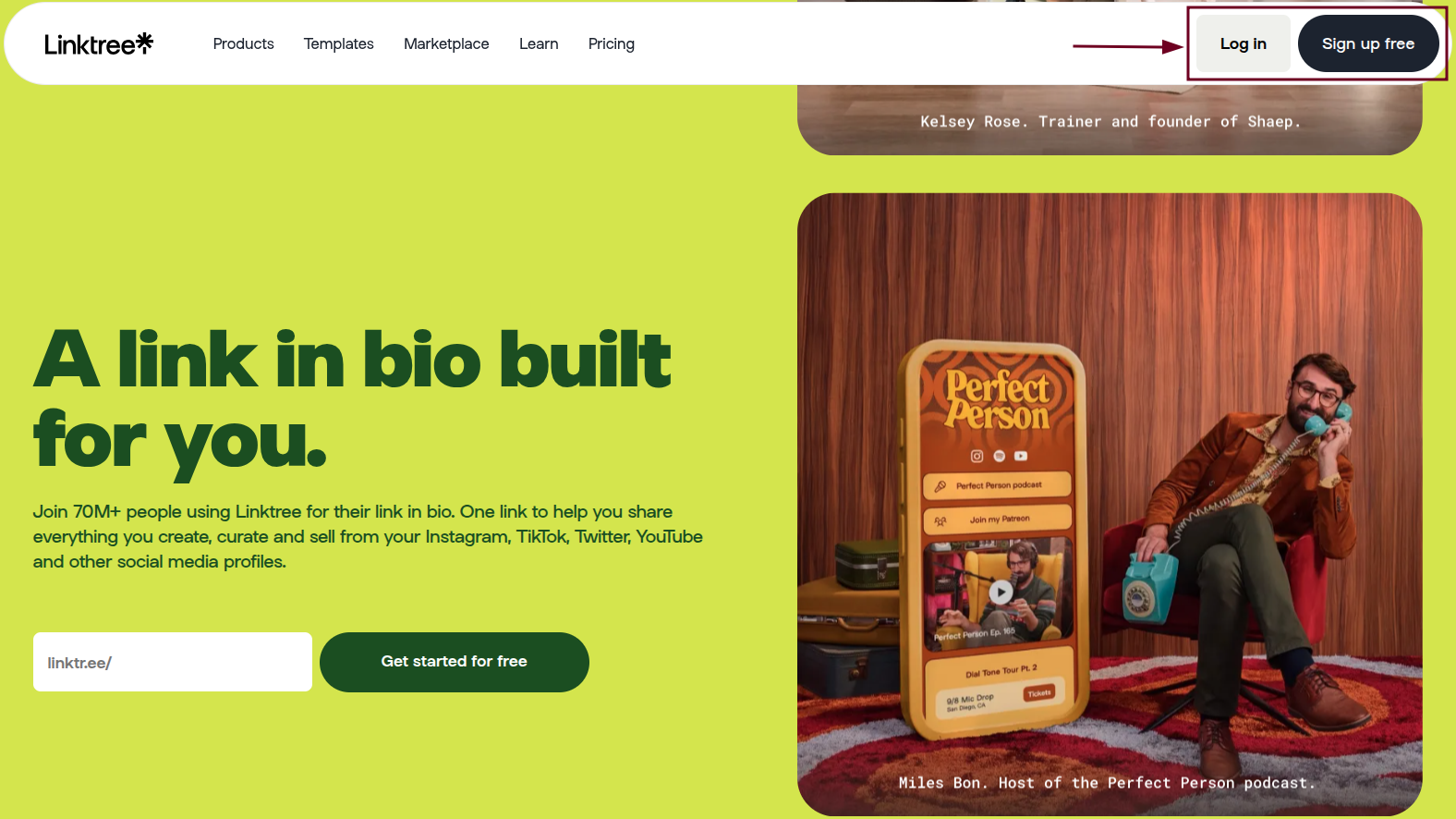
Step #01: Log in to Linktree
Head over to linktr.ee and sign in to your account. If you don’t have one yet, it’s free to sign up.
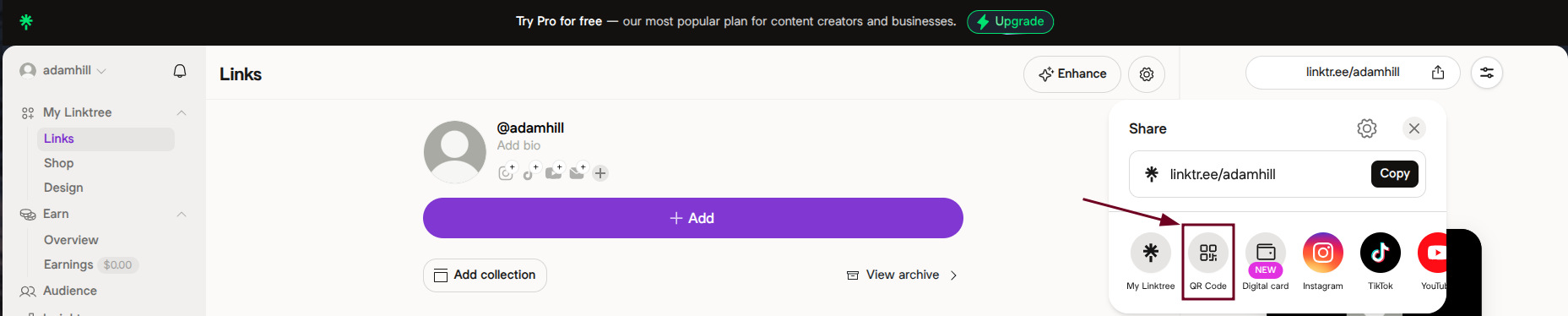
Step #02: Locate “Share”
Once you’re on your dashboard, look for the “Share” icon. You’ll find it near your profile link or at the top of the page.

Step #03: Generate QR code
Click on the “Share” icon, and you’ll see your QR code already generated and ready to go.
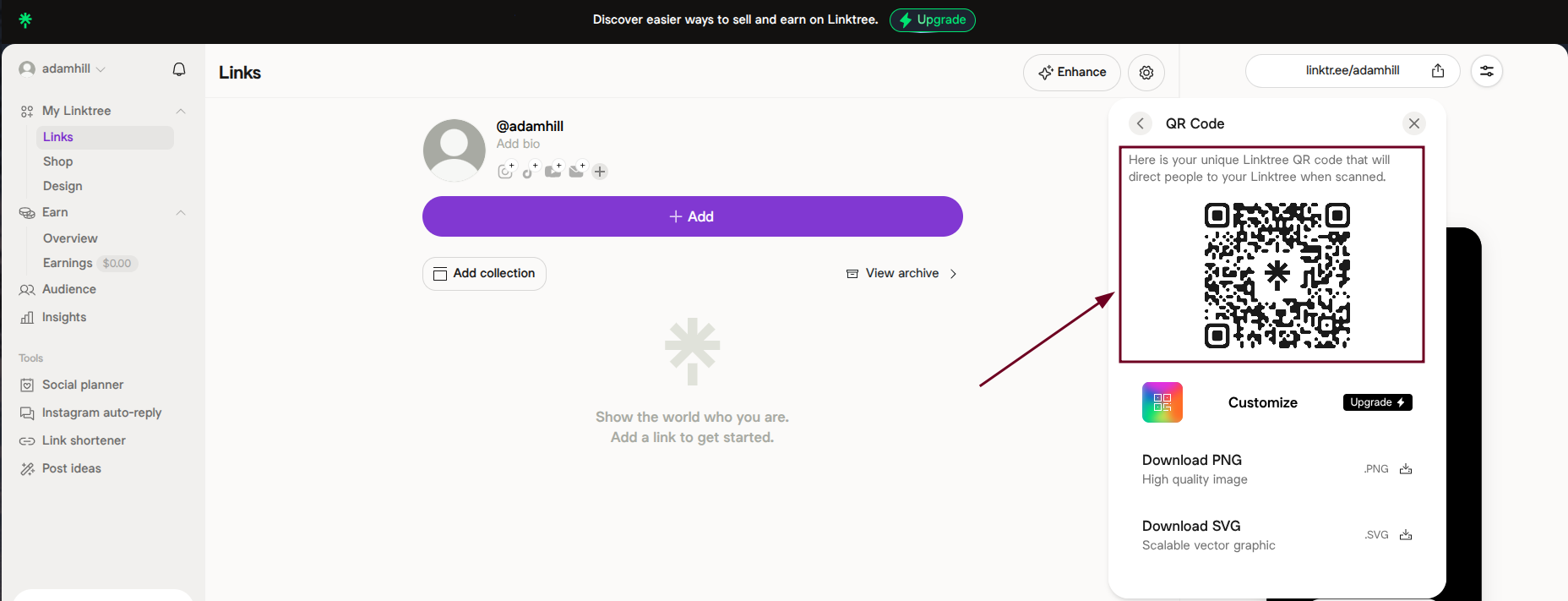
Linktree automatically creates one linked to your unique Linktree URL.
Step #04: Customize (optional)
If you’re on a paid plan, you can tweak the QR code’s colors and style to match your brand. A nice touch if you’re using it professionally.
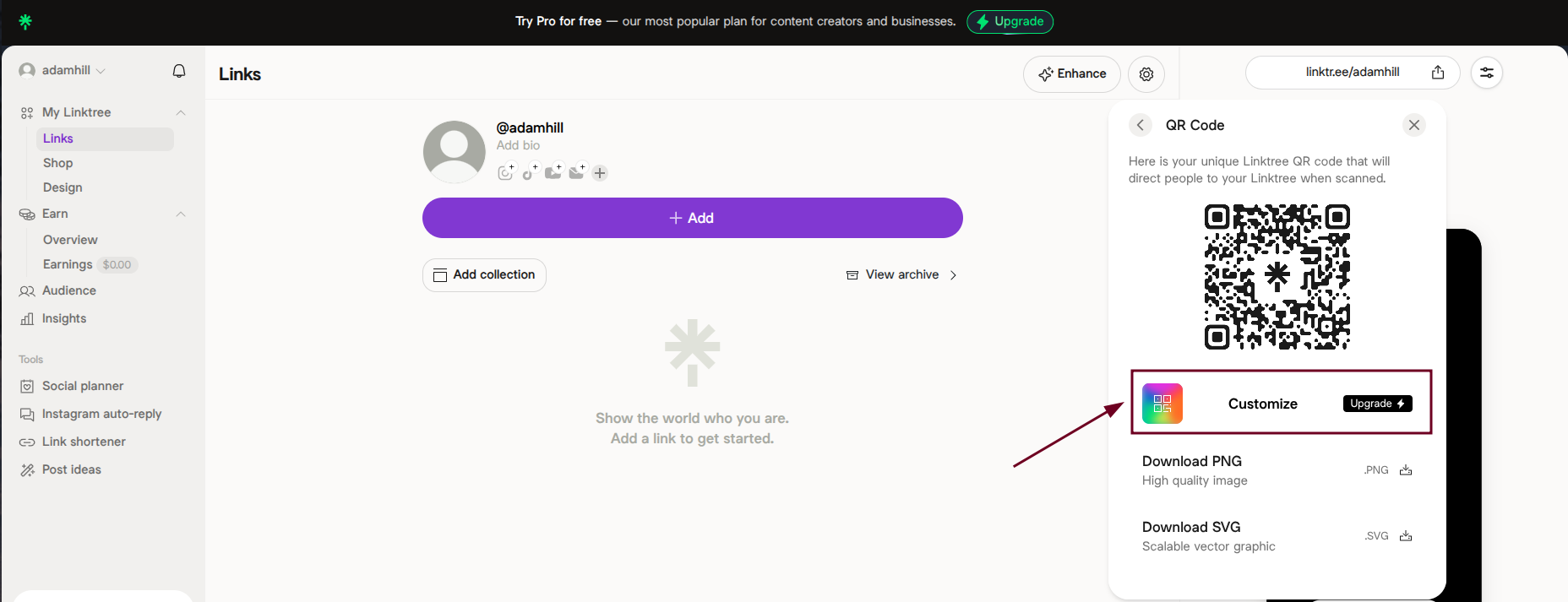
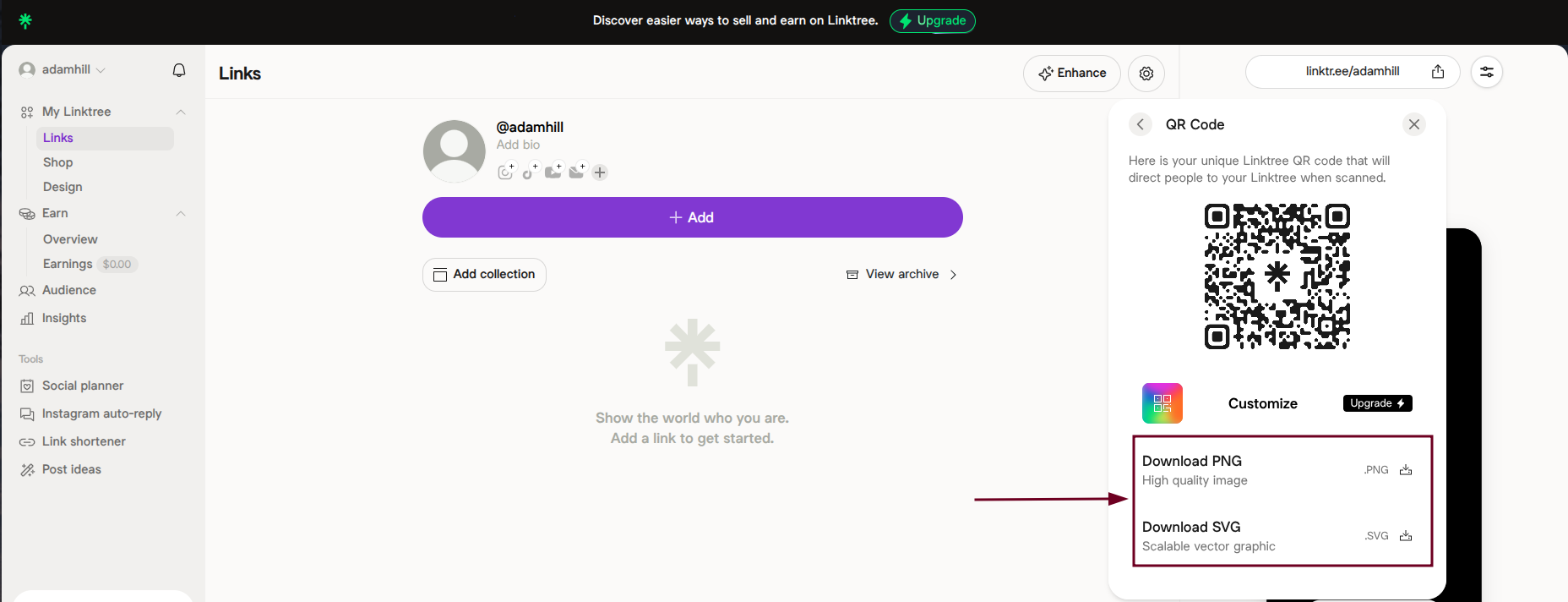
Step #05: Download
Hit the “Download PNG” or “Download SVG” option, save the QR code as an image file, and it’s yours to use wherever you need it.
How to create a Linktree QR code with Replug
Replug is a top-notch link management platform that also lets you create QR codes on the go. And it comes with some extra perks like tracking and retargeting as well.
Here’s how to generate a Linktree QR code using Replug in no time:
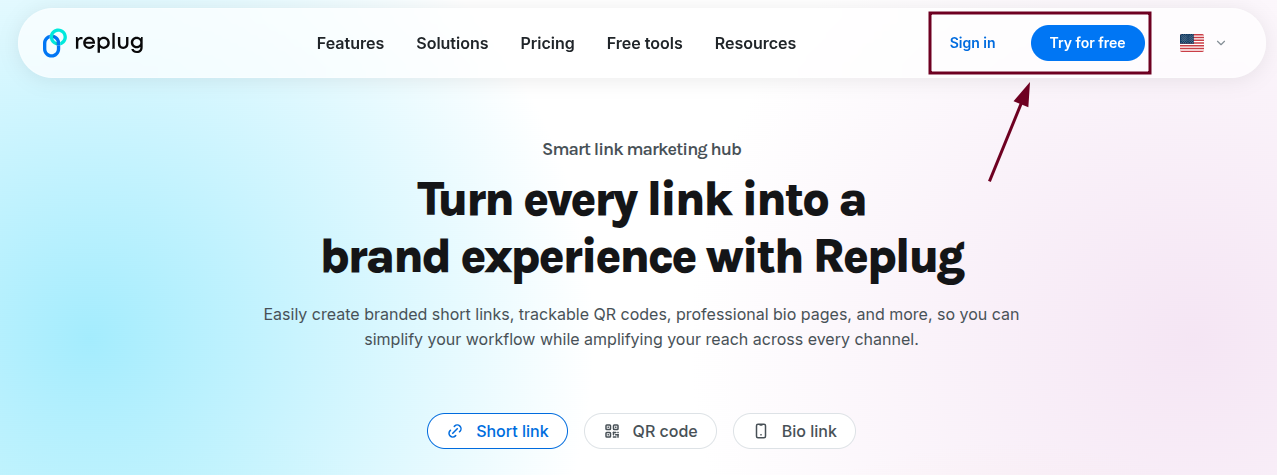
Step #01: Log in to Replug
Go to replug.io and sign in to your account. If you are new here, you can quickly create an account and get started.
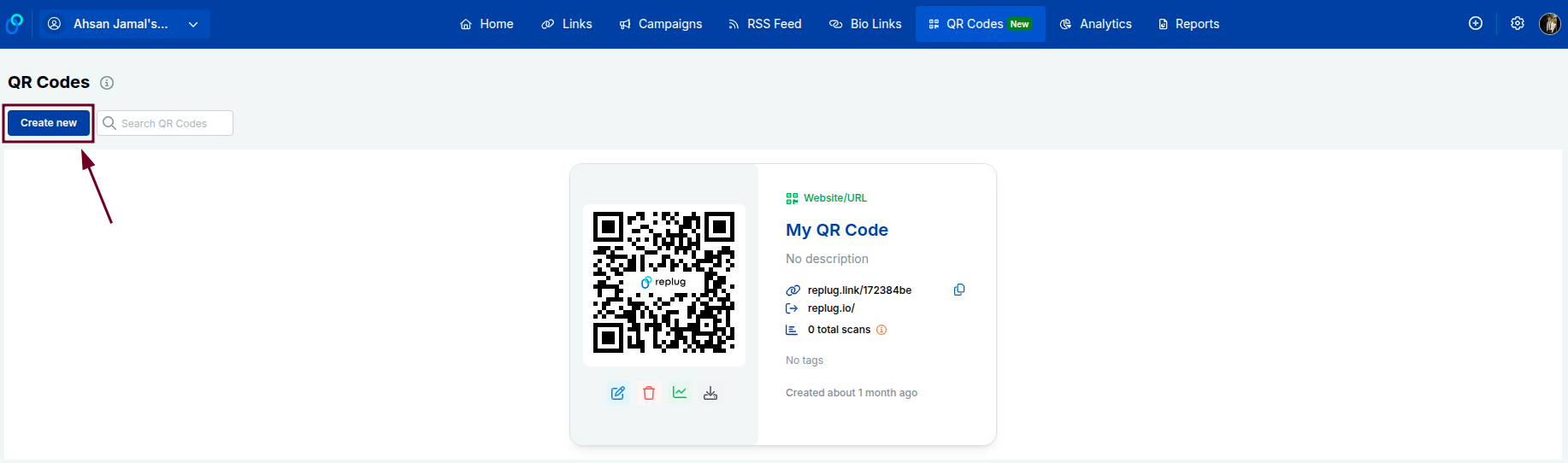
Step #02: Click “QR Codes”
From your Replug dashboard, find and click on the “QR Codes” option. It will be available in the top list of options.

Step #03: Click the “Create new” button
You’ll see a “Create new” button on the QR Codes page. Go ahead and click it to start building your QR code.
Step #04: Enter details
Paste your Linktree URL into the provided “Destination URL” field, and fill in any other required details. Also, customize the QR code the way you like.
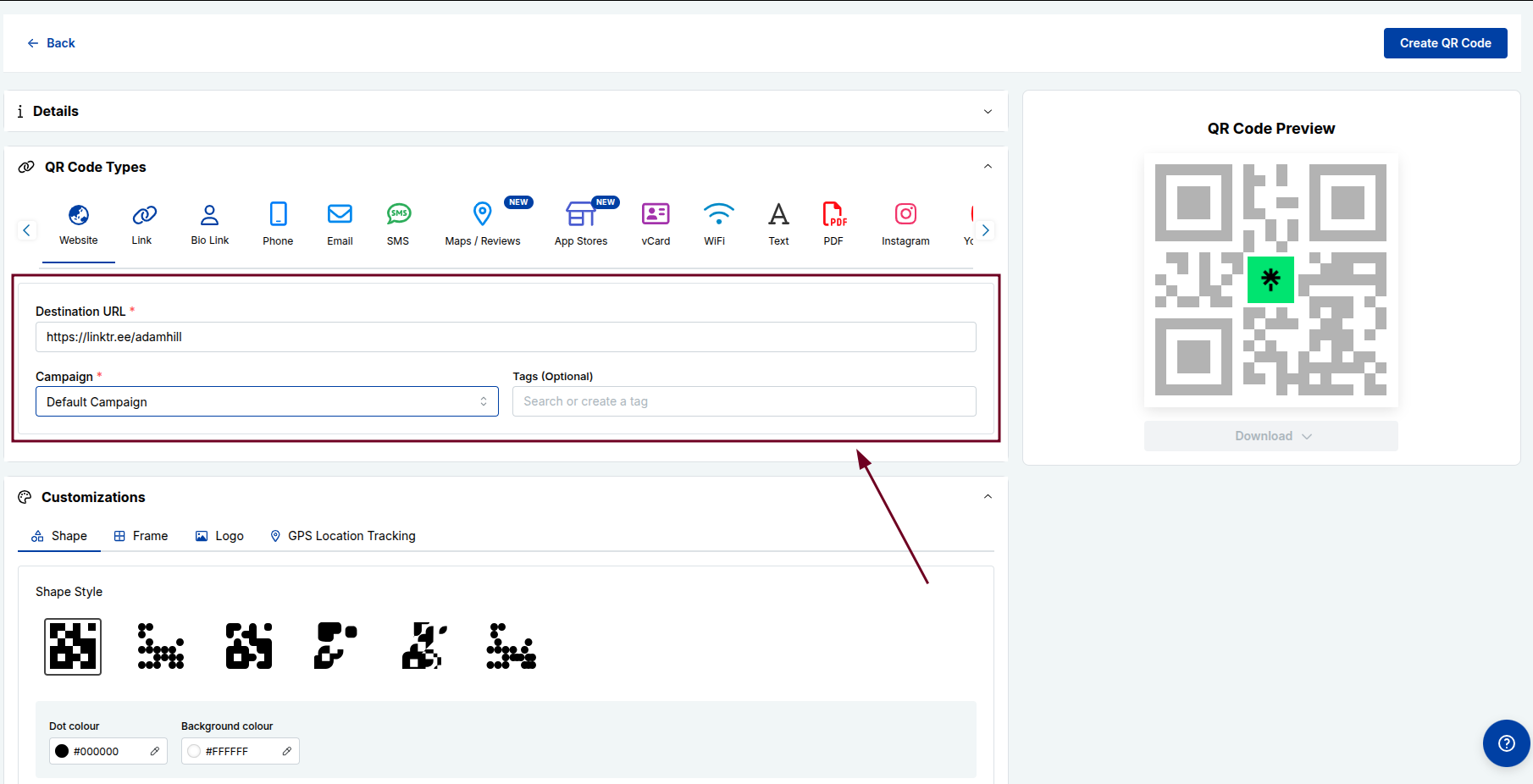
Step #05: Click “Create QR Code”
Once everything looks good, hit the “Create QR Code” button.
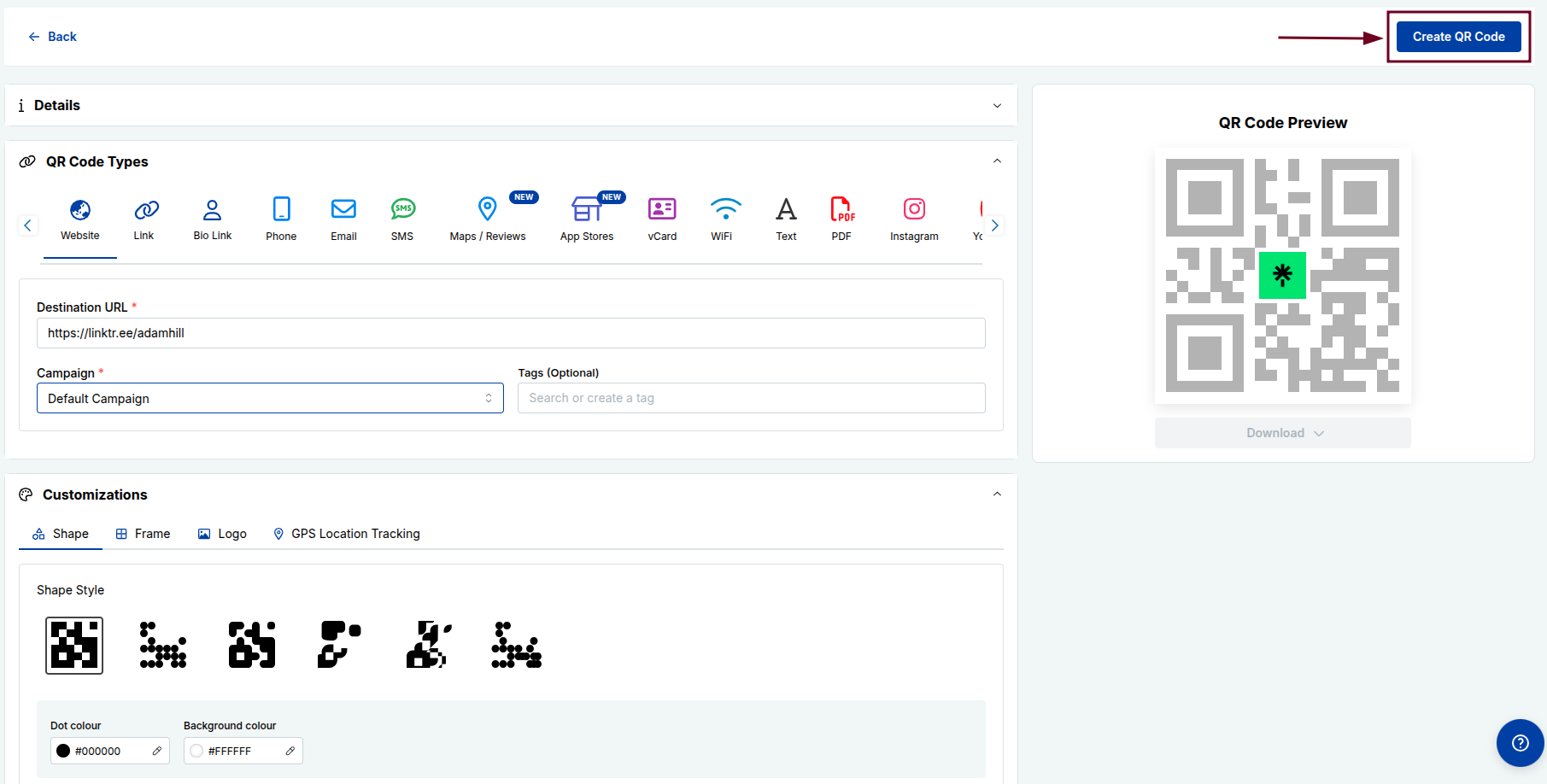
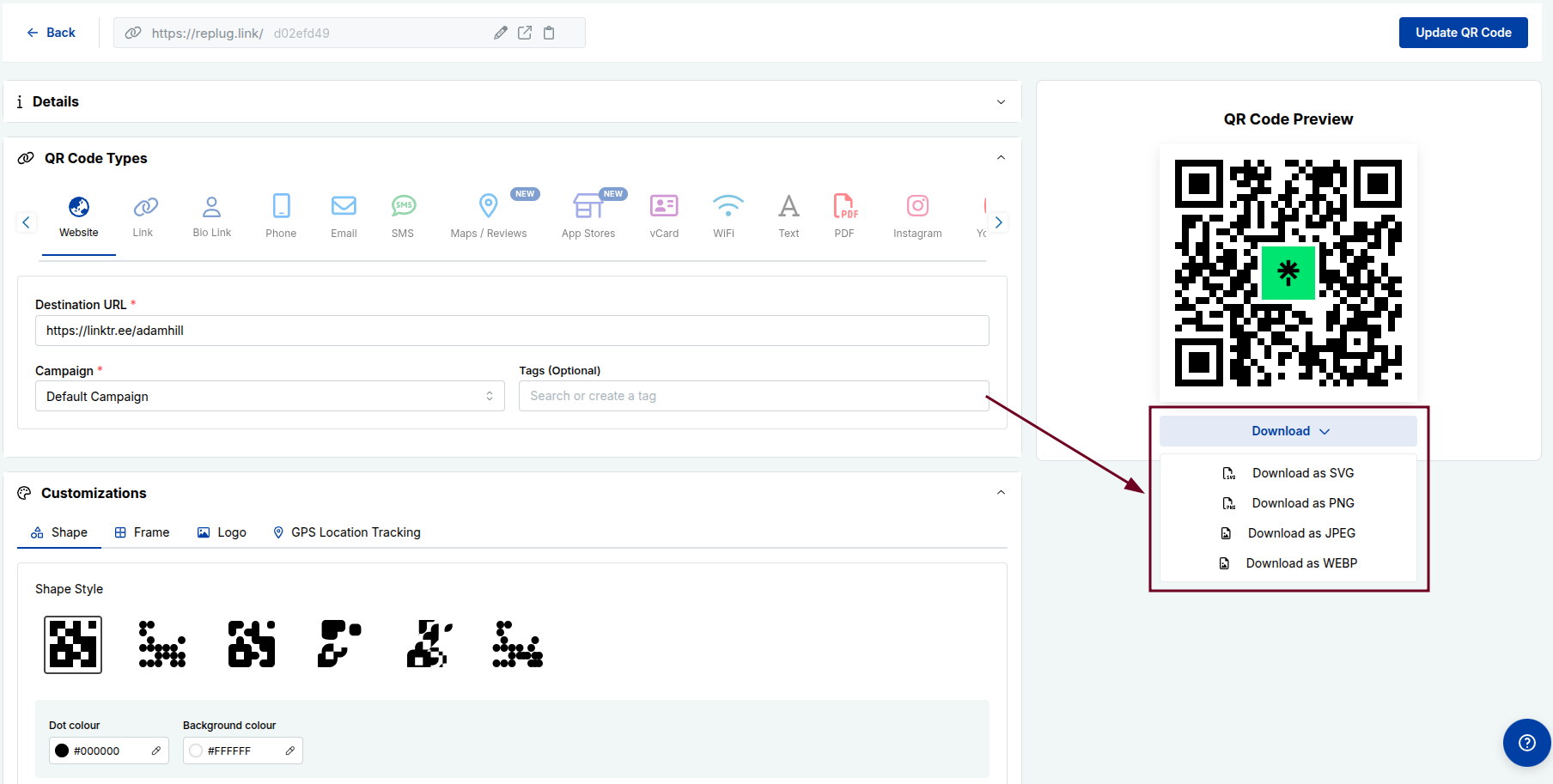
Your QR code will be generated instantly and ready to download and use. You can download in any format you like (SVG, PNG, JPEG, or WEBP).
You may also like: How to create a QR code for a URL?
Key benefits of using Linktree QR codes
Linktree QR codes aren’t just a cool-looking feature; they’re genuinely useful. No matter if you’re a creator, freelancer, or business owner, here’s why adding a QR code to your Linktree strategy just makes sense:
- Instant access & convenience: No more typing out long URLs. People simply scan and land on your Linktree page within seconds, making the whole experience smoother for everyone.
- Bridge physical & digital spaces: Add your QR code on a business card, poster, or product packaging and instantly connect your offline audience to your entire online presence.
- Consolidation of multiple links: Instead of sharing five different links, one QR code scan takes people to your Linktree, where all your important links (social media, website, store, etc.) live in one place.
- Real-time updates: Update your Linktree links anytime, and your QR code automatically reflects those changes. No need to reprint or regenerate anything.
- Enhanced networking: At events, meetups, or conferences, sharing your QR code is way faster and more memorable than exchanging contact details the old-fashioned way.
- Cost-effective marketing: Creating a Linktree QR code is free, and using it across print or digital materials saves you money compared to traditional marketing tools that do far less.
Benefits of using Replug QR codes instead
Linktree’s built-in QR code gets the job done, but Replug takes things a step further. If you’re serious about tracking performance and getting more out of every scan, here’s why Replug’s QR codes give you an edge:
- Advanced retargeting: Replug lets you attach retargeting pixels to your QR codes, so you can re-engage people who scanned your code with targeted ads on Facebook, Google, and more.
- Deep analytics & tracking: See exactly how many people scanned your code, when, and from where, giving you real data to understand what’s working and what’s not.
- Personalized branding & custom domains: With Replug, you can use your own custom domain and brand your QR codes with your colors and logo, making everything look polished and professional.
- Dynamic flexibility: Need to change the destination URL after printing? No problem. Replug’s dynamic QR codes let you update the link anytime without touching the QR code itself.
- Efficient lead generation: Replug lets you add lead capture forms to your links, turning every QR code scan into a potential new subscriber or customer (something Linktree simply doesn’t offer).
- Unlimited versatility: From marketing campaigns and product packaging to email signatures and event materials, Replug QR codes work seamlessly across virtually any channel or format.
Best practices & tips for using Linktree QR codes efficiently
Creating a QR code is easy, but making sure it actually works well and gets scanned is a different story. Follow these simple tips to get the most out of your Linktree QR codes:
Tip #01: High contrast
Always use dark colors on a light background. The stronger the contrast, the easier it is for phone cameras to scan your code quickly and accurately.
Tip #02: Minimalist design
Keep the design clean and simple. Overloading your QR code with too many colors or design elements can confuse scanners and cause read errors.
Tip #03: Use proper formats
Download your QR code as a high-resolution PNG or SVG file so it stays sharp and scannable, whether it’s printed small on a card or large on a banner.
Tip #04: Avoid inversion
Don’t flip your QR code to light-on-dark. Most scanners struggle with inverted codes, and it’s an easy way to kill your scan rate without realizing it.
Tip #05: Add a call to action (CTA)
Place a short CTA phrase like “Scan to see all my links” near your QR code. A slight nudge like this can significantly boost the number of people who actually scan it.
Tip #06: Size matters
Never print your QR code smaller than 2×2 cm. Anything smaller gets pretty difficult to scan, especially on low-quality prints or from a slight distance.
Tip #07: Test multiple devices
Before going live, test your QR code on both iOS and Android devices as well as PC screens and laptops to make sure it scans smoothly across different cameras and operating systems.
Tip #08: Use dynamic codes
Opt for dynamic QR codes over static ones so you can update your Linktree URL anytime without having to reprint or redistribute your materials.
Tip #09: Optimal placement
Put your QR code somewhere people can comfortably scan it (eye level works best). Also, avoid placing it on curved surfaces or in low-light areas where scanning becomes a hassle.
Turn QR codes into your smartest marketing asset using Replug!
If you want to do more than just generate a basic QR code, Replug is the tool you need in your corner.
It’s an all-in-one link management tool that helps you shorten links with its reliable link converter. Besides, it assists in tracking clicks, retarget audiences, and yes, creating stunning, fully personalized QR codes in seconds.
With Replug’s custom QR code generator, you can build dynamic QR codes branded with your own colors, logo, and custom domain, no design skills needed. And since they’re dynamic, you can update the destination link anytime without reprinting a thing.
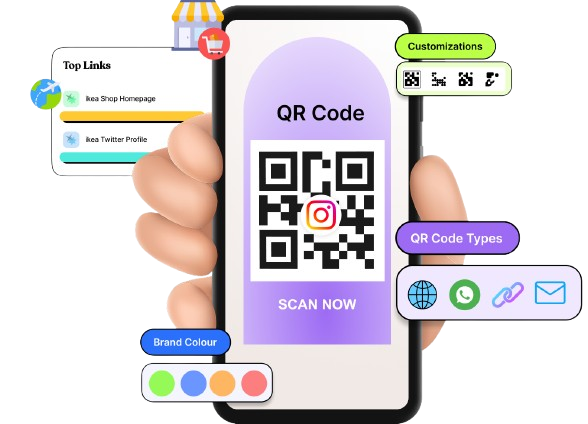

No matter if you’re running a marketing campaign or just want smarter, trackable links, Replug turns every QR code scan into a real opportunity. It’s fast, intuitive, and built for people who mean business.
Wrapping up
QR codes have gone from a nice-to-have to a genuine marketing tool, and pairing them with your Linktree page makes them even more powerful.
Whether you’re sharing your links at an event, on a business card, or across printed materials, a Linktree QR code makes it effortless for people to find everything you offer in one tap.
And if you’re ready to take it up a notch with tracking, retargeting, and branded customization, Replug is the obvious next step.
The bottom line?
A well-designed, well-placed QR code can do a lot of the hard work for you — so why not let it?
Frequently asked questions
Does Linktree give a QR code?
Yes, Linktree automatically generates a QR code for every account (free and paid alike). You don’t have to create one from scratch or use a third-party tool. It’s built right into the platform and linked directly to your Linktree profile URL.
How do I get a QR code for my Linktree?
If you’re wondering how to get your Linktree QR code, it’s really simple. Just log in to your Linktree account, hit the “Share” button on your dashboard, and your QR code will be right there waiting for you. From there, you can download it and start using it wherever you need it.
Are Linktree QR codes permanent, or do they expire?
A common question most people ask is: Does a Linktree QR code expire? The short answer is no. As long as your Linktree account remains active, your QR code stays valid and functional. It won’t suddenly stop working unless you delete your account or change your Linktree username, which would break the link the QR code points to.
How to find my Linktree QR code on iPhone?
Here’s how to find the Linktree QR code on iPhone:
1. Open Safari or any browser.
2. Go to linktr.ee and log in to your account.
3. Once you’re on your dashboard, tap the “Share” button. The QR code option will appear on screen inside the box.
4. From there, you can download it directly to your iPhone’s camera roll for easy access anytime.
Which people and businesses benefit from Linktree QR codes?
Pretty much anyone with an online presence. Content creators, musicians, freelancers, coaches, restaurants, retail stores, event organizers, and small business owners all benefit from Linktree QR codes. If you have multiple links you want people to access quickly, it’s a no-brainer.
What if my Linktree QR code doesn’t scan?
First, check the contrast and size. Low contrast or too-small print is usually the culprit. Also, make sure the code isn’t distorted or pixelated. Try scanning it on a different device, and if it still doesn’t work, try regenerating the QR code altogether.
Is my Linktree QR code safe to share online?
Yes, it’s safe. Your Linktree QR code simply points to your public Linktree page, i.e., the same page you’d share as a regular link. Just make sure the links on your Linktree page itself are trustworthy and up to date.
What can I use my Linktree QR code for?
The possibilities are pretty wide: business cards, flyers, posters, product packaging, event booths, email signatures, YouTube video descriptions, Instagram bios, restaurant menus, and even merchandise. Anywhere you want people to quickly access your links works.
Does the Linktree QR code work across all devices?
Yes! Since most modern smartphones (both iOS and Android) have built-in QR code scanners in their camera apps, your Linktree QR code works seamlessly across virtually all devices without needing any extra app.
How to resolve the Linktree QR code not working issue?
Start by testing it on multiple devices. If it’s a print issue, reprint at a higher resolution. Moreover, if the link itself isn’t loading, log in to Linktree and make sure your profile is set to public and your links are active. Regenerating the QR code often fixes most issues.
How to get the Linktree QR code on a business card?
Download your Linktree QR code as a high-resolution PNG or SVG file. Then, upload it directly into your business card design, whether you’re using Canva, Adobe, or a print service like Vistaprint. Make sure it’s at least 2×2 cm for easy scanning. That’s it!
How to download the Linktree QR code for free?
Log in to your Linktree account and click the “Share” button on your dashboard. You’ll see your QR code ready to download completely free, no paid plan required. Just hit “Download PNG” or “Download SVG” and save it to your device.
How to monitor Linktree QR code usage?
On Linktree’s free plan, analytics are pretty limited. If you want detailed scan tracking, like how many people scanned, when, and from where, consider using the Starter, Pro, or Premium plan. You can also use a tool like Replug to monitor your QR code with full analytics built in.
Provide some examples of Linktree QR codes?
Here are a few real-world use cases:
– A musician placing a QR code on their album cover linking to their Spotify, merch store, and tour dates;
– A food blogger adding one to their recipe cards linking to their YouTube and Instagram;
– A freelancer putting it on their business card linking to their portfolio, LinkedIn, and booking page; and
– A restaurant using it on table cards to link to their menu, reviews, and social pages.
What are the important points to consider for basic Linktree QR codes?
Keep these in mind:
– Always use high contrast colors,
– Download in a high-resolution format,
– Never print it too small,
– Add a CTA near the code,
– Test it before printing in bulk,
– Keep your Linktree profile set to public, and
– Regularly check that all your linked pages are still active and working.