Link cloaking & redirection: Keep your links clean and trustworthy by avoiding sending your followers to broken links.
Conclusion
Changing your Tumblr URL is a solid move, especially if you’re rebranding or aligning your content with a new direction. Tumblr makes the switch easy, but that’s just the beginning.
If you want your link to do more than just exist, it’s time to think bigger. With Replug’s custom URL shortener, you’re not just customizing a URL; you’re optimizing it for clicks, conversions, and visibility. Whether you’re a content creator, business, or blogger, the ability to brand, test, and track your links can be a game-changer.
Tumblr might be your platform, but Replug turns your links into power tools.
FAQs
Will I lose my followers if I change my Tumblr URL?
No. Tumblr automatically redirects your old URL to the new one, so your followers won’t be affected.
Can I change my Tumblr URL more than once?
Yes, you can change it multiple times, but your old URLs become available for others to claim.
Can I connect a custom domain to Tumblr?
Yes, Tumblr allows you to connect a custom domain, but it doesn’t offer branded previews or analytics.
What’s the difference between Tumblr’s custom domain and Replug’s branded links?
Tumblr’s custom domain changes the URL, but Replug allows branded previews, click tracking, retargeting, and much more.
Do I need a Tumblr pro account to change my URL?
No, you can change your Tumblr URL for free. However, branded domains require a fee.
Is Replug only for Tumblr users?
Not at all. Replug works across all platforms—Instagram, YouTube, TikTok, LinkedIn, email, and even blogs. You name it!
Ever wonder how top Instagram creators effortlessly grow loyal communities across platforms? Their secret: smart cross-promotion, especially linking YouTube to Instagram.
While Instagram’s one-link bio rule may seem limiting, smart creators use it to their advantage by linking their YouTube channel or videos right where it matters most.
YouTube is where your long-form content lives. Instagram? It’s where people discover you. Connecting the two not only boosts views but builds trust and loyalty across platforms.
In this guide, we’ll show you exactly how to add your YouTube link to your Instagram bio (with or without an Instagram link in bio tool), and which types of content actually get people to click. Ready to turn casual followers into loyal subscribers? Let’s dive in.
Method no 01: Add a YouTube link to bio natively on Instagram
Step 1: Copy your YouTube link
For your channel: Go to your YouTube channel > tap the three dots > tap “Share” > copy the link.
For a video: Open the video > tap “Share” > copy the link.
Step 2: Open Instagram and edit your bio
Go to your Instagram profile
Tap “Edit profile”
Paste the copied YouTube link in the Instagram bio field
Tap “Done” or the checkmark. Your YouTube link is now live in your bio!
Method no 02: Add a YouTube link to bio using link-in-bio tool
Our link in bio generator lets you showcase multiple YouTube links under one smart link – no need to update your bio every time. Use Replug.io: it’s affordable, easy to use, and packed with features like link tracking, customization, and branding.
Here’s how to add your YouTube link to Instagram using Replug’s bio link feature.
Go beyond generic link pages!
Create custom bio links that truly fit your brand
With Replug, you can create bio links that are unique, engaging, and built to convert.
Go to Replug and log in (or create an account). Once you’re inside, Go to the bio link dashboard and click on “Create new”.
You’ll spot three categories there Branding, Content and Settings.
Step 1: Customize the page
Under the Branding tab, customize your profile:
Add a title, description, profile image, verified badge, background image, and theme.
Once you’re done adding everything, click the “Update” button located in the corner.
Step 2: Add your Youtube links
Go to the Content tab. Click “Links” to add your YouTube videos, playlists, or channel.
Now you can add your preferred Youtube links by adding a custom title and link in the block.
Each block is customizable – add titles, icons, and scheduling options.
You can also embed YouTube videos directly or mix in text, social buttons, and cards.
You can easily rearrange or remove any block before going live. When everything looks perfect, just click “Publish” in the top-left corner to launch your custom bio link page.
Step 03: Optimize & track performance
Before sharing your bio link page, give it an SEO boost: Add a custom meta title, description, favicon, and featured image or Insert tracking pixels (Facebook, TikTok, Google, etc.) for retargeting and conversion tracking.
Once you’re done adding everything. Customize the bio link as per your preference and copy it.
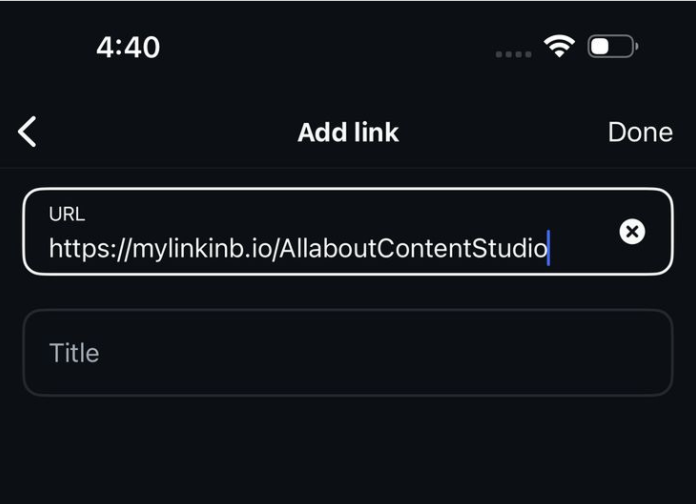
Your custom landing page is now ready to shared on Instagram.
Step 4: Add Replug link to your Instagram bio
Open your Instagram profile
Tap “Edit Profile”
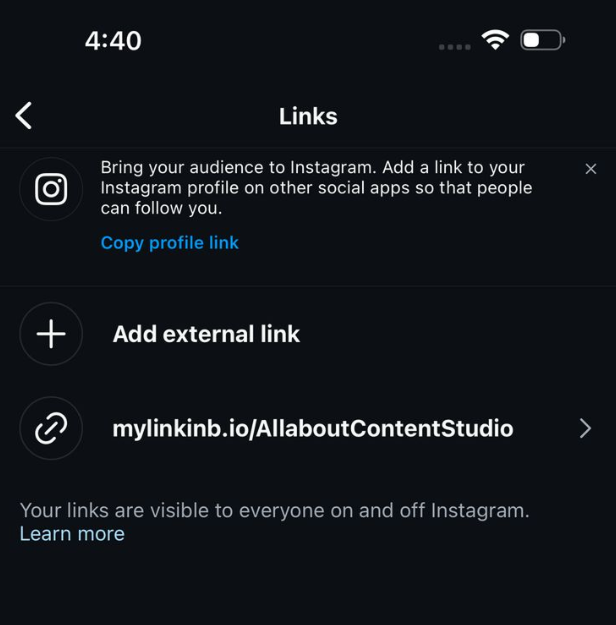
Paste your Replug link in the “External link” field.
This link will now lead your followers to your custom page with all your important YouTube links!
Your bio landing page is now live in your bio, giving your followers easy access to your YouTube content and more.
Adding your YouTube link to your Instagram bio is a small change that can bring big results. Whether you choose Instagram’s native method or a feature-rich link-in-bio tool like Replug, cross-promoting your content boosts visibility, builds deeper audience connections, and increases engagement across platforms. So don’t let your best content sit unseen, make it just one tap away.
For even cleaner, highly-optimized, and trackable URLs, try Replug’s free link shortener, to optimize and share your links effortlessly across all your social channels.
FAQs on adding YouTube link to Instagram bio
Can I add more than one YouTube link to my Instagram bio?
Not directly through Instagram, but with tools like Replug, you can create a landing page that includes multiple YouTube links under one smart Instagram bio link.
Will Instagram let me paste a clickable YouTube link?
Yes, but only one. You can paste a YouTube video or channel link in the “Website” field of your bio, and it will be clickable.
How often should I update my Instagram bio with a new YouTube link?
If you’re doing it manually, update it every time you post something important. If you’re using Replug, just update the dashboard and your bio stays fresh automatically.
Can I track clicks on my YouTube link in bio?
Yes! Replug offers detailed analytics to track clicks, location, devices, and even lets you add retargeting pixels for advanced campaign performance on your YouTube link in bio.
Maybe your profile URL still screams “DJxCrayBeats2007” or some other relic from your experimental high school phase.
Or maybe you’re building a brand now, and you want that URL to reflect the new and improved you.
Whatever your reason, it’s totally valid. After all, your SoundCloud URL is your digital street sign. Let’s make sure it points in the right direction.
This guide has all that you need to know about changing and branding your URL on SoundCloud. Let’s get vibing!
TLDR
You can change your SoundCloud profile URL on desktop only.
Use only lowercase letters, numbers, hyphens, or underscores.
Old embeds and links might stop working—no redirects included.
Replug can save your links, track them, and make sure you never lose fans to a broken URL.
How to change your SoundCloud URL? (the right way)
First things first: You can only change your SoundCloud profile URL via desktop. Mobile users, you’ll need to dust off the laptop for this one.
Here’s how to change your SoundCloud URL:
Head to your SoundCloud profile on a web browser.
Click the Edit button below your header.
Once done, you’ll see a pop-up. Type your desired URL under Profile URL.
But wait, before you rush in, know this: SoundCloud only allows lowercase letters, numbers, hyphens (-), and underscores (_) in your URL. No capital letters, and sadly, no emojis.
[cries in cant_flex_with_emojis]
How often can you change your SoundCloud URL?
SoundCloud isn’t a big fan of constant rebranding.
They’ve set some limits on how many times you can change your URL in a given time frame. If you get an error, you’ve probably reached that limit. Either give it a little time (usually until the next month) or file a support ticket.
TL;DR: Choose wisely, like you’re naming your mixtape.
What happens when you change your SoundCloud URL?
Your new profile URL goes live immediately within SoundCloud.
But search engines like Google? They take their sweet time. Your tracks may not show up under the new URL right away in search results.
Also – and this is big, any links or embedded players using your old URL could break.
Embeds from before August 2010? Straight to the void.
Embeds after that? They’ll still play your tracks, but clicking through to your profile might lead people to a dead end.
And guess what? SoundCloud doesn’t offer redirects. Once you change your URL, the old one is gone, like a beat drop no one was ready for.
Pro tip: use Replug to make your SoundCloud links future-proof
Here’s where things get interesting.
Changing your SoundCloud URL means broken links. But what if you didn’t have to worry about that?
Replug lets you create short, branded links with the help of its top-notch link shortener that you can update anytime. So even if your SoundCloud URL changes 5 times a year (we don’t recommend it, but hey, you do you), your Replug link stays rock solid.
Here’s how you can create a branded and evergreen SoundCloud URL with Replug:
Step 1: Log in to your Replug account. If you don’t already have an account, create one.
Step 2: Copy your SoundCloud URL.
Step 3: Create a custom SoundCloud URL.
Go to your Replug homepage and paste your SoundCloud URL in the bar under “Quickly Shorten your link”
Create a custom URL by simply changing the slug of your original SoundCloud URL.
Step 4: Save your SoundCloud URL.
That’s it! Just click “Save Shortened link,” and your custom SoundCloud URL will be ready to share across any channel.
Benefits of using Replug for your SoundCloud links:
Easy redirection: Change your destination URL without changing the link itself.
Click tracking: Know exactly how many fans are vibing with your link.
Retargeting: Add retargeting pixels and bring people back with ads. After all, your playlist is repeat-worthy.
Deep linking: Send users straight to your SoundCloud profile inside the app with a single deep link.
QR codes: Create a dynamic QR code for your SoundCloud profile for faster sharing.
A complete link management solution
for marketing professionals & agencies.
Try Replug for free
Instead of spreading five versions of your SoundCloud URL across Instagram bios, YouTube descriptions, and tweets from 2026, just share one Replug link and update the backend whenever needed.
Boom. Crisis averted.
And that’s a wrap (drop the mic, not the link)
Your SoundCloud URL should evolve with you. Just like your sound has matured, your branding should too. And with Replug in the mix, you don’t just change your URL, you future-proof it.
Ready to make the switch? Grab your new URL, pop it into a Replug link, and share it like the star you are!
FAQs
Can I change the SoundCloud URL on my phone?
Nope. SoundCloud’s not about that mobile life (at least not for URLs). You’ll need a desktop browser to make the change. Time to find your charger.
How often can I change my SoundCloud URL?
Not every week, superstar. SoundCloud puts a cap on how often you can rebrand. If you get an error, you’ve likely hit the limit. For that, you’ll need to wait a bit or contact support.
What happens to my old SoundCloud URL?
It disappears into the internet void. No redirects. No “just in case” backups. Your old links will stop working, especially if embedded somewhere. Protect your fans from 404 heartbreaks with link management tools such as Replug.
Do embedded SoundCloud players still work after I change my URL?
If the embed is from before August 2010 → it’s toast. After 2010? It might still play your track, but users won’t be able to click through to your profile.
How can I avoid broken SoundCloud links in the future?
Use Replug. It gives you one short, branded link you can update anytime. Your fans stay connected, even if your SoundCloud URL changes three glow-ups from now.
Can I track how many people click my SoundCloud link?
Not with SoundCloud itself. But if you use Replug? Absolutely. Track clicks, the juicy stats, and even retarget your fans with ads.
Affiliate marketing is one of the easiest ways to earn money online – whether you’re a creator, blogger, or run a business. And it all starts with a single link: the affiliate link.
Think of it as your personal tracking link. When someone clicks it and makes a purchase, you get paid. It’s that simple. But how does it actually work? And how can you make the most of it?
Let’s walk you through the basics, plus how tools like Replug can take your affiliate strategy to the next level.
Maximize marketing ROI
by transforming ordinary URLs into branded short links that convert.
Try Replug for free
Merchants (also called advertisers or retailers) who sell products or services
Affiliates (publishers or partners) who promote those products
Consumers who purchase the products through affiliate recommendations
The affiliate acts as an intermediary, connecting potential customers to merchants. In return for driving sales, the affiliate receives a percentage of each successful transaction.
What are affiliate links?
An affiliate link is a unique URL assigned to an affiliate (that’s you!) by a company or brand. When someone clicks on that link, makes a purchase, or completes a specific action, you earn a commission. Simple as that.
How affiliate links actually work?
When a merchant sets up an affiliate program, they generate unique tracking links for each affiliate. These links contain tracking parameters or cookies that identify:
The affiliate’s ID – A unique identifier assigned to each affiliate partner
The specific product being promoted – Often indicated in the URL structure
The campaign or promotional channel – To track which marketing efforts are most effective
Here’s what happens behind the scenes when someone clicks an affiliate link:
A consumer clicks on the affiliate link in a blog post, video description, or social media post
The link redirects them to the merchant’s website
A tracking cookie is placed in the consumer’s browser (typically lasting 7-90 days)
If the consumer makes a purchase within the cookie’s duration, the sale is attributed to the affiliate.
The merchant’s affiliate system (such as ReferralCandy) records the transaction and assigns the commission to the affiliate
Managing affiliate links
Every click matters in affiliate marketing. Replug helps you take control, track performance, boost conversions, and stay organized effortlessly.
Alongside managing affiliate URLs, many marketers also use tools like Referral Factory to build referral programs that work hand-in-hand with their affiliate strategy, letting them generate unique referral links, track conversions, and automate rewards for every successful referral.
For businesses running larger affiliate programs, an affiliate fraud detection tool can also help identify suspicious clicks, fake conversions, and other fraudulent activity before it impacts commissions or marketing budgets.
Here’s where Replug comes in
Affiliate links are powerful, but let’s be honest, they’re often long, messy, and not exactly click-worthy. That’s where this efficient custom link maker comes into play.
With Replug, you can:
Shorten and brand your affiliate links (turn that long URL into short branded URL)
Track clicks and conversions in real time with detailed analytics
Retarget users who click your affiliate links with ads, even if they don’t purchase right away
Customize link previews for better engagement across social platforms
Here’s how to shorten an affiliate link using Replug
Step 1:
Go to Replug and log in to your account. If you don’t have an account, sign up for free.
Step 2:
On the Replug dashboard, locate the “Quickly shorten your URL” field. And paste your affiliate link into the box.
Press Enter, and a pop-up window will appear. Here, you can customize the link to create a branded and recognizable URL.
Click the “Checkmark” to generate your shortened Replug link.
Step 3: (Additional step)
Replug offers powerful tools to help you maximize your affiliate earnings:
QR codes have become an essential tool for quickly sharing information in an efficient and user-friendly way. If you frequently use Google Docs for collaboration, creating a QR code can help others access your document with just a quick scan. Whether you’re sharing notes, presentations, or project plans, a QR code eliminates the need for typing long URLs and enhances accessibility.
In this guide, we’ll show you how to make a QR code for a Google Doc using Replug and directly inside Google Chrome.
What is a QR code for Google Docs?
A QR code for Google Docs is a machine-readable barcode that encodes the URL of your document. When scanned, it instantly redirects users to your Google Doc, making document sharing seamless.
Offering quick links to important documents in business presentations
Distributing forms and surveys without requiring users to manually type a link
Now, let’s dive into the step-by-step process of generating a QR code for your Google Docs using Google Chrome and Replug.
How to make a QR code for a Google Doc using Google Chrome?
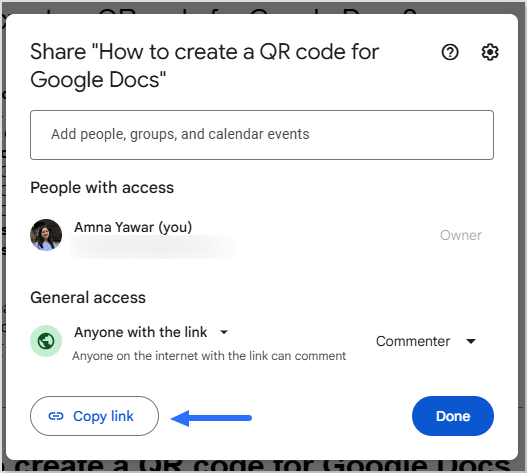
If you use Google Chrome, you can generate a QR code for your Google Doc without any third-party tools. Here’s how:
Open your Google Doc in Chrome.
Click on the address bar where the URL is displayed.
Look for the QR code icon on the right side of the address bar (if available) or right-click anywhere on the page and select Create QR code for this page.
If you can’t find any of these options:
Click on the More (three dots) menu in Chrome.
Select Cast, save, and share and then Create QR code.
You can now:
Copy the QR link.
Download the QR code as an image.
Scan the QR code with another device’s camera.
This method is quick and convenient, but the QR code is static, meaning you cannot edit the link, track scans, or customize its design.
Replug makes QR code generation effortless, offering customizable, trackable, and dynamic codes to enhance your QR code marketing and engagement strategies.
Customization options: Easily personalize your QR code’s foreground and background colour to match your brand identity.
Analytics and tracking: Track real-time scan data, including the number of scans, locations, and devices used, to gain insights into user engagement.
High-resolution downloads: Download QR codes in high-quality formats that are suitable for both digital and print use without losing clarity.
Easy management: Store, categorize, and manage multiple QR codes within a centralized dashboard, ensuring easy access and organization.
Editable links: Use dynamic QR codes to change the destination URL of your Google Doc anytime without the need to recreate or redistribute the QR code.
Unlimited scans: Unlike online Google Docs QR code generators, Replug QR codes don’t expire. The tool offers unlimited QR code scans, which is especially useful if you’re sharing your document with a large audience.
A complete link management solution
for marketing professionals & agencies.
Try Replug for free
Benefits of using a QR code for Google Docs
Here are some general benefits of using a Google Docs QR code for sharing your documents:
Quick access: Eliminates the hassle of typing long URLs, allowing users to scan and access the document instantly with just a smartphone camera.
User-friendly: Anyone, regardless of technical expertise, can easily scan a QR code and open the document without any extra steps.
Time-saving: You don’t need to manually share links via email or messaging apps, making document access seamless and efficient.
Better engagement: Ensures smoother collaboration in classrooms, meetings, and events by providing instant access to relevant materials.
Improved document distribution: Ideal for organizations that frequently share important files, reports, and resources with employees or clients.
Enhanced security: Reduces the risk of typos and phishing scams by ensuring users are directed to the correct document without errors.
Versatile usage: Can be printed on posters, included in presentations, embedded in emails, or displayed on websites for easy document access.
Eco-friendly: Promotes paperless sharing, reducing the need for printed handouts while making documents more accessible.
Conclusion
Creating a QR code for Google Docs makes document sharing more accessible and efficient. Whether for professional, educational, or marketing purposes, QR codes simplify the process. By using Replug, you get additional features like customization, tracking, and easy management, making your QR codes even more effective.
So, why wait? Start generating QR codes for your Google Docs today and enhance your sharing experience!
Also, check out our short URL generator to create clean, branded links that complement your QR codes and streamline document sharing even further.
Frequently asked questions
Is it possible to update the link in a QR code after creating it?
If you use Replug’s dynamic QR codes, you can change the destination link without changing the QR code.
Can I customize my QR code’s design with Replug?
Yes, Replug allows you to customize the background and foreground colour of your QR code to match your brand identity.
Do QR codes for Google Docs expire?
If you use a static QR code, it remains active as long as the Google Docs link is valid. However, dynamic QR codes may have expiry settings depending on the tool used.
Can I track how many people scan my QR code?
Yes, with Replug’s analytics, you can monitor Google Docs QR code scan activity and engagement metrics.
Can I create a QR code for Google Docs without a third-party tool?
Yes! Google Chrome has a built-in QR code generator that allows you to create a QR code directly from the browser.
With over 1.2 billion users on LinkedIn and more than 310 million active every single month, your profile isn’t just a digital resume; it’s your first impression. And one thing most people overlook is their LinkedIn profile URL.
By default, LinkedIn hands you a messy string of random numbers and letters that looks something like linkedin.com/in/ahsan-jamal-4b3x892z. Not exactly the way you want, right?
A clean, customized URL makes you look more professional, easier to find, and way more shareable, whether you’re adding it to your resume, email signature, or business card.
The best part? It takes less than two minutes to change.
In this guide, we’ll walk you through exactly how to do it on both mobile and desktop. But first, if you’re wondering what a LinkedIn URL actually is and why it matters, let’s break that down real quick.
What is a LinkedIn URL?
A LinkedIn URL is simply the web address that leads directly to a unique LinkedIn profile. It looks something like this: linkedin.com/in/yourname.
By default, LinkedIn auto-generates this link, and it’s usually a jumbled mess of a person’s name plus a random string of numbers and characters.
The primary purpose of a LinkedIn URL is to give a unique, shareable link that people can use to find and visit a profile instantly.
Think of it as one’s personal address on LinkedIn. The cleaner it looks, the better the impression it makes.
Importance of changing your LinkedIn URL
Here’s why customizing your LinkedIn URL actually matters:
Professionalism & personal branding: A custom URL like linkedin.com/in/ahsanjamal instantly looks more polished and intentional. It signals that you take your professional presence seriously.
Improved searchability & SEO: When your URL includes your actual name, it’s more likely to show up when someone Googles you. This makes it easier for recruiters or clients to find you online.
Memorability & consistency: A clean, name-based URL is much easier to remember, and it keeps your personal brand consistent across your resume, portfolio, and social profiles.
Easy sharing on the go: No matter if you’re at a networking event or sending forth a quick email, a short and clean URL is way easier to share verbally or in writing.
Removes clutter: Getting rid of those random numbers just makes everything look tidier on your resume, your email signature, and anywhere else you drop your LinkedIn link.
How to change LinkedIn URL on mobile
Changing your LinkedIn URL on a smartphone is pretty straightforward. It just takes a few taps, and you’re done. Follow the next steps, and you’ll have a clean, custom URL in no time.
Here’s how to change your LinkedIn URL in the mobile app:
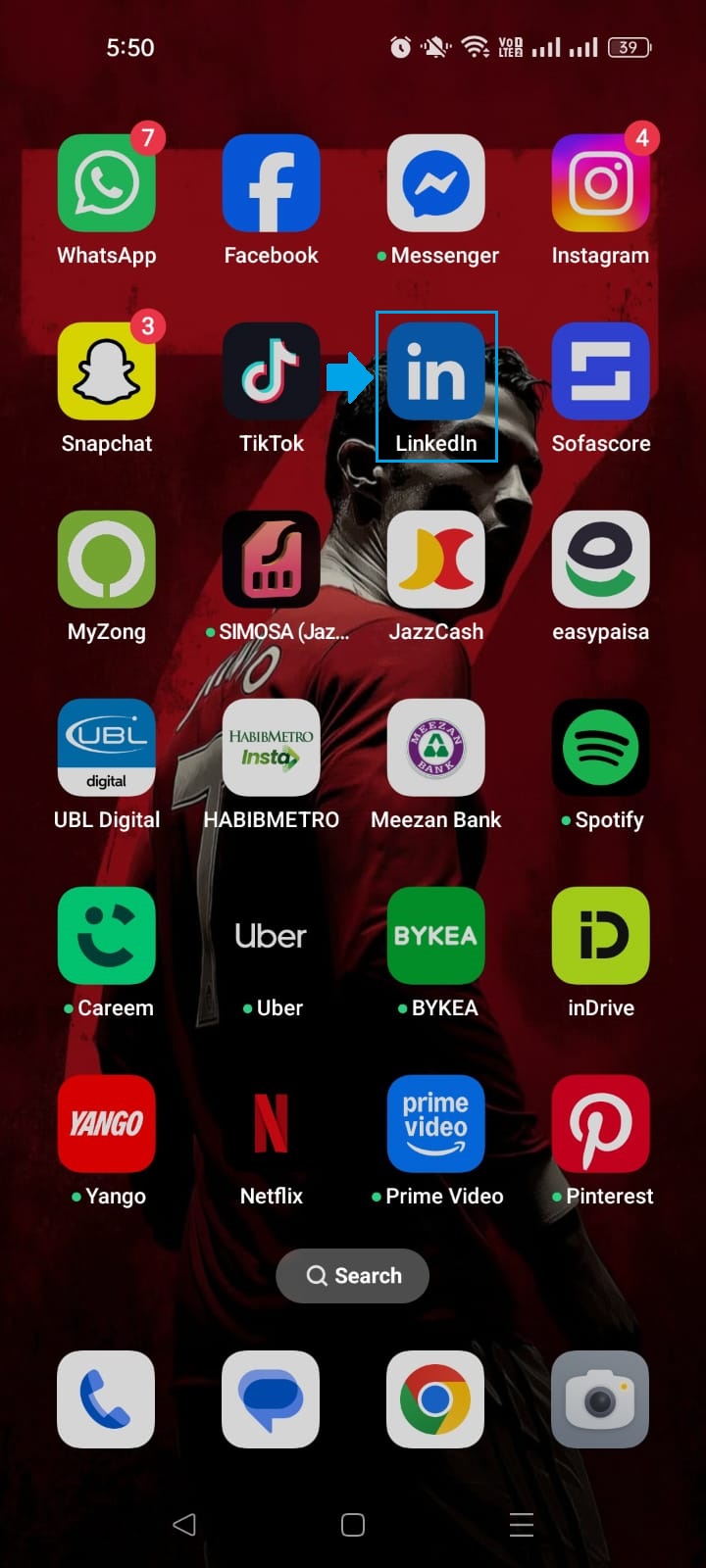
Step #01: Open the LinkedIn app
Grab your phone and launch the LinkedIn app. Make sure you’re logged into the account whose URL you want to change.
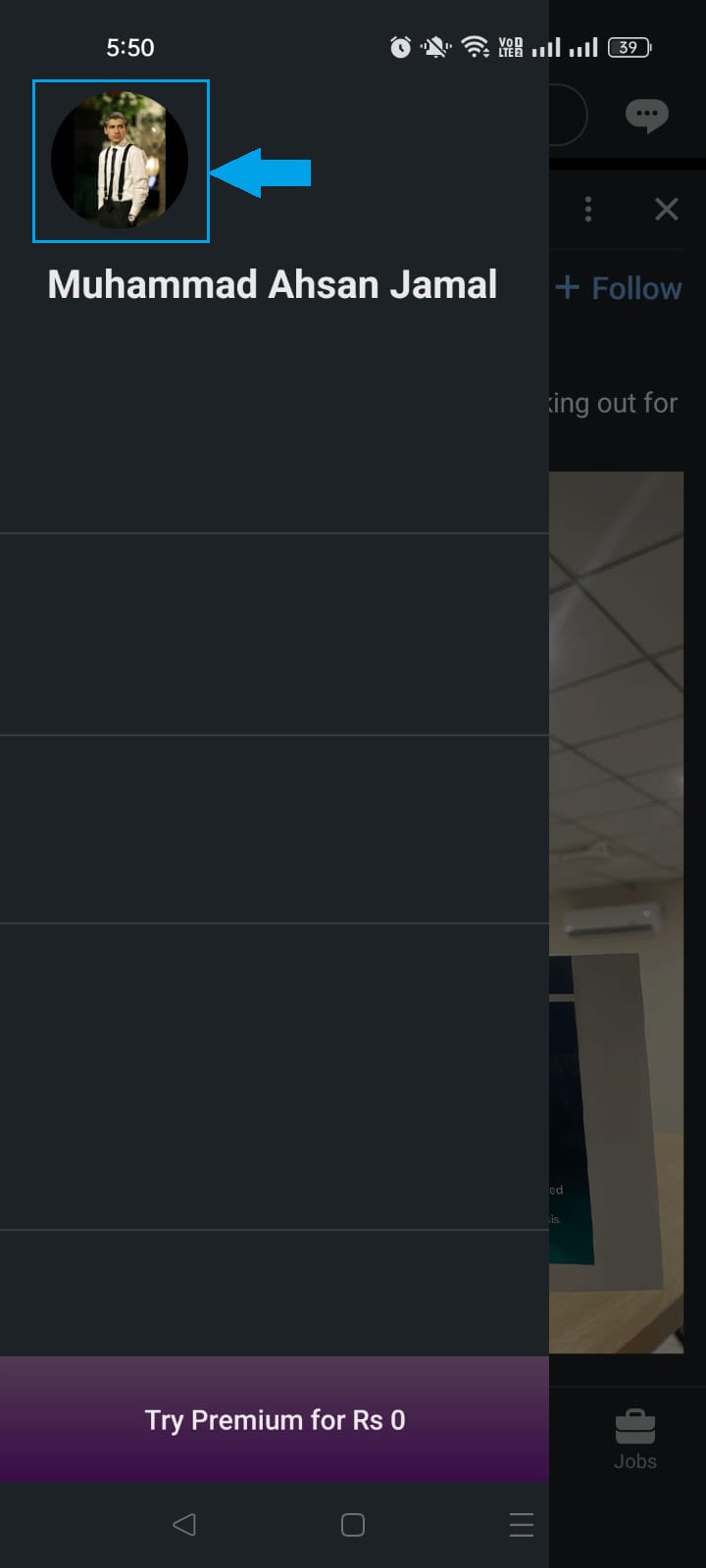
Step #02: Go to your profile
Tap on your profile picture or your name at the top of the screen to navigate to your profile page.
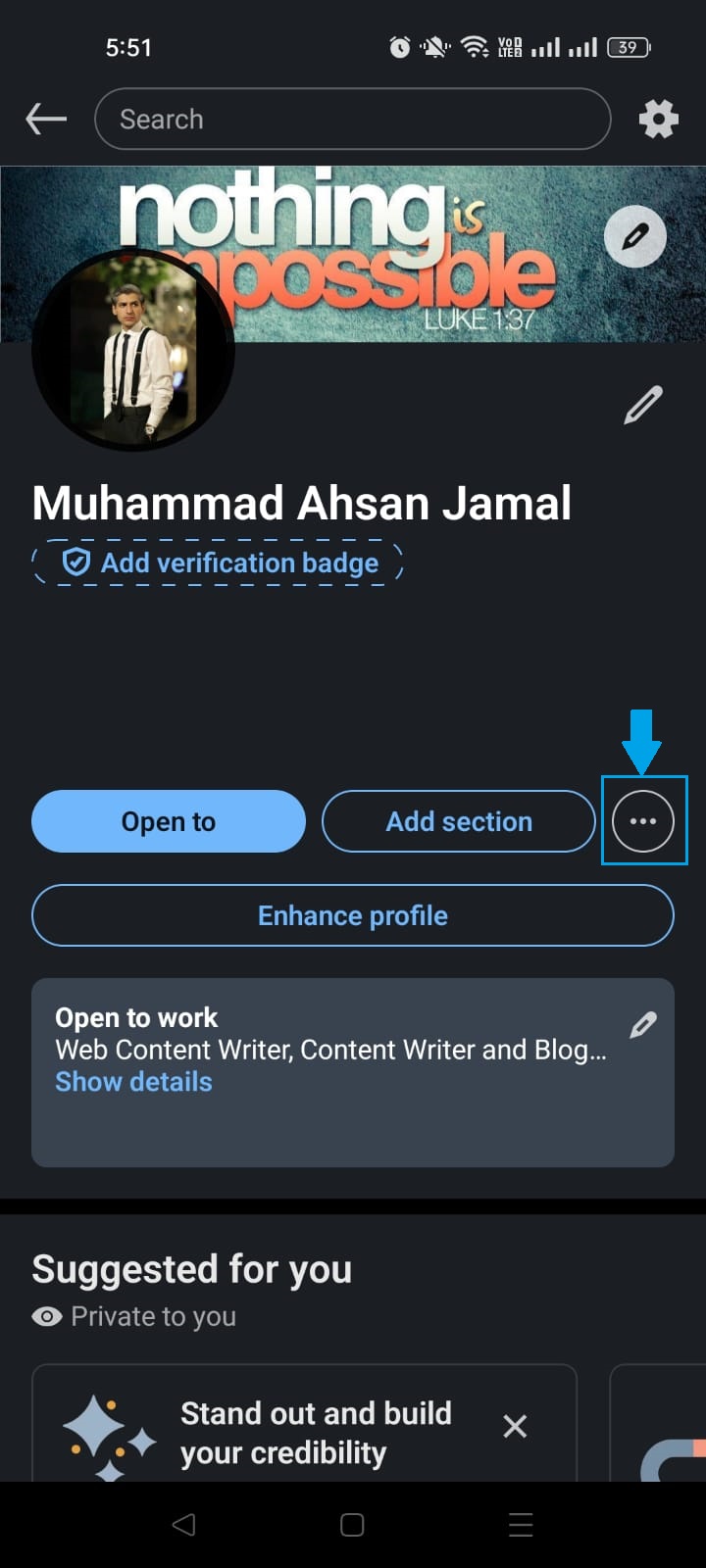
Step #03: Tap the (…) button
Once you’re on your profile, look for the three-dot (…) button and tap on it to open a list of options.
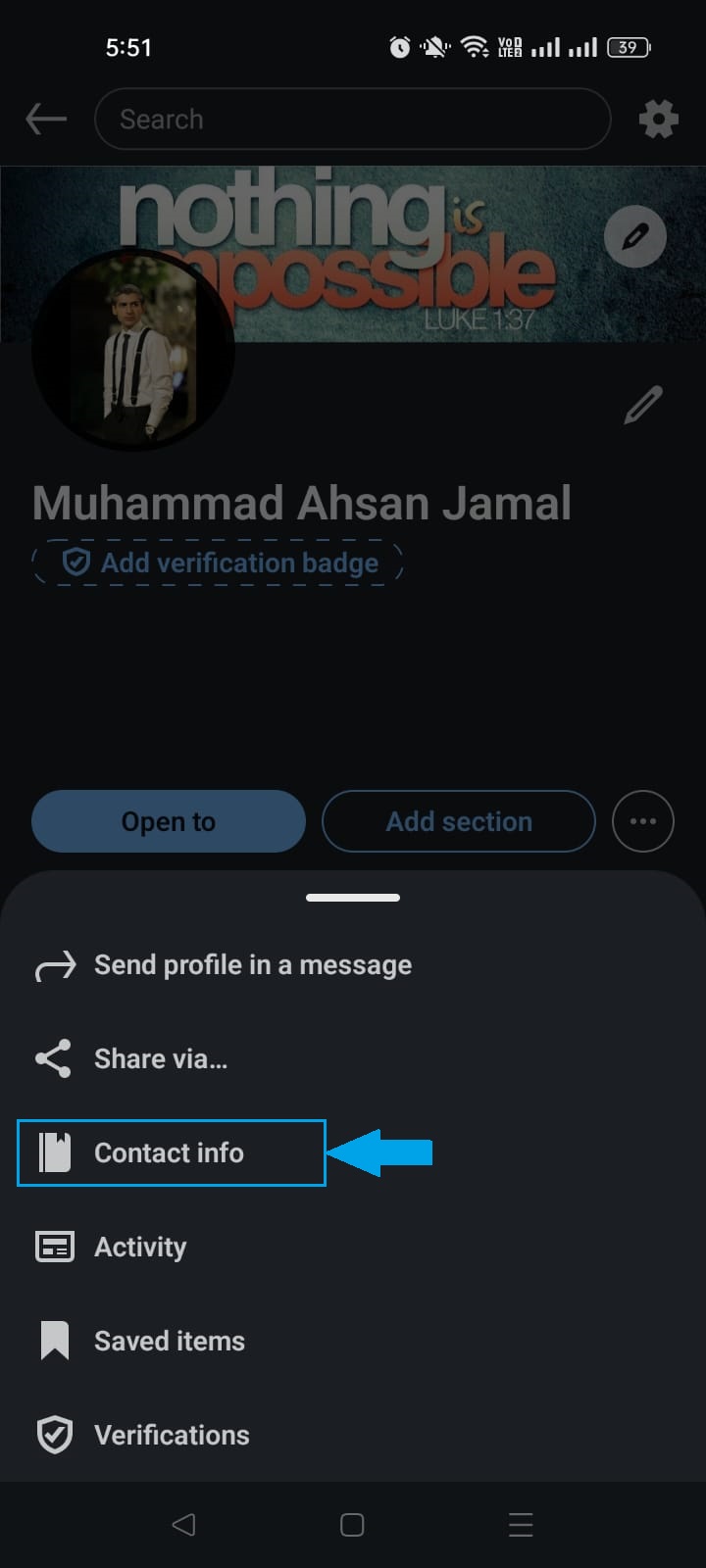
Step #04: Select “Contact info”
From the menu that appears, tap on “Contact info”. This is where LinkedIn stores your profile URL along with your other contact details.
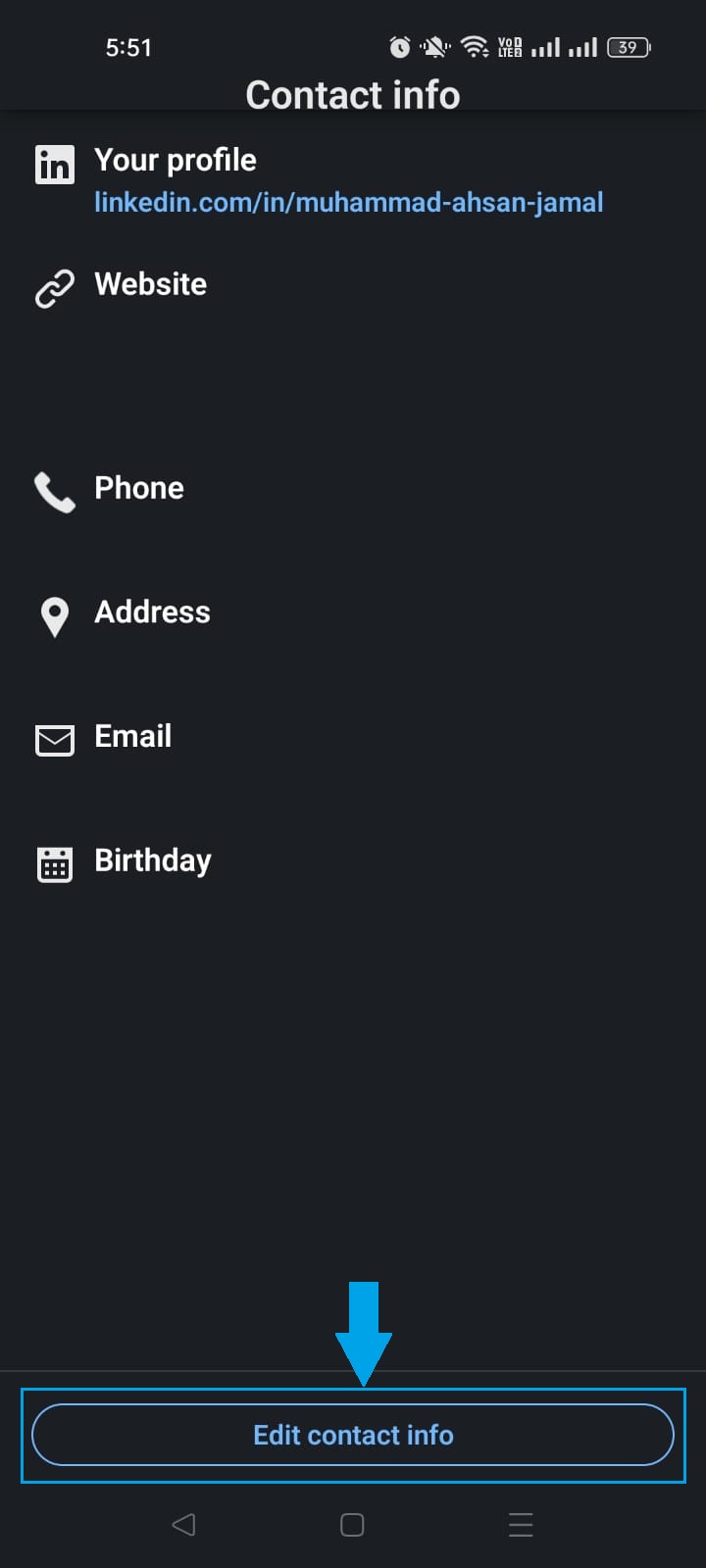
Step #05: Tap “Edit contact info” button
At the bottom of the screen, tap the “Edit contact info” button to make changes to your information.
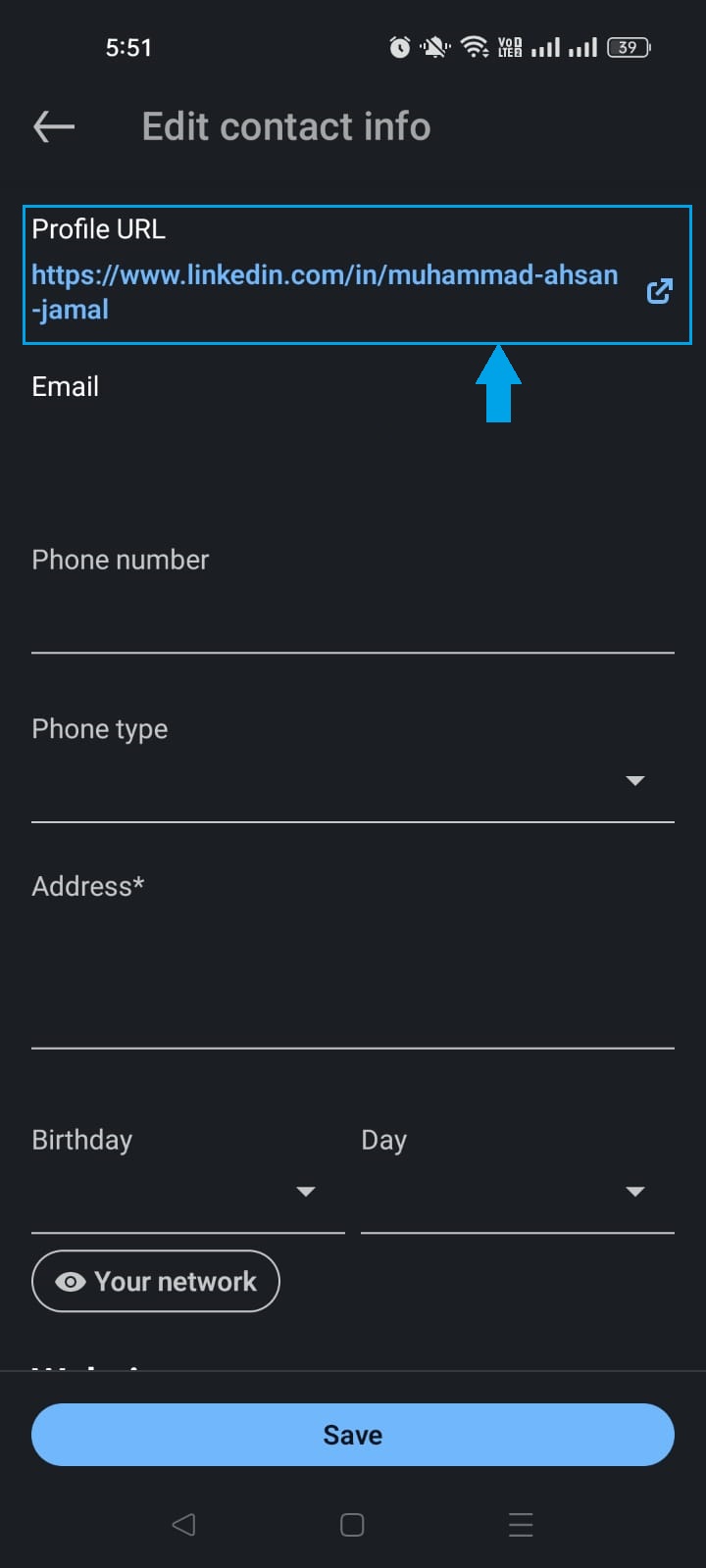
Step #06: Tap “Profile URL”
At the top of the page, you will see the “Profile URL” option. Tap on it. This will take you to the section where you can finally edit your LinkedIn URL.
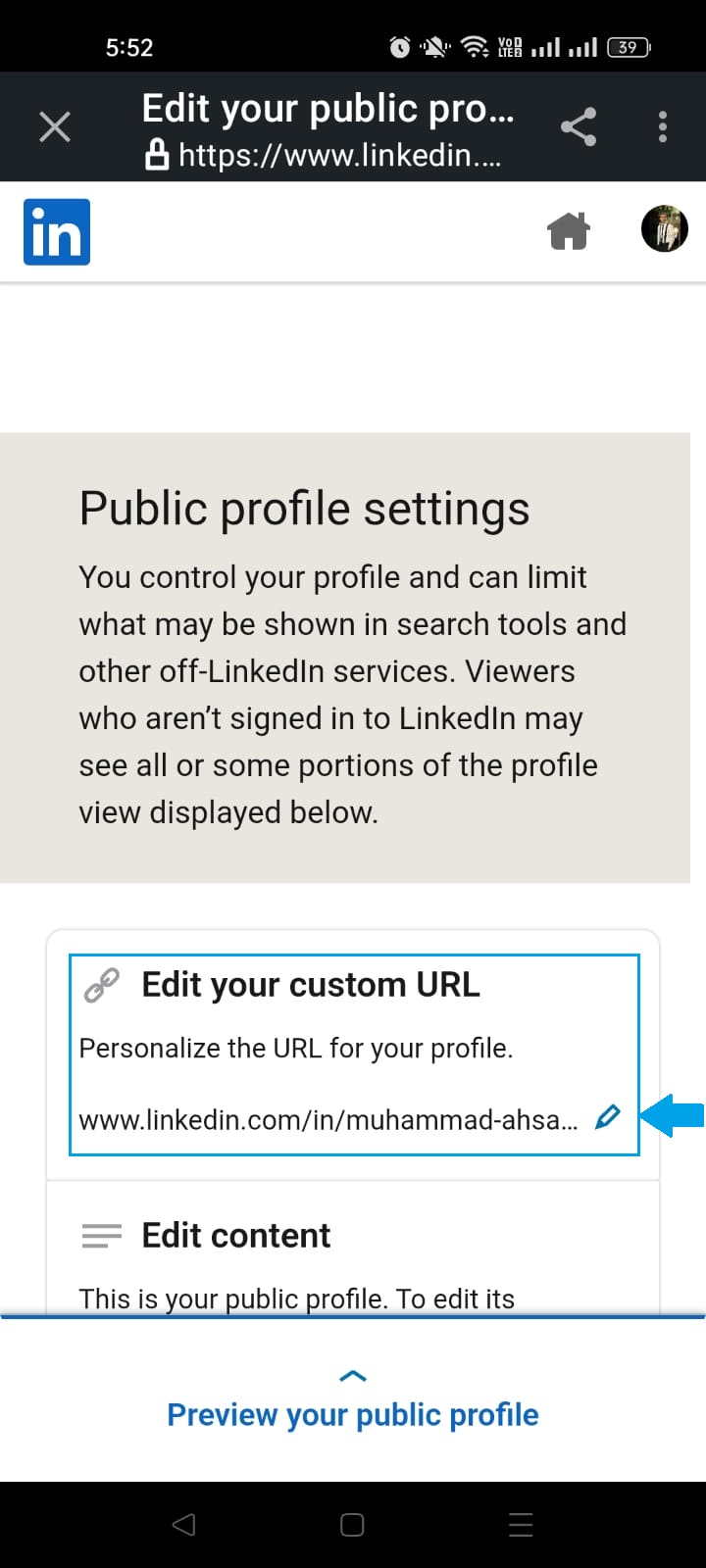
Step #07: Tap the pencil icon under “Edit your custom URL”
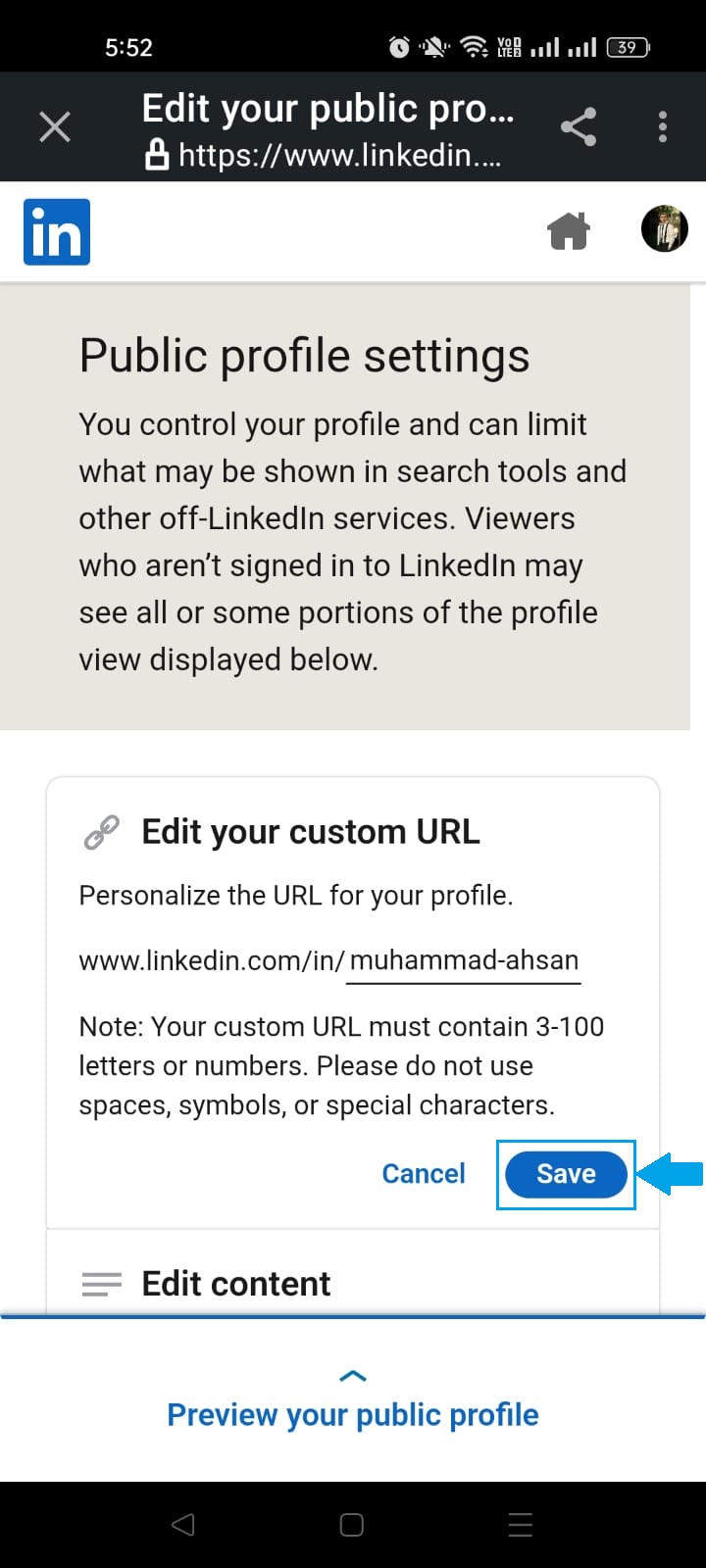
Tap the pencil icon next to your current URL, delete the existing string of text, and type in your new custom URL. Ideally, your name or a clean variation of it.
Step #08: Tap “Save”
Once you’re happy with your new URL, hit the “Save” button, and that’s it! Your custom LinkedIn URL is live and ready to share.
How to change LinkedIn URL on desktop
Prefer working on a bigger screen? No problem.
Changing your LinkedIn URL on desktop is just as simple.
Here’s how to edit a LinkedIn URL on the desktop app, step by step:
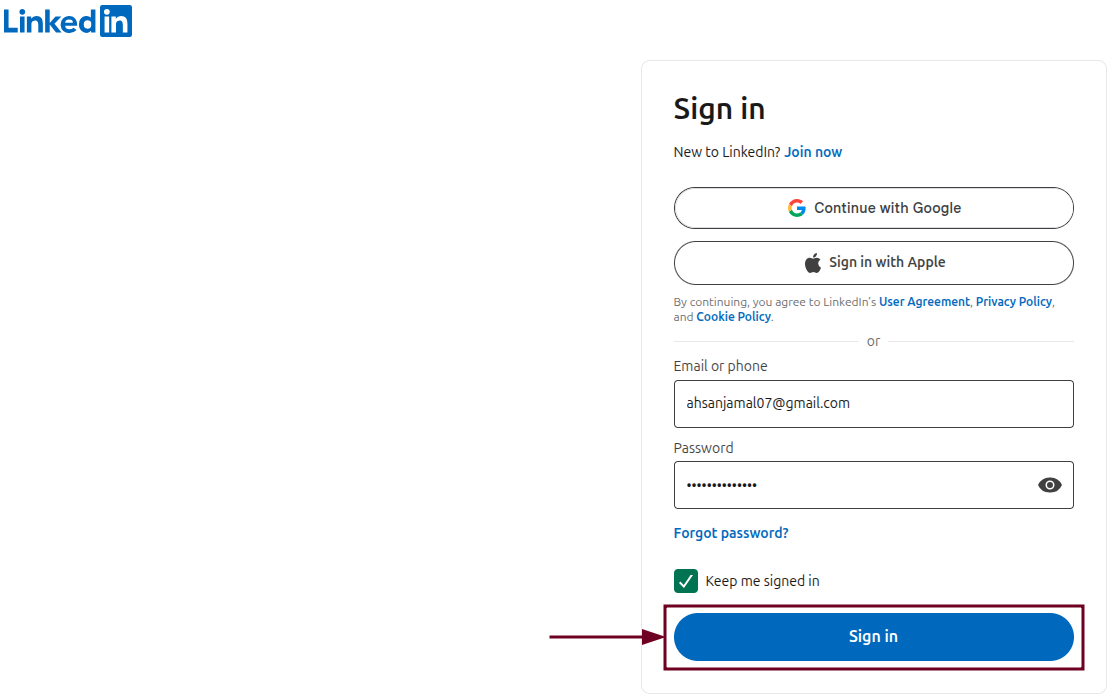
Step #01: Sign in to your LinkedIn account
Head over to linkedin.com and sign in with your email and password if you aren’t already logged in.
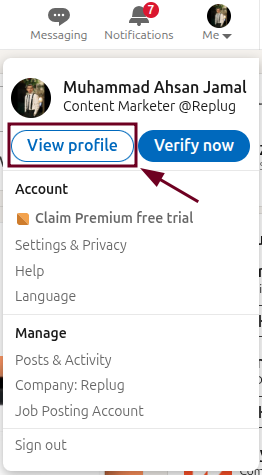
Step #02: Click the “Me” icon
Once you’re successfully signed in and are on the homepage, look for the “Me” icon at the top right of the navigation bar. It’s right next to the search bar. Click on it.
Step #03: Select “View profile”
A small dropdown menu will appear. Click on “View profile” to be taken directly to your LinkedIn profile page.
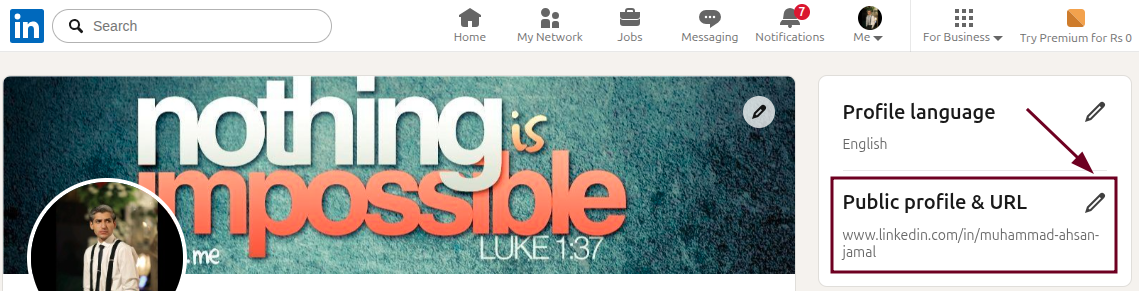
Step #04: Click the “Public profile & URL” option
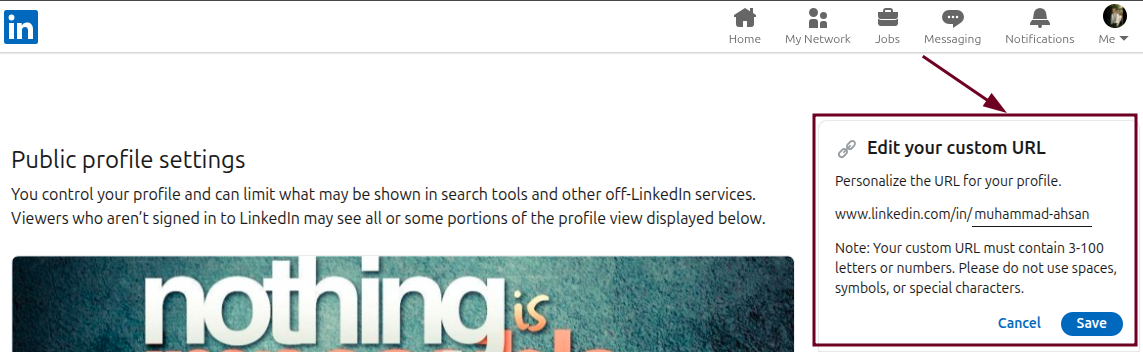
On your profile page, look toward the right side of the screen and click on the pencil icon next to “Public profile & URL”. This will open your public profile settings in a new page.
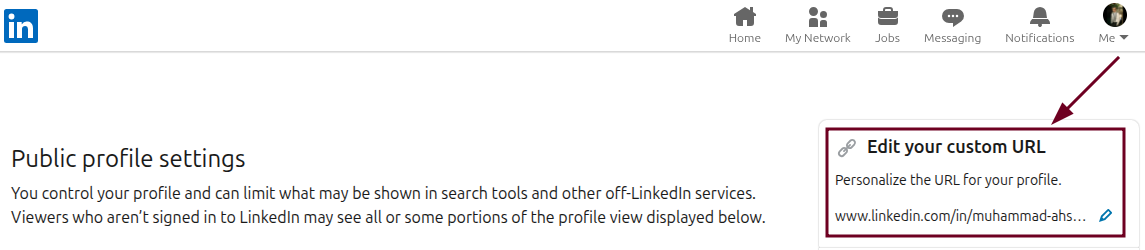
Step #05: Look for the “Edit your custom URL” section
On the right-hand side of the page, you’ll spot the “Edit your custom URL” section. This is exactly where you need to be.
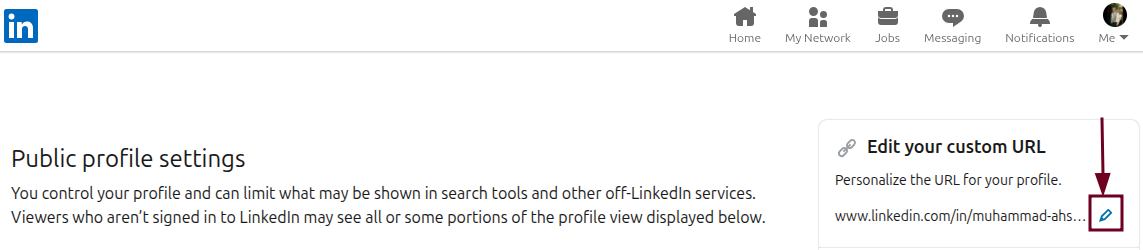
Step #06: Click the Edit (pencil) icon
Click the small pencil icon right next to your current URL to unlock the text field and make it editable.
Step #07: Type the new desired URL
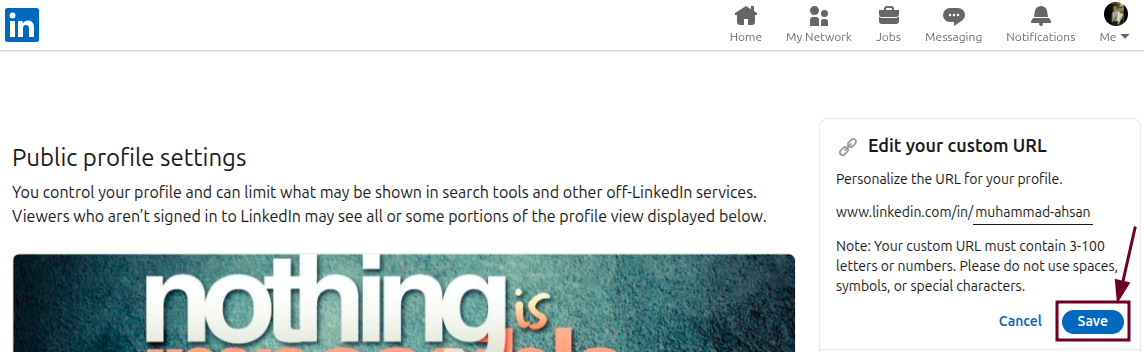
Delete the existing URL text and type in your new custom URL, i.e., your full name or a clean, professional variation. It works best here.
Step #08: Click “Save”
Once you’ve entered your new URL, click the “Save” button, and you’re all done! Your updated LinkedIn URL is now live and ready to go.
Not sure what to put as your custom LinkedIn URL? You’ve got more options than just your name. Here are some popular formats to help you pick one that fits your personal brand perfectly.
Simple Name
The most straightforward option. Just use your first and last name. Clean, professional, and easy to remember.
👉 linkedin.com/in/ahsan-jamal
Initials + Last Name
If your full name is already taken, try using your first initial combined with your last name.
👉 linkedin.com/in/ajamal
Name + Job Title/Specialization
Great for standing out in your field. Pairing your name with your role tells people exactly what you do before they even click your profile.
👉 linkedin.com/in/ahsanjamal-contentmarketer
Name + Industry
If you want to highlight the space you work in rather than a specific title, adding your industry works really well.
👉 linkedin.com/in/ahsanjamal-marketing
Name + Company
Ideal if you’re closely associated with a well-known brand or want to reinforce your current professional identity.
👉 linkedin.com/in/ahsanjamal-d4interactive
Professional Certification/Suffix
Have a well-recognized credential like an MBA, CPA, or PhD? Adding it to your URL is a subtle but effective way to establish authority instantly.
👉 linkedin.com/in/ahsanjamal-mba
Why can’t I change my LinkedIn profile URL: Troubleshooting common errors
Running into trouble while trying to update your LinkedIn URL? You’re not alone! It’s actually more common than you’d think. Here are the most frequent reasons it happens and how to fix them quickly.
Common reasons for URL change failures:
The desired URL is taken: LinkedIn URLs are unique, so if someone else has already claimed the URL you want, you simply won’t be able to use it. Try adding a middle initial, a number, or a slight variation to work around this.
Character limits & constraints: LinkedIn only allows between 3-100 characters in your custom URL, and it must contain only letters, numbers, or hyphens. No spaces, symbols, or special characters allowed.
Too many changes: LinkedIn doesn’t let you change your URL an unlimited number of times. If you’ve been editing it back and forth frequently, the platform may temporarily restrict further changes.
The 180-day rule: If you’ve recently changed your URL, you may need to wait up to 180 days before you can change it to a previously used URL again. So choose wisely before hitting save.
Troubleshooting steps:
Use unique variations: If your preferred URL is taken, try mixing in your middle name, initials, profession, or a relevant keyword to create a unique URL alternative that still feels on-brand.
Clear cache or change browser: Sometimes the issue is just a browser glitch. Clear your cache and cookies, or switch to a different browser, and try making the change again.
Check for “profile not found”: After saving your new URL, paste it into your browser to make sure it actually loads your profile correctly. Occasionally, there’s a short delay before it goes live.
Verify the URL: Double-check that your new URL doesn’t have any typos, extra spaces, or unsupported characters before saving. A small mistake can cause the whole thing to fail silently.
Shorten your LinkedIn URL in seconds using Replug!
Once you’ve got your custom LinkedIn URL ready, why not take it a step further?
Replug is an all-in-one link management platform that lets you shorten, track, and manage your links, all from one single dashboard.
Its reliable URL shortener feature is especially handy for professionals who want a super clean, branded short link that’s even easier to share than a standard LinkedIn URL.
Maximize marketing ROI
by transforming ordinary URLs into branded short links that convert.
Try Replug for free
Instead of sharing a long URL, Replug lets you generate something short, sharp, and fully customized within seconds.
No matter if you’re adding it to your professional bio, resume, or business card, a Replug short link just looks that much more polished and composed.
Wrapping up
And that’s really all there is to it!
Changing your LinkedIn URL takes just a few steps, whether you’re on your phone or sitting at your desktop, and the difference it makes to your professional image is totally worth it.
A clean, custom URL makes you easier to find, easier to remember, and just looks a whole lot more refined everywhere you use it.
Pick a format that fits your personal brand, avoid the common pitfalls we covered, and don’t forget to shorten it further with Replug for that extra professional touch.
Now go update that URL, your profile deserves it!
Frequently asked questions
Can you rename a link in LinkedIn?
Yes, you can! LinkedIn allows you to customize your profile URL by editing it through your profile settings. Just head to the “Public profile & URL” section and update it to something that better represents you. Keep in mind it has to meet LinkedIn’s character and formatting requirements before saving.
How to get the LinkedIn URL address and customize it?
Finding your LinkedIn URL is simple. Just go to your profile and look at the address bar in your browser. That’s your current LinkedIn URL right there. On mobile, you can find it under the “Contact info” section.
Now, here’s how to customize your LinkedIn URL:
1. Head to your profile settings. 2. Then, click on “Public profile & URL” on desktop or access it through the three-dot menu on mobile. 3. After that, tap the pencil icon next to your current URL and type in your preferred custom URL. 4. Finally, tap or click “Save” and you’re done.
Can we change the LinkedIn URL more than once?
Yes, you can change your LinkedIn URL more than once. LinkedIn allows users to change their custom public profile URL up to five times within a six-month period. After the fifth change, you must wait six months to change it again. Your previous URL remains linked to your profile for six months unless unlinked.
How to change LinkedIn URL for a company?
To change your LinkedIn company page URL, you need to be a super admin of the page. Go to your company page and select the “Page info” section. This is where you’ll find the option to edit your public URL. Keep in mind that company page URLs can be changed up to five times every 180 days.
How to change LinkedIn URL for a resume?
First, customize your LinkedIn URL using the steps we’ve already covered in this guide so it looks clean and professional. Once that’s done, adding your LinkedIn URL on resume is straightforward.
Place it in your contact information section at the top of your resume, right alongside your phone number and email address. Make sure the URL is clickable if you’re sharing a digital version of your resume.
A clean LinkedIn URL on your resume not only looks polished but also makes it super easy for recruiters to jump straight to your profile with a single click.
What happens to the old LinkedIn URL after you change it?
After you change your LinkedIn URL, the old URL remains linked to your account for six months. During this period, the old link will still redirect visitors to your profile. However, you can manually unlink it, after which it becomes available for other members to claim in seven days.
What are the key LinkedIn URL requirements & restrictions?
Here’s a quick rundown of what LinkedIn allows and doesn’t allow for custom URLs:
– Must be between 3 and 100 characters – Can only include letters, numbers, and hyphens – No spaces, symbols, or special characters are allowed – Cannot be a URL that someone else has already claimed – Previously used URLs cannot be reclaimed for 180 days – Cannot use the word “LinkedIn” in your custom URL
How to find LinkedIn URL on iPhone and Android?
Here’s how to do it:
1. Open the LinkedIn app. 2. Tap on your profile picture to go to your profile. 3. Then tap the (…) three-dot button. 4. Select “Contact info,” and you’ll find your LinkedIn URL listed right at the top. 5. You can tap on it to copy or share it directly from there.
How to copy and share your LinkedIn profile URL?
– On desktop, go to your LinkedIn profile. Your URL will be visible at the top of the page. Simply copy it from the address bar and share it wherever you want. – On mobile, follow the steps already mentioned above to find your URL under the Contact info section. From there, you can copy and share it anywhere (your resume, email signature, WhatsApp, wherever you need it!)
Let’s face it – our digital lives are everywhere. One minute it’s TikTok, the next it’s your Instagram, or YouTube.
Socials here. Portfolio there. Store somewhere else.
And expecting your audience to keep up? Not possible
Want to bring it all together?
That’s where a link gallery (bio link) comes in. It pulls everything together into one neat, clickable destination. So let’s get started.
Understanding link galleries
A link gallery (a bio link page) is a centralized landing page that houses all your important links in one convenient location. It’s an easy solution as it works as your business card or the modern equivalent of a website homepage, but streamlined for today’s fast-paced, mobile-first world.
Instead of asking followers to search for your various platforms or cramming multiple URLs into your social media bio, a link gallery provides a clean, branded solution where visitors can access multiple links with one URL.
Learn the link in bio meaning in detail for an even better idea of the concept!
What is the best way to create a link gallery(bio link)?
The best way to create a link gallery (also known as a bio link) is to use a dedicated link in bio tool. These platforms are designed to make it super easy to combine all your important links into a single, customizable page.
Introducing Replug.io: The Ultimate link gallery solution
While several link gallery tools have emerged, Replug.io stands alone as the comprehensive solution designed to address all the challenges of digital connection.
Go beyond generic link pages!
Create custom bio links that truly fit your brand
With Replug, you can create bio links that are unique, engaging, and built to convert.
First, log in to your Replug account. Don’t have one yet? Start with a 14-day free trial.
Once inside the dashboard, head over to the bio-links section and click on “Create new.” You’ll be taken to a setup window that’s divided into three tabs: branding, content, and settings.
Step 01: Customize your branding
Begin with the branding tab, where you can add your profile essentials, including:
Profile title
Verified badge
Bio description
Profile image
Background image
Custom theme
Once you’re done adding everything, click the “Update” button located in the corner.
Step 02: Add content that converts
Now for the fun part: adding your links and content blocks. Replug allows you to include a variety of rich media elements like:
Social media buttons (up to 8)
Website or landing page links
Text blocks, separators, and spacing for a clean layout
Before sharing your bio link page, give it an SEO boost:
Add a custom meta title, description, favicon, and featured image
Insert tracking pixels (Facebook, TikTok, Google, etc.) for retargeting and conversion tracking.
Now you’re good to go! Share your unique Replug bio link across all major platforms: Instagram, TikTok, Facebook, X (Twitter), LinkedIn, and beyond.
Moreover, beyond aesthetics, Replug galleries are built for performance. Lightning-fast loading speeds, mobile-optimized displays, and accessibility features ensure every visitor has a seamless experience, resulting in higher engagement and conversion rates.
More growth-oriented features
Replug goes far beyond basic link sharing. It’s packed with features built specifically to help creators, marketers, and businesses grow faster and smarter:
A complete link management solution
for marketing professionals & agencies.
Try Replug for free
Custom CTAs
Guide your audience to take meaningful actions, whether it’s signing up for a newsletter, watching a video, or making a purchase, right from your bio link page.
Retargeting pixels
Integrate Facebook, TikTok, LinkedIn, and Google Ads pixels to retarget every visitor who clicks your link. Perfect for running high-converting ad campaigns and increasing ROI.
Traffic routing
Send users to different destinations based on their device, location, or language, maximizing relevance and improving user experience.
Track your bio links efforts precisely by adding UTM parameters to each link, perfect for campaign performance monitoring in Replug.
Branded domains
Use your own custom domain to reinforce brand trust and consistency across all your marketing channels.
A/B testing
Test different versions of your bio link page to see what resonates best with your audience and optimize accordingly.
QR code integration
Generate QR codes for your link gallery and individual links, making it easy to share offline, on packaging, posters, business cards, or at live events.
Why link galleries have become essential
The rise of link galleries stems from genuine limitations in how we connect online:
Social media restrictions: Most platforms only allow one clickable link in your bio, creating the infamous “link in bio” problem.
Audience navigation: Followers shouldn’t need to hunt for your content across different platforms.
Professional presentation: Random link shorteners or multiple disjointed URLs look unprofessional and decrease click-through rates. (Pro Tip: Try this reliable link shortener to keep your links clean and branded.)
Analytics insights: Without a centralized link hub, tracking which destinations resonate with your audience becomes nearly impossible.
As our online presence continues to expand across an ever-growing landscape of platforms, having a centralized, branded hub for your digital identity isn’t just convenient, it’s essential.
Replug isn’t merely offering a product; it’s providing the solution to one of the most fundamental challenges in modern digital strategy.
Frequently asked questions
Can I use a link gallery as a mini-website for my brand or service?
Absolutely! A link gallery, especially with tools like Replug, can function as a sleek, mobile-first landing page that showcases your brand, portfolio, services, promotions, and contact links, all in one place.
What’s the difference between a link gallery and a traditional landing page?
A link gallery is simplified and optimized for social bios and mobile users. Unlike a full landing page, it focuses on multiple quick-access links and doesn’t require web development skills or hosting setup.
Is it possible to schedule content blocks to appear at specific times?
Yes! With advanced tools like Replug, you can schedule when each link or content block goes live, perfect for time-sensitive campaigns, limited offers, or event countdowns.
How do tracking pixels work in a link gallery?
Tracking pixels in Replug allow you to collect data on visitors and retarget them through ad platforms like Facebook, TikTok, and Google Ads – without them ever needing to leave your bio link page.
You know how TikTok is the place to discover new stuff – fashion, home inspo, DIY hacks, aesthetic mood boards; basically everything Pinterest is also known for?
Now imagine someone finds your TikTok, loves your vibe, and wants more. Maybe they’re looking for your outfit details, your vision board, or that recipe you teased.
They tap the link in TikTok bio, and it either goes nowhere or just dumps them on a random page.
That’s a missed opportunity.
If you’re using Pinterest to share your content, promote your blog, or even build a mood board-worthy brand, you need to connect the dots.
And that starts with adding your Pinterest link to your TikTok bio, the right way.
We’ll start with TikTok’s built-in features, and then show you how to do more (and better) with Replug’s link in bio generator. Especially handy if you’re stuck without the “Website” option or want to add more than just Pinterest.
Let’s make your bio work as hard as your content does!
Why add your Pinterest link to TikTok?
Because people don’t just watch content anymore — they click, scroll, and shop. Hence, it’s super important to create shareable content that makes your audience keep coming back for more.
Let’s say you’re:
A lifestyle creator who posts dreamy room decor on TikTok.
A DIY enthusiast sharing how-tos.
A fashion lover posting OOTDs and linking Pinterest boards with outfit inspo.
Pinterest helps you extend your content. It’s where the vibes live.
When you connect your TikTok to Pinterest, you give your followers a one-click path to your vision. It keeps them in your world longer, and that’s gold if you’re building a brand, growing your following, or even selling something.
Now let’s learn how to add your Pinterest link to TikTok bio.
Method 1: How to add Pinterest link to TikTok bio using TikTok’s built-in options
TikTok only allows one clickable link in your bio. So naturally, you’ll want to make it count.
How to get your Pinterest link:
Open the Pinterest app or website.
Tap your profile photo.
Copy the link from the browser
Got your link? Great! Now let’s add it to your TikTok bio.
Option A: How to add link to TikTok bio without 1000 followers
Stuck under 1K followers? No worries. You can still make it work. Here’s how:
Switch to a Business Account:
Go to your profile, then tap the three lines in the top-right corner.
Navigate to Settings & Privacy > Account > Switch to Business Account.
Head back to your profile > Edit > and now you’ll see the “Website” option available.
Option B: If you have 1000+ followers (personal account)
If you’re using a personal account and you’ve crossed the 1,000 followers mark, here’s how to add your Pinterest:
Open TikTok and tap your profile icon (bottom right).
Tap Edit Profile.
Under the “Website” section, paste your Pinterest URL.
And that’s about it! You just added a clickable link to your Pinterest. Now, your followers can tap your bio and go straight to your Pinterest boards.
Note: TikTok only allows one link, so make it work smarter… which brings us to Replug’s URL shortener free tool. With it, you can share one short link that leads people to all your important pages, making the most of your single TikTok bio link.
Method 2: How to add multiple links (including Pinterest) to TikTok bio using Replug
Instead of constantly switching the one link in your TikTok bio, Replug helps you build a bio site with all your links in one. It’s like a Pinterest board, but for your entire digital presence.
Log in to your Replug account (or create one for free).
Choose “Bio Links” from the dashboard.
Click “Content”
4. Add a social block for Pinterest and enter your Pinterest URL. Replug lets you add up to 8 social blocks for your bio link page.
5. Publish your bio link.
6. Add block.
Bonus tip: You can also use the card block for a visual touch! Just click on the “Card” block, enter your Pinterest URL, give your card a name, and add a screenshot of your Pinterest aesthetic.
7. Once your page looks good, Replug gives you one short link to paste in your TikTok bio. Copy that link and share it in your TikTok bio.
Replug lets you skip the basic and build bio links that actually work. Forget plain Pinterest drops; this amazing platform gives you control, flexibility, and aesthetic vibes that match your TikTok energy.
Here’s why creators, small biz owners, and content pros swear by it:
Branded links: Create custom URLs that match your brand. You can even connect your own domain to make your links look clean, credible, and totally you.
Mobile-optimized: Replug bio link pages are designed to look great on mobile (which is where everyone’s watching TikTok anyway).
Multiple links, one bio: Link your Pinterest, Instagram, blog, shop, freebies — all in one sleek landing page. No more picking just one.
Track your clicks: Replug’s link analytics let you see how many people click on your Pinterest board, shop link, or blog post. It’s like a behind-the-scenes look at what’s working.
Retargeting tools: Someone clicked but didn’t follow through? Replug lets you add retargeting pixels to your bio link so that they can’t resist coming back to your Pinterest profile.
Highlight TikTok videos: Add a video block to your bio link page to feature your latest or top-performing Tiktok video. Show visitors what you’re about before they scroll.
Easy updates: Running a new campaign or updating your Pinterest? Just drag, drop, and hit publish. No need to mess with your TikTok bio every time.
Design that fits your vibe: Choose layouts, colors, and fonts that reflect your aesthetic. Whether you’re cottagecore, Y2K, or minimalist, you’ll find a style that clicks.
Want to keep things fresh? Add your latest Pinterest board as a featured link. Running a TikTok challenge or campaign? Pin it right above your Pinterest section for more visibility.
Whether you’re promoting Pinterest boards, sharing content, or growing your personal brand, it’s important to make it easy for your audience to go from watching to clicking.
Add your Pinterest link in bio, and make your bio work for you. Because let’s be honest: your content deserves more than a dead-end bio.
Try Replug today and level up your TikTok profile with bio links.
Maximize marketing ROI
by transforming ordinary URLs into branded short links that convert.
Try Replug for free
Frequently asked questions
Can I add a clickable Pinterest link to my TikTok bio?
Yes! If you have 1K+ followers or a business account, you can add a clickable link under the “Website” section.
How to add a link to TikTok bio without 1000 followers?
Switch to a TikTok Business Account. This unlocks the Website option for all users.
Totally. With Replug, you can design your page to match your aesthetic. You can pick your colors, layout, fonts, and even add a TikTok video block to show off your latest or most viewed content.
Sharing just one link on Facebook is simple, but what if you have multiple links to promote at once? No worries. Instead of posting several times or cluttering one post with too many links, you can create a neat, all-in-one bio link page using a bio-link tool.
What is a bio link tool?
A bio link tool is a platform that lets you create a single, shareable link (usually for your social media bio) that leads to a custom landing page filled with multiple links, buttons, or content blocks. We recommend you use Replug, as it’s the best bio link tool available on the market right now. Replug.io not only allows you to design a personalized landing page with all your important links in one place but also offers powerful features.
Go beyond generic link pages!
Create custom bio links that truly fit your brand
With Replug, you can create bio links that are unique, engaging, and built to convert.
Now, let’s explore how you can add multiple links to your Facebook bio or post.
Method 1: Share all links in one post (not ideal)
You can simply paste all your links in a single post. But let’s be honest: it looks messy, may confuse your audience, and you can’t track how each link performs. This method lacks both flexibility and professionalism.
Method 2: Create a bio-link page using Replug (recommended)
Here’s how to create a landing page using Replug.
Step 1: Log in to Replug
Start by logging into your Replug account. Head to the “Bio-Link” dashboard from the main menu.
Step 2: Create a new bio-link page
Click the “Create new” button in the upper-left corner. You’ll be prompted to fill in a few basic details:
Brand name
Description
A matching theme, background image, or color
This helps your bio page reflect your brand’s identity.
Step 3: Add your links
In the branding category, you’ll see multiple options for adding links.
Navigate to the “Links” section to add multiple links to your page.
Want your links to stand out? Customize each block with different button colors, sizes, or even schedule when they go live.
Want a full preview with an image, title, and description for each link? Head to the “Cards” section. This gives your links a richer appearance, just like link previews on social media.
This is how your cards will appear; you can easily adjust their size and shape to match your style.
A complete link management solution
for marketing professionals & agencies.
Try Replug for free
You can also drag and drop blocks to reorder them or tweak the design to your liking.
Step 4: Save and share
Once everything looks good, click the “Update” button in the upper-right corner to save your bio link page.
Now just copy your unique bio link and paste it in your Facebook post or profile. Done!
This is a much more polished and trackable way to share multiple links on Facebook and across all your social platforms.
Why choose Replug?
If you’re looking for more than just a basic bio link tool, Replug is your top-tier choice. It goes beyond the basics by helping you share, track, and convert, all in one place.
All-in-one bio link page builder: Add unlimited links, embed videos, show social icons, display rich link previews (cards), and completely customize the layout to match your brand.
Built-in analytics:Track clicks, views, and engagement on each link block. Know exactly what’s working and where your audience is clicking.
Retargeting made simple: Add Facebook, Google, or TikTok pixels to your bio link page and retarget visitors with ads, something most other tools don’t offer.
UTM and branded link shortening: Add UTM parameters for deeper campaign insights, and create short links using branded domains for trust and consistency.
Schedule content and links: Plan your link blocks in advance, set visibility timers, and show or hide content at the right time automatically.
Whether you’re promoting products, sharing content, or managing clients, Replug offers features that scale with your needs.
Conclusion
Sharing multiple links on Facebook doesn’t have to be messy or unprofessional. Instead of cramming several URLs into a single post, you can use a smart, streamlined approach and create a bio link page using Replug.
It allows you to showcase multiple links beautifully, track performance, and even retarget visitors. Whether you’re a creator, marketer, or small business, Replug makes it easy to manage and share multiple links on Facebook like a pro.
FAQs on Facebook links
Can I really share multiple links on Facebook in one go?
Yes! While Facebook allows only limited clickable link in bios, you can use a bio link tool like Replug to create one link that leads to a page with multiple links inside.
Is Replug free to use?
Replug offers a free trial, along with different pricing plans. You can test out its features before committing to a paid plan.
How is Replug better than pasting all links in a Facebook post?
Unlike cluttered posts, Replug gives you a clean, customizable landing page where each link is presented clearly. Plus, you get link tracking, design control, and retargeting options.
Can I change my links after sharing the bio link?
Absolutely! You can update, remove, or rearrange the links on your Replug bio page anytime without changing the main bio link.
Does Replug work only for Facebook?
Nope! You can use your Replug bio link across platforms like Instagram, Twitter (X), TikTok, and LinkedIn, as well as in emails or YouTube descriptions.
Want to share a video without sending long links or bulky files?
A QR code makes it effortless. Whether it’s a YouTube tutorial, a product demo, or important information on Google Drive, just scan and watch.
In this guide, we’ll walk you through the easiest way to turn your video into a QR code that’s ready to share anywhere – flyers, packaging, presentations, or social media. No tech skills needed!
Methods for creating video QR codes
Creating a QR code for your video is simple and can be done in a few ways:
Free QR code generators: Use free tools like Replug’s QR Code Generator. Just paste your video link, customize, and download the code.
Drawback: Limited tracking features and customization options.
YouTube QR code tools: Some platforms offer direct options for YouTube videos, perfect for quick sharing. Replug also has a YouTube QR code generator that you can use to create dynamic and customized QR codes for your videos for free.
Drawback: Only works for YouTube videos, limiting flexibility for other platforms.
Dynamic QR code tools: Platforms like Replug let you create custom QR codes, track scans, retarget viewers, and update the video link anytime without reprinting.
Drawback: No drawbacks! Only benefits
Choose what suits your needs: simple share or full-featured marketing!
What is Replug, and why use Replug to make a QR code for your video?
Replug is a powerful link management and marketing tool that allows you to create optimal short links and manage branded, dynamic QR codes for your videos.
Unlike static QR codes, dynamic QR codes allow you to update the linked content without changing the QR code itself. This makes it ideal for marketing campaigns, promotions, and tracking video engagement.
Maximize marketing ROI
by transforming ordinary URLs into branded short links that convert.
Try Replug for free
Here’s why you should use Replug to make a QR code for your video:
Create branded dynamic QR codes
See how many people scanned your QR code
Retarget viewers with ads
Edit the link anytime without changing the QR code
Copy the video URL from the browser address bar or use the “Share” button to copy the link.
Step 02: Create a branded link in Replug
Log in to your Replug dashboard. In the top-left corner, you’ll see an empty field. Paste your video URL there and press enter. A pop-up will appear with options to customize your link.
Step 03: Customize your link
In the pop-up, you’ll find multiple features like link shortening, the ability to add tags, customization of the link preview, A/B testing, password protection, and more.
Customize your link as needed – this URL will appear when someone scans the QR code. For maximum visibility and reach, consider also consulting with the best YouTube SEO agencies to optimize how your link and content perform on the platform.
Step 04: Generate the QR code
In the link creation process, look for the QR code generation option.
It’s located right after the “Shortened link” bar.
Click it, and a new pop-up will appear. You can further customize the QR code’s appearance here.
Step 05: Download and use your QR code
Test the QR code by scanning it with your phone to ensure it directs to the correct YouTube video.
Once satisfied with your QR code, download it in your preferred format (PNG, SVG, etc.) and share it as needed
A complete link management solution
for marketing professionals & agencies.
Try Replug for free
Whether you use free online generators for quick sharing or go for Replug’s dynamic QR codes for tracking and retargeting, there’s an option for every need. Don’t forget to follow best practices, like ensuring scan quality and testing your code before distribution. With the right QR code, your video will reach your audience in no time – effortlessly!
Frequently asked questions
What are the best practices for creating video QR codes?
1.Test the code: Always scan the code yourself before sharing it to make sure it links to the correct video. 2. Ensure good scanning quality: Make sure the QR code is clear, large enough, and placed in a visible spot. 3. Use dynamic QR codes: This allows you to update the link without changing the code, offering greater flexibility. 4. Provide instructions: Include clear instructions next to the QR code, guiding users on how to scan it.
Where can I use video QR codes?
Video QR codes are versatile and can be used in various places, such as: – Product packaging: Link to instructional or promotional videos about the product. – Business cards: Share your introduction or portfolio video with potential clients. – Event posters: Link to event highlights, schedules, or behind-the-scenes footage. – Educational materials: Include video lessons or supplementary resources alongside written content. – Print advertisements: Drive traffic to video campaigns or product demonstrations.
What’s the difference between static and dynamic QR codes?
– Static QR codes: These are fixed once created. The content or URL cannot be changed without creating a new code. – Dynamic QR codes: These allow you to edit the linked content (e.g., update a video URL) without changing the QR code itself. They are perfect for marketing campaigns and tracking purposes.
How can I track the performance of my video QR code?
With dynamic QR codes like those generated with Replug, you can track: – Number of scans: See how many people scanned the code. – Location data: Learn where the scans are coming from. – Device and time information: Understand when and on what device your video was viewed. This data helps you measure the effectiveness of your campaigns and make improvements.