Category: Social media

Browse blogs on social media strategies, content, and trends. Stay ahead with tips to grow engagement and reach.

  • How To Boost Social Media Conversion: 10 Proven Tricks

    How To Boost Social Media Conversion: 10 Proven Tricks

    An all-time high of 4.9 billion people are now on social media platforms worldwide. In addition, predictions show that by 2027, this number will be increased to almost 5.85 billion.

    Still, if you’re exhausted from only getting views and a few clicks from your social media channels, it’s time to rethink your brand’s approach to social media.

    Because, with the appropriate approach, social media can drive real traffic and sales to your brand. In this article, we’ll review strategies for making the most of your social media conversions in 2026.

    Set SMART goals for your business
    SMART stands for Specific, Measurable, Achievable, Relevant, and Time-bound. Setting goals that meet these criteria gives you a clear direction and a better chance of success.

    1. Analyzing buyer persona

    To market your products or services effectively, it’s essential to genuinely get to know the people you’re trying to reach. Put another way, it is getting to know your buyer’s persona or target audience.

    social-media-conversion

    To create your custom audience, it would be helpful to gather the following information:

    • User Age 
    • Previous purchasing behavior
    • User Gender
    • Current Occupation
    • Engage in social listening 

    After crafting your buyer persona, make the most of this valuable information when shaping your content strategy. Moreover, don’t fool yourself into thinking that artificially inflating your follower count by purchasing phony accounts would improve your brand’s visibility. Having social media “likes” but no interaction with your material is pointless.  

    2. Creating a social media calendar

    A social media content calendar gives you a bird’s eye view of your social content: what you’ll be posting, which channels you’ll be posting on, your posting schedule, and so on. Collaborating with social media marketing agencies in Los Angeles can also help ensure your calendar reflects trends and audience behaviors unique to your local market.

    By planning out your content in advance, you can ensure that your messages align with your overall goals and objectives and that you share relevant and engaging content with your target audience.

    Use tools like Contentstudio.io to create a schedule for each content type on each social media platform, specifying the time of day and day of the week for each post.

    3. Create a conversion-focused landing page

    To kickstart a solid social media strategy, craft the perfect landing pages to share on one’s social profile.

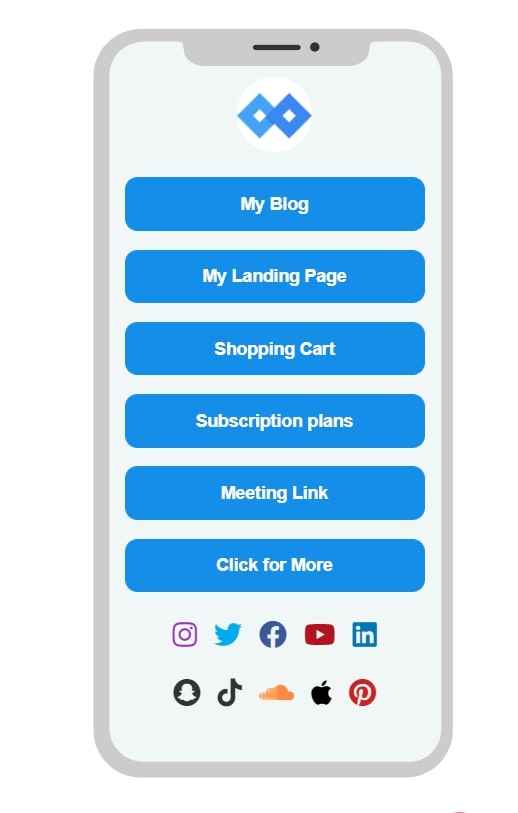
    Replug is an all-in-one link management platform that makes it simple to design a landing page, making it perfect for increasing conversions through social media bio links and retargeting pixels. 
    bio-link

    Like a game of “Who Wore It Better?”, your audience will play “Who Wrote It Better?” as they devour your landing page’s content. 

    Create epic content where your products and services engage in an epic showdown with your competitors. 

    Add Website links, Product links, Affiliate links, Blog or Articles, Videos, Musical tracks, Contact buttons, CTA’s, Sales or discounts, and more in your Bio link page

    Remember that visitors will compare your landing page as they read your offerings. Creating pages comparing your offerings to your competitors is a good idea.

    Link comparison pages to your bio landing page so your audience can see which solution is the best for them. 

    4. Adding catchy CTAs 

    After completing a project of any kind, be it a video, blog article, email campaign, social media post, bio link landing page, etc…. It’s time to make some new CTA, buddies. 

    Visitors to your landing pages may or may not be ready to purchase immediately. However, after coming over the CTA, some users might click on it, while others may want to know more about the offering before making a decision. 

    social-media-conversion

    That’s why it’s essential to include a variety of calls to action on your landing page. One in the beginning (above the fold), one at the center, and one at the end.

    However, if you rely on email marketing, ensure your emails are short and have a clear call to action. You can use this efficient URL shortener for getting this job done. Include your offer/value/free trial in the email’s subject as well. 

    The quicker people can consume your content, the better. Don’t hide “the meat” in long emails about unnecessary things.

    5. Creating engaging content

    With the ever-increasing competition and constant stream of information bombarding users, it’s difficult to stand out.

    Nowadays, users crave content that is not only informative but also entertaining and visually appealing. They want to be captivated, inspired, and compelled to take action. 

    So, how can you ensure your social media content is up to the mark? It all starts with  

    • Visual Content: Visual content has been proven to have a higher click rate and conversion rate than general text-based content. Also, it can boost your online presence and increase your audience’s engagement.
    • Adding Memes: Memes are static images often enhanced with text and spread quickly through social media.

    • Trendy content: Whether reading the news, following social media accounts or subscribing to newsletters, staying up-to-date and utilizing trendy content is essential.
    • Using relevant hashtags: Adding your brand name or a relevant keyword to your profile creates a sense of professionalism and authenticity. This personalized social media hack helps users recognize and remember your brand. And for crafting captivating captions effortlessly, consider using a social media caption generator to enhance your content even further.
    • Use exit pop-ups and CTAs: Whenever a user’s cursor moves towards that exit button, the exit intent popup swoops in and grabs their attention. It’s a social media hack website owners use to engage with their visitors and reduce bounce rates.

    6. Selecting the right social media platform

    Social media platforms are a dime a dozen, each with its target market and fan base. 

    Break down every social channel to determine its target audience so you can pick the best content strategy.

    Facebook

    Facebook is the most popular social networking platform globally, with 2.9 million monthly active users worldwide. Users between the ages of 25 and 34 comprise the largest demographic group. Questionnaires, Videos (usually short clips), and links to web blogs are popular among Facebook members.

    Instagram

    Instagram is extremely important to businesses of all sizes in the twenty-first century. Instagram users enjoy high-quality videos, stories, giveaways, collaborations, and carousels.

    Also read: How to get followers on Instagram fast?

    Twitter(X)

    social-media-conversion

    It’s estimated that 67% of all B2B companies use Twitter(X) as a means of advertising. Users of Twitter enjoy blog links, GIFs, polls, and current soundbites. 

    Youtube

    social-media-conversion

    The platform boasts a monthly active user base of over 2.5 million people. YouTube users have a strong preference for various types of content, including vlogs, YouTube shorts, video reviews, and live gaming sessions.
    Pinterest

    pinterest

    As many as 478 million people worldwide use Pinterest monthly for ideas and retail motivation. Pinterest users like image pins, video pins, product pins, etc.
    LinkedIn 

    Linkedin

    LinkedIn is used by 24% of millennials, 50% of internet users with a bachelor’s degree or above, and 92% of B2B marketers. Among the most popular types of user-generated content on LinkedIn include newsletters, surveys, engaging videos, carousels, and attention-grabbing one-liner postings.

    Snapchat
    snapchat

    According to Snapchat’s marketing, the app is used for more than 30 minutes every day by its users, including 75% of Gen Z and Millennials. The most popular types of content on this platform are stories, streaks, photos, and short videos that can be modified with various filters, effects, text captions, and drawings.

    TikTok
    tiktok

    TikTok has over 1.677 billion users globally, out of which 1.1 billion are its monthly active users. Most use TikTok to find funny/entertaining content, followed by posting and sharing content.

    Quora

    Quora

    The gender distribution on this popular question-and-answer website is 43% female and 57% male. According to the B2B Marketing Guide on Quora, more than half (54%) of users have an annual household income exceeding $100,000. It serves primarily as a question-and-answer website. 

    In addition to our previous suggestions, we highly recommend involving cross-promotion in your content strategy. 

    7. Leverage user-generated content

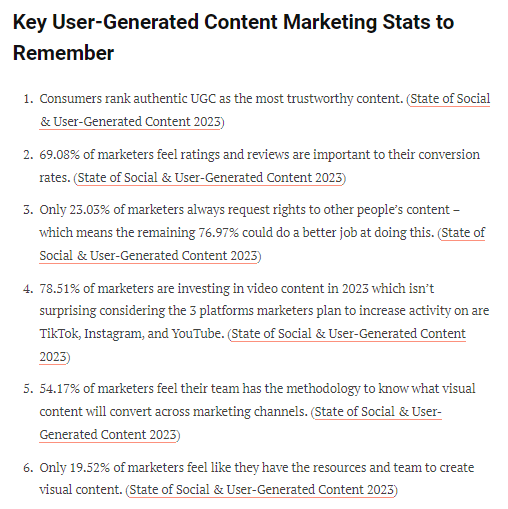
    Did you know that research has found that users can form an opinion about your content in just 0.05 seconds? It’s pretty quick, right? So, you’ve got to impress them right off the bat. 

    Using user-generated content in marketing has become a significant component of effective content strategies in recent years. 

    Let’s talk about the various types of user-generated content.

    Reviews or Rating Reviews and ratings rule user-generated content. They are highly valuable since product users make them. 
    Social media postsAny time someone posts a social message about you, whether it’s a Tweet or an Instagram post, that’s UGC.
    Custom campaigns with specialized hashtagsYou can ask followers to share their favorite memories with your products or services, photographs with the product, or something else. 
    Video content (including live streaming and AR lenses/filters)UGC includes GoPro films, Instagram Stories, and natively recorded videos, as long as you aren’t paying someone to create the material for you.
    Sponsored ContentOrganic social media takes time compared to the immediate increase in brand reach and awareness of paid ads.
    Q&A Forums (including comments)Forum discussions like Quora and others serve the unique purpose of in-depth answers to user-generated questions.

    User-generated content like these can be used as social proof. Social proof is a vital aspect of your sales funnel content strategy. 

    8. Create video-centric posts

    Did you know that social media posts with videos usually get more engagement? It’s true! People are more likely to interact with posts that have videos. You can attract and keep more clients interested by using a variety of videos.

    Here’s an example of a video-centric post by famous LinkedIn content creator Gary Vaynerchuk on Linkedin:

    Just like this highly video-centric post, make sure your videos are interesting enough to make people want to stop what they’re doing and watch. Put your brand’s message and a compelling call to action (CTA) in the video’s initial few seconds to increase its conversion rate.

    9. Sharing a case study 

    Case studies are the most popular self-promotion content marketing tactic, with 62.2% of surveyed marketers saying they effectively generate leads. When working on your case study, focus on storytelling rather than solely on numbers. 

    Once you’ve created an impactful case study. Share it on social media, include it in your email marketing campaigns, make sure it’s prominently displayed on your website, and even link to it in your blogs. 

    However, creating case studies can be quite time-consuming and requires a lot of effort. If you’re excited about creating something, share it on as many platforms as possible to have the most significant impact.

    10. Track your social media analytics 

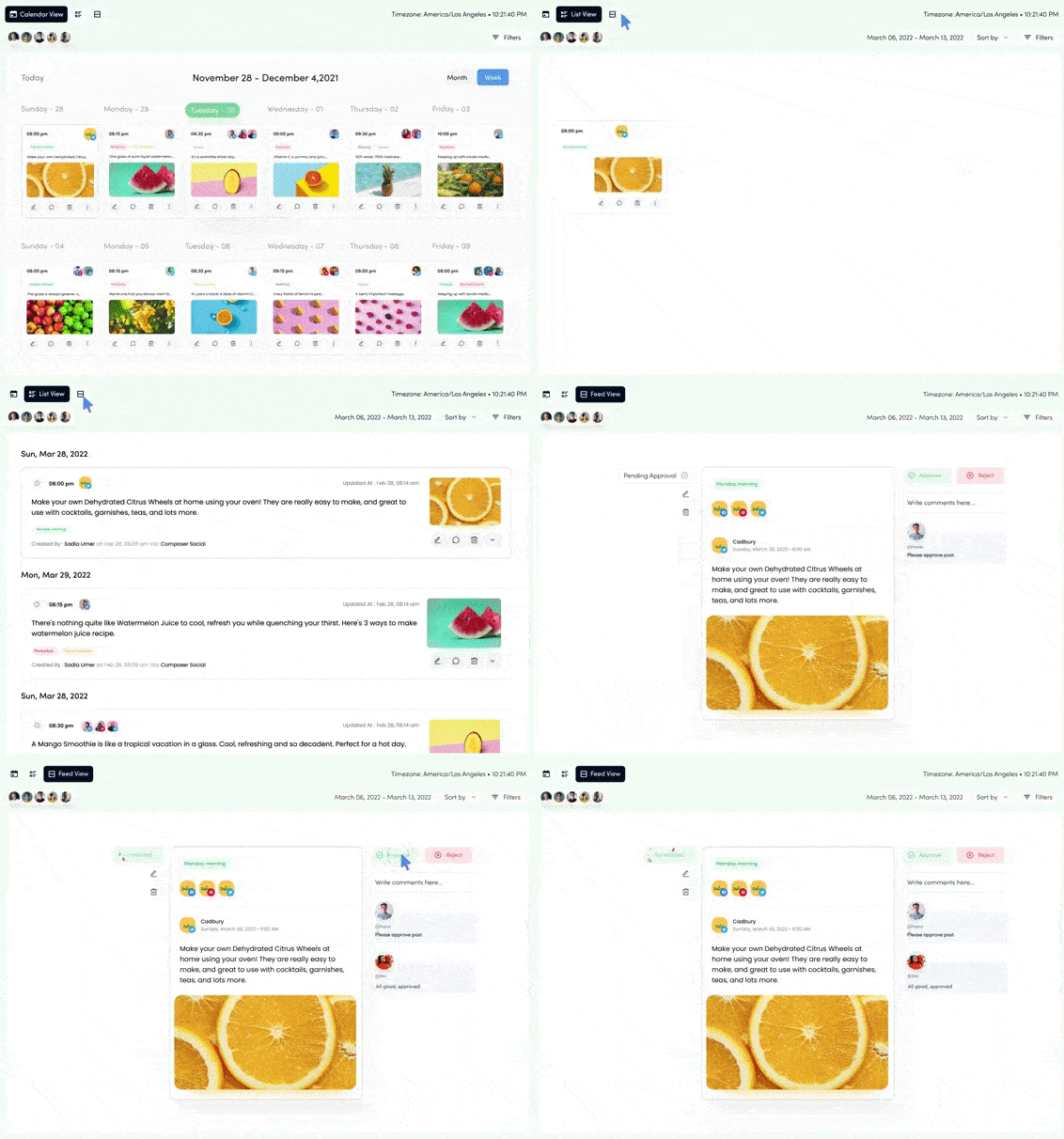
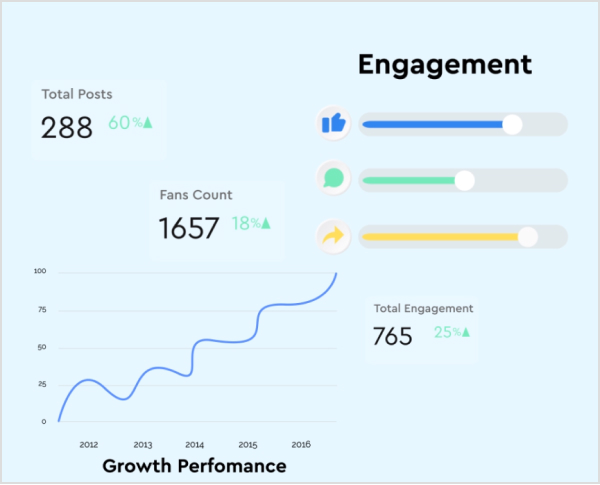
    This social media hack concludes platform analysis, campaign analysis, and reporting. But you can’t do all this by yourself. So you’d need a social media analytics tool to help you spy on your social media accounts, like ContentStudio – a secret clubhouse for creative geniuses.
    Social-media-conversion

    Additionally, you can also get back and forth to eliminate approval with immediate feedback from clients and the team. Overall, it monitors your brand’s social media strategy and helps you improve it by analyzing usage data. 

    Conclusion

    We’ve got you covered with the essential steps to boost your social media conversions and get some desired results. To start, having a content strategy that speaks to your buyers is essential. 

    Secondly, instead of just focusing on promoting yourself, highlight the benefits of your products or services. This way, you can show potential customers how your offerings can make a difference in their lives. 

    Lastly, make sure to tap into the power of user-generated content, such as reviews and case studies, to sway potential buyers in a positive way. 

    Now that you have this information, you can start your revamped social media strategy! Good luck! You’ve got this!
  • How to Insert Links in YouTube Descriptions: Step-by-Step

    How to Insert Links in YouTube Descriptions: Step-by-Step

    Are you eager to level up your YouTube descriptions and engage your viewers like never before? Well, look no further! Inserting links in your YouTube description can be a game-changer, and we’re here to show you how step-by-step. 

    Whether you want to share additional resources, promote your social media channels, or drive traffic to your website, we’ve got you covered. Get ready to unlock the full potential of your video descriptions and captivate your audience effortlessly. 

    Let’s dive in and master the art of inserting links on YouTube, making your content shine brighter than ever! 

    YouTube descriptions: Why are they important?

    YouTube video description plays a crucial role in maximizing the impact of your videos. Not only can it improve your YouTube SEO and video rankings, but it also provides valuable information about your content. Let’s explore why video descriptions are so important.

    Also read: Step-by-Step: How to Get a Custom YouTube URL

    1. Boosting YouTube SEO:

    A well-crafted video description can significantly enhance your YouTube SEO. Including relevant keywords and phrases in your description increase the chances of your video appearing in search results. This means more visibility and potential viewership for your content.

    1. Providing Context:

    YouTube video description allows you to provide additional context and details about your video. You can break down your video into chapters or sections, making navigating and finding specific information easier for viewers. This enhances the overall viewer experience and encourages engagement.

    1. Channel Introduction: 

    YouTube video description is an excellent opportunity to introduce your channel to new viewers. You can give a brief overview of your content, highlight your unique selling points, and encourage viewers to subscribe for more exciting videos.

    1. Driving Traffic:

    Additionally, the description box enables you to include links to external websites, such as your personal website or affiliate offers. This allows you to drive traffic to other platforms or monetize your content through partnerships.

    Also read: How to add YouTube link to instagram bio?

    How to insert links in YouTube descriptions?

    Adding a link to your YouTube description is a breeze, whether you’re using a mobile device or a desktop computer.

    On a desktop device:

    Let’s start with the steps for desktop devices:

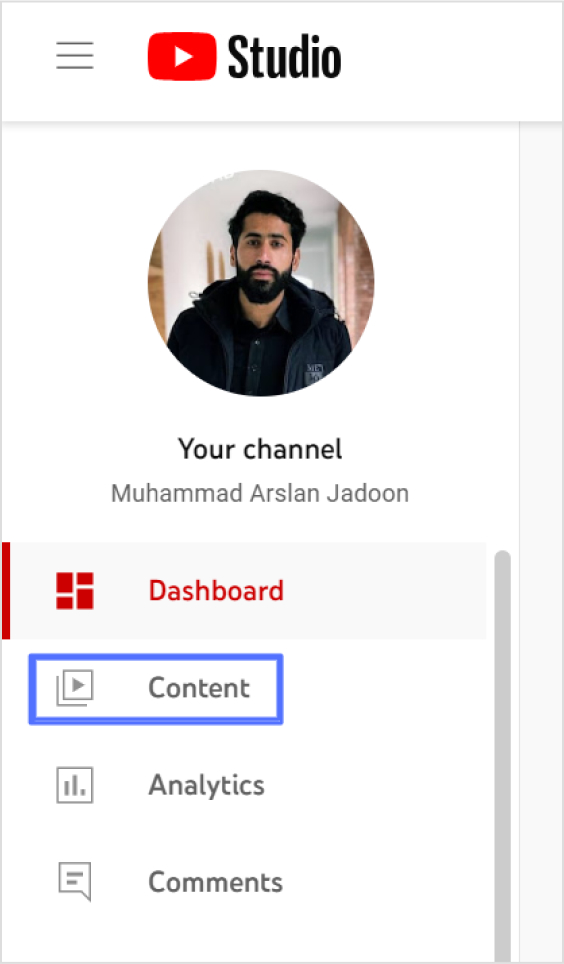
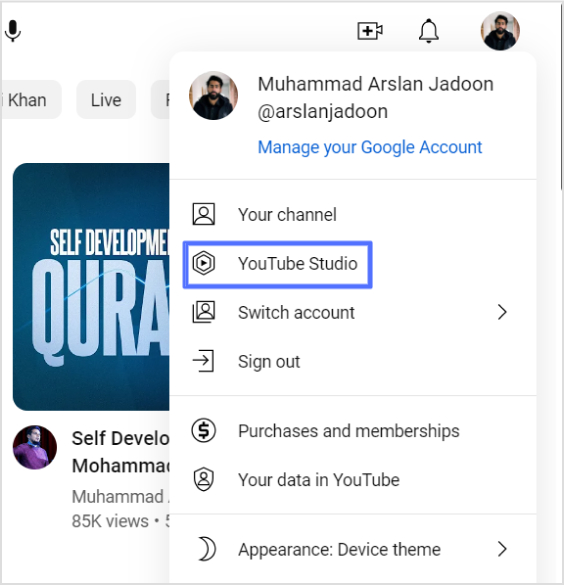
    Step 1: Access your YouTube Studio by clicking on your profile picture in the top right corner of the YouTube interface.

    Also read: How to share YouTube videos using deep links?

    Step 2: On the left side of the dashboard, click on “Content.”

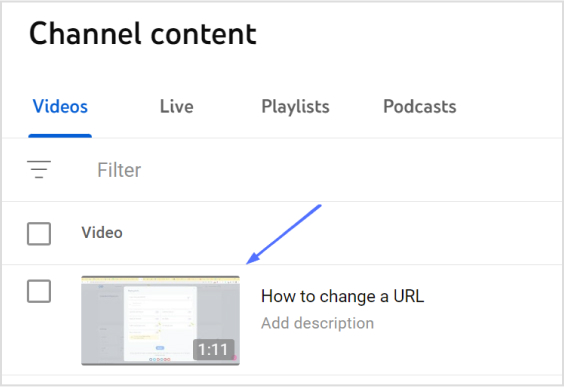
    Step 3: Locate the video you want to add a link to and click on the pencil icon to edit its description.

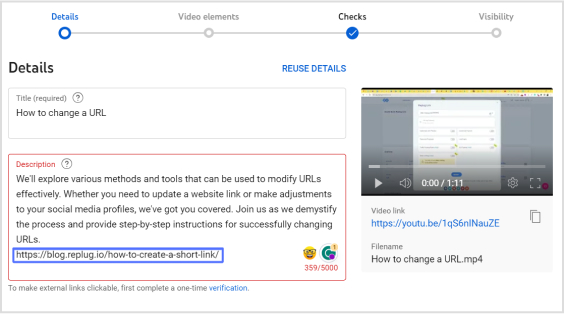
    Step 4: In the description box, type “https://” followed by the URL of the link you want to include.

    Step 5: Save your changes by clicking on the “Save” button.

    Congratulations! You have successfully added a link to your YouTube video description.

    Please note that the above steps are applicable to videos that are already uploaded or published. If you wish to add a link to the description of a video you are currently uploading or planning to upload, simply include “https://” and the URL in the description field during the upload process.

    Also read: How to share youtube playlist using deep links?

    Here’s how to insert links in YouTube Descriptions on a mobile device:

    On a mobile device:

    Adding a link to your YouTube description on mobile devices is just as simple as on a desktop. Follow these steps:

    Step 1: Open the YouTube app on your mobile device and sign in to your account.

    Step 2: Find the video for which you want to add a link in the description.

    Step 3: Tap on the video to open it and then tap on the “More” button (represented by three dots) below the video.

    Step 4: From the options that appear, select “Edit video.”

    Step 5: Scroll down to the description field and locate the spot where you want to add the link.

    Step 6: Type “https://” followed by the URL you want to include in the description.

    Step 7: Once you have entered the link, tap on the “Save” or “Publish” button to save your changes.

    Congratulations! You have successfully added a link to your YouTube video description using a mobile device.

    Remember, the process of adding a link remains the same: simply include “https://” followed by the URL in the description field. Now you can seamlessly include links in your YouTube video descriptions, whether you’re using a desktop computer or a mobile device. Happy linking!

    Also read: How to add YouTube links to Instagram story?

    Replug Branded Short Links CTA
    A complete link management solution
    for marketing professionals & agencies.
    Try Replug for free

    Shorten your YouTube Links for maximum impact:

    Shortening your YouTube links can be the secret ingredient to maximizing your impact. With shorter, more concise links, you’ll capture your audience’s attention, drive more clicks, and achieve higher engagement. 

    Here’s how to shorten YouTube Links using Replug:

    If you’re looking to shorten your YouTube links effectively, Replug is a top-notch link optimization platform that provides a seamless solution. Follow these steps to shorten YouTube links using Replug:

    Step 1: Sign in to your Replug account or create a new account if you haven’t already.

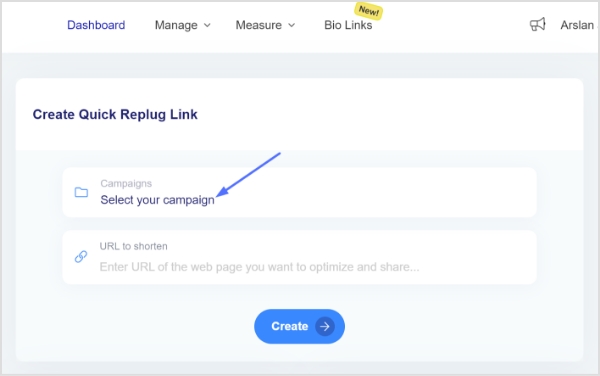
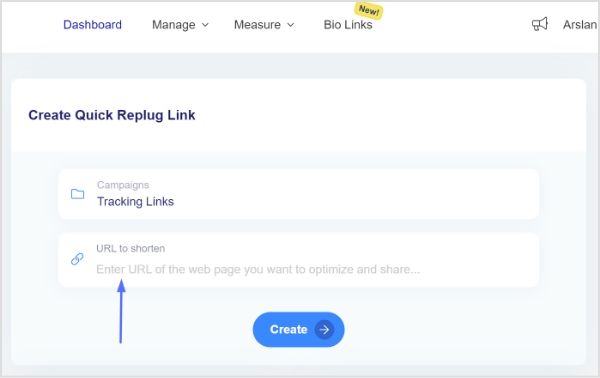
    Step 2: On the main dashboard page, click “Select your campaign’’ to create a new campaign in just a few seconds. 

    select-campaign

    Step 3: Paste your YouTube link or any link your want to shorten in the “URL to shorten” section below “Select your campaign” and click “Create”. 

    url-to-shorten

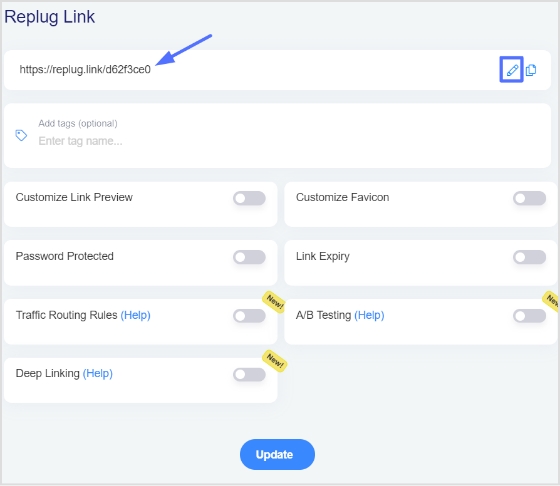
    Step 4: You’ll have your YouTube link shortened, now, click the edit icon to customize your link. 

    customize url

    Step 5: Copy your link, click the “update button” and you’re done.

    By using Replug’s link shortener, you not only get concise and visually appealing YouTube links, but you also gain access to advanced analytics and tracking capabilities. These insights will enable you to measure the performance of your links, understand audience engagement, and optimize your marketing strategies accordingly.

    Replug Branded Short Links CTA
    Maximize marketing ROI
    by transforming ordinary URLs into
    branded short links that convert.
    Try Replug for free

    Also read: How to Build Your Brand on YouTube – Branding on Youtube the Right Way!

    FAQs

    Why is it important to include links in my YouTube video description?

    Including links in your YouTube video description is important because it allows you to provide additional resources, redirect viewers to relevant websites, promote affiliate offers, and enhance the overall viewer experience. Links can also drive traffic to your website or social media profiles, increasing engagement and conversions.

    Can I include multiple links in my YouTube video description?

    Yes, you can include multiple links in your YouTube video description. However, it’s essential to ensure that the links are relevant and add value to your viewers. Avoid overwhelming the description with too many links, as it may appear cluttered and distract from the main content.

    Are there any restrictions or guidelines for the types of links I can add to my YouTube description?

    YouTube has community guidelines and policies that you must adhere to when adding links. Ensure that the links are not spammy, violate copyright or community standards, or redirect to malicious websites. Familiarize yourself with YouTube’s policies to ensure compliance.

    Can I add clickable links in the description that viewers can directly click on?

    Yes, YouTube automatically converts URLs in the video description to clickable links. As long as you include the full URL (e.g., https://www.example.com), viewers will be able to click on the link and be redirected to the desired webpage.

    You may also like:

    Online Branding: The Roadmap to Stand Out and Succeed Online

    How to shorten link using a URL shortener?

    Unique URLs: What They Are and How to Use Them?

  • From likes to love: Comprehensive social media engagement guide

    From likes to love: Comprehensive social media engagement guide

    Looking for the secret sauce to boost your social media engagement?

    Guess what?

    We know the proven tips and tricks that can help you engage more with your audience.

    Let’s not waste your time any further and get on with the recipe.

    Giving a quick read might help you reveal some key ingredients that might be missing from your social media engagement strategy.

    What is social media engagement?

    Social media engagement is when users actively interact with content on social media platforms by liking, commenting, sharing, and participating in discussions. It shows how interested and involved users are with the content, and helps assess the effectiveness of social media efforts.

    Why is social media engagement important?

    Social media engagement is of utmost importance in today’s digital landscape. It builds brand perception, fosters relationships, and drives business growth. Whether you’re an individual or a business, understanding its significance is key to unlocking endless possibilities in the digital world.

    Engaging with social media users is essential because it builds relationships, provides valuable feedback, increases brand visibility, and creates a thriving community around your brand.

    Tips & strategies for increasing your social media engagement

    To increase social media engagement, consider implementing the following strategies:

    1. Know your audience: 

    Target-audience

    Gain a deep understanding of your target audience’s preferences, interests, and pain points. Tailor your content to resonate with them and provide valuable solutions.

    To determine your target audience for social media engagement, follow these steps:

    1. Identify your goals.
    2. Conduct market research.
    3. Define your ideal customer.
    4. Analyze existing customer data.
    5. Use social media insights.
    6. Continuously refine and test your approach.

    2. Consistent posting schedule:

    ContentStudio-Scheduling

    Maintain a regular and reliable posting schedule to stay visible and top of mind for your audience. Consistency helps build anticipation and encourages engagement.

    You need to consistently post content, because it increases visibility, encourages audience engagement, boosts the algorithm favorably, and maintains brand consistency. Furthermore, consistently posting content and implementing these tips can help you maximize social media engagement, build a strong online presence, and cultivate meaningful connections with your audience.

    Below are some tips for posting consistently

    • Diversify Content: Offer various content types.
    • Know Your Audience: Understand their preferences.
    • Optimize Timing: Schedule posts during peak engagement times.
    • Encourage Interaction: Use calls-to-action and respond to comments.
    • Track and Analyze: Use social media analytics tools.

    3. Create compelling content:

    Convincing-Content

    What is compelling content?

    Compelling content is highly engaging and captures the attention of the audience.

    Focus on producing high-quality, visually appealing, and content relevance to get more social media engagement.

    Following the given steps can help you create compelling content that captures the attention of your audience and sparks engagement on social media.

    1. Craft Compelling Headlines: Create attention-grabbing headlines that pique curiosity and entice users to click on your content.
    2. Leverage Storytelling Techniques: Use storytelling elements to engage your audience emotionally and make your content more relatable and memorable.
    3. Use Captivating Visuals: Incorporate visually appealing images, videos, or graphics that catch the eye and draw viewers into your content.

    4. Use calls to action (CTAs): 

    Call-to-actions (CTAs) play a crucial role in increasing social media engagement by providing a clear direction and motivating users to take specific actions.

    Now you might be wondering how can you drive social media engagement using CTA’s?

    Here’s how you can do that effectively:

    1. Be clear and direct in your language.
    2. Use action verbs in CTA’s to create urgency.
    3. Offer incentives or rewards.
    4. Place CTAs prominently.
    5. Use visual cues to draw attention.
    6. Personalize CTAs for your audience.
    7. Experiment and test different CTAs.
    8. Be responsive to audience engagement

    Here’s how you can do that effectively:
    Including clear and concise CTAs in your posts to prompt your audience to take specific actions, such as liking, commenting, or sharing, makes it enticing to engage with your content.

    5. Foster engagement through conversations: 

    Actively engage with your audience by responding to comments, messages, and mentions. Initiate and participate in meaningful conversations to show that you value their input and opinions.

    ask-questions-for-social-media-engagement

    Furthermore, asking open-ended questions can encourage audience participation and spark discussions. Initiating conversations with thought-provoking topics helps generate engagement.

    6. Utilize visuals and multimedia:

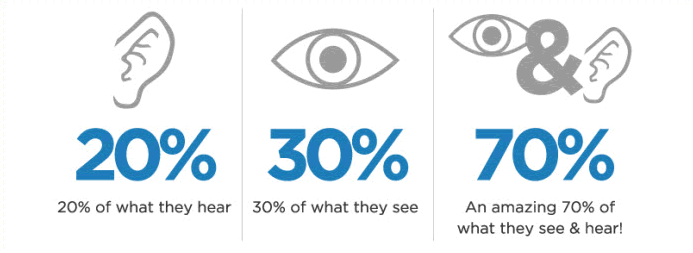
    Capture the attention of your social media audience and boost engagement by harnessing the power of visuals. With the right visual content, you can create a lasting impact, evoke emotions, and stand out in the sea of social media posts. From stunning images to captivating videos, visuals have the potential to draw people in and encourage them to interact with your brand.

    Visual Content Statistics
    Source:SAGIPL

    Incorporate eye-catching images, videos, infographics, and other multimedia elements in your posts. Visual content attracts more attention and drives higher engagement.

    7. Leverage influencer collaborations: 

    Influencer-collaboration-TikTok-Trends

    Partner with relevant influencers or industry experts who align with your brand values. Their endorsements and collaborations can help increase your reach and credibility, leading to enhanced engagement.

    Successful collaboration between Nike and Cristiano Ronaldo

    One notable example of a successful influencer partnership that drove social media engagement is the collaboration between Nike and Cristiano Ronaldo, one of the world’s most renowned football players. Nike leveraged Ronaldo’s massive following and influence on platforms like Instagram and Twitter to promote their brand and products.

    The partnership involved Ronaldo posting captivating content featuring Nike’s products, highlighting their performance and style. These posts generated a significant buzz among Ronaldo’s followers, leading to a surge in likes, comments, and shares. The combination of Ronaldo’s star power and Nike’s innovative products created a compelling influencer campaign that effectively increased social media engagement and expanded brand reach.

    8. Harness the power of hashtags: 

    tiktok-hashtags

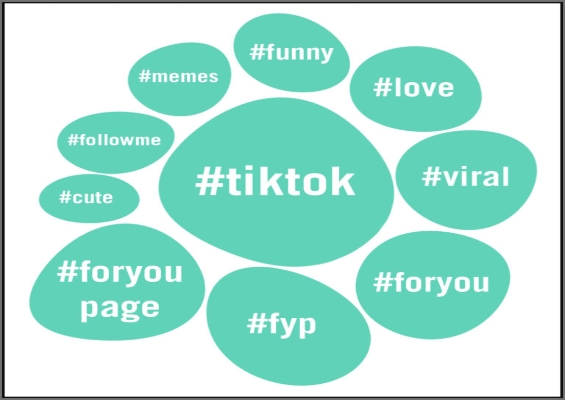
    Research and use relevant hashtags to make your content discoverable by users interested in specific topics. Hashtags help expand your reach and expose your content to new audiences.

    Utilize the power of hashtags for social media engagement by:

    • Increasing discoverability
    • Categorizing content
    • Joining conversations
    • Encouraging user-generated content
    • Tracking and measuring performance
    • Fostering community engagement

    9. Encourage user-generated content:

    Source: Tintup.com

    Inspire your audience to create and share their own content related to your brand or industry. This could be through contests, challenges, or simply inviting them to share their experiences. User-generated content not only fosters engagement, but also builds a sense of community around your brand.

    The video below by GoDaddy will help you understand its importance more.

    10. Analyze and optimize:

    Regularly analyze your social media analytics to gain insights into the type of content that resonates most with your audience. Use this data to optimize your content strategy and focus on what drives engagement.

    Secondly, identify the optimal times when your audience is most active on social media and schedule your posts accordingly for maximum reach and engagement.

    Ensure your content is mobile-friendly and optimized for various devices. A seamless mobile experience encourages users to engage with your content on-the-go.

    Related: 115 proven Facebook SEO techniques to try in 2026

    11. Cross-Promote on Multiple Platforms:

    Cross-marketing
    Source: https://lapaas.com/

    Promote your social media presence across various platforms to reach a wider audience. Cross-promotion increases your visibility and encourages engagement from different user bases.

    Cross-promoting is a powerful strategy to boost your social media engagement and reach a wider audience.

    Tips to cross-promote your social media channels:

    1. Promote across platforms: Share your social media handles and profiles on your website, blog, and other social media accounts to encourage followers on different platforms.
    2. Adapt content for each platform: Tailor your posts to fit the features and preferences of each platform, ensuring your content resonates with the audience on that specific channel.
    3. Cross-link profiles: Include links to your other social media profiles bio or about section for easy navigation and connection.
    4. Collaborate with others: Partner with influencers, brands, or businesses in your niche to cross-promote each other’s content and tap into new audiences.
    5. Use social media ads: Utilize targeted ads to promote your social media profiles and gain new followers.
    6. Incorporate social sharing buttons: Make it simple for your audience to share your content by adding social sharing buttons to your website and blog posts.
    7. Join cross-promotional events or campaigns: Participate in collective initiatives involving multiple brands or influencers to reach a wider audience and boost engagement.

    12. Stay up-to-date with trends:

    Keep an eye on current trends, viral topics, and popular conversations within your industry or niche. By staying relevant and incorporating timely content, you can attract more engagement from your audience.

    Key ways to stay updated with social media trends:

    1. Follow industry leaders and influencers: Keep an eye on influential figures in your industry or niche and follow them on social media. They often share valuable insights, trends, and updates.
    2. Join relevant communities and groups: Engage in online communities and groups related to your industry or interests. These platforms provide opportunities for discussions and insights into current social media trends.
    3. Attend industry events and webinars: Participate in conferences, webinars, and workshops focused on social media and digital marketing. These events often feature expert speakers who share the latest trends, strategies, and best practices.
    4. Subscribe to industry blogs and newsletters: Follow popular blogs and subscribe to newsletters that cover social media and digital marketing topics. These sources regularly publish articles, case studies, and trend reports to keep you updated.
    5. Monitor social media conversations: Pay attention to discussions, hashtags, and mentions related to your industry or niche. This can provide valuable insights into emerging trends and popular topics.
    6. Engage in social media chats and discussions: Participate in Twitter chats, LinkedIn groups, or Facebook communities focused on your industry. This allows you to connect with peers and gain insights from their experiences.
    7. Stay curious and explore: Take the time to explore different social media platforms, features, and functionalities. Experiment with new strategies and keep an open mind to discover emerging trends.

    Lastly, i would say that utilizing social media management tools that help track conversations, hashtags, social media engagement rates, and mentions related to your niche can certainly boost social media engagement for you as a business or even as an individual. Find what best suits your needs and turn your engagement around with it.

    Top 10 social media tools for engagement

    1. Replug

    A custom URL shortener that helps enhance social media engagement via branded short links. It allows you to create personalized short URLs, add retargeting pixels, and track link clicks. It also provides call-to-action overlays, deep links, bio links to drive engagement and conversions.

    Why Replug? How can you leverage Replug for social media engagement?

    1. Add compelling CTAs to the links you share.
    2. Create branded short links for better brand recognition.
    3. Utilize retargeting pixels to reach engaged users.
    4. Analyze link performance to optimize your strategy.
    5. Utilize bio links to direct your audience to multiple destinations.
    6. Use deep links to send users directly to specific content within your mobile apps.

    2. Contentstudio

    Contentstudio is a content discovery and social media management tool. It offers a wide range of features, including content curation, scheduling, analytics, caption generator, social media automation, and more. It helps streamline your content creation and engagement efforts.

    What makes Contentstudio a powerful social media management tool?

    Here’s how it can help you greatly enhance social media engagement.:

    • Discover trending and relevant content to keep your audience engaged.
    • Plan and schedule social media posts for consistent presence and increased engagement.
    • Manage multiple social media accounts from a single platform.
    • Automate content sharing to save time and ensure regular updates.
    • Analyze social media performance to measure engagement and optimize your strategy.

    3. Tint

    A user-generated content platform that allows you to collect and display authentic user-generated content from social media, fostering engagement and trust with your audience.

    Here’s how this tool can contribute to increased social media engagement and audience interaction.

    • User-Generated Content (UGC): Leverage user-generated content to increase engagement.
    • Social Media Feed Curation: Curate and display social media feeds on your platforms.
    • Visual Display Options: Create visually appealing and engaging displays.
    • Real-Time Updates: Keep your content fresh and up to date with real-time updates.
    • Moderation Tools: Filter out unwanted or inappropriate content.
    • Analytics and Insights: Gain valuable insights into social media performance.

    4. Easypromos

    A platform that enables you to create interactive social media contests, quizzes, polls, and giveaways, encouraging audience participation and boosting engagement.

    How Easypromos can help increase brand engagement?

    • Interactive Promotions: Run engaging contests, giveaways, and interactive campaigns to boost social media engagement.
    • User-Generated Content: Leverage user-generated content through photo contests and hashtag campaigns for increased audience interaction.
    • Customization: Customize your promotions to align with your brand’s style and messaging, making them more appealing to your audience.
    • Analytics and Reporting: Use analytics and reporting features to track the performance of your promotions and gain insights to optimize engagement.
    • Viral Sharing: Encourage participants to share your promotions with their networks, expanding your reach and driving more engagement.
    • Regulatory Compliance: Ensure compliance with legal and regulatory requirements when running promotions on social media.

    5. Flockler

    A social media aggregation and publishing tool that collects social media posts from various channels and displays them on your website or other digital platforms, encouraging engagement and social proof.

    Flockler for social media engagement: Why & how?

    • Content Aggregation: Flockler allows you to collect and curate user-generated content from various social media platforms.
    • Visual Displays: Create visually appealing displays using the curated content to capture audience attention.
    • Social Feeds: Embed social media feeds on your website or blog to showcase real-time social content.
    • Audience Participation: Encourage audience participation by incorporating social media content in your campaigns.
    • Engagement Tracking: Monitor social media engagement metrics to understand the impact of your efforts.
    • Personalization: Tailor the content and display to match your brand identity and connect with your audience.

    6. Yotpo: 

    A user-generated content and reviews platform that allows you to collect and showcase customer reviews, ratings, and photos, enhancing social proof and driving engagement.

    Yotpo for social media engagement offers:

    • UGC collection and showcasing
    • Enhanced social proof
    • Shoppable posts
    • Influencer partnerships
    • Review management
    • Analytics and insights

    7. Mention

    https://www.youtube.com/watch?v=bxk-Yh_jLVc&ab_channel=Mention

    Mention is a social media monitoring tool that tracks mentions of your brand, products, or keywords across various social platforms. It provides real-time alerts, sentiment analysis, and engagement tracking to help you stay on top of conversations and engage with your audience effectively.

    Why Mention is a great social media engagement tool?

    • Real-time social media monitoring
    • Track brand mentions and keywords
    • Monitor competitor activity
    • Engage with your audience and respond to mentions
    • Identify influencers and brand advocates
    • Analyze social media trends and sentiment
    • Discover user-generated content
    • Generate reports and insights on brand performance

    8. Canva

    A versatile graphic design tool that helps you create visually appealing posts, banners, and graphics for your social media channels.

    Key ways Canva can help boost social media engagement:

    • Graphic design and image editing
    • Create visually appealing social media posts
    • Design custom graphics, banners, and infographics
    • Use templates and customizable elements
    • Incorporate branding and logos
    • Add text, filters, and effects
    • Resize images for different social media platforms
    • Collaborate and share designs with team members

    9. SEMrush

    An all-in-one digital marketing tool that provides competitive intelligence, keyword research, and social media analytics to optimize your social media strategies.

    Semrush, a tool tailor made for social media engagement analysis:

    • Identify popular content and topics in your industry
    • Monitor social media mentions and backlinks
    • Analyze competitor’s social media strategies
    • Discover potential influencers for collaborations
    • Track social media performance metrics
    • Find opportunities for guest posting and content promotion
    • Conduct social media research and trend analysis
    • Improve social media visibility

    10. Talkwalker

    A social listening and analytics tool that helps you monitor brand mentions, track social media trends, and analyze audience sentiment, providing insights to optimize your engagement strategies.

    How Talkwalker improves social media engagement?

    • Real-time social media monitoring
    • Sentiment analysis
    • Social listening for brand mentions and conversations
    • Trend analysis and identification
    • Influencer identification and tracking
    • Social media performance analytics
    • Competitive intelligence and benchmarking

    How to measure social media engagement?

    The basic formula for calculating social media engagement rate is as follows:

    Engagement Rate = (Total Engagements / Total Reach) * 100

    To calculate the engagement rate, you need two key metrics: total engagements and total reach.

    1. Total Engagements: This includes all the interactions on your social media post, such as likes, comments, shares, and clicks. Add up the number of engagements for a specific post or across multiple posts within a given timeframe.
    2. Total Reach: This represents the number of unique users who have been exposed to your social media post. It can be measured by the impressions or reach metrics provided by the social media platform.

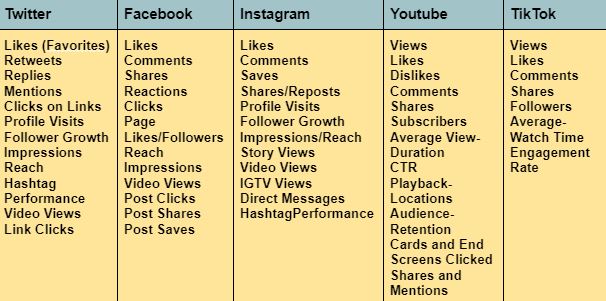
    Here are some engagement factors to consider across major social platforms respectively. 

    Socialmedia engagement factors

    Social media engagement facts & figures

    Social Media Engagement Statistics

    • The number of social media users worldwide is expected to jump to approximately 5.85 billion users by 2027. 
    • 77% of small businesses use social media to connect with their customers. 
    • As of April 2023, the fastest-growing social media platform is BeReal. 
    • With an impressive 4.53% annual growth rate projected to take the market even higher, to $247.30 billion by 2027.

    Source: (Forbes)

    With that being said, lets move on to engagement statistics across the major social media platforms:

    Twitter Engagement Statistics

    • Tweets without hashtags received 23% more engagement compared to those with no hashtags.
    • Including 1-2 hashtags in your tweets can boost engagement by 21%.
    • Tweets with GIFs garnered 55% higher engagement compared to those without.

    Source: (Thrivemyway)

    Instagram Engagement Statistics:

    • The average engagement rate for all types of Instagram posts stands at 0.96%.
    • Posts featuring a face perform nearly 40% better in terms of engagement.
    • Weekdays tend to have higher engagement levels among Instagram users.

    Source: Social Pilot

    Facebook Engagement Statistics:

    • Photos make-up 34.73% of content on Facebook, while videos account for 15.09%.
    • Live videos lasting over one hour experienced an increase in engagement from 0.19% to 0.86%.
    • On average, Facebook users comment five times, like posts 12 times, share content once, and like one page per week.

    Sources:  (Thrivemyway , Social Pilot & Geekflare)

    LinkedIn Engagement Statistics:

    • Approximately 22.04% of LinkedIn traffic comes from search, with 99.63% of that traffic being organic.
    • Companies that post weekly can expect to see a two-fold rise in engagement.
    • Completing a LinkedIn Page results in a 30% increase in weekly views.

    Source: (Thrivemyway)

    TikTok Engagement Statistics:

    • The “Entertainment” category on TikTok has accumulated a staggering 545 billion hashtag overall views.
    • Sound is considered a crucial aspect of the TikTok experience, with 90% of users emphasizing its importance.
    • A significant 43% of TikTok users have participated in duets.

    Sources: (Social Pilot & GeekFlare)

    YouTube Engagement Statistics:

    • Watch time for videos has seen a remarkable 270% growth in the past 12 months.
    • YouTube Shorts now amasses an impressive 50 billion daily views.
    • Around 33% of internet users have reported watching tutorial or how-to videos.
    • Watch time for “wildlife videos” witnessed a notable 40% increase in the previous year.

    Sources: (Social Pilot & Forbes)

    In the end, I would like to say that embrace the evolution of social media. Utilize the strategies highlighted, and watch your brand story unfold in captivating ways.

    You May Also Like:

  • How LinkedIn Retargeting Ads Work – A Complete Guide

    How LinkedIn Retargeting Ads Work – A Complete Guide

    In today’s digital landscape, capturing and retaining the attention of potential customers is a constant challenge. However, what if there was a way to reconnect with those who have already shown interest in your brand? Enter LinkedIn retargeting ads – a game-changing strategy that enables you to precisely target and engage with your desired audience. 

    For those looking for an easy-to-use solution to manage retargeting, Replug.io offers a unified platform to shorten, track and retarget your links with minimal setup.

    Whether you’re aiming to increase conversions, drive brand awareness, or nurture leads, understanding how LinkedIn retargeting ads work is crucial. In this complete guide, we delve into the intricacies of LinkedIn retargeting, unraveling the mechanisms behind this powerful advertising tool. 

    Get ready to embark on a journey that will transform the way you connect, engage, and convert on the world’s largest professional network – LinkedIn. Buckle up and prepare to discover the untapped potential of LinkedIn retargeting in this comprehensive and insightful guide.

    What is retargeting?

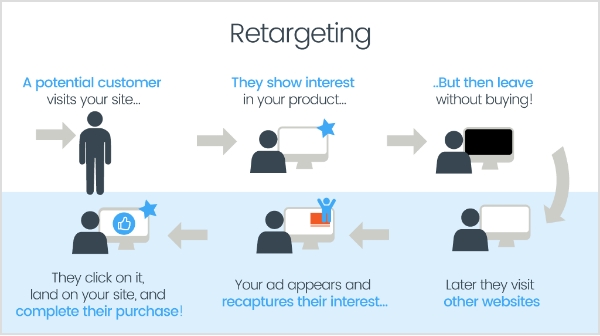
    Retargeting, also known as remarketing, is a strategic advertising technique that allows you to reconnect with users who have previously interacted with your brand or website. It involves targeting ads specifically to individuals who have shown interest in your products or services, but may not have completed a desired action, such as making a purchase or filling out a form.

    When someone visits your website, a small piece of code called a tracking pixel or tag is placed on their browser. This pixel enables your advertising platform to track their online behavior and collect valuable data about their interactions. Using this data, you can then deliver personalized ads to these individuals as they browse other websites or social media platforms.

    By using a dedicated link shortener tool, you can ensure your URLs stay clean and manageable, while still having the retargeting pixel attached and ready to gather visitor data.

    Also read: 8 Best Retargeting Platforms To Retarget Your Potential Audience

    What-is-retargeting

    The goal of retargeting is to stay top-of-mind with potential customers, reminding them of your brand and enticing them to return to your website to complete the desired action. By targeting individuals who have already shown interest, retargeting allows you to maximize your advertising budget and increase the chances of converting leads into customers.

    What is retargeting on LinkedIn?

    Retargeting on LinkedIn refers to the advertising strategy that allows businesses to target and engage with individuals who have previously visited their website or interacted with their brand on LinkedIn. LinkedIn, being the world’s largest professional network, offers powerful retargeting capabilities to reach a specific audience of professionals and decision-makers.

    Retargeting-on-linkedin

    LinkedIn’s retargeting feature utilizes the LinkedIn Insight Tag, which is a code snippet placed on a website to track visitor behavior. This Insight Tag collects valuable data about website visitors, including company names, job seniority, industry, geography, and more. This data enables advertisers to create highly targeted and personalized ad campaigns on LinkedIn.

    With LinkedIn retargeting, businesses can show tailored ads to individuals who have shown interest in their brand by visiting their website. These ads can appear across the LinkedIn platform, including the LinkedIn feed, sponsored content, messaging, and more. By reconnecting with website visitors on LinkedIn, businesses can nurture leads, drive conversions, and increase brand visibility among a professional audience.

    Also read: Getting Started with Meta Pixel: The Key to Successful Retargeting

    Retargeting on LinkedIn: How does it work?

    LinkedIn retargeting works by utilizing the LinkedIn Insight Tag, a code snippet placed on a website to track visitor behavior and collect valuable data. Here’s a step-by-step overview of how LinkedIn retargeting works:

    Implement the LinkedIn Insight Tag: 

    To start using LinkedIn retargeting, you need to place the LinkedIn Insight Tag on your website. This tag is a small snippet of code provided by LinkedIn that needs to be added to the pages of your website.

    Capture Visitor Data: 

    Once the Insight Tag is installed, it starts capturing data about the visitors to your website. The tag collects information such as company names, job seniority, industry, geography, and more, providing valuable insights into your website visitors’ characteristics.

    Create Audience Segments: 

    Using the data collected by the Insight Tag, you can create customized audience segments based on specific criteria. For example, you can target visitors from specific industries, job titles, or company sizes. These audience segments allow you to tailor your retargeting campaigns and deliver personalized messaging.

    Also read: Starter’s Guide to Setup Facebook Custom Audience

    Set Up Retargeting Campaigns: 

    With your audience segments defined, you can create retargeting campaigns on LinkedIn’s advertising platform. These campaigns enable you to display targeted ads to the specific audience segments you have defined. The ads can appear on various LinkedIn placements, including the LinkedIn feed, sponsored content, and messaging.

    Display Tailored Ads: 

    When a visitor who has previously been on your website visits LinkedIn, the LinkedIn platform recognizes them through the Insight Tag and displays your tailored ads to them. This ensures that your ads reach the right people at the right time, maximizing their effectiveness.

    Drive Engagement and Conversions: 

    Through retargeting, you can engage with visitors who have already shown interest in your brand. By delivering relevant and personalized ads, you can encourage them to take desired actions, such as signing up for a newsletter, requesting a demo, or making a purchase. Retargeting allows you to nurture these leads and guide them through the customer journey.

    Also read: How To Utilize Replug for Facebook Retargeting Ads?

    How to set up Linkedin retargeting ads?

    Setting up LinkedIn retargeting ads involves a few steps to ensure your campaigns are properly configured.  The first step is to install the LinkedIn Insight Tag on your website. This tag is a code snippet provided by LinkedIn that needs to be placed on all the pages of your website. It enables LinkedIn to track visitor behavior and collect data for retargeting purposes.

    Here’s how to set up retargeting on LinkedIn:

    Once LinkedIn Insight Tag is Installed, you can set up retargeting ads on LinkedIn by following the steps below:

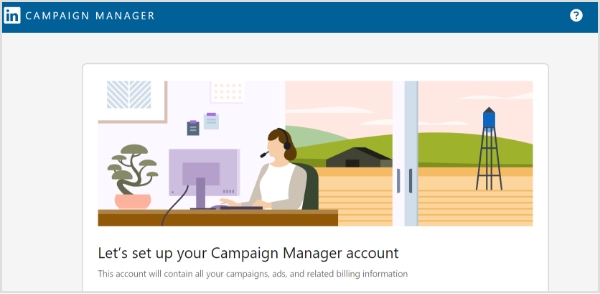
    Step 1: Sign in to LinkedIn Campaign Manager.

    retargeting-on-linkedin

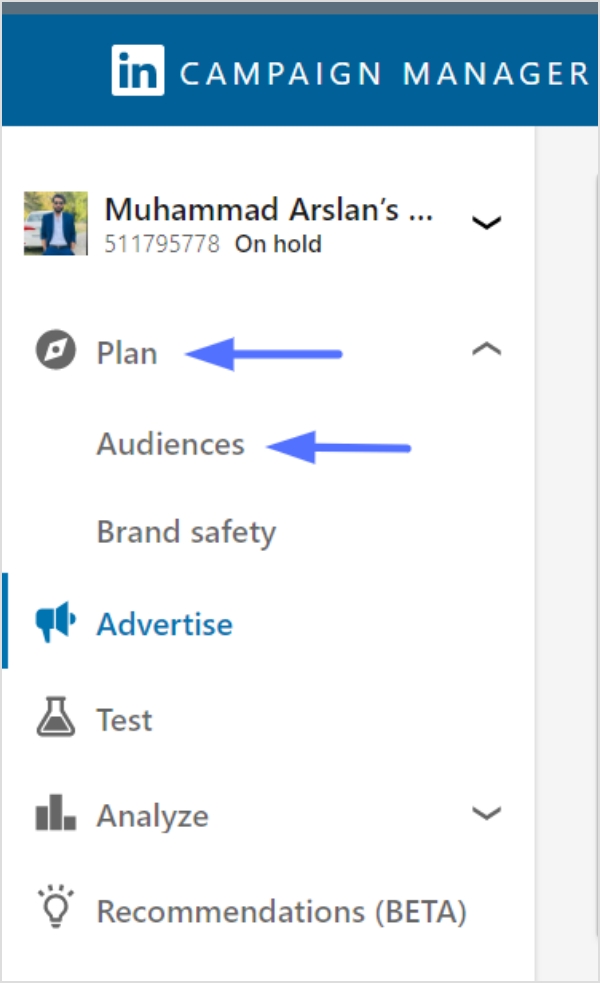
    Step 2: If needed, switch to the correct account by clicking on the account name in the upper-left corner and selecting the desired account from the dropdown.

    Step 3: Click on “Plan” in the left menu and select “Audiences”.

    retargeting-on-linkedin

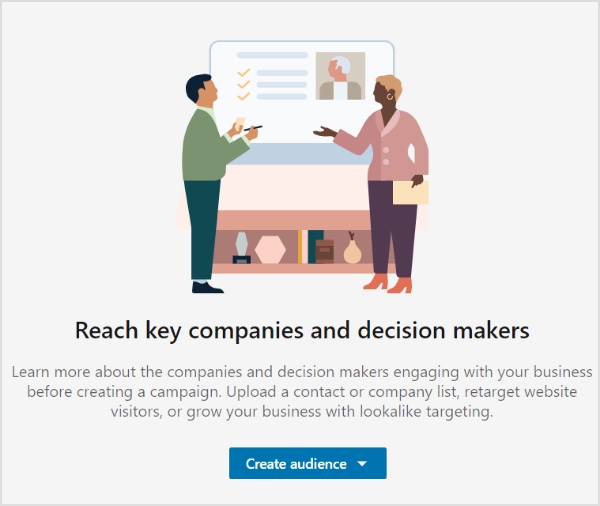
    Step 4: Click on the “Create Audience” button in the top left of the page.

    retargeting-on-linkedin

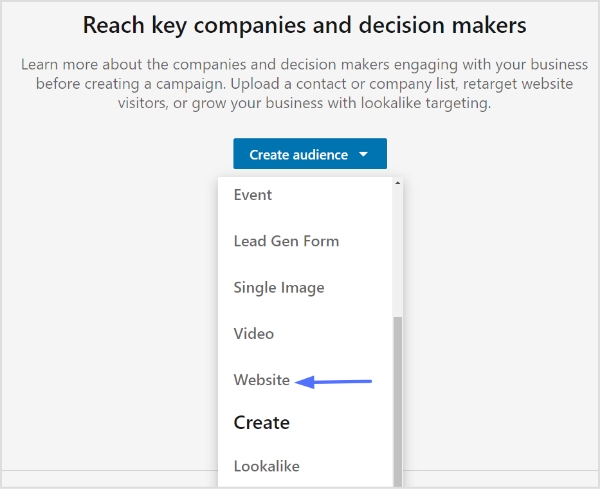
    Step 5: Select “Website” from the dropdown menu.

    retargeting-on-linkedin

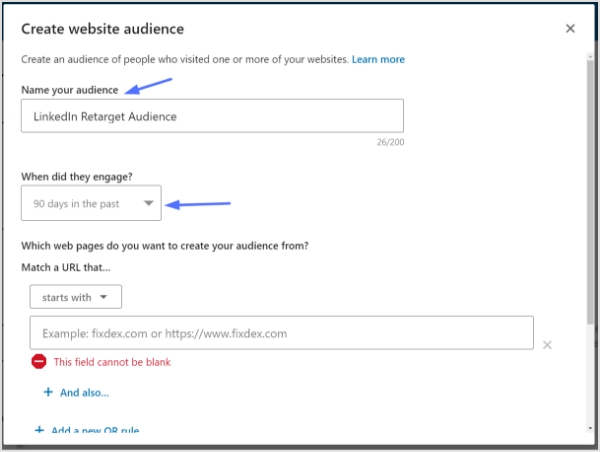
    Step 6: Give your audience a name.

    Step 7: Choose the time range for your audience engagement. You can select from 30, 60, 90, or 180 days in the past.

    retargeting-on-linkedin

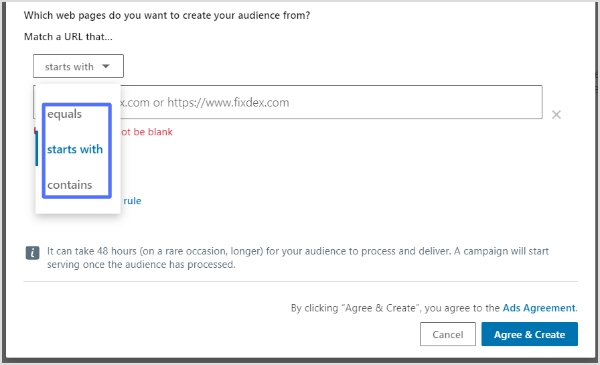
    Step 8: Add the website URLs you want to retarget. You can specify whether the URL starts with, equals, or contains a specific value. This allows you to define the pages on your website that will contribute to building your retargeting audience.

    linkedin-retargeting
    • “Starts with” is useful for URLs with dynamic parameters at the end.
    • “Equals” is used when you want to match a specific URL.
    • “Contains” allows you to target URLs that contain specific keywords or phrases.
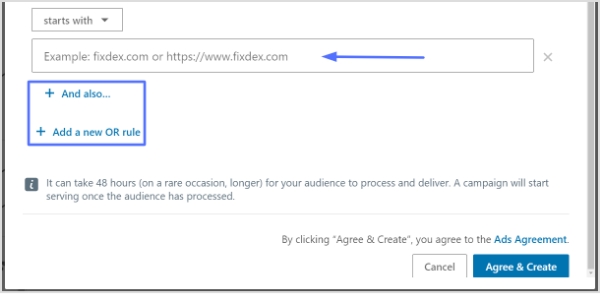
    • You can click “+ And also” below a URL to further narrow down the pages where conversions are counted.

    Use “+ Add a new OR rule” if you have multiple URLs contributing to the audience.

    retargeting-on-linkedin

    Step 9: Click “Agree & Create” to create your retargeting audience.

    Important Note:

    Note that your audience needs to have at least 300 website visitors to be usable in an active campaign. Depending on the traffic to your website, it may take up to 48 hours for your audience to build.

    Keep in mind that website retargeting audiences cannot be used with member interests and traits when selecting targeting facets for your campaign audience.

    Also read: 7 retargeting best practices every marketer should follow

    Benefits of retargeting on LinkedIn:

    The benefits of LinkedIn retargeting are numerous and can significantly enhance your customer acquisition efforts. Here are some key advantages of utilizing LinkedIn retargeting in your marketing strategy:

    Enhanced Customer Acquisition: 

    LinkedIn’s extensive user database and professional targeting options allow you to reach highly relevant audiences. By retargeting individuals who have previously visited your website, you can reconnect with potential customers who have already shown interest in your brand. This familiarity increases the likelihood of engagement and conversion, ultimately driving customer acquisition.

    Increased Engagement: 

    Retargeting allows you to engage with visitors who have already interacted with your brand. These individuals are more likely to view multiple pages on your website, spend more time exploring your offerings, and exhibit a genuine interest in what you have to offer. This heightened engagement can lead to higher conversion rates, increased customer loyalty, and a higher customer lifetime value.

    Integration with Paid Traffic Acquisition: 

    Retargeting works synergistically with paid traffic acquisition efforts. By broadly targeting website pages through paid ads, you can capture initial awareness and generate new traffic. Then, through retargeting, you can focus on those visitors who landed on your pages but did not convert on the first visit. This keeps your brand top of mind as they continue to browse the internet, maximizing the impact of your advertising investment.

    Augment Organic Traffic Strategies: 

    In addition to paid traffic, retargeting can complement your organic traffic strategies. By retargeting visitors who came to your website through search engines, social media platforms, or referral channels, you can reinforce their interest in your brand and encourage them to take further action. This amplifies your organic traffic efforts and increases the likelihood of conversions.

    Also read: 7 Powerful Ways to Boost Your Website Traffic Through Social Media

    When to launch a LinkedIn retargeting campaign?

    Launching a LinkedIn retargeting campaign can be a powerful strategy to maximize your marketing efforts and drive better results. While there is no fixed rule on when to start, it is generally recommended to consider a few factors before launching your campaign.

    Minimum visitor requirement:

    Firstly, it’s important to have a sufficient amount of website traffic to retarget. While the common suggestion is to start retargeting once you’ve reached 500-1,000 monthly visitors, the actual number can vary based on your specific circumstances. 

    For example, if you have a one-page website, retargeting 1,000 visitors can yield stronger results compared to retargeting the same number of visitors on a larger website with multiple pages. It’s crucial to have a minimum of 300 visitors for a segment to be eligible for retargeting using the LinkedIn Insight tag.

    Maximizing returns on high-converting pages:

    Additionally, it’s beneficial to launch retargeting campaigns when your traffic acquisition efforts have scaled and are consistently targeting pages that convert visitors into paid customers. By focusing on pages that have a higher conversion rate, you can maximize the effectiveness of your retargeting campaigns and achieve better returns on your investment.

    Timing is the key:

    Timing is key when it comes to retargeting. While launching retargeting early in the traffic acquisition lifecycle has its advantages, such as building brand familiarity and engaging with visitors who have already shown interest, it’s essential to align your retargeting efforts with the stage where your traffic acquisition is scaled and generating consistent conversions.

    Also read: 9 ways to multiply your sales with eCommerce retargeting

    Retargeting vs Remarketing: What is the difference?

    Remarketing and retargeting are two distinct methods of marketing to existing leads, often used interchangeably but with subtle differences.

    Retargeting:

    Retargeting involves serving paid ads to previous visitors across various platforms to re-engage them and prompt them to take desired actions. It utilizes tracking pixels and JavaScript codes to capture visitor data and display tailored advertising. 

    Retargeting focuses on reaching out to visitors who have shown interest but may not have converted yet. It helps increase brand visibility, engagement, and customer acquisition.

    Remarketing:

    On the other hand, remarketing uses the retargeting pixel to serve ads specific to existing customers and leads who have provided their email addresses. With access to the visitor’s email address, businesses can leverage email marketing to deliver personalized offers and messages. 

    Remarketing allows for more targeted and personalized communication, such as sending subscription renewal reminders, re-engaging cold subscribers, or offering targeted up-sells and cross-sells based on purchasing behavior. 

    It provides an opportunity to tie behavioral data to action and deliver offers in a more personal environment.

    Also read: The Complete Guide to Content Remarketing: 20 Tips and Examples to Re-Engage Audience

    Conclusion:

    LinkedIn Retargeting offers a powerful means to re-engage with past website visitors, leveraging the platform’s extensive user data and advanced advertising capabilities. By implementing effective retargeting campaigns, businesses can boost engagement, increase conversions, and drive revenue growth. With its unique features and the ability to tailor content based on visitor insights, LinkedIn Retargeting stands out as a valuable tool in any comprehensive customer acquisition strategy.

    Remember, successful LinkedIn Retargeting campaigns require careful planning, audience segmentation, and ongoing optimization to yield optimal results. By harnessing the potential of LinkedIn Retargeting, businesses can connect with their target audience on a more personalized level, nurturing valuable relationships and achieving their marketing objectives.

    Frequently asked questions

    When is the right time to launch a LinkedIn retargeting campaign?

    The ideal time to launch a LinkedIn retargeting campaign may vary depending on the specific circumstances of each business. While some recommend starting retargeting after reaching 500-1,000 monthly visitors, it is crucial to consider the quality and relevance of the traffic. Retargeting campaigns generally yield higher returns when traffic acquisition efforts have scaled and when there are consistent conversions of website visitors into paid customers.

    How many website visitors do I need for LinkedIn retargeting?

    LinkedIn’s Insight tag requires retargeting segments to have a minimum of 300 website visitors. This ensures that the audience is large enough to generate meaningful results and target effectively.

    What are some effective strategies for LinkedIn retargeting?

    Effective strategies for LinkedIn retargeting include segmenting the audience based on specific actions or pages visited, creating compelling ad creatives that align with the visitor’s interests, using personalized messaging, and testing different ad formats and placements to optimize performance. Using a tool like a LinkedIn ad maker can simplify ad creation, save time, and ensure your campaigns stay consistent and professional.

    Can LinkedIn retargeting be used for B2B marketing?

    Yes, LinkedIn retargeting can be used for B2B marketing. With LinkedIn’s professional user base, businesses can target specific industries, job titles, company sizes, and more, making it a valuable platform for reaching and engaging with the B2B audience.

    What metrics should I track to measure the success of my LinkedIn retargeting campaigns?

    Key metrics to track the success of LinkedIn retargeting campaigns include click-through rates (CTRs), conversion rates, cost per click (CPC), return on ad spend (ROAS), and overall campaign performance. These metrics help measure the effectiveness of the ads, audience targeting, and overall campaign ROI.

  • How to download Facebook videos?

    How to download Facebook videos?

    Facebook is among the most popular social media platforms that billions of people use worldwide. Its vast collection of videos has become a go-to source for entertainment, information, and education.

    However, users may want to download Facebook videos for offline viewing, sharing with friends, or reposting on other platforms. 

    In this context, downloading Facebook videos can be helpful for those who want to save their favorite videos, access them without an internet connection, or keep a backup copy.

    But, it’s essential to remember that downloading videos without the owner’s consent violates copyright laws and Facebook’s terms of service. Therefore, respecting the creator’s rights and using downloaded videos ethically and responsibly is crucial.

    If you often work with social media links or share content regularly across platforms, Replug can streamline your workflow, helping you manage and organize URLs alongside your video-sharing activities seamlessly!

    How to download Facebook videos on a mobile device?

    There are several ways to download Facebook videos on a mobile device. Here’s how:

    Step 1: Log in to Facebook from your mobile phone. 

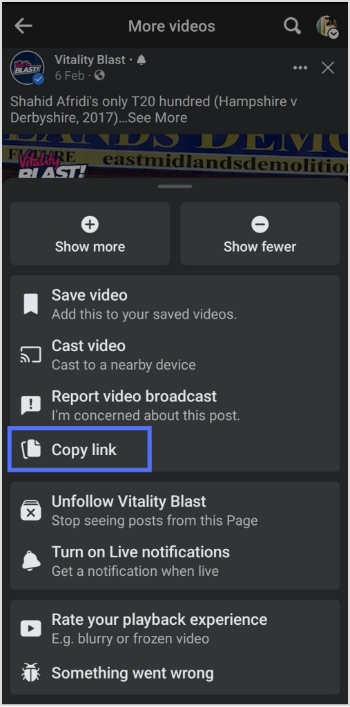
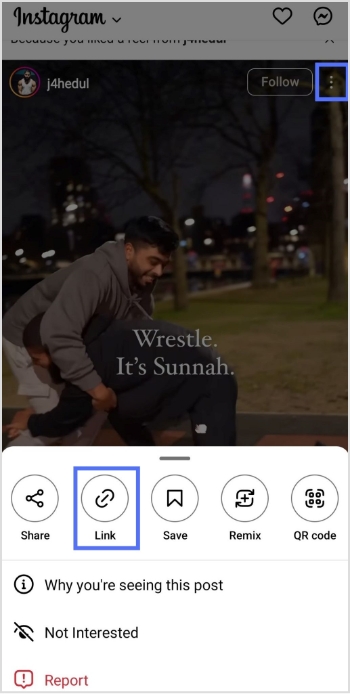
    Step 2: Play the video you want to download and tap “3 dots” in the upper right corner of the video.

    3 dots

    Step 3: Tap “copy link”.

    copy link

    Note: Before pasting the URL/link into a downloader or sharing it elsewhere, you could optionally use a custom URL shortener. That way the link stays clean, easy to share, and more manageable if you need to store or revisit it later.

    Step 4: Open Chrome on your mobile device. Paste the link in the search bar to open the video in Chrome. 

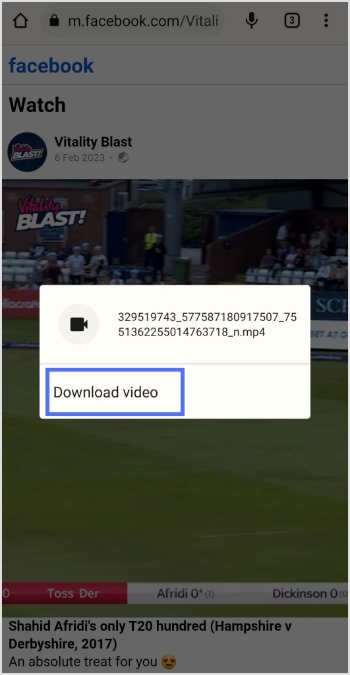
    Step 5: Play the video and long-tap on it. 

    play video

    Step 6: Tap “download video,” and your video will be downloaded.  

    download video


    Replug Branded Short Links CTA
    Maximize marketing ROI
    by transforming ordinary URLs into
    branded short links that convert.
    Try Replug for free

    How to download Facebook videos on a computer device?

    Step 1: Log in to Facebook on a computer using a browser. 

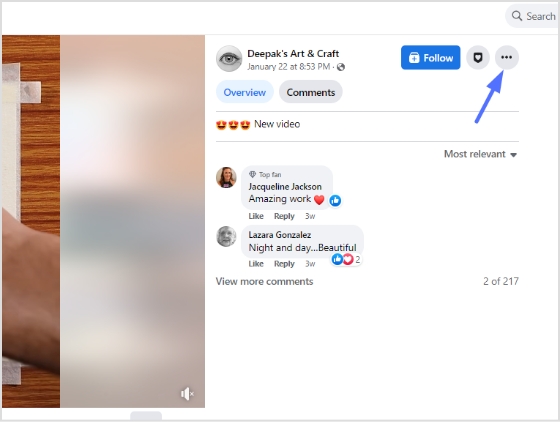
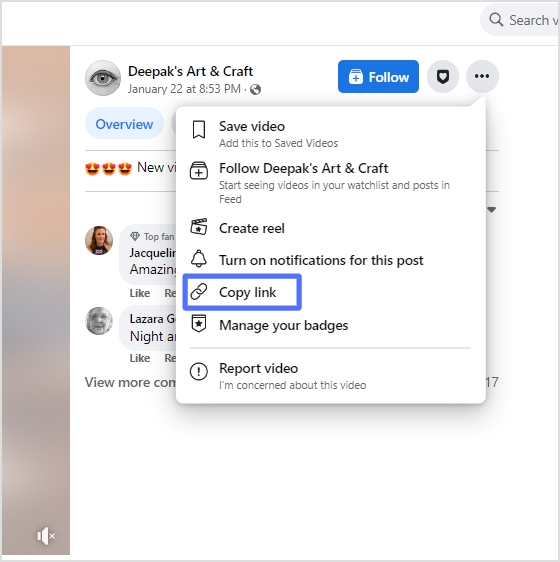
    Step 2: Open the video you want to download and click “3 dots” on the upper right side of the video. 

    3 dots

    Step 3: Click “copy link” to copy the video link. 

    copy link

    Step 4: Open another tab on your computer browser and writeFacebook video downloader”. 

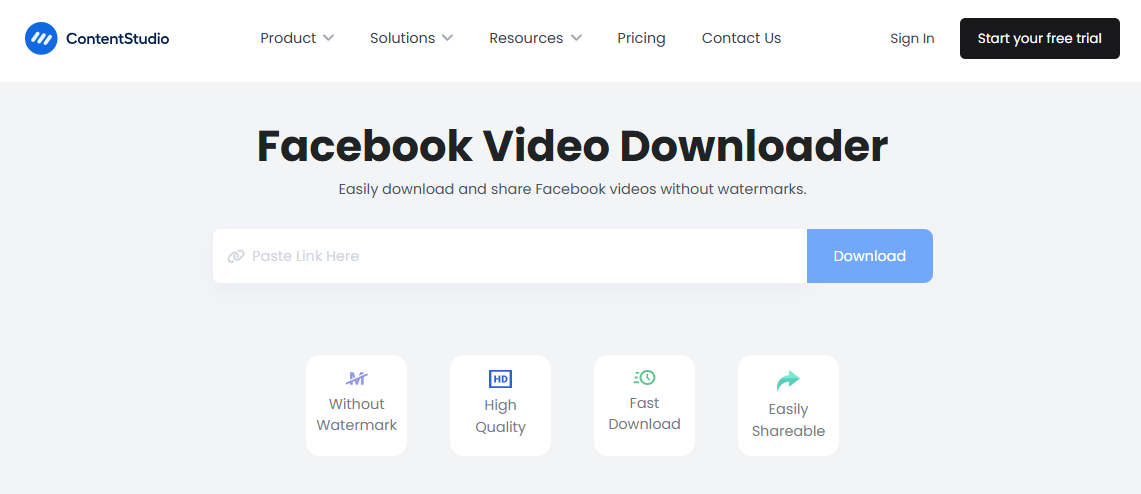
    Step 5: Open a facebook Video Downloader online tool from the search results, paste the video link, click the download button, and select the preferred quality. Your video will be downloaded within a few moments.

    Facebook Video Downloader- ContentStudio

    You may also like: How to download Instagram videos?

    How to download reel videos from Facebook?

    To download Reels videos from Facebook, you can use the following method:

    1. Open the Facebook app and find the Reels video you want to download.
    2. Tap on the Reels video to open it in full screen.
    3. Tap on the three dots in the bottom right corner of the screen.
    4. Select “Save Video” or “Save Reel” from the options.

    The Reels video will be saved to your device’s camera roll or gallery.

    If the “Save Video” or “Save Reel” option is not available, it may be because the creator has disabled the option to save their videos. For a case like this, you can download Facebook reels with FvDownloader, an online option for saving Facebook reels for offline use.

    However, downloading videos without the owner’s consent violates copyright laws and Facebook’s terms of service. Therefore, using downloaded videos ethically and responsibly is essential, respecting the creator’s rights.

    Frequently asked questions

    Is it legal to download Facebook videos?

    It depends on the copyright laws of your country and Facebook’s terms of service. Downloading videos without the owner’s consent is generally considered a violation of copyright laws, and Facebook’s terms of service prohibit the downloading of videos without permission.

    Can I download live videos from Facebook?

    Live videos cannot be downloaded directly from Facebook, but some third-party tools can help you record and download live videos from Facebook.

    How do I download private Facebook videos?

    Private Facebook videos cannot be downloaded unless you can access the video or the owner’s permission. If you have access to the video, you can use the same methods as downloading public videos. You can try contacting the owner to request permission if you don’t have access.

    Is there any app to download Facebook videos on iOS devices?

    Yes, several apps, such as “Video Downloader for Facebook” or “MyMedia,” can be used to download Facebook videos on iOS devices.

    Can I download Facebook videos in high quality?

    Yes, some video downloader apps and websites allow you to download videos of high quality. However, remember that higher-quality videos take up more space on your device.

    Trending Topics:

    15 proven Facebook SEO techniques to try in 2026

    How to link Instagram to TikTok?

    Top 5 paid URL shorteners worth paying for in 2026

    Effective Risk Management Strategies to Manage Social Media Risks

  • How to post TikTok on Instagram: Step-by-step Guide

    How to post TikTok on Instagram: Step-by-step Guide

    Are you an avid TikTok user and want to share your content with your Instagram followers? Do you wish to showcase your TikTok creations to a broader audience?

    If you regularly share content across social platforms and want an easy way to manage, track, and organize all your shared links and posts, Replug offers a unified dashboard to manage everything in one place.

    In this guide, we’ll show you how to post TikTok videos on Instagram, so you can double up your social media reach and get more eyes on your entertaining content.

    So, get ready to learn the ropes and become a social media sensation!

    Here’s how to share TikTok videos on Instagram:

    TikTok has become a popular platform for creating and sharing short-form videos. But, if you want to share your TikTok content with your Instagram followers, you might be wondering how to do it. The good news is that it’s relatively easy to post TikTok videos on Instagram, and you can share them in various formats such as feeds, stories, and reels.

    Plus, if you need a handy tool to download your TikTok videos for Instagram, consider using a TikTok video downloader to streamline the process.

    How to post TikTok to your Instagram feed?

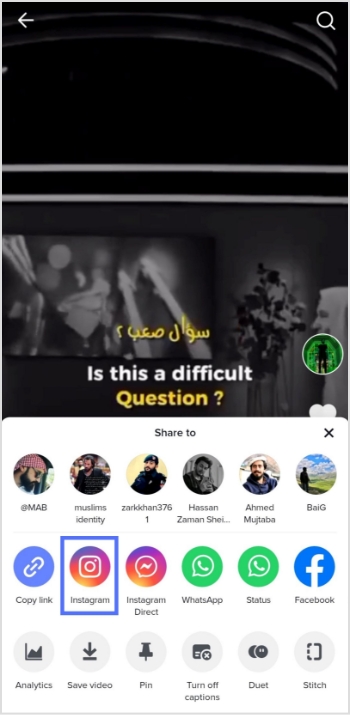
    To post a TikTok video on your Instagram feed, follow these steps:

    Step 1: Open the TikTok app and find the video you want to share.

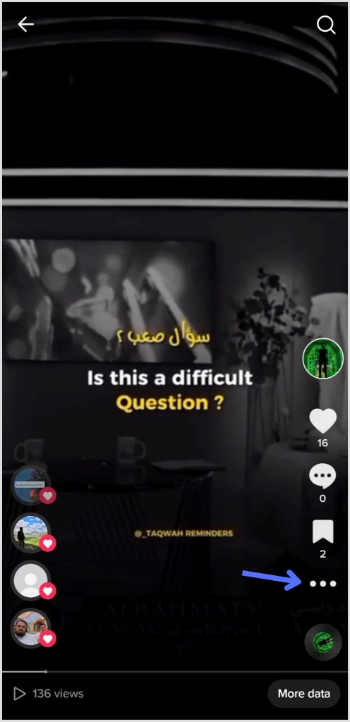
    Step 2: Tap on the “3 dots” or “share” icon located on the right side of the screen.

    3-dots-share-button

    Step 3: Tap on the “Instagram” option.

    select-instagram

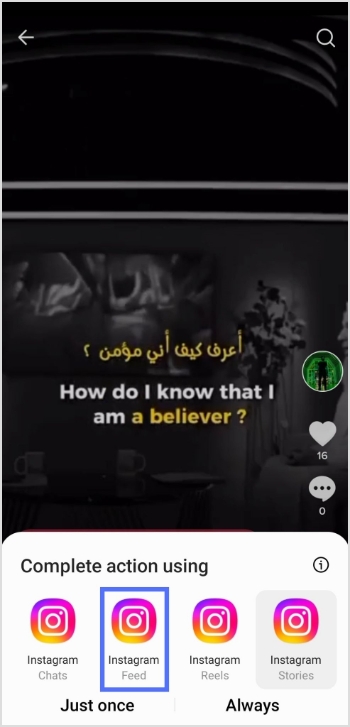
    Note: Before sharing or embedding the video link elsewhere, like in bios, descriptions, or other social media, you can use a trusted URL shortener to produce neat, brand-friendly URLs that look clean and are easy to manage.

    Step 4: Choose to post the video to your Instagram feed.

    Instagram-feed

    Step 5: Edit the video as desired, add filters, captions, or other adjustments, and then tap “Next.”

    edit-video

    Step 6: Tap “share” and your video will be shared on your Instagram feed. 

    How to post a TikTok to Instagram stories?

    To post a TikTok video on your Instagram stories, follow these steps:

    Step 1: Open the TikTok app and find the video you want to share.

    Step 2: Tap on the “Share” or “3-dots” icon located on the right side of the screen.

    Step 3: Tap on the “Instagram” option.

    Step 4: Choose to post the video to your Instagram story. 

    Step 5: Edit the video as desired, add filters, captions, or other adjustments, and share. 

    Also read: How to add a link in bio to your Instagram profile?

    How to post a TikTok to Instagram Reels?

    To post a TikTok video on your Instagram reels, follow these steps:

    Step 1: Open the TikTok app and find the video you want to share.

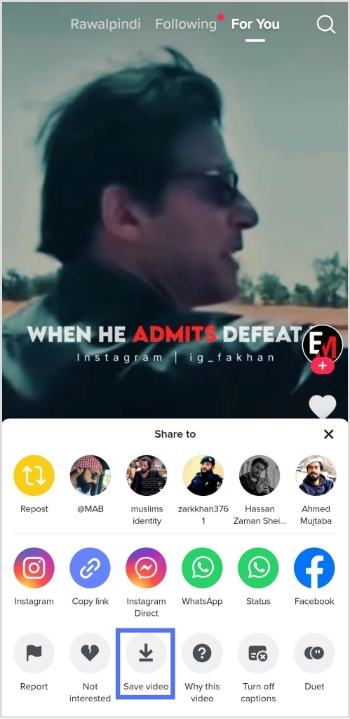
    Step 2: Tap on the “Share” icon located on the right side of the screen.

    Step 3: Tap on the “Save video” option to save the video to your device.

    save-video

    Step 4: Open the Instagram app and tap on the “Reels” option.

    reels-option

    Step 5: Select the video you want to share from your device’s camera roll, add filters or other adjustments, and then tap “Share.”

    And there you have it! Now you know how to post TikTok videos on Instagram, whether it’s for your feed, stories, or reels. So, go ahead and share your creative TikTok content with your Instagram followers and watch your social media presence grow!

    FAQs

    Can I post TikTok videos directly to Instagram?

    No, you cannot post TikTok videos directly to Instagram. You need to save the TikTok video to your device first and then upload it to Instagram.

    Will my TikTok video lose quality when I upload it to Instagram?

    It’s possible that your TikTok video may lose some quality when you upload it to Instagram due to differences in compression and resolution. To minimize quality loss, try to save the TikTok video in the highest possible solution and choose the best Instagram video settings for your device.

    Can I automate the process of sharing TikTok videos on Instagram?

    While there is no direct way to automatically share TikTok videos to Instagram, you can use third-party apps or tools like Content Studio to automate the process to some extent. However, monitoring the results and making any necessary adjustments is important to ensure your content is shared accurately and effectively.

    Trending:

    TikTok For Business: Strategies to Promote Small Businesses

    How to download Facebook videos?

    What is the Best Time to Post on TikTok

  • Starter’s guide to setup Facebook custom audience

    Starter’s guide to setup Facebook custom audience

    In today’s world, businesses increasingly turn to digital marketing strategies to reach their target audience. And one of the most popular and effective ways to do this is through social media platforms such as Facebook.

    With over 2.9 billion monthly active users, Facebook has become a hub for businesses to connect with customers and drive sales.

    For businesses handling multiple campaigns, ad audiences, and tracking links across various sources, a reliable link optimization platform such as Replug can make link management, analytics and retargeting far simpler and more organized.

    However, with so many users on the Facebook crowded platform, businesses can need help to target the right audience for their products or services. This is where Facebook custom audience comes into play!

    What are custom audiences?

    Custom Audiences is an ad-targeting option that allows businesses to target specific groups of people based on their interests, behaviors, and demographics. This feature lets companies create personalized ads that resonate with their target audience, increasing engagement and conversion rates.

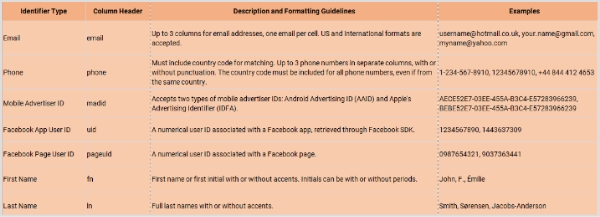
    Creating a custom audience is easy and requires minimal effort. Businesses can upload their customer email lists or phone numbers to Facebook and build a custom audience based on this data. They can also create a customized audience using website traffic, app activity, social media analytics, and reporting tool. 

    Once you have created a Custom Audience, you can run targeted ad campaigns on Facebook, Instagram, or Audience Network. These ads can be in images, videos, or carousels, and they will be displayed only to the people in your custom audience.

    Also read:  How to create a call to action using a URL shortener?

    Are custom audiences still effective in 2026?

    Custom Audiences are still an essential tool for advertisers and marketers, as they allow businesses to target specific groups of people based on their past interactions with the company, such as website visits, app usage, and email engagement. This targeting can be highly effective as it allows businesses to focus their advertising efforts on people who have already shown an interest in their brand or products.

    However, the effectiveness of Custom Audiences can depend on several factors, including the quality of the audience data, the relevance of the messaging and creativity, and the competitiveness of the advertising landscape. In addition, privacy concerns and new regulations related to data usage may impact the ability of businesses to use custom audiences in the future.

    What type of Facebook custom audience can you use?

    There are five types of custom audiences that you can create depending on your needs. So here’s the list to help you get started : 

    1. Customer file custom audiences

    A custom audience is created by uploading a list of customer emails, phone numbers, or other identifying information. This allows businesses to target their existing customers or subscribers with personalized ads. One of the significant advantages of using customer file custom audiences is that companies can nurture their existing customer relationships by showing them relevant ads, promoting repeat purchases, and encouraging customer loyalty.

    2. Website custom audiences

    The website’s custom audience is a Facebook pixel-based custom audience. This pixel tracks the actions of visitors to your site and allows you to retarget them with ads on Facebook based on their behavior, such as pages they visited or actions they took. Businesses can retarget users who have already expressed interest in their goods or services using Website custom audiences. This encourages them to take action, like buying something or signing up for a newsletter.

    Note: If you share your landing or campaign URLs publicly, say via social media, emails, or ads, you might also want to use a handy URL shortener to keep links neat, trackable, and easier for users to click and remember. Replug will assist you with this exceptionally!

    3. App activity custom audiences

    Businesses can target users who have performed particular actions within their mobile app using this type of custom audience, created using Facebook’s software development kit (SDK). Businesses can use App Activity Custom Audiences to their advantage by retargeting users who have abandoned their cart or stopped using the app, enticing users to return to their app, and offering personalized promotions to users who have carried out particular in-app actions.

    4. Engagement custom audiences

    This kind of custom audience is created based on user interaction with a company’s Facebook or Instagram page, such as liking or commenting on a post, watching a video, or reacting to an event. Businesses can use engagement custom audiences to target users who have expressed interest in their brand, boost page engagement, and persuade users to take action, like making a purchase or subscribing to a newsletter.

    5. Lookalike custom audiences

    Facebook develops Lookalike custom audiences by using information from the current custom audiences of a company. After analyzing the data, Facebook creates a new audience that resembles the existing audience in terms of interests, habits, and demographics. Utilizing Lookalike Custom Audiences has several benefits for businesses, including the ability to grow their customer base and improve the efficiency of their advertising campaigns by connecting with new users similar to their current clients or subscribers.

    Also read: Getting Started with Meta Pixel: The Key to Successful Retargeting

    How to create a custom audience on Facebook?

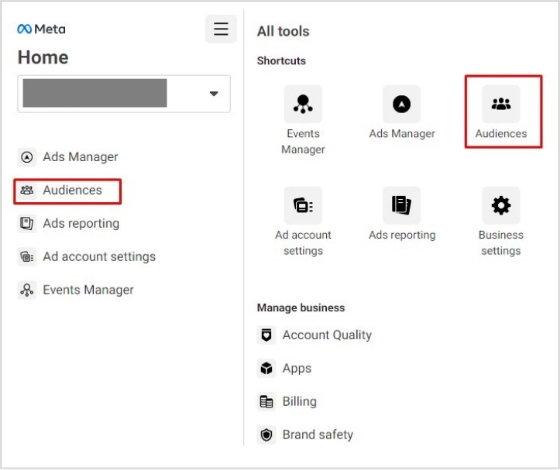
    Navigating to the Audiences section of Ads Manager is the first step in creating any Facebook custom audience.

    audiences section

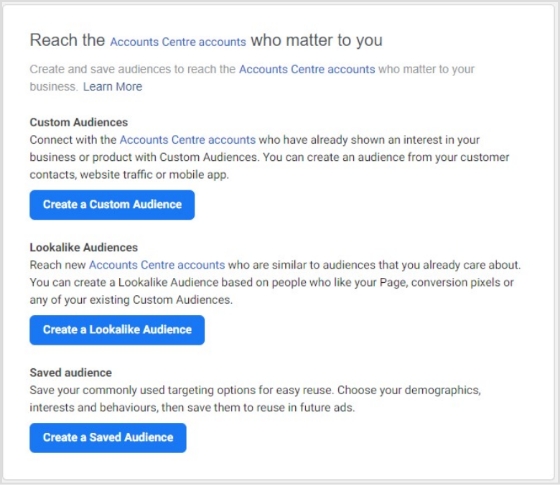
    Next, select “Create a custom audience” from the menu that appears.

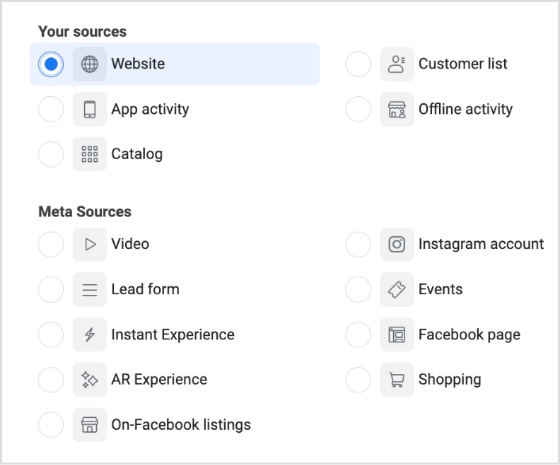
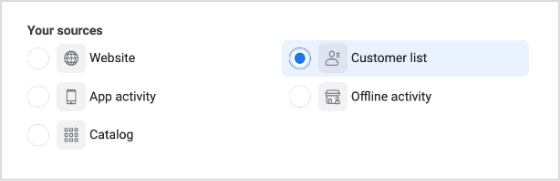
    Depending on the kind of custom audience you want to create, you can choose the traffic source after that and move on to the subsequent steps.

    kind-of-custom-audience

    Also read: 8 Best Retargeting Platforms To Retarget Your Potential Audience

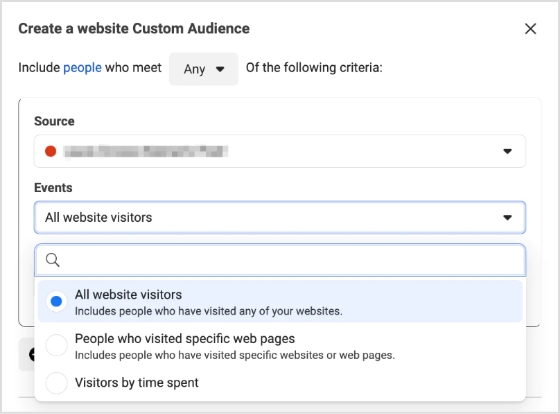
    Creating a website custom audience

    Step 1: Click on the website in the list of “your sources”

    website-custom-audience

    Step 2: Define rules

    Select the source, occasions, duration of retention, and rules. Among the rules, you can create ones below according to your needs :

    • Target all website visitors.
    • Target visitors to particular pages.
    • Focus on visitors who spend more time on your website.
    • Categorize visitors ( include or exclude them from the list).
    define-rules

    Step 3: Identify and explain the custom audience

    Give each of the Custom Audiences you create distinct names so that you can keep track of them all more easily. If more explanation is required, a brief description can be written.

    audience-name-description

    Step 4: Click “Create audience”

    create-audience

    Also read: 9 ways to multiply your sales with eCommerce retargeting

    Creating an engagement custom audience

    Step 1: Select a meta source 

    There are numerous Meta Sources available. As an illustration, we’re selecting “Instagram account.” Click “Next” after choosing the Meta Source you want to use.

    meta-source

    Step 2: Establish rules

    Every Meta Source comes with its rules, retention period, and events.

    On Instagram, you can pick from a variety of events, including:

    • Visitors to your profile
    • Users who have interacted with or saved your Instagram ads
    • Users who have liked commented on, or held your posts
    • Users who have sent messages to your account.
    establish-rules

    Step 3: Identify the target audience

    Assign your audience a clear and descriptive name, and provide a brief explanation if necessary. As an instance, you may create an audience named IG-PROFILE-VISIT-180, representing individuals who have viewed your profile in the last 180 days.

    Step 4: Click “Create audience”

    create-audience

    Finally, choose “Create audience,” and Facebook will generate your custom audience according to your set standards.

    Creating customer file custom audiences

    Step 1: Generate a list of customers

    Prepare a CSV or TXT file that contains identifiers such as email addresses or phone numbers, allowing Facebook to match your data to Facebook profiles. Include as many identifiers as you can to form a well-defined audience. 

    Before incorporating your list at the onset of the audience creation procedure, ensure that the column format conforms to the identifier type that Meta supports. This aids Meta in identifying matches from your hashed columns in the future. You must also ensure that your customer details are entered in the correct format.

    For instance, if a column header pertains to first names, you should change the column header to “fn” (first name) to ensure proper mapping. To format customer information appropriately, refer to the following list of data types that Meta acknowledges :

    list-of-audiences

    The table above presents the primary identifiers; however, there are also some additional identifiers that you should check.

    Step 2: Select the source labeled as “customer list”

    Select the “Customer list” option and click “Next.”

    choose-customer-list

    Step 3: Upload the customer list.

    To utilize a customer list, you can import it as a CSV or TXT file. This allows you to quickly bring in your customer data from various sources, such as your email marketing platform or CRM, and use it to create a highly targeted audience.

    Step 4: Review your list and click “upload and create”

    Once you have ensured that your identifiers are correctly mapped, you can proceed with the matching process by clicking the “Upload and Create” button. If your identifiers do not meet Facebook’s requirements, you will see a yellow exclamation symbol indicating that you need to update them. On the other hand, a green check mark symbol suggests that you are ready to proceed with matching.

    Also read: How To Utilize Replug for Facebook Retargeting Ads?

    How to use your Facebook custom audiences?

    Facebook custom audience is an invaluable tool for marketers targeting the right customers with ads. You can create personalized campaigns tailored to your audience using the platform’s robust targeting capabilities. Here’s a comprehensive guide on using custom audiences to enhance your marketing, from ad creation through post-campaign analysis.

    Understanding retargeting campaigns

    Retargeting is an incredibly effective way for companies to keep their products and services top-of-mind with customers who have shown interest before. By displaying highly relevant content based on past interactions, businesses can drive conversions from shoppers who may have forgotten them.

    McBride Sisters Collection, a Black-owned wine company, used retargeting to reignite interest among their lapsed customers. They were able to pull the customer data they needed from their CRM database and then showcased dynamic ads featuring their entire wine collection. As a result of this campaign, the company saw an impressive 58% lift in purchases!

    Mcbride-sisters-collection

    Retargeting campaigns can extend beyond eCommerce businesses. From B2B software companies to restaurant chains, any business with an online presence can benefit from reminding past website visitors about what they offer and motivating them to take action. Other notable companies like Shinesty Clothing have seen success using retargeting campaigns too – obtaining over 200% return on ad spend (ROAS) by targeting site visitors who’d been consumed by ‘shiny syndrome’ but hadn’t bought anything – ensuring that no potential customer went ignored!

    shinesty

    Engage repeat customers

    Turning casual customers into devoted fans is cost-effective to ensure business growth. One example of this strategy at work is Clinique US, which used custom audiences and lookalike audiences to target past purchasers and repeat customers to show dynamic ads. This method saw an impressive 5.2-point lift in action intent with a combination of people- and product-focused ads.

    clinique

    The success stories come as no surprise when you recognize customers’ loyalty with marketing efforts that are personal and relevant; you not only keep them coming back for more but also drive up your conversion rates even further. All you need to do is start with an analytics tool to monitor the users.

    Also read: From likes to love: Comprehensive social media engagement guide

    Boost user engagement with apps

    Increasing engagement with your app is critical to ensure long-term success. One strategy that has proven successful for many companies is using custom audiences of people who have already downloaded the app. This approach allows you to target your ad specifically to users who have demonstrated interest in your app, making it more likely that they will engage with it. By showing ads only to these users, you can get the most out of your ad budget and better target your message.

    For example, Sephora used a combination of remarketing and retargeting campaigns to increase its app engagement by targeting users who had previously visited its website or had installed the Sephora app.

    boost-user-engagement-with-apps

    Similarly, Airbnb used Facebook custom audience feature to optimize its campaigns and increase user engagement. Through this strategy, Airbnb was able to reach existing customers more efficiently and reduce cost per install (CPI). This ultimately led to increased bookings through the app and increased customer retention rate growth.

    example-airbnb

    Also read: Content engagement: 9 key steps for writing engaging content

    Grow your Facebook following

    Growing your Facebook following is essential in building a solid online presence and awareness of your brand. It would be best if you run a Facebook ad targeting a custom audience to do this. This could be based on website visitors or an existing customer list, excluding those who have already liked your page to avoid paying for unnecessary reach.

    An example of this strategy in action is Lowe’s, which used the Custom Audiences feature to precisely target people who visited its site but who weren’t yet connected with Lowe’s via social media. By doing this, it could reach a geographically diverse group that was more likely to follow the page. This resulted in a sixfold increase in likes compared to other platforms and campaigns.

    facebook-following-lowes-example

    By using a customized audience strategy, you can ensure that you effectively reach the right people at the right time, leading to increased engagement with your Facebook page and ultimately helping you achieve better results.

    Use lookalike audiences

    Using lookalike audiences is also a great way to target potential customers who share similar characteristics with your existing custom audience. Many companies have successfully adopted this strategy, like Liquid IV, which used custom audiences to identify people who had purchased in the past, added an item to their cart, or engaged on social media and then created a lookalike audience from this group. The result was an impressive 19-point lift in ad recall for Liquid IV.

    Other brands, like British fashion retailer ASOS, have also used lookalike audiences to increase reach and engagement with their products. ASOS targeted new markets by creating lookalike audiences from buyers of specific categories of products and noticed that engagement increased significantly compared to ads targeting broad audiences.

    use-look-alike-audience-example

    Set up pixel events

    Custom Audiences can be further leveraged with Pixel events, allowing you to automate the process of building and refining your list of potential customers. The Meta pixel (formerly the Facebook pixel) enables you to add website visitors to a custom audience when they perform specific actions like adding a product to their cart, searching for something on your site, subscribing to your newsletter, or viewing certain things content. By setting up Pixel events, you can ensure that you’re only targeting people interested in your products individually, allowing for more effective retargeting and message personalization.

    setup-meta-pixels

    For instance, many airlines use the Pixel event audience targeting feature to provide personalized discounts in their ads based on previous behavior. For example, suppose a user has previously visited the airline’s website but has yet to book a flight. In that case, they might receive an ad featuring a discount code or special promotional offer. This helps increase conversions and establishes relationships between the customer and the brand, enabling future interactions through remarketing efforts.

    Also read: Getting Started with Meta Pixel: The Key to Successful Retargeting

    How to grow your custom audience?

    Growing your custom audience can be vital to scaling your business and optimizing customer interactions. Here are tips that will help you grow your custom audience quickly and effectively:

    Make effective use of Facebook Ad types

    Utilizing suitable Facebook ad types is essential to growing your Facebook Custom Audience. When creating an ad, you should have a custom audience ready to track whoever engages with it, and this will help you retarget them further down the line, ensuring no one goes unnoticed.

    Digging in more, another effective method is focusing on Awareness objectives which allows you to reach a higher number of people in your target group. With awareness-targeted campaigns, you’ll likely get more followers and fans than any other type of ad because they are apparent and cost-effective. You can also use lead ads for people interested in learning more about your product or service. Lead forms let visitors quickly fill out information without leaving the platform, making it easy for them to become potential customers. Remember carousels and collection ads that are perfect for showcasing multiple products in a visually appealing and interactive way.

    facebook-ad-types

    Develop creative content

    Now that you know your audience and how you should target them, it’s time to get creative! Remember that different audiences require different types of content; for example, Millennials may respond better to videos than older generations, so make sure you craft content accordingly to maximize ROI from each ad placement.

    In addition, consider investing in sponsored content; allowing you to pay for influencers to promote your brand on Instagram or other social platforms can be a great way to introduce products and services to new people who may already have an affinity for the influencer.

    Remember images. Captivating visuals can help capture attention and inspire engagement. You may also want to experiment with interactive elements such as surveys or polls that make it easier for audiences to get involved and interact with your brand directly.

    Perfect-ad-for-Facebook-5

    Also read: Content marketing best practices

    Analyze performance

    After running your campaign for some time, look at the results and adjust accordingly based on what works best (or doesn’t). You can quickly identify which ads perform better than others by splitting tests into groups and A/B testing to determine what resonates most with specific subsets of your target audience; this could be done via split tests, polls, or simply gauging online feedback related to the campaign elements like visuals or textual content used across ads, etc.

    For example, if you’re running an ad campaign for a new product launch and want to see what kind of visuals work best, consider running multiple versions featuring different photos and videos. Then, track the response from each version using analytics like engagement rates and post likes. This will help you gain valuable insights into which type of creatives resonate best with different people, allowing you to tailor future campaigns accordingly.

    Other methods for analyzing performance include surveying customers or analyzing customer data patterns. Netflix is a good example; they use customer data patterns to customize their home page for viewers so that individual users receive personalized recommendations based on their past viewing habits. Using similar tactics in your campaigns can provide followers with more relevant content explicitly tailored toward them.

    Optimize your ads

    As mentioned above, analyzing performance requires optimization based on what works best (or not!). This includes continuously tweaking/adjusting settings related to things like audience segmentation/targeting parameters + optimizing creative elements such as color palette & copywriting style used within messages shared via social media channels regularly throughout various campaigns over their respective timelines, all designed with intent increasing conversions both short+long term when appropriately utilized!

    FAQs

    What are the best channels to reach your target audience?

    Facebook Custom Audiences is a powerful tool that allows you to target your advertising to specific groups of people. By creating a custom audience, you can target people who have interacted with your business in some way, such as by visiting your website or engaging with your social media posts.

    What is an example of a custom audience?

    An example of a custom audience could be a list of email addresses or phone numbers you collected from your customers, which can then be uploaded to Facebook to create a custom audience for targeted advertising.

    How do you develop an eCommerce audience?

    Developing an eCommerce audience can involve various strategies such as creating quality content, optimizing SEO, utilizing social media platforms, running paid advertising campaigns, offering exclusive promotions, building email lists, and providing exceptional customer service. The specific approach will depend on your target audience and goals.

    Who is the target audience for eCommerce?

    The target audience for eCommerce can vary depending on the product or service being offered. Still, generally, it includes anyone who has access to the internet and is interested in purchasing products or services online. This can include people of different ages, genders, and geographic locations.

    Trending:

    What Is a TikTok pixel & learn how to set it up

    What Are Tracking Pixels & How Do They Work?

    What is a Tracking URL and How Does it Work?

  • Getting Started with Meta Pixel: The Key to Successful Retargeting

    Getting Started with Meta Pixel: The Key to Successful Retargeting

    What is a Meta Pixel?

    Meta Pixel, previously known as Facebook Pixel, is a small piece of code that can be added to the back-end of a website, mobile app, or partner application to track user’s footprints, making it easier for advertisers to retarget them on Facebook.
    Moreover, the Meta Pixel assists brands, organizations, entrepreneurs, and marketers with Facebook pages in determining and enhancing their return on investment from the largest social network in the world.

    While e-commerce has never been this popular, social media platforms are adapting to the latest technologies and advancements.

    Since Facebook is the number one social media platform with over one billion monthly active users, digital marketers and online advertisers need to tighten their grip on every aspect of Facebook ads.

    In a world full of AI tools and chatbots, it’s crucial to figure out the basic online marketing techniques that could give you a slight edge over the competition.

    Let’s dive deep into Meta Pixel and understand more about it.

    Why is the Meta Pixel called “Pixel”?

    Since Meta Pixel is a powerful analytical tool that tracks website visitors’ activities. The way it works is that it uses a short code that leaves a cookie on each website visitor and helps advertisers track them via Facebook ads.

    Pixel is the industry-standard name for retargeting code that sits on the advertiser’s website or app and provides them with insights into consumer behaviors, actions, and choices.

    Meta Pixel helps identify Facebook advertisers and how users are interacting with the content or products on their website.

    Installing a pixel, whether you’re running Quora ads or Facebook ads, is vital to remarketing the previous website’s visitors and understanding the audience’s behavior toward your ad.

    What are the benefits of installing the Meta Pixel?

    Digital marketing gurus and online advertising experts rave about retargeting and often consider it one of the most important aspects of e-commerce sales growth.

    Installing the Meta Pixel in your website or app can provide various benefits that can help improve your Facebook advertising efforts – no question about it.

    So let me shed some light on the capabilities and benefits of installing or using the Meta Pixel:

    Essential for Facebook remarketing:

    Retargeting or remarketing is the core reason why meta-pixel is a thing now. With the help of the Meta Pixel, you can track the behavior of users who have visited your website or app, and target them with specific ads to encourage them to return to your site or complete a desired action.

    Track and improve conversions:

    Advertisers can track user behavior on their websites or apps and analyze the effectiveness of their advertising campaigns. The data can help them identify areas where they need to improve their campaigns and optimize their ads to increase conversions.

    Helps build custom audiences:

    Marketers and advertisers could create custom audiences based on the actions users take on their website or app. This can help them create targeted ads for specific groups of users and improve the relevance of their advertising campaigns.

    Assists in building lookalike audiences:

    By analyzing the behavior of users who have interacted with your website or app, the Meta Pixel can help advertisers identify similar audiences that are likely to be interested in their products or services. It can easily expand the reach of the advertising campaigns and help target new potential customers.

    Measures the results of your ad campaigns:

    The Meta Pixel provides advertisers with detailed data about the performance of your advertising campaigns. They can track the number of clicks, conversions, and other metrics that help them understand the effectiveness of their ads.

    Enables advertisers to show ads to the right audience:

    It gets easier to track user behavior with such a facility. Therefore, the advertisers could create targeted ads that are shown to the right people at the right time. It can significantly improve the relevance of their advertising campaigns and increase the chances of users taking action.

    How does the Meta Pixel work?

    meta-pixel

    The Meta Pixel works by inserting a one-time code into your website or app source so that it could track the users and allows you to remarket them using Facebook retargeting ads.

    To use the Meta pixel effectively, you must first install it on the website or app – wherever you’re trying to capture the audience footprints for Facebook retargeting.

    The retargeting pixel goes into the header section of the website or the source code of your app and helps you monitor, analyze, and track the audience visiting the pages/sections with the code on it.

    For example, an author is selling an ebook through a website and has already set up a landing page, a checkout page, and a thank you page for the campaign. The Meta Pixel would be installed on all three pages to record the buyer’s journey.

    In most content management systems (CMS), the header and footer are common on all pages. Therefore, adding any piece of code into the header or footer section means it’s been added to all pages eventually.

    What does Meta Pixel collect?

    Facebook-ads

    The Meta Pixel is a powerful tool that enables advertisers to collect valuable data that can be used to improve the effectiveness of your Facebook ad campaigns.

    The data collection using Meta Pixel begins by installing the Meta Pixel on the back end of your website or app. Once it’s added, you can monitor and track conversions on the website/app.

    This valuable data can be used to optimize your ad campaigns, ensuring that they are delivering the best possible results.

    The reason why advertisers collect data is because of its ability to facilitate remarketing to people who have already taken some kind of action on your website.

    By tracking the actions of visitors, such as adding items to a cart or completing a purchase, the Meta pixel can help facilitate the delivery of targeted ads to those individuals.

    Furthermore, one of the benefits of using the Meta pixel is that it allows you to build targeted audiences for future ads. As visitors interact with your website, their actions are recorded and analyzed by the Meta pixel.

    This empowers you (or the advertiser) to create audience segments based on specific behaviors or interests, which can then be used to target future ads. This process is called retargeting or remarketing.

    So the Meta Pixel collects valuable information about the website visitors so that the advertiser could design or create a relevant ad campaign to target the right audience.

    What are Meta Pixel Events?

    Meta has provided several “Events” for conversion optimization. If you’re new to Facebook advertising jargon, then let me make it easier for you.

    Events are defined as any type of action that takes place on your website after the visitor lands on the website as a result of the ad.

    There are several “Standard events” which are predefined by Meta and advertisers could use them to log user activities, conversion analysis, and build an audience.

    Besides the “Standard events,” there are “Object properties” that are also predefined by Meta and can be included with “Standard events” based on compatibility. For more clarification on Meta Pixel or to access the event codes, check out this page.

    How to setup Meta Pixel?

    Setting up the Meta Pixel is not a complex process unless you haven’t done any Facebook ad campaigns before or you never edited even a simple HTML code.

    I’ll try to break down the process into brief sections so that it gets easier for an average Joe to digest, comprehend, and implement it.

    Before I head over to the next part, just remember that Meta Pixel is a code that works as a cookie and helps advertisers target the website audience on Facebook.

    Since you have already learned about the Meta Pixel by now, it’s important to know how you can create it. It’s not a complex process so no need to panic.

    Here are the steps involved in creating a meta pixel:

    Step 1: Access the ads manager

    Ads Manager is a platform provided by Facebook that allows you to manage and create advertisements for your business.

    To create a meta pixel, you need to first access the Ads Manager by logging in to your Facebook account and clicking on the “Ads Manager” button in the top left corner of the screen.

    Step 2: Go to the events manager

    Once you are in the Ads Manager, you need to navigate to the Events Manager section. This can be done by clicking on the “Events Manager” button in the left-hand menu.

    Step 3 Connect a data source:

    Connect-Data-Source

    After accessing the Events Manager, you need to connect a data source. A data source can be any platform that you use to collect data related to your websites or apps, such as Google Analytics or Shopify.

    By connecting a data source, you can collect information about user behavior on your website or app and use it to create targeted ads.

    Step 4: Choose the data source

    Choose-data-source

    Lastly, you need to choose the data source that you want to use for creating your meta pixel. This can be done by clicking on the “Connect Data Sources” button in the Events Manager. In most cases, the data source is the website, so you’ll need to provide the URL of your website.

    You may also like: How to rename a link using Replug?

    Step 5: Select connection methods

    Select-connection-method

    You can either connect through the Conversion API method or Facebook Pixel method. For the said case we have selected the Facebook Pixel method.

    Step 6: Connect website activity using Facebook Pixel

    Connect-Website-Activity-using-Facebook-Pixel

    Once you have chosen the data source and followed the on-screen instructions to complete the process of creating a meta pixel, you’ll be able to generate your meta pixel for installation on your website or landing page.

    How to install the Meta Pixel on your website?

    Connect-website-Activity-using-pixel

    There are two basic ways of installing the meta pixel on your website.

    i. Insert Meta Pixel code manually

    The simple yet basic method of inserting the meta pixel code into your website is by accessing the source code of the website and putting the code into it. It’s usually done by editing the HTML or PHP file using a code editor and pasting the code into it.

    Make sure to add it to the pages that need the most or else you won’t be able to track the conversion. If your website is built with PHP, you might have a header.php file, just insert the code into it and it’ll be available/accessible on every page of the website.

    Below are the steps to follow to install the Meta Pixel code manually.

    1.Naviagte to the Events Manager in your FB Business Suite and click the Data Sources.

    2. Select the Meta Pixel you want to setup, and click Continue Pixel setup.

    3. Select Meta Pixel and click Connect.

    Connect-website-Activity-using-pixel

    4. Select Install code manually

    5. Copy the pixel base code.

    copy the pixel code
    -put-Meta-Pixel-code-on-website-header-


    6. Paste the pixel code at the bottom of the header section above the closing header tag in your CMS or web platform.

    Note: Ensure to toggle on Automatic Advanced Matching 

    ii. Add Meta Pixel code via Partner Integration

    The second method is more convenient than the previous one. It will work only if you’re using a CMS like WordPress, Drupal, or Shopify. All you need is to edit the source file and insert the meta pixel into your website’s code.

    Most people use WordPress for building their websites, blogs, and landing pages. So you could use any code insertion WordPress plugin for that matter. All you have to do is to install such a plugin and paste the code into it. The plugin would do the rest of the process of code placement on the website.

    Here are some of the popular code insertion plugins:
    ⦁ WPCode
    ⦁ Woody code snippets
    ⦁ Header Footer Code Manager

    Below video by digital marketer Jacob Lee explains the steps to add Meta Pixel code via WordPress partner integration.

    How to find the Meta Pixel ID?

    install-code-header
    Facebook-Pixel-Id-

    Locating the meta pixel ID might be difficult for beginners, but it’s quite simple. If you have created your meta pixel ID, then it won’t be difficult for you to find and access it.

    However, if you’re new to Facebook ads, then it might seem intimidating at first. Don’t worry because I’ve got your back.

    To find the Meta Pixel in the Facebook Ads Manager, you can follow these steps:

    i. Log in to your Facebook account and go to the Ads Manager.
    ii. Click on the hamburger menu icon (three horizontal lines) in the top left corner of the screen.
    iii. Select the “Events Manager” option from the list of available options.
    iv. In the Events Manager section, click on the “Data sources” tab in the left-hand menu.
    v. Once you click on the data source button, you will be taken to your pixel page. Here, you can see the pixel ID, view the pixel code, and make any necessary changes to the pixel settings.
    vi. If you want to use the pixel to track specific events on your website or app, you can click on the “Settings” button next to the top menu and access the specific option. This is the area that will give you access to the cookies set, event setup, and conversion API.

    That’s pretty much it!

    Now you have successfully found your Meta Pixel in the Facebook Ads Manager and can now use it to track user behavior on your website or app and create targeted ads.

    How to setup Events using the Event setup tool?


    Setting up Events is an essential step in optimizing and improving the ad campaign as it directly influences the customer base targeting. Since retargeting is all about reaching out to the audience that has shown some interest in your website, setting up the right event helps identify the intent of the website visitors.

    To start using Events, you first need to set them up. Facebook has a dedicated section for Events setup, and it’s called Event Setup Tool.

    Step 1: Go to the Ads Manager
    The first step in setting up events using the Event Setup Tool is to log in to the Ads Manager. If you don’t have an account, you can create one for free by going to the Facebook Ads Manager.

    events-manager

    Step 2: Open the Events Manager
    Once you have logged in to the Ads Manager, you will need to navigate to the Events Manager. You can do this by clicking on the hamburger icon in the top left corner of the screen and selecting “Events Manager” from the menu that appears.

    connect-data-sources

    Step 3: Access the Data Sources
    Once you have opened the Events Manager, you will see a menu on the left side of the screen. From here, click on “Data Sources,” which will take you to a page where you can manage your data sources, such as your website, app, or offline events.

    settings-data-sources

    Step 4: Go to the Settings Section
    After accessing the Data Sources page, you will see a list of your data sources. Select the data source you want to set up events for and click on its name. This will take you to the Settings section for that particular data source.

    event-setup
    setup-events-popup-window

    Step 5: Open the Events Setup Tool
    Within the Settings section, scroll down until you see the “Events” section. Here, you will find the option to open the Events Setup Tool.

    Once you click on this button, you will be taken to a page where you can create and manage the events that you want to track on your website.

    How to confirm that the Meta Pixel is working using the Meta Pixel Helper?

    Facebook-Pixel-Helper-Extension
    Pixel-Helper-

    The Meta Pixel Helper is a convenient Chrome browser extension that can be used to check for the presence of Meta Pixel code on websites without any hassle.

    This browser extension operates in the background and doesn’t bother the script or performance of the website. Plus, it is quite easy to install even for newbies.

    After installation, an icon resembling </> – the Pixel Helper icon – will appear in the upper right corner of the browser alongside the address bar.

    When a website has a Meta Pixel installed, the Pixel Helper icon will change color from grey to blue, and a badge will appear showing the number of Pixels found on the page.

    If the icon does not turn blue, it means that there are no Meta Pixels installed on that particular webpage. To access the Pixel Helper, click on the Pixel Helper icon and a small popup will appear containing information that can be used to verify, troubleshoot, and improve the Pixel.

    Therefore, the Pixel Helper is a helpful tool for confirming the installation or existence of the Meta Pixel on the website. To download this Chrome extension, visit this page.

    How to use Meta Pixel with Replug?

    Replug is a powerful URL shortener that offers several features such as URL shortening, branded short URLs, retargeting, deep links, and bio links.

    You already know by now that Meta Pixel is used for retargeting people through Facebook ads. Since Replug also provides a retargeting feature, it’s time to figure out how the combo of Meta Pixel and Replug plays out.

    You can use the short links created with Replug’s custom link maker to reach out and retarget the users that click on your short URLs through Facebook ads.

    Here are the steps involved in using Meta Pixel with Replug:

    i. Grab the Pixel ID from Facebook

    Facebook-Pixel-Id-

    You’d surely know by now where to get the pixel ID from your Facebook account. Here’s a quick guide if it all seems intimidating or too much to digest:

    • Go to the Ads Manager section and click on the Events Manager button from the options.
    • Then, go to the Data Sources from the left menu and you’ll see the Facebook pixel.
    • Open the settings area of your pixel and copy the pixel ID from there.

    ii. Login to your Replug Account

    add-retargeting-pixel

    Now go to the Replug website and log in to your Replug account.

    In case, you haven’t signed up for a Replug account, I highly recommend doing it now. Replug has a 14-day free trial. Try Now!

    iii. Add a Retargeting Pixel in Replug

    add-retargeting-pixel
    Click-Add-Pixel
    add-retargeting-pixel

    Once you’re in, access the profile settings from the top-right corner. Just click on your profile icon to do so.

    A drop-down menu would appear; click on the Retargeting Pixels.

    You’ll land on the Retargeting Pixels page. Now click on the “Add Pixel” button.

    Once you click the Add Pixel button, a popup window would appear. Choose Facebook, provide your pixel name, and paste your Facebook pixel ID.

    Once it’s done, click on the “Add” button to proceed.

    iv. Create a retargeting campaign

    Create-Retargeting-Pixel-Campaign
    select-brand-for-retargeting-campaign

    The next up is creating a new campaign for retargeting the Replug audience, meaning the visitors who click through your short links, so you could start retargeting them through Facebook ads.

    To do this, go to your Replug dashboard and access the Campaign section.

    Click on the “New Campaign” button to create a new campaign for this purpose.

    Select the appropriate brand or create a new one for this campaign.

    Add-retargeting-codes-for-campaign-

    Name this campaign and select the campaign type. You must check the “retargeting” option at this stage to let Replug know that it’s a retargeting campaign.

    Choose the retargeting script afterwards.

    In this case, it’ll be the one associated with Facebook. Choose the Facebook pixel you created earlier in your Replug account.

    Now save the campaign and you’re done with creating a new campaign using Replug.

    You may also like: 9 ways to multiply your sales with eCommerce retargeting

    How to change the Meta Pixel’s name?

    Changing the meta pixel’s name might not be on your mind, but you should know whether or not you can do it, just in case.

    It’s possible to change the meta pixel’s name. All you have to do is to follow a few simple steps to do this:

    i. Go to your Ads Manager account after logging in to your Facebook account.
    ii. Access the Events Manager section from the Ads Manager.
    iii. Open the Data Sources to access your already created meta pixel. (Remember that you could create only one meta pixel per account).
    iv. Now click on the edit button next to your meta pixel’s name. This is where you could change the meta pixel’s name.

    That’s it.

    Easy-peasy!

    FAQs about Meta Pixel

    Is meta pixel a cookie?

    The Meta Pixel is a pixel code that helps advertisers target the audience who have visited their websites through Facebook ads. A cookie also does the user-tracking on the websites, but may not be directly influencing the retargeting like the meta pixel.

    How do I create the Meta Pixel?

    Log in to your Facebook account, go to the Ads Manager, access the Events Manager, and click on the Data Sources. You’ll see the option to create your meta pixel.

    Is the Meta pixel different from than Facebook pixel?

    No. The Meta Pixel and the Facebook Pixel are the same. The Meta Pixel was formerly known as the Facebook Pixel.

    What is Meta pixel in Facebook ads?

    It’s a pixel code that helps advertisers track the website visitors and empowers them to advertise to those visitors using Facebook ads by retargeting them.

    What is a Facebook Pixel notice?

    This is by no means legal advice, but a lot of countries require websites to display the cookie consent notification which tells the website visitors that this website is using cookies to track visitors.

    When a website is using Meta Pixel or any other user tracking tool to track website visitors’ activity, performance, and behavior, they must notify the website visitors about this.

    Have you ever seen a cookie consent notification on websites, especially when you visit it for the first time?

    The website is trying to tell you that they’re using some tracking tools or softwares to track the visitors’ activities and behaviors – it’s a very common website management practice.

    I’m no expert on GDPR or CCPA, so you should consult your lawyer for more clarity. However, I simply use a cookie consent WordPress plugin on my website that displays a cookie consent notification on the website.

    Some several tools and plugins automatically add cookies consent notices to the websites, but here are some of the popular website plugins for this purpose:

    ⦁ Cookie Notice & Compliance for GDPR / CCPA
    ⦁ Cookies and Content Security Policy
    ⦁ Cookie Script


    You May Also Like:

    Campaign Tracking: Data-Driven Tools for Marketers

    15 Proven Facebook SEO Techniques To Increase Brand Visibility

  • How to find live videos on Instagram?

    How to find live videos on Instagram?

    Instagram, like all social media platforms, constantly changes and evolves. In October 2021, one of the biggest updates was the removal of IGTV. Previously, users could find all live videos on Instagram by searching the hashtag #IGTV.

    Live videos on Instagram are now integrated into the “Stories” feature. After a live video ends, it is only available to be replayed for 24 hours, after which it is stored in the user’s “Video Archive.” Whether the video is republished or deleted is up to the discretion of the content creator.

    When you want to share a live-video replay or archive link, using a link shortener helps make the URL cleaner and more user-friendly, especially if you plan to post it across different platforms or in messages.

    Also, if you are someone who manage lots of social-media links and want a unified tool to organize, track and optimize all of them, Replug.io can be a helpful hub to keep your URLs clean and manageable.

    How to find live videos on Instagram? 

    There are two ways to find live videos on Instagram:

    • Find Instagram live videos from the accounts you follow
    • Find random live videos on Instagram

    Let’s begin:

    Find Instagram live videos from the accounts you follow:

    You can easily view the live streams of the accounts you follow without much effort. Follow the steps below to find the live videos from the people you follow:

    Step 1: Open the Instagram app on your mobile phone, or log in to Instagram from a browser. 

    Step 2: Live video will appear in the stories feed with a colorful ring around it and the word Live. 

    Step 3: Tap on the live video to see the live broadcast from the people you follow. 

    During the live broadcast, you can interact by: 

    When watching a live broadcast, remember that the broadcaster and other viewers may see you’ve joined. 

    Leaving a comment (tap Comment on the app or Add a comment on the website), liking a comment, replying to a comment, reacting to the video with an emoji, or sharing the video. All actions taken during the broadcast, such as liking or commenting, are visible to other viewers.

    How to find random Instagram live videos?

    Discovering random live streams on Instagram can be frustrating if you don’t get any results. However, you can try the following steps for searching for random live streams:

    On Instagram mobile app:

    Step 1: Open the Instagram app on your mobile phone. 

    Step 2: Tap the “search icon” at the bottom menu. 

    search icon

    Step 3: Enter the intended live video keyword in the search bar and tap the search button on your mobile keypad. 

    enter search

    Step 4: Tap the “accounts” tab to open accounts with the live videos. 

    accounts

    Step 5: Tap the profile icon with the “live” to open the live stream. 

    On a web browser:

    Step 1: Log in to Instagram from your browser. 

    Step 2: Click “search” in the left side menu. 

    Search

    Step 3: Enter the intended keyword in the search bar and look for the “live” profile.  

    enter keyword

    Also Read: How to download Instagram videos?

    How to start a live video on Instagram?

    Follow the steps below to start a live broadcast on Instagram:

    Step 1: Open the Instagram app and tap the “add icon” in the bottom menu. 

    add icon

    Step 2: Swipe left to go to live and tap the live button to start the live video. 

    live button

    Step 3: The device will check for the internet connection momentarily, then you’ll see the “you are now live” message on the screen. 

    Step 4: Tap the “exit (X)” on the top right corner to end the live stream. 

    exit live

    Step 5: Tap the “end video” button and confirm to end the live stream. 

    end video

    Step 6: You will see the following options: View in Live Archive, Discard media or Share. Make your selection according to your preference.

    archive share discard

    Frequently asked questions

    Why can’t I find live videos on Instagram?

    There could be several reasons why you are not able to find live videos on Instagram:

    – Your account may not have access to live videos. Instagram has certain restrictions and requirements to access live videos.
    – The person you are trying to view the live video may not be broadcasting.
    – The person you are trying to view the live video of may have a private account, and you may not be following them.
    – Your internet connection may be slow or unstable, affecting the live video quality.
    – There could be a technical issue with the Instagram app or your device.

    Try troubleshooting these issues, or contact Instagram support for further assistance.

    Trending now:

    How To Save TikTok Videos Without The Watermark?

    15 proven Facebook SEO techniques to try in 2026

    How To Put A Link In TikTok Bio?


  • How to download Instagram videos?

    How to download Instagram videos?

    Instagram does not allow users to download videos directly from the platform, but there are a few ways to download Instagram videos.

    Here are some methods:

    Method 1:

    Download using a video downloader website:

    Many websites allow you to download Instagram videos. Here’s how to download Instagram videos using a video downloader website:

    Step 1: Open the Instagram app and find the video you want to download.

    Step 2: Click on the three dots in the upper right corner of the video and select “Copy Link.”

    copy link

    Step 3: Go to a video downloader’s website, like “Snapinsta” and paste the link into the search bar.

    Note: Before pasting, you could also use a link converter to shorten or clean up the URL, making it easier to share or save, while keeping things organized and trackable for future reference.

    Step 4: Click download, and the video will be downloaded to your device.

    Snapinsta

    Also Read: How To Turn Off Vanish Mode On Instagram?

    Method 2:

    Download using a third-party app:

    Here’s how to download Instagram videos using a third-party app:

    Many third-party apps allow you to download Instagram videos. Here are some popular ones:

    Video Downloader for Instagram: This app is available on iOS and Android. It allows you to download videos from Instagram by copying the video link and pasting it into the app.

    video downloader for instagram

    InstaSave: This app is available for Android and allows you to download Instagram videos by copying the video link and pasting it into the app.

    instasave

    Method 3:

    Use a screen recording tool:

    If the above methods don’t work, you can use a screen recording tool to record the video as it plays on your screen. Here’s how:

    Step 1: Open the Instagram app and find the video you want to download.

    Step 2: Start a screen recording on your device (the method varies by device).

    Step 3: Play the Instagram video and let it play in full.

    Step 4: Stop the screen recording and save the video to your device.

    It’s important to note that some of these methods may violate Instagram’s terms of service, and downloading copyrighted content without permission is illegal. Make sure you have the necessary rights to the content before downloading.

    And, if you frequently work with social media links or share downloadable content across platforms, Replug can serve as a handy hub, letting you manage and organize all your links easily before you share or download content.

    You may also like: How to find live videos on Instagram?

    FAQs

    How to download Instagram reels?

    There are several ways to download Instagram reels, and I’ll outline some of the most common methods:

    1. Using a third-party app: Many third-party apps allow you to download Instagram reels. Some popular ones include InSaver, Video Downloader for Instagram, and InstaSave. To use these apps, copy the link to the reel you want to download, paste it into the app, and follow the instructions to download the video.
    2. Using an online downloader: Several websites allow you to download Instagram reels. Some popular ones include InstaDownloader, InstaOffline, and DownloadGram. To use these websites, copy the link to the reel you want to download, paste it into the website, and follow the instructions to download the video.
    3. Using the built-in download option: Instagram has recently added a built-in download option that allows you to download your reels. To use this feature, open the reel you want to download, tap the three dots in the top right corner, and select “Save Reel.” The reel will be saved to your camera roll.

    Trending: