Are you an avid TikTok user and want to share your content with your Instagram followers? Do you wish to showcase your TikTok creations to a broader audience?
If you regularly share content across social platforms and want an easy way to manage, track, and organize all your shared links and posts, Replug offers a unified dashboard to manage everything in one place.
In this guide, we’ll show you how to post TikTok videos on Instagram, so you can double up your social media reach and get more eyes on your entertaining content.
So, get ready to learn the ropes and become a social media sensation!
Here’s how to share TikTok videos on Instagram:
TikTok has become a popular platform for creating and sharing short-form videos. But, if you want to share your TikTok content with your Instagram followers, you might be wondering how to do it. The good news is that it’s relatively easy to post TikTok videos on Instagram, and you can share them in various formats such as feeds, stories, and reels.
Plus, if you need a handy tool to download your TikTok videos for Instagram, consider using a TikTok video downloader to streamline the process.
How to post TikTok to your Instagram feed?
To post a TikTok video on your Instagram feed, follow these steps:
Step 1: Open the TikTok app and find the video you want to share.
Step 2: Tap on the “3 dots” or “share” icon located on the right side of the screen.
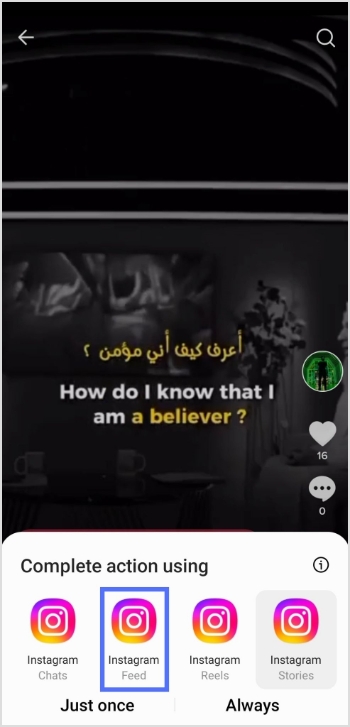
Step 3: Tap on the “Instagram” option.
Note: Before sharing or embedding the video link elsewhere, like in bios, descriptions, or other social media, you can use a trusted URL shortener to produce neat, brand-friendly URLs that look clean and are easy to manage.
Step 4: Choose to post the video to your Instagram feed.
Step 5: Edit the video as desired, add filters, captions, or other adjustments, and then tap “Next.”
Step 6: Tap “share” and your video will be shared on your Instagram feed.
How to post a TikTok to Instagram stories?
To post a TikTok video on your Instagram stories, follow these steps:
Step 1: Open the TikTok app and find the video you want to share.
Step 2: Tap on the “Share” or “3-dots” icon located on the right side of the screen.
Step 3: Tap on the “Instagram” option.
Step 4: Choose to post the video to your Instagram story.
Step 5: Edit the video as desired, add filters, captions, or other adjustments, and share.
To post a TikTok video on your Instagram reels, follow these steps:
Step 1: Open the TikTok app and find the video you want to share.
Step 2: Tap on the “Share” icon located on the right side of the screen.
Step 3: Tap on the “Save video” option to save the video to your device.
Step 4: Open the Instagram app and tap on the “Reels” option.
Step 5: Select the video you want to share from your device’s camera roll, add filters or other adjustments, and then tap “Share.”
And there you have it! Now you know how to post TikTok videos on Instagram, whether it’s for your feed, stories, or reels. So, go ahead and share your creative TikTok content with your Instagram followers and watch your social media presence grow!
FAQs
Can I post TikTok videos directly to Instagram?
No, you cannot post TikTok videos directly to Instagram. You need to save the TikTok video to your device first and then upload it to Instagram.
Will my TikTok video lose quality when I upload it to Instagram?
It’s possible that your TikTok video may lose some quality when you upload it to Instagram due to differences in compression and resolution. To minimize quality loss, try to save the TikTok video in the highest possible solution and choose the best Instagram video settings for your device.
Can I automate the process of sharing TikTok videos on Instagram?
While there is no direct way to automatically share TikTok videos to Instagram, you can use third-party apps or tools like Content Studio to automate the process to some extent. However, monitoring the results and making any necessary adjustments is important to ensure your content is shared accurately and effectively.
In today’s world, businesses increasingly turn to digital marketing strategies to reach their target audience. And one of the most popular and effective ways to do this is through social media platforms such as Facebook.
With over 2.9 billion monthly active users, Facebook has become a hub for businesses to connect with customers and drive sales.
For businesses handling multiple campaigns, ad audiences, and tracking links across various sources, a reliable link optimization platform such as Replug can make link management, analytics and retargeting far simpler and more organized.
However, with so many users on the Facebook crowded platform, businesses can need help to target the right audience for their products or services. This is where Facebook custom audience comes into play!
What are custom audiences?
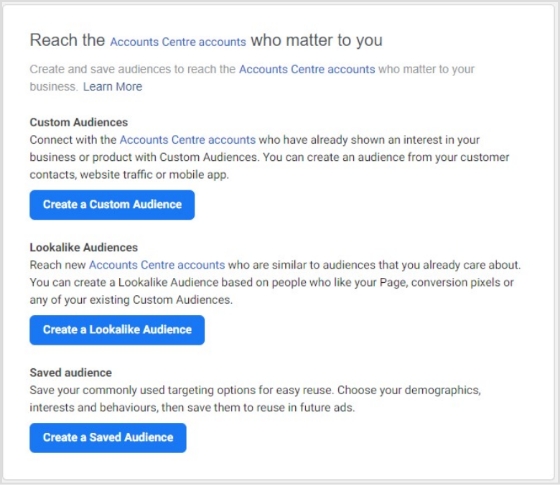
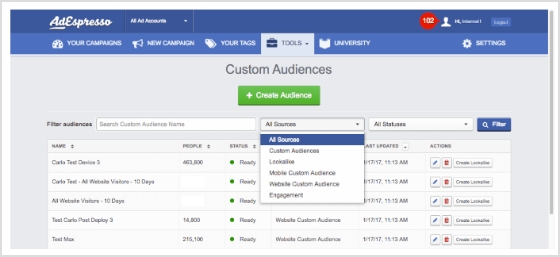
Custom Audiences is an ad-targeting option that allows businesses to target specific groups of people based on their interests, behaviors, and demographics. This feature lets companies create personalized ads that resonate with their target audience, increasing engagement and conversion rates.
Creating a custom audience is easy and requires minimal effort. Businesses can upload their customer email lists or phone numbers to Facebook and build a custom audience based on this data. They can also create a customized audience using website traffic, app activity, social media analytics, and reporting tool.
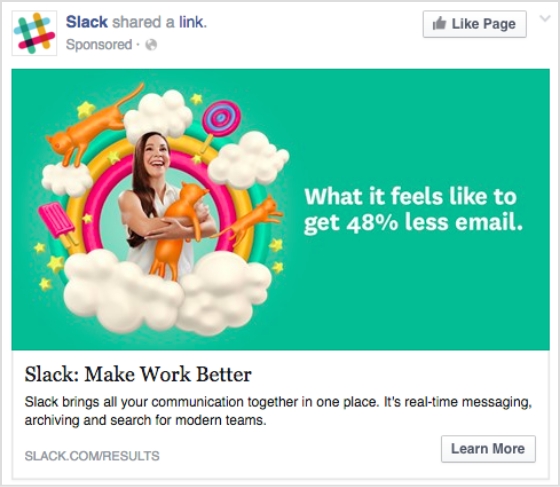
Once you have created a Custom Audience, you can run targeted ad campaigns on Facebook, Instagram, or Audience Network. These ads can be in images, videos, or carousels, and they will be displayed only to the people in your custom audience.
Custom Audiences are still an essential tool for advertisers and marketers, as they allow businesses to target specific groups of people based on their past interactions with the company, such as website visits, app usage, and email engagement. This targeting can be highly effective as it allows businesses to focus their advertising efforts on people who have already shown an interest in their brand or products.
However, the effectiveness of Custom Audiences can depend on several factors, including the quality of the audience data, the relevance of the messaging and creativity, and the competitiveness of the advertising landscape. In addition, privacy concerns and new regulations related to data usage may impact the ability of businesses to use custom audiences in the future.
What type of Facebook custom audience can you use?
There are five types of custom audiences that you can create depending on your needs. So here’s the list to help you get started :
1. Customer file custom audiences
A custom audience is created by uploading a list of customer emails, phone numbers, or other identifying information. This allows businesses to target their existing customers or subscribers with personalized ads. One of the significant advantages of using customer file custom audiences is that companies can nurture their existing customer relationships by showing them relevant ads, promoting repeat purchases, and encouraging customer loyalty.
2. Website custom audiences
The website’s custom audience is a Facebook pixel-based custom audience. This pixel tracks the actions of visitors to your site and allows you to retarget them with ads on Facebook based on their behavior, such as pages they visited or actions they took. Businesses can retarget users who have already expressed interest in their goods or services using Website custom audiences. This encourages them to take action, like buying something or signing up for a newsletter.
Note: If you share your landing or campaign URLs publicly, say via social media, emails, or ads, you might also want to use a handy URL shortener to keep links neat, trackable, and easier for users to click and remember. Replug will assist you with this exceptionally!
3. App activity custom audiences
Businesses can target users who have performed particular actions within their mobile app using this type of custom audience, created using Facebook’s software development kit (SDK). Businesses can use App Activity Custom Audiences to their advantage by retargeting users who have abandoned their cart or stopped using the app, enticing users to return to their app, and offering personalized promotions to users who have carried out particular in-app actions.
4. Engagement custom audiences
This kind of custom audience is created based on user interaction with a company’s Facebook or Instagram page, such as liking or commenting on a post, watching a video, or reacting to an event. Businesses can use engagement custom audiences to target users who have expressed interest in their brand, boost page engagement, and persuade users to take action, like making a purchase or subscribing to a newsletter.
5. Lookalike custom audiences
Facebook develops Lookalike custom audiences by using information from the current custom audiences of a company. After analyzing the data, Facebook creates a new audience that resembles the existing audience in terms of interests, habits, and demographics. Utilizing Lookalike Custom Audiences has several benefits for businesses, including the ability to grow their customer base and improve the efficiency of their advertising campaigns by connecting with new users similar to their current clients or subscribers.
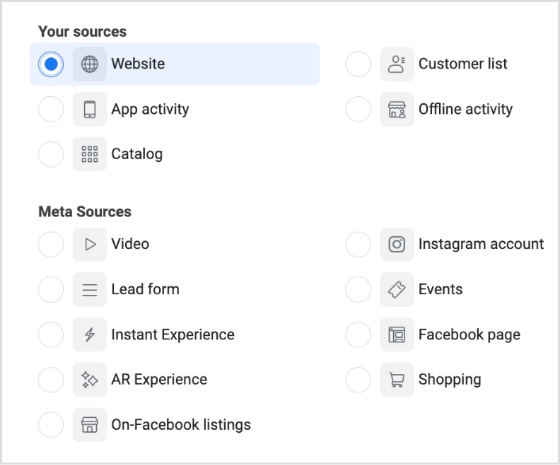
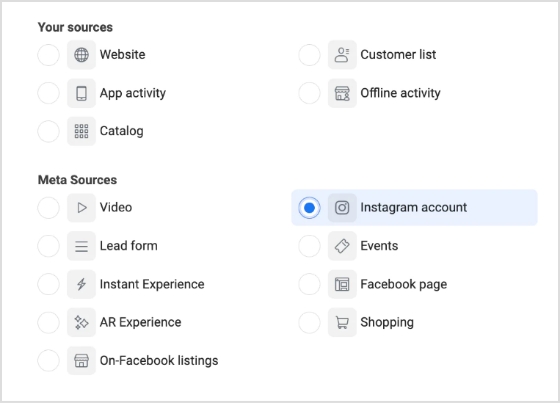
Step 1: Click on the website in the list of “your sources”
Step 2: Define rules
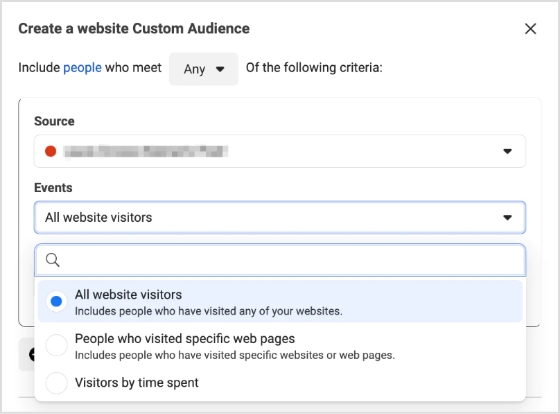
Select the source, occasions, duration of retention, and rules. Among the rules, you can create ones below according to your needs :
Target all website visitors.
Target visitors to particular pages.
Focus on visitors who spend more time on your website.
Categorize visitors ( include or exclude them from the list).
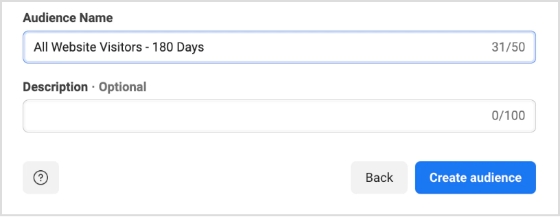
Step 3: Identify and explain the custom audience
Give each of the Custom Audiences you create distinct names so that you can keep track of them all more easily. If more explanation is required, a brief description can be written.
There are numerous Meta Sources available. As an illustration, we’re selecting “Instagram account.” Click “Next” after choosing the Meta Source you want to use.
Step 2: Establish rules
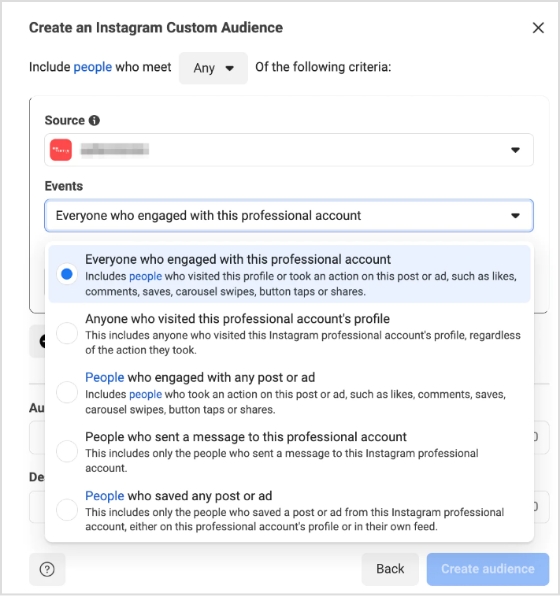
Every Meta Source comes with its rules, retention period, and events.
On Instagram, you can pick from a variety of events, including:
Visitors to your profile
Users who have interacted with or saved your Instagram ads
Users who have liked commented on, or held your posts
Users who have sent messages to your account.
Step 3: Identify the target audience
Assign your audience a clear and descriptive name, and provide a brief explanation if necessary. As an instance, you may create an audience named IG-PROFILE-VISIT-180, representing individuals who have viewed your profile in the last 180 days.
Step 4: Click “Create audience”
Finally, choose “Create audience,” and Facebook will generate your custom audience according to your set standards.
Creating customer file custom audiences
Step 1: Generate a list of customers
Prepare a CSV or TXT file that contains identifiers such as email addresses or phone numbers, allowing Facebook to match your data to Facebook profiles. Include as many identifiers as you can to form a well-defined audience.
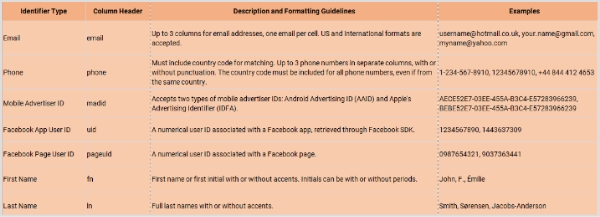
Before incorporating your list at the onset of the audience creation procedure, ensure that the column format conforms to the identifier type that Meta supports. This aids Meta in identifying matches from your hashed columns in the future. You must also ensure that your customer details are entered in the correct format.
For instance, if a column header pertains to first names, you should change the column header to “fn” (first name) to ensure proper mapping. To format customer information appropriately, refer to the following list of data types that Meta acknowledges :
The table above presents the primary identifiers; however, there are also some additional identifiers that you should check.
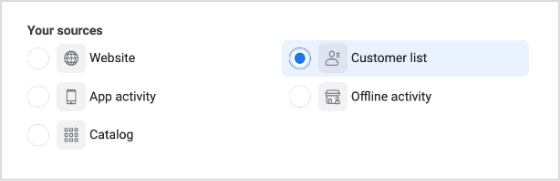
Step 2: Select the source labeled as “customer list”
Select the “Customer list” option and click “Next.”
Step 3: Upload the customer list.
To utilize a customer list, you can import it as a CSV or TXT file. This allows you to quickly bring in your customer data from various sources, such as your email marketing platform or CRM, and use it to create a highly targeted audience.
Step 4: Review your list and click “upload and create”
Once you have ensured that your identifiers are correctly mapped, you can proceed with the matching process by clicking the “Upload and Create” button. If your identifiers do not meet Facebook’s requirements, you will see a yellow exclamation symbol indicating that you need to update them. On the other hand, a green check mark symbol suggests that you are ready to proceed with matching.
Facebook custom audience is an invaluable tool for marketers targeting the right customers with ads. You can create personalized campaigns tailored to your audience using the platform’s robust targeting capabilities. Here’s a comprehensive guide on using custom audiences to enhance your marketing, from ad creation through post-campaign analysis.
Understanding retargeting campaigns
Retargeting is an incredibly effective way for companies to keep their products and services top-of-mind with customers who have shown interest before. By displaying highly relevant content based on past interactions, businesses can drive conversions from shoppers who may have forgotten them.
McBride Sisters Collection, a Black-owned wine company, used retargeting to reignite interest among their lapsed customers. They were able to pull the customer data they needed from their CRM database and then showcased dynamic ads featuring their entire wine collection. As a result of this campaign, the company saw an impressive 58% lift in purchases!
Retargeting campaigns can extend beyond eCommerce businesses. From B2B software companies to restaurant chains, any business with an online presence can benefit from reminding past website visitors about what they offer and motivating them to take action. Other notable companies like Shinesty Clothing have seen success using retargeting campaigns too – obtaining over 200% return on ad spend (ROAS) by targeting site visitors who’d been consumed by ‘shiny syndrome’ but hadn’t bought anything – ensuring that no potential customer went ignored!
Engage repeat customers
Turning casual customers into devoted fans is cost-effective to ensure business growth. One example of this strategy at work is Clinique US, which used custom audiences and lookalike audiences to target past purchasers and repeat customers to show dynamic ads. This method saw an impressive 5.2-point lift in action intent with a combination of people- and product-focused ads.
The success stories come as no surprise when you recognize customers’ loyalty with marketing efforts that are personal and relevant; you not only keep them coming back for more but also drive up your conversion rates even further. All you need to do is start with an analytics tool to monitor the users.
Increasing engagement with your app is critical to ensure long-term success. One strategy that has proven successful for many companies is using custom audiences of people who have already downloaded the app. This approach allows you to target your ad specifically to users who have demonstrated interest in your app, making it more likely that they will engage with it. By showing ads only to these users, you can get the most out of your ad budget and better target your message.
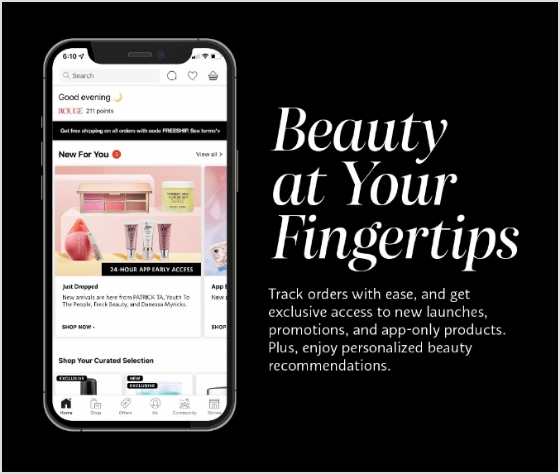
For example, Sephora used a combination of remarketing and retargeting campaigns to increase its app engagement by targeting users who had previously visited its website or had installed the Sephora app.
Similarly, Airbnb used Facebook custom audience feature to optimize its campaigns and increase user engagement. Through this strategy, Airbnb was able to reach existing customers more efficiently and reduce cost per install (CPI). This ultimately led to increased bookings through the app and increased customer retention rate growth.
Growing your Facebook following is essential in building a solid online presence and awareness of your brand. It would be best if you run a Facebook ad targeting a custom audience to do this. This could be based on website visitors or an existing customer list, excluding those who have already liked your page to avoid paying for unnecessary reach.
An example of this strategy in action is Lowe’s, which used the Custom Audiences feature to precisely target people who visited its site but who weren’t yet connected with Lowe’s via social media. By doing this, it could reach a geographically diverse group that was more likely to follow the page. This resulted in a sixfold increase in likes compared to other platforms and campaigns.
By using a customized audience strategy, you can ensure that you effectively reach the right people at the right time, leading to increased engagement with your Facebook page and ultimately helping you achieve better results.
Use lookalike audiences
Using lookalike audiences is also a great way to target potential customers who share similar characteristics with your existing custom audience. Many companies have successfully adopted this strategy, like Liquid IV, which used custom audiences to identify people who had purchased in the past, added an item to their cart, or engaged on social media and then created a lookalike audience from this group. The result was an impressive 19-point lift in ad recall for Liquid IV.
Other brands, like British fashion retailer ASOS, have also used lookalike audiences to increase reach and engagement with their products. ASOS targeted new markets by creating lookalike audiences from buyers of specific categories of products and noticed that engagement increased significantly compared to ads targeting broad audiences.
Set up pixel events
Custom Audiences can be further leveraged with Pixel events, allowing you to automate the process of building and refining your list of potential customers. The Meta pixel (formerly the Facebook pixel) enables you to add website visitors to a custom audience when they perform specific actions like adding a product to their cart, searching for something on your site, subscribing to your newsletter, or viewing certain things content. By setting up Pixel events, you can ensure that you’re only targeting people interested in your products individually, allowing for more effective retargeting and message personalization.
For instance, many airlines use the Pixel event audience targeting feature to provide personalized discounts in their ads based on previous behavior. For example, suppose a user has previously visited the airline’s website but has yet to book a flight. In that case, they might receive an ad featuring a discount code or special promotional offer. This helps increase conversions and establishes relationships between the customer and the brand, enabling future interactions through remarketing efforts.
Growing your custom audience can be vital to scaling your business and optimizing customer interactions. Here are tips that will help you grow your custom audience quickly and effectively:
Make effective use of Facebook Ad types
Utilizing suitable Facebook ad types is essential to growing your Facebook Custom Audience. When creating an ad, you should have a custom audience ready to track whoever engages with it, and this will help you retarget them further down the line, ensuring no one goes unnoticed.
Digging in more, another effective method is focusing on Awareness objectives which allows you to reach a higher number of people in your target group. With awareness-targeted campaigns, you’ll likely get more followers and fans than any other type of ad because they are apparent and cost-effective. You can also use lead ads for people interested in learning more about your product or service. Lead forms let visitors quickly fill out information without leaving the platform, making it easy for them to become potential customers. Remember carousels and collection ads that are perfect for showcasing multiple products in a visually appealing and interactive way.
Develop creative content
Now that you know your audience and how you should target them, it’s time to get creative! Remember that different audiences require different types of content; for example, Millennials may respond better to videos than older generations, so make sure you craft content accordingly to maximize ROI from each ad placement.
In addition, consider investing in sponsored content; allowing you to pay for influencers to promote your brand on Instagram or other social platforms can be a great way to introduce products and services to new people who may already have an affinity for the influencer.
Remember images. Captivating visuals can help capture attention and inspire engagement. You may also want to experiment with interactive elements such as surveys or polls that make it easier for audiences to get involved and interact with your brand directly.
After running your campaign for some time, look at the results and adjust accordingly based on what works best (or doesn’t). You can quickly identify which ads perform better than others by splitting tests into groups and A/B testing to determine what resonates most with specific subsets of your target audience; this could be done via split tests, polls, or simply gauging online feedback related to the campaign elements like visuals or textual content used across ads, etc.
For example, if you’re running an ad campaign for a new product launch and want to see what kind of visuals work best, consider running multiple versions featuring different photos and videos. Then, track the response from each version using analytics like engagement rates and post likes. This will help you gain valuable insights into which type of creatives resonate best with different people, allowing you to tailor future campaigns accordingly.
Other methods for analyzing performance include surveying customers or analyzing customer data patterns. Netflix is a good example; they use customer data patterns to customize their home page for viewers so that individual users receive personalized recommendations based on their past viewing habits. Using similar tactics in your campaigns can provide followers with more relevant content explicitly tailored toward them.
Optimize your ads
As mentioned above, analyzing performance requires optimization based on what works best (or not!). This includes continuously tweaking/adjusting settings related to things like audience segmentation/targeting parameters + optimizing creative elements such as color palette & copywriting style used within messages shared via social media channels regularly throughout various campaigns over their respective timelines, all designed with intent increasing conversions both short+long term when appropriately utilized!
FAQs
What are the best channels to reach your target audience?
Facebook Custom Audiences is a powerful tool that allows you to target your advertising to specific groups of people. By creating a custom audience, you can target people who have interacted with your business in some way, such as by visiting your website or engaging with your social media posts.
What is an example of a custom audience?
An example of a custom audience could be a list of email addresses or phone numbers you collected from your customers, which can then be uploaded to Facebook to create a custom audience for targeted advertising.
How do you develop an eCommerce audience?
Developing an eCommerce audience can involve various strategies such as creating quality content, optimizing SEO, utilizing social media platforms, running paid advertising campaigns, offering exclusive promotions, building email lists, and providing exceptional customer service. The specific approach will depend on your target audience and goals.
Who is the target audience for eCommerce?
The target audience for eCommerce can vary depending on the product or service being offered. Still, generally, it includes anyone who has access to the internet and is interested in purchasing products or services online. This can include people of different ages, genders, and geographic locations.
Meta Pixel, previously known as Facebook Pixel, is a small piece of code that can be added to the back-end of a website, mobile app, or partner application to track user’s footprints, making it easier for advertisers to retarget them on Facebook. Moreover, the Meta Pixel assists brands, organizations, entrepreneurs, and marketers with Facebook pages in determining and enhancing their return on investment from the largest social network in the world.
While e-commerce has never been this popular, social media platforms are adapting to the latest technologies and advancements.
Since Facebook is the number one social media platform with over one billion monthly active users, digital marketers and online advertisers need to tighten their grip on every aspect of Facebook ads.
In a world full of AI tools and chatbots, it’s crucial to figure out the basic online marketing techniques that could give you a slight edge over the competition.
Let’s dive deep into Meta Pixel and understand more about it.
Why is the Meta Pixel called “Pixel”?
Since Meta Pixel is a powerful analytical tool that tracks website visitors’ activities. The way it works is that it uses a short code that leaves a cookie on each website visitor and helps advertisers track them via Facebook ads.
Pixel is the industry-standard name for retargeting code that sits on the advertiser’s website or app and provides them with insights into consumer behaviors, actions, and choices.
Meta Pixel helps identify Facebook advertisers and how users are interacting with the content or products on their website.
Installing a pixel, whether you’re running Quora ads or Facebook ads, is vital to remarketing the previous website’s visitors and understanding the audience’s behavior toward your ad.
What are the benefits of installing the Meta Pixel?
Digital marketing gurus and online advertising experts rave about retargeting and often consider it one of the most important aspects of e-commerce sales growth.
Installing the Meta Pixel in your website or app can provide various benefits that can help improve your Facebook advertising efforts – no question about it.
So let me shed some light on the capabilities and benefits of installing or using the Meta Pixel:
Essential for Facebook remarketing:
Retargeting or remarketing is the core reason why meta-pixel is a thing now. With the help of the Meta Pixel, you can track the behavior of users who have visited your website or app, and target them with specific ads to encourage them to return to your site or complete a desired action.
Track and improve conversions:
Advertisers can track user behavior on their websites or apps and analyze the effectiveness of their advertising campaigns. The data can help them identify areas where they need to improve their campaigns and optimize their ads to increase conversions.
Helps build custom audiences:
Marketers and advertisers could create custom audiences based on the actions users take on their website or app. This can help them create targeted ads for specific groups of users and improve the relevance of their advertising campaigns.
Assists in building lookalike audiences:
By analyzing the behavior of users who have interacted with your website or app, the Meta Pixel can help advertisers identify similar audiences that are likely to be interested in their products or services. It can easily expand the reach of the advertising campaigns and help target new potential customers.
Measures the results of your ad campaigns:
The Meta Pixel provides advertisers with detailed data about the performance of your advertising campaigns. They can track the number of clicks, conversions, and other metrics that help them understand the effectiveness of their ads.
Enables advertisers to show ads to the right audience:
It gets easier to track user behavior with such a facility. Therefore, the advertisers could create targeted ads that are shown to the right people at the right time. It can significantly improve the relevance of their advertising campaigns and increase the chances of users taking action.
How does the Meta Pixel work?
The Meta Pixel works by inserting a one-time code into your website or app source so that it could track the users and allows you to remarket them using Facebook retargeting ads.
To use the Meta pixel effectively, you must first install it on the website or app – wherever you’re trying to capture the audience footprints for Facebook retargeting.
The retargeting pixel goes into the header section of the website or the source code of your app and helps you monitor, analyze, and track the audience visiting the pages/sections with the code on it.
For example, an author is selling an ebook through a website and has already set up a landing page, a checkout page, and a thank you page for the campaign. The Meta Pixel would be installed on all three pages to record the buyer’s journey.
In most content management systems (CMS), the header and footer are common on all pages. Therefore, adding any piece of code into the header or footer section means it’s been added to all pages eventually.
What does Meta Pixel collect?
The Meta Pixel is a powerful tool that enables advertisers to collect valuable data that can be used to improve the effectiveness of your Facebook ad campaigns.
The data collection using Meta Pixel begins by installing the Meta Pixel on the back end of your website or app. Once it’s added, you can monitor and track conversions on the website/app.
This valuable data can be used to optimize your ad campaigns, ensuring that they are delivering the best possible results.
The reason why advertisers collect data is because of its ability to facilitate remarketing to people who have already taken some kind of action on your website.
By tracking the actions of visitors, such as adding items to a cart or completing a purchase, the Meta pixel can help facilitate the delivery of targeted ads to those individuals.
Furthermore, one of the benefits of using the Meta pixel is that it allows you to build targeted audiences for future ads. As visitors interact with your website, their actions are recorded and analyzed by the Meta pixel.
This empowers you (or the advertiser) to create audience segments based on specific behaviors or interests, which can then be used to target future ads. This process is called retargeting or remarketing.
So the Meta Pixel collects valuable information about the website visitors so that the advertiser could design or create a relevant ad campaign to target the right audience.
What are Meta Pixel Events?
Meta has provided several “Events” for conversion optimization. If you’re new to Facebook advertising jargon, then let me make it easier for you.
Events are defined as any type of action that takes place on your website after the visitor lands on the website as a result of the ad.
There are several “Standard events” which are predefined by Meta and advertisers could use them to log user activities, conversion analysis, and build an audience.
Besides the “Standard events,” there are “Object properties” that are also predefined by Meta and can be included with “Standard events” based on compatibility. For more clarification on Meta Pixel or to access the event codes, check out this page.
How to setup Meta Pixel?
Setting up the Meta Pixel is not a complex process unless you haven’t done any Facebook ad campaigns before or you never edited even a simple HTML code.
I’ll try to break down the process into brief sections so that it gets easier for an average Joe to digest, comprehend, and implement it.
Before I head over to the next part, just remember that Meta Pixel is a code that works as a cookie and helps advertisers target the website audience on Facebook.
Since you have already learned about the Meta Pixel by now, it’s important to know how you can create it. It’s not a complex process so no need to panic.
Here are the steps involved in creating a meta pixel:
Step 1: Access the ads manager
Ads Manager is a platform provided by Facebook that allows you to manage and create advertisements for your business.
To create a meta pixel, you need to first access the Ads Manager by logging in to your Facebook account and clicking on the “Ads Manager” button in the top left corner of the screen.
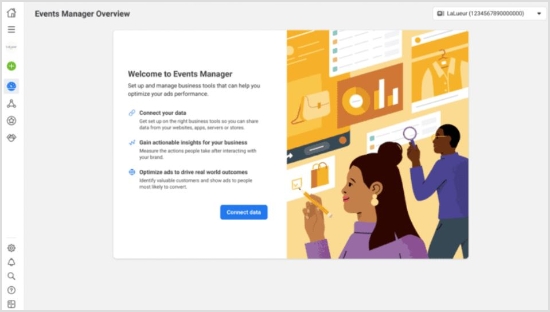
Step 2: Go to the events manager
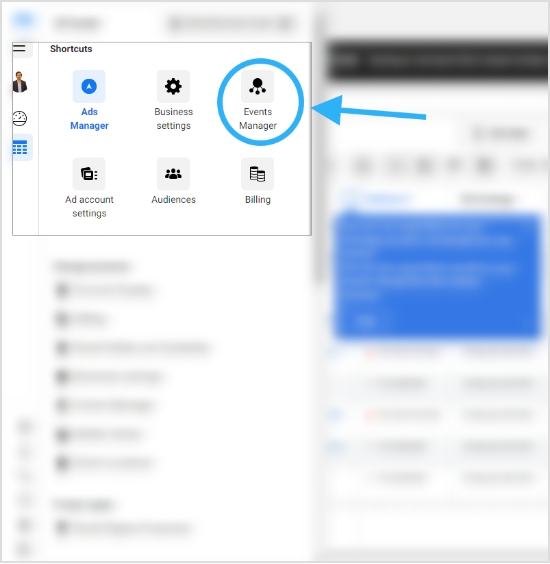
Once you are in the Ads Manager, you need to navigate to the Events Manager section. This can be done by clicking on the “Events Manager” button in the left-hand menu.
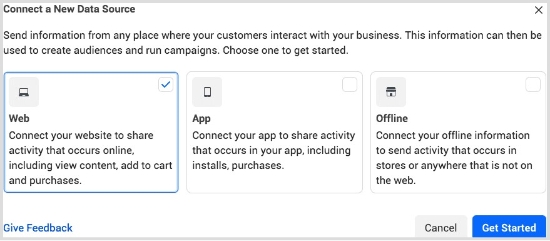
Step 3 Connect a data source:
After accessing the Events Manager, you need to connect a data source. A data source can be any platform that you use to collect data related to your websites or apps, such as Google Analytics or Shopify.
By connecting a data source, you can collect information about user behavior on your website or app and use it to create targeted ads.
Step 4: Choose the data source
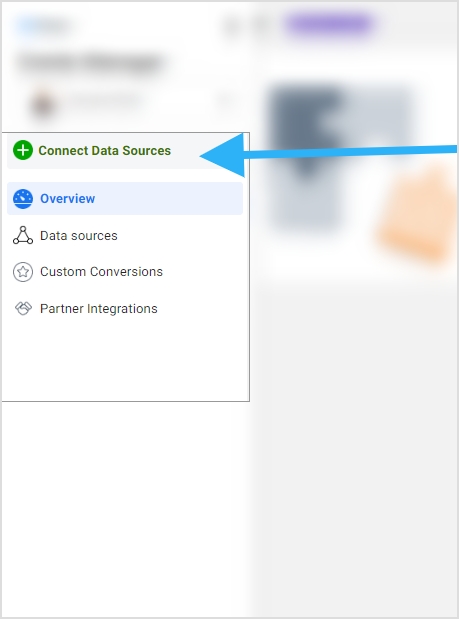
Lastly, you need to choose the data source that you want to use for creating your meta pixel. This can be done by clicking on the “Connect Data Sources” button in the Events Manager. In most cases, the data source is the website, so you’ll need to provide the URL of your website.
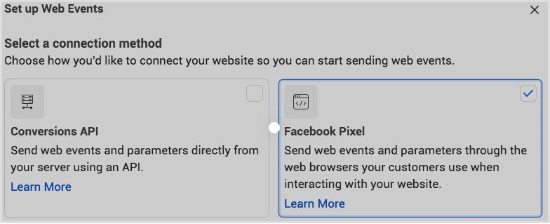
Step 5: Select connection methods
You can either connect through the Conversion API method or Facebook Pixel method. For the said case we have selected the Facebook Pixel method.
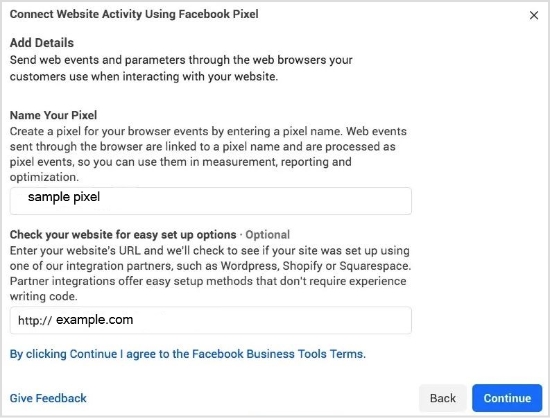
Step 6: Connect website activity using Facebook Pixel
Once you have chosen the data source and followed the on-screen instructions to complete the process of creating a meta pixel, you’ll be able to generate your meta pixel for installation on your website or landing page.
How to install the Meta Pixel on your website?
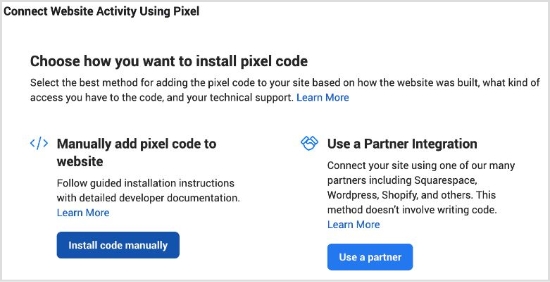
There are two basic ways of installing the meta pixel on your website.
i. Insert Meta Pixel code manually
The simple yet basic method of inserting the meta pixel code into your website is by accessing the source code of the website and putting the code into it. It’s usually done by editing the HTML or PHP file using a code editor and pasting the code into it.
Make sure to add it to the pages that need the most or else you won’t be able to track the conversion. If your website is built with PHP, you might have a header.php file, just insert the code into it and it’ll be available/accessible on every page of the website.
Below are the steps to follow to install the Meta Pixel code manually.
1.Naviagte to the Events Manager in your FB Business Suite and click the Data Sources.
2. Select the Meta Pixel you want to setup, and click Continue Pixel setup.
3. Select Meta Pixel and click Connect.
4. Select Install code manually
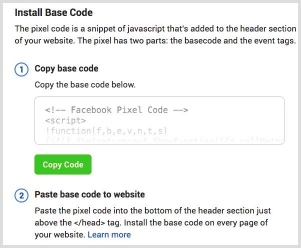
5. Copy the pixel base code.
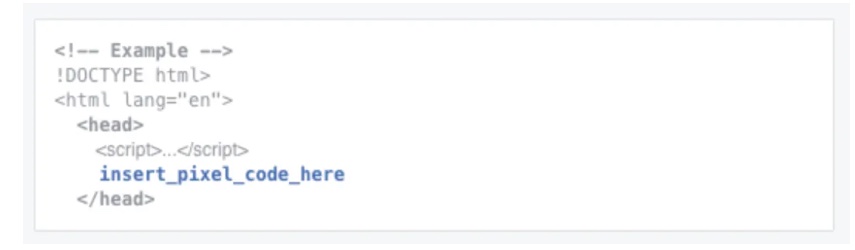
6. Paste the pixel code at the bottom of the header section above the closing header tag in your CMS or web platform.
Note: Ensure to toggle on Automatic Advanced Matching
ii. Add Meta Pixel code via Partner Integration
The second method is more convenient than the previous one. It will work only if you’re using a CMS like WordPress, Drupal, or Shopify. All you need is to edit the source file and insert the meta pixel into your website’s code.
Most people use WordPress for building their websites, blogs, and landing pages. So you could use any code insertion WordPress plugin for that matter. All you have to do is to install such a plugin and paste the code into it. The plugin would do the rest of the process of code placement on the website.
Here are some of the popular code insertion plugins: ⦁ WPCode ⦁ Woody code snippets ⦁ Header Footer Code Manager
Below video by digital marketer Jacob Lee explains the steps to add Meta Pixel code via WordPress partner integration.
How to find the Meta Pixel ID?
Locating the meta pixel ID might be difficult for beginners, but it’s quite simple. If you have created your meta pixel ID, then it won’t be difficult for you to find and access it.
However, if you’re new to Facebook ads, then it might seem intimidating at first. Don’t worry because I’ve got your back.
To find the Meta Pixel in the Facebook Ads Manager, you can follow these steps:
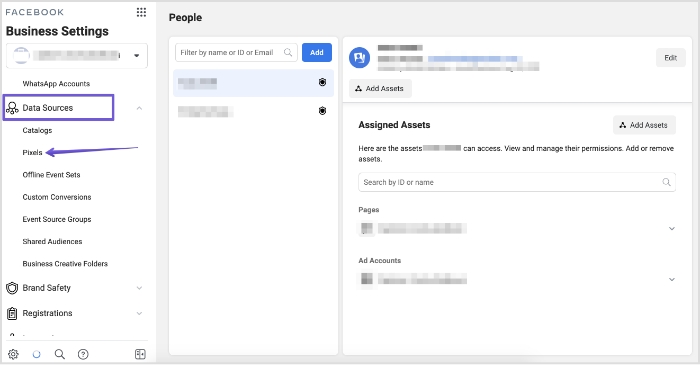
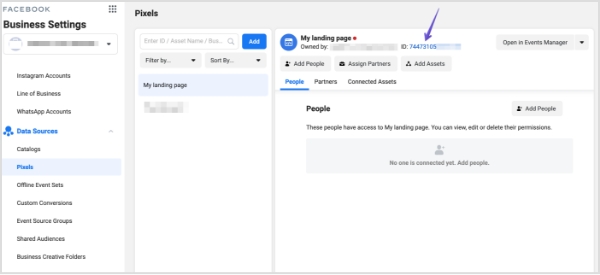
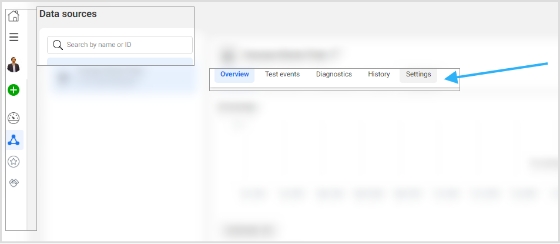
i. Log in to your Facebook account and go to the Ads Manager. ii. Click on the hamburger menu icon (three horizontal lines) in the top left corner of the screen. iii. Select the “Events Manager” option from the list of available options. iv. In the Events Manager section, click on the “Data sources” tab in the left-hand menu. v. Once you click on the data source button, you will be taken to your pixel page. Here, you can see the pixel ID, view the pixel code, and make any necessary changes to the pixel settings. vi. If you want to use the pixel to track specific events on your website or app, you can click on the “Settings” button next to the top menu and access the specific option. This is the area that will give you access to the cookies set, event setup, and conversion API.
That’s pretty much it!
Now you have successfully found your Meta Pixel in the Facebook Ads Manager and can now use it to track user behavior on your website or app and create targeted ads.
How to setup Events using the Event setup tool?
Setting up Events is an essential step in optimizing and improving the ad campaign as it directly influences the customer base targeting. Since retargeting is all about reaching out to the audience that has shown some interest in your website, setting up the right event helps identify the intent of the website visitors.
To start using Events, you first need to set them up. Facebook has a dedicated section for Events setup, and it’s called Event Setup Tool.
Step 1: Go to the Ads Manager The first step in setting up events using the Event Setup Tool is to log in to the Ads Manager. If you don’t have an account, you can create one for free by going to the Facebook Ads Manager.
Step 2: Open the Events Manager Once you have logged in to the Ads Manager, you will need to navigate to the Events Manager. You can do this by clicking on the hamburger icon in the top left corner of the screen and selecting “Events Manager” from the menu that appears.
Step 3: Access the Data Sources Once you have opened the Events Manager, you will see a menu on the left side of the screen. From here, click on “Data Sources,” which will take you to a page where you can manage your data sources, such as your website, app, or offline events.
Step 4: Go to the Settings Section After accessing the Data Sources page, you will see a list of your data sources. Select the data source you want to set up events for and click on its name. This will take you to the Settings section for that particular data source.
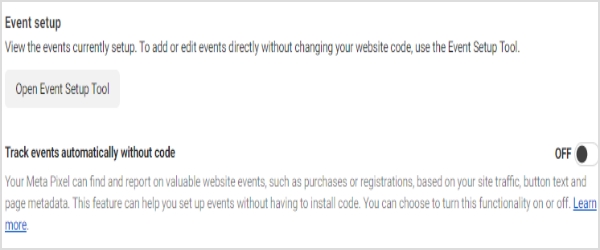
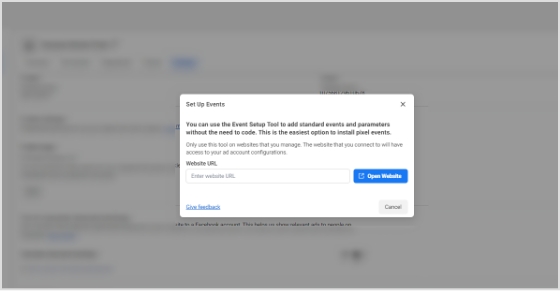
Step 5: Open the Events Setup Tool Within the Settings section, scroll down until you see the “Events” section. Here, you will find the option to open the Events Setup Tool.
Once you click on this button, you will be taken to a page where you can create and manage the events that you want to track on your website.
How to confirm that the Meta Pixel is working using the Meta Pixel Helper?
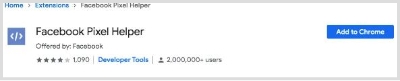
The Meta Pixel Helper is a convenient Chrome browser extension that can be used to check for the presence of Meta Pixel code on websites without any hassle.
This browser extension operates in the background and doesn’t bother the script or performance of the website. Plus, it is quite easy to install even for newbies.
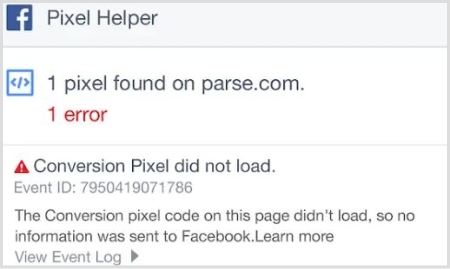
After installation, an icon resembling </> – the Pixel Helper icon – will appear in the upper right corner of the browser alongside the address bar.
When a website has a Meta Pixel installed, the Pixel Helper icon will change color from grey to blue, and a badge will appear showing the number of Pixels found on the page.
If the icon does not turn blue, it means that there are no Meta Pixels installed on that particular webpage. To access the Pixel Helper, click on the Pixel Helper icon and a small popup will appear containing information that can be used to verify, troubleshoot, and improve the Pixel.
Therefore, the Pixel Helper is a helpful tool for confirming the installation or existence of the Meta Pixel on the website. To download this Chrome extension, visit this page.
How to use Meta Pixel with Replug?
Replug is a powerful URL shortener that offers several features such as URL shortening, branded short URLs, retargeting, deep links, and bio links.
You already know by now that Meta Pixel is used for retargeting people through Facebook ads. Since Replug also provides a link retargeting tool, it’s time to figure out how this deadly combo plays out.
You can use the short links created with Replug’s custom link maker to reach out and retarget the users that click on your short URLs through Facebook ads.
Here are the steps involved in using Meta Pixel with Replug:
i. Grab the Pixel ID from Facebook
You’d surely know by now where to get the pixel ID from your Facebook account. Here’s a quick guide if it all seems intimidating or too much to digest:
Go to the Ads Manager section and click on the Events Manager button from the options.
Then, go to the Data Sources from the left menu and you’ll see the Facebook pixel.
Open the settings area of your pixel and copy the pixel ID from there.
ii. Login to your Replug Account
Now go to the Replug website and log in to your Replug account.
In case, you haven’t signed up for a Replug account, I highly recommend doing it now. Replug has a 14-day free trial. Try Now!
iii. Add a Retargeting Pixel in Replug
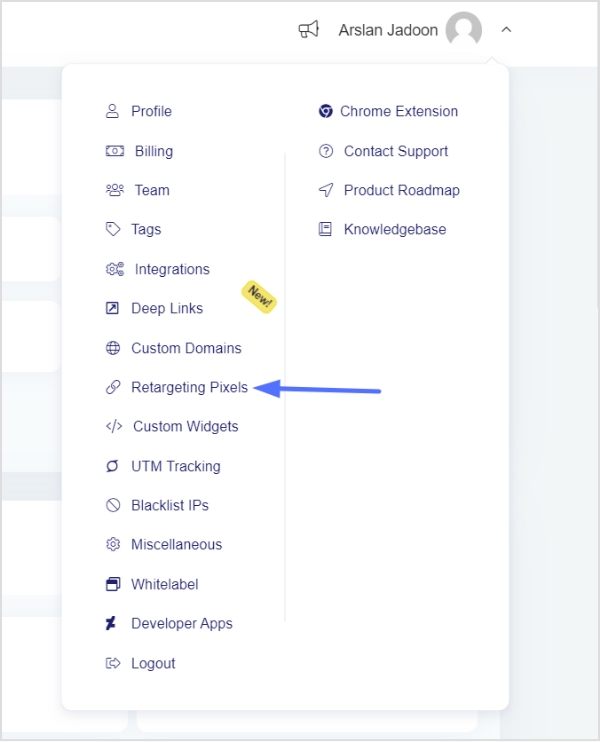
Once you’re in, access the profile settings from the top-right corner. Just click on your profile icon to do so.
A drop-down menu would appear; click on the Retargeting Pixels.
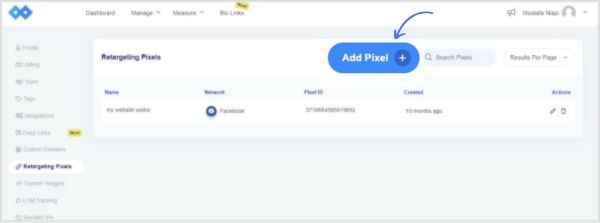
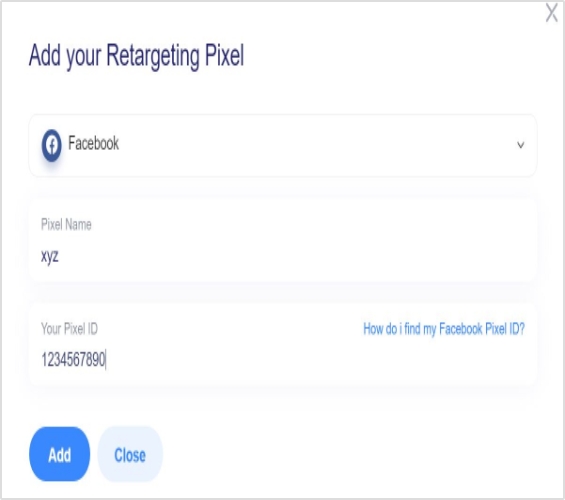
You’ll land on the Retargeting Pixels page. Now click on the “Add Pixel” button.
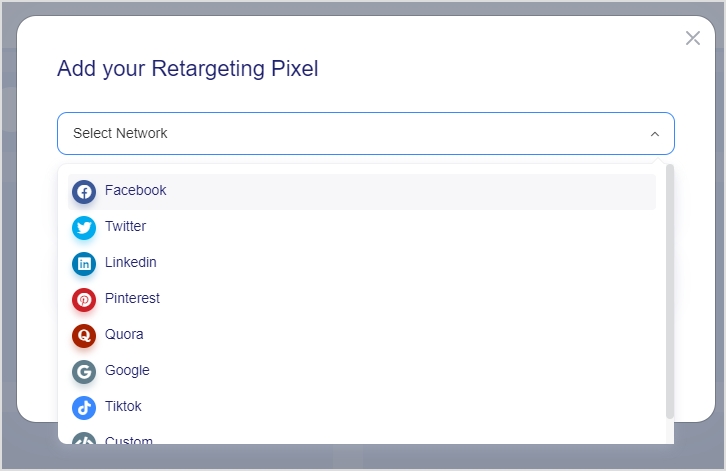
Once you click the Add Pixel button, a popup window would appear. Choose Facebook, provide your pixel name, and paste your Facebook pixel ID.
Once it’s done, click on the “Add” button to proceed.
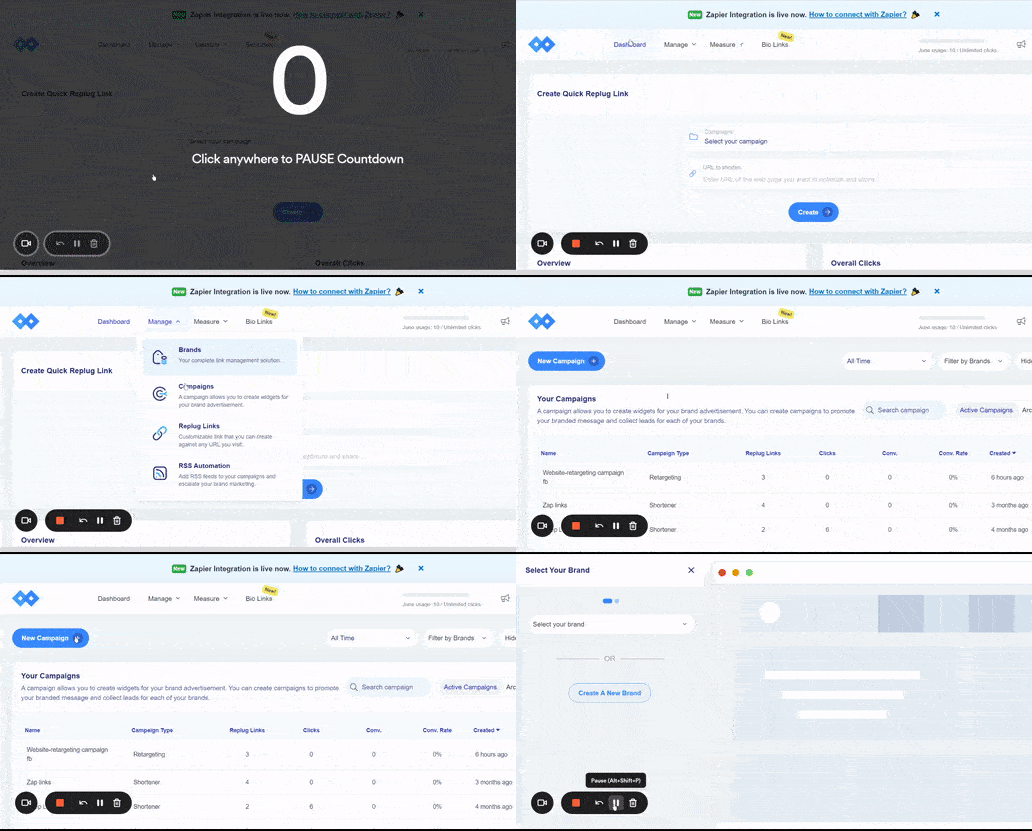
iv. Create a retargeting campaign
The next up is creating a new campaign for retargeting the Replug audience, meaning the visitors who click through your short links, so you could start retargeting them through Facebook ads.
To do this, go to your Replug dashboard and access the Campaign section.
Click on the “New Campaign” button to create a new campaign for this purpose.
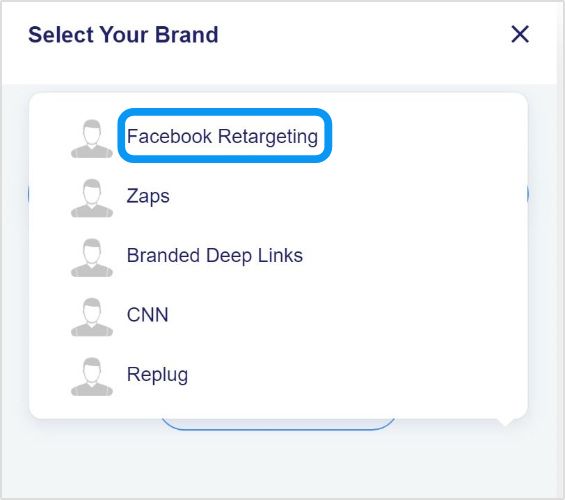
Select the appropriate brand or create a new one for this campaign.
Name this campaign and select the campaign type. You must check the “retargeting” option at this stage to let Replug know that it’s a retargeting campaign.
Choose the retargeting script afterwards.
In this case, it’ll be the one associated with Facebook. Choose the Facebook pixel you created earlier in your Replug account.
Now save the campaign and you’re done with creating a new campaign using Replug.
How to change the Meta Pixel’s name?
Changing the meta pixel’s name might not be on your mind, but you should know whether or not you can do it, just in case.
It’s possible to change the meta pixel’s name. All you have to do is to follow a few simple steps to do this:
i. Go to your Ads Manager account after logging in to your Facebook account. ii. Access the Events Manager section from the Ads Manager. iii. Open the Data Sources to access your already created meta pixel. (Remember that you could create only one meta pixel per account). iv. Now click on the edit button next to your meta pixel’s name. This is where you could change the meta pixel’s name.
That’s it.
Easy-peasy!
FAQs about Meta Pixel
Is meta pixel a cookie?
The Meta Pixel is a pixel code that helps advertisers target the audience who have visited their websites through Facebook ads. A cookie also does the user-tracking on the websites, but may not be directly influencing the retargeting like the meta pixel.
How do I create the Meta Pixel?
Log in to your Facebook account, go to the Ads Manager, access the Events Manager, and click on the Data Sources. You’ll see the option to create your meta pixel.
Is the Meta pixel different from than Facebook pixel?
No. The Meta Pixel and the Facebook Pixel are the same. The Meta Pixel was formerly known as the Facebook Pixel.
What is Meta pixel in Facebook ads?
It’s a pixel code that helps advertisers track the website visitors and empowers them to advertise to those visitors using Facebook ads by retargeting them.
What is a Facebook Pixel notice?
This is by no means legal advice, but a lot of countries require websites to display the cookie consent notification which tells the website visitors that this website is using cookies to track visitors.
When a website is using Meta Pixel or any other user tracking tool to track website visitors’ activity, performance, and behavior, they must notify the website visitors about this.
Have you ever seen a cookie consent notification on websites, especially when you visit it for the first time?
The website is trying to tell you that they’re using some tracking tools or softwares to track the visitors’ activities and behaviors – it’s a very common website management practice.
I’m no expert on GDPR or CCPA, so you should consult your lawyer for more clarity. However, I simply use a cookie consent WordPress plugin on my website that displays a cookie consent notification on the website.
Some several tools and plugins automatically add cookies consent notices to the websites, but here are some of the popular website plugins for this purpose:
⦁ Cookie Notice & Compliance for GDPR / CCPA ⦁ Cookies and Content Security Policy ⦁ Cookie Script
Instagram, like all social media platforms, constantly changes and evolves. In October 2021, one of the biggest updates was the removal of IGTV. Previously, users could find all live videos on Instagram by searching the hashtag #IGTV.
Live videos on Instagram are now integrated into the “Stories” feature. After a live video ends, it is only available to be replayed for 24 hours, after which it is stored in the user’s “Video Archive.” Whether the video is republished or deleted is up to the discretion of the content creator.
When you want to share a live-video replay or archive link, using a link shortener helps make the URL cleaner and more user-friendly, especially if you plan to post it across different platforms or in messages.
Also, if you are someone who manage lots of social-media links and want a unified tool to organize, track and optimize all of them, Replug.io can be a helpful hub to keep your URLs clean and manageable.
How to find live videos on Instagram?
There are two ways to find live videos on Instagram:
Find Instagram live videos from the accounts you follow
Find random live videos on Instagram
Let’s begin:
Find Instagram live videos from the accounts you follow:
You can easily view the live streams of the accounts you follow without much effort. Follow the steps below to find the live videos from the people you follow:
Step 1: Open the Instagram app on your mobile phone, or log in to Instagram from a browser.
Step 2: Live video will appear in the stories feed with a colorful ring around it and the word Live.
Step 3: Tap on the live video to see the live broadcast from the people you follow.
During the live broadcast, you can interact by:
When watching a live broadcast, remember that the broadcaster and other viewers may see you’ve joined.
Leaving a comment (tap Comment on the app or Add a comment on the website), liking a comment, replying to a comment, reacting to the video with an emoji, or sharing the video. All actions taken during the broadcast, such as liking or commenting, are visible to other viewers.
How to find random Instagram live videos?
Discovering random live streams on Instagram can be frustrating if you don’t get any results. However, you can try the following steps for searching for random live streams:
On Instagram mobile app:
Step 1: Open the Instagram app on your mobile phone.
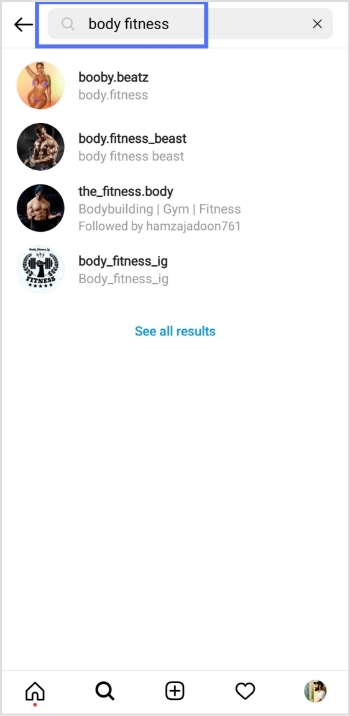
Step 2: Tap the “search icon” at the bottom menu.
Step 3: Enter the intended live video keyword in the search bar and tap the search button on your mobile keypad.
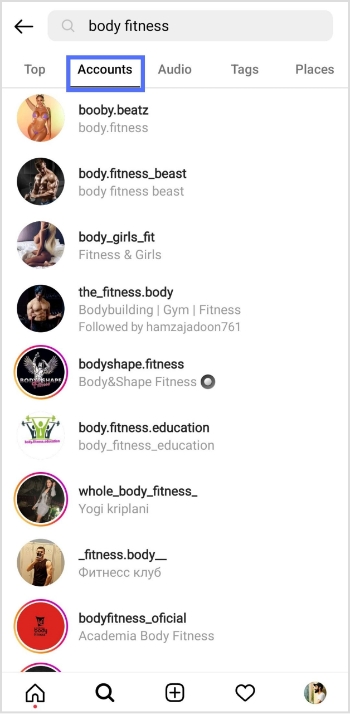
Step 4: Tap the “accounts” tab to open accounts with the live videos.
Step 5: Tap the profile icon with the “live” to open the live stream.
On a web browser:
Step 1: Log in to Instagram from your browser.
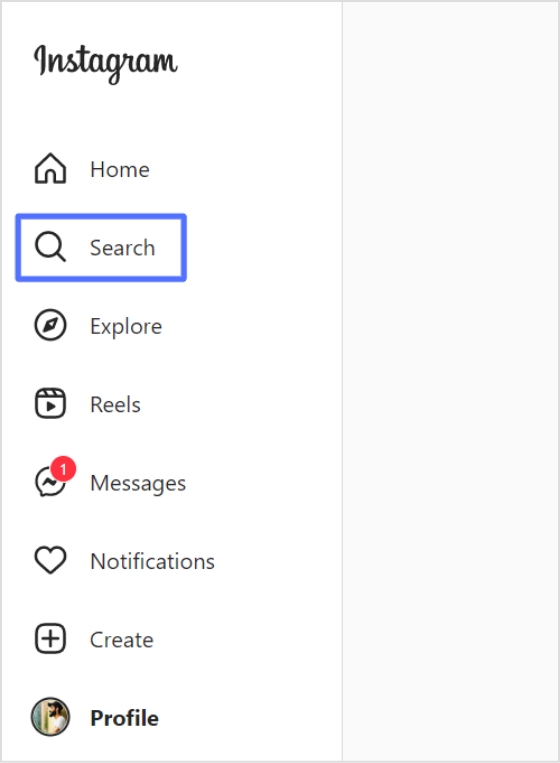
Step 2: Click “search” in the left side menu.
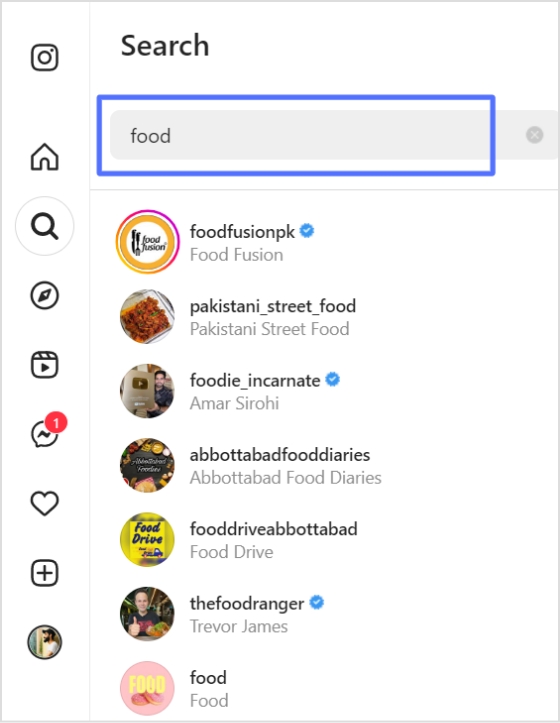
Step 3: Enter the intended keyword in the search bar and look for the “live” profile.
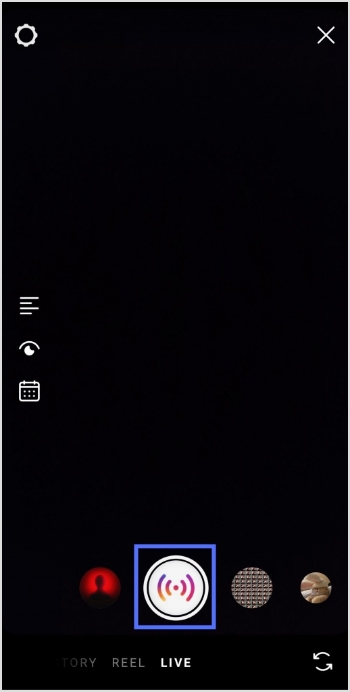
Follow the steps below to start a live broadcast on Instagram:
Step 1: Open the Instagram app and tap the “add icon” in the bottom menu.
Step 2: Swipe left to go to live and tap the live button to start the live video.
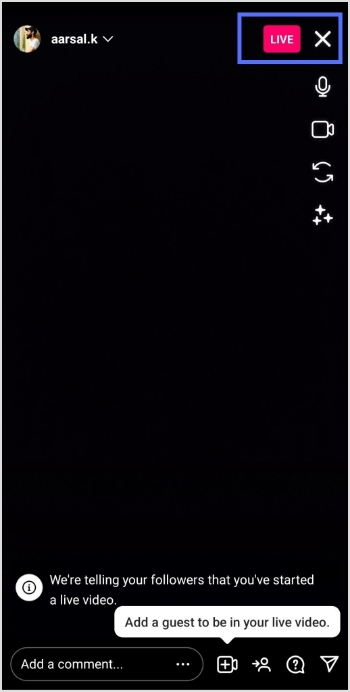
Step 3: The device will check for the internet connection momentarily, then you’ll see the “you are now live” message on the screen.
Step 4: Tap the “exit (X)” on the top right corner to end the live stream.
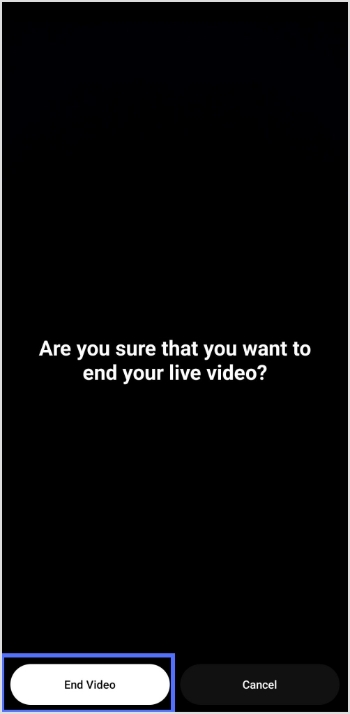
Step 5: Tap the “end video” button and confirm to end the live stream.
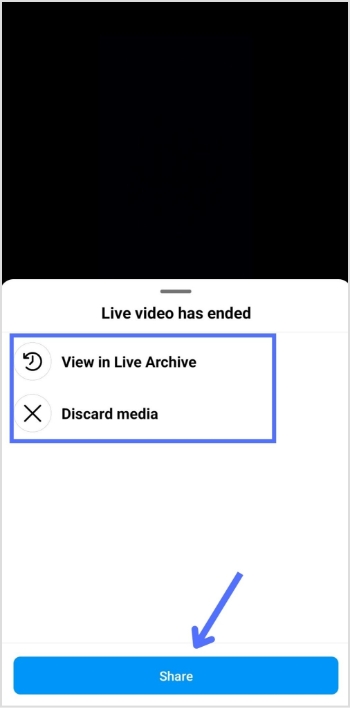
Step 6: You will see the following options: View in Live Archive, Discard media or Share. Make your selection according to your preference.
Frequently asked questions
Why can’t I find live videos on Instagram?
There could be several reasons why you are not able to find live videos on Instagram:
– Your account may not have access to live videos. Instagram has certain restrictions and requirements to access live videos. – The person you are trying to view the live video may not be broadcasting. – The person you are trying to view the live video of may have a private account, and you may not be following them. – Your internet connection may be slow or unstable, affecting the live video quality. – There could be a technical issue with the Instagram app or your device.
Try troubleshooting these issues, or contact Instagram support for further assistance.
Instagram does not allow users to download videos directly from the platform, but there are a few ways to download Instagram videos.
Here are some methods:
Method 1:
Download using a video downloader website:
Many websites allow you to download Instagram videos. Here’s how to download Instagram videos using a video downloader website:
Step 1: Open the Instagram app and find the video you want to download.
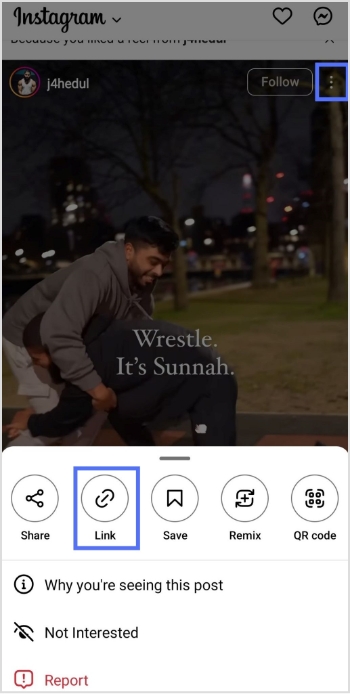
Step 2: Click on the three dots in the upper right corner of the video and select “Copy Link.”
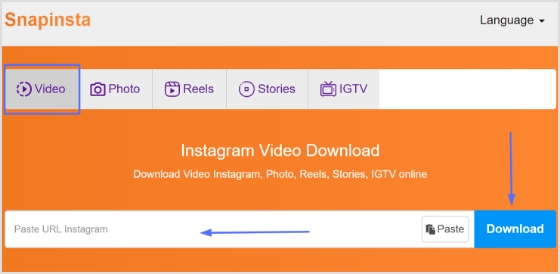
Step 3: Go to a video downloader’s website, like “Snapinsta” and paste the link into the search bar.
Note: Before pasting, you could also use a link converter to shorten or clean up the URL, making it easier to share or save, while keeping things organized and trackable for future reference.
Step 4: Click download, and the video will be downloaded to your device.
Here’s how to download Instagram videos using a third-party app:
Many third-party apps allow you to download Instagram videos. Here are some popular ones:
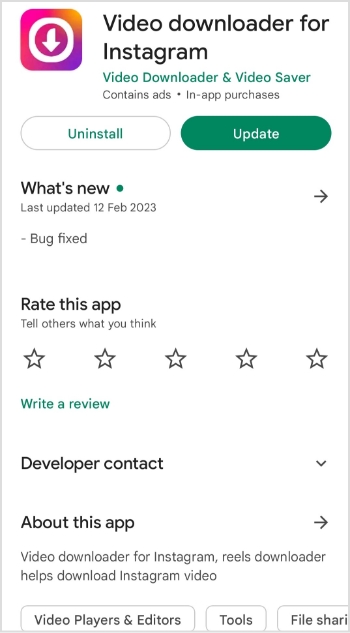
Video Downloader for Instagram: This app is available on iOS and Android. It allows you to download videos from Instagram by copying the video link and pasting it into the app.
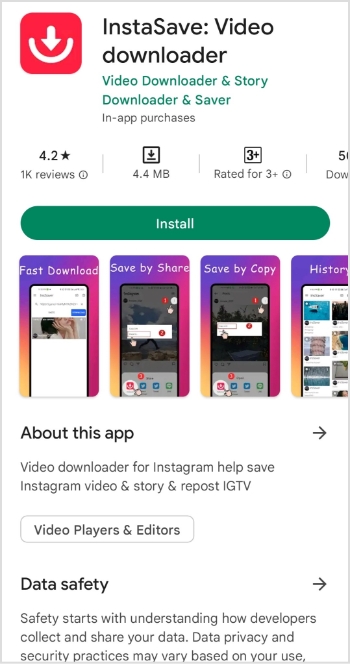
InstaSave: This app is available for Android and allows you to download Instagram videos by copying the video link and pasting it into the app.
Method 3:
Use a screen recording tool:
If the above methods don’t work, you can use a screen recording tool to record the video as it plays on your screen. Here’s how:
Step 1: Open the Instagram app and find the video you want to download.
Step 2: Start a screen recording on your device (the method varies by device).
Step 3: Play the Instagram video and let it play in full.
Step 4: Stop the screen recording and save the video to your device.
It’s important to note that some of these methods may violate Instagram’s terms of service, and downloading copyrighted content without permission is illegal. Make sure you have the necessary rights to the content before downloading.
And, if you frequently work with social media links or share downloadable content across platforms, Replug can serve as a handy hub, letting you manage and organize all your links easily before you share or download content.
There are several ways to download Instagram reels, and I’ll outline some of the most common methods:
1. Using a third-party app: Many third-party apps allow you to download Instagram reels. Some popular ones include InSaver, Video Downloader for Instagram, and InstaSave. To use these apps, copy the link to the reel you want to download, paste it into the app, and follow the instructions to download the video. 2. Using an online downloader: Several websites allow you to download Instagram reels. Some popular ones include InstaDownloader, InstaOffline, and DownloadGram. To use these websites, copy the link to the reel you want to download, paste it into the website, and follow the instructions to download the video. 3. Using the built-in download option: Instagram has recently added a built-in download option that allows you to download your reels. To use this feature, open the reel you want to download, tap the three dots in the top right corner, and select “Save Reel.” The reel will be saved to your camera roll.
TikTok Pixel is a tracking pixel code on your website to track conversion events. It also helps advertisers track user behavior on their website after clicking on a TikTok ad.
It is similar to the tracking pixels used by other social media platforms, such as Facebook Pixel. With the Pixel installed, you can track everything from page views to purchases, allowing you to understand your audience better and tailor your TikTok ads accordingly.
If you want to make a splash on TikTok and maximize its potential as an advertising platform, you need to jump on the pixel bandwagon.
But setting up the TikTok Pixel can be a head-scratcher, especially if you’re new to digital marketing.
That’s why we’ve created this comprehensive guide that walks you through everything you need to learn about the TikTok Pixel – what it is, how it works, and step-by-step instructions on how to set it up.
Whether you’re a seasoned digital marketer or new to TikTok advertising, this guide will provide the details and tools you need to set up TikTok pixel on your website. And you’ll be ready to start measuring your conversions in no time!
Why use a TikTok tracking pixel? What is the TikTok Pixel used for?
Well, there are several reasons.
First and foremost, TikTok Pixel helps you with TikTok analytics and measures the effectiveness of your ad campaigns. Let’s say you’re running a TikTok ad campaign to promote a new product on your website. By using it, you can see how many people have clicked on your ad, visited your website, and how many of them made a purchase. This information can help you determine the ROI of your ad campaign and whether it’s worth continuing to invest in.
Secondly, it allows you to optimize your ad campaigns. Using the data collected by it, you can identify which ads are performing well and which ones aren’t. For example, if you see users spending more time on a particular page of your website after clicking on an ad, you can use that information to create more ads that drive users to that page.
Finally, it enables you to retarget users. Let’s say someone visits your website after clicking on a TikTok ad, but needs to make a purchase. With TikTok Pixel, you can retarget that user with a follow-up ad tailored to their interests. For example, you could show them an ad for the product they were looking at on your website.
Benefits of using TikTok Pixel
Here are some of the fantastic benefits that TikTok Pixel offers to advertisers.
Track Conversions
It allows you to track user actions on your websites or apps, such as purchases, form submissions, and downloads. This data can be used to measure your advertising campaigns’ effectiveness and identify improvement opportunities.
For example, a hotel chain can use TikTok Pixel to track bookings made by users who clicked on their ads, helping them to calculate the return on their ad spend.
Create Custom audiences
With TikTok’s Pixel, you can create custom audiences based on user behavior on your website or app. This allows you to target users who have already shown an interest in your product or service and are more likely to convert.
For example, a skincare brand can create a custom audience of users who have visited their website in the past 30 days but have yet to purchase it. They can then display ads to this audience on TikTok, promoting a special offer to incentivize them to buy.
Optimize campaigns
It allows you to optimize your campaigns for specific objectives, such as conversions or clicks. This means the platform will automatically adjust your campaign settings to deliver the best results based on your chosen goal.
For example, if you’re running a campaign to drive website traffic, you can optimize your TikTok ad delivery to show your ads to users who are likely to click through to your site.
Enhanced ad retargeting
It also enables you to retarget visitors who have interacted with your brand in the past, such as users who have visited your website or engaged with your TikTok ads. This helps to keep your brand top of mind and can increase the likelihood of conversion.
Let’s take Retargeting ad examples of a clothing brand that uses TikTok Pixel to track the pages a user visits on their website and use this information to display ads for specific products to that user on TikTok.
Attribution modeling
It allows you to attribute conversions and other user actions to specific advertising campaigns, ad groups, or even individual ads. This helps you to understand which of your campaigns are driving the best results and make data-driven decisions about where to invest your ad budget.
How does TikTok Pixel work?
TikTok Pixel works by placing a small code on your website or app. This code is a snippet of JavaScript that will run on every page of the website where it’s installed.
Once the Pixel is installed, it will start collecting data about user behavior, such as page views, sign-ups, and purchases. This data is then sent back to TikTok, where you can access it through your TikTok Ads Manager to gain insights into the TikTok analytics and ad campaign’s performance and optimize it for better results.
How to set up your TikTok Pixel?
Setting up your Pixel is relatively simple. Here’s the step-by-step process on how to do it.
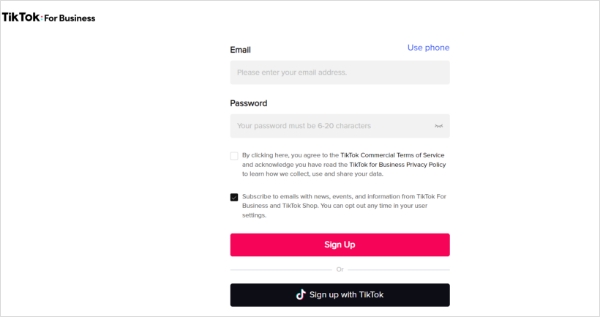
Sign up with your email address, phone number, or TikTok account.
Step 3: Set up your Pixel
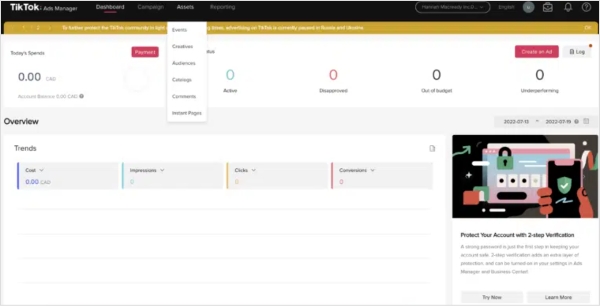
After logging in to your account, click Event under “Assets” in TikTok Ads Manager. Then choose Web Events.
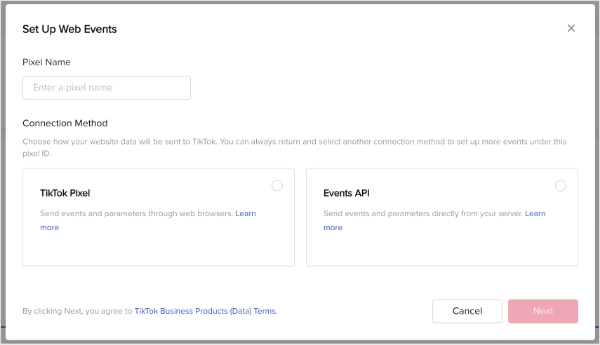
Step 4: Name your Pixel
Give a name to your Pixel that will help you remember its purpose. For instance, if you’re using it to track conversions on your website, you can name it “Conversion Pixel”.
The maximum character length for a Pixel name is 128 characters, including spaces.
After naming, select TikTok Pixel as your connection method.
Step 5: Add the Pixel to your website
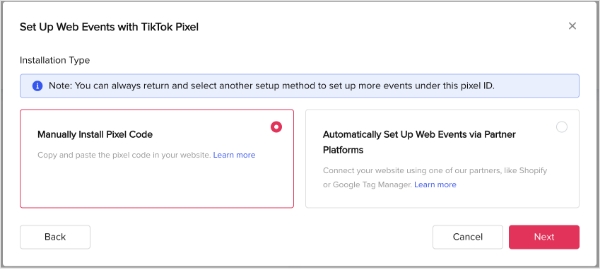
To add the Pixel to your website, you can either manually install the TikTok Pixel code on your website or use a tag manager like Google Tag Manager to add the Pixel.
Step 6: Test your Pixel
After adding the Pixel to your website, test it to ensure it works correctly. You can do this using the TikTok Pixel Helper, a Chrome extension that helps verify your Pixel.
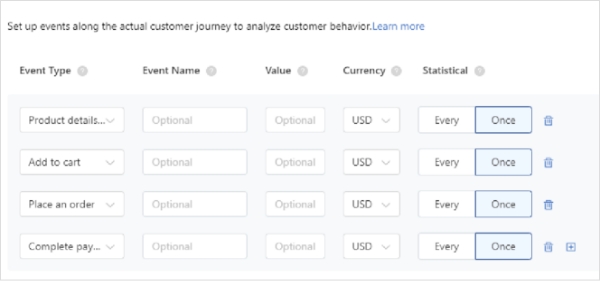
Step 7: Set up your events
Once you’ve verified that your Pixel is working correctly, you must set up the events you want to track. TikTok Pixel supports a range of standard and custom events you can follow on your website.
Step 6: Verify and publish your Pixel
After setting up your events, you should verify your Pixel to ensure it tracks events correctly. Once you’ve verified your Pixel, you can publish it and start tracking data.
And that’s it! Your TikTok Pixel is now set up, and you can start tracking conversions and optimizing your TikTok Ads for better performance.
How to install TikTok Pixel?
To install the Pixel on your website, add the pixel code to your website’s header section. This code is provided to you when you create your Pixel in TikTok Ads Manager.
Here’s the step-by-step process to install the Pixel:
Step 1: Go to your TikTok Ads Manager account and click “Assets” in the left-hand menu.
Step 2: Click “Pixels” and “View Pixel.”
Step 3: Copy the pixel code that’s provided. Or you can download it as well by clicking on ‘Download Pixel Code.’
Your pixel base code will look like this:
Step 4: Add the pixel code to the header section of your website. Website headers start with the <head> tag and close with the </head> tag.
For example:
<!—Example___><!DOCTYPE html > <head> “INSERT TIKTOK PIXEL CODE HERE” </head></html>
Step 5: Save your changes.
And that’s it! Your Pixel Code is now installed on your website, and you can start tracking conversions.
How to uninstall TikTok Pixel?
If you want to uninstall TikTok Pixel, remove the pixel code from your website’s header section. Here are the steps:
Step 1: Go to your website’s code editor and navigate the header section.
Step 2: Delete the Pixel code.
Step 3: Save your changes.
And that’s it!
How to track TikTok Ads: TikTok Pixel VS Custom Tracking Solution
Some advertisers prefer a custom tracking solution, which can offer more flexibility and control over the tracking process. With a custom tracking solution, advertisers can track specific events unique to their business and tailor their tracking to their particular needs. This can be very useful for companies with complex sales funnels or multiple conversion points.
So which option is better – the TikTok Pixel or a custom tracking solution? The answer to this query will vary depending on various factors, including the size of your business, the complexity of your sales funnel, and your overall ad strategy.
One of the significant pros of using TikTok Pixel is that it’s an all-in-one solution that’s easy to set up and use. You don’t need technical skills to install it, and it works seamlessly with TikTok’s advertising platform. Once it’s installed, you can start tracking conversions right away. It also offers a variety of conversion events you can follow, such as add-to-cart, checkout, and registration, which gives you a comprehensive understanding of how users interact with your website.
By using the pixel, you can optimize your campaigns and ensure that you get the best possible results for your advertising efforts.
Track Pixels Using Replug URL Shortener
Replug offers multiple features such as bio links, deep links, A/B testing, and others. One of the features marketers can make most of is the feature of retargeting. For this, you just need to use a link retargeting tool to run a retargeting campaign for the selected shortened link. It will fire a pixel to the selected socials.
Before you create a retargeting campaign, you need to create a shortened link. Don’t worry, Replug will assist you with this task, with its all powerful link shortening tool.
Once done creating a shortened link then move on with the process to create a retargeting campaign in Replug.
In order to retarget your audience in Replug Tool which is coming through the shortened links, your pixels must be placed on those shortened links.
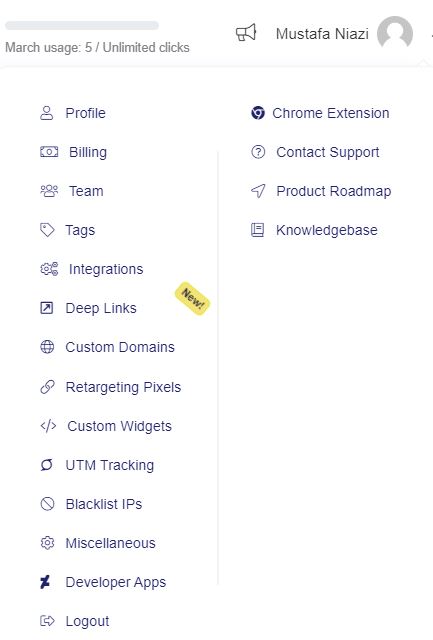
To do so, navigate to the right top corner, click your name to open the settings menu, and further click on Retargeting Pixels to add your Tiktok Pixel.
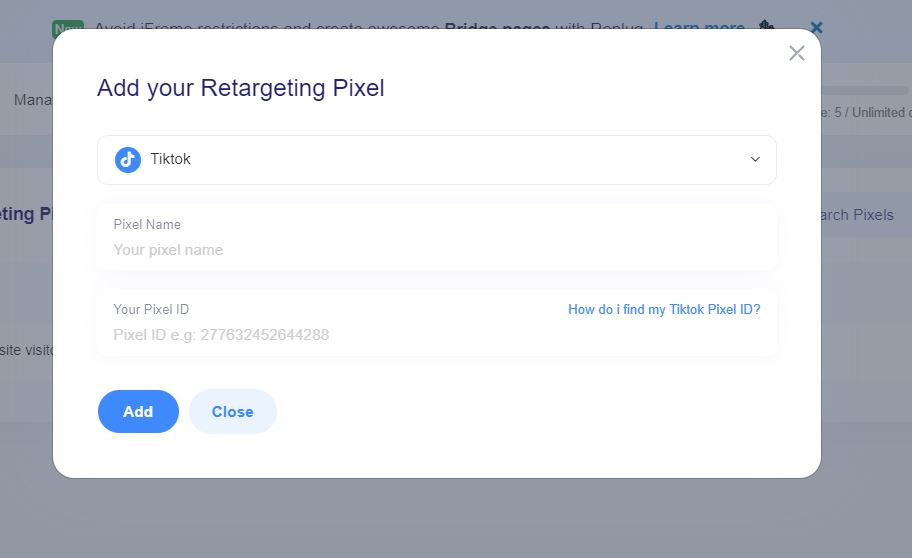
Then on the new window, click on “Add a Pixel” which will open up a pop window, select the desired social network i.e. TikTok in this case and add your Pixel ID and click save.
Now, when it comes to TikTok trackers, websites use them because TikTok is a massively popular social media platform. Many websites want to take advantage of this popularity by integrating TikTok content into their site, such as embedding TikTok videos or allowing users to share TikTok content directly.
To do this, websites must use TikTok trackers to gather user data and track their behavior. This data can be used to optimize the user experience by recommending more relevant TikTok content to users based on their interests and behaviors.
In addition, using TikTok trackers can also provide insights into how users interact with TikTok content on the website. For example, website owners can see which TikTok videos are getting the most views and engagement and use this data to inform their content strategy and improve their overall performance.
It can help websites to monetize their content more effectively. By tracking user behavior, websites can better understand their audience and target ads more effectively. This can increase the likelihood of users clicking on ads, generating revenue for the website owner.
Those are some of the reasons why websites use TikTok trackers. While there are certainly valid concerns about user privacy and data protection, it’s clear that there are also many benefits to using trackers that can help websites to offer a better user experience and monetize their content more effectively.
Best practices for TikTok conversion tracking
If you’re looking to use TikTok conversion tracking, there are a few best practices you should keep in mind to ensure you’re getting the most out of your efforts. Here are a few points to help you get started:
Set clear goals: Before you start tracking conversions on TikTok, you must have a clear idea of what you want to achieve. Whether you’re looking to drive more traffic to your website, increase sales, or boost brand awareness, having a specific goal in mind will help you to track and measure your progress more effectively.
Use the right tracking tools: TikTok offers a range of tracking tools that can help you to measure your conversions and track the effectiveness of your campaigns. Be sure to use these tools to their fullest extent, and consider integrating them with your existing analytics and reporting tools for a more comprehensive view of your performance.
Test and optimize your campaigns: Like any marketing campaign, TikTok conversion tracking requires testing and optimization to ensure you get the best results. Try experimenting with different ad layouts & formats, targeting options, & messaging to see what works best for your audience. Use the data from your tracking tools to inform your decisions.
Monitor your metrics regularly: To get the most out of your TikTok conversion tracking efforts, it’s essential to monitor your metrics periodically and make adjustments as needed. Keep an eye on your click-through rates, conversion rates, and other key performance indicators, and use this information to make data-driven decisions about optimizing your campaigns.
Consider working with a TikTok partner: If you’re new to TikTok conversion tracking or need help optimizing your campaigns, consider working with a TikTok partner. These companies specialize in helping businesses to achieve their goals on TikTok and can offer expertise in maximizing your efforts.
Interested in using TikTok Pixel in your marketing strategy?
We’ve covered a lot of ground, from what TikTok Pixel is, to how it works and the step-by-step guide to help you quickly get started.
However, TikTok Pixel is not the only advertising tool available. If you want to take your advertising game to the next level, consider exploring Replug’s Link Retargeting Pixels.
With Replug.io, you can track and retarget every link you share online, turning your content into a powerful advertising tool. So why not check it out and see how it can help your business grow?
FAQs
Why does TikTok get glitchy?
There can be a few reasons why TikTok gets glitchy. It could be due to an outdated app version, poor internet connectivity, or a bug in the app itself. Sometimes, restarting the app or clearing the cache can resolve the issue. If the problem continues, you can try uninstalling and reinstalling the app or contacting TikTok support for assistance.
What are some alternatives to TikTok Pixel?
While TikTok Pixel is a powerful tool for tracking conversions and optimizing ad campaigns, there are a few alternatives that you can consider if you’re looking for something different. For example, Google Analytics offers robust tracking capabilities and can be integrated with other Google marketing tools like Google Ads.
Facebook Pixel is another popular option for tracking conversions and measuring the effectiveness of Facebook ads. Additionally, third-party tracking tools can provide various tracking and analysis features. Ultimately, the right tool for you will depend upon your specific needs and goals, so it’s worth exploring a few different options to find the one that’s best for your business.
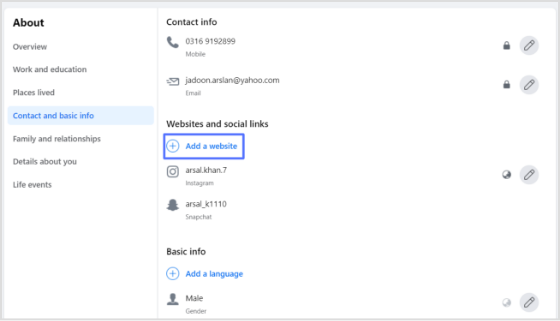
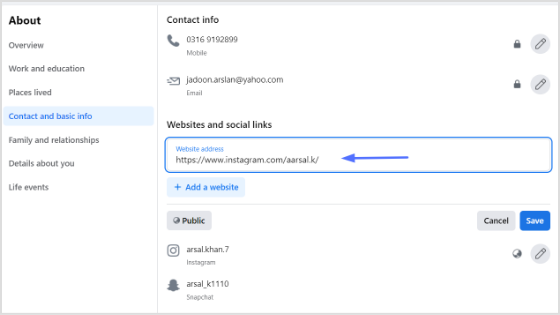
If you’re looking to promote your Instagram profile and boost your online presence, adding your Instagram link to your Facebook bio can be a highly effective strategy. By doing so, you can reach a broader audience and potentially attract more followers, which can help you take your social media game to the next level.
For creators and marketers who care about link performance, Replug.io lets you brand, shorten, and track your shared URLs so every click tells a story.
In this guide, we’ll explore the steps involved in adding an Instagram link to your Facebook bio on both computer and mobile devices, as well as some tips on how to make the most of Replug’s bio link feature.
How to add Instagram link to Facebook bio on a mobile device?
Here’s a step-by-step guide on how to add your Instagram link to your Facebook bio on a mobile device:
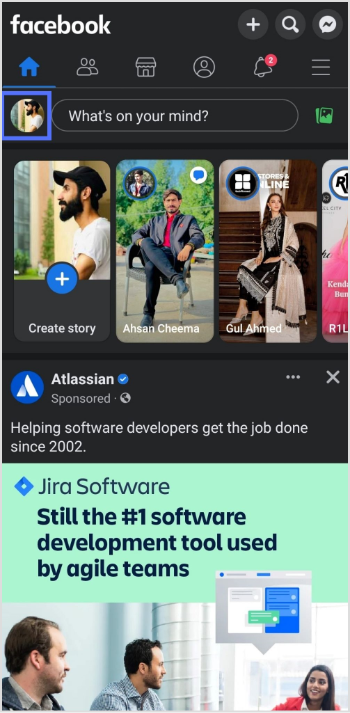
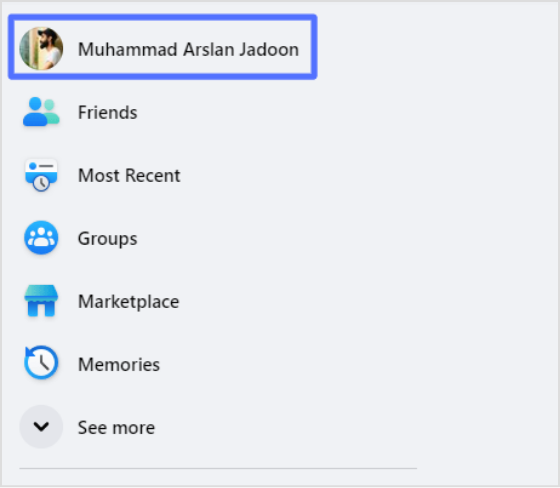
Step 1: Open the Facebook app on your mobile and tap your profile icon.
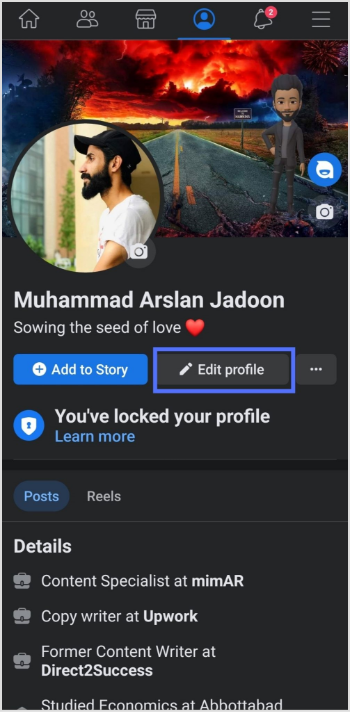
Step 2: Tap the “edit profile” button.
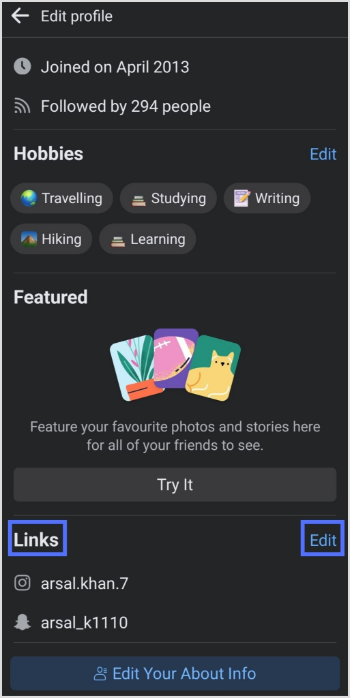
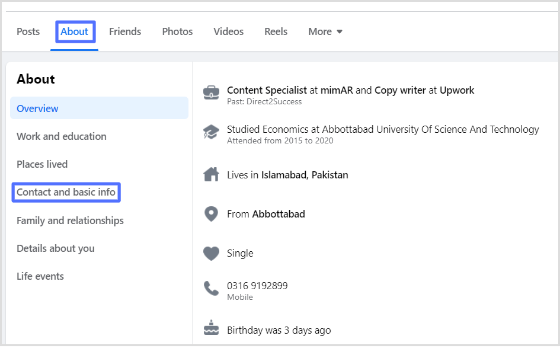
Step 3: In the edit profile section, scroll down to the “links” section and tap “edit”.
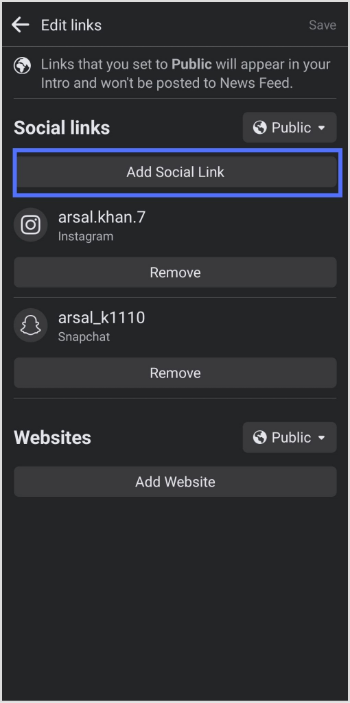
Step 4: Tap the “add social link” button.
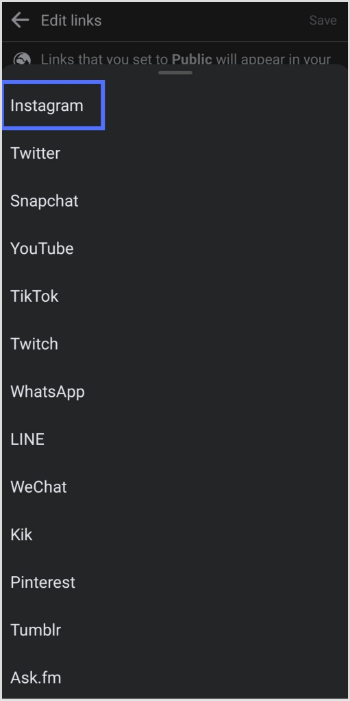
Step 5: Tap the “platform” button and choose Instagram from the list.
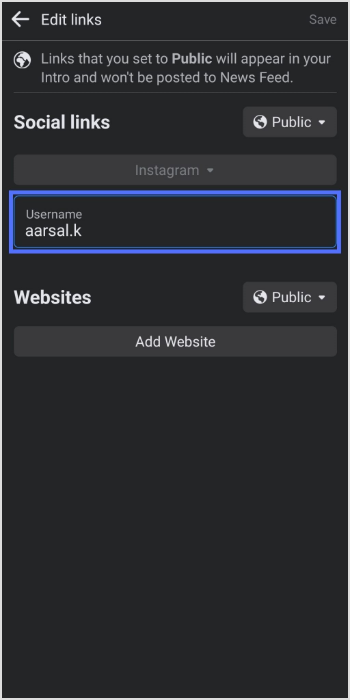
Step 6: Enter your Instagram account “user name” and tap save.
Also, don’t forget to give this Facebook link in bio tool a try. It will assist in boosting your engagement exceptionally.
Frequently asked questions
Why can’t I see my Instagram link in my Facebook bio?
If you cannot see your Instagram link in your Facebook bio, make sure you have added it correctly by following the steps above. Also, check that your Instagram account is not set to private, as private accounts cannot be linked to Facebook bios.
Why is my Instagram link not clickable in my Facebook bio?
If your Instagram link is not clickable in your Facebook bio, it may be because you have not entered the link correctly, or your Instagram account may be set to private.
In today’s digital age, social media platforms have become a powerful tool for individuals and businesses to connect with their audience and grow their online presence.
Instagram and Facebook are two of the most popular social media platforms, with millions of users worldwide. While both platforms are distinct and have unique features, linking your Instagram account to Facebook can provide numerous benefits, including cross-promotion, increased visibility, efficiency, and access to insights.
Let’s discuss how to link Instagram to Facebook and why you want to do so.
How to link Instagram to Facebook?
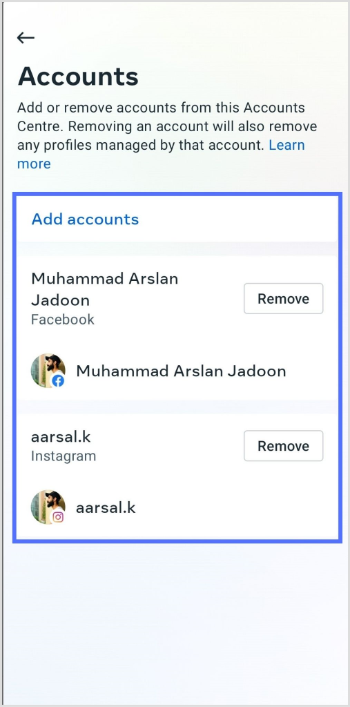
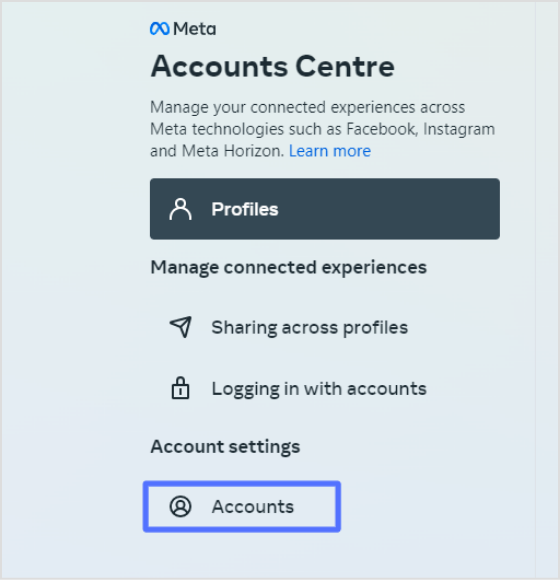
When you link your Instagram account to Facebook, you can take advantage of the integration of the accounts centre. The accounts centre is a feature that allows you to manage your connected accounts in one place, including Instagram and Facebook. Adding your Instagram account to your duplicate accounts centre as your Facebook account allows you to easily share your Instagram content directly with Facebook.
Here’s how to link your Instagram to Facebook via the accounts center:
On a mobile phone:
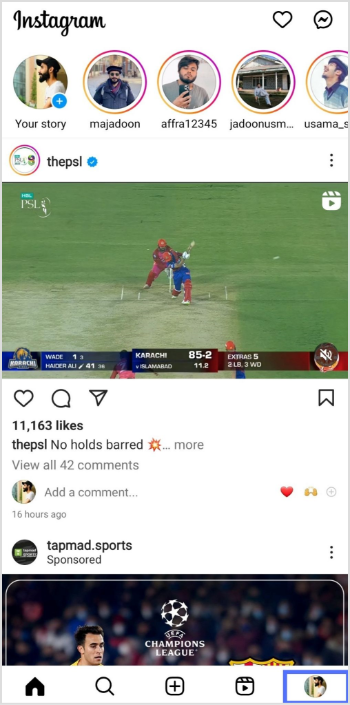
Step 1: Open the Instagram app on your mobile device.
Step 2: Go to your profile by tapping the profile icon at the bottom right corner of the screen.
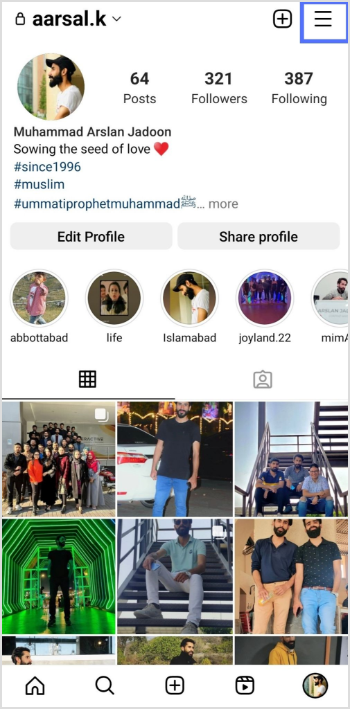
Step 3: Tap the three horizontal lines at the top right corner of the screen to access the options menu.
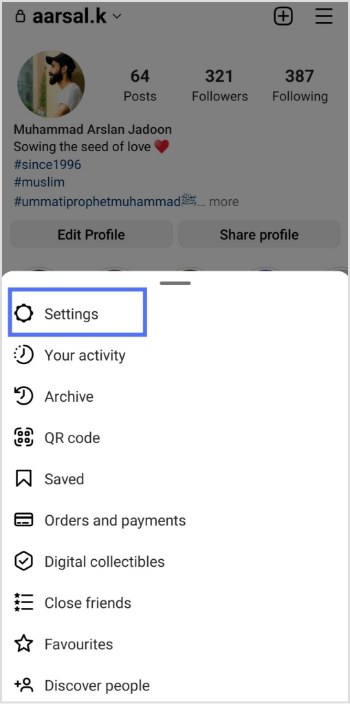
Step 4: Tap on Settings on your mobile screen.
Maximize marketing ROI
by transforming ordinary URLs into branded short links that convert.
Try Replug for free
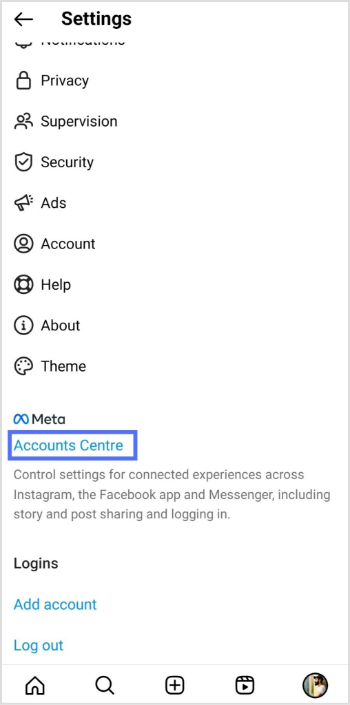
Step 5: Scroll down and tap on the accounts centre.
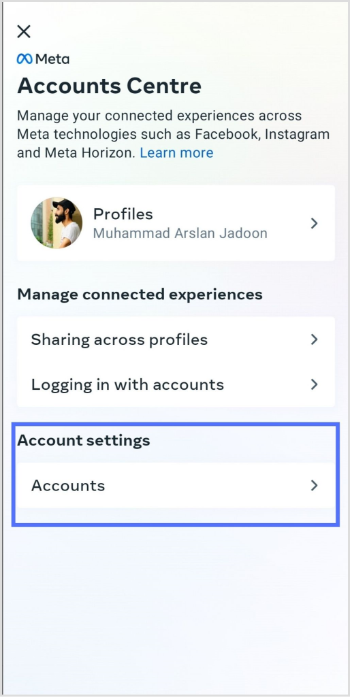
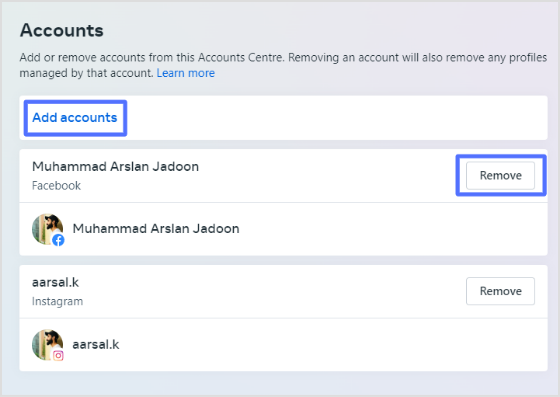
Step 6: Tap on accounts under account settings.
Step 7: Here, you can add or remove an account. Also, you can add multiple Facebook and Instagram accounts. Tap add account and follow the instructions.
Step 1:Log in to Instagram from your computer device.
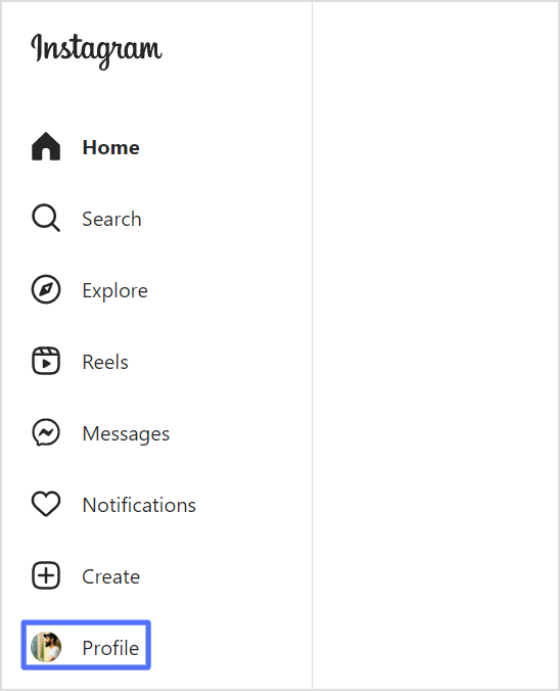
Step 2: Go to your profile by clicking the profile at the bottom of the left-side menu.
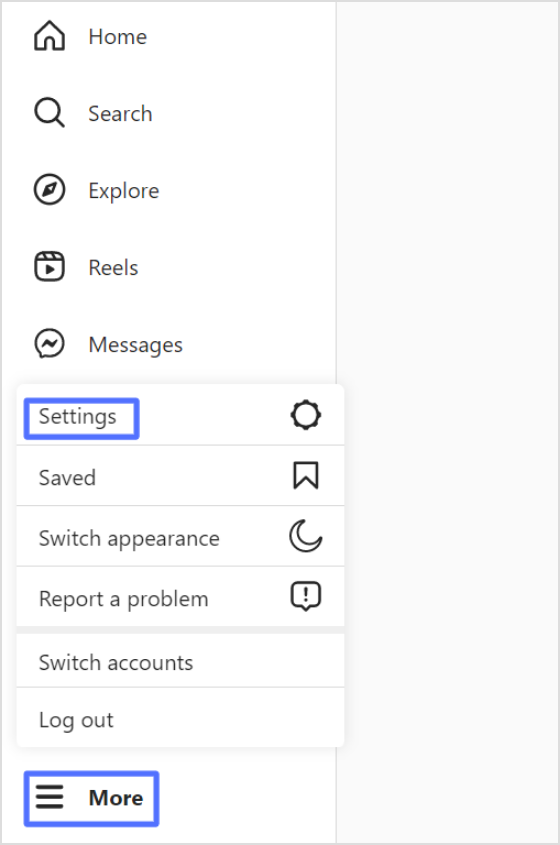
Step 3: Click on more with three horizontal lines at the left bottom side, then click setting.
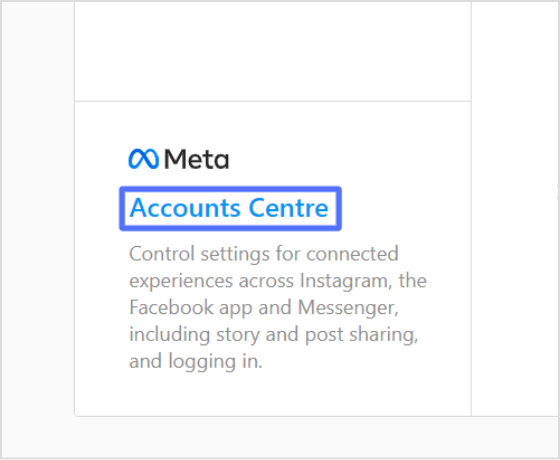
Step 4: Scroll down on your profile section and click accounts centre.
Step 5: Now, click on accounts.
Step 6: You can add or remove an account in the account section. Add an account by clicking on add accounts and following the instructions.
Important note:
Linking your Instagram account to Facebook and using the Accounts Centre is an effective way to streamline your social media marketing efforts and improve your online presence.
By adding your Instagram account to the same Accounts Centre as your Facebook account, you can easily manage your connected accounts in one place and share content, such as stories and posts, directly from Instagram to Facebook. This can save you time and effort while helping you reach a wider audience and gain new followers and engagement on both platforms.
Integrating Instagram and Facebook through the Accounts Centre is a valuable tool for individuals and businesses looking to improve their social media presence and expand their reach.
Also, keep one thing in mind that if you’re managing multiple social profiles and sharing links across platforms, posts, stories, or ads, a dedicated link management platform can help you organize and track all your URLs from one place, hassle-free. And when you share links, whether to your profile, or external content, using a branded short URL makes it a trustworthy option for your audience and quite easier to remember!
Why should I link my Instagram account to my Facebook page?
Linking your Instagram account to your Facebook page allows you to cross-promote your content and reach a wider audience. You can also manage both accounts from a single location, making sharing content and tracking your analytics easier.
Can I link multiple Instagram accounts to a single Facebook page?
Yes, you can link multiple Instagram accounts to a single Facebook page. To do this, repeat the linking process for each Instagram account you want to connect.
If you’re trying to grow on TikTok in 2026, you’re not alone, and you’re definitely in the right place.
TikTok now has nearly 2 billion active users globally, and the average user opens the app more than 15 times a day, spending around ~58 minutes scrolling through their feed. That’s a massive, highly engaged audience just waiting to discover your content.
But here’s the thing: With roughly 23 million videos uploaded every single day, standing out takes more than just posting and hoping for the best. It takes a high-impact strategic approach.
No matter if you’re starting from zero or stuck at a plateau, the provided useful and proven tips will give you a real, actionable game plan.
But first, let’s talk about why growing your TikTok followers count actually makes a difference at present.
Why growing your TikTok following matters in 2026
Having more followers on TikTok isn’t just about the numbers looking good on your profile. It actually affects how far your content travels, how people perceive you, and yes, how much money you can make from the platform.
Initial algorithm testing
Here’s something a lot of people don’t realize. TikTok now shows your new videos to your existing followers first before deciding whether to push them to a wider audience.
So the bigger and more engaged your following, the better your chances of passing that initial test and landing on the “For You Page”.
Searchability & credibility
Think about it for a second: when you land on someone’s profile, and they have a solid follower count, you instantly trust them more.
A strong follower base creates instant credibility and signals to new visitors that your content has already been validated by others. This ultimately makes them far more likely to hit that “follow” button themselves.
Creator monetization
Growing your following also unlocks real income opportunities. To qualify for TikTok’s Creator Rewards Program, you need at least 10,000 followers and 100,000 authentic video views in the last 30 days. So hitting those follower milestones is literally the key that opens the monetization door.
Brand sponsorships
And if you’re dreaming of brand deals, follower growth is what gets brands to notice you. In 2026, a creator with just 50,000 engaged followers in a profitable niche can already command anywhere from $500 to $2,500 per sponsored video (and that number only goes up from there).
Tips on how to get more followers on TikTok
Growing on TikTok doesn’t happen by accident. It takes the right mix of strategy, consistency, and knowing how the platform actually works.
Here are some solid tips to help you start gaining real followers in no time:
Tip #01: Optimize your TikTok profile
Your TikTok profile is basically your first impression, and you’ve got about 7-10 seconds to make it count.
Choose a short, memorable username that matches your niche, and consider working a keyword into your display name(like “Jake | Budget Travel”).
In addition, keep your bio clear and focused. Research suggests a well-optimized TikTok bio can improve follower conversion rates by up to 40%.
And don’t sleep on pinning your best videos at the top. They act like a trailer that convinces new visitors to hit “follow”.
Trying to appeal to everyone on TikTok usually means connecting with no one. In 2026, TikTok’s algorithm rewards niche authority and consistency far more than random, broad content.
When you pick a specific topic, e.g., fitness, book reviews, cooking on a budget, or whatever, the algorithm knows exactly who to show your videos to. This makes growth a whole lot faster and more targeted.
Tip #03: Focus on creating scroll-stopping hooks
Keep in mind that your “hook” is everything on TikTok!
According to TikTok for Business data, 63% of the highest-performing videos hook viewers within the first three seconds. And if viewers don’t stop scrolling within that window, your video essentially dies.
Open with a bold claim, a surprising fact, or a question your audience genuinely wants answered. Don’t save the good stuff for later.
Tip #04: Upload high-quality content regularly
Good content posted consistently beats perfect content posted once in a while. Posting 3–5 times per week is a solid baseline, and data shows videos between 21–34 seconds tend to get the highest completion rates.
TikTok also rewards accounts that post consistently, so think of it less like “going viral once” and more like showing up reliably for your target audience.
Tip #05: Provide unique value through content
There’s a ton of content on TikTok, so the question you should always be asking is: why would someone save, share, or follow this?
Whether you’re teaching something, entertaining people, or solving a real problem, make sure your videos give viewers something they actually walk away with.
Content that gets saved and shared sends the algorithm a strong signal that your stuff is worth pushing out to more people, thus enhancing your chances of gaining more followers.
Tip #06: Follow the latest TikTok trends
Jumping on trends early is one of the fastest ways to get discovered by new audiences on TikTok. Real-world events and cultural moments fuel trends, too.
Brands and creators who align their content with what people are already talking about often see their videos blow up fast.
The key is to put your own spin on it and don’t just copy a trend blindly. Make it relevant to your niche, so it actually brings in the right followers.
Tip #07: Capitalize on user-generated content (UGC)
UGC is one of the most underrated growth tools on TikTok. When real people create content about you or your brand, it builds trust way faster than anything you could say yourself.
Creating a unique branded hashtag and encouraging your audience to post content using it is a simple but effective way to generate a wave of free, authentic content.
Even reposting a fan’s video once a week keeps your community engaged and makes followers feel seen.
Tip #08: Consistently post at the ideal time
Even great content can get buried if you post at the wrong time. Analysis of over 2 million TikTok posts shows that the first 60 minutes after you post determine about 80% of a video’s success, so timing really matters.
Tuesday through Thursday, between 2:00 PM and 6:00 PM (in your target audience’s local time zone) is a consistently strong window, with “Saturday” being the highest-engagement day overall.
That said, check your own TikTok analytics. Your specific audience might have different peak hours.
Tip #09: Actively engage with viewers by replying to comments
Replying to comments isn’t just being polite; it’s a brilliant follower growth strategy.
The algorithm tracks creator activity, and replying to comments within the first hour of posting signals that you’re an active creator, which boosts your video’s distribution.
Even better, reply with a short video clip instead of just text. TikTok lets you do this, and it basically gives you a second piece of content for free.
Tip #10: Consider going live on TikTok
Going live on TikTok puts you right at the top of your followers’ feeds and is a great way to build a real connection with your audience.
TikTok actively emphasizes LIVE events as a native feature that triggers wider reach, especially when your other content is already performing well.
You only need 1,000 followers to unlock TikTok Live, so once you hit that milestone, it’s absolutely worth using regularly. It amplifies your chances of gaining more followers by up to 10%.
Tip #11: Use TikTok’s Duet & Stitch features
Duets and Stitches are great for tapping into content that’s already got momentum.
Duets show both videos side-by-side at the same time, while Stitches play the original clip first and then roll straight into your response. Both are perfect for adding your take on trending videos in your niche.
They also expose your profile to the original creator’s audience, which can bring in a nice wave of new followers.
Tip #12: Use relevant hashtags wisely
Hashtags on TikTok aren’t just for decoration; they help the algorithm figure out what your content is about and who to show it to.
In 2026, hashtags have become a critical part of TikTok SEO, and the smartest strategy is to blend trending tags with more specific, niche-focused ones.
Don’t dump 20 generic hashtags on every post. A focused set of 3–5 well-chosen tags will do far more for your reach than a wall of #fyp.
Tip #13: Use specific TikTok SEO strategies
TikTok has quietly become one of the biggest search engines out there, especially for younger audiences. The algorithm reads your spoken audio, on-screen text, and captions.
So, naturally, saying your target keyword out loud and including it in your caption sends a strong relevance signal to TikTok.
Think about what your ideal viewer would actually search for, and build your video around those terms. That’s how you get discovered long after a video is first posted.
Tip #14: Leverage trending ideas & music
Trending audio is basically free fuel for your content. TikTok actively pushes videos that use trending sounds and tracks.
Creators are reporting millions of views, and a significant growth in their follower count just by pairing their content with the right audio at the right time.
You don’t need to blindly copy what’s trending; just find a sound that fits your niche and put your own spin on it. The key is catching trends early before they get oversaturated.
Tip #15: Create unique & interesting TikTok challenges
TikTok challenges are one of the fastest ways to get a ton of people interacting with your content, and thus hitting that “follow” button.
Challenge-related content regularly pulls engagement rates of 6–8%, which is nearly double TikTok’s platform average of 3.70%. This is because the format naturally drives comments, shares, and duets.
The secret sauce? Keep it simple enough for anyone to try, give it a catchy hashtag, and seed it with a few creators to get the ball rolling.
Tip #16: Tell engaging stories to connect with your target audience
People don’t just follow content on TikTok; they actually follow real people.
TikTok users are reported to spend an average of 1-2 hours per day on the app, and the main force behind that kind of session time is powerful storytelling.
Whether you’re sharing a personal journey, a transformation, or even a behind-the-scenes peek at your day, stories build an emotional connection that makes people want to stick around and come back for more.
Tip #17: Collaborate with popular creators within your niche
Partnering with other creators in your space is one of the quickest ways to get in front of a brand-new audience that’s already interested in what you do.
Collaboration through duets, stitches, co-creations, or creator reactions exposes your profile to entirely new communities without spending a dime on paid promotion.
Even a simple shoutout or joint video with a creator who has a similar-sized following can result in a solid wave of new followers.
Tip #18: Cross-promote your TikTok videos
Don’t let your TikTok content live in one place; spread it around. Sharing your TikTok videos on Instagram Reels, YouTube Shorts, Pinterest, or even in your email newsletter gives every video a second life.
This drives people from other platforms straight to your TikTok profile, some of whom might click that “follow” button.
Cross-platform promotion is one of the most consistent habits among fast-growing creators in 2026, and it takes almost zero extra effort once the video is already made.
Tip #19: See what others are doing within your niche
Before you can stand out, it helps to know what’s already working.
Spend a little time each week scrolling through top creators in your niche. The goal is not to copy them, but to spot content patterns, trending formats, and gaps you can fill.
TikTok’s Creative Center is a free tool that shows you top-performing content and ads by industry. It’s honestly one of the most underused research tools available to creators right now. Utilize it to the best of your benefit and achieve your major objective, i.e., gain more followers on TikTok.
Tip #20: Add closed caption text to your videos
Adding captions to your TikToks isn’t just a nice accessibility touch; it’s genuinely a growth hack.
TikTok videos with captions increase impressions by 55%, and research shows that captioning a video improves comprehension and viewer memory by up to 38%.
Most people scroll TikTok in silent mode (especially in public places), so if your message isn’t readable on screen, you’re losing a massive chunk of potential viewers before they even hear your voice.
Tip #21: Create amazing TikTok stories
TikTok Stories sit right at the top of your followers’ feeds and are a great low-pressure way to stay visible without having to post a polished video every single day.
Use them to share quick updates, sneak peeks, polls, or behind-the-scenes moments that feel more casual and real.
In 2026, TikTok’s algorithm rewards content that builds consistent viewer engagement over time. And Stories are one of the easiest ways to keep that engagement ticking between your main posts.
Tip #22: Leverage Creator Rewards Program
If you’re already putting out quality content, you might as well get paid for it, and the Creator Rewards Program is how TikTok makes that happen.
Creators are now earning between $0.40 and $1.00+ per 1,000 views, with some pulling in $600+ per million views through improved RPM rates.
To qualify, you need to be 18+, have at least 10,000 followers, hit 100,000 qualified views in the last 30 days, and post original videos longer than one minute.
It’s a solid push to focus on longer, higher-quality content. And the more the content is top-notch, the better the chances of gaining more followers along the way!
Tip #23: Leverage TikTok Spark Ads
Spark Ads are basically TikTok’s smartest ad format. Instead of creating a separate ad from scratch, you take one of your already-performing organic videos and put paid reach behind it.
Every engagement earned during a Spark Ads campaign (including new followers) gets permanently added to the original post, unlike standard ads where all that activity disappears the moment your budget runs out. It’s one of the most efficient ways to grow your following without it feeling like an ad.
Tip #24: Use the TikTok “Promote” feature
The Promote feature is TikTok’s built-in boost tool, and it’s designed to be simple enough for any creator to use (no ads manager needed).
You can set your goal as follower growth, more video views, or website traffic, and TikTok will push your content to a broader, targeted audience that matches your niche.
It’s a great option when you have a video that’s already getting decent organic traction, and you just want to give it a little extra push without a huge budget.
Tip #25: Include a clear call-to-action (CTA)
It sounds obvious, but a lot of creators skip this one entirely. If you want people to follow you, tell them to follow you.
Simply ending a video with a clear CTA phrase like “Follow for more” can noticeably increase your follow-through rate. Plus, in some cases, a well-placed CTA can double your conversion from viewer to follower.
Keep it natural and put it at the point in the video where the viewer is most engaged; don’t just tack it on at the very end as an afterthought.
Tip #26: Use TikTok’s built-in analytics
If you’re not checking your analytics regularly, you’re basically flying blind.
According to Influencer Marketing Hub’s 2026 report, 76% of successful creators use TikTok analytics daily, and they consistently outpace creators who don’t check their metrics.
Inside TikTok Studio, you can see exactly who your audience is, when they’re most active, which videos are actually driving new followers, and where your traffic is coming from. Basically, all the info you need to stop guessing and start growing with a real strategy.
How Replug helps content creators succeed on Tiktok
Growing your TikTok following in 2026 isn’t about luck; it’s about combining the right strategy, consistency, and a willingness to actually use the tools available to you.
From optimizing your profile to nailing your hooks, riding trends, and tracking your analytics, every tip above plays a part in building real, lasting growth.
And above all, one small but handy addition to your toolkit is Replug.io. Beyond letting you create short link for your bio and tracking clicks, it also offers free tools like a TikTok caption generator and a TikTok downloader. The perfect solution for streamlining your content workflow.
Give Replug a try today and make your TikTok growth journey just a little easier!
Maximize marketing ROI
by transforming ordinary URLs into branded short links that convert.
Try Replug for free
Frequently asked questions
How to get more followers on TikTok for free?
There’s no shortcut button for free TikTok followers. Anyone promising that is usually selling something shady.
The real “free” method is simple:
– post consistently, – nail your hooks, – jump on trends, – use trending sounds, – add captions, and – engage back with everyone who comments.
In 2026, your follower count is essentially your social currency and your ticket to the For You Page, and that’s built through genuine content, not gimmicks.
How to get followers on TikTok in 5 minutes?
Honestly, you can’t guarantee followers in 5 minutes, but you can set yourself up for fast wins.
– Pick a trending sound, – Record a quick video using a strong 3-second hook, – Add engaging captions with a clear CTA, and – Post it during a peak engagement window
If the hook lands, growth can start almost immediately. But real, lasting follower counts build over days and weeks, not minutes.
How long does it take to gain TikTok followers?
It really depends on your content quality, niche, and consistency, but most creators see meaningful growth (around 1,000+ followers) within their first three months of posting regularly.
Some videos blow up overnight, thanks to the algorithm, while others build slowly through steady, niche-focused content. The key is staying consistent; growth tends to compound over time rather than happen all at once.
What are some of the best content ideas to get TikTok followers fast?
Some formats consistently perform well:
– relatable storytelling, – “day in my life” content, – quick tutorials or hacks, – before-and-after transformations, – trend remixes with your own twist, and – “stitch this” or duet-style reaction videos
A good rule of thumb is mixing roughly 70% community and value-driven content with 30% personal or behind-the-scenes storytelling. This combo keeps people entertained while building a real connection with you.
What are the major benefits of having a large number of followers on TikTok?
A bigger following means your new videos get tested with a larger initial audience, boosting your chances of hitting the For You Page. It also builds instant credibility, since people trust accounts with solid follower counts more.
Besides, it unlocks monetization, since the Creator Rewards Program requires at least 10,000 followers and 100,000 qualified views in the last 30 days. Plus, it makes you far more attractive to brands looking for sponsorship deals.
What are the common mistakes that halt TikTok followers number?
– The biggest one is buy TikTok followers that are fake. TikTok’s 2026 algorithm easily detects inorganic growth and will shadowban your account, destroying your reach and credibility permanently. – Another major mistake is ignoring analytics. Posting blindly without reviewing what’s actually working, like watch time and audience demographics, is like driving without a map. – And finally, inconsistent posting. Disappearing for weeks at a time confuses both the algorithm and your audience.
Avoid all three, and you’re already ahead of most creators.
How does the TikTok algorithm work in 2026?
In 2026, TikTok shows your new videos to your existing followers first, and based on how they respond, decides whether to push the content out to a wider audience.
The algorithm weighs watch time as a percentage of video length as the strongest organic ranking signal, alongside replays, shares, comment depth, and how often a video drives profile follows.
It doesn’t reward likes, follower-only reach, or hashtag stuffing nearly as much as it used to. So the focus has clearly shifted toward genuine engagement and watch-through behavior.
Instagram isn’t just a photo-sharing app anymore; it’s a full-blown business engine.
With 3 billion active users as of 2025, the platform has firmly cemented itself as one of the most powerful marketing channels on the planet. And it’s still growing, reaching 2.14 billion monthly active users in Q1 2026 alone, up 6.3% year over year.
No matter if you’re a brand, a creator, or someone just starting out, your follower count can make or break your reach here.
Sure, some people search for free Instagram followers hoping for a shortcut, but real, lasting growth comes from a defined strategy, not shortcuts. That’s exactly what this post is about: 10 proven ways that actually work in 2026.
But first, let’s talk about why your follower count matters more than you might think.
Why do Instagram followers count matter so much?
Before we get into the “how,” it’s worth taking a second to understand the “why”. Your follower count isn’t just a vanity number; it directly shapes how people perceive you, how brands treat you, and how much money you can actually make on the platform.
Social proof & influence
Humans are wired to trust what’s already popular. When someone lands on your profile and sees a solid follower count, they’re far more likely to follow you, engage with your content, and take you seriously. This is because if thousands of others already do, you must be worth it.
Credibility & brand trust
Whether you’re a business, a content creator, or a personal brand, a strong follower count signals that you’re legitimate. It’s often the first thing potential customers or collaborators check, and a low number (even with great content) can make people second-guess hitting that “Follow” button.
Monetization & brand partnerships
Brands don’t just look at your content when considering a partnership; they look at your audience size first. A bigger, engaged following opens the door to sponsored posts, affiliate deals, and long-term collaborations that can turn your Instagram presence into a real income stream.
How to get a lot of followers on Instagram fast
Growing on Instagram in 2026 isn’t just about posting pretty pictures and hoping for the best; it takes real effort and the right moves. Here are the top strategies that actually work if you want to see consistent growth.
1. Build a top-notch strategy before targeting Insta followers
Before you post a single thing, you need a clear game plan. Think about:
who your target audience is,
what kind of content you’ll create,
how often you’ll post, and
what goals you’re working toward
This is because jumping in without a strategy is basically throwing darts in the dark. Accounts that post with purpose and direction consistently outperform those that wing it, so take the time to map things out before hitting that “Share” button.
2. Optimize your IG profile
Your Instagram profile is your first impression, and you’ve got about three seconds to make it count before someone scrolls past. Here’s how to make sure it works hard for you:
Use a clear profile picture & define your niche
Your profile photo should be clean, recognizable, and consistent with your brand, no matter if that’s your logo or a sharp headshot. And make sure your niche is immediately obvious; people should know within seconds what you’re about and whether your account is worth a follow.
Write a compelling bio with your niche’s keywords
Remember, your bio is searchable, so use it wisely. Pack it with relevant keywords that describe what you do and who you serve. This helps Instagram surface your profile to the right people.
If you’re struggling with what to write, an Instagram bio generator can help you craft something sharp and keyword-rich in seconds.
Don’t leave visitors guessing what to do next. A simple CTA phrase like “Follow for daily marketing tips” or “Click below to grab your free guide” gives people a clear next step, and these small nudges can make a big difference in converting profile visitors into actual followers.
Get Meta verified on Instagram
The blue checkmark on your Insta profile still carries serious weight in 2026. Getting Meta verified on Instagram not only boosts your credibility instantly but can also improve your visibility in search results brilliantly.
Besides, it gives your profile that extra layer of legitimacy that makes new visitors more likely to trust and even follow you, right away.
3. Focus on Instagram Reels & Stories
If you’re not prioritizing Reels right now, you’re leaving a massive growth opportunity on the table.
Reels currently drive 50% of all time spent on Instagram, generate 140 billion daily views, and reach an average of 30.81% of audiences. This is more than double the reach of carousels, image posts, and Stories.
Simply put, the algorithm loves Reels, and so does your potential audience!
Post high-quality, keyword-optimized Reels & Stories
Quality matters, but so does discoverability. Use relevant keywords in your Reel captions and audio descriptions so Instagram knows what your content is about and can push it to the right people.
Reels in the 15 to 30-second range tend to average the highest engagement, so keep them tight, punchy, and valuable. Keep in mind:no one wants to watch a slow, padded video!
Like & reply to comments on your Reels
This one’s simple but so often overlooked. When you engage with the people who comment on your Reels, it signals to the algorithm that your content is generating real conversation, which pushes it out to even more people.
Plus, it builds genuine community, and people are far more likely to stick around and follow an account that actually talks back.
4. Consistency is key (post every single day)
The Instagram algorithm rewards accounts that show up regularly and not just occasionally when inspiration strikes. Consistent posting tells the platform you’re an active creator worth promoting, and it keeps your audience engaged and coming back for more.
Find the best time to post on Instagram
Timing can make or break how your content performs. Based on studies and analysis of 9.6 million Instagram posts, the best times to post are:
1. Thursday at 9 a.m.
2. Wednesday & Thursday between 11 a.m. and 1 p.m. and 6 p.m. and 9 p.m.
3. While, Friday and Saturday consistently see the lowest engagement
That said, your ideal time ultimately depends on your specific audience, so use Instagram Insights to see when they are most active and schedule accordingly.
Post top-notch, share-worthy content
Good content stops the scroll, whereas great content gets shared. Focus on creating posts that are genuinely useful, entertaining, or relatable enough that people want to send them to a friend.
According to Instagram’s Head Adam Mosseri, “sends per reach” (how often people DM your post to someone else) is now the platform’s most important algorithmic ranking signal, so if your content isn’t getting shared, it’s not getting pushed.
Share user-generated content (UGC)
Reposting content from your followers or customers is a win on multiple levels. It fills your feed with authentic, relatable content, makes your community feel seen and appreciated, and signals to new visitors that real people love what you do. It also saves you time, so it’s honestly one of the smartest content moves you can make.
5. Craft compelling captions that encourage action
A great visual gets the click, but a great caption gets the comment, the save, and the follow. Your captions should match the tone of your content, speak directly to your audience, and always include some kind of prompt, whether it’s a question, a call to action, or an invitation to share their thoughts.
If writing captions feels like a chore, an Instagram caption generator can give you solid starting points that you can then tweak to match your voice and keep things feeling personal.
6. Use Instagram SEO & hashtags strategically
A lot of people still think Instagram growth is all about hashtags, but the game has completely changed. Instagram has evolved into a visual search engine, and in 2026, SEO and keywords carry far more weight than stuffing your captions with hashtags.
Start by adding relevant, searchable keywords naturally into your captions, bio, and even the on-screen text in your Reels. Instagram now reads all of this to figure out what your content is about and who to show it to.
Think about the actual phrases your ideal follower would type into the search bar and write your captions the way people actually search. Also, don’t forget to optimize your alt text on images; it helps Instagram’s AI understand your content better and quietly improves your discoverability.
As for hashtags, the old “dump 30 tags and pray” approach is officially dead. Instagram now enforces a limit of 5 hashtags per post, and posts that exceed this number can see suppressed distribution in the Explore feed, hashtag browse pages, and Reels recommendations. So keep it tight!
Use 3 to 5 niche-specific, highly relevant hashtags that match exactly what your content is about. Think less about reach and more about relevance, because the algorithm is smart enough now to penalize mismatched tags.
The winning combo in 2026: Keyword-rich captions combined with 3–5 niche hashtags consistently outperform every other approach; use both, not one or the other.
7. Collaborate with influencers
Partnering with the right creators can give your account a serious growth boost, and the numbers back this up. Brands earn around $5.78 in revenue for every $1 spent on influencer marketing campaigns, making it one of the best-performing marketing channels out there right now.
But here’s the thing: You don’t need to blow your budget on mega-celebrities. Micro-influencers (10K–100K followers) generate an average engagement rate of 3.86% compared to just 1.21% for mega-influencers, and they cost around 60% less. So, the ROI is actually much stronger with smaller, niche creators whose audiences genuinely trust them.
The smart move is to find influencers whose audience already overlaps with your ideal follower, and the easiest way to do that at scale is through influencer marketing platforms. These let you search and filter creators by niche, engagement rate, audience demographics, and more.
These tools take the guesswork out of finding the right fit and help you run collaborations that actually drive real followers to your profile, not just empty impressions.
8. Leverage Instagram Ads
If you want to genuinely speed up your follower growth without waiting months for organic traction to kick in, Instagram Ads are absolutely worth considering.
Instagram ads currently reach more than 1.74 billion users worldwide, which means the targeting potential is massive. Plus, with Meta’s advanced audience tools, you can get your content in front of exactly the right people based on their interests, behavior, location, and more.
The key is to not just throw money at random posts. Instead, let your organic content do the testing first. Identify your best-performing Reels and posts, then put ad spend behind those proven pieces to amplify their reach.
Video and Reels-based ads drive roughly 38% higher engagement and ROI than static image formats, so if you’re going to run ads, lead with short-form video. Start small, test different creatives and audiences, and scale what’s working.
Even a modest daily budget, when targeted well, can consistently bring in new, relevant followers who actually care about what you do.
9. Cross-platform promotion
Don’t limit your growth to Instagram alone; the people who should be following you are probably already hanging out on other platforms too. If you’re active on TikTok, YouTube, LinkedIn, or X, use those channels to funnel people back to your Instagram.
Something as simple as adding “follow me on Instagram for more” at the end of a TikTok video, or sharing your Reels on your other social channels, can drive a steady stream of new followers without any extra content creation effort.
Your email list is also a seriously underrated growth tool. A quick shoutout in your newsletter or even adding your Instagram handle to your email signature can convert existing subscribers into followers.
The idea is to make your Instagram visible everywhere your audience already is, because the best followers are the ones who already know and trust you from somewhere else.
10. Tap into analytics & adjust accordingly
All the strategy in the world means nothing if you’re not actually looking at what’s working. Instagram Insights gives you a clear picture of which posts are getting the most reach, saves, shares, and profile visits, and these are the signals you need to pay attention to.
If a certain type of Reel is consistently outperforming everything else, that’s your cue to make more of it. If a posting time isn’t landing, adjust it.
Make it a habit to review your analytics at least once a week and ask yourself the right questions:
Which content drove the most follower growth?
What’s getting shared the most?
Where are people dropping off?
The accounts that grow consistently in 2026 aren’t necessarily the most creative ones; they’re the ones that treat Instagram like a feedback loop, constantly testing, learning, and refining their approach based on real data rather than guesswork.
Growing on Instagram in 2026 takes more than just posting and hoping for the best. It takes strategy, consistency, and a willingness to keep learning and adapting.
From optimizing your profile and mastering Reels to collaborating with the right creators and leaning into analytics, every method we’ve covered works together to build real, lasting growth. Start with two or three strategies, stay consistent, and build from there.
And while you’re at it, make sure every link you’re sharing actually works for you. Replug is an all-in-one link management platform that lets you create personalized branded short URLs within seconds with its efficient custom URL shortener.
So instead of messy, forgettable links in your Instagram bio, Reels, or Stories, you share clean, professional URLs that people actually click and trust.
Maximize marketing ROI
by transforming ordinary URLs into branded short links that convert.
Try Replug for free
Frequently asked questions
What is the 5-3-1 rule on Instagram?
The 5-3-1 rule is a simple daily engagement strategy where:
– you like 5 posts, – leave meaningful comments on 3 posts, and – follow 1 new account within your niche
The idea is to show up consistently as an active member of your community rather than just pushing out content and waiting for results.
When done genuinely, it signals to the algorithm that you’re a real, engaged user, and the people you interact with are far more likely to check out your profile and follow you back. It only takes about 10–15 minutes a day, but the compound effect over weeks adds up.
How to get followers on Instagram fast?
The fastest organic way to grow is by posting Reels consistently. They get pushed to non-followers far more than any other format and currently generate 55% of their views from people who don’t already follow you.
Combine that with a fully optimized profile, strong CTAs, and daily engagement through methods like the 5-3-1 rule.
If you want to speed things up even further, collaborating with micro-influencers in your niche or running targeted Instagram ads behind your best-performing content can bring in a solid wave of new followers in a short time.
How to get free Instagram followers?
Genuine free follower growth comes from:
– consistently creating valuable content (especially Reels), – engaging actively with accounts in your niche, – using relevant keywords and 3–5 niche hashtags, – cross-promoting your Instagram on other platforms, and – collaborating with other creators
There’s no real shortcut here!
Websites claiming to give you hundreds of free IG followers instantly are almost always bots or scams that will do more harm than good to your account. The strategies covered in this blog are your best bet for building a real, engaged audience without spending a dime.
How to get followers on Instagram without posting?
Realistically, not posting at all makes growth very difficult since Instagram’s algorithm heavily favors active creators. That said, you can still attract followers without posting new content by engaging consistently with others (commenting on posts in your niche, replying to Stories, and using the 5-3-1 rule daily).
Making sure your profile is fully optimized with a clear bio, strong profile photo, and well-organized Highlights also helps convert profile visitors into followers. Cross-promoting your Instagram on other platforms where you’re more active is another solid option.
But long-term, some form of content is pretty much non-negotiable if you want real growth.
How many followers on Instagram to get paid?
You can start making money on Instagram with as few as 1,000 followers, provided you have high engagement and a clear niche. However, the exact number of followers you need largely depends on your monetization method, with some tools unlocking at specific follower thresholds.
How to get 1K followers on Instagram in 5 minutes?
Straight answer: you can’t, and anyone promising otherwise is selling you bots or fake accounts. Getting 1,000 real, engaged followers in 5 minutes isn’t possible through any legitimate method.
What you can do is set up a strong foundation quickly:
– optimize your profile fully, – post your first batch of high-quality Reels, – use relevant hashtags and keywords, and – start engaging in your niche right away
With consistent effort over a few weeks, hitting 1K is absolutely realistic, but there’s no genuine shortcut that gets you there in minutes.
Is it legal to buy Instagram followers?
Buying Instagram followers isn’t technically illegal under most countries’ laws, but it directly violates Instagram’s Terms of Service, which is reason enough to avoid it.
Instagram’s algorithms actively detect fake or bot accounts and remove them, so you end up paying for followers that disappear. Beyond that, fake followers destroy your engagement rate, which tanks your organic reach, makes you look less credible to real people and brands, and can get your account restricted or permanently banned.
For businesses, the FTC also has regulations against using fake followers to misrepresent your influence, which can lead to serious financial penalties. The short version: it’s not worth it!
What helps and what hurts your Instagram reach?
This helps: Posting Reels consistently, using keyword-rich captions, earning saves and DM shares (the #1 algorithm signal in 2026), engaging genuinely with your community, posting at peak times for your audience, using 3–5 relevant niche hashtags, and collaborating with other creators.
This hurts: Posting irregular or low-quality content, using irrelevant or banned hashtags, having a poor engagement-to-follower ratio, buying fake followers or using bots, posting too infrequently, ignoring comments, and relying solely on static image posts, which consistently underperform compared to Reels and carousels.