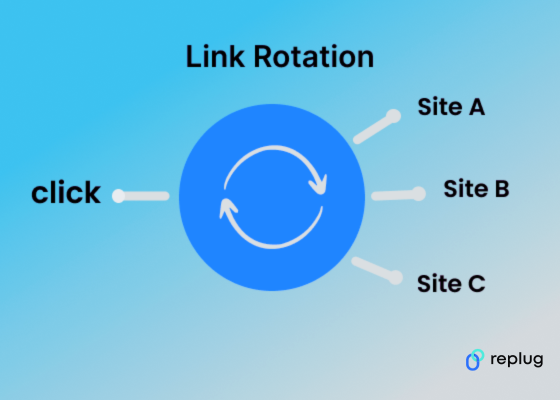
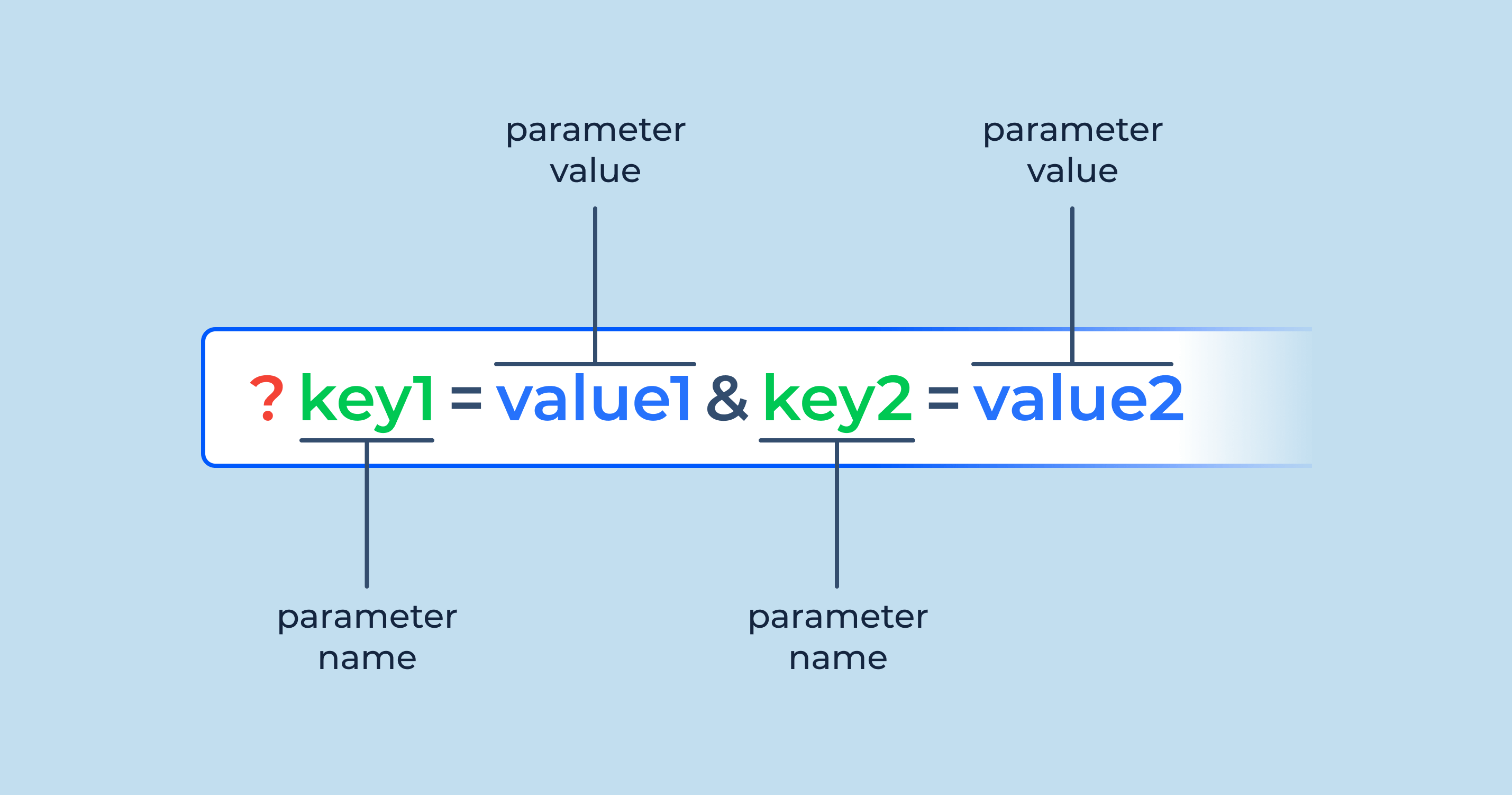
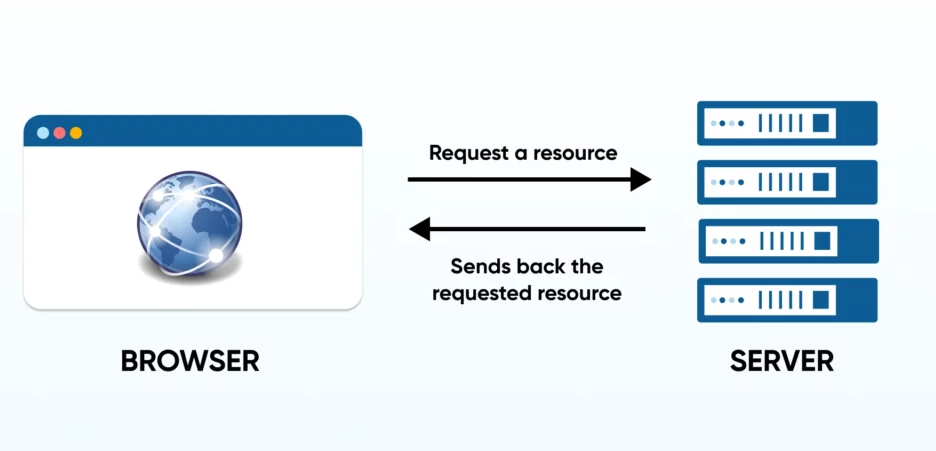
A link rotator is a link management strategy that splits a website page traffic and redirects visitors to multiple destinations.
The core idea behind this link strategy is to make a change in the destination URL and provide visitors with more than one option to analyze their response.
Why Marketers Need to Use a Link Rotator Tool?
The link rotation is mostly done by digital marketers for several reasons, such as conversion optimization, landing page analysis, user experience and others.
Read further to easily setup link rotation on any URL.
Have you ever thought about experimenting with link rotation?
Bloggers, affiliate marketers, and digital marketing experts try to capitalize on every opportunity to grasp the audience’s attention and convert visitors into subscribers or customers.
Now different marketers and social media experts may opt for different routes to achieve this very goal of converting the audience. So they experiment with a number of tactics to achieve the goal.
Since links are vital in the digital world for conversion optimization, companies apply different techniques to make their links better and more prominent, such as URL shortening and link rotation.
Benefits of using a link rotator
The table below shows the benefits of a link rotator and why online marketers should start rotating link destinations and routing traffic.
Benefits of using a Link Rotator
Equitable traffic distribution
Ensures fair and balanced sharing of traffic among multiple URLs.
A/B testing capabilities
Enables testing various landing pages or offers to enhance conversion rates.
Operational efficiency
Allows specific criteria for URL rotation, enhancing control and customization.
Real-time optimization
Facilitates immediate adjustments based on performance analytics for better outcomes.
Flexible modifications
Easily update destination URLs without altering the shared link, ensuring adaptability.
Comprehensive tracking
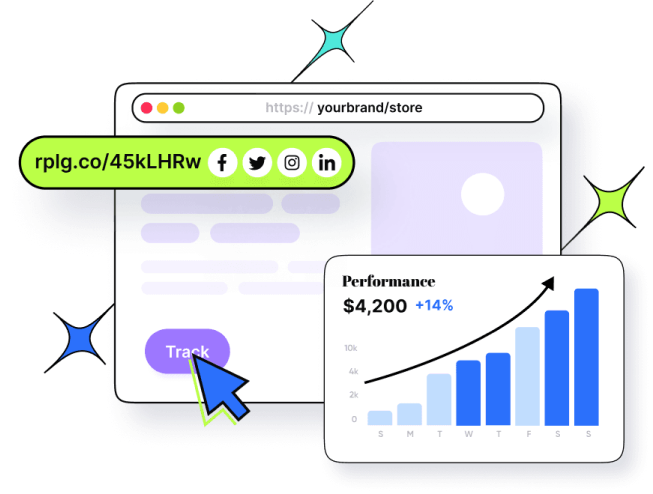
Provides detailed analytics for each URL’s performance within the rotation, aiding in informed decisions.
Targeted marketing
Allows setting specific criteria for URL rotation, enhancing control and customization.
Customizable rules
Allow setting specific criteria for URL rotation, enhancing control and customization.
Online marketers have a collection of different web links, each leading to a unique landing page or promotional offer. Instead of manually sharing these links or relying on a single destination, a link rotator acts as a dynamic guide, deciding where users should go when they click on a shared link.
Now, here’s where it gets even more interesting. Some Link rotation tools are not just traffic directors; they are also powerful tools for marketers testing multiple versions of a landing page, each designed to appeal to your audience in a slightly different way.
This routing can be strategic, ensuring that certain links get more attention than others based on a predefined distribution plan or even randomized to ensure a fair distribution of clicks.
In a global holiday sale campaign, a link rotator serves as a sophisticated traffic director.
Instead of sharing individual product links, a link rotator dynamically guides users to region-specific categories on the basis of preset filters.
For instance, you are a marketer of a global clothing brand and want to show tailored product pages based on your audience’s geographic/country location.
Customers in colder climates, like the United Kingdom, seamlessly transition to the “Winter Warmth Collection,” while those in warmer regions, such as Brazil, are seamlessly redirected to the “Summer Splendors Showcase.”
This strategic use of link rotation ensures a tailored shopping experience, allowing marketers to adapt and fine-tune their sales approach based on real-time insights into regional preferences and campaign performance.
Thus, the link rotator emerges as a powerful tool that can help e-commerce stores, SAAS companies, and any other business that sells products online. It helps steer online campaigns toward maximum effectiveness across diverse global markets with condition-based filters.
Best link rotators
It wouldn’t be fair to discuss everything about the link rotators but not mention industry-leading link rotators for marketers to try out.
Let’s first discuss the best link rotator.
Replug – The best link rotator with advanced features
Replug is a powerful link optimization platform that comes with several advanced features other than being a link rotator or a link disguiser, such as:
One of the best things about this tool is that it gathers analytics data for click and conversion data on links. Identify the most suitable marketing combinations and make the most of it. All these benefits speak volumes.
Digital marketers, affiliate bloggers, and conversion optimizers do a lot of testing.
For instance, they create multiple ads or landing pages to see which one performs better than the rest. And some marketers need to direct traffic on the basis of their audience preferences for more personalized experiences and targeted campaigns.
This is where Replug enters like a boss and shines, i.e. helping you get the most return from your online links and campaigns with Link rotation (also known as traffic routing) & A/B testing.
Replug has segregated link rotation into two separate features, i.e., Link Rotator (Traffic Routing) and A/B Testing. This helps users separate the campaigns and gain far more effective data insights for each marketing campaign.
Let’s have a more in-depth look at these essential features.
Link rotator (Traffic routing)
When your website visitors or social media followers click that snazzy short link, the link rotator gets activated and allocates the destination URL for the pre-defined settings.
In easier words, this method ensures your users are directed to their intended destination without any hassle. And you know who benefits from all this? E-commerce stores, SAAS companies—basically, any business selling stuff online gets a boost from these tactics. They help optimize the journey from click to conversion, making everyone happier in the end.
A/B testing
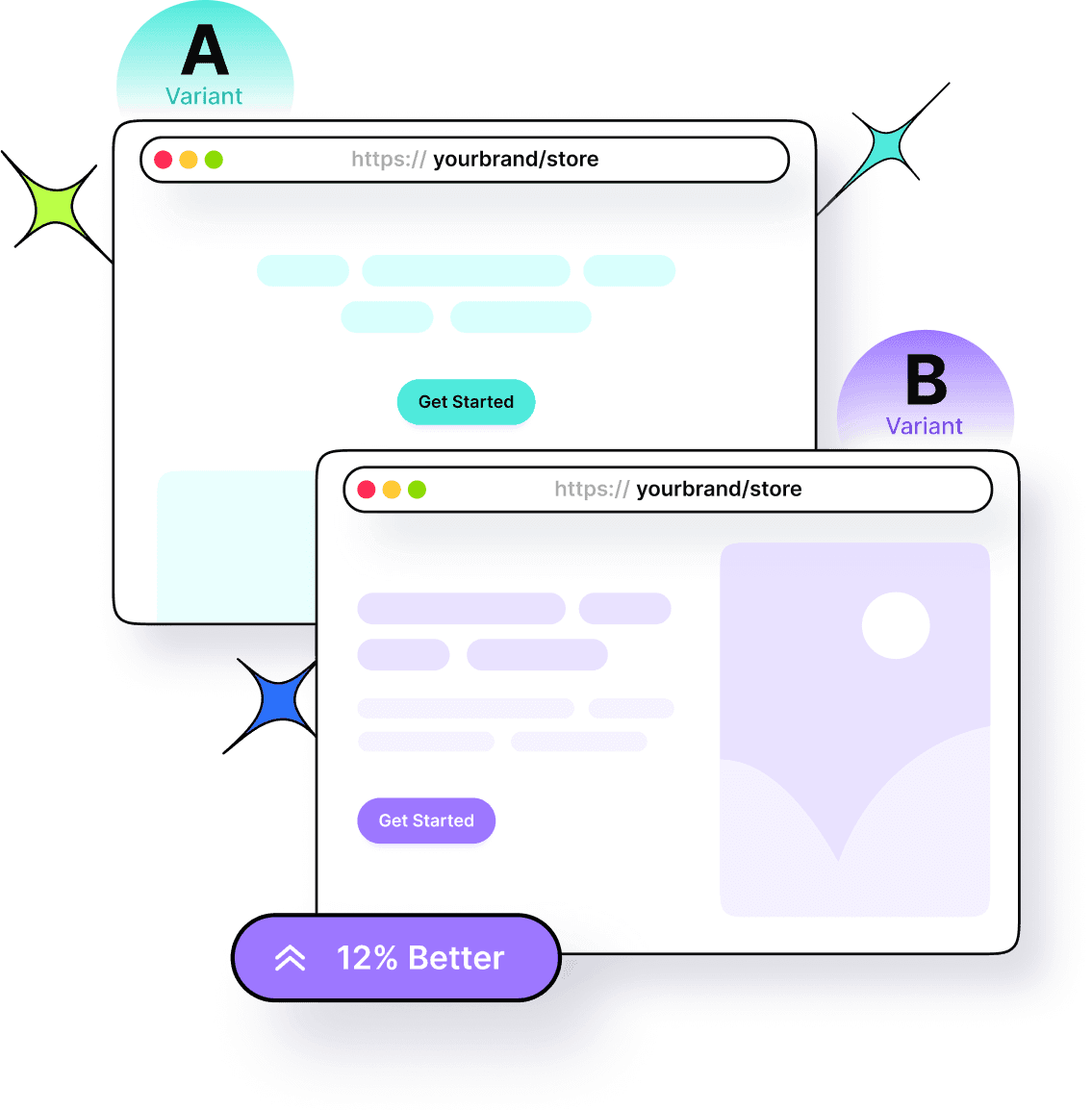
One of the essential features of Replug is A/B testing which allows marketers to redirect visitors to multiple destinations to see how splitting the traffic affects the campaign performance.
Marketers love A/B testing – They toss a bunch of destination URLs into the mix and set the percentage of visitors each link gets. It’s like running mini experiments to see which page or offer hits the jackpot.
Link rotation & A/B testing using Replug
First, you need sign up and log in to your Replug account.
Once you’ve set up the account, log in to your Replug account with your credentials to start the link management.
Then create a brand and campaign.
Note: Learn how to create a brand and campaign on Replug.
Link rotation with Replug
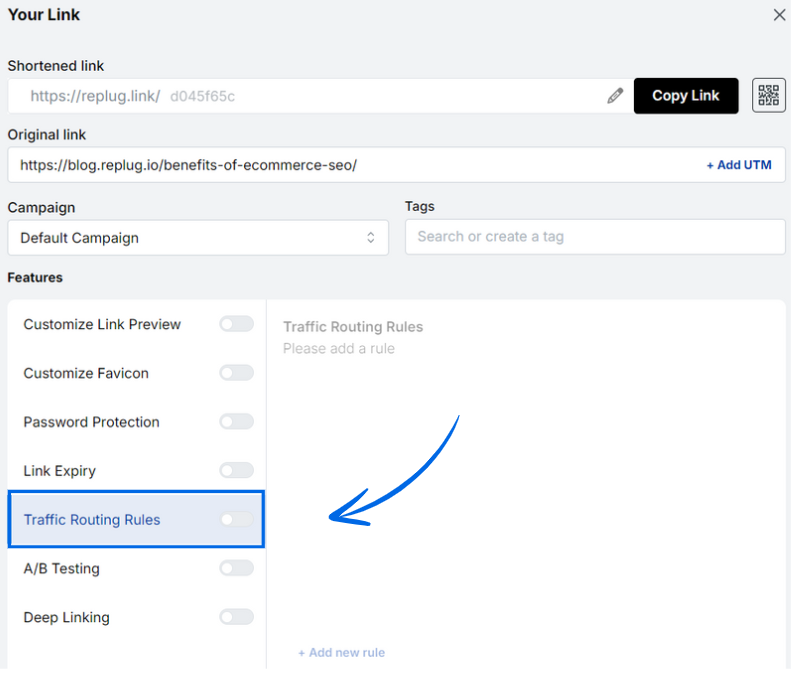
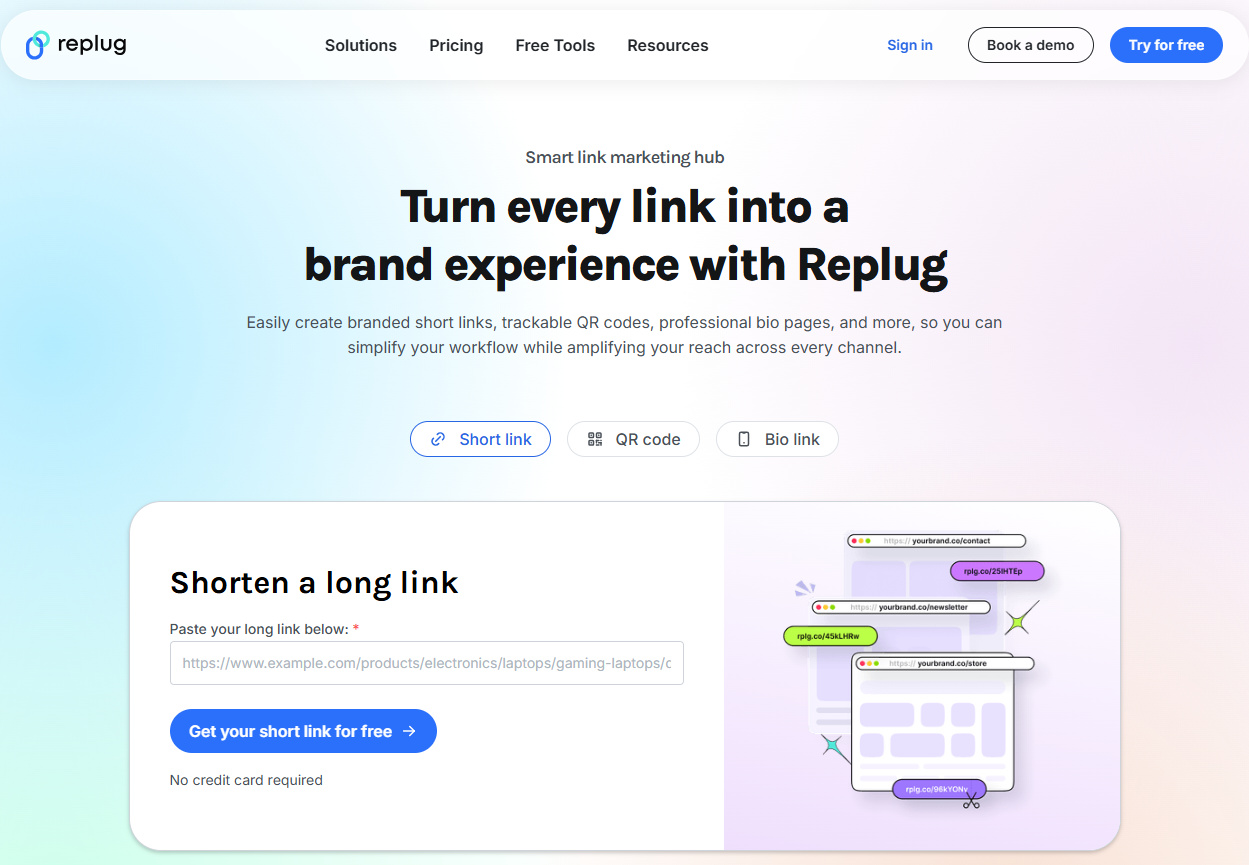
Step 01: On the Home page, paste your desired link in the top bar and click to generate a Replug short link.
Step 02: You’ll be redirected to a new page where you can edit the slug or make other changes to your link.
Scroll down to select the “Traffic Routing Rules” bar.
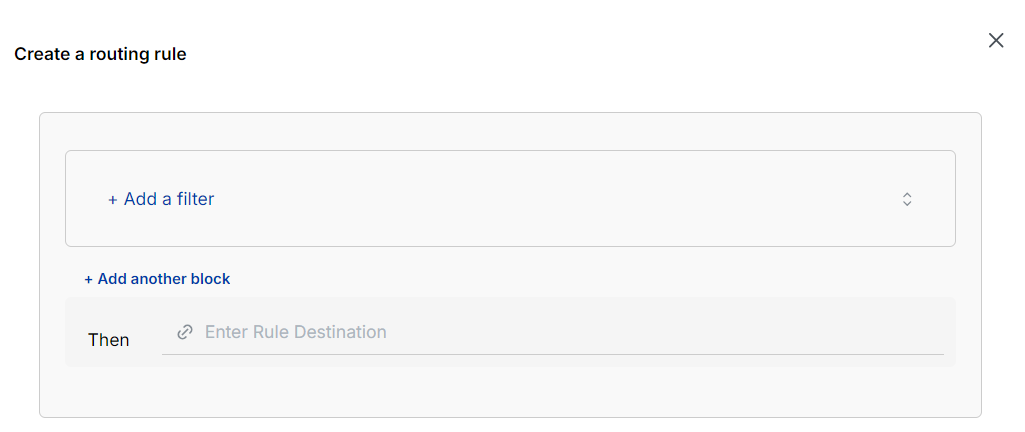
Step 03: Click on “Add New Rule” to set rotation rules. You can distribute and prioritize links based on preset conditions such as geographic location, date, day, system, or device type.
Once the rules are set, click Save and then hit the “Save shortened link” button to start your campaign.
After launching your campaign, track performance and make adjustments as needed to improve results.
A/B testing with Replug
You need to follow the same procedure of creating a short link with Replug and then.
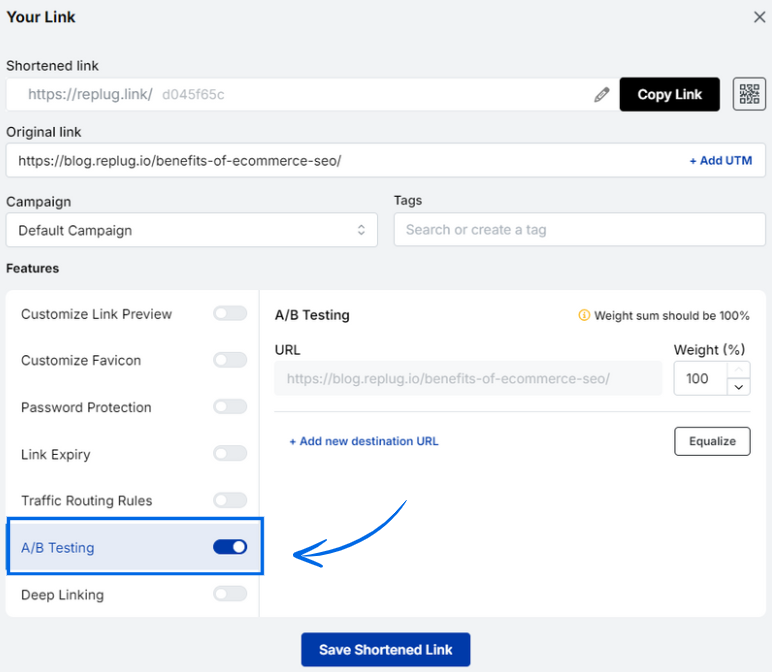
Step 01: Follow the same process to create a short link in Replug. Once created, you’ll be redirected to a new page.
After you turn on the A/B testing option, the destination URL will be the first link with 100% weightage.
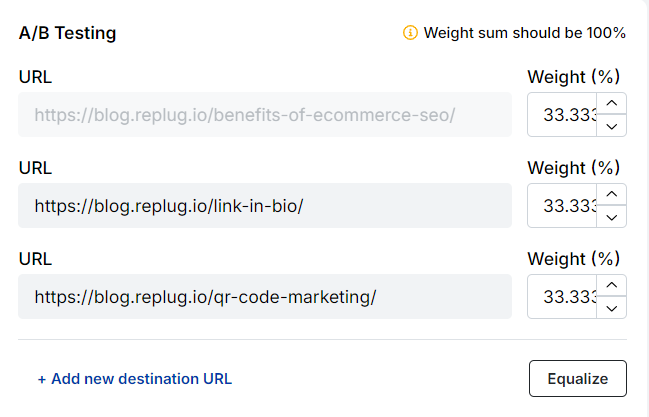
Step 02: Provide links for which you want to split traffic & test performance.
All you have to do is to click “Add Destination Link” button to add more links for A/B testing.
They set the weights for each link. Once you’re done with it, finish creating the Replug link with the A/B testing feature enabled. Now, you’re ready to track the link rotation performance of your links.
[branded_short_links]
Other link-rotating tools
1. JotURL – Feature-rich click rotator software
JotURL is a URL shortener tool that offers UTM tracking, bio links, deep links, branded URLs, retargeting, and QR codes.
It’s not just a URL shortener that trims down long and clunky URLs for you. Instead, it empowers your branding, helps generate leads, and provides link tracking. Plus, it has a link rotation feature that puts this tool among the top link rotators for marketers.
2. ClickMeter – Links rotator
ClickMeter is an all-in-one short link solution that helps bloggers and marketers create, monitor, and track marketing links to improve conversion rates. It offers URL shortening, branded domains, A/B test link rotation, conversion tracking, and several other features.
It’s a link management solution that works best for marketers and bloggers with content-heavy blogs and websites monetized with multiple affiliate marketing programs.
Plus, it’s also suitable for social media influencers and experts who use social media marketing channels to promote and sell their products.
3. Spinster – URL rotator
Spinster is a URL rotation solution built with JavaScript, HTML, and CSS for marketers and web entrepreneurs who want to create a personalized URL on their websites.
This URL rotator creates a unique short URL to redirect the incoming traffic on the URL and help distribute the visitors to the pages of the choice. It’s a perfect solution for splitting a website page traffic and tracking the number of visits on each page.
4. Voluum – Best link tracker for CPA marketing
Voluum is an excellent link-tracking solution for online advertisers that run ad campaigns across different ad networks. It offers link tracking, campaign optimization, and process automation.
Voluum is a professional ad-tracking software that integrates with multiple ad platforms to provide campaign performance reports. It’s a fantastic link tracker for advertisers and marketers who are into conversion optimization.
Conclusion
Link rotators are an integral part of the link management ecosystem, which is why almost all the popular URL shorteners have this feature.
The core idea behind using link rotators is to dissect the number of website visitors and drive them to multiple destinations with the same or different proportions to see the impact on the results. That’s pretty much it.
Why choose Replug over other tools?
Replug is an all-in-one link management tool for marketers. It offers influencers, social media managers, and digital marketers handy features, such as create short links within seconds, link rotation, A/B testing, and more to play around with branded links.
FAQs on link rotators
What is a link rotator, and how does it work?
A link rotator directs traffic from a single link to multiple destinations based on predefined rules like location or time.
Why should digital marketers use a link rotator?
Marketers use link rotators to split traffic, improve conversions, and test landing pages for better user experience.
Can a link rotator improve targeted marketing?
Yes, link rotators can enhance targeted marketing by directing users to different pages based on criteria like location or device type.
How do link rotators support real-time optimization?
Link rotators provide real-time performance analytics, allowing marketers to adjust campaigns instantly for better results.
Many people are understandably cautious about clicking on links, whether due to annoying website pop-ups or emails from unfamiliar sources.
At the same time, this hesitation poses a challenge for marketers, as getting users to click on URLs is vital for engagement and conversions.
This is where a free link shortener with tracking capabilities comes into play. It helps you create short URLs quickly and hassle-free.
These attractive and concise links have become popular among influencers, brands, marketers, and bloggers. These professionals utilize them to enhance marketing efforts, engagement, and click-through rates across various platforms.
Let’s explore the concept of shortened URLs and the possibilities of using short, branded URLs to boost marketing campaigns.
What are short URLs?
A short URL is a compressed version of a longer web address, created using a URL shortening service like Replug.
These links redirect users to the original URL but take up far less space, making them ideal for social media posts, SMS messages, email campaigns, and print materials.
The primary purpose of using such URLs is to enhance readability, make links more shareable, and provide a cleaner, more professional appearance across digital platforms.
The ultimate goal is to enhance user experience and maximize click-through rates (CTR) by making links easier to recognize, trust, and remember.
In fact, Backlinko reports that the top Google result earns a 27.6% CTR, showing just how impactful optimized URLs can be, especially when they’re concise and keyword-rich.
Importance of Short URLs
🔗 Improved click-through rates (CTR): Shorter, cleaner links tend to attract more clicks, especially when customized with relevant keywords.
📱 Better user experience: Long URLs can be messy and irritating. Short links are easier to read, type, and share, particularly on mobile devices.
📢 Cross-platform compatibility: Short URLs work seamlessly across all channels, from emails and tweets to offline QR codes and posters.
🎯 Efficient space usage: Especially useful in character-limited platforms like Twitter, where every character matters.
📊 Trackable engagement: The best URL shorteners come with built-in analytics to track performance, including clicks, device types, locations, and referrers.
Branded short links are more than just shortened URLs. They’re powerful marketing tools that enhance brand visibility, trust, and campaign performance.
🧠 Increased Brand Awareness: Branded links (e.g., yourbrand.link/offer) keep your business name front and center, reinforcing brand identity.
🤝 Higher Trust & Credibility: Users are more likely to click a link that includes your brand name rather than a random string of characters.
📈 Enhanced Conversion Rates: Recognizable, trustworthy links can drive more conversions by reducing hesitation and building confidence.
🔍 SEO Benefits & Keyword Relevance: Branded short links with targeted keywords can improve link context and searchability.
🛠️ Campaign Differentiation: Marketers can create unique branded links for different campaigns or platforms, making it easier to measure effectiveness and ROI.
How to use short URLs for marketing purposes
In today’s fast-paced digital world, every character counts, especially in marketing. Short URLs not only help streamline your messaging across channels but also offer powerful branding, tracking, and optimization opportunities.
When used strategically, they can significantly uplift your campaigns’ performance, improve engagement, and boost brand recognition.
Select a branded domain
Branded short links do more than just save space; they make a lasting impression.
Raise trust
Generic short URLs (like bit.ly or tinyurl.com) can appear suspicious to users. A branded short domain (e.g., nyti.ms for The New York Times or amzn.to for Amazon) instantly signals credibility.
Consumers are more likely to click on links that clearly indicate their source, which reduces bounce rates and enhances user confidence.
Boost brand recognition
A consistent, customized short link reinforces your brand with every share. When your brand name is visible in the link (e.g., yourbrand.link/offer), it becomes a subtle yet powerful marketing asset.
Over time, this repeated visibility strengthens brand recall and sets your content apart from generic competition.
Create meaningful custom links using a URL shortener
A short URL should still tell a story.
Contextualize
Avoid ambiguous strings like bit.ly/3kYs8dQ. Instead, create links that provide immediate context, like yourbrand.link/fall-sale.
This not only improves click-through rates but also helps users understand what they’re about to view.
Utilize keywords
Including relevant keywords in your custom URL improves both SEO and user engagement.
For instance, a campaign for a new product launch might use yourbrand.link/new-smartwatch, instantly conveying value while helping search engines index the link contextually.
Take advantage of the tracking & analytics capabilities of a URL shortener
One of the greatest strengths of short URLs lies in the data insights they provide.
Monitor clicks
Track how many times your links are clicked, and when. This helps determine peak engagement hours, ideal publishing times, and overall campaign performance.
Segment data by channel
Most paid URL shorteners (like Bitly, Rebrandly, or Sniply) allow segmentation by traffic source. Whether the link was clicked via Instagram, email, or a QR code on a flyer, you can pinpoint which platforms drive the most traffic.
Track performance
Beyond raw clicks, evaluate metrics such as bounce rate, time on site, and conversions associated with each short link.
For instance, yourbrand.link/discount might drive 10,000 clicks but only 1% conversions, prompting a change in strategy or landing page design.
Monitor multi-channel campaigns
Use unique short URLs for each channel in a multi-channel campaign (e.g., yourbrand.link/email, yourbrand.link/facebook, etc.). This gives you precise insights into what’s working and what needs refinement across your marketing mix.
Refine campaigns
Data from short links isn’t just for reporting, it’s actionable. Low click-through rates on a particular platform may suggest poor copy or ineffective targeting. Conversely, high-performing links can serve as templates for future campaigns.
Gain insights into audience engagement
Are mobile users engaging more than desktop users? Are certain geographic regions clicking more frequently?
Link analytics can provide rich behavioral insights, enabling you to tailor your messaging and audience targeting more precisely.
Deploy the short links across all marketing channels
Short links excel in their flexibility and universal applicability.
Social media
Character-limited platforms like Twitter and Instagram bios benefit greatly from short links. For example, a post might include yourbrand.link/freeguide to maximize space and visibility without clutter.
Emails
Short URLs keep your emails clean and clickable. They’re especially useful in tracking which links recipients engage with the most, allowing for precise list segmentation and follow-up.
SMS campaigns
Text message or SMS marketing succeeds due to its conciseness. A short, branded link not only fits character limits but also makes the message feel more professional, increasing trust and CTR.
Content marketing
In blog posts or downloadable PDFs, short URLs are easier to remember and type. They’re especially useful in content upgrades or linking to gated assets (e.g., yourbrand.link/checklist).
Print & offline media
Short URLs often back QR codes. But even without a QR code, having a memorable short URL on a poster, business card, or flyer (e.g., yourbrand.link/event) makes it easier for users to engage offline.
Test & iterate
Effective marketing is a cycle of experimentation and refinement.
A/B testing
A/B testing is a method for comparing two or more cases to see which one performs better. Use multiple variations of your short URLs to test different messages, formats, or landing pages.
For example, test yourbrand.link/save20 vs. yourbrand.link/20off to see which resonates better with your audience.
Stay consistent
Consistency builds familiarity. Stick to a recognizable format and naming convention for your URLs to make them more memorable and reinforce your brand across all campaigns.
Short URLs are more than a space-saving tool; they’re a strategic marketing asset. When branded, customized, and tracked effectively, they enhance trust, boost engagement, and provide actionable insights that help refine your campaigns.
Whether you’re launching a new product, running a seasonal promotion, or simply sharing blog content, integrating short URLs across your marketing channels ensures your message is not only seen, but remembered and acted upon.
How to use short URLs for marketing campaigns: Some good examples at hand
Let’s explore five successful examples of brands using short URLs to drive marketing results effectively.
Coca-Cola’s “cokeurl.com”
Strategy: Coca-Cola created a custom branded short domain, cokeurl.com, to reinforce its brand identity in digital campaigns.
Use case: In global promotions like the “Share a Coke” campaign, they used short URLs to direct users to personalized bottle pages or social contests.
Why it works: These links were easy to remember and instantly associated with the brand, thereby improving engagement across platforms such as Twitter and SMS.
New York Times’ “nyti.ms”
Strategy: The New York Times uses nyti.ms, a branded short domain, for sharing articles across social media.
Use case: Each shortened link redirects to a full NYT article, especially effective on platforms like X (formerly Twitter), where character count matters.
Why it works: Branded URLs, such as nyti.ms/abc123, build trust, signaling to users that the link leads to a reputable source — a key factor in increasing click-through rates.
Amazon’s “amzn.to”
Strategy: Amazon uses the custom short domain amzn.to, powered by Bitly, for affiliate and product links.
Use case: Affiliates and marketers share these links on blogs, YouTube descriptions, and social media to drive sales and earn commissions.
Why it works: These URLs are concise, trackable, and clean, enabling both Amazon and its partners to monitor traffic, conversions, and optimize campaigns in real-time.
Spotify’s campaign-specific short links
Strategy: Spotify uses short URLs for sharing playlists, artist pages, and marketing campaigns, often through branded or campaign-specific domains.
Use case: During the launch of new features or artist collaborations (e.g., “wrapped” campaigns), Spotify uses custom short links to drive mobile traffic.
Why it works: These links enhance shareability and enable Spotify to collect user data, including location and device information, for retargeting and analytics purposes.
Pepsi’s QR & short link integration in campaigns
Strategy: Pepsi integrates short URLs alongside QR codes in product packaging and TV commercials.
Use case: During promotions like the “Pepsi Stuff” rewards program, they used memorable short links to direct users to sign-up pages and promo details.
Why it works: Combining visual codes with short, branded URLs ensures a seamless user experience, especially for mobile users who may not be able to scan a QR code (at times) but can easily type a simple URL.
The best URL shortener for online marketing in 2026
Replug.io is an all-in-one link management tool designed for brands, marketers, SEO specialists, and bloggers to create, manage, and analyze short URLs.
It’s a comprehensive URL shortening tool that provides several link management services to upgrade your social media marketing to the next level.
Thousands of happy customers worldwide trust Replug for the link shortening task. One major reason for its success is that it offers much more than the average URL shortener freely available online.
Users find URL shortening, tracking, bio links, and much more under the same umbrella. It’s, without a doubt, the best URL shortener for social media marketers.
Key features
Precise URL shortening
Custom domain configuration for branded short URLs
URL analytics to track and monitor URL performance
QR code management for links
Customizable call-to-actions
Pricing
Free: $0/month
Essentials: $9/month
Scale: $23/month
Agency: $79/month
Wrapping up
To sum up, short URLs have become vital tools for modern marketers, helping improve brand visibility, track campaign performance, and enhance user engagement.
By integrating branded short links into your digital marketing strategy, you can establish trust, drive higher click-through rates, and measure success with precision.
No matter for social media, email campaigns, or influencer collaborations, short URLs simplify link management and boost overall marketing efficiency.
As 2026 continues to reshape online marketing, choosing the right URL shortener is crucial for staying ahead.
Replug offers everything you need, from branded links to advanced analytics, making it the ultimate solution for professionals.
Try this amazing URL shortening tool today and advance your link management game!
Frequently Asked Questions
How do I use a short URL link?
To use a short URL link:
– Select a reliable service like Replug, and paste your long URL into their input field. – The tool then generates a shortened version, which is often customizable for branding purposes. – Copy the short link and paste it into emails, social posts, or websites. – When clicked, it redirects to the original URL seamlessly.
How to use short URLs for marketing on Facebook?
On Facebook, short URLs enhance marketing by making posts cleaner and more engaging, as they avoid long, cluttered links that hinder clicks.
Use tools like Replug to shorten links, add UTM parameters for tracking, and integrate them into ads, posts, or stories.
This enables monitoring of click-through rates, audience engagement, and campaign performance through built-in analytics.
How to use short URLs for marketing on Google?
For Google marketing, particularly in Google Ads or Search Console, use short URLs from services like Replug or Google’s own Firebase Dynamic Links (for apps) to create concise, trackable links.
Append UTM tags for analytics in Google Analytics, and embed them in ad copy or search results snippets. This improves click rates and provides data on user behavior across campaigns.
How to make money from shortened URLs?
Earn from shortened URLs via pay-per-click (PPC) services like AdFly, Linkvertise, or ShrinkMe, where you shorten links and share them. Each click views a short ad, earning you a commission (typically $1-10 per 1,000 views).
Sign up, generate links, and promote them on social media or websites, but comply with platform policies to avoid bans. Payouts vary by traffic quality and geography, with thresholds around $5-10 for withdrawal.
Can URL shorteners track clicks?
Yes, most URL shorteners offer built-in click tracking, providing metrics such as total clicks, geographic locations, referral sources, and device types.
Premium plans enhance this with advanced analytics, integration with Google Analytics, and real-time data. This helps marketers optimize campaigns without needing extra tools.
What is the relationship between short URLs and social media shares?
Short URLs boost social media shares by making links more aesthetically pleasing and shareable, fitting character limits on platforms like X (formerly Twitter), and improving click-through rates.
They correlate with higher engagement, as clean posts appear more professional and trustworthy. Analytics from shorteners also reveal share patterns, helping refine content strategies.
Should I shorten links even for email or social posts?
Yes, shortening links for emails and social posts is recommended to enhance readability, track engagement, and fit character limits, especially on mobile devices.
It prevents long URLs from breaking layouts or appearing spammy, while providing analytics on opens and clicks. However, use branded URL shorteners like Replug to build trust and avoid generic ones that might raise security concerns.
What are some of the most common challenges marketers face when using shortlinks?
Marketers often struggle with link trustworthiness, as shortened URLs can conceal malicious content, resulting in lower click rates or platform flags. Analytics accuracy can vary, with issues like bot traffic inflating metrics or service downtime causing redirect failures.
Additionally, dependency on third-party shorteners risks data privacy breaches or sudden policy changes that could affect campaigns.
Most marketers prioritize email, social, and ads when designing their digital marketing campaigns. They highly underestimate SMS marketing probably due to the advent of apps like WhatsApp, WeChat, Viber, Kik, BOTIM, and others.
However, the reality is that SMS marketing hasn’t become irrelevant at all. In fact, a study shows that 65% of global mobile subscribers communicate via text messages.
A core reason why SMS marketing, especially for text invitations, can turn things around for any brand or individual is the effective use of SMS link previews.
Find out what an SMS link preview is before your competitors take the edge over you.
Understanding SMS link previews
An SMS link preview is a preview snippet that pops up in the text message and showcases the featured image and topic of the article or web page right in the SMS, making it more appealing and clickable.
Simply put, it’s the enhanced version of a link sent in a text message that displays the link’s title, image, and (sometimes) the image.
It’s called SMS link preview because it provides a preview to the receiver before this person opens the link. Not only does it provide a sneak peek into the content, but it also adds curiosity to the receiver’s mind.
Boost ROI with branded URLs!
Enhance your marketing campaigns by creating shareable, trackable, and fully multi-purpose
customizable branded URLs.
SMS links are widely used in SMS marketing campaigns, but most marketers still take them for granted.
So, here are some benefits of using SMS link previews as a reminder to make the most of your SMS marketing campaigns:
1. Helps drive website traffic through text messages
One reason brands and marketers send out links in text messages is to drive website traffic to their sales pages, blog posts, or other URLs. SMS link previews can entice SMS receivers to click through and visit the website.
SMS marketing has become an integral part of digital marketing. Therefore, SMS links are crucial for the success of any SMS marketing campaign. SMS link previews make links more noticeable and clickable, enabling SMS marketing campaigns to achieve better results.
3. Gives a sneak peek into the content
A little peek into the content makes it easier for the receiver to check it out. Optimizing the website pages and blog posts to showcase SMS link previews makes a huge difference.
Let’s be honest: a hyperlink with text in an SMS looks quite shady, even if a family member or friend sends it. One of the benefits of having SMS link previews is that the SMS links appear cleaner and less-spammy. Above all, the receivers can open them with some confidence.
Indeed, sometimes short URLs don’t look trustworthy, especially if an unknown person sends them. Most marketers use short links in SMS and email marketing to track clickability, open rate, and reach. However, when an SMS link preview pops up, it adds credibility to the message.
A complete link management solution
for marketing professionals & agencies.
Try Replug for free
Can you curate the SMS link preview image and text?
When sharing links via SMS, having an eye-catching preview image and compelling text can significantly enhance engagement.
To make it happen, one needs to utilize a link preview tool such as Replug. This all-in-one link management platform makes it easy to customize these previews, ensuring your messages stand out.
Here’s how you can create an effective SMS link preview using Replug.
Maximize marketing ROI
by transforming ordinary URLs into branded short links that convert.
Try Replug for free
Step no 01
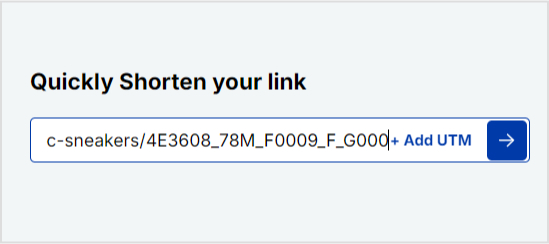
Go to Replug Home and locate the “Quickly shorten your link” bar. Paste the URL you want to share and press Enter.
Step no 02
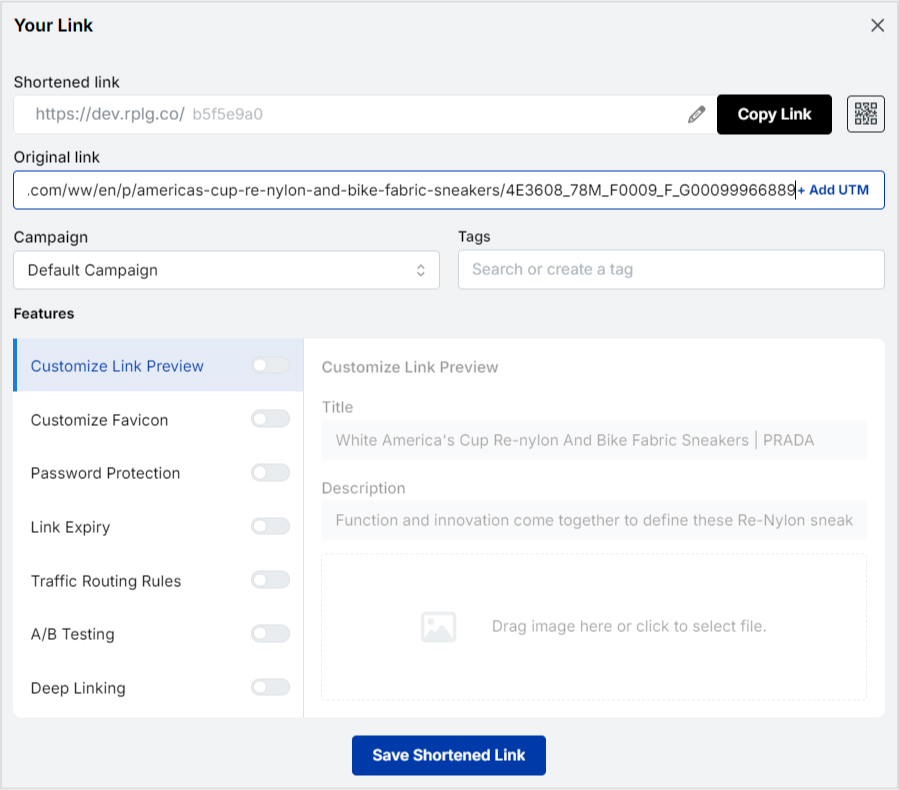
You’ll be redirected to a page where you can customize your SMS link preview. Here, you can password-protect your links, add expiry dates to them, add traffic routing rules to them, and much more.
Step no 03
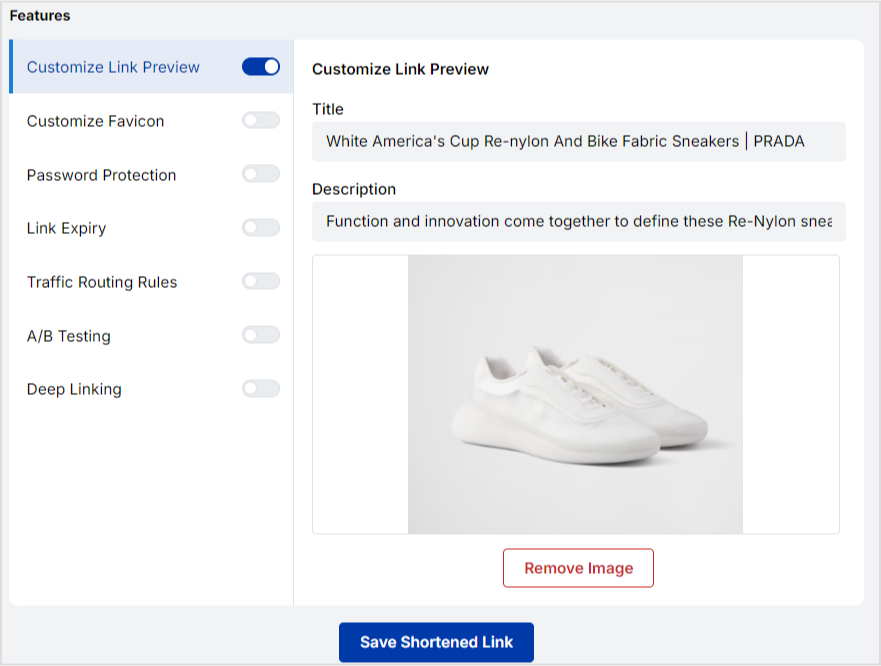
Once you input the link, Replug will automatically fetch the meta details, such as title, description, and thumbnail image. But if you want to customize the details even more, you can:
Title: You can customize the title of your SMS link preview by simply typing in your preferred text in the “Title” field.
Description: Adjust the description by writing a more engaging or relevant summary of your link in the “Description” field.
Image: Upload a custom image to change the thumbnail. Make sure it’s eye-catching and relevant to your content.
Replug automatically generates a shortened URL, making it SMS-friendly. Short links are easier to share and fit better in text messages.
Step no 05
Use the preview feature to see how your link will appear when shared via SMS. Ensure the image and text are displaying correctly.
It’s a good idea to send yourself a test SMS to see how the link appears on different devices.
Step no 06
Once you are satisfied with the preview, click “Save.” Then, share the link through your preferred SMS platform. The enhanced preview will engage your audience and drive more clicks.
Best practices when creating SMS link previews
Before you hop on your favorite online custom link maker for generating short URLs or optimizing your website URLs for SMS link previews, read the following best practices for using SMS link previews:
1. Keep it concise
SMS messages have character limits, so keep your link previews brief and to the point. Use clear, compelling language to entice users to click without overwhelming them with information.
2. Test across devices
Link previews can look different on various devices and messaging apps. Test how your previews appear on other platforms to ensure they maintain visual appeal and functionality, and adjust your metadata if necessary for optimal display.
3. Use high-quality, beautiful images in the content
Using colorful, high-resolution images in SMS link previews is essential for quickly capturing readers’ attention and creating a visually appealing experience.
An HD photo converter can help ensure your images meet the quality standards needed for sharp, professional-looking previews.
Choose images that convey the essence of your message, enticing recipients to click on the link.
An attractive, eye-catching image can significantly enhance engagement, making the preview more inviting and transforming the URL snippet in the SMS into an irresistible opportunity for the recipient.
A complete link management solution
for marketing professionals & agencies.
Try Replug for free
4. Keep the optimal image sizes in mind when creating images
It’s essential to create images that are readable by the devices. The optimal image sizes should be considered when creating images for blog posts or landing pages.
Not only does it allow images to display correctly across various devices and platforms, but it also impacts the SMS marketing campaign. Properly sized images help maintain the visual integrity of the link preview.
Difference Between Link Previews and OG Tags
When sharing links across social media, messaging apps, or websites, you may notice that certain details like images, titles, and descriptions automatically appear. These elements come together in what we call link previews.
However, what many may not realize is that the content displayed in these previews is controlled behind the scenes by something called OG tags (Open Graph tags).
Understanding the difference between link previews and OG tags can help website owners and marketers optimize how their content is shared online. Let’s break down these two concepts.
Feature
Link Previews
OG Tags (Open Graph Tags)
Definition
A visual snippet displayed when a URL is shared on social platforms or messaging apps.
HTML meta tags that control what content appears in the link preview.
Purpose
To give users a quick overview of the content and entice them to click the link.
To control and customize how content appears when shared on social media.
Visibility
Visible to users on social media and messaging platforms.
Hidden in the website’s HTML code; only visible to social platforms.
Customiz-ation
Generated automatically based on webpage content. Limited customization without OG tags.
Provides full control over title, image, description, and URL in the preview.
Control
Platforms decide what content appears in the preview based on available metadata.
Website owners can define exactly what content appears in the preview.
Common elements
Title, description, image (if available), URL.
Title, description, image, URL — all customizable via OG tags.
Role in SEO
Indirect impact, as well-crafted previews can increase click-through rates (CTR).
Can indirectly boost SEO by making links more appealing and clickable.
Impleme-ntation
Automatic; platforms extract information from the webpage.
Requires adding specific OG meta tags to the HTML of the webpage.
Use case
When sharing URLs on platforms like Facebook, Twitter, LinkedIn, etc.
Best for ensuring consistent branding and accurate display of content across platforms.
Leveraging open graph (OG) tags
OG tags are essential tools for controlling how the content is displayed when sent in a text message or shared on social media platforms.
The idea is to strategically implement these tags to ensure that the links turn out to be visually appealing and attractive to the recipient. Moreover, these effects can significantly improve click-through rates and engagement.
Let’s decode open graph tags and learn more about them:
The basic OG tags:
og:title
It specifies the title of the content.
og:url
It showcases the canonical URL of the page
og:image
It defines the image that will appear with the shared link
og:type
It clarifies the type of object being shared, such as website, article, etc.
og:description
It provides a brief description of the page
How to leverage OG tags?
Digital marketers and conversion optimization experts strive to discover new ways to increase engagement, drive website traffic, improve click-through rates, and make more money.
It doesn’t matter whether it’s a new trick to get new eyeballs around your content on social media or make your SMS preview links look more attractive.
Here are three ways to leverage OG tags:
1. Enhancing social media optimization
Social media content is vital to modern-day digital marketing. To maximize the impact of your OG tags on social media content performance, tailor them specifically for the social media platforms where your audience is most active.
Facebook, Twitter (X) and LinkedIn are the major social media platforms that rely on OG tags for link previews. Influencers and experts pay attention to OG tags to ensure that their article links generate previews when shared across social media.
By optimizing the OG tags for these platforms, social media users make sure that the content is presented in the best manner possible, which increases the chance of attracting more shares, comments, and likes.
Have you ever heard of Google Discover? It’s a content discovery platform from Google that displays top news across multiple categories and is available to Android users. It’s accessed through the Chrome browser on the Android phones. Google Discovers picks up the content from the websites that are schema-optimized and publishes high-quality content.
Similarly, OG tags not only improve the visual appeal of your shared links but also contribute to better SEO performance. Search engines keep an eye out on the websites that are wildly popular on social media, and often end up rewarding them through SEO rankings.
It’s safe to assume that attractive and well-optimized previews are more likely to be clicked and shared, leading to increased traffic and visibility for your website.
3. Fine-tuning the SMS link previews
Last but not least, it’s the effect on the SMS link previews. One of the best ways to leverage OG tags is to carve out a strategy for fine-tuning your SMS link preview.
Open Graph Protocol massively impacts the SMS link previews of the websites and blog URLs if implemented correctly. SMS is still a powerful communication medium despite the popularity of various chat apps like WhatsApp, WeChat, Viber, Kik, and others.
Optimizing your SMS link previews can trigger new opportunities no matter what industry you belong to. So, don’t shy away from putting together a solid strategy for optimizing your websites or blogs for SMS link previews.
So, these are three ways to leverage OG tags. The purpose of this strategy is to ensure that website titles, headlines, descriptions, and URLs pop up when shared across multiple devices and platforms.
Final thoughts
SMS link previews may not be the talk of the digital marketing world, but they’re still relevant to online marketing.
Since it directly impacts click-through rate, conversion, and engagement of text messages, the concept is gaining popularity day by day.
We tried to keep it simple yet meaningful for social media influencers, brands, bloggers, entrepreneurs, and publishers who haven’t had a chance to find out about the SMS link previews before.
The next time you send or receive a URL in the SMS, you’ll notice whether or not it generated the link preview – if you do, then all the effort that went into writing, editing, and publishing this piece of content is worth it.
FAQs about SMS link previews
Here are some of the frequently asked questions about SMS link previews:
What is an SMS short link?
An SMS short link refers to the shortened URL that is used in text messages to avoid cluttering and spammy looks. Moreover, users can track clickability on the short, branded URLs. Check out this URL shortener for more information.
Can SMS have links?
SMS messages can include links within their body. However, it is important to ensure that URLs contain “http://” or “https://” along with a valid domain extension, such as .com or .net, to function properly. Additionally, in some cases, placing the links at the beginning or end of the text message can enhance clickability.
What is a text link?
A text link is a hyperlinked text that is used to drive website visitors from one section/page to another. The text links are also used as the replacement for the image call-to-actions. However, in the SEO world, a text link can either be a backlink (pointing to another website) or an internal link (pointing to another page of the same website).
What are link previews in text messages?
The link previews are the link snippets that appear on social media platforms and messaging apps when a blog post link or a website URL is shared with the public or a friend in private. It mostly contains the image, title, description, and URL of the page.
How to create a link preview in your SMS message?
To create a link in your SMS message, one be sharing the website that has already been optimized for link previews. On the other hand, the receiver of the text message must be using any of the recently released phones. To make it work on older Android phones, the user must have a Google Message app installed that can create link previews. Moreover, iOS users must have iOS 10 or later versions to be able to enjoy the link previews.
We’ve all experienced the frustration of copying a long, messy URL and thinking, “This looks terrible.” We’ve been there, more times than we’d like to admit!
That’s why URL shorteners exist: to simplify and streamline one’s link management needs, making links more user-friendly and professional.
These link shorteners are the perfect solution in this case. They take those clunky, unattractive URLs and transform them into concise, clean links that are easier to share and use.
Moreover, the benefits of URL shorteners go far beyond aesthetics. This blog covers everything, from the definition of a URL shortener to its key benefits that you should be aware of.
So, let’s get started!
What is a URL shortener?
A URL shortener is simply a tool that condenses long URLs into short, easy-to-share links. These tools don’t change the destination; they just repackage it into something cleaner, clickable, and far more professional.
Replug acts as your custom URL shortener, ideal for turning long, messy links into branded, trackable URLs that look tidy and perform much better.
8 major benefits of URL shorteners: Key advantages explained!
There are numerous benefits to using URL shorteners. From making your links look clean to tracking link analytics, these tools are becoming increasingly essential for anyone seeking to enhance their online presence and optimize their digital strategy.
Here’s a list of the top benefits of URL shorteners that you must know as a content marketer or business professional:
Improved aesthetic appeal
A short URL is like a crisp, well-edited photograph, while a long one is like a blurry, poorly taken snapshot. The edited photograph (short URL) is clear and appealing, whereas the blurry snapshot (long URL) can look messy and unrefined.
Now, let’s make a comparison. Which one looks better?
Long URL:
Short URL:
Clearly, short links have a far greater aesthetic advantage, and only a top-notch URL shortener can perform this task optimally.
Let’s face it, long URLs can be a real pain to share on social media. That’s where link shorteners come in; they’re a total lifesaver!
They offer links that fit perfectly on platforms with character limits, such as Twitter (X) and SMS. Besides, they also make it extremely easy to copy, paste, or share links.
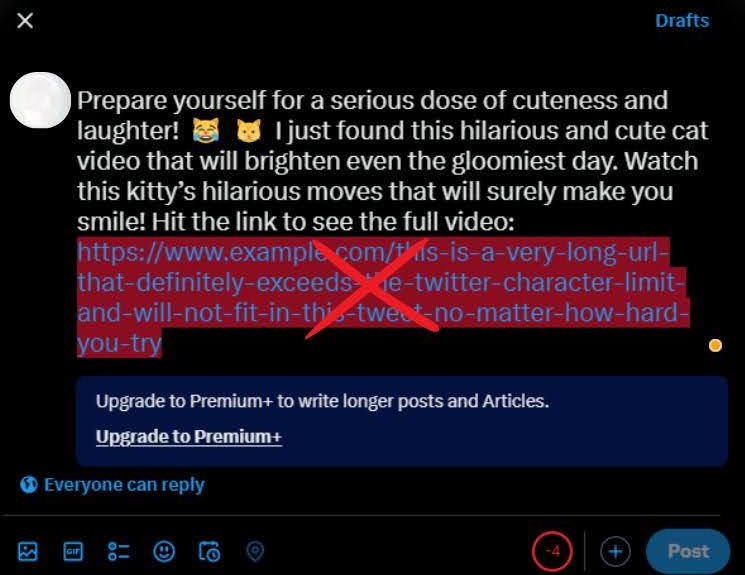
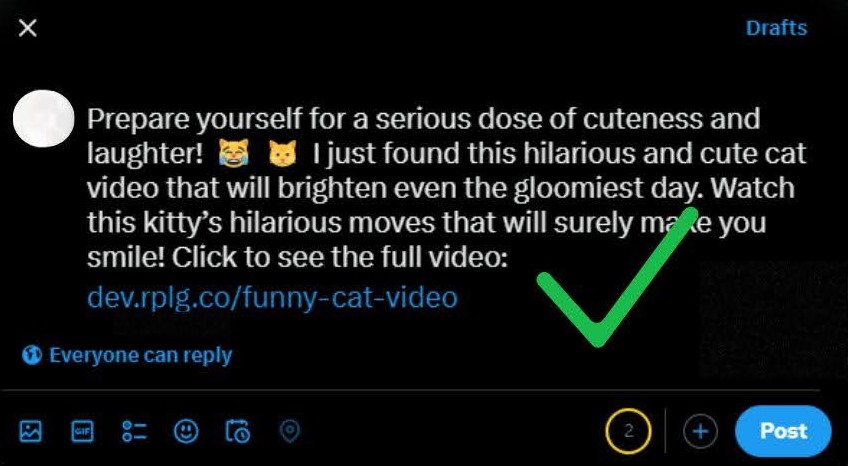
For example, imagine you’re trying to share a link to a funny cat video on Twitter (X). The original URL is massive, about 120 characters long, but with a tool like Replug, you can share it in just 20 characters!
Amazing right!
By using shortened links, you’ll make it easier for others to engage with your content. And who knows, you might just get more likes, shares, and even a few laughs!
Boost clicks and conversion with custom URLs
People trust links that look branded and professional. A custom URL shortener allows you to add your brand domain instead of a random string, enabling you to share personalized links, hassle-free.
Branded links make your content instantly recognizable and give users confidence that they’re clicking a safe and trustworthy URL. This increased trust often translates into higher click-through rates and better engagement.
For example, instead of sharing a generic short URL like:
You can share a custom one like:
In-depth analytics and link tracking
Being able to monitor click performance is one of the most valuable benefits of URL shorteners. They can be used to track analytics, providing insights into who’s clicking, when, and how often.
Additionally, they also inform you where your traffic is coming from, including geographic locations and the devices used.
For instance, let’s say you launch a promotion with shortened links and find that your “funny cat meme” campaign gets the most clicks from a region known for its cat lovers. Plus, you see that mobile users are way more engaged than desktop ones.
With this info, you might double down on those cat memes and create a special mobile offer, turning your marketing into a cat-themed hit.
One of the most significant advantages of URL shorteners is the flexibility to redirect a link even after it has been created.
If your landing page changes or a campaign URL needs updating, you don’t have to resend new links. You can simply update the destination behind your short link.
This keeps campaigns consistent, saves time, and prevents lost clicks from outdated links.
But it doesn’t stop there!
Modern link shorteners also support dynamic links, which automatically tailor the destination based on factors such as device, location, or even the time of click.
For example, mobile users can be directed directly to your app store download page, while desktop users are sent to your website. Similarly, a global campaign can send US visitors to your .com site and UK visitors to your .co.uk site, all from the same link.
This combination of flexible redirection and link rotation ensures your audience always lands on the most relevant page, enhancing user experience, engagement, and conversions.
Amazing retargeting opportunities
Did you know that up to 88% of online users won’t return to a site after a bad experience, and the average website has a bounce rate of 37%? But don’t worry!
Top-notch URL shorteners can help you re-engage your audience and breathe new life into lost connections.
By integrating a reliable link shortener like Replug, which features powerful capabilities such as a retargeting pixel, you can track user interactions, create targeted ads, and re-serve ads to interested users.
This effective combo boosts tracking and analytics, ad relevance, and ROI, while seamlessly integrating with your existing strategies.
But don’t just take our word for it!
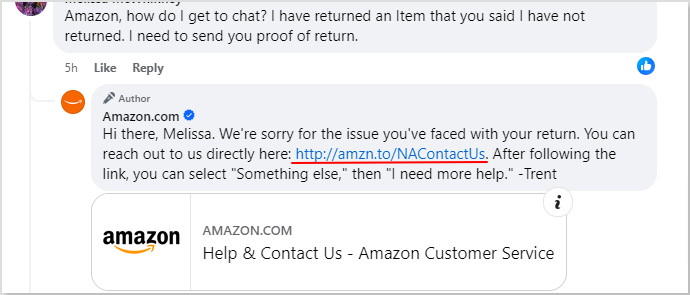
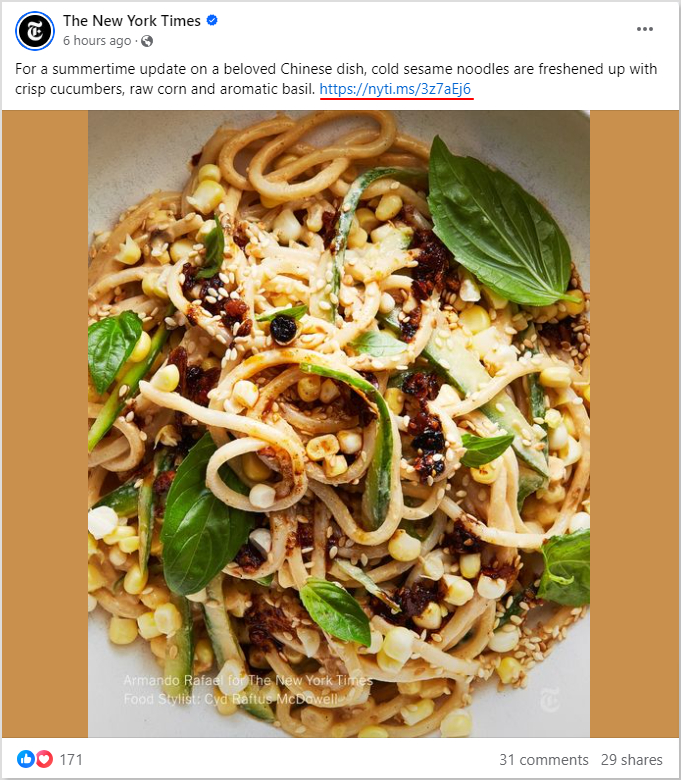
For instance, major companies such as Adobe, Starbucks, Best Buy, Amazon, Coca-Cola, The New York Times, McDonald’s, and Reddit are utilizing link shorteners to retarget their audiences.
Here’s how “Amazon” and “The New York Times” are using URL shorteners in their marketing strategy:
Note: The next time you leave a website and get an email that says, “Hey, you forgot something in your cart!” or you see an ad pop up for that exact pair of shoes you were eyeing, that’s retargeting in action.
Better offline marketing (QR codes & print)
URL shorteners aren’t just for online campaigns; they bridge the gap between online and offline marketing through QR codes.
Most current link shortening tools let you instantly generate a scannable QR code for every shortened link. This makes it much easier to share digital content through physical channels.
Imagine you’re running a restaurant and printing flyers for a new menu. Instead of typing a long URL, customers can just scan your QR code and instantly view the digital menu.
Similarly, event organizers can place QR codes on flyers, posters, tickets, or merchandise to lead people directly to registration pages, videos, or exclusive offers.
Since QR codes have gained hype and popularity post-COVID, this feature makes URL shorteners essential for creating engaging, interactive print campaigns.
Enhanced mobile experience
Most internet traffic today originates from mobile devices, making it compulsory to deliver a seamless mobile experience.
Short links are easier to click, copy, and share on smartphones compared to long, clunky URLs that break across lines or look suspicious.
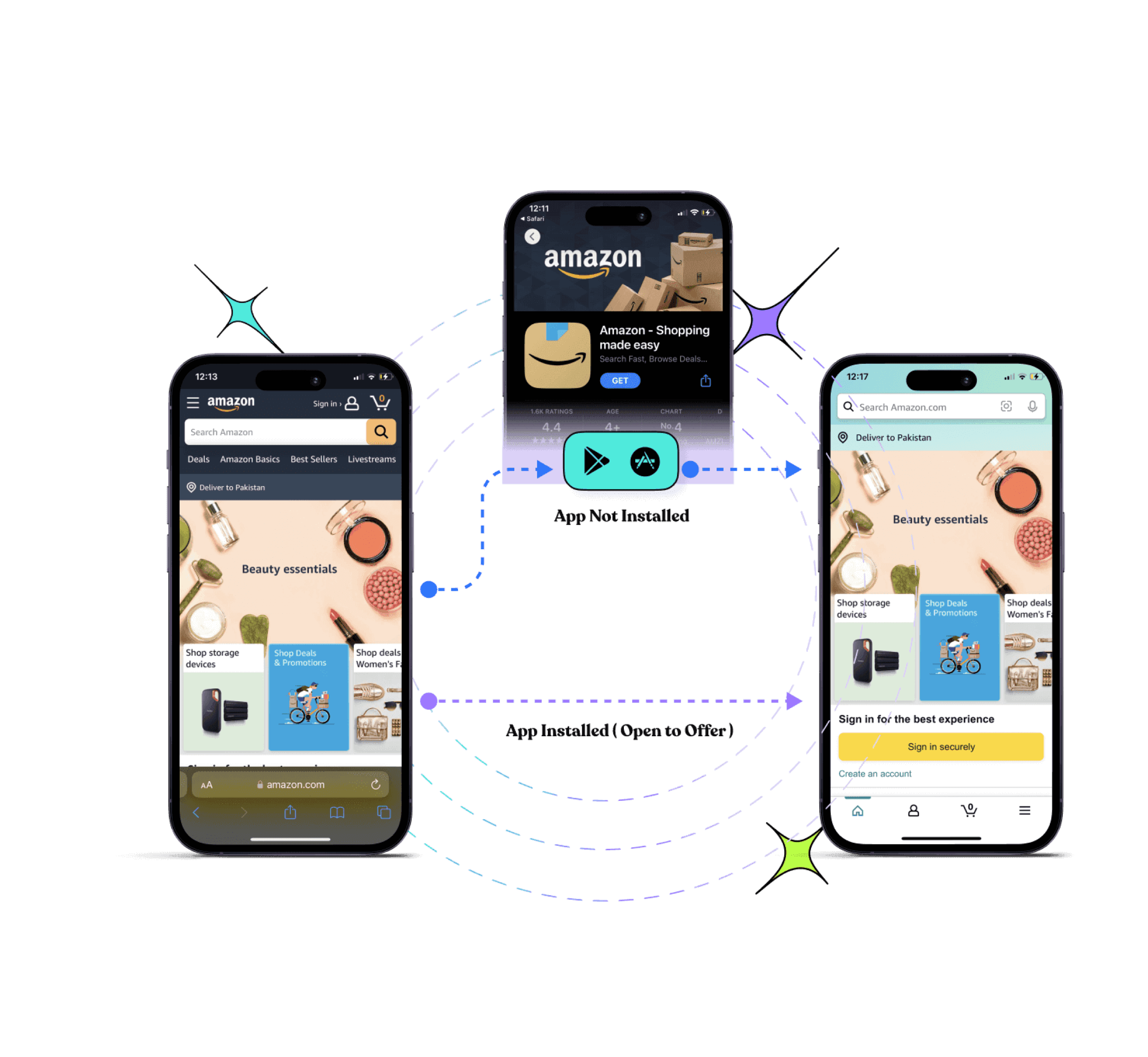
Beyond convenience, advanced link shorteners optimize the mobile experience by supporting deep linking.
For instance, if someone clicks a short link to your YouTube channel from their phone, the link can open directly in the YouTube app, rather than in a browser.
The same applies to e-commerce apps, social media platforms, or custom brand apps. This reduces friction, enabling users to reach their destinations faster and increasing the likelihood of engagement and conversions.
Some disadvantages of URL shorteners
While URL shorteners offer numerous benefits, it’s essential to be aware of the potential drawbacks of these tools before entirely relying on them in your campaigns.
Drawback
Explanation
Trust issues
Shortened links can look suspicious if they don’t show the final destination.
Dependency on services
If the link shortening service shuts down, your links may break.
Broken links
Discontinued tools (e.g., Google’s goo.gl) can render links inactive.
Limited transparency
Some platforms or users may block or distrust shortened URLs.
Extra management
Large campaigns require more effort to organize and track links.
Feature limits
Free tools often lack analytics, retargeting, or customization options.
Cost factor
Advanced features, such as branding or deep analytics, usually require paid plans.
Closing thoughts
In this blog, we explored what URL shorteners are, their practical benefits, and the few drawbacks you should be aware of.
From making links look clean and professional to enabling custom branding, the pros of URL shorteners can genuinely transform the way you manage and share links.
While there are some limitations, like trust issues or service dependency, the advantages far outweigh the drawbacks when used wisely.
If you’re ready to unlock these benefits and take your marketing strategy to the next level, try Replug today! A custom URL shortener built to help you brand, track, and optimize every link you share.
Frequently asked questions
What are the benefits of a short URL?
The following are the advantages of a short URL.
–Improves click-through rates (CTR): Clean, concise links look more trustworthy and clickable. – Enhances user experience: Easier to read, type, and share, especially on mobile or print. – Saves space: Ideal for character-limited platforms like X (formerly Twitter) or SMS. – Boosts brand visibility: Branded short links increase recognition and trust. – Enables tracking and analytics: Most URL shorteners provide click data, source, and geolocation. – Supports A/B testing: Easily test different link placements or campaigns with trackable variations. – Prevents link breakage: Short URLs are less likely to break in emails or messaging apps.
Who can benefit from URL shorteners?
URL shorteners aren’t just for marketers. A wide range of users can benefit from their simplicity and tracking capabilities.
– E-commerce businesses → Use branded links, bio links, retargeting, and custom CTAs to improve visibility and conversions. – Content creators → Customize link previews, set expiry dates, run A/B tests, share via SMS, and generate QR codes for easy promotion. – Affiliate marketers → Cloak long links, add deep links for higher conversions, and rotate offers through a single short link. – Agencies → Provide white-label solutions, advanced link management, and tailored tools to enhance client campaigns.
How does a URL shortener work?
A URL shortener works by taking a long web address and converting it into a much shorter, more manageable link. When a user enters a long URL into a shortening tool, the service generates a unique short link that redirects to the original destination. When someone clicks the short link, the tool quickly redirects them to the full URL behind the scenes.
How do URL shorteners impact SEO?
URL shorteners can impact SEO positively if they use 301 redirects, as this ensures link equity (or “link juice”) is passed to the final destination. They’re useful for tracking and sharing links on social media, but excessive use can reduce transparency, affect user trust, and potentially lower click-through rates.
Links are a vital component of the internet marketing. Links (or URLs) are like vessels that drive bots and visitors from page to page or website to website.
In the SEO world, links are either inbound (backlinks) or outbound (external) links. Whereas, a link that internally connects a page to another page from the same site is called an internal link.
However, the topic “link preview” isn’t directly connected to SEO, but it does play a role somehow. If you’re curious about what it is and how it works, then sit tight because your mind will be blown away.
A link preview refers to the preview of the link showcasing the title and image of the page before visiting the very page.
Let’s find out everything you need to know about these URL previews.
What is a rich link preview?
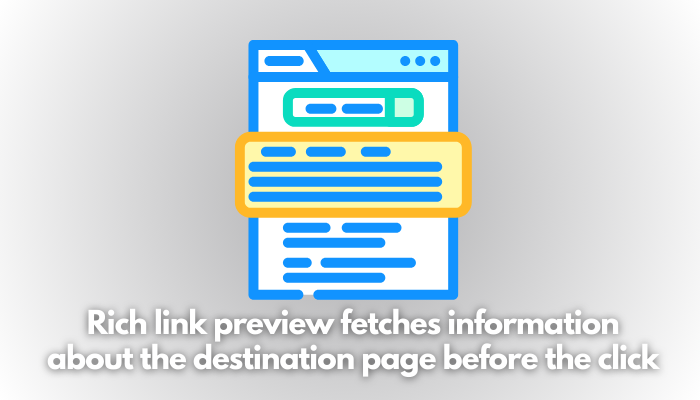
A rich link previewrefers to the link that looks ahead to pull back useful information from the URL and creates a preview of the destination URL page to display it to the end user.
Usually, when a user either hovers the cursor on the rich link or clicks on such a link, it immediately displays the pulled information about the destination URL.
As far as the formatting of the rich link preview is concerned, it usually displays the title, image, and description of the page.
There are several link management tools available on the market that create different types of rich link previews – we’ll discuss some of them later in the article.
How does a link preview work?
The way link preview works is that it scans the destination link and captures the title, description, and image to display all the collected information to the user.
This process usually takes a screenshot of the destination URL or the homepage of the website along with some text from either the page or the meta description of the page. Everything in the link preview process is automated and happens in a split second.
Every social media platform or link management tool handles link previews differently; usually, link previews are generated by creating a copy of the destination URL and saving the information on the server to display when it’s required.
8 major advantages of a link preview
The link preview is a game-changer – no wonder top social media platforms are utilizing this tactic. Let’s discuss some of the benefits of using link previews:
Improve user engagement: Link previews offer a quick glimpse of the content, including an image, title, and short description, which makes it more attractive and click-worthy. It entices the readers to check it out and engage with the content by clicking on the link, leading to higher interaction rates.
Build trustworthiness and authority: When users see the link preview, they can better assess whether the link is legitimate or not. The link preview generator ensures that readers get an idea of what to expect from this piece of content. Not only does it reduce the chances of users clicking on potentially harmful or misleading links, but it also increases their trust in the shared content.
Better contextual understanding: URL previews are very effective in conveying the message as they provide website visitors with a brief overview of the content, allowing them to quickly understand the context of the shared link. As a result, the shared content on social media or messaging apps becomes more relevant and clear, leading to a better user experience.
Increased click-through rates: The click-through rate is the percentage of the visitors that click on the link divided by the number of visitors who see the link. A creative and well-designed link preview can catch a user’s attention more effectively than a simple text link. The combination of a good title and a compelling image often results in higher click-through rates as users are more likely to click on relevant and useful content.
Visual appeal and attractiveness: Attractive website previews enhance the visual appeal of shared content by incorporating images, titles, and descriptions. Not only does it make shared content more attractive for the audience, but it also helps content stand out from the crowd.
Consistency across platforms: One of the advantages of link previews is that they ensure that content is displayed consistently across different social media and messaging platforms. This uniformity maintains the integrity of the content website and makes it easily recognizable to users, regardless of the platform they’re using.
Time-saving capability: Time is one of the greatest assets in anyone’s lifetime. Brands and tools that save users time and resources usually never fail. Link previews help users assess the value of a link by viewing its preview, without needing to click through to see the full version of the content. It makes it easier for users to engage with relevant content while filtering out what doesn’t interest them.
Boosts SEO performance: One of the aspects of SEO is engagement. Search engines heavily rely on clickability and engagement. Therefore, link previews contribute to better search engine optimization (SEO) by encouraging more clicks and engagement. All major search engines interpret these user interactions as a sign of valuable content, which leads to increased content visibility and ranking in the SERP.
Which platforms support link previews?
You’re probably wondering what social media platforms support link previews. Well, there are several social media platforms and messaging apps that allow link previews. Here are four of these platforms that are worth mentioning:
1. Facebook
Facebook is the top-tier social media platform with over 3 billion monthly active users. To create the link preview, Facebook utilizes the Open Graph Markup to pull the title, image, and description of the link. The OG tags that come into play include og:title, og:image, og:url, and og:description.
Moreover, Facebook could also try to fill in the blanks if the open graph is unable to fetch the required data. To preview the link, Facebook provides a Sharing debugger tool to help users see how the link preview would appear on Facebook.
2. X (formerly Twitter)
X (formerly Twitter) also allows link previews. However, the only caveat is that it only allows link previews’ of the websites that have Twitter Cards enabled on their back end. Most content management systems, such as WordPress, Shopify, and Magento have extensions for Twitter cards, enabling users to implement link previews for the websites.
Twitter Cards (or X Cards) is the Facebook Open Graph equivalent for the X platform. X provides a developer’s guide to implementing and troubleshooting Twitter cards for users. Moreover, users can validate the Twitter card by providing the link to the X’s card validator.
3. LinkedIn
LinkedIn also pulls the data from the link to create and present the link preview – it usually displays the image, title, URL, and description.
Furthermore, LinkedIn offers a post inspector tool that allows users to check the link preview before sharing on the platform. It gives you an idea of how the link would appear on LinkedIn, allowing users to debug any potential errors in the code.
4. Whatsapp
WhatsApp is one of the most popular chat and messaging apps that competes with Facebook’s Messenger, WeChat, Kik, BOTIM, Viber, and others.
WhatsApp creates link previews when the links are sent via chat or shared via status. It tries to maximize the user experience by displaying the link preview, depending on other factors, such as the availability of the elements, internet speed, and quality of the source.
Facebook provided some guidelines for users to optimize their websites for link previews on WhatsApp. Failing to meet the requirements would result in no link previews when the links are shared.
These are some of the popular social media platforms and chat apps that support link previews and can help maximize reach, clickability, and conversion.
What role do algorithms and AI play in link previews?
Link previews have become significantly important over the years. The social media platform’s algorithms and AI do have a role in the identification and implementation of link previews. Let’s take a quick look at how link previews go about in today’s world where platforms continue to evolve:
The role of AI in link previews
AI-generated link previews aren’t the innovation of the future – in fact, AI-generated link previews are very much real and they now exist. Believe it or not, brands and influencers are making the most of their campaigns.
Techcrunchreported in 2023 that Summari has reportedly pivoted toward AI-generated link previews.
Essentially, the role of AI in link previews can’t be denied. With the infusion of AI-powered tools across the tech and IT industries, it’s no surprise that link previewers are capitalizing on AI to dominate and improve their services.
The role of algorithms in link previews
The algorithm is that gray area that seems a little unpredictable in the online marketing world. Both social media platforms and search engines are known for updating their algorithms from time to time.
The purpose of such algorithms is to improve user experience and overall performance. However, the reason these algorithms become the talk of the town is because they affect the reach, visibility, views, and clicks of the content across the platform.
It’s quite possible that someday social media platforms roll out algorithm updates that shatter the way of creating link previews or worse the idea of link previews. Even though, it looks highly unlikely, still there are no guarantees.
Customize a link preview using Replug
Replug is a brilliant link management platform that offers a combo of several free tools and generators for the users. One of them is a free link preview generator. It comes in handy when inspecting and analyzing the link preview.
Didn’t like the default link preview of the URL? Well, it allows users to alter the link previews through the customization features. The users can add an image, title, and description.
Here’s how you can create or customize a link preview using this Replug’s tool:
Open the link preview generator from Replug.
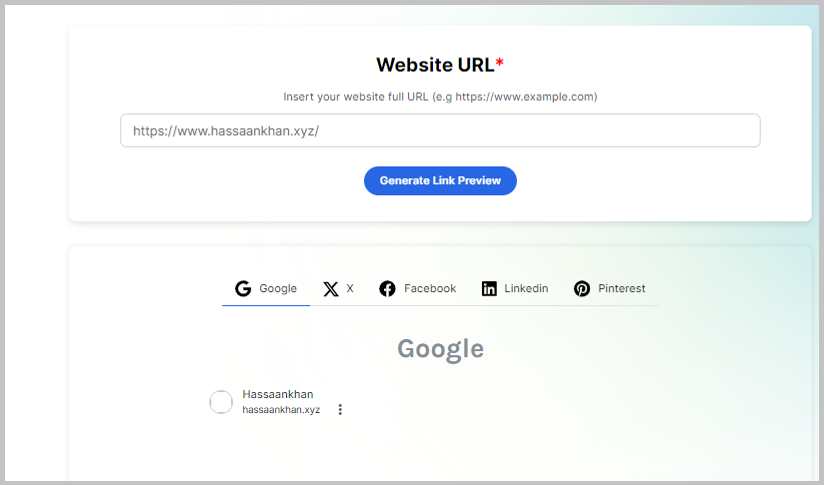
Type in the URL of the website or blog post to generate the link preview.
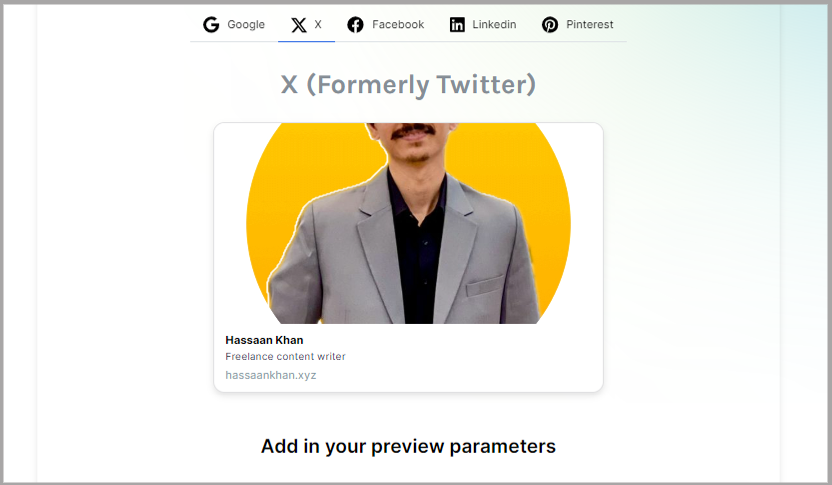
Check out the default link preview; if it requires customization, then scroll down to the section underneath the link preview window. You’ll see the customization section.
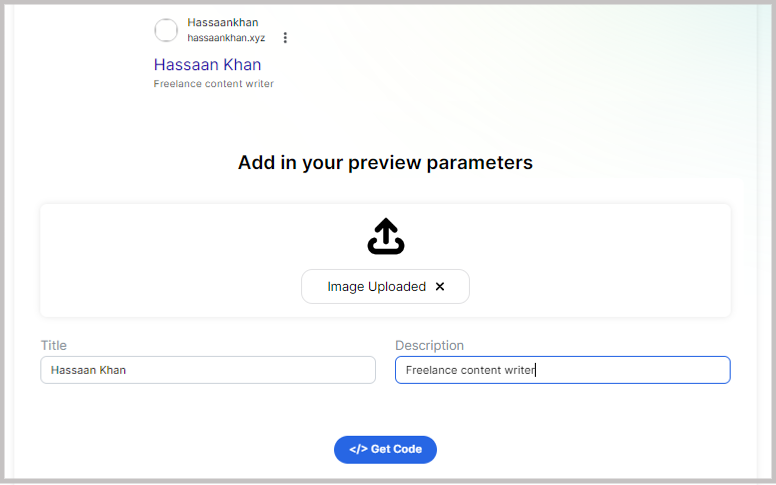
Upload the appropriate image to be added as the featured image.
Enter the suitable title and description and hit the get code button to get the meta tags.
Voila! Your link preview is ready. Check it out!
Frequently asked questions
Let’s take a look at some of the commonly asked questions:
What are the link previews in text messages?
Link previews are the snippets that appear with the link and display the image, page title, and the URL in the text message. Link previews are usually when a sender sends a website URL or blog post link in the text message.
What is the link preview in the email?
A link preview in an email refers to the link that comes in the email message and displays a rich link preview containing the image, title, and URL. It may be specific to a certain email software/platform.
How do I check if a link is safe?
One of the best practices for dealing with links or URLs in emails or text messaging is to avoid clicking on the links unless you’re sure about the authenticity of the link. Moreover, to be on the safe side, always install an anti-virus app or software on your device.
What does a safe link look like?
A safe link isn’t long or clunky with loads of codes and parameters. Moreover, it won’t be popping up a million pages upon clicking. Similarly, the domain would be authentic, secured, and active.
Some website owners and brands utilize short URLs for social media marketing. However, they opt for short, custom domains to ensure integrity and authenticity. They make sure that the audience easily recognizes their custom domains.
Check out Replug – it’s an excellent link management software for URL shortening, generating brandable short URLs, URL tracking, deep linking, A/B testing, and other URL services.
Can link previews be displayed on mobile devices?
Link previews can be displayed on both iOS and Android mobile devices unless they are not old models. It’s been learned that link previews work easily on all iOS versions after iOS 10. Similarly, Android users with older phones need the Google Message app to be able to activate link previews.
E-commerce marketing refers to the strategies and tactics used to drive traffic to your online store, convert that traffic into paying customers, and retain those customers post-purchase. As customer expectations evolve, brands are increasingly adopting an AI agent for e-commerce shopping to deliver personalized product recommendations, automate customer interactions, and guide users through real-time purchasing decisions, improving both engagement and conversion rates.
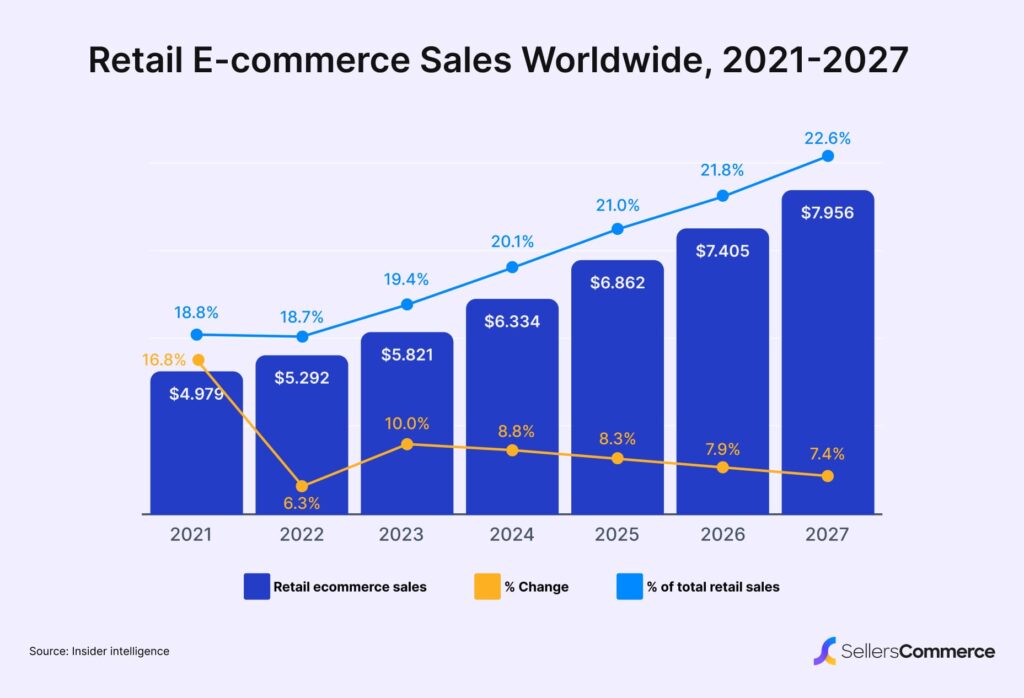
E-commerce growth is on the rise across the globe and will continue to grow over the next few years.
There are over 2.77 billion online shoppers worldwide that have opened the e-commerce gateway wide open not just for themselves, but also for manufacturers, retailers, and marketers.
It’s no surprise that e-commerce marketing is crucial to putting an e-commerce business on a success trajectory.
When did e-commerce take off?
E-commerce started in 1982 with the launch of Boston Computer Exchange, an online marketplace for individuals to buy and sell used computers.
Things started to change in the global e-commerce landscape in the 1990s. E-commerce companies like Amazon and eBay emerged, significantly shaping the e-commerce landscape we recognize today.
In May 1989, Sequoia Data Corp. introduced Compumarket, marking the inception of the first internet-based system for e-commerce. This platform allowed sellers to list their items and buyers to search the database and make purchases using credit cards.
E-commerce became accessible for small and medium-sized businesses with the inception of the web in the 1990s. Tim Berners-Lee developed the first web browser, WorldWideWeb, on a NeXT computer, further propelling the growth of e-commerce.
Additionally, innovations like software for estimation and costing allowed businesses to streamline their operations, making it easier to manage pricing and project calculations within the e-commerce infrastructure.
Shopping on-line online store on website mobile application 3d rendering
E-commerce marketing refers to the strategy built and implemented by e-commerce businesses to attract, engage, and convert the audience by utilizing multiple channels, such as social media content, paid ads, and influencer marketing.
The goal is to engage as many people as possible through email, social, and paid ads and make your e-commerce brand get noticed by the audience.
E-commerce marketing is putting your e-commerce brand out there, attracting new eyeballs, building connections, and improving ROI along the way.
The upside of running a successful e-commerce marketing campaign is that the e-commerce store doesn’t only generate sales but also builds brand awareness among the masses.
Marketing is as important for an e-commerce brand as it is for any other type of business. Digital marketing doesn’t only provide sales opportunities to brands, but it also opens a portal to showcase creativity through content, copy, ad designs, etc.
The concept behind e-commerce marketing is to put forth the products in front of the audience for engagement, establish brand positioning, and improve conversion eventually.
As consumer expectations evolve rapidly, successful marketing today is about delivering the right message to the right person at the perfect moment. This is where AI in e-commerce becomes a game-changer helping brands unlock predictive insights, create hyper-personalized campaigns, and automate repetitive tasks to stay ahead in a crowded digital space.
The reason why e-commerce marketing is emphasized enough by industry experts is that we’re living through a busy, noisy time where users’ attention spans have been significantly squeezed. The aim is to explore every alternate channel that pops up in the market and plays an anchor role in finding untapped marketing opportunities.
Let’s discuss the 5 C’s of e-commerce marketing that are worth analyzing:
1. Company
The first ‘C’ indicates the company itself. It involves building a brand identity by establishing a recognizable business name and crafting a crystal clear business profile that outlines who you are, what you do, and where you’re based.
It’s essential to dig deep into the fundamentals (to analyze your company) to pinpoint your competitive advantages, which describe brand strength, capability, and efficiency. Customers need to see that your company has a sustainable edge over competitors.
2. Context
Marketing isn’t completed without infusing psychology into the sales tactics. Understanding the context revolves around knowing your customers’ desires, purchasing motivations, and actions.
The idea is to provide experiences that fulfill their emotional and practical needs. Grasping consumer behavior–what they want, why they need it, when and where they prefer to buy–is crucial to winning in this business model.
E-commerce marketing is all about addressing the aspects of products that are a game-changer for the audience, but it won’t be possible without knowing the context inside-out.
Note: To streamline tracking, branding, and optimization of all your store’s promo links, many e-commerce marketers turn to Replug.io, so every campaign link looks professional and performs reliably.
3. Competition
Competition can both challenge and opportunity for businesses. By paying close attention to competition, one can understand what customers want and identify their unique advantages.
Generally, competition in the e-commerce market can be intense, but it also offers opportunities to refine your strategies and surpass rivals. This is where new e-commerce marketing ideas are born. Understanding whether Shopify or Amazon is the right fit for your business can also inform your competitive strategy.
4. Consumer
Consumers are the center of attention in any marketing strategy – e-commerce marketing is no different. It’s crucial to understand their needs, requirements, and expectations to make a difference.
What do customers want? They want the best products and services at competitive prices.
One of the e-commerce marketing strategies brands can adopt is to expand their reach, engagement, and customer base by actively engaging on social media platforms where their target audience shows up or building marketing strategies that attract potential customers, for instance, a lot of brands use YouTube or Instagram to announce their giveaways.
5. Collaboration
E-commerce marketing and collaborations go hand-in-hand. Brands collaborate with influencers and industry experts to pick their brains and provide value to the audience.
Undoubtedly, collaborations are essential for reaching new audiences across all social media platforms. Partnering with social media influencers or top industry experts can expose your brand to their followers as well.
What are the 7 P’s of marketing in e-commerce?
Here are the 7 P’s of marketing that are crucial in e-commerce:
1. Product
The product is the fundamental element of these 7 P’s of marketing. If there is no product, then there is nothing to market. So, start by choosing your product to market. Usually, product selection isn’t an issue for companies because they always have a product or service to sell.
2. Price
The next important section of the 7’s of marketing is the price. It’s something that customers always check before they go ahead and add a product to the shopping cart. An e-commerce store must be aware of the similar product prices on the competitors’ sites. Moreover, sometimes companies use discount offers to attract customers and get their attention – it mostly works.
3. Promotion
Promotion is yet another important element of the 7’s of marketing. It’s related to the process of communicating with potential customers through different channels. The purpose of the promotion is to ensure that the offer is seen by the prospective audience.
4. Place
Place refers to the real estate where the brand can reach out to the audience and connect with the prospects. It’s the distribution channels where the action occurs; it could be the online store, a physical store, or the social media page.
5. People
Companies aren’t just fancy offices where employees work — people behind those walls are the company. People matter, whether employees, customers, or other stakeholders in the organization. Understanding and valuing the human factor plays a vital role in succeeding marketing campaigns. For distributed teams, this also means having visibility into how people work, which is where remote employee software comes in, helping organizations understand productivity patterns, support performance, and make people-centric decisions backed by real data.
6. Packaging
Packaging refers to the branding and outlook of the brand. One must ensure that the physical appearance of the products aligns with the image created by the brand or the perception is given to the end-users.
7. Process
The process is an essential part of the 7P’s of marketing as it covers areas like logistics, delivery of the product/service, and correspondence with the customers. Streamline the processes as smoothly as possible for the customers. Companies that invest in process efficiency see significant improvements in customer satisfaction and operational costs while maintaining high service standards. This includes implementing tools and techniques that increase team productivity, leading to faster, more efficient service. To further enhance your e-commerce operations, it is essential to optimize your delivery routes effectively.
Boost your conversion rates with irresistable CTAs with
The most common e-commerce marketing channels and key tips
Ecommerce marketing plays a huge role in improving conversion rates, and tons of marketing channels can be used to promote ecommerce businesses.
A good way to keep your store’s links clean, memorable, and shareable, whether for social, email or ads, is to use a reliable link shortener before publishing or distributing them.
Let’s shed some light on the e-commerce marketing channels that are relevant these days:
1. Social media
Social media marketing, complemented by emerging technologies such as voice AI generators, turns out to be the most effective marketing channel for e-commerce businesses. By incorporating interactive and engaging voice-driven content, e-commerce companies are not only building an audience across all social platforms but also significantly enhancing user engagement, leading to deeper community connections.
Businesses often explore custom AI solutions to tailor these experiences to their specific audiences, enabling more personalized interactions and data-driven marketing strategies.
Social media platforms are powerful tools for reaching and engaging with your audience. Key tips include:
Platform selection: Choose platforms where your audience is most active, such as Facebook, Instagram, or Pinterest.
Content strategy: Share a mix of product promotions, user-generated content, and behind-the-scenes looks.
Paid advertising: Use targeted ads to reach potential customers and retarget those who have interacted with your brand.
Influencer marketing: Partner with influencers to expand your reach and build credibility.
The ROI of social media marketing is fascinating if it’s done right. No wonder every major e-commerce is trying to hop on every mainstream social media platform like Facebook, Twitter, LinkedIn, Pinterest, Instagram, and TikTok.
E-commerce brands squeeze every bit of opportunity they get on the internet to put their brand out there and increase e-commerce sales.
Paid advertising can help you quickly reach a larger audience and drive traffic to your store. Common paid advertising tips include:
Google ads: Use different types, including search ads, display ads, or shopping ads, to reach potential customers.
Social Media ads: Run targeted ads on platforms like Facebook, Instagram, or LinkedIn.
Retargeting ads: Re-engage visitors who have left your site without making a purchase.
Affiliate marketing: Partner with affiliates who promote your products in exchange for a commission on sales.
3. Email marketing
Email marketing refers to the marketing done through email newsletters. E-commerce companies are big on email marketing. They use email marketing to upsell, retarget, and promote new offers.
Email marketing remains one of the most effective channels for driving sales and building customer loyalty. With the right balance of generative AI use, you can circle this channel efficiently.
Segmentation: Divide your email list into segments based on customer behavior, demographics, or purchase history.
Personalization: Use customer data to personalize email content, such as product recommendations and special offers.
Automation: Set up automated email sequences for abandoned carts, welcome series, and post-purchase follow-ups.
Promotional campaigns: Run seasonal promotions, flash sales, or special discounts to drive conversions.
4. Search engine optimization (SEO)
SEO is crucial for eCommerce businesses to improve their visibility in search engine results. For smaller brands that may not have dedicated teams, partnering with trusted seo companies for small business can be an effective way to handle technical optimization, keyword research, and content strategy. Key SEO tips include:
Keyword research: Identify relevant keywords your potential customers are searching for.
On-page optimization: Optimize product pages, meta descriptions, and headlines with targeted keywords.
Technical SEO: Improve site speed, mobile responsiveness, and ensure proper indexing.
Content marketing: Create valuable content that drives organic traffic and builds brand authority.
Drive more clicks, conversions, and app installations by deep linking
to your favorite platforms.
Try deep links for free
5. Content marketing
Content marketing is yet another marketing channel that businesses, individuals, influencers, and entrepreneurs use to spread the word about their expertise, products, and offers.
Content marketing is a marketing strategy that allows marketers to use content, such as articles, videos, podcasts, and images to market their product or service.
Blogging: Write blog posts that address customer pain points and provide solutions.
Product guides: Create detailed guides that showcase how your products solve specific problems.
Video marketing: Use AI videos to demonstrate product features, share customer testimonials, or provide tutorials.
Infographics: Visual content that simplifies complex information, making it easier to understand and share.
6. Influencer marketing
Influencer marketing has become extremely popular among millenials and Gen Z popular. We won’t be surprised if these generations are more crazy about top YouTubers and TikTokers than A-list Hollywood celebs.
When considering influencer collaborations, partnering with a premium marketing agency can elevate your brand’s reach and credibility.
This opens a doorway of marketing opportunities for e-commerce companies to collaborate with content creators and social media influencers and market their products. Key tips include:
Partnerships with influencers: Collaborate with influencers who have a relevant audience that matches your target market.
Content creation: Work with influencers to develop authentic content, such as reviews, tutorials, or lifestyle posts, that naturally features your products.
Audience engagement: Utilize the influencer’s platform to engage with their followers, increasing brand visibility and trust among potential customers.
Affiliate marketing is a highly effective eCommerce marketing strategy where businesses partner with affiliates who promote their products in exchange for a commission on sales or leads generated. This strategy leverages the influence and reach of affiliates to drive traffic, increase sales, and expand the brand’s visibility with minimal upfront costs.
Key affiliate marketing tips include:
Identify the right affiliates: Choose affiliates who align with your brand and have a following that matches your target audience.
Offer competitive incentives: Attract high-performing affiliates by offering competitive commissions and bonuses for top performers.
Monitor and optimize: Regularly review affiliate performance data to identify top performers and areas for improvement. Optimize your strategy based on these insights.
Let’s take a quick look at some of the best e-commerce marketing strategies you can apply to any e-commerce business whatsoever:
Create content consistently, so that your brand stays relevant regardless of the platform. Choose whatever is working for you whether it’s the blog, social, or email – just double down on what brings in the dollars.
Keep experimenting with your social media content by changing style, format, and approach. Everyone loves the newness and change. Stick with your branding, but keep bringing new flavors to the table.
Use every social media feature available at your disposal on your chosen social media platforms, such as Stories, Live streams, Shorts/Reels, etc. There is a reason why influencers try out every new tool that comes out on any social media platform.
Establish a powerful, synchronized email marketing system that keeps new customers, cart abandoners, and existing customers all in the loop.
Test out new marketing strategies for your business, such as e-commerce influencer marketing and affiliate marketing, and see how they work out for you.
Monitor your e-commerce store statistics, especially after making changes in the UI/UX, social media marketing, and content creation.
What are the four major e-commerce business models?
Four main e-commerce business models are worth knowing:
1. Business-to-Consumer (B2C)
B2C is the most common e-commerce business model in which businesses sell products or services directly to consumers. The B2C e-commerce business model examples include online retailers like Amazon and Walmart.
2. Business-to-Business (B2B)
In the B2B model, businesses sell goods or services to other businesses. It typically involves larger transactions and longer sales cycles. The B2B e-commerce business model examples include wholesale suppliers or companies like Alibaba and Grainger. Many B2B companies also enhance their operations by partnering with outsourcing ecommerce providers, who help streamline processes such as customer service, billing, and accounts receivable management.
3. Consumer-to-Consumer (C2C)
The consumer-to-consumer (C2C is also known as the peer-to-peer model. It allows consumers to sell products or services to other consumers, with online platforms facilitating these transactions. Examples of this business model are eBay, Craigslist, and other classified ad sites. Vendoo, for example, is an all-in-one software platform for online resellers that streamlines sales and inventory management across multiple marketplaces, including eBay (for which it includes an eBay fee calculator), Poshmark, Etsy, Mercari, and Facebook Marketplace.
4. Consumer-to-Business (C2B)
Consumer-to-business is a lesser-known e-commerce business model in which individuals sell products or offer services to businesses. The prime examples of this business model are platforms like Freelancer, Upwork, and Fiverr where freelancers provide services to businesses.
Each of these e-commerce business models caters to different types of consumer segments, offering unique value to the businesses.
A complete link management solution
for marketing professionals & agencies.
Try Replug for free
Top e-commerce platforms
Shopify: Known for its user-friendly interface, Shopify offers a complete eCommerce solution with customizable templates, payment processing, and extensive app integrations.
WooCommerce: A flexible, open-source eCommerce plugin for WordPress, WooCommerce is ideal for businesses looking for customizable options and control over their online store.
Magento (Adobe Commerce): A powerful platform suited for large-scale businesses, Magento offers extensive features, scalability, and customization options.
BigCommerce: A robust eCommerce platform that supports businesses of all sizes, offering built-in features for SEO, multi-channel selling, and analytics. It also offers support for ecommerce AI agents that help automate merchandising, personalization, and operational workflows.
Wix eCommerce: Known for its drag-and-drop website builder, Wix eCommerce is a good option for small to medium-sized businesses looking for an easy-to-use platform.
Squarespace: Popular for its visually appealing templates, Squarespace is a great choice for businesses focused on design and aesthetics.
PrestaShop: An open-source eCommerce solution that offers a high degree of customization, PrestaShop is ideal for businesses with technical expertise.
Salesforce Commerce Cloud: A scalable platform for enterprises, offering personalized experiences, AI-driven insights, and integration with other Salesforce products. Additionally, it leverages cloud services to ensure high availability and enhanced performance for users worldwide.
OpenCart: Another open-source platform, OpenCart is lightweight and easy to manage, with a wide range of extensions available for customization.
Volusion: A cloud-based eCommerce platform designed for small businesses, offering tools for inventory management, payment processing, and analytics.
Major e-commerce marketing challenges in the digital era
Increased competition: The digital landscape is crowded with eCommerce businesses, making it harder to capture and retain customer attention.
Ad fatigue and rising costs: Consumers are bombarded with online ads, leading to ad fatigue, while the cost of digital advertising continues to rise.
Data privacy and security: Balancing personalized marketing with data privacy concerns and compliance with regulations like GDPR is increasingly difficult. Some teams lean on Florida-based cloud provider Atlantic.Net to keep cardholder data environments segmented and well-governed while marketing experiments run on top. Tools like VPNs, 2FA, and encrypted digital vaults help secure platforms and build trust.
Adapting to changing algorithms: Search engines and social media platforms frequently update their algorithms, affecting visibility and reach.
Mobile optimization: With more consumers shopping on mobile devices, ensuring a seamless mobile experience is crucial but challenging.
Customer retention: High customer expectations and numerous options make it tough to build and maintain customer loyalty.
Omnichannel marketing: Coordinating consistent and effective marketing across multiple digital channels requires sophisticated strategy and technology.
Technology integration: Integrating new tools and platforms into existing systems can be complex and costly.
E-commerce seems to be on the rise ever since the Covid-19 pandemic hit the world. With the advances of new e-commerce platforms that have eliminated the barrier to entry in e-commerce to a great extent, it’s not hard to predict the future trends in the e-commerce industry.
It’s expected that the global retail e-commerce sales expected to reach 8 trillion dollars by 2027. It’s a mind-boggling statistic to comprehend.
While there would be challenges for starters and e-commerce store owners would still give up on their e-commerce dreams, it looks like the most exciting time to be alive and build a future in the e-commerce realm.
A complete link management solution
for marketing professionals & agencies.
Try Replug for free
FAQs about e-commerce marketing
What is meant by e-commerce market?
The e-commerce market refers to the online marketplace where businesses and consumers buy and sell goods and services over the internet. It encompasses all online transactions, including retail shopping, digital products, and services.
What are the 4 F’s of digital marketing?
The 4 F’s of digital marketing are:
1. Findable: Making your content easily discoverable through search engines and social media. 2. Focused: Targeting specific audiences with relevant, tailored content. 3. Frictionless: Ensuring a smooth, user-friendly experience across all digital platforms. 4. Followable: Encouraging ongoing engagement and interaction with your brand through social media and other digital channels.
What is B2B2C?
The B2B2C is the extended version of the B2B business model that infuses the idea of not just connecting with the retails, but directly to the customers.
What is C2C marketing?
C2C is a consumer-to-consumer model where consumers trade goods, products, or services using a third-party platform without the involvement of the businesses.
How does ecommerce work?
eCommerce works by enabling businesses to sell products or services online. Customers browse products on a website, add items to their cart, and complete the purchase through an online payment system. The business then processes the order, ships the items, and handles post-purchase support.
What is the best kind of marketing for e-commerce?
There is no right or wrong answer to this question. Many factors come into play when determining the best kind of marketing for an e-commerce business. Those factors include but are not limited to niche, demographics, territories, areas of interest, etc.
For instance, if someone is a furniture store owner who is really into photography, this person can use Instagram to post attractive furniture and home decor photos on Instagram.
So, it comes down to where your audience exists, what your strengths are, and what you’re selling to the audience.
What is the difference between e-commerce marketing vs. e-commerce advertising?
The sole purpose of discussing this sub-topic of e-commerce marketing vs. e-commerce advertising is that both these phrases are interchangeably used in the conversations.
The difference between e-commerce marketing and e-commerce advertising is that e-commerce marketing is more of a zoomed-out version of putting your brand out there for consumers to see. E-commerce marketing is about engagement, a sense of community, and educating the target audience on different levels.
Whereas, e-commerce advertising is more of a hard-core paid marketing strategy where brands spend that hard-earned money on online ads across the internet.
The approach to engagement of both these marketing tactics might be different, but the goal to bring the audience closer to the brand and convince them to an action at some point is common.
QR codes are literally everywhere, on restaurant menus, product packaging, billboard ads, and even your doctor’s office wall. And the numbers back it up!
QR code usage surged over 323% between 2021 and 2024, and nearly 100 million Americans are expected to scan a QR code by 2026. That’s a lot of scanning.
But here’s something most people overlook: size matters more than you’d think.
A QR code that’s too small gets ignored or fails to scan. Too large, and it looks awkward and out of place.
No matter if you’re printing one on a business card, a storefront banner, or a product label, getting the size right can be the difference between a scan and a skip.
This guide breaks it all down for you. But first, let’s make sure we’re on the same page. What exactly is a QR code?
What is a QR code: A brief overview
QR stands for Quick Response, and the name pretty much says it all.
A QR code is a two-dimensional barcode that stores information (like a URL, contact details, or plain text) in a pattern of black and white squares. Point your phone camera at one, and within seconds, you’re taken exactly where it wants you to go.
The concept isn’t new. QR codes were actually invented back in 1994 by a Japanese company called Denso Wave, originally to track car parts during manufacturing. Fast forward to today, and they’re one of the easiest ways to bridge the gap between the physical and digital world.
The primary goal is simple: make information instantly accessible without any typing or searching.
Whether you’re a business owner looking to create a QR code for your menu or just someone sharing their Wi-Fi password with guests, QR codes get the job done in the most frictionless way possible.
Think of it as a shortcut. One scan, instant action!
Why does size matter for a QR code?
Size isn’t just a design choice; it directly affects whether your QR code actually works or not. Getting the QR code size requirements right from the start saves you from reprints, failed scans, and frustrated users.
Here’s what’s really at play:
Scanning distance: The farther away someone is from your QR code, the bigger it needs to be. A general rule of thumb: for every 1 inch of QR code size, it can be scanned from roughly 10 inches away.
Data density: The more information you pack into a QR code, the more complex its pattern becomes. Also, complex patterns need more physical space to remain scannable without errors.
Physical constraints: Sometimes your printing surface decides the size for you. A business card has very different real estate than a billboard, so your QR code needs to fit the medium it lives on.
QR code minimum size guidelines: Most experts recommend a minimum size of 2 x 2 cm (about 0.8 x 0.8 inches) for print materials. Anything smaller than that and most phone cameras will simply struggle to lock on.
What is the smallest QR code size?
For everyday use, the minimum recommended QR code size is 2 x 2 cm; anything smaller, and most phone cameras start to struggle.
There’s also a format called micro QR code size, which is a compact version of the standard QR code designed for smaller surfaces with limited data needs.
But if you really want to talk extremes, the world’s smallest QR code was created by researchers at TU Wien in Austria. It measures just 1.977 square micrometers and can only be scanned using an electron microscope.
So don’t expect to get that one on a product label anytime soon. Cool fact, but not exactly practical for your next marketing campaign!
What is the largest QR code size?
Technically, there’s no hard upper limit on how big a QR code can get. As long as it’s scannable, you’re good, and people have really pushed that boundary.
The current record holder for the world’s largest QR code is the Yuengling Stars and Stripes code in Farmland, Indiana. It is made entirely from farm-grown crops and measures roughly a quarter mile by a quarter mile (about 30 acres). Yes, you’d need a drone to scan it!
For real-world use, though, large-format QR codes on billboards or signage typically range from 30 cm to several meters wide (whatever it takes to be scannable from the intended viewing distance).
What is the minimum QR code size for a business card?
Business cards are small, so space is tight, but your QR code still needs to be scannable.
The sweet spot for a business card QR code is 2 x 2 cm (about 0.8 x 0.8 inches), which is also the general minimum recommended size for any printed QR code. Don’t go smaller than that, or you’re just printing a decorative square that nobody can scan.
Since someone will typically be holding the card in their hand, the scanning distance is short, which works in your favor and means you don’t need to go much bigger than 3 x 3 cm either.
For print materials (think brochures, flyers, posters, or packaging), the minimum recommended QR code size is 1.2 x 1.2 cm (about 0.5 x 0.5 inches). That’s the baseline.
But honestly, bigger is usually better in print, because you can’t control how far away someone will be standing when they try to scan it. A flyer on a notice board needs a larger code than one handed directly to someone.
A good practical rule: aim for at least 3 x 3 cm for most standard print use cases, and always test a physical print before going to a full print run.
Standard QR code sizes by use case
Different placements call for different sizes; there’s no one-size-fits-all answer here.
No matter if you’re running a QR code marketing campaign or just need a quick reference, this QR code sizes chart below breaks it down by use case so you can get it right the first time.
The sizes reflect real-world best practices practical enough to work, not so oversized that they dominate the design.
Points that play a significant role in QR code size
A few technical factors quietly influence how big or small your QR code needs to be, and ignoring them is usually why codes fail to scan. Understanding these helps you make smarter sizing decisions before you print or publish anything.
Distance-to-size ratio: The farther away your audience is when scanning, the bigger the code needs to be. A simple rule: for every 1 inch of QR code size, expect a reliable scan from about 10 inches away.
Data density (amount of information): More data packed into a QR code means more modules (the tiny squares), which makes a denser pattern. And, such a pattern needs more physical space to stay readable.
Error correction level (ECL): QR codes have four error correction levels, i.e., L, M, Q, and H. Higher levels add redundancy so the code survives damage or dirt, but they also increase complexity, which might require a larger size.
Module size & density: A module is the smallest square unit inside a QR code. If modules are too tiny to distinguish from each other, scanners struggle. Keeping modules at a legible size directly impacts the overall code dimensions.
Quiet zone: This is the blank white border surrounding your QR code. It’s not decorative; scanners need it to identify where the code starts and ends. The standard quiet zone is 4 modules wide on all sides, so always factor it into your total size.
Symbol version: QR codes have 40 versions, with Version 1 being the smallest (21×21 modules) and Version 40 the largest (177×177 modules). The more data you store, the higher the version and the bigger the code needs to be.
Level of customization: Adding colors, logos, or design elements to your QR code can interfere with scannability. The more customized it is, the larger it may need to be to maintain enough contrast and clarity for a reliable scan.
How to select the right QR code size for your needs: Key points to consider!
Picking the right QR code size doesn’t have to be guesswork. You just need to think through a few practical factors before finalizing your design or sending anything to print.
Here’s what to keep in mind:
Scanning distance (10:1 rule): A reliable rule to follow! Your QR code should be 1/10th of the scanning distance. So if someone will be scanning from 10 inches away, your code should be at least 1 inch wide. Scale up from there accordingly.
Data complexity: If your QR code stores along URL, vCard, or multiple data fields, it’ll naturally be more complex. More complex codes need more space to stay scannable, so size up when you’re storing a lot of information.
Minimum practical size: Never go below 2 x 2 cm for any printed material; that’s the floor. Below that, most smartphone cameras simply won’t lock on, regardless of how good the print quality is.
The quiet zone: Always leave a clean, white margin around your QR code, at least 4 modules wide on every side. Crowding the code edge-to-edge with other design elements is one of the most common reasons code fails in the real world.
Material & quality: Printing on rough, textured, or dark surfaces can swallow up scannability fast. The lower the print quality or the trickier the surface, the larger and bolder your QR code needs to be to compensate.
Generate high-quality QR codes of all sizes easily with Replug!
If you’re looking for a reliable tool to create and customize QR codes without any hassle, Replug.io is worth checking out.
With Replug, you can design QR codes that actually match your brand. It allows you to add your logo, pick your colors, choose your style, and download in high-resolution formats like PNG, SVG, or PDF.
Whether it’s for a business card, a product label, or a billboard, the codes come out sharp and scan-ready at any size.
Plus, you get built-in analytics to track scans, locations, and device data in real time. So you’re not just generating codes, you’re learning from them too.
Final words
Getting your QR code size right isn’t complicated anymore. It just takes a little thought up front.
No matter if you’re printing on a business card, a magazine, or a billboard, the right size can mean the difference between a seamless scan and a completely missed opportunity.
Keep the 10:1 scanning rule in mind, respect the quiet zone, don’t stuff in more data than necessary, and always test before you commit to a full print run. Once you nail the sizing, everything else falls into place.
And if you need a tool that makes the whole process easier, Replug has you covered, from creation to tracking, all in one place.
Frequently asked questions
How big is a normal QR code?
A “normal” QR code size really depends on where it’s being used. For most everyday print materials, a standard size falls somewhere between 2 x 2 cm and 4 x 4 cm. For digital use, 200 x 200 px to 450 x 450 px is pretty typical.
As for the QR code size limit on the higher end, there isn’t a strict one, as long as it scans. The minimum, however, is firmly at 2 x 2 cm for print. Stick within these ranges for day-to-day use, and you’ll rarely run into any issues.
What is the minimum resolution for a QR code?
For print, the minimum recommended resolution is 300 DPI, which keeps the modules sharp and scannable. For digital use (screens, emails, websites),72–96 DPI is generally sufficient. Going below 300 DPI in print is where things start getting blurry and unreliable.
Does the error correction level have a major impact on QR code size?
Yes, it does. Higher error correction levels (like Q or H) add more redundant data to the code, which increases its complexity and pushes the size up. If space is tight, using a lower ECL (like L or M) can help keep the code smaller. Just make sure the surface and conditions don’t require heavy error correction.
Can a QR code be resized after it is created without affecting its functionality?
Yes, but only if you’re scaling it up or down proportionally and using a vector format like SVG. Stretching it unevenly or scaling a low-resolution PNG too far up will degrade quality and hurt scannability. Always export in vector format if you anticipate resizing later.
How does the amount of encoded data affect QR code size?
More data = more modules = a more complex pattern = a bigger code size
A QR code storing just a short URL will always be simpler and more compact than one storing a full vCard with a phone number, email, address, and website. Keep your data lean when space is limited.
Is there a max QR code size limit?
Technically, no! There’s no upper size limit. A QR code can be as large as a crop field (as we covered earlier!). The only real ceiling is practicality. On the data side, though, a single QR code can store up to 7,089 numeric characters or 4,296 alphanumeric characters at maximum capacity.
Does the version affect QR code size or not?
Absolutely! QR codes have 40 versions in total. Version 1 starts at 21×21 modules, and Version 40 goes up to 177×177 modules. The version increases automatically based on how much data you’re storing, and a higher version directly means a physically larger code to remain scannable.
Is it possible to reduce the size of a QR code once it is created?
You can scale it down visually, but there’s a floor. Go below 2 x 2 cm in print, and it likely won’t scan reliably. If you want genuinely smaller code, the better approach is to reduce the data it stores (e.g., use a shortened URL) or lower the error correction level before generating it.
Does the type or shape of a QR code affect its size?
The shape can affect it slightly.
– Standard QR codes are square, and that’s what most scanners are optimized for. – Micro QR codes are smaller by design but hold far less data. – Custom-shaped or heavily designed QR codes may need to be larger to maintain enough scannability, especially if the design interferes with the module pattern.
What are the best QR code size guidelines to follow in 2026?
Here’s a quick cheat sheet:
– Minimum size (any print): 2 x 2 cm – Business cards: 2–3 x 2–3 cm – Flyers & brochures: 2.5 x 2.5 cm – Posters & packaging: 4–6 x 4–6 cm – Billboards & signage: 6+ inches, scaled to viewing distance – Digital screens: At least 450 x 450 px – Always maintain a quiet zone of at least 4 modules on all sides
What are the major factors that affect scanning beyond standard QR size?
Size is just one piece of the puzzle. Other factors that affect scanning include:
– print quality, – surface texture, – lighting conditions, – color contrast between the code and background, – camera quality of the scanning device, and – how much customization (logos, colors) has been applied to the code
How much white space is required around a QR code for it to function optimally?
The standard recommendation is a quiet zone of at least 4 modules wide on all four sides of the QR code. In practical terms, that usually works out to around 4–5 mm for a standard-sized code. Cutting into this space is one of the most common and easily avoidable reasons QR codes fail to scan.
What if you could earn money while you sleep without creating a product, handling shipping, or dealing with customer service?
That’s exactly what affiliate marketing makes possible, and right now is one of the best times to get started.
The numbers speak for themselves. The global affiliate marketing industry is projected to surpass $17 billion in 2026, with U.S. spending alone expected to hit $13 billion (nearly double what it was just a few years ago). And it’s not slowing down.
Over 80% of advertisers already leverage affiliate marketing, meaning brands are actively looking for people like you to promote their products.
The best part? You don’t need experience or a huge audience to start. You just need the right programs. And that’s exactly what this guide is about.
But first, let’s make sure we’re on the same page. What actually is an affiliate program, and how does it work?
What is an affiliate program?
An affiliate program is basically a partnership between a business and a promoter (that’s you). It is where you earn a commission every time someone buys a product or signs up for a service through your unique referral link.
Here’s how it works in simple terms:
1. A company gives you a special tracking link.
2. You then share it with your audience through a blog, YouTube channel, social media, email, or wherever you hang out online.
3. When someone clicks that link and makes a purchase, you get paid a percentage of that sale.
That’s it! No inventory, no customer support, no headaches.
The business gets more sales, the customer gets a product they wanted, and you get a commission. Everyone wins!
Key features of an effective affiliate program
Not all affiliate programs are created equal. The good ones share a few things in common:
Attractive commission structure: This is what you’re earning per sale or referral, so it matters a lot. A good program offers competitive rates, whether that’s a flat fee or a percentage. That actually makes your effort worth it.
Reliable tracking & attribution: When someone clicks your link and buys, you need to get credit for it. A solid program uses dependable tracking technology to make sure every sale is properly linked back to you (no lost commissions).
Automated payouts & transparent reporting: Nobody wants to chase down their earnings. Good programs pay you automatically on a set schedule and give you a clear dashboard so you can see exactly what you’ve earned, when, and from where.
Cookie duration: A cookie is a small file that remembers that a visitor came through your link. Longer cookie durations (say 30, 60, or even 90 days) mean you still earn a commission even if the person doesn’t buy right away.
High-quality marketing assets: The best programs hand you ready-made banners, product images, email templates, and other creative materials. This saves you time and makes promoting their products a whole lot easier.
Onboarding & support: A program that actually helps you succeed is a green flag. Look for ones that walk you through the setup process and have a 24/7 responsive support team you can reach out to when you’re stuck.
Fraud prevention: This one protects both you and the brand identity. Programs with solid fraud detection make sure fake clicks or shady activity don’t mess with your stats or get your account flagged unfairly.
Types of affiliate marketing programs
Not every affiliate program works the same way, and that’s actually a good thing. Depending on your niche, audience, and content style, different types of programs will suit you better than others.
Here’s a quick breakdown of the main ones you’ll come across:
SaaS & recurring programs
These are programs offered by software companies where you earn a commission (often monthly) for as long as your referred customer stays subscribed.
Tools like email marketing platforms, SEO software, and project management apps fall into this category.
The recurring commission model is what makes these so attractive. One referral can pay you for months or even years.
E-commerce retail programs
These are your classic programs tied to online stores (think Amazon, Walmart, or niche online shops). You promote physical or digital products and earn a percentage of each sale.
They’re beginner-friendly and easy to get into, though commission rates tend to be lower compared to SaaS or high-ticket programs.
High-ticket programs
These programs let you earn big commissions, sometimes hundreds or even thousands of dollars per single sale.
They usually involve premium products or services like online courses, luxury goods, or high-end software.
The conversions are harder to get, but one good referral can make a huge difference to your income.
Niche-specific programs
These are programs built around a specific industry or interest, e.g., finance, health & wellness, travel, or pet care.
They tend to convert really well because the audience is already highly targeted and genuinely interested in what’s being promoted.
If you’ve got a focused niche blog or channel, these can be a perfect fit.
Influencer/content affiliate partnerships
These programs are designed specifically for creators such as bloggers, YouTubers, podcasters, and social media influencers.
Brands partner with content creators to reach their engaged audiences, usually offering custom discount codes or referral links to share.
If you already create content and have an audience (even a small one), this type of program is a natural starting point.
Best affiliate programs to make money
Alright, this is the part you’ve been waiting for. There are thousands of affiliate programs out there, but let’s be honest, not all of them are worth your time.
The ones on this list have been picked based on commission rates, reliability, cookie duration, and overall earning potential, so you’re only looking at programs that can actually move the needle for you.
Program
Commission rate
Cookie duration
Payout
Best for
Pros
Cons
Contentpen.ai
30% recurring (up to 12 months)
60 days
Monthly (after 45-day hold)
Bloggers & SEO content creators
AI-powered tool with growing demand; Ready-made promo kit included; Free to join with instant dashboard access
Minimum 2 paying referrals needed before first payout
Replug
30% recurring (lifetime)
30 days
Monthly (after 45-day hold)
Marketers & link management enthusiasts
Trusted by 350,000+ users making it easy to promote; Lifetime recurring commissions; Multiple payout methods (PayPal & bank wire)
High $200 minimum payout threshold
Amazon Associates
Up to 10% (varies by category)
24 hours
~60 days after month end
Lifestyle, tech & product review bloggers
Millions of products to promote across every niche; Trusted brand with very high conversion rates; Earn on anything in the buyer’s cart
Very short 24-hour cookie window
ContentStudio
30% recurring (up to 12 months)
30 days
Monthly (after 45-day hold)
Social media marketers & agencies
No ContentStudio account needed to join; Ready-made promo assets provided; Supports multiple promotional channels
$200 minimum payout threshold
Usermaven
20% recurring (lifetime)
14 days
Monthly (after 45-day hold)
Marketers & analytics consultants
Lifetime recurring commissions; Privacy-friendly product with strong appeal; Rated 4.9/5 across major review platforms
Shortest cookie window on this list at just 14 days
Semrush
$50–$300 per sale + $10 per trial
120 days
Monthly via Impact.com
SEO bloggers, marketers & agencies
One of the longest cookie windows at 120 days; Earn on free trial sign-ups too; Tiered loyalty program with bonuses up to $1,500/quarter
Requires at least 1,000 monthly visitors to qualify
HubSpot
30% recurring (up to 12 months)
180 days
Monthly via Impact.com
B2B content creators & SaaS reviewers
Industry-leading 180-day cookie duration; Multiple tier levels with growing rewards; No minimum sales required to start earning
Application requires email outreach — no instant self-signup
PostNitro
20% recurring (lifetime)
30 days
Monthly (after 60-day hold)
Social media creators & content marketers
Lifetime recurring commissions with no earnings cap; No approval process — anyone can join instantly; Dashboard built into the app, no separate login needed
High 60-day hold period before commissions are released
ClickBank
Up to 90% (varies by product)
Varies by offer
Weekly or bi-weekly
Beginners across all niches
Some of the highest commission rates available anywhere; Massive marketplace with 4,000+ products to choose from; Has never missed a payment in 25+ years
Product quality varies widely — vetting is necessary
Etsy
4% per qualifying sale
30 days
Monthly via Awin
Lifestyle, gifting & wedding bloggers
Massive and trusted brand that converts well; You earn on anything the buyer purchases — not just the linked item; Earn across millions of unique handmade & vintage products
Low 4% commission rate requires high traffic to earn well
Shopify
Up to $150 per referral
30 days (400 days for free trials)
Bi-weekly or monthly via Impact.com
E-commerce & entrepreneurship creators
No earnings cap whatsoever; Applications reviewed within 24 hours; Referrals tracked up to 400 days if they start a free trial
Requires an active website and established audience for approval
ActiveCampaign
30% recurring (up to 12 months)
Not publicly specified
Monthly via PartnerStack
Email marketing & automation bloggers
Average commission of $1,350 per referral; Available in 170 countries — huge global market; Strong product retention means longer commission streams
Commission runs for 12 months only, not lifetime
Leadpages
10–50% recurring
90 days
Monthly (after 30-day hold)
Marketing & small business bloggers
Performance-based tiers reward top affiliates with up to 50% commission; Generous 90-day cookie window; Recurring commissions for as long as the customer stays
Base commission starts at just 10% until you hit minimum sales
LiveChat
20–22% recurring (lifetime)
120 days
Monthly via PayPal
Customer service & SaaS bloggers
Promote 4 products under one program; Lifetime recurring commissions; Long 120-day cookie window
Minimum $50 payout threshold required before withdrawal
Kit
50% for 12 months + 10–20% lifetime
Not publicly specified
Monthly via PartnerStack
Creator economy & newsletter bloggers
Market-leading 50% commission for the first year; Lifetime recurring commissions once Bronze status is reached; Tiered system rewards consistent referrers with higher long-term rates
Let’s step into the best of the best, starting with one of the most popular choices for beginners and seasoned affiliates alike.
1. Contentpen.ai
Contentpen.ai is an AI-powered content creation tool that takes a blog post from keyword research all the way to a fully published, SEO-optimized article.
It’s a great fit for bloggers, freelancers, agencies, and anyone who wants to grow organic traffic without spending hours writing.
Its affiliate program runs on a simple recurring model. You share your unique link, someone subscribes within 60 days, and you earn 30% commission every month for up to 12 months.
To qualify for a payout, you just need at least 2 paying referrals and a valid payment method set up in your dashboard.
Signing up is free and takes under 5 minutes. Head over to contentpen.firstpromoter.com and apply. You’ll get instant access to your dashboard, tracking link, and a full marketing kit with banners, email templates, and social media copy ready to go.
2. Replug
Replug is a link management platform trusted by 350,000+ brands, marketers, and agencies worldwide. It lets you generate a branded short link in no time.
The affiliate program offered by Replug works on a recurring commission model. Every time someone signs up through your link and becomes a paying customer, you earn 30% of their subscription fee for as long as they stay subscribed.
To qualify for a payout, you need to hit a minimum threshold of $200 in commissions, and payouts are released 45 days after the sale.
Signing up is free and takes just a few minutes. Head over to replug.firstpromoter.com, create your affiliate account, grab your unique link, and start promoting across your blog, social media, YouTube, or email list.
Also, the 30-day cookie window means you still get credit if someone buys within a month of clicking your link.
3. Amazon Associates
Amazon Associates is one of the largest and most well-known affiliate programs in the world (and for good reason). With millions of products across virtually every category imaginable, it’s one of the easiest programs to start promoting, no matter what your niche is.
This Amazon affiliate program works pretty straightforwardly. You pick products from Amazon, grab your unique affiliate links using their built-in linking tools, share them with your audience, and earn a commission on every qualifying purchase made through your link.
The cookie lasts 24 hours, and you even earn on other items the buyer adds to their cart during that window.
To qualify, you need a website, blog, or mobile app with original content. Sign up at affiliate-program.amazon.com, submit your application, and Amazon will review it before approving your account.
Commissions vary by product category and can go up to 10%, with payments sent approximately 60 days after the month your earnings were made.
4. ContentStudio
ContentStudio is a social media management tool that lets you plan, schedule, publish, and analyze content across all your social channels from one place. All this is done efficiently with an AI assistant built right in.
It’s used by solo creators, agencies, and marketing teams who want to stay consistent on social without spending hours on it every day.
The affiliate program is open to everyone. You don’t even need a ContentStudio account to join. If you have an audience interested in social media or content marketing, you’re already a good fit.
Simply head over to contentstudio.firstpromoter.com, sign up for free, grab your unique referral link, and start promoting through your blog, social media, email list, or YouTube channel.
You earn a 30% recurring commission for every paying customer you refer, for up to 12 months. Payouts are released 45 days after the month the sale was made, with a minimum payout threshold of $200.
5. Usermaven
Usermaven is a privacy-friendly website and product analytics tool. Think of it as a cleaner, easier alternative to Google Analytics 4.
It’s built for marketers, product teams, and agencies who want clear data insights without the usual complexity, and it’s rated 4.9/5 stars across major review platforms.
Its affiliate program is open to digital marketers, analytics consultants, influencers, and really anyone with an audience that could benefit from a solid analytics tool. And, what’s the best part? You don’t even need a Usermaven account to join.
Signing up is free and straightforward. Go to usermaven.firstpromoter.com, create your affiliate account, and you’ll get your unique referral link plus access to brand assets and an earnings dashboard right away.
You earn a 20% recurring commission for every paying customer you refer, for as long as they stay subscribed. Payouts are made via bank transfer once you hit the $200 minimum threshold, with commissions released 45 days after the month of sale.
6. Semrush
Semrush is one of the most well-known SEO and digital marketing platforms out there, trusted by millions of marketers worldwide. It covers everything from keyword research and site audits to social media, content, and competitor analysis, all under one roof.
To qualify for the Semrush Affiliate Program, you need an active online presence. Ideally, a website with at least 1,000 monthly visitors, or a social channel with a solid organic following. Coupon sites, unfinished websites, and purely paid-traffic-based channels generally don’t get approved, so having genuine content is key.
To get started, please ensure that you meet the program requirements. Sign up through impact.com, fill in your application with your website and promotional channels, and you’ll hear back within about 2-4 business days.
Commission-wise, you can earn anywhere from $50 to $300 per sale, depending on which Semrush product is purchased, plus $10 for every free trial activation. The cookie lasts 120 days, which is one of the most generous windows you’ll find in any affiliate program.
7. HubSpot
HubSpot is one of the biggest names in the marketing and business software world. It’s an all-in-one platform covering CRM, marketing automation, sales, content, and customer service. It’s used by businesses of all sizes, which makes it incredibly easy to recommend to almost any audience.
The affiliate program offered by HubSpot is a great fit for content publishers, SaaS reviewers, course creators, and B2B marketers. You don’t need to be a HubSpot customer to join, and there are no minimum sales requirements to start earning.
To sign up, simply email affiliates@hubspot.com with your website and a quick outline of how you plan to promote HubSpot. The team reviews applications within 2–3 business days, and if you’re a good fit, they’ll get you set up on their affiliate platform.
You earn 30% recurring commission for up to one year per customer you refer, with a very generous 180-day cookie window. Payouts are made via direct deposit or PayPal once you hit a $10 minimum balance.
8. PostNitro
PostNitro is an AI-powered carousel maker that turns any topic or piece of text into scroll-stopping carousel posts for Instagram, LinkedIn, TikTok, and more, in under 60 seconds. It’s a tool that pretty much sells itself once people see it in action.
The best part about its affiliate program? There’s no approval process and no minimum traffic requirements.
Anyone can join for free and start sharing their referral link immediately. Whether you’re a blogger, YouTuber, newsletter writer, or social media creator, you’re a good fit.
To sign up, head over to postnitro.affonso.io, create your affiliate account, and you’ll get instant access to a dashboard built right into your PostNitro account. No separate login needed.
You earn a 20% recurring commission for life on every paying referral, as long as they stay subscribed. Payouts are monthly via PayPal, bank transfer, or Wise, after a 60-day hold period and once you hit the $200 minimum threshold.
9. ClickBank
ClickBank is one of the oldest and most well-established affiliate marketplaces in the world. It’s been around since 1999 and has paid out over $7 billion in commissions without ever missing a payment.
With 4,000+ products across categories like health, self-help, e-business, and more, there’s something to promote for almost every niche.
Unlike most programs, ClickBank doesn’t promote a single product; it’s a marketplace. You browse thousands of listed offers, pick the ones that fit your audience, grab your affiliate link, and start promoting.
You can earn through revenue share (a percentage of each sale) or CPA (a fixed amount per action), depending on the offer.
There are no strict qualification requirements. Anyone can create a free ClickBank account at clickbank.com/affiliates and start browsing products right away, making it one of the most beginner-friendly platforms out there.
Commissions vary by product but can go up to 90% on some offers, and payments are sent reliably on a set schedule via check, direct deposit, or wire transfer.
10. Etsy
Etsy is a global marketplace for handmade, vintage, and one-of-a-kind products, from custom jewelry and home décor to wedding supplies and digital downloads.
It’s a platform people already love and trust, which makes it a genuinely easy sell if your audience is into lifestyle, gifting, or creative niches.
The affiliate program is managed through the Awin affiliate network, so to sign up, you’ll need to create an Awin account first. There’s a small, refundable $5 deposit to join.
Once approved, you get access to your affiliate dashboard, tracking links, banner ads, and other promotional materials to start sharing right away.
Etsy actually offers two options: the standard Affiliate Program for bloggers and publishers, and the Creator Collective for social media content creators. Pick whichever fits how you create content.
You earn a commission on each qualifying sale, with a 30-day cookie window. 4% for standard publisher referrals, with payouts processed monthly or bi-weekly via bank transfer or ACH.
11. Shopify
Shopify is one of the most trusted e-commerce platforms in the world, powering millions of businesses across 175+ countries.
No matter if someone wants to sell physical products, digital downloads, or even in-person at a pop-up, Shopify makes it incredibly easy to get started. This ultimately makes it a super-easy platform to promote.
To qualify for its affiliate program, you ideally need an active website or established audience, and your content should be focused on e-commerce, entrepreneurship, or business.
It’s not the most beginner-friendly in terms of approval (they do review applications), but if your content fits, getting in isn’t too hard.
Signing up is completely free. Apply via the Shopify affiliate page, and most applications are reviewed within 5 business days. Once approved, you get a personal dashboard with your referral links, ready-made banners, playbooks, and resources.
You earn up to $150 per qualified referral when someone signs up for a paid Shopify plan through your link.
Also, there’s no earnings cap, referrals are tracked for up to 30 days, and payouts are made via direct deposit or PayPal once you hit a $10 minimum balance.
12. ActiveCampaign
ActiveCampaign is a top-rated marketing automation platform that combines email marketing, CRM, and AI-powered automation in one place.
It’s used by businesses in 170 countries and has over 14,000+ reviews on G2, so it’s a product people already trust and stick with, which is great news for your commissions.
The affiliate program is open to content creators, influencers, and publishers, and you don’t need to be an ActiveCampaign customer to join. As long as you have an audience interested in marketing, e-commerce, or business growth, you’re a solid fit.
To sign up, head to activecampaign.partnerstack.com and submit your application. Once approved, you’ll get your unique referral link and access to ready-made banners, copy templates, and a full promotional kit managed through PartnerStack.
You earn 30% recurring commission for up to 12 months per paying customer you refer, with commissions averaging around $1,350 per referral. The more referrals you bring in that stick around, the more your monthly income grows.
13. Leadpages
Leadpages is a popular landing page and website builder designed specifically to help small businesses capture leads and convert visitors into customers (without needing to know how to code).
It’s a well-known tool in the marketing space, which makes it a genuinely easy product to recommend to the right audience.
Its affiliate program is open to everyone, such as bloggers, content creators, marketers, and course creators.
You don’t even need to be a Leadpages customer to join. Though partners who actually use the tool tend to earn about twice as much on average, so it helps if you do.
To sign up, head to ap.leadpages.com, click “Become an Affiliate,” and fill out a short application through PartnerStack.
Applications are typically reviewed within two business days, and once approved, you get your referral link, swipe copy, and promotional assets right away.
You earn commissions ranging from $100 to $400 per referral, with a very generous 90-day cookie window. The more new customers you bring in, the higher your commission tier climbs.
14. LiveChat
LiveChat is a customer messaging and support platform used by 40,000+ companies across 150 countries, including big names like PayPal, Huawei, and IKEA.
Through its affiliate program, you can actually promote four products: LiveChat, ChatBot, HelpDesk, and the Text App, giving you more ways to earn from a single program.
The program is completely open to everyone. Bloggers, review site owners, marketers, and content creators are all welcome.
There’s no application approval process to stress over, no fees, and no complicated requirements to meet.
Signing up takes just a couple of minutes at the Partner App. Once you’re in, you get instant access to your unique affiliate link, a full partner dashboard, ready-made banners, content samples, and a campaign builder tool.
You start earning 20% recurring commission for the lifetime of every paying subscription you refer. And, once you bring in 5 paying customers, your rate bumps up to 22%.
The cookie lasts 120 days, and payouts are made via PayPal once you hit the $50 minimum threshold.
15. Kit
Kit(formerly ConvertKit) is an email marketing and creator platform built specifically for bloggers, podcasters, course creators, authors, YouTubers, and anyone growing an online audience. It covers emails, landing pages, automations, paid newsletters, and digital product sales, all in one place.
Just fill out a short form, and you’re good to go. There’s no complicated entry bar, though the more active you are as a referrer, the more you unlock.
Once approved, you get access to Kit’s Affiliate Promotion Hub, packed with ready-made graphics, copy, and campaign materials to make sharing easy.
The commission structure is genuinely one of the best out there. You earn 50% for the first 12 months of every paying customer you refer.
Beyond 12 months, you also unlock 10–20% recurring commissions for the lifetime of each customer, depending on your tier (Bronze, Silver, or Gold).
Ever wonder why so many companies, from small startups to Fortune 500 brands, are jumping on the affiliate marketing bandwagon?
It’s not just a trend!
There are some really solid business reasons behind it, and understanding them can actually help you pitch yourself better as an affiliate partner.
Key reasons for running an affiliate program include:
Cost-effective marketing
Instead of spending a fixed budget on ads that may or may not convert, businesses only pay when a sale actually happens. This makes affiliate marketing one of the lowest-risk marketing channels out there.
Performance-based ROI
Every dollar spent is tied to a real result. Businesses can track exactly which affiliates are driving sales and double down on what’s working, making it incredibly easy to measure return on investment.
Expanded reach & brand awareness
Affiliates bring their own audiences to the table. These are people that businesses would otherwise have to spend a lot of money to reach through paid advertising alone.
Increased credibility & trust
When a renowned blogger, creator, or influencer recommends a product, their audience listens (for sure). That kind of word-of-mouth recommendation carries far more weight than a traditional ad.
Improved SEO
Affiliate content, such as reviews, comparisons, and tutorials, naturally generates backlinks and keyword-rich content that helps businesses rank higher in search engines over time.
Low-maintenance marketing
Once the program is set up and affiliates are on board, the machine basically runs itself. Businesses don’t need to manage day-to-day campaigns. Instead, affiliates do the primary job.
Competitive advantage
Having an army of affiliates actively promoting your product keeps your brand visible in places your competitors might not be. This offers you a real edge in crowded markets.
How to choose an affiliate program: What points to look for!
With thousands of affiliate programs out there, picking the right one can feel quite challenging, especially when you’re just starting out.
But here’s the thing: not every high-paying program is the right fit for you, and not every beginner-friendly program is worth your time.
Here’s what to actually look at before you sign up.
Commission structure & rates
Look beyond just the percentage. Understand whether it’s a one-time payment or recurring commission, because a 20% recurring rate can easily outperform a 50% one-time payout over time.
Cookie duration (referral period)
The longer the cookie window, the better your chances of getting credit for a sale. A 90-day cookie is far more forgiving than a 24-hour one, especially if your audience takes time to make decisions.
Cookie tracking method
Most programs use browser cookies, but some use more reliable methods like account-based tracking. Knowing how your referrals are tracked helps you understand how accurately your commissions are being recorded.
Brand relevance
Promoting a brand your audience has never heard of (or doesn’t trust) is a great battle. Stick with the ones that are already well-known or respected in your niche for easier conversions.
Program quality & reputation
Do a quick Google search before joining. Read reviews from other affiliates, check forums, and make sure the program actually pays on time and treats its partners fairly.
Market demand & competition
A product with strong demand but not too many affiliates already promoting it is a sweet spot. Too much competition can make it hard to stand out, especially if you’re new.
High conversion rates & EPC
EPC (earnings per click) tells you how much affiliates are earning on average per click. It’s one of the best indicators of how well a program actually converts traffic into sales. Must consider this metric!
Payout terms & thresholds
Check how often they pay, what the minimum payout threshold is, and which payment methods they support. A $500 minimum payout with monthly-only payments isn’t that ideal if you’re just starting out.
Align with niche & audience
Even the best program in the world won’t work if it doesn’t match what your audience actually needs. Always ask yourself: would my readers genuinely find this useful?
Support & marketing resources
Good programs give you banners, email templates, swipe copy, and a support team to help you succeed without hassle. If a program leaves you completely on your own, that’s usually a red flag.
How to find & join the best affiliate programs for free online?
Finding great affiliate programs doesn’t have to be complicated. The easiest way is to start with what you already know.
Think about the tools, products, or platforms you use and love, then simply Google “[product name] + affiliate program” to see if they have one.
You can also browse affiliate marketplaces like ShareASale, Impact, PartnerStack, and Awin, which host hundreds of programs all in one place.
Another solid approach is checking what other bloggers or creators in your niche are promoting. If it’s working for them, it might work for you, too.
Most programs are completely free to join, so don’t be afraid to apply to a few and test what resonates best with your audience.
How to actually make money with affiliate marketing programs?
A lot of people sign up for affiliate programs and then wonder why they’re not making any money. The truth is, it’s not just about dropping links everywhere. There’s a simple process that actually works.
Follow these steps, and you’ll be miles ahead of most beginners.
Step #01: Pick a specific niche & focus
Don’t try to promote everything to everyone. Select one focused area you’re genuinely interested in, no matter if that’s personal finance, SaaS tools, fitness, or travel, and stick to it. A focused niche builds a more loyal audience that actually trusts your recommendations.
Step #02: Build a platform
You need somewhere to send people, e.g., a blog, a YouTube channel, a newsletter, or even a social media account. The key is having a consistent place where your audience can find you and engage with your content regularly.
Step #03: Join affiliate programs
Once you have a platform and a niche, start applying to programs that are a genuine fit for your audience. Start with two or three programs at max. Trying to promote too many at once as a beginner usually leads to spreading yourself too thin.
Step #04: Create valuable content
This is where most of the actual work happens. Write reviews, tutorials, comparisons, or how-to guides that genuinely help your audience make informed decisions. Content that solves a real problem is what drives clicks and conversions, not just promotional posts.
Place your unique affiliate links naturally within your content inside relevant sentences, comparison tables, orcall-to-action buttons, rather than just throwing them at the bottom. Always make sure you’re using your correct unique tracking link so every sale gets credited to you.
Step #06: Drive traffic & conversions
Great content means nothing if nobody sees it. Focus on SEO, social media sharing, email marketing, or even Pinterest to get consistent eyes on your content. More targeted traffic equals more clicks, and more clicks equals more commissions.
Why you should become an affiliate marketer in 2026?
If you’ve been uncertain about affiliate marketing, 2026 might just be the best time to finally jump in. The industry is growing fast, the tools are better than ever, and the barriers to entry have never been lower. Here’s why right now is actually a great time to get started.
AI tools today make it significantly easier and faster to create content, research keywords, and optimize campaigns. This means you can build and scale your affiliate business with far less time and effort than it would’ve taken a few years ago.
High market growth & demand
The global affiliate marketing industry is projected to surpass $20 billion in 2026 and is growing at a steady double-digit rate annually. It means more brands are actively looking for affiliates to partner with, and more money is being put on the table.
Low barrier to entry
You don’t need a professional degree, a big budget, or years of experience to get started. Most affiliate programs are free to join, and all you really need is a platform and a willingness to learn.
Shift to authentic content
Consumers are increasingly tuning out traditional ads and trusting real recommendations from real people. This shift puts affiliate marketers who build genuine relationships with their audiences in a very strong position.
High-income potential in specialized niches
Niche-focused affiliates who build authority in a specific space can earn significantly more than generalists, with some top performers pulling in six or even seven figures annually.
Final words
There you have it!
15 of the best affiliate programs for beginners in 2026, along with everything you need to actually get started and succeed.
Whether you’re drawn to high-ticket programs, recurring SaaS commissions, or beginner-friendly marketplaces like Amazon and ClickBank, there’s genuinely something on this list for every type of creator.
The most important thing is to stop overthinking and just start. Pick one or two programs that align with your niche, create honest and helpful content around them, and stay consistent.
Affiliate marketing isn’t a get-rich-quick scheme, but with the right programs and a bit of patience, it can absolutely become a real and reliable income stream for you.
Frequently asked questions
Which affiliate program is the best for beginners?
Amazon Associates is widely considered the best starting point for beginners because it’s easy to join, covers millions of products, and your audience is already familiar with the brand.
That said, if you create content around software or online tools, programs like Contentpen.ai, Replug, or ContentStudio are excellent choices. They offer recurring commissions and are just as easy to get started with.
What are the best affiliate programs for beginners without a website?
You don’t necessarily need a website to get started. Programs like Kit, PostNitro, and ClickBank allow you to promote through social media, YouTube, email newsletters, or even TikTok. Etsy’s Creator Collective is also specifically designed for social media creators.
The key is having some kind of active platform. Even a decent Instagram or YouTube channel qualifies for most programs.
What are the highest-paying affiliate programs?
When it comes to pure earning potential, Semrush (up to $300 per sale), HubSpot (up to $1,000+ per sale), Kit (50% commission for the first 12 months), and ActiveCampaign (averaging $1,350 per referral) are among the highest-paying programs on this list.
High-ticket and SaaS programs generally pay the most because subscription prices are higher and customers tend to stick around for a long time.
What are the best affiliate programs for influencers in 2026?
Influencers do really well with programs that have broad audience appeal and strong brand recognition. HubSpot, Shopify, Semrush, and Amazon Associates are all solid picks for influencers with business or lifestyle audiences.
For content creators specifically, Kit and PostNitro are great fits since their products are built for the creator community and practically sell themselves to the right audience.
What is the best affiliate program that works worldwide and that is not fraudulent?
Amazon Associates, HubSpot, Semrush, Shopify, and ClickBank all operate globally and have long-standing reputations for paying affiliates reliably and on time. LiveChat and ContentStudio also support affiliates from 150+ countries.
Sticking to programs managed through trusted platforms like Impact, PartnerStack, or Awin adds an extra layer of security. This is because these networks have strict fraud prevention and transparent payment systems in place.
What are the best affiliate marketing programs for earning passive income?
Recurring commission programs are your best friend for passive income. Once you refer a customer, you keep earning every month without doing anything extra.
The best ones for this are Replug (lifetime recurring), LiveChat (lifetime recurring), PostNitro (lifetime recurring), Contentpen.ai (12 months recurring), and ActiveCampaign (12 months recurring).
The idea is simple: refer once, earn for months or years.
Can you make $100 a day with affiliate marketing programs?
Yes, absolutely! But it takes time and consistent effort to get there. To make $100 a day, you could refer just a handful of customers to a high-paying recurring program, or build up a larger volume of referrals on lower-ticket programs.
Most affiliates who hit that level have been consistently creating content and growing their audience for at least 6–12 months, so be patient and stay consistent.
How can I start an affiliate program?
If you’re a business looking to start your own affiliate program, the easiest way is to use a platform like PartnerStack, Impact, or ShareASale to manage tracking, payouts, and affiliate recruitment.
You’ll need to decide on your commission structure, set cookie duration, create promotional materials for affiliates, and define your payout terms.
Starting with a competitive commission rate and being genuinely helpful to your affiliates from day one goes a long way in attracting quality partners.
What is the difference between affiliate programs and referral programs?
The main difference comes down to who’s doing the promoting.
– Affiliate programs are designed for public marketers, bloggers, and creators. These are people who may have never used the product but promote it to earn a commission. – Referral programs, on the other hand, are typically aimed at existing customers who recommend the product to friends and family in exchange for a discount or small reward.
Affiliate programs are generally more structured and scalable, while referral programs are more personal and community-driven.
How to optimize your affiliate earnings effectively?
A few things make a big difference here:
– First, focus on SEO so your content gets found organically over time. – Second, always place your affiliate links contextually inside helpful content rather than random placements. – Third, regularly check your analytics to see which content and which programs are actually converting, and double down on those.
Building an email list is also one of the most underrated ways to boost affiliate earnings, since you can promote relevant offers directly to people who already trust you.
A URL looks simple on the surface, but it does a lot of tedious work behind every click. If someone asks what is a URL, most people just point to the address bar and move on. Yet that line of text determines where traffic goes, how campaigns are tracked, and even whether a visitor trusts a page.
Recent estimates say more than five billion people go online each day, and every visit starts with a link. For marketers, social media managers, and creators, URLs are tiny but powerful building blocks for reach and revenue.
This guide breaks down web addresses in plain language: definition, format, types, examples, modern techniques, and much more. Let’s start with the URL meaning and a quick look at how these web addresses came to be!
What is a URL: A brief overview & history
A URL (Uniform Resource Locator) is the full web address a browser uses to find something on the internet. When anybody asks about a URL, the simplest answer is that it is the entity that tells the browser both where a resource lives and how to request it. That resource might be a web page, image, video, file, API endpoint, or app deep link.
The idea was formalized in 1994 by Tim Berners‑Lee and the Internet Engineering Task Force. URLs combined domain names with file-style paths so people could reach content without memorizing IP addresses. Over time, the format remained stable while the surrounding web grew from static pages to dynamic apps, social platforms, and streaming services.
URLs matter because they quietly run almost everything online:
Addressing: URLs act as the “address system” of the web. Without them, browsers, apps, and search engines would have no simple way to reach the right server and file, and ordinary users would be stuck with raw IP numbers instead of readable addresses.
Search: URLs drive how search engines crawl and index content. Their structure influences how pages are grouped, how easy it is to discover new content, and how well pages can rank for key topics or search terms.
Tracking: URLs carry tracking and targeting data. Marketers use URL parameters to attribute traffic, measure campaign performance, run retargeting, and understand which channels drive clicks, signups, and sales.
Trust: URLs shape trust and click behavior. Clear, branded links look safe and professional, while random strings full of numbers or tracking URL codes often lower click-through rates and can scare people away.
Integration: URLs connect tools and services behind the scenes. From web hosting dashboards to webhooks and APIs, these web addresses enable different platforms to communicate and transfer data reliably.
Structure of a URL: Core URL components defined!
To work confidently with URLs, it helps to understand the basic anatomy of a URL in the first place. Each part has a unique job, and once you can read these pieces, diagnosing link issues or planning a clean URL structure becomes far easier.
A full URL looks something like this: https://blog.example.com/seo/url-structure?utm_source=twitter#basics.
Below, each component is broken down in simple terms.
Scheme/Protocol
The scheme tells the browser which protocol to use when talking to the server. In most cases, this will be http or https, where the “s” adds encryption and security.
When a browser sees https://, it sets up a secure, encrypted connection using SSL or TLS. That keeps logins, payments, and other private data from being read by others on the network.
Professionals should always prefer https because it protects users, builds trust, and is a positive factor for search visibility.
Other schemes exist, such as mailto for email links or ftp for file transfer. Still, for normal websites, https is the standard and should be non‑negotiable.
Subdomain
A subdomain is the part that comes before the main domain, such as blog in blog.example.com. It helps split one brand into clear sections without buying a new domain for each area. Teams often use subdomains for blogs, support centers, apps, or country-specific areas.
For example:
app.example.com can hold a web application
support.example.com can host documentation
Search engines may treat subdomains somewhat separately from the main site, so one should plan how content is distributed across them.
From a user’s point of view, subdomains hint at what to expect, which makes URL links easier to understand at a glance.
Root domain
The root domain is the core of the address, like example.com. It includes the main name plus the top-level domain, such as .com, .org, or newer options like .io.
This is what most people think of as a website name. It is what gets registered with a domain registrar and pointed to web hosting or scalable hosting infrastructure through DNS records.
Brand strength often lives here, so using a clear, short domain that matches the brand name is a big win for recognition.
Path
The path is everything after the domain and the first slash, for instance /blog/url-basics. It tells the server which resource under that domain the browser wants.
Originally, paths pointed straight to folders and files on a server. Today, many sites use routing rules so the path becomes more about structure than actual folders. That freedom lets teams design clean paths that mirror their content strategy, such as /blog/, /products/, or /pricing/.
Well-planned paths help both search engines and humans understand how content is grouped and how deep a page sits inside the site.
Subdirectory
A subdirectory is a folder inside the path, such as /blog/ or /products/seo/. Multiple subdirectories stack together to show hierarchy, like /resources/guides/url-basics.
For SEO and content management, subdirectories are handy because they organize content under one domain in a way that is easy to crawl and report on. For example, a marketer might pull analytics just for /blog/ to see how content marketing performs versus /product/.
Too many subdirectory levels can make URLs long and hard to scan, so it’s better to stick to a simple depth of one or two levels at max.
Slug
The URL slug is the final readable part of a path, like url-structure in /blog/url-structure. This short phrase usually describes the specific page.
A good slug is:
Short
Descriptive
Focused on the main keyword
For example, /what-is-a-url says far more than /page-123. When someone asks, “What is a URL?” and lands on a page with that slug, they instantly know they are in the right place.
Slugs play a strong role in click behavior. People are more likely to click links that look clear, and search engines also use slugs as another hint about page content.
Port
The port is an optional URL number after the domain, such as :8080 in https://example.com:8080/test. It tells the browser which “door” on the server to connect to.
Standard web traffic uses:
Port 80 for HTTP
Port 443 for HTTPS
Because those are default settings, browsers assume them, so you do not see them in normal URLs. Custom ports appear more often in testing, internal tools, or apps running on specialized services rather than on public marketing pages.
Note: If a link includes an odd port number, it usually indicates that the page is part of internal infrastructure or a specialized web hosting setup rather than a public-facing site.
Query
The query is the part that starts with a question mark, such as ?utm_source=twitter&utm_medium=social. It comes after the path and before any fragment.
Queries pass extra data to the server or client. For marketers, this is where campaign tracking tags live, often in the form of UTM parameters. A single path can then serve many campaigns, with the URL query telling analytics tools how a visitor arrived.
Queries are powerful for testing and personalization, but long strings full of random characters can look messy. Many teams use URL shorteners to hide these and keep links clean on social platforms.
Parameters
Parameters are the key-value pairs inside the query, such as utm_source=twitter or page=2. Each pair passes a specific piece of information.
Sites use parameters for search results, filters, pagination, and tracking. For instance, an ecommerce site might use ?category=shoes&sort=price_desc to show the particular product list. Analytics tools then read UTM parameters on top of that to track campaigns.
One must manage parameters wisely. Some parameters should be tracked in analytics but not indexed in search to avoid duplicate content issues and cluttered reports.
Fragment
The fragment is the part after a hash symbol, such as #pricing at the end of a URL. It does not go to the server; it is handled only in the browser.
On a normal page, the fragment helps the browser jump to a specific section with a matching ID. That is handy for long guides, FAQ sections, or tables of contents. In media like videos, fragments or similar patterns can point to a timestamp.
Fragments are great for user experience because they let you send people to the exact part of a page that matters, without needing a new page.
Tip for content teams: Use fragments on long pages and link directly to the most relevant section. This reduces friction and gets visitors to answers faster.
Different types of URLs
Not all URLs are the same. Once you understand the basic structure, different URL types make more sense and become practical tools for SEO, analytics, and app integrations.
Here is a quick overview table, followed by short explanations of each type.
URL type
What it is
Simple example
When marketers use it
Absolute URLs
Full URLs with scheme, domain, and complete path
https://example.com/blog/url-basics
Linking across domains, email campaigns, ads, or any context without page context
Relative URLs
Shorter URLs that rely on the current page for missing parts
/blog/url-basics
Internal links within the same site, templates, and CMS-generated links
Semantic URLs
Clean, readable URLs that describe content
https://example.com/what-is-a-url
SEO content, blogs, product pages, and any public page meant to rank or be shared
Data URLs
URLs that store small files as text inside the URL
data:image/png;base64,...
Special cases like embedding small icons or inline assets in code
Canonical URLs
Preferred versions of pages for search engines
Link tag pointing to https://example.com/post
Handling duplicates, like tracking variants, parameters, or print-friendly versions
Callback URLs
URLs that an external service calls after an action
https://example.com/oauth/callback
OAuth, payment gateways, and app integrations
Vanity URLs
Short, memorable URLs that redirect to longer links
https://brand.link/blackfriday
Ads, print media, podcasts, and social bios where short, branded links matter
Persistent URLs
URLs designed not to change even if the content moves
Stable library or archive links
Academic content, documentation, and long-lived resources
Protocol-relative URLs
URLs that skip the scheme and use the current page scheme
//example.com/style.css
Older setups for CDN or resource loading on both HTTP and HTTPS
Internationalized URLs
URLs that include non-ASCII characters from local languages
https://es.ejemplo.com/página
Serving audiences in other languages and character sets
FTP URLs
URLs used with the File Transfer Protocol
ftp://user@server.example.com/file.zip
Legacy file transfer or server management workflows
Mailto URLs
URLs that open an email client to send a message
mailto:hello@example.com
Contact links on sites, email signature buttons, support calls to action
RSS feed URLs
URLs that serve XML feeds of updates
https://feeds.bbci.co.uk/news/rss.xml
For subscribers, syndication, and feed readers
Webhook URLs
URLs that receive push notifications from other services
https://webhook.site/abc-123
Automations, CRM updates, and cross-platform event handling
SEO-friendly URLs
URLs designed for search performance and readability
https://example.com/url-structure-guide
Blog posts, landing pages, and any page aimed at organic traffic
Absolute URLs
Absolute URLs include the full address, starting with the scheme and ending with the path and any query or fragment. For example, https://example.com/blog/url-basics is absolute because it works anywhere, even outside the site.
When you paste a link into an email, ad platform, or PDF, it must be an absolute URL so the reader’s browser knows exactly where to go. Use absolute URLs whenever you point traffic to your site from external channels.
Relative URLs
Relative URLs skip certain parts, usually the scheme and domain, and rely on the current page as context. A link like /blog/url-basics only makes sense when the browser already knows it is on https://example.com.
Relative URLs keep internal links shorter and easier to manage inside templates, CMSs, or single-page apps. They also help when moving a site between staging and production environments without rewriting every internal link.
Semantic URLs
Semantic URLs are clean and meaningful, such as /what-is-a-url instead of /post?id=123. They use real words, often including the main keyword, to describe the primary page content.
Readers can infer what they will see from the link alone, which improves trust and click-through rates. Search engines also read semantic URLs as a strong hint about page topics, which is important for SEO-focused content.
Data URLs
Data URLs store the file data directly in the URL using base64 text. For example, a tiny image can be embedded inside CSS or HTML using a data URL. This avoids extra HTTP requests for very small assets.
Data URLs do not show up in public marketing links, but front-end developers sometimes use them for icons, inline styles, or experimental work where performance tuning is important.
Canonical URLs
A canonical URL is the version of a page you want search engines to treat as the main one. It is usually set with a <link rel="canonical" href="..."> tag in the page HTML.
This matters when several URLs show the same or very similar content, such as filtered pages, print views, or links with tracking parameters. By pointing all variants to a single canonical URL, you protect your search performance and avoid splitting authority between duplicates.
Callback URLs
Callback URLs are destinations that external services call after a task is completed. For example, when a user signs in with Google, the service redirects back to a pre-registered callback URL on your site.
Payment gateways, social logins, and many APIs rely on such URLs to hand results back to your app. Marketers often encounter this concept when connecting tools such as CRMs, ad platforms, or automation platforms.
Vanity URLs
Vanity URLs are short, branded, and easy to say out loud, like https://brand.link/spring-sale. They usually redirect to a longer, tracking-heavy destination.
These links shine in social bios, podcasts, print ads, and any channel where you want people to remember or type the link later. With a tool like Replug, you can turn long campaign URLs into neat vanity links that still keep full tracking in the background.
Persistent URLs
Persistent URLs are designed to stay the same for a very long time, regardless of changes in hosting or internal structure. Academic papers, standards documents, and libraries often need this stability.
If a page moves, the old URL should be permanently redirected to the new one so that past citations continue to work. For brands, setting up good redirect rules and avoiding random URL changes helps keep links “persistent” for users and search engines.
Protocol-relative URLs
Protocol-relative URLs look like //example.com/script.js, without http or https written out. They tell the browser to match the current page’s scheme.
This pattern once helped ensure resources were served on both secure and non-secure pages without mixed-content errors. Today, almost everything runs on HTTPS, so protocol-relative URLs are less common, and plain https links are safer and clearer.
Internationalized URLs
Internationalized URLs use characters from local languages, such as accents or non-Latin scripts. Modern browsers support these by converting them behind the scenes into ASCII-safe forms for DNS and routing.
For global brands, internationalized URLs can make sites feel natural to local audiences, since product and category names can appear in the native language directly in the address bar. Just make sure analytics and SEO tools handle encoding and reporting correctly.
FTP URLs
FTP URLs, such as ftp://server.example.com/file.zip, work with the File Transfer Protocol. They let users upload and download files to and from servers, often used by developers or admins.
While many hosts now prefer more secure alternatives like SFTP, you may still run into FTP URLs in legacy systems or old documentation. These links are not meant for marketing campaigns, but understanding them can help when talking with technical teams.
Mailto URLs
Mailto URLs start with mailto and open the default email client to send a new message. A simple link like mailto:hi@example.com can be expanded with subject and body text.
From a user’s point of view, this is a fast way to start an email without copying and pasting addresses. For marketing pros, mailto links are a lightweight way to encourage contact or support requests without building a full contact form.
RSS feed URLs
RSS feed URLs return XML that lists recent posts or updates from a site. A blog might expose https://example.com/blog/feed.xml so feed readers, and other apps can pull new articles.
Although RSS is quieter than it once was, it still powers many syndication workflows, podcast delivery, and content aggregators. If content publishing is a key part of your work, knowing your RSS feed URLs is handy.
Webhook URLs
Webhook URLs accept data pushed from other services when certain events occur. For example, a payment platform might call your webhook URL whenever a subscription renews.
Webhooks keep systems in sync and can trigger automations across tools. Many marketing stacks use these URLs to move leads into CRMs, update scores, or trigger retargeting workflows in near-real-time.
SEO-friendly URLs
SEO-friendly URLs are a mix of semantic, stable, and well-structured URLs with a very thoughtful use of keywords. They tend to be short, descriptive, and free from random characters.
A good SEO-friendly URL helps search engines and humans understand the topic in seconds. When someone searches for “what is SEO” and sees a clear URL containing that phrase, they are more likely to trust and click it.
How do URLs work
Behind the scenes, a lot happens between typing a URL and seeing a webpage. Understanding this flow helps with debugging issues, planning scalable hosting, and explaining why some errors appear. Here is what happens in simple steps.
Step #01: Input
Everything starts when a user types a URL into the address bar, taps a bookmark, or clicks a link. The browser reads the scheme, domain, path, and other components to plan what to do next.
If the URL is missing a scheme, the browser usually assumes https and fills it in. Clean, well-structured URLs are easier to recognize and less likely to confuse at this very first step.
Step #02: DNS lookup
The browser needs to turn the domain name into an IP address, which is the server’s numeric location on the network. To do this, it asks a DNS resolver, which checks cached records and, if needed, queries upstream servers until it finds the correct address.
This DNS step is a bit like looking up a contact in a phone directory before making a call. Fast DNS and solid web hosting or scalable hosting setups keep this step quick, so pages start loading without delay.
Step #03: Request
With the IP address in hand, the browser opens a network connection to the server. It sends an HTTP or HTTPS request that includes the method (usually GET for normal page views), the path from the URL, and various headers.
For secure sites, the browser and server also agree on encryption settings so data stays private. Any tracking parameters in the URL get passed along and become available to the application or analytics scripts.
Step #04: Server response
The server receives the request and decides how to handle it. That might mean fetching a static file, rendering content through a CMS, or calling database queries to build a dynamic page.
If everything goes well, the server returns a 200 OK status with HTML, CSS, JavaScript, and other assets. If the URL no longer matches any resource, the server might send a 404 Not Found or a redirect to a new URL.
Good web hosting and scalable hosting infrastructure help the server respond quickly, even under heavy traffic from campaigns.
Step #05: Rendering
The browser parses the HTML and starts building the page. As it reads, it finds more URLs pointing to images, scripts, styles, fonts, and other resources and requests those too. JavaScript might then make additional requests to APIs using URL endpoints.
Once enough assets arrive, the page appears, and the user sees the content that the original URL pointed to. From the user’s point of view, this whole process feels instant, even though many small steps just happened in sequence.
Top 10 examples of URL
Real examples make theory easier to apply. Below are simple, concrete URL examples that match everyday tools and platforms you use for marketing and content.
1. URL for a website
A basic website URL might look like https://www.example.com/. This points to the homepage and often serves as the default landing page for new visitors.
For campaigns, you might use a more specific URL like https://www.example.com/pricing to direct people deeper into the site. Always double-check that the scheme/protocol is https so visitors see a secure padlock icon in the browser, and feel safe on your page.
2. URL for YouTube
A typical YouTube video URL looks like https://www.youtube.com/watch?v=VIDEOID. The v parameter identifies the exact video.
When you run video campaigns, you might add UTM parameters, turning it into something like:
A URL shortener such as Replug can hide this long string behind a neat branded link for social posts.
3. URL for Facebook
A Facebook page URL usually looks like https://www.facebook.com/YourBrandName. For posts, the URL is longer and includes IDs that identify the exact content.
When sharing a Facebook page on other channels, using the clean page URL without extra tracking is often enough. For heavy analytics, you can add campaign parameters when linking back to your own site from Facebook.
4. URL for Instagram
An Instagram profile URL follows the pattern https://www.instagram.com/username/. Individual posts add more detail, such as https://www.instagram.com/p/SHORTCODE/.
Because Instagram shortens and wraps many links in bios and stories, marketers often rely on effective tools to create a single central bio link that routes to multiple destinations, hassle-free.
5. LinkedIn URL example
A LinkedIn company page URL might use a format like https://www.linkedin.com/company/yourbrand/. Personal profiles use a similar format, with /in/ instead of /company/.
These URLs are handy for email signatures, outreach, and about pages. Keeping profile URLs consistent and recognizable across platforms helps people confirm they are following the right brand.
6. Discord URL example
A Discord invite URL looks something like https://discord.gg/shortcode. This invite link can point to a server or a specific channel, depending on the settings.
For communities, sharing this URL across social platforms brings people to your server. You can run simple tests by using different short links that all redirect to the same Discord invite and then compare performance in your link management tool.
7. Inbox URL example
Web-based inboxes, such as email or helpdesk tools, often use URLs like https://mail.example.com/ or https://support.example.com/inbox. Inside, individual messages may get their own URLs with IDs or parameters.
For security reasons, many inbox URLs require login before content loads. When linking to an inbox in documentation or training, use generic URLs and remind users to sign in.
8. Profile URL example
Across many platforms, profile URLs follow a simple platform.com/username pattern. For example:
https://x.com/username
https://tiktok.com/@username
Using the same handle across multiple networks helps people quickly find the right profile. Marketers often pull these profile URLs into a single “link in bio” page, then share that one URL using a branded short link.
9. Vanity URL example
A vanity URL could be https://go.yourbrand.com/summer. To the user, it is short, branded, and easy to remember.
Behind the scenes, it might redirect to a longer destination, such as:
With Replug, you get analytics on the short link itself while keeping the simple vanity URL in all your on-air mentions.
10. SEO-friendly URL example
An SEO-friendly URL might look like https://www.example.com/blog/what-is-a-url-guide. It is descriptive, includes the key phrase someone might search, and sits under a logical /blog/ folder.
Compare that with https://www.example.com/post?id=987, which is hard to read and offers no clue about the topic. Both might technically work, but the first is much better for users and search engines.
Best practices for creating user-friendly URLs
Strong content deserves strong URLs. A few simple habits will make your links easier to read, share, track, and rank.
Keep it short & descriptive
Shorter URLs are easier to scan, remember, and share, especially on social platforms and in chat. You do not need to strip every word, but avoid stuffing entire headlines into the slug.
Focus on the main idea, such as /url-structure instead of /everything-you-need-to-know-about-url-structure-in-2026. If someone reads just the URL, they should have a good sense of what they will see on the page.
Use hyphens, not underscores
Search engines and users both prefer hyphens to separate words in a slug. A URL like /what-is-a-url is easier to read than /what_is_a_url, which can blur together.
Many analytics and sharing tools also display hyphenated URLs more cleanly. When setting up rules in your CMS, choose hyphens as the default separator so writers do not have to think about it.
Use lowercase letters
Sticking to lowercase letters in URLs avoids confusion and technical issues. Some servers treat /Blog and /blog as different paths, which can create unexpected duplicates.
Lowercase URLs also look cleaner in social posts and email campaigns. Make it a standard on your team to use lowercase for folder and slug names.
Include keywords
Including the primary keyword in the URL slug helps both search engines and humans like us. For a page answering “what is a URL,” a slug like /what-is-a-url is a natural fit.
Do not stuff multiple variations in; one clear phrase is enough. When planning content, write the title and slug together so the keyword appears in both in a natural way.
Maintain logical structure
Think of your URLs as a map of your site. Group related content under clear parent folders, such as:
/blog/ for articles
/resources/ for guides and tools
/features/ for product information
This makes it easier to apply filters in analytics, manage redirects, and give users a sense of where they are. Avoid jumping between different folder patterns for similar content unless there is a strong reason.
Avoid special characters & dynamic parameters
Characters like spaces, ampersands, and many symbols must be encoded in URLs, which can make these links look messy and break some systems. Heavy use of dynamic parameters for things like filters or sessions can also create confusing URLs.
When possible, use clean slugs and keep parameters short and meaningful. For complex tracking or personalization, consider using a link shortener like Replug to hide the clutter.
Use static URLs
Static URLs are paths that stay the same and do not show random IDs or timestamps. They are easier to share, bookmark, and index.
Even if your site is powered by a dynamic CMS, configure it to output static-looking URLs. If you need to change a URL later, set up a permanent redirect so that old links still point to the correct page.
Use HTTPS
Always serve site content over HTTPS rather than HTTP. Modern browsers warn users when a page is not secure, which can hurt trust and conversions.
HTTPS protects login details, payment data, and other user information from snooping. It is also a positive signal for search engines. When you switch to HTTPS, make sure all old HTTP URLs redirect cleanly to their secure versions.
Remove stop words
Stop words are tiny words like “and,” “of,” “the,” and “to.” While fine in titles, they often bloat slugs without adding much meaning.
For example, /guide-to-urls can be shortened to /url-guide or /url-basics with no loss in clarity. Removing extra words keeps URLs shorter and cleaner while still reflecting the main topic.
Implement URL redirects (if applicable)
Whenever you change a URL or remove a page, plan how visitors from old links will be handled. A 301 (permanent) redirect is ideal for moving traffic and search value from an old URL to a new one.
Use redirects for site restructures, rebrands, and content pruning. Well-managed redirects keep users from hitting 404 pages and help preserve the value of past marketing efforts.
How to use URLs: Multiple ways mentioned!
URLs show up in more places than just the browser’s address bar. Knowing the main ways people use them helps you design better campaigns and content flows.
Way #01: Navigate to a website
The most direct way to use a URL is to type it into the browser’s address bar and press Enter. People use this for homepages, known resources, and simple vanity URLs heard on podcasts or seen in print.
Short, branded URLs are much easier to type than long, complex ones. That is why marketing professionals often create simple redirects like brand.link/freeguide for spoken or printed mentions.
Way #02: Click links
Most visits start with a click on a hyperlink in an email, social post, ad, or search result. The clickable text, known as anchor text, points to a URL behind the scenes.
Good anchor text describes what the user will get, while the URL controls where they land. When planning campaigns, consider both the visible text and the target URL to keep expectations and destinations aligned.
Way #03: Share or copy
People copy and paste URLs into chats, DMs, and documents all the time. Messy, long URLs can break across lines or hide important details when shared this way.
A short branded link looks neat and is less likely to cause issues in messaging apps. This matters a lot to social media managers and content creators who rely on shares to build reach.
Way #04: Bookmark
Browsers let users save URLs as bookmarks so they can quickly return to pages later. However, if your URLs change often, bookmarks can break and send people to 404 pages.
Stable, predictable URLs make bookmarks reliable and keep return visitors happy. Encouraging users to bookmark important pages, like dashboards or documentation, can reduce friction in ongoing engagement.
Various URL techniques you must know in 2026
As the web grows more connected, certain URL-related techniques recur across marketing, security, and development. Here is a quick comparison before we look at each in more detail.
Technique
What it means
Why it matters for marketers
Risk or note
URL shortening
Turning long URLs into short ones that redirect
Cleaner links, better clicks, and detailed tracking
Must use a reliable, trusted service
URL encoding
Converting special characters into safe formats
Keeps parameters and non-English text working correctly
Incorrect encoding can break links
URL filtering
Blocking or allowing URLs based on rules
Protects users and networks from harmful or off-policy content
Overly strict rules can block real content
URL hijacking (typosquatting)
Registering similar domains to catch misspellings
Often used by attackers to trick users or steal traffic
Brands should monitor and defend against lookalike domains
URL masking
Showing one URL while loading content from another
Used for clean affiliate links or hiding long destination URLs
Can be abused for phishing if used in a deceptive way
URL phishing
Crafting fake URLs that look real to trick users
A common attack that targets login pages, banks, and popular services
User education and good filtering are key defenses
URL shortening
URL shortening is the process of taking a long URL, often full of UTM parameters, and creating a short redirecting link. For example, a lengthy product link can become https://go.brand.com/offer. This is perfect for social media posts, SMS messages, and print materials where space and readability matter.
With Replug as your link shortener, you also get detailed click analytics and link management features, along with a compact URL.
URL encoding
URL encoding replaces unsafe characters with percent-encoded versions so they can be transmitted safely across the web. For instance, spaces become %20, and Non-ASCII characters in international URLs become encoded sequences.
This process prevents queries, parameters, and paths from breaking when they contain special characters or non-English text. Developers and marketers both rely on encoding when building tracking links, search URLs, or localized pages.
URL filtering
URL filtering uses rules to decide which URLs are allowed or blocked on a network or device. Companies use this technique to block access to known malicious sites or categories that do not comply with company policy. Email security tools also scan links and block ones that look suspicious.
For marketers, this means badly structured or shady-looking URLs are more likely to be filtered, so clean, trustworthy links are allowed.
URL hijacking
URL hijacking, often called typosquatting, occurs when someone registers domains that look almost identical to a known brand, such as by swapping letters or using nearby keys on a keyboard. Attackers then use these fake domains to catch users who mistype the real URL address and may present phishing pages or ads.
Brands should monitor these lookalike domains, especially if they notice unusual traffic patterns or reports of fake sites.
URL masking
URL masking shows one URL in the browser bar or in a link while loading content from another destination. Some affiliate marketers use masking to turn long referral URLs into neat branded ones.
When used transparently and with fair disclosure, this can improve the appearance of links and build trust. However, the same technique can hide malicious destinations, so many innovative security tools keep an eye on it.
URL phishing
URL phishing is any attempt to trick users into clicking a fake link that looks almost real. Attackers might change just one letter in a URL domain name, swap similar-looking characters, or hide the real destination behind untrusted link shorteners.
Once a victim lands on the fake page, the site may ask for logins, card details, or other sensitive data. Training teams to inspect URLs and using safe, consistent, branded links are among the best defenses.
Get branded, short URLs with Replug today!
Clean, trackable URLs are now a basic part of marketing, not a nice extra. Long, messy links waste space, hurt clicks, and make campaigns harder to measure. That is where Replug.io steps in as an all-in-one link management platform built for marketing pros, content creators, and agencies.
Replug acts as your brand’s link shortener, turning long URLs into short, branded links on a custom domain. Instead of sharing something like https://www.example.com/store/collection?id=123&utm_source=facebook&utm_medium=social, you can share https://go.example.com/sale. Under the hood, Replug tracks every click, including location, device, referrer, and campaign data, so reports stay accurate and easy to read.
Maximize marketing ROI
by transforming ordinary URLs into branded short links that convert.
Try Replug for free
For social media managers, affiliate marketers, and other digital marketers, this means sharing a single clean link while still retaining the data and control needed to improve performance.
Wrapping up
URLs might look simple, but they power almost everything that happens on the web. From learning what a URL is to understanding its structure, types, and behavior, you now have a clear picture of how web addresses guide traffic, shape SEO, and carry tracking data.
Remember, clean, semantic URLs help search engines and users, and smart use of parameters and redirects supports accurate measurement and smooth site changes. As campaigns grow across email, social, paid ads, and apps, link management becomes more important.
Replug gives you short, branded, and trackable URLs that keep your work organized and your reporting solid. With the basics and best practices in hand, every link you share can work harder for your brand.
Frequently asked questions
What is my URL?
“Your URL” usually means the web address of the page you are on. To find it on a computer, look at the address bar at the top of the browser window and read the full line starting with http or https.
If someone wants the URL of your website, they are often asking for your homepage address, such as https://www.yourbrand.com/.
What is a URL, and where is it located?
A URL is the full web address that points to a page, file, or resource on the internet. It includes the scheme, domain, path, and sometimes additional parts such as parameters or a fragment.
In every browser, the URL appears in the address bar at the top of the window or tab.
How do I find out my URL on my iPhone?
On an iPhone, open Safari or another browser and go to the page you like. Tap the address bar at the bottom or top of the screen, and the full URL will appear highlighted.
You can then copy it by pressing and holding until a copy option shows, and paste it wherever needed.
What does it mean when someone asks for a URL?
When someone asks for a URL, they are asking for the exact web address of a page, file, or profile. This lets them or their system go straight to that resource without searching for it.
For example, a designer might ask for a landing page URL to check the layout, or a colleague might ask for a shared document URL.
Are there any length limitations for URLs?
There is no strict universal limit in the web standards, but practical limits exist. Many browsers and servers work best with URLs shorter than about 2,000 characters.
Very long URLs can cause errors in older systems or when pasted into some tools. Keeping URLs short and tidy is safer and easier to manage.
How to create, open, or block a URL?
– To create a URL, publish a page or file on a server or platform, and that system gives you a unique address.
– To open a URL, type or paste it into the browser’s address bar and press Enter, or click a link that points to it.
– To block a URL, use browser extensions, parental controls, security software, or network filters that let you add that address to a block list.
Can URLs be case-sensitive?
The domain part of a URL, such as example.com, is not case-sensitive, so Example.com and example.com are treated the same.
However, the path and everything after it can be case-sensitive on some servers. That means /About and /about might be different pages, which is why best practice is to stick to lowercase for paths and slugs.
What is a URL used for?
A URL is used to locate and request resources on the Internet. Browsers, apps, and tools rely on URLs to fetch pages, images, videos, APIs, and more.
For marketers, URLs also carry tracking data, help shape SEO, and connect different systems through webhooks and callbacks.
What is URL defense?
URL defense usually refers to systems that scan and rewrite links in email or messages to protect users from harmful sites. These tools check URLs for known threats and may route clicks through a secure scanning service first.
If a link is later found to be risky, the system can block access even if the email has already been delivered.
What is the difference between a URL and a hyperlink?
A URL is the actual web address, such as https://example.com/page. A hyperlink is the clickable element in a document or web page that takes you to the URL.
The hyperlink can display any text, such as “Read more,” while the URL remains hidden and points to the destination.
What is the difference between an absolute URL and a relative URL?
An absolute URL includes the scheme, domain, and full path, so it works anywhere on its own. A relative URL, on the other hand, skips some parts and relies on the current page for context, such as just /contact.
Absolute URLs are used in emails, ads, and any cross-site links, while relative URLs are common inside a site for internal navigation.
Can a URL point to a specific section within a webpage?
Yes, a URL can point to a specific section of a page using a fragment. This is the part after the hash symbol, such as https://example.com/guide#faq.
When the page loads, the browser scrolls directly to the element with the matching ID, giving users a faster path to the content they care about.
Can a URL be changed over time?
A URL can be changed, but doing so without considering important factors can break links and harm SEO. If you must change a URL, set up a 301 redirect from the old address to the new one, so visitors and search engines are guided correctly.
Planning a structure well from the start reduces how often you need to rename URLs later.
What is a URL example? Give a good and a bad one?
– An example of a URL (good one) is https://www.example.com/blog/what-is-a-url, which is clear, short, and descriptive.
– A weaker example is https://www.example.com/index.php?id=987&ref=home, one that looks confusing and gives no clue about the topic.
Both might technically work, but the first is far better for users and search engines.
What is a URL blacklist?
A URL blacklist is a list of web addresses known or suspected to be harmful, such as phishing pages or hosts of malware. Security tools, browsers, and email providers use these lists to block or warn users before they visit those sites.
For brands, staying off such lists means keeping sites secure, avoiding spammy practices, and monitoring for hacks or injected content.
Building software from scratch is expensive, time-consuming, and, honestly, unnecessary for most businesses at present. That’s why so many companies are skipping the long development cycles and going straight to white label software instead.
And the numbers back this up!
73% of businesses now incorporate white label solutions into their workflow, and it’s easy to see why. The global software market is projected to hit $1,789.67 billion by 2034, growing at a CAGR of 11.8%, and white labeling is a huge part of that story.
Whether you’re a startup trying to launch fast or an agency looking to expand your service offerings, white label software might just be your smartest shortcut.
But wait, what exactly does white label software mean? Let’s break it down.
What is white label software?
White label software is a ready-made product built by one company that other businesses can purchase, rebrand, and resell as their own.
Think of it like buying a plain t-shirt from a manufacturer and sewing your own label on it. The product is the same, but it carries your brand’s identity.
The primary objective is simple: Let businesses skip the costly, time-heavy process of building software from the ground up, and instead focus on what they do best, i.e., selling, growing, and serving their customers.
Key aspects of a white label software
Mentioned are the core elements of a white label software:
Custom branding & rebranding
One of the biggest draws of white label software is that you can make it look and feel completely like your own product.
You can apply your logo on it, match it to your brand colors, and even give it a custom domain name. Your customers won’t have any idea someone else built it, and that’s exactly the point.
No-code/fast deployment
You don’t need a dedicated team of developers to get white label software up and running. Most solutions are built for quick setup, meaning you can go from purchase to launch in days rather than months.
This is a massive win for businesses that need to move fast and can’t afford to wait on lengthy development cycles.
Reliable maintenance & support
When something breaks or needs an update, that’s the original vendor’s job (not yours). The software provider handles all the technical maintenance, bug fixes, and platform updates in the background. You get a smooth-running product without having to manage the messy technical side of things.
Scalability & performance
As your business grows, your software should keep up optimally. Good white label solutions are built to scale, meaning they can handle more users, more data, and more demand without falling apart. You won’t need to rebuild or switch platforms every time your customer base doubles.
Cost-effectiveness
Building software from scratch can cost anywhere from tens of thousands to millions of dollars. White label software cuts that down drastically.
You’re essentially splitting the development cost with every other business using the same platform, which means you get a polished, fully functional product at a fraction of the price.
Built-in security & compliance
Reputable white label providers invest heavily in keeping their platforms secure and compliant with industry standards like GDPR, SOC 2, or HIPAA (depending on the industry).
This means you’re not starting from zero on security. You’re actually inheriting a system that’s already been tested and solidified.
Integration capabilities
White label software doesn’t have to live in a silo. Most modern solutions are built to connect with the tools you’re already using, no matter if that’s a CRM, payment gateway, analytics platform, or anything else.Good integration support means your tech stack stays connected and your workflows stay smooth.
How does a white label software work?
White label software follows a pretty straightforward process. One company builds it, another company brands it, and the end customer uses it without ever knowing who originally developed it. It’s a three-way relationship that benefits everyone involved.
Here’s how the whole thing plays out, step by step!
Step #01: Development & licensing
It all starts with a software development company that builds a fully functional product, whether that’s a project management tool, a marketing platform, a chatbot, or anything else. Instead of selling it directly to end users under their own brand, they license it out to other businesses.
This licensing model is what makes the whole thing tick.
The original developer gets a steady stream of revenue without having to do any marketing or sales themselves. And the businesses buying the license get a ready-to-go product without spending a single dollar on development. It’s a win-win right from the start.
Step #02: Rebranding & personalization
Once a business licenses the software, the next step is making it their own. This is where the actual “white label” magic happens.
The purchasing company can add its unique logo, apply its brand colors, set up a custom domain, and sometimes even customize certain features to better fit their specific audience.
The goal here is to make the software feel like something the business built in-house. By the time it reaches the end customer, there’s no trace of the original developer; just a clean, branded product that looks like it belongs to the company selling it.
Step #03: Reselling & support
With the software rebranded and ready to go, the business can now sell it to its own customers, either as a standalone product or bundled into a larger service offering. This is where the real money-making potential kicks in.
As for support, responsibilities are typically split.
The original vendor handles the backend stuff, like server maintenance, security updates, bug fixes, and platform upgrades. Whereas the reselling business, on the other hand, takes care of customer-facing support, ie.e, answering questions, onboarding new users, and managing relationships. It’s a clean division that keeps things running smoothly on both ends.
Different types of white label software
White label software isn’t a one-size-fits-all kind of thing; it spans almost every industry you can think of.
No matter if you’re running a marketing agency, a startup, or an e-commerce store, there’s likely a white label solution built for exactly what you need.
Here’s a breakdown of the most common types!
SaaS platforms
White label SaaS platforms are cloud-based tools that businesses can rebrand and resell under their own name. These are incredibly popular because they require zero infrastructure setup. You simply license the platform, brand it, and start offering it to your customers right away.
Marketing & SEO tools
From social media schedulers to SEO audit tools and email marketing platforms, white label marketing software lets agencies offer powerful tools to their clients on the go. It’s a great way for agencies to expand their service offerings and create an additional revenue stream.
Customer relationship management (CRM)
White label CRM software lets businesses manage leads, track customer interactions, and handle sales pipelines, all under their own personalized brand. Instead of pointing clients toward a third-party tool, companies can offer a fully branded CRM experience that feels native to their ecosystem.
AI chatbots & automation
This is one of the fastest-growing categories right now. Before committing to a platform, running an AI readiness assessment integration across your data, infrastructure, and team skills saves you from paying for capabilities your organization cannot yet use.
White label AI chatbot platforms allow businesses to deploy smart, conversational bots on their websites or apps without any AI development expertise. You get all the functionality of a powerful automation tool, branded entirely as your own, without any hassle.
E-learning & community platforms
Businesses in the education, coaching, or community space can use white label e-learning platforms to host courses, manage memberships, and build engaged communities. It saves months of development time and lets creators focus on content rather than tech.
HR & workforce management
White label HR tools cover everything from employee onboarding and payroll management to performance tracking and leave management. HR consultancies and staffing agencies especially love these because they can offer clients a complete branded HR solution without the overhead of building one.
E-commerce & booking platforms
Whether it’s an online store or an appointment booking system, white label e-commerce and booking platforms are a go-to for businesses that want to get up and running fast. Agencies building solutions for retail or service-based clients can deliver polished, fully functional platforms in a fraction of the usual time.
Financial & payment services
White label fintech solutions include payment gateways, digital wallets, invoicing tools, and even banking platforms. These are particularly popular among startups and businesses in the financial space that want to offer seamless payment experiences without dealing with the complexities of building financial infrastructure from scratch.
Major benefits of white label software
White label software isn’t just a shortcut; it’s a genuinely smart business move. It opens up opportunities that would otherwise take years and significant investment to build.
Here are the biggest advantages that make it such an attractive option for businesses of all sizes.
Rapid time-to-market
With white label software, you’re not starting from zero. The product is already built, tested, and ready to go. This means you can launch in days or weeks instead of months or years. In competitive markets, that kind of speed can make all the difference.
Significant cost savings & reduced risk
Building software in-house comes with a heavy price tag. Developer salaries, infrastructure costs, testing, maintenance, and the very real risk that the product might not work out. White label software eliminates most of that financial risk upfront, letting you invest your budget where it actually matters.
Instant brand expansion
White label software lets you add new products and services to your portfolio almost overnight. Instead of spending years developing a new offering, you can license a ready-made solution, put your brand on it, and start selling right away. This lets you expand what your business offers without the usual growing pains.
Focus on core competencies
Your team’s time and energy are best spent on what your business does best. White label software takes the technical heavy lifting off your plate. This allows you to stay focused on sales, customer relationships, strategy, and growth, rather than getting buried in development and maintenance tasks.
Scalability & recurring revenue
Most white label software operates on a subscription model, which means predictable, recurring revenue as your customer base grows. And because the underlying infrastructure is already built to scale, you don’t have to worry about the platform struggling to keep up as your business expands.
Leverage existing expertise
The vendor who built the software has already spent years refining it, fixing bugs, and improving performance based on real user feedback. When you white label their product, you’re essentially inheriting all of that expertise and experience, without having to go through the same trial and error yourself. Seriously, a huge relief!
No need for in-house technical teams
Hiring and managing a full technical team is pretty expensive and time-consuming. With white label software, the vendor handles all the backend technical work (updates, security patches, server management, and more). You get a fully functioning product without needing a single developer on your payroll.
Top 10 white label software for sales agencies & resellers in 2026
If you’re a sales agency or reseller looking for the best white label software examples & solutions on the market, you’re in the right place.
No matter if you need help with outreach, reporting, social media, or CRM, there’s a white label marketing tool out there built exactly for your use case.
Here are 10 of the best ones worth your attention in 2026!
1. Replug (Link management platform)
Replugis essentially a complete link optimization and tracking platform that you can present to clients as entirely your own. Marketers rate Replug ⭐⭐⭐⭐⭐ for its simplicity, reliability, and powerful link management features.
This makes it a solid pick for agencies that want to offer branded short links, retargeting pixels, bio links, and deep analytics without building anything from scratch.
Replug’s “Agency” plan offers agencies full white label access to custom domains, logos, dashboards, reports, and emails, all under their own identity.
2. GoHighLevel (CRM & funnels)
GoHighLevel is one of the most popular all-in-one platforms for marketing agencies, and its white label capabilities are a big reason why.
Agencies can fully rebrand the platform with their own custom logos, domains, and dashboards, then resell it as their own funnel software. This helps create recurring revenue without building from scratch.
It includes CRM, sales funnels, marketing automation, booking, a drag-and-drop website builder, AI appointment bots, lead nurturing, and analytics, all in one platform, ready for your agency’s branding.
3. Vendasta (Marketing suite)
Vendasta is a powerhouse for agencies looking to expand their digital service offerings fast. It gives you access to a massive marketplace of 250+ rebrandable SaaS products and services.
From email marketing to PPC management, along with a white label CRM and client portal where customers can manage their marketing, view reports, and request services, hassle-free.
If you want to become a one-stop shop for your clients without hiring a huge team, Vendasta makes it surprisingly straightforward.
4. DashClicks (Fulfillment platform)
DashClicks is built with agencies in mind, combining a slick client-facing dashboard with a suite of white label fulfillment services.
It includes built-in marketing tools for SEO audits, Facebook ad reporting, lead management, and reputation tracking. In addition, you can add your personalized logo, your domain, and your unique colors so it looks like you built the entire platform from scratch.
It’s especially popular among newer agencies that want a polished, all-in-one client experience without the operational overhead.
5. AgencyAnalytics (Reporting)
If client reporting is a pain point for your agency, AgencyAnalytics is the ultimate fix. It pulls data from Meta Ads, Google Ads, Google Analytics, SEO tools, and 80+ other platforms into one fully white-labeled dashboard.
This data is complete with your custom domain, branding, and client portals under your agency name. You can even set up automated reports on a schedule, so your clients always feel informed and your team spends less time building decks manually.
6. Infraforge (Cold email)
Infraforge/Salesforge are two complementary tools from the same ecosystem, and together they make a formidable white label cold email stack.
Salesforge Whitelabel lets agencies rebrand the full outreach platform, including email automation, AI personalization, and client workspace management.
On the other hand, Infraforge lets you resell the actual email infrastructure, including dedicated IPs, domain setup, and automated DNS configuration.
It’s a great option for agencies that want to own the entire cold outreach experience under their own brand.
7. ContentStudio (Social media)
ContentStudio is a go-to choice for agencies managing social media across multiple clients. It includes a white label dashboard and branded reports, letting you replace the provider’s branding with your own.
It offers key features like bulk scheduling, multi-account management, a unified social inbox, and analytics designed for agency workflows.
What’s the best part?
It’s budget-friendly, easy to use, and built with the kind of multi-client setup that agencies actually need day-to-day.
8. BotPenguin (AI automation)
BotPenguin is a strong pick for agencies looking to ride the AI wave and offer chatbot automation under their own brand.
The platform lets you deploy intelligent AI agents on WhatsApp, Instagram, Facebook, and websites. Plus, it provides the ability to set up custom pricing plans, manage client subscriptions, and track agent usage, all from one branded dashboard.
You can power your agents using leading AI models and train them on client-specific data for smarter, more contextual conversations.
9. Duda (Web design)
Duda is a website builder purpose-built for agencies and SaaS providers, and its white label offering is genuinely impressive.
It includes branded editors, custom domains for client logins, white-labeled notifications, and branded support portals. This is so that agencies can present Duda as their own website platform rather than a third-party builder.
It’s particularly well-suited for web design agencies that want to launch multiple client websites quickly while keeping everything under their own brand.
10. ConnectPOS (POS system)
ConnectPOS is the go-to option for agencies and resellers targeting the retail space. It integrates online and offline transactions seamlessly.
This amazing platform ensures businesses can provide a unified shopping experience with real-time synchronization between online and offline stores.
Moreover, integrations with major e-commerce platforms like Shopify, WooCommerce, Magento, etc. are even more effortless.
Resellers can fully rebrand the platform and offer it to retail clients as their own POS solution, all while ConnectPOS handles the backend maintenance and updates.
Selling white label software isn’t just about placing your logo on a product and hoping for the best. There’s a proper process behind it, and when done right, it can become a seriously profitable revenue stream for your business.
Here are the steps to successfully sell white label software:
Step#01: Choose the right product & niche
Before anything else, you need to figure out what you’re selling and who you’re selling it to. The biggest mistake most resellers make is picking a product that’s too broad or doesn’t solve a clear, specific problem.
Take your time and think about your target audience. Are they marketing agencies, small retailers, HR teams, or e-commerce businesses?
Once you know your niche, find a white label product that directly addresses their biggest pain points. Always remember, a focused niche always outperforms a generic one!
Step#02: Rebrand & package
Once you’ve picked your product, it’s time to make it yours. Add your logo, set up a custom domain, align the color scheme with your brand identity, and craft messaging that speaks directly to your audience.
But don’t stop at just visuals; packaging matters too. Think about how you want to bundle the product. Will you offer different tiers? Include onboarding support? Pair it with additional services?
Note: The way you present and package the software can be just as important as the product itself.
Step#03: Set competitive pricing & subscriptions
This is the most important step, as pricing can make or break your sales. You want to charge enough to make a healthy margin, but not so much that potential customers bounce straight to a competitor.
Research what similar tools in your niche are charging and position yourself accordingly. Subscription-based pricing tends to work best for software because it creates predictable, recurring revenue and lowers the barrier to entry for new customers.
Helpful tip: Offering a free trial or a starter plan can also help get people through the door faster.
Step#04: Build a strong marketing strategy
A great product with no visibility won’t sell itself. You need a clear plan to get in front of the right people.
This could include content marketing, SEO, paid ads, LinkedIn outreach, email campaigns, or even partnerships with complementary service providers.
Focus on communicating the value your software delivers (not just its features). Case studies, testimonials, and demo videos are especially effective for software sales because they show real outcomes rather than just making promises.
Step#05: Offer support & close sales
Here’s where a lot of resellers make a mistake. They invest all their energy in getting leads but forget about the experience after the sale.
Offering solid onboarding, responsive customer support, and regular check-ins builds trust and dramatically improves retention.
On the sales side, don’t be afraid to take on calls, offer live demos, and address objections head-on. People buy software from businesses they trust, so the more confidence and support you project, the easier the close becomes.
How to choose the right white label software (selection criteria)
Not all white label softwares are created equal, and picking the wrong one can cost you clients, reputation, and money in the long run. Before you commit to any platform, here are the key factors you should be evaluating:
Deep customization capabilities
The whole point of white label software is to make it look and feel like your own personal product. So if a platform only lets you swap out a logo, that’s a red flag.
Look for solutions that offer custom domains, branded dashboards, personalized client portals, and flexible UI adjustments. The offerings must be at least enough to make it genuinely unrecognizable from the original vendor’s product.
High scalability & performance
Your software needs to grow with you, not against you. Make sure the platform can comfortably handle an increasing number of users, higher data loads, and growing client demand without slowing down or crashing.
Ask vendors directly about their uptime guarantees and how the platform performs under heavy usage. These are questions worth asking before you sign anything.
Robust support & maintenance
When something goes wrong (and at some point, it will), you need a vendor who actually shows up. Look for platforms that offer 24/7 reliable, responsive support through multiple channels like live chat, email, or a dedicated account manager.
Regular product updates and a clear maintenance schedule are also good signs that the vendor is actively invested in keeping the platform running smoothly.
Security & compliance
If your clients are trusting you with their data, you need to trust your vendor with it too. Make sure the platform meets the relevant security and compliance standards for your industry, whether that’s GDPR, SOC 2, HIPAA, or something else.
Don’t just take their word for it; ask for documentation and certifications to back it up.
Integration flexibility
The software you pick shouldn’t exist in isolation. It needs to play nicely with the other tools your clients are already using (CRMs, payment gateways, analytics platforms, email tools, and so on).
Prioritize platforms that offer strong API access and pre-built integrations, because the more connected your stack is, the smoother everything runs.
Pricing structure
Make sure the pricing actually makes sense for your business model before committing. Some vendors charge a flat monthly fee, others take a revenue share, and some charge per user or per client.
Critically evaluate the numbers and make sure there’s enough margin left for you to price competitively and still turn a healthy profit.
Also, watch out for hidden fees around onboarding, extra features, or scaling. Those can quietly eat into your margins fast.
Mistakes to avoid when white-labelling software
White labelling software can be incredibly rewarding, but only if you go in with your eyes open. There are some pretty common pitfalls that trip up even experienced resellers, and knowing them upfront can save you a lot of headaches down the road.
Neglecting scalability
A platform that works fine with 10 clients can completely fall apart at 100. Always think ahead and make sure the software you choose is built to handle growth before you actually need it to.
Failing to vet the partner
Your vendor’s reliability directly reflects on your brand. Before signing anything, step into their track record, read reviews, check their uptime history, and make sure they’re a company you can actually trust for the long haul.
Poor niche selection
Trying to sell to everyone usually means selling to no one. Picking a niche that’s too broad, too saturated, or simply not the right fit for the product you’re reselling is one of the fastest ways to struggle with sales from day one.
Overlooking hidden costs/fees
The base license price is rarely the full picture. Watch out for extra charges tied to additional users, premium features, onboarding, API access, or scaling. These can quietly stack up and seriously squeeze your profit margins.
Lack of clear agreements
Handshake deals aren’t the ideal choice in white labelling. Make sure your contract with the vendor clearly outlines ownership rights, data handling, SLAs, termination clauses, and what happens if they decide to discontinue the product.
Poor/incomplete branding integration
Half-baked branding kills credibility fast. If your logo sits next to the original vendor’s name somewhere in the UI, or the color scheme doesn’t quite match, clients will notice. This will instantly undermine the trust you’re trying to build.
Focusing on product, not customer
Getting too caught up in the software’s features and forgetting about the actual problems your customers need solved is a common trap. At the end of the day, people don’t buy software; they buy outcomes, so always lead with value, not specs.
Ignoring user experience (UX)
A messy, confusing interface will frustrate your clients and drive them straight to a competitor. Before committing to any platform, test the UX thoroughly. If it’s not intuitive and smooth for you, it won’t be for your customers either.
Underestimating customer support
Even the best software comes with questions, issues, and annoyed users. If you haven’t planned for how you’ll handle response times, knowledge bases, and escalation paths, you’ll quickly find yourself overburdened. You’ll end up losing clients over problems that could have been easily managed.
White label vs private label: Key differences explained!
People often use these two terms interchangeably, but they’re actually quite different, and picking the wrong model for your business can cost you.
Here’s a clear breakdown of how they stack up against each other.
Comparison point
White label
Private label
Exclusivity
Non-exclusive — the same product is sold to multiple businesses
Exclusive — the product is made solely for one brand
Customization
Limited to branding (logo, colors, domain)
Deep customization — product specs, features, and design can all be tailored
Startup cost
Low — you’re sharing development costs with other resellers
Higher — you’re funding a more custom, dedicated build
Time to market
Very fast — product is already built and ready to deploy
Slower — requires more development and setup time
Control
Limited — vendor controls the core product and updates
High — you have significantly more say over the product roadmap
Example
A marketing agency reselling a branded version of a social media scheduling tool
A retailer commissioning a manufacturer to build a product sold exclusively under their brand
Best for
Agencies, resellers, and startups looking to launch fast with minimal investment
Established businesses that want a unique, exclusive product under full brand ownership
When to use
When speed, cost-efficiency, and quick revenue matter most
When differentiation, exclusivity, and long-term brand ownership are the priority
The bottom line: If you need to move fast and keep costs low, white label is your friend. But, if you’re after something truly unique that no competitor can replicate, private label is worth the extra investment.
Get a top-notch white label solution that looks and feels like your own with Replug!
If you’re serious about brand marketing and want a white label solution that actually delivers, Replug is worth a close look.
It’s a reliable URL shortener and an all-in-one link management platform packed with features like branded short links, bio links, retargeting pixels, and deep analytics, etc.
But what really sets it apart for agencies and resellers is its white label offering. Custom domains, branded dashboards, personalized reports, and client-facing portals that carry your identity from top to bottom.
Add your custom domain, logo, & interface branding, getting a white label solution
that looks and feels like your own. Try Replug for free
Your clients will never know Replug exists. They’ll just know your brand. Clean, professional, and completely yours!
Wrapping up
White label software is one of the smartest ways to grow your business without burning through your budget or your team’s bandwidth.
Whether you’re an agency looking to expand your service offerings, a startup trying to launch fast, or a reseller building a recurring revenue stream, there’s a white label solution out there that fits your needs perfectly.
The key is choosing the right product, partnering with a reliable vendor, and presenting it in a way that genuinely reflects your brand.
Do that well, and white label software stops being just a shortcut. It becomes a real, scalable business advantage that keeps paying off long after launch.
Frequently asked questions
Is white label software legal?
Yes, absolutely! White label software is a completely legitimate and widely accepted business model.
The original developer licenses their product to resellers through a formal agreement, giving them the legal right to rebrand and resell it. As long as there’s a proper licensing contract in place between both parties, everything is above board. Thousands of businesses worldwide operate this way every single day.
Are white label products and white label software the same?
Not exactly! The concept is the same, i.e., buying something pre-made and selling it under your own brand, but the nature of the product differs.
White label products are typically physical goods, like cosmetics or packaged food. White label software, on the other hand, is digital. Think SaaS tools, apps, and platforms. Same business model, very different execution.
What advantages do white label software offer compared to traditional software solutions?
The biggest advantages come down to speed, cost, and simplicity. With white label software, you skip the lengthy development process entirely and get a market-ready product almost immediately.
You also avoid the massive upfront investment that building traditional software requires. On top of that, maintenance, updates, and security are handled by the vendor. This way, you get all the benefits of owning a software product without most of the operational headaches.
What are the common use cases for white label software?
Here are the common use cases for white label software:
– Marketing agency tools: Agencies use white label platforms for SEO, social media management, andemail marketing so they can offer branded services without building tools themselves. – Lead generation & CRM: Businesses rebrand CRM systems and lead capture tools to manage customer data, automate sales pipelines, and offer client-facing solutions under their own name. – Client portals & reporting: White label dashboards and portals allow companies to share analytics, reports, and project updates with clients while maintaining their own personalized branding. – E-commerce & web solutions: Companies use ready-made website builders and e-commerce platforms to launch online stores or services quickly without custom development. – HR & payroll services: Businesses adopt white label HR tools for employee management, payroll processing, and compliance, offering these services as part of their own solutions. – AI chatbots & analytics: Many firms use white label AI tools like chatbots, customer support systems, and analytics dashboards to enhance customer experience and insights. – Mobile applications: Pre-built mobile apps (e.g., fitness, delivery, or service apps) are rebranded and launched quickly, saving time and development costs. – Financial technology (FinTech): Startups and businesses use white label payment gateways, banking apps, and financial tools to offer branded financial services without building infrastructure from scratch.
These use cases show how white label software helps businesses expand services, reduce costs, and launch faster without heavy technical investment.
What are the technical requirements for white labeling software?
The technical requirements are generally pretty minimal on the reseller’s end. You’ll typically need a custom domain, basic DNS configuration to point the domain to the platform, and access to a branding dashboard to upload your logo and adjust the UI.
Some platforms may also require API integration if you’re connecting the software to other tools. The vendor handles all the heavy backend infrastructure, so you don’t need a technical team to get started.
How to efficiently market your white labeled software to attract clients?
Start by getting crystal clear on who your ideal client is and what problem your software solves for them.
From there, build your marketing around that specific pain point, not the product’s feature list. Content marketing, SEO, LinkedIn outreach, and targeted paid ads all work well for software.
Case studies and live demos are especially powerful because they show real results. Offering a free trial or a low-barrier starter plan also helps reduce the hesitation that often comes with software purchases.
What are the most common challenges in white labeling software?
The most common ones include:
– getting stuck with a vendor that has poor support or unreliable uptime, – underestimating hidden costs that eat into your margins, and – struggling to differentiate your offering in a crowded market.
Branding inconsistencies, limited customization options, and customer churn due to poor UX are also frequent pain points.
Most of these challenges can be avoided up front by thoroughly vetting your vendor and setting clear expectations before signing any agreement.
Which one is the best white label software to resell in 2026?
It really depends on your niche and target audience. That said:
– GoHighLevel remains one of the top picks for marketing agencies. Thanks to its all-in-one CRM and funnel capabilities. – Replug is a standout for link management and branded short links. – Vendasta is excellent if you want a full marketplace of resellable services.
The “best” option is the one that fits your specific audience, offers strong white label customization, and has a pricing structure that leaves you a healthy margin.
Which one is the best AI white label software?
– BotPenguin is one of the strongest options in the AI white label space right now, offering fully branded AI chatbots deployable across WhatsApp, Instagram, websites, and more. – GoHighLevel also has solid AI features built in, including AI appointment bots and automation. – If your focus is on AI-powered cold outreach, Salesforge is worth a serious look.
The best choice depends on whether you need conversational AI, sales automation, or something else entirely.
What’s the difference between OEM and white label?
OEM (Original Equipment Manufacturer) and white label are similar but not identical.
– With white label,a reseller buys a finished product, rebrands it, and sells it as their own, with little to no modification to the core product. – OEM arrangements typically involve more customization and integration, where the buyer incorporates the original manufacturer’s component or technology into their own product.
In short, white label is more plug-and-play, while OEM usually involves a deeper, more technical partnership between the two parties.