Whether you’re managing a café, hosting guests at home, or setting up a booth at an event, one thing’s for sure: no one enjoys asking for the WiFi password over and over again.
That’s where WiFi QR codes come in handy. They’re a quick, seamless, and tech-savvy way to let users connect to your wireless network without typing a single character.
These handy little codes can be scanned by any smartphone camera, allowing instant access to WiFi. Whether for personal use or to streamline customer experience, generating a WiFi QR code is a clever move.
In this guide, we’ll walk you through what WiFi QR codes are, how they work, and how to create one using tools like Replug.
What is a WiFi QR code?
A WiFi QR Code is a scannable barcode that automatically connects a device to a specific wireless network; no need to manually type in the SSID or password. All the user has to do is scan the code using their camera or a QR code scanner app, and boom! They’re connected to the internet.
If you’re looking to create a WiFi QR code for your guests, it’s one of the fastest ways to offer seamless connectivity.
What is a WiFi QR code generator?
A WiFi QR Code generator is any online tool or platform that helps you create a QR code for WiFi using your network information, such as your SSID (network name), password, and encryption type.
You just enter the details, choose your design, and download the code. Most modern smartphones can scan and interpret these QR codes instantly using their built-in camera apps, which makes them incredibly user-friendly.
Why use a WiFi QR code?
Here are a few reasons why it’s worth it to create a WiFi QR code:
Convenience: No more shouting your password across the room or writing it on napkins.
User Experience: Offer a seamless connection process for guests and customers.
Branding: With the right tool, you can design branded QR codes that reflect your business aesthetics.
Security: Since the password is encrypted inside the code, it reduces the chances of unauthorized access.
Touch-free: In a post-pandemic world, minimal-contact solutions are a plus.
Creating a WiFi QR code with Replug’s free QR code generator is not only simple; it’s customizable, secure, and great for branding. Here’s how to get started:
Step 1: Sign in or create a Replug account
Begin by logging in to your Replug app. If you don’t have an account, you can sign up in just a few steps.
Step 2: Go to “QR Codes”
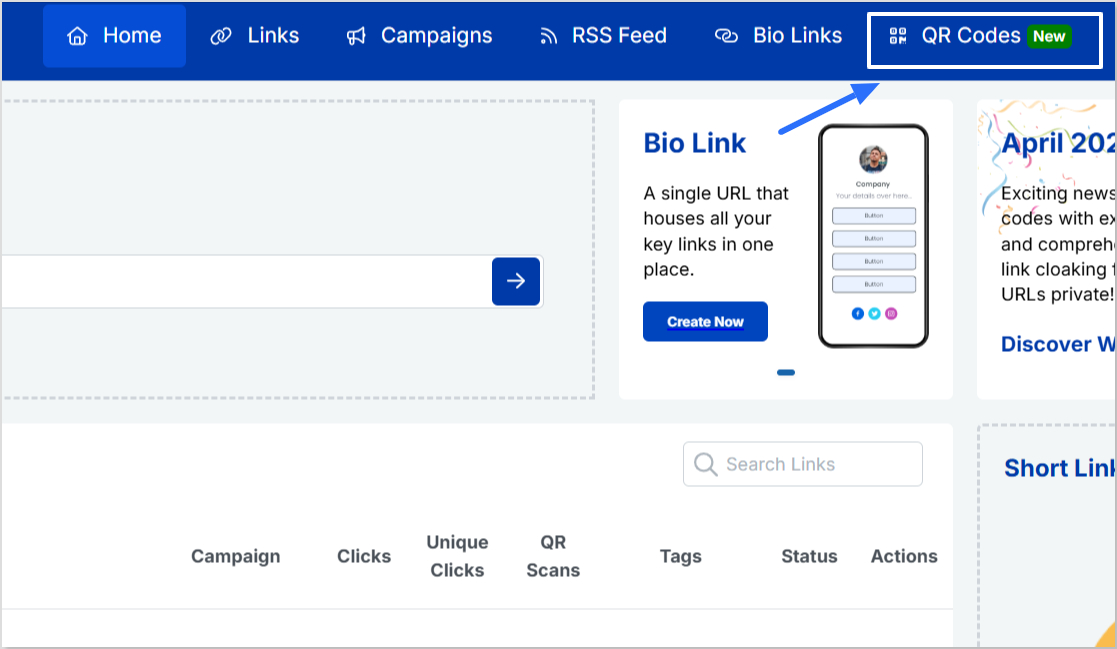
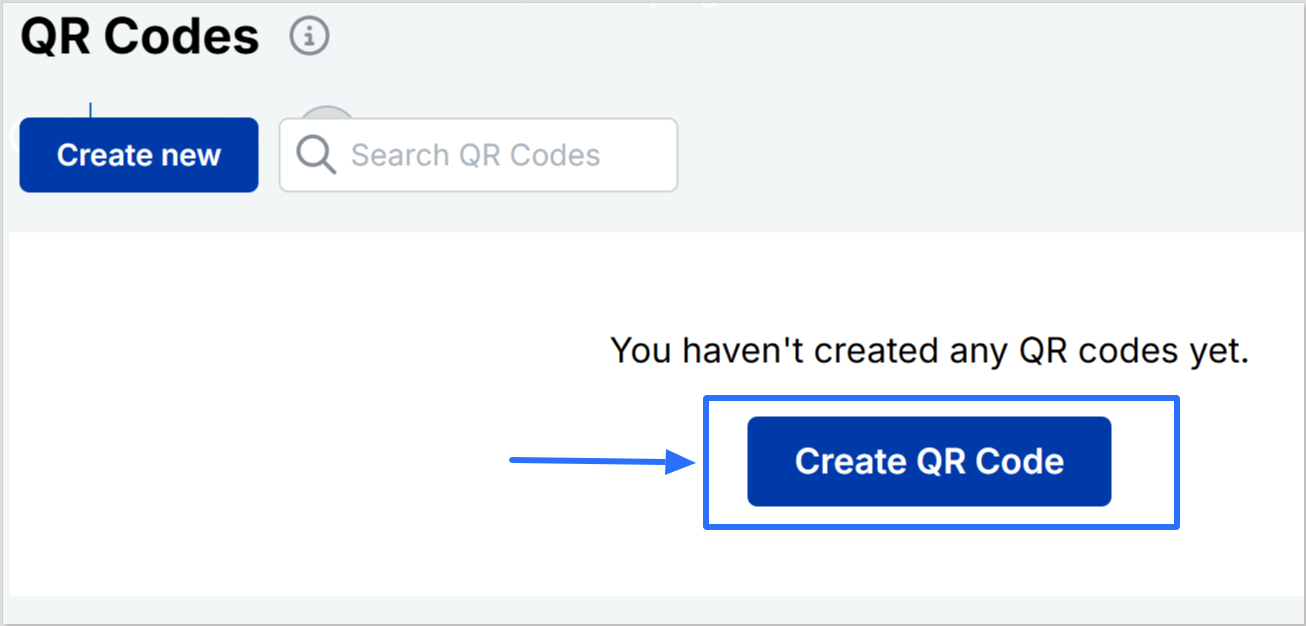
From the main navigation bar, click on the “QR Codes” tab. From there, hit the “Create New” button.
Step 3: Enter your network information
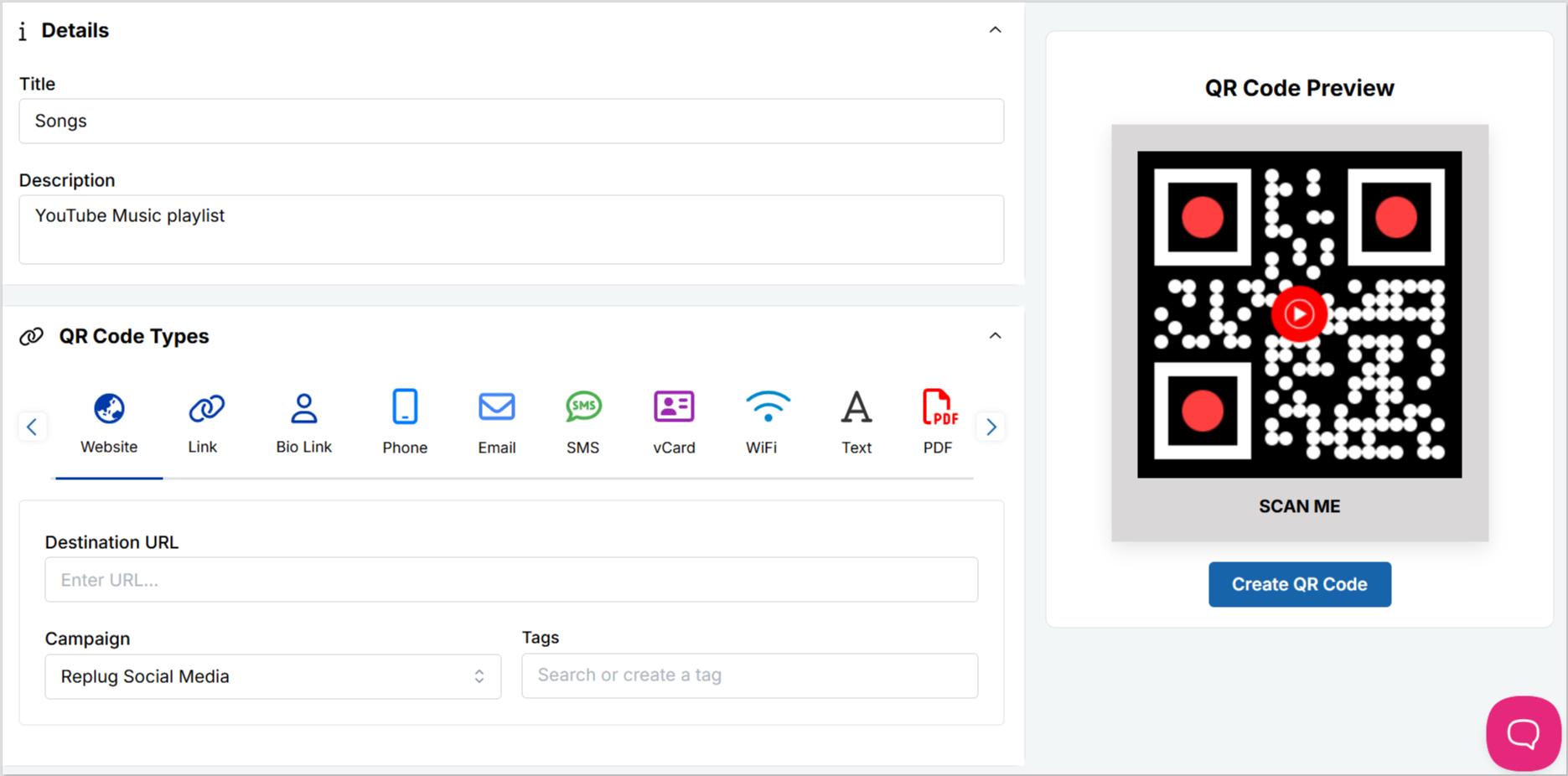
Give your QR code a name and a short description for easy management later.
Under “QR Code Type,” select WiFi.
Now input your WiFi details:
SSID: This is your WiFi network name (also known as the network ID).
Password: Add a strong and secure password. Use a mix of letters, numbers, and special characters.
Encryption Type: Choose from:
WPA/WPA2: Recommended and most secure.
WEP: Older and less secure.
No encryption: Only use this if your network is open.
💡 Tip: WPA/WPA2 is the safest option for most WiFi networks today.
Step 4: Customize the appearance
Tailor the design when you create a WiFi QR code:
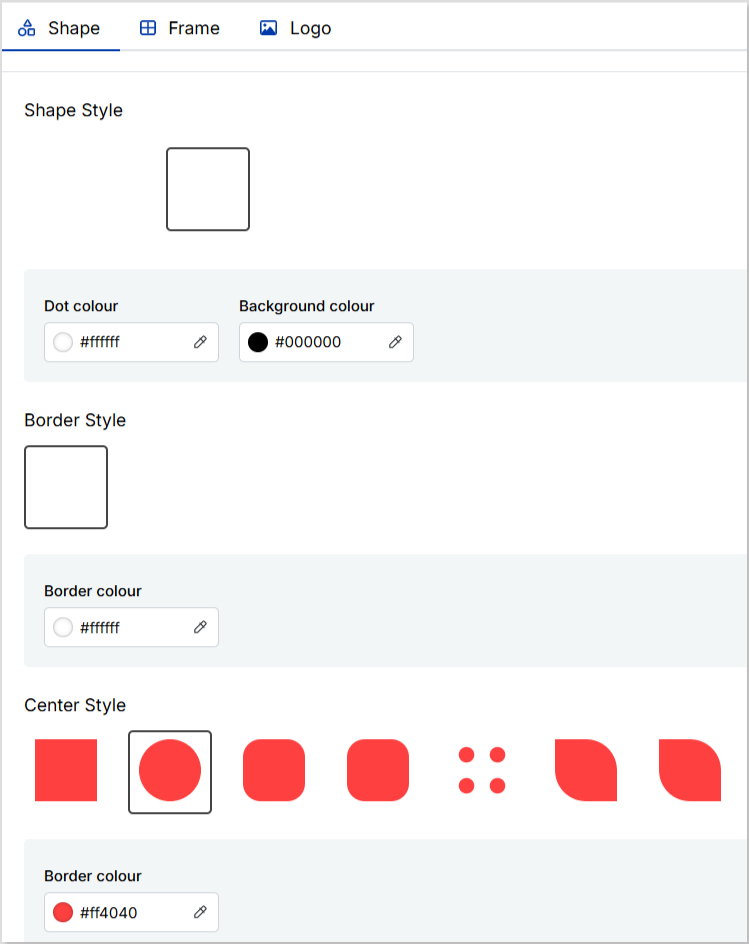
Choose your brand colors
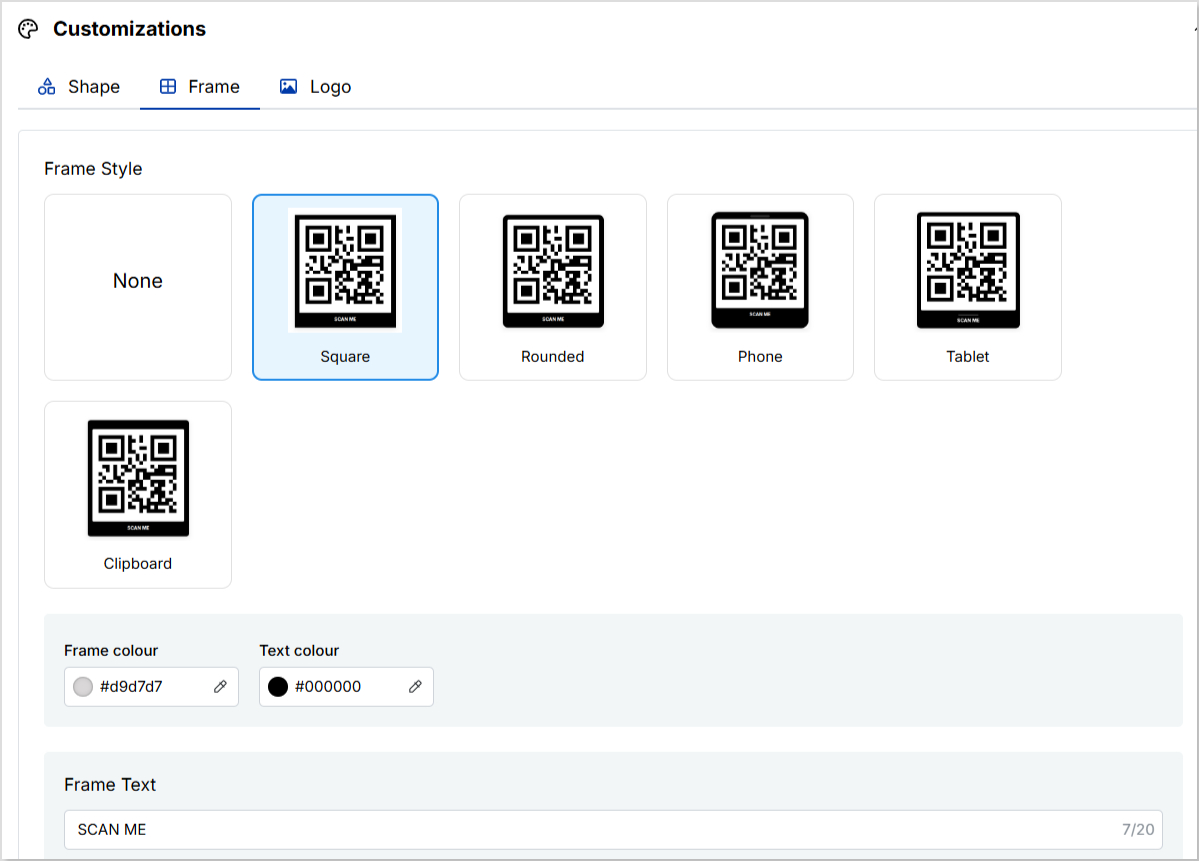
Select a frame style
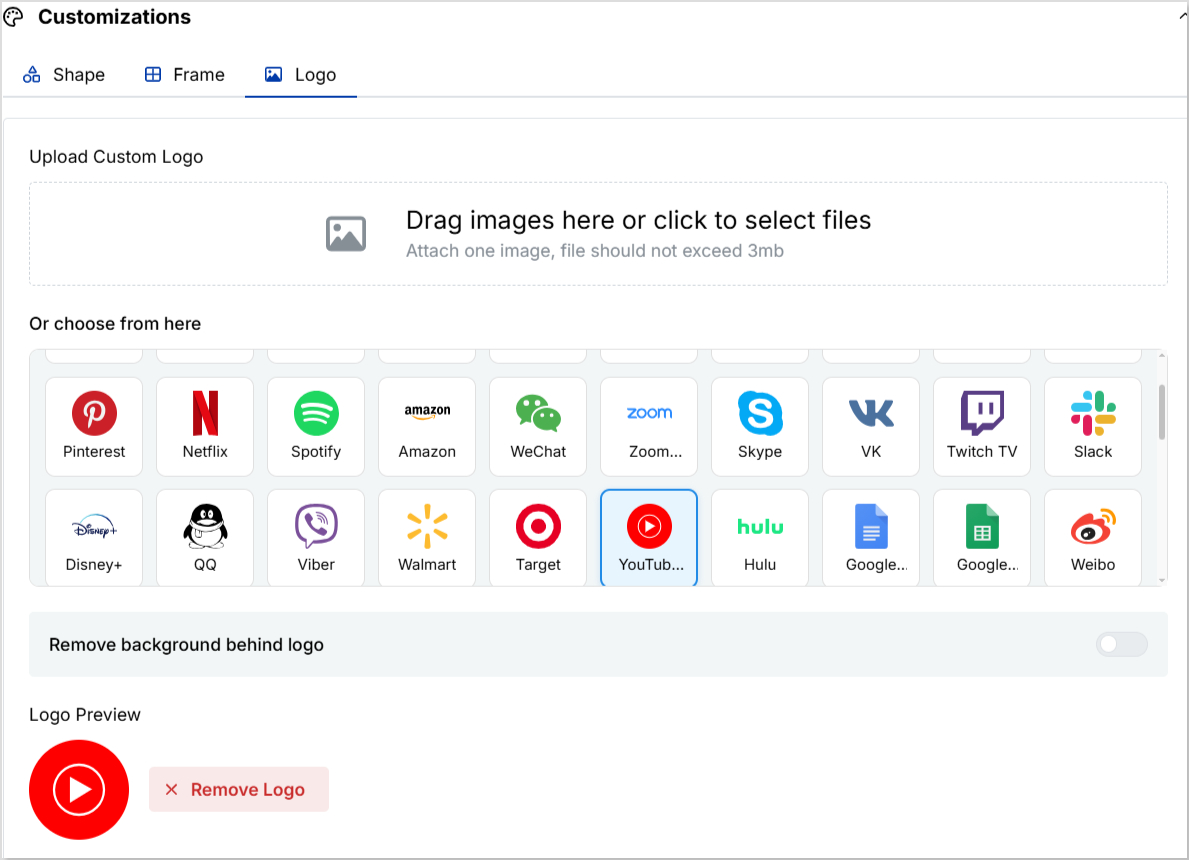
Upload your logo or pick one from Replug’s image collection
Step 5: Download your QR code
Once everything looks good, download your QR code in your preferred format: PNG, JPEG, SVG, or WEBP.
Now you’re ready to print it, display it, or share it online!
Related: [Insert link to: How to create a YouTube QR code?]
✨ Bonus tip: You can personalize the shortened link behind the QR code by editing the URL slug in Replug.
Why use Replug for WiFi QR codes?
Still deciding on which tool to use? Here’s why Replug.io is ideal to create a WiFi QR code:
Branded QR codes: Add logos, color palettes, and custom frames for a polished look that matches your business identity.
Multiple QR types: Beyond WiFi, Replug let’s you create dynamic QR codes for links, text, videos, events, and more.
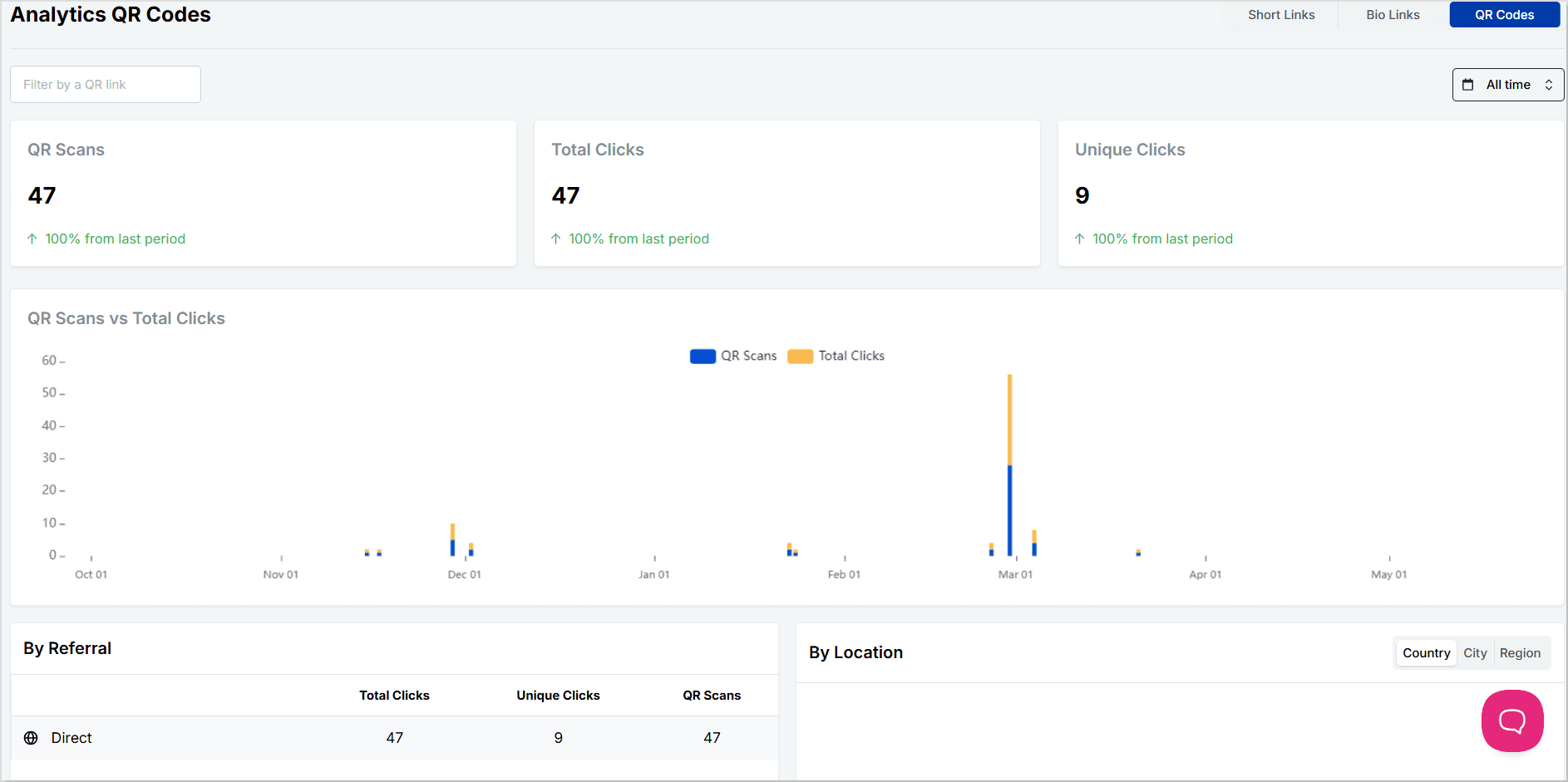
Trackable analytics: Get access to performance metrics like scan count, device type, and location.
Shortened URLs: Create short links that are clean, branded, and easily editable behind every code; a win for both aesthetics and tracking.
Maximize marketing ROI
by transforming ordinary URLs into branded short links that convert.
Try Replug for free
Versatile downloads: Export in various file formats for digital or print use.
All-in-one platform: Manage all your QR codes, branded links, bio links, and campaigns in one place.
Whether you’re a business owner, freelancer, or marketer, Replug combines design flexibility, usability, and data insights, making it more than just a basic QR code generator.
Best practices when creating a WiFi QR code
To make the most of your QR code, here are a few things to keep in mind:
Use strong encryption: Always choose WPA/WPA2 unless absolutely necessary.
Test before sharing: Scan the QR code with a couple of different devices to ensure it connects correctly.
Place it strategically: Make it easy for people to spot, whether be at the entrance, on tables, or behind the counter.
Use branded designs: Custom colors and logos help reinforce your brand identity.
Update regularly: If your WiFi credentials change, remember to create a new WiFi QR code.
Conclusion
WiFi QR Codes are the modern answer to the age-old question: “What’s your WiFi password?”
Whether you’re a business aiming to enhance customer experience or someone who just wants to make things a little easier at home, creating a WiFi QR code is a smart, user-friendly solution.
And with tools like Replug, not only is the process simple; it’s also an opportunity to show off your branding while keeping things secure.
So go ahead, create one today with Replug and make connecting as easy as scanning.
Frequently asked questions
Can anyone scan my WiFi QR code and get access?
Yes. Anyone who scans the code can connect to your network. That’s why it’s essential to place it wisely and use a strong password with encryption.
Do I need a special app to scan a WiFi QR code?
Not at all! Most modern smartphones can scan QR codes directly from the default camera app. However, older phones may require a third-party QR scanner.
Can I edit the QR code after creating it?
Yes. With advanced link management and QR code generators like Replug, you can edit the design and the destination link of your QR code. But if credentials change, you must create a new WiFi QR code.
Is it safe to share my network with a WiFi QR code?
Yes, as long as you use WPA/WPA2 encryption and avoid sharing the code in public forums or social media platforms where unknown users might gain access.
Can I use WiFi QR codes for multiple locations?
Yes. Just create a WiFi QR code for each unique network.
Want to drive more traffic to your Facebook page without relying solely on paid ads or organic search?
Here’s a simple yet underrated trick: Facebook QR codes.
Yes, those scannable little black-and-white squares are more than just tech gimmicks. They’re powerful tools that can bridge the offline and online worlds, bringing people directly to your Facebook page with a quick scan.
In this blog, we’ll show you how to create a Facebook QR code in just a few minutes using Replug, a powerful link management tool. Plus, we’ll explain why it’s a smart move for your business or brand.
What is a Facebook QR code?
A Facebook QR code is a unique, scannable code that, when scanned by a mobile device, redirects users directly to your Facebook profile, business page, or group.
Think of it as a shortcut. Instead of asking someone to search for your page, you give them a one-tap way to access it. Whether you add it to flyers, product packaging, business cards, or display it in your store, a Facebook QR code is all about reducing friction and increasing engagement.
Why use a Facebook QR code?
Still on the fence? Here are a few reasons why a Facebook QR code is worth your attention:
Offline to online: Connect with people in the real world and drive them to your online presence.
Saves time: No need to spell out long URLs or ask people to “look you up.”
Professional touch: It shows you’re digitally savvy and makes your brand more accessible.
Boosts conversions: The easier it is to find your page, the more likely people are to follow or message you.
How to create a QR code for a Facebook page?
There are many ways to generate a QR code, but using our Facebook QR code generator gives you some major advantages, like tracking QR code analytics, customizing your QR code’s design, and even retargeting your visitors.
Step 1: Sign in or create an account
The first step is to sign in to your Replug account. If you don’t have an account, create one. It only takes a few minutes.
A complete link management solution
for marketing professionals & agencies.
Try Replug for free
Step 2: Create a QR code
There are two ways to create a Facebook QR code for your page or profile:
Way #1: Head straight to the QR code builder
From your main dashboard, tap “QR Codes” in the navigation bar.
Click “Create New.”
You’ll be taken to the QR code creation page where you can build a fully branded and customizable code.
Here’s what you can do:
Add a title and description.
Choose a QR code type: website, link, PDF, SMS, WiFi, phone, and more.
Customize the frame, shape, and even upload your logo.
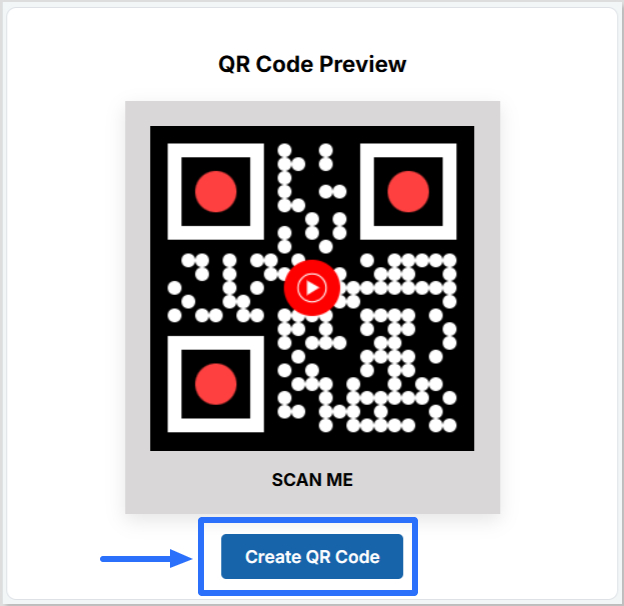
Once you’re happy with the design, hit “Create QR Code.” Your code is ready to download in multiple formats like PNG, JPEG, SVG, or WEBP.
💡 Pro Tip: You can also create a custom URL by optimizing the slug of your shortened link. Even though the QR code hides the link itself, it’s always nice to redirect users to a clean, easy-to-read URL after they scan.
Way #2: Shorten your link first, then create a QR code
Paste your Facebook URL into the bar under “Quickly shorten your link.”
Want a cleaner, more memorable link? Go ahead and edit the slug to create a custom URL. Totally optional, but definitely recommended for clarity.
Click the QR code icon next to your link.
Time to customize! You can tweak the design, colors, and branding to make the QR code match your style.
And just like that, your Facebook QR code is ready to go.
You might be wondering… why use Replug’s QR code generator instead of a random tool online?
Here’s what sets Replug apart:
Branded short links: Customize your URL the way you like with this efficient link shortener, before turning it into a QR code.
Maximize marketing ROI
by transforming ordinary URLs into branded short links that convert.
Try Replug for free
Retargeting pixels: Add tracking pixels to the shortened link inside your QR code to run remarketing campaigns.
Link analytics: Monitor how many times your QR code has been scanned, clicked, and converted.
Advanced customization: Control the appearance of your QR code to align it with your brand aesthetics.
Multiple formats: Download your QR code in print-friendly and web-friendly file types.
Basically, it’s not just a QR code, it’s a marketing tool.
Final thoughts
A Facebook QR code isn’t just a techy gimmick; it’s a smart way to make your online presence more accessible, especially in offline spaces. With Replug, creating one is a breeze, and you get the added bonus of click analytics, retargeting, and full customization.
Whether you’re a small business owner, marketer, or content creator, this is a quick win for increasing visibility and engagement on Facebook.
So go ahead, create your Facebook QR code today with Replug, and make it easy for the world to find (and follow) you.
Ready to get started? Sign in to your Replug dashboard and try it for yourself!
Frequently asked questions
What is a Facebook QR code?
A Facebook QR code is a scannable code that directs users straight to your Facebook profile, business page, or group. It’s a convenient way to share your page without asking people to search for it manually.
Why should I use a Facebook QR code for my business?
It helps you: Connect offline users to your online page Boost your follower count Look more professional and tech-savvy Save time (no need to spell out links!)
Can I customize the Facebook QR code?
Yes! With Replug, you can customize everything from the shape and colors to adding your logo. This makes the QR code look on-brand and professional.
Can I track how many people scan my Facebook QR code?
Absolutely. Replug offers analytics that show how many times your QR code has been scanned and how users interacted with it.
Can I change the Facebook link after the QR code is printed?
If you’re using Replug’s dynamic QR code feature, yes. You can update the destination URL without changing the code itself. Handy for campaigns or seasonal updates!
Want a single QR code that sends users to different destinations based on location, device, or time? Replug makes it simple.
Whether you want a short link, managing global campaigns, A/B testing landing pages, or creating personalized user journeys, Replug’s traffic routing and bio link features give you powerful ways to connect users with the right content, automatically.
In this guide, we’ll walk you through two easy methods to create a multi-URL QR code using this one-of-a-kind link management platform, i.e., Replug:
A complete link management solution
for marketing professionals & agencies.
Try Replug for free
Method 1: Create a multi-URL QR code using traffic routing
Step 1: Log in to your Replug account
Head to Replug.io and log in. If you’re new, sign up for a 14-day free trial.
Step 2: Create a smart link
Click “Create new link” on your dashboard. Add a primary URL (the default destination).
After entering the link, a pop-up will appear – choose “traffic routing”.
Step 3: Set up your multi-URL destinations
You’ll now define how your traffic should be routed. Replug gives you a variety of conditions to choose from:
Country-based redirection: Send users to different URLs based on their location.
Device-based redirection: Route users based on whether they’re using a mobile, tablet, or desktop.
Browser or OS-based redirection: Customize based on the user’s browser or operating system.
Date and time-based rules: Perfect for limited-time offers or rotating links.
A/B testing: Split traffic between multiple pages for performance testing.
Add each URL, set its rule, and click “Save.”
Edit or delete any rule block right from the dashboard anytime.
Step 4: Generate a QR code for your link
Once your traffic routing link is ready:
Click the QR code icon next to your link.
Customize the QR code with your brand colors, logo, and frame text.
Click “Download” to save your QR code.
Now, one QR code can dynamically redirect your audience based on the rules you’ve set.
This one QR code now dynamically redirects your audience based on the rules you’ve set.
Step 5: Save, share & track
Save your link and share your QR code anywhere: product labels, posters, social media, you name it. Don’t forget to monitor performance from the Replug analytics dashboard. Track:
Method 02: Create a multi-URL code using a bio link page
Start by logging into your Replug account. Don’t have one? Sign up for free and explore all the features. Once logged in, you’ll land on your dashboard.
Creating a multi URL QR code in Replug is easy, powerful, and perfect for anyone running advanced marketing campaigns. With the flexibility of traffic routing and detailed analytics, you’ll have more control over how and where users land – all from one smart QR code.
Ready to create your own? Log in to Replug and get started today!
FAQs on multi-URL QR code
What is a multi URL QR code?
A multi URL QR code redirects users to different destinations based on specific rules like location, device, or time.
Can I change the destination URLs later?
Yes, with Replug, you can edit or delete routing rules at any time, no need to reprint your QR code.
Will all users see the same content?
Not necessarily. Based on your set rules, users can be shown different content depending on their conditions (e.g., device or location).
How many URLs can I add in a traffic routing QR code?
There’s no hard limit. You can add multiple rule-based URLs to suit your campaign.
Can I track how many people scanned my QR code?
Yes, Replug provides real-time analytics including total scans, unique clicks, and rule-based redirections.
What’s the difference between traffic routing and bio link QR codes?
Traffic routing: Sends users to different URLs based on smart rules. Bio link page: Displays a single landing page with multiple clickable links.
Every day, we click dozens of links without thinking twice, from emails and social media posts to online shopping deals and messages from unknown senders.
But what if one simple click could expose your personal data, banking details, or even your entire device? The risk is very real!
In fact, cybersecurity reports show that nearly 893 million phishing attempts were blocked globally in 2024, highlighting how common malicious links have become.
Even more alarming, phishing emails account for over 90% of successful cyberattacks, proving how easily unsafe links can trick users.
That aligns with recent reporting that found 2,365 cyberattacks and over 343 million victims in 2023 alone, driven largely by increasingly sophisticated phishing and malware-delivery methods.
With scams becoming smarter and harder to detect, learning how to verify link safety is no longer optional (it’s essential).
Before we step into how to check suspicious URLs, let’s first understand the basics, starting with what a safe link actually means.
What is a safe link?
A “safe link” is a trustworthy web address that leads you to a legitimate and secure website without exposing your device or personal information to harm. In simple terms, it’s a link that takes you exactly where it claims to go (nothing hidden, nothing risky).
Most safe URLs belong to verified organizations or websites, use proper security measures like HTTPS encryption, and don’t contain malware, phishing scripts, or suspicious redirects.
When you click a safe link or URL, your connection is encrypted, which helps protect sensitive information such as login credentials or payment details.
Safe links are designed to ensure users can browse, share files, or access resources securely, including legitimate password-protected links that restrict access to authorized users only.
Overall, the main objective of a safe link is to provide a secure browsing experience while protecting users from scams, data theft, and cyber threats.
Importance of checking link safety
Here’s why it’s so essential:
Protects your personal & financial data: Unsafe links often redirect users to fake websites that steal login credentials, banking details, or personal information through phishing scams.
Prevents malware infections: Malicious URLs can automatically install harmful software like ransomware, keyloggers, or spyware, which can compromise your device and data.
Helps verify genuine URLs: Checking URLs ensures you’re visiting the correct website and not a spoofed or look-alike domain, which is specifically designed to trick users.
Keeps password-protected links secure: Verifying password-protected links helps confirm they come from trusted sources and aren’t fake portals created to capture your passwords.
Reduces the risk of identity theft: Cybercriminals often use unsafe links to collect personal details that can later be misused for fraud or unauthorized access.
Prevents accidental data sharing: Safe link checks help users avoid uploading files or information to harmful or fake platforms.
Strengthens overall online security habits: Regularly verifying links helps build safer browsing habits and reduces the risk of falling for modern URL-based phishing and scam tactics.
How to check if a link is safe to click
Before clicking any link, it’s always smart to pause for a few seconds and verify where it actually leads.
Cybercriminals often hide malicious content behind convincing links, but the good news is you don’t need to be a tech expert to spot most risks.
A few simple checks can help you avoid phishing scams, malware downloads, and fake websites.
Here’s how to check if a link is safe before clicking it:
Hover before clicking
Place your mouse over the link without clicking it. Most browsers will show the real destination URL in the bottom corner of the screen.
If the displayed address looks unfamiliar, misspelled, or unrelated to what the link claims, it’s best to avoid clicking. Keep in mind that hovering isn’t 100% foolproof, so combine it with other checks for better safety.
Use URL checkers
Online link scanners such as VirusTotal, Google Safe Browsing, and similar tools let you paste a suspicious link and scan it for malware, phishing, or other known threats.
These tools analyze the destination and alert you if the website has been flagged as dangerous, providing an extra layer of protection.
Inspect the URL structure
Take a close look at the link itself. Scam links often contain small spelling errors, extra characters, or strange domain extensions that mimic legitimate websites.
For example, attackers may replace letters with numbers or add extra words to trick users. Carefully reviewing the structure of a URL can help you catch these warning signs early.
Check for HTTPS
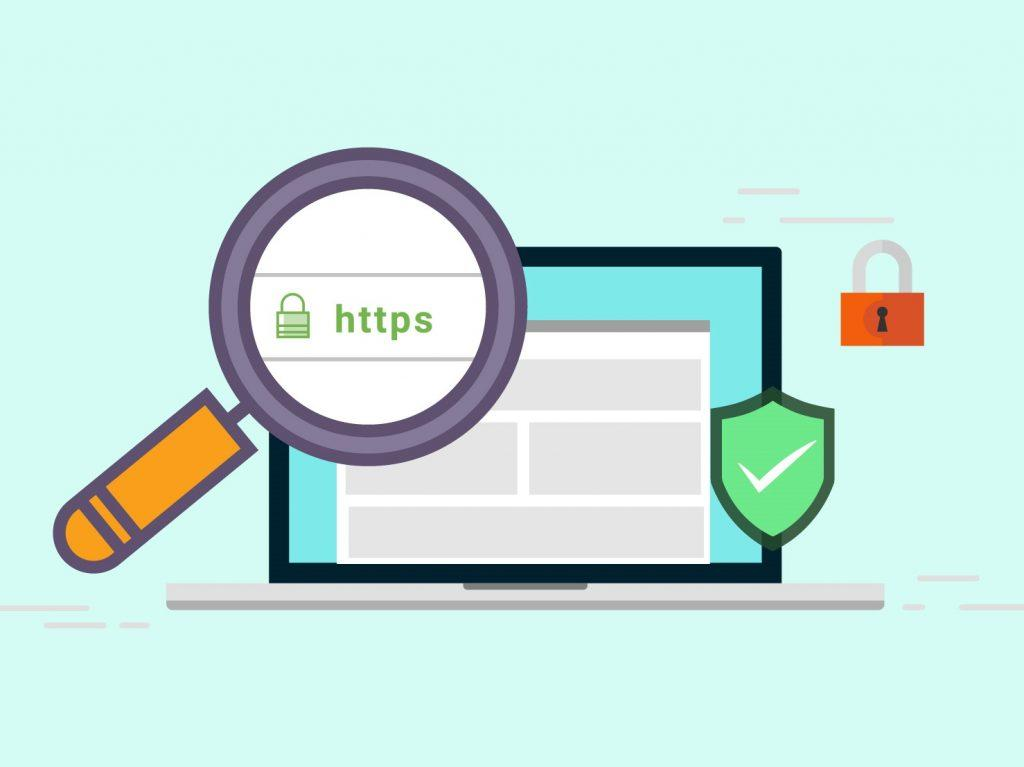
Safe websites usually start with “https://” and display a padlock icon in the address bar. The “S” means the connection is encrypted, which helps protect your data while browsing.
While HTTPS alone doesn’t guarantee a site is completely safe, its absence is often a red flag, especially if the website asks for sensitive information.
Analyze the source
Always think about where the link is coming from. If you receive a link from an unknown sender, an unexpected email, or a message that creates urgency or fear, it could be a phishing attempt. When in doubt, always verify the sender through another trusted channel before clicking the link.
Check shortened links
Shortened links hide the full destination, making it easier for scammers to disguise harmful websites. You can preview or expand such links using special tools or preview options provided by some shortening services. This helps reveal where the link actually leads before you open it.
How to check if a link is safe to open
Sometimes, you may want to verify a link without actually visiting the website, especially if it looks suspicious.
The good news is that there are several simple tools and methods that let you analyze links safely in the background.
These options help you spot phishing attempts, malware risks, and fake websites without putting your device or data at risk.
Here’s how to check if a link is safe without opening it:
Use online URL scanners
Online URL scanners allow you to copy and paste a link into a safety tool instead of opening it directly.
These tools check the link against large threat databases and scan it for malware, phishing activity, fake websites, or scams. Many scanners provide results within seconds, helping you decide whether a link is safe before visiting it.
This is one of the easiest and most reliable ways to check suspicious links without exposing your device to risk.
Use link shortener expanders
Link shortener expanders reveal the real destination behind shortened links. Cybercriminals often use shortened URLs to hide malicious websites, phishing pages, or malware downloads.
Expander tools show the full URL, analyze redirect chains, and sometimes check the final destination against threat databases.
This transparency helps you confirm if the link leads to a legitimate site or a suspicious one before you click.
Use security extensions
Browser security extensions act like a built-in safety guard while you browse. These tools analyze links in real time and warn you if they detect phishing attempts, malware, or unsafe websites.
Some extensions also allow you to scan links manually or preview shortened links before opening them.
While they add an extra layer of protection, it’s still important to install extensions only from trusted sources and keep them up to date for the best security.
How to check if a link is safe on iPhone
iPhones already come with strong security features, but that doesn’t mean every link you see is safe. Scammers still use phishing messages, fake websites, and misleading links to trick users into sharing personal information.
The good news is that your iPhone offers several simple ways to verify links before you open them.
Let’s go through some easy checks you can use to stay safe!
Preview the URL
You can preview a link without opening it by long-pressing it in Safari or many other apps. This shows a preview window or lets you view the full URL so you can check where the link actually leads.
If the address looks strange, misspelled, or unrelated to what the link claims, it’s safer to avoid it.
Apple confirms that touching and holding a link lets users preview the page without opening it.
Use Safari’s built-in protection
Safari includes a feature called Fraudulent Website Warning that alerts you when you try to visit a suspected phishing or scam website.
It checks website addresses against trusted safe-browsing databases and displays warnings before you interact with dangerous pages.
This helps protect personal information such as passwords, login credentials, and financial data from fake websites.
Inspect for HTTPS (padlock icon)
Always check for the padlock icon and “https://” at the beginning of the website address. This shows that the connection is encrypted, helping protect your data while browsing.
While HTTPS doesn’t guarantee a site is completely safe, legitimate websites that handle sensitive information almost always use it, making it an important first step in assessing safety.
Scan with online tools
If a link looks suspicious, copy and paste it into a trusted URL-scanning tool or app instead of opening it directly. These tools analyze links for phishing attempts, malware risks, domain history, and redirect chains.
Some scanners even provide a screenshot of the destination page, allowing you to check the content without visiting the site.
Review the link structure
Take a moment to carefully read the link. Fraudulent links often include small spelling mistakes, unusual characters, or strange domain endings designed to look like real websites.
If the link claims to belong to a trusted company but the web address looks slightly different, that’s usually a warning sign.
How to check if a link is safe on Android
Android phones already include several built-in security features, but scammers still try to trick users through fake or harmful links.
No matter if you receive a link via SMS, email, social media, or an app, it’s always smart to verify it before opening it.
Thankfully, Android (especially when using Chrome) offers a few easy ways to check link safety without needing technical knowledge.
Check browser security (Chrome)
Google Chrome on Android uses Safe Browsing technology that warns users before they visit dangerous websites or download harmful files.
It performs real-time checks against databases of phishing and malware websites and can even detect new or previously unknown threats.
Enabling Chrome’s enhanced protection mode can further strengthen security by using advanced AI to detect scam URLs and suspicious downloads.
Long-press preview
You can long-press a link in Chrome to have a look at the preview options before fully opening it.
This feature lets you quickly check where the link leads and, in some cases, view part of the webpage without loading it in a new tab.
It’s a simple way to confirm whether the link looks trustworthy or suspicious before clicking.
Use built-in protections
Android includes several background security layers, such as Google Play Protect, which scans apps and helps block harmful software.
Chrome also receives regular security updates and AI-based protections that detect deceptive websites and suspicious content while you browse.
These built-in tools continuously work to keep your device, apps, and data safe.
Avoid shortened links
Shortened links make it easier for scammers to disguise harmful websites. If you receive one, it’s safer to expand or verify it using a preview tool or link scanner before opening it.
Taking a few extra seconds to check shortened links can prevent phishing attacks and malware downloads.
How to check if a link is safe on Discord
Discord is a fun place to chat, join communities, and play games, but like any online platform, it can also be targeted by scammers.
Malicious links on Discord often appear in direct messages, server chats, or bot messages and may look completely legit at first glance. The key is knowing what warning signs to look for before clicking anything.
Here are some simple ways to check if a Discord link is safe or not!
Check for misspellings (typosquatting)
Scammers often create fake links that look almost identical to real Discord domains. For instance, they might replace letters or slightly change the spelling to trick users into thinking the link is legitimate.
Discord safety resources highlight that fake links often rely on small spelling mistakes or altered domain names to mislead users. If a link looks even slightly off, it’s best to avoid it!
Use third-party link scanners
If you’re unsure about a link, copy it and scan it with trusted link-checking tools before opening it directly.
Discord recommends checking suspicious links with security tools, such as malware scanners, to see if they have been flagged as dangerous. These scanners can detect phishing pages, malware downloads, and other hidden threats that would otherwise go unseen.
Identify fake domains
Always verify whether the link is from an official Discord domain, such as discord.com. Fake websites often copy Discord’s design and try to trick users into entering login details or downloading harmful files.
Security guidance warns that suspicious DMs or links requesting passwords, login credentials, or personal information are major red flags and should be sidestepped.
Check for “free nitro” scams
Fake Nitro giveaways are one of the most common Discord scams in 2026.
Discord warns that random messages promising free Nitro, rewards, or giveaways are usually scams, especially if they ask you to click a link, scan a QR code, or enter your login details.
Legitimate Nitro gifts typically stay within Discord’s official system and don’t require suspicious external links.
How to check if a link is safe on Reddit
Reddit is a great place to discover content, but not every shared link is trustworthy. Since users can post external links freely, it’s important to take a few quick safety checks before clicking on anything unfamiliar.
The good news is that you don’t need to be a cybersecurity expert. A few simple habits can help you avoid risky or malicious links.
Use external link scanners (before clicking)
Paste the Reddit link into trusted link-checking tools or similar scanners to see if the URL is flagged as unsafe or suspicious. If the scanner shows warnings or suspicious activity, it’s best to avoid clicking the link altogether.
External scanners are helpful because malicious URLs can lead to phishing attacks, malware downloads, or the theft of personal information.
Analyze the link within Reddit
Hover over the link (on desktop) to preview the full URL before clicking. If the address looks strange, overly long, or slightly misspelled (like fake domain names), it could be risky.
Also, check whether the link uses HTTPS (secure protocol). While not a guarantee of safety, HTTPS is generally safer than simple HTTP.
Besides, be cautious with shortened links. Since they hide the final destination, scan or expand them before opening.
Evaluate the context & community
Read the comments under the post. Other Reddit users often quickly point out suspicious or misleading links.
Likewise, look at the subreddit where the link is posted. Well-moderated, reputable communities usually remove harmful or spam content faster.
You must also check the poster’s profile. Accounts with no history, very recent creation dates, or spam-like posting patterns can be warning signs.
Use built-in security
Reddit uses automated systems and moderation tools to detect spam, harmful content, and unsafe links across the platform.
Pay attention to Reddit warnings or posts that have been removed. They often signal potential security risks.
Enable two-factor authentication (2FA) to keep your Reddit account secure, and it helps protect you even if you accidentally interact with suspicious content.
Avoid suspicious content
Stay away from links that promise unrealistic rewards, giveaways, or urgent offers. These are common phishing tactics.
Additionally, avoid downloading files or software from unknown Reddit links, as they may contain malware. If something feels off or too good to be true, trust your instinct and skip it.
How to check if a link is safe to download
Before downloading anything from the internet, it’s smart to pause and double-check the link. Unsafe download links can lead to malware, phishing attempts, or fake files that compromise your device or personal data.
The good news?
A few simple checks can help you avoid most risks and download files with confidence.
Start by downloading files only from trusted or official websites, since scammers often create fake pages that look almost real.
Use reliable URL scanners to analyze the download link before clicking. These tools scan links across multiple security databases to detect malware or phishing threats.
Also, check if the website uses HTTPS encryption and look for unusual domain names or spelling mistakes, which can signal fake sites.
If possible, scan downloaded files with antivirus software or verify their file hashes or signatures to confirm they haven’t been tampered with.
These quick habits significantly reduce your chances of downloading harmful content.
How to check if a link is safe in an email
Before clicking any link in an email, take a moment to double-verify it.
First, hover your mouse over the link (or long-press it on mobile) to see the actual URL. If the address looks strange or doesn’t match the company’s official website, it’s best to avoid it.
Also, check the sender’s email address carefully. Scammers often use addresses that look similar to real ones but have small changes.
Be cautious with shortened links or emails that create urgency, such as asking you to “act now” or to share personal details.
If you’re unsure, don’t click the link. Instead, visit the company’s website directly by entering the address in your browser, or contact their support team.
Taking these quick steps can help you stay safe from phishing and malicious links.
What does a link checker do & why should you choose one?
Keeping your website’s links healthy and working is one of those behind-the-scenes jobs that make your site feel professional and trustworthy.
A “link checker” is the tool that does this work for you. It scans every link on your site to make sure nothing’s broken, missing, or sending visitors astray.
Here’s a friendly, step-by-step explanation of how a link checker works:
1. You enter your website’s URL: Just type in the main domain or a specific page URL into the tool. This tells the link checker where to start.
2. It crawls your site like a search engine would: The tool goes through every page it can find, just like a crawler or bot, and pulls out every hyperlink you’ve got (both internal and external).
3. It grabs all the links it finds: It looks at every linked item (navigation links, buttons, images, PDFs, and more) and organizes them.
4. It tests link responses: Each link is checked by asking the destination server for a response. If the server says “200 OK,” that’s good. But if it returns an error (such as a 404 “Not Found” or another code), the link is flagged as broken. These status codes tell you what’s happening behind the scenes.
5. It groups & reports the results: Once scanning is done, the tool presents a report showing which links are fine and which aren’t, often with extra details such as internal vs. external, dofollow vs. nofollow, and error types.
6. You fix what’s broken: Armed with the report, you can update, redirect, or remove bad links to keep your site smooth and error-free.
💡 In a nutshell: A link checker simplifies what would otherwise be a painfully slow manual task. It automates the process of scanning links, testing them, and showing you exactly what needs fixing, all in a few minutes.
Manual link checking vs Automated link checking
When you’re trying to keep your site in good shape and SEO-friendly, you might wonder whether to check links yourself or let a tool do it. Both methods have their place, and knowing how they compare helps you pick the right approach for your needs.
Here’s a clear comparison that breaks down the key differences between manual link checking and automated link checking in a friendly, easy-to-digest table:
Aspect
Manual link checking
Automated link checking
How it works
You click each link and review it to see if it works and makes sense.
A tool crawls your site and automatically tests links.
Accuracy / Quality
Very accurate since a human can spot subtle problems and context issues.
Good for basic errors, but can miss nuances or flag things incorrectly.
Speed
Pretty slow, as checking many links page by page takes time.
Quite fast, since tools can check thousands of links in minutes.
Human error risk
Higher risk of mistakes if you get tired or skip links by accident.
Lower risk, since tools run consistently without fatigue.
Scalability
Hard to scale; Great for small sites but tough for large ones.
Easily scales to large sites with many pages and links.
Context & judgment
Excellent — you can judge if a link is appropriate and meaningful.
Limited — tools test status but can’t fully judge relevance.
Cost
Free if you do it yourself, but time is the main cost.
May require paid tools, but saves time overall.
Best use case
Small sites, deep quality checks, or when accuracy matters most.
Big sites, frequent checks, or when you want fast reports.
Most website owners or SEO pros use a mix of both: automated tools to catch obvious errors quickly, and a bit of manual checking when you want to double-check quality or context.
As cyber threats continue to evolve, learning the fundamentals of online security has become increasingly valuable. Many professionals and students are now enrolling in an online cyber security masters program to develop advanced skills in identifying phishing attacks, analyzing malicious links, and protecting digital systems. These programs provide more in-depth knowledge about how cybercriminals operate and how to defend against modern online threats.
Wrapping up
In the end, staying on top of:
What a safe link is,
How to check links across devices and platforms, and
Learning the key differences between manual and automated link checking
gives you a complete picture of how to keep your online presence healthy and trustworthy.
No matter if you’re scanning email links or scanning thousands of URLs on a site, a good streamlined process can save you time and frustration.
An all-in-one link management platform like Replug makes this even easier by letting you shorten, organize, secure, and track all your URLs from one place.
A complete link management solution
for marketing professionals & agencies.
Try Replug for free
With features like branded links, analytics, and an efficient custom link generator that turns messy long URLs into clean, click-friendly ones, Replug helps you keep everything neat and professional.
This gives you peace of mind knowing your links are working for you, not against you. Try it today!
Frequently asked questions
How can I tell if a link is safe?
You can’t always judge a link just by looking at it, but a few signs help.
– Hover over it to see the real address, – Check that the domain name looks normal and is spelled correctly, and – Look for a secure connection (https:// with a padlock).
For real confirmation, use a URL safety checker before clicking. These tools effectively scan for malware, phishing, and scams.
How to know if a link has a virus?
A link itself doesn’t contain a virus, but it can lead to a page that delivers malware. You can check a link before clicking by copying it into an online scanner to see if it’s associated with malware or dangerous sites.
If you accidentally click and your browser warns you or your antivirus flags a download, close it and run a scan on your device.
How can I tell if a link is legit or a scam?
Look at the sender and context. Unexpected urgent requests or offers are red flags. Inspect the link for misspellings, odd characters, or strange domain names. Scammers often use tiny variations of real sites.
You can also run the link through a URL safety scanner to check reputation and known phishing reports before clicking.
What is a malicious URL, and what happens if you click on one?
A “malicious URL” is a web address designed to trick you into visiting a harmful site that can steal data, install malware, or steal money.
If you click on one, you might be redirected to fake login pages, get malware automatically downloaded (drive-by downloads), or be tricked into giving up personal info. This ultimately lead to account compromise or identity theft.
What’s the safest way to check if a URL is malicious or suspicious?
The safest way is to scan the link before clicking. Use trusted online tools or other URL scanners to check for malware, phishing, or blacklist status.
Don’t click first; just copy and paste the link into the tool, and check the result. Combined with common sense (hover to preview, watch for odd domains), this approach gives the best protection.
Does a URL/link checker identify a link as a scam or a fake one?
Yes! Many of the best URL/link checkers available online scan links against databases of known threats and look for signs of scams or fake sites. These tools analyze a URL’s reputation and patterns associated with fraud, phishing, or other malicious intent, helping you decide whether a link is risky before clicking it.
How to check phishing and virus links?
To check for phishing and virus links, use a reliable virus link checker or a top-notch phishing link checker online. Just paste the suspicious URL into a trusted scanner that checks it against malware and phishing databases. These tools flag dangerous links so you can avoid harmful sites or downloads.
Is it possible to test a shortened link before opening it?
Absolutely! You can check a shortened link before opening it by using an online link preview or safety checker that reveals the full destination and scans it for threats. This helps you see where it really goes and whether it’s safe before you click.
What happens if a site or URL is on the malware list?
If a URL or site is on a malware list, browsers and security tools will warn you or block access altogether to protect you. Clicking such a link could otherwise lead to malware downloads, data theft, or other harmful activity on your device.
What is Google’s Safe Browsing site status?
Google’s Safe Browsing is a service that checks URLs against a constantly updated list of dangerous sites. If a link is flagged as unsafe by Google’s system, browsers like Chrome or Safari will warn you before you proceed, helping to prevent phishing, malware, and other threats.
Discord isn’t just a gaming hangout anymore. With over 614 million registered users in 2024 and a projected 689 million by 2025, the platform has become a go-to space for communities, creators, businesses, and brands looking to build loyal audiences.
Whether you’re running a community server, launching a new product, or hosting events, a Discord QR codeis your shortcut to making your space more accessible, shareable, and engaging.
In this guide, we’ll show you how to create a QR code for your Discord server using Replug, how users can scan a QR code, and why it can be a powerful growth tool.
What is a Discord QR code?
A Discord QR code is a scannable code that leads users directly to a Discord server, channel, or login screen, eliminating the need for manual search or typing.
There are two common ways QR codes are used with Discord:
For sharing Discord server links: Create a QR code that redirects users straight to your server invitation link. This is ideal for marketing materials, digital invites, or community growth.
For logging into Discord: Instead of typing your credentials, scan a QR code on the Discord website to log in via your mobile app.
Why use a QR code for Discord?
Here’s why you should start using QR codes for your Discord server:
Reason
Description
Frictionless invites
No more sending long URLs or complicated instructions. One scan = instant server access.
Offline marketing
Add QR codes to posters, flyers, product packaging, business cards—anything physical.
Higher engagement
Easier access means more people are likely to join, especially from events or social gatherings.
Professional & scalable
Looks tech-savvy and works well for both small creators and big brands.
How to create a QR code for a Discord server (using Replug)
Ready to create a QR code for your Discord server and share it with the world? Here’s how to do it in just a few minutes with Replug.io, a powerful and reliable QR code generator.
Step 1: Sign in or create a Replug account
Head over to Replug and sign in. If you don’t have an account yet, creating one only takes a minute.
Step 2: Get your Discord server invite link
Before you make the QR code, you’ll need your Discord invite link.
Open your Discord server.
Click the down arrow next to the server name.
Select “Invite People.”
Choose “Edit Invite Link” if you want to customize expiry settings.
Copy the invite link.
Now you’re ready to build your QR code.
Step 3: Create a Discord QR code in Replug
There are two easy ways to do this:
Way #1: Use the QR code builder
From your Replug dashboard, click on “QR Codes”.
Tap “Create New.”
Enter a title and description, and paste your Discord invite link in the appropriate field.
Choose QR code type → Website.
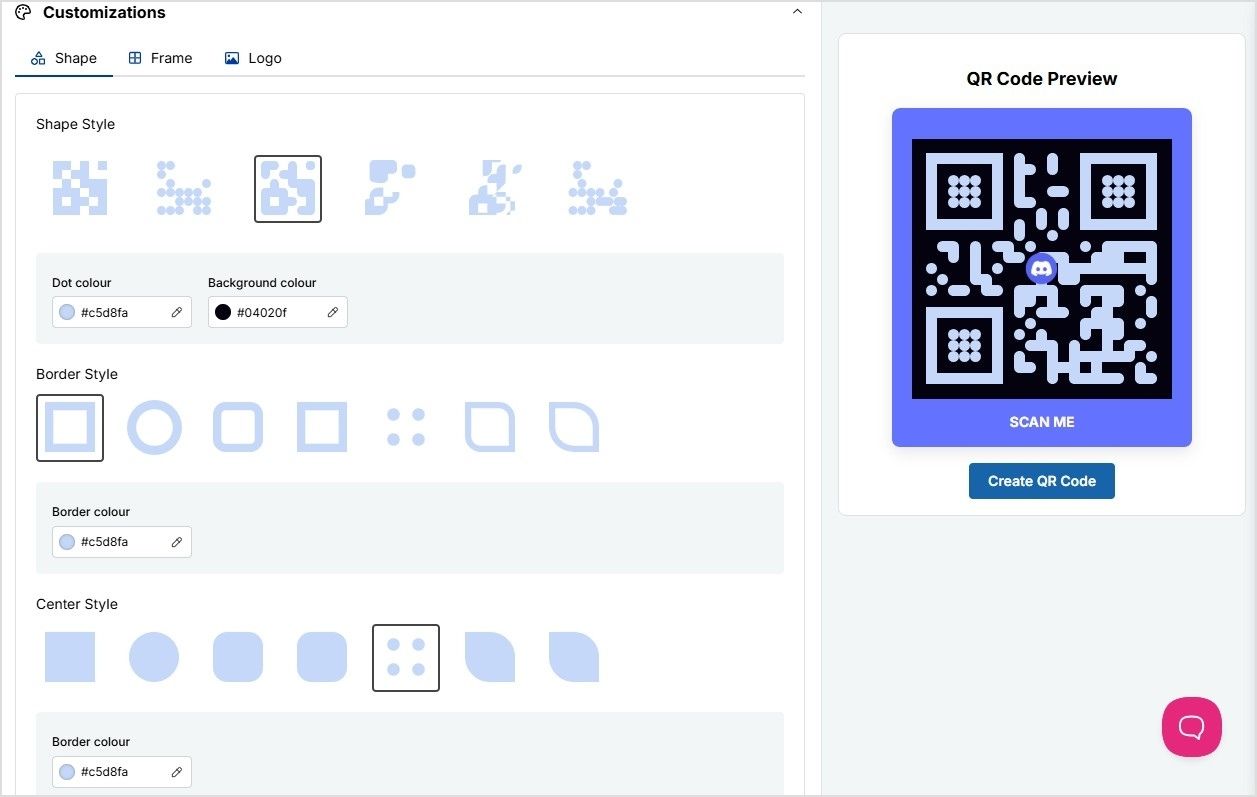
Customize the code: shape, colors, border, frame text (e.g. “Scan to Join!”), and even add your logo.
Hit “Create QR Code.”
Download it in your preferred format: PNG, JPEG, SVG, or WEBP.
💡 Pro Tip: Customize your URL slug for more clarity.
Way #2: Shorten your Discord link first
Want a cleaner link behind your QR code? Here’s how:
Access your Replug dashboard.
Paste your Discord invite URL in the bar under “Quickly Shorten your link”
Customize the slug to make it short and branded.
Click the QR code icon next to the shortened link.
Discord QR codes are a simple yet powerful way to make your server more discoverable, professional, and easy to access. Whether you’re growing a creator community, running a marketing campaign, or just trying to simplify the joining process, using Replug to create and manage your QR codes adds a layer of polish and performance you won’t get with basic tools.
With features like branded links, analytics, and retargeting, your QR code isn’t just a static square, it’s a smart growth tool. So go ahead, make your server just a scan away!
FAQs for how to create a Discord QR code
Can I use a Discord QR code for multiple servers?
No, each QR code links to a specific invite URL. If you want codes for multiple servers, you’ll need to create individual QR codes for each one using their unique invite links.
Do Discord QR codes expire?
It depends on the invite link settings. By default, Discord invite links may expire after 7 days. To create a permanent QR code, make sure your Discord invite link has no expiry before generating the QR code.
Can I create a Discord QR code on mobile?
Absolutely. Just log into Replug via your mobile browser, copy your Discord invite link from the mobile app, and create a QR code just like you would on desktop.
Can I track how many people scanned my Discord QR code?
Yes! If you create your QR code through Replug, you get access to real-time analytics. You can see how many people scanned it, where they’re from, and when they scanned.
What if I want to change my server invite link later? Do I need to make a new QR code?
Not with Replug. If you create a dynamic QR code, you can update the destination URL anytime without changing the QR image. Super helpful if you need to rotate links or update server settings!
Imagine sending a link that not only directs people where you want, but actually makes them more likely to click it.
That’s the power of vanity URLs; those clean, branded web addresses that turn long, tangled links into a memorable call-to-action.
In an age where attention spans are short and trust is everything, studies show that branded links can lift click-through rates by ~34–39% compared to generic URLs. This is simply because they look more credible and meaningful to users.
Whether you’re promoting a campaign on social media, printing a URL on a flyer, or boosting email engagement, vanity URLs help your brand stick in people’s minds.
Ready to get started? Let’s kick things off with the basics, i.e., what exactly is a vanity URL?
What is a vanity URL?
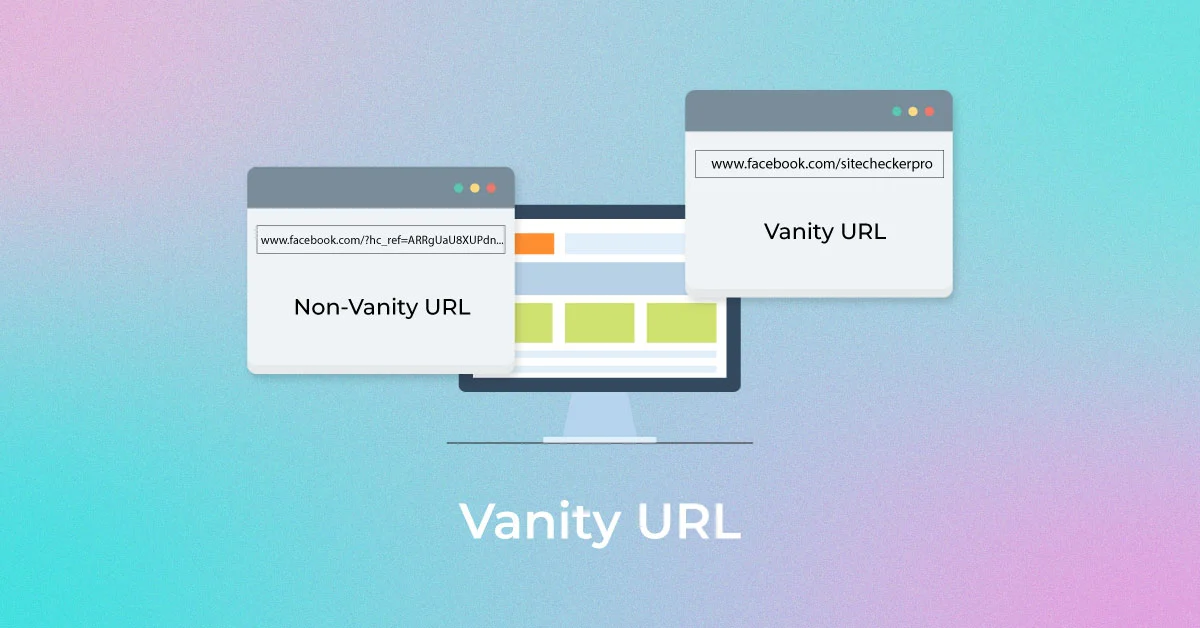
A “vanity URL” is a custom, easy-to-remember web address that’s built to reflect your brand or the content you’re promoting instead of a messy, long URL or a link full of numbers and random characters.
Unlike generic URLs that can be hard to read and forgettable, vanity URLs are short, descriptive, and often branded, making them far more user-friendly and trustworthy for your audience.
Every vanity URL is made up of three key parts:
Brand name: The recognizable name or domain that ties the link to your business or content.
TLD (Top-Level Domain): The extension, like “.com”, “.org”, or “.net” that follows your brand name.
URL slug: The part after the slash that describes the specific page or offer (e.g., /summer-sale).
Put together, these elements create a link that’s not just functional but memorable and meaningful.
Key characteristics of a vanity URL:
Memorable & short: Easy for people to recall without effort.
Branded: Includes your brand name for instant recognition.
Contextual: Gives users a clue about what they’ll see.
Descriptive: The slug tells you the purpose of the link.
Trustworthy: Looks safe and familiar, encouraging clicks.
Quite easier to use: Simple to type, share, and promote.
What is the purpose of a vanity URL?
The major purpose of a vanity URL is to turn a long, awkward link into a short, branded, easy-to-remember web address that improves how people perceive, trust, and interact with your content.
By including your brand name or relevant keywords, vanity URLs make links more memorable and shareable, whether you’re posting on social media, sending emails, or using print ads.
This clarity boosts click-through rates, gives users confidence about where they’re headed, and helps you track engagement and strengthen your marketing message across channels.
Why use a vanity URL?
If you want your links to work harder for your brand and your marketing, using a vanity URL makes a big difference.
Here are the key reasons people use them:
Build stronger brand recognition: Vanity URLs put your brand name front and center every time someone sees or clicks a link, reinforcing your brand identity.
Boost trust & credibility: Clean, branded URLs look professional and reassuring, making users more likely to click than long, confusing links.
Increase click-through rates: Studies show branded links often get higher engagement than generic or long URLs because users know what they’re clicking.
Make sharing easier: Short, memorable links are simple to type, remember, and share across social media, email, ads, and print.
Improve tracking & analytics: You can create unique vanity URLs for different campaigns and measure exactly which channels drive the most traffic.
Support SEO indirectly: Clean, keyword-rich URLs can help with visibility and give search engines and users a clearer context.
In short, vanity URLs are more than just pretty links. They help you connect better with your audience and get more value from every campaign.
How a vanity URL works?
A vanity URL works in a simple but clever way. It gives you a clean, branded address that redirects to the real page you want people to visit.
Instead of sharing a long, messy link with tracking codes or confusing paths, you create a short, human-friendly URL that people can type, remember, and trust on the go.
When someone enters that vanity URL in their browser or clicks it, the web server or link service automatically redirects them to the actual destination page, usually via a redirect (e.g., a 301 permanent redirect). This sends the user seamlessly to the actual content without changing anything on their end.
Note: This redirection happens behind the scenes, so from the visitor’s perspective, the experience feels smooth and direct. Vanity URLs also help with branding and can improve trust and engagement because users know where they’re being taken before they click.
Why do you need a vanity URL?
You might wonder at times why anyone needs a vanity URL when regular links also get the job done. The difference lies in clarity, trust, and results.
A vanity URL free service or tool lets you create a custom, branded link without paying, which is great for beginners or small businesses trying to level up their online presence.
Branded URLs like “yourbrand.com/deal” are easier for people to remember and type than long, cluttered links, so they’re more likely to click and engage with what you’re sharing.
That simple tweak can boost click-through rates and give your campaigns a professional look, no matter if you’re posting on social media, sending emails, or printing a URL on a flyer.
Plus, these clean links build credibility because users instantly see something familiar instead of random characters, making them feel confident about where the link leads.
How to create a vanity URL: 6 simple steps to get one easily using Replug!
Creating a vanity URL helps you turn long, unorganized links into clean, branded, and memorable URLs. With Replug.io, the process is quick and beginner-friendly (no technical skills required).
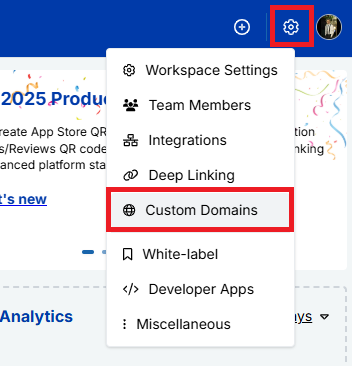
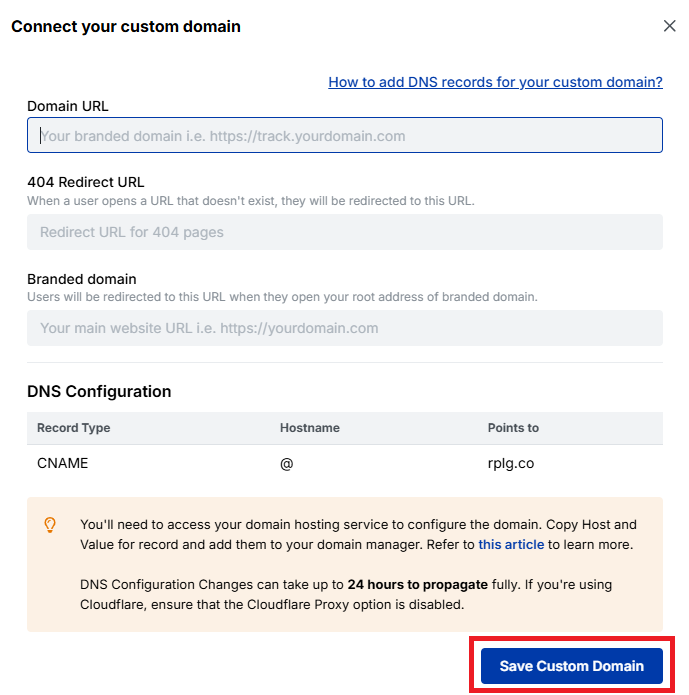
Next,navigate to “Workspace Settings” and, from the dropdown menu, click “Custom Domains”.
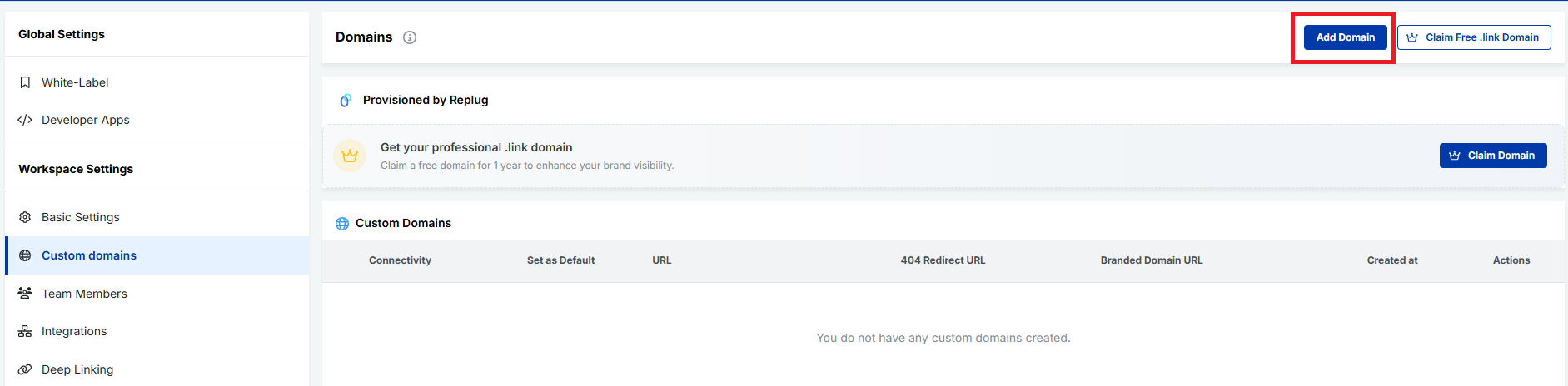
After that, connect your custom domain to use it as your vanity URL base. Follow the next snippets!
Fill the fields carefully, and click on the button labeled “Save Custom Domain”.
Step #3: Create a new short link
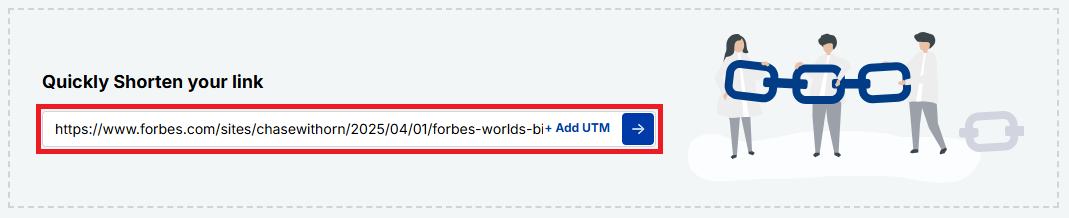
Now, paste your original long URL into the input field under “Quickly Shorten your link”. Then click the blue arrow button to generate your vanity URL automatically.
Step #4: Customize the URL slug
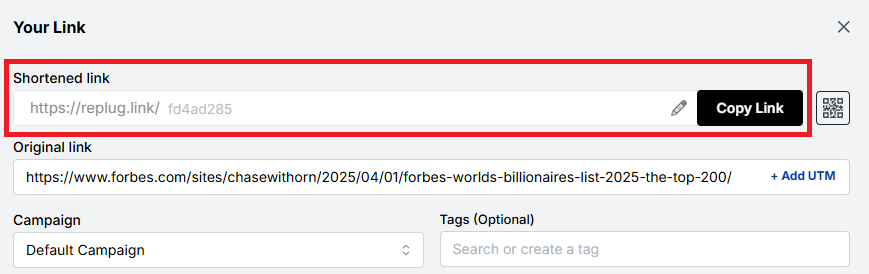
Your vanity URL will be generated within seconds.
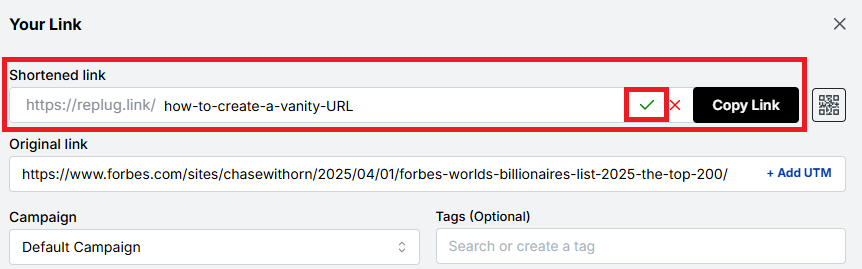
You can customize the URL slug using the “edit/pencil” icon to fit your needs. Edit the back-half of the link to make it branded, readable, and relevant to your content or campaign. Once done, click on the “tick” symbol.
Step #5: Save, test, & share your vanity URL
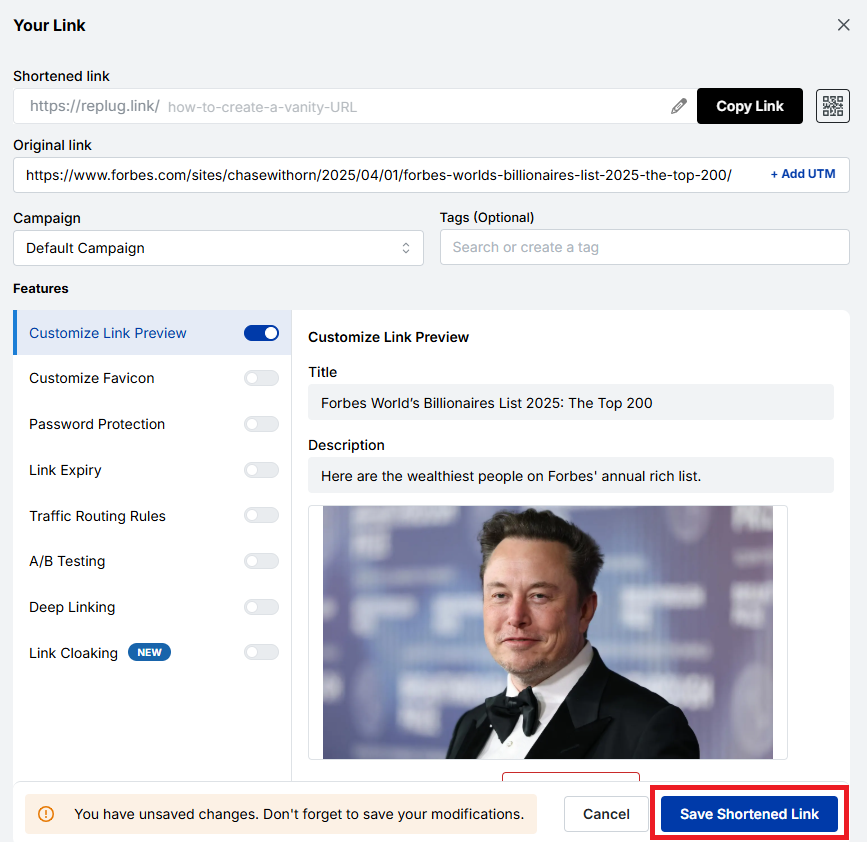
Save the link by clicking the button “Save Shortened Link”. Test it to ensure it works correctly, and start sharing it across your marketing channels.
Step #6: Access your vanity URL hassle-free
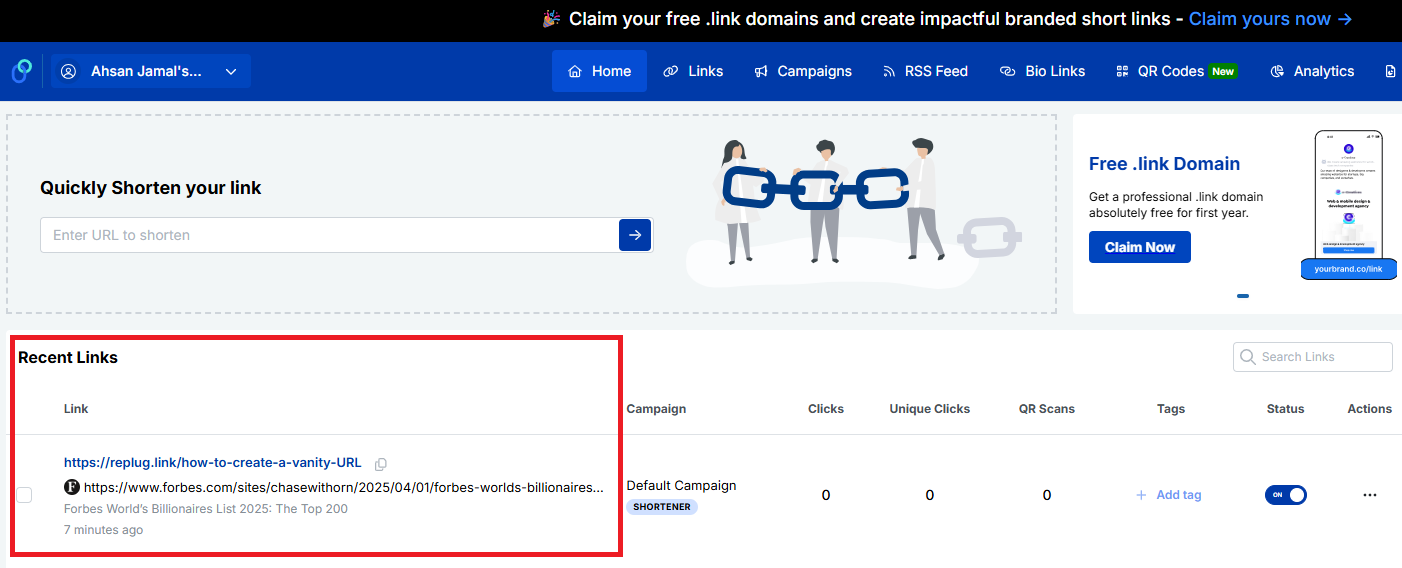
Once saved, your vanity URL will appear in the “Recent Links” section of your Replug dashboard. From here, you can easily copy the link at any time and view detailed analytics to track its performance.
That’s all there is to it!
Note: Using Replug to create a vanity URL is a simple yet powerful way to strengthen your brand and improve link trust. In just a few steps, you can transform ordinary links into polished, professional URLs that stand out.
Common uses for vanity URLs
Vanity URLs are more than just pretty links; they make it easier for people to find, remember, and trust what you’re sharing. Because they’re short and branded, businesses and creators use them in lots of places where clarity and engagement matter.
Marketing campaigns
Vanity URLs help tie your campaign message to a memorable link, allowing your audience to quickly recognize what the offer or message is about and revisit the offer.
Print campaigns
On flyers, posters, brochures, or billboards, short branded links are much easier to read and type, unlike long, complex URLs.
Social media posts
Clean URLs look better in bios and posts than generic long links, improving engagement and click-through rates on platforms where space and clarity matter the most.
Digital ads
Using vanity URLs in your ads (such as display or banner ads) looks professional, builds credibility, and improves brand recall, while still making the destination clear and trustworthy to users.
Emails
Including a neat vanity link in your email content (newsletters or promos) makes messages feel more authentic and more likely to be clicked by recipients. This often results in higher open and click-through rates.
SMS marketing
Branded short links are essential for SMS marketing, where character limits are paramount and readability matters. These links feel more legitimate than prolonged, unbranded URLs.
Event promotions
From webinar registrations to live events, a specific vanity URL helps people remember and find event pages easily across channels, or learn more.
Influencer & affiliate marketing
Influencers and affiliates can use vanity URLs to share personalized, easy-to-read links that still track traffic source and support attribution. Custom-branded URLs assist the best in this situation.
Internal systems
Within a company or organization, vanity URLs can point employees to frequently used tools, pages, or internal resources without messy addresses, improving efficiency and productivity.
Lead magnets
If you’re offering freebies like e-books, checklists, guides, or downloads, a vanity URL makes it clear what people are signing up for and reduces friction when accessing or sharing the content.
Customer/Client support
Customer support pages or help articles are easier to share and remember when tied to short, branded URLs rather than long system links.
These everyday uses show how vanity URLs work across both digital and offline channels, helping you connect with your audience wherever they are easily.
Major benefits of vanity URLs
Vanity URLs deliver real benefits that improve how your links work across branding, marketing, and user experience. From being easier to remember to providing valuable data, here’s how they help.
Easy to remember, type, recall, & share
Because vanity URLs are short and precise, people find them easier to recall, type into a browser, and share with others (whether online or in person) compared with long, complicated links. This makes them more likely to stick in your audience’s mind.
Shows what works & what doesn’t
With branded links, you can track performance more clearly, seeing which campaigns or channels are driving traffic and which aren’t. Good link analytics help you double down on winners!
Strengthens brand trust & recognition
Seeing your brand name in the URL builds familiarity and trust. Users are more comfortable clicking links that look professional and recognizable, which also strengthens brand awareness over time.
Improves SEO & link visibility
Including relevant keywords in your vanity URL can give search engines extra context, potentially helping visibility in search results and making your content easier to find.
Enhances user experience & click-through rates (CTR)
Clean, descriptive links communicate what to expect, making people more likely to click, which often leads to higher CTR compared with generic URLs.
Empowers online & offline sharing
Vanity URLs work great everywhere, from social media and emails to print ads and business cards, because they’re easy to remember and look pleasing in any format.
Enables verbal sharing seamlessly
When you’re speaking at an event, on a podcast, or on video, a simple branded URL is much easier to say (and remember) than a messy link full of characters.
Assists with link retargeting & link management
Many vanity URL tools let you add UTM tracking or retarget users who click your links, letting you re-engage visitors and fine-tune campaigns hassle-free.
Offers tracking benefits
Beyond clicks, you can track where traffic comes from, what devices users use, and how campaigns perform, giving you data-driven insight to improve future marketing.
Together, these benefits make vanity URLs a smart choice for any brand or marketer looking to enhance performance and connect with audiences more effectively.
Real-world vanity URL examples
Vanity URLs aren’t just a mere theory; you see them every day on big sites and platforms where brands and individuals replace long, disorganized links with clean, easy-to-remember ones.
These real-world examples show how familiar names use custom URLs that help with branding, trust, and recall exceptionally.
Vanity URL YouTube
Creators and brands often get a custom YouTube vanity URL like youtube.com/@BrandName, making it way simpler to share and remember than the default long link your channel starts with.
Vanity URL Facebook
Instead of a numeric profile URL, you can claim a Facebook vanity URL, such as facebook.com/YourBusiness, which looks cleaner and more professional.
Vanity URL LinkedIn
LinkedIn lets you customize your public profile to something like linkedin.com/in/JohnDoe, perfect for sharing in resumes or email signatures.
Vanity URL Zoom
Companies can set up custom Zoom vanity URLs or Zoom domains, such as yourcompany.zoom.us, that reflect their brand when users log in or join meetings.
Vanity URL Steam
Steam community profiles often use a Steam vanity URL like steamcommunity.com/id/YourName, an easier-to-share version compared with auto-generated numbers (a form of custom profile URL).
Vanity URL Discord
Discord lets users customize invite links or server invites (e.g., discord.gg/YourServerTag), which are much nicer than random code links.
Vanity URL Dropbox
High-profile brands like Dropbox use clean URLs, such as dropbox.com/backup, or social-profile links, such as facebook.com/dropbox, for ease of use.
Vanity URL Slack
Slack’s site and its pages often use simple branded URLs like slack.com/get-started, making it easy to understand where the link goes.
Vanity URL AEM
While not as universally “profile-style”, platforms built with Adobe Experience Manager (AEM) usually employ neat custom URLs like example.com/campaign-page for specific campaigns.
Vanity URL Oracle
Oracle’s cloud services and docs use branded paths such as oracle.com/cloud/what-is-cloud, which is cleaner than deep-nested URLs.
Vanity URL Airbnb
Airbnb uses simple, descriptive paths like airbnb.com/host or airbnb.com/contact that clearly explain what the page is about.
These realistic examples show how vanity URLs make it easy for people to recognize, trust, and remember links, no matter if it’s for social profiles, services, or product pages.
Vanity URLs vs. generic URLs vs. domain URLs
Understanding the difference between vanity URLs, generic URLs, and domain URLs can make it much easier to choose the right type of link for your audience or campaign.
Below is a simple breakdown showing how these three compare in terms of branding, memorability, trust, and use cases, written in a friendly, easy-to-digest way.
Type of URL
What it is
Branding
Memorability
Best for
Vanity URL
A custom, branded web address that’s short and meaningful, like yourbrand.com/sale, designed to be easy to remember and share.
✔️ High: includes brand name or message
✔️ Very easy to remember
Marketing, campaigns, social shares
Generic URL
A standard link that might be long or autogenerated, like example.com/page?id=12345.
❌ Low: usually no brand visible
❌ Harder to recall or type
Technical references, deep site pages
Domain URL
A base domain name itself (e.g., example.com). It is the main web address for a site.
✔️ Represents your entire brand
✔️ Easy at the top level
Homepage, business identity
Note: Vanity URLs give you customized, friendly links that make people feel confident clicking and remembering what they saw. Generic URLs do the job, but don’t do much for your brand or recall. Meanwhile, domain URLs are simply the core web address of a site, strong for broad identity, but not always as user-friendly for specific campaigns or pages. Overall, vanity URLs sit in the sweet spot between branding and usability.
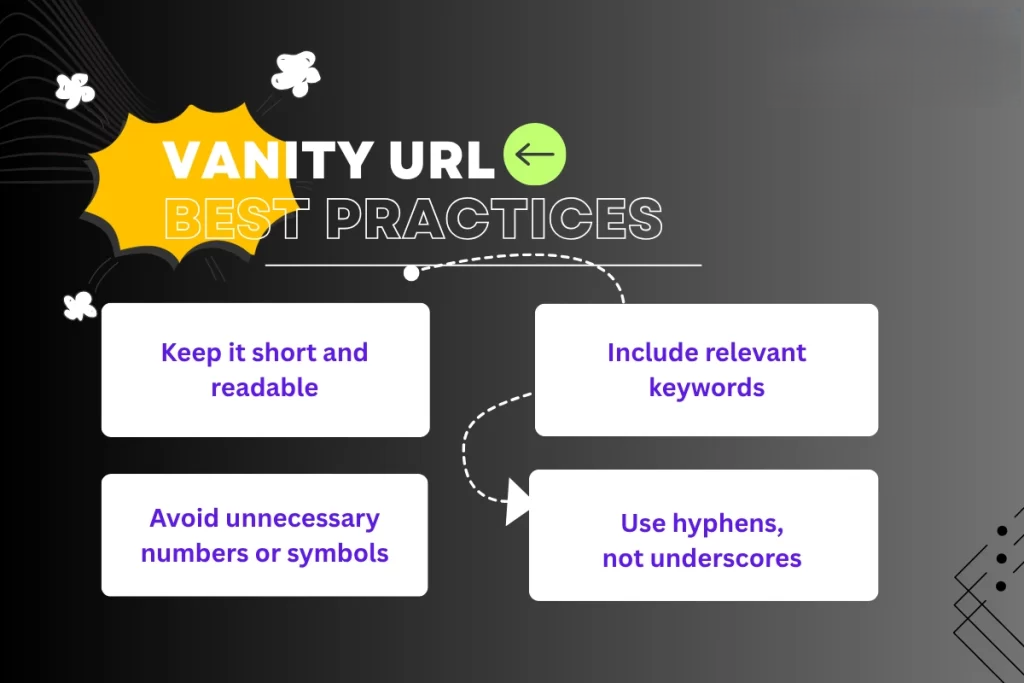
Vanity URL best practices
Before you start creating vanity URLs, it’s good to follow a few simple rules that make them actually effective and helpful for both users and your marketing goals.
Here are the most promising conventions to keep in mind. Have a look!
Keep it short, clear, & memorable
Short URLs are easier for people to remember, type, and share, especially when spoken aloud or printed on marketing materials. Avoid long, complicated slugs and stick to a concise structure.
Make it descriptive & natural
Your vanity URL should give users a clear idea of what they’ll see when they click. A simple phrase like /summer-sale or /get-ebook helps set expectations and builds trust.
Prioritize contextual use
Think about where the link will be used (social media, email, print ads, or spoken mentions), and tailor your vanity URL so it feels natural in that context. This makes the link more effective and user-friendly.
Make it intuitive & use lowercase
Stick to lowercase letters, avoid spaces, and keep the wording intuitive so that users won’t mistype or misunderstand the link. Lowercase also helps prevent confusion, since URLs are case-sensitive in practice.
Use keywords strategically
Including one or two relevant keywords that reflect your content or campaign can improve clarity and indirectly support SEO and recognizability. However, just don’t overstuff or make it awkward.
Reflect your brand identity
Use your brand name or a distinctive abbreviation in your vanity URLs to reinforce your brand and make the link feel familiar and trustworthy.
Use 301 redirects to preserve SEO
When you set up a vanity URL that points to another page, use a 301 permanent redirect so search engines know the page has moved and that any SEO value is passed along properly.
Use a vanity URL, only when required
Don’t force a custom URL everywhere! If a standard link already works well and is clear, there’s no need to reinvent it. Vanity URLs are most useful when they add real value for users or branding.
Note: Following these tips helps ensure your vanity URLs do what they’re supposed to: make links easier to use, more on-brand, and more effective in your campaigns.
How to choose the right vanity URL
Selecting the correct vanity URL might seem small, but it plays a significant role in how people remember and click your links. A good vanity URL makes your brand look professional!
Here’s how to pick one:
Keep it short & relevant
Short URLs are easier to read, type, and share, especially on social media or in messages. Keep in mind, if your URL is clear and to the point, people are more likely to trust and click it.
Work on keywords (related to your brand or campaign)
Including a keyword that matches your brand, product, or campaign helps the audience instantly understand what the link is about. This also makes your URL more searchable and meaningful.
Avoid special characters, such as dashes & underscores
Special characters can make a URL look messy or confusing. They’re harder to read and can even lead to typos, so keeping things simple and clean is usually better.
Must be consistent with your branding
Your vanity URL should reflect your brand’s identity in the best possible manner (think tone, style, and words you usually use). This builds familiarity and trust with your audience brilliantly.
Should clearly indicate the destination
People should know what they’re clicking on just by looking at the link. If your URL gives a good hint of where it leads, users feel more comfortable and less likely to hesitate.
Always check for possible errors
Before you finalize, double-check spelling, grammar, and meaning. A tiny mistake can change the whole impression or lead users to the wrong place, and that’s not at all good for your brand!
The advantages of using Replug for your vanity URLs
Using Replug for your vanity URLs makes managing and sharing links way easier and more effective than just dropping URLs everywhere.
Replug isn’t just a reliable link shortener; it acts as a powerful vanity URL generator that lets you create custom, branded links that are easy to remember and look more professional when you post them on social media, in emails, or on your website.
Maximize marketing ROI
by transforming ordinary URLs into branded short links that convert.
Try Replug for free
With this all-in-one link management platform, you can track how your links perform, add retargeting pixels or UTM tags for better marketing insights, and even boost engagement by turning every shared link into something that feels personal and trustworthy.
All of this helps your brand stand out, drive more clicks, and give you valuable data to improve your campaigns, without any tech headache.
Wrapping up
As you’ve seen, vanity URLs aren’t just a neat trick; they’re a smart way to make your links easier to remember, more trustworthy, and much more effective in connecting with your audience.
From boosting brand recognition and improving click-through rates to helping you track what works and what doesn’t, vanity URLs bring real value to your online presence.
Whether you’re running campaigns, sharing links on social media, or promoting events, the right custom URL can make a huge difference.
And if you want a simple, powerful tool to create branded short links, track performance, and even add CTAs or retargeting, you should give Replug a try today. It’s quick to set up and can really level up your link game!
Frequently asked questions
What is a good example of a vanity URL?
A good vanity URL is short, branded, and descriptive. For example, instead of a long tracking link like example.com/page?id=4321&utm=xyz, you could use something like brandname.com/sale, which is easy to remember and tells users what to expect.
What is a vanity URL slug?
A vanity URL slug is the part of a vanity URL that comes after the domain name and describes the specific page or campaign. For example, in brand.com/summer-sale, the slug is summer-sale. It should be short, meaningful, and help users know what the link points to.
What are the common use cases of a vanity URL?
Vanity URLs are widely used across marketing channels:
– Social media posts, – Email campaigns, – Print materials like flyers or billboards, – Product promotions, – Affiliate links, – Event pages, – Landing pages, and – Paid ads
They make links more memorable and build trust!
Is a vanity URL case-sensitive?
The domain part of a vanity URL is not case-sensitive, but the slug portion usually is. This means brand.com/Sale and brand.com/sale will be treated differently. Most people use lowercase for consistency and simplicity (it’s the best practice).
Is it possible to alter or redirect a vanity URL?
Yes, vanity URLs can be changed or redirected. Just update the redirect settings in your link management tool or DNS, and you’ll point that vanity URL to a new destination. This helps when campaigns change, or you want to reuse the same branded link.
What is the difference between a vanity URL, vanity domain, vanity page, and a custom URL?
– Vanity URL: A short branded web link that redirects to another page. – Vanity domain: A custom domain name used specifically for branding (e.g., go.brand.com). – Vanity page: A dedicated landing page created for a campaign or audience. – Custom URL: Any user-defined URL path or slug, often part of a vanity URL.
Each serves a slightly different purpose, but all aim to improve branding and clarity.
What is the difference between a vanity URL and a domain?
A vanity URL is a specific custom link (often on your domain) created for clarity or branding, like brand.com/offers. A domain, on the other hand, refers to the entire web address that identifies a site, like brand.com itself. The vanity URL sits under that domain and points to a particular page.
What is the difference between a vanity URL and a redirect?
A vanity URL is the clean link you share with users, while a redirect is the behind-the-scenes mechanism that takes visitors from that vanity URL to the actual destination (often a longer, complex web address). The redirect makes the vanity URL work.
What are the standard guidelines and requirements for vanity URL requests?
Requirements vary by platform, but generally:
– Pick a short, relevant slug – Avoid special characters or offensive terms – Follow brand naming rules, and – Ensure the URL isn’t already taken
Some services also require verification or minimum follower counts (e.g., social profiles) before you can claim a vanity URL.
What is a branded short domain, and how does it differ from a vanity URL?
A branded short domain is your own custom domain (like nyti.ms), often used with a vanity URL slug (nyti.ms/news). Whereas a vanity URL uses that domain plus extra path text. The branded short domain gives complete control and branding across all custom links.
How to get your Google+ vanity URL?
Google+ was discontinued in 2019, so vanity URLs for that platform are no longer obtainable. This applies even if some help pages still exist online. No current applicable process available!
How to change an existing vanity URL?
To change a vanity URL, go to the platform’s settings where it’s managed (e.g., social profile or link tool dashboard), edit the URL name or slug, and save. Some platforms may have limits on how often you can change it or minimum requirements before allowing edits.
How to customize branding for your vanity URL?
Branding your vanity URL means using your brand domain, keeping slugs relevant, and avoiding generic or vague names. Use your brand’s name or campaign words, so the link feels familiar and trustworthy. Ensure you use HTTPS and a consistent brand tone everywhere the URL appears.
How to request a subdomain or vanity URL?
If you control your domain, add a subdomain (like go.brand.com) in your DNS settings and point it with a redirect to the page you want. If you’re on a platform (e.g., a social network), follow that platform’s specific “custom URL” or “username” request page.
How do vanity URLs impact marketing?
Vanity URLs boost brand recognition, user trust, and click-through rates because they’re clear, branded, and shareable. They also help with tracking which campaigns or channels perform best.
What is a vanity URL in search engine optimization? Does SEO suffer from it?
A vanity URL in SEO is a short, custom-branded web address that redirects to a longer or more complex URL, making it easier for users to remember and share while reinforcing your brand or keywords.
A vanity URL doesn’t directly improve or hurt SEO because search engines index the destination content. However, it can indirectly boost SEO by increasing click-through rates and engagement, which signal relevance. As long as it uses proper redirects (like 301s), SEO shouldn’t suffer.
How to create SEO-friendly vanity URLs?
SEO-friendly URLs are all about making them easy for both people and search engines to understand. Here’s how to do it:
1. Keep them short, simple, and clean so people can easily remember and type them without mistakes. 2. Use a structure that makes sense and flows well when read (like yourbrand.com/sale-offer) rather than long, confusing strings. 3. Always set up permanent 301 redirects from your vanity URL to the actual page. This tells search engines that the page moved permanently and helps preserve SEO value over time.
How to create vanity URLs for your social media ads?
Use a custom link tool or your own branded domain to build short, relevant URLs (e.g., brand.com/black-friday). Then place these in your ad copy or CTA buttons to make the links more appealing and track their performance separately with analytics.
How to set up a vanity URL for your website?
Choose a short, branded path or subdomain on your domain, then set up a redirect (ideally a 301 permanent redirect) to the full destination page. Use a link management tool such as Replug or your site’s hosting/DNS settings. And remember, always test the link before sharing.
How to set up a vanity URL with a branded short domain?
To set up a vanity URL with a branded short domain:
1. Start by choosing a unique, memorable name that goes well with your brand and is easy to recall. 2. Then check domain availability and register it if it’s free. 3. Next, use a reliable link shortening tool or a custom domain tool (like Replug or similar) to connect your domain and create the short links. 4. After that, set up a 301 redirect from your short branded URL to your primary destination so that browsers and search engines know where it should go. 5. At the end, test your vanity URL to make sure it works properly, and then share or promote it wherever you need.
How to track a vanity URL performance efficiently?
Use analytics, either from your link-shortening tool or platforms like Google Analytics or Usermaven, to monitor clicks, referrers, device types, and conversion data. Adding UTM parameters behind the scenes can help you attribute which campaigns bring traffic.
How does a vanity URL white-label emails and links to the Microsite?
A vanity URL can serve as a white-label domain, so that both links and email addresses appear to come from your brand (e.g., pics.brand.com and noreply@brand.com). This keeps the entire experience consistent and credible when sending messages or linking to a microsite.
QR codes are one of the fastest and most engaging ways to connect people to your TikTok content – no extra clicks, no confusion. Whether you’re promoting a product, growing your audience, or boosting brand visibility, a TikTok QR code makes sharing seamless and effective.
But here’s the catch: TikTok only lets you create a QR code for your profile, not for specific videos. And even that built-in option offers zero customization and no tracking.
That’s why in this guide, we’re showing you two ways to create TikTok QR codes:
The basic TikTok method (profile-only, no branding, no analytics)
A smarter, more customizable method using Replug’s TikTok QR code generator (works for both profiles and videos, with full tracking and branding.
Let’s get started!
A complete link management solution
for marketing professionals & agencies.
Try Replug for free
Why should you create QR codes for TikTok?
QR codes make it easier to:
Drive traffic directly to your TikTok content
Use print or offline channels (flyers, posters, packaging, etc.)
Boost engagement in events, stores, or real-world settings
Avoid long links or usernames and connect with your audience instantly
With tools like Replug, you also have full control over QR branding, retargeting, and analytics – something the TikTok-native method can’t offer.
What is the best way to create a TikTok QR code?
While TikTok does offer a built-in way to generate QR codes, customization and tracking are quite limited.
Fully customize your QR code’s look (colors, shape, logo)
Track scans and analytics
Add retargeting pixels
Add traffic routing rules
Edit the destination link later (dynamic QR codes)
Method 1: How to create a QR code for TikTok using Replug
Open TikTok and copy the link to your profile or the specific video you want to generate a QR code for.
Step 01: Log in to your Replug account
If you don’t have one, sign up for a free trial to get started.
Step 02: Create a new QR code
From your dashboard, click on “QR codes” in the sidebar. Then click on “Create new.” A new window will open. Add a name or description for your QR code (optional), then scroll down to the “QR code type” section.
Step 03: Add your TikTok link
In the QR code type section, you’ll see a list of platforms.
Select TikTok
Paste your TikTok video or profile link that you copied earlier
Step 04: Customize your QR code
This is where Replug shines. You can personalize your QR code with:
Colors – Match it to your brand
Shape – Choose between rounded, square, or styled patterns
Frame – Add Borders or call-to-action text
Logo – Upload your logo or a TikTok icon for brand recognition
Step 05: Share your QR code
Once you’re happy with the design:
Click “Create QR code”
Download it in PNG, SVG, or PDF,WEBP format
Share it anywhere, on flyers, posters, product packaging, or even your website
Method 2: How to create a TikTok QR code using TikTok’s built-in option
Open the TikTok app and go to your profile
Tap the three-dot menu (or hamburger icon)
Tap on “QR code” from the menu
Your personal QR code will appear. You can download or share it directly.
⚠️ Limitations: This method doesn’t allow customization or tracking. It also links only to your profile – not specific videos.
While TikTok’s built-in QR code option is basic, Replug gives you powerful features designed for marketers, creators, and brands that want more control and impact. Here’s why this custom URL shortener stands out:
A complete link management solution
for marketing professionals & agencies.
Try Replug for free
Custom branding
Personalize your QR code with your brand colors, logo, shape, and frame to make it instantly recognizable.
QR code analytics
Track how many times your QR code has been scanned, when, and from where, so you can measure real-world engagement.
Retargeting pixel support
Add a retargeting pixel to your QR code and build custom ad audiences from people who scanned it.
Update your TikTok link anytime without reprinting or changing the QR code, perfect for switching between campaigns or videos.
Whether you’re using QR codes in print, packaging, events, or digital promotions, Replug gives you the flexibility and insights TikTok alone can’t offer.
Conclusion
Creating QR codes for your TikTok content is one of the easiest ways to boost visibility, drive traffic, and engage your audience, especially in offline or print settings. While TikTok offers a basic option, Replug takes it a step further with full customization, tracking, retargeting, and the ability to link directly to videos. If you want a professional, brand-forward approach to sharing your TikTok, Replug is your go-to tool.
FAQs on TikTok QR code
Can I create a TikTok QR code for a specific video?
TikTok doesn’t support QR codes for specific videos, only for your profile. But with Replug, you can generate QR codes for any video or link.
Are Replug’s QR codes trackable?
Yes. Replug provides analytics showing how many people scanned your code, when, and from where.
Can I change the link behind my QR code later?
Absolutely. With Replug’s dynamic QR codes, you can update the destination link without changing the QR code itself.
Where can I use TikTok QR codes?
Anywhere, flyers, business cards, product packaging, digital signage, event booths, or even in-store displays. They’re great for driving offline traffic to your TikTok.
QR codes have become the tech-savvy shortcut to link the physical and digital worlds. Enter Replug, your ticket to hassle-free QR code creation.
Whether you’re a marketer, business owner, or just someone keen on simplifying data sharing, Replug has your back.
In this brief guide, we’ll show you the process of creating QR codes with Replug, unveiling the features that make it the ultimate tool for transforming your connectivity game.
Let’s dive in and change the way you share information!
What is a Replug QR code?
A Replug QR code is a dynamic tool designed to enhance audience interaction by seamlessly bridging the gap between the physical and digital realms.
Replug’s QR code generator allows users to create instant QR codes for shortened links. These QR codes can be utilized in both online and offline marketing efforts, enabling easy integration for payments, promotions, app installations, and other marketing campaigns.
Maximize marketing ROI
by transforming ordinary URLs into branded short links that convert.
Try Replug for free
How to create a QR code in Replug?
Replug empowers you to seamlessly integrate physical and digital interactions through dynamic QR codes. Follow these simple steps to create your personalized QR code, connecting your audience effortlessly to your content, promotions, or experiences.
Step 2: On the home page, click “QR Codes” from the navigation bar to create a fully customizable, branded QR code.
Step 3: Click on “Create new” or “Create QR Code” to start your QR code generation journey.
Step 4: Now you will be directed to the page where you can create a branded QR code. You have the option to:
Add a title and description
Select from a range of QR code types such as website, link, bio link, YouTube, PDF, and more.
Customize the frame, shape, and logo
Tip: Although Replug has an extensive gallery of logos, you can upload a custom logo to give your QR code a more branded look.
Step 5: Click “Create QR Code”. Your QR code is now ready to share in multiple formats (PNG, JPEG, SVG, and WEBP).
Why choose Replug for your QR Code marketing?
Choosing Replug for your QR code marketing comes with several compelling advantages that set it apart as a robust and user-friendly platform. Here are key reasons why Replug is an excellent choice:
Effortless QR code creation:
Replug simplifies the QR code creation process, allowing you to generate instant QR codes for your URLs with just a few clicks.
Customization options:
Tailor your QR codes to align with your brand identity. Replug provides customization features, allowing you to add logos, choose color schemes, and create a branded QR code that reflects your style.
Versatility across industries:
Whether you’re in tourism, retail, e-commerce, sports, or any other industry, Replug’s QR codes offer a versatile solution.
No expiry on QR codes:
The QR codes generated by Replug do not expire unless you specify a link expiration date. This flexibility allows you to change destination URL or add passwords without the need to regenerate QR codes.
Comprehensive tracking and analytics:
Gain valuable insights into the performance of your QR codes with Replug’s analytics tools. Track QR scans, analyze total clicks, unique clicks, and gather geographical data to refine and optimize your marketing strategies.
Exportable scan metrics:
Depending on your plan, Replug allows you to export scan metrics for in-depth analysis. This feature enhances your ability to organize and utilize the data obtained from your QR code campaigns.
A complete link management solution
for marketing professionals & agencies.
Try Replug for free
Conclusion
QR codes are more than just a scannable square; they’re a gateway to smarter, faster, and more engaging interactions. With Replug, creating and customizing QR codes becomes a seamless experience, giving you the power to connect with your audience in just a scan.
Whether you’re boosting campaigns, sharing content, or enhancing offline experiences, Replug ensures your generated short URLs stand out and perform.
Ready to upgrade your sharing game? Start creating with Replug today.
Frequently asked questions
What is a QR code?
A QR code (Quick Response code) is a two-dimensional barcode that stores information, typically in the form of URLs, text, or other data. It enables quick and easy access to digital content by scanning the code with a QR code reader on a smartphone or other devices.
What are the benefits of using Replug for QR code marketing?
Replug simplifies QR code creation, offers customization options, and provides analytics for tracking performance. It’s an efficient tool for seamlessly integrating physical and digital interactions.
Can I customize QR codes generated by Replug with my branding?
Yes, Replug allows customization of QR codes. Users can add logos, choose color schemes, and create branded QR codes that align with their brand identity.
If you’ve ever asked yourself, “how do I share my Discord profile without making people search for my username?”, you’re not alone.
Sharing your Discord profile link is a much faster way to connect. While Discord doesn’t offer a native profile link for every user, there’s a simple workaround that works perfectly.
In this guide, we’ll show you how to find your Discord URL on mobile, and how to customize it using Replug.io for better presentation and tracking.
What is a Discord profile link?
A Discord profile link is a direct URL that takes someone straight to your user profile. Instead of searching your username and tag (which can be hard to remember), they can click a single link and view your profile instantly.
Maximize marketing ROI
by transforming ordinary URLs into branded short links that convert.
Try Replug for free
Simple, right? But the process to find your Discord URL isn’t very obvious unless you know where to look.
How to find your Discord URL on mobile?
Here’s a step-by-step method to get your unique Discord profile link:
Click the gear icon (settings) on the top-right corner
Enable Developer Mode
Scroll down to “Advanced” and enable Developer Mode.
Copy your user ID
Go to your profile again
Tap the three dots in the top-right corner
Create your profile link
Select Copy User ID
Paste your User ID to your clipboard in your mobile.
Your Discord profile link uses this format: https://discordapp.com/users/USERID. Simply replace “USERID” with the user ID you copied to your clipboard.
If that link doesn’t work, try using https://discord.com/users/USERID instead, again swapping out “USERID” with your actual user ID.
Anyone can open this link in a browser on their smartphone, tablet, or computer.
Share your link
You can now send it via WhatsApp, Messenger, email, or anywhere else.
Track with UTM parameters: Use Replug’s built-in UTM builder to monitor where your Discord traffic is coming from and evaluate your campaigns.
Create QR codes: You can create customizable, branded dynamic QR codes for your Discord profile. This makes sharing easier and quicker across all platforms.
Make links dynamic: If your original Discord invite link expires, just change the destination URL within Replug; no need to resend a new link.
Set link expiration dates: Perfect for temporary servers, you can make links that deactivate automatically after a certain time.
Redirect based on location: Redirect users to different Discord servers or landing pages depending on where they’re located.
Once you’ve copied your Discord profile link, consider sharing it through the following channels:
Direct messages: Send it to friends or colleagues via chat apps.
Social media bios: Include it in your Twitter, Instagram, or LinkedIn profiles.
Email signatures: Add it to your professional email signature for easy access.
Online portfolios or websites: Display it on your personal or professional websites.
Why it helps to share your Discord URL
Sharing your Discord URL makes it easier for people to connect with you, especially if you’re a gamer, creator, community manager, or just someone looking to network. Instead of sending instructions on how to find your profile, you just drop a link.
Bonus: Polish your profile before you share
Before sharing your Discord link, make sure your profile is ready to impress:
Profile picture: Use a clear and recognizable image.
Bio: Write a concise and informative bio that reflects your personality or professional background.
Banner (for Nitro users): Add a customized banner to enhance your profile’s visual appeal.
Linked accounts: Connect your other social media or professional accounts for broader networking opportunities.
A well-maintained profile makes a strong impression and encourages others to connect with you.
Final thoughts
Knowing how to find your Discord URL is a quick win that can make sharing your profile easier and more effective. And if you want to level up your link game, tools like Replug can help you present and track your Discord profile link more professionally.
So go ahead! Generate your link, Replug it, and start connecting smarter.
FAQs
Can I get my Discord profile link directly from the app?
Not exactly. Discord doesn’t provide a direct shareable link by default. You’ll need to enable Developer Mode and copy your User ID to create your profile link manually.
Is it safe to share my Discord profile link with others?
Yes, it’s generally safe as long as you’re comfortable being contacted. Just be mindful of where and with whom you share it to avoid spam or unwanted messages.
Can I customize my Discord profile link?
Not through Discord directly, but you can customize and brand your link using tools like Replug. It allows you to shorten the link, add tracking, and even create dynamic or password-protected versions.
Will my profile link change if I update my username?
No. The profile link is tied to your User ID, not your username. Even if you change your Discord tag or name, the link remains the same.
How to copy my Discord profile link on Android?
Here’s how you can do it: Open the Discord app and tap your profile picture (bottom right). Tap the gear icon (⚙️) for settings. Scroll to Advanced and enable Developer Mode. Go back to your profile and tap the three dots (⋮) in the top right. Tap Copy User ID. Open your clipboard and paste the ID into this format: https://discord.com/users/USERID (replace USERID with the one you copied).
What’s the difference between a profile link and an invite link?
A profile link lets others view your personal Discord profile. An invite link gives someone access to a specific server. Use the one that fits your purpose.
A professional bio is more than just a quick intro; it’s your chance to show who you are, what you do, and why you matter.
Whether you’re trying to impress recruiters, attract clients, or build authority in your field, a killer bio can make or break the deal. But here’s the twist: writing about yourself is hard.
In this guide, we’ll walk you through the best bio link tools and tips for writing a strong bio and share real examples to help you get it just right.
Go beyond generic link pages!
Create custom bio links that truly fit your brand
With Replug, you can create bio links that are unique, engaging, and built to convert.
Your bio isn’t just a summary of your job title and experience – it’s your story. A well-crafted bio:
Builds trust and credibility
Showcases your value and expertise
Boosts visibility across platforms
Drives traffic to your work, portfolio, or offers
Step-by-step: How to write a professional bio?
1. Start with your name and role
Introduce yourself clearly and confidently. Include your current position or what you’re best known for.
2. Highlight your key accomplishments
Add 2–3 strong achievements, metrics, or projects that reflect your expertise.
3. Add a clear call-to-action (CTA)
Guide readers on what to do next – visit your portfolio, follow your social profiles, or book a call.
4. Add a bio link page
Here comes the all-in-one solution, a bio link page that includes all the important links such as social profiles, portfolio, contact form, and more – so you never miss a chance to connect.
Go beyond generic link pages!
Create custom bio links that truly fit your brand
With Replug, you can create bio links that are unique, engaging, and built to convert.
To create a bio link page effortlessly, you need to use Replug’s free bio link tool.
It lets you build a customized landing page where you can add multiple links, videos, social icons, and other content – all accessible from a single URL.
Here’s how to set it up:
Step 1: Create a new bio link page
Log in to your Replug account. If you don’t have one, sign up for a free trial. Afterwards, navigate to the bio-link dashboard and click on “Create new.”
You’ll be redirected to a setup window with three customization categories.
Step 2: Branding & profile setup
Start by adding your profile details in the branding section. Such as profile title, bio description, verification button and more.
From here you can choose you required theme or create your own alongside selecting your button and text color for the whole bio link page.
Besides that, changes are auto-saved, so you can proceed without hassle.
Step 3: Add content & links
This is the most crucial step, where you can add elements like:
To add website links, select the “Links” block and enter a title, URL title, and respective link.
You can add multiple content blocks as needed.
Once you’re done adding blocks, click publish in the upper left corner. And you’re done.
Boost your bio with smart linking: Enter Replug
Once your bio is ready, it’s time to make it work harder. Replug is the smart link management tool that helps professionals turn bios into conversion machines. Here’s how:
Go beyond generic link pages!
Create custom bio links that truly fit your brand
With Replug, you can create bio links that are unique, engaging, and built to convert.
Want to run ads to people who clicked your bio link? Replug lets you add retargeting pixels (Meta, X, Google, LinkedIn, etc.) to shorten links and track traffic.
Measure clicks and engagement
Track your bio’s performance with detailed link in bio analytics. See how many people clicked, from where, and on which links.
Customize & brand your links
With custom-branded URLs from Replug’s URL shortener free app, you control how your bio links look and feel – no more messy links. It builds trust and keeps your branding consistent.
07 mistakes to avoid when writing a bio
Being too vague or generic
Phrases like “I’m passionate about helping people” sound nice but don’t tell us what you actually do. Be specific about your value.
❌ “Hardworking professional.” ✅ “Email marketer helping coaches grow their list 5x.”
Overloading with jargon
Using buzzwords or industry slang that your audience might not understand can push them away. Keep it clear and simple.
Skipping the call-to-action (CTA)
If you don’t guide people on what to do next, they won’t do anything. Always include a CTA like “Watch now,” “Book a call,” or “Shop here.”
Writing a bio that’s too long
This isn’t your life story. Stick to 2–3 lines max. People skim bios, don’t make them work to understand you.
Leaving your bio link empty or messy
If you say “Check the link below” and it leads nowhere (or to a cluttered, outdated page), it kills trust. Use a clean, organized bio link tool like Replug.
Forgetting to show personality
A bio that’s too stiff or robotic makes you forgettable. Add a little personal touch, emojis, humor, or a fun fact go a long way.
Never updating your bio
If your offers, job, or focus changes, your bio should too. Outdated info confuses or misleads your audience.
A complete link management solution
for marketing professionals & agencies.
Try Replug for free
Quick bio templates by profession
Use these ready-made bios to spark ideas and save time. Just tweak them to fit your tone and audience:
1. Freelancer bio
Hi, I’m Sara, a freelance UX designer with 6+ years of experience creating user-first websites and apps. I’ve worked with startups and global brands to boost engagement by up to 40%. Let’s create something amazing, check out my portfolio.
2. Marketing specialist bio
I’m James, a digital marketer specializing in SEO and paid ads. I’ve helped brands rank #1 on Google and scale their revenue with targeted campaigns. Reach out for a data-driven growth strategy.
3. Real estate agent bio
Hi, I’m Lina, your local real estate expert in Austin. With over 10 years in the market, I help clients buy, sell, and invest with confidence. Let’s connect and find your dream property.
4. Coach or consultant bio
I’m Alex, a certified life and business coach helping entrepreneurs break through burnout and build sustainable success. Book a free strategy call today.
5. E-commerce brand bio
Welcome to LuxeGlow! We craft cruelty-free skincare powered by nature and science. Join 10k+ customers glowing with confidence. Tap the link to shop bestsellers and get 10% off.