Author: Muhammad Ahsan Jamal

  • Dynamic URLs vs. Static URLs: Meaning, key differences & practical examples

    Dynamic URLs vs. Static URLs: Meaning, key differences & practical examples

    A messy link can quietly kill clicks and, more importantly, conversions. One study of 11.8 million Google search results found that shorter, cleaner URLs tend to rank higher, and the first organic result gets about 28 percent of all clicks. That is a lot of traffic mounting on a simple web address.

    The problem is that many marketing teams deal with confusing, long URLs full of numbers and symbols. These links are hard to read, hard to trust, and even harder to track. When campaigns span email, social, ads, and QR codes, link chaos grows fast.

    This guide breaks down dynamic and static URLs in simple terms, explains when each type helps, and provides useful examples. Next comes the base concept needed for everything else: what a dynamic URL actually is.

    Let’s get right to it!

    What is a dynamic URL

    A dynamic URL is a web address that the server builds in real time when someone requests a page. Instead of pointing straight to a single fixed file or page, it includes instructions, often in the form of URL parameters, that tell the server which content to pull from a database. Changing those parameters changes what the visitor sees, even though the base script stays the same.

    What is a dynamic URL

    Dynamic URLs are common on ecommerce sites, news portals, SaaS dashboards, and anywhere content updates frequently or is personalized.

    When someone applies filters, sorts items, or searches on a site, the link that appears in the browser bar is almost always a dynamic URL. This structure makes it easy for developers and marketers to create thousands of pages without creating an abundance of separate files.

    Key characteristics of dynamic URLs

    Dynamic URLs usually contain a question mark followed by a query string. That query string holds one or more key‑value pairs, which act like small instructions for the server. Keys describe what the parameter means, and values tell the server which record or option to show.

    You will often see that dynamic URLs:

    • Are generated by scripts written in languages such as PHP, ASP, or Node, with file endings like .php”,.asp”, or no extension at all.
    • Contain characters such as ?”, &”, and=” instead of looking like a simple folder path.
    • Use parameters like “product_id=123” to grab the right item from a database without needing a separate HTML file.

    Because of this structure, the same base path can return numerous different views. A single dynamic script can display all products, but the parameters determine which category, brand, or sort order is shown. That power makes dynamic URLs very flexible for large sites.

    Dynamic URL parameters

    Dynamic URL parameters live after the question mark and provide the details a script needs. Each parameter usually has a name on the left and a value on the right, joined by an equal sign. Multiple parameters are joined with ampersands.

    In practice, parameters cover several jobs:

    • Content control: category=mens-shirts, product_id=123, page=3.
    • Presentation control: sort=price-asc, view=grid, lang=en.
    • Marketing tracking: UTM tags such as utm_source, utm_medium, utm_campaign.

    Marketing teams often add tracking parameters, so analytics tools can see which campaign, medium, or ad sent the click.

    Note: Parameters can also introduce problems if not handled with care. When different parameter orders or values yield the same content, search engines may see many URLs pointing to the same page. This is where things such as canonical tags, clean parameter design, and smart link management matter.

    Dynamic URL example

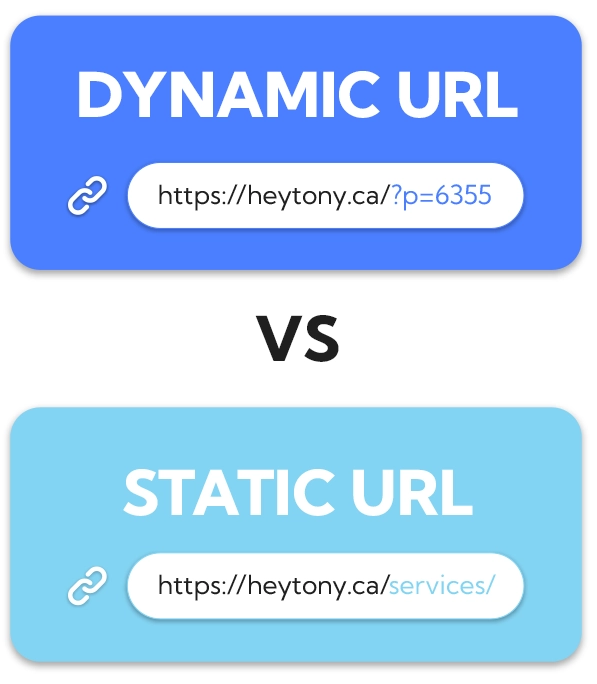
    Here is a simple dynamic URL for a store search results page:

    “www.example-store.com/search.php?query=running+shoes&sort=price-asc&page=2”

    In this case:

    • The script search.php” calls the search system.
    • The parameterquery=running+shoes” tells the server what the visitor typed.
    • The parameter sort=price-asc” controls the sort order by price from low to high.
    • And, the parameter “page=2” sends the visitor to the second page of results instead of the first one.

    Change the search term or the sort setting, and the content changes without needing a new file. The base path stays the same, but the dynamic URL still gives a direct link to a very specific view that someone can share, bookmark, or track in campaigns.

    Dynamic URL advantages & disadvantages

    Dynamic URLs come with real strengths for growing sites. They let teams generate vast numbers of pages from templates, which is perfect for extensive catalogs, marketplaces, and user accounts. They react to user input, so filters, search, and personalized feeds all become possible. For developers, they keep code and content in sync with a central database.

    Key advantages of dynamic URLs:

    • Scalability: One template can serve thousands of product or article views.
    • Personalization: Easy to show user‑specific dashboards, recommendations, or saved items.
    • Interactivity: Filters, sorting, and search results can all be represented by direct links.
    • Automation: New items added to a database appear automatically without manual URL setup.

    Main disadvantages to watch:

    • Messy appearance: Very long or confusing dynamic URLs can scare visitors away in emails, ads, and social posts.
    • SEO challenges: Parameters that change order or add no real content change can create many versions of the same page, which can waste crawl budget and split link equity.
    • Tracking confusion: If each parameter variation collects its own backlinks, signals get spread thin across many URLs.

    From a marketing view, ugly dynamic URLs can also look spammy in ads or emails. People feel more comfortable clicking a clear, short, and descriptive link. This is why many teams wrap dynamic destinations in branded short links and use a clean URL slug that actually describes the content.

    Dynamic URLs excel at

    Dynamic URLs shine when content is large, changes often, or is based on user choices. Common use cases include:

    • Ecommerce sites: Product filters, search results, carts, wish lists, and recommendations.
    • Travel booking engines: Different combinations of dates, locations, and prices from live feeds.
    • SaaS dashboards & account pages: Each user can see their own reports, settings, and content while the site still runs on shared templates and scripts.
    • Community forums & news archives: Endless combinations of topics, tags, authors, and time ranges.

    For content marketers, dynamic URLs make it easier to write SEO‑friendly URLs or links that include helpful slugs plus tracking parameters. When combined with a top-notch link management platform such as Replug.io, they support testing, segmentation, and personalization without changing the underlying page code.

    What is a static URL

    A static URL is a web address that points to fixed content. The file or route behind it stays the same unless someone manually edits or replaces it. When visitors load that link, they all see the same page, and the address itself rarely changes.

    What is a static URL

    Static URLs often represent simple HTML pages, markdown files, or saved views inside a content management system. Think about core site pages such as “home”, “about”, “pricing”, or “a standard blog post”. These links tend to be short, readable, and easy to remember, which is why they are often used as the main public‑facing URLs.

    Even though the word static suggests nothing can change, content on a static URL can still be updated. The key difference is that the address does not rely on URL parameters to fetch different versions for each visitor. That steady structure has strong benefits for SEO, branding, and user trust.

    Key characteristics of static URLs

    Static URLs usually look clean and folder‑based, while dynamic ones contain query strings and parameters. Static ones are often made of a domain, optional folders, and a clear slug at the end that describes the content. You might see file endings such as .html” or clean routes without any extension at all.

    They rarely include query strings, and they avoid symbols such as ?” and&”. Instead of page.php?id=45”, you will see a path such as /blog/dynamic-vs-static-urls”. This format is friendly for humans and easy to scan in search results, emails, or social posts.

    Because static URLs are stable, they are:

    • Easy to cache on servers and CDNs.
    • Easy to link from other sites and internal navigation.
    • Less likely to break with minor system changes.

    For you, that means better consistency for a given page over time, which helps with long‑term SEO performance.

    Static URL parameters

    Most static URLs do not use parameters in any case, which is part of their charm. The absence of a query string keeps them short and simple. That said, there are cases where a mostly static URL still includes parameters, for example, when you add UTM tags for analytics.

    In those cases:

    • The core URL remains static and represents the main content.
    • The parameters handle tracking, not content changes.

    This is a crucial difference from an actual dynamic URL, where parameters often change what is shown.

    Note: From an SEO perspective, you still want one canonical version. So, if you attach tracking tags to a static page, it is good practice to mark the clean URL as “canonical”. This prevents search engines from treating the same static content as multiple pages just because it carries different tracking strings.

    Static URL example

    A classic static URL on a small business site might be:

    “www.localstudio.com/services/web-design”

    This link likely points to a single services page that talks about web design. The slug web-design” clearly states the topic. There are no parameters to sort, filter, or change the view.

    Notice that the URL is easy to read, share, or speak aloud. That clarity is why static URLs are widely used for content marketing purposes.

    Static URL advantages & disadvantages

    Static URLs are great for SEO and user experience because they are clear and predictable. They often include keywords in the URL slug, which helps both users and search engines understand the topic easily. Shorter links also fit better in email, print, and social posts, and they look more trustworthy.

    Key advantages of static URLs:

    • Clarity: Short, descriptive slugs show users what to expect.
    • SEO value: Easy to include keywords naturally.
    • Reliability: Less risk of parameter‑based duplicates in the index.
    • Performance: Easier caching can speed up page loads.

    Main disadvantages include:

    • Less flexible for large catalogs: If every slight content variation required a separate static URL and file, managing large product sets would be pretty hard.
    • Manual planning: Someone has to choose each slug and map it on purpose.
    • Limited personalization: Static URLs alone do not handle user‑specific views well.

    That is why complex sites mix static and dynamic URLs. Core pages stay static, while heavy data and filters use dynamic structures.

    Static URLs excel at

    Static URLs are especially suitable for evergreen and marketing‑focused pages. Great fits include:

    • Homepages and key category hubs.
    • Product detail pages that do not rely on filters.
    • About, contact, and FAQ pages.
    • Main blog articles and resource guides.

    These pages benefit from a steady URL that can collect links and be reused across campaigns.

    They also work well for landing pages and ads. When you run search or social ads, a short, static‑looking display URL can boost click‑through rates because it feels precise and professional. Many marketers create vanity URLs or branded short links that point to these static‑style pages.

    For teams that use link management tools, static URLs pair nicely with branded domains. You can shorten a link for free to a static page into something like “go.brand.com/demo”, which looks sharp in every channel and still gives you full tracking and routing control behind the scenes.

    Difference between a dynamic URL and a static URL

    When people ask what the actual difference is in terms of URLs, they usually care about structure, SEO, and real use in campaigns. This comparison table sums up the main points for static link vs. dynamic link based on key features.

    FeatureDynamic URLStatic URL
    StructureBuilt from a base script plus URL parameters in a query string, often using “?”, “&”, and “=”Fixed path that rarely changes, usually clean folders, and a descriptive slug without a query string
    ContentPulls data from a database in real time, so content can change based on filters, search terms, or user profileShows the same core content to every visitor, unless the file or route is updated
    SEO/UserModern search engines can crawl them well when parameters are clean, but long strings can hurt click‑through rates and look messyVery friendly for users and search engines. Easy to read, share, and include keywords in the slug for an SEO‑friendly URL
    PerformanceMay need more server processing for each request, and can be harder to cache fully if the content changes oftenEasier to cache on servers and content delivery networks, which can help pages load faster
    Use caseBest for search results, filtered listings, user accounts, dashboards, and any view that changes oftenBest for core pages, evergreen content, landing pages, and simple posts where you want one stable link
    Best forLarge sites with many similar items, personalization, and advanced filters, where each view still needs its own distinct URLBrand building, link sharing, printed materials, and long‑term SEO, where a stable, clean slug has real value

    Dynamic URLs vs Static URLs examples

    Sometimes, the easiest way to understand dynamic URLs vs. static URLs is to see realistic examples. Below are simple, practical cases that mirror standard pages marketers work with every day.
    Dynamic URLs vs Static URLs

    5 best examples of a dynamic URL

    1. Product list with filters on an online store

    “www.store.com/products.php?category=mens-shoes&color=black&size=10&sort=price-asc”

    Here, the script shows products, and the parameters control category, color, size, and sort order, so each change creates a new view from the same base path.

    2. Internal search results on a content site

    “www.news-site.com/search?query=ai+marketing&page=3”

    This is a dynamic URL built from the visitor’s search term and the current page of results, allowing someone to share a particular set of articles.

    3. Paginated blog archive

    “www.blog.com/archive.php?year=2024&month=11&page=2”

    The parameters tell the script which year, month, and set of posts to pull from the database.

    4. User account dashboard view

    “www.app.com/dashboard?user_id=4582&tab=reports”

    The dashboard code is shared, but the parameters control which person and which part of the app appear.

    5. Campaign tracking with UTM tags

    “www.example.com/demo?utm_source=email&utm_medium=newsletter&utm_campaign=q4-launch”

    The page content may be static, but the tracking parameters make this a dynamic URL variation that analytics tools read as a separate traffic source.

    5 best examples of a static URL

    1. Homepage of a brand

    “www.brand.com”

    It is the simplest form of a static URL. It never changes, carries the main branding, and appears on business cards, ads, and social bios, which makes it the anchor for all other links.

    2. About page for a company

    “www.brand.com/about”

    This points to information that changes rarely. It is easy to remember, use in press mentions, and link from partner sites, which helps with SEO and trust.

    3. Blog post with a descriptive slug

    An article on URL best practices might live at:

    “www.replug.io/blog/url-best-practices”

    The slug clearly states the topic and makes the post easy to find again without needing to remember numbers or parameters.

    4. Product detail page without filters

    A single flagship product can sit at:

    “www.store.com/products/blue-running-shoes

    The slug doubles as anchor text in some cases, and this clear static URL can be used consistently in ads, emails, and offline campaigns.

    5. Campaign vanity URL created with a link tool

    Using Replug, a marketer might shorten a long landing page link into something like:

    “go.brand.com/free-trial

    This is still a static‑style URL on the outside. Behind it, you can route to any static or dynamic destination, while keeping the shareable link short and branded.

    How does Replug help with dynamic URLs and static URLs?

    Most marketers and business professionals deal with both static and dynamic URLs across email, ads, social posts, and QR codes. Replug sits on top of all that and turns every long URL into a clean, branded, and trackable asset that is easy to manage, no matter how messy the original link looks.

    With Replug, you keep your existing site structure while gaining control over how links appear, where they send people, and how each click is tracked. 

    Replug Branded Short Links CTA
    Maximize marketing ROI
    by transforming ordinary URLs into
    branded short links that convert.
    Try Replug for free

    Here are key ways this excellent link optimization platform supports both dynamic and static URLs in daily work:

    Shorten any URL

    Replug shortens any long URL, including complex dynamic ones filled with parameters, into a simple branded short link on your own domain. This makes links easier to read in social captions, email copy, and ads while maintaining trust, since visitors still see your brand name rather than a random domain.

    Custom slugs for clear messaging

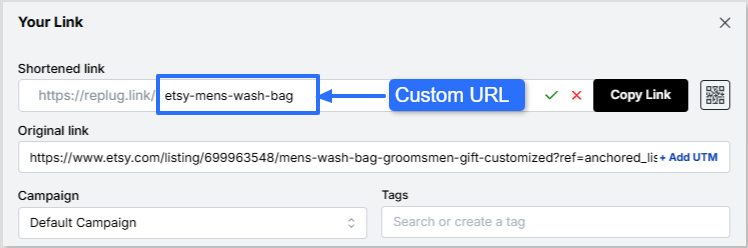
    The platform lets you customize the URL slug for each short link, creating a clear, SEO‑friendly URL for public use. Even if the destination is a long, dynamic URL, your audience sees a neat slug like “/new-report” or “/summer-sale”, which is far more shareable and easier to remember.

    Consistent UTM tagging

    Replug adds and manages UTM tags to links, keeping dynamic URL parameters for tracking consistent across campaigns. Instead of hand‑typing UTM codes and risking mistakes, you can standardize names for source, medium, and campaign, which makes analytics in tools such as Google Analytics or your CRM much more straightforward to trust.

    Smart routing and link rotation

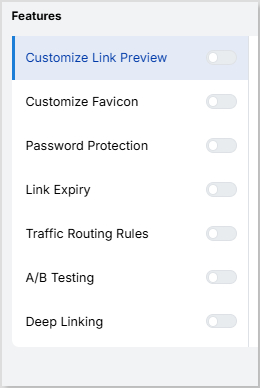
    With dynamic link rotation, a single short link can redirect visitors to different static or dynamic URLs based on rules such as device, country, or time. This helps with personalization and testing without touching the website code, since you only update routing rules inside the Replug’s dedicated dashboard.

    Built‑in A/B testing

    Replug lets you split traffic from a single branded link across multiple landing pages and see which one converts better. You can split clicks 50/50 between a static page and a more dynamic experience, then shift traffic to the winner based on A/B testing data.

    Deep links and dynamic QR codes

    Replug supports deep linking and dynamic QR codes that point into apps or changing campaigns while keeping the printed code or base link the same. That means you can run print and offline promotions that still link into clear-cut static or dynamic screens without replacing materials each time.

    Analytics for every click

    Every Replug link, no matter where it points, comes with detailed click analytics, including location, device, and referrer. This turns each URL into a measurable asset and makes it easier to answer which static link vs. dynamic link performs better for a given audience or channel.

    Wrapping up

    To be very honest, dynamic URLs and static URLs are not enemies. They are tools that serve different parts of a marketing and product stack. 

    Static URLs win on clarity, branding, and long‑term SEO, while dynamic URLs power search, filters, dashboards, and personalization. The sweet spot is knowing when to use each and how to keep links short, clear, and trackable.

    Replug.io helps by turning any long URL into a branded short link with smart routing, UTM tracking, QR support, and strong analytics. 

    Want to clean up your links and get more control over every click? Give this all-in-one link management platform a try today!

    Frequently asked questions

    Which one is better for SEO, static or dynamic URLs?

    From a pure SEO and user-trust perspective, static‑style URLs have an edge because they are short, descriptive, and easy to scan. They also make it pretty easy to naturally include keywords in the slug.

    How do search engines treat dynamic URLs?

    Google and other major search engines now crawl dynamic URLs almost as easily as static ones. Their systems read parameters, figure out which ones matter for content, and ignore many tracking strings. Problems arise when there are endless combinations of parameters that yield the same or very similar pages. 

    To keep things in good shape, limit parameter use, cut session IDs from indexable links, and use canonical tags so search engines know which version to keep in the index.

    How can I tell if a URL is static or dynamic?

    A quick way is to look for a question mark in the URL. If there is a query string with parts like “?id=123&sort=name”, it is usually a dynamic URL. On the other hand, if the link is short, has no query string, and looks like a folder path with a slug such as “/blog/url-best-practices”, it is likely static. 

    Some systems hide file endings, so do not worry if you do not see “.html” or “.php”. The main test is whether the link uses parameters to change what appears on the page.

    Which URL structure is the best, dynamic or static?

    The best structure depends on the page type and your goals. For content that should rank in search, be easy to share, and stay stable over time, static URLs are a solid choice. Whereas, for content that changes based on filters, user login, or search, dynamic URLs make more sense. 

    Rather than picking one for the whole site, use static URLs for core pages and dynamic URLs for pages that need live data or support many combinations. Then wrap them in branded short links for public sharing.

    How to convert dynamic URLs to static ones?

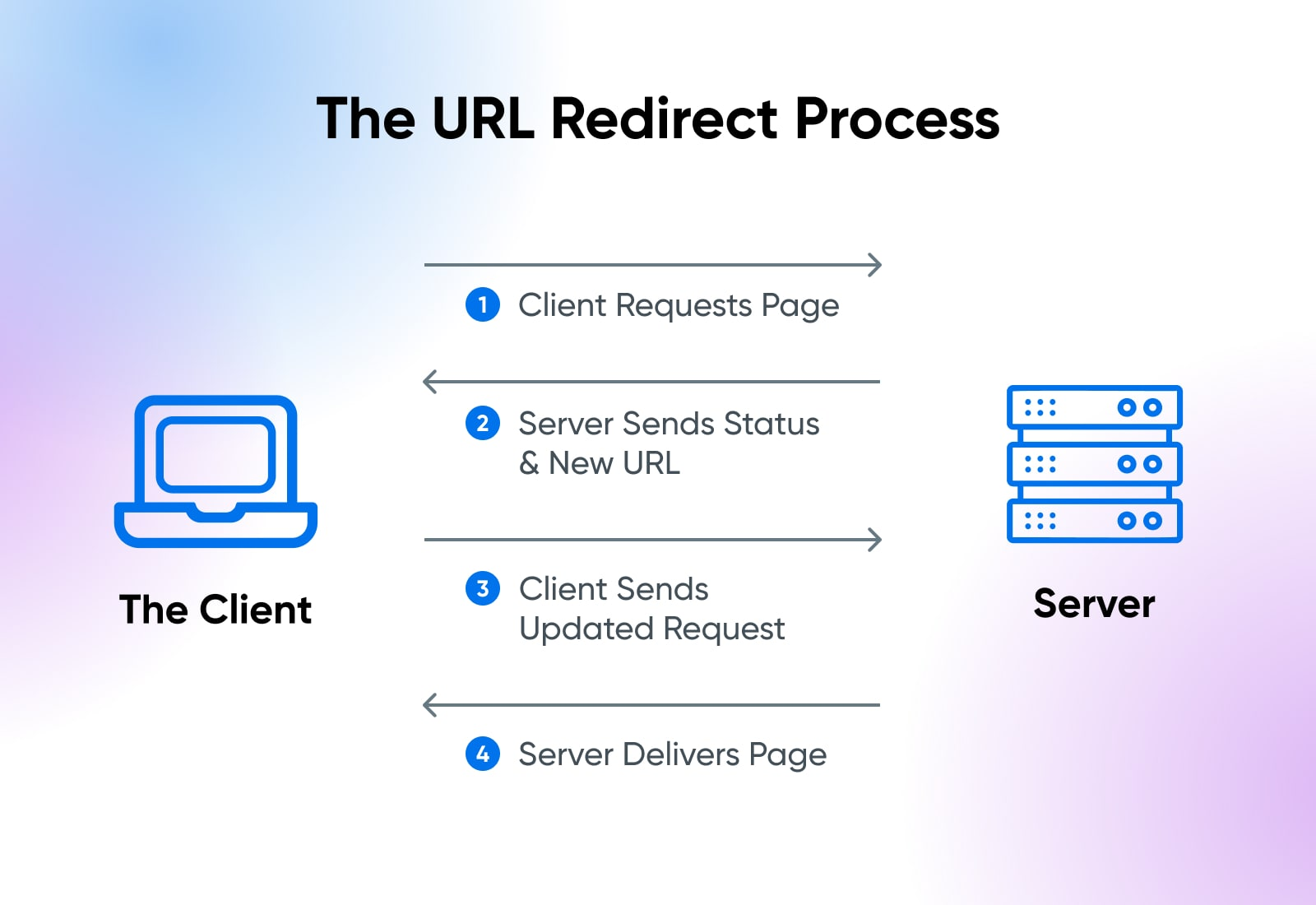
    Turning dynamic URLs into static‑looking ones usually means URL rewriting at the server level and smart redirect planning. 

    A simple process looks like this:

    1. Map each dynamic URL or pattern to a clean static path.
    2. Set up permanent redirects so visitors and search engines land on the new address.
    3. Update internal links, XML sitemaps, and canonical tags to point to the static version.
    4. Monitor Google Search Console for crawl errors and index changes.

    Which can Googlebot read better, static or dynamic URLs?

    Google has stated that Googlebot can read both static and dynamic URLs well. There is no hard limit on the number of parameters, although shorter and cleaner is still better for many reasons. Static URLs may get a slight advantage in click‑through rates and ease of understanding, but Googlebot does not automatically rate a dynamic URL as worse.

    The key is to avoid endless parameter combinations, remove non‑content parameters from indexable links, and use canonical tags when multiple URLs point to the same content.

    What are the most common challenges and myths regarding dynamic URLs?

    Common myths and issues include:

    – Believing dynamic URLs cannot be indexed at all, which is no longer true.
    – Thinking that you must hide parameters and make every link look static, even when that complicates development.
    – Creating duplicate content from many parameter combinations that show the same page.
    – Wasting crawl budget on tiny variations that add little value.
    – Using very long parameter strings that look confusing or spammy to users.

    With clear parameter rules, smart use of canonical tags, and link management tools, dynamic URLs can work very well without causing those problems.

    How do static and dynamic URLs affect website loading speed and performance?

    The URL type affects performance primarily through caching and server work rather than the text itself.

    Static URLs often map to pages that are easier to cache on servers and content delivery networks, thereby reducing load times.
    Dynamic URLs may trigger more database queries and script processing on each request, especially when parameters drive complex filters.

    This can slow things down on poorly tuned sites. Good caching strategies, optimized queries, and content delivery networks can make both static and dynamic pages fast enough for real users.

    What impact do dynamic vs. static URLs have on user experience and engagement on a site?

    From a user’s view, transparent and predictable URLs feel safer and more helpful. Static URLs usually win here because people can guess what is behind “/pricing” or “/guide/url-structure” at a glance. Dynamic URLs with long parameter strings can look confusing or spammy in emails, chat, and social feeds, which may reduce clicks.

    At the same time, features powered by dynamic URLs, such as fast search and filters, can raise engagement once people are on the site. Wrapping dynamic destinations in branded short links is a neat way to give users a clean experience on the surface while still using dynamic content underneath.

    What effect do dynamic URLs vs static URLs have on link-building and backlink acquisition in SEO?

    Static URLs tend to attract more backlinks because they are easier to read, share, and trust. When someone pastes a full URL as anchor text, a static link with keywords acts like natural descriptive text. Dynamic URLs can still earn links, but long parameter strings often look temporary or hard to understand, so people are less likely to share them in full.

    A good pattern is to use static URLs as primary link targets and use Replug or similar tools to create branded short links that point to them from campaigns, which keeps all link equity focused on stable addresses.

    What is the difference between a static and a dynamic website?

    Static and dynamic websites differ in how pages are built and updated behind the scenes. This small comparison helps you see which type fits your project or client work.

    Static website:

    What it is: A site made of fixed pages where each URL points to a file or saved view that changes only when edited by hand.
    Pros: Simple to host and secure, loads very fast, easy to cache, and great for small sites with limited content updates.
    Cons: Hard to manage when there are many pages, limited personalization, and content is less flexible without a content management system or developer help.
    When to choose: Best for small business sites, portfolios, simple blogs, and landing pages that do not change content often.
    Example: A five‑page site for a local agency with home, about, services, blog, and contact pages.

    Dynamic website:

    What it is: A site where pages are built on demand from templates and a database, often using dynamic URLs with parameters.
    Pros: Scales well to thousands of pages, supports user accounts, search, filters, and personalized content based on data.
    Cons: More complex to build and host, higher risk of slow pages if not optimized, and higher chance of messy URLs without clear rules.
    When to choose: Best for ecommerce stores, communities, news sites, SaaS dashboards, and any project with frequent updates or many items.
    Example: An online store with product filters, user reviews, wish lists, and personalized recommendations.
  • Replug vs Bitly vs TinyURL: Which URL shortener is best for marketers in 2026

    Replug vs Bitly vs TinyURL: Which URL shortener is best for marketers in 2026

    Long, messy URLs can be a massive nightmare for marketers. They are hard to share, look unprofessional, and are impossible to track properly. That frustration grows more when you’re trying to manage campaigns and need clear data insights on what’s actually working.

    With numerous tools available, determining how to shorten a link without compromising valuable tracking and branding power is a pretty challenging task.

    But don’t worry, we’ve got some good news for you!

    Here we’ll compare the top 3 URL shorteners, i.e., Replug, Bitly, and TinyURL, to see which one truly fits today’s marketers’ needs.

    Let’s break it down, starting with Replug.

    Feature / AspectReplugBitlyTinyURL
    Free / Entry Plan100 short links,
    1,000 clicks/month,
    3 custom domains,
    10 smart QR codes,
    2 bio links,
    1 campaign
    Free plan with limited features (very restricted link count)Free plan available with basic shortening & limited analytics
    Paid / Premium PlansEssentials: $9/month,
    Scale: $23/month,
    Agency: $79/month,
    Enterprise: custom
    Core: $10/month,
    Growth: $29/month,
    Premium: $199/month,
    Enterprise: custom
    Pro: $9.99/month, Bulk 100K: $99/month,
    Enterprise: custom
    Branded / Custom DomainsSupported (multiple custom domains depending on plan)Available on paid plans (Growth and up)Available in Pro / paid plans
    Analytics & ReportingFull analytics, click behavior, and built-in campaign metricsReal-time click stats, device & geography breakdowns on higher tiersDetailed analytics in subscription plans (clicks, referrers, geography)
    Bulk Link ShorteningSupported in higher plans / Agency levelsSupported in “Growth” and aboveBulk 100K plan allows bulk shortening
    Link Destination Redirecting / EditingYes, you can change the target URL or rotate linksSome redirect/edit capabilityYes, in paid plans, you can edit link destinations
    QR Code SupportSupported (smart QR codes)Built-in QR code features includedLimited or no advanced QR code design support (basic QR)
    White-Label / Agency FeaturesOffers white-label, team & workspace management in higher tiersAvailable in Enterprise / higher tiers with team featuresMore basic; doesn’t emphasize white-label capabilities
    Ease & SpeedVery polished UI and mature product. Generates branded short links in secondsSlight learning curve for advanced features, but user-friendly for everyday useExtremely quick for basic link shortening

    Replug: Most recommended custom URL shortener

    Replug - Best custom URL shortener

    When it comes to shortening links, Replug’s URL shortener goes beyond the basics. Instead of just turning a lengthy, disorganized URL into a short one, it gives marketers the power to brand their links, track performance, and even drive conversions through added features.

    No matter if you’re running ad campaigns, sharing links on social media, or managing multiple clients, Replug makes the process smooth and hassle-free. It also ensures that everything aligns with your brand identity in the best possible manner.

    Key features

    • Custom link shortener: Instantly transforms generic links into branded URLs with personalized slugs.
    • Branded links everywhere: Creates professional-looking links that you can use across all social media marketing channels to strengthen recognition of your brand.
    • Beyond simple URL shortening: Offers adding custom CTAs, retargeting pixels, third-party widgets, and tracking elements directly to your short links seamlessly.
    • White-label ready: Agencies and organizations can fully brand the platform, making it look like their own solution.
    • In-depth analytics in real time: Provides tracking link clicks, engagement, and conversions with detailed performance reports.
    • UTM tracking component: You can easily monitor campaign effectiveness with built-in UTM parameter support.
    • Fine-tuned link management: Keep all your shortened links organized under one roof for maximum efficiency.

    Final thoughts

    If you’re very serious and concerned about link management, Replug is hands-down the best choice out there. 

    From agencies and large enterprises to digital marketers and online businesses, it offers everything you need to create branded links, track results, and promote your campaigns. 

    It’s not just a link shortener, it’s a complete marketing toolkit built around your URLs.

    Replug Branded Short Links CTA
    Maximize marketing ROI
    by transforming ordinary URLs into
    branded short links that convert.
    Try Replug for free

    Bitly: A powerful URL shortener for brand strategists

    Bitly - A powerful URL shortener

    Bitly has been around for years and is still one of the most trusted names in link shortening. It doesn’t just give you a short, neat link, but makes it easy to brand your URLs, track performance, and manage campaigns at scale. 

    For content marketers and brand strategists, Bitly provides a reliable way to keep links professional and data-driven, while making them easy to share across various platforms.

    Key features

    • Branded short links: Turns long URLs into short, clean, and branded links that build trust.
    • Top-level domains: Provides custom domains to establish a stronger brand presence for your links.
    • Clicks & engagement data: Access real-time stats on clicks and audience behavior effortlessly.
    • Campaign comparison: Easily monitor and measure performance across multiple campaigns.
    • Flexible link management: Change link destinations at any time without breaking the original link.
    • Bulk link shortening: Shorten and manage multiple links at once, saving valuable time.

    Final thoughts

    Bitly is, without a doubt, one of the most reliable URL shorteners, especially for brands and agencies that value trust and data. It packs all the essentials plus advanced features for campaign tracking and branded links. 

    However, the downside is its pricing plans. It’s a bit on the higher side compared to other tools available online. So, while it’s an excellent choice for businesses that can afford it, smaller teams or startups may want to consider budget-friendly alternatives.

    See Also: Replug – The Best Bitly Alternative

    TinyURL: A highly-rated online URL shortener

    TinyURL - A highly-rated online URL shortener

    TinyURL is one of the oldest and most recognizable link shorteners on the internet. Over the years, it has evolved from being a simple URL trimming tool to offering more advanced link management features. 

    For marketing professionals, business owners, or even casual users, TinyURL makes it easy to create shorter, cleaner links. It also provides the option to track performance and manage links in bulk.

    Key features

    • Original URL shortener: Known as one of the pioneers in the space, offering precise and simple link shortening.
    • Detailed analytics at hand: Get insights into link performance with tracking and reporting tools.
    • Bulk link shortening: Shorten multiple URLs at once to save time and effort.
    • Full-scale link management: Access features that help you organize and manage your links effectively.

    Final thoughts

    TinyURL remains a trustworthy choice for anyone looking for a straightforward link shortener with added analytics and bulk management options. 

    It does the job well, but there’s a catch! It may take a little longer to generate results, and you’ll need to sign up for an account to access its full features. Still, for those who don’t mind these small trade-offs, TinyURL is a solid option worth considering.

    Related: Replug – An Advanced TinyURL Alternative

    Which one should you use

    Selecting the right URL shortener ultimately depends on your specific needs as a marketer. If you’re looking for something simple and straightforward for basic link shortening, TinyURL still does the job with minimal fuss. 

    Bitly, on the other hand, offers a more powerful feature set for general analytics and branding. This makes it a solid choice for businesses that want a balance of usability and insight without going too deep into customization or advanced marketing features.

    However, if you’re aiming to go beyond just shortening links and want to fully optimize your marketing campaigns, Replug delivers a more comprehensive toolset. Its ability to add retargeting pixels, create branded links, use bio link pages, and even display call-to-actions on shared content gives marketers an edge in tracking, conversion, and engagement. 

    While all three tools serve the core purpose of link shortening, Replug stands out for those who want to integrate their links more strategically into their broader marketing funnel.

    Significant benefits of URL shorteners

    URL shorteners aren’t just about snipping down long links. They bring a bunch of practical advantages for marketers, businesses, and even typical users.

    Let’s take a quick look at why they’re so handy:

    • Saves character space: Short links are ideal for social media platforms like X (Twitter), where every character counts.
    • Improves aesthetics and readability: Clean, simple URLs look much more professional than messy, string-filled ones.
    • Offers tracking & analytics: Get valuable insights into clicks, traffic sources, and audience behavior.
    • Enables branding and customization: Turn generic links into branded ones that boost recognition and trust.
    • Centralized link management: Keep all your links organized in one place for easy access and control.
    • Easier to share and remember: Shorter URLs are far simpler to recall and share with others, compared to longer ones. 
    • SEO benefits: Branded, keyword-rich links can give your campaigns a slight edge in search visibility.
    • Easy link redirection: Update or change your destination link without creating a brand-new one.
    • QR code generation: Many shorteners now create dynamic QR codes for quick offline-to-online access.

    How to pick the right URL shortener

    With so many top-rated and best URL shorteners out there, choosing the right one really comes down to what you need for your business or campaigns. 

    Here are a few essential factors worth keeping in mind before making your decision:

    • Customization needs: If branding is important, go for a link shortener that lets you create custom domains and unique slugs.
    • Analytics & reporting: Look for detailed tracking features so you can measure clicks, conversions, and audience engagement without any hassle.
    • Scalability: Make sure the tool can handle your growth, whether you’re running a small campaign today or managing thousands of links later.
    • Cost & budget: Pricing varies a lot, so weigh the features against what you’re willing to spend.
    • Integrations: Check if the URL shortener works smoothly with your existing tools, like CRMs, ad platforms, or email marketing software.

    See Also: Top 5 paid URL shorteners worth paying for in 2026

    Wrapping Up

    At the end of the day, URL shorteners are more than just tools to shrink links. They’re powerful assets for branding, tracking, and managing campaigns. 

    We compared Replug, Bitly, and TinyURL, and while each has its own strengths, Replug clearly stands out with its customization, analytics, and all-in-one link management features. 

    If you want to boost clicks and build stronger brand visibility, give Replug a try today. You won’t be disappointed!

    Frequently asked questions

    Which is the best URL shortener?

    There’s no one-size-fits-all answer. It depends on your priorities (branding, analytics, budget, ease of use, etc.). But overall, tools like Replug tend to lead for marketers and agencies. Thanks to their balance of customization, tracking, and reliability.

    What is the most trusted URL shortener?

    Bitly remains a go-to trusted option in many industries. Years of uptime, brand recognition, and integrations help it rank high in credibility.

    Is there a free URL shortener?

    Yes, many services offer free plans, but with limited features. You can shorten links for free, though advanced features usually require a subscription to the paid plans.

    Are shortened URLs bad for SEO?

    Not necessarily! If the URL shortener uses proper redirects (like 301) and a reputable provider, you won’t lose SEO value.

    Is Google shutting down URL shortener?

    Yes, Google’s old “goo.gl shortener” is being phased out. Links showing warning messages or inactivity will stop working, though active ones may still be preserved.

  • What is URL phishing: Definition, practical examples & prevention techniques

    What is URL phishing: Definition, practical examples & prevention techniques

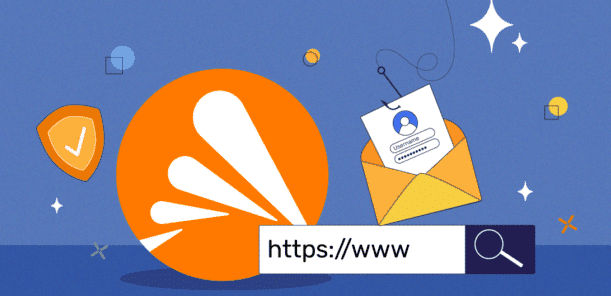
    One urgent email or one simple click, and a whole marketing campaign can go off the rails. URL phishing thrives on that split second when someone taps a link without thinking.

    Research shows that billions of spam emails are sent every day, and phishing links sit behind most data breaches reported by companies worldwide.

    For teams who are pretty passionate about links, those everyday URLs can turn into silent entry points for attackers. Stolen logins, drained ad accounts, fake checkout pages, and damaged brand trust are all very real, possible outcomes.

    The good news is that this threat is fairly predictable once you understand how it works. This guide breaks down what URL phishing is, how attackers design their tricks, real-life examples, and clear steps to stop them.

    Let’s start with a quick overview of what this digital world attack actually means!

    What is URL phishing: A brief overview

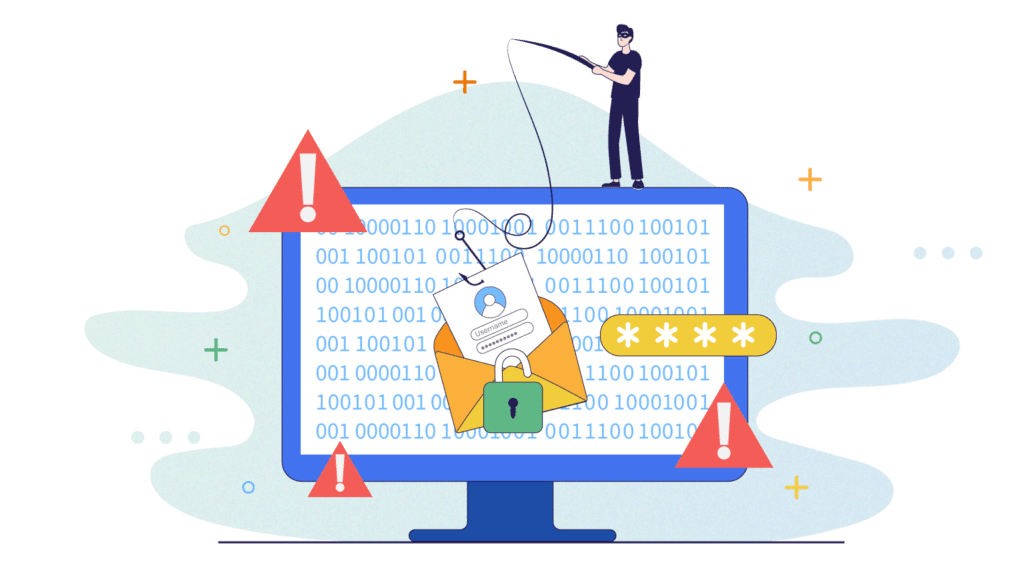
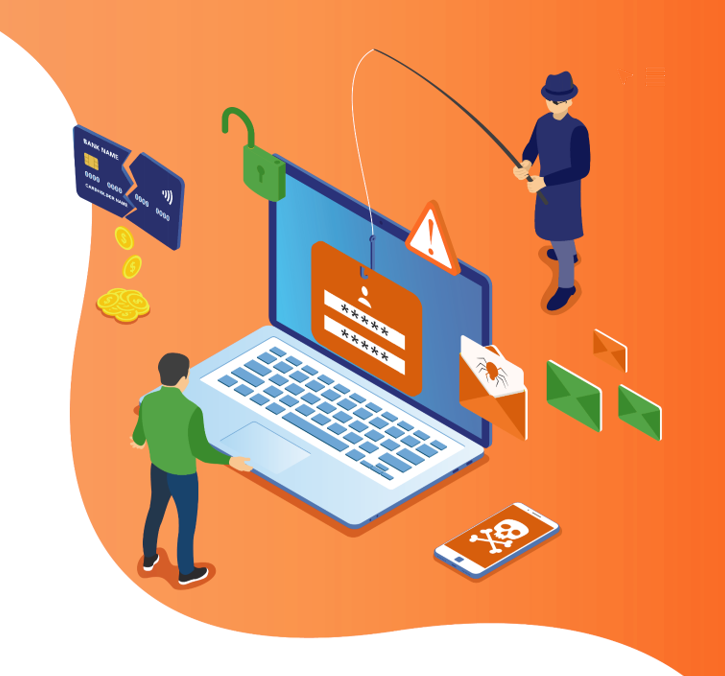
    URL phishing is a type of phishing attack that uses a “deceptive link” as its primary weapon.

    Attackers send emails, texts, social posts, or ads that point to URLs they control, but dress them up to look safe and familiar. The victim lands on a fake page that copies a real site, such as a bank, ecommerce store, ad platform, or company login portal.

    What is URL phishing

    The primary goal is simple, i.e., to get the person to enter something of significant value. That might be usernames and passwords, card numbers, one‑time codes, or even full identity details. Sometimes the fake page also drops malware or steals active browser sessions in the background. 

    What makes URL phishing so dangerous is that a single convincing link can bypass firewalls and security tools, because the victim opens the door by clicking it.

    Why is URL phishing important?

    URL phishing matters because it is one of the most common starting points for data breaches and account takeovers. 

    Studies have shown that phishing plays a key role in the majority of reported infringements, and the number of phishing sites has grown several times over in just the last few years. 

    Setting up a fake website and buying a domain is cheap, so attackers can easily send millions of messages at a very low cost.

    For marketing teams, agencies, and online businesses, this attack hits right where work happens: email campaigns, social posts, ads, and landing pages filled with links.

    Note: One successful phishing URL can compromise brand accounts, ad platforms, payment systems, or CRM tools in minutes. Understanding the URL phishing meaning, how it works, and where it shows up is now basic security knowledge, not just an everyday IT problem.

    How does URL phishing work?

    At a high level, URL phishing follows the same script. An attacker sends a message with a crafted link, stirs up urgency or curiosity, and funnels the victim onto a fake page. 

    That page collects data, then often bounces or redirects the user to the real site, so nothing feels wrong. Under the hood, though, there are several specific tricks you will see again and again.

    URL phishing with masked links

    Masked links hide the real destination behind friendly text. On an email or web page, the visible part might say “https://yourbank.com” or “View invoice”, while the underlying URL points to a completely different location. Since most people click the blue text without checking the status bar, attackers count on this gap.

    Note: Masked links show up in email campaigns, PDF invoices, and social posts, and they are a core building block of many URL phishing types or schemes.

    URL phishing with open redirect

    Some trusted sites use redirect parameters, such as ?redirect=” or ?url=”, to send visitors to another page after login or tracking. 

    If these redirects are not locked down, attackers can seamlessly plug a malicious address into that parameter. The phishing link then starts with a real domain, but ends on the attacker’s page. This makes the URL look safe at a glance and helps it slip past filters. 

    Note: Open-redirect abuse is common in phishing emails that claim to come from well‑known brands.

    URL phishing via similar-looking domains

    Another typical URL-phishing style relies on domains that look almost identical to legitimate ones. 

    Scammers register addresses with minor spelling changes, extra words, or swapped characters. For example, paypaI.com” with a capital “I,” or secure‑yourbank‑login.com”.

    Some even use characters from other alphabets that look like normal letters, which is where “IDN homograph tricks” come in. To a busy reader on a phone, these fake domains can pass as the real thing.

    Types of URL phishing

    URL phishing is not a single trick; it is a family of methods focused on altering or hiding how a URL looks. Most real attacks combine two or three of these styles at once. 

    Knowing the main URL phishing types makes it much easier to explain risks to your team and to spot red flags in daily work, efficiently.

    Link masking

    Masked links appear to point to one thing but send you to another. The clickable text, button label, or even preview image suggests a trusted destination, but the href” or underlying address points somewhere else.

    Marketers use safe link masking to create clean, trackable, and SEO-friendly URLs, yet attackers mimic the same approach to hide phishing pages behind “reset password” buttons or fake unsubscribe links.

    Note: Hovering over the link on desktop is often enough to reveal the mismatch.

    Open redirects

    With open redirects, the first part of the link uses a well‑known domain, which builds quick trust. Buried after a parameter, though, is the actual malicious URL that the redirect will send you to. Email filters and users may focus only on the front of the link and miss the rest.

    Note: Because open redirects target real websites rather than just fake ones, they can be harder to block without smart URL filtering and scanning.

    Typosquatting

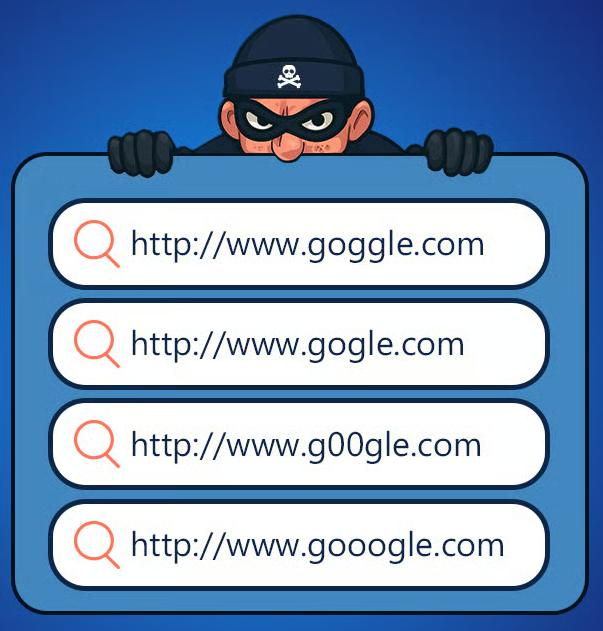
    Typosquatting, sometimes called “URL hijacking”, uses domains that look like common typing mistakes. An attacker might buy “goggle.com” or “facebokk.com” and fill them with phishing pages or ad traps.

    Typosquatting

    Users might land there by typing the address wrong, or by clicking a link in a message where the typo is easy to miss. 

    Note: This method works exceptionally well on smartphones, where small screens make subtle spelling changes hard to see.

    IDN homograph attack

    IDN homograph attacks use characters from other writing systems that look like regular Latin letters. For example, a Cyrillic “ä” can look the same as an English “a”. 

    Spammers combine these characters to build domains that appear identical to real ones when pasted into a message.

    Note: To the human eye,ɢoogle.com” or payάbill.com” looks normal, but the browser treats them as separate domains controlled by the spammer.

    Doppelgänger domains

    Doppelgänger domains remove or rearrange dots in ways that trick people and, sometimes, internal tools. Instead of “mail.company.com”, the attacker might register “mailcompany.com”. In a long email header or auto‑generated link, that missing dot can be tough to notice.

    Note: These domains are often used for internal phishing, targeting staff who expect messages from systems such as HR, payroll, or CRM tools.

    HTTP/HTTPS phishing & spoofing

    Many people see a padlock icon in the URL address bar and feel safe. Attackers take advantage of that habit in two ways:

    • Some phishing sites still use plain HTTP, hoping rushed users will not notice the missing padlock at all.
    • Others get a valid TLS certificate, so the fake site shows HTTPS and a padlock just like the original.

    In simple words, HTTPS only tells you the connection is encrypted, not that the site itself is honest, so you still need to read the domain name carefully.

    Common URL phishing methods

    Once cybercriminals have a deceptive link, they still need to deliver it and dodge basic filters. Here are some of the most typical methods they use to make URL phishing harder to spot in real inboxes and feeds.

    Mixing legitimate links with malicious links

    Instead of sending a message with one shady link, attackers blend a bad URL into a message full of normal ones. For instance, an email might include real links to a privacy policy, a help center, and social profiles, plus a single phishing URL on a “verify now” button.

    Basic scanners that only flag messages full of flawed links may let this pass. To a human reader, the mix of known and unknown links can also feel more trustworthy.

    Abusing/exploiting URL redirects

    Intruders often chain redirects together so that the first few steps look normal. A phishing link might go from:

    A URL shortener to a tracking domain to an abused open redirect on a real site and finally to the fake page.

    Each step makes it harder for simple tools to see the end destination. Shortened links are especially popular here, since they hide the full path. 

    This is the main reason why any short URL generator used in campaigns should be tied to a transparent review process, and destinations should be checked for phishing behavior before links go live.

    Hiding malware inside image files

    Some campaigns do much more than steal passwords. They also aim to drop malware, like info‑stealing trojans or remote access tools. One trick is to hide harmful code inside image files or to make the entire email or message a single clickable image.

    Filters that look mostly at text might miss it. When the victim clicks the image, they may download a file or open a page that abuses a browser flaw. From a user’s point of view, it just looked like a harmless graphic or banner.

    Major signs of a URL phishing attack

    The good news is that URL phishing leaves clues behind. When people know how to identify suspicious or malicious attempts, those attempts become apparent. They no longer hide among the noise, even when there is a lot going on.

    Camouflaged URLs

    If the visible link text or button label does not match the address shown in the status bar when you hover, that is a strong warning sign. Another clue is when a PDF or image has clickable areas that jump to unrelated domains.

    Note: Any mismatch between what a link claims and where it goes deserves a slow, careful look.

    Urgent/threatening SMS notification

    Phishing texts often claim that an account will close, a package will be returned, or a fine will be added unless the person clicks right away. They may use generic names like “Bank Support” or “Delivery Team” and link to shortened URLs.

    Real companies rarely threaten customers in this way over SMS, so urgency plus a link from an unknown number should raise suspicion.

    Subdomain-spoofed URL

    Attackers love domains where the real brand name sits on the left, not at the end. Think paypal.security‑alert.com” instead of paypal.com”. Many people scan only the first part and ignore the actual registered domain on the right.

    Note: When reviewing links, the part directly before .com”, “.net”, or another main ending (i.e., TLD) is what really counts.

    Unknown / Red-flag senders

    If the sender address appears random or misspelled, or does not match the name shown in the display field, be careful. 

    Even if the name says “Support”, the real email or text might come from a throwaway domain with a long string of numbers.

    Note: Combine that with an unexpectedly long URL, and you’ll have a strong hint of URL phishing at work.

    Extra characters or symbols in links

    Phishing URLs or links often use extra dashes, numbers, or words like “verify,” “secure,” or “update” glued next to brand names. For example, “secure‑yourbank‑login‑247.com”.

    While some companies use long tracking URLs, an overload of symbols around a brand name, especially in a message you did not request, should make you pause and think for a while.

    Misspelled web addresses

    Simple spelling errors in the domain, like “faceboook”, “linkedln”, or “goggle”, remain very common. On mobile devices, these mistakes are easy to miss.

    Note: Any time a link to a well‑known site looks slightly off, type the address manually in the browser instead of tapping the link.

    To recap the main signs, you can think in terms of this quick reference:

    SignWhat to look for
    Mismatched link textButton or text says one thing, but the status bar shows another domain
    Extreme urgencyThreats or time pressure, plus a link from an unknown sender
    Odd subdomainsBrand name at the start, not near the end of the domain
    Strange sender addressDisplay name vs. real email does not align
    Extra symbols/keywordsMany dashes, numbers, or “secure/verify/update” keywords around a brand
    Spelling mistakesMinor typos in famous domains

    How to identify a URL phishing attack

    Spotting URL phishing is mostly about slowing down and checking a few details more critically and thoroughly. A quick, repeatable routine can block most attacks before they go anywhere near your credentials.

    Double-check the URL

    Before clicking, hover over the link on desktop or press‑and‑hold on mobile (without opening) to see the full address. If it seems off, copy and paste it into a plain text editor to read it clearly and carefully.

    When in doubt, skip the link and go directly to the site by typing the address yourself or using a saved bookmark.

    Inspect the domain name spelling

    Focus on the part of the URL right before the main ending, i.e., the top-level domain such as “.com” or “.org”. Look for:

    • swapped letters,
    • extra words,
    • or numbers added to a brand name.

    Compare it to how the real site is spelled or previous emails you trust.

    Carefully review all the content

    Phishing pages and emails often reuse logos and colors but may miss details in wording and layout. Watch for:

    • awkward grammar or phrasing,
    • strange spacing,
    • outdated branding,
    • generic greetings like “Dear user”.

    These small slips, paired with a link that asks for sensitive data, are a strong signal of trouble.

    Verify the connection protocol (HTTPS)

    Check for https://” and a padlock in the browser, but treat it as just one check, not a final verdict. Click the padlock to see who the certificate was issued to and whether it matches the brand you expect.

    If the page asks for passwords or payment data over plain http://” with no padlock, close it right away.

    Real-world examples of URL phishing

    Real attacks tend to follow familiar storylines, and reviewing URL phishing examples can help teams recognize these patterns quickly. Walking through a few common ones makes it easier to brief your team and spot similar patterns in inboxes and chats.

    URL phishing examples

    Suspicious-login / Account-breach phishing alert

    A message arrives in your inbox claiming there was a “suspicious login” to your email, ad account, or social profile. The email uses your logo, includes rough location details, and pushes a “Review activity” button.

    That button leads to a fake login page with a URL that looks similar but not exact. Once you enter your credentials, the attacker can log into the real account, change settings, and lock you out.

    Fake e-commerce scam

    Someone searching for a popular product finds a top‑ranked ad or link with a slightly misspelled brand domain. The site looks like a real store, complete with realistic product photos and reviews.

    At checkout, the page asks for full card details and sometimes extra personal data “for verification”. The victim might never receive a product, but their payment details are now in criminal hands.

    Donation-scam alert

    During a natural disaster or viral news event, emails and social posts appear asking for urgent donations. They copy the name and logo of a well‑known charity, but the links lead to look‑alike domains that accept card payments or crypto transfers.
    In some cases, the page also prompts visitors to log in to their email or payment account via a fake portal, capturing even more sensitive data.

    FedEx delivery phishing scam

    A text or email claims a FedEx package cannot be delivered due to an address problem or an unpaid customs fee. A short link promises a quick way to “reschedule delivery” or “pay a small charge”.

    The link goes to a fake shipping page where victims enter card information or login details for a delivery account. Spammers then use that data for fraudulent purchases or to target other services that reuse the same password.

    Best practices for preventing URL phishing

    Intercepting or blocking URL phishing takes more than one tool or tip. The strongest defenses combine technology, smart habits, and clear processes that fit how teams already work.

    How to prevent URL phishing

    Here’s how you can protect yourself from URL phishing:

    URL filtering

    URL filtering compares web addresses against lists of known bad sites and policy rules before allowing access. They can block entire categories, such as phishing, malware, or newly registered domains.

    In a business network, this acts like a safety net under your users, catching many dangerous clicks before a page even loads.

    Link protection

    Modern email and collaboration tools can rewrite links so that every click first passes through a scanning service. These systems scan URL phishing patterns in real time, follow redirects, and block access if the final destination looks suspicious.

    For marketing and agency work, this adds a background guardrail around campaign links and inbound messages.

    Security hygiene

    Basic habits go a long way:

    • Multi‑factor authentication for important accounts
    • Strong, unique passwords stored in a password manager
    • Regular software and browser updates
    • Limited use of admin accounts for daily work

    These steps reduce damage even if a phishing URL steals a single password, and they close many holes that malware tries to exploit after a bad click.

    AI-based protection

    Many security platforms now use machine learning to spot previously unseen URL-based phishing. Instead of waiting for a domain to appear on a blocklist, they look for patterns in the URL, page content, hosting setup, and behavior.

    An AI‑driven URL phishing detection system can flag suspicious sites seconds after they appear, even in fast‑moving campaigns.

    Cybersecurity & security awareness training

    People remain the last line of defense, so training should be part of everyday work, not a one‑time event. 

    Short sessions and phishing simulations teach staff what a phishing URL example looks like, how attackers push emotional buttons, and how to report concerns.

    Over time, this builds a shared habit of pausing before clicking any link that seems out of place.

    Check the domain’s reputation

    Before trusting a link, especially one used in paid campaigns or newsletters, check the domain with:

    • reliable reputation services,
    • browser safety checks,
    • or built‑in security tools from your email provider.

    These checks can reveal if a domain is very new, tied to prior abuse, or listed in threat feeds. For brand protection, monitoring for look‑alike domains related to your name also helps spot problems early.

    Warnings for suspicious domains

    Modern browsers and security products often display full‑screen warnings when a site is known to be phishing or malicious. Teach teams never to click past those alerts just to “get work done faster”.

    If a warning appears on a link used in a campaign, stop and review where that URL came from before doing anything else.

    Use a URL phishing scanner

    Dedicated tools can scan URLs for phishing signs before anyone visits them. These scanners follow redirects, check SSL, compare against threat intelligence, and sometimes even analyze page content in a sandbox.

    Note: Building a quick “scan URLs for phishing, then share” step into content and campaign workflows sharply reduces the odds that a bad link ever reaches your audience.

    How does Replug help businesses defend against URL phishing attacks?

    For marketers, agencies, and online businesses, links are vital daily, and that makes them a favorite target for attackers. 

    Replug is built as a short URL generator and an all-in-one link management platform that keeps those links organized while still giving teams the tracking and branding they need. 

    Instead of dealing with risky redirects or generic shorteners, you manage every link from a single, hassle-free central dashboard.

    Replug Branded Short Links CTA
    A complete link management solution
    for marketing professionals & agencies.
    Try Replug for free

    Here is how Replug fits into a safer link strategy:

    Centralized link control

    When you create or edit a link in Replug, you do so from a single dashboard rather than across multiple tools. This makes it easier to review destinations before sharing them, retire old or suspicious URLs, and keep a clean inventory of links used across email, ads, and social posts.

    Custom domains & branded links

    With these, Replug turns long, messy addresses into clean URLs that clearly belong to your brand. Audiences learn to recognize your branded links and can spot impostors that try to copy them. 

    Note: This simple visual cue makes it harder for attackers to use random short links or look‑alike domains to impersonate you.

    HTTPS & controlled redirects

    Replug serves short links over HTTPS by default. Because every redirect runs through your chosen domain, your team can standardize how links are created and reviewed, rather than relying on unknown public shorteners. This reduces the risk of hidden redirects sneaking into your campaigns.

    Link rules & campaign structure

    Teams can agree on internal rules (e.g., which domains are allowed in campaigns, or which roles are allowed to publish new links), then apply those rules inside Replug workspaces. Consistent naming, tags, and UTM parameters also make it easier to spot any URL that does not look like it belongs.

    Analytics & anomaly spotting

    Replug’s click and traffic reports show where visitors come from, which devices they use, and how often they click. Sudden spikes, traffic from unexpected regions, or unusual referrers can act as early warning signs that a link is being abused or that someone has copied a campaign URL for phishing.

    Agency & multi-brand support

    For agencies and partners, Replug’s workspace structure and branding options keep everything organized under your own domain while still centralizing link management. You can run many client workspaces, apply consistent link practices across all of them, and quickly adjust or disable URLs if something suspicious appears.

    QR codes & cross-channel links

    Replug can easily generate QR codes that point to your branded short URLs, so the same review and tracking process you use for links extends to printed material and events. If you need to update a destination due to a phishing concern, you can change the target behind the short link without reprinting the QR code.

    Used this way, Replug becomes a controlled hub for your marketing URLs. It does not replace dedicated security products, but it makes it far easier for teams to share clear, branded, and trackable links while keeping a close eye on how those links are used.

    Summing up

    URL phishing is not some rare, advanced hack; it is a daily threat built around simple tricks with links. Attackers twist URLs through masking, typos, redirects, and fake HTTPS to pull people onto convincing copycat sites and steal whatever they can. 

    By watching for some unique signs in links, building habits like double‑checking domains, and using tools that scan URLs for phishing, teams can cut this risk to a much lower level.

    If your work depends on sharing links with customers or followers, using a carefully managed short URL generator should be part of that plan. 

    Replug.io gives you branded and trackable links, centralized link control, and HTTPS by default, so every click feels safer for both your team and your audience. It is well worth giving Replug a try!

    Frequently asked questions

    How to report URL phishing?

    First, report the phishing message to your internal IT or security team so they can warn others and block related URLs. For a more detailed scrutiny, you can also forward full phishing emails, including headers, to national bodies such as the U.S. Cybersecurity and Infrastructure Security Agency, and use in‑product report buttons in mail or browser apps.

    What is an example of URL phishing?

    A common phishing URL example is an email that appears to come from your bank and says, “Confirm your account”. The button text shows the bank name, but the real URL is something like “https://secure‑yourbank‑login‑help.com”, which is not the bank’s domain. The fake page then collects your username, password, and sometimes one‑time codes.

    How to detect URL phishing using machine learning?

    Machine learning models analyze many features at once, such as domain age, URL length, character patterns, hosting data, and page content. A URL phishing detection system can learn from past attacks and flag new URLs that look or behave like known phishing sites, even before they appear on public blocklists.

    How do attackers deliver URL phishing attacks?

    Attackers send phishing URLs via email, SMS, messaging apps, social DMs, fake ads, and even via QR codes on printed materials. They often spoof trusted brands, fake order updates, or support tickets, and they use urgent language to push quick clicks before people stop to inspect the link.

    How to spot a phishing URL?

    Look closely at the domain name, especially the part right before “.com” or similar endings, and watch for spelling errors or extra words. Check whether the message was expected, review the page design and wording, and be cautious if the site asks for passwords or payment data after you followed a link instead of typing the address yourself.

    What to do if you clicked a suspicious or phishing URL?

    If you clicked but did not enter any data, close the tab and run a quick antivirus scan to be safe. However, if you entered your credentials, change those passwords right away, turn on multi‑factor authentication, and tell your IT or security team so they can watch for suspicious activity and reset any affected sessions.

    Provide a sample phishing URL for testing purposes?

    Do not use live malicious URLs for training or tests. Instead, work with your security team to set up safe demo domains in a controlled lab, or use documentation domains such as “example.com” while you explain how typos, extra words, or strange websites or subdomains might look in a real attack. This keeps practice safe while still teaching people what to watch for.

  • What is URL filtering: How it works, key benefits, common use cases, & more

    What is URL filtering: How it works, key benefits, common use cases, & more

    Every day, billions of web requests zoom through our networks, yet just one misguided click can bypass thousands of dollars of cybersecurity investment. 

    Without adequate controls, employees or users might land on malicious or irrelevant sites. It’s more than just annoying; it can cost both time and expose your systems. 

    In fact, 96% of large organizations today block at least one type of website to mitigate risk and maintain productivity. 

    The solution? Intelligent and automated URL filtering: The perfect way to stay in control of what’s accessed, when, and by whom.

    Ready to see exactly how this works? Let’s jump in and explore what’s happening behind the scenes.

    URL filtering: A brief overview

    A URL (Uniform Resource Locator) is basically the web address, like https://www.example.com/page. Think of it as the exact address for a webpage or online resource.

    So, what is URL filtering, then?

    Simply put, URL filtering is a security and access-control technique where an organization (or network administrator) decides which web addresses users can visit and which should be blocked. This is done by comparing each requested URL against a database of known safe, risky, or disallowed addresses.

    Why is there a need for URL filtering

    The need for this amazing technique is quite obvious nowadays.

    To allow specific websites:

    • Grant staff access to trusted business tools and sites, while still enforcing policies.
    • Enable access to category-based URLs (e.g., professional resource sites) for specific departments or roles.
    • Fine-tune who can go where. Filters often let you set rules by user, group, or device.

    To block certain websites:

    • Prevent access to malicious or phishing URLs that might deliver malware or steal credentials. 
    • Reduce distractions and non-work-related browsing (e.g., social media, streaming) during working hours to boost productivity.
    • Limit bandwidth drain by blocking streaming or large downloads that aren’t business-critical. 
    • Meet compliance or regulatory requirements by blocking categories such as gambling, adult content, or other unacceptable content in a professional or educational environment.

    Also Read: URL Phishing 101: Phishing Scams, Types & Prevention Tips

    Importance of URL filtering: Why it matters

    It’s easy to think that the internet is just open access, but for organizations that care about security, productivity, and reputation, controlling where people go matters more than ever.

    Here’s why URL filtering isn’t just a nice-to-have, but a real business essential:

    Shield users and data from web-based threats

    By blocking risky or malicious web addresses, you reduce the chances of people landing on fake login pages, ransomware traps, or malicious downloads.

    Controls bandwidth waste and lost focus from non-work browsing

    When employees wander off to personal social media, streaming, or gaming sites, it eats up bandwidth and time. URL filtering helps guide users toward useful sites, and away from productivity drains.

    Reduce your organization’s liability by stopping access to inappropriate content

    Whether it’s compliance with regulations or maintaining professional standards, blocking access to unsuitable or disallowed categories of sites protects your brand. It also secures users and keeps you on the right side of the rules and policies.

    With that foundation laid, let’s get straight into how URL filtering works in practice.

    How URL filtering works

    It might seem like blocking a website is as simple as clicking “block,” but behind the scenes, there’s a clear workflow that keeps the process both accurate and efficient.

    How URL filtering works

    Let’s walk through the three main steps: URL comparison, policy enforcement, and database & caching.

    Step #1: URL comparison

    When a user tries to access a webpage, the system takes the exact URL (think www.example.com/page) and checks it against a list of known categories and reputations.
    It determines whether that URL is flagged as malicious, non-productive, allowed, or needs review. The check can happen in real-time, even before the full page loads.

    Step #2: Policy enforcement

    After comparison, the system applies defined rules: 

    • maybe URLs in “social media” are blocked after 3 pm, 
    • “streaming” is allowed only for certain teams, and 
    • all “phishing-risk” sites are blocked entirely.

    If the URL is allowed, the user proceeds as usual. However, if not, they might get a block page or a “proceed with caution” warning.

    Note: Policies can be user-specific, group-based, time-based, or device/location-based for extra granularity.

    Step #3: Database & caching

    To keep things fast and up to date, the filtering system uses a database (cloud-based or local) containing URL categories and reputations.
    To reduce delay, popular or recently used URLs are stored in a cache, so future checks happen faster. And when the system encounters a URL not in its local list, it may query the cloud service to retrieve the category and reputation, then store the result locally for next time.

    In short, it’s a loop of “see URL → check it → apply policy → allow or block,” backed by smart lookups and caching to keep things smooth.

    Major benefits of URL filtering

    When your organization sets up URL filtering, you’re doing more than just blocking random sites. You’re unlocking real value across security, productivity, and control. 

    Here are the primary wins:

    • Better security: Blocking access to known malicious or risky web addresses helps stop everything from phishing attempts to ransomware or drive-by downloads. Studies show this is a key reason companies adopt filtering. 
    • Higher productivity: Filtering helps cut down on those sneaky distractions (social media, streaming, endless browsing), which means people spend more time doing work and less time sneaking off. 
    • Bandwidth optimization: When the network isn’t choked with large downloads, videos, or non-essential traffic, you free up bandwidth for mission-critical tasks like video calls, cloud apps, and collaboration tools. 
    • More vigorous policy enforcement: Having clearly defined rules about what can and cannot be accessed helps you enforce your acceptable-use policy, reduce risks, and stay consistent across users and devices. 
    • Coverage for endpoints everywhere: Whether someone is in the office, working from home, on a laptop or mobile device, URL filtering can protect those endpoints too. This ensures remote or mobile users follow the same web-access rules.

    Advantages of advanced URL filtering

    If basic URL filtering gives you a simple “block or allow” decision, the advanced one takes it a step further, bringing smarter, faster, more adaptable control over web access. 

    Here’s how it excels:

    • Instead of static rules that rarely change, advanced filtering lets you craft flexible policies based on user roles, time of day, device type, or department. This means your rules stay relevant and practical. 
    • Advanced solutions use real-time threat feeds, machine learning, and behavioral analysis to identify malicious or risky URLs, far beyond simple category blocking.
    • The advanced filtering adapts to context: who is accessing, where they are accessing from, and under what conditions. That means someone in HR may have different access than someone in R&D. 
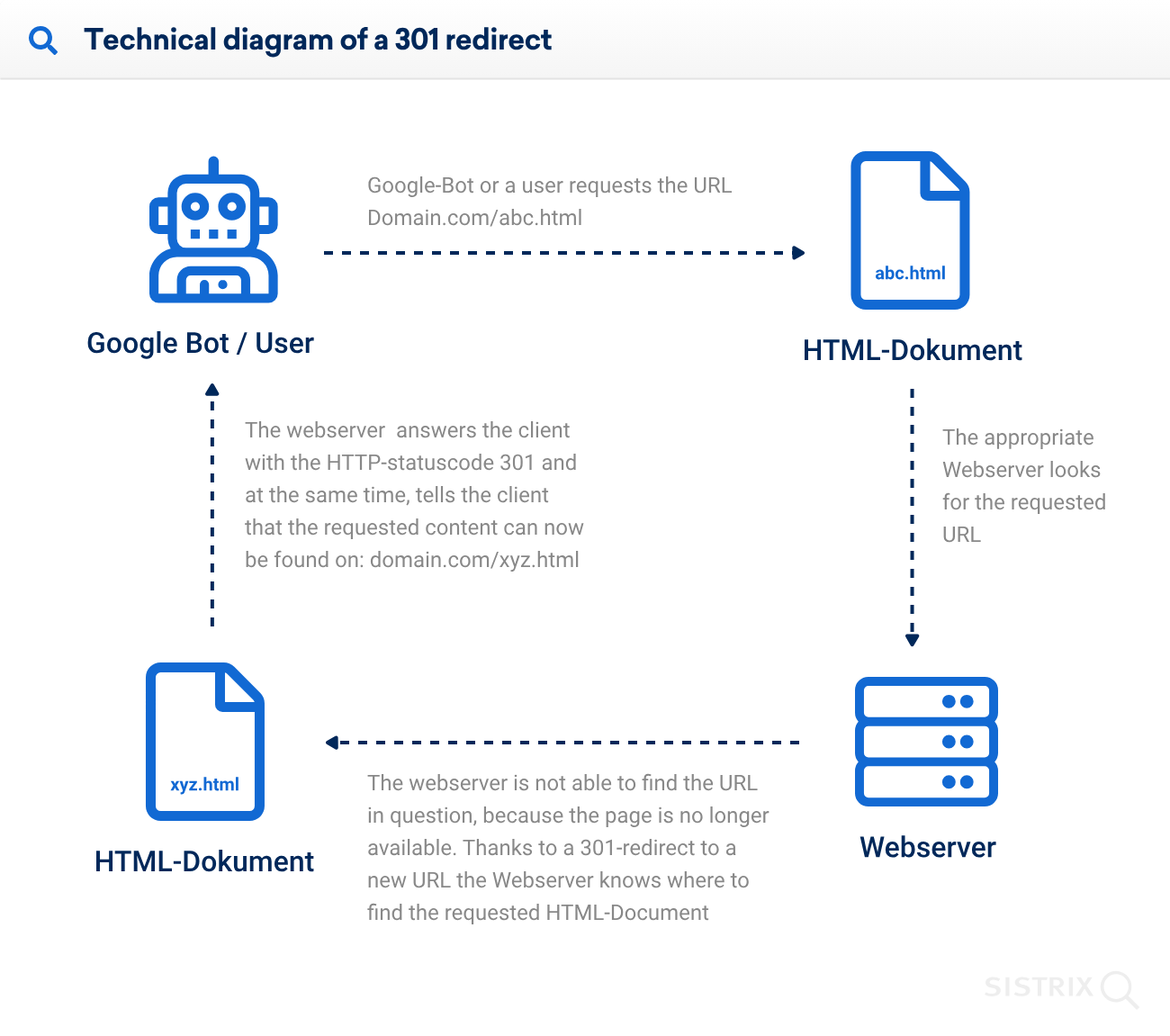
    • These systems don’t just look at the URL text; they can inspect encrypted (HTTPS) traffic, check for hidden threats or evasive techniques, and evaluate more than surface-level patterns. 
    • Advanced URL filtering integrates with other security tools (firewalls, endpoint protection, SIEM systems). This is so that information is shared, policies are aligned, and your defense works together, not in silos.

    • Whether your organization has one office or many remote workers, advanced filtering scales. It adapts as your needs grow and supports distributed, cloud-hybrid environments.
    • The system can automatically update reputations, categorize new URLs, trigger actions with minimal human effort, and learn over time. This ultimately reduces manual workload and boosts speed.

    Additional URL filtering vital features & capabilities

    When you dig a bit deeper into modern URL filtering, you’ll find it offers much more than simple allow/block lists. These extra capabilities give you stronger control, better insight, and more thoughtful decision-making. 

    Here are the key features:

    • Granular control: Instead of “everyone sees the same web,” you get the power to set rules for particular groups: by user role, device type, location, or time of day. This means HR might have different access than Sales, for example. 
    • Customizable policies: You’re not stuck with a one-size-fits-all policy. You can carve out custom rules, maybe allow a site for a project team, restrict a sub-page of a domain, or create exceptions.
    • Real-time threat intelligence: Because threats evolve quickly, modern filtering tools integrate with live feeds and reputation services to spot newly malicious URLs and apply policy without waiting for manual updates. 
    • Reporting & monitoring: You get dashboards and logs showing which sites are being accessed, which were blocked, by whom, and when. That way, you’re not just enforcing rules, you’re tracking what happens and adjusting accordingly. 
    • SSL inspection: Since so much of the web is encrypted (HTTPS), good URL filtering solutions also inspect encrypted traffic (after decryption) so hidden threats inside secure connections don’t slip through. 
    • Bandwidth quota & duration: It’s not just simple blocking or allowing, you can also set limits like “this category gets 500 MB per day” or “only 2 hours of access after work hours” so you manage resources and usage more smartly. 
    • Multiple action options: Rather than a strict yes/no, you get variations: show a warning (“caution”), let a user ask for override permission, or apply a softer block for certain categories. This gives flexibility without losing control.

    That wraps up the significant benefits and amazing features of URL filtering. Next up, we’ll look at common use cases of this technique, so you can see exactly how these benefits apply in real-world scenarios.

    Everyday use cases of URL filtering

    Web access isn’t just black-and-white these days. Many businesses use URL filtering to handle scenarios where control, security, and productivity all matter. 

    Here are some typical situations where URL filtering comes into play:

    • Blocking specific URLs or categories of websites: Organizations can block access to particular sites or entire groups of sites (for example, “all sites in the gambling category”) so users cannot open them anyway.
    • Preventing visits to malware- or phishing-laden sites: By checking URLs against threat lists and categories known to host malicious content, you prevent users from landing on sites that could infect devices or compromise credentials. 
    • Restricting access to explicit or illegal content: Whether it’s adult content, illegal downloads, or other unacceptable material for a professional or educational setting, URL filtering keeps such content out of reach.
    • Limiting access to social media or other non-work-related sites/apps: To increase productivity or optimize network resources, companies may restrict access to entertainment sites, online games, or social platforms during work hours.

    Best URL filtering examples

    When it comes to practical success, seeing how URL filtering has helped actual organizations makes all the difference. 

    Here are five strong examples of how companies and institutions have applied it, and what they gained.

    Example 1: Large manufacturer improves accuracy and productivity

    A global manufacturing firm deployed a hybrid web-filtering solution (including URL filtering) via Blue Coat and its intelligence network. They reported over 90% accuracy in URL classification, reduced help-desk complaints about latency, and cut their URL blacklist-maintenance costs by 90%.

    Example 2: Educational district boosts compliance and performance

    In Texas, Pearland ISD rolled out next-gen firewalls with URL filtering and other protections. They saw stronger compliance with the Children’s Internet Protection Act (CIPA) and improved network performance for both staff and students.

    Example 3: Retail & manufacturing company tightens browsing control

    Bata India Ltd implemented URL + application filtering across its many retail-store locations. Their goal was to achieve better control over browsing, fewer distractions, unwanted traffic, and improved bandwidth usage.

    Example 4: Finance firm secures network with integrated URL filtering

    A.C. Choksi (a financial services firm in India) adopted URL filtering as part of a larger security appliance. They addressed exposure via web, improved productivity, and achieved better visibility into internet usage.

    Example 5: Survey shows broad industry use and productivity gains

    A survey of 645 organizations across North America & Europe found 89% have web filters (including URL filtering) in place. 96% of large enterprises block at least one web service. Among companies that don’t filter, 26% estimated staff spent 7+ hours/week on non-work sites, after filtering, that dropped to 18%.

    URL filtering vs DNS filtering vs Web filtering

    Here’s a friendly comparison of URL filtering, DNS filtering, and web filtering, showing how they stack up across key aspects:

    AspectURL FilteringDNS FilteringWeb Filtering
    DefinitionA process that blocks or allows access to specific web addresses (URLs) based on a predefined list or category.A method of preventing access to domains by intercepting and evaluating DNS queries before a connection is made.A broader technique that controls or restricts user access to websites or web content (URLs, domains, IPs, categories) in accordance with policy.
    Scope of controlLooks at complete web addresses (including path and page) so you can block or allow individual pages.Works at the domain level. If you block “example.com”, you block all its pages.A broader term that can include URL filtering, DNS filtering, content scanning, etc. It covers all kinds of web access controls.
    GranularityHigh — you can permit some pages while blocking others within the same domain.Lower — you generally block or allow the entire domain. No selective page control option available.Varies — depending on the system, might offer coarse or fine control, but typically less granular than URL filtering alone.
    PerformanceSlightly slower because it often inspects HTTP/HTTPS content or complete URLs.Usually faster. Blocking happens at the DNS lookup stage, before full page load.Performance depends on how deeply the inspection goes (e.g., file scanning or content inspection). Can be more resource-intensive.
    Ideal use caseIdeal when you need to allow a domain but block specific sections, or when only parts of a site are risky.Good when you want broad, quick blocking of known bad domains across the board.Fits when you need a comprehensive web-access policy with multiple layers (domains, pages, content types, devices).
    Regulatory complianceStrong — you can target specific unacceptable content (pages/paths) while leaving other parts open.Limited — blocking entire domains may be overly broad and block legitimate content, making compliance tricky.Variable — if the tool includes deep inspection and logging, it can help meet audit or regulatory requirements.
    Best forWhen you need fine control and want to filter at the page-level (for example, a mixed-use domain with both safe and risky content).When you need a fast, domain-wide filter layer to stop known bad domains or as a first line of defense.When you need full web traffic control, i.e, blocking, logging, inspecting, across many devices and web types.

    How does URL filtering help block malware and phishing attacks?

    When someone clicks a link, the URL filtering system checks the address against a constantly updated database of known bad URLs (such as phishing sites or malware hosts). It also evaluates its reputation and historical behavior.

    If the URL is flagged as dangerous, access is blocked before a user ever lands on the page or downloads anything harmful.

    For URLs not yet flagged, some solutions use real-time analysis (including content inspection or machine learning) to spot suspicious traits (such as forms mimicking legitimate services or new domains rapidly created for attacks), and can then block them too.

    In short, by comparing URLs, enforcing rules, and using live intelligence, URL filtering acts as a gatekeeper that prevents users from walking into phishing traps or letting malware sneak in.

    How URL filtering assists businesses in enhancing their cybersecurity defenses

    Sometimes, it’s not just about blocking sites! Good URL filtering lays a strong foundation for cyber defense within an organization. 

    Here’s how it steps up the game:

    By restricting access to dangerous or infected sites

    By checking every web address against up-to-date threat lists, URL filtering stops users from reaching websites known to host malware, ransomware, or exploit kits. This reduces the chances of infections before they hit.

    By mitigating phishing risks & identity attacks

    Phishing often starts with a fake URL that tricks users into entering credentials. URL filtering can identify and block those malicious links or suspicious domains, helping stop credential theft and fraudulent access.

    By continuous adaptation to the dynamic cyber threat landscape

    Since attackers constantly spin up new URLs and schemes, modern filtering tools use real-time feeds, behavioral analytics, and cloud intelligence to keep pace. This certifies that newly malicious URLs get blocked quickly.

    By designing & implementing adaptive security rules

    Not every user or device needs the same level of web access. URL filtering allows you to craft tailored policies (by role, location, time, or device) so you grant the right access while locking down risky windows.

    By enforcing security without hindering productivity

    The best filtering doesn’t just say “no” to everything. It guarantees employees can access the web resources they need, while keeping distractions and hazards out. This balance means your team stays safe and able to work at its full potential.

    With these things in place, URL filtering becomes more than just a tech box. It turns into a key layer of defense that works alongside firewalls, endpoint protection, and user education.

    Limitations of URL filtering: Common challenges at hand

    It’s true that while URL filtering is a valuable tool, it doesn’t solve everything. Here are some of the typical problems you’ll want to be aware of:

    • Too much blocking (Over-blocking): Sometimes filters end up blocking legitimate websites or useful content simply because they get lumped into a blocked category. That frustrates users and slows down work.
    • Keywords gone wrong (Incorrect site blocking): A site might get blocked simply because it contains a word considered “risky,” even if its content is perfectly okay, making filtering a blunt instrument at times. 
    • Missed threats (Under-blocking or “not blocking sites that should be blocked”): New malicious URLs, encrypted threats, or cleverly hidden pages can slip through filters, leaving gaps in your coverage. 
    • Evasion tactics by attackers: Bad actors use tricks like changing domains, using encrypted traffic, or bypassing filters with proxies, meaning filtering alone can’t always keep up. 
    • Performance and resource load issues: Scanning every URL, especially over encrypted traffic, can slow networks, require additional hardware, and increase IT workload. 
    • Maintenance and upkeep: Databases need constant updating, rules need tweaking, and monitoring is required. Without this ongoing work, filtering can weaken over time.

    Wrapping Up

    To sum up, URL filtering plays a massive role in keeping businesses safe online, from blocking malware and phishing sites to improving productivity and controlling web access. 

    While it’s not perfect and comes with a few challenges like overblocking or constant upkeep, its benefits far outweigh the downsides when managed right. 

    With the right setup, it becomes a vital part of your overall cybersecurity strategy, protecting both your data and your team’s workflow.

    If you’re looking for a reliable way to manage and monitor links, give Replug a try. It’s not just a top-notch custom URL shortener for generating short URLs, but it also helps businesses with URL filtering and smarter link management!

    Frequently Asked Questions

    What does URL filtering do?

    URL filtering checks the exact web addresses (URLs) users attempt to reach and either permits or blocks access based on a predefined list or category rules. It helps organizations control where users go online, prevent access to dangerous or inappropriate sites, and enforce web-access policies.

    Should I enable the URL filter?

    Yes! If you want to restrict web access for security, compliance, or productivity reasons, enabling URL filtering is a smart move. It offers an added layer of protection and control over internet usage. However, make sure to balance rules so you don’t block legitimate work pages and that you maintain the filtering database and policies.

    What is the difference between a firewall and URL filtering?

    A firewall primarily controls network traffic based on IP addresses, ports, and protocols (at the network or transport layers). In contrast, URL filtering operates at the application layer to permit or block specific web addresses or pages. In short, firewall = broad traffic control; URL filter = fine-grained web content control.

    What does it mean if something is infected with a URL blacklist?

    If a URL is on a blacklist, it means it’s been identified as unsafe, perhaps hosting malware, phishing, or other risky content, and your filter will block access or flag it accordingly. It doesn’t mean your device is infected; it just means the link or site you tried to visit is known or suspected to be bad.

    What are the default elements for URL filtering?

    The typical default elements include: 

    – a database of known URL categories and reputations, 
    – pre-defined allow/deny lists by category, and 
    – a mechanism to apply these rules automatically to user requests.

    Also, default block pages or notifications often come configured, so users see a message when access is denied.

    How often should I schedule URL filtering?

    You should regularly review and update URL filtering rules and lists. Ideally, daily or weekly for the reputation database, and monthly for policy reviews. This keeps you protected from new threats and ensures your rules continue to reflect your organization’s needs.

    What is URL filtering customization?

    URL filtering customization means tailoring the filtering rules to your business’s specific needs:

    – Selecting which URL categories apply, 
    – Setting different rules for user groups or devices, 
    – Creating exceptions, and 
    – Adjusting actions (block, warn, allow). 

    This helps ensure filtering is both effective and practical for your users.

    What are the limitations of basic URL filtering software and tools?

    Basic tools may:

    – Over-block legitimate sites (false positives), 
    – Under-block new or obscure threats,
    – Struggle with encrypted traffic, and 
    – Require extensive manual updates 

    They may not inspect content deeply or integrate with other security systems, so they can’t cover every angle of web-based risk.

    Why stand-alone URL filtering falls short?

    When deployed alone, URL filtering lacks integration with other security systems, such as intrusion detection, sandboxing, or endpoint protection, so advanced threats might slip through. It also often fails to inspect encrypted traffic or adapt quickly enough without support from broader security tools.

    Does URL filtering address the different types of security threats?

    URL filtering helps block many web-based threats, such as malicious websites, phishing links, ransomware delivery pages, and non-work content that poses a risk. But it cannot replace other security measures. It’s not enough on its own to address threats like insider attacks, vulnerability exploits, zero-day malware, or lateral movements, so it works best as part of a layered defense.

  • Branded links vs. short links: Which is right for your brand?

    Branded links vs. short links: Which is right for your brand?

    Have you ever shared an interesting post, recommended a funny video, or perhaps even critiqued an article that missed the mark? We’ve all been there. 

    However, what you may not realize is that the way you share these online treasures can have a significant impact on your brand identity.

    If you’ve been using plain, generic short links to share content, it’s time to take a closer look. By doing so, you may unknowingly promote other brands instead of your own.

    We’ll get straight to the point and discuss the difference between branded links vs. short links inside this blog. We’ll help you understand the implications of your choice and how it can affect your brand’s online presence.

    So, let’s get straight to it!

    What is a short link?

    A short link, also known as a “short URL” or a “generic short link”, uses a public domain from a third-party service to compress a long version of a web address or URL.

    Short links are created to simplify lengthy URLs, making them easier to share, remember, and use. They play a key role, especially in contexts where character limits are a concern, such as social media or printed materials.

    Generic short links typically redirect users to the original, longer URL when clicked.

    Check out this example of a short link:

    👉 Example: bit.ly/3XyZ9aL

    This type of link uses a generic shortening domain and a random string of characters. It’s quick to create and works across any platform, but doesn’t reflect your brand identity.

    What makes short links so practical & powerful

    • Higher click-through rates (CTRs): Short links are clean, simple, and visually appealing, encouraging users to click more often compared to long, cluttered URLs.
    • Enhanced recognition: Even generic short links can reflect consistency and professionalism, helping users associate your content with reliability and trust.
    • Data-driven insights: These links provide measurable analytics, such as click counts, location, and device type, enabling you to optimize your campaigns with actionable data.
    • Seamless user experience: Shortened links load quickly, look better across platforms, and make sharing effortless, improving the overall experience for your audience.

    Major use cases for short links

    • SMS marketing: Short links save character space in text messages while tracking engagement, making them perfect for concise, measurable mobile campaigns.
    • Social media: Generic short links appear clean, fit better within character limits, and enable consistent tracking across platforms like X, Instagram, and LinkedIn.
    • Email campaigns: Using short links keeps your emails neat and improves click tracking, helping marketers measure the effectiveness of each link more accurately.
    • QR codes: Short links integrate seamlessly with QR codes, ensuring faster scans, shorter URLs, and flexible tracking of offline-to-online traffic.
    • Organic sharing: These links make content easier to share across blogs, forums, and emails, increasing reach without cluttering the message.
    • Offline marketing materials: Placing short links on posters, flyers, or packaging makes it easy for users to type or scan, bridging the gap between offline and online engagement.
    • Customer support & feedback: Support teams use such links to quickly direct users to FAQs, surveys, or troubleshooting pages without confusing them with long URLs.

    Read Also: How to shorten a link using a URL shortener?

    What is a branded link?

    A branded link, also known as a “custom short link” or a vanity URL, is a type of shortened URL that includes a brand’s or organization’s name or a custom keyword as part of the link.

    Unlike generic short links that use a random combination of characters and numbers, branded links are customized to reflect the brand’s identity, making them more recognizable and trustworthy to users.

    3 key elements of a branded link are:

    1. Domain – The custom name that represents your brand (e.g., go.yourbrand.com), helping build recognition and trust.
    2. TLD (top-level domain) – The extension that follows the domain (e.g., .com, .io, .link), which can be chosen to align with your brand’s identity or industry.
    3. URL slug – The customizable part after the slash (e.g., /summer-sale), used to describe the content or campaign clearly and memorably.

    Example of a branded link:

    👉 Example: go.yourbrand.com/offer

    A branded link uses a custom domain (e.g., go.yourbrand.com, link.apple.com, etc.). It reinforces brand recognition, looks more trustworthy, and still provides all the tracking and analytics benefits of a short link.

    What makes branded links so practical & powerful

    • Stronger brand identity: Branded links carry your custom domain, reinforcing your brand’s identity every time someone shares or clicks your link.
    • Increased trust & credibility: Users are more likely to click links that clearly display a recognizable brand name, making them appear legitimate and secure.
    • Easy to remember & share: Simple, descriptive branded links are easier to recall and share, helping your campaigns gain more organic traction.
    • Enhanced brand awareness: Every branded link acts as a micro touchpoint, spreading your brand name across social media, email, and digital channels.
    • Actionable insights & control: You can track clicks, sources, and audience behavior in detail, allowing you to optimize your campaigns with data-driven precision.
    • Clean & consistent link appearance: Branded links look professional and tidy across all platforms, maintaining consistency in tone and presentation.
    • Improved SEO & discoverability: Descriptive, keyword-rich branded links can enhance search visibility, helping both users and search engines better understand your content.

    Major use cases for branded links

    • Marketing campaigns: Use branded links to track and analyze engagement across multiple campaigns, improving ROI measurement.
    • Social media marketing: Create short, on-brand links for platforms like X, Instagram, and LinkedIn to increase clicks and maintain brand consistency.
    • Affiliate marketing: Provide affiliates with custom-branded URLs to ensure trust, improve conversions, and monitor performance.
    • Email marketing: Include branded links in newsletters or promotional emails to increase click-through rates and minimize the risk of being filtered as spam.
    • Influencer collaborations: Give influencers branded links to share, securing brand visibility and accurate tracking of their impact.
    • Paid advertising: Use branded short links in PPC ads or sponsored content to make URLs look cleaner and more credible.
    • Event promotion: Share memorable branded links for event registrations, webinars, or launches to simplify access and tracking.
    • Offline & print media: Utilize branded URLs in flyers, posters, or business cards for easy recall and consistent branding.
    • Product launches or updates: Direct audiences to specific landing pages for new products or announcements with clear, branded links.

    See Also: Link shortening vs link cloaking: What’s the difference?

    Branded links vs. short links: Which is better?

    Branded links offer several advantages, particularly in strengthening your brand identity and enhancing user trust. They are valuable for businesses and individuals seeking to establish a cohesive online presence and improve user engagement.

    Short links, on the other hand, are helpful in cases where you need a precise link to share with friends or family members, without worrying about online presence.

    FeatureBranded LinksShort Links
    DomainUses a custom, brand-specific domain (e.g., brand.co/link).Uses a third-party domain (e.g., bit.ly, tinyurl.com).
    BrandingReinforces brand visibility and consistency in every link.Offers no brand identity or recognition.
    Credibility & TrustInstantly recognizable and trusted due to brand association.It may appear suspicious or spammy to users.
    Click-Through RateHigher CTR because branded links look professional and secure.Typically lower, as users hesitate to click on unfamiliar links.
    Use CaseIdeal for marketing, promotions, and professional brand communication.Suitable for quick personal sharing or temporary links.
    Best ForBusinesses, marketers, and organizations focused on brand growth and analytics.Individuals or small-scale, non-branded usage.

    The choice depends on your priorities

    The choice between branded links and short links eventually depends on your specific goals and the context in which you plan to use them.

    Branded links: If strengthening your brand identity, increasing trust, and improving user recognition are important to you, branded links are an excellent choice. They excel in marketing campaigns and content sharing where branding matters.

    Short links: If brevity and saving space are crucial, short links are suitable. They are especially dominant in platforms with character constraints. They also make shared URLs look easier to remember, improving overall user experience.

    How to create a branded short link using Replug

    Are you ready to start using branded links for your own brand? Replug, a powerful free link shortener and branding tool, simplifies the process of creating custom, branded short links. 

    Let’s walk through the steps to create these links and amplify your brand’s reach.

    Step 1: Add your custom domain

    The first step in creating branded links with Replug.io is to incorporate your custom domain.

    While Replug provides a default shortener domain (rplg.co), using your custom domain strengthens your brand identity and reputation.

    • Open your Replug dashboard and navigate to “Settings.” Then select “Custom Domains” from the dropdown menu.
    • Click on “Add Domain” to begin setting up your custom short URL.
    • On the next screen, provide the essential details, including your custom domain and settings such as the 404 redirect URL and branded domain.
    • Click “Connect” to add your custom domain to your Replug account.
    • After successfully connecting your custom domain, you can manage it within your Replug account. Check connectivity status, edit domain settings, or delete domains as needed.

    With your custom domain integrated into Replug, you’re now ready to create your custom-branded link. Here’s how:

    Step 2: Create a branded short link

    • Sign in to Replug, or create an account for free.
    • Paste your long URL in the bar under “Quickly shorten your link”.
    • Next, click on the blue arrow. Replug will automatically generate a short link for your long URL.
    • You can rename the link easily. All you need to do is change the slug of your short link.
    Change URL slug
    • Finally, save your shortened link. Now your link is ready to share anywhere on Instagram, Discord, or in an email campaign.

    Note: You can add some amazing Replug features to your generated link, like customizing your link preview, adding custom favicons, A/B test your links, and more! You can also add retargeting pixels or custom CTAs to your link-shortening campaigns.

    Replug’s additional link management features

    Leading brands & businesses prefer branded short links

    Let’s take a look at how some of the most popular brands use branded links to their advantage:

    The New York Times – nyti.ms

    The renowned newspaper, “The New York Times”, simplifies sharing long article URLs on social media and beyond by using the branded link nyti.ms. This branded link not only shortens the URL but also reinforces the brand’s identity with every click.

    The New York Times branded short link

    Nike – swoo.sh

    When it comes to sports and lifestyle, Nike is a standout name. They utilize the branded link swoo.sh to create a memorable link for their products and promotions. This reinforces the Nike brand with every shared link.

    Nike’s branded short link

    Amazon – amzn.to

    E-commerce giant “Amazon” opts for the branded link amzn.to, to shorten product URLs. This not only saves space in printed materials but also keeps the focus on their products rather than the URL itself.

    Amazon’s branded short link

    Coca-Cola – cokeurl.com

    Coca-Cola, a global beverage icon, maintains brand consistency by using branded links, such as cokeurl.com. This approach guarantees that every link shared aligns with their brand image.

    Coca-Cola’s custom domain

    Starbucks – sbux.co

    Starbucks is a renowned global coffee chain that utilizes branded links with the domain sbux.co to simplify the sharing of promotional content. This reinforces their brand identity and keeps their links looking clean and professional.

    Starbucks branded short link

    Conclusion

    At the end of the day, the choice between branded links and generic short links comes down to your goals. 

    Short links are ideal when you need something quick, simple, and space-saving. But if you want to strengthen brand identity, build trust, and boost engagement, branded links clearly stand out. That’s why brands like Nike, Amazon, and Starbucks rely on them. 

    It’s not just about shortening a URL, it’s about making every click count.

    With tools like Replug, you don’t have to choose between convenience and branding; you can get both. Whether you’re sharing on social media, in emails, or even offline, branded links let you stay consistent, professional, and memorable.

    So instead of sending traffic through someone else’s domain, take control of your links and make them work harder for your brand.

    Frequently asked questions

    Why should I consider using branded links for my brand or business?

    Branded links, which use your custom domain (e.g., yourbrand.ly/link), enhance brand visibility and recognition with every share, fostering customer loyalty. They improve click-through rates by up to 34% compared to generic links, as they appear more professional and trustworthy. Additionally, they protect against link hijacking and provide valuable analytics to refine marketing strategies.

    Are branded links more trustworthy than short links?

    Yes, branded links are generally more trustworthy because they incorporate your recognizable domain, signaling legitimacy and reducing user hesitation from unknown shorteners. Studies show they can boost trust by 25-30%, minimizing phishing concerns. In contrast, generic short links often hide the destination, potentially alarming users in an era of heightened cybersecurity awareness.

    Can I track the performance of branded links?

    Absolutely, most branded link services, such as Replug or Rebrandly, offer rich analytics, including click counts, geographic data, referral sources, and device types. This enables real-time monitoring and A/B testing to optimize campaigns for maximum effectiveness. Integration with tools like Google Analytics further enhances tracking, providing insights into user behavior and ROI.

    Why should short links be a part of every marketer’s strategy?

    Short links condense lengthy URLs, making them ideal for character-limited platforms like X (Twitter) and improving shareability across social media. They enable precise tracking of engagement metrics, helping marketers measure campaign effectiveness and audience preferences. Moreover, they enhance aesthetics in emails and ads, potentially increasing click rates by 20-40% while supporting retargeting efforts.

    When to use short links and branded links?

    Use generic short links for quick, internal, or low-stakes sharing where branding isn’t crucial, such as casual social posts or temporary redirects. Opt for branded links in marketing campaigns, email newsletters, or affiliate programs to reinforce brand identity and build trust. Branded links excel in professional contexts, such as ads or content syndication, while short links are sufficient for everyday use.

    Provide some valuable tips when using short links?

    When using short links:

    – Make sure they’re concise yet recognizable to build trust, avoiding overly cryptic formats. 
    – Maintain consistency across your organization by using a unified link structure or platform to reinforce branding and simplify tracking. 
    – Incorporate UTM parameters in destination URLs to effectively monitor traffic sources and campaign performance in analytics tools.

  • What is a URL redirect: How URL redirection works, its purposes, methods, & much more

    What is a URL redirect: How URL redirection works, its purposes, methods, & much more

    Have you ever clicked a link only to end up somewhere unexpected, or worse, hit a dead end? That tiny URL redirect you didn’t notice might be the culprit. 

    Around 25–40% of legitimate web URLs involve some form of redirection, and nearly half of the external links you click have been redirected at least once, just to keep the web usable and up to date.

    But here’s the catch!

    While redirects help fix broken links and support site moves, they can also slow down pages, confuse search engines, and chip away at hard-earned SEO value if misused. 

    That’s why understanding how redirects really work matters more than ever, especially in 2026, when performance and search rankings go hand-in-hand.

    So what exactly is URL redirection, and why should every site owner know it? 

    Let’s get started!

    What is URL redirection?

    At its simplest, “URL redirection” is when one web address (a URL) automatically sends you to another without you having to click anything.

    Think of it like someone gently guiding you to the right room in a huge conference hall. You ask for one door, and a host points you straight to the correct one. 

    In technical terms, when a browser requests a specific URL, the server tells it, “Hey, this content has moved. Go here instead!

    What is URL redirection

    The primary goal of this technique is to keep users and search engines happy. It ensures that even when content moves, links don’t break, visitors land where they expect, and your website doesn’t lose hard-earned traffic or SEO value. 

    That’s why good redirects matter so much in web design and site maintenance. They help prevent those annoying dead ends that frustrate users and damage your site’s credibility.

    URL redirect types

    When we talk about the different types of URL redirects, we’re really just grouping the ways one URL sends users (and search engines) to another. 

    Redirects can be short- or long-term, and each has its own purpose and impact on how browsers and search bots behave. 

    They’re a big deal when you’re managing a website because the wrong one can hurt traffic or search rankings if you’re not careful.

    Permanent redirects

    A permanent redirect tells the browser and search engines that a page has moved for good. The most common permanent status code is 301 (“Moved Permanently”), which signals that the original URL should no longer be used and that the new one takes its place.

    Permanent redirects

    Search engines typically carry over most of the original’s SEO value to the new URL, making it ideal for site moves, structural changes, or page consolidation.

    Temporary redirects

    A temporary redirect (like 302, 303, or 307) sends visitors to another URL for now, but indicates the original URL is only temporarily unavailable. The idea is that the original one might come back someday.

    Temporary redirects

    Search engines usually keep the old URL indexed and don’t pass along SEO value as a permanent redirect does. This type is handy for things like short-term promotions, maintenance pages, or A/B testing.

    Server-side redirects

    Server-side redirects happen at the web server level before any content loads. The server simply returns a special HTTP status code and a new destination URL, and the browser follows it immediately.

    Server-side redirects

    These are usually the best choice because they’re fast and clear to browsers and search engines.

    Permanent server-side redirects

    This is the classic “set it and forget it” move, using a server-side permanent status (like 301 or 308) to point an old URL to a new one forever. 

    It tells crawlers and browsers to update their records so that, over time, users and search engines only experience the new address.

    Temporary server-side redirects

    With temporary server-side redirects (like 302 or 307), you tell the server to send people elsewhere, but only for a limited time. The server itself handles the redirect, but search engines recognize that the original URL remains the “real” one in the long run. 

    That makes this perfect for things like site maintenance or seasonal campaigns where you expect to revert back.

    How does URL redirection work?

    URL redirection might sound technical, but it’s really just about guiding a browser from the URL someone requests to another URL that actually has the content you want them to see. 

    Behind the scenes, there’s a simple conversation between your browser and the server that makes it happen.

    How does URL redirection work

    Here’s the complete process explained:

    1. Request

    It all starts when someone types a URL into their browser or clicks a link. That browser sends a request to the server that hosts that address, asking for the resource (page, image, etc.). 

    Think of it like knocking on the server’s door and saying, “Hey, can I see this page?”

    2. Server response

    The server examines the request and checks whether the URL needs to be redirected. If it’s been set up to redirect, the server doesn’t send the page content. 

    Instead, it sends a special redirect response with a status code in the 300 range, along with a “Location” header that tells the browser the new URL to use.

    3. Browser action

    Once the browser receives that special response with the new URL, it doesn’t sit there; it follows the instruction immediately. 

    The browser makes a new request to the destination URL that the server told it about. That’s why when a redirect happens, you might see the address in the browser change (updated).

    4. Content served

    Now that the browser has requested the correct final URL, the server at that location sends back the real content you were after, no matter if that’s a web page, image, file, or anything else. The browser then displays it as if it were a normal page load.

    So, in short: your browser asks for a URL → the server says “go to this other URL instead” → your browser follows it → and then you get the content you wanted. Simple, smooth, and essential for keeping the web working properly!

    Common reasons for performing URL redirection

    URL redirection isn’t just a typical tech trick! It’s used in lots of everyday web situations to make the internet smoother and more user-friendly. 

    From cleaning up links to protecting user privacy (and yes, even the bad stuff), redirects play a role in how we get around online.

    To shorten URLs or links

    Sometimes URLs are long, messy, or hard to remember, especially when you’re sharing them in a tweet or text. Redirects let you use short links that forward users to the original, long URL while keeping things neat and easy to share.

    To exclude broken links

    When pages move or get deleted, clicking old links can lead to a dead end (like a 404 error). Redirects help by sending visitors from the old URL to a working page instead, keeping links alive and users happy.

    To permit multiple domain names

    Many site owners register several domain names (like “.com”, “.net”, or common misspellings) but want them all to show the same website. Redirects make this possible by directing everyone to a single primary domain.

    To facilitate smooth website navigation

    Redirects help guide users around your site hassle-free, e.g., when a page has moved, during maintenance, or when content is reorganized. They assist visitors so they don’t run into confusing errors or outdated pages.

    For privacy and data protection

    Some services redirect links through intermediary systems to hide things like referrer information and other sensitive details before sending users to their destination. This can help protect user privacy and obscure internal URLs.

    For malicious intent (not recommended)

    Unfortunately, redirects can also be abused. Cybercriminals sometimes use them to hide phishing pages or distribute malware by making a link look safe before sending you somewhere dangerous. That’s why it’s always best to be cautious with unfamiliar or suspicious links.

    Also read: What is URL phishing: Definition, practical examples & prevention techniques

    Major purposes of URL redirection

    URL redirection isn’t just a geeky server trick; it’s used every day on the web to make sure people land where they should, protect data, improve usability, and sometimes (unfortunately) for shady stuff.

    Let’s walk through the primary objectives for which this happens!

    Ensuring secure site access (HTTPS)

    Websites often redirect visitors from HTTP (insecure) to HTTPS (secure) URLs, so data such as passwords and personal information is encrypted. This is critical for privacy and defense against snooping or tampering.

    Redirecting misspelled or variant domain names

    People often make typos or try different domain endings, like “.net” or “.org”. Redirecting these to your leading site helps capture that traffic instead of losing it or showing errors.

    Seamless transition to a new domain

    If you redesign your site, rebrand, or change domains, redirects make sure old links still point people to the right place so bookmarks and search results don’t break.

    Monitoring outgoing traffic & tracking outbound clicks

    Redirects can be used to log when someone leaves your site, for example, to track which external links get clicked most, helping with link analytics and marketing insights.

    Simplifying messy, long URLs with short aliases

    Short links (like replug.io links) are easier to share and remember. They work by redirecting people from a short alias to the full, complex URL in the background. 

    Long-lasting redirect aliases for dynamic URLs

    Some services create stable URLs that always point to changing or complex content. This is especially handy with long query strings or dynamic parameters. This makes sharing and linking cleaner.

    “Post-Redirect-Get” design pattern to prevent duplicate submissions

    In web forms, redirecting after a “POST” request prevents a user from accidentally resubmitting the form if or when they refresh the page, which prevents duplicate actions like double purchases.

    Device-specific and geo-based routing

    Redirects can send users to different URLs based on their device (mobile vs desktop) or where they’re browsing from (country/language), giving a tailored experience.

    Search engine manipulation, influencing SERP results

    Some people try to use redirects to game rankings or send search traffic to pages that shouldn’t rank otherwise, but major search engines now detect and penalize these tricks.

    Misleading site visitors

    Redirects can be exploited to confuse users, like sending someone to a spammy or unexpected page. Modern browsers show the real URL, but this can still be part of phishing or scam tactics.

    Stripping off “referrer” information

    When you click a link, browsers send the page you came from in the referrer field. Some redirects hide or strip this to protect privacy or sensitive info before loading the destination.

    Various URL redirect implementation methods

    There are several ways to make one URL send visitors to another, depending on your access, needs, and how strict you want to be about standards, SEO, or user experience. 

    Now, let’s walk through the main methods you’ll run into.

    Manual redirect

    This is the simplest kind! You just put a normal link on a page, asking users to click it to go somewhere else. It’s not automatic, but it works as a fallback or basic suggestion if more advanced redirects aren’t available.

    HTTP status codes

    This is the most reliable, standard way to redirect. The server responds with a “3xx status code” (e.g., 301, 302, or 307) and a Location header pointing to the new URL. Browsers and search engines understand this instantly and act on it before loading content.

    Refresh Meta tag & HTTP refresh header

    If you can’t set server headers, you can use an HTML <meta http-equiv=”refresh”> tag in the <head> of a page. With a zero-second delay, browsers will automatically load the new address. 

    Note: It’s a fallback method and usually less preferred for SEO, but it’s useful when you don’t control the server.

    JavaScript URL redirects

    You can use JavaScript in a page to change the “window.location” to a new URL. This happens in the browser after the page starts loading and works great for conditional or interactive redirects, but search engines may not always follow it during crawling.

    Frame URL redirects

    Older sites sometimes use “frames” or “iframes”, where one page loads another inside a frame. This redirect loads the target URL inside the frame, giving a similar effect. 

    Note: It’s not common anymore and can cause usability or SEO problems, but you may still see it on legacy systems.

    Redirect chains & loops

    These aren’t methods you want; they’re pitfalls. A redirect chain is when A → B → C happens instead of a direct A → C, which slows loading and can lose SEO value. 

    On the other hand, a redirect loop occurs when URLs keep pointing back to each other, forming an endless cycle that traps browsers. Both should be avoided with careful planning and testing.

    Create & manage URL redirects

    Once you know why redirects matter, the next step is figuring out how to actually set them up and manage them, whether you’re using a website platform, a server, a DNS service, or even a browser tool.

    Different environments offer different tools and levels of control, so let’s go through the most common ones you’ll encounter.

    WordPress URL redirect

    On WordPress, the easiest way to create and manage redirects without touching server files is to use a redirect plugin like “Redirection”

    This lets you set up 301s, 302s, and more right from your dashboard, track 404 errors, and handle query parameters without editing “.htaccess” or Nginx configs. It’s especially handy for non-technical users or larger sites with lots of redirects.

    Cloudflare URL redirect

    If your site uses Cloudflare, you can manage redirects at the edge using “Page Rules”, “Single Redirects”, or “Bulk Redirects” in the dashboard. 

    These tools let you send traffic from one URL to another before it even reaches your server, which is fast and efficient. You choose the source and destination patterns and set the HTTP status code (e.g., HTTP 301 or HTTP 302).

    DNS URL redirect

    Some DNS providers let you create simple redirects at the DNS level by pointing a hostname (like a root domain) to an IP and combining it with a redirect rule in your DNS or host settings.

    This redirects traffic for the whole domain. It is particularly useful if you want domain-wide forwarding without a web server. 

    Note: Pure DNS records without associated redirect rules won’t forward URLs on their own.

    Google URL redirect

    When you set up redirects, Google will follow them and understand relationships between old and new URLs. 

    For example, with a 301 (permanent) redirect, Google treats the destination as the canonical URL for indexing. This means pages you’ve moved or consolidated can stay visible to search engines with minimal SEO impact.

    URL redirect Chrome

    On your own browser, tools like Chrome extensions (e.g., “Requestly” or “Redirect Path”) let you test, debug, or override redirects locally. 

    These are especially useful for developers or QA testers who want to simulate or observe a redirect or a redirect chain in the browser in real-time.

    nginx URL redirect

    If your site runs on an Nginx server, you can define redirects in your server block using “return” or “rewrite” directives. 

    For instance, a simple 301 redirect from an old path to a new one can be done in the Nginx “config” file. This is very flexible and powerful, but it requires server access.

    Django URL redirect

    In Django (a Python web framework), redirects are handled in your app’s URL configuration or views using functions like redirect()” and careful validation to prevent open redirect vulnerabilities. 

    Django also provides tools to help ensure safety when redirecting based on request parameters.

    URL redirect with parameters

    Sometimes you need redirects that include parameters (e.g., “?ref=123”) or that pass query strings through to the new URL. 

    Many redirect tools, whether in WordPress plugins, Cloudflare rules, or server configurations, let you preserve or customize query parameters so your tracking or dynamic values aren’t lost during redirection.

    URL redirection benefits

    Now, you guys are well aware that URL redirection isn’t just a behind-the-scenes web thing. It has real perks for your website, your visitors, and your brand. 

    From keeping your SEO strong to making links easier to use and remember, redirects play a significant role in modern web management.

    Preserving SEO value by passing link equity

    When you move or rename a page, search engines like Google transfer the link equity (the SEO value built up through backlinks and ranking signals) from the old URL to the new one using a redirect. This keeps your rankings steady and prevents you from losing hard-earned SEO visibility.

    Preventing traffic loss from broken links

    Without redirects, old links can result in 404 errors, which frustrate users and drive them away. Redirects guide visitors from outdated URLs to the right content, helping you keep traffic flowing where it should.

    Improving user experience (UX)

    Redirects make sure visitors always land on relevant content, even if they click an old or shared link. This smooth browsing experience keeps people engaged and reduces bounce rates, which search engines appreciate too.

    Maintaining brand consistency

    No matter if you’ve moved to a new domain or reorganized content, redirects help keep your brand message consistent. Instead of ending up on error pages or old URLs, visitors always see your current, branded content.

    Simplifying marketing with memorable, short URLs

    Using tactics like a vanity URL (custom, branded short links) makes your URLs easier to remember and share. These clean, descriptive redirects not only look professional, but also encourage more clicks in campaigns and social posts.

    Summing up

    In a continuously transforming digital world, URL redirection is one of those tools that quietly keep everything running smoothly. 

    From preserving SEO value and preventing broken links to improving user experience and simplifying marketing with clean, memorable links, everything is done efficiently (behind the scenes).

    Whether you’re managing redirects on a CMS, server, or with tools like a URL shortener, understanding how redirects work helps you keep your site healthy and your users happy.

    We’ve covered types, purposes, methods, and real-world reasons you’d use them, so you’re set to make smart redirection decisions moving forward. 

    And if you’re looking to streamline and optimize your links even more, give Replug, i.e., an all-in-one link optimization platform, a try today. It is a reliable URL shortener that shortens links in seconds, with built-in tracking and testing features.

    Replug Branded Short Links CTA
    A complete link management solution
    for marketing professionals & agencies.
    Try Replug for free

    Frequently asked questions

    How do I redirect a URL to another URL online?

    URL redirection is the automatic redirection of a user from one URL to another. A web server usually does this to ensure visitors are directed to the correct page, even if the URL has changed or the page is moved.

    What does it mean to redirect a URL?

    Redirecting a URL means automatically sending anyone who visits one web address to a different one instead. 

    When a browser requests a URL that has a redirect, the server tells it to go to a new location, so the visitor ends up at a different page or site without manually typing the new address. 

    This is commonly used when pages move, domains change, or you want to forward traffic to a new address.

    What is an example of a redirect URL?

    An example would be:

    Original URL: http://oldwebsite.com/page
    Redirected URL: https://newwebsite.com/page

    In this case, when someone visits the old URL, they are automatically redirected to the new one.

    How to check if a URL is redirecting?

    To check if a URL is redirecting, you can:

    – Use a URL redirect checker tool (like “Redirect Checker”).
    – Check the HTTP headers for a “301” or “302” response, indicating a permanent or temporary redirect.

    Alternatively, you can use browser developer tools to see the redirection in real-time.

    How to set up a URL redirect for a domain?

    To set up a URL redirect, you typically:

    1. Log in to your domain hosting account.
    2. Find the URL forwarding or redirect settings (this may vary depending on your hosting provider).
    3. Choose the type of redirect (301 for permanent or 302 for temporary).
    4. Enter the destination URL where users should be redirected.
    5. Save the settings.

    Do URL redirects have a bad impact on SEO?

    URL redirects generally do not harm SEO if done correctly, especially when using permanent redirects (301). However, excessive or improper redirection can slow down a website and confuse search engines. Keeping redirects clean and minimal is key to good SEO.

    When to use URL redirects?

    You should use URL redirects in cases such as:

    – When a page is permanently moved to a new URL (301 redirect).
    – If a page or site has been deleted, but you want to redirect traffic to a related page.
    – When you restructure your website and URLs change.
    – To manage changes in domains.

    Mention the ways to redirect a website URL efficiently?

    Efficient ways to redirect a URL include:

    301 redirect for permanent redirection.
    302 redirect for temporary redirection.
    – Using .htaccess files (on Apache servers).
    – Setting up redirects in CMS platforms like WordPress or Shopify.
    – Managing redirects through DNS settings for domain-level redirects.

    How to redirect a URL in Shopify?

    In Shopify, to set up a URL redirect:

    1. Go to the Shopify admin panel.
    2. Navigate to Online Store > Navigation.
    3. Scroll down to URL Redirects and click Add URL Redirect.
    4. Enter the old URL in the “Redirect from” field and the new URL in the “Redirect to” field.
    5. Save the redirect.

    What is the best way to manage URL redirects?

    To manage URL redirects effectively:

    – Use a URL redirect manager or plugin (if on platforms like WordPress, Shopify, etc.).
    – Utilize URL redirect services that track and update broken links and redirects.
    – Set up redirects via the server or CMS settings to ensure they’re applied consistently.

    What tools are best for managing large-scale URL redirects?

    Some of the best tools for managing large-scale URL redirects include:

    Screaming Frog SEO Spider ( the best URL redirect tool for checking and managing large redirects).
    Redirection (URL redirect checker plugin for WordPress).
    Ahrefs (URL redirect tester tool with redirect management and SEO features).
    Replug (for simple redirects).
    Usermaven (for monitoring and managing site redirects).

    Are free URL redirection services legit?

    Yes, free redirection services can be legitimate, but they vary in quality. It’s essential to use a reputable service to ensure security and performance. Services like Replug offer free redirection, but for professional or business use, premium services may provide more control and fewer limitations.

  • URL slug: Definition & best practices defined for SEO success

    URL slug: Definition & best practices defined for SEO success

    Crafting friendly URLs holds utmost importance, as they directly influence a website’s search engine ranking, click-through rates, and overall user experience. 

    A clean, keyword-rich slug not only makes your links easier to read and remember, but also signals relevance to search engines. 

    Even when using a link shortener, the custom URL slug you choose plays a vital role in branding, trust-building, and improving link performance.

    In this guide, we’ll explore the best practices for structuring slugs that are SEO-friendly, user-focused, and optimized to work seamlessly across platforms and tools.

    So, let’s get started!

    What is a URL slug?

    The portion of a URL that follows the domain name and any subdirectories is known as the “URL slug”. It is a human-readable and user-friendly text used to designate a particular web page. 

    Keywords associated with the page’s content are frequently used in URL slugs, making them more descriptive and much easier to remember.

    Difference between URL and URL slug

    URL slug etymology

    The term “slug” in the context of publishing goes back to the days of print journalism. In newsrooms, a slug was a short label or nickname given internally to an article as it moved through the editing and production workflow. 

    In web publishing, that sense of a brief identifier carried over, and a slug became the short, human-readable token for a page.

    Why is it called a URL slug?

    In digital contexts and web systems, it’s called a URL slug because it provides a concise, human-readable identifier for a web page. Besides, it follows the domain and subdirectories, making URLs memorable and SEO-friendly.

    Why are URL slugs important for SEO?

    URL slugs are vital for SEO as they provide a concise, descriptive, and user-friendly representation of a webpage’s content. This helps both search engines and visitors quickly understand your pages. 

    Moreover, the following points highlight why well-crafted slugs are essential:

    • Boost search rankings: A concise, keyword-rich slug signals relevance to search engines and can improve your page’s visibility.
    • Enhance user experience: Clean and descriptive slugs help visitors instantly understand what the page is about before clicking.
    • Improve readability: Short, well-structured URLs are easier to read, remember, and share across platforms.
    • Increase trust and CTR: Clear slugs look more professional, which builds trust and encourages higher click-through rates.
    • Support better indexing: Search engines can crawl and categorize content more effectively when slugs are structured properly.
    • Encourage backlinks: Shareable, meaningful URLs are more likely to be cited or linked to by other websites.

    URL slug best practices: Best tips for writing SEO-friendly slugs

    People often think URL slugs are a minor SEO element, but that’s not true. They can significantly impact your website’s performance in search engine rankings and enhance user engagement.

    Creating SEO-friendly URLs with refined slugs involves careful consideration of keywords, readability, and user experience. Below are some key actionable tips to help you optimize your URL slugs effectively.

    1. Include your keyword in the URL slug

    The very first object that comes to mind when discussing SEO is the “keyword”. In addition to the content, you must include your primary keyword in the URL slugs as well. 

    Search engines use slugs to understand the context of your page content. As far as users are concerned, looking at the URL makes it easier for them to identify what the specific page is really about.

    For example, if your focus keyword is ‘AI Tools for Social Media’, you need to incorporate these keywords in your URL slug, just like ContentStudio did.

    Using keyword in slug example

    2. Keep the slug part short, yet informative

    Try to keep your URL slugs short and informative to make them appealing to both users and search engines. Imagine you run a website dedicated to a content curation tool. Instead of having lengthy URL slugs like:

    Long URL slug example

    Consider using a more compact and descriptive URL slug:

    Optimized URL slug example

    This shorter version conveys the essence of the page’s content while being more SEO and user-friendly.

    Note: Users are more likely to click on links with concise and relevant URLs, as they can quickly grasp the page’s content before visiting it. Moreover, shareability improves when URLs are shorter, making it easier for people to share your content on other platforms hassle-free.

    3. Use hyphens, not underscores, to separate words

    Prioritize the use of hyphens instead of underscores. Hyphens serve as clear word separators that enhance the visual appeal and readability of your URLs.

    Search engines recognize hyphens as natural dividers between words. This enables them to interpret the content more accurately.

    Consider the following two URL slugs:

    URL slug example with hyphens and underscores

    Visibly, the first version presents a tidy and simple URL that users and search engines can process without difficulty. The second version with underscores, on the other hand, seems cluttered and less practical.

    4. Use lowercase letters in the URL slug

    To ensure consistency and avoid problems with duplicate content, always use lowercase letters and characters when creating your page slug.

    Instead of something like “What-Are-Ctas-In-Marketing,” “what-are-ctas-in-marketing” is preferred. 

    Note: URLs are handled case-sensitively by search engines.

    This means that “what-are-ctas-in-marketing” and “What-Are-Ctas-In-Marketing” are treated as two separate URLs. This might result in issues with identical content and weaken your website’s SEO efforts. 

    Moreover, mixed-case URLs can make it more difficult for users to remember or share them correctly.

    5. Keep it evergreen

    Use content that will remain relevant and valuable over time when creating URL slugs. More precisely, avoid incorporating time-sensitive details such as specific years or dates in your URL slugs.

    Avoid using dates in URL slug

    Evergreen slugs help improve SEO results because search engines value content that holds its value over an extended period. 

    You can prevent potential broken links and maintain the SEO authority that has developed over time by removing time-sensitive elements from your slugs. This eliminates the need to update URLs with each passing year.

    6. Use one domain and one subdomain

    Maintain a clean URL structure by sticking to one primary domain and a minimal number of subdomains (stick to 1). This approach helps strengthen your website’s authority and assists with content fragmentation.

    Opt for “blog.example.com” instead of “example.com/blog.”

    Moreover, a compact URL structure simplifies your website’s maintenance and improves link equity distribution. You avoid the risk of diluting SEO authority across multiple subdomains, ensuring that your primary domain gains maximum value from incoming links.

    Note: You can use subfolders instead of subdomains. Subfolders within the main domain consolidate link equity, making the website more authoritative and easier to rank. Many case studies have shown significant traffic increases when moving content from subdomains to subfolders.

    Andy Chadwick sharing stats (URL slug tweet example)
    Source: Andy Chadwick’s Twitter account (X) Tweet
    Stephen Kenwright sharing stats (URL slug tweet example)
    Source: Stephen Kenwright Twitter account (X) tweet

    7. Update old slugs, but be careful

    Always ensure that proper redirects are set up when changing a slug to prevent broken links and maintain the SEO authority of the previous URL.

    Because sudden changes can result in broken links and negatively affect user experience and search engine rankings, managing URL changes requires careful planning. 

    You can smoothly direct users and search engines to the new URL while transferring the SEO value accrued by the old slug by implementing “301 redirects”.

    Technical diagram of a 301 redirect

    Your website will continue to be user-friendly and search engine optimized if outdated slugs are strategically updated. 

    Furthermore, it aids in maintaining backlinks and search engine rankings while securing a steady flow of organic traffic to your updated content.

    8. Match slugs to headlines

    To further emphasize the relevance of your content, you must confirm that your URL slugs and page headlines are consistent. Both users and search engines will have an easier time understanding the purpose of your page if you align both elements.

    Matched slug and headline example

    This practice assists search engines in associating your content’s main topic with the URL, potentially improving your website’s ranking for relevant search queries. 

    Additionally, users are more likely to click on links that display a clear correlation between the headline and URL, enhancing their browsing experience.

    9. Use fewer page categories

    Keep your URL slug structure simple by minimizing the number of categories and avoiding keyword stuffing. Clear and uncomplicated slugs make it easier for users to navigate your website and for search engines to understand your content.

    Let’s take a look at a social media analytics tool web page. Rather than using a confusing, long URL, they preferred a short and descriptive URL slug:

    Simple URL slug without page categories

    This direct method keeps things crystal clear.

    10. Choose a memorable domain name

    Find a unique domain name and pair it with a relevant URL slug. By doing this, you can enhance your band’s recognition and reinforce your website’s theme.

    Branded custom domain name

    The combination in the picture above exemplifies how a cohesive URL structure can align with your brand’s identity.

    Note: When users encounter a domain name that resonates with their interests, they are more likely to remember and revisit your website. This instant recall plays a significant role in building a loyal audience base.

    Adding a relevant URL slug like further enhances user engagement. It communicates the content focus, guiding visitors to the specific section they are interested in. This targeted approach saves users time and effort, promoting a positive user experience.

    Also Read:Beginners’ guide to URLs: URL types, structure & best practices

    How to change URL slug in WordPress?

    WordPress is known for its user-friendly interface and flexibility, making it a popular choice for website development. Changing a URL slug on WordPress is a simple process that can be done within the platform’s settings by following the steps below.

    Step 1: Set up your permalink structure

    Before starting, you must ensure that your permalink structure allows for user-friendly URL slugs. Navigate to “Settings” and then to “Permalinks.”

    You can choose one of the standard permalink structure types or create your own. However, it is recommended to use the “Post name” structure.

    WordPress permalink structure

    Step 2: Edit the slug in the post or page editor

    Open the editor of the post or webpage and look for the “URL” section in the rightmost panel. Click on the automatically generated slug and edit it the way you want to. That’s it.

    Edit URL slug inside WordPress post

    Related: How to Change Permalink in WordPress: Step-by-Step

    Benefits of using SEO-friendly URL slugs

    An SEO-friendly URL slug is more than just aesthetic; it helps both users and search engines understand what a page is about before even clicking. The right structure can improve visibility, credibility, and usability across the board.

    1. Enhanced search engine visibility

    Strengthening your website’s search engine optimization is a key advantage of using SEO-friendly URL slugs. Search engines can learn a lot about the content of your page when you use relevant keywords in the URL slugs of your URLs. 

    The search engine’s ability to index and rank your pages for relevant search queries is subsequently improved.

    2. Amplified shareability

    Concise, descriptive, and simple-to-remember URLs are more likely to be shared on various platforms. There is a much greater chance for users to share valuable content with their friends, coworkers, or social media networks when the URLs are simple and clear.

    When the reader comes across your URL slug, which is to the point (has the focus keyword), they can easily copy and paste the URL, knowing that the link is authentic. The user-friendly and shareable URL slug allows others to access the same content quickly and effortlessly.

    3. Higher click-through rates

    An SEO-optimized URL slug can also improve click-through rates (CTR) from search engine results pages (SERPs). When users see a relevant and well-structured URL slug that matches their search intent, they are more likely to click on the link, expecting it to lead to content that aligns with their needs. 

    The user-friendly and keyword-rich URL slug assures the user that the page contains the desired information, thus increasing the likelihood of a click. 

    Let’s say someone is searching for “best smartphone deals”. He’ll click on a URL with a slug like “/best-smartphone-deals” rather than a generic one like “/products/abc123.”

    6 major mistakes to avoid while creating URL Slugs

    As discussed before, URL slugs play an essential role in enhancing your website’s SEO and user experience. However, there are common mistakes that can impact your website’s performance and rankings. 

    Below are six prominent errors that you need to avoid when crafting URL slugs for your web pages.

    1. Avoid stop words

    Common words like “and,” “the,” “of,” “a”, etc., are stop words, and they add very little to the meaning of a URL. Avoid using them in your slugs because doing so will lengthen them and make them less readable. 

    For example:

    URL slug with and without stop words

    2. Avoid using dates in slugs

    The use of specific dates in URL slugs can result in out-of-date content and affect SEO. Rather than

    URL slug with and without date

    In this manner, you can prevent updating your URLs annually and ensure their continued relevance.

    The biggest issue is that when you need to change the date from 2025 to 2026, you must update the slug and redirect the old URL to the new one. This process can be time-consuming and may lead to broken links if not handled correctly.

    Moreover, these URL redirects can be suboptimal. They may result in less link juice passing through to the destination URLs. This means that the SEO value of your old URL might not fully transfer to the new one. 

    Note: By leaving out numbers and using descriptive slugs, you avoid the need for frequent redirects and maintain a consistent flow of link equity to your content.

    3. Avoid using special characters

    Including special characters like question marks, exclamation marks, or dollar signs can cause issues with URL encoding in your slugs. 

    Certain characters are replaced with encoded strings, making the URL less readable. Furthermore, some special characters may not be universally supported by all browsers and platforms, potentially causing compatibility issues for some users.

    What’s best is that you can use hyphens to separate words in your slugs. Hyphens are considered word separators, providing better readability for search engines and users alike. Hyphen-separated slugs contribute to a cleaner and more professional appearance for your URLs.

    Special characters inside URL slug

    4. Avoid trailing slash issues

    Adding a trailing slash at the end of a URL can unintentionally create duplicate content problems for your website. 

    A negative effect on SEO may result from search engines treating URLs with and without the trailing slash as separate pages. Maintaining consistency in your URL structure is essential for mitigating this problem.

    You can guarantee that users and search engines always access the preferred version of your content by consistently using one format for your URLs and implementing the appropriate redirects.

    For example:

    URL slug trailing slash example

    5. Avoid broken links after making any changes

    Making changes to your URL structure or slugs is a common practice, but it’s critical to handle these changes carefully. This is to avoid broken links and maintain a consistent user experience. 

    Note: Setting up 301 redirects from the old URLs to the new ones is essential when changing a URL.

    Users who are trying to access your content may become frustrated if you neglect to implement proper redirects. Broken links not only have a bad effect on the user experience, but they also give the wrong impression to search engines, which could lower the ranking of your website.

    6. Avoid ranking cannibalization

    Ranking or keyword cannibalization is a phenomenon where multiple pages on your website compete for the same keyword.  As a result, there is internal competition in the search results.

    Concentrate on making sure that each URL slug targets a different and specific keyword or topic to prevent this phenomenon. Conduct keyword research and use different variations for each page.

    Note: You can improve each page’s content clarity and relevance in the eyes of search engines by allocating unique URLs to particular keywords or topics. This enables search algorithms to better understand the purpose and intent of your pages, leading to improved rankings for relevant search queries.

    Concluding remarks

    From understanding what a URL slug is to learning why it matters for SEO, user experience, and CTR, this guide covered everything you need to know about crafting the perfect slug.

    We explored best practices like keeping slugs short, keyword-rich, and evergreen, while also avoiding common mistakes such as using dates, special characters, or stop words.

    At the end of the day, an optimized and clean URL slug does more than make your URL look professional. It builds trust, strengthens branding, improves visibility, and drives clicks. Treat your slugs as a small but powerful SEO asset, and they’ll continue to pay off in the long run.

    Ready to put your optimized slugs into action?

    Try Replug.io! It is the ultimate link shortener and URL optimization tool that helps you create clean, branded, and trackable links in seconds. Give it a go today!

    Frequently asked questions

    What is the optimal URL slug length?

    The optimal URL slug length is typically 3-5 words or 20-60 characters, ensuring it’s concise, descriptive, and includes relevant keywords for SEO. Shorter slugs are user-friendly and easier to share, while avoiding excessive length improves readability and search engine performance.

    What is an example of a slug?

    An example of a URL slug is “best-hiking-trails” in the URL “www.example.com/blog/best-hiking-trails”. 

    URL slug examples like this are short, descriptive, and use keywords to clearly indicate the page’s content, enhancing SEO and user experience.

    How to create a slug?

    To create a slug, manually craft a concise, descriptive phrase using lowercase letters, hyphens, and relevant keywords, like “best-travel-tips” for a blog post. Alternatively, use a URL slug generator tool to automatically produce SEO-friendly slugs based on your page title or content. Both methods certify user-friendly and search-optimized URLs.

    What is the difference between URL slug and path?

    A URL slug is the specific, human-readable part of a URL that identifies a page, like “about-us” in “www.example.com/about-us”. In contrast, the URL path includes the slug and any preceding directories, such as “/blog/about-us”. 

    Understanding the difference between URL slug vs. path helps clarify that the slug is a concise page identifier, while the path shows the full navigational structure.

    What is the difference between a permalink and a URL slug?

    A URL slug is the descriptive, human-readable segment of a URL identifying a specific page, like “contact-us” in “www.example.com/contact-us”. A permalink is the complete, permanent URL, including the domain, directories, and slug, designed to remain unchanged. This distinction in permalink vs URL slug ensures clarity in linking and SEO optimization.

    What is the difference between a URL slug and a URL?

    A URL slug is the specific, human-readable part of a URL that identifies a particular page, such as “blog-post” in “www.example.com/blog-post”. On the other hand, a URL is the complete web address, including the domain, protocol, and path, like “https://www.example.com/blog-post”. Understanding this difference clarifies that the slug is just one component of the whole URL structure.

    Does changing the slug change the URL?

    Yes, changing the URL slug alters the URL, as the slug is the part that identifies a specific page, like “new-post” in “www.example.com/new-post”. Modifying it, for instance, to “updated-post”, results in a new URL, “www.example.com/updated-post”, which may impact SEO and require redirects to avoid broken links.

    What are URL slug parameters?

    URL slug parameters are not typically part of a slug, as slugs are static, human-readable URL segments like “product-name” in “www.example.com/product-name”. URL parameters, appended after a slug (e.g., “?id=123” in “www.example.com/product-name?id=123”), are dynamic query strings used to pass additional data to a webpage. Understanding this distinction ensures clarity in URL structure and functionality.

  • What is URL masking: A practical guide mentioning methods for masking a URL & much more!

    What is URL masking: A practical guide mentioning methods for masking a URL & much more!

    Imagine you share a link and expect it to simply guide someone to your latest blog or product page, yet behind it might be a tangled mess of tech, misrouting, or even malice. 

    In fact, over 3.4 billion phishing-related emails are sent every day, many revolving around cleverly disguised URLs.

    The problem? 

    Ordinary web addresses can betray you badly. They expose internal systems, confuse users, or open doors you never intended. That’s when frustration sets in; when clicks go astray, trust fades, and suddenly your neat link strategy becomes a liability.

    The solution lies in learning the technique of URL masking. It is a simple yet powerful method that helps you shape how URLs appear, function, and are perceived.

    In the next section, we’ll take a quick look at what URL masking actually is, before moving on to methods, best practices, and additional details.

    So, let’s get started!

    What is URL masking: A brief overview

    Think of URL masking as giving your links a stylish mask or camouflage. Simply put, URL masking (also called link masking or link cloaking) is a technique that displays one web address in the browser’s address bar while the content actually comes from a different address behind the scenes.

    URL masking

    The primary objective of URL masking is to maintain a clean, branded, or memorable URL for users while hiding the complexity, tracking parameters, or alternate domain that actually serves the content. This can help protect your brand’s appearance, simplify link sharing, and make the experience smoother for visitors.

    Now that we’ve got a solid handle on what URL masking means and why it’s used, let’s roll into a concrete example to clarify how it looks in practice.

    URL masking example

    Here’s a friendly example at hand:

    Imagine you have a messy, long URL like:

    https://yourwebsite.com/products/item123?ref=affiliateID&utm_campaign=summer

    And you’d prefer it to look short, simpler, and more branded like:

    https://yourbrand.com/great-deal

    With URL masking, you could set things up so that users see yourbrand.com/great-deal” in their browser, but behind the scenes, they are served the original long URL’s content.

    Another scenario: Your company hosts content on a subsidiary domain like subdomain.partner-host.com/page”, but you want users to browse while seeing www.yourbrand.com” in the address bar. URL masking allows this kind of setup.

    In either case, the visitor experience is smoother, the URL looks nicer, and you retain control over how your link appears.

    Different techniques & types of URL masking

    Here are several of the most common ways to mask or “cloak” links, each with its quirks, benefits, and trade-offs.

    Domain masking

    This technique means that you point a domain (or subdomain) to another target URL, but the user’s browser still shows your original domain in the address bar. Users think they’re on, say, “yourbrand.com”, while the content is being pulled from somewhere else. 

    Note: It’s great for branding and cleaner links, but keep in mind it can cause SEO issues if search engines see duplicate content at two different domains.

    Frame masking

    Here, you essentially load another site (or page) inside an <iframe> or similar frame while keeping your domain visible in the browser bar. The user stays on your domain visually, even if the content “behind the scenes” lives elsewhere.

    Note: While this provides a seamless user experience, it may limit navigation and bookmarking, and it may also pose search engine optimization or security complications.

    Proxy masking

    With proxy masking, a proxy server fetches content from a destination site and presents it under your domain. The user hits “yourbrand.com/welcome”, the proxy pulls “otherdomain.com/page”, and you serve that content, but the address bar remains “yourbrand.com/welcome”.

    Note: This method gives you more control and flexibility, but it’s more complex to set up and maintain (and you need to think about performance, caching, SSL, etc.).

    Server-side scripting

    Here, your server script (PHP, ASP.NET, Python, etc.) handles requests for a friendly URL and fetches content from another URL or service, while keeping the visible URL unchanged.

    Note: This is a flexible approach if you’re comfortable with backend logic. You can use conditional logic, content transforms, etc., but you’ll still need to watch for SEO fallouts and ensure it’s transparent to users.

    URL rewriting

    This is more subtle; your server internally maps a user-friendly URL (or masked URL) to the “real” destination URL without changing what appears in the browser bar. 

    Think of rewriting “yourbrand.com/special-offer” to internally show content from “yourbrand.com/page.php?id=12345”. 

    Note: It’s commonly used for cleaner, SEO-friendly URLs and better user experience, and often plays nicely with search engine results if done well, because the visible URL corresponds with actual content.

    JavaScript redirection

    With JavaScript, you can on page load run something like window.location.replace(…) to redirect the user to the destination. However, cleverly, you might keep showing the original URL or manipulate history so it appears masked.

    Note: This is relatively easy to implement but less reliable (some users block JS, and search bots may not execute it entirely), and it can feel less perfect.

    Meta refresh

    This is the simplest HTML trick: a <meta http-equiv=”refresh” content=”0; url=https://destination.com”> tag refreshes the page to the target URL after a short delay. The initial URL stays visible briefly.

    Note: It works, but many experts consider it a bit of a legacy approach. It is not very SEO-friendly and is not always regarded as good practice for user experience.

    Up next, we’ll explore the different techniques and practices for masking URLs, step by step.

    How to do URL masking: Various methods for masking a URL

    There are several practical ways to mask a URL, depending on how much control you have over your hosting setup and how fancy you want to get. 

    Let’s walk through three common approaches.

    Server-level (e.g., .htaccess)

    This method uses your web server’s configuration, specifically the .htaccess file on Apache servers, to internally map or proxy a visible URL to another destination while keeping the visible link unchanged.

    It’s a “behind-the-scenes” technique in which you edit or add rules to the .htaccess file in your web root, and the visitor sees your chosen URL, but the content comes from somewhere else.

    How it works:

    1. Access your site’s root directory (often public_html or www) and locate or create the .htaccess file.

    2. Make sure the server has mod_rewrite enabled (on Apache) so you can use RewriteEngine On, and other rules.

    3. Add a rewrite rule such as:

    RewriteEngine On 

    RewriteRule ^custom-url/?$ /actual/folder/or/page [L]

    This means when someone visits yourdomain.com/custom-url, the browser address bar shows that, but the server fetches content from /actual/folder/or/page.

    4. Test your setup by opening the masked URL and verifying the content shows, but the visible URL remains your custom one.

    Important note: This method can create duplicate content or SEO issues if used across different domains without caution.

    Using a third-party service or tool

    This method uses an external online service (think “URL masking tool online”) that lets you enter a destination URL and handles the redirect/masking for you.

    You don’t need to dig into server configuration yourself. Instead, you use a dashboard or a simple interface to get the job done. 
    For instance, many link management or cloaking services let you easily mask affiliate links or vanity URLs without hassle.

    How it works:

    1. Sign up (if needed) with the service and go to the “create new link” or “mask URL” section.
    2. Enter the original long, cluttered URL as the destination.
    3. Choose a custom display URL or alias if the service allows it. Some services will say “cloak” or “hide” the destination.
    4. Generate the link. The service returns a new link that shows your chosen alias but forwards to the real URL (behind the scenes).
    5. Share the link. Users click the alias, see your branded, simplified, and unique URL, and are taken to the destination while your custom URL remains in the address bar (or at least appears so).
    6. Finally, monitor performance (clicks, traffic) if the service offers analytics. Some services warn that frames or iframes may not work if the destination blocks them (due to security headers such as X-Frame-Options).

    Important note: The “free URL masking online” services and tool versions often have click limits or analytics restrictions.

    Using a URL shortener

    A URL shortener creates a slim “short link” from a longer URL, which is ideal for sharing and looks much cleaner. Many modern URL shorteners available online let you brand the link, track clicks, and even perform “custom URL masking”.

    Among these, tools such as Replug (an all-in-one link management platform and probably the best URL shortener online) offer advanced features, including branded short links, custom domains, link retargeting, link analytics, and more.

    Replug Branded Short Links CTA
    Maximize marketing ROI
    by transforming ordinary URLs into
    branded short links that convert.
    Try Replug for free

    How it works:

    1. Pick a URL shortener and create an account if required. We recommend using Replug for this task.
    2. Paste your long destination URL into the platform’s “shorten link” field.
    3. Customize the slug (the part after the slash) to get something memorable or brandable.
    4. Use options (if available) for “custom URL masking,” which may let you replace the domain with a custom one you own, making the short link look like go.yourbrand.com/offer instead of a generic domain.
    5. Generate the short link. Now, when someone clicks it, they see your shortened link in the address bar, click through, and land on the long destination. The user experience is cleaner, and tracking is built in.
    6. Share this link seamlessly. Because you’re using a short, clean URL, it’s easier to include in social media, emails, print, etc.

    Important note: A short link doesn’t always “mask” in the most rigid technical sense (it redirects to the destination, and users might spot that). But when paired with a custom domain and branding, it functions effectively for many masking/clean-link use cases.

    Also read:What is URL filtering: How it works, key benefits, common use cases, & more

    Benefits of URL masking

    Using URL masking can bring a bunch of advantages when done thoughtfully. So let’s cover what it can do for you.

    Benefits

        Enhances user experience

        Masking a URL helps make links simpler, cleaner, and easier to remember. Rather than a long string full of tracking codes or weird characters, visitors see something tidy and on-brand, which makes it more likely they’ll click and feel comfortable.

        Protects your brand’s reputation

        When links look messy or appear to be affiliate-based, some users hesitate to click them. Masking URLs lets you hide cumbersome links or affiliate identifiers behind a more trusted domain or format. This helps your audience feel the link is legitimate and that your brand is looking after them.

        Boosts brand visibility

        Every time someone sees your domain (rather than some random partner domain or long URL), the brand imprint grows. A nicely masked link reinforces your brand name, keeps things consistent, and helps users associate the link with you.

        Preserves privacy & security

        Sometimes the actual URL contains sensitive parameters (trackers, IDs, internal paths) you’d rather keep hidden from view. Masking helps protect those bits and gives you more control over what the user sees, thereby improving perceived security.

        Assists in domain parking

        If you own multiple domains (or plan to), URL masking lets you forward a domain, so the visible address stays your branded one (even if the content lives elsewhere). This is handy when you’re dealing with domain portfolios or when you want to ensure visitors always see “yourbrand.com” even during transition.

        Risks of URL masking

        While masking a URL may seem like a handy shortcut, there are real risks involved. It’s good to be aware of them upfront so you can make smarter decisions.

        Risks

        SEO risks

        When you mask a URL, you might unintentionally create problems for search engine bots. They could struggle to crawl or index the content correctly. 

        When the visible URL doesn’t clearly point to the actual content, you could end up with duplicate content issues or diluted authority. Over time, that can hurt your SEO ranking, which is the absolute opposite of what you want.

        Loss of credibility

        If visitors click a link that appears to lead to one place but actually behaves differently, or if your domain is masking something behind the scenes, you risk making users feel misled. That loss of trust can stick, hurting repeat visits, shares, or referrals.

        Violates Google’s guidelines

        Techniques that hide or misrepresent where a user or search engine bot is being sent can run afoul of major search engine rules. 

        For example, practices that resemble “cloaking” are flagged by Google as violations. If you’re seen to be deliberately disguising URLs in a way that misleads bots or users, you risk being penalized or removed from search results.

        Requires technical setup

        URL masking isn’t always plug-and-play. It might involve server settings, frames, proxies, or rewriting rules. 

        If you’re not comfortable with the tech side, you might set something up that breaks links, causes slow load times, or behaves inconsistently. This will ultimately result in spending time troubleshooting instead of benefiting.

        Doesn’t always display correctly

        Not all browsers, user setups, or crawlers will interpret masked URLs the way you expect. Sometimes, the original URL behind the scenes might pop into view, or sharing the link will show the weird internal address instead of your masked one. That kind of inconsistency can confuse users or lead to broken navigation or functionality.

        URL masking vs. URL forwarding: Key differences mentioned!

        Here’s a friendly look at the primary distinctions between URL masking and URL forwarding, so you can decide which works best for your goals.

        AspectURL forwarding (Redirect)URL masking (Cloaking)
        What the user sees in the address barThe browser’s address bar changes to the destination URL after the redirect.The original domain remains visible, even though the content comes from a different URL.
        Technical implementationTypically done via HTTP status codes (301 or 302) or simple DNS/domain-forwarding settings.Often uses frames (iFrames), proxy servers, or rewriting so the underlying destination remains hidden.
        Impact on SEO & indexingGenerally considered SEO-friendly if done with proper redirects (especially 301).Can cause SEO issues (duplicate content, indexing confusion) because the actual URL is hidden.
        Branding & user trustTransparent — users see the destination URL, which might be less branded.Strong branding — original domain stays visible, boosting the appearance of consistency.
        Use casesWhen you’re permanently moving a site, uniting domains, or want clean redirects.When you want to retain the appearance of your domain while pulling content from elsewhere.
        Potential downsidesLess control over the visible domain; might lose branding opportunity.May confuse users, interfere with bookmarking/sharing, and pose technical or UX issues.

        In short: If you’re going for maximum clarity, SEO safety, and ease of setup, URL forwarding is usually your best companion. On the other hand, if you’re focused on keeping your brand in the spotlight and are okay with managing a little extra complexity, URL masking might be a good fit, but you’ll want to weigh its drawbacks.

        Read also: What is URL hijacking: Different forms of typosquatting, consequences, & prevention techniques

        Common use cases of URL masking

        Here are some of the most common ways people use this technique. It helps to see them side by side so you can spot which might make sense for your own site.

        • Affiliate marketing & link sharing: Masking is often used when you’re promoting someone else’s product or a referral link. Instead of sending users to a long, clunky URL with trackers, you show a clean, branded link and hide the real destination behind the scenes.
        • Branding & aesthetic cleanup: Sometimes you’ve got a link that looks quite messy: lots of parameters, partner domains, or subdomains you don’t want your users to see. Masking lets you present a friendly URL instead.
        • Embedding third-party content under your domain: If you use a platform or external service but want users to feel like they’re still on your site (your domain in the address bar), masking helps achieve that consistent user experience.
        • Domain parking or forwarding with your brand domain: You own several domains, or you want old domains to point to your new site without showing the old link. Masking lets visitors see your primary domain even if they typed in one of the other addresses.
        • Campaign or microsite links: For short-term promotions or specific landing pages, you might mask a long URL. Hence, it’s easier to remember, share on social media, or print on marketing material. The cleaner link also reinforces its origin brilliantly.

        Best practices for effective URL masking

        When you decide to mask a URL, it’s not just about hiding the real address. It’s about doing it in a way that keeps your users happy, protects your brand, and avoids getting penalized by search engines. 

        Here are the top things to keep in mind:

        • Be transparent and build trust: Make sure users aren’t tricked into clicking something unexpected. Masking should clean up or brand a link, not deceive. Transparency helps maintain your credibility and avoids confusing or annoying your visitors.
        • Think about SEO implications: Masking can introduce SEO risks like duplicate content, indexing issues, or loss of link equity. Always weigh whether a clean redirect or a branded short link might serve you better.
        • Keep an eye on functionality and test regularly: Test your masked links across browsers, devices, and platforms. Ensure they work properly and don’t break features like login, forms, or share links. Monitoring catches surprises before your users do.
        • Maintain consistent branding and clarity: Use a URL that aligns with your brand and is easy to remember. Avoid overly long or weird masked URLs, because if users are puzzled, you’ve lost half the benefit.
        • Use masking only when it adds real value: Masking isn’t necessary in every situation. If a simple redirect or branded short link covers your needs without the extra complexity, go that route instead.

        By following these conventions, you’ll ensure you’re using URL masking for the right reasons and doing it in a way that looks professional and doesn’t backfire.

        Alternatives to URL masking

        If you’re not sure about masking URLs, there are other smart and innovative ways to achieve many of the same goals without the same risks. 

        Here are some alternatives worth considering:

        • URL forwarding (redirects): Instead of hiding the real address behind another one, URL forwarding sends users from one link to the destination and updates the browser’s address bar accordingly. It’s more straightforward, more transparent, and usually more friendly to SEO.
        • URL rewriting / pretty URLs: With this approach, you keep the real destination visible but clean it up: your site rewrites something like “site.com/index.php?page=123” into site.com/news/latest” using server rules. It maintains transparency while giving users nicer links.
        • URL shortening & branded short links: Instead of full masking, you shorten a long URL into something like yourbrand.co/offer”, often via a link management tool or custom domain. It doesn’t completely hide the destination like masking might, but it gives you clean, shareable links and retains trust.
        • Custom domain or subdomain setup for branding: If the main goal is branding, you can use a custom domain or subdomain (e.g.,go.yourbrand.com”) pointing directly to your content or site. This avoids hiding content entirely but keeps things consistent and branded.
        • Canonical URLs and self-explanatory paths: Specifically for SEO, focus on drafting URLs that clearly reflect the content (e.g., “yourbrand.com/blog/what-is-url-masking”). Using canonical tags helps avoid duplicate content issues while being honest about the destination.

        Wrapping up

        To sum up, URL masking can be handy when you want cleaner, more professional-looking links, but it’s not always the best long-term solution. 

        While it helps with branding and user experience, it also comes with a few risks, like SEO drawbacks and technical complexities. 

        The key is knowing when and how to use it responsibly, or exploring better alternatives like branded short links or redirects. 

        And if you’re serious about taking control of your links the smart way, give Replug.io a try today! It’s one of the best custom URL shorteners out there, built to help you create, manage, and track every short link with ease.

        Frequently asked questions

        What does it mean to mask a URL?

        Masking a URL means displaying one web address in the browser’s address bar while secretly loading another page behind it. It’s often used to make long or complex URLs look cleaner and more branded.

        Is there a way to hide a URL?

        Yes! You can hide a URL using methods like iframe embedding, meta refresh, or server-side redirects. These techniques let you show a custom link while hiding the actual destination.

        How to see masked URL?

        To reveal a masked URL, right-click the page and select “View Page Source,” or inspect the link in the browser’s developer tools. The real destination URL will usually appear in the iframe or meta tag code.

        How to mask a URL in Chrome?

        You can’t directly mask a URL in Chrome itself, but you can use a third-party URL masking tool online or a custom redirect through your hosting or domain provider to display a different address.

        What is the difference between URL masking and encryption?

        URL masking hides the actual address, while encryption protects the data transmitted between your browser and the website using HTTPS. Masking doesn’t secure information; encryption does.

        Does URL masking affect SEO?

        Yes, it can. Masking hides the real source URL, which can confuse search engines, impact indexing, and even lower your rankings if not done correctly.

        How to enable and remove URL masking on a website?

        You can enable masking by setting it up in your domain’s control panel (using an iframe or redirect settings). To remove it, disable the masking or switch to a standard 301 redirect instead.

        How to request URL masking?

        Most domain registrars or hosting providers let you request URL masking through their dashboard or support team. You just need to provide the original URL and the one you want displayed.

        How to detect and prevent URL masking attacks?

        Use reliable security tools and keep your browser up to date. Avoid clicking suspicious links, and implement SSL certificates and anti-phishing filters to stay protected.

        How is URL masking different from URL redirection?

        In URL masking, the original link stays visible in the browser’s address bar. In contrast, URL redirection automatically redirects the user to the new destination (by changing or updating the visible link).

      1. How to convert PDF to URL link online for free: Instant conversion within seconds!

        How to convert PDF to URL link online for free: Instant conversion within seconds!

        Have you ever tried emailing a PDF only to hear, “I can’t open this”? 

        That’s a real pain, especially when 98% of businesses still rely on PDFs for sharing docs in 2026. And yet, bulky attachments, hidden files, and endless download steps slow everyone down.

        If you’ve ever felt frustrated by unclickable docs, you’re not alone! Slow downloads and attachment chaos waste precious time, and they kill engagement.

        The good news?

        There’s a super simple fix, i.e., turn your PDF into a clean, shareable link online. No downloads, no headaches!

        In just seconds, you can create a URL anyone can open with just a single click, and keep everyone happy.

        Ready to break down what a PDF actually is before we get into how conversion works? 

        Let’s get right to it!

        What is a PDF?

        A “PDF (Portable Document Format)” is a universal file format that preserves a document’s layout, fonts, images, and content, so it looks the same no matter what device or software you use to open it. It was created to make sharing and viewing documents easy and consistent for everyone.

        What is a PDF

        PDFs work on computers, phones, and browsers without changing their actual appearance. 

        For example, if you save your résumé as a PDF and send it to someone, it will look exactly the same on their screen as it does on yours (no weird formatting or missing fonts).

        What is a URL?

        A URL (short for Uniform Resource Locator) is basically the web address you type or click to find something online, whether it’s a webpage, a video, an image, or even a document like a PDF. It tells your browser where something lives on the internet and how to load it.

        What is a URL

        Think of it like a street address for online stuff. For instance, https://www.example.com/page1 takes you right to that specific page (i.e., page1).

        Can you convert a PDF to a link/URL?

        Yes! You can absolutely convert a PDF into a shareable URL online, and most tools do it in just a few clicks.

        Can you convert a PDF to a link or URL

        You simply upload your PDF to a free service, and it hosts the file and instantly gives you a link anyone can open in their browser, hassle-free. 

        That link lets people view (and sometimes download) your PDF without having to send the file itself. 

        It’s quick, works on phones and computers, and you can share the URL via email, chat, or social media seamlessly.

        How to convert PDF to URL link for free: 4 simple methods discussed!

        Sharing your PDF as a link makes it much easier for others to view or download without bulky attachments. 

        Below are four easy ways to turn a PDF into a shareable URL, starting with the most popular free option using cloud storage like Google Drive, OneDrive, and Dropbox. 

        Here’s how to convert a PDF to a URL for free, with simple steps anyone can easily follow!

        Method #01: Using Cloud Storage (easiest way)

        Uploading your PDF to cloud storage lets you generate a quick, unique URL you can share with anyone, anytime. Most cloud drives let you control who can view or edit the file, perfect for free PDF-to-link sharing.

        Cloud storage (Google Drive, One Drive, Dropbox)

        Google Drive PDF to URL conversion

        1. Go to Google Drive and sign in to your Google account.

        2. Click “+ New” → “File upload” and choose your PDF.

        3. Once uploaded, right-click the file and click “Share” → “Get link.”

        4. Change the permission from “Restricted” to “Anyone with the link” (Viewer) so others can open it without signing in.

        5. Click “Copy link,” then “Done,” and paste it wherever you want to share.

        OneDrive PDF to URL conversion

        1. Open OneDrive and sign in with your Microsoft account.

        2. Upload your PDF by dragging it into your OneDrive folder or using Upload → Files.

        3. After the upload finishes, select or right-click the file and click “Share.”

        4. Choose “Anyone with the link can view” or “Anyone with the link can edit” to make the URL public.

        5. Click “Copy link” and share it.

        Dropbox PDF to URL conversion

        1. Sign in to Dropbox and upload your PDF to your space.

        2. Hover over the PDF and click “Share.”

        3. If a link hasn’t been created yet, click “Create link.”

        4. Once ready, hit “Copy link” to grab the URL.

        5. Share the link, so people can open it in a browser.

        These cloud storage methods are reliable ways to learn how to convert a PDF to a URL for free, without extra tools or software. Next, we’ll look at other simple approaches that don’t even require a cloud account!

        Method #02: Converting to HTML (for web pages)

        If you want your PDF to act like a real online web page, converting it to HTML is a great way to do so. 

        Turning a PDF into an HTML file lets browsers display it just like a site, and once it’s online, you can share its URL easily. 

        Here’s how to convert a PDF into a web-friendly HTML using popular tools:

        PDFelement and Adobe Acrobat

        Using Adobe Acrobat

        1. Open your PDF file inside Adobe Acrobat on your computer/laptop.

        2. From the toolbar on the right, click on the “Create & Edit” option.

        3. At the top of the window, choose the “Export PDF” or “Convert” option.

        4. In the list of available formats, pick “HTML Web Page” for the output type.

        5. Set your desired options (like whether to create a single HTML file or several), and then click “Export” to proceed.

        6. Click “Save” and Adobe Acrobat will export your PDF as an HTML document.

        7. Upload the HTML file(s) and any related folders to your web host, then open them through their URL.

        Using PDFelement

        1. Launch PDFelement and open your PDF file in the app (either by dragging it or selecting “Open File”).

        2. In the top menu, go to the “Convert” tab.

        3. Click the option that says “To HTML” or select “HTML” from the output formats.

        4. Choose where you want the converted file saved, and click “Save.”

        5. PDFelement will turn your PDF into an HTML web page ready for sharing or hosting online.

        Method #03: Using other notable online tools

        If you’re looking for quick web-based ways to turn your PDF into a URL without installing anything, several online tools make this super easy. 

        These platforms let you upload your PDF file and get a shareable link in just a few clicks. Perfect option for converting a PDF to a URL in minutes!

        pdfFiller

        pdfFiller lets you upload a PDF and instantly generate a shareable URL/link you can send to anyone. No complicated steps!

        pdfFiller

        1. Go to the pdfFiller website.

        2. Upload your PDF file using the upload box.

        3. Choose the “Share or Create Link” option.

        4. Adjust permission settings, and click the button labeled “Create Link.”

        5. Wait for the conversion to finish.

        6. Copy the link provided and share it via email, chat, or social media.

        EdgeOne Pages

        EdgeOne Pages offers simple PDF-to-URL hosting. Upload your file and get a direct link, with options for custom domains and secure HTTPS.

        EdgeOne Pages

        1. Visit EdgeOne Pages and sign in or create an account.

        2. Upload your PDF file to the platform.

        3. Pick a free default domain or connect your own.

        4. Click “Deploy” or “Publish” to host the file.

        5. Copy the generated URL and share it with anyone.

        FlippingBook

        FlippingBook converts your PDF into a stylish, interactive online document with a shareable link. Great choice if you want more than a basic viewer.

        FlippingBook

        1. Go to FlippingBook.

        2. Upload your PDF via the “Upload PDF” button.

        3. Wait while the tool converts it into an online flip book.

        4. Customize settings or look if you’d like.

        5. When ready, copy the URL for your generated flip book.

        6. Share the link by email, social media, or embed it on your site.

        Method #04: Via a quick file host

        If you want to generate a quick PDF URL without long processes or accounts, using a temporary file host is one of the easiest ways to do it. 

        These services let you upload a PDF and instantly get a link to share with others. The ideal option when you just need a fast way to convert PDF to URL without storage or setup.

        Tiiny.host

        Tiiny.host lets you upload your PDF and host it online in seconds, giving you a unique URL others can open right away (with no complicated setup).

        Tiiny.host

        1. Visit Tiiny.host in your browser.

        2. Drag and drop your PDF file into the upload area.

        3. Enter a custom link name if you want a friendly URL.

        4. Click “Publish” or “Launch” and wait a moment.

        5. Copy the generated link you get and share it. Anyone with the URL can view the PDF online.

        WeTransfer

        WeTransfer is primarily a file-sharing service that instantly turns uploads into shareable links. A great tool for big PDFs up to ~2 GB.

        WeTransfer

        1. Go to wetransfer.com in any web browser.

        2. Click “Add your files” or the “+” icon, then pick your PDF.

        3. Choose “Get transfer link (or Link Transfer)” instead of emailing it, from “…” or “More Options.”

        4. Hit “Transfer” and wait for the upload to finish.

        5. Once done, copy your download link. This becomes your shareable PDF URL.

        Note: With the free plan, the link typically stays active for about 3–7 days.

        SendSpace

        SendSpace is another simple file host that creates a shareable link for any upload, including PDFs, with up to ~300 MB on the free plan.

        SendSpace

        1. Open sendspace.com in your browser.

        2. Click the “Browse” button and select your PDF.

        3. Start the upload; wait until it’s fully complete.

        4. When finished, copy your unique link from the results page.

        5. Share that link anywhere you like! People can visit it to download or view your PDF.

        These quick hosts are excellent when you want a fast and free way to convert a PDF to a URL without complex tools. Ideal for one-off shares, portfolios, resumes, or client files.

        How to convert a PDF to a URL link on Mac (iCloud Drive)

        If you keep your PDF in iCloud Drive on your Mac, you can create a shareable link right from Finder, so anyone with the URL can view or download it. 

        It’s a great way to share large documents without attachments, and it works across devices as long as you’re signed into your Apple ID.

        iCloud Drive

        Here’s how to convert a PDF to a URL on a MacBook, step-by-step:

        1. Move your PDF to iCloud Drive: Open Finder, go to iCloud Drive, and drag your PDF in there. Wait a moment for it to finish uploading.

        2. Select the file: In iCloud Drive, click the PDF you want to share to highlight it.

        3. Open the “Share” menu: Right-click (or Control-click) the file and choose “Share”, then “Share File” from the menu. You can also click the “Share” icon inside the toolbar for this step. It is a square with an upward arrow.

        4. Set link access: In the window that appears, click “Share Options” and switch “Only invited people can edit” to “Anyone with the link” if you want anyone to open it without signing in. Also, set the permission to “can view only.”

          5. Copy the link: Click the “Copy Link” option. Your unique iCloud PDF link will be copied to your clipboard. Just paste it into an email, message, or post to send it.

          That’s all! Now you’ve successfully turned a PDF stored in your iCloud Drive into a URL link others can open easily.

          How to convert a PDF to a clickable URL link on a laptop/PC

          Turning a PDF into a clickable link on your laptop or PC is simple and takes only a couple of minutes. 

          You just upload the file to a free online PDF-to-URL converter, and it instantly gives you a shareable link you can copy and send to anyone.

          These tools work right in your browser and don’t require downloading special software, making the process quick and easy for everyday sharing.

          How to convert a PDF to a clickable URL link on a laptop or PC

          Step-by-step guide:

          1. Pick a PDF-to-URL tool: Open your browser and go to a free converter like PDF Deck, UPDF, or LinkyHost. These let you upload and convert PDFs to URLs right away!

          2. Upload your PDF: Click the “Upload” or “Choose File” button and select the PDF you want to share from your PC.

          3. Generate the URL: Once the file finishes uploading, the tool will process it and show you a shareable link. (Some tools give you a QR code too!)

          4. Copy the link: Click “Copy Link (or similar)” to save the URL to your clipboard.

            5. Share the URL: Paste the link into an email, chat, or webpage, so anyone who clicks it can open your PDF in a browser effortlessly.

            That’s it! No installs, no tech setup, just a few clicks to turn your PDF into a clickable URL link!

            How to convert a PDF to a link in mobile

            Turning a PDF into a clickable URL on your mobile phone is easier than you might think. You don’t need to install heavy software for this task.

            You can use free online tools right from your phone’s browser to upload your PDF and instantly get a shareable link that anyone can open hassle-free.

            How to convert a PDF to a link in mobile

            Step-by-step guide:

            1. Open your mobile browser: Launch Chrome, Safari, or your usual browser on your iPhone or Android phone.

            2. Go to a PDF-to-URL tool: Visit a free converter like PDF to Link (pdftolink.io) or iScanner. These work on phones just like on a desktop.

            3. Upload your PDF: Tap “Upload” or “Choose File,” then pick the PDF from your phone’s files or cloud storage.

            4. Generate the shareable link: Once the upload finishes, the site will create a URL for your PDF. Just tap “Copy Link” to save it.

            5. Share your link: Paste the link into a message, email, or WhatsApp. Now, anyone can open your PDF with just a single tap!

            👉 Some modern mobile apps also let you create and share a PDF link directly (e.g., certain PDF hosting apps on iPhone), but using a browser tool is usually the fastest way on any device.

            Also read: How to convert a video to a link (the easy way)

            Summing up

            By now, you’ve seen that turning a PDF into a clickable URL link is something anyone can do in minutes, no matter if you’re on a laptop, mobile phone, Mac with iCloud Drive, or using cloud storage and online tools.

            These methods make sharing documents effortless, eliminate bulky attachments, and keep your links neat and easy to access. 

            And if you want to go a step further and create short link versions that are trackable and professional, tools like Replug make it pretty simple to shorten, brand, and monitor your links while boosting engagement.

            Replug Branded Short Links CTA
            Maximize marketing ROI
            by transforming ordinary URLs into
            branded short links that convert.
            Try Replug for free

            Give this all-in-one link optimization platform a try and explore its key features, from branded URLs to link analytics and link management, to make every link you share work harder for you.

            Frequently asked questions

            Can you turn a PDF into a URL?

            Yes! You can turn a PDF into a URL by uploading it to an online hosting tool or cloud service. Once uploaded, the platform gives you a shareable link that anyone can open in a browser. Services like PDF to Link and Tiiny.host make this real quick.

            Here’s how to turn a PDF into a URL: Just upload your file and copy the link the tool generates. As simple as that!

            How to change a PDF to a URL?

            To change a PDF into a URL, use a free online PDF-to-URL converter. Just visit the site, upload your PDF, and it will instantly create a unique web link for your file. You can then copy that link and share it anywhere.

            How to host a PDF on a URL?

            You host a PDF at a URL by placing it on a web server or in cloud storage (such as Google Drive, Dropbox, or a reliable hosting service). After uploading, set the file’s sharing to public and copy the URL it provides you. That link becomes the address (hosted address) others can use to open it.

            Can I convert a PDF to a webpage?

            Definitely! You can convert a PDF to a web page by converting it to HTML or by hosting it as a web-accessible document. Some tools let you export your PDF as an HTML file or embed it in a webpage viewer, so people can view it like a website rather than just a download file.

            How to convert PDF to URL via Adobe?

            With Adobe PDF to link, Adobe Acrobat doesn’t directly generate a public URL by itself. Instead, you would first upload your PDF to a cloud or hosting service (like Adobe Document Cloud or Drive), then share the public link it provides. 

            Note: Adobe Acrobat lets you edit and prepare PDFs before hosting, but the actual URL is generated by the upload service.

            How to convert a PDF file to a URL on iPhone and Android?

            You can turn a PDF into a URL link right from your phone using free online converters (like PDF to Link or similar). Just open your mobile browser → go to the tool’s site → upload the PDF from your device or cloud, and the tool will generate a shareable link you can copy and send. 

            Alternatively, upload the PDF to cloud storage (e.g., Google Drive, Dropbox, OneDrive) and use the share feature to get a link.

            How do I turn a PDF into a Google link?

            To get a Google link for a PDF:

            1. Upload the file to Google Drive
            2. Then right-click it and choose “Share.”
            3. Change the access to “Anyone with the link (Viewer)” (if needed), 
            4. Then copy the link and share it.

            That link will let others view or download your PDF in a browser.

            How to share a PDF as an online link?

            The simplest way is to upload your PDF to a cloud service like Google Drive, Dropbox, OneDrive, or a PDF-to-link site. After uploading, use the “Share” or “Get link” option and set the access you want (e.g., “Anyone with the link”). Finally, copy the URL and send it to anyone you want!

            How to convert a PDF URL to base64 in JavaScript?

            To turn a PDF URL into base64 in JavaScript, you typically fetch the PDF data as a binary blob and then encode it. 

            For example:

            fetch(pdfUrl)
              .then(res => res.arrayBuffer())
              .then(buffer => {
                const base64 = btoa(
                  new Uint8Array(buffer).reduce(
                    (data, byte) => data + String.fromCharCode(byte), ”
                  )
                );
                console.log(base64);
              });

            Note: Base64 lets you embed the PDF data as text (e.g., in HTML or JSON) instead of linking to a file.

            Why might you need to convert a PDF to a URL online?

            You might convert a PDF to a URL online because it makes sharing documents much easier. There are no large attachments, no format issues, and recipients can open it directly in a browser. 

            URLs are great for posting online, sending in chats or emails, and avoiding file size limits that come with attachments.

            How to embed a PDF in a web page easily?

            To embed a PDF on a web page so visitors can view it without downloading, upload your file to a host (like Google Drive or a PDF hosting service), then use an HTML embed method. 

            A common approach is to add an <iframe> or <embed> tag with the PDF’s URL as the source to your page’s HTML. This displays the PDF right on the page. 

            For instance:

            <iframe src=”https://yourdomain.com/yourfile.pdf” width=”100%” height=”600px”></iframe>

            This makes the PDF viewable directly in browsers.

            What is the best PDF-to-link converter online in 2026?

            In 2026, several good online PDF-to-URL converters exist, but tools like PDF to Link (pdftolink.io) and LinkyHost stand out for simplicity and free use. They let you upload a PDF and get a shareable link instantly. 

            Some other platforms offer analytics and tracking, too. Also, comprehensive tools like Papermark are gaining popularity for advanced link analytics and custom options.

            How to share your PDF link in an email, chat, and on social platforms?

            Once you have a shareable URL for your PDF, just copy the link and paste it wherever you want: in an email message, chat app (like WhatsApp or Messenger), or on social sites like Facebook, LinkedIn, or Twitter.

            Most platforms automatically turn the link into a clickable item, so recipients can open the PDF in their browser without downloading it.

            How to upload a PDF to a URL?

            To upload a PDF so it has its own URL, use a hosting solution or service such as cloud storage or an online PDF-to-link tool. Upload the file, then use the platform’s share or generate link feature. The system will host your file and provide a URL you can share. That’s your live link to the PDF.

            What are the most common PDF link types?

            Here are common types of PDF links you might use or encounter:

            Direct link: A simple URL that opens or downloads the PDF file.
            Link to a page: A link that opens the PDF to a specific page (often done with #page=number).
            Link to selected text: A URL that highlights or jumps to particular text within the PDF.
            Custom link: A branded, user-friendly, vanity URL (often created through a link shortener or custom host).

            These cover most ways people share or reference PDFs online.

            1. How to bookmark a webpage in any browser & on any device in 2026!

              How to bookmark a webpage in any browser & on any device in 2026!

              Ever fallen down a tab-hoarding rabbit hole only to realize you can’t find that one article you swore you’d read later? You’re not alone!

              With nearly 5.84 billion people browsing the web every day and Chrome alone accounting for about 69% of global web traffic in 2025, the internet is bigger and busier than ever.

              That’s why something as simple as bookmarking feels genuinely essential… until your bookmarks become a cluttered maze of forgotten links and duplicate entries. It’s frustrating, time-wasting, and honestly, a productivity killer.

              But what if bookmarking was quick, organized, and truly device-agnostic, no matter if you’re on a phone, laptop, or tablet?

              In this guide, we’ll start at the beginning: what it actually means to bookmark a URL, and why learning it matters in 2026.

              So, let’s get started!

              What does it mean to bookmark a link or URL?

              When you bookmark a link or URL, you’re basically telling your browser, “Hey, save this so I can get back to it later without hunting for it again.” 

              In tech terms, a “bookmark” is just the web address of a page that your browser stores in a list for quick access sometime down the road (kind of like putting a sticky note on a page you want to revisit).

              Bookmark a URL

              The main objective is simple: save time and avoid frustration.

              Instead of typing a long URL, searching through your history, or trying to remember where you saw something, you just click your saved bookmark and boom! You’re right back where you need to be.

              Bookmarks matter because they help you organize your online life. You can group related pages into folders, revisit favorite sites instantly, and even sync those bookmarks across devices so your saved links follow you everywhere, seamlessly.

              How to bookmark a webpage in Chrome (Desktop/Laptop)

              Bookmarking in Chrome is super simple and only takes a few clicks. Think of it as making a shortcut to your favorite pages so you don’t have to chase them later.

              1. Open Google Chrome: Launch Chrome on your computer. This works on both Windows and Mac.
              2. Go to the page you want to save: Navigate to the exact webpage you wish to bookmark.
              3. Click the star icon in the address bar: You’ll see a little star (⭐) on the right side of the URL bar. Click it!
              4. Confirm and save the bookmark: A small pop-up will appear. Here you can:
              • Rename the bookmark (helpful if the page title is long or confusing)
              • Choose a folder to save it (like Bookmarks Bar or another folder)

              When you’re done, click “Done.”

              🖥️ Quick tip: Instead of clicking the star, you can press Ctrl + D (Windows) or ⌘ + D (Mac) to open that same bookmark dialog instantly.

              Now your page is successfully saved! You can open it anytime from the Bookmarks Bar(if saved there), the Bookmarks menu, or the Bookmark Manager. Perfect for keeping your browsing organized.

              How to bookmark a webpage in Chrome (Android)

              Bookmarking a page in Chrome on your Android phone or tablet is quick and super handy, especially when you want to save something for later without having to scroll through your history.

              1. Open the Chrome app: Tap the Chrome icon on your Android device to launch the browser.
              2. Go to the page you want to save: Type or search for the site you want to bookmark, then wait for it to fully load.
              3. Tap the three-dots menu: Look for the three vertical dots (⋮) in the top-right corner of the screen and tap them to open the menu.
              4. Tap “Add to bookmarks”: From the menu list, choose Bookmarks (you might see a star ⭐ icon). Chrome will save the page to your bookmarks.

              That’s it! You’ll see a tiny confirmation that the page is saved. 

              Note: To find your bookmarks later, just open the three-dots menu again and tap “Bookmarks.” All your saved pages will be listed there.

              How to bookmark a URL on Chrome (iPhone)

              Saving a page in Chrome on your iPhone is quick and helpful, particularly when you want to come back to something later without searching for it again. 

              Here’s how:

              1. Open the Chrome app on your iPhone: Just tap the Chrome icon like you would with any app.
              2. Navigate to the webpage you want to bookmark: Type the web address or search for the page you want to save.
              3. Tap the three dots menu: Look for the three horizontal dots (⋯) in the bottom-right corner of the screen, then tap them. Then, click the “Share” button inside the gray address bar.
              4. Select “Add to Bookmarks”: In the menu that pops up, scroll down if needed, then tap Bookmarks. Chrome will automatically save the page to your bookmarks.

              You’re done! To visit it later, just open Chrome’s menu again and tap “Bookmarks.”

              💡 Pro tip: If you often save pages, try organizing them into folders once you’re in the Bookmarks view. It makes finding stuff later a lot easier.

              How to bookmark a webpage in Safari (Desktop/Laptop)

              Bookmarking in Safari on your Mac is quick and makes it way easier to return to your favorite sites anytime.

              Here’s how you do it:

              1. Open Safari: First, launch the Safari app on your Mac, whether it’s a MacBook, iMac, or any other macOS device.
              2. Go to the webpage you want to save: Type the address or search for the page you want to bookmark and wait for it to load completely.
              3. Click the “Share” button in the toolbar: Look for the “Share” icon (it’s usually a square with an arrow pointing up) at the top of the window and click it.
              4. Choose “Add Bookmark”: In the menu that opens, tap Add Bookmark. A small prompt will appear asking where you want to save it.
              5. Name and pick a location: You can change the name if you want, and select a folder like Favorites, or save it in a different bookmarks folder. When you’re satisfied, click Add.

              Now your page is successfully saved!

              How to bookmark a URL in Safari (iPhone)

              Bookmarking a webpage in Safari on your iPhone is one of those small but super useful tricks that saves you time, no typing or searching around later.

              Here’s how to do it step-by-step:

              1. Open the Safari app: Tap the Safari icon on your iPhone to open the browser.
              2. Go to the page you want to save: Type in the website’s address or search for the page you want to bookmark. Let it finish loading.
              3. Tap the “Share” button: At the bottom of the Safari screen, you’ll see a square with an arrow pointing up. That’s the Share button. Tap it!
              4. Select “Add Bookmark”: In the menu that pops up, scroll if needed, and then tap Add Bookmark.
              5. Edit and save: A screen will appear where you can rename the bookmark if you want and choose where it gets saved (like in your main Bookmarks or a folder). Once you’re happy, just tap Save in the top right corner of your iPhone screen.

              That’s it! Your page is now bookmarked. 

              Note: You can also press and hold the “open book” icon for saving a page as a bookmark. Plus, you can access your saved pages anytime by tapping this icon in Safari and selecting your preferred bookmark.

              How to bookmark a webpage in Microsoft Edge (Desktop/Laptop)

              Bookmarking a webpage in Microsoft Edge is really simple and feels a lot like saving a favorite in other browsers. In Edge, bookmarks are called “Favorites,” but they work just the same.

              1. Open Microsoft Edge: Launch Edge on your Windows PC or Mac. This works in the latest version of the browser.
              2. Go to the page you want to save: Type the website address or search for the page you want to bookmark, and let it load fully.
              3. Click the star icon in the address bar: Look for the small star on the right side of the address bar. That’s the button to add the current page to your favorites. Click it!
              4. Name your bookmark and pick a folder: A little pop-up will appear. You can:
              • Rename the bookmark: Useful if the page title is too long or not clear.
              • Choose where to save it: Like the “Favorites bar” or another folder you’ve made.

                5. Click “Done” to save it: Once you’re content with the name and location, hit “Done” and your bookmark will be saved.

                💡 Quick keyboard tip: You can also press Ctrl + D (Windows) or Cmd + D (Mac) to open the bookmark box fast (just like in other browsers).

                Now your favorite page is stored! You can access it anytime from the Favorites menu or from the Favorites bar if you saved it there.

                How to bookmark a webpage in Microsoft Edge (Android)

                Bookmarking a webpage in Edge on your Android phone lets you save links you want to revisit later (no typing or searching again).

                Here’s the guide to do it:

                1. Open the Edge app: Launch Microsoft Edge on your Android device.
                2. Go to the page you want to save: Type the web address or find the site you want to bookmark and let it load fully.
                3. Tap the three-dots menu: At the bottom (or sometimes top) of the screen, tap the three vertical dots (…) to open Edge’s menu.
                4. Tap “Add to Favorites”: Look for Add to Favorites in the menu and tap it. This saves the page as a bookmark. You might see a little message saying “Added to Favorites” once it’s done.

                That’s it! Your bookmarked page is now saved in Edge’s Favorites. 

                Note: To visit it later, open the three-dots menu again and tap “Favorites” to see all the links you’ve saved. Besides, Edge keeps your “Favorites” organized and even syncs them across devices if you sign in with your Microsoft account.

                How to bookmark a URL in Microsoft Edge (iPhone)

                Bookmarking a webpage in Microsoft Edge on your iPhone lets you save sites you want to revisit later without searching for them again. 

                It’s quick to add bookmarks in Edge. Take a look!

                1. Open the Edge app: Tap the Microsoft Edge icon on your iPhone to launch the browser.
                2. Go to the page you want to bookmark: Type the web address or search for the page you want to save, and let it load.
                3. Tap the menu button: At the bottom of the screen, tap the three horizontal dots (⋯). This opens Edge’s main menu.
                4. Tap “Add to Favorites”: In that menu, find and tap ⭐ Add to Favorites (this is Edge’s way of bookmarking the page). You should see a brief message confirming it’s been added.

                That’s it! Your page is now saved in the “Favorites” list.

                How to bookmark a webpage in Firefox (Desktop/Laptop)

                Bookmarking a page in Firefox on your computer is super simple, and it only takes a few seconds. Think of it like saving a shortcut to a site you like so you can open it again later without typing the address. 

                Here’s how you do it step-by-step:

                1. Open Firefox and go to the page you want to save: Just browse like you usually do and stop on the page you want to bookmark.
                2. Look for the star icon in the address bar: It’s right next to the web address at the top of the window.
                3. Click the star icon: When you click it, the star will turn blue. That means the page is now bookmarked! A little window will also pop up so you can edit details.
                4. Change the name (optional): In the pop-up, you’ll see the page’s name. You can edit it to something you’ll remember more easily.
                5. Choose where to save it (optional): You can save your bookmark in different places, such as the Bookmarks Toolbar or the Other Bookmarks folder. This makes it easier to find later.
                6. Click “Done”: Once you’re satisfied with the name and folder, click Done, and you’re finished. The bookmark will stay there until you delete it.

                Note: If you’re the kind of person who loves shortcuts, you can press Ctrl + D (on Windows/Linux) or Cmd + D (on Mac). That opens the bookmark dialog right away!

                How to bookmark a webpage in Firefox (Android)

                Bookmarking a webpage on your Android phone or tablet in Firefox is quick and easy. It’s a handy way to save a website you like so you can open it later, hassle-free. 

                Here’s how to do it, in a friendly and straightforward way:

                1. Open Firefox on your Android device: Just tap the Firefox app to launch it.
                2. Go to the page you want to bookmark: Navigate to any website you plan to save for later.
                3. Tap the menu button (three vertical dots): It’s usually in the top-right corner of the screen (⋮).
                4. Tap the ★ icon or “Bookmarks”: In the menu that pops up, look for the icon next to “Bookmarks” and tap it. That tells Firefox to save this page as a bookmark.

                Done! The page is now bookmarked. 

                Firefox will save the bookmark for you. You don’t need to do anything else unless you want to edit or organize it later.

                Note: After saving a bookmark, you can press and hold it in your bookmarks list, then choose “Add to Home Screen” to create a shortcut icon right on your Android device home screen.

                How to bookmark a URL in Firefox (iPhone)

                Saving a webpage you like in Firefox on your iPhone is quick and handy. Once you bookmark it, you can jump right back to that site anytime without typing the address again.

                Here’s a simple walkthrough to help you do it easily:

                1. Open Firefox on your iPhone: Just tap the Firefox app to launch it.
                2. Go to the webpage you want to save: Use the address bar to navigate to the site you wish to bookmark.
                3. Tap the menu button (three horizontal dots): You’ll find this near the bottom or top right of the screen, depending on your app version.
                4. Tap the ⭐ star icon: In the menu that opens, tap Bookmark This Page”. Firefox will save that page as a bookmark right away.

                That’s it! You’ll see the star filled in or highlighted. That’s Firefox’s way of saying the bookmark is active.

                How to bookmark a webpage in Internet Explorer (Desktop/Laptop)

                Even though Internet Explorer (IE) is an older browser that is no longer supported, many people still use it on older Windows computers.

                In IE, bookmarks are called “Favorites”. Saving a favorite means you can open a website again later anytime, super handy! 

                Here’s how to do it:

                1. Open Internet Explorer on your computer: Find it from your start menu or taskbar and click to launch the browser.
                2. Go to the webpage you want to bookmark: Type the web address in the address bar and wait for the page to load.
                3. Click the ⭐ icon at the top-right corner: This opens your “Favorites” panel (that’s the list of all the pages you’ve saved before).
                4. Click “Add to Favorites”: In the little menu that pops up, you’ll see an option that says Add to Favorites. Click that!
                5. Give your bookmark a name (optional): IE will fill in the page’s name for you, but you can change it to something easier to remember.
                6. Pick where to save it (optional): You can save the favorite in the main Favorites list or put it in a folder if you’ve made some already.
                7. Click “Add” to finish: Once you click Add, IE saves the page as a favorite.

                You’re done!

                How to bookmark a webpage in Opera (Desktop/Laptop)

                Bookmarking a page in Opera on your desktop or laptop is straightforward and useful. In Opera these are simply called “Bookmarks,” and you can add them in just a couple of clicks. 

                Here’s a friendly, step-by-step guide to get it done:

                1. Open the Opera browser on your computer: Launch Opera from your desktop or start menu like you normally do.
                2. Go to the page you want to save: Type the site’s address into the address bar and wait for the page to load.
                3. Click the ❤️ heart icon in the address bar: Look over to the right side of the combined address and search bar. You’ll see a little heart icon. Click it to bookmark the page.
                4. Choose a name and folder (optional): A small box will pop up asking what you want to name the bookmark and where you want to save it. You can keep the default name or type your own. You can also pick a folder (like the Bookmarks Bar or Speed Dial).
                5. Click “Done” or “Save”: Once you’re happy with the name and location, click Done. Your bookmark is saved!

                Note: You can open your bookmarks anytime from the heart icon on the sidebar, or by hitting Ctrl + Shift + B on your keyboard to open the full “Bookmark Manager”. This lets you edit, delete, or organize your saved pages.

                How to bookmark a webpage on an Android device

                Bookmarking a webpage on your Android phone or tablet is super easy. It works in most browsers (like Chrome or Firefox), and the steps are pretty similar.

                1. Open the browser app on your Android device: Just tap the browser icon, as you usually do, to browse the web.
                2. Go to the page you want to bookmark: Type the address in the bar and load the site you want to save.
                3. Tap the three-dot menu (⋮): You’ll see this in the top-right corner of the screen (in most cases).
                4. Tap “Add to bookmarks” (or the ⭐ star): In the menu that opens, look for Add to bookmarks or the star icon and tap it. The browser will save that page to your bookmarks.

                Your page is bookmarked successfully! It is automatically added to your “Mobile bookmarks” folder, so you can open it anytime from there.

                Note: Whether you’re saving news, recipes, or anything else online, bookmarks make it much easier to get back to the good stuff without hunting for the link again.

                How to bookmark a webpage on iPhone

                The most common way to bookmark a URL on your iPhone is in Safari, Apple’s default browser, and it works in just a few taps. 

                Here’s a step-by-step guide to walk you through it:

                1. Open Safari on your iPhone: Just tap the Safari app icon on your home screen.
                2. Go to the webpage you want to bookmark: Type the site’s address in the address bar and wait for the page to load.
                3. Tap the “Share” icon: You’ll see this at the bottom of the screen. It looks like a square with an arrow pointing up.
                4. Tap “Add Bookmark” in the menu: If you don’t see it right away, scroll through the options, then tap Add Bookmark.
                5. Edit the name and location (optional): Safari will suggest a name and place to save it. You can keep the default ones or change them to something you’ll remember better.
                6. Tap “Save”: Finally, tap the text labeled “Save”.

                That’s it! Safari has now saved your bookmark.

                How to bookmark a webpage on a MacBook

                Bookmarking a webpage on your MacBook is one of the easiest ways to save sites you often visit so you can open them again with just one click. 

                No matter if you’re using Safari (the built-in Mac browser) or another browser like Chrome or Firefox, the process is quick and friendly. 

                Bookmarking in Safari (Mac’s default browser):

                1. Open Safari on your MacBook: Just click the Safari icon in your Dock or Launchpad.
                2. Go to the webpage you want to save: Type the address in the address bar and wait for it to load.
                3. Click the “Share” button in the toolbar: It looks like a square with an arrow pointing up, usually right next to the address bar.
                4. Choose “Add Bookmark” from the menu: This tells Safari you want to save the current page.
                5. Pick a name and location (optional): You’ll see a small box where you can rename the bookmark and pick where to save it, like in Favorites or another folder.
                6. Click “Add” to save it: Do this, and the page will now be bookmarked and easy to open anytime from your bookmarks list.

                💡 Shortcut tip: If you prefer keyboards, press Command (⌘) + D while you’re on the page. Safari opens the same bookmark box so that you can save it even faster.

                Bookmarking in other browsers on MacBook:

                If you use Chrome or Firefox instead of Safari, bookmarking works very similarly:

                In Google Chrome:

                1. Go to the page.
                2. Click the ⭐ star icon in the address bar.
                3. Choose a name and folder, then click Done.

                Shortcut: Command + D opens the same bookmark box fast.

                In Mozilla Firefox:

                1. Visit the page you want to save.
                2. Click the ⭐ star icon in the address bar.
                3. The star turns solid (blue), the page is bookmarked!
                4. Click it again to rename or move it to a specific folder.

                Shortcut: Command + D works here too!

                How to bookmark a webpage on iPad

                Bookmarking a webpage on your iPad is really simple and only takes a couple of seconds. This guide walks you through the steps in an easy-to-follow way.

                Here’s how to do it:

                1. Open Safari on your iPad: Just tap the Safari app icon to launch it.
                2. Go to the page you want to bookmark: Type the website address in the address bar and wait for it to load.
                3. Tap the “Share” button: This is the square icon with an arrow pointing up, and is usually near the top (or bottom) of the screen.
                4. Tap “Add Bookmark”: In the menu that pops up, scroll (if needed) and tap “Add Bookmark”.
                5. Edit name and location (optional): You’ll see a small window where you can change the bookmark’s name or choose a folder (like Favorites or Bookmarks) if you want it in a specific place.
                6. Tap “Save”: Once you’re satisfied, tap Save.

                Your iPad now stores that webpage as a bookmark!

                Read also: How to block a URL in Chrome: 8 effective & proven methods [tried & tested]

                Summing up

                Wrapping things up, bookmarking a webpage is one of those small habits that can save you a lot of time every day. 

                Whether you’re using Chrome, Safari, Firefox, Edge, Opera, or even an older browser like Internet Explorer, the idea stays the same: save a link once and come back to it anytime without the hassle

                We’ve walked through how bookmarking works across desktops/laptops, Android phones, iPhones, iPads, and MacBooks, so no matter what device you’re on, you’re covered. 

                Once you get used to it, bookmarking becomes second nature and makes browsing way smoother.

                And, before you go, if you regularly share or manage links, give Replug.io a try today! 

                It’s a trustworthy custom URL shortener and an all-in-one link management platform that helps you create branded short links in seconds and keep all your links organized in one place. Definitely worth checking out!

                Replug Branded Short Links CTA
                Maximize marketing ROI
                by transforming ordinary URLs into
                branded short links that convert.
                Try Replug for free

                Frequently asked questions

                How do I bookmark links?

                To bookmark a link, open it in your browser first. Then click the star icon in the address bar (or use a shortcut like Ctrl + D on Windows or ⌘ + D on Mac) and choose where to save it. This saves the page URL so you can open it later without having to search again.

                How do I bookmark a URL that redirects?

                Even if a URL redirects (i.e., takes you to another address), you bookmark whatever page you actually see after the redirect finishes loading. Just wait for the final page to open, then bookmark it like normal (with the star or shortcut). Redirects don’t stop the bookmark from being saved.

                How to show bookmarks bar in Chrome on top?

                To show the bookmarks bar in Chrome:

                1. Open Chrome.
                2. Click the three dots menu in the top-right corner.
                3. Go to Bookmarks → Show bookmarks bar.

                You’ll now see your bookmarks just under the address bar. You can also press Ctrl + Shift + B (Windows) or ⌘ + Shift + B (Mac) to toggle it quickly.

                How to bookmark a link found on a webpage using only one click?

                Most browsers require that you open the link first before bookmarking it (so they save the correct page). However, on a desktop, you can drag the link itself up to the bookmarks bar. That effectively adds it as a bookmark with a single gesture (no need to fully open the page first).

                Is there a way to bookmark a link/webpage without the need to open it?

                In most modern browsers (Chrome, Edge, Safari), you can’t bookmark a link without opening it at least in some form. You typically have to open the page first, so the browser knows what to save. 

                Some extensions or bookmarklets can help streamline saving URLs from a list, but the built-in browser tools generally require the page to load first.

                How do I add bookmarks to my Google homepage?

                You can’t natively add bookmarks directly to the google.com homepage itself in Chrome or other browsers. That page is basically just a search page and doesn’t include bookmark slots by default. 

                If you want quick access to bookmarks from your new tabs or “homepage,”:

                – You can use the built-in Chrome Bookmarks Bar (just show it and put your essential links there), or 
                – Install a new tab/ bookmark extension that replaces the default new tab with your bookmarks on a custom homepage.

                How do I turn a link into a bookmark?

                To turn any link into a bookmark, first open it in your browser. Then click the star icon (⭐) in the address bar (or use Ctrl + D on Windows / ⌘ + D on Mac). 

                You can rename it and choose where to save it. That link is now saved as a bookmark you can open later without searching for it again.

                How to add a URL to a bookmark?

                Adding a URL to your bookmarks is the same as bookmarking a page:

                1. Go to the page you want to save.
                2. Click the star (⭐) icon in the address bar.
                3. In the pop-up, change the name or folder if you wish to, then hit Done.

                That’s all! The exact webpage URL is now saved in your bookmarks.

                How to make a new bookmark with a URL?

                If you already have a URL and want to bookmark it:

                1. Paste the URL into your browser’s address bar and press “Enter” to load the page.
                2. Click the star icon present at the right of the address bar.
                3. Rename and pick a folder if needed, then click Done.

                Now you’ve successfully created a new bookmark for that URL.

                How to edit or delete a saved bookmark?


                – To edit a bookmark (change its name, URL, or folder): Open your bookmarks (via the star icon menu or Bookmarks Manager), then right-click the bookmark, choose “Edit”, make changes, and save.
                – To delete a bookmark: Right-click it and select “Delete” or click the trash can icon in the edit menu.

                On mobile Chrome, tap the three dots next to a bookmark, then pick Edit or Delete.

                How to find and sort your bookmarked webpages?

                On most browsers, you can open the Bookmark Manager to see all your saved pages in one place. From there, you can search, sort by name, drag to rearrange, or open folders to find what you need. 

                You can also use the bookmarks or sidebar view to scroll through them visually and click whichever one you want.

                How to create a new bookmark folder easily?

                In desktop browsers like Chrome or Edge, open your bookmarks menu or manager, then choose “Add new folder” or “New folder.” Give it a name and click save. Now you can drop bookmarks into it. 

                In Safari on iPhone, open “Bookmarks”, tap the options, choose “New Folder”, name it, and save.

                What to do if I want to move my saved bookmarks?

                Just open your bookmarks or favorites view, then drag and drop the bookmark into another folder (on the desktop). In Safari, touch and hold a bookmark, tap Edit, choose Location, pick the folder, then save.

                How can I view and organize my bookmarks in Safari?


                – On Safari for Mac, open the Bookmarks menu or sidebar to see all bookmarks and folders. You can drag to rearrange, right-click to rename, or use Edit Bookmarks to move them around. 
                – On Safari for iPhone, tap the book icon to open bookmarks, where you can scroll through, edit, delete, or move them to folders.

                How to see your Mac bookmarks on iPhone?

                Make sure you’re signed in with the same Apple ID on both devices, then turn on Safari in iCloud settings (Settings → your name → iCloud → Safari). Your bookmarks from your Mac will automatically sync to your iPhone’s Safari app.