Imagine opening your profile page and instead of confidence, feeling a little “meh”. That tiny box for “About me” feels like a pressure cooker, especially when a single glance might decide if someone keeps reading.
Studies show recruiters often spend only 6–8 seconds on that first scan before moving on. Suddenly, not getting noticed doesn’t feel like your fault, but a flaw in the way you’ve presented yourself.
The good news?
A sharp, honest, well-written bio can turn those few seconds into something powerful, a reason for someone to pause, care, and want to learn more.
In this post, you’ll get easy-to-follow guidance and real examples to help you write a bio that makes people stop scrolling.
Now, let’s begin by asking: what exactly counts as a “bio”?
What is a bio?
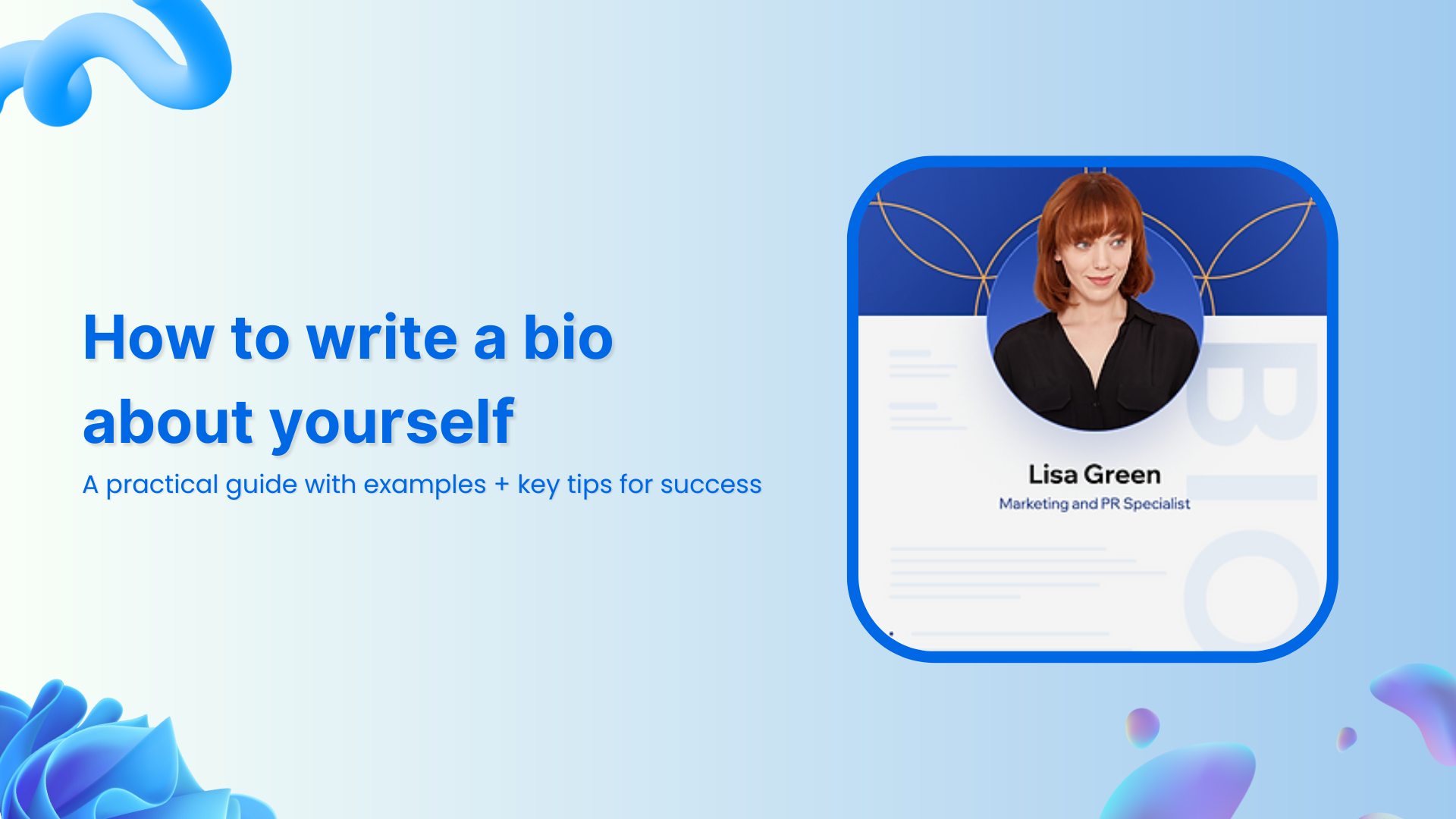
A “bio”, short for “biography” or “personal bio”, is a concise summary of who you are: your background, what you do, and what makes you different.
In practice, a bio gives readers (whether employers, clients, or new contacts) a quick but meaningful snapshot of your life and professional identity.
The main objective of a bio is to build a strong first impression and to communicate your skills, values, and personality quickly, so someone reading it immediately understands who you are and why you matter.
A good bio matters because in our fast-scrolling digital world, people often decide within seconds whether to keep reading or move on. A sharp, great bio helps you stand out and feel real, not just another name among many.
Remember, a bio isn’t just about listing credentials; it’s about making a connection, showcasing your uniqueness, and inviting further engagement.
With that in mind, let’s look at the four essential elements that make a bio work, and how you can structure yours to hit all the right notes.
What are the four elements of a bio?
When you sit down to write your bio, make sure it touches on these core elements:
What you do: Describe your role or what you currently do (job, business, creative work, whatever applies).
Your “why”: Share what drives you: your purpose, your motivation, or what you hope to achieve.
Your qualifications: Mention relevant credentials, experience, skills, or achievements that show you’ve got what it takes.
Personal details about yourself: Add a little personal flavor: hobbies, interests, background, or anything that shows you’re human and relatable.
With those in place, your bio can be clear, compelling, and memorable!
Two primary types of bios
When you go to write a bio about yourself, it usually falls into one of two main types, i.e., the “personal bio” or the “professional bio”. Each serves a slightly different purpose depending on who you’re talking to and what you want to communicate.
Personal bio
A personal bio is a more relaxed, informal snapshot of who you are as a person, not just what you do professionally, but what makes you, actually you. It’s often used on social media profiles, personal websites, or anywhere you want to share a bit of your personality.
What it typically includes:
A personal touch: Your voice, maybe a little humor or warmth.
Personal background info: Where you’re from, what you care about, what shapes you, etc.
Accomplishments & hobbies/interests: Things you’re proud of, hobbies, passions, side-projects, etc.
A sense of your personal brand/profile and your “value proposition”: What kind of person you are, what you stand for, what makes you unique or relatable.
Personal bio example:
“Hi — I’m Sara, a freelance writer based in Los Angeles who’s passionate about storytelling and cozy cafés. When I’m not typing away, you’ll catch me wandering through bookstores, scribbling poetry on the back of receipts, or experimenting with recipes I found on old family recipe cards. I believe everyone has a story worth telling.”
This kind of bio doesn’t aim to list every credential. Instead, it aims to give a sense of you as a human being, to make someone feel like they already know you a little.
Professional bio
A professional bio is a more formal, polished introduction of your professional identity. It is designed for work contexts, portfolios, LinkedIn profiles, job applications, or anywhere you want to present yourself in a “business-ready” light. It focuses on what you do, what you’ve done, and what you bring to the table.
What it typically includes:
Your current role or job title (or area of expertise, if freelancing or self-employed).
A professional profile: A brief statement summarizing who you are professionally and what your main strengths or specializations are.
Your core competencies & skills: Things you excel at, tools you use, domains you’re familiar with.
Academic background (if relevant): Degrees, certifications, or other credentials that support your expertise.
Professional affiliations or past employers (when relevant): To give context to your experience.
Contact information: Especially useful if the bio is on a portfolio site or a freelance profile, so that people can reach out easily.
Professional bio example:
“James Archer is a Software Engineer specializing in front-end development based in New York, USA. With a B.Sc. in Computer Science from Stanford University and over five years of experience building responsive web applications, he has helped startups and small businesses bring their ideas to life online. His core skills include JavaScript, React.js, and UI/UX design. In his free time, James mentors junior developers and contributes to open-source projects. If you’d like to collaborate or learn more, he’s reachable at james.archer@example.com.”
This kind of bio aims to quickly convey credibility, competence, and professionalism, giving someone a clear sense of who you are in your work life.
Note: Choosing between a personal bio and a professional bio (or having both) depends on the context and audience. If you want to make a human connection, go personal. And, if you want to highlight your career and what you have to offer, go professional.
When you sit down to write a bio, having a simple “template” helps you get all the key pieces in place so you don’t overthink it.
Below are two go-to templates, one for a formal context (professional bio) and one for a more personal or social-media context (personal bio).
Professional bio template (3rd person)
[Full Name] is a [current role/job title] at/in [company or organization, or area of work]. With [number] years of experience in [field or domain], [Last Name] has [mention one or two key accomplishments or strengths, relevant skills, or core competencies]. [He/She/They] holds a [degree or qualification, if relevant] from [institution/university], and is skilled in [list of relevant skills/areas of expertise]. Outside work, [Last Name] enjoys [a personal interest or hobby] — a touch that brings balance to [his/her/their] professional life.
Why it works:
Uses third-person, which makes it feel objective and polished.
Starts with name + role, a quick clarity for readers.
Gives credentials, strengths, and a hint of personality for relatability.
Personal/social media bio template (1st person)
I’m [first name, last name], a [your job/title or main passion] based in [city or region]. I love [mention what you enjoy doing — passions or hobbies]. By day, I [short summary of what you do or what you’re focused on professionally or personally]. Recently, I [one accomplishment or highlight]. When I’m not working, you’ll usually find me [something you enjoy — hobby/interest].
Why it works:
First-person feels warm and direct, as if you’re talking to a friend.
Keeps it short and focused; just enough info to show who you are.
Makes space for both what you do and who you are, your passions, your voice.
6 key steps to write a bio about yourself that gets everyone’s attention
Here’s a simple yet solid roadmap you can follow to write a bio that feels real, captures attention, and does what you want it to do.
Step #01: Know your audience & purpose
Before writing a bio, figure out “who will read it” and “why you’re writing it”. Are you sharing a personal story on social media? Or writing a professional bio for LinkedIn or a portfolio? The tone, length, and details you include will change depending on your audience and objective.
Step #02: Start with the essentials
Begin with the important basics, i.e., your name (or identity), what you do (role/profession/main focus), and if relevant, where you are based or what field you specialize in. This gives readers clarity right away about who you are.
Step #03: Highlight relevant achievements
Share a few of your most meaningful accomplishments, such as major projects, successes, awards, or milestones. This shows you’re capable and gives credibility. But don’t overload with every detail; pick what’s most relevant to the context.
Step #04: Add a personal touch
Let a bit of your personality shine through! Mention hobbies, passions, values, or something that reveals “who you are beyond your work”. This helps make you relatable and often memorable.
Step #05: Include a call-to-action (CTA)
Especially if your bio serves a professional or public purpose, end with a clear invitation or CTA: maybe a link to your portfolio, your contact info, or an encouragement to connect or follow. This guides readers on what to do next.
Step #06: Proofread & refine
Finally, check everything. Make sure grammar and spelling are correct, the structure flows, and the tone matches your goal. You can also use an online grammar checker for even more precise and accurate outcomes.
A clean, polished text reflects well on you; sloppy mistakes can undermine even a great bio. So, be very careful!
By following these steps, you’re much more likely to write a bio that not only gets attention but also makes people want to connect or learn more about you.
“How to write a bio about yourself” examples for different contexts
Writing a bio isn’t one-size-fits-all. What works for a job application might not suit a dating app, a conference, or a website.
Below are example-focused approaches for different scenarios, useful as inspiration depending on where your bio will appear.
How to write a bio about yourself for work
When your bio appears on a company profile page, internal directory, or team page, keep it professional yet approachable. Mention your role, what you bring to the table, and a little personality.
Example:
John Adams is a Senior Software Engineer at TechNova Solutions, where he leads web-app development using React and Node.js. With over six years of experience building scalable applications for fintech startups, John has helped launch three successful products serving thousands of users. He holds a B.Sc. in Computer Science from Harvard University and enjoys mentoring junior developers in his spare time. Outside work, he’s an avid runner and book lover.
How to write a bio about yourself for a new job
For a new job, your bio should clearly introduce you (your background, what you’ll do, and what you aim to bring to your new role). Please, keep it concise and forward-looking.
Example:
I’m Anna Thomas, the new Marketing Associate at BrightWave Digital. Over the last three years, I’ve helped two small e-commerce brands grow their social media presence by 50% through content strategy and targeted ads. I’m passionate about storytelling with data and excited to help BrightWave reach wider audiences. Outside work, I love exploring local cafés and photography.
How to write a bio about yourself for a conference
For a conference bio, the aim is credibility and relevance. Focus on your expertise, role, and what you bring to the talk or event, usually in a short, sharp paragraph.
Example:
Dr. Nadia Rahman is a public-health researcher specializing in maternal care in South Asia. As lead researcher at HealthBridge Institute, she oversaw a 2024 study on community-based prenatal programs, influencing policy reforms in rural districts. Dr. Rahman holds an MPH from Aga Khan University and has published in peer-reviewed journals. She will speak on “Community Health: Challenges & Innovations in 2025.”
How to write a bio about yourself for a presentation
A presentation bio is similar to a conference bio but slightly more personal, enough to introduce yourself and build rapport, while still professional and relevant to the topic.
Example:
Hi, I’m Ashley Cole — a Marketing Manager at VisionTech. I specialize in digital campaigns and have helped increase brand engagement by 35% across social platforms. With a degree in Business Administration from the University of Michigan, I combine data-driven strategy with creative thinking. When I’m not brainstorming campaigns, you’ll find me sketching landscape art or playing tennis.
How to write a bio about yourself for an award
If you’re writing a bio for an award (for a nomination, announcement, program, or press release), highlight your achievements, impact, and credentials clearly and proudly, while staying humble and factual.
Example:
Aisha Malik is a civil rights advocate awarded the 2025 Humanitarian Impact Award for her work with Refugee Aid Foundation. Over the past five years, she has supported over 2,000 displaced families, coordinated legal aid projects, and raised public awareness through workshops and campaigns. Aisha holds an LL.M. in Human Rights Law from Karachi University. She continues to dedicate herself to social justice and community development.
How to write a bio about yourself for social media
For social media, brevity and tone matter the most. Whether you use first-person or third-person, keep it friendly, concise, and reflective of how you want to be perceived.
Example (first-person, Twitter/Instagram style):
I’m Zara — freelance graphic designer & cat mom 🐾 | I help small businesses stand out with bold visuals | Lover of coffee, travel & vintage vinyl
How to write a bio about yourself for a website
On a personal website, you have more space and flexibility. Combine your professional identity, background, values, and personal story to give readers a fuller sense of who you really are.
Example:
Hi, I’m Rachel — a UI/UX designer based in Texas. For over 7 years, I’ve designed intuitive mobile apps for fintech and ed-tech companies, with a focus on accessibility and user-centered design. I hold a B.Des. from California College of the Arts and have led design teams across four major projects. I believe great design empowers people — and in my free time, I love sketching, cycling, and exploring local history.
How to write a bio about yourself for a dating app
A dating-app bio should be short, genuine, and show a bit of personality. Mention your interests, what you care about, maybe a light hint of what you’re looking for, all in a friendly tone.
Example:
Beckham, 28 — AI engineer by day, foodie & weekend-hiker by heart. I try new recipes, love exploring Oregon’s street food spots, and spend Sunday mornings with a good book. Looking for someone who loves laughter, honest talks & adventure.
Essential tips for writing a successful bio about yourself
Writing a bio can seem simple, but a few smart habits can make the difference between a bio that feels generic and one that truly stands out.
Here are some friendly, useful guidelines to keep in mind as you craft your own!
Tip #01: Don’t overthink it
Overthinking often leads to overloading your bio (too many details, too much fluff). Start simple, and jot down what’s most important; then refine it. A clear, straightforward bio often speaks louder than one weighed down with too many ideas.
Tip #02: Understand the fundamentals
Before you write, know what your bio needs: who you are, what you do, and why someone should care. Having that foundation ensures your bio stays focused and meaningful, rather than wandering off into unrelated info.
Tip #03: Be honest (no sugar-coating)
Always keep in mind that authenticity builds trust to the highest degree. Use your real achievements and true interests, and don’t wrap exaggerations in fancy words. People appreciate honesty more than overselling.
Tip #04: Avoid exaggerating experience
Claiming you’re more experienced or qualified than you really are can backfire at times. Overstating credentials may catch up with you later. It’s better to be realistic, clear, and modest, because credibility matters, guys!
Tip #05: Be concise & brief
Brevity is exceptionally helpful when writing a bio. Many readers skim, so make sure every sentence counts. A tight, to-the-point bio (ideally a few sentences or a short paragraph) often works best.
Tip #06: Don’t underestimate yourself
If you possess real skills, have genuine achievements or interests, include them for sure. Never downplay what you’ve done honestly. Your unique experiences and strengths are part of what makes you interesting.
Tip #07: When hesitant, acquire help from a professional
If you’re struggling, maybe your thoughts feel jumbled, or you’re unsure how to express something, getting help from a peer, mentor, or professional writer can give clarity. A fresh perspective can turn a rough draft into something polished and influential.
Tip #08: Review & update your bio periodically
Since your life, skills, and goals evolve with the passage of time, your bio should too. Make it a habit to revisit and update it whenever something important changes (new job, new skills, new interests), so it always reflects what you’re doing at present.
Note: Putting these tips into practice helps you write a bio that’s honest, sharp, and reflective of who you really are!
Writing a solid bio about yourself doesn’t have to feel confusing anymore. Once you understand the basics (keeping it honest, transparent, and trustworthy to who you are), the process becomes much easier.
No matter if it’s for work, social media, a conference, or even a dating app, the goal is the same: show people who you are in a simple, genuine way. With a bit of practice and regular updates, your bio can become one of your strongest personal tools.
If you want to take things a step further, give Replug.io a try today. It now offers a bio link generator to help you build clean, custom bio pages that connect everything you want to share hassle-free!
Frequently asked questions
How do I write about myself?
Start by thinking about the key things you want people to know: who you are, what you do, and what makes you “you”. Then put those into a few simple sentences. That’s all!
How do you write a killer bio?
Focus on clarity and honesty. Say what you do, why you do it, or what you care about, and maybe a standout detail about you. Keep it short but strong!
How to start writing a personal bio?
Begin with a simple introduction: your name, your role or primary interest, and perhaps one quick detail about what drives you or what you care about. Then build from there.
How long should my bio be?
As a rule of thumb, short bios work best for social media (1–2 sentences or ~50–100 words), whereas more extended bios are well-suited for websites or detailed profiles (around 100–250 words).
What’s the best way to write a bio and short description about myself?
Use plain, clear language, mention the essentials (role, skills, what you care about), and add a slight personal touch. Edit to stay concise and make sure it fits the platform and audience.
Should I use first or third person when writing a bio about myself?
It depends on context:
– First person (“I …”) feels friendly and personal. Suitable for social media or personal sites. – Third person (“She/He/They …” or name) feels more formal. Better option for official or professional profiles.
How can I make my bio sound more like ‘me’ without seeming unprofessional?
Add a small personal detail like a hobby, a passion, or a value, after the main professional info. That subtle human touch keeps it honest, yet still professional.
How can I create a strong bio without significant achievements or awards to list?
Focus instead on your values, passions, what you enjoy or believe in, and any skills or qualities you have. A genuine story can matter more than titles or awards, believe it.
How frequently should I update my bio, and what’s the simplest way to keep it up‑to‑date?
Check your bio whenever something changes such as new job, skills, projects or major life shifts. As a rule, review it every 2–3 months so it stays up-to-date and accurate.
Do you ever stare at a blank screen, trying to write just a few lines about yourself, and end up deleting more than you type? That’s a super common problem.
In fact, many people struggle to craft a bio that feels genuine and packs a punch. The madness is quite real. A weak or vague bio can make you sound forgettable, costing you clicks, connections, or even job offers.
But here’s the good news!
With a little strategy, you can write a short bio that boosts your credibility, showcases your personality, and holds attention.
In this post, we’ll guide you step by step through great short bio examples and actionable tips. First up, let’s take a brief overview of what exactly a short bio is.
So, let’s get started!
What is a short bio?
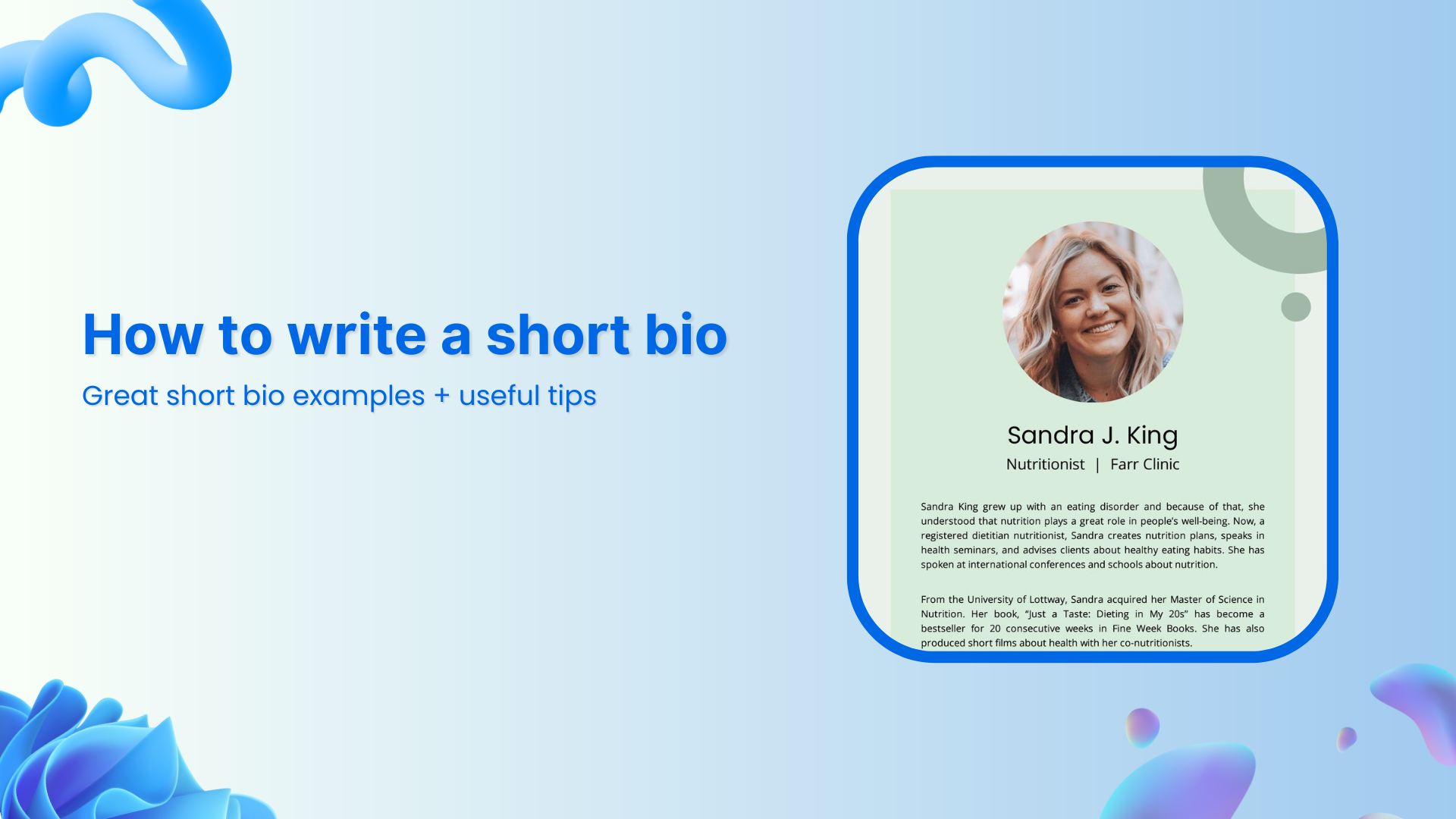
A short bio is a tight, focused summary of who you are, what you do, and why it matters. Unlike a complete resume or CV, it tells your story in just a few sentences, typically in the first or third person.
Its main goal is to introduce you in the most memorable and relevant way quickly. You might see it on personal websites, LinkedIn profiles, author bylines, or event speaker pages.
A well-crafted short bio isn’t just a list of facts. It humanizes you, highlights your strengths, and gives readers a reason to connect with you.
As personal branding grows ever more critical, especially when 70% of employers check social media profiles before hiring, your bio becomes a tiny but powerful part of your professional identity.
When do you need a short bio
You’ll want a short bio in a bunch of everyday situations:
On your website or portfolio: To welcome visitors and give them a glimpse of who you are and what you do.
LinkedIn, social media, or networking profiles: It’s your digital handshake.
At events: Whether you’re speaking, contributing, or just being featured, you’ll often need a bio to introduce yourself.
In content bylines or guest posts: When you write for someone else’s blog or publication, a short bio shows readers why they should trust and follow you.
What should be included in a short bio: Key elements discussed
A strong short bio hits all the right notes, giving a quick, well-rounded snapshot of who you are, what you do, and why it matters.
Here are the essential pieces to include:
Your name: Start by clearly stating who you are. That’s your identity and the foundation of everything else.
Job title or workplace: Add your current role or company to ground your bio in your professional life.
University degree & other qualifications: Mention your education or certifications to highlight your background and expertise.
Hometown or city of residence: A small detail like where you’re from adds a human touch and context for your audience.
Personal or professional goals: Include what you’re aiming for. This shows direction and ambition.
Mission statement & values: What drives you? A brief line on your core beliefs or purpose makes your bio more meaningful.
A relevant professional achievement, milestone, or accomplishment: Highlight something concrete. It can be a project, an award, or a result you’re proud of.
Skills & area of expertise: Be specific about what you’re good at. This helps people understand where you excel.
Personal interests & hobbies: Sprinkle in a hobby or passion. It makes you more relatable and shows there’s more to you than just work.
Your LinkedIn profile, social media accounts, or other contact information: Finally, give people a way to reach out or connect, so your bio doesn’t just end; it opens doors.
Each of these pieces helps build a bio that’s professional, personal, and memorable, without feeling like a resume stuffed into a paragraph.
How do you write a good short bio?
Writing a great or compelling short bio is really about finding the right balance. You want it to be professional, but also feel like you.
Here’s how to do that, step by step! Check out the key components:
Choose a voice: First, decide whether you’ll write in first person (“I am …”) or third person (“Jane Doe is …”). This choice sets the tone for everything that follows.
Introduce yourself: Begin with a quick, brief line that states your name and gives a sense of who you are.
State your company or brand name: If you work for or run a company, mention it. It adds context and credibility.
Explain your current professional role: Describe what you do in your job or business, so people immediately understand your value.
State your philosophy: Share the mission, values, or work philosophy that motivates you. It helps people connect with why you do what you do.
Highlight professional achievements, skills, & expertise. Include one or two standout wins or key strengths that set you apart, without turning into a resume dump.
Discuss your passions & core values: Let readers in on what matters to you personally and professionally. This is what makes your bio meaningful.
Mention your personal interests & goals. A line about what you love doing outside of work, or where you’re headed, makes your bio feel human.
Add a personal touch: No matter if it’s an odd hobby, a fun fact, or a short anecdote, this makes you memorable.
Include a call to action: Wrap up by inviting people to connect. Link to LinkedIn, your website, or encourage them to reach out.
Putting these together will give you a short bio that’s polished and professional, yet warm, honest, and very you.
Here’s a simple, basic, and flexible template you can alter effortlessly. Use the “blanks” as guides, and just fill in your personal details to make it your own.
[Your Name] is a[Your Job Title/Role] at [Your Company/Organization]. [He/She/They] specializes in[Your Key Skill/Area of Expertise]and has achieved[Your Most Notable Achievement]. In [his/her/their]spare time, [he/she/they]enjoys[A personal hobby or interest]. You can connect with[him/her/them]via[Contact Information/Link].
Short bio template for students
[First Name, Last Name]is a current [year] student studying [major] at [university]. [He/She/They] is actively involved in[campus activity or club], where [brief description of role or achievement]. During a recent internship at [organization], [he/she/they] worked on [project or task], gaining experience in [skill or area]. [He/She/They] hopes to build a career in [industry or field]and is passionate about [personal interest or goal]. In [his/her/their] free time, [he/she/they] enjoys[hobby] and connecting with others on [LinkedIn or other social media platforms].
Short bio template for working professionals
[First Name, Last Name] is a [job title] at [company name], with [number] years of experience in [industry or specialty]. [He/She/They] focus on [core responsibility or niche], and have helped [type of clients or audience] by [key achievement or frequent value delivered]. [His/Her/Their] philosophy is [brief mission or value statement], and [he/she/they] brings strengths in[skill 1],[skill 2], and [skill 3]. Outside work, [he/she/they] is passionate about [interest or cause], and you can reach [him/her/them] via [LinkedIn, website, or email].
Short bio template for a gap in employment
[First Name, Last Name] is a[previous job title or role]with [number]years of experience in [industry]. After taking time off to [brief reason for gap — e.g., upskill, care for family, personal development], [he/she/they] focused on[what you did during the gap, like courses, volunteering, projects]. During this period, [he/she/they] strengthened [his/her/their] skills in [skill or area] and completed [relevant achievement or learning]. Now, [he/she/they] is excited to return to[industry/role] and bring [his/her/their] unique perspective and experience to [type of role or organization]. Feel free to connect with [him/her/them] on [LinkedIn or other contact].
10+ top-notch “how to write a short bio” examples
Writing a short bio might seem tricky at first, but it’s a great way to highlight your achievements and personality in a concise, effective way.
Doesn’t matter if you’re writing one for yourself, someone else, or a professional context, the goal is to keep it relevant, engaging, and to the point.
Here’s how to approach writing short bios for different scenarios.
How to write a short bio about yourself
When writing a short bio about yourself, focus on the essentials: who you are, what you do, and what makes you unique.
You don’t need to write your life story; just a brief summary that showcases your expertise, interests, or accomplishments. A good format to follow is:
Your name and current role or major project
One or two sentences about your professional background, key skills, or current focus
A personal touch, such as hobbies or passions
Example:
“Hi, I’m Sarah Lee, a digital marketing strategist with over 5 years of experience helping brands grow online. I specialize in social media campaigns and SEO. Outside of work, I love hiking and exploring new coffee shops.”
How to write a short biography about myself
A short biography about yourself is slightly more formal than a casual bio, often focusing on your professional history and key achievements. Here, you want to balance humility with confidence.
Keep it brief but impactful, summarizing the highlights of your career, education, or other noteworthy accomplishments.
Example:
“I’m John Smith, an award-winning journalist with a passion for investigative reporting. Over the past decade, I’ve worked for major publications like The New York Times and BBC News. I hold a degree in Journalism from Columbia University, and my work focuses on political analysis and social justice.”
How to write a short biography about someone
When writing a bio about someone else, your job is to capture their professional essence and achievements without over-elaborating. Keep the tone respectful, and focus on their key milestones, what they do, and why they stand out.
Example:
“Dr. Emily Zhang is a renowned environmental scientist known for her groundbreaking research on renewable energy solutions. With a PhD from MIT and over 15 years of experience, she has authored several influential papers and currently leads a research team at GreenTech Innovations.”
How to write a short bio for social media
Social media bios need to be quick, catchy, and aligned with your personal brand. It’s all about making a strong first impression in a limited space.
For platforms like Twitter or Instagram, you may want to include a mix of professional titles, personal interests, and a hint of humor or personality.
Example:
“Marketing pro | Coffee addict | Lover of good books & bad puns | Helping brands tell their story | Always up for a challenge.”
How to write a short bio for work
Work bios are typically found on company websites or in team directories, so they should be professional but approachable. Highlight your role, skills, and what you bring to the team, without going overboard with personal details.
Example:
“Jane Davis is a Senior Product Manager at TechSoft, where she leads product development for the company’s flagship software. With a background in engineering and a passion for innovation, Jane works closely with cross-functional teams to deliver solutions that meet customer needs.”
How to write a short bio for a new job
When starting a new job, a bio helps introduce you to colleagues, clients, or customers. Focus on your previous experiences that are relevant to the role you’re stepping into, and mention what excites you about your new position.
Example:
“Alex Carter has recently joined TechLink as a Software Engineer, bringing with him 3 years of experience in full-stack development. He is eager to collaborate with the talented team at TechLink and contribute to building innovative web applications.”
How to write a short bio for a presentation
For a presentation, your bio should quickly establish your credibility on the topic at hand. Keep it short, but highlight relevant qualifications or experience that make you an expert on the subject.
Example:
“Maria Gonzalez is a cybersecurity expert with over 10 years of experience helping businesses secure their digital assets. She has consulted for Fortune 500 companies and is a regular speaker at cybersecurity conferences worldwide.
How to write a short bio for a conference
Conference bios should be concise but informative, highlighting your expertise in the field and any notable accomplishments. Since attendees want to know why you’re speaking at the event, mention key achievements that are relevant to the audience.
Example:
“Dr. Brian Lee is a leading AI researcher at GlobalTech Labs and a keynote speaker at this year’s AI Innovation Conference. With a PhD in Machine Learning from Stanford, his work focuses on the ethical implications of AI in healthcare.”
How to write a short bio for a company
When writing a bio for a company, focus on the company’s core values and your specific role or contribution to its success. It’s a good place to mention any leadership roles or initiatives you’re involved in.
Example:
“Susan Mitchell is the Chief Marketing Officer at GreenCo, where she oversees global marketing strategies. Her leadership has been instrumental in expanding GreenCo’s brand presence, driving record growth in the past two years.”
How to write a short bio for a personal website
A short bio on your personal website should feel a bit more personal, reflecting both your professional and personal sides. It’s an opportunity to showcase your personality and explain what drives you in your work or life.
Example:
“Hi, I’m Michael Brown, a freelance graphic designer passionate about creating impactful visual identities. I work with startups to help them tell their story through design. When I’m not designing, you’ll find me playing guitar or traveling to new places.”
How to write a short bio for a marketing professional
A marketing professional’s bio should highlight relevant industry experience, skills, and achievements. Emphasize your role in growing businesses or developing successful campaigns, and don’t forget to mention any certifications or expertise in specific areas of marketing.
Example:
“Rachel Thomas is a digital marketing strategist with 7 years of experience helping businesses scale through data-driven campaigns. She specializes in content marketing, SEO, and analytics, and has helped over 50 brands increase their online presence.”
How to write a short bio for an executive
Executive bios should be more formal and reflect the leadership role the person holds within the organization. Focus on their career trajectory, key accomplishments, and how they’ve contributed to the company’s growth.
Example:
“John Roberts is the CEO of InnovateTech, where he has led the company through significant growth, expanding into international markets and increasing revenue by 200% over the past 5 years. With over 20 years of leadership experience, John is a passionate advocate for innovation in the tech industry.”
Writing a short bio doesn’t have to be complicated. No matter if it’s for a social media profile, a professional context, or a personal website, just focus on the essentials and be authentic. With the right balance of information and personality, you’ll have a bio that truly represents you!
Short bio vs. professional bio: Major differences
Here’s a quick breakdown of how a short bio differs from a professional bio so that you can pick the right style for your needs:
Aspect
Short bio
Professional bio
Length
Very brief, usually 50–150 words or 3–5 sentences.
More detailed, often 150–300 words, though full versions can go up to 500+.
Purpose
A quick snapshot to introduce yourself in limited-space contexts (e.g., social media, conference programs, author bylines).
A fuller narrative of your career. Ideal for personal websites, company “About” pages, or professional portfolios.
Content focus
Focuses on key points: your name, current role, core expertise, and a highlight or two.
Goes deeper: includes past experience, major achievements, philosophy, and sometimes personal details.
Tone
Short, punchy, and often conversational.
More formal, though still friendly, especially if it’s for your brand or company.
Usage
Great for bios on LinkedIn headings, email signatures, social media, or speaking slides.
Used in professional settings like company “Team” pages, press releases, or detailed “About Me” sections.
In short: Use a short bio when you need to introduce yourself fast and leave a strong first impression. Whereas, use a professional bio when you want to tell more of your story, highlight achievements, and show your personality in a richer way.
Why writing a short bio feels hard: What to do to make it easier
Crafting a short bio often feels tougher than it looks, because you’re trying to sum up your whole story in just a few lines, and that can make you overthink what to include or leave out.
Common challenges:
You’re too close to yourself, so it’s hard to know what parts of your journey actually matter.
It’s a delicate balance: You want to sound capable and professional, but also approachable, and that tone trip can be tricky.
Figuring out your audience: If your bio is everywhere (LinkedIn, your website, a conference), you risk writing something too generic that doesn’t truly speak to anyone.
Editing can be brutal: Trimming language, removing filler, and still keeping meaning is exhausting.
How to make it easier:
Start with perspective: Try writing your bio about someone else as if it’s your colleague. This can help you detach and pick the most important bits.
Be clear on your goal: Ask yourself why this bio exists. Do you want to connect with clients, impress hiring managers, or just show your personality? That clarity helps you pick what to highlight.
Focus on what matters: Choose the most substantial achievements and keep personal touches, but don’t overload. Remember, the best bios are concise and relevant.
Use your real voice: Ditch the buzzwords and write like you speak. That makes your bio feel genuine and authentic.
Get feedback & edit: Write a draft, take a break, then come back to alter. Ask a friend or colleague to read it, since fresh eyes catch what you might miss.
Update after a period: Your bio isn’t set in stone. As things change, such as new roles, big wins, and new passions, come back and tweak it.
That said, you don’t have to get it perfect on the first try. A short bio is a living, breathing thing. Write something, test it out, and improve it as you grow.
Quick tips for writing a short bio: Best practices to follow
Writing a sharp, memorable short bio doesn’t have to be a headache. Here are some friendly, practical tips to keep it effective and real.
Start by keeping it brief & concise. Every word counts, so cut the fluff and get to the point.
Be authentic & honest about who you are. People connect more when you don’t overinflate things.
Always review any guidelines (e.g., character limits or tone) for the platform where your bio will appear. This keeps you on track.
Tailor your content accordingly to match that platform. For instance, LinkedIn might need a different feel than Instagram.
Think aboutyour target audience as you write. What do they want to know, and what kind of tone will resonate with them?
Pick a point of view. Many prefer writing in the third person for professionalism, especially in formal settings.
Look at examples for inspiration, but don’t copy as it is; make it yours.
Focus on clarity over creativity. Being understood is more important than being jazzy.
Add humor when it feels natural, but don’t force jokes. A small personal line can make you human.
Always include a link to your website or portfolio, so people can learn more about you easily.
Adapt your bio for different platforms. Don’t just copy-paste the exact text everywhere. It can give a monotonous feel.
Mention relevant hobbies so you come across as well-rounded, but don’t go overboard.
Consider using a template if you’re stuck. It can help you structure things neatly.
Use SEO smartly. Naturally, incorporate 1–2 relevant keywords that match your field.
Consider ending with a CTA. Invite people to connect or check your site.
And finally, proofread & edit thoroughly. Typos or awkward phrasing can pull people out of your story.
Note: Following these points will help you craft a bio that’s polished, personal, and ideally suited for your goals.
Wrapping up!
Writing a short bio doesn’t have to feel like a tedious task anymore!
Once you know what to include, how to structure it, and how to keep things clear and honest, it becomes a simple way to introduce yourself with confidence.
Whether you’re a student, a pro, or someone rebuilding their career story, the right bio helps people understand who you are and what you bring to the table.
So take your time, follow the steps, and craft something that actually sounds like you!
And suppose you want to level up your online presence, give Replug a try now. It’s one of the best custom URL shorteners for creating branded short links, and it even offers a bio links feature to help you build clean, custom bio pages that connect all your content and offers.
Frequently asked questions
What is a small bio or a mini bio?
A mini bio is an ultra-compact introduction, usually one or two sentences, that sums up who you are, what you do, and why it matters. It’s perfect for social media profiles or bylines.
What is a 3-line bio?
A 3-line bio typically covers your name and role, your mission or philosophy, and a key achievement, allowing you to present a quick yet complete snapshot.
Here’s a clean, 3-line bio example:
“I’m Ashley Cole, a product designer passionate about creating intuitive user experiences. My mission is to make complex tools simple and accessible for everyone. I helped design the XYZ app, which now serves over 200,000 users monthly.”
What makes a great short bio?
A great short bio is transparent, authentic, and focused. It highlights your role or value, touches on your personality or mission, and makes people want to learn more.
How do I write a short bio about myself?
Here’s how to do it:
1. Start with your name and role, 2. Then, mention one or two strengths or achievements, 3. Finally, add a personal note or value to humanize it.
Which one to use, first-person or third-person, while writing a short bio?
First-person (“I”) works well on personal sites or social media for a conversational tone. Third-person (“She/He/They”) feels more formal and objective, so it’s often used in speaker profiles or press pages.
What are the dos and don’ts of crafting a short bio?
Do’s:
– Be authentic: Write in your own voice and don’t pretend to be someone you’re not. – Highlight your current role and what you do: Give readers a clear idea of your professional identity. –Share what drives you: Include your mission, values, or philosophy to give your bio purpose. –Add a personal touch: Mention a hobby or detail that reveals who you are beyond your work. –Proofread carefully: Check for typos, grammar mistakes, and clarity.
Don’ts:
–Don’t exaggerate or lie: Stick to real, verifiable facts. –Don’t make it too formal or stiff: Your bio should be professional, but not robotic. –Don’t overload with details: Avoid listing every accomplishment; focus on the most relevant ones. –Don’t use overused buzzwords: Words like “innovative” or “disruptive” without context don’t add real value.
Every time you pull out your phone and scan that little black-and-white square, you’re tapping into a surprisingly powerful piece of technology.
The problem? Despite its ubiquity, most people still treat the QR code like magic (a shortcut), without ever really understanding how it works. That assumption can leave you frustrated when a code doesn’t scan, confused about what it’s doing, or even vulnerable to misuse.
It’s worth paying attention: In 2025, about 59% of consumers scan QR codes daily, and global scan rates are projected to grow by 22% by year’s end.
And, here’s the good news!
The technology behind QR codes is both clever and understandable, and by the end of this post, you’ll know what actually happens behind the scan.
So, without any delay, let’s get started!
What is a QR code?
A QR code is a type of two-dimensional barcode made up of a grid of black and white squares that a smartphone or camera can easily scan in seconds.
Its primary objective is to bridge the physical and digital worlds by encoding information like a website link, contact card, or Wi-Fi password that you can access instantly with a scan.
When you explore how a QR code is made, you’ll uncover how data gets encoded into those little squares. Plus, you will learn how error-correction allows it to survive smudges or odd angles, and how built-in positioning markers let a phone recognize the code’s orientation and interpret it correctly.
What is a QR code used for?
Here’s a friendly breakdown of where and how these codes are used.
Contactless payments: Rather than pulling out a card or cash, many retail outlets let you scan a QR code from your phone to pay. This offers convenience and fewer touchpoints.
Product & packaging info: Imagine you’re in a store and want more details about a product. Scanning a QR code on the packaging can lead you to ingredient lists, origins, how-to videos, or user manuals effortlessly.
Marketing links & engagement: QR codes pop up on ads, posters, business cards, and even museum exhibits so you can instantly jump from “see this ad” to“learn more” or“join the mailing list”.
Check-ins & tickets: Events, transport systems, hotels, and other services increasingly use QR codes for digital tickets or check-ins rather than paper passes.
Education, training & healthcare: Beyond retail, QR codes help in hospitals and classrooms. For example, providing just-in-time learning resources, labelling items for simulation training, or linking to digital documentation.
QR code structure: 7 key components of a QR code
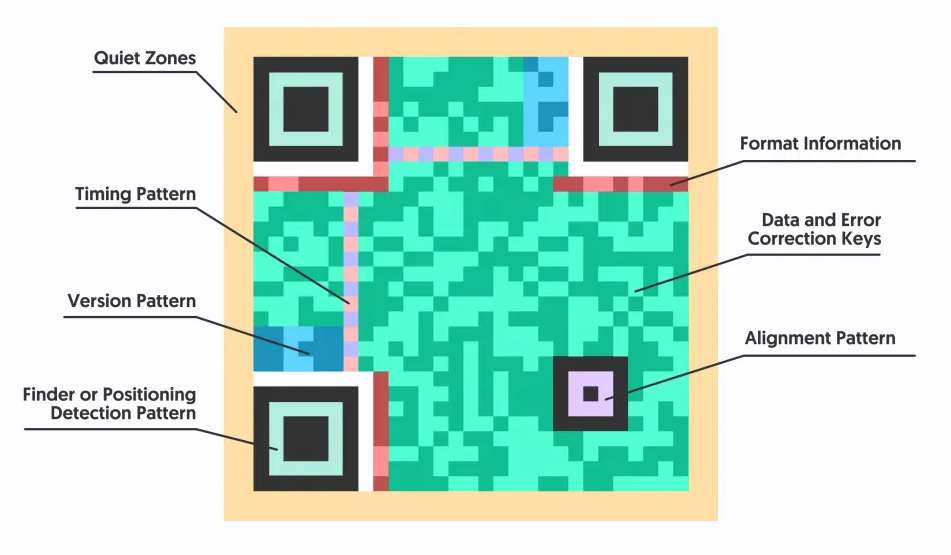
At its core, a QR code is built from a number of distinct functional zones, each with its own role in ensuring the code is readable, even when the camera isn’t perfectly steady or the print isn’t ideal.
Below are the seven main parts of a QR Code that make it tick.
1. Quiet zone
This is the empty white border that surrounds the QR code. It gives the scanning device a clear “frame” to know where the code begins and ends, helping avoid interference from surrounding graphics or text.
2. Timing pattern
These are the alternating dark and light modules, arranged in a 1×1 grid, typically running between the finder patterns. They act as a ruler for the scanner, helping it determine how the grid is laid out and where each cell begins.
3. Version pattern or information
This part tells the scanner which QR code version it’s looking at, and thus how many rows and columns the symbol has. It appears only in larger versions (version 7 and above).
4. Finder or position detection pattern
These are the three large square markers at the corners of the QR code (typically top-left, top-right, and bottom-left). They help the scanner detect the orientation and locate the symbol in the image.
5. Data and error correction keys
This zone contains the actual information (e.g., a URL, text, etc.) plus error-correction blocks so that even if part of the code is damaged or obscured, the data can still be recovered.
6. Alignment pattern
Smaller than the finder patterns, these help the scanner cope with distortion when the code is printed on a curved surface, bent, or read at an angle. Larger QR codes may have several of these.
7. Format information
Located around the finder patterns (near the corner zones). This encodes parameters such as the error-correction level and the mask pattern used in the code, which are essential for correct decoding.
With these components in mind, you’ll understand not just what you’re looking at when you see a QR code, but why it’s arranged that way.
How does a QR code work on your phone
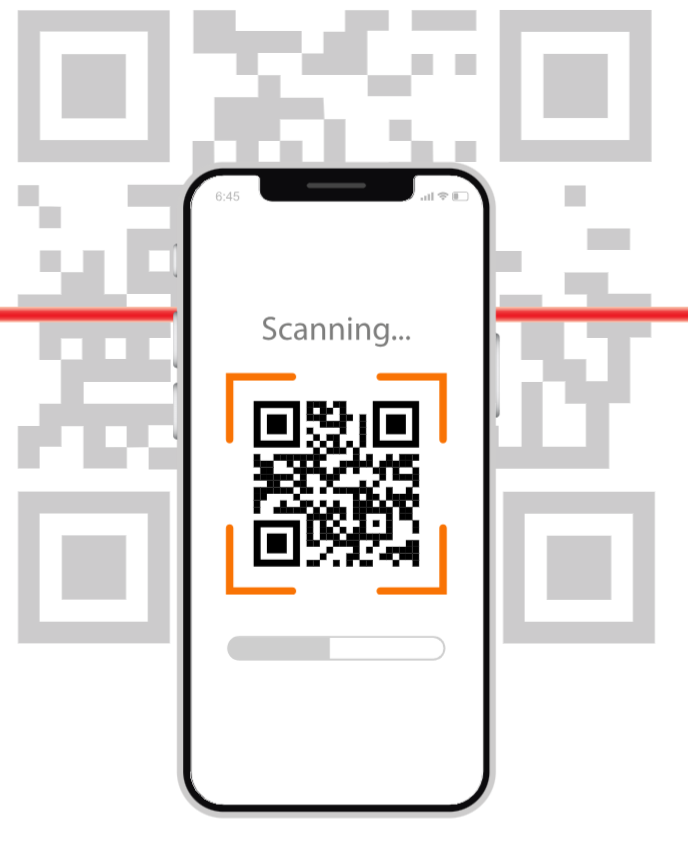
A QR code works by storing information in a grid of black-and-white squares that a scanning device can interpret hassle-free. The three large squares located at the corners, known as “finder patterns”, help the scanner determine the code’s position and orientation.
When you use your smartphone’s camera or a QR code scanner app, it recognizes these markers, then reads the smaller modules (the individual squares) that make up the grid.
Each module represents binary data, which the device translates into readable information, such as a web address, plain text, or contact details.
How the scanning process works
Orientation: The phone’s camera or QR scanner first detects the three large corner squares. These guide the system in locating and aligning the code, ensuring it can be read accurately from any angle, even if the image is rotated or upside down.
Decoding: Next, the scanner divides the QR code into a precise grid. It examines each small square, assigning a digital/binary value (“0” or “1”) based on whether it’s black or white, effectively converting the pattern into binary data.
Data interpretation: The binary sequence is then decoded into a recognizable format, such as a URL, message, or contact information, that the device can understand seamlessly.
Action: Once the data is decoded, your phone displays the information and may prompt you to take an action, like opening a website, joining a Wi-Fi network, or saving contact details.
Error correction: QR codes also include built-in error correction. This feature keeps the code scannable and accurate even if a certain part of it is damaged, smudged, or obscured.
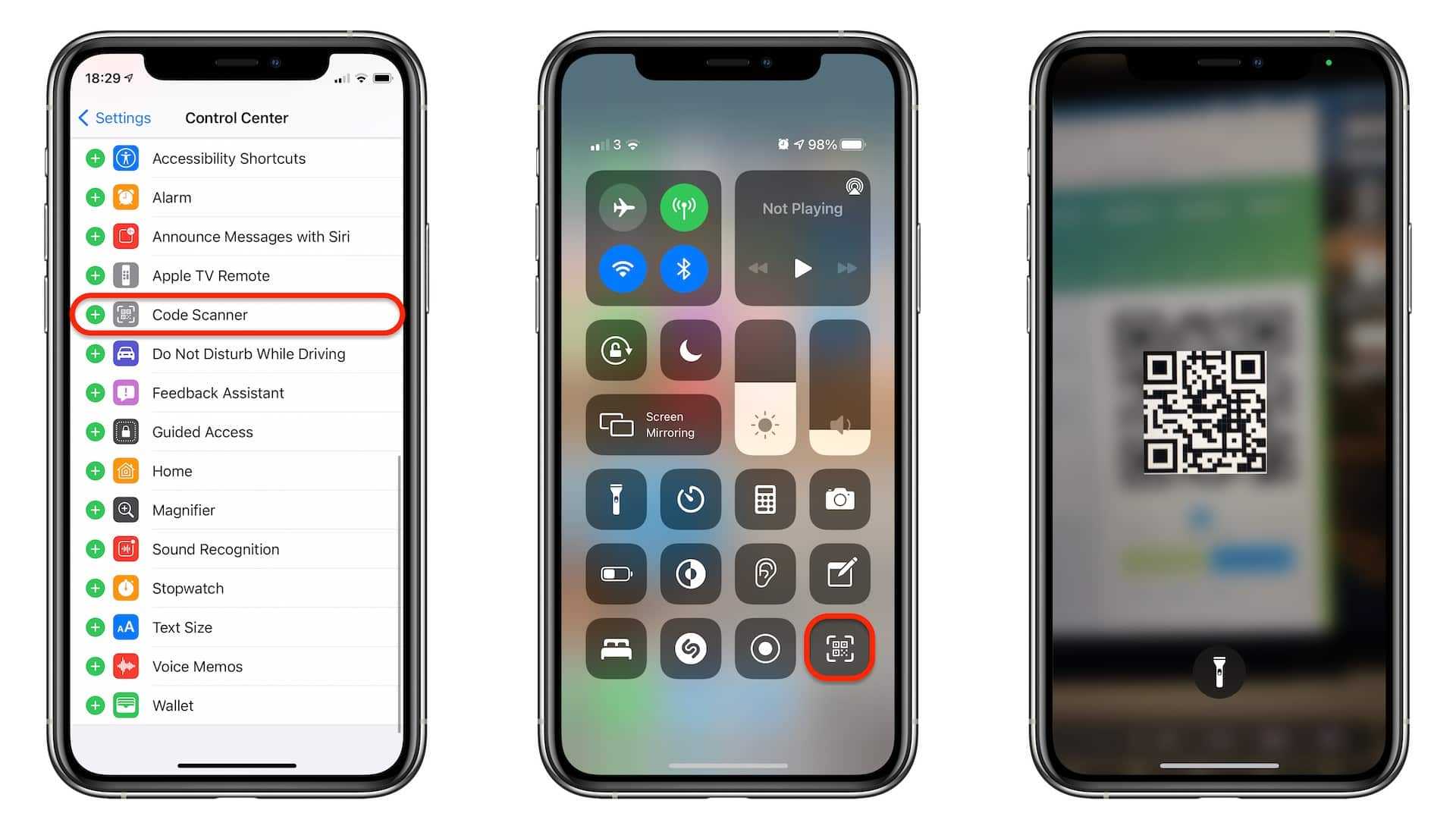
When you use your iPhone to scan a QR code, it’s as simple as opening your Camera app (or the “Code Scanner” from Control Center) and pointing it at the code so it’s clearly visible on-screen.
The camera will automatically detect the code and show a notification banner. Just tap that notification to open the link, download the content, or perform the QR code’s action.
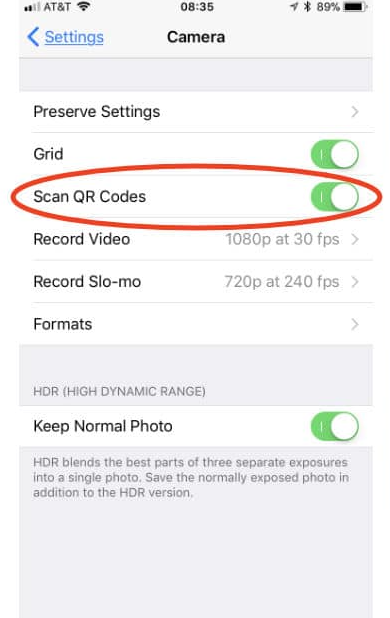
Note: If, for some reason, nothing happens, you can check in Settings → Camera and make sure “Scan QR Codes” is enabled.
It’s fast, built-in, and you don’t need a third-party app. All you need is an iPhone with a workable camera and good lighting.
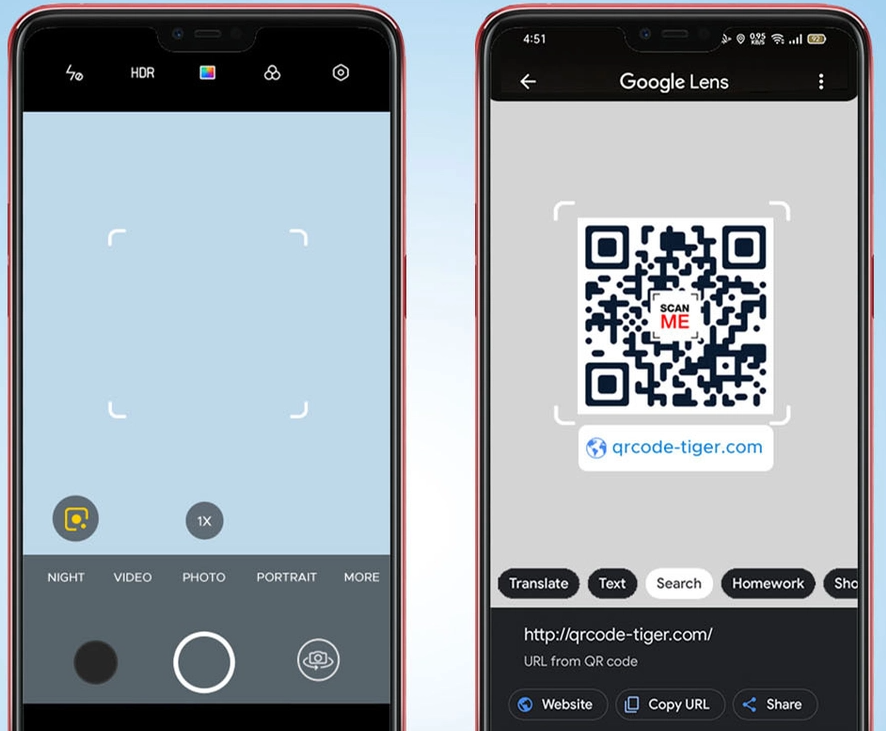
If you’re using an Android phone, scanning a QR code is usually super simple. Just open your Camera app, point it at the code, and wait a moment for a banner to pop up. Tap it and you’re off.
Note: If nothing happens, check your camera settings to make sure QR or code scanning is enabled, or use Google Lens (either standalone or via the Google app) to detect codes, even from screenshots or odd angles.
And that’s it! Quick, easy, and you don’t need a separate app in most cases, unless your phone is a bit older.
When you’re paying using this method, here’s roughly how a QR code works for payment:
First, the merchant displays a QR code (either printed or on-screen) that contains all the necessary payment info.
Next, you scan that code with your phone’s banking or wallet app, which then reads the encoded data (merchant ID, payment amount, etc.) and automatically fills it in.
After that, you just confirm the transaction (sometimes by entering your PIN or approving via biometrics), and the funds are transferred from your account to the merchant’s almost instantly.
That’s all there is to it! It’s fast, contactless, and removes the need to type in card numbers or mess with physical terminals.
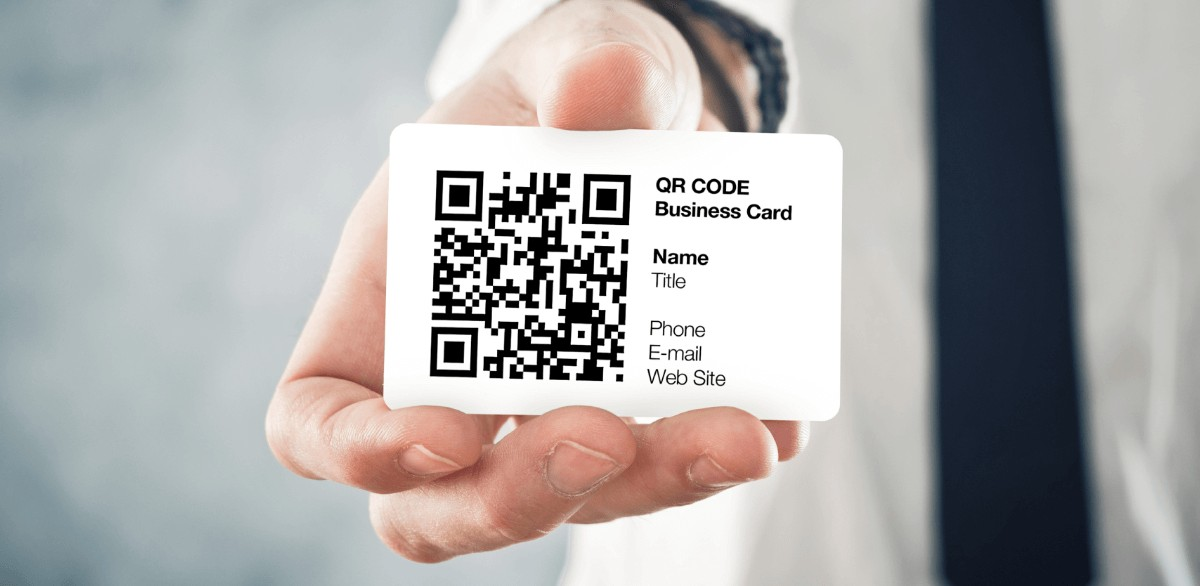
When you place a QR code on your business card, it acts like a smart shortcut from paper to digital. Someone scans the code with their phone and instantly gets your contact info, website, social profile, or portfolio without typing a thing.
It’s not just about sharing a name and number; it can lead straight to your digital business card, let people save you as a contact, explore your work, or follow you online.
And because it’s so convenient and quick, it turns what used to be a “let me collect your card” moment into a “here’s a quick scan to connect” moment.
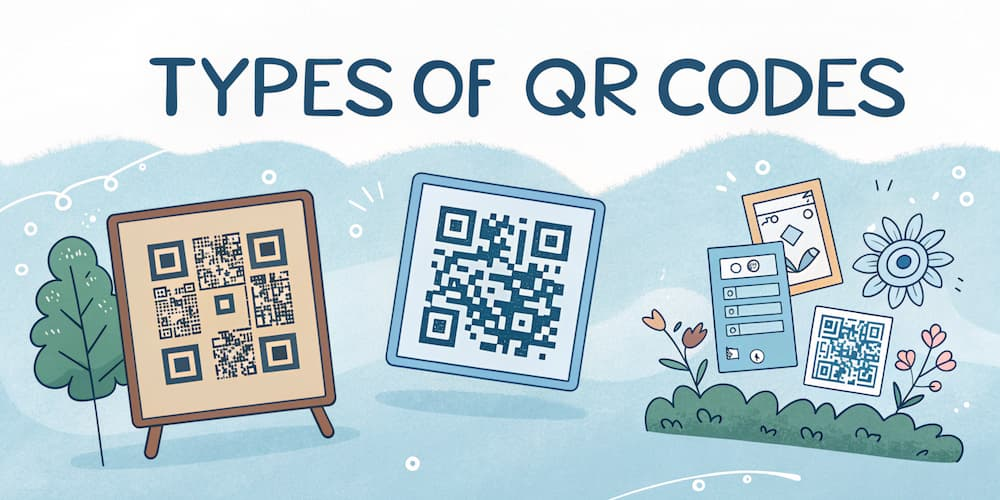
Mentioned next are the various kinds of QR codes, what they are, and when you might use each one:
Static QR codes: These encode fixed information directly into the code (like a URL, Wi-Fi login, or contact info). Once you print or display one, you can’t change what it points to.
Dynamic QR codes: These don’t directly hold the full target info. Instead, they point to a short URL or a redirect, which means you can update where the QR code leads after printing, and you can track scans and metrics.
Custom/Branded QR codes: These are visually styled versions of static or dynamic codes (think added logo, colors, or frame) built for brand identity or marketing flair.
Variant formats (e.g., Micro QR, rMQR, iQR, SQRC): For special use cases, such as very small spaces or unusual shapes, there are formats like micro QR or rectangular QR codes that pack similar functionality in different form factors.
Numerous styles of QR codes
QR codes come in a variety of formats, each designed to serve different purposes and suit specific use cases.
All QR codes share the same fundamental principle of storing and transmitting data through patterns of squares. However, their appearance, function, and level of customization can vary widely depending on how they’re created and what information they’re meant to convey.
Classic black-and-white style: The traditional look! High contrast, easy to scan, and reliable in almost any setting.
Colored or branded style: Instead of pure black and white, these use your brand’s colors or gradients (dark foreground/light background is common) to make the QR code feel like part of your identity.
Gradient or multi-tone style: A smooth transition of colors (say purple to blue) across the QR pattern, giving a more modern or premium look while keeping it functional.
Custom shape & “eye” styles: Changing the look of the modules (the squares/dots) or the “finder patterns” to circles, rounded ends, hearts, or patterned corners to fit a creative theme.
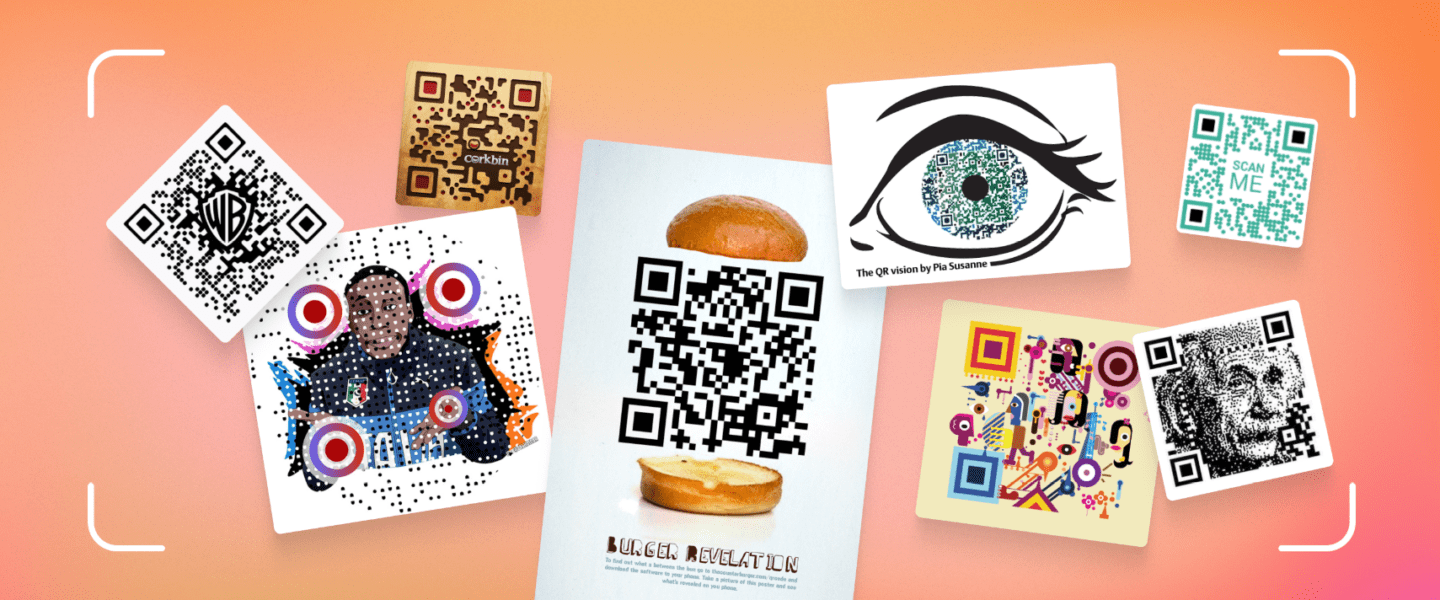
Themed/artistic styles: These play with textures, backgrounds, or even incorporate logos/images in the center or behind the code. Ideal for campaigns or packaging, while still being scannable.
Choosing a style comes down to where it’s placed, what mood you want to evoke, and making sure it still scans reliably (which means good contrast and keeping key functional parts intact).
Summing Up
So, there you have it! A complete breakdown of how QR codes actually work, from their structure and types to how they power payments, business cards, and more.
What started as a simple way to track car parts has now become a powerful bridge between the physical and digital worlds. Whether you’re a marketer, business owner, or just someone curious about tech, knowing how QR codes function helps you use them smarter and more creatively.
And if you’re ready to put that knowledge into action, give Replug a try today. It’s one of the best custom URL shorteners out there, and comes with a free QR code generator to help you create dynamic, fully personalized QR codes that truly match your style.
Frequently asked questions
How do QR codes work, and why are they superior to barcodes?
A QR code stores information both horizontally and vertically, so it can hold much more data than a traditional barcode. It also uses error-correction so it can still be read even if part of it’s dirty or damaged.
How does a QR code work at the post office?
At the post office, a QR code might be printed on a package label or postage receipt. When scanned, it provides tracking info, routing instructions, or links to shipment status, allowing faster sorting and easier delivery updates.
How do QR codes work for dummies?
Imagine a little square made of black-and-white tiles: your phone’s camera reads the pattern, decodes the data hidden within, and then acts on it (say, opening a web link or showing contact info). No typing, just point & scan.
Do QR codes work without internet?
Yes, if the QR code contains simple text, numbers, or Wi-Fi login details (i.e., it’s a static code), the phone can display the info without internet. But if the code points to an online link or content (dynamic), you’ll need the internet to actually load it.
How to read a QR code efficiently?
1. Open your camera app or built-in scanner. 2. Point at the code so it’s well-lit, and you can see the whole square. 3. Wait for your phone to recognize it. 4. Then tap the prompt. Make sure there’s contrast between black & white and no major damage or distortion.
What is the difference between static and dynamic QR codes?
Static QR codes hold fixed information directly inside them (it can’t be changed later) and often don’t track scans. Dynamic QR codes, on the other hand, redirect through a URL, so you can update the target later, track usage, and modify behavior.
Are QR codes safe? What is the danger, and what should I do to be safe?
The QR code format itself is safe; the danger comes from what it leads to. Scanning a malicious code can send you to a phishing site, download malware, or capture your data. To stay safe, only scan codes from trusted sources, check the URL before proceeding, and keep your device’s security up to date.
Do QR codes collect my personal information and data?
The codes themselves don’t inherently collect personal info; they just hold data. However, when you tap the link they lead to, the target website or app might collect data.
Can someone hack a QR code?
You can’t hack the QR code technology itself easily, but someone can replace or overlay a legitimate QR code with a malicious one (called a quishing attack) that redirects you to a harmful site.
What are the disadvantages of using a QR code?
Here are some downsides:
– If the code’s poorly printed or damaged, it might not scan. – Dynamic codes rely on the internet or a redirect service. – Users may hesitate to scan codes from unknown sources. – Malicious uses exist, which may reduce trust.
Have you ever snapped a screenshot or taken a photo of a QR code and then wondered, “Can I scan a QR code from a screenshot?” That little gray box may hold a surprise link, coupon, event invite, or just a stuck image.
And here’s the major problem. Although over 4.8 billion people worldwide owned a smartphone in 2024 and QR code usage continues to surge, many users still aren’t sure how to scan one when the image isn’t live.
What makes it worse is that you might be missing out on instant access to offers, menus, or information simply because you don’t know how to scan a QR code from a screenshot.
But no need to worry anymore!
In this post, we’ll walk you through exactly how to scan a QR code, no matter if it’s from a live camera view or a saved photo, so you never miss a scannable opportunity again.
First up, let’s explore the different methods available for iPhone users.
How to scan QR code from screenshot on iPhone
Here’s the good news: Now, you don’t need to print the QR code or have someone else hold their phone up to it.
If you’ve captured a screenshot or saved a photo of a QR code on your iPhone, you can tap into several built-in methods (and one optional app) to make the link behind that code come alive.
Let’s walk through each option one by one, so you can pick the one that works best for you.
Method #1: Using the Photos app
If the image with the QR code is already in your Photos app, this is the most straightforward route. Utilizing these native features allows you to quickly navigate to login pages that may require you to access your saved passwords on iPhone to complete the sign-in process.
Steps:
Open the Photos app and tap the screenshot or photo that contains the QR code.
iOS will often detect the QR code automatically. You’ll also see a yellow, little Live Text / QR icon appear in the bottom-right corner.
Tap it (or press and hold the QR code) to get a pop-up with options: open link, copy link, share, etc.
Choose the action you want (e.g., “Open in Safari”).
And boom! You’ve successfully scanned the QR code from a screenshot.
Method #2: Using the built-in “Live Text” tool
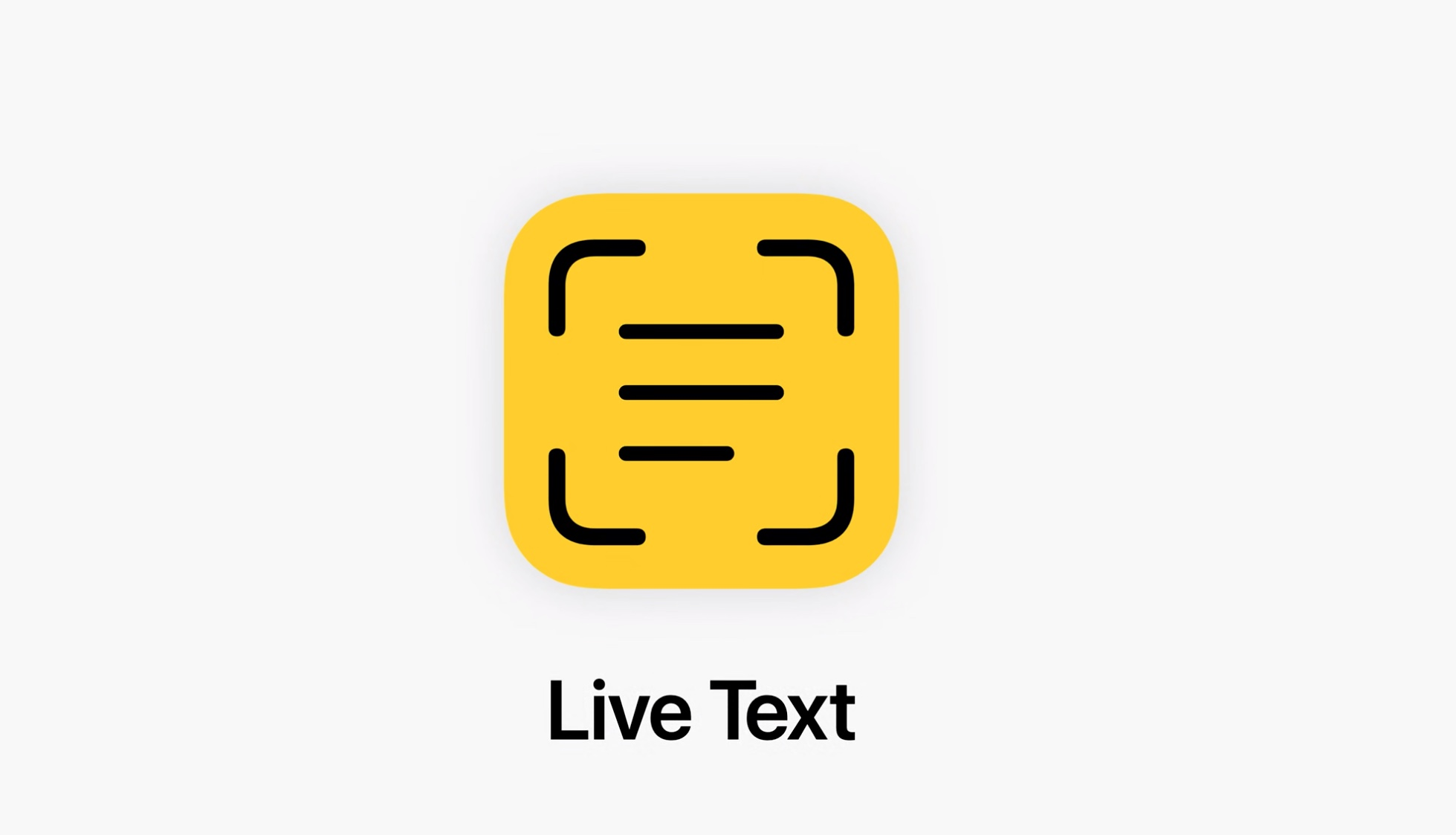
Live Text is Apple’s feature that recognizes text (and sometimes QR codes) inside photos.
This method is handy when the QR code is part of an image, and you might also want to interact with other text in that image.
Steps:
Make sure your iPhone is running iOS 15 or later and has Live Text enabled in Settings.
Go to the Photos app and select the screenshot containing the QR code.
If you see the Live Text icon (a little yellow square with lines) in the lower right, tap it. If not, you can also press and hold the QR code in the image.
Once Live Text highlights the zone, tap the QR code itself. A menu will appear with options (open link, copy, select all, share, etc.).
Tap “Open” or the appropriate action.
That’s it! You’ve scanned the QR code via Live Text.
Method #3: Using the built-in “Share” option
Sometimes the Photos app might not immediately trigger when you scan a QR code; using the share menu gives you another option.
This is a bit of a workaround, but it is pretty useful, especially when the direct detection doesn’t happen instantly.
Steps:
In the Photos app, open the screenshot/photo with the QR code.
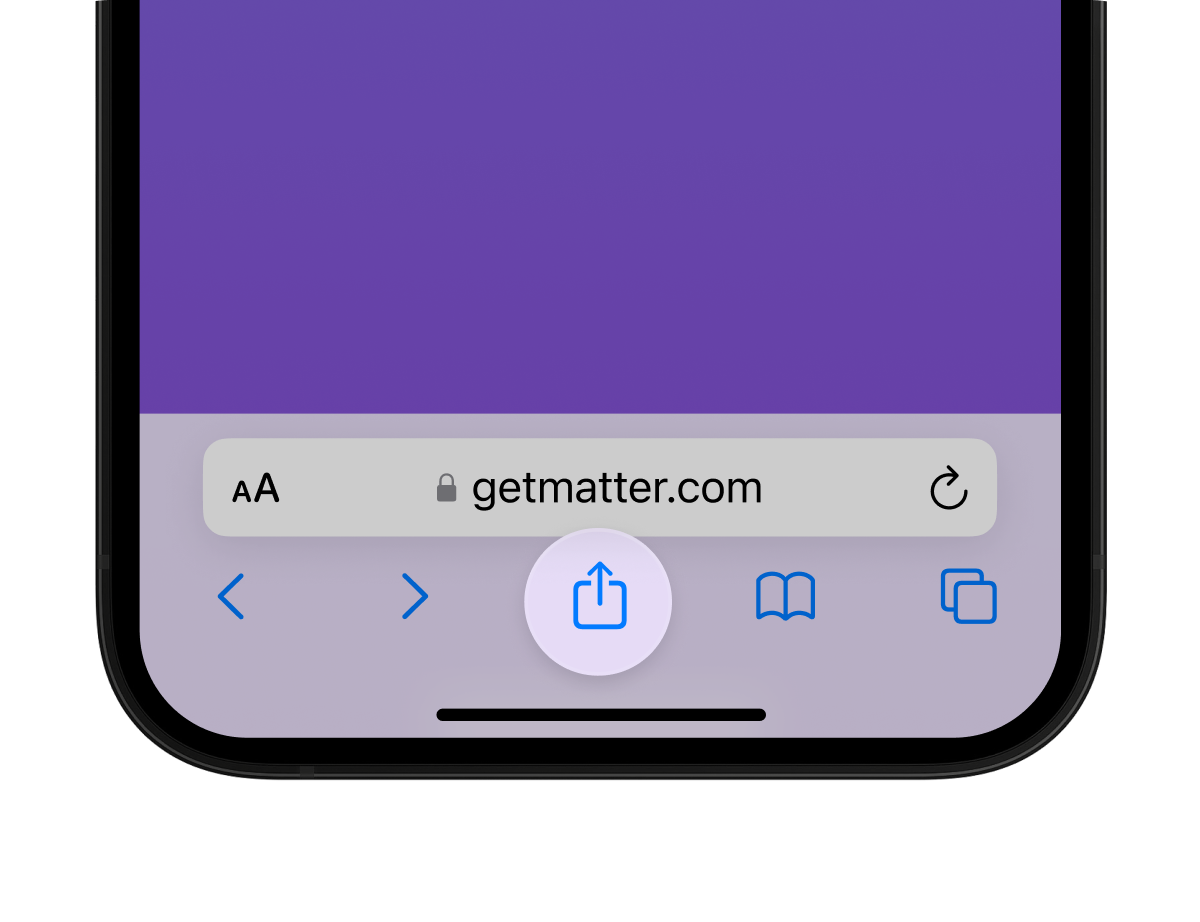
Tap the share icon (square with an arrow) to bring up the share sheet.
Look for an option like “Detect QR Code,” “Live Text,” or “Copy Link” (depending on your iOS version). Some apps list “Open in Safari” if they detect it.
Select the option that corresponds to the QR code action (open link, copy link, share).
Time to proceed, you’ve scanned via the share menu within a matter of seconds!
Method #4: Using the code scanner in the control center
Code Scanner is a built-in tool you can add to your iPhone’s Control Center. Once added, you can use it to scan QR codes hassle-free, even ones displayed on your screen via screenshot.
If you prefer scanning QR codes more directly (and not always via the Photos app), this method is for you.
Steps:
Open Settings → Control Center → tap the “+” next to Code Scanner to add it.
Now swipe down (or up, depending on your iPhone model) to open Control Center.
Then tap the Code Scanner icon (it looks like a QR code symbol).
With the screenshot visible on your screen, point the camera at it (or display it on another device) so the QR code is visible to the scanner.
The Code Scanner will detect the QR code and show the prompt: tap or click to open.
Done and dusted! You’ve successfully scanned the QR code via the Control Center quick tool.
Method #5: Using a QR code scanner for iOS
Many apps in Apple’s App Store specialize in scanning QR codes from saved images or screenshots. These can pick up codes even in low-quality photos.
If none of the built-in methods work (e.g., the image is blurry or in an odd format), a dedicated app is the ultimate fallback.
Steps:
Open the App Store and search for a highly-rated QR scanner app (look for ones that say “scan from photos”).
Install and open the app.
In the app, choose the option to scan from your photo library.
Select the screenshot/photo containing the QR code.
The app will process the image and show the link or action: “tap to open or copy”.
Once it’s finished, you’re all set. You’ve used a third-party QR code scanner to get the job done!
Note:Choose whichever method works best based on your iPhone model and how the QR code is stored.
If you’ve got a screenshot or photo on your Android phone that contains a QR code, you don’t need to print it or open it on another device. There are numerous ways to scan that QR code directly.
Let’s go through these methods, so you can pick whichever works best for your setup.
Method #1: Using the Google Photos app
If you already use Google Photos to browse your phone’s images, this method is super convenient.
Steps:
Open Google Photos and find the screenshot or photo that has the QR code.
Tap the image to open it full-screen.
Look for the Lens icon (a square with a dot) or the “Lens” prompt in the bottom area of the screen.
Once Lens is engaged, it will detect the QR code and show a pop-up with a link or option to open the content.
Tap the link or action to complete the scan.
That’s it! You’ve used Google Photos to scan the QR code from your screenshot.
Method #2: Using the built-in “Google Lens” tool
Many Android phones come with Google Lens, either standalone or integrated. It’s great for scanning QR codes inside screenshots or images.
Steps:
If you don’t have the Lens app already, install it from the Play Store.
Open the app (or choose Lens from Google Photos or Google Search) and select “Gallery” or “Image” mode.
Choose the screenshot/photo with the QR code.
Now, wait a moment. Lens will analyze and highlight the QR code, then present a link or option.
Tap the detected link to open it.
There you go! The QR code inside the snapshot is scanned.
Method #3: Using the built-in “Share” option
This is another technique you can use to accomplish the task at hand directly on your Android smartphone. It offers a convenient way to get things done efficiently.
Steps:
Open your Gallery or any photo viewer app.
Go to the screenshot/photo with the QR code, and tap on it.
Tap the Share icon (usually a three-connected circles symbol) to open up the sharing options.
Here, look for something like “Google Lens”, “Search image”, “Scan QR code”, or “Open link”, depending on your device and installed apps.
Tap that option. The system will scan the image for a QR code and show the result.
Once the link or data appears, tap to open or copy.
Good job! You’re done scanning the code in the image.
Method #4: Using a camera with QR mode
This method lets you use your camera app’s QR-scanner mode by pointing it at another device showing the screenshot, if you prefer a more direct “point camera at code” feel.
Steps:
Ensure your camera app supports QR scanning mode. Many Android devices support native QR scanning in the camera.
On a second device (or computer screen), display the screenshot/photo of the QR code.
On your Android phone, open the camera and switch to “QR mode” or just the default photo mode (if QR read is supported).
Point the camera at the displayed QR code image and wait for the detection prompt.
Tap the prompt (link, open, etc.) once it appears.
The QR code from your screenshot has been scanned.
Method #5: Using a QR code scanner for Android
If your device primarily doesn’t support scanning QR codes from images, a dedicated QR scanner app from the Play Store is your ideal substitute.
Steps:
Open the Google Play Store and search for a “QR code scanner” or “scan from photo” app.
Install a reputable one (check ratings, reviews, permissions, etc.).
Open the app and select the option to scan from the gallery/photo (not just live camera).
Choose the screenshot/photo with the QR code from your image library.
Let the app process it. It will detect the QR code and show the link/action.
Tap the result and you’re done!
Method #6: Using the Google app
The Google App itself has a built-in Lens function that lets you pick images and scan QR codes. Quite convenient if you already use the Google search app.
Steps:
Open the Google app.
Tap the camera icon (Lens) in the search bar. According to resources, this works for scanning QR codes in screenshots.
From the Lens view, switch to “Photos” / “Gallery” and choose the screenshot/photo with the QR code.
Wait for the app to detect the QR code. It will highlight and show the link or action.
Tap the result to open it.
Congratulations! You’ve scanned the QR code inside the screenshot via the Google app within seconds.
Method #7: Using Google Assistant
If you like using the Google Assistant (hold home or say “Hey Google”), we have good news for you. You can use it to scan QR codes in images, too. Here is how to do it.
Steps:
Activate Google Assistant (voice or long-press home).
Tap the Lens icon or say “Scan this QR code” (then pick the image). Some devices support selecting an existing photo.
Choose the screenshot/photo from your gallery when prompted.
Wait for Lens (via Assistant) to detect the QR code and show the result.
Tap the link/action once it appears.
Nicely done! QR code scanned through Google Assistant.
Note:Select the method that feels easiest for you, depending on what apps you already use and your particular Android version.
Points to keep in mind when scanning a QR code from a screenshot
When you scan a QR code from a screenshot, it might feel quick and easy. But a few simple precautions will help keep things smooth and safe as well.
Whether the code came from a trusted friend or popped up in a group chat, these pointers will help you avoid glitches and potential risks.
Only scan from trusted sources. Make sure you know where the screenshot came from or that the code was provided by someone you trust.
Preview the link before opening it. After you tap “open”, check that the URL looks right (brand name spelled correctly, appropriate domain, uses HTTPS) before you proceed.
Check the image quality. If the screenshot is blurry, rotated wrong, or partly cut off, the scanner might misread the code or fail altogether.
Be aware of tampering or fake codes. Even for screenshots, a code could be manipulated. If something about the image feels off (weird layout, odd sender), proceed with caution.
Use built-in or trusted scanner tools when possible. Avoid installing unfamiliar third-party scanner apps unless you’re sure they’re safe.
Maintain your device’s security. Make sure your phone’s OS and apps are up-to-date, because that keeps features like QR-scanning and link handling working correctly and securely.
Think before you act: if the scan result asks for sensitive info, downloads an app, or prompts an unexpected payment, stop and verify. It might be a phishing or malware trick.
How Replug makes it easier to generate and scan your QR codes
If you’re looking for a smart way to handle your QR codes and link management, Replug is the buddy you didn’t know you needed. It’s not just a link shortener, it’s a full-fledged hub that helps you create, customize, and track your QR codes with ease.
Here’s how Replug makes things smoother:
With its built-in QR code generator, you can pick from multiple types (website, bio link, WiFi, vCard, and more) and draw out a QR code in minutes.
You get complete design control: add your logo, tweak colors, change frame and design elements so your QR code actually fits your brand.
It’s dynamic: you can update the destination URL after you’ve printed or shared the QR code, so one code can live across many campaigns.
Tracking is built in: see how many times the code was scanned, what devices were used, and where the scans came from. Super helpful for analyzing if your QR campaign is working.
In short, if you’ve ever wondered “Can I scan a QR code from a printed flyer or screenshot?” or “How do I make my brand’s QR code look good and trackable?”, Replug has got you covered with both creation and insight.
Summing Up
Scanning a QR code from a screenshot or photo doesn’t have to be confusing anymore. It doesn’t matter if you’re on an iPhone or Android device, you now know multiple quick and reliable ways to get the job done.
Just remember to stay cautious about where your QR codes come from and use trusted tools for scanning. And if you’re ready to take things a step further, i.e., creating branded, trackable, and beautifully designed QR codes, Replug is your go-to solution.
It’s more than just a QR code generator; it’s your all-in-one platform for smarter link handling from one dedicated dashboard.
So go ahead, give Replug.io a try today and make your next QR code campaign effortless and professional!
Frequently asked questions
How to scan a QR code in a screenshot on iPad?
Here’s how to do it:
1. Open the photo with the QR code in the Live Text-enabled Photos app (iPadOS 15 or later). 2. Then tap or press & hold the QR code. 3. Finally, tap the link that appears.
That’s it!
Can I scan a QR code from a picture on my phone?
Absolutely! On modern iPhones and many Android smartphones, you can open the picture in your gallery and use built-in tools (Live Text or Lens) or an app to detect and open the link embedded in that QR code image.
Can you scan a QR code from the camera roll?
Yes! The camera roll is just your photo library. Open the image containing the QR code, then use your phone’s detection tool (gallery share menu, Live Text, Google Lens, etc.) to scan it.
Why would you want to scan a QR code from a picture?
Because sometimes QR codes come to you as screenshots, images in chats or emails, or printed flyers you photographed. Scanning directly from those saves time, avoids the need to re‐print, and helps you access the content right away.
Provide some of the best third-party QR code scanners for Android and iOS?
Here are good ones:
– Google Lens: Works on Android and iOS. Scans QR codes and other items precisely. –QR & Barcode Scanner by Gamma Play: Highly rated on Android. –Kaspersky QR Scanner: Includes security checks for scanned links.
Are there any limitations on scanning QR codes from screenshots?
Yes! If the image is too blurry, distorted, low resolution, rotated badly, or has partial code missing, the scanner may not detect it. Also, some older devices or software versions might lack the “scan from image” capability.
What are the troubleshooting tips if some fail to scan a QR code from a screenshot?
Here are some top troubleshooting tips:
– Ensure the image is clear and well-lit. Crop out distractions if needed. – Zoom in or rotate the image so the QR code is upright and fills the frame. – Update your OS or scanner app to make sure it supports image scanning features. – If built-in tools fail, try a dedicated app like those listed above.
Black Friday 2025 is almost here! It is on the horizon, and for business owners, marketers, and entrepreneurs, that means one thing: massive savings on the tools that power your growth.
No matter if you’ve been eyeing a powerful analytics platform, a marketing automation tool, or a social media management suite, now’s the time to grab them at jaw-dropping discounts.
These once-a-year SaaS deals aren’t just about saving a few bucks; they’re your chance to stack up on premium software that could transform your workflows and results for the year ahead.
But act fast, guys! These exclusive offers won’t last long, and once they’re gone, they’re gone for good.
Let’s kick things off with some of the best Black Friday deals on social media management (SMM) software you can bag this year.
1. Replug.io
Replug is an innovative link management platform designed for business owners, marketers, and agencies looking to build a stronger online footprint.
With this fantastic tool, you can turn any URL into a branded short link, build a sleek “link in bio” landing page, and embed retargeting pixels. Moreover, you can track every click in real time and test multiple versions of your campaigns from a single dedicated dashboard.
As part of our Black Friday SaaS lineup, this is one of those deals you’ll surely want to lock in fast. It’s the kind of tool that can enhance your social and referral traffic, sharpen your branding, and make your links actually get the job done for you.
Deal Info
Detail
Sale start & end date (validity)
Offer ends on November 30, 2025
Any discount/coupon/promo code
No code required. Discount applied automatically at checkout.
Meet ContentStudio, your social-media assistant that keeps your brand relevant without the typical hustle. Think of it as a one-stop dashboard where you plan, schedule, collaborate, and publish across platforms with ease.
From visual calendars and content suggestions to team workflows and analytics, ContentStudio makes it simple to stay on top of your social game.
And here’s the best part: landing this tool during this Black Friday window means you’re not just saving money, you’re setting up a smarter, more efficient system for your business that works for you all year.
Deal Info
Detail
Sale start & end date (validity)
Offer ends on November 30, 2025
Any discount/coupon/promo code
No code required. Discount applied automatically at checkout.
Main deal/Percentage off
Exclusive 40% off on your first annual plan
Before discount price
Standard Plan: $29/month Advanced Plan: $69/month Agency Unlimited Plan: $139/month
Tired of spending hours crafting the perfect social media carousel? Not anymore!
PostNitro is an AI-powered carousel champ that transforms your ideas, article links, or tweets into stunning, multi-slide, and brand-aligned carousels in minutes.
With over 50,000 creators already on board, it’s the go-to solution for marketers and content creators aiming to boost engagement. Plus, you get pro-looking visuals fast, without the creative hassle.
Furthermore, with its intuitive editor, built-in templates, brand kit support, auto-sizing feature, and customization galore, it’s a smart pick for digital media folks out there. And, it doesn’t get any better than this; it’s part of the killer Black Friday software deals for 2025.
Deal Info
Detail
Sale start & end date (validity)
Offer ends on November 30, 2025
Any discount/coupon/promo code
Monthly: BF30OFFMONTHLY Annual: BF50OFFANNUAL
Main deal/Percentage off
50% off annual and 30%off monthly subscriptions
Discount price
Solopreneur Plan: $10/month Small Team Plan: $25/month Agency Plan: $50/month
Think of Mailtrap as your email delivery co-pilot. It is a top-notch tool built for developers and marketers who want their emails to actually land (not head to the spam folder).
It gives you a sandbox to test emails, a powerful API/SMTP engine to send transactional and promo messages, plus analytics that show how things are performing in actual.
With the 2025 Black Friday wave upon us, grabbing Mailtrap now means you’re sealing in more intelligent email workflows and a great discount. This ultimately results in saving finances while tightening your messaging game.
Deal Info
Detail
Sale start & end date (validity)
Valid until December 31st, 2025
Any discount/coupon/promo code
BFCM24
Main deal/Percentage off
Save 25% on Mailtrap email marketing for 12 months
Imagine turning a simple text prompt into a polished, professional-grade video, even if editing has never been your thing. That’s exactly what Vadoo AI does!
You drop in your vision, and it handles the hard work with accuracy and precision. It adds voice-overs, captions in multiple languages, B-roll clips, smooth transitions, and even handles auto-posting across social platforms.
For business owners or video creators looking to uplift their video creation without wasting time or budget, picking up this tool during Black Friday is a really smart move.
If you’re running a WooCommerce store and want to super-charge it without the usual tool-tangling, Acowebs is your plugin playground.
From bulk discounts and checkout tweaks to wishlist boosts and currency switches, their suite gives e-commerce folks extra power without going crazy.
This Black Friday, it’s a smart move for store owners, agencies managing multiple client stores, and freelancers alike to catch more for less. Improving your store now means you’ll reap the rewards all year. Don’t let this one slip by!
Deal Info
Detail
Sale start & end date (validity)
From 26th November till 4th December 2025
Any discount/coupon/promo code
Discount applied automatically at checkout.
Main deal/Percentage off
Up to 30% off on all products
Discount price
Buy any 1 plugin: 10% off Buy any 2 plugins: 20% off Buy 3 or more plugins: 30% off
Consolto is like turning your website into a real-time customer engagement hub. Instead of juggling separate live chat, video call, appointment scheduling and payment tools, this top-notch tool bundles them all into one smooth experience; your visitor clicks, books or chats, and you’re live.
The upsides? No downloads, seamless branding, and fewer tools to manage. For smart entrepreneurs looking to cut costs and boost efficiency, jumping on this Black Friday deal means unlocking greater value!
Imagine your website as a busy storefront! Plerdy is the savvy assistant helping you see where visitors pause, wander off, or get stuck.
With heatmaps, session recordings, SEO checks, and conversion-focused analytics all in one place, you get the insight to fix leaks and keep more visitors turning into customers.
For business owners and marketers hunting for a smart Black Friday SaaS deal, this is the kind of tool that pays off by improving efficiency and boosting ROI.
Meet ProofHub, your team’s new best friend for keeping work organized without the endless email chains and app-hopping.
It’s a project management and collaboration platform that brings tasks, chats, time-tracking, and files together in one spot, so you can actually see what’s happening and when.
With this Black Friday deal, take this chance to grab ProofHub at a discount. You’ll lock in serious savings and set your team up for smoother workflows all year long, with less stress and chaos, and more productivity.
Deal Info
Detail
Sale start & end date (validity)
Offer valid till 2nd December 2025
Any discount/coupon/promo code
HOLIDAY25 (To avail the discounted offer, contact ProofHub with the coupon code at support@proofhub.com)
Main deal/Percentage off
Up to 40% off on the “Ultimate Control Plan” for 6 months
Discount price
Ultimate Control Plan: $89/month (billed annually)
Calling all e-commerce store owners and apparel photographers out there!
Clipping Path CA makes your clothing images pop by removing mannequins, creating that slick “floating garment” look, and polishing every fold and shadow to perfection. It’s a super-helpful tool when you want your product shots to sell, without spending hours in Photoshop.
If you’re running a fashion brand, managing an online shop, or doing bulk photo editing for clients, this Black Friday deal is your chance to save money and step up your visuals.
Don’t snooze! It’s time to give your storefront the image glow-up it deserves.
Think of MailBluster as your email-marketing Swiss Army knife. It’s built for business owners, marketers, or anyone looking to actually make their inbox work for them.
With drag-and-drop campaign creation, automation workflows, forms, and real-time analytics, it takes the hard work out of email outreach. Grab it during this Black Friday deal, and you’ll not only save money; you’ll gain a tool that helps convert subscribers into customers.
Deal Info
Detail
Sale start & end date (validity)
From 19th November till 3rd December 2025
Any discount/coupon/promo code
MBBFCM25
Main deal/Percentage off
50% off onthe upgrade plan& 30% off on email sending
Ever wish you could promote stunning email campaigns without wrestling with code? That’s where Stripo shines.
It’s a drag-and-drop email template builder that lets you design, test, and export beautiful, responsive messages to over 90 apps (no HTML sweat required).
With built-in modules, collaboration tools, and an ever-expanding library of templates, it delivers heavy-duty results without heavy lifting.
If you’re ready to polish your outreach and save on the cost of custom design, this Black Friday offer could be a game-changer, especially for freelancers and e-commerce brands. Grab it while it’s hot!
Let’s talk privacy-first cloud storage: Internxt isn’t just another drive, it’s a fortress for your files.
With end-to-end and post-quantum encryption, zero-knowledge architecture, and a full suite including VPN, Antivirus, Mail, and Meet, it’s built for anyone serious about security.
Whether you’re a creative storing sensitive client files, a small business managing critical data, or simply someone tired of traditional clouds, this deal is your chance to lock in top-tier protection for less. Secure your digital world now and thank yourself later!
Deal Info
Detail
Sale start & end date (validity)
From 3rd November till 3rd December 2025
Any discount/coupon/promo code
No code required. Discount applied automatically at checkout.
If you’re looking to supercharge your email marketing without the usual tech headache, Sender is your go-to solution.
It gives you a drag-and-drop editor, a library of responsive templates, email + SMS automation, and segmentation tools that actually help you send smarter, not just more.
No matter if you’re a solo entrepreneur, a small brand, someone running a newsletter, or an agency juggling multiple client campaigns, this Black Friday offer could give you a major upgrade for less.
Don’t let this one slip, since your inbox deserves a hero. Catch it while the deal’s live and watch your campaigns fly.
Deal Info
Detail
Sale start & end date (validity)
From 5th November till 5th December 2025
Any discount/coupon/promo code
No discount code needed for annual plans. Use code BF2025 and get 20% off any subscription.
Main deal/Percentage off
30% off all annual plans, 20% off on monthly plans
Let’s talk about your sales-engine supercharger! Snov.io is a full-on outreach platform built for growth-hungry teams.
You’ll find lead discovery, email & LinkedIn automation, drip workflows, built-in verification, and much more. Almost everything you need to move from “who might buy?” to “they just bought!”
If you’re anyone who needs to find more qualified leads, send smarter messages, and close more deals without doubling your budget, this Snov.io deal is for you. Don’t wait, lock it in and watch the difference.
Think of Woorise as the go-to playground for all your lead-magnet ideas. It’s where you build landing pages, quizzes, surveys, pop-ups, and viral giveaways with zero coding stress.
With its drag-and-drop builder, seamless embed options, and powerful data export tools, you’re empowered to turn visitors into leads and customers.
If you’re running an e-commerce store or solo-venture and want to level up your “grow-the-list” game, this Black Friday deal is one to grab. Don’t wait! Your next conversion boost could be one click away.
If your to-do list is growing faster than you can keep up with, and you’re ready to reclaim your time, Wing Assistant steps in with a dedicated virtual helper just for you.
From calendar wrangling and inbox zeroing to travel planning and research tasks, their assistants are trained to help you focus on what matters. The built-in workspace app keeps everything organized so you don’t waste hours hunting down updates.
If you’re someone juggling multiple hats, drowning in repetitive tasks, or building a team, and want smart support, give Wing Assistant a must-look. This Black Friday deal is your secret weapon to transform how your business runs.
Deal Info
Detail
Sale start & end date (validity)
From 20th November till 4th December 2025
Any discount/coupon/promo code
No code required. Discount applied automatically at checkout.
Main deal/Percentage off
$1,000 in Wing Credit for your first plan + Delegation Toolkit ($150 value, included free)
Picture this: all your customer chats (WhatsApp, Instagram, email, SMS) living in one tidy inbox. That’s what ControlHippo offers.
A truly omnichannel messaging platform with AI-assisted responses and workflow automation, built to streamline your team’s communication.
It connects with CRMs like HubSpot, Pipedrive, and Zoho so that you can keep all your client interactions from one place (efficient, smart, and under control).
If you’re running a support team, handling multichannel marketing, or just fed up switching between apps, this ControlHippo deal is your upgrade ticket. Let the messages flow for less!
Deal Info
Detail
Sale start & end date (validity)
From 1st October till 5th December 2025
Any discount/coupon/promo code
No code required. Discount applied automatically at checkout.
Imagine your LinkedIn profile working for you instead of you chasing after it. LinkedFusion is a cloud-based automation tool that helps you build meaningful B2B connections by doing the heavy lifting.
Think advanced prospecting filters, automated follow-ups, and native CRM integration to keep everything in sync.
If you’re a sales rep, recruiter, or agency owner who leans on LinkedIn to grow your pipeline, this deal is for you. Grab it and start turning connections into opportunities. Don’t miss out on smarter outreach for less.
If you’re tired of switching between LinkedIn and your CRM, LeadCRM is the tool that stitches things together.
With its top-notch browser extension, you can capture a contact from LinkedIn, enrich it with verified emails and phone numbers, and push it straight into your CRM, all without leaving the tab.
It supports big names like HubSpot, Zoho, and Pipedrive, and automates follow-ups so you spend less time copying and pasting.
If you’re actively hunting leads on LinkedIn, juggling outreach, or want to get serious about your CRM pipeline, this Black Friday deal could give you an efficiency leap. It is your chance to lock in a premium tool without the premium cost.
Just think of having a watchdog for your website that never sleeps. Super Monitoring is exactly that!
It keeps tabs on your site’s uptime, checks for slowdowns, missed content, SSL expiry, even Core Web Vitals issues, and blacklists. All this is done behind the scenes, and it sends you alerts so you’re never caught off guard.
If you’re a web-agency owner that can’t afford downtime, a SaaS provider, a business relying on your site being flawless, or want to catch issues before they hit your users proactively, this deal could be a game-changer for you.
Don’t miss the chance to safeguard your digital presence and save big!
If you’re building dashboards, web apps, or client portals and want something sleek, but don’t want to start from scratch, CodedThemes has your back.
They deliver high-quality admin templates, UI kits, and ready-to-go designs built with frameworks like React, Vue, Angular, and Bootstrap. With clean structure, documentation, and modern styles, you’ll launch faster and look sharp doing it.
Suppose you’re a developer crafting client dashboards, an agency designer, or a freelancer who wants top-tier templates or a stunning UI library for your next project. In that case, this Black Friday deal is made for you.
Don’t miss the chance to upgrade your build kit and work like a pro!
Imagine a single platform that handles your leads, invoices, projects, marketing automation, and client portal effortlessly. Yep, you have guessed that right. That’s ClearCRM!
It’s built for businesses that want to stop juggling multiple tools and start running everything from a single, sleek dashboard.
With lead tracking, AI-powered sales pipeline, quotes & invoices, client-portal features, and tailored workflows, it’s the kind of tool that simplifies your hectic day.
If you’re an agency owner, consultant, or small business looking to pull all your operations into one system, this amazing deal is ideal for you.
Don’t let it slip! Your future self will thank you for smart investing.
Deal Info
Detail
Sale start & end date (validity)
Offer ends on December 10, 2025
Any discount/coupon/promo code
No code required. Discount applied automatically at checkout.
Main deal/Percentage off
80% off ClearCRM — limited time! Extra 50% off yearly plans
Scrolling through your website’s photo galleries shouldn’t feel like flipping through a dull slideshow, and that’s exactly what FooGallery PRO fixes.
This WordPress plugin lets you design stunning, responsive galleries that load fast, look sharp, and keep visitors clicking. With customizable layouts, hover effects, light boxes, and lazy loading, you can make every image pop without touching a line of code.
This Black Friday, creatives, photographers, and web designers can grab FooGallery PRO for a steal and turn any media page into a visual masterpiece.
Don’t let your visuals fade into the background! This is the deal that gives your portfolio the glow-up it deserves.
Deal Info
Detail
Sale start & end date (validity)
From 15th November till 5th December 2025
Any discount/coupon/promo code
FBF30
Main deal/Percentage off
Take 30% off the price for any annual FooGallery license
FooConvert Pro is a fast, lightweight WordPress plugin designed to turn your site visitors into loyal customers. Easily build eye-catching popups, flyouts, and notification bars in just minutes (no coding needed).
With powerful targeting options and a focus on speed and performance, this brilliant plugin helps you grow your email list, drive more sales, and keep your audience engaged, all without slowing down your website.
Seize this offer and turn your website into a conversion powerhouse, literally!
Deal Info
Detail
Sale start & end date (validity)
From 15th November till 5th December 2025
Any discount/coupon/promo code
FBF30
Main deal/Percentage off
Take 30% off the price for any annual FooConvert license
Design skills don’t level up on their own, and that’s where Uxcel steps in. It’s an interactive learning platform built specifically for UX and UI designers who want to grow faster and smarter.
With bite-sized lessons, hands-on challenges, and real-world design exercises, Uxcel helps you sharpen your skills while having fun.
Whether you’re a design student, freelancer, or seasoned pro looking to stay ahead, this Black Friday deal is a golden opportunity to invest in your creative edge and make your design career unstoppable.
Deal Info
Detail
Sale start & end date (validity)
From 24th November till 5th December 2025
Any discount/coupon/promo code
No code required. Discount applied automatically at checkout.
Main deal/Percentage off
$299 Uxcel Lifetime Pro membership. Pay once and use forever. 62.5% off Uxcel Pro yearly membership (First 1,000 customers).
Videos without subtitles can easily lose a big part of their audience, and that’s where SubtitleBee comes to the spotlight.
This smart AI-powered tool automatically adds accurate, stylish subtitles to your videos in over 120 languages. It doesn’t just save time, it boosts accessibility, engagement, and global reach.
With customizable fonts, colors, and templates, your videos stay on-brand and viewer-friendly. Content creators, marketers, and social media managers can all make their videos more powerful and inclusive with this Black Friday offer.
Spending hours building marketing reports? Two Minute Reports turns that marathon into a sprint!
This smart reporting tool lets you pull, visualize, and automate data from Google Ads, Facebook, HubSpot, and more, all inside Google Sheets or Looker Studio using pre-built Looker Studio templates.
No more messy spreadsheets or manual updates. Just clean, and ready-to-share reports in minutes. It’s like having a data assistant who never sleeps.
Listen, marketers, analysts, and agencies out there! This deal is your cue to save hours every week while upgrading your reporting game. Don’t miss it if you value your time (and your sanity).
Deal Info
Detail
Sale start & end date (validity)
The start & end dates of the sale have not been confirmed yet (TBD).
Any discount/coupon/promo code
No code required. Discount applied automatically at checkout.
Running an agency often feels like managing a dozen tabs or handling multiple tasks simultaneously. Clients, projects, invoices, and deadlines, all demanding attention at once.
AgencyHandy steps in to bring order to the chaos. It’s an all-in-one agency management platform that helps you streamline client communication, automate billing, manage tasks, and monitor team performance, all from a single clean dashboard. No more spreadsheet madness or switching tools mid-task.
For digital agencies, freelancers, and creative teams looking to simplify their workflows and scale smartly, this Black Friday deal is a guiding light. Grab it before the havoc catches up again!
Email outreach doesn’t have to be a guessing game anymore, and SmartReach.io proves it exceptionally. This powerful sales engagement tool helps you send smarter, more personalized emails that actually get replies.
From automated follow-ups to deliverability optimization and detailed analytics, SmartReach.io makes cold outreach feel warm and human. It’s trusted by sales teams, recruiters, and agencies to scale their outreach without losing the personal touch.
This deal is perfect for startups and marketers who want to boost conversions without spending hours in their inbox. Take huge advantage of it, since your next big lead might just be one smart reach away!
Running a WooCommerce store, but wish your coupon system had more flair?
Advanced Coupons turns basic discounting into a marketing powerhouse. It lets you create smart deals like BOGO offers, loyalty rewards, cart conditions, and even auto-applied coupons, all within WooCommerce.
With its intuitive setup and flexible customization, you can reward customers, boost repeat purchases, and make checkout promotions feel seamless instead of forced.
This Black Friday deal is a golden opportunity for WooCommerce store owners, marketers, and small businesses ready to take their promotions to the next level. Grab it now, because smart discounts deserve a smart tool!
AdTribes is the #1 product–feed plugin for WooCommerce stores, syncing your catalogue with dozens of channels, from Google Shopping and Facebook to 100+ more, without a headache.
You get advanced filtering and rule-based feed control, complete GTIN/brand/category/attribute mapping, plus multilingual and multicurrency support, so your reach becomes global.
E-commerce shop owners, multichannel merchants, and WooCommerce agencies, this offer could let you scale your reach, boost visibility, and enhance sales while keeping costs in check.
Lock it in and give your products the spotlight they deserve!
Conducting wholesale operations on WooCommerce just got a whole lot smoother.
Wholesale Suite is the ultimate plugin bundle that helps you easily add wholesale pricing, manage bulk orders, and control access for different customer types, all without needing custom code.
It includes everything you need: Wholesale Prices, Order Form, and Lead Capture. Together, they turn your store into a fully functional wholesale enterprise.
Perfect choice for WooCommerce store owners, B2B sellers, and wholesalers who want to simplify pricing, orders, and customer management, without tech headaches.
Turning your WooCommerce store into a full-fledged multivendor marketplace doesn’t have to be complicated anymore, and WC Vendors proves it.
This powerful plugin helps you create platforms like Etsy or Amazon directly on your WooCommerce setup. Vendors get their own dashboard, commission control, shipping options, and product management tools, while you stay in charge with flexible marketplace settings.
Whether you’re building a niche marketplace or scaling an existing store, WC Vendors makes it effortless. This Black Friday, marketplace owners, entrepreneurs, and eCommerce startups can catch big savings and take their online selling game to the next level.
Meet StoreAgent, your AI-powered sales assistant designed to help WooCommerce store owners sell smarter, not harder.
With advanced automation and intelligent chat support, this top-notch agent handles customer queries, recommends products, and boosts conversions, all without you lifting a finger.
It integrates seamlessly with your store, delivering personalized shopping experiences that keep customers coming back.
No matter if you run a growing eCommerce business or a busy digital storefront, this fantastic deal is your sign to let AI do the tough job. This will allow you to free up your precious time to focus on what really matters, i.e., growing your business.
VisserLabs is a powerhouse toolkit for WooCommerce users who crave flexibility and control over their stores.
From bulk product editing and importing to seamless export tools, this high-quality extension makes managing your WooCommerce data fast, simple, and frustration-free.
Regardless of whether you’re cleaning up product listings, migrating stores, or just saving hours of manual work, these plugins get it done with ease.
This Black Friday, store owners, developers, and WooCommerce pros can supercharge productivity and streamline their workflow for a fraction of the price. Because time is money, and VisserLabs helps you save both!
Building a stunning website, an online portfolio, a store, or a blog shouldn’t feel like solving a puzzle, and that’s where Pixpa comes in.
It’s an all-in-one platform designed for creators, photographers, artists, and freelancers who want to showcase and sell their work online beautifully without touching a single line of code.
With drag-and-drop editing, built-in client galleries, e-commerce features, and sleek, customizable templates, Pixpa makes launching a professional website ridiculously easy.
If you’re someone selling prints or services, this Black Friday deal could be the push you need to turn your creative passion into profit.
Don’t let this one slip by! Your future clients are waiting to be impressed.
Create QR Code keeps things sleek and simple, helping you design professional, trackable QR codes in seconds.
Whatever the case, like if you’re linking to a website, social profile, product page, or event, this tool gives you full control over colors, styles, and branding.
Plus, you can download your codes in multiple formats and even track scans for valuable engagement insights. Don’t miss the opportunity and take full advantage of this amazing deal!
BoldDesk is your versatile customer service sidekick, designed to make support faster, wiser, and a lot less stressful.
From AI-powered agents that can resolve 70% of queries on their own to a sleek omnichannel inbox that unifies emails, WhatsApp, Instagram, and more, BoldDesk keeps your team on top of every conversation.
Add in live chat, workflow automation, and a customizable knowledge base, and you’ve got a platform that turns customer service into a smooth, almost effortless experience.
This deal is excellent for startups, growing businesses, or anyone eager to uplift their support without burning out.
AmpiFire is like having a content marketing wizard at your fingertips. This tool takes a single topic and magically turns it into eight different content formats.
These include blogs, videos, podcasts, infographics, social posts, and more, and then blasts it across 300+ platforms automatically.
The result? Your brand is seen everywhere without the need for endless manual posting.
It’s ideal for e-commerce owners, local businesses, marketing pros, or anyone aiming to skyrocket organic traffic and sales.
With AmpiFire, creating, repurposing, and distributing content becomes almost effortless. Your audience won’t just find you, they’ll find you everywhere.
Take advantage of this deal if you want to save time, reach more people, and build credibility like a pro.
Deal Info
Detail
Sale start & end date (validity)
Offer valid till December 17, 2025
Any discount/coupon/promo code
No code required. Discount applied automatically at checkout.
Main deal/Percentage off
Up to 84% off the full suite of AmpiFire’s Create-Repurpose-Distribute content platform
Podcastle is where storytelling meets simplicity in the best possible fashion.
Whether you’re recording a podcast, editing audio, or converting text to speech, this AI-powered platform makes professional-quality production accessible to everyone, no studio needed.
With features like multitrack recording, background noise removal, and realistic AI voiceovers, Podcastle turns your creative ideas into polished episodes in minutes.
This Black Friday, content creators, educators, and marketers can level up their audio game at a fraction of the cost. Don’t wait, it’s your cue to sound as good as you think!
Deal Info
Detail
Sale start & end date (validity)
From 26th November till 2nd December 2025
Any discount/coupon/promo code
BLACKFRIDAY2025PRO (for Pro plan) BLACKFRIDAY2025BIZ (for Business plan)
Have you ever bounced an email off a dead address and watched your campaign flop like a bad joke? Clearout rushes in as the clever cleanup crew for your inbox adventures.
This AI whiz verifies emails in real-time or bulk, tracks down gems from LinkedIn profiles via a handy Chrome extension, and shields forms from fake sign-ups with ninja-like precision.
Boasting 99% accuracy, it nukes bounces, amps up deliverability, and enriches leads to fuel your sales fire, all wrapped in robust security. Marketers and outreach hustlers, it’s your shortcut to sharper, happier lists without the headache.
Hey, if you’re a sales professional dodging spam traps or a content creator chasing real connections, this Black Friday gem could cut your costs by half while doubling your engagement wins.
Step in before November 30 and turn those leads into loyal fans!
Deal Info
Detail
Sale start & end date (validity)
From 21st November till 30th November 2025
Any discount/coupon/promo code
No code required. Discount applied automatically at checkout.
Main deal/Percentage off
Up to 50% off on annual subscription and PAYG plans
LeadConnect is an innovative tool that supercharges your LinkedIn outreach by automating connection requests, messages, and follow-ups.
Think of it as your personal LinkedIn assistant, saving you time while ensuring you never miss an opportunity to connect. Its key features include automated sequences, multi-channel outreach, and detailed analytics to track your efforts.
If you’re looking to build a robust network, nurture relationships, or grow your business, LeadConnect makes it much easier.
This tool is perfect for sales professionals, marketers, or anyone aiming to grip LinkedIn more effectively. Especially if you’re trying to scale your outreach without getting bogged down in repetitive tasks, this might be what you must go after. Don’t let manual work hold you back from success!
Check out the exclusive Black Friday deal and get this time-saving tool for yourself!
Muapi is an ultimate platform designed to take AI-generated images and videos to the next level. If you’re a creative professional, a marketer, or a video editor, this tool helps you generate high-quality visuals at lightning speed.
It leverages cutting-edge AI technology to turn your ideas into stunning graphics and videos without needing design expertise. Besides, it offers top-notch features such as customizable templates, effortless media creation, and powerful editing tools, making it easy to produce eye-catching content.
If you’re looking to speed up content creation while maintaining a professional edge, this is your go-to platform. Don’t miss the chance to supercharge your visual content by taking full advantage of this lovely deal.
Deal Info
Detail
Sale start & end date (validity)
From 21st November till 5th December 2025
Any discount/coupon/promo code
No code required. Discount applied automatically at checkout.
Imagine having full visibility over your team’s work, that’s exactly what Apploye delivers!
It combines precise time-tracking, project and task management, and optional remote-team monitoring (screenshots, activity, app/URL usage).
No matter if your staff are remote, hybrid, or in-office, Apploye lets you track hours, clock in/out, generate timesheets, monitor productivity, and even handle invoices and payroll.
The most ideal option for HR professionals, agencies, and small to mid-size companies. Want better control of your workflow? Grab this offer now and bring clarity to team time-tracking today.
Social Champ is your ultimate social media management sidekick, designed to streamline your social media strategy like never before.
It lets you schedule posts across multiple platforms, track engagement, and analyze performance all from one easy-to-use dashboard.
Whether you’re managing business accounts or personal profiles, Social Champ takes the headache out of keeping up with multiple channels.
Plus, its bulk scheduling feature makes content creation a breeze. Perfect for marketers, small business owners, or anyone looking to uplift their social media game. This deal offers a golden opportunity to save big! Don’t let this one slip by. Grab your discount now!
VitaMail is your go-to email marketing tool, designed to supercharge your outreach efforts. With its user-friendly interface and robust automation features, you can create personalized email campaigns that engage your audience effortlessly.
From sending automated follow-ups to segmenting your contacts for targeted messaging, VitaMail helps you stay ahead of the curve.
Plus, its sleek analytics dashboard lets you track performance in real time, so you can optimize campaigns on the fly.
For entrepreneurs, small business owners, and marketers looking to boost conversions, this Black Friday deal is a game-changer. Don’t miss out on this golden opportunity to level up your email game!
GetResponse is an all-in-one marketing platform that makes growing your business easier than ever.
With powerful email marketing, automation, and landing page creation tools, you can connect with your audience in meaningful ways. Besides, its user-friendly interface means you don’t need to be a tech expert to get started.
If you’re a small business owner, an e-commerce pro, or a marketer looking to ramp up your campaigns, GetResponse’s drag-and-drop builder and advanced analytics will give you the edge.
Ready to kick-start your marketing success? Grab this amazing deal and start seeing results today!
Deal Info
Detail
Sale start & end date (validity)
From 20th November till 4th December 2025
Any discount/coupon/promo code
No code required. Discount applied automatically at checkout.
Looking for a way to polish your writing instantly? Enter Wordform AI!
It is your new go-to assistant for generating, editing, and refining text with ease. This smart tool uses AI to help you create better content faster, whether you’re writing blog posts, marketing copy, or social media captions.
What’s even better? Wordform AI offers advanced features like tone adjustment, grammar fixes, and style enhancements, all in a user-friendly interface.
Writers, content creators, and marketers will all find this tool super handy, especially with its Black Friday deal. Don’t miss out, grab this offer and take your writing to the next level!
Deal Info
Detail
Sale start & end date (validity)
From 27th November till 7th December 2025
Any discount/coupon/promo code
No code required. Discount applied automatically at checkout.
Need a reliable, cloud-based phone system for your business? CallHippo has got you covered!
This easy-to-use platform offers virtual phone numbers, call forwarding, and analytics, all designed to streamline communication.
With features like call recording, IVR (interactive voice response), and real-time reporting, it’s perfect for teams of all sizes looking to stay organized and connected.
Additionally, it’s ideal for businesses aiming to expand globally without the headache of managing multiple phone lines. Seize this Black Friday deal now and set your business up for seamless communication at a fraction of the cost!
Deal Info
Detail
Sale start & end date (validity)
Offer valid till December 5, 2025
Any discount/coupon/promo code
No code required. Discount applied automatically at checkout.
forms.app is your dependable tool for creating beautiful, easy-to-use forms, surveys, and polls in no time.
No matter if you need to gather feedback, collect orders, or run a quick poll, this tool simplifies the process with a drag-and-drop builder.
With customizable templates, integrations, and real-time responses, forms.app helps you get the information you need, fast. In addition, its sleek design makes sure your forms always look professional.
For business owners, marketers, and event planners, this deal is a game-changer. It’s the perfect time to upgrade your form-building process. Grab it before it’s gone!
YayCurrency is a game-changer for anyone running an online store with WooCommerce. It gives your customers the freedom to shop in their preferred currency, making their shopping experience smoother and more personal.
With its easy setup, automatic exchange rates, and full control over currencies, this tool saves you time while boosting international sales.
If you’re someone running a small business or a global brand, YayCurrency helps eliminate any potential barriers to cross-border shopping. It’s a no-brainer if you want to connect with a wider audience. Don’t miss this fantastic offer, must avail it!
Ready to create a site that actually responds to your audience? Give CustomFit.ai a look!
This excellent platform makes personalizing your website feel surprisingly effortless. It automatically tailors on-site content, CTAs, and layout elements to match each visitor’s behavior, no heavy coding or complicated workflows required.
Marketers love its real-time optimization, while growth teams appreciate the detailed analytics that show exactly what’s driving conversions.
This BF deal is especially great for small businesses, SaaS founders, and marketing teams who want to squeeze more revenue out of their existing traffic. Don’t let this one slip off your hands!
TLinky turns your long, messy URLs into sleek, branded short links that actually work for your marketing. More than just a URL shortener, it’s a full-fledged link management platform that helps you track clicks, analyze performance, and drive conversions, all in one place.
Whether you’re managing affiliate links, running ads, or sharing content across social channels, TLinky gives your links a professional edge.
This Black Friday, digital marketers, influencers, and businesses can upgrade their link game for less because every click deserves to count!
Ever feel like your affiliate program is stuck in neutral while competitors zoom ahead?
Enter AffiliateFinder.ai, the clever AI sidekick that’s revolutionizing how brands hook top-tier affiliates without the endless manual grind.
This tool dives deep into 100+ networks, scrapes Google, YouTube, and Instagram for creators buzzing about your niche, and spits out 500–2,500 pre-vetted prospects in minutes.
Sort by traffic, engagement, or follower magic, and get weekly drops of fresh leads to keep your pipeline bubbling.
Affiliate managers and growth hackers coping with tight deadlines, this Black Friday deal could supercharge your program, delivering ROI that pays for itself before the time runs out.
Opt for this amazing offer now and watch your network explode. Your next big collab is just a keyword away!
Deal Info
Detail
Sale start & end date (validity)
From 24th November till 1st December 2025
Any discount/coupon/promo code
No code required. Discount applied automatically at checkout.
CubeAPM is a full-stack observability and APM platform that delivers managed tracing, infrastructure monitoring, and unlimited log retention, all securely hosted in your own cloud.
Enjoy end-to-end transaction visibility, real user & synthetic monitoring, intelligent error tracking, AI-driven sampling that cuts storage costs by 95%, and native OpenTelemetry support with zero vendor lock-in.
It is the perfect platform for small engineering teams, compliance-heavy enterprises, and large-scale microservices users. Grab the exclusive Black Friday deal now and save big!
Writecream is an AI-powered writing assistant that instantly generates high-quality blog articles, marketing copy, personalized cold emails, LinkedIn messages, YouTube voice-overs, and full podcasts in 75+ languages and 40+ voices.
It saves users up to 40 hours weekly by generating 1,000+ word outputs in under 30 seconds, with a built-in plagiarism checker and seamless customization.
For sure, the most ideal tool for content marketers, solopreneurs, founders, sales teams, and agencies who need fast, original, human-like content at scale.
Catch this massive deal now, and transform your content creation forever!
Deal Info
Detail
Sale start & end date (validity)
Will be notified via email (TBD)
Any discount/coupon/promo code
No code required. Discount applied automatically at checkout.
Cloudways is an AI-powered managed cloud hosting platform that simplifies deployment and scaling for WordPress, Magento, Laravel, PHP, WooCommerce, and Drupal across providers such as DigitalOcean, AWS, Google Cloud, Vultr, and Linode.
Its key features include 1-click server provisioning, advanced caching and CDN, AI-driven diagnostics via Cloudways Copilot for proactive issue resolution, 99.99% uptime, and world-class security.
Besides, it offers 24/7 expert support with 90-second response times. You can boost site performance by 200-300%, cut costs in half, and enable seamless autoscaling with this efficient platform.
It is build for agencies, developers, eCommerce stores, and digital businesses seeking hassle-free, high-value hosting. Seize its exclusive Black Friday deal now, you won’t regret your decision!
Deal Info
Detail
Sale start & end date (validity)
From 11th November till 4th December 2025
Any discount/coupon/promo code
BFCM5050
Main deal/Percentage off
50% off for 3 months. All hosting plans + 50 free migrations.
Have you ever wasted hours wrestling with rigid form builders that feel like digital torture? Paperform flips the script!
Just type what you need (“book a discovery call with payment upfront”), and its AI instantly crafts a stunning, logic-packed form complete with payments, e-signatures, calculations, and 3,000+ integrations.
Coaches, agencies, e-commerce brands, and solopreneurs who want beautiful, high-converting forms without coding headaches can now feel relaxed.
This Black Friday, Paperform is cutting prices like never before. Grab the deal before it vanishes and turn your forms into revenue machines!
Deal Info
Detail
Sale start & end date (validity)
From 14th November till 1st December 2025
Any discount/coupon/promo code
PFBF25
Main deal/Percentage off
Get 50% off your first year for Paperform Essentials and Papersign Pro.
Shop Mania redefines e-commerce excellence as the fastest WooCommerce theme for WordPress, empowering you to launch lightning-quick online stores with effortless flair.
Step into 80+ pre-built demos for one-click imports, premium product displays with zoom hovers and quick views, sticky headers, floating carts, and upsell boosters that skyrocket conversions.
Seamlessly integrate Elementor widgets, customize typography with 800+ fonts, and optimize for mobile hordes (75% of shoppers on the go).
Flawless for store owners, developers, and digital entrepreneurs craving speed, style, and sales without the hassle.
Hook this deal now for massive savings and turbocharge your shop!
Beagle Security is an AI-powered AppSec platform designed for automated penetration testing of web applications and APIs, including GraphQL.
It streamlines security assessments using agentic AI trained on over 350,000 workflows, enabling rapid test setup, business-logic learning from recorded scenarios, and fewer false positives.
Besides, it also integrates seamlessly with tools like Jira and Azure Boards for automated reporting.
Development and security teams benefit most, achieving compliance, CI/CD integration, and robust vulnerability prioritization without external agency delays. Don’t miss out, grab this Black Friday deal now!
Deal Info
Detail
Sale start & end date (validity)
From 25th November till 4th December 2025
Any discount/coupon/promo code
BFCMM25 – for discount on monthly plans BFCMY25 – for discount on yearly plans
Main deal/Percentage off
35% off all annual plans or 20% off all monthly plans
Imagine transforming your brand’s influencer game from chaotic spreadsheets to a sleek, AI-orchestrated symphony.
Influencer Hero is an all-in-one platform that delivers lightning-fast discovery with smart filters, fake-follower detection, and automated outreach using hyper-personalized emails.
It also includes a powerful CRM for managing deals, affiliates, and UGC opportunities. Seamlessly integrate with Shopify or Gmail to track conversions and payments effortlessly.
A perfect choice for D2C hustlers, savvy agencies, and scaling enterprises chasing 10x ROAS without the manual grind. Level up your social strategy by snagging this Black Friday steal today!
Enter Upplai, your transparent AI sidekick that crafts hyper-targeted resumes by scanning job descriptions and suggesting smart tweaks, revealing exactly what shifts, why, and letting you veto any.
Watch your ATS score climb in real-time, master recruiter-pleasing best practices, and sidestep biases for a fairer shot.
Ideal tool for overburdened job hunters firing off dozens of apps, reclaiming hours while boosting interview odds. No black-box mysteries, just empowering clarity.
Why wait? Scoop up this top-notch deal and step up your search today!
Unlock the ultimate AI playground where your wildest ideas spark to life in chats, images, tunes, and videos, all under one roof.
ai4chat bundles powerhouse models like ChatGPT, Gemini, Claude, and Grok with wizardly tools. You can build custom workflow bots, create multilingual content with tone tweaks and humanizers, and generate stunning visuals via Stable Diffusion or Midjourney.
Plus, you can score epic tracks with Suno, and even animate videos directly from text. Ditch subscription struggle; sync across devices with mobile apps and browser magic for seamless YouTube or email boosts.
Creators, marketers, freelancers, and biz trailblazers flourish here, cutting costs while amplifying output. Ready to remix reality? Grab this Black Friday deal now!
Have you ever dreamed of launching a pro website without touching a simple line of code? Dorik makes it real with its no-code drag-and-drop builder.
Start with AI that assemble full sites from simple prompts, adds text and images in any language, or pick from 250+ blocks and templates for quick modifications.
Hook up CMS for blogs, Airtable for dynamic data, and tools like Stripe or Zapier for payments and automations hassle-free. No tech headaches, just unlimited hosting, SEO boosts, and detailed analytics.
Great platform for solo creators, small business owners, or agencies handling client sites. Jump on this awesome deal before it’s gone!
Deal Info
Detail
Sale start & end date (validity)
From 15th November till 1st December 2025
Any discount/coupon/promo code
No code required
Main deal/Percentage off
50% off on 2 year plans. Buy a 1-year plan, get another year free.
SendX is a straightforward, high-deliverability email marketing tool that never bans accounts for niche industries.
You get clean drag-and-drop builder, ready-made templates, powerful automation flows, pop-ups, forms, A/B testing, and detailed analytics, all in one place. Additionally, this tool plays nice with Shopify, WordPress, Zapier, and more.
An exquisite option for e-commerce stores, info-product sellers, agencies, and anyone in crypto, CBD, or high-risk verticals tired of getting shut down elsewhere.
Lock in unlimited email sending at the lowest price of the year. Don’t let this one slip off your hands!
Deal Info
Detail
Sale start & end date (validity)
From 21st November till 1st December 2025
Any discount/coupon/promo code
SENDXBF2025
Main deal/Percentage off
40% off any first-time subscription (monthly or annual), discount available for up to 50k contacts, unlimited sending.
KrispCall turns your business phone setup into a smart, global hub with AI at the core.
Get a unified callbox for all lines, set up IVR phone trees and queues, send bulk SMS or AI-crafted messages, and dial power lists fast.
Add global numbers, custom IDs, and cool AI perks like call summaries, transcriptions, rephrasing, whispering, or listening in.
What’s the best part: it syncs with CRMs seamleslly for smooth workflows. Startups, sales teams, and growing companies in 60+ countries love it for reliable calls and 24/7 support.
Score big by grabbing this Black Friday deal today!
Imagine handing a client a stunning report that uncovers hidden flaws in their website, without spending hours on it.
My Web Audit makes that happen in just a few minutes, scanning platforms like WordPress, Shopify, and many more with sufficient ease.
It packs in 40 key data points on SEO, speed, and security, turning dry stats into easy-to-grasp visuals. Web agencies love it for sparking trust and sealing bigger deals fast.
If you’re in design or digital marketing, this tool levels up your pitch game exceptionally. Don’t miss out to this opportunity. Get this deal now and audit smarter!
Brevo is the all-in-one platform that puts email, SMS, WhatsApp, automation, CRM, and even live chat in one house, without the crazy price tag.
Small businesses and growing e-commerce brands use it to send beautiful newsletters, recover abandoned carts, segment customers like pros, and track every sale back to the campaign.
No more managing five different tools or paying for contacts you don’t email. Everything just works together, smoothly and affordably. Probably the best option available if you’re tired of complicated stacks.
Black Friday deals are live right now. Snatch Brevo at the lowest price of the year before it’s gone!
Localo is your straightforward ally for local SEO, making it easy to boost your Google Business Profile without the hassle.
It dishes out smart, personalized tasks to follow Google’s guidelines, tracks your local rankings to spot competitor moves, and uses AI for quick posts and review replies.
Plus, it protects your profile from sneaky changes, generates reports in seconds, and even builds a free website from your profile data.
Small business owners, freelancers, and agencies coping with multiple spots will love how it saves time and drives more foot traffic.
If you want to take things up a notch, get Localo’s Black Friday deal now!
Discount Rules for WooCommerce by Flycart is a powerful plugin that lets you create flexible, automatic pricing rules to boost sales.
You can set product-adjustment discounts (like fixed or % off), bulk/tiered pricing, BOGO (Buy X Get Y) offers and much more.
Cart-based rules work on subtotal, quantity, shipping address, user role or past purchase history. You can also use advanced conditions, like restricting discounts by category, user role or location.
It’s ideal for store owners who want targeted, dynamic promotions without manual coupon work. Don’t miss the Black Friday deal to grab it now!
Deal Info
Detail
Sale start & end date (validity)
Offer valid till November 25, 2025
Any discount/coupon/promo code
BFCM30 (1-year plan) BFCM50 (3-years plan)
Main deal/Percentage off
Get up to 50% off 1-year plan: 30% off 3-years plan: 50% off
Bouncer is a top-tier email verification platform that helps you clean and validate your email lists with ultimate precision.
It offers real-time checks via API (verifying syntax, MX, SMTP), batch verification for large lists, and a toxicity check to spot risky or harmful addresses.
With its Deliverability Kit, you can test your sender reputation, while Shield protects your signup forms from fake or malicious emails.
For marketers, SaaS teams, and growing businesses worried about bounces or poor sender reputation, this is for sure the most suitable platform.
Don’t wait, snatch its Black Friday deal now!
Deal Info
Detail
Sale start & end date (validity)
Offer valid till December 1, 2025
Any discount/coupon/promo code
No code required
Main deal/Percentage off
Get 50% more credits for all pay-as-you-go purchases
Looking to supercharge your website without writing a single line of code?
POWR is a no-code toolkit that offers over 60 apps, from forms and popups to social feeds, reviews, countdown timers, and more.
Its drag-and-drop POWR Editor makes customization easy, including templates, conditional logic, and payment integration.
Moreover, it integrates with WordPress, Wix, Shopify, Squarespace, and many more hassle-free.
POWR is a great choice for small businesses, marketers, or site owners who want flexible, conversion-boosting tools on a budget. Grab its deal now and POWR up your site!
Deal Info
Detail
Sale start & end date (validity)
Offer valid till December 1, 2025
Any discount/coupon/promo code
No code required
Main deal/Percentage off
50% off any app with yearly subscription (50% off all plans)
WPXPO’s WooCommerce Bundle (part of its Mega Bundle) is a powerful toolkit that brings together several premium WordPress & WooCommerce plugins in one lifetime package.
It gives you a drag-and-drop WooCommerce builder (WowStore), a smart discount/campaign engine (WowRevenue), advanced product add-ons (WowAddons), B2B-friendly wholesale role management (WholesaleX), and more, all with one-time payment and no renewals.
It’s an optimal fix for solo shop owners, agencies, and growing e-commerce teams who want full-stack solutions without breaking the bank.
Don’t miss out on this top-notch deal, check it out now!
Deal Info
Detail
Sale start & end date (validity)
Offer valid till December 10, 2025
Any discount/coupon/promo code
No code required. Discount applied automatically at checkout.
Main deal/Percentage off
Up to 88% off. Pay once, get access to 10 plugins.
WowAddons is a smart WooCommerce plugin that brings 25+ customizable product-fields to your store, from checkboxes and dropdowns to image/color swatches, date pickers, and file uploads.
Its drag-and-drop builder and conditional logic let you show or hide options based on user choices. You can also adjust prices dynamically when customers select add-ons.
With built-in upsell and cross-sell support, it’s ideal for store owners who want personalized products and higher average order value.
Don’t forget to grab its Black Friday deal before it’s gone!
Deal Info
Detail
Sale start & end date (validity)
Offer valid till December 10, 2025
Any discount/coupon/promo code
No code required. Discount applied automatically at checkout.
OneStream Live is a cloud-based streaming platform that makes it easy to broadcast both real-time and pre-recorded videos to 45+ destinations, all at once. These destinations include Facebook, YouTube, Twitch, custom RTMP sources, etc.
Its Live Studio supports overlays, virtual backgrounds, media sharing, and up to 10 guests.
Besides, you can schedule videos up to 60 days ahead, or run 24/7 streams, and even embed your stream on your own website with a branded player.
OnStream’s team management and analytics makes it an excellent platform for content creators, businesses, educators, and marketers.
Seize this once-a-year amazing deal to amplify your reach!
Deal Info
Detail
Sale start & end date (validity)
Offer valid till December 5, 2025
Any discount/coupon/promo code
SAVE40 (Monthly Plans) SAVE10 (Yearly Plans)
Main deal/Percentage off
40% off on all monthly plans 10% off on all yearly plans
Lead Scrape is a desktop lead-generation tool (Windows & Mac) that helps you pull rich B2B data seamlessly.
This data includes useful information such as business name, address, phone, website, emails, social profiles, job titles, review ratings, and even tech stack.
It also validates emails with a built-in verifier, and supports scraping across 50+ countries with its own rotating proxies.
Small businesses, sales teams, and marketing agencies can use it to build accurate contact lists and grow outreach efforts.
Don’t miss out! Grab its Black Friday discount and scale up your lead machine today.
Deal Info
Detail
Sale start & end date (validity)
Offer valid till December 10, 2025
Any discount/coupon/promo code
No code required. Discount applied automatically at checkout.
AstrillVPN is a high-performance tool for protecting your online privacy and bypassing censorship.
It supports protocols like WireGuard, OpenWeb, and StealthVPN, plus strong AES-256 encryption and a kill switch to prevent data leaks.
With smart mode, you can route only international traffic through the VPN, while local sites stay on your real IP. It also lets you share VPN via your PC, use multi-hop servers, and get a private IP.
This tool is ideal for travelers, streamers, and anyone who needs reliable access to restricted content. Jump on this Black Friday offer to lock in serious privacy protection at a fraction of the price!
Deal Info
Detail
Sale start & end date (validity)
Offer valid till November 29, 2025
Any discount/coupon/promo code
No code needed. Discount applied automatically at checkout.
Notion Backups is a smart, no-fuss service that automates regular exports of your entire Notion workspace (pages, databases, media, and comments), and stores it securely in your own cloud (Google Drive, Dropbox, S3, etc.).
It keeps old backups in rotation and lets you restore to a specific point in time effortlessly. Your data is encrypted in transit, and Notion Backups never holds onto your files.
It’s the go-to option for Notion power users, teams, and creators who can’t afford to lose important content.
Don’t miss the 25% Black Friday discount, secure your Notion today!
SMSAPI is a powerful SMS platform that combines a web-based gateway with a powerful API, making it easy to send bulk, transactional, or marketing messages.
Its key features include personalization, scheduled and newsletter SMS, rich-media messages, opt-out support, surveys, two-way replies, Mail2SMS (send SMS via email), and multi-account management.
With ISO 27001-level security and global reach, SMSAPI is most suitable for marketers, e-commerce teams, and developers managing customer notifications or SMS-based campaigns.
Don’t let this Black Friday offer go in vain, just when your messaging needs to go big!
Deal Info
Detail
Sale start & end date (validity)
Offer valid till November 30, 2025
Any discount/coupon/promo code
15BLACK2025
Main deal/Percentage off
+15% SMS on the first payment (+15% to your top-up)
StatusGator is a status-page aggregator that monitors 6,000+ cloud services, SaaS tools, and APIs, bringing all their health info into one unified dashboard.
It supports website and ping monitoring, sends “Early Warning Signals” before issues are public, and lets you build your own branded status page.
You’ll get alerts via Slack, email, Teams, or other tools, helping IT, DevOps, and support teams react faster and reduce customer tickets.
If you care about transparency and uptime, don’t miss this exciting Black Friday offer. Secure your service visibility now!
The Prompt Atelier offers a collection of proven prompts crafted specifically for modern AI image generation models like Seedream 4, Flux Pro, and HiDream.
Each prompt comes with visual comparisons showing how various generators respond to the same instructions, helping you understand each model’s style and behavior. This makes it easier to choose the right prompt and predict results with confidence.
Whether you’re an artist, creator, or designer, you’ll get high-converting output in no time at all. Snatch this BF offer and utilize up-to-the-mark prompts for generating high-quality images.
Ever wondered how to make clean, conversion-driven tables in WordPress without writing a line of code?
RioVizual delivers just that! It is a lightweight Gutenberg table plugin that’s fully responsive and SEO optimized.
It supports comparison tables, pricing tables, and pros & cons boxes using a drag-and-drop editor. You also get media support, pre-built templates, right-click table management, and even custom CSS styling.
It’s the optimal plugin for bloggers, marketers, e-commerce sites, and businesses that want polished tables fast.
Don’t miss the chance to grab this limited-time Black Friday pricing while it lasts!
Deal Info
Detail
Sale start & end date (validity)
Offer valid till December 8, 2025
Any discount/coupon/promo code
No code needed. Discount applied automatically at checkout.
Have you ever felt like your SEO just isn’t visible enough?
VizibleSEO is a results-driven SEO agency that specializes in WordPress SEO, local SEO, and e-commerce SEO to boost your organic traffic and conversions.
Their core features include deep SEO audits, technical on-page optimization, high-quality content creation, white-hat link building, and transparent reporting.
Doesn’t matter if you run a local business, a SaaS startup, or an online store, VizibleSEO’s tailored strategies can help you scale splendidly.
Take huge advantage of this Black Friday deal before it slips away!
Deal Info
Detail
Sale start & end date (validity)
Offer valid till December 8, 2025
Any discount/coupon/promo code
No code needed. Discount applied automatically at checkout.
DiviFlash is a powerhouse add-on for the Divi Theme/Builder that brings over 65 custom modules and 20+ extensions, like mega menus, dynamic galleries, carousels, tables, and popups, all without code.
It supports ACF and custom post types, so you can build truly flexible layouts. Plus, its library also includes 50+ layouts, 800+ sections and numerous full website packs for fast design.
For sure a top pick for designers, agencies, or online store owners who want high-end interactivity. Don’t miss this exclusive BF offer, build smarter and save big!
Deal Info
Detail
Sale start & end date (validity)
Offer valid till December 8, 2025
Any discount/coupon/promo code
No code needed. Discount applied automatically at checkout.
DiviGear is a feature-rich extension suite for the Divi Builder, offering powerful modules like advanced carousels, tabs, grids, masonry layouts, and popups, plus support for custom post types.
Its carousel module, for example, supports 3D cover flow, multi-row layouts, lazy loading, and keyboard or mouse wheel navigation.
Designers, developers, and agencies using Divi can leverage these tools to build more dynamic, interactive websites without extra code.
Don’t let this opportunity slip away! Snap up DiviGear’s exclusive Black Friday bundle. It’s the perfect time to upgrade your Divi power tools.
Deal Info
Detail
Sale start & end date (validity)
Offer valid till December 8, 2025
Any discount/coupon/promo code
No code needed. Discount applied automatically at checkout.
FieldServicely is a dominant field-service management platform that brings over 50+ features into one place.
It handles job creation and approval, real-time GPS tracking, geo-fenced attendance, scheduling, timesheets, payroll, invoicing, and dispatch management, all viewable via mobile or web.
This efficient platform is best for businesses like HVAC, construction, telecom, property management, or any team working out in the field.
Make the most of this limited-time offer and streamline your field operations today!
AiAssistWorks brings innovative AI right into Google Sheets, Docs, and Slides, supporting over 100 models like GPT, Claude, and Gemini.
Say goodbye to manual formula writing! Now, you can generate content, clean large datasets, build charts, and even create slides and images with simple, natural-language commands.
This cutting-edge platform is #1 for marketers, analysts, writers, and teams who live in Google Workspace. Uplift your workflow and lock in this special Black Friday deal before it’s gone!
Deal Info
Detail
Sale start & end date (validity)
From 15th November till 15th December 2025
Any discount/coupon/promo code
BLACKFRIDAY
Main deal/Percentage off
Get yearly plan for only $24 or lifetime plan for only $67(50% off applies to monthly and yearly plan)
Ever wondered how agencies manage and prioritize projects, people, and profits without drowning in spreadsheets?
Productive.io brings it all under one roof, combining project management, resource planning, time tracking, budgeting, invoicing, and reporting in real time.
It lets you allocate people by skill or seniority, forecast utilization, manage vacations, and track profitability per client.
It’s especially helpful for professional services firms, consultancies, and creative agencies that need clear financial visibility and efficient resource use.
Don’t miss out, guys! Check this offer and power up your agency’s performance today.
Deal Info
Detail
Sale start & end date (validity)
From 1st November till 28th November 2025
Any discount/coupon/promo code
No code needed. Discount applied automatically at checkout.
Main deal/Percentage off
Get Productive for 15% off (Offer valid only for new customers)
Airbrush AI is a smart image-creation and editing tool that combines text-to-image generation with pro-level retouching.
Its features include support for multiple AI engines (like Stable Diffusion and DALL·E-2), upscaling images up to 4×, and high-resolution output up to 4096×4096px.
On the retouching side, it lets you smooth skin, whiten teeth, remove blemishes, erase backgrounds, and refine portraits, all via web, desktop, or mobile.
It’s perfect for designers, social creators, marketers, or anyone wanting polished visuals quickly. Have a look at this exclusive Black Friday deal and give your visuals an instant glow by grabbing it today!
Deal Info
Detail
Sale start & end date (validity)
Will be notified via email (TBD).
Any discount/coupon/promo code
No code needed. Discount applied automatically at checkout.
MAX AI is a powerful AI-powered coding assistant that instantly spins up production-ready React, Next.js, or Vue projects based on simple prompts.
It intelligently structures your project, writes clean boilerplate, and even understands data and automation tasks so you spend less time building and more time innovating.
Developers, startups, and product teams looking to launch web apps fast will especially benefit from this innovative tool.
Don’t let this opportunity slip! Take full advantage of this Black Friday launch offer and let Max AI supercharge your development workflow.
Deal Info
Detail
Sale start & end date (validity)
Will be notified via email (TBD).
Any discount/coupon/promo code
No code needed. Discount applied automatically at checkout.
Main deal/Percentage off
Get lifetime access of premium plans. No monthly fees, no limits, just unlimited coding power forever. Lifetime Pro: $299 Lifetime Ultra: $499 Lifetime Enterprise: $999
Hustle Pass bundles access to over $5,300 worth of top-tier AI tools, including seven leading AI agents, all for a flat price.
It gives entrepreneurs, creators, and business builders a cost-effective way to tap into cutting-edge AI without juggling multiple expensive subscriptions.
You get premium software access, exclusive founder-level resources, and productivity boosters in one streamlined package.
If you’re serious about scaling smarter, this pass is a game changer. Don’t sleep on this amazing BF deal. Level up your AI toolkit now!
Deal Info
Detail
Sale start & end date (validity)
Offer valid till November 30, 2025
Any discount/coupon/promo code
No code needed. Discount applied automatically at checkout.
Main deal/Percentage off
BLACK FRIDAY PASS LITE: $49 (one-time) BLACK FRIDAY PASS GOLD: $149 (one-time)
PageTrust is a lightweight trust-and-conversion platform that boosts credibility on your website using real-time, dynamic social-proof notifications.
You install one simple script, design randomized popups (like reviews, live counters or conversion alerts), and see trust and conversions grow quickly.
Besides, it supports GDPR-compliant notifications, full customization, and real-time performance tracking hassle-free.
This tool is for sure the number one choice for marketers, e-commerce shops, and SaaS sites looking to win visitor confidence without a bulky setup.
Don’t wait, snap up PageTrust’s Black Friday deal and make your website feel more alive and trusted!
Deal Info
Detail
Sale start & end date (validity)
From 27th November till 2nd December 2025
Any discount/coupon/promo code
No code needed. Discount applied automatically at checkout.
Main deal/Percentage off
Get 50% off on all paid plans for the first 12 months
TrueRanker is a focused SEO rank-tracking tool that delivers daily, precise Google rankings for your keywords, with historic trend data and daily updates.
It integrates with Google Search Console seamlessly to blend click and impression metrics, detects keyword cannibalization, supports local tracking (down to city level), and provides a customizable workflow via tags, filters, and saved views.
Agencies and SEO freelancers benefit from its white-label reporting, while small business owners appreciate its clean interface at a competitive price.
Take advantage of this BF offer now and start tracking smarter for less!
Deal Info
Detail
Sale start & end date (validity)
Offer valid till December 1, 2025
Any discount/coupon/promo code
No code needed. Discount applied automatically at checkout.
Main deal/Percentage off
Up to 40% off on yearly plans Up to 30% off on monthly plans
FounderPass is a membership platform built for startup founders and entrepreneurs, giving you exclusive discounts and perks across over 350 top-tier SaaS and cloud tools.
Key features of this top-notch platform include $5K in DigitalOcean credits, steep discounts on AWS, free access to Webflow, GitHub, Cloudflare, Intercom, and much more.
Whether you’re bootstrapping or scaling fast, the savings are tailored for business builders who want to reduce overhead.
This Black Friday, it’s a peak chance to lock in long-term value. Secure your FounderPass premium deal before it expires!
Deal Info
Detail
Sale start & end date (validity)
Offer valid till December 2, 2025
Any discount/coupon/promo code
No code needed. Discount applied automatically at checkout.
Main deal/Percentage off
50% off lifetime membership or over 25% off annual membership forever
Nuelink is a smart social media hub that uses AI-driven automation to simplify your content workflow.
It lets you schedule and bulk-post across 12+ platforms, rewrite captions via its built-in AI assistant (NueAI), and respond to comments from a unified inbox.
You also get smart link-in-bio tools (NueBio), cross-posting, content recycling, analytics, and team-workspaces.
It’s ideal for creators, marketers, and agencies who want to save time and maintain a consistent presence. Score this BF deal now and streamline your social game for less!
HostWP.io delivers managed WordPress hosting built for speed, security, and simplicity.
Its stack features LiteSpeed Enterprise servers, 100% NVMe storage, and a global CDN with 83+ points of presence.
You also get server-level security with Imunify360, WAF, daily off-site backups, and Redis caching for super-smooth performance.
For developers and agencies, it offers staging, cloning, SSH/SFTP access, and one-click WordPress site management.
If you run client sites, WooCommerce stores, or mission-critical projects, it’s a pretty reliable choice. Snag this deal now and power your WordPress like a pro!
Deal Info
Detail
Sale start & end date (validity)
From 1st November till 8th December 2025
Any discount/coupon/promo code
BFCM40
Main deal/Percentage off
Flat 40% off on all plans for 12 months (Save up to $200)
Here’s a fresh take on DevWorkspace Pro. It’s a desktop GUI tool that streamlines your DDEV-based development, offering built-in terminal access, real-time log streaming, and remote SSH connectivity.
You also get GitHub integration to manage issues, a Focus Pad for task notes, and a Scratchpad for quick PHP snippets.With support for external (non-DDEV) projects, you get full flexibility in one place.
It’s the most suitable tool for Laravel developers, DDEV users, and anyone building containerized web projects. Jump on this Black Friday deal now and upgrade your dev game with Pro power!
Reply.io is a smart sales engagement platform that helps teams automate and scale outreach across email, LinkedIn, calls, SMS, and WhatsApp, all from one place.
It offers AI-powered personalization, automatic follow-up sequences, inbox warm-up, and deep CRM integration with tools like HubSpot, Salesforce, and Pipedrive.
Sales reps, SDR teams, marketers, and agencies will love it for saving hours and converting more leads.
Don’t let this BF deal pass easily. Claim Reply.io’s special offer and turn your outreach into revenue hassle-free!
Deal Info
Detail
Sale start & end date (validity)
Offer valid till November 28, 2025
Any discount/coupon/promo code
JASON25 (for 25% off Jason AI SDR) REPLY40 (for 40% off on Reply plans)
EngageBay is an all-in-one CRM platform that combines marketing automation, sales tools, and customer support in a single, affordable package.
It puts forward email automation with drag-and-drop builders and over 1,000 templates, lead scoring, drip workflows, SMS and social media campaigns, shared inbox for live chat and helpdesk tickets, and even AI-powered chatbots.
This top-notch platform is built for small to mid-sized teams (think startups, agencies, or growing businesses), who want a unified system without dealing with multiple apps.
Seize this exceptional Black Friday deal and simplify your entire customer journey!
Deal Info
Detail
Sale start & end date (validity)
Offer valid till December 5, 2025
Any discount/coupon/promo code
No code needed. Discount applied automatically at checkout.
ExpHire AI is a full-spectrum, AI-powered recruiting suite that automates sourcing, screening, and evaluation, all at a fraction of traditional hiring costs.
With 16 five-star tools, including job description generation, candidate comparison, interview-question creation, salary benchmarking, plus a lie-detection engine for verifying resumes and background claims, it helps you hire smarter.
It’s probably the best option for startups, small businesses, HR teams, and recruiters who want Fortune-500-level hiring power without the overhead. Grab this BF offer and build your dream team with confidence!
Ever thought about taking your certification game fully digital?
Certifier is a smart credential-issuing platform that lets you design branded certificates and badges using its visual builder, generate them in bulk via spreadsheets, and embed dynamics like QR codes or expiration dates.
Recipients can access a credential portal, verify achievements via API or QR code, and share their credentials on LinkedIn.
No matter if you’re a trainer, educator, or HR manager, it’s perfect for scaling your certification program. Act fast to lock in Certifier’s Black Friday deal and digitize your credentialing with class!
Papersign is an e-signature powerhouse from Paperform that combines speed, security, and design exceptionally.
You can upload PDFs or start from scratch, add fields with smart slash-commands, and customize branding with logos and fonts.
It gives real-time status updates and reminders via its dashboard, pre-fills fields dynamically, and provides audit trails and certificates of completion, all while meeting ESIGN, eIDAS, and GDPR standards.
Whether you’re in HR, sales, or real estate, Papersign streamlines contract signing beautifully. Take a closer look at this Black Friday promo and make every signature count!
Deal Info
Detail
Sale start & end date (validity)
From 14th November till 1st December 2025
Any discount/coupon/promo code
PFBF25
Main deal/Percentage off
Get 50% off your first year of Papersign Pro, starting at $10/month
Stepper is a no-code, AI-first workflow automator that turns your natural language ideas into real workflows effortlessly.
With a conversational editor, you simply tell Stepper what you want it to do, and it builds or modifies your workflow for you the way you want.
You can build reusable components, connect to 40+ apps, and run unlimited steps on the Pro plan, all at a fraction of the cost.
It’s the most suitable option for operations, marketing, sales, and anyone who dislikes repetitive tasks. Grab this 50% off deal now and automate smarter!
Have you heard of Restrory? It’s a cloud-based restaurant management system that handles everything quite precisely.
POS for fast order processing, a Kitchen Display System to streamline kitchen workflow, inventory tracking with low-stock alerts, and detailed staff management.
Plus, it supports multiple restaurant locations from a single dashboard, offers zero-commission online ordering, and gives you rich analytics for sales and inventory.
There is no better platform than this one for independent restaurants, cafés, and multi-branch chains. Act fast now and get Restrory’s massive discount deal while it’s still live!
Imagine owning your own chatbot-agency, that’s exactly what Botsify lets you do, but cleverly.
Its platform creates AI agents via plain-language prompts (no flowcharts needed), and you can deploy them across WhatsApp, Messenger, Instagram, your website, and more.
Plus, it supports 5,000+ integrations through its MCP system, connects to CRMs or APIs, and even allows white-labeling so you can resell under your own brand.
If you’re an agency, entrepreneur, or consultant wanting to build conversational tools for clients, this is pure gold.
Start your Botsify journey by snapping up their Black Friday offer to launch big!
Outdoo.ai is an AI-powered role-play and coaching platform built for sales and customer-facing teams.
It creates “AI Buyer Twins” drawn from your CRM, historical calls, and objection data, letting reps practice real-world scenarios in chat or video mode.
After each session, its AI automatically scores performance, spots skill gaps, and recommends micro-learning.
Whether you’re ramping up new hires, coaching weakness areas, or making deal guidance data-driven, Outdoo.ai has your back. Don’t sleep on this once-a-year offer, train smarter, sell better!
Infisign is a next-generation identity and access management (IAM) platform that combines AI, zero-trust security, and passwordless authentication.
It offers reusable identities across apps, zero-knowledge proofs, adaptive MFA, and just-in-time access approvals, all managed through an AI assistant in Slack or Teams.
With over 6,000+ pre-built integrations and granular role-based or attribute-based access control, it’s ideal for enterprise IT teams, security-conscious companies, and regulated industries.
Don’t miss the opportunity to strengthen your security! Leap on Infisign’s Black Friday special deal and future-proof your access management today.
Deal Info
Detail
Sale start & end date (validity)
Offer valid till December 31, 2025
Any discount/coupon/promo code
No code needed
Main deal/Percentage off
Flat 30% off on IAM & 40% off on CIAM first year annual plans!
Have you ever felt overburdened managing your user engagement and retention?
CleverTap Essentials offers startups and growing apps core behavioral analytics like funnels, cohorts, and flows along with campaign tools across push, email, SMS, in-app, and more.
You can build visual journeys, segment users in real time, and run A/B tests to refine your outreach.
Probably the best choice for small to mid-sized mobile teams, CleverTap helps boost retention without breaking the bank. Take advantage of this economical pricing and level up your engagement game with CleverTap Essentials now!
WriteWell AI writer crafts natural, engaging content that reads as if it were written by a real person.
Produce writing with authentic flow, tone, and nuance, free from the stiff, formulaic feel often associated with AI-generated text.
Create material that resonates with readers and maintains a genuinely human style throughout. If you’re producing content that must feel genuinely human and brand-true, WriteWell is your go-to tool.
Take advantage of BrandWell’s Black Friday deal and make your writing both smart and sincere!
Ever thought you could build a sleek website without writing a single line of code?
Brizy makes that happen with its drag-and-drop builder and large library of pre-made templates and blocks, so anyone from a total beginner to a seasoned freelancer can design a full site fast.
Its global styling lets you standardize fonts and colors across pages, while responsive controls ensure your site looks great on mobile or desktop.
Whether you’re launching a blog, business site or store, Brizy cuts through complexity and speeds up the build process.
Ready to build your dream site? Dive into Brizy’s BF offer before it’s gone!
Meet Pics.io, your team’s central library for every creative file you own. Forget digging through shared drives and email threads; this is your one-stop hub to upload, organize, search, and share all your images, videos, and documents.
Think of it as a smart layer on top of your existing storage (like Google Drive) that adds powerful features like AI-driven search, version control, and team collaboration workflows.
And here’s the best part: grabbing this tool during this Black Friday window means you’re not just ending content chaos, you’re investing in a more streamlined, professional system.
Pics.io is offering an amazing deal, making it the perfect time to get your assets in order!
Deal Info
Detail
Sale start & end date (validity)
From 11th November till 30th November 2025
Any discount/coupon/promo code
No code required. Discount applied automatically at checkout.
Tips for finding the best Black Friday software deals
When Black Friday comes around, it’s not just about discount tags; it’s more about surfing the tools that genuinely boost your business. With the right approach, you can filter out the clutter and get straight to the good stuff or deals that matter.
Here are the key tips and strategies to make it happen:
Tip #1: Start early and get ahead of the crowd
Don’t wait until the last minute. Many SaaS vendors unveil deals days or weeks in advance. By starting early, you’ll avoid rushing, spot emerging offers, and have sufficient time to compare options and make the right decision.
Tip #2: Pinpoint exactly what software you need
Before clicking “buy”, take a moment to list your business pain points: social scheduling, email automation, analytics? Knowing what you need helps you zoom in on deals that deliver real value, rather than settling for something shiny but irrelevant.
Tip #3: Conduct research instead of relying on hype
Not all deals are created equal. Check the software’s reputation, look at user reviews, recent updates, and support responsiveness. A heavy discount doesn’t help if the tool fails you later.
Tip #4: Shop around and compare multiple vendors/retailers
Sometimes the same product is offered through different partners with different bonus perks (lifetime vs annual, extra seats, add-ons). Don’t assume the first offer you see is for sure the best.
Tip #5: Follow deal-curation sites and aggregators
There are hubs that collect the top SaaS Black Friday offers all in one place. Keeping an eye on these means you’ll catch deals you might’ve missed otherwise.
Tip #6: Track pricing and compare models carefully
It’s easy to see “70% or 80% off” and feel excited, but check what you’re really paying (monthly vs annual), what happens after the discount ends, and how it compares to previous pricing. Price trackers and archives help in this case.
Tip #7: Keep an eye out for lifetime-subscription offers
Some SaaS dealers add lifetime plans as part of the Black Friday window. If it’s a tool you know you’ll use long-term, a lifetime deal can be a clever purchase rather than just going for a one-year plan.
Stick to these tips and tricks and treat the deals like strategic investments, and you’ll finally be setting yourself up to grab tools that last, not just tempting discounts that fade away.
Summing Up
And that’s a wrap on our list of the best Black Friday software deals for 2025!
If you’re looking to level up your social media game, streamline your workflows, or boost your marketing performance, these limited-time offers are the perfect chance to grab powerful tools without breaking the bank.
Just remember, the best deals don’t last long! So, before the clock runs out, make sure to check out these amazing Black Friday software discounts.
Also, must give Replug a try. It is the ultimate-branded link management platform for tracking, customizing, and maximizing every click your business gets.
Frequently asked questions (FAQs)
Is Black Friday or Cyber Monday better for tech deals?
Cyber Monday usually edges out Black Friday for tech deals, with sharper discounts on gadgets, electronics, and software since it’s all online-focused. Black Friday has more in-store chaos and door busters, but if you’re shopping from home, wait for Monday to score the best deals on laptops or headphones.
What software categories have the best Black Friday deals?
AI tools, CRM platforms, and cybersecurity software top the list for Black Friday savings, often dropping 50-70% off annual plans. Marketing automation and HR apps also see strong deals, making it a smart time to upgrade your stack without breaking the bank.
How long do Black Friday software sales last?
Black Friday software sales typically kick off mid-November and stretch through Cyber Monday on December 1, so you’ve got about two weeks to browse. A few extend into early December, but the hottest offers (like lifetime licenses) tend to vanish fast.
Which Black Friday software deals are best for small businesses?
For small businesses, Black Friday brings great deals on Replug, ContentStudio, and Postnitro, perfect for boosting marketing on a budget.
Are Black Friday deals better than Prime Day?
Black Friday pulls ahead for most folks with wider retailer participation and deeper cuts on clothes, appliances, and home goods. Prime Day is solid for Amazon tech exclusives, but Black Friday’s longer sale window and variety make it the go-to for bigger savings.
Is Black Friday a good time to buy a new computer?
Absolutely, Black Friday delivers some of the year’s best computer deals, with 20-50% off laptops and desktops from Dell, HP, and Apple. Just compare specs carefully to ensure it’s a real deal, and shop early.
Ever copy-pasted a URL so long it wrapped across multiple lines? Yeah, we’ve all been there, and it’s not a great look, especially when you’re sharing links in an email, a bio, or a social media post.
Here’s the thing: link shortening isn’t just about aesthetics. It’s become a serious part of how marketers and creators manage and track their content online.
Over 70% of businesses now use shortened links to boost engagement, and the URL shortener market was valued at $360.4 million in 2024. So clearly, people are catching on.
The good news? You don’t need to spend a dime to get started. Replug’s free link shortener makes the whole process dead simple.
But before we jump into the step-by-step walkthrough, let’s quickly cover what link shortening actually is, and why it matters more than you might think.
What is link shortening and why is it important?
Let’s be real, nobody wants to share (or click) a link that looks like this:
Link shortening is the process of taking a messy, long URL and converting it into a short, clean, and manageable one, something like replug.io/black-friday-sale. Simple, right?
The primary objective is to make links easier to share, remember, and act on, without losing any of the functionality of the original URL.
Whether you’re a marketer, content creator, or small business owner, shortened links just make your life easier.
Significance of link shortening (why it matters so much):
Improved user experience & aesthetics: A clean, short link simply looks better and feels more trustworthy. Nobody hesitates before clicking replug.it/offer the way they might before clicking a 200-character monster URL.
Enhanced shareability & character limits: Platforms like X (formerly Twitter) still count every character, so a shorter link saves precious space and leaves room for what actually matters (your message).
Performance tracking & analytics: Most link shorteners let you see exactly how many people clicked your link, where they came from, and what device they used. Critical data you’d never get from a raw URL.
Customization & branding: Instead of a random string of letters and numbers, you can create branded links like yourbrand.com/sale that instantly communicate who you are and build trust with your audience.
Optimal for marketing & print: Imagine printing a full-length URL on a flyer or billboard. Yeah, definitely not ideal. Short links are a lifesaver for offline marketing materials where space is limited and typing-friendliness matters.
SEO benefits: While the shortened link itself isn’t a direct ranking factor, using branded and descriptive short links can improve click-through rates. What’s best is that higher CTR sends positive signals to search engines.
Why consider shortening links?
If you’re still sharing raw, unedited URLs, you’re honestly leaving a lot on the table. Shortened links don’t just look better, they actively improve how your audience interacts with your content, help you stay organized, and even open doors to smarter marketing.
Here’s why making the switch is a no-brainer:
Cleanliness & organization: Long URLs cluttered with tracking parameters are a nightmare to manage, especially at scale. Short links keep everything tidy and make your link library far easier to sort, label, and find later.
Increased click-through rates (CTR): Studies show that shortened, branded links can increase CTR by up to 39% compared to long raw URLs. This is because people are simply more likely to click something that looks clean and credible.
Internal efficiency: No matter if you’re a solo creator or part of a team, short links make it faster to share resources internally, update destinations without resharing, and keep campaigns neatly organized in one place.
Optimal social media sharing: Social platforms have character limits and cluttered feeds. A short, punchy link fits right in without eating up your caption space or making your post look messy.
Retargeting capabilities: Many paid link shorteners online let you attach retargeting pixels to your short links, so anyone who clicks gets added to your ad audience. A super smart way to re-engage warm leads later.
Monetization: Some link shortening tools let you monetize your shortened links directly. This means every click can generate revenue, which is a great passive income option for bloggers and content creators.
How to shorten a link using Replug: A simple 5-step guide!
Shortening a link with Replug is genuinely one of the quickest things you’ll do today. No technical skills needed, no complicated setup, just a few clicks and you’re done.
Here’s exactly how it works:
Step #01: Sign up or log in to Replug
Head over to Replug.io and create a free account if you haven’t already (it only takes a minute). If you’re an existing user, simply log in, and you’re good to go.
Step #02: Type in or paste your full link
Once you’re logged in successfully, you’ll spot a “Quickly Shorten your link” bar right on the dashboard. Paste your long URL into the field and hit the blue arrow button to generate your shortened link instantly.
Step #03: Get the shortened link
Replug will immediately generate a short, clean link for you. You can copy it right away and start using it as-is (no extra steps needed if you’re in a hurry).
Step #04: Customize the slug
Want something more on-brand? You can edit the slug(by clicking the pencil icon) and replace the auto-generated characters with something meaningful, like /how-to-shorten-a-link. This is where your link goes from generic to professional.
Step #05: Save & share
Click “Save Shortened Link,”and your shortened link is ready to go! Share it on social media, drop it in an email, print it on a flyer wherever your audience is; your clean new link is ready to follow.
👉 And that’s it! Five simple steps and your link is shortened, branded, and ready to perform. Easy, right?
Why shorten links with Replug’s custom URL shortener?
Sure, there are plenty of free link shorteners out there, but Replug brings a lot more to the table than just making your URLs shorter.
It’s a full-on link management tool built for marketers, creators, and businesses who want more control, more insights, and more results from every single link they share.
A complete link management solution
for marketing professionals & agencies.
Try Replug for free
Branding & trust: With Replug, you can use your own custom domain to create branded short links. So instead of a generic URL, your audience sees your brand name every time they click, which instantly builds credibility and trust.
Detailed link analytics: Replug gives you a clear picture of how your links are performing, from total clicks and geographic data to device types and referral sources. You always know what’s working and what’s not.
Retargeting pixels: You can embed Facebook, Google, or other retargeting pixels directly into your short links. This means anyone who clicks automatically gets added to your ad audience for future campaigns.
Call-to-action (CTA) pop-ups: Replug lets you display a custom CTA banner when someone visits a link you’ve shared. A clever way to drive traffic back to your own site, even when you’re sharing third-party content.
Bio links for social media: Instead of crowding multiple links into your Instagram or TikTok bio, Replug lets you create one clean bio link page that houses all your important links in a single, shareable URL.
Link management & customization: You can organize all your shortened links into campaigns, hassle-free with Replug. Plus, this amazing link shortening tool allows you to edit destination URLs anytime without resharing and customize slugs, making large-scale link management actually manageable.
QR code generator: Every shortened link in Replug comes with an auto-generated QR code, making it super easy to bridge your online and offline marketing without needing a separate tool.
Enhanced sharing: Replug’s deep link support and clean, branded URLs make sharing smoother across every platform, whether it’s social media, email, SMS, or print materials.
What are the benefits of using a short link?
Short links aren’t just a nice-to-have; they’re a small change that can make a pretty big difference in how your content performs.
Whether you’re sharing aproduct page, a blog post, or a campaign landing page, the way your link looks and functions actually matters more than most people realize.
Here’s a quick breakdown of the key benefits:
Easy sharing & memorability: A short, clean link is way easier to type, say out loud, and remember. This means your audience is more likely to actually visit it, no matter if they saw it online or heard it in a podcast.
Space-saving constraints: When you’re working within tight character limits (think social media captions, SMS messages, or even printed materials), a short link saves space without sacrificing the destination.
Link management & flexibility: Short links give you the ability to update the destination URL anytime without changing the link itself. Super handy when you need to swap out a page without resharing everything from scratch.
Enhanced security: Reputable link shorteners mask the original URL, which helps protect your links from being tampered with and gives users a cleaner, less suspicious-looking link to click on.
Improved marketing efficiency: From tracking click data to running A/B tests on different links, short links give marketers the insights and flexibility they need to fine-tune campaigns and get better results over time.
Types & examples of shortened links
Not all short links are created equal, and depending on your goal, one type might work a lot better than another. Some are quick and auto-generated, while others are carefully crafted to reflect your brand or campaign.
Here’s a quick look at the three main types:
Generic shortened links (randomized)
These are the most basic type, auto-generated by the link shortener tool with a random string of characters at the end. They get the job done quickly but don’t say much about the brand or destination.
Examples:
replug.io/aX3kP
short.io/3mQzR9
tinyurl.com/y7wbx2k
Customized/branded shortened links
These links use a custom domain and a manually chosen slug, making them instantly recognizable and on-brand. They look more professional and tend to perform better because people trust them more.
Examples:
nike.com/summer-sale
apple.co/iphone15
yourbrand.io/free-trial
Context-specific shortened links
These are tailored to a specific campaign, platform, or audience, making the link feel relevant and intentional rather than generic. They’re great for tracking performance across different channels.
Examples:
replug.io/email-promo (for an email campaign)
yourbrand.io/ig-bio (for an Instagram bio link)
yourbrand.co/webinar-reg (for a webinar registration page)
Top link shortening use cases
Short links aren’t just for making URLs look pretty. They’re genuinely useful across a wide range of marketing channels and strategies.
No matter what kind of content you’re putting out or how you’re reaching your audience, there’s a good chance short links can make that process smoother and smarter.
Here’s where they shine the most:
Social media marketing: Short, clean links fit perfectly in social captions and bios, where space is tight and first impressions matter. Plus, they’re much more clickable than a long, cluttered URL.
SMS marketing: Text messages have a 160-character limit, so a short link is practically a necessity here. It saves space, looks cleaner, and keeps your message focused.
Email marketing: Shortened branded links in emails look more polished and trustworthy, and the built-in tracking lets you see exactly which subscribers are clicking and on what.
Affiliate marketing: Short links help mask lengthy affiliate URLs, making them look cleaner and less spammy. This can make a real difference in whether someone actually clicks or not.
Content marketing: When promoting blog posts, videos, or resources across multiple channels, short links make it easy to track which platform is driving the most traffic to your content.
Influencer marketing: Giving each influencer a unique short link makes it dead simple to track who’s driving clicks and conversions. No guesswork, just clean attribution data.
QR code marketing & tracking: Short links generate cleaner, less complex QR codes that are easier to scan. Also, since you can update the destination anytime, your printed materials never go out of date.
Campaign tracking & analytics: By creating exclusive short links for each campaign, you can monitor performance in real time and make data-driven decisions without relying on complicated UTM setups.
App marketing & deep linking: Short links can be set up to direct mobile users straight to a specific page inside your app, skipping the homepage entirely and delivering a much smoother user experience.
Automated workflows: When integrated with tools like Zapier or Make, short links can be auto-generated and distributed as part of larger marketing workflows. This saves time and keeps everything consistent.
Generic vs. branded link shorteners: Which link shortener makes sense for you!
Choosing between a generic and a branded link shortener really comes down to your major goals. Are you just sharing a quick link, or are you trying to build a recognizable, trustworthy presence?
Here’s a side-by-side breakdown to help you decide:
Generic link shortener
Branded link shortener
Brand authority & awareness
No brand visibility. Links show a third-party domain (e.g., short.ly/xYz9)
Every link reinforces your brand name, making it instantly recognizable
Trust & security
Can feel unfamiliar or spammy to some users since the brand isn’t visible
Builds immediate trust. People know exactly where the link is coming from
Cost & setup
Usually free with zero setup required
May require a small investment for a custom domain, but setup is still straightforward
Analytics & control
Basic click data at best. Limited insights and no ownership
Full analytics dashboard with clicks, locations, devices, referrers, and more
CTR opportunity
Lower CTR potential since generic links feel less credible
Quick, one-off sharing where branding doesn’t matter
Any professional, marketing, or business use where trust and tracking matter
👉 If you’re just sharing a link with a friend, a generic shortener works fine. But if you’re running campaigns, building an audience, or representing a brand, a branded shortener like Replug is absolutely the smarter move.
Summing up
And that’s a wrap! Shortening links might seem like a small thing, but as we’ve covered throughout this guide, it can genuinely level up how you share, track, and manage your content across every channel.
From cleaner URLs and better click-through rates to retargeting, branding, and real-time analytics, the right link shortener does a lot more heavy lifting than most people give it credit for.
Replug makes all of this incredibly easy, even on the free plan. So why keep sharing those long, messy URLs when you don’t have to? Give Replug’s free link shortener a try today and see the difference for yourself!
Maximize marketing ROI
by transforming ordinary URLs into branded short links that convert.
Try Replug for free
Frequently asked questions
What is a URL shortener, and how does it work?
A URL shortener is a tool that takes a long web address and converts it into a short, compact link that redirects to the same destination. When someone clicks the short link, they’re automatically redirected to the original URL. It all happens in a split second without any extra steps for the user.
How do I shorten a URL link for free?
It’s pretty simple! Just head over to Replug.io, paste your long URL into the link shortener bar on the dashboard, and hit the blue arrow button. Your shortened link is generated instantly, and you can start using it right away at zero cost.
Does Replug offer a free link shortener?
Yes, it does! Replug offers a free link shortening tool that lets you shorten URLs quickly without needing a paid plan. You can also customize your slug and access basic features without spending a single penny. However, for more detailed and advanced feature access, you need to upgrade your plan.
Do shortened links expire after some time?
It depends on the tool you’re using. Many free generic shorteners expire links after a certain period of inactivity. With Replug, your shortened links remain active as long as your account is in good standing, so you don’t have to worry about broken links catching you off guard.
Can I track clicks on my shortened links using Replug?
Absolutely! Replug comes with a built-in analytics dashboard where you can monitor clicks, track geographic locations, see what devices people are using, and identify your top referral sources, all in real time.
Are shortened links safe to use?
Generally, yes; especially when you’re using a reputable tool like Replug. Branded short links are actually safer and more trustworthy than generic ones because users can see the brand name in the URL. That said, it’s always a good habit to only click short links from sources you trust.
How to shorten a link without a website?
You don’t need a website at all! Just sign up for a free Replug account, paste your long URL into the “Quickly Shorten your link” bar, and your short link is ready to go. You can share it anywhere (social media, email, SMS, or even in print) seamlessly, no website required.
How to shorten a LinkedIn URL easily?
LinkedIn URLs can get pretty long, especially for company pages or post links. Here’s how to shorten LinkedIn URL using Replug:
Simply copy your LinkedIn profile URL → head over to Replug’s free link shortener →paste it into the bar → and hit the arrow button.
You’ll get a clean, short link in seconds that you can drop anywhere (your email signature, business card, or bio).
How can I shorten the link to my Google Form?
Google Form links are questionably long and messy, which makes them awkward to share in emails or social posts. While Google URL Shortener was once a go-to option, it was discontinued back in 2019, so Replug is a great alternative to get the job done today.
Just copy your Google Form’s link → Paste it into Replug’s URL shortener box →Click the arrow button → Customize the slug if you’d like → and hit Save Shortened Link.
That’s it! Your Google Form link is now clean, short, and ready to share.
How do I edit a hyperlink to make it shorter?
If you’re working in a document, email, or webpage, you can display any text as a clickable hyperlink, which visually hides the long URL entirely. But if you need an actually shorter link that works everywhere, here’s how to shorten a hyperlink using Replug:
Paste your long URL into Replug’s free link shortener →Customize the slug to something relevant → and save it.
You’ll have a short, clean link that you can use as a hyperlink anywhere you need it.
With Instagram now flaunting 3 billion monthly active users, it’s safe to say the platform is no longer just a place to post pretty pictures; it’s where brands grow, creators thrive, and audiences connect.
But here’s the thing most people overlook: every section of your Instagram profile comes with its own set of character limits, and going over (or way under) them can quietly hurt your reach and engagement.
Does Instagram have a character limit? Absolutely, and it’s different depending on where you’re typing. Your bio, captions, comments, and DMs all play by different rules.
Before you craft your next post or revamp your profile, let’s break down exactly what those limits are, starting with the basics.
What is the character limit on Instagram?
Instagram doesn’t have just one character limit. It has several, and each part of your profile plays by its own set of rules.
Your captions and comments allow up to 2,200 characters, your bio is capped at 150, and DMs max out at 1,000 characters per message. Your username and display name each get 30 characters.
So yeah, there’s a lot to keep track of! But don’t worry, we’re going to walk through each one, so you know exactly how much space you’re working with everywhere on the app.
Importance of Instagram character limit
Knowing Instagram’s character limits isn’t just a technicality; it directly affects how your content looks, performs, and connects with your audience. Get it wrong, and you’re leaving real engagement on the table.
Here’s why it actually matters:
Visibility & engagement (truncation)
Instagram only shows the first 125 characters of your caption in the feed before cutting it off with a “more” button. So if your hook isn’t in those first few words, most people will simply scroll past without reading the rest.
Algorithmic performance
Instagram’s algorithm pays close attention to how people interact with your content. If your caption is poorly structured or your bio is a confusing mess, engagement drops drastically. Plus, lower engagement signals the algorithm to push your content to fewer people.
User behavior & attention spans
People on Instagram are scrolling pretty fast. Captions around 125–150 characters tend to pull in more engagement because they’re quick to read and easy to digest. Long walls of text just don’t hold attention the same way.
Platform-specific constraints
Every section of Instagram has its own character limit defined, and they’re all different. What works in a caption won’t fit in a bio, so you need a slightly different approach for each placement.
Strategic optimization
When you know your limits upfront, you write with more intention. You front-load the important stuff, cut the fluff, and craft content that actually gets read. This ultimately means better results whether you’re a creator, a brand, or just someone trying to grow their presence.
A complete breakdown of different types of Instagram character limits
Instagram has a different character limit for pretty much every section of the app, and they’re not all the same. No matter if you’re writing a bio, dropping a caption, or running an ad, each field plays by its own specific rules.
Instagram character limits summary (2026)
Instagram element
Character limit
Quick note
Username
30 characters
Letters, numbers, periods & underscores only
Profile/Display name
30 characters
Bold name shown on your profile
Bio
150 characters
Includes spaces, emojis & punctuation
Post caption
2,200 characters
Only the first 125 show before “more”
Reel caption
2,200 characters
Keep it short; the video does the talking
Comment
2,200 characters
Same limit as captions
Direct message (DM)
1,000 characters per message
Split longer messages into parts
Notes
60 characters
Disappears after 24 hours
Hashtags per post
30 hashtags
Each hashtag is up to 24 characters long
Alt text
100 characters (recommended)
Technical limit goes up to 100-125
Story text overlay
~120–190 characters
No official hard limit; keep it readable
Ad primary text
125 characters (recommended)
The technical limit is 2,200
Ad headline
40 characters
Bold text below primary copy
Ad description
30 characters
Smallest ad element; keep it punchy
Here’s a full breakdown so you know exactly what you’re working with:
Instagram username character limit
Your Instagram username or handle (the one that starts with @) has a strict 30-character limit. Keep it short, simple, and easy to remember.
Stick to letters, numbers, periods, and underscores, and avoid anything too complicated that people would struggle to search for or tag.
Instagram profile name character limit
Your display name (the one that shows up in bold on your profile) also has a 30-character limit, the same as your username. This is different from your handle, so use it wisely (it allows up to 64 characters).
A lot of creators and brands use this field to include a keyword that helps people find them more easily.
Instagram bio character limit
Your Instagram bio gives you 150 characters to work with, and yes, that includes letters, spaces, emojis, and punctuation.
It sounds tight, but it’s enough to tell people who you are, what you do, and what they should do next (like check the link). Every character genuinely counts here, so be intentional with what you put in.
Instagram post captions give you a decent amount of room to tell your story, but there’s a catch you need to know about.
Instagram post caption character limit
Instagram allows up to 2,200 characters per caption, but only the first 125 characters appear before users have to tap “more” to read the rest.
So while you technically have plenty of space, your opening line is doing the toughest job. Lead with your hook, not your hashtags!
Instagram reel caption character limit
Reels captions also max out at 2,200 characters, the same as a regular post. That said, Reels is a fast-scrolling, video-first format, so shorter and incisive captions tend to work better here.
Don’t bury your message under a wall of text when the video itself is already doing the talking.
Instagram comment character limit
The Instagram comment character limit is 2,200 characters, the same as captions. That’s technically enough for a mini essay, but most people keep comments short and conversational.
Whether you’re replying to followers or engaging on other posts, concise comments tend to get way more back-and-forth than long ones.
Instagram DM character limit
If you’re wondering about the Instagram direct message character limit, it’s much shorter than captions. The ideal Instagram message character limit is 1,000 characters per message.
That’s usually more than enough for most conversations, but if you’re trying to send something longer, just split it into multiple messages. DMs also support emojis, links, photos, and videos, so you’ve got plenty of flexibility.
Instagram notes character limit
Instagram Notes are short status updates that appear at the top of your DMs inbox, and they come with a tight 60-character limit. They disappear after 24 hours, similar to Stories.
Think of them like a quick shoutout or a nudge to spark a conversation (not the place for anything long-form).
Instagram hashtags limit
Each post allows a maximum of 30 hashtags, and individual hashtags can be up to 24 characters long. However, stuffing all 30 in every post isn’t always the best move.
Most experts suggest using 3–5 well-chosen, relevant hashtags over a pile of generic ones for better reach and engagement.
Instagram alt text character limit
Instagram alt text has a recommended limit of around 100 characters, though the technical cap goes up to 100-125.
Alt text is what describes your image to screen readers and also helps with discoverability. Keep it clear and descriptive. A concise, accurate description in that 100-character sweet spot is all you need.
Instagram story text character limit
Instagram Stories don’t have a hard, published character limit for text overlays, but most schedulers and best practices cap it at around 120–190 characters for readability.
Since stories are visual-first, heavy text tends to clutter the screen. Keep it brief, make it bold, and let the visual do most of the work.
Instagram ad primary text character limit
While Instagram technically allows up to 2,200 characters for ad primary text, only the first 125 characters are immediately visible before the content gets cut off with a “more” link.
Most ad pros recommend sticking to that 125-character window. Pre-empt your strongest hook or offer, because that’s all most people will actually read.
Instagram ad headline character limit
The headline in an Instagram ad is limited to 40 characters. It shows up in bold right below your primary text, so it needs to be direct and punchy.
Think of it less like a full sentence and more like a sharp tagline; something that grabs attention and reinforces the main message of your ad.
Instagram ad description character limit
The description field in Instagram ads allows up to 30 characters. It’s the smallest text element in your ad and is not always visible depending on the placement.
Use it to add a quick supporting detail or a micro CTA phrase, but don’t rely on it to carry your full message. That’s what the primary text and headline are for.
Instagram character limit with spaces
A quick but important thing to know is that on Instagram, spaces count as characters just like letters do. So whether you’re writing your bio, a caption, or a DM, every blank space between words is eating into your limit.
The 2,200-character caption limit, for example, includes spaces, URLs, hashtags, and line breaks; all of it counts. Keep that in mind when you’re crafting tight copy, especially for your bio, where every character really matters.
Major factors that affect Instagram character limits
Instagram’s character limits aren’t random; they’re shaped by a handful of key factors that influence how the platform works and how content gets consumed.
Understanding what’s behind these limits helps you make smarter decisions with every word you write.
Platform function (feature-specific limits)
Every section of Instagram serves a different purpose, and the character limits reflect that.
A bio is a quick introduction, so 150 characters makes sense.
A caption can tell a fuller story, hence the 2,200-character room.
A DM is a private conversation capped at 1,000 characters.
Instagram essentially sets the limit to match what each feature is actually designed to do.
Visibility & the “See More” truncation
Only the first 125 characters of your caption appear before users have to tap “more” to read the rest. This is Instagram’s way of keeping feeds clean and visual-first.
In practice, it means your real character limit for visible content is much tighter than 2,200. So if your hook isn’t in those first few words, most people will scroll right past it.
Hashtag limits & formatting
Instagram allows up to 30 hashtags per post, and they’re clickable and functional whether placed in the caption or the first comment.
Hashtags also eat into your caption’s character count, which affects how much room you have for actual copy. That’s why it’s worth being selective.
A few targeted hashtags will serve you better than maxing out all 30 with generic tags.
Engagement strategy
Character limits quietly push you toward writing better content. When you have a ceiling, you’re forced to cut the fluff and lead with what matters the most.
Captions around 125–150 characters tend to drive the strongest engagement. This is not because longer captions don’t work, but because concise, well-structured copy is simply easier for people to read and respond to while scrolling.
Ad constraints
Instagram ads have tighter limits than organic posts because ad placements are more competitive for attention.
Your ad primary text is recommended at 125 characters, the headline at 40, and the description at just 30. These constraints exist because ads appear across different placements and devices, and text gets truncated differently on each.
The tighter the space, the sharper your copy needs to be!
👉 Useful tip: Use a character counter or word count checker to ensure your content fits within these constraints.
How do different Instagram character limits impact engagement and growth on the platform?
Character limits on Instagram affect your growth more than most people realize.
The biggest thing to keep in mind is the 125-character “hook” rule(that’s all the visible text you get before Instagram cuts it off with “more”). If your opening line doesn’t grab attention, most people won’t bother tapping to read the rest.
When it comes to optimal lengths, shorter captions under 150 characters tend to work really well for straightforward messages and promotional content. They’re quick, punchy, and easy to engage with.
That said, longer captions ranging from 500 to 2,200 characters shine when you’re storytelling or sharing detailed, educational content (the kind that builds a real connection with your audience).
The magical trick is matching your caption length to what your content actually needs.
Take complete advantage of Instagram’s character limit with these useful tips
Knowing the limits is one thing, but actually working with them is where most people slip up. Here are some straightforward, practical tips to help you get the most out of every character you use on Instagram.
Tip #01: Front-load important text
Since only the first 125 characters show up before the “see more” cutoff, put your strongest line, hook, or key message right at the top. Don’t save the good stuff for the end, because most people won’t get there.
Tip #02: Use line breaks
Breaking your caption into short paragraphs makes it way easier to read and keeps people from bouncing off a wall of text. A clean, spaced-out caption feels more inviting and naturally encourages people to read all the way through.
Tip #03: Use emojis wisely
Emojis can add personality, break up text, and draw the eye to key points, but they also count toward your character limit. Use them to complement your message, not replace it, and avoid overdoing it, or they’ll make your caption or message look cluttered.
Tip #04: Extend length via comments
If you’ve hit the 2,200-character cap and still have more to say, drop the rest in the first comment. You can continue your text in the comments or split it across carousel posts.
Both are clean workarounds that keep your caption tight while still delivering the full message.
Tip #05: Optimize hashtags
Rather than stuffing all 30 hashtags into your caption and eating up valuable space, keep your caption copy clean and place hashtags at the very end or in the first comment. Focus on relevance over quantity.
A handful of well-chosen hashtags will outperform 30 random ones every time.
Tip #06: Use a shortened link
Instagram doesn’t make links in captions clickable, but if you’re mentioning a URL, a long one looks messy and eats up characters fast compared to a short link.
Use a free Instagram URL shortener to keep it neat, save space, and make it easier for people to type out if needed.
Tip #07: Include a clear CTA
Don’t let your caption just trail off; tell people what to do next. Whether it’s “drop a comment below,”“save this for later,” or “check the link in bio,” a simple and direct call to action phrase gives your audience a nudge and helps drive the engagement you’re actually looking for.
Tip #08: Use a character counter tool
Before you paste your caption or message into Instagram, run it through a character counter tool to make sure you’re within limits.
A social media character counter helps you check your caption, bio, or message word count before posting. It’s a small habit that saves a lot of last-minute editing.
Use Replug free tools & optimize Instagram character limits
If you’re serious about making every character count on Instagram, Replug is a tool worth knowing about.
It’s an all-in-one link management platform that lets you shorten custom links and create stunning bio link pages. A perfect tool for squeezing more value out of that tiny bio section without wasting precious characters on long URLs.
A complete link management solution
for marketing professionals & agencies.
Try Replug for free
But that’s not all! Replug also offers free tools that make content creation a whole lot easier.
Struggling to stay within the Instagram caption character limit? The free Instagram caption generator helps you craft engaging captions that fit just right. And if your bio needs a refresh, the Instagram bio generator gives you a solid starting point in seconds.
Go ahead and give them a try. Your profile will thank you for it!
Frequently asked questions
Is there a character limit on Instagram?
Yes, absolutely! Instagram has different character limits depending on which part of the app you’re using.
– Your bio is capped at 150 characters. – Captions go up to 2,200 characters. – Your username and display name each allow 30 characters, and – DMs max out at 1,000 characters per message.
Every field has its own limit, so it’s worth knowing them before you start typing.
Is there a word limit on Instagram?
Instagram doesn’t set a word limit; it works on characters instead. The Instagram word limit people usually refer to is really a character limit in disguise.
A 2,200-character caption roughly translates to around 338–440 words, depending on word length and spacing. So technically, you have plenty of room, but you still need to be smart about how you use it.
What is the character limit on Threads?
The Thread’s character limit for a standard post is 500 characters. However, in September 2025, Threads introduced text attachments that allow up to 10,000 characters. Besides, 1,000 characters are allowed per comment.
Remember,all letters, numbers, spaces, punctuation, and URLs count toward the limit. However, images, videos, and GIFs do not reduce the character count.
How do I post more than 2200 characters on Instagram?
You can’t go over 2,200 characters in a single caption; Instagram won’t let it post. But there are a couple of smart workarounds.
You can continue your text in the first comment below your post or split your content across carousel slides. Both keep things clean while getting your full message across without breaking any rules.
What is the DM meaning in text?
DM stands for “Direct Message”. It’s a private conversation between social media users that only the sender and recipient can see.
When someone says “DM me,” they’re asking you to message them privately rather than commenting publicly. It’s used as both a noun (“send me a DM”) and a verb (“just DM me”), and you’ll find it across pretty much every major social platform today.
What is the Instagram bio character limit 2026?
The Instagram bio character limit in 2026 remains at 150 characters, and that includes everything: letters, numbers, spaces, emojis, and punctuation.
Unlike the TikTok bio character limit, which was recently doubled to 160 characters, Instagram has kept its bio limit the same. So every single character in your bio still counts; use it wisely.
How can I optimize my content within Instagram character limits?
– Start with your strongest line first. Remember, only the first 125 characters show before the “more” cutoff. – Use line breaks to make captions easier to read, and keep your bio tight with a clear CTA. – For your target audience, make sure your message is front-loaded and relevant to them from the very first word. – A character counter tool can also help you stay within limits before you post.
Are hashtags included in the Instagram character limit?
Yes, they are! Hashtags count toward your caption’s 2,200-character limit. Each character in a hashtag, including the # symbol, counts toward this total limit.
This is why many creators place them at the very end of the caption or drop them in the first comment instead. That way, your actual copy gets the full breathing room it deserves, and your hashtags don’t eat into your storytelling space.
Does the Instagram character limit have an impact on SEO?
It does, indirectly! Instagram isn’t a traditional search engine, but keywords in your bio, captions, and alt text do help with discoverability on the platform.
Since your bio is capped at 150 characters, choosing keyword-rich words carefully matters. The Insta caption also plays a key role. Relevant keywords in those first 125 visible characters can help your content surface in Instagram search results.
Is the line break counted as a character on Instagram?
Yes, line breaks do count as characters on Instagram. Each time you press Enter, it uses up one character from your total limit.
It’s a small thing, but if you’re working with a tight bio or trying to hit the caption max precisely, it’s worth keeping in mind. Don’t go overboard with spacing just to make things look clean; every gap adds up.
Are emojis counted as a character on Instagram?
Yes, emojis count toward your character limit on Instagram. Your bio’s 150-character limit includes text, emojis, and spaces, all of it. The same applies to captions and DMs.
Most emojis take up one or two characters depending on how they’re encoded, so while they’re great for adding personality, use them with purpose rather than going overboard.
How to increase your Instagram character limit?
Honestly, you can’t increase Instagram’s character limits. They’re set by the platform and apply to everyone equally. What you can do is work smarter within them.
Use the first comment to extend a caption, split content across carousel posts, or use a link-in-bio tool to pack more value into that 150-character bio without stuffing everything in. Work with the limits, not against them.
What is the best app for Instagram character count?
There are several solid free tools out there for this:
Replug offers a free Instagram caption generator that helps you craft and check your content. Other popular options include Character Counter(charactercounter.com), QuillBot Character Counter, and Postpone Instagram Character Counter.
These let you see your total character count in real time before you copy anything over to Instagram, saving you the frustration of hitting a wall mid-post.
Every day, we click dozens of links without thinking twice, from emails and social media posts to online shopping deals and messages from unknown senders.
But what if one simple click could expose your personal data, banking details, or even your entire device? The risk is very real!
In fact, cybersecurity reports show that nearly 893 million phishing attempts were blocked globally in 2024, highlighting how common malicious links have become.
Even more alarming, phishing emails account for over 90% of successful cyberattacks, proving how easily unsafe links can trick users.
That aligns with recent reporting that found 2,365 cyberattacks and over 343 million victims in 2023 alone, driven largely by increasingly sophisticated phishing and malware-delivery methods.
With scams becoming smarter and harder to detect, learning how to verify link safety is no longer optional (it’s essential).
Before we step into how to check suspicious URLs, let’s first understand the basics, starting with what a safe link actually means.
What is a safe link?
A “safe link” is a trustworthy web address that leads you to a legitimate and secure website without exposing your device or personal information to harm. In simple terms, it’s a link that takes you exactly where it claims to go (nothing hidden, nothing risky).
Most safe URLs belong to verified organizations or websites, use proper security measures like HTTPS encryption, and don’t contain malware, phishing scripts, or suspicious redirects.
When you click a safe link or URL, your connection is encrypted, which helps protect sensitive information such as login credentials or payment details.
Safe links are designed to ensure users can browse, share files, or access resources securely, including legitimate password-protected links that restrict access to authorized users only.
Overall, the main objective of a safe link is to provide a secure browsing experience while protecting users from scams, data theft, and cyber threats.
Importance of checking link safety
Here’s why it’s so essential:
Protects your personal & financial data: Unsafe links often redirect users to fake websites that steal login credentials, banking details, or personal information through phishing scams.
Prevents malware infections: Malicious URLs can automatically install harmful software like ransomware, keyloggers, or spyware, which can compromise your device and data.
Helps verify genuine URLs: Checking URLs ensures you’re visiting the correct website and not a spoofed or look-alike domain, which is specifically designed to trick users.
Keeps password-protected links secure: Verifying password-protected links helps confirm they come from trusted sources and aren’t fake portals created to capture your passwords.
Reduces the risk of identity theft: Cybercriminals often use unsafe links to collect personal details that can later be misused for fraud or unauthorized access.
Prevents accidental data sharing: Safe link checks help users avoid uploading files or information to harmful or fake platforms.
Strengthens overall online security habits: Regularly verifying links helps build safer browsing habits and reduces the risk of falling for modern URL-based phishing and scam tactics.
How to check if a link is safe to click
Before clicking any link, it’s always smart to pause for a few seconds and verify where it actually leads.
Cybercriminals often hide malicious content behind convincing links, but the good news is you don’t need to be a tech expert to spot most risks.
A few simple checks can help you avoid phishing scams, malware downloads, and fake websites.
Here’s how to check if a link is safe before clicking it:
Hover before clicking
Place your mouse over the link without clicking it. Most browsers will show the real destination URL in the bottom corner of the screen.
If the displayed address looks unfamiliar, misspelled, or unrelated to what the link claims, it’s best to avoid clicking. Keep in mind that hovering isn’t 100% foolproof, so combine it with other checks for better safety.
Use URL checkers
Online link scanners such as VirusTotal, Google Safe Browsing, and similar tools let you paste a suspicious link and scan it for malware, phishing, or other known threats.
These tools analyze the destination and alert you if the website has been flagged as dangerous, providing an extra layer of protection.
Inspect the URL structure
Take a close look at the link itself. Scam links often contain small spelling errors, extra characters, or strange domain extensions that mimic legitimate websites.
For example, attackers may replace letters with numbers or add extra words to trick users. Carefully reviewing the structure of a URL can help you catch these warning signs early.
Check for HTTPS
Safe websites usually start with “https://” and display a padlock icon in the address bar. The “S” means the connection is encrypted, which helps protect your data while browsing.
While HTTPS alone doesn’t guarantee a site is completely safe, its absence is often a red flag, especially if the website asks for sensitive information.
Analyze the source
Always think about where the link is coming from. If you receive a link from an unknown sender, an unexpected email, or a message that creates urgency or fear, it could be a phishing attempt. When in doubt, always verify the sender through another trusted channel before clicking the link.
Check shortened links
Shortened links hide the full destination, making it easier for scammers to disguise harmful websites. You can preview or expand such links using special tools or preview options provided by some shortening services. This helps reveal where the link actually leads before you open it.
How to check if a link is safe to open
Sometimes, you may want to verify a link without actually visiting the website, especially if it looks suspicious.
The good news is that there are several simple tools and methods that let you analyze links safely in the background.
These options help you spot phishing attempts, malware risks, and fake websites without putting your device or data at risk.
Here’s how to check if a link is safe without opening it:
Use online URL scanners
Online URL scanners allow you to copy and paste a link into a safety tool instead of opening it directly.
These tools check the link against large threat databases and scan it for malware, phishing activity, fake websites, or scams. Many scanners provide results within seconds, helping you decide whether a link is safe before visiting it.
This is one of the easiest and most reliable ways to check suspicious links without exposing your device to risk.
Use link shortener expanders
Link shortener expanders reveal the real destination behind shortened links. Cybercriminals often use shortened URLs to hide malicious websites, phishing pages, or malware downloads.
Expander tools show the full URL, analyze redirect chains, and sometimes check the final destination against threat databases.
This transparency helps you confirm if the link leads to a legitimate site or a suspicious one before you click.
Use security extensions
Browser security extensions act like a built-in safety guard while you browse. These tools analyze links in real time and warn you if they detect phishing attempts, malware, or unsafe websites.
Some extensions also allow you to scan links manually or preview shortened links before opening them.
While they add an extra layer of protection, it’s still important to install extensions only from trusted sources and keep them up to date for the best security.
How to check if a link is safe on iPhone
iPhones already come with strong security features, but that doesn’t mean every link you see is safe. Scammers still use phishing messages, fake websites, and misleading links to trick users into sharing personal information.
The good news is that your iPhone offers several simple ways to verify links before you open them.
Let’s go through some easy checks you can use to stay safe!
Preview the URL
You can preview a link without opening it by long-pressing it in Safari or many other apps. This shows a preview window or lets you view the full URL so you can check where the link actually leads.
If the address looks strange, misspelled, or unrelated to what the link claims, it’s safer to avoid it.
Apple confirms that touching and holding a link lets users preview the page without opening it.
Use Safari’s built-in protection
Safari includes a feature called Fraudulent Website Warning that alerts you when you try to visit a suspected phishing or scam website.
It checks website addresses against trusted safe-browsing databases and displays warnings before you interact with dangerous pages.
This helps protect personal information such as passwords, login credentials, and financial data from fake websites.
Inspect for HTTPS (padlock icon)
Always check for the padlock icon and “https://” at the beginning of the website address. This shows that the connection is encrypted, helping protect your data while browsing.
While HTTPS doesn’t guarantee a site is completely safe, legitimate websites that handle sensitive information almost always use it, making it an important first step in assessing safety.
Scan with online tools
If a link looks suspicious, copy and paste it into a trusted URL-scanning tool or app instead of opening it directly. These tools analyze links for phishing attempts, malware risks, domain history, and redirect chains.
Some scanners even provide a screenshot of the destination page, allowing you to check the content without visiting the site.
Review the link structure
Take a moment to carefully read the link. Fraudulent links often include small spelling mistakes, unusual characters, or strange domain endings designed to look like real websites.
If the link claims to belong to a trusted company but the web address looks slightly different, that’s usually a warning sign.
How to check if a link is safe on Android
Android phones already include several built-in security features, but scammers still try to trick users through fake or harmful links.
No matter if you receive a link via SMS, email, social media, or an app, it’s always smart to verify it before opening it.
Thankfully, Android (especially when using Chrome) offers a few easy ways to check link safety without needing technical knowledge.
Check browser security (Chrome)
Google Chrome on Android uses Safe Browsing technology that warns users before they visit dangerous websites or download harmful files.
It performs real-time checks against databases of phishing and malware websites and can even detect new or previously unknown threats.
Enabling Chrome’s enhanced protection mode can further strengthen security by using advanced AI to detect scam URLs and suspicious downloads.
Long-press preview
You can long-press a link in Chrome to have a look at the preview options before fully opening it.
This feature lets you quickly check where the link leads and, in some cases, view part of the webpage without loading it in a new tab.
It’s a simple way to confirm whether the link looks trustworthy or suspicious before clicking.
Use built-in protections
Android includes several background security layers, such as Google Play Protect, which scans apps and helps block harmful software.
Chrome also receives regular security updates and AI-based protections that detect deceptive websites and suspicious content while you browse.
These built-in tools continuously work to keep your device, apps, and data safe.
Avoid shortened links
Shortened links make it easier for scammers to disguise harmful websites. If you receive one, it’s safer to expand or verify it using a preview tool or link scanner before opening it.
Taking a few extra seconds to check shortened links can prevent phishing attacks and malware downloads.
How to check if a link is safe on Discord
Discord is a fun place to chat, join communities, and play games, but like any online platform, it can also be targeted by scammers.
Malicious links on Discord often appear in direct messages, server chats, or bot messages and may look completely legit at first glance. The key is knowing what warning signs to look for before clicking anything.
Here are some simple ways to check if a Discord link is safe or not!
Check for misspellings (typosquatting)
Scammers often create fake links that look almost identical to real Discord domains. For instance, they might replace letters or slightly change the spelling to trick users into thinking the link is legitimate.
Discord safety resources highlight that fake links often rely on small spelling mistakes or altered domain names to mislead users. If a link looks even slightly off, it’s best to avoid it!
Use third-party link scanners
If you’re unsure about a link, copy it and scan it with trusted link-checking tools before opening it directly.
Discord recommends checking suspicious links with security tools, such as malware scanners, to see if they have been flagged as dangerous. These scanners can detect phishing pages, malware downloads, and other hidden threats that would otherwise go unseen.
Identify fake domains
Always verify whether the link is from an official Discord domain, such as discord.com. Fake websites often copy Discord’s design and try to trick users into entering login details or downloading harmful files.
Security guidance warns that suspicious DMs or links requesting passwords, login credentials, or personal information are major red flags and should be sidestepped.
Check for “free nitro” scams
Fake Nitro giveaways are one of the most common Discord scams in 2026.
Discord warns that random messages promising free Nitro, rewards, or giveaways are usually scams, especially if they ask you to click a link, scan a QR code, or enter your login details.
Legitimate Nitro gifts typically stay within Discord’s official system and don’t require suspicious external links.
How to check if a link is safe on Reddit
Reddit is a great place to discover content, but not every shared link is trustworthy. Since users can post external links freely, it’s important to take a few quick safety checks before clicking on anything unfamiliar.
The good news is that you don’t need to be a cybersecurity expert. A few simple habits can help you avoid risky or malicious links.
Use external link scanners (before clicking)
Paste the Reddit link into trusted link-checking tools or similar scanners to see if the URL is flagged as unsafe or suspicious. If the scanner shows warnings or suspicious activity, it’s best to avoid clicking the link altogether.
External scanners are helpful because malicious URLs can lead to phishing attacks, malware downloads, or the theft of personal information.
Analyze the link within Reddit
Hover over the link (on desktop) to preview the full URL before clicking. If the address looks strange, overly long, or slightly misspelled (like fake domain names), it could be risky.
Also, check whether the link uses HTTPS (secure protocol). While not a guarantee of safety, HTTPS is generally safer than simple HTTP.
Besides, be cautious with shortened links. Since they hide the final destination, scan or expand them before opening.
Evaluate the context & community
Read the comments under the post. Other Reddit users often quickly point out suspicious or misleading links.
Likewise, look at the subreddit where the link is posted. Well-moderated, reputable communities usually remove harmful or spam content faster.
You must also check the poster’s profile. Accounts with no history, very recent creation dates, or spam-like posting patterns can be warning signs.
Use built-in security
Reddit uses automated systems and moderation tools to detect spam, harmful content, and unsafe links across the platform.
Pay attention to Reddit warnings or posts that have been removed. They often signal potential security risks.
Enable two-factor authentication (2FA) to keep your Reddit account secure, and it helps protect you even if you accidentally interact with suspicious content.
Avoid suspicious content
Stay away from links that promise unrealistic rewards, giveaways, or urgent offers. These are common phishing tactics.
Additionally, avoid downloading files or software from unknown Reddit links, as they may contain malware. If something feels off or too good to be true, trust your instinct and skip it.
How to check if a link is safe to download
Before downloading anything from the internet, it’s smart to pause and double-check the link. Unsafe download links can lead to malware, phishing attempts, or fake files that compromise your device or personal data.
The good news?
A few simple checks can help you avoid most risks and download files with confidence.
Start by downloading files only from trusted or official websites, since scammers often create fake pages that look almost real.
Use reliable URL scanners to analyze the download link before clicking. These tools scan links across multiple security databases to detect malware or phishing threats.
Also, check if the website uses HTTPS encryption and look for unusual domain names or spelling mistakes, which can signal fake sites.
If possible, scan downloaded files with antivirus software or verify their file hashes or signatures to confirm they haven’t been tampered with.
These quick habits significantly reduce your chances of downloading harmful content.
How to check if a link is safe in an email
Before clicking any link in an email, take a moment to double-verify it.
First, hover your mouse over the link (or long-press it on mobile) to see the actual URL. If the address looks strange or doesn’t match the company’s official website, it’s best to avoid it.
Also, check the sender’s email address carefully. Scammers often use addresses that look similar to real ones but have small changes.
Be cautious with shortened links or emails that create urgency, such as asking you to “act now” or to share personal details.
If you’re unsure, don’t click the link. Instead, visit the company’s website directly by entering the address in your browser, or contact their support team.
Taking these quick steps can help you stay safe from phishing and malicious links.
What does a link checker do & why should you choose one?
Keeping your website’s links healthy and working is one of those behind-the-scenes jobs that make your site feel professional and trustworthy.
A “link checker” is the tool that does this work for you. It scans every link on your site to make sure nothing’s broken, missing, or sending visitors astray.
Here’s a friendly, step-by-step explanation of how a link checker works:
1. You enter your website’s URL: Just type in the main domain or a specific page URL into the tool. This tells the link checker where to start.
2. It crawls your site like a search engine would: The tool goes through every page it can find, just like a crawler or bot, and pulls out every hyperlink you’ve got (both internal and external).
3. It grabs all the links it finds: It looks at every linked item (navigation links, buttons, images, PDFs, and more) and organizes them.
4. It tests link responses: Each link is checked by asking the destination server for a response. If the server says “200 OK,” that’s good. But if it returns an error (such as a 404 “Not Found” or another code), the link is flagged as broken. These status codes tell you what’s happening behind the scenes.
5. It groups & reports the results: Once scanning is done, the tool presents a report showing which links are fine and which aren’t, often with extra details such as internal vs. external, dofollow vs. nofollow, and error types.
6. You fix what’s broken: Armed with the report, you can update, redirect, or remove bad links to keep your site smooth and error-free.
💡 In a nutshell: A link checker simplifies what would otherwise be a painfully slow manual task. It automates the process of scanning links, testing them, and showing you exactly what needs fixing, all in a few minutes.
Manual link checking vs Automated link checking
When you’re trying to keep your site in good shape and SEO-friendly, you might wonder whether to check links yourself or let a tool do it. Both methods have their place, and knowing how they compare helps you pick the right approach for your needs.
Here’s a clear comparison that breaks down the key differences between manual link checking and automated link checking in a friendly, easy-to-digest table:
Aspect
Manual link checking
Automated link checking
How it works
You click each link and review it to see if it works and makes sense.
A tool crawls your site and automatically tests links.
Accuracy / Quality
Very accurate since a human can spot subtle problems and context issues.
Good for basic errors, but can miss nuances or flag things incorrectly.
Speed
Pretty slow, as checking many links page by page takes time.
Quite fast, since tools can check thousands of links in minutes.
Human error risk
Higher risk of mistakes if you get tired or skip links by accident.
Lower risk, since tools run consistently without fatigue.
Scalability
Hard to scale; Great for small sites but tough for large ones.
Easily scales to large sites with many pages and links.
Context & judgment
Excellent — you can judge if a link is appropriate and meaningful.
Limited — tools test status but can’t fully judge relevance.
Cost
Free if you do it yourself, but time is the main cost.
May require paid tools, but saves time overall.
Best use case
Small sites, deep quality checks, or when accuracy matters most.
Big sites, frequent checks, or when you want fast reports.
Most website owners or SEO pros use a mix of both: automated tools to catch obvious errors quickly, and a bit of manual checking when you want to double-check quality or context.
As cyber threats continue to evolve, learning the fundamentals of online security has become increasingly valuable. Many professionals and students are now enrolling in an online cyber security masters program to develop advanced skills in identifying phishing attacks, analyzing malicious links, and protecting digital systems. These programs provide more in-depth knowledge about how cybercriminals operate and how to defend against modern online threats.
Wrapping up
In the end, staying on top of:
What a safe link is,
How to check links across devices and platforms, and
Learning the key differences between manual and automated link checking
gives you a complete picture of how to keep your online presence healthy and trustworthy.
No matter if you’re scanning email links or scanning thousands of URLs on a site, a good streamlined process can save you time and frustration.
An all-in-one link management platform like Replug makes this even easier by letting you shorten, organize, secure, and track all your URLs from one place.
A complete link management solution
for marketing professionals & agencies.
Try Replug for free
With features like branded links, analytics, and an efficient custom link generator that turns messy long URLs into clean, click-friendly ones, Replug helps you keep everything neat and professional.
This gives you peace of mind knowing your links are working for you, not against you. Try it today!
Frequently asked questions
How can I tell if a link is safe?
You can’t always judge a link just by looking at it, but a few signs help.
– Hover over it to see the real address, – Check that the domain name looks normal and is spelled correctly, and – Look for a secure connection (https:// with a padlock).
For real confirmation, use a URL safety checker before clicking. These tools effectively scan for malware, phishing, and scams.
How to know if a link has a virus?
A link itself doesn’t contain a virus, but it can lead to a page that delivers malware. You can check a link before clicking by copying it into an online scanner to see if it’s associated with malware or dangerous sites.
If you accidentally click and your browser warns you or your antivirus flags a download, close it and run a scan on your device.
How can I tell if a link is legit or a scam?
Look at the sender and context. Unexpected urgent requests or offers are red flags. Inspect the link for misspellings, odd characters, or strange domain names. Scammers often use tiny variations of real sites.
You can also run the link through a URL safety scanner to check reputation and known phishing reports before clicking.
What is a malicious URL, and what happens if you click on one?
A “malicious URL” is a web address designed to trick you into visiting a harmful site that can steal data, install malware, or steal money.
If you click on one, you might be redirected to fake login pages, get malware automatically downloaded (drive-by downloads), or be tricked into giving up personal info. This ultimately lead to account compromise or identity theft.
What’s the safest way to check if a URL is malicious or suspicious?
The safest way is to scan the link before clicking. Use trusted online tools or other URL scanners to check for malware, phishing, or blacklist status.
Don’t click first; just copy and paste the link into the tool, and check the result. Combined with common sense (hover to preview, watch for odd domains), this approach gives the best protection.
Does a URL/link checker identify a link as a scam or a fake one?
Yes! Many of the best URL/link checkers available online scan links against databases of known threats and look for signs of scams or fake sites. These tools analyze a URL’s reputation and patterns associated with fraud, phishing, or other malicious intent, helping you decide whether a link is risky before clicking it.
How to check phishing and virus links?
To check for phishing and virus links, use a reliable virus link checker or a top-notch phishing link checker online. Just paste the suspicious URL into a trusted scanner that checks it against malware and phishing databases. These tools flag dangerous links so you can avoid harmful sites or downloads.
Is it possible to test a shortened link before opening it?
Absolutely! You can check a shortened link before opening it by using an online link preview or safety checker that reveals the full destination and scans it for threats. This helps you see where it really goes and whether it’s safe before you click.
What happens if a site or URL is on the malware list?
If a URL or site is on a malware list, browsers and security tools will warn you or block access altogether to protect you. Clicking such a link could otherwise lead to malware downloads, data theft, or other harmful activity on your device.
What is Google’s Safe Browsing site status?
Google’s Safe Browsing is a service that checks URLs against a constantly updated list of dangerous sites. If a link is flagged as unsafe by Google’s system, browsers like Chrome or Safari will warn you before you proceed, helping to prevent phishing, malware, and other threats.
Imagine sending a link that not only directs people where you want, but actually makes them more likely to click it.
That’s the power of vanity URLs; those clean, branded web addresses that turn long, tangled links into a memorable call-to-action.
In an age where attention spans are short and trust is everything, studies show that branded links can lift click-through rates by ~34–39% compared to generic URLs. This is simply because they look more credible and meaningful to users.
Whether you’re promoting a campaign on social media, printing a URL on a flyer, or boosting email engagement, vanity URLs help your brand stick in people’s minds.
Ready to get started? Let’s kick things off with the basics, i.e., what exactly is a vanity URL?
What is a vanity URL?
A “vanity URL” is a custom, easy-to-remember web address that’s built to reflect your brand or the content you’re promoting instead of a messy, long URL or a link full of numbers and random characters.
Unlike generic URLs that can be hard to read and forgettable, vanity URLs are short, descriptive, and often branded, making them far more user-friendly and trustworthy for your audience.
Every vanity URL is made up of three key parts:
Brand name: The recognizable name or domain that ties the link to your business or content.
TLD (Top-Level Domain): The extension, like “.com”, “.org”, or “.net” that follows your brand name.
URL slug: The part after the slash that describes the specific page or offer (e.g., /summer-sale).
Put together, these elements create a link that’s not just functional but memorable and meaningful.
Key characteristics of a vanity URL:
Memorable & short: Easy for people to recall without effort.
Branded: Includes your brand name for instant recognition.
Contextual: Gives users a clue about what they’ll see.
Descriptive: The slug tells you the purpose of the link.
Trustworthy: Looks safe and familiar, encouraging clicks.
Quite easier to use: Simple to type, share, and promote.
What is the purpose of a vanity URL?
The major purpose of a vanity URL is to turn a long, awkward link into a short, branded, easy-to-remember web address that improves how people perceive, trust, and interact with your content.
By including your brand name or relevant keywords, vanity URLs make links more memorable and shareable, whether you’re posting on social media, sending emails, or using print ads.
This clarity boosts click-through rates, gives users confidence about where they’re headed, and helps you track engagement and strengthen your marketing message across channels.
Why use a vanity URL?
If you want your links to work harder for your brand and your marketing, using a vanity URL makes a big difference.
Here are the key reasons people use them:
Build stronger brand recognition: Vanity URLs put your brand name front and center every time someone sees or clicks a link, reinforcing your brand identity.
Boost trust & credibility: Clean, branded URLs look professional and reassuring, making users more likely to click than long, confusing links.
Increase click-through rates: Studies show branded links often get higher engagement than generic or long URLs because users know what they’re clicking.
Make sharing easier: Short, memorable links are simple to type, remember, and share across social media, email, ads, and print.
Improve tracking & analytics: You can create unique vanity URLs for different campaigns and measure exactly which channels drive the most traffic.
Support SEO indirectly: Clean, keyword-rich URLs can help with visibility and give search engines and users a clearer context.
In short, vanity URLs are more than just pretty links. They help you connect better with your audience and get more value from every campaign.
How a vanity URL works?
A vanity URL works in a simple but clever way. It gives you a clean, branded address that redirects to the real page you want people to visit.
Instead of sharing a long, messy link with tracking codes or confusing paths, you create a short, human-friendly URL that people can type, remember, and trust on the go.
When someone enters that vanity URL in their browser or clicks it, the web server or link service automatically redirects them to the actual destination page, usually via a redirect (e.g., a 301 permanent redirect). This sends the user seamlessly to the actual content without changing anything on their end.
Note: This redirection happens behind the scenes, so from the visitor’s perspective, the experience feels smooth and direct. Vanity URLs also help with branding and can improve trust and engagement because users know where they’re being taken before they click.
Why do you need a vanity URL?
You might wonder at times why anyone needs a vanity URL when regular links also get the job done. The difference lies in clarity, trust, and results.
A vanity URL free service or tool lets you create a custom, branded link without paying, which is great for beginners or small businesses trying to level up their online presence.
Branded URLs like “yourbrand.com/deal” are easier for people to remember and type than long, cluttered links, so they’re more likely to click and engage with what you’re sharing.
That simple tweak can boost click-through rates and give your campaigns a professional look, no matter if you’re posting on social media, sending emails, or printing a URL on a flyer.
Plus, these clean links build credibility because users instantly see something familiar instead of random characters, making them feel confident about where the link leads.
How to create a vanity URL: 6 simple steps to get one easily using Replug!
Creating a vanity URL helps you turn long, unorganized links into clean, branded, and memorable URLs. With Replug.io, the process is quick and beginner-friendly (no technical skills required).
Next,navigate to “Workspace Settings” and, from the dropdown menu, click “Custom Domains”.
After that, connect your custom domain to use it as your vanity URL base. Follow the next snippets!
Fill the fields carefully, and click on the button labeled “Save Custom Domain”.
Step #3: Create a new short link
Now, paste your original long URL into the input field under “Quickly Shorten your link”. Then click the blue arrow button to generate your vanity URL automatically.
Step #4: Customize the URL slug
Your vanity URL will be generated within seconds.
You can customize the URL slug using the “edit/pencil” icon to fit your needs. Edit the back-half of the link to make it branded, readable, and relevant to your content or campaign. Once done, click on the “tick” symbol.
Step #5: Save, test, & share your vanity URL
Save the link by clicking the button “Save Shortened Link”. Test it to ensure it works correctly, and start sharing it across your marketing channels.
Step #6: Access your vanity URL hassle-free
Once saved, your vanity URL will appear in the “Recent Links” section of your Replug dashboard. From here, you can easily copy the link at any time and view detailed analytics to track its performance.
That’s all there is to it!
Note: Using Replug to create a vanity URL is a simple yet powerful way to strengthen your brand and improve link trust. In just a few steps, you can transform ordinary links into polished, professional URLs that stand out.
Common uses for vanity URLs
Vanity URLs are more than just pretty links; they make it easier for people to find, remember, and trust what you’re sharing. Because they’re short and branded, businesses and creators use them in lots of places where clarity and engagement matter.
Marketing campaigns
Vanity URLs help tie your campaign message to a memorable link, allowing your audience to quickly recognize what the offer or message is about and revisit the offer.
Print campaigns
On flyers, posters, brochures, or billboards, short branded links are much easier to read and type, unlike long, complex URLs.
Social media posts
Clean URLs look better in bios and posts than generic long links, improving engagement and click-through rates on platforms where space and clarity matter the most.
Digital ads
Using vanity URLs in your ads (such as display or banner ads) looks professional, builds credibility, and improves brand recall, while still making the destination clear and trustworthy to users.
Emails
Including a neat vanity link in your email content (newsletters or promos) makes messages feel more authentic and more likely to be clicked by recipients. This often results in higher open and click-through rates.
SMS marketing
Branded short links are essential for SMS marketing, where character limits are paramount and readability matters. These links feel more legitimate than prolonged, unbranded URLs.
Event promotions
From webinar registrations to live events, a specific vanity URL helps people remember and find event pages easily across channels, or learn more.
Influencer & affiliate marketing
Influencers and affiliates can use vanity URLs to share personalized, easy-to-read links that still track traffic source and support attribution. Custom-branded URLs assist the best in this situation.
Internal systems
Within a company or organization, vanity URLs can point employees to frequently used tools, pages, or internal resources without messy addresses, improving efficiency and productivity.
Lead magnets
If you’re offering freebies like e-books, checklists, guides, or downloads, a vanity URL makes it clear what people are signing up for and reduces friction when accessing or sharing the content.
Customer/Client support
Customer support pages or help articles are easier to share and remember when tied to short, branded URLs rather than long system links.
These everyday uses show how vanity URLs work across both digital and offline channels, helping you connect with your audience wherever they are easily.
Major benefits of vanity URLs
Vanity URLs deliver real benefits that improve how your links work across branding, marketing, and user experience. From being easier to remember to providing valuable data, here’s how they help.
Easy to remember, type, recall, & share
Because vanity URLs are short and precise, people find them easier to recall, type into a browser, and share with others (whether online or in person) compared with long, complicated links. This makes them more likely to stick in your audience’s mind.
Shows what works & what doesn’t
With branded links, you can track performance more clearly, seeing which campaigns or channels are driving traffic and which aren’t. Good link analytics help you double down on winners!
Strengthens brand trust & recognition
Seeing your brand name in the URL builds familiarity and trust. Users are more comfortable clicking links that look professional and recognizable, which also strengthens brand awareness over time.
Improves SEO & link visibility
Including relevant keywords in your vanity URL can give search engines extra context, potentially helping visibility in search results and making your content easier to find.
Enhances user experience & click-through rates (CTR)
Clean, descriptive links communicate what to expect, making people more likely to click, which often leads to higher CTR compared with generic URLs.
Empowers online & offline sharing
Vanity URLs work great everywhere, from social media and emails to print ads and business cards, because they’re easy to remember and look pleasing in any format.
Enables verbal sharing seamlessly
When you’re speaking at an event, on a podcast, or on video, a simple branded URL is much easier to say (and remember) than a messy link full of characters.
Assists with link retargeting & link management
Many vanity URL tools let you add UTM tracking or retarget users who click your links, letting you re-engage visitors and fine-tune campaigns hassle-free.
Offers tracking benefits
Beyond clicks, you can track where traffic comes from, what devices users use, and how campaigns perform, giving you data-driven insight to improve future marketing.
Together, these benefits make vanity URLs a smart choice for any brand or marketer looking to enhance performance and connect with audiences more effectively.
Real-world vanity URL examples
Vanity URLs aren’t just a mere theory; you see them every day on big sites and platforms where brands and individuals replace long, disorganized links with clean, easy-to-remember ones.
These real-world examples show how familiar names use custom URLs that help with branding, trust, and recall exceptionally.
Vanity URL YouTube
Creators and brands often get a custom YouTube vanity URL like youtube.com/@BrandName, making it way simpler to share and remember than the default long link your channel starts with.
Vanity URL Facebook
Instead of a numeric profile URL, you can claim a Facebook vanity URL, such as facebook.com/YourBusiness, which looks cleaner and more professional.
Vanity URL LinkedIn
LinkedIn lets you customize your public profile to something like linkedin.com/in/JohnDoe, perfect for sharing in resumes or email signatures.
Vanity URL Zoom
Companies can set up custom Zoom vanity URLs or Zoom domains, such as yourcompany.zoom.us, that reflect their brand when users log in or join meetings.
Vanity URL Steam
Steam community profiles often use a Steam vanity URL like steamcommunity.com/id/YourName, an easier-to-share version compared with auto-generated numbers (a form of custom profile URL).
Vanity URL Discord
Discord lets users customize invite links or server invites (e.g., discord.gg/YourServerTag), which are much nicer than random code links.
Vanity URL Dropbox
High-profile brands like Dropbox use clean URLs, such as dropbox.com/backup, or social-profile links, such as facebook.com/dropbox, for ease of use.
Vanity URL Slack
Slack’s site and its pages often use simple branded URLs like slack.com/get-started, making it easy to understand where the link goes.
Vanity URL AEM
While not as universally “profile-style”, platforms built with Adobe Experience Manager (AEM) usually employ neat custom URLs like example.com/campaign-page for specific campaigns.
Vanity URL Oracle
Oracle’s cloud services and docs use branded paths such as oracle.com/cloud/what-is-cloud, which is cleaner than deep-nested URLs.
Vanity URL Airbnb
Airbnb uses simple, descriptive paths like airbnb.com/host or airbnb.com/contact that clearly explain what the page is about.
These realistic examples show how vanity URLs make it easy for people to recognize, trust, and remember links, no matter if it’s for social profiles, services, or product pages.
Vanity URLs vs. generic URLs vs. domain URLs
Understanding the difference between vanity URLs, generic URLs, and domain URLs can make it much easier to choose the right type of link for your audience or campaign.
Below is a simple breakdown showing how these three compare in terms of branding, memorability, trust, and use cases, written in a friendly, easy-to-digest way.
Type of URL
What it is
Branding
Memorability
Best for
Vanity URL
A custom, branded web address that’s short and meaningful, like yourbrand.com/sale, designed to be easy to remember and share.
✔️ High: includes brand name or message
✔️ Very easy to remember
Marketing, campaigns, social shares
Generic URL
A standard link that might be long or autogenerated, like example.com/page?id=12345.
❌ Low: usually no brand visible
❌ Harder to recall or type
Technical references, deep site pages
Domain URL
A base domain name itself (e.g., example.com). It is the main web address for a site.
✔️ Represents your entire brand
✔️ Easy at the top level
Homepage, business identity
Note: Vanity URLs give you customized, friendly links that make people feel confident clicking and remembering what they saw. Generic URLs do the job, but don’t do much for your brand or recall. Meanwhile, domain URLs are simply the core web address of a site, strong for broad identity, but not always as user-friendly for specific campaigns or pages. Overall, vanity URLs sit in the sweet spot between branding and usability.
Vanity URL best practices
Before you start creating vanity URLs, it’s good to follow a few simple rules that make them actually effective and helpful for both users and your marketing goals.
Here are the most promising conventions to keep in mind. Have a look!
Keep it short, clear, & memorable
Short URLs are easier for people to remember, type, and share, especially when spoken aloud or printed on marketing materials. Avoid long, complicated slugs and stick to a concise structure.
Make it descriptive & natural
Your vanity URL should give users a clear idea of what they’ll see when they click. A simple phrase like /summer-sale or /get-ebook helps set expectations and builds trust.
Prioritize contextual use
Think about where the link will be used (social media, email, print ads, or spoken mentions), and tailor your vanity URL so it feels natural in that context. This makes the link more effective and user-friendly.
Make it intuitive & use lowercase
Stick to lowercase letters, avoid spaces, and keep the wording intuitive so that users won’t mistype or misunderstand the link. Lowercase also helps prevent confusion, since URLs are case-sensitive in practice.
Use keywords strategically
Including one or two relevant keywords that reflect your content or campaign can improve clarity and indirectly support SEO and recognizability. However, just don’t overstuff or make it awkward.
Reflect your brand identity
Use your brand name or a distinctive abbreviation in your vanity URLs to reinforce your brand and make the link feel familiar and trustworthy.
Use 301 redirects to preserve SEO
When you set up a vanity URL that points to another page, use a 301 permanent redirect so search engines know the page has moved and that any SEO value is passed along properly.
Use a vanity URL, only when required
Don’t force a custom URL everywhere! If a standard link already works well and is clear, there’s no need to reinvent it. Vanity URLs are most useful when they add real value for users or branding.
Note: Following these tips helps ensure your vanity URLs do what they’re supposed to: make links easier to use, more on-brand, and more effective in your campaigns.
How to choose the right vanity URL
Selecting the correct vanity URL might seem small, but it plays a significant role in how people remember and click your links. A good vanity URL makes your brand look professional!
Here’s how to pick one:
Keep it short & relevant
Short URLs are easier to read, type, and share, especially on social media or in messages. Keep in mind, if your URL is clear and to the point, people are more likely to trust and click it.
Work on keywords (related to your brand or campaign)
Including a keyword that matches your brand, product, or campaign helps the audience instantly understand what the link is about. This also makes your URL more searchable and meaningful.
Avoid special characters, such as dashes & underscores
Special characters can make a URL look messy or confusing. They’re harder to read and can even lead to typos, so keeping things simple and clean is usually better.
Must be consistent with your branding
Your vanity URL should reflect your brand’s identity in the best possible manner (think tone, style, and words you usually use). This builds familiarity and trust with your audience brilliantly.
Should clearly indicate the destination
People should know what they’re clicking on just by looking at the link. If your URL gives a good hint of where it leads, users feel more comfortable and less likely to hesitate.
Always check for possible errors
Before you finalize, double-check spelling, grammar, and meaning. A tiny mistake can change the whole impression or lead users to the wrong place, and that’s not at all good for your brand!
The advantages of using Replug for your vanity URLs
Using Replug for your vanity URLs makes managing and sharing links way easier and more effective than just dropping URLs everywhere.
Replug isn’t just a reliable link shortener; it acts as a powerful vanity URL generator that lets you create custom, branded links that are easy to remember and look more professional when you post them on social media, in emails, or on your website.
Maximize marketing ROI
by transforming ordinary URLs into branded short links that convert.
Try Replug for free
With this all-in-one link management platform, you can track how your links perform, add retargeting pixels or UTM tags for better marketing insights, and even boost engagement by turning every shared link into something that feels personal and trustworthy.
All of this helps your brand stand out, drive more clicks, and give you valuable data to improve your campaigns, without any tech headache.
Wrapping up
As you’ve seen, vanity URLs aren’t just a neat trick; they’re a smart way to make your links easier to remember, more trustworthy, and much more effective in connecting with your audience.
From boosting brand recognition and improving click-through rates to helping you track what works and what doesn’t, vanity URLs bring real value to your online presence.
Whether you’re running campaigns, sharing links on social media, or promoting events, the right custom URL can make a huge difference.
And if you want a simple, powerful tool to create branded short links, track performance, and even add CTAs or retargeting, you should give Replug a try today. It’s quick to set up and can really level up your link game!
Frequently asked questions
What is a good example of a vanity URL?
A good vanity URL is short, branded, and descriptive. For example, instead of a long tracking link like example.com/page?id=4321&utm=xyz, you could use something like brandname.com/sale, which is easy to remember and tells users what to expect.
What is a vanity URL slug?
A vanity URL slug is the part of a vanity URL that comes after the domain name and describes the specific page or campaign. For example, in brand.com/summer-sale, the slug is summer-sale. It should be short, meaningful, and help users know what the link points to.
What are the common use cases of a vanity URL?
Vanity URLs are widely used across marketing channels:
– Social media posts, – Email campaigns, – Print materials like flyers or billboards, – Product promotions, – Affiliate links, – Event pages, – Landing pages, and – Paid ads
They make links more memorable and build trust!
Is a vanity URL case-sensitive?
The domain part of a vanity URL is not case-sensitive, but the slug portion usually is. This means brand.com/Sale and brand.com/sale will be treated differently. Most people use lowercase for consistency and simplicity (it’s the best practice).
Is it possible to alter or redirect a vanity URL?
Yes, vanity URLs can be changed or redirected. Just update the redirect settings in your link management tool or DNS, and you’ll point that vanity URL to a new destination. This helps when campaigns change, or you want to reuse the same branded link.
What is the difference between a vanity URL, vanity domain, vanity page, and a custom URL?
– Vanity URL: A short branded web link that redirects to another page. – Vanity domain: A custom domain name used specifically for branding (e.g., go.brand.com). – Vanity page: A dedicated landing page created for a campaign or audience. – Custom URL: Any user-defined URL path or slug, often part of a vanity URL.
Each serves a slightly different purpose, but all aim to improve branding and clarity.
What is the difference between a vanity URL and a domain?
A vanity URL is a specific custom link (often on your domain) created for clarity or branding, like brand.com/offers. A domain, on the other hand, refers to the entire web address that identifies a site, like brand.com itself. The vanity URL sits under that domain and points to a particular page.
What is the difference between a vanity URL and a redirect?
A vanity URL is the clean link you share with users, while a redirect is the behind-the-scenes mechanism that takes visitors from that vanity URL to the actual destination (often a longer, complex web address). The redirect makes the vanity URL work.
What are the standard guidelines and requirements for vanity URL requests?
Requirements vary by platform, but generally:
– Pick a short, relevant slug – Avoid special characters or offensive terms – Follow brand naming rules, and – Ensure the URL isn’t already taken
Some services also require verification or minimum follower counts (e.g., social profiles) before you can claim a vanity URL.
What is a branded short domain, and how does it differ from a vanity URL?
A branded short domain is your own custom domain (like nyti.ms), often used with a vanity URL slug (nyti.ms/news). Whereas a vanity URL uses that domain plus extra path text. The branded short domain gives complete control and branding across all custom links.
How to get your Google+ vanity URL?
Google+ was discontinued in 2019, so vanity URLs for that platform are no longer obtainable. This applies even if some help pages still exist online. No current applicable process available!
How to change an existing vanity URL?
To change a vanity URL, go to the platform’s settings where it’s managed (e.g., social profile or link tool dashboard), edit the URL name or slug, and save. Some platforms may have limits on how often you can change it or minimum requirements before allowing edits.
How to customize branding for your vanity URL?
Branding your vanity URL means using your brand domain, keeping slugs relevant, and avoiding generic or vague names. Use your brand’s name or campaign words, so the link feels familiar and trustworthy. Ensure you use HTTPS and a consistent brand tone everywhere the URL appears.
How to request a subdomain or vanity URL?
If you control your domain, add a subdomain (like go.brand.com) in your DNS settings and point it with a redirect to the page you want. If you’re on a platform (e.g., a social network), follow that platform’s specific “custom URL” or “username” request page.
How do vanity URLs impact marketing?
Vanity URLs boost brand recognition, user trust, and click-through rates because they’re clear, branded, and shareable. They also help with tracking which campaigns or channels perform best.
What is a vanity URL in search engine optimization? Does SEO suffer from it?
A vanity URL in SEO is a short, custom-branded web address that redirects to a longer or more complex URL, making it easier for users to remember and share while reinforcing your brand or keywords.
A vanity URL doesn’t directly improve or hurt SEO because search engines index the destination content. However, it can indirectly boost SEO by increasing click-through rates and engagement, which signal relevance. As long as it uses proper redirects (like 301s), SEO shouldn’t suffer.
How to create SEO-friendly vanity URLs?
SEO-friendly URLs are all about making them easy for both people and search engines to understand. Here’s how to do it:
1. Keep them short, simple, and clean so people can easily remember and type them without mistakes. 2. Use a structure that makes sense and flows well when read (like yourbrand.com/sale-offer) rather than long, confusing strings. 3. Always set up permanent 301 redirects from your vanity URL to the actual page. This tells search engines that the page moved permanently and helps preserve SEO value over time.
How to create vanity URLs for your social media ads?
Use a custom link tool or your own branded domain to build short, relevant URLs (e.g., brand.com/black-friday). Then place these in your ad copy or CTA buttons to make the links more appealing and track their performance separately with analytics.
How to set up a vanity URL for your website?
Choose a short, branded path or subdomain on your domain, then set up a redirect (ideally a 301 permanent redirect) to the full destination page. Use a link management tool such as Replug or your site’s hosting/DNS settings. And remember, always test the link before sharing.
How to set up a vanity URL with a branded short domain?
To set up a vanity URL with a branded short domain:
1. Start by choosing a unique, memorable name that goes well with your brand and is easy to recall. 2. Then check domain availability and register it if it’s free. 3. Next, use a reliable link shortening tool or a custom domain tool (like Replug or similar) to connect your domain and create the short links. 4. After that, set up a 301 redirect from your short branded URL to your primary destination so that browsers and search engines know where it should go. 5. At the end, test your vanity URL to make sure it works properly, and then share or promote it wherever you need.
How to track a vanity URL performance efficiently?
Use analytics, either from your link-shortening tool or platforms like Google Analytics or Usermaven, to monitor clicks, referrers, device types, and conversion data. Adding UTM parameters behind the scenes can help you attribute which campaigns bring traffic.
How does a vanity URL white-label emails and links to the Microsite?
A vanity URL can serve as a white-label domain, so that both links and email addresses appear to come from your brand (e.g., pics.brand.com and noreply@brand.com). This keeps the entire experience consistent and credible when sending messages or linking to a microsite.
Discord has become the go-to platform for online communities, from gaming squads and creator fandoms to business teams and study groups. With voice channels, chat rooms, and tons of integrations, it’s the ultimate space to build and engage with your audience.
But when it comes to inviting new members, Discord’s default invite links can be… well, forgettable. Sharing something like:
Not exactly the kind of link you’d want to share in your chat. That’s where a Discord vanity URL comes in – a clean, branded invite link that’s easy to remember and even easier to share.
In this guide, we’ll break down exactly what a vanity URL is and show you two simple ways to create one:
The official Discord method (if your server meets the requirements)
And a quicker alternative using a free custom link maker, perfect if your server hasn’t reached Level 3 yet.
Let’s get started with everything you need to know about setting up your own custom Discord link.
Maximize marketing ROI
by transforming ordinary URLs into branded short links that convert.
Try Replug for free
What is a Discord vanity URL?
A vanity URL on Discord is a customized invite link you can set for your Discord server. It replaces the default, auto-generated invite code with something branded and readable.
Discord vanity URL example:
Default URL:
Vanity URL:
Key aspects of Discord vanity links:
Customizable: Lets you replace the default jumble of characters with your own brand or community name, making it more personalized.
Requirements: Typically unlocked when a server has 14 or more boosts (Level 3) or when it has “Partner/Verified” status, although occasionally it becomes available through special perks or beta programs.
Setup: You can set it up by going to Server Settings’ “Overview” section/tab and typing in your preferred name (up to 25 characters allowed).
Professionalism: Helps your server look more credible, branded, and polished, which is especially useful for companies and larger groups.
Security concerns: If not properly protected, these links can be compromised and used in scams, so owners need to be careful and safeguard them appropriately.
Method 1: Using Discord’s native vanity URL feature
Note: Server Vanity URLs are one of the special server features. It can be unlocked once the server reaches boost level 3 or if the server is partnered or verified.
Step 01: Enable server verification level
Go to your server settings.
Navigate to the “Moderation” tab.
Set the verification level to at least “Medium” to help protect your community.
Step 02: Access the overview section
In server settings, click on the “Overview” tab.
Step 03: Edit your vanity URL
Locate the “Vanity URL” option.
Click the “Edit” button next to the current invite link.
Type in your desired custom name.
Ensure your link is unique (unique URL). Discord will notify you if the name is already taken.
Step 04: Save your changes
If the name is available, click “Save” to activate your new vanity URL.
Your new invite link will now look like:
Method 2: Create a vanity Discord link using a link shortener tool
If your server doesn’t meet the requirements for a native Discord vanity URL, no worries. There’s a faster and easier way to get a clean, branded invite link: use a link shortener like Replug.
Maximize marketing ROI
by transforming ordinary URLs into branded short links that convert.
Try Replug for free
On the Replug dashboard, paste your Discord invite into the “Quickly Shorten your link” field.
Step 04: Customize your vanity URL
A popup window will appear where you can customize your vanity URL. Simply edit the link in the top bar to your preferred slug.
Click the shorten icon (checkmark) to proceed.
Then click “Save Shortened Link,” and your new branded Discord invite link is ready to share anywhere online.
A complete link management solution
for marketing professionals & agencies.
Try Replug for free
How do I get a vanity URL on Discord without boosting?
If you’re hoping to buy a Discord vanity URL for free or get an official Discord vanity link without boosting, the short and honest answer is: you can’t get a real Discord vanity URL directly from Discord without meeting the platform’s requirements.
Discord only issues official custom invite URLs for servers that reach Level 3 (14 boosts) or are in verified/partnered status. There’s no built-in way to unlock that feature without boosts.
That said, you can make something that looks like a vanity URL without spending on boosts. A lot of communities use external services (like link shorteners or custom redirect sites) to create branded links that redirect to your Discord invite.
These won’t be true discord.gg/YourName links from Discord itself, but they look clean and easy to remember (and some are free, too).
So while you can’t legitimately get an official Discord vanity URL without boosting, you can create a custom redirect link that works like one.
Note: Don’t expect Discord itself to hand you a free vanity URL without meeting the boost requirements.
Final thoughts
A vanity URL makes your Discord server look more legit and easier to promote. While Discord’s built-in option requires a Level 3 boost, tools like Replug give you a smart workaround, plus added benefits like link expiry, QR codes, password protection and much more.
Frequently asked questions
Do I need to boost my server to get a vanity URL on Discord?
Yes, Discord only allows official vanity URLs for servers that have reached Level 3 boost status. However, you can bypass this limitation using tools like Replug to create a branded, trackable short link.
Can I change my Discord vanity URL later?
If you’re using Discord’s built-in vanity URL feature, then yes, you can update it any time in your server settings. If you’re using Replug, you can also edit or change the slug or even the destination URL anytime.
Is it safe to use a third-party tool like Replug for my Discord link?
Yes, Replug is safe and widely used for link shortening, link tracking, and retargeting. It doesn’t modify your Discord invite; it simply redirects users through a cleaner, branded link.
What happens if my Discord invite link expires?
If your original Discord invite link expires or becomes invalid, you’ll need to update the destination URL. Replug won’t auto-refresh invite links; it redirects users to whatever URL you’ve provided.
What to do if the Discord vanity URL is not working?
If your vanity link doesn’t work:
– Make sure your server still meets the requirements (e.g., Level 3 boost status or partnered/verified). Without necessary boosts, the vanity URL stops working. – Check that at least one text channel is viewable to @everyone. If not, the link can appear invalid. – Double-check the URL spelling (links are case-sensitive).
If it still fails, you might need to reset the vanity URL or contact Discord Support.
How do I know if a Discord vanity link is taken or not?
Discord doesn’t let you pre-check availability directly in the app. If you try to set a vanity URL that someone else already has, Discord will show an error.
Before trying, use a Discord vanity URL checker or an external vanity availability checker (a third-party web tool) to check whether a specific vanity code is already in use. If it’s taken, you’ll need to pick a different name. That’s the only option left!
What is a custom Discord invite link, and how can you set or get one easily?
A custom Discord invite link (also called a vanity URL) is a personalized invite like discord.gg/YourName instead of random letters. It makes your server easier to share and remember.
How to get a Discord vanity URL (General steps):
1. Meet requirements: You must have enough Server Boosts (Level 3 boost status) or be a partnered/verified server. 2. Navigate to settings: Go to your server’s name > “Server Settings”, and click on the “Overview” tab. 3. Edit link: Find the “Custom Invite Link” section and click “Edit”. Enter the text you want for the link. 4. Enter name: Type your desired name (e.g., YourCommunity) and click “Save Changes”. Your custom invite will now be active.
Note: Make sure the server has at least one channel viewable to everyone, or the link won’t work.
If my server ran out of boosts, what would happen to my custom invite link?
If your server drops below the required boost level:
– You lose the custom invite link after a grace period (usually about 30 days). – Once it’s removed, that vanity URL can become available for others to claim. – After it’s lost, you’ll need to reach the boost requirement again and set a new custom link manually.
How to make a Discord vanity URL using a Discord vanity URL maker?
Officially, Discord does not let you create a real vanity URL with external tools. Those are only available through Discord itself if your server meets requirements (Level 3 boosts, partnered, or verified).
However, you can make a custom-looking invite link using third-party tools (often called vanity URL makers, such as Replug):
1. Get your normal Discord invite link from your server (Click “Invite”, then “Copy”). 2. Go to a link shortener or Discord-specific tool such as dsc.gg. 3. Paste your normal invite link into the tool. 4. Choose your preferred slug (like dsc.gg/MyServer). 5. Save it and share that custom link.
This creates a branded URL that redirects to your Discord invite. Not an actual Discord vanity URL, but it looks clean and easy to share.
How to find a Discord vanity URL if you are blocked?
If you’re blocked from a server:
– You cannot join it or view its invite links directly in Discord. – A genuine Discord vanity URL (like discord.gg/Name) won’t be revealed to you if you’re blocked because that’s part of the server’s privacy.
Your only options are:
1. Ask the server owner or someone not blocking you to send you the invite. 2. Try searching online communities or social media where the server might have posted its link publicly. 3. If a third-party vanity checker tool (like a public availability checker) shows the server’s vanity URL, you might see it there. But this only works if the URL is public and the tool lists it.
Note: There’s no way inside Discord to bypass a block and reveal a vanity URL on your own.