If you’re job hunting in 2026, LinkedIn isn’t an optional choice; it’s essential.
With over 1.2 billion registered users and 310 million actively using the platform every month, it’s where recruiters and hiring managers actually go to find candidates.
And here’s the thing: every minute, six people get hired through LinkedIn. That’s not a small number!
But having a polished profile isn’t always enough. Uploading your resume directly to LinkedIn gives you an extra edge. It makes applying faster, helps recruiters see your full experience at a glance, and keeps everything in one place.
The good news?
It takes less than five minutes, and there are actually four different ways to do it depending on what you need.
Not sure which one to use or where to even start? That’s exactly what we’ll cover. But first, let’s talk about why adding your resume to LinkedIn is worth it in the first place.
Why add your resume to LinkedIn?
Adding your resume to LinkedIn does more than just store your work history in one place. It actively works in your favor behind the scenes.
Whether you’re actively job hunting or just open to opportunities, having your resume on LinkedIn puts you in a stronger position from day one.
Boost visibility to recruiters
LinkedIn’s algorithm surfaces your profile to recruiters based on the skills and experience mentioned in your resume. The more complete your profile, the higher you rank in recruiter searches, which means more eyes on your candidacy without any extra effort from you.
Streamline job applications
Many job listings on LinkedIn let you apply with a single click using your uploaded resume. This cuts out the hassle of digging through folders every time you apply, making the whole process faster, more consistent, and more efficient.
Provide detailed information
Your LinkedIn profile has various character limits and a fixed structure. However, your resume can include specifics (exact metrics, project details, certifications) that give recruiters a fuller picture of what you bring to the table.
Enhanced networking and opportunities
When connections or recruiters visit your profile, having a resume available makes it easy for them to share your details with the right people. It quietly keeps the door open for opportunities even when you’re not actively looking.
Personalized job recommendations
LinkedIn uses the data from your resume to fine-tune the job recommendations it shows you. The more accurate your resume, the more relevant the suggestions will be. This ultimately saves you time and helps you discover roles you might have otherwise missed.
How to upload resume to LinkedIn: Check out the various methods!
There are a few different ways to add your resume to LinkedIn, and the right one depends on how you plan to use it. Some methods are better for job applications, while others make your resume visible directly on your profile.
Let’s walk through each one so you can pick what works best for you.
Method #01: Add a resume to LinkedIn via “Job Application Settings”
- Step #01: Go to your LinkedIn profile
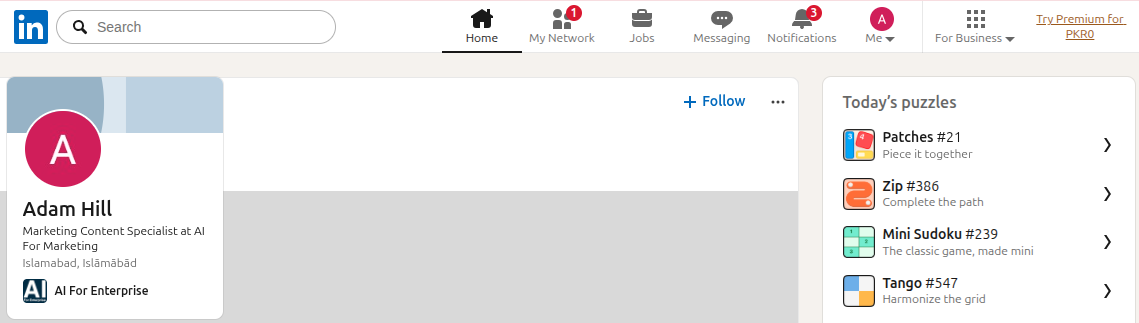
Open LinkedIn on your browser or app and log in to your account to land on your homepage.
- Step #02: Click the “Jobs” icon
Look at the top navigation bar and click the “Jobs” icon. It looks like a small briefcase. This takes you to LinkedIn’s job search section.

- Step #03: Click “Preferences”
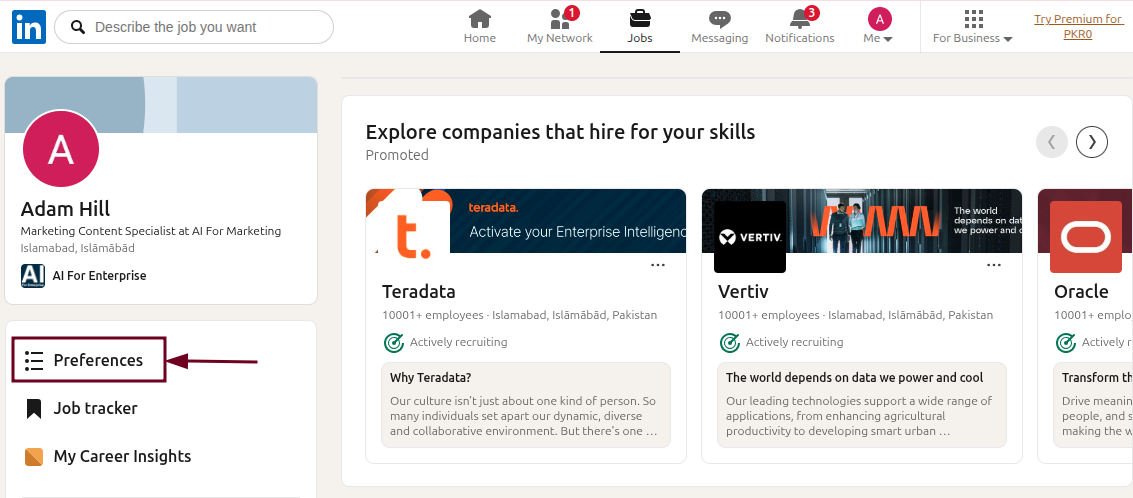
From the page opened, find and click on “Preferences”. It is usually located on the left-hand side or near the top of the page. This opens your job-related settings.
- Step #04: Click “Resumes and application data”
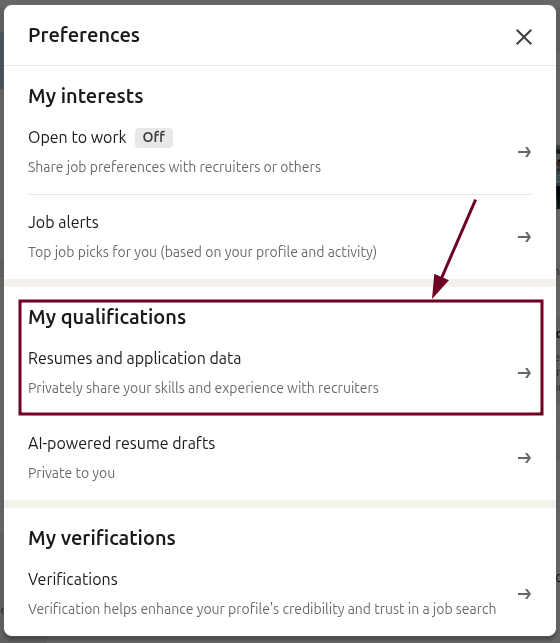
Inside Preferences, select “Resumes and application data” under the My qualifications section. This is where LinkedIn manages the resume tied to your Easy Apply applications.
- Step #05: Click the “Upload resume” button
Hit the “Upload resume” button and select your resume file from your device.
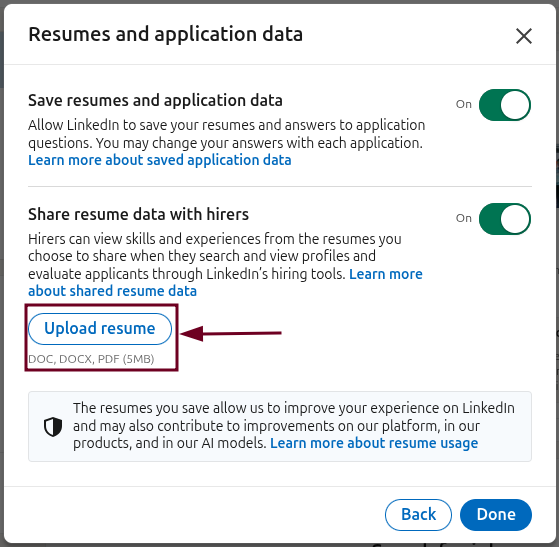
LinkedIn supports PDF and Word formats. PDF is recommended to keep your formatting intact.
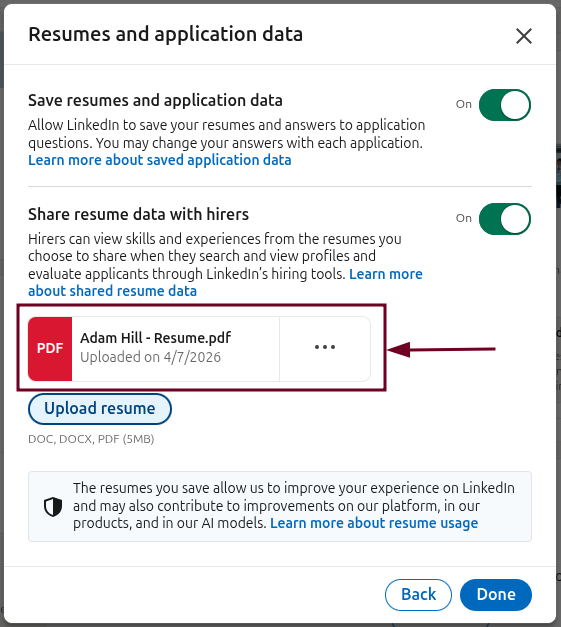
- Step #06: Click the “Done” button
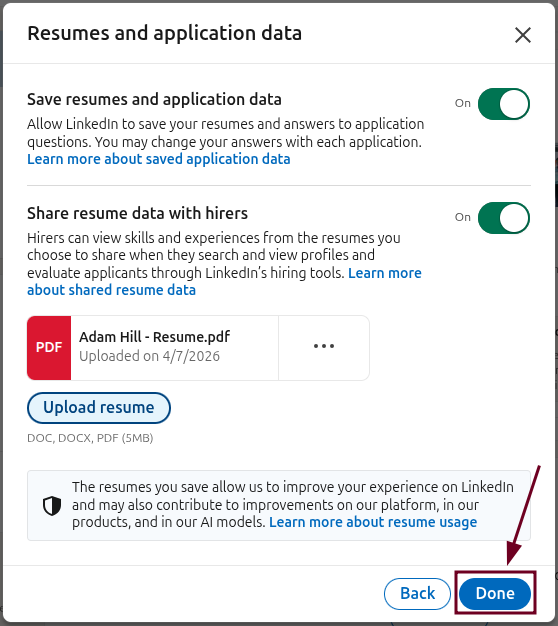
Once your file uploads successfully, click “Done” to save it. Your resume is now stored and ready to auto-fill your future Easy Apply job applications.
Method #02: Add your resume to LinkedIn via “Easy Apply”
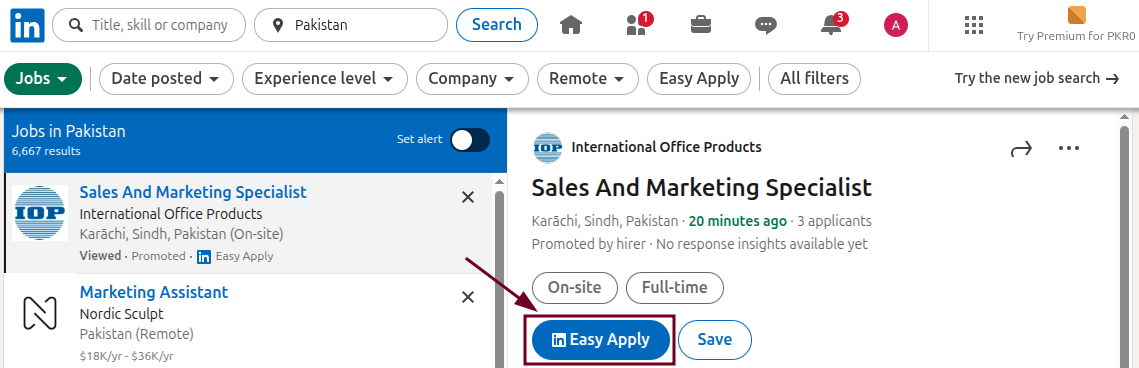
- Step #01: Click “Easy Apply” on a job posting
Browse LinkedIn’s job listings and open a role that interests you. If you see an “Easy Apply” button (rather than “Apply”), click it to begin the in-platform application process.
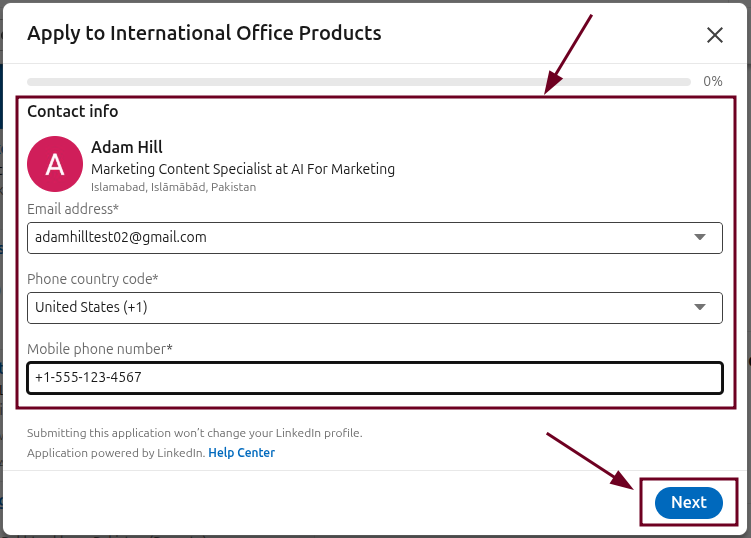
- Step #02: Fill in the requested information
A form will pop up asking for basic details like your email address, phone number, and work experience. Fill these in accurately, since this info accompanies your resume when it reaches the recruiter. Then, click on “Next”.
- Step #03: Click “Upload resume”
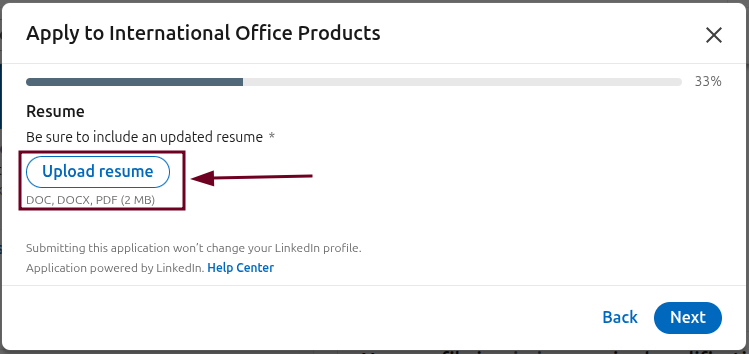
When you reach the resume section, click the “Upload Resume” button and select your file from your device.
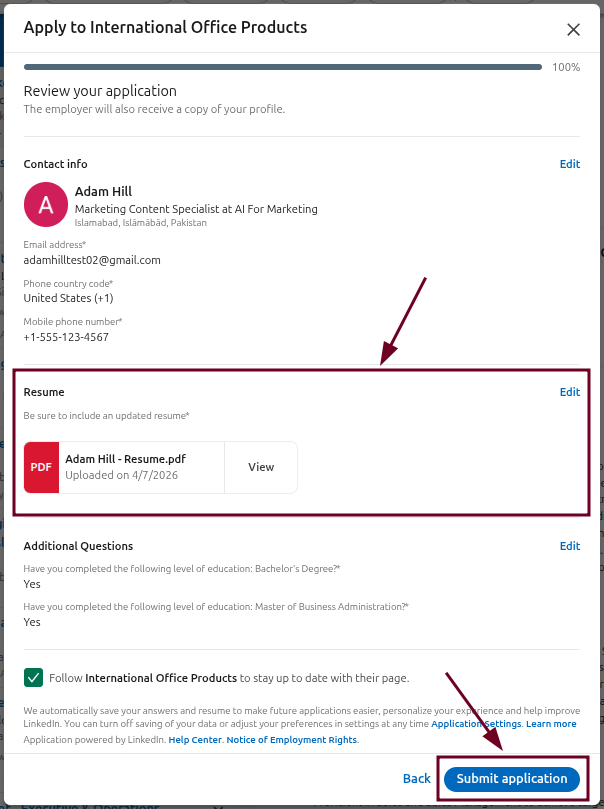
Once uploaded, review everything and hit “Submit application” to send it off.
Method #03: Add resume to LinkedIn profile via “Settings & Privacy”
- Step #01: Click the “Me” icon
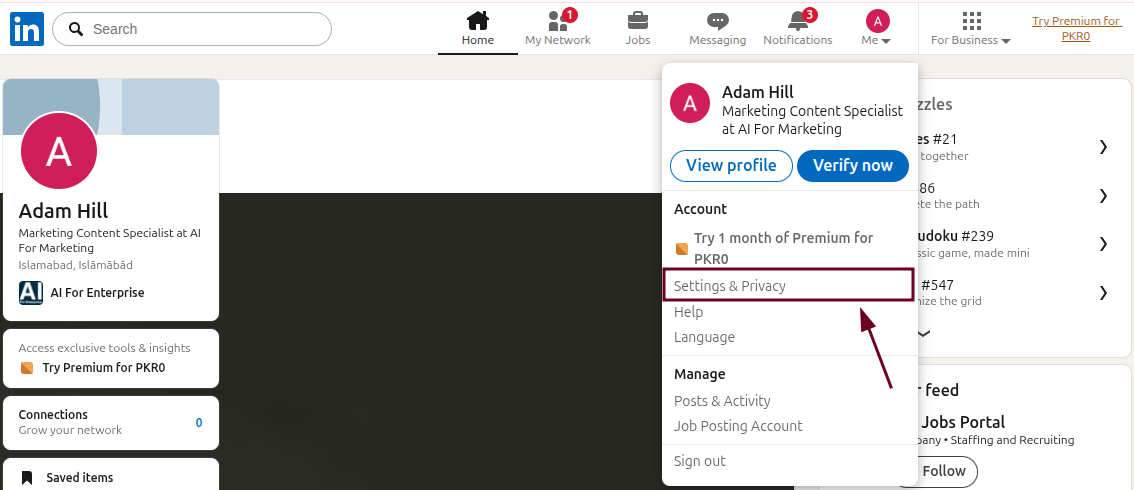
Head to your LinkedIn homepage and click the “Me” icon at the top-right corner of the navigation bar. It’s just below your profile photo. This opens a small dropdown menu.

- Step #02: Select “Settings & Privacy”
From the dropdown menu, click on “Settings & Privacy”. This takes you to the central hub where you can manage all your LinkedIn account preferences.
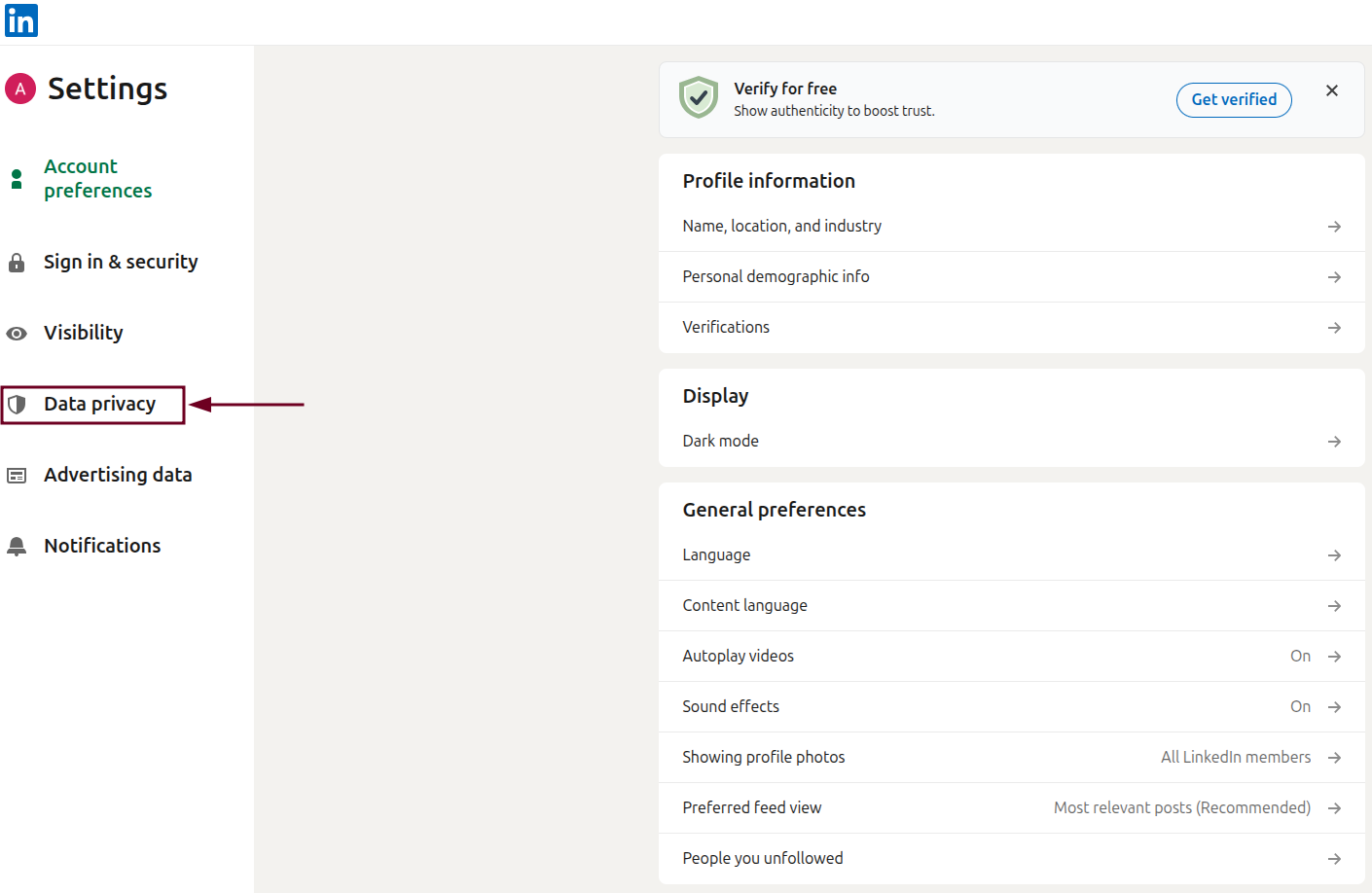
- Step #03: Click “Data privacy”
On the left-hand sidebar, locate and click on “Data privacy”. This section controls how your personal data (including your resume) is stored and used on LinkedIn.
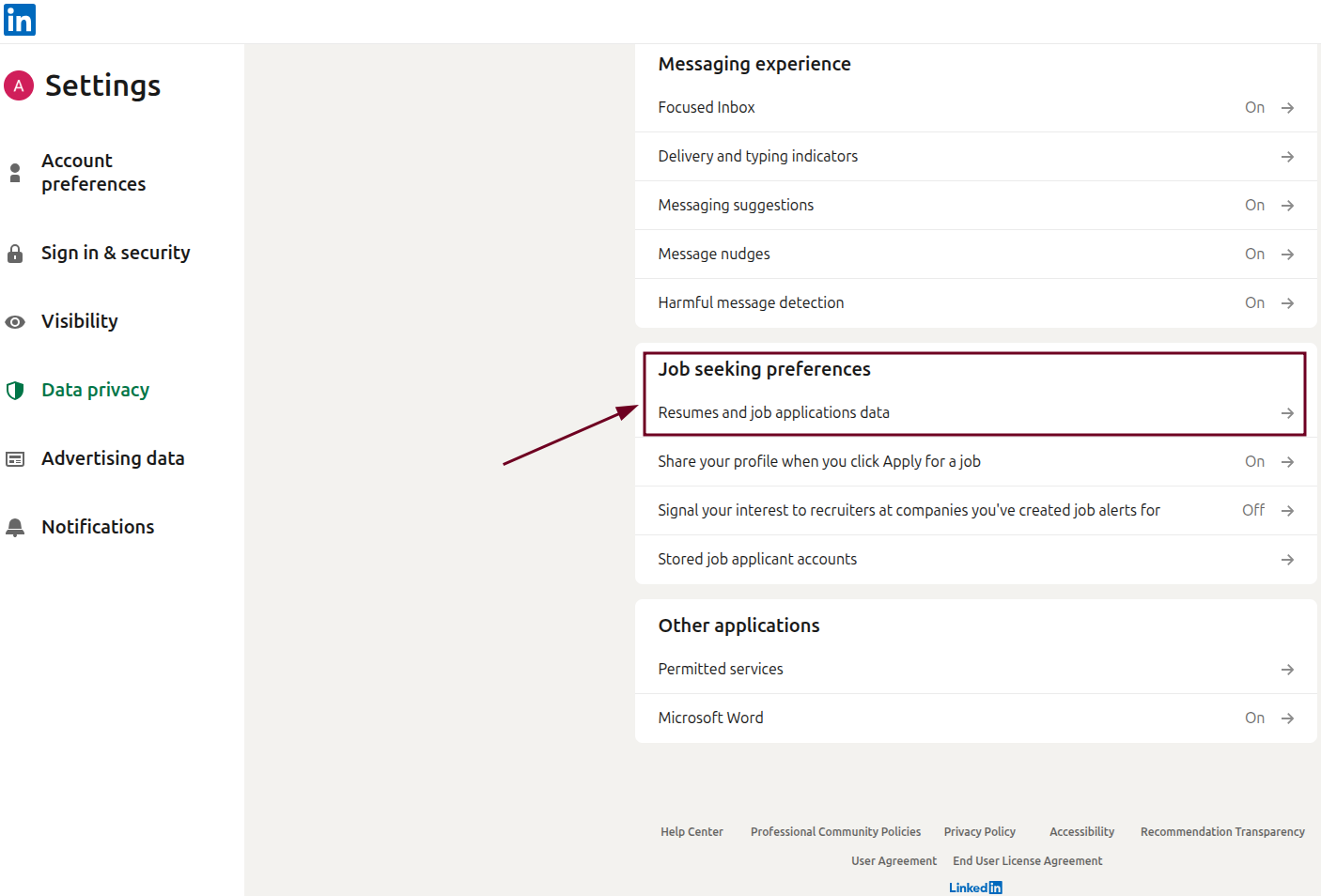
- Step #04: Click “Resumes and job applications data”
Scroll through the data privacy options and click on “Resumes and job applications data” under Job seeking preferences. This is where LinkedIn keeps the resume linked to your Easy Apply submissions.
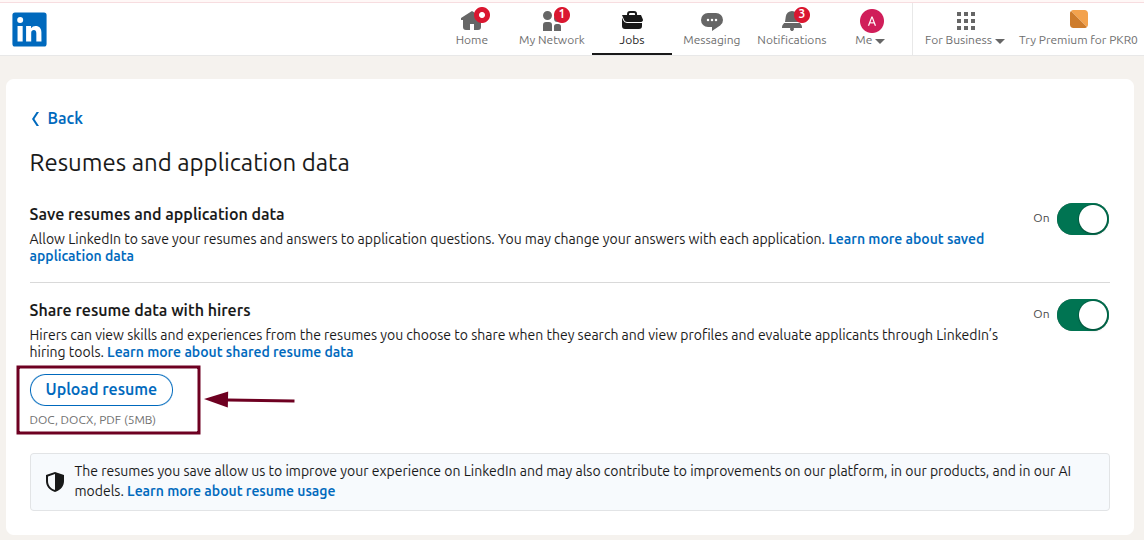
- Step #05: Click the “Upload resume” button
Click the “Upload resume” button and choose your resume file from your device.
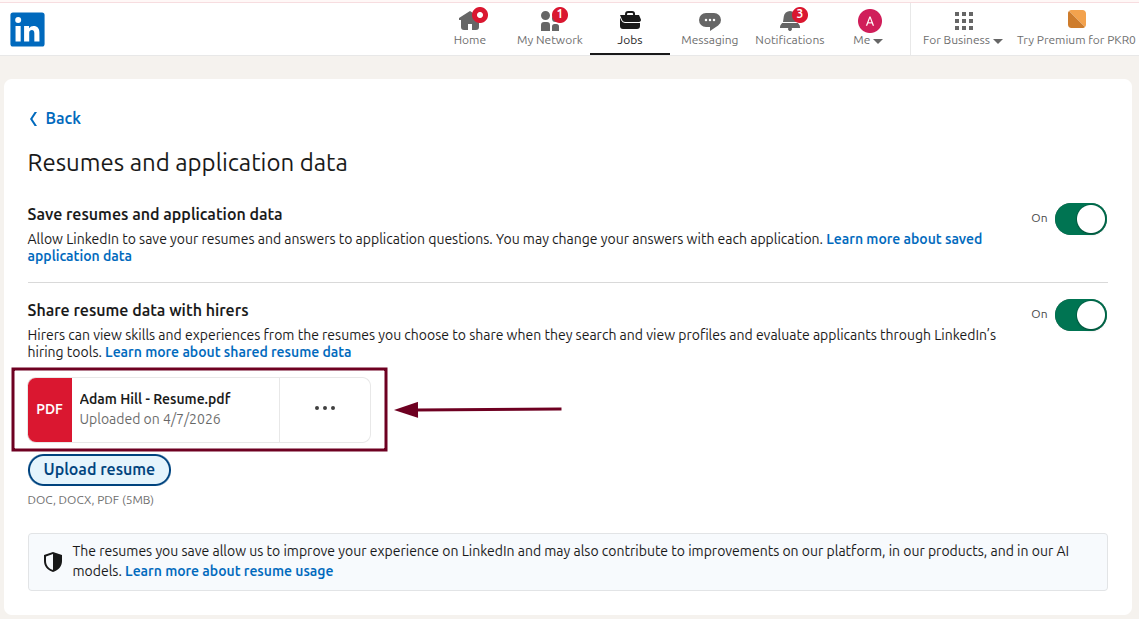
Once it’s uploaded, LinkedIn saves it automatically. No extra steps needed!
Method #04: Add resume to LinkedIn profile page via “Featured” section
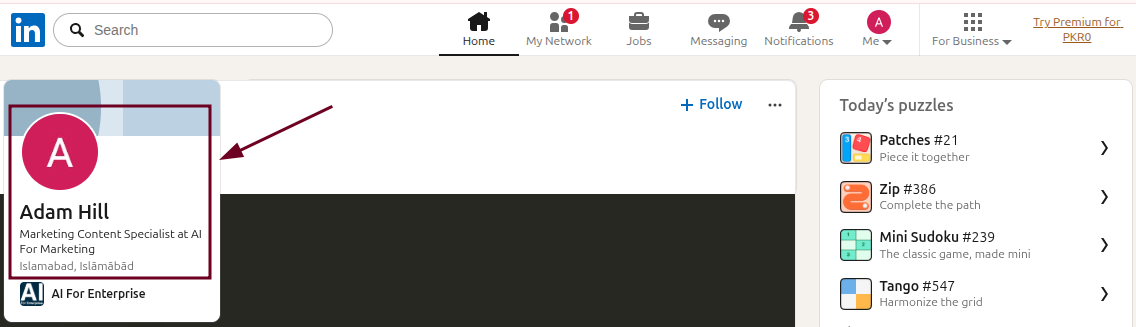
- Step #01: Go to your profile page
Click on your profile photo or your name anywhere on LinkedIn to navigate directly to your profile page.
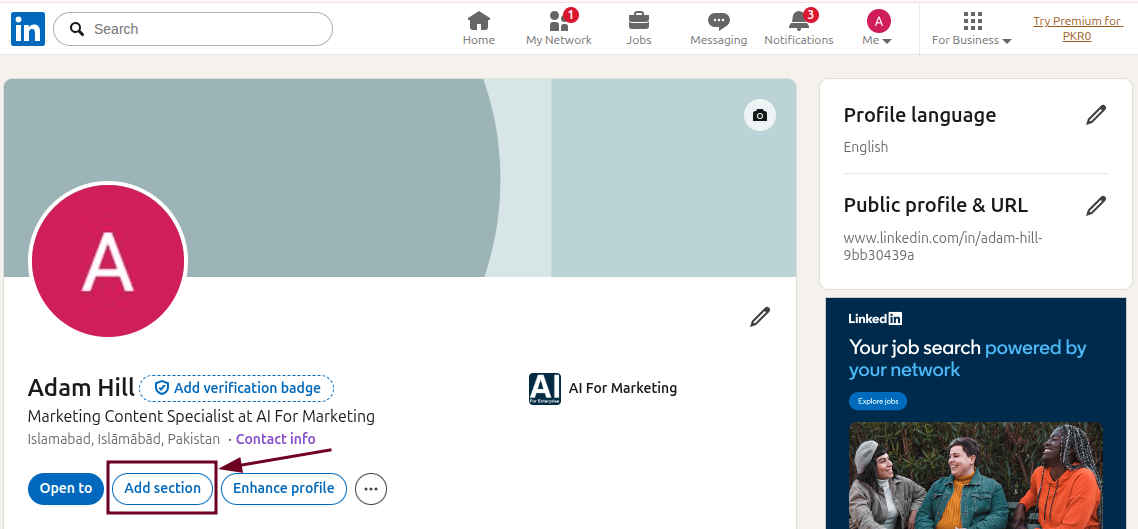
- Step #02: Click “Add section”
You’ll find the “Add section” button just below your name and headline. Click it to expand a menu with various profile section options.
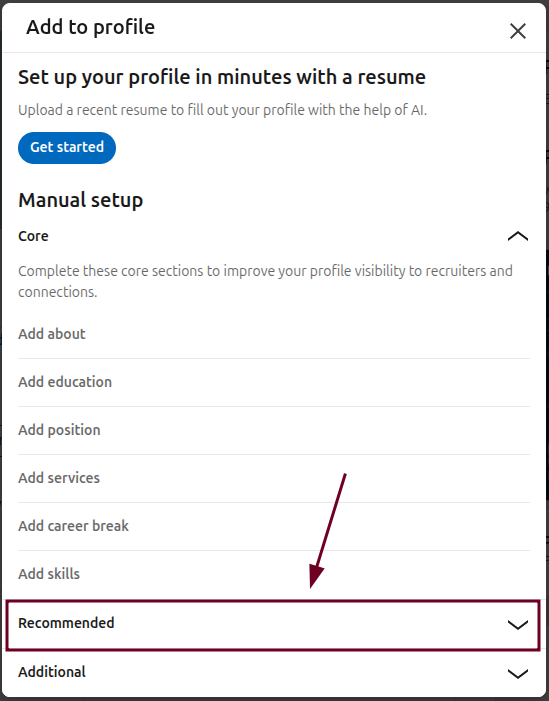
- Step #03: Select “Recommended”
From the pop-up box, click on “Recommended”. This expands a list of suggested sections you can add to strengthen your profile.
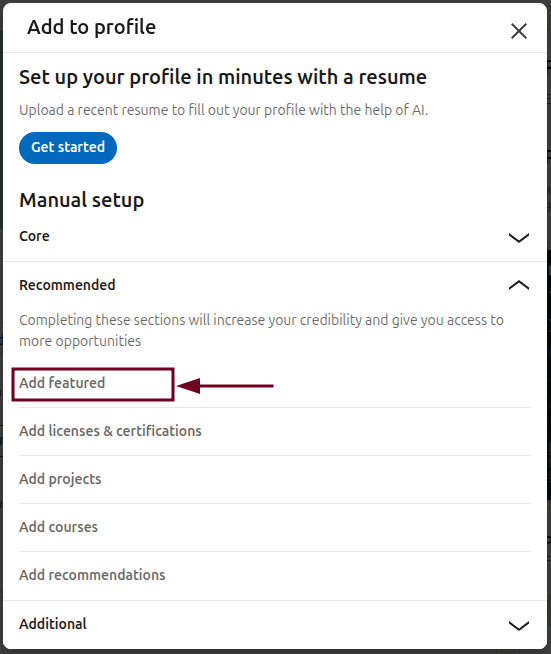
- Step #04: Click “Add featured”
Inside the Recommended options, select “Add featured”. This creates a Featured section on your profile where you can showcase documents, posts, and links.
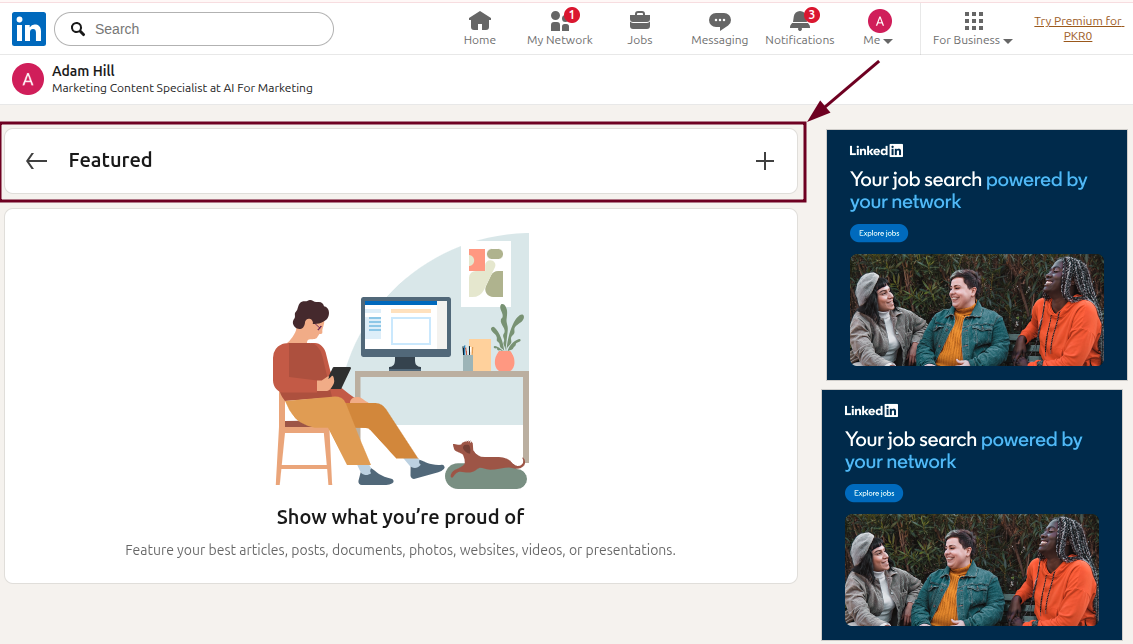
- Step #05: Click the “+” icon
Now, from the opened page, click the “+” icon at the top right of the Featured section.
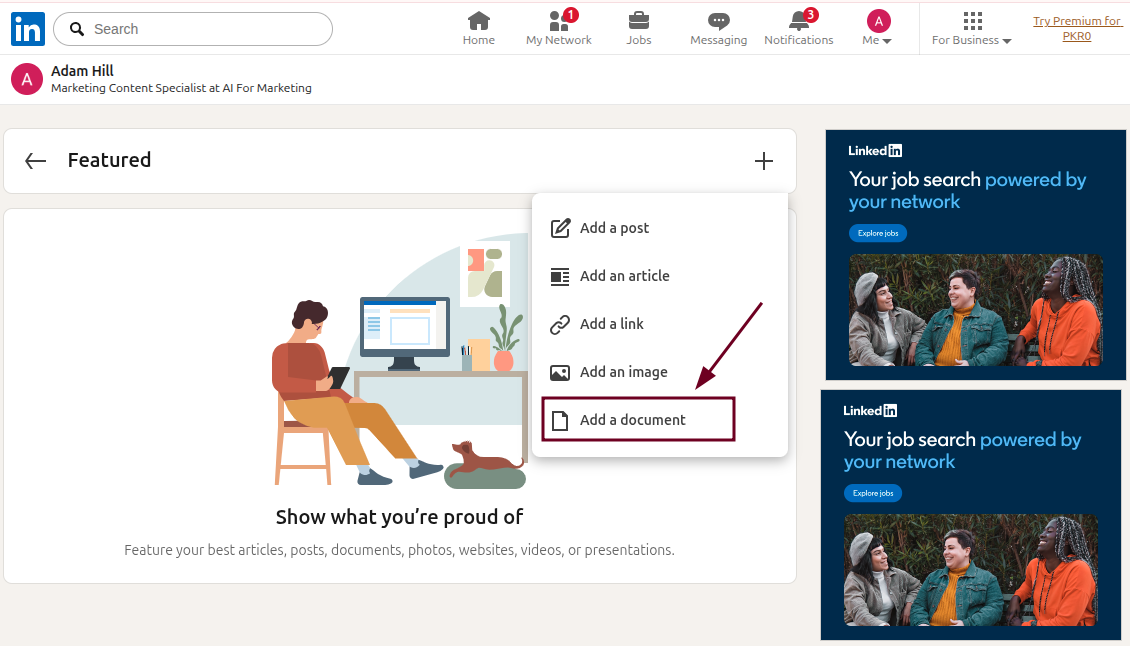
- Step #06: Click “Add a document”
From the options that appear, select “Add a document”. This is the option that lets you upload a file (in this case, your resume) directly to your profile.
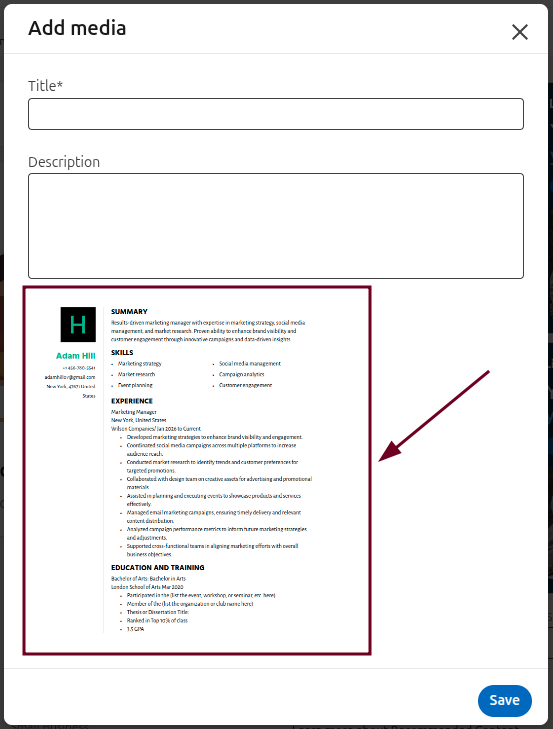
- Step #07: Upload your resume
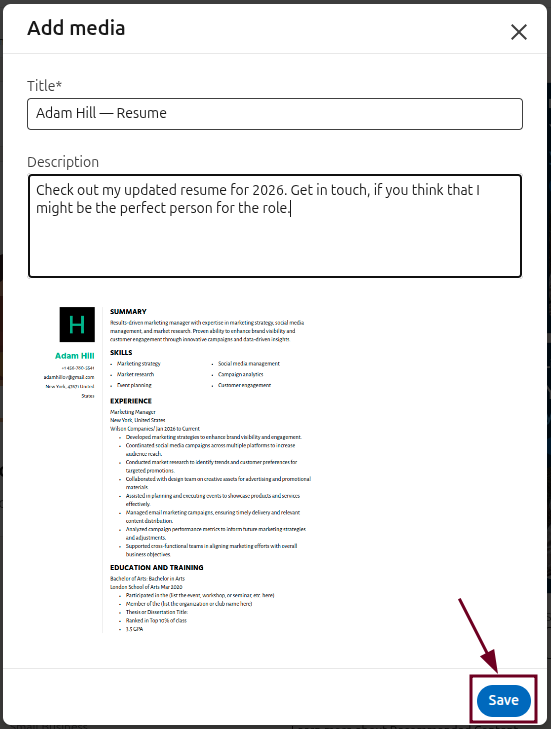
Select your resume file from your device and upload it. You’ll see a preview once it is successfully uploaded.
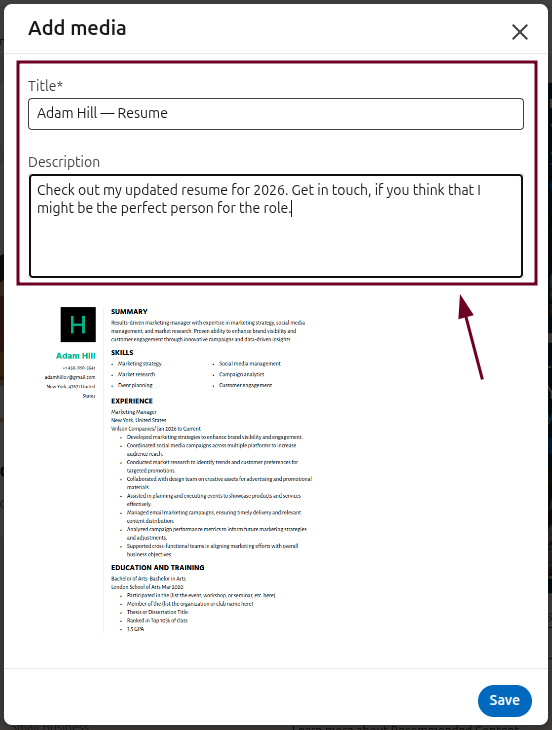
- Step #08: Add details
Give your document a clear title like “My Resume” or “Adam Hill — Resume”, and add a brief description if you’d like. This helps visitors immediately understand what the document is.
- Step #09: Click “Save”
Hit the “Save” button to publish it. Your resume will now appear in the Featured section of your profile, visible to anyone who visits your page.
What to include in your resume before adding on LinkedIn
Before you upload your resume to LinkedIn, it’s worth taking a few minutes to make sure it’s actually working in your favor.
A polished, well-structured resume doesn’t just impress recruiters; it also aligns better with LinkedIn’s algorithm and the applicant tracking systems (ATS) many companies use.
Quantifiable achievements
Don’t just list responsibilities, show real results. Use specific numbers wherever possible, like “increased sales by 35%” or “managed a team of 15,” to give recruiters a concrete sense of the impact you’ve made.
Targeted keywords
Review the job descriptions you’re targeting and naturally plug in the relevant skills and terms they use. This helps your resume get past ATS filters and signals to recruiters that you’re a strong match for the role.
Detailed experience
For each role, include your job title, company name, employment dates, and a few bullet points highlighting your key contributions. The more relevant and specific your experience section, the easier it is for recruiters to assess your fit quickly.
Updated education
Make sure your education section reflects your most recent qualifications, including any certifications, online courses, or training you’ve completed recently. Outdated or incomplete education details can leave gaps that work against you.
Single-column layout
Stick to a clean, single-column format for your resume when uploading to LinkedIn. Multi-column resumes often break or become unreadable when parsed by ATS software, which can cause key information to be missed entirely.
Professional summary
Add a 2-3 line summary at the top of your resume that captures who you are, what you do, and what you’re looking for. Think of it as your elevator pitch. It sets the tone before a recruiter even reads the rest.
Hyperlinked contact info
Make it easy for recruiters to reach or research you by including a clickable email address, LinkedIn profile URL, and any relevant portfolio or website links. It’s a small touch that makes a noticeable professional impression.
Best practices for uploading your resume on LinkedIn
Uploading your resume is just the first step, but how you upload it matters just as much. Following a few simple key practices ensures your resume reaches the right people, looks professional, and works effectively, no matter if you’re actively applying or just staying open to opportunities.
Use the “Featured” section for high visibility
If you want your resume to be publicly visible to recruiters and profile visitors, LinkedIn’s “Featured” section is your best bet. It puts your resume front and center on your profile, making it easy for anyone to find and download without you having to send it manually.
Use the “Jobs” section for private applications
If you’d rather keep your resume private and only share it when applying, upload it through the “Jobs” section instead. This way, your resume is only seen by recruiters of the specific roles you apply to, giving you more control over who accesses it.
Use PDF format (recommended)
Always upload your resume as a PDF unless a job posting specifically requests a Word document. PDFs preserve your formatting across all devices and software, ensuring your resume looks exactly the way you intended when a recruiter opens it.
Remove personal contact information
Since your LinkedIn profile already has your contact details, there’s no need to include your home address or personal phone number on a publicly visible resume. Removing this information also protects your privacy, especially if your resume is accessible to all profile visitors.
Create tailored versions
Avoid using a one-size-fits-all resume for every application. Keep a few targeted versions on hand (each tweaked to match a specific role or industry) and upload the most relevant one depending on the job you’re applying for.
Use a professional title
Name your resume file clearly and professionally before uploading, something like “Adam_Hill_Marketing_Resume.pdf” rather than “Resume_Final_v3.pdf.” It’s a small detail, but it leaves a tidy, professional impression on anyone who downloads it.
Create a winning post for your resume with Replug’s free LinkedIn post generator
Once your resume is on LinkedIn, why not let people know about it?
Replug is an all-in-one link management platform packed with powerful features, and one of its standout free tools is the LinkedIn Post Generator.
Instead of staring at a blank screen trying to craft the perfect post, Replug’s reliable tool does the job for you. Just enter a few details, and it generates a professional, engaging LinkedIn post within seconds.
Whether you’re announcing a new role, sharing your expertise, or simply putting your resume out there, Replug helps you make a strong first impression (no writing experience needed).
👉 Try Replug’s LinkedIn Post Generator and get your resume the attention it deserves!
Optimize your LinkedIn profile with Replug today!
You’ve successfully uploaded your resume, polished your profile, and crafted the perfect post. Now it’s time to make sure every link you share works harder for you.
Replug’s efficient URL shortener lets you transform long, messy links into clean, branded short links that look professional on your LinkedIn profile.
No matter if it’s a link to your portfolio, personal website, or a specific job application, short links are far more clickable and visually appealing.


Plus, Replug lets you track clicks and engagement, so you can actually see who’s interacting with your links. It’s a simple but effective way to present yourself more professionally and understand your audience better.
Start using Replug today and give your LinkedIn profile the professional edge it deserves!
Frequently asked questions
How do I get my uploaded resume on LinkedIn?
To find or manage your uploaded resume on LinkedIn, go to the “Jobs” tab, click “Preferences,” and select “Resumes and application data” to view, upload, or download your files.
How do I edit a resume in LinkedIn?
LinkedIn doesn’t have a built-in resume editor. To make changes, update your resume file on your device first, then re-upload it through whichever method you originally used. Your new file will simply replace the old one.
How do I remove my resume from LinkedIn profile?
To remove a resume from your LinkedIn profile, go to the “Jobs” tab and select “Application Settings” in the left sidebar. Then, click the three dots next to the resume you want to remove, and select “Delete”. Alternatively, navigate to Settings & Privacy → Data Privacy → Job Application Settings to manage and delete uploaded resumes.
Why can’t I upload my resume on LinkedIn?
This is usually down to one of three things:
– Your file size exceeds LinkedIn’s 5MB limit,
– The file format isn’t supported, or
– You’re experiencing a temporary browser glitch
Try converting your resume to PDF, clearing your browser cache, or switching to a different browser and uploading again.
How can I upload my resume to LinkedIn without letting my entire network know?
Upload your resume through “Job Application Settings” or the “Settings & Privacy” route instead of the “Featured” section. These methods store your resume privately, so it’s only shared when you apply for a job. Your network won’t receive any notification about it.
What is the difference between a resume and a LinkedIn profile?
A resume is a tailored, concise document (usually one or two pages) customized for a specific job application. Your LinkedIn profile, on the other hand, is a living, comprehensive snapshot of your entire professional journey, visible to anyone on the platform. Think of your profile as the expanded version and your resume as the focused pitch.
How to attach my resume to a LinkedIn message?
Open a LinkedIn message conversation, click the attachment icon (paperclip) at the bottom of the message box, and select your resume file from your device. Keep in mind this shares the file directly with that person, so make sure your resume is updated before sending.
What is the ideal format to upload a resume on LinkedIn?
PDF is the way to go. It keeps your formatting clean and consistent regardless of what device or software the recruiter uses to open it. Word documents can sometimes shift in layout depending on the version of software being used, so PDF is simply the safer and more professional choice.
How to add resume to LinkedIn profile for recruiters?
The best way to make your resume visible to recruiters is by uploading it to the “Featured” section of your profile. This makes it publicly accessible to anyone who visits your page. Pair this with an optimized profile (strong headline, relevant skills, and a solid summary) to make sure recruiters can actually find you in searches.
How to optimize the visibility and usage of your uploaded resume on LinkedIn?
Start by making sure your resume is keyword-rich and aligned with the roles you’re targeting. Upload it to the “Featured” section for public visibility, keep it updated every few months, and make sure your LinkedIn profile itself complements your resume rather than just repeating it word for word. Also, turn on the “Open to Work” feature to signal recruiters that you’re available. It works hand in hand with having your resume on your profile.