With over 1.3 billion active members, LinkedIn is the world’s largest professional network. Whether you’re job hunting, building your personal brand, or reaching out to potential clients, your profile is your digital handshake.
But here’s a problem many people run into: They have no idea where to find their own LinkedIn URL to share it when it matters most.
Sending someone your profile link shouldn’t feel like solving a puzzle. No matter if you want to add it to your resume, drop it in an email signature, or create a URL that reflects your name professionally, it’s a lot simpler than you think, once you know where to look.
In this guide, we’ll walk you through exactly how to find your LinkedIn URL on both mobile and desktop in just a few clicks.
But first, let’s make sure we’re on the same page, i.e., getting to know what actually is a LinkedIn URL?
What is my LinkedIn URL?
Think of your LinkedIn URL as your profile’s home address on the internet. It’s the unique web link (or URL) that takes anyone directly to your LinkedIn profile; no searching required.
A standard LinkedIn URL looks something like this:
linkedin.com/in/yourname
Its main job is simple: Make it easy for people to find and visit your profile on the go!
Whether you’re adding it to your resume or putting it on a business card, your LinkedIn URL gives others a one-click shortcut straight to your professional story.
How to get LinkedIn URL from app (Android & iOS)
Getting your LinkedIn URL on mobile is super easy and only takes a few minutes.
Here’s how to find LinkedIn URL on iPhone & Android smartphone (mobile app steps):
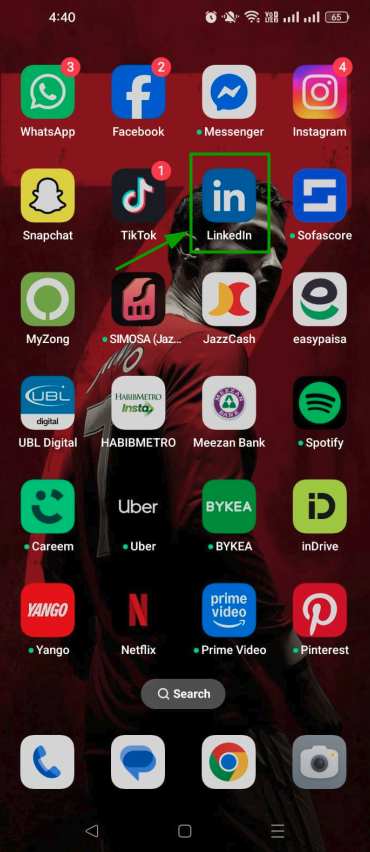
Step #01: Open the LinkedIn app
Grab your phone and open the LinkedIn app. It works the same way on both Android and iOS.
Step #02: Tap your profile photo
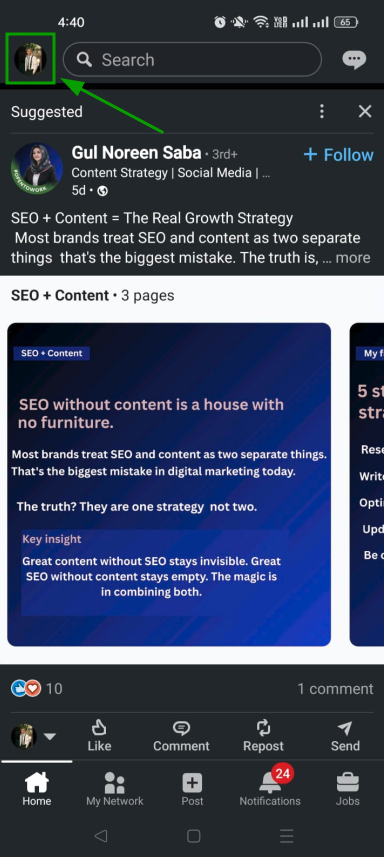
Once you’re on the home feed, tap your profile photo in the top-left corner to open the side menu.
Step #03: Tap view profile (or your name)
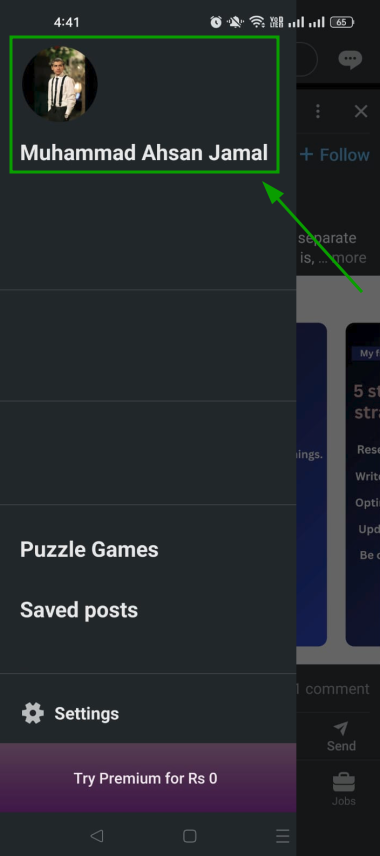
In the menu that appears, tap on your name to open your profile page.
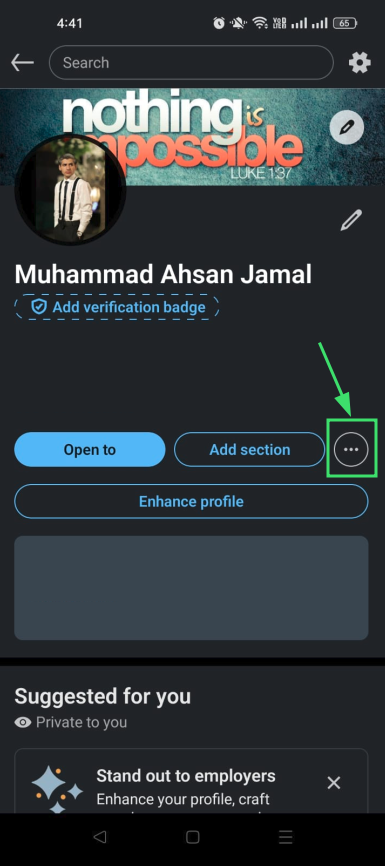
Step #04: Tap the three dots (…) icon
On your profile page, look for the three dots (…) icon. You’ll usually find it next to the “Add section” button. Tap on it.
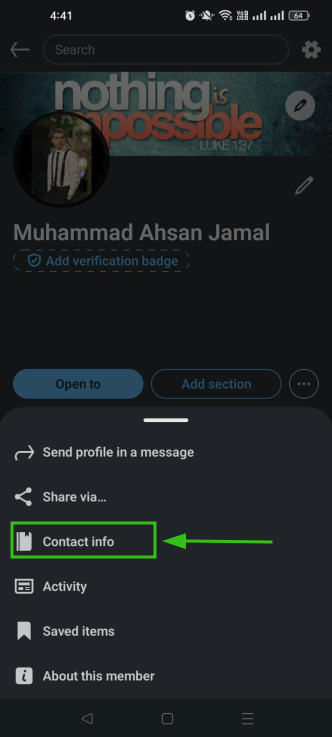
Step #05: Tap “Contact info”
A small menu will pop up. Tap on “Contact info” to open your contact details.
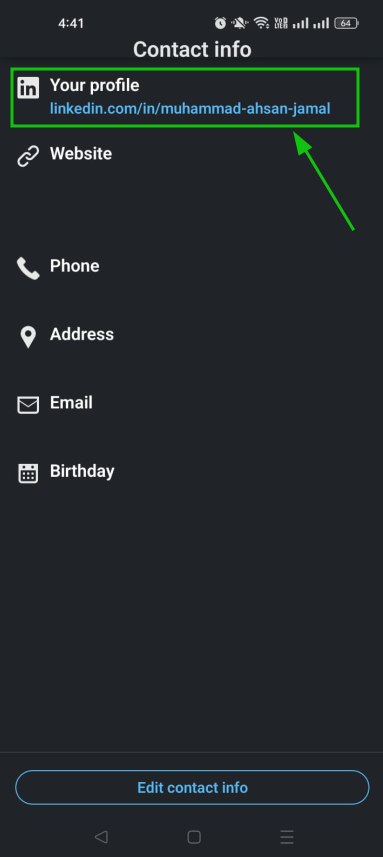
Step #06: Get your LinkedIn URL under “Your profile”
Your LinkedIn URL will be right there under the “Your Profile” section. Tap on it to copy or share it instantly.
👉 Note: These steps apply to a public LinkedIn profile. If your profile is set to private, others won’t be able to access it through the URL.
How to get my LinkedIn URL from desktop
Prefer working on a laptop or PC?
Here’s how to get your LinkedIn URL in just a few clicks (desktop steps):
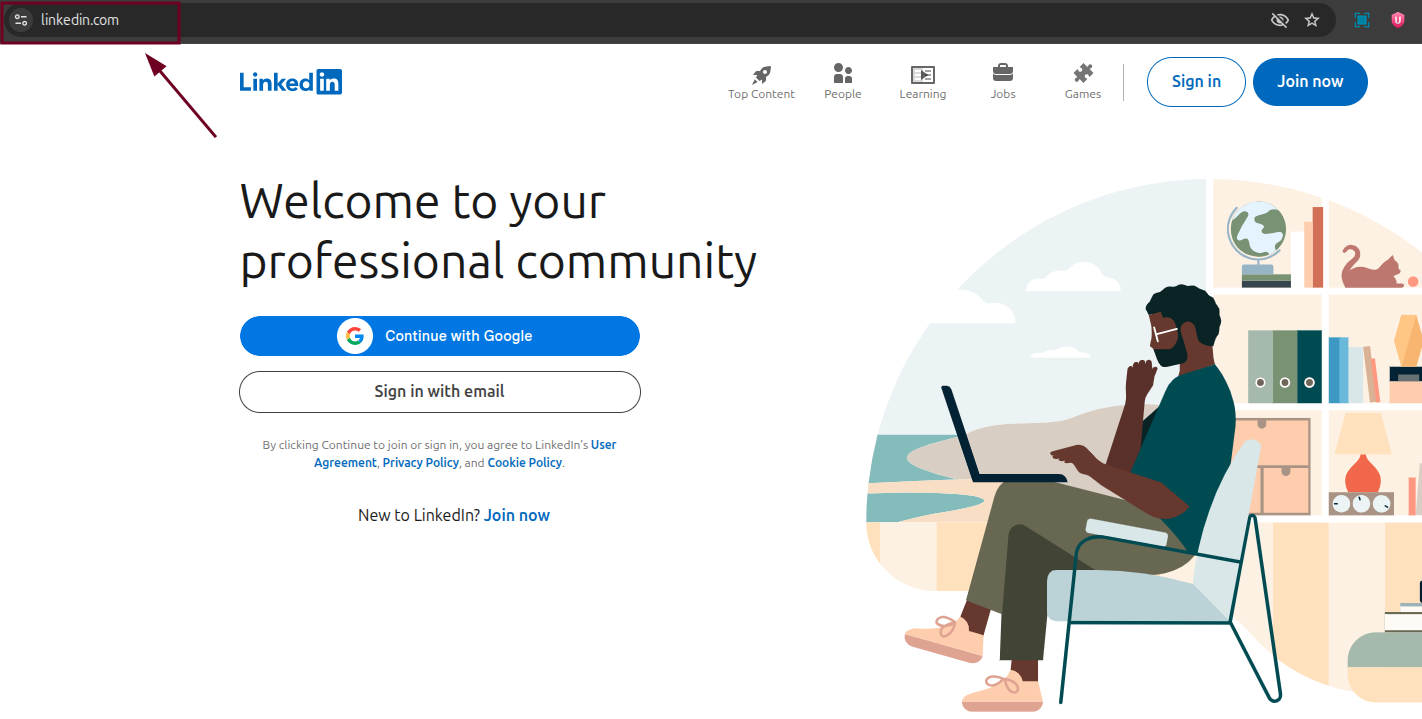
Step #01: Go to LinkedIn.com
Open your browser (Google Chrome, Edge, or any other of your choice) and head over to linkedin.com. Log in to your account if you aren’t already.
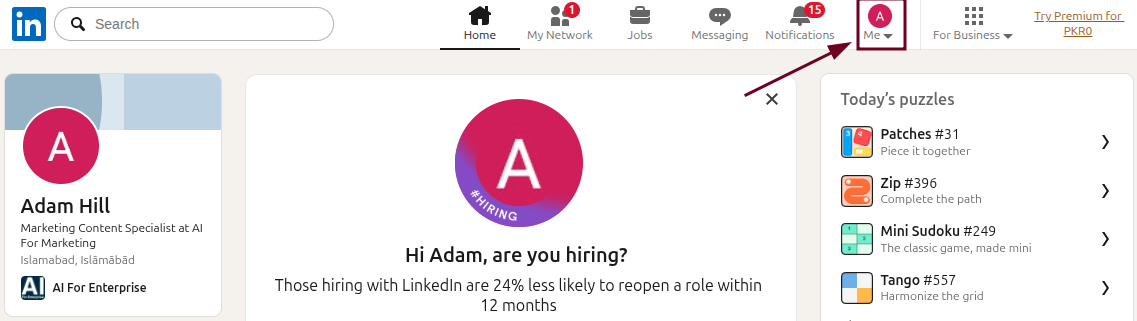
Step #02: Click the “Me” icon
Once you’re on the homepage, look for the “Me” icon at the top-right navigation bar and click on it.
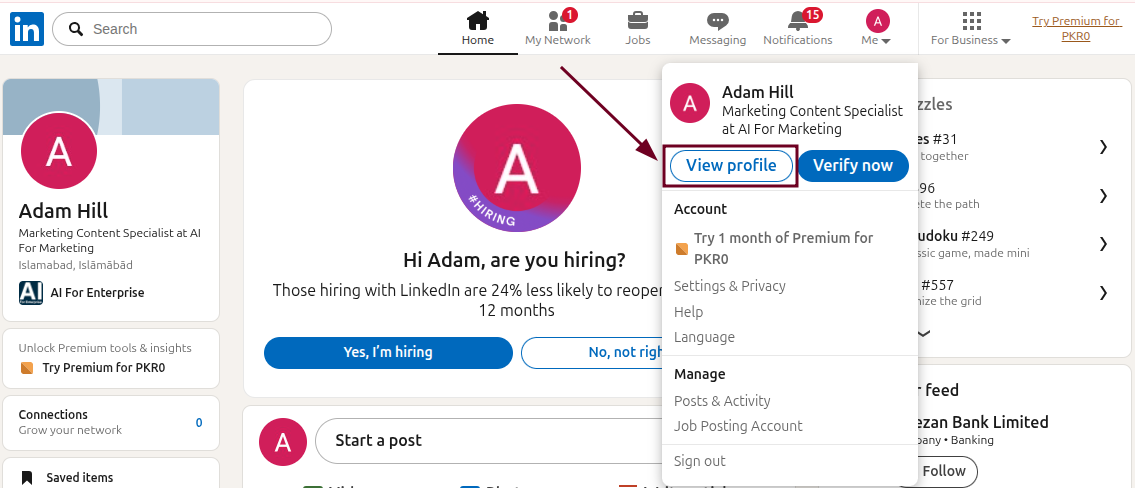
Step #03: Click “View profile”
From the dropdown menu that appears, click “View profile” to land directly on your LinkedIn profile page.
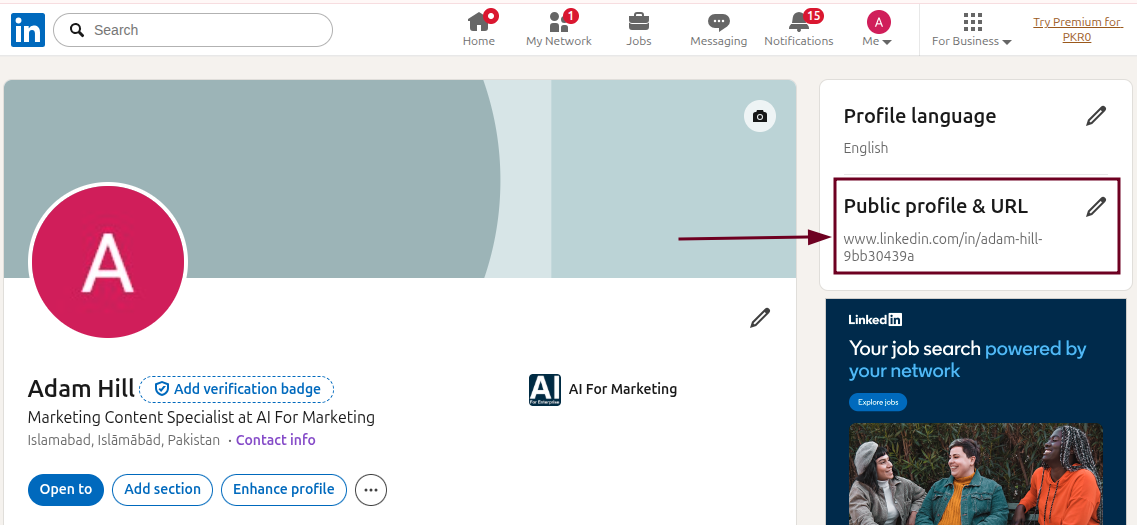
Step #04: Look under “Public profile & URL”
On the right-hand side of your profile, you’ll spot the “Public profile & URL” section. Your LinkedIn URL is right there. Simply copy and use it wherever you need.
👉 Quick tip: The fastest way to grab your LinkedIn URL on desktop is even simpler. Just head over to your LinkedIn profile and copy the web address directly from your browser’s address bar. Done!
And if you ever want to update or personalize your URL, just click the pencil icon right under the “Public profile & URL” section. It lets you edit and change your LinkedIn URL to something cleaner and more on-brand.
You may also like: How to share LinkedIn profile URL with connections & others in 2026: Easy and effective ways discussed!
Shorten your LinkedIn profile link to make it look more professional with Replug!
So now you have your LinkedIn URL, but let’s be honest, the default link can look a little long and messy, especially when you’re putting it on a resume or business card. That’s where Replug comes in!
Replug is an all-in-one link management platform that helps you take full control of your links (tracking, retargeting, bio links, and more). But one of its standout features is the custom URL shortener, which lets you create clean, branded short links within seconds.


Using Replug as your LinkedIn link shortener, you can easily shorten your LinkedIn URL into something sharp and professional.
It could turn into something like “yourbrand.co/linkedin” instead of a long string of random characters. It’s a small change, but the one that instantly makes your profile link look more polished and trustworthy.
No matter if you’re sharing your profile in an email, a portfolio, or a cold outreach message, a short branded link always makes a stronger first impression than a generic one.
Also check out: How to get more views on LinkedIn: 9 proven ways
Wrapping up
Finding your LinkedIn URL really isn’t as complicated as it might seem. Whether you’re on your phone or sitting at your desktop, it only takes a handful of steps to locate, copy, and share your profile link with the world. And once you have it, don’t just stop there; take it a step further by personalizing it and keeping it neat.
A clean, professional LinkedIn URL is a small detail that can leave a big impression on recruiters, clients, and collaborators alike. So go ahead, grab your link, and if you want to make it look even sharper, give Replug a try today!
Frequently asked questions
What is a URL link?
A URL (Uniform Resource Locator) link is simply the web address that takes you to a specific page on the internet. Think of it as a digital street address; every webpage has its own unique one. For example, your LinkedIn profile URL link leads people directly to your profile page.
Where do I find my LinkedIn URL?
You can find it in two easy ways:
– On desktop, go to your LinkedIn profile and check the right-hand side under “Public profile & URL.”
– On mobile, open the app → tap your profile photo → view profile → three dots (…) → Contact info, and your URL will be listed right there under “Your Profile”.
How to get LinkedIn profile link?
Head to your LinkedIn profile, either on the app or desktop.
– On desktop, simply copy the web address directly from your browser’s address bar.
– On mobile, it’s tucked under the “Contact info” section.
You can copy it from either place and share it wherever you need.
How do I copy my LinkedIn URL from the mobile app?
Here’s how to copy LinkedIn profile link from the mobile app:
1. Open the LinkedIn app and tap your profile photo in the top-left corner.
2. Tap “View profile,” then hit the three dots (…) icon on your profile page.
3. Select “Contact info” and you’ll see your LinkedIn URL under the “Your Profile” section.
4. Simply tap on it, and you will find the “Copy” option. Tap it, and your URL will be copied to the clipboard.
That’s all there is to it!
How do I find my LinkedIn URL on my iPhone?
Here’s how to do it, step-by-step:
1. Open the LinkedIn app on your iPhone.
2. Tap your profile photo in the top-left corner.
3. Then tap your name or “View profile”.
4. Next, tap the three dots (…) icon on your profile page.
5. After that, select “Contact info,” and you’ll find your LinkedIn URL right there under the “Your Profile” section.
How to get LinkedIn URL for resume?
Here’s how to get LinkedIn URL to add in resume:
First, grab your LinkedIn URL (following the steps already discussed above) by visiting your profile on either desktop or mobile. Once you have it, consider customizing it to something clean like linkedin.com/in/yourname before adding it to your resume. It looks a lot more polished than a default link with random characters.
How to add LinkedIn URL on resume?
Once you have your LinkedIn URL copied, place it in the contact information section at the top of your resume, right alongside your phone number and email address. Keep it as a clean, readable link.
If you’re working on a digital resume, you can also hyperlink it to your name or a short label like “My LinkedIn Profile” so it’s clickable. Just make sure the URL is up to date and your LinkedIn profile is set to public before sending your resume out!
How to get LinkedIn URL for business page?
Go to your LinkedIn Company Page and look at the URL in your browser’s address bar. That’s your business page link. It typically looks like linkedin.com/company/yourbusinessname. You can copy it directly from there and share it anywhere you’d like.
Provide some good and bad LinkedIn URL examples?
Good LinkedIn URL examples:
– linkedin.com/in/ahsanjamal
– linkedin.com/in/ahsan-jamal-marketing
– linkedin.com/in/ahsanjamal-creator
These are clean, simple, and easy to recognize at a glance.
Bad LinkedIn URL examples:
– linkedin.com/in/ahsanjamal-4b3z9x2
– linkedin.com/in/j0hnd0e123456789
– linkedin.com/in/ahsan-jamal-marketer-consultant-developer-nyc
These look messy, hard to remember, and don’t exactly scream “professional.”
Always aim to keep your LinkedIn URL short, clean, and ideally just your name or name with a relevant or niche-specific keyword.