Category: Social media

Browse blogs on social media strategies, content, and trends. Stay ahead with tips to grow engagement and reach.

  • How to add a Twitter (X) link to Instagram bio?

    How to add a Twitter (X) link to Instagram bio?

    Important note: Throughout this guide, we will refer to Twitter as “X”.

    Looking to expand your social media presence and connect with a wider audience? If you’re already active on Instagram, adding an X link to your bio can be a game-changer. 

    Not only does it allow you to cross-promote your content and reach new followers, but it also opens up a world of new possibilities for networking, sharing your thoughts and ideas, and building your personal brand. 

    Adding an X link to your Instagram bio is a smart move for many reasons, and this guide explores how to make the most of it. So, let’s dive in and discover how to add an X link to an Instagram bio!

    Why add an X link to your Instagram bio?

    Adding an X link to your Instagram bio can be a smart move for several reasons:

    Cross-promotion: By linking your Instagram and X profiles, you can reach a wider audience and drive traffic to both platforms. This means more visibility for your content and potentially more followers.

    Networking: X is a powerful networking tool. By linking it to your Instagram account, you can make it easier for people to find and connect with you. This can be especially useful if you’re looking to build relationships with influencers or other industry professionals.

    Sharing your thoughts: While Instagram thrives on visuals, X is all about the power of words. By linking to your X account, you can share your thoughts, opinions, and ideas with your followers in a way that’s not possible on Instagram.

    Building your personal brand: By maintaining an active presence on both Instagram and X, you can build a strong personal brand that resonates with your target audience. Linking the two accounts creates a cohesive online identity that helps you stand out from the crowd.

    Also read: Top 29 personal branding tools to upscale your marketing efforts

    How to add an X link to your Instagram bio?

    On a mobile device:

    Step 1: Open the X app on your mobile phone and tap the profile icon in the top left corner to open your profile. 

    Open X App

    Step 2: Tap “three dots” in the top right corner. 

    Tap 3 dots

    Step 3: Tap “share”

    Tap share

    Step 4: Tap “copy URL” 

    Copy URL

    Step 5: Open the Instagram app and tap your profile icon in the bottom right corner. 

    Instagram-profile-icon

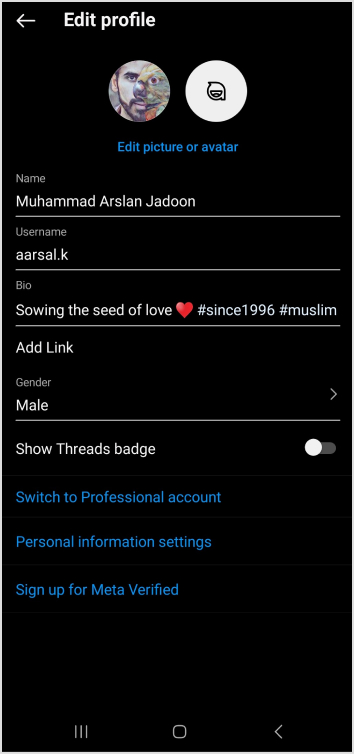
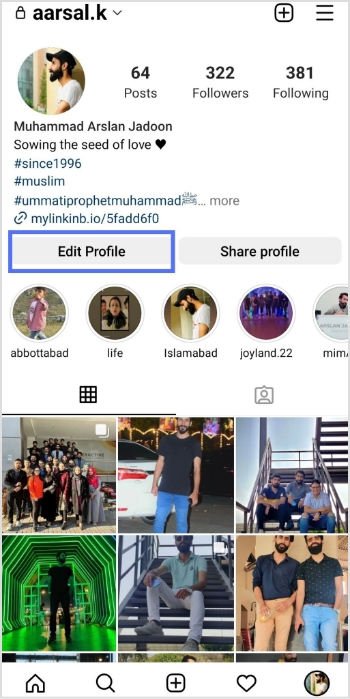
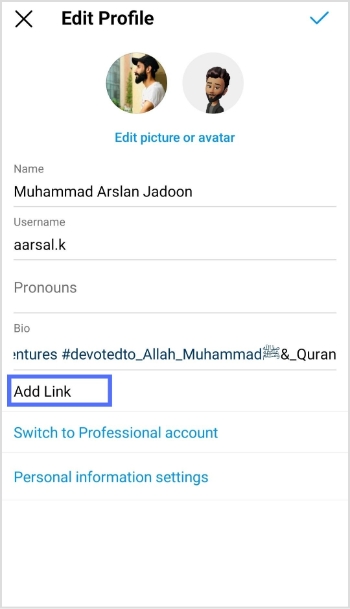
    Step 6: Tap “edit profile”.

    edit profile

    Step 7: Tap “add link”

    Add link

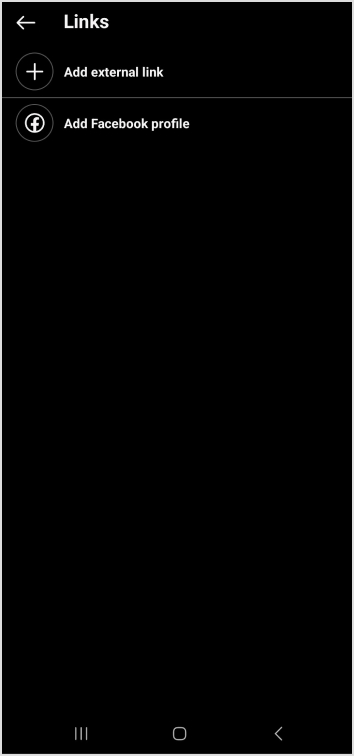
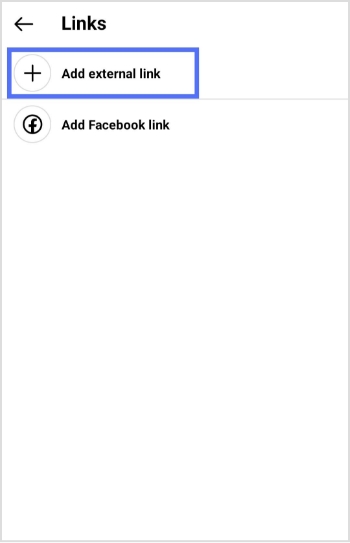
    Step 8: Tap “add external link”

    Add external link

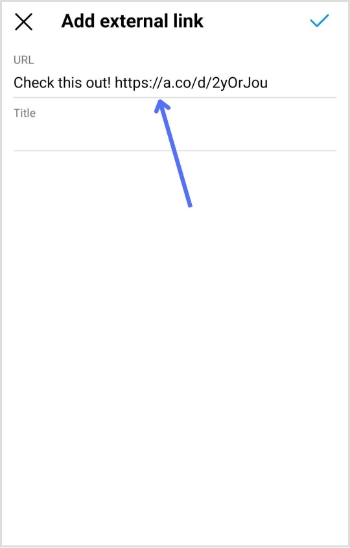
    Step 9: Paste the X URL in the URL field, enter the title and you’re done.

    Add external link

    Also read: How to add Amazon link to Instagram bio?

    On a Computer device:

    Step 1: Log in to X on your computer or laptop. 

    Step 2: Click “profile” on the left side of the menu. 

    Twitter-profile

    Step 3: From the URL bar, copy the URL. That’s your profile URL. 

    copy-url

    For a cleaner look in your Instagram bio, especially with character limits, a free link shortener can transform that lengthy “X” URL into something concise and branded. Tools like Replug, a powerful link optimization platform, make this effortless by not only shortening links but also adding tracking and customization options to boost your cross-platform engagement.

    Note: You can only edit your links on mobile devices. Visit the Instagram app and follow the steps above to edit your bio and add the X link.

    edit-bio-problem

    Also read: How to find my Twitter URL on mobile and desktop?

    FAQs about how to add a Twitter (X) link to Instagram bio?

    How to link Instagram and X for auto-tweeting photo links?

    To link your Instagram account to X and automatically tweet links to your photos, follow these steps:
    1. Open the Instagram app on your mobile device and go to your profile.
    2. Tap the three horizontal lines in the upper right-hand corner of your screen.
    3. Select “Settings” from the menu that appears.
    4. Tap “Account” and then “sharing to other apps.”
    5. Tap “X” and enter your X login information when prompted.
    6. Once you’ve linked your accounts, toggle on “Share your posts to X” to automatically share your Instagram posts on X.
    7. To customize what gets shared on X, you can toggle on or off the options for sharing your Instagram photo, caption, or location.
    That’s it! Now every time you post a photo on Instagram, it will automatically be shared as a link on your X account.

    Can I choose which Instagram posts get shared on X?

    Yes, you can customize what gets shared on X by toggling the options for sharing your Instagram photo, caption, or location on or off.

    Can I still share my Instagram posts on X if I didn’t link my accounts during the initial setup?

    Yes, you can manually share your Instagram posts on X by copying the link to your Instagram post and pasting it into a tweet on X. However, automatic sharing can only be enabled if you link your accounts.

    Trending:

    How to Rename Links Using Replug: 5 Simple Steps

    How to create a temporary URL: Set up link expiration

    How to add multiple links to Instagram bio using Replug?

  • How to remove link from Instagram bio?

    How to remove link from Instagram bio?

    Your Instagram bio is your brands first impression, and it matters. It’s more than just a few lines of text. It’s a powerful tool to establish your brand identity and drive traffic to your brand. 

    Brands lose potential leads and drop conversion rates instantly as they’re not familiar with the platform’s algorithm or best practices. Some of the most important pointers to maximize your Instagram profile’s bio is knowing 

    • How to remove link from Instagram bio?
    • How to maximize the limited space in your bio?
    • How to rename your bio links?

    When crafting your Instagram bio, consider including some of the following:

    • A short description of your brand
    • A branded call-to-action (CTA)
    • A bio-link
    • Your website link
    • A microsite link

    Don’t forget that the URL in your bio channels your followers to an external website, a new landing page, a microsite, or other relevant destinations, expanding your influence beyond Instagram.

    Let’s optimize it together.
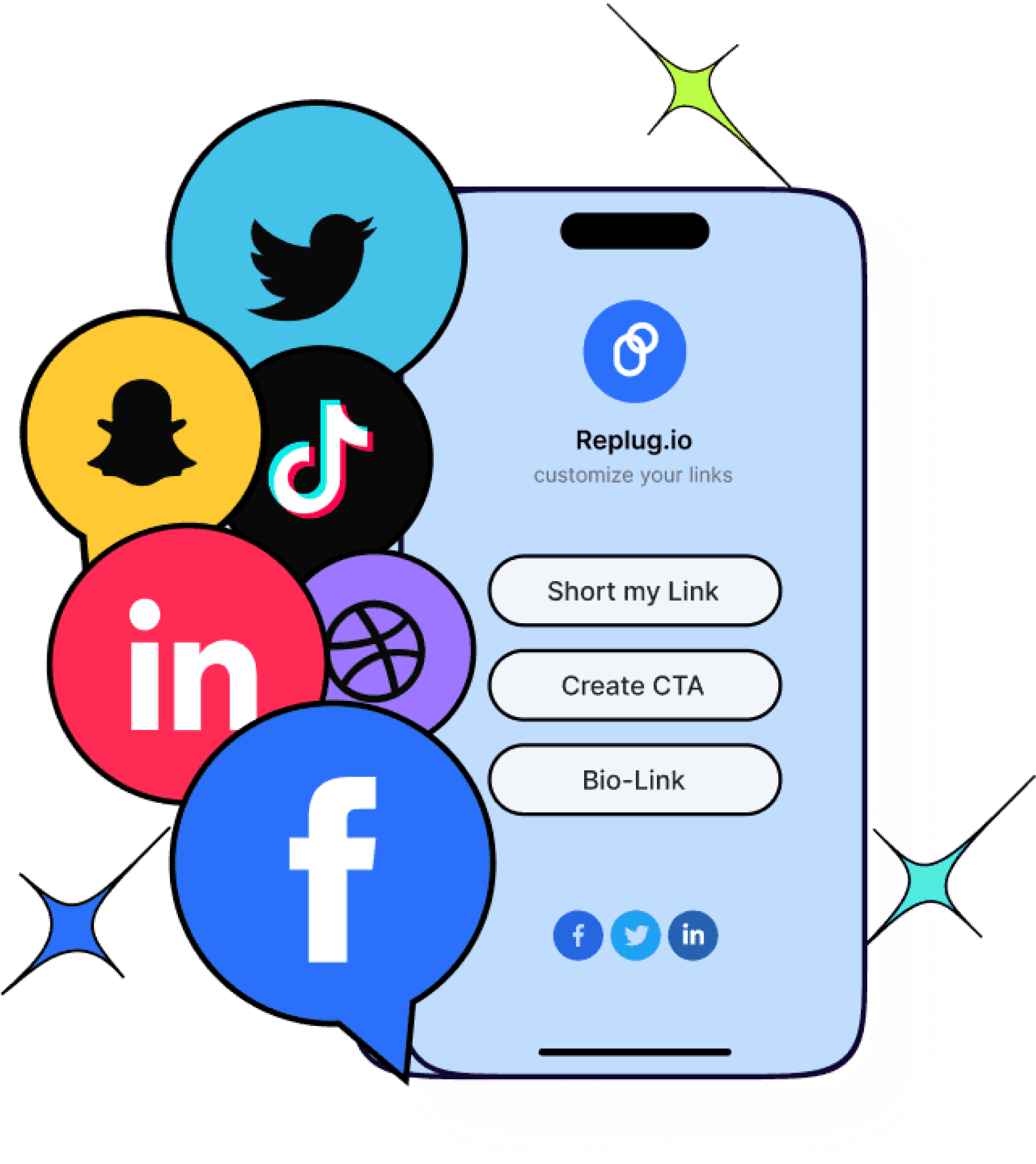
    Boost ROI with branded URLs - Replug dashboard showing performance metrics and branded URL creation
    Turn your bio links into click-boosting machines
    Check

    Drive up to more clicks than plain URLs

    Check

    Share multiple destinations with one link

    Create bio links free

    Why I can’t remove the link from my Instagram bio?

    There are a few potential reasons why you might be unable to remove a link from your Instagram bio:

    1. Instagram glitch: Sometimes, Instagram experiences temporary glitches. Try closing the app completely and reopening it. This might resolve the issue.
    2. Link shortener or third-party app: If you’re using a link shortener or a third-party app to manage your bio link, you might need to remove the link from that service first.
    3. Outdated app: Ensure you’re using the latest version of the Instagram app. Outdated apps can sometimes cause issues.
    4. Cache issues: Clear your app’s cache or use a different device to see if the issue persists. Cached data can sometimes cause unexpected behavior.
    5. Account issues: Verify that your account hasn’t been flagged or restricted in any way, which might affect your ability to make changes.

    Additional troubleshooting steps:

    1. Check internet connection: A poor internet connection can interfere with app functions.
    2. Try a different device: If possible, log in to Instagram from a different device to see if the issue persists.
    3. Wait it out: Sometimes, Instagram experiences temporary server issues. Waiting a few hours might resolve the problem.

    If you’ve tried these steps and still can’t remove the link, contact Instagram support directly for further assistance.

    How to remove a link from your Instagram bio?

    Removing a link from your Instagram bio is a quick and easy process. Follow these steps to update your bio:

    Step 1: Open the Instagram app on your device.
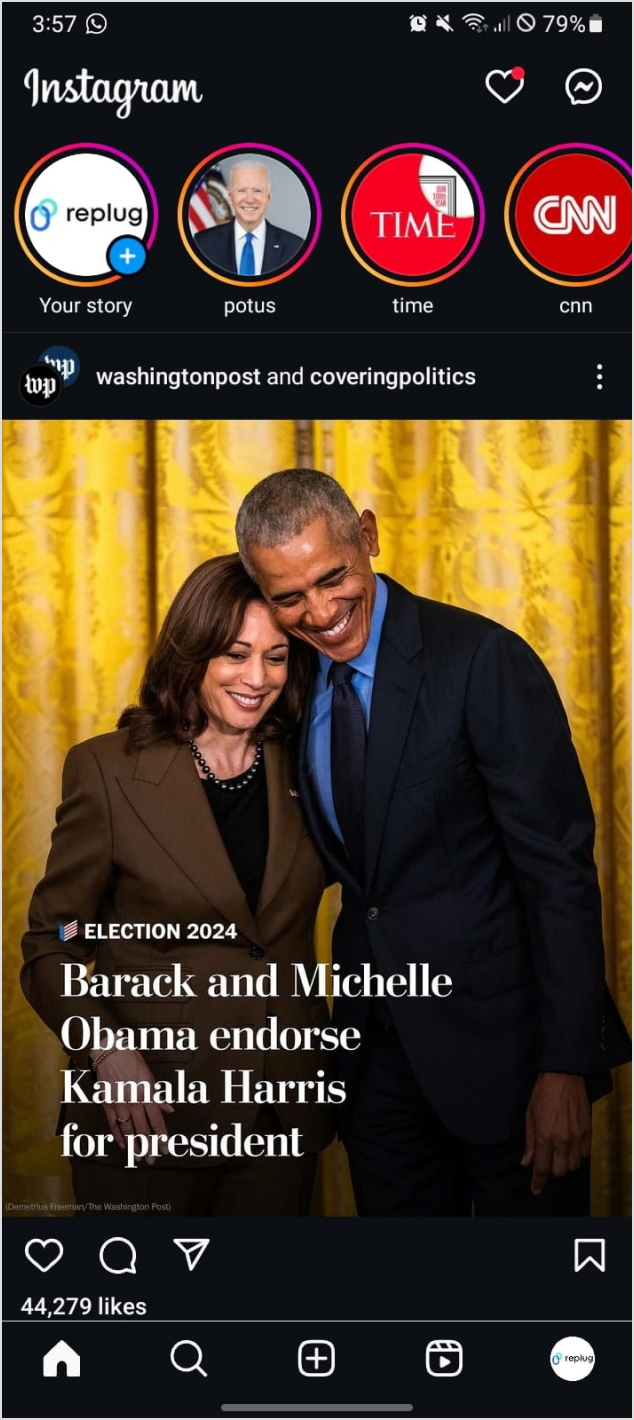
    Feedpage of Instagram

    Step 2: Go to your profile

    Tap on your profile picture in the bottom right corner of the screen to go to your profile page.
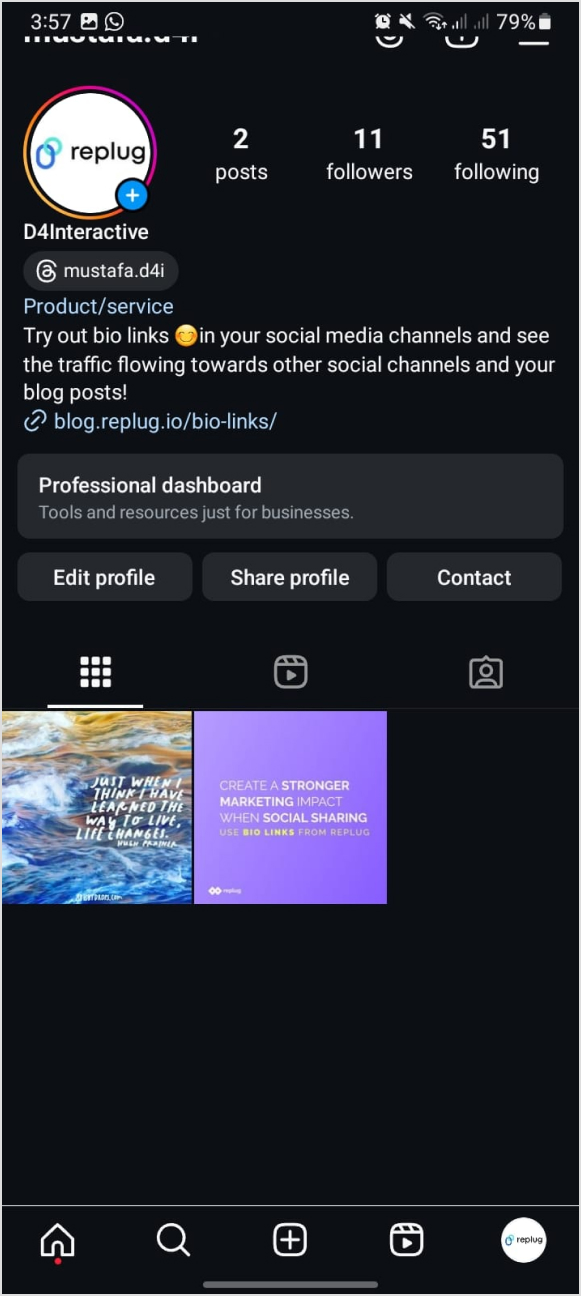
    Personal Instagram Profile

    Step 3: Edit your profile

    On your profile page, tap the “Edit Profile” button. This is usually located directly below your profile picture and bio.
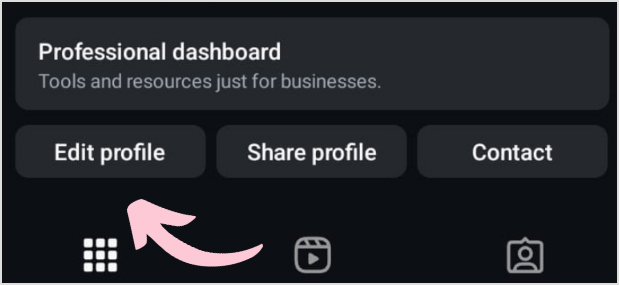
    Edit Profile

    Step 4: Update the website field

    In the “Edit Profile” screen, look for the “Link” field. This is where your current link is located.
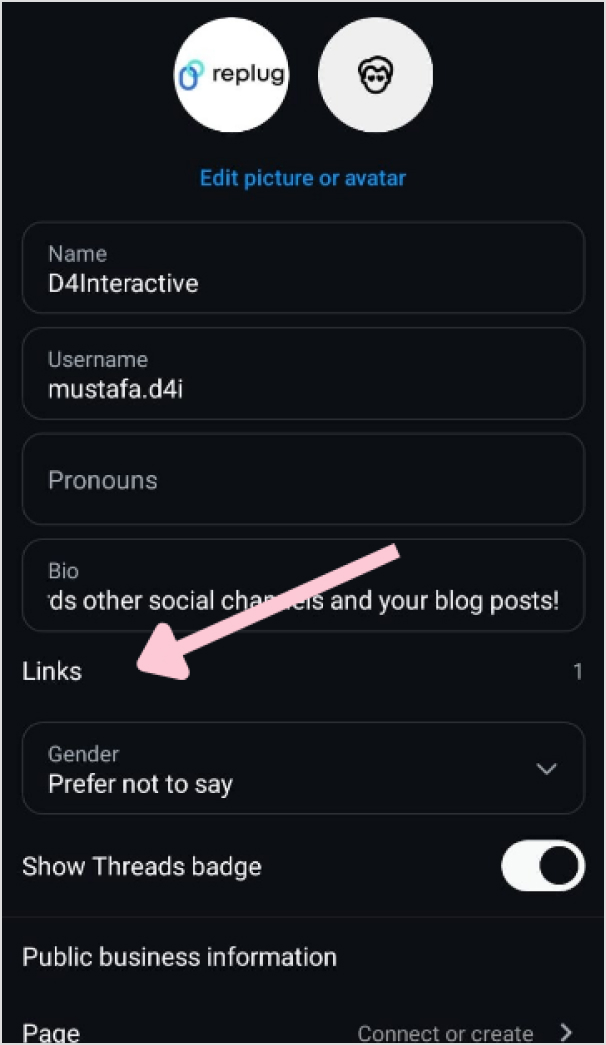
    Link in your Instagram bio

    Step 5: Remove the link

    Tap on the “Link” field to edit it. Delete the existing link or text from the field.
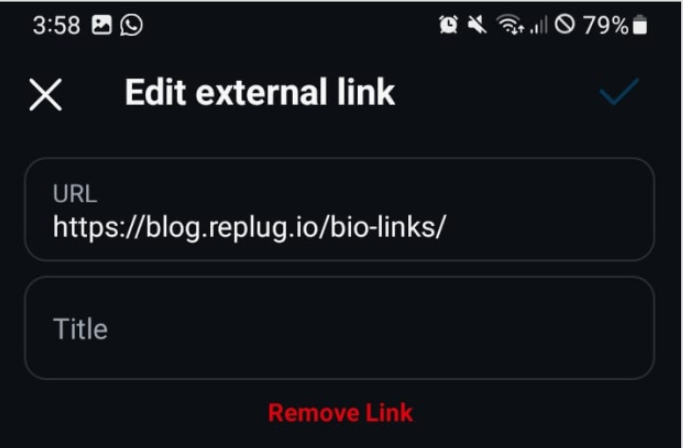
    Remove link

    Step 6: Save your changes

    Once you’ve removed the link, tap “Done” (iOS) or the checkmark (Android) in the top right corner to save your changes.

    Refresh your profile: Go back to your profile page and refresh it to ensure that the link has been successfully removed.

    And that’s it! You’ve successfully removed or updated the link from your Instagram bio. 
    Boost ROI with branded URLs - Replug dashboard showing performance metrics and branded URL creation

    Go beyond generic link pages!

    Create custom bio links that truly fit your brand

    With Replug, you can create bio links that are unique, engaging, and built to convert.

    Start free trial

    Also read: 10 best bio link tools for 2026 | Reviews & pricing 

    How to rename a link on Instagram bio?

    Renaming a link on Instagram involves using link shortener tools that not only condense your URL but also allow customization of the link text to make it more appealing and memorable.

    One of the best options is Replug. It is a top-notch, free link shortener tool that offers customization features.

    Introducing Replug.io

    Replug.io is a link management platform that simplifies URL sharing by creating branded short links and provides in-depth click tracking for performance optimization.

    Steps to rename bio links on Instagram using Replug

    Take the first step towards using Replug by creating an account.

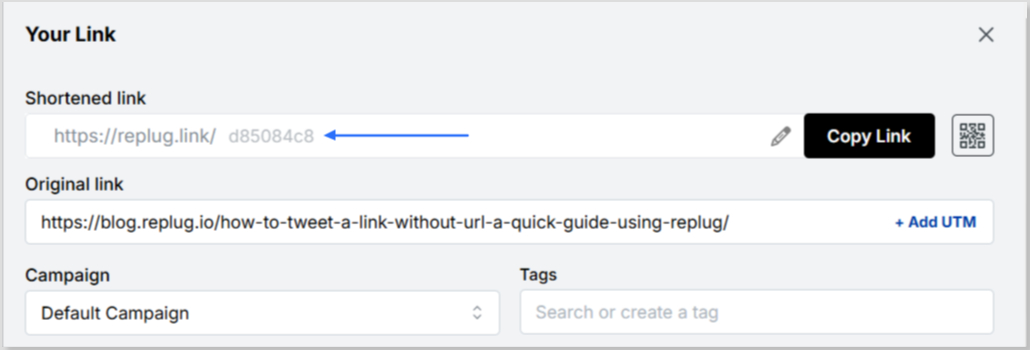
    Step 1: In the top-left corner, paste the link you want to shorten into the input bar. Then, click the arrow icon next to it to proceed.
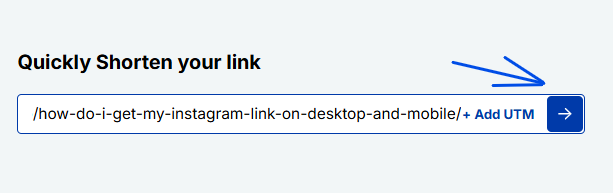
    shorten your link

    Step 2: You’ll be redirected to this page
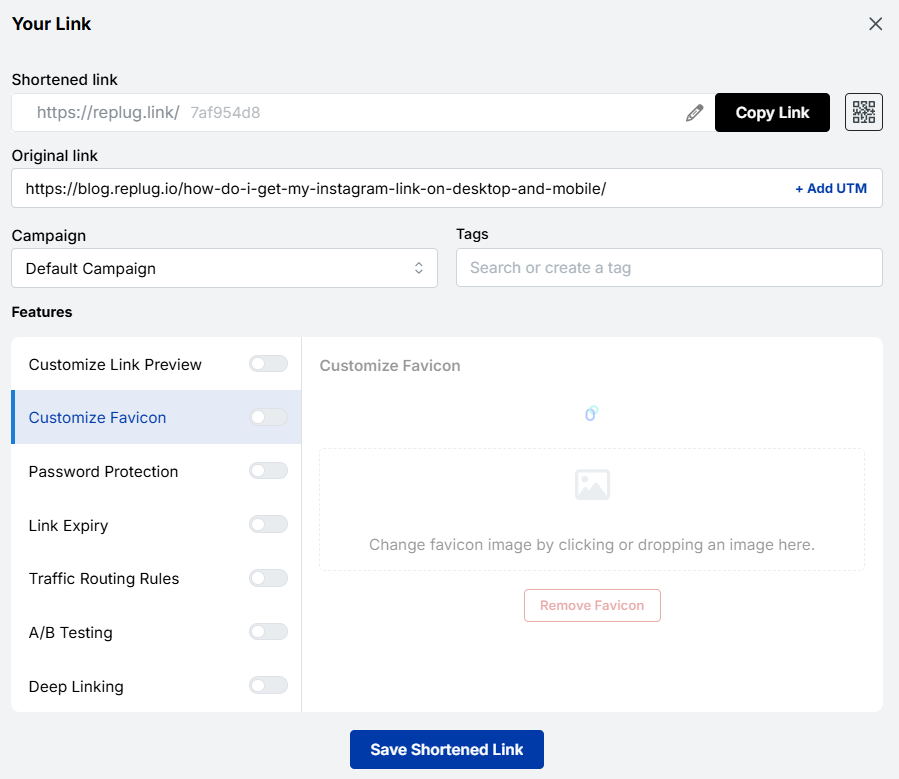
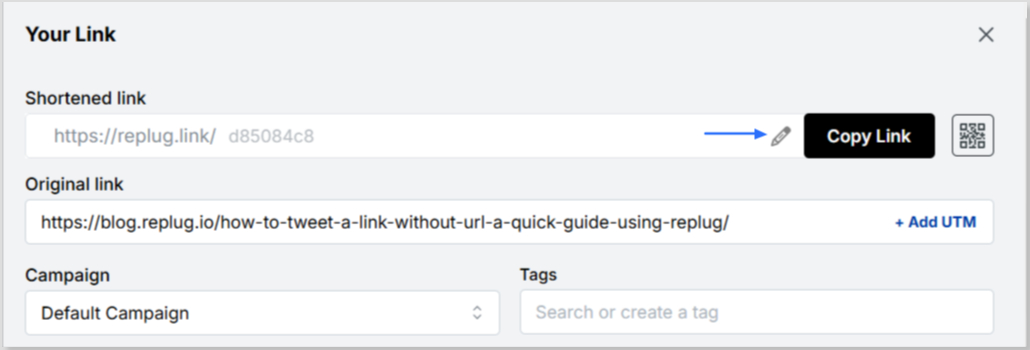
    chaneg link name

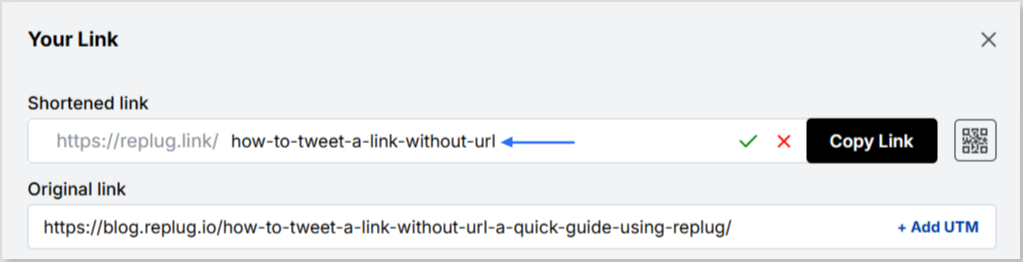
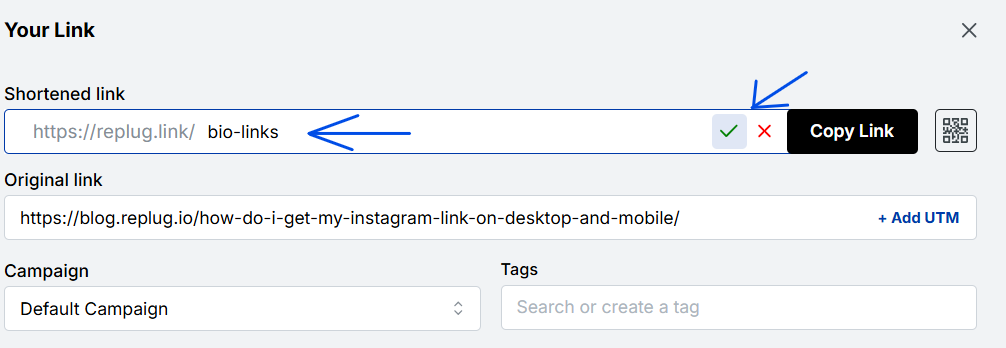
    Click the pencil icon in the top bar to rename or customize your link.
    cahnge link name

    After editing, click the green checkmark to confirm the changes.

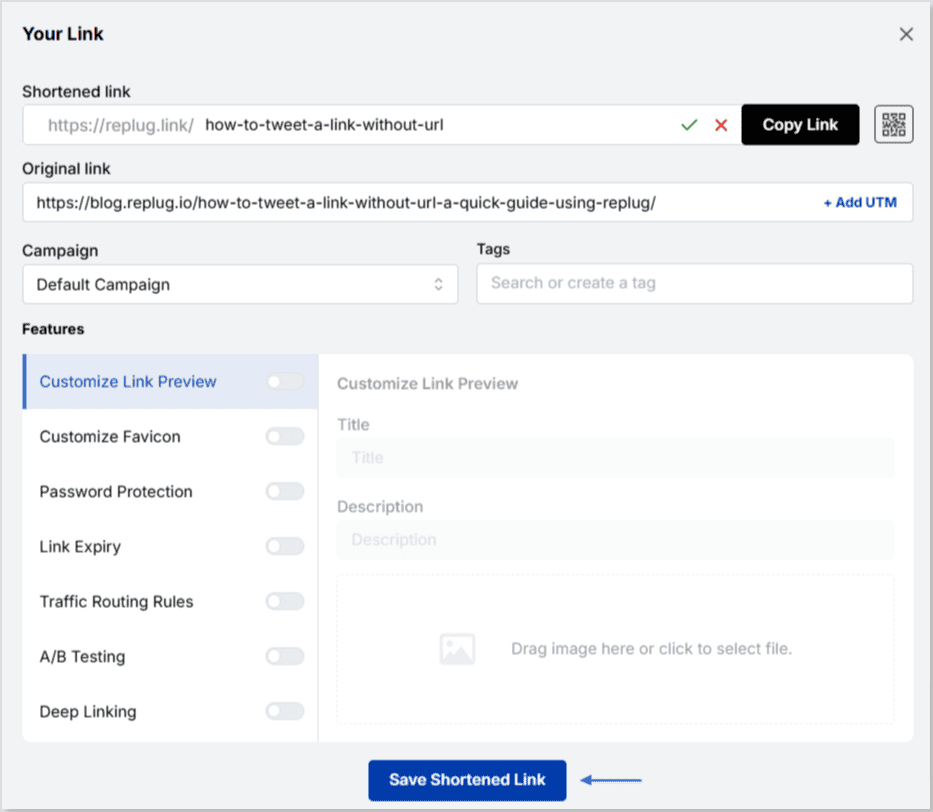
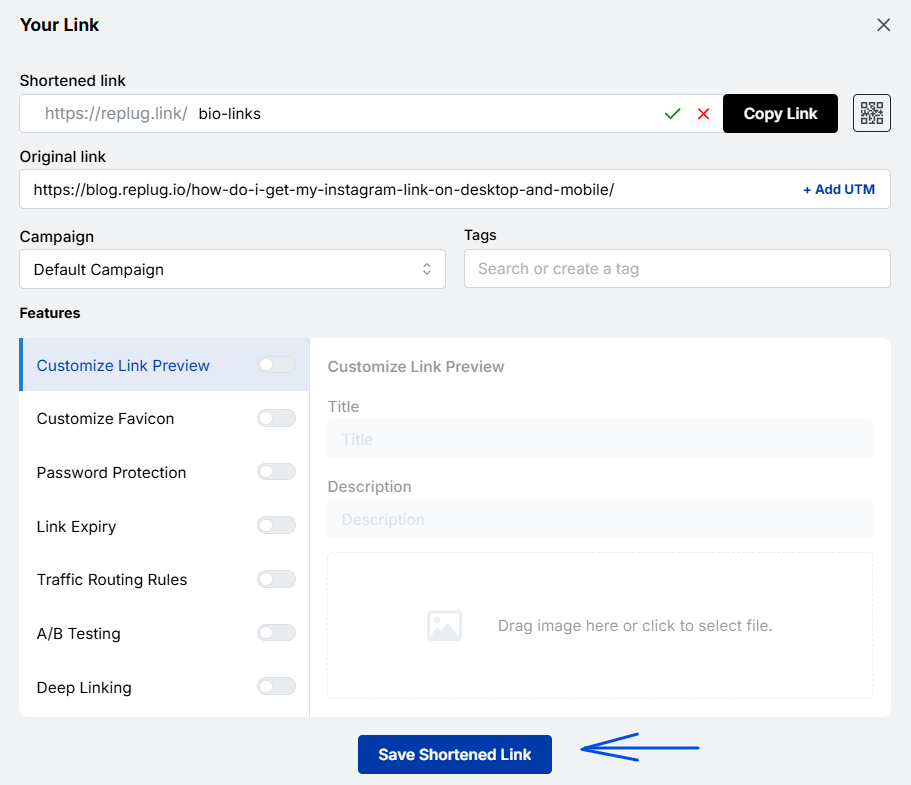
    Step 3: Once you’ve finalized your changes, click the “Save Shortened Link” button at the bottom to complete the process.
    save new link

    Viola! Your link is renamed.

    Step 4: Update your Instagram bio

    1. Open Instagram and go to your profile.
    2. Tap on “Edit profile”.
    3. Find the “Website” field and paste your customized short link.
    4. Save your changes.
    1. Double-check your profile or wherever the link is used to ensure that the new name is correctly reflected and that the link still functions properly.

    Replug Branded Short Links CTA
    Maximize marketing ROI
    by transforming ordinary URLs into
    branded short links that convert.
    Try Replug for free

    Replug: Link-in-bio feature

    bio-links-social-profiles

    You can achieve this effortlessly with the Replug bio-link feature. This tool lets you consolidate all your important content and links into a single, accessible location for your audience.

    Here are amazing features of Replug’s link in bio tool

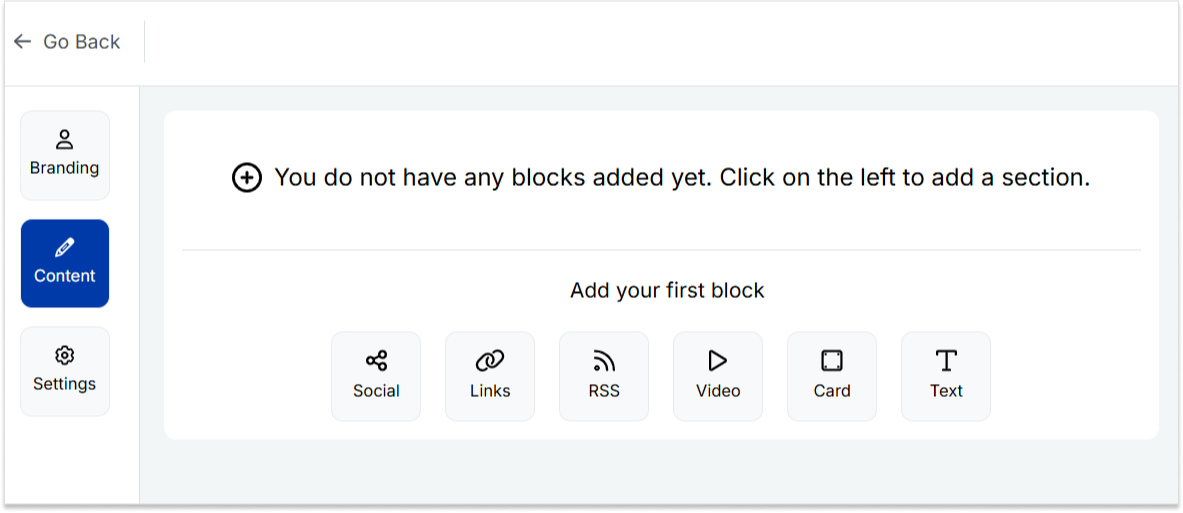
    1. Add your favorite content in one place

    Bring your brand to life with social media icons, essential links, the recent blog with an RSS feed, audio clips, important text, and cards for stunning images.
    add links

    2. With Replug, you don’t just get a link in bio – you get to own it by renaming your links.

    Also, customize their appearance and match your landing page blocks from colors to favicons to your brand’s vibe. 

    3. Track bio link performance

    With performance tracking features, you can monitor the total number of clicks, conversion rates, and other valuable metrics. The best part is that you can view your analytics in both a summary list view and a detailed view.

    Boost ROI with branded URLs - Replug dashboard showing performance metrics and branded URL creation

    Go beyond generic link pages!

    Create custom bio links that truly fit your brand

    With Replug, you can create bio links that are unique, engaging, and built to convert.

    Start free trial

    Top tips to maximize the limited space in your bio:

    Quick tips Maximize your impact
    Less is moreAdd a short description about your brand or page. 
    Try adding a bio landing pageConclude your website link, portfolio, contact information etc.
    Identify your unique selling point (USP)Clearly communicate what sets you apart.
    Include a clear call to action (CTA)Tell people what you want them to do next.
    Keep on experimentingTry different stuff. See what clicks. You might surprise yourself!

    Conclusion

    Removing a link from your Instagram bio is a simple process that can be done in a few steps through the app’s profile settings. By keeping your bio updated and free of outdated or broken links, you ensure a professional and effective presence on the platform. This helps maintain a clear and engaging profile, optimizing your brand’s impact and user experience. 

    So that was it for today’s guide. If you have more questions regarding link name changers, link removers, or the best link in bio tools, feel free to visit our website. 

    FAQs related to Instagram bio-link 

    How do I make my Instagram bio catchy?

    1. Clearly state what your business does.
    2. Use relevant keywords to improve searchability.
    3. Include contact information and a call to action.
    4. Utilize Instagram’s business features like adding a category, contact options, and action buttons (e.g., “Book Now” or “Shop”).

    How do I add a website link to my Instagram bio?

    Edit your profile and paste the URL into the “Website” field.

    How often should I update my Instagram bio?

    Update your bio whenever there are significant changes to your brand, achievements, or contact information.

    Can I use hashtags in my Instagram bio?

    Yes, you can use hashtags in your Instagram bio to make your profile more discoverable and to highlight key interests or topics.
  • How to add a location to your Instagram bio?

    How to add a location to your Instagram bio?

    Imagine this: you’ve just opened your store in a lively new neighborhood. Now, picture potential customers on Instagram, craving a nearby spot. They stumble upon a post about a cozy local cafe close by. Intrigued, they visit, and bam – you’ve become their new favorite.

    This magic is possible when businesses, like yours, add a custom location to their Instagram bio. It’s not just a digital tag; it’s a smart way to connect with locals, boost visibility, and amp up sales.
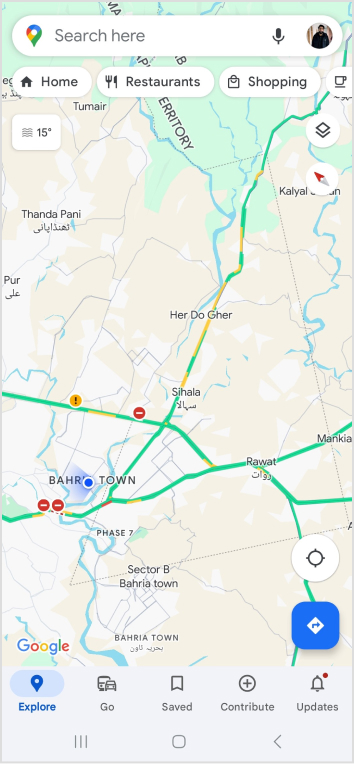
    Ready to try it yourself? Here’s a quick guide on adding a location to your Instagram bio – an easy trick to effortlessly connect with your audience and boost your digital presence.
    Here’s how to add a location to your Instagram bio:

    Whether you’re using a personal or business account, adding a location to your Instagram bio is a breeze. Just a heads up, you can only do this on your mobile, not your computer. Stick around, and we’ll show you how in a moment.

    Choose a location on Google Maps on your phone:

    Step 1: Open Google Maps on your phone and search for the specific location you want to add. Type the address into the search bar if needed.

    Step 2: Once you find the right spot on Google Maps, tap “Share,” then select “Copy.” This action copies the link to that exact location.

    Also read: 7 benefits of bio links you need to know

    Step 3: Close Google Maps and open Instagram. Go to your profile by tapping your profile picture at the bottom right of the app’s home screen.

    Step 4: Tap “Edit Profile.”

    Step 5: Under the “Links” section, select “Add Link.”

    Step 6: On the next screen, choose “Add External Link” and paste the link you copied from Google Maps. You can also give it a title, like your business name.

    Step 7: Hit “Done” and go back to your profile.

    Refresh the page by pulling the screen down, and there you have it! You’ve successfully added a location to your Instagram bio.

    Also read: How to Sell on Instagram: Top 10 Strategies for Success

    Boost ROI with branded URLs - Replug dashboard showing performance metrics and branded URL creation

    Go beyond generic link pages!

    Create custom bio links that truly fit your brand

    With Replug, you can create bio links that are unique, engaging, and built to convert.

    Start free trial

    How to add multiple links to your Instagram bio?

    Expand your Instagram profile’s impact using Replug to add multiple links to your bio. Overcome Instagram’s single-link constraint, by using our Instagram link in bio tool to create a single bio link page offering followers easy access to diverse content and destinations.

    Replug also serves as a comprehensive link management platform, helping you organize, track, and optimize all your links from one convenient dashboard.

    Streamline engagement and maximize your online presence with a dynamic and efficient bio link solution.

    Here’s how to add multiple links to your Instagram bio using Replug:

    Step 1: Sign in to Replug or create a free account.

    sign in to replug

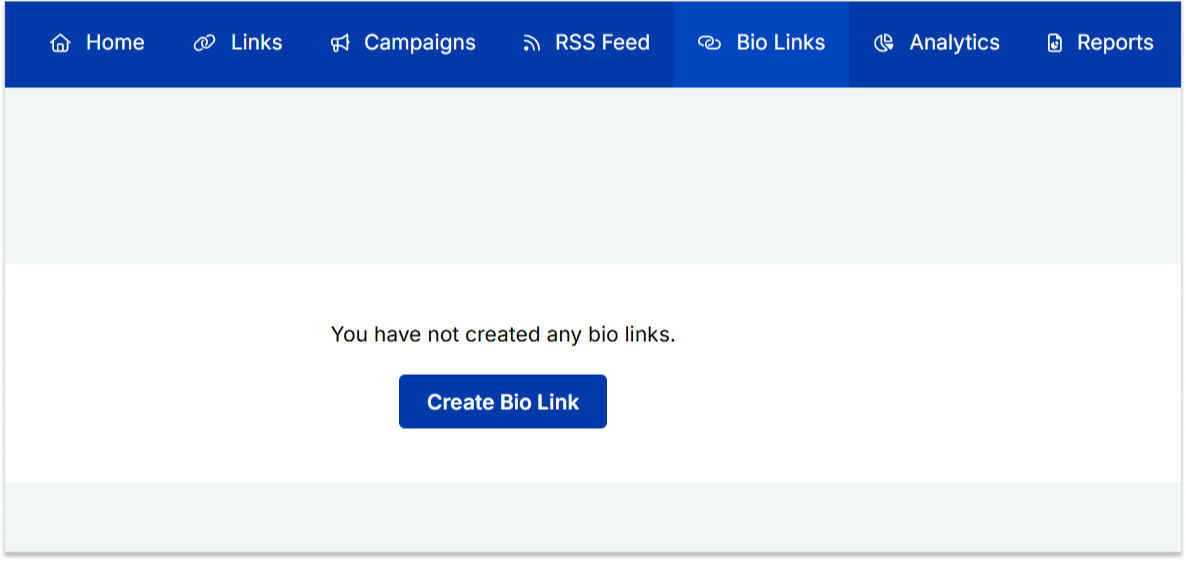
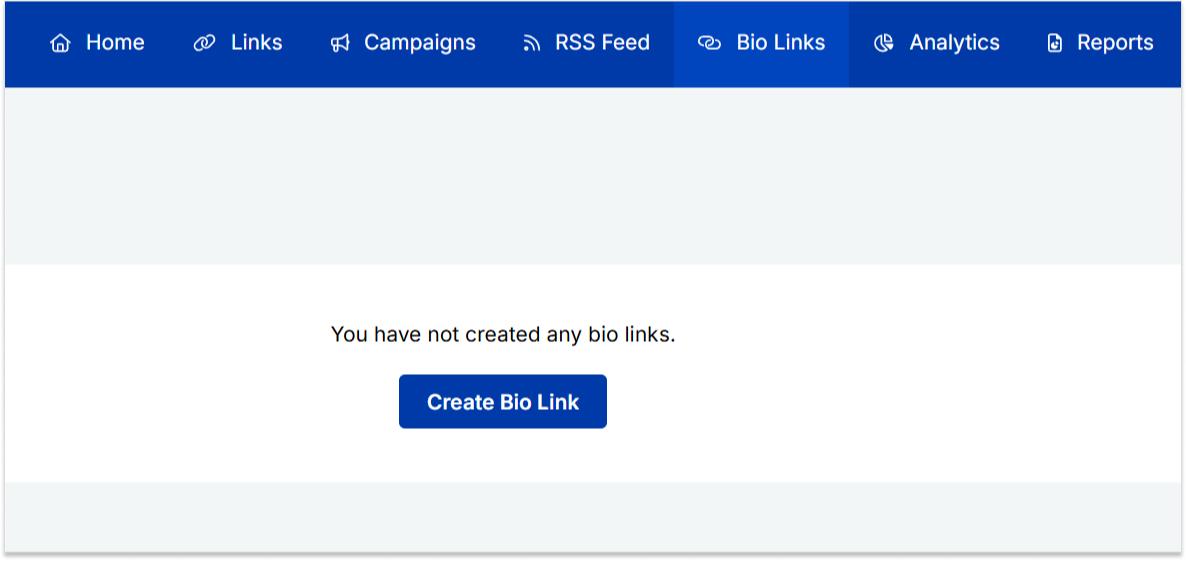
    Step 2: Locate the “Bio Links” feature in the top banner. The bio link dashboard will appear in front of you. 

    bio link

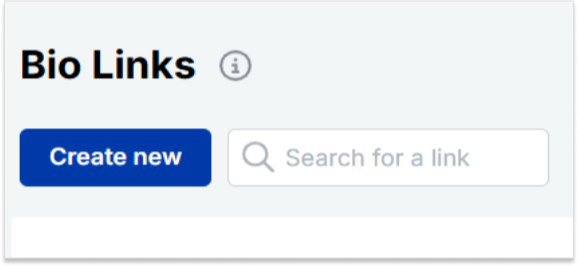
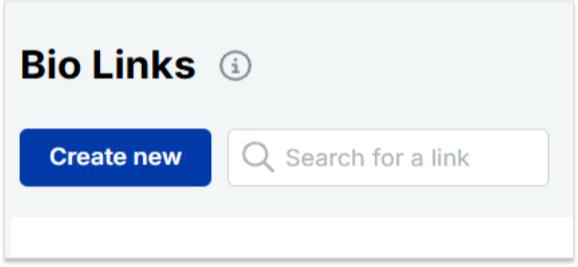
    Step 3: Click the “New Bio Link” button to start setting up your Tumblr bio. You’ll be directed to a new page where you’ll find three main categories: branding, content, and settings.

    create a new bio link

    Also read: How To Add A Instagram Link In Bio?

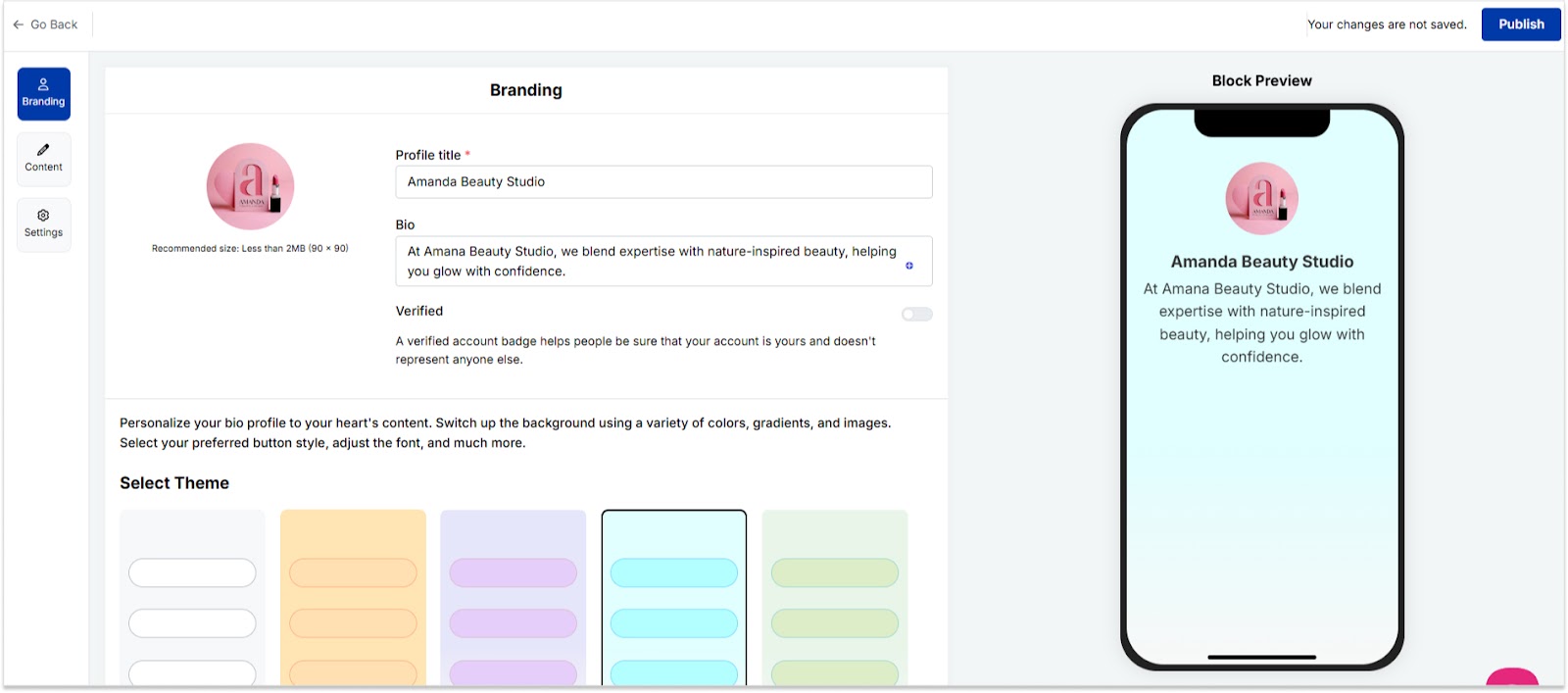
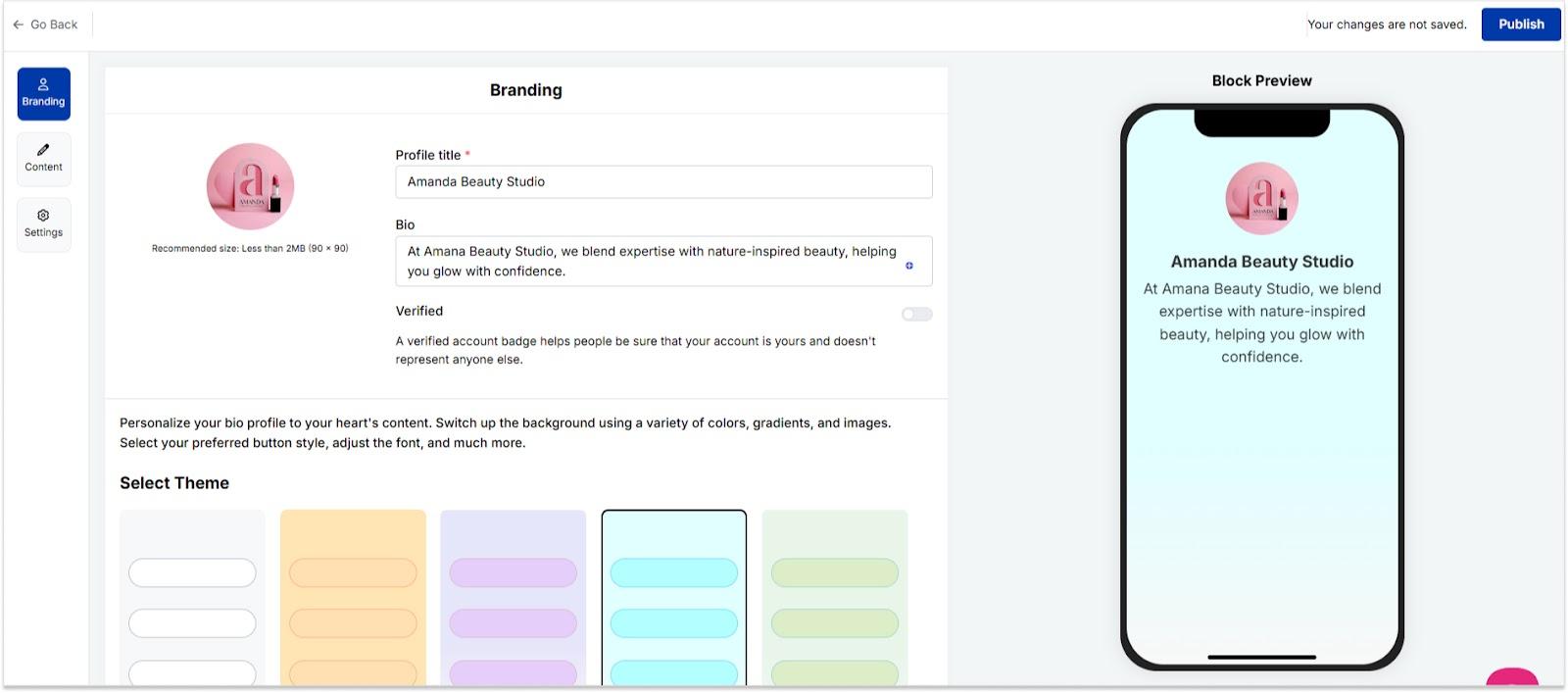
    Step 4: In the branding section, add a brand title and description, select themes, and choose button styles to match your aesthetic.

    bio link branding

    Once you’re done, click “Publish” in the upper right corner to save your changes.

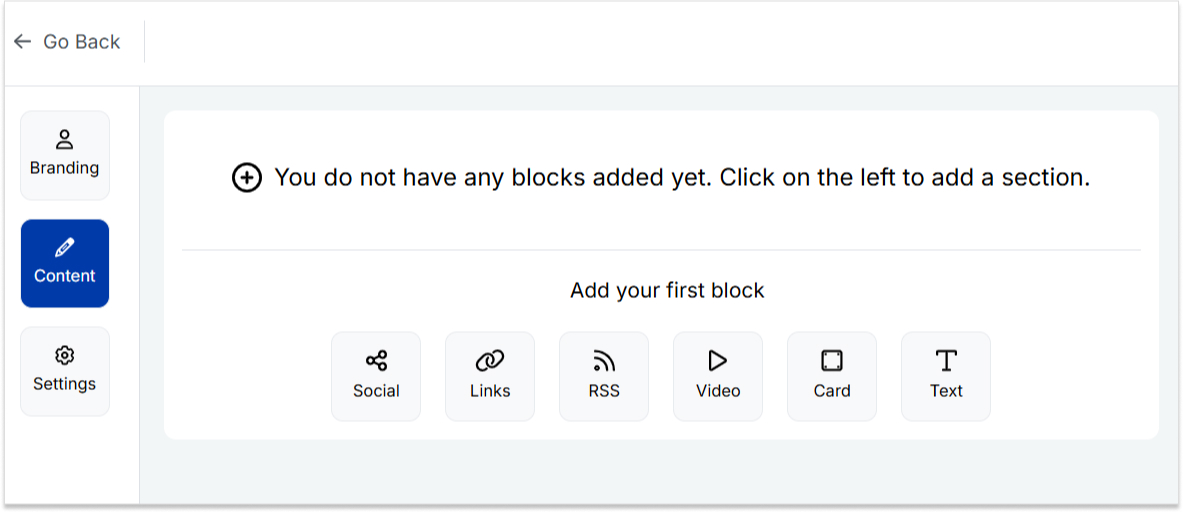
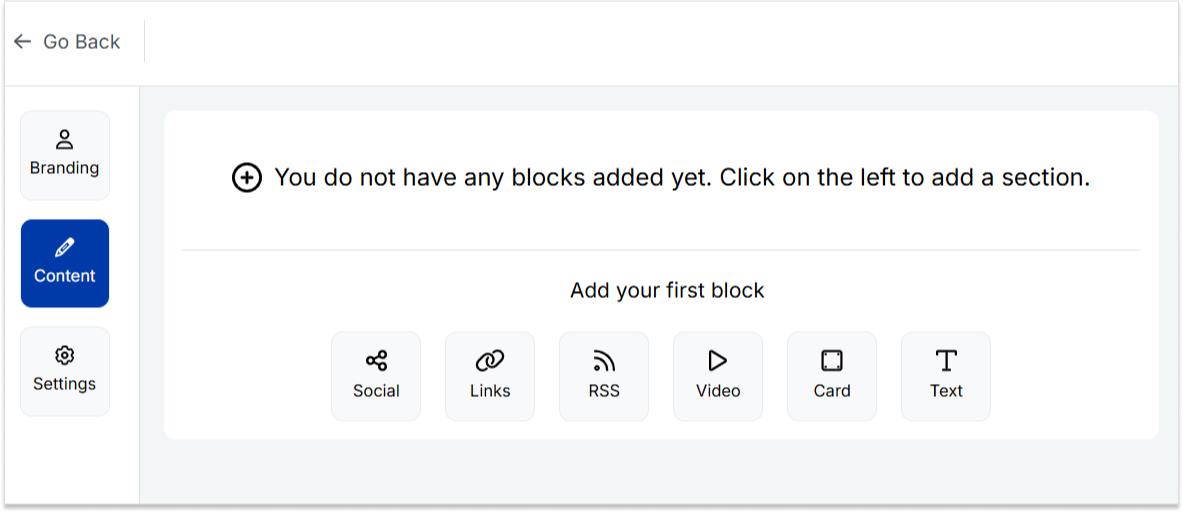
    Step 5: Head to the content category. Here, you can add social icons, links, RSS feeds, videos, cards, text, and more. 

    bio link content

    For example:

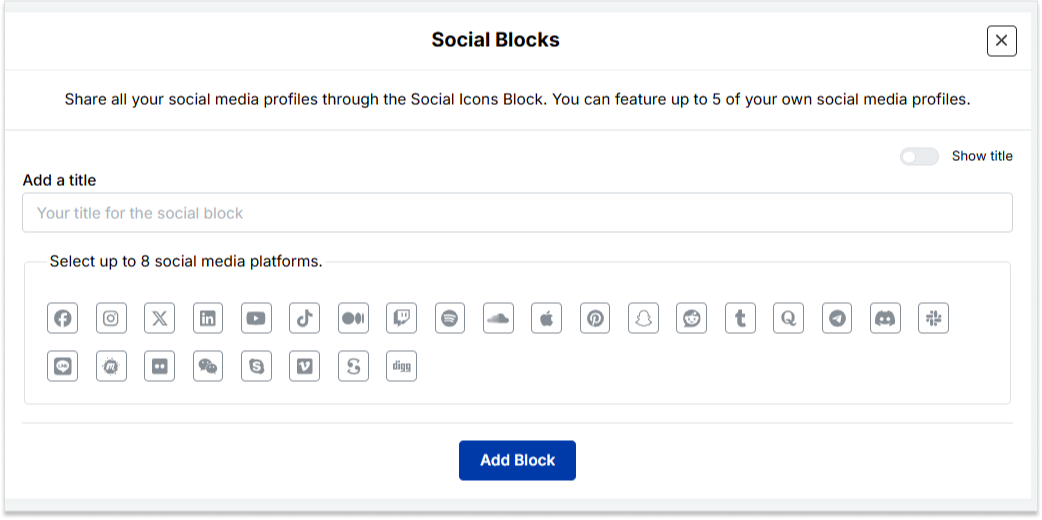
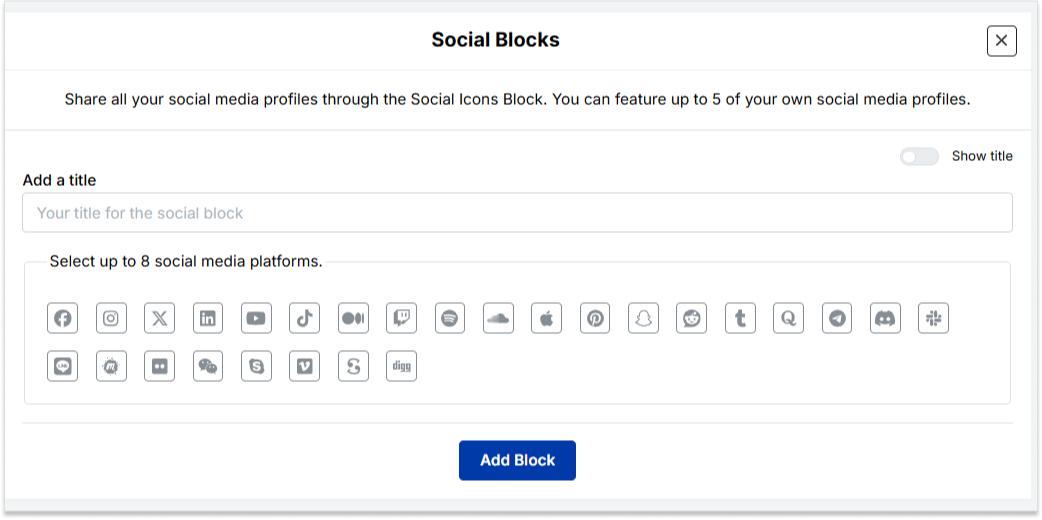
    • Social icons: Add up to 8 platforms, customize colors, and link to your profiles.
    add up to 8 social icons
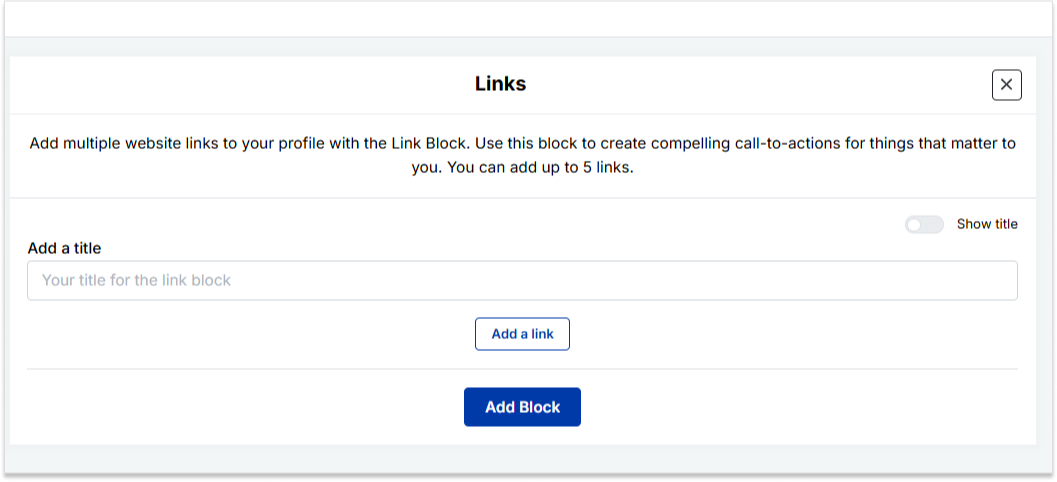
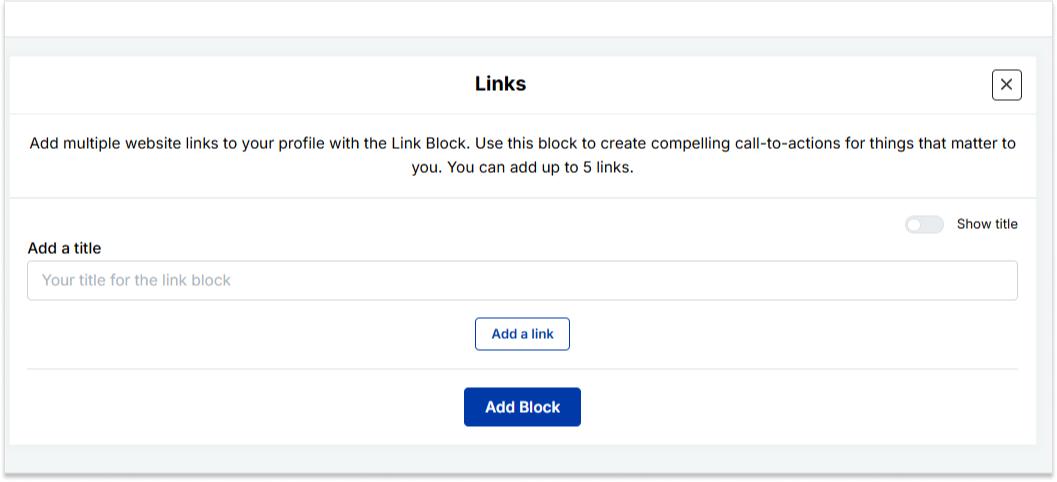
    • Links block: To include website links, use the “links” block. Add titles and URLs for each link.
    add up to 5 links

    Step 6: Once you’ve added the necessary blocks, click “update” to save each one.

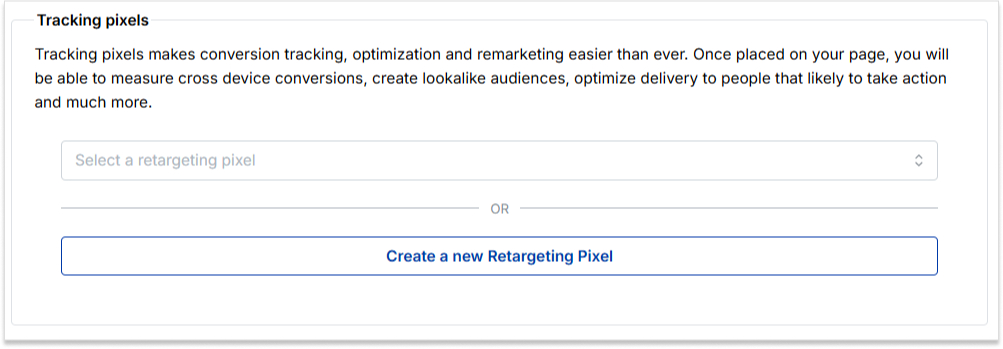
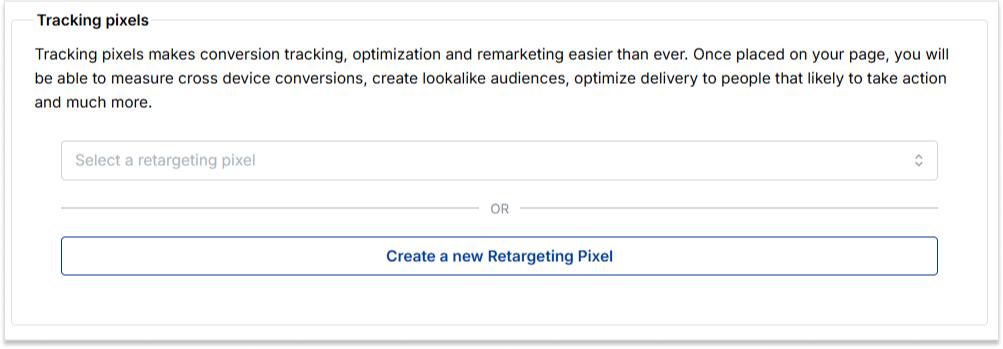
    Step 7: Go to the settings section to further customize your bio link’s SEO and social media preview. Add a title, description, favicon image, and even retargeting pixels if desired.

    add retargeting pixel

    Now you can add this bio link to your Instagram bio following the steps mentioned above and you’re done. 

    Also read: How to View Instagram Analytics: All You Need to Know

    Boost ROI with branded URLs - Replug dashboard showing performance metrics and branded URL creation

    Go beyond generic link pages!

    Create custom bio links that truly fit your brand

    With Replug, you can create bio links that are unique, engaging, and built to convert.

    Start free trial

    FAQs on Instagram bio

    How do I change my location on my Instagram business account?

    Update your location by tapping “Edit Profile” on your Instagram profile and adjusting it under the “Public Business Information” section.

    Can I add multiple locations to my Instagram bio?

    No, Instagram allows only one location link, but you can use services like Replug to create a bio link with multiple links, including locations.

    Additionally, you can simplify and track your links effortlessly using this URL shortener free tool, making your shared URLs more manageable and professional.

    Why can’t I add a location to my Instagram bio on my computer?

    Editing Instagram bio links, including locations, is a mobile-only feature. You can make these changes using the Instagram app on your smartphone.

    Is it possible to remove a location from my Instagram bio later?

    Absolutely, to remove a location from your Instagram bio, go to “Edit Profile,” click on the location link, and either delete or replace it with a new one.

  • How to Tweet a link without URL on X: A quick guide

    How to Tweet a link without URL on X: A quick guide

    In the vast landscape of social media, X (formerly Twitter) is a prominent platform connecting people from all walks of life. In this guide, we’ll uncover the secrets of tweeting links with finesse.

    Ready? Let’s get tweeting!

    How to tweet a link without a URL?

    When crafting a tweet on X, the URL you include will be initially visible within the tweet text. However, upon posting the tweet, Twitter automatically generates a preview for certain URLs (not all), transforming the appearance of the tweet. 

    This preview showcases essential details from the linked page, such as a headline, description, and often an accompanying image. 

    As a result, the full URL is no longer prominently displayed in the tweet, offering a cleaner and more engaging presentation for users.

    Here’s how to tweet a link without URL:

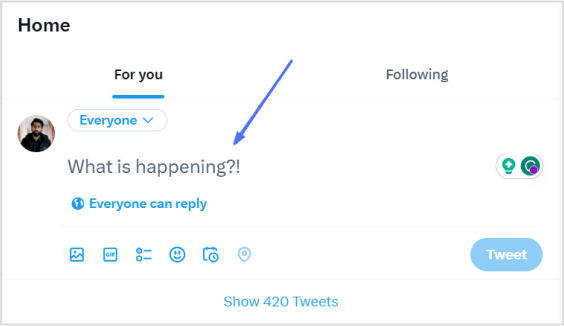
    Step 1: Log in to X and paste your link into the compose box at the top of your Home timeline. 

    how-to-tweet-a-link-without-url

    Also read: How to find my Twitter URL on mobile and desktop?

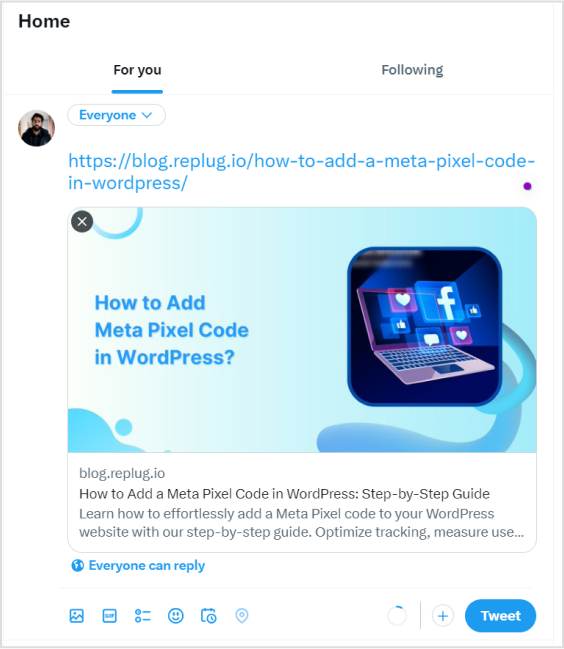
    Step 2: Twitter will automatically generate a preview of your pasted link. Hit the Tweet button and Twitter will share the link without showing the URL.

    how-to-tweet-a-link-without-url

    That’s it! You’ve your link tweeted without the URL!

    Important note: 

    • Not all URLs will trigger a preview; some links, such as specific file types or websites with restricted access, may still display the full URL in the tweet. In addition, you only have 280 characters to use in a tweet. In this situation, you could:
    • Use a URL shortener service 
    • Describe the link in your tweet.

    And guess what? We have a solution for your long X URL problem!

    Introducing Replug: Your solution for shortening X URLs

    With Replug, you can transform lengthy URLs into concise links for your tweets. Say goodbye to character count woes and hello to engaging, impactful content. 

    Let’s dive into the simple process of Replug’s URL shortening and bring your X sharing to the next level!

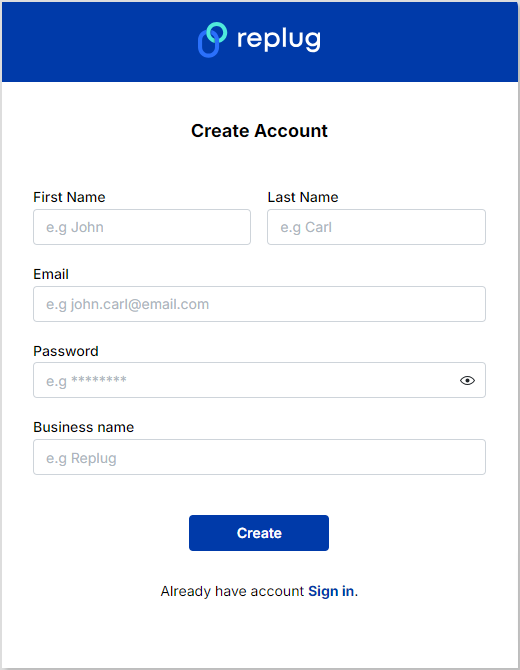
    Step 1: Sign in to Replug or create an account for free. 

    Replug-signup

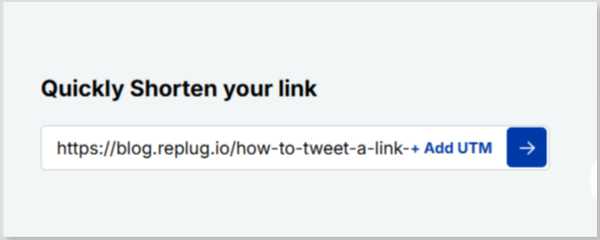
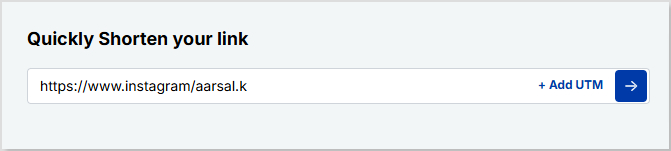
    Step 2: Next, you’ll be led to the main dashboard. To shorten your URL, enter the desired URL you want to track in the bar under “Quickly Shorten your link”:

    link-shortening

    Step 3: After entering your URL and clicking on the blue arrow button, Replug will automatically generate a shortened link that you can copy:

    short-link

    Step 4: You can also customize the URL with the slug of your choice by clicking on the pencil icon:

    custom-url
    custom-url

    Step 5: Simply save your URL and you’re done! Share away, whenever, wherever.

    save-short-link

    Replug Analytics: Measure link success

    Are your X links making the impact you desire? 

    With Replug Analytics, you can dive deep into your link performance and discover the key to boosting engagement, maximizing reach, and achieving your Twitter goals like never before!

    Replug’s Analytics feature empowers you to make data-driven decisions and revolutionize your link-sharing strategy.

    Learn more about the Replug analytics here!

    url-tracking-analytics

    FAQs about how to tweet a link without URL on X

    Can you embed an image in a tweet?

    Yes, you can embed an image in a tweet by directly uploading it to x (formerly Twitter). When composing your tweet, upload the image, and it will be hosted on X’s servers, appearing within the tweet’s content for all users to see.

    What are the benefits of using shortened links on Twitter?

    Shortened links offer cleaner tweets, free up character space, and encourage more user interactions.

    Are there any character limits for links on Twitter?

    Yes, the X character limit is 280, and sharing lengthy URLs can consume valuable space. A reliable short URL generator helps keep tweets concise and engaging.

  • How do I get my Instagram link on Desktop and Mobile?

    How do I get my Instagram link on Desktop and Mobile?

    Social networks like Instagram are mobile-friendly. However, because Instagram is mobile-first, tracking down your Instagram URL can sometimes be tricky because it works differently than a traditional website.

    This guide will show you how to quickly grab URLs on both mobile and computer devices, including your Instagram links, in just a few simple steps.

    Let’s get searching!

    How to get an Instagram link on a computer device:

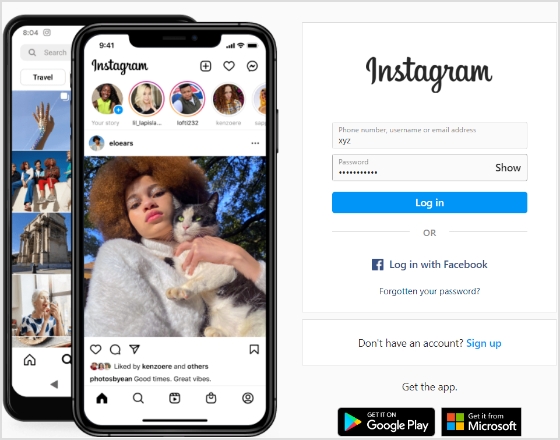
    Step 1: Go to Instagram and type in your login credentials.

    Login to Instagram

    Step 2: Click on your username at the top-right of the screen.

    click username

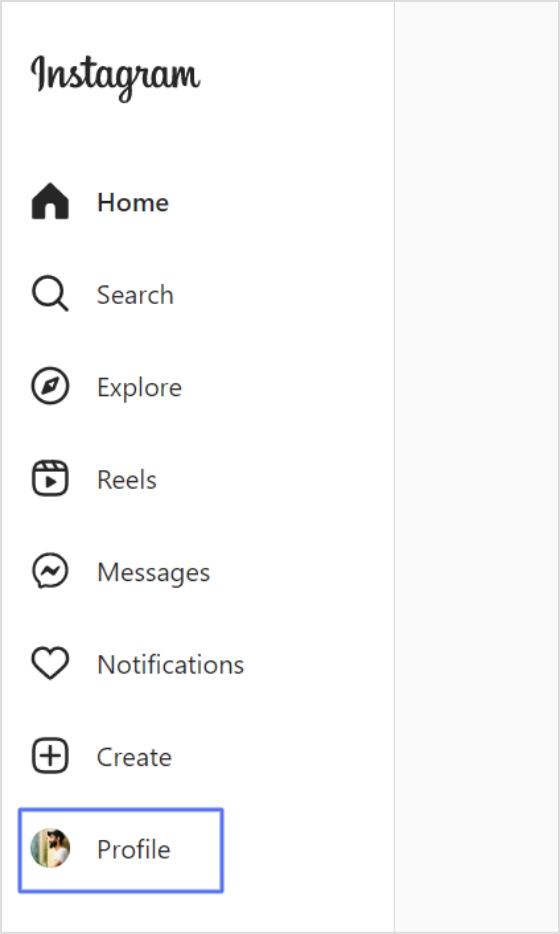
    Alternatively, you can click the profile icon in the left menu.

    click profile

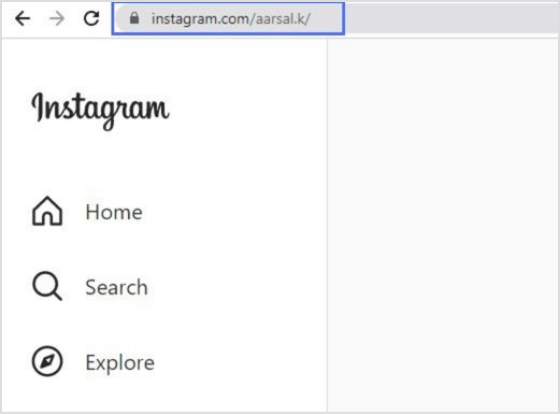
    Step 3: Your Instagram link will appear in the search bar. Copy the link, and you’ll have a ready-to-use Instagram link.

    copy url

    How to get an Instagram link on a mobile device:

    Step 1: Open the Instagram app on your iPhone or Android and log in. 

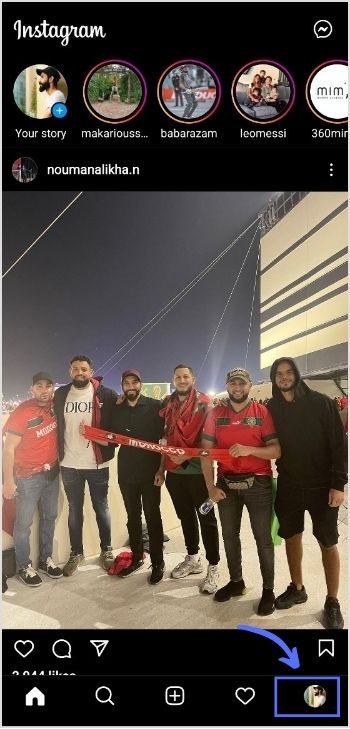
    Step 2: Tap on your profile in the bottom right-hand corner of the menu.

    tap profile

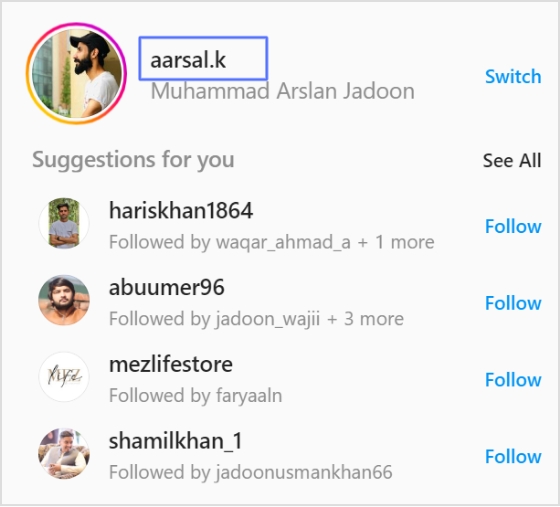
    Step 3: You will find your Instagram username at the top of your profile page. 

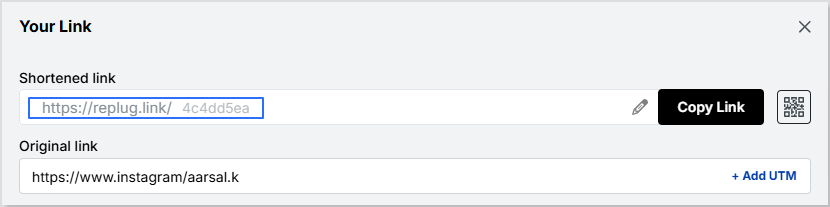
    Note: Instagram URLs consist of two components: Instagram’s website address and your Instagram username. The URL format is generally instagram.com/username. So, the Instagram username for the case is aarsal.k. To get this link, just type Instagram.com/aarsal.k. You can do the same for your iPhone or Android device.

    Your Instagram link is now ready to go!

    note username


    How to change Instagram URL using Replug?

    You can easily change your Instagram URL in seconds with Replug.io by following the next mentioned simple and easy steps. 

    Then simply paste that link into this top-notch short URL shortener to get a tidy, share-friendly version ready for your social bio.

    Step 1: Follow the above steps to get your Instagram link on mobile or desktop.

    Step 2: Go to any browser on your desktop and type app.replug.io. You will be redirected to the login page, where you can sign in or create an account if you don’t already have one.

    Step 3: You will see the Replug dashboard once you are signed in.

    Step 4: Paste or type your Instagram URL in the box under “Quick Shorten your link” to customize it:

     Step 5: Now you have your updated URL, which will look like the one below in the picture. 

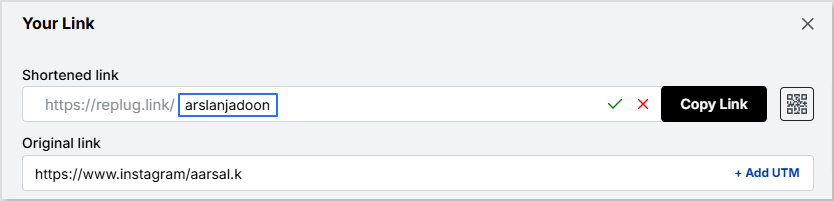
    You can customize the URL slug to let people know exactly what you’re sharing. Click the edit button at the end of the URL bar and type the URL slug you want.

    For example:

    Now save your shortened link and get sharing! It’s that easy.

    Note: Find your newly created Instagram link by going to Main Dashboard > Manage > Replug links. 

    Related topics:

    How to see who clicks on your Instagram link?

    How to Rename Links Using Replug: 5 Simple Steps

  • How to add links to Tumblr bio: Step-by-step guide

    How to add links to Tumblr bio: Step-by-step guide

    Welcome to Tumblr, the go-to spot for sharing your creativity through photos, text, videos, and more. Whether you’re an artist, writer, or love expressing yourself, Tumblr’s got you covered.

    How do you add links to your Tumblr bio? 

    It’s not as obvious as you’d think, but fear not – it’s surprisingly easy once you know the trick. Stay with us, and we’ll show you how to effortlessly upgrade your Tumblr experience. By adding links to your bio, you’ll make it easy for your online world to connect with you.

    Let’s dive in!

    Adding links to your Tumblr bio: What you need to know

    Before you start linking up your Tumblr bio, here’s the lowdown:

    • You’ll need to use some basic HTML code for this. No worries, it’s simple.
    • Tumblr doesn’t have a fancy button for adding links. You’ll have to do a bit of copy-paste action with the HTML code.
    • Adding a link in bio is a cool way to connect your visitors to your other social media or special works. It makes your Tumblr world a bit more interactive.

    Don’t worry if it sounds a bit technical, we’ll keep it super simple. All you need to do is view HTML code, copy and paste a little code. No need to stress; let’s make your Tumblr bio awesome together!

    Also read: 7 hidden best bio link practices no one talks about

    Boost ROI with branded URLs - Replug dashboard showing performance metrics and branded URL creation

    Go beyond generic link pages!

    Create custom bio links that truly fit your brand

    With Replug, you can create bio links that are unique, engaging, and built to convert.

    Start free trial

    How to add links to Tumblr bio?

    Follow these steps to add links to your Tumblr bio:

    Step 1: Go to the Tumblr website and log in to your account using your credentials.

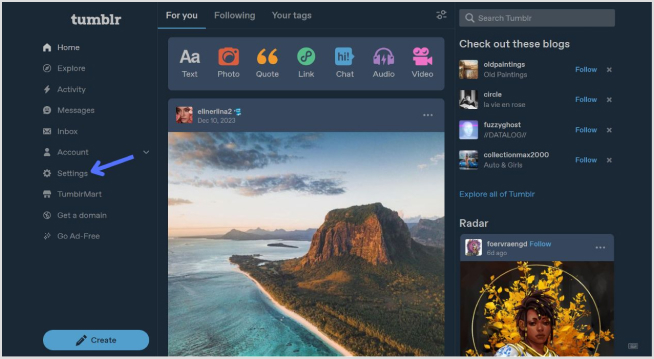
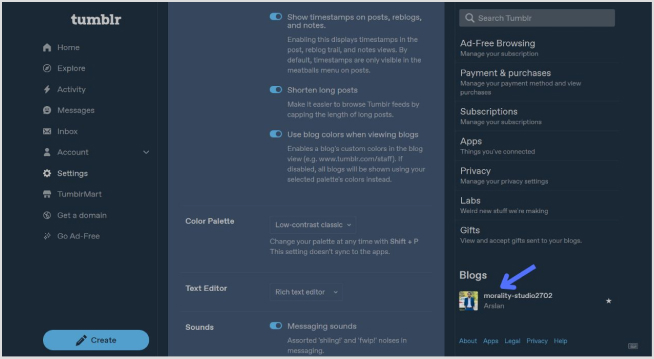
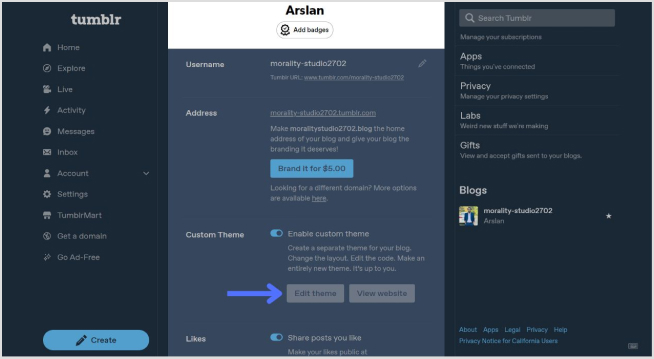
    Step 2: Click on “Setting” in the left-side menu.

    tumblr setting

    Step 3: Look for the “Blogs” section at the bottom of the right-side menu and click it.

    open the blog section

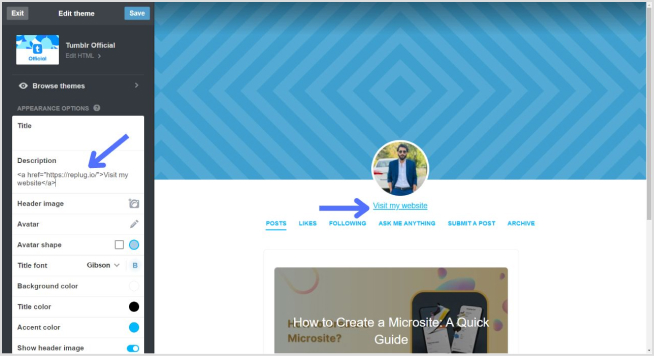
    Step 4: In the blog setting, click on the “Edit Theme” button. 

    edit theme

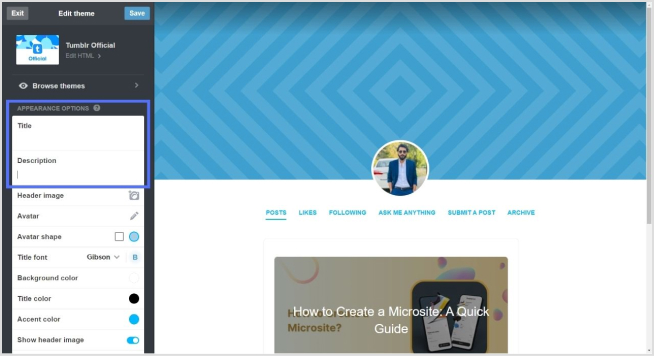
    Step 4: Look for a section called “Title” and “Description”. This is where you can input information about yourself.

    add bio

    Step 5: To add a link, use standard HTML anchor tags. The format is as follows:

    <a href="URL">Link Text</a>

    Replace “URL” with the actual link and “Link Text” with the text you want to display for the link.

    For example:

    <a href="https://replug.io/">Visit my website</a>

    Add this in the description section.

    Step 6: After adding your link, save the changes. It should appear in your Tumblr bio.

    tumblr bio

    Simply confirm that the link looks right by visiting your Tumblr blog. Check your bio, and if everything is as expected, your link is good to go! Your Tumblr bio now features the link, allowing visitors to click and explore the connected website hassle-free.

    How to add multiple links to the Tumblr bio?

    Tumblr allows only one clickable link directly in the bio. However, you can use Replug’s “bio links” feature to overcome this limitation and showcase multiple links.

    With Replug, you can easily showcase multiple links, drive traffic efficiently, and optimize your bio for enhanced engagement.

    Note: You can also leverage Replug’s advanced link tracking features to gain insights into link performance, click-through rates, and audience engagement. Enhance your bio links and track their success effortlessly with Replug.

    Boost ROI with branded URLs - Replug dashboard showing performance metrics and branded URL creation

    Go beyond generic link pages!

    Create custom bio links that truly fit your brand

    With Replug, you can create bio links that are unique, engaging, and built to convert.

    Start free trial

    Here’s how to add multiple links to your Tumblr bio using Replug:

    Step 1: Sign in to Replug or create a free account.

    sign in to replug

    Step 2: Locate the “Bio Links” feature in the top banner. The bio link dashboard will appear in front of you. 

    bio link

    Step 3: Click the “New Bio Link” button to start setting up your Tumblr bio. You’ll be directed to a new page where you’ll find three main categories: branding, content, and settings.

    create a new bio link

    Step 4: In the branding section, add a brand title and description, select themes, and choose button styles to match your aesthetic.

    bio link branding

    Once you’re done, click “Publish” in the upper right corner to save your changes.

    Step 5: Head to the content category. Here, you can add social icons, links, RSS feeds, videos, cards, text, and more. 

    bio link content

    For example:

    • Social icons: Add up to 8 platforms, customize colors, and link to your profiles.
    add up to 8 social icons
    • Links block: To include website links, use the “links” block. Add titles and URLs for each link.
    add up to 5 links

    Step 6: Once you’ve added the necessary blocks, click “update” to save each one.

    Step 7: Go to the settings section to further customize your bio link’s SEO and social media preview. Add a title, description, favicon image, and even a retargeting pixel if desired.

    add retargeting pixel

    Step 8: Once everything is set, save your Replug-generated bio link and use it to showcase multiple links on Tumblr.

    Note: For a more streamlined sharing experience, use Replug’s URL shortener free tool to create branded, trackable links. It not only keeps your Tumblr bio neat but also helps you measure link performance and audience engagement effectively.

    Boost ROI with branded URLs - Replug dashboard showing performance metrics and branded URL creation

    Go beyond generic link pages!

    Create custom bio links that truly fit your brand

    With Replug, you can create bio links that are unique, engaging, and built to convert.

    Start free trial

    FAQs on Tumblr bio

    What is the character limit for a Tumblr bio?

    Tumblr allows up to 512 characters for your bio.

    Can I add multiple links to my Tumblr bio?

    Typically, Tumblr allows only one clickable link directly in the bio. However, you can use Replug’s “Link in Bio” feature to mention additional links in your bio description.

    Do links in my Tumblr bio impact my blog’s visibility?

    While links in your bio won’t directly impact visibility on Tumblr, they can enhance user engagement and provide more ways for visitors to connect with your content.

    How can I make my Tumblr bio stand out?

    To make your Tumblr bio stand out, use a clear profile picture, write a concise and engaging bio, include relevant keywords, add links to other platforms, use visual elements like emojis, and regularly update to reflect current activities.

    You may also like:
    How To Add A Instagram Link In Bio?

    How to Add Multiple Links to Instagram Bio Using Replug?

    How to Craft a Killer Pinterest Bio for Maximum Reach?

  • 12 most popular TikTok memes and trends 

    12 most popular TikTok memes and trends 

    Let’s face it: even if we’re not die-hard TikTok addicts, we’ve all certainly stopped upon a funny TikTok meme at some point in our daily lives.

    It’s because TikTok videos go viral in hours, if not minutes, and end up all over the web. 

    In this blog, we’ll showcase some of the most popular memes on TikTok that will make you LOL! Get ready to be entertained and amazed as we explore these hilarious internet gems. 

    Plus, we’ve got some meme ideas for all interested creators. And if you’ve got burning questions about memes on TikTok, like what is the best time to post on TikTok, how to check analytics on TikTok, etc., we’ve got you covered with some FAQs.

    Let’s dive in!

    What is TikTok meme marketing?

    TikTok meme marketing promotes companies or products on the TikTok platform by using humorous and relatable memes. This strategy is based on originality, authenticity, and involvement with current trends and challenges. 

    Brands often collaborate with TikTok influencers to generate meme-based content that entertains and engages audiences.

    Successful TikTok meme marketing is shareable, timely, and sensitive to the platform’s culture and sensibilities.

    12 popular TikTok memes & trends

    1. Hi Barbie!

    Have you heard about Barbiecore? Or the “Hi Barbie.” Tiktok trend.

    It’s about taking on everything pink, playful, and feminine, taking inspiration from the iconic Barbie doll, just like Kristinnicolemiller_ did for her daughter’s birthday party.

    2. Two Pretty Best Friends

    Meaning that the more attractive friend always gets the most attention or is thought to be the more attractive one.

    The surprising twist at the end of the video is when the less conventionally attractive friend is shown to be the “pretty best friend” instead. Join the Two Pretty Best Friends challenge.

    3. TikTok ASMR

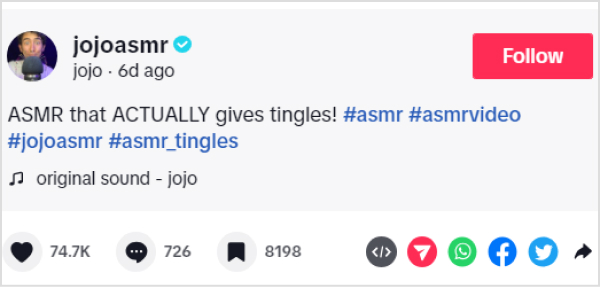
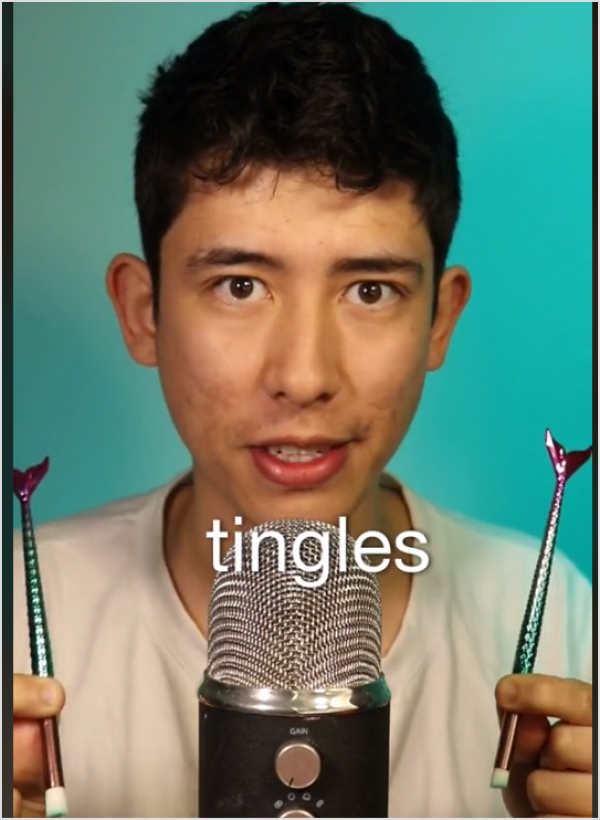
    Feeling stressed? Well, this one’s for you! ASMR TikTok videos are designed to induce a tingling, relaxing sensation through gentle, repetitive auditory or visual stimuli. Just like this Asmr video Jojoasmr did on TikTok.

    Famous tiktoker Jojoasmr shared a Tiktok ASMR Video.
    Trending Tiktok ASMR

    4. Oh No! Meme

    We all have those moments of surprises, right?

    Well, the “Oh No” meme captures those reactions perfectly. It’s relatable and a great reminder of life’s little twists. Have a chuckle with some Oh No moments.

    5. Flags Trend

    You read that right! The Flag trend goes viral on TikTok and other platforms, where people point out red, green, and even beige flags in other people’s behaviors and traits! Check out Brooklynandbailey #beigeflags challenges.

    6. Calm Down Dance

    Remember when we heard Selena Gomez’s song “Calm Down”? People are dancing to it on TikTok, and it’s super trending right now.

    Influencers are making funny videos based on the famous song. Join the Calm Down dance meme with Isabell.afro on tiktok. 

    @isabell.afro

    First time trying this😂 #calmdown #rema #afrobeats #calmdownchallenge Dc: @DENNISMIK💫

    ♬ Calm Down – Rema

    7. This or That Meme

    Prepare to make choices! The “This or That” trend has users picking sides on screen, revealing their preferences in a fun and interactive way. Explore the “This or That” Choices.

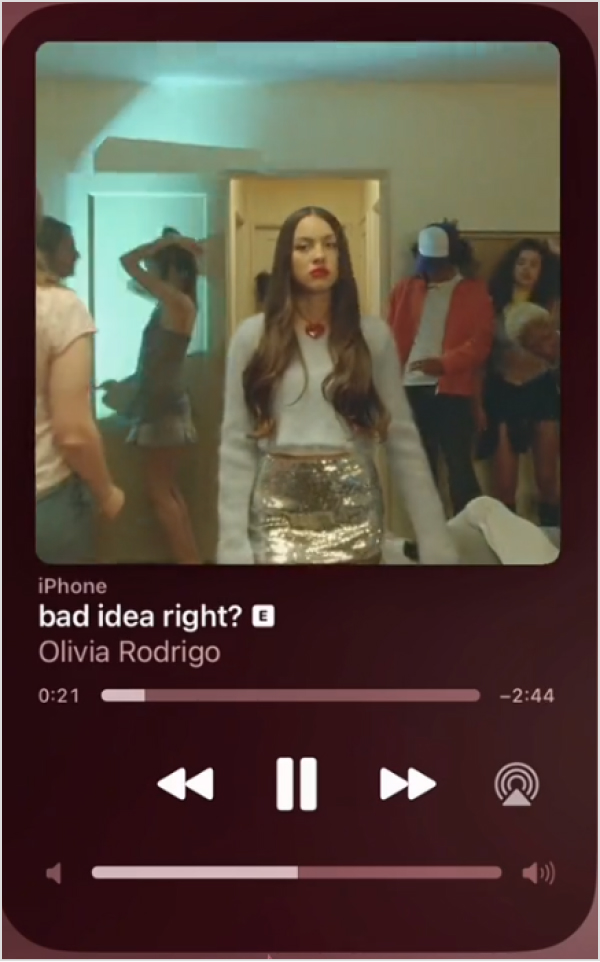
    8. Bad idea, right?

    This meme involves a song by Olivia Rodrigo that has recently become one of the biggest TikTok trends.

    People worldwide, especially females, use it for tutorials and transition videos. Check out the bad idea challenge.

    The bad idea Tiktok challenge. 

    9. I’m Just a Kid

    The “I’m Just a Kid” challenge had users lip-syncing a simple plan song while sharing childhood photos. It’s a heartwarming journey down memory lane for everyone involved. Join the I’m Just a Kid Challenge!

    10. Renegade Dance

    Have you seen the “Renegade” dance that took TikTok by storm? People were nailing those complex dance moves left and right. It is a fantastic example of how TikTok brings people together through dance.

    We spotted Charlie D’ Amelio, the most famous TikTok sensation, doing the Renegade dance challenge. 

    11. TikTok made me buy it

    This is about a trend where TikTokers buy the most random gadgets they find on TikTok.

    Some of these are great finds, and we recommend you follow this trend if you love buying things you didn’t know you needed! Go check out some Tiktokmademebuyit products.

    12. Have an “ick” to share with the class?

    This TikTok meme is a lighthearted way for users to express their pet peeves or share opinions on things they find strange or unattractive.

    It’s all in good fun and often serves as a way to bond with others over shared “icks” or to poke fun at everyday quirks and behaviors. Newickunlocked.

    New ick unlocked Tiktok challenge

    Why meme marketing?

    Here are a few reasons why you should go for meme marketing for your brand:

    • Sometimes, regular moments or phrases can become popular TikTok memes without warning.
    • TikTok’s “duet” feature brings people from different cultures together to create cool collaborations.
    • Trying out different formats, for example, short videos on TikTok, sparks creativity and storytelling.
    • On TikTok, some challenges go beyond just dancing. They include comedy, art, and education too.
    • Short-lived trends: It’s important to join in quickly before TikTok trends disappear, which brings people together.

    Related: How to get more followers on TikTok?

    Here are some meme ideas you can create for TikTok

    Sr.TikTok Meme Ideas
    1.Follow the trend! 
    2.Make a fun challenge that people will want to do!
    3.Utilize popular and trending music from reels.
    4.Misheard lyrics theater!
    5.Share a bad day turnaround!
    6.Tell a story or share an experience using only emojis
    7.Add human-like commentary to your pet’s actions.

    Related: 40+ Funny Work From Home Memes

    How often do TikToks go viral?

    Now, while some TikToks may go viral quickly, others may not reach that level of popularity. Success on TikTok often involves a combination of timing, creativity, trends, relatability, sharing, community engagement, etc. 

    Funny Memes30-60%
    Trend challenges50%
    Educational Content20-50%
    Vlogs & recipes20-40%
    DIYs & hacks 20-50%

    Even if a TikTok doesn’t go viral, consistent posting and engaging with your audience can help you build a dedicated following and increase your chances of creating content that will become familiar to viewers over time.

    To sum up,

    TikTok’s popular memes and trends have changed how we connect and share funny things online. From the trend “Two Pretty Best Friends” to the trend “I’m Just a Kid,” these popular things on TikTok show how entertaining TikTok can be.

    For marketers, it’s a place where creativity flourishes, providing chances to connect with audiences through meme marketing. 

    When sharing your meme-inspired videos or campaign links, you can quickly generate a clean, share-ready short link to keep your URLs tidy and professional.

    If you’re serious about turning those clicks and social-media traction into real results, with branded URLs, link analytics, and consistent link management, check out Replug as a full-fledged link solution for creators and brands.

    FAQs on TikTok memes

    What is a TikTok meme?

    A TikTok meme is a funny trend or joke that quickly spreads on TikTok. These memes usually include fun videos, sounds, or challenges that many TikTok users copy, change, and share.

    Can businesses use TikTok memes for marketing?

    Yes, businesses can leverage TikTok memes for marketing by incorporating trends or creating original, humorous content that aligns with their brand identity.

    Are there any copyright considerations when using music in TikTok memes?

    Yes, using copyrighted music can lead to issues with your videos on TikTok. Using licensed or royalty-free music or sticking to the available TikTok sound library is important to avoid copyright violations.

    Can TikTok memes go viral outside of TikTok?

    Yes, TikTok memes often cross over to other social media platforms, such as Instagram, Twitter, and YouTube, where they can continue to gain popularity.

    You may also like:

    How To Put A Link In TikTok Bio?

    What Is a TikTok Pixel & Learn How to Set It Up?

    How To Save TikTok Videos Without The Watermark?

  • How to add Amazon link to Instagram bio?

    How to add Amazon link to Instagram bio?

    Adding an Amazon link to your Instagram bio allows users to easily access and purchase products you promote or have an affiliate relationship with on the platform.

    By including the link, you can increase sales and earn commissions as an Amazon affiliate. This also helps increase brand visibility and exposure by allowing followers to easily access and conveniently purchase your products.

    Additionally, you can maximize your earning potential on Amazon by sharing a shop’s address, product, or affiliate link on your Instagram Bio. This informative guide will teach you the best options and tips for adding them to your Instagram bio.

    Here’s how to add an Amazon link to your Instagram bio:

    Step 1: Open the Instagram app on your mobile phone and tap the profile icon in the bottom right corner. 

    profile icon

    Step 2: Tap the “edit profile” button on your mobile screen. 

    edit profile

    Step 3: Tap “add link” to open the links section. 

    add link

    Step 4: Tap “add external link” to add your amazon link. 

    add external link

    Step 5: Paste your Amazon link in the URL section and tap the tick icon in the top right corner. Your Amazon link now appears in the Instagram bio.

    URl field
    Replug Branded Short Links CTA
    Maximize marketing ROI
    by transforming ordinary URLs into
    branded short links that convert.
    Try Replug for free

    How to add multiple Amazon links to Instagram bio?

    Adding multiple Amazon links (shop and affiliate) to your Instagram bio can increase your exposure and earning potential on the platform.

    If you have your own Amazon shop, you can add the link to your bio, allowing followers to easily access and purchase your products. By including this link, you can increase sales and revenue for your business.

    In addition to your shop, you can also sign up for the Amazon Affiliate Program, which allows you to promote Amazon products and earn a commission on each sale. As an affiliate, you can add affiliate links to your bio, providing followers with easy access to the products you are promoting.

    You can use our link management tool – Replug.io, to add multiple links to your bio. Our Instagram link in bio tool helps you create a landing page as a hub for all your links. You can add your Amazon shop link, affiliate links to the page, and links to other products, websites, or services.

    Also Read: How to add a link in bio to your Instagram profile?

    Here’s how to create a bio link using Replug

    Step 1: Visit the Replug website and sign up for a new account, or log in if you already have one.

    sign in to replug

    Step 2: Find the “Bio Links” feature in the top banner to access the bio link dashboard.

    bio link

    Step 3: Click on the “New Bio Link” button to create a new page. You’ll be directed to a new screen with three key sections: branding, content, and settings.

    create a new bio link

    Step 4: In the branding section, enter your brand title and description, choose a theme, and select button styles that match your brand’s look and feel. Once you’re satisfied, click “Publish” in the top right corner to save your changes.

    Also read: 7 hidden best bio link practices no one talks about

    bio link branding

    Note: Replug also allows you to add a verification badge to your bio landing page for extra credibility.

    Step 5: Move to the content section, where you can add various elements, including social icons, links, RSS feeds, videos, cards, and text.

    bio link content

    For example:

    • Social icons: Add up to 8 platforms, customize colors, and link to your profiles.
    add up to 8 social icons
    • Links block: Use the “links” block to include website links. Add titles and URLs for each link.
    add up to 5 links

    Step 6: After adding your content blocks, click “Update” to save each one.

    Step 7: In the settings section, customize your bio link’s SEO and social media preview. You can add a title, description, and favicon image and even integrate a retargeting pixel for better tracking.

    add retargeting pixel

    Step 8: Once you’re happy with your bio link, save it, and use the Replug’s generated URL to showcase multiple links across your social profiles.

    You can also make your URLs more concise and trackable with this efficient free link shortener, ensuring a cleaner and more professional appearance across all your shared links.

    The bottom line

    Adding multiple Amazon links to your Instagram bio can help you increase your earnings by promoting multiple products and earning commissions on each sale. Replug also allows you to track the performance of each link and determine which products or services are most popular with your followers. 

    In short, Replug’s bio links feature can offer numerous benefits, including increased exposure, better engagement, increased sales, improved analytics, and enhanced brand image.

    FAQs on Amazon link to Instagram bio

    Why is the Amazon link in Instagram Bio not clickable?

    If your Amazon link on your Instagram bio is not clickable, it could be due to an incorrect link format, link blocking, a broken link, being blocked by Amazon, or an incorrect tracking ID. Check these factors and make any necessary adjustments to resolve the issue.

    Can I add multiple Amazon links to my Instagram bio?

    Yes, you can use tools like Replug to create a bio link page where you can add multiple Amazon shop and affiliate links, making it easier for followers to access and purchase products.

    Why isn’t my Amazon link clickable in my Instagram bio?

    Check if the link format is correct, if the link is broken, or if it’s being blocked by Amazon. Make sure to use a proper tracking ID and verify that the link is not being restricted.

    How can I track the performance of my Amazon links in my Instagram bio?

    Tools like Replug allow you to track clicks and engagement on your Amazon links, helping you see which products or services are popular with your followers.

    Trending Topics:

    How To Put A Link In TikTok Bio?

    How to create a call to action using a URL shortener?

    What is a Tracking URL and How Does it Work?

    Benefits Of A Link Rotator: Why & When To Use Rotating Links?

  • How to add links to YouTube bio?

    How to add links to YouTube bio?

    Links provide direct pathways for viewers to explore additional content or products, increasing your chances of engagement and conversion.

    Adding links to your YouTube bio is a great way to drive traffic to your website, social media profiles, or other online content.

    This is the main reason why many creators choose to rely on a dependable platform like Replug.io to manage bio links and link tracking seamlessly.

    This can help you grow your audience and increase engagement with your videos.

    Quick guide on adding links to your YouTube bio:

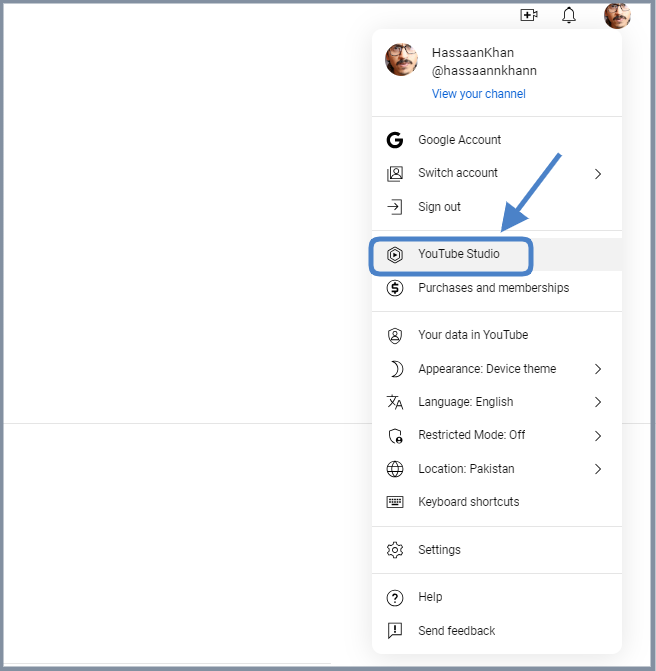
    Step 1: Access the YouTube Studio

    YouTube Studio is the option that provides access to the channel dashboard.

    Click on the profile icon from the top-right corner of the screen.

    Now, click on the “YouTube Studio” option.

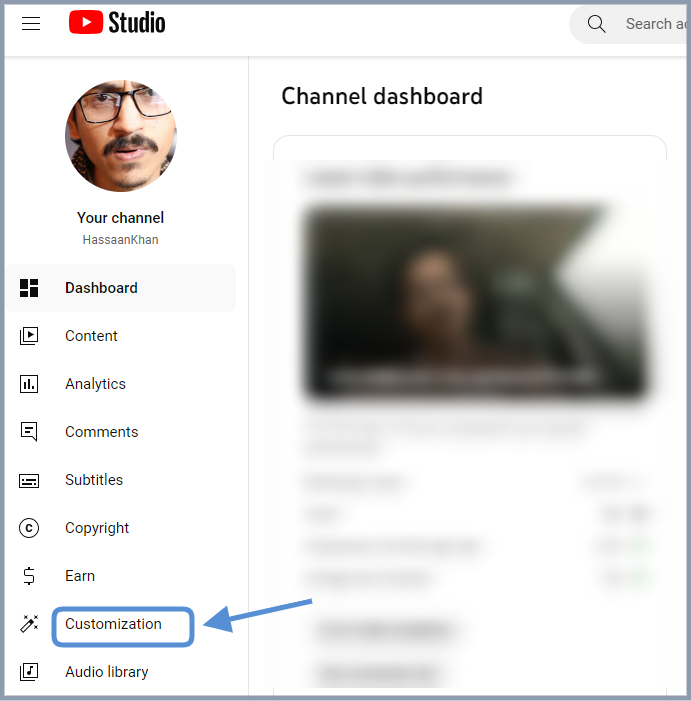
    Step 2: Go to the “Customization” section

    The next up is the access to the customization section. Look out for the second to last option on the left sidebar; you’ll see the “Customization” option.

    Click on that option and enter the customization area.

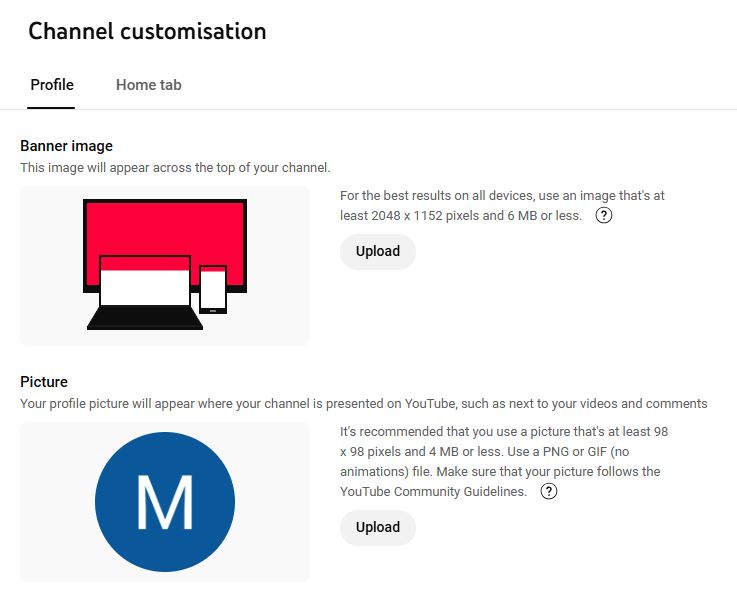
    Step 3: Open the “Profile” tab

    Profile-tab

    Click on the “Profile” tab to access the bio area.

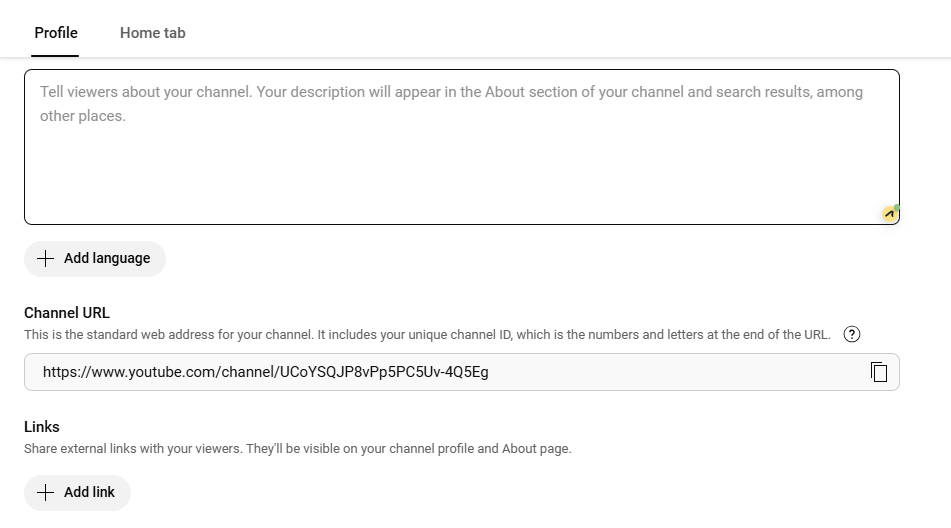
    Now, you’ll see the channel’s name, description, and URL.

    Step 4: Add links to your bio

    Once you have accessed the “Profile” section, you’ll see several customization
    options.

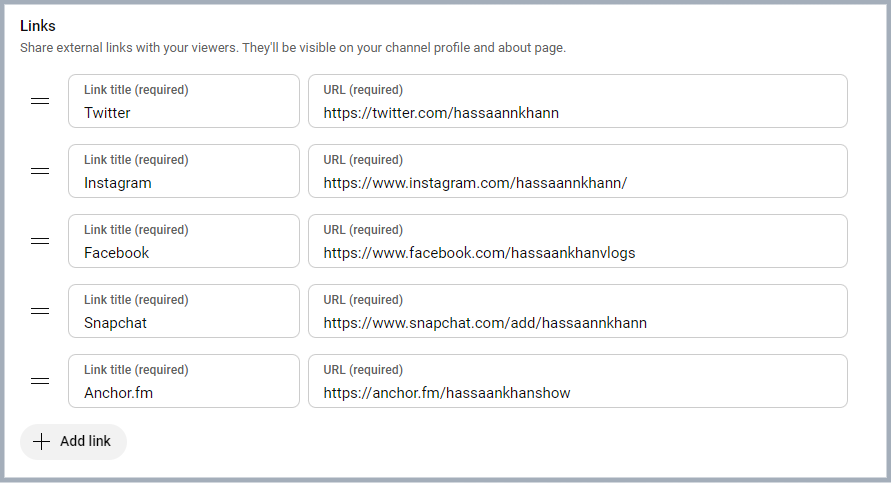
    To add links to your bio, simply navigate to the links section, click on “Add a link”.

    Step 5: Add a link

    Add your link title and paste the URLs.
    Once added, it’ll be featured in your “About” section of the YouTube bio.

    Insert Youtube bio links

    How to optimize your links for engagement: A guide for YouTube creators

    Below are some of the best practices of adding links to your YouTube bio.

    1. Relevance is key

    Always ensure that the links you share are relevant to the content of your video. If you’re creating makeup tutorials, link to your beauty blog for in-depth articles, product reviews, and additional resources that complement your video. This not only provides value but also enriches the viewer’s experience.

    2. Shorten URLs

    Using shortened branded URLs in your YouTube bio can greatly enhance your channel’s professionalism and effectiveness in attracting viewers.

    To make this even easier, you can use a free link shortener that cleans up long URLs and helps you present a neat, memorable bio link. This is especially handy when you’re sharing multiple pages or long website URLs.

    These custom short links not only save precious character space but also make it easier for your audience to recognize and remember the destination, fostering trust and engagement.

    3. Social media connections

    Consider linking to your social media accounts, such as Instagram, where you can share behind-the-scenes content, engage with followers through polls, and showcase additional makeup looks. These platforms allow for real-time interaction and help you build a stronger connection with your audience.

    Additionally, utilizing a URL shortener that provides tracking analytics can empower you to assess which links perform best, allowing you to refine your approach and maximize your outreach.

    4. Keeping descriptions clear and concise

    When adding links, accompany them with a brief description to clarify what the link is for.

    5. Regularly updating links

    Links can become outdated quickly. Regularly check all your links to ensure they’re functional, and directing viewers to the correct content.

    6. Adjusting link strategy based on data

    Using a top-notch analytics tool, you can track how many clicks your links receive. This data will help you understand which are the most effective and why.

    Based on performance metrics, refine your approach. If certain links aren’t getting clicks, consider changing their placement or how you describe them.

    You may also like: How to Insert Links in YouTube Descriptions: Step-by-Step

    The ultimate solution: Bio links

    Leverage the power of bio links to not only showcase your additional content but also to significantly enhance your YouTube presence. Transform your viewer’s experience guiding them effortlessly to your blog site, merchandise, or any other relevant platforms. This tailored approach makes it easier for your audience to connect with you on multiple channels.

    By linking to your related content—be it blog posts or social media—you create a comprehensive digital ecosystem. This enhances viewer engagement and encourages them to explore more of your work, ultimately fostering a loyal community that values your expertise.

    3 common mistakes to avoid when adding links on YouTube

    1. Spamming links

    Avoid overcrowding your bio with too many links. This can overwhelm and confuse viewers. Focus on quality over quantity.

    2. Ignoring guidelines

    YouTube has specific policies regarding links. Ignoring these can result in penalties or removal of your content. Always stay informed about community guidelines.

    3. Neglecting mobile users

    With many users accessing YouTube on mobile, ensure your links are mobile-friendly. Test how they appear and work on different devices.

    Conclusion

    Adding links to your YouTube bio is a powerful tool for boosting engagement, directing traffic to your other platforms, and generating revenue. By understanding how to strategically incorporate links, you’ll enhance your channel’s visibility and viewer experience. Remember to regularly review your links and keep them updated for the best results.

  • How to put a link in your Facebook bio?

    How to put a link in your Facebook bio?

    Unlock the full potential of your Facebook profile by adding clickable links to your bio. Whether you’re a business promoting your services or an individual sharing your latest projects, strategically placed links can make a significant impact. 

    This guide will walk you through the quick and easy steps to incorporate links into your Facebook bio. Elevate your online presence and make it easy for visitors to explore what matters most to you.

    Let’s dive in and optimize your Facebook profile for maximum impact.

    Link in bio on Facebook: What does it mean?

    The term “Link-in-bio” on Facebook refers to including clickable links in your Facebook profile, particularly in the “About” section.

    This concept originated on Instagram, where users are limited to featuring only one link in their bio. To overcome this limitation, creative users developed link-in-bio landing pages that house a collection of links under a single URL.

    While Facebook doesn’t have a restriction on the number of website addresses you can include in your bio, some users still choose to adopt the link-in-bio strategy. This approach offers a cleaner and more organized way to direct visitors to various pages on their website. 

    Some key takeaways:

    The key takeaways and recommendations include:

    • Include multiple links: Businesses are encouraged to include multiple links in their Facebook bio to guide visitors to specific information and convert them into regular website visitors or customers.
    • Keep links up to date: Regularly update your links and ensure they support a clear call to action that aligns with your Facebook posts.
    • No limit on links: Unlike Instagram, Facebook doesn’t limit the number of websites you can add to your bio.
    • Short, branded, and UTM-tracking: For better analytics, optimize your links by making them short, branded, and including UTM-tracking information.
    • Reputable link management platform: Utilize a reputable link management tool to track traffic from your social media bios and campaigns effectively.
    Boost ROI with branded URLs - Replug dashboard showing performance metrics and branded URL creation

    Go beyond generic link pages!

    Create custom bio links that truly fit your brand

    With Replug, you can create bio links that are unique, engaging, and built to convert.

    Start free trial

    How to put a link in your Facebook bio?

    Adding links to your Facebook profile is a simple yet powerful way to enhance your online presence. Whether you’re using the Facebook app on your mobile device or the desktop version, here’s a step-by-step guide:

    On Mobile:

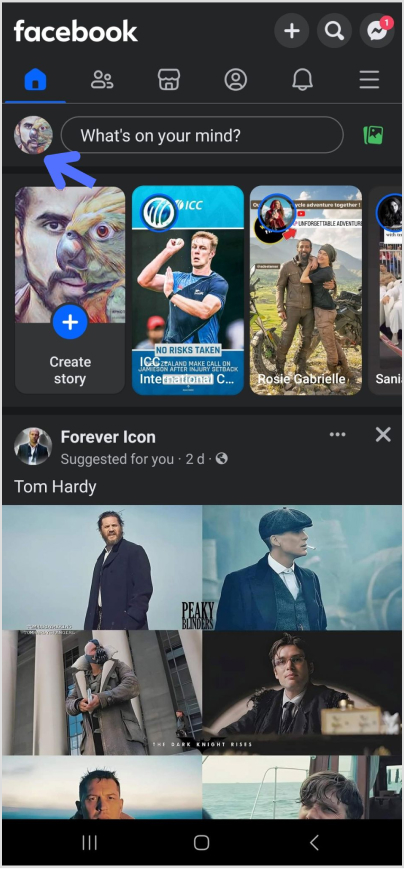
    Step 01: Open the Facebook app and tap on your profile picture in the upper left corner.

    how-to-put-a-link-in-your-facebook-bio

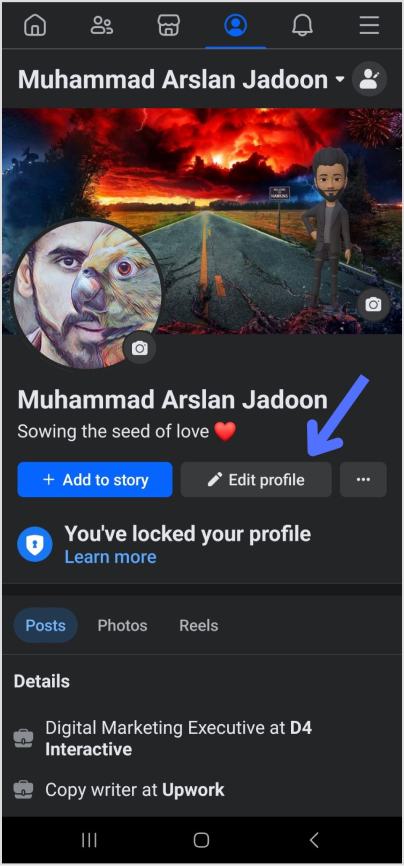
    Step 02: Navigate to your profile page and tap “Edit profile.”

    how-to-put-a-link-in-your-facebook-bio

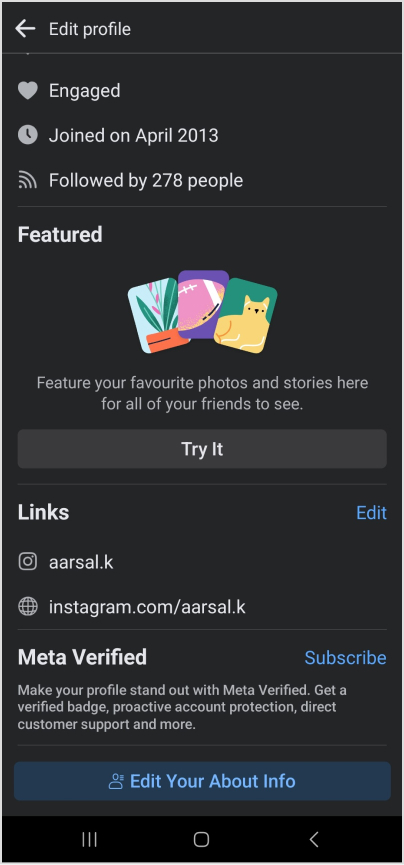
    Step 03: Scroll down to the bottom of the page and tap “Edit” next to “Links.”

    how-to-put-a-link-in-your-facebook-bio

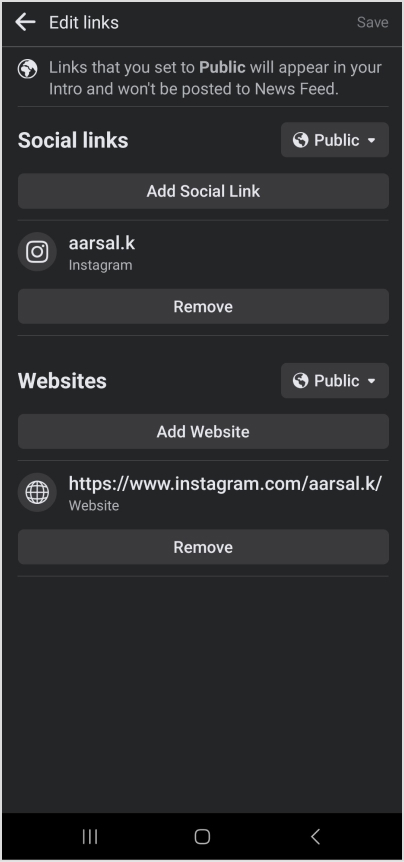
    Step 04: To add social media handles, tap Add Social Link,” choose a platform, and enter your username.

    Step 05: For other website links, select “Websites,” enter the URLs, and tap “Save” when finished.

    facebook link in bio

    Boost ROI with branded URLs - Replug dashboard showing performance metrics and branded URL creation

    Go beyond generic link pages!

    Create custom bio links that truly fit your brand

    With Replug, you can create bio links that are unique, engaging, and built to convert.

    Start free trial

    On Desktop:

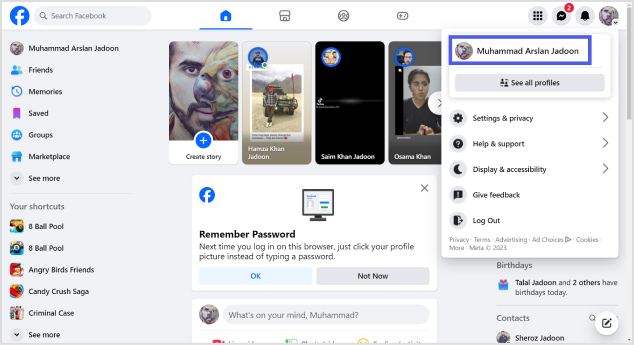
    Step 01: Log in to Facebook and click your profile image in the top left corner.

    how-to-put-a-link-in-your-facebook-bio

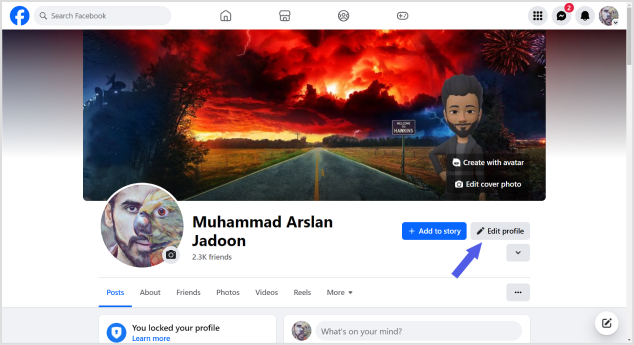
    Step 02: Select “Edit profile” below your profile image.

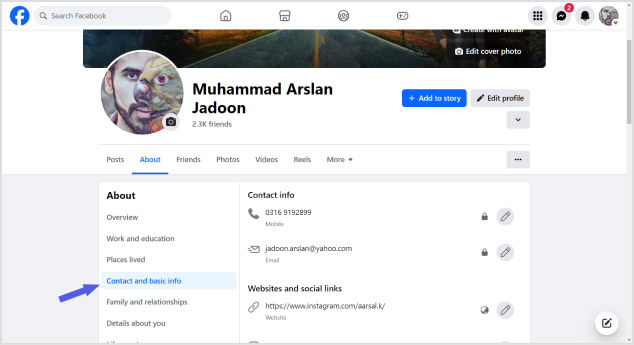
    Step 03: Scroll down to “Edit your About info” and choose “Contact and basic info.”

    link-in-your-facebook-bio

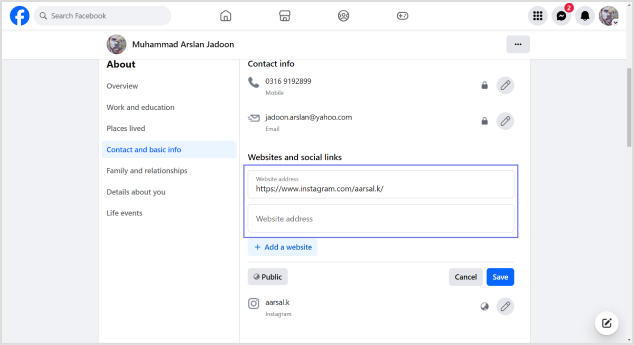
    Step 04: Navigate to the “Websites and social links” section and click the pencil icon to edit.

    how-to-put-a-link-in-your-facebook-bio

    Step 05: Select “Add a website,” enter the URL, and repeat for additional sites. Click “Save” when done.

    To add social media links, click the edit icon, choose “Add a social link,” and select your platform.

    Enter your username (Facebook will generate a clickable link), and click “Save.”

    These simple steps empower you to customize your profile, making it easy for visitors to explore your online presence effortlessly. Whether you’re on the go or at your desktop, optimizing your Facebook profile with links is a quick and effective way to showcase your interests and connect with others.

    Boost ROI with branded URLs - Replug dashboard showing performance metrics and branded URL creation

    Go beyond generic link pages!

    Create custom bio links that truly fit your brand

    With Replug, you can create bio links that are unique, engaging, and built to convert.

    Start free trial

    Also read: How to Add Instagram Link to Facebook Bio?

    10 Best practices for boosting traffic to your Facebook profile

    Optimizing your Facebook business profile is essential for driving traffic and engaging your audience effectively. Here are expert-backed best practices to ensure your profile stands out and serves its purpose:

    1. Keep your profile up-to-date

    Regularly update your Facebook profile as part of a social media audit, ideally every six months or more frequently if you offer specials and promotions.

    2. Use links to support a call to action

    Provide all necessary links to fulfill a call to action directly on Facebook, eliminating the need for users to leave the platform.

    3. Use short, branded links

    Opt for shortened, branded URLs to convey professionalism and enhance brand identity, ensuring a memorable and credible online presence.

    You can easily create such branded links using this free link shortener, designed to help you boost trust, track performance, and strengthen your digital branding.

    4. Utilize every aspect of your About page

    Populate as many fields on the About page as possible, including contact information, links to social profiles, company privacy policy, services/products, and reviews.

    5. Craft an informative intro section

    Use the Intro section to concisely communicate whom you serve, the results you help them achieve, and what you assist them in avoiding.

    6. Use emojis and graphics thoughtfully

    Maintain engagement with visually appealing content while ensuring it aligns with your brand tone and doesn’t feel overly corporate.

    7. Share achievements and unique value proposition

    Showcase unique offers, stories, and achievements that provide a deeper understanding of your company beyond what’s available on the website

    8. Track your metrics

    Regularly monitor follower stats and engagement activities to ensure your audience aligns with your target demographic and your content resonates.

    9. Condense Facebook URL parameters with link management

    Use a link management platform to create short branded links that still track key analytics, enhancing the professionalism of your shared URLs.

    10. Create curated lists of links using a link-in-bio tool

    Consider using a link-in-bio microsite for a clean and professional presentation of multiple links, allowing visitors to explore your top content easily.

    By incorporating these best practices, your Facebook business profile can become a powerful tool for attracting and engaging your audience while maintaining a professional and cohesive online presence.

    Optimizing your Facebook profile with Replug link-in-bio:

    In a world dominated by social media, where nearly three billion users scroll through Facebook, standing out and capturing a customer’s attention is essential. 

    Try Replug’s bio-links, i.e., a powerful feature put forward by this amazing platform to transform your Facebook profile into a dynamic hub for your brand. This customizable microsite allows you to strategically guide visitors to the content that matters most, all while seamlessly integrating branded and shortened URLs.

    Learn how Replug streamlines your analytics, providing a comprehensive view of link performance across social media channels. Elevate your brand’s presence on the world’s most popular social platform and discover why countless brands choose Replug to make their mark.

    Boost ROI with branded URLs - Replug dashboard showing performance metrics and branded URL creation

    Go beyond generic link pages!

    Create custom bio links that truly fit your brand

    With Replug, you can create bio links that are unique, engaging, and built to convert.

    Start free trial

    Frequently asked questions

    Is there a limit to the number of websites I can add to my Facebook page?

    While there isn’t a strict limit, avoiding adding too many links is recommended for a cleaner and more professional appearance.

    How do I edit or remove a link from my Facebook page?

    Locate the pencil icon next to the “website and social links” section.
    Click on the pencil icon to edit, update, or remove a link.
    Click “Save” to apply the changes.

    Can I add a link-in-bio to my Facebook page?

    While link-in-bio features are more common on platforms like Instagram, you can create a curated list of links using a link management platform and share it on your Facebook page.

    Can I track the performance of the links on my Facebook page?

    Yes, consider using Replug’s platform to track analytics and performance metrics for all your links in a single dashboard view.