Category: Social media

Browse blogs on social media strategies, content, and trends. Stay ahead with tips to grow engagement and reach.

  • How to create a Facebook QR code (step-by-step guide)

    How to create a Facebook QR code (step-by-step guide)

    Want to drive more traffic to your Facebook page without relying solely on paid ads or organic search?

    Here’s a simple yet underrated trick: Facebook QR codes.

    Yes, those scannable little black-and-white squares are more than just tech gimmicks. They’re powerful tools that can bridge the offline and online worlds, bringing people directly to your Facebook page with a quick scan.

    In this blog, we’ll show you how to create a Facebook QR code in just a few minutes using Replug, a powerful link management tool. Plus, we’ll explain why it’s a smart move for your business or brand.

    What is a Facebook QR code?

    A Facebook QR code is a unique, scannable code that, when scanned by a mobile device, redirects users directly to your Facebook profile, business page, or group. 

    Think of it as a shortcut. Instead of asking someone to search for your page, you give them a one-tap way to access it. Whether you add it to flyers, product packaging, business cards, or display it in your store, a Facebook QR code is all about reducing friction and increasing engagement.

    Why use a Facebook QR code?

    Still on the fence? Here are a few reasons why a Facebook QR code is worth your attention:

    • Offline to online: Connect with people in the real world and drive them to your online presence.
    • Saves time: No need to spell out long URLs or ask people to “look you up.”
    • Professional touch: It shows you’re digitally savvy and makes your brand more accessible.
    • Boosts conversions: The easier it is to find your page, the more likely people are to follow or message you.

    How to create a QR code for a Facebook page?

    There are many ways to generate a QR code, but using our Facebook QR code generator gives you some major advantages, like tracking QR code analytics, customizing your QR code’s design, and even retargeting your visitors.

    Step 1: Sign in or create an account 

    The first step is to sign in to your Replug account. If you don’t have an account, create one. It only takes a few minutes.

    Replug Branded Short Links CTA
    A complete link management solution
    for marketing professionals & agencies.
    Try Replug for free

    Step 2: Create a QR code

    There are two ways to create a Facebook QR code for your page or profile:

    Way #1: Head straight to the QR code builder

    1. From your main dashboard, tap “QR Codes” in the navigation bar.
    2. Click “Create New.”
    Create new QR code
    1. You’ll be taken to the QR code creation page where you can build a fully branded and customizable code.

    Here’s what you can do:

    • Add a title and description.
    • Choose a QR code type: website, link, PDF, SMS, WiFi, phone, and more.
    Add QR code title and description
    • Customize the frame, shape, and even upload your logo.
    Customize QR code shape
    Customize QR code frame
    Customize QR code logo

    Once you’re happy with the design, hit “Create QR Code.” Your code is ready to download in multiple formats like PNG, JPEG, SVG, or WEBP.

    Download QR code

    💡 Pro Tip: You can also create a custom URL by optimizing the slug of your shortened link. Even though the QR code hides the link itself, it’s always nice to redirect users to a clean, easy-to-read URL after they scan.

    Edit URL slug

    Way #2: Shorten your link first, then create a QR code

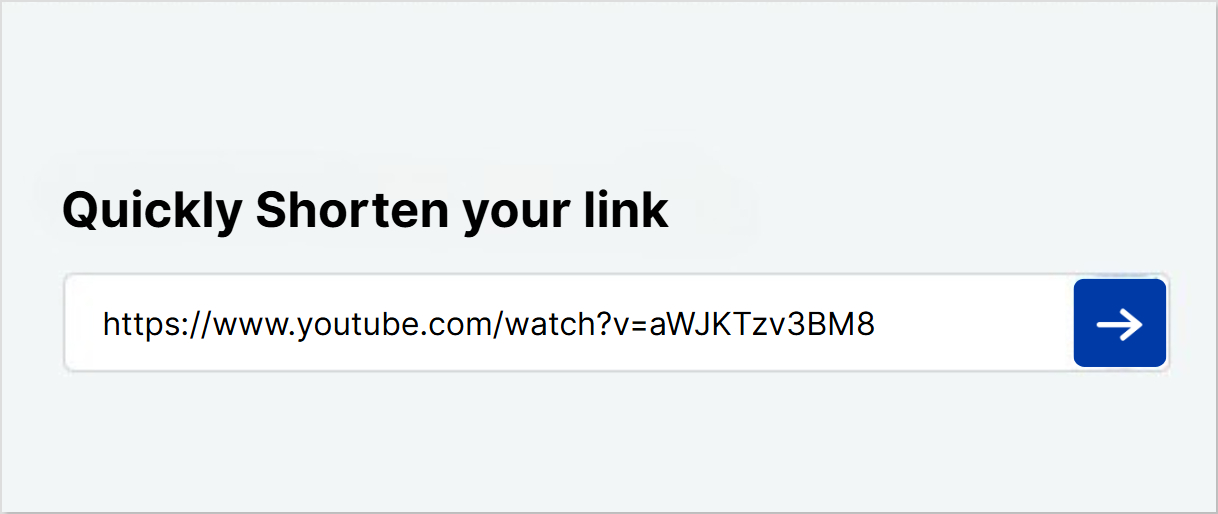
    1. Paste your Facebook URL into the bar under “Quickly shorten your link.”
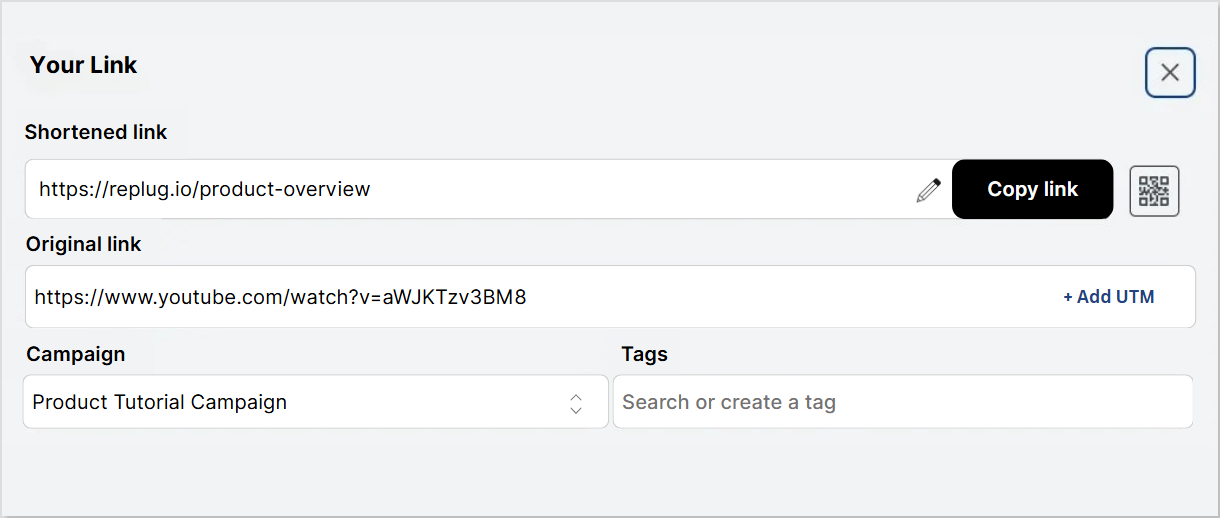
    2. Want a cleaner, more memorable link? Go ahead and edit the slug to create a custom URL. Totally optional, but definitely recommended for clarity.
    3. Click the QR code icon next to your link.
    4. Time to customize! You can tweak the design, colors, and branding to make the QR code match your style.

    And just like that, your Facebook QR code is ready to go.

    You may also like: How to Make a QR Code for a PDF: 7 Simple Steps

    What makes Replug a great QR code generator?

    You might be wondering… why use Replug’s QR code generator instead of a random tool online?

    Here’s what sets Replug apart:

    • Branded short links: Customize your URL the way you like with this efficient link shortener, before turning it into a QR code.
    Replug Branded Short Links CTA
    Maximize marketing ROI
    by transforming ordinary URLs into
    branded short links that convert.
    Try Replug for free
    • Retargeting pixels: Add tracking pixels to the shortened link inside your QR code to run remarketing campaigns.
    • Link analytics: Monitor how many times your QR code has been scanned, clicked, and converted.
    QR code analytics
    • Advanced customization: Control the appearance of your QR code to align it with your brand aesthetics.
    • Multiple formats: Download your QR code in print-friendly and web-friendly file types.

    Basically, it’s not just a QR code, it’s a marketing tool.

    Final thoughts

    A Facebook QR code isn’t just a techy gimmick; it’s a smart way to make your online presence more accessible, especially in offline spaces. With Replug, creating one is a breeze, and you get the added bonus of click analytics, retargeting, and full customization.

    Whether you’re a small business owner, marketer, or content creator, this is a quick win for increasing visibility and engagement on Facebook.

    So go ahead, create your Facebook QR code today with Replug, and make it easy for the world to find (and follow) you.

    Ready to get started?
    Sign in to your Replug dashboard and try it for yourself!

    Frequently asked questions

    What is a Facebook QR code?

    A Facebook QR code is a scannable code that directs users straight to your Facebook profile, business page, or group. It’s a convenient way to share your page without asking people to search for it manually.

    Why should I use a Facebook QR code for my business?

    It helps you:
    Connect offline users to your online page
    Boost your follower count
    Look more professional and tech-savvy
    Save time (no need to spell out links!)

    Can I customize the Facebook QR code?

    Yes! With Replug, you can customize everything from the shape and colors to adding your logo. This makes the QR code look on-brand and professional.

    Can I track how many people scan my Facebook QR code?

    Absolutely. Replug offers analytics that show how many times your QR code has been scanned and how users interacted with it.

    Can I change the Facebook link after the QR code is printed?

    If you’re using Replug’s dynamic QR code feature, yes. You can update the destination URL without changing the code itself. Handy for campaigns or seasonal updates!

  • How to create TikTok QR codes?

    How to create TikTok QR codes?

    QR codes are one of the fastest and most engaging ways to connect people to your TikTok content – no extra clicks, no confusion. Whether you’re promoting a product, growing your audience, or boosting brand visibility, a TikTok QR code makes sharing seamless and effective.

    But here’s the catch: TikTok only lets you create a QR code for your profile, not for specific videos. And even that built-in option offers zero customization and no tracking.

    That’s why in this guide, we’re showing you two ways to create TikTok QR codes:

    • The basic TikTok method (profile-only, no branding, no analytics)
    • A smarter, more customizable method using Replug’s TikTok QR code generator (works for both profiles and videos, with full tracking and branding.

    Let’s get started!

    Replug Branded Short Links CTA
    A complete link management solution
    for marketing professionals & agencies.
    Try Replug for free

    Why should you create QR codes for TikTok?

    QR codes make it easier to:

    • Drive traffic directly to your TikTok content
    • Use print or offline channels (flyers, posters, packaging, etc.)
    • Boost engagement in events, stores, or real-world settings
    • Avoid long links or usernames and connect with your audience instantly

    With tools like Replug, you also have full control over QR branding, retargeting, and analytics – something the TikTok-native method can’t offer.

    What is the best way to create a TikTok QR code?

    While TikTok does offer a built-in way to generate QR codes, customization and tracking are quite limited.

    That’s why Replug is the smarter choice – our free QR code generator lets you:

    • Fully customize your QR code’s look (colors, shape, logo)
    • Track scans and analytics
    • Add retargeting pixels
    • Add traffic routing rules
    • Edit the destination link later (dynamic QR codes)

    Method 1: How to create a QR code for TikTok using Replug

    Open TikTok and copy the link to your profile or the specific video you want to generate a QR code for.

    Step 01: Log in to your Replug account

    If you don’t have one, sign up for a free trial to get started.

    Step 02: Create a new QR code

    From your dashboard, click on “QR codes” in the sidebar. Then click on “Create new.”
    A new window will open. Add a name or description for your QR code (optional), then scroll down to the “QR code type” section.

    create new QR code

    Step 03: Add your TikTok link

    In the QR code type section, you’ll see a list of platforms.

    • Select TikTok
    • Paste your TikTok video or profile link that you copied earlier
    add relevant platform

    Step 04: Customize your QR code

    This is where Replug shines. You can personalize your QR code with:

    • Colors – Match it to your brand
    • Shape – Choose between rounded, square, or styled patterns
    Customize your QR code
    • Frame – Add Borders or call-to-action text
    add frame
    • Logo – Upload your logo or a TikTok icon for brand recognition
    ADD LOGO

    Step 05: Share your QR code

    Once you’re happy with the design:

    • Click “Create QR code”
    • Download it in PNG, SVG, or PDF,WEBP format
    share your QR code
    • Share it anywhere, on flyers, posters, product packaging, or even your website

    Method 2: How to create a TikTok QR code using TikTok’s built-in option

    1. Open the TikTok app and go to your profile
    2. Tap the three-dot menu (or hamburger icon)
    3. Tap on “QR code” from the menu
    4. Your personal QR code will appear. You can download or share it directly.

    ⚠️ Limitations: This method doesn’t allow customization or tracking. It also links only to your profile – not specific videos.

    You may also like: How to make a QR code for a video?

    Why choose Replug for TikTok QR codes?

    While TikTok’s built-in QR code option is basic, Replug gives you powerful features designed for marketers, creators, and brands that want more control and impact. Here’s why this custom URL shortener stands out:

    Replug Branded Short Links CTA
    A complete link management solution
    for marketing professionals & agencies.
    Try Replug for free
    • Custom branding

    Personalize your QR code with your brand colors, logo, shape, and frame to make it instantly recognizable.

    • QR code analytics

    Track how many times your QR code has been scanned, when, and from where, so you can measure real-world engagement.

    • Retargeting pixel support

    Add a retargeting pixel to your QR code and build custom ad audiences from people who scanned it.

    Update your TikTok link anytime without reprinting or changing the QR code, perfect for switching between campaigns or videos.

    Whether you’re using QR codes in print, packaging, events, or digital promotions, Replug gives you the flexibility and insights TikTok alone can’t offer.

    Conclusion

    Creating QR codes for your TikTok content is one of the easiest ways to boost visibility, drive traffic, and engage your audience, especially in offline or print settings. While TikTok offers a basic option, Replug takes it a step further with full customization, tracking, retargeting, and the ability to link directly to videos. If you want a professional, brand-forward approach to sharing your TikTok, Replug is your go-to tool.

    FAQs on TikTok QR code

    Can I create a TikTok QR code for a specific video?

    TikTok doesn’t support QR codes for specific videos, only for your profile. But with Replug, you can generate QR codes for any video or link.

    Are Replug’s QR codes trackable?

    Yes. Replug provides analytics showing how many people scanned your code, when, and from where.

    Can I change the link behind my QR code later?

    Absolutely. With Replug’s dynamic QR codes, you can update the destination link without changing the QR code itself.

    Where can I use TikTok QR codes?

    Anywhere, flyers, business cards, product packaging, digital signage, event booths, or even in-store displays. They’re great for driving offline traffic to your TikTok.

  • How to write a professional bio: Best tips and tools

    How to write a professional bio: Best tips and tools

    A professional bio is more than just a quick intro; it’s your chance to show who you are, what you do, and why you matter.

    Whether you’re trying to impress recruiters, attract clients, or build authority in your field, a killer bio can make or break the deal. But here’s the twist: writing about yourself is hard.

    In this guide, we’ll walk you through the best bio link tools and tips for writing a strong bio and share real examples to help you get it just right.

    Boost ROI with branded URLs - Replug dashboard showing performance metrics and branded URL creation

    Go beyond generic link pages!

    Create custom bio links that truly fit your brand

    With Replug, you can create bio links that are unique, engaging, and built to convert.

    Start free trial

    Why does a professional bio matter?

    Your bio isn’t just a summary of your job title and experience – it’s your story. A well-crafted bio:

    • Builds trust and credibility
    • Showcases your value and expertise
    • Boosts visibility across platforms
    • Drives traffic to your work, portfolio, or offers

    Step-by-step: How to write a professional bio?

    1. Start with your name and role

    Introduce yourself clearly and confidently. Include your current position or what you’re best known for.

    2. Highlight your key accomplishments 

    Add 2–3 strong achievements, metrics, or projects that reflect your expertise.

    3. Add a clear call-to-action (CTA)

    Guide readers on what to do next – visit your portfolio, follow your social profiles, or book a call.

    4. Add a bio link page

    Here comes the all-in-one solution, a bio link page that includes all the important links such as social profiles, portfolio, contact form, and more – so you never miss a chance to connect.

    Boost ROI with branded URLs - Replug dashboard showing performance metrics and branded URL creation

    Go beyond generic link pages!

    Create custom bio links that truly fit your brand

    With Replug, you can create bio links that are unique, engaging, and built to convert.

    Start free trial

    How to create a bio link page?

    To create a bio link page effortlessly, you need to use Replug’s free bio link tool.

    It lets you build a customized landing page where you can add multiple links, videos, social icons, and other content – all accessible from a single URL.

    Here’s how to set it up:

    Step 1: Create a new bio link page

    • Log in to your Replug account. If you don’t have one, sign up for a free trial. Afterwards, navigate to the bio-link dashboard and click on “Create new.”
    Create new link
    • You’ll be redirected to a setup window with three customization categories.
    three categories

    Step 2: Branding & profile setup

    • Start by adding your profile details in the branding section. Such as profile title, bio description, verification button and more. 
    branding
    • From here you can choose you required theme or create your own alongside selecting your button and text color for the whole bio link page.
    • Besides that, changes are auto-saved, so you can proceed without hassle.

    Step 3: Add content & links

    This is the most crucial step, where you can add elements like:

    • Social media buttons (up to 8)
    • Website links
    • Videos
    • RSS feeds
    • Custom cards
    add link, add cards
    • To add website links, select the “Links” block and enter a title, URL title, and respective link.
    • You can add multiple content blocks as needed.
    • Once you’re done adding blocks, click publish in the upper left corner. And you’re done.

    Boost your bio with smart linking: Enter Replug 

    Once your bio is ready, it’s time to make it work harder. Replug is the smart link management tool that helps professionals turn bios into conversion machines. Here’s how:

    Boost ROI with branded URLs - Replug dashboard showing performance metrics and branded URL creation

    Go beyond generic link pages!

    Create custom bio links that truly fit your brand

    With Replug, you can create bio links that are unique, engaging, and built to convert.

    Start free trial
    • Add retargeting pixels

    Want to run ads to people who clicked your bio link? Replug lets you add retargeting pixels (Meta, X, Google, LinkedIn, etc.) to shorten links and track traffic.

    • Measure clicks and engagement

    Track your bio’s performance with detailed link in bio analytics. See how many people clicked, from where, and on which links.

    • Customize & brand your links

    With custom-branded URLs from Replug’s URL shortener free app, you control how your bio links look and feel – no more messy links. It builds trust and keeps your branding consistent.

    07 mistakes to avoid when writing a bio

    • Being too vague or generic

    Phrases like “I’m passionate about helping people” sound nice but don’t tell us what you actually do. Be specific about your value.

    ❌ “Hardworking professional.”
    ✅ “Email marketer helping coaches grow their list 5x.”

    • Overloading with jargon

    Using buzzwords or industry slang that your audience might not understand can push them away. Keep it clear and simple.

    • Skipping the call-to-action (CTA)

    If you don’t guide people on what to do next, they won’t do anything. Always include a CTA like “Watch now,” “Book a call,” or “Shop here.”

    • Writing a bio that’s too long

    This isn’t your life story. Stick to 2–3 lines max. People skim bios, don’t make them work to understand you.

    • Leaving your bio link empty or messy

    If you say “Check the link below” and it leads nowhere (or to a cluttered, outdated page), it kills trust. Use a clean, organized bio link tool like Replug.

    • Forgetting to show personality

    A bio that’s too stiff or robotic makes you forgettable. Add a little personal touch, emojis, humor, or a fun fact go a long way.

    • Never updating your bio

    If your offers, job, or focus changes, your bio should too. Outdated info confuses or misleads your audience.

    Replug Branded Short Links CTA
    A complete link management solution
    for marketing professionals & agencies.
    Try Replug for free

    Quick bio templates by profession

    Use these ready-made bios to spark ideas and save time. Just tweak them to fit your tone and audience:

    1. Freelancer bio

    Hi, I’m Sara, a freelance UX designer with 6+ years of experience creating user-first websites and apps. I’ve worked with startups and global brands to boost engagement by up to 40%. Let’s create something amazing, check out my portfolio.

    2. Marketing specialist bio

    I’m James, a digital marketer specializing in SEO and paid ads. I’ve helped brands rank #1 on Google and scale their revenue with targeted campaigns. Reach out for a data-driven growth strategy.

    3. Real estate agent bio

    Hi, I’m Lina, your local real estate expert in Austin. With over 10 years in the market, I help clients buy, sell, and invest with confidence. Let’s connect and find your dream property.

    4. Coach or consultant bio

    I’m Alex, a certified life and business coach helping entrepreneurs break through burnout and build sustainable success. Book a free strategy call today.

    5. E-commerce brand bio

    Welcome to LuxeGlow! We craft cruelty-free skincare powered by nature and science. Join 10k+ customers glowing with confidence. Tap the link to shop bestsellers and get 10% off.

    You may also like: 200+ Facebook bio ideas: How to write a perfect Facebook bio?

    Final tips

    A professional bio is more than a few lines; it’s your digital handshake. It shows off your skills, builds trust, and opens doors.

    From writing compelling lines to adding a bio link page with Replug, you now have everything you need to level up your online presence.

    Just keep it real, relevant, and updated.

    Frequently asked questions

    How long should a professional bio be?

    Short bios (1–2 sentences) work best for social media, while a full bio can be 150–300 words for your website or LinkedIn.

    What should I avoid in a professional bio?

    Avoid jargon, outdated info, and humblebrags. Keep it clean, focused, and honest.

    How often should I update my bio?

    Update it every 3–6 months or whenever your role, focus, or major achievements change.

    Where should I add my bio link page?

    Add it to all your social media bios (Instagram, Twitter/X, TikTok, LinkedIn), your email signature, and your personal website.

    Can I track clicks on my bio link?

    Yes! With Replug, you can measure every click, view location-based analytics, and even run retargeting ads to people who clicked.

  • How to add a Twitch link to Instagram bio: 2 easy ways

    How to add a Twitch link to Instagram bio: 2 easy ways

    Want your Instagram followers to find your Twitch channel without digging through your stories or DMs?

    With over 240 million monthly active users, Twitch is massive, and that’s a lot of potential viewers you don’t want to miss out on. So, adding your Twitch link to your Instagram bio is the way to go, and yes, there’s more than one way to do it.

    Let’s walk you through two solid methods, including one that gives you total control and creative freedom using Replug.

    Method 1: Use Instagram’s native links tool (quick & basic)

    Instagram now lets you add multiple external links to your profile, up to five, to be exact. It’s simple and gets the job done.

    Here’s how:

    1. Open the Instagram app and head to your profile.
    2. Tap Edit Profile.
    3. Tap Links, then hit Add external link.
    4. Paste your Twitch URL.
    5. Add a title (e.g., “Watch me stream 🎮”) and hit the checkmark to save.
    Add external link

    Boom. Your Twitch link is live in your bio. But before you call it a day…

    The downsides?

    • Your links show up as plain text; no visuals, no custom branding.
    • You’re limited to 5 links max.
      No click tracking or engagement insights.
    • And let’s be honest… a boring bio doesn’t drive traffic.
    Very bland very boring GIF

    If you want your Twitch profile to stand out and convert viewers into regulars, there’s a smarter option.

    Method 2: The Replug way (smart, branded, and click-worthy)

    If you’re a Twitch streamer trying to boost your visibility on Instagram, simply pasting your Twitch link in your bio might feel… underwhelming.

    Sure, people can tap it but, will they?
    Will they want to?

    Instagram’s built-in link feature lets you add up to five links, but it has limitations. No branding, no visuals, no storytelling. Just plain, boring URLs. And let’s be real, that’s not enough for today’s attention-challenged, scroll-happy audience.

    If you’re serious about building a streaming brand that’s easy to discover and hard to forget, you need an Instagram bio link that does more. That’s where Replug.io comes in.

    Why just dropping a Twitch link isn’t enough

    A single Twitch URL in your bio might say “Watch me live,” but it doesn’t give people a reason to.

    It doesn’t tell them:

    • What kind of content you stream
    • When you go live
    • Why your stream is worth watching

    You’re asking your audience to do all the work and most won’t. That’s where you lose them.

    To truly capture attention, your bio link should act like a mini landing page: visually appealing, clickable, and custom-tailored to your content. 

    Replug’s Bio Link feature can turn that one Instagram bio link into a custom landing page, complete with clickable buttons, visuals, branding, and analytics.

    Boost ROI with branded URLs - Replug dashboard showing performance metrics and branded URL creation

    Go beyond generic link pages!

    Create custom bio links that truly fit your brand

    With Replug, you can create bio links that are unique, engaging, and built to convert.

    Start free trial

    No more “just another link.” You’re now giving people a reason to click.

    How to add your Twitch link using Replug

    Step 1: Log in to Replug

    Go to the Replug app and log into your account. Don’t have one? Signing up takes just a minute!

    Step 2: Go to “Bio Links”

    On the dashboard, click “Bio Links” from the navigation.

    Go to bio links

    Then hit “Create New” to start building your custom bio link page.

    Create new bio link

    Step 3: Customize and publish your bio link page

    • Give your bio link a name and a description. It should match your Twitch vibe.
    • Customize your bio link page with different colours, layouts, background, buttons, and more.
    • Hit the Publish button.
    Customize and publish our bio link page
    Boost ROI with branded URLs - Replug dashboard showing performance metrics and branded URL creation
    Turn your bio links into click-boosting machines
    Check

    Drive up to more clicks than plain URLs

    Check

    Share multiple destinations with one link

    Create bio links free

    Step 4: Add content blocks

    Click on “Content” in the left panel and start adding your Twitch blocks.

    Click on content

    Social block:

    Add Twitch social block

    Link blocks:

    Add Twitch link blocks

    Card block:

    Add Twitch card block

    Important note: Update your blocks as you go otherwise you will lose your progress.

    Update your blocks

    You can also:

    • Customize the title (e.g., “Watch me Live!” or “Stream Schedule Here”).
    • Schedule the blocks
    • Customize the shape, size, and colours
    • Add a separator block or spacing block 
    • Add other platforms (YouTube, Discord, Reddit, etc.).
    • Add more blocks if you want.
    • Arrange the blocks however you want.

    Step 4: SEO optimization (additional step)

    Before you copy your new link, take a minute to polish it up for search engines and social media via this amazing link shortener.

    Here’s what you can do inside Replug:

    • Customize the URL slug
      Instead of a random string, go with a custom URL. Something like this:
    Create a custom URL

    Boost ROI with branded URLs - Replug dashboard showing performance metrics and branded URL creation
    Boost ROI with
    branded URLs!

    Enhance your marketing campaigns by creating shareable, trackable, and fully multi-purpose customizable branded URLs.

    Try Replug for free

    • Add a custom meta title and description
      These show up when someone shares your link on social platforms or when it appears in search engine results. Use a clear headline and a short, engaging description that tells people why they should click.
    • Upload a custom preview image
      A branded or eye-catching thumbnail makes your link pop on Instagram DMs, Twitter, Discord, or wherever it’s shared.
    • Set a custom favicon
      Tiny detail, big impact. This helps your page look more legit and on-brand.
    • Add tracking pixels
      Want to retarget your audience with ads later? Replug lets you add retargeting pixels so you can build custom audiences and improve ad performance.
    Optimize for SEO

    These tweaks might seem small, but they go a long way in boosting visibility, brand consistency, and click-through rates.

    Step 5: Add Your Replug link to Instagram

    • Click “Update”, then copy your new Replug bio link.
    Update your bio link

    This is what the final bio link landing page looks like:

    • Now, go back on Instagram:
    1. Go to your profile
    2. Tap Edit Profile → Links
    3. Tap “Add external link”
    4. Paste your Replug bio link URL
    5. Tap Done
    Replug Branded Short Links CTA
    A complete link management solution
    for marketing professionals & agencies.
    Try Replug for free

    Now your Instagram bio doesn’t just point to Twitch; it becomes a hub for your entire creator world.

    So… which method should you choose?

    FeatureNative Instagram linkReplug bio link
    Add multiple links
    Branded design
    Visual elements
    Analytics & click tracking
    Custom CTAs
    Dynamic QR codes

    If you just need to get your Twitch link out there fast, the native Instagram method is fine.

    But if you want a bio that actually helps you grow, engage, and convert?

    Go with Replug.

    No more AFK bios: Stream smarter, link better

    Your Twitch content deserves more than a plain link. It deserves a spotlight.

    Instagram gives you a bio. Replug turns it into a branded, clickable, conversion-ready landing page.

    So the next time someone checks your profile, they won’t just see your Twitch, they’ll be excited to click.

    Ready to upgrade your Twitch visibility?

    Create your free Replug bio link now!

    FAQs for how to add Twitch link to Instagram

    Can I add a clickable Twitch link to my Instagram bio?

    Yes, Instagram allows you to add up to five external links in your bio. You can easily paste your Twitch URL using the Edit Profile → Links → Add external link option.

    Why should I use a bio link tool like Replug instead of Instagram’s built-in feature?

    Instagram’s native link option is limited. It only shows plain text with no customization, branding, or analytics. Replug lets you build a branded landing page with multiple clickable blocks (including Twitch), visual content, and link tracking, giving your audience more reasons to click.

    How do I get my Twitch link?

    Just go to your Twitch profile in a browser and copy the URL.

    Can I customize how my Twitch link looks on Instagram?

    Not directly through Instagram. But with an advanced link management tool, you can customize how your Twitch link appears, add custom labels, visuals, buttons, and even feature your stream schedule, all from a single bio link.

    Will using Replug affect my Twitch traffic or viewers?

    Not at all. In fact, it can increase traffic. A well-designed bio link makes it easier for your Instagram audience to find your stream, boosting your chances of gaining new viewers and followers.

    Do I need technical skills to set this up?

    No. Both Instagram’s native method and Replug are user-friendly. Replug’s bio link builder makes customizing your bio link page a breeze, no coding needed.

  • How to add your Twitch link to TikTok (the right way)

    How to add your Twitch link to TikTok (the right way)

    So your TikTok’s buzzing, your Twitch streams are picking up steam… but the two aren’t talking to each other? Let’s fix that.

    TikTok and Twitch are like that duo everyone wants to see collab; different vibes, same audience. Whether you’re gaming, chatting, or doing “Just Chatting,” your Twitch fans are likely scrolling through TikTok too.

    But here’s the problem: if your link in bio is missing or just leads nowhere, that’s a missed opportunity.

    In this guide, we’ll walk you through two easy ways to add your Twitch link to your TikTok bio, including a smarter method that lets you link more than just Twitch (without overwhelming your bio space).

    Let’s begin!

    Boost ROI with branded URLs - Replug dashboard showing performance metrics and branded URL creation

    Go beyond generic link pages!

    Create custom bio links that truly fit your brand

    With Replug, you can create bio links that are unique, engaging, and built to convert.

    Start free trial

    Why add your Twitch link to TikTok?

    Let’s say someone’s vibing with your TikTok content. They’re hooked with your stream highlights, funny edits, or behind-the-scenes clips. Naturally, they want more.

    But if there’s no link (or just a dead one) in your TikTok bio?
    That curiosity dies instantly, and you might just have lost a potential fan.

    By adding your Twitch link:

    • You give followers a direct route to your live content.
    • You grow your Twitch audience organically.
    • You make your TikTok work harder for your creator journey.

    And if you’re streaming for views, subs, or just for fun, why not make every click count? Let’s discuss 2 easy methods to add your Twitch link to your TikTok bio.

    You may also like: TikTok bio ideas & hacks to drive traffic

    How to get your Twitch link:

    1. Open the Twitch app or website.
    2. Tap your profile icon.
    3. Copy the URL.

    Got your link? Perfect.

    Now, let’s add it to TikTok:

    Method 1: Add your Twitch link using TikTok’s native option

    TikTok allows only one clickable link in your bio. If Twitch is your main platform, it should absolutely own that space.

    Option A: If you don’t have 1,000 followers

    No worries! You can still add a clickable link by switching to a Business Account:

    1. Open TikTok, go to your profile.
    2. Tap the three lines (☰) in the top-right corner.
    Go to TikTok profile
    1. Head to Settings & Privacy > Account > Switch to Business Account.
    Switch to TikTok Business Account
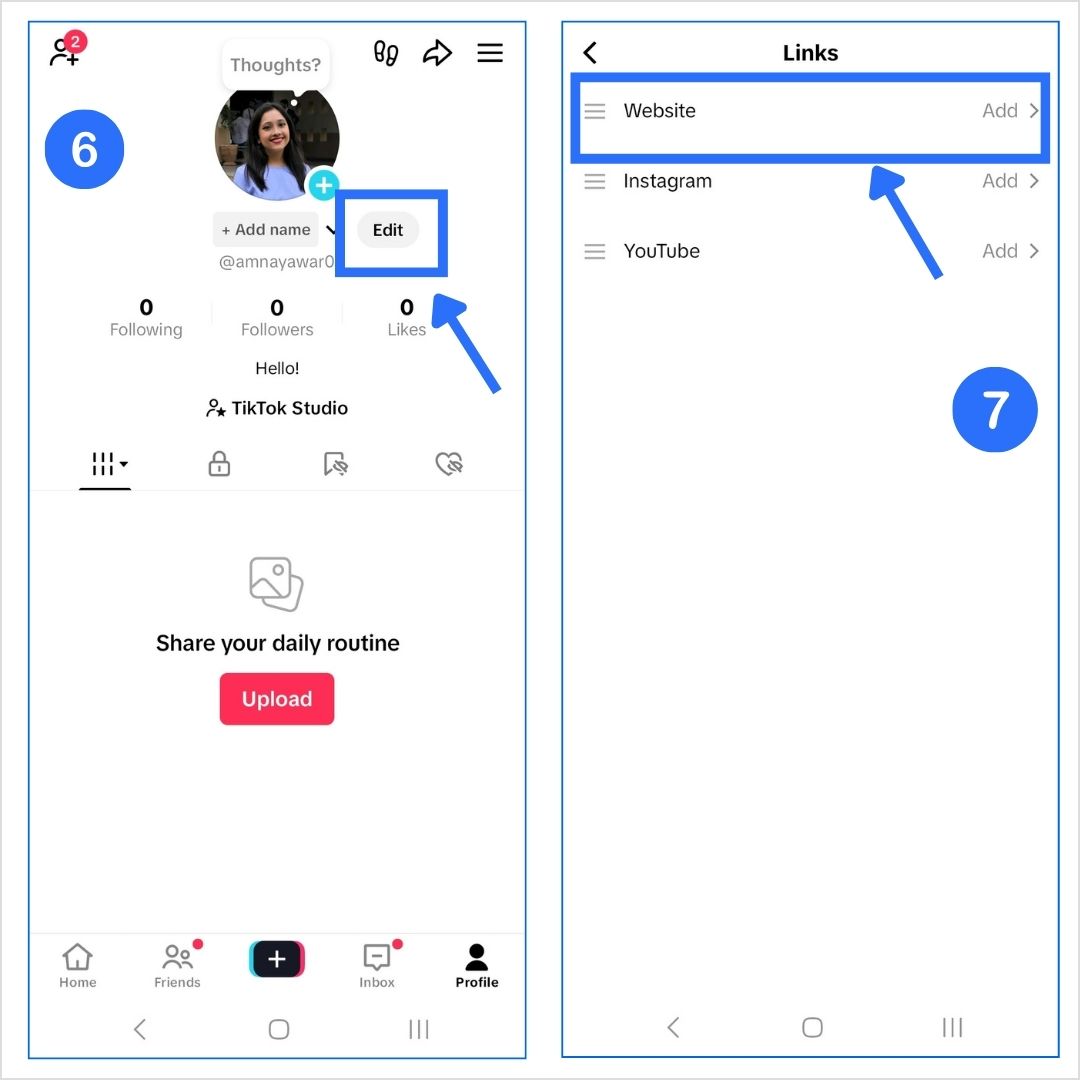
    1. Go back to your profile and tap Edit Profile.
    2. You’ll now see a “Website” field. Paste your Twitch URL there.
    Add Website link
    Add Twitch link to TikTok bio

    Boom. You’re good to go.

    Option B: If you have 1,000+ followers (personal account)

    1. Open TikTok and tap your profile icon.
    2. Tap Edit Profile.
    3. Paste your Twitch URL under the “Website” section.

    Done and dusted. Anyone who visits your TikTok can now hop over to your Twitch. 

    Method 2: Add a bio link using Replug

    Let’s say you also want to link your Twitch streams individually, add more social profiles in your TikTok bio, or want to promote your upcoming campaign. With TikTok allowing only one link in bio, it gets tough.

    That’s where Replug comes in. It is an all-in-one link optimization platform that helps you add multiple links in your bio with just one link (sounds a little crazy, but it’s possible). Here’s how to do it using Replug’s bio link feature:

    Boost ROI with branded URLs - Replug dashboard showing performance metrics and branded URL creation

    Go beyond generic link pages!

    Create custom bio links that truly fit your brand

    With Replug, you can create bio links that are unique, engaging, and built to convert.

    Start free trial

    Step 1: Log in or create an account

    Log in or sign up at Replug.

    Step 2: Go to Bio Links

    • Go to your dashboard and click on Bio Links.
    Go to Bio Links
    • Create a new bio link page.
    Create new bio link

    Step 3: Customize and publish your bio link page

    • Give your bio link a name and a description. It should match your Twitch vibe.
    • Customize your bio link page with different colours, layouts, background, buttons, and more.
    • Hit the Publish button.
    Publish bio link

    Step 4: Add blocks 

    Replug lets you add multiple blocks to your bio site. Be it for your social, videos, or links; there’s room for everything. Let’s take a look at some:

    Social block:

    Add Twitch social block

    Card block:

    Add Twitch card block

    Link block:

    Add Twitch link block

    Important note: Update your blocks as you go; otherwise, you will lose your progress.

    Update block

    Step 5: Optimize for SEO (additional step)

    Before sharing your new Replug link, take a moment to fine-tune it for both search engines and social platforms. A little polish here can make a big difference in how your link performs.

    Here’s how to upgrade your link inside Replug:

    • Optimize the URL slug: Skip the random characters, go with something clean and memorable. Something like this: 
    Custom bio link


    Boost ROI with branded URLs - Replug dashboard showing performance metrics and branded URL creation
    Boost ROI with
    branded URLs!

    Enhance your marketing campaigns by creating shareable, trackable, and fully multi-purpose customizable branded URLs.

    Try Replug for free

    • Add a custom meta title and description: These appear when your link is shared or shows up in search results. Keep the title clear and the description compelling so people know exactly why they should click.
    • Upload a custom preview image: A well-designed thumbnail makes your link stand out in places like Instagram DMs, Discord, and X.
    • Set a custom favicon: It’s a small touch, but it adds professionalism and reinforces your brand.
    • Add tracking pixels: Want to run retargeting ads later? Drop in retargeting pixels and start building audiences right from the clicks your link gets.
    Optimize for SEO

    Here’s the final preview of the bio link we created using Replug:

    Bio link preview

    Bonus features you’ll love:

    • Branded URLs: Create branded links with this top-notch link shortener that reflect your stream name.
    • Click tracking: See how many people actually click and visit your Twitch profile.
    • Mobile-optimized: Make sure your Twitch bio page looks sleek on any screen.
    • Easy updates: Swap links or update visuals anytime without touching your TikTok profile.
    • Dynamic QR codes: With Replug, you can create a dynamic QR code for your bio links. These QR codes never expire!

    Quick comparison: TikTok’s native vs. Replug

    FeatureTikTok NativeReplug Bio Link
    One link
    Multiple links
    Branding & visuals
    Click tracking
    QR code generation
    Custom layout & design
    Embed TikTok/Twitch video

    If you just want to quickly throw in your Twitch link in your TikTok bio, TikTok’s built-in feature is your go-to. However, if you want more clicks, followers, and views on your Twitch profile (which is probably the case), Replug is your best bet.

    Make your TikTok work for your Twitch

    You don’t just want views. You want loyal fans.
    Adding your Twitch link to TikTok bridges the gap between “scrolling” and “streaming.”

    If you’re keeping it simple, use TikTok’s built-in link option.But if you want a clickable, trackable, brand-friendly bio that boosts all your platforms? Replug is the way to go.

    FAQs for how to add a Twitch Link to TikTok

    Can I add a clickable Twitch link to my TikTok bio?

    Yes! If you have 1K+ followers or switch to a business account, you can paste your Twitch URL in the “Website” section.

    What if I have less than 1,000 followers?

    Switch to a TikTok Business Account — it unlocks the Website field for everyone.

    Can I link more than just Twitch?

    Absolutely. Use Replug to create a sleek bio page with Twitch, YouTube, Discord, and more.

    Is Replug free to use?

    Replug offers a 14-day free trial with full features. After that, you can choose a paid plan based on your needs. Visit our pricing page for more details.

    Can I customize how my Twitch link looks?

    Yes! With Replug, you can add thumbnails, change button colors, create custom CTAs, and even embed a clip or TikTok video.

  • How to add a Pinterest link to your Instagram bio in minutes

    How to add a Pinterest link to your Instagram bio in minutes

    Pinterest is where your ideas live. Instagram is where your people are. So why not connect the dots?

    You’ve poured your aesthetic into your Pinterest boards. You’ve curated visuals that reflect your vibe, your brand, or just your current obsession (yes, even that “cottagecore dream kitchen” board you revisit daily).

    Now imagine your Instagram followers could explore that world too, directly from your Instagram bio.

    Sounds dreamy? That’s because it is.

    In this blog, we’ll walk through exactly how to link Pinterest to Instagram, whether you’re a business owner, content creator, or someone who just loves visual storytelling. Plus, we’ll show you how to take it beyond the basics with a smarter way to do it with bio links.

    Boost ROI with branded URLs - Replug dashboard showing performance metrics and branded URL creation
    Turn your bio links into click-boosting machines
    Check

    Drive up to more clicks than plain URLs

    Check

    Share multiple destinations with one link

    Create bio links free

    How to get your Pinterest profile and board link?

    Before you can share your Pinterest on Instagram, you need the actual link. And the good news is that it’s super easy! Here’s how to do it:

    • How to get your Pinterest profile link
    1. Open Pinterest.
    2. Tap your profile picture.
    Go to Pinterest profile
    1. Copy your Pinterest link from the search bar.
    Copy Pinterest profile URL

    And just like that, you’ve got your Pinterest profile link. 

    • How to get a Pinterest board link
    1. Go to the specific board you want to share.
    2. Copy board link from browser.
    Copy Pinterest board URL

    This is great if you want to spotlight a specific mood board, product collection, or project.

    Now that you’ve got the right link, let’s move on to the fun part: adding it to Instagram.

    Why link Pinterest to Instagram?

    But first, why even link Pinterest to Instagram? 

    It’s simple: Because Pinterest and Instagram are like two sides of the same aesthetic coin. Pinterest is for saving ideas. Instagram is for sharing them. 

    When you link Pinterest to Instagram, you’re not just adding a URL; you’re creating a visual journey for your followers.

    Here’s why it’s worth doing:

    • Let followers explore your ideas in more depth.
    • Promote your brand, blog, products, or inspiration.
    • Drive more traffic to your Pinterest (and boost your visibility).
    • Create a cohesive brand identity across online platforms.
    • Make it easier for people to discover what you really love.

    In short: you’re helping your audience go from scrolling to exploring.

    There are two main methods, one is super quick and the other is way more customizable. Let’s break them down:

    1. Use Instagram’s built-in link option

    1. Open Instagram.
    2. Go to your profile and tap Edit Profile.
    3. Click on Add Link.
    4. Tap Add external link.
    5. Paste your Pinterest URL.
    6. Write a title like “My Pinterest” or “Moodboard Zone”.
    7. Tap the checkmark button. Your Pinterest link will now be added to your Instagram profile for your followers to see.
    Add external link on Instagram

    Boom. You’re done!

    But here’s the thing: Instagram only gives you only 5 clickable links (and honestly, they might look a little messy as well). If you’re like most creators or businesses, you’ve probably got more than one thing you want to share.

    This brings us to the smarter option: Instagram bio links.

    2. Use Replug to create a custom bio link

    If you’re wondering how to link Pinterest to Instagram and still have room to showcase your other platforms, Replug’s bio link feature is your answer.

    Replug is an all-in-one link management platform that comes with brilliant features. It assists in building a high-converting landing page, designed for people who want their bio to actually do something. So, instead of having a lonely “Follow me on Pinterest” link, your bio becomes a curated destination that reflects your full digital presence.

    How to do it with this amazing custom URL shortener, i.e., Replug:

    1. Log in to your Replug account. If you don’t have an account, create one.
    2. Go to “Bio Links”
    Go to Replug's Bio Link page
    1. Click on “Create new”
    Create new bio link
    1. Click “Content” on the left panel of the bio link creation page.
    Click on Content
    1. Add a social block for your Pinterest profile or board and select Pinterest. You can add up to 8 social blocks of your liking.
    Click on social block
    Click on Pinterest social block
    1. Publish your bio link
    Publish your bio link
    1. Enter your Pinterest URL and click “Add block”. Your block will now be added to your bio link landing page.
    Add Pinterest social block

    Bonus tip: You can also use the card block for a visual touch! Just click on the “Card” block, enter your Pinterest URL, give your card a name, and add a screenshot of your Pinterest aesthetic.

    Add Pinterest card block
    1. Copy your bio link URL.
    Copy bio link URL
    1. Add your Replug bio link URL to your Instagram profile (refer to method 1).

    Voila! You now have a beautiful, shareable, multi-link landing page where Pinterest is just one tap away.

    Bio link preview

    Related: How to add multiple links in one link: Step-by-step guide

    Benefits of using bio links for Instagram (with Replug)

    Instagram gives you one link. Replug gives you an entire experience.

    Instead of pasting a basic Pinterest URL into your bio and calling it a day, Replug lets you build a complete, aesthetic, and interactive space that feels like an extension of your feed.

    Boost ROI with branded URLs - Replug dashboard showing performance metrics and branded URL creation

    Go beyond generic link pages!

    Create custom bio links that truly fit your brand

    With Replug, you can create bio links that are unique, engaging, and built to convert.

    Start free trial

    Here’s what you unlock when you use Replug instead of just pasting a link:

    1. More than one link

    You’re not limited to your Pinterest profile. You can add all your socials, such as X
    (Twitter), YouTube, TikTok, LinkedIn, your website, blog, shop, and more.

    2. Visual blocks

    Why settle for a boring link when you can display your Pinterest boards in style? Use Card blocks to show off individual boards or your entire profile with eye-catching visuals that blend beautifully with your Instagram aesthetic.

    3. Brand consistency

    Fonts, colors, layout—it all matters. Replug lets you design your landing page to match your Instagram vibe, so your audience enjoys a seamless brand experience from bio to board.

    4. Better engagement

    Don’t just point people to Pinterest. Guide them. Use multiple blocks to highlight your most important boards, top-performing Pins, blog links, or current campaigns. This leads to higher social media engagement.

    5. Retargeting pixels

    Want to bring visitors back? With Replug, you can add retargeting pixels to your bio page. That means anyone who clicks your Pinterest link can be shown ads later (yes, even from a link in your bio).

    6. Analytics

    Track everything. Replug shows you how many clicks you’re getting on your bio link and Pinterest profile/board and how your audience interacts with your content. Use those insights to fine-tune your strategy.

    7. Dynamic QR codes

    Replug lets you create fully customizable, dynamic QR codes linked to your bio page. These aren’t just pretty codes—they’re editable, trackable, and brandable. You can update the destination later without needing to reprint the code.

    From pinning to linking

    Learning how to link Pinterest to Instagram isn’t just about sharing a URL; it’s about creating an unforgettable brand experience. Whether you go with Instagram’s native option or level up with Replug, you’re giving your audience more ways to connect, engage, and explore.

    Because the truth is? Your followers want more than a pretty feed.

    They want the full picture.

    FAQs for how to link Pinterest to Instagram

    How to get your Pinterest profile link?

    Go to your profile > tap share > copy link.

    Can I link a specific Pinterest board to Instagram?

    Yes. Follow the same steps as you would for your profile, but from the relevant board.

    How to link Instagram to Pinterest?

    Create a pin and use your Instagram post URL as the destination link.

    How many Pinterest links can I add to Instagram?

    Just one via Instagram’s native feature. But with Replug, you can add multiple!

    Can I customize how my Pinterest appears in my bio?

    Only with tools like Replug, where you can style it with cards, colors, and layout.

    Can I see how many people are clicking my Pinterest link?

    Absolutely! Replug’s link analytics let you see how many people are clicking on your Instagram profile. From total clicks to unique clicks, you have it all!

  • 200+ Facebook bio ideas: How to write a perfect Facebook bio?

    200+ Facebook bio ideas: How to write a perfect Facebook bio?

    Know that in today’s world your online presence matters almost as much as in-person interactions, crafting the perfect bio can significantly impact how others perceive you on social media. 

    Whether you’re looking to make new connections, reconnect with old friends, or establish your personal brand, your bio is a powerful part that conveys who you are in just a few carefully chosen words.

    This guide brings you over 200 creative, engaging, and personality-driven Facebook bio ideas to help you stand out. 

    Plus, we’ll walk you through essential tips for writing bios that not only attract attention but also drive action.

    Pro tip: Want to take your Facebook bio even further? Replug lets you add custom CTAs, branded links, and a personalized bio link seamlessly. You can even set up a Facebook link in bio seamlessly, giving visitors a clear next step right from your profile. It’s a simple way to turn profile visits into real engagement.

    Boost ROI with branded URLs - Replug dashboard showing performance metrics and branded URL creation

    Go beyond generic link pages!

    Create custom bio links that truly fit your brand

    With Replug, you can create bio links that are unique, engaging, and built to convert.

    Start free trial

    How to write a perfect Facebook bio?

    Here are six steps to craft the perfect bio.

    1. Keep it short and punchy

    Facebook gives you limited space – so make every word work hard. Focus on the essentials and craft a bio that’s crisp, clear, and memorable. Take inspiration from Gary Vaynerchuk, who nails it with a short yet powerful Facebook bio.

    Gary Vaynerchuk facebook bio

    2. Optimize for discovery

    Think like a search engine! Use relevant industry-specific keywords to boost your profile’s visibility in Facebook searches. It helps you connect with people who are genuinely interested in your niche and expertise.

    A great example of this is ContentStudio’s Facebook bio, where they smartly weave in keywords related to content marketing and social media management, making it easier for their ideal audience to find them.

    ContentStudio’s Facebook bio

    3. Drive action with CTAs

    Give people a next step! Adding a custom CTA in your bio section, such as “Check out my latest project,” “Follow my journey,” or “Message me for collaborations,” can make your bio more engaging and actionable.

    Boost ROI with branded URLs - Replug dashboard showing performance metrics and branded URL creation
    Boost your conversion rates with irresistable CTAs with

    for your marketing campaigns.

    Check

    Higher clicks

    Check

    More leads

    Check

    Better ROI

    Generate free CTAs

    4. Add some personality

    Your bio shouldn’t feel robotic. Show off your brand voice, your vibe, and what makes you you. Authenticity builds trust and relatability.

    And if you want your Facebook profile to look as good as it sounds, try polishing your visuals with an Instagram photo editor. A clean, professional image can complement your catchy bio and leave a stronger first impression.

    Levi’s Facebook bio is a great example – blending brand personality with a strong emotional connection.

     Levi’s Facebook bio

    5. Look pro with branded links

    To add a professional touch to your bio, use clean, branded links that align with your personal brand. Branded links not only make your profile look polished but also help you maintain consistency across your online presence.

    6. Create your content hub

    Take your bio to the next level by using a tool like Replug. With Replug, you can create a custom link-in-bio page – letting you showcase multiple links, promotions, or offers in one spot. No more updating your bio every time you launch something new!

    Boost ROI with branded URLs - Replug dashboard showing performance metrics and branded URL creation

    Go beyond generic link pages!

    Create custom bio links that truly fit your brand

    With Replug, you can create bio links that are unique, engaging, and built to convert.

    Start free trial

    Funny and humorous bios

    1. “I’m not lazy, I’m just on my energy-saving mode.”
    2. “Professional napper, amateur everything else.”
    3. “I speak fluent sarcasm and movie quotes.”
    4. “My hobbies include breakfast, lunch, and dinner.”
    5. “I put the ‘pro’ in procrastination.”
    6. “My biography is under construction. Please check back next year.”
    7. “I’m not weird, I’m limited edition.”
    8. “Adult supervision required at all times.”
    9. “Living my life one meme at a time.”
    10. “I don’t always surf the internet, but when I do, my eyebrows are furrowed.”
    11. “Currently pretending to be a responsible adult.”
    12. “I’m not short, I’m concentrated awesome.”
    13. “Probably thinking about food right now.”
    14. “Breaking the awkward silence one random fact at a time.”
    15. “My life is about as organized as a tornado.”
    16. “I’m on a seafood diet. I see food, and I eat it.”
    17. “Professional overthinker with a minor in anxiety.”
    18. “I’m not arguing, I’m just explaining why I’m right.”
    19. “Caution: Contains a mixture of sarcasm, truth, and silence.”
    20. “Life update: Still trying to figure out life.”

    Short and sweet bios

    1. “Living simply, laughing often.”
    2. “Dreamer. Doer. Coffee enthusiast.”
    3. “Be a voice, not an echo.”
    4. “Creating my own sunshine.”
    5. “Wild heart, peaceful soul.”
    6. “Simplicity is the ultimate sophistication.”
    7. “Less perfection, more authenticity.”
    8. “Born to stand out.”
    9. “Making memories, one day at a time.”
    10. “Seeking joy in the journey.”
    11. “Explorer of places and ideas.”
    12. “Adventure awaits.”
    13. “Choosing happiness daily.”
    14. “Forever curious.”
    15. “Present over perfect.”

    Inspirational and motivational bios

    1. “Dream big, work hard, stay focused.”
    2. “Making today better than yesterday.”
    3. “Creating the life I’ve always imagined.”
    4. “Rising by lifting others.”
    5. “Turning obstacles into opportunities.”
    6. “Believe you can and you’re halfway there.”
    7. “Growth comes from discomfort. Embrace the journey.”
    8. “Building my empire one brick at a time.”
    9. “The best is yet to come.”
    10. “Striving for progress, not perfection.”
    11. “My life is my message. My actions speak louder than words.”
    12. “Dream without fear, love without limits.”
    13. “Life begins at the end of your comfort zone.”
    14. “Creating a life that feels good on the inside, not just one that looks good on the outside.”
    15. “Spreading light wherever I go.”
    Boost ROI with branded URLs - Replug dashboard showing performance metrics and branded URL creation

    Go beyond generic link pages!

    Create custom bio links that truly fit your brand

    With Replug, you can create bio links that are unique, engaging, and built to convert.

    Start free trial

    Creative and unique bios

    1. “Collector of moments and vintage vinyl.”
    2. “Half coffee, half human, entirely unpredictable.”
    3. “Storyteller by day, dreamer by night.”
    4. “Painting life with my own colors.”
    5. “A blank canvas constantly being splashed with new experiences.”
    6. “Fluent in three languages: English, sarcasm, and movie references.”
    7. “Equal parts rebel and old soul.”
    8. “Just a small-town star navigating a big universe.”
    9. “Turning coffee into creativity since [birth year].”
    10. “My life is written in comic sans—chaotic but fun.”
    11. “Professional daydreamer with a reality habit.”
    12. “Collecting adventures and passport stamps.”
    13. “Half wizard, half ninja, entirely authentic.”
    14. “Crafting my legacy one day at a time.”
    15. “Soul of a wanderer, heart of a dreamer.”

    Professional and business bios

    1. “Helping businesses grow through innovative marketing strategies.”
    2. “Passionate about transforming ideas into successful ventures.”
    3. “Leadership coach dedicated to unlocking potential.”
    4. “Digital strategist crafting online success stories.”
    5. “Financial advisor guiding clients toward their dreams.”
    6. “Entrepreneur, mentor, and perpetual learner.”
    7. “Building bridges between technology and human needs.”
    8. “Creating solutions that make a difference.”
    9. “Dedicated to excellence in [your field].”
    10. “Turning visions into actionable business strategies.”
    11. “Helping professionals tell their story through personal branding.”
    12. “Committed to ethical leadership and sustainable growth.”
    13. “Empowering teams to achieve their highest potential.”
    14. “Transforming challenges into opportunities for growth.”
    15. “Merging creativity with strategy to drive innovation.”

    Also read: How to write a professional bio: best tips and tools

    Travel and adventure bios

    1. “Collecting countries instead of things.”
    2. “My passport is my most prized possession.”
    3. “Adventure is calling, and I must go.”
    4. “Life is short, and the world is wide.”
    5. “Not all who wander are lost.”
    6. “Citizen of the world with a home base in [your location].”
    7. “Finding myself in the places I’ve never been.”
    8. “Traveling to learn, returning to inspire.”
    9. “My bucket list keeps growing faster than I can check it off.”
    10. “Living life through experiences, not possessions.”
    11. “Chasing sunsets around the globe.”
    12. “Mapping memories across continents.”
    13. “Home is wherever my backpack lands.”
    14. “Finding beauty in different cultures and landscapes.”
    15. “Adventure awaits just outside your comfort zone.”

    Foodie bios

    1. “Living to eat, not eating to live.”
    2. “Food blogger exploring flavors one plate at a time.”
    3. “My love language is cooking for others.”
    4. “Life is uncertain. Eat dessert first.”
    5. “Finding joy in farmers’ markets and recipe testing.”
    6. “Culinary explorer with a passion for local ingredients.”
    7. “Known for my legendary homemade [your specialty dish].”
    8. “Always planning my next meal.”
    9. “Firm believer that chocolate solves most problems.”
    10. “Coffee enthusiast and brunch connoisseur.”
    11. “Turning ingredients into edible magic.”
    12. “Kitchen experimenter and flavor adventurer.”
    13. “Cooking my way through family recipes and new cuisines.”
    14. “Food is my art form, and my kitchen is my studio.”
    15. “Appetite for food, hunger for life.”

    Music and arts bios

    1. “Living life to the soundtrack in my head.”
    2. “Finding rhythm in the chaos of everyday life.”
    3. “Painter of words and collector of melodies.”
    4. “My playlist defines me better than words ever could.”
    5. “Art isn’t what I do; it’s who I am.”
    6. “Dancing through life one beat at a time.”
    7. “Photography is my way of preserving moments and emotions.”
    8. “Creating art that speaks when words fail.”
    9. “Finding beauty in the overlooked and ordinary.”
    10. “My soul sings in colors and harmonies.”
    11. “Turning blank canvases into stories.”
    12. “Life’s too short for bad music and uninspiring art.”
    13. “Musician by passion, dreamer by nature.”
    14. “Capturing life through my lens and my heart.”
    15. “Letting creativity lead my journey.”

    Book and literature lover bios

    1. “Living between reality and the pages of my books.”
    2. “Bookworm with an overflowing TBR pile.”
    3. “Finding myself in the stories of others.”
    4. “My idea of a perfect day involves books, coffee, and silence.”
    5. “Collecting books and beautiful words.”
    6. “Literary enthusiast with a penchant for plot twists.”
    7. “Life’s too short to read boring books.”
    8. “Would rather be reading right now.”
    9. “Escaping reality one book at a time.”
    10. “Bibliophile with an addiction to bookstore visits.”
    11. “Turning pages and chasing dreams.”
    12. “Living vicariously through fiction.”
    13. “Words have the power to change worlds—including mine.”
    14. “My heroes live between book covers.”
    15. “Literature lover and word collector.”

    Fitness & wellness bios

    1. “Strong body, stronger mind.”
    2. “Wellness warrior committed to balanced living.”
    3. “Finding peace through movement and mindfulness.”
    4. “Dedicated to becoming the best version of myself.”
    5. “Health is wealth, and I’m investing daily.”
    6. “Yoga practitioner seeking alignment in all areas of life.”
    7. “Training for life, not just for looks.”
    8. “Nurturing body, mind, and spirit through conscious choices.”
    9. “Sweat now, shine later.”
    10. “Finding strength I never knew I had.”
    11. “Embracing the journey of self-improvement.”
    12. “Fitness enthusiast with a passion for helping others.”
    13. “Challenging my limits to expand my possibilities.”
    14. “Wellness isn’t a destination; it’s a lifelong journey.”
    15. “Making healthy living a lifestyle, not a temporary fix.”
    Boost ROI with branded URLs - Replug dashboard showing performance metrics and branded URL creation

    Go beyond generic link pages!

    Create custom bio links that truly fit your brand

    With Replug, you can create bio links that are unique, engaging, and built to convert.

    Start free trial

    Family-focused bios

    1. “Proud parent raising the next generation of changemakers.”
    2. “Family comes first—always and forever.”
    3. “Building a legacy of love and laughter.”
    4. “My greatest blessings call me Mom/Dad.”
    5. “Creating childhood memories worth treasuring.”
    6. “Family: where life begins and love never ends.”
    7. “Parenting: the most exhausting and rewarding job I’ve ever had.”
    8. “Partner, parent, and perpetual work in progress.”
    9. “Home is wherever we are together.”
    10. “Cherishing the chaos of family life.”
    11. “Building our story one chapter at a time.”
    12. “Finding joy in the ordinary moments of family life.”
    13. “My heart walks around outside my body in my children.”
    14. “Family historian capturing our journey together.”
    15. “Living for weekend adventures with my favorite humans.”

    Quote-based bios

    1. “Be the change you wish to see in the world.” —Gandhi
    2. “In a world where you can be anything, be kind.”
    3. “Life is what happens when you’re busy making other plans.” —John Lennon
    4. “Do what you love, love what you do.”
    5. “Stars can’t shine without darkness.”
    6. “She believed she could, so she did.”
    7. “The best is yet to come.” —Frank Sinatra
    8. “Find joy in the journey.”
    9. “Do more of what makes you happy.”
    10. “Live the life you’ve imagined.” —Henry David Thoreau
    11. “Not all storms come to disrupt your life; some come to clear your path.”
    12. “Be a voice, not an echo.” —Albert Einstein
    13. “Every day may not be good, but there’s good in every day.”
    14. “Life isn’t about finding yourself. It’s about creating yourself.” —George Bernard Shaw
    15. “The purpose of our lives is to be happy.” —Dalai Lama

    Quirky and unconventional bios

    1. “Professional procrastinator with a PhD in Netflix marathons.”
    2. “Could easily survive a zombie apocalypse (or at least I’ve watched enough shows to think so).”
    3. “I speak fluent movie quotes and song lyrics.”
    4. “Still waiting for my Hogwarts letter.”
    5. “Time traveler stuck in 2025. Please send help.”
    6. “Part-time superhero, full-time overthinker.”
    7. “Official taste-tester for all pizza establishments.”
    8. “My superpower is making simple things complicated.”
    9. “I put the ‘pro’ in procrastination and the ‘nap’ in napkin.”
    10. “Working on my mysterious aura. How am I doing?”
    11. “I’m not weird, I’m just limited edition.”
    12. “Currently starring in my own reality show (in my head).”
    13. “Probably thinking about dogs right now.”
    14. “Professional shower singer and car dancer.”
    15. “I’m not lazy, I’m on energy-saving mode.”

    Extra – Emojis for your bio

    1. “Beach lover 🏖️ | Coffee addict ☕ | Dog mom 🐕”
    2. “✈️ Explorer | 📚 Reader | 🎵 Music lover”
    3. “Creating memories one photo at a time 📸 ✨”
    4. “Dream big, work hard, stay humble 💫 💪 🙏”
    5. “Turning coffee into productivity ☕→💼”
    6. “Nature lover 🌱 | Yoga enthusiast 🧘‍♀️ | Positive vibes ✨”
    7. “Collecting moments, not things 📝 💫 🌈”
    8. “Mountain hiker ⛰️ | Star gazer 🌠 | Dream chaser 💭”
    9. “Creating my own sunshine ☀️ | Spreading kindness 💕”
    10. “Artist 🎨 | Dreamer 💭 | Coffee enthusiast ☕”
    Boost ROI with branded URLs - Replug dashboard showing performance metrics and branded URL creation
    Turn your bio links into click-boosting machines
    Check

    Drive up to more clicks than plain URLs

    Check

    Share multiple destinations with one link

    Create bio links free

    Read also: 400+ best Instagram bio examples to stand out in 2026

    Additional tips for creating your perfect Facebook bio

    • Show personality – Let your unique character shine through.
    • Consider your audience – Think about who will be reading your bio.
    • Use emojis strategically – They can add personality but don’t overdo it.
    • Include keywords – If you want to be found for certain interests or skills.
    • Balance humor and information – A joke is great, but also include something substantive.
    • Proofread – Typos can undermine an otherwise perfect bio.
    • Ask for feedback – Get input from friends before finalizing your bio.

    Conclusion

    Your Facebook bio may be limited in characters, but its impact is boundless. It’s often the first element of your profile that catches your attention and creates an impression. 

    And if you’re looking to enhance your bio even further, tools like Replug can take things to the next level. With Replug, you can create a custom link-in-bio page, add branded links, and include CTAs that help guide your visitors to the next step.

    Plus, its built-in analytics let you track your link performance, ensuring your bio is not only catchy but also effective at driving engagement.

    You can also try Replug’s URL shortener free tool to create concise, trackable links that perfectly complement your campaigns.

    Replug Branded Short Links CTA
    A complete link management solution
    for marketing professionals & agencies.
    Try Replug for free

    As social media continues to evolve as a platform for both personal connections and professional networking, the importance of a well-crafted bio cannot be overstated. It serves as your digital handshake, your first impression in an increasingly virtual world.

    Remember, the best Facebook bio is one that authentically represents who you are while engaging those who visit your profile. Don’t be afraid to experiment until you find the perfect words to express yourself!

    The ideas presented in this guide are starting points; feel free to mix, match, and modify them to create something uniquely you.

    Frequently asked questions

    How often should I update my Facebook bio?

    There’s no rule about how frequently you should update your bio, but it’s good practice to refresh it whenever significant life changes occur, such as a new job, relationship status, move to a new city, or shift in personal interests. Many users update their bios seasonally or annually as a way to keep their profiles current and engaging.

    Can I track link performance from my Facebook bio with Replug?

    Yes, Replug allows you to monitor click-through rates, engagement, and other analytics for the links in your bio, so you can measure their effectiveness.

    How can Replug help with multiple link management on Facebook?

    Replug’s customizable link-in-bio page enables you to consolidate multiple links, including social media, websites, and promotions, in one spot – ideal for your Facebook bio.

    Can I add branded links to my Facebook bio using Replug?

    Absolutely! Replug lets you create branded links that boost your credibility and help visitors easily access your content or website.

    Can I use special characters or emojis in my Facebook bio?

    Yes! Facebook supports special characters, symbols, and emojis in bio sections. Using these strategically can help your bio stand out and express your personality with fewer characters. However, avoid overusing them as this can make your bio appear cluttered or difficult to read.

  • How to add your Discord link to TikTok bio (2 easy ways)

    How to add your Discord link to TikTok bio (2 easy ways)

    Your TikTok is popping, your Discord server is thriving… but the two aren’t linked? C’mon now. That’s like having a hype squad and forgetting to invite them to the main event.

    Whether you’re building a community around gaming, memes, or chaotic late-night convos, adding your Discord to your TikTok bio can turn passive scrollers into active members.

    And good news? You’ve got options.

    In this guide, we’ll show you two ways to add your Discord link to your TikTok bio: one using TikTok’s built-in method, and the other using Replug’s built-in link in bio maker (for when you want to do more with one link).

    Let’s go!

    Why add your Discord link to TikTok?

    A viewer discovers your TikTok, enjoys your content, and wants to join your Discord community. But without a link in your bio, they’re left unsure of what to do next. What now?

    Answer: nothing. Because that curiosity? Gone.

    By adding your Discord link, you:

    • Funnel your TikTok audience to your Discord community.
    • Build deeper connections with fans.
    • Create a space for announcements, drops, convos, and more.

    In short: TikTok + Discord = the ultimate creator combo.

    Now, let’s look into 2 easy methods to add your Discord server link to your Tiktok bio:

    Method 1: Add your Discord link using TikTok’s native option

    TikTok lets you add one clickable link in your bio, so if Discord’s your main hangout, this method will work.

    Step 1: Grab your Discord invite link

    First, generate an invite link from Discord:

    On mobile

    1. Click on a server from the side navigation.
    2. Click on the “Copy Link” icon to copy your invite link.

    On desktop

    1. Click on a server from the side navigation.
    2. Click “Invite your friends”
    3. Copy the server invite link and send it to a friend.

    Tip: Click on “Edit invite link” and set the expiration date to “Never” so that your audience doesn’t end up on a dead link. 

    You’ve got your Discord link, now let’s plug it into TikTok.

    Option A: If you have less than 1,000 followers

    You’ll need to switch to a Business Account to unlock the “Website” field.

    Here’s how:

    1. Go to TikTok > Profile > Tap the three lines (☰).
    Go to TikTok profile
    1. Tap Settings & Privacy > Account > Switch to Business Account.
    Switch to TikTok Business Account
    1. Choose any category (like “Personal Blog” or “Gaming”).
    2. Go back to your profile and tap Edit Profile.
    3. Paste your Discord link under the “Website” section.
    Add website link

    Option B: If you have 1,000+ followers

    You can keep your personal account and still get the link feature:

    1. Open TikTok > Tap Profile.
    2. Hit Edit Profile.
    3. Paste your Discord invite in the “Website” field.

    Now anyone visiting your TikTok can click and join your server.

    Method 2: Add a clickable bio link using Replug

    You don’t want to keep handing out Discord links.

    If someone wants to join your jamming or streaming server, they shouldn’t have to DM you for it. Just drop your Replug bio link in your TikTok profile, and let them choose where they want to go.

    Boost ROI with branded URLs - Replug dashboard showing performance metrics and branded URL creation
    Turn your bio links into click-boosting machines
    Check

    Drive up to more clicks than plain URLs

    Check

    Share multiple destinations with one link

    Create bio links free

    No more juggling links or repeating yourself. Replug is an all-in-one link management platform that keeps all your important links, such as your Twitch, Merch, YouTube, and Discord servers, neatly in one place.

    Plus, you can create branded short links effortlessly with Replug’s URL shortener free tool, making it easier to share and track every link across your platforms.

    And if you ever shut down a server? Just remove it from your Replug bio link page. That’s your subtle way of saying, “yeah… that era’s over.”

    Here’s how to add a link in TikTok bio:

    Step 1: Sign up for Replug

    Go to Replug and create an account (there’s a free trial, so no excuses).

    Step 2: Create your bio link page

    • From the dashboard, head to Bio Links.
    Go to bio links
    • Click Create New.
    Create new bio link
    • Customize your bio link page with a title, buttons, description, custom layout, colours, and background image (optional).

    Step 3: Add content blocks

    • Click on Content.
    Go to content block
    • Add a block for your Discord invite, and more blocks for Twitch, YouTube, Spotify, or even your dog’s Instagram. You do you (no one’s judging).

    Social blocks: 

    Add social block

    Link blocks:

    Add link blocks

    Card block:

    Add card block

    What more can you do?

    • Add text, spacing, and separator blocks.
    • Embed a video block (Youtube, TikTok, Instagram, Facebook, and X).
    • Add an RSS feed for your content.
    • Rearrange the blocks however you want.

    Step 4: Optimize it (additional step)

    • Customize your link slug. A custom URL ensures that you stay on brand and recognizable.
    Custom URL
    • Add a title and meta description.
    • Upload a picture and favicon (optional, but chef’s kiss).
    • Drop a tracking pixel if you’re into analytics or retargeting ads.
    Optimize for SEO

    This is what the final preview looks like:

    Bio link page preview

    Step 5: Add it to TikTok

    Copy your Replug bio link and paste it in the “Website” field of your TikTok profile. Now, when someone clicks it, they get a full-on hub with all your links, including your Discord.

    Quick comparison: TikTok’s native vs. Replug

    FeatureTikTok NativeReplug
    One clickable link
    Multiple links
    Visual customization
    Click tracking
    Dynamic QR codes
    Mobile optimization
    Easy to update❌ (edit profile again)✅ (dashboard control)
    Replug Branded Short Links CTA
    A complete link management solution
    for marketing professionals & agencies.
    Try Replug for free

    To wrap it up

    • Just want a clickable Discord link? Use TikTok’s native bio link.
    • Want to link everything and look pro? Replug’s your best bet.

    Pick the method that fits you best, but don’t let your TikTok bio go to waste. It’s your shortcut to a stronger, more connected audience.

    Frequently asked questions

    Can I add a Discord link to my TikTok bio?

    Yes! Use the Website field under “Edit Profile.” Just make sure the link doesn’t expire.

    What if I have less than 1,000 TikTok followers?

    Switch to a Business Account. That will unlock the feature for adding a website link.

    Can I link more than just Discord?

    Absolutely. You can use an advanced link management tool like Replug to build a sleek, multi-link bio page.

    What if I don’t see the Website option on TikTok?

    Make sure your app is updated
    Switch to a Business account
    If you’re under 18 or in certain regions, this feature might not be available yet

    Can I share my Discord server on TikTok?

    Absolutely! Switch to a TikTok Business Account, then add your Discord invite or server link as your TikTok bio link to your profile’s website section.

    You may also like:

    2 easy ways to add a Pinterest link to your TikTok bio

    How to add Amazon link to TikTok bio?

    How to Add Spotify Link to TikTok Bio?

  • How to add YouTube link to Instagram bio?

    How to add YouTube link to Instagram bio?

    Ever wonder how top Instagram creators effortlessly grow loyal communities across platforms? Their secret: smart cross-promotion, especially linking YouTube to Instagram.

    While Instagram’s one-link bio rule may seem limiting, smart creators use it to their advantage by linking their YouTube channel or videos right where it matters most.

    YouTube is where your long-form content lives. Instagram? It’s where people discover you. Connecting the two not only boosts views but builds trust and loyalty across platforms. 

    In this guide, we’ll show you exactly how to add your YouTube link to your Instagram bio (with or without an Instagram link in bio tool), and which types of content actually get people to click. Ready to turn casual followers into loyal subscribers? Let’s dive in.

    Boost ROI with branded URLs - Replug dashboard showing performance metrics and branded URL creation
    Turn your bio links into click-boosting machines
    Check

    Drive up to more clicks than plain URLs

    Check

    Share multiple destinations with one link

    Create bio links free

    Which YouTube links to add to your Instagram bio?

    Adding the right YouTube links to your Instagram bio can drive traffic and boost engagement. Here are some smart options:

    1. Your latest video – Keep your followers updated by linking to your most recent upload.
    2. Channel homepage – Direct users to your main channel for easy access to all your content.
    3. Playlist links – Promote specific playlists like tutorials, vlogs, or product reviews to target niche audiences.
    4. Viral or top-performing video – Capitalize on your most popular content to grab attention fast.
    5. Collaboration video – Highlight a video you did with another creator to build credibility and cross-promote.
    6. Giveaway or contest video – Link to any active giveaways to increase participation and reach.
    7. Behind-the-scenes or Q&A video – Help your audience connect with you on a personal level.

    Also read: How to make a QR code for YouTube video?

    Two ways to put a YouTube link to Instagram bio 

    Method no 01: Add a YouTube link to bio natively on Instagram

    Step 1: Copy your YouTube link

    • For your channel: Go to your YouTube channel > tap the three dots > tap “Share” > copy the link.
    • For a video: Open the video > tap “Share” > copy the link.
    Youtube video link

    Step 2: Open Instagram and edit your bio

    • Go to your Instagram profile
    • Tap “Edit profile”
    • Paste the copied YouTube link in the Instagram bio field

    Tap “Done” or the checkmark. Your YouTube link is now live in your bio!

    Method no 02: Add a YouTube link to bio using link-in-bio tool

    Our link in bio generator lets you showcase multiple YouTube links under one smart link – no need to update your bio every time. Use Replug.io: it’s affordable, easy to use, and packed with features like link tracking, customization, and branding. 

    Here’s how to add your YouTube link to Instagram using Replug’s bio link feature.

    Boost ROI with branded URLs - Replug dashboard showing performance metrics and branded URL creation

    Go beyond generic link pages!

    Create custom bio links that truly fit your brand

    With Replug, you can create bio links that are unique, engaging, and built to convert.

    Start free trial

    Go to Replug and log in (or create an account). Once you’re inside, Go to the bio link dashboard and click on “Create new”. 

    create new bio link

    You’ll spot three categories there Branding, Content and Settings. 

    Step 1: Customize the page

    Under the Branding tab, customize your profile:

    • Add a title, description, profile image, verified badge, background image, and theme.
    customize your bio link branding
    bio landing page preview

    Once you’re done adding everything, click the “Update” button located in the corner.

    Step 2: Add your Youtube links

    Go to the Content tab. Click “Links” to add your YouTube videos, playlists, or channel.

    add links to your bio
    • Now you can add your preferred Youtube links by adding a custom title and link in the block.
    add custom YouTube link
    • Each block is customizable – add titles, icons, and scheduling options.
    • You can also embed YouTube videos directly or mix in text, social buttons, and cards.
    All your YouTube links

    You can easily rearrange or remove any block before going live. When everything looks perfect, just click “Publish” in the top-left corner to launch your custom bio link page.

    bio link page

    Step 03: Optimize & track performance 

    Before sharing your bio link page, give it an SEO boost: Add a custom meta title, description, favicon, and featured image or Insert tracking pixels (Facebook, TikTok, Google, etc.) for retargeting and conversion tracking.

    Once you’re done adding everything. Customize the bio link as per your preference and copy it.

    cutsomize your url

    Your custom landing page is now ready to shared on Instagram.

    Step 4: Add Replug link to your Instagram bio

    • Open your Instagram profile
    • Tap “Edit Profile”
    • Paste your Replug link in the “External link” field. 
    bio link
    add bio link

    This link will now lead your followers to your custom page with all your important YouTube links!

    Your bio landing page is now live in your bio, giving your followers easy access to your YouTube content and more.

    Also check out: How to add a Twitter (X) link to Instagram bio?

    Conclusion

    Adding your YouTube link to your Instagram bio is a small change that can bring big results. Whether you choose Instagram’s native method or a feature-rich link-in-bio tool like Replug, cross-promoting your content boosts visibility, builds deeper audience connections, and increases engagement across platforms. So don’t let your best content sit unseen, make it just one tap away.

    For even cleaner, highly-optimized, and trackable URLs, try Replug’s free link shortener, to optimize and share your links effortlessly across all your social channels.

    FAQs on adding YouTube link to Instagram bio

    Can I add more than one YouTube link to my Instagram bio?

    Not directly through Instagram, but with tools like Replug, you can create a landing page that includes multiple YouTube links under one smart Instagram bio link.

    Will Instagram let me paste a clickable YouTube link?

    Yes, but only one. You can paste a YouTube video or channel link in the “Website” field of your bio, and it will be clickable.

    How often should I update my Instagram bio with a new YouTube link?

    If you’re doing it manually, update it every time you post something important. If you’re using Replug, just update the dashboard and your bio stays fresh automatically.

    Can I track clicks on my YouTube link in bio?

    Yes! Replug offers detailed analytics to track clicks, location, devices, and even lets you add retargeting pixels for advanced campaign performance on your YouTube link in bio.

  • 2 easy ways to add a Pinterest link to your TikTok bio

    2 easy ways to add a Pinterest link to your TikTok bio

    You know how TikTok is the place to discover new stuff – fashion, home inspo, DIY hacks, aesthetic mood boards; basically everything Pinterest is also known for?

    Now imagine someone finds your TikTok, loves your vibe, and wants more. Maybe they’re looking for your outfit details, your vision board, or that recipe you teased.

    They tap the link in TikTok bio, and it either goes nowhere or just dumps them on a random page.

    That’s a missed opportunity.

    If you’re using Pinterest to share your content, promote your blog, or even build a mood board-worthy brand, you need to connect the dots.

    And that starts with adding your Pinterest link to your TikTok bio, the right way.

    We’ll start with TikTok’s built-in features, and then show you how to do more (and better) with Replug’s link in bio generator. Especially handy if you’re stuck without the “Website” option or want to add more than just Pinterest.

    Boost ROI with branded URLs - Replug dashboard showing performance metrics and branded URL creation
    Turn your bio links into click-boosting machines
    Check

    Drive up to more clicks than plain URLs

    Check

    Share multiple destinations with one link

    Create bio links free

    Let’s make your bio work as hard as your content does!

    Why add your Pinterest link to TikTok?

    Because people don’t just watch content anymore — they click, scroll, and shop. Hence, it’s super important to create shareable content that makes your audience keep coming back for more.

    Let’s say you’re:

    • A lifestyle creator who posts dreamy room decor on TikTok.
    • A DIY enthusiast sharing how-tos.
    • A fashion lover posting OOTDs and linking Pinterest boards with outfit inspo.

    Pinterest helps you extend your content. It’s where the vibes live. 

    When you connect your TikTok to Pinterest, you give your followers a one-click path to your vision.  It keeps them in your world longer, and that’s gold if you’re building a brand, growing your following, or even selling something.

    Now let’s learn how to add your Pinterest link to TikTok bio.

    Method 1: How to add Pinterest link to TikTok bio using TikTok’s built-in options

    TikTok only allows one clickable link in your bio. So naturally, you’ll want to make it count.

    How to get your Pinterest link:

    • Open the Pinterest app or website.
    • Tap your profile photo.
    Go to Pinterest profile
    • Copy the link from the browser
    Copy Pinterest link

    Got your link? Great! Now let’s add it to your TikTok bio.

    Option A: How to add link to TikTok bio without 1000 followers

    Stuck under 1K followers? No worries. You can still make it work. Here’s how:

    Switch to a Business Account:

    1. Go to your profile, then tap the three lines in the top-right corner.
    Switch to TikTok business account
    1. Navigate to Settings & Privacy > Account > Switch to Business Account.
    Switch to TikTok business account
    1. Head back to your profile > Edit > and now you’ll see the “Website” option available.
    Add website link
    1. Paste your Pinterest URL, and you’re done.
    Add Pinterest link to TikTok bio

    Related: How to add a linktree to TikTok bio?

    Option B: If you have 1000+ followers (personal account)

    If you’re using a personal account and you’ve crossed the 1,000 followers mark, here’s how to add your Pinterest:

    1. Open TikTok and tap your profile icon (bottom right).
    2. Tap Edit Profile.
    3. Under the “Website” section, paste your Pinterest URL.

    And that’s about it! You just added a clickable link to your Pinterest. Now, your followers can tap your bio and go straight to your Pinterest boards.

    Note: TikTok only allows one link, so make it work smarter… which brings us to Replug’s URL shortener free tool. With it, you can share one short link that leads people to all your important pages, making the most of your single TikTok bio link.

    Method 2: How to add multiple links (including Pinterest) to TikTok bio using Replug

    Instead of constantly switching the one link in your TikTok bio, Replug helps you build a bio site with all your links in one. It’s like a Pinterest board, but for your entire digital presence.

    Boost ROI with branded URLs - Replug dashboard showing performance metrics and branded URL creation
    Turn your bio links into click-boosting machines
    Check

    Drive up to more clicks than plain URLs

    Check

    Share multiple destinations with one link

    Create bio links free

    Here’s how to use our TikTok bio link tool:

     How to create a Replug bio link for TikTok

    1. Log in to your Replug account (or create one for free).
    2. Choose “Bio Links” from the dashboard.
    Go to Bio Links
    1. Click “Content”
    Click Content

    4. Add a social block for Pinterest and enter your Pinterest URL. Replug lets you add up to 8 social blocks for your bio link page.

    Add social block
    Add Pinterest social block

    5. Publish your bio link.

    Publish bio link

    6. Add block.

    Add Pinterest block

    Bonus tip: You can also use the card block for a visual touch! Just click on the “Card” block, enter your Pinterest URL, give your card a name, and add a screenshot of your Pinterest aesthetic.

    Add a card block for Pinterest

    7. Once your page looks good, Replug gives you one short link to paste in your TikTok bio. Copy that link and share it in your TikTok bio.

    Copy bio link

    Related: How to add a Pinterest link to your Instagram bio in minutes

    Why use Replug for linking Pinterest to TikTok?

    Replug lets you skip the basic and build bio links that actually work. Forget plain Pinterest drops; this amazing platform gives you control, flexibility, and aesthetic vibes that match your TikTok energy.

    Here’s why creators, small biz owners, and content pros swear by it:

    • Branded links: Create custom URLs that match your brand. You can even connect your own domain to make your links look clean, credible, and totally you.
    • Mobile-optimized: Replug bio link pages are designed to look great on mobile (which is where everyone’s watching TikTok anyway).
    • Multiple links, one bio: Link your Pinterest, Instagram, blog, shop, freebies — all in one sleek landing page. No more picking just one.
    • Track your clicks: Replug’s link analytics let you see how many people click on your Pinterest board, shop link, or blog post. It’s like a behind-the-scenes look at what’s working.
    • Retargeting tools: Someone clicked but didn’t follow through? Replug lets you add retargeting pixels to your bio link so that they can’t resist coming back to your Pinterest profile.
    • Highlight TikTok videos: Add a video block to your bio link page to feature your latest or top-performing Tiktok video. Show visitors what you’re about before they scroll.
    • Easy updates: Running a new campaign or updating your Pinterest? Just drag, drop, and hit publish. No need to mess with your TikTok bio every time.
    • Design that fits your vibe: Choose layouts, colors, and fonts that reflect your aesthetic. Whether you’re cottagecore, Y2K, or minimalist, you’ll find a style that clicks.

    Want to keep things fresh? Add your latest Pinterest board as a featured link. Running a TikTok challenge or campaign? Pin it right above your Pinterest section for more visibility.

    You may also like: How to add your Discord link to TikTok bio (2 easy ways)

    You’re 1 link closer to going viral

    Whether you’re promoting Pinterest boards, sharing content, or growing your personal brand, it’s important to make it easy for your audience to go from watching to clicking.

    Add your Pinterest link in bio, and make your bio work for you. Because let’s be honest: your content deserves more than a dead-end bio.

    Try Replug today and level up your TikTok profile with bio links.

    Replug Branded Short Links CTA
    Maximize marketing ROI
    by transforming ordinary URLs into
    branded short links that convert.
    Try Replug for free

    Frequently asked questions

    Can I add a clickable Pinterest link to my TikTok bio?

    Yes! If you have 1K+ followers or a business account, you can add a clickable link under the “Website” section.

    How to add a link to TikTok bio without 1000 followers?

    Switch to a TikTok Business Account. This unlocks the Website option for all users.

    What if I want to add more than just Pinterest?

    Use Replug to create a stunning link in bio with all your important links, including Pinterest.

    Can I customize the look of my bio link page?

    Totally. With Replug, you can design your page to match your aesthetic. You can pick your colors, layout, fonts, and even add a TikTok video block to show off your latest or most viewed content.