Author: Muhammad Ahsan Jamal

  • How to block a URL in Chrome: 8 effective & proven methods [tried & tested]

    How to block a URL in Chrome: 8 effective & proven methods [tried & tested]

    Have you ever tried opening a website in Chrome only to wish you could block it forever? Whether it’s distracting socials, sketchy sites, or pages you just shouldn’t see at work or home, unwanted URLs are a daily headache for millions.

    In fact, organizations now block roughly 100 million malicious URLs every single day to protect users from threats like malware and URL phishing.

    But here’s the catch!

    Without the right tricks, Chrome won’t stop you from visiting those sites, leaving you stuck clicking away or stressing over digital distractions. 

    That’s why learning how to block URLs isn’t just a neat skill; it’s essential for productivity, safety, and peace of mind. 

    Ready to fix this once and for all? Let’s dive into the effective strategies to block a website in Chrome that actually work.

    Proven methods to block a URL in Chrome

    Before we jump into all the possible ways you can block a URL in Chrome, let’s start with the easiest and most user-friendly option for most people. 

    If you don’t want to mess with settings or techy stuff, using a browser extension like “BlockSite” makes the whole process quick and painless.

    Method #01: Using a Chrome extension named BlockSite (recommended for most users)

    BlockSite makes blocking URLs in Chrome super simple, no matter if you’re trying to avoid distractions or keep certain content away.

    BlockSite Extension
    1. Install the extension: Open Chrome and head to the Chrome Web Store. Search for BlockSite – Block Websites & Stay Focused and click Add to Chrome. This will install the extension right into your browser.
    2. Open BlockSite: Once installed, you’ll see its icon near the address bar (if you don’t, click the puzzle 🧩 icon and pin it). Next, click the icon to launch BlockSite.
    3. Skip extras or log in: You might be asked to accept data permissions or choose a subscription plan. You can grant permissions, skip the paid plan, and still block URLs just fine with the free version.
    4. Add the URL to block: Go to the Block Sites tab and type or paste the URL you want to block. Then hit the plus (+) button or Add Item. BlockSite will now stop Chrome from opening it.
    5. Block while browsing: If you’re already on the site you want gone, just click the BlockSite icon and choose Block this site. Super easy!
    6. Manage blocked sites: Want to unblock something later? Just go back to the BlockSite dashboard and remove it from your list.

    You’ll learn even more effective methods next!

    Method #02: Using Developer Tools (advanced/temporary)

    If you’re comfortable opening Chrome’s built-in tools and want a quick, temporary way to block specific URL requests, the Developer Tools Network blocking feature is handy.
    Chrome Developer Tools
    1. Open the page you want to block something on: Go to the site where the URL you wish to block loads.
    2. Open Developer Tools: Press Ctrl + Shift + I on Windows/Linux or Cmd + Option + I on Mac. This opens the DevTools panel.
    3. Go to the Network tab: At the top of DevTools, click Network. This lets you see all network requests (such as images, scripts, and APIs).
    4. Reload the page: Refresh the page to have Chrome log every request in the Network panel. This causes the URL you want to block to appear in the list.
    5. Find the URL request: Scroll through the list and look for the specific URL (or resource) you want to block.
    6. Block it: Right-click on that request and choose Block request URL (or “Block request domain” if you want to block everything from that domain). Chrome will add it to the Network Request Blocking list.
    7. Keep DevTools open: As long as DevTools stays open and the “Enable network request blocking” option is checked, Chrome won’t load that URL. An excellent choice for testing or temporary blocking.

    This method is incredible for debugging or testing things on a page without installing anything extra. Just remember it’s not a permanent block, and only works while DevTools is active. 

    Ready for the next method? Let’s go!

    Method #03: Using Google Admin Console (for enterprise/education)

    If your organization or school manages Chrome using Google Workspace (formerly G Suite), the Google Admin Console lets you block specific URLs for users across all managed Chrome browsers and ChromeOS devices.

    This is super useful for stopping access to distracting or harmful sites without relying on individual extensions.

    Google Admin Console

    Here’s how to do it:

    1. Sign in to the Admin Console: Open your browser and go to admin.google.com. Log in with your administrator account. (Note: you’ll need admin rights to make these changes.)
    2. Head to Chrome settings: From the main dashboard, go to Devices → Chrome → Settings → Users & browser settings. This is where most Chrome policies live for managed users.
    3. Select who this applies to: On the left side, choose the organizational unit (OU) you want the block rule to apply to, e.g., a whole department or student group.
    4. Find URL blocking: Scroll down (or use the search box) to find “URL Blocking” under the Content section.
    5. Add the URLs you want to block: In the Blocked URLs field, type or paste the links you want to block; each on its own line. You can enter up to 1,000 URLs here.
    6. Optionally allow exceptions: If you want to allow some sites even if they’re on the blocklist, use the Blocked URL exceptions field. This lets you create safe exceptions.
    7. Save your changes: Click Save at the bottom or top to apply the policy. Chrome will start blocking those URLs for users in that OU (usually within a few minutes).

    This Admin Console method is ideal when you’re managing many users, like in a business or school, and want a centralized way to enforce rules across the board.

    Method #04: Using the hosts file

    Want a system-level way to block a URL in Chrome (and all other browsers) without extensions? 

    Editing your computer’s hosts file is a classic, no-extra-software method. It works by telling your operating system to redirect a particular website to your own computer (which doesn’t serve that site), so the site never loads when you try to visit it.

    Hosts File

    Here’s how to block a URL in Chrome (PC) step-by-step:

    🪟 On Windows (10/11)

    1. Open Notepad as admin: Search for Notepad, right-click it, and choose Run as administrator. This is essential to save changes later.

    2. Open the hosts file: In Notepad, go to File → Open, then navigate to:

    C:\Windows\System32\drivers\etc

    If you don’t see anything, change the file type dropdown to All Files (.)

    3. Add the sites you want to block: At the bottom of the file, type:

    127.0.0.1 example.com

    127.0.0.1 www.example.com

    Replace example.com with the site’s address you want to block (include both “www” and “non-www” lines).

    4. Save the file: Hit Ctrl+S to save. You might need to confirm administrator access.

    5. Restart Chrome: Close and reopen your browser. If the site still loads, you can flush your DNS cache (search “cmd” → run as admin, then enter ipconfig /flushdns).

    🍎 On Mac (macOS)

    1. Open Terminal: Hit Command + Space, type Terminal, and hit Enter.

    2. Edit the hosts file: Type this.

     sudo nano /etc/hosts

    Press Enter, then type your password when prompted.

    3. Add the block entries: At the end of the file, add:

    127.0.0.1 example.com

    127.0.0.1 www.example.com

    Replace example.com with the site you want to stop people from reaching.

    4. Save and exit: Press Control + O to save and Control + X to exit. Then flush the DNS cache:

    sudo dscacheutil -flushcache

    sudo killall -HUP mDNSResponder

    💡 Quick tip: This method blocks sites on a system level, but it doesn’t stop someone from using a VPN or proxy to bypass it. And in rare cases, Chrome might ignore the hosts file if Secure DNS is enabled. When you want to undo it later, just remove the lines you added or comment them out with a # and save again.

    Next up, let’s look at how to block URLs directly via parental controls.

    Method #05: Using parental controls

    If you want to block specific URLs on Chrome without extensions, and especially if you’re doing this for kids or other users, built-in parental controls are a solid way to go. 

    These tools let you filter sites, block particular URLs, and manage what content can be viewed, and unlike browser extensions, they usually work across all browsers on that device.
    Parental Controls - Google Chrome

      Here’s how to do it step-by-step:

      1. Decide which parental control tool to use:

      • On Chromebooks and Android devices, Google Family Link is the go-to option.
      • On Windows 11, you can use the built-in Family Safety controls.
      • On macOS/iPhone/iPad, Apple’s Screen Time lets you block sites at the system level (applies to Chrome too).

      2. Set up a child account (if needed): For tools like Google Family Link or Windows Family Safety, you’ll usually create a child profile first. This lets you apply restrictions to that account without affecting your own.

      3. Open the parental control settings:

      • Google Family Link: Open the app → select your child’s profile → go to Manage settings → Filters on Google Chrome → Manage sites.
      • Windows Family Safety: Go to Settings → Accounts → Family & other users, choose the child account, then adjust Content filters → Blocked sites and add URLs.
      • Screen Time on Apple devices:Go to Settings → Screen Time → Content & Privacy Restrictions → Web Content → Limit Adult Websites or Allowed Websites Only, and add the URLs you want to block.

      4. Add the URLs you want to block: Inside the parental control dashboard, there’s usually an option like “Blocked sites” or “Never allow” where you paste the complete website addresses you don’t want the user to access.

      5. Save and test: Once you save the changes, try opening those sites in Chrome. They should now be blocked according to your settings. If you’re on a child’s account, they won’t be able to access the blocked pages without permission.

      Note: Tools like Google Family Link also let you switch to only allowing approved sites, which is even stricter than just blocking a few URLs. Using parental controls gives you a more reliable block than a browser extension, especially if the user isn’t tech-savvy and might uninstall the blocker themselves.

      Method #06: Using match pattern with Chrome

      If you’re a bit more technical and want to block groups of URLs instead of typing every single address, using URL match patterns can be effective.

      Match patterns let you define wildcard rules (like “block everything from this domain or path”) that extensions can use to block sites in Chrome. 

      Note: This isn’t something built directly into Chrome’s basic settings, so you’ll use an extension that supports URL patterns to block links based on rules you define.

      URL Match Patterns

      Follow along with these steps:

      1. Choose a blocker extension that supports patterns: Search the Chrome Web Store for a URL-blocking extension that lets you enter pattern rules (some blockers call them wildcards or pattern filters). Many extensions let you block based on text or pattern matches.

      2. Install the extension: Click Add to Chrome → Add extension. Once installed, pin it next to your address bar so it’s easy to open.

      3. Open the extension’s settings: Click the extension icon and go to its options or settings page. This is usually where you add URLs or patterns you want to block.

      4. Learn the match pattern basics: Chrome match patterns generally follow a simple rule:

        <scheme>://<host>/<path>

        Scheme is usually http, https, or * (to match both),

        host can be exact (example.com) or use wildcards (*.example.com),

        and path often ends with /* to match anything under that path.

        5. Enter your patterns: In the blocker’s field, add patterns like:

        • *://*.example.com/*: Blocks any secure/insecure page on example.com or its subdomains
        • https://site.com/path/*: Blocks everything under that specific path

        These patterns tell the extension which sites to catch when you or someone else tries to open them.

        6. Save and test: Hit Save or Apply, depending on the extension. Try visiting a page that fits your pattern. If it’s blocked, your rule works!

        7. Tweak as needed: You can add more patterns or edit existing ones. If a site still loads, adjust your pattern (for example, include a wildcard, such as *, to catch subdomains).

        💡 Quick tip: Using patterns lets you block many pages at once without typing every URL individually. This is the perfect option if you want to block an entire blog, shopping site, or any group of pages that follow the same structure. Just make sure the extension you choose supports this type of pattern input.

        Method #07: Using Chrome’s SafeSearch feature

        If your goal is less about blocking specific URLs and more about filtering out inappropriate or explicit content from your Google Search results in Chrome, then SafeSearch is a simple built-in way to do it. 

        It doesn’t block websites outright, but it does help keep search results cleaner by filtering out adult or offensive content (great for kids, work, or just a safer browsing feel).
        Chrome’s SafeSearch Feature

        Here’s a stepwise walkthrough:

        1. Open Google in Chrome: Launch Chrome and go to www.google.com.
        2. Go to SafeSearch settings: On desktop, scroll down the page and click Settings, then Search settings. Alternatively, you can visit www.google.com/preferences directly.
        3. Turn on SafeSearch: In the SafeSearch filters section, check the box next to “Turn on SafeSearch” to filter out explicit content from Google Search results.
        4. Save your settings: Scroll to the bottom and click Save to apply the change.
        5. Lock SafeSearch (optional): If you’re doing this for kids, you can lock SafeSearch, so others can’t turn it off. You’ll need to be logged in to your Google account to do it.

        Note: Just keep in mind that SafeSearch only affects Google Search results. It won’t stop people from visiting a site directly by typing its URL or clicking a link. This is a simple way to make Chrome searches safer before moving on to more advanced blocking techniques!

        Method #08: Using the BlockList URL feature

        If you’re managing Chrome across a business, school, or any organization, you can use Chrome’s URLBlocklist/URLAllowlist policies to block specific websites for all users. 

        This method isn’t something you do in the ordinary Chrome settings. It’s for admins who need a central, enforceable block using Group Policy (GPO) on Windows or JSON policy files on other systems.
        BlockList URL Feature

        Here’s how to get it done:

        1. Get the Chrome policy templates (for GPO): First, download the latest Chrome Enterprise policy templates from Google’s official bundle. These include the ADMX/ADML files you’ll use in the Group Policy Editor.
        2. Load the ADMX templates into GPO: Open Group Policy Management Editor → go to Administrative TemplatesAdd/Remove Templates and import the Google Chrome ADMX files. Once loaded, you’ll see a Google → Google Chrome section under policies.
        3. Configure URLBlocklist via GPO: Under Google → Google Chrome, find Block access to a list of URLs. Enable the policy and add the URLs you want to block (one per line). Chrome will prevent users from visiting these sites.
        4. Use URLAllowlist to make exceptions (Optional): Still in GPO, enable Allow access to a list of URLs and add URLs that should be accessible even if they match the block pattern. This override sits above the block rules!
        5. Deploy and refresh policies: Apply the GPO to your target machines/users. On managed devices, users may need to restart Chrome, and you can verify it by checking chrome://policy in the browser. It should show “URLBlocklist” and URLAllowlist” with status “OK.”

        Now, using JSON policy files (for macOS, Linux, or managed devices)

        If you’re not using Group Policy, e.g., on macOS, Linux, or Chrome managed outside of Active Directory, you can define the same settings in a “JSON file”.

        Here’s what to do:

        1. Create a JSON file in the managed policy folder: For Chrome on Linux/macOS, place a file inside /etc/opt/chrome/policies/managed/ (or the equivalent managed directory).

        2. Add your blocklist/allowlist entries: Make the policy JSON look like this:

        {

        “URLBlocklist”: [

          “https://badsite.com”,

          “https://anotherbad.com”

          ],

          “URLAllowlist”: [

          “https://goodsite.com”

          ]

          }

          This tells Chrome to block sites in “URLBlocklist” and allow those in “URLAllowlist”, with the allowlist taking precedence.

          3. Restart Chrome: Once the file is in place and properly formatted, restart Chrome to apply the changes.

          Note: Blocking URLs this way is enforceable from the admin side. Users can’t easily remove the block because it’s based on your organization’s policies. And if you’re using both blocklist and allowlist together, remember that allowlist entries will override blocklist rules when a URL matches both. This approach is perfect for schools, workplaces, or any environment where you need a consistent, managed block across many users.

          How to block a URL in Chrome (Android)

          Chrome on Android doesn’t let you block sites directly inside the browser. One of the best ways to filter and block websites (including specific URLs) is by configuring your phone’s Private DNS with a service like “NextDNS”.

          This makes all your device’s DNS lookups go through NextDNS, where you can set up blocklists that stop unwanted sites from resolving.
          NextDNS

          Here’s how to set up Private DNS with NextDNS:

          1. Sign up for a NextDNS account: Go to https://nextdns.io/ and create a free account. Once you’re signed in, make a configuration profile (for example, “Android”). After you do that, NextDNS will give you a unique DNS-over-TLS (DoT) endpoint. It looks like xxxxxx.dns.nextdns.io.
          2. Add URLs you want to block in the NextDNS dashboard: In your NextDNS account online, use the Blocklists, Denylist, or Custom rules settings to add the websites or domains you want to prevent from loading on your phone. NextDNS lets you block entire domains (like example.com) and also more advanced rules if needed.
          3. Open Android Settings: On your Android phone, open Settings → Network & internet → Private DNS. (The exact path can vary slightly on different brands, but it’s usually under “Network & Internet”.)
          4. Choose “Private DNS provider hostname”: Tap Private DNS provider hostname and paste in the NextDNS endpoint you copied from the NextDNS dashboard (xxxxxx.dns.nextdns.io).
          5. Save and exit: Tap Save to apply the change. Your phone will now use NextDNS for all DNS lookups, including in Chrome. Any sites you’ve blocked in your NextDNS settings won’t load in the browser.
          6. Test it: Try visiting a blocked URL in Chrome. If everything’s set up correctly, the site should fail to load (or be filtered) because NextDNS is now handling and blocking those DNS requests based on your rules.

          ✔️ Why this works: Android’s Private DNS feature (available on Android 9 and later) lets you specify a secure DNS provider, and when you set it to a service like NextDNS with blocklists configured, you essentially filter and block sites before the browser even tries to load them.

          Note: Some networks or carriers may interfere with custom DNS, so if you have connection trouble, check your DNS hostname spelling or switch back to “Automatic” and try again. This setup works for all apps and browsers on your Android device (not just Chrome) and gives you a flexible way to block unwanted URLs without a separate app continuously running in the background.

          How to block a URL in Chrome (iPhone)

          Because iOS doesn’t let you block sites directly inside Chrome, the best solution is to use an app like “Freedom,” which can block websites system-wide (including in Chrome) by starting a blocking session with your custom site list.
          Freedom - Screen Time Control

          Using Freedom to block URLs on iPhone:

          1. Download Freedom from the App Store: Open the App Store, search for “Freedom: Screen Time Control”, and install it on your iPhone. This app is designed to block distracting apps and sites across your device.

          2. Sign in or create an account: Open the Freedom app and log in with your email. If you don’t have an account yet, you can create one right from the app.

          3. Give screen time permissions: Freedom uses Apple’s Screen Time settings to block apps and websites. When prompted, tap Allow Screen Time and follow the iOS prompts to grant the app the permissions it needs. This step is required for the app to block URLs inside browsers like Chrome.

          4. Create a blocklist:

          • Tap the Blocklists tab in the app.
          • Tap Add New Blocklist to make a custom list.
          • On the blocklist screen, scroll until you see options to add websites.
          • Enter the exact, unique URL you want to block (e.g., example.com).
          • Add more URLs if needed, then tap Save.

          5. Start a blocking session:

          • Go to the Start Session tab.
          • Choose the blocklist you just created.
          • Pick your session length (how long the block should stay active).
          • Tap Start. Freedom will now block the sites in that list on your iPhone (including in Chrome) for the duration of the session.

          6. Test it in Chrome: Open Chrome and try to visit one of the blocked URLs. Freedom should stop the site from loading and show a block screen instead.

          Note: Freedom uses your iPhone’s Screen Time system and, optionally, a local VPN or profile to enforce blocks, so please make sure you grant the permissions it requests. You can edit or add new blocklists at any time and start new sessions to keep unwanted sites blocked whenever you need.

          How to block a website in Chrome without an extension

          Chrome doesn’t have a built-in “block this site” option or button, so if you prefer not to use an extension, you’ve still got a few solid workarounds. 

          These methods work outside Chrome itself and will prevent certain sites from loading even when no extension is installed.

          1. Edit your computer’s hosts file (system-level block)
          2. Use parental controls or supervised accounts
          3. SafeSearch & content filtering (lighter filtering)
          4. Block sites at your router or network level
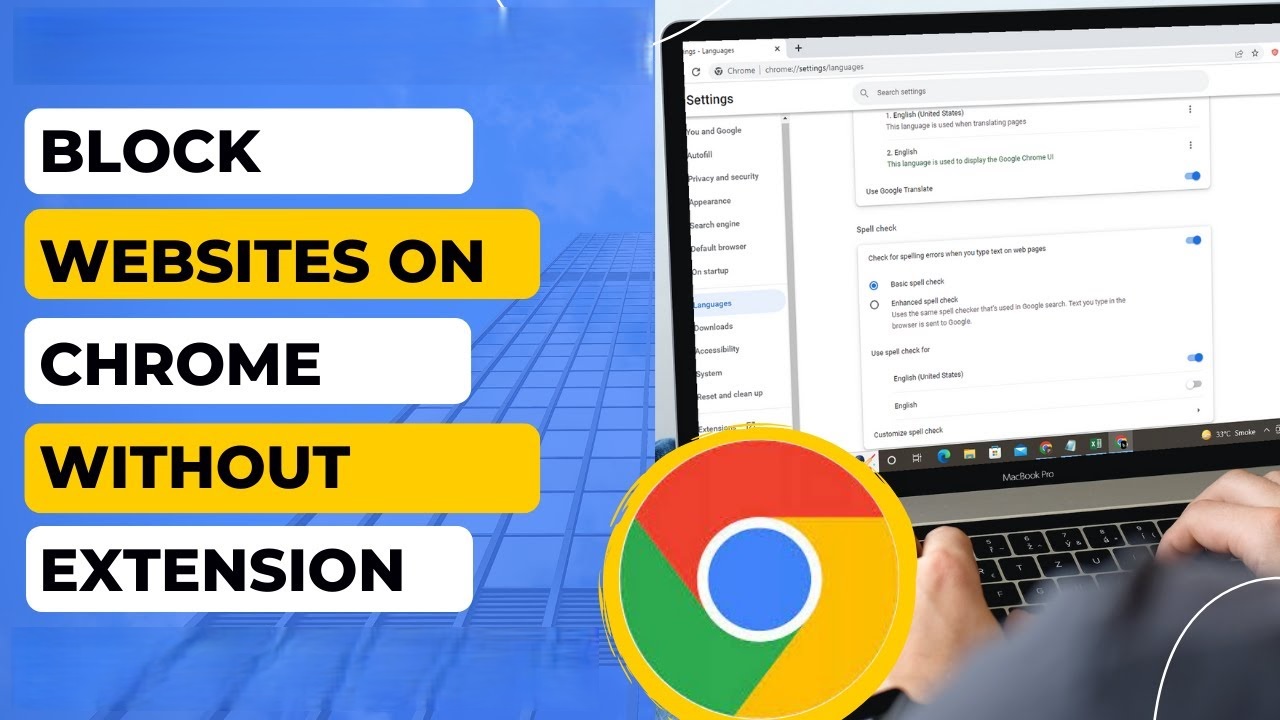
          How to block a website in Chrome without an extension

          Here’s how to block sites at your router or network level:

          If you want to stop a site for everyone on your Wi-Fi, you can log into your router settings and use its website blocking or parental control tools.

          1. Find your router’s admin page (often something like 192.168.1.1).
          2. Log in with your credentials.
          3. Look for “Website Block,” “URL Filtering,” or “Parental Controls”.
          4. Add the URLs you want to block.

          This stops access on all devices connected to that network (including Chrome) without touching the browser itself.

          Why block URLs in Google Chrome?

          Blocking specific URLs in Chrome isn’t just a random tech trick; it’s something a lot of people do for clear, practical reasons. 

          No matter if you’re trying to stay focused, protect yourself or others from harmful sites, or manage access across a group of users, blocking URLs gives you control over what can be loaded in your browser.

          What happens when you block a URL in Google Chrome?

          When you block a URL in Chrome (whether using tools, settings, or network rules) here’s what typically happens:

          Access is prevented

          Chrome simply won’t load the blocked website. Instead of letting the page load, the browser will stop the request and display an error or a blocking message. This is the core result of URL blocking! You attempt to visit the address, and Chrome stops it from opening.

          Distractions and unwanted content are kept away

          By stopping particular sites from loading, you won’t be pulled into time-wasting or inappropriate pages. Many people use this to stay productive or to protect family members, especially kids, from content they shouldn’t see.

          Security threats are lowered

          Blocking malicious or phishing URLs stops Chrome from attempting to connect to sites known for malware or risky content. Many URL filtering systems will redirect blocked requests to a warning or safe page instead of letting Chrome navigate normally.

          In short, blocking a URL in Chrome changes the browsing experience at the network access level. Chrome doesn’t complete the connection to the blocked address, keeping you away from whatever page or content you don’t want to see.

          Best practices for blocking URLs effectively in Chrome

          When you’re blocking URLs, you want to think not just about how to block them, but also where and how well each method works. Whether it’s just in your browser, across your whole device, or even for everyone on your network.

          MethodScopeDifficultyBest For
          Browser extensions (BlockSite, StayFocusd, etc.)Chrome onlyEasyPersonal use, quick setups
          Edit hosts fileEntire computer (all browsers)MediumSystem-wide block without extensions
          Router/network-level blockAll devices on the networkMediumFamilies or shared networks
          DNS filtering (OpenDNS, CleanBrowsing, NextDNS)All devices using that DNSMediumISP-independent network-wide filtering
          Parental controls/Family LinkDevice or account levelEasyParents managing kids’ browsing
          Chrome managed policies (e.g., Admin/Group Policy/JSON)Managed environmentsAdvancedBusinesses, schools, large deployments
          SafeSearch / content filtersSearch results onlyVery easyLight filtering (explicit content)

          Quick tips to block URLs effectively:

          Combine methods: For instance, use DNS filtering at the network level plus Chrome extensions on personal devices for stronger coverage.

          Use strong permissions: Set passwords or admin restrictions, so others can’t easily turn off blocks (especially handy with parental controls or extensions).

          Test your blocks: After setting up any method, try accessing the blocked URL in Chrome to make sure the block is working as expected.

          Keep rules updated: Whether it’s a blocklist in a DNS service or a router, check it occasionally to remove outdated blocks or add new ones.

          Wrapping up

          Blocking URLs in Chrome doesn’t have to be confusing anymore. If you’re trying to stay focused, keep someone safe, manage access across devices, or set rules for an entire network, there’s a method that fits your needs. 

          From browser tools and system settings to DNS filtering and parental controls, this guide walked you through every practical approach you can use right now. 

          The goal is simple: give you control over what loads (and what doesn’t) in Chrome, so your browsing stays intentional and safe.

          If you’re also looking to take complete control of the links you share, give Replug a try now! It’s a reliable link management platform and URL shortener that lets you create branded short links in seconds and track every click with ease.

          Frequently asked questions

          How do you block a specific URL in Chrome?

          You can block a specific URL in Chrome by using a site-blocking tool (like extensions such as BlockSite), managing network filters (like NextDNS), editing system settings (hosts file), or using admin policies for work/school accounts. 

          Chrome itself doesn’t have a built-in single URL blocker for everyday users, so most people use extensions or system/network-level settings to stop access.

          How do I block a specific URL path?

          Blocking a specific path (e.g., example.com/page) is more difficult than blocking a whole domain. Most browser tools focus on domains rather than page paths. 

          Some advanced blockers or pattern-based tools (like Requestly or extension pattern rules) let you block parts of a URL using wildcards or filters, but Chrome’s default settings won’t do this on their own.

          How to block a URL in Chrome on a Chromebook?

          On a Chromebook, you can block URLs using supervised or managed settings in Google Family Link for kids, or via the Google Admin console if the device is part of a school/business domain. In the Admin console, you can add sites to a URL Blocklist to block access.

          How do I permanently block a URL?

          Permanent blocks require system- or admin-level controls such as setting router filters, using DNS services that block domains at the network level, editing the OS hosts file, or applying managed policies (e.g., Google Admin URLBlocklist). Browser extensions can also “permanently” block for you as long as they stay enabled.

          How do I unblock a URL once it’s blocked?

          To unblock a URL, just remove it from whatever block list you used, e.g., in the extension’s settings, in your DNS block list, or in the Admin/hosts file/router filter you set up. After that, refresh Chrome, and the site will load again.

          How to block a URL on your kid’s phone?

          Use parental controls: 

          – On Android, use apps like Google Family Link or DNS-based filters.
          – On iPhone, use Screen Time (Settings → Screen Time → Content & Privacy Restrictions → Web Content → Never Allow) to add the URL you want blocked.

          How to block a URL in Incognito mode?

          Chrome blocks extensions from working in “Incognito” by default. To block URLs in Incognito mode, enable your blocking extension under chrome://extensions → Details → Allow in Incognito. Then your block list will apply even in private browsing.

          Can I block URLs for specific users only?

          Yes, in managed environments (like schools or businesses), you can block URLs only for specific users or groups via tools like Google Admin console or Windows Group Policy. Personal Chrome profiles don’t have that feature natively, so you’ll need supervised accounts to target individual users.

          Are Chrome extensions safe for URL blocking?

          Most extensions (like BlockSite) are safe, but you should only install ones from trusted sources, check reviews, and review the permissions they ask for. Some low-quality or third-party extensions might misuse data, so always pick well-known blockers with a good reputation.

          Why should I block certain URLs on Chrome?

          Blocking URLs helps you stay focused, protect kids or others from harmful content, prevent security risks, and manage network use. It’s a simple way to control what content is accessible in your browser or across devices.
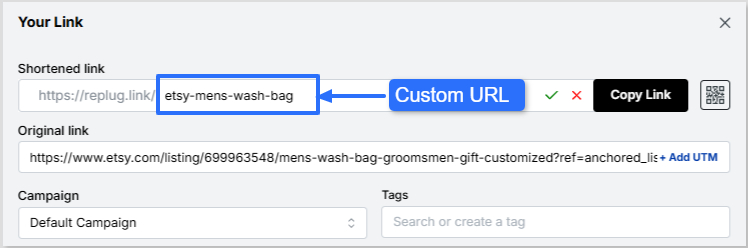
        1. How to create and use branded short links for SMS marketing: A detailed guide!

          How to create and use branded short links for SMS marketing: A detailed guide!

          Looking for a way to connect with your customers and boost engagement without getting lost in crowded inboxes? SMS marketing is the accurate answer. It provides a direct, effective, and highly engaging way to reach your audience instantly.

          But why stop there? By incorporating branded short links into your SMS campaigns, you can save valuable character space while gaining powerful insights into how your audience interacts with your messages.

          Whether you’re a small business owner aiming to expand your reach or a marketer looking to supercharge your campaigns, SMS links can help you achieve your goals pretty well.

          Let’s explore how these branded short links can transform your SMS strategy and drive measurable results!

          What are short links for SMS?

          Short links for SMS are shortened URLs used in SMS marketing messages to conserve valuable character space and enhance tracking and analytics. 

          These links function by redirecting users to the intended landing page or website while tracking data, including clicks, time spent on the page, and conversion rates.

          When sending SMS messages, businesses often have a limited number of characters to work with. By using short links, they can include more information in their messages while still maintaining a clear and concise message. 

          Short links also allow firms to track click-through rates and other valuable data that can be used to optimize their SMS marketing campaigns.

          How to create a branded shortened link for SMS marketing

          Getting started with crafting short links for SMS marketing is pretty straightforward. All you need is a reliable custom link shortener, and you’re ready to optimize your campaigns. 

          Here’s a step-by-step guide to help you set things up the right way:

          Step #1: Use a dedicated SMS platform

          Before you start shortening and sending links, it’s essential to have a dedicated SMS marketing platform in place. 

          These platforms are specifically designed for managing large-scale SMS campaigns. They offer features like audience segmentation, automation, compliance with SMS regulations, and message scheduling. 

          A good SMS platform ensures your messages are delivered efficiently and at the right time, helping you maximize engagement and ROI. 

          Tools like Replug and Twilio integrate seamlessly with link shorteners, providing a solid foundation for your campaigns.

          Step #2: Choose a link-shortening tool

          Once your SMS platform is ready, the next step is to pick and configure a link-shortening tool. 

          Replug is a top-tier option that goes beyond basic shortening, offering powerful features such as click tracking, branded domains, retargeting, and in-depth analytics. 

          These capabilities help you monitor link performance, build trust with custom URLs, and ultimately drive better results from your SMS campaigns. 

          Don’t settle for less when it comes to SMS marketing. Sign up for Replug today and start seeing results!

          Step #3: Create your shortened link

          Let’s say you select Replug as your link-shortening tool. You can create a shortened link for your SMS campaign by simply pasting your original URL into Replug’s “Shortened link” box and generating a new, shortened link within seconds.

          Shorten SMS link

          Step #4: Use a custom domain

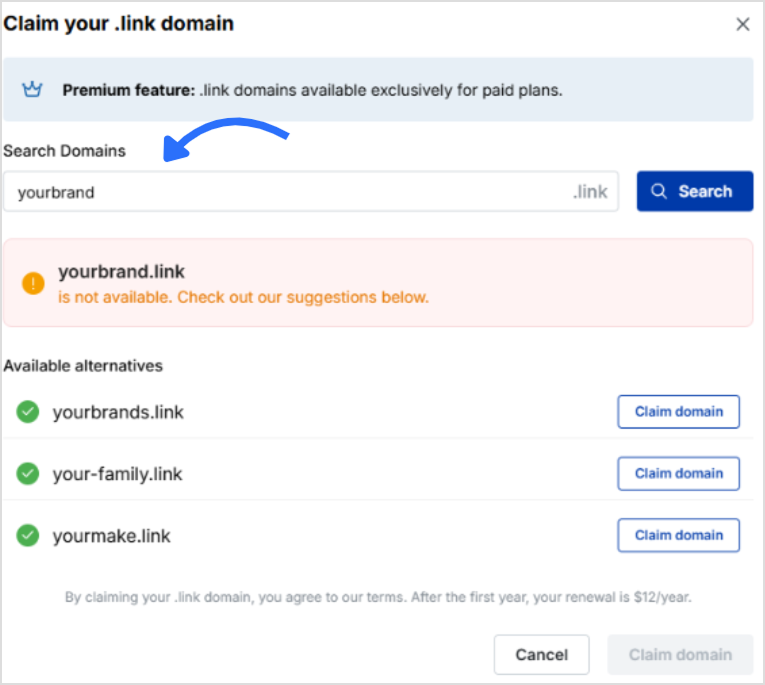
          To strengthen brand consistency and recognition, personalize your short link with a custom domain. Instead of using a generic shortener domain, your SMS messages can include your brand name in the slug. This not only looks professional but also builds credibility with your audience. So, add accordingly!

          Add your custom domain

          Step #5: Add link preview

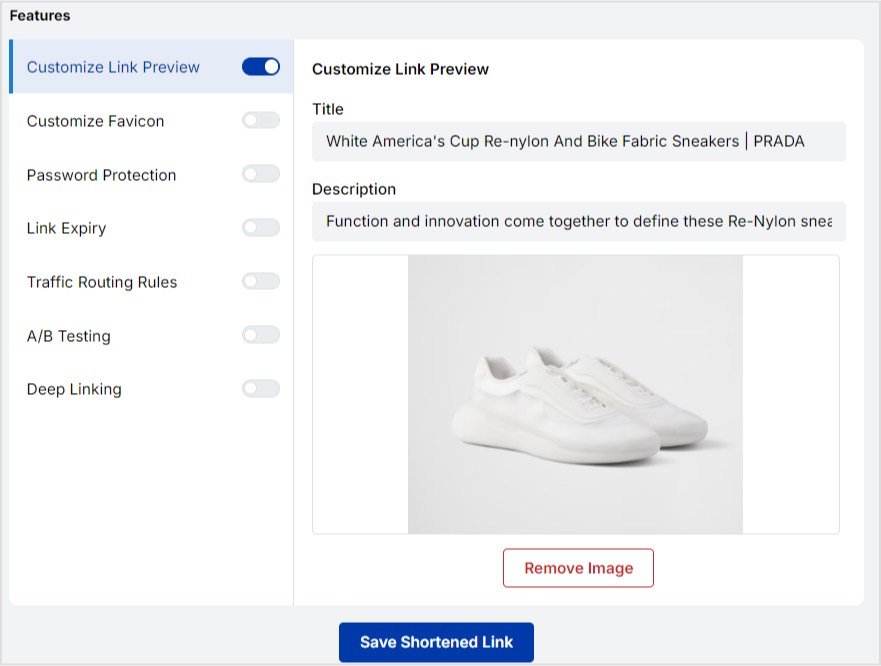
          Some devices display a small link preview when a shortened link is shared. With Replug, you can customize its appearance hassle-free, adding a title, description, or image that makes your link more attractive and clickable.

          Customize link preview

          Step #6: Route links

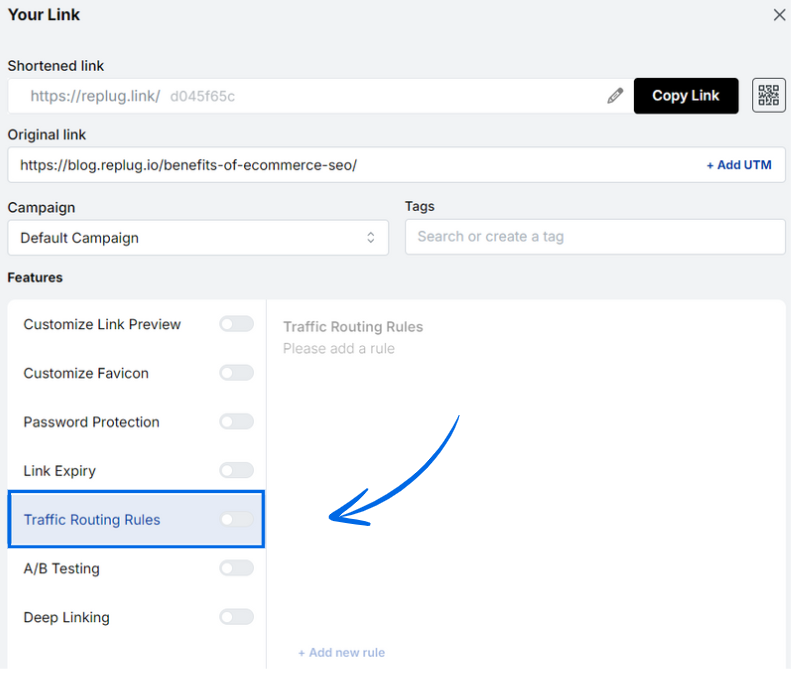
          Advanced tools like Replug let you set up link routing. This means you can send different users to different destinations based on factors like location, device type, or campaign variations. It’s quite beneficial for A/B testing or running multi-location promotions.

          Add traffic routing rules
          Add traffic routing rules

          Step #7: Include a strong call to action (CTA)

          To encourage customers to click on your shortened link, include a clear call-to-action in your SMS message. For example, you could say “Click here to try our new pizza flavor!” with the shortened link included in the message.

          Step #8: Add deep links

          Deep links allow you to send users directly to a specific page within your app or website, rather than just the homepage. This saves customers valuable time and increases conversions. For instance, an e-commerce brand can send shoppers straight to a product checkout page. 

          By following the steps outlined above, you can easily create a branded shortened link tailored for SMS marketing that promotes trust, engagement, and CTR.

          Why use short links in SMS marketing?

          Short links are a must-have tool for businesses seeking to upgrade their SMS marketing strategy. Here are some convincing reasons why you must utilize short links for SMS marketing.

          To save space (character count limits)

          SMS messages have a 160-character limit, so every character counts. Shortened links take up less space, giving businesses more room to communicate their message effectively. 

          For example, a retailer can send a message with a shortened link to a product page, allowing them to provide a brief description and the link in one message.

          For click tracking & analytics

          Shortened links can be used to track clicks and engagement, giving enterprises valuable data on the effectiveness of their campaigns. 

          For instance, a charity can send an SMS message with a shortened link to a donation page. By tracking clicks on the link, they can determine the success of the campaign and adjust future ones accordingly.

          For an optimized mobile experience

          Most people access SMS messages on their mobile devices, and shortened links can lead to a better user experience on these gadgets.

          For example, an airline can send an SMS message with a shortened link to a mobile boarding pass. This makes it much easier for passengers to access and use the pass on their smartphones.

          To increase brand recognition

          Shortened links can be customized with branded domains, helping to increase brand recognition and trust. 

          For instance, a fashion brand can send an SMS message with a shortened link to a new collection, using a branded domain.

          For seamless A/B testing

          Shortened links can be used for A/B testing and optimization of SMS campaigns. 

          For example, an online retailer can send two different SMS messages with different shortened links to a product page and track which link receives more clicks. They can then optimize future campaigns for increased engagement.

          To enhance trust & click-through rates (CTR)

          Branded shortened links look cleaner and more trustworthy than long, generic URLs. When recipients see a familiar brand name in the link, they’re more likely to click, leading to higher engagement and conversions.

          For instance, a fitness app can send an SMS with a branded short link, such as “fitco.app/joinnow”, which appears more reliable than a random string of characters.

          For better deliverability

          SMS messages containing long or suspicious-looking links may get flagged by carriers or filtered as spam. Short, clean links reduce the risk of this happening, ensuring your message reaches the recipient’s inbox without interruption.

          For example, a financial service can use a shortened, verified link to send account update notifications, reducing the chances of carrier rejection or message filtering.

          For additional data points

          Shortened links can capture additional data, such as device type, location, and time of click, providing deeper insights into audience behavior and preferences. This ultimately helps to refine future campaigns.

          For instance, a restaurant chain can use shortened links in SMS campaigns to track which city or time slot gets the most reservations, tailoring promotions based on that data.

          Also read: How to use shortened URLs for marketing

          How brands use short links for SMS marketing: Check out the examples

          Here are a few ways renowned brands are utilizing short links in their SMS marketing efforts.

          Dunkin’ Donuts

          Dunkin’ Donuts uses SMS marketing to send exclusive deals and promotions to its customers. 

          To track the success of their campaigns, they use shortened links that lead customers to a landing page with the offer. 

          This enables Dunkin’ Donuts to measure engagement and optimize its campaigns for improved results.

          Subway

          Subway uses SMS marketing to send coupons and special offers to its consumers. 

          To provide a better user experience, they use shortened links that lead customers to a mobile-friendly coupon page. This allows them to redeem the offer on their mobile devices easily.

          Coca-Cola

          Coca-Cola uses this technique to promote new products and events to its customers. 

          To increase brand recognition, they use custom domains for their shortened links. For example, they might use a link like “www.coke.com/newproduct” to promote a new product launch.

          Nordstrom

          Nordstrom utilizes SMS marketing to send personalized recommendations to its clients. 

          To track engagement and improve their recommendations, they use shortened links that lead customers to a product page with more information about the recommended item.

          Zara

          Zara uses this marketing strategy to promote new collections and limited-time offers to its customers. 

          To increase engagement and drive sales, they use shortened links that direct customers to a product page featuring the collection or offer.

          These are just a few examples of how brands are using short links for SMS marketing to enhance their campaigns and achieve their marketing goals.

          Example of a good and bad SMS with shortened links

          The way you incorporate shortened links in SMS marketing can significantly impact your campaign’s effectiveness. A well-crafted message with a shortened link should be clear, relevant, and aligned with your brand, encouraging trust and clicks. 

          On the other hand, a poorly written SMS with an unbranded or unclear link can confuse recipients, lower click-through rates, and even trigger spam filters. 

          Below is a precise example to illustrate the right and wrong ways to use shortened links in your SMS campaigns.

          Good SMS Example:

          Hi Sarah! Our Fall Sale is now live 🍁 — enjoy 30% off all items this week only! Shop now: brandshop.co/fall30

          Why it’s good:

          • Personalized greeting
          • Clear offer and urgency
          • Branded short link (adds trust)
          • Friendly, concise tone

          Bad SMS Example:

          SALE NOW ON! Click here for 30% off: bit.ly/3xY2zZq

          Why it’s bad:

          • All caps feel forceful
          • No personalization
          • Vague message
          • Generic, unbranded link (may seem suspicious)

          Wrapping Up

          In conclusion, branded short links are a powerful tool for SMS marketing, offering enhanced brand recognition, improved click-through rates, and valuable analytics. 

          By creating concise, trustworthy, and trackable links, brands can optimize their campaigns and drive engagement effectively. 

          As shown through examples, well-crafted SMS with branded links resonate with audiences, while poorly designed ones risk losing trust. 

          By following the steps outlined to create and implement these links, businesses can strengthen their SMS marketing strategy. This ensures messages are impactful, professional, and aligned with their brand identity, ultimately facilitating stronger connections with customers in a competitive digital landscape.

          Frequently asked questions

          Why SMS Marketing matters for digital marketers?

          SMS marketing is essential for digital marketers in 2026 due to its 98% open rate and rapid 90% read-within-3-minute delivery. It enables direct, immediate customer engagement that far surpasses email. 

          With 66% of businesses adopting SMS software and increasing budgets, it drives high ROI through personalization and AI integration in omnichannel strategies.

          How effective is an SMS campaign including short URLs?

          SMS campaigns with short URLs achieve 98% open rates and 36% click-through rates, with 28% of recipients clicking links for enhanced tracking and conversions. 

          Short URLs optimize message length, boost readability, and support 45% response rates, making them 30% more cost-effective than traditional methods.

          What are the best link shorteners for SMS marketing in 2026?

          Replug stands out for SMS marketing with its all-in-one link management, retargeting, and bio tools tailored for marketers. 
          Bitly offers trusted, simple shortening with strong analytics and brand recognition for reliable campaign tracking. 
          Klaviyo integrates AI-driven SMS with short link support for personalization, while
          Twilio enables programmable SMS workflows incorporating shortened URLs for scalable engagement.

          How can I optimize my SMS marketing campaigns using short links?

          Use branded short links to enhance trust, reduce character count, and lower SMS costs while maintaining clear, concise messaging. Draw click tracking and analytics from shorteners to measure engagement, A/B test variations, and direct to mobile-optimized landing pages for higher conversions.


        2. How to get YouTube URL link: A detailed guide for everyday YouTubers [2026]

          How to get YouTube URL link: A detailed guide for everyday YouTubers [2026]

          YouTube isn’t just that video app anymore; it’s a digital powerhouse shaping what we watch, how we learn, and how creators connect with the world. 

          In 2026, YouTube proudly owns over 2.5 billion monthly active users, meaning roughly one in every four people online visits the platform regularly. That’s more than almost any other site on Earth, WOW!!!

          Every single day, hundreds of millions of people are watching, uploading, and sharing content, from cooking tips to trending music videos, news clips to killer tutorials.

          No matter if you’re a hobbyist YouTuber looking to share your first clip or a seasoned creator building your brand, knowing how to grab and share a YouTube URL link is a foundational skill you must possess. And we’re about to break it down step by step!

          Now, let’s start with the basics: What is a URL on YouTube?

          What is the YouTube URL link?

          Think of URLs as the web addresses that take you exactly where you want to go online, kind of like entering a street address into Google Maps to find a friend’s house. 

          A “YouTube URL link” is just that: a specific web address that points directly to something on YouTube, whether that’s a video, playlist, or channel.

          What is the YouTube URL link

          The URL stands for Uniform Resource Locator, and it’s essentially the address that loads a specific piece of YouTube content when entered into a browser or tapped in a message.

          The main objective of a YouTube URL is simple, i.e., to direct viewers straight to the content you want them to watch or explore. Without it, you’d be guessing around the platform trying to find that one video, playlist, or creator you intended to share.

          An example of a YouTube URL link

          Here’s a classic example of a YouTube video URL that takes you straight to a specific video:

          https://www.youtube.com/watch?v=ysCh-ikzOC1

          Here, everything after watch?v= is the unique ID YouTube uses to find that exact video.

          This same idea applies to channel or playlist links. Just a slightly different URL structure that still points you right where you want to go.

          How to get YouTube URL on phone

          Getting a YouTube URL on your phone is something almost every user does, no matter if you’re sharing a funny clip with a friend or linking your latest vlog in a message. 

          On both iPhone and Android, the YouTube app makes it quick and easy to grab the link you need so you can paste it anywhere you want, hassle-free.

          How to get YouTube URL on iPhone

          Here’s a friendly step-by-step guide for iPhone users:

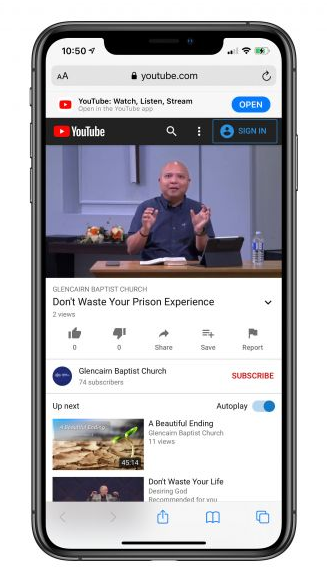
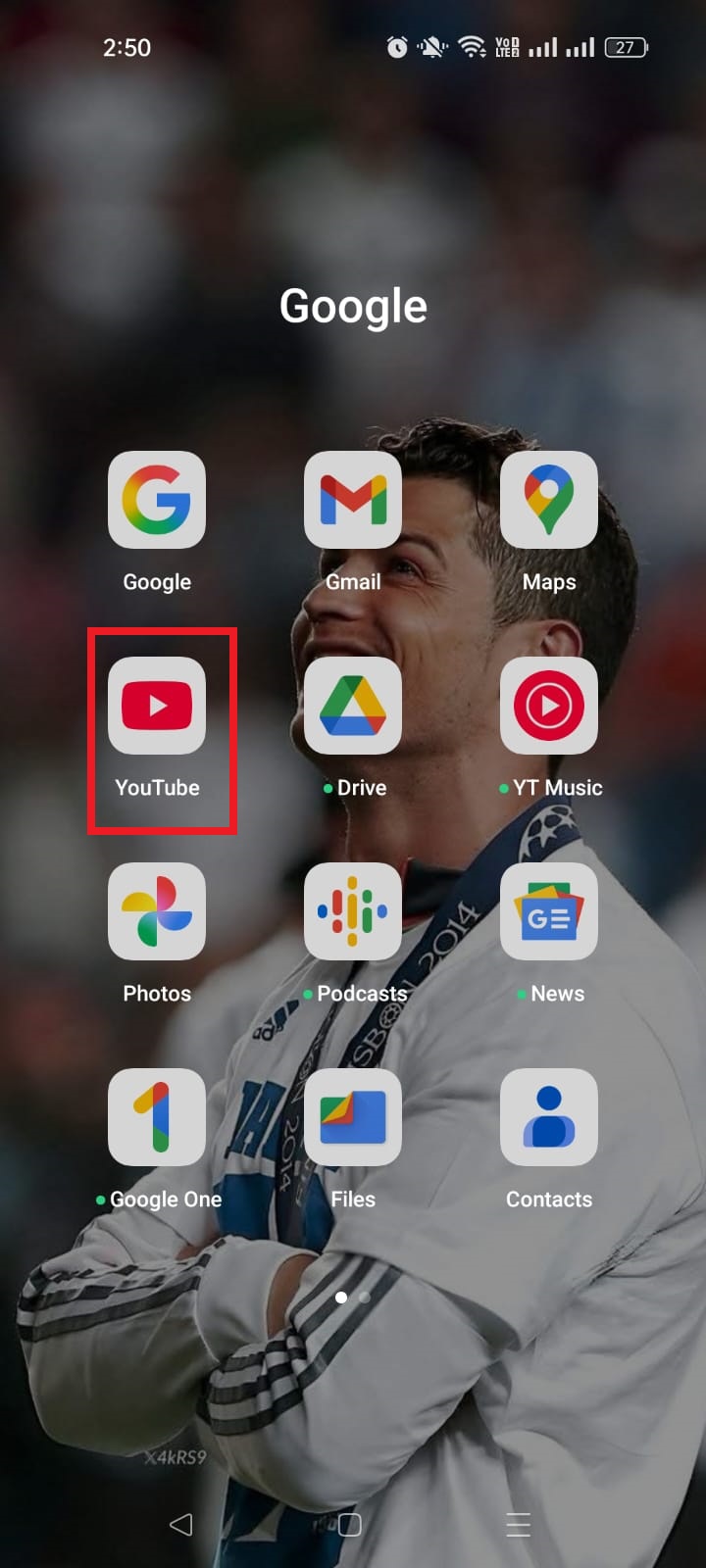
          1. Open the YouTube app on your iPhone.

          YouTube app on iPhone

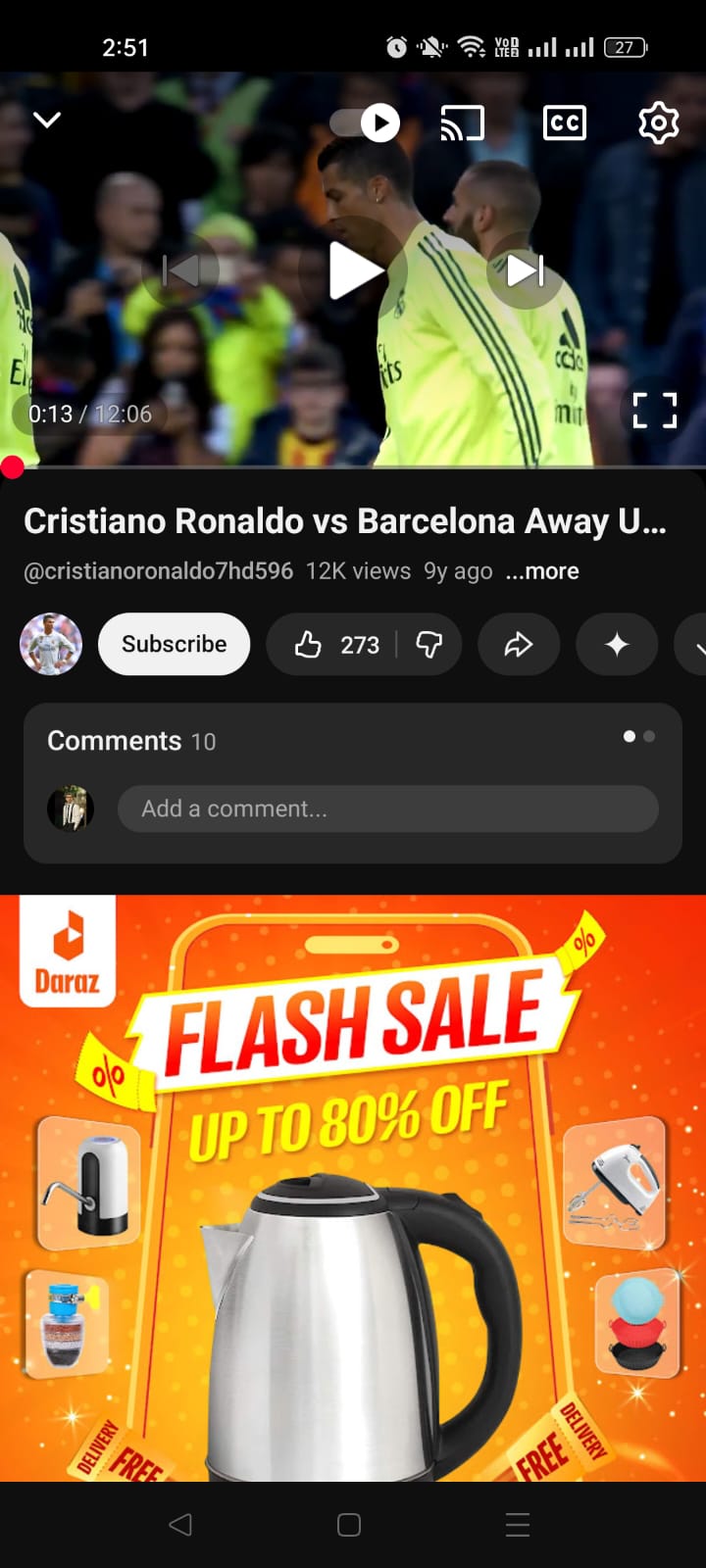
          2. Find the video you want the URL for and tap it to open it.

          YouTube video on iPhone

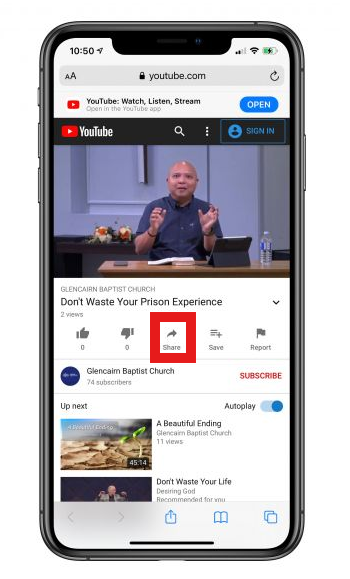
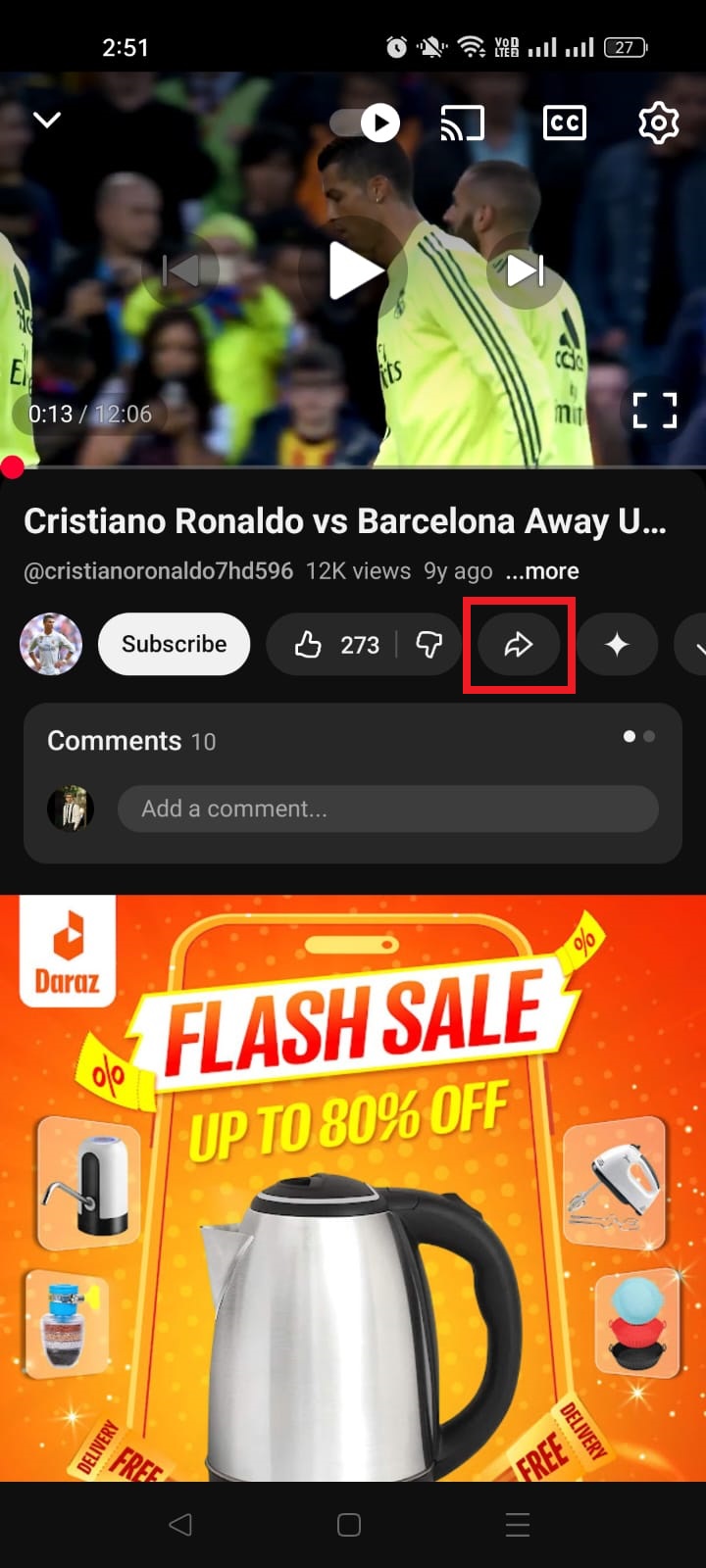
          3. Look for the “Share” icon (it’s usually an arrow pointing right, available below the video).

          Share icon in YouTube app on iPhone

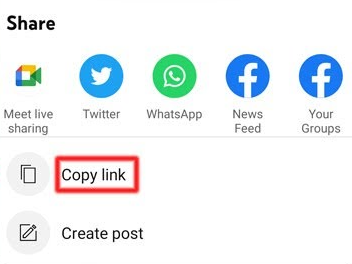
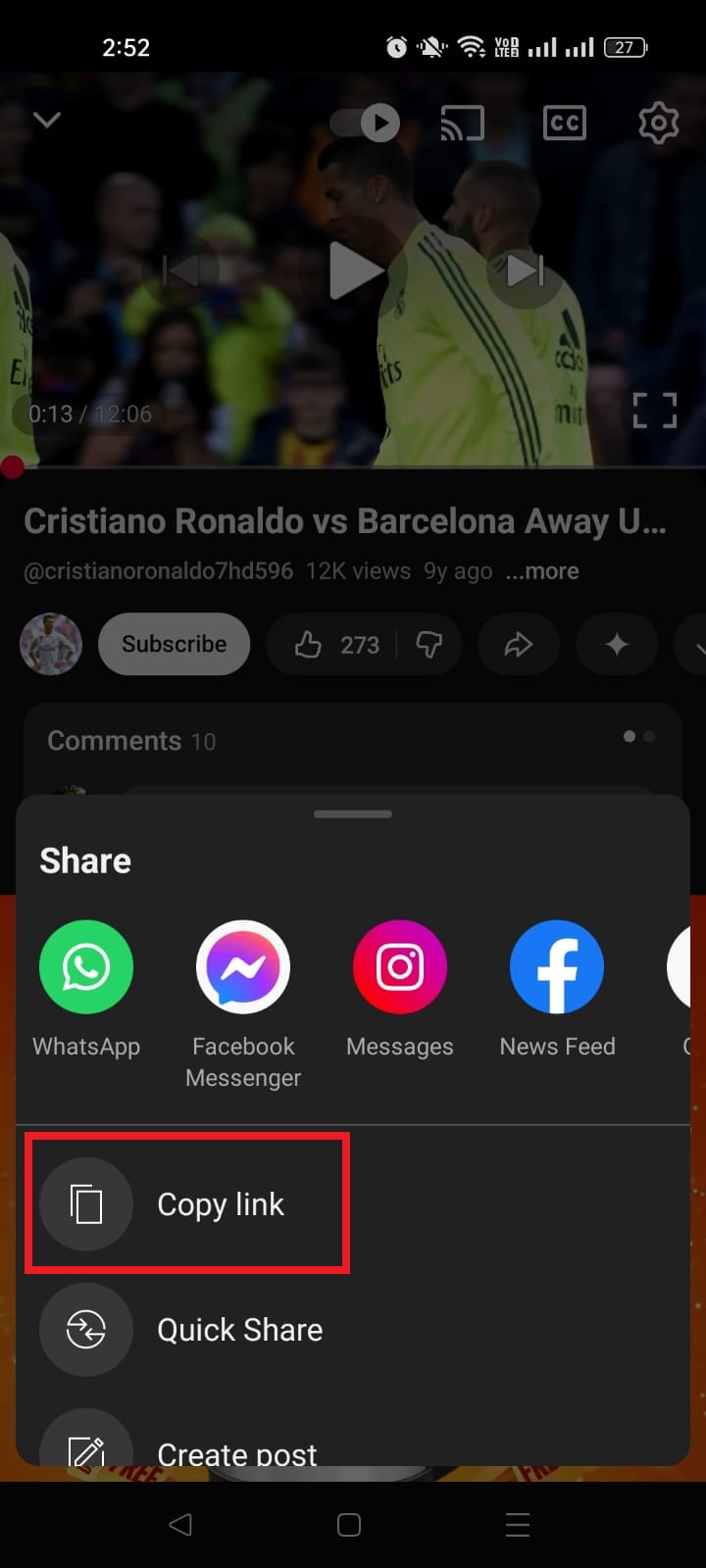
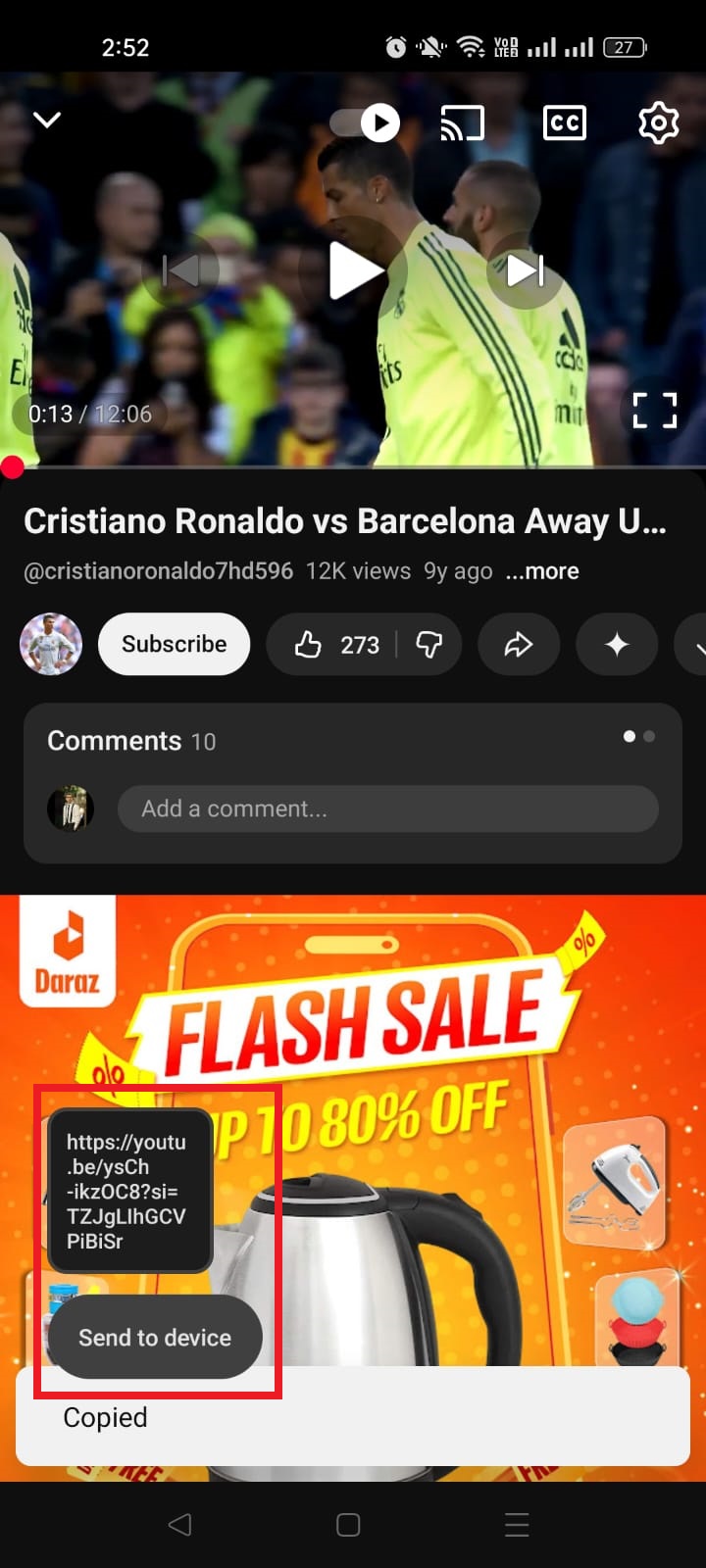
          4. Tap “Share,” then tap “Copy link.” iOS will put that URL into your clipboard.

          Copy link option in YouTube app on iPhone

          Now you can paste the copied link into Messages, Notes, email, social media, or wherever you need it.

          How to get YouTube URL on Android

          Here’s how to get a YouTube URL from the app on an Android smartphone:

          1. Launch the YouTube app on your Android device.

          Launch the YouTube app

          2. Search for and open the video you want to share.

          Open the video on YouTube app

          3. Tap the “Share” button (an arrow pointing right) under the video player.

          Share button in YouTube app

          4. From the share menu, select “Copy link.” This copies the full YouTube URL.

          Copy link option in YouTube app
          Full YouTube video URL copied

          5. Paste that link wherever you need it, e.g., chat, apps, posts, etc.

          Full YouTube video URL copied to clipboard

          Whether you’re on an iPhone or an Android device, it’s usually just a few taps to grab a YouTube URL and get your content out into the world.

          Read also: How to get Snapchat URL: A detailed guide for Snapchat users in 2026

          How to get YouTube URL on iPad

          Grabbing a YouTube URL on your iPad is super simple! It’s just a couple of taps, no matter if you’re using the official YouTube app or the Safari browser. 

          This lets you copy the link to share with friends, post on social media, or save for later.

          Step-by-step guide (iPad):

          1. Open the YouTube app (or visit youtube.com in Safari) on your iPad.

          2. Find the video you want to get the URL for. Scroll, search, or open it from your subscriptions.

          3. Tap the “Share” button. It’s usually an arrow pointing right just below the video player. You can also tap the URL address bar at the top of the browser to select the URL, and then copy it.

          4. In the share options that pop up, look for “Copy link” and tap it. That URL is now copied to your iPad’s clipboard.

            5. Paste the link wherever you want by tapping and holding the text field and selecting “Paste.”

            That’s it! 

            A few taps and you’ve got the exact web address (URL) for the YouTube video ready to share or save for later.

            Note: If you ever want to copy playlist or channel URLs, the process is similar. Just open the playlist or channel page → tap the three dots (More) in the top right → tap Share → tap Copy link.

            How to get YouTube URL on PC/Desktop

            Getting a YouTube URL on PC is one of the easiest things you’ll do online, whether you’re sharing a video with friends, linking to a playlist, or embedding content on your blog. 

            On a computer, all you really need to do is open YouTube in your browser and copy the link from the right place.

            Step-by-step guide (PC):

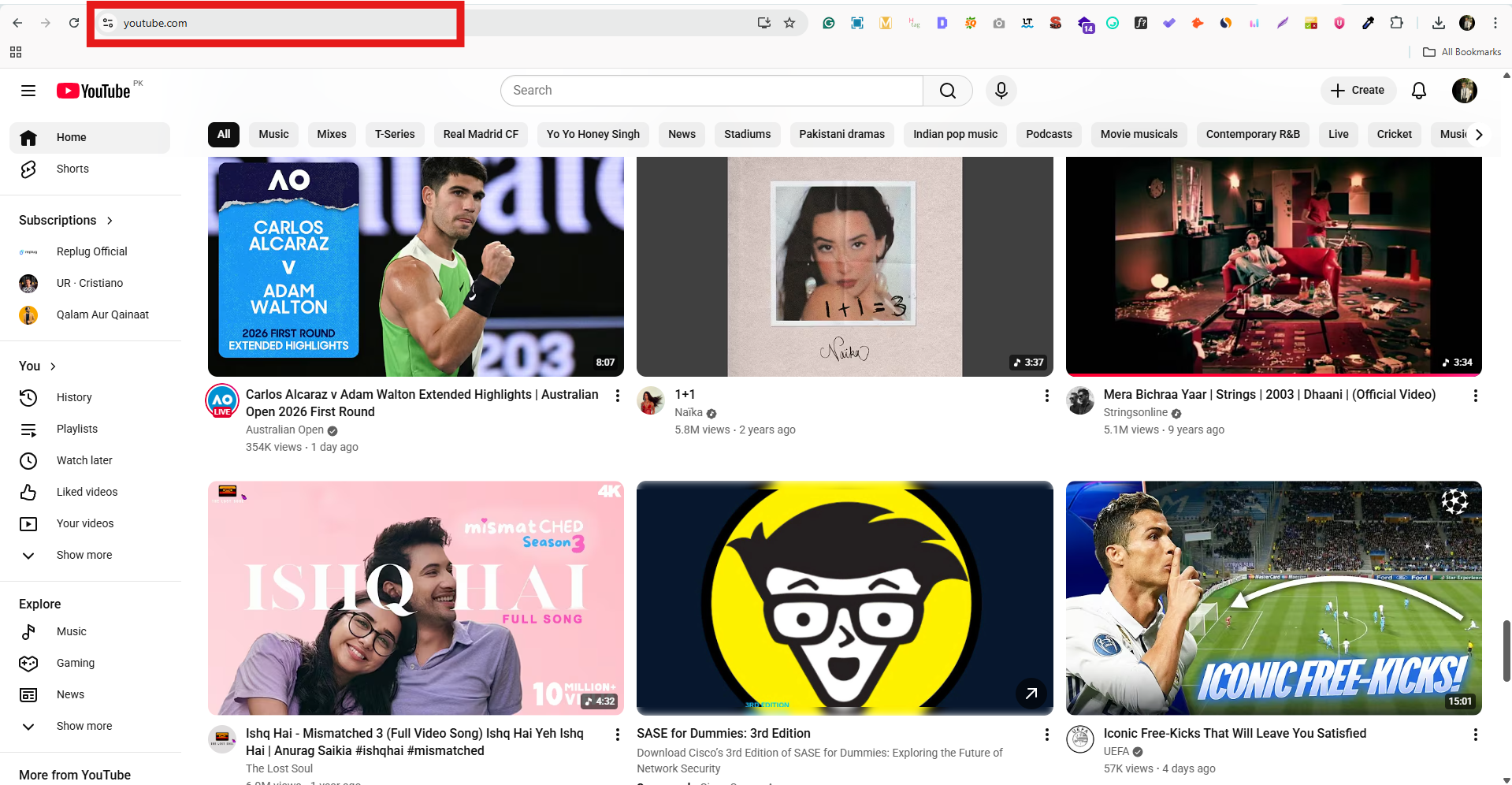
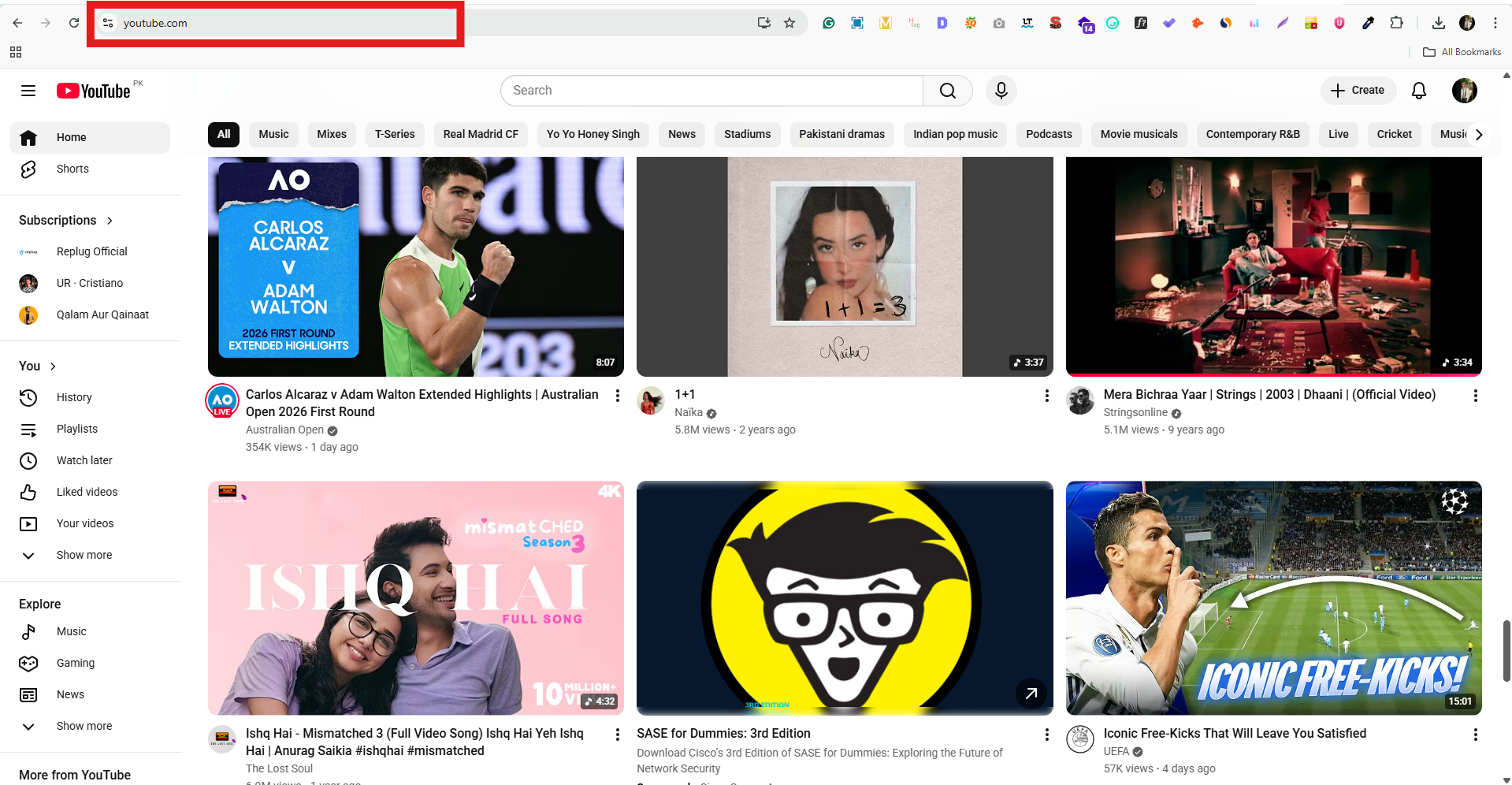
            1. Open your web browser and go to “youtube.com.”

            youtube.com

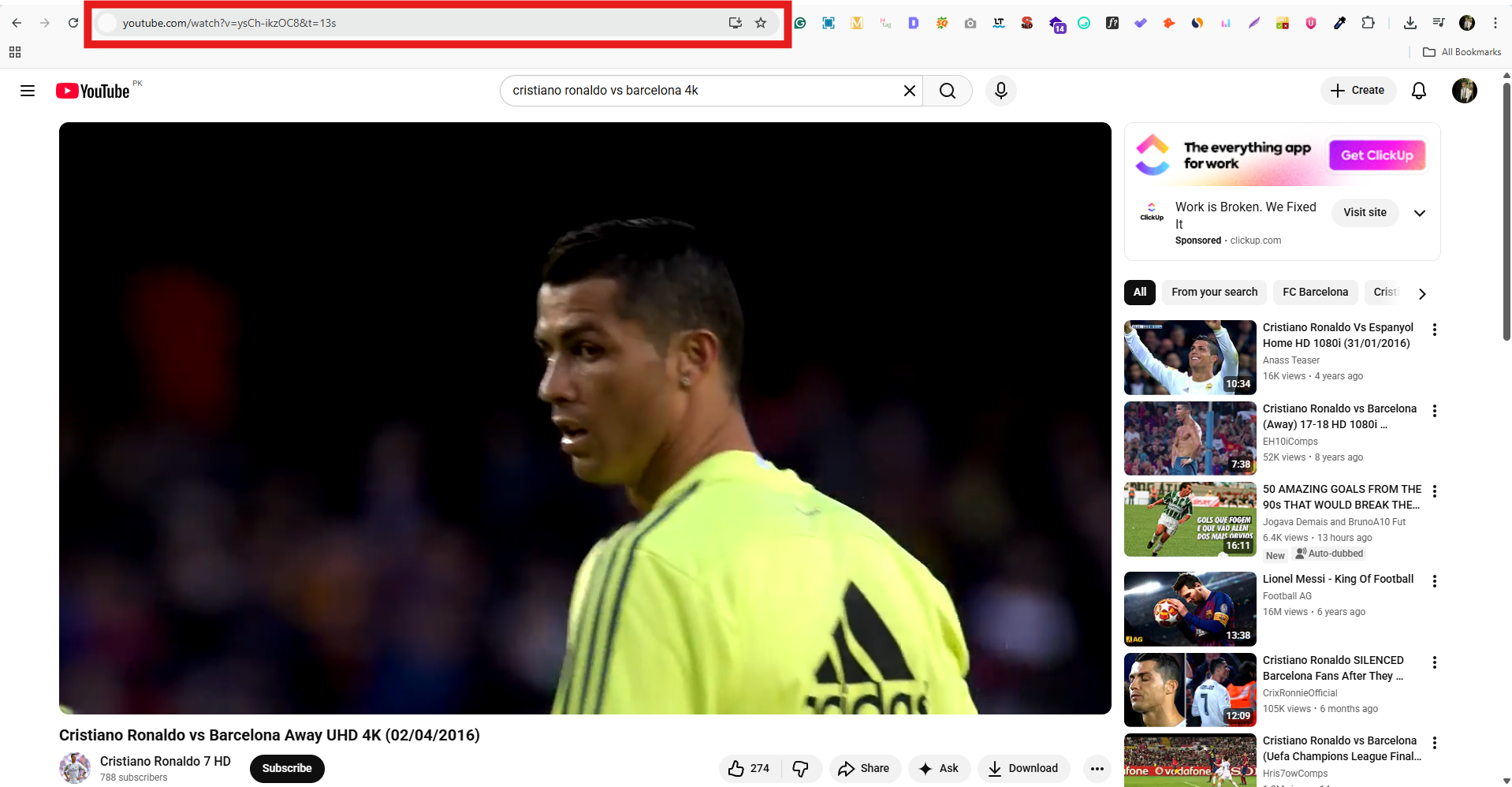
            2. Find and click the video you want to get the URL for. The video page will open in your browser.

            Find and play a video on YouTube web app

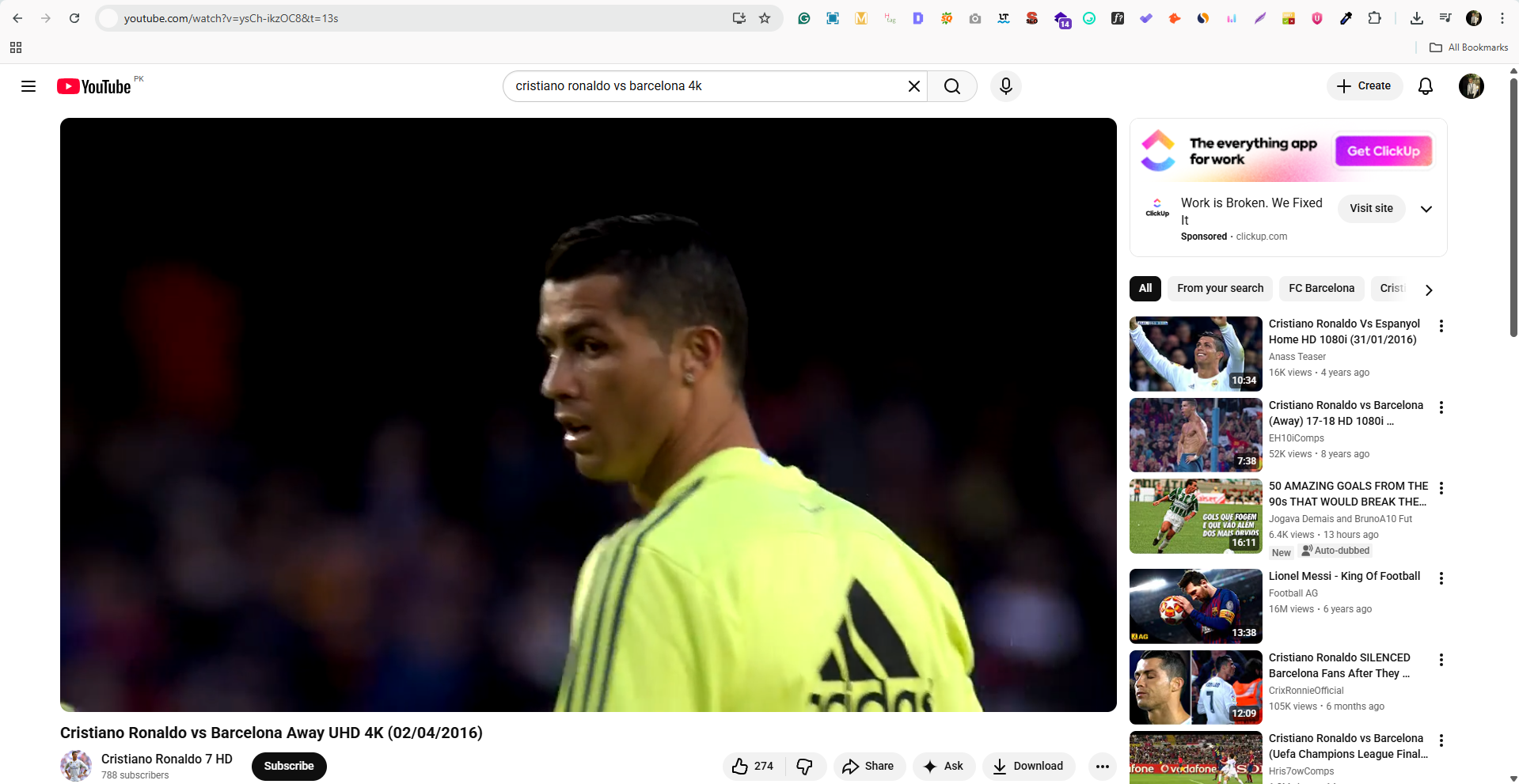
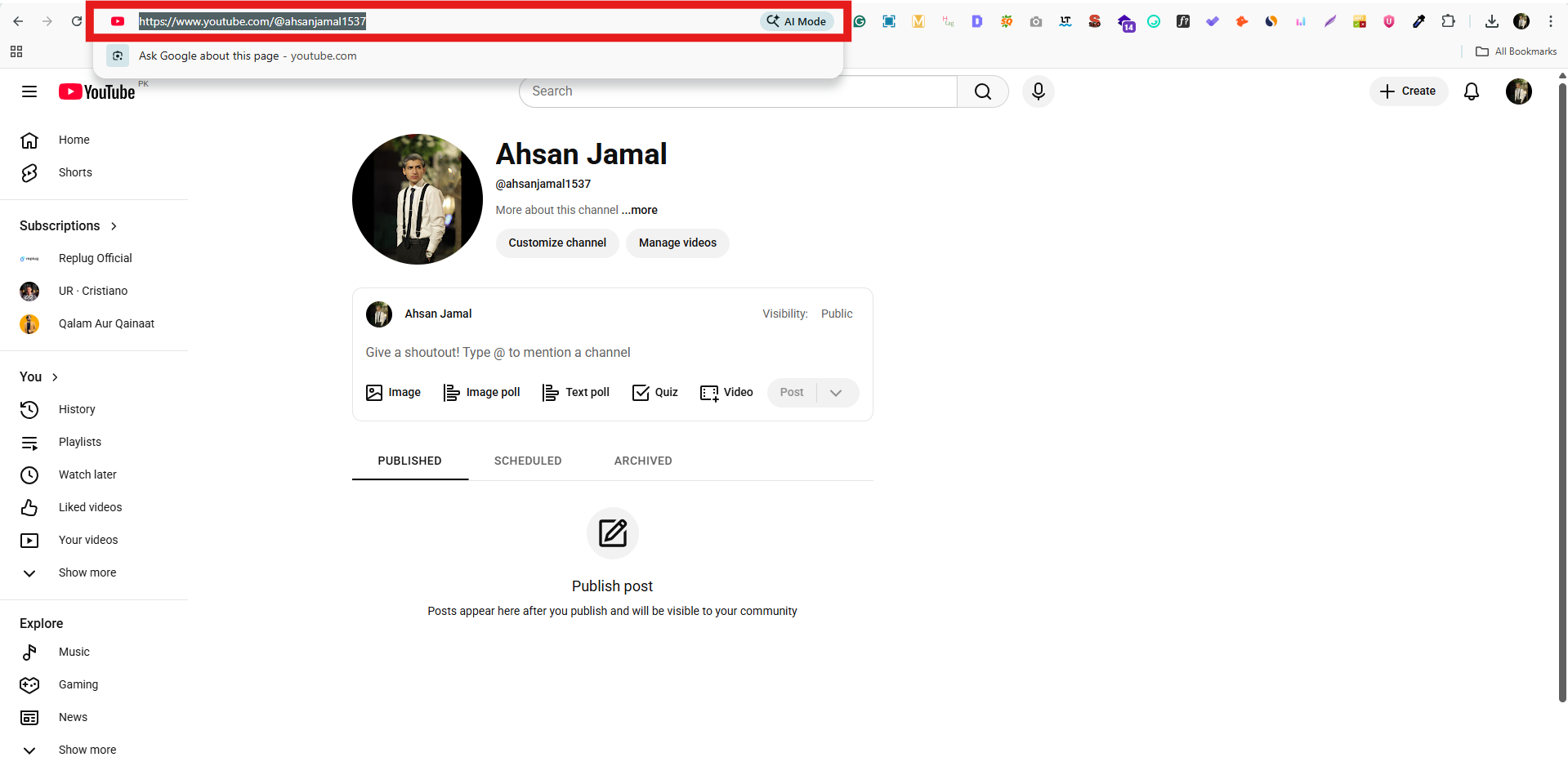
            3. Look at the address bar at the top of your browser window. This shows the full YouTube URL. It usually looks like: https://www.youtube.com/watch?v=VIDEO_ID.

            YouTube URL address bar

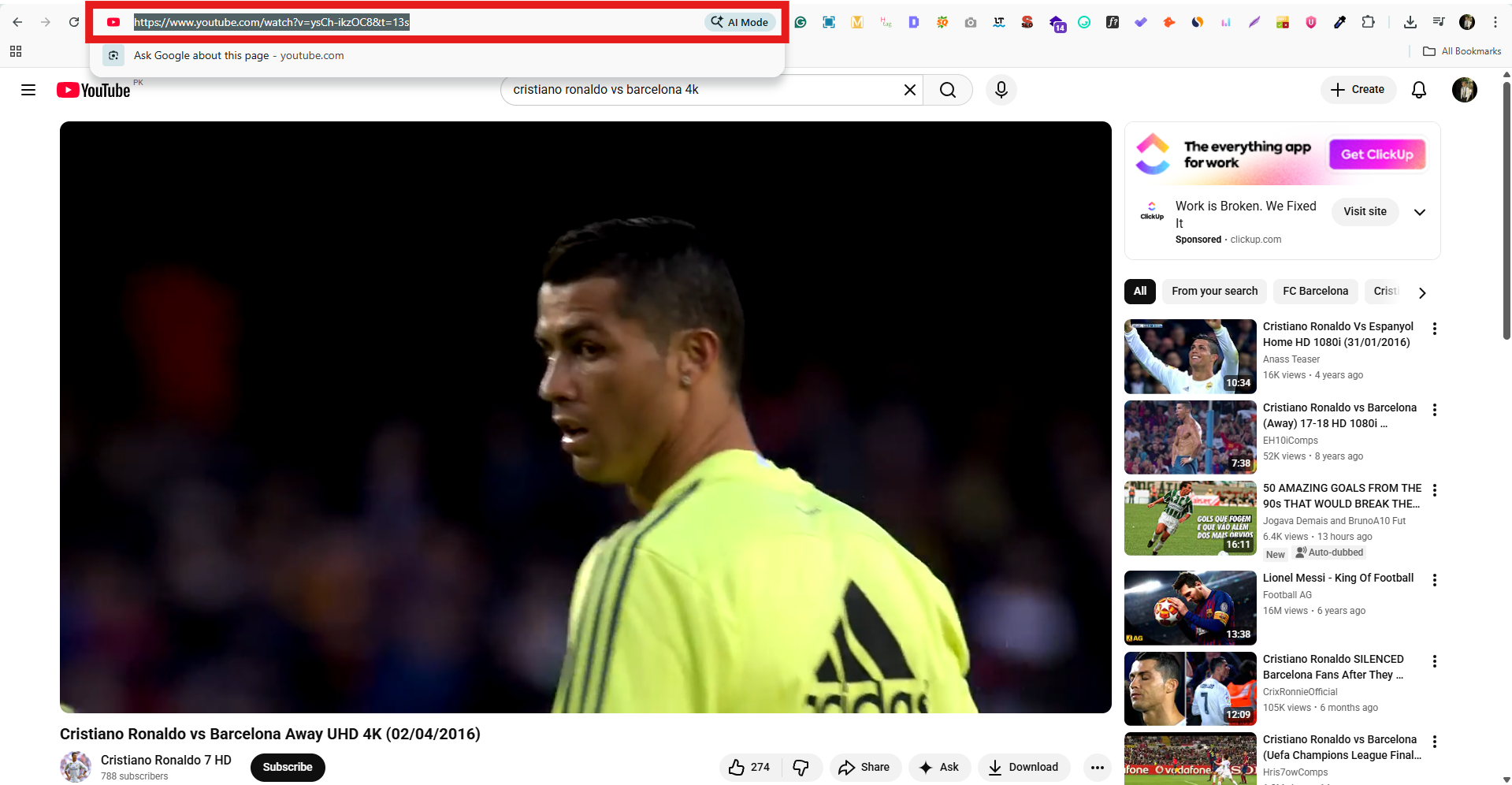
            4. Click inside the address bar to highlight the whole link, then press “Ctrl + C” (Windows) or “Cmd + C” (Mac) to copy it.

            Highlighted whole YouTube video link

            5. Paste the link (Ctrl/Cmd + V) wherever you need it, in an email, message, social post, or document.

            Useful tip: You can also click the “Share” button under the video player and choose “Copy link.” That usually gives you a shorter youtu.be version of the URL that works just as well. One more way is to right-click the video and choose “Copy link address.”

            How to find URL for your YouTube channel (Desktop)

            Finding your YouTube channel URL on a desktop is super useful, no matter if you’re linking your channel on your website, sharing it with friends, or promoting it on social media. 

            On a computer, it’s pretty straightforward: you just navigate to your channel page and grab the address from your browser.

            Step-by-step guide (Desktop):

            1. Sign in to YouTube: Open your web browser (like Chrome, Safari, or Firefox) and go to youtube.com. Make sure you’re logged into the Google account that owns the channel.

            youtube.com

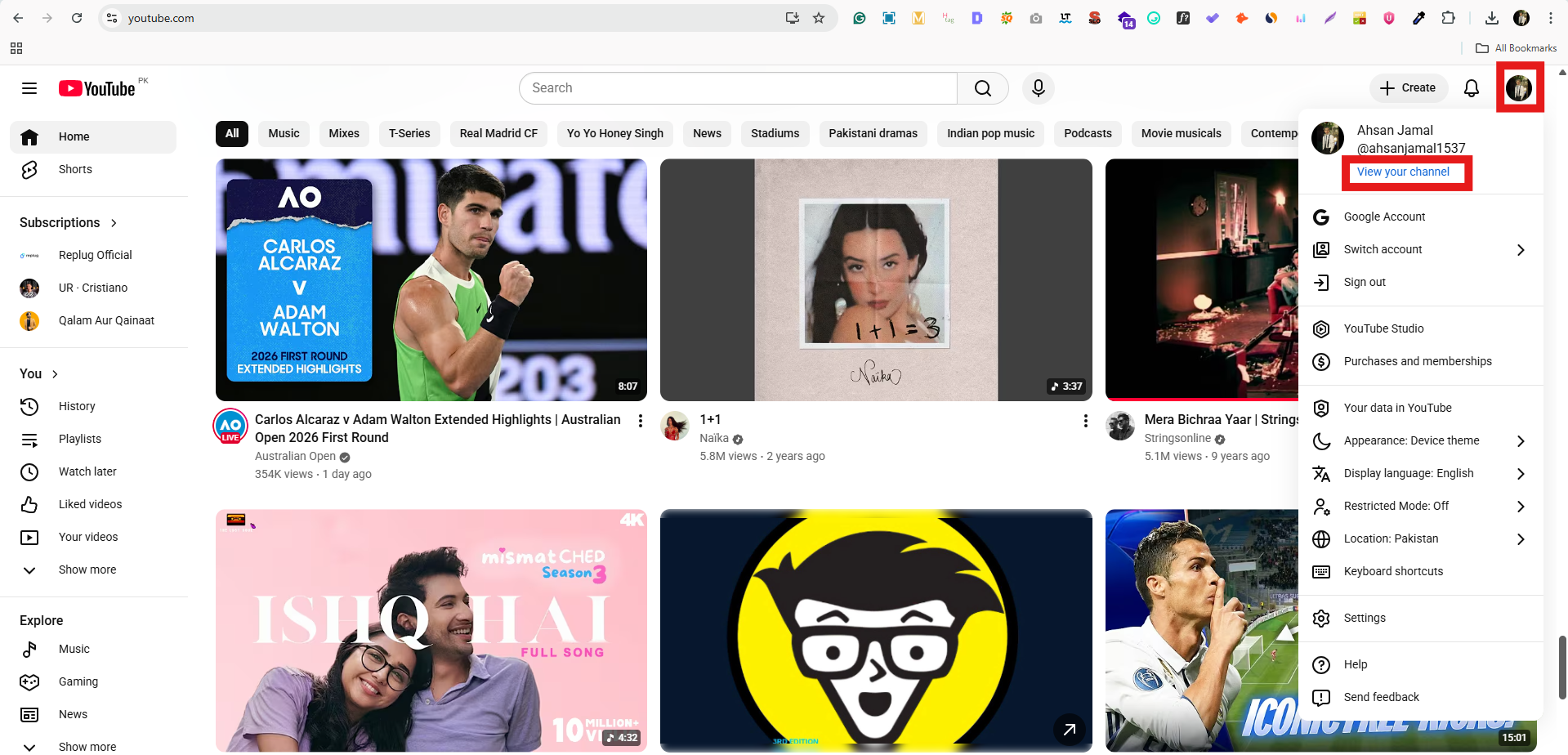
            2. Go to your channel: In the top right corner, click your profile picture. From the dropdown that appears, select “View your channel.” This will take you to your public channel page.

            Go to your channel on YouTube web app

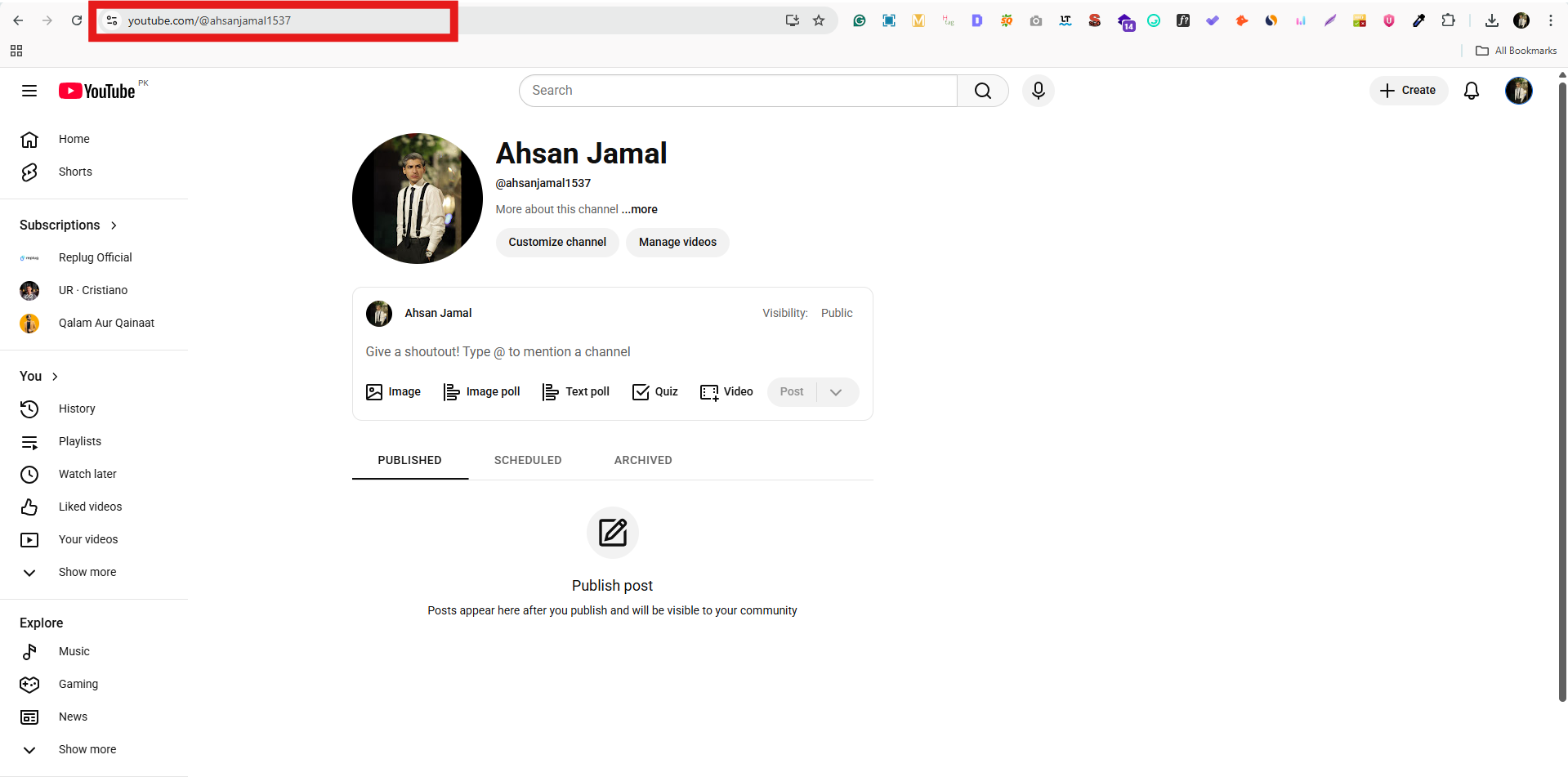
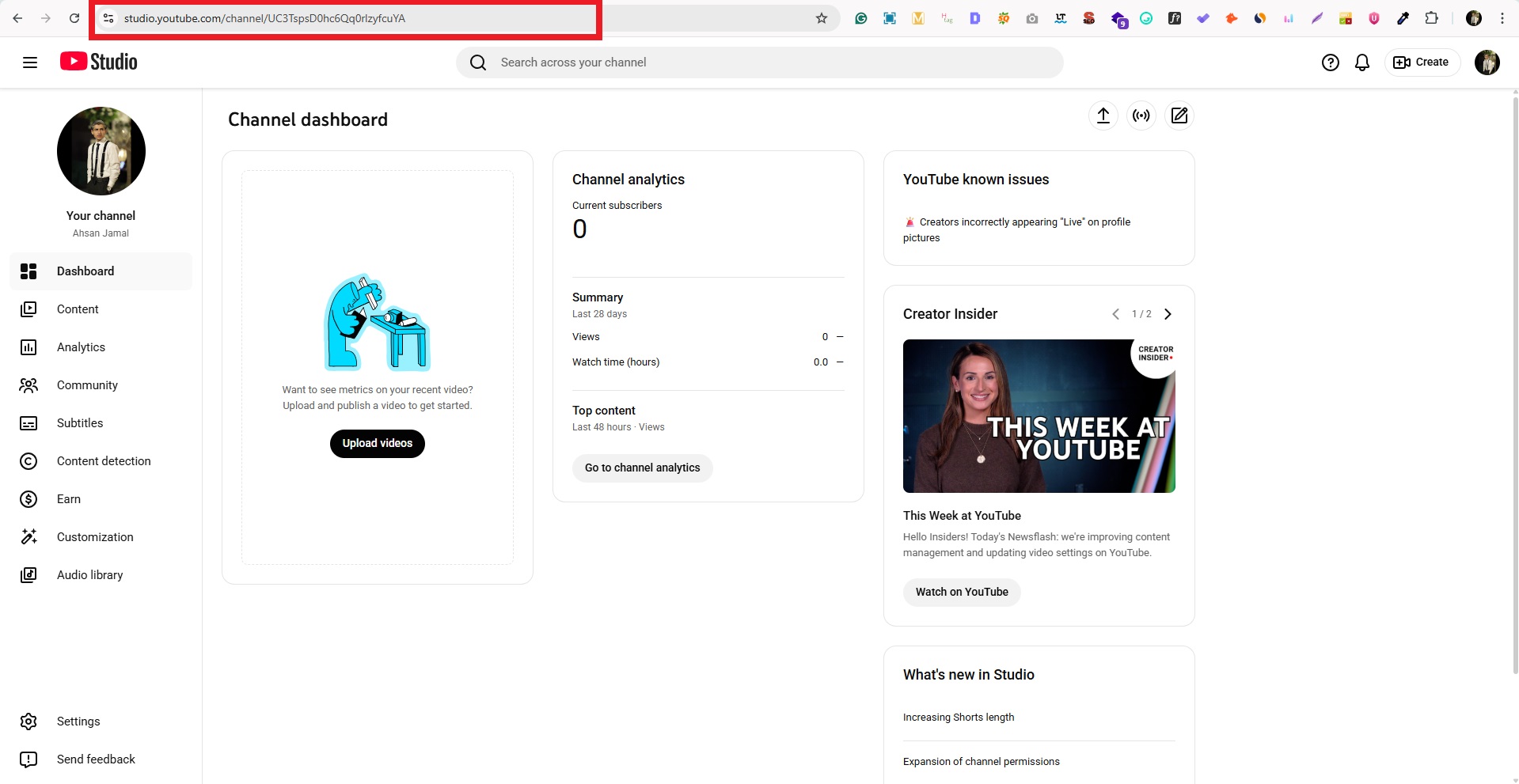
            3. Look at the address bar: Once your channel page is open, look at the URL in your browser’s address bar. That’s your channel’s link! It might look like:

            • https://www.youtube.com/channel/UCabcdef123456…
            • Or, if you have a custom handle: https://www.youtube.com/@YourHandle
            Channel’s link on YouTube web app

            Both are valid and take people straight to your channel.

            4. Copy the URL: Click inside the address bar to highlight the link, then copy it using Ctrl + C (Windows) or Cmd + C (Mac).

            Highlighted whole YouTube channel link

            Now you can paste that link (Ctrl/Cmd + V) anywhere you’d like without hesitation!

            How to find URL for your YouTube channel (Mobile App)

            Getting your YouTube channel URL right from the YouTube mobile app is handy when you want to share your channel with friends, add it to your Instagram bio, or send it in a message. And yes, you can do it directly from your phone without needing a desktop.

            Here’s how to get the URL from the YouTube app for your YT channel:

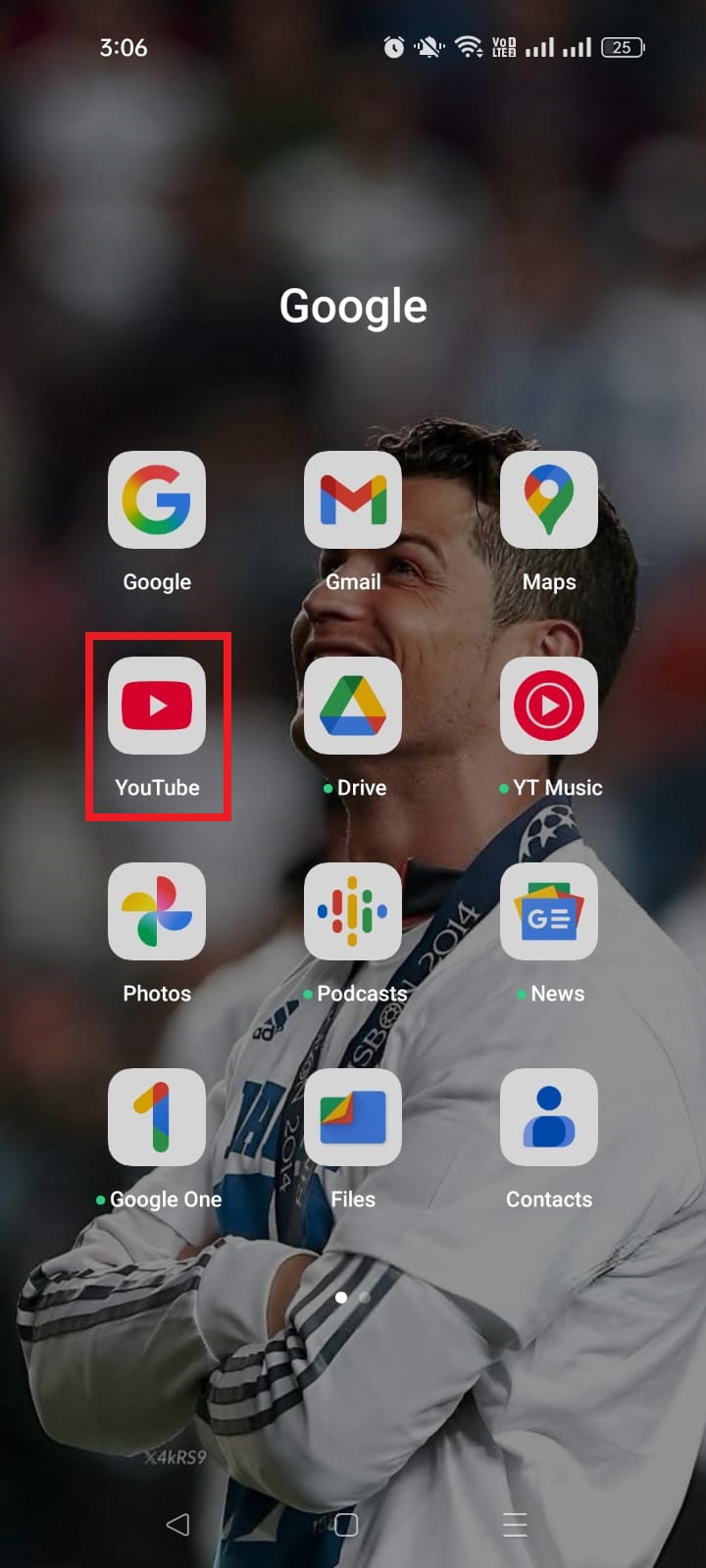
            1. Open the YouTube app on your phone and make sure you’re signed into the account that owns the channel.

            Open the YouTube app

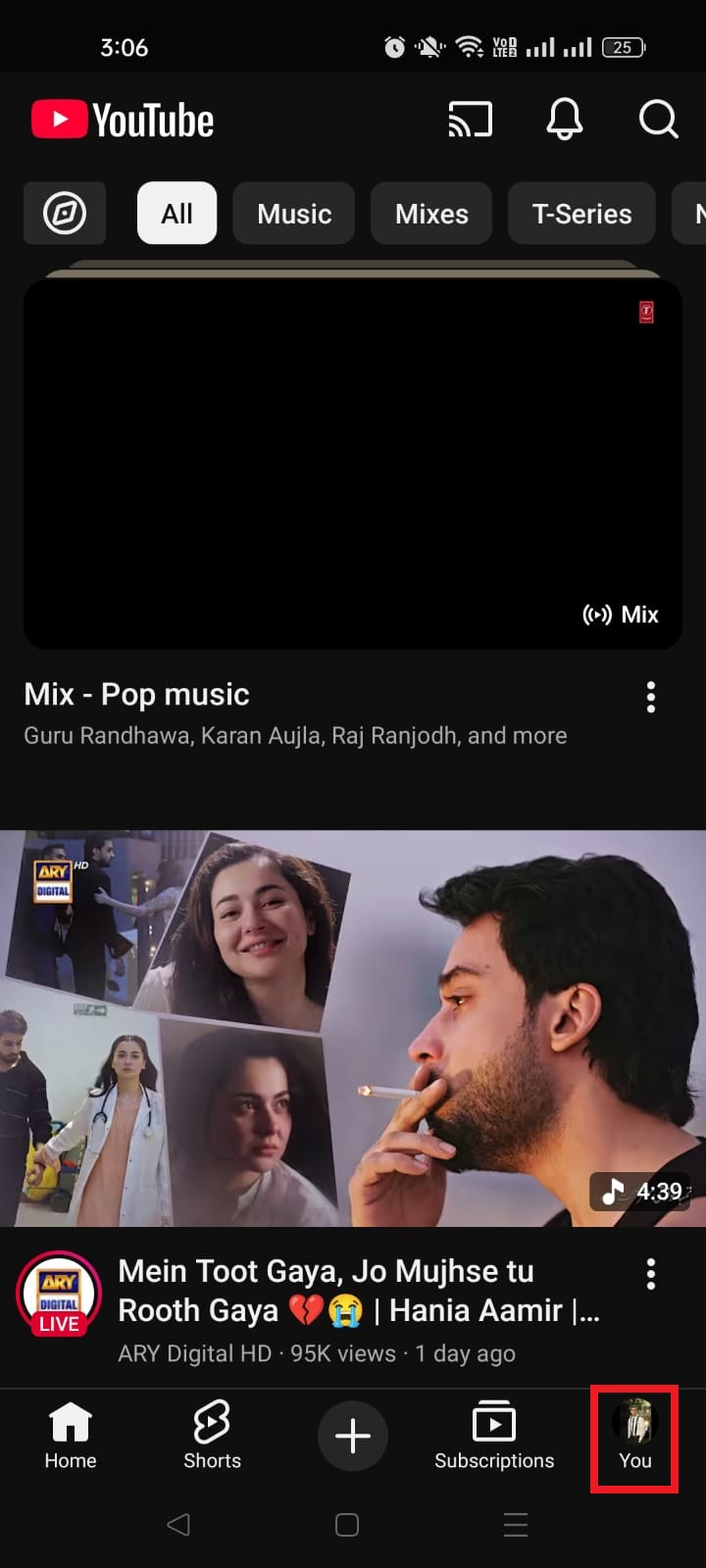
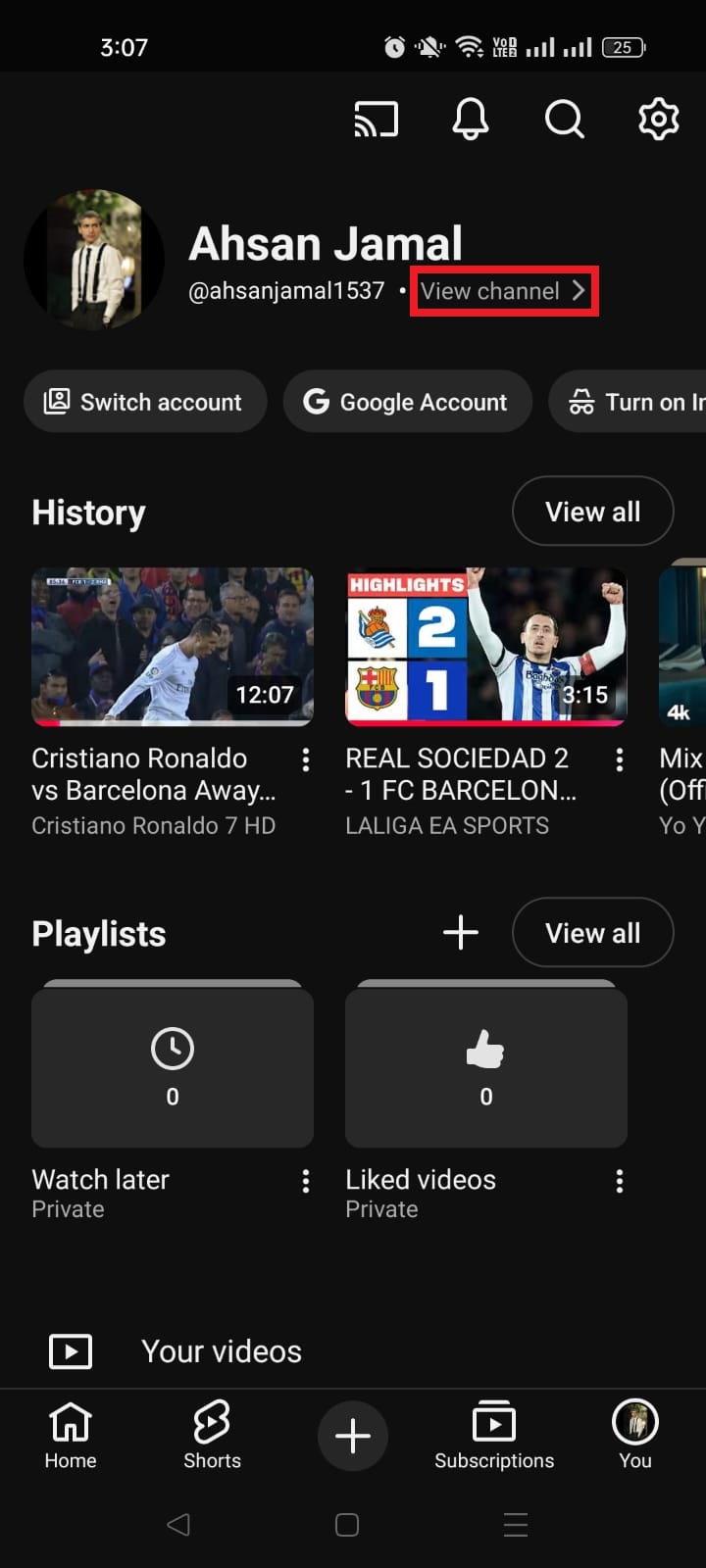
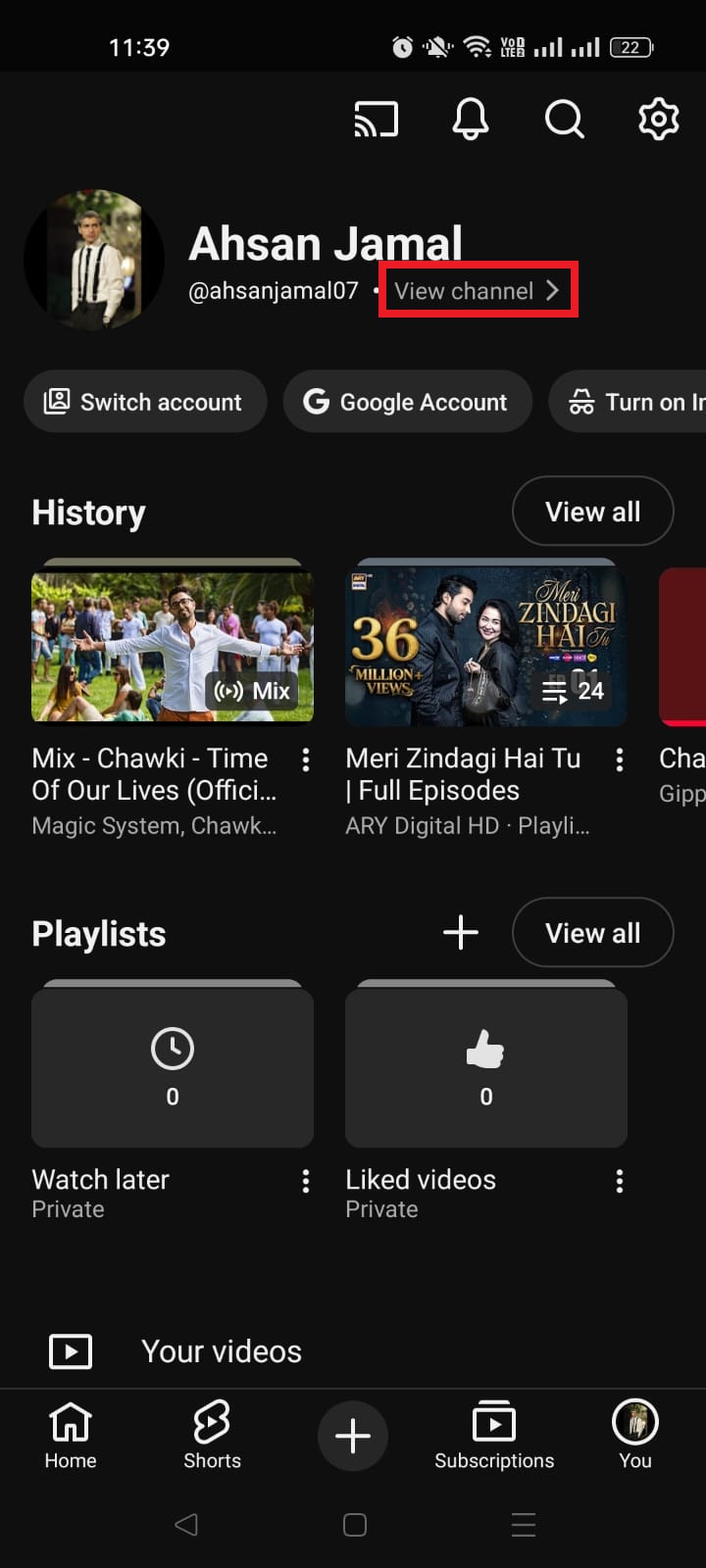
            2. Tap your profile picture in the bottom-right corner to open the account profile.

            Profile icon on YouTube app

            3. From the screen, tap “View channel.” This will take you to your channel’s home page.

            View channel option in YouTube app

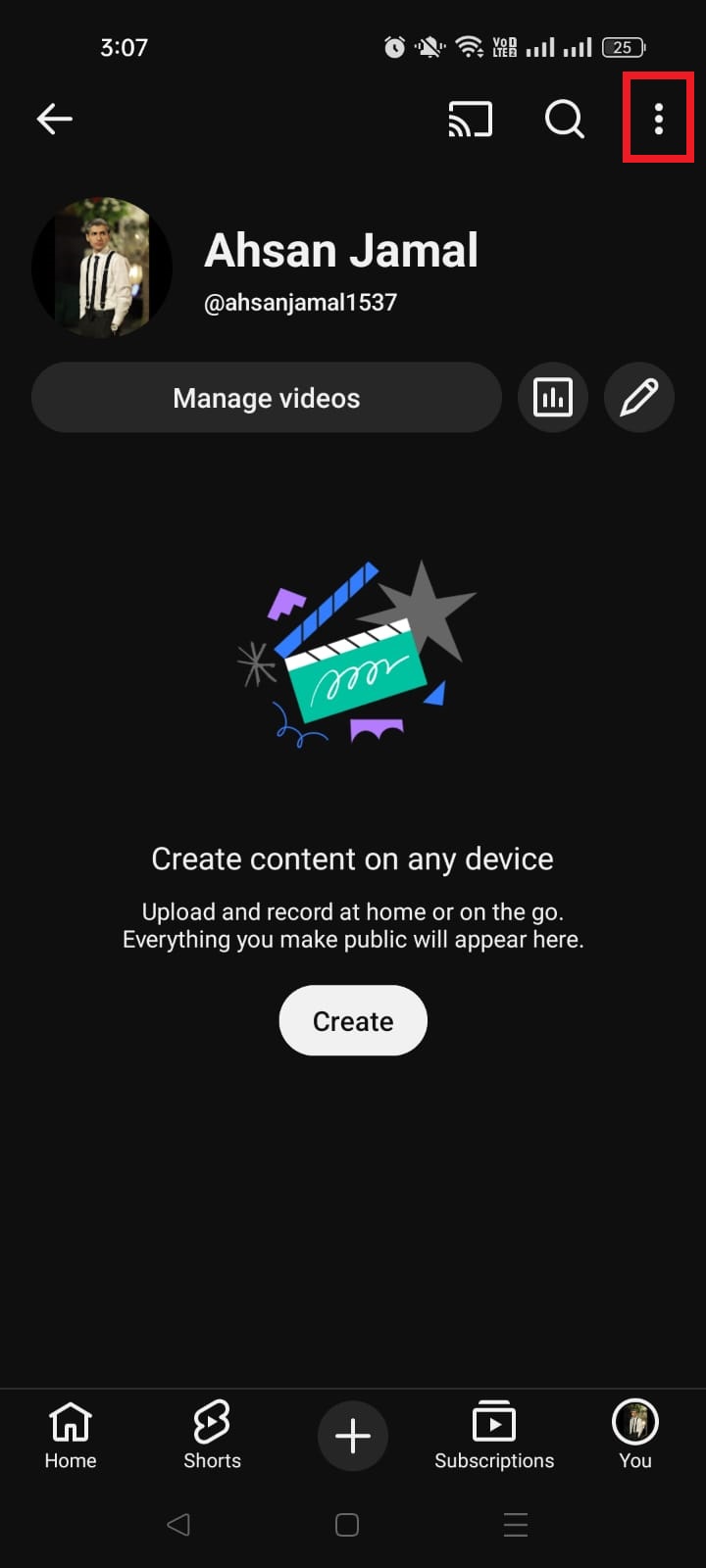
            4. On your channel page, tap the three dots (⋮) or the “More” icon in the top-right corner.

            Three dots (⋮) menu option in YouTube app

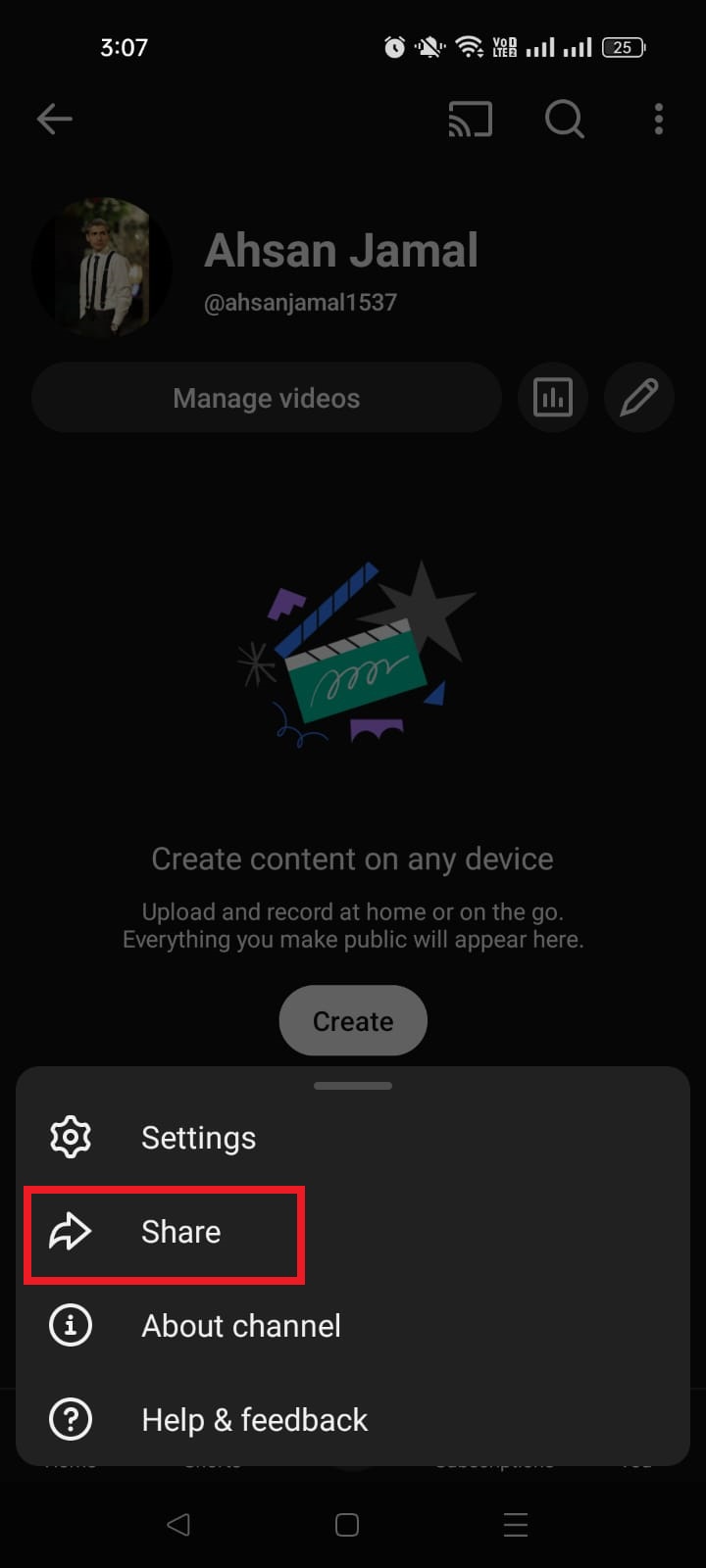
            5. Choose “Share” from the listed options. A share sheet will appear with several choices.

            Share option in YouTube app

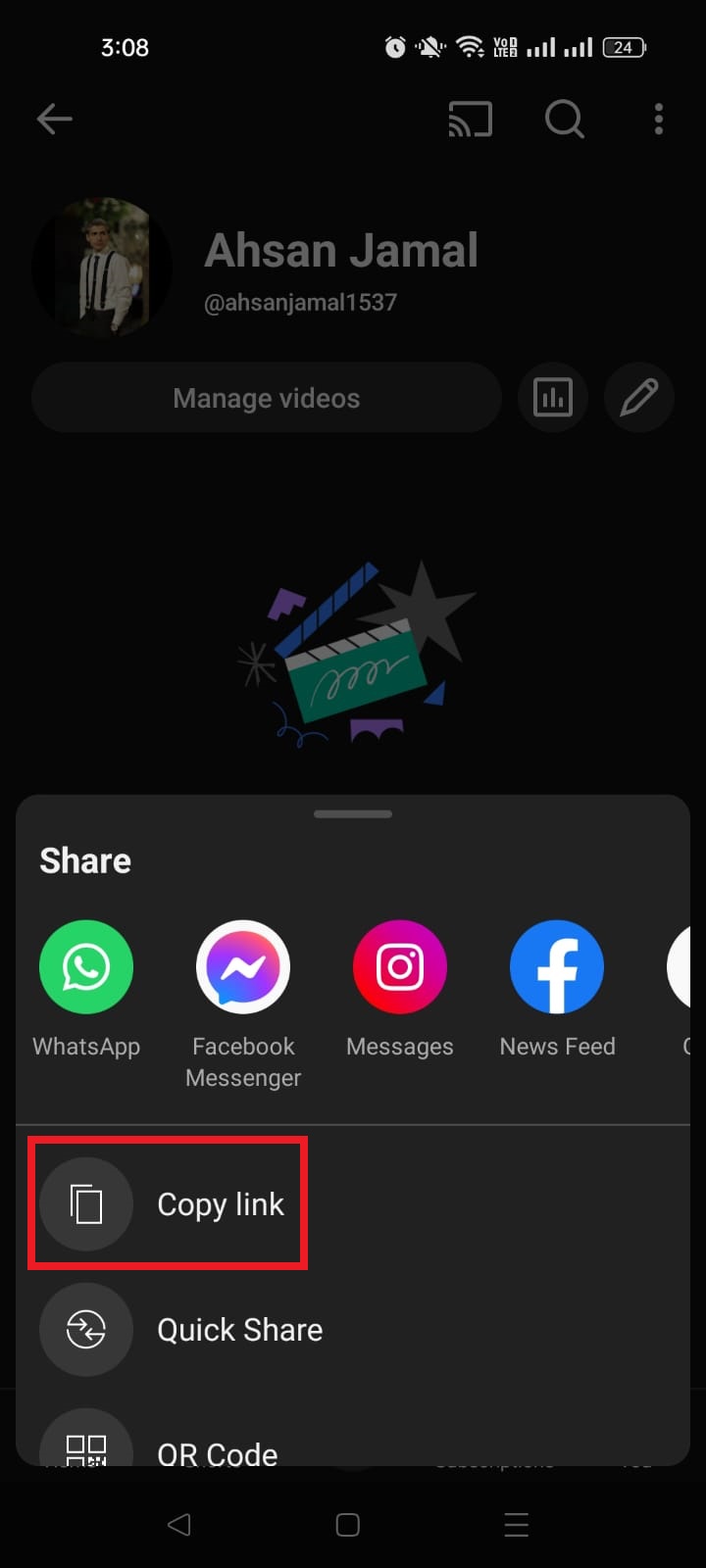
            6. Tap “Copy link.” That’s your YouTube channel URL. It’s now saved to your clipboard and ready to paste anywhere you want.

            Copy link option in YouTube mobile app

            Once copied, you can paste your channel link into text messages, social apps, or email by long-pressing any text field and selecting “Paste.”

            That’s all there is to it! Quick, simple, and perfect for sharing your channel on the go!

            Also read: How to find my Twitter URL on mobile and desktop?

            Wrapping up!

            To sum up, learning how to find and share YouTube URLs (whether it’s a video, your channel, playlist, or a link on mobile or PC) makes sharing your content way easier and more professional. 

            We’ve covered everything from grabbing links on iPhone, Android, iPad, and desktop to finding your own channel’s URL so you can share it anywhere you want without the guesswork. 

            You now have all the steps you need to confidently navigate YouTube links like a pro!

            Before you go, here’s a tip!

            If you’re tired of messy, long URLs and want to make your YouTube links cleaner and more clickable, give Replug.io a try!

            Replug is an all-in-one link management platform that doubles as a URL shortener. It lets you generate branded short links in seconds and easily shorten long, cluttered YouTube URLs.

            Replug Branded Short Links CTA
            Maximize marketing ROI
            by transforming ordinary URLs into
            branded short links that convert.
            Try Replug for free

            Whether you’re sharing videos, promoting your channel, or running a campaign, Replug gives you clean, trackable links that look great and perform even better.

            Frequently asked questions

            How can I copy a YouTube URL?

            To copy any YouTube URL (video, playlist, channel, or profile), open it in the YouTube app or in your browser. 

            – On mobile, tap the “Share” button under the video or on the channel page and select “Copy link.”
            – On desktop, simply highlight the URL in the address bar and copy it (Ctrl/Cmd + C)

            For a channel URL or personal profile URL, go to the channel or profile page first. Then use the share/copy option or copy the address from your browser. This gets you the proper link you can paste anywhere you need.

            How do I get my own profile YouTube URL?

            Open YouTube and sign in, then visit your profile page. 

            – On desktop, copy the URL from your browser’s address bar. It will look like youtube.com/channel/… or a handle like youtube.com/@YourHandle. 
            – On mobile, tap your profile icon → go to your channel → then use the Share > Copy link option. That’s your personal channel URL you can share.

            How to get YouTube URL and stream key?

            To get your YouTube stream key and URL for live streaming, open YouTube Studio (studio.youtube.com), click “Go live”, then select the streaming software option. 

            Under “Stream settings,” you’ll see both the “Stream/Server URL” and the “Stream Key” with buttons to copy them. You use these in streaming software like OBS to connect to your channel’s live feed.

            Always remember to never share your stream key publicly. Treat it like a password!

            How to get YouTube URL for Roblox?

            If you want to paste your YouTube link into Roblox social fields, use your standard channel URL (from the share/copy link method above) rather than just using your handle URL. Some platforms, including Roblox, may reject new handle formats, so using the regular channel link (with /channel/) often works better.

            How to get YouTube channel URL after suspension?

            If your channel is suspended, you typically can’t sign in to access the usual dashboard and copy the link from within YouTube Studio. 

            What you can do is find its public URL by searching the channel name on YouTube or via cached pages, but if it’s fully removed, you may not be able to retrieve it directly. 

            If you need the URL for an appeal, check your email notifications from YouTube (it often includes the channel link) or contact YouTube support for help during the appeal process.

            What is YouTube URL for shortcut?

            A YouTube shortcut URL usually refers to a shorter, more direct link format that takes you to specific YouTube content fast. 

            – For videos, this is often the shortened youtu.be/VIDEO_ID link. It’s cleaner and easier to share than the long watch?v= version.
            – For channels, YouTube provides handle URLs like youtube.com/@YourHandle, which act like shortcut links to a channel’s homepage. 

            All of these formats get people straight to the content with minimal characters.

            What is the URL of YouTube app?

            The basic YouTube app URL isn’t a web page link; it’s a mobile app scheme (like youtube://) that can open the YouTube app directly from other apps or shortcuts, though support can vary by device. 

            For general purposes, most people use standard links (e.g., https://www.youtube.com/…) and rely on their phone to open them in the YouTube app or browser.

            Note: There isn’t a single URL for the YouTube app because it uses standard web URLs like youtube.com or m.youtube.com, and it automatically redirects users to the app on devices with it installed.

            How to find your YouTube embed code?

            To get a YouTube embed code for a video, open the video in a browser, click the “Share” button below it, and then tap “Embed (< >)”.

            You’ll see a small box with HTML iframe code (it starts with <iframe … src=”https://www.youtube.com/embed/…”>). Copy that code and paste it into your website or blog to embed the video easily.

            How to find your YouTube Music Artist URL?

            If you’re an artist on YouTube Music, open your artist profile on music.youtube.com, click the three dots next to your name or profile, choose “Share,” and then “Copy.” That gives you your YouTube Music Artist URL (a web address you can share so fans can find your music page easily).

            How to find your YouTube handle URL, channel URL (ID-based), custom URL, and legacy username URL?

            YouTube channels can have different link formats that lead to the same page:

            Handle URL: youtube.com/@YourHandle — your current friendly link format.
            Channel ID URL: youtube.com/channel/UC… — the standard permanent link with your unique ID.
            Custom URL: if you have one from before handles rolled out, like youtube.com/c/CustomName.
            Legacy username URL: older formats like youtube.com/user/OldName, still valid but no longer newly created.

            All of these URLs point to your channel, but the handle and channel ID links are the most common today.

          1. How to change URL name on YouTube: A practical guide for content creators & YouTubers [2026]

            How to change URL name on YouTube: A practical guide for content creators & YouTubers [2026]

            In 2026, standing out on YouTube isn’t just about great content; it’s about being easily found.

            With over 2 billion+ logged-in monthly users and millions of new channels launching every year, discoverability is more competitive than ever. 

            One simple yet powerful way to boost your channel’s visibility and memorability is by optimizing your YouTube URL. Turning that long, auto-generated link into something sleek, branded, and easy to share.

            According to creator insights, channels with branded URLs see significantly higher engagement and clickthrough compared to generic ones, making it a small tweak that delivers a big impact.

            Whether you’re building a personal brand or scaling your business on YouTube, conquering your URL is a practical step every creator must know.

            So, without any further ado, let’s get started!

            What is the YouTube URL name?

            When we talk about URL names on YouTube, we’re simply referring to the web addresses that take people straight to your content, i.e., a specific video, a playlist, or your entire channel. 

            A URL is the address you type in the browser bar to reach something online, like:

            • https://www.youtube.com/watch?v=… for a video or
            • https://www.youtube.com/@YourHandle for a channel.

            On YouTube, every piece of content has its own unique URL. The primary purpose of these links is to make it easy for viewers to find, share, and come back to what you’ve created. 

            For channels, YouTube used to let creators set a custom URL (like /c/YourChannel), but now handles (starting with @) effectively act as your channel’s branded URL.

            YouTube URL name (Handle)

            In short, your YouTube URL name (or handle) is the human-friendly web address people use to find your channel or videos, and choosing a clear one helps with branding and sharing.

            Can I change my YouTube channel URL name?

            Yes, but with one important twist (and it’s different from how it worked in the old days)

            You can’t directly edit an old custom URL once it’s been set, but you can change your YouTube channel’s address by updating your handle. 

            Handles now act as your official channel URL (e.g., youtube.com/@YourHandle), so picking a new handle effectively gives you a new URL.

            Here’s the latest update on this:

            📌 Custom URLs you set in the past can’t be changed now. They’ll still work, but you can’t edit them.

            🔁 You can change your YouTube handle, which updates the newer handle-based URL format.

            This means yes, you can change how your channel link looks. You just do it by picking a new handle in YouTube Studio. Feel free to tweak your handle until it feels right for your brand!

            Note: You can edit/update your handle twice every 2 weeks (14 days). However, keep in mind that changing your channel name may remove your verification badge.

            How to change the YouTube channel URL name?

            Changing your YouTube channel’s URL name today means updating your YouTube handle, because that’s what creates your branded address like youtube.com/@YourHandle

            Once you pick a new handle, YouTube automatically updates your channel URL to match it, as long as the handle is available.

            Here’s a simple step-by-step guide you can follow:

            1. Sign in to YouTube Studio: Log in to your YouTube account and go to YouTube Studio.

            YouTube Studio

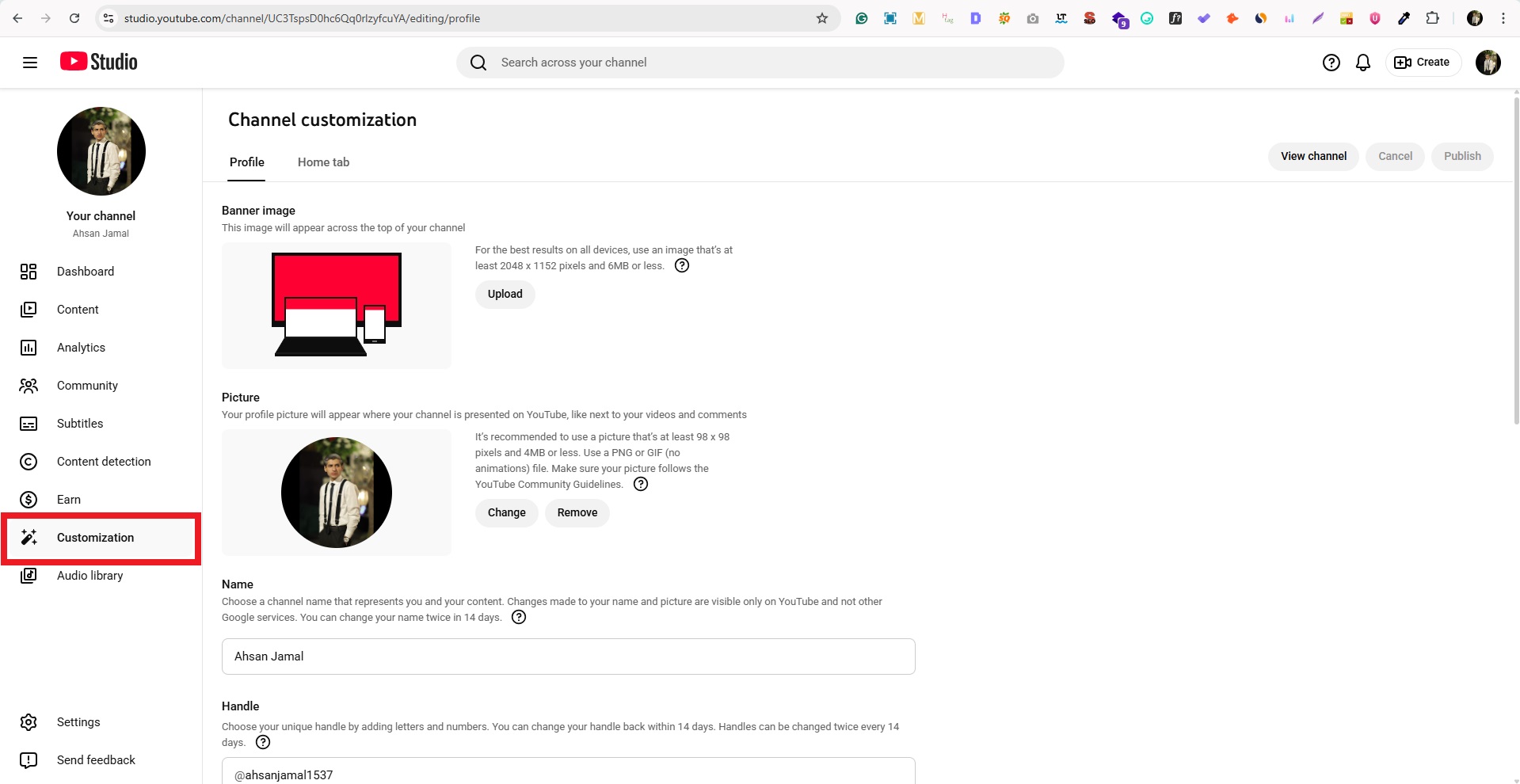
            2. Go to “Customization”: From the left menu, click “Customization,” then “Basic info.”

            Customization option in YouTube Studio

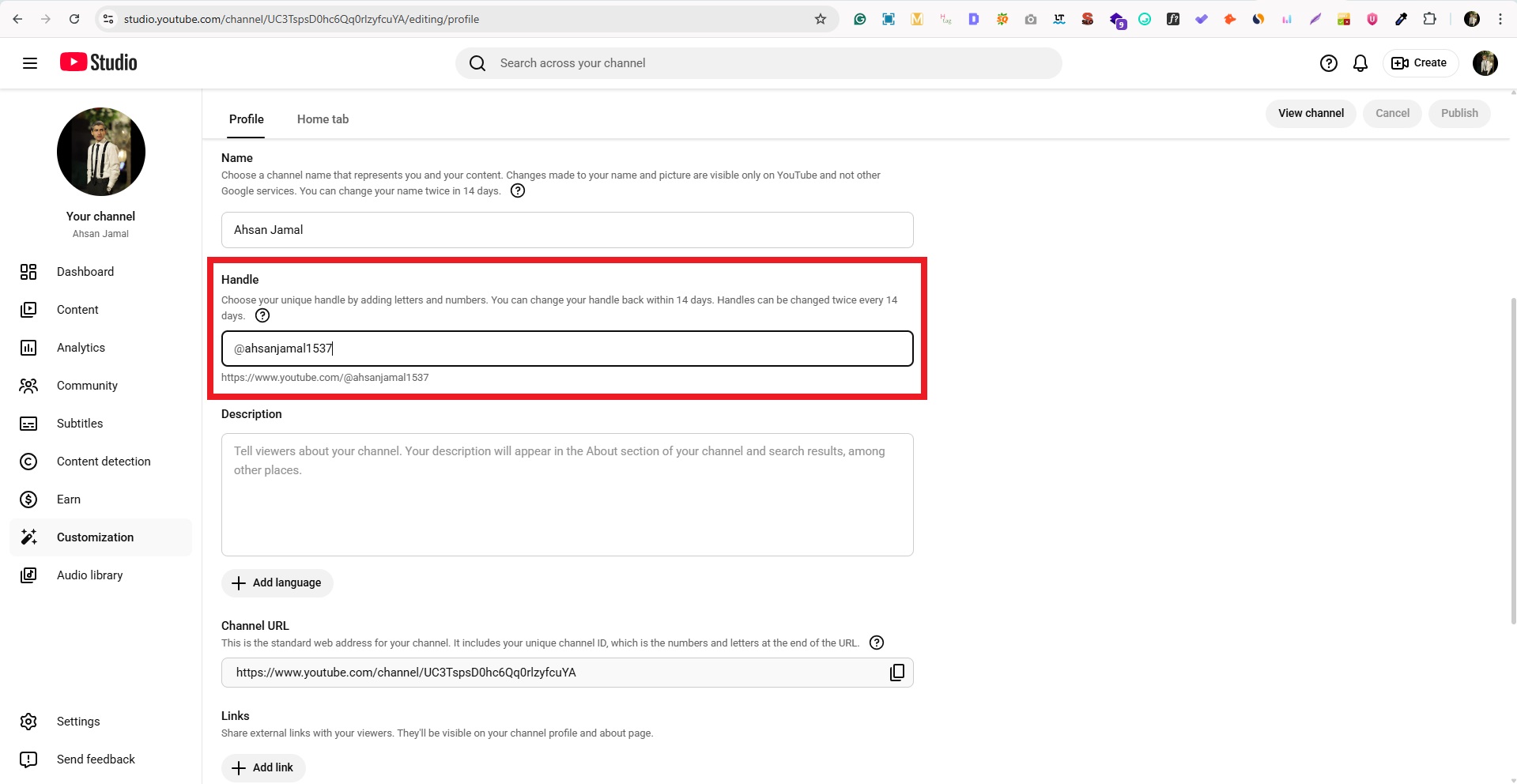
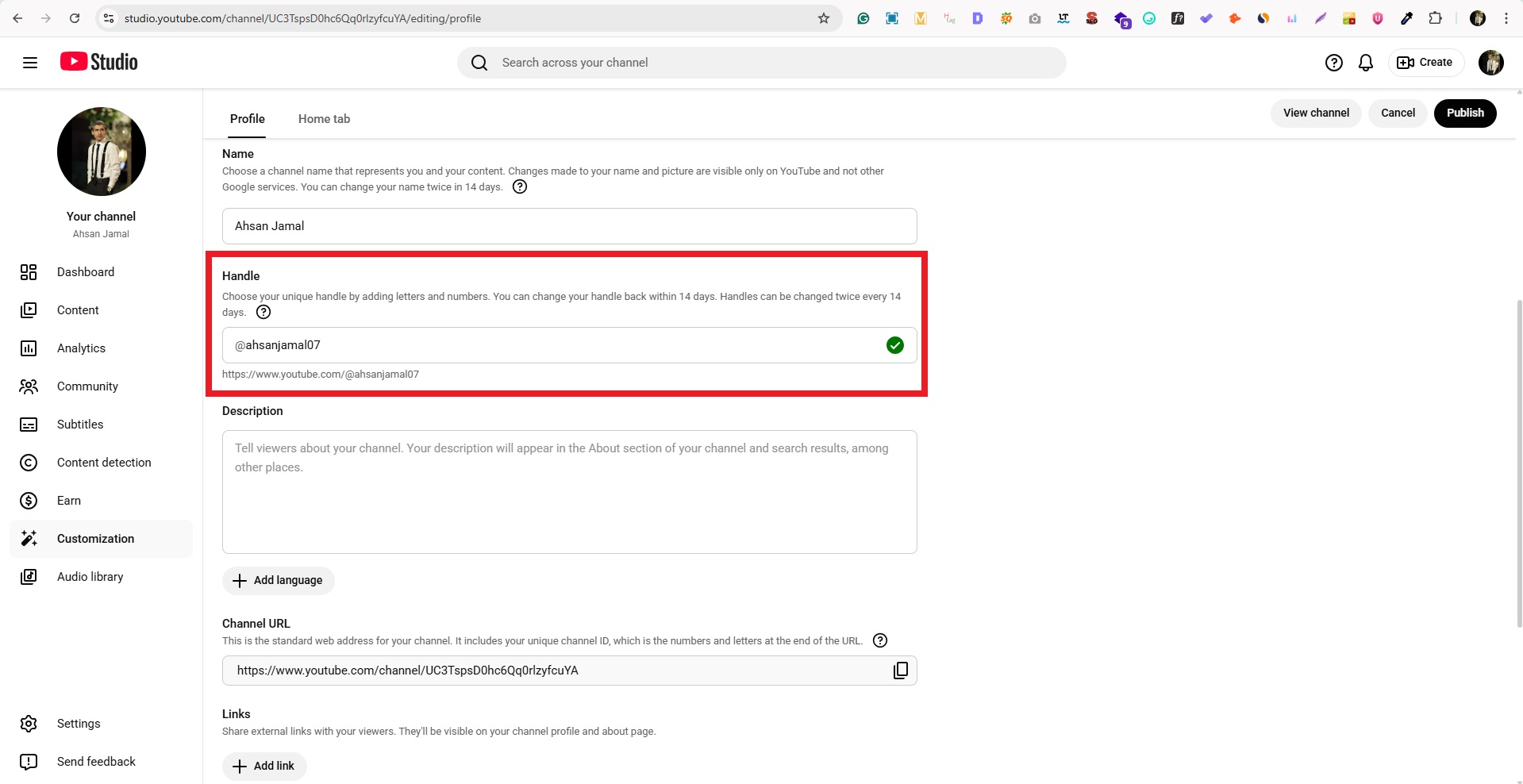
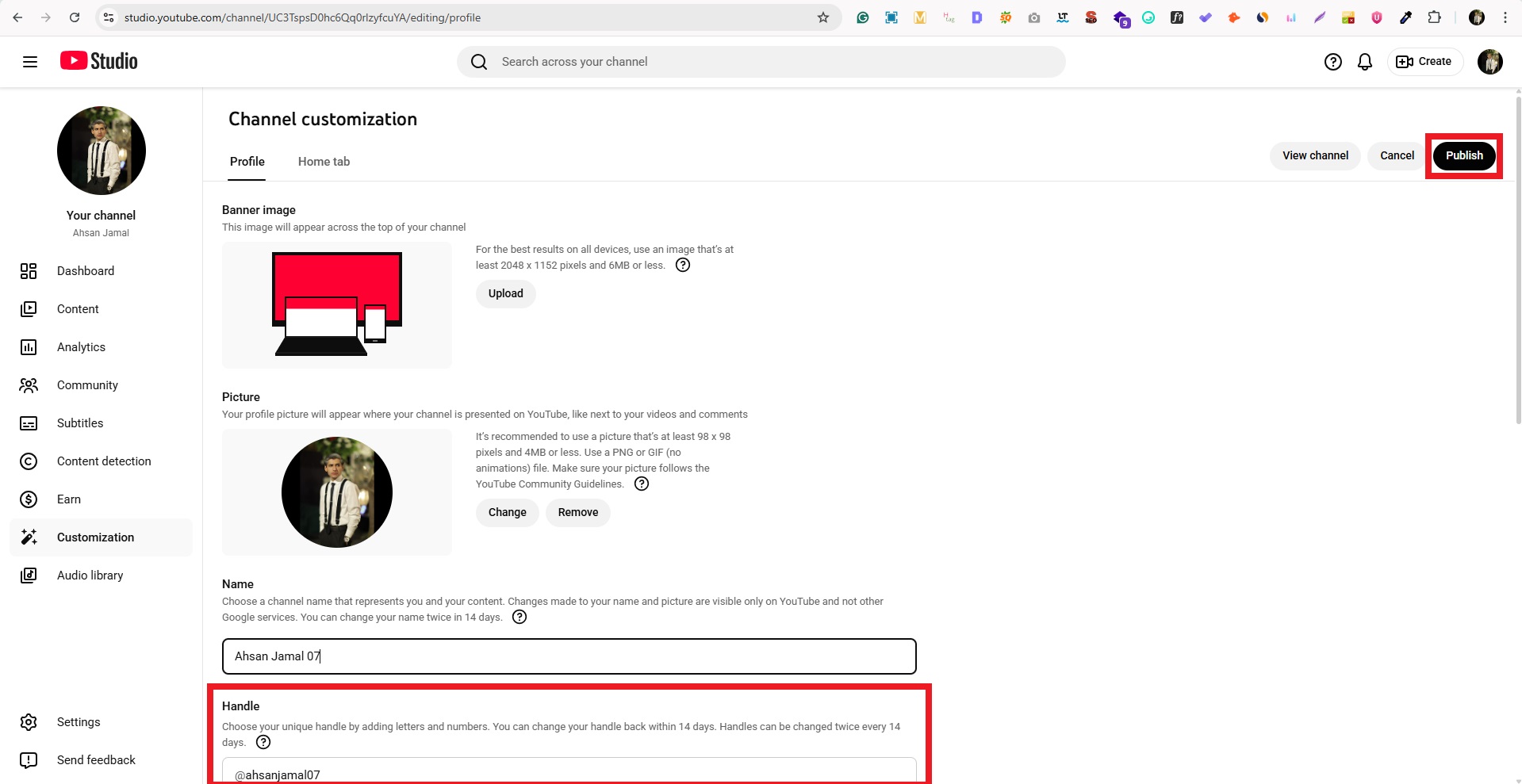
            3. Edit your handle: Under the “Handle” section, click the text box to edit the current handle.

            Handle option in YouTube Studio

            4. Choose a new handle: Type your new @handle (like @YourBrand) and check if it’s available.

            Edit Handle in YouTube Studio

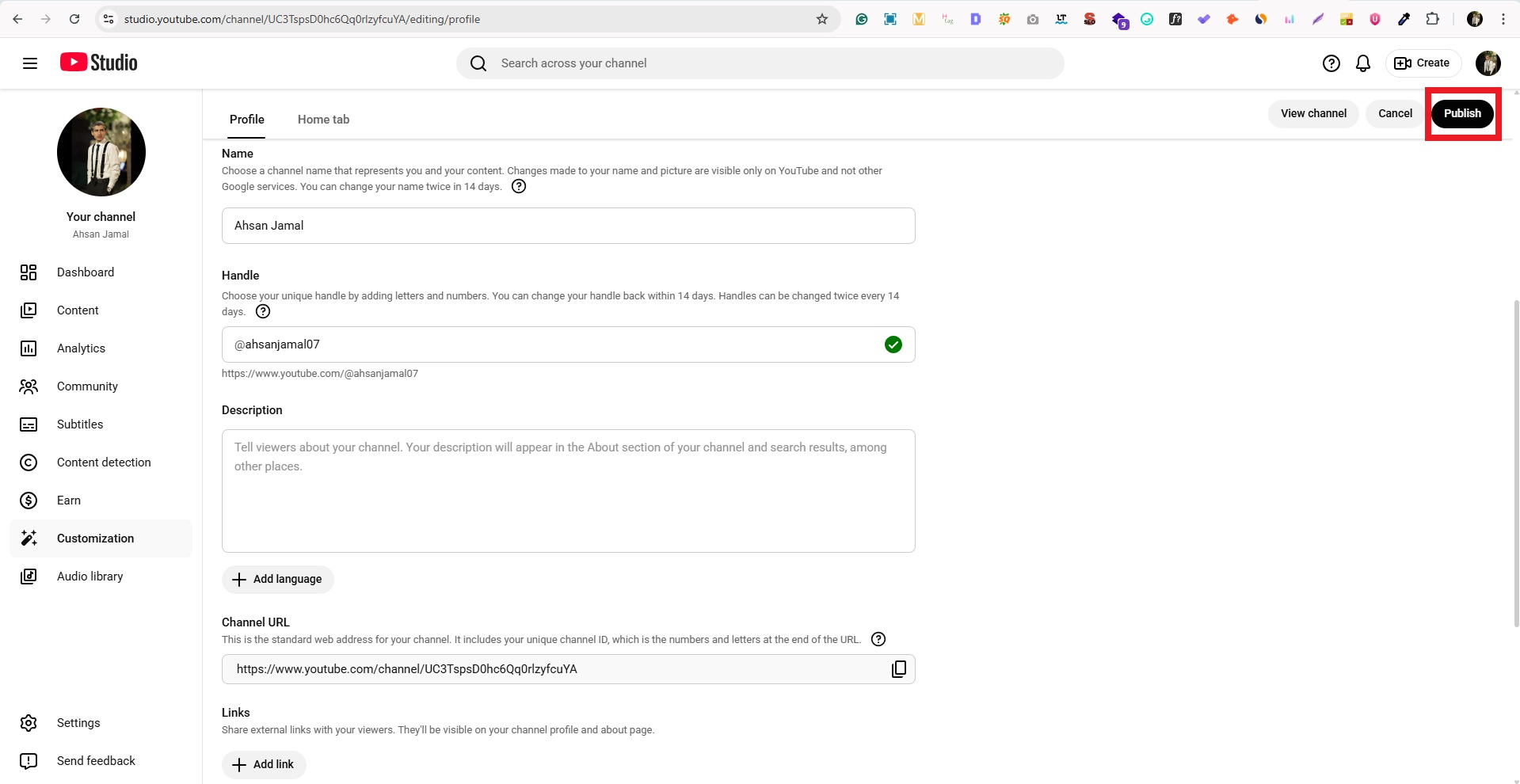
            5. Publish your changes: Once you’re happy with it, click “Publish” to save and update your channel URL.

            Publish button in YouTube Studio

            That’s all there is to it!

            After this, your channel URL will work with the new handle. And, please don’t forget to update any old links you’ve shared elsewhere online!

            How to change URL name on YouTube on phone?

            Updating your YouTube URL name on your phone is all about changing your handle in the YouTube app, since that’s what now determines your channel’s web address. 

            Handles are free to update and show up everywhere on the platform once saved.

            Here’s how to change link name on YouTube on phone, step-by-step:

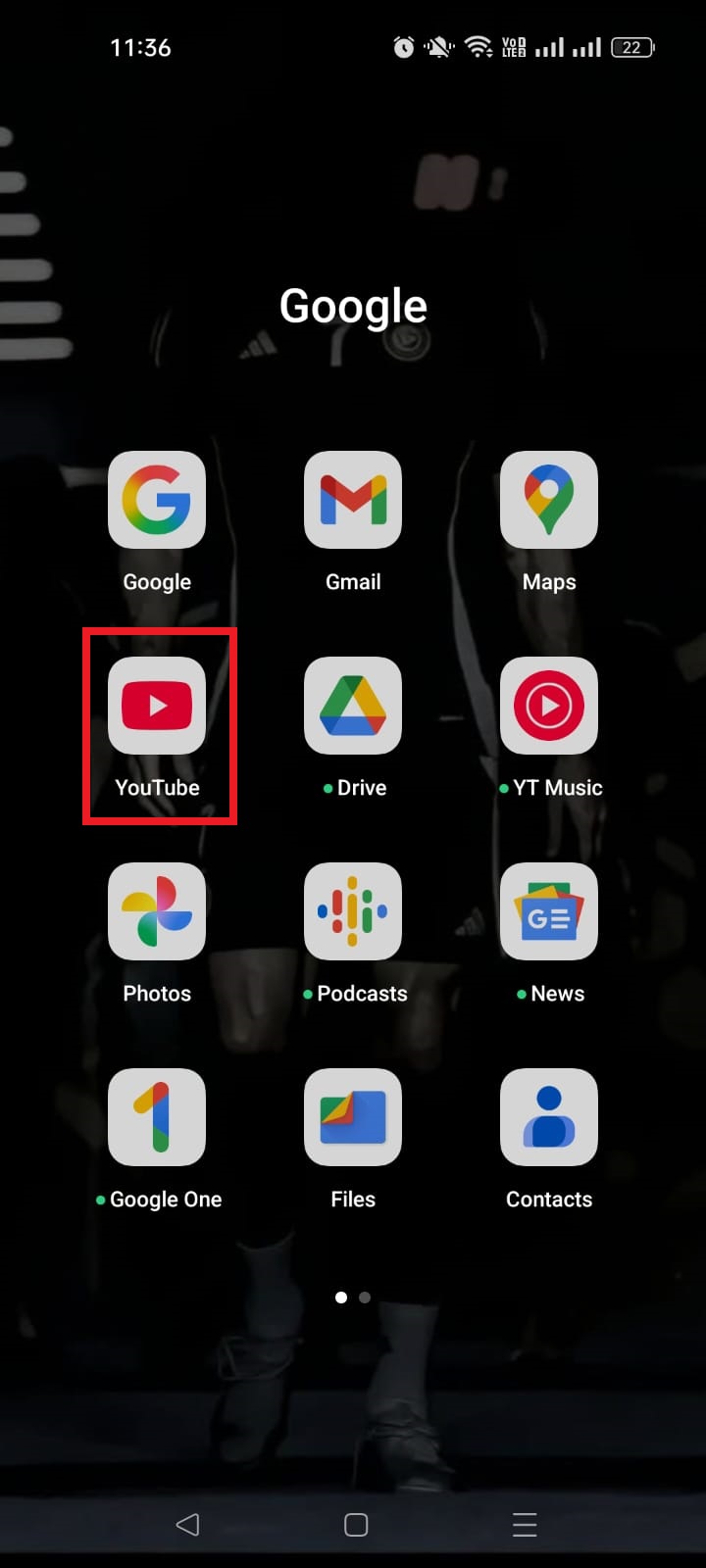
            1. Open the YouTube app on your phone and sign in to your account.

            YouTube app

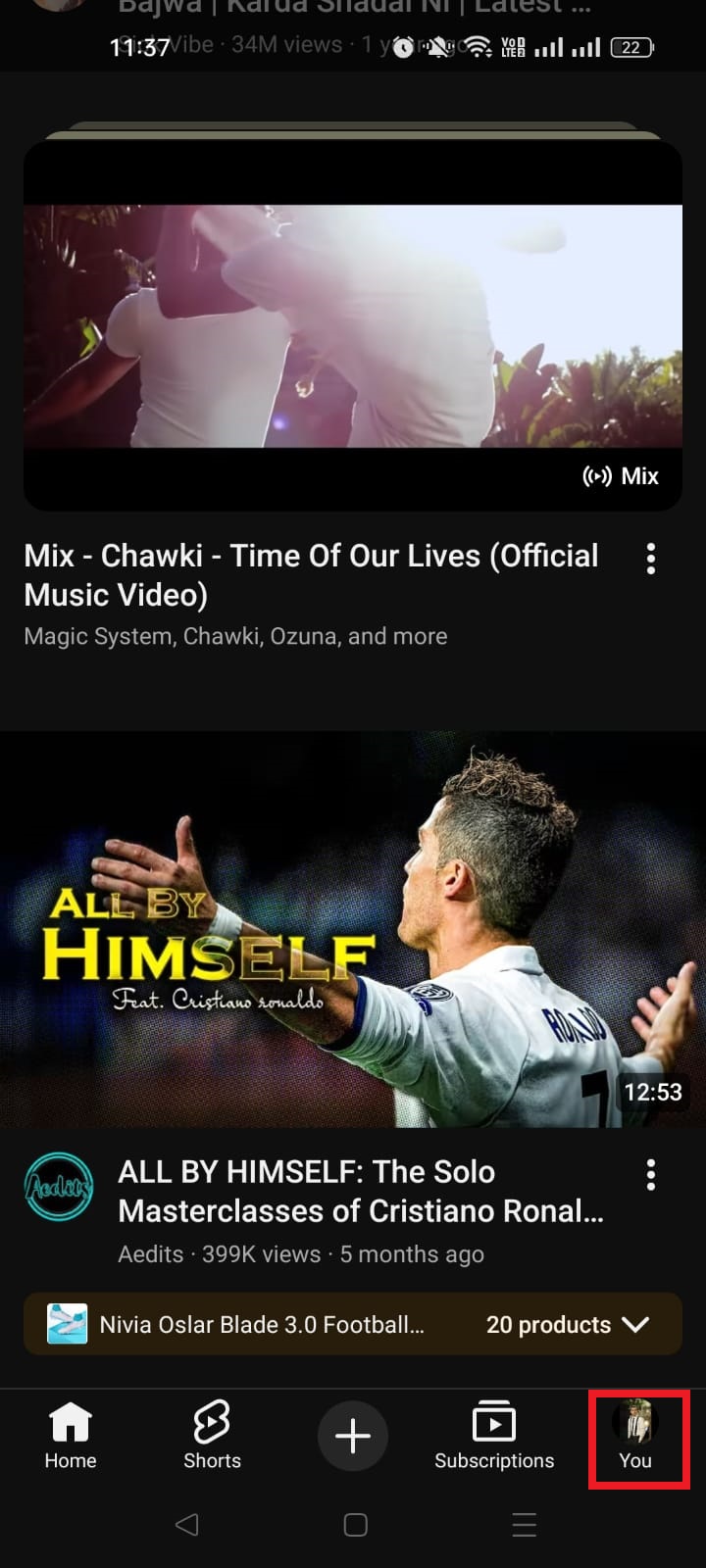
            2. Tap your profile photo in the bottom-right corner to open your account menu.

            Profile icon in YouTube app

            3. Tap View Channel to go to your channel page.

            View channel option in YouTube app

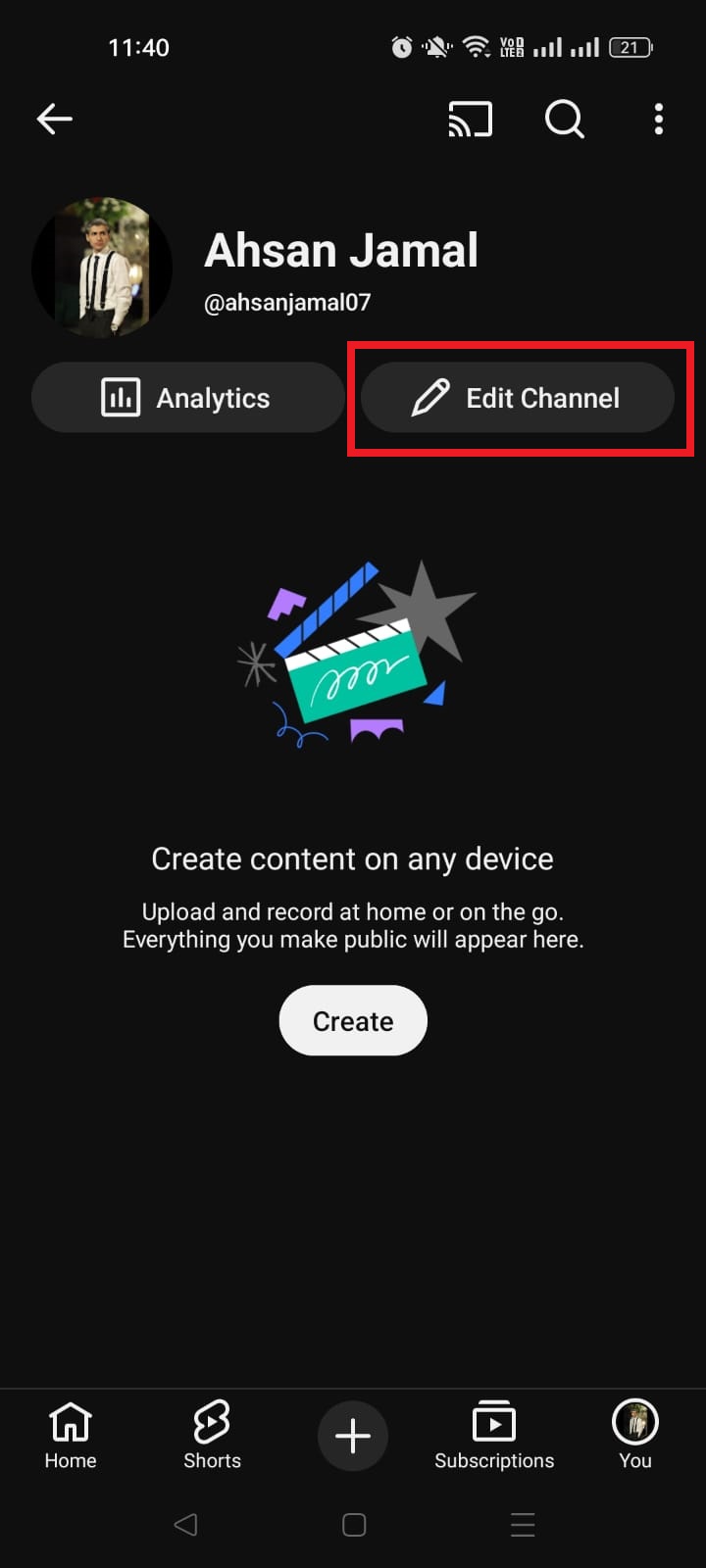
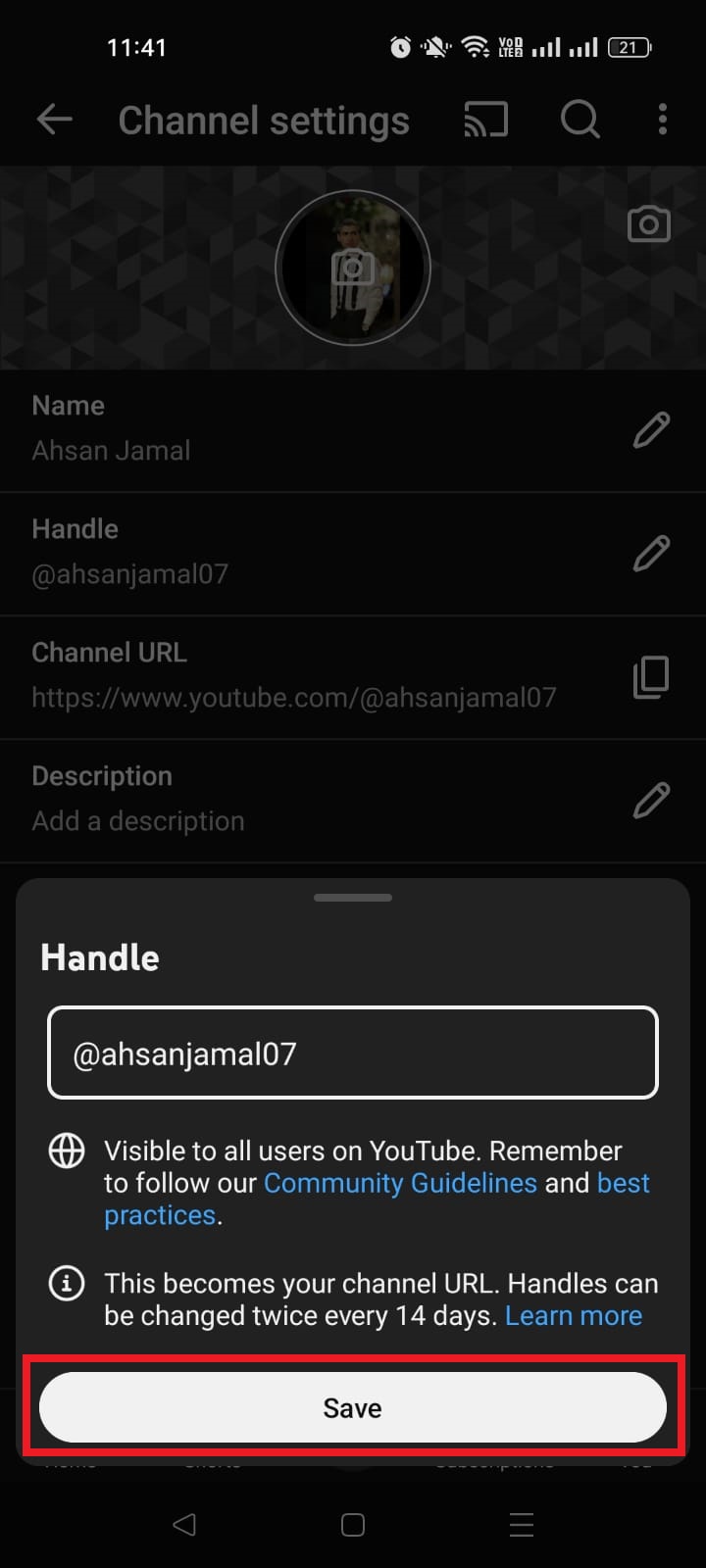
            4. Tap the Edit Channel (pencil) button right below your channel name/handle.

            Edit channel button in YouTube app

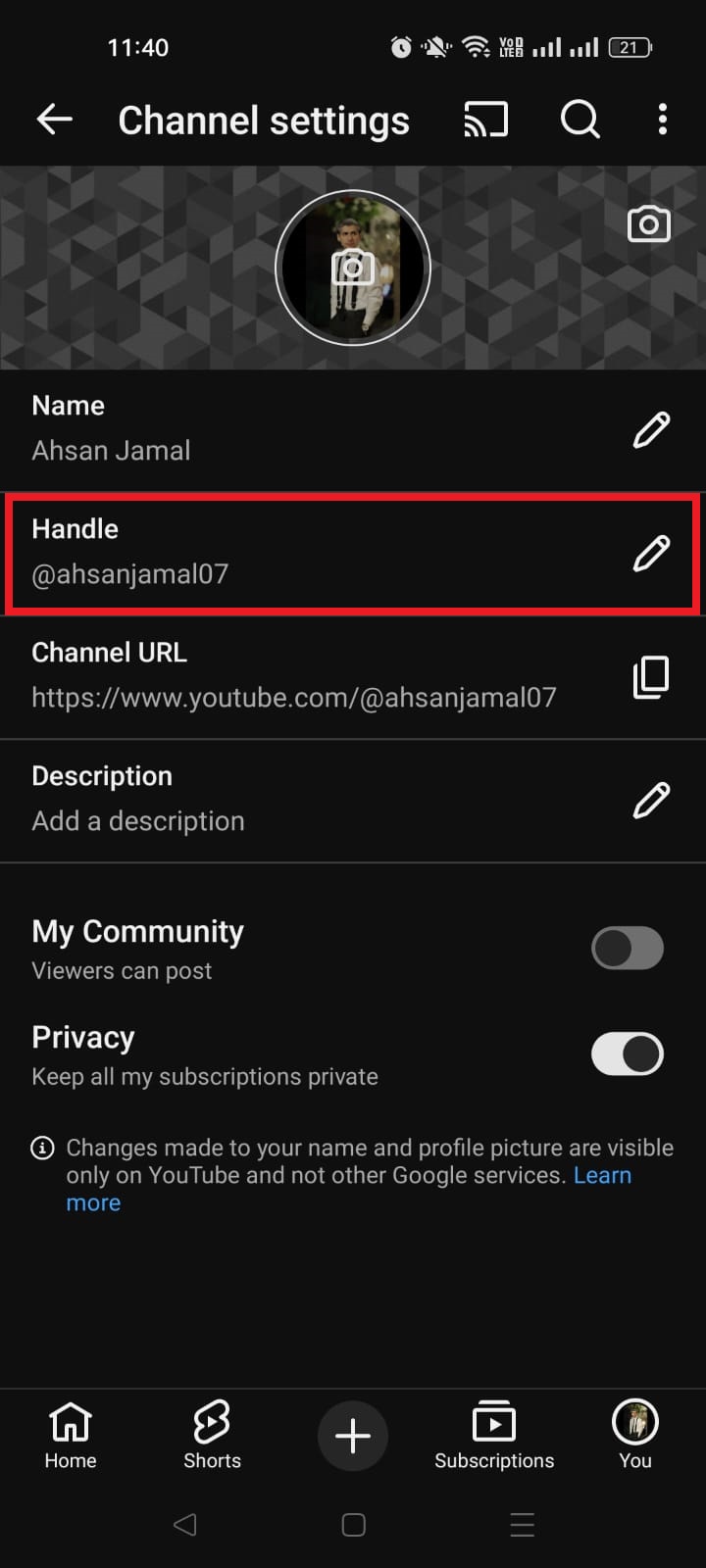
            5. Find the Handle field. It shows your current @username. Tap the pencil icon next to it.

            Handle option in YouTube app

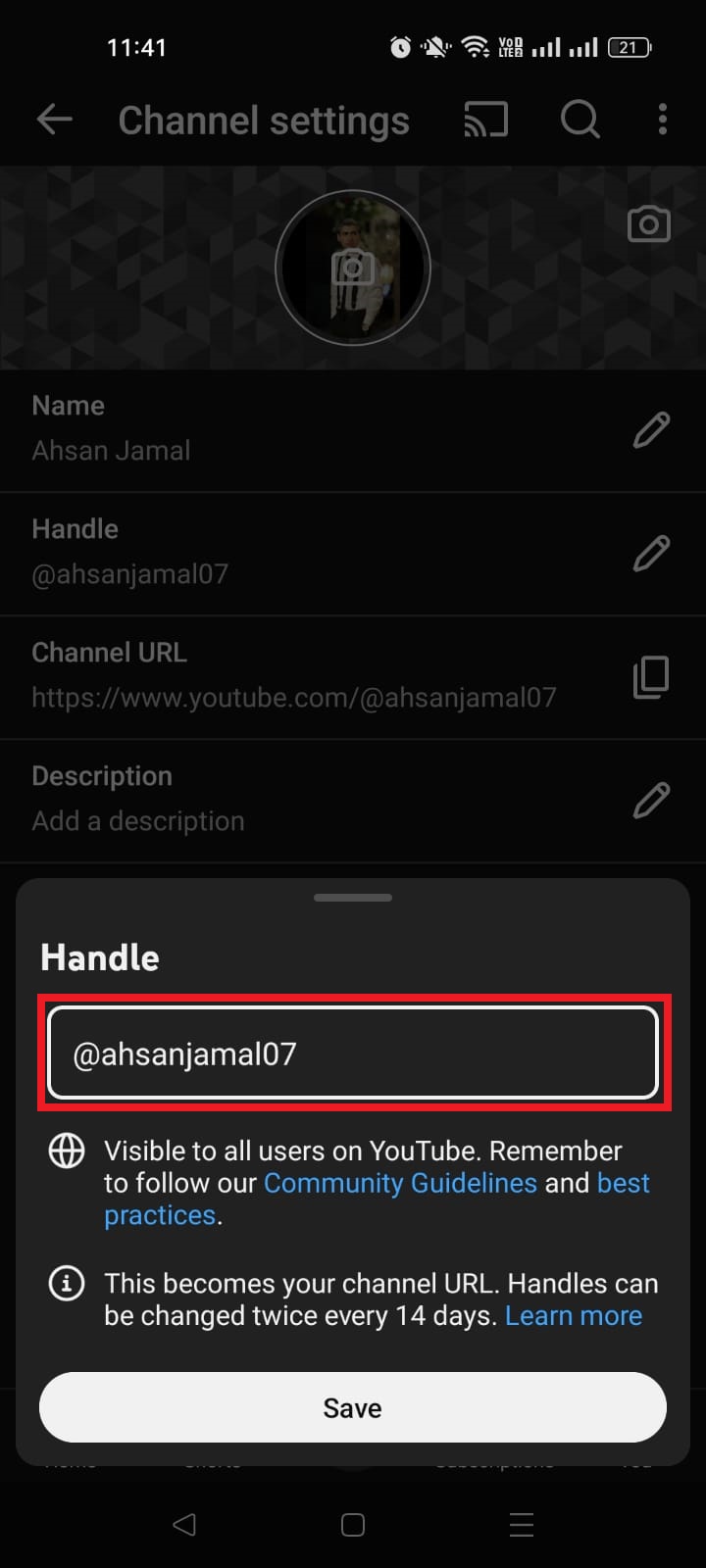
            6. Type your new handle. Make sure it’s unique and available.

            Edit Handle in YouTube app

            7. Save your changes by tapping the “Save” button or the check mark.

            Handle Save button in YouTube app

            Once saved, YouTube updates your channel URL to use the new handle instantly!

            Read also: How to change Facebook URL on mobile and desktop?

            How to change name on the YouTube website?

            Changing your name on the YouTube website is quick and simple, and it updates how your profile/channel appears to viewers across YouTube. It’s done through YouTube Studio in your browser.

            Here’s how to change it, step-by-step:

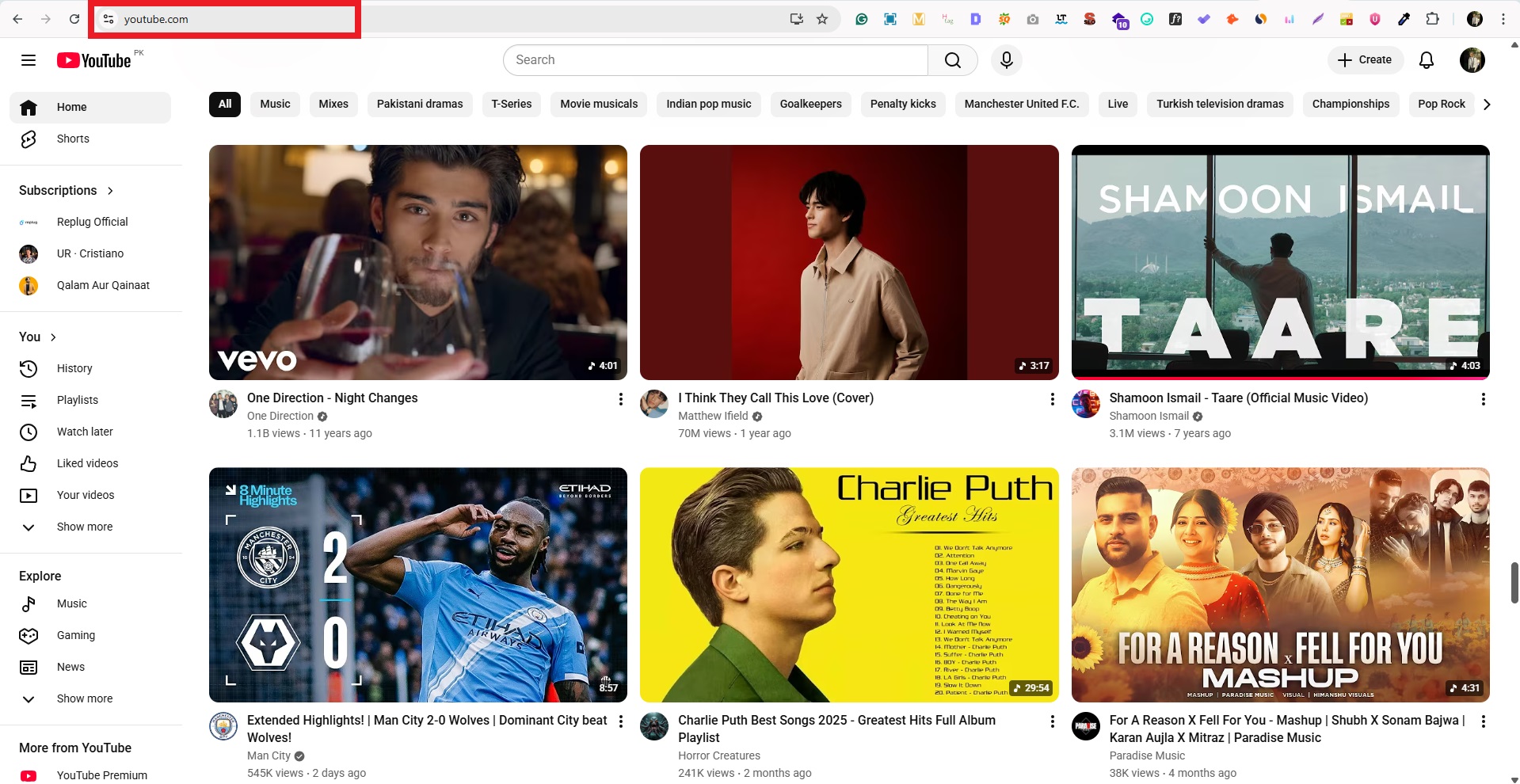
            1. Sign in to YouTube: Open your browser, go to youtube.com, and log in to your account.

            YouTube website on desktop

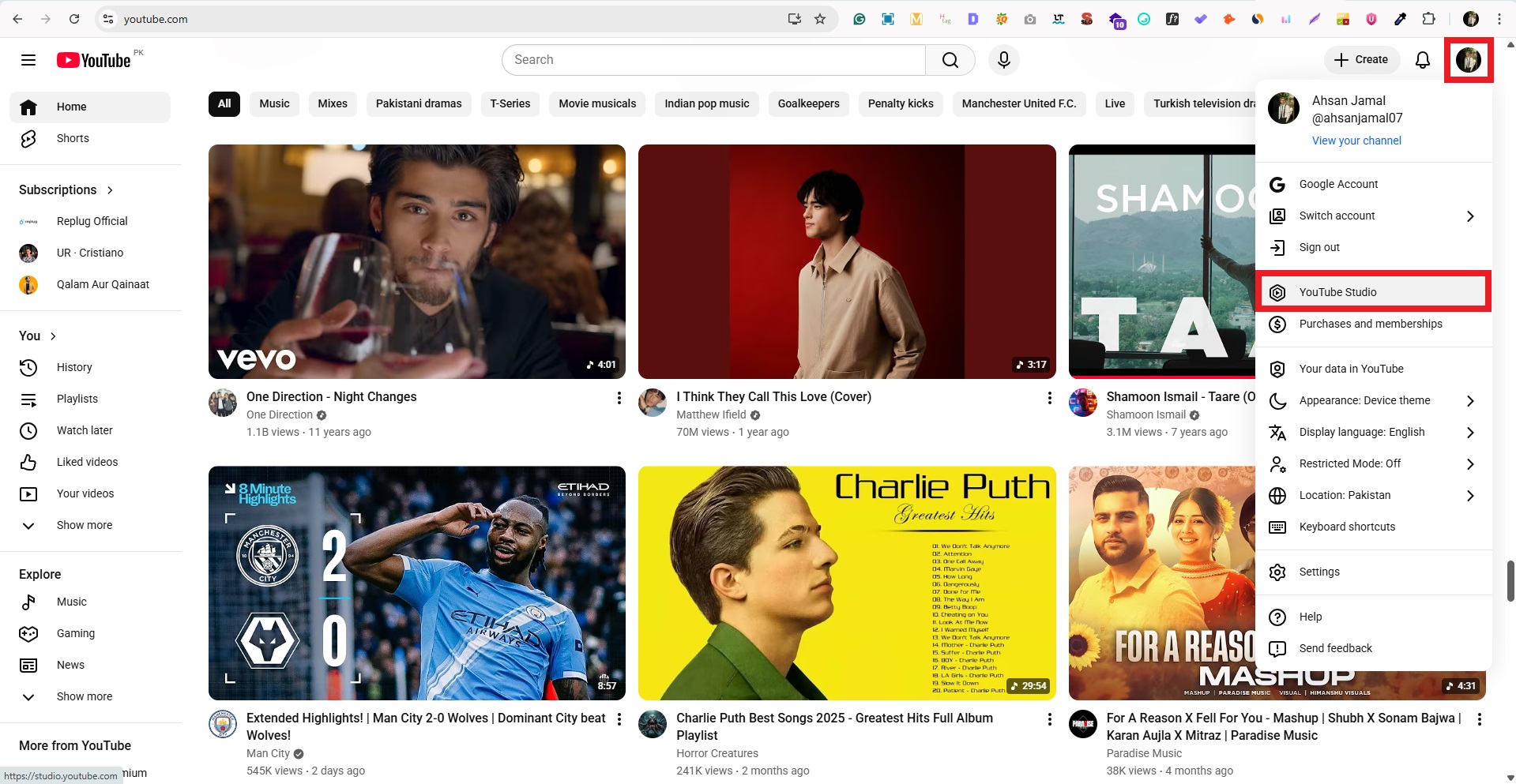
            2. Go to YouTube Studio: Click your profile icon in the top-right corner, then select YouTube Studio from the dropdown.

            YouTube Studio on desktop

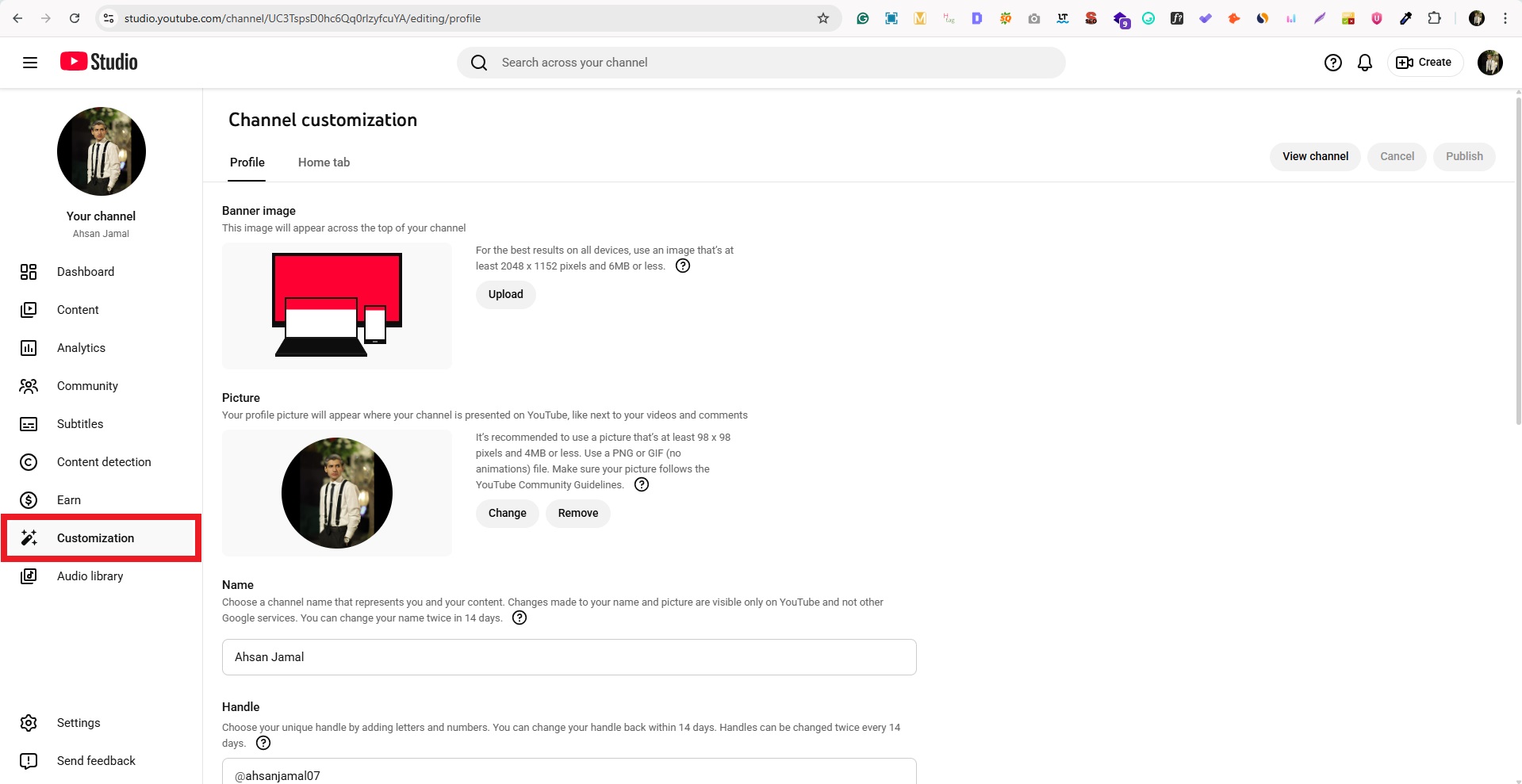
            3. Open Customization: In the left sidebar, click “Customization.”

            Customization option in YouTube Studio on desktop

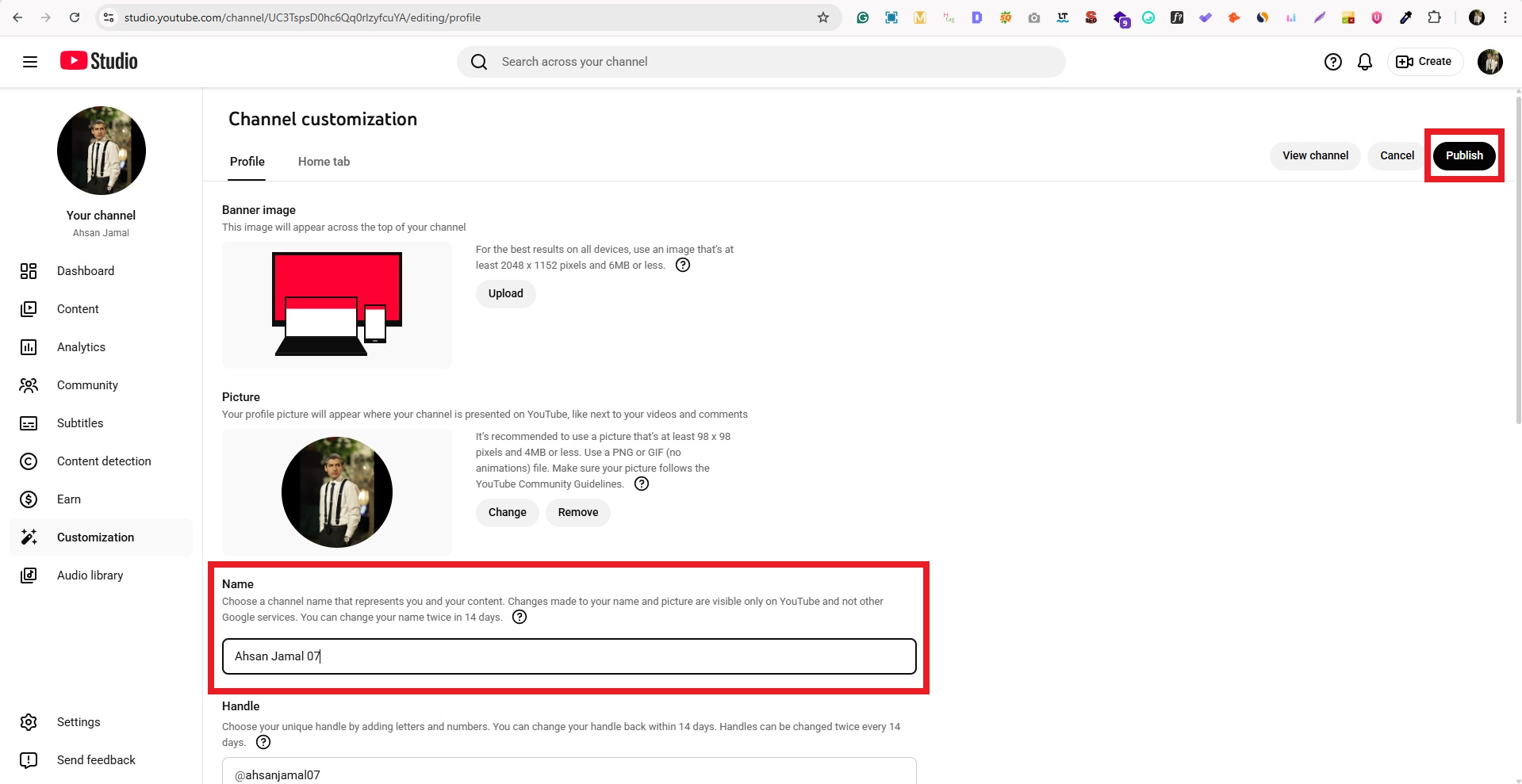
            4. Edit your channel name: Click the text box titled “Name,” type your new one, and click the Publish button to save.

            Change channel name on YouTube on desktop

            5. Update your handle (optional): If you want your URL to reflect the new name, edit the Handle (@username) field and publish it, as well.

            Change Handle on YouTube on desktop

            That’s it! Your updated name (and handle, if changed) will go live and show across YouTube soon.

            Shorten your YouTube URLs with Replug!

            If you’re sharing YouTube content across social media, email, or anywhere online, sometimes those long YouTube links just don’t cut it. That’s where Replug comes in!

            It is a brilliant link optimization platform that helps you shorten a link and turn it into something clean, branded, and professional before you share it with your audience.

            Replug Branded Short Links CTA
            A complete link management solution
            for marketing professionals & agencies.
            Try Replug for free

            Replug goes beyond just shortening URLs by giving you full control over link tracking, branding, analytics, and more.

            Here’s why using Replug for your YouTube URLs is worth it:

            • 🔗 Create short, branded URLs: Transform messy YouTube links into sleek ones that are easier to share and remember.
            • 📊 Track link performance: See clicks, sources, and engagement data to understand what’s working.
            • 🎯 Add extra marketing power: Include retargeting pixels, CTAs, or even QR codes for offline sharing.
            • 👥 Perfect for creators & marketers: Replug helps you boost visibility, improve engagement, and make your URLs look more professional.

            Using this trustworthy platform makes your YouTube links more effective and user-friendly, so every share gets noticed!

            Wrapping up

            All in all, changing your YouTube URL name in 2026 is easier and more effective than ever, not just for branding, but for helping your audience find and remember you. 

            We walked through what URLs are on YouTube, how to update them via handles on desktop and mobile, and why keeping everything consistent matters. 

            And if you’re sharing links beyond YouTube, this reliable YouTube link shortener makes any long video or channel URL clean, memorable, and trackable before you post it anywhere. 

            With tools like this, you’re in control of how your content looks and performs across platforms. A simple change that can make a big difference for your growth. 

            Feel free to go ahead and apply these steps with confidence!

            Frequently asked questions

            How do I change my YouTube URL name?

            YouTube no longer lets you edit old legacy custom URLs directly. Instead, YouTube uses handles (your @name) as part of your public URL (like youtube.com/@yourhandle). 

            Here’s how to change your YouTube URL name:

            Go to YouTube Studio → Customization → Basic Info → Handle. Once you pick, edit, and publish a new handle, your channel URL will update to youtube.com/@newhandle.

            How do I change my @name in YouTube?

            Here’s how to change it:

            1. Open YouTube Studio (on a browser or app).
            2. Go to Customization → Basic Info.
            3. Under Handle (@name), click the text box to edit.
            4. Type your new @name and Publish/Save.

            Your handle will update your public URL too! Remember, you can change your handle up to 2 times in 14 days.

            How to change YouTube URL on phone (Android)?

            You can’t change the URL directly from the main YouTube app. But you can change your handle (which updates your URL):

            – Open the YouTube app → Your profile → Your channel → Edit channel → Handle (if shown).
            – If not visible in the YouTube app, open the YouTube Studio app, go to Customization → Basic Info, then edit your Handle and save.

            Once changed, your URL becomes youtube.com/@newhandle.

            How to change YouTube URL on iPhone?

            Use the YouTube Studio app (best method) → Customization → Basic Info → Edit Handle → Publish. If trying the YouTube app directly, look under Your channel → Edit channel for Handle options. Changing the handle updates your URL automatically.

            How to change URL on YouTube channel?

            Today, YouTube channels use handles instead of old custom URLs. So to change your channel’s URL, you must update your handle in YouTube Studio. Once saved, your new channel URL will reflect that handle (like youtube.com/@yourhandle).

            How do I edit a YouTube URL?

            You can’t edit an old custom URL if you already set one. YouTube doesn’t let you change it anymore. Instead, you can change your YouTube handle (your @name), which will update the link people share (like youtube.com/@yourhandle).

            How do I rename the URL link?

            You rename your link by changing your handle. Go to YouTube Studio → Customization → Basic Info → Handle, type your new handle, and save. That new handle becomes your new visible URL (like youtube.com/@newhandle).

            How to create a YouTube URL link?

            Any channel always has a unique URL. Right now, if you want a clean, easy-to-remember URL, you pick a handle. YouTube then makes your link like youtube.com/@yourhandle. Default links like youtube.com/channel/UC… still work too.

            Can the URL of YouTube app be changed?

            You can’t change the raw app’s link that shows in the browser bar while watching videos. But you can change your channel’s public URL (handle link) through YouTube Studio, and that works on both phone and desktop.

          2. A comprehensive guide to understanding long URLs: What they are & how to manage them effectively

            A comprehensive guide to understanding long URLs: What they are & how to manage them effectively

            Ever come across a web page with a confusing, never-ending web address (link) filled with random letters, numbers, and symbols? That’s what we call a “long URL link”, and it’s more common than you think.

            The problem is, such messy URLs not only look unprofessional but can also hurt your website’s trust and click-through rates. Even worse, they can affect how search engines understand and rank your pages, making your content less SEO-friendly. 

            The good news? 

            Managing and optimizing URLs isn’t as complicated as it sounds. With the right understanding and tools, you can turn those long, cluttered links into short, clean, and effective ones that support both branding and SEO.

            Let’s start by breaking down the basics, i.e., a long URL’s definition.

            What are long URLs?

            A long URL (Uniform Resource Locator) is simply the full-length web address that points to a specific page or resource on the internet. It is the kind of link that goes on and on instead of being short and tidy.

            Here are some key features of such URLs:

            • Often more than 100 characters long, because they include a detailed path plus extra parameters.
            • May contain query strings or UTM codes (e.g., ?utm_source=newsletter&campaign=fall2025) which help with tracking or dynamically generating content. 
            • Can clearly reflect the page’s structure and content (folders, categories, keywords), which can be helpful for transparency.
            • Can be harder to share, remember, or type manually. It may appear cluttered and less user-friendly.
            • For SEO purposes, they may include meaningful keywords (good). But if too long, long links impact readability for users and possibly crawling/indexing efficiency.

            With that in mind, let’s move on and explore what exactly makes up a long URL, and why it matters when you’re trying to keep your links clean and effective.

            Understanding the structure of long URLs

            When you look at a long URL link, it’s really just a combination of several pieces stacked together. Knowing what each piece does makes it a lot easier to spot where things can go wrong or how you can clean them up.

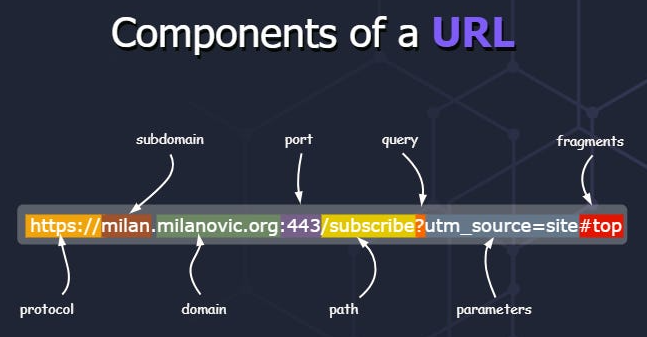
            Components of a long URL

            Major components of a long URL:

            1. Protocol: This is the beginning part, like http:// or https://, which tells the browser how to communicate with the server.
            2. Host: This indicates where the resource lives. It often breaks down into three sub-parts:
              • Subdomain: A prefix before the domain (e.g., www. or blog.) that may point to a specific section of the site.
              • Domain name: The central part that identifies the website, like example in example.com.
              • Top-level domain (TLD): The suffix, like .com, .org, .edu, which gives context about the site.
            3. Port: Less common in everyday URLs, but it’s the number (like :80 or :443) specifying which service on the host to talk to.
            4. Path: This follows the host (and optional port) and shows the folder or file structure on the website. It is basically where the resource lives within the site.
            5. Query string: A question mark (?) followed by key-value pairs (like ?utm_source=newsletter&campaign=fall) that provide extra instructions or data to the page.
            6. Parameters: These are often embedded in the query string and act as modifiers, e.g., page=2, sort=price_low_to_high, telling the server how to tweak the response.
            7. Fragment: After a #, this part points to a specific section inside the page (like an anchor) rather than a separate resource.

            With all these components in mind, you’ll be better equipped to dissect a long URL link. Moreover, it will be much easier to decide which parts are necessary and which might just be adding clutter.

            Real-world examples of long URLs

            Now, let’s look at some practical long URL examples to see how they appear in action. This will surely help you spot what makes a URL overly long or messy and why you might want to clean them up at times.

            Example #1: E-commerce product link

            An e-commerce store might have a URL like:

            https://www.shopname.com/products/women/dresses/evening-gowns/silk-maxi-dress-navy?variant=789234&ref=homepage_banner

            This URL shows the full path through categories and includes a query parameter for a variant and a referral source.

            Example #2: Very long domain name

            For instance:

            https://www.thisisaverylongbrandnameofshop-online-store.com/store/winter-collection/boots/size-10/details

            Here, the domain name itself is quite long, making the URL bulky even before considering paths or parameters.

            Example #3: E-commerce filter/search URL

            Something like:

            https://www.shopname.com/shop?category=electronics&brand=sony&sort=price_high_to_low&page=4&colour=black

            This uses a path plus a lot of query string filters, creating a long URL link due to all the filtering options.

            Example #4: URL with path & query parameters

            A good example:

            https://www.example.com/blog/2025/10/understanding-long-urls?tutorial=full&level=advanced

            The URL has a full path indicating location (year, month, topic) plus query parameters for “tutorial” and “level”.

            Example #5: Link with tracking & referral codes

            For instance:

            https://www.shopname.com/product/12345?utm_source=newsletter&utm_medium=email&utm_campaign=fall_sale&ref=affiliate123

            This is a clear case where tracking parameters and referral codes are appended, making the link long and packed with extras.

            These examples give you a feel for how long URLs show up online, ranging from domain length, deep paths, heavy filters, to tracking parameters.

            Significant role of long URLs in today’s online world

            Long URLs might seem awkward at first glance, but when used intentionally, they can carry weight in how both users and search engines perceive your content.

            • Provide detailed context for both users & search engines: A clear, meaningful URL can act almost like a mini-headline. It tells a visitor what the page is about and makes the address easier to understand. A well-built URL becomes what some call a “vanity URL” or a simplified version of a link someone might remember or share.
            • Improve search engine optimization (SEO): When you design an SEO-friendly URL, you make it easier for search engines to grasp page relevance and for users to feel confident clicking. Although the overall impact of keywords in URLs is small, clarity and readability still help.
            • Reflect a website’s structure: A unique URL that follows the logical folders of your site tells both users and bots how pages relate to one another. It gives a sense of order, like a map of your site.
            • Improved security: Using proper URL practices, like avoiding complex, cryptic strings and sticking with HTTPS, helps instill trust. Clean, predictable URLs reduce the chance of confusion or manipulation (which is good for your site’s reputation).

            Keep in mind: Long URL doesn’t automatically mean “bad”. What matters is whether the URL is meaningful, readable, and logically structured. A custom URL crafted with care can serve your site well.

            Common causes of long URLs: Key factors that contribute

            When you spot a stretched-out URL, it’s usually not just random words or letters. There are specific factors behind the spaghetti-like addresses. By knowing them, you’ll see exactly what makes an overall URL balloon. Plus, how to keep your links tidy, even when you’re dealing with lots of data or advanced site features.

            • Use of tracking codes: Marketers often rely on tracking codes (e.g., ?utm_source=…) so they can follow where clicks came from. These add to the link’s length and add extra URL parameters that don’t necessarily help the user.
            • Non-Latin characters: When URLs contain characters from other scripts (like Cyrillic, Chinese, Arabic), they often get encoded into long sequences that pad out the address and make it harder to read.
            • Complex website structures with multiple sub-folders: If your site’s paths are deep, for example, /category/subcategory/subsubcategory/product/, you’ll end up with a very long link even before adding parameters.
            • Parameters for filters or search queries: E-commerce and dynamic sites typically let users filter or sort via the URL (e.g., ?brand=Sony&color=black&page=5). These parameters expand the link considerably.
            • Dynamic content: When pages are generated on-the-fly, the system may include long IDs, session tokens, or variables in the URL. This ultimately results in unique long URLs for each user or context.
            • In-page anchors: Links that point to a specific section of a page have a fragment (after #), and while this isn’t always a huge contributor, when combined with other factors, it adds to the URL bulk.
            • Website-generated IDs: Some content management systems (CMS) or platforms embed long numeric or alphanumeric IDs in the URL (e.g., /page/12345cde6789/). This expands the URL without adding immediately readable meaning.
            • CMS settings: Sometimes the default settings in a CMS build pages with full date stamps, author names, categories, and tags in the URL path. Each of these pieces makes the URL longer.

            By recognizing these causes, you’ll be in a much better position to streamline your links, thus making them more user-friendly and easier for humans and search engines to handle.

            Advantages & disadvantages of long URLs

            When you’re dealing with long URLs, there’s a balance of good and bad to keep in mind. On one hand, they can offer detail and control; on the other, they may create hurdles for sharing and perception.

            Let’s break down the pros and cons in a clear, friendly way.

            Pros of long URLs

            Informative + explanatory

            A long URL often tells you exactly where you are on a site, down through subfolders, with context about the content, which helps users feel oriented.

            Provides descriptive keywords for SEO

            The primary keyword in the URL can make it more transparent for both humans and machines. Quite a suitable practice for a naturally structured, SEO-friendly URL.

            Offers full control over the link

            You can add meaningful paths, sub-folders, versioning, categories, etc. You’re not stuck with a generic link, so you tailor the URL to your site’s logic.

            Shows a clear site’s hierarchy

            When you can see site.com/blog/2025/october/guide, you understand where you are in the site structure. Such long URLs are helpful for both users and site admins.

            Serves brilliant built-in tracking

            With longer URLs, you can embed parameters, campaign UTM codes, or referral identifiers (thinking of a sort of vanity URL for marketing), which help with analytics and tracking without needing redirects.

            Cons of long URLs

            Difficult to share & remember

            If a URL is long and complex, typing it out, recalling it, or passing it verbally becomes a pain, which lowers its shareability.

            Poor readability & space constraints

            On mobile screens, in print or social posts, long URLs may get truncated or wrap badly, making them less readable.

            Prone to mistakes & typos

            The more characters, folders, and parameters, the higher the chance someone mistypes or breaks the link accidentally.

            Looks unreliable & spammy (less aesthetically pleasing)
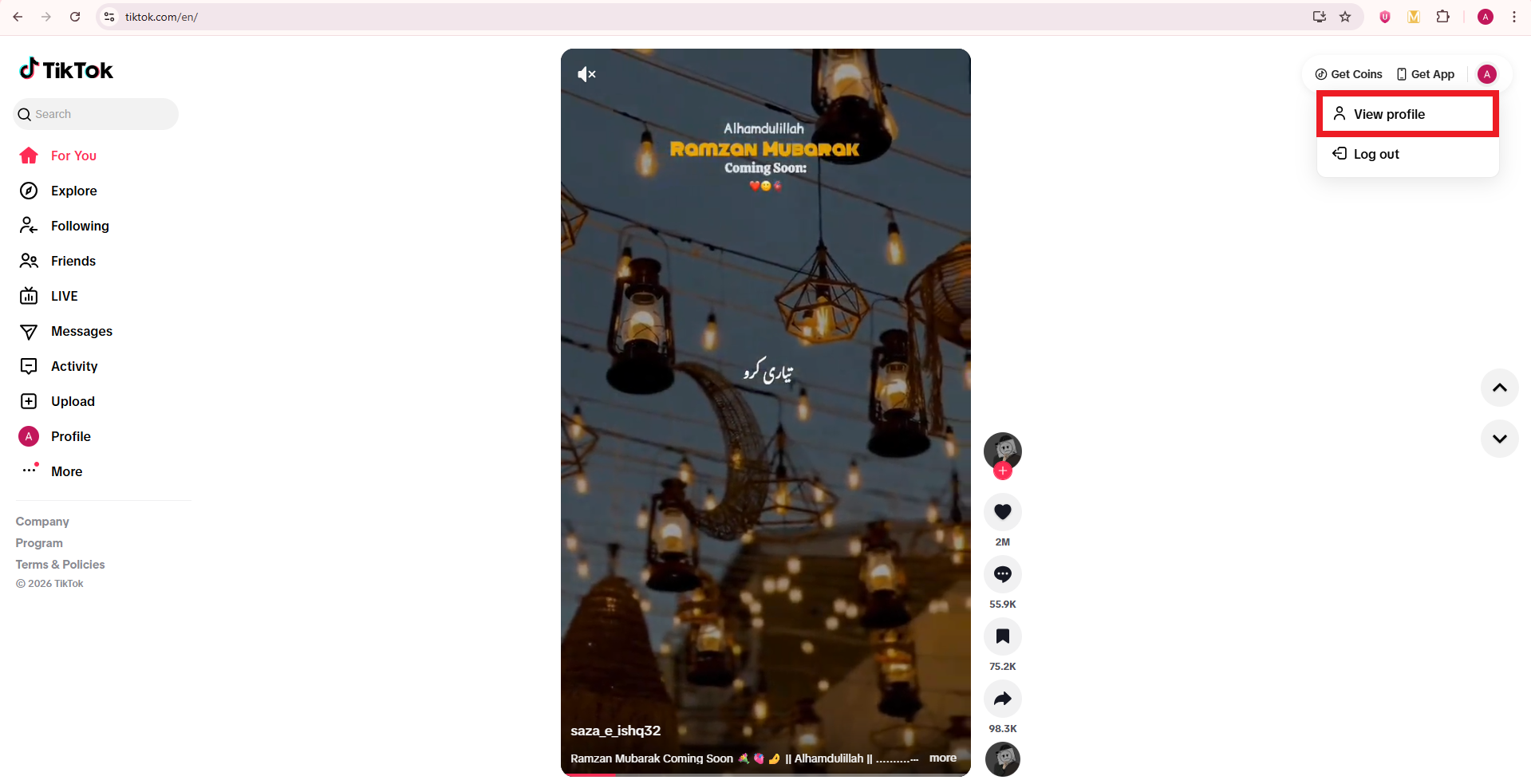
            A link with a long string of random numbers or parameters may trigger distrust. Users mostly hesitate to click on such links.

            Potentially lower click-through rates (CTR)
            Because a messy link may feel less “safe” or “clean,” people might skip it intentionally. This affects how many clicks you get.

            Security vulnerability

            Complex long URLs with many parameters or tracking codes may expose session IDs, tokens, or sensitive data, which can become a risk vector.

            Substandard for print materials

            If you’re publishing in a magazine, flyer, or business card, a very long URL is impractical for someone to type manually. This often results in broken links.

            Potential for URL fragmentation & duplication

            Long URLs with multiple query parameters or tracking codes can create many variations of essentially the same page. This can confuse indexing, canonicalization, and duplicate content issues.

            In short: Long URLs have their place, especially when you need detail, structure, and tracking. However, they’re not always the best choice for every use case. In the next section, we’ll explore how to manage those long URLs so you can get the benefits without the drawbacks.

            Effective strategies for handling long URLs

            Optimizing long URLs doesn’t mean you have to strip away meaning or structure. What matters is making them clean, readable, and valuable for your visitors and search engines alike.

            Tips for customizing long URLs: Get clean & readable links

            Here are some practical tips to help you personalize and optimize your links without losing their value.

            • Use descriptive keywords: Choose words that clearly reflect the page content (for example, “/best-bluetooth-headphones” instead of “/item/12345”). This makes your link understandable to humans and supports an SEO-friendly URL.
            • Avoid special characters & unnecessary parameters: Stick with hyphens to separate words, use lowercase letters, and remove excessive query strings or variables that don’t add meaningful context.
            • Keep it short, but concise: A shorter link is easier to share and remember. You don’t need to add in every detail, just enough to signal what the page is about.
            • Remove any stop words present: Words like “and”, “the”, “for”, “of” often clutter the URL without adding value. Trimming these can help keep your link tidy. 
            • Redirect old links appropriately: If you change a URL, ensure the old one redirects (using a 301 redirect) to the new one to avoid losing visitors or confusing search engines.
            • Implement URL rewriting techniques: Use server or CMS rewriting rules to convert long, messy links into cleaner ones (for example, transforming “/product.php?id=2345” into “/products/widget-model-2345”). Just make sure the redirects are appropriately handled.

            Using these strategies will help you treat your URLs as part of the overall user experience and SEO effort, not just as something auto-generated.

            How to shorten a long URL with Replug?

            The most innovative and smart way to shorten a long URL is by using a reliable short link generator, and Replug is one of the best tools for the job. 

            Unlike basic URL shorteners available online at present, Replug is a full-fledged link management platform designed for marketers, agencies, and businesses that need more than just shorter links.

            Here’s how to convert a long URL to a short URL with Replug in just four simple steps.

            Step #1: Log in to Replug

            Sign in to Replug, or create an account for free.

            Replug’s sign-in page

            Step #2: Paste your copied long URL

            Once logged in successfully, paste your long URL or link in the bar under “Quickly Shorten your link”. After that, click on the blue arrow.

            Replug’s “shorten your link” option

            Step #3: Create short URL

            Now, Replug will automatically generate a short link for your long URL within seconds.

            Replug’s shortened link

            Note: Here, you can also add UTM parameters to your short link to track the performance of that link.

            Step #4: Save & share

            Finally, save your shortened link. Now your link is ready to share anywhere on Instagram, Discord, or in an email campaign, etc.

            Replug’s “Save Shortened Link” Button

            Replug Branded Short Links CTA
            Maximize marketing ROI
            by transforming ordinary URLs into
            branded short links that convert.
            Try Replug for free

            Summing up!

            To wrap things up, long URLs aren’t always a bad idea. They can be informative, detailed, and great for structure and SEO when handled right. But if they get too messy, they can quickly become a headache for users and marketers alike. 

            The key is finding the right balance between clarity and simplicity. And if you’re looking for an easy way to turn those long, cluttered links into clean, shareable ones, give Replug a must-try.

            It’s one of the best tools out there for converting long URLs into short, branded, and trackable links in seconds!

            Frequently asked questions

            What’s the longest URL?

            The longest recorded URL was reportedly over 2,000 characters, used as a marketing stunt by Hotels.com in 2018.

            How long URLs can be?

            Technically, there’s no strict global cap on how long a URL can be, but practical limits exist. For instance, old versions of Internet Explorer capped at around 2,083 characters. Some modern browsers can handle tens of thousands of characters, but very long URLs may still cause issues.

            How to fix long links?

            Use a free long URL shortener like Replug. Just paste the long link and get a short one back. If it’s your site, clean up the structure by:

            – cutting extra parameters,
            – using simpler paths,
            – using meaningful slugs, 
            – implementing 301 redirects from old links,
            – and employing URL rewriting rules in your CMS.

            Why is there a need to compress a long URL?

            Long URLs can break in emails or texts, look messy, and be hard to share or remember. Compressing them makes these links cleaner, easier to share, and often adds tracking to see how many clicks they get. A shorter, tidy link improves readability, helps avoid errors when copying or typing, and enhances user trust, especially in print or social contexts.

            Is a long or short URL better?

            Short URLs win for ease of use. They’re simpler to share, read, and type, encouraging the overall experience. For SEO, length doesn’t matter much, but including keywords helps either way. Just aim for clear and relevant over super long.

            How should I handle a very long URL?

            Shorten it with tools like Replug for sharing, or display a truncated version with “…” on your site while keeping the full link active. If you control the site, redirect old long ones to shorter versions with 301 redirects to keep things smooth. Also, ensure canonicalization to avoid duplication and confusion.

            How long URLs impact SEO and user experience?

            Long URLs can frustrate users by being tough to read, share, or type, hurting engagement and trust. On SEO, they don’t directly lower rankings, but shorter ones with keywords make it easier for search engines to grasp content and improve clicks.

            How to make a long URL shorter?

            You can easily change a long URL to a short one using a URL-shortening service like Replug or similar. These services map your long URL to a compact redirect link, hassle-free. You can also manually simplify your link by removing unnecessary parameters and using URL rewriting so that the link is more readable.

            What are the future trends and developments in long URLs?

            Trends lean toward simpler, secure URLs with HTTPS and fewer parameters for better mobile use and speed. We might see more AI-driven shortening and dynamic links, focusing on clean structures that enhance accessibility without losing info.

            What are the best use cases of long URLs?

            Here are some top long URL use cases:

            – They’re great for detailed pages like blog posts, where including full titles or keywords boosts SEO by describing content clearly. 
            – Such links are valuable for e-commerce or apps for passing specific data via parameters, like search filters or tracking codes.
            – They’re helpful when you need to reflect deep site structure, include filtering parameters for dynamic pages, or embed tracking codes for detailed analytics.

          3. How to add links to TikTok bio in 2026: TikTok link in bio requirements explained!

            How to add links to TikTok bio in 2026: TikTok link in bio requirements explained!

            Scrolling through TikTok, it takes one good post to send thousands of people to a profile in a single day.

            TikTok now has well over a billion monthly users, and studies show that a large share of them search for brands, products, and creators before making a decision. Without a clear link in your profile, all that attention fades as fast as it came.

            That is why knowing how to add links to a TikTok bio is a real power move for social media managers, creators, and marketers. A single tap can send people to a store, a newsletter, an affiliate page, or a long‑form video that closes the sale.

            In this guide, you will see what a TikTok bio link is, who gets it, how to work around follower limits, and how tools like Replug help you turn one link into many, hassle-free!

            Let’s start with the basics and answer what a TikTok link in bio actually is!

            What is a TikTok link in bio?

            A “TikTok link in bio,” or simply a “TikTok bio link,” is a clickable URL that appears right under your profile photo, name, and short bio on your TikTok profile. It sends people straight from your profile to a website, online store, funnel page, portfolio, or any other destination you choose.

            What is a TikTok link in bio

            TikTok only gives you one clickable website field, so it is prime space for anyone who cares about traffic and sales.

            For content creators, marketers, and brands, that website field works as a bio link page. Videos bring the views, but the link in bio turns that attention into page views, sign‑ups, and purchases.

            When someone taps your profile after seeing a post, that bio link is the bridge from casual interest to real action.

            Importance of a custom link in your TikTok bio

            A custom link makes your profile look serious and safe to tap, because the URL matches your brand name instead of a long random string. That clear branding builds trust, which matters a lot when people decide whether to click from a short video to an outside site.

            When people see the same domain on your TikTok bio link, website, and other social apps, they feel more confident that they are in the right place.

            Besides, a custom link also:

            • Gives you control over where traffic goes, even when your content focus changes over time. You can send everyone to a special landing page for a product launch, then later switch that same link to a newsletter or affiliate hub without touching the profile field again. That kind of control helps you test offers, track performance, and keep your promotion in sync across campaigns.
            • Helps you improve your TikTok work, instead of guessing. When you use a managed link that connects to analytics, you can see how many clicks come from TikTok, which videos move people to your profile, and which pages convert best. Those numbers guide smart content choices, better calls to action, and a more focused professional bio that fits the audience you want.
            • Offers you more room to grow across platforms. Many creators use a branded bio link that lists their store, podcast, YouTube, email list, and partnerships in one place. That means a single tap on TikTok can spread your audience across every channel that matters to your brand.

            Can’t add link to TikTok bio: Eligibility criteria defined!

            Many people open their TikTok profile, tap Edit, and notice there is no “website” field. This can feel confusing, but it usually comes down to TikTok rules about who can add a clickable link.

            TikTok link in bio eligibility depends on your account type and follower count!

            Here is a quick view of how it works by account type.

            Account typeBio website field accessFollower requirementExtra notes
            Personal accountThe website field appears after TikTok grants access in your regionOften 1,000 followers or moreSome regions still limit the website field for personal profiles
            Business accountThe website field appears once you switch to businessNo follower minimumBest option when you need a link but do not have 1,000 followers yet
            Underage accountOften no website field, even with followersNot available in many casesTikTok protects younger users with tighter link rules
            New accountThe website field may be missing while the account is still freshNot clearly statedYou may need some activity and time before all profile features show up

            TikTok updates its rules from time to time, and rollouts can be different by region. The safest plan is to use a “Business account” if you need a clickable link as soon as possible.

            How to open a business account on TikTok

            A TikTok Business account gives you faster access to the website field, plus better analytics and other tools. The good news is that it is free and takes only a minute to set up.

            Here’s how to set up a TikTok business account via the TikTok app:

            1. Open the TikTok app and go to your Profile tab at the bottom right. Make sure you are logged into the account you want to switch.

            TikTok app on phone
            Profile icon on TikTok app

            2. Tap the three‑line menu in the top right, then tap Settings and privacy. This opens the main control area for your account.

            Three lines menu icon on TikTok app
            Settings and privacy option on TikTok app

            3. Tap Account. On most profiles, this sits near the top of the settings list and controls account type and region.

            Account option on TikTok app

            4. Tap Switch to Business Account. TikTok may show a short explanation of what a business profile can do before you confirm your choice.

            Switch to Business Account option on TikTok app

            5. Choose a category that best fits you, such as Education & Training, Software & Apps, or Others. This helps TikTok understand your content and may influence which features you see.

            Choose a category option on TikTok app

            6. Add an email address and your bio (you can skip these if you want), and that’s all! You can always review those settings later if something looks off.

            Successful creation of Business account on TikTok app

            Here’s how to set up a TikTok business account from a desktop browser:

            1. Open a browser on your computer, go to the TikTok website, and sign in.

            Sign in on TikTok website on desktop

            2. Move your mouse over your profile photo in the top-right corner and click View profile → Settings.

            View profile option on TikTok web app
            Settings icon on TikTok web app

            3. Look for the Business account section and turn on the toggle button.

            Business account option on TikTok web app

            4. Pick your business category and click the button labeled Become a Business. TikTok may ask for more details, such as country or business name, especially if you plan to run ads later.

            Become a Business button on TikTok web app

            After this, go back to your profile and check the Edit profile screen. You should now have access to the website field that allows a clickable bio link.

            Note: Alternatively, register directly at business.tiktok.com using a business email to create a new, separate business-specific account.

            How to add links to TikTok bio on PC

            Many managers like to work from a computer, so it is natural to ask how to add links to a TikTok bio on a PC.

            TikTok still keeps most profile edits on mobile, but in some regions, you can add or edit the website field in a desktop browser. Even when that field is missing, you can still change your business status and social links from a computer.

            How to add links to TikTok bio on PC

            Here’s how to add links to TikTok bio on laptop/PC:

            1. Open the TikTok website in a browser and log in to the right account.

            2. Click your profile photo in the top right, then click View profile.

            3. Click Edit profile. On a desktop, this button usually appears near your avatar and username.

            4. Look for a field named Website. If it appears, click it and paste your full URL, starting with https. If it does not appear, your account or region is limited on desktop, so you will need to use the mobile app instead.

            5. Scroll through any other fields you want to adjust, such as your bio text or social media icons, then click Save.

            6. Refresh your profile page and click the link to test it.

            How to add links to your TikTok bio on phone

            Most people will add a bio link from the TikTok app, because this is where TikTok gives full control over profile fields. Once your account meets the rules for a clickable link, the process is quick.

            How to add links to your TikTok bio on phone

            Here’s how to add links to TikTok bio on mobile in a clear, step‑by‑step way:

            1. Open the TikTok app and go straight to your Profile tab. Make sure you are on the account where you want the link to appear, especially if you manage more than one.

            2. Tap Edit button. You will see fields for your name, username, bio, and other info. For Business accounts, you should also see fields for Website and email.

            3. Find the Website field. If you see only options for Instagram, YouTube, or other socials, your profile may not yet meet the website rules, or you may need to switch to a Business account, as shown earlier.

            4. Tap the Website field and paste or type your URL. This can be your store home page, a newsletter sign‑up, a podcast, or any other main call to action. It is often smarter to send people to a single bio site rather than a random page.

            5. Double‑check the URL. Confirm that there are no spaces, missing dots, or spelling errors, because even a small mistake will break the link. You can copy the link from your browser beforehand to avoid typos.

            6. Tap Save in the top right. Then go back to your public profile and tap the link to test it. If it opens the right page, you are good to go. If not, repeat the steps and correct the URL.

            A clean link in the right field makes it effortless for people to move from your videos to your site.

            How to add link to TikTok bio without business account

            Some creators prefer to stay on a personal account due to various reasons. In many regions, you can still add a website field on a personal profile once TikTok opens access for that account. The exact rules can depend on your country and TikTok’s current tests, but there are clear steps to follow.

            Here’s how to put link in TikTok bio without business account:

            1. Grow your follower base and keep your account active with steady posts, replies, and profile visits. TikTok often gives the website option to personal accounts that reach a follower milestone (1,000+ followers) and show healthy activity.

            2. Keep your app updated. New versions of TikTok may change profile options, so check your app store for updates if you do not yet see the website field.

            3. Open TikTok, go to your Profile tab, and tap Edit profile. On some personal profiles, a Website field appears once you reach a certain follower count (e.g., 1,000+ followers).

            4. If you see the Website field, tap it and add your URL just like you would on a Business account, then tap Save. Test the link from your public profile to confirm that it works.

            5. If you do not see the Website field, use a short, clear URL in your bio as a backup. People cannot tap it, but they can copy or type it. You can also push traffic to another platform, such as Instagram, where you keep a full link in your bio.

            Staying on a personal profile gives you more freedom with sounds, but it may slow down access to clickable links depending on TikTok’s rules in your region.

            How to add multiple links to TikTok bio

            TikTok only gives you one clickable website field, which feels tight when you have offers, socials, and partner links to share. The smart way to handle this is to send that single link to a simple landing page that lists everything (all significant links) in a single, clean view. Tools such as Replug.io make this pretty easy and trackable.

            Here is a simple process to turn one TikTok link into a full link hub:

            1. Create a bio links page with Replug. This page serves as your mini-site and can display buttons for your store, newsletter, latest video, lead magnets, and affiliate links. You control the colors, layout, and branding so they match your profile and look like a professional bio extension.

            2. Add key buttons to that page instead of clutter. Include links for:

            • Your main revenue source (services or flagship product)
            • One or two free resources
            • Your top social channels

            Try not to overload visitors with too many options, because clear choices tend to get more clicks.

            3. Copy the bio page URL from your Replug dashboard. If you use a branded short domain with a short path, the link will look clean on TikTok and other apps. This also helps people remember it if they see it in a video overlay.

            4. Open TikTok, go to Edit profile, and paste that bio page URL into the Website field. Tap Save, then test it from your public profile. Every visitor now lands on your link hub instead of a single destination.

            5. Update the contents of your bio link page over time without changing the URL in TikTok. When you launch new campaigns or features, just swap buttons or move them higher on the page. The TikTok link stays the same, but the experience stays fresh.

            This approach gives you “multiple links in one link” and makes your TikTok bio much more flexible as your content plan grows.

            How to add link to TikTok bio without 1000 followers

            That “1,000 followers” number scares many new creators, but there are ways to have a functional link strategy before you hit that mark. The key idea is to use the tools TikTok does offer and make good use of your other profiles.

            Follow these steps if you have not reached 1,000 followers yet:

            1. Switch to a Business account if your region allows it. As covered earlier, many Business profiles can add a website link without any follower minimum. This is the fastest and most direct path when you care about traffic and sales.

            2. If a Business account still does not show a Website field, use the Instagram and YouTube social buttons in your TikTok profile. Add your full link hub or store link in the bio of those platforms, then point TikTok viewers there through your videos and captions.

            3. Place a short, easy domain in your TikTok bio text as plain text. Viewers cannot tap it, but if the domain is simple, they can type it into a browser seamlessly. A branded domain with a short path, made with a reliable free link shortener, helps a lot here.

            4. Keep working toward 1,000 followers with focused content, smart hooks, and strong storytelling. Once TikTok gives your profile full website access, you can move your main link from those workarounds into the Website field and reuse the same URL.

            How to add link to TikTok bio with 1000 followers

            If your personal account has at least 1,000 followers and TikTok supports website links in your region, the setup is simple. The hard work was growing the audience; now you just need to plug in the link and keep it sharp.

            Use this quick guide once you reach that milestone:

            1. Open the TikTok app and go to your Profile. Check the top of the screen to confirm your follower count is at or above 1,000. If it is close but not quite there, give the system a little time to update.

            2. Tap Edit profile. TikTok often adds the Website field to personal accounts once they qualify under the TikTok link-in-bio eligibility rules for your region.

            3. Look for the Website field and tap it. If it still does not show, try closing and reopening the app or updating TikTok from your app store.

            4. Paste your main URL or a key landing page, then tap Save. Make sure the link starts with https, so it opens correctly.

            5. Visit your public profile and tap the new link to check that it loads quickly and takes you to the right place. If you see any issues, fix the link and test again.

            Read also: How to add your Discord link to TikTok bio (2 easy ways)

            Key benefits of adding links to your TikTok bio

            Adding a clickable link to your TikTok bio turns your profile from a simple page into a real traffic and revenue tool.

            Instead of letting viewers stop at Like and Follow, you give them a clear next step that helps your business or brand. When used well, a bio link supports everything from affiliate offers to client work.

            Key benefits of adding links to your TikTok bio

            Here are some of the most important advantages:

            • A bio link sends steady, targeted traffic to your website, shop, or email list. Each time a video hits the For You feed and pulls new views, some of those viewers click through to your profile. When your website field points to a focused page with a clear offer, a portion of that attention turns into leads or sales rather than random profile visits. Over time, this adds up to a large, reliable stream of visitors from TikTok.
            • A good bio link shortens the gap between discovery and action. People see a quick video, tap your name, and land on a page that matches the promise in the content. That direct flow matters a lot for impulse buys, time‑limited campaigns, and product drops, because it removes extra steps that often kill conversions. This is where a well‑built professional bio and a tight landing page work together.
            • A managed bio link gives you better data than TikTok alone. When you use a tool that tracks clicks, you see which topics, hooks, and posting times send the most visitors to your link. Then you can double down on what works, cut what does not, and plan content using real numbers rather than guesswork. This feedback loop is a big win for social media managers and paid media teams.
            • A smart bio link setup protects you from sudden changes inside TikTok. If one feature gets limited or a trend cools down, your followers already know that the link in bio is the main hub for everything you do. You can adjust that hub any time without editing all your older posts, which makes your whole presence more stable.

            Make the most of your TikTok bio link with Replug!

            Once you know how to add links to your TikTok bio, the next question is what link to place there. This is where Replug helps a lot.

            Replug is an all‑in‑one link management platform that gives you a branded bio link page, deep click tracking, and a custom URL shortener so your URLs stay clean and on‑brand.

            With Replug, you can build a simple bio site that acts as your TikTok control center. On that page, you can:

            • Add buttons for your store, email list, affiliate offers, and every other key asset
            • Connect up to eight social profiles
            • Embed video blocks
            • Organize the layout with text and card blocks so visitors immediately see what matters most

            This turns your one TikTok link into a smooth path through your whole online presence.

            Boost ROI with branded URLs - Replug dashboard showing performance metrics and branded URL creation

            Go beyond generic link pages!

            Create custom bio links that truly fit your brand

            With Replug, you can create bio links that are unique, engaging, and built to convert.

            Start free trial

            Replug also lets you shorten long URLs into branded links that fit TikTok’s tight character bio limit. You can add custom slugs, titles, and preview images, which make your links look sharp when people share them or see them on other platforms. Behind the scenes, Replug tracks every click, so you know exactly how much traffic your TikTok profile sends and which buttons people choose.

            For advanced teams, Replug supports retargeting pixels and QR code generation. That means anyone who taps your TikTok bio link can later see tailored ads on other channels, and you can even send offline audiences to the same bio page through scannable codes. Put simply, Replug helps you turn that tiny TikTok bio space into a full traffic engine without adding extra work for your team.

            Wrapping up

            A strong TikTok presence is much more than just random views. It is about where people go after they like a post, and that is where your link in bio does the heavy lifting.

            You have seen how to add links to TikTok bio on phone and PC, how to work around follower limits, and how to use bio link tools to share more than one destination at once.

            When you connect that link to a focused bio page and track every click, TikTok becomes a real growth channel instead of just an awareness play.

            Replug brings this all together with bio link pages, analytics, and extra helpers such as a free TikTok downloader and caption generator, so you can publish faster and measure better. Set up your link, test it, and let every new view work harder for your brand.

            Frequently asked questions

            Why can’t I put a link in my TikTok bio?

            Most of the time, you cannot add a link because your account does not yet meet the TikTok link-in-bio eligibility rules. Personal accounts in many regions need at least 1,000 followers before the Website field appears, and some underage or very new accounts do not get it at all. Switching to a Business account often makes the website field available, so try that first if you need a clickable link quickly.

            Do you need 1000 followers to add a link on TikTok?

            You may need 1,000 followers on a personal account, but that is not the only path. Many Business accounts can add a website link with zero followers, as long as the feature is live in your region. If you want to skip the wait, switch to a Business account, then check the Edit profile screen on the TikTok app to see if the Website field appears.

            How do I put a clickable link on TikTok?

            To add a clickable link, open the TikTok app → go to your Profile → and tap Edit profile. If your account is eligible, you will see a Website field. Paste your URL there → tap Save, and then test the link from your public profile. If you do not see the Website field at all, you likely need either a Business account or more followers before TikTok enables this option.

            How to link a website or social media account to your TikTok profile?

            You can link a website in the Website field and social profiles in the Social section of TikTok’s Edit profile option.

            – For Instagram or YouTube, tap Add next to the relevant option, sign into that platform, and approve the connection.
            – For a website, paste your URL into the Website field and save.

            Together, these features let your followers reach your main site plus other platforms in just a couple of taps.

            Where is the TikTok bio located?

            Your TikTok bio sits on your profile page, under your profile photo and username. You will see your short text bio first, then the clickable Website field if you have one, and then your linked social icons. When someone taps your profile name under a video, this is the section they see before scrolling down to your posted clips.

            Why is my link in TikTok bio not clickable?

            If your link appears as plain text, it is likely in the main bio text box rather than the Website field. Keep in mind, only the Website field creates a clickable link. Go to Edit profile, find the Website option, and enter your URL there. If the field is missing entirely, your account is not yet eligible for a clickable link, so you will need to meet the rules or switch to a Business account.

            Can personal TikTok accounts have a link in bio?

            Yes, many personal accounts can have a link in bio once they meet TikTok’s internal rules. In some regions, that means reaching 1,000 followers and maintaining a healthy account. Once TikTok flags your profile as eligible, a Website field appears in the Edit profile section on the app, and any link you place there becomes clickable on your public profile.

            How to add links on TikTok bio and posts?

            In your bio, add links using the Website field. Posts are different because regular video captions do not support clickable links. To send people to a link from a post, add a strong call to action like “Link in bio” in your caption and say it in the video. Some ad formats and shopping tools allow extra buttons, but for normal posts, the main link lives in your profile bio.

            How to add link to TikTok story or video?

            To add a clickable link to a TikTok story, create your story → tap the Sticker icon → select Link → and paste your URL. Standard TikTok videos do not allow most users to add clickable web links within the content itself. Instead, you mention your link verbally and in on‑screen text, then direct viewers to tap your profile and hit the link in bio. If you run paid ads or use TikTok Shop, you may see extra action buttons in the ad or product cards, but those features sit under TikTok’s ad and commerce tools, not regular posts.

            Who can add a link to their TikTok bio?

            Two main groups can add a link:

            Business accounts in regions where TikTok allows website fields for all businesses, regardless of follower count.
            – Personal accounts that reach TikTok’s follower and activity thresholds, often around 1,000 followers.

            TikTok may also limit links for younger users, so age and country can play a part, too.

            How to add links to my TikTok bio via the TikTok app?

            Open the TikTok app → go to your Profile tab → and tap Edit profile. If your account qualifies, you will see a Website field where you can paste your custom link. This can be a direct page or a Replug bio link that holds many links at once. Tap Save, then open your profile as a viewer and tap the link to confirm it loads the correct page on your phone.

            How to add Instagram link to TikTok bio?

            To link Instagram, open TikTok → go to Edit profile → and find the Social section. Tap Add Instagram, then sign into your Instagram account and approve the connection. After that, an Instagram icon shows on your TikTok profile. When people tap it, they go straight to your Instagram page, where you can place another bio link or more detailed profile information.

            How to add Linktree to TikTok bio?

            The steps are the same:

            1. First, log in to your Linktree admin and copy your link from the Share menu.
            2. Then, open TikTok, go to your Profile, and tap Edit profile.
            3. Paste the copied URL into the Website field and hit Save.

            Now, when someone taps the link on your profile, they land on your dedicated page.

            How to add other links to TikTok bio?

            No matter the site, the process is the same. Copy the full URL from your browser, open TikTok, go to Edit profile, and paste it into the Website field. As long as your account has access to that field, TikTok makes the link clickable on your profile. If you want to share multiple links, send people to a bio link page and place all other URLs there instead of swapping the TikTok link each time.

            Provide a list of creative ideas for my TikTok link in bio?

            You can send people to many kinds of pages through your TikTok link in bio. Popular ideas include:

            – a “Start here” page that explains who you are
            – a free mini course
            – a PDF resource library
            – a quiz that matches people with products
            – a behind‑the‑scenes vlog playlist

            How to write a standout TikTok bio in 2026?

            A standout TikTok bio is focused on the viewer. Here are some tips for writing a winning TikTok bio:

            – Use one line to say who you are and what you help people do, and one line to tell them what to tap next.
            – Add one or two emojis that match your style, plus a strong call to action pointing to your link in bio.

            When your wording, visuals, and link all support one main goal, your professional bio turns profile views into real results.