Category: Help guides

Read Replug’s help guides blog for expert tips, insights, and resources on link management, tracking, branded URLs, QR codes, and audience growth.

  • How to add links to Tumblr bio: Step-by-step guide

    How to add links to Tumblr bio: Step-by-step guide

    Welcome to Tumblr, the go-to spot for sharing your creativity through photos, text, videos, and more. Whether you’re an artist, writer, or love expressing yourself, Tumblr’s got you covered.

    How do you add links to your Tumblr bio? 

    It’s not as obvious as you’d think, but fear not – it’s surprisingly easy once you know the trick. Stay with us, and we’ll show you how to effortlessly upgrade your Tumblr experience. By adding links to your bio, you’ll make it easy for your online world to connect with you.

    Let’s dive in!

    Adding links to your Tumblr bio: What you need to know

    Before you start linking up your Tumblr bio, here’s the lowdown:

    • You’ll need to use some basic HTML code for this. No worries, it’s simple.
    • Tumblr doesn’t have a fancy button for adding links. You’ll have to do a bit of copy-paste action with the HTML code.
    • Adding a link in bio is a cool way to connect your visitors to your other social media or special works. It makes your Tumblr world a bit more interactive.

    Don’t worry if it sounds a bit technical, we’ll keep it super simple. All you need to do is view HTML code, copy and paste a little code. No need to stress; let’s make your Tumblr bio awesome together!

    Also read: 7 hidden best bio link practices no one talks about
    Boost ROI with branded URLs - Replug dashboard showing performance metrics and branded URL creation

    Go beyond generic link pages!

    Create custom bio links that truly fit your brand

    With Replug, you can create bio links that are unique, engaging, and built to convert.

    Start free trial

    How to add links to Tumblr bio?

    Follow these steps to add links to your Tumblr bio:

    Step 1: Go to the Tumblr website and log in to your account using your credentials.

    Step 2: Click on “Setting” in the left-side menu.
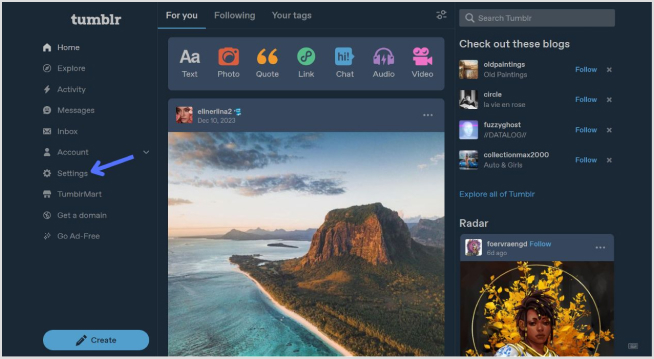
    tumblr setting

    Step 3: Look for the “Blogs” section at the bottom of the right-side menu and click it.
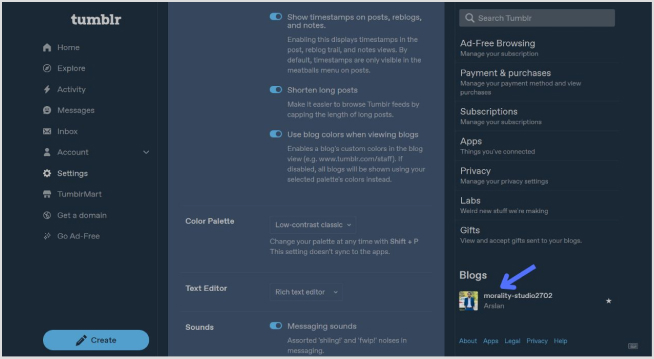
    open the blog section

    Step 4: In the blog setting, click on the “Edit Theme” button. 
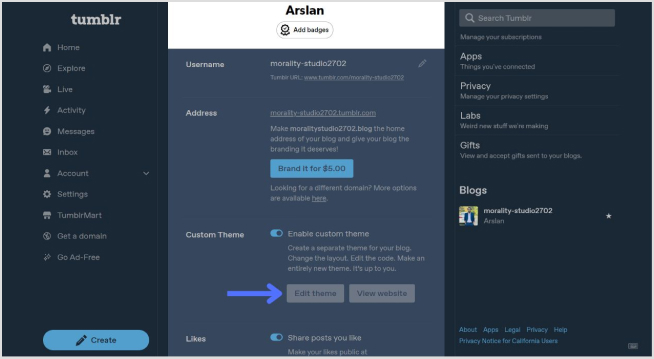
    edit theme

    Step 5: Look for a section called “Title” and “Description”. This is where you can input information about yourself.
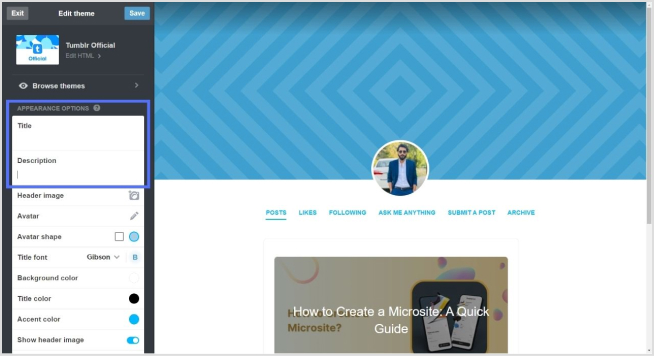
    add bio

    Step 6: To add a link, use standard HTML anchor tags. The format is as follows:

    <a href="URL">Link Text</a>

    Replace “URL” with the actual link and “Link Text” with the text you want to display for the link.

    For example:

    <a href="https://replug.io/">Visit my website</a>

    Add this in the description section.

    Step 7: After adding your link, save the changes. It should appear in your Tumblr bio.
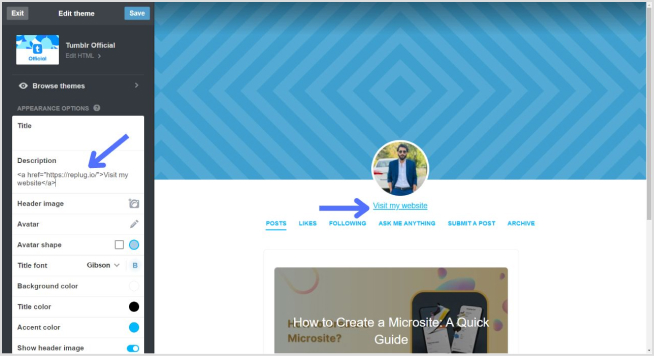
    tumblr bio

    Simply confirm that the link looks right by visiting your Tumblr blog. Check your bio, and if everything is as expected, your link is good to go! Your Tumblr bio now features the link, allowing visitors to click and explore the connected website hassle-free.

    How to add multiple links to the Tumblr bio?

    Tumblr allows only one clickable link directly in the bio. However, you can use Replug’s “bio links” feature to overcome this limitation and showcase multiple links.

    With Replug, you can easily showcase multiple links, drive traffic efficiently, and optimize your bio for enhanced engagement.

    Note: You can also leverage Replug’s advanced link tracking features to gain insights into link performance, click-through rates, and audience engagement. Enhance your bio links and track their success effortlessly with Replug.

    Boost ROI with branded URLs - Replug dashboard showing performance metrics and branded URL creation

    Go beyond generic link pages!

    Create custom bio links that truly fit your brand

    With Replug, you can create bio links that are unique, engaging, and built to convert.

    Start free trial

    Here’s how to add multiple links to your Tumblr bio using Replug:

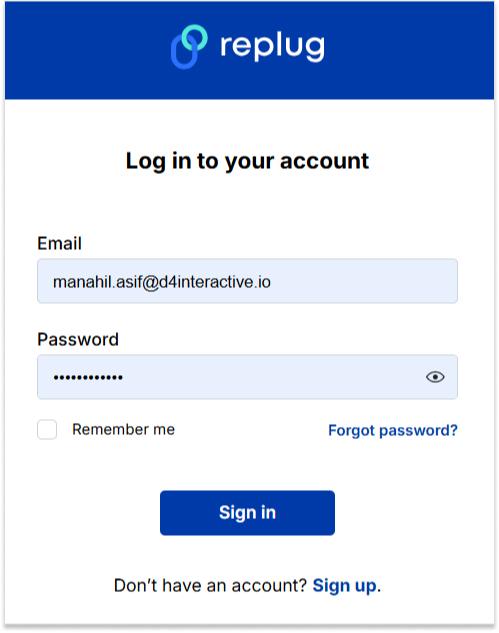
    Step 1: Sign in to Replug or create a free account.
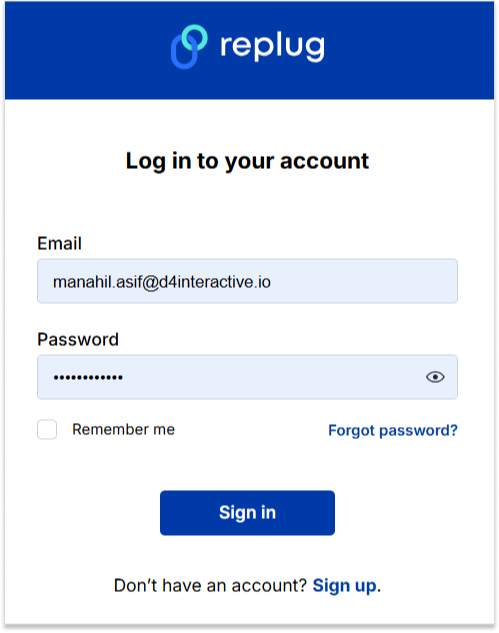
    sign in to replug

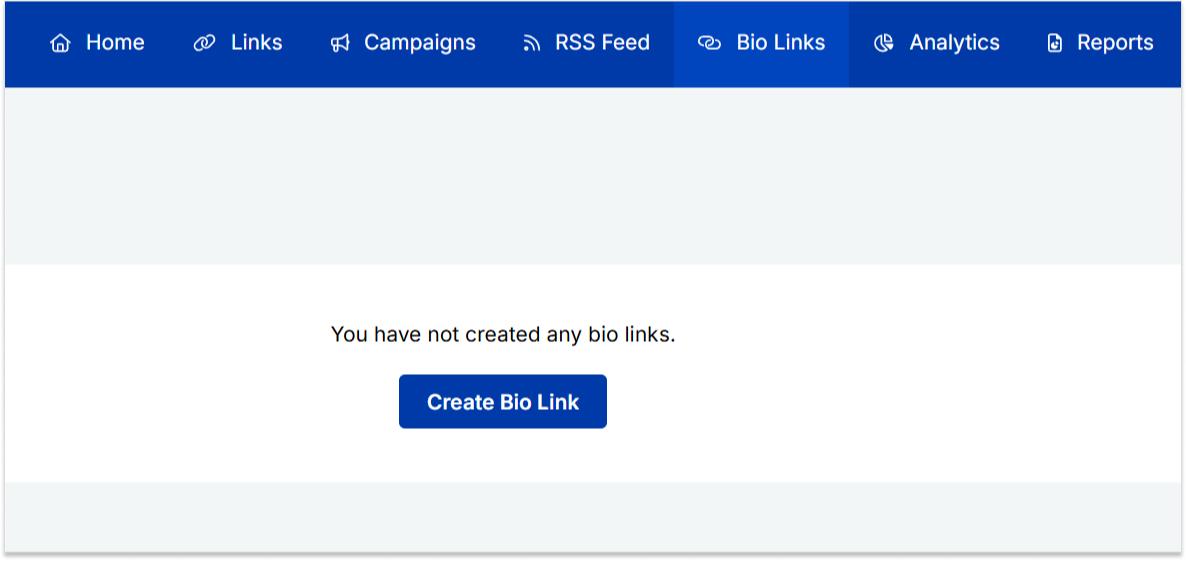
    Step 2: Locate the “Bio Links” feature in the top banner. The bio link dashboard will appear in front of you. 
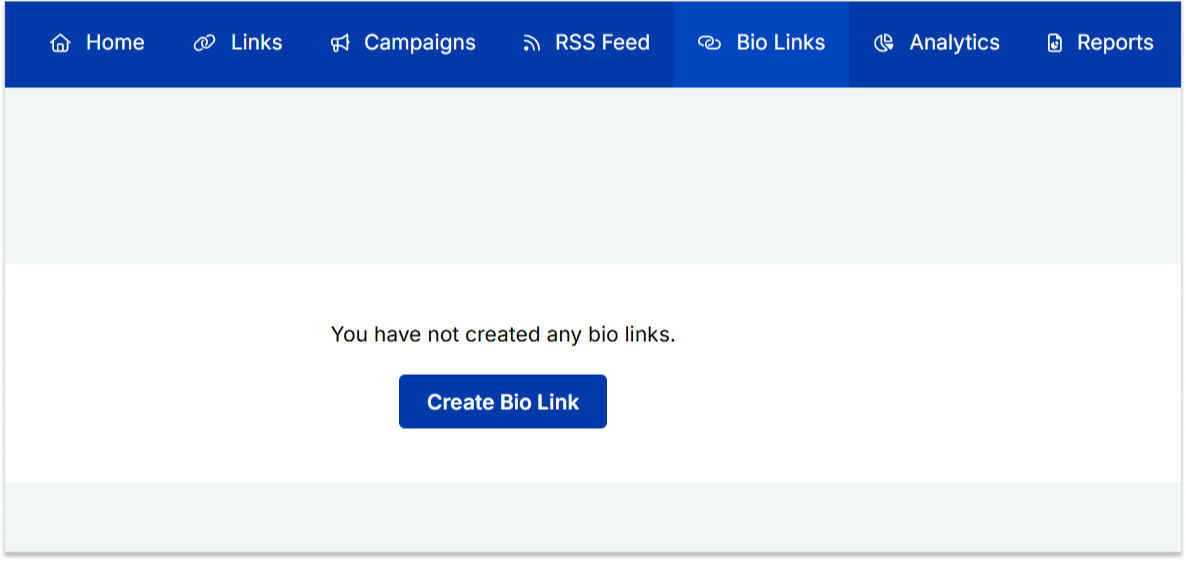
    bio link

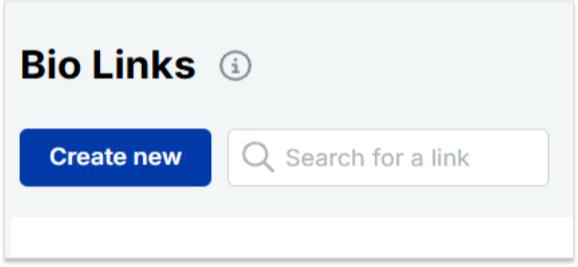
    Step 3: Click the “New Bio Link” button to start setting up your Tumblr bio. You’ll be directed to a new page where you’ll find three main categories: branding, content, and settings.
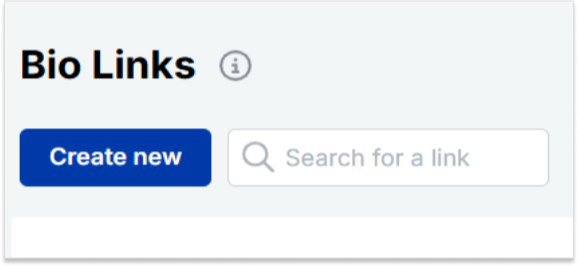
    create a new bio link

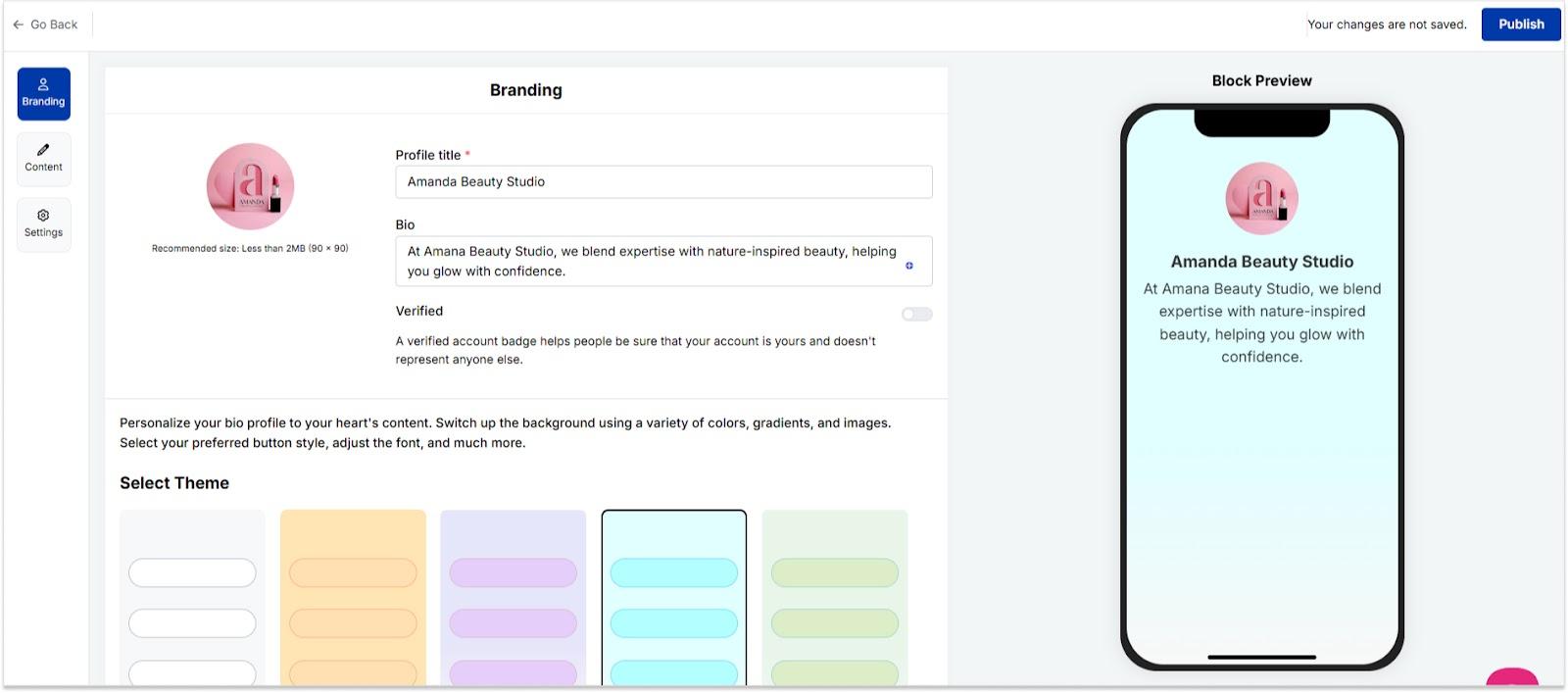
    Step 4: In the branding section, add a brand title and description, select themes, and choose button styles to match your aesthetic.
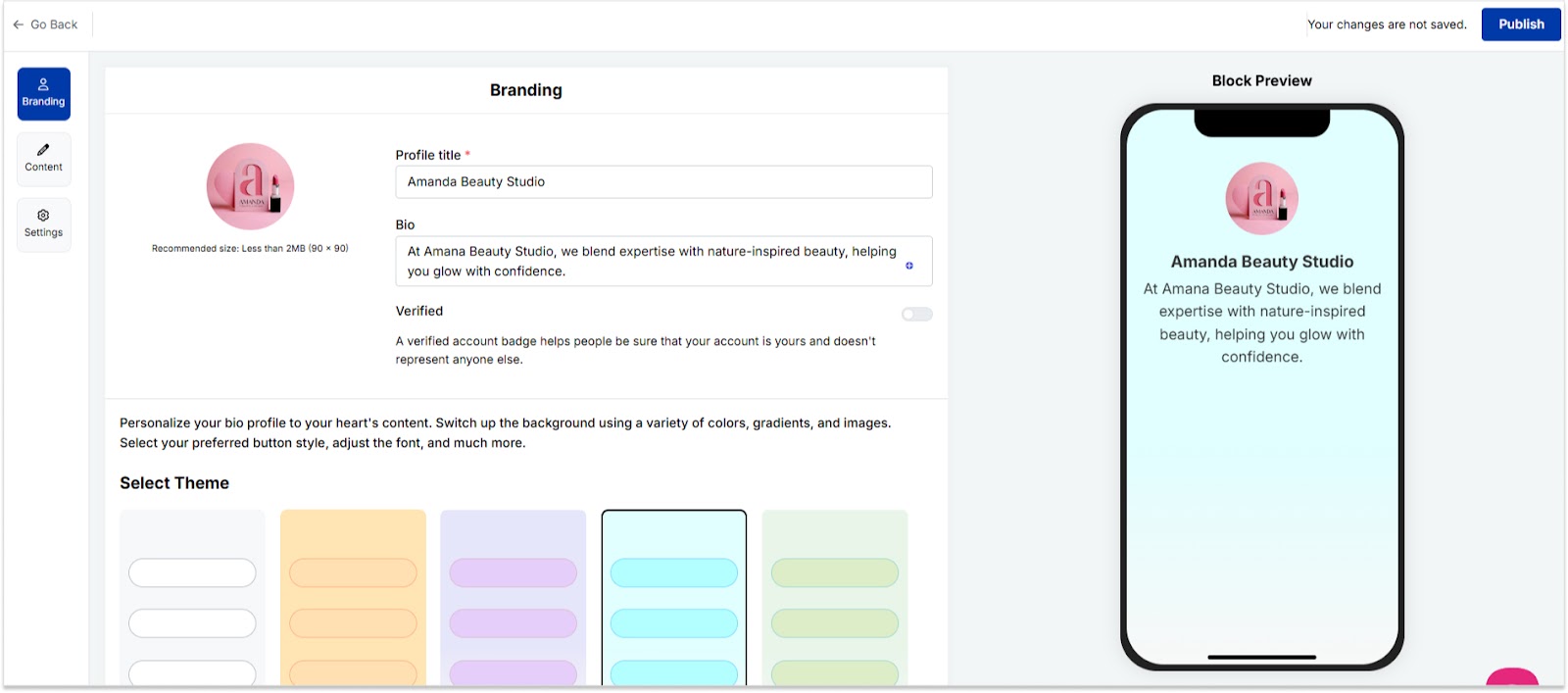
    bio link branding

    Once you’re done, click “Publish” in the upper right corner to save your changes.

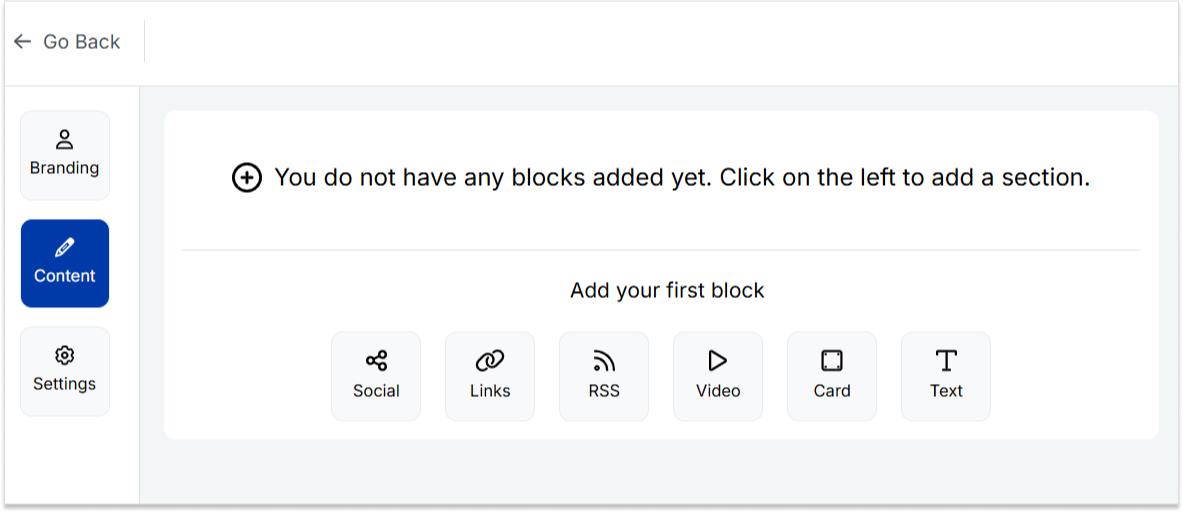
    Step 5: Head to the content category. Here, you can add social icons, links, RSS feeds, videos, cards, text, and more. 
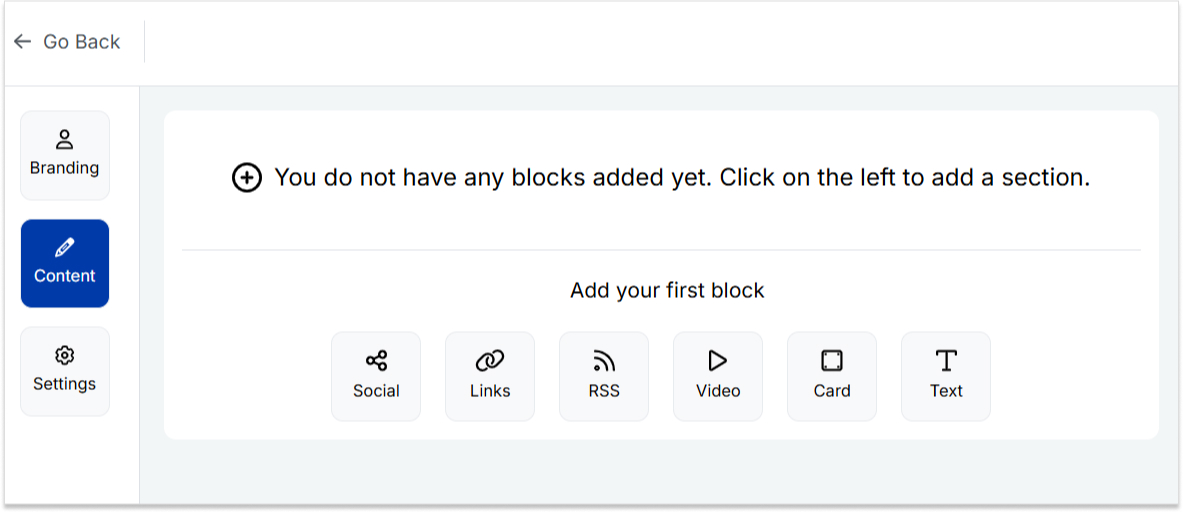
    bio link content

    For example:

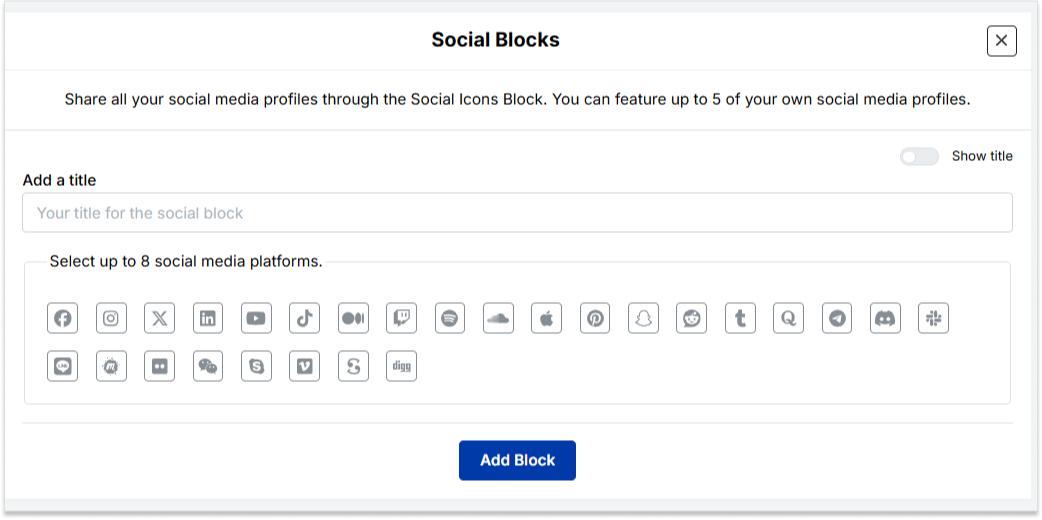
    • Social icons: Add up to 8 platforms, customize colors, and link to your profiles.
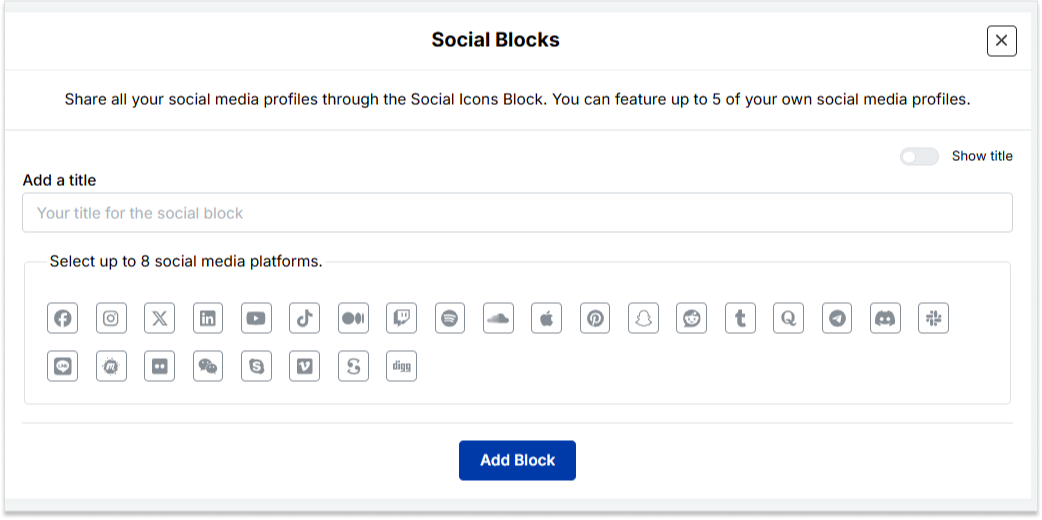
    add up to 8 social icons
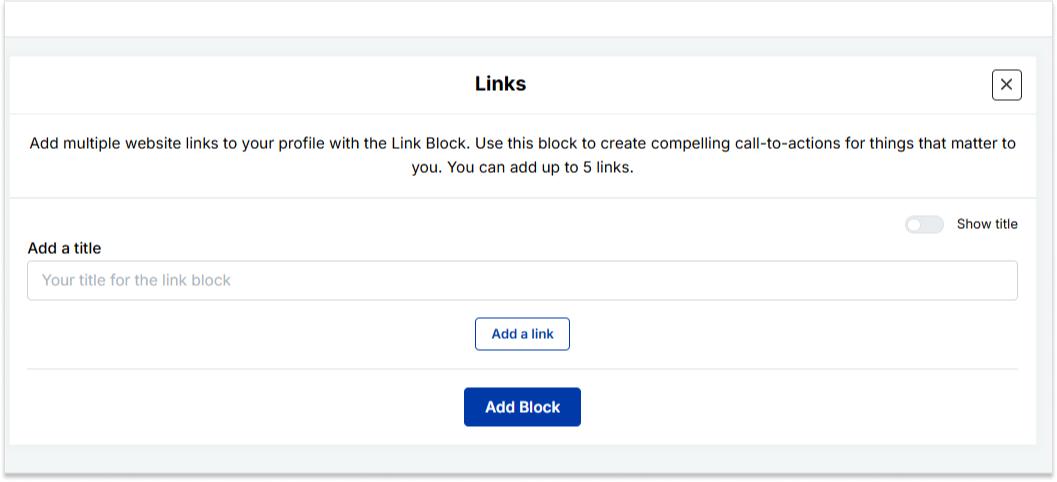
    • Links block: To include website links, use the “links” block. Add titles and URLs for each link.
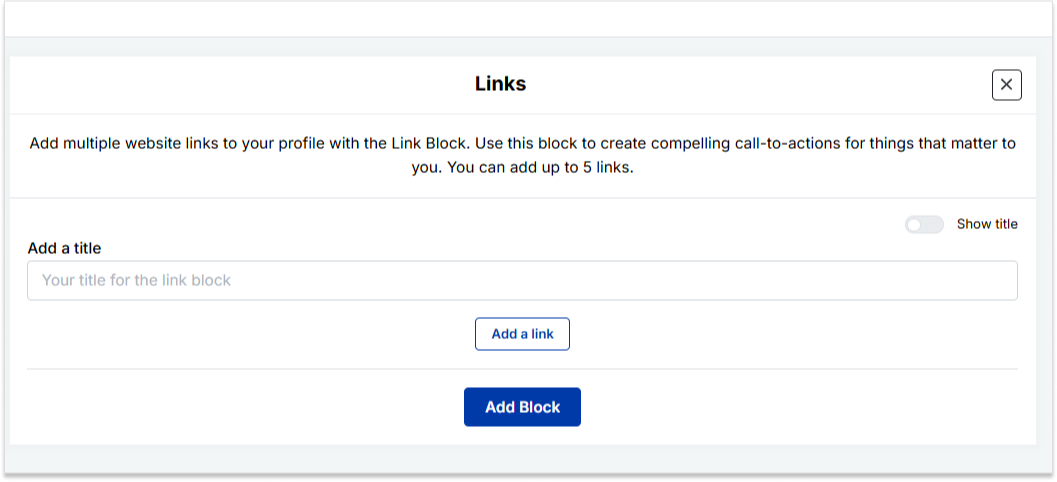
    add up to 5 links

    Step 6: Once you’ve added the necessary blocks, click “update” to save each one.

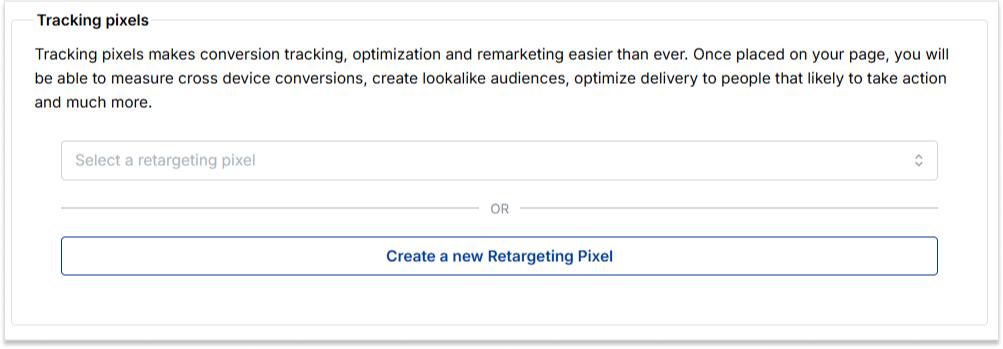
    Step 7: Go to the settings section to further customize your bio link’s SEO and social media preview. Add a title, description, favicon image, and even a retargeting pixel if desired.
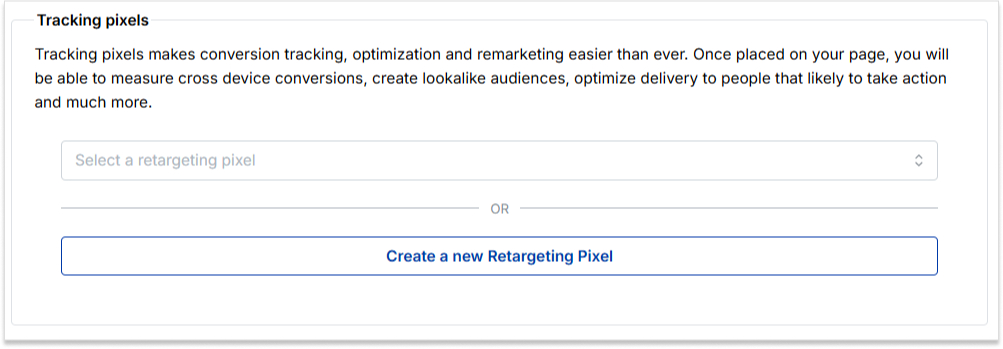
    add retargeting pixel

    Step 8: Once everything is set, save your Replug-generated bio link and use it to showcase multiple links on Tumblr.

    Note: For a more streamlined sharing experience, use Replug’s URL shortener free tool to create branded, trackable links. It not only keeps your Tumblr bio neat but also helps you measure link performance and audience engagement effectively.

    Boost ROI with branded URLs - Replug dashboard showing performance metrics and branded URL creation

    Go beyond generic link pages!

    Create custom bio links that truly fit your brand

    With Replug, you can create bio links that are unique, engaging, and built to convert.

    Start free trial

    FAQs on Tumblr bio

    What is the character limit for a Tumblr bio?

    Tumblr allows up to 512 characters for your bio.

    Can I add multiple links to my Tumblr bio?

    Typically, Tumblr allows only one clickable link directly in the bio. However, you can use Replug’s “Link in Bio” feature to mention additional links in your bio description.

    Do links in my Tumblr bio impact my blog’s visibility?

    While links in your bio won’t directly impact visibility on Tumblr, they can enhance user engagement and provide more ways for visitors to connect with your content.

    How can I make my Tumblr bio stand out?

    To make your Tumblr bio stand out, use a clear profile picture, write a concise and engaging bio, include relevant keywords, add links to other platforms, use visual elements like emojis, and regularly update to reflect current activities.

    You may also like:
    How To Add A Instagram Link In Bio?
    How to Add Multiple Links to Instagram Bio Using Replug?

    How to Craft a Killer Pinterest Bio for Maximum Reach?

  • How to add Amazon link to Instagram bio?

    How to add Amazon link to Instagram bio?

    Adding an Amazon link to your Instagram bio allows users to easily access and purchase products you promote or have an affiliate relationship with on the platform.

    By including the link, you can increase sales and earn commissions as an Amazon affiliate. This also helps increase brand visibility and exposure by allowing followers to easily access and conveniently purchase your products.

    Additionally, you can maximize your earning potential on Amazon by sharing a shop’s address, product, or affiliate link on your Instagram Bio. This informative guide will teach you the best options and tips for adding them to your Instagram bio.

    Here’s how to add an Amazon link to your Instagram bio:

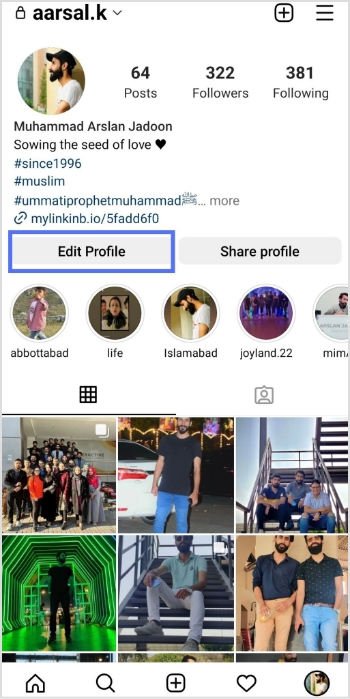
    Step 1: Open the Instagram app on your mobile phone and tap the profile icon in the bottom right corner. 

    profile icon

    Step 2: Tap the “edit profile” button on your mobile screen. 

    edit profile

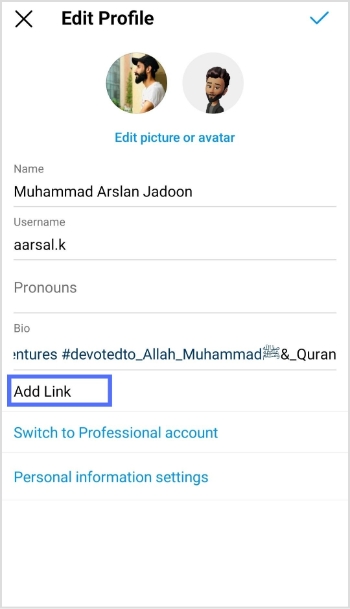
    Step 3: Tap “add link” to open the links section. 

    add link

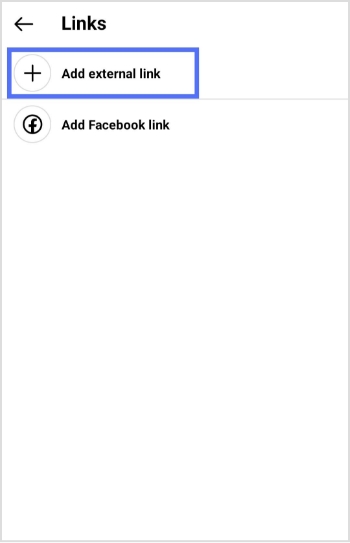
    Step 4: Tap “add external link” to add your amazon link. 

    add external link

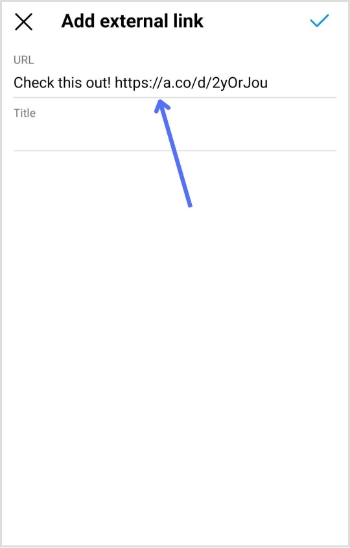
    Step 5: Paste your Amazon link in the URL section and tap the tick icon in the top right corner. Your Amazon link now appears in the Instagram bio.

    URl field
    Replug Branded Short Links CTA
    Maximize marketing ROI
    by transforming ordinary URLs into
    branded short links that convert.
    Try Replug for free

    How to add multiple Amazon links to Instagram bio?

    Adding multiple Amazon links (shop and affiliate) to your Instagram bio can increase your exposure and earning potential on the platform.

    If you have your own Amazon shop, you can add the link to your bio, allowing followers to easily access and purchase your products. By including this link, you can increase sales and revenue for your business.

    In addition to your shop, you can also sign up for the Amazon Affiliate Program, which allows you to promote Amazon products and earn a commission on each sale. As an affiliate, you can add affiliate links to your bio, providing followers with easy access to the products you are promoting.

    You can use our link management tool – Replug.io, to add multiple links to your bio. Our link generator for Instagram bio helps you create a standout bio link page in no time. You can add your Amazon shop link, affiliate links to the page, and links to other products, websites, or services.

    Also Read: How to add a link in bio to your Instagram profile?

    Here’s how to create a bio link using Replug

    Step 1: Visit the Replug website and sign up for a new account, or log in if you already have one.

    sign in to replug

    Step 2: Find the “Bio Links” feature in the top banner to access the bio link dashboard.

    bio link

    Step 3: Click on the “New Bio Link” button to create a new page. You’ll be directed to a new screen with three key sections: branding, content, and settings.

    create a new bio link

    Step 4: In the branding section, enter your brand title and description, choose a theme, and select button styles that match your brand’s look and feel. Once you’re satisfied, click “Publish” in the top right corner to save your changes.

    bio link branding

    Note: Replug also allows you to add a verification badge to your bio landing page for extra credibility.

    Step 5: Move to the content section, where you can add various elements, including social icons, links, RSS feeds, videos, cards, and text.

    bio link content

    For example:

    • Social icons: Add up to 8 platforms, customize colors, and link to your profiles.
    add up to 8 social icons
    • Links block: Use the “links” block to include website links. Add titles and URLs for each link.
    add up to 5 links

    Step 6: After adding your content blocks, click “Update” to save each one.

    Step 7: In the settings section, customize your bio link’s SEO and social media preview. You can add a title, description, and favicon image and even integrate a retargeting pixel for better tracking.

    add retargeting pixel

    Step 8: Once you’re happy with your bio link, save it, and use the Replug’s generated URL to showcase multiple links across your social profiles.

    You can also make your URLs more concise and trackable with this efficient ad free URL shortener, ensuring a cleaner and more professional appearance across all your shared links.

    The bottom line

    Adding multiple Amazon links to your Instagram bio can help you increase your earnings by promoting multiple products and earning commissions on each sale. Replug also allows you to track the performance of each link and determine which products or services are most popular with your followers. 

    In short, Replug’s free link in bio tool offers numerous benefits, including increased exposure, better engagement, increased sales, improved analytics, and enhanced brand image.

    FAQs on Amazon link to Instagram bio

    Why is the Amazon link in Instagram Bio not clickable?

    If your Amazon link on your Instagram bio is not clickable, it could be due to an incorrect link format, link blocking, a broken link, being blocked by Amazon, or an incorrect tracking ID. Check these factors and make any necessary adjustments to resolve the issue.

    Can I add multiple Amazon links to my Instagram bio?

    Yes, you can use tools like Replug to create a bio link page where you can add multiple Amazon shop and affiliate links, making it easier for followers to access and purchase products.

    Why isn’t my Amazon link clickable in my Instagram bio?

    Check if the link format is correct, if the link is broken, or if it’s being blocked by Amazon. Make sure to use a proper tracking ID and verify that the link is not being restricted.

    How can I track the performance of my Amazon links in my Instagram bio?

    Tools like Replug allow you to track clicks and engagement on your Amazon links, helping you see which products or services are popular with your followers.

    Trending Topics:

    How To Put A Link In TikTok Bio?

    How to add a Twitter (X) link to Instagram bio?

    How to create a call to action using a URL shortener?

    What is a Tracking URL and How Does it Work?

    Benefits Of A Link Rotator: Why & When To Use Rotating Links?

  • How to change a URL of any website?

    How to change a URL of any website?

    Are you looking to change the destination URL of a published page, blog post, or web link?

    We’ve all been there. You publish a page or blog post, only to realise the destination link needs a change. Maybe it’s not quite right, or the content has moved. For instance, you share an important announcement, but the link you used now points to the wrong page. Instead of retracing your steps and updating it everywhere manually, wouldn’t it be easier to update the link once and be done? 

    With a few simple steps, you can quickly create a new, short URL that redirects smoothly, saving you time and keeping everything on track. Here’s how:

    6 simple steps to change a URL

    Replug is an all-in-one link optimization platform for creating custom URLs, embedding call-to-actions, and making social media bio links. You can change the URL of a website in seconds by following these simple steps with Replug:

    Step 1: Go to the Replug app

    First things first, you need to go to the Replug app. Simply type in the URL of the app in your search bar.

    Step 2: Sign in to your account

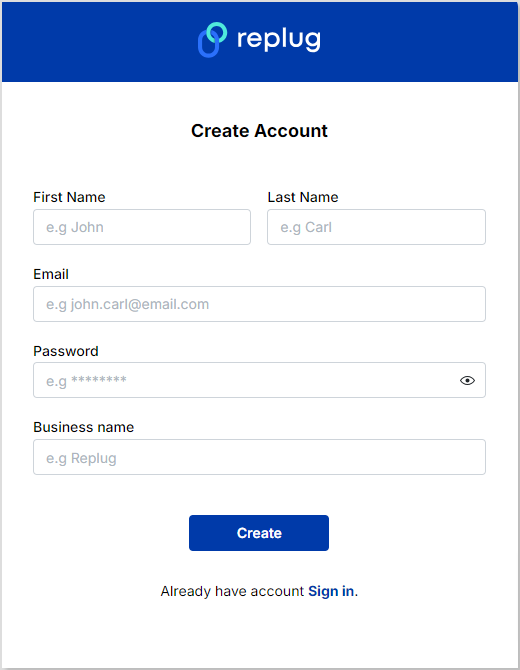
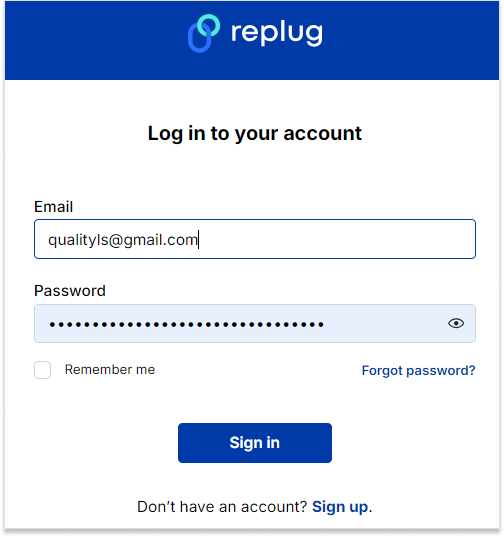
    Sign in to your Replug account or create one if you don’t already have one:

    sign in to replug account

    Step 3: Shorten your desired link

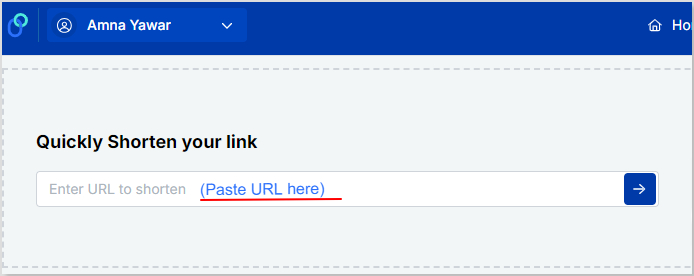
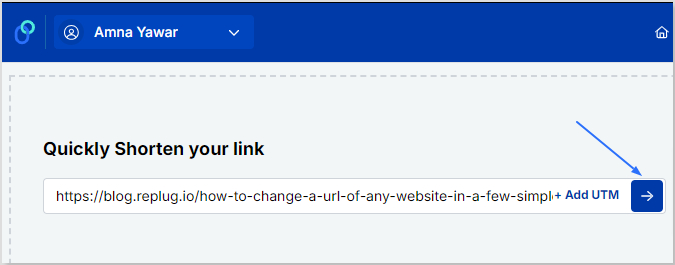
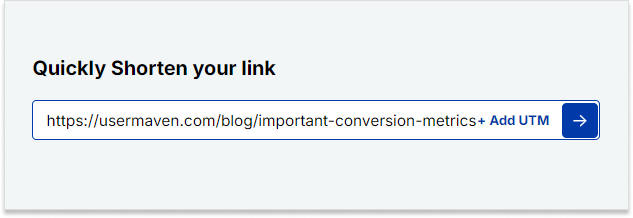
    Once you sign up or log in, you’ll be directed to the main dashboard. All you have to do now is paste the URL you want to shorten in the “Enter URL to shorten” bar:

    shorten link
    shorten URL

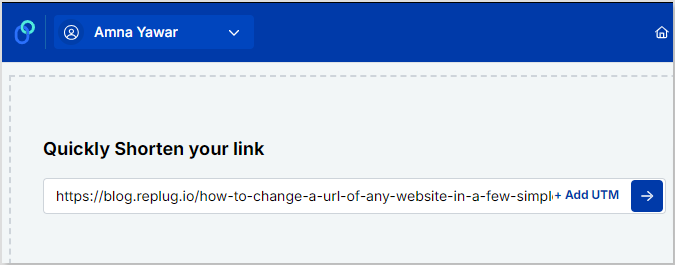
    Step 4: Click the “right arrow” button

    Once you have pasted the long URL, click the “right arrowbutton to proceed further:

    shorten URL

    Step 5: Edit your URL

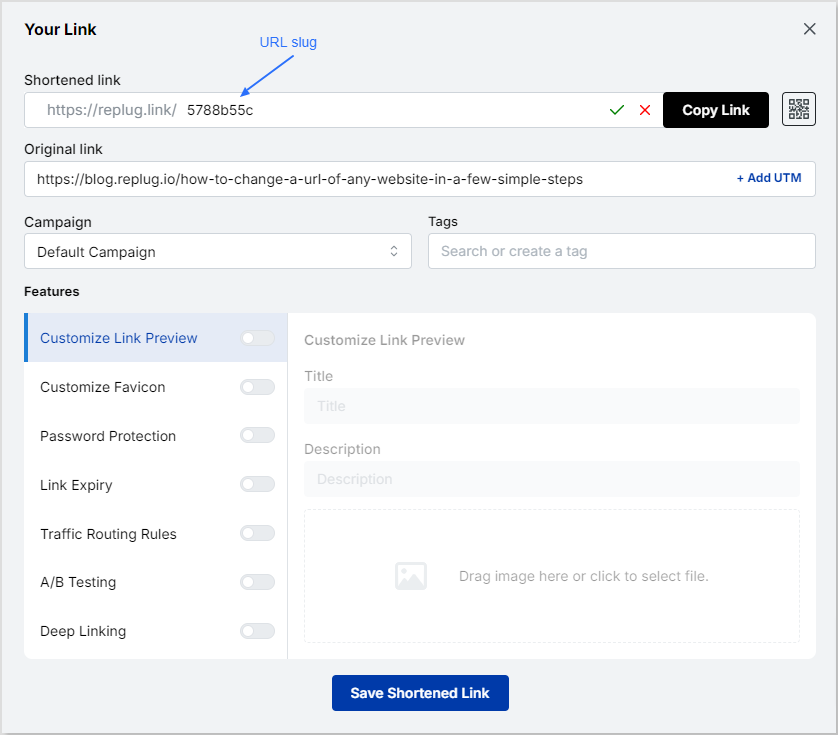
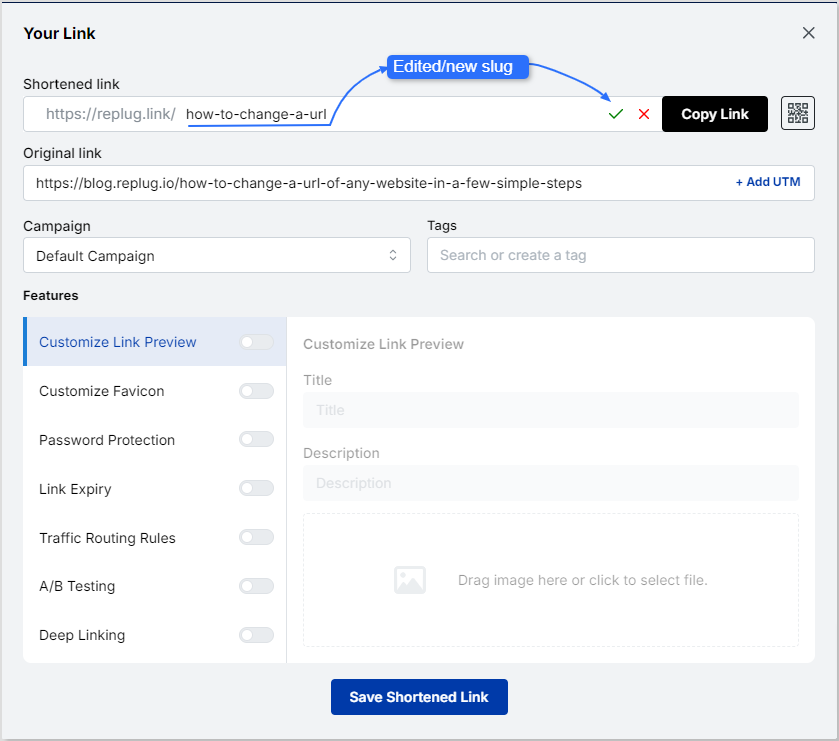
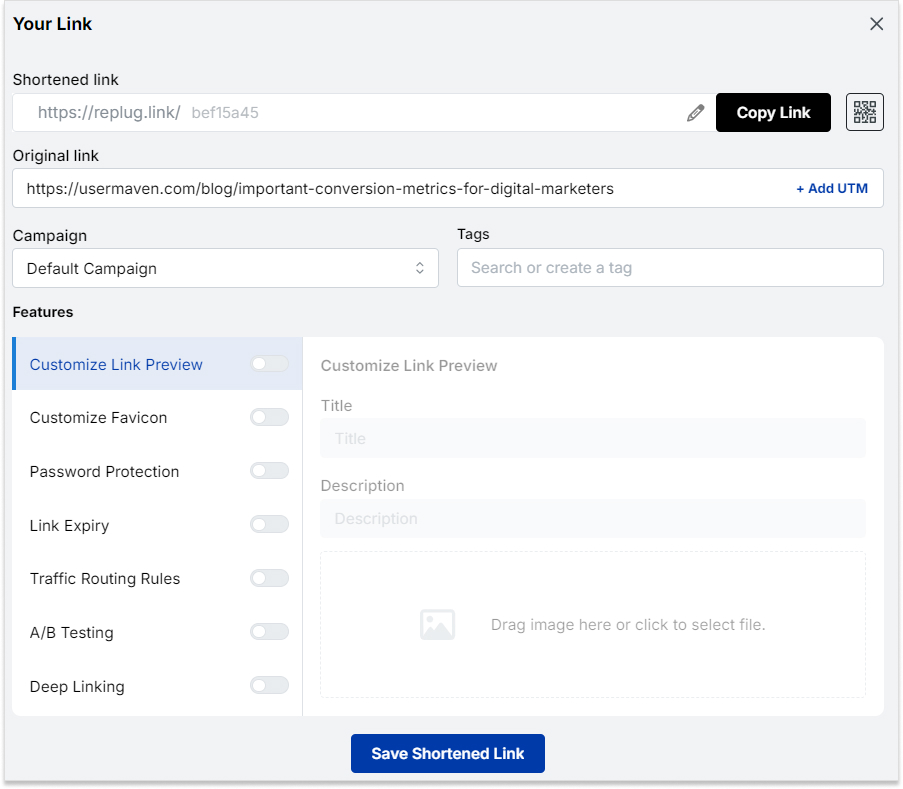
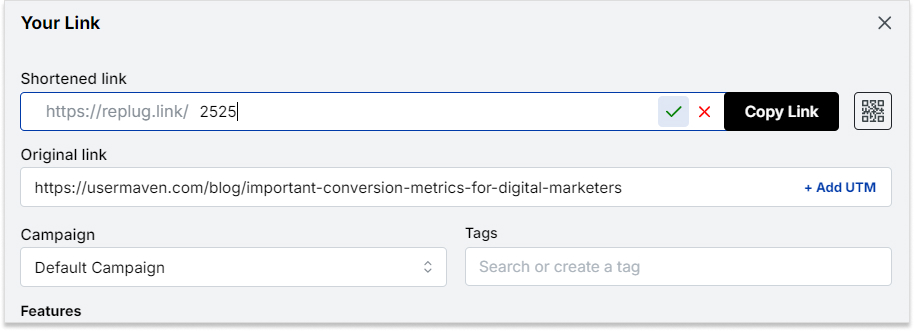
    Click on the edit icon and type the slug you want for your newly created URL. 

    edit long URL

    Once you have done that, click on the green tick to save the URL.

    branded domain name

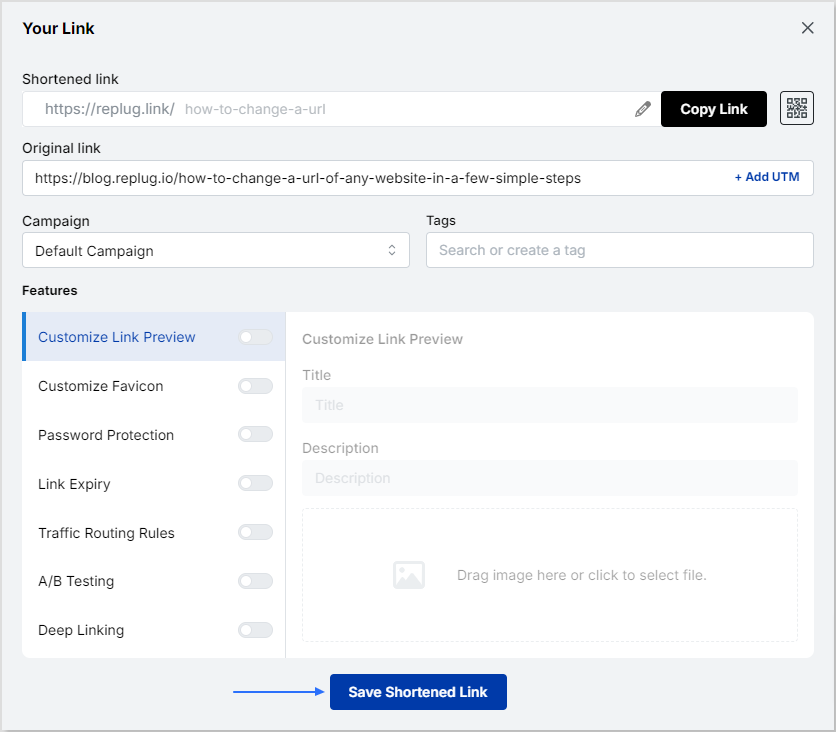
    Step 6: Save the shortened link

    The final step is to click on the “Save Shortened Link” button and you’re done!

    save shortened link

    FAQs

    Can I shorten any website links?

    You can easily shorten any website link using URL-shortening tools such as Replug’s link shortener. It not only allows you to shorten your link but also let you share it with your audience and track its performance.

    Can I edit my domain name?

    Your custom domain is a top-level domain you own and use to share your links. Tools like Replug allow you to edit your domain name easily, allowing you to maintain your brand identity and reputation.

    Trending Topics

    All-in-one link management solution
    How to shorten Amazon links?
    How To Add an Instagram Link in Bio?
  • How to put a link in your Facebook bio?

    How to put a link in your Facebook bio?

    Unlock the full potential of your Facebook profile by adding clickable links to your bio. Whether you’re a business promoting your services or an individual sharing your latest projects, strategically placed links can make a significant impact. 

    This guide will walk you through the quick and easy steps to incorporate links into your Facebook bio. Elevate your online presence and make it easy for visitors to explore what matters most to you.

    Let’s dive in and optimize your Facebook profile for maximum impact.

    Link in bio on Facebook: What does it mean?

    The term “Link-in-bio” on Facebook refers to including clickable links in your Facebook profile, particularly in the “About” section.

    This concept originated on Instagram, where users are limited to featuring only one link in their bio. To overcome this limitation, creative users developed link-in-bio landing pages that house a collection of links under a single URL.

    While Facebook doesn’t have a restriction on the number of website addresses you can include in your bio, some users still choose to adopt the link-in-bio strategy. This approach offers a cleaner and more organized way to direct visitors to various pages on their website. 

    Some key takeaways:

    The key takeaways and recommendations include:

    • Include multiple links: Businesses are encouraged to include multiple links in their Facebook bio (using a reliable Facebook bio link tool) to guide visitors to specific information and convert them into regular website visitors or customers.
    • Keep links up to date: Regularly update your links and ensure they support a clear call to action that aligns with your Facebook posts.
    • No limit on links: Unlike Instagram, Facebook doesn’t limit the number of websites you can add to your bio.
    • Short, branded, and UTM-tracking: For better analytics, optimize your links by making them short, branded, and including UTM-tracking information.
    • Reputable link management platform: Utilize a reputable link management tool to track traffic from your social media bios and campaigns effectively.
    Boost ROI with branded URLs - Replug dashboard showing performance metrics and branded URL creation

    Go beyond generic link pages!

    Create custom bio links that truly fit your brand

    With Replug, you can create bio links that are unique, engaging, and built to convert.

    Start free trial

    How to put a link in your Facebook bio?

    Adding links to your Facebook profile is a simple yet powerful way to enhance your online presence. Whether you’re using the Facebook app on your mobile device or the desktop version, here’s a step-by-step guide:

    On Mobile:

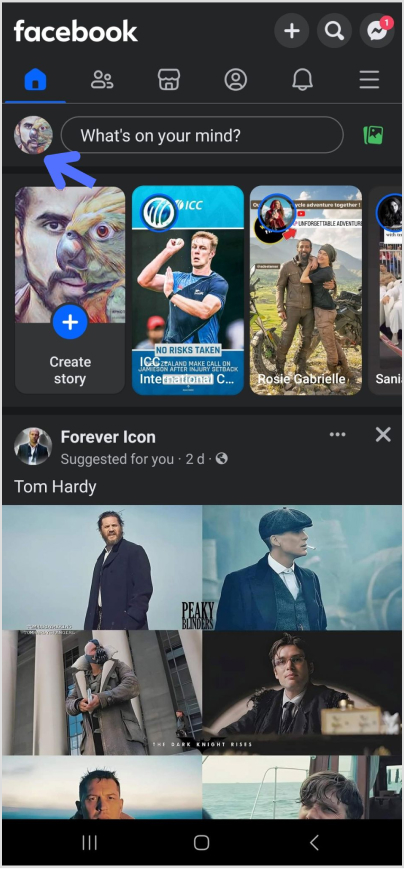
    Step 01: Open the Facebook app and tap on your profile picture in the upper left corner.

    how-to-put-a-link-in-your-facebook-bio

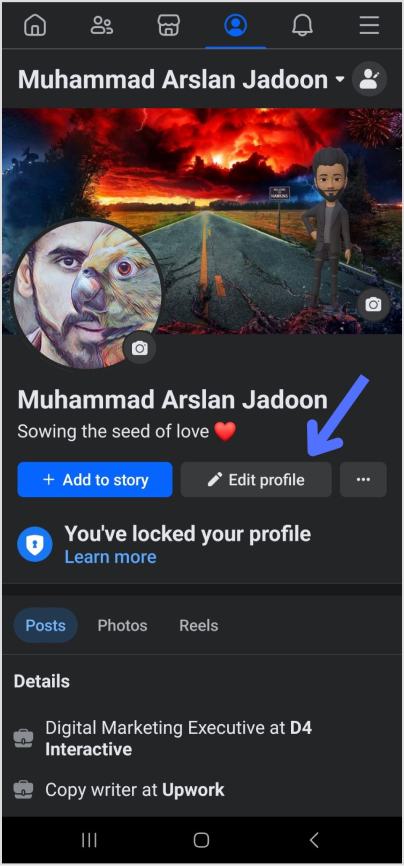
    Step 02: Navigate to your profile page and tap “Edit profile.”

    how-to-put-a-link-in-your-facebook-bio

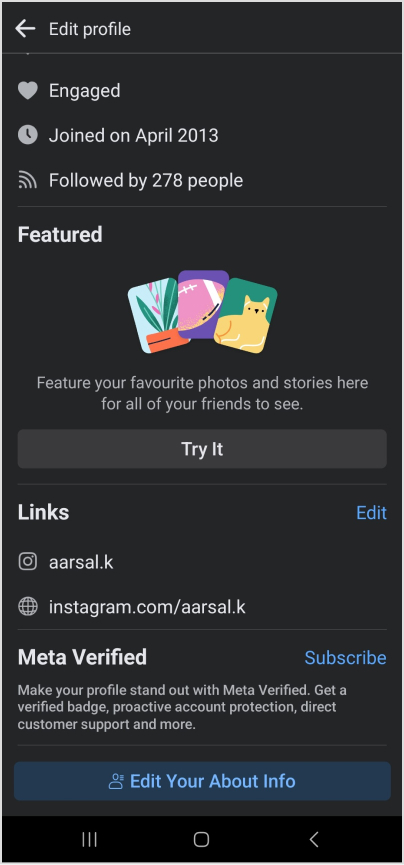
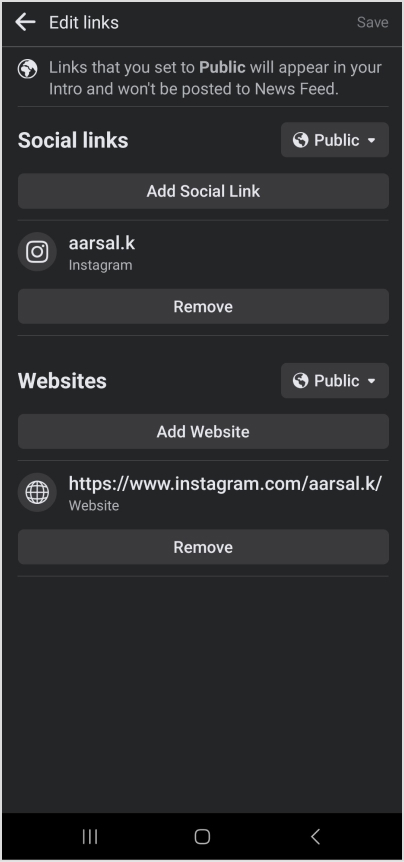
    Step 03: Scroll down to the bottom of the page and tap “Edit” next to “Links.”

    how-to-put-a-link-in-your-facebook-bio

    Step 04: To add social media handles, tap Add Social Link,” choose a platform, and enter your username.

    Step 05: For other website links, select “Websites,” enter the URLs, and tap “Save” when finished.

    facebook link in bio

    Boost ROI with branded URLs - Replug dashboard showing performance metrics and branded URL creation

    Go beyond generic link pages!

    Create custom bio links that truly fit your brand

    With Replug, you can create bio links that are unique, engaging, and built to convert.

    Start free trial

    On Desktop:

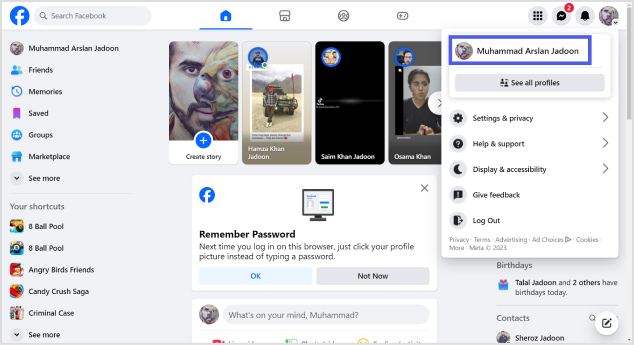
    Step 01: Log in to Facebook and click your profile image in the top left corner.

    how-to-put-a-link-in-your-facebook-bio

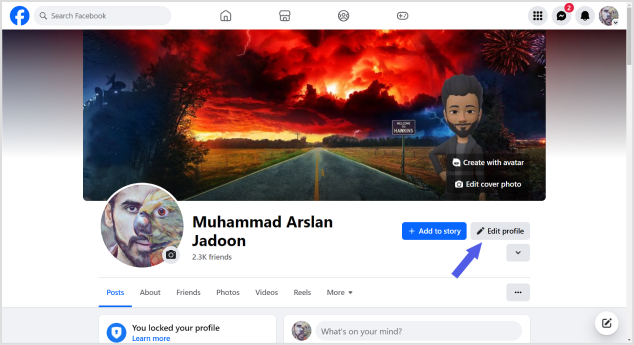
    Step 02: Select “Edit profile” below your profile image.

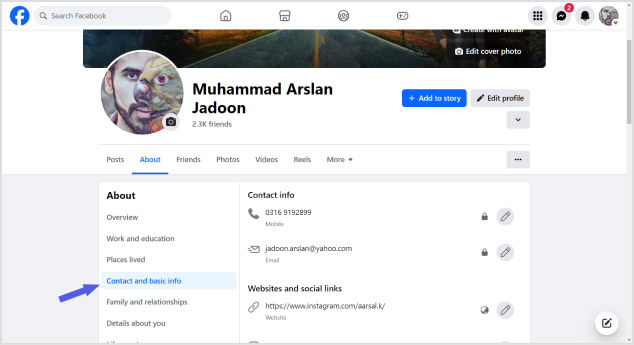
    Step 03: Scroll down to “Edit your About info” and choose “Contact and basic info.”

    link-in-your-facebook-bio

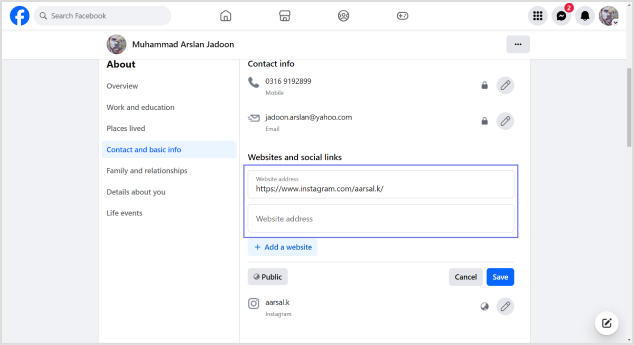
    Step 04: Navigate to the “Websites and social links” section and click the pencil icon to edit.

    how-to-put-a-link-in-your-facebook-bio

    Step 05: Select “Add a website,” enter the URL, and repeat for additional sites. Click “Save” when done.

    To add social media links, click the edit icon, choose “Add a social link,” and select your platform.

    Enter your username (Facebook will generate a clickable link), and click “Save.”

    These simple steps empower you to customize your profile, making it easy for visitors to explore your online presence effortlessly. Whether you’re on the go or at your desktop, optimizing your Facebook profile with links is a quick and effective way to showcase your interests and connect with others.

    Boost ROI with branded URLs - Replug dashboard showing performance metrics and branded URL creation

    Go beyond generic link pages!

    Create custom bio links that truly fit your brand

    With Replug, you can create bio links that are unique, engaging, and built to convert.

    Start free trial

    Also read: How to Add Instagram Link to Facebook Bio?
    10 Best practices for boosting traffic to your Facebook profile

    Optimizing your Facebook business profile is essential for driving traffic and engaging your audience effectively. Here are expert-backed best practices to ensure your profile stands out and serves its purpose:

    1. Keep your profile up-to-date

    Regularly update your Facebook profile as part of a social media audit, ideally every six months or more frequently if you offer specials and promotions.

    2. Use links to support a call to action

    Provide all necessary links to fulfill a call to action directly on Facebook, eliminating the need for users to leave the platform.

    3. Use short, branded links

    Opt for shortened, branded URLs to convey professionalism and enhance brand identity, ensuring a memorable and credible online presence.

    You can easily create such branded links using this URL shortener online, designed to help you boost trust, track performance, and strengthen your digital branding.

    4. Utilize every aspect of your About page

    Populate as many fields on the About page as possible, including contact information, links to social profiles, company privacy policy, services/products, and reviews.

    5. Craft an informative intro section

    Use the Intro section to concisely communicate whom you serve, the results you help them achieve, and what you assist them in avoiding.

    6. Use emojis and graphics thoughtfully

    Maintain engagement with visually appealing content while ensuring it aligns with your brand tone and doesn’t feel overly corporate.

    7. Share achievements and unique value proposition

    Showcase unique offers, stories, and achievements that provide a deeper understanding of your company beyond what’s available on the website

    8. Track your metrics

    Regularly monitor follower stats and engagement activities to ensure your audience aligns with your target demographic and your content resonates.

    9. Condense Facebook URL parameters with link management

    Use a link management platform to create short branded links that still track key analytics, enhancing the professionalism of your shared URLs.

    10. Create curated lists of links using a link-in-bio tool

    Consider using a link-in-bio microsite for a clean and professional presentation of multiple links, allowing visitors to explore your top content easily.

    By incorporating these best practices, your Facebook business profile can become a powerful tool for attracting and engaging your audience while maintaining a professional and cohesive online presence.

    Optimizing your Facebook profile with Replug link-in-bio:

    In a world dominated by social media, where nearly three billion users scroll through Facebook, standing out and capturing a customer’s attention is essential. 

    Try Replug’s bio links, i.e., a powerful feature put forward by this amazing platform to transform your Facebook profile into a dynamic hub for your brand. This customizable microsite allows you to strategically guide visitors to the content that matters most, all while seamlessly integrating branded and shortened URLs.

    Learn how Replug streamlines your analytics, providing a comprehensive view of link performance across social media channels. Elevate your brand’s presence on the world’s most popular social platform and discover why countless brands choose Replug to make their mark.

    Boost ROI with branded URLs - Replug dashboard showing performance metrics and branded URL creation

    Go beyond generic link pages!

    Create custom bio links that truly fit your brand

    With Replug, you can create bio links that are unique, engaging, and built to convert.

    Start free trial

    Frequently asked questions

    Is there a limit to the number of websites I can add to my Facebook page?
    While there isn’t a strict limit, avoiding adding too many links is recommended for a cleaner and more professional appearance.

    How do I edit or remove a link from my Facebook page?

    Locate the pencil icon next to the “website and social links” section.
    Click on the pencil icon to edit, update, or remove a link.
    Click “Save” to apply the changes.

    Can I add a link-in-bio to my Facebook page?

    While link-in-bio features are more common on platforms like Instagram, you can create a curated list of links using a link management platform and share it on your Facebook page.

    Can I track the performance of the links on my Facebook page?

    Yes, consider using Replug’s platform to track analytics and performance metrics for all your links in a single dashboard view.

  • How do URL shorteners work: A practical guide for digital marketers

    How do URL shorteners work: A practical guide for digital marketers

    It’s no surprise that marketers, influencers, and bloggers use all sorts of tools, software, and plugins that improve their content reach, engagement, and conversion. 

    One such essential tool is a URL shortener that trims down long URLs into shorter, more manageable links. Undoubtedly, short URLs have become a crucial part of the modern-day digital marketing ecosystem.

    The purpose of a URL shortener is to shorten the link, thus making it much easier for users to share, publish, and analyze the URL. However, if you’re curious about how URL shorteners work, then this blog is going to reveal the process for you.

    The technology behind URL shorteners

    Before moving onto the step-by-step process, it’s essential to understand both the URL structure and the underlying system that makes this link shortening possible.

    Technical architecture of a link shortener

    Link shortening is the process of converting a long, complex URL into a shorter, more concise version without altering its destination.

    A link shortener relies on a streamlined architecture comprising four main components that work together to create, store, and redirect URLs.

    At a glance:

    • User interface (UI): The front end where users paste long URLs and receive short links.
    • Backend server: Validates input, generates short codes, stores mappings, and manages redirects.
    • Database: Stores long-to-short URL mappings and ensures fast retrieval. Often built with scalable systems like MySQL or MongoDB.
    • Integration: Ensures smooth communication between UI, backend, and database for quick link creation and reliable redirection.

    How does a URL shortener work: Replug’s process defined

    Behind the scenes, URL shortening follows a simple workflow:

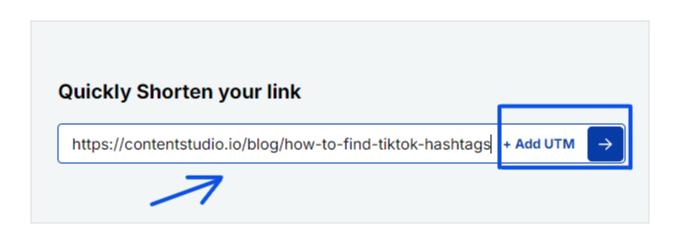
    1. Entering the URL: You start by submitting a long link into a URL shortener, either through its website or application.

    Enter link to shorten

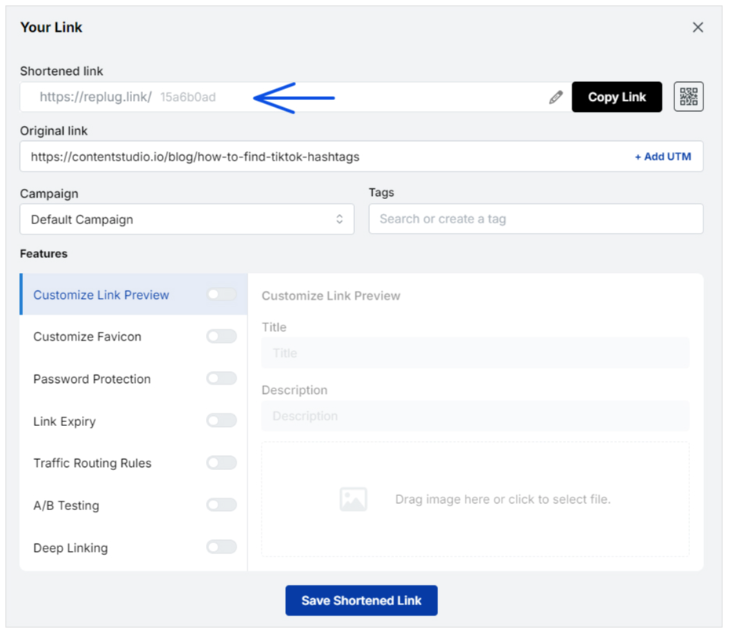
    2. Creating a Short Code: The tool then generates a unique, shortened code or identifier, usually a mix of letters and numbers, like replug.link/15a6b0ad.

    Note: The first part of the short URL (e.g., replug.link) serves as the default short domain. Brands can also configure a custom short domain for branding purposes.

    Shortened link


    3. Saving the Mapping: This short code is saved in the service’s database, where it’s linked to the full, original URL you entered.

    4. Handling Click Requests: When someone clicks on the shortened link, the server recognizes the short code and processes the request.

    5. Redirecting to the Original Page: The system looks up the original URL associated with the short code and issues an HTTP redirect, guiding the user’s browser to the intended destination.

    Replug – The best URL shortener in 2026

    Replug is more than a URL shortener; it’s a complete link management tool. It helps brands create branded short links, track performance, and retarget audiences for higher engagement. 

    Here are some reasons to consider this top-notch platform.

    Branded link customization

    Replug provides rich customization options. You can use your custom domain to create branded short links that match your brand’s identity. This adds a professional touch to your links and enhances brand recognition.

    Centralized link management

    Categorize, tag, and search links to ensure nothing gets lost in the clutter. Add expiry dates, link previews, and password-protect your links.

    Advanced link analytics

    Replug doesn’t just shorten links; it gives you actionable insights. Its analytics let you track the number of clicks, user locations, devices, and referral sources. With this data, marketers can measure performance, identify top-performing campaigns, and fine-tune strategies for better ROI.

    Campaign tracking with UTM parameters

    For advanced campaign tracking, Replug allows you to add UTM parameters directly to your links. Whether it’s email, social media, or paid ads, these tags help you analyze traffic correctly and understand which channels deliver the best results.

    QR code generator for easy sharing

    Replug automatically generates QR codes for your short links, bridging the gap between the offline and online worlds. Businesses can add QR codes to posters, brochures, packaging, or event materials, making it effortless for customers to scan and access digital content instantly.

    Smart dynamic link rotation

    Replug supports intelligent link rotation, enabling a single link to direct users to different landing pages based on conditions such as location, device, or time. This is especially useful for A/B testing, regional campaigns, or time-sensitive offers, helping marketers maximize conversions.

    Retargeting with every click

    Replug takes short links to the next level with retargeting. Easily integrate retargeting pixel codes directly in your links to track clicks & conversions from the Replug dashboard.

    Privacy and security

    Replug prioritizes data safety. With strong privacy controls and secure link handling, you can confidently manage campaigns without worrying about unauthorized access or data leaks.

    On top of these features, Replug offers flexible pricing plans that cater to individuals, small businesses, and large enterprises, making it a scalable choice for anyone serious about link management.

    Additional: Using a website link checker can help verify the safety of shortened URLs before clicking.

    Common use cases of URL shortening

    URL shorteners have moved far beyond just making links look tidy. Today, they play a vital role in marketing, web development, and content distribution.

    Here are some of the most common use cases where shortened links add real value:

    Implementing URL shortening in web development

    This is considered one of the most common yet practical technical aspects of URL shorteners. Implementing URL shortening in your well-built web application can enhance user experience, improve click-through rates, and provide valuable analytics.

    Using shortened links in advertising campaigns

    In paid advertising, every character counts, and messy links can discourage clicks. Shortened URLs keep ad copy clear and attractive while maximizing space in search ads, display banners, and sponsored posts. 

    More importantly, advertisers can attach tracking parameters to short links, enabling them to monitor impressions, clicks, and conversions associated with specific campaigns. This allows for better performance measurement and smarter budget allocation, making shortened URLs a must-have for digital advertising.

    Shortened URLs for SMS and email campaigns

    SMS messages have strict character limits, and long links can look disorganized or even break in transmission. 

    Similarly, in email campaigns, shorter links look more professional and trustworthy. Marketers use URL shorteners to make links more compact while tracking engagement metrics like open rates and click-through rates.

    Blog post short links for sharing

    For bloggers, short links make content easier to distribute across multiple platforms. Instead of relying on long, cluttered URLs, they can generate short links for each new post, either manually or through automation when publishing. 

    Readers can then share these links seamlessly on social media or messaging platforms. Shortened blog links also enable bloggers to track engagement, providing them with valuable insights into which posts resonate most with their audience.

    Link cloaking for affiliate links

    Affiliate marketers often use link cloaking to make long and complex affiliate URLs look cleaner and more trustworthy. Cloaking replaces the messy affiliate link with a short, branded URL that encourages more clicks while reducing the risk of link hijacking. 

    It also helps maintain consistency in marketing campaigns and provides accurate tracking for conversions and commissions.

    Short URL integration in social media scheduling tools

    Social media scheduling tools often integrate URL shorteners to simplify the posting process. When marketers schedule posts, the tool automatically shortens long links, keeping the captions clean and concise. 

    Beyond aesthetics, this integration offers built-in tracking, allowing users to measure clicks and engagement across various platforms. This automation saves time and ensures that every link shared is both manageable and trackable, without requiring any extra manual effort.

    Summing Up

    URL shorteners have become essential tools for digital marketers, providing cleaner links, enhanced tracking, and a better user experience. By understanding how they work and the technology behind them, marketers can make more intelligent choices for their campaigns. 

    Whether you’re sharing links on social media, in emails, or through ads, using a reliable link shortening platform ensures professionalism, performance, and measurable results.

    Start optimizing your links today with a trusted solution like Replug!

    Frequently asked questions

    How do you shorten a URL?

    Follow these steps:

    1. Choose a URL shortener – Start by selecting a reliable tool like Replug.
    2. Paste your long URL – Copy the link you want to shorten and paste it into the input field on the tool’s website.
    3. Click the ‘Shorten’ button – The tool will process your link.
    4. Copy your short URL – Once generated, copy the new, shorter link and use it wherever you need.

    Which URL shortener is popular?

    Some of the most popular URL shorteners right now are:

    Replug — widely used, good analytics, custom/vanity links. 
    TinyURL — one of the oldest tools; simple and reliable. 
    Rebrandly — great for branded URLs and business/team use.

    Do URL shorteners affect SEO?

    URL shorteners do not negatively affect SEO as long as they use 301 redirects, which pass most of the link equity to the destination URL. Search engines treat these shortened links like regular links when properly implemented.

    Does Google prefer short URLs?

    Yes, Google generally prefers short, clean URLs because they are easier to read, understand, and share. While URL length is not a major ranking factor, shorter URLs often perform better in terms of user experience and click-through rates, which can indirectly benefit SEO.

  • What is a branded short domain and how do I get one?

    What is a branded short domain and how do I get one?

    Ever wished for shorter, catchier, and on-brand links? Look no further. Branded Short Domains do just that. They take your long website links and turn them into compact, branded short links that pack a punch. 

    In this guide, we’ll reveal the secrets behind branded domains – what they are, why they matter, and how you can effortlessly get started. Let’s dive in and revolutionize your online presence, one link at a time.

    What is a branded short domain?

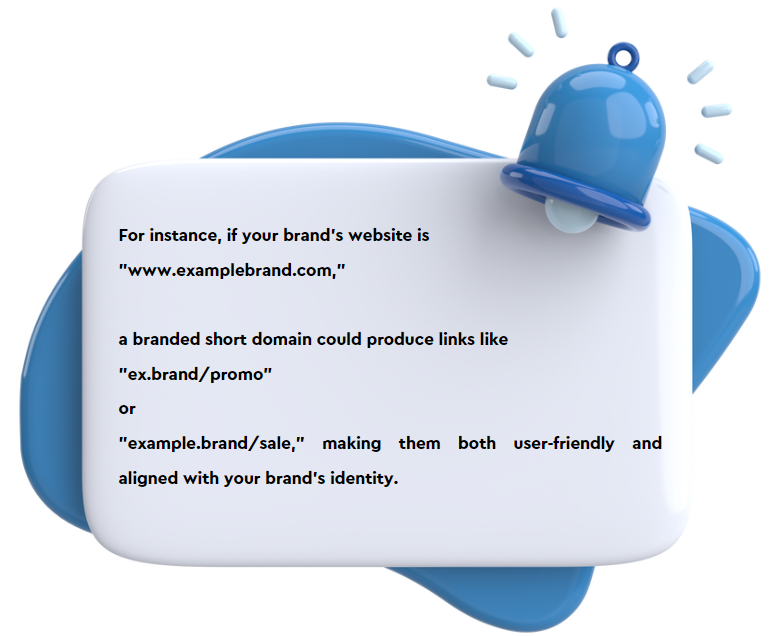
    A branded short domain is a customized and concise web address created from your domain name, designed to strengthen your brand’s identity in online communications.

    In short, a branded domain is a way to transform long URLs into branded, memorable, and impactful short links that resonate with your audience.

    Example

    Branded short link vs. branded short domain: What’s the difference?

    Both branded short links and branded short domains provide more customized and memorable URLs compared to long, generic ones, the main distinction lies in whether you’re customizing the link portion only (branded short link) or also customizing the domain part (branded domain) to align with your brand’s identity. 

    Branded short domains offer a higher level of branding and control, but they require additional setup and configuration compared to branded short links.

    Replug Branded Short Links CTA
    Maximize marketing ROI
    by transforming ordinary URLs into
    branded short links that convert.
    Try Replug for free

    How to set up a branded short domain?

    With Replug, you can now transform your URLs into branded short domains, seamlessly integrating your brand identity into every interaction. Say goodbye to generic links and hello to a more memorable and trustworthy online presence with this top-notch, all-in-one link optimization platform.

    Let’s dive in and take your brand to the next level of link engagement with this reliable link shortener.

    Set up the branded short domain using Replug:

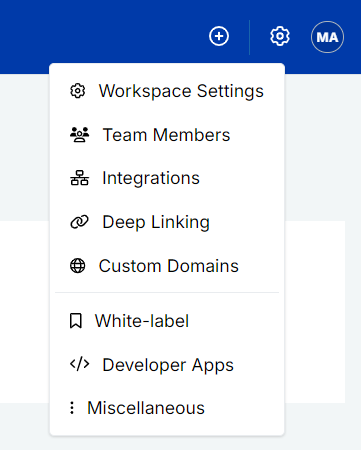
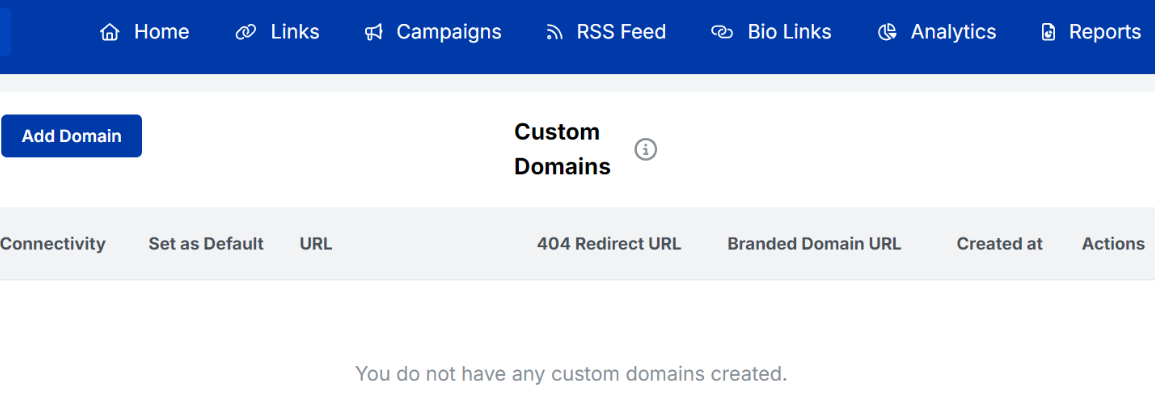
    Step no 01: Access the Replug Home, navigate to “Settings,” and select “Custom Domains” from the dropdown menu.

    custom domain

    Step no 02: Click on “Add Domain” to add your custom domain for creating branded links.

    add domain

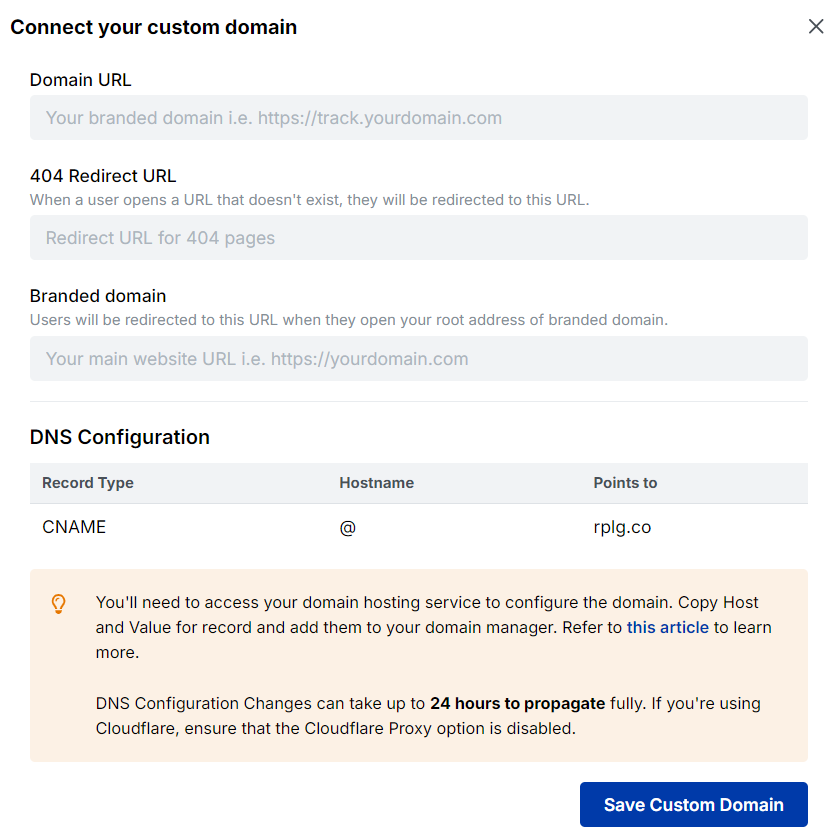
    Step no 03: Enter your Domain URL, set up Custom 404 redirection, and define the Branded Domain. Click “Connect” to proceed.

    • Domain URL: Your branded or custom domain.
    • 404 Redirect URL: Where users land on 404 pages.
    • Branded Domain: Redirects users to the specified URL when they visit the root address of your brand’s domain.
    add domain url

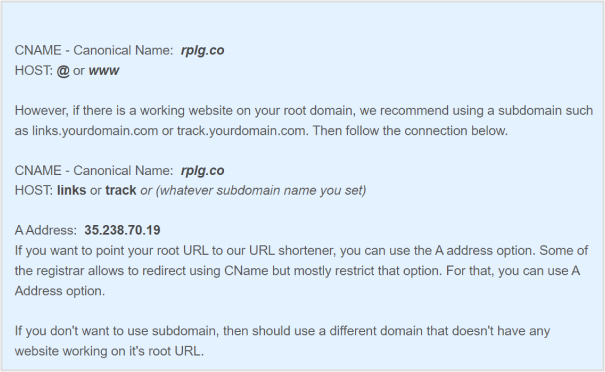
    Step no 04: To finalize the setup, you need to configure DNS records in your domain registrar’s settings. You have two options:

    • CNAME (Canonical Name) Record: Point it to “rplg.co” and set HOST as “@” or “www.”
    • A (Address) Record: Use the IP address “35.238.70.19” to point your root URL to the URL shortener.

    For subdomains, such as “links.yourdomain.com” or “track.yourdomain.com,” use CNAME and A records accordingly.

    set-up-branded-short-domain

    Step no 05: After connecting your domain, Replug shows its status. You can also edit or delete custom domains as needed.

    For detailed DNS setup instructions, Replug provides links to various domain registrars’ documentation, including Amazon Web Services, Namecheap, Cloudflare, cPanel, and HostGator.

    Feel free to reach out to Replug’s support team if you have any questions or need assistance.

    Replug Branded Short Links CTA
    A complete link management solution
    for marketing professionals & agencies.
    Try Replug for free

    Why do you need to use a branded short domain?

    Using a branded short domain offers several valuable benefits for individuals and businesses alike:

    1. Enhanced brand identity: Branded domains allow you to incorporate your brand name or a related keyword directly into your shortened links. This reinforces your brand identity with every link you share, making your content more recognizable and memorable to your audience.
    2. Consistent branding: Branded domains maintain a consistent brand presence across all online interactions. Whether it’s in social media posts, emails, or marketing campaigns, your audience sees your brand name prominently displayed in the links you share.
    3. Improved click-through rates: Branded short domains are more visually appealing and professional-looking. This can lead to higher click-through rates as users are more likely to click on links that appear trustworthy and associated with a familiar brand.
    4. Analytics and insights: Many branded short-domain services provide detailed analytics about link performance. You can gain insights into click rates, geographic locations of clicks, devices used, and more. This data helps you optimize your link-sharing strategies.
    5. Flexibility and control: With a branded domain, you have the flexibility to customize your links based on different campaigns, promotions, or content types. You can also easily update or change the destination URLs without affecting the branding.
    6. SEO benefits: Branded short domains may contribute to boosting overall domain authority. As these links are associated with your main domain, they can potentially provide a small SEO advantage.
    7. Professionalism: Branded domains create a more professional image for your brand. Instead of using generic shortening services, you present your audience with tailored, branded links that reflect your commitment to quality.

    FAQs on branded short domain

    Why should I use a branded short domain?

    Using a branded short domain reinforces your brand identity, increases link trustworthiness, and maintains consistent branding in your online communications. It also improves click-through rates and provides analytics insights.

    Do I need technical skills to set up a branded domain?

    While some technical knowledge might be helpful, many branded short-domain services offer user-friendly setup processes. They typically provide instructions for configuring DNS records to link your domain with the shortening service.

    Can I still use a short domain if I don’t have a website?

    Yes, you can still use a branded short domain even if you don’t have a website. You can set up a subdomain for this purpose, such as “links.yourdomain.com,” and link it to the shortening service.

    Can I track the performance of branded short links?

    Yes, most branded short-domain services offer analytics and tracking features. You can monitor click rates, locations of clicks, devices used, and more to assess the effectiveness of your links.

    Are there any SEO benefits to using a branded domain?

    While the direct impact is limited, using branded short domains can potentially contribute to boosting your domain authority. The links are associated with your main domain, which could have a small positive effect on SEO.

  • How to unlink Facebook and Instagram?

    How to unlink Facebook and Instagram?

    There are plenty of reasons you might want to unlink your Facebook and Instagram accounts. Maybe you want to keep your personal information more secure by limiting data sharing, or perhaps you prefer managing your accounts separately to create tailored content for each platform. 

    If you’re thinking about making the switch, this guide will walk you through the easy steps to disconnect your accounts! Alongside some other ultimate hacks to 3x your social media success. 

    So let’s get going.

    Step-by-step guide to unlink accounts

    Now, remember that there are two ways to do this: one is through Instagram, and one is through Facebook. For your convenience, we’ll list both. 

    On Instagram:

    Step no 01: Open the Instagram app and head to your profile (just tap your picture in the bottom right).

    Step no 02: Go to settings: Tap the three lines at the top right, then select Settings.

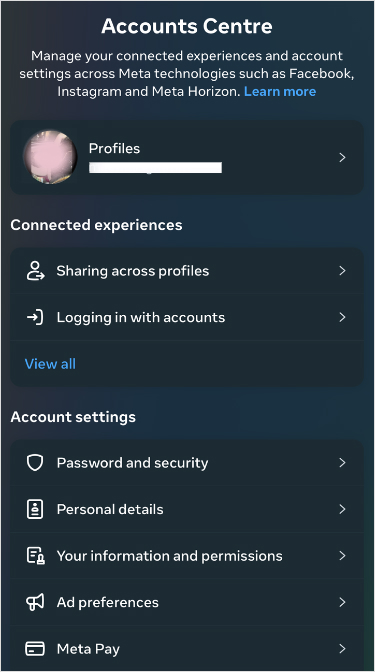
    Step no 03: Find the account center at the bottom and tap it.

    Accounts centre

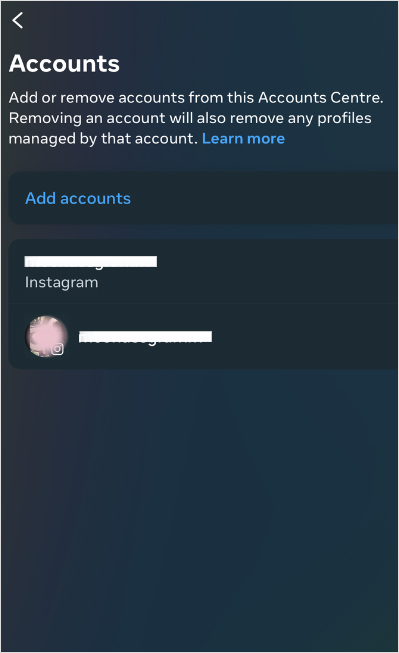
    Step no 04: See linked accounts: Tap Accounts, and you’ll see your Facebook account there.

    Linked accounts

    Step no 05: Unlink it: Tap on your Facebook account, choose Remove from Account Center, and confirm it. You’re done!

    On Facebook:

    Step no 01: Open the Facebook app and tap the three lines at the top right.

    Step no 02: Go to settings: Scroll down to settings & privacy, then tap ‘Settings’.

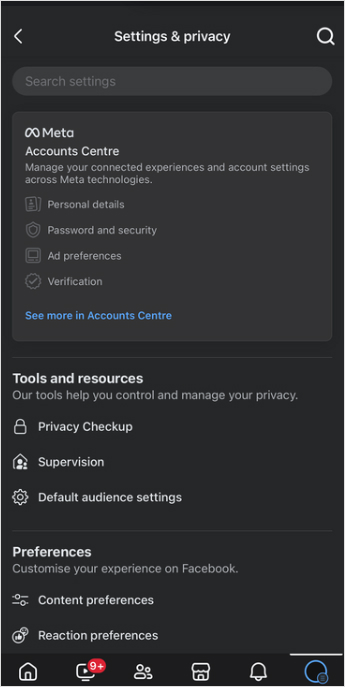
    Step no 03: Open account center: Find Meta Account Center and tap it.

    Meta Accounts Centre

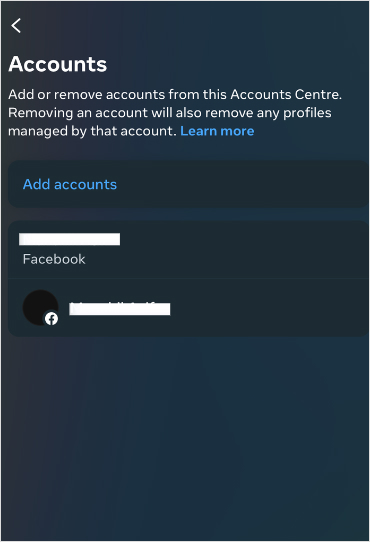
    Step no 04: Unlink your Instagram: Tap Accounts, select your Instagram, and hit Remove from Account Center.

    Linked Accounts

    And that’s it! Your accounts will no longer be connected. Easy, right?

    Also Read: How To Deactivate Messenger App?

    04 ways to manage your social media effectively

    Once you’ve unlinked your accounts, consider implementing these strategies and tools to enhance your social media marketing:

    1. Use bio-links to direct your audience

    Why it matters: Platforms like Instagram limit you to just one clickable link in your bio, which makes bio-links crucial. This is your chance to direct followers to various resources and maximize the potential of that single link.

    Boost ROI with branded URLs - Replug dashboard showing performance metrics and branded URL creation
    Turn your bio links into click-boosting machines
    Check

    Drive up to more clicks than plain URLs

    Check

    Share multiple destinations with one link

    Create bio links free

    How to use: Use tools like Replug to create a single link that houses several destination links (e.g., blog posts, promotions, or products).

    social media bio-links

    2. Branding matters: crafting custom URLs that convert

    Why it matters: Custom URLs do wonders for your brand image. They not only improve recognition but also build trust with your audience, making them more likely to click through to your content.

    How to use: Use an efficient URL shortener that allow for customization. Instead of a generic link, generate a branded shortened link. Try something more personalized, like yourbrand.com/promotion. It’s more memorable and adds a professional touch to your posts.

    Also Read: How to Shorten a link using a URL shortener?

    Boost ROI with branded URLs - Replug dashboard showing performance metrics and branded URL creation
    Boost ROI with
    branded URLs!

    Enhance your marketing campaigns by creating shareable, trackable, and fully multi-purpose customizable branded URLs.

    Try Replug for free

    3. Re-engage your audience through smart link retargeting

    Why it matters: Retargeting is a powerful way to reconnect with users who showed interest but didn’t take action. It’s about keeping your brand in front of them and encouraging them to engage.

    How to use: Replug is a top-notch link optimization platform that lets you add retargeting pixels to your links hassle-free. Anyone who clicks on your links can be targeted with ads later, reminding them of what you offer. It’s a smart way to nurture leads and guide them toward making a purchase.

    Add retargeting pixels

    4. Track your links to see what works

    Why it matters: To fine-tune your marketing strategies, you need to understand how users interact with your links. Link tracking gives you insight into clicks and conversions, helping you figure out what resonates with your audience.

    How to use: Advanced tracking tools can help you track link performance. By analyzing this data, you can adapt your content strategy, optimize your posts, and ultimately drive more traffic where it matters most.

    Also Read: Conversion tracking: Best tools, tips, and tricks

    Pro tip: Take control of your social media game

    To manage all your social accounts effortlessly, Try using ContentStudio– An advance social media solution that allows you to schedule, automate, and distribute social media content efficiently to dominate the market.

    Some of its key features include:
    1. Unified social media management
    2. Automated social media scheduling
    3. Content discovery and curation
    4. Engagement tracking and management

    All in all, ContentStudio offers flexible pricing plans tailored to different needs, starting with affordable options for individuals and small businesses. Advanced plans are available for larger teams and enterprises, as well as feature-enhanced features and collaboration tools.

    Conclusion

    Unlinking your Facebook and Instagram accounts is a straightforward process that empowers you to manage your social media presence more effectively. You can enhance your social media strategy and drive better engagement by employing tools for link tracking, branded URLs, and efficient content management.

    FAQs on unlink Facebook and Instagram

    How do I unlink my Facebook and Instagram accounts?

    To unlink your accounts, open the Instagram app, go to your profile, navigate to “Settings,” then “Account Center,” and finally select Facebook to remove it.

    Why should I unlink my Facebook and Instagram accounts?

    Unlinking can enhance your privacy, reduce data sharing, and allow you to manage your content more effectively on each platform.

    Will unlinking my accounts delete any of my posts?

    No, unlinking your accounts does not delete your posts on either platform. They remain intact and accessible.

    Can I link my accounts again after unlinking?

    Yes, you can link your Facebook and Instagram accounts again at any time through the Account Center in Instagram settings.

    What are some tips for managing social media effectively after unlinking?

    Consider using link management tools, creating branded URLs, implementing link tracking, and utilizing retargeting strategies to improve your social media presence.

  • How to find Steam URL: Step-by-step guide

    How to find Steam URL: Step-by-step guide

    Steam is a digital distribution service developed by Valve. It was launched in September 2003 as a way for Valve to provide automatic updates for its games and quickly expanded to include other games and software. Steam has become the most prominent digital distribution platform for PC games, with over 100 million active users.

    In addition to its huge game library, Steam provides features like community forums, game reviews, and in-game purchases. But with the growing need to share content, URL shortening is key for promoting game links, trailers, and community posts on social media.

    For example, if you’re sharing a lengthy Steam game URL on social media, using a smart link hub like Replug.io can make the link more presentable and manageable. Shortened URLs are ideal for platforms like Twitter (X), where character count matters.

    In this guide, we’ll walk you through everything you need to know about Steam URLs and how to effortlessly share them on social media. Let’s dive in!

    Steam offers a variety of features, including:

    • A library of over 50,000 games
    • Automatic updates for games
    • The ability to chat with friends and other players
    • The ability to create and join communities
    • The ability to purchase games and other software
    • The ability to stream games

    Steam is available on Windows, macOS, and Linux.

    What is my steam profile URL?

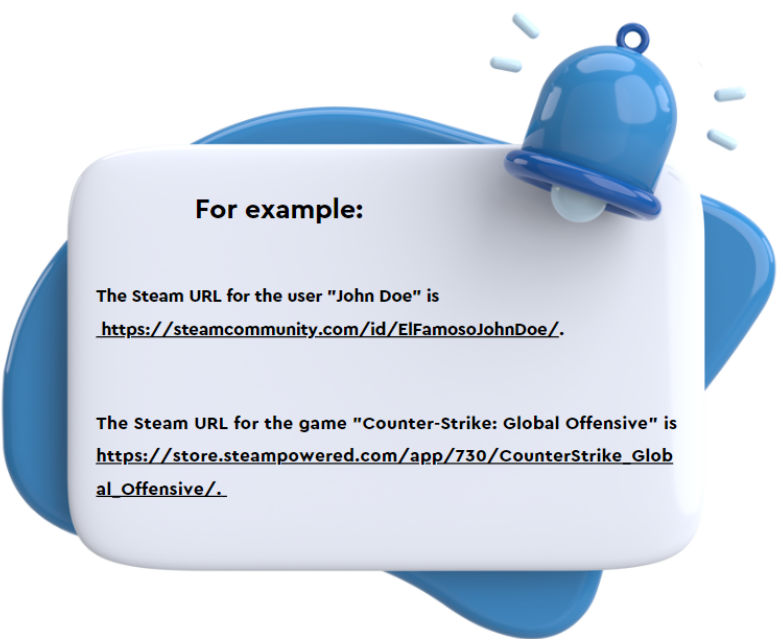
    A Steam URL is a unique identifier for a Steam user or game. It is a string of letters and numbers used to access the user’s profile or the game’s store page on the Steam website.

    How to find Steam URL?

    To find your Steam URL, follow these steps:

    Step 1: Open the Steam client.

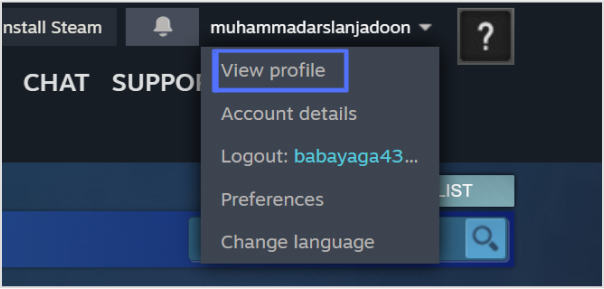
    Step 2: Click on your profile name in the top right corner.

    Step 3: Select “View profile” from the drop-down menu.

    how-to-find-steam-url

    Also read: How to Create a Short URL: Step-by-Step Guide

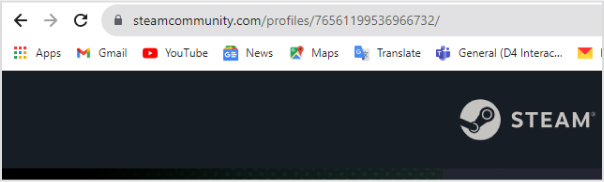
    Step 4: Your Steam URL will be displayed in the URL bar at the top of the page.

    how-to-find-steam-url

    Your Steam URL is a unique identifier that can be used to find your profile on Steam. It is also used to create links to your profile, such as when you want to share it with friends.

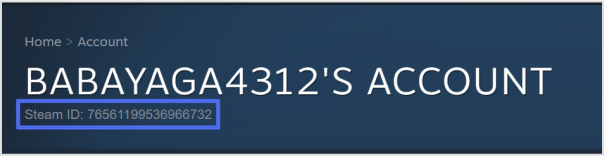
    Your Steam ID is a unique number that is assigned to your account. It can be found in the “Account Details” section of your profile.

    how-to-find-steam-url

    Also read: How to Create a Smart URL Link: Step-by-Step Guide

    Shorten your Steam URL for easy social sharing

    Shortening your Steam URL for social sharing means making long web addresses shorter, making them easier to share on social media. This simplifies sharing, looks better, and often comes with tracking features. It increases click-through rates, works offline too, and can even subtly promote your brand.

    How to shorten your Steam URL?

    Step no 01: Begin by signing in to your Replug account, or if you’re new, create a free account.

    sign in to replug

    Step no 02: In the “Shorten your link” bar at the upper left corner, paste your Steam URL.

    paste your steam url here

    Step no 03: Once redirected, you can add a link preview, set an expiry date, and customize the link settings to your liking.

    shorten your url

    Step no 04: On this page, locate the top bar where you can edit the link slug to match your preference.

    Edit yoru Steam slug

    Step no 05: Press the tick button, scroll down, and save your newly shortened link. You’re all set!

    Replug offers robust link tracking and analytics features. You can monitor the performance of your shortened links in real time. You can gain insights into the number of clicks, geographic locations of users, referring sources, and more.

    This data empowers you to refine your strategies, tailor your content to your audience, and make informed decisions to optimize your link management efforts.

    Replug Branded Short Links CTA
    Maximize marketing ROI
    by transforming ordinary URLs into
    branded short links that convert.
    Try Replug for free

    Also read: How to Create a Dynamic QR Code: Step-by-Step Guide

    FAQs

    How do I create a Steam account?

    To create a Steam account, visit the official Steam website and click on the “Join Steam” or “Install Steam” button. Follow the prompts to set up your account.

    Can I play games on Steam without purchasing them?

    While many games on Steam are paid, the platform also offers free-to-play games that you can enjoy without any purchase.

    How do I buy games on Steam?

    You can buy games on Steam by adding them to your cart and proceeding to the checkout. Payment options include credit cards, PayPal, and other digital payment methods.

    Can I share my Steam games with friends?

    Steam offers a feature called “Family Library Sharing,” allowing you to share your game library with friends or family members on different devices. There are some restrictions and guidelines for this feature.

    How do I shorten a Steam URL?

    You can use online URL-shortening services or tools provided by platforms like Replug. Simply paste the original URL into the tool, and it will create short link version for you to use seamleassly.

    Can I track the performance of a shortened Steam URL?

    Yes, some URL shortening services, including Replug, offer tracking features. You can monitor clicks, locations, and referral sources to assess the impact of your shared links.

  • How to customize the LinkedIn link preview using Replug?

    How to customize the LinkedIn link preview using Replug?

    Don’t underestimate the impact of a well-designed link preview—it can enhance your visibility and lead to more meaningful connections. 

    Crafting custom LinkedIn link previews is one of the most effective ways to capture your audience’s interest. A well-designed preview can instantly grab attention, entice clicks, and drive engagement. 

    In this guide, we’ll explore the significance of LinkedIn link previews and how you can use Replug to create visually stunning and informative previews that will make your posts shine.

    Why customize your LinkedIn link previews?

    LinkedIn has emerged as a premier platform for professionals across all industries, welcoming two new members every second. This remarkable growth highlights its diversity and significance for users. 

    Influential figures in digital marketing, such as Neil Patel, Ann Handley, Brian Dean, and Rand Fishkin, utilize LinkedIn because it offers access to a highly relevant audience and valuable opportunities for their brands. 

    Boost ROI with branded URLs - Replug dashboard showing performance metrics and branded URL creation
    Boost ROI with
    branded URLs!

    Enhance your marketing campaigns by creating shareable, trackable, and fully multi-purpose customizable branded URLs.

    Try Replug for free

    This means that in addition to optimizing your profile, every link you share on the platform should be carefully optimized. This approach helps you stand out in a crowded feed and effectively engage your target audience.

    Specifically, be sure to include link previews for your links. By customizing the title, description, and thumbnail, you can capture attention and connect with the audience that matters most to your business.

    Also read: How to Get More Views on LinkedIn: 9 Proven Ways

    Step-by-step guide on creating custom LinkedIn preview using Replug

    Replug’s link preview tool is completely free to use. Here’s how you can utilize it. 

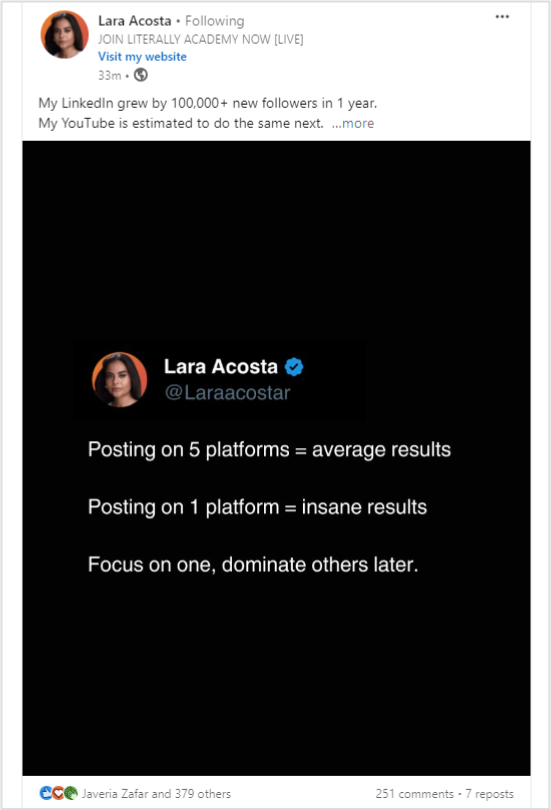
    Step no 01:

    Locate the LinkedIn post or article for which you want to create a preview. 

    Lara Acosta LinkedIn Post

    Step no 02: 

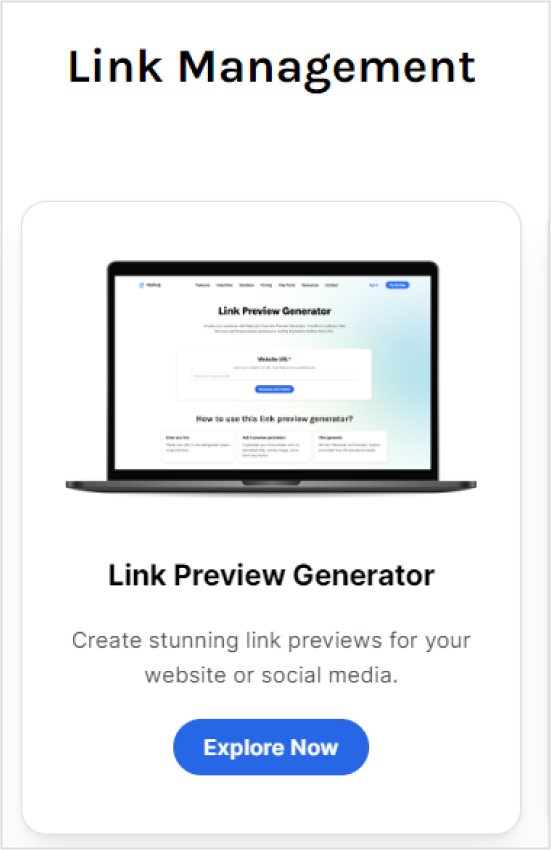
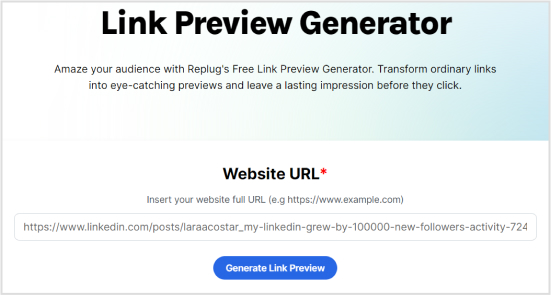
    Go to the Replug free tools section and open the “Link Preview Generator” tool.

    Link Preview Generator

    Step no 03: 

    Paste the copied LinkedIn URL into the URL bar. And click 

    “Generate Link Preview”

    “Generate Link Preview”

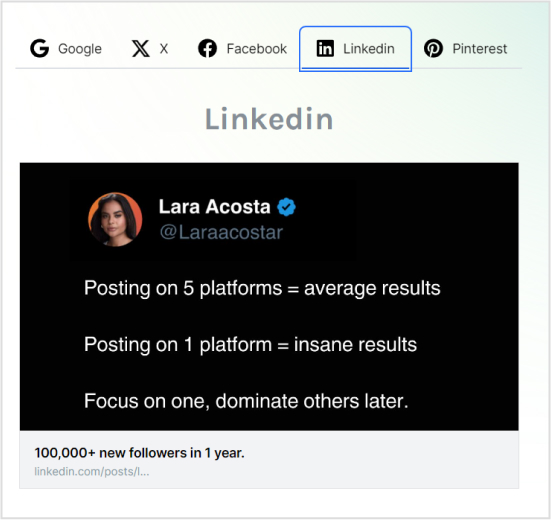
    Then, choose your required platform.

    Choose your link preview platform

    Step no 04:

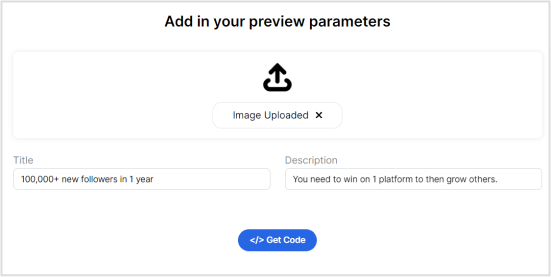
    Customize the preview elements to match your brand personality. 

    Add in your preview parameters
    • Image: Upload a custom image for the preview. This could be a screenshot, a relevant image, or your brand logo.
    • Title: Change the preview title to something more engaging and relevant.
    • Description: Write a compelling description that summarizes the content of the link.

    Related: How to customize the Facebook link preview using Replug?

    Step 05: 

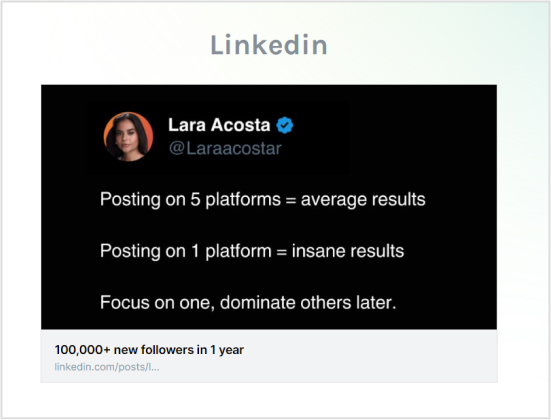
    And we’re done. Here’s your customized LinkedIn link preview. 

    Customized LinkedIn link preview

    Get your meta tags: Replug will generate meta tags that you can copy and paste into your website <head>. These meta tags will ensure that the customized preview appears correctly when shared.

    Replug Branded Short Links CTA
    A complete link management solution
    for marketing professionals & agencies.
    Try Replug for free

    Step no 06:

    Share your LinkedIn post and the customized preview will be displayed to your audience.

    By following these steps and incorporating these tips, you can create customized LinkedIn link previews to make your posts more engaging and effective.

    Related: How to customize Twitter (X) link preview using Replug?

    How using a URL shortener can enhance your customized LinkedIn links

    Once you’ve created your custom LinkedIn link preview, the next step is to make that link even more powerful using a URL shortener. With Replug, you can shorten and personalize your LinkedIn URLs to align with your brand identity, making your links look cleaner, more professional, and instantly recognizable.

    Using Replug’s LinkedIn link shortener, you can customize the URL slug, add your brand name or campaign keywords, and even change the favicon or thumbnail for added visual appeal. Plus, Replug’s analytics dashboard lets you track clicks, audience demographics, and engagement performance in real time.

    Final verdict

    Customizing your link previews can set your posts apart, instantly grabbing your audience’s attention and driving engagement. Replug offers a user-friendly, free website URL changer that empowers you to generate branded short links and create eye-catching previews in no time at all.

    FAQs on custom LinkedIn link previews

    Is the Replug LinkedIn link preview generator free to use?

    Yes, Replug offers a free tool for creating and customizing link previews.

    Can I use Replug to customize link previews for other platforms?

    Yes, Replug allows you to create customized link previews for various social media platforms beyond LinkedIn.

    Will customizing my link previews improve engagement?

    Absolutely! Engaging and visually appealing previews are more likely to catch the eye of your audience, leading to increased clicks, shares, and overall engagement with your content.

    How do I know if my custom link preview is effective?

    Monitor engagement metrics such as clicks, shares, and comments on your posts. If you see an increase after customizing your previews, it’s a strong indication that your efforts are paying off.

  • How to customize the Facebook link preview using Replug?

    How to customize the Facebook link preview using Replug?

    Ever wished you could control how your links appear on Facebook? With Replug, you can! This powerful link shortener tool allows you to customize the link preview of your links, making them more visually appealing and engaging.

    To get you started, we’ve put together this helpful guide. Let’s read.

    How to customize the Facebook link preview using Replug?

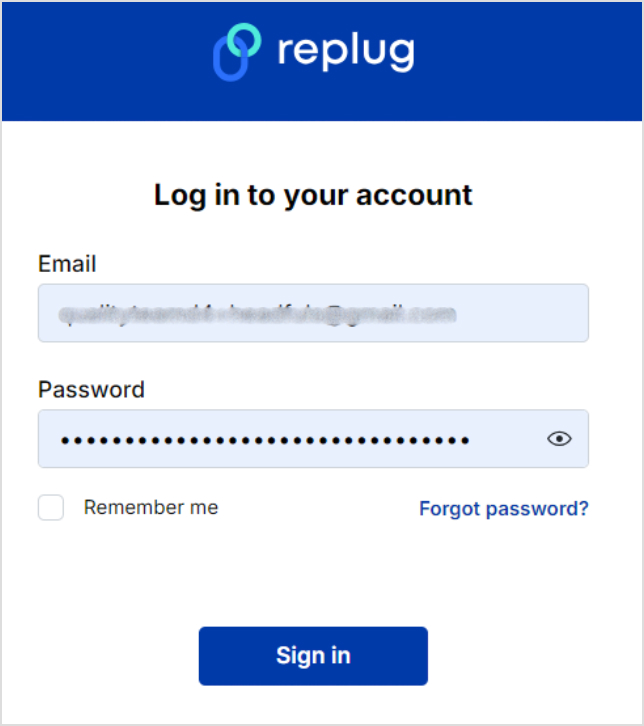
    Customizing the Facebook link preview using our Facebook link shortener is straightforward. Start by logging in to your Replug account.

    If you haven’t already, sign up. Replug offers a 14-day free trial—no credit card is required to try it out.

    Log-in to your Replug account

    Once you’ve logged into your Replug account, set up your workspace.

    Then copy your URL from Facebook;

    copy your URL from Facebook

    Step no 01:

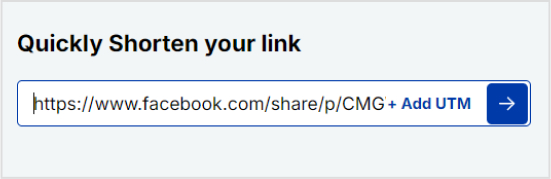
    Go to Replug Home and locate the “Quickly shorten your link” bar. Paste the URL you want to share and press Enter.

    Facebook Url
    Boost ROI with branded URLs - Replug dashboard showing performance metrics and branded URL creation
    Boost ROI with
    branded URLs!

    Enhance your marketing campaigns by creating shareable, trackable, and fully multi-purpose customizable branded URLs.

    Try Replug for free

    Step no 02: 

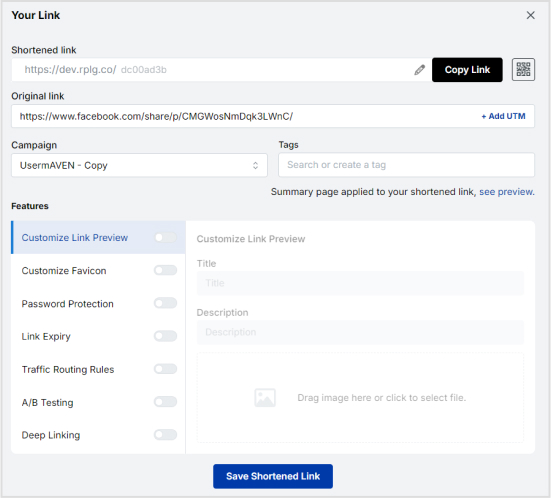
    You’ll be redirected to a page where you can customize your Facebook URL. Here, you can password-protect your links, add expiry dates to them, add traffic routing rules to them, and much more.

    Customize your URL

    Step no 03:

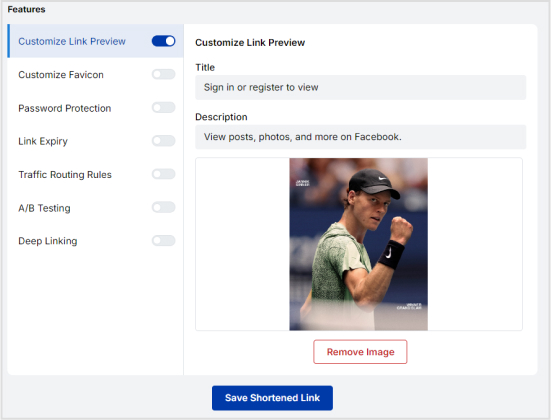
    Once you input the link, Replug will automatically fetch the meta details, such as title, description, and thumbnail image. But if you want to customize the details even more, you can: 

    • Title: You can customize the title of your Facebook link preview by simply typing in your preferred text in the “Title” field.
    • Description: Adjust the description by writing a more engaging or relevant summary of your link in the “Description” field.
    • Image: Upload a custom, eye-catching thumbnail relevant to your content—use AI image-making tools for quick creation.
    Customize link previews

    Step no 04: 

    After customizing, click “Save.” You can now share the customized Replug URL on Facebook. It will display your customized preview instead of the default one when posted.

    Related: How to customize Twitter (X) link preview using Replug?

    Replug Branded Short Links CTA
    A complete link management solution
    for marketing professionals & agencies.
    Try Replug for free

    06 unique benefits of custom link previews on Facebook

    Custom link previews offer your Facebook audience a more engaging and informative experience. Here are five unique benefits:

    1. Enhanced click-through rates (CTRs)

    A visually appealing and informative link preview can encourage users to click through to your content. Customizing the image and title can create a more compelling call to action.

    Also read: Replug click analytics: The prime solution for turning clicks into conversions

    2. Better social proof

    If your posts with custom link previews receive more engagement (likes, shares, comments), it can serve as social proof, encouraging others to click through and interact.

    3. A/B testing

    A/B testing different links for the same content allows you to analyze which version drives more clicks and leads, helping refine your messaging.

    4. Increased engagement

    Custom link previews can lead to more likes, comments, and shares. A visually engaging post is more likely to capture attention and spark conversation.

    5. Referral sources 

    Another great benefit is the ability to track links, for example, referral sources help you understand where clicks are coming from and can help identify which channels or campaigns are most effective in generating leads.

    6. Better SEO

    While not a direct benefit, custom link previews can indirectly improve your SEO. Your website’s ranking may improve if your posts are shared more frequently and receive more engagement.

    Also read: 7 best practices to create user-friendly URLs

    Replug Branded Short Links CTA
    Maximize marketing ROI
    by transforming ordinary URLs into
    branded short links that convert.
    Try Replug for free

    Conclusion

    Customizing link previews on Facebook and using Replug is a straightforward way to enhance the visual appeal and effectiveness of your shared content. 

    Tailoring titles, descriptions, and images can create more engaging previews that capture attention and encourage clicks. Whether you’re looking to boost your brand’s presence or make your links more attractive, Replug is a top-notch link optimization platform offering the tools to make your social media posts stand out.

    FAQs on custom link previews

    Do I need a Replug account to customize link previews?

    Yes, you need a Replug account to customize link previews. You can sign up for a free trial if you’re new to the platform.

    Can I use Replug to customize link previews for other social media platforms?

    You can use Replug to customize link previews for other social platforms supporting link previews.

    Will my customizations appear immediately after sharing the link?

    Sometimes, social media platforms cache link previews. If your customizations don’t appear immediately, you might need to use tools like Facebook’s Sharing Debugger to refresh the cache.

    Can I edit the link preview after sharing it?

    Yes, you can update the link preview by editing the link in Replug and saving the changes. However, the updated preview may not immediately appear on social media due to caching.