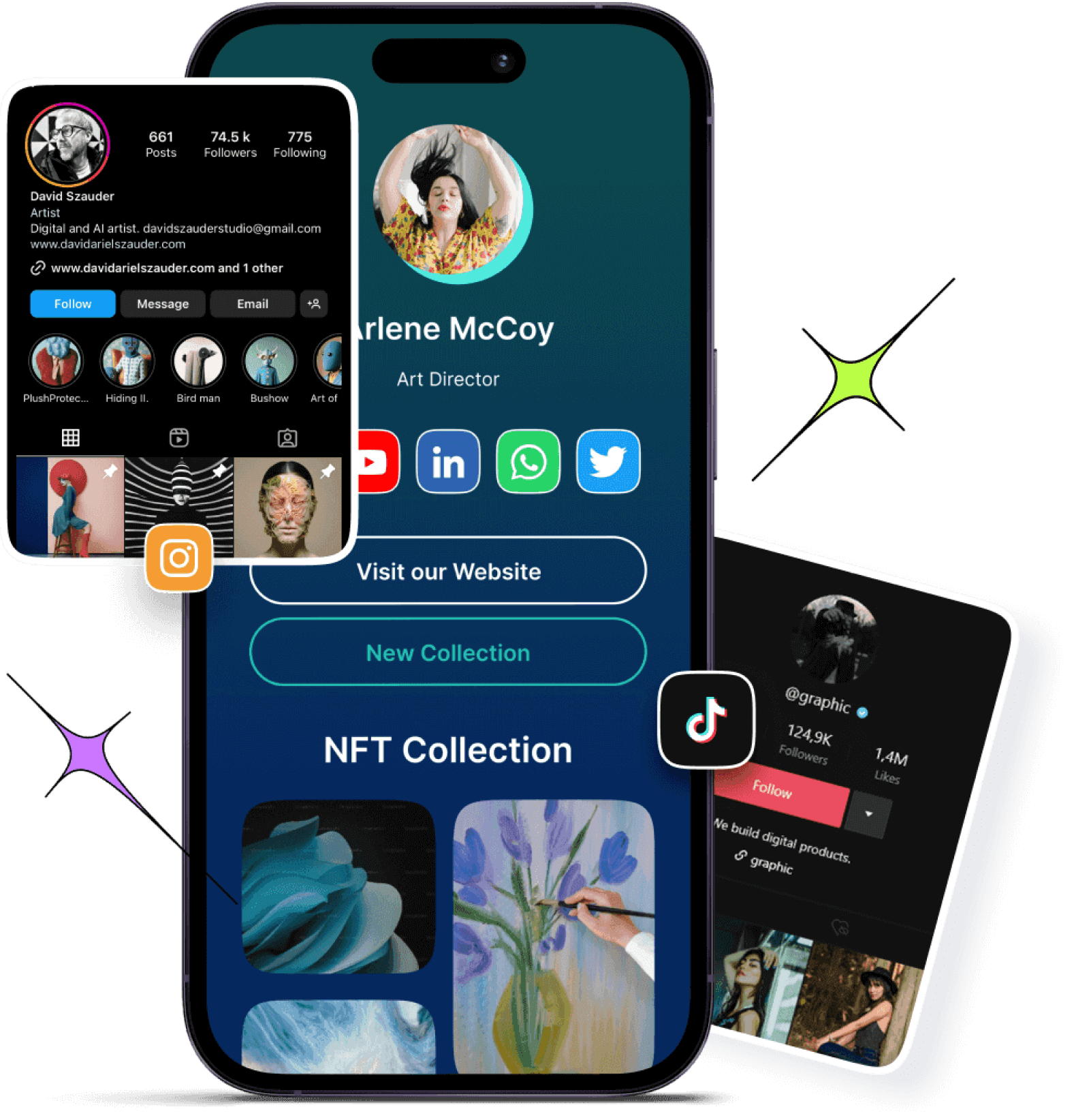
Your TikTok is popping, your Discord server is thriving… but the two aren’t linked? C’mon now. That’s like having a hype squad and forgetting to invite them to the main event.
Whether you’re building a community around gaming, memes, or chaotic late-night convos, adding your Discord to your TikTok bio can turn passive scrollers into active members.
And good news? You’ve got options.
In this guide, we’ll show you two ways to add your Discord link to your TikTok bio: one using TikTok’s built-in method, and the other using Replug’s built-in bio links feature (for when you want to do more with one link).
Let’s go!
Why add your Discord link to TikTok?
A viewer discovers your TikTok, enjoys your content, and wants to join your Discord community. But without a link in your bio, they’re left unsure of what to do next. What now?
Answer: nothing. Because that curiosity? Gone.
By adding your Discord link, you:
Funnel your TikTok audience to your Discord community.
Build deeper connections with fans.
Create a space for announcements, drops, convos, and more.
In short: TikTok + Discord = the ultimate creator combo.
You can keep your personal account and still get the link feature:
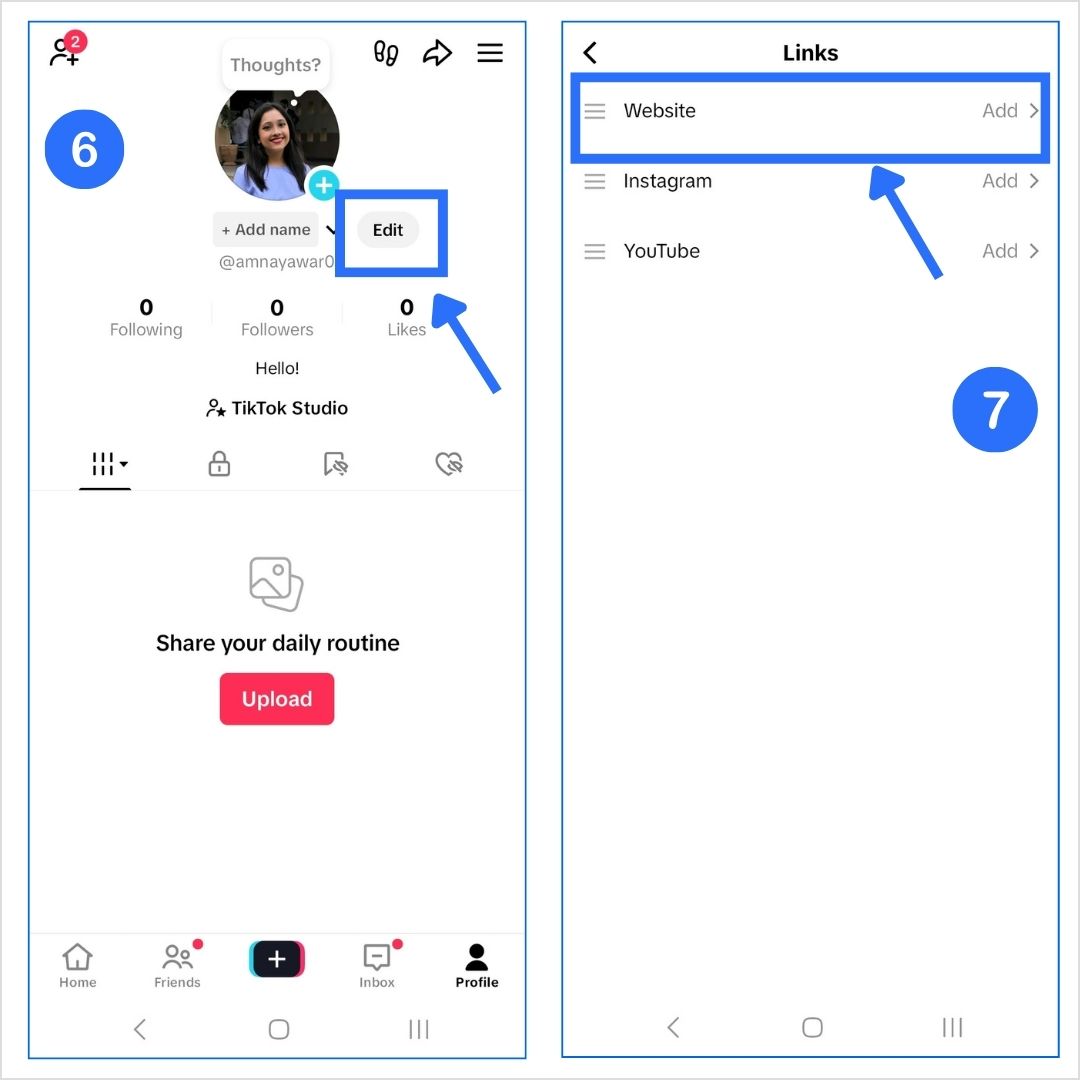
Open TikTok > Tap Profile.
Hit Edit Profile.
Paste your Discord invite in the “Website” field.
Now anyone visiting your TikTok can click and join your server.
Method 2: Add a clickable bio link using Replug
You don’t want to keep handing out Discord links.
If someone wants to join your jamming or streaming server, they shouldn’t have to DM you for it. Just drop your Replug bio link in your TikTok profile, and let them choose where they want to go.
No more juggling links or repeating yourself. Replug is an all-in-one link management platform that keeps all your important links, such as your Twitch, Merch, YouTube, and Discord servers, neatly in one place.
Plus, you can create branded short links effortlessly with Replug’s URL shortener free tool, making it easier to share and track every link across your platforms.
And if you ever shut down a server? Just remove it from your Replug bio link page. That’s your subtle way of saying, “yeah… that era’s over.”
Here’s how to add a link to your TikTok bio:
Step 1: Sign up for Replug
Go to Replug and create an account (there’s a free trial, so no excuses).
Step 2: Create your bio link page
From the dashboard, head to Bio Links.
Click Create New.
Customize your bio link page with a title, buttons, description, custom layout, colours, and background image (optional).
Step 3: Add content blocks
Click on Content.
Add a block for your Discord invite, and more blocks for Twitch, YouTube, Spotify, or even your dog’s Instagram. You do you (no one’s judging).
Social blocks:
Link blocks:
Card block:
What more can you do?
Add text, spacing, and separator blocks.
Embed a video block (Youtube, TikTok, Instagram, Facebook, and X).
Customize your link slug. A custom URL ensures that you stay on brand and recognizable.
Add a title and meta description.
Upload a picture and favicon (optional, but chef’s kiss).
Drop a tracking pixel if you’re into analytics or retargeting ads.
This is what the final preview looks like:
Step 5: Add it to TikTok
Copy your Replug bio link and paste it in the “Website” field of your TikTok profile. Now, when someone clicks it, they get a full-on hub with all your links, including your Discord.
Ever wonder how top Instagram creators effortlessly grow loyal communities across platforms? Their secret: smart cross-promotion, especially linking YouTube to Instagram.
While Instagram’s one-link bio rule may seem limiting, smart creators use it to their advantage by linking their YouTube channel or videos right where it matters most.
YouTube is where your long-form content lives. Instagram? It’s where people discover you. Connecting the two not only boosts views but builds trust and loyalty across platforms.
In this guide, we’ll show you exactly how to add your YouTube link to your Instagram bio (with or without an Instagram link in bio tool), and which types of content actually get people to click. Ready to turn casual followers into loyal subscribers? Let’s dive in.
Method no 01: Add a YouTube link to bio natively on Instagram
Step 1: Copy your YouTube link
For your channel: Go to your YouTube channel > tap the three dots > tap “Share” > copy the link.
For a video: Open the video > tap “Share” > copy the link.
Step 2: Open Instagram and edit your bio
Go to your Instagram profile
Tap “Edit profile”
Paste the copied YouTube link in the Instagram bio field
Tap “Done” or the checkmark. Your YouTube link is now live in your bio!
Method no 02: Add a YouTube link to bio using link-in-bio tool
Our link in bio tool lets you showcase multiple YouTube links under one smart link – no need to update your bio every time. Use Replug.io: it’s affordable, easy to use, and packed with features like link tracking, customization, and branding.
Here’s how to add your YouTube link to Instagram using Replug’s bio link feature.
Go beyond generic link pages!
Create custom bio links that truly fit your brand
With Replug, you can create bio links that are unique, engaging, and built to convert.
Go to Replug and log in (or create an account). Once you’re inside, Go to the bio link dashboard and click on “Create new”.
You’ll spot three categories there Branding, Content and Settings.
Step 1: Customize the page
Under the Branding tab, customize your profile:
Add a title, description, profile image, verified badge, background image, and theme.
Once you’re done adding everything, click the “Update” button located in the corner.
Step 2: Add your Youtube links
Go to the Content tab. Click “Links” to add your YouTube videos, playlists, or channel.
Now you can add your preferred Youtube links by adding a custom title and link in the block.
Each block is customizable – add titles, icons, and scheduling options.
You can also embed YouTube videos directly or mix in text, social buttons, and cards.
You can easily rearrange or remove any block before going live. When everything looks perfect, just click “Publish” in the top-left corner to launch your custom bio link page.
Before sharing your bio link page, give it an SEO boost: Add a custom meta title, description, favicon, and featured image or Insert tracking pixels (Facebook, TikTok, Google, etc.) for retargeting and conversion tracking.
Once you’re done adding everything. Customize the bio link as per your preference and copy it.
Your custom landing page is now ready to shared on Instagram.
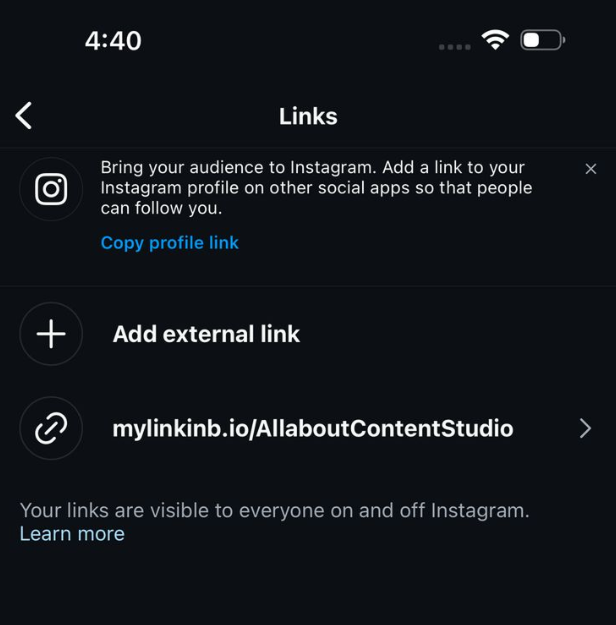
Paste your Replug link in the “External link” field.
This link will now lead your followers to your custom page with all your important YouTube links!
Your bio landing page is now live in your bio, giving your followers easy access to your YouTube content and more.
Conclusion
Adding your YouTube link to your Instagram bio is a small change that can bring big results. Whether you choose Instagram’s native method or a feature-rich link-in-bio tool like Replug, cross-promoting your content boosts visibility, builds deeper audience connections, and increases engagement across platforms. So don’t let your best content sit unseen, make it just one tap away.
For even cleaner, highly-optimized, and trackable URLs, try Replug’s free link shortener, to optimize and share your links effortlessly across all your social channels.
FAQs on adding YouTube link to Instagram bio
Can I add more than one YouTube link to my Instagram bio?
Not directly through Instagram, but with tools like Replug, you can create a landing page that includes multiple YouTube links under one smart bio link.
Will Instagram let me paste a clickable YouTube link?
Yes, but only one. You can paste a YouTube video or channel link in the “Website” field of your bio, and it will be clickable.
How often should I update my Instagram bio with a new YouTube link?
If you’re doing it manually, update it every time you post something important. If you’re using Replug, just update the dashboard and your bio stays fresh automatically.
Can I track clicks on my YouTube link in bio?
Yes! Replug offers detailed analytics to track clicks, location, devices, and even lets you add retargeting pixels for advanced campaign performance.
Let’s face it – our digital lives are everywhere. One minute it’s TikTok, the next it’s your Instagram, or YouTube.
Socials here. Portfolio there. Store somewhere else.
And expecting your audience to keep up? Not possible
Want to bring it all together?
That’s where a link gallery (bio link) comes in. It pulls everything together into one neat, clickable destination. So let’s get started.
Understanding link galleries
A link gallery (a bio link page) is a centralized landing page that houses all your important links in one convenient location. It’s an easy solution as it works as your business card or the modern equivalent of a website homepage, but streamlined for today’s fast-paced, mobile-first world.
Instead of asking followers to search for your various platforms or cramming multiple URLs into your social media bio, a link gallery provides a clean, branded solution where visitors can access multiple links with one URL.
What is the best way to create a link gallery(bio link)?
The best way to create a link gallery (also known as a bio link) is to use a dedicated bio link tool these platforms are designed to make it super easy to combine all your important links into a single, customizable page.
Introducing Replug.io: The Ultimate link gallery solution
While several link gallery tools have emerged, Replug.io stands alone as the comprehensive solution designed to address all the challenges of digital connection.
Go beyond generic link pages!
Create custom bio links that truly fit your brand
With Replug, you can create bio links that are unique, engaging, and built to convert.
First, log in to your Replug account. Don’t have one yet? Start with a 14-day free trial.
Once inside the dashboard, head over to the bio-links section and click on “Create new.” You’ll be taken to a setup window that’s divided into three tabs: branding, content, and settings.
Step 01: Customize your branding
Begin with the branding tab, where you can add your profile essentials, including:
Profile title
Verified badge
Bio description
Profile image
Background image
Custom theme
Once you’re done adding everything, click the “Update” button located in the corner.
Step 02: Add content that converts
Now for the fun part: adding your links and content blocks. Replug allows you to include a variety of rich media elements like:
Social media buttons (up to 8)
Website or landing page links
Text blocks, separators, and spacing for a clean layout
Before sharing your bio link page, give it an SEO boost:
Add a custom meta title, description, favicon, and featured image
Insert tracking pixels (Facebook, TikTok, Google, etc.) for retargeting and conversion tracking.
Now you’re good to go! Share your unique Replug bio link across all major platforms: Instagram, TikTok, Facebook, X (Twitter), LinkedIn, and beyond.
Moreover, Beyond aesthetics, Replug galleries are built for performance. Lightning-fast loading speeds, mobile-optimized displays, and accessibility features ensure every visitor has a seamless experience, resulting in higher engagement and conversion rates.
More growth-oriented features
Replug goes far beyond basic link sharing. It’s packed with features built specifically to help creators, marketers, and businesses grow faster and smarter:
A complete link management solution
for marketing professionals & agencies.
Try Replug for free
Custom CTAs
Guide your audience to take meaningful actions, whether it’s signing up for a newsletter, watching a video, or making a purchase, right from your bio link page.
Retargeting pixels
Integrate Facebook, TikTok, LinkedIn, and Google Ads pixels to retarget every visitor who clicks your link. Perfect for running high-converting ad campaigns and increasing ROI.
Traffic routing
Send users to different destinations based on their device, location, or language, maximizing relevance and improving user experience.
Track your bio links efforts precisely by adding UTM parameters to each link, perfect for campaign performance monitoring in Replug.
Branded domains
Use your own custom domain to reinforce brand trust and consistency across all your marketing channels.
A/B testing
Test different versions of your bio link page to see what resonates best with your audience and optimize accordingly.
QR code integration
Generate QR codes for your link gallery and individual links, making it easy to share offline, on packaging, posters, business cards, or at live events.
Why link galleries have become essential
The rise of link galleries stems from genuine limitations in how we connect online:
Social media restrictions: Most platforms only allow one clickable link in your bio, creating the infamous “link in bio” problem.
Audience navigation: Followers shouldn’t need to hunt for your content across different platforms.
Professional presentation: Random link shorteners or multiple disjointed URLs look unprofessional and decrease click-through rates. (Pro Tip: Try this reliable link shortener to keep your links clean and branded.)
Analytics insights: Without a centralized link hub, tracking which destinations resonate with your audience becomes nearly impossible.
Conclusion
As our online presence continues to expand across an ever-growing landscape of platforms, having a centralized, branded hub for your digital identity isn’t just convenient, it’s essential.
Replug isn’t merely offering a product; it’s providing the solution to one of the most fundamental challenges in modern digital strategy.
Frequently asked questions
Can I use a link gallery as a mini-website for my brand or service?
Absolutely! A link gallery, especially with tools like Replug, can function as a sleek, mobile-first landing page that showcases your brand, portfolio, services, promotions, and contact links, all in one place.
What’s the difference between a link gallery and a traditional landing page?
A link gallery is simplified and optimized for social bios and mobile users. Unlike a full landing page, it focuses on multiple quick-access links and doesn’t require web development skills or hosting setup.
Is it possible to schedule content blocks to appear at specific times?
Yes! With advanced tools like Replug, you can schedule when each link or content block goes live, perfect for time-sensitive campaigns, limited offers, or event countdowns.
How do tracking pixels work in a link gallery?
Tracking pixels in Replug allow you to collect data on visitors and retarget them through ad platforms like Facebook, TikTok, and Google Ads – without them ever needing to leave your bio link page.
You know how TikTok is the place to discover new stuff – fashion, home inspo, DIY hacks, aesthetic mood boards; basically everything Pinterest is also known for?
Now imagine someone finds your TikTok, loves your vibe, and wants more. Maybe they’re looking for your outfit details, your vision board, or that recipe you teased.
They tap the link in your TikTok bio and it either goes nowhere or just dumps them on a random page.
That’s a missed opportunity.
If you’re using Pinterest to share your content, promote your blog, or even build a mood board-worthy brand, you need to connect the dots.
And that starts with adding your Pinterest link to your TikTok bio, the right way.
We’ll start with TikTok’s built-in features, and then show you how to do more (and better) with Replug’s bio-links feature, especially handy if you’re stuck without the “Website” option or want to add more than just Pinterest.
Let’s make your bio work as hard as your content does!
Why add your Pinterest link to TikTok?
Because people don’t just watch content anymore — they click, scroll, and shop. Hence, it’s super important to create shareable content that makes your audience keep coming back for more.
Let’s say you’re:
A lifestyle creator who posts dreamy room decor on TikTok.
A DIY enthusiast sharing how-tos.
A fashion lover posting OOTDs and linking Pinterest boards with outfit inspo.
Pinterest helps you extend your content. It’s where the vibes live.
When you connect your TikTok to Pinterest, you give your followers a one-click path to your vision. It keeps them in your world longer, and that’s gold if you’re building a brand, growing your following, or even selling something.
Now let’s learn how to add your Pinterest link to TikTok bio.
Method 1: How to add Pinterest link to TikTok bio using TikTok’s built-in options
TikTok only allows one clickable link in your bio. So naturally, you’ll want to make it count.
How to get your Pinterest link:
Open the Pinterest app or website.
Tap your profile photo.
Copy the link from the browser
Got your link? Great! Now let’s add it to your TikTok bio.
Option A: How to add link to TikTok bio without 1000 followers
Stuck under 1K followers? No worries. You can still make it work. Here’s how:
Switch to a Business Account:
Go to your profile, then tap the three lines in the top-right corner.
Navigate to Settings & Privacy > Account > Switch to Business Account.
Head back to your profile > Edit > and now you’ll see the “Website” option available.
Option B: If you have 1000+ followers (personal account)
If you’re using a personal account and you’ve crossed the 1,000 followers mark, here’s how to add your Pinterest:
Open TikTok and tap your profile icon (bottom right).
Tap Edit Profile.
Under the “Website” section, paste your Pinterest URL.
And that’s about it! You just added a clickable link to your Pinterest. Now, your followers can tap your bio and go straight to your Pinterest boards.
Note: TikTok only allows one link, so make it work smarter… which brings us to Replug’s URL shortener free tool. With it, you can share one short link that leads people to all your important pages, making the most of your single TikTok bio link.
Method 2: How to add multiple links (including Pinterest) to TikTok bio using Replug
Instead of constantly switching the one link in your TikTok bio, Replug helps you build a bio site with all your links in one. It’s like a Pinterest board, but for your entire digital presence.
Log in to your Replug account (or create one for free).
Choose “Bio Links” from the dashboard.
Click “Content”
4. Add a social block for Pinterest and enter your Pinterest URL. Replug lets you add up to 8 social blocks for your bio link page.
5. Publish your bio link.
6. Add block.
Bonus tip: You can also use the card block for a visual touch! Just click on the “Card” block, enter your Pinterest URL, give your card a name, and add a screenshot of your Pinterest aesthetic.
7. Once your page looks good, Replug gives you one short link to paste in your TikTok bio. Copy that link and share it in your TikTok bio.
Replug lets you skip the basic and build bio links that actually work. Forget plain Pinterest drops; this amazing platform gives you control, flexibility, and aesthetic vibes that match your TikTok energy.
Here’s why creators, small biz owners, and content pros swear by it:
Branded links: Create custom URLs that match your brand. You can even connect your own domain to make your links look clean, credible, and totally you.
Mobile-optimized: Replug bio link pages are designed to look great on mobile (which is where everyone’s watching TikTok anyway).
Multiple links, one bio: Link your Pinterest, Instagram, blog, shop, freebies — all in one sleek landing page. No more picking just one.
Track your clicks: Replug’s link analytics let you see how many people click on your Pinterest board, shop link, or blog post. It’s like a behind-the-scenes look at what’s working.
Retargeting tools: Someone clicked but didn’t follow through? Replug lets you add retargeting pixels to your bio link so that they can’t resist coming back to your Pinterest profile.
Highlight TikTok videos: Add a video block to your bio link page to feature your latest or top-performing Tiktok video. Show visitors what you’re about before they scroll.
Easy updates: Running a new campaign or updating your Pinterest? Just drag, drop, and hit publish. No need to mess with your TikTok bio every time.
Design that fits your vibe: Choose layouts, colors, and fonts that reflect your aesthetic. Whether you’re cottagecore, Y2K, or minimalist, you’ll find a style that clicks.
Want to keep things fresh? Add your latest Pinterest board as a featured link. Running a TikTok challenge or campaign? Pin it right above your Pinterest section for more visibility.
Whether you’re promoting Pinterest boards, sharing content, or growing your personal brand, it’s important to make it easy for your audience to go from watching to clicking.
Add your Pinterest link.
Make your bio work for you.
Because let’s be honest: your content deserves more than a dead-end bio.
Try Replug today and level up your TikTok profile with bio links.
Maximize marketing ROI
by transforming ordinary URLs into branded short links that convert.
Try Replug for free
Frequently asked questions
Can I add a clickable Pinterest link to my TikTok bio?
Yes! If you have 1K+ followers or a business account, you can add a clickable link under the “Website” section.
How to add a link to TikTok bio without 1000 followers?
Switch to a TikTok Business Account. This unlocks the Website option for all users.
Totally. With Replug, you can design your page to match your aesthetic. You can pick your colors, layout, fonts, and even add a TikTok video block to show off your latest or most viewed content.
If you’re an active TikTok user, you know how tricky it can be to share multiple links when your bio only allows for one. You might want to share your website, your other social media pages, or maybe even a special offer, but there’s just no room. That’s where linktree enters the show. It’s a simple solution that lets you pack all your links into a single URL. In this guide, we’ll walk you through how to add a linktree on TikTok using Replug.io and why it’s a game-changer.
Why add a linktree to your TikTok bio?
TikTok is all about quick engagement, and your bio is prime real estate. But with only one link allowed, it can be tough to share everything you want your followers to check out. A linktree solves this by allowing you to bundle all your important links into one easy-to-find page, whether it’s your latest blog post, YouTube channel, or shop.
Using a linktree means you no longer need to constantly update your TikTok bio with different links whenever something new comes up. Instead, you can just add a single linktree link and let your audience find everything they need in one place.
How to add a linktree on TikTok?
Adding a linktree on your TikTok is quite simple, much like Instagram. It lets you feature a link directly on your profile, making it easy for followers to find your website, social pages, or any content you want to highlight.
Follow these simple steps to add a linktree to your TikTok bio in just a few minutes:
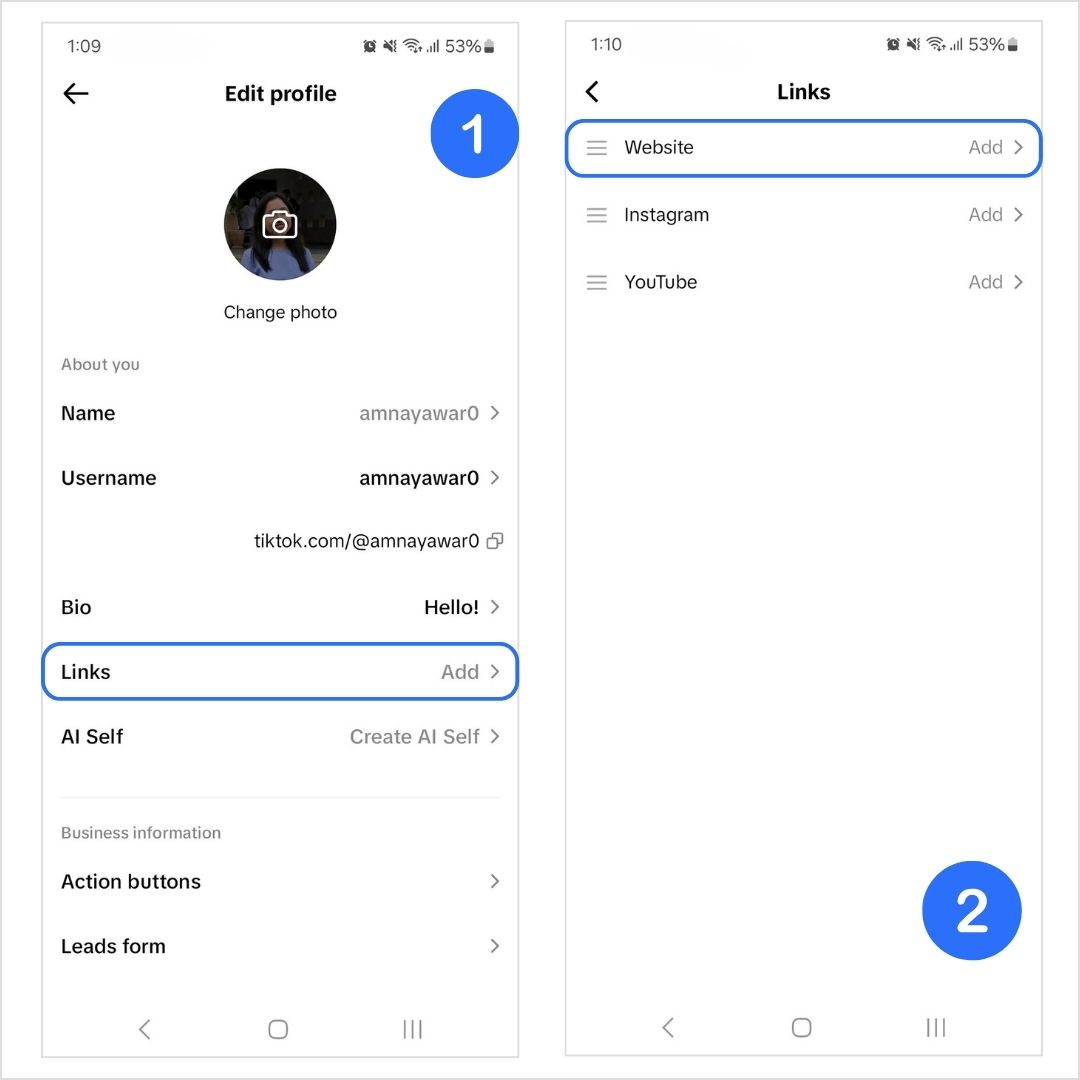
Open the TikTok app and go to your profile by tapping the profile icon in the bottom-right corner of the homepage.
Tap “Edit Profile.”
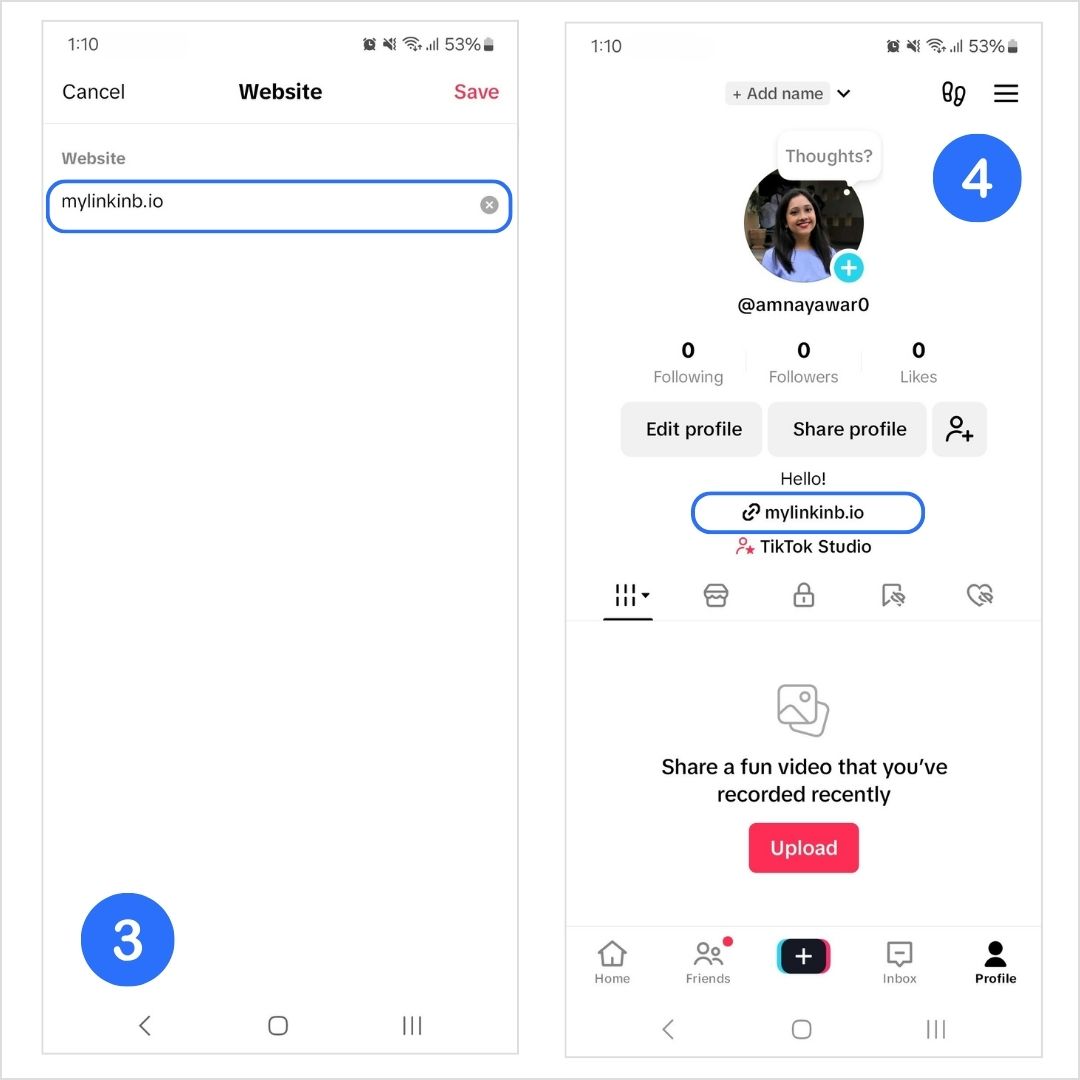
Click on “Links” to add your bio link to your TikTok profile. You can do this by clicking on “Website”
What to do if you can’t see the option for “Website”
The Website feature isn’t currently available everywhere. If the “Website” section isn’t showing up for you, there are a few things to consider:
Meet the follower requirement: Personal Accounts need at least 1,000 followers to add a website link.
Switch to a Business Account: Clickable links in bios without a follower limitation of 1,000 are only available for Business Accounts.
Use the Mobile app: Links can only be added through the TikTok mobile app, not the desktop version.
Switching to a TikTok business account
If you’re using a personal account but want to add a bio link for your business, consider switching to a Business Account. This will give you access to more features, including the ability to add a clickable link.
Here’s how to make the switch:
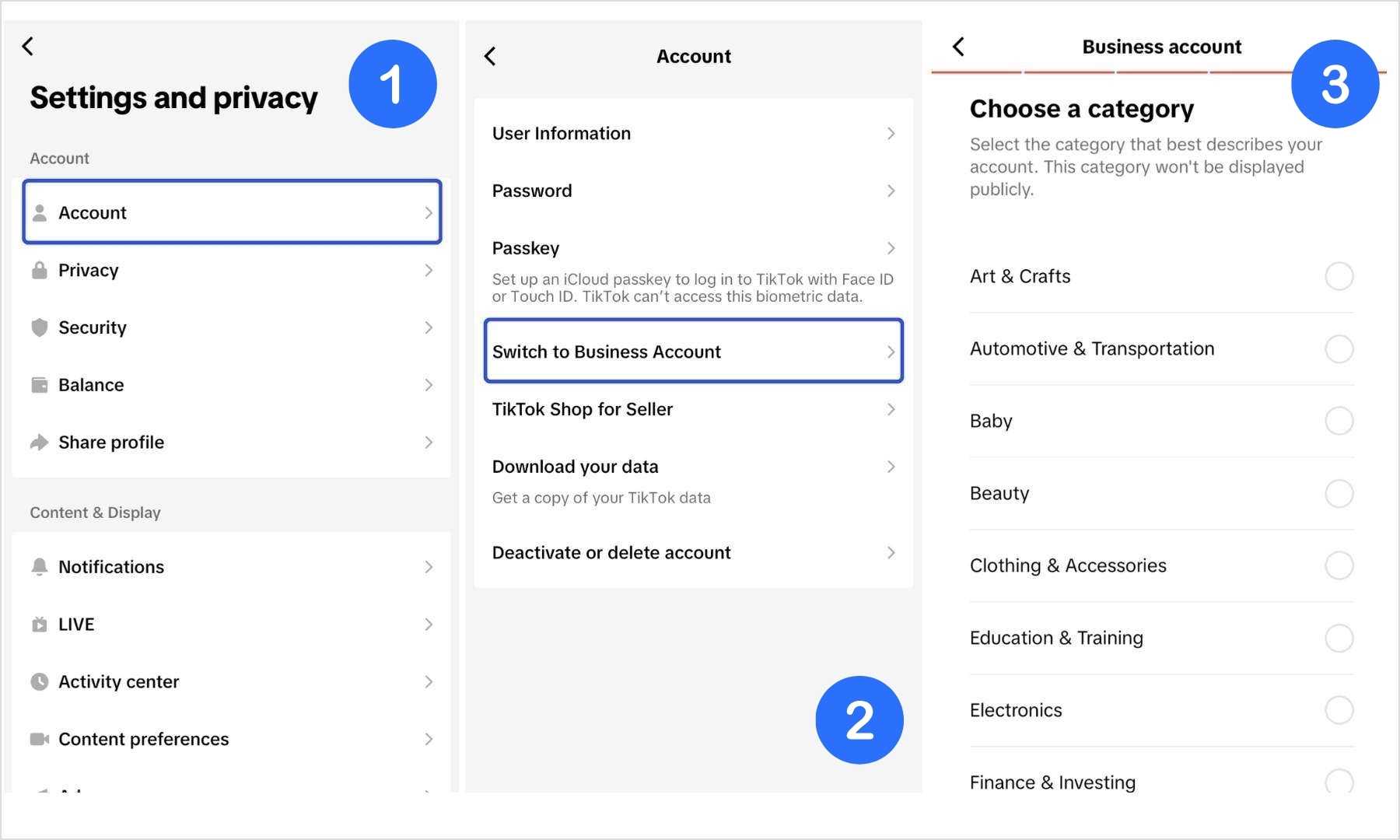
Tap on your profile icon in the bottom-right corner.
Tap the hamburger menu (three lines) in the top-right corner to open the Settings & Privacy menu.
Select Account.
Tap Switch to Business Account.
Once you’ve switched, head back to your profile, tap Edit Profile, add the linktree you’ve created using Replug under the Website section.
Now you’re all set to drive traffic to your website and other resources directly from your TikTok bio!
Why use Replug for your linktree?
Replug is designed to elevate your TikTok linktree with advanced customization, powerful analytics, and other unique tools that can help you stand out and grow your audience.
Here’s why you should use Replug to generate a linktree for your TikTok bio:
Customize your linktree page: Replug gives you full control over the look of your linktree, making it easy to match the design with your TikTok vibe. With Replug, you can customize your template according to your brand personality, add a verification button, a custom favicon image, and multiple blocks (links, social, video, RSS, text, separator, and spacing) to your bio site. The possibilities are endless!
Custom and branded links: With this efficient link shortener, you can create a custom URL for your linktree. If you have a branded domain, even better! You can connect your domain to your custom URL and generate a branded short link that instantly tells your followers that your link it all about you.
Maximize marketing ROI
by transforming ordinary URLs into branded short links that convert.
Try Replug for free
Link analytics: Replug’s detailed analytics allow you to track a variety of metrics to understand what’s working and what’s not.
Advanced retargeting: Replug’s retargeting pixels feature allows you to reach out to people who have interacted with your linktree links but haven’t taken action yet. With personalized ads or follow-up campaigns, you can bring those users back to complete the conversion, whether that’s making a purchase, signing up for your newsletter, or another goal. Link management & quick updates: One of the best features of Replug is the ability to easily manage your links. TikTok moves fast, and what was relevant last week might not be today. With Replug, you can quickly update your linktree without having to constantly change your TikTok bio. Whether you’re pushing a limited-time offer or promoting a new TikTok video, you can ensure that your links are always up-to-date. Mobile-optimized: Since TikTok is a mobile-first platform, Replug’s linktree design is fully optimized for smartphones and tablets. You won’t have to worry about your linktree looking clunky or hard to navigate.
SEO-friendly: Replug allows you to adjust your linktree’s metadata, title, and description, making it easier to be discovered via search engines. This feature helps you increase your visibility, both on TikTok and beyond, driving organic traffic from Google and other search platforms to your linktree.
Conclusion
And that’s a wrap! Adding a linktree to your TikTok bio is an easy way to share multiple links in one place, making it easier for your followers to access all the important content you want to share. With Replug, you can take it a step further by customizing your linktree, tracking performance, and even retargeting visitors to drive more conversions.
If you haven’t created your linktree yet, now’s the time to give it a go and make your TikTok bio more impactful!
FAQs on how to add a linktree to Tiktok bio
Can I add a link to my TikTok bio without having 1,000 followers?
You can add a link to your TikTok bio without having 1,000 followers if you have a business account. However, this is not possible if you have a personal account.
What’s the best way to add multiple links to my TikTok bio?
Since TikTok only allows one bio link, using a bio link tool like Replug helps you create a mini landing page with multiple links, whether it’s your website, store, or latest content.
What are the requirements for adding a link to your TikTok bio?
To add a clickable link to your TikTok bio, you need:
– At least 1,000 followers if you have a personal account. Otherwise, you’ll need a registered business account. – You must have the TikTok app installed on your mobile phone. – Your account must comply with TikTok’s community guidelines and terms of service.
How can I put a link in my TikTok bio without having a business account?
– If you have 1,000 TikTok followers on your personal account, you’ll be able to add a website link or a linktree in your TikTok bio. – If you want to add a link with less than 1,000 followers, you can simply copy-paste your link in the bio section. It won’t be clickable, but it’s better than not having a link at all.
How do I add an Instagram link to my TikTok bio on iPhone?
To add an Instagram link to your TikTok bio on iPhone:
1. Open the TikTok app and go to your profile. 2. Tap “Edit profile.” 3. In the “Instagram/Youtube” section, tap “Instagram.” 4. Enter your Instagram username or link, then tap “Save.” 5. Your Instagram link will now be in your bio.
How can I measure the performance of my TikTok bio link?
Some bio link tools provide detailed insights, including total clicks, unique visitors, and traffic sources. This helps you understand what’s working and optimize your links for better engagement.
Instagram may have finally allowed multiple links in bios, but it’s still not the most user-friendly way to share all your important content. If you’re a creator, business owner, or marketer, you probably have more than just five links to share. That’s where a bio link tool, often called a ‘linktree’ tool, comes in handy. Instead of cluttering your bio or constantly swapping out links, you can create a single Instagram linktree that leads your followers to all your content.
In this blog, we’ll discuss how to add a linktree to Instagram and how linktree tools such as Replug can make your Instagram bio stand out.
How to add a linktree to Instagram using Replug
Step 1: Create a bio link using Replug
Replug’s bio link/linktree feature lets you add multiple links under one URL.
Copy the linktree URL that you want to display on your Instagram.
Step 3: Open the Instagram app and go to your profile
Open the Instagram app on your smartphone.
Tap the profile icon at the bottom right of your screen.
Step 4: Edit your profile
Once you’re on your profile, click on the Edit Profile button. This is where you can edit your bio and add links to your Instagram profile.
Step 5: Paste your linktree URL
Click Add Link
Click Add external link
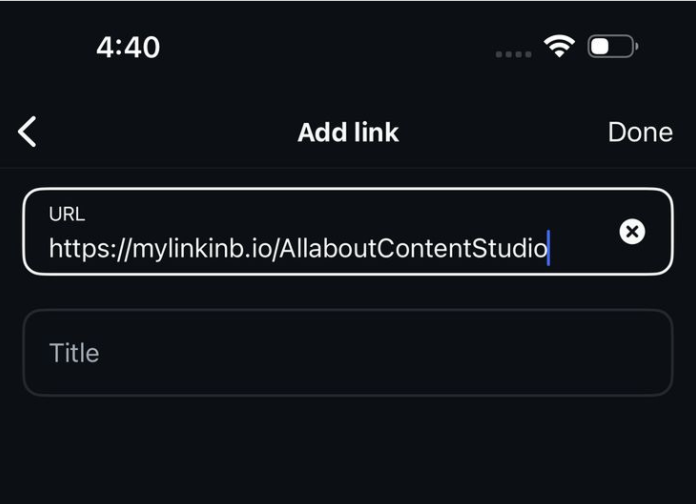
Paste your Replug linktree in the URL bar and give it a title as well.
Save. Now, your linktree will be visible to your audience on your Instagram.
Why Replug is the best choice for your linktree
Your Instagram linktree should do more than just hold a few links. With Replug, you can create a fully customized, branded, and data-driven linktree that helps you drive more engagement and conversions.
Full customization: Replug allows you to create your bio site to match your brand’s look and feel. You can customize templates, colors, favicons, and add multiple content blocks, including links, videos, social icons, and more.
Branded links: Instead of a generic link, create a custom URL or connect your own domain to make your bio link look more professional and trustworthy, with this top-notch URL shortener.
Powerful analytics: Track total clicks, unique clicks, referral sources, and geographic data to see exactly where your audience is coming from and which links are performing best.
Retargeting features: Replug lets you add retargeting pixels so you can re-engage visitors with personalized ads and campaigns, helping you maximize conversions.
Easy link management: No need to change your Instagram linktree every time you have a new offer or post. With Replug, you can update your link page in seconds while keeping your bio link the same.
Optimized for mobile and SEO: Your link page will be mobile-friendly and optimized for search engines, helping you increase visibility beyond Instagram.
Conclusion
Adding a linktree to your Instagram bio is an easy yet effective way to share all your important content without cluttering your profile. By following the simple steps outlined above, you can quickly set up your Linktree using Replug and make your bio more organized and user-friendly.
Not only will this save you time and effort, but it will also give you the opportunity to personalize your linktree, track valuable data, and keep your audience engaged. With Replug’s powerful customization and analytics features, your Linktree will do much more than just link to your content; it will help drive conversions and boost your online presence.
So, get started today and optimize your Instagram bio like a pro!
FAQs for how to add linktree to Instagram
What are the best Linktree tools for Instagram?
There are several great Linktree tools, but Replug stands out with its advanced customization, analytics, and retargeting features, making it a top choice for creators and businesses.
Can I track the performance of my linktree links?
Yes, Replug offers detailed analytics that track clicks, sources, and geographic data, helping you understand your audience’s behavior and optimize your content.
Can I track the performance of my linktree links?
Yes, many linktree tools, including Replug, offer analytics to track clicks, sources, and engagement, helping you understand which content works best.
Can I update my linktree links without changing my Instagram bio?
Yes! You can update your linktree content in real-time using Replug, so your Instagram bio link stays the same while you refresh the links inside your linktree.
Can I customize the look of my Instagram linktree?
Yes! Replug is great for customizing your Instagram linktree. You can choose from a variety of templates, customize the colours, add blocks, and much more!
Is my Linktree mobile-friendly?
If you use a good linktree tool, then yes. Linktree pages are mostly optimized for mobile devices, ensuring they work well across all smartphones and tablets.
How do I manage multiple links in my bio?
Replug is great for managing multiple Instagram links in one place. With just one URL in your bio, you can guide your followers to all your important content.
You’ve got your Instagram bio all set up, but it feels like something’s missing. Maybe it’s neat, but it’s not “popping’’ the way you want it to. You’ve probably seen other profiles with those slick little threads in their bios and thought: That’s genius! How do I get in on this? Well, guess what? You’re in the right place because we’re about to show you exactly how to add threads to Instagram bio and make your profile stand out in a big way.
We’ll walk you through the three simple methods of adding threads to your Instagram bio, including a unique way to do it using Instagram bio links. It’s easier than you might think, and the results will be totally worth it. With threads, you can take your Instagram bio from basic to eye-catching in no time, creating a profile that feels fresh and dynamic.
So, let’s dive in and get your bio looking its best!
But wait… what even is “Threads”?
If you’re an Instagram pro, you’ve probably heard of Instagram Threads by now, and maybe even wondered how you can bring the two together.
Threads is Instagram’s text-based counterpart, built around promoting healthy conversations, while Instagram itself thrives on visual content.
Threads, the newer text-based app from Meta, is all about sparking meaningful conversations and staying connected with your audience in a more direct way. Since its launch in July 2023, Threads has skyrocketed to over 300 million monthly actives (Adam Mosseri, Head of Instagram), many of whom have come from Instagram. Why? Because these two platforms sync up perfectly, making it easy to link them and create a seamless experience.
Think of it as X’s/Twitter’s most popular alternative.
How to add threads to Instagram bio?
Now let’s get to the fun part! There are three methods to add threads in your Instagram bio:
Method 1: As a clickable icon directly through the Threads app
Method 2: Adding a Threads link using Instagram’s External link option.
Method 3: Using the Replug bio link feature
Method 1: How to add Threads to Instagram bio as a clickable icon directly through the Threads app
Open the threads app: If you don’t have the Threads app installed already, go to your Apple Store or Playstore to install it.
Sign in with Instagram: Before you start, make sure you have an active Instagram account to link with Threads. If you’re already logged into Instagram, Threads will automatically detect your profile and link the two.
Set up your experience: Choose whether you want to keep your profile public or private.
Tap “Join Threads”: Once done, you’ll see a button at the bottom to join Threads. Click on it to proceed.
Threads will be added to your Instagram profile: Once done, go to your Instagram profile. Here, you’ll see a clickable Threads icon at the top right, as well as in your bio section.
Note: You can easily hide your Threads badge inside your Instagram app by simply clicking “Edit profile” and toggling the “Show Threads badge” button.
Pros
Cons
Effortless setup: Threads automatically links to Instagram.
Easily overlooked: The icon is small and placed in a corner.
Minimalist look: No extra links cluttering your bio.
No clear call to action: The icon does not look like a clickable link.
Direct integration: Ensures a seamless experience between Instagram and Threads.
Limited awareness: Some users may not recognize the Threads icon yet.
Method 2: How to add Threads to Instagram bio using an external link
Access your Threads profile and click on Edit profile.
Copy your Threads link.
Open the Instagram app and click on Edit profile.
Click on Add external link
Paste your Threads URL.
Your Threads link will appear in your Instagram bio.
Pros and cons
Pros
Cons
Straightforward: Simply copy and paste the link.
Not visually appealing: A long URL can look messy and unprofessional.
Clickable and obvious: Users can clearly see it is a link.
Limited engagement: A single external link might not get much attention.
Recommendation: For maximum traffic, it’s best to duplicate the Threads link on your Instagram bio page through a link in bio tool.
The good news is that you can easily do that using Replug’s bio link feature! Which brings us to the next method.
Method 3: How to add Threads to Instagram bio using Replug’s bio link feature
Replug takes your Instagram bio to another level with its bio link feature. You can create a bio site that includes the link to your Instagram Threads account alongside other important links that you want to showcase to your audience.
Here are the simple steps that you need to follow if you use Replug’s Instagram link in bio tool to put Threads in your Instagram bio:
Open the Replug app and log in to your Replug account. If you don’t have an account, you can easily create one within minutes!
Access the Bio Links feature from your home page.
Click on Create new.
Click on Content and add a “Links” block.
Paste your Threads profile URLand give it a title.
Customize your bio link URL and copy it.
Go beyond generic link pages!
Create custom bio links that truly fit your brand
With Replug, you can create bio links that are unique, engaging, and built to convert.
Adding Threads to your Instagram bio helps you connect with your audience more effectively, but choosing the right method matters. While the built-in Threads badge and direct link options work, they come with limitations like low visibility and cluttered URLs.
This is where Replug stands out. With its bio link feature, you can create a branded, clickable landing page that includes your Threads profile along with other important links. This not only makes your Instagram bio look clean and professional but also boosts engagement and tracks clicks to see what’s working.
Replug is the ultimate solution if you want a seamless, customizable, and data-driven way to showcase your Threads profile. Start using it today!
What’s even better is that you can also enhance your links’ appearance with our free link shortener, making it easier to share clean, trackable URLs across your desired platforms.
FAQs on how to add Threads to Instagram bio
How is Threads different from Instagram?
Threads focuses on text-based conversations, similar to Twitter (X), while Instagram is image and video-driven. Key differences include:
– Threads prioritizes discussions, updates, and engagement through text. Instagram is primarily used for sharing visual content like photos, reels, and stories. – Threads does not have hashtags, search trends, or a chronological feed, unlike Instagram.
Can I add Threads to my Instagram bio without using any third-party tools?
Yes! You can either use the Threads badge that appears automatically when you sign up for Threads or manually add your Threads profile link as an external link in your Instagram bio.
How to add Threads to Instagram bio after deleting it?
If you previously deleted your Threads profile from your Instagram profile, you cannot restore it. However, you can still add your Threads profile link again manually by using the methods listed above.
How to add Threads ID in Instagram bio?
Threads does not have a unique ID like Instagram usernames. Instead, your Threads profile is linked to your Instagram handle. To add it:
– Copy your Threads profile URL. – Paste it in your Instagram bio as text or add it as an external link under Edit Profile.
How to create a Threads account without Instagram?
Currently, you cannot create a Threads account without an Instagram account. Since Threads is an extension of Instagram, you must log in using your Instagram profile to access Threads.
Why can’t I see the Threads badge in my Instagram bio?
If the Threads badge is missing, it may have been hidden manually. You can check this by going to Edit Profile on Instagram and toggling the “Show Threads badge” option.
Will adding Threads to my Instagram bio improve engagement?
Yes! A well-placed Threads link makes it easier for followers to find your content. Using Replug’s bio link helps even more by organizing multiple links in a visually appealing way.
Your Instagram bio is one of the first things people notice when they land on your profile. In just 150 characters, it has to introduce you, reflect your personality, and convince people to follow or engage with you.
But let’s be real. It’s not always easy to sum up yourself or your brand in such a small space. That’s where this guide comes in.
What’s inside?
120+ Instagram bio ideas tailored for influencers, businesses, content creators, and more (with examples).
Best practices to make your bio engaging and high-converting.
An Instagram bio is the short text that appears at the top of your profile, just under your username and profile picture. It’s basically your elevator pitch; a few lines that tell people who you are, what you do, and why they should care about you.
What to include in your bio
Before diving into the bio ideas, let’s break down how to write a professional bio or a more personal one for your Instagram profile that makes it valuable and appealing:
Your name: Use your real name or brand name so people can easily recognize you. If your handle is different, this helps with discoverability.
Your niche: Clearly state what you specialize in, whether it’s marketing, fitness, photography, or something else.
Concise description: Clearly state who you are and what you do. Keep it short but impactful.
Other accounts: If you manage multiple Instagram accounts (e.g., personal, business, or side projects), mention them with “@” to direct followers there.
Other accounts: If you have other social media accounts that you would like to redirect the user to, this is the perfect place to share those social media handles.
Call-to-action (CTA): Encourage users to take action, whether it’s visiting your website, signing up, or shopping through high-converting CTAs.
Website or bio link: Instagram allows just one clickable link, so make the most of it. Advanced tools like Replug will let you easily add a link in bio to Instagram. You can also try our “bio links” feature to get the job done in no time!
Keywords for discoverability: Use relevant words that align with your niche to improve searchability.
Emojis and hashtags: Use emojis to add personality and break up text (e.g., ✨, 📍, 🚀). Include a branded hashtag or niche-related tags for visibility, but avoid overloading your bio with them.
Contact info & social proof: If you’re a business or influencer, add your email, achievements, or brand partnerships.
Now, let’s jump into 120+ Instagram bio ideas tailored for different industries, including some great options if you’re looking to create the perfect Instagram bio for girls that really stands out and connects with your audience.
Whether you’re a blogger, YouTuber, podcaster, or artist, these templates will help you craft the perfect bio link to drive engagement and conversions:
Template
Description
Copy-paste template
Basic bio link
A simple, clean setup for any content creator.
🔗 Main CTA: [Your call-to-action] 📌 Website/Bio Link: Replug’s bio link 📩 Contact: [Your email] 📷 Socials: [Link to other platforms]
Video creator
For YouTubers, TikTokers, or podcasters looking to promote videos and channels.
🔗 Watch My latest video: [Insert video link] 📌 Website: [Insert website link] 📩 Contact: [Your email] 🎥 Subscribe on YouTube: [YouTube link]
Artist template
Perfect for photographers, designers, or musicians who want to showcase their art and products.
🔗 Listen to My latest track: [Insert music link] 📌 Portfolio: [Link to portfolio] 📩 Contact: [Your email] 📸 Follow My Work: [Link to Instagram]
Collaborator link
Great for influencers or creators open to collaborations and partnerships.
🔗 Collaborate with me: [Link to collaboration page] 📌 Website: [Your website link]📩 Email for Collaborations: [Your email] 🤝 Partnerships: [Link to partnership details]
Content creator hub
A multi-functional link setup for creators managing multiple platforms or projects.
Feel free to copy and paste these templates into your bio, replacing the placeholders with your own information!
Why use an Instagram bio?
A well-crafted Instagram bio isn’t just about aesthetics. It impacts your growth, engagement, and conversions.
Here’s why it matters:
Attracts the right audience: A clear, engaging bio helps people instantly understand if your profile is relevant to them.
Drives traffic to your website or content: With Instagram allowing just five clickable links, using a bio link tool helps add multiple links to Instagram bio that directs traffic to multiple destinations from a single link.
Strengthens brand identity: Whether you’re a creator, entrepreneur, or business, a well-written bio sets the tone for your brand personality.
Boosts engagement: When your bio has a catchy call-to-action phrase (e.g., “DM for inquiries” or “Click below for exclusive deals”), people are more likely to engage with your content.
Now that you have the perfect bio, it’s time to level up and make it work for you. A well-optimized bio doesn’t just look good; it drives traffic, increases engagement, and boosts conversions.
Here’s how you can make the most out of your Instagram bio with Replug:
Add a CTA that converts
Your bio should encourage action. Whether that’s visiting your website, subscribing to your newsletter, or shopping for products. Instead of a generic “Check out my website,” craft a custom CTA that drives conversions.
Example: ❌ “Visit my website” → ✅ “Grab your FREE [resource] now! ⬇️”
Need help creating the perfect CTA? Use Replug’s Free CTA Generatorto craft compelling CTAs that drive results.
Boost your conversion rates with irresistable CTAs with
Instagram allows only one clickable link in your bio. Instead of constantly updating your bio, you can create a stunning bio site using Replug’s Instagram link in bio tool to display all your important links in one place, such as:
Your website
E-commerce store
Latest blog post or video
Social media links
Special promotions
Go beyond generic link pages!
Create custom bio links that truly fit your brand
With Replug, you can create bio links that are unique, engaging, and built to convert.
Select your tone (e.g., Witty, Professional, Inspirational)
Get a customized bio tailored to your niche.
No more writer’s block. Just copy, paste, and start growing!
Once your bio is ready, don’t forget to keep it clean and clickable using our URL shortener free tool. It is perfect for turning long links into sleek, shareable ones that fit right in your Instagram profile.
Extra tips to make your bio shine even more
You’ve got the basics down, but here are some extra tricks to take your Instagram bio from “meh” to “wow.”
1. Know your goal
Before you even start typing, think about your goal. Are you trying to grow your audience? Get more bookings? Point people to your latest product? Knowing what you want helps you craft a bio that pushes followers in the right direction.
If you’re a travel blogger, your goal might be to get people to sign up for your newsletter. Your bio could be: “Join the adventure ✈️ Tips and inspiration delivered weekly ➡️ [link]”
Think about what people are searching for when they find your profile. Using relevant keywords helps your profile show up in the right searches. Whether you’re a fitness coach or a DIY expert, sprinkle in terms that describe your niche.
For example, a nutritionist might want to use keywords like “Nutrition Tips,” “Healthy Eating,” or “Wellness Coach.”
It makes their bio more searchable and helps potential clients find them faster.
3. Keep it visually appealing
Don’t turn your bio into a wall of text. Break it up with a couple of line breaks and even use emojis for a pop of personality. For instance, if your profile grid already features bold visuals or creative portraits, you can lean into AI images that match your brand tone, then reference them in your bio to reinforce the aesthetic. A neat, structured bio is way easier to read, and it grabs attention.
A wellness coach might have their bio look like this: 🌱 “Wellness Tips & Motivation” 💡 “Helping you live your best life” 📩 “DM for Coaching!”
It’s visually clean and tells people exactly what they can expect from following you.
4. Be authentic
Whether you’re funny, laid-back, or professional, let your personality shine. No one wants to follow a robot—they want to connect with the real deal.
If you’re a pet trainer, your bio could be: “Turning pups into well-behaved furballs 🐾 Training made simple! DM for tips!”
It’s informal, relatable, and directly speaks to your audience in a fun way.
5. Hashtags and links: give your bio some extra flair
Add a hashtag or two that reflects your brand or niche. You can also link to your other social media profiles, making it easy for followers to find your full online presence.
A fitness blogger could add: #FitFam | #HealthyLiving 🌱 Or maybe link to another Instagram page like: Follow my workout journey: @YourFitnessJourney.
This gives followers multiple ways to engage with you without being too in-your-face.
Your Instagram bio is your first impression. It tells visitors who you are, what you do, and why they should follow you. A strong bio can boost engagement, drive traffic, and build your brand identity.
What is the character limit for an Instagram bio?
Instagram allows up to 150 characters for your bio, so make every word count!
How do I make my Instagram bio stand out?
Keep it concise, use keywords for discoverability, add a CTA, and incorporate emojis or hashtags to reflect your personality. A well-crafted bio should be clear, engaging, and actionable.
How can I add multiple links to my Instagram bio?
Instagram allows only one clickable link in your bio, but tools like Replug let you create a customizable bio link page. This way, you can direct followers to your website, shop, latest content, and more, all from a single link.
Can I track clicks and engagement on my bio link?
Yes! With Replug, you can not only add multiple links but also track clicks, measure engagement, and optimize your bio link for better conversions. This is especially useful for businesses, influencers, and content creators.
Should I update my Instagram bio regularly?
Absolutely! Your bio should evolve with your brand. Regular updates ensure that your CTA, links, and branding stay relevant and engaging.
Managing all your links, such as your blog, social media profiles, online store, or YouTube channel, can quickly turn into a game of “Where’s that link again?”. It’s easy for things to get scattered, and for your audience, tracking down what they’re looking for can be a bit of a hassle. That’s where a bio site comes in handy.
Instead of sharing a bunch of different links, you can bring everything together in one place, making it super easy for your audience to find exactly what they need with just one click.
In this guide, we’ll walk you through what a bio site is and how to create one using Replug.io in just 6 easy steps.
What is a bio site?
A bio site (also known as a microsite or landing page) is essentially a one-page website where you can collect all your important links and share them in a way that’s clean and easy to navigate.
It’s basically like your online hub where visitors can click on one link and instantly access your blog, social media accounts, e-commerce store, latest YouTube videos, or even your favorite Spotify playlist. You can also view some bio link examples to get a better understanding of how they work. It’s a quick, convenient way to share everything without bombarding your audience with a long list of URLs.
Now, you might be thinking, “Can’t I just add my website link to my social bio?” Sure, but a bio site offers way more flexibility. There are countless benefits of bio links, but to name a few, here’s why you need a bio site:
Saves time: No need to constantly update your link in bio. Just update your bio site, and everything stays fresh with a single link.
Boosts engagement: An organized bio site makes it easier for followers to find what they’re interested in, increasing their engagement with your content.
Branding control: Customize your bio site with your colors, fonts, and buttons so it reflects your personal style or brand effortlessly.
Great for marketing: Use call-to-action buttons, embed videos, and track link performance, all in one place to improve your marketing strategy.
Perfect for social media: A bio site solves the one-link limit on platforms like Instagram, TikTok, and X (Twitter), giving you room to share everything.
Better user experience: Your followers won’t have to search for your content. Everything they need is organized in one simple URL.
How to create a bio site in 6 easy steps using Replug
Setting up a bio site is easier than you think, and Replug makes it even simpler. Just follow these steps through our “bio links” feature, and you’ll have a fully functional bio site in minutes.
1. Choose the right bio site app
There are plenty of bio site apps out there, but Replug stands out because it’s easy to use, allows for advanced bio site customization, and is packed with powerful analytics. Whether you want a minimal look or a fully branded page, Replug gives you the tools to make it happen.
2. Sign in or create a new account
Head over to Replug and create your account. If you already have an account, you can just log in to your account and get started with the bio site creation.
3. Go to “Bio Links”
Once you’re logged in, click “bio links” on your dashboard.
From there, simply click “Create new” to get started.
4. Pick a template or customize your design
You can now select from a variety of templates, adjust your color scheme, and even add your logo.
Pro tip: Add a verification button to your profile using Replug to increase bio link clicks and gain trust.
5. Optimize for engagement and SEO
Here’s where you can make your bio site really work for you:
You can customize your meta title, description, and image to enhance your link’s visibility on search engines and social media platforms.
Add a custom favicon image to your bio site.
Add tracking pixels to measure cross-device conversions, create lookalike audiences, and optimize delivery to users most likely to take action.
Want to make updates? No problem! Replug lets you edit your bio site easily anytime, so you can tweak things as you go.
6. Publish and share your bio site
Once your bio site is ready, hit publish! Now, copy the link and add it to your social media bios, email signatures, and anywhere else your audience can find you.
One cool and advanced feature of Replug is that you can create a vanity URL for your bio links. Upon seeing your bio link, your followers will know exactly what your bio site is about.
Here’s what the final page for your bio site looks like:
Conclusion
Creating a bio site doesn’t have to be complicated. With the right tool like Replug, you can set up a professional, fully customized bio site in just a few minutes. Instead of juggling multiple links, you’ll have one clean, organized hub for all your content. Follow the best bio link practices to ensure best results.
Whether you’re a creator, entrepreneur, or business, a well-optimized bio site boosts engagement, improves branding, and simplifies the way you share links.
You can further enhance your bio site’s performance by using this free link shortener to track clicks, optimize links, and manage all your URLs seamlessly.
Go beyond generic link pages!
Create custom bio links that truly fit your brand
With Replug, you can create bio links that are unique, engaging, and built to convert.
Yes! Once your bio site is live, you can edit links, design, and content anytime without changing the URL. This means you can keep your page fresh with new updates without losing traffic.
How do I track clicks and engagement?
Many bio site platforms, including Replug, offer built-in analytics. You can monitor link clicks, visitor behavior, and engagement rates to understand what’s working and optimize your page accordingly.
Can I use my own domain for my bio site?
Advanced link management platforms like Replug allow custom domains or vanity URLs, which help with branding and credibility. Instead of a generic link, you can have a personalized web address that makes your bio site look more professional.
What’s the best way to drive traffic to my bio site?
Add it to your social media bios, email signatures, and even business cards. You can also share it in posts, newsletters, or link it in YouTube descriptions to make it easily accessible.
Will my bio site help with SEO?
Yes! A well-optimized bio site with a custom meta title, description, and relevant keywords can improve search visibility. Plus, using high-quality content and links can enhance your online presence.
Your Discord bio is your chance to make a solid first impression. Whether you’re gaming, chatting with friends, or connecting with fellow creators, it’s the perfect spot to let your personality shine. But we get it; it can be tough coming up with the right bio.
So, how do you sum yourself up in just a few words?
Don’t worry; we’ve got you covered!
We’ve compiled 100+ Discord bio ideas to help you nail it. From cool and aesthetic vibes to funny and witty one-liners, we’ve got something for everyone. No matter what vibe you’re going for, you’ll find the perfect bio ideas here to boost engagement on your Discord profile.
Ready to make your Discord profile pop? Let’s get started!
Discord bio basics: everything you need to know
Before we get into the juicy stuff, let’s quickly go over the basics of how to write a winning, professional bio. After all, a solid understanding of Discord’s bio setup will make your ideas pop even more.
Bio length: Regular users can write up to 190 characters, while Discord Nitro subscribers get a bonus of 280 characters. However, if you want a customized bio with quick bio links, consider Replug, since it will keep it neat and make the most of your space.
Where it appears: Your bio shows up on your profile card when someone clicks your username. It appears fully expanded on a desktop, while mobile users see a condensed version.
Profile picture synergy: Your bio and profile picture should vibe together. If your avatar screams “gamer,” your bio should have that same energy. And if you’re leveraging more advanced personal branding techniques say, automating parts of your online persona, consider skilling up in AI Agent implementation so that your server presence, status updates and voice-chats can reflect a more dynamic, high-tech you. For a professional or creative vibe, like showcasing custom printed pins, make sure your bio matches your tone.
Custom status integration: Pair your bio with a custom status! This tells people exactly what you’re up to, whether in a game, taking a break, or working on something important.
Emoji usage: Emojis are your best friend! They break up text, highlight key info, and add personality. But remember, emojis count toward your character limit, so use them wisely!
Before we spill some of the best Discord bio ideas, let’s talk about best practices to make sure your bio is both engaging and clear:
1. Show your personality
Your bio is your chance to show who you are. Whether you’re funny, creative, or chill, make sure your bio reflects your vibe. Keep it real, and don’t overthink it!
Example: “Just here to share memes and procrastinate. 👀”
2. Use emojis (but don’t go overboard)
Emojis can bring your bio to life. Use them to add personality, break up text, or highlight key points. Just remember to keep it balanced and not cluttered.
Your interests and activities change, and so should your bio. Keep it fresh by updating it to reflect what you’re into at the moment. Whether you’re obsessed with a new game or project, your bio should show it.
Example: “Currently obsessed with Cyberpunk 2077 🚗💥”
4. Make your bio a mini showcase
Your bio isn’t just about you—it’s an opportunity to highlight what you’re working on. Whether you’re a gamer, artist, or streamer, share a backlink to your content or projects.
Example:
“🎮 Streamer | 🎧 Musician | 👾 Check out my channels”
5. Keep it organized
Formatting is key! Use line breaks, bullet points, or simple organization to make sure your bio is easy to scan. This way, people can quickly understand who you are without having to read through a long paragraph.
Example:
🎮 Gamer | Developer 🎧 Music Enthusiast | Meme King 📺 Currently watching: Stranger Things
6. Align your bio with your avatar
Your profile picture and bio should complement each other. If your avatar is gaming-related, your bio should match that vibe. Keep it cohesive and true to your style for a polished look.
Enhance your Discord bio: Go beyond the basics with Replug
1. Create a short link
You don’t have much space, so make every character count! Make sure your bio is impactful, concise, and easy to read.
If you can’t fit everything about yourself in your Discord bio, you can use Replug’s free link shortener tool to create a short link that leads to a more detailed profile, portfolio, or social page. This way, people can learn more about you without cluttering your bio with too much text.
2. Create a Bio Link
Using Replug, i.e., a top-notch link optimization platform, you can create a link in your bio page that includes all your socials, streams, or other important links in one place without cluttering your bio.
For instance, as a gamer or content creator, your Discord bio could say:
“Check out my socials and stream here: [shortened Replug link]
With Replug, you can track where your audience is from, what browser and device they’re using, their referral source, geotargeting data, and more. This detailed bio link analytics data helps you understand your community’s behavior so you can tailor your content and strategies for better engagement.
4.Add Retargeting pixels to your Discord bio links
Add retargeting pixels to your Discord bio links using Replug to re-engage users to click on your link. This allows you to run targeted ads, bringing them back to your server or encouraging them to take action on promotions like discounts or giveaways. You can share these offers through channels, pinned messages, or a linktree that directs them to a landing page, boosting engagement and conversions.
5. Add a call-to-action (CTA)
The perfect CTA can direct people to take action. Want them to join your server or check out your stream? Be clear about what you want them to do, and include a direct link to make it easy.
Example: “Wanna team up? DM me! ⬇️”
Want an easy way to add a CTA? Use Replug’s free CTA generator to create a clickable link that directs people to your social media, stream, or other platforms.
When it comes to your Discord bio, there are a few things you should keep in mind to make it stand out in the best way.
Do’s
Don’ts
Be yourself and let your personality shine
Overdo it with too many emojis or text
Keep it concise and impactful
Use generic or boring phrases
Use emojis to add personality
Include offensive or inappropriate content
Make your bio relevant to your activities
Overload your bio with unnecessary info
Update it regularly
Forget that your bio and profile picture should match
Game over: You’ve mastered the art of Discord bios!
And there you have it: 100+ Discord bio ideas for all kinds of vibes! Whether you’re going for cool, funny, aesthetic, or witty, you’re all set to stand out on the platform. Just remember, your bio is a reflection of who you are, so make it count!
Now, go ahead and update your profile with one of these creative bio ideas!
P.S. Just between us… You can totally copy-paste these Discord bio ideas. We won’t tell.
A complete link management solution
for marketing professionals & agencies.
Try Replug for free
Frequently asked questions
Can my Discord bio be invisible?
Yes! You can use special invisible characters (like Unicode blank spaces) to make it look empty while still technically having a bio.
Can I use fancy fonts in my Discord bio?
Yes, you can copy-paste stylized text from font generator websites, but some may not display correctly on all devices.
Can I add links to my Discord bio?
Discord bios don’t support clickable links, but you can add a shortened, readable link with Replug to make it look clean and shareable.
Can I add line breaks to my Discord bio?
No, Discord bios don’t support line breaks, but you can use symbols like “|” or “•” to separate sections.
What happens if my bio has banned words?
Discord may block or censor certain words in your bio. If you can’t save it, try tweaking the wording.