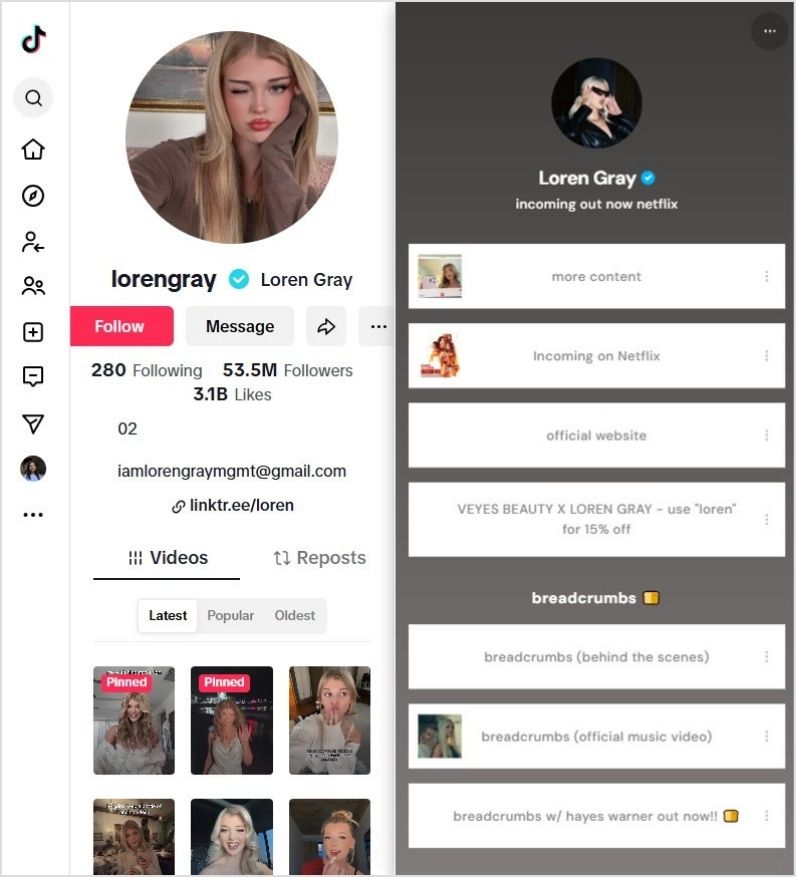
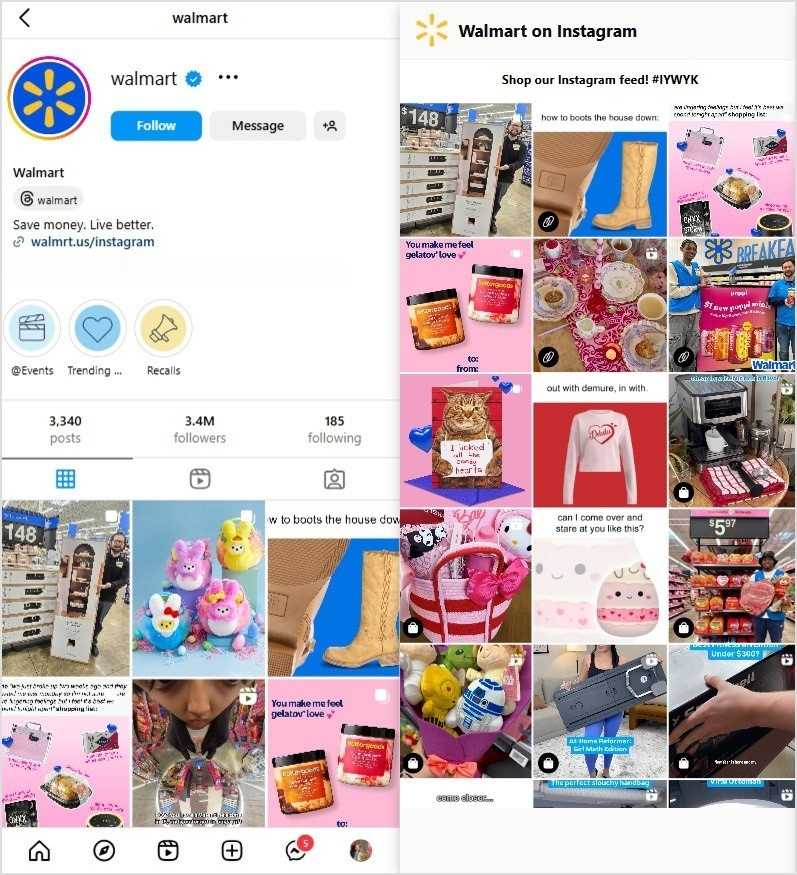
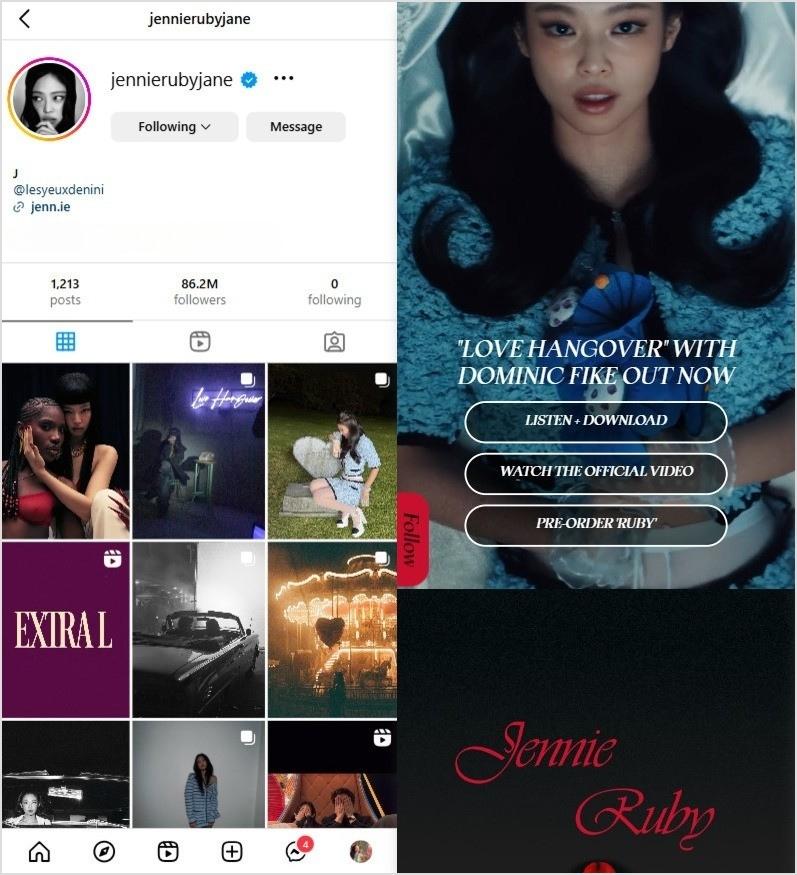
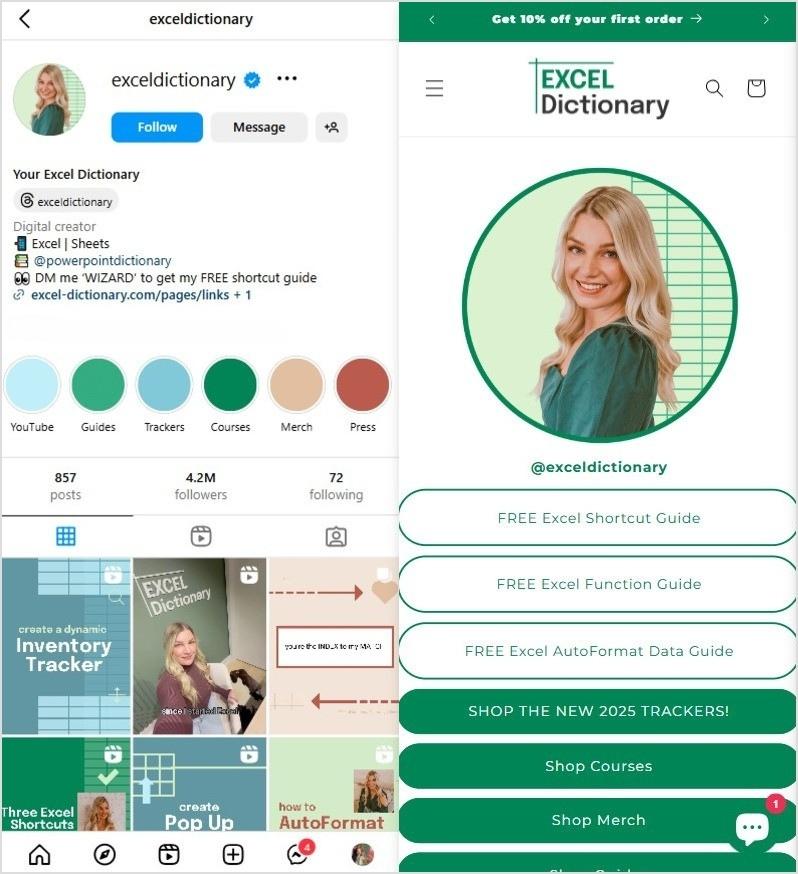
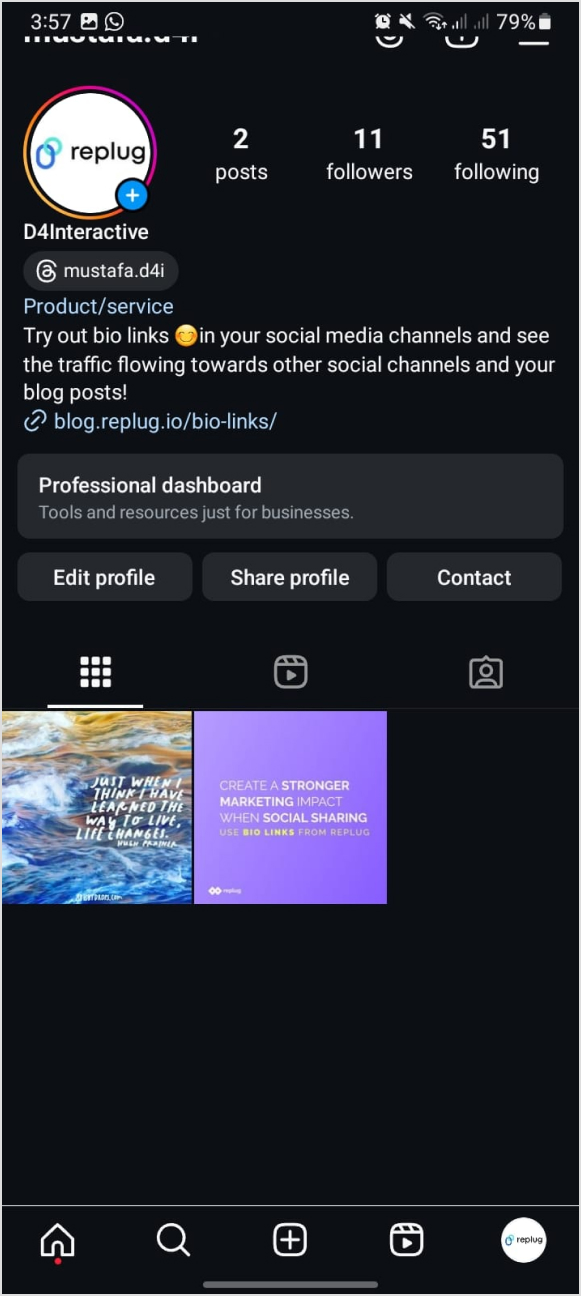
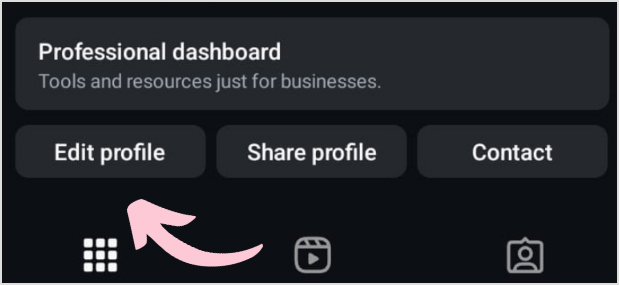
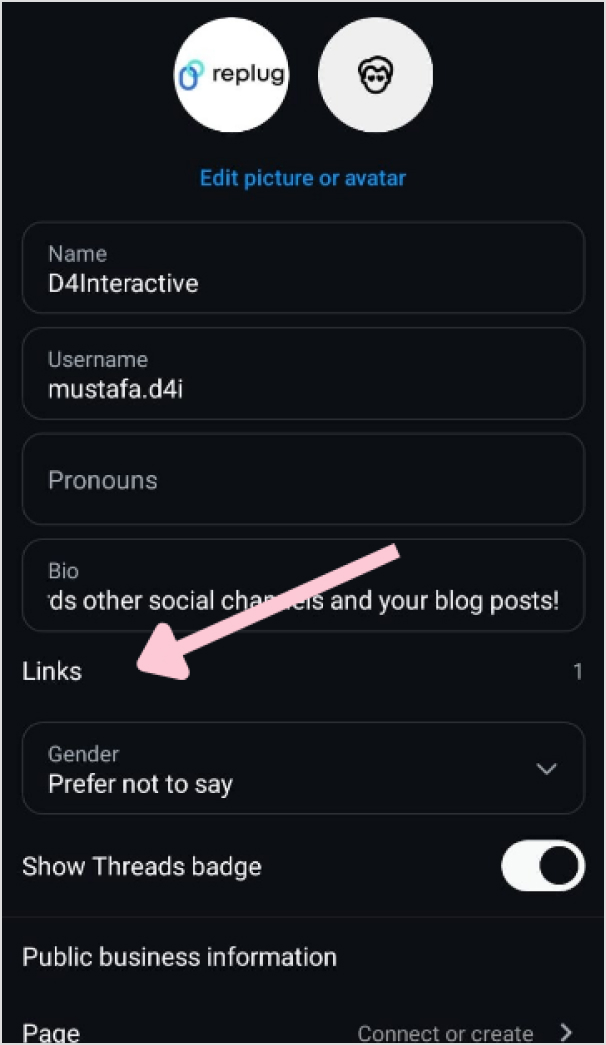
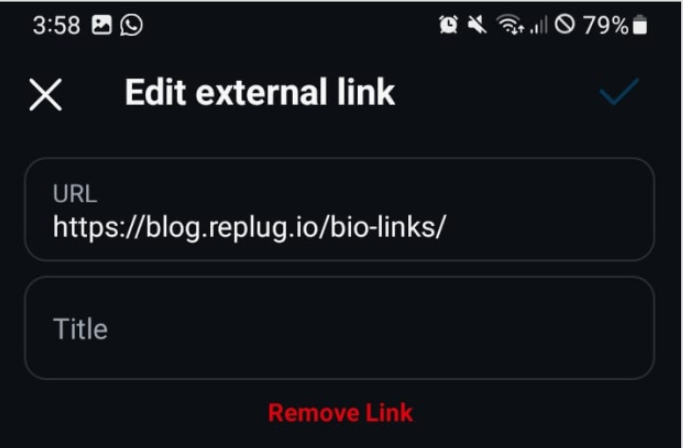
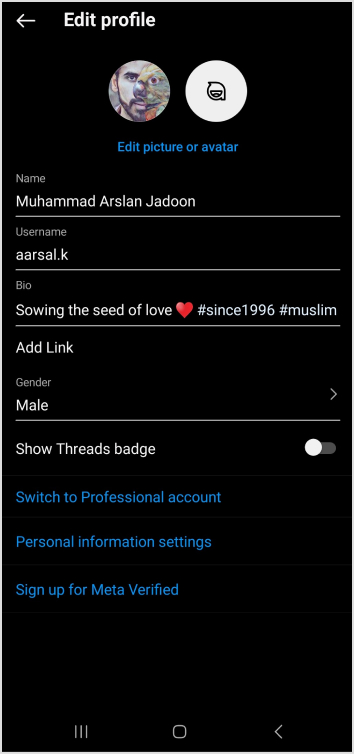
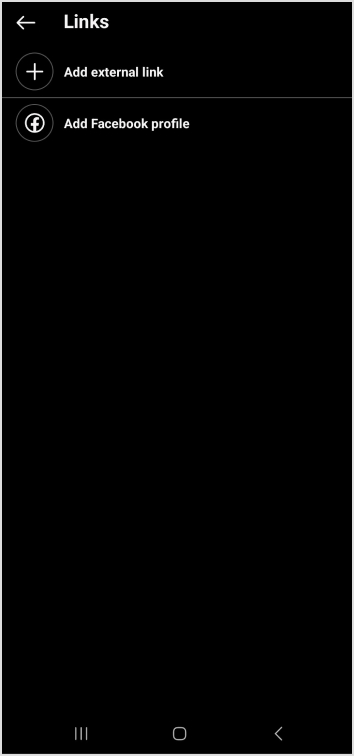
Managing all your links, such as your blog, social media profiles, online store, or YouTube channel, can quickly turn into a game of “Where’s that link again?”. It’s easy for things to get scattered, and for your audience, tracking down what they’re looking for can be a bit of a hassle. That’s where a bio site comes in handy.
Instead of sharing a bunch of different links, you can bring everything together in one place, making it super easy for your audience to find exactly what they need with just one click.
In this guide, we’ll walk you through what a bio site is and how to create one using Replug.io in just 6 easy steps.
What is a bio site?
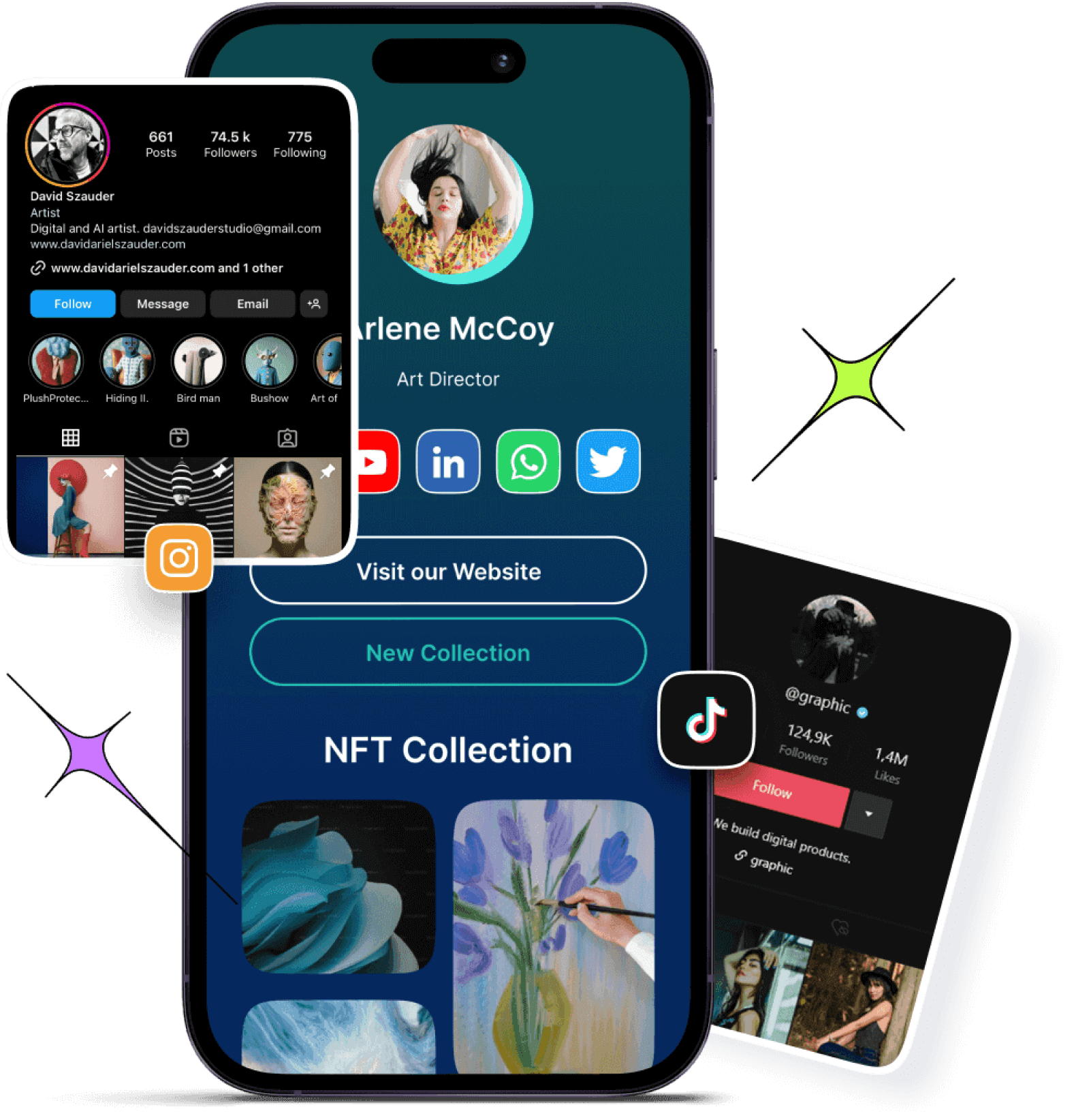
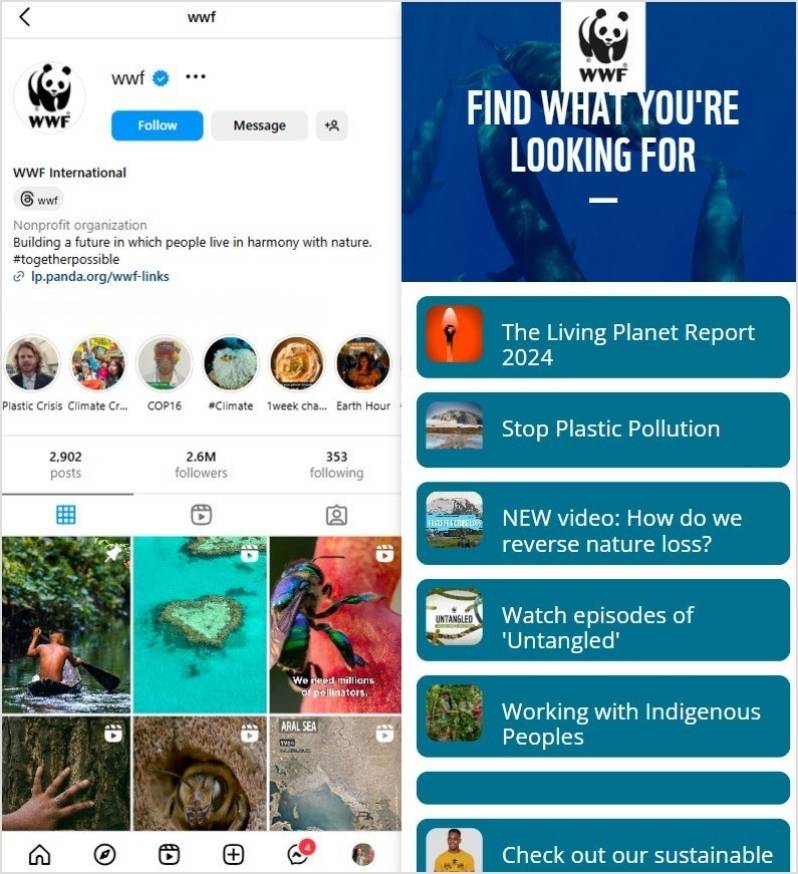
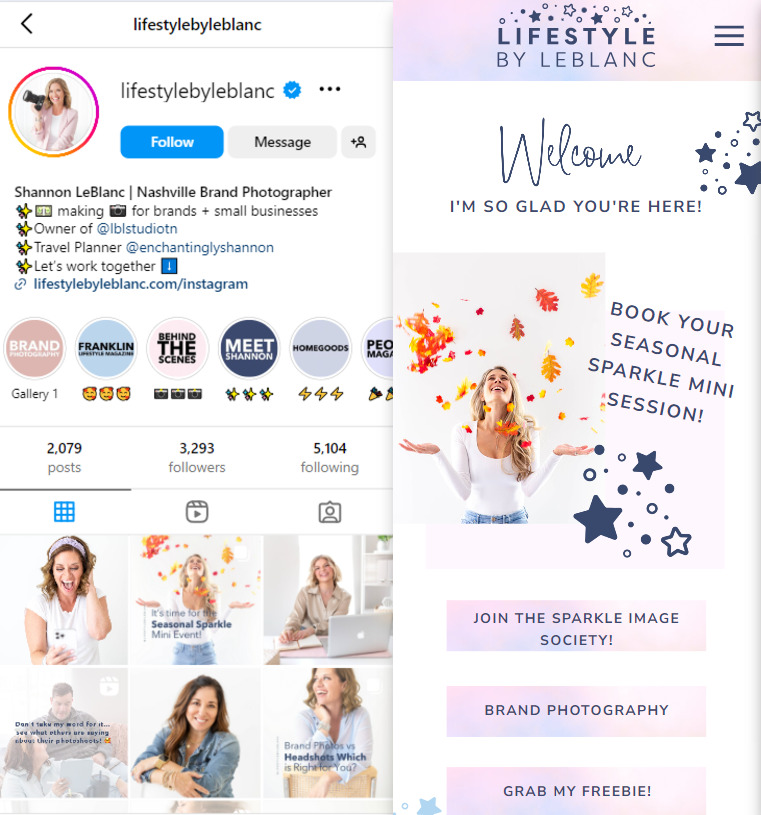
A bio site (also known as a microsite or landing page) is essentially a one-page website where you can collect all your important links and share them in a way that’s clean and easy to navigate.
It’s basically like your online hub where visitors can click on one link and instantly access your blog, social media accounts, e-commerce store, latest YouTube videos, or even your favorite Spotify playlist. You can also view some bio link examples to get a better understanding of how they work. It’s a quick, convenient way to share everything without bombarding your audience with a long list of URLs.
Now, you might be thinking, “Can’t I just add my website link to my social bio?” Sure, but a bio site offers way more flexibility. There are countless benefits of bio links, but to name a few, here’s why you need a bio site:
Saves time: No need to constantly update your link in bio. Get a know-how of what is link in bio in detail. Then, go on and just update your bio site, and everything stays fresh with a single link.
Boosts engagement: An organized bio site makes it easier for followers to find what they’re interested in, increasing their engagement with your content.
Branding control: Customize your bio site with your colors, fonts, and buttons so it reflects your personal style or brand effortlessly.
Great for marketing: Use call-to-action buttons, embed videos, and track link performance, all in one place to improve your marketing strategy.
Perfect for social media: A bio site solves the one-link limit on platforms like Instagram, TikTok, and X (Twitter), giving you room to share everything.
Better user experience: Your followers won’t have to search for your content. Everything they need is organized in one simple URL.
How to create a bio site in 6 easy steps using Replug
Setting up a bio site is easier than you think, and Replug makes it even simpler. Just follow these steps through our link in bio builder, and you’ll have a fully functional bio site in minutes.
1. Choose the right bio site app
There are plenty of bio site apps out there, but Replug stands out because it’s easy to use, allows for advanced bio site customization, and is packed with powerful analytics. Whether you want a minimal look or a fully branded page, Replug gives you the tools to make it happen.
2. Sign in or create a new account
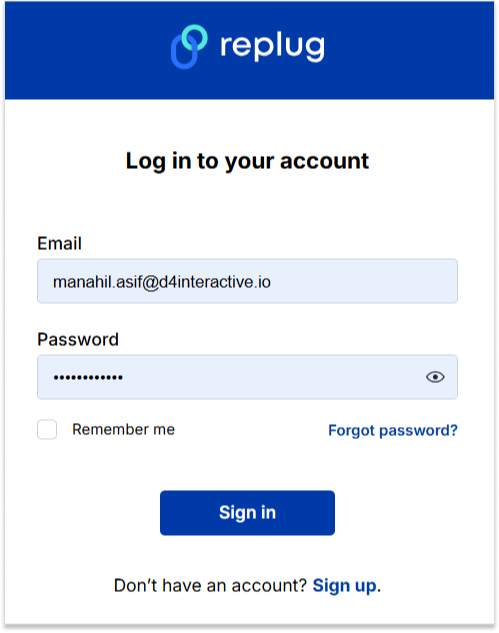
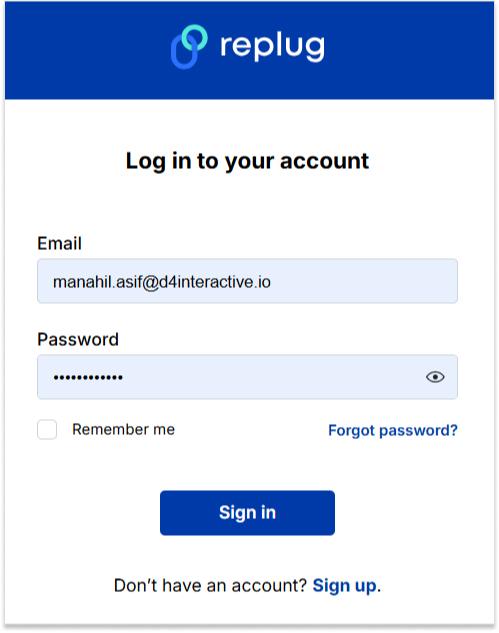
Head over to Replug and create your account. If you already have an account, you can just log in to your account and get started with the bio site creation.
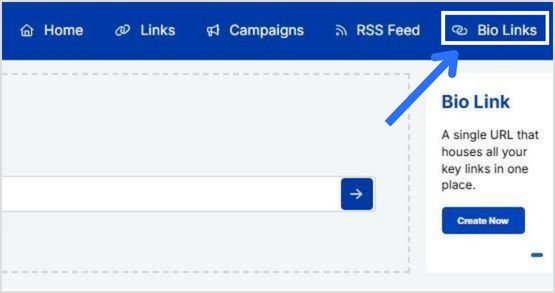
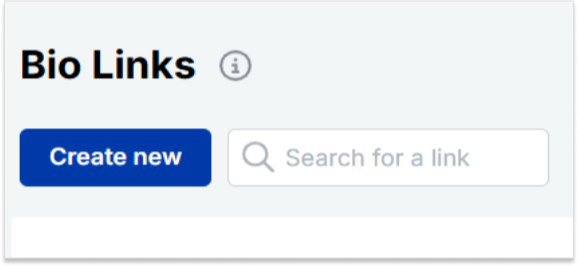
3. Go to “Bio Links”
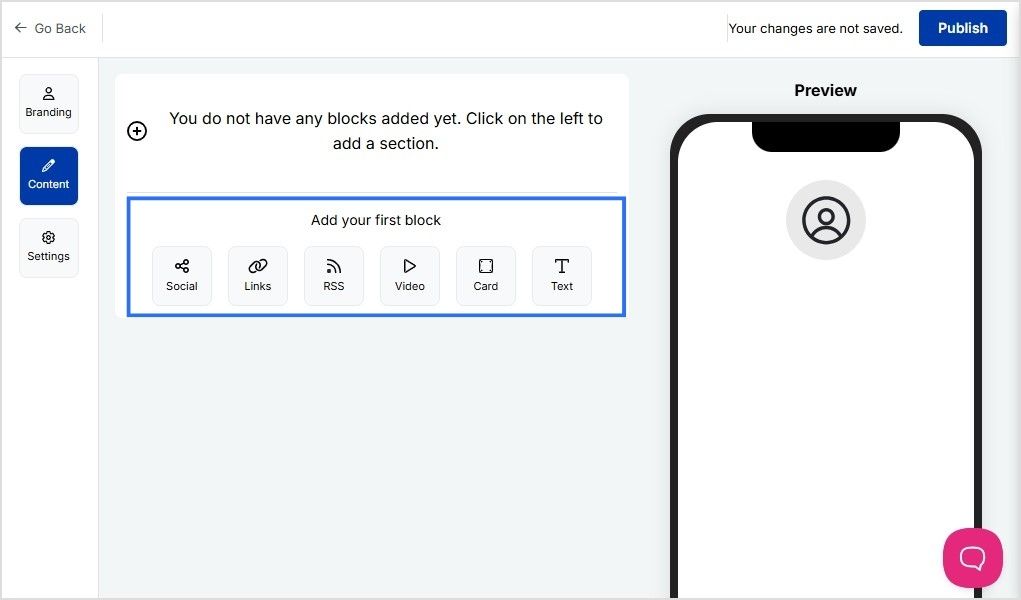
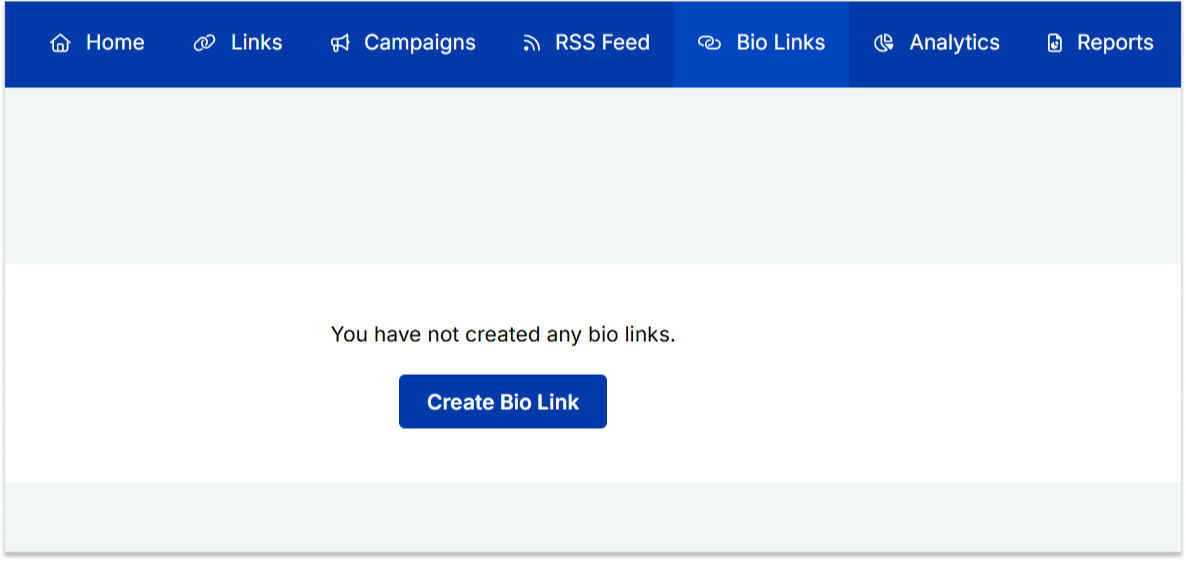
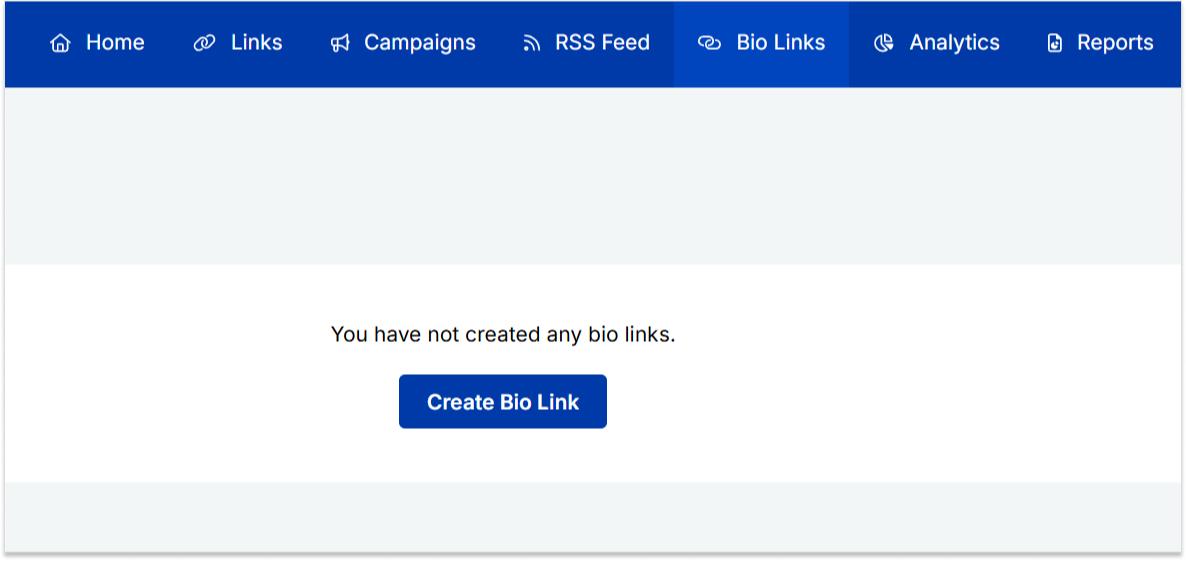
Once you’re logged in, click “bio links” on your dashboard.
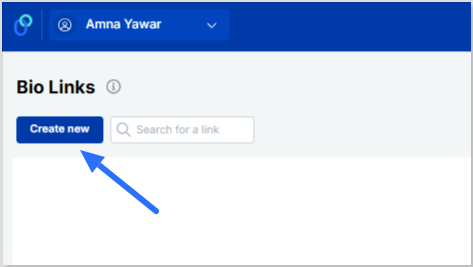
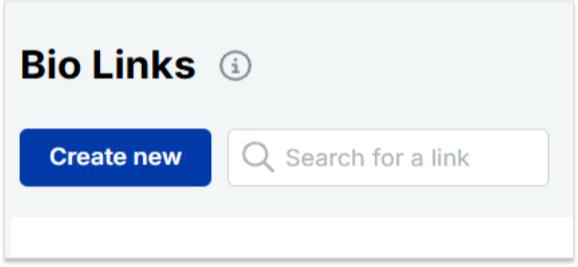
From there, simply click “Create new” to get started.
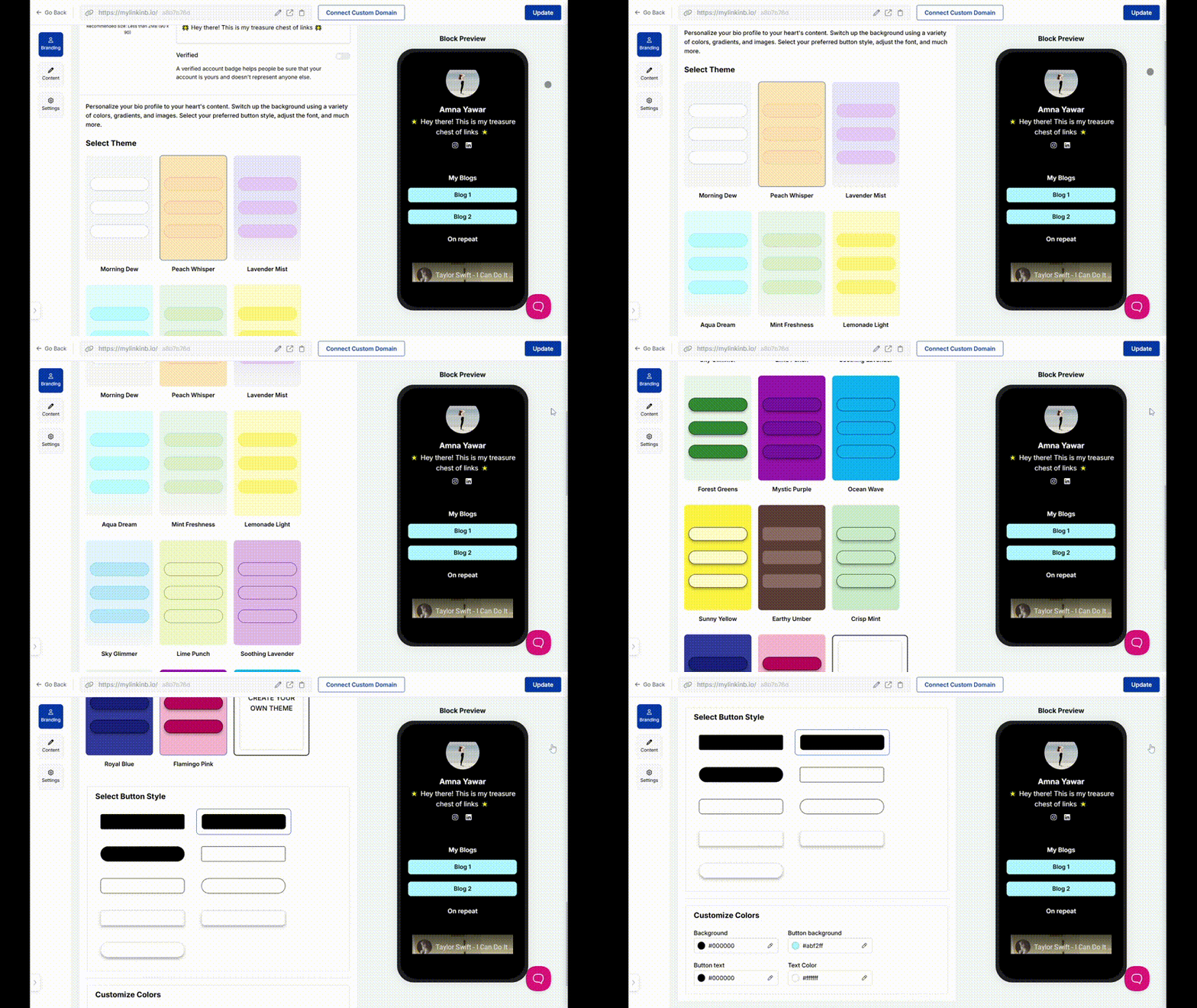
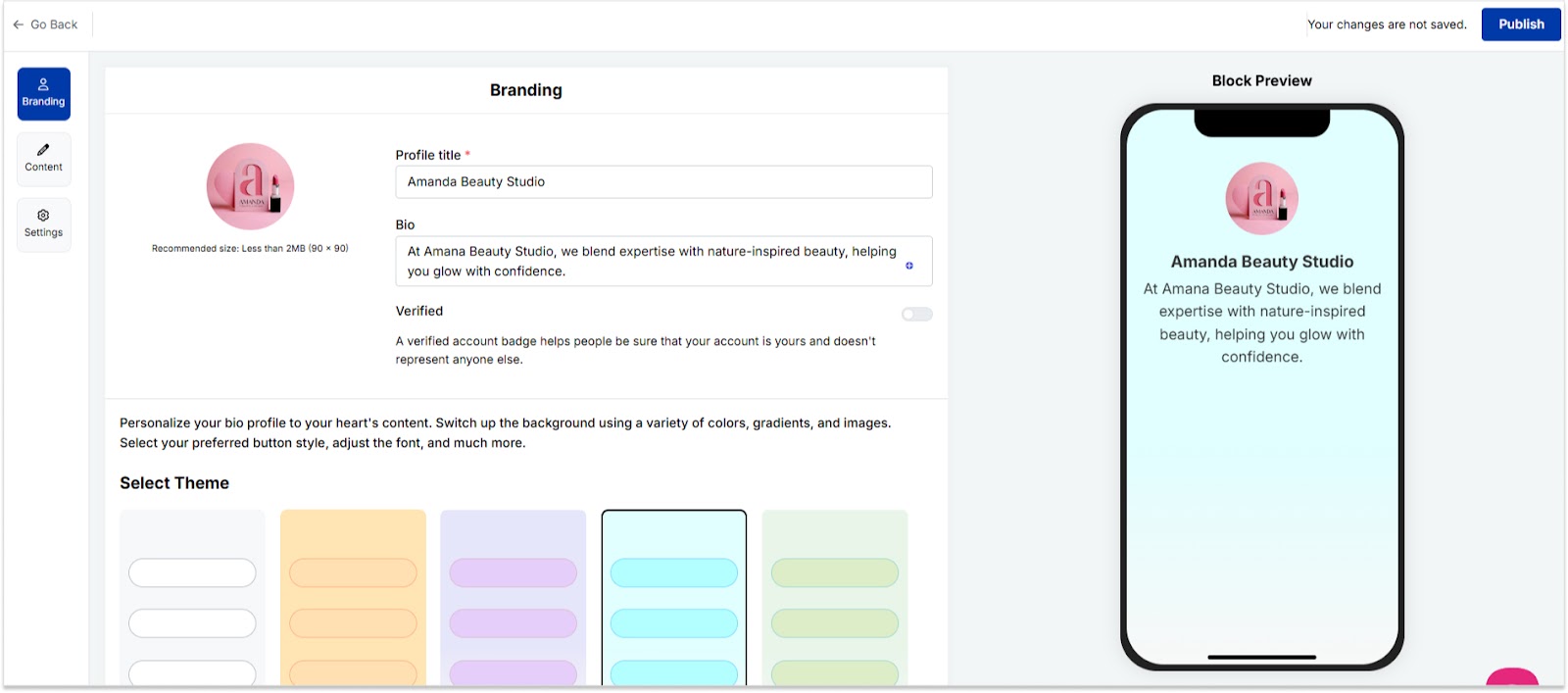
4. Pick a template or customize your design
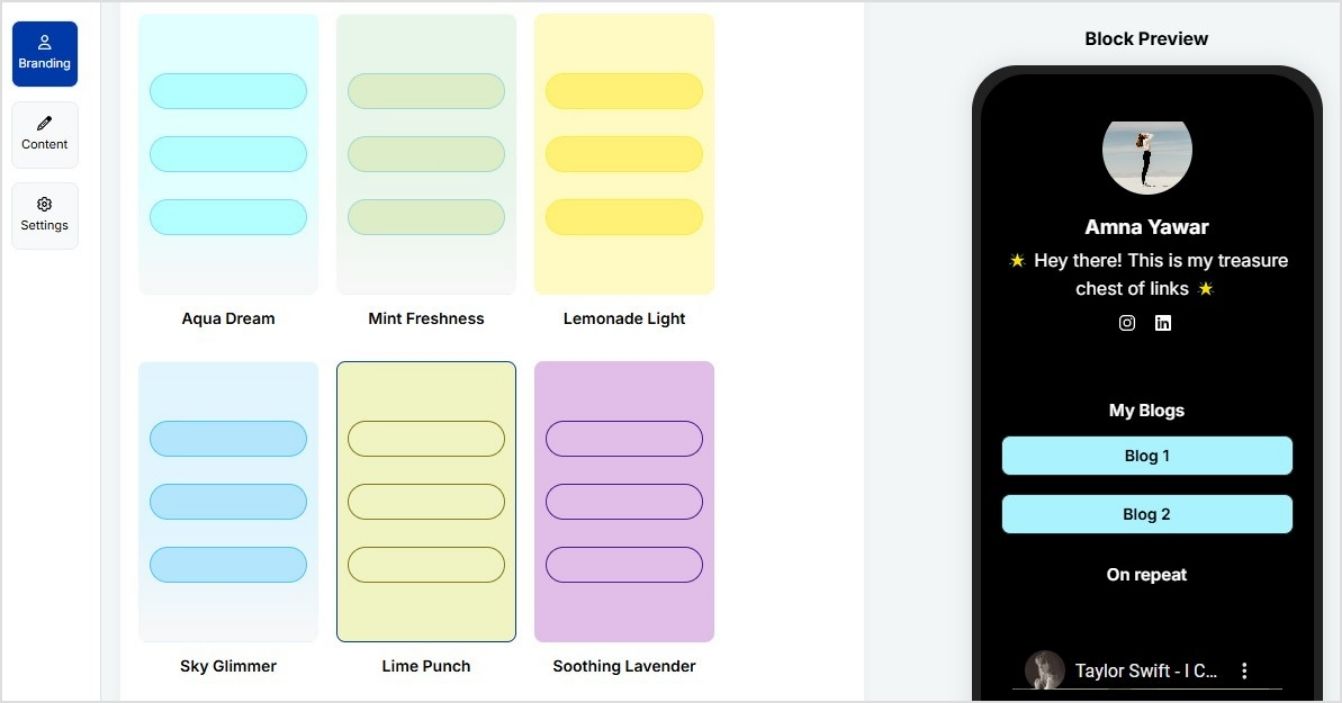
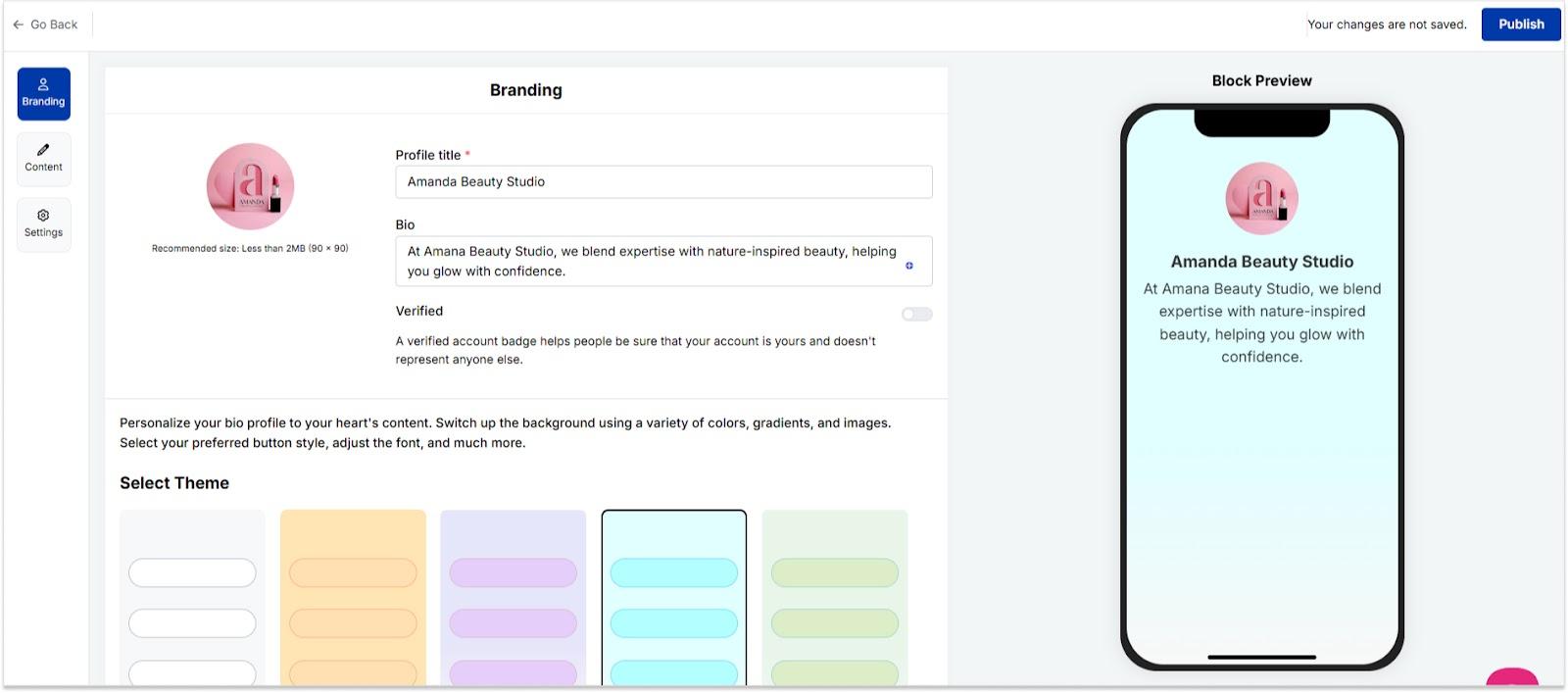
You can now select from a variety of templates, adjust your color scheme, and even add your logo.
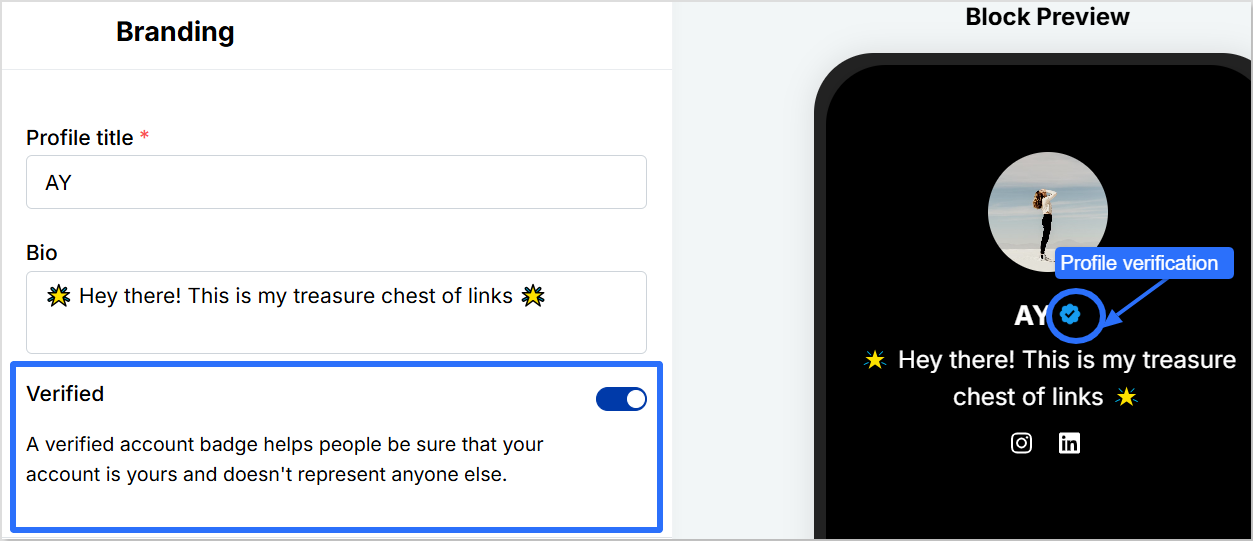
Pro tip: Add a verification button to your profile using Replug to increase bio link clicks and gain trust.
5. Optimize for engagement and SEO
Here’s where you can make your bio site really work for you:
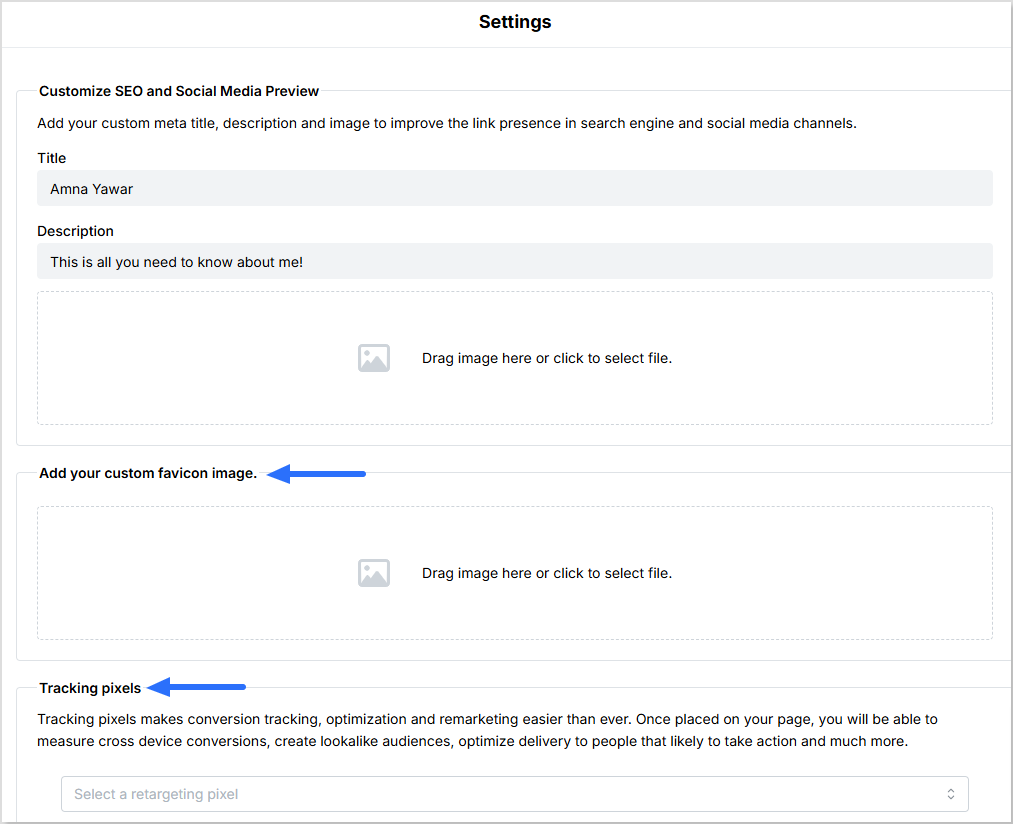
You can customize your meta title, description, and image to enhance your link’s visibility on search engines and social media platforms.
Add a custom favicon image to your bio site.
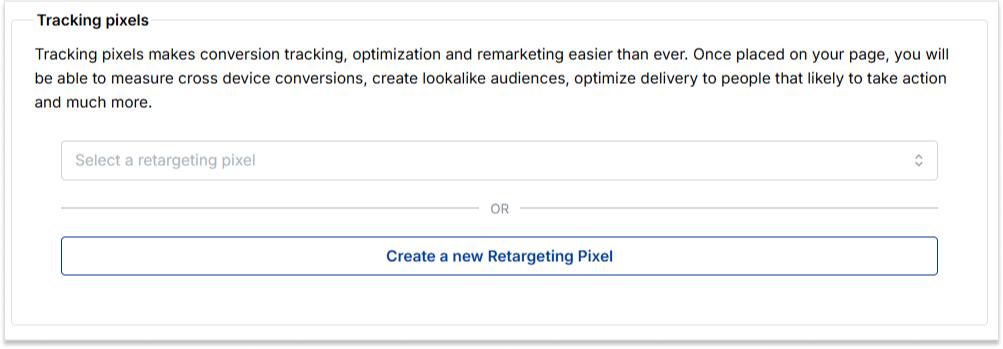
Add tracking pixels to measure cross-device conversions, create lookalike audiences, and optimize delivery to users most likely to take action.
Want to make updates? No problem! Replug lets you edit your bio site easily anytime, so you can tweak things as you go.
6. Publish and share your bio site
Once your bio site is ready, hit publish! Now, copy the link and add it to your social media bios, email signatures, and anywhere else your audience can find you.
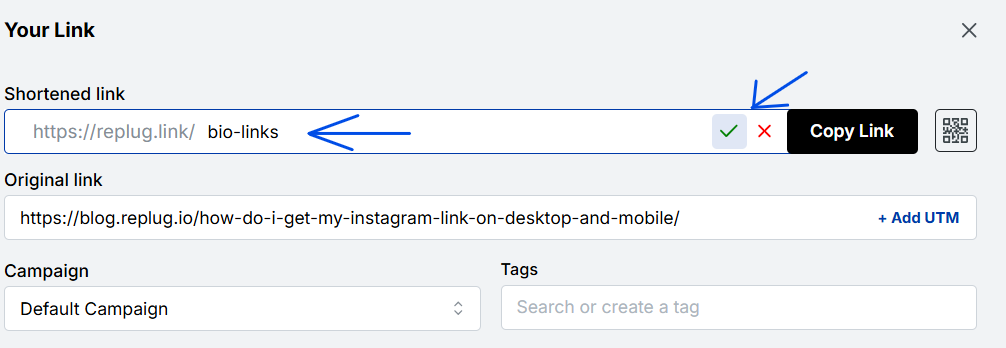
One cool and advanced feature of Replug is that you can create a vanity URL for your bio links. Upon seeing your bio link, your followers will know exactly what your bio site is about.
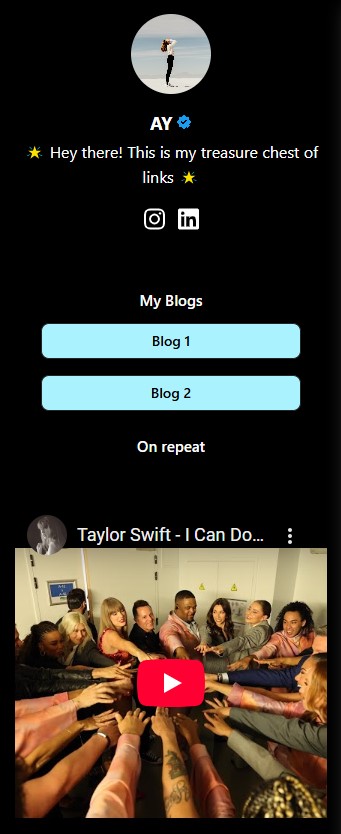
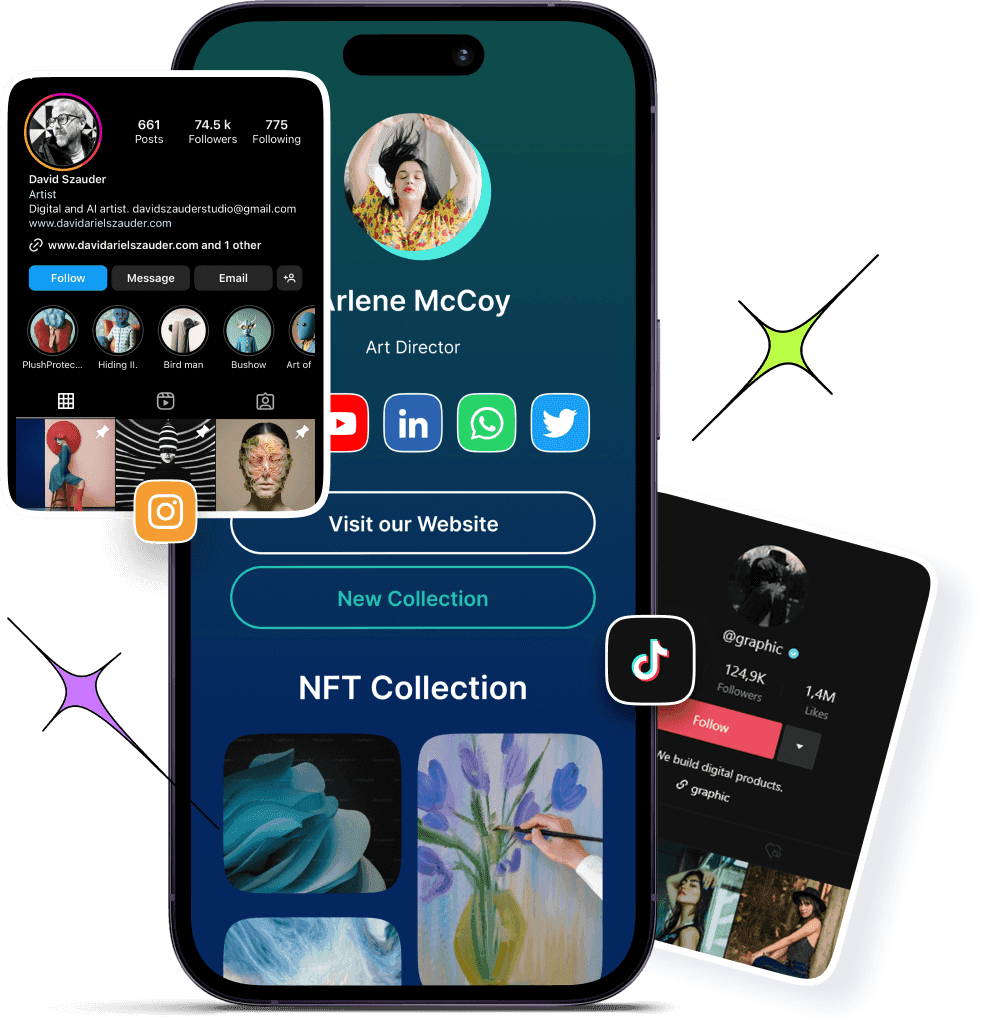
Here’s what the final page for your bio site looks like:
Conclusion
Creating a bio site doesn’t have to be complicated. With the right tool like Replug, you can set up a professional, fully customized bio site in just a few minutes. Instead of juggling multiple links, you’ll have one clean, organized hub for all your content. Follow the best bio link practices to ensure best results.
Whether you’re a creator, entrepreneur, or business, a well-optimized bio site boosts engagement, improves branding, and simplifies the way you share links.
You can further enhance your bio site’s performance by using this best free URL shortener to track clicks, optimize links, and manage all your URLs seamlessly.
Go beyond generic link pages!
Create custom bio links that truly fit your brand
With Replug, you can create bio links that are unique, engaging, and built to convert.
Yes! Once your bio site is live, you can edit links, design, and content anytime without changing the URL. This means you can keep your page fresh with new updates without losing traffic.
How do I track clicks and engagement?
Many bio site platforms, including Replug, offer built-in analytics. You can monitor link clicks, visitor behavior, and engagement rates to understand what’s working and optimize your page accordingly.
Can I use my own domain for my bio site?
Advanced link management platforms like Replug allow custom domains or vanity URLs, which help with branding and credibility. Instead of a generic link, you can have a personalized web address that makes your bio site look more professional.
What’s the best way to drive traffic to my bio site?
Add it to your social media bios, email signatures, and even business cards. You can also share it in posts, newsletters, or link it in YouTube descriptions to make it easily accessible.
Will my bio site help with SEO?
Yes! A well-optimized bio site with a custom meta title, description, and relevant keywords can improve search visibility. Plus, using high-quality content and links can enhance your online presence.
Your Discord bio is your chance to make a solid first impression. Whether you’re gaming, chatting with friends, or connecting with fellow creators, it’s the perfect spot to let your personality shine. But we get it; it can be tough coming up with the right bio.
So, how do you sum yourself up in just a few words?
Don’t worry; we’ve got you covered!
We’ve compiled 100+ Discord bio ideas to help you nail it. From cool and aesthetic vibes to funny and witty one-liners, we’ve got something for everyone. No matter what vibe you’re going for, you’ll find the perfect bio ideas here to boost engagement on your Discord profile.
Ready to make your Discord profile pop? Let’s get started!
Discord bio basics: everything you need to know
Before we get into the juicy stuff, let’s quickly go over the basics of how to write a winning, professional bio. After all, a solid understanding of Discord’s bio setup will make your ideas pop even more.
Bio length: Regular users can write up to 190 characters, while Discord Nitro subscribers get a bonus of 280 characters. However, if you want a customized bio with quick bio links, consider Replug’s link in bio tool, since it will keep it neat and make the most of your space.
Where it appears: Your bio shows up on your profile card when someone clicks your username. It appears fully expanded on a desktop, while mobile users see a condensed version.
Profile picture synergy: Your bio and profile picture should vibe together. If your avatar screams “gamer,” your bio should have that same energy. And if you’re leveraging more advanced personal branding techniques say, automating parts of your online persona, consider skilling up in AI Agent implementation so that your server presence, status updates and voice-chats can reflect a more dynamic, high-tech you. For a professional or creative vibe, like showcasing custom printed pins, make sure your bio matches your tone.
Custom status integration: Pair your bio with a custom status! This tells people exactly what you’re up to, whether in a game, taking a break, or working on something important.
Emoji usage: Emojis are your best friend! They break up text, highlight key info, and add personality. But remember, emojis count toward your character limit, so use them wisely!
Go beyond generic link pages!
Create custom bio links that truly fit your brand
With Replug, you can create bio links that are unique, engaging, and built to convert.
Want to keep it cool and effortless? Here are some cool Discord bio ideas to show off your laid-back yet stylish side:
“Running on caffeine and good vibes.”
“Master of memes, keeper of chaos.”
“Currently in a relationship with sleep.”
“I’m not a robot… but I might be after the next update.”
“The only time I’m a morning person is when the sun is setting.”
“Living life one playlist at a time.”
“Just a small fish in a big pond.”
“Be yourself—everyone else is taken.”
“I’m on a seafood diet. I see food and I eat it.”
“On a quest for world domination. One meme at a time.”
“I’m not arguing, I’m just explaining why I’m right.”
“My hobbies include sleeping, eating, and avoiding responsibilities.”
“Fluent in sarcasm.”
“Do more things that make you forget to check your phone.”
“Stay hydrated and stay woke.”
“I’m a professional overthinker.”
“Currently fighting the urge to be productive.”
“Rolling through life like a smooth playlist.”
“In a complicated relationship with my bed.”
“Too cool for school, too tired for anything else.”
“A work in progress.”
“Searching for Wi-Fi in a world of no connection.”
“Work hard, nap harder.”
“Netflix and sleep.”
Funny Discord bio ideas
Who doesn’t love a good laugh? Here are some funny Discord bio ideas that’ll make everyone do a double-take:
“I’m not lazy, I’m just on energy-saving mode.”
“I’m not short, I’m concentrated awesome.”
“Life is short. So am I.”
“I put the ‘pro’ in procrastination.”
“If I were any cooler, I’d be frozen.”
“Warning: I’m an acquired taste. If you don’t like me, acquire some taste.”
“I would agree with you, but then we’d both be wrong.”
“My life is a meme, and I’m the punchline.”
“I’m like a software update: takes forever, but I’m worth the wait.”
“I’m not arguing, I’m just explaining why I’m right.”
“Life is 10% what happens to me and 90% how I react to it—except in the case of traffic.”
“I don’t suffer from insanity—I enjoy every minute of it.”
“I’m on a diet, I only eat cake now.”
“Call me a fireman because I’m always putting out fires (usually my own).”
“If you don’t like me, that’s okay. I’m not a fan of you either.”
“My bed is a magical place where I suddenly remember everything I forgot to do.”
“I can’t hear you over the sound of how awesome I am.”
“I’m not late, I’m just early for tomorrow.”
“You had me at ‘Hello.’ You lost me at ‘Here’s the plan.’”
“I’m like a sloth on a bad day.”
“If I had a dollar for every time I got distracted, I’d probably be rich by now.”
Aesthetic Discord bio ideas
For those looking to make their profile a little more artsy, here are some aesthetic Discord bio ideas:
“🌙 Chasing the stars, one night at a time.”
“☁️ Living in my daydreams.”
“🌿 Plant enthusiast | 🌱 Grow your own way.”
“🎧 Music is my therapy.”
“🌸 Serenity in simplicity.”
“🌻 A soul that roams free.”
“☾ Moonlight whispers.”
“⚡ Let the vibes flow.”
“🍃 Lost in the beauty of the moment.”
“🌸 I am a work in progress.”
“🌾 Wild at heart.”
“🍂 Autumn leaves & cozy nights.”
“💫 Dream big, sparkle more.”
“🌺 Keep blooming.”
“🌙 Stargazing under the city lights.”
“🌱 Growth is beautiful.”
“☁️ Floating through life.”
“🍃 Catching my breath between moments.”
“🌷 Living the dream, quietly.”
“🌻 Sometimes the stars align.”
“🦋 Finding peace in the chaos.”
“🌼 Peaceful and grounded.”
“🌴 Stay wild, moon child.”
“🌸 Simplicity is the ultimate sophistication.”
“🍃 Always in a state of becoming.”
Cute Discord bio ideas
Ready to show off your adorable side? These cute Discord bio ideas are perfect for you:
“🌸 Here to spread some sunshine.”
“🐾 Paws-itively the best at being cute.”
“💖 Powered by love and hugs.”
“🎀 Small but fierce.”
“🍭 Sweet as candy.”
“🐱 Cat cuddles over everything.”
“🌼 Soft vibes only.”
“🦄 I believe in magic.”
“🍓 Cutie with a sprinkle of sass.”
“🌸 Be the reason someone smiles today.”
“💫 Dreaming big, looking cute.”
“🌼 Here for the cuddles.”
“💖 Sweetheart, through and through.”
“🐇 Hoppy days ahead!”
“🍀 Just a little bundle of joy.”
“🌸 Don’t mind me, just spreading kindness.”
“🐾 I’m fluffy, not fluffy-headed.”
“🍬 Candy and kindness, that’s me.”
“🍃 I’m a soft soul, gentle and kind.”
“🌟 Shy but cute.”
“💗 A little bit of sparkle, a little bit of magic.”
“🎀 Soft as a cloud, fierce as a lion.”
“🐾 You had me at ‘hello.’”
“🦄 Magic lives within me.”
“🌸 A gentle soul in a wild world.”
Witty Discord bio ideas
Ready to add some sass to your bio? Here are some witty Discord bio ideas for those who want to stand out with a little humor and charm:
“I’m not lazy, I’m just on energy-saving mode.”
“I’m not short, I’m concentrated awesome.”
“Life is short. So am I.”
“I put the ‘pro’ in procrastination.”
“If I were any cooler, I’d be frozen.”
“Warning: I’m an acquired taste. If you don’t like me, acquire some taste.”
“I would agree with you, but then we’d both be wrong.”
“I’m on a seafood diet. I see food and I eat it.”
“My life is a meme, and I’m the punchline.”
“I’m like a software update: takes forever, but I’m worth the wait.”
“I’ve got 99 problems, but being boring isn’t one of them.”
“I speak fluent sarcasm.”
“You had me at ‘Hello.’ You lost me at ‘Here’s the plan.’”
“If I had a dollar for every time I got distracted, I’d probably be rich by now.”
“I’m not arguing, I’m just passionately explaining my point.”
“I’m not weird. I’m just a limited edition.”
“You can’t scare me—I’ve been inside my head for years.”
“Not all who wander are lost. Some of us are just avoiding responsibilities.”
“My hobbies include sleeping, eating, and avoiding responsibilities.”
“I’m a professional overthinker.”
“I don’t need an inspirational quote, I need coffee.”
“Brains are awesome. I wish everybody had one.”
“Sometimes I’m a morning person. Just not today.”
“Being an adult is like folding a fitted sheet.”
“My sense of humor is an acquired taste. Hope you like sarcasm.”
Still looking for inspiration? How about copy-paste templates that make your bio look fun? Check out our blog post on Discord bio templates for templates with emojis you can copy and paste into your bio.
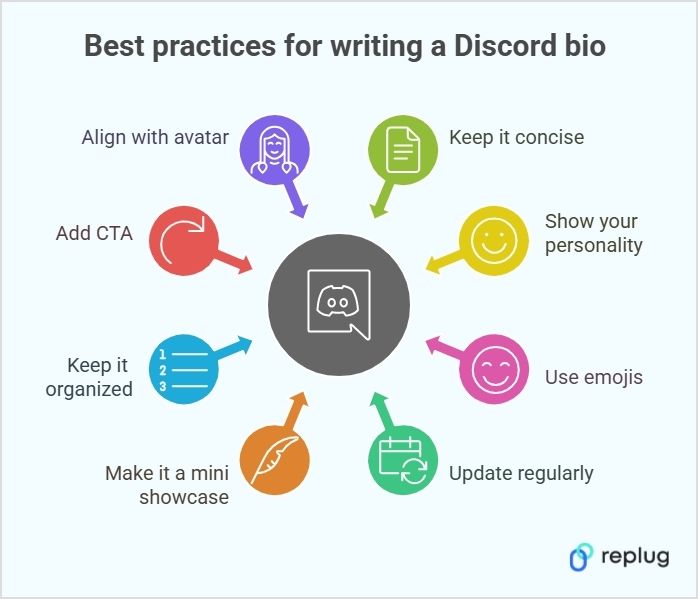
Before we spill some of the best Discord bio ideas, let’s talk about best practices to make sure your bio is both engaging and clear:
1. Show your personality
Your bio is your chance to show who you are. Whether you’re funny, creative, or chill, make sure your bio reflects your vibe. Keep it real, and don’t overthink it!
Example: “Just here to share memes and procrastinate. 👀”
2. Use emojis (but don’t go overboard)
Emojis can bring your bio to life. Use them to add personality, break up text, or highlight key points. Just remember to keep it balanced and not cluttered.
Your interests and activities change, and so should your bio. Keep it fresh by updating it to reflect what you’re into at the moment. Whether you’re obsessed with a new game or project, your bio should show it.
Example: “Currently obsessed with Cyberpunk 2077 🚗💥”
4. Make your bio a mini showcase
Your bio isn’t just about you—it’s an opportunity to highlight what you’re working on. Whether you’re a gamer, artist, or streamer, share a backlink to your content or projects.
Example:
“🎮 Streamer | 🎧 Musician | 👾 Check out my channels”
5. Keep it organized
Formatting is key! Use line breaks, bullet points, or simple organization to make sure your bio is easy to scan. This way, people can quickly understand who you are without having to read through a long paragraph.
Example:
🎮 Gamer | Developer 🎧 Music Enthusiast | Meme King 📺 Currently watching: Stranger Things
6. Align your bio with your avatar
Your profile picture and bio should complement each other. If your avatar is gaming-related, your bio should match that vibe. Keep it cohesive and true to your style for a polished look.
Enhance your Discord bio: Go beyond the basics with Replug
1. Create a short link
You don’t have much space, so make every character count! Make sure your bio is impactful, concise, and easy to read.
If you can’t fit everything about yourself in your Discord bio, you can use Replug’s free URL shortener with no sign up to create a short link that leads to a more detailed profile, portfolio, or social page. This way, people can learn more about you without cluttering your bio with too much text.
2. Create a Bio Link
Using Replug, i.e., a top-notch link optimization platform, you can create a link in your bio page that includes all your socials, streams, or other important links in one place without cluttering your bio.
With Replug, you can track where your audience is from, what browser and device they’re using, their referral source, geotargeting data, and more. This detailed bio link analytics data helps you understand your community’s behavior so you can tailor your content and strategies for better engagement.
4.Add Retargeting pixels to your Discord bio links
Add retargeting pixels to your Discord bio links using Replug to re-engage users to click on your link. This allows you to run targeted ads, bringing them back to your server or encouraging them to take action on promotions like discounts or giveaways. You can share these offers through channels, pinned messages, or a linktree that directs them to a landing page, boosting engagement and conversions.
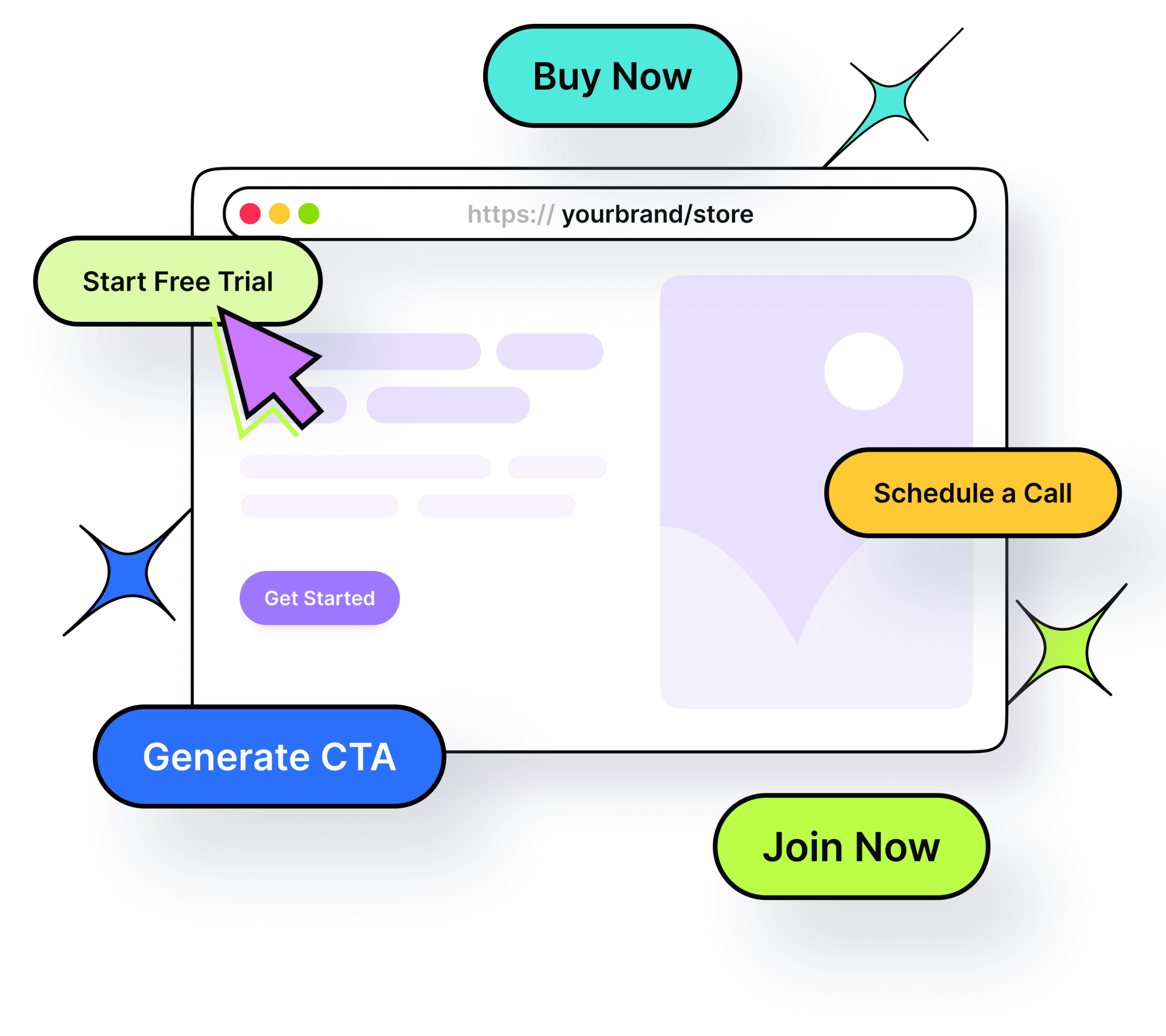
5. Add a call-to-action (CTA)
The perfect CTA can direct people to take action. Want them to join your server or check out your stream? Be clear about what you want them to do, and include a direct link to make it easy.
Example: “Wanna team up? DM me! ⬇️”
Want an easy way to add a CTA? Use Replug’s free CTA generator to create a clickable link that directs people to your social media, stream, or other platforms.
When it comes to your Discord bio, there are a few things you should keep in mind to make it stand out in the best way.
Do’s
Don’ts
Be yourself and let your personality shine
Overdo it with too many emojis or text
Keep it concise and impactful
Use generic or boring phrases
Use emojis to add personality
Include offensive or inappropriate content
Make your bio relevant to your activities
Overload your bio with unnecessary info
Update it regularly
Forget that your bio and profile picture should match
Game over: You’ve mastered the art of Discord bios!
And there you have it: 100+ Discord bio ideas for all kinds of vibes! Whether you’re going for cool, funny, aesthetic, or witty, you’re all set to stand out on the platform. Just remember, your bio is a reflection of who you are, so make it count!
Now, go ahead and update your profile with one of these creative bio ideas!
P.S. Just between us… You can totally copy-paste these Discord bio ideas. We won’t tell.
Frequently asked questions
Can my Discord bio be invisible?
Yes! You can use special invisible characters (like Unicode blank spaces) to make it look empty while still technically having a bio.
Can I use fancy fonts in my Discord bio?
Yes, you can copy-paste stylized text from font generator websites, but some may not display correctly on all devices.
Can I add links to my Discord bio?
Discord bios don’t support clickable links, but you can add a shortened, readable link with Replug to make it look clean and shareable.
Can I add line breaks to my Discord bio?
No, Discord bios don’t support line breaks, but you can use symbols like “|” or “•” to separate sections.
What happens if my bio has banned words?
Discord may block or censor certain words in your bio. If you can’t save it, try tweaking the wording.
We all know that a link-in-bio tool lets you share multiple links through a single URL. And we’ve already talked about how Replug stacks up against other options.
But here’s a question: do you know what a “linktree” actually is?
Most people assume it’s just the name of a tool. But in reality, a linktree refers to any landing page that gathers multiple links in one spot, making it easier for people to access your content, shop, or connect with you.
So, if you’ve clicked on an Instagram or TikTok bio and landed on a page full of links, that’s a linktree. But how does it actually work? And how can you use it to your advantage?
In this guide, we’ll break it down, keeping it light, easy to follow, and packed with useful insights. Whether you’re a social media pro or just getting started, you’ll walk away knowing exactly how to make the most of your linktree.
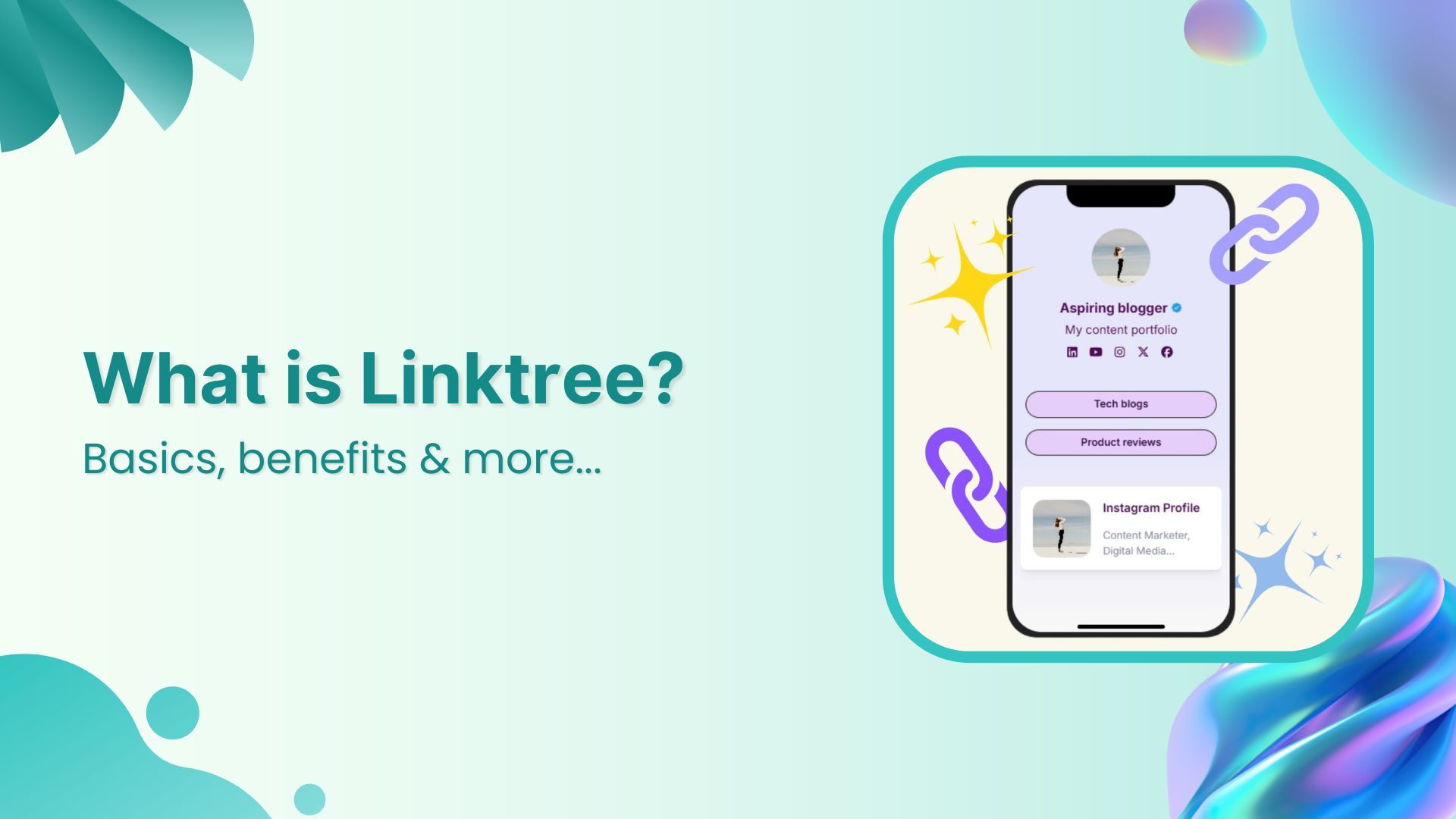
What is a Linktree?
A common question heard nowadays is, ” What is bio link or a Linktree?” Here’s the answer!
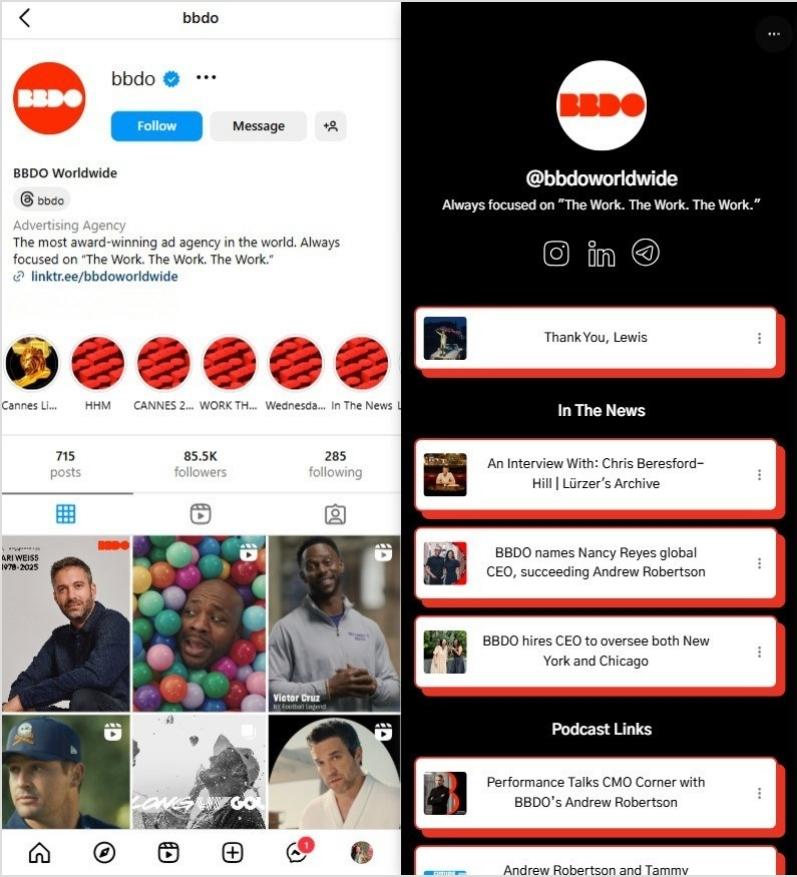
A linktree (also called a link-in-bio or bio link page) is a landing page that holds multiple links in one place.
Instead of being stuck with just one clickable link in your social media profile, you can create a hub with buttons that lead to different pages—your latest blog, YouTube video, online store, or anything else you want people to check out.
A well-structured linktreeboosts clicks and engagement since it helps visitors find exactly what they need without extra searching.
Linktree setups are simple to create and work on Instagram, TikTok, X (Twitter), and other platforms. When someone taps your linktree URL, they land on a clean, easy-to-navigate page with all your important links. Whether you’re promoting a podcast, selling products, or driving traffic to multiple platforms, a linktree makes sure everything is just one tap away.
For many creators and brands, Instagram is the go-to place for a linktree since the platform only allows one link in the bio. Instead of constantly swapping links in and out, a linktree keeps everything in one place—making life easier for both you and your audience.
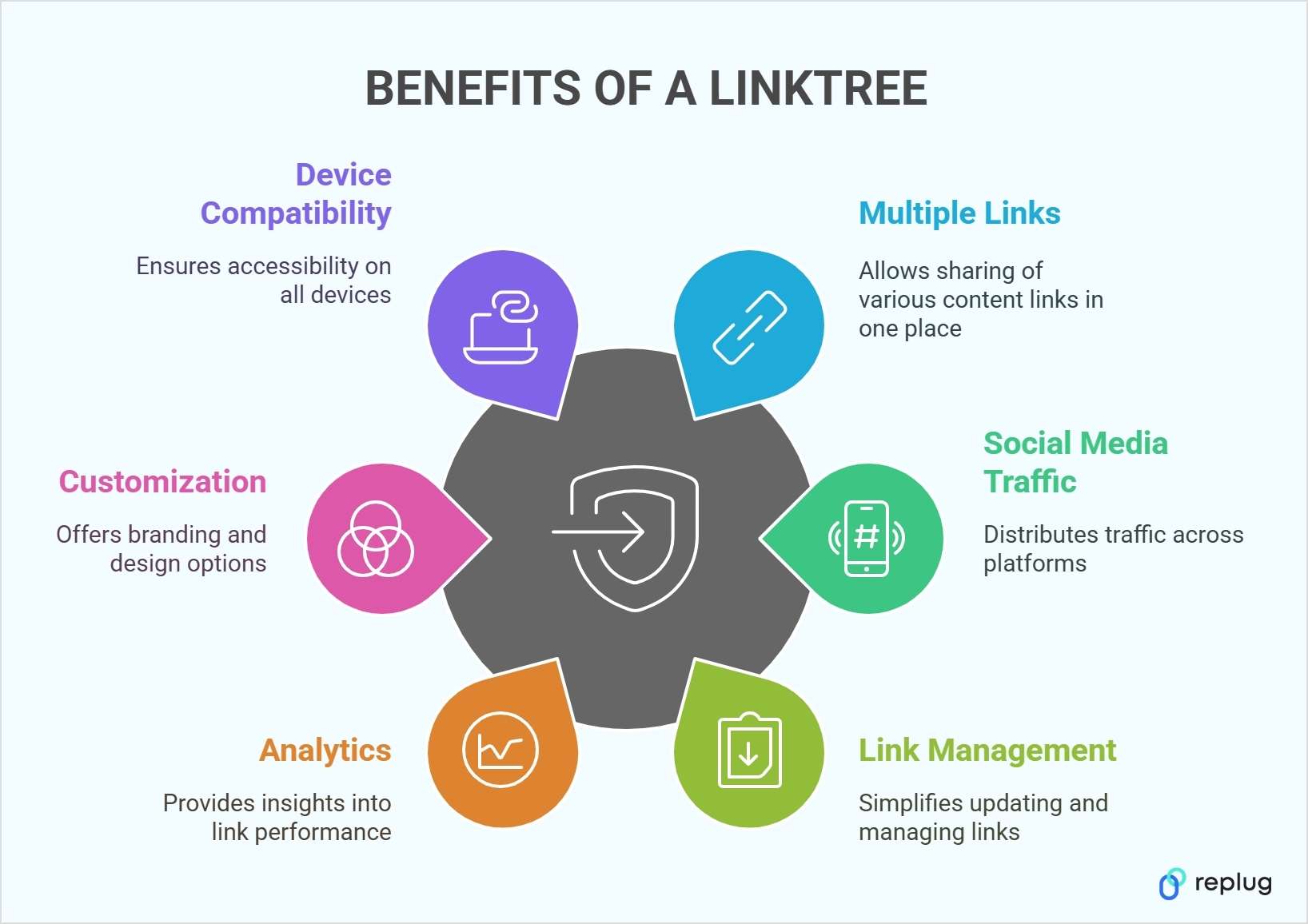
You can share multiple links: A linktree lifts lets you add as many links as you’d like in your social media bios. That can mean product pages, sign-up forms, blog posts, or any other relevant content.
Maximize social media traffic: A single linktree can drive visitors to multiple platforms, helping you distribute traffic across various channels.
Simplify link management: No need to update your bio link constantly. Instead of replacing links every time, you can simply update your linktree dashboard, making the process seamless and efficient.
Analytics and insights: A linktree can collect data on how many views and clicks each link receives. Tracking these numbers can reveal which pieces of content resonate most with your audience.
Customization options: Some tools allow deeper customization, including custom background images, color palettes, and even the ability to add your branded domain.
Designed for mobile and desktop: Linktree pages are responsive, ensuring they look neat and readable on any device.
Various integrations: A reliable bio link tool supports integrations seamlessly, like embedding videos or adding an email sign-up form straight onto your page.
Consistent branding: Matching your Linktree’s landing page look to the rest of your brand identity can make your channels feel more unified.
Save time and effort: Managing all your important links in one place reduces hassle and streamlines the user experience.
Now let’s discuss how to create a stunning Linktree using Replug:
Create your account: Instead of settling for a basic linktree tool, choose a platform that gives you more control. Create an account on Replug to create a branded linktree experience with built-in tracking and retargeting options.
Set up your profile: Once inside your Replug dashboard, upload your profile image, add a compelling bio, and customize your landing page to reflect your brand.
Unlike traditional linktree tools, Replug offers custom domain options, ensuring your link-in-bio matches your brand identity.
Add and organize your links: Replug allows you to add multiple links, but with a twist. You can track clicks, analyze engagement, and even A/B test your links to maximize conversions.
Share your link: Copy your Replug bio link and place it in your social media bios across Instagram, TikTok, X (Twitter), Pinterest, LinkedIn, and more. With Replug’s analytics, you can track which platform drives the most traffic to your links.
Experiment with advanced features: While basic linktree tools offer simple customization, Replug goes beyond by enabling retargeting and deeper branding options. Whether you want to add a call-to-action pop-up or integrate remarketing pixels, Replug ensures your bio link works harder for your business.
Best practices for link management
Managing your linktree effectively ensures your audience finds what they need without confusion. Here are some key best practices:
Keep your links fresh: Regularly update your linktree to reflect new products, blog posts, or announcements. A stale link page can lead to missed opportunities.
Use clear and engaging text: Instead of generic phrases like “Click here,” use compelling, action-driven labels such as “Get 20% off” or “Watch my latest video.”
Prioritize your most important links: Place your most valuable links at the top so they’re seen first. Whether it’s a new launch, a limited-time offer, or an event registration, make sure it stands out.
Keep it clean and organized: Avoid overwhelming visitors with too many links. If you have a long list, rotate them based on priority or group them strategically.
Leverage mobile tools: Need to make quick updates? Some link-in-bio tools offer mobile apps for easy link management on the go.
By following these best practices, you ensure your linktree remains effective, user-friendly, and optimized for engagement.
If you need more than link sharing, like retargeting, A/B testing, or advanced analytics, Replug goes beyond just creating a linktree. It offers short links, conversion tracking, and remarketing pixels, making it a powerful choice for marketers and businesses.
YouTube channels, blogs, and social feeds can be shared in one neat menu. This approach is easier than asking followers to dig through different links themselves.
If you have special discounts, new product collections, or various sales channels, linktree can showcase them all side by side. This setup helps shoppers decide where to go next.
Portfolios, rate sheets, and client testimonials can be grouped together on one landing page. This setup helps clients access the full scope of your services.
Linktree offers a stress-free way to centralize your links. Instead of juggling different URLs across platforms, you can direct people to one well-organized menu. Whether you’re a business, content creator, or marketer, this approach saves time and keeps things clear for visitors.
As the concept of link management grows, it’s worth an advanced tool like Replug for creating a linktree. It includes link shortening, retargeting features, and detailed performance metrics. Exploring which tool fits your needs best can save you trouble and keep your promotional efforts running smoothly.
A complete link management solution
for marketing professionals & agencies.
Try Replug for free
FAQs on Linktree
What is the difference between a linktree and a link-in-bio page?
A linktree is a specific tool that provides a link-in-bio landing page, but the term “linktree” is also used generically to describe any page that consolidates multiple links into one.
Does using a linktree impact SEO?
While most link-in-bio tools do not directly improve SEO, using a custom domain can enhance brand authority. Additionally, analytics tools can help you optimize which links get the most engagement.
How many links can I add to my linktree?
Most link-in-bio tools allow unlimited links, but the number may depend on your plan. With Replug, you can add multiple links while tracking clicks and engagement to optimize your strategy.
Can I customize my linktree page?
Yes! Many platforms offer customization, including background colors, fonts, and button styles. Replug allows even deeper branding, such as adding a custom domain and link analytics.
Where can I use my linktree link?
You can place your linktree URL in social media bios (Instagram, TikTok, Twitter, LinkedIn, etc.), email signatures, business cards (via Linktree QR codes), and even YouTube video descriptions.
Instagram and VSCO go hand in hand. While Instagram is all about sharing curated content, VSCO is where creators showcase their raw, aesthetic side. If you’re an avid VSCO user, it’s crucial to know how to put your VSCO link to your Instagram bio so that you can drive traffic to your profile and share your creative portfolio with your followers.
However, simply adding a VSCO link isn’t always enough. To make your bio more effective, using Replug to shorten and customize your link can enhance both its appearance and functionality. Plus, if you want to share multiple links, whether it’s for your VSCO, personal website, blog, or other social profiles, you can also use Replug’s link in bio builder to organize them all in one place.
Ready to know how? Let’s get started!
How to add VSCO link to Instagram bio
Adding your VSCO link to your Instagram profile can easily lead your followers to your stunning VSCO portfolio without them having to hunt for it. After all, Instagram has a staggering 500 million daily users.
So, what’s more to think about? Let us guide you on how to add your VSCO link to your Instagram bio in a few easy steps:
Step 1: Copy your VSCO profile link
Before you can shorten your VSCO link, you need to find it.
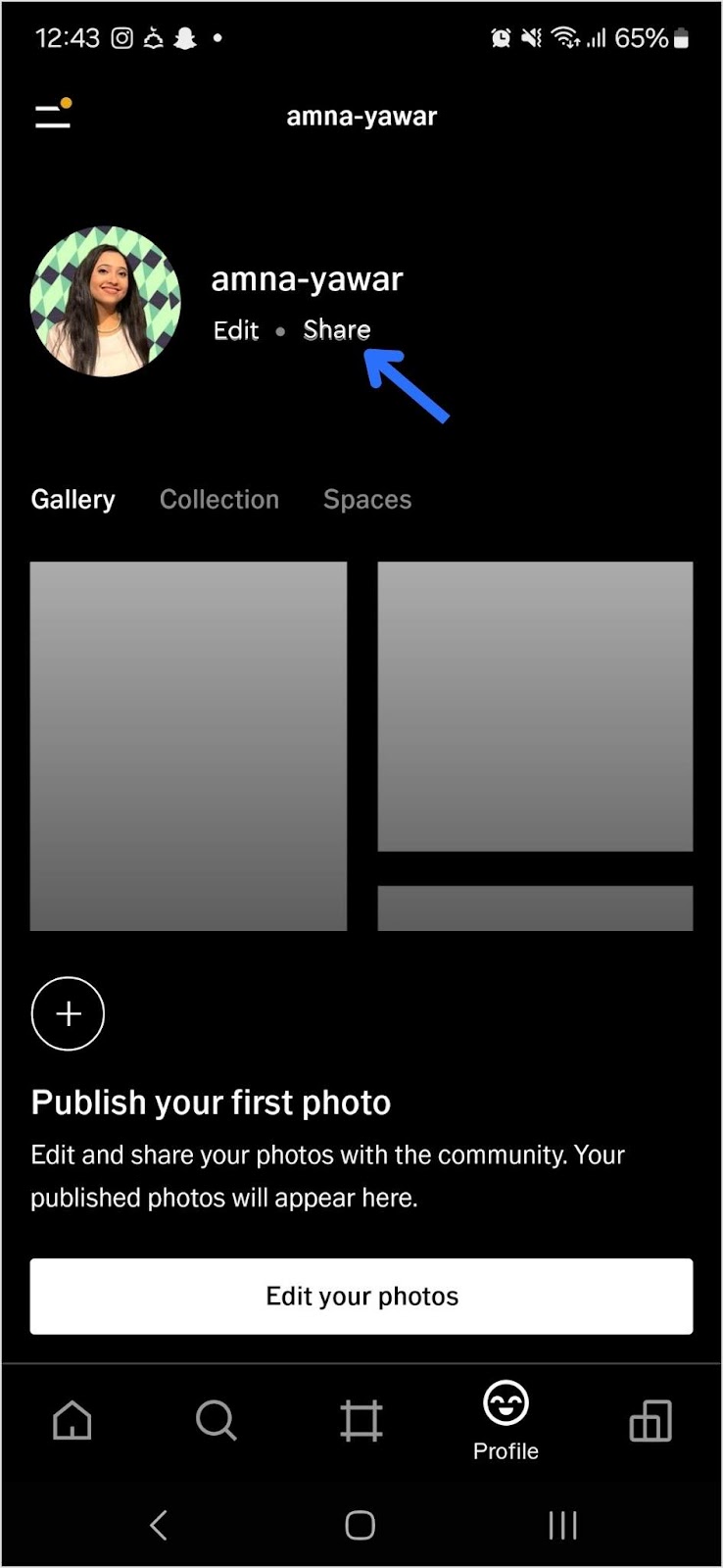
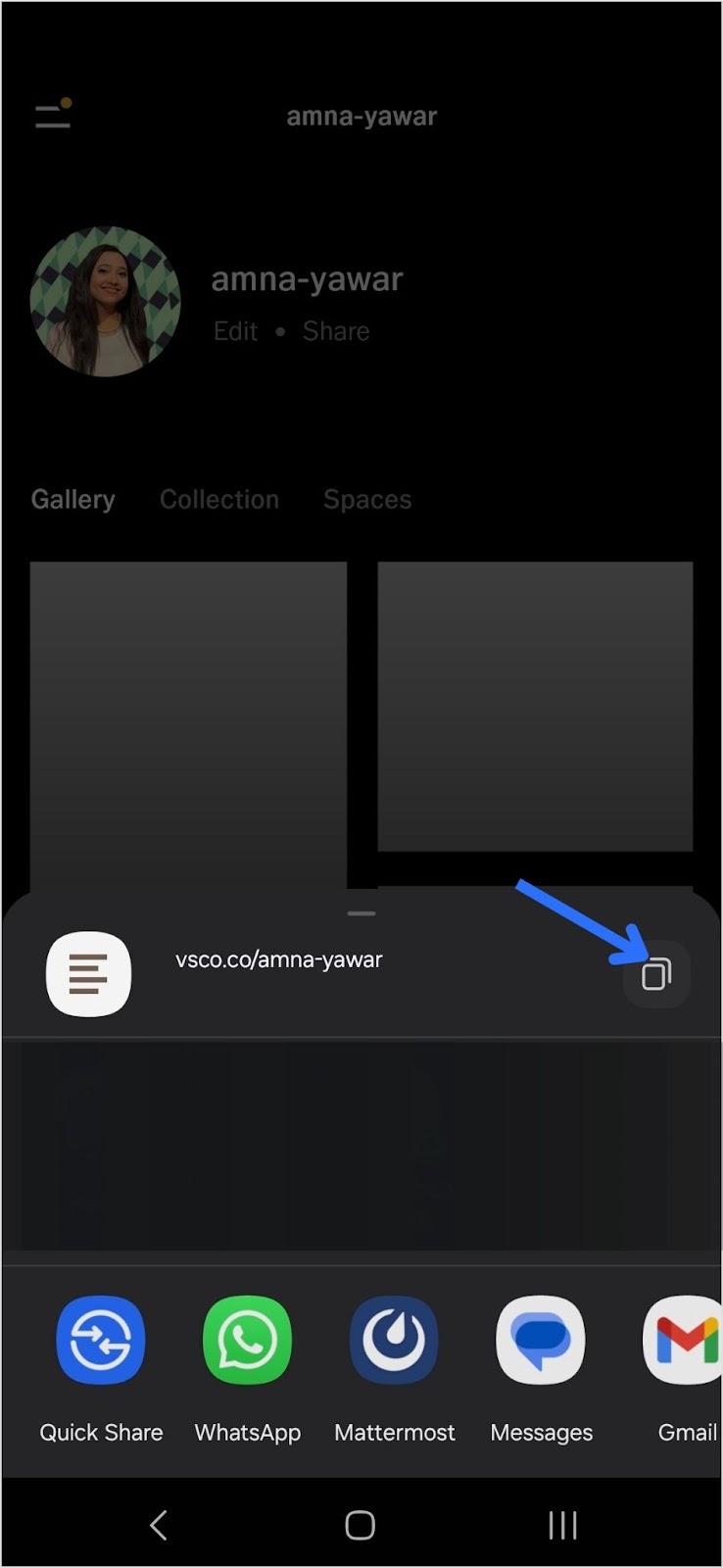
Open your VSCO app.
Navigate to your profile and tap “Share”:
Copy your VSCO link:
Step 2: Add your VSCO link to your Instagram bio
Now that you have your short VSCO link, follow these steps to add it to your Instagram bio:
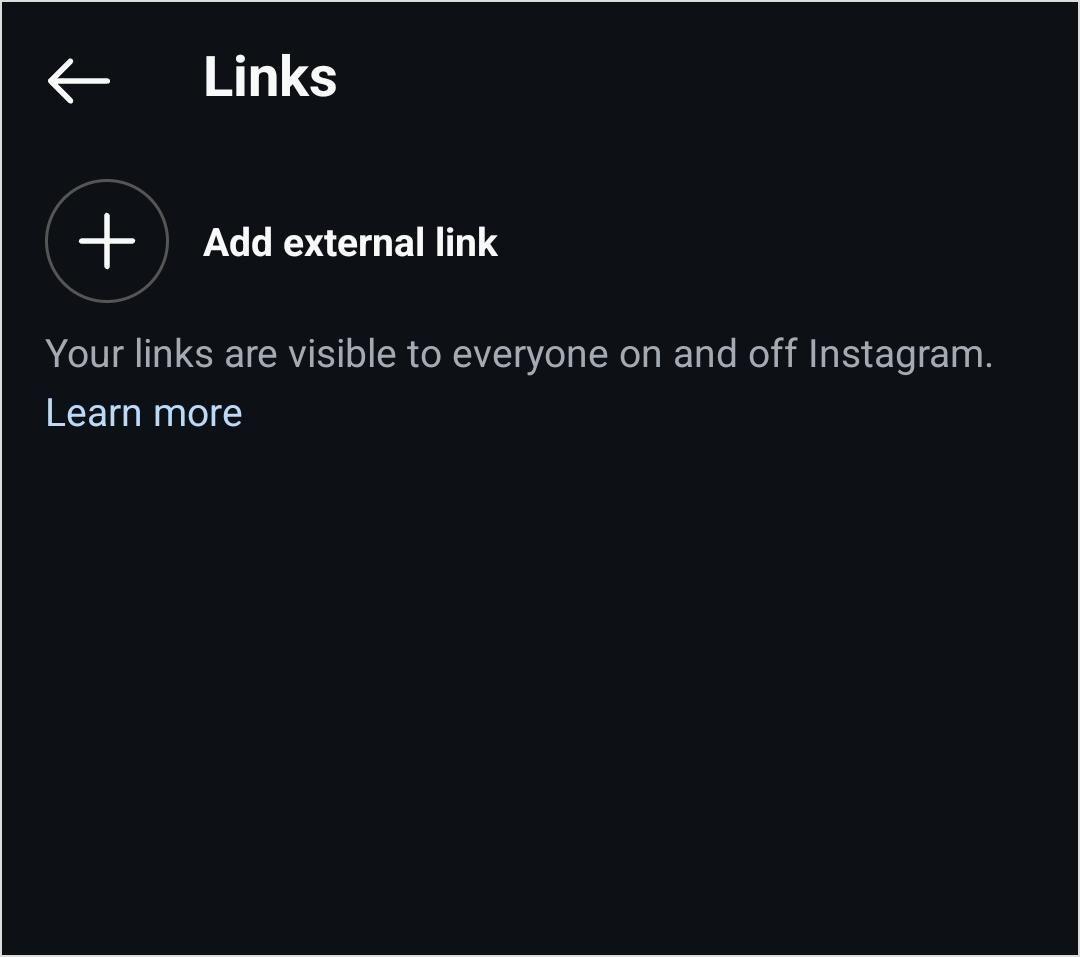
Open Instagram and go to your profile.
Tap “Edit Profile.”
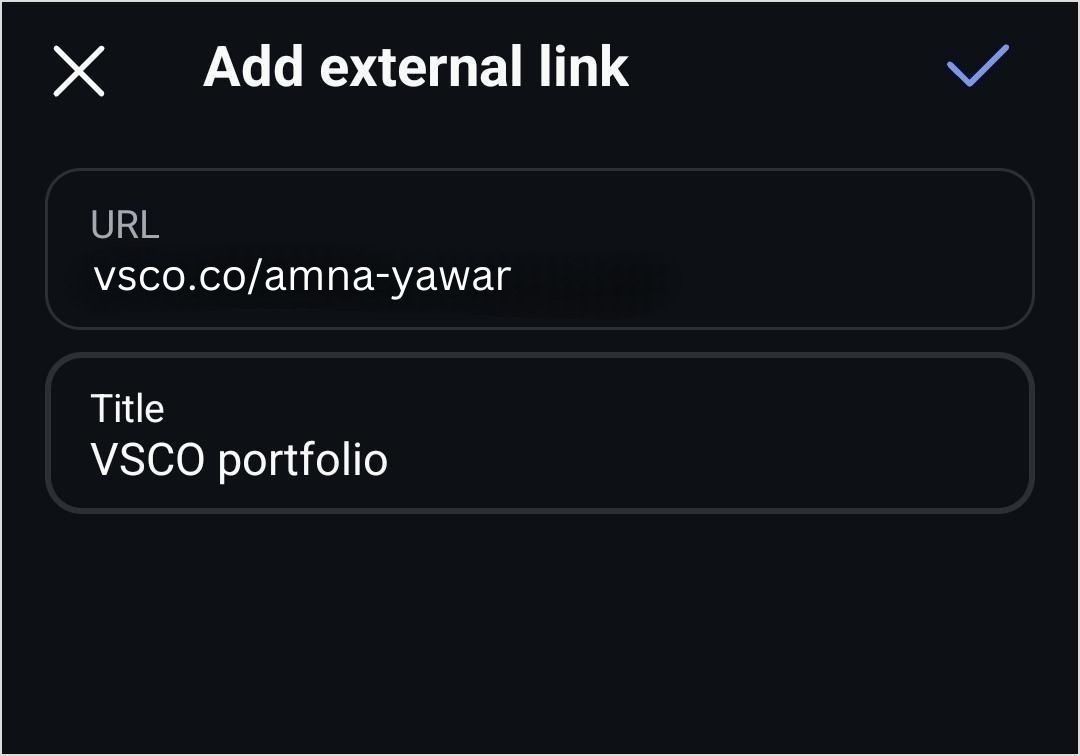
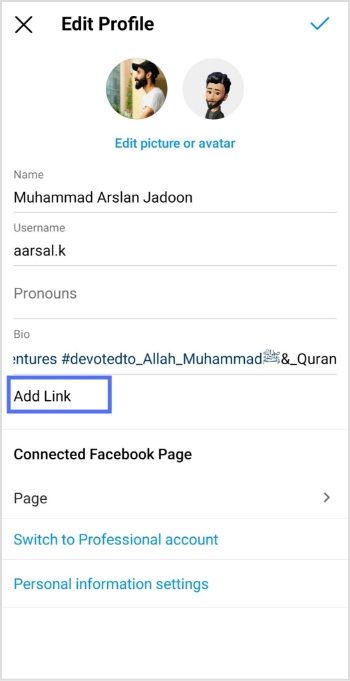
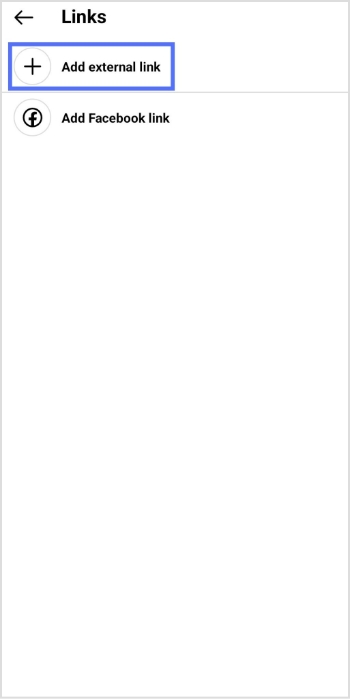
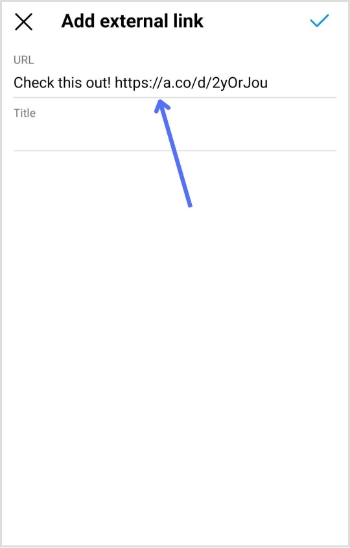
Find the “Add Link” field and click on “Add external link”
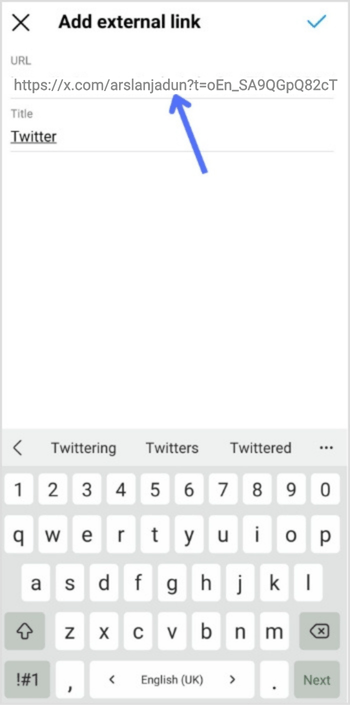
4. Add your VSCO link and click on the blue tick to save it.
Your followers will now be able to see your VSCO profile in your bio!
Shorten your VSCO link with Replug
Now, let’s make your link more presentable, branded, and optimized using Replug’s custom link shortener free:
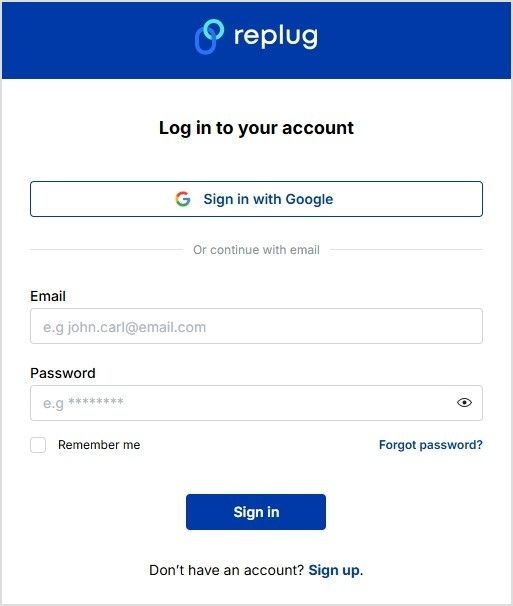
Sign in to your Replug account or create an account if you don’t already have one:
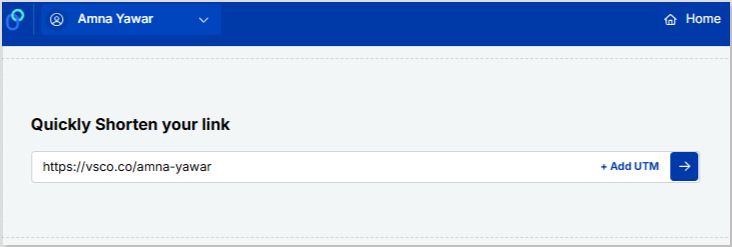
Paste your VSCO profile under “Quickly Shorten your link”
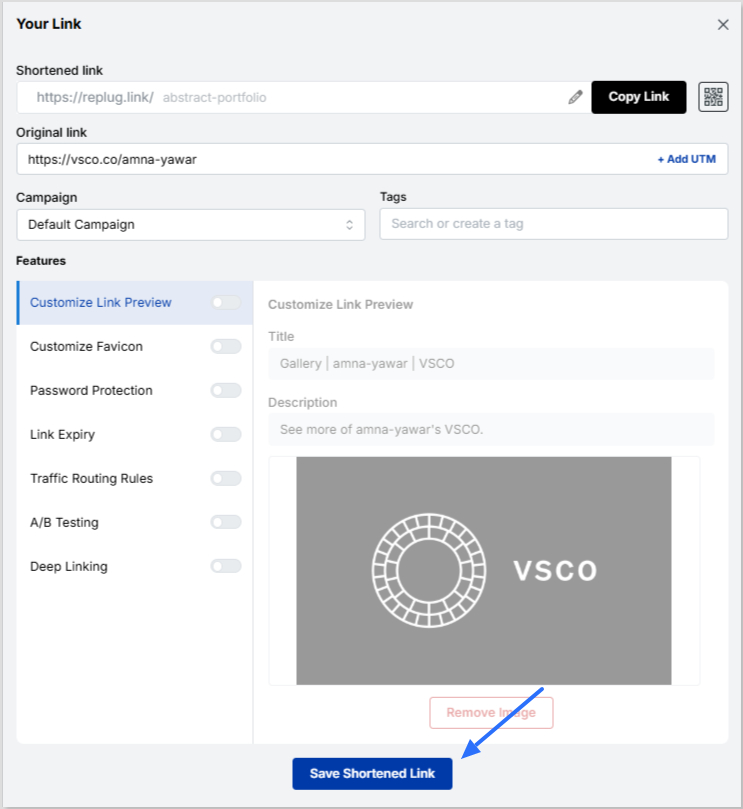
Customize the shortened link with a branded or neat alias:
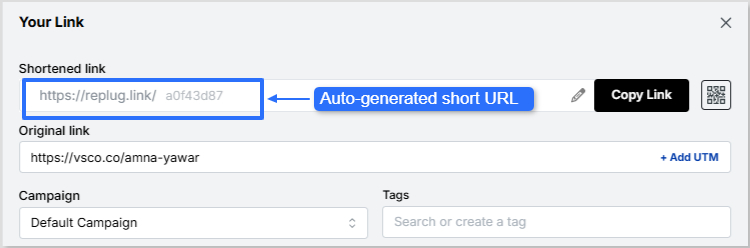
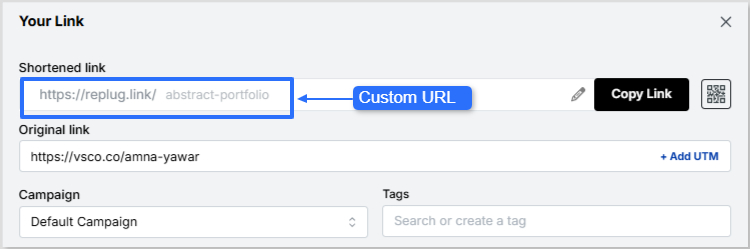
Now it’s time to give your VSCO short link a glow-up! You can easily create a custom URL by simply optimizing the slug. This will let your audience know exactly where your short link will lead them.
Auto-generated short URL:
Custom URL:
Maximize marketing ROI
by transforming ordinary URLs into branded short links that convert.
Try Replug for free
Save your custom URL. Now it’s ready to be shared!
Replug offers a bio link feature if you want to share more than just your VSCO link. This allows you to create a single, customizable landing page containing multiple links. Instead of being restricted to just your VSCO, you can include:
Your VSCO profile
Your Instagram, Twitter, TikTok, and other social links
1. Neat and professional links: Even if your VSCO link looks fine, using Replug ensures that your bio remains visually clean while giving you a customizable and trackable link.
2. Track link performance: Want to know how many people are clicking your VSCO link? Replug provides detailed analytics so you can track engagement and optimize your links for better performance.
3. Share multiple links: Beyond just VSCO, you can share links to all your social profiles, including Instagram, with Replug’s Instagram link in bio free tool.
4. Custom branding: Unlike generic link shorteners, Replug allows you to customize your shortened links and bio link page with brand colors, themes, and even a custom domain.
5. Better user experience: Instead of constantly changing your Instagram bio link, you can set up your Replug page once and update it anytime without modifying your Instagram profile.
A complete link management solution
for marketing professionals & agencies.
Try Replug for free
Adding a VSCO link to your Instagram bio is great, but making it look neat and professional is even better. Replug helps you shorten your VSCO link for a cleaner appearance while also offering a bio link feature for those who want to share multiple links in one place. Whether you’re a photographer, influencer, or content creator, Replug makes your Instagram bio more effective and aesthetically pleasing.
Ready to clean up your Instagram bio? Sign up for Replug and start shortening your links today!
FAQs on how to put VSCO link in your Instagram bio
Can I make my VSCO link look more aesthetic in my Instagram bio?
Absolutely! Using Replug, you can create a clean, custom-branded short link that fits your aesthetic and keeps your bio clutter-free.
Will my Instagram followers know my VSCO link is legit?
A customized, branded short link reassures your audience that your VSCO profile is safe to click, unlike long, messy URLs that may look suspicious.
What if I want to share more than just my VSCO link?
No problem! Replug’s bio link feature lets you showcase multiple links, whether it’s your VSCO, website, TikTok, or latest projects—all in one place.
Can I see how many people are clicking my VSCO link?
Yes! With Replug’s analytics, you’ll get real-time insights on link clicks, helping you understand how well your bio is driving traffic.
Do I have to update my Instagram bio every time I change my VSCO link?
Not if you use Replug! Simply update your link inside Replug’s dashboard, and your Instagram bio link stays the same.
With over 600 million users worldwide and nearly 350,000 tweets posted every minute, standing out on X (formerly Twitter) isn’t just nice; it’s necessary.
Your bio is the first thing people notice, and in a platform where attention spans are short, you’ve got just a few seconds to make it count.
Whether you’re building a personal brand, growing a business, or just want to look cool online, the right bio can instantly boost your profile’s appeal.
That’s exactly why we’ve curated 300+ Twitter bio ideas to spark inspiration and help you craft something unforgettable.
But before you step in, let’s quickly understand the basics, starting with what a Twitter bio actually is and why it matters.
What is a Twitter bio?
A Twitter bio is the short description that appears right under your Twitter profile name and handle (now on X). It’s limited to 160 characters, so you’ve got a small space to tell people who you are, what you do, and why they should care.
Think of it as your digital introduction; quick, clear, and straight to the point. Whether you’re a creator, a business, or just someone sharing thoughts online, your bio gives visitors an instant snapshot of your personality, niche, and value.
And since most people decide within a few seconds whether to follow you or not, this tiny section plays a much bigger role than it looks.
Importance of a Twitter bio
Now, let’s break down why this small piece of text actually matters so much.
Creates a strong first impression: It’s often the first thing people notice when they visit your profile.
Helps people understand you quickly: Your bio explains who you are and what kind of content you share.
Influences follow decisions: Users typically decide within seconds whether to follow or leave.
Builds trust & credibility: A clear, well-written professional bio makes your profile look more legit and active.
Improves discoverability: Using relevant keywords can help your profile show up in searches.
Showcases your personality or brand voice: It gives people a feel for your tone (professional, funny, minimal, or bold).
In short, your Twitter bio isn’t just a description; it’s your chance to turn profile visitors into followers.
A complete list of excellent Twitter bio ideas
Your Twitter (X) bio may be just 160 characters long, but it can say a lot about you if done right. To make things easy, here are different styles of bio ideas you can pick from depending on your vibe.
How to write the perfect Twitter (X) bio: Useful tips & tricks!
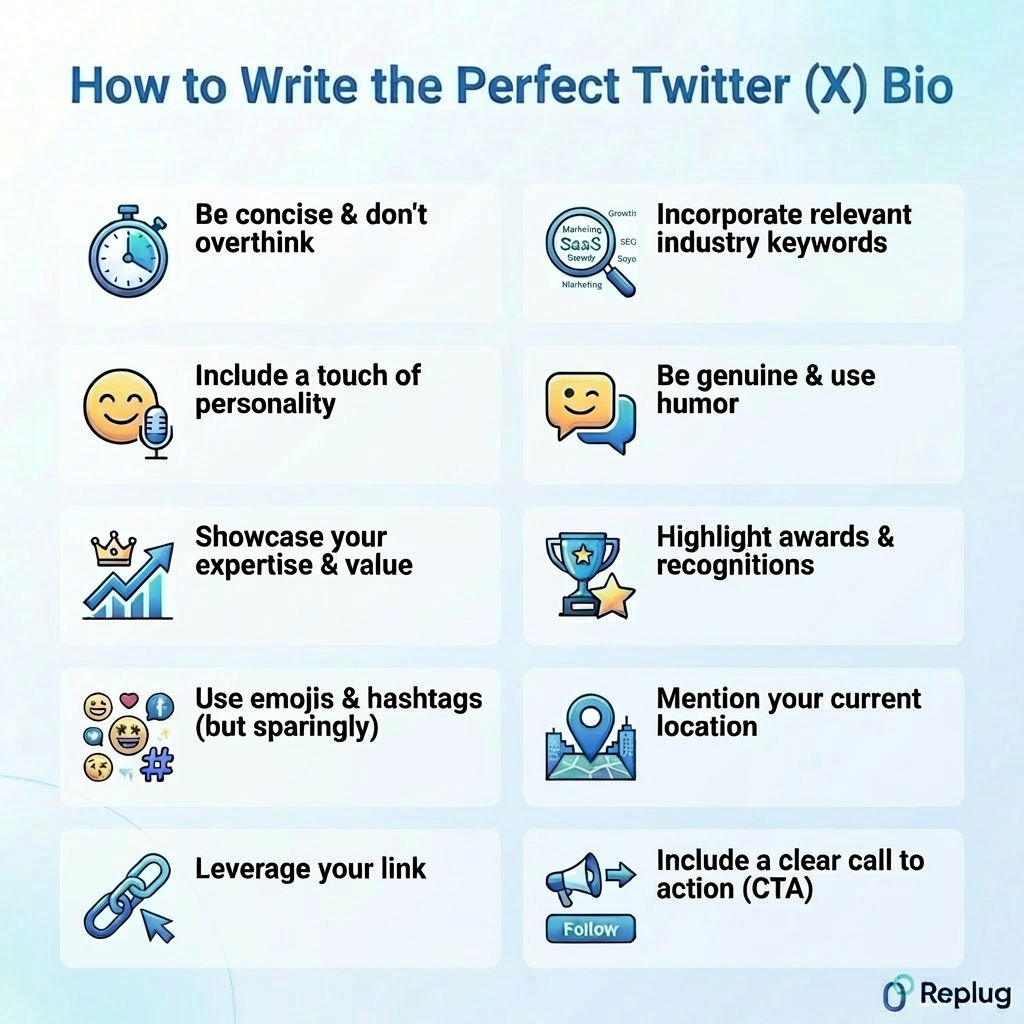
Writing a great Twitter bio isn’t about being clever; it’s more about being clear, concise, and real. You only get 160 characters, so every word should earn its place and help people quickly understand who you really are.
Tip #01: Be concise & don’t overthink
You don’t need to fill all 160 characters; just say what matters the most. In fact, shorter bios(around 90–100 characters) often perform better because they’re easier to read and scan.
Tip #02: Incorporate relevant industry keywords
Think of your bio like search-friendly text. Adding keywords like “marketer,” “creator,” or “developer” helps people find you both on X and even on Google. Just keep it natural, no keyword stuffing.
Tip #03: Include a touch of personality
Always keep in mind, people don’t follow robots; they follow genuine people. Add a small personal touch (your tone, interests, or style) so your profile feels human and relatable.
Tip #04: Be genuine & use humor
You don’t have to sound perfect; just sound real. A bit of humor or honesty can make your bio more memorable and help you stand out in a crowded feed.
Tip #05: Showcase your expertise & value
Don’t just say what you do, show what you bring to the table. A strong bio quickly answers: How can you help or add value to others? That’s what makes people hit the follow button.
Tip #06: Highlight awards & recognitions
If you’ve got achievements, mention them briefly, like “Award-winning designer” or “Featured in XYZ.” These small proof points build instant credibility.
Tip #07: Use emojis & hashtags (but sparingly)
Emojis can make your bio easier to scan, but don’t overdo it. The same is the case with hashtags. Too many can look messy, and studies show they don’t always help in bios.
Tip #08: Mention your current location
If your work or content is location-based, adding your city or region can help people relate to you and even discover you locally.
Tip #09: Leverage your link
Your bio isn’t just about mere text; your Twitter link in bio matters significantly too. Use it to drive traffic to your website, portfolio, or latest project and make it worth the click.
Tip #10: Include a clear call to action (CTA)
Tell people what to do next, whether it’s “Follow for tips,” “Check the link below,” or “DM for collabs.” A simple call to action can turn most visitors into potential followers.
Keep these tips in mind, and your Twitter bio won’t just look good; it’ll actually work for you.
Use Replug to generate your Twitter bio in seconds!
If you don’t want to overthink your bio, tools like Replug make the whole process quick and easy.
It works as a smart Twitter bio generator alongside being a full link management platform, so you’re not just writing a bio, you’re building a complete profile experience.
You can create clean, branded links using its free link shortener, and even set up bio link pages via its free link in bio tool that holds all your important content in one place.
That means your bio isn’t just text; it becomes a gateway to your website, socials, or offers. Plus, with built-in tracking and customization, you can actually see what works and improve over time.
Go beyond generic link pages!
Create custom bio links that truly fit your brand
With Replug, you can create bio links that are unique, engaging, and built to convert.
To sum it all up, your Twitter (X) bio may be just a few characters long, but it carries a lot of weight when it comes to first impressions and profile growth.
From short and creative ideas to niche-specific bios and practical writing tips, you now have everything you need to craft something that truly reflects your personality.
The key is to keep it simple, real, and aligned with your goals. And if you ever feel stuck, tools like Replug can make the process even easier.
Now it’s your turn; pick an idea, tweak it your way, and make your bio stand out.
Frequently asked questions
What is a good bio example?
A good bio example is short, clear, and shows personality + purpose in one line.
It quickly tells people who you are and what they can expect.
What is a good bio for Twitter?
A good Twitter bio clearly explains who you are, what you do, and why someone should follow you, all within a few words. It should feel natural, include a bit of personality, and ideally hint at the value you provide.
What is a good Twitter bio template?
A simple and effective template is:
[What you do] | [Who you help] | [Personality or niche] | [CTA]
Example:“Digital marketer | Helping startups grow | Sharing real strategies | Follow for tips”
What is an attractive bio line for a girl on X?
A good example would be:
“Soft heart, strong mindset ✨ Building my dreams one step at a time.”
The key is to keep it confident, simple, and a little personal, something that reflects both personality and ambition.
What are the common mistakes to avoid while crafting your Twitter bio?
Here are some of the most common mistakes people make, and you’ll want to steer clear of these if you want your bio to actually work:
– Being vague or lacking clarity: Bios like “Just living life” don’t tell people anything useful. Be clear about who you are and what you do. – Using overused buzzwords, jargon, and clichés: Words like “guru,” “ninja,” or “thought leader” feel generic and don’t add real value. Keep it simple and specific instead. – Improper use of formatting and content: Overloading your bio with emojis, hashtags, or messy formatting can make it hard to read and look unprofessional. – Lacking personality or strategy: A bio without personality feels dull, and one without purpose won’t convert visitors into followers. You need a perfect blend of both! – Negative or overly personal tone: Being too negative or sharing too much personal detail can turn people away. Keep it positive, balanced, and audience-friendly.
Avoiding these simple mistakes can instantly make your Twitter bio cleaner, clearer, and way more effective.
What is the ideal Twitter bio character limit?
The official Twitter (X) bio limit is 160 characters, including spaces and emojis. For best results, many experts suggest keeping it slightly shorter (around 100–150 characters) so it’s easy to read at a glance.
Important note: Throughout this guide, we will refer to Twitter as “X”.
Looking to expand your social media presence and connect with a wider audience? If you’re already active on Instagram, adding an X link to your bio can be a game-changer.
Not only does it allow you to cross-promote your content and reach new followers, but it also opens up a world of new possibilities for networking, sharing your thoughts and ideas, and building your personal brand.
Adding an X link to your Instagram bio is a smart move for many reasons, and this guide explores how to make the most of it. So, let’s dive in and discover how to add an X link to an Instagram bio!
Why add an X link to your Instagram bio?
Adding an X link to your Instagram bio can be a smart move for several reasons:
Cross-promotion: By linking your Instagram and X profiles, you can reach a wider audience and drive traffic to both platforms. This means more visibility for your content and potentially more followers.
Networking: X is a powerful networking tool. By linking it to your Instagram account, you can make it easier for people to find and connect with you. This can be especially useful if you’re looking to build relationships with influencers or other industry professionals.
Sharing your thoughts: While Instagram thrives on visuals, X is all about the power of words. By linking to your X account, you can share your thoughts, opinions, and ideas with your followers in a way that’s not possible on Instagram.
Building your personal brand: By maintaining an active presence on both Instagram and X, you can build a strong personal brand that resonates with your target audience. Linking the two accounts creates a cohesive online identity that helps you stand out from the crowd.
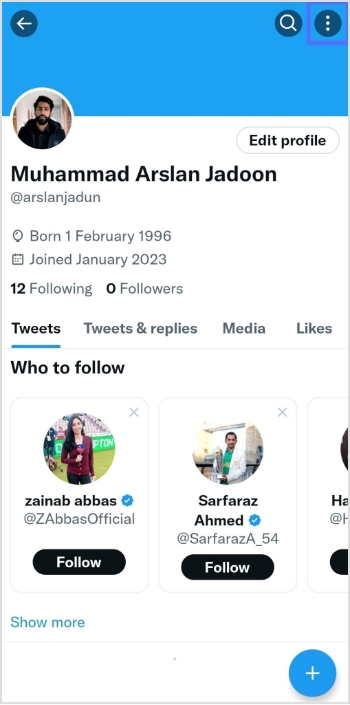
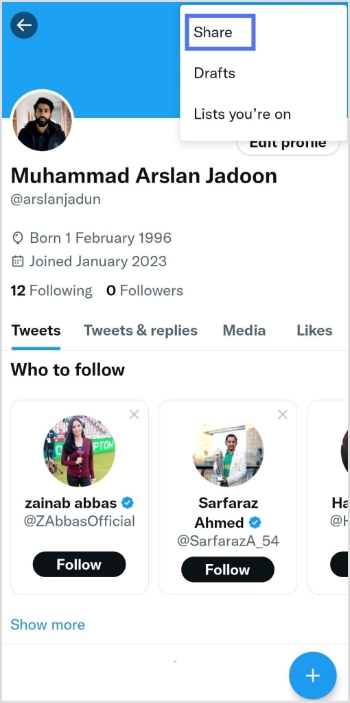
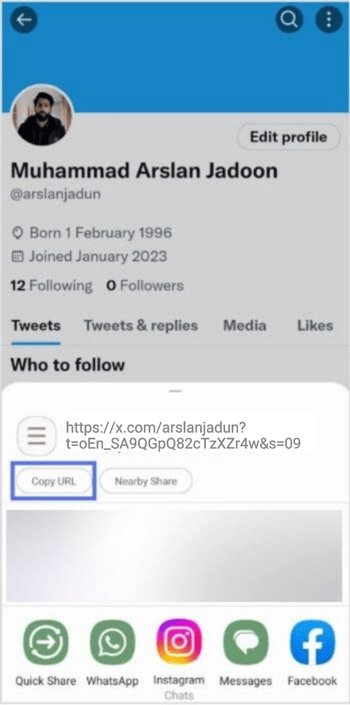
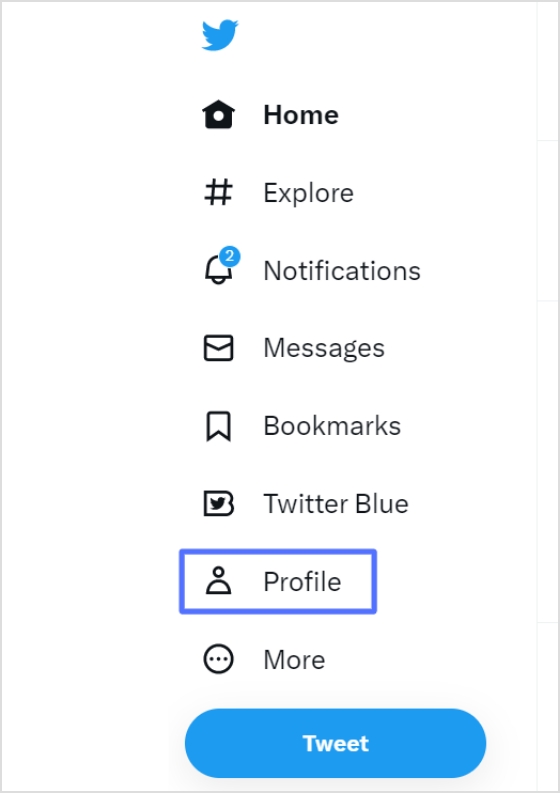
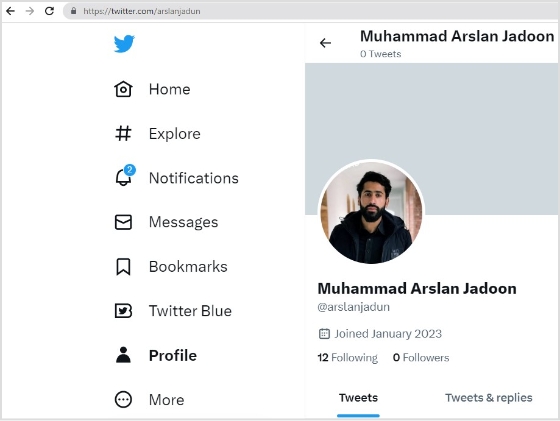
Step 2: Click “profile” on the left side of the menu.
Step 3: From the URL bar,copy the URL. That’s your profile URL.
For a cleaner look in your Instagram bio, especially with character limits, a free link shortener can transform that lengthy “X” URL into something concise and branded. Tools like Replug, a powerful link optimization platform, make this effortless by not only shortening links but also adding tracking and customization options to boost your cross-platform engagement.
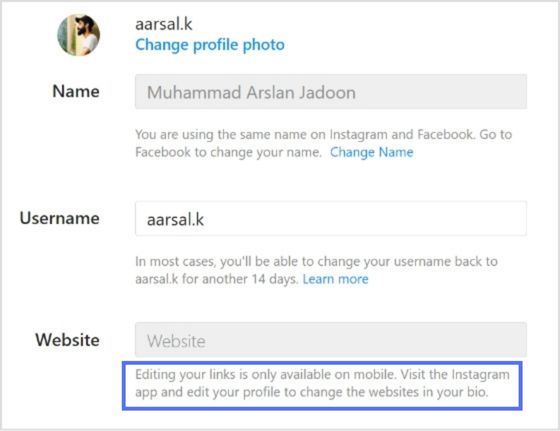
Note: You can only edit your links on mobile devices. Visit the Instagram app and follow the steps above to edit your bio and add the X link.
FAQs about how to add a Twitter (X) link to Instagram bio?
How to link Instagram and X for auto-tweeting photo links?
To link your Instagram account to X and automatically tweet links to your photos, follow these steps: 1. Open the Instagram app on your mobile device and go to your profile. 2. Tap the three horizontal lines in the upper right-hand corner of your screen. 3. Select “Settings” from the menu that appears. 4. Tap “Account” and then “sharing to other apps.” 5. Tap “X” and enter your X login information when prompted. 6. Once you’ve linked your accounts, toggle on “Share your posts to X” to automatically share your Instagram posts on X. 7. To customize what gets shared on X, you can toggle on or off the options for sharing your Instagram photo, caption, or location. That’s it! Now every time you post a photo on Instagram, it will automatically be shared as a link on your X account.
Can I choose which Instagram posts get shared on X?
Yes, you can customize what gets shared on X by toggling the options for sharing your Instagram photo, caption, or location on or off.
Can I still share my Instagram posts on X if I didn’t link my accounts during the initial setup?
Yes, you can manually share your Instagram posts on X by copying the link to your Instagram post and pasting it into a tweet on X. However, automatic sharing can only be enabled if you link your accounts.
Your Instagram bio is your brands first impression, and it matters. It’s more than just a few lines of text. It’s a powerful tool to establish your brand identity and drive traffic to your brand.
Brands lose potential leads and drop conversion rates instantly as they’re not familiar with the platform’s algorithm or best practices. Some of the most important pointers to maximize your Instagram profile’s bio is knowing
When crafting your Instagram bio, consider including some of the following:
A short description of your brand
A branded call-to-action (CTA)
A bio-link
Your website link
A microsite link
Don’t forget that the URL in your bio channels your followers to an external website, a new landing page, a microsite, or other relevant destinations, expanding your influence beyond Instagram.
Why I can’t remove the link from my Instagram bio?
There are a few potential reasons why you might be unable to remove a link from your Instagram bio:
Instagram glitch: Sometimes, Instagram experiences temporary glitches. Try closing the app completely and reopening it. This might resolve the issue.
Link shortener or third-party app: If you’re using a link shortener or a third-party app to manage your bio link, you might need to remove the link from that service first.
Outdated app: Ensure you’re using the latest version of the Instagram app. Outdated apps can sometimes cause issues.
Cache issues: Clear your app’s cache or use a different device to see if the issue persists. Cached data can sometimes cause unexpected behavior.
Account issues: Verify that your account hasn’t been flagged or restricted in any way, which might affect your ability to make changes.
Additional troubleshooting steps:
Check internet connection: A poor internet connection can interfere with app functions.
Try a different device: If possible, log in to Instagram from a different device to see if the issue persists.
Wait it out: Sometimes, Instagram experiences temporary server issues. Waiting a few hours might resolve the problem.
If you’ve tried these steps and still can’t remove the link, contact Instagram support directly for further assistance.
How to remove a link from your Instagram bio?
Removing a link from your Instagram bio is a quick and easy process. Follow these steps to update your bio:
Step 1: Open the Instagram app on your device.
Step 2: Go to your profile
Tap on your profile picture in the bottom right corner of the screen to go to your profile page.
Step 3: Edit your profile
On your profile page, tap the “Edit Profile” button. This is usually located directly below your profile picture and bio.
Step 4: Update the website field
In the “Edit Profile” screen, look for the “Link” field. This is where your current link is located.
Step 5: Remove the link
Tap on the “Link” field to edit it. Delete the existing link or text from the field.
Step 6: Save your changes
Once you’ve removed the link, tap “Done” (iOS) or the checkmark (Android) in the top right corner to save your changes.
Refresh your profile: Go back to your profile page and refresh it to ensure that the link has been successfully removed.
And that’s it! You’ve successfully removed or updated the link from your Instagram bio.
Go beyond generic link pages!
Create custom bio links that truly fit your brand
With Replug, you can create bio links that are unique, engaging, and built to convert.
Renaming a link on Instagram involves using link shortener tools that not only condense your URL but also allow customization of the link text to make it more appealing and memorable.
One of the best options is Replug. It is a top-notch, free link shortener tool that offers customization features.
Introducing Replug.io
Replug.io is a link management platform that simplifies URL sharing by creating branded short links and provides in-depth click tracking for performance optimization.
Steps to rename bio links on Instagram using Replug
You can achieve this effortlessly with the Replug’s top-notch link in bio maker. This tool lets you consolidate all your important content and links into a single, accessible location for your audience.
Here are amazing features of Replug’s link in bio tool
1. Add your favorite content in one place
Bring your brand to life with social media icons, essential links, the recent blog with an RSS feed, audio clips, important text, and cards for stunning images.
2. With Replug, you don’t just get a link in bio – you get to own it by renaming your links.
Also, customize their appearance and match your landing page blocks from colors to favicons to your brand’s vibe.
3. Track bio link performance
With performance tracking features, you can monitor the total number of clicks, conversion rates, and other valuable metrics. The best part is that you can view your analytics in both a summary list view and a detailed view.
Go beyond generic link pages!
Create custom bio links that truly fit your brand
With Replug, you can create bio links that are unique, engaging, and built to convert.
Top tips to maximize the limited space in your bio:
Quick tips
Maximize your impact
Less is more
Add a short description about your brand or page.
Try adding a bio landing page
Conclude your website link, portfolio, contact information etc.
Identify your unique selling point (USP)
Clearly communicate what sets you apart.
Include a clear call to action (CTA)
Tell people what you want them to do next.
Keep on experimenting
Try different stuff. See what clicks. You might surprise yourself!
Conclusion
Removing a link from your Instagram bio is a simple process that can be done in a few steps through the app’s profile settings. By keeping your bio updated and free of outdated or broken links, you ensure a professional and effective presence on the platform. This helps maintain a clear and engaging profile, optimizing your brand’s impact and user experience.
So that was it for today’s guide. If you have more questions regarding link name changers, link removers, or the best link in bio tools, feel free to visit our website.
FAQs related to Instagram bio-link
How do I make my Instagram bio catchy?
1. Clearly state what your business does. 2. Use relevant keywords to improve searchability. 3. Include contact information and a call to action. 4. Utilize Instagram’s business features like adding a category, contact options, and action buttons (e.g., “Book Now” or “Shop”).
How do I add a website link to my Instagram bio?
Edit your profile and paste the URL into the “Website” field.
How often should I update my Instagram bio?
Update your bio whenever there are significant changes to your brand, achievements, or contact information.
Can I use hashtags in my Instagram bio?
Yes, you can use hashtags in your Instagram bio to make your profile more discoverable and to highlight key interests or topics.
Imagine this: you’ve just opened your store in a lively new neighborhood. Now, picture potential customers on Instagram, craving a nearby spot. They stumble upon a post about a cozy local cafe close by. Intrigued, they visit, and bam – you’ve become their new favorite.
This magic is possible when businesses, like yours, add a custom location to their Instagram bio. It’s not just a digital tag; it’s a smart way to connect with locals, boost visibility, and amp up sales.
Ready to try it yourself? Here’s a quick guide on adding a location to your Instagram link in bio – an easy trick to effortlessly connect with your audience and boost your digital presence.
Here’s how to add a location to your Instagram bio:
Whether you’re using a personal or business account, adding a location to your Instagram bio is a breeze. Just a heads up, you can only do this on your mobile, not your computer. Stick around, and we’ll show you how in a moment.
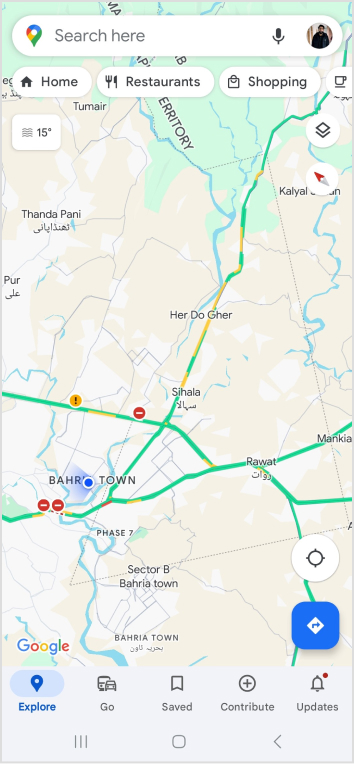
Choose a location on Google Maps on your phone:
Step 1: Open Google Maps on your phone and search for the specific location you want to add. Type the address into the search bar if needed.
Step 2: Once you find the right spot on Google Maps, tap “Share,” then select “Copy.” This action copies the link to that exact location.
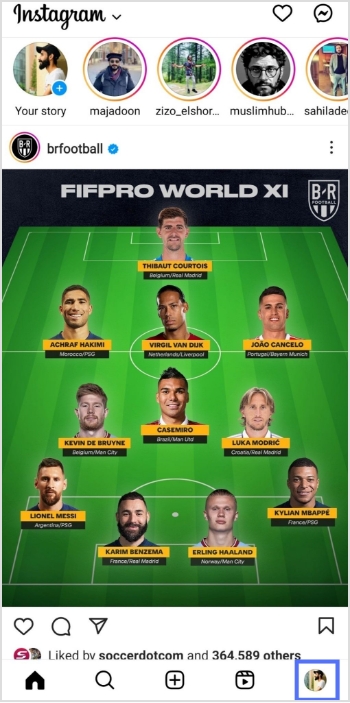
Step 3: Close Google Maps and open Instagram. Go to your profile by tapping your profile picture at the bottom right of the app’s home screen.
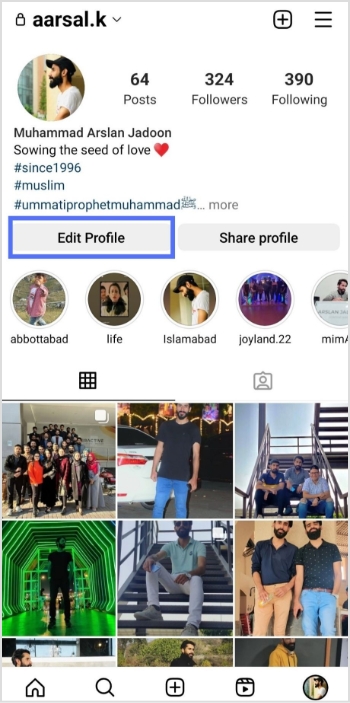
Step 4: Tap “Edit Profile.”
Step 5: Under the “Links” section, select “Add Link.”
Step 6: On the next screen, choose “Add External Link” and paste the link you copied from Google Maps. You can also give it a title, like your business name.
Step 7: Hit “Done” and go back to your profile.
Refresh the page by pulling the screen down, and there you have it! You’ve successfully added a location to your Instagram bio.
Expand your Instagram profile’s impact using Replug to add multiple links to your bio. Overcome Instagram’s single-link constraint, by using our Instagram link in bio tool to create a single bio link page offering followers easy access to diverse content and destinations.
Replug also serves as a comprehensive link management platform, helping you organize, track, and optimize all your links from one convenient dashboard. Streamline engagement and maximize your online presence with this dynamic and efficient link in bio tool.
Here’s how to add multiple links to your Instagram bio using Replug:
Step 1:Sign in to Replug or create a free account.
Step 2: Locate the “Bio Links” feature in the top banner. The bio link dashboard will appear in front of you.
Step 3: Click the “New Bio Link” button to start setting up your Tumblr bio. You’ll be directed to a new page where you’ll find three main categories: branding, content, and settings.
Step 4: In the branding section, add a brand title and description, select themes, and choose button styles to match your aesthetic.
Once you’re done, click “Publish” in the upper right corner to save your changes.
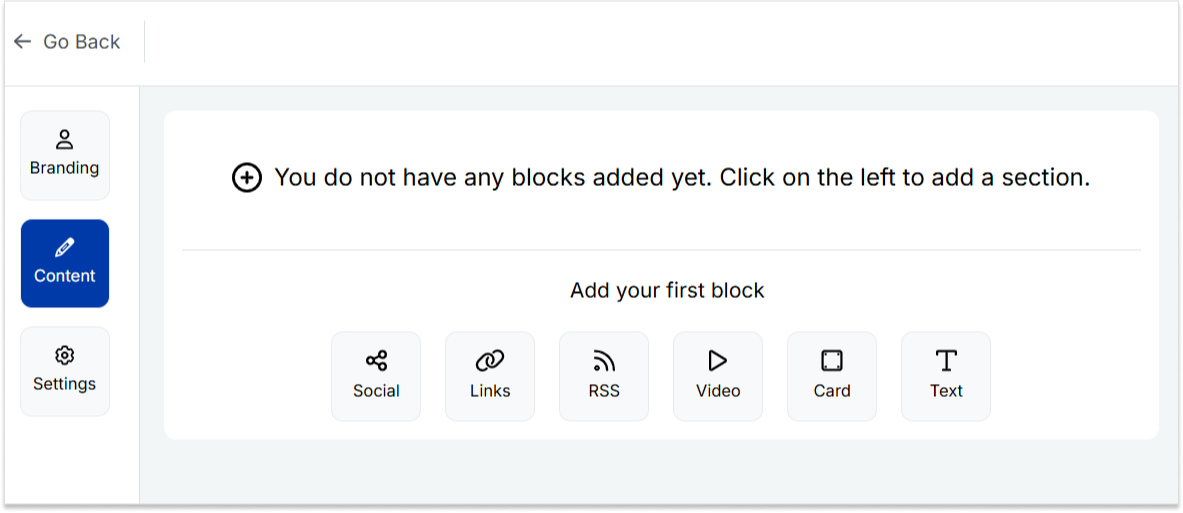
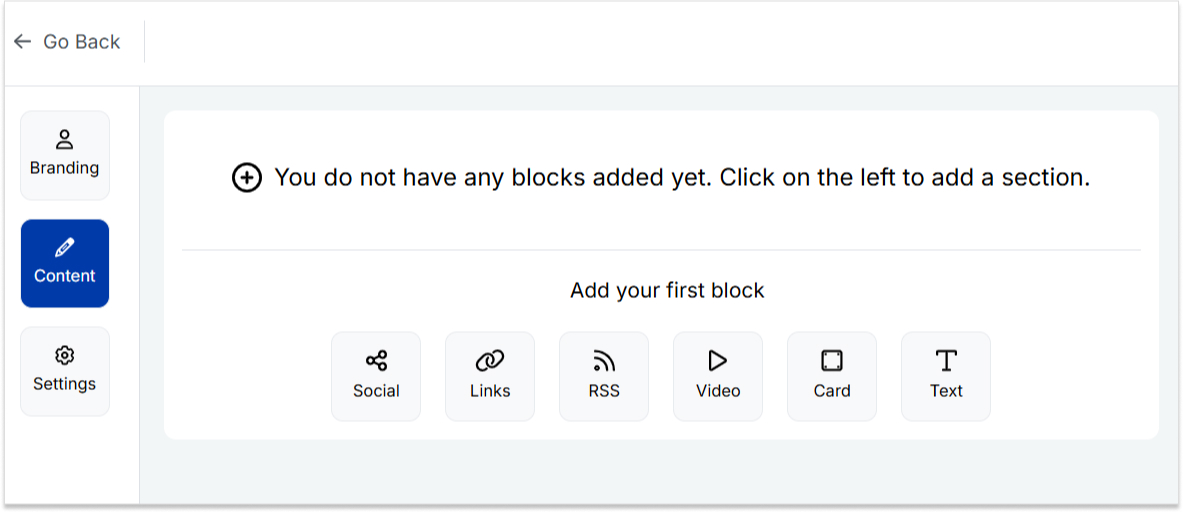
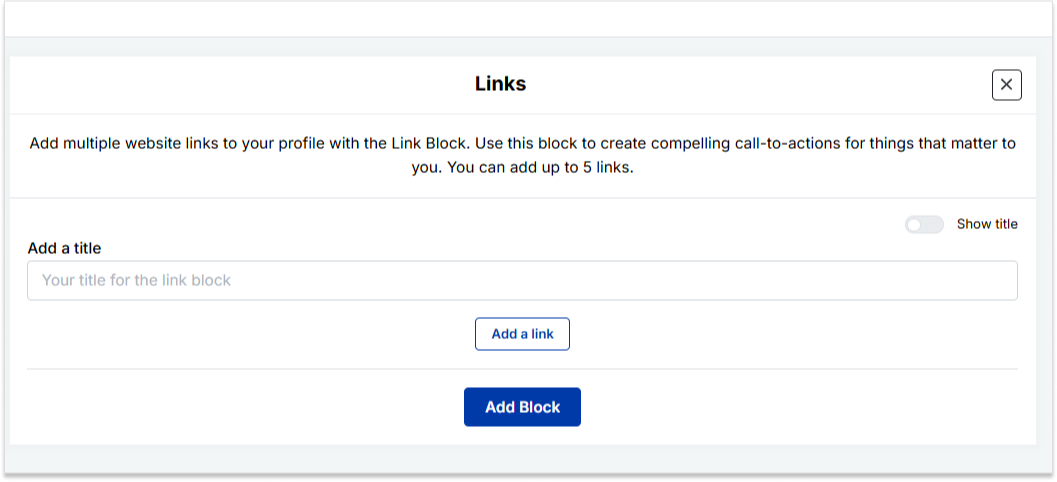
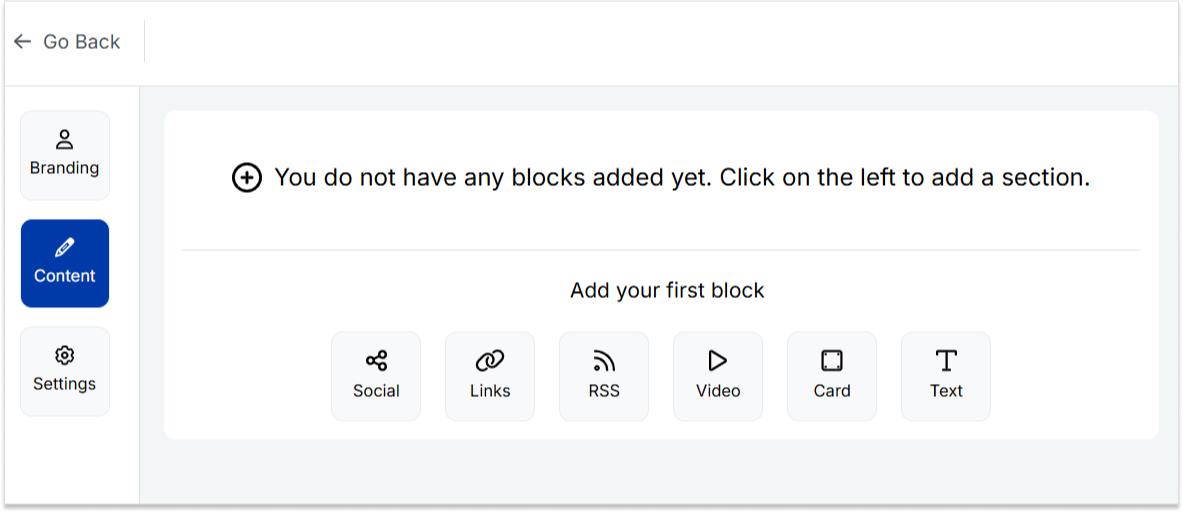
Step 5: Head to the content category. Here, you can add social icons, links, RSS feeds, videos, cards, text, and more.
For example:
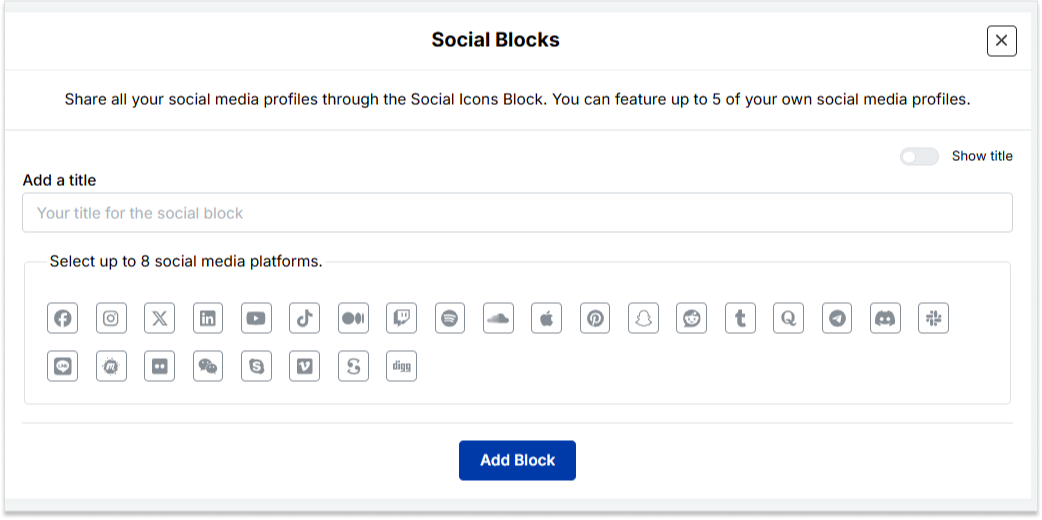
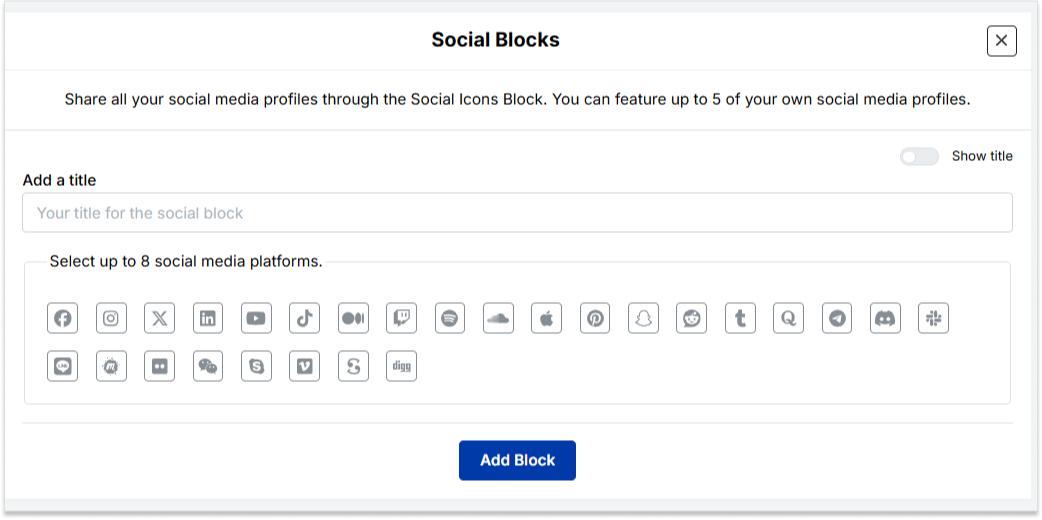
Social icons: Add up to 8 platforms, customize colors, and link to your profiles.
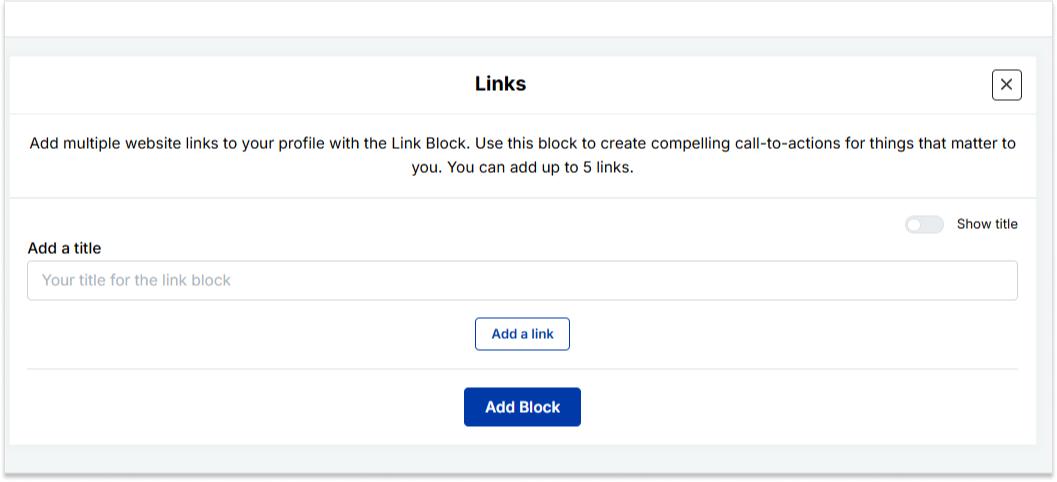
Links block: To include website links, use the “links” block. Add titles and URLs for each link.
Step 6: Once you’ve added the necessary blocks, click “update” to save each one.
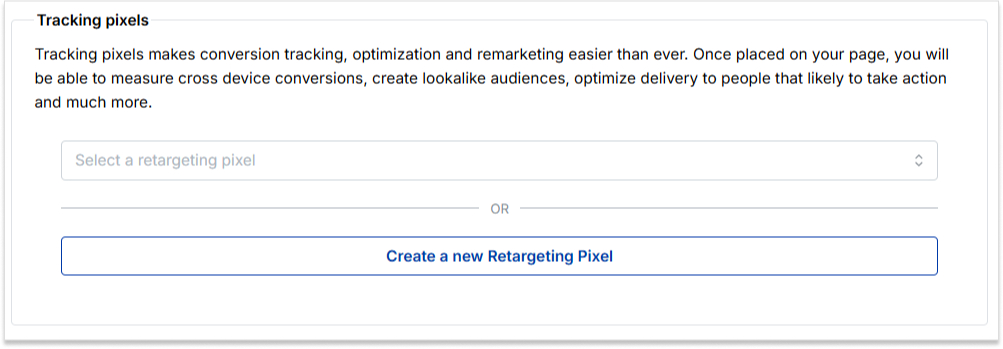
Step 7: Go to the settings section to further customize your bio link’s SEO and social media preview. Add a title, description, favicon image, and even retargeting pixels if desired.
Now you can add this bio link to your Instagram bio following the steps mentioned above and you’re done.
How do I change my location on my Instagram business account?
Update your location by tapping “Edit Profile” on your Instagram profile and adjusting it under the “Public Business Information” section.
Can I add multiple locations to my Instagram bio?
No, Instagram allows only one location link, but you can use services like Replug to create a bio link with multiple links, including locations.
Additionally, you can simplify and track your links effortlessly using this URL shortener free tool, making your shared URLs more manageable and professional.
Why can’t I add a location to my Instagram bio on my computer?
Editing Instagram bio links, including locations, is a mobile-only feature. You can make these changes using the Instagram app on your smartphone.
Is it possible to remove a location from my Instagram bio later?
Absolutely, to remove a location from your Instagram bio, go to “Edit Profile,” click on the location link, and either delete or replace it with a new one.
Welcome to Tumblr, the go-to spot for sharing your creativity through photos, text, videos, and more. Whether you’re an artist, writer, or love expressing yourself, Tumblr’s got you covered.
How do you add links to your Tumblr bio?
It’s not as obvious as you’d think, but fear not – it’s surprisingly easy once you know the trick. Stay with us, and we’ll show you how to effortlessly upgrade your Tumblr experience. By adding links to your bio, you’ll make it easy for your online world to connect with you.
Let’s dive in!
Adding links to your Tumblr bio: What you need to know
Before you start linking up your Tumblr bio, here’s the lowdown:
You’ll need to use some basic HTML code for this. No worries, it’s simple.
Tumblr doesn’t have a fancy button for adding links. You’ll have to do a bit of copy-paste action with the HTML code.
Adding a link in bio is a cool way to connect your visitors to your other social media or special works. It makes your Tumblr world a bit more interactive.
Don’t worry if it sounds a bit technical, we’ll keep it super simple. All you need to do is view HTML code, copy and paste a little code. No need to stress; let’s make your Tumblr bio awesome together!
Follow these steps to add links to your Tumblr bio:
Step 1: Go to the Tumblr website and log in to your account using your credentials.
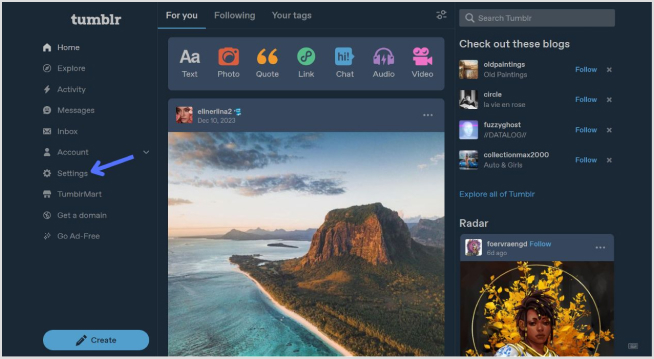
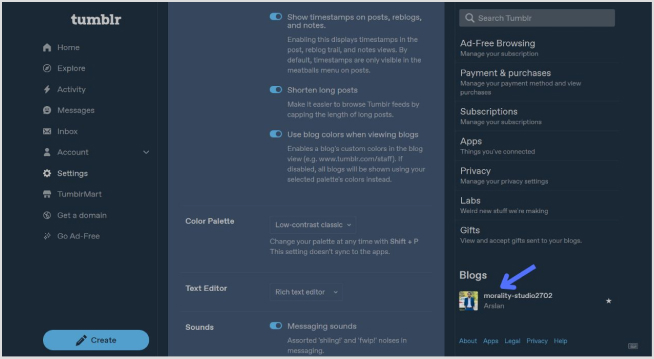
Step 2: Click on “Setting” in the left-side menu.
Step 3: Look for the “Blogs” section at the bottom of the right-side menu and click it.
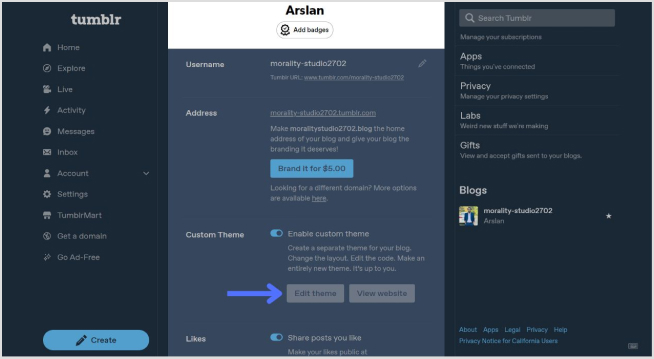
Step 4: In the blog setting, click on the “Edit Theme” button.
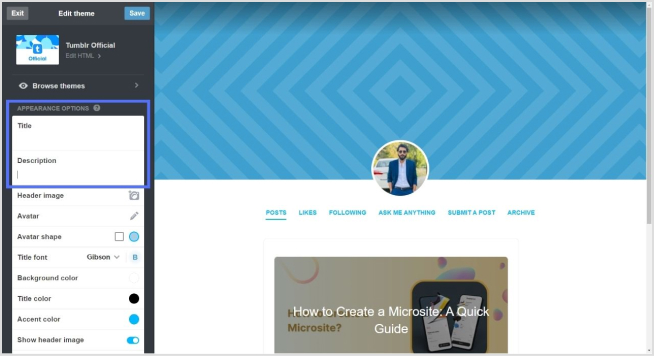
Step 5: Look for a section called “Title” and “Description”. This is where you can input information about yourself.
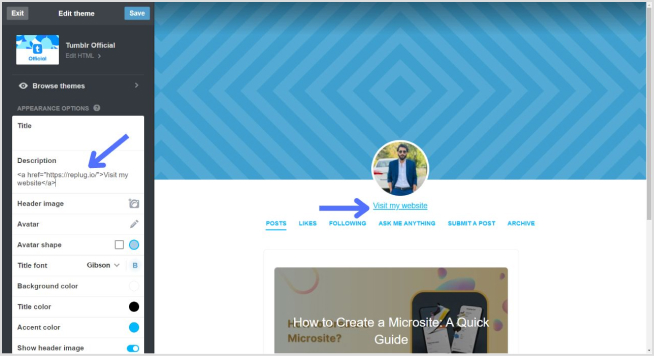
Step 6: To add a link, use standard HTML anchor tags. The format is as follows:
<a href="URL">Link Text</a>
Replace “URL” with the actual link and “Link Text” with the text you want to display for the link.
For example:
<a href="https://replug.io/">Visit my website</a>
Add this in the description section.
Step 7: After adding your link, save the changes. It should appear in your Tumblr bio.
Simply confirm that the link looks right by visiting your Tumblr blog. Check your bio, and if everything is as expected, your link is good to go! Your Tumblr bio now features the link, allowing visitors to click and explore the connected website hassle-free.
How to add multiple links to the Tumblr bio?
Tumblr allows only one clickable link directly in the bio. However, you can use Replug’s “bio links” feature to overcome this limitation and showcase multiple links.
With Replug, you can easily showcase multiple links, drive traffic efficiently, and optimize your bio for enhanced engagement.
Note: You can also leverage Replug’s advanced link tracking features to gain insights into link performance, click-through rates, and audience engagement. Enhance your bio links and track their success effortlessly with Replug.
Go beyond generic link pages!
Create custom bio links that truly fit your brand
With Replug, you can create bio links that are unique, engaging, and built to convert.
Here’s how to add multiple links to your Tumblr bio using Replug:
Step 1:Sign in to Replug or create a free account.
Step 2: Locate the “Bio Links” feature in the top banner. The bio link dashboard will appear in front of you.
Step 3: Click the “New Bio Link” button to start setting up your Tumblr bio. You’ll be directed to a new page where you’ll find three main categories: branding, content, and settings.
Step 4: In the branding section, add a brand title and description, select themes, and choose button styles to match your aesthetic.
Once you’re done, click “Publish” in the upper right corner to save your changes.
Step 5: Head to the content category. Here, you can add social icons, links, RSS feeds, videos, cards, text, and more.
For example:
Social icons: Add up to 8 platforms, customize colors, and link to your profiles.
Links block: To include website links, use the “links” block. Add titles and URLs for each link.
Step 6: Once you’ve added the necessary blocks, click “update” to save each one.
Step 7: Go to the settings section to further customize your bio link’s SEO and social media preview. Add a title, description, favicon image, and even a retargeting pixel if desired.
Step 8: Once everything is set, save your Replug-generated bio link and use it to showcase multiple links on Tumblr.
Note: For a more streamlined sharing experience, use Replug’s URL shortener free tool to create branded, trackable links. It not only keeps your Tumblr bio neat but also helps you measure link performance and audience engagement effectively.
Go beyond generic link pages!
Create custom bio links that truly fit your brand
With Replug, you can create bio links that are unique, engaging, and built to convert.
Typically, Tumblr allows only one clickable link directly in the bio. However, you can use Replug’s “Link in Bio” feature to mention additional links in your bio description.
Do links in my Tumblr bio impact my blog’s visibility?
While links in your bio won’t directly impact visibility on Tumblr, they can enhance user engagement and provide more ways for visitors to connect with your content.
How can I make my Tumblr bio stand out?
To make your Tumblr bio stand out, use a clear profile picture, write a concise and engaging bio, include relevant keywords, add links to other platforms, use visual elements like emojis, and regularly update to reflect current activities.
Adding an Amazon link to your Instagram bio allows users to easily access and purchase products you promote or have an affiliate relationship with on the platform.
By including the link, you can increase sales and earn commissions as an Amazon affiliate. This also helps increase brand visibility and exposure by allowing followers to easily access and conveniently purchase your products.
Additionally, you can maximize your earning potential on Amazon by sharing a shop’s address, product, or affiliate link on your Instagram Bio. This informative guide will teach you the best options and tips for adding them to your Instagram bio.
Here’s how to add an Amazon link to your Instagram bio:
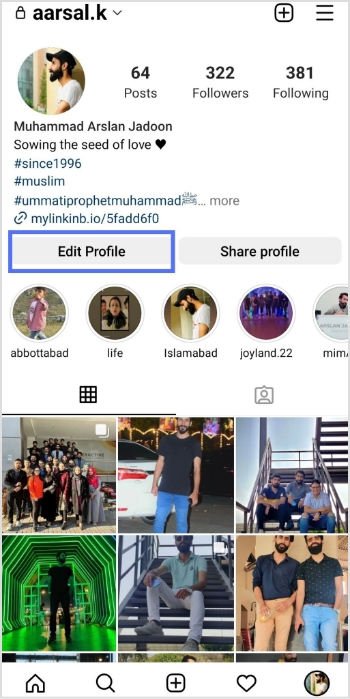
Step 1: Open the Instagram app on your mobile phone and tap the profile icon in the bottom right corner.
Step 2: Tap the “edit profile” button on your mobile screen.
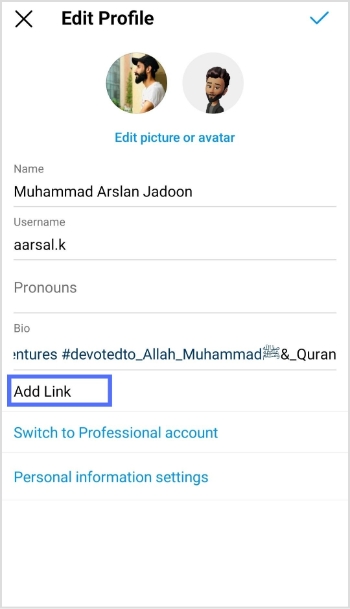
Step 3: Tap “add link” to open the links section.
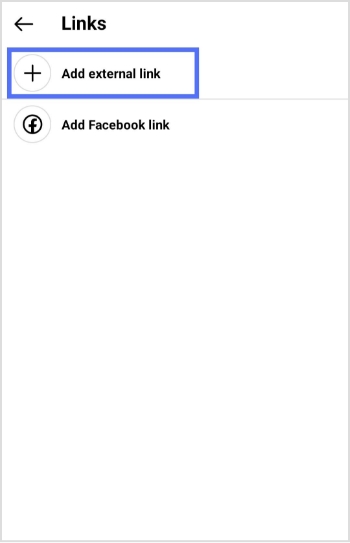
Step 4: Tap “add external link” to add your amazon link.
Step 5: Paste your Amazon link in the URL section and tap the tick icon in the top right corner. Your Amazon link now appears in the Instagram bio.
Maximize marketing ROI
by transforming ordinary URLs into branded short links that convert.
Try Replug for free
How to add multiple Amazon links to Instagram bio?
Adding multiple Amazon links (shop and affiliate) to your Instagram bio can increase your exposure and earning potential on the platform.
If you have your own Amazon shop, you can add the link to your bio, allowing followers to easily access and purchase your products. By including this link, you can increase sales and revenue for your business.
In addition to your shop, you can also sign up for the Amazon Affiliate Program, which allows you to promote Amazon products and earn a commission on each sale. As an affiliate, you can add affiliate links to your bio, providing followers with easy access to the products you are promoting.
You can use our link management tool – Replug.io, to add multiple links to your bio. Our link generator for Instagram bio helps you create a standout bio link page in no time. You can add your Amazon shop link, affiliate links to the page, and links to other products, websites, or services.
Step 1: Visit the Replug website and sign up for a new account, or log in if you already have one.
Step 2: Find the “Bio Links” feature in the top banner to access the bio link dashboard.
Step 3: Click on the “New Bio Link” button to create a new page. You’ll be directed to a new screen with three key sections: branding, content, and settings.
Step 4: In the branding section, enter your brand title and description, choose a theme, and select button styles that match your brand’s look and feel. Once you’re satisfied, click “Publish” in the top right corner to save your changes.
Note: Replug also allows you to add a verification badge to your bio landing page for extra credibility.
Step 5: Move to the content section, where you can add various elements, including social icons, links, RSS feeds, videos, cards, and text.
For example:
Social icons: Add up to 8 platforms, customize colors, and link to your profiles.
Links block: Use the “links” block to include website links. Add titles and URLs for each link.
Step 6: After adding your content blocks, click “Update” to save each one.
Step 7: In the settings section, customize your bio link’s SEO and social media preview. You can add a title, description, and favicon image and even integrate a retargeting pixel for better tracking.
Step 8: Once you’re happy with your bio link, save it, and use the Replug’s generated URL to showcase multiple links across your social profiles.
You can also make your URLs more concise and trackable with this efficient ad free URL shortener, ensuring a cleaner and more professional appearance across all your shared links.
The bottom line
Adding multiple Amazon links to your Instagram bio can help you increase your earnings by promoting multiple products and earning commissions on each sale. Replug also allows you to track the performance of each link and determine which products or services are most popular with your followers.
In short, Replug’s free link in bio tool offers numerous benefits, including increased exposure, better engagement, increased sales, improved analytics, and enhanced brand image.
FAQs on Amazon link to Instagram bio
Why is the Amazon link in Instagram Bio not clickable?
If your Amazon link on your Instagram bio is not clickable, it could be due to an incorrect link format, link blocking, a broken link, being blocked by Amazon, or an incorrect tracking ID. Check these factors and make any necessary adjustments to resolve the issue.
Can I add multiple Amazon links to my Instagram bio?
Yes, you can use tools like Replug to create a bio link page where you can add multiple Amazon shop and affiliate links, making it easier for followers to access and purchase products.
Why isn’t my Amazon link clickable in my Instagram bio?
Check if the link format is correct, if the link is broken, or if it’s being blocked by Amazon. Make sure to use a proper tracking ID and verify that the link is not being restricted.
How can I track the performance of my Amazon links in my Instagram bio?
Tools like Replug allow you to track clicks and engagement on your Amazon links, helping you see which products or services are popular with your followers.