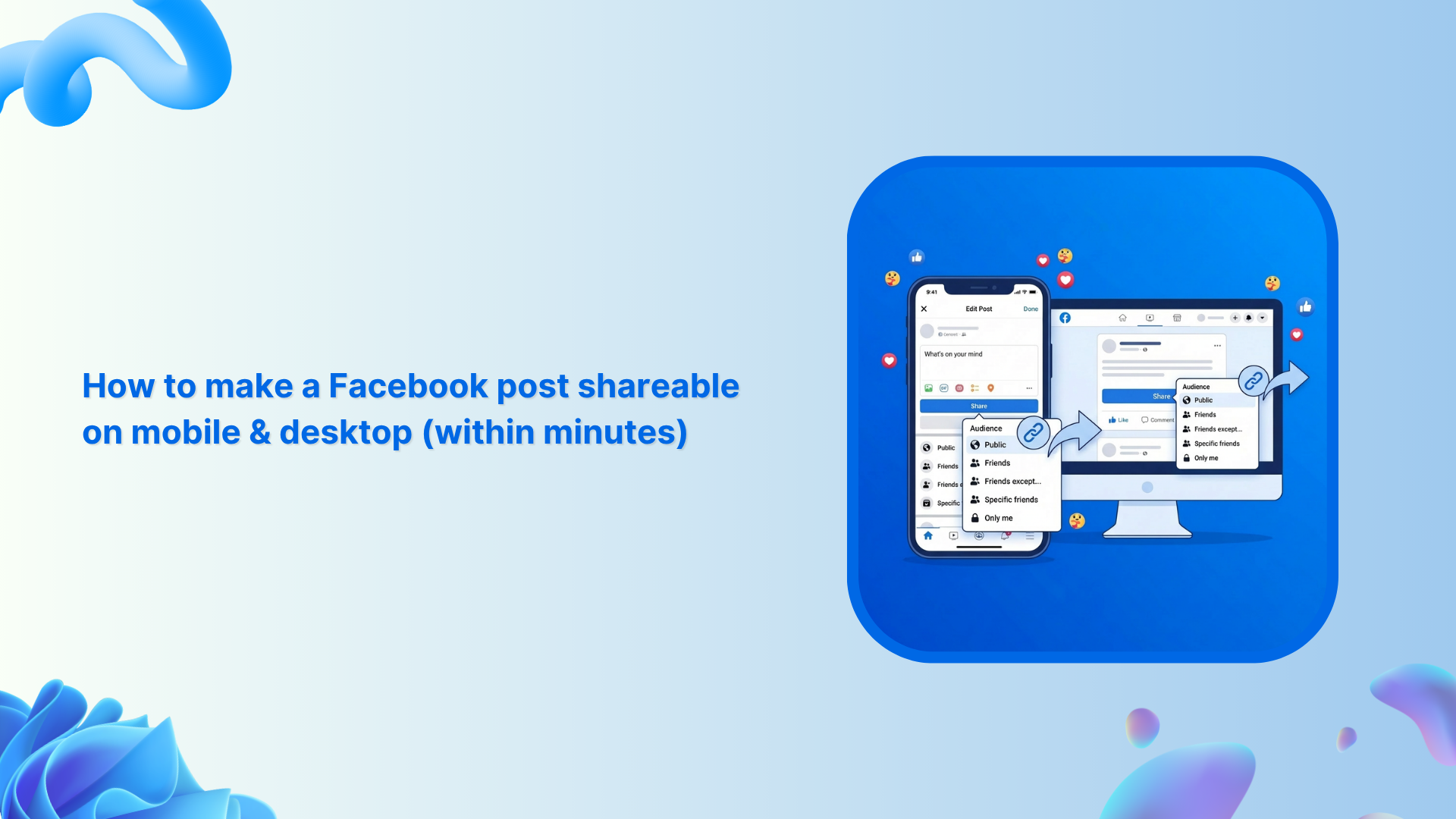
You’ve probably tapped “Share” on a Facebook post, only to realize later that nobody outside your friends could actually see it. Frustrating, right? You’re not alone!
Facebook has over 3 billion monthly active users, and yet so many people still miss out on reach simply because their sharing settings aren’t configured correctly.
Whether you’re promoting a small business, spreading awareness for a cause, or just sharing something your whole neighborhood must see, making your posts publicly shareable is a game-changer. And it literally takes minutes to fix.
The best part? It works the same no matter if you’re on your smartphone or PC.
But before we walk through the steps, it helps to understand why some posts won’t share in the first place, and that comes down to one thing: Facebook’s privacy settings.
Getting a know-how of Facebook’s privacy settings
Before you start changing anything, it’s worth knowing how Facebook’s privacy settings actually work. Think of them as a control panel for who gets to see your stuff.
Every post you make has an audience selector. A little dropdown that lets you choose between:
- Public,
- Friends,
- Friends except…,
- Specific friends,
- Only me, or
- Close friends
If that’s set to anything other than “Public,” people outside your friends list won’t be able to share your post. Simple as that!
Once you know where to look and what to change, the whole thing becomes super easy to manage (on both mobile and desktop).
Facebook’s post shareability cheat sheet
Not every post gets the same reach, and a lot of that comes down to how you set it up in the first place. Here’s a quick cheat sheet to help you get it right every time:
| Factor | What works best |
| Privacy setting | Set to “Public” so anyone can view and share your post beyond just your friends list. |
| Optimal timing | Post between 12 PM-8 PM on weekdays. Tuesday & Wednesday tend to see the highest engagement. |
| Visual standards | Use bright, clear images or short videos. Avoid blurry or heavily watermarked visuals. |
| Content format | Video and image posts get shared far more than plain text. Reels are currently getting the most organic reach. |
| Content length | Keep captions between 40-80 characters for feed posts. Short and punchy wins over long and wordy. |
| Engagement triggers | Ask a question, use a clear call-to-action like “Tag someone who needs this,” or tap into trending topics. |
Quite simple to follow, right? Now, let’s get into the actual steps to make your posts shareable.
How to make a new Facebook post shareable
When you’re creating a brand new post on Facebook, making it shareable takes just a few quick taps or clicks before you hit publish. Here’s exactly how to do it, whether you’re on your phone or desktop.
On mobile (Android & iOS):
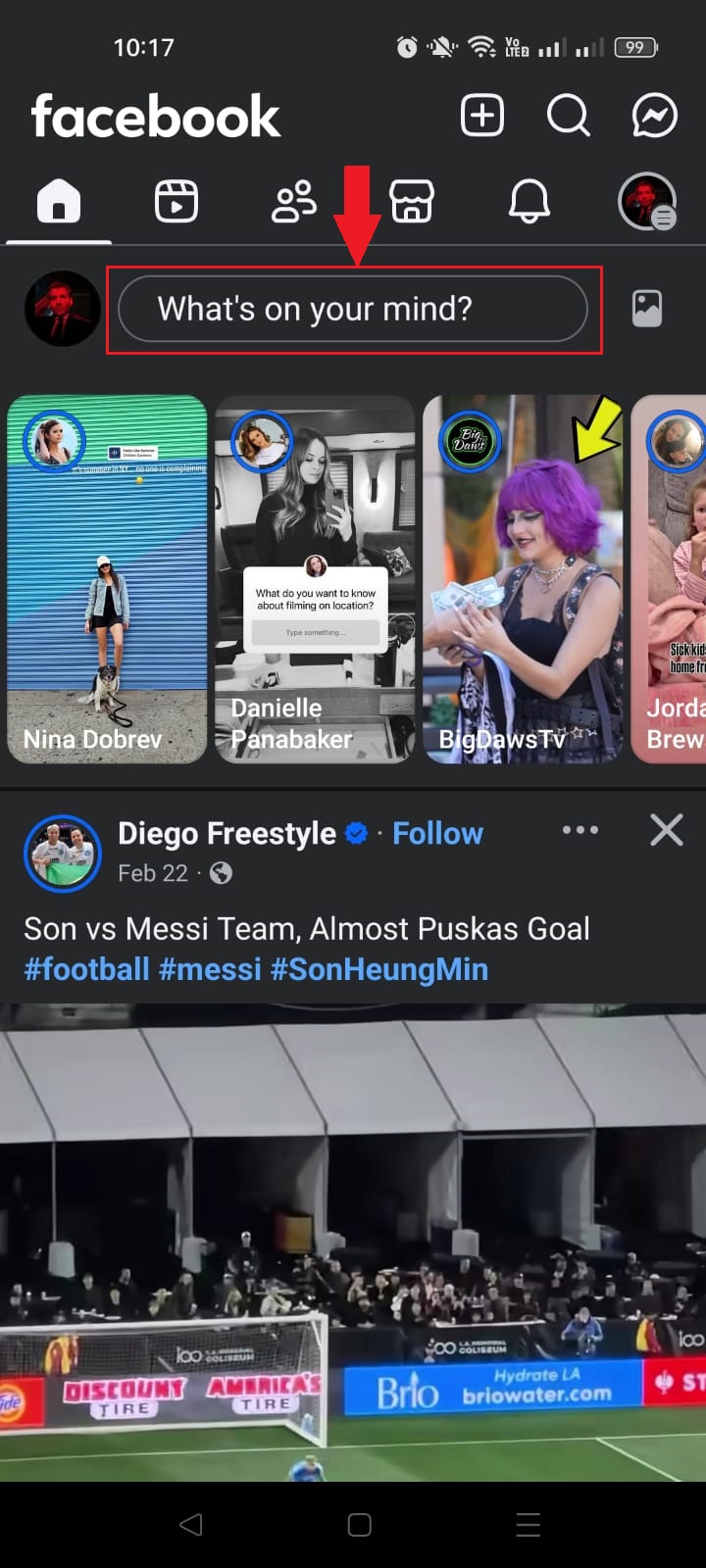
- Step #01: Open Facebook and tap “What’s on your mind?”
Tap that status box at the top of your feed. This is where you’ll create your new post.
- Step #02: Add your content
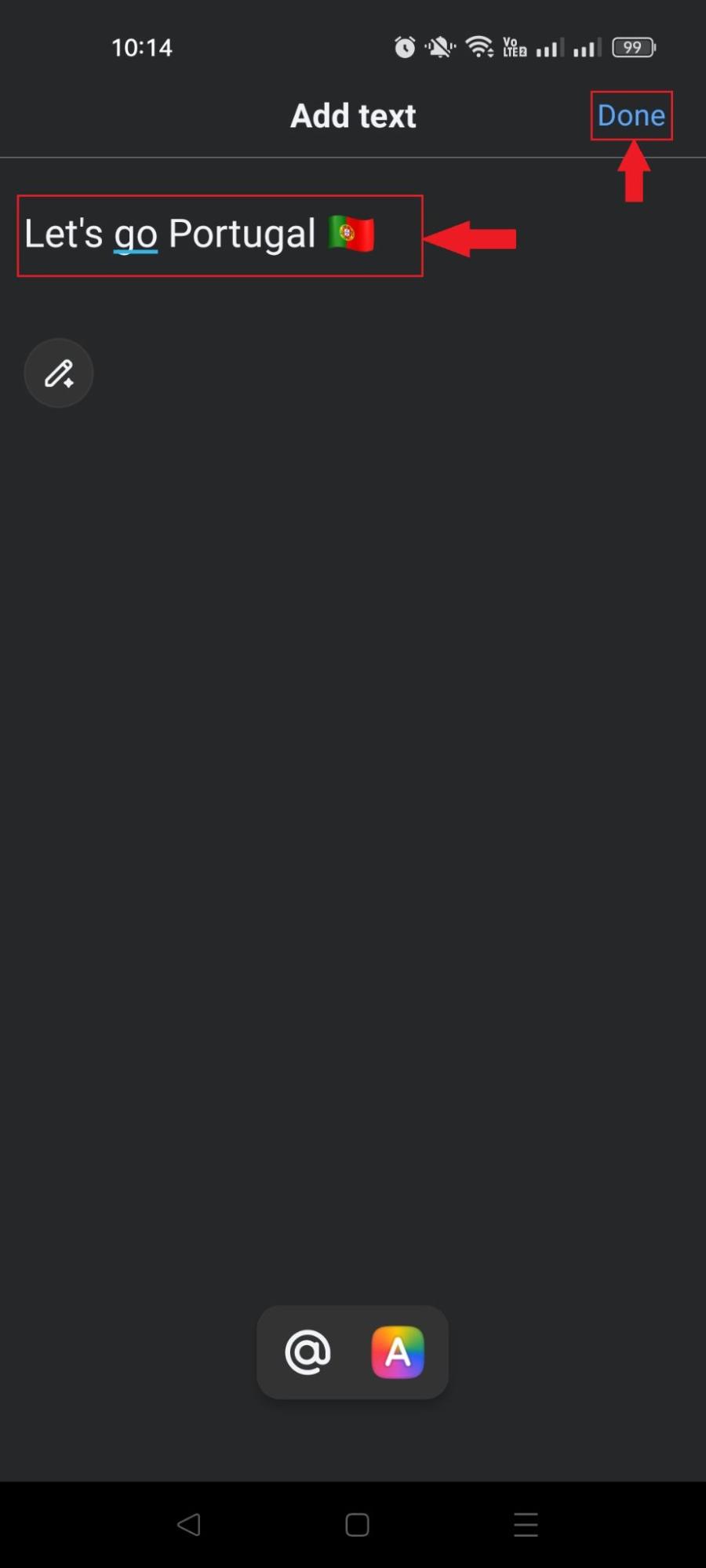
Type your caption, upload a photo or video, or add whatever you want to share. Get it looking the way you want before tapping “Done”.
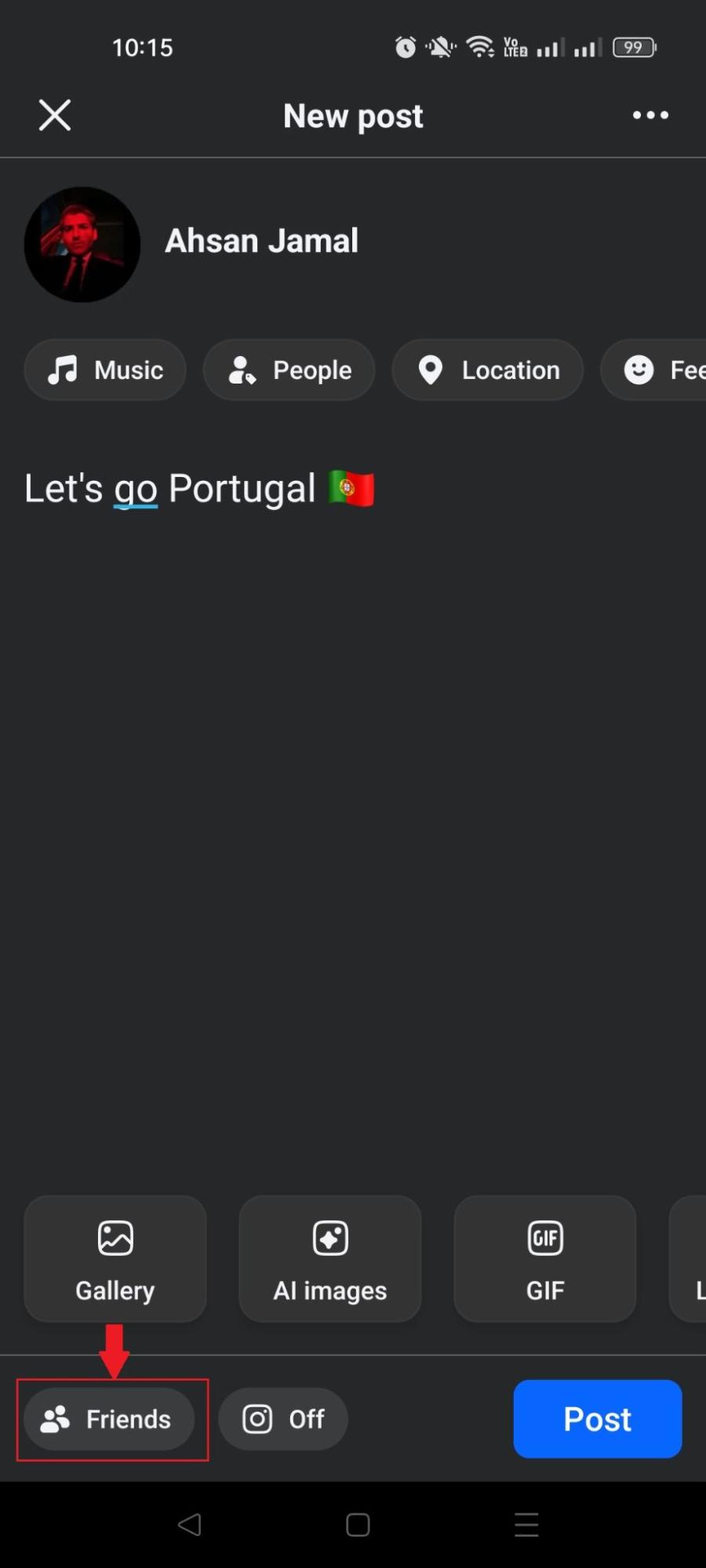
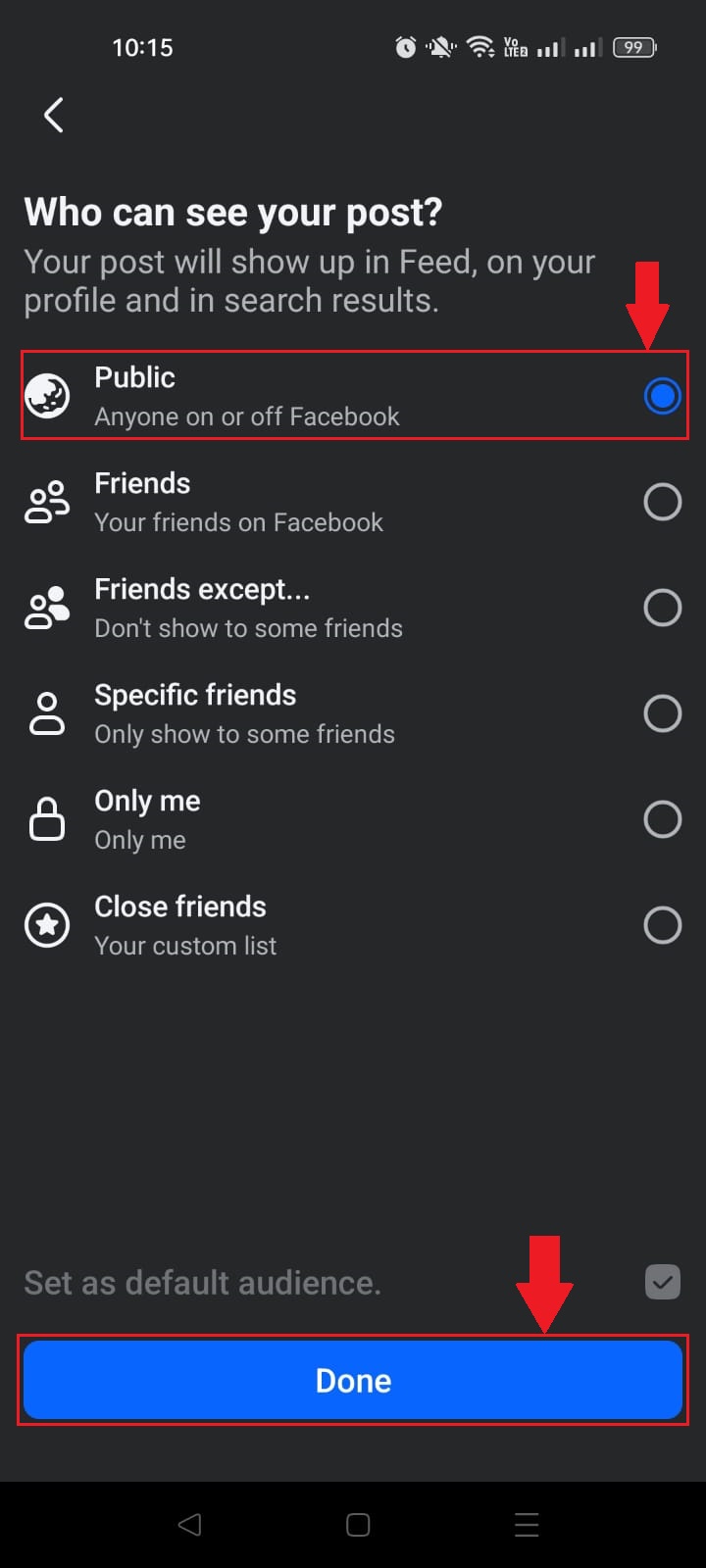
- Step #03: Tap the audience selector button
In the bottom left-hand corner, you’ll see a small button that shows your current audience. It might say “Friends,” “Public,” or something else. Tap it!
- Step #04: Select the “Public” option
From the page that appears, choose “Public”. This means anyone on or off Facebook can see and share your post. Then, tap on “Done”.
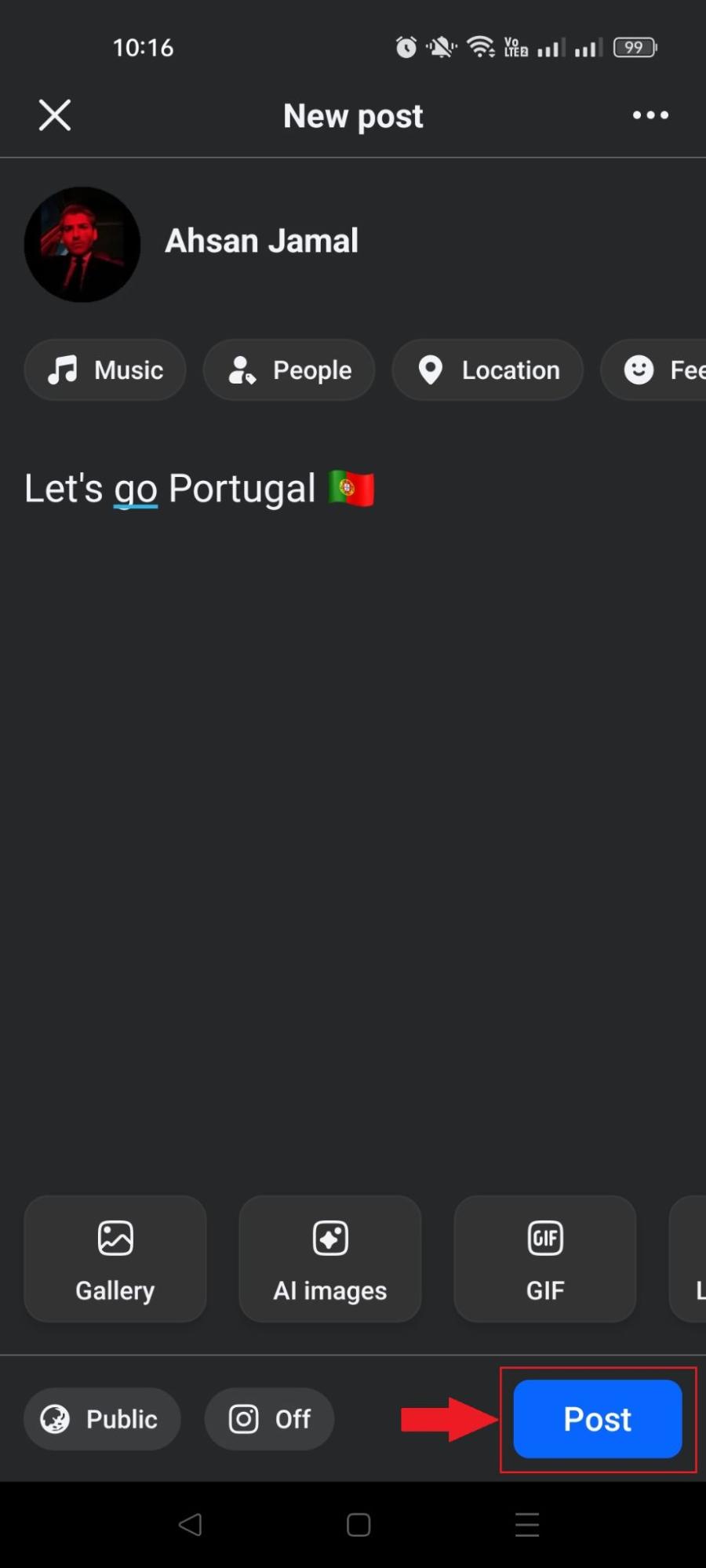
- Step #05: Tap the “Post” button
That’s it! Your post is now fully shareable by anyone who comes across it.
On desktop:
- Step #01: Click “What’s on your mind?” on your homepage
You’ll find this at the top of your News Feed or on your profile page. Click it to open the post composer.

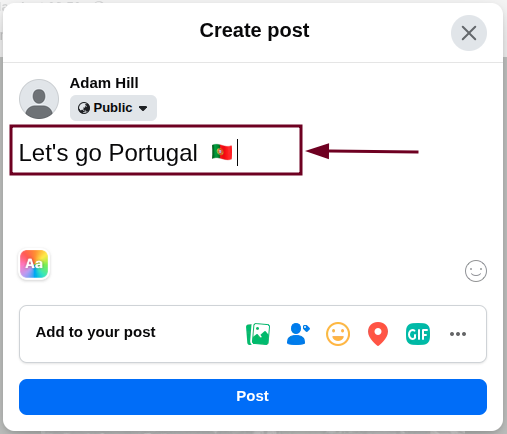
- Step #02: Add your content
Write your caption or drop in your media, whatever your post is about. Take a second to make sure everything looks good.
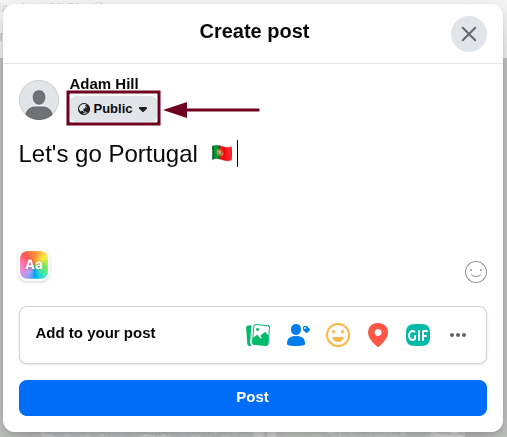
- Step #03: Click the audience selector
Right below your name, there’s a dropdown button showing who can currently see your post. Click on it.
- Step #04: Choose the “Public” option
Select “Public” from the list of options. This opens your post up to everyone, not just your Facebook friends. Click on “Done”.
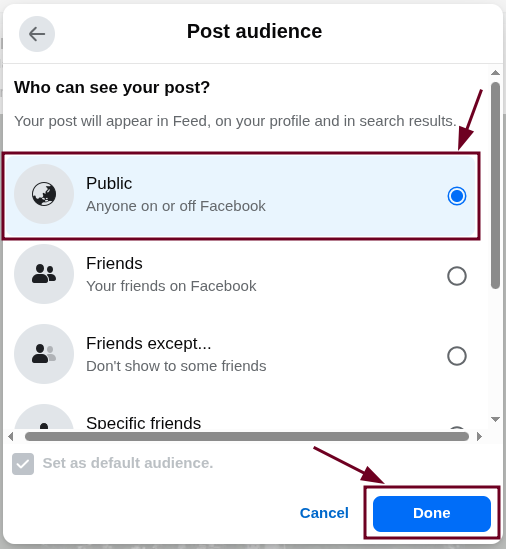
- Step #05: Click “Post”
Hit that blue “Post” button, and you’re all set. Your new post is live and fully shareable.
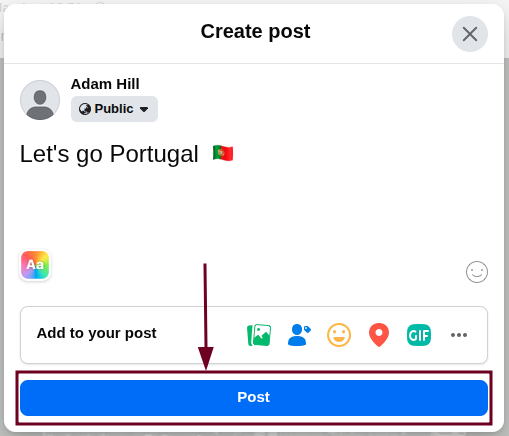
That’s genuinely all it takes! Once it’s set to Public, anyone who sees your post can hit Share and spread it further. No extra steps needed.
How to make an existing Facebook post shareable
Already posted something but forgot to make it shareable?
No worries, you can go back and change the privacy setting on any existing post in just a few taps or clicks. Here’s how to make a Facebook post shareable after posting:
On mobile (Android & iOS):
- Step #01: Go to your FB profile and scroll down to the post you want to edit.
- Step #02: Tap the three dots (⋯) in the top right corner of the post. This opens a quick options menu for that specific post.
- Step #03: Tap “Edit Privacy”. You’ll see this option right there in the menu.
- Step #04: Select “Public” and tap on the “Save” button. That’s it, your post is now shareable.
On desktop:
- Step #01: Click your name or profile picture to go to your Facebook profile, then scroll to find the post.
- Step #02: Click the three dots (⋯) in the top right corner of the post. A small dropdown menu will appear with several options.
- Step #03: Click “Edit audience” from the dropdown menu.
- Step #04: Pick “Public” from the audience options and click “Done”. Your post is now open for everyone to share.
Quick, easy, and done in under a minute. And what’s the best part? No need to delete and repost anything.
How to make a Facebook post shareable without making it “Public”
Not comfortable making your post fully public? That’s fair.
Facebook actually lets you share posts with a specific group of people without opening them up to the entire internet.
On mobile (Android & iOS):
- Step #01: Open Facebook and tap your profile picture to head to your profile.
- Step #02: Find the post you want to adjust and tap the three dots (⋯) in the top right corner of it.
- Step #03: Tap “Edit Privacy” from the menu that pops up.
- Step #04: Choose “Friends”, “Specific friends”, or “Close friends”. This lets your friends’ connections see and share your post, without it being fully public.
- Step #05: Tap “Save” to save your changes.
On desktop:
- Step #01: Click your profile picture or name to go to your Facebook profile.
- Step #02: Locate the post you want to change, then click the three dots (⋯) in the top right corner of the post.
- Step #03: Click “Edit audience” from the dropdown menu.
- Step #04: Select the option “Friends” or “Custom”. A solid middle ground that expands your reach beyond just your friend list without going fully public.
- Step #05: Click “Done” and you’re all set.
It’s not as wide a reach as “Public,” but it’s a great option if you want a bit more control over who’s seeing and sharing your content.
How to make a Facebook post shareable in a private group
If you’re posting inside a private Facebook group, the sharing rules work a little differently. Group admins control whether members can share posts outside the group or not. Here’s how to enable it.
For Group Admins (mobile & desktop):
- Step #01: Open Facebook and tap the profile menu icon (≡).
- Step #02: Then go to “Groups” → “Your groups” and select the group you manage.
- Step #03: Tap the shield icon in the top right-hand corner.
- Step #04: Scroll down and find the “Group settings” option under the “Settings” section.
- Step #05: Toggle the “Post Sharing” on to allow members to share posts from the group to their own profiles or other places on Facebook.
- Step #06: Tap “Save” to confirm your changes.
👉 Keep in mind that if you’re just a member (not an admin), you won’t have the ability to change this setting. You’d need to reach out to the group admin and ask them to enable post sharing for the group.
How to make a post shareable on Facebook Marketplace
Are you the one selling something on Facebook Marketplace?
Making your listing shareable can get it in front of way more potential buyers without spending a single dollar on ads.
Here’s how to do it:
- Step #01: Open Facebook and tap the “Marketplace” icon. It looks like a little storefront.
- Step #02: Tap “Your Account” or your profile icon, then go to “Your Listings” to find the listing you want to share.
- Step #03: Tap on the listing to open it, then tap the “Share” button. It usually appears as an arrow icon at the bottom or top of the listing.
- Step #04: Choose “Share to your feed”, “Share to a group”, or “Send in Messenger” to push your listing out to a wider audience.
- Step #05: Add a quick caption if you want, then tap “Post” to share it.
How to make a Facebook business page post shareable
If you’re running a Facebook business page, making your posts shareable is a must. It’s one of the easiest ways to grow your reach organically without paying for ads.
Here’s how to set it up:
- Step #01: Open Facebook and tap the menu icon, then select your “Business Page” from the “Pages” section.
- Step #02: Tap “Page Settings”. You’ll find it by tapping the three dots or the settings icon on your page.
- Step #03: Scroll down to “Privacy” settings and make sure your page visibility is set to “Public” so anyone can view and share your posts.
- Step #04: Head back to your page, find the post you want to make shareable, and tap the three dots (⋯) in the top right corner of the post.
- Step #05: Tap “Edit audience” and set it to “Public,” then tap “Done” to save.
Why is it important to make your Facebook post shareable?
Making your Facebook post shareable isn’t just a nice-to-have. It’s one of the simplest ways to multiply your reach without spending a dime. When people can share your content freely, it works for you around the clock.
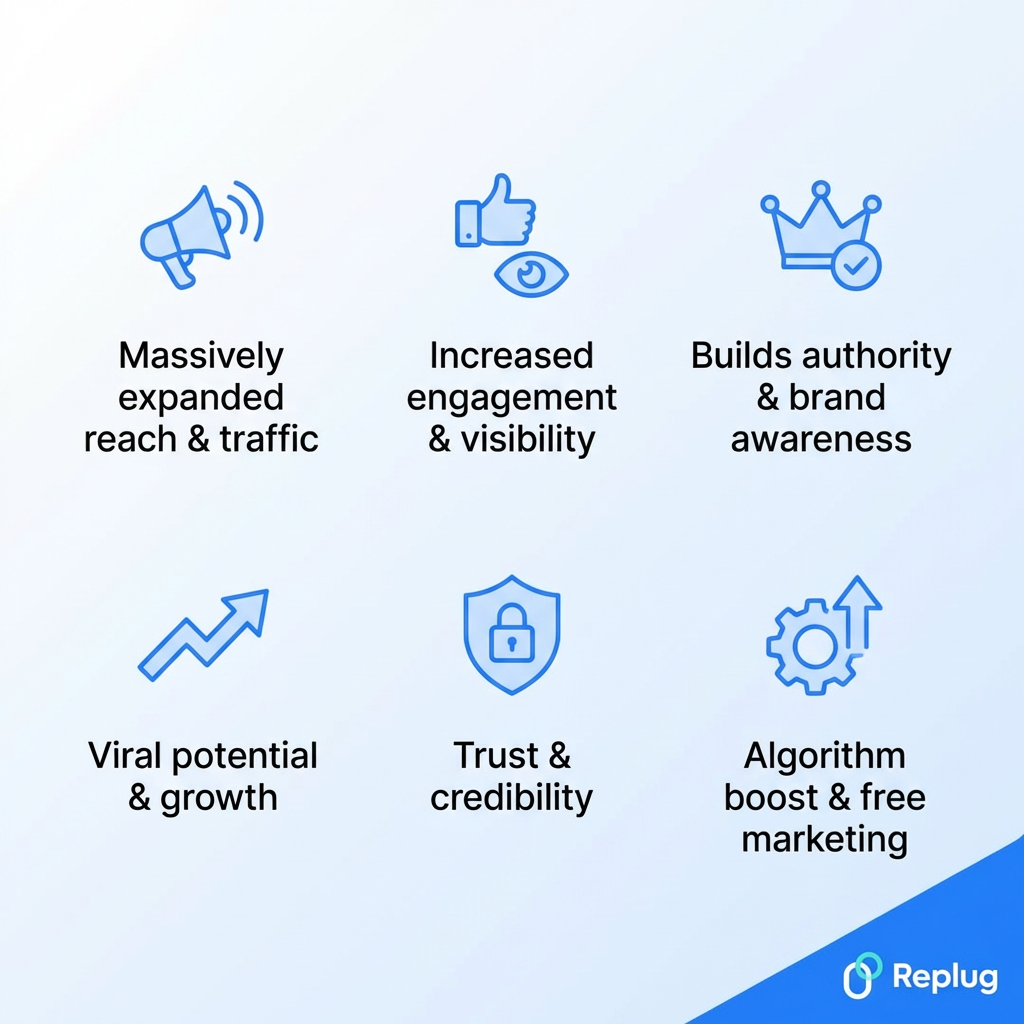
Here’s why it really matters:
- Massively expanded reach & traffic: Every time someone shares your post, it gets exposed to their entire friend list, people who’ve never even heard of you. That’s free traffic you didn’t have to chase.
- Increased engagement & visibility: Shareable posts naturally attract more likes, comments, and reactions. The more engagement your post gets, the more Facebook pushes it in front of even more people.
- Builds authority & brand awareness: When your content gets shared repeatedly, people start recognizing your name or brand. Over time, that consistent visibility builds a reputation you can’t easily buy.
- Viral potential & growth: One great post shared by the right person can skyrocket into thousands of views overnight. Shareability is basically the foundation of anything going viral on Facebook.
- Trust & credibility: People trust content that others willingly share. When your post gets passed around, it acts as a word-of-mouth endorsement, which is far more powerful than any ad.
- Algorithm boost & free marketing: Facebook’s algorithm loves content that gets shared. More shares signal that your post is worth showing to more people. This gives you organic reach that would otherwise cost money to achieve.
Key tips for Facebook post shareability
Want more people sharing your posts? These simple but effective tips can make a real difference in how far your content travels on Facebook.
| Tip | What to do |
| Set to public | Always double-check your audience setting before posting. If it’s not set to Public, sharing is either limited or completely blocked. |
| Create value/utility | Post content that teaches, informs, or solves a problem. People share things that genuinely help them or their loved ones. |
| Evoke emotion | Content that makes people laugh, feel inspired, or even surprised gets shared far more than flat, emotionless posts. |
| Use strong headlines | Your first line is the key. Make it catchy, curious, or bold enough to stop someone mid-scroll. |
| Tell a story | People connect with real stories a lot more than promotional fluff. So, always keep it relatable and genuine. |
| Keep it short | Don’t make people work to read your post. Get to the point quickly and leave them wanting more. |
| Ask for shares | Sometimes all it takes is simply saying, “Share this with someone who needs it.” A direct nudge works surprisingly well. |
| Time it right | Post when your audience is actually online. Weekday mornings and early afternoons tend to get the most traction. |
| Be responsive | Reply to comments quickly after posting. Early engagement signals to Facebook that your post is worth pushing to more people. |
| Avoid private groups | Posts inside private groups can’t be shared outside easily, and need admin permissions. If reach is the goal, stick to your public profile or business page. |
Troubleshooting common Facebook post sharing problems
Sometimes everything looks fine, but your post still won’t share properly, and that’s more common than you’d think. Before you panic, most sharing issues on Facebook come down to a handful of easy fixes.
Here’s what to check:
- Check privacy settings: This is always the first place to look. If your post is set to “Friends” or “Only Me,” sharing will be restricted or blocked entirely. Switch it to “Public,” and that usually solves it instantly.
- Fix link previews (debugger): If your shared link is showing a broken or outdated preview, head over to Facebook’s Sharing Debugger tool and paste your URL in. It’ll refresh the preview and pull the correct image and title.
- App glitches (Android/iOS): If the share button isn’t responding on your phone, try clearing the Facebook app’s cache first. If that doesn’t work, uninstall and reinstall the app. This fixes most mobile-related sharing bugs quickly.
- Desktop/browser issues: Sharing problems on the desktop are often browser-related. Try clearing your cookies and cache, switching to a different browser, or disabling any extensions that might be interfering with Facebook’s functionality.
- Reconnect accounts: If you’re trying to share Facebook posts to a linked Instagram or third-party platform and it’s not working, the connection may have dropped. Go to Settings → Accounts Center and reconnect the relevant accounts to get things flowing again.
👉 Unfortunately, still stuck after trying all of the above. Try logging out and back into your Facebook account or reaching out to Facebook Support. This is always worth a shot as a last option.
Generate an engaging Facebook post within minutes with Replug!
If you want to skip the guesswork and create scroll-stopping Facebook posts in seconds, Replug is worth checking out.
It’s a powerful URL shortener and link management tool packed with features like branded links, bio links, retargeting pixels, and detailed analytics.


But one of its most underrated free tools is the Facebook Post Generator, and it’s genuinely a time-saver.
Just plug in your prompt or a few details, and it comes up with a ready-to-post caption that’s engaging, on-point, and share-worthy. No staring at a blank screen, no second-guessing your wording.
No matter if you’re a business owner, content creator, or just someone who wants their posts to actually get noticed, Replug makes the whole process incredibly simple and fast.
Summing up
Making your Facebook posts shareable really isn’t as complicated as it seems, and now you’ve got everything you need to get it done.
Whether you’re tweaking privacy settings on a new post, fixing an existing one, managing a business page, or troubleshooting a sharing issue, it all comes down to a few simple steps.
The bigger picture here is that shareability directly impacts how far your content travels, how many people discover you, and how fast you grow, all without spending a penny.
So go ahead, apply what you’ve learned, and start putting your content in front of the audience it deserves.
The Share button is waiting. Make the most of it!
Frequently asked questions
How to make a Facebook post shareable in a group?
If you’re a group admin, go to group settings and turn on the Post Sharing option under posting permissions. This allows members to share posts outside the group. However, if you’re just a member, you’ll need to ask the admin to enable it. It’s not something regular members can control.
How to make a Facebook post shareable by friends?
When creating or editing a post, tap the audience selector and choose “Friends.” This makes your post visible to your friends, and they’ll have the option to share it further. Just keep in mind that “Custom” gives you a slightly wider sharing reach than “Friends” alone.
How to make a Facebook post shareable on Android and iPhone?
Open the post, tap the three dots (⋯) in the top corner, and select “Edit Privacy” or “Edit audience.” From there, switch the audience to “Public” and save. The steps are pretty much identical on both Android and iOS. Facebook’s mobile app works the same way across both platforms.
How do I allow others to share my Facebook posts?
Here’s how to make a Facebook post shareable by others:
Set your post audience to “Public,” that’s really all it takes. Once a post is public, anyone who sees it will have a Share button available. If this button is missing, it means the post is set to a restricted audience, like “Friends” or “Only Me.”
How to make a memory post shareable on Facebook?
When Facebook surfaces a memory, open it and tap the “Share” option to post it to your feed. Before sharing, tap the audience selector and set it to “Public” if you want others to be able to reshare it. Memory posts follow the same privacy rules as regular posts.
How to make a Facebook post not shareable?
Set your post audience to “Friends” or “Only Me”. This removes the Share button for anyone viewing it. If you’re in a group, admins can turn off post sharing entirely through Group Settings. It’s the simplest and most effective way to keep your content from being passed around.
Why is my post not shareable on Facebook?
The most common reason is that the post is set to a restricted audience, like “Friends” or “Only Me.” Other reasons could include:
– being inside a private group where sharing is disabled,
– a temporary app glitch, or
– a browser issue on a desktop
Start by checking your privacy settings. That fixes the issue most of the time.
Is it possible to control who shares my Facebook post?
No. Facebook lets you control who can see your post, but you can’t specifically control which individuals can share it. If it’s set to Public, anyone can share it. Your best option for limiting shares is restricting the audience to “Close Friends” or “Only Me.”
Does making a Facebook post shareable increase reach and engagement?
Absolutely! When a post is shareable and people actually share it, it gets exposed to entirely new audiences beyond your own followers. More shares also signal to Facebook’s algorithm that your content is worth promoting. This means even more organic reach without spending anything on ads.
What types of Facebook posts are harder to make shareable on the platform?
Posts inside private or secret groups can’t be shared outside the group unless the admin enables it. Similarly, posts set to “Only Me” have limited or no sharing ability. Facebook Stories also can’t be shared the same way regular feed posts can. They work differently by design.
Is it possible to make certain Facebook posts shareable and others not?
Yes, and it’s actually pretty straightforward. Every post has its own individual privacy setting, so you can set one post to “Public” and another to “Friends” or “Only Me”, all on the same profile. You’re in full control of each post’s shareability separately.
What is the best time to post on Facebook?
Generally, weekdays between 12 PM and 8 PM tend to perform best. Tuesday and Wednesday in particular see strong engagement. That said, the best time really depends on where your audience is located and when they’re most active. Checking your Facebook Page Insights can give you a much more accurate picture of your specific audience.
How to create more shareable content on Facebook?
Focus on content that genuinely helps, entertains, or resonates with people. That’s what gets shared.
– use eye-catching visuals,
– write a strong opening line,
– keep captions concise, and
– don’t be afraid to ask people to share
Relatable, emotional, or surprisingly useful content almost always outperforms purely promotional posts when it comes to shares.