Tag: link management

  • Learn the art of branding: 5 best branding examples

    Learn the art of branding: 5 best branding examples

    Brand marketing examples showcase the power of effective strategies and creative execution in building successful brands.

    From captivating ad campaigns and engaging social media presence to memorable brand experiences, these branding examples demonstrate how businesses have leveraged storytelling, differentiation, and consumer insights to create strong brand identities that resonate with their target audiences.

    Before moving on to branding examples, let’s see what key elements make brand marketing successful.

    10 Key elements of brand strategy

    1. Brand purpose: Defining a clear and meaningful purpose that aligns with the values and aspirations of the target audience.
    2. Brand positioning: Identifying and establishing a unique and compelling position in the market that sets the brand apart from competitors.
    3. Target audience: Understanding the target audience’s specific demographics, psychographics, and needs to effectively tailor brand messaging and experiences.
    4. Brand identity: Developing a cohesive and distinctive visual and verbal identity, including logo, typography, color palette, and brand voice.
    5. Brand messaging: Crafting compelling and consistent messaging that communicates the brand’s values, benefits, and unique selling propositions to the target audience.
    6. Brand storytelling: Creating a compelling narrative around the brand that connects emotionally with the target audience and builds a strong brand image.
    7. Brand experience: Designing and delivering consistent and exceptional experiences at every touch point, including physical locations, online platforms, customer service, and product quality.
    8. Brand differentiation: Identifying and communicating key points of differentiation that set the brand apart from competitors, emphasizing unique features, benefits, or values.
    9. Brand consistency: Ensuring consistent messaging, visuals, and experiences across all brand touchpoints to build recognition, trust, and loyalty among customers.
    10. Brand monitoring and adaptation: Continuously monitoring brand performance, market and AI design trends, and customer feedback to adapt and evolve the brand strategy as needed, staying relevant and competitive in the market.

    Related: Top 29 personal branding tools to upscale your marketing efforts

    From strategy to success: 5 Powerful examples of branding

    Here are a few branding examples for stronger brand marketing:

    1. TOMS “One For One” brand marketing strategy

    TOMS’ brand marketing strategy revolves around its unique “One for One” concept. For every pair of shoes purchased, TOMS donates a pair to a person in need. This strategy emphasizes social responsibility, creating a powerful connection between the brand and customers who want to make a positive impact.

    Additionally, TOMS utilizes storytelling and powerful visuals to communicate its mission, inspiring customers to buy its products and support its charitable initiatives. Through this strategy, TOMS has successfully differentiated itself in the market and built a loyal customer base that aligns with its purpose-driven approach.

    2. Starbucks’ “It Starts with You” campaign

    Starbucks’ branding example shows why creating a welcoming and personalized experience is important. Their iconic green logo, cozy store ambiance, and seasonal promotions establish a sense of familiarity and indulgence, making Starbucks a beloved global coffee brand.

    Starbucks’ “It Starts with You” campaign was a successful initiative that highlighted the positive impact individuals can make in their communities.

    Starbucks encouraged acts of kindness and community engagement, positioning itself as a brand that cares about making a difference.

    The campaign resonated with customers, fostering a sense of connection and inspiring them to take action.

    In the branding example, Starbucks creates a premium and aspirational image, enticing customers to spend more. Through visually appealing displays, seasonal promotions, and a customer rewards program, Starbucks encourages repeat visits and larger purchases.

    This unwavering loyalty is a testament to Starbucks’ ability to create a unique and meaningful experience that resonates with its customers on a deeper level.

    3. Patagonia’s “Don’t Buy This Jacket” campaign

    Patagonia, an outdoor apparel company, has built a strong brand relationship with its customers through its commitment to environmental sustainability and activism.

    Patagonia’s “Don’t Buy This Jacket” campaign aimed to raise awareness about overconsumption and encourage responsible consumer behavior. It taught a valuable lesson about the importance of sustainability and conscious purchasing choices.

    By aligning its brand values with its target audience, Patagonia has created a loyal community of customers who share their passion for the outdoors and environmental preservation.

    Related: Brand Consistency:  Build Brand Consistency Using Branded Links

    4. Nike from “Just Do It” to “Believe in Something”

    Nike’s branding example can be seen in its iconic “Just Do It” campaign. “Just Do It” encapsulates Nike’s brand ethos, inspiring individuals to push their limits, overcome obstacles, and achieve greatness in sports and life.

    Nike’s ability to navigate controversy and position itself as a champion of social change has proven to be a successful marketing tactic, driving both financial success and a positive brand image.

    Nike turns controversy into dollars through its marketing by strategically embracing social issues and aligning with controversial figures. Nike generates significant media attention and sparks conversations worldwide by taking a bold stance on divisive topics.

    This heightened visibility helps increase brand awareness and exposure. While the company may face initial backlash from some segments of the population, Nike’s marketing strategy appeals to its target audience, which includes socially conscious individuals who value progressive values and inclusivity.

    This approach fosters a strong emotional connection and loyalty among these consumers, leading to increased sales and revenue for the brand.

    Best Branding Example: Nike’s Colin Kaepernick ad

    Nike’s Colin Kaepernick ad was a resounding success. Released in 2018, the ad featured the controversial football player and activist kneeling during the national anthem, accompanied by the powerful message: “Believe in something.” Even if it means sacrificing everything.”

    The ad sparked widespread conversation and polarizing reactions, but it ultimately reinforced Nike’s commitment to social issues and resonated with its target audience. Despite the backlash, the campaign garnered significant attention, boosting brand awareness and sales.

    Nike’s bold stance and alignment with Kaepernick’s activism tapped into the cultural zeitgeist, praising their willingness to take a stand on divisive social issues and inspiring a new wave of brand loyalty among consumers who shared similar values.

    Related: How to build your brand on YouTube – branding on YouTube the right way!

    5. Apple “Think Different”

    Apple’s brand marketing exemplifies innovation, simplicity, and elegance. Their iconic “Think Different” campaign and product launches build anticipation and create a strong emotional connection with consumers.

    Apple’s meticulously planned product launches generate excitement and drive sales. Their strategy showcases the power of building anticipation, creating a buzz, and cultivating a strong brand community.

    Apple has established a strong and distinctive brand identity through various campaigns that resonate with consumers worldwide. Apple’s campaigns highlight its ability to create compelling narratives, evoke emotions, and showcase the unique features of its products.

    Related: Effective Risk Management Strategies to Manage Social Media Risks

    Neuroscience of branding


    The neuroscience of branding explores how our brains respond to different aspects of a brand. Scientists use brain imaging techniques to understand how things like logos, colors, and associations with a brand affect our thoughts and feelings.

    They’ve found that branding can make us feel logical and emotional, so companies must create positive and memorable experiences.

    By understanding how our brains react to branding, businesses can make smart choices to create a strong connection with customers and make them more likely to choose and stick with their brand.

    Related: What is brand awareness? 9 trending techniques to expand your businesses via social media

    Online branding with Branded Link Management Tool

    URL shorteners can play a role in branding by providing concise and memorable links that promote a brand’s online presence. Having a branded domain is a smart branding strategy that offers a cleaner and more professional appearance, increasing trust and click-through rates.

    Additionally, branded short links can be tracked and analyzed, providing valuable insights into user engagement and marketing campaigns.
    Replug

    Replug.io is an excellent URL shortener that offers several link management tools for brands and marketers. It’s a complete toolkit to manage short, branded URLs for brand marketing and digital media campaigns.

    In the bid to improve brand marketing, Replug could be useful in many ways. No wonder thousands of brands and marketers use Replug to shorten links and manage them effectively.

    Here are some prominent Replug features has to offer to upscale your branding efforts.

    Branded domain and custom URLs

    It’s been learned that branded URLs could significantly improve audience trust and user clickability. Many brands, entrepreneurs, and digital marketers use branded domains for social media sharing and email marketing.

    Here’s an online branding example
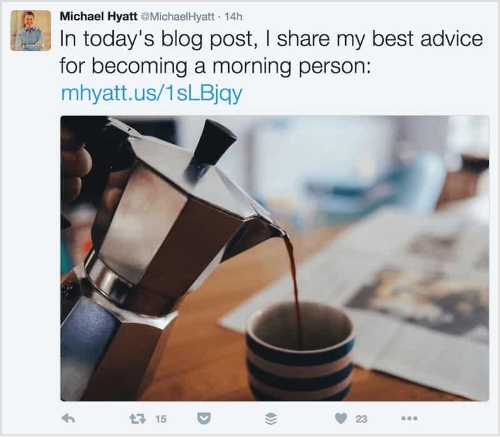
    michael-hyatt-branded-url-shortener

    You can also retarget audiences using branded links. Implement this marketing strategy on your branded links to retarget the website visitors who have clicked on your short links.
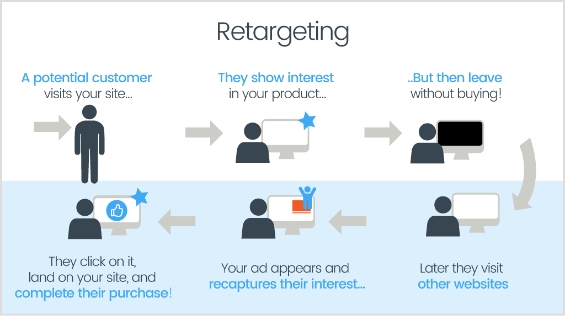
    retargeting-infographic

    You just need to add pixel codes to Replug from your famous social media platforms like Facebook, Twitter, and Quora, then reach out to them through social media ads.

    Bio links for Social Media

    Bio links are in trend these days. The purpose behind bio-links is to have all of your content, from links to audio-visual content, on a single custom webpage.

    The webpage is easy to create with drag-and-drop functionality. You can set up your bio link webpage in just a few clicks.

    Now anyone can use this one-link solution to create social media bio links and connect all your social media profiles, such as TikTok, Instagram, Facebook, and Twitter, with this link.

    Branded CTA

    Replug allows you to customize and place CTA’s to your short links. Creating branded CTAs encourage immediate action and reinforce brand identity and messaging.

    Aligning CTAs with a brand’s tone, values, and visual elements can strengthen your brand’s recognition and drive higher conversions.

    QR Code Marketing

    QR codes offer a unique opportunity for branding by providing a versatile and interactive marketing tool.

    Incorporate branded QR codes into their promotional materials to create seamless offline and online experiences.

    Businesses can reinforce their visual identity and increase brand recognition enhancing the overall brand experience.

    FAQs on branding examples

    What is brand marketing with example?

    Brand marketing is promoting a brand to create awareness, build a strong reputation, and establish a connection with consumers. Example: Nike’s “Just Do It” campaign.

    What is an example of brand preference?

    An example of brand preference is when a consumer consistently chooses a particular brand over its competitors based on personal preference or loyalty. For instance, a person always purchases Nike shoes over other sports shoe brands due to their perceived quality, style, and alignment with personal values.

    What is the best example of a branding strategy?

    Apple’s branding strategy revolves around simplicity, innovation, and a focus on user experience. They have consistently communicated their brand values through sleek design, intuitive interfaces, and cutting-edge technology. This strategy has helped them create a strong emotional connection with customers.

    You may also like:

    How to Disguise a Link Using a URL Shortener?

    6 ways brands can use Replug to strengthen the customer’s journey
    15 proven Facebook SEO techniques to try in 2026

    Unique URLs: What They Are and How to Use Them?
  • How to add a clickable link in YouTube description (2026 update)

    How to add a clickable link in YouTube description (2026 update)

    Want more clicks, more traffic, and maybe even more sales from your YouTube videos? It all starts with one simple thing: a clickable link in your description.

    With over 2.7 billion monthly active users on YouTube and more than 1 billion hours of video watched every day, even a small tweak like adding the right link can make a huge difference.
    But here’s the catch: many creators still get it wrong or miss out on easy opportunities. In this guide, we’ll show you exactly how to do it the right way in 2026, step by step.

    First, let’s quickly understand the basics, starting with what a YouTube video description actually is.

    What is a YouTube video description?

    A YouTube video description is the text section you see right below a video. It explains what the video is about, gives extra context, and helps both viewers and YouTube understand your content. In simple terms, it’s like a mini guide for your video.

    Its main purpose is twofold: to help people quickly decide if your video is worth watching and to help YouTube rank your video in search results. When written properly, it can improve discoverability, boost clicks, and even drive traffic to your links.

    Core elements of a YouTube video description

    Here are the key elements:

    • The hook (an engaging, keyword-rich opening line): The first 1–2 lines grab attention and include your main keyword since this part is visible before clicking “show more.”
    • Detailed description/summary of the content: A clear, simple summary that tells viewers exactly what they’ll learn or get from the video.
    • Clickable timestamps/chapters for navigation: Time-based links that let viewers jump to specific parts of the video easily.
    • A clear call to action (CTA): A direct prompt telling viewers what to do next, like subscribe, click a link, or watch another video.
    • Relevant links & resources: Useful URLs (website, products, references) that add extra value beyond the video.
    • Social media handles & hashtags: Your social links and hashtags help people connect with you and improve content reach.
    • Channel bio/disclaimer: A short intro about your channel or any necessary disclaimer (like affiliate links or sponsorships).

    How to add a clickable link in YouTube video description (step by step)

    Adding a clickable link in your YouTube description is actually very simple. You just need to paste the right type of URL in the right place. 

    Once done correctly, YouTube automatically turns it into a clickable link that viewers can tap or click, hassle-free.

    Let’s break it down step by step for both phone and desktop so you can follow along easily 👇

    How to add a clickable link in YouTube description on phone

    Here’s how to do it on mobile:

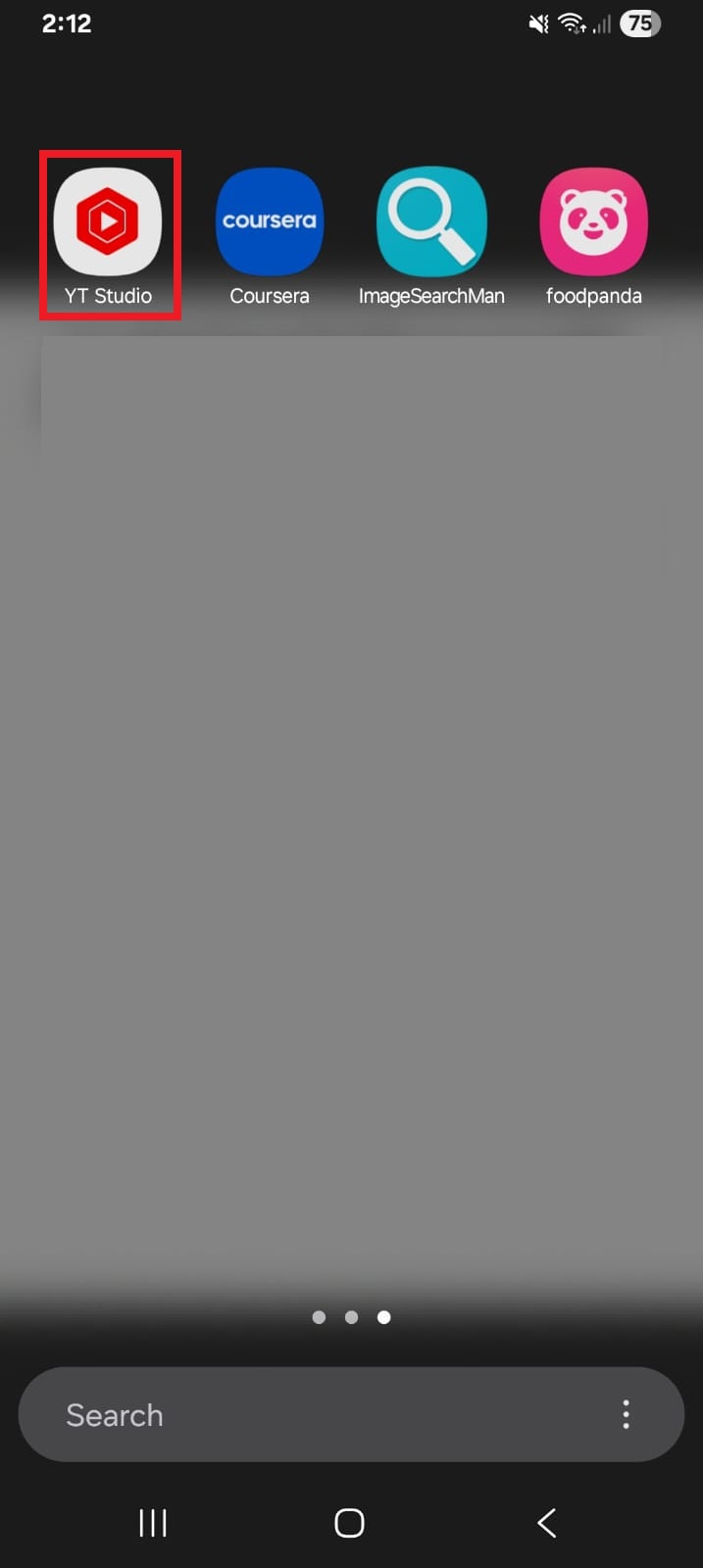
    1. Open the YouTube Studio app.

    YouTube Studio mobile app

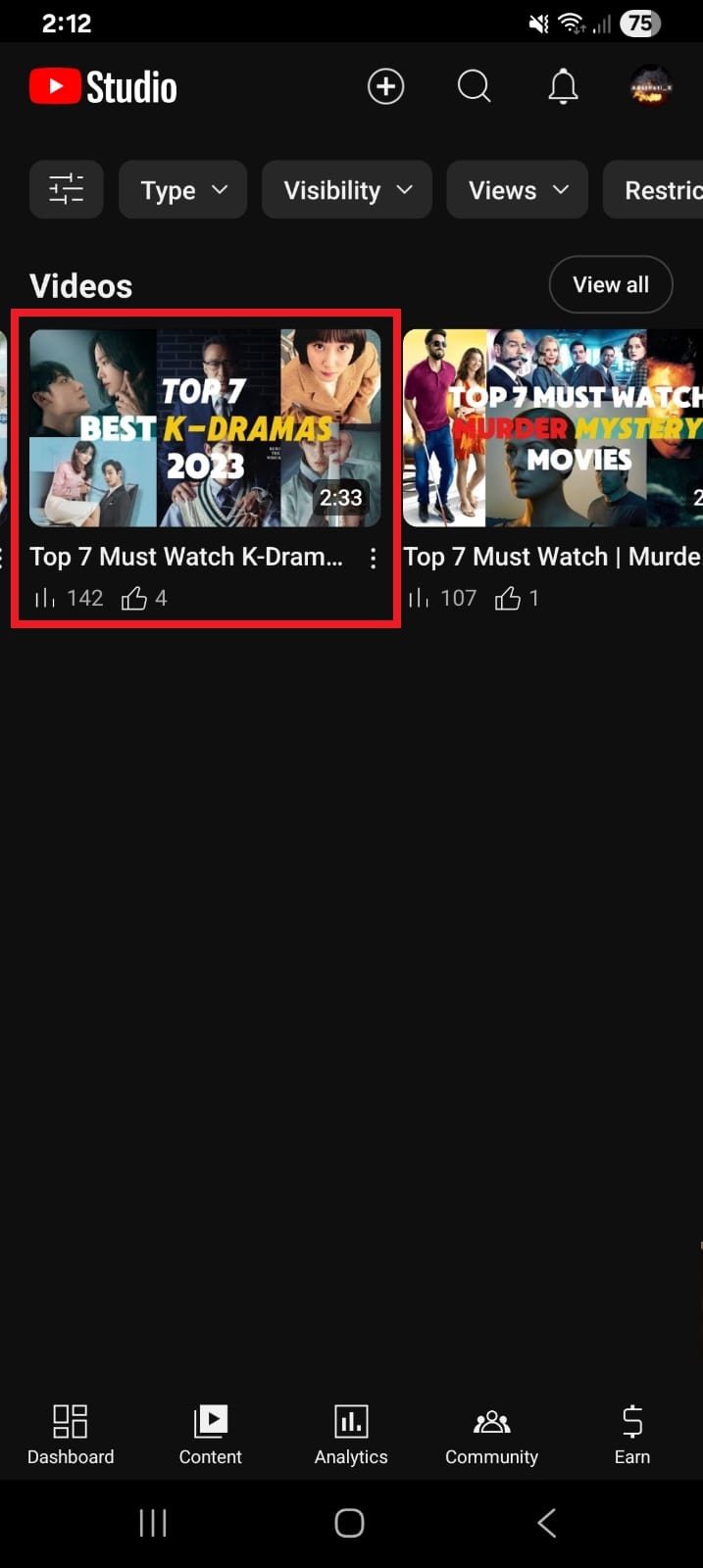
    2. Select the video you want to edit.

    Select a video inside YouTube Studio app

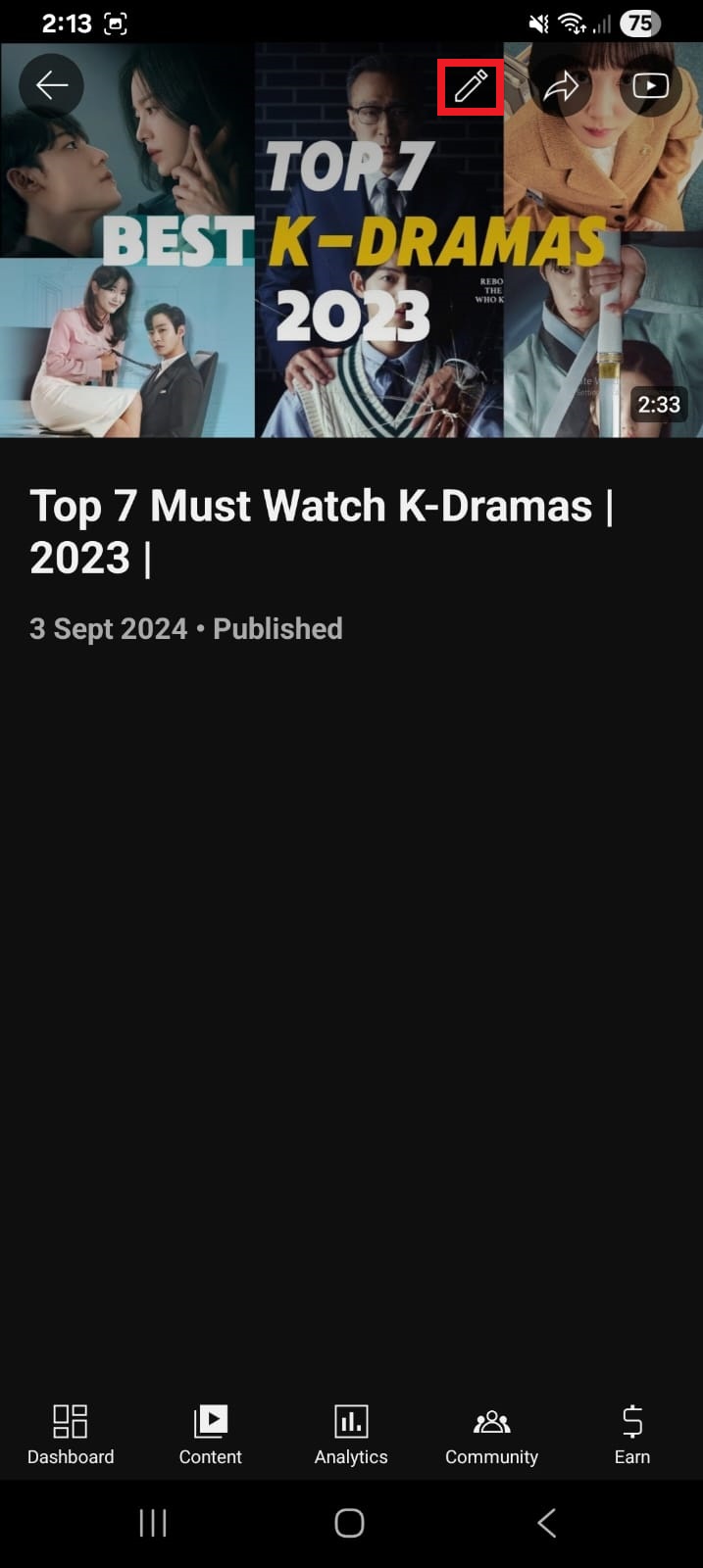
    3. Tap the pencil (edit) icon at the top of the screen.

    Pencil (edit) icon inside YouTube Studio app

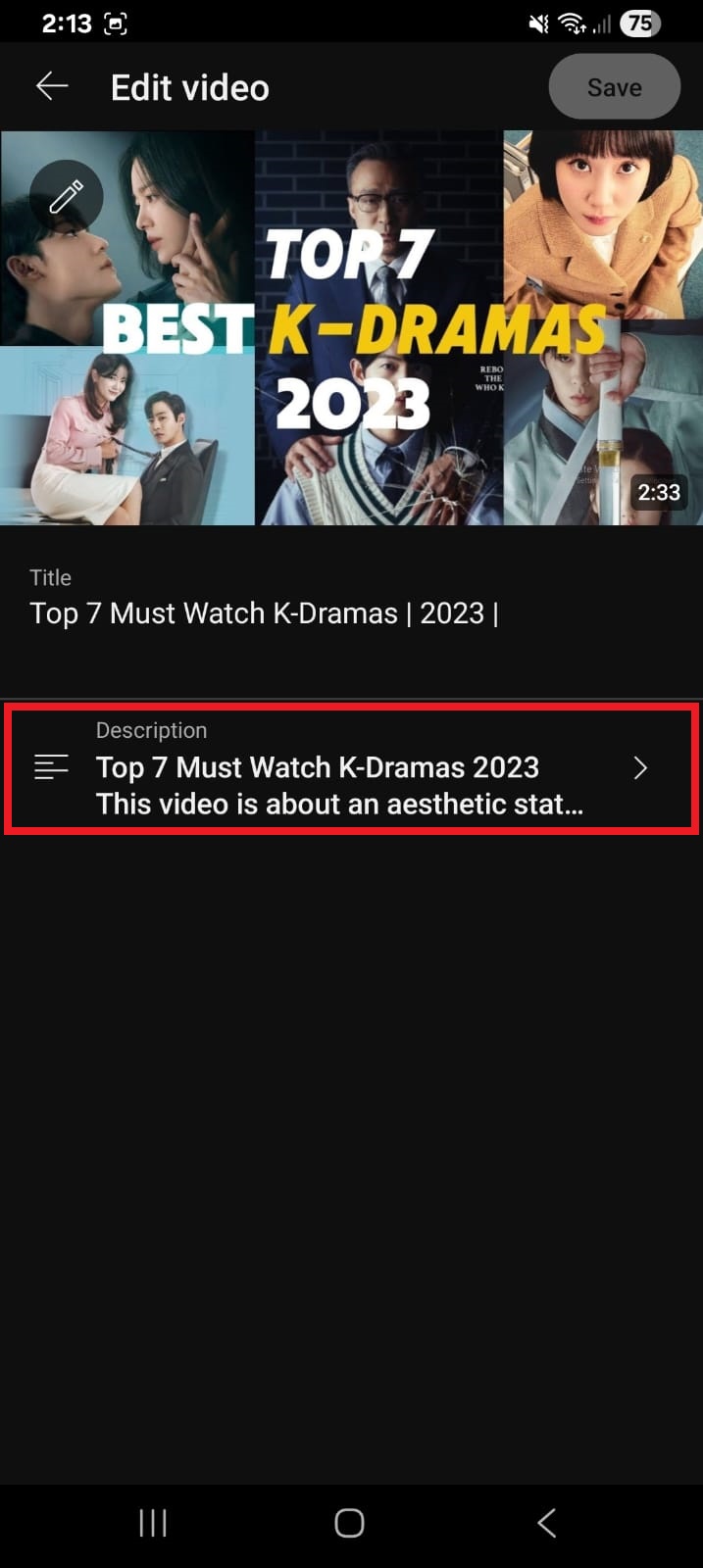
    4. Tap on the Description section.

    Video description section inside YouTube Studio app

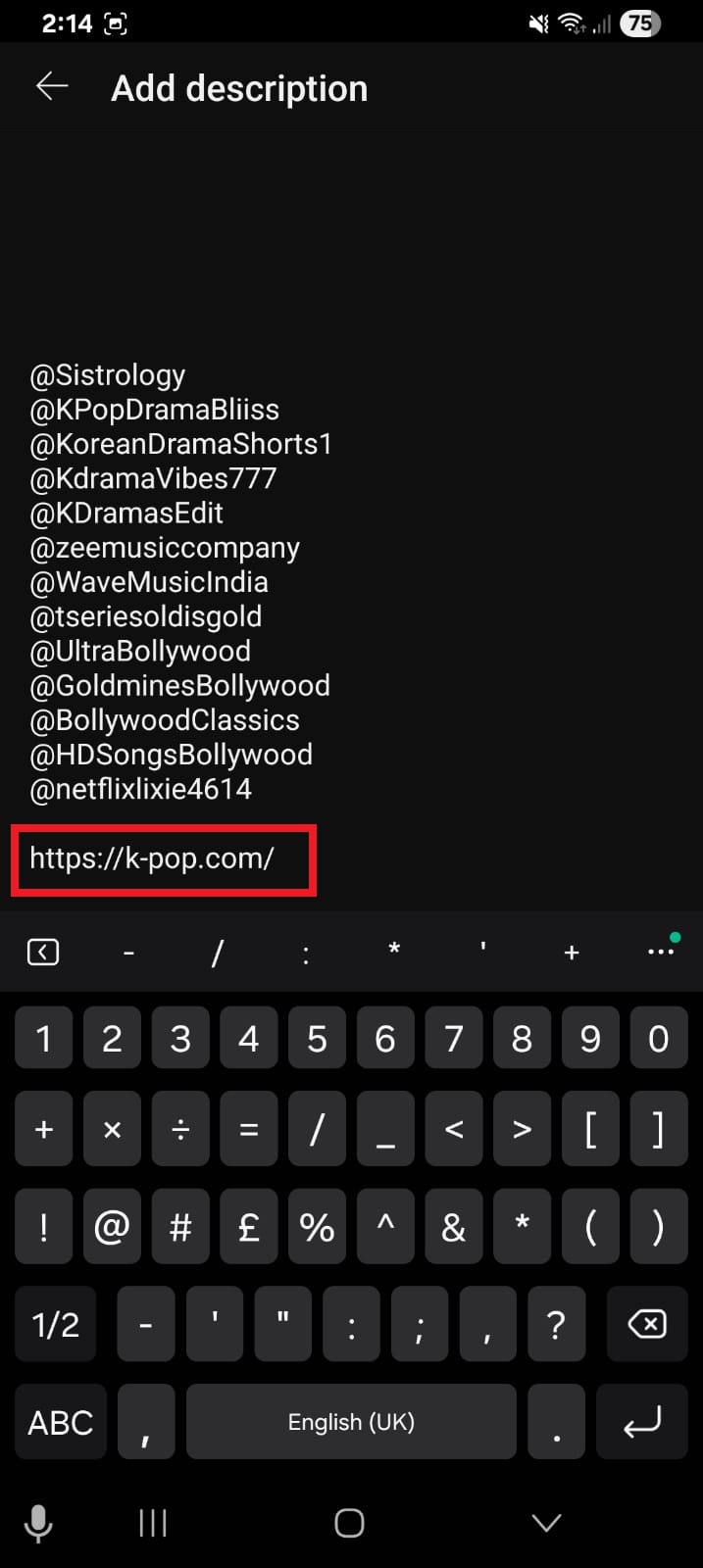
    5. In the description box, paste your link (make sure it starts with https://).

    Clickable link inside the video description section on YouTube Studio app

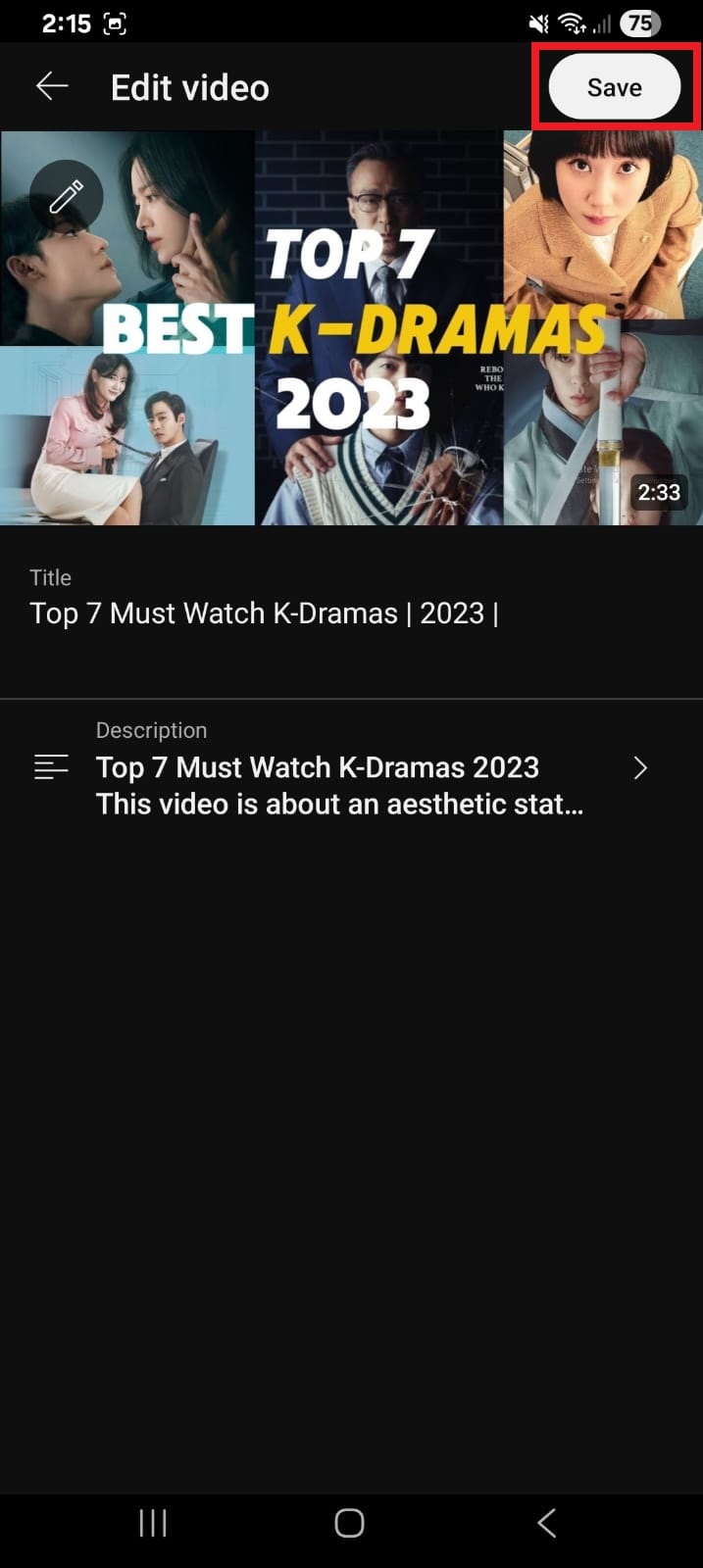
    6. Tap Save.

    Save button inside the YouTube Studio app

    That’s it! YouTube will automatically make the link clickable once the video is updated.

    How to add a clickable link in YouTube description on desktop

    Here’s how to do it on PC:

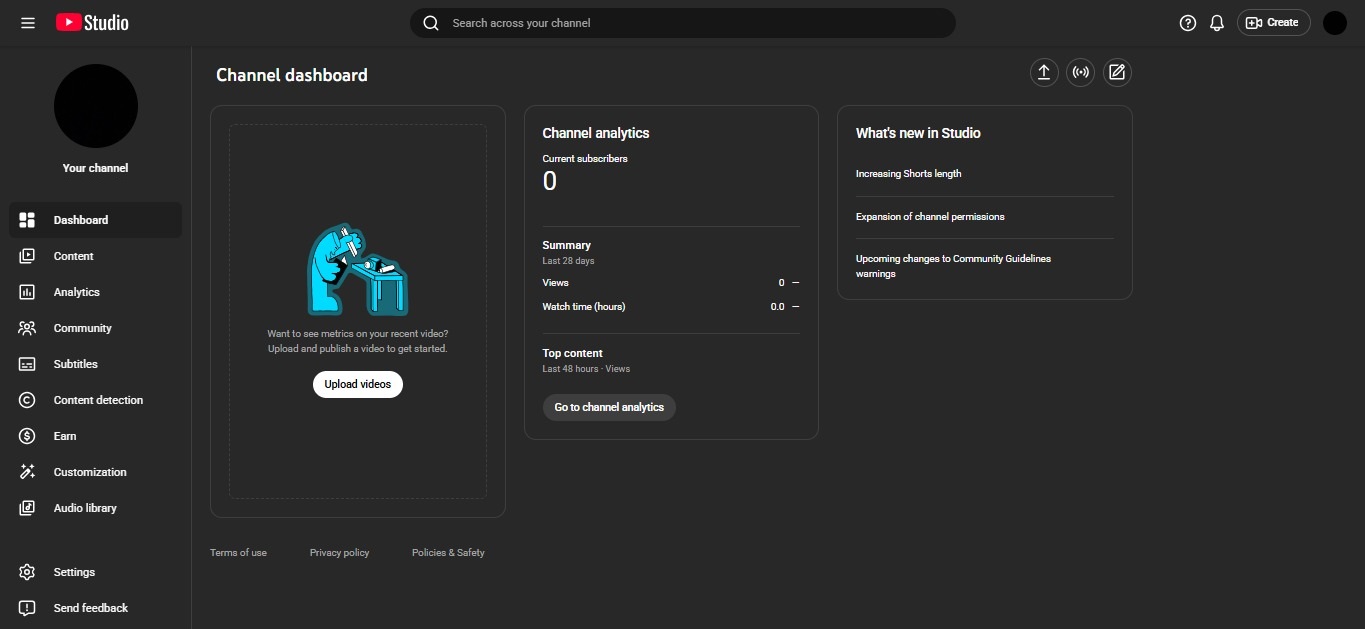
    1. Go to YouTube Studio and log in.

    YouTube Studio web app

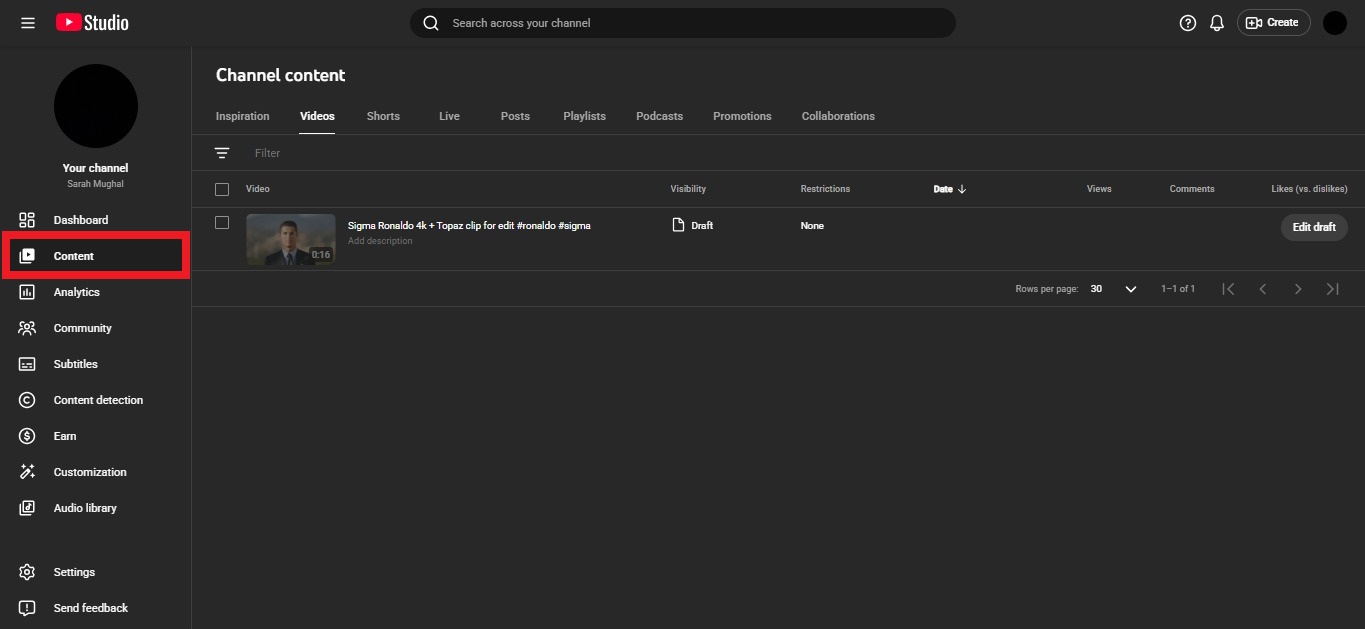
    2. Click on Content from the left menu.

    Content option inside YouTube Studio web app

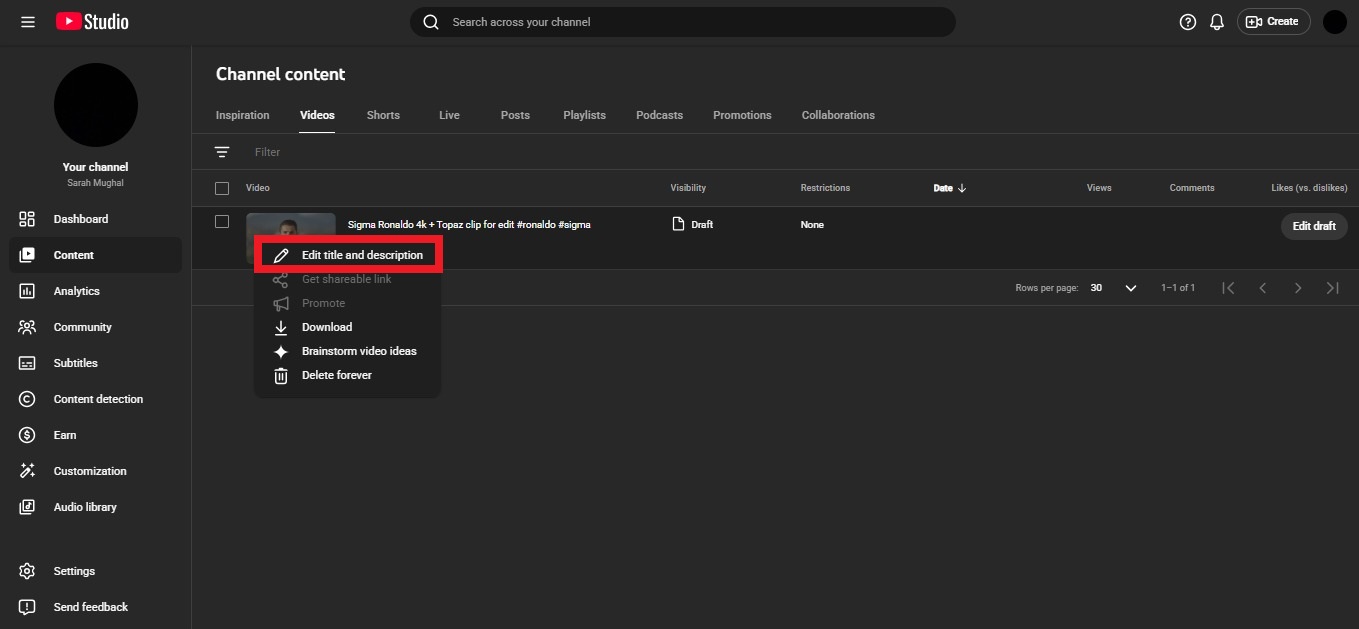
    3. Find your video and click the edit (pencil) icon.

    Edit (pencil) icon inside YouTube Studio web app

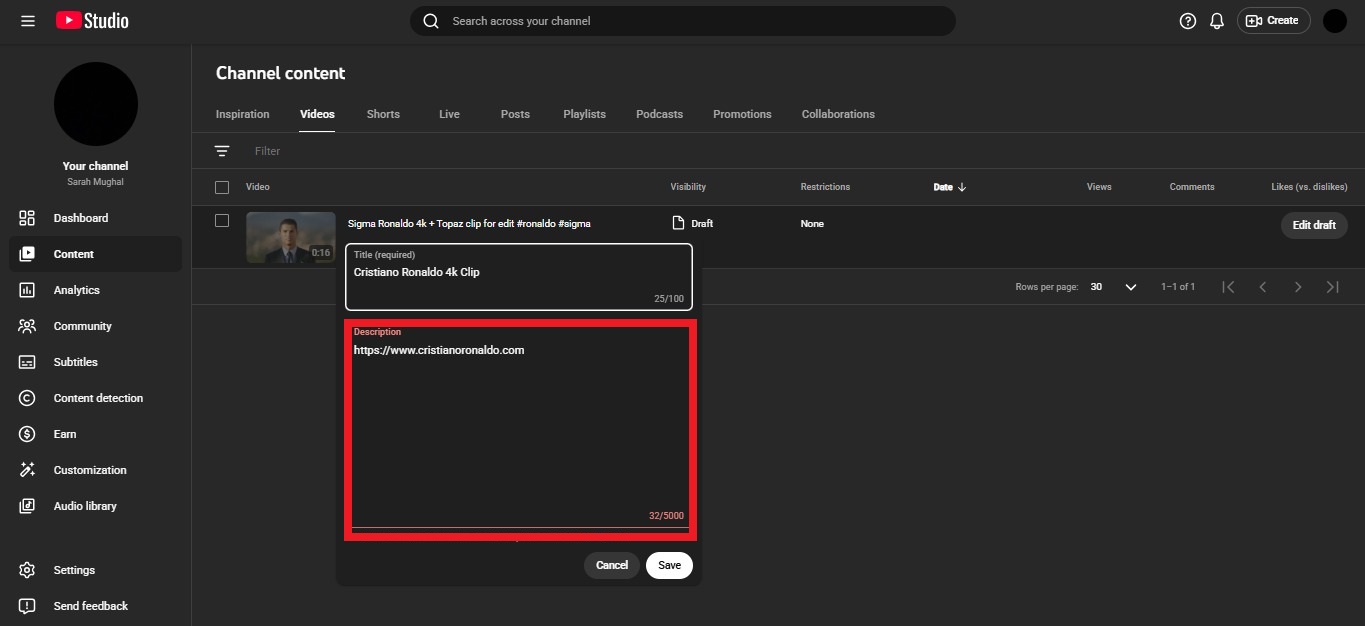
    4. Scroll to the Description field, and paste your link with https:// at the start.

    Clickable link inside the video description section on YouTube Studio web app

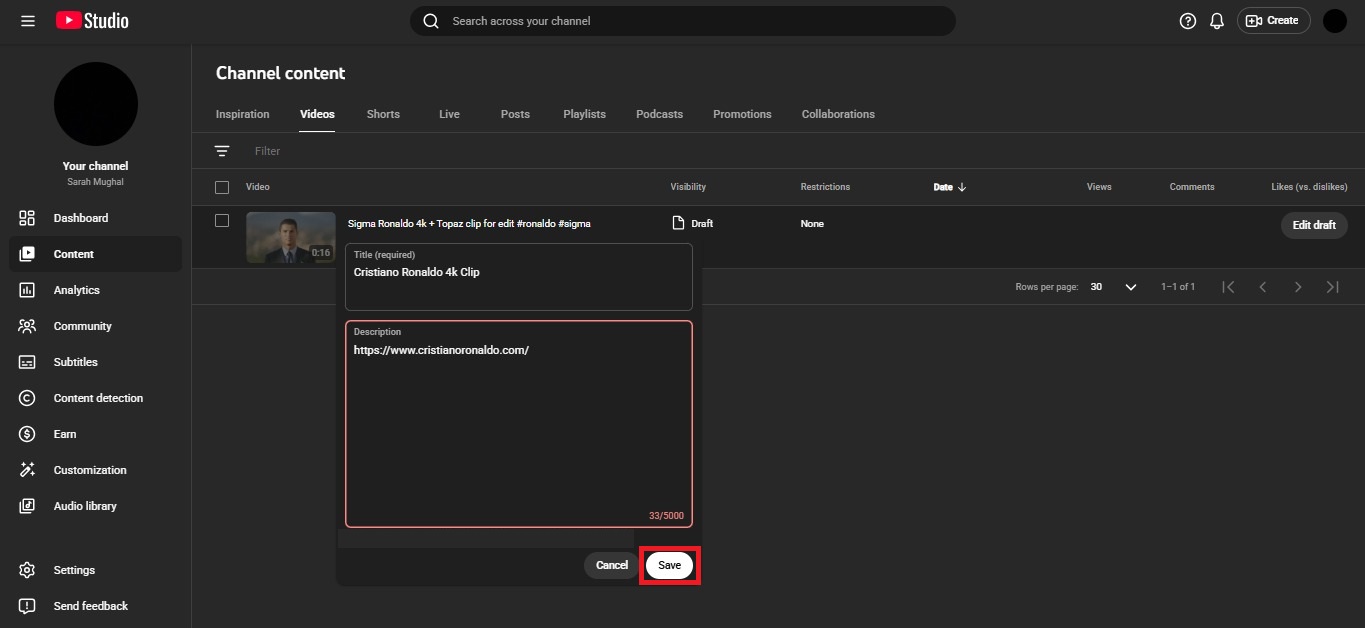
    5. Click the Save button.

    Save button inside the YouTube Studio web app

    Once saved, your link becomes clickable in the description.

    💡 Quick tip: If your link isn’t clickable, it’s usually because it doesn’t include “https://”, so always double-check that part.

    How to add a clickable link in YouTube Shorts description

    Before you jump in, here’s something important to know 👇

    YouTube works a bit differently for Shorts. In most cases, links placed directly in Shorts descriptions are NOT clickable. They show as plain text to reduce spam and scams.

    So while you can add a link in the description, it won’t behave like regular video links. Instead, YouTube gives you a few alternative ways to share clickable links (like related videos or other features).

    Step-by-step guide:

    1. Open YouTube Studio (app or desktop).

    2. Go to Content and select your Short.

    3. Click the edit (pencil) icon.

    4. In the description box, paste your link (make sure it includes https://).

    5. Click Save.

    Your link will appear in the description, but keep in mind, viewers won’t be able to click it directly.

    💡 Better (working) ways to add clickable links in Shorts

    Since description links aren’t clickable, here are smarter options you should use:

    • Add a “Related Video” link: You can link your Short to one of your long videos, which viewers can easily click.
    • Use channel profile links: Add your website or important links in your channel bio. These are clickable.
    • Mention links in comments or CTA: Guide viewers to your bio or a full video where clickable links are available.

    In short, you can add links in Shorts descriptions, but for optimized results, use YouTube’s built-in linking features instead.

    How to add a clickable link in the YouTube channel description

    Adding links to your YouTube channel description (the “About” section) is a great way to guide viewers to your website or social profiles. To make links clickable on your channel, you need to use YouTube’s channel profile links (banner links) feature.

    Step-by-step guide:

    1. Go to YouTube Studio and log in to your account.

    2. From the left menu, click on Customization.

    3. Open the Basic Info or Profile tab.

    4. Scroll down to the Links section.

    5. Click + Add Link.

    6. Enter your link title (e.g., “My Website” or “Instagram”).

    7. Paste your full URL (make sure it starts with https://).

    8. Click Publish in the top right-hand corner.

    Once saved, these links (up to the first 14) will show up on your channel banner and are fully clickable for viewers.

    Why add a clickable link in the YouTube video description

    Adding a clickable link isn’t just a small detail; it’s one of the easiest ways to turn viewers into action-takers. Whether you want traffic, sales, or engagement, that single link can make a real difference.

    • Monetization & marketing: You can promote products, services, or affiliate offers, directly turning views into real income opportunities.
    • Engagement & traffic: Links help drive viewers to your website or other content, increasing traffic and interaction beyond YouTube.
    • Improved user experience: You give viewers quick access to helpful resources, making your content more useful and easy to explore.
    • SEO boost: Descriptions help YouTube understand your content better, improving visibility in search and recommendations.
    • Lead generation: A well-placed link can capture leads by directing viewers to sign-up pages, offers, or landing pages.

    Importance of a good YouTube video description in 2026

    At present, a YouTube description is more than just a summary. It’s a key part of how your video gets discovered and how viewers interact with it. A well-written description helps both the algorithm and your audience understand your content better.

    • Boosts searchability: Using the right keywords helps YouTube understand your video and improves its chances of showing up in search results.
    • Enhances viewer experience: A clear description, links, and timestamps make it easier for viewers to navigate and get value quickly.
    • Increases engagement: When viewers know what to expect, they’re more likely to watch longer, click links, and interact.
    • Builds loyalty & revenue: Good descriptions guide users to subscribe, explore more content, or check out your offers.
    • Strategic optimization: Descriptions are a core part of YouTube SEO along with titles and tags, helping your content perform better.
    • Context for AI: With AI-driven search growing, descriptions help systems understand and recommend your content accurately.

    Create short clickable links for your YouTube description with Replug!

    If you’ve ever pasted a long, messy URL in your YouTube description, you already know that it doesn’t look great. That’s where Replug comes in!

    It’s a powerful link shortener that helps you turn long, cluttered links into clean, professional, and clickable ones. Plus, it does a lot more than just shortening links.

    Replug Branded Short Links CTA
    Maximize marketing ROI
    by transforming ordinary URLs into
    branded short links that convert.
    Try Replug for free

    Replug is an all-in-one link optimization platform that lets you brand and track your links, so you can see how they perform and improve your results over time.

    Here’s why it’s worth using for YouTube:

    • Clean & short links: Turn long URLs into simple, easy-to-click links that look better in descriptions.
    • Branded links: Use your own custom domain to make links look more trustworthy and professional.
    • Click tracking & analytics: See how many people are clicking your links and where they’re coming from.
    • Add call-to-actions (CTAs): You can attach small messages or buttons to boost clicks and conversions.
    • Campaign optimization: Test and improve your links using A/B testing and smart routing features.

    In short, Replug doesn’t just shorten your links; it helps you turn every link into a small marketing tool.

    Summing up

    To wrap things up, adding clickable links to your YouTube description might seem like a small step, but it can seriously level up your results. 

    From driving traffic and boosting engagement to helping with SEO and lead generation, it all adds up. 

    And the best part? It only takes a few seconds. Just paste your link with “https://,” and you’re good to go. 

    If you really want to take things further, tools like Replug can help you create clean, trackable links that actually convert.

    👉 Before you go, give Replug’s free YouTube title generator a try as well. It’s a quick, efficient way to make your videos stand out even more!

    Frequently asked questions

    How do I put a clickable link in a YouTube description?

    Just paste your full URL (with https://) into the description box while editing your video, and YouTube will automatically turn it into a clickable link.

    Should you put links in a YouTube description in 2026?

    Yes, absolutely! Links help drive traffic, promote products, and improve engagement. Still a key strategy for content creators in 2026.

    Where is the link in the description on YouTube?

    It appears just below the video. On mobile, it’s under “Show more,” and on desktop, it’s visible directly under the title (or after expanding).

    Why is my link not clickable in the YouTube description?

    The most common reason for this is that the link doesn’t start with https://. Without it, YouTube won’t recognize it as clickable.

    How to add social media links in YouTube description?

    Simply copy your Instagram, Facebook, or other profile link and paste it into the description with https://, and it will become clickable instantly.

    How to put links in YouTube description without verification?

    You can still paste links without advanced verification, but some features (like external linking tools) may require channel verification. You must include the full URL starting with https://

    Can you hyperlink text in YouTube description?

    No, YouTube doesn’t support custom anchor text. You must paste the full URL; no “click here” style hyperlinks.

    How to add a hyperlink to the YouTube description?

    Same process: paste the full https:// link inside the description box. YouTube automatically converts it into a clickable hyperlink.

    How do I add a link to a YouTube description on my iPhone?

    Open the YouTube app → tap on your profile icon → go to your desired video → tap Edit → paste your link in the description box → save.

    How to add a clickable link in the YouTube video comments section?

    Paste your full URL in the comment. In regular videos, it becomes clickable, but avoid spammy posting to stay within YouTube rules.

    How to add a clickable Instagram link in the YouTube description?

    Copy your Instagram profile link (e.g., https://instagram.com/username) and paste it in the description box. It will be clickable like any other link.

    How to add a clickable link to a YouTube video using end screen & card?

    Go to YouTube Studio → Content → select video → Cards or End Screen → Add link → Save. These appear during or at the end of the video and are fully clickable.

    1. How to create a vanity URL?

      How to create a vanity URL?

      Vanity URLs are a valuable tool for branding, marketing, and tracking efforts and can help to improve the overall user experience.

      This quick guide will teach you how to create a vanity URL in just a few simple steps and explain what making a vanity URL entails. 

      Let’s begin!

      Vanity URLs: how do you set them up?

      Creating a vanity URL can make it easier to remember a web address and can also build brand consistency. To create a vanity URL, you can either use a link management tool or a content management system (CMS).

      • A link management tool is a standalone platform that specializes in creating custom short links. You simply enter the long URL you want to shorten, and the URL shortener tool generates a vanity URL within seconds.
      • A CMS, on the other hand, is a platform used to manage the content of a website. Some CMSs’ have built-in redirect functionality, but others may require a redirect plugin to create a vanity URL. To use a CMS to create a vanity URL, you would set up a redirect from the custom short link to the longer, original URL.

      In either case, a vanity URL can be easily shared and is a useful tool for branding and marketing.

      Also read: What is a vanity URL & how to track it?

      How to create a vanity URL using a link management tool?

      Creating a vanity URL using a link management tool has several benefits, such as:

      • A memorable URL can increase click-through rates and drive more traffic to a website.
      • Vanity URLs can be tracked and measured, enabling businesses to gain a deeper understanding of their campaigns. 
      • A link management tool can allow for the creation of multiple vanity URLs, making it easier to manage multiple campaigns and track their performance. 

      Boost your marketing with Replug’s vanity URL builder

      By using Replug’s vanity URL builder, businesses can improve the efficiency and effectiveness of their marketing efforts, increase click-through rates, and drive more traffic to their website.

      Here’s how you can create a vanity URL using Replug:

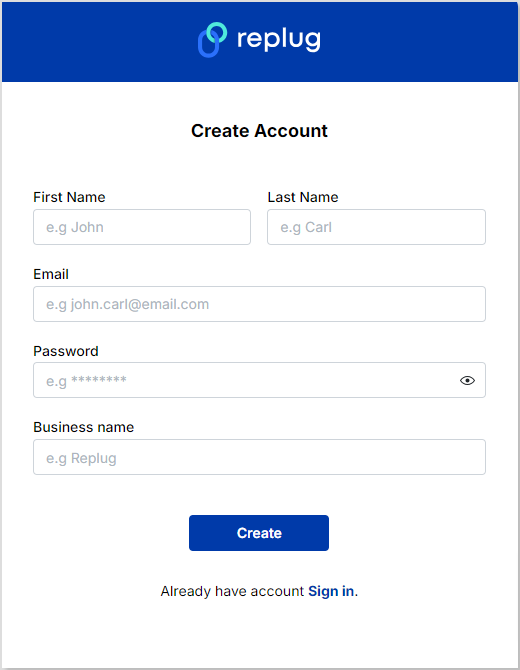
      Step 1: Sign in to Replug or create an account for free.

      replug-signup

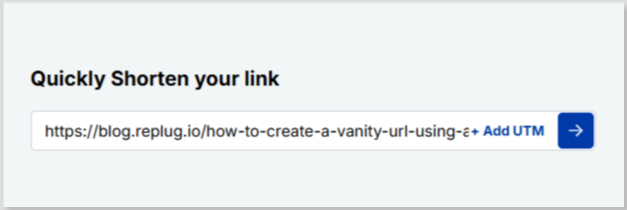
      Step 2: Once you’re on the main Replug dashboard, simply enter the long URL in the bar under “Quickly Shorten your link”:

      link-shortening

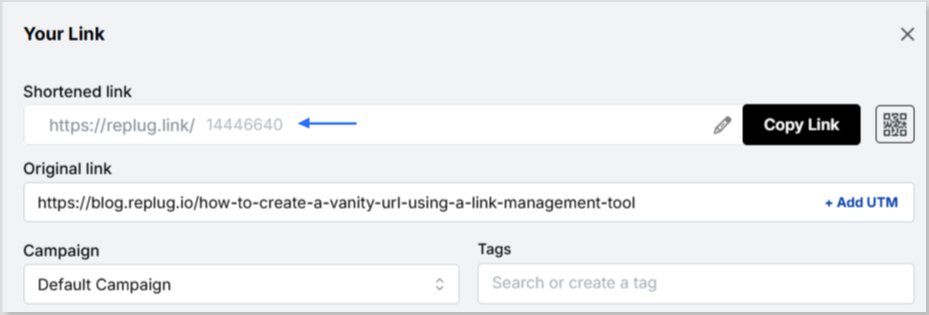
      Step 3: Click on the blue arrow button to autogenerate your vanity URL using Replug:

      vanity-url

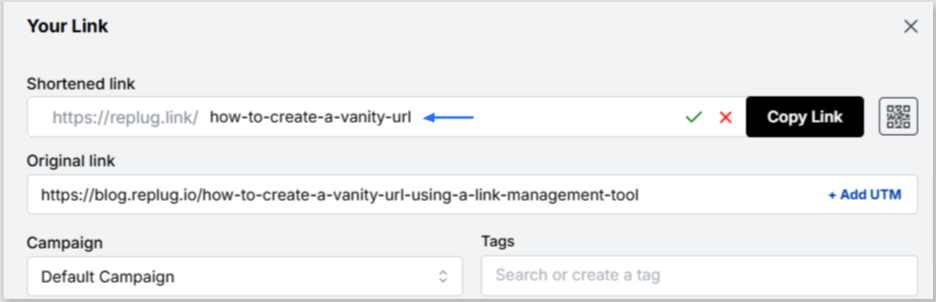
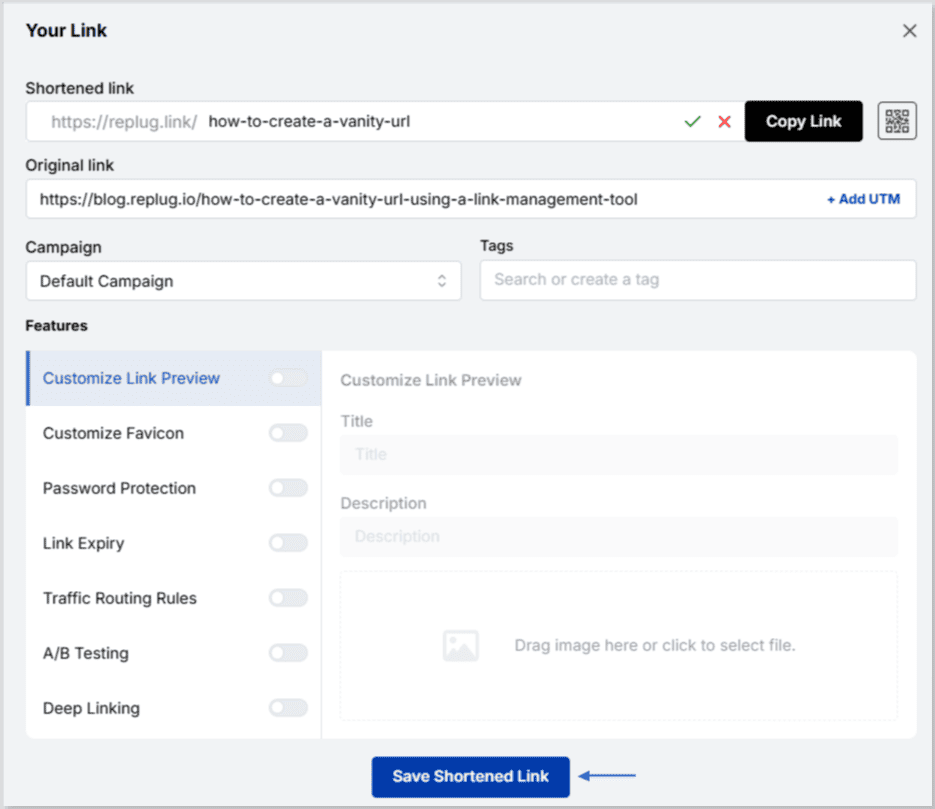
      Step 4: Your vanity URL will be generated. You can customize the URL slug using the edit icon to fit your needs:

      custom-url-slug

      Step 5: Save and share your shortened, memorable link:

      save-vanity-url

      Also read: How to shorten a link using a URL shortener

      How to make your vanity URL more clickable?

      To make your vanity URL more clickable using Replug, follow these steps:

      Choose a short and memorable vanity URL: The shorter the URL, the easier it will be for your audience to remember and click on it.

      Use a relevant keyword: Use keywords relevant to the content behind the link so people know what they’re clicking on.

      Use a recognizable brand name: If your brand has a recognizable name, use it in your vanity URL to build trust and make it more recognizable.

      Create a custom domain: Replug allows you to create a custom domain for your short links, which can make your links look more professional and increase clicks.

      Add a call-to-action (CTA): Adding a CTA to your vanity URL can encourage people to click on it. For example, “Click here to learn more” or “Get your discount now”.

      Use UTM parameters: Utilize UTM parameters to track the performance of your links and make data-driven decisions about future link campaigns.

      Test and iterate: Test your vanity URL and track its performance to see what’s working and what’s not. Make changes and improvements based on the data you collect.


      Boost ROI with branded URLs - Replug dashboard showing performance metrics and branded URL creation
      Boost ROI with
      branded URLs!

      Enhance your marketing campaigns by creating shareable, trackable, and fully multi-purpose customizable branded URLs.

      Try Replug for free

      See Also:

      How to rename a link using Replug?

      What Is Affiliate Link Cloaking & How To Do It?


    2. How to get to the link in the bio on Instagram?

      How to get to the link in the bio on Instagram?

      A link in your Instagram bio is a great way to drive traffic to your website and increase engagement with your content. In addition, it allows you to direct potential followers to a landing page, portfolio, or blog post you want to promote. 

      You can also link to an email sign-up page, product page, or shop. This feature is handy for businesses, brands, and influencers who want to increase their reach and promote their content.

      Follow this step-by-step guide to quickly find any profile’s link in the bio on mobile and desktop.

      How to get to the link in the bio on Instagram on a mobile device?

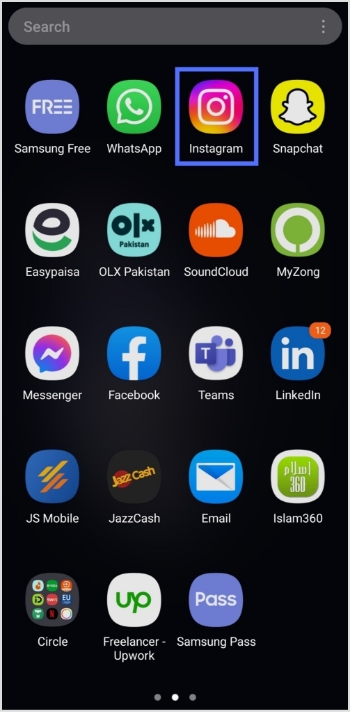
      Step 1: Open the Instagram app on your mobile device.

      Open Instagram

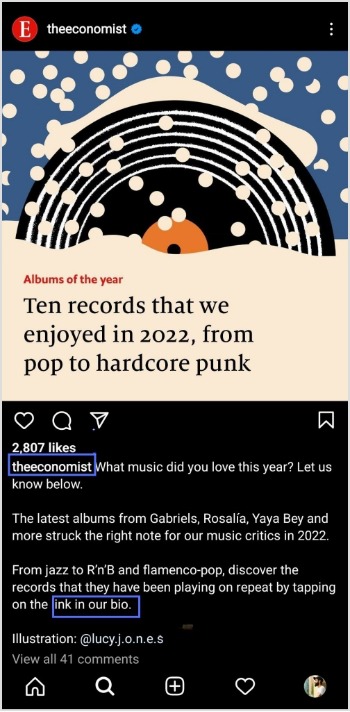
      Step 2: Tap on the user’s profile name (username) on whose caption you noticed the Link in Bio.

      click profile

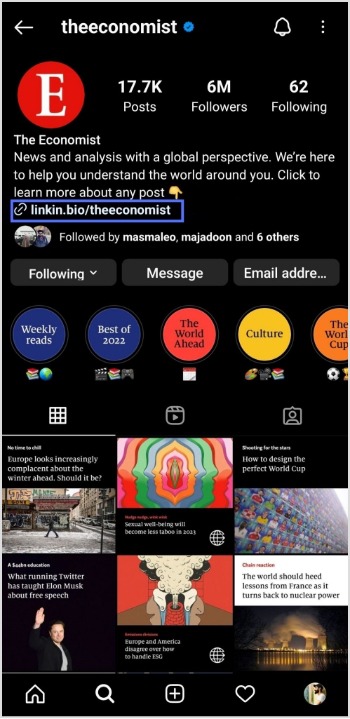
      Step 3: You will be taken to the user’s profile screen. Here you will see a website link that’s your “Link in Bio.” Just tap on the link to open it.

      How to get to the link in the bio on Instagram on a computer device?

      Here are two simple steps to find the Instagram link in the bio on a computer.

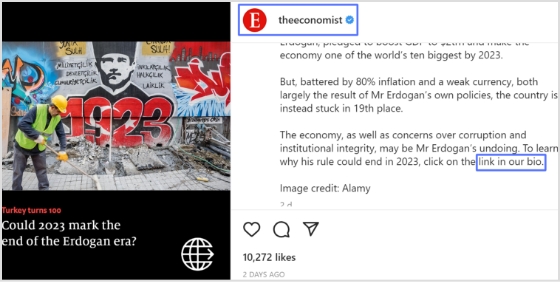
      Step 1: Click on the profile that says Link in bio in a post.

      user profile name

      Step 2: The website link will show up under their bio on their profile screen. Click on it to open the link.

      link in bio

      How To Add A Instagram Link In Bio?

      Adding an Instagram link in bio helps direct your followers and potential customers to your dedicated page.

      As a result, makes it easier for them to find your profile and learn more about your brand. It also encourages followers to engage with your content, which can help drive sales and increase brand awareness.

      Here’s how to add an Instagram link in the bio:

      Step 1: Open Instagram on your mobile and tap your profile icon in the bottom right corner.

      tap profile icon

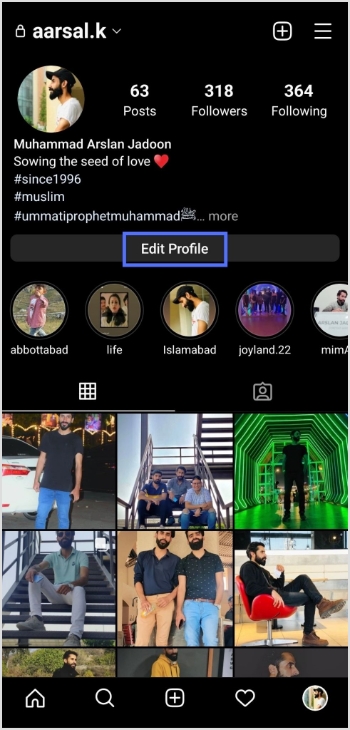
      Step 2: Tap on the edit profile button on your profile page. 

      edit profile

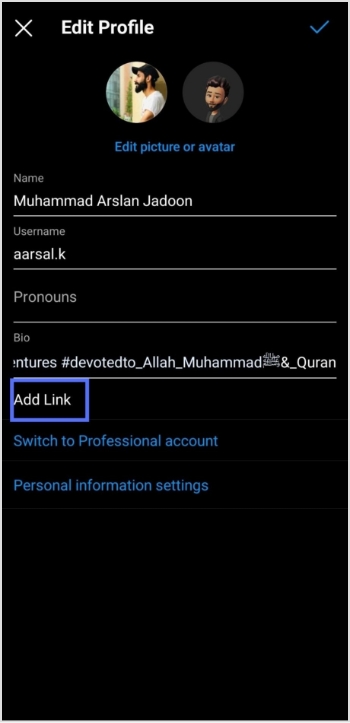
      Step 3: Now, you will see the add link section on your mobile screen. Tap on it. 

      add link

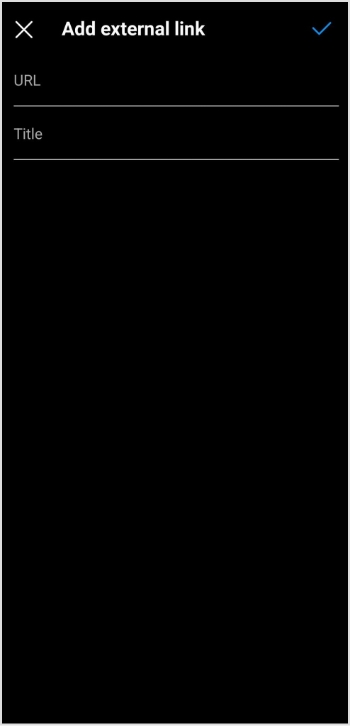
      Step 4: Tap the add external link section to add your website address. 

      url&title

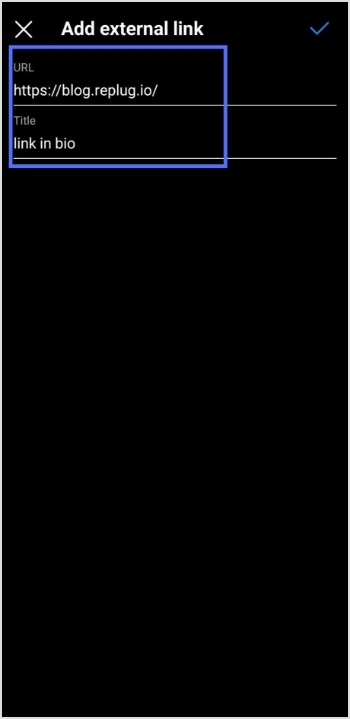
      Step 5: Copy and paste the URL in the URL section and add a title in the title section. 

      add external link

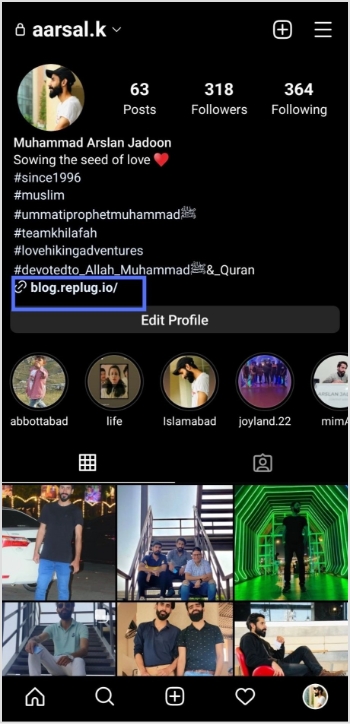
      Step 6: Your link in the bio will now appear in your profile.

      url in bio (2)

      Your Instagram profile now has a link in the bio. 

      Instagram bio page with multiple bio links – Is it possible?

      Adding multiple bio links to your Instagram bio is a great way to drive more traffic to your website and other online resources. By adding links to your Instagram bio, you can easily direct your followers to your website, blog, YouTube channel, and other platforms where they can learn more about you and your business.

      Additionally, including multiple bio links allows you to showcase your work, products, or services in an efficient and organized way. You can use a free link shortener to create a single, short URL that links to multiple websites.

      Follow these steps to add multiple bio links to your Instagram profile. 

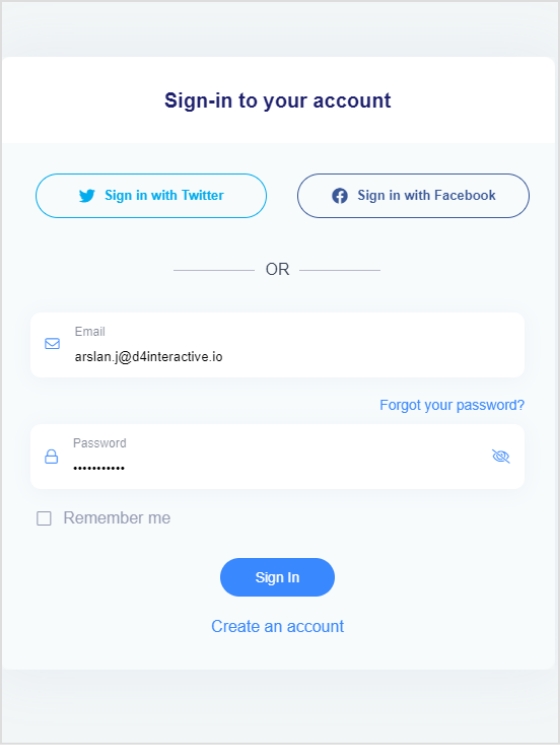
      Step 1: Sign in to your Replug account or create a new one if you don’t have one.

      signin or create account

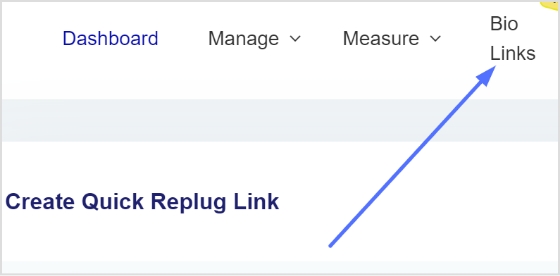
      Step 2: You’ll be taken to the main dashboard page. Click on the bio links section from the main dashboard page.  

      bio link

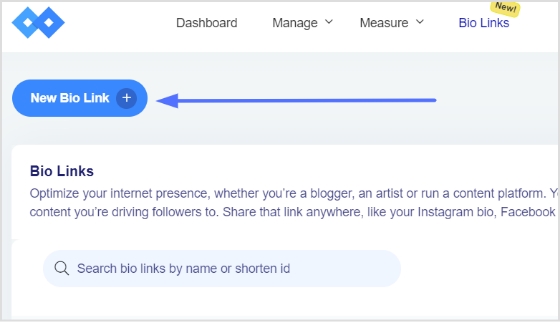
      Step 3: Click the new bio link button to create your bio link. 

      add bio link

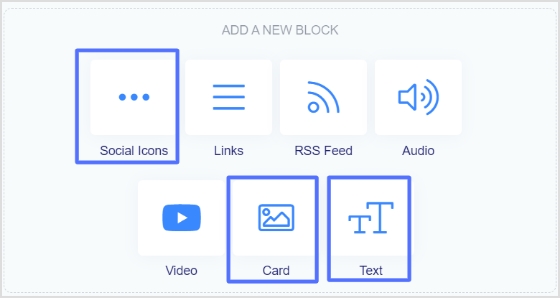
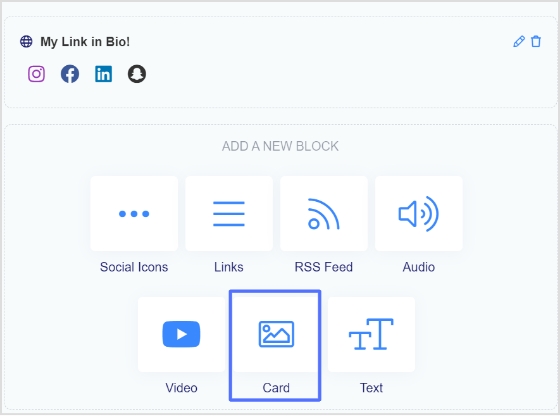
      Step 4: Add Social Icons, Links, RSS Feed, Audio, Video, Card, and Text as part of your bio links. Our bio link page, for example, has social icons and a card.

      Note: The above image shows you the options (blocks) you can choose for your Instagram bio or landing page.

      social icons and next

      Step 5: Choose social icons and click next. You can choose up to 5 social icons (profiles).

      social icons

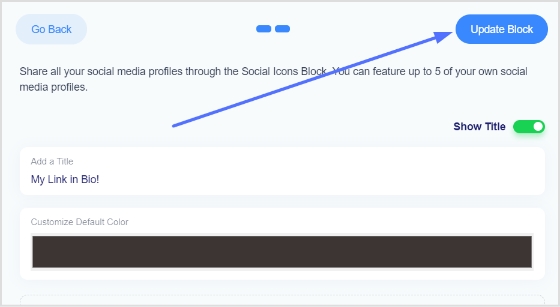
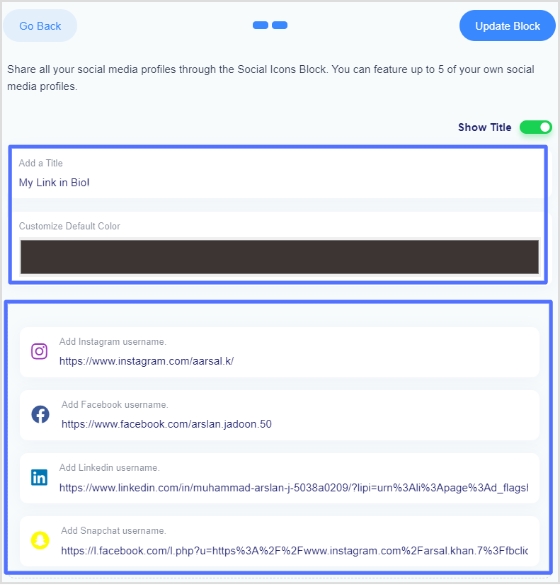
      Step 6: Now, add a title to your social links, customize the icon’s color and enter the links or usernames for your social media accounts, as shown in the picture below.

      Note: When someone clicks on any of your social icons, they will go to the relevant social media profile. 

      social icons links, color, title

      Step 7: Now, click the update block button to add other blocks, like card, text, video, etc. 

      update block

      Step 8: Now, choose another block, for example, a card.

      click card

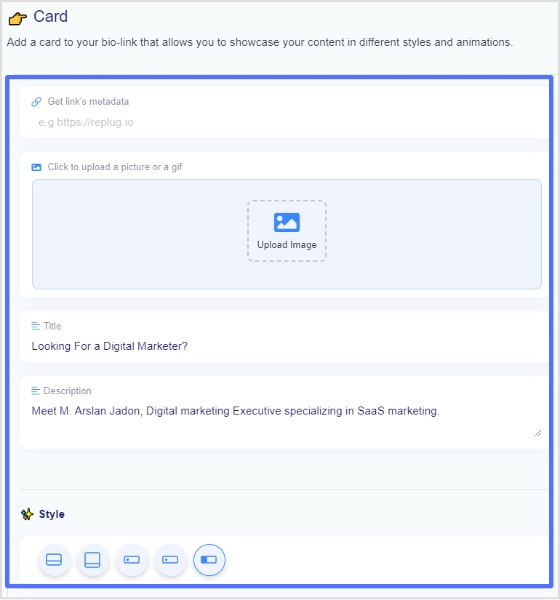
      Step 9: In the card section, add your destination URL add the card image, title, and description. Also, choose the style of the card and click the save block button.

      card select

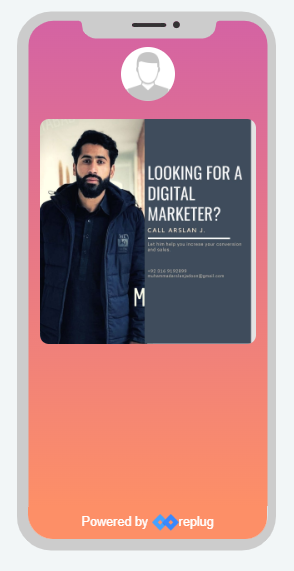
      If you want to see how any section or block looks, you can preview it side by side. Here is an example of how the card looks. 

      preview card

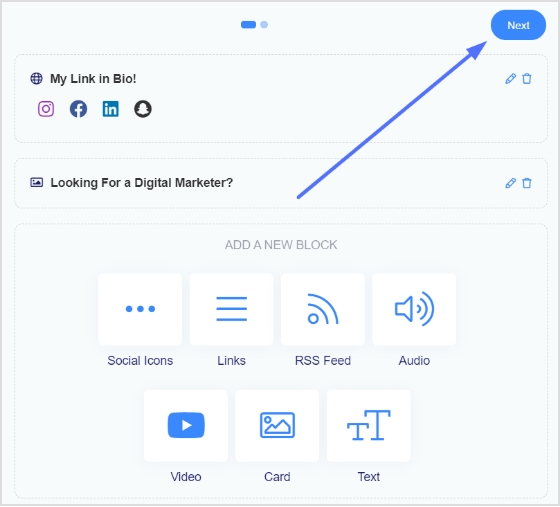
      Step 8: Once you have added all the necessary blocks, click the next button.

      click next

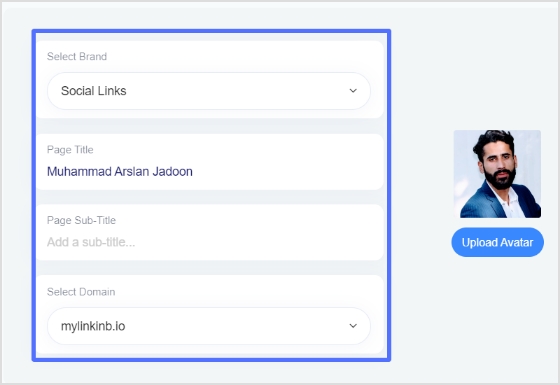
      Step 9: You are now on the final page. Upload your avatar, select a brand, add a title and sub-title, and choose a domain. 

      Note: Replug is an all-in-one link optimization platform that allows you to create a brand with a custom domain in seconds.  

      final page

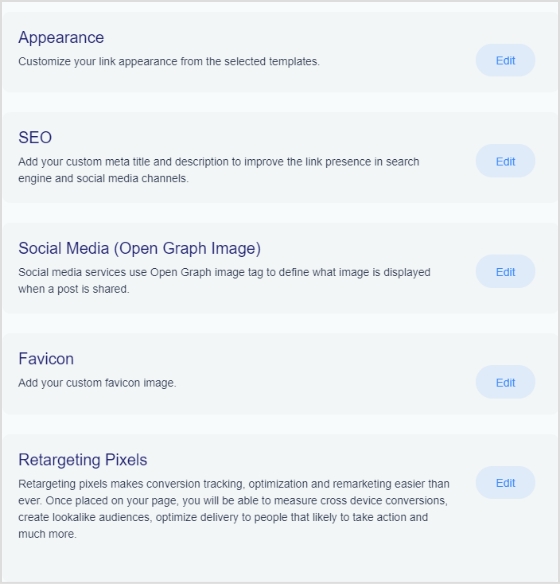
      Step 10: As you scroll down, you’ll find other cool features, such as custom appearances, SEO, social media open graph images, favicons, and retargeting pixels. Make your bio link more appealing by adding these features.

      rich features

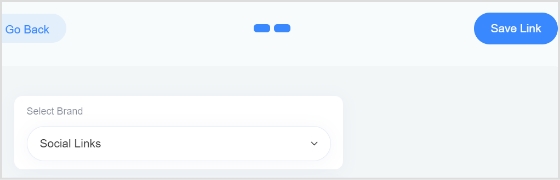
      Step 11: Once you’re done, click the save link button, and your bio link is ready to share on any social platform.

      save link

      Frequently asked questions

      Can you have more than one link in your bio? 

      Yes, you can have more than one link in your bio with the help of a free bio link tool like Replug. However, it is important to remember that a bio should be concise, so it is advisable to limit the number of links to two or three.

      Can I create a link with multiple links on Instagram? 

      Yes, you can create a link with multiple links using a top-notch Instagram bio link generator online. Simply create an account and follow the instructions to create a link with multiple links, often called bio links. 

      Trending Topics:

      How to get followers on Instagram fast?

      How to remove link from Instagram bio?

      How To Put A Link In TikTok Bio?

      How to Change Facebook URLs on Mobile and Desktop?

    3. How to change Shopify URL for sharing on social media?

      How to change Shopify URL for sharing on social media?

      Link shortener services can create a more memorable and professional-looking URL for your store. A link shortener tool can help shorten the URL of your store’s home page and also help shorten the URLs of individual product pages, making them easier to remember and share.

      A link shortener can help create custom URLs with your domain, making them easier to remember and share. They also provide analytics to track your links’ performance and make your store more secure by hiding the link’s true destination.

      Here’s how to change the shopify URL, shorten it, share it with the audience, and track its performance using Replug’s short link generator online.

      How to change Shopify URL using a URL shortener

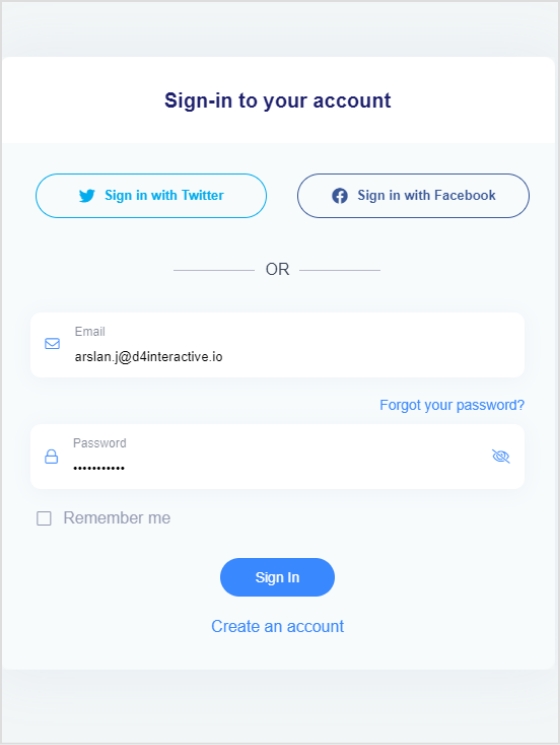
      Step 1: Sign in to Replug or create a new account, if you don’t have one.

      signin or create account

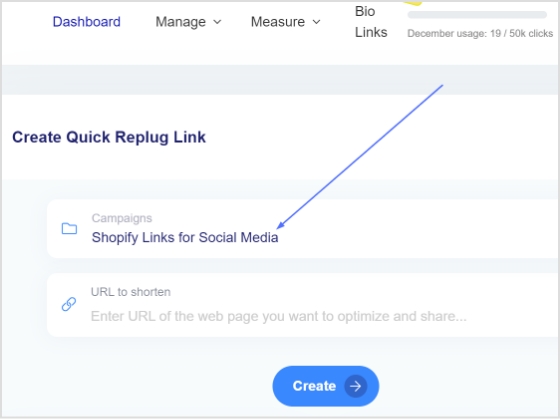
      Step 2: Choose a campaign from your dashboard, or create a new one.

      select campaign

      Note: For help creating a new campaign, visit this guide: Create a campaign in seconds.” 

      [branded_short_links]

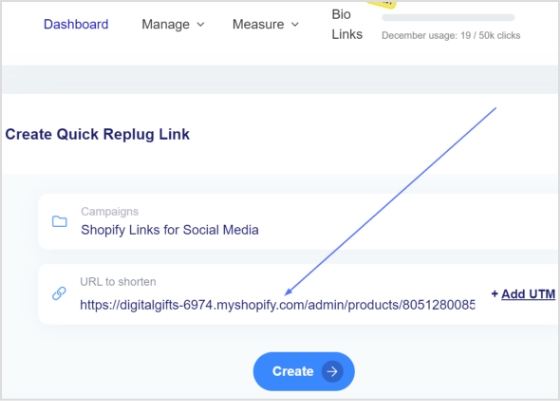
      Step 3: Enter your Shopify URL as the destination URL in the “URL to shorten” section below “Select your campaign.”

      paste link

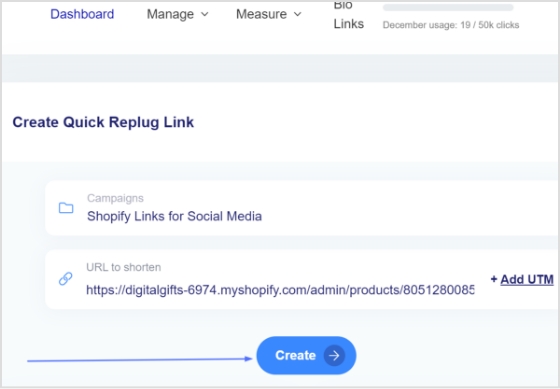
      Step 4: Simply click the create button to create a shortened URL for your Shopify store.

      click create

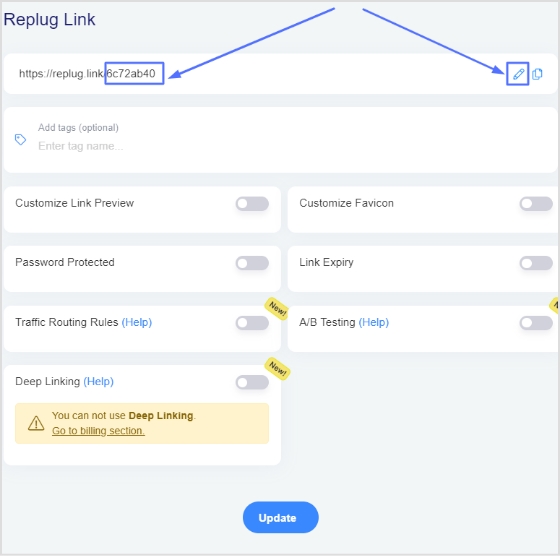
      Step 5: Now you have your new URL, which will look like the one below in the picture. You can customize this URL by clicking on the edit icon.

      shortened url

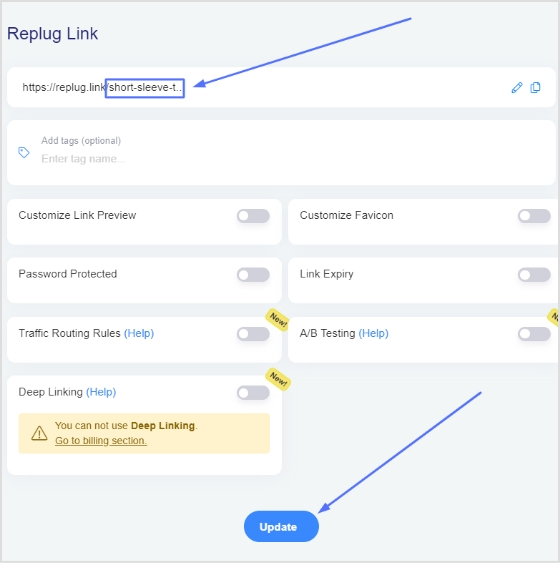
      Step 6: Enter the new URL you want to use, and your custom Shopify Store URL is ready for sharing on social media. Click on the update button to save the new URL. 

      cutom url

      Read also: Add a Shopify link to your TikTok bio in 5 minutes

      FAQs

      Can I change my Shopify store name?

      Yes, you can. You must be the store owner to change your Shopify store name. Log in to your Shopify store, go to the Settings page, and click Store Details. You can enter a new store name into the ”Store name” field.

      How do I find a Shopify URL?

      Log in to your Shopify store admin. The URL will be in the browser address bar.  Go to Online Store > Domains in the leading left menu. This will give you an overview of your store domains.