Category: Help guides

Read Replug’s help guides blog for expert tips, insights, and resources on link management, tracking, branded URLs, QR codes, and audience growth.

  • How to add your Discord link to TikTok bio (2 easy ways)

    How to add your Discord link to TikTok bio (2 easy ways)

    Your TikTok is popping, your Discord server is thriving… but the two aren’t linked? C’mon now. That’s like having a hype squad and forgetting to invite them to the main event.

    Whether you’re building a community around gaming, memes, or chaotic late-night convos, adding your Discord to your TikTok bio can turn passive scrollers into active members.

    And good news? You’ve got options.

    In this guide, we’ll show you two ways to add your Discord link to your TikTok bio: one using TikTok’s built-in method, and the other using Replug’s built-in link in bio maker (for when you want to do more with one link).

    Let’s go!

    Why add your Discord link to TikTok?

    A viewer discovers your TikTok, enjoys your content, and wants to join your Discord community. But without a link in your bio, they’re left unsure of what to do next. What now?

    Answer: nothing. Because that curiosity? Gone.

    By adding your Discord link, you:

    • Funnel your TikTok audience to your Discord community.
    • Build deeper connections with fans.
    • Create a space for announcements, drops, convos, and more.

    In short: TikTok + Discord = the ultimate creator combo.

    Now, let’s look into 2 easy methods to add your Discord server link to your Tiktok bio:

    Method 1: Add your Discord link using TikTok’s native option

    TikTok lets you add one clickable link in your bio, so if Discord’s your main hangout, this method will work.

    Step 1: Grab your Discord invite link

    First, generate an invite link from Discord:

    On mobile

    1. Click on a server from the side navigation.
    2. Click on the “Copy Link” icon to copy your invite link.

    On desktop

    1. Click on a server from the side navigation.
    2. Click “Invite your friends”
    3. Copy the server invite link and send it to a friend.

    Tip: Click on “Edit invite link” and set the expiration date to “Never” so that your audience doesn’t end up on a dead link. 

    You’ve got your Discord link, now let’s plug it into TikTok.

    Option A: If you have less than 1,000 followers

    You’ll need to switch to a Business Account to unlock the “Website” field.

    Here’s how:

    1. Go to TikTok > Profile > Tap the three lines (☰).
    Go to TikTok profile
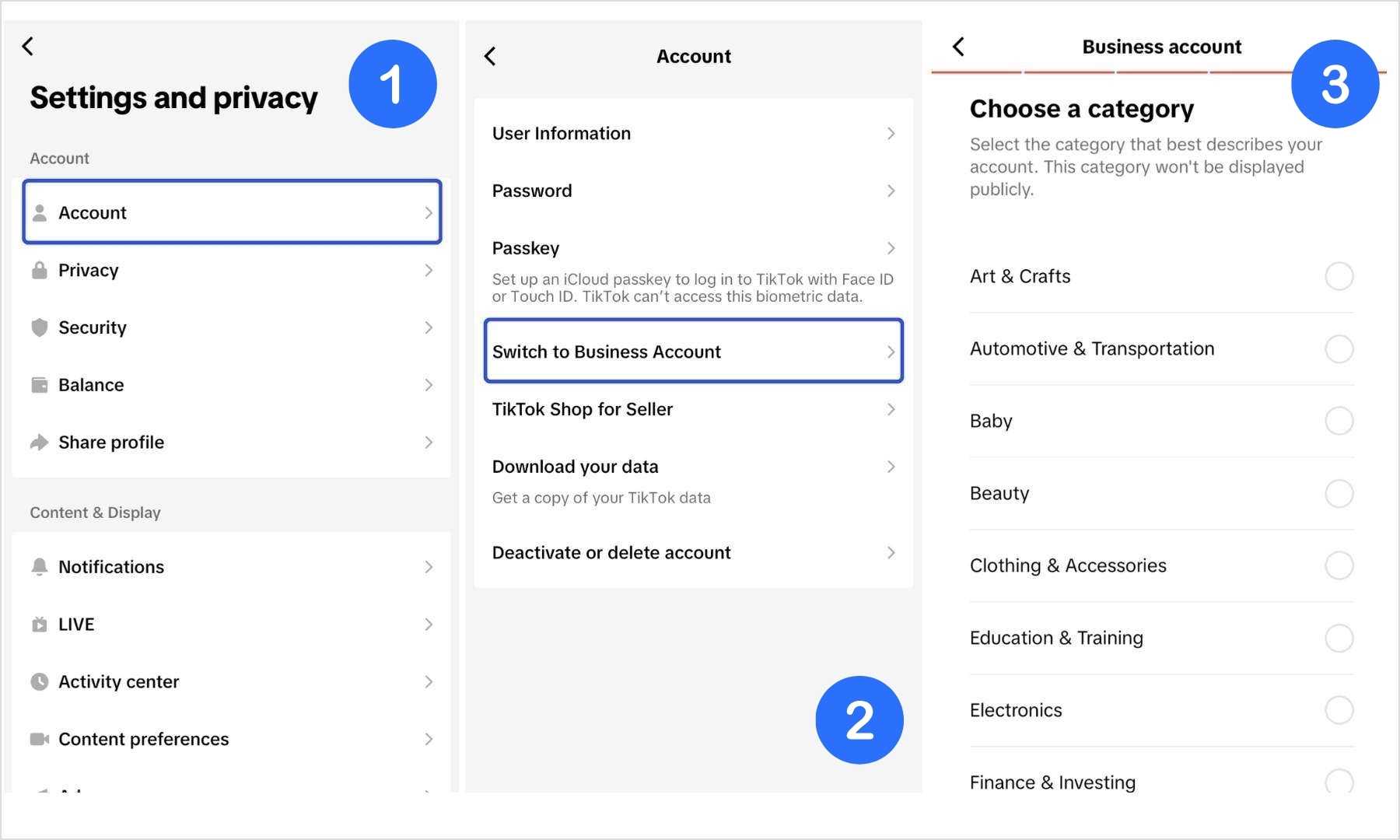
    1. Tap Settings & Privacy > Account > Switch to Business Account.
    Switch to TikTok Business Account
    1. Choose any category (like “Personal Blog” or “Gaming”).
    2. Go back to your profile and tap Edit Profile.
    3. Paste your Discord link under the “Website” section.
    Add website link

    Option B: If you have 1,000+ followers

    You can keep your personal account and still get the link feature:

    1. Open TikTok > Tap Profile.
    2. Hit Edit Profile.
    3. Paste your Discord invite in the “Website” field.

    Now anyone visiting your TikTok can click and join your server.

    Method 2: Add a clickable bio link using Replug

    You don’t want to keep handing out Discord links.

    If someone wants to join your jamming or streaming server, they shouldn’t have to DM you for it. Just drop your Replug bio link in your TikTok profile, and let them choose where they want to go.

    Boost ROI with branded URLs - Replug dashboard showing performance metrics and branded URL creation
    Turn your bio links into click-boosting machines
    Check

    Drive up to more clicks than plain URLs

    Check

    Share multiple destinations with one link

    Create bio links free

    No more juggling links or repeating yourself. Replug is an all-in-one link management platform that keeps all your important links, such as your Twitch, Merch, YouTube, and Discord servers, neatly in one place.

    Plus, you can create branded short links effortlessly with Replug’s URL shortener free tool, making it easier to share and track every link across your platforms.

    And if you ever shut down a server? Just remove it from your Replug bio link page. That’s your subtle way of saying, “yeah… that era’s over.”

    Here’s how to add a link in TikTok bio:

    Step 1: Sign up for Replug

    Go to Replug and create an account (there’s a free trial, so no excuses).

    Step 2: Create your bio link page

    • From the dashboard, head to Bio Links.
    Go to bio links
    • Click Create New.
    Create new bio link
    • Customize your bio link page with a title, buttons, description, custom layout, colours, and background image (optional).

    Step 3: Add content blocks

    • Click on Content.
    Go to content block
    • Add a block for your Discord invite, and more blocks for Twitch, YouTube, Spotify, or even your dog’s Instagram. You do you (no one’s judging).

    Social blocks: 

    Add social block

    Link blocks:

    Add link blocks

    Card block:

    Add card block

    What more can you do?

    • Add text, spacing, and separator blocks.
    • Embed a video block (Youtube, TikTok, Instagram, Facebook, and X).
    • Add an RSS feed for your content.
    • Rearrange the blocks however you want.

    Step 4: Optimize it (additional step)

    • Customize your link slug. A custom URL ensures that you stay on brand and recognizable.
    Custom URL
    • Add a title and meta description.
    • Upload a picture and favicon (optional, but chef’s kiss).
    • Drop a tracking pixel if you’re into analytics or retargeting ads.
    Optimize for SEO

    This is what the final preview looks like:

    Bio link page preview

    Step 5: Add it to TikTok

    Copy your Replug bio link and paste it in the “Website” field of your TikTok profile. Now, when someone clicks it, they get a full-on hub with all your links, including your Discord.

    Quick comparison: TikTok’s native vs. Replug

    FeatureTikTok NativeReplug
    One clickable link
    Multiple links
    Visual customization
    Click tracking
    Dynamic QR codes
    Mobile optimization
    Easy to update❌ (edit profile again)✅ (dashboard control)
    Replug Branded Short Links CTA
    A complete link management solution
    for marketing professionals & agencies.
    Try Replug for free

    To wrap it up

    • Just want a clickable Discord link? Use TikTok’s native bio link.
    • Want to link everything and look pro? Replug’s your best bet.

    Pick the method that fits you best, but don’t let your TikTok bio go to waste. It’s your shortcut to a stronger, more connected audience.

    Frequently asked questions

    Can I add a Discord link to my TikTok bio?

    Yes! Use the Website field under “Edit Profile.” Just make sure the link doesn’t expire.

    What if I have less than 1,000 TikTok followers?

    Switch to a Business Account. That will unlock the feature for adding a website link.

    Can I link more than just Discord?

    Absolutely. You can use an advanced link management tool like Replug to build a sleek, multi-link bio page.

    What if I don’t see the Website option on TikTok?

    Make sure your app is updated
    Switch to a Business account
    If you’re under 18 or in certain regions, this feature might not be available yet

    Can I share my Discord server on TikTok?

    Absolutely! Switch to a TikTok Business Account, then add your Discord invite or server link as your TikTok bio link to your profile’s website section.

    You may also like:

    2 easy ways to add a Pinterest link to your TikTok bio
    How to add Amazon link to TikTok bio?

    How to Add Spotify Link to TikTok Bio?

  • How to change your Tumblr URL without losing followers?

    How to change your Tumblr URL without losing followers?

    So, you’ve outgrown your Tumblr username.

    Maybe it doesn’t vibe with your current aesthetic.

    Maybe you’re rebranding.

    Or maybe it just feels like time for a glow-up.

    The good news? Tumblr makes it easy to change your URL without losing your followers.

    The better news? You can take that simple switch and turn it into a smart branding move (if you know how).

    Let’s walk through how to change your Tumblr URL, and then we’ll show you how to elevate your link with Replug’s branded short links.

    How to change your Tumblr URL in the app

    It’s quick and simple. Here’s how to change your Tumblr URL on mobile:

    1. Tap the account icon (the little human silhouette).
    Go to your Tumblr profile
    1. Choose the blog you want to edit from the drop-down at the top.
    2. Tap the gear icon for settings.
    Go to Tumblr settings
    1. Tap “Change name
    Change your Tumblr URL on Mobile
    1. Enter your new Tumblr username.
    2. Tap “Save”
    Save your Tumblr URL

    Tumblr will redirect your old URL to the new one automatically, so your followers won’t be left in the dark. No messy migrations or broken links.

    How to change your Tumblr URL on desktop

    Changing your Tumblr URL on your desktop? No problem! Just follow these simple steps:

    1. On your dashboard, click “Settings” in the sidebar.
    Go to Tumblr settings on Desktop
    1. Select the blog you want to update on the right side of the screen.
    Choose your Tumblr blog
    1. Click the pencil icon in the “username” section (or “blog name” for secondary blogs).
    Click the pencil icon
    1. Type in your new username.
    2. Click “Save”.
    Change your Tumblr URL on Desktop

    That’s it! Your new Tumblr URL is live, and your old followers still know where to find you.

    Related: How to change your LinkedIn URL (Step-by-step guide)

    Tumblr lets you change your name, but that’s about it

    Tumblr gives you a fresh username and even lets you attach a custom domain. And that’s where it ends.

    If you’re someone who’s using Tumblr to grow a brand, promote your work, or run campaigns, this might feel… underwhelming.

    There’s no customization for how your link looks when shared.

    No tracking to see how it performs.

    No way to turn a simple URL into something that actually drives results.

    This is why instead of just using Tumblr to change your URL, it’s best to add Replug to the mix.

    What to know how and why? Keep reading.

    How to change your Tumblr URL with Replug?

    Here’s how you can easily change your Tumblr URL inside the Replug app:

    1. Log in to the Replug App or create an account if you don’t already have one.
    2. Copy your Tumblr URL:
    • Click on “Accounts” on the left side of your Tumblr homepage
    • Select your account/blog.
    • Copy the URL from the search bar.
    Copy Tumblr URL
    1. Create a custom short Tumblr URL:
    • Paste your Tumblr URL in the bar under “Quickly Shorten your link”
    Shorten your Tumblr URL
    • Customize your Tumblr URL
    Create a custom URL
    1. Save your custom URL:

    Click on “Save Shortened link” and get sharing!

    You may also like: How to add links to Tumblr bio: Step-by-step guide

    Tumblr URL vs Replug branded links

    As promised, here’s a breakdown of why you should use Replug to take your Tumblr URL to the next level:

    FeatureTumblr custom URLReplug branded links
    Custom domain support
    Branded link previews
    A/B testing
    Click analytics
    Retargeting pixels
    CTA overlays on shared links
    Link cloaking & redirects
    Bio-link pages
    QR codes
    Third-party integrations
    Custom favicon & branding
    UTM parameters

    Tumblr gives you a URL. Replug gives you control, strategy, and performance.

    Why branding your Tumblr link with Replug is a smart move?

    Here’s how Replug takes your updated Tumblr link and gives it real marketing muscle:

    • Branded URLs: Match your blog, brand, or business name with clean, professional links.
    • Custom previews: Choose the thumbnail, headline, and description your audience sees when you share.
    • Detailed analytics: Track the total and unique clicks, where they’re from, and how your links are performing.
    • Retargeting pixels: Reconnect with people who’ve clicked your links across platforms by adding retargeting pixels to Meta, Google, LinkedIn, and more.
    • CTA overlays: Add catchy call-to-action buttons, forms, banners, or even YouTube videos to the content you share.
    • A/B testing: Experiment with variations of 10 Tumblr URLs to find what performs best.
    • Dynamic QR codes: Instead of creating static QR codes, Replug allows you to create unlimited dynamic QR codes that never expire.
    • Smart bio-link pages: Build a high-converting landing page with all your most important links in one place.

    Boost ROI with branded URLs - Replug dashboard showing performance metrics and branded URL creation
    Turn your bio links into click-boosting machines
    Check

    Drive up to more clicks than plain URLs

    Check

    Share multiple destinations with one link

    Create bio links free

    • Link cloaking & redirection: Keep your links clean and trustworthy by avoiding sending your followers to broken links.

    Conclusion

    Changing your Tumblr URL is a solid move, especially if you’re rebranding or aligning your content with a new direction. Tumblr makes the switch easy, but that’s just the beginning.

    If you want your link to do more than just exist, it’s time to think bigger. With Replug’s custom URL shortener, you’re not just customizing a URL; you’re optimizing it for clicks, conversions, and visibility. Whether you’re a content creator, business, or blogger, the ability to brand, test, and track your links can be a game-changer. 

    Tumblr might be your platform, but Replug turns your links into power tools.

    FAQs

    Will I lose my followers if I change my Tumblr URL?

    No. Tumblr automatically redirects your old URL to the new one, so your followers won’t be affected.

    Can I change my Tumblr URL more than once?

    Yes, you can change it multiple times, but your old URLs become available for others to claim.

    Can I connect a custom domain to Tumblr?

    Yes, Tumblr allows you to connect a custom domain, but it doesn’t offer branded previews or analytics.

    What’s the difference between Tumblr’s custom domain and Replug’s branded links?

    Tumblr’s custom domain changes the URL, but Replug allows branded previews, click tracking, retargeting, and much more.

    Do I need a Tumblr pro account to change my URL?

    No, you can change your Tumblr URL for free. However, branded domains require a fee.

    Is Replug only for Tumblr users?

    Not at all. Replug works across all platforms—Instagram, YouTube, TikTok, LinkedIn, email, and even blogs. You name it!

  • How to add YouTube link to Instagram bio?

    How to add YouTube link to Instagram bio?

    Ever wonder how top Instagram creators effortlessly grow loyal communities across platforms? Their secret: smart cross-promotion, especially linking YouTube to Instagram.

    While Instagram’s one-link bio rule may seem limiting, smart creators use it to their advantage by linking their YouTube channel or videos right where it matters most.

    YouTube is where your long-form content lives. Instagram? It’s where people discover you. Connecting the two not only boosts views but builds trust and loyalty across platforms. 

    In this guide, we’ll show you exactly how to add your YouTube link to your Instagram bio (with or without an Instagram link in bio tool), and which types of content actually get people to click. Ready to turn casual followers into loyal subscribers? Let’s dive in.

    Boost ROI with branded URLs - Replug dashboard showing performance metrics and branded URL creation
    Turn your bio links into click-boosting machines
    Check

    Drive up to more clicks than plain URLs

    Check

    Share multiple destinations with one link

    Create bio links free

    Which YouTube links to add to your Instagram bio?

    Adding the right YouTube links to your Instagram bio can drive traffic and boost engagement. Here are some smart options:

    1. Your latest video – Keep your followers updated by linking to your most recent upload.
    2. Channel homepage – Direct users to your main channel for easy access to all your content.
    3. Playlist links – Promote specific playlists like tutorials, vlogs, or product reviews to target niche audiences.
    4. Viral or top-performing video – Capitalize on your most popular content to grab attention fast.
    5. Collaboration video – Highlight a video you did with another creator to build credibility and cross-promote.
    6. Giveaway or contest video – Link to any active giveaways to increase participation and reach.
    7. Behind-the-scenes or Q&A video – Help your audience connect with you on a personal level.

    Also read: How to make a QR code for YouTube video?

    Two ways to put a YouTube link to Instagram bio 

    Method no 01: Add a YouTube link to bio natively on Instagram

    Step 1: Copy your YouTube link

    • For your channel: Go to your YouTube channel > tap the three dots > tap “Share” > copy the link.
    • For a video: Open the video > tap “Share” > copy the link.
    Youtube video link

    Step 2: Open Instagram and edit your bio

    • Go to your Instagram profile
    • Tap “Edit profile”
    • Paste the copied YouTube link in the Instagram bio field

    Tap “Done” or the checkmark. Your YouTube link is now live in your bio!

    Method no 02: Add a YouTube link to bio using link-in-bio tool

    Our link in bio generator lets you showcase multiple YouTube links under one smart link – no need to update your bio every time. Use Replug.io: it’s affordable, easy to use, and packed with features like link tracking, customization, and branding. 

    Here’s how to add your YouTube link to Instagram using Replug’s bio link feature.

    Boost ROI with branded URLs - Replug dashboard showing performance metrics and branded URL creation

    Go beyond generic link pages!

    Create custom bio links that truly fit your brand

    With Replug, you can create bio links that are unique, engaging, and built to convert.

    Start free trial

    Go to Replug and log in (or create an account). Once you’re inside, Go to the bio link dashboard and click on “Create new”. 

    create new bio link

    You’ll spot three categories there Branding, Content and Settings. 

    Step 1: Customize the page

    Under the Branding tab, customize your profile:

    • Add a title, description, profile image, verified badge, background image, and theme.
    customize your bio link branding
    bio landing page preview

    Once you’re done adding everything, click the “Update” button located in the corner.

    Step 2: Add your Youtube links

    Go to the Content tab. Click “Links” to add your YouTube videos, playlists, or channel.

    add links to your bio
    • Now you can add your preferred Youtube links by adding a custom title and link in the block.
    add custom YouTube link
    • Each block is customizable – add titles, icons, and scheduling options.
    • You can also embed YouTube videos directly or mix in text, social buttons, and cards.
    All your YouTube links

    You can easily rearrange or remove any block before going live. When everything looks perfect, just click “Publish” in the top-left corner to launch your custom bio link page.

    bio link page

    Step 03: Optimize & track performance 

    Before sharing your bio link page, give it an SEO boost: Add a custom meta title, description, favicon, and featured image or Insert tracking pixels (Facebook, TikTok, Google, etc.) for retargeting and conversion tracking.

    Once you’re done adding everything. Customize the bio link as per your preference and copy it.

    cutsomize your url

    Your custom landing page is now ready to shared on Instagram.

    Step 4: Add Replug link to your Instagram bio

    • Open your Instagram profile
    • Tap “Edit Profile”
    • Paste your Replug link in the “External link” field. 
    bio link
    add bio link

    This link will now lead your followers to your custom page with all your important YouTube links!

    Your bio landing page is now live in your bio, giving your followers easy access to your YouTube content and more.

    Also check out: How to add a Twitter (X) link to Instagram bio?

    Conclusion

    Adding your YouTube link to your Instagram bio is a small change that can bring big results. Whether you choose Instagram’s native method or a feature-rich link-in-bio tool like Replug, cross-promoting your content boosts visibility, builds deeper audience connections, and increases engagement across platforms. So don’t let your best content sit unseen, make it just one tap away.

    For even cleaner, highly-optimized, and trackable URLs, try Replug’s free link shortener, to optimize and share your links effortlessly across all your social channels.

    FAQs on adding YouTube link to Instagram bio

    Can I add more than one YouTube link to my Instagram bio?

    Not directly through Instagram, but with tools like Replug, you can create a landing page that includes multiple YouTube links under one smart Instagram bio link.

    Will Instagram let me paste a clickable YouTube link?

    Yes, but only one. You can paste a YouTube video or channel link in the “Website” field of your bio, and it will be clickable.

    How often should I update my Instagram bio with a new YouTube link?

    If you’re doing it manually, update it every time you post something important. If you’re using Replug, just update the dashboard and your bio stays fresh automatically.

    Can I track clicks on my YouTube link in bio?

    Yes! Replug offers detailed analytics to track clicks, location, devices, and even lets you add retargeting pixels for advanced campaign performance on your YouTube link in bio.

  • Changing your SoundCloud URL? Here’s what you need to know

    Changing your SoundCloud URL? Here’s what you need to know

    So, you’ve been on SoundCloud for a while.

    Maybe your profile URL still screams “DJxCrayBeats2007” or some other relic from your experimental high school phase.

    Or maybe you’re building a brand now, and you want that URL to reflect the new and improved you.

    Whatever your reason, it’s totally valid. After all, your SoundCloud URL is your digital street sign. Let’s make sure it points in the right direction.

    This guide has all that you need to know about changing and branding your URL on SoundCloud. Let’s get vibing!

    TLDR

    • You can change your SoundCloud profile URL on desktop only.
    • Use only lowercase letters, numbers, hyphens, or underscores.
    • Old embeds and links might stop working—no redirects included.
    • Replug can save your links, track them, and make sure you never lose fans to a broken URL.

    How to change your SoundCloud URL? (the right way)

    First things first: You can only change your SoundCloud profile URL via desktop. Mobile users, you’ll need to dust off the laptop for this one.

    Here’s how to change your SoundCloud URL:

    1. Head to your SoundCloud profile on a web browser.
    Access SoundCloud URL
    1. Click the Edit button below your header.
    Edit SoundCloud profile
    1. Once done, you’ll see a pop-up. Type your desired URL under Profile URL.
    Old SoundCloud URL
    New SoundCloud URL

    But wait, before you rush in, know this:
    SoundCloud only allows lowercase letters, numbers, hyphens (-), and underscores (_) in your URL. No capital letters, and sadly, no emojis.

    [cries in cant_flex_with_emojis]

    How often can you change your SoundCloud URL?

    SoundCloud isn’t a big fan of constant rebranding.

    They’ve set some limits on how many times you can change your URL in a given time frame. If you get an error, you’ve probably reached that limit. Either give it a little time (usually until the next month) or file a support ticket.

    TL;DR: Choose wisely, like you’re naming your mixtape.

    What happens when you change your SoundCloud URL?

    Your new profile URL goes live immediately within SoundCloud.

    But search engines like Google? They take their sweet time. Your tracks may not show up under the new URL right away in search results.

    Also – and this is big, any links or embedded players using your old URL could break.

    • Embeds from before August 2010? Straight to the void.
    • Embeds after that? They’ll still play your tracks, but clicking through to your profile might lead people to a dead end.

    And guess what? SoundCloud doesn’t offer redirects. Once you change your URL, the old one is gone, like a beat drop no one was ready for.

    That's a bummer gif

    Pro tip: use Replug to make your SoundCloud links future-proof

    Here’s where things get interesting.

    Changing your SoundCloud URL means broken links. But what if you didn’t have to worry about that?

    Here’s where Replug.io comes in.

    Replug lets you create short, branded links with the help of its top-notch link shortener that you can update anytime. So even if your SoundCloud URL changes 5 times a year (we don’t recommend it, but hey, you do you), your Replug link stays rock solid.

    Here’s how you can create a branded and evergreen SoundCloud URL with Replug:

    Step 1: Log in to your Replug account. If you don’t already have an account, create one.

    Step 2: Copy your SoundCloud URL.

    Go to your SoundCloud profile
    Copy SoundCloud URL

    Step 3: Create a custom SoundCloud URL.

    • Go to your Replug homepage and paste your SoundCloud URL in the bar under “Quickly Shorten your link”
    Shorten SoundCloud link
    • Create a custom URL by simply changing the slug of your original SoundCloud URL.
    Create custom URL

    Step 4: Save your SoundCloud URL.

    That’s it! Just click “Save Shortened link,” and your custom SoundCloud URL will be ready to share across any channel.

    Benefits of using Replug for your SoundCloud links:

    • Branded links: soundcloud.yourname.com? Yes, please.
    • Easy redirection: Change your destination URL without changing the link itself.
    • Click tracking: Know exactly how many fans are vibing with your link.
    • Retargeting: Add retargeting pixels and bring people back with ads. After all, your playlist is repeat-worthy.
    • Deep linking: Send users straight to your SoundCloud profile inside the app with a single deep link.
    • QR codes: Create a dynamic QR code for your SoundCloud profile for faster sharing.
    Replug Branded Short Links CTA
    A complete link management solution
    for marketing professionals & agencies.
    Try Replug for free

    Instead of spreading five versions of your SoundCloud URL across Instagram bios, YouTube descriptions, and tweets from 2026, just share one Replug link and update the backend whenever needed.

    Boom. Crisis averted. 

    And that’s a wrap (drop the mic, not the link)

    Your SoundCloud URL should evolve with you. Just like your sound has matured, your branding should too. And with Replug in the mix, you don’t just change your URL, you future-proof it. 

    Ready to make the switch? Grab your new URL, pop it into a Replug link, and share it like the star you are!

    FAQs

    Can I change the SoundCloud URL on my phone?

    Nope. SoundCloud’s not about that mobile life (at least not for URLs). You’ll need a desktop browser to make the change. Time to find your charger.

    How often can I change my SoundCloud URL?

    Not every week, superstar. SoundCloud puts a cap on how often you can rebrand. If you get an error, you’ve likely hit the limit. For that, you’ll need to wait a bit or contact support.

    What happens to my old SoundCloud URL?

    It disappears into the internet void. No redirects. No “just in case” backups. Your old links will stop working, especially if embedded somewhere. Protect your fans from 404 heartbreaks with link management tools such as Replug.

    Do embedded SoundCloud players still work after I change my URL?

    If the embed is from before August 2010 → it’s toast.
    After 2010? It might still play your track, but users won’t be able to click through to your profile. 

    How can I avoid broken SoundCloud links in the future?

    Use Replug. It gives you one short, branded link you can update anytime. Your fans stay connected, even if your SoundCloud URL changes three glow-ups from now.

    Can I track how many people click my SoundCloud link?

    Not with SoundCloud itself. But if you use Replug? Absolutely. Track clicks, the juicy stats, and even retarget your fans with ads.

  • How to make a QR code for Google Docs?

    How to make a QR code for Google Docs?

    QR codes have become an essential tool for quickly sharing information in an efficient and user-friendly way. If you frequently use Google Docs for collaboration, creating a QR code can help others access your document with just a quick scan. Whether you’re sharing notes, presentations, or project plans, a QR code eliminates the need for typing long URLs and enhances accessibility.

    In this guide, we’ll show you how to make a QR code for a Google Doc using Replug and directly inside Google Chrome.

    What is a QR code for Google Docs?

    A QR code for Google Docs is a machine-readable barcode that encodes the URL of your document. When scanned, it instantly redirects users to your Google Doc, making document sharing seamless. 

    While there are multiple uses of QR codes, a QR code for Google Docs is specifically useful for:

    • Sharing meeting notes during a conference
    • Providing easy access to assignments for students
    • Offering quick links to important documents in business presentations
    • Distributing forms and surveys without requiring users to manually type a link

    Now, let’s dive into the step-by-step process of generating a QR code for your Google Docs using Google Chrome and Replug.

    How to make a QR code for a Google Doc using Google Chrome?

    If you use Google Chrome, you can generate a QR code for your Google Doc without any third-party tools. Here’s how:

    • Open your Google Doc in Chrome.
    • Click on the address bar where the URL is displayed.
    • Look for the QR code icon on the right side of the address bar (if available) or right-click anywhere on the page and select Create QR code for this page.
    • If you can’t find any of these options:
      • Click on the More (three dots) menu in Chrome.
      • Select Cast, save, and share and then Create QR code.
    Make a QR code for a Google Doc using Google Chrome
    • You can now:
      • Copy the QR link.
      • Download the QR code as an image.
      • Scan the QR code with another device’s camera.
    Scan QR code inside Google Chrome

    This method is quick and convenient, but the QR code is static, meaning you cannot edit the link, track scans, or customize its design. 

    If you need more flexibility, consider using Replug’s custom QR code generator.

    Read also: How to make a QR code for Google Forms?

    How to make a QR code for a Google Doc using Replug?

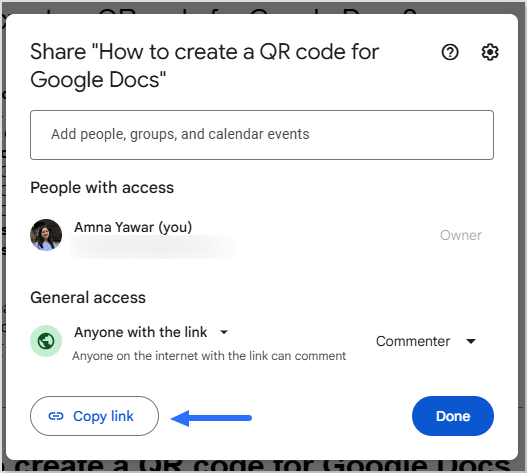
    1. Copy your Google Docs URL

    Before creating a QR code, you need to get the shareable link of your Google Doc:

    • Open your Google Doc.
    • Click on Share in the top right corner.
      Adjust the permissions (e.g., “Anyone with the link can view/edit/comment”).
    • Click Copy link.
    Copy Google Docs URL

    2. Open your Replug dashboard

    3. Create a QR code for your Google Docs

    • Paste your Google Docs URL in the bar under Quickly Shorten your link.
    Shorten your Google Docs link using Replug
    • Click on the QR code icon to generate your unique QR code for Google Docs.
    Make a QR code for your Google Doc
    • Customize the background and foreground colour to match your brand identity (optional).
    • Download the QR code in your preferred format (PNG or SVG).

    Your QR code is now ready for sharing!

    You may also like: How to make a QR code for Google Sheets?

    Why use Replug for QR code generation?

    Replug makes QR code generation effortless, offering customizable, trackable, and dynamic codes to enhance your QR code marketing and engagement strategies.

    • Customization options: Easily personalize your QR code’s foreground and background colour to match your brand identity.
    Replug Custom QR codes
    • Analytics and tracking: Track real-time scan data, including the number of scans, locations, and devices used, to gain insights into user engagement.
    • High-resolution downloads: Download QR codes in high-quality formats that are suitable for both digital and print use without losing clarity.
    • Easy management: Store, categorize, and manage multiple QR codes within a centralized dashboard, ensuring easy access and organization.
    • Editable links: Use dynamic QR codes to change the destination URL of your Google Doc anytime without the need to recreate or redistribute the QR code.
    • Unlimited scans: Unlike online Google Docs QR code generators, Replug QR codes don’t expire. The tool offers unlimited QR code scans, which is especially useful if you’re sharing your document with a large audience.
    Replug Branded Short Links CTA
    A complete link management solution
    for marketing professionals & agencies.
    Try Replug for free

    Benefits of using a QR code for Google Docs

    Here are some general benefits of using a Google Docs QR code for sharing your documents:

    • Quick access: Eliminates the hassle of typing long URLs, allowing users to scan and access the document instantly with just a smartphone camera.
    • User-friendly: Anyone, regardless of technical expertise, can easily scan a QR code and open the document without any extra steps.
    • Time-saving: You don’t need to manually share links via email or messaging apps, making document access seamless and efficient.
    • Better engagement: Ensures smoother collaboration in classrooms, meetings, and events by providing instant access to relevant materials.
    • Improved document distribution: Ideal for organizations that frequently share important files, reports, and resources with employees or clients.
    • Enhanced security: Reduces the risk of typos and phishing scams by ensuring users are directed to the correct document without errors.
    • Versatile usage: Can be printed on posters, included in presentations, embedded in emails, or displayed on websites for easy document access.
    • Eco-friendly: Promotes paperless sharing, reducing the need for printed handouts while making documents more accessible.

    Conclusion

    Creating a QR code for Google Docs makes document sharing more accessible and efficient. Whether for professional, educational, or marketing purposes, QR codes simplify the process. By using Replug, you get additional features like customization, tracking, and easy management, making your QR codes even more effective.

    So, why wait? Start generating QR codes for your Google Docs today and enhance your sharing experience!

    Also, check out our short URL generator to create clean, branded links that complement your QR codes and streamline document sharing even further.

    Frequently asked questions

    Is it possible to update the link in a QR code after creating it?

    If you use Replug’s dynamic QR codes, you can change the destination link without changing the QR code.

    Can I customize my QR code’s design with Replug?

    Yes, Replug allows you to customize the background and foreground colour of your QR code to match your brand identity.

    Do QR codes for Google Docs expire?

    If you use a static QR code, it remains active as long as the Google Docs link is valid. However, dynamic QR codes may have expiry settings depending on the tool used.

    Can I track how many people scan my QR code?

    Yes, with Replug’s analytics, you can monitor Google Docs QR code scan activity and engagement metrics.

    Can I create a QR code for Google Docs without a third-party tool?

    Yes! Google Chrome has a built-in QR code generator that allows you to create a QR code directly from the browser.

  • 2 easy ways to add a Pinterest link to your TikTok bio

    2 easy ways to add a Pinterest link to your TikTok bio

    You know how TikTok is the place to discover new stuff – fashion, home inspo, DIY hacks, aesthetic mood boards; basically everything Pinterest is also known for?

    Now imagine someone finds your TikTok, loves your vibe, and wants more. Maybe they’re looking for your outfit details, your vision board, or that recipe you teased.

    They tap the link in TikTok bio, and it either goes nowhere or just dumps them on a random page.

    That’s a missed opportunity.

    If you’re using Pinterest to share your content, promote your blog, or even build a mood board-worthy brand, you need to connect the dots.

    And that starts with adding your Pinterest link to your TikTok bio, the right way.

    We’ll start with TikTok’s built-in features, and then show you how to do more (and better) with Replug’s link in bio generator. Especially handy if you’re stuck without the “Website” option or want to add more than just Pinterest.

    Boost ROI with branded URLs - Replug dashboard showing performance metrics and branded URL creation
    Turn your bio links into click-boosting machines
    Check

    Drive up to more clicks than plain URLs

    Check

    Share multiple destinations with one link

    Create bio links free

    Let’s make your bio work as hard as your content does!

    Why add your Pinterest link to TikTok?

    Because people don’t just watch content anymore — they click, scroll, and shop. Hence, it’s super important to create shareable content that makes your audience keep coming back for more.

    Let’s say you’re:

    • A lifestyle creator who posts dreamy room decor on TikTok.
    • A DIY enthusiast sharing how-tos.
    • A fashion lover posting OOTDs and linking Pinterest boards with outfit inspo.

    Pinterest helps you extend your content. It’s where the vibes live. 

    When you connect your TikTok to Pinterest, you give your followers a one-click path to your vision.  It keeps them in your world longer, and that’s gold if you’re building a brand, growing your following, or even selling something.

    Now let’s learn how to add your Pinterest link to TikTok bio.

    Method 1: How to add Pinterest link to TikTok bio using TikTok’s built-in options

    TikTok only allows one clickable link in your bio. So naturally, you’ll want to make it count.

    How to get your Pinterest link:

    • Open the Pinterest app or website.
    • Tap your profile photo.
    Go to Pinterest profile
    • Copy the link from the browser
    Copy Pinterest link

    Got your link? Great! Now let’s add it to your TikTok bio.

    Option A: How to add link to TikTok bio without 1000 followers

    Stuck under 1K followers? No worries. You can still make it work. Here’s how:

    Switch to a Business Account:

    1. Go to your profile, then tap the three lines in the top-right corner.
    Switch to TikTok business account
    1. Navigate to Settings & Privacy > Account > Switch to Business Account.
    Switch to TikTok business account
    1. Head back to your profile > Edit > and now you’ll see the “Website” option available.
    Add website link
    1. Paste your Pinterest URL, and you’re done.
    Add Pinterest link to TikTok bio

    Related: How to add a linktree to TikTok bio?

    Option B: If you have 1000+ followers (personal account)

    If you’re using a personal account and you’ve crossed the 1,000 followers mark, here’s how to add your Pinterest:

    1. Open TikTok and tap your profile icon (bottom right).
    2. Tap Edit Profile.
    3. Under the “Website” section, paste your Pinterest URL.

    And that’s about it! You just added a clickable link to your Pinterest. Now, your followers can tap your bio and go straight to your Pinterest boards.

    Note: TikTok only allows one link, so make it work smarter… which brings us to Replug’s URL shortener free tool. With it, you can share one short link that leads people to all your important pages, making the most of your single TikTok bio link.

    Method 2: How to add multiple links (including Pinterest) to TikTok bio using Replug

    Instead of constantly switching the one link in your TikTok bio, Replug helps you build a bio site with all your links in one. It’s like a Pinterest board, but for your entire digital presence.

    Boost ROI with branded URLs - Replug dashboard showing performance metrics and branded URL creation
    Turn your bio links into click-boosting machines
    Check

    Drive up to more clicks than plain URLs

    Check

    Share multiple destinations with one link

    Create bio links free

    Here’s how to use our TikTok bio link tool:

     How to create a Replug bio link for TikTok

    1. Log in to your Replug account (or create one for free).
    2. Choose “Bio Links” from the dashboard.
    Go to Bio Links
    1. Click “Content”
    Click Content

    4. Add a social block for Pinterest and enter your Pinterest URL. Replug lets you add up to 8 social blocks for your bio link page.

    Add social block
    Add Pinterest social block

    5. Publish your bio link.

    Publish bio link

    6. Add block.

    Add Pinterest block

    Bonus tip: You can also use the card block for a visual touch! Just click on the “Card” block, enter your Pinterest URL, give your card a name, and add a screenshot of your Pinterest aesthetic.

    Add a card block for Pinterest

    7. Once your page looks good, Replug gives you one short link to paste in your TikTok bio. Copy that link and share it in your TikTok bio.

    Copy bio link

    Related: How to add a Pinterest link to your Instagram bio in minutes

    Why use Replug for linking Pinterest to TikTok?

    Replug lets you skip the basic and build bio links that actually work. Forget plain Pinterest drops; this amazing platform gives you control, flexibility, and aesthetic vibes that match your TikTok energy.

    Here’s why creators, small biz owners, and content pros swear by it:

    • Branded links: Create custom URLs that match your brand. You can even connect your own domain to make your links look clean, credible, and totally you.
    • Mobile-optimized: Replug bio link pages are designed to look great on mobile (which is where everyone’s watching TikTok anyway).
    • Multiple links, one bio: Link your Pinterest, Instagram, blog, shop, freebies — all in one sleek landing page. No more picking just one.
    • Track your clicks: Replug’s link analytics let you see how many people click on your Pinterest board, shop link, or blog post. It’s like a behind-the-scenes look at what’s working.
    • Retargeting tools: Someone clicked but didn’t follow through? Replug lets you add retargeting pixels to your bio link so that they can’t resist coming back to your Pinterest profile.
    • Highlight TikTok videos: Add a video block to your bio link page to feature your latest or top-performing Tiktok video. Show visitors what you’re about before they scroll.
    • Easy updates: Running a new campaign or updating your Pinterest? Just drag, drop, and hit publish. No need to mess with your TikTok bio every time.
    • Design that fits your vibe: Choose layouts, colors, and fonts that reflect your aesthetic. Whether you’re cottagecore, Y2K, or minimalist, you’ll find a style that clicks.

    Want to keep things fresh? Add your latest Pinterest board as a featured link. Running a TikTok challenge or campaign? Pin it right above your Pinterest section for more visibility.

    You may also like: How to add your Discord link to TikTok bio (2 easy ways)

    You’re 1 link closer to going viral

    Whether you’re promoting Pinterest boards, sharing content, or growing your personal brand, it’s important to make it easy for your audience to go from watching to clicking.

    Add your Pinterest link in bio, and make your bio work for you. Because let’s be honest: your content deserves more than a dead-end bio.

    Try Replug today and level up your TikTok profile with bio links.

    Replug Branded Short Links CTA
    Maximize marketing ROI
    by transforming ordinary URLs into
    branded short links that convert.
    Try Replug for free

    Frequently asked questions

    Can I add a clickable Pinterest link to my TikTok bio?

    Yes! If you have 1K+ followers or a business account, you can add a clickable link under the “Website” section.

    How to add a link to TikTok bio without 1000 followers?

    Switch to a TikTok Business Account. This unlocks the Website option for all users.

    What if I want to add more than just Pinterest?

    Use Replug to create a stunning link in bio with all your important links, including Pinterest.

    Can I customize the look of my bio link page?

    Totally. With Replug, you can design your page to match your aesthetic. You can pick your colors, layout, fonts, and even add a TikTok video block to show off your latest or most viewed content.

  • How to share multiple links on Facebook?

    How to share multiple links on Facebook?

    Sharing just one link on Facebook is simple, but what if you have multiple links to promote at once? No worries. Instead of posting several times or cluttering one post with too many links, you can create a neat, all-in-one bio link page using a bio-link tool.

    What is a bio link tool?

    A bio link tool is a platform that lets you create a single, shareable link (usually for your social media bio) that leads to a custom landing page filled with multiple links, buttons, or content blocks. We recommend you use Replug, as it’s the best bio link tool available on the market right now. Replug.io not only allows you to design a personalized landing page with all your important links in one place but also offers powerful features.

    Boost ROI with branded URLs - Replug dashboard showing performance metrics and branded URL creation

    Go beyond generic link pages!

    Create custom bio links that truly fit your brand

    With Replug, you can create bio links that are unique, engaging, and built to convert.

    Start free trial

    Now, let’s explore how you can add multiple links to your Facebook bio or post.

    Method 1: Share all links in one post (not ideal)

    You can simply paste all your links in a single post. But let’s be honest: it looks messy, may confuse your audience, and you can’t track how each link performs. This method lacks both flexibility and professionalism.

    Method 2: Create a bio-link page using Replug (recommended)

    Here’s how to create a landing page using Replug.

    Step 1: Log in to Replug

    Start by logging into your Replug account. Head to the “Bio-Link” dashboard from the main menu.

    Step 2: Create a new bio-link page

    Click the “Create new” button in the upper-left corner. You’ll be prompted to fill in a few basic details:

    • Brand name
    • Description
    • A matching theme, background image, or color

    This helps your bio page reflect your brand’s identity.

    Create a new bio-link page

    Step 3: Add your links

    In the branding category, you’ll see multiple options for adding links. 

    • Navigate to the “Links” section to add multiple links to your page.
    Add your links

    Also read: How to add multiple links to Instagram bio using Replug?

    • Want your links to stand out? Customize each block with different button colors, sizes, or even schedule when they go live.
    add link title
    • Want a full preview with an image, title, and description for each link? Head to the “Cards” section. This gives your links a richer appearance, just like link previews on social media.
    add cards
    add link
    • This is how your cards will appear; you can easily adjust their size and shape to match your style.
    Replug Branded Short Links CTA
    A complete link management solution
    for marketing professionals & agencies.
    Try Replug for free
    multiple links in your bio link page
    • You can also drag and drop blocks to reorder them or tweak the design to your liking. 

    Step 4: Save and share

    Once everything looks good, click the “Update” button in the upper-right corner to save your bio link page.

    Now just copy your unique bio link and paste it in your Facebook post or profile. Done!

    paste bio link in your Facebook bio

    This is a much more polished and trackable way to share multiple links on Facebook and across all your social platforms.

    Why choose Replug?

    If you’re looking for more than just a basic bio link tool, Replug is your top-tier choice. It goes beyond the basics by helping you share, track, and convert, all in one place.

    Boost ROI with branded URLs - Replug dashboard showing performance metrics and branded URL creation
    Turn your bio links into click-boosting machines
    Check

    Drive up to more clicks than plain URLs

    Check

    Share multiple destinations with one link

    Create bio links free

    Here’s what makes Replug stand out:

    • All-in-one bio link page builder: Add unlimited links, embed videos, show social icons, display rich link previews (cards), and completely customize the layout to match your brand.
    • Built-in analytics: Track clicks, views, and engagement on each link block. Know exactly what’s working and where your audience is clicking.
    • Retargeting made simple: Add Facebook, Google, or TikTok pixels to your bio link page and retarget visitors with ads, something most other tools don’t offer.
    • UTM and branded link shortening: Add UTM parameters for deeper campaign insights, and create short links using branded domains for trust and consistency.
    • Schedule content and links: Plan your link blocks in advance, set visibility timers, and show or hide content at the right time automatically.

    Whether you’re promoting products, sharing content, or managing clients, Replug offers features that scale with your needs.

    Conclusion

    Sharing multiple links on Facebook doesn’t have to be messy or unprofessional. Instead of cramming several URLs into a single post, you can use a smart, streamlined approach and create a bio link page using Replug. 

    It allows you to showcase multiple links beautifully, track performance, and even retarget visitors. Whether you’re a creator, marketer, or small business, Replug makes it easy to manage and share multiple links on Facebook like a pro.

    FAQs on Facebook links

    Can I really share multiple links on Facebook in one go?

    Yes! While Facebook allows only limited clickable link in bios, you can use a bio link tool like Replug to create one link that leads to a page with multiple links inside.

    Is Replug free to use?

    Replug offers a free trial, along with different pricing plans. You can test out its features before committing to a paid plan.

    How is Replug better than pasting all links in a Facebook post?

    Unlike cluttered posts, Replug gives you a clean, customizable landing page where each link is presented clearly. Plus, you get link tracking, design control, and retargeting options.

    Can I change my links after sharing the bio link?

    Absolutely! You can update, remove, or rearrange the links on your Replug bio page anytime without changing the main bio link.

    Does Replug work only for Facebook?

    Nope! You can use your Replug bio link across platforms like Instagram, Twitter (X), TikTok, and LinkedIn, as well as in emails or YouTube descriptions.

  • How to make a QR code for a video?

    How to make a QR code for a video?

    Want to share a video without sending long links or bulky files?

    A QR code makes it effortless. Whether it’s a YouTube tutorial, a product demo, or important information on Google Drive, just scan and watch. 

    In this guide, we’ll walk you through the easiest way to turn your video into a QR code that’s ready to share anywhere – flyers, packaging, presentations, or social media. No tech skills needed!

    Methods for creating video QR codes

    Creating a QR code for your video is simple and can be done in a few ways:

    1. Free QR code generators: Use free tools like Replug’s QR Code Generator. Just paste your video link, customize, and download the code.

    Drawback: Limited tracking features and customization options.

    1. YouTube QR code tools: Some platforms offer direct options for YouTube videos, perfect for quick sharing. Replug also has a YouTube QR code generator that you can use to create dynamic and customized QR codes for your videos for free.

    Drawback: Only works for YouTube videos, limiting flexibility for other platforms.

    1. Dynamic QR code tools: Platforms like Replug let you create custom QR codes, track scans, retarget viewers, and update the video link anytime without reprinting.

    Drawback: No drawbacks! Only benefits 

    Choose what suits your needs: simple share or full-featured marketing!

    What is Replug, and why use Replug to make a QR code for your video?

    Replug is a powerful link management and marketing tool that allows you to create optimal short links and manage branded, dynamic QR codes for your videos.

    Unlike static QR codes, dynamic QR codes allow you to update the linked content without changing the QR code itself. This makes it ideal for marketing campaigns, promotions, and tracking video engagement.

    Replug Branded Short Links CTA
    Maximize marketing ROI
    by transforming ordinary URLs into
    branded short links that convert.
    Try Replug for free

    Here’s why you should use Replug to make a QR code for your video:

    • Create branded dynamic QR codes
    • See how many people scanned your QR code
    • Retarget viewers with ads
    • Edit the link anytime without changing the QR code
    • Set up URL redirects based on conditions

    How to create a video QR code using Replug

    See how to create video to QR code.

    Step 01: Get your video URL

    Copy the video URL from the browser address bar or use the “Share” button to copy the link.

    YouTube video URL

    Step 02: Create a branded link in Replug

    Log in to your Replug dashboard. In the top-left corner, you’ll see an empty field. Paste your video URL there and press enter. A pop-up will appear with options to customize your link.

    paste your URL

    Step 03: Customize your link

    In the pop-up, you’ll find multiple features like link shortening, the ability to add tags, customization of the link preview, A/B testing, password protection, and more. 

    Customize your link as needed – this URL will appear when someone scans the QR code. For maximum visibility and reach, consider also consulting with the best YouTube SEO agencies to optimize how your link and content perform on the platform.

    Step 04: Generate the QR code

    In the link creation process, look for the QR code generation option.

    It’s located right after the “Shortened link” bar.

    Generate your QR code with Replug

    Click it, and a new pop-up will appear. You can further customize the QR code’s appearance here.

    Download and use your QR code

    Step 05: Download and use your QR code

    Test the QR code by scanning it with your phone to ensure it directs to the correct YouTube video.

    Once satisfied with your QR code, download it in your preferred format (PNG, SVG, etc.) and share it as needed

    Replug Branded Short Links CTA
    A complete link management solution
    for marketing professionals & agencies.
    Try Replug for free

    You may also like: How to create a QR code for Zoom meetings

    Final thoughts

    Whether you use free online generators for quick sharing or go for Replug’s dynamic QR codes for tracking and retargeting, there’s an option for every need. Don’t forget to follow best practices, like ensuring scan quality and testing your code before distribution. With the right QR code, your video will reach your audience in no time – effortlessly!

    Frequently asked questions

    What are the best practices for creating video QR codes?

    1. Test the code: Always scan the code yourself before sharing it to make sure it links to the correct video.
    2. Ensure good scanning quality: Make sure the QR code is clear, large enough, and placed in a visible spot.
    3. Use dynamic QR codes: This allows you to update the link without changing the code, offering greater flexibility.
    4. Provide instructions: Include clear instructions next to the QR code, guiding users on how to scan it.

    Where can I use video QR codes?

    Video QR codes are versatile and can be used in various places, such as:
    Product packaging: Link to instructional or promotional videos about the product.
    Business cards: Share your introduction or portfolio video with potential clients.
    Event posters: Link to event highlights, schedules, or behind-the-scenes footage.
    Educational materials: Include video lessons or supplementary resources alongside written content.
    Print advertisements: Drive traffic to video campaigns or product demonstrations.

    What’s the difference between static and dynamic QR codes?

    – Static QR codes: These are fixed once created. The content or URL cannot be changed without creating a new code.
    – Dynamic QR codes: These allow you to edit the linked content (e.g., update a video URL) without changing the QR code itself. They are perfect for marketing campaigns and tracking purposes.

    How can I track the performance of my video QR code?

    With dynamic QR codes like those generated with Replug, you can track:
    – Number of scans: See how many people scanned the code.
    – Location data: Learn where the scans are coming from.
    – Device and time information: Understand when and on what device your video was viewed. This data helps you measure the effectiveness of your campaigns and make improvements.

  • How to add a linktree to TikTok bio?

    How to add a linktree to TikTok bio?

    If you’re an active TikTok user, you know how tricky it can be to share multiple links when your bio only allows for one. You might want to share your website, your other social media pages, or maybe even a special offer, but there’s just no room. That’s where linktree enters the show. It’s a simple solution that lets you pack all your links into a single URL. In this guide, we’ll walk you through how to add a linktree on TikTok using Replug.io and why it’s a game-changer.

    Why add a linktree to your TikTok bio?

    TikTok is all about quick engagement, and your bio is prime real estate. But with only one link allowed, it can be tough to share everything you want your followers to check out. A linktree solves this by allowing you to bundle all your important links into one easy-to-find page, whether it’s your latest blog post, YouTube channel, or shop.

    Using a linktree means you no longer need to constantly update your TikTok bio with different links whenever something new comes up. Instead, you can just add a single linktree link and let your audience find everything they need in one place.

    How to add a linktree on TikTok?

    Adding a linktree on your TikTok is quite simple, much like Instagram. It lets you feature a link directly on your profile, making it easy for followers to find your website, social pages, or any content you want to highlight. 

    Follow these simple steps to add a linktree to your TikTok bio in just a few minutes:

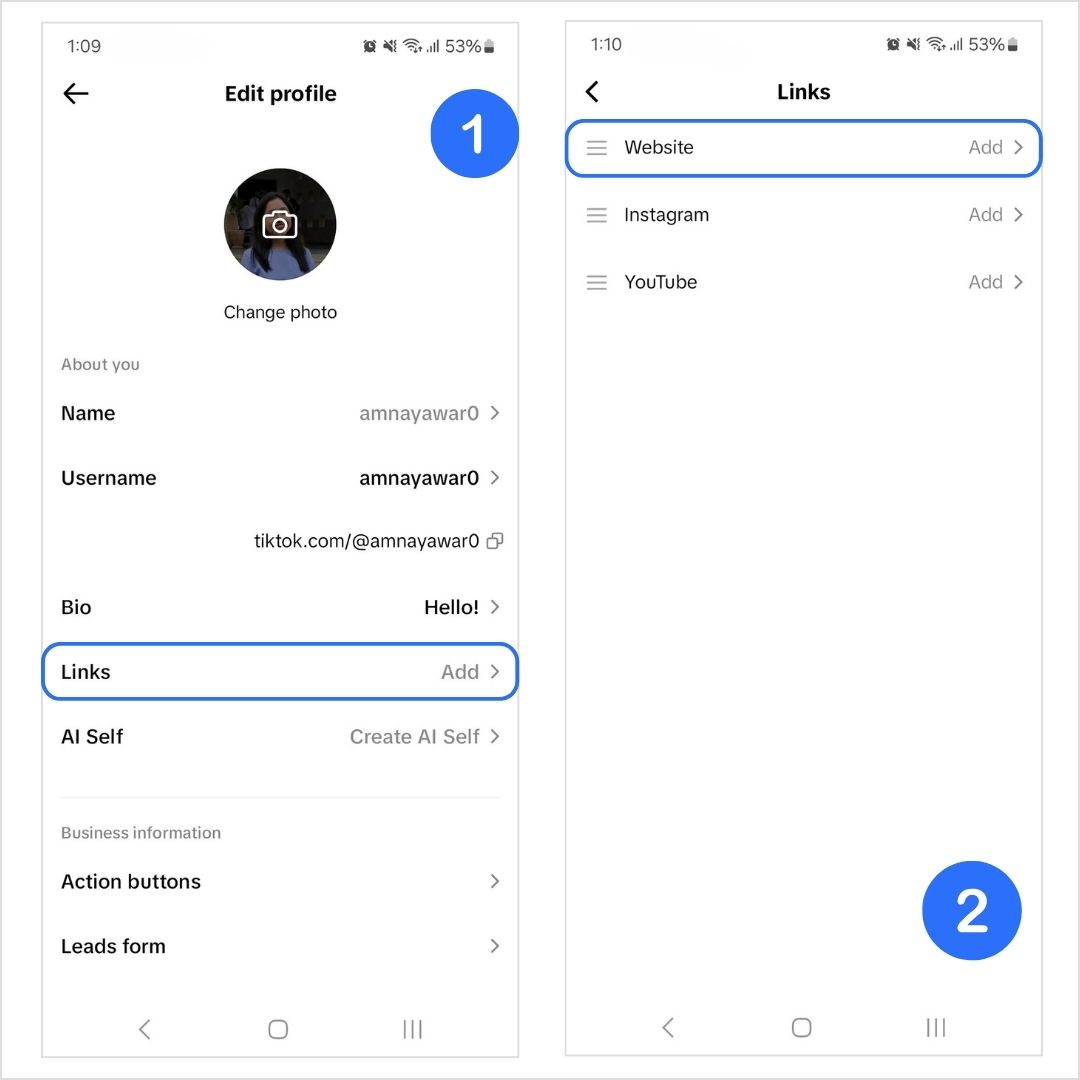
    1. Open the TikTok app and go to your profile by tapping the profile icon in the bottom-right corner of the homepage.
    2. Tap “Edit Profile.”
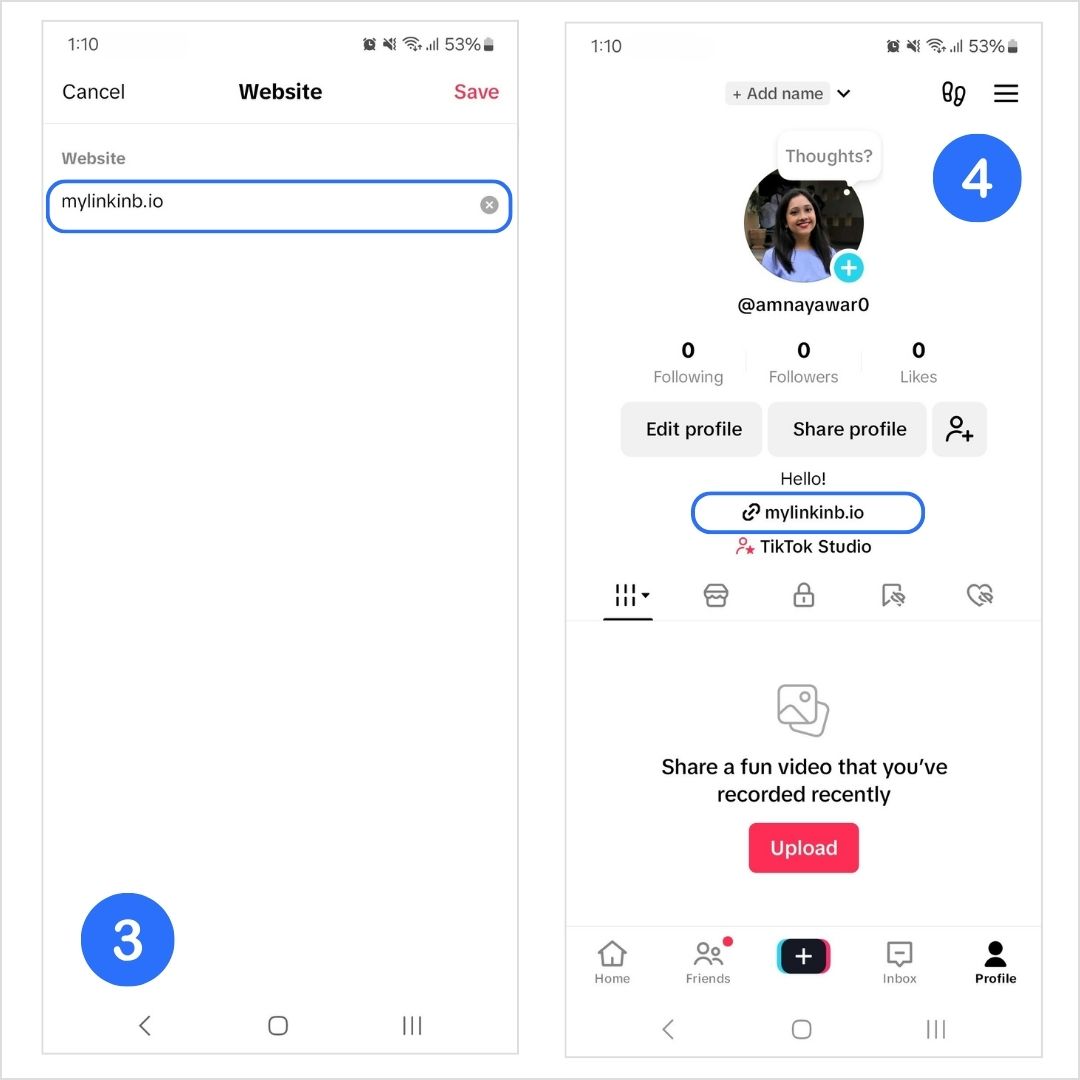
    3. Click on “Links” to add your bio link to your TikTok profile. You can do this by clicking on “Website”
    Boost ROI with branded URLs - Replug dashboard showing performance metrics and branded URL creation
    Turn your bio links into click-boosting machines
    Check

    Drive up to more clicks than plain URLs

    Check

    Share multiple destinations with one link

    Create bio links free

    What to do if you can’t see the option for “Website”

    The Website feature isn’t currently available everywhere. If the “Website” section isn’t showing up for you, there are a few things to consider:

    • Meet the follower requirement: Personal Accounts need at least 1,000 followers to add a website link.
    • Switch to a Business Account: Clickable links in bios without a follower limitation of 1,000 are only available for Business Accounts.
    • Use the Mobile app: Links can only be added through the TikTok mobile app, not the desktop version.

    Switching to a TikTok business account

    If you’re using a personal account but want to add a bio link for your business, consider switching to a Business Account. This will give you access to more features, including the ability to add a clickable link.

    Here’s how to make the switch:

    1. Tap on your profile icon in the bottom-right corner.
    2. Tap the hamburger menu (three lines) in the top-right corner to open the Settings & Privacy menu.
    3. Select Account.
    4. Tap Switch to Business Account.
    Switch to business account
    1. Once you’ve switched, head back to your profile, tap Edit Profile, add the linktree you’ve created using Replug under the Website section.

    Now you’re all set to drive traffic to your website and other resources directly from your TikTok bio!

    Read also: How to add a linktree to Instagram?

    Why use Replug for your linktree?

    Replug is designed to elevate your TikTok linktree with advanced customization, powerful analytics, and other unique tools that can help you stand out and grow your audience. 

    Here’s why you should use Replug to generate a linktree for your TikTok bio:

    1. Customize your linktree page: Replug gives you full control over the look of your linktree, making it easy to match the design with your TikTok vibe. With Replug, you can customize your template according to your brand personality, add a verification button, a custom favicon image, and multiple blocks (links, social, video, RSS, text, separator, and spacing) to your bio site. The possibilities are endless!
    2. Custom and branded links: With this efficient link shortener, you can create a custom URL for your linktree. If you have a branded domain, even better! You can connect your domain to your custom URL and generate a branded short link that instantly tells your followers that your link it all about you.
    Replug Branded Short Links CTA
    Maximize marketing ROI
    by transforming ordinary URLs into
    branded short links that convert.
    Try Replug for free
    1. Link analytics: Replug’s detailed analytics allow you to track a variety of metrics to understand what’s working and what’s not.
    2. Advanced retargeting: Replug’s retargeting pixels feature allows you to reach out to people who have interacted with your linktree links but haven’t taken action yet. With personalized ads or follow-up campaigns, you can bring those users back to complete the conversion, whether that’s making a purchase, signing up for your newsletter, or another goal.
      Link management & quick updates: One of the best features of Replug is the ability to easily manage your links. TikTok moves fast, and what was relevant last week might not be today. With Replug, you can quickly update your linktree without having to constantly change your TikTok bio. Whether you’re pushing a limited-time offer or promoting a new TikTok video, you can ensure that your links are always up-to-date.
      Mobile-optimized: Since TikTok is a mobile-first platform, Replug’s linktree design is fully optimized for smartphones and tablets. You won’t have to worry about your linktree looking clunky or hard to navigate.
    3. SEO-friendly: Replug allows you to adjust your linktree’s metadata, title, and description, making it easier to be discovered via search engines. This feature helps you increase your visibility, both on TikTok and beyond, driving organic traffic from Google and other search platforms to your linktree.

    Conclusion

    And that’s a wrap! Adding a linktree to your TikTok bio is an easy way to share multiple links in one place, making it easier for your followers to access all the important content you want to share. With Replug, you can take it a step further by customizing your linktree, tracking performance, and even retargeting visitors to drive more conversions.

    If you haven’t created your linktree yet, now’s the time to give it a go and make your TikTok bio more impactful!

    FAQs on how to add a linktree to Tiktok bio

    Can I add a link to my TikTok bio without having 1,000 followers?

    You can add a link to your TikTok bio without having 1,000 followers if you have a business account. However, this is not possible if you have a personal account.

    What’s the best way to add multiple links to my TikTok bio?

    Since TikTok only allows one bio link, using a bio link tool like Replug helps you create a mini landing page with multiple links, whether it’s your website, store, or latest content.

    What are the requirements for adding a link to your TikTok bio?

    To add a clickable link to your TikTok bio, you need:

    – At least 1,000 followers if you have a personal account. Otherwise, you’ll need a registered business account.
    – You must have the TikTok app installed on your mobile phone.
    – Your account must comply with TikTok’s community guidelines and terms of service.

    How can I put a link in my TikTok bio without having a business account?

    – If you have 1,000 TikTok followers on your personal account, you’ll be able to add a website link or a linktree in your TikTok bio. 
    – If you want to add a link with less than 1,000 followers, you can simply copy-paste your link in the bio section. It won’t be clickable, but it’s better than not having a link at all. 

    How do I add an Instagram link to my TikTok bio on iPhone?

    To add an Instagram link to your TikTok bio on iPhone:

    1. Open the TikTok app and go to your profile.
    2. Tap “Edit profile.”
    3. In the “Instagram/Youtube” section, tap “Instagram.”
    4. Enter your Instagram username or link, then tap “Save.”
    5. Your Instagram link will now be in your bio.

    How can I measure the performance of my TikTok bio link?

    Some bio link tools provide detailed insights, including total clicks, unique visitors, and traffic sources. This helps you understand what’s working and optimize your links for better engagement.

  • How to add a linktree to Instagram?

    How to add a linktree to Instagram?

    Instagram may have finally allowed multiple links in bios, but it’s still not the most user-friendly way to share all your important content. If you’re a creator, business owner, or marketer, you probably have more than just five links to share. That’s where a bio link tool, often called a ‘linktree’ tool, comes in handy. Instead of cluttering your bio or constantly swapping out links, you can create a single Instagram linktree that leads your followers to all your content.
    In this blog, we’ll discuss how to add a linktree to Instagram and how linktree tools such as Replug can make your Instagram bio stand out.

    How to add a linktree to Instagram using Replug

    Step 1: Create a bio link using Replug

    Replug’s bio link/linktree feature lets you add multiple links under one URL. 

    Boost ROI with branded URLs - Replug dashboard showing performance metrics and branded URL creation
    Turn your bio links into click-boosting machines
    Check

    Drive up to more clicks than plain URLs

    Check

    Share multiple destinations with one link

    Create bio links free

    Step 2: Copy your Replug linktree

    • Open the Replug app.
    • Go to “Bio Links”.
    Go to bio links
    • Copy the linktree URL that you want to display on your Instagram.
    Copy Replug linktree

    Step 3: Open the Instagram app and go to your profile

    • Open the Instagram app on your smartphone.
    • Tap the profile icon at the bottom right of your screen.
    Go to Instagram profile

    Step 4: Edit your profile

    Once you’re on your profile, click on the Edit Profile button. This is where you can edit your bio and add links to your Instagram profile.

    Edit Instagram profile

    Step 5: Paste your linktree URL

    • Click Add Link
    Add a link to Instagram
    • Click Add external link
    Add an external link to Instagram
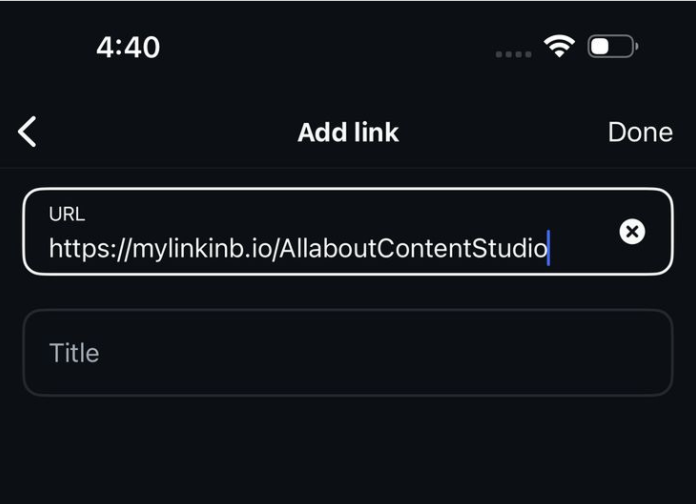
    • Paste your Replug linktree in the URL bar and give it a title as well.
    Paste your Replug linktree
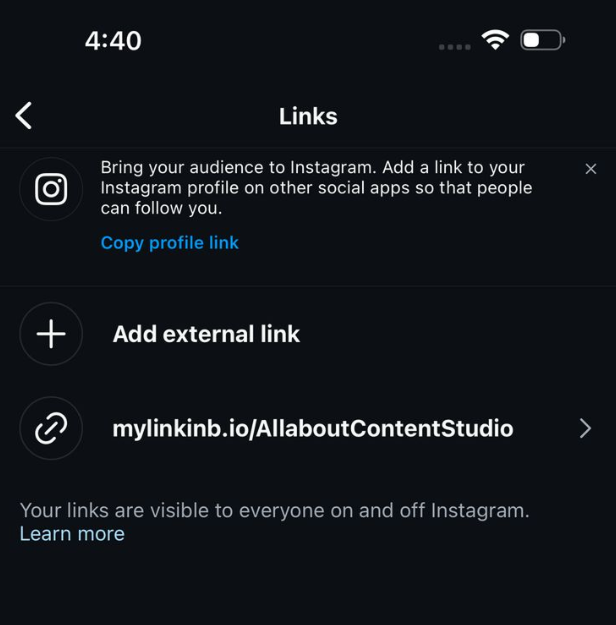
    • Save. Now, your linktree will be visible to your audience on your Instagram. 
    Instagram linktree

    Why Replug is the best choice for your linktree

    Your Instagram linktree should do more than just hold a few links. With Replug, you can create a fully customized, branded, and data-driven linktree that helps you drive more engagement and conversions.

    Full customization: Replug allows you to create your bio site to match your brand’s look and feel. You can customize templates, colors, favicons, and add multiple content blocks, including links, videos, social icons, and more.

    Branded links: Instead of a generic link, create a custom URL or connect your own domain to make your bio link look more professional and trustworthy, with this top-notch URL shortener.

    Powerful analytics: Track total clicks, unique clicks, referral sources, and geographic data to see exactly where your audience is coming from and which links are performing best.

    Retargeting features: Replug lets you add retargeting pixels so you can re-engage visitors with personalized ads and campaigns, helping you maximize conversions.

    Easy link management: No need to change your Instagram linktree every time you have a new offer or post. With Replug, you can update your link page in seconds while keeping your bio link the same.

    Optimized for mobile and SEO: Your link page will be mobile-friendly and optimized for search engines, helping you increase visibility beyond Instagram.

    Mobile version of Replug linktree

    Conclusion

    Adding a linktree to your Instagram bio is an easy yet effective way to share all your important content without cluttering your profile. By following the simple steps outlined above, you can quickly set up your Linktree using Replug and make your bio more organized and user-friendly. 

    Not only will this save you time and effort, but it will also give you the opportunity to personalize your linktree, track valuable data, and keep your audience engaged. With Replug’s powerful customization and analytics features, your Linktree will do much more than just link to your content; it will help drive conversions and boost your online presence. 

    So, get started today and optimize your Instagram bio like a pro!

    FAQs for how to add linktree to Instagram

    What are the best Linktree tools for Instagram?

    There are several great Linktree tools, but Replug stands out with its advanced customization, analytics, and retargeting features, making it a top choice for creators and businesses.

    Can I track the performance of my linktree links?

    Yes, Replug offers detailed analytics that track clicks, sources, and geographic data, helping you understand your audience’s behavior and optimize your content.

    Can I track the performance of my linktree links?

    Yes, many linktree tools, including Replug, offer analytics to track clicks, sources, and engagement, helping you understand which content works best.

    Can I update my linktree links without changing my Instagram bio?

    Yes! You can update your linktree content in real-time using Replug, so your Instagram bio link stays the same while you refresh the links inside your linktree.

    Can I customize the look of my Instagram linktree?

    Yes! Replug is great for customizing your Instagram linktree. You can choose from a variety of templates, customize the colours, add blocks, and much more!

    Is my Linktree mobile-friendly?

    If you use a good linktree tool, then yes. Linktree pages are mostly optimized for mobile devices, ensuring they work well across all smartphones and tablets.

    How do I manage multiple links in my bio?

    Replug is great for managing multiple Instagram links in one place. With just one URL in your bio, you can guide your followers to all your important content.