Your TikTok is popping, your Discord server is thriving… but the two aren’t linked? C’mon now. That’s like having a hype squad and forgetting to invite them to the main event.
Whether you’re building a community around gaming, memes, or chaotic late-night convos, adding your Discord to your TikTok bio can turn passive scrollers into active members.
And good news? You’ve got options.
In this guide, we’ll show you two ways to add your Discord link to your TikTok bio: one using TikTok’s built-in method, and the other using Replug’s built-in link in bio maker (for when you want to do more with one link).
Let’s go!
Why add your Discord link to TikTok?
A viewer discovers your TikTok, enjoys your content, and wants to join your Discord community. But without a link in your bio, they’re left unsure of what to do next. What now?
Answer: nothing. Because that curiosity? Gone.
By adding your Discord link, you:
Funnel your TikTok audience to your Discord community.
Build deeper connections with fans.
Create a space for announcements, drops, convos, and more.
In short: TikTok + Discord = the ultimate creator combo.
Now, let’s look into 2 easy methods to add your Discord server link to your Tiktok bio:
Method 1: Add your Discord link using TikTok’s native option
TikTok lets you add one clickable link in your bio, so if Discord’s your main hangout, this method will work.
Step 1: Grab your Discord invite link
First, generate an invite link from Discord:
On mobile
Click on a server from the side navigation.
Click on the “Copy Link” icon to copy your invite link.
On desktop
Click on a server from the side navigation.
Click “Invite your friends”
Copy the server invite link and send it to a friend.
Tip: Click on “Edit invite link” and set the expiration date to “Never” so that your audience doesn’t end up on a dead link.
You’ve got your Discord link, now let’s plug it into TikTok.
Option A: If you have less than 1,000 followers
You’ll need to switch to a Business Account to unlock the “Website” field.
Here’s how:
Go to TikTok > Profile > Tap the three lines (☰).
Tap Settings & Privacy > Account > Switch to Business Account.
Choose any category (like “Personal Blog” or “Gaming”).
Go back to your profile and tap Edit Profile.
Paste your Discord link under the “Website” section.
Option B: If you have 1,000+ followers
You can keep your personal account and still get the link feature:
Open TikTok > Tap Profile.
Hit Edit Profile.
Paste your Discord invite in the “Website” field.
Now anyone visiting your TikTok can click and join your server.
Method 2: Add a clickable bio link using Replug
You don’t want to keep handing out Discord links.
If someone wants to join your jamming or streaming server, they shouldn’t have to DM you for it. Just drop your Replug bio link in your TikTok profile, and let them choose where they want to go.
No more juggling links or repeating yourself. Replug is an all-in-one link management platform that keeps all your important links, such as your Twitch, Merch, YouTube, and Discord servers, neatly in one place.
Plus, you can create branded short links effortlessly with Replug’s URL shortener free tool, making it easier to share and track every link across your platforms.
And if you ever shut down a server? Just remove it from your Replug bio link page. That’s your subtle way of saying, “yeah… that era’s over.”
Customize your link slug. A custom URL ensures that you stay on brand and recognizable.
Add a title and meta description.
Upload a picture and favicon (optional, but chef’s kiss).
Drop a tracking pixel if you’re into analytics or retargeting ads.
This is what the final preview looks like:
Step 5: Add it to TikTok
Copy your Replug bio link and paste it in the “Website” field of your TikTok profile. Now, when someone clicks it, they get a full-on hub with all your links, including your Discord.
A complete link management solution
for marketing professionals & agencies.
Try Replug for free
To wrap it up
Just want a clickable Discord link? Use TikTok’s native bio link.
Want to link everything and look pro? Replug’s your best bet.
Pick the method that fits you best, but don’t let your TikTok bio go to waste. It’s your shortcut to a stronger, more connected audience.
Frequently asked questions
Can I add a Discord link to my TikTok bio?
Yes! Use the Website field under “Edit Profile.” Just make sure the link doesn’t expire.
What if I have less than 1,000 TikTok followers?
Switch to a Business Account. That will unlock the feature for adding a website link.
Can I link more than just Discord?
Absolutely. You can use an advanced link management tool like Replug to build a sleek, multi-link bio page.
What if I don’t see the Website option on TikTok?
Make sure your app is updated Switch to a Business account If you’re under 18 or in certain regions, this feature might not be available yet
Can I share my Discord server on TikTok?
Absolutely! Switch to a TikTok Business Account, then add your Discord invite or server link as your TikTok bio link to your profile’s website section.
Ever wonder how top Instagram creators effortlessly grow loyal communities across platforms? Their secret: smart cross-promotion, especially linking YouTube to Instagram.
While Instagram’s one-link bio rule may seem limiting, smart creators use it to their advantage by linking their YouTube channel or videos right where it matters most.
YouTube is where your long-form content lives. Instagram? It’s where people discover you. Connecting the two not only boosts views but builds trust and loyalty across platforms.
In this guide, we’ll show you exactly how to add your YouTube link to your Instagram bio (with or without an Instagram link in bio tool), and which types of content actually get people to click. Ready to turn casual followers into loyal subscribers? Let’s dive in.
Method no 01: Add a YouTube link to bio natively on Instagram
Step 1: Copy your YouTube link
For your channel: Go to your YouTube channel > tap the three dots > tap “Share” > copy the link.
For a video: Open the video > tap “Share” > copy the link.
Step 2: Open Instagram and edit your bio
Go to your Instagram profile
Tap “Edit profile”
Paste the copied YouTube link in the Instagram bio field
Tap “Done” or the checkmark. Your YouTube link is now live in your bio!
Method no 02: Add a YouTube link to bio using link-in-bio tool
Our link in bio generator lets you showcase multiple YouTube links under one smart link – no need to update your bio every time. Use Replug.io: it’s affordable, easy to use, and packed with features like link tracking, customization, and branding.
Here’s how to add your YouTube link to Instagram using Replug’s bio link feature.
Go beyond generic link pages!
Create custom bio links that truly fit your brand
With Replug, you can create bio links that are unique, engaging, and built to convert.
Go to Replug and log in (or create an account). Once you’re inside, Go to the bio link dashboard and click on “Create new”.
You’ll spot three categories there Branding, Content and Settings.
Step 1: Customize the page
Under the Branding tab, customize your profile:
Add a title, description, profile image, verified badge, background image, and theme.
Once you’re done adding everything, click the “Update” button located in the corner.
Step 2: Add your Youtube links
Go to the Content tab. Click “Links” to add your YouTube videos, playlists, or channel.
Now you can add your preferred Youtube links by adding a custom title and link in the block.
Each block is customizable – add titles, icons, and scheduling options.
You can also embed YouTube videos directly or mix in text, social buttons, and cards.
You can easily rearrange or remove any block before going live. When everything looks perfect, just click “Publish” in the top-left corner to launch your custom bio link page.
Step 03: Optimize & track performance
Before sharing your bio link page, give it an SEO boost: Add a custom meta title, description, favicon, and featured image or Insert tracking pixels (Facebook, TikTok, Google, etc.) for retargeting and conversion tracking.
Once you’re done adding everything. Customize the bio link as per your preference and copy it.
Your custom landing page is now ready to shared on Instagram.
Step 4: Add Replug link to your Instagram bio
Open your Instagram profile
Tap “Edit Profile”
Paste your Replug link in the “External link” field.
This link will now lead your followers to your custom page with all your important YouTube links!
Your bio landing page is now live in your bio, giving your followers easy access to your YouTube content and more.
Adding your YouTube link to your Instagram bio is a small change that can bring big results. Whether you choose Instagram’s native method or a feature-rich link-in-bio tool like Replug, cross-promoting your content boosts visibility, builds deeper audience connections, and increases engagement across platforms. So don’t let your best content sit unseen, make it just one tap away.
For even cleaner, highly-optimized, and trackable URLs, try Replug’s free link shortener, to optimize and share your links effortlessly across all your social channels.
FAQs on adding YouTube link to Instagram bio
Can I add more than one YouTube link to my Instagram bio?
Not directly through Instagram, but with tools like Replug, you can create a landing page that includes multiple YouTube links under one smart Instagram bio link.
Will Instagram let me paste a clickable YouTube link?
Yes, but only one. You can paste a YouTube video or channel link in the “Website” field of your bio, and it will be clickable.
How often should I update my Instagram bio with a new YouTube link?
If you’re doing it manually, update it every time you post something important. If you’re using Replug, just update the dashboard and your bio stays fresh automatically.
Can I track clicks on my YouTube link in bio?
Yes! Replug offers detailed analytics to track clicks, location, devices, and even lets you add retargeting pixels for advanced campaign performance on your YouTube link in bio.
Affiliate marketing is one of the easiest ways to earn money online – whether you’re a creator, blogger, or run a business. And it all starts with a single link: the affiliate link.
Think of it as your personal tracking link. When someone clicks it and makes a purchase, you get paid. It’s that simple. But how does it actually work? And how can you make the most of it?
Let’s walk you through the basics, plus how tools like Replug can take your affiliate strategy to the next level.
Maximize marketing ROI
by transforming ordinary URLs into branded short links that convert.
Try Replug for free
Merchants (also called advertisers or retailers) who sell products or services
Affiliates (publishers or partners) who promote those products
Consumers who purchase the products through affiliate recommendations
The affiliate acts as an intermediary, connecting potential customers to merchants. In return for driving sales, the affiliate receives a percentage of each successful transaction.
What are affiliate links?
An affiliate link is a unique URL assigned to an affiliate (that’s you!) by a company or brand. When someone clicks on that link, makes a purchase, or completes a specific action, you earn a commission. Simple as that.
How affiliate links actually work?
When a merchant sets up an affiliate program, they generate unique tracking links for each affiliate. These links contain tracking parameters or cookies that identify:
The affiliate’s ID – A unique identifier assigned to each affiliate partner
The specific product being promoted – Often indicated in the URL structure
The campaign or promotional channel – To track which marketing efforts are most effective
Here’s what happens behind the scenes when someone clicks an affiliate link:
A consumer clicks on the affiliate link in a blog post, video description, or social media post
The link redirects them to the merchant’s website
A tracking cookie is placed in the consumer’s browser (typically lasting 7-90 days)
If the consumer makes a purchase within the cookie’s duration, the sale is attributed to the affiliate.
The merchant’s affiliate system (such as ReferralCandy) records the transaction and assigns the commission to the affiliate
Managing affiliate links
Every click matters in affiliate marketing. Replug helps you take control, track performance, boost conversions, and stay organized effortlessly.
Alongside managing affiliate URLs, many marketers also use tools like Referral Factory to build referral programs that work hand-in-hand with their affiliate strategy, letting them generate unique referral links, track conversions, and automate rewards for every successful referral.
For businesses running larger affiliate programs, an affiliate fraud detection tool can also help identify suspicious clicks, fake conversions, and other fraudulent activity before it impacts commissions or marketing budgets.
Here’s where Replug comes in
Affiliate links are powerful, but let’s be honest, they’re often long, messy, and not exactly click-worthy. That’s where this efficient custom link maker comes into play.
With Replug, you can:
Shorten and brand your affiliate links (turn that long URL into short branded URL)
Track clicks and conversions in real time with detailed analytics
Retarget users who click your affiliate links with ads, even if they don’t purchase right away
Customize link previews for better engagement across social platforms
Here’s how to shorten an affiliate link using Replug
Step 1:
Go to Replug and log in to your account. If you don’t have an account, sign up for free.
Step 2:
On the Replug dashboard, locate the “Quickly shorten your URL” field. And paste your affiliate link into the box.
Press Enter, and a pop-up window will appear. Here, you can customize the link to create a branded and recognizable URL.
Click the “Checkmark” to generate your shortened Replug link.
Step 3: (Additional step)
Replug offers powerful tools to help you maximize your affiliate earnings:
Let’s face it – our digital lives are everywhere. One minute it’s TikTok, the next it’s your Instagram, or YouTube.
Socials here. Portfolio there. Store somewhere else.
And expecting your audience to keep up? Not possible
Want to bring it all together?
That’s where a link gallery (bio link) comes in. It pulls everything together into one neat, clickable destination. So let’s get started.
Understanding link galleries
A link gallery (a bio link page) is a centralized landing page that houses all your important links in one convenient location. It’s an easy solution as it works as your business card or the modern equivalent of a website homepage, but streamlined for today’s fast-paced, mobile-first world.
Instead of asking followers to search for your various platforms or cramming multiple URLs into your social media bio, a link gallery provides a clean, branded solution where visitors can access multiple links with one URL.
Learn the link in bio meaning in detail for an even better idea of the concept!
What is the best way to create a link gallery(bio link)?
The best way to create a link gallery (also known as a bio link) is to use a dedicated link in bio tool. These platforms are designed to make it super easy to combine all your important links into a single, customizable page.
Introducing Replug.io: The Ultimate link gallery solution
While several link gallery tools have emerged, Replug.io stands alone as the comprehensive solution designed to address all the challenges of digital connection.
Go beyond generic link pages!
Create custom bio links that truly fit your brand
With Replug, you can create bio links that are unique, engaging, and built to convert.
First, log in to your Replug account. Don’t have one yet? Start with a 14-day free trial.
Once inside the dashboard, head over to the bio-links section and click on “Create new.” You’ll be taken to a setup window that’s divided into three tabs: branding, content, and settings.
Step 01: Customize your branding
Begin with the branding tab, where you can add your profile essentials, including:
Profile title
Verified badge
Bio description
Profile image
Background image
Custom theme
Once you’re done adding everything, click the “Update” button located in the corner.
Step 02: Add content that converts
Now for the fun part: adding your links and content blocks. Replug allows you to include a variety of rich media elements like:
Social media buttons (up to 8)
Website or landing page links
Text blocks, separators, and spacing for a clean layout
Before sharing your bio link page, give it an SEO boost:
Add a custom meta title, description, favicon, and featured image
Insert tracking pixels (Facebook, TikTok, Google, etc.) for retargeting and conversion tracking.
Now you’re good to go! Share your unique Replug bio link across all major platforms: Instagram, TikTok, Facebook, X (Twitter), LinkedIn, and beyond.
Moreover, beyond aesthetics, Replug galleries are built for performance. Lightning-fast loading speeds, mobile-optimized displays, and accessibility features ensure every visitor has a seamless experience, resulting in higher engagement and conversion rates.
More growth-oriented features
Replug goes far beyond basic link sharing. It’s packed with features built specifically to help creators, marketers, and businesses grow faster and smarter:
A complete link management solution
for marketing professionals & agencies.
Try Replug for free
Custom CTAs
Guide your audience to take meaningful actions, whether it’s signing up for a newsletter, watching a video, or making a purchase, right from your bio link page.
Retargeting pixels
Integrate Facebook, TikTok, LinkedIn, and Google Ads pixels to retarget every visitor who clicks your link. Perfect for running high-converting ad campaigns and increasing ROI.
Traffic routing
Send users to different destinations based on their device, location, or language, maximizing relevance and improving user experience.
Track your bio links efforts precisely by adding UTM parameters to each link, perfect for campaign performance monitoring in Replug.
Branded domains
Use your own custom domain to reinforce brand trust and consistency across all your marketing channels.
A/B testing
Test different versions of your bio link page to see what resonates best with your audience and optimize accordingly.
QR code integration
Generate QR codes for your link gallery and individual links, making it easy to share offline, on packaging, posters, business cards, or at live events.
Why link galleries have become essential
The rise of link galleries stems from genuine limitations in how we connect online:
Social media restrictions: Most platforms only allow one clickable link in your bio, creating the infamous “link in bio” problem.
Audience navigation: Followers shouldn’t need to hunt for your content across different platforms.
Professional presentation: Random link shorteners or multiple disjointed URLs look unprofessional and decrease click-through rates. (Pro Tip: Try this reliable link shortener to keep your links clean and branded.)
Analytics insights: Without a centralized link hub, tracking which destinations resonate with your audience becomes nearly impossible.
As our online presence continues to expand across an ever-growing landscape of platforms, having a centralized, branded hub for your digital identity isn’t just convenient, it’s essential.
Replug isn’t merely offering a product; it’s providing the solution to one of the most fundamental challenges in modern digital strategy.
Frequently asked questions
Can I use a link gallery as a mini-website for my brand or service?
Absolutely! A link gallery, especially with tools like Replug, can function as a sleek, mobile-first landing page that showcases your brand, portfolio, services, promotions, and contact links, all in one place.
What’s the difference between a link gallery and a traditional landing page?
A link gallery is simplified and optimized for social bios and mobile users. Unlike a full landing page, it focuses on multiple quick-access links and doesn’t require web development skills or hosting setup.
Is it possible to schedule content blocks to appear at specific times?
Yes! With advanced tools like Replug, you can schedule when each link or content block goes live, perfect for time-sensitive campaigns, limited offers, or event countdowns.
How do tracking pixels work in a link gallery?
Tracking pixels in Replug allow you to collect data on visitors and retarget them through ad platforms like Facebook, TikTok, and Google Ads – without them ever needing to leave your bio link page.
Sharing just one link on Facebook is simple, but what if you have multiple links to promote at once? No worries. Instead of posting several times or cluttering one post with too many links, you can create a neat, all-in-one bio link page using a bio-link tool.
What is a bio link tool?
A bio link tool is a platform that lets you create a single, shareable link (usually for your social media bio) that leads to a custom landing page filled with multiple links, buttons, or content blocks. We recommend you use Replug, as it’s the best bio link tool available on the market right now. Replug.io not only allows you to design a personalized landing page with all your important links in one place but also offers powerful features.
Go beyond generic link pages!
Create custom bio links that truly fit your brand
With Replug, you can create bio links that are unique, engaging, and built to convert.
Now, let’s explore how you can add multiple links to your Facebook bio or post.
Method 1: Share all links in one post (not ideal)
You can simply paste all your links in a single post. But let’s be honest: it looks messy, may confuse your audience, and you can’t track how each link performs. This method lacks both flexibility and professionalism.
Method 2: Create a bio-link page using Replug (recommended)
Here’s how to create a landing page using Replug.
Step 1: Log in to Replug
Start by logging into your Replug account. Head to the “Bio-Link” dashboard from the main menu.
Step 2: Create a new bio-link page
Click the “Create new” button in the upper-left corner. You’ll be prompted to fill in a few basic details:
Brand name
Description
A matching theme, background image, or color
This helps your bio page reflect your brand’s identity.
Step 3: Add your links
In the branding category, you’ll see multiple options for adding links.
Navigate to the “Links” section to add multiple links to your page.
Want your links to stand out? Customize each block with different button colors, sizes, or even schedule when they go live.
Want a full preview with an image, title, and description for each link? Head to the “Cards” section. This gives your links a richer appearance, just like link previews on social media.
This is how your cards will appear; you can easily adjust their size and shape to match your style.
A complete link management solution
for marketing professionals & agencies.
Try Replug for free
You can also drag and drop blocks to reorder them or tweak the design to your liking.
Step 4: Save and share
Once everything looks good, click the “Update” button in the upper-right corner to save your bio link page.
Now just copy your unique bio link and paste it in your Facebook post or profile. Done!
This is a much more polished and trackable way to share multiple links on Facebook and across all your social platforms.
Why choose Replug?
If you’re looking for more than just a basic bio link tool, Replug is your top-tier choice. It goes beyond the basics by helping you share, track, and convert, all in one place.
All-in-one bio link page builder: Add unlimited links, embed videos, show social icons, display rich link previews (cards), and completely customize the layout to match your brand.
Built-in analytics:Track clicks, views, and engagement on each link block. Know exactly what’s working and where your audience is clicking.
Retargeting made simple: Add Facebook, Google, or TikTok pixels to your bio link page and retarget visitors with ads, something most other tools don’t offer.
UTM and branded link shortening: Add UTM parameters for deeper campaign insights, and create short links using branded domains for trust and consistency.
Schedule content and links: Plan your link blocks in advance, set visibility timers, and show or hide content at the right time automatically.
Whether you’re promoting products, sharing content, or managing clients, Replug offers features that scale with your needs.
Conclusion
Sharing multiple links on Facebook doesn’t have to be messy or unprofessional. Instead of cramming several URLs into a single post, you can use a smart, streamlined approach and create a bio link page using Replug.
It allows you to showcase multiple links beautifully, track performance, and even retarget visitors. Whether you’re a creator, marketer, or small business, Replug makes it easy to manage and share multiple links on Facebook like a pro.
FAQs on Facebook links
Can I really share multiple links on Facebook in one go?
Yes! While Facebook allows only limited clickable link in bios, you can use a bio link tool like Replug to create one link that leads to a page with multiple links inside.
Is Replug free to use?
Replug offers a free trial, along with different pricing plans. You can test out its features before committing to a paid plan.
How is Replug better than pasting all links in a Facebook post?
Unlike cluttered posts, Replug gives you a clean, customizable landing page where each link is presented clearly. Plus, you get link tracking, design control, and retargeting options.
Can I change my links after sharing the bio link?
Absolutely! You can update, remove, or rearrange the links on your Replug bio page anytime without changing the main bio link.
Does Replug work only for Facebook?
Nope! You can use your Replug bio link across platforms like Instagram, Twitter (X), TikTok, and LinkedIn, as well as in emails or YouTube descriptions.
Want to share a video without sending long links or bulky files?
A QR code makes it effortless. Whether it’s a YouTube tutorial, a product demo, or important information on Google Drive, just scan and watch.
In this guide, we’ll walk you through the easiest way to turn your video into a QR code that’s ready to share anywhere – flyers, packaging, presentations, or social media. No tech skills needed!
Methods for creating video QR codes
Creating a QR code for your video is simple and can be done in a few ways:
Free QR code generators: Use free tools like Replug’s QR Code Generator. Just paste your video link, customize, and download the code.
Drawback: Limited tracking features and customization options.
YouTube QR code tools: Some platforms offer direct options for YouTube videos, perfect for quick sharing. Replug also has a YouTube QR code generator that you can use to create dynamic and customized QR codes for your videos for free.
Drawback: Only works for YouTube videos, limiting flexibility for other platforms.
Dynamic QR code tools: Platforms like Replug let you create custom QR codes, track scans, retarget viewers, and update the video link anytime without reprinting.
Drawback: No drawbacks! Only benefits
Choose what suits your needs: simple share or full-featured marketing!
What is Replug, and why use Replug to make a QR code for your video?
Replug is a powerful link management and marketing tool that allows you to create optimal short links and manage branded, dynamic QR codes for your videos.
Unlike static QR codes, dynamic QR codes allow you to update the linked content without changing the QR code itself. This makes it ideal for marketing campaigns, promotions, and tracking video engagement.
Maximize marketing ROI
by transforming ordinary URLs into branded short links that convert.
Try Replug for free
Here’s why you should use Replug to make a QR code for your video:
Create branded dynamic QR codes
See how many people scanned your QR code
Retarget viewers with ads
Edit the link anytime without changing the QR code
Copy the video URL from the browser address bar or use the “Share” button to copy the link.
Step 02: Create a branded link in Replug
Log in to your Replug dashboard. In the top-left corner, you’ll see an empty field. Paste your video URL there and press enter. A pop-up will appear with options to customize your link.
Step 03: Customize your link
In the pop-up, you’ll find multiple features like link shortening, the ability to add tags, customization of the link preview, A/B testing, password protection, and more.
Customize your link as needed – this URL will appear when someone scans the QR code. For maximum visibility and reach, consider also consulting with the best YouTube SEO agencies to optimize how your link and content perform on the platform.
Step 04: Generate the QR code
In the link creation process, look for the QR code generation option.
It’s located right after the “Shortened link” bar.
Click it, and a new pop-up will appear. You can further customize the QR code’s appearance here.
Step 05: Download and use your QR code
Test the QR code by scanning it with your phone to ensure it directs to the correct YouTube video.
Once satisfied with your QR code, download it in your preferred format (PNG, SVG, etc.) and share it as needed
A complete link management solution
for marketing professionals & agencies.
Try Replug for free
Whether you use free online generators for quick sharing or go for Replug’s dynamic QR codes for tracking and retargeting, there’s an option for every need. Don’t forget to follow best practices, like ensuring scan quality and testing your code before distribution. With the right QR code, your video will reach your audience in no time – effortlessly!
Frequently asked questions
What are the best practices for creating video QR codes?
1.Test the code: Always scan the code yourself before sharing it to make sure it links to the correct video. 2. Ensure good scanning quality: Make sure the QR code is clear, large enough, and placed in a visible spot. 3. Use dynamic QR codes: This allows you to update the link without changing the code, offering greater flexibility. 4. Provide instructions: Include clear instructions next to the QR code, guiding users on how to scan it.
Where can I use video QR codes?
Video QR codes are versatile and can be used in various places, such as: – Product packaging: Link to instructional or promotional videos about the product. – Business cards: Share your introduction or portfolio video with potential clients. – Event posters: Link to event highlights, schedules, or behind-the-scenes footage. – Educational materials: Include video lessons or supplementary resources alongside written content. – Print advertisements: Drive traffic to video campaigns or product demonstrations.
What’s the difference between static and dynamic QR codes?
– Static QR codes: These are fixed once created. The content or URL cannot be changed without creating a new code. – Dynamic QR codes: These allow you to edit the linked content (e.g., update a video URL) without changing the QR code itself. They are perfect for marketing campaigns and tracking purposes.
How can I track the performance of my video QR code?
With dynamic QR codes like those generated with Replug, you can track: – Number of scans: See how many people scanned the code. – Location data: Learn where the scans are coming from. – Device and time information: Understand when and on what device your video was viewed. This data helps you measure the effectiveness of your campaigns and make improvements.
VSCO is a popular platform for photographers and creators to showcase their work, but sometimes, its links can be long and unappealing. Whether you’re sharing your VSCO profile on social media or adding it to your Instagram bio, a branded short link makes it cleaner, more professional, and easier to track.
With Replug, you can shorten, customize, and track your links effortlessly. In this guide, we’ll walk you through the simple steps to shorten a VSCO link using Replug.
Navigate to your profile or the specific post you want to share.
Tap the Share button and select copy your profile URL.
Step 2: Create a new shortened link
Go to the Replug app and log in to your account. If you don’t have an account, create a new one.
Once logged in, paste the VSCO link in the bar under Quickly Shorten your link.
Here’s what the auto-generated short VSCO link looks like:
Step 3: Save and copy your shortened link
Click Save Shortened Link to generate your final short URL.
Useful tip: Copy the shortened link and test it in your browser to ensure it redirects correctly.
Link shortener tools like Replug not only help you create short links but also make your link cleaner and more shareable, thus improving click-through rates. Plus, you’ll also save space, making them perfect for platforms with character limits.
What else can you do with Replug?
With Replug, you can do much more than just shorten and track your VSCO links. Here are a few ways Replug can enhance how you share your VSCO content:
Create custom links: You can personalize your shortened VSCO link to match your brand or make it more recognizable. Whether it’s for your photography portfolio or a specific post, shortening a URL ensures that your link is memorable and professional.
Maximize marketing ROI
by transforming ordinary URLs into branded short links that convert.
Try Replug for free
Track engagement: Replug allows you to add tracking and UTM parameters to your VSCO links. You can monitor which social platforms, websites, or campaigns drive the most traffic to your VSCO profile or posts. It’s a great way to measure your success and refine your strategy.
Create expiring links: Replug allows you to set expiration dates for links if you’re offering limited-time access to exclusive VSCO content (like behind-the-scenes shots or premium presets). Once the time is up, the link automatically redirects to another page, keeping your audience engaged with fresh content.
A/B test your links: Not sure which post or portfolio format attracts more visitors? With Replug, you can A/B test up to 10 VSCO links and track which one gets the most engagement.
Sharing across multiple platforms: Once you’ve shortened your VSCO link, sharing it becomes much easier. You can use your branded short link across various platforms, such as in your Instagram bio, social media posts, email newsletters, or even direct messages, without worrying about clutter or space limitations.
Optimizing for SEO: Creating an SEO-friendly URL builds trust with your audience and improves click-through rates. Plus, your VSCO link will always stay professional and on-brand with Replug.
Conclusion
Shortening your VSCO link with Replug makes it more professional, user-friendly, and trackable. Whether you’re sharing your photography portfolio or a specific post, a short and clean URL improves the user experience.
Start using Replug today and optimize how you share your VSCO content!
Frequently asked questions
Will a shortened VSCO link affect my profile’s visibility?
No, shortening your link won’t impact your profile’s visibility. In fact, a clean, branded short link can make it more appealing and clickable, leading to more visits.
How to get VSCO link for my profile or post?
To get a link for your VSCO profile or specific post, simply open the VSCO app or website, navigate to the profile or photo you want to share, and click the “Share” button. From there, you’ll see an option to “Copy Link,” which will give you the direct URL to your profile or post that you can share on social media, emails, or anywhere else!
Can I edit a shortened VSCO link later?
Yes! With Replug, you can edit the destination URL without changing the short link itself, which is super handy for updating content without resending a new link.
Will my VSCO link expire after shortening it?
No. Most link shorteners, including Replug, do not have an expiration date for standard shortened links. Your VSCO link will remain active unless you delete or modify it.
Does VSCO allow link sharing on social media?
Yes, you can share your VSCO link anywhere. It can be on your Instagram bio, X (Twitter), Facebook, or even in emails. However, some platforms may require you to use a bio link tool if you want to display multiple links.
Why should I track my VSCO link clicks?
Tracking helps you see where your audience is coming from and which platforms drive the most traffic to your VSCO content. It’s useful for creators who want to understand their audience better and optimize their sharing strategy.
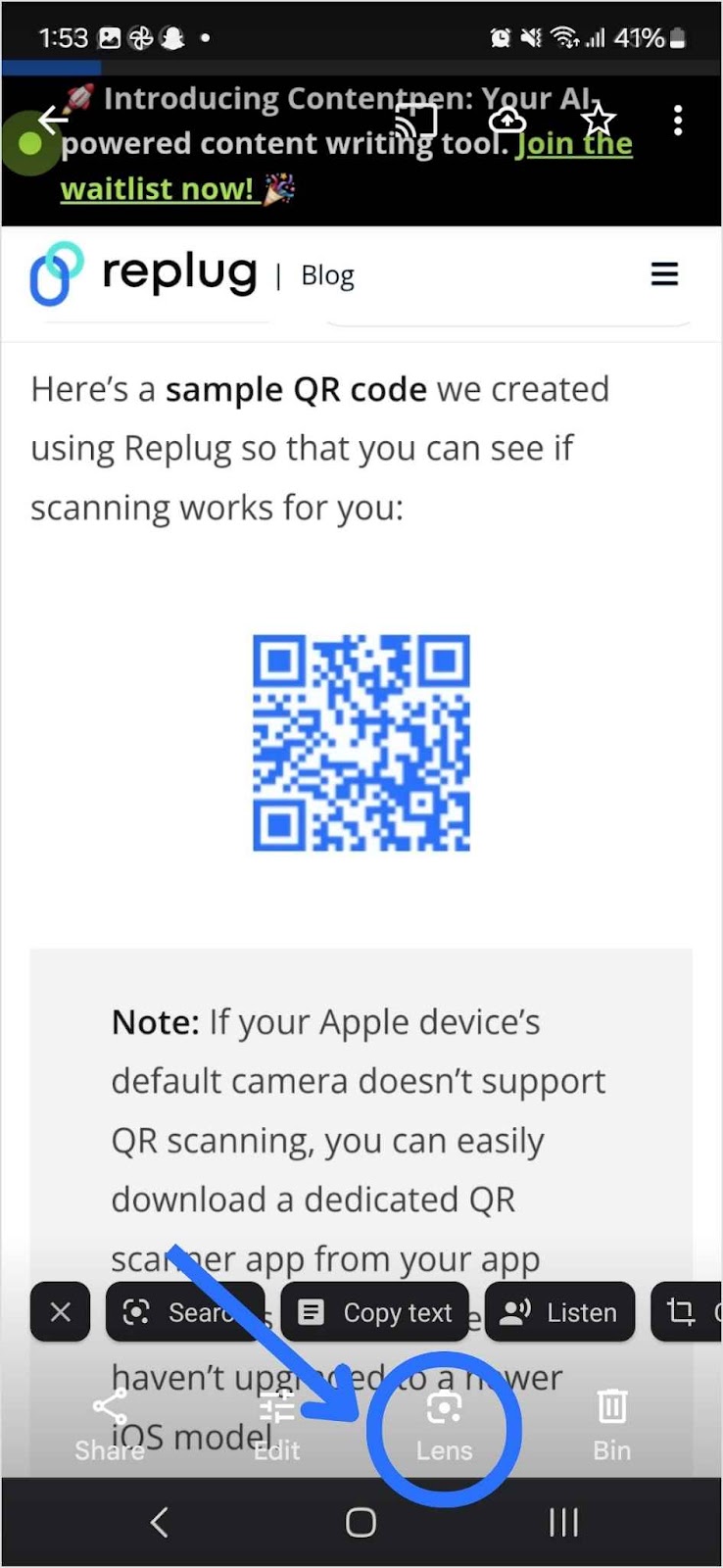
QR codes have become a staple in our daily digital interactions. From restaurant menus to payment links, they simplify access to important information. But what if you receive a QR code as an image rather than a printed version? Fortunately, both iOS and Android provide easy ways to scan QR codes from images.
In this guide, we will walk you through the simple steps for both iOS and Android devices. We’ll explore smart techniques, troubleshooting tips, and best practices to get the best results. As you read on, you might even consider how tools like Replug can boost your digital campaigns by offering advanced QR code tracking and analytics.
Let’s get started!
Why scan a QR code from an image?
QR code scanning from images means reading a QR code that is stored as a picture rather than captured in real-time by your camera.
The user perspective
Scanning a QR code from an image is practical for users because it allows them to interact with QR code content at their own pace. You can store and revisit QR codes, making it easy to keep a record of important information without worrying about losing a physical copy.
There are many scenarios where you might need to scan QR code from image rather than using your camera:
A friend sends a QR code via WhatsApp or email.
You take a screenshot of a QR code from a website.
A business shares a digital flyer containing a QR code.
You save QR codes for later use.
The marketer perspective
The ability to scan a QR code from an image opens up new pathways in digital engagement and record-keeping. Some key marketing benefits of QR codes for marketers include:
Longer campaign visibility: QR codes in images can be shared and saved, extending the life of a campaign beyond a single interaction.
Increased engagement: Users can interact with QR codes whenever they want, making them more likely to scan and take action.
Better tracking and insights: Marketers can analyze QR scan data using link management tools such as Replug, to refine their strategies and optimize conversions.
How to scan QR code from image on iOS devices
Apple devices are designed to make QR code scanning straightforward. Most modern iPhones and iPads feature built-in tools that simplify the process. Here’s how you can scan a QR code from an image on iOS:
Using live text feature (iOS 15+)
If you’re running iOS 15 or later, you can use Live Text to scan QR codes:
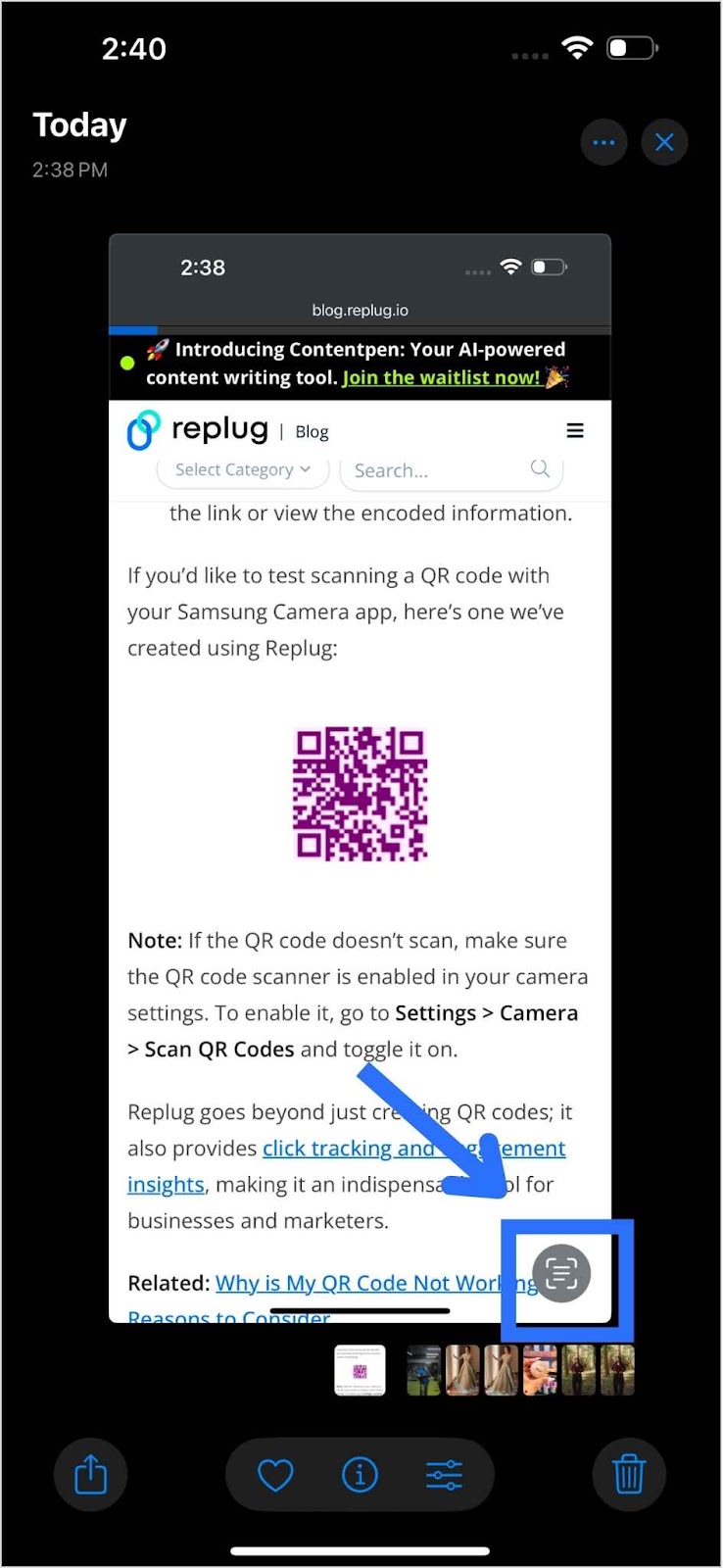
Open the Photos app and select the image.
Tap the Live Text button (a small square with lines inside).
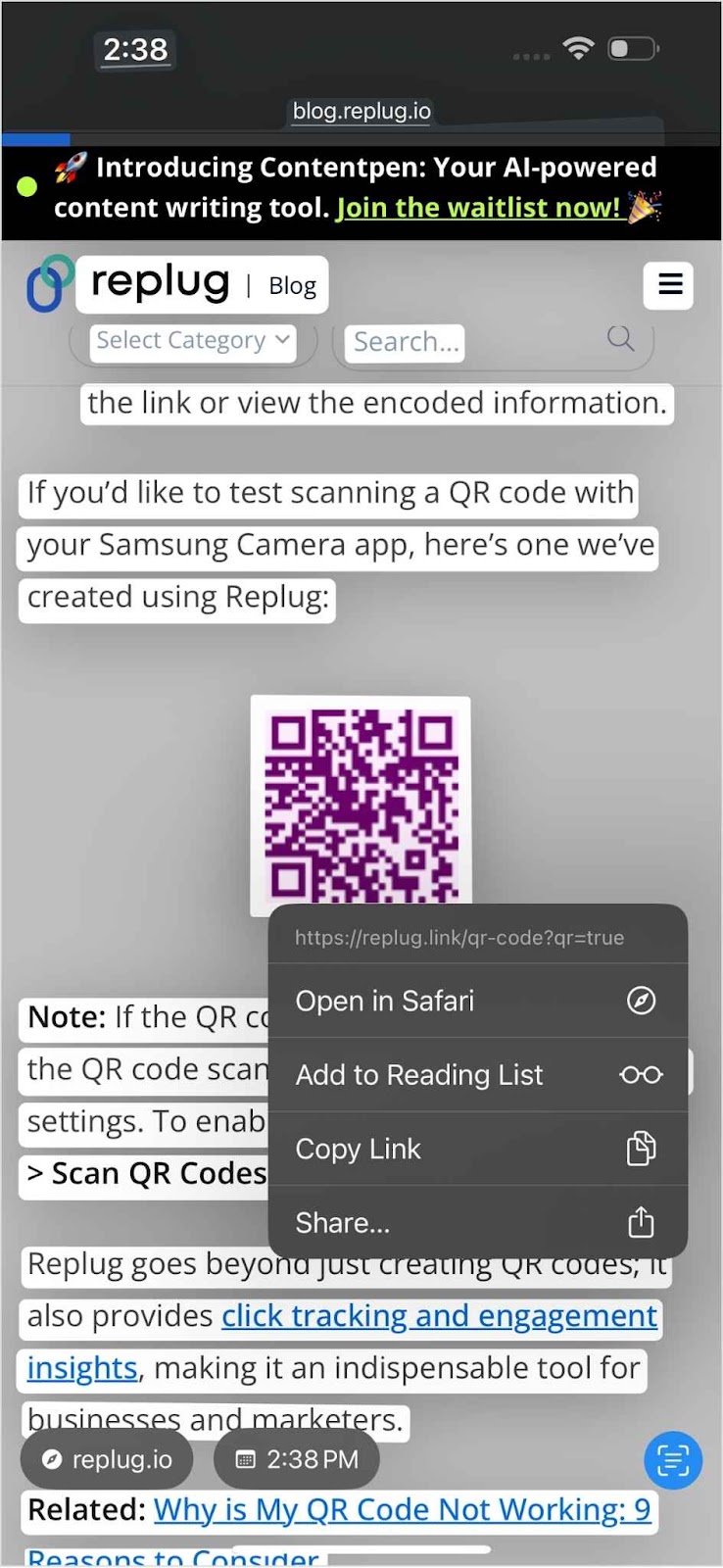
Tap on the QR code. A menu will appear with options like “Open in Safari” if the QR code directs you to a web link.
Choose your desired action based on the QR code content.
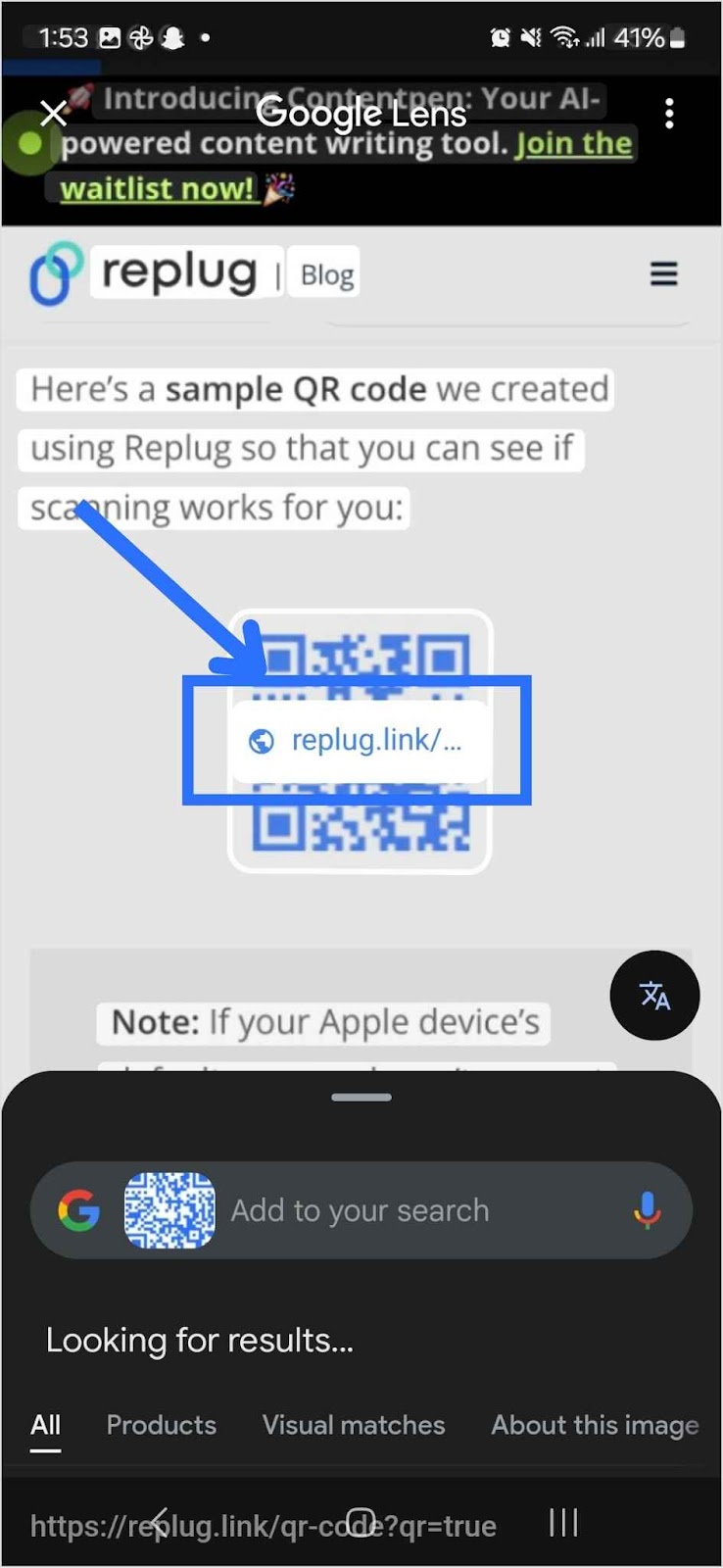
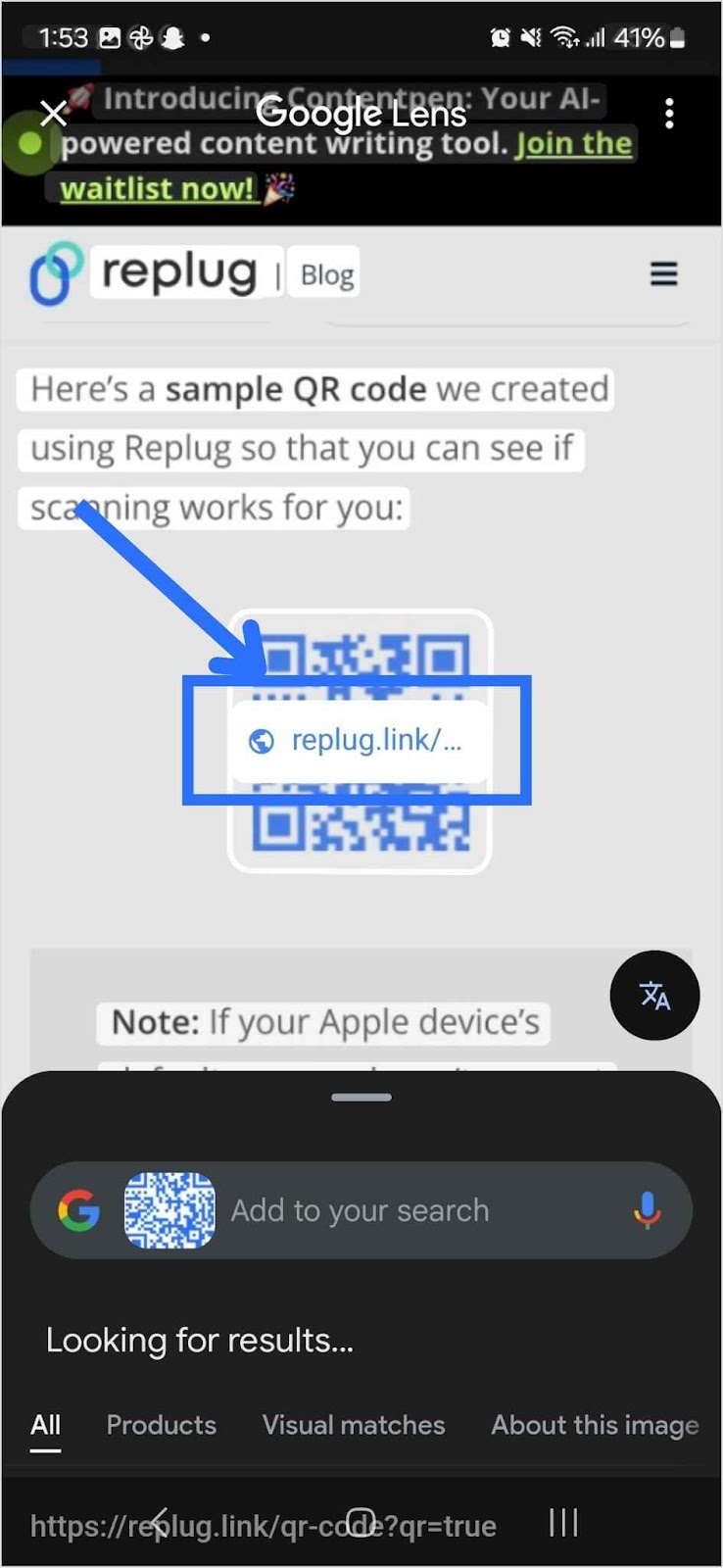
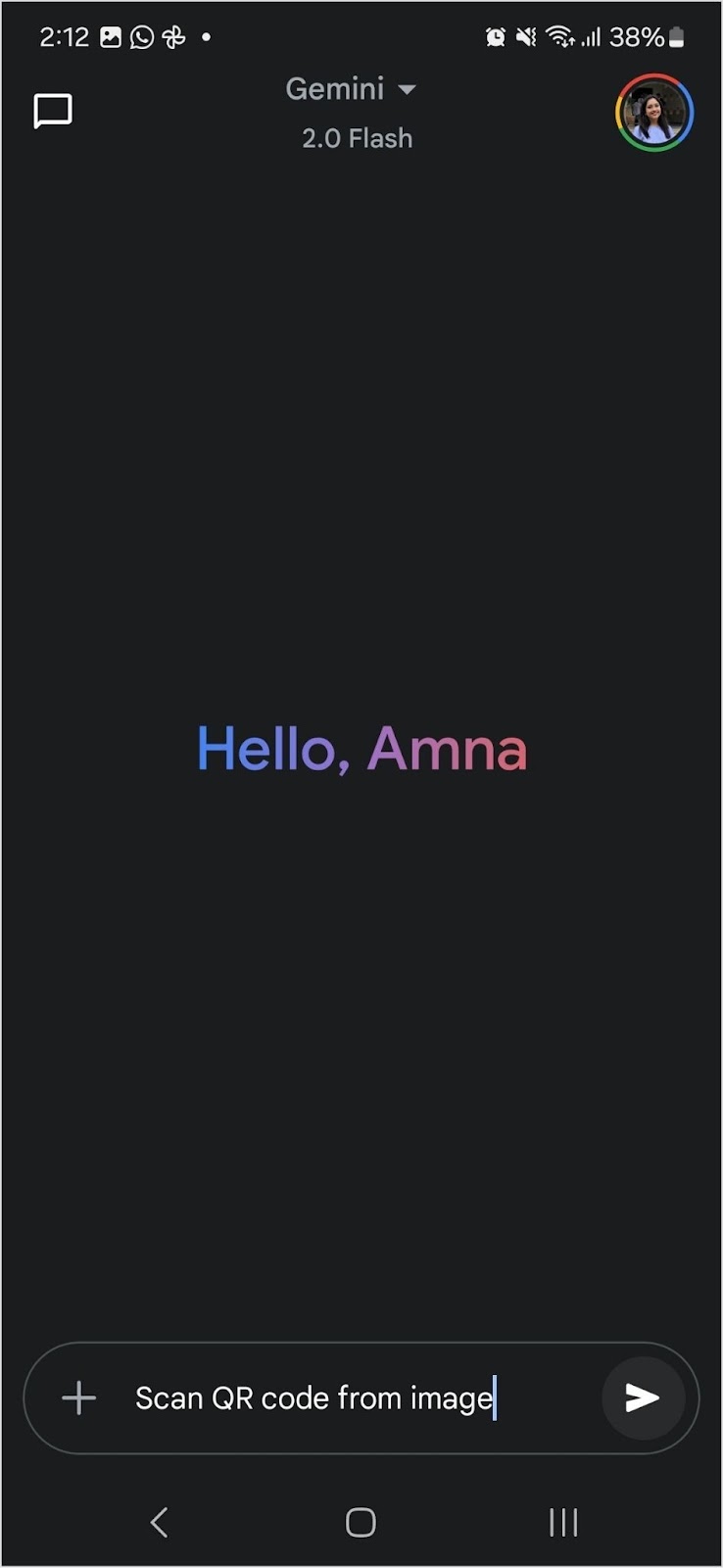
There might be a setting change where Gemini is the default assistant. This change might affect how your device responds to voice commands. If you prefer to use Google Gemini to scan QR code from image, here’s how to do it:
Look for Google Assistant on your Android device and Open Gemini.
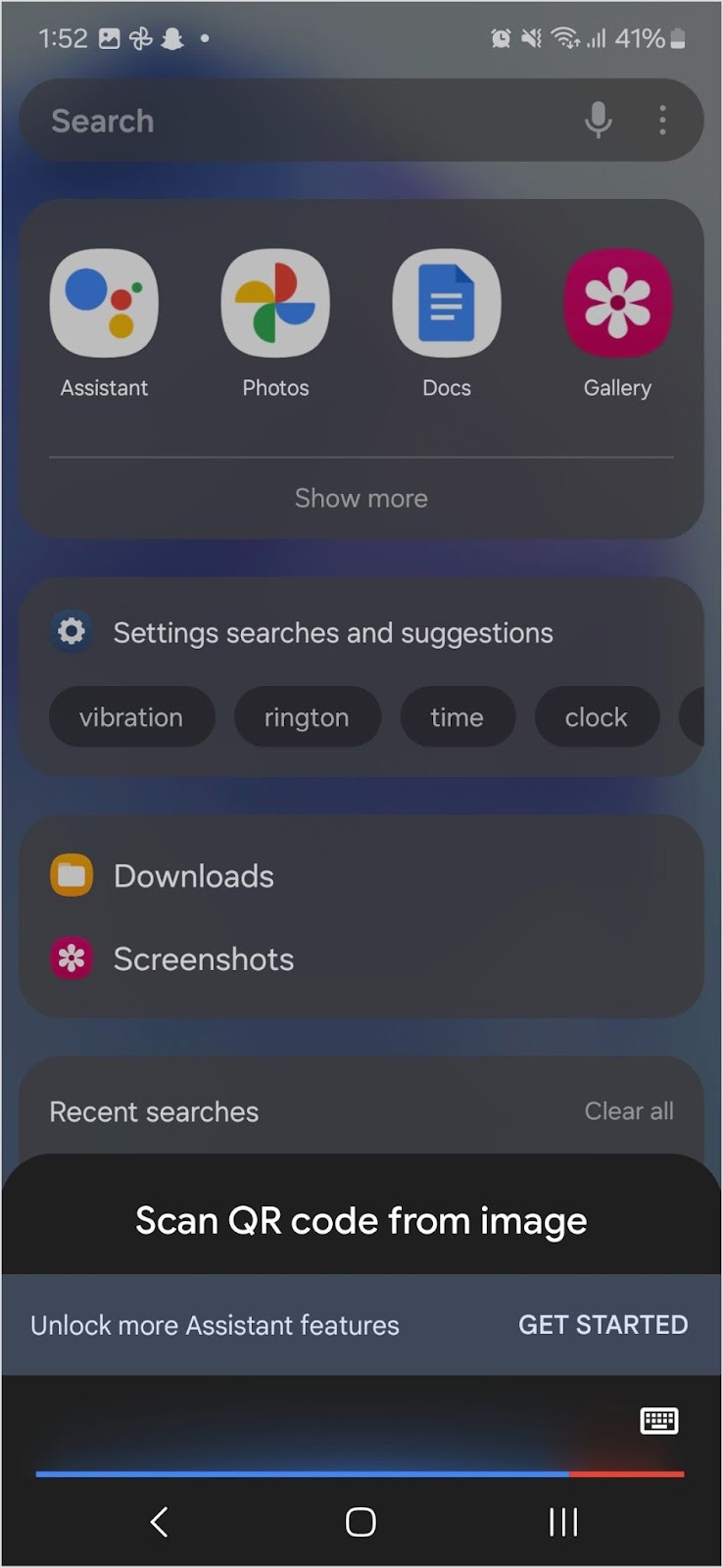
Type Scan QR code from image and enter.
Google Gemini will automatically lead you to a QR scanner app. Select Scan from the given options.
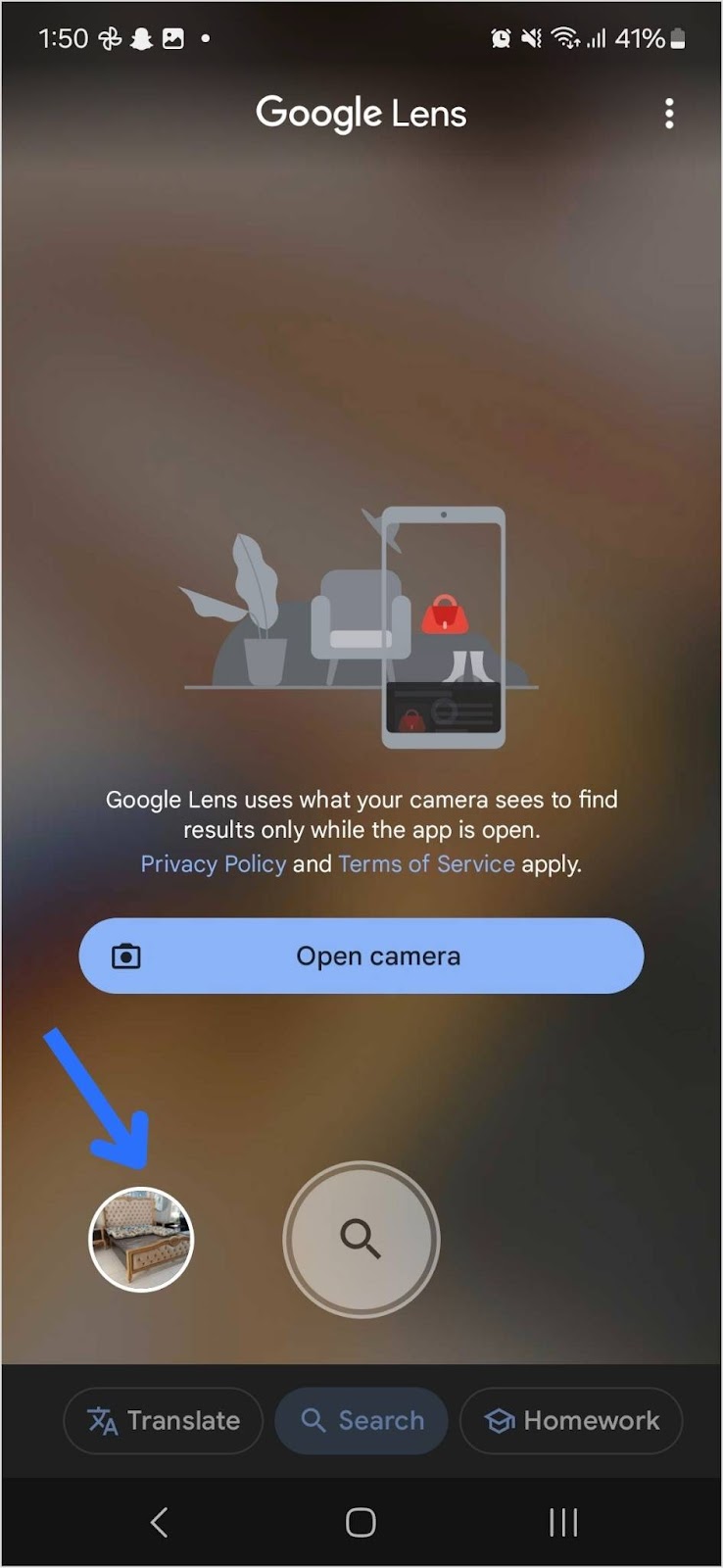
Go to Gallery.
Select the image with the QR code from Photos.
The QR scanner app will process the image and extract the QR code data.
How to scan a QR code from an image online
If you don’t want to install an app, you can scan QR code from image online using a browser. Several websites allow you to upload an image and extract the QR code content. Here’s how:
Visit a QR-scanning website.
Click on the Upload Image button.
Select the image containing the QR code.
The website will decode the QR code and display the result.
Maximize your brand with scans and more
QR codes aren’t just about scanning; they play a crucial role in marketing, branding, and link management. This is where a comprehensive link optimization platformsuch as Replug can help:
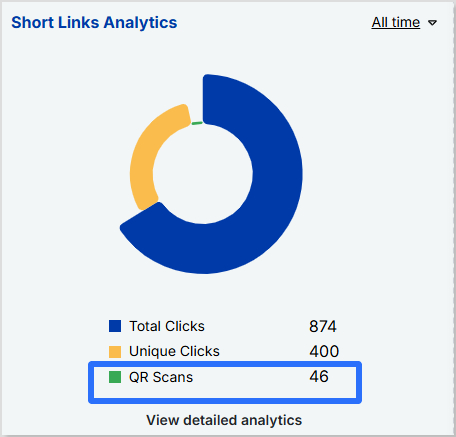
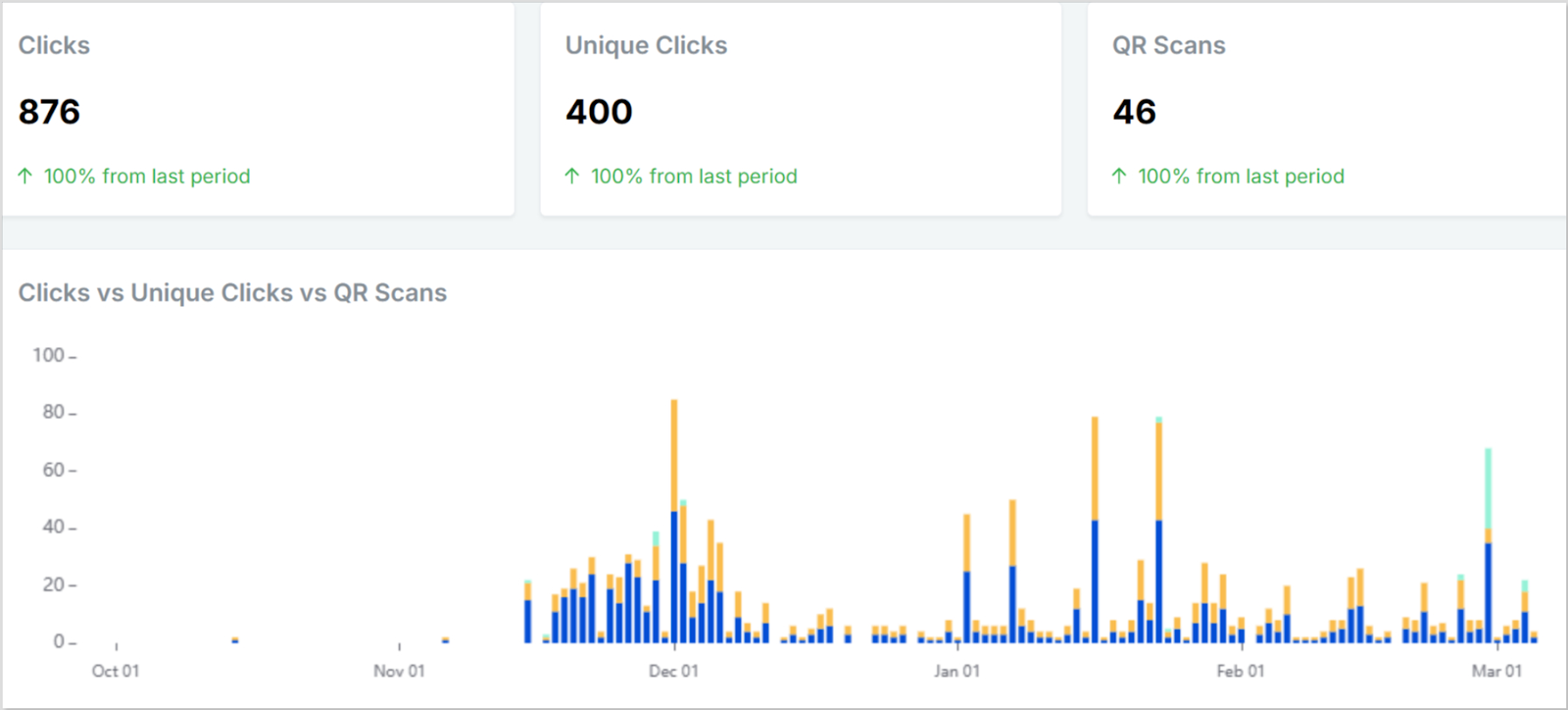
Track QR code scans
Monitor the performance of QR code scans in real-time.
Gather insights into user engagement and behaviour.
Identify the best-performing campaigns to optimize your strategy.
Manage QR campaigns
Create custom, branded short links with this efficient link shortener to attach to your QR codes to reinforce brand identity.
Manage all your QR code campaigns through a sleek and easy-to-navigate dashboard.
Give access to team members easily so that they can collaborate on campaigns, manage QR code designs, and share valuable insights.
Adjust campaigns based on what works best to increase engagement.
Maximize marketing ROI
by transforming ordinary URLs into branded short links that convert.
Try Replug for free
Benefits of using Replug for QR code campaigns:
Customization: Create custom QR codes with this efficient QR code generator. Change your QR code’s background and foreground colours to reflect your brand.
Dynamic QR codes: Edit the destination URL anytime without generating a new code.
Multiple download formats: Download your QR code in PNG or SVG format for flexible sharing.
With Replug, QR codes are more than just a gateway; they’re a valuable tool for tracking and enhancing your marketing campaigns!
Best practices for scanning QR codes from images
Ensure the QR code is clear and not blurry.
If a QR code is cropped or incomplete, it may not scan properly.
Adjust the brightness if the image is too dark.
Use trusted apps or built-in tools to avoid security risks.
If your device does not have an in-built QR scanning feature for images, download a third-party QR code scanning app from Play Store or Apple Store.
Always preview the link before opening it to prevent phishing attacks.
Conclusion
Now you know multiple ways to scan QR code from image on iOS, Android, and online platforms. Scanning a QR code from an image is quick and easy whether you’re using Google Lens, the Photos app, or an online tool.
It’s a convenient way to access important links without needing a physical code. Whether for personal use or marketing, having the right tools makes all the difference. With Replug, you can create customizable, trackable, and dynamic QR codes to enhance your campaigns and maximize engagement.
FAQs on how to scan QR code from image
Can I scan a QR code from an image without using an app?
Yes! Both iOS and Android devices have built-in tools like Live Text (iOS) and Google Lens (Android) that allow you to scan QR codes from images without needing a third-party app.
Why isn’t my phone detecting the QR code from an image?
This may happen if the image is blurry, cropped, or too dark. Try zooming in, adjusting brightness, or using a dedicated QR scanner app for better results.
Is it safe to scan QR codes from images?
Generally, yes. However, always preview the link before opening it to avoid phishing scams.
What should I do if my iOS device isn’t detecting the QR code?
Ensure your device is updated to the latest OS version. If the code isn’t detected, zoom in to improve clarity. Check the image for blurriness and capture again if needed. Use the Notes app to scan the QR code by creating a new note, tapping the camera icon, and selecting “Scan Documents”.
Can I change the destination of a QR code after it’s been shared?
If you’re using a dynamic QR code, you can update the URL without changing the QR code itself. Replug allows you to edit and track QR codes in real-time.
Do you want to tap into the massive audience of 5.17 billion social media users worldwide? Choosing between the best social media management tools can help you with this goal by streamlining your workflow, maintaining a consistent presence, and boosting social media engagement.
With social media being an ever-evolving space, it is vital to use reliable social media management tools and remain at the forefront of the AI-driven digital era.
Social media management tools and apps are meant to streamline the processes involved in managing digital presence across numerous social media platforms.
In this comprehensive guide, we will explore the top 10 social media management tools available in 2026, the importance of using such tools, and some tips and tricks for choosing the right tool for your needs.
Quick overview of the best social media management tools
Let’s look at the summarized differences between the top 10 social media management platforms.
Omni-channel analytics, social listening, AI-powered social strategy suggestions
$800/month (3 users)
Large teams and organizations looking for an all-in-one digital marketing suite
Advanced cross-platform analytics
Approval processes, inbox collaboration
What is a social media management tool?
A social media management tool helps users connect and manage multiple social media accounts from a single platform. These tools offer comprehensive features to streamline and enhance social media marketing efforts.
Key features often include post scheduling, competitor analysis, and social media analytics—each playing a vital role in optimizing campaign performance. Many of these tools also integrate with third-party apps to boost content effectiveness. For example, pairing your scheduling platform with a URL shortener like Replug enables you to track link performance, optimize engagement, and create short URLs that strengthen brand identity.
Boost ROI with branded URLs!
Enhance your marketing campaigns by creating shareable, trackable, and fully multi-purpose
customizable branded URLs.
Today, many marketers also rely on AI features built into these platforms for tasks like writing captions, suggesting content ideas, or even drafting replies. While this can save time, it also creates a challenge because AI-generated text can sometimes sound too generic, making it harder for brands to stand out. To truly connect with audiences, it’s important to keep your messaging authentic, unique, and aligned with your brand personality.
That’s why it is recommended to humanize AI text. They help refine raw AI copy so it feels more natural and engaging, ensuring your social posts don’t just fill feeds but actually spark genuine interactions. This balance of automation and personalization is what makes social media marketing impactful.
When choosing a social media management tool, especially if you’re looking for the best social media scheduler, consider factors like user-friendliness, integration options, analytics capabilities, collaboration features, and scheduling flexibility to find the best fit for your needs.
While we will be discussing this criterion in great detail later, let’s dive straight into the best social media management platforms you should explore in 2026.
ContentStudio comes at the very top of the list of best social media management tools. It can connect with all major social media platforms, including Facebook, Twitter, Instagram, TikTok, LinkedIn, Meta Threads, Tumblr, Google Business Profile, Pinterest, YouTube, and Bluesky.
Moreover, ContentStudio also supports integration with the top URL shorteners, image editing platforms, and carousel generator, enhancing your social media content creation process.
The versatile features of ContentStudio, including content discovery, scheduling, detailed analytics, automation, and an AI-powered content generator, make it a great platform for end-to-end social media management.
Moreover, ContentStudio has a built-in ‘best time to post’ mechanism that allows you to post your content at the perfect time and reach more people. Most importantly, you don’t have to break the bank in social media management with ContentStudio, as you can get its starter package at only $19 per month.
Key features
An intuitive and user-friendly interface makes it easy to explore and use different features of ContentStudio.
An aggregated social inbox allows you to view, manage, and respond to all the comments, mentions, and messages on social media accounts from the same place.
AI-powered writing assistant to help users speed up the process of writing social media captions, hashtags, social media posts, and even images before scheduling and publishing them.
Price
2. Buffer
Buffer is a highly user-friendly social media management tool. It enjoys massive popularity among small businesses and individuals due to its affordability and ability to perform the most necessary functions.
It offers several features to streamline social media management, including regular post scheduling, engagement analytics, and landing page creation. Moreover, Buffer’s collaborative features make it a reliable tool for brands with multiple social media team members.
Buffer’s ability to create landing and shoppable pages is a unique feature typically not available in other social media management tools. Therefore, it is an intuitive tool for e-commerce businesses and other social media pages that want to sell products via social media marketing.
Despite all these features, Buffer’s major disadvantage is that it does not support real-time analytics, so users have to wait a significant amount of time before evaluating a post’s performance.
Key features
Create generic social media posts or platform-specific posts to reach more people on social media.
Buffer has a built-in AI assistant that generates a lot of social media content ideas within a few seconds.
Limited analytics and reporting give you basic information about the effectiveness of your social media efforts.
Price
Buffer pricing model is quite flexible as it is dependent on the number of channels you want to manage through the platform.
3. Hootsuite
Hootsuite is one of the most popular social media management tools. It has made its mark by being an all-in-one platform for creating and scheduling content for all major social media platforms. In addition to organic social media marketing, Hootsuite also supports running social media ads.
Like most other tools, Hootsuite has integrated AI to write engaging content and social media posts. With the ability to monitor social media presence across 35+ platforms, Hootsuite is a great platform for well-established brands with multiple social media accounts. The only disadvantage, however, is that Hootsuite is quite complicated for beginners to understand and use.
Key features
Hootsuite supports bulk scheduling and posting on more than 35 social media platforms from the same dashboard.
It supports integration with many third-party apps, such as Canva and Dropbox, to improve your social media management strategies.
View the messages and mentions and respond to them from Hootsuite’s inbox.
Price
Hootsuite’s pricing starts at $99 per month, making it an expensive option that is mainly suitable for medium- and large-sized companies.
4. ContentBridge
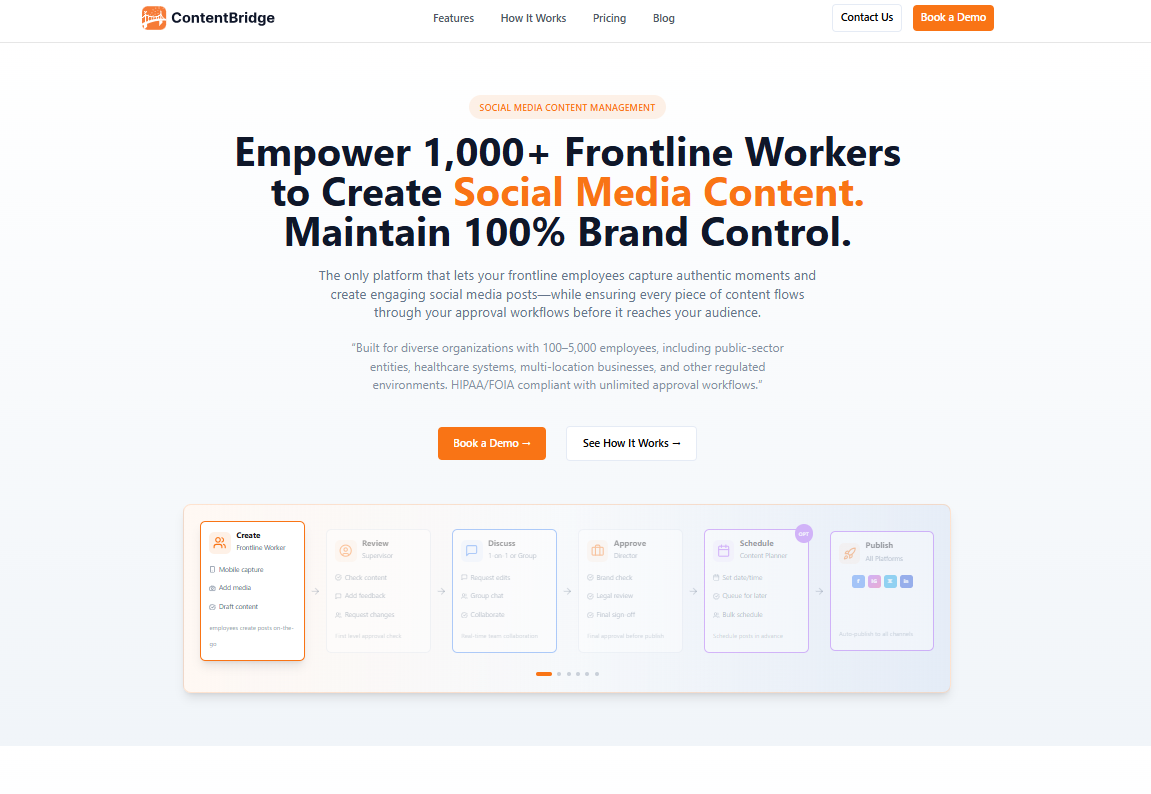
ContentBridge is a social media management platform built specifically for large organizations with 100 to 5,000 employees. It stands out from most tools on this list by enabling frontline workers to capture and submit content directly from the field using native mobile apps, while managers maintain full brand control through customizable multi-level approval workflows.
Its AI-powered assistant helps generate optimized captions, hashtags, and posts for Facebook, Instagram, X, LinkedIn, and TikTok simultaneously. While it is not the right fit for small teams or solo creators, its per-user cost is significantly lower than competing enterprise solutions at scale.
Key features
Customizable multi-level approval workflows to maintain brand consistency across distributed teams.
Native iOS and Android apps for real-time content capture and submission from the field.
AI-powered writing assistant to generate optimized captions, hashtags, and posts.
Built-in team chat for seamless collaboration during the content review process.
Price
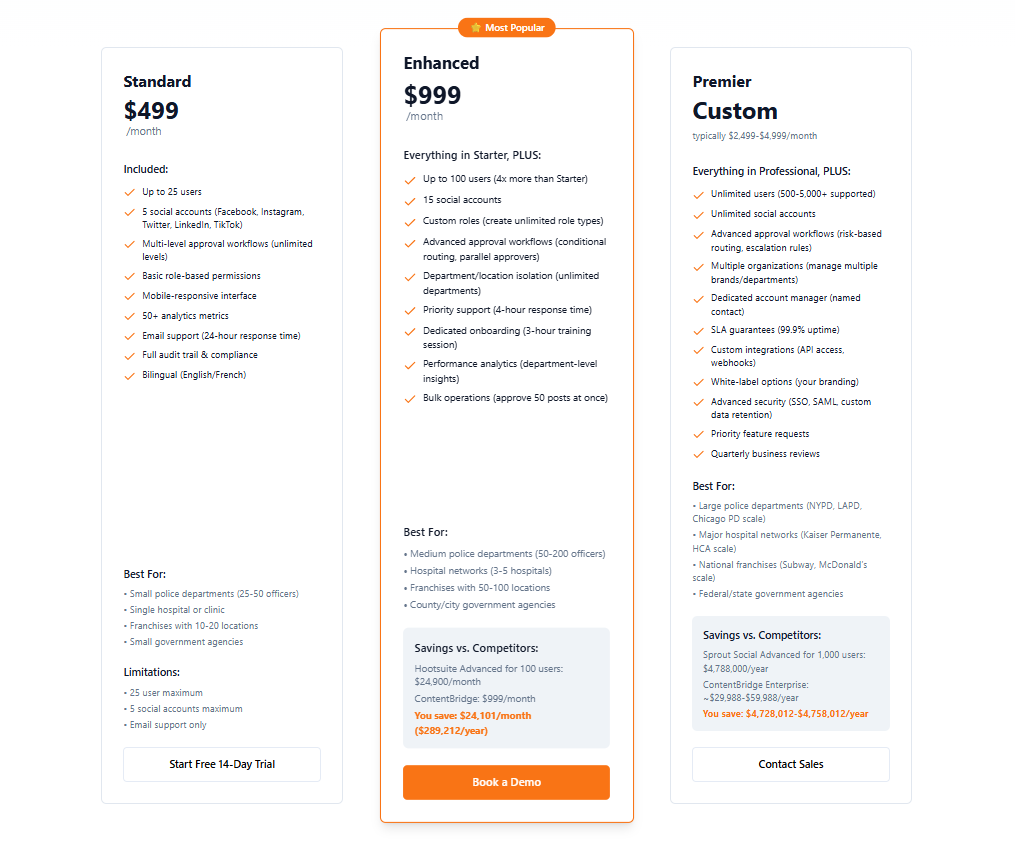
Price: Starting at $499/month for 100 users
5. Sprout Social
Sprout Social is an all-in-one social media management platform most suitable for medium and large-scale businesses. Its features include automated posting, detailed analytics, and wide-ranging connectivity with social media platforms like Facebook, Pinterest, YouTube, and X (Twitter).
Moreover, Sprout Social also offers third-party integration with tools like UserVoice and Zendesk to streamline social media management processes. Despite all these amazing features, Sprout Social has limited itself to well-established businesses that can afford at least the basic package starting from $199 per month.
Key features
Post your content on social media with the highest chances of engagement via ViralPost.
A comprehensive inbox to manage communication on all social media platforms from the same platform.
Measure and track the performance of all your social media marketing campaigns with thorough reports.
Price
6. Agorapulse
Agorapulse is another app for social media management that focuses on building a robust online community with the help of constant competitor analysis and monitoring. Its user-friendly interface makes managing your social accounts and running marketing campaigns from a single platform easy.
Even though Agorapulse has multiple packages to target different types and sizes of businesses, the most standard package starts at $79 per month. Therefore, it is only suitable for those brands and individuals who can allocate a significant budget towards social media management.
Key features
Multiple tools to curate content for different social media platforms.
Optimize the existing as well as new content to increase engagement.
Comprehensive performance analysis to track the progress of your social media campaigns.
AI-powered writing assistant to write captivating captions and posts.
Price
7. Sendible
Sendible has become one of the most affordable social media management platforms. Its basic plan of $25 per month (with annual billing) is sufficient to fulfill the basic social media management requirements of an individual or a startup.
Even though Sendible does not offer detailed competitor analytics, it is still a great platform for scheduling social media posts on all major platforms. A significant drawback is that users have complained about the quality of its customer service and lack of advanced features.
Key features
A comprehensive shareable calendar to facilitate communication and collaboration among the social media and content team.
Performance analytics to analyze the key metrics of your social media and tweak the marketing strategies for better results.
Provide recommendations about optimum posting times to help users post at a perfect time and reach more people.
Price
8. SocialPilot
If you are looking for an app for social media management with impressive collaboration features, you should check out SocialPilot. Its user-friendly interface also makes it a reliable tool for beginners and small businesses.
Whether you are looking for content curation, thorough performance analytics, or a centralized dashboard to manage all social networks, you will get these features in SocialPilot.
Key features
Connect 50+ social media accounts under the most premium package of SocialPilot.
A built-in AI assistant to help you write and generate captions, hashtags, and the overall content of your social media accounts.
An extensive library to help you generate content for various industries like tech, education, and health.
Price
9. CoSchedule
CoSchedule is quite different from the other social media management tools on this list. It has a special focus on planning a comprehensive social media content calendar. You can use this drag-and-drop calendar to schedule, organize, and publish your social media posts across Facebook, Instagram, X, YouTube, LinkedIn, Tumblr, and Pinterest.
A user-friendly calendar provides an overall view of your social media content strategy, making it easier to plan and execute campaigns effectively. CoSchedule can also promote other types of content, such as blog posts or upcoming events.
Key features
Create your own social sharing templates and plan so you can reuse them and save time.
Use the ReQueue feature to repost your top-performing social media posts and get more engagement.
Use a CSV file import to upload and schedule all your social media posts in bulk across multiple social media platforms.
Price
10. Later
Later was initially an Instagram scheduling tool. It has now rebranded itself into a full-fledged social media management tool. The platform has a centralized dashboard through which you can connect and manage your social media accounts.
The user-friendliness of Later means anyone can learn its usage quickly. Other than agencies and growing businesses, individuals can also use Later to grow their presence on social media. The tool still has many features specific to Instagram, so Later is a great platform for people focused on growing their Instagram accounts.
The two major issues you might face while using Later are its limited collaboration features and lack of detailed analytics for LinkedIn and Facebook.
Key features
An intuitive drag-and-drop calendar to make scheduling social media posts easy for the users.
Make the links trackable to monitor the landing page’s performance and social media metrics.
View all comments, brand mentions, and messages in the same section to produce relevant responses.
Price
Later’s pricing for small teams and individuals:
Later’s pricing for agencies and enterprises:
11. MeetEdgar
MeetEdgar is a highly automated social media management tool. It allows you to schedule your social media posts in advance and repeat your top posts occasionally to reach more people. This feature of automatically filling your queue with evergreen posts is unique in MeetEdgar.
The overall interface and organization settings of MeetEdgar are also quite impressive. You can categorize your content into different categories for posting at suitable times.
However, you cannot get any advanced features, such as comprehensive analytics, in MeetEdgar. So, there is a high chance that you will have to choose another social media management platform to handle all aspects of your social media presence.
Key features
Create a large, personalized content library to save time when posting on social media.
Automate the posting process by either scheduling new posts or reposting your evergreen content.
MeetEdgar includes an AI assistant called Inky to help users generate social media post captions and hashtags.
Price
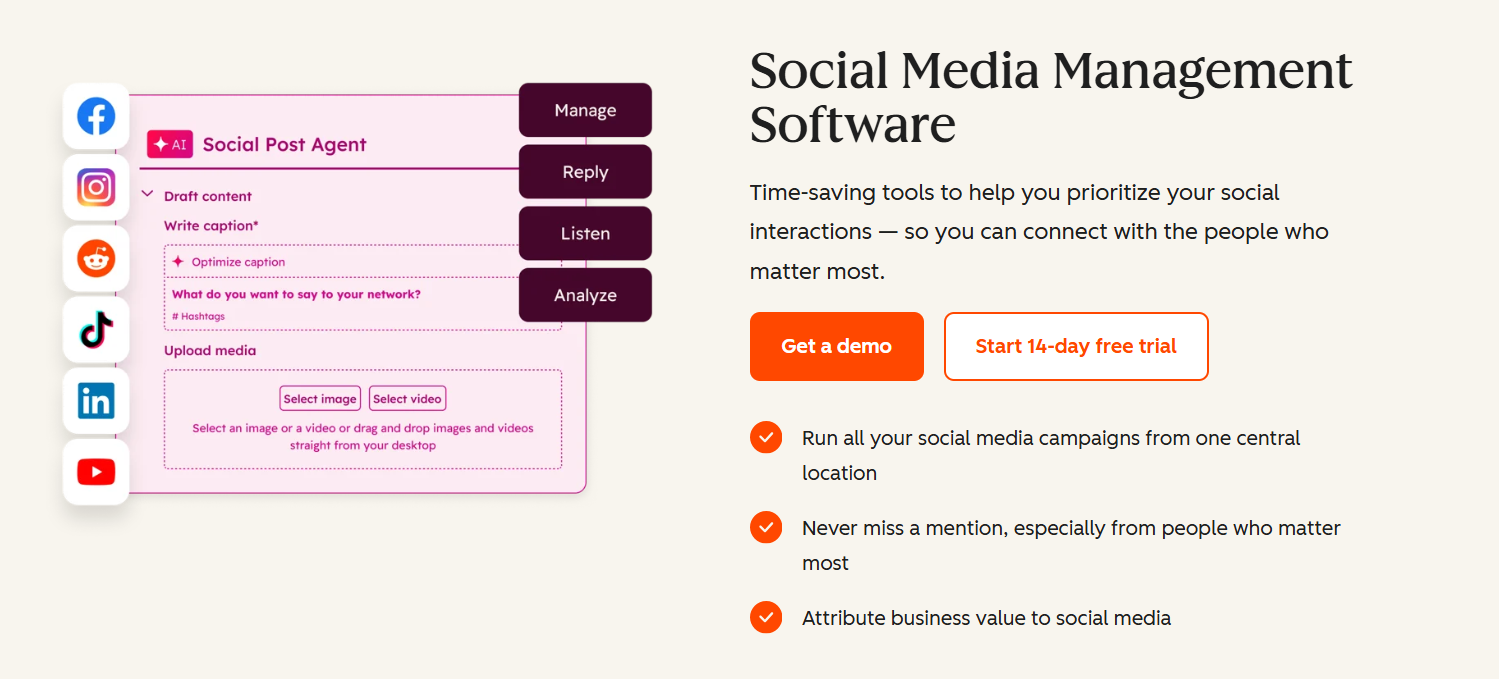
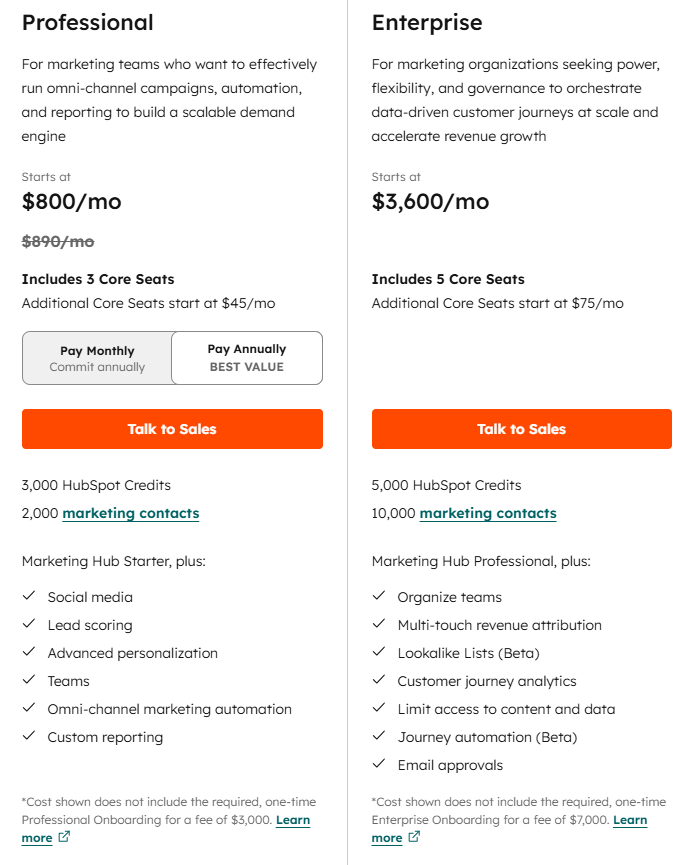
12. HubSpot Marketing Hub
HubSpot Marketing Hub includes a solid social media management solution that stands out through its social listening features. The platform’s keyword monitoring streams lets teams surface social conversations containing particular phrases from across multiple networks, Reddit included.
Team members can then prioritize critical feedback via HubSpot’s sentiment analytics, and also use HubSpot’s native CRM to link social interactions to in-depth customer profile databases – useful for lead generation and social customer service, for example.
Plus, the platform’s AI assistant provides ideal content topics, formats, and publishing times. Most importantly, Marketing Hub offers campaign management, tracking, and automation features that go beyond socials. It also handles websites, emails, SMS, ads, and more.
That means HubSpot Marketing Hub is an excellent option for companies looking to fully centralize cross-channel campaigns and see exactly how social media contributes to their overall marketing efforts.
Key features:
An intuitive interface with drag-and-drop calendars with easy access to social media-specific or general marketing automation features.
A unified inbox to view, manage, and respond to comments and mentions from across multiple channels.
AI assistants that help optimize publishing times, content formats, and topics.
Multi-network analytics dashboards with the option to compare metrics across other touchpoints (sites, emails, and more).
Price:
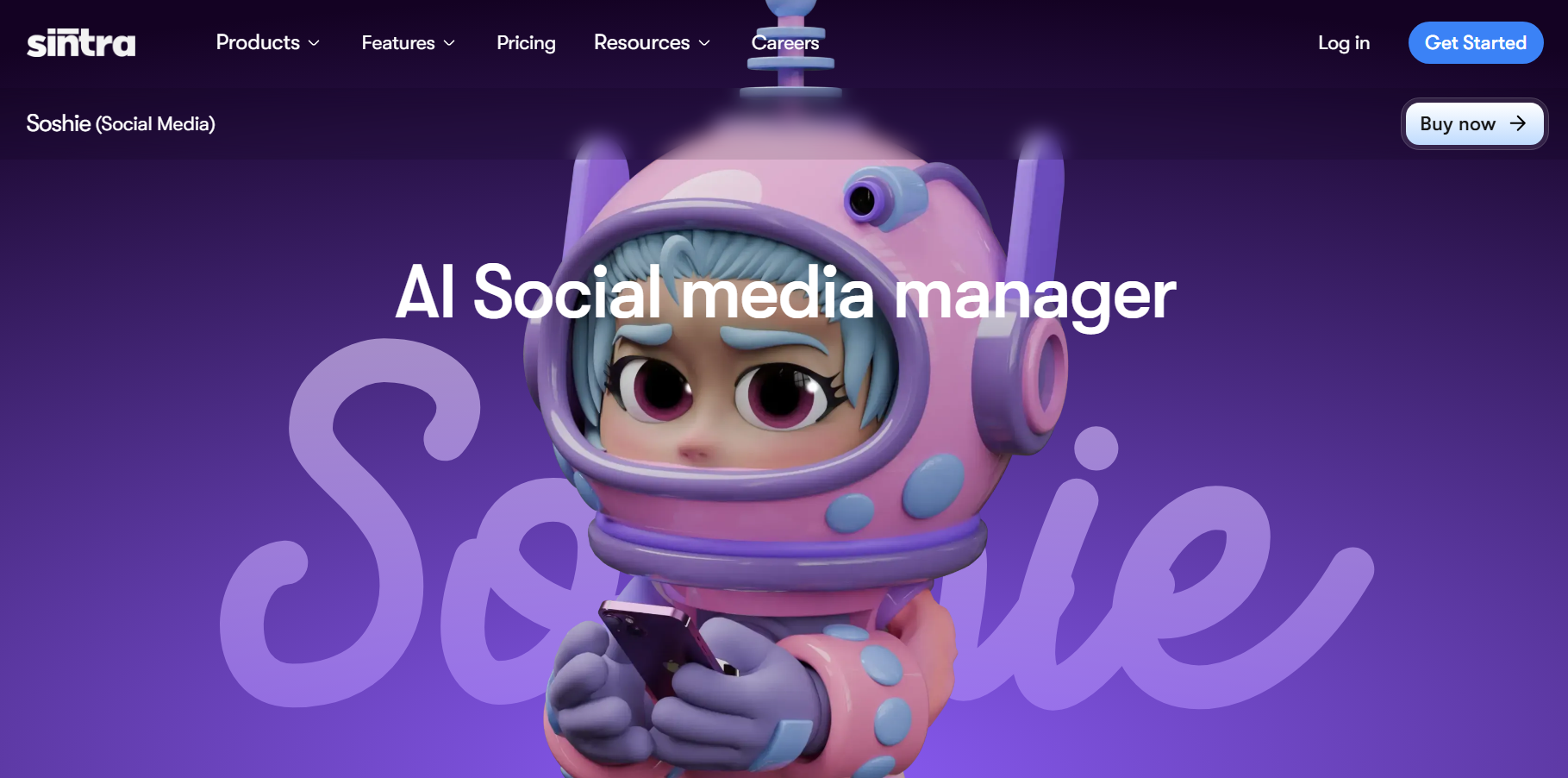
13. Soshie by Sintra AI (Bonus tool)
AI Social Media Manager Soshie by Sintra AI is the world’s first AI social media manager, designed to help businesses streamline and scale their social media presence across multiple platforms. Built to support marketing teams, maintain brand voice, and protect brand reputation, Soshie combines strategy, content creation, automation, and analytics into one unified assistant.
Trained on tens of thousands of social media best practices, Soshie understands what performs well across platforms like Instagram, TikTok, Facebook, LinkedIn, and X. It helps you plan campaigns, write posts, design content, schedule across accounts, and analyze results—all from a user-friendly dashboard. Whether you need strategic guidance, daily content, or automated posting, Soshie works as a full social media manager that boosts consistency, saves time, and improves performance.
Key features:
Handles content creation, campaign planning, post scheduling, and multi-platform publishing, all in one AI-powered workspace.
Generates social media campaigns, captions, images, and posts using pre-made templates and a media library.
Maintains consistent brand voice, supports marketing teams, and helps safeguard brand reputation across all platforms.
Uses natural language processing to analyze social media metrics, interpret conversations, and improve content strategy over time
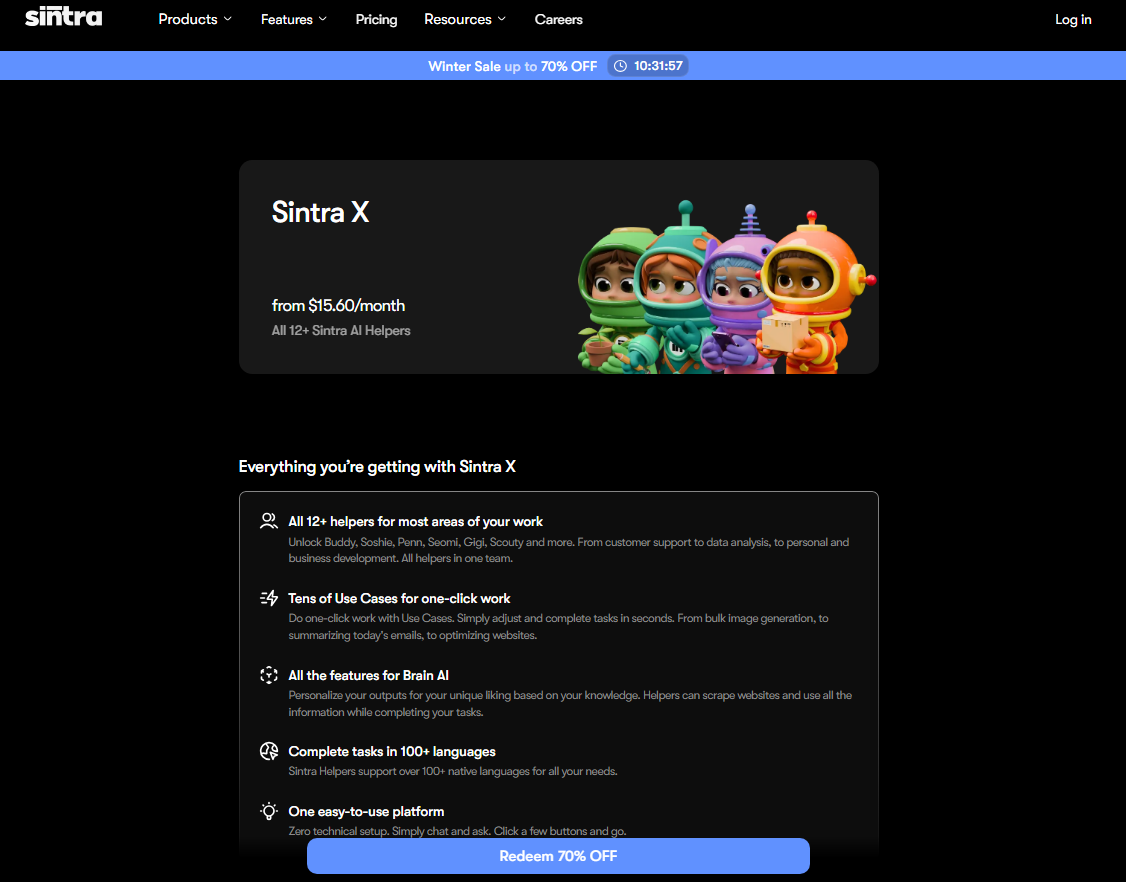
Price:
The current Winter Sale plan gives you access to 12+ AI helpers, including Soshie, your AI-powered social media manager.
14. Sprinklr Social
Sprinklr Social is one of the most comprehensive social media management tools for organizations that need to manage publishing, engagement, analytics, and governance from a single platform. It supports planning and publishing content across major social networks while helping teams coordinate campaigns at scale.
Beyond scheduling, Sprinklr Social combines AI-powered content assistance, a unified inbox, approval workflows, and advanced analytics to simplify day-to-day social operations. Its reporting and governance capabilities make it particularly useful for organizations managing multiple brands, markets, or regional teams. The tradeoff is that the platform offers a broader enterprise feature set than many SMB-focused tools, so it may require more setup than lightweight schedulers.
Key features
Schedule and publish content across multiple social media platforms from a centralized dashboard.
Manage messages, comments, and customer interactions through a unified omnichannel inbox.
Measure campaign performance with AI-powered analytics, customizable dashboards, and executive-ready reports.
Streamline collaboration with approval workflows, user permissions, and governance controls.
Generate AI-powered captions, images, and videos directly within the publishing workflow to accelerate content creation.
Price
Custom pricing available on request.
Importance of social media management tools
Most businesses, organizations, and individuals have multiple social media profiles across different platforms. It is not always easy to manage these accounts from a social media platform’s built-in tools with limited functionalities. As a result, using third-party social media management tools like the ones discussed above is important to get the following benefits:
Manage your social media content and campaigns across multiple channels.
Streamline the social media management processes, including content creation, automation, scheduling, and publishing posts at the most suitable times.
Track the performance of your overall social media account and individual posts to measure your progress in real-time.
Enhance your engagement with the audience through consistent posting.
In short, using a comprehensive social media management tool is important for end-to-end social media management.
Key features to look for in a social media management tool
Now that you are familiar with the best social media management platforms available in 2026, you are probably wondering how you can choose the best tool in the first place. You can do it by looking for the following features in these tools:
Dashboard usability
The first thing you must look for in a social media management tool is its dashboard usability. Since a tool is meant to manage and analyze multiple social media accounts, the tool’s dashboard should be simple and efficient for juggling all social accounts.
Source: ContentStudio
Integration capabilities
Considering the integration capabilities is another important factor. Generally, a social media management tool should be capable of connecting with all major social media sites, such as X, Facebook, Instagram, TikTok, LinkedIn, YouTube, Tumblr, and new social media platforms like Threads and Bluesky.
It is always a good idea to analyze your specific requirements and list the platforms you are using to ensure you can manage them with a social media management app. Having multiple integration options means you can schedule and post your content across multiple platforms from the same dashboard.
Source: ContentStudio
Comprehensive analytics and reporting tools
Making sure your content is relevant and engaging enough for your target audience is vital to continually grow your business. At the same time, it is not always easy to determine what kind of content is performing well across different social media platforms.
Analyzing the key performance metrics of your social media posts will help you determine the effectiveness of your current social media strategies. Moreover, you can use such information to make any required changes to your social media and optimize your content for better reach.
Source: ContentStudio
Advanced scheduling and publishing features
An ideal social media management tool has advanced scheduling and publishing features. Keep in mind that most social media platforms do provide built-in schedulers, but they have very limited functionalities.
Therefore, you should go for a powerful social media content scheduler that has a user-friendly method of curating a content calendar. Moreover, with the rising use of AI, you should look for a tool equipped with a modern AI writing assistant to help you speed up writing captions and hashtags before scheduling such posts.
Effective social media engagement features
According to statistics, 62.3% of the world’s population uses social media. Targeting a massive audience and increasing engagement involves using a suitable social media management app. Ideally, it should have features to manage messages, comments, and mentions from the same platform. This ultimately improves communication and audience engagement.
Handling multiple social media platforms and curating different types of content can be quite overwhelming, especially for new and growing businesses. As a result, it is common to have multiple team members handling social media.
Therefore, it is important to choose a social media management platform that offers good collaboration and team management options. Collaboration features make it easy for multiple team members or even departments like sales, content curation, and marketing to work together and manage social media accounts.
The bottom line is that social media management tools are available online with varying features to cater to different businesses, individuals, and social media accounts. Ideally, the tool of your choice should be user-friendly, affordable, and have comprehensive features like ContentStudio.
As you explore the best social media management tools, it’s important to choose one that aligns with your goals and workflow. Whether you prioritize scheduling, analytics, or collaboration, selecting the right platform can streamline your social media efforts and boost engagement.
No matter which social media management tool you choose, integrating additional optimization tools can make a difference. Replug, for example, is an all-in-one link management platform that helps marketers enhance link tracking, retarget audiences, and drive better conversions—all essential for maximizing your social media strategy.
By combining a powerful social media management tool with the right enhancements, you can create a well-rounded approach that improves efficiency, engagement, and results.
A complete link management solution
for marketing professionals & agencies.
Try Replug for free
FAQs for the best social media management tools
What is the most effective social media tool?
ContentStudio is the most effective social media management tool because it has all important features like analytics and reporting, content discovery, scheduling, a drag-and-drop content calendar and planner, bulk scheduling, a combined social media inbox, competitor analysis, and much more.
What are the best social media management tools?
ContentStudio, Buffer, CoSchedule, and Hootsuite are some of the best social media management tools. Growing businesses and marketing agencies will likely find ContentStudio a reliable platform, while large-sized businesses with enough resources can go for more expensive tools like Hootsuite.
What is the best content planning tool for social media managers?
With its diverse calendar views and easy scheduling options, ContentStudio is the best content planning tool for social media managers, brands, and agencies.
What are the 10 must-have tools for your social media management toolkit?
The 10-must have tools for your social media management toolkit are ContentStudio, Buffer, Hootsuite, Sprout Social, Agorapulse, Sendible, SocialPilot, CoSchedule, Later, and MeetEdgar.
Your Discord bio is your chance to make a solid first impression. Whether you’re gaming, chatting with friends, or connecting with fellow creators, it’s the perfect spot to let your personality shine. But we get it; it can be tough coming up with the right bio.
So, how do you sum yourself up in just a few words?
Don’t worry; we’ve got you covered!
We’ve compiled 100+ Discord bio ideas to help you nail it. From cool and aesthetic vibes to funny and witty one-liners, we’ve got something for everyone. No matter what vibe you’re going for, you’ll find the perfect bio ideas here to boost engagement on your Discord profile.
Ready to make your Discord profile pop? Let’s get started!
Discord bio basics: everything you need to know
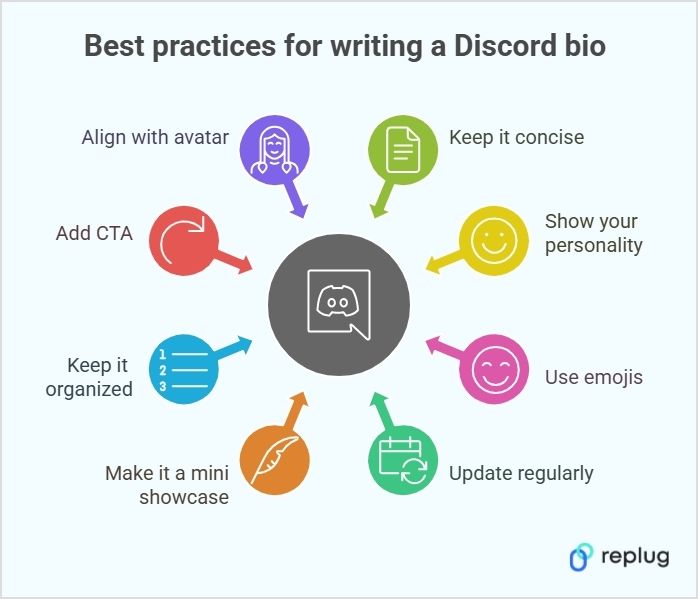
Before we get into the juicy stuff, let’s quickly go over the basics of how to write a winning, professional bio. After all, a solid understanding of Discord’s bio setup will make your ideas pop even more.
Bio length: Regular users can write up to 190 characters, while Discord Nitro subscribers get a bonus of 280 characters. However, if you want a customized bio with quick bio links, consider Replug’s link in bio tool, since it will keep it neat and make the most of your space.
Where it appears: Your bio shows up on your profile card when someone clicks your username. It appears fully expanded on a desktop, while mobile users see a condensed version.
Profile picture synergy: Your bio and profile picture should vibe together. If your avatar screams “gamer,” your bio should have that same energy. And if you’re leveraging more advanced personal branding techniques say, automating parts of your online persona, consider skilling up in AI Agent implementation so that your server presence, status updates and voice-chats can reflect a more dynamic, high-tech you. For a professional or creative vibe, like showcasing custom printed pins, make sure your bio matches your tone.
Custom status integration: Pair your bio with a custom status! This tells people exactly what you’re up to, whether in a game, taking a break, or working on something important.
Emoji usage: Emojis are your best friend! They break up text, highlight key info, and add personality. But remember, emojis count toward your character limit, so use them wisely!
Go beyond generic link pages!
Create custom bio links that truly fit your brand
With Replug, you can create bio links that are unique, engaging, and built to convert.
Want to keep it cool and effortless? Here are some cool Discord bio ideas to show off your laid-back yet stylish side:
“Running on caffeine and good vibes.”
“Master of memes, keeper of chaos.”
“Currently in a relationship with sleep.”
“I’m not a robot… but I might be after the next update.”
“The only time I’m a morning person is when the sun is setting.”
“Living life one playlist at a time.”
“Just a small fish in a big pond.”
“Be yourself—everyone else is taken.”
“I’m on a seafood diet. I see food and I eat it.”
“On a quest for world domination. One meme at a time.”
“I’m not arguing, I’m just explaining why I’m right.”
“My hobbies include sleeping, eating, and avoiding responsibilities.”
“Fluent in sarcasm.”
“Do more things that make you forget to check your phone.”
“Stay hydrated and stay woke.”
“I’m a professional overthinker.”
“Currently fighting the urge to be productive.”
“Rolling through life like a smooth playlist.”
“In a complicated relationship with my bed.”
“Too cool for school, too tired for anything else.”
“A work in progress.”
“Searching for Wi-Fi in a world of no connection.”
“Work hard, nap harder.”
“Netflix and sleep.”
Funny Discord bio ideas
Who doesn’t love a good laugh? Here are some funny Discord bio ideas that’ll make everyone do a double-take:
“I’m not lazy, I’m just on energy-saving mode.”
“I’m not short, I’m concentrated awesome.”
“Life is short. So am I.”
“I put the ‘pro’ in procrastination.”
“If I were any cooler, I’d be frozen.”
“Warning: I’m an acquired taste. If you don’t like me, acquire some taste.”
“I would agree with you, but then we’d both be wrong.”
“My life is a meme, and I’m the punchline.”
“I’m like a software update: takes forever, but I’m worth the wait.”
“I’m not arguing, I’m just explaining why I’m right.”
“Life is 10% what happens to me and 90% how I react to it—except in the case of traffic.”
“I don’t suffer from insanity—I enjoy every minute of it.”
“I’m on a diet, I only eat cake now.”
“Call me a fireman because I’m always putting out fires (usually my own).”
“If you don’t like me, that’s okay. I’m not a fan of you either.”
“My bed is a magical place where I suddenly remember everything I forgot to do.”
“I can’t hear you over the sound of how awesome I am.”
“I’m not late, I’m just early for tomorrow.”
“You had me at ‘Hello.’ You lost me at ‘Here’s the plan.’”
“I’m like a sloth on a bad day.”
“If I had a dollar for every time I got distracted, I’d probably be rich by now.”
Aesthetic Discord bio ideas
For those looking to make their profile a little more artsy, here are some aesthetic Discord bio ideas:
“🌙 Chasing the stars, one night at a time.”
“☁️ Living in my daydreams.”
“🌿 Plant enthusiast | 🌱 Grow your own way.”
“🎧 Music is my therapy.”
“🌸 Serenity in simplicity.”
“🌻 A soul that roams free.”
“☾ Moonlight whispers.”
“⚡ Let the vibes flow.”
“🍃 Lost in the beauty of the moment.”
“🌸 I am a work in progress.”
“🌾 Wild at heart.”
“🍂 Autumn leaves & cozy nights.”
“💫 Dream big, sparkle more.”
“🌺 Keep blooming.”
“🌙 Stargazing under the city lights.”
“🌱 Growth is beautiful.”
“☁️ Floating through life.”
“🍃 Catching my breath between moments.”
“🌷 Living the dream, quietly.”
“🌻 Sometimes the stars align.”
“🦋 Finding peace in the chaos.”
“🌼 Peaceful and grounded.”
“🌴 Stay wild, moon child.”
“🌸 Simplicity is the ultimate sophistication.”
“🍃 Always in a state of becoming.”
Cute Discord bio ideas
Ready to show off your adorable side? These cute Discord bio ideas are perfect for you:
“🌸 Here to spread some sunshine.”
“🐾 Paws-itively the best at being cute.”
“💖 Powered by love and hugs.”
“🎀 Small but fierce.”
“🍭 Sweet as candy.”
“🐱 Cat cuddles over everything.”
“🌼 Soft vibes only.”
“🦄 I believe in magic.”
“🍓 Cutie with a sprinkle of sass.”
“🌸 Be the reason someone smiles today.”
“💫 Dreaming big, looking cute.”
“🌼 Here for the cuddles.”
“💖 Sweetheart, through and through.”
“🐇 Hoppy days ahead!”
“🍀 Just a little bundle of joy.”
“🌸 Don’t mind me, just spreading kindness.”
“🐾 I’m fluffy, not fluffy-headed.”
“🍬 Candy and kindness, that’s me.”
“🍃 I’m a soft soul, gentle and kind.”
“🌟 Shy but cute.”
“💗 A little bit of sparkle, a little bit of magic.”
“🎀 Soft as a cloud, fierce as a lion.”
“🐾 You had me at ‘hello.’”
“🦄 Magic lives within me.”
“🌸 A gentle soul in a wild world.”
Witty Discord bio ideas
Ready to add some sass to your bio? Here are some witty Discord bio ideas for those who want to stand out with a little humor and charm:
“I’m not lazy, I’m just on energy-saving mode.”
“I’m not short, I’m concentrated awesome.”
“Life is short. So am I.”
“I put the ‘pro’ in procrastination.”
“If I were any cooler, I’d be frozen.”
“Warning: I’m an acquired taste. If you don’t like me, acquire some taste.”
“I would agree with you, but then we’d both be wrong.”
“I’m on a seafood diet. I see food and I eat it.”
“My life is a meme, and I’m the punchline.”
“I’m like a software update: takes forever, but I’m worth the wait.”
“I’ve got 99 problems, but being boring isn’t one of them.”
“I speak fluent sarcasm.”
“You had me at ‘Hello.’ You lost me at ‘Here’s the plan.’”
“If I had a dollar for every time I got distracted, I’d probably be rich by now.”
“I’m not arguing, I’m just passionately explaining my point.”
“I’m not weird. I’m just a limited edition.”
“You can’t scare me—I’ve been inside my head for years.”
“Not all who wander are lost. Some of us are just avoiding responsibilities.”
“My hobbies include sleeping, eating, and avoiding responsibilities.”
“I’m a professional overthinker.”
“I don’t need an inspirational quote, I need coffee.”
“Brains are awesome. I wish everybody had one.”
“Sometimes I’m a morning person. Just not today.”
“Being an adult is like folding a fitted sheet.”
“My sense of humor is an acquired taste. Hope you like sarcasm.”
Still looking for inspiration? How about copy-paste templates that make your bio look fun? Check out our blog post on Discord bio templates for templates with emojis you can copy and paste into your bio.
Before we spill some of the best Discord bio ideas, let’s talk about best practices to make sure your bio is both engaging and clear:
1. Show your personality
Your bio is your chance to show who you are. Whether you’re funny, creative, or chill, make sure your bio reflects your vibe. Keep it real, and don’t overthink it!
Example: “Just here to share memes and procrastinate. 👀”
2. Use emojis (but don’t go overboard)
Emojis can bring your bio to life. Use them to add personality, break up text, or highlight key points. Just remember to keep it balanced and not cluttered.
Your interests and activities change, and so should your bio. Keep it fresh by updating it to reflect what you’re into at the moment. Whether you’re obsessed with a new game or project, your bio should show it.
Example: “Currently obsessed with Cyberpunk 2077 🚗💥”
4. Make your bio a mini showcase
Your bio isn’t just about you—it’s an opportunity to highlight what you’re working on. Whether you’re a gamer, artist, or streamer, share a backlink to your content or projects.
Example:
“🎮 Streamer | 🎧 Musician | 👾 Check out my channels”
5. Keep it organized
Formatting is key! Use line breaks, bullet points, or simple organization to make sure your bio is easy to scan. This way, people can quickly understand who you are without having to read through a long paragraph.
Example:
🎮 Gamer | Developer 🎧 Music Enthusiast | Meme King 📺 Currently watching: Stranger Things
6. Align your bio with your avatar
Your profile picture and bio should complement each other. If your avatar is gaming-related, your bio should match that vibe. Keep it cohesive and true to your style for a polished look.
Enhance your Discord bio: Go beyond the basics with Replug
1. Create a short link
You don’t have much space, so make every character count! Make sure your bio is impactful, concise, and easy to read.
If you can’t fit everything about yourself in your Discord bio, you can use Replug’s free URL shortener with no sign up to create a short link that leads to a more detailed profile, portfolio, or social page. This way, people can learn more about you without cluttering your bio with too much text.
2. Create a Bio Link
Using Replug, i.e., a top-notch link optimization platform, you can create a link in your bio page that includes all your socials, streams, or other important links in one place without cluttering your bio.
With Replug, you can track where your audience is from, what browser and device they’re using, their referral source, geotargeting data, and more. This detailed bio link analytics data helps you understand your community’s behavior so you can tailor your content and strategies for better engagement.
4.Add Retargeting pixels to your Discord bio links
Add retargeting pixels to your Discord bio links using Replug to re-engage users to click on your link. This allows you to run targeted ads, bringing them back to your server or encouraging them to take action on promotions like discounts or giveaways. You can share these offers through channels, pinned messages, or a linktree that directs them to a landing page, boosting engagement and conversions.
5. Add a call-to-action (CTA)
The perfect CTA can direct people to take action. Want them to join your server or check out your stream? Be clear about what you want them to do, and include a direct link to make it easy.
Example: “Wanna team up? DM me! ⬇️”
Want an easy way to add a CTA? Use Replug’s free CTA generator to create a clickable link that directs people to your social media, stream, or other platforms.
When it comes to your Discord bio, there are a few things you should keep in mind to make it stand out in the best way.
Do’s
Don’ts
Be yourself and let your personality shine
Overdo it with too many emojis or text
Keep it concise and impactful
Use generic or boring phrases
Use emojis to add personality
Include offensive or inappropriate content
Make your bio relevant to your activities
Overload your bio with unnecessary info
Update it regularly
Forget that your bio and profile picture should match
Game over: You’ve mastered the art of Discord bios!
And there you have it: 100+ Discord bio ideas for all kinds of vibes! Whether you’re going for cool, funny, aesthetic, or witty, you’re all set to stand out on the platform. Just remember, your bio is a reflection of who you are, so make it count!
Now, go ahead and update your profile with one of these creative bio ideas!
P.S. Just between us… You can totally copy-paste these Discord bio ideas. We won’t tell.
Frequently asked questions
Can my Discord bio be invisible?
Yes! You can use special invisible characters (like Unicode blank spaces) to make it look empty while still technically having a bio.
Can I use fancy fonts in my Discord bio?
Yes, you can copy-paste stylized text from font generator websites, but some may not display correctly on all devices.
Can I add links to my Discord bio?
Discord bios don’t support clickable links, but you can add a shortened, readable link with Replug to make it look clean and shareable.
Can I add line breaks to my Discord bio?
No, Discord bios don’t support line breaks, but you can use symbols like “|” or “•” to separate sections.
What happens if my bio has banned words?
Discord may block or censor certain words in your bio. If you can’t save it, try tweaking the wording.