Static URL QR codes are QR codes that can be scanned with your smartphone or another device to open a specific webpage once you scan them. There are several benefits to using this type of QR code.
One benefit is that it allows people to easily access a webpage without manually typing the full URL into a browser. This can save time and reduce the potential for errors. Additionally, most modern smartphones come equipped with a built-in QR code reader, making it easy for people to scan the code and access the webpage.
Another benefit is that it is free and easy to implement. Anyone can generate one by using a QR code generator and linking it to a specific URL. Plus, it is the standard way of using a QR code, so it is widely adopted and recognized worldwide.
Modern short URL generator, such as Replug can also track clicks and other analytics on the link, which can be useful for understanding how the QR code is used.
Let’s continue with how to create a QR code for a URL.
How to create a QR code for a URL using Replug?
Follow these simple steps to create a QR code for any URL with Replug in just a few minutes.
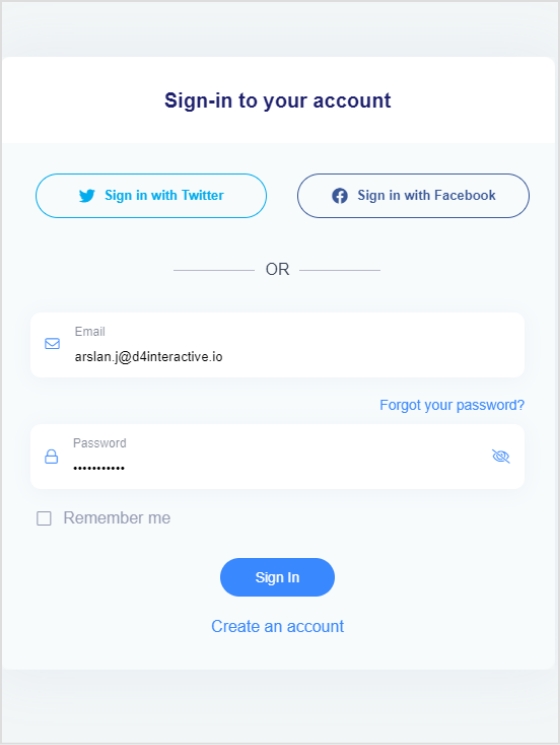
Step 1: Sign in to Replug or create a new account for free.
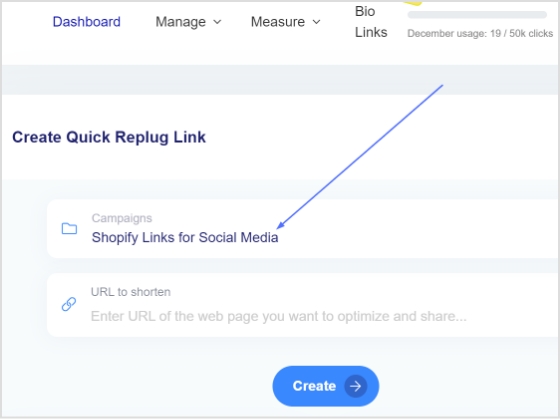
Step 2: Select the desired campaign on the main dashboard or create a new one.
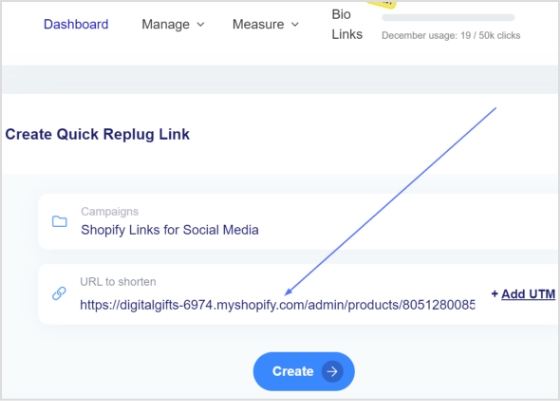
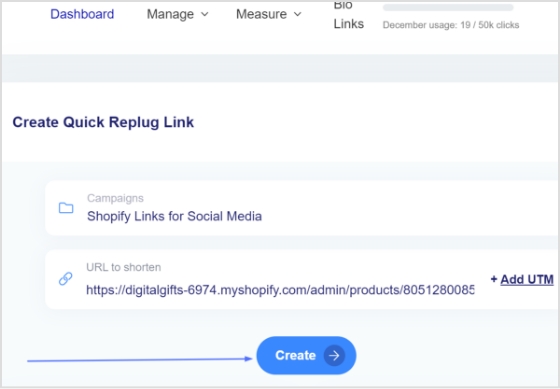
Step 3: Paste the URL in the “URL to shorten” section below the “select your campaign” section and click create.
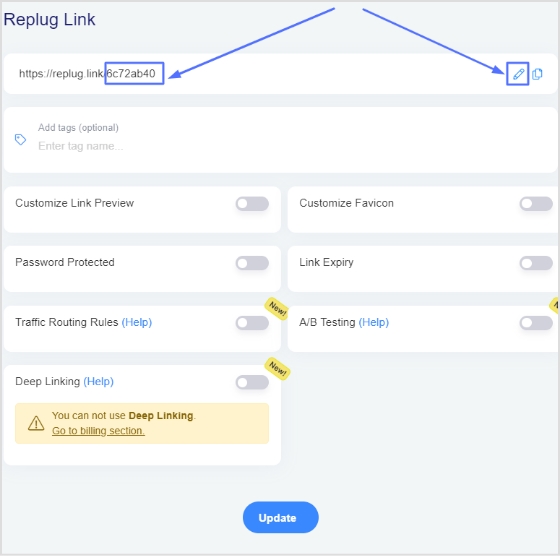
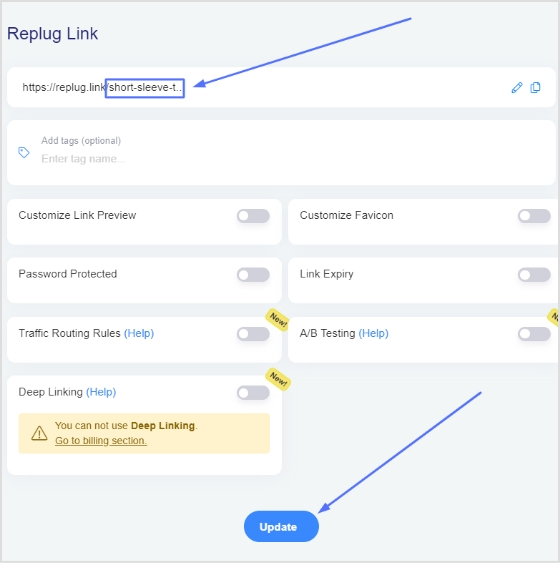
Step 4: You’ll first see a shortened version of your URL. Click the edit icon to customize your URL and click update.
Step 5: To access your newly created URL, go to the manage section on the main dashboard and click Replug links.
Step 6: Here you’ll see your newly created URL. click three dots at the end of the URL and then click download QR code.
Maximize marketing ROI
by transforming ordinary URLs into branded short links that convert.
Try Replug for free
A URL QR code is a type of QR code that, when scanned by a QR code reader, directs the user to a specific webpage or website URL. The QR code contains a string of characters that represents the URL and can be easily scanned with a smartphone camera and QR code reader app. This allows users to quickly and easily access a webpage without having to manually type in a long and complicated URL.
Is there an expiration date for URL QR codes?
URL QR codes do not have an expiration date built into them, but the webpage or website that the QR code directs to may change or be taken down, which would render the QR code unusable. Also, if the website or the URL changes, the QR code will not work anymore
You may delete your TikTok account for various reasons, including privacy concerns, addiction, cyberbullying, and app dislike.
Additionally, you may have personal or professional reasons for wanting to delete your TikTok account, such as maintaining privacy or avoiding the potential negative impact of having a TikTok account on your professional reputation.
If you’re looking to manage URLs before removing your TikTok account, you must check out Replug.io for easy link-management from one single dashboard.
Anyway, let’s see how you can quickly delete your TikTok account in some simple steps.
To delete your TikTok account, you can follow these steps:
Step 1: Open the TikTok app and log in to your account.
Step 2: Tap on the Profile icon at the bottom right corner of the screen.
Step 3: Tap on the three horizontal lines at the top right corner of the screen.
Step 4: Tap on “setting and privacy.”
Step 5: Tap account in the setting and privacy section.
Maximize marketing ROI
by transforming ordinary URLs into branded short links that convert.
Try Replug for free
Step 6: Now tap “deactivate or delete account”
Step 7: Tap “delete account permanently”
Step 8: Choose a reason for deleting the account and tap continue.
Step 9: Check your download data request and again tap continue.
Step 10: Once again, read the instructions and tap continue.
Note: If you change your mind within 30 days, you can reactivate your account, and after 30 days, your account will be permanently deleted.
Step 11: TikTok will send a six-digit code to your registered mobile number. Enter the code and tap delete account. Your account will be deleted this way.
There could be several reasons why TikTok is not allowing you to delete your account. It could be that you have an active subscription or pending payment or have outstanding violations of the platform’s terms of service. Additionally, if your account has been flagged for suspicious activity, TikTok may require additional verification before allowing you to delete it. We recommend checking the app’s help center or contacting TikTok’s customer support for assistance.
Can you delete a TikTok account and make a new one with the same email?
That’s correct. When you delete your TikTok account, it will first be deactivated for 30 days. Your account will not be visible to other users during this time but will still be stored on TikTok’s servers. You can reactivate your account by logging in if you change your mind during these 30 days. However, if you do not reactivate your account within 30 days, it will be permanently deleted, and the associated email address will become available for use with a new account.
It’s important to note that you won’t be able to retrieve your account or its data once it’s deleted. Also, if you have any pending payments or active subscriptions, cancel them before deleting your account; otherwise, you will continue to be charged.
Downloading your TikTok videos without the watermark can be challenging, as there is no straightforward method. This can be an issue if you create videos within the TikTok app and later want to share them on another social media platform, as the TikTok watermark will appear on the downloaded version of the video.
TikTok does not offer native tools for downloading videos without watermarks, but third-party apps and websites do. These apps and websites are created by independent developers and are not affiliated with TikTok. They can be used to download videos from TikTok with the watermark removed.
Most of these third-party tools are relatively straightforward, making downloading videos from TikTok as quick and easy as using the platform’s native tools. So, let’s get started and explore a reliable TikTok video downloader to simplify the process!
Save TikTok videos without watermarks with these free tools:
The process is quite simple to save a TikTok video without a watermark. All you need to do is copy the link of the video that you wish to download. This link can typically be found by clicking the “Share” button beneath the video on the TikTok app or website. Once you have copied the link, you can proceed to one of the tools mentioned.
Once you are on the website or application, you will likely see an input field where you can paste the video link you have copied. After you paste the link, you will be prompted to hit a download button or process. The tool will process the link, and the video will be ready for download in a few seconds without the watermark.
It’s important to note that saving a video without a watermark may not comply with the terms and conditions of TikTok and the content creator. So users should be careful while using these kinds of tools and take necessary precautions.
TikSave.io allows you to download TikTok videos without watermarks or user IDs. This means that when you download a video from TikTok using TikSave.io, the video will not have any overlaid text or logos that indicate the original creator of the video. Additionally, the video will not include any information about the user who uploaded it, such as their user ID.
To use TikSave.io, you must copy the link to the TikTok video you want to download and paste it into the input box on the website. Once you have done this, you can download the video in the format and quality you prefer. Downloading videos from TikTok using TikSave.io is simple and does not require special software or technical knowledge.
Overall this allows the user to download any TikTok video of their choice and save it to their device without any watermarks or UserID linked to it, making it an easy process.
SnapTik allows users to download TikTok videos without watermarks, which are then overlaid text or logos that indicate the original creator of the video. By using SnapTik.App, you can download TikTok videos in their original form without any branding or identification of the creator.
One of the main advantages of SnapTik is that it does not require users to install any software on their computers or mobile phones to use it. All you need is the link to the TikTok video you want to download, and you can use the website to download the video with just one click. The processing of the video is done on the SnapTik.App’s side and the user must just paste the link and download it.
This makes downloading TikTok videos simple and easy for the user, with no need for additional downloads or technical know-how. So SnapTik can be considered a user-friendly and efficient TikTok downloader.
TTDL (tiktokdownload) is a tool that can save as many videos as you want without limitations or restrictions. In addition, you can download videos without any watermarks, which means that the videos will not have any overlaid text or logos that indicate the original creator of the video. This allows you to have a clean and unbranded version of the videos.
SSSTik.io is one of the most popular TikTok story downloaders. It allows users to save videos without any watermarks, which are overlaid text or logos that indicate the original creator of the video.
One of the main advantages of SSSTik.io is that users don’t have to install any additional apps or software to use the service. All that is needed is a web browser and the link to the TikTok story you want to download. You simply paste the link into the input field on the website, and it processes the link and allows you to download the story without any watermarks.
TikMate is another excellent tool for downloading TikTok videos without a watermark. The process is the same as for the above-explained tools. First, open the TikTok app and find the video you want to download. Next, click the “Share” button on the video to “Copy the Link.” Then paste the video link into the TikMate website or application. After that, click the “Download” button and the “Download Without Watermark” button to download the video in Mp4 format without the watermark. Eventually, You’ll have your TikTok video downloaded without the watermark.
Note: If you’re interested in more than just watermark-free downloads, such as managing and optimizing all your shared links across social platforms, this all-in-one link optimization platform offers tools to help you do that efficiently.
Frequently asked questions
Do I have to pay to download TikTok videos without watermarks?
No, you don’t need to pay a single penny to download a TikTok video without a watermark. All you need to do is to visit one of the downloaders we discussed above, and you’ll have your video in just a few minutes.
Do I need to install the extension to download TikTok videos without a watermark?
No, you don’t need any extension to remove watermarks from the videos. Just paste the link to the video into any of the downloaders mentioned above, and you’ll have the video downloaded.
Vanish mode is a feature in Instagram that allows users to send messages that disappear as soon as they are read by the recipient. This feature is only available in Instagram Direct conversations, and both the sender and recipient must have vanish mode enabled to use it.
When vanish mode is enabled, all messages sent in the chat will disappear after they are read. The sender will also have the option to delete any messages they have sent in the chat, even if they have not been read yet.
Vanish mode is useful for sending temporary or ephemeral messages, such as quick notes or reminders, that do not need to be saved or archived. It can also be used to have more private or casual conversations with friends and family.
How To Turn On Vanish Mode On Instagram?
First, let’s see how to turn on vanish mode on Instagram. Follow the steps below:
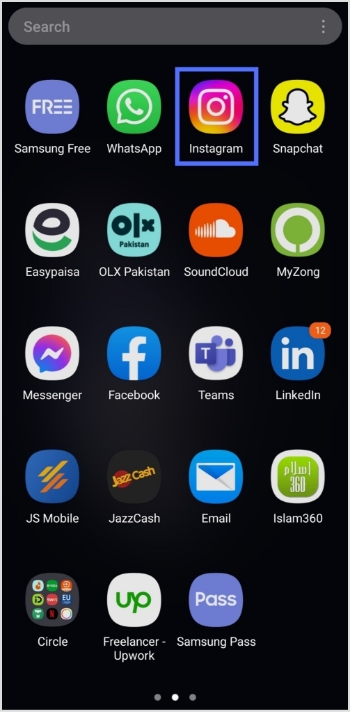
Step 1: Open the Instagram app on your device and tap the message icon in the top right corner.
Step 2: Start a new chat or go to an existing conversation.
Step 3: Swipe up from the bottom of the screen to access the vanish mode.
Note: Once you’re in vanish mode, you’ll be able to send messages that will disappear as soon as they are read by the recipient.
Maximize marketing ROI
by transforming ordinary URLs into branded short links that convert.
Try Replug for free
To turn off vanish mode on Instagram, follow these steps:
Step 1: Open the Instagram app on your device and tap the message icon in the top right corner.
Step 2: Go to the chat or conversation where vanish mode is enabled.
Step 3: Swipe up on the screen to exit vanish mode.
You should keep in mind the following:
Disappearing messages cannot be copied, saved, or forwarded.
Only accounts you have connected with previously can send you message requests in vanish mode.
Vanish mode can only be used in a chat with another Instagram account, not in group chats or with Messenger or Facebook accounts.
Some professional accounts may not be able to receive messages in vanish mode.
Only use vanish mode with people you trust, as it is possible for someone to take a screenshot or screen recording of a message in vanish mode before it disappears. You will be notified if this occurs. It is also possible for someone to take a photo of a disappearing message with a camera or other device before it disappears.
If you manage multiple social-media links or share content frequently across platforms, Replug.io can help you organize, shorten and track all your links from one centralized dashboard.
Frequently asked questions
How does vanish mode work on Instagram?
On Instagram, Vanish mode allows you to send messages that disappear after they are read. To use Vanish mode on Instagram, you must have the latest app version, and the feature turned on in your settings.
Note that Vanish mode only works in one-on-one conversations. It is also important to be aware that while the messages you send in Vanish mode will disappear from the recipient’s device, they may still be able to take a screenshot or capture the message in some other way. As with any sensitive information, it is important to use caution and consider whether Vanish mode is appropriate for your needs.
Why should you use vanish mode?
Vanish mode feature can be useful in several different situations, such as:
– Sending sensitive or personal information you don’t want to be saved or shared. – Having casual conversations with friends that you don’t want to be documented on your Instagram account. – Make plans or arrangements with people you don’t want to clutter up your main chat thread. – Sending fun or silly messages to friends without worrying about them being saved or shared.
Vanish mode can be a useful tool for maintaining privacy and control over your conversations on Instagram.
You may no longer want your TikTok video to be public, or its content may no longer be relevant. If that’s the case, you can quickly delete your TikTok video.
If you’re cleaning up your online presence, removing old videos or managing links, you might find Replug useful to organize and control where your shared URLs point.
Here’s how to delete TikTok videos in a few seconds. Follow the steps below:
Step 1: Open the TikTok app on your phone.
Step 2: Go to your profile by tapping on the profile icon in the bottom-right corner of the screen.
Step 3: Find the video you want to delete and tap on it.
Step 4: Tap on the three dots on the right side of the screen.
Step 5: Select “Delete” from the menu.
Step 6: Confirm that you want to delete the video, and you’re done.
Remember that once you delete a video, it cannot be recovered, so make sure you want to delete it before you confirm the action.
Maximize marketing ROI
by transforming ordinary URLs into branded short links that convert.
Try Replug for free
To make a TikTok video private, follow these steps:
Step 1: Open the TikTok app on your device.
Step 2: Go to your profile by tapping on the profile icon in the bottom-right corner of the screen.
Step 3: Find the video you want to make private and tap on it.
Step 4: Tap on the three dots in the top-right corner of the screen.
Step 5: Select “Privacy setting” from the menu.
Step 6: Tap on the “who can watch this video” menu.
Step 7: Select “only me,” and you’re done.
When your account is set to private, only people you approve as followers will be able to see your videos. Any new videos that you upload will also be private by default. You can change the privacy settings for individual videos by following the same steps mentioned above.
Note: If you want to replace old or broken TikTok links with cleaner, manageable ones, try this custom URL shortener. It helps you generate branded, concise links that are easy to share or retire as you clean up your profile.
Frequently asked questions
Can you recover a deleted video on TikTok?
It is not possible to recover a deleted TikTok video. Once a video is deleted, it is permanently removed from the app and cannot be recovered. This is why it is important to be sure you want to delete a video before confirming the action. If you are unsure whether you want to delete a video, you can always make it private instead, which will hide it from the public but allow you to access it at any time.
Can I download a TikTok video?
Yes, you can download TikTok videos using a free TikTok video downloader available through various third-party tools and websites, as TikTok itself doesn’t offer a built-in download feature.
Does deleting my TikTok account delete my videos as well?
Yes, if you delete your TikTok account, all your videos will be permanently deleted and no longer available on the app. Deleting your TikTok account is a permanent action that cannot be undone, so it is important to be sure that you want to delete your account before you confirm the action.
Can I report a TikTok video?
Yes, you can report a TikTok video if you believe it violates the app’s community guidelines or terms of service.
Keep in mind that TikTok’s community guidelines prohibit content that promotes violence, hatred, or discrimination, as well as that is illegal or infringes on the rights of others. If you come across a video that you believe violates these guidelines, you can report it to TikTok so that it can be reviewed by the moderation team.
It is necessary to deactivate your Facebook account before you can deactivate your Messenger account. Once you have deactivated your Facebook account, the option to deactivate your Messenger account will become available.
Deactivating your Messenger account from a computer or laptop is impossible. You can only deactivate a Messenger account from the Messenger application settings on your smart devices, i.e., mobile or tablet.
Here’s how to deactivate Messenger app quickly:
Step 1: Open the messenger app from your mobile phone.
Step 2: Tap the profile icon in the top right corner.
Step 3: Tap account setting from the account menu.
Step 4: Tap account ownership and control.
Step 5: Tap deactivation and deletion.
Step 6:Select Deactivate account, then tap continue to account deactivation.
Step 7: Enter the password and tap continue, and your Facebook account is deactivated.
Now your Facebook account is deactivated, you can easily deactivate your Messenger account.
Maximize marketing ROI
by transforming ordinary URLs into branded short links that convert.
Try Replug for free
Step 8: Again tap the profile icon in the top right corner.
Step 9: Scroll to the bottom and select legal and policies.
Step 10: Tap deactivate Messenger.
Step 11: Enter your password and tap continue. Your Messenger account will be deactivated.
To reactivate Messenger, simply log in with your username and password.
Deactivating your Facebook account will not automatically deactivate your Messenger account, as the two are separate platforms.
If you deactivate your Messenger account, your profile will not appear in search results, but your past messages and comments will still be visible to others. If you want your messages to disappear after a certain time, you can turn on the vanish mode by swiping up while in a conversation.
Important Note: If you manage many links, perhaps sharing guides or resources about privacy and account settings, Replug.io can help you keep your URLs organized and trackable in one place. Also, if you plan to share this guide with friends afterward, using this efficient link shortener makes the URL cleaner and easier to share!
If your Messenger account has been deactivated, you will not be able to access your account or use the Messenger app. When you try to log in to the app, you will see a message indicating that your account has been deactivated.
If you are unsure whether your Messenger account has been deactivated, you can try logging in to the app to see if you can access your account. If you cannot log in and see a message that your account has been deactivated, your account has been deactivated.
If you want to reactivate your Messenger account, you will need to follow the steps to reactivate your Facebook account first, as your Messenger account is linked to your Facebook account. Once you have reactivated your Facebook account, you can use the Messenger app again.
What will my friends see if I deactivate Messenger?
If you deactivate your Messenger account, your friends will no longer be able to see your online status or send you messages through Messenger. However, your past messages and comments will still be visible to them, but they will not be able to contact you through the app.
Your profile will also be removed from the Messenger app’s search results, so your friends will not be able to find you within the app. If they try to send you a message, they will receive a notification that you are unavailable.
If you want to make all your messages and comments disappear from the app, you can switch on the vanish mode by swiping up while conversing. This will cause all of your messages in the conversation to disappear after they have been read. However, this feature is optional and will not affect your account status.
Are you a TikTok creator or business looking to track the performance of your content on the platform?
Understanding your analytics can help you create more effective and engaging content and optimize your TikTok marketing efforts.
If you’re looking for a powerful tool to manage not just links but campaigns and social traffic, Replug.io offers a full suite of link-management and analytics capabilities that seamlessly integrate with your TikTok strategy.
This ultimate guide will show you how to check your TikTok analytics. Also, get the insights you need to succeed on TikTok.
So, keep reading till the very end!
How to check analytics on TikTok through a mobile phone?
Step 1: Open the TikTok app on your mobile phone.
Step 2: Tap on the profile icon in the bottom right corner.
Step 3: Tap on three horizontal lines in the top right corner.
Step 4: Tap the creator tools menu to see the analytics.
Step 5:Tap the analytics menu on your mobile screen.
Step 6: You will now see the Analytics screen on your mobile device.
It’s worth noting that TikTok’s analytics may not be 100% accurate, as the platform uses algorithms to estimate specific metrics. However, the data should still give you a good overall idea of your content’s performance and how it compares to other content on the platform.
Note: Want to clean up long, messy URLs before you post them on TikTok? You can easily shorten a URL for free to make your bio links look neat and professional, helping you boost click-through and overall engagement.
Maximize marketing ROI
by transforming ordinary URLs into branded short links that convert.
Try Replug for free
How to Check analytics on TikTok Through a computer device?
Step 1:Log in to TikTok on your computer or laptop.
Step 2: Click on your profile icon in the top right corner.
Step 3:A drop-down menu will open. Click business suite from the drop-down menu.
Step 4: Analytics screen will now open. You can check the performance of your content and more.
How to Understand Tiktok Analytics?
On TikTok, you can access analytics for your account by navigating to the Creator Studio. There are three main categories of analytics: Overview, Content, and Followers.
Overview: The Overview section provides information about your followers, video views, profile views, likes, and comments. Within this section, the Engagement tab lets you see metrics such as likes, comments, and shares for your videos within the chosen time frame.
Content: The Content tab offers more in-depth data and analytics for each video you post, including total views, total likes, comments, shares, average watch time, percentage of people watching the entire video, traffic source type (such as your profile or the For You feed), and audience territories. All content metrics are only available for the last seven days.
Followers: The Followers tab shows you insights about the community you’ve built on TikTok, including information about the locations of your followers and their activity times. You can also see your profile views and track changes in follower growth. If you have LIVE access, you can view analytics for your live streams in the LIV tab. This includes metrics like total views, new followers, total time, and diamonds earned.
Creating a call to action using a URL shortener can effectively drive conversions and encourage users to take a specific action. Using a reliable URL shortener like Replug to create a call to action has a few key benefits.
First, it can shorten link that are long and complex, making them easier to share and more visually to appeal. Sharing a link in a social media post or on a platform with limited space for long URLs can be beneficial.
Second, URL shorteners can help to track clicks on a link, which can help understand the effectiveness of your call to action.
Finally, URL shorteners can make creating custom and branded links easier, which can help build brand awareness and make your link more memorable.
How to create a call to action using Replug?
Use these simple steps to create a call to action that inspires users to take action that will benefit your business or organization.
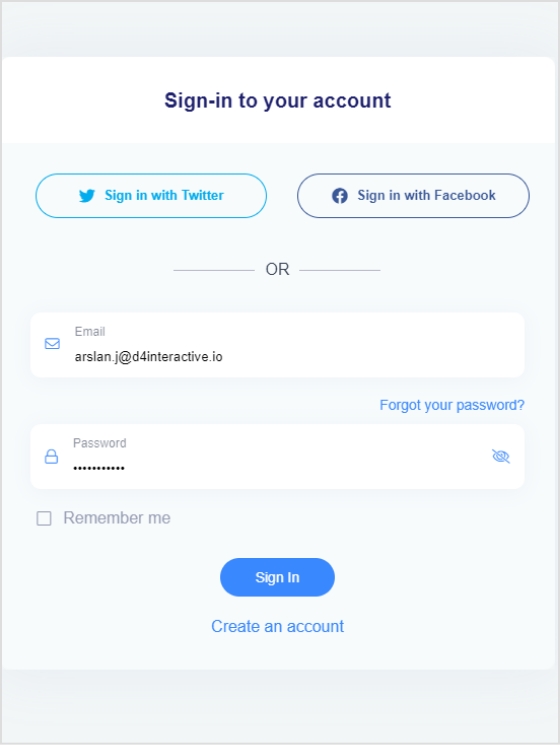
Step 1: Sign in to Replug or create an account if you’re new.
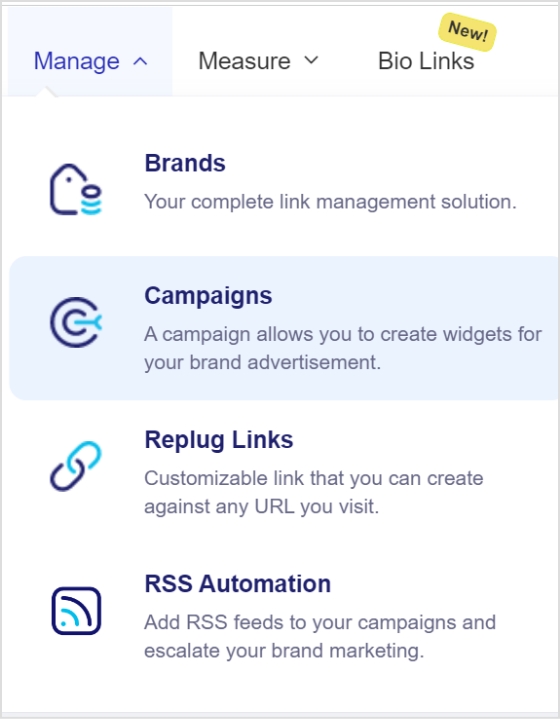
Step 2: Go to the manage section on the main dashboard page and select campaign.
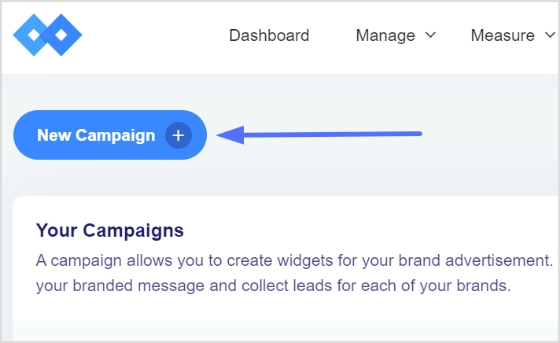
Step 3: Click on the “create new campaign” button in the campaign section.
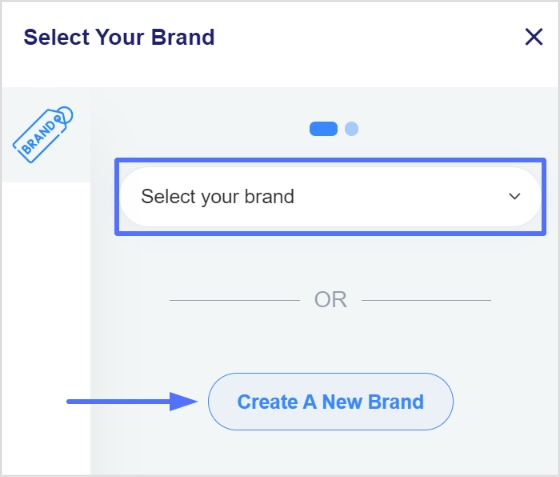
Step 4: To create a new campaign, you must select a brand first. You may choose an existing brand or create a new one if not already been created.
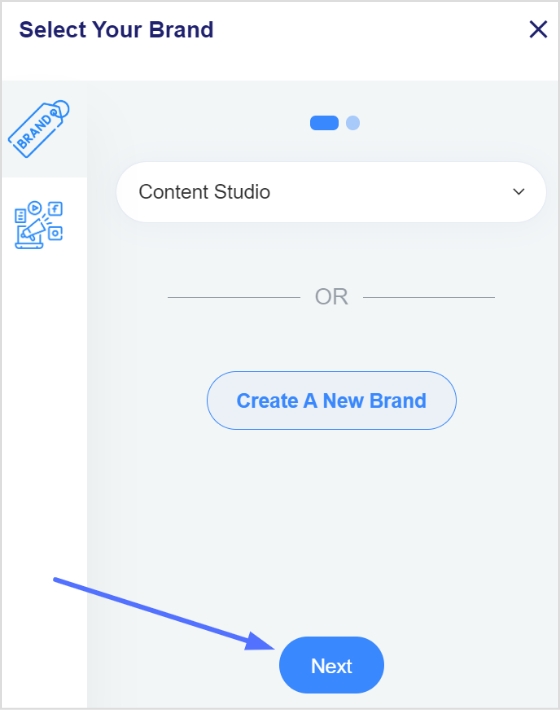
Step 5: Click the next button once you’ve selected or created a brand.
Step 6: You will now see a page for choosing a campaign type. Choose a name for your call-to-action campaign here.
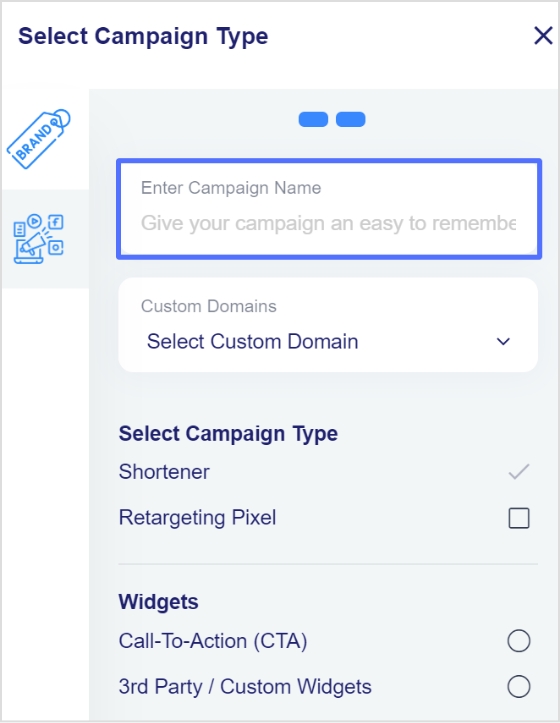
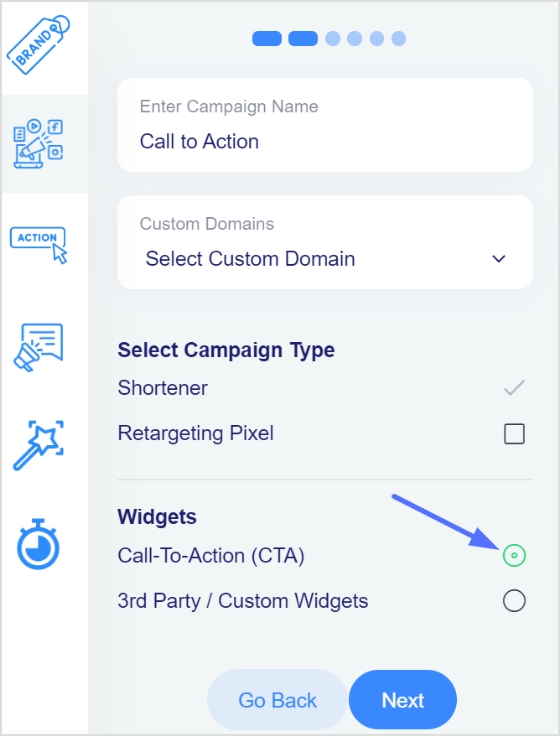
Step 7: Select the call to action option from the campaign type page and click the next button.
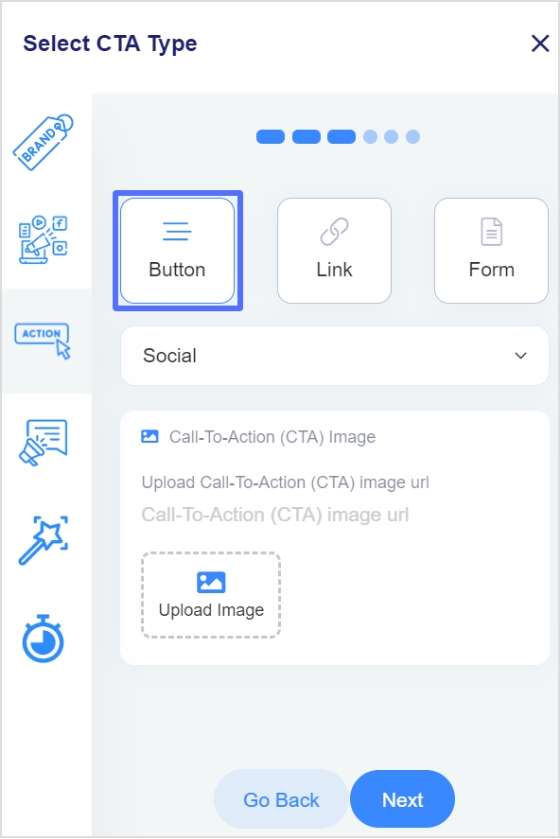
Step 8: Next, select your CTA type; here, we’ve selected a button CTA.
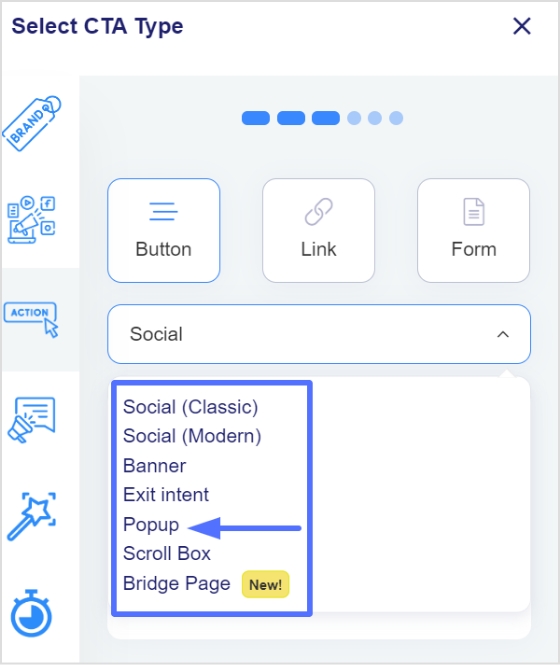
Step 9: After selecting the CTA type, you need to select the theme for your CTA. Your CTA’s appearance depends on your CTA’s purpose. As for this case, we have chosen a popup CTA theme to appear after clicking the shortened link.
Note: Read more about the use cases for different theme types to understand which CTA theme is perfect for you.
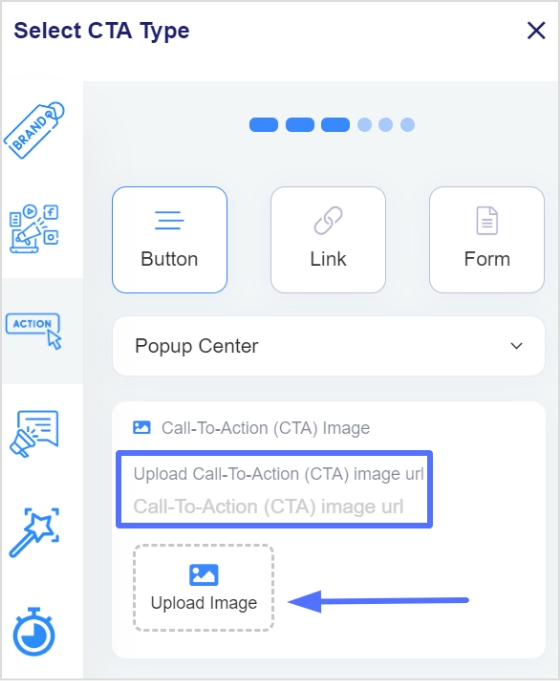
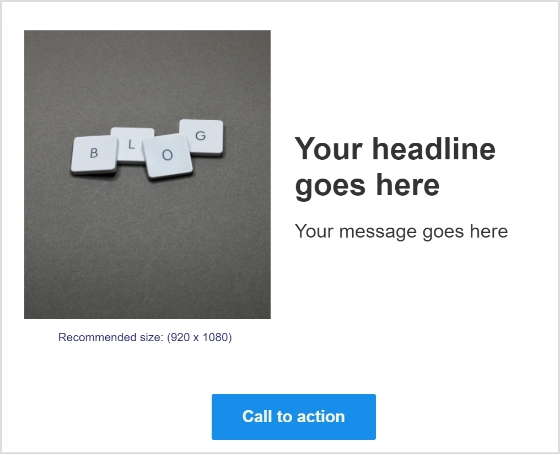
Step 10: Enter your URL, upload an image for the CTA, and click Next.
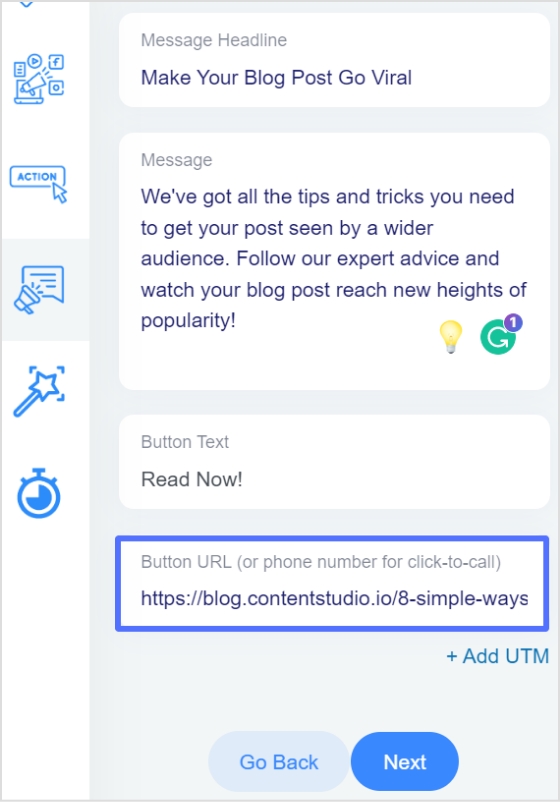
Step 12: You are now in the CTA message section. Write your headline, message, and CTA button text.
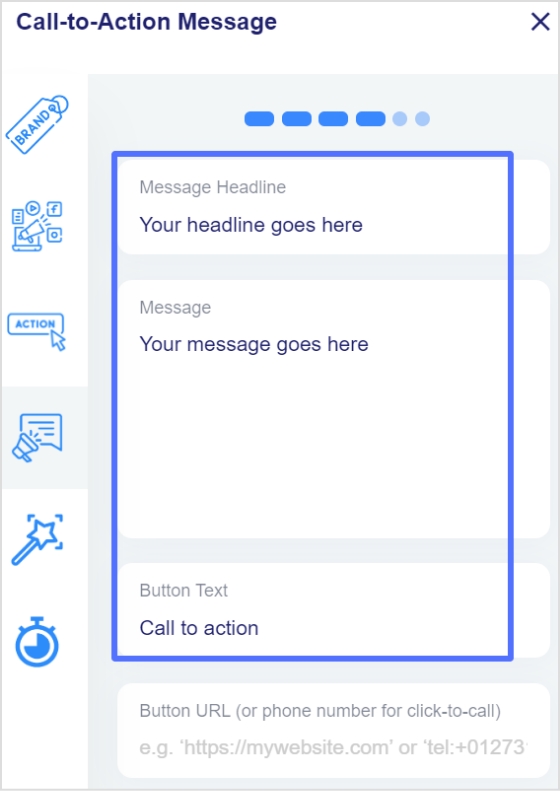
Step 13: Enter your CTA button’s URL or phone numberin the last block, and click Next.
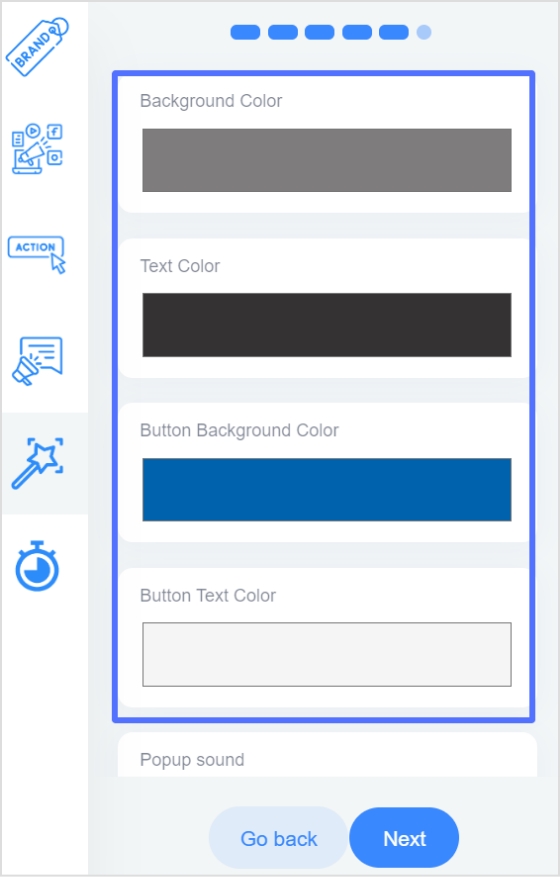
Step 14: You’re now in the CTA customization section, where you can add colors. (Background colors, text colors, CTA button background colors, CTA button text colors). Choose your colors and click next.
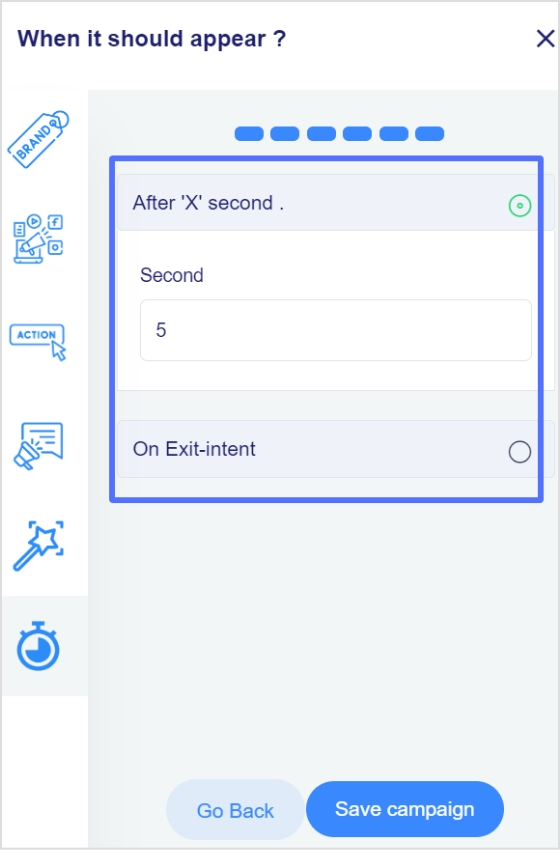
Step 15: In the final step, you will select the seconds, after which the CTA will be displayed to the user. Alternatively, you can select the “On exit-intent” option, which will display the CTA when the user wants to exit the page.
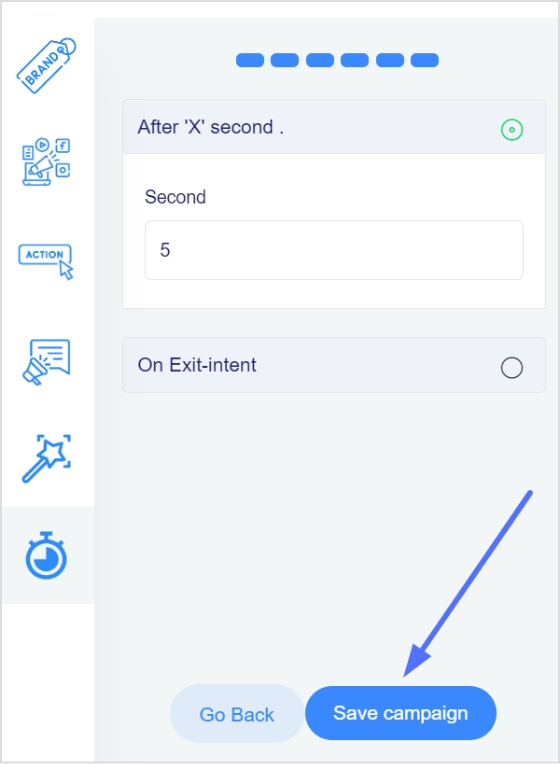
Step 16: Save the campaign; now, you can share it across other platforms. Ensure that your newly created campaign appears in the campaigns section.
Did You Know?
Replug is a top-notch link optimization platform that can also help to track the effectiveness of the CTA. It offers analytics tools that allow you to track how many clicks the CTA receives. This can help you determine which CTAs are most effective and optimize your marketing efforts accordingly.
FAQs
What are the 3 features of a strong call to action?
Any CTA should have these three key features:
1. Clarity: A strong call to action should be clear and straightforward so that the reader knows exactly what they are being asked to do. This means using actionable language, such as “click here” or “sign up now,” and avoiding vague or confusing phrases.
2. Urgency: A sense of urgency can be a powerful motivator, and a strong call to action should convey a sense that the reader needs to take action immediately. This can be achieved through time-sensitive language, such as “limited time offer,” “act now,” or by highlighting the benefits of taking action immediately.
3. Relevance: A strong call to action should be relevant to the reader and the context in which it appears. This means that it should be tailored to the specific needs and interests of the audience and should align with the overall goals and message of the campaign or piece of content. By focusing on the reader and their needs, a strong call to action can increase the chances of conversion.
What elements are in CTA?
There are a few key elements that are typically included in a CTA:
– Action verb: The CTA should include an action verb that tells the reader what to do. Some common action verbs used in CTAs include “click,” “sign up,” “download,” and “register.”
– Button or link: The CTA should include a button or link that the reader can click to take the desired action. The button or link should be prominently placed and easy to find.
– Benefit: The CTA should include a benefit or reason for the reader to take the desired action. This could be a discount, exclusive content, or a chance to win a prize.
– Sense of urgency: The CTA should convey a sense of urgency or time sensitivity to encourage the reader to take action immediately. This can be achieved through time-sensitive language or by immediately highlighting the benefits of taking action.

Linking Instagram to TikTok allows users to share their content across both platforms, increasing their reach. It also helps to build an audience and create a unified brand presence across both platforms.
For those managing multiple social profiles and links, a reliable link optimization platform can help organize and track all your URLs, so you don’t lose control as your reach grows.
Link Instagram to TikTok:
Step 1: Open TikTok from your mobile device to link Instagram.
Step 2: Tap on the profile icon in the bottom right corner to open your profile.
Step 3: Tap the edit profile button on the main profile screen.
Maximize marketing ROI
by transforming ordinary URLs into branded short links that convert.
Try Replug for free
Step 4: Tap the Add Instagram button in the edit profile section.
Step 5: Next, enter your login credentials.
Step 6: Tap the Allow button when asked whether TikTok needs access to your Instagram information.
Now your Instagram account is linked to your TikTok account.
Note: Before pasting your profile URL, you may want to create short link versions of your Instagram (or other social) URLs, making them cleaner, easier to share, and more clickable in your TikTok bio. For this task, try Replug today!
Is there a fix for the TikTok Instagram button not working?
There is no fix for the TikTok Instagram button not working. Ensure you have the most recent versions of the TikTok and Instagram apps. Some people succeeded when they deleted the app and cleared the cache from their phones. Then when they reinstall the app, the problem is usually fixed.
A link in your Instagram bio is a great way to drive traffic to your website and increase engagement with your content. In addition, it allows you to direct potential followers to a landing page, portfolio, or blog post you want to promote.
You can also link to an email sign-up page, product page, or shop. This feature is handy for businesses, brands, and influencers who want to increase their reach and promote their content.
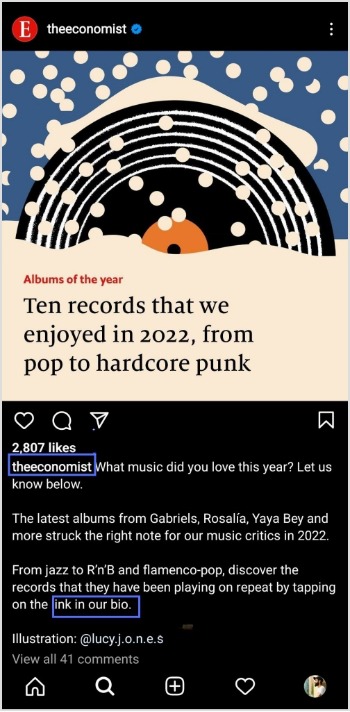
Follow this step-by-step guide to quickly find any profile’s link in the bio on mobile and desktop.
How to get to the link in the bio on Instagram on a mobile device?
Step 1:Open the Instagram app on your mobile device.
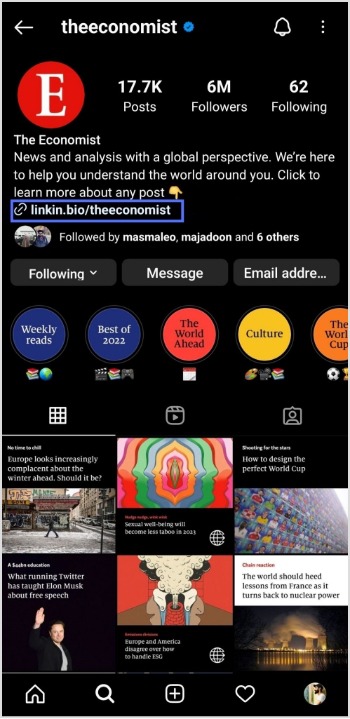
Step 2:Tap on the user’s profile name (username) on whose caption you noticed the Link in Bio.
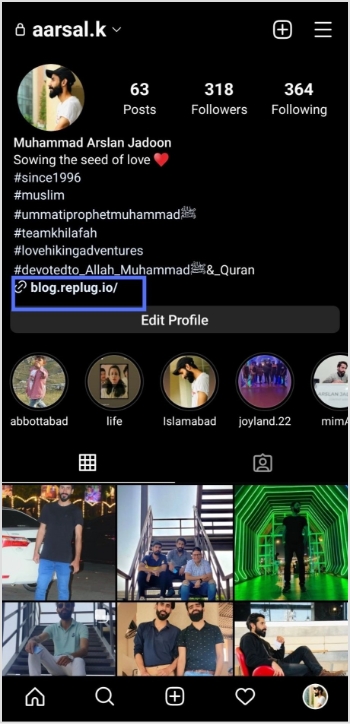
Step 3:You will be taken to the user’s profile screen. Here you will see a website link that’s your “Link in Bio.” Just tap on the link to open it.
How to get to the link in the bio on Instagram on a computer device?
Here are two simple steps to find the Instagram link in the bio on a computer.
Step 1: Click on the profile that says Link in bio in a post.
Step 2:The website link will show up under their bio on their profile screen. Click on it to open the link.
How To Add A Instagram Link In Bio?
Adding an Instagram link in bio helps direct your followers and potential customers to your dedicated page.
As a result, makes it easier for them to find your profile and learn more about your brand. It also encourages followers to engage with your content, which can help drive sales and increase brand awareness.
Here’s how to add an Instagram link in the bio:
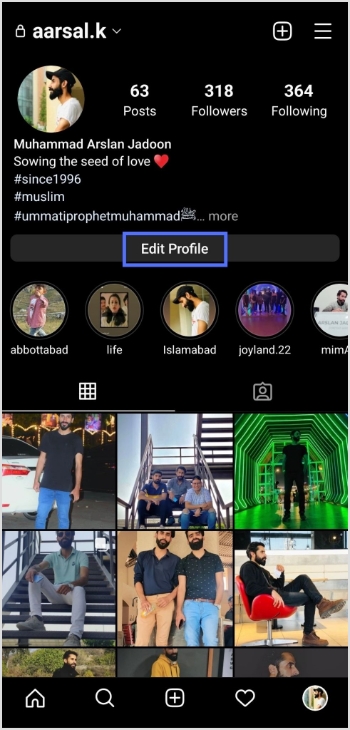
Step 1: Open Instagram on your mobile and tap your profile icon in the bottom right corner.
Step 2: Tap on the edit profile button on your profile page.
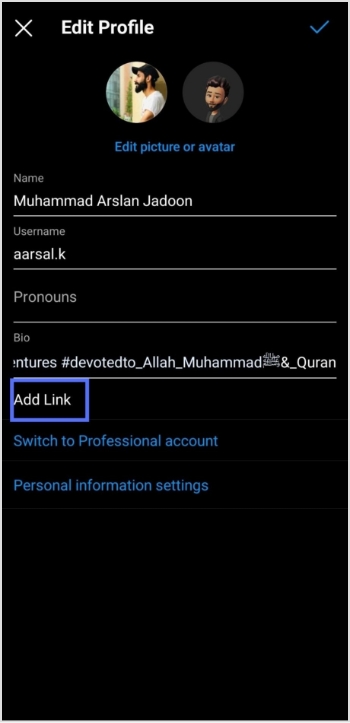
Step 3: Now, you will see the add link section on your mobile screen. Tap on it.
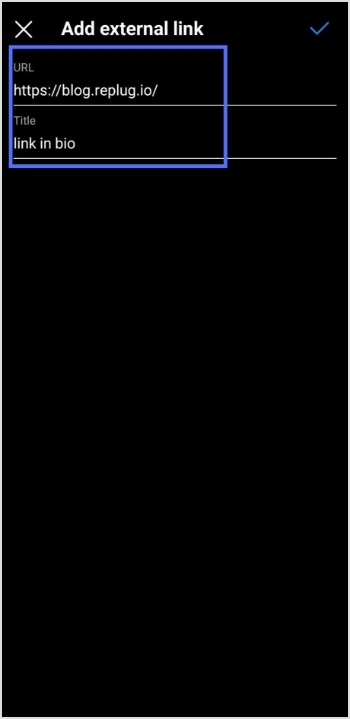
Step 4: Tap the add external link section to add your website address.
Step 5: Copy and paste the URL in the URL section and add a title in the title section.
Step 6: Your link in the bio will now appear in your profile.
Your Instagram profile now has a link in the bio.
Instagram bio page with multiple bio links – Is it possible?
Adding multiple bio links to your Instagram bio is a great way to drive more traffic to your website and other online resources. By adding links to your Instagram bio, you can easily direct your followers to your website, blog, YouTube channel, and other platforms where they can learn more about you and your business.
Additionally, including multiple bio links allows you to showcase your work, products, or services in an efficient and organized way. You can use a free link shortener to create a single, short URL that links to multiple websites.
Follow these steps to add multiple bio links to your Instagram profile.
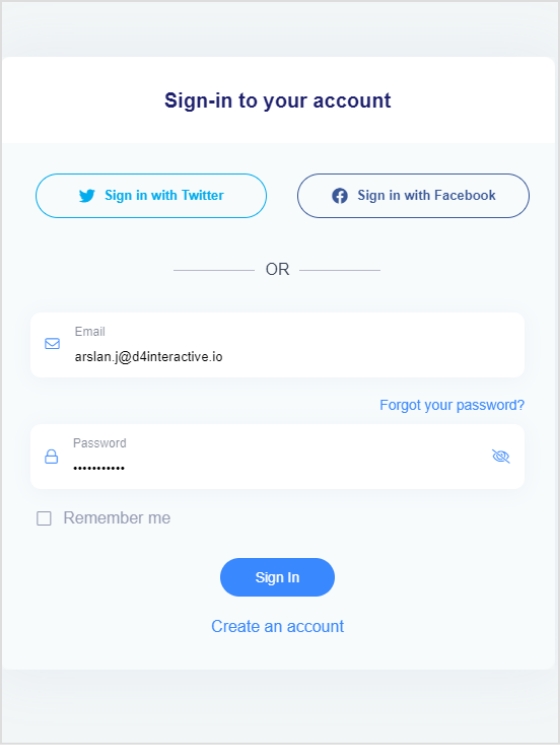
Step 1:Sign in to your Replug account or create a new one if you don’t have one.
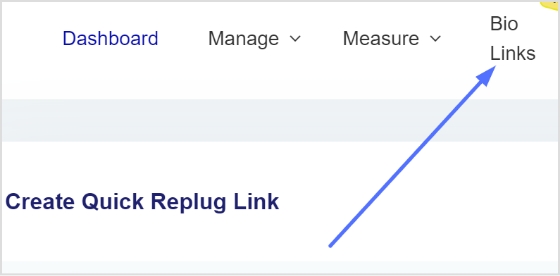
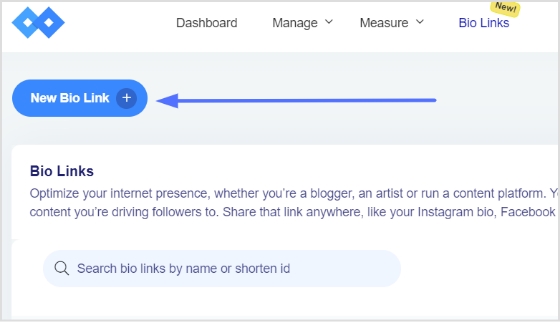
Step 2: You’ll be taken to the main dashboard page. Click on the bio links section from the main dashboard page.
Step 3: Click the new bio link button to create your bio link.
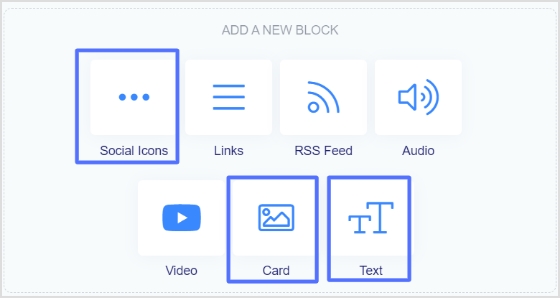
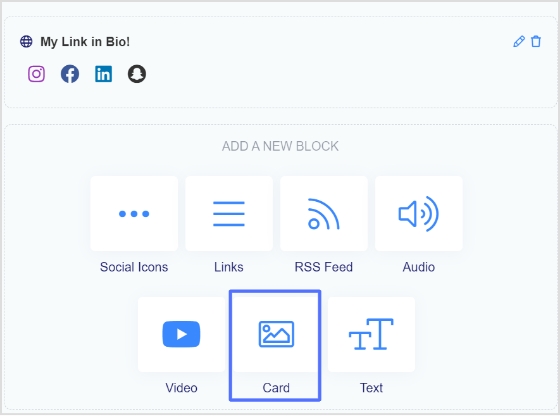
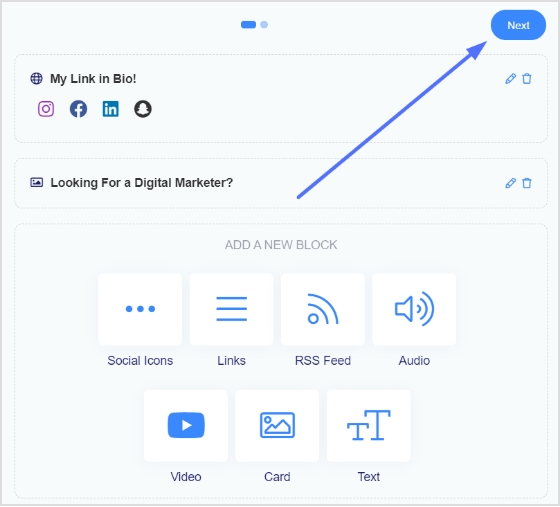
Step 4: Add Social Icons, Links, RSS Feed, Audio, Video, Card, and Text as part of your bio links. Our bio link page, for example, has social icons and a card.
Note: The above image shows you the options (blocks) you can choose for your Instagram bio or landing page.
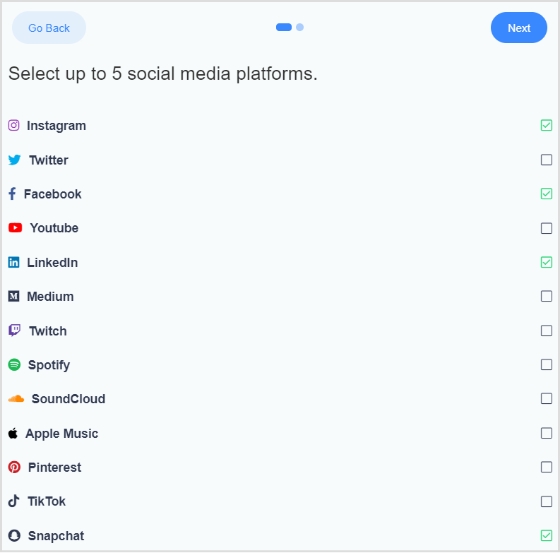
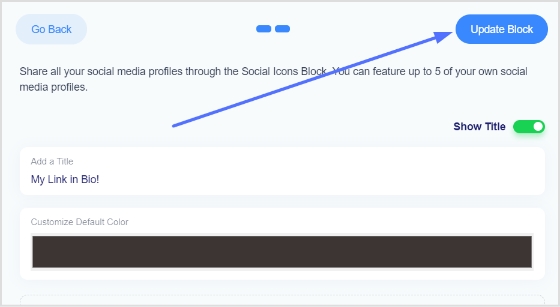
Step 5: Choose social icons and click next. You can choose up to 5 social icons (profiles).
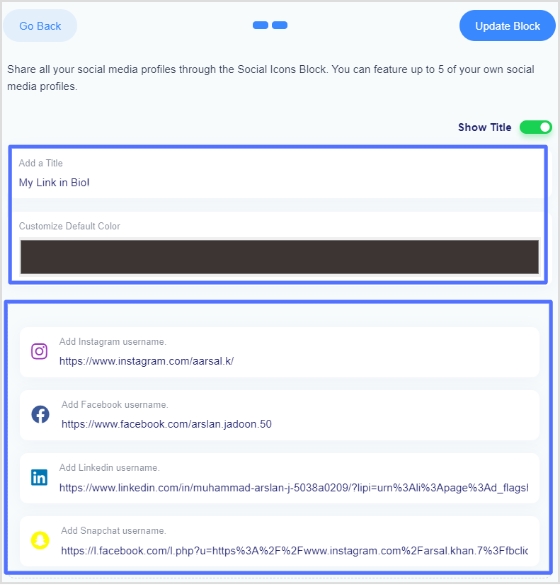
Step 6: Now, add a title to your social links, customize the icon’s color and enter the links or usernames for your social media accounts, as shown in the picture below.
Note: When someone clicks on any of your social icons, they will go to the relevant social media profile.
Step 7: Now, click the update block button to add other blocks, like card, text, video, etc.
Step 8: Now, choose another block, for example, a card.
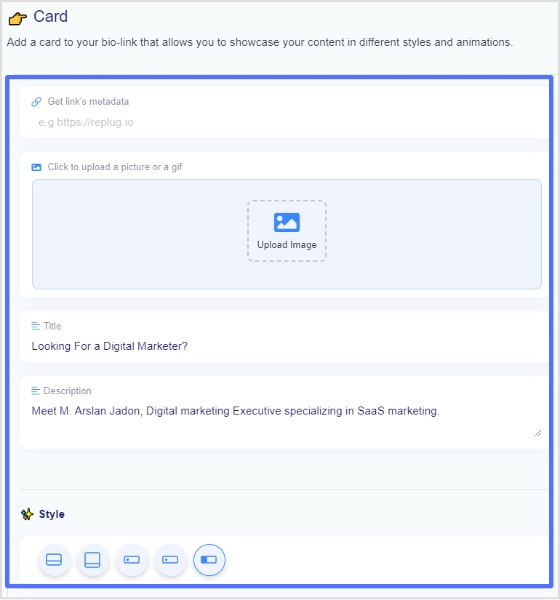
Step 9: In the card section, add your destination URL add the card image,title, and description. Also, choose the style of the card and click the save block button.
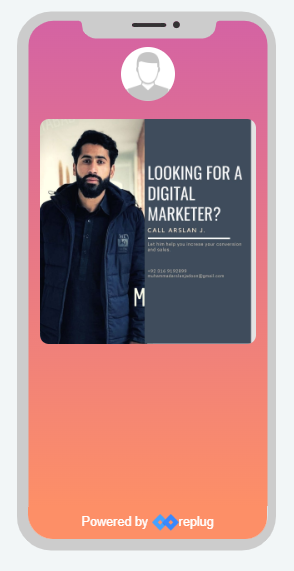
If you want to see how any section or block looks, you can preview it side by side. Here is an example of how the card looks.
Step 8: Once you have added all the necessary blocks, click the next button.
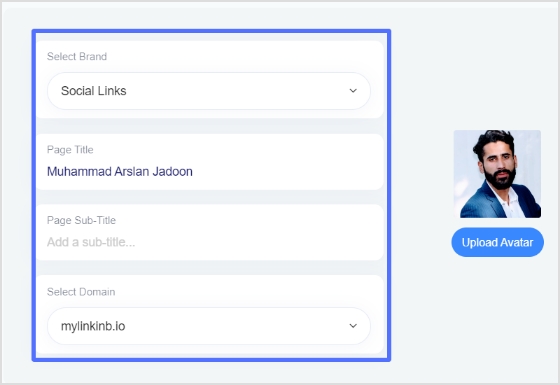
Step 9: You are now on the final page. Upload your avatar, select a brand, add a title and sub-title, and choose a domain.
Note: Replug is an all-in-one link optimization platform that allows you to create a brand with a custom domain in seconds.
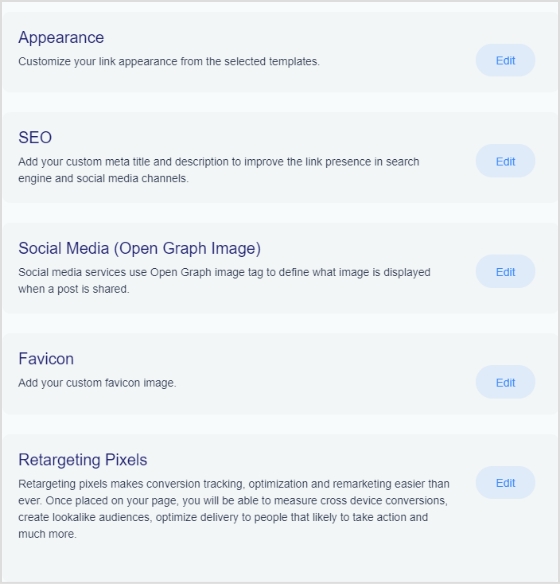
Step 10: As you scroll down, you’ll find other cool features, such as custom appearances,SEO, social media open graph images, favicons, and retargeting pixels. Make your bio link more appealing by adding these features.
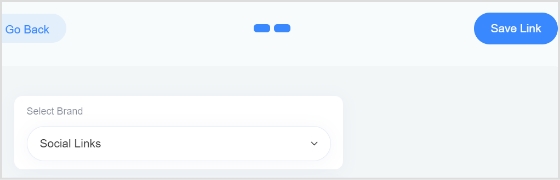
Step 11: Once you’re done, click the save link button, and your bio link is ready to share on any social platform.
Frequently asked questions
Can you have more than one link in your bio?
Yes, you can have more than one link in your bio with the help of a free bio link tool like Replug. However, it is important to remember that a bio should be concise, so it is advisable to limit the number of links to two or three.
Can I create a link with multiple links on Instagram?
Yes, you can create a link with multiple links using a top-notch Instagram bio link generator online. Simply create an account and follow the instructions to create a link with multiple links, often called bio links.