Author: Arslan Jadoon

  • How to Unblock Websites: 7 Ways to Access Restricted Content

    How to Unblock Websites: 7 Ways to Access Restricted Content

    In today’s digital age, the internet has become an essential part of our daily lives, allowing us to access information, connect with others, and conduct business anywhere. 

    However, some websites and online content may be blocked or restricted in certain regions, making accessing the information they need difficult. Being blocked can be frustrating if you’re trying to stream your favorite TV show or access a website for work or research purposes. 

    Luckily, there are several ways to unblock websites and gain access to restricted content. In this guide, we’ll explore seven effective methods for accessing blocked websites and content, so you can get back to browsing the internet freely and securely.

    Why do websites get blocked?

    There are various reasons why websites can get blocked. Some of the common reasons include:

    • Government censorship

    In some countries, the government may block certain websites that they consider to be a threat to national security, or that they deem inappropriate.

    • Workplace or school restrictions

    Employers and schools often use web filters to prevent employees or students from accessing websites that are not related to work or studies.

    • Geo-restrictions

    Some websites may be blocked in certain countries due to licensing agreements or legal restrictions.

    • Website maintenance: 

    Occasionally, websites may be temporarily blocked for maintenance or updates.

    • Hacking and cyber threats 

    Websites that have been hacked or are susceptible to cyber-attacks may be temporarily or permanently blocked to prevent further damage.

    The reasons for website blocking can vary widely, and it’s important to understand why a website has been blocked before attempting to access it using any of the methods mentioned above.

    Also read: How to Block a URL in Chrome?

    How to unblock websites?   

    Here’s how to unblock websites using seven different ways:

    1. Use a VPN

    use-vpn

    If you’re looking for a reliable and secure way to access restricted websites, a Virtual Private Network (VPN) is a great option. A VPN encrypts your internet traffic and routes it through a secure server in another location, making it look like you’re accessing the internet from that location. This not only lets you unblock websites that are restricted in your region, but it also adds an extra layer of security to your online activities.

    VPNs are easy to use, simply download and install a reputable VPN service on your device, select a server location, and connect to the internet. 

    2. Use a Proxy

    use-a-proxy

    Another way to unblock restricted websites is by using a proxy server. A proxy acts as a middleman between your device and the internet, allowing you to access websites that may be blocked in your region. Proxies are typically free to use, but they may not always be reliable or secure. For affordable and secure proxy solutions, websites like ProxyCoupons can help you find deals and discounts on trusted proxy providers.

    For example, you can use a web-based proxy site such as KProxy to access the blocked website by entering the website URL into the proxy site’s search bar. To use a proxy, you’ll need to find a proxy server and configure your device to use it. You can find free proxy servers online, but it’s important to be cautious when using them, as they may not be trustworthy. Using a free online proxy checker is a helpful way to verify the functionality and security of a proxy server before relying on it for your online activities.

    Also read: URL Hijacking Uncovered: A Complete Guide to Protecting Your Online Presence

    3. Use Tor

    tor-browser

    Tor is a free and open-source software that lets you browse the internet anonymously. It works by encrypting your internet traffic and routing it through a network of volunteer-run servers, making it difficult for anyone to track your online activities.

    To use Tor, simply download and install the Tor browser on your device, and you’ll be able to access the internet anonymously. However, it’s worth noting that Tor can be slower than other methods of accessing the internet, so it may not be the best option if you need to access websites quickly.

    4. Use a URL Shortener

    use-a-url-shortener

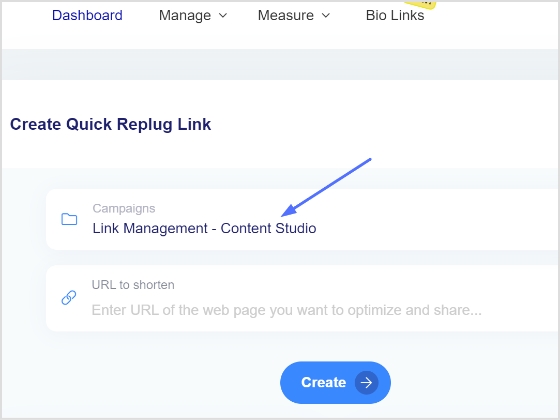
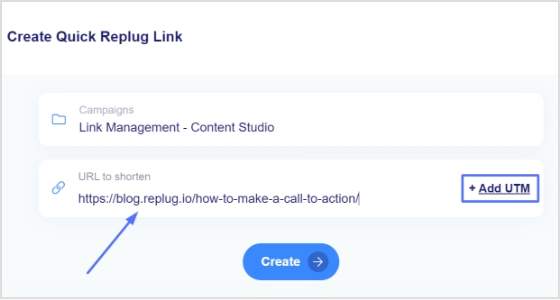
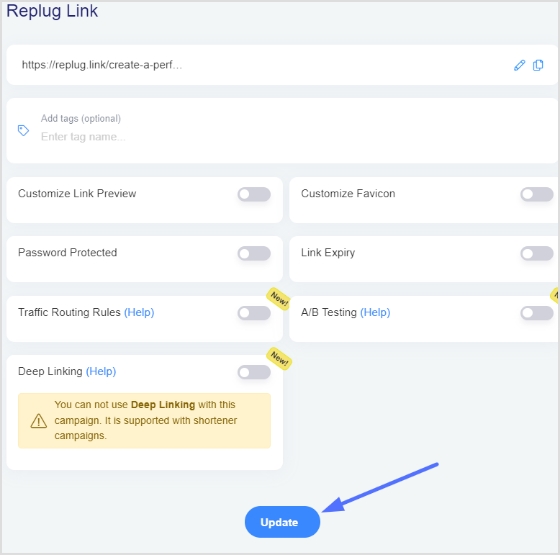
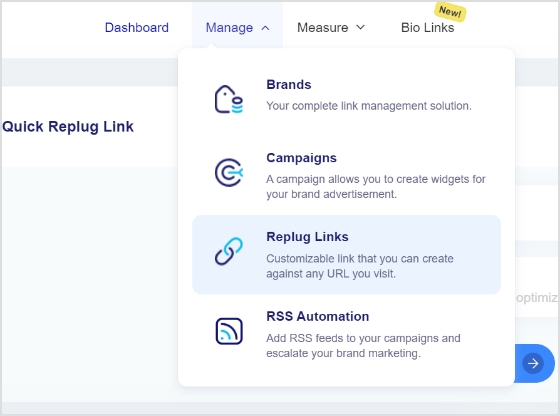
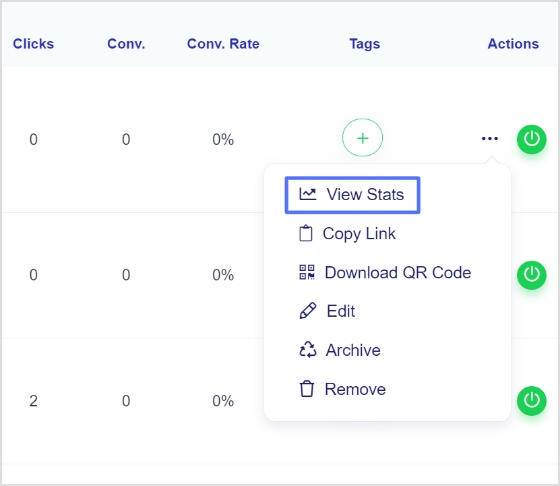
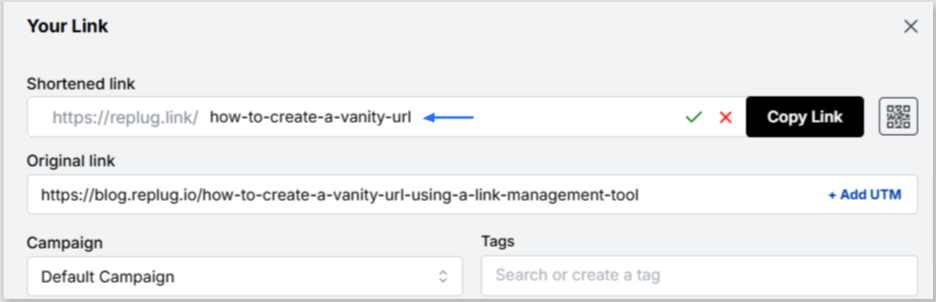
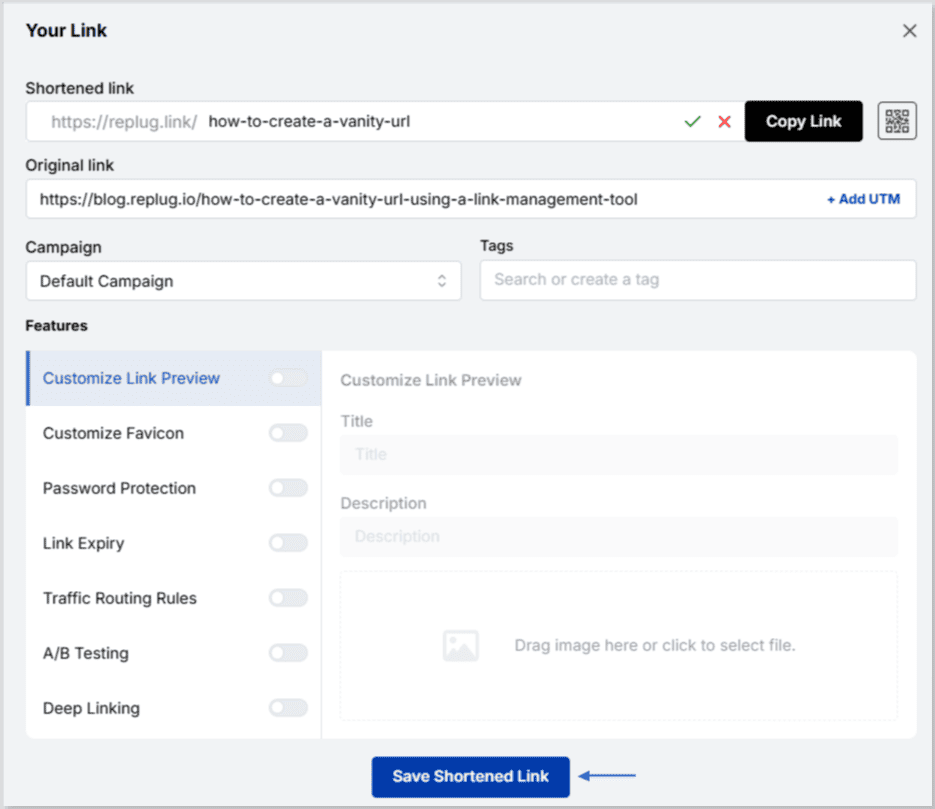
    If a website is blocked due to its URL, you can try using a URL shortener to access it. URL shorteners like Replug.io or Rebrandly take a long website address and shorten it to a shorter, more manageable URL. By using a reliable short url shortener, you may be able to bypass website blocks that are based on the website’s URL.

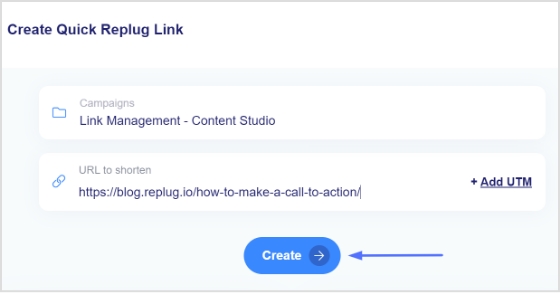
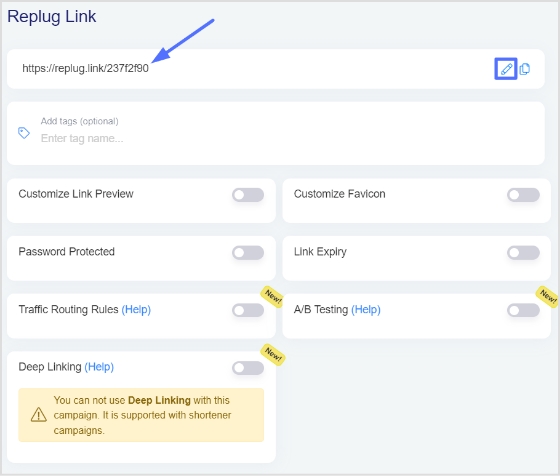
    When using a URL shortener, simply visit the website of your chosen service, enter the URL of the blocked website, and click “shorten.” You’ll be provided with a new, shortened URL that you can use to access the website.

    5. Access the Website via Its Crawl History

    use-way-back-machine

    If a website has been recently blocked in your region, you may still be able to access it via its crawl history. Search engines like Google and Bing regularly crawl websites and store cached versions of the website’s pages. By accessing the cached version of the website, you may be able to bypass any website blocks that are currently in place.

    To access a website’s crawl history, simply search for the website on a search engine and look for the “cached” option next to the search results. Clicking on the cached version will take you to a version of the website that was saved by the search engine. For example, you can use the Wayback Machine website to access a website’s previous versions and find the version of the website that was not blocked.

    6. Change Your Device Settings

    In some cases, website blocks may be based on your device settings. For example, if you’re using a public Wi-Fi network, the network’s administrator may have blocked certain websites. To bypass these blocks, you can try changing your device’s DNS settings or using a different Wi-Fi network.

    To change your device’s DNS settings, go to your device’s network settings and enter a new DNS server address. Some popular DNS servers include Google DNS, OpenDNS, and Cloudflare DNS.

    Also read: Easy Guide For Fixing URL Blacklist

    7. Open a New Account

    If a website is blocked due to your account being banned or suspended, you may need to create a new account to access the website. However, this method may not work for all websites, as some may block your IP address from accessing their content even if you create a new account.

    To open a new account, you will need to create a new email address, username, and password. Make sure to use a different email address than the one you used for your previous account, as some websites may block your new account if they detect that it is associated with a previously banned or suspended account.

    This method is useful if the website has banned your previous account, but it may not be effective if the website has blocked your IP address. Additionally, creating multiple accounts on a website can be against their terms of service, so be sure to read the website’s policies before creating a new account.

    For example, social media platforms like Twitter and Facebook may ban accounts for violating their community guidelines. In such cases, creating a new account with a different email address and username can help you regain access to the website. However, some websites like Netflix may not allow users to create multiple accounts, and may even block the new account if they detect that it is associated with a previously banned or suspended account.

    Also read: 5 Top Link Rotators: Convert More With Traffic Routing & A/B Testing

    Frequently asked questions

    Is it safe to use a proxy to unblock websites?

    While using a proxy can be a quick and easy way to access blocked websites, it’s important to be cautious about the security implications. Some proxies may collect and store your personal information, or be used by hackers to steal your data. Make sure to choose a reputable and secure proxy provider, and use HTTPS websites to ensure that your browsing activity is encrypted.

    How do I know if a website is blocked?

    If you’re unable to access a website, the first step is to check whether the site is actually down or blocked. You can use online tools such as DownForEveryoneOrJustMe.com to see if the site is unavailable to everyone, or just to you. You can also try accessing the site using a different device or network to rule out any issues with your own connection.

    Can I unblock websites on my mobile phone?

    Yes, many of the methods for unblocking websites described above can also be used on mobile devices. For example, you can use a VPN app to access blocked sites, or use a browser with built-in proxy support. However, keep in mind that some mobile networks may have more aggressive content filtering in place, so you may need to use more advanced methods to bypass these restrictions.

    Is it legal to unblock websites?

    The legality of unblocking websites can vary depending on the country and the circumstances. In some countries, it is illegal to use VPNs or proxies to access blocked websites. However, in most cases, unblocking websites for personal use is not considered illegal. It is always recommended to research the local laws and regulations related to internet usage and unblocking websites before attempting to do so.

    Why is my internet blocking websites?

    There can be various reasons why your internet is blocking websites. One common reason is the use of content filtering software or parental controls, which block access to certain categories of websites. Another reason could be the use of firewalls or antivirus software that blocks websites with malicious content or phishing attempts. In some cases, your internet service provider (ISP) may be blocking certain websites due to legal or regulatory reasons.

    How do I stop my browser from blocking a website?

    If your browser is blocking a website, you can try the following steps:
    – Check if the website is included in your browser’s block list and remove it if necessary.
    – Disable any browser extensions that may be causing the issue.
    – Clear your browser cache and cookies.
    – Reset your browser settings to default.

    How do I unblock a website on a school Chromebook?

    If you are using a school Chromebook, the ability to unblock websites may be restricted by the school’s IT policies. However, you can try the following steps:
    – Use a VPN or proxy to access the blocked website.
    – Try accessing the website through a different browser.
    – Ask the school’s IT department to unblock the website if it is necessary for academic purposes.

    Trending:

    How to create a vanity URL?

    What is TikTok Pixel? Learn To Set Up TikTok Pixel

    How to put a YouTube link in the Instagram bio?

  • How to download Facebook videos?

    How to download Facebook videos?

    Facebook is among the most popular social media platforms that billions of people use worldwide. Its vast collection of videos has become a go-to source for entertainment, information, and education.

    However, users may want to download Facebook videos for offline viewing, sharing with friends, or reposting on other platforms. 

    In this context, downloading Facebook videos can be helpful for those who want to save their favorite videos, access them without an internet connection, or keep a backup copy.

    But, it’s essential to remember that downloading videos without the owner’s consent violates copyright laws and Facebook’s terms of service. Therefore, respecting the creator’s rights and using downloaded videos ethically and responsibly is crucial.

    If you often work with social media links or share content regularly across platforms, Replug can streamline your workflow, helping you manage and organize URLs alongside your video-sharing activities seamlessly!

    How to download Facebook videos on a mobile device?

    There are several ways to download Facebook videos on a mobile device. Here’s how:

    Step 1: Log in to Facebook from your mobile phone. 

    Step 2: Play the video you want to download and tap “3 dots” in the upper right corner of the video.

    3 dots

    Step 3: Tap “copy link”.

    copy link

    Note: Before pasting the URL/link into a downloader or sharing it elsewhere, you could optionally use a custom URL shortener. That way the link stays clean, easy to share, and more manageable if you need to store or revisit it later.

    Step 4: Open Chrome on your mobile device. Paste the link in the search bar to open the video in Chrome. 

    Step 5: Play the video and long-tap on it. 

    play video

    Step 6: Tap “download video,” and your video will be downloaded.  

    download video


    Replug Branded Short Links CTA
    Maximize marketing ROI
    by transforming ordinary URLs into
    branded short links that convert.
    Try Replug for free

    How to download Facebook videos on a computer device?

    Step 1: Log in to Facebook on a computer using a browser. 

    Step 2: Open the video you want to download and click “3 dots” on the upper right side of the video. 

    3 dots

    Step 3: Click “copy link” to copy the video link. 

    copy link

    Step 4: Open another tab on your computer browser and writeFacebook video downloader”. 

    Step 5: Open a facebook Video Downloader online tool from the search results, paste the video link, click the download button, and select the preferred quality. Your video will be downloaded within a few moments.

    Facebook Video Downloader- ContentStudio

    You may also like: How to download Instagram videos?

    How to download reel videos from Facebook?

    To download Reels videos from Facebook, you can use the following method:

    1. Open the Facebook app and find the Reels video you want to download.
    2. Tap on the Reels video to open it in full screen.
    3. Tap on the three dots in the bottom right corner of the screen.
    4. Select “Save Video” or “Save Reel” from the options.

    The Reels video will be saved to your device’s camera roll or gallery.

    If the “Save Video” or “Save Reel” option is not available, it may be because the creator has disabled the option to save their videos. For a case like this, you can download Facebook reels with FvDownloader, an online option for saving Facebook reels for offline use.

    However, downloading videos without the owner’s consent violates copyright laws and Facebook’s terms of service. Therefore, using downloaded videos ethically and responsibly is essential, respecting the creator’s rights.

    Frequently asked questions

    Is it legal to download Facebook videos?

    It depends on the copyright laws of your country and Facebook’s terms of service. Downloading videos without the owner’s consent is generally considered a violation of copyright laws, and Facebook’s terms of service prohibit the downloading of videos without permission.

    Can I download live videos from Facebook?

    Live videos cannot be downloaded directly from Facebook, but some third-party tools can help you record and download live videos from Facebook.

    How do I download private Facebook videos?

    Private Facebook videos cannot be downloaded unless you can access the video or the owner’s permission. If you have access to the video, you can use the same methods as downloading public videos. You can try contacting the owner to request permission if you don’t have access.

    Is there any app to download Facebook videos on iOS devices?

    Yes, several apps, such as “Video Downloader for Facebook” or “MyMedia,” can be used to download Facebook videos on iOS devices.

    Can I download Facebook videos in high quality?

    Yes, some video downloader apps and websites allow you to download videos of high quality. However, remember that higher-quality videos take up more space on your device.

    Trending Topics:

    15 proven Facebook SEO techniques to try in 2026

    How to link Instagram to TikTok?

    Top 5 paid URL shorteners worth paying for in 2026

    Effective Risk Management Strategies to Manage Social Media Risks

  • How to post TikTok on Instagram: Step-by-step Guide

    How to post TikTok on Instagram: Step-by-step Guide

    Are you an avid TikTok user and want to share your content with your Instagram followers? Do you wish to showcase your TikTok creations to a broader audience?

    If you regularly share content across social platforms and want an easy way to manage, track, and organize all your shared links and posts, Replug offers a unified dashboard to manage everything in one place.

    In this guide, we’ll show you how to post TikTok videos on Instagram, so you can double up your social media reach and get more eyes on your entertaining content.

    So, get ready to learn the ropes and become a social media sensation!

    Here’s how to share TikTok videos on Instagram:

    TikTok has become a popular platform for creating and sharing short-form videos. But, if you want to share your TikTok content with your Instagram followers, you might be wondering how to do it. The good news is that it’s relatively easy to post TikTok videos on Instagram, and you can share them in various formats such as feeds, stories, and reels.

    Plus, if you need a handy tool to download your TikTok videos for Instagram, consider using a TikTok video downloader to streamline the process.

    How to post TikTok to your Instagram feed?

    To post a TikTok video on your Instagram feed, follow these steps:

    Step 1: Open the TikTok app and find the video you want to share.

    Step 2: Tap on the “3 dots” or “share” icon located on the right side of the screen.

    3-dots-share-button

    Step 3: Tap on the “Instagram” option.

    select-instagram

    Note: Before sharing or embedding the video link elsewhere, like in bios, descriptions, or other social media, you can use a trusted URL shortener to produce neat, brand-friendly URLs that look clean and are easy to manage.

    Step 4: Choose to post the video to your Instagram feed.

    Instagram-feed

    Step 5: Edit the video as desired, add filters, captions, or other adjustments, and then tap “Next.”

    edit-video

    Step 6: Tap “share” and your video will be shared on your Instagram feed. 

    How to post a TikTok to Instagram stories?

    To post a TikTok video on your Instagram stories, follow these steps:

    Step 1: Open the TikTok app and find the video you want to share.

    Step 2: Tap on the “Share” or “3-dots” icon located on the right side of the screen.

    Step 3: Tap on the “Instagram” option.

    Step 4: Choose to post the video to your Instagram story. 

    Step 5: Edit the video as desired, add filters, captions, or other adjustments, and share. 

    Also read: How to add a link in bio to your Instagram profile?

    How to post a TikTok to Instagram Reels?

    To post a TikTok video on your Instagram reels, follow these steps:

    Step 1: Open the TikTok app and find the video you want to share.

    Step 2: Tap on the “Share” icon located on the right side of the screen.

    Step 3: Tap on the “Save video” option to save the video to your device.

    save-video

    Step 4: Open the Instagram app and tap on the “Reels” option.

    reels-option

    Step 5: Select the video you want to share from your device’s camera roll, add filters or other adjustments, and then tap “Share.”

    And there you have it! Now you know how to post TikTok videos on Instagram, whether it’s for your feed, stories, or reels. So, go ahead and share your creative TikTok content with your Instagram followers and watch your social media presence grow!

    FAQs

    Can I post TikTok videos directly to Instagram?

    No, you cannot post TikTok videos directly to Instagram. You need to save the TikTok video to your device first and then upload it to Instagram.

    Will my TikTok video lose quality when I upload it to Instagram?

    It’s possible that your TikTok video may lose some quality when you upload it to Instagram due to differences in compression and resolution. To minimize quality loss, try to save the TikTok video in the highest possible solution and choose the best Instagram video settings for your device.

    Can I automate the process of sharing TikTok videos on Instagram?

    While there is no direct way to automatically share TikTok videos to Instagram, you can use third-party apps or tools like Content Studio to automate the process to some extent. However, monitoring the results and making any necessary adjustments is important to ensure your content is shared accurately and effectively.

    Trending:

    TikTok For Business: Strategies to Promote Small Businesses

    How to download Facebook videos?

    What is the Best Time to Post on TikTok

  • Starter’s guide to setup Facebook custom audience

    Starter’s guide to setup Facebook custom audience

    In today’s world, businesses increasingly turn to digital marketing strategies to reach their target audience. And one of the most popular and effective ways to do this is through social media platforms such as Facebook.

    With over 2.9 billion monthly active users, Facebook has become a hub for businesses to connect with customers and drive sales.

    For businesses handling multiple campaigns, ad audiences, and tracking links across various sources, a reliable link optimization platform such as Replug can make link management, analytics and retargeting far simpler and more organized.

    However, with so many users on the Facebook crowded platform, businesses can need help to target the right audience for their products or services. This is where Facebook custom audience comes into play!

    What are custom audiences?

    Custom Audiences is an ad-targeting option that allows businesses to target specific groups of people based on their interests, behaviors, and demographics. This feature lets companies create personalized ads that resonate with their target audience, increasing engagement and conversion rates.

    Creating a custom audience is easy and requires minimal effort. Businesses can upload their customer email lists or phone numbers to Facebook and build a custom audience based on this data. They can also create a customized audience using website traffic, app activity, social media analytics, and reporting tool. 

    Once you have created a Custom Audience, you can run targeted ad campaigns on Facebook, Instagram, or Audience Network. These ads can be in images, videos, or carousels, and they will be displayed only to the people in your custom audience.

    Also read:  How to create a call to action using a URL shortener?

    Are custom audiences still effective in 2026?

    Custom Audiences are still an essential tool for advertisers and marketers, as they allow businesses to target specific groups of people based on their past interactions with the company, such as website visits, app usage, and email engagement. This targeting can be highly effective as it allows businesses to focus their advertising efforts on people who have already shown an interest in their brand or products.

    However, the effectiveness of Custom Audiences can depend on several factors, including the quality of the audience data, the relevance of the messaging and creativity, and the competitiveness of the advertising landscape. In addition, privacy concerns and new regulations related to data usage may impact the ability of businesses to use custom audiences in the future.

    What type of Facebook custom audience can you use?

    There are five types of custom audiences that you can create depending on your needs. So here’s the list to help you get started : 

    1. Customer file custom audiences

    A custom audience is created by uploading a list of customer emails, phone numbers, or other identifying information. This allows businesses to target their existing customers or subscribers with personalized ads. One of the significant advantages of using customer file custom audiences is that companies can nurture their existing customer relationships by showing them relevant ads, promoting repeat purchases, and encouraging customer loyalty.

    2. Website custom audiences

    The website’s custom audience is a Facebook pixel-based custom audience. This pixel tracks the actions of visitors to your site and allows you to retarget them with ads on Facebook based on their behavior, such as pages they visited or actions they took. Businesses can retarget users who have already expressed interest in their goods or services using Website custom audiences. This encourages them to take action, like buying something or signing up for a newsletter.

    Note: If you share your landing or campaign URLs publicly, say via social media, emails, or ads, you might also want to use a handy URL shortener to keep links neat, trackable, and easier for users to click and remember. Replug will assist you with this exceptionally!

    3. App activity custom audiences

    Businesses can target users who have performed particular actions within their mobile app using this type of custom audience, created using Facebook’s software development kit (SDK). Businesses can use App Activity Custom Audiences to their advantage by retargeting users who have abandoned their cart or stopped using the app, enticing users to return to their app, and offering personalized promotions to users who have carried out particular in-app actions.

    4. Engagement custom audiences

    This kind of custom audience is created based on user interaction with a company’s Facebook or Instagram page, such as liking or commenting on a post, watching a video, or reacting to an event. Businesses can use engagement custom audiences to target users who have expressed interest in their brand, boost page engagement, and persuade users to take action, like making a purchase or subscribing to a newsletter.

    5. Lookalike custom audiences

    Facebook develops Lookalike custom audiences by using information from the current custom audiences of a company. After analyzing the data, Facebook creates a new audience that resembles the existing audience in terms of interests, habits, and demographics. Utilizing Lookalike Custom Audiences has several benefits for businesses, including the ability to grow their customer base and improve the efficiency of their advertising campaigns by connecting with new users similar to their current clients or subscribers.

    Also read: Getting Started with Meta Pixel: The Key to Successful Retargeting

    How to create a custom audience on Facebook?

    Navigating to the Audiences section of Ads Manager is the first step in creating any Facebook custom audience.

    audiences section

    Next, select “Create a custom audience” from the menu that appears.

    Depending on the kind of custom audience you want to create, you can choose the traffic source after that and move on to the subsequent steps.

    kind-of-custom-audience

    Also read: 8 Best Retargeting Platforms To Retarget Your Potential Audience

    Creating a website custom audience

    Step 1: Click on the website in the list of “your sources”

    website-custom-audience

    Step 2: Define rules

    Select the source, occasions, duration of retention, and rules. Among the rules, you can create ones below according to your needs :

    • Target all website visitors.
    • Target visitors to particular pages.
    • Focus on visitors who spend more time on your website.
    • Categorize visitors ( include or exclude them from the list).
    define-rules

    Step 3: Identify and explain the custom audience

    Give each of the Custom Audiences you create distinct names so that you can keep track of them all more easily. If more explanation is required, a brief description can be written.

    audience-name-description

    Step 4: Click “Create audience”

    create-audience

    Also read: 9 ways to multiply your sales with eCommerce retargeting

    Creating an engagement custom audience

    Step 1: Select a meta source 

    There are numerous Meta Sources available. As an illustration, we’re selecting “Instagram account.” Click “Next” after choosing the Meta Source you want to use.

    meta-source

    Step 2: Establish rules

    Every Meta Source comes with its rules, retention period, and events.

    On Instagram, you can pick from a variety of events, including:

    • Visitors to your profile
    • Users who have interacted with or saved your Instagram ads
    • Users who have liked commented on, or held your posts
    • Users who have sent messages to your account.
    establish-rules

    Step 3: Identify the target audience

    Assign your audience a clear and descriptive name, and provide a brief explanation if necessary. As an instance, you may create an audience named IG-PROFILE-VISIT-180, representing individuals who have viewed your profile in the last 180 days.

    Step 4: Click “Create audience”

    create-audience

    Finally, choose “Create audience,” and Facebook will generate your custom audience according to your set standards.

    Creating customer file custom audiences

    Step 1: Generate a list of customers

    Prepare a CSV or TXT file that contains identifiers such as email addresses or phone numbers, allowing Facebook to match your data to Facebook profiles. Include as many identifiers as you can to form a well-defined audience. 

    Before incorporating your list at the onset of the audience creation procedure, ensure that the column format conforms to the identifier type that Meta supports. This aids Meta in identifying matches from your hashed columns in the future. You must also ensure that your customer details are entered in the correct format.

    For instance, if a column header pertains to first names, you should change the column header to “fn” (first name) to ensure proper mapping. To format customer information appropriately, refer to the following list of data types that Meta acknowledges :

    list-of-audiences

    The table above presents the primary identifiers; however, there are also some additional identifiers that you should check.

    Step 2: Select the source labeled as “customer list”

    Select the “Customer list” option and click “Next.”

    choose-customer-list

    Step 3: Upload the customer list.

    To utilize a customer list, you can import it as a CSV or TXT file. This allows you to quickly bring in your customer data from various sources, such as your email marketing platform or CRM, and use it to create a highly targeted audience.

    Step 4: Review your list and click “upload and create”

    Once you have ensured that your identifiers are correctly mapped, you can proceed with the matching process by clicking the “Upload and Create” button. If your identifiers do not meet Facebook’s requirements, you will see a yellow exclamation symbol indicating that you need to update them. On the other hand, a green check mark symbol suggests that you are ready to proceed with matching.

    Also read: How To Utilize Replug for Facebook Retargeting Ads?

    How to use your Facebook custom audiences?

    Facebook custom audience is an invaluable tool for marketers targeting the right customers with ads. You can create personalized campaigns tailored to your audience using the platform’s robust targeting capabilities. Here’s a comprehensive guide on using custom audiences to enhance your marketing, from ad creation through post-campaign analysis.

    Understanding retargeting campaigns

    Retargeting is an incredibly effective way for companies to keep their products and services top-of-mind with customers who have shown interest before. By displaying highly relevant content based on past interactions, businesses can drive conversions from shoppers who may have forgotten them.

    McBride Sisters Collection, a Black-owned wine company, used retargeting to reignite interest among their lapsed customers. They were able to pull the customer data they needed from their CRM database and then showcased dynamic ads featuring their entire wine collection. As a result of this campaign, the company saw an impressive 58% lift in purchases!

    Mcbride-sisters-collection

    Retargeting campaigns can extend beyond eCommerce businesses. From B2B software companies to restaurant chains, any business with an online presence can benefit from reminding past website visitors about what they offer and motivating them to take action. Other notable companies like Shinesty Clothing have seen success using retargeting campaigns too – obtaining over 200% return on ad spend (ROAS) by targeting site visitors who’d been consumed by ‘shiny syndrome’ but hadn’t bought anything – ensuring that no potential customer went ignored!

    shinesty

    Engage repeat customers

    Turning casual customers into devoted fans is cost-effective to ensure business growth. One example of this strategy at work is Clinique US, which used custom audiences and lookalike audiences to target past purchasers and repeat customers to show dynamic ads. This method saw an impressive 5.2-point lift in action intent with a combination of people- and product-focused ads.

    clinique

    The success stories come as no surprise when you recognize customers’ loyalty with marketing efforts that are personal and relevant; you not only keep them coming back for more but also drive up your conversion rates even further. All you need to do is start with an analytics tool to monitor the users.

    Also read: From likes to love: Comprehensive social media engagement guide

    Boost user engagement with apps

    Increasing engagement with your app is critical to ensure long-term success. One strategy that has proven successful for many companies is using custom audiences of people who have already downloaded the app. This approach allows you to target your ad specifically to users who have demonstrated interest in your app, making it more likely that they will engage with it. By showing ads only to these users, you can get the most out of your ad budget and better target your message.

    For example, Sephora used a combination of remarketing and retargeting campaigns to increase its app engagement by targeting users who had previously visited its website or had installed the Sephora app.

    boost-user-engagement-with-apps

    Similarly, Airbnb used Facebook custom audience feature to optimize its campaigns and increase user engagement. Through this strategy, Airbnb was able to reach existing customers more efficiently and reduce cost per install (CPI). This ultimately led to increased bookings through the app and increased customer retention rate growth.

    example-airbnb

    Also read: Content engagement: 9 key steps for writing engaging content

    Grow your Facebook following

    Growing your Facebook following is essential in building a solid online presence and awareness of your brand. It would be best if you run a Facebook ad targeting a custom audience to do this. This could be based on website visitors or an existing customer list, excluding those who have already liked your page to avoid paying for unnecessary reach.

    An example of this strategy in action is Lowe’s, which used the Custom Audiences feature to precisely target people who visited its site but who weren’t yet connected with Lowe’s via social media. By doing this, it could reach a geographically diverse group that was more likely to follow the page. This resulted in a sixfold increase in likes compared to other platforms and campaigns.

    facebook-following-lowes-example

    By using a customized audience strategy, you can ensure that you effectively reach the right people at the right time, leading to increased engagement with your Facebook page and ultimately helping you achieve better results.

    Use lookalike audiences

    Using lookalike audiences is also a great way to target potential customers who share similar characteristics with your existing custom audience. Many companies have successfully adopted this strategy, like Liquid IV, which used custom audiences to identify people who had purchased in the past, added an item to their cart, or engaged on social media and then created a lookalike audience from this group. The result was an impressive 19-point lift in ad recall for Liquid IV.

    Other brands, like British fashion retailer ASOS, have also used lookalike audiences to increase reach and engagement with their products. ASOS targeted new markets by creating lookalike audiences from buyers of specific categories of products and noticed that engagement increased significantly compared to ads targeting broad audiences.

    use-look-alike-audience-example

    Set up pixel events

    Custom Audiences can be further leveraged with Pixel events, allowing you to automate the process of building and refining your list of potential customers. The Meta pixel (formerly the Facebook pixel) enables you to add website visitors to a custom audience when they perform specific actions like adding a product to their cart, searching for something on your site, subscribing to your newsletter, or viewing certain things content. By setting up Pixel events, you can ensure that you’re only targeting people interested in your products individually, allowing for more effective retargeting and message personalization.

    setup-meta-pixels

    For instance, many airlines use the Pixel event audience targeting feature to provide personalized discounts in their ads based on previous behavior. For example, suppose a user has previously visited the airline’s website but has yet to book a flight. In that case, they might receive an ad featuring a discount code or special promotional offer. This helps increase conversions and establishes relationships between the customer and the brand, enabling future interactions through remarketing efforts.

    Also read: Getting Started with Meta Pixel: The Key to Successful Retargeting

    How to grow your custom audience?

    Growing your custom audience can be vital to scaling your business and optimizing customer interactions. Here are tips that will help you grow your custom audience quickly and effectively:

    Make effective use of Facebook Ad types

    Utilizing suitable Facebook ad types is essential to growing your Facebook Custom Audience. When creating an ad, you should have a custom audience ready to track whoever engages with it, and this will help you retarget them further down the line, ensuring no one goes unnoticed.

    Digging in more, another effective method is focusing on Awareness objectives which allows you to reach a higher number of people in your target group. With awareness-targeted campaigns, you’ll likely get more followers and fans than any other type of ad because they are apparent and cost-effective. You can also use lead ads for people interested in learning more about your product or service. Lead forms let visitors quickly fill out information without leaving the platform, making it easy for them to become potential customers. Remember carousels and collection ads that are perfect for showcasing multiple products in a visually appealing and interactive way.

    facebook-ad-types

    Develop creative content

    Now that you know your audience and how you should target them, it’s time to get creative! Remember that different audiences require different types of content; for example, Millennials may respond better to videos than older generations, so make sure you craft content accordingly to maximize ROI from each ad placement.

    In addition, consider investing in sponsored content; allowing you to pay for influencers to promote your brand on Instagram or other social platforms can be a great way to introduce products and services to new people who may already have an affinity for the influencer.

    Remember images. Captivating visuals can help capture attention and inspire engagement. You may also want to experiment with interactive elements such as surveys or polls that make it easier for audiences to get involved and interact with your brand directly.

    Perfect-ad-for-Facebook-5

    Also read: Content marketing best practices

    Analyze performance

    After running your campaign for some time, look at the results and adjust accordingly based on what works best (or doesn’t). You can quickly identify which ads perform better than others by splitting tests into groups and A/B testing to determine what resonates most with specific subsets of your target audience; this could be done via split tests, polls, or simply gauging online feedback related to the campaign elements like visuals or textual content used across ads, etc.

    For example, if you’re running an ad campaign for a new product launch and want to see what kind of visuals work best, consider running multiple versions featuring different photos and videos. Then, track the response from each version using analytics like engagement rates and post likes. This will help you gain valuable insights into which type of creatives resonate best with different people, allowing you to tailor future campaigns accordingly.

    Other methods for analyzing performance include surveying customers or analyzing customer data patterns. Netflix is a good example; they use customer data patterns to customize their home page for viewers so that individual users receive personalized recommendations based on their past viewing habits. Using similar tactics in your campaigns can provide followers with more relevant content explicitly tailored toward them.

    Optimize your ads

    As mentioned above, analyzing performance requires optimization based on what works best (or not!). This includes continuously tweaking/adjusting settings related to things like audience segmentation/targeting parameters + optimizing creative elements such as color palette & copywriting style used within messages shared via social media channels regularly throughout various campaigns over their respective timelines, all designed with intent increasing conversions both short+long term when appropriately utilized!

    FAQs

    What are the best channels to reach your target audience?

    Facebook Custom Audiences is a powerful tool that allows you to target your advertising to specific groups of people. By creating a custom audience, you can target people who have interacted with your business in some way, such as by visiting your website or engaging with your social media posts.

    What is an example of a custom audience?

    An example of a custom audience could be a list of email addresses or phone numbers you collected from your customers, which can then be uploaded to Facebook to create a custom audience for targeted advertising.

    How do you develop an eCommerce audience?

    Developing an eCommerce audience can involve various strategies such as creating quality content, optimizing SEO, utilizing social media platforms, running paid advertising campaigns, offering exclusive promotions, building email lists, and providing exceptional customer service. The specific approach will depend on your target audience and goals.

    Who is the target audience for eCommerce?

    The target audience for eCommerce can vary depending on the product or service being offered. Still, generally, it includes anyone who has access to the internet and is interested in purchasing products or services online. This can include people of different ages, genders, and geographic locations.

    Trending:

    What Is a TikTok pixel & learn how to set it up

    What Are Tracking Pixels & How Do They Work?

    What is a Tracking URL and How Does it Work?

  • How to Share Twitch URL Link?

    How to Share Twitch URL Link?

    Are you an avid gamer or just a casual viewer of gaming streams? Then you’ve likely come across Twitch, the popular live-streaming platform that has taken the gaming world by storm. 

    Whether you’re watching your favorite gamer or streaming your own gameplay, sharing your Twitch URL link is essential to getting more viewers and building your online presence.

    That’s where Replug.io comes in to play. It helps you manage and brand the links you share, so every URL works harder for you.

    But with all the different types of links available, from stream links to PDF links to channel URL links, it can be confusing to know which one to share and how to do it. 

    In this article, we’ll walk you through the process of sharing your Twitch URL link and give you some tips on how to make the most of it.

    So, let’s get started and make sure your Twitch channel gets the recognition it deserves!

    How to find and share your Twitch channel URL?

    Your Twitch Channel URL is the link to your Twitch profile, which viewers can use to find and follow your channel. Here’s how to find and share your Twitch Channel URL:

    How to find Twitch channel URL?

    Step 1: Open Twitch on your preferred device and log in to your account.

    Step 2: Click on your profile picture in the top right corner of the screen.
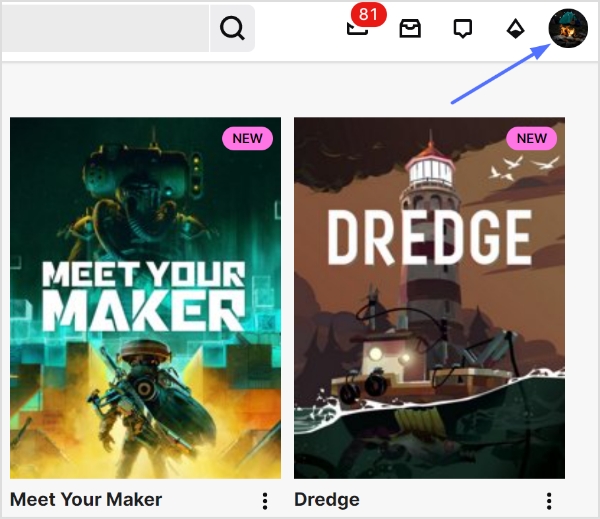
    profile-icon

    Step 3: Select “channel” from the dropdown menu.
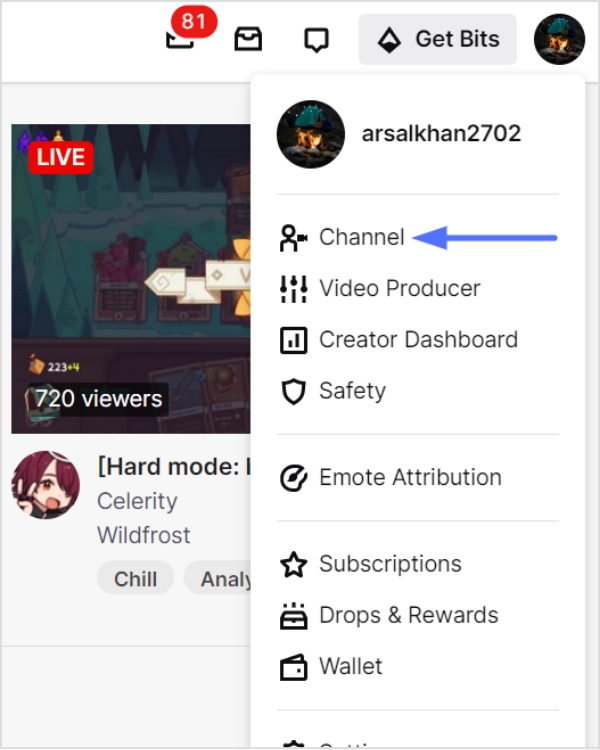
    select-channel

    Step 4: You can find the profile URL in the URL bar above. This is your Twitch Channel URL.
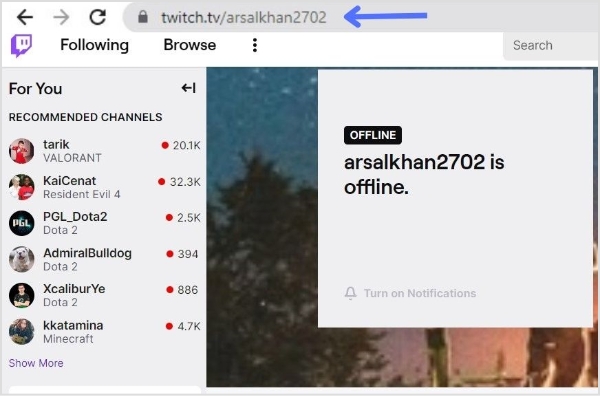
    Twich-channel-url

    How to share Twitch channel URL?

    Step 1: Follow the above steps and copy the URL by selecting it and pressing Ctrl+C. 

    Step 2: Open the platform or social media where you want to share the link (e.g., Twitter, Discord, or Facebook).

    Step 3: Create a new post or message and paste the copied URL into the text field.

    Noteworthy Tip: Promoting your Twitch Channel URL on social media and other platforms is a great way to attract new viewers and build your audience. Consider joining Twitch communities and groups to connect with other gamers and potential viewers. 

    How to share a Twitch Link of a stream you’re watching?

    Sharing a Twitch link of a stream you’re watching is a great way to introduce your friends and followers to new content and support your favorite streamers. Here’s how to do it:

    Step 1: Open the Twitch stream you want to share on your preferred device.

    Step 2: Click on the “Share” button located below the video player.
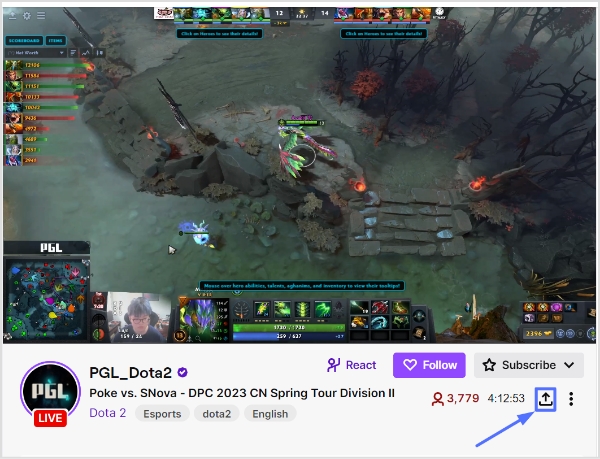
    share-button

    Step 3: Choose how you want to share the link. You can copy the link to share it on other platforms or share it directly to social media platforms like Twitter, Facebook, or Reddit. It’s totally up to you!
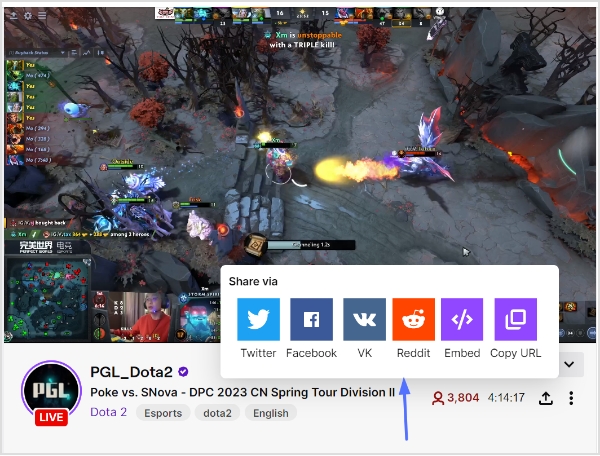
    share-via

    Note: To make your Twitch link even more shareable and trackable, you can utilize an efficient link shortener to brand it, shorten it, and measure clicks seamlessly.

    Step 4: Add a message or comment to your post to provide context for your followers and encourage them to check out the stream.

    Step 5: Publish your post and wait for your followers to start watching the stream!

    Also read: How to Convert video to Link?

    Final Words

    Sharing Twitch links is an essential part of building an audience and connecting with other gamers on the platform. Whether you’re sharing your own stream link, your Twitch Channel URL, or a link to a stream you’re watching, it’s important to provide context and encourage viewers to tune in. By promoting your Twitch content on social media and other platforms, and by supporting other streamers in the community, you can build your audience and create a thriving Twitch channel.

    So don’t be afraid to share your links and get involved in the Twitch community – the more you engage with other gamers and viewers, the more successful your channel will be!

    FAQs

    How to change your Twitch URL link?

    Yes, Twitch allows you to change your Twitch URL (also known as your Twitch Channel URL) once every 60 days. Here’s how to do it:
    – Log in to your Twitch account and click on your profile picture in the top right corner.
    – Select “Settings” from the dropdown menu.
    – Scroll down to the “Profile” section and locate the “Profile URL” field.
    – Click on the “Edit” button next to the field.
    – Type in your desired username, making sure to follow Twitch’s guidelines for usernames.
    – Click on the “Check Availability” button to make sure the username is available.
    – If the username is available, click on the “Update” button to change your Twitch URL.

    How do I share my Twitch stream link?

    To share your Twitch stream link, navigate to your stream page and copy the URL from the address bar. Then, paste it into a post on your preferred social media platform or messaging app, along with a message encouraging viewers to tune in.

    What is the best way to promote my Twitch channel?

    The best way to promote your Twitch channel is to engage with your audience on social media and other platforms and to collaborate with other streamers in the community. You can also consider creating content for other platforms like YouTube or Instagram to attract new viewers.

    How often should I share my Twitch links?

    There’s no set rule for how often you should share your Twitch links, but it’s important to strike a balance between promoting your content and not overwhelming your followers. Aim to share your links a few times a week, and make sure to provide context and encourage viewers to tune in.

    Trending:

    How to get your TikTok Profile URL?

    How to Find Pinterest URL?

    How to get the Snapchat URL?

    Role of Link Management in Building a Strong Online Presence
  • How to find Pinterest URL?

    How to find Pinterest URL?

    Are you an avid Pinterest user looking to share your beautiful boards and pins with friends, family, or potential clients? Or maybe you’re new to the platform and trying to figure out how to navigate its features. Whatever the case may be, one important piece of information you’ll need is your Pinterest URL. 

    Your Pinterest URL is your unique identifier on the platform and allows others to find and follow your account. But with so many options and features on Pinterest, it can be confusing to locate your URL. Don’t worry though, in this article, we’ll guide you through the steps to find your Pinterest URL and get you on your way to share your amazing content with the world.

    Where to Look for Your Pinterest URL?

    Your Pinterest URL can be found in a few different places, depending on what you’re looking for. Here’s how to find your profile, pin, and board URL.

    To find your Pinterest profile URL:

    Step 1: Log in to your Pinterest account or create a new account. 

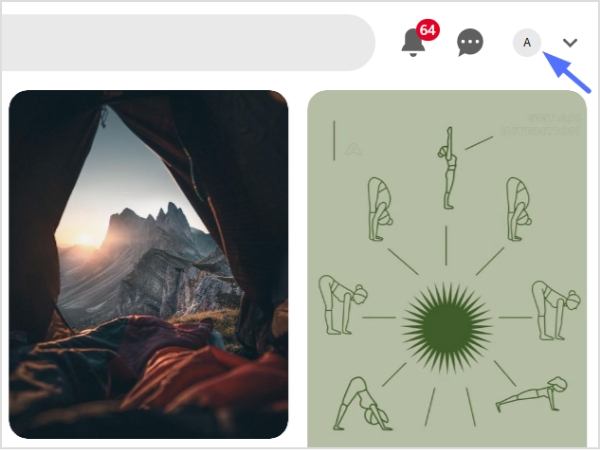
    Step 2: Click your profile icon in the top right corner to open your profile page. 

    profile-icon

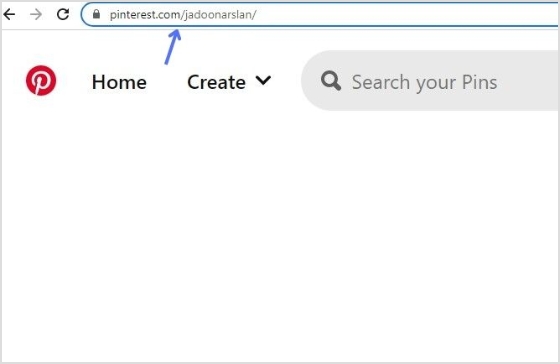
    Step 3: Copy the URL from the address bar. That’s your Pinterest profile URL. 

    copy-profile-url

    To find your Pinterest board URL:

    Step 1: Log in to Pinterest and open your profile page. 

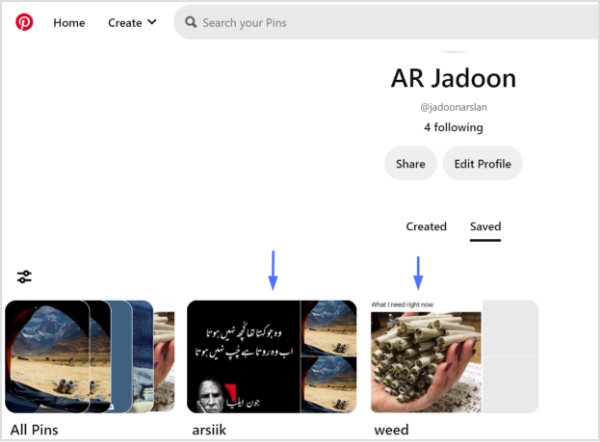
    Step 2: Select the board you want to share. 

    select-board

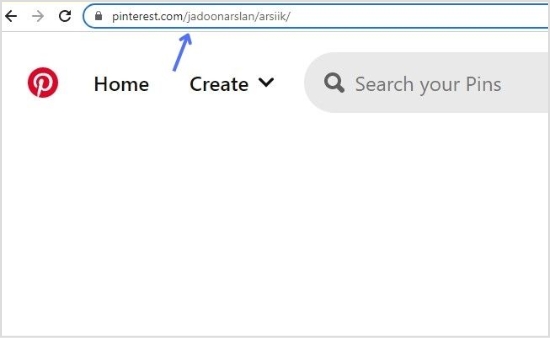
    Step 3: Copy the URL from the address bar. That’s your Pinterest board URL.  

    copy-board-url

    To find your Pinterest pin URL:

    Step 1: Log in to your Pinterest account. 

    Step 2: Select the relevant pin (either from your own board or someone else’s).

    select-pin

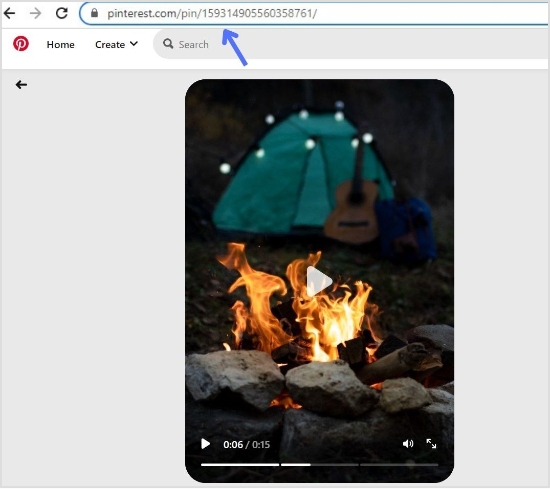
    Step 3: Copy the URL from the address bar. That’s your Pinterest pin URL.

    copy-pin-url

    Also check out: How to find Steam URL: Step-by-step guide

    Final Words

    Your Pinterest URL is a vital part of your presence on the platform, allowing others to find and follow your content. Whether you’re sharing your entire profile, a specific pin, or a board, knowing where to find your URL is essential.
    By following the simple steps outlined in this article, you’ll be able to locate your Pinterest URL quickly and easily. Plus, to boost shareability even further, you can shorten link for cleaner, trackable shares. This helps you to grow your reach and connect with others on this visually-driven social media platform.

    If you’re using a tool like Replug.io to manage your links and strengthen your sharing strategy, the URL you locate here will feed directly into your broader system.

    FAQs

    What is a Pinterest board?

    A Pinterest board is a collection of related pins organized around a particular theme or topic. Users can create multiple boards on their Pinterest account and save or “pin” content to them, such as images, videos, and links from around the web. These boards can be shared with others and used for inspiration, planning, and bookmarking.

    What is a Pinterest pin?

    A Pinterest pin is a visual bookmark that users save to their Pinterest boards. Pins can include images, videos, or GIFs, and are typically linked to a website or online resource. Users can save pins they find on the platform or add their own pins to share with others. Pins are organized into boards based on topics or themes and can be discovered through search, recommendations, or by following other users.

    How do I change my Pinterest URL?

    1. Log in to your Pinterest account and go to your profile.
    2. Select “Settings” from the drop-down menu.
    3. Scroll down to the “Profile” section and click “Claim” next to the URL option.
    4. Enter your desired username and click “Claim“.
    5. If the username is available, you’ll be prompted to confirm the change. Click “Yes, let’s do it!” to save your new URL.

    Note that you can only change your Pinterest URL once, and the new URL must be available and meet Pinterest’s guidelines for usernames. Once you’ve changed your URL, your old URL will no longer work, so be sure to update any links or references to your profile.

    Trending:

    How to Add Instagram Link to Facebook Bio?

    Track Your Success: How to Create a Tracking Link?

    A Quick Guide To Deep Linking And Its Benefits

  • How to find live videos on Instagram?

    How to find live videos on Instagram?

    Instagram, like all social media platforms, constantly changes and evolves. In October 2021, one of the biggest updates was the removal of IGTV. Previously, users could find all live videos on Instagram by searching the hashtag #IGTV.

    Live videos on Instagram are now integrated into the “Stories” feature. After a live video ends, it is only available to be replayed for 24 hours, after which it is stored in the user’s “Video Archive.” Whether the video is republished or deleted is up to the discretion of the content creator.

    When you want to share a live-video replay or archive link, using a link shortener helps make the URL cleaner and more user-friendly, especially if you plan to post it across different platforms or in messages.

    Also, if you are someone who manage lots of social-media links and want a unified tool to organize, track and optimize all of them, Replug.io can be a helpful hub to keep your URLs clean and manageable.

    How to find live videos on Instagram? 

    There are two ways to find live videos on Instagram:

    • Find Instagram live videos from the accounts you follow
    • Find random live videos on Instagram

    Let’s begin:

    Find Instagram live videos from the accounts you follow:

    You can easily view the live streams of the accounts you follow without much effort. Follow the steps below to find the live videos from the people you follow:

    Step 1: Open the Instagram app on your mobile phone, or log in to Instagram from a browser. 

    Step 2: Live video will appear in the stories feed with a colorful ring around it and the word Live. 

    Step 3: Tap on the live video to see the live broadcast from the people you follow. 

    During the live broadcast, you can interact by: 

    When watching a live broadcast, remember that the broadcaster and other viewers may see you’ve joined. 

    Leaving a comment (tap Comment on the app or Add a comment on the website), liking a comment, replying to a comment, reacting to the video with an emoji, or sharing the video. All actions taken during the broadcast, such as liking or commenting, are visible to other viewers.

    How to find random Instagram live videos?

    Discovering random live streams on Instagram can be frustrating if you don’t get any results. However, you can try the following steps for searching for random live streams:

    On Instagram mobile app:

    Step 1: Open the Instagram app on your mobile phone. 

    Step 2: Tap the “search icon” at the bottom menu. 

    search icon

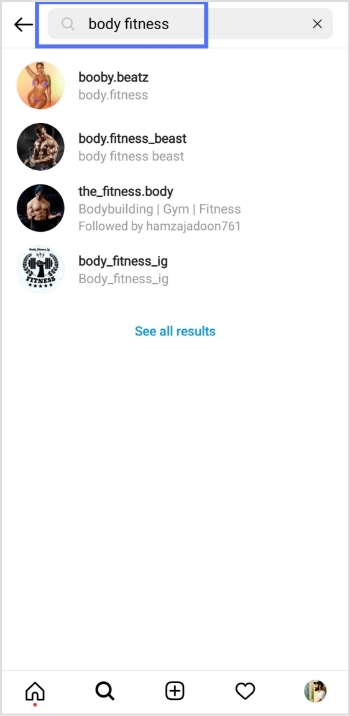
    Step 3: Enter the intended live video keyword in the search bar and tap the search button on your mobile keypad. 

    enter search

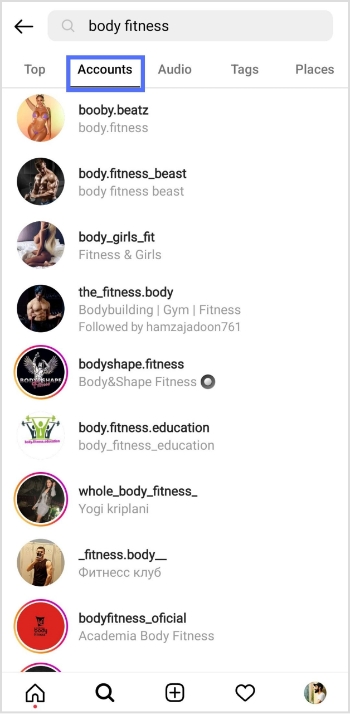
    Step 4: Tap the “accounts” tab to open accounts with the live videos. 

    accounts

    Step 5: Tap the profile icon with the “live” to open the live stream. 

    On a web browser:

    Step 1: Log in to Instagram from your browser. 

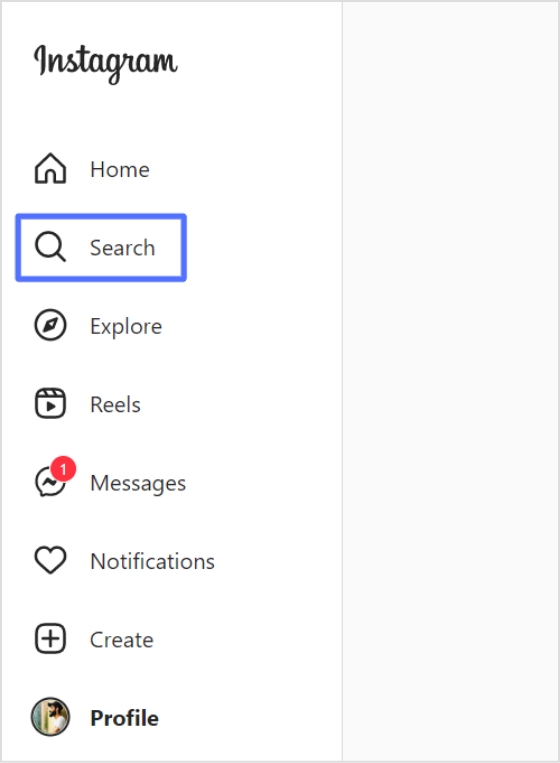
    Step 2: Click “search” in the left side menu. 

    Search

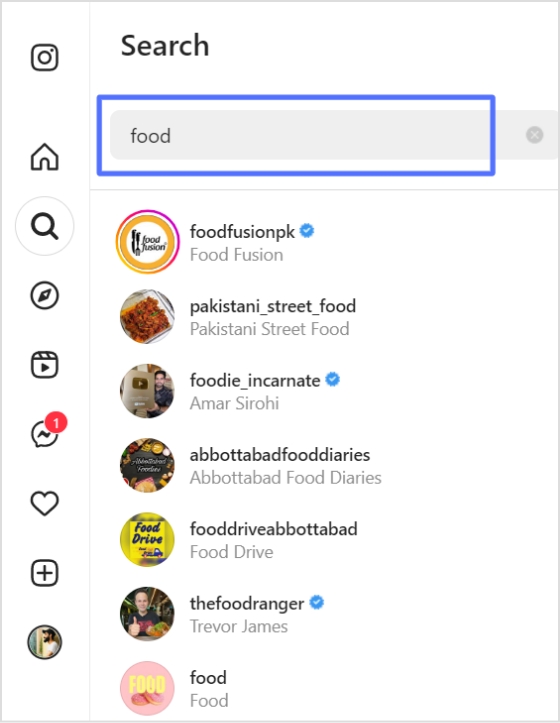
    Step 3: Enter the intended keyword in the search bar and look for the “live” profile.  

    enter keyword

    Also Read: How to download Instagram videos?

    How to start a live video on Instagram?

    Follow the steps below to start a live broadcast on Instagram:

    Step 1: Open the Instagram app and tap the “add icon” in the bottom menu. 

    add icon

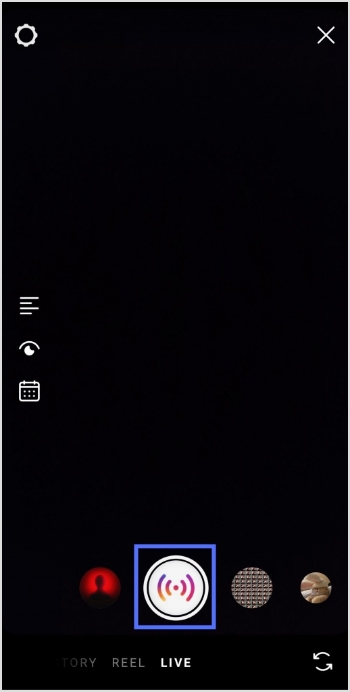
    Step 2: Swipe left to go to live and tap the live button to start the live video. 

    live button

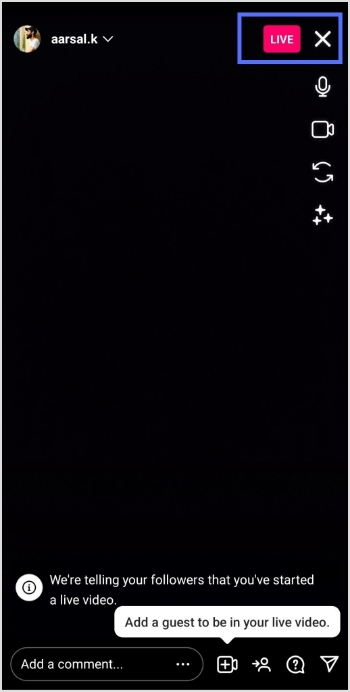
    Step 3: The device will check for the internet connection momentarily, then you’ll see the “you are now live” message on the screen. 

    Step 4: Tap the “exit (X)” on the top right corner to end the live stream. 

    exit live

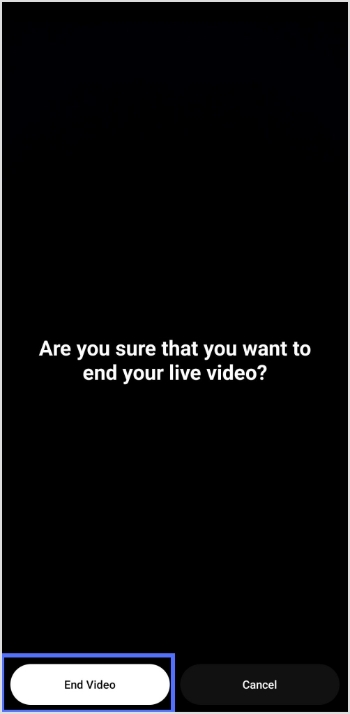
    Step 5: Tap the “end video” button and confirm to end the live stream. 

    end video

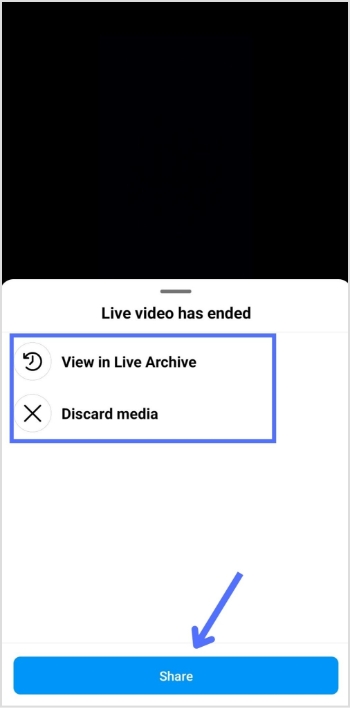
    Step 6: You will see the following options: View in Live Archive, Discard media or Share. Make your selection according to your preference.

    archive share discard

    Frequently asked questions

    Why can’t I find live videos on Instagram?

    There could be several reasons why you are not able to find live videos on Instagram:

    – Your account may not have access to live videos. Instagram has certain restrictions and requirements to access live videos.
    – The person you are trying to view the live video may not be broadcasting.
    – The person you are trying to view the live video of may have a private account, and you may not be following them.
    – Your internet connection may be slow or unstable, affecting the live video quality.
    – There could be a technical issue with the Instagram app or your device.

    Try troubleshooting these issues, or contact Instagram support for further assistance.

    Trending now:

    How To Save TikTok Videos Without The Watermark?

    15 proven Facebook SEO techniques to try in 2026

    How To Put A Link In TikTok Bio?


  • How to share videos using deep links?

    How to share videos using deep links?

    Do you want to share a video with your followers, but can’t find the right way to do it? Are you tired of sending long, cumbersome links that often get lost in translation? Well, look no further because we’ve got you covered! 

    Deep linking allows you to share a video directly to a specific point within the app or website, saving time and effort for you and the person receiving the link. 

    Imagine you’ve just found the perfect video to share with your audience. It’s engaging, informative, and sure to make an impact. But, there’s one problem – the link is long, convoluted, and almost impossible to remember. 

    Enter Replug’s deep links – the superhero that saves the day!

    Replug’s deep links work by taking that long and cumbersome link and turning it into a short and snappy one. But, that’s not all – Replug’s deep links can direct your audience to a specific point within the video or website, ensuring they get to the meat of the content and don’t miss out on anything important.
    But wait, there’s more! Replug’s deep links also come with advanced features that give you the power to track and optimize your links. You can add custom CTAs, retargeting pixels, and more, giving you valuable insights into how your links are performing and how you can improve them.

    So, what are you waiting for? Say goodbye to long and confusing links and hello to Replug’s deep links – which take your audience on a seamless journey to the content they crave.
    Looking to simplify all your URLs even further? Try this precise link shortener to create clean, branded links that perfectly complement your deep linking strategy.

    Replug deep links for videos: how do I do it?

    Here’s how to share videos using deep links from Replug.io:

    Step 1: Sign in to Replug or create an account for free.

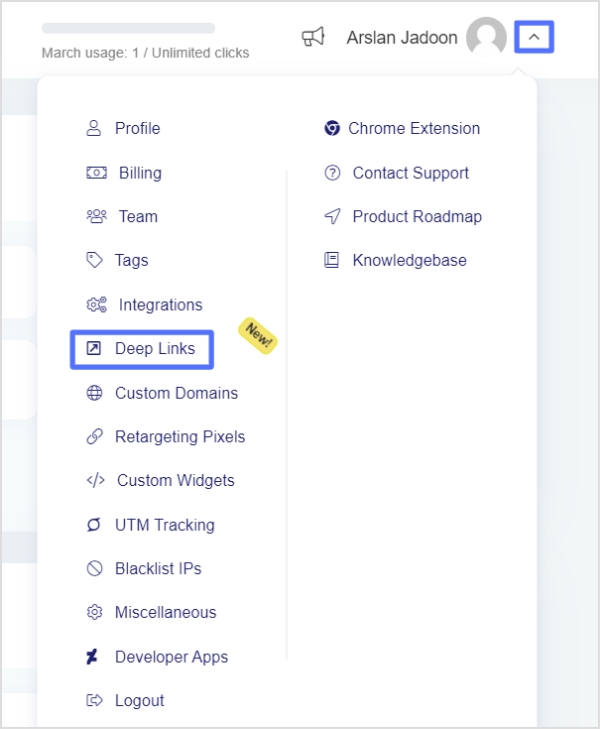
    Step 2: On the main dashboard page, click the “drop-down icon” in the top right corner and choose “deep links’’ from the drop-down list. 

    choose-deep-link-feature

    Also read: How to share youtube playlist using deep links?

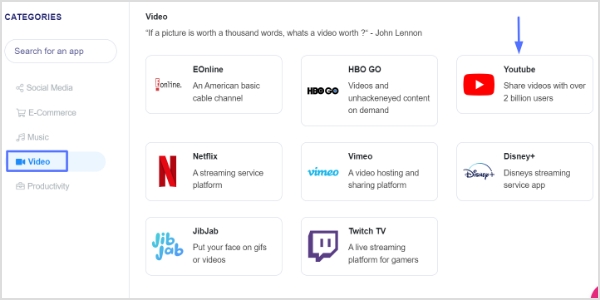
    Step 3: On the deep links page, click “video” to create a deep link for a video, then choose the video platform you want to create a deep link for. Let’s choose “YouTube”. 

    Note: Deep links are allowed on up to 70 applications under Social Media, e-Commerce, Music, Video, and Productivity categories.

    video-deep-link

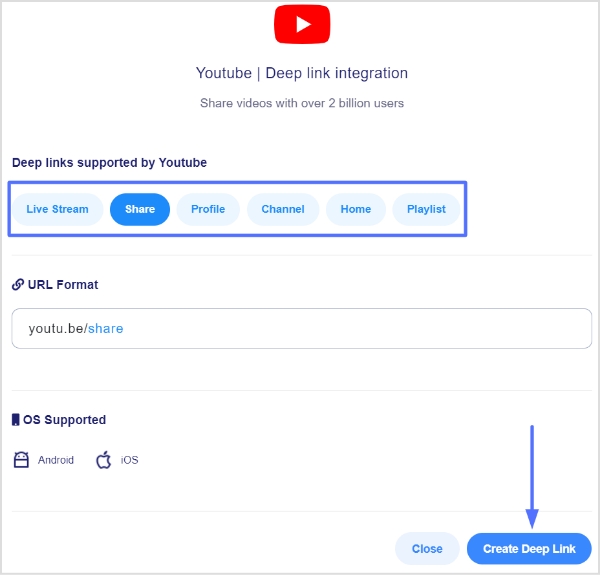
    Step 4: When a deep link for YouTube is generated, clicking on it will open the desired live stream, video or share, profile, channel, home, or playlist directly in the YouTube application. Select the option you want and click the ‘create deep link’ button (here we’ll select the video or share option as we are creating a deep link for a YouTube video).

    create-deep-link

    Also read: How to share YouTube videos using deep links?

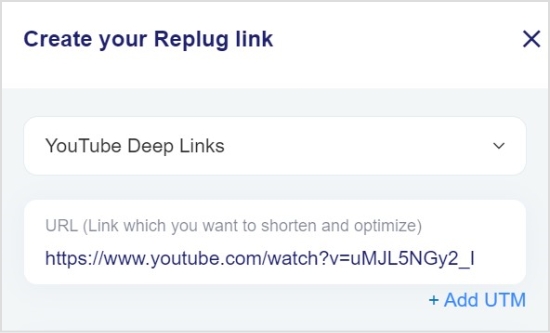
    Step 5:  Now you’re on the “Replug link” page. Select the desired “campaign” name, and paste the video URL in the “URL field”. 

    select-campaign-paste-link

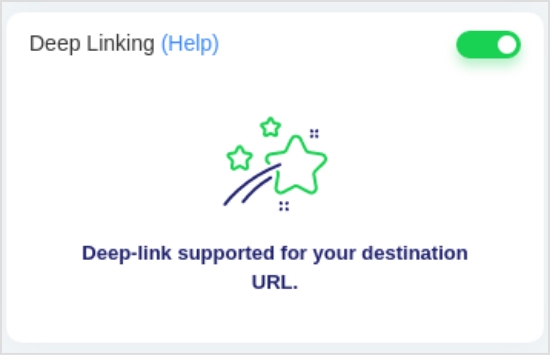
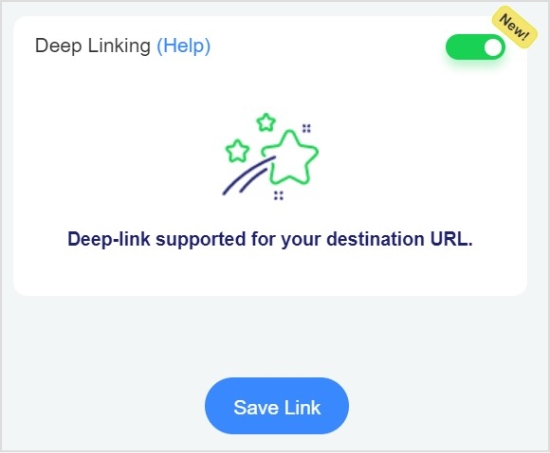
    Step 6: To enable Deep Links, toggle the state. If the destination URL can be used as a Deep Link, the following indicator will appear.

    deep-linking

    Also read: Benefits Of A Link Rotator: Why & When To Use Rotating Links?

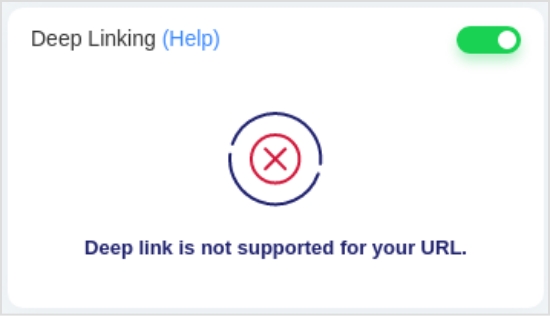
    Note: If the destination URL can not be used as a Deep Link, the following indication will appear.

    deep-link-not-supported

    Step 7: Click the “save link’’ button and your link with the deep linking feature will be saved and available for sharing.

    save-link

    FAQs

    What are the two types of deep links?

    The two types of deep links are:

    1. Standard Deep Links: These are deep links that take users directly to a specific page or content within an app. For example, a standard deep link could take a user to a specific product page within an e-commerce app.
    2. Deferred Deep Links: These are deep links that not only take users to a specific page within an app but also carry additional information about the user or the context of the link. This information can be used to personalize the user experience within the app. For example, a deferred deep link could take a user to a specific product page within an e-commerce app and also provide information about a promotion that the user is eligible for. Deferred deep links are typically used in marketing campaigns to deliver personalized experiences to users.
    How do you create a deep link in HTML?

    You can create a deep link in HTML by adding an anchor tag with a specific target location. Here’s an example:

    <a href=”https://example.com/page#section”>Click here to go to the section</a>

    In this example, “https://example.com/page” is the URL of the webpage, and “#section” is the ID of the section you want to link to. To create a deep link, you simply add a “#section” to the end of the URL in the “href” attribute of the anchor tag.

    Trending:

    How to add a Twitter link to Instagram bio?

    How to Create UTM Links: A Step-by-Step Guide

  • How to download Instagram videos?

    How to download Instagram videos?

    Instagram does not allow users to download videos directly from the platform, but there are a few ways to download Instagram videos.

    Here are some methods:

    Method 1:

    Download using a video downloader website:

    Many websites allow you to download Instagram videos. Here’s how to download Instagram videos using a video downloader website:

    Step 1: Open the Instagram app and find the video you want to download.

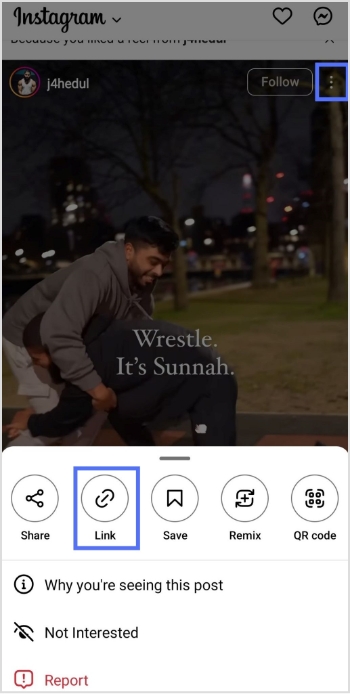
    Step 2: Click on the three dots in the upper right corner of the video and select “Copy Link.”

    copy link

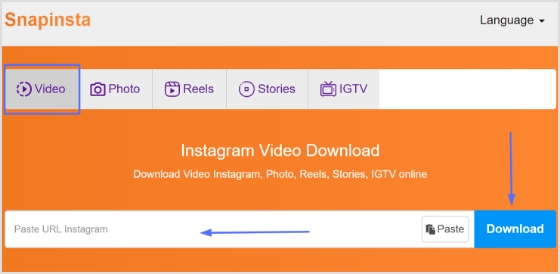
    Step 3: Go to a video downloader’s website, like “Snapinsta” and paste the link into the search bar.

    Note: Before pasting, you could also use a link converter to shorten or clean up the URL, making it easier to share or save, while keeping things organized and trackable for future reference.

    Step 4: Click download, and the video will be downloaded to your device.

    Snapinsta

    Also Read: How To Turn Off Vanish Mode On Instagram?

    Method 2:

    Download using a third-party app:

    Here’s how to download Instagram videos using a third-party app:

    Many third-party apps allow you to download Instagram videos. Here are some popular ones:

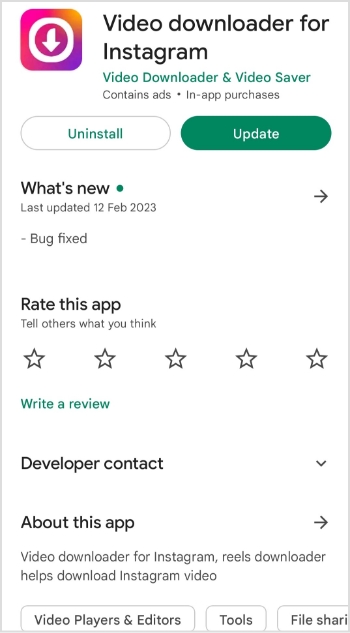
    Video Downloader for Instagram: This app is available on iOS and Android. It allows you to download videos from Instagram by copying the video link and pasting it into the app.

    video downloader for instagram

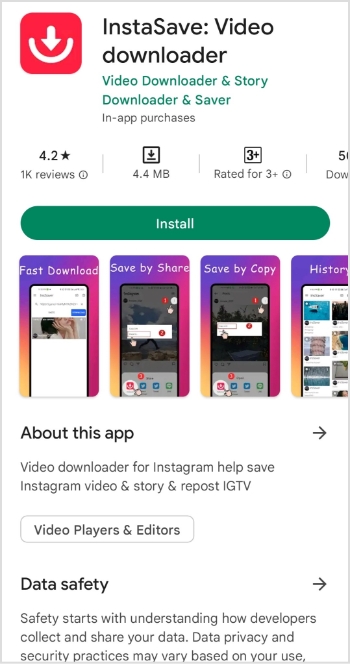
    InstaSave: This app is available for Android and allows you to download Instagram videos by copying the video link and pasting it into the app.

    instasave

    Method 3:

    Use a screen recording tool:

    If the above methods don’t work, you can use a screen recording tool to record the video as it plays on your screen. Here’s how:

    Step 1: Open the Instagram app and find the video you want to download.

    Step 2: Start a screen recording on your device (the method varies by device).

    Step 3: Play the Instagram video and let it play in full.

    Step 4: Stop the screen recording and save the video to your device.

    It’s important to note that some of these methods may violate Instagram’s terms of service, and downloading copyrighted content without permission is illegal. Make sure you have the necessary rights to the content before downloading.

    And, if you frequently work with social media links or share downloadable content across platforms, Replug can serve as a handy hub, letting you manage and organize all your links easily before you share or download content.

    You may also like: How to find live videos on Instagram?

    FAQs

    How to download Instagram reels?

    There are several ways to download Instagram reels, and I’ll outline some of the most common methods:

    1. Using a third-party app: Many third-party apps allow you to download Instagram reels. Some popular ones include InSaver, Video Downloader for Instagram, and InstaSave. To use these apps, copy the link to the reel you want to download, paste it into the app, and follow the instructions to download the video.
    2. Using an online downloader: Several websites allow you to download Instagram reels. Some popular ones include InstaDownloader, InstaOffline, and DownloadGram. To use these websites, copy the link to the reel you want to download, paste it into the website, and follow the instructions to download the video.
    3. Using the built-in download option: Instagram has recently added a built-in download option that allows you to download your reels. To use this feature, open the reel you want to download, tap the three dots in the top right corner, and select “Save Reel.” The reel will be saved to your camera roll.

    Trending:

  • How to Add Instagram Link to Facebook Bio?

    How to Add Instagram Link to Facebook Bio?

    If you’re looking to promote your Instagram profile and boost your online presence, adding your Instagram link to your Facebook bio can be a highly effective strategy. By doing so, you can reach a broader audience and potentially attract more followers, which can help you take your social media game to the next level.

    For creators and marketers who care about link performance, Replug.io lets you brand, shorten, and track your shared URLs so every click tells a story.

    In this guide, we’ll explore the steps involved in adding an Instagram link to your Facebook bio on both computer and mobile devices, as well as some tips on how to make the most of Replug’s bio link feature.

    How to add Instagram link to Facebook bio on a mobile device?

    Here’s a step-by-step guide on how to add your Instagram link to your Facebook bio on a mobile device:

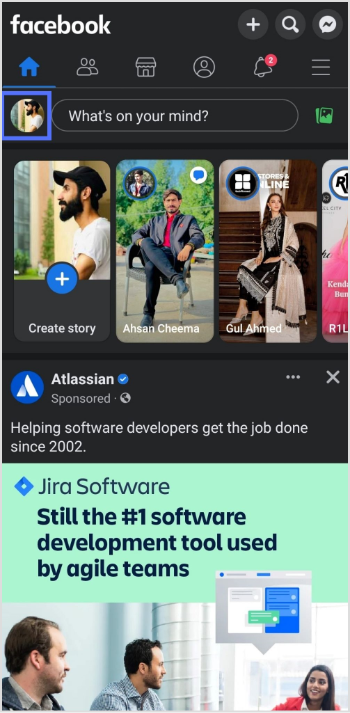
    Step 1: Open the Facebook app on your mobile and tap your profile icon. 

    profile icon

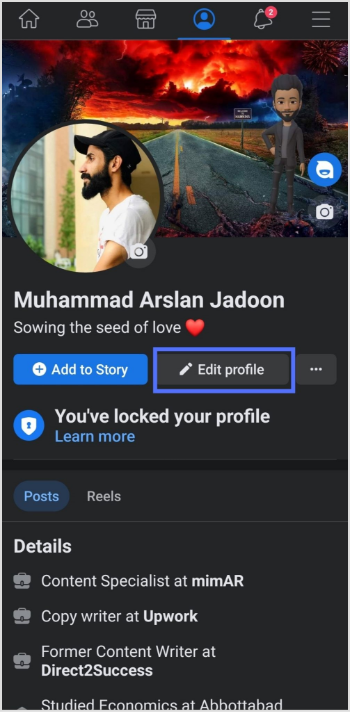
    Step 2: Tap the “edit profile” button.

    edit profile

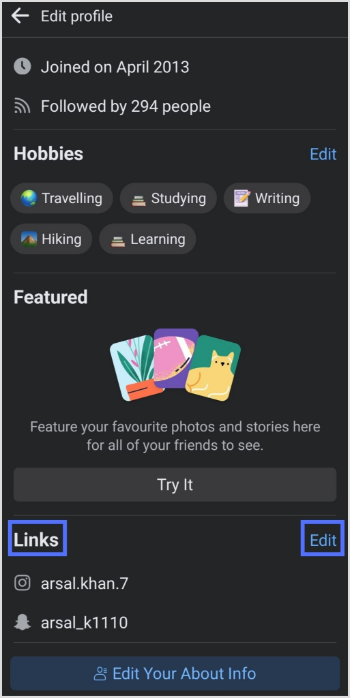
    Step 3: In the edit profile section, scroll down to the “links” section and tap “edit”. 

    links-edit

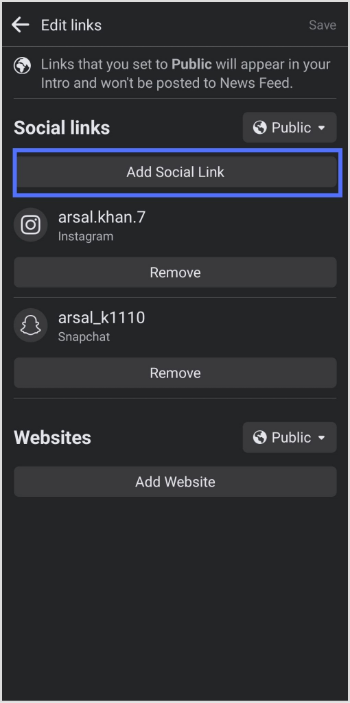
    Step 4: Tap the “add social link” button. 

    add social link

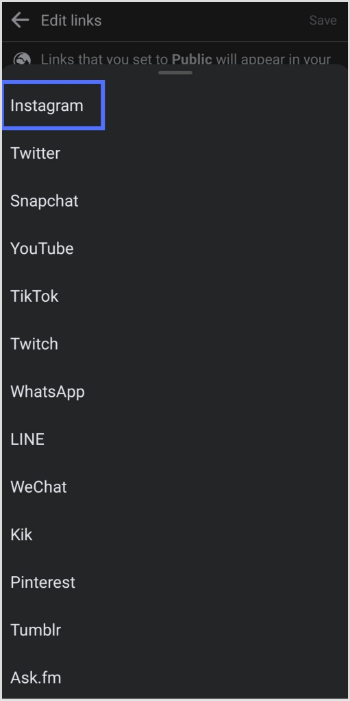
    Step 5: Tap the “platform” button and choose Instagram from the list. 

    select Instagram

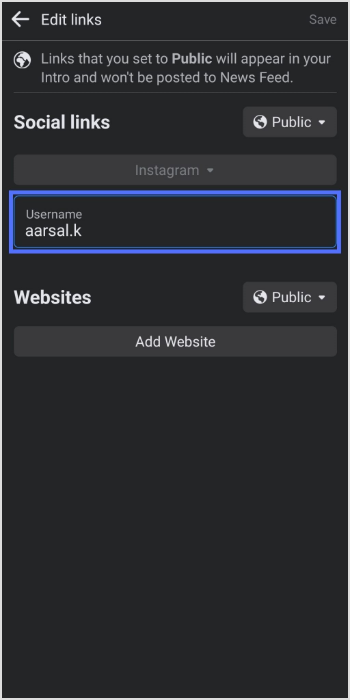
    Step 6: Enter your Instagram account “user name” and tap save

    enter username & save

    Also Read: How to put a link in your Facebook bio?

    How to add Instagram link to Facebook bio on a computer device?

    Step 1: Log in to Facebook on your computer browser. 

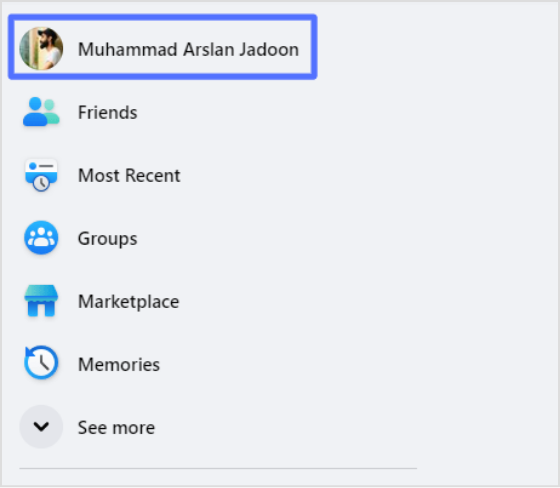
    Step 2: Click on your profile name on the top left side. 

    profile name

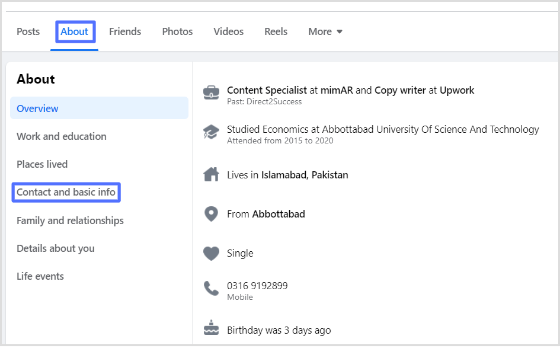
    Step 3: Click “about”, then “contact and basic info”

    about-basic info

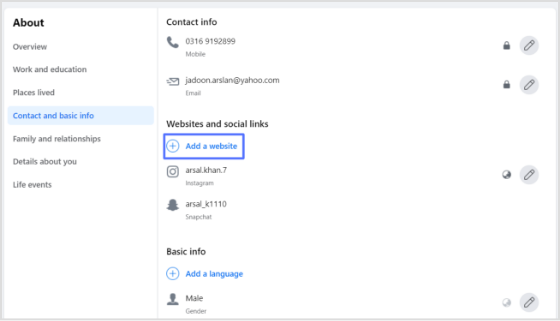
    Step 4: Click the “add website button” under the “website and social links” section. 

    add website

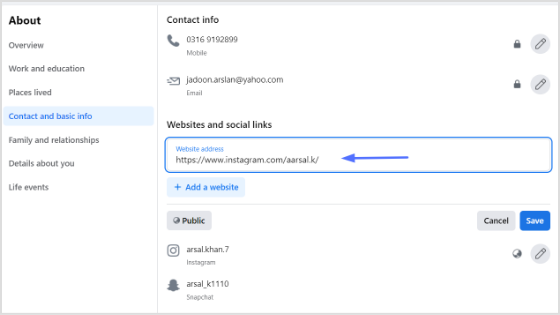
    Step 5: Paste your Instagram URL in the URL field and click save. You’ll have your Instagram link in the Facebook bio. 

    paste url

    You may also like: How to unlink Facebook and Instagram?

    Also, don’t forget to give this Facebook link in bio tool a try. It will assist in boosting your engagement exceptionally.

    Frequently asked questions

    Why can’t I see my Instagram link in my Facebook bio?

    If you cannot see your Instagram link in your Facebook bio, make sure you have added it correctly by following the steps above. Also, check that your Instagram account is not set to private, as private accounts cannot be linked to Facebook bios.

    Why is my Instagram link not clickable in my Facebook bio?

    If your Instagram link is not clickable in your Facebook bio, it may be because you have not entered the link correctly, or your Instagram account may be set to private.

    Trending:

    How To Save TikTok Videos Without The Watermark?

    How to add a link in bio to your Instagram profile?

    How to create a QR code for a URL?

    TikTok Trends for Businesses, Brands, and Others