We’ve all been there; juggling a dozen tabs just to visit the same website over and over.
With more than 5.4 billion people browsing the web daily, and desktop users often sinking deeper into content than mobile visitors, quick access matters more than ever.
Constantly typing or searching for your go-to websites or URLs eats up precious time.
In a world where half of users abandon slow or hard-to-find content in under three seconds, wasting clicks on simple tasks can feel downright frustrating.
That’s exactly why knowing how to save a link to desktop or how to save a webpage to desktop can be a game-changer. One click and you’re there!
Ready to cut the clutter and boost your efficiency?
Let’s step into the practical ways to make a desktop shortcut for a website!
How to make a desktop shortcut for a website: Quick & effective methods mentioned!
Wondering “how to save a URL link to desktop”? Creating a desktop shortcut for a website is simple and only takes a minute or two.
You can either drag and drop the site’s address from your browser straight onto the desktop, or manually create a shortcut using Windows’ “New Shortcut” feature.
Both methods work great and don’t require any special tools or software!
Method #01: Drag & drop (easiest way)
This is the quickest and most straightforward method. It’s perfect if you want a shortcut without extra steps.
1. Open your web browser (like Chrome, Edge, or Firefox) and go to the website you want a shortcut for.
2. Resize the browser window so you can see both the browser and your desktop at the same time.
3. Look on the left side of the address bar. You’ll see a small icon (often a padlock 🔒 or a globe 🌐).
4. Click and hold that icon, then drag it onto your desktop.
5. Release the mouse button, and boom!
A shortcut to the website now sits on your desktop.
Note: Just double-click that icon anytime you want to open the site!
Method #02: Right-click & create shortcut
If you prefer a more traditional way, or your browser doesn’t let you drag the icon (at times), this manual method works everywhere on Windows.
1. First, copy the website’s URL from the address bar at the top of your browser.
2. Then, go to your desktop and right-click on any empty space.
3. From the menu that appears, click New and then Shortcut.
4. In the box that pops up, paste the URL you copied, then click Next.
5. Type a name for your shortcut (like “My Favorite Site”), and click Finish.
Done! You’ll now see a shortcut icon with the name you chose, and double-clicking it opens the website right away.
Note: If you want, you can also rename the shortcut later or even change its icon by right-clicking it and selecting Rename or Properties.
How to create a desktop shortcut to a website in Chrome
When you make a desktop shortcut for a website in Chrome, you’ll get an icon on your desktop that opens that site directly in Chrome. No need to open the browser and type the address or a messy, long URL first.
Let’s walk through “How to save a URL to desktop using Chrome” in easy steps!
1. Open Google Chrome on your computer: Start Chrome like you usually do. Make sure it’s up-to-date so all the settings are where they should be.
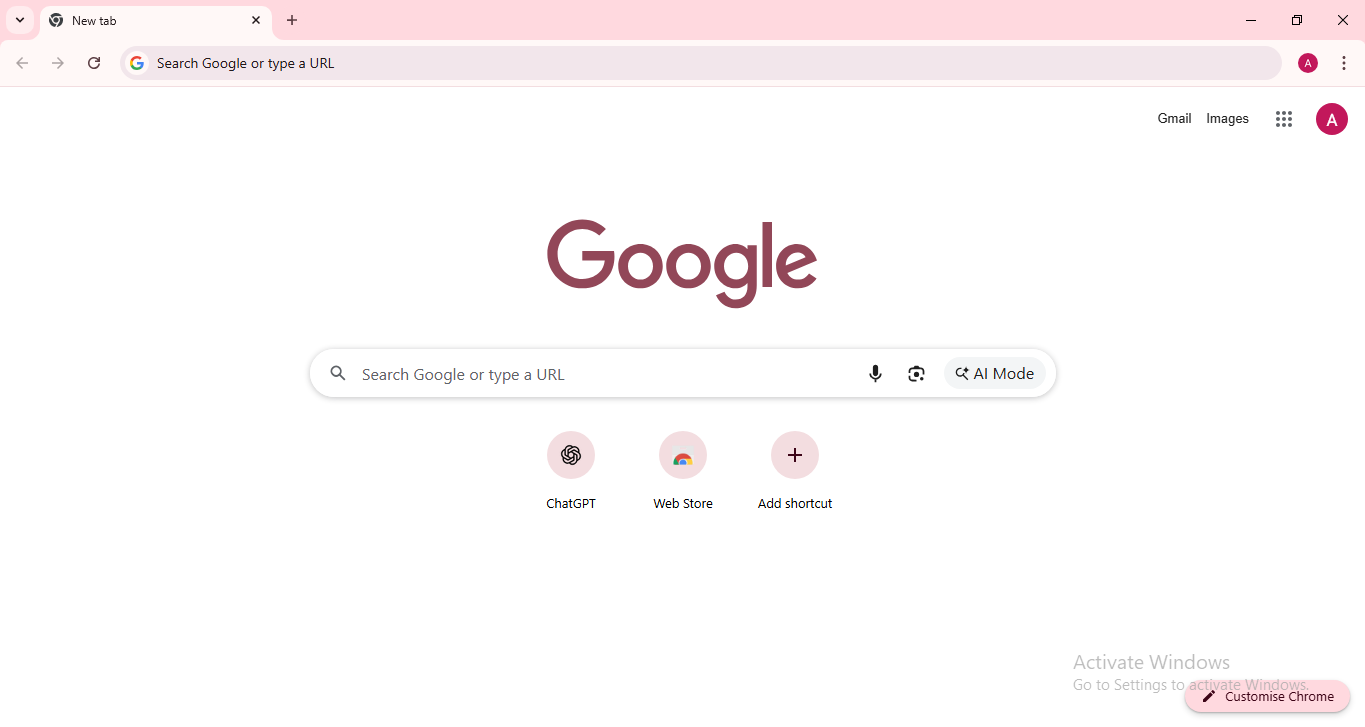
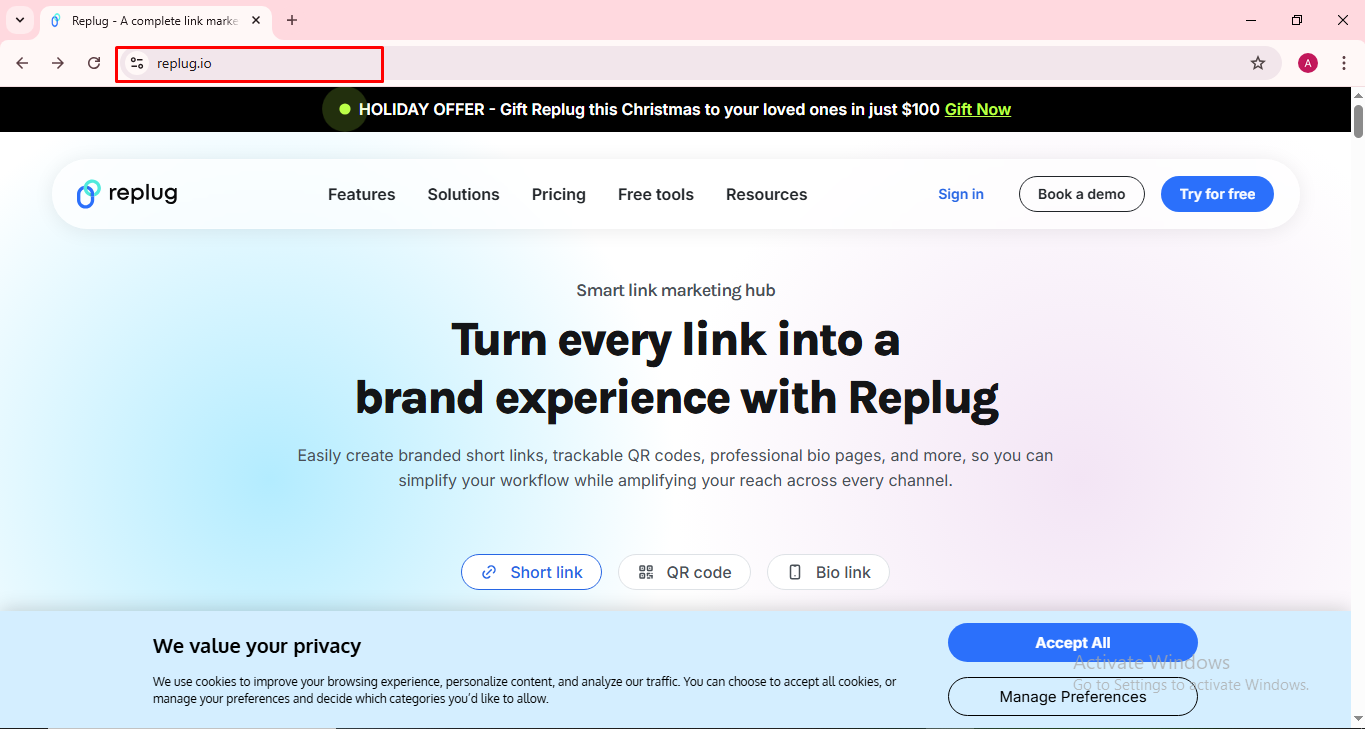
2. Go to the website you want to make a shortcut for: Just type the URL in the address bar and hit Enter so the site loads fully.
3. Click the three dots menu (⋮) in the top-right corner: That’s Chrome’s main menu button. You’ll find it on the right side of the toolbar.
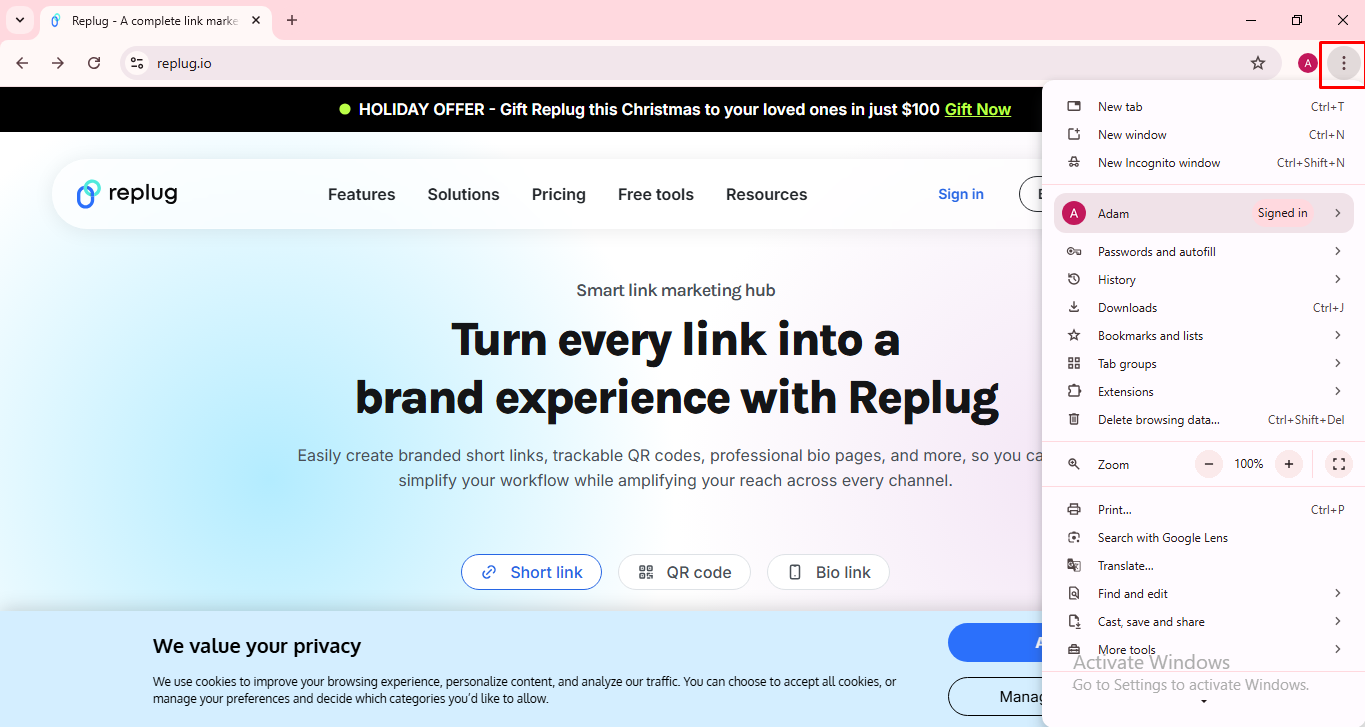
4. Choose “Cast, save and share,” then click “Create shortcut…”: In some Chrome versions, the “Create shortcut…” option might be right under “More tools,” or inside a submenu called “Save and share.” Either way, just look for Create shortcut… and click it.
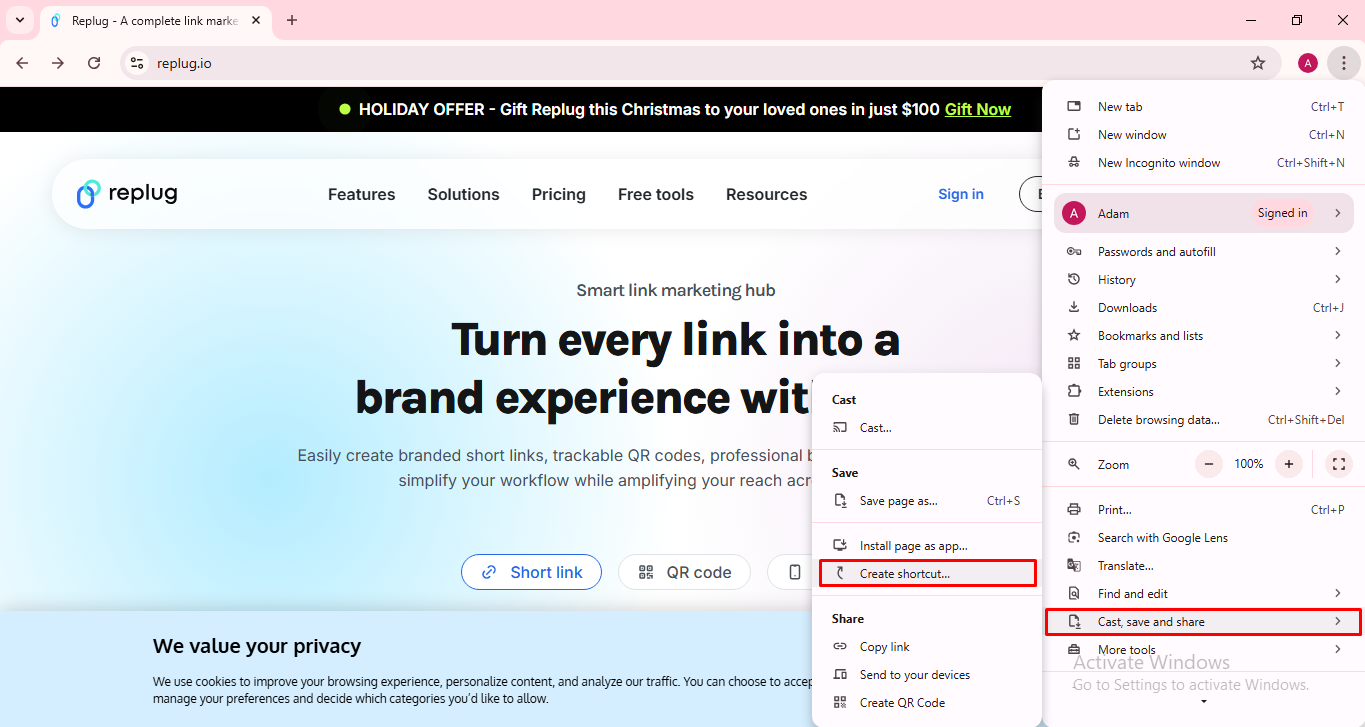
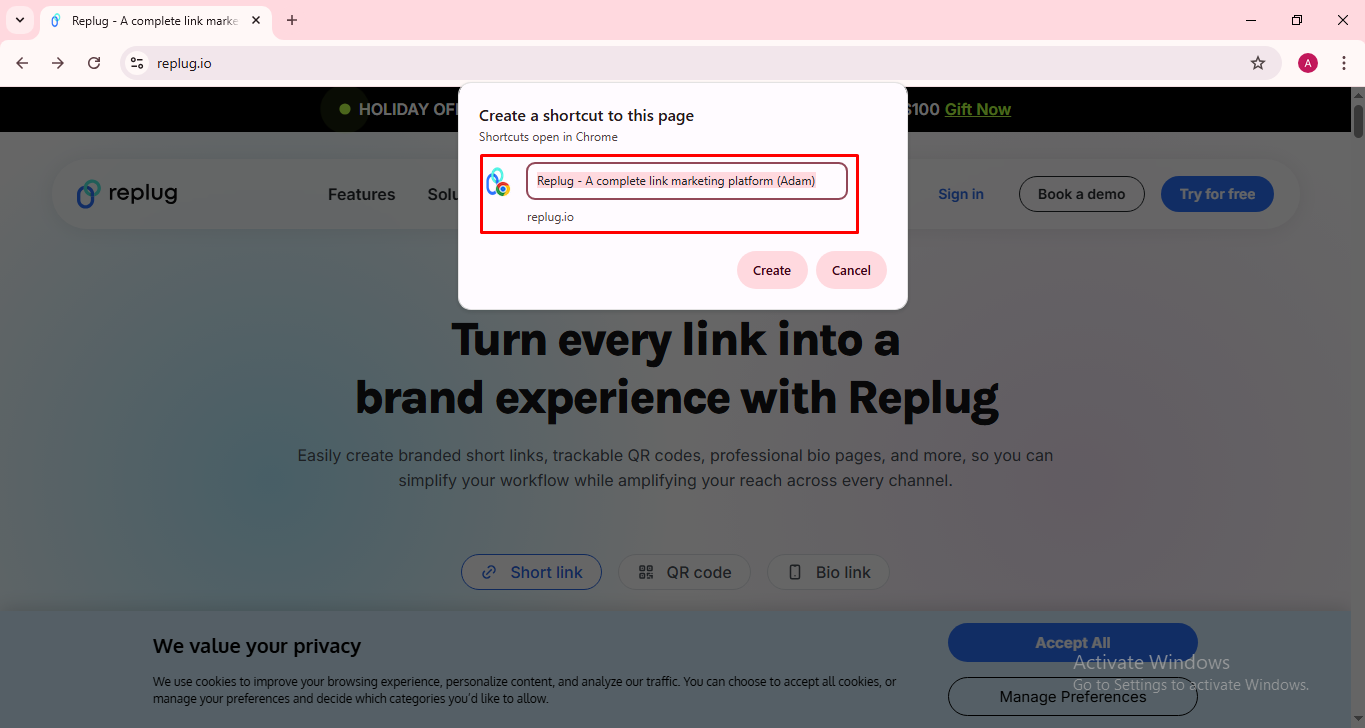
5. Name the shortcut: A small box will pop up. You’ll see a field where you can enter a name for your shortcut (something like the site’s name so you recognize it easily).
6. Click “Create”: Once you’ve named it, press Create, and Chrome will put the shortcut on your desktop.
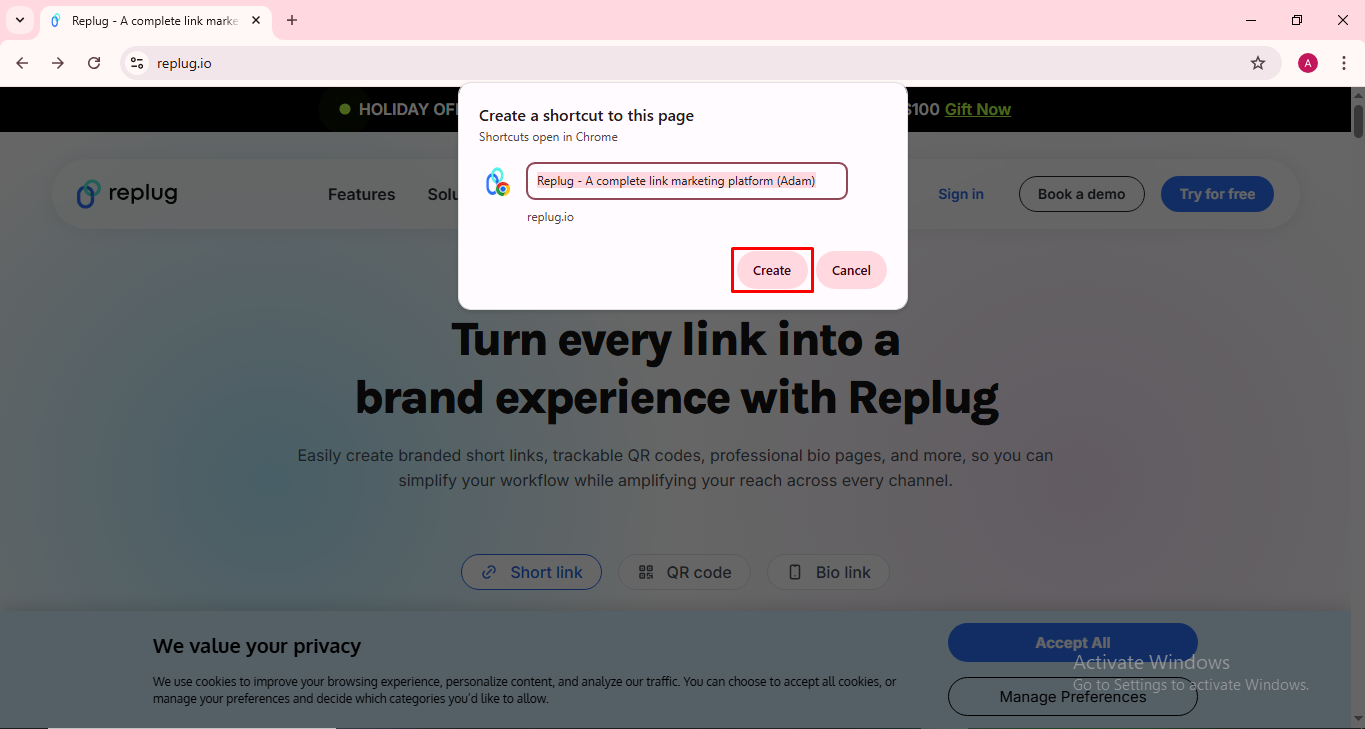
That’s it! 🎉
You will now see a new icon on your desktop that opens the website you chose whenever you double-click it. This shortcut will open the page straight in Chrome, even if Chrome isn’t your default browser.
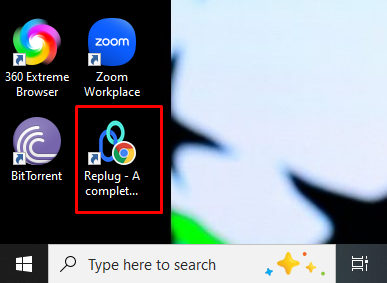
Note: If you ever want to remove the shortcut, just right-click it and select Delete. Super easy!
Read also: How to block a URL in Chrome: 8 effective & proven methods [tried & tested]
How to make a website shortcut on desktop using Microsoft Edge
If there’s a site you visit a lot, you don’t have to open Edge and type the address every time. You can put a shortcut for it right on your desktop so it opens with just a single double-click.
Below are the easiest ways to do it:
Drag & drop from the address bar (quickest way)
This is the simplest method if you wish to save a website shortcut to your desktop using Edge.
1. Open Microsoft Edge and go to the website you want.
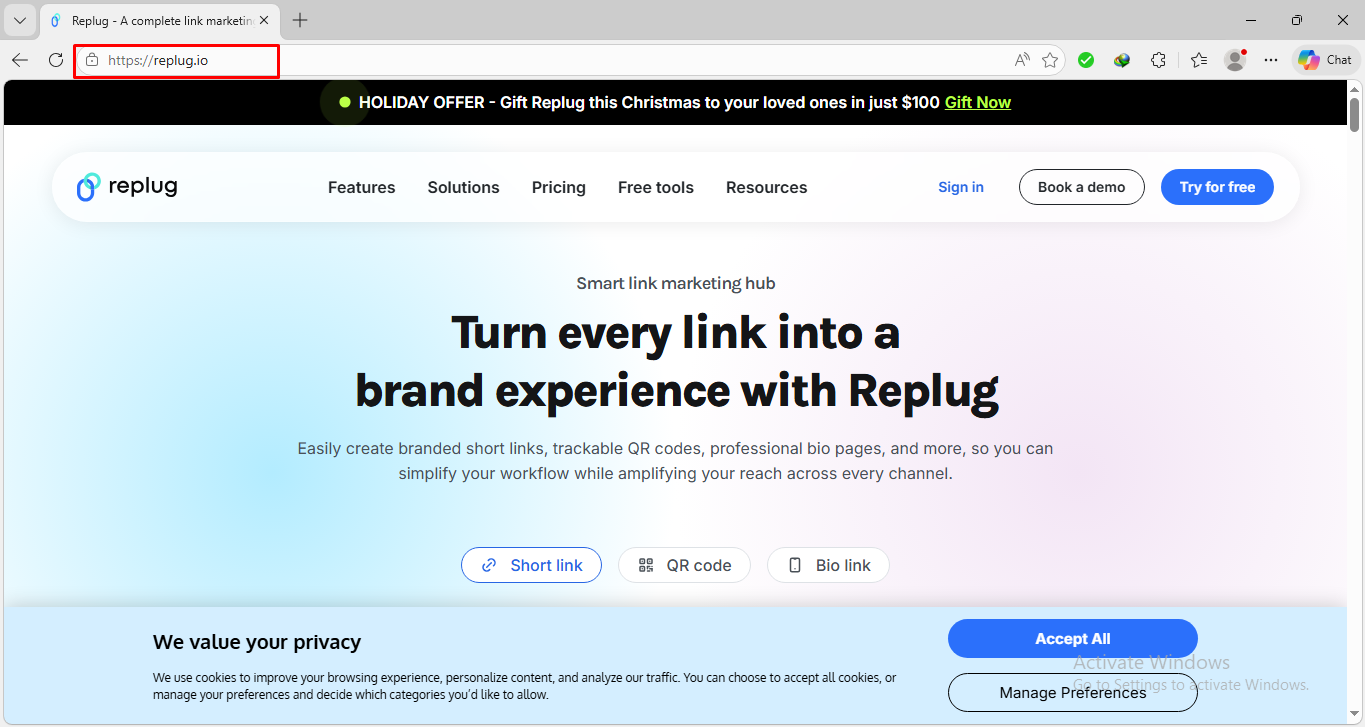
2. Resize the Edge window so you can see your desktop behind it.
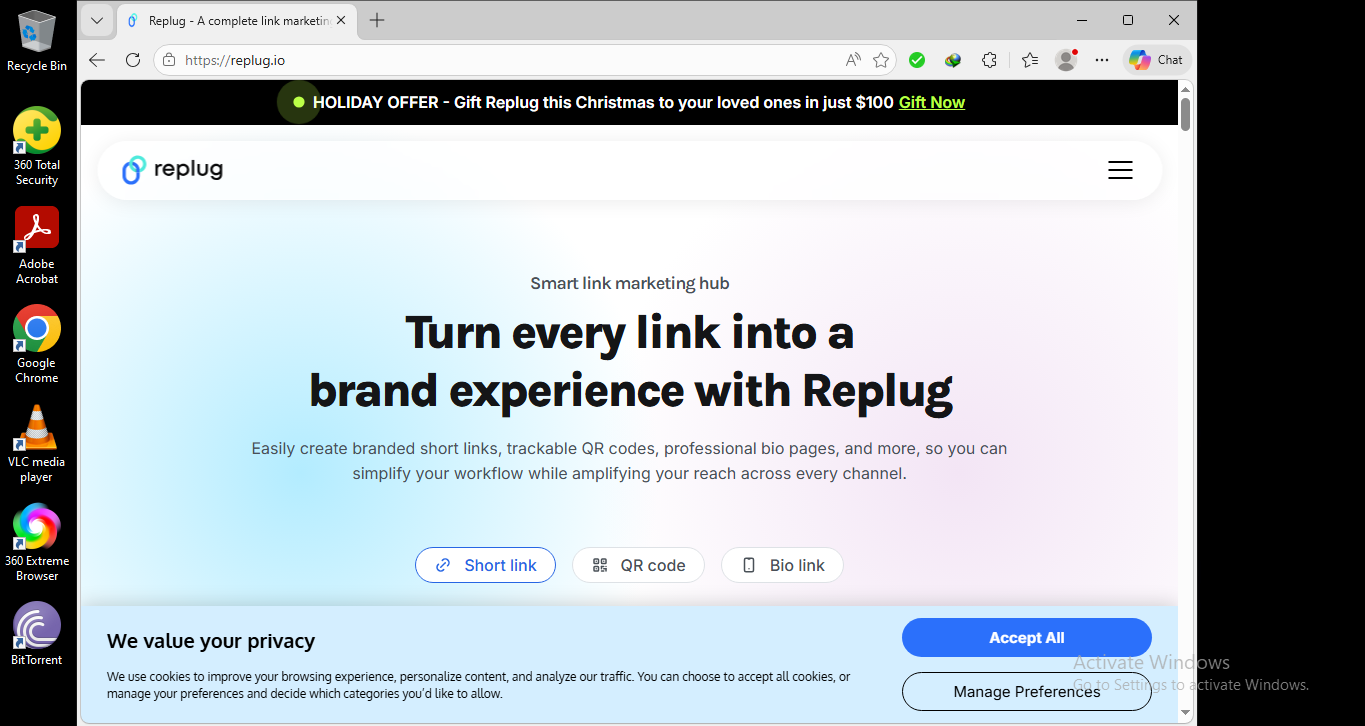
3. Look at the left side of the address bar. There, you’ll see a small icon (like a padlock or globe).

4. Click and hold that icon, then drag it onto your desktop and release.
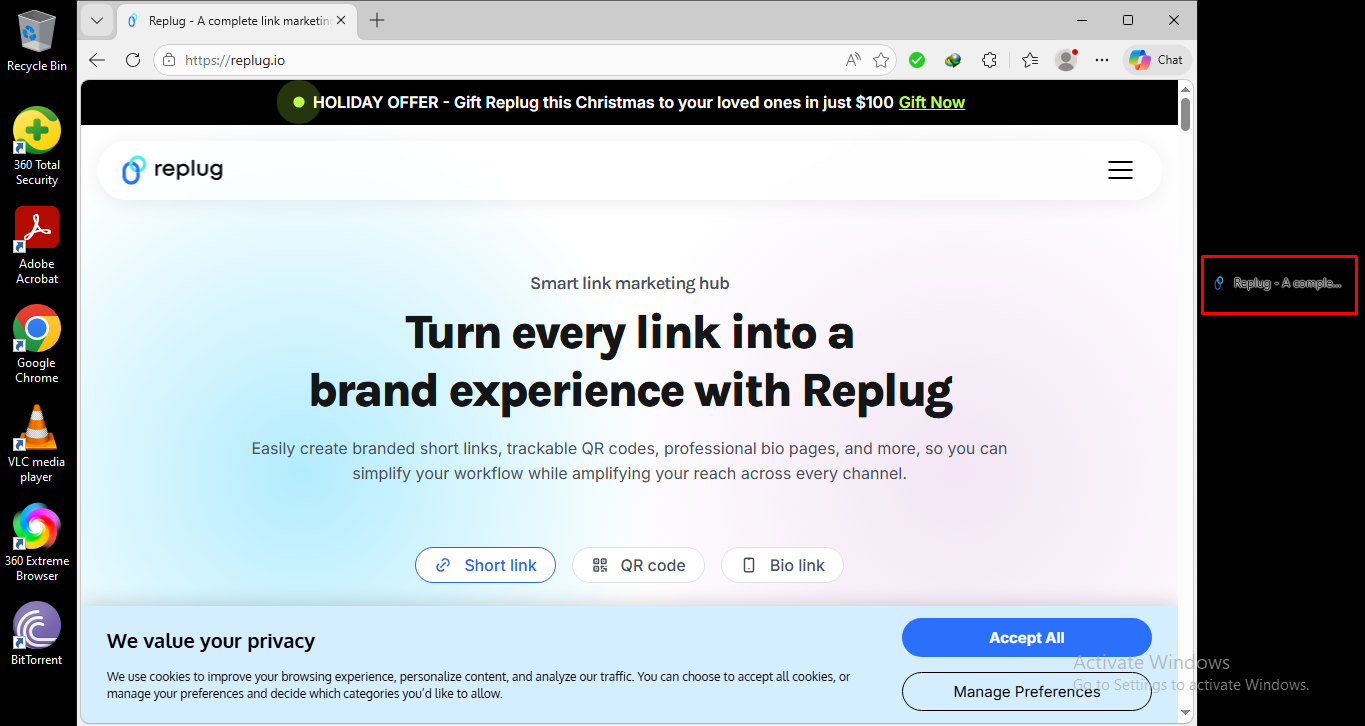
5. A shortcut will appear on your desktop that opens the site.
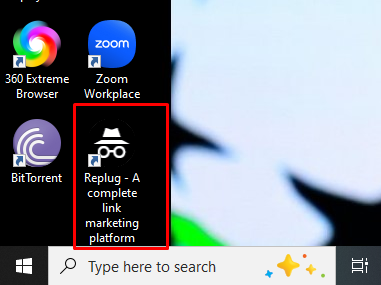
That’s it!
Use Edge’s “Install as App” option (nice & clean)
This method makes the shortcut feel a bit more like an app, and opens the site in a neat window without all the browser extra fuss.
1. Open Edge and go to your chosen website.
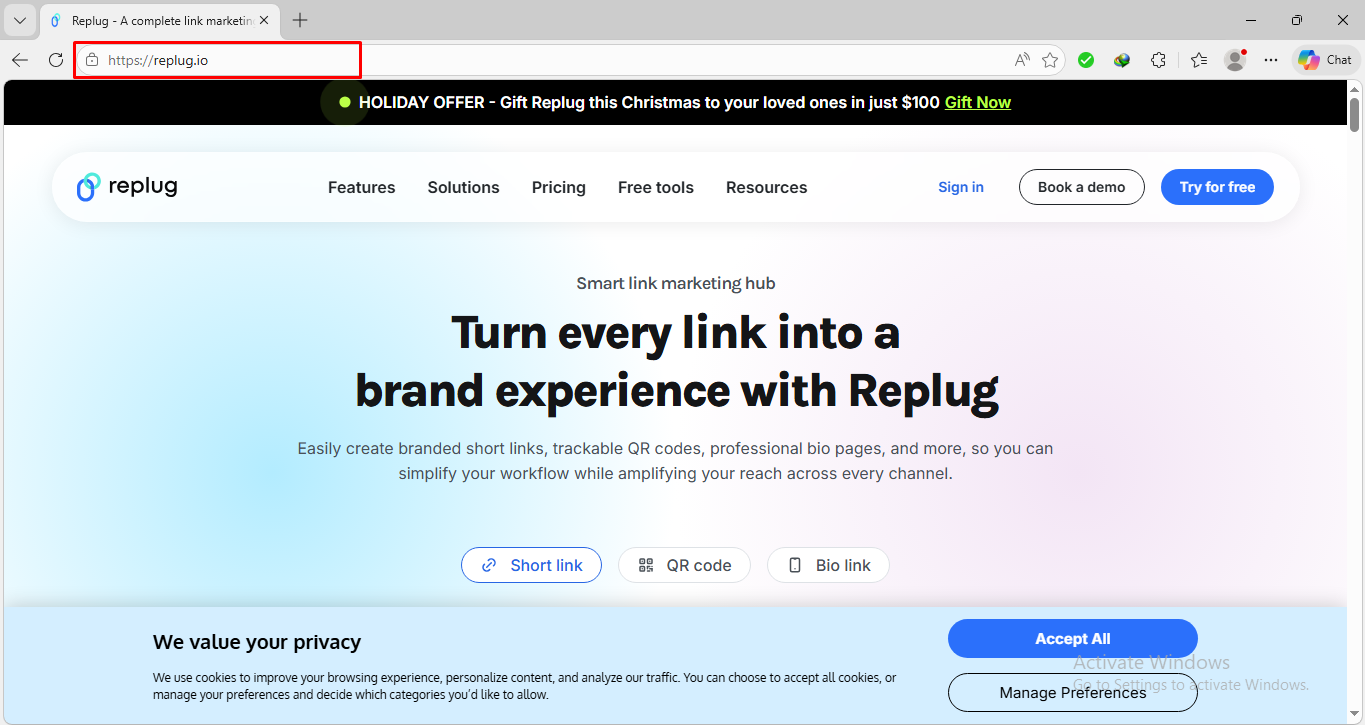
2. Click the three dots (…) in the top right corner of Edge.
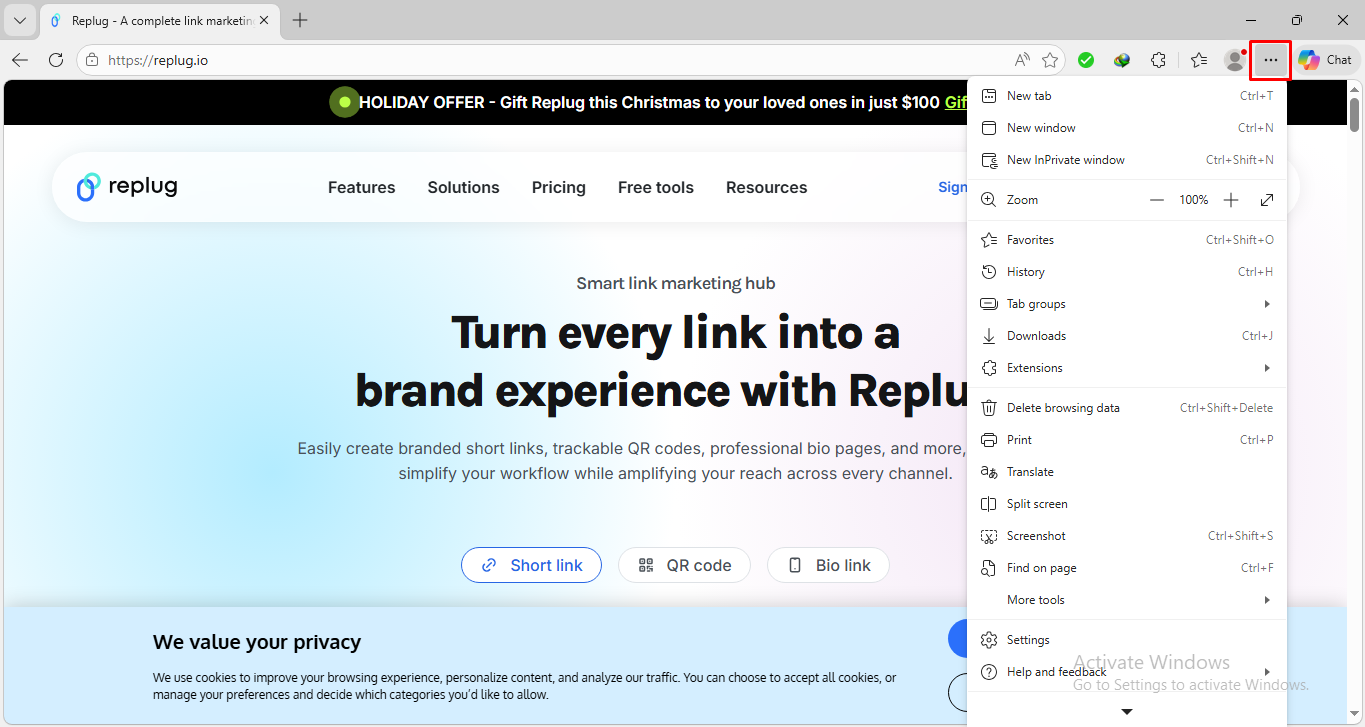
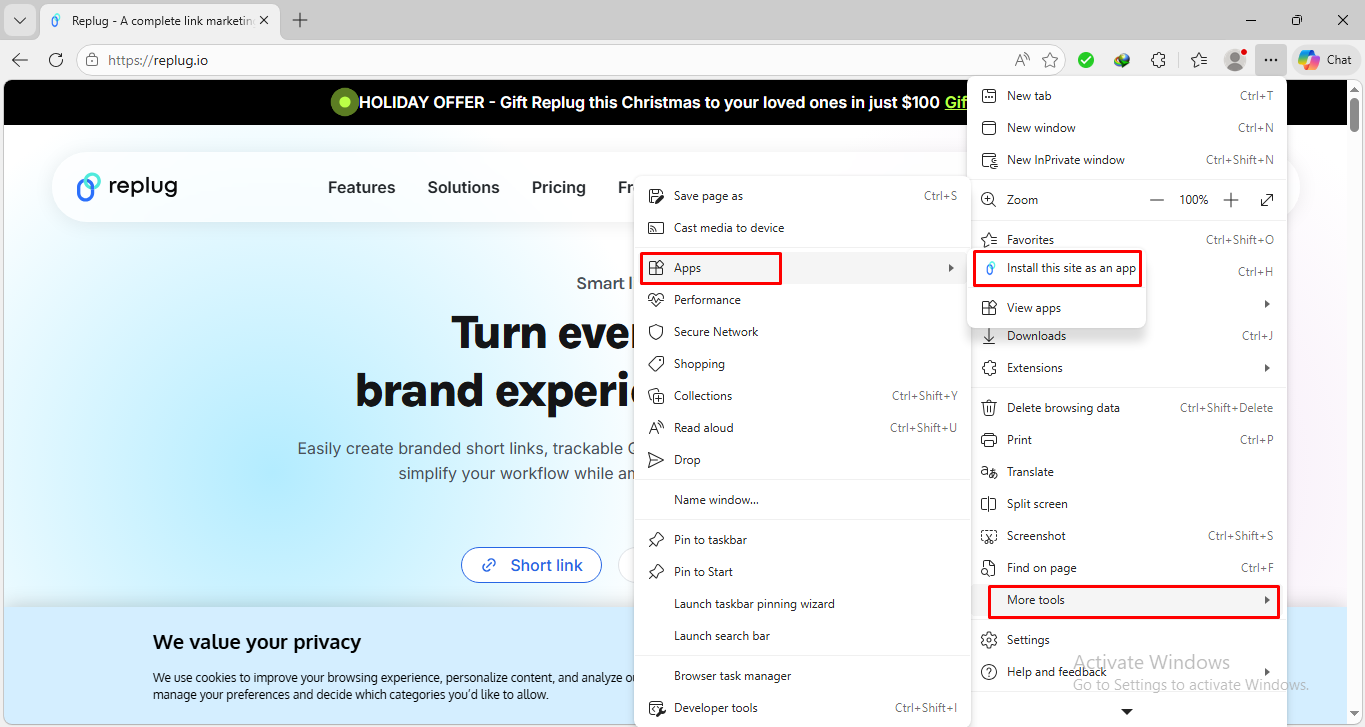
3. Hover over More tools → Apps and then click “Install this site as an app”.
4. Type a name for the site and click Install.
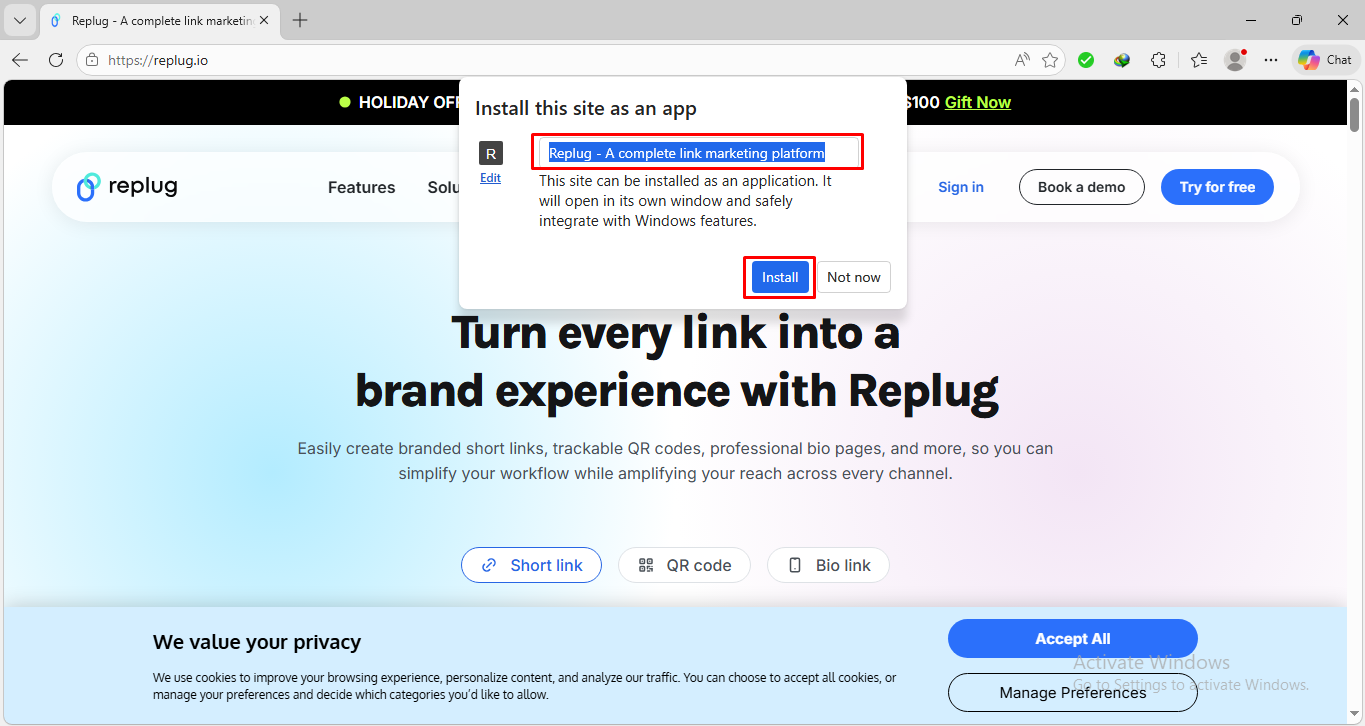
That’s all there is to it! Edge will now create a desktop shortcut automatically.
Note: This is great for things like email, chat portals, or tools you use all the time.
Create a shortcut using Windows’ New Shortcut option
If you want full control, this manual method works pretty well too:
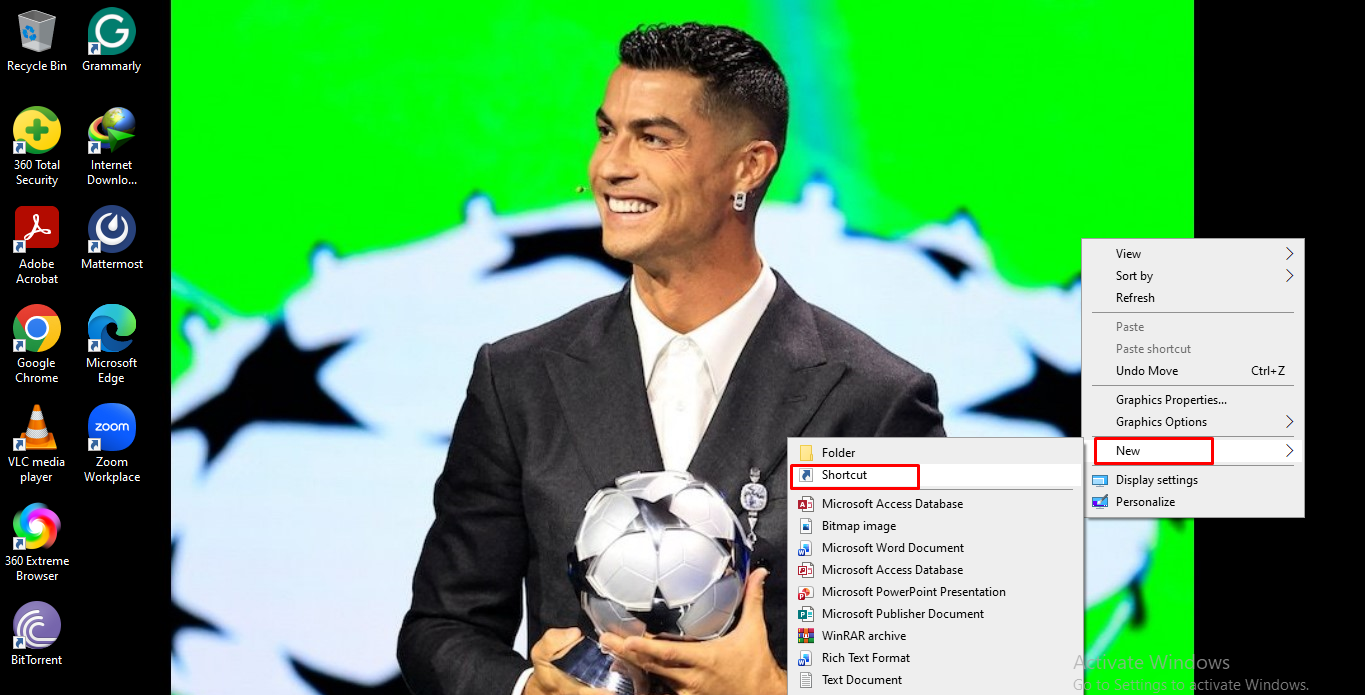
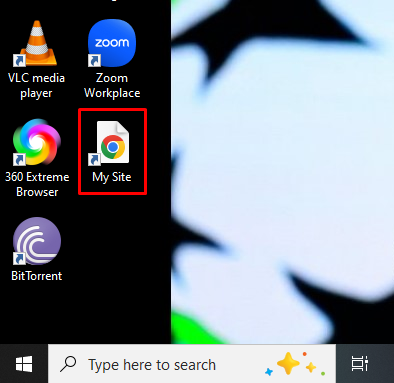
1. Right-click on your desktop in an empty space.

2. Choose New → Shortcut.
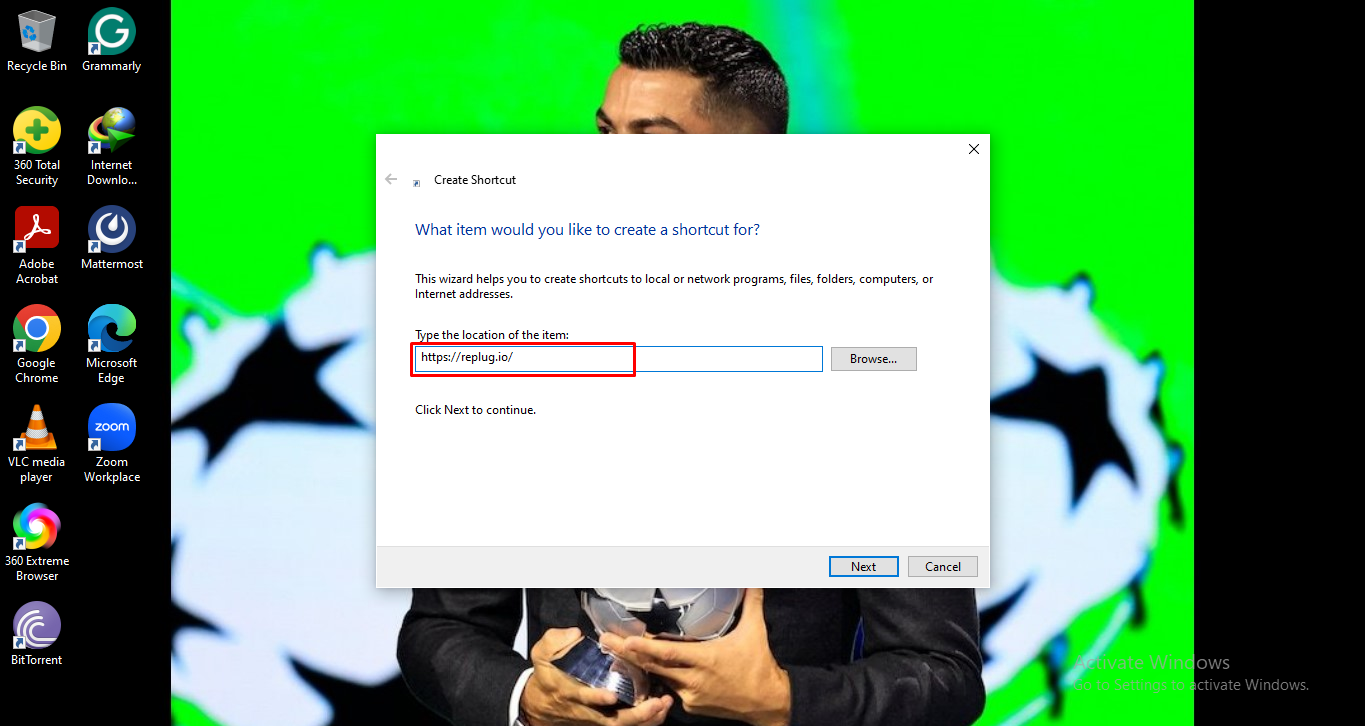
3. In the box that appears, type or paste the website’s URL (like https://replug.io/).
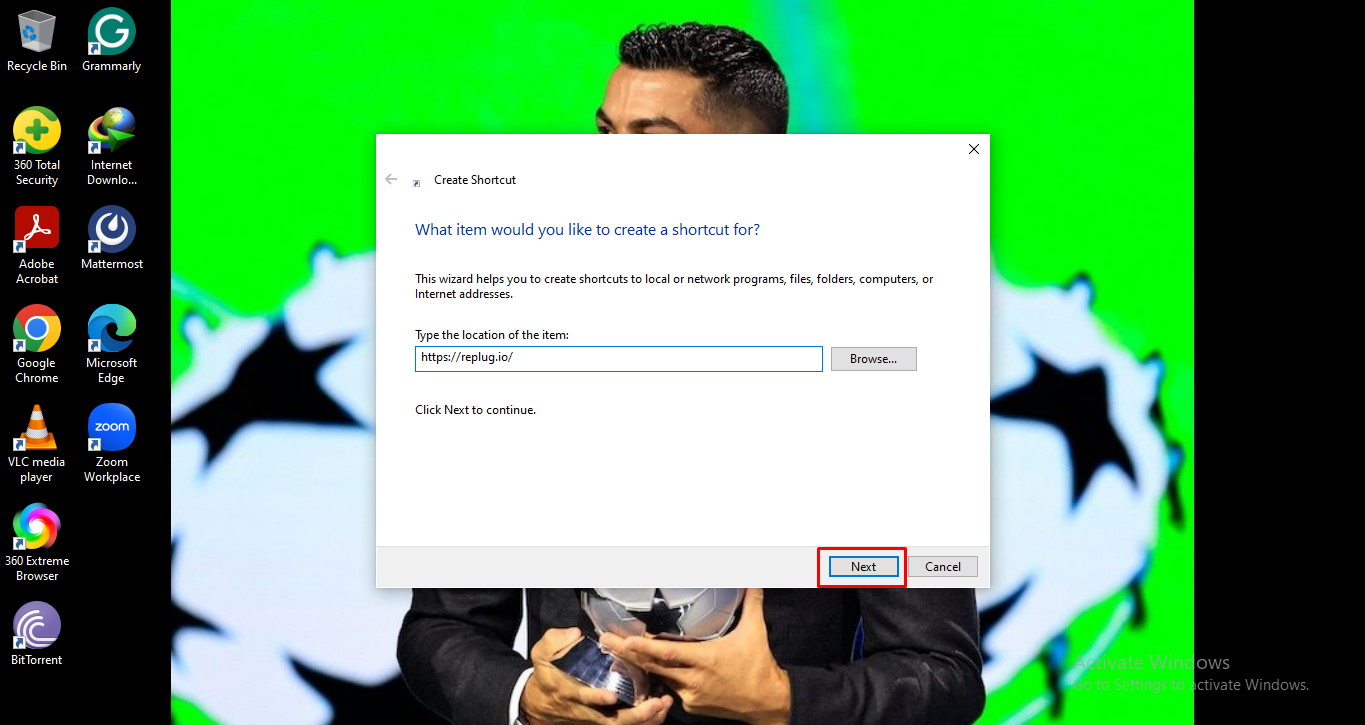
4. Click Next, give it a name (like “My Site”), and click Finish.
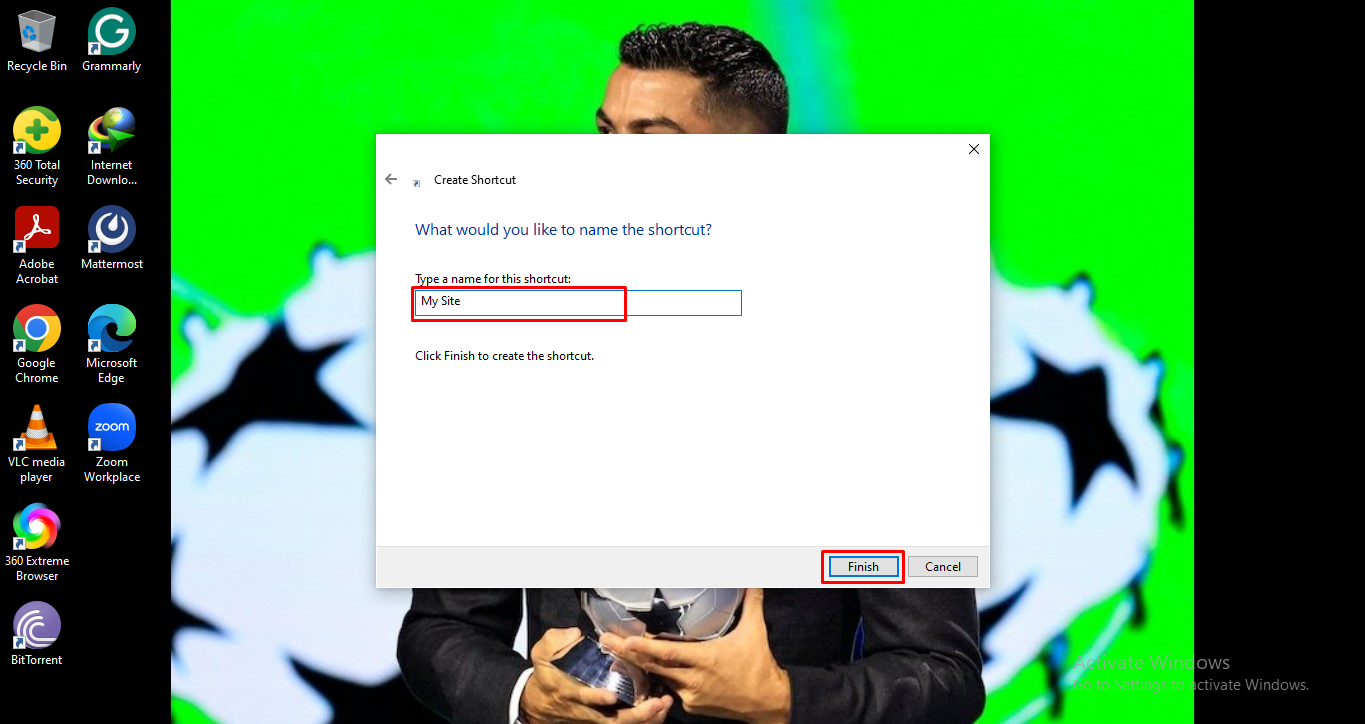
A shortcut will appear instantly!
Note: If Edge isn’t your default browser, it might open in a different browser, but you can tweak the shortcut so it opens in Edge specifically if you want.
You now have a quick way to open your favorite sites right from your desktop using Microsoft Edge.
How to save a link to desktop on Windows 11
Saving a website link to your desktop in Windows 11 is actually pretty simple.
You can do it either by dragging the link from your browser onto the desktop or by manually creating a shortcut that points to the website’s URL.
Both ways work well; choose whichever feels easier to you!
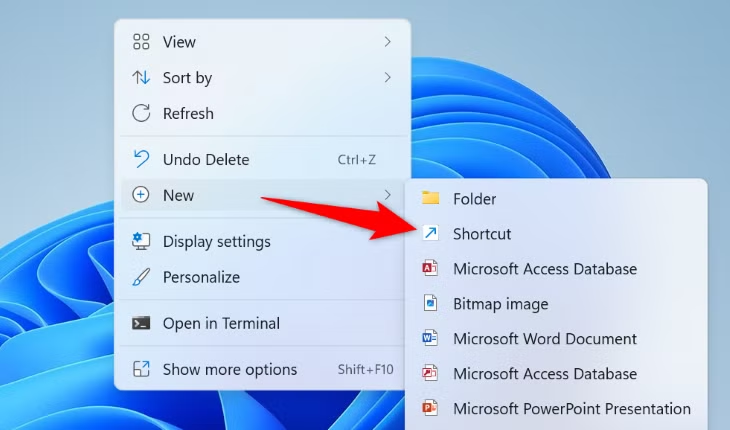
Here is how to add a website to desktop on Windows 11:
- Method #01: Drag & drop the website link (already discussed above)
- Method #02: Create a shortcut manually (already discussed above)
These ways make getting to your favorite sites much quicker and more convenient.
How to save a URL to desktop on Mac
Saving a website link to your desktop on a Mac is easy and only takes a couple of minutes. When you do this, macOS creates a small file (a .webloc file) on your desktop that opens the site in your browser with a double-click.
Here’s how to save a link to desktop on a MacBook:
1. Open your web browser: Open Safari, Chrome, or any browser you like on your Mac.
2. Go to the website you want to save: Type the site address in the address bar and press Enter so the page loads fully.
3. Resize the browser window: Make sure part of your desktop is visible behind the browser. This makes it easier to drag the link.
4. Click the URL in the address bar: Click once to highlight the whole web address at the top of the browser.
5. Drag the URL to your desktop: While still holding the mouse or trackpad button, drag the highlighted web address and drop it on your desktop.
6. Check the newly created shortcut: You’ll see a file on your desktop with the website’s name and a .webloc extension.

That’s all!
Also read: How to bookmark a webpage in any browser & on any device in 2026!
Wrapping up
In the end, all the methods we covered, from quick drag-and-drop tricks to browser-specific ways of making shortcuts in Chrome and Microsoft Edge, as well as saving links on Windows 11 and on a Mac, are here to make your life easier.
Whether you want one-click access to your favorite sites or prefer to organize links right on your desktop, these steps are simple to follow and work reliably for everyday use.
Now that you’re managing website shortcuts like a pro, why not take your link game even further? Give Replug a try today!
It’s a top-notch short URL generator that helps you generate branded short URLs in no time, track link analytics and performance, and share clean, trustworthy links wherever you want on the go!


Frequently asked questions
How to save a URL to desktop on a laptop?
On most laptops (Windows or Mac), you can save a website link by dragging the URL from the browser’s address bar onto your desktop. Simply click the padlock or site icon to the left of the URL, drag it down, and drop it on your desktop. You’ll see a clickable shortcut there.
How to save a link to desktop from an email?
If you want a website link you received in an email on your desktop, first open the email and copy the URL (right-click link → Copy link). Then, on your desktop, right-click → New → Shortcut (Windows), or drag a web link to the desktop (Mac). Paste the copied URL when prompted.
How to save a hyperlink to desktop?
A “hyperlink” is just a clickable web link. To save it to your desktop, copy the hyperlink URL from wherever you see it (email, document, webpage). Then, create a desktop shortcut and paste that URL into it (Windows), or drag the link from your browser address bar to the desktop (Mac).
How to save a URL shortcut to desktop easily?
The easiest way is to drag the URL (or the small icon next to it) directly from your browser’s address bar onto your desktop. This instantly creates a shortcut you can double-click to open the site at any time.
How to save a website to desktop on an iPhone?
You can’t save a website to the desktop on an iPhone like you do on a computer, but you can add it to your Home Screen so it works like a shortcut.
1. Open “Safari” and go to the website you want.
2. Tap the Share icon (square with an arrow up).
3. Scroll and tap Add to Home Screen.
4. Give it a name and tap Add.
An icon will appear on your iPhone’s home screen that opens that site.
How to save a website link to desktop on a PC?
On a Windows PC, open your browser (Chrome/Edge/Firefox), go to the site you want, then click and drag the icon from the address bar (the small padlock or globe) onto your desktop. A shortcut will be created that you can double-click to open the link at any time.
How do I save a URL to my home screen?
On most smartphones, open the website in your browser (Safari on iPhone, Chrome on Android), tap the Share or Menu button, and then hit Add to Home Screen. This creates an icon on your home screen that opens the URL with just one tap.
How to pin a website to your taskbar?
On Windows, open the website in Microsoft Edge. Then click the three dots (⋯) in the top right, go to More tools, and choose Pin to taskbar. The site’s icon will now appear on your taskbar for quick access.