Want more clicks, more traffic, and maybe even more sales from your YouTube videos? It all starts with one simple thing: a clickable link in your description.
With over 2.7 billion monthly active users on YouTube and more than 1 billion hours of video watched every day, even a small tweak like adding the right link can make a huge difference.
But here’s the catch: many creators still get it wrong or miss out on easy opportunities. In this guide, we’ll show you exactly how to do it the right way in 2026, step by step.
First, let’s quickly understand the basics, starting with what a YouTube video description actually is.
What is a YouTube video description?
A YouTube video description is the text section you see right below a video. It explains what the video is about, gives extra context, and helps both viewers and YouTube understand your content. In simple terms, it’s like a mini guide for your video.
Its main purpose is twofold: to help people quickly decide if your video is worth watching and to help YouTube rank your video in search results. When written properly, it can improve discoverability, boost clicks, and even drive traffic to your links.
Core elements of a YouTube video description
Here are the key elements:
- The hook (an engaging, keyword-rich opening line): The first 1–2 lines grab attention and include your main keyword since this part is visible before clicking “show more.”
- Detailed description/summary of the content: A clear, simple summary that tells viewers exactly what they’ll learn or get from the video.
- Clickable timestamps/chapters for navigation: Time-based links that let viewers jump to specific parts of the video easily.
- A clear call to action (CTA): A direct prompt telling viewers what to do next, like subscribe, click a link, or watch another video.
- Relevant links & resources: Useful URLs (website, products, references) that add extra value beyond the video.
- Social media handles & hashtags: Your social links and hashtags help people connect with you and improve content reach.
- Channel bio/disclaimer: A short intro about your channel or any necessary disclaimer (like affiliate links or sponsorships).
How to add a clickable link in YouTube video description (step by step)
Adding a clickable link in your YouTube description is actually very simple. You just need to paste the right type of URL in the right place.
Once done correctly, YouTube automatically turns it into a clickable link that viewers can tap or click, hassle-free.
Let’s break it down step by step for both phone and desktop so you can follow along easily 👇
How to add a clickable link in YouTube description on phone
Here’s how to do it on mobile:
1. Open the YouTube Studio app.
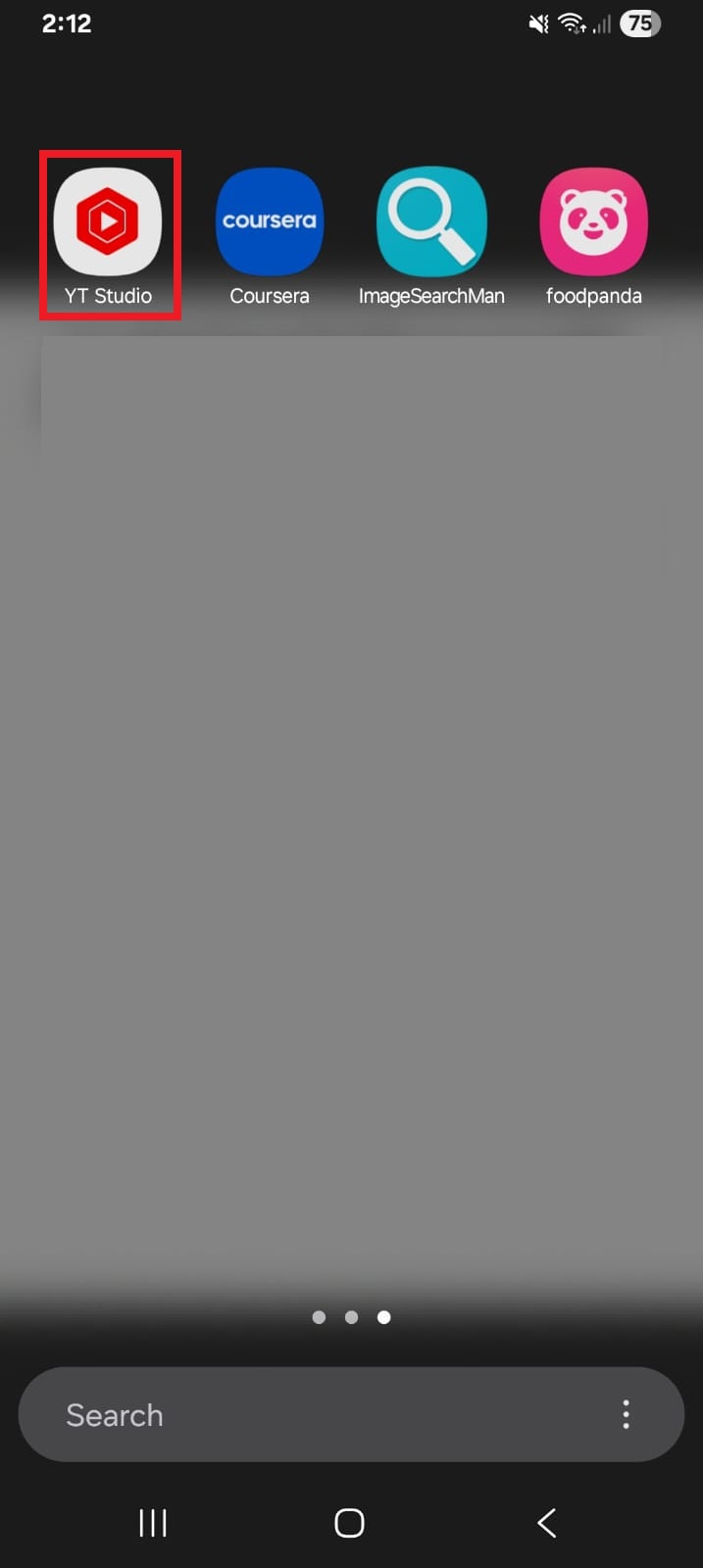
2. Select the video you want to edit.
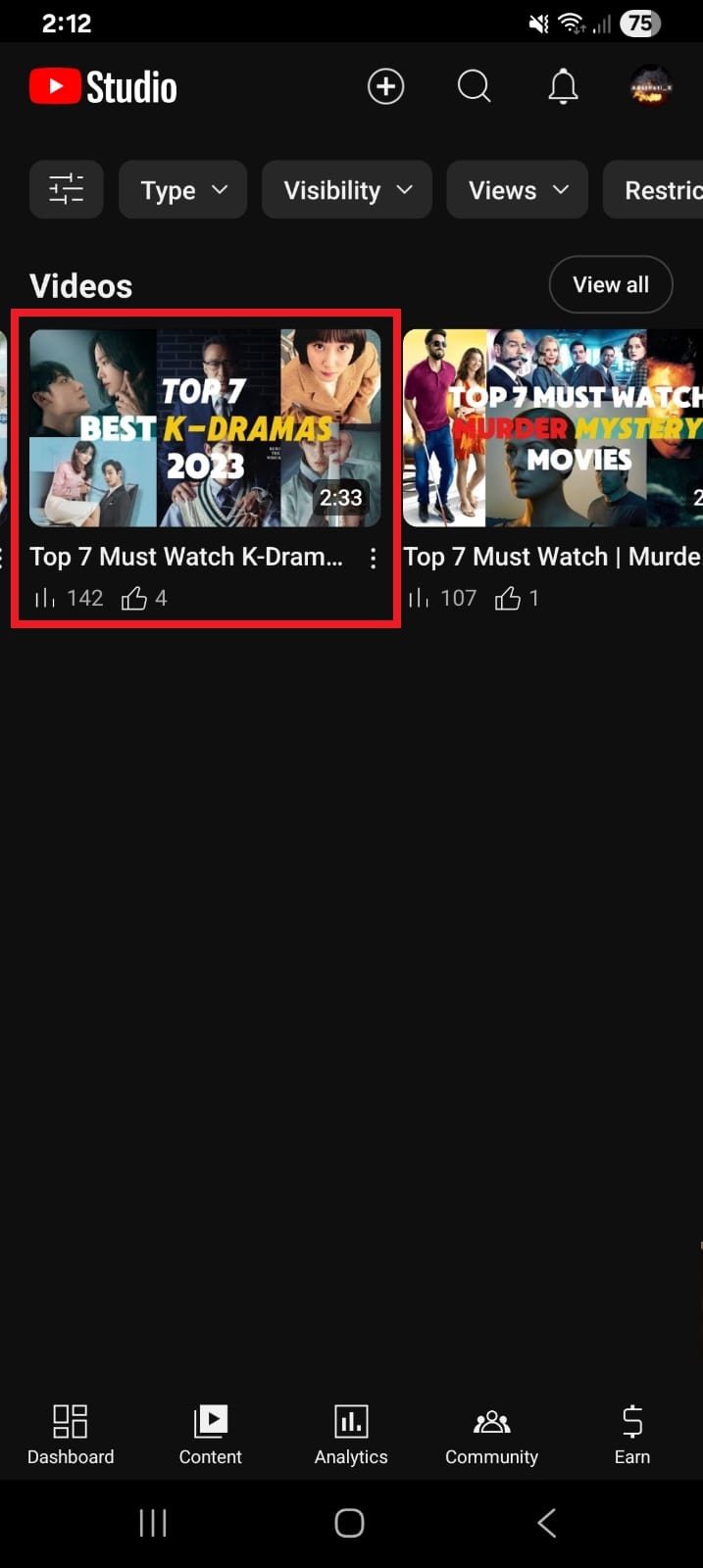
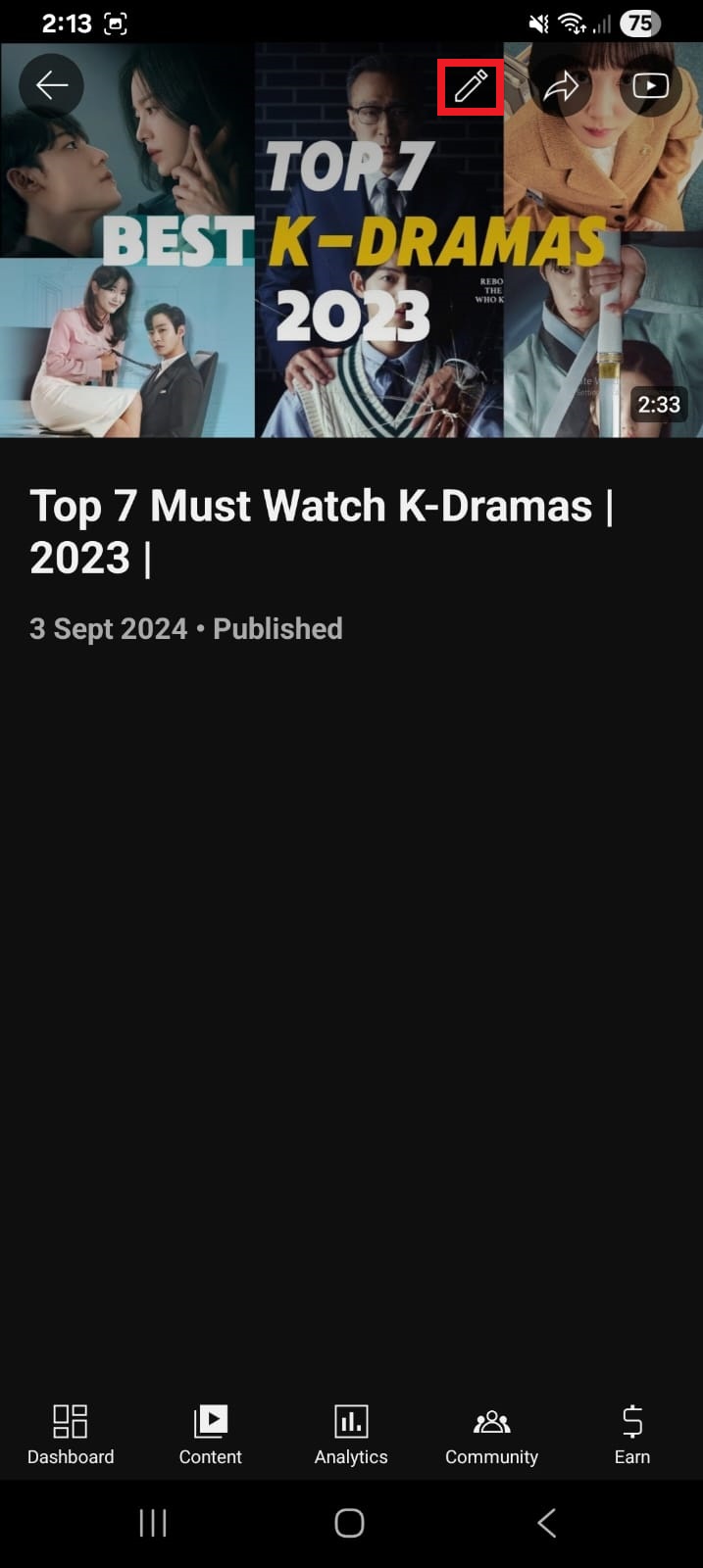
3. Tap the pencil (edit) icon at the top of the screen.
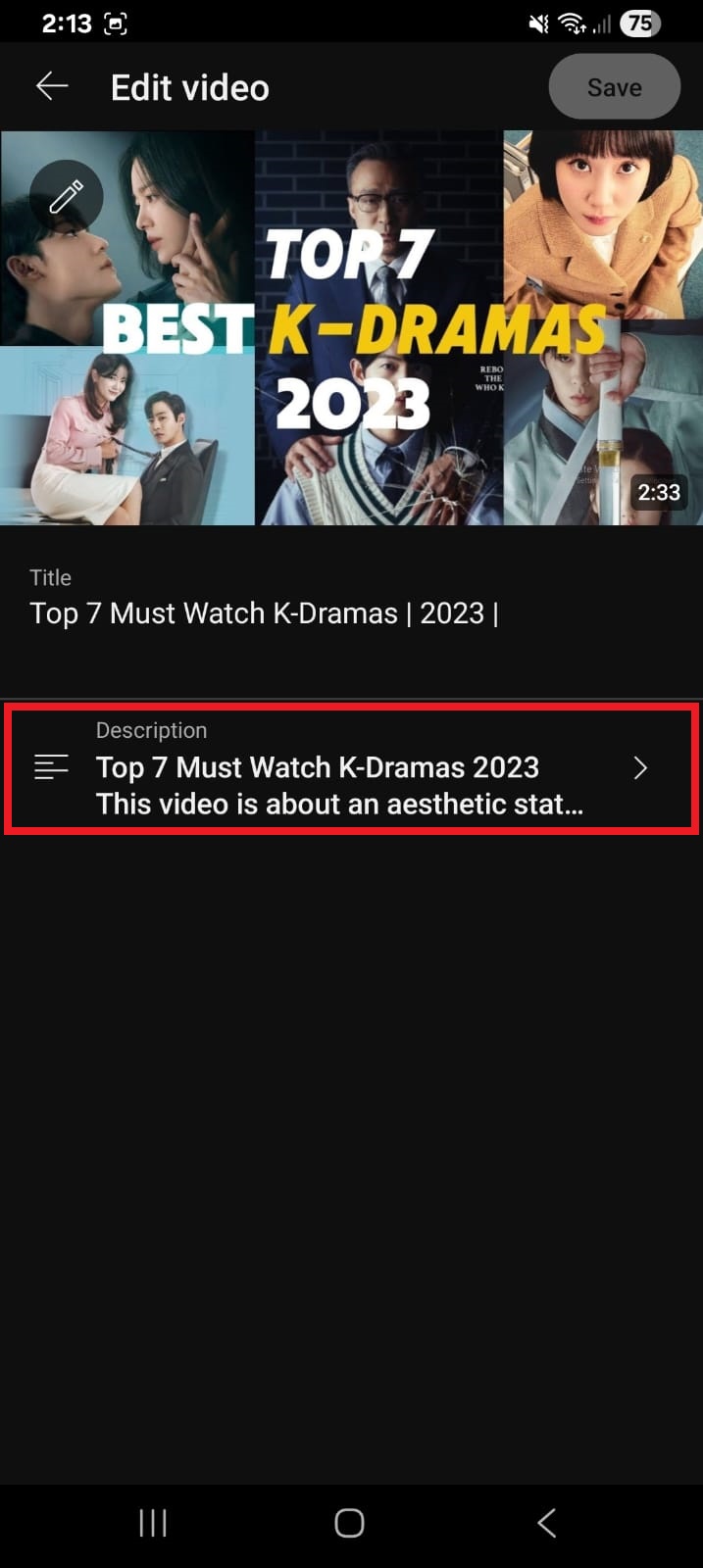
4. Tap on the Description section.
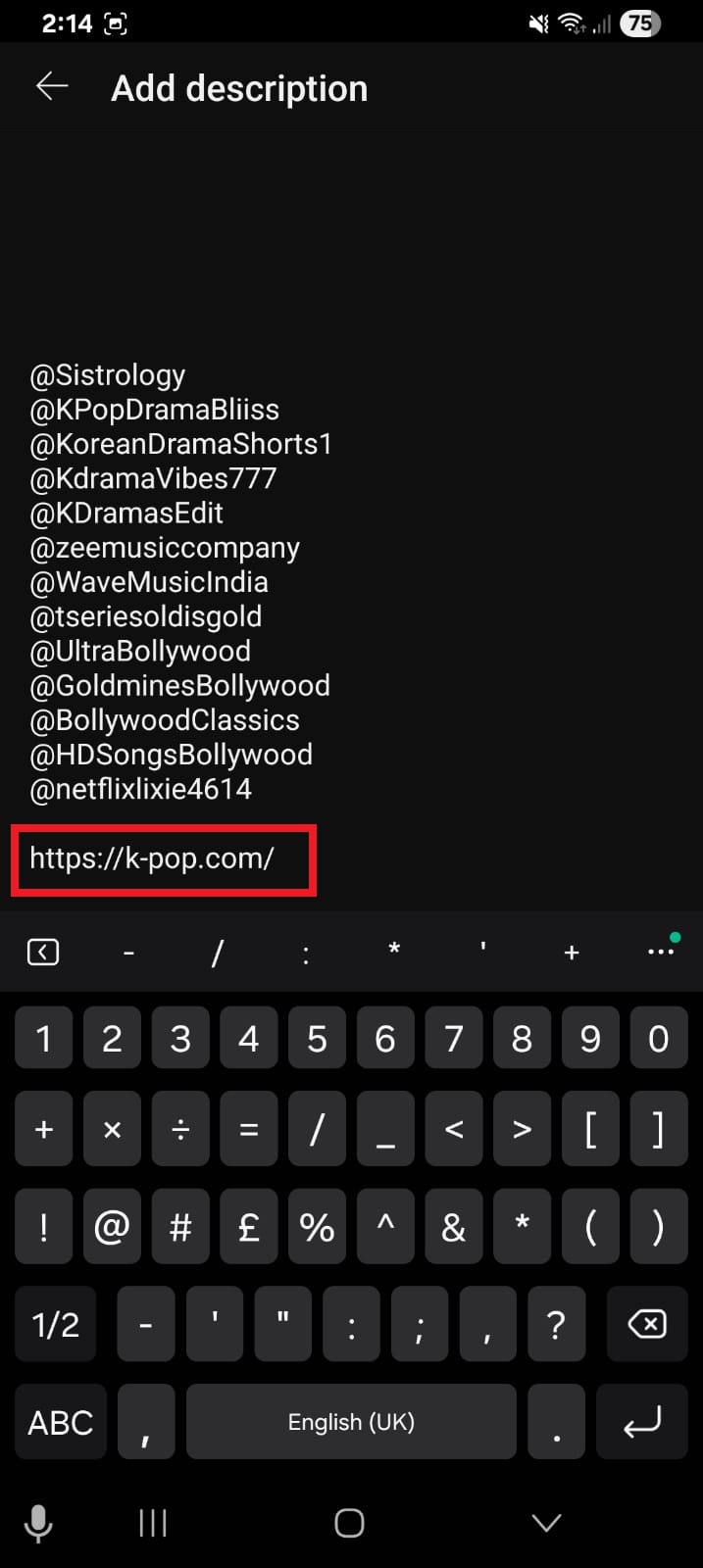
5. In the description box, paste your link (make sure it starts with https://).
6. Tap Save.
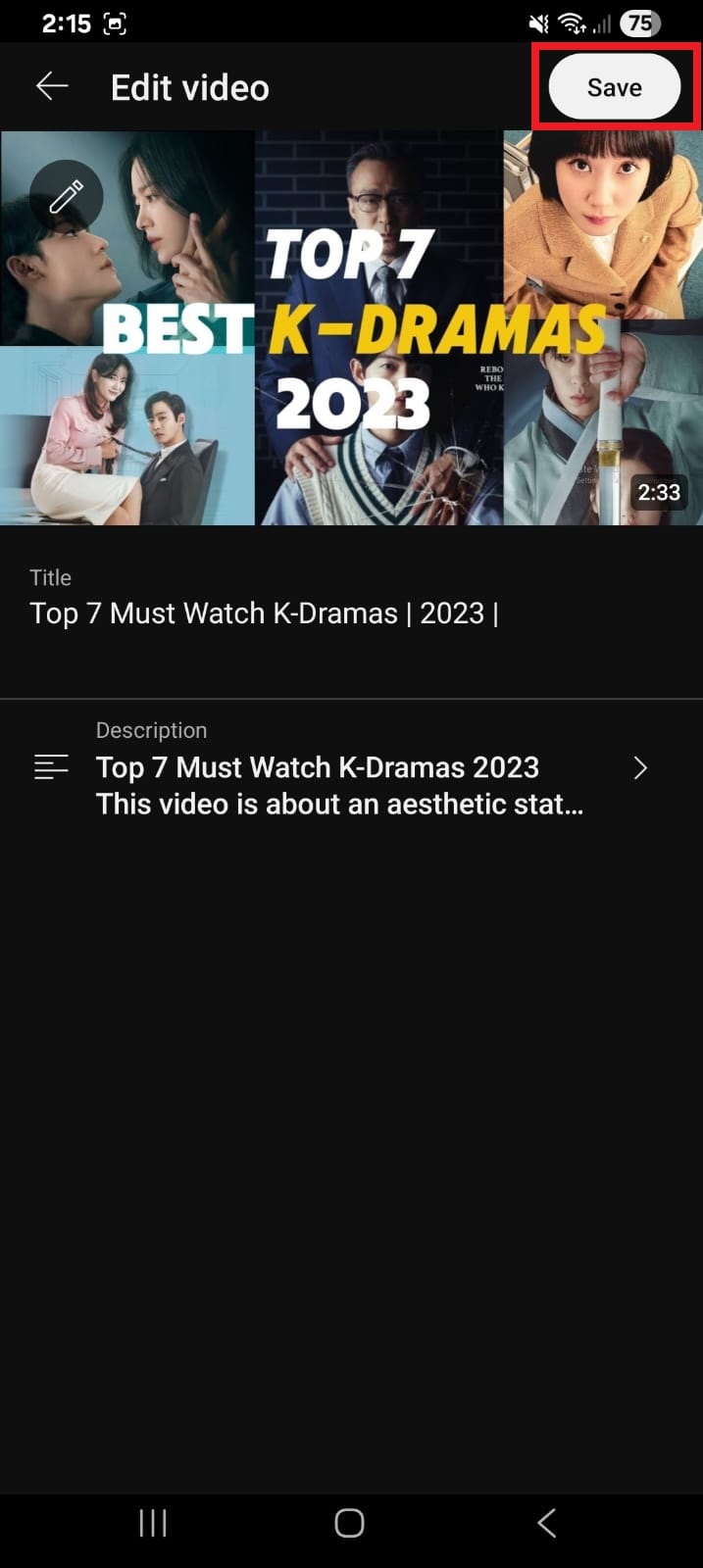
That’s it! YouTube will automatically make the link clickable once the video is updated.
How to add a clickable link in YouTube description on desktop
Here’s how to do it on PC:
1. Go to YouTube Studio and log in.
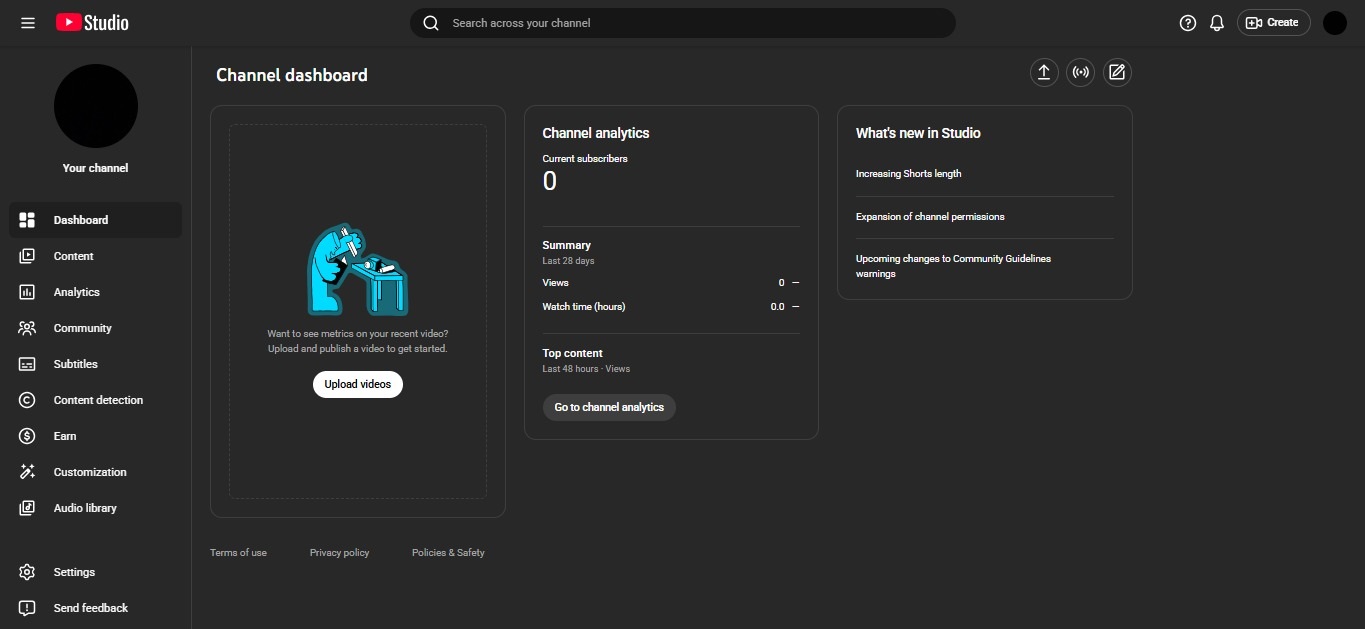
2. Click on Content from the left menu.
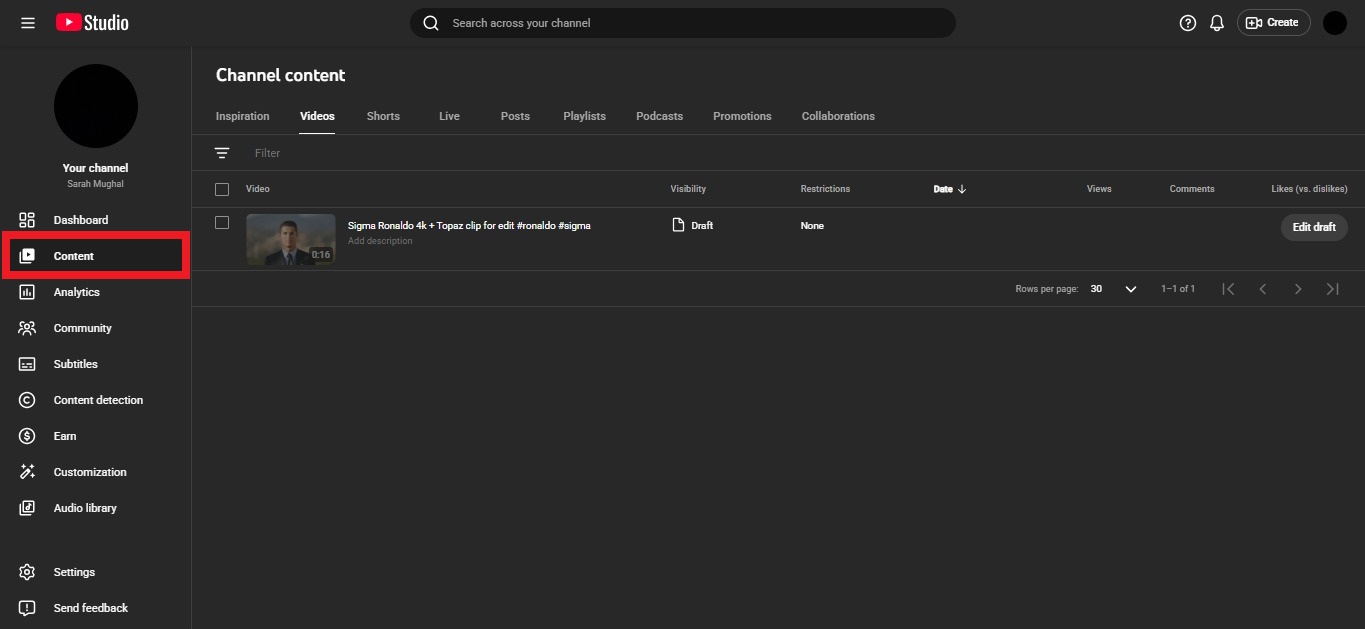
3. Find your video and click the edit (pencil) icon.
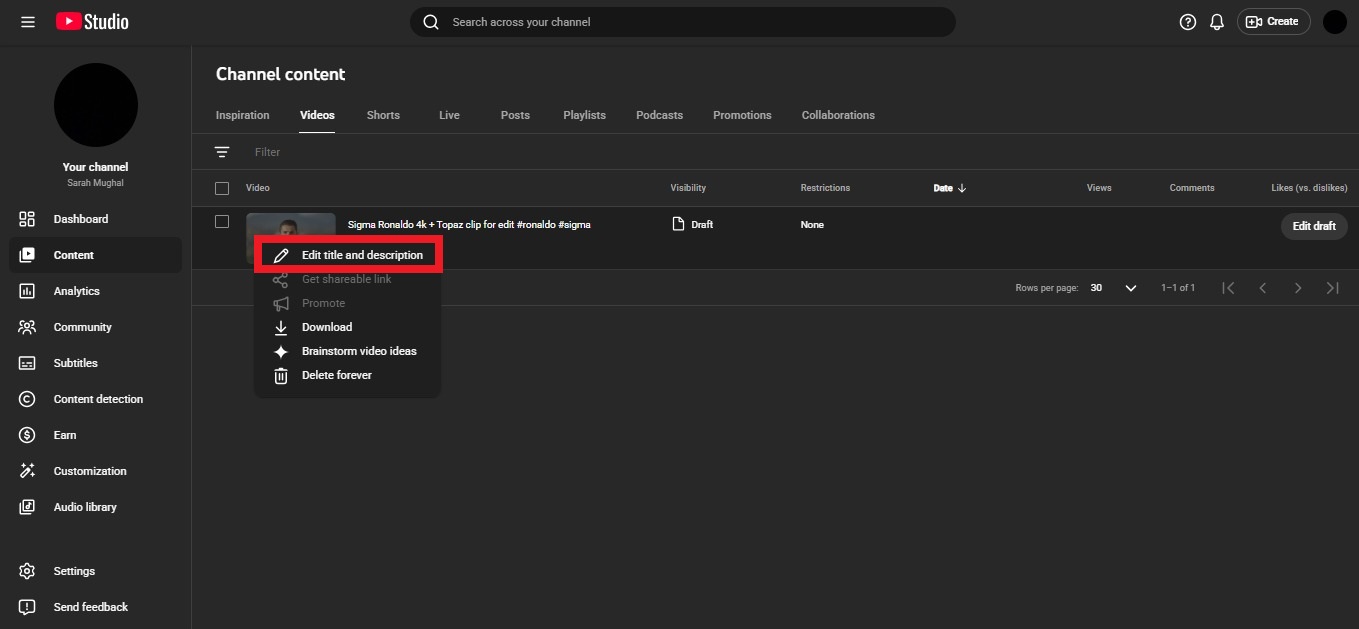
4. Scroll to the Description field, and paste your link with https:// at the start.
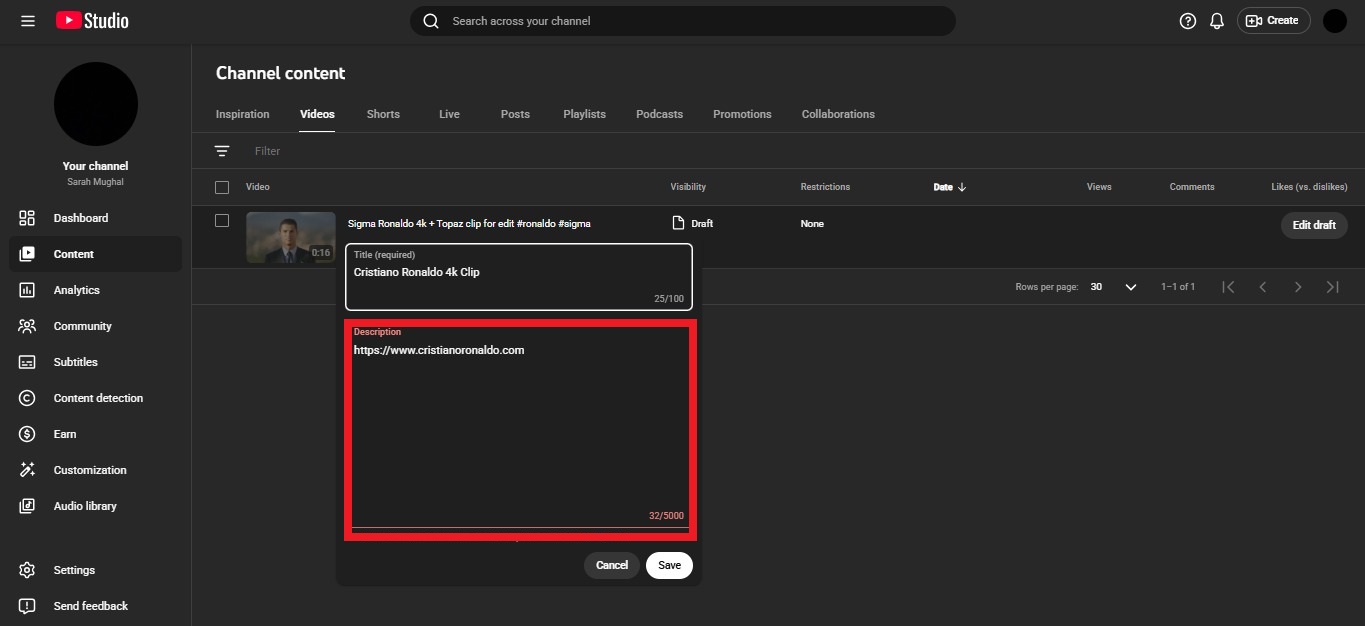
5. Click the Save button.
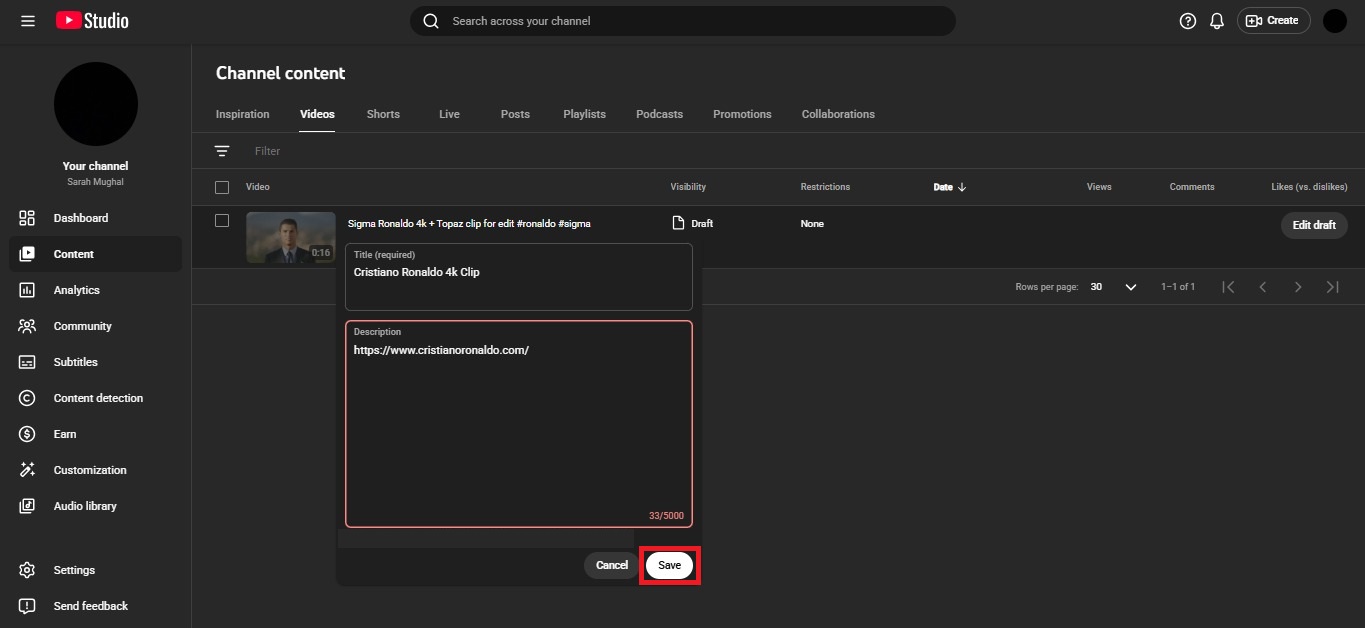
Once saved, your link becomes clickable in the description.
💡 Quick tip: If your link isn’t clickable, it’s usually because it doesn’t include “https://”, so always double-check that part.
How to add a clickable link in YouTube Shorts description
Before you jump in, here’s something important to know 👇
YouTube works a bit differently for Shorts. In most cases, links placed directly in Shorts descriptions are NOT clickable. They show as plain text to reduce spam and scams.
So while you can add a link in the description, it won’t behave like regular video links. Instead, YouTube gives you a few alternative ways to share clickable links (like related videos or other features).
Step-by-step guide:
1. Open YouTube Studio (app or desktop).
2. Go to Content and select your Short.
3. Click the edit (pencil) icon.
4. In the description box, paste your link (make sure it includes https://).
5. Click Save.
Your link will appear in the description, but keep in mind, viewers won’t be able to click it directly.
💡 Better (working) ways to add clickable links in Shorts
Since description links aren’t clickable, here are smarter options you should use:
- Add a “Related Video” link: You can link your Short to one of your long videos, which viewers can easily click.
- Use channel profile links: Add your website or important links in your channel bio. These are clickable.
- Mention links in comments or CTA: Guide viewers to your bio or a full video where clickable links are available.
In short, you can add links in Shorts descriptions, but for optimized results, use YouTube’s built-in linking features instead.
How to add a clickable link in the YouTube channel description
Adding links to your YouTube channel description (the “About” section) is a great way to guide viewers to your website or social profiles. To make links clickable on your channel, you need to use YouTube’s channel profile links (banner links) feature.
Step-by-step guide:
1. Go to YouTube Studio and log in to your account.
2. From the left menu, click on Customization.
3. Open the Basic Info or Profile tab.
4. Scroll down to the Links section.
5. Click + Add Link.
6. Enter your link title (e.g., “My Website” or “Instagram”).
7. Paste your full URL (make sure it starts with https://).
8. Click Publish in the top right-hand corner.
Once saved, these links (up to the first 14) will show up on your channel banner and are fully clickable for viewers.
Why add a clickable link in the YouTube video description
Adding a clickable link isn’t just a small detail; it’s one of the easiest ways to turn viewers into action-takers. Whether you want traffic, sales, or engagement, that single link can make a real difference.
- Monetization & marketing: You can promote products, services, or affiliate offers, directly turning views into real income opportunities.
- Engagement & traffic: Links help drive viewers to your website or other content, increasing traffic and interaction beyond YouTube.
- Improved user experience: You give viewers quick access to helpful resources, making your content more useful and easy to explore.
- SEO boost: Descriptions help YouTube understand your content better, improving visibility in search and recommendations.
- Lead generation: A well-placed link can capture leads by directing viewers to sign-up pages, offers, or landing pages.
Importance of a good YouTube video description in 2026
At present, a YouTube description is more than just a summary. It’s a key part of how your video gets discovered and how viewers interact with it. A well-written description helps both the algorithm and your audience understand your content better.
- Boosts searchability: Using the right keywords helps YouTube understand your video and improves its chances of showing up in search results.
- Enhances viewer experience: A clear description, links, and timestamps make it easier for viewers to navigate and get value quickly.
- Increases engagement: When viewers know what to expect, they’re more likely to watch longer, click links, and interact.
- Builds loyalty & revenue: Good descriptions guide users to subscribe, explore more content, or check out your offers.
- Strategic optimization: Descriptions are a core part of YouTube SEO along with titles and tags, helping your content perform better.
- Context for AI: With AI-driven search growing, descriptions help systems understand and recommend your content accurately.
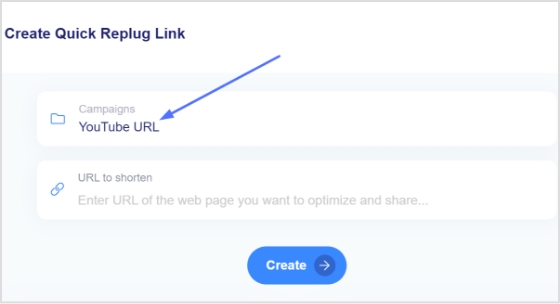
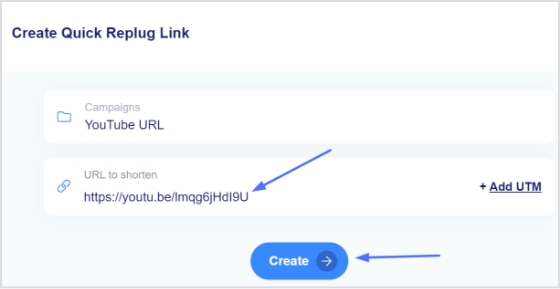
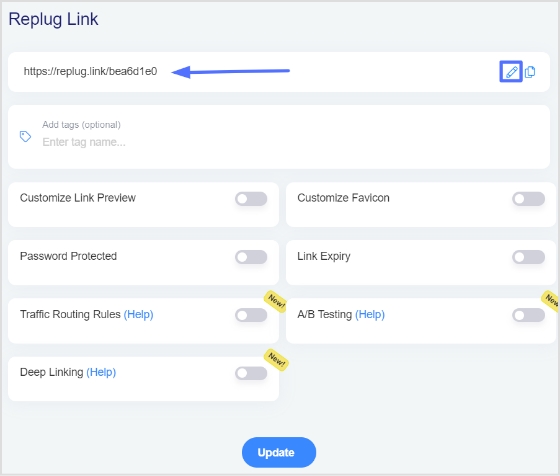
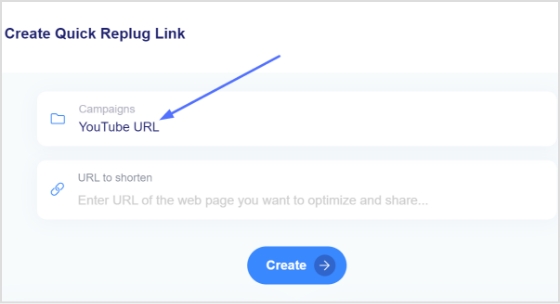
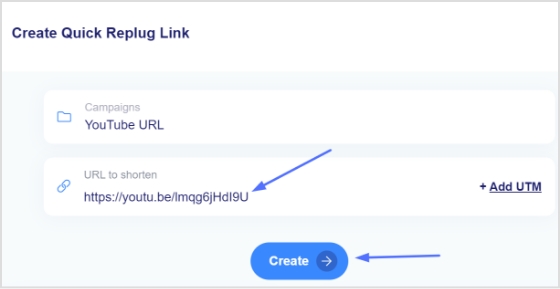
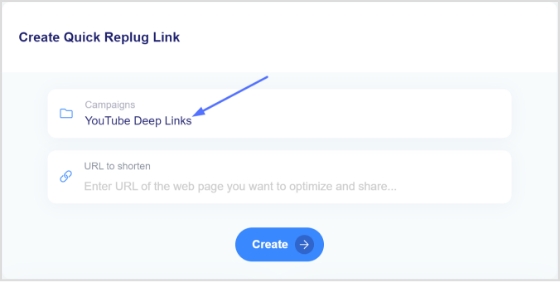
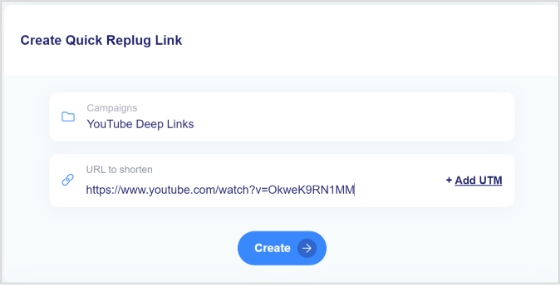
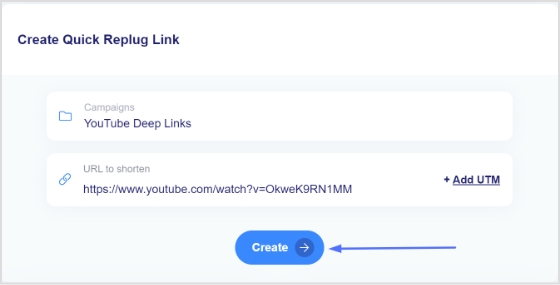
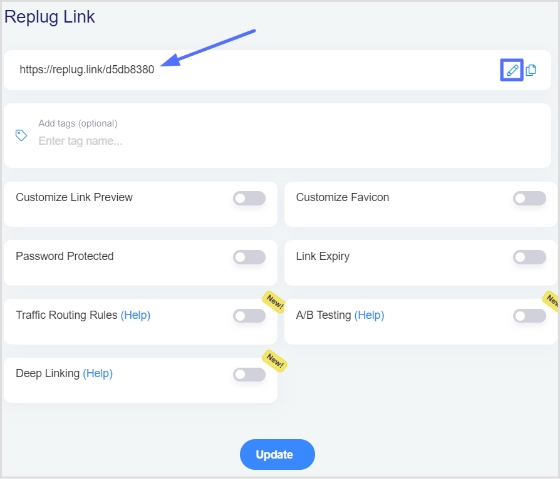
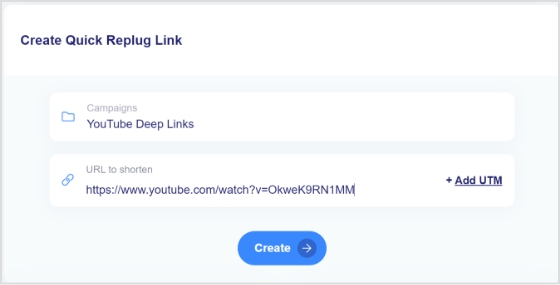
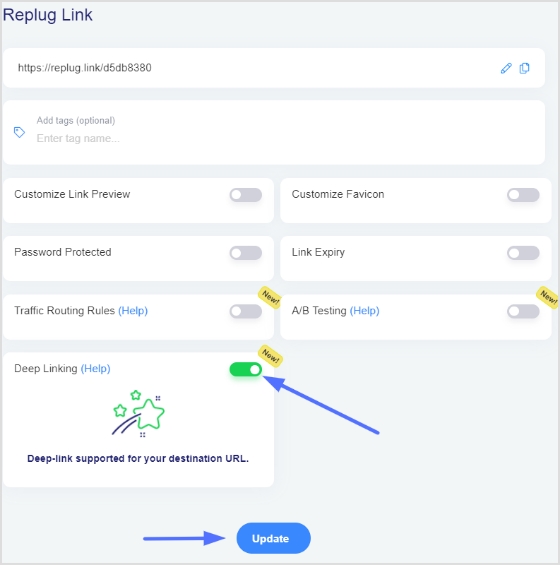
Create short clickable links for your YouTube description with Replug!
If you’ve ever pasted a long, messy URL in your YouTube description, you already know that it doesn’t look great. That’s where Replug comes in!
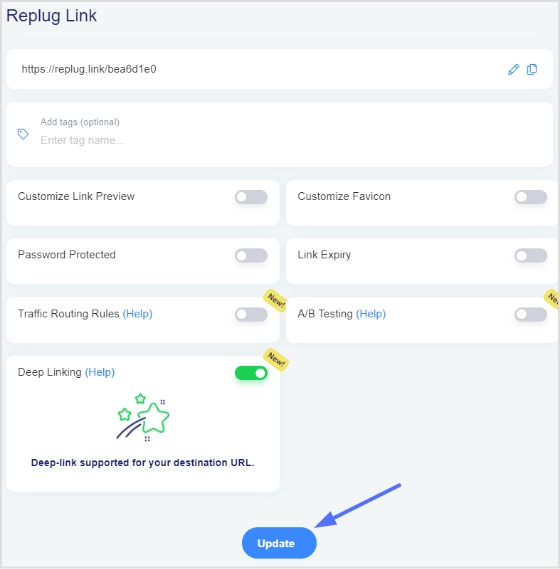
It’s a powerful link shortener that helps you turn long, cluttered links into clean, professional, and clickable ones. Plus, it does a lot more than just shortening links.


Replug is an all-in-one link optimization platform that lets you brand and track your links, so you can see how they perform and improve your results over time.
Here’s why it’s worth using for YouTube:
- Clean & short links: Turn long URLs into simple, easy-to-click links that look better in descriptions.
- Branded links: Use your own custom domain to make links look more trustworthy and professional.
- Click tracking & analytics: See how many people are clicking your links and where they’re coming from.
- Add call-to-actions (CTAs): You can attach small messages or buttons to boost clicks and conversions.
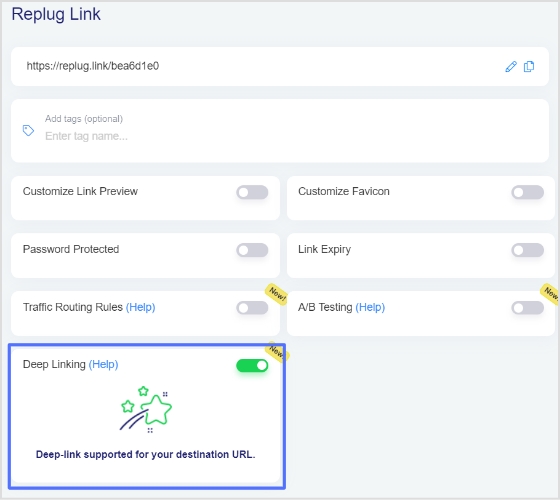
- Campaign optimization: Test and improve your links using A/B testing and smart routing features.
In short, Replug doesn’t just shorten your links; it helps you turn every link into a small marketing tool.
Summing up
To wrap things up, adding clickable links to your YouTube description might seem like a small step, but it can seriously level up your results.
From driving traffic and boosting engagement to helping with SEO and lead generation, it all adds up.
And the best part? It only takes a few seconds. Just paste your link with “https://,” and you’re good to go.
If you really want to take things further, tools like Replug can help you create clean, trackable links that actually convert.
👉 Before you go, give Replug’s free YouTube title generator a try as well. It’s a quick, efficient way to make your videos stand out even more!
Frequently asked questions
How do I put a clickable link in a YouTube description?
Just paste your full URL (with https://) into the description box while editing your video, and YouTube will automatically turn it into a clickable link.
Should you put links in a YouTube description in 2026?
Yes, absolutely! Links help drive traffic, promote products, and improve engagement. Still a key strategy for content creators in 2026.
Where is the link in the description on YouTube?
It appears just below the video. On mobile, it’s under “Show more,” and on desktop, it’s visible directly under the title (or after expanding).
Why is my link not clickable in the YouTube description?
The most common reason for this is that the link doesn’t start with https://. Without it, YouTube won’t recognize it as clickable.
How to add social media links in YouTube description?
Simply copy your Instagram, Facebook, or other profile link and paste it into the description with https://, and it will become clickable instantly.
How to put links in YouTube description without verification?
You can still paste links without advanced verification, but some features (like external linking tools) may require channel verification. You must include the full URL starting with https://
Can you hyperlink text in YouTube description?
No, YouTube doesn’t support custom anchor text. You must paste the full URL; no “click here” style hyperlinks.
How to add a hyperlink to the YouTube description?
Same process: paste the full https:// link inside the description box. YouTube automatically converts it into a clickable hyperlink.
How do I add a link to a YouTube description on my iPhone?
Open the YouTube app → tap on your profile icon → go to your desired video → tap Edit → paste your link in the description box → save.
How to add a clickable link in the YouTube video comments section?
Paste your full URL in the comment. In regular videos, it becomes clickable, but avoid spammy posting to stay within YouTube rules.
How to add a clickable Instagram link in the YouTube description?
Copy your Instagram profile link (e.g., https://instagram.com/username) and paste it in the description box. It will be clickable like any other link.
How to add a clickable link to a YouTube video using end screen & card?
Go to YouTube Studio → Content → select video → Cards or End Screen → Add link → Save. These appear during or at the end of the video and are fully clickable.