Tag: youtube

  • How to Insert Links in YouTube Descriptions: Step-by-Step

    How to Insert Links in YouTube Descriptions: Step-by-Step

    Are you eager to level up your YouTube descriptions and engage your viewers like never before? Well, look no further! Inserting links in your YouTube description can be a game-changer, and we’re here to show you how step-by-step. 

    Whether you want to share additional resources, promote your social media channels, or drive traffic to your website, we’ve got you covered. Get ready to unlock the full potential of your video descriptions and captivate your audience effortlessly. 

    Let’s dive in and master the art of inserting links on YouTube, making your content shine brighter than ever! 

    YouTube descriptions: Why are they important?

    YouTube video description plays a crucial role in maximizing the impact of your videos. Not only can it improve your YouTube SEO and video rankings, but it also provides valuable information about your content. Let’s explore why video descriptions are so important.

    Also read: Step-by-Step: How to Get a Custom YouTube URL

    1. Boosting YouTube SEO:

    A well-crafted video description can significantly enhance your YouTube SEO. Including relevant keywords and phrases in your description increase the chances of your video appearing in search results. This means more visibility and potential viewership for your content.

    1. Providing Context:

    YouTube video description allows you to provide additional context and details about your video. You can break down your video into chapters or sections, making navigating and finding specific information easier for viewers. This enhances the overall viewer experience and encourages engagement.

    1. Channel Introduction: 

    YouTube video description is an excellent opportunity to introduce your channel to new viewers. You can give a brief overview of your content, highlight your unique selling points, and encourage viewers to subscribe for more exciting videos.

    1. Driving Traffic:

    Additionally, the description box enables you to include links to external websites, such as your personal website or affiliate offers. This allows you to drive traffic to other platforms or monetize your content through partnerships.

    Also read: How to add YouTube link to instagram bio?

    How to insert links in YouTube descriptions?

    Adding a link to your YouTube description is a breeze, whether you’re using a mobile device or a desktop computer.

    On a desktop device:

    Let’s start with the steps for desktop devices:

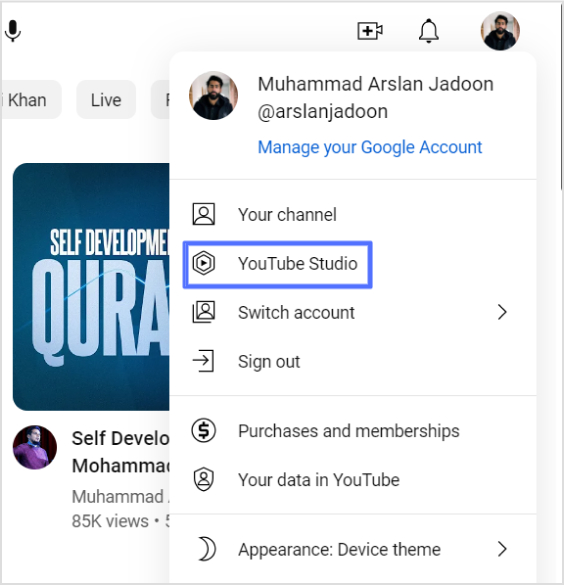
    Step 1: Access your YouTube Studio by clicking on your profile picture in the top right corner of the YouTube interface.
    Also read: How to share YouTube videos using deep links?

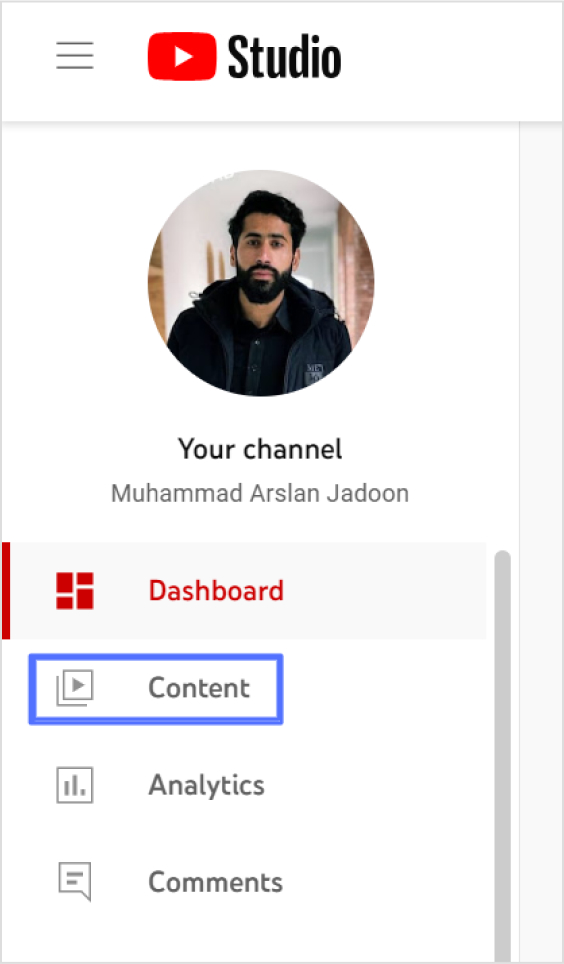
    Step 2: On the left side of the dashboard, click on “Content.”
    Step 3: Locate the video you want to add a link to and click on the pencil icon to edit its description.
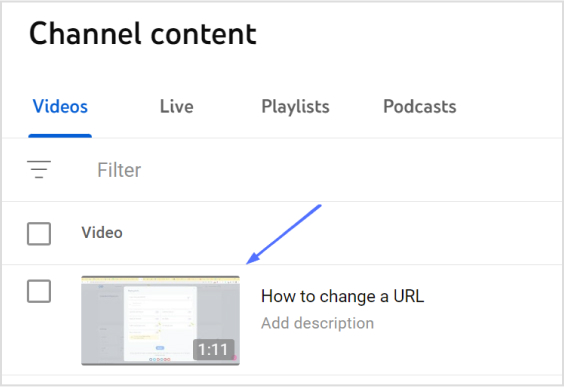
    Step 4: In the description box, type “https://” followed by the URL of the link you want to include.
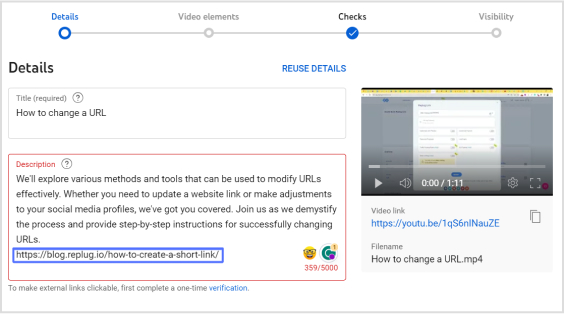
    Step 5: Save your changes by clicking on the “Save” button.

    Congratulations! You have successfully added a link to your YouTube video description.

    Please note that the above steps are applicable to videos that are already uploaded or published. If you wish to add a link to the description of a video you are currently uploading or planning to upload, simply include “https://” and the URL in the description field during the upload process.

    Also read: How to share youtube playlist using deep links?

    Here’s how to insert links in YouTube Descriptions on a mobile device:

    On a mobile device:

    Adding a link to your YouTube description on mobile devices is just as simple as on a desktop. Follow these steps:

    Step 1: Open the YouTube app on your mobile device and sign in to your account.

    Step 2: Find the video for which you want to add a link in the description.

    Step 3: Tap on the video to open it and then tap on the “More” button (represented by three dots) below the video.

    Step 4: From the options that appear, select “Edit video.”

    Step 5: Scroll down to the description field and locate the spot where you want to add the link.

    Step 6: Type “https://” followed by the URL you want to include in the description.

    Step 7: Once you have entered the link, tap on the “Save” or “Publish” button to save your changes.

    Congratulations! You have successfully added a link to your YouTube video description using a mobile device.

    Remember, the process of adding a link remains the same: simply include “https://” followed by the URL in the description field. Now you can seamlessly include links in your YouTube video descriptions, whether you’re using a desktop computer or a mobile device. Happy linking!

    Also read: How to add YouTube links to Instagram story?

    Replug Branded Short Links CTA
    A complete link management solution
    for marketing professionals & agencies.
    Try Replug for free

    Shorten your YouTube Links for maximum impact:

    Shortening your YouTube links can be the secret ingredient to maximizing your impact. With shorter, more concise links, you’ll capture your audience’s attention, drive more clicks, and achieve higher engagement. 

    Here’s how to shorten YouTube Links using Replug:

    If you’re looking to shorten your YouTube links effectively, Replug is a top-notch link optimization platform that provides a seamless solution. Follow these steps to shorten YouTube links using Replug:

    Step 1: Sign in to your Replug account or create a new account if you haven’t already.

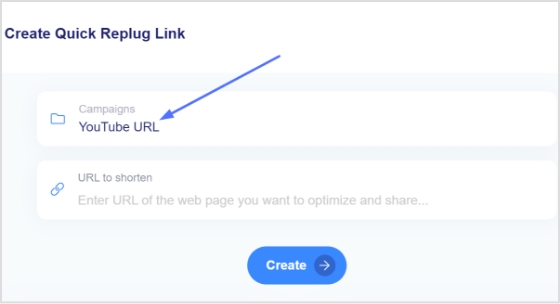
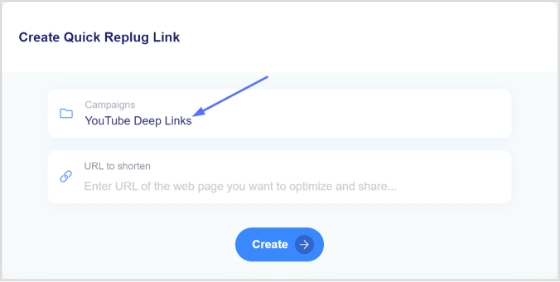
    Step 2: On the main dashboard page, click “Select your campaign’’ to create a new campaign in just a few seconds. 
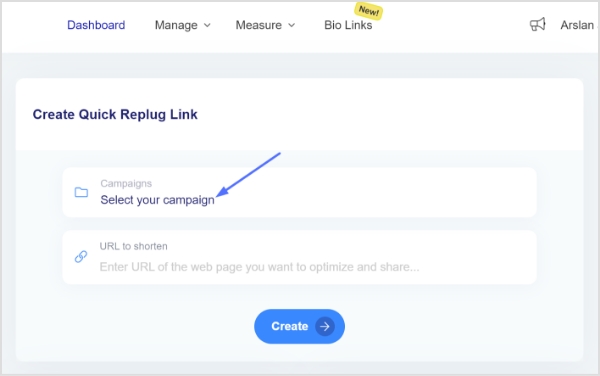
    select-campaign

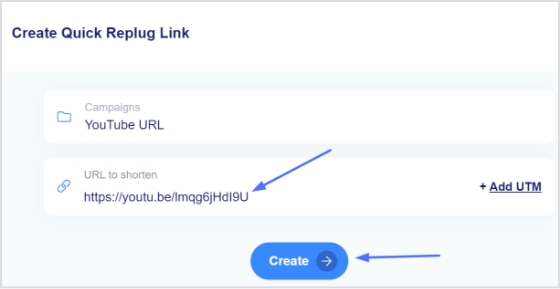
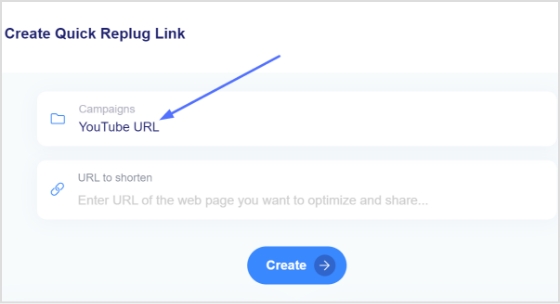
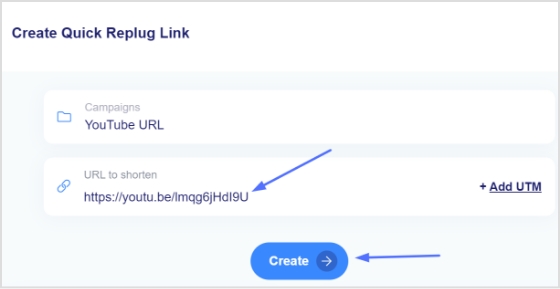
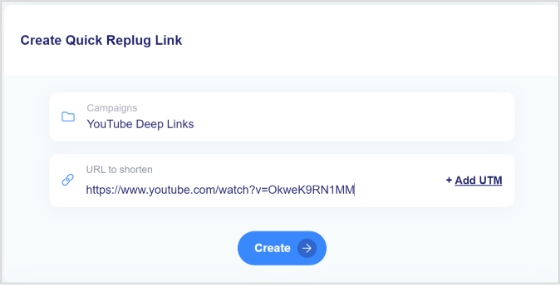
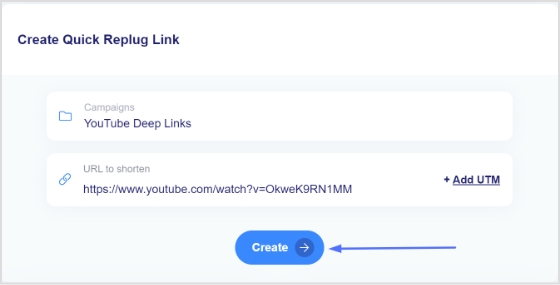
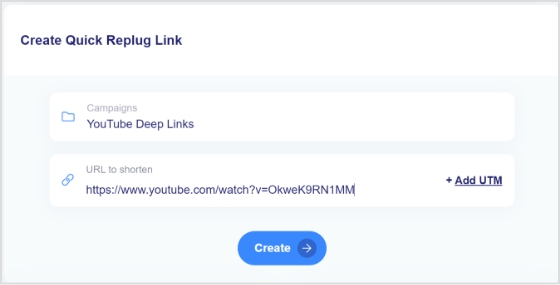
    Step 3: Paste your YouTube link or any link your want to shorten in the “URL to shorten” section below “Select your campaign” and click “Create”. 
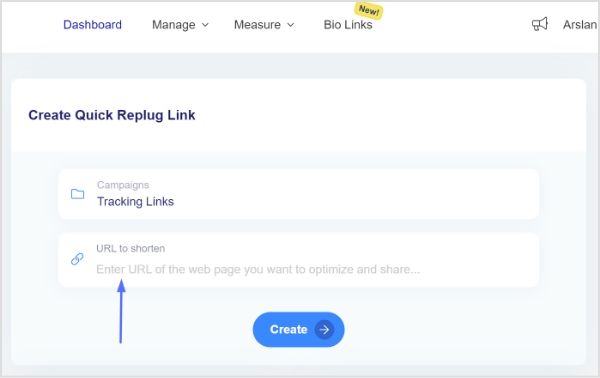
    url-to-shorten

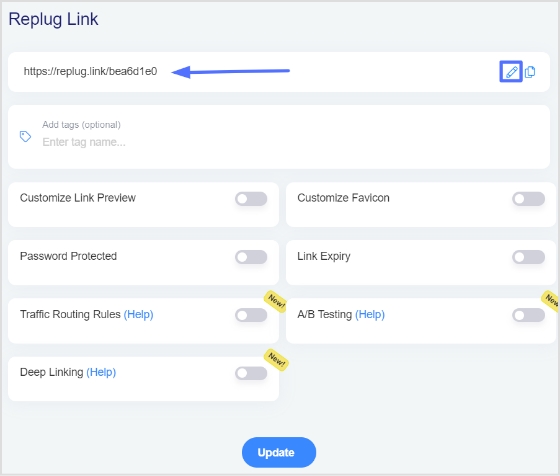
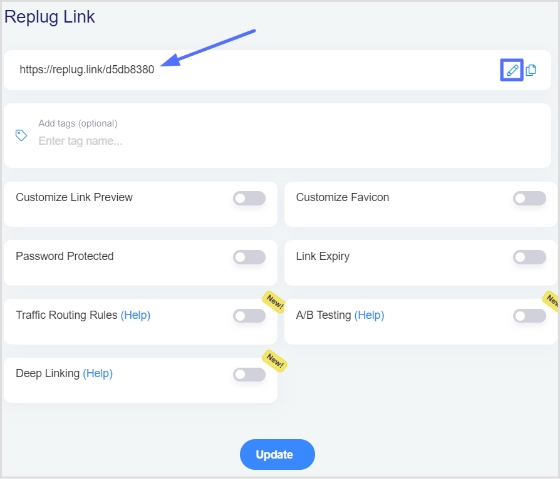
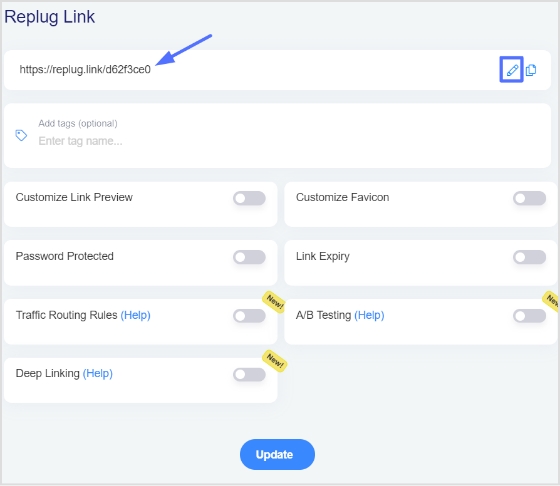
    Step 4: You’ll have your YouTube link shortened, now, click the edit icon to customize your link. 
    customize url

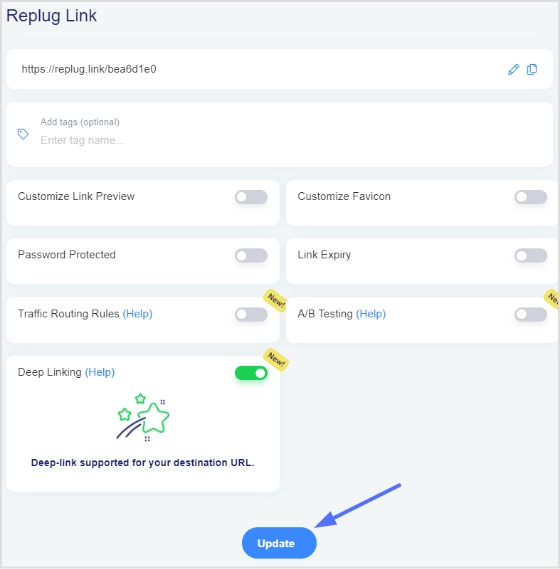
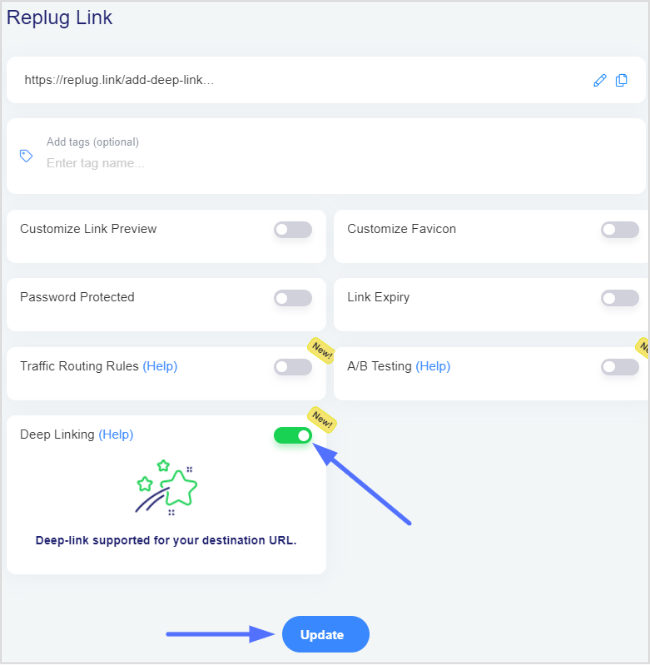
    Step 5: Copy your link, click the “update button” and you’re done.

    By using Replug’s link shortener, you not only get concise and visually appealing YouTube links, but you also gain access to advanced analytics and tracking capabilities. These insights will enable you to measure the performance of your links, understand audience engagement, and optimize your marketing strategies accordingly.

    Replug Branded Short Links CTA
    Maximize marketing ROI
    by transforming ordinary URLs into
    branded short links that convert.
    Try Replug for free

    Also read: How to Build Your Brand on YouTube – Branding on Youtube the Right Way!

    FAQs

    Why is it important to include links in my YouTube video description?

    Including links in your YouTube video description is important because it allows you to provide additional resources, redirect viewers to relevant websites, promote affiliate offers, and enhance the overall viewer experience. Links can also drive traffic to your website or social media profiles, increasing engagement and conversions.

    Can I include multiple links in my YouTube video description?

    Yes, you can include multiple links in your YouTube video description. However, it’s essential to ensure that the links are relevant and add value to your viewers. Avoid overwhelming the description with too many links, as it may appear cluttered and distract from the main content.

    Are there any restrictions or guidelines for the types of links I can add to my YouTube description?

    YouTube has community guidelines and policies that you must adhere to when adding links. Ensure that the links are not spammy, violate copyright or community standards, or redirect to malicious websites. Familiarize yourself with YouTube’s policies to ensure compliance.

    Can I add clickable links in the description that viewers can directly click on?

    Yes, YouTube automatically converts URLs in the video description to clickable links. As long as you include the full URL (e.g., https://www.example.com), viewers will be able to click on the link and be redirected to the desired webpage.

    You may also like:

    Online Branding: The Roadmap to Stand Out and Succeed Online
    How to shorten link using a URL shortener?

    Unique URLs: What They Are and How to Use Them?

  • How to share youtube playlist using deep links?

    How to share youtube playlist using deep links?

    YouTube playlists are a feature that allows users to organize and view a series of videos together. Users can create their playlists or add videos to existing playlists created by other users. Videos in a playlist can be rearranged, edited, or removed at anytime. 

    Deep links directly link to specific content within an app rather than simply linking to the app’s home page. 

    Using a deep link to share a YouTube playlist allows the recipient to immediately access and view the playlist without having to search for it within the app. Also, deep links can contain information about the content, such as the specific video or playlist, so recipients know what they click on and why it is relevant. 

    Using deep links to share YouTube playlists can also help increase the app’s engagement and retention. As a result, recipients are more likely to continue using the app after being directed to the specific content they are interested in.

    Here’s how to share YouTube playlists on mobile and computer devices:

    How to share Youtube playlist with deep links on a mobile device?

    Follow the steps below:

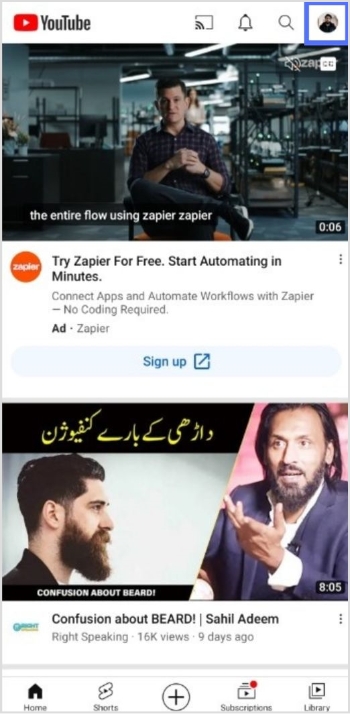
    Step 1: Open YouTube on your mobile phone and tap the profile icon in the top right corner. 

    profile icon

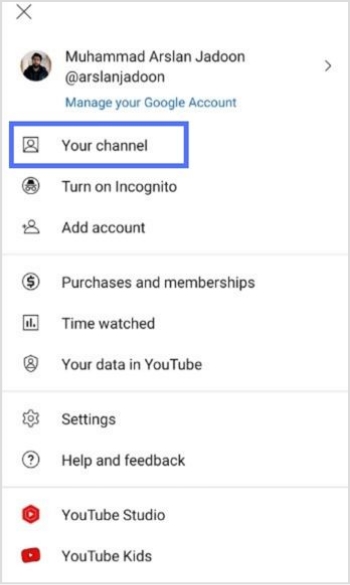
    Step 2: Tap “your channel” from the drop-down menu.

    your channel

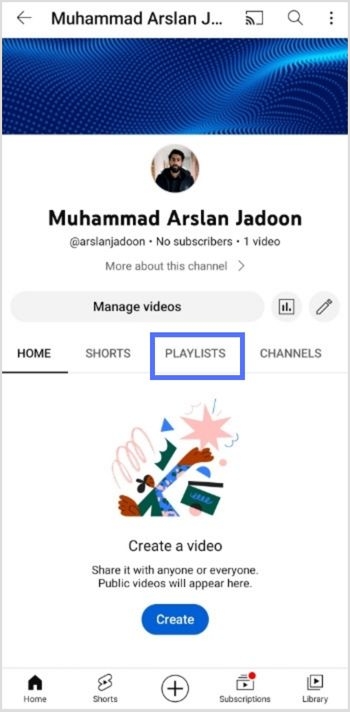
    Step 3: Tap “playlist” on your mobile screen. 

    playlist

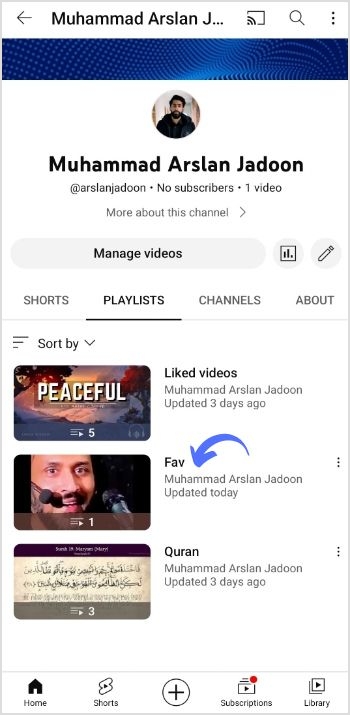
    Step 4: Open the playlist you want to share.

    open playlist

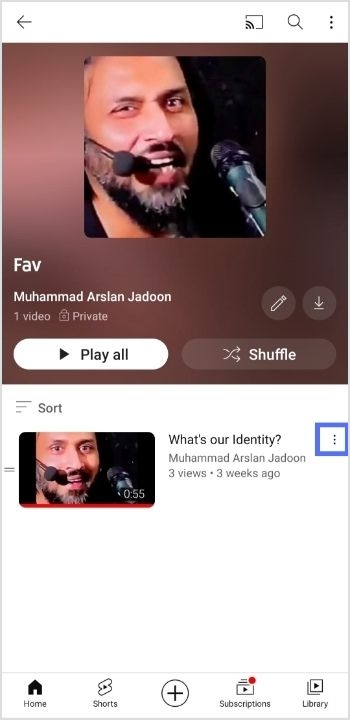
    Step 5: Tap three dots alongside the playlist. 

    tap 3 dots

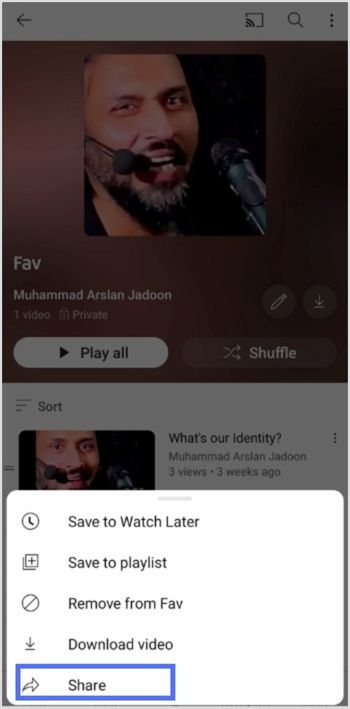
    Step 6: Tap share to share the playlist. 

    tap share

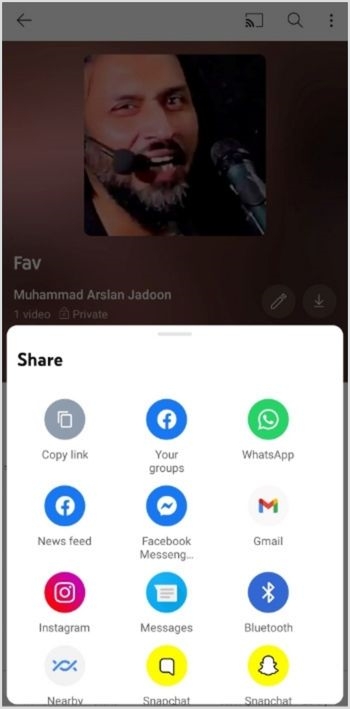
    Step 7: Tap Copy link to copy the link and create a deep link for your YouTube playlist.

    copy and share
    Replug Branded Short Links CTA
    Maximize marketing ROI
    by transforming ordinary URLs into
    branded short links that convert.
    Try Replug for free

    Create a deep link for YouTube Mobile Playlist: 

    Step 8: Go to Replug and sign in or create an account for free. 

    Step 9: Select the desired campaign on the main dashboard or create a new campaign. 

    campaign

    Step 10: Enter the YouTube playlist link in the “URL to shorten” section under the campaigns section, and click create. 

    url to shorten

    Step 11: You’ve your newly created Replug link. Click the edit icon to customize the link. 

    edit url

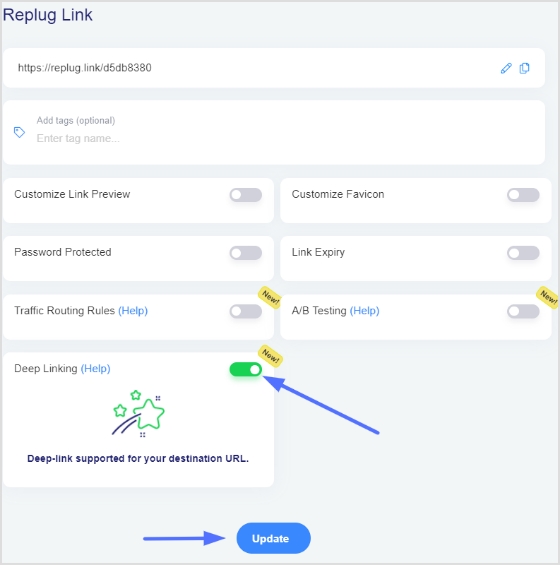
    Step 12: Turn on the Deep link button and verify that deep links are allowed for the link.

    deep link

    Step 13: Click the update button to create a deep link for your YouTube playlist. 

    update

    Note: To find the deep link, Go to the manage section on the main dashboard > Click Replug links

    Also Read: How to Build Your Brand on YouTube: Branding on Youtube the Right Way!

    How to share YouTube playlist with deep links on a computer device?

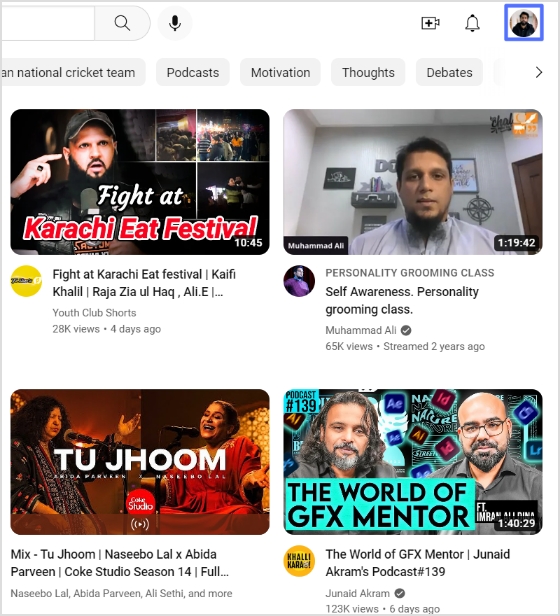
    Step 1: Open YouTube on your computer and click the profile icon in the top right corner.

    Profile icon

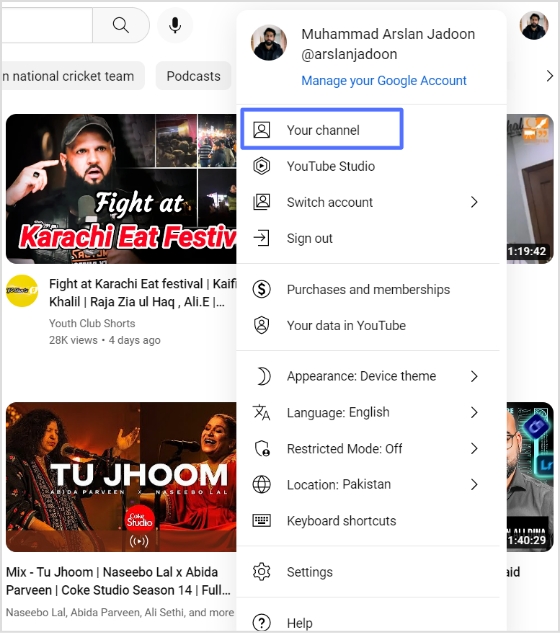
    Step 2: Click “your channel” from the drop-down menu.

    your channel

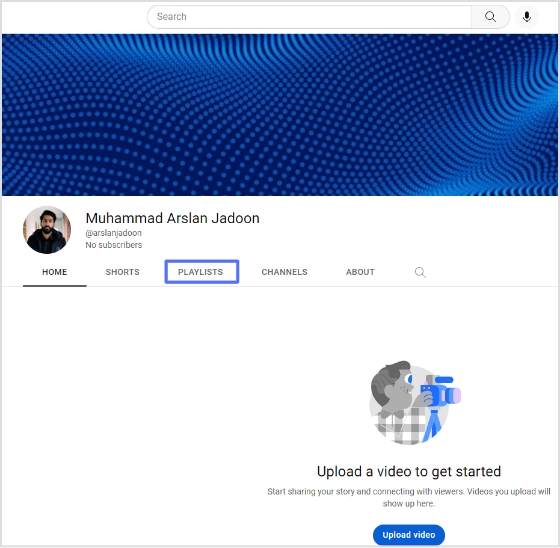
    Step 3: Click playlists on your screen. 

    click playlist

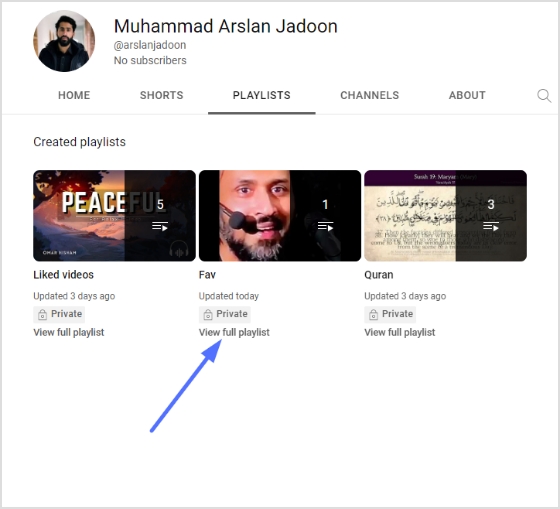
    Step 4: Click “view full playlist” under the playlist you want to share. 

    view full playlist

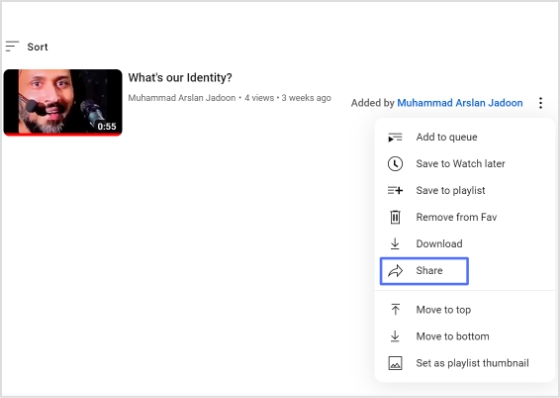
    Step 5: Click three dots at the end of the playlist, then click share. 

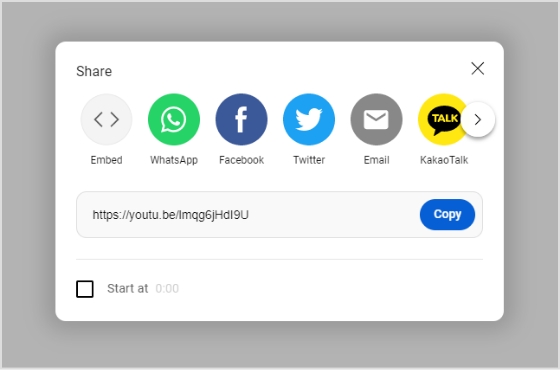
    Step 7:  Click Copy to copy the link and create a deep link for your YouTube playlist. 

    Also Read: How to change YouTube URL name using a URL shortener tool?

    Create a deep link for a YouTube computer playlist:

    Step 8: Sign in to Replug or create an account for free. 

    Step 9: Select the desired campaign on the main dashboard or create a new campaign. 

    campaign

    Step 10: Enter the YouTube playlist link in the “URL to shorten” section under the campaigns section, and click create. 

    url to shorten

    Step 11: You’ve your newly created Replug link. Click the edit icon to customize the link. 

    edit url

    Step 12: Turn on the Deep link button and verify that deep links are allowed for the link.

    deep link

    Step 13: Click the update button to create a deep link for your YouTube playlist. 

    update

    Note: To find the deep link, Go to the manage section on the main dashboard > Click Replug links

    Once you have the playlist link, you can create a branded short URL using Replug to make sharing cleaner and more memorable.

    FAQs

    How to share a YouTube playlist on WhatsApp?

    To share a YouTube playlist on WhatsApp:

    1. Open the YouTube app on your mobile device and sign in to your account.
    2. Find the playlist you want to share and tap on it.
    3. Tap the “Share” button, usually represented by an icon of two arrows pointing in opposite directions.
    4. Select “Share on WhatsApp”.
    5. Select the contact you want to share the playlist with.
    6. Your contact will receive a message with a link to the playlist.

    Alternatively, you can share the link by copying it and then sharing it on WhatsApp by creating a new message or pasting it into an existing conversation.

    Please note that the person you share the link with needs to have the YouTube app installed on their device to view the playlist.

    Trending Now:

    How to shorten link using a URL shortener?

    Top 29 personal branding tools to upscale your marketing efforts

  • How to share YouTube videos using deep links?

    How to share YouTube videos using deep links?

    Many people share YouTube videos to introduce others to new music, movies, or other content they have discovered and enjoyed. Sharing YouTube videos can be a great way to connect with others and share your interests and passions.

    Deep links allow you to share a specific point in a YouTube video rather than just the video’s main link. This can be useful if you want to share a specific video section, such as a specific song or scene. 

    Additionally, deep links can allow users to bypass ads or other content at the beginning of a video.

    You can share YouTube videos with deep links from your mobile device or computer. Follow the steps below to get started:

    How to share YouTube videos with Deep links on mobile phones:

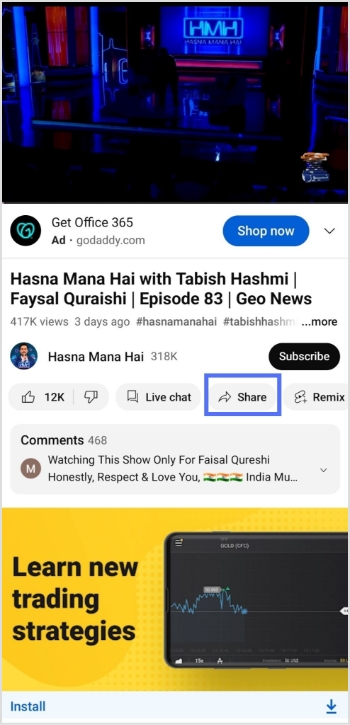
    Step 1: Open Youtube from your mobile phone and play the video you want to share. 

    Step 2: Tap the share button below the video you played. 

    share

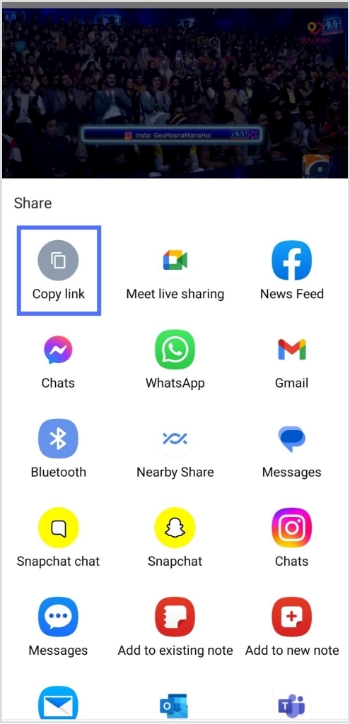
    Step 3: Tap copy link to copy the link and add a deep link feature to your link.  

    copy link
    Replug Branded Short Links CTA
    Maximize marketing ROI
    by transforming ordinary URLs into
    branded short links that convert.
    Try Replug for free

    Step 4: Go to Replug.io. Sign in or create an account. 

    Step 5: Choose the desired campaign on the main dashboard or if you’re new, create a new campaign in just a few seconds. 

    campaign

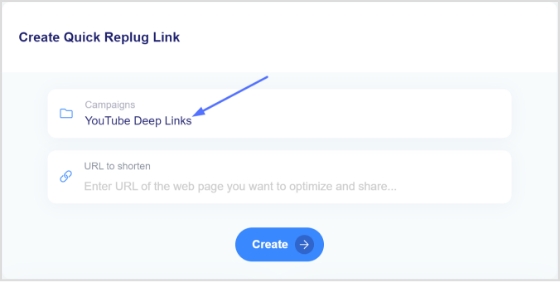
    Step 6: Once selected the campaign, paste the YouTube video link in the “URL to shorten” section below the campaign section. Using Replug’s YouTube link shortener, you can create a clean, branded, and trackable link for your video.

    Note: You can quickly shorten link to make it cleaner, easier to share and track. Here, you can add UTM parameters to your video link.

    url to shorten

    Step 7: Click the create button to create a new link. 

    create

    Step 8: Click the edit icon and customize your link. 

    customize url

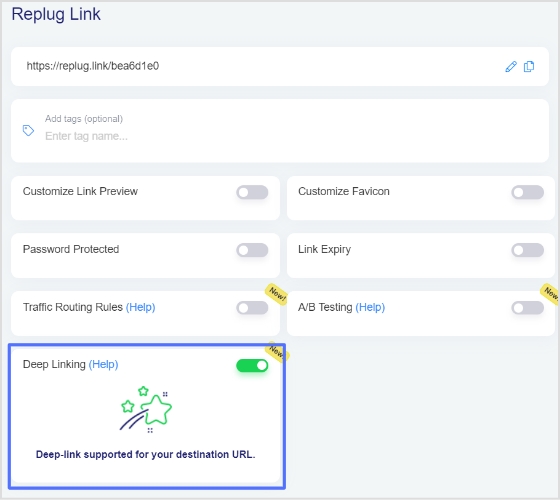
    Step 9: Turn on the deep link button and click update. Your YouTube video link now has deep link enabled. 

    deep link and update

    Note: To find your newly created Replug link, go to manage on the main dashboard and click Replug links. 

    How to share YouTube videos with Deep links on computer devices:

    Step 1: Open YouTube on your computer and play the video you want to share. 

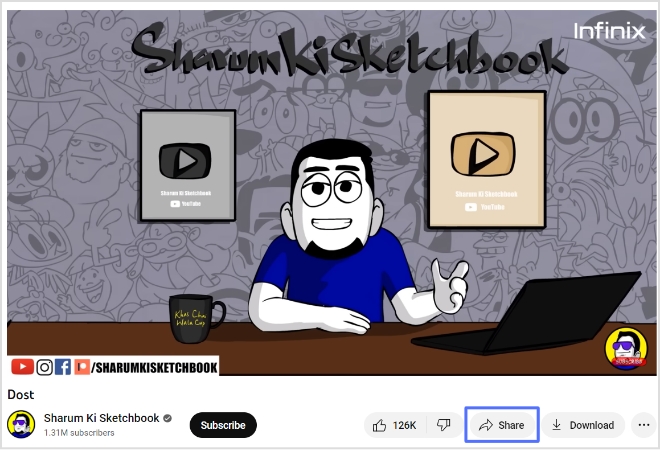
    Step 2: Click share below the video you just played. 

    share

    Also Read: How to Build Your Brand on YouTube: Branding on Youtube the Right Way!

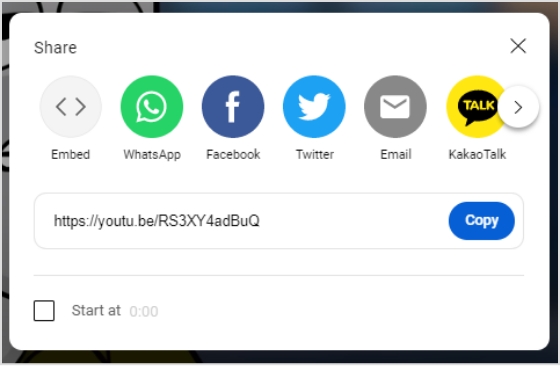
    Step 3: Click copy to share the video link or to create a deep link for your video. 

    copy

    Step 4: Sign in to Replug or create an account. 

    Step 5: Choose the desired campaign on the main dashboard or if you’re new, create a new campaign in just a few seconds. 

    campaign

    Step 6: Once selected the campaign, paste the YouTube video link in the “URL to shorten” section below the campaign section.  

    url to shorten

    Step 7: Click the create button to create a new link. 

    create

    Step 8: Click the edit icon and customize your link. 

    customize url

    Step 9: Turn on the deep link button and click update. Your YouTube video link now has deep link enabled. 

    deep link and update

    Note: To find your newly created Replug link, go to manage on the main dashboard and click Replug links.

    FAQs

    What is YouTube deep linking?

    YouTube deep linking refers to a specific video or playlist on the YouTube platform rather than the YouTube homepage or channel. This allows users to easily access the desired content without searching for it or navigating through a channel. It can be done by using the unique URL of a video or playlist.

    What is the difference between deep links and dynamic links?

    Deep links and dynamic links are both types of links that can be used to redirect users to specific content within an app or website. However, there are some key differences between the two.

    Deep links take users directly to a specific location within an app or website. They typically provide direct access to specific content, such as a product page or website section. Deep links can also trigger specific actions within an app, such as opening a page or performing a specific task.

    Dynamic links, however, can change depending on the context in which they are used. These links can redirect users to different locations or content based on factors such as the device they are using, the platform they are on, or the time of day. Dynamic links can also redirect users to different versions of an app or website depending on their devices, such as a mobile app or a web-based version.

    Trending:

    How to change YouTube URL name using a URL shortener tool?

    TikTok Trends for Businesses, Brands, and Others

    How To Put A Link In TikTok Bio?

    Benefits of a link rotator: Why & when to use rotating links?