Tag: instagram

  • How to Add Instagram Link to Facebook Bio?

    How to Add Instagram Link to Facebook Bio?

    If you’re looking to promote your Instagram profile and boost your online presence, adding your Instagram link to your Facebook bio can be a highly effective strategy. By doing so, you can reach a broader audience and potentially attract more followers, which can help you take your social media game to the next level.

    For creators and marketers who care about link performance, Replug.io lets you brand, shorten, and track your shared URLs so every click tells a story.

    In this guide, we’ll explore the steps involved in adding an Instagram link to your Facebook bio on both computer and mobile devices, as well as some tips on how to make the most of Replug’s bio link feature.

    How to add Instagram link to Facebook bio on a mobile device?

    Here’s a step-by-step guide on how to add your Instagram link to your Facebook bio on a mobile device:

    Step 1: Open the Facebook app on your mobile and tap your profile icon. 

    profile icon

    Step 2: Tap the “edit profile” button.
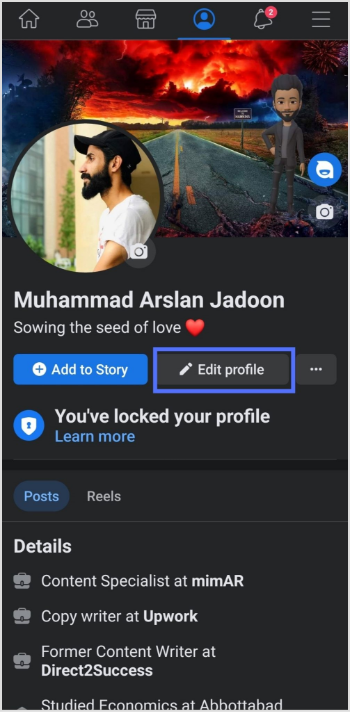
    edit profile

    Step 3: In the edit profile section, scroll down to the “links” section and tap “edit”. 
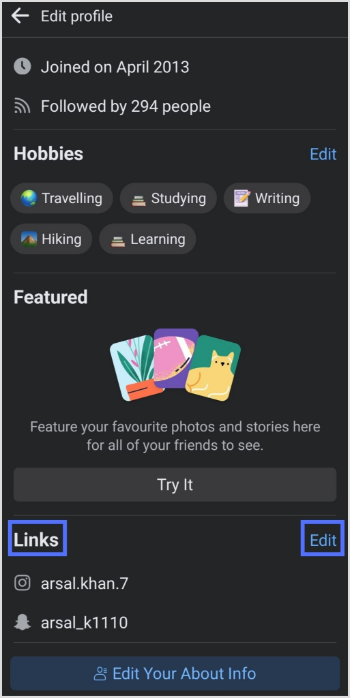
    links-edit

    Step 4: Tap the “add social link” button. 
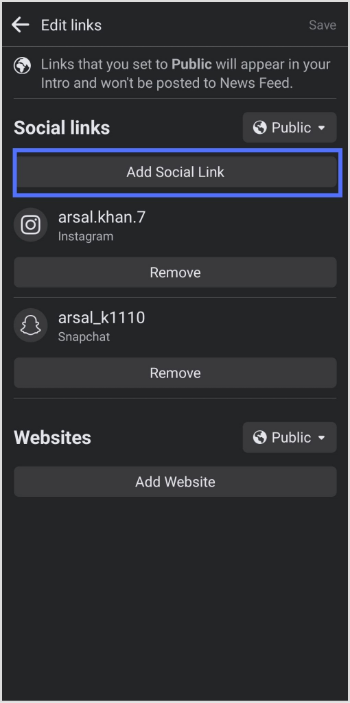
    add social link

    Step 5: Tap the “platform” button and choose Instagram from the list. 
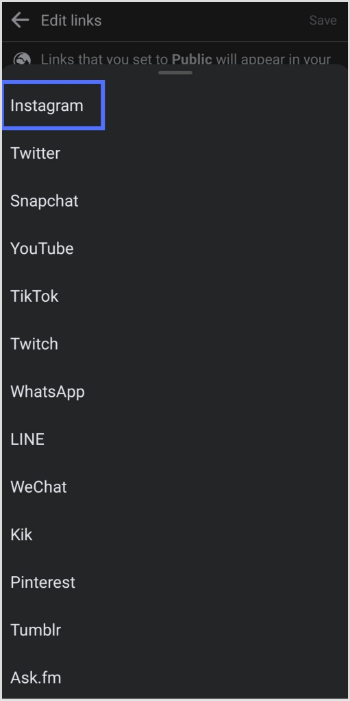
    select Instagram

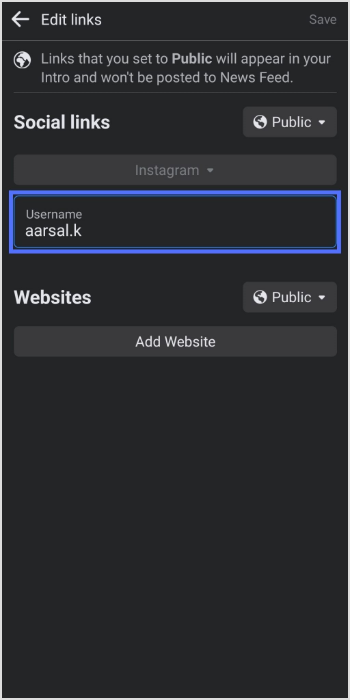
    Step 6: Enter your Instagram account “user name” and tap save

    enter username & save

    Also Read: How to put a link in your Facebook bio?

    How to add Instagram link to Facebook bio on a computer device?

    Step 1: Log in to Facebook on your computer browser. 

    Step 2: Click on your profile name on the top left side. 
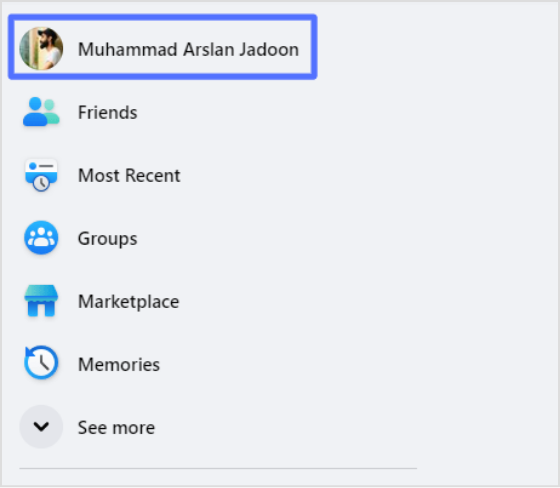
    profile name

    Step 3: Click “about”, then “contact and basic info”
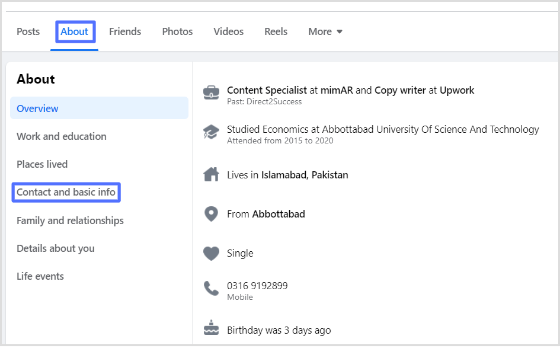
    about-basic info

    Step 4: Click the “add website button” under the “website and social links” section. 
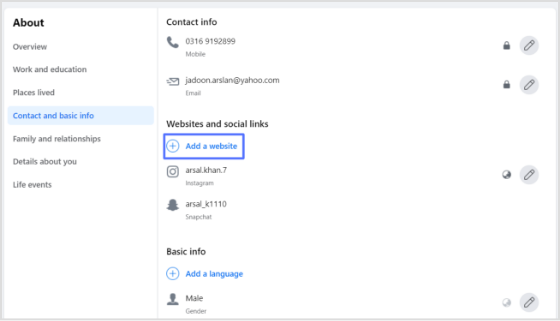
    add website

    Step 5: Paste your Instagram URL in the URL field and click save. You’ll have your Instagram link in the Facebook bio. 
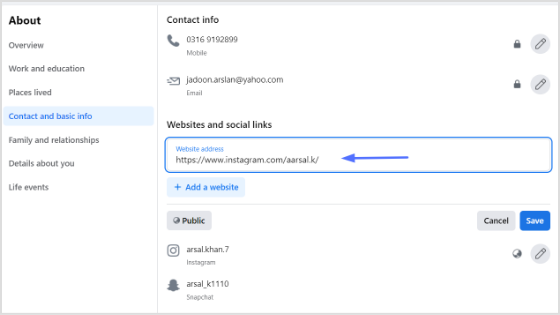
    paste url

    You may also like: How to unlink Facebook and Instagram?

    Also, don’t forget to give this Facebook link in bio tool a try. It will assist in boosting your engagement exceptionally.

    Frequently asked questions

    Why can’t I see my Instagram link in my Facebook bio?

    If you cannot see your Instagram link in your Facebook bio, make sure you have added it correctly by following the steps above. Also, check that your Instagram account is not set to private, as private accounts cannot be linked to Facebook bios.

    Why is my Instagram link not clickable in my Facebook bio?

    If your Instagram link is not clickable in your Facebook bio, it may be because you have not entered the link correctly, or your Instagram account may be set to private.

    Trending:

    How To Save TikTok Videos Without The Watermark?

    How to add a link in bio to your Instagram profile?

    How to create a QR code for a URL?

    TikTok Trends for Businesses, Brands, and Others

  • How to add YouTube links to Instagram story?

    How to add YouTube links to Instagram story?

    Adding a YouTube link to an Instagram story allows the user to share a video from YouTube on their Instagram story. This allows their followers to view the video directly from the Instagram story without leaving the app and going to YouTube. 

    It can also help direct more traffic to the YouTube video, increasing its visibility and gaining more views and engagement.

    Here’s how to add YouTube links to the Instagram stories:

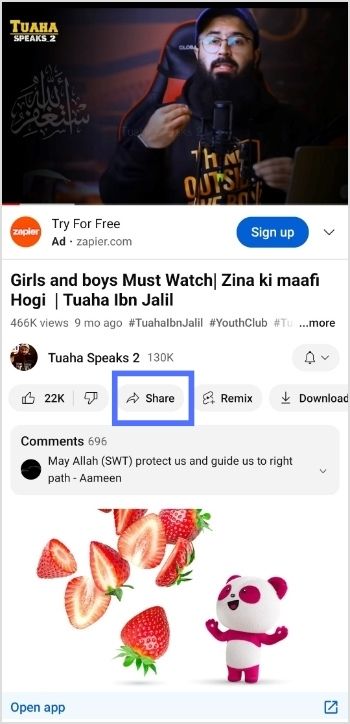
    Step 1: Go to the YouTube app and play the video you want to share in Instagram Story.

    Step 2: Tap “share” right below the YouTube video. 

    tap share

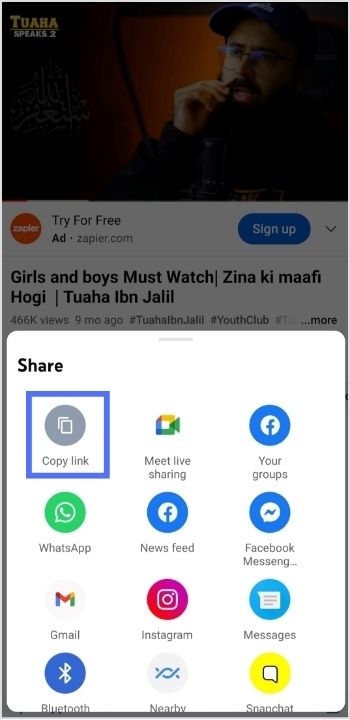
    Step 3: Tap “copy link” to copy the link you want to share in the Instagram story. 

    tap copy link

    Note: Before pasting the URL into your Instagram story’s link sticker, you might want to shorten a link first for a cleaner, more shareable URL that looks better in your story and is easier for followers to click. Replug is the reliable link optimization platform to perform this task in the best possible manner.

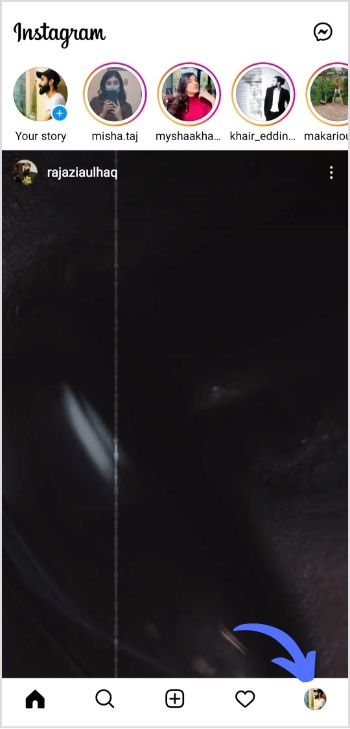
    Step 4: Now open the Instagram app and tap the “profile icon’’ in the bottom right corner. 

    tap profile icon

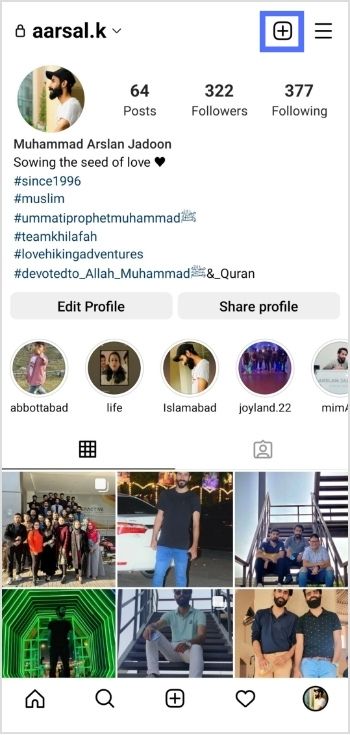
    Step 5: Tap the “add (+)’’ sign in the top right corner. 

    tap add icon

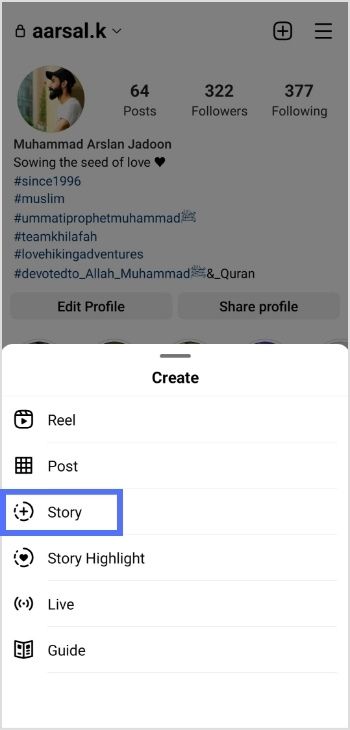
    Step 6: Tap “story” to add a new story. 

    tap story

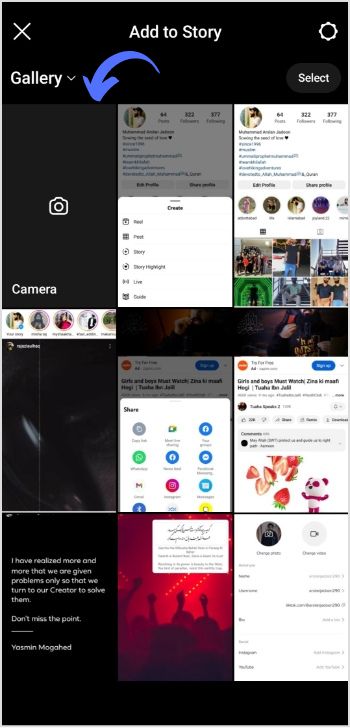
    Step 7: Tap the “camera” from different gallery options. 

    Tap camera

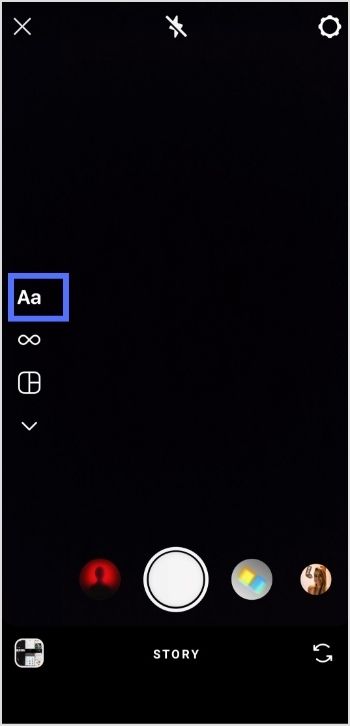
    Step 8: Tap “create or Aa” for a new story. 

    tap create

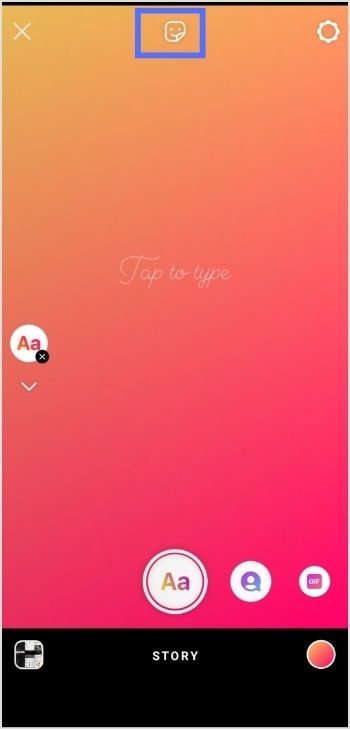
    Step 9: Tap the “sticker icon” from the screen’s top. 

    tap sticker

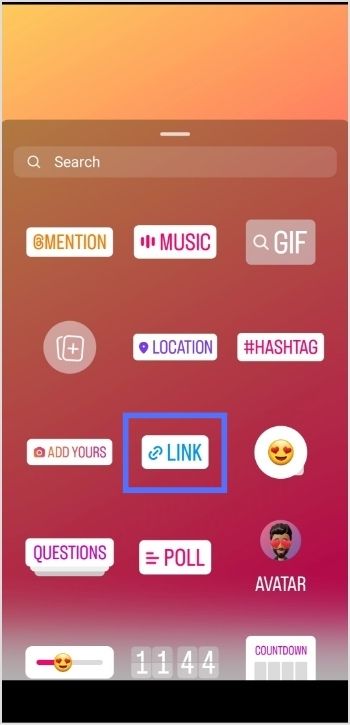
    Step 10: Tap the “link sticker” from the options. 

    tap link

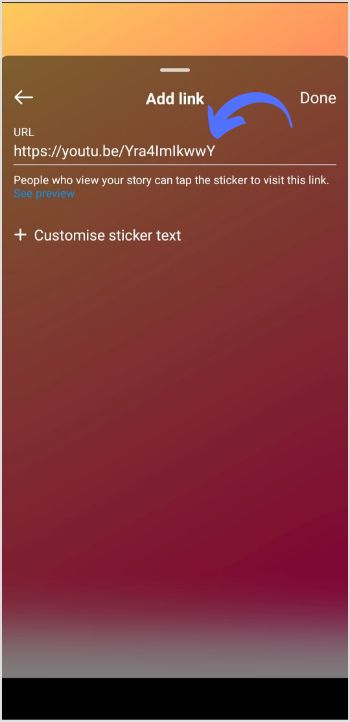
    Step 11: Add link screen will open. Paste the YouTube video URL in the URL field and tap done. 

    paste link

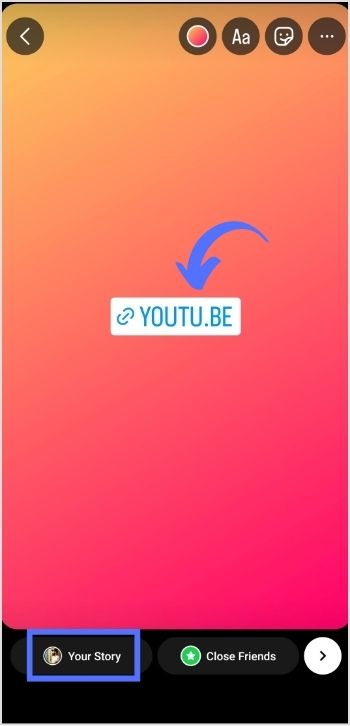
    Step 12: Tap “your story,” and your YouTube video link will be posted in your Instagram stories. 

    tap your story

    Point to note:

    Adding YouTube links to Instagram stories can increase the visibility and reach of YouTube content and drive more traffic to a YouTube channel. This can benefit creators looking to grow their audience and expand their brand. Additionally, it allows viewers to access and watch YouTube videos directly from the Instagram app, making the viewing experience more seamless and convenient. Adding YouTube links to Instagram stories can be a valuable strategy for growing a YouTube channel and engaging with viewers on both platforms.

    Frequently asked questions

    How To Put Youtube Link In Instagram Bio?

    To add a YouTube link to your Instagram bio, you need to have a YouTube account. Also, the link to the YouTube video or channel you want to share. Once you have that, follow these steps:

    1. Open the Instagram app and go to your profile.
    2. Tap the “Edit Profile” button.
    3. In the “Website” section, enter the link to the specific YouTube video or channel you want to share.
    4. Tap “Done” to save the changes to your profile.
    5. Return to your profile and see the YouTube link in the bio section.

    Trending Now:

    How To Turn Off Vanish Mode On Instagram?

    How to Build Your Brand on YouTube; Branding on Youtube the Right Way!

    How to share YouTube videos using deep links?

  • How To Turn Off Vanish Mode On Instagram?

    How To Turn Off Vanish Mode On Instagram?

    Vanish mode is a feature in Instagram that allows users to send messages that disappear as soon as they are read by the recipient. This feature is only available in Instagram Direct conversations, and both the sender and recipient must have vanish mode enabled to use it.

    When vanish mode is enabled, all messages sent in the chat will disappear after they are read. The sender will also have the option to delete any messages they have sent in the chat, even if they have not been read yet.

    Vanish mode is useful for sending temporary or ephemeral messages, such as quick notes or reminders, that do not need to be saved or archived. It can also be used to have more private or casual conversations with friends and family.

    How To Turn On Vanish Mode On Instagram?

    First, let’s see how to turn on vanish mode on Instagram. Follow the steps below:

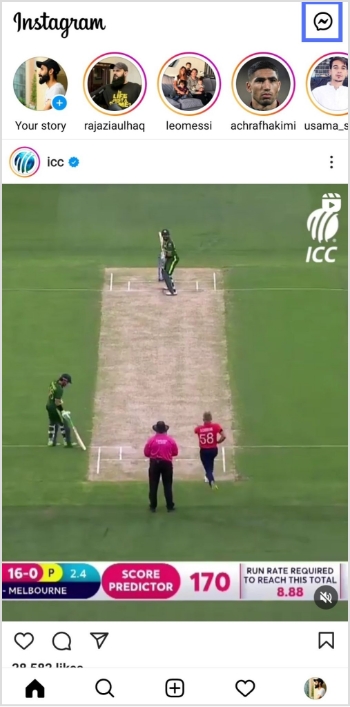
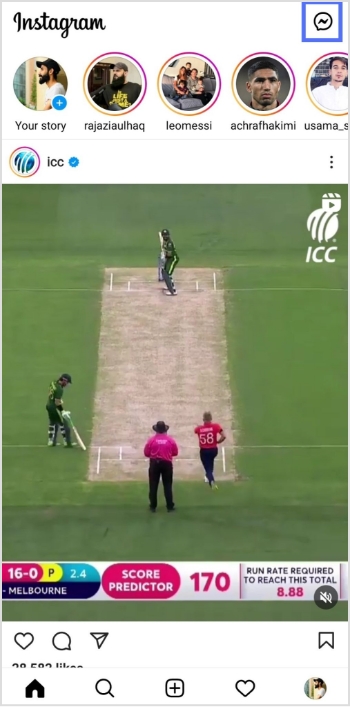
    Step 1: Open the Instagram app on your device and tap the message icon in the top right corner. 

    messege icon

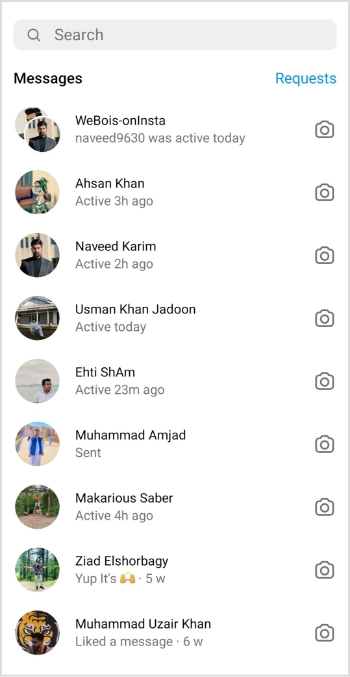
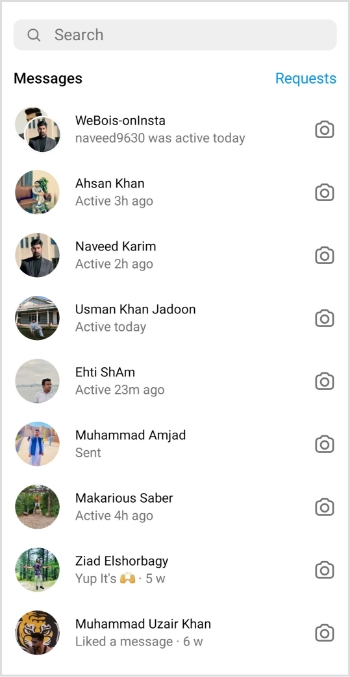
    Step 2: Start a new chat or go to an existing conversation.

    select chat

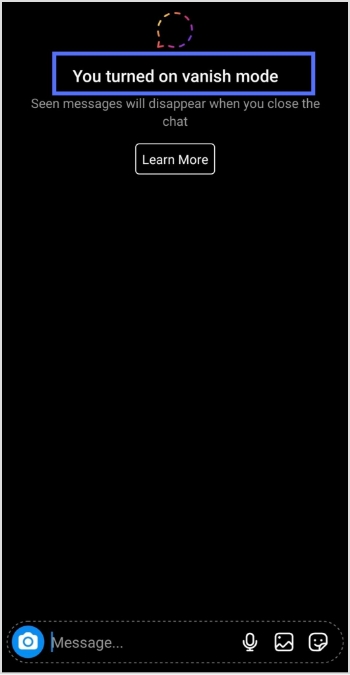
    Step 3: Swipe up from the bottom of the screen to access the vanish mode.

    vanish mood

    Note: Once you’re in vanish mode, you’ll be able to send messages that will disappear as soon as they are read by the recipient.

    Replug Branded Short Links CTA
    Maximize marketing ROI
    by transforming ordinary URLs into
    branded short links that convert.
    Try Replug for free

    Also read: How to add a link in bio to your Instagram profile?
    How To Turn Off Vanish Mode On Instagram?

    To turn off vanish mode on Instagram, follow these steps:

    Step 1: Open the Instagram app on your device and tap the message icon in the top right corner.

    messege icon

    Step 2: Go to the chat or conversation where vanish mode is enabled.

    select chat

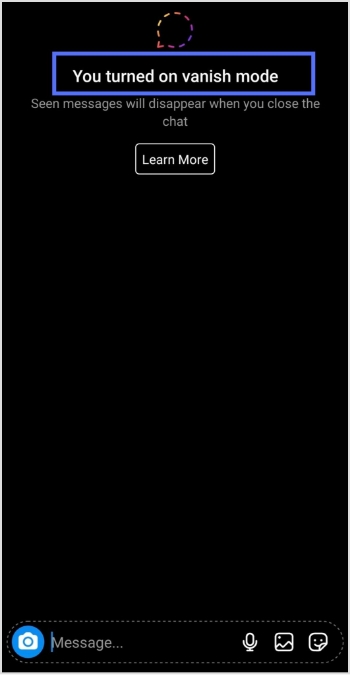
    Step 3: Swipe up on the screen to exit vanish mode.

    vanish mood

    You should keep in mind the following:

    • Disappearing messages cannot be copied, saved, or forwarded.
    • Only accounts you have connected with previously can send you message requests in vanish mode.
    • Vanish mode can only be used in a chat with another Instagram account, not in group chats or with Messenger or Facebook accounts.
    • Some professional accounts may not be able to receive messages in vanish mode.
    • Only use vanish mode with people you trust, as it is possible for someone to take a screenshot or screen recording of a message in vanish mode before it disappears. You will be notified if this occurs. It is also possible for someone to take a photo of a disappearing message with a camera or other device before it disappears.

    If you manage multiple social-media links or share content frequently across platforms, Replug.io can help you organize, shorten and track all your links from one centralized dashboard.

    Frequently asked questions

    How does vanish mode work on Instagram?

    On Instagram, Vanish mode allows you to send messages that disappear after they are read. To use Vanish mode on Instagram, you must have the latest app version, and the feature turned on in your settings. 

    Note that Vanish mode only works in one-on-one conversations. It is also important to be aware that while the messages you send in Vanish mode will disappear from the recipient’s device, they may still be able to take a screenshot or capture the message in some other way. As with any sensitive information, it is important to use caution and consider whether Vanish mode is appropriate for your needs.

    Why should you use vanish mode?

    Vanish mode feature can be useful in several different situations, such as:

    – Sending sensitive or personal information you don’t want to be saved or shared.
    – Having casual conversations with friends that you don’t want to be documented on your Instagram account.
    – Make plans or arrangements with people you don’t want to clutter up your main chat thread.
    – Sending fun or silly messages to friends without worrying about them being saved or shared.

    Vanish mode can be a useful tool for maintaining privacy and control over your conversations on Instagram.


  • How to add a link in bio to your Instagram profile?
    How to add a link in bio to your Instagram profile?
    Most of us who use popular social media platforms are familiar with bio links. But many of us do not know about it or even how to add Instagram link in bio.

    What does Link in Bio Mean?

    It’s a clickable URL link that Instagram users can add to their Instagram profile. Many other social platforms such as Facebook, Twitter and others also have this option to add a link to their profile section.

    The next question in your mind must be who can add Instagram links?

    Anyone, either a regular Instagram user or a business account holder, can add Instagram links to their bio.

    Related: Instagram Story Hacks: 30 Ways To Boost Your Engagement

    How to put a Instagram link in bio?

    Creating a Instagram URL is simple. Follow the steps and you will have a bio link in no time. 

    Step 1 

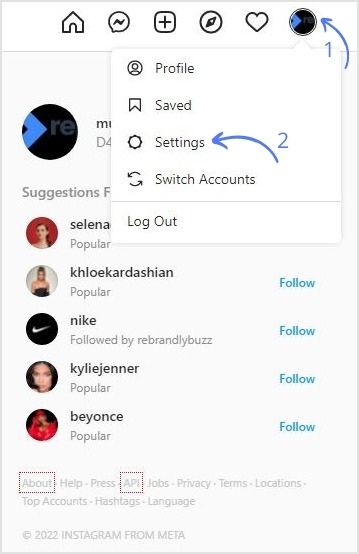
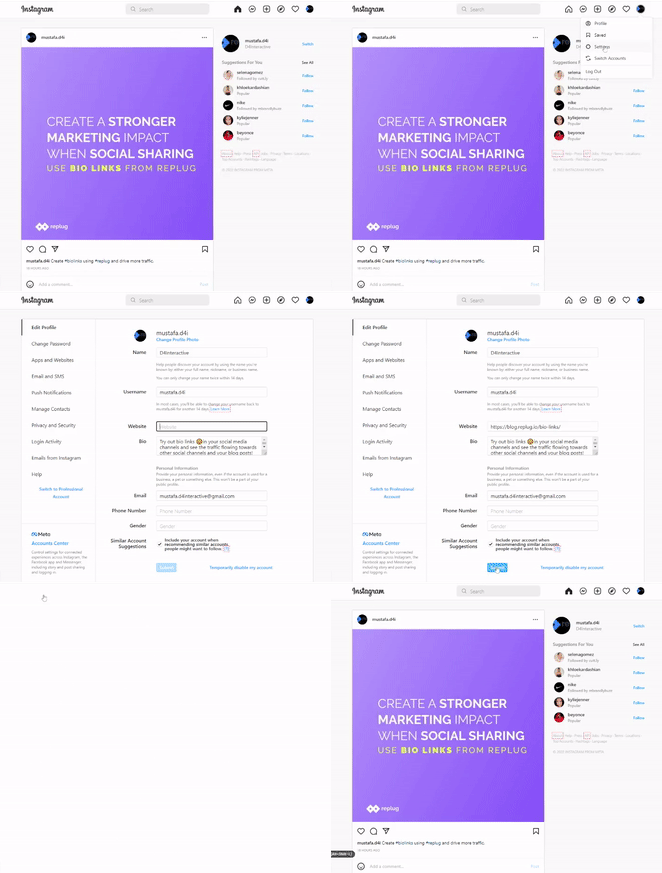
    Log in to your Instagram Account. Navigate to the profile icon on the top left corner and go to the settings page.

    Navigate-to-Profile-Tap-Settings

    Step 2

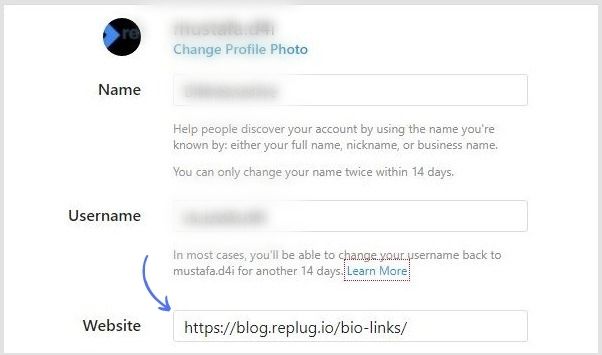
    Add your desired Instagram link in the website field.

    Instagram-Link-In-Bio
    Boost ROI with branded URLs - Replug dashboard showing performance metrics and branded URL creation

    Go beyond generic link pages!

    Create custom bio links that truly fit your brand

    With Replug, you can create bio links that are unique, engaging, and built to convert.

    Start free trial

    Step3

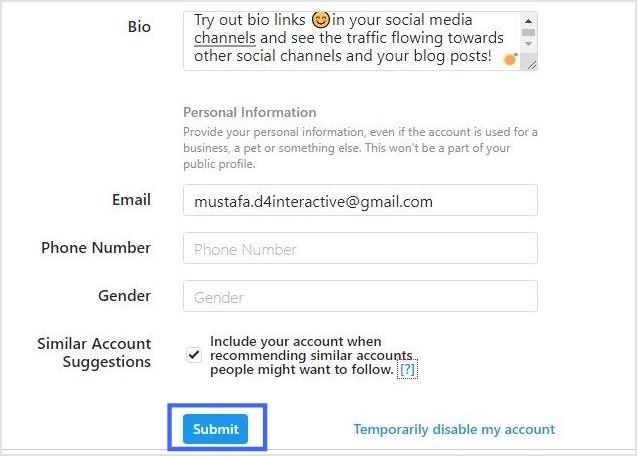
    Add an appealing bio if not added yet. Then, click on submit to complete the process.

    Submit

    Here’s a recap of the above steps

    Instagram-Link-In-Bio

    You may also like: How to get to the link in the bio on Instagram?

    How Would Your Instagram Link Appear to Others?

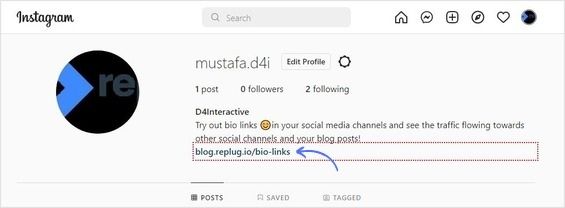
    Anyone that hovers over your profile pic can view your Bio Link. They can also view this link when they visit your profile.

    Instagram-Link

    How to Add Multiple Links in Your Instagram Bio?

    Replug enables users to easily add multiple short links. With the Instagram link in bio free tool, you can create a landing page for any link and add multiple CTA’s on that page routing to multiple destinations. It allows users to access more information about yourself or your business. 

    Why Do I Need An Instagram Link?

    Here are some of the significant benefits of adding a BIO Link.

    • Keeps your audience engaged
    • Drives traffic to your desired website and social pages
    • More conversions
    • Higher impact

    What Mistakes to Avoid When Creating a Instagram Link in Bio?

    We have identified inevitable mistakes to avoid when you add a link to your Instagram Bio.

    • Adding many links
    • Avoid long bios
    • Not adding a CTA
    • Do not boast about yourself
    • Unclear bio
    • Adding random links

    How To Use Your Bio Link Effectively?

    Here are some tips to use Instagram bio links to your advantage.

    • Follow a strategic approach when creating a link in bio free. Connect your account to ContentStudio and boost your engagement.
    • Use Bio links to direct users to access more information about yourself or your business.
    •  Promote business products and services such as discount offers, free trials, ETC.
    • A solid way to get leads with tracking analytics.

    That’s all from our side, just keep these tips in mind and start attracting solid leads with your Instagram bio Links. Now that you have learned how to add or even find an Instagram link within minutes, go create a bio link now and turn followers into customers.