Maybe your profile URL still screams “DJxCrayBeats2007” or some other relic from your experimental high school phase.
Or maybe you’re building a brand now, and you want that URL to reflect the new and improved you.
Whatever your reason, it’s totally valid. After all, your SoundCloud URL is your digital street sign. Let’s make sure it points in the right direction.
This guide has all that you need to know about changing and branding your URL on SoundCloud. Let’s get vibing!
TLDR
You can change your SoundCloud profile URL on desktop only.
Use only lowercase letters, numbers, hyphens, or underscores.
Old embeds and links might stop working—no redirects included.
Replug can save your links, track them, and make sure you never lose fans to a broken URL.
How to change your SoundCloud URL? (the right way)
First things first: You can only change your SoundCloud profile URL via desktop. Mobile users, you’ll need to dust off the laptop for this one.
Here’s how to change your SoundCloud URL:
Head to your SoundCloud profile on a web browser.
Click the Edit button below your header.
Once done, you’ll see a pop-up. Type your desired URL under Profile URL.
But wait, before you rush in, know this: SoundCloud only allows lowercase letters, numbers, hyphens (-), and underscores (_) in your URL. No capital letters, and sadly, no emojis.
[cries in cant_flex_with_emojis]
How often can you change your SoundCloud URL?
SoundCloud isn’t a big fan of constant rebranding.
They’ve set some limits on how many times you can change your URL in a given time frame. If you get an error, you’ve probably reached that limit. Either give it a little time (usually until the next month) or file a support ticket.
TL;DR: Choose wisely, like you’re naming your mixtape.
What happens when you change your SoundCloud URL?
Your new profile URL goes live immediately within SoundCloud.
But search engines like Google? They take their sweet time. Your tracks may not show up under the new URL right away in search results.
Also – and this is big, any links or embedded players using your old URL could break.
Embeds from before August 2010? Straight to the void.
Embeds after that? They’ll still play your tracks, but clicking through to your profile might lead people to a dead end.
And guess what? SoundCloud doesn’t offer redirects. Once you change your URL, the old one is gone, like a beat drop no one was ready for.
Pro tip: use Replug to make your SoundCloud links future-proof
Here’s where things get interesting.
Changing your SoundCloud URL means broken links. But what if you didn’t have to worry about that?
Replug lets you create short, branded links with the help of its top-notch link shortener that you can update anytime. So even if your SoundCloud URL changes 5 times a year (we don’t recommend it, but hey, you do you), your Replug link stays rock solid.
Here’s how you can create a branded and evergreen SoundCloud URL with Replug:
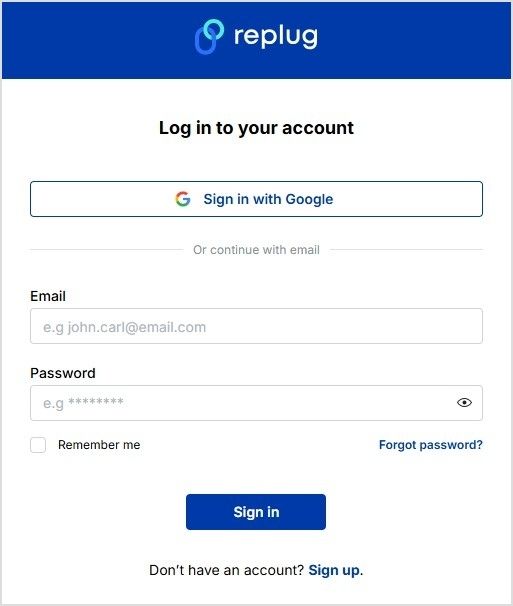
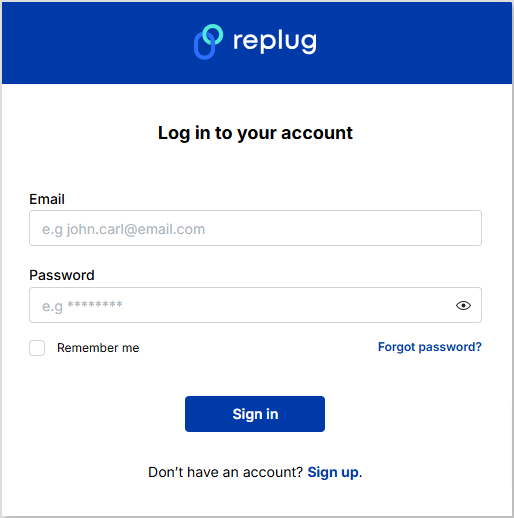
Step 1: Log in to your Replug account. If you don’t already have an account, create one.
Step 2: Copy your SoundCloud URL.
Step 3: Create a custom SoundCloud URL.
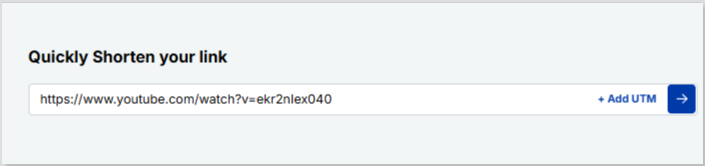
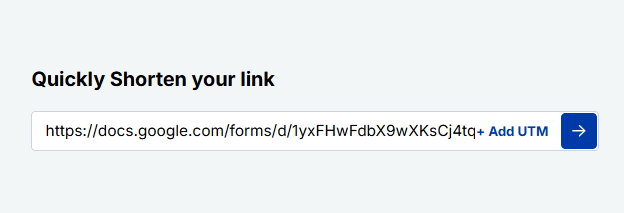
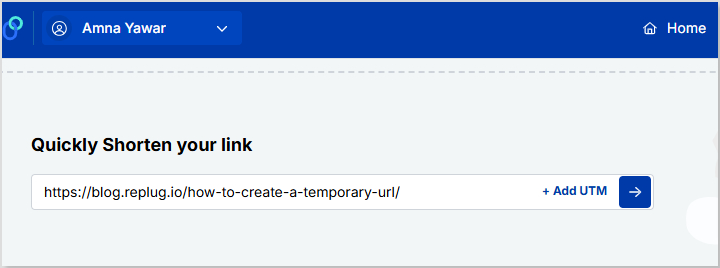
Go to your Replug homepage and paste your SoundCloud URL in the bar under “Quickly Shorten your link”
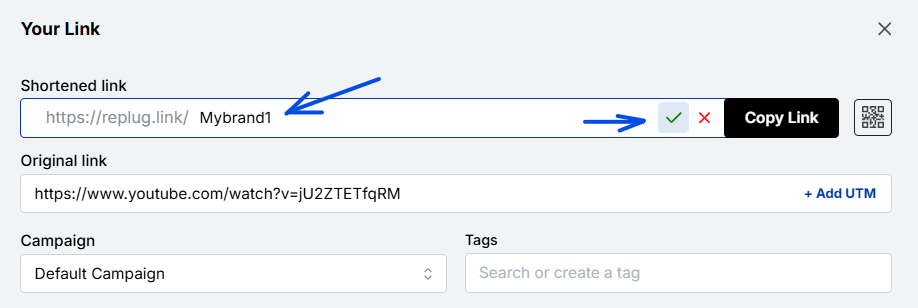
Create a custom URL by simply changing the slug of your original SoundCloud URL.
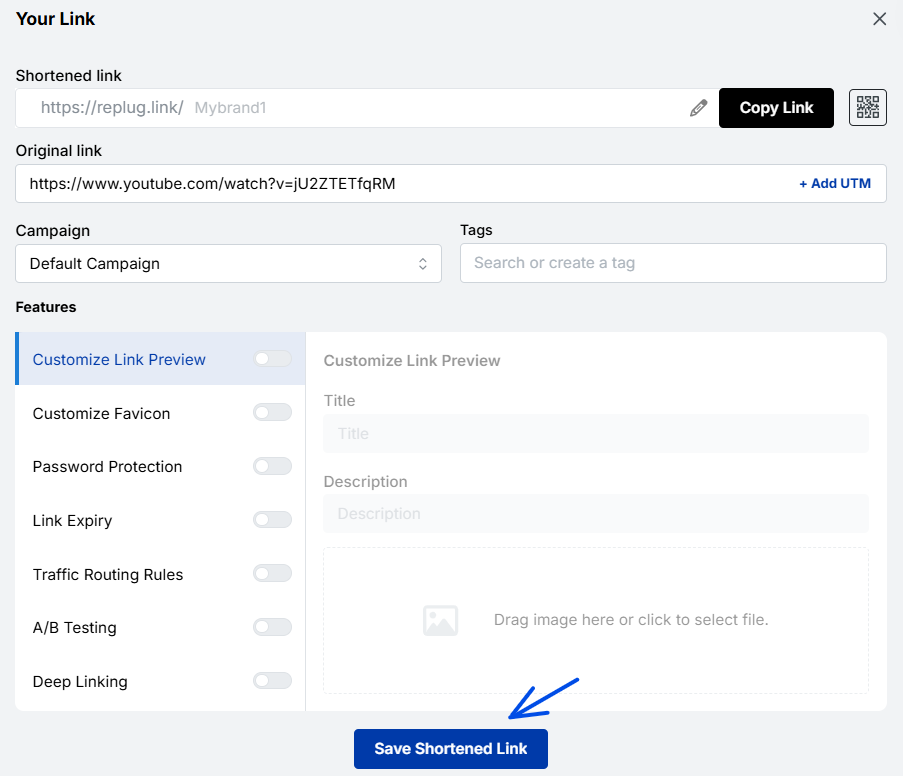
Step 4: Save your SoundCloud URL.
That’s it! Just click “Save Shortened link,” and your custom SoundCloud URL will be ready to share across any channel.
Benefits of using Replug for your SoundCloud links:
Easy redirection: Change your destination URL without changing the link itself.
Click tracking: Know exactly how many fans are vibing with your link.
Retargeting: Add retargeting pixels and bring people back with ads. After all, your playlist is repeat-worthy.
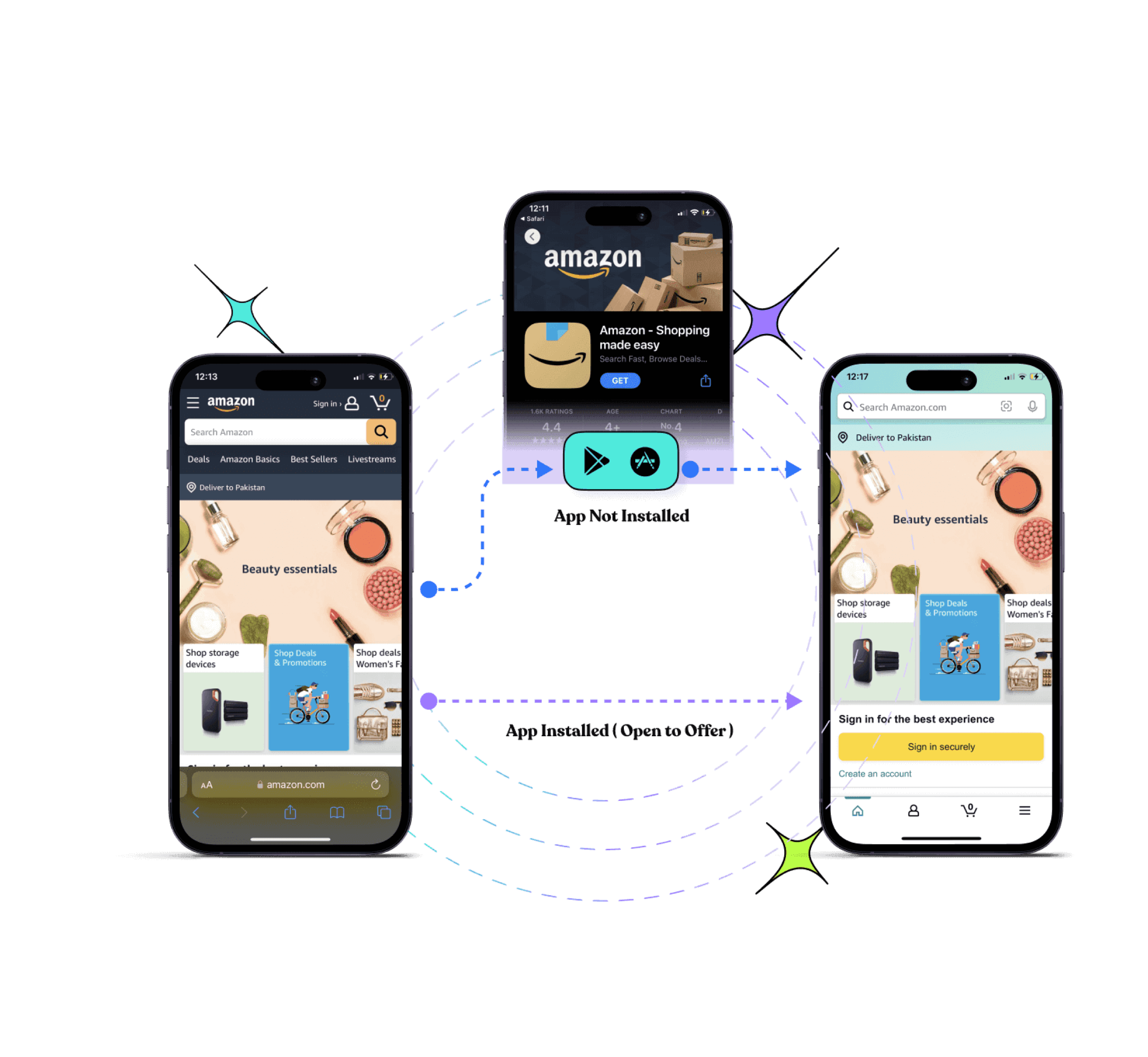
Deep linking: Send users straight to your SoundCloud profile inside the app with a single deep link.
QR codes: Create a dynamic QR code for your SoundCloud profile for faster sharing.
A complete link management solution
for marketing professionals & agencies.
Try Replug for free
Instead of spreading five versions of your SoundCloud URL across Instagram bios, YouTube descriptions, and tweets from 2026, just share one Replug link and update the backend whenever needed.
Boom. Crisis averted.
And that’s a wrap (drop the mic, not the link)
Your SoundCloud URL should evolve with you. Just like your sound has matured, your branding should too. And with Replug in the mix, you don’t just change your URL, you future-proof it.
Ready to make the switch? Grab your new URL, pop it into a Replug link, and share it like the star you are!
FAQs
Can I change the SoundCloud URL on my phone?
Nope. SoundCloud’s not about that mobile life (at least not for URLs). You’ll need a desktop browser to make the change. Time to find your charger.
How often can I change my SoundCloud URL?
Not every week, superstar. SoundCloud puts a cap on how often you can rebrand. If you get an error, you’ve likely hit the limit. For that, you’ll need to wait a bit or contact support.
What happens to my old SoundCloud URL?
It disappears into the internet void. No redirects. No “just in case” backups. Your old links will stop working, especially if embedded somewhere. Protect your fans from 404 heartbreaks with link management tools such as Replug.
Do embedded SoundCloud players still work after I change my URL?
If the embed is from before August 2010 → it’s toast. After 2010? It might still play your track, but users won’t be able to click through to your profile.
How can I avoid broken SoundCloud links in the future?
Use Replug. It gives you one short, branded link you can update anytime. Your fans stay connected, even if your SoundCloud URL changes three glow-ups from now.
Can I track how many people click my SoundCloud link?
Not with SoundCloud itself. But if you use Replug? Absolutely. Track clicks, the juicy stats, and even retarget your fans with ads.
With over 1.2 billion users on LinkedIn and more than 310 million active every single month, your profile isn’t just a digital resume; it’s your first impression. And one thing most people overlook is their LinkedIn profile URL.
By default, LinkedIn hands you a messy string of random numbers and letters that looks something like linkedin.com/in/ahsan-jamal-4b3x892z. Not exactly the way you want, right?
A clean, customized URL makes you look more professional, easier to find, and way more shareable, whether you’re adding it to your resume, email signature, or business card.
The best part? It takes less than two minutes to change.
In this guide, we’ll walk you through exactly how to do it on both mobile and desktop. But first, if you’re wondering what a LinkedIn URL actually is and why it matters, let’s break that down real quick.
What is a LinkedIn URL?
A LinkedIn URL is simply the web address that leads directly to a unique LinkedIn profile. It looks something like this: linkedin.com/in/yourname.
By default, LinkedIn auto-generates this link, and it’s usually a jumbled mess of a person’s name plus a random string of numbers and characters.
The primary purpose of a LinkedIn URL is to give a unique, shareable link that people can use to find and visit a profile instantly.
Think of it as one’s personal address on LinkedIn. The cleaner it looks, the better the impression it makes.
Importance of changing your LinkedIn URL
Here’s why customizing your LinkedIn URL actually matters:
Professionalism & personal branding: A custom URL like linkedin.com/in/ahsanjamal instantly looks more polished and intentional. It signals that you take your professional presence seriously.
Improved searchability & SEO: When your URL includes your actual name, it’s more likely to show up when someone Googles you. This makes it easier for recruiters or clients to find you online.
Memorability & consistency: A clean, name-based URL is much easier to remember, and it keeps your personal brand consistent across your resume, portfolio, and social profiles.
Easy sharing on the go: No matter if you’re at a networking event or sending forth a quick email, a short and clean URL is way easier to share verbally or in writing.
Removes clutter: Getting rid of those random numbers just makes everything look tidier on your resume, your email signature, and anywhere else you drop your LinkedIn link.
How to change LinkedIn URL on mobile
Changing your LinkedIn URL on a smartphone is pretty straightforward. It just takes a few taps, and you’re done. Follow the next steps, and you’ll have a clean, custom URL in no time.
Here’s how to change your LinkedIn URL in the mobile app:
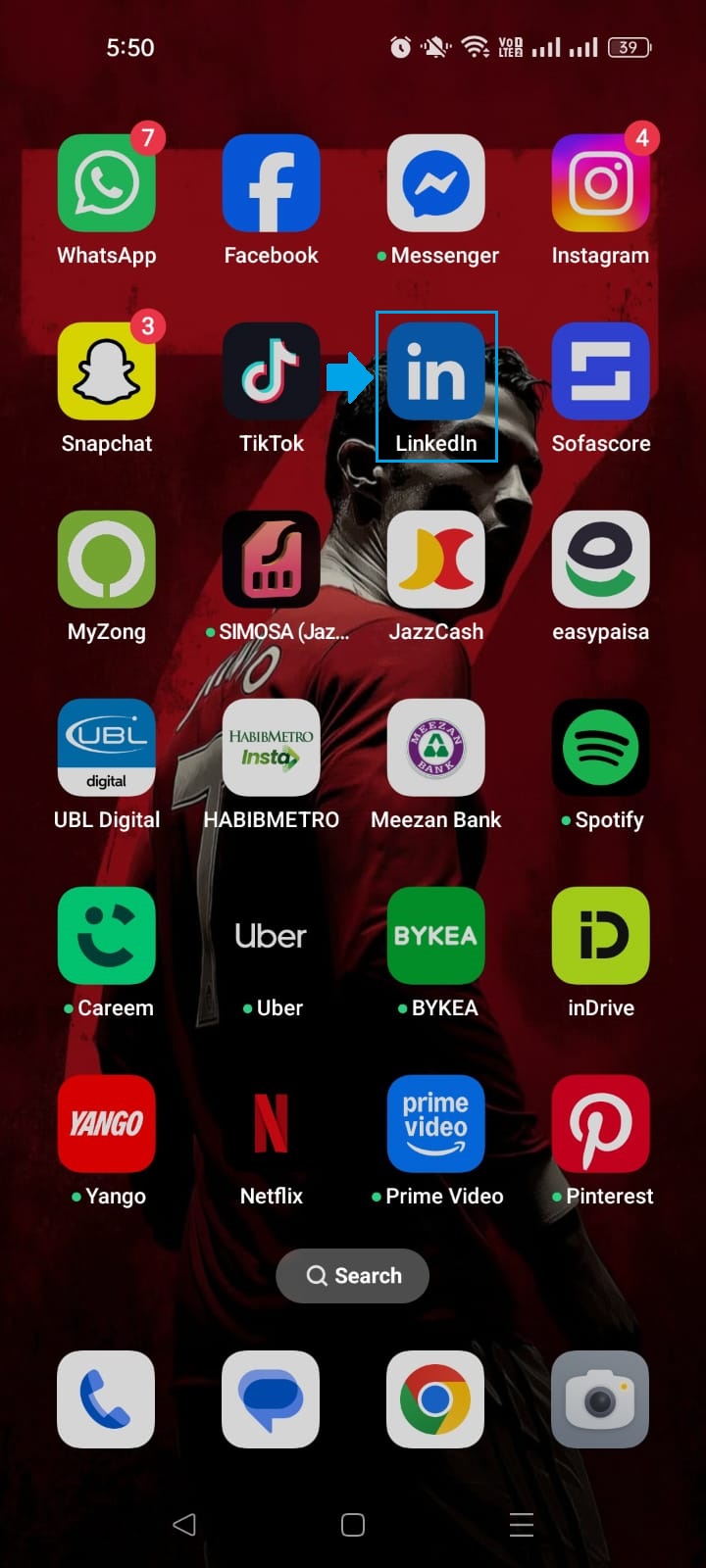
Step #01: Open the LinkedIn app
Grab your phone and launch the LinkedIn app. Make sure you’re logged into the account whose URL you want to change.
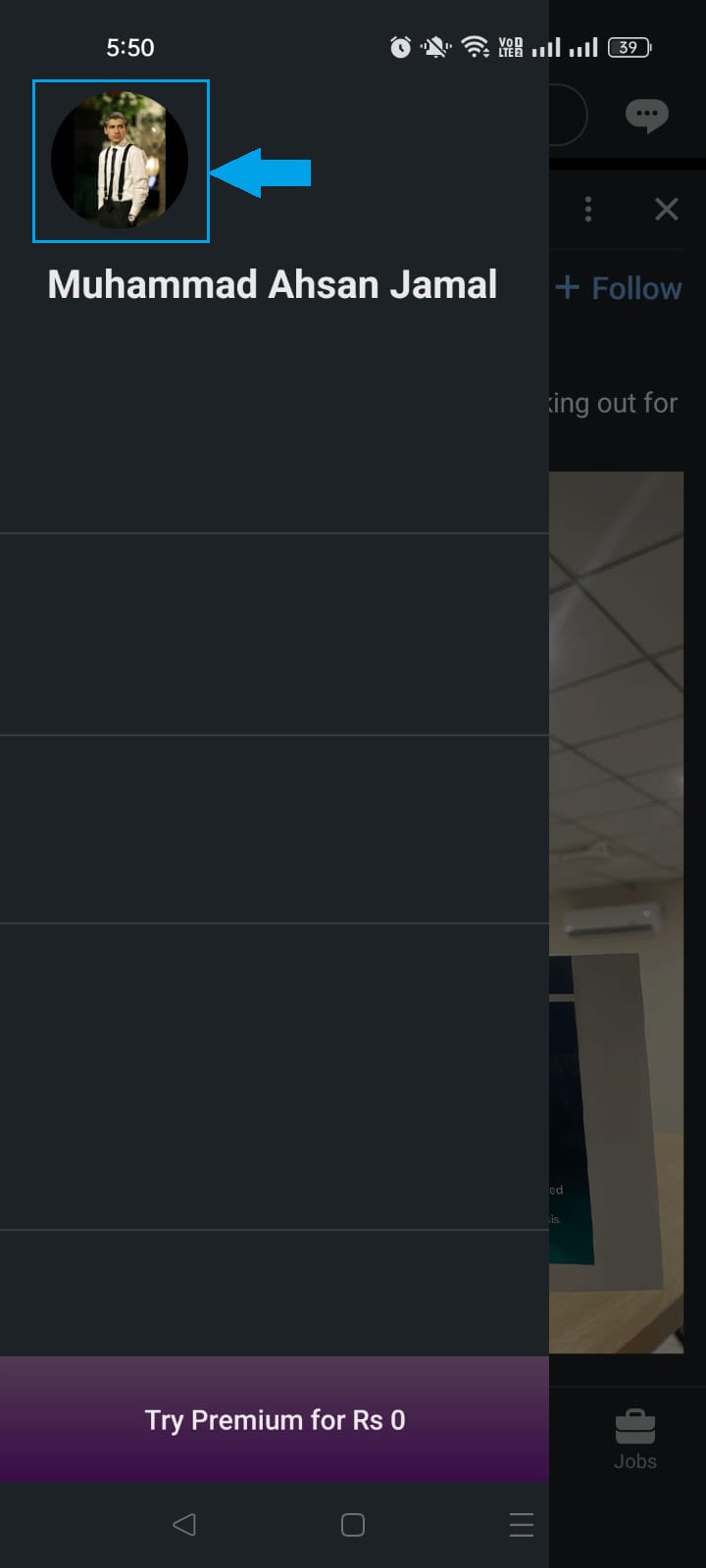
Step #02: Go to your profile
Tap on your profile picture or your name at the top of the screen to navigate to your profile page.
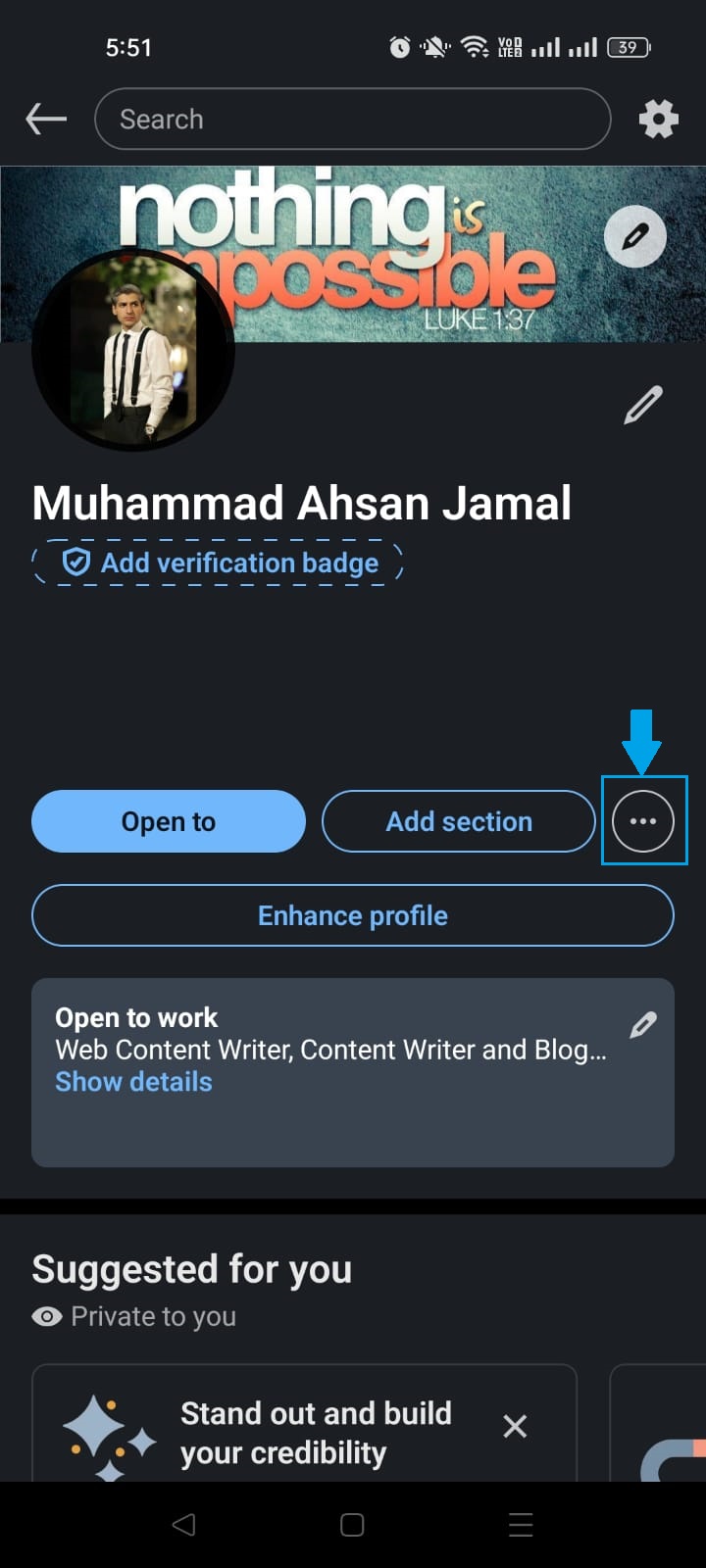
Step #03: Tap the (…) button
Once you’re on your profile, look for the three-dot (…) button and tap on it to open a list of options.
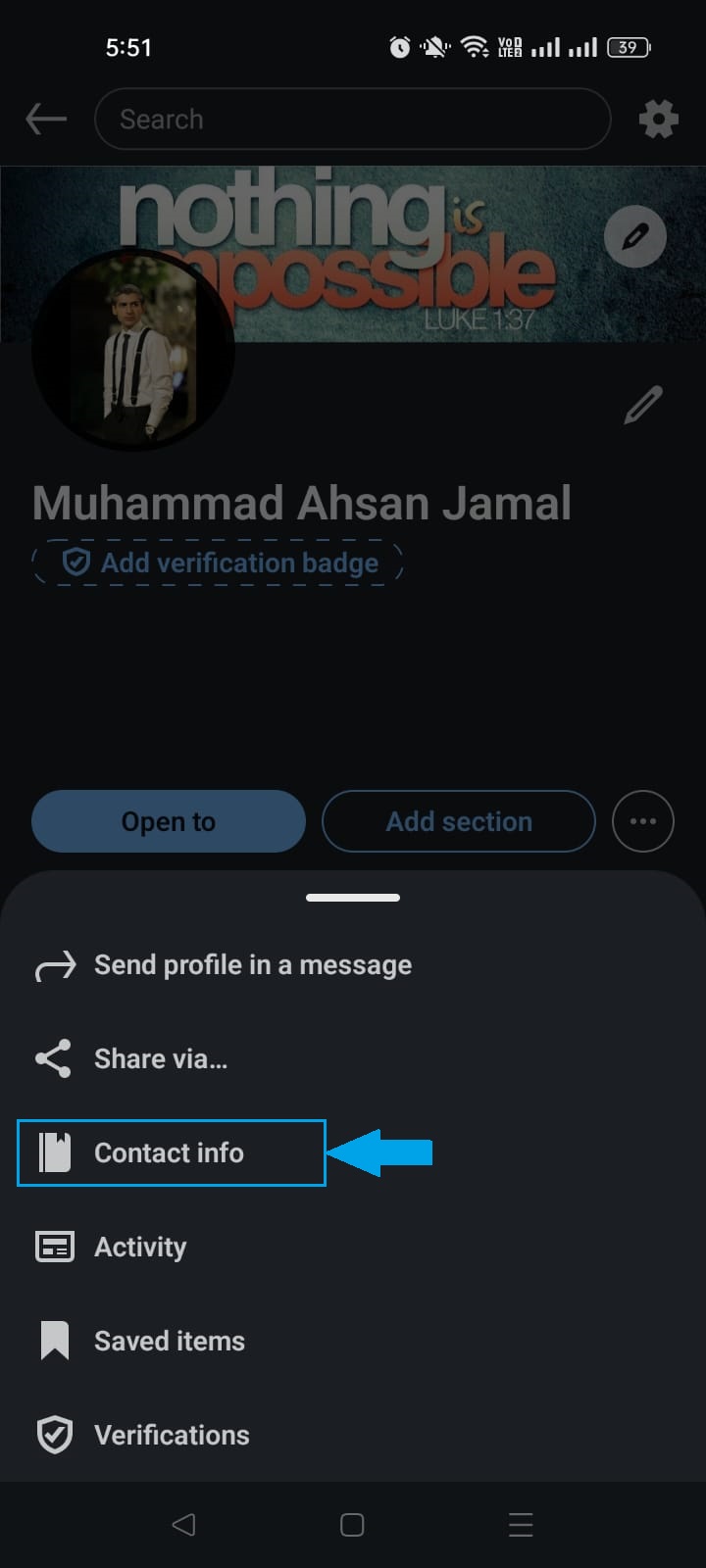
Step #04: Select “Contact info”
From the menu that appears, tap on “Contact info”. This is where LinkedIn stores your profile URL along with your other contact details.
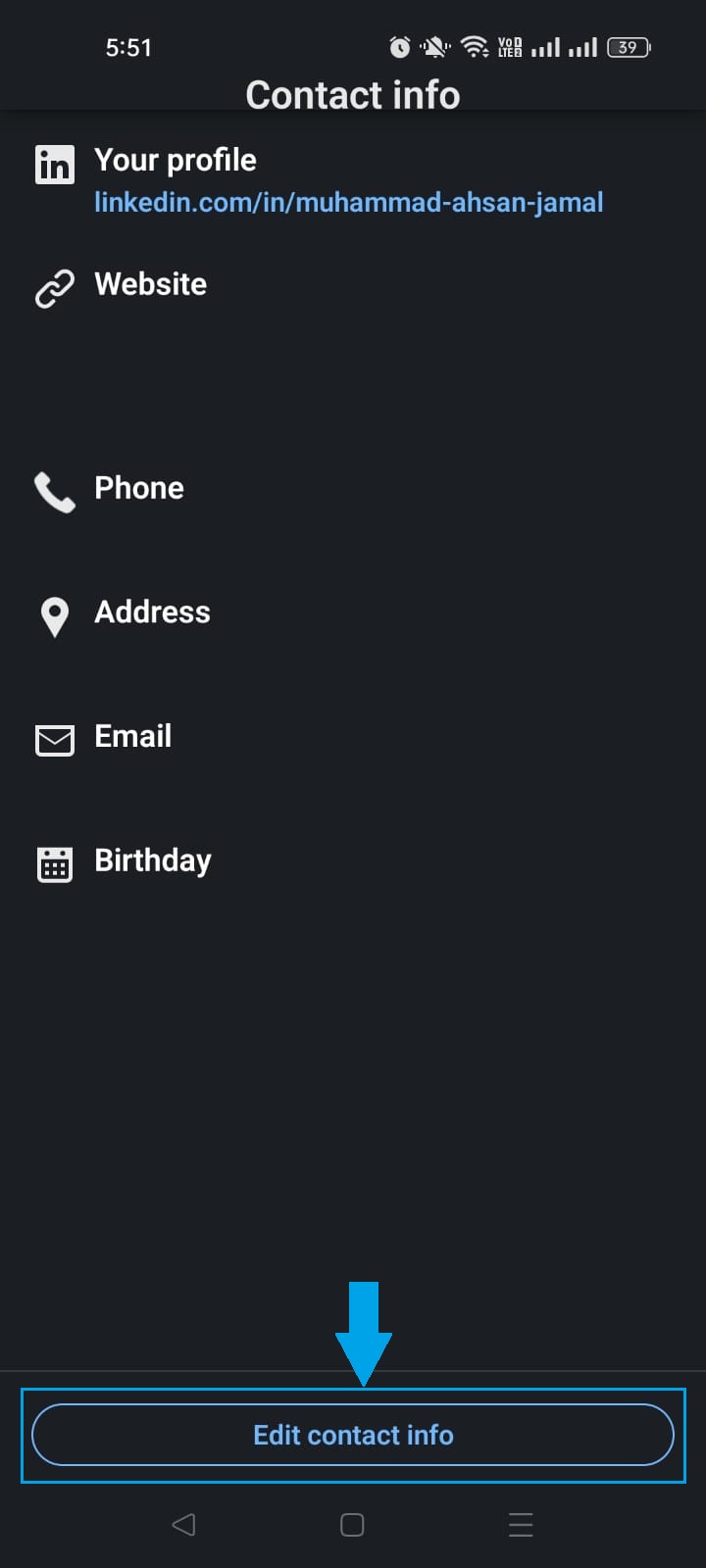
Step #05: Tap “Edit contact info” button
At the bottom of the screen, tap the “Edit contact info” button to make changes to your information.
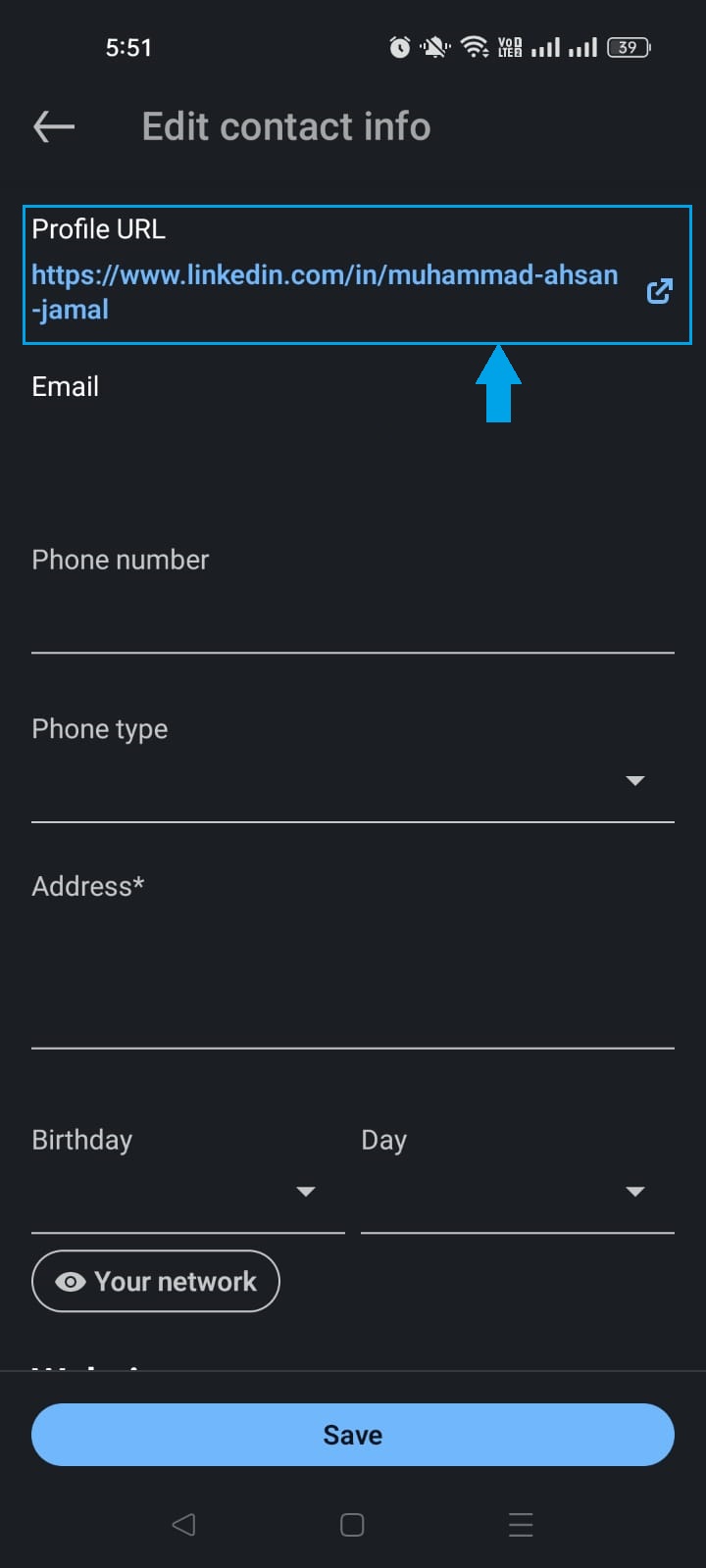
Step #06: Tap “Profile URL”
At the top of the page, you will see the “Profile URL” option. Tap on it. This will take you to the section where you can finally edit your LinkedIn URL.
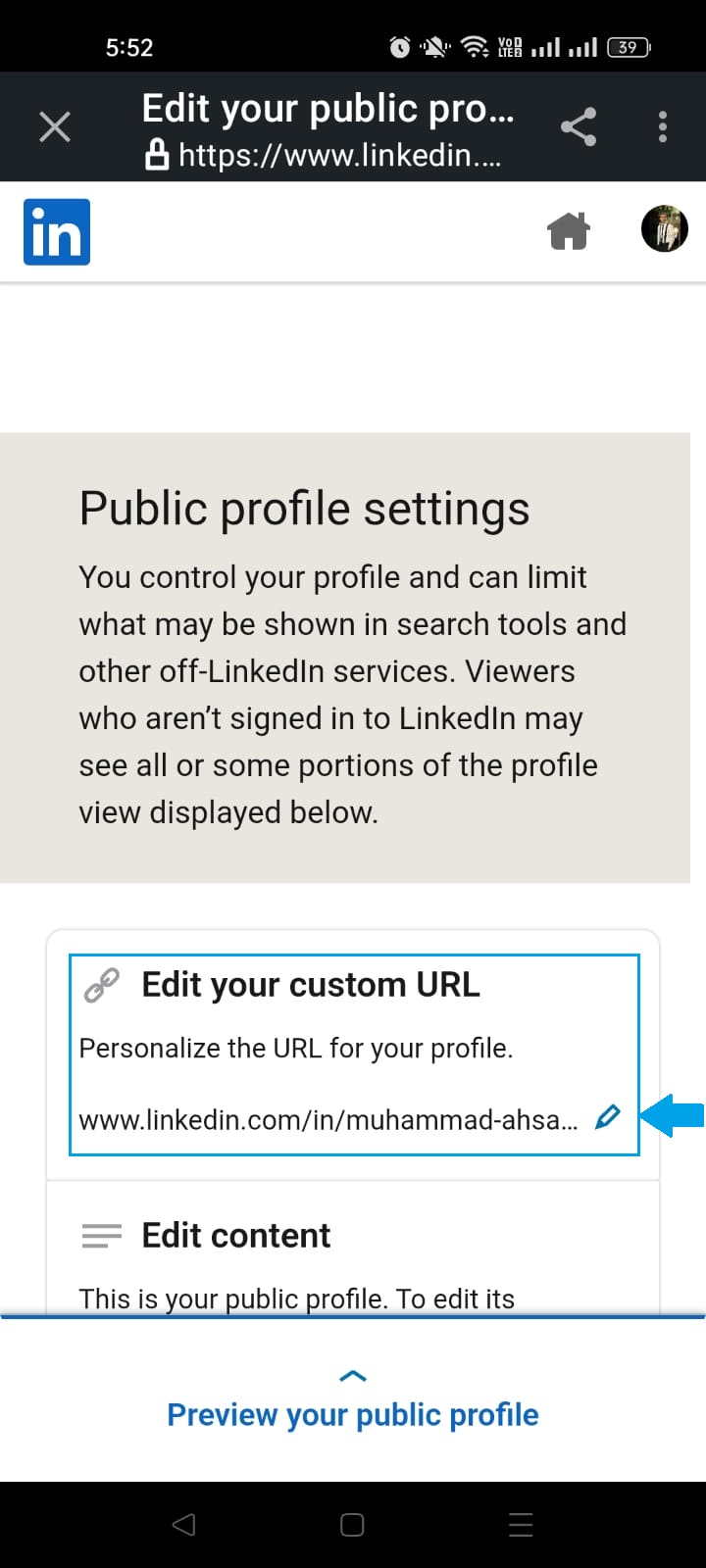
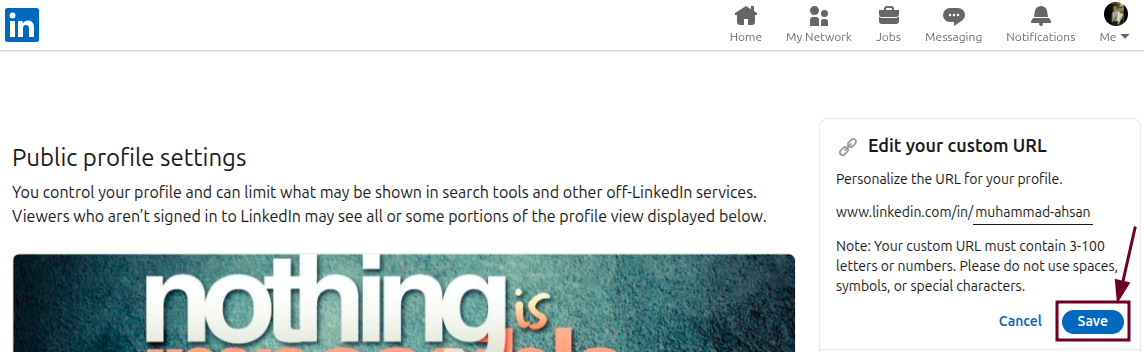
Step #07: Tap the pencil icon under “Edit your custom URL”
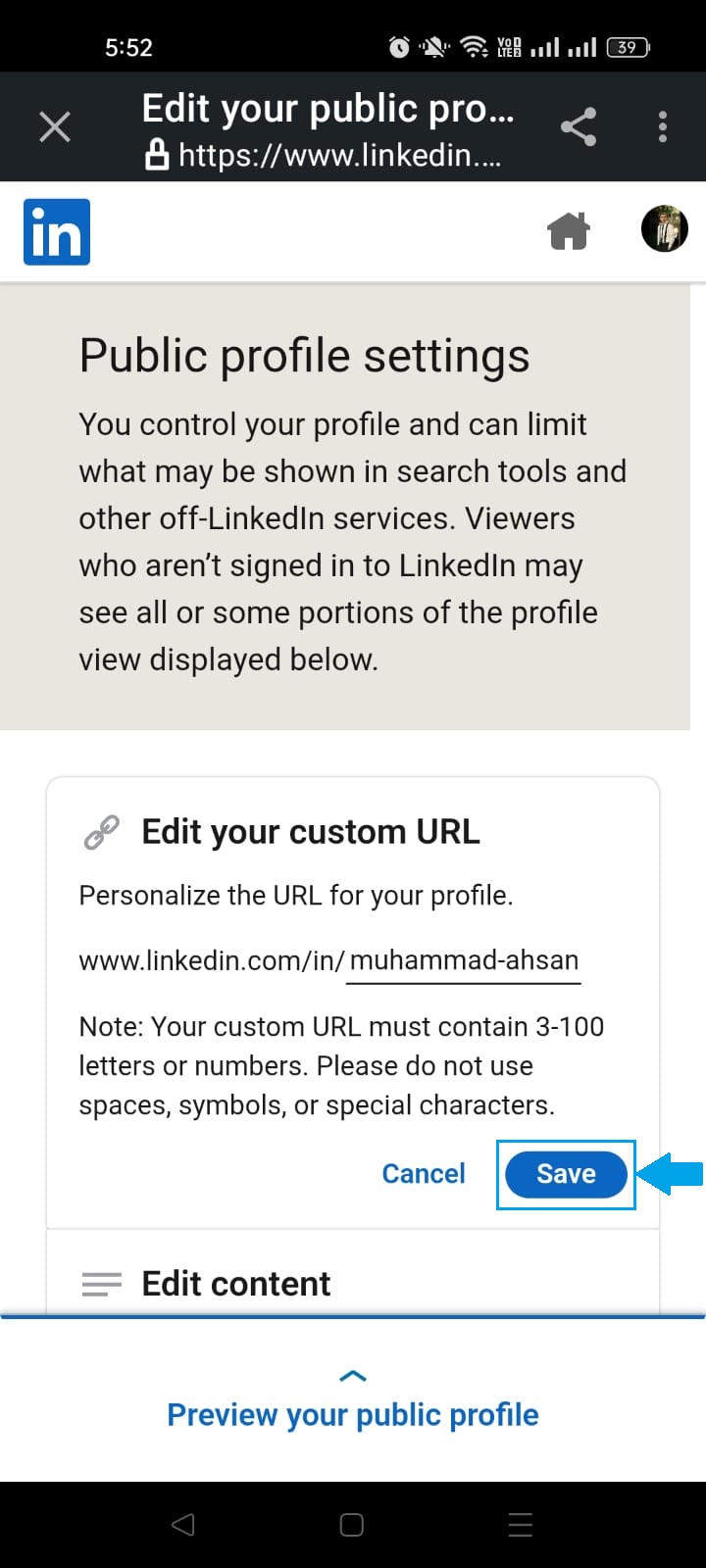
Tap the pencil icon next to your current URL, delete the existing string of text, and type in your new custom URL. Ideally, your name or a clean variation of it.
Step #08: Tap “Save”
Once you’re happy with your new URL, hit the “Save” button, and that’s it! Your custom LinkedIn URL is live and ready to share.
How to change LinkedIn URL on desktop
Prefer working on a bigger screen? No problem.
Changing your LinkedIn URL on desktop is just as simple.
Here’s how to edit a LinkedIn URL on the desktop app, step by step:
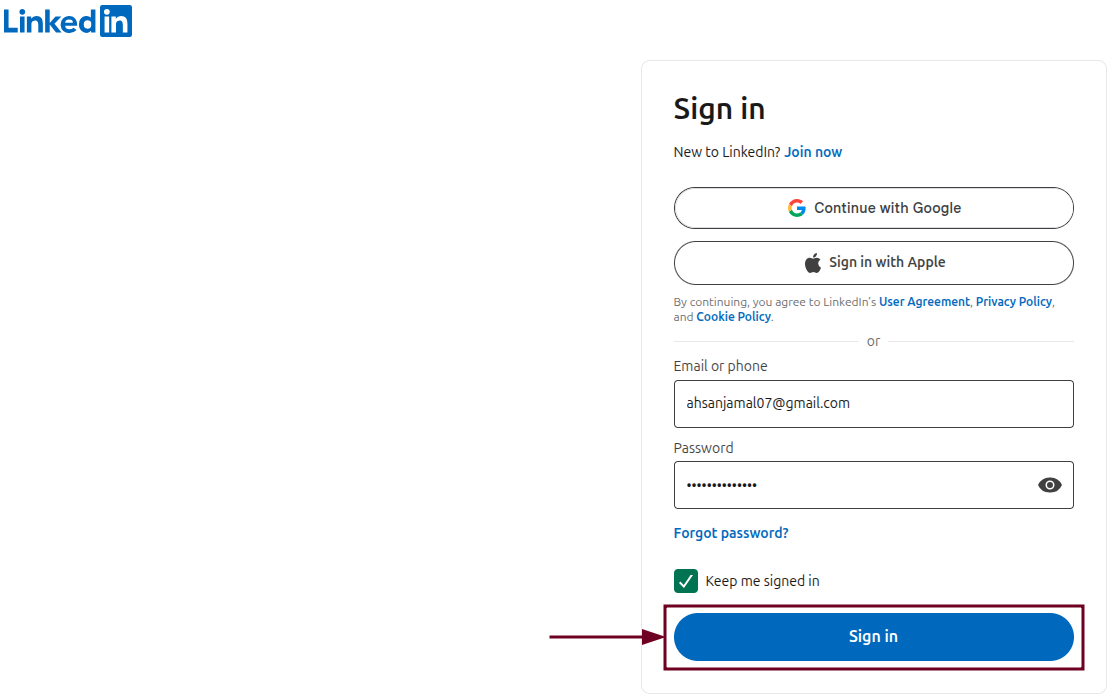
Step #01: Sign in to your LinkedIn account
Head over to linkedin.com and sign in with your email and password if you aren’t already logged in.
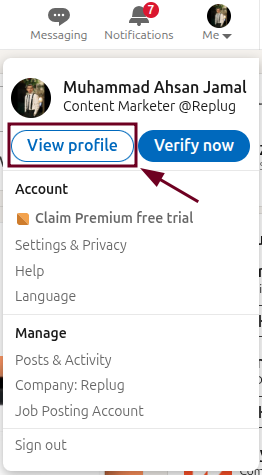
Step #02: Click the “Me” icon
Once you’re successfully signed in and are on the homepage, look for the “Me” icon at the top right of the navigation bar. It’s right next to the search bar. Click on it.
Step #03: Select “View profile”
A small dropdown menu will appear. Click on “View profile” to be taken directly to your LinkedIn profile page.
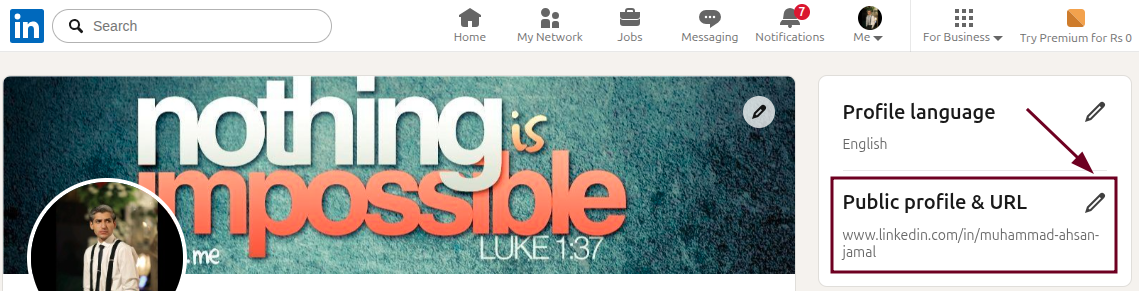
Step #04: Click the “Public profile & URL” option
On your profile page, look toward the right side of the screen and click on the pencil icon next to “Public profile & URL”. This will open your public profile settings in a new page.
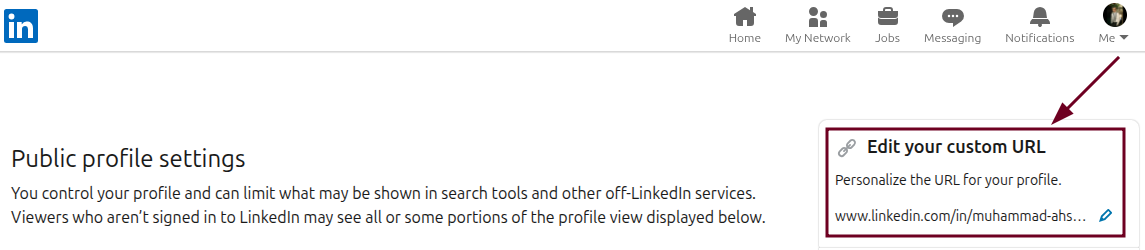
Step #05: Look for the “Edit your custom URL” section
On the right-hand side of the page, you’ll spot the “Edit your custom URL” section. This is exactly where you need to be.
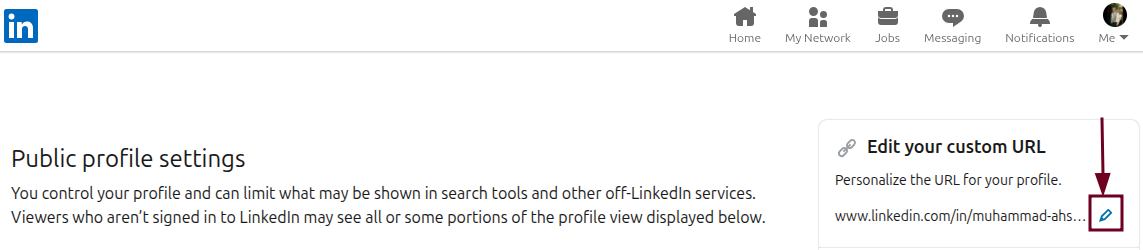
Step #06: Click the Edit (pencil) icon
Click the small pencil icon right next to your current URL to unlock the text field and make it editable.
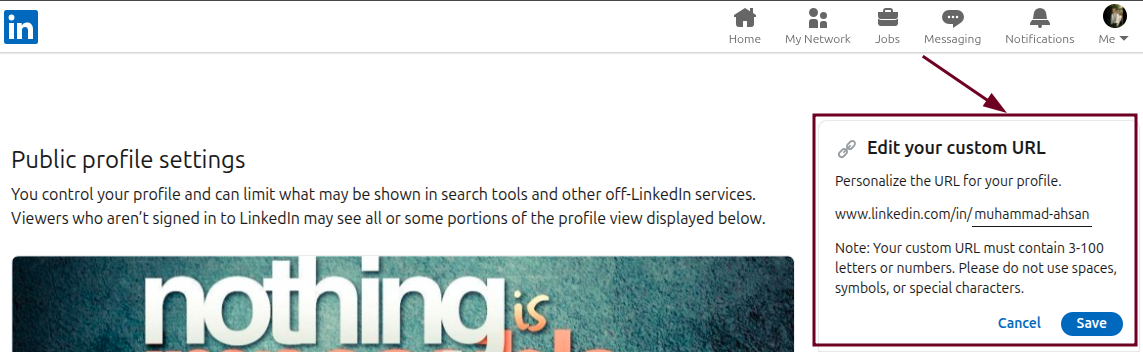
Step #07: Type the new desired URL
Delete the existing URL text and type in your new custom URL, i.e., your full name or a clean, professional variation. It works best here.
Step #08: Click “Save”
Once you’ve entered your new URL, click the “Save” button, and you’re all done! Your updated LinkedIn URL is now live and ready to go.
Not sure what to put as your custom LinkedIn URL? You’ve got more options than just your name. Here are some popular formats to help you pick one that fits your personal brand perfectly.
Simple Name
The most straightforward option. Just use your first and last name. Clean, professional, and easy to remember.
👉 linkedin.com/in/ahsan-jamal
Initials + Last Name
If your full name is already taken, try using your first initial combined with your last name.
👉 linkedin.com/in/ajamal
Name + Job Title/Specialization
Great for standing out in your field. Pairing your name with your role tells people exactly what you do before they even click your profile.
👉 linkedin.com/in/ahsanjamal-contentmarketer
Name + Industry
If you want to highlight the space you work in rather than a specific title, adding your industry works really well.
👉 linkedin.com/in/ahsanjamal-marketing
Name + Company
Ideal if you’re closely associated with a well-known brand or want to reinforce your current professional identity.
👉 linkedin.com/in/ahsanjamal-d4interactive
Professional Certification/Suffix
Have a well-recognized credential like an MBA, CPA, or PhD? Adding it to your URL is a subtle but effective way to establish authority instantly.
👉 linkedin.com/in/ahsanjamal-mba
Why can’t I change my LinkedIn profile URL: Troubleshooting common errors
Running into trouble while trying to update your LinkedIn URL? You’re not alone! It’s actually more common than you’d think. Here are the most frequent reasons it happens and how to fix them quickly.
Common reasons for URL change failures:
The desired URL is taken: LinkedIn URLs are unique, so if someone else has already claimed the URL you want, you simply won’t be able to use it. Try adding a middle initial, a number, or a slight variation to work around this.
Character limits & constraints: LinkedIn only allows between 3-100 characters in your custom URL, and it must contain only letters, numbers, or hyphens. No spaces, symbols, or special characters allowed.
Too many changes: LinkedIn doesn’t let you change your URL an unlimited number of times. If you’ve been editing it back and forth frequently, the platform may temporarily restrict further changes.
The 180-day rule: If you’ve recently changed your URL, you may need to wait up to 180 days before you can change it to a previously used URL again. So choose wisely before hitting save.
Troubleshooting steps:
Use unique variations: If your preferred URL is taken, try mixing in your middle name, initials, profession, or a relevant keyword to create a unique URL alternative that still feels on-brand.
Clear cache or change browser: Sometimes the issue is just a browser glitch. Clear your cache and cookies, or switch to a different browser, and try making the change again.
Check for “profile not found”: After saving your new URL, paste it into your browser to make sure it actually loads your profile correctly. Occasionally, there’s a short delay before it goes live.
Verify the URL: Double-check that your new URL doesn’t have any typos, extra spaces, or unsupported characters before saving. A small mistake can cause the whole thing to fail silently.
Shorten your LinkedIn URL in seconds using Replug!
Once you’ve got your custom LinkedIn URL ready, why not take it a step further?
Replug is an all-in-one link management platform that lets you shorten, track, and manage your links, all from one single dashboard.
Its reliable URL shortener feature is especially handy for professionals who want a super clean, branded short link that’s even easier to share than a standard LinkedIn URL.
Maximize marketing ROI
by transforming ordinary URLs into branded short links that convert.
Try Replug for free
Instead of sharing a long URL, Replug lets you generate something short, sharp, and fully customized within seconds.
No matter if you’re adding it to your professional bio, resume, or business card, a Replug short link just looks that much more polished and composed.
Wrapping up
And that’s really all there is to it!
Changing your LinkedIn URL takes just a few steps, whether you’re on your phone or sitting at your desktop, and the difference it makes to your professional image is totally worth it.
A clean, custom URL makes you easier to find, easier to remember, and just looks a whole lot more refined everywhere you use it.
Pick a format that fits your personal brand, avoid the common pitfalls we covered, and don’t forget to shorten it further with Replug for that extra professional touch.
Now go update that URL, your profile deserves it!
Frequently asked questions
Can you rename a link in LinkedIn?
Yes, you can! LinkedIn allows you to customize your profile URL by editing it through your profile settings. Just head to the “Public profile & URL” section and update it to something that better represents you. Keep in mind it has to meet LinkedIn’s character and formatting requirements before saving.
How to get the LinkedIn URL address and customize it?
Finding your LinkedIn URL is simple. Just go to your profile and look at the address bar in your browser. That’s your current LinkedIn URL right there. On mobile, you can find it under the “Contact info” section.
Now, here’s how to customize your LinkedIn URL:
1. Head to your profile settings. 2. Then, click on “Public profile & URL” on desktop or access it through the three-dot menu on mobile. 3. After that, tap the pencil icon next to your current URL and type in your preferred custom URL. 4. Finally, tap or click “Save” and you’re done.
Can we change the LinkedIn URL more than once?
Yes, you can change your LinkedIn URL more than once. LinkedIn allows users to change their custom public profile URL up to five times within a six-month period. After the fifth change, you must wait six months to change it again. Your previous URL remains linked to your profile for six months unless unlinked.
How to change LinkedIn URL for a company?
To change your LinkedIn company page URL, you need to be a super admin of the page. Go to your company page and select the “Page info” section. This is where you’ll find the option to edit your public URL. Keep in mind that company page URLs can be changed up to five times every 180 days.
How to change LinkedIn URL for a resume?
First, customize your LinkedIn URL using the steps we’ve already covered in this guide so it looks clean and professional. Once that’s done, adding your LinkedIn URL on resume is straightforward.
Place it in your contact information section at the top of your resume, right alongside your phone number and email address. Make sure the URL is clickable if you’re sharing a digital version of your resume.
A clean LinkedIn URL on your resume not only looks polished but also makes it super easy for recruiters to jump straight to your profile with a single click.
What happens to the old LinkedIn URL after you change it?
After you change your LinkedIn URL, the old URL remains linked to your account for six months. During this period, the old link will still redirect visitors to your profile. However, you can manually unlink it, after which it becomes available for other members to claim in seven days.
What are the key LinkedIn URL requirements & restrictions?
Here’s a quick rundown of what LinkedIn allows and doesn’t allow for custom URLs:
– Must be between 3 and 100 characters – Can only include letters, numbers, and hyphens – No spaces, symbols, or special characters are allowed – Cannot be a URL that someone else has already claimed – Previously used URLs cannot be reclaimed for 180 days – Cannot use the word “LinkedIn” in your custom URL
How to find LinkedIn URL on iPhone and Android?
Here’s how to do it:
1. Open the LinkedIn app. 2. Tap on your profile picture to go to your profile. 3. Then tap the (…) three-dot button. 4. Select “Contact info,” and you’ll find your LinkedIn URL listed right at the top. 5. You can tap on it to copy or share it directly from there.
How to copy and share your LinkedIn profile URL?
– On desktop, go to your LinkedIn profile. Your URL will be visible at the top of the page. Simply copy it from the address bar and share it wherever you want. – On mobile, follow the steps already mentioned above to find your URL under the Contact info section. From there, you can copy and share it anywhere (your resume, email signature, WhatsApp, wherever you need it!)
Sharing videos shouldn’t be a struggle. No one likes huge files, slow uploads, or email limits.
So, what’s the solution? Convert your video into a simple, shareable link! It makes sharing easier, keeps things organized, and makes your content accessible on any device.
In this guide, we’ll walk you through how to convert a video to a link in a few easy steps. Plus, we’ll show you how Replug can help you enhance your video-sharing experience with branded links, analytics, and more.
Whether you need to convert a video to a URL online or you’re looking for free methods, we’ve got you covered.
Why convert a video to a link?
Let’s be real: Sending large video files is a hassle.
Attachments take forever to upload, emails have size limits, and some messaging apps compress videos into a blurry mess.
But you don’t have to worry about that anymore. Converting a video to a link solves all these problems. Here’s why it’s a game-changer:
Easy sharing: A simple link lets anyone access your video instantly.
Saves storage: No need to clog up your device with massive files.
No quality loss: Unlike compressed videos, links keep the quality intact.
Better accessibility: Anyone with the link can view it without downloading.
Step 3: Shorten the video link (optional, but recommended)
A long URL can look messy, especially if you’re sharing it on social media or in marketing campaigns. Using a high-quality link shortener makes it clean and clickable.
Here’s how to shorten your video link with Replug:
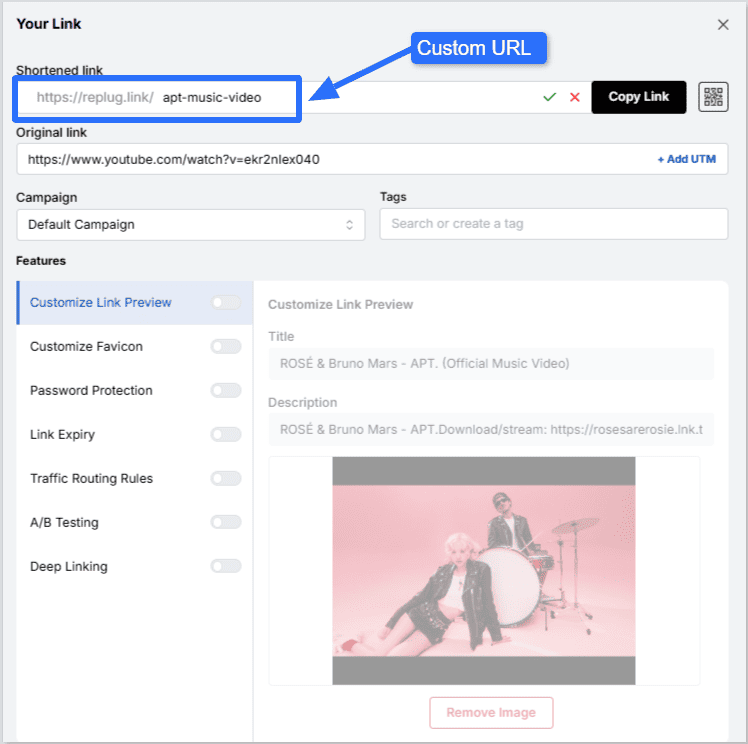
Create a custom URL if you want. This will give your video link a more branded look and feel. Here, we decided to shorten the YouTube music video link for APT. by Rosé and Bruno Mars.
Copy your shortened link and share it anywhere!
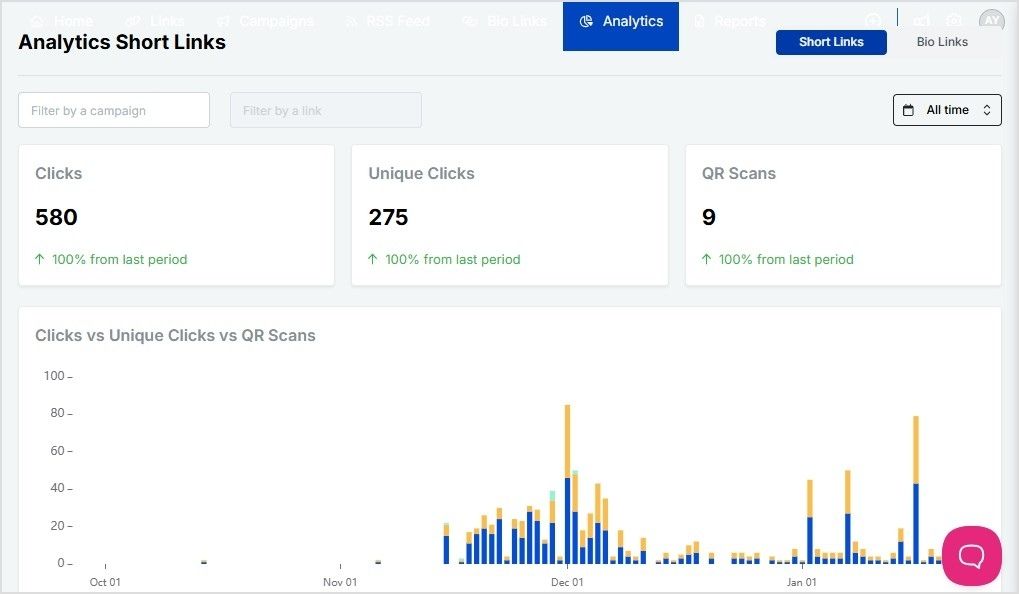
With Replug, you can also track link clicks, engagement, and performance, making it a great tool and a top-notch link optimization platform for marketers, content creators, and businesses.
These tools work well if you need a quick, free way to convert a video to a URL link online.
How to share your video link
Now that you have your link, you can share it anywhere! Here are a few ways:
Social media: Post it on Facebook, Twitter, LinkedIn, or Instagram.
Emails: Add it to your newsletters or personal messages.
WhatsApp & Messenger: Send it directly in a chat.
Websites & blogs: Embed the link in your content.
Enhance your video links with Replug
If you’re using Replug, you’re not just sharing a video—you’re optimizing it for maximum reach, engagement, and conversions. Here’s how you can do it:
Re-engage viewers with retargeting pixels: Add tracking pixels to your video links to retarget users across platforms like Facebook, Google, and LinkedIn.
Track performance with advanced analytics: See who’s clicking, where they’re coming from, and how they interact with your video with Replug’s link analytics.
Create branded, short video links: Replace long, clunky URLs with branded short links that look professional and boost credibility.
Maximize marketing ROI
by transforming ordinary URLs into branded short links that convert.
Try Replug for free
Enhance visibility with a bio link page: Add your video link to a Replug bio link page, giving your audience a single destination to access all your content.
Leverage deep linking for seamless navigation: Guide users straight to the right platform or app where your video is hosted with deep links. No extra clicks, no confusion.
Generate scannable QR codes: Convert your video link into a QR code that people can scan to watch instantly. This is perfect for business cards, posters, and in-person events.
Replug turns your video into a powerful marketing asset that drives results.
Final thoughts
Converting a video to a link is the easiest way to share content without dealing with large files or quality loss. Whether you use Google Drive, YouTube, or a free online tool, the process is quick and simple. If you want a professional touch, don’t forget to shorten your link with Replug for better branding, tracking, and engagement analytics.
Ready to make video sharing effortless? Convert your videos to links today and simplify your workflow!
Frequently asked questions
Can I convert a video to a link without uploading it?
No, the video must be uploaded somewhere to generate a link. However, you can use temporary file-sharing services like WeTransfer if you don’t want long-term hosting.
What’s the best free platform to convert a video to a URL link online?
Google Drive and YouTube are the best free options. If you want a quick, no-login solution, try Streamable or File.io.
Will my video lose quality when I convert it to a link?
Not necessarily. If you upload it to platforms like Google Drive or Dropbox, it retains the original quality. YouTube and other social platforms may compress the video slightly.
How long will my video link be available?
It depends on the platform. Google Drive and Dropbox links stay active as long as the file exists, while WeTransfer and File.io links may expire after a set period.
Can I make my video link private?
Yes! Google Drive, Dropbox, and Vimeo allow you to set privacy controls, so only certain people can access your video.
How can I track video link performance?
Using a link management tool like Replug, you can track clicks, engagement, and audience insights to see how your video is performing.
Which video format is best for online sharing?
MP4 is the best format for online sharing due to its balance of quality and compatibility across most platforms.
You know when you click a link, and it suddenly ends with a string like ?utm_source=facebook&utm_campaign=fall_sale, it looks messy, right?
But here’s the problem! Many website owners treat those strings as annoying noise, when in reality, they’re quite powerful.
Without adding meaningful URL parameters, businesses often end up blindly guessing where their traffic comes from, and that means wasted time and marketing dollars.
What if you could instantly know which post, email, or ad brought in a visitor, in clear, actionable data? That’s where URL parameters become a game-changer.
With properly tagged links, your analytics tools can reveal exactly which sources bring the best results.
In the next section, we’ll step into a brief summary of URL parameters (what they are and how they work), so you’ll understand why they deserve a spot in your digital toolkit.
Let’s kick things off!
URL parameters: A brief overview
When you land on a web page, the main part of the link you clicked is the URL, i.e., the address that points you to a specific page on the web. But sometimes, that URL doesn’t give the full picture.
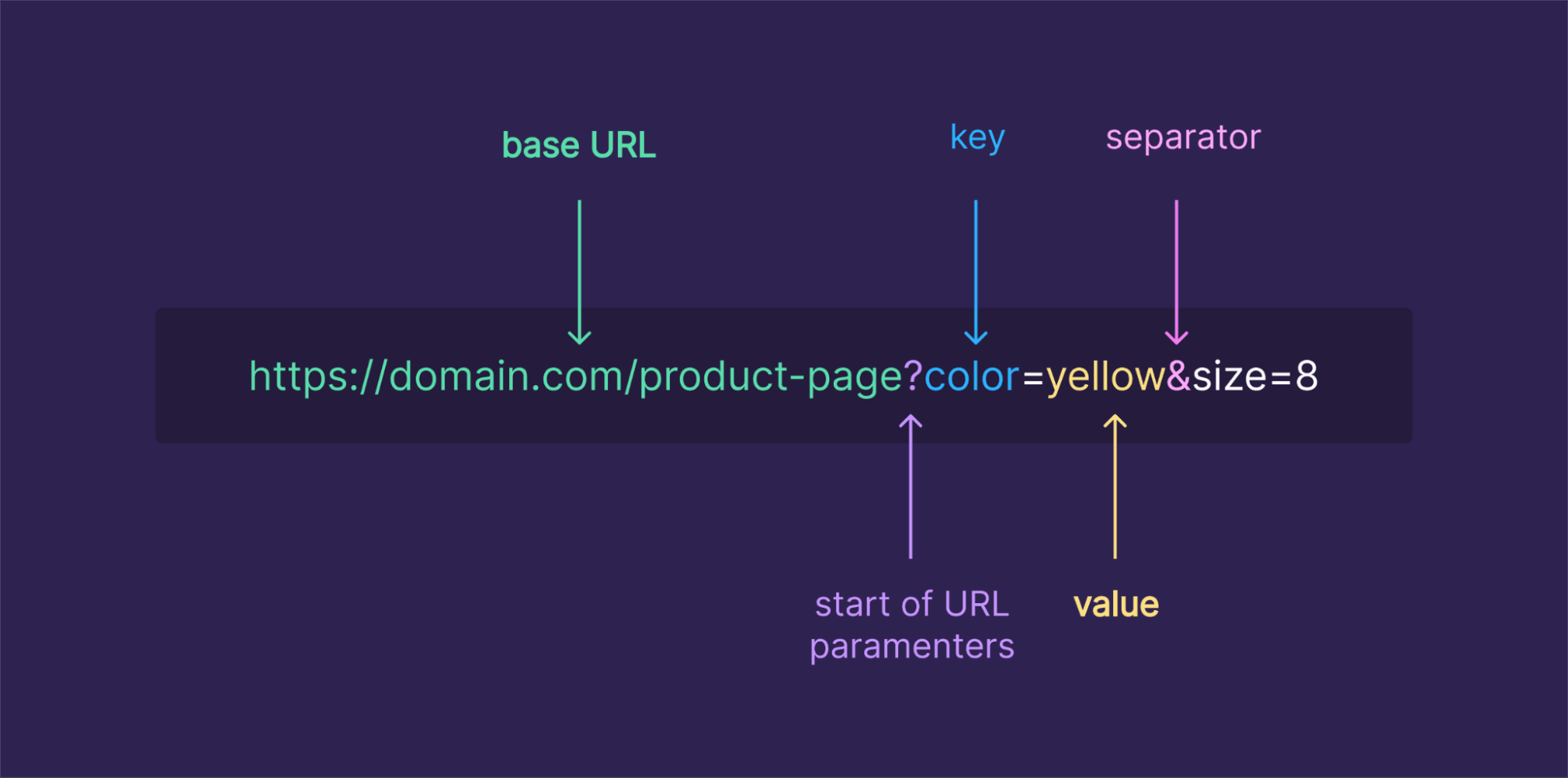
That’s where URL parameters come in. They’re extra bits added to the end of a URL (after a ?) that pass additional information to the web server. Internally, they look like key=value pairs, and if there are more than one, they’re separated by &.
The main purpose of URL parameters is to tell the server, or your analytics tools, extra context about the user’s visit. They might control how content is displayed (like filtering a product list), or they might track how the user arrived, for example, which campaign or ad brought them there.
Now let’s look at a real-life example of a URL with parameters so you can see how it works in practice.
URL parameters example
Imagine you run an online store and want to show only blue shoes, sorted by price from low to high. A link to that filtered list might look like this:
utm_source=newsletter shows the traffic came from the newsletter,
utm_medium=email specifies the medium,
utm_campaign=november_promo names the campaign.
When someone clicks this link, your analytics tool records exactly where they came from, making it way easier to measure campaigns.
With these examples in mind, you can see how URL parameters turn a basic link into a powerful way to control content or track performance, especially when you’re dealing with long URLs or lots of traffic sources.
Main types of URL parameters
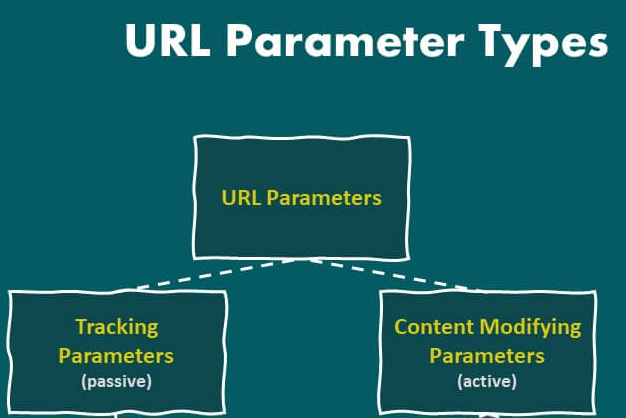
When it comes to URL parameters, most fall into one of two main types. They either alter what you see on the page or silently carry info in the background.
Active URL parameters
Active parameters, also called “content-modifying parameters”, actually change what the visitor sees when they open a link.
For example, if someone visits an online store, active parameters might filter products (?category=shoes&color=blue), sort them (?sort=price_asc), or load a specific page in a list (?page=2).
These parameters directly influence the content or layout of a page, so that the same base address can show totally different content, such as only “blue shoes” or results sorted from cheapest to most expensive.
Passive URL parameters
On the other hand, passive parameters don’t change what you see on the page. They’re used “behind the curtain”. These are mainly used for tracking, analytics, affiliate referrals, or session identifiers.
For instance, when you append something like ?utm_source=newsletter&utm_medium=email&utm_campaign=spring_sale, the page content stays the same, but your analytics tool records where you came from.
Whether those parameters are present or not, visitors see identical content, but the website collects additional context about how the visit occurred.
Understanding this difference, active vs passive parameters, is super helpful when you build links or track campaigns (or even worry about SEO).
How URL parameters work
URL parameters are the little helpers appended to a URL that tell the website or server extra info, often about what content to show, or data to track.
Below is how they’re structured and how that structure actually works under the hood.
Structure & functionality
Base + query string: A URL starts with the base (like https://example.com/page), and if you want to add parameters, you append a question mark ?. That marks the start of the parameters section.
Key-value pairs: Each parameter is written as a key and a value separated by an equals sign =. For instance, page=2 or color=blue.
Multiple parameters: If you have more than one parameter, you separate them with an ampersand &. So after the first ?, every additional parameter is joined with &.
How the server uses them: When a web server receives a URL with parameters, it reads those key-value pairs and uses them to decide what to send back. This might mean filtering content (e.g., showing only certain items), sorting data, controlling pagination, or tracking things like where the user came from.
Optional & flexible: Parameters are optional. The URL works without them, but adding them gives extra instructions or context. That’s why you often see parameters used for search queries, page numbers, filters, UTMs for analytics, and more.
With this structure in mind, you can now build URLs that do more than just point to a page. Next up, we’ll show you how to play around with a few handy use cases, like filtering a shop catalog or tracking where your visitors come from.
What are URL parameters used for: Common uses discussed
When you add URL parameters to a link, they open up a lot of useful powers. Instead of just pointing to a page, you can make the page behave differently or carry extra info behind the scenes.
Here are common uses of those parameters:
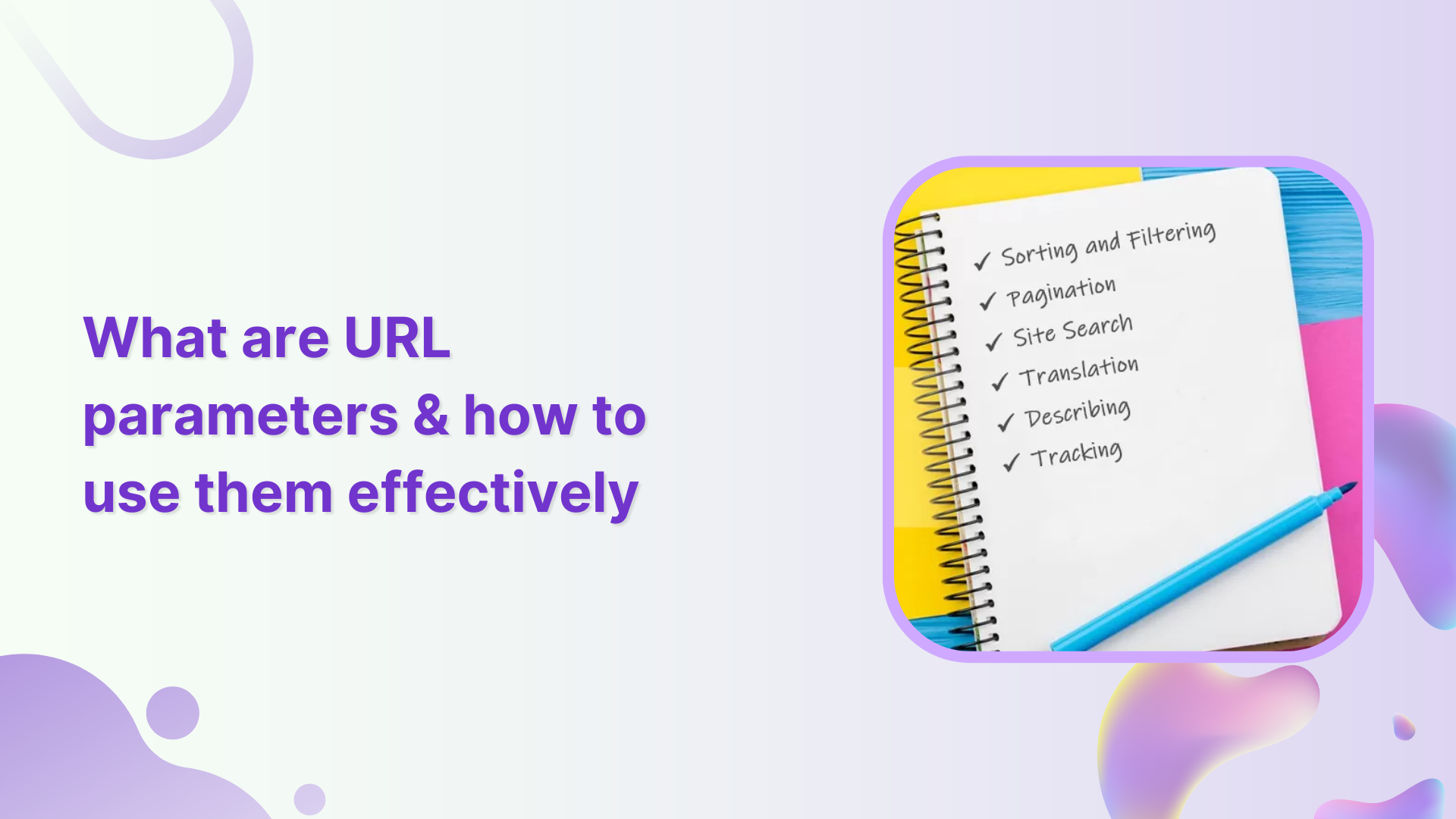
Sorting
You can use parameters to rearrange content order. For example, on a store or blog, you might let users see “price low → high,” “newest first,” or “alphabetical.” A URL like ?sort=price_asc tells the site how to order the items.
Filtering
Parameters help narrow down big lists to what the user cares about. For instance, showing only “red shirts,” “in-stock items,” or “size = M.” This means users instantly see relevant results without having to browse everything.
Pagination
For long lists (products, articles, search results), parameters like page=2 or page=5 tell the server to send a specific “slice” of the complete list. So instead of a single huge page, the content is broken into manageable sections or pages.
Personalization
Sometimes, parameters help deliver a tailored experience, for example, by remembering a preference or choosing a particular view. They let websites adapt what you see based on your choices or past behavior.
Site search
When users search on a website, the search term is often passed as a query parameter (e.g.,?q=shoes or ?search=keyword). That tells the server what content to look for and return.
Translation (Language selection)
For multilingual sites, parameters can indicate which language/version of the page to show (for instance, ?lang=fr for French). This lets a single base page serve multiple languages without a separate structure.
Describing (Identifiers)
At times, parameters carry identifiers or descriptive data, such as a product ID, SKU, or category ID. That helps the server know exactly which item or content version to serve.
Tracking & analytics
This is one of the most common uses of URL parameters, which lets marketers and site owners track where traffic comes from. With tags like utm_source, utm_medium, or utm_campaign, you can see whether a visitor came via a social post, email, ad, or other channel, hassle-free.
Session management (State storage)
In some web applications, parameters may carry session IDs or state information to help maintain continuity as a user navigates. This way, the server knows who’s making requests and what session they belong to.
In short, URL parameters turn a simple link into a flexible instruction. They help the site tailor content, keep track of user behavior, let people search/filter easily, and manage complex site workflows seamlessly.
The hidden SEO challenges of URL parameters
URL parameters are super valuable and helpful, but if you don’t handle them carefully, they can bring some sneaky SEO problems. Here are the main issues to watch out for:
Duplicate content
When different parameter versions point to essentially the same page, search engines might treat them as separate pages. For example, page.com/shop?sort=price and page.com/shop?utm_source=facebook may have identical content but appear as different pages to bots.
Wasted crawl budget
Search engines only crawl a limited number of URLs per site in a given period. If bots chase dozens (or hundreds) of parameter-generated versions of the same content, they might waste time on those and miss more critical pages.
Keyword cannibalization
When multiple URL-parameter variants of a page target the exact keywords, they can end up competing against each other. Instead of one strong page ranking well, you get several weaker ones fighting for the same spot.
Tracking issues
Parameters used for analytics or tracking (such as UTM tags or session IDs) can cause the same content to appear under multiple URLs. Without proper handling, this can clutter search indexes and obscure which pages actually bring value.
Dilution of page ranking signals
Because links, shares, and other signals might point to different parameterized versions, your content’s overall “authority” gets split. That weakens its SEO potential compared to having a single, clean, SEO-friendly URL.
Overall, these handy little parameters can quietly undermine your SEO if left unmanaged. In the next section, we’ll walk through best practices to avoid these pitfalls, so you get the benefits of parameters without the SEO downside.
10 best SEO practices for using URL parameters
When you use URL parameters on your site (for filters, tracking, sorting, etc.), doing it thoughtfully can help you avoid SEO headaches and keep your site’s health strong.
Below are some smart practices to follow:
1. Add canonical tags
Use a <link rel=”canonical”> tag on parameterized pages to point back to the main “clean” URL version. This tells search engines which URL you want them to index and helps consolidate link equity and ranking signals.
2. Block URLs containing parameters with “robots.txt”
For parameter combinations that don’t add value (like tracking codes, session tokens, or specific filters), you can block crawlers via robots.txt. That helps avoid unnecessary crawling of low-value variants and protects your crawl budget.
3. Avoid URL parameters for localization
For things like language or region versions of your site, it’s often better to use clean, dedicated URLs (like /fr/ for French) instead of parameters. This keeps URLs intuitive and user-friendly, preventing confusion for search engines.
4. Use consistent internal linking
Always link internally to the canonical version of your pages instead of parameterized URLs. That reinforces search engines’ understanding of which version to favor and avoids spreading ranking power across multiple URL variants.
5. Exclude parameterized URLs from audits
When running site audits or SEO crawls, filter out or ignore parameterized URLs, so the audit focuses on your core content. This keeps reports clean and helps you prioritize what really matters.
6. Optimize the sitemap
Make sure your sitemap lists only the canonical, clean URLs, not every parameterized variant. That helps search engines find and index the right pages, and avoid unnecessary duplication.
7. Use user-friendly URLs
Where possible, favor uncluttered, readable URLs over those stuffed with too many parameters. Straightforward or static URLs tend to perform much better in search results and are easier for users to read.
8. Monitor website on a regular basis
Keep an eye on how parameterized URLs are being crawled or indexed. Regular checks help you catch issues like crawl waste, duplicate indexing, or parameter-related SEO problems early.
9. Use meta tags carefully
For pages that aren’t meant to be indexed (like filtered or tracking-parameter pages), consider using noindex (or canonical + robots strategy) rather than letting them be indexed accidentally. That reduces index bloat and preserves your site’s SEO clarity.
10. Limit the use of URL parameters
**Don’t overuse parameters,** only include them when necessary. Too many different parameter combinations can create a flood of URLs that hurt crawl efficiency, index quality, and overall SEO performance.
URL parameters vs query parameters
When you hear “URL parameters” or “query parameters,” people are often talking about the same thing, but there is a subtle difference worth knowing.
Below is a quick breakdown of how these two terms relate and when each is technically more correct.
Term
What it refers to
Typical usage/meaning
Query parameters
The entire bit of text in a URL after the ?, including all the parameters and separators (e.g.,?key1=value1&key2=value2).
It represents the complete package of data being passed (the container for multiple parameters or instructions).
URL parameters
The individual key=value pairs inside the query string (e.g., key1=value1, key2=value2).
They specify the actual data or instructions (like filter, sort, tracking info) that the website/server should act on.
Why are URL parameters important for marketers?
Using URL parameters gives marketers a commanding way to make sense of how people get to their site, and whether marketing campaigns are working or not.
Here’s why they matter so much:
Accurate campaign attribution: By adding parameters (like utm_source, utm_medium, utm_campaign) to links, you can track exactly where a visitor came from, say an ad, an email, social media, or a blog post. This clarity helps you know which campaigns bring real traffic.
Better ROI & budget decisions: Since you can see which channels or ads drive visits and conversions, you can allocate your marketing budget more wisely. Investing more where return is highest and cutting under-performing campaigns.
Deeper insights into user behavior & audience segments: URL parameters help you understand which ad, email, or link led a user to your site, so you can see patterns in real-time. You can analyze which content formats or channels resonate more, or which audience group converts better.
Campaign performance tracking across channels: Whether you run paid ads, email newsletters, social posts, or influencer links, parameters let you track all of them under the same roof, giving a complete picture of how different channels contribute to traffic and conversions.
Support for testing & optimization: You can use URL parameters to run A/B tests or compare different creatives, landing pages, or message variations. By tagging links differently, you’ll know which version performs better.
In a nutshell, URL parameters turn blind guesses into data-backed insights, helping marketers make smarter, evidence-based decisions about content, campaigns, and where to invest time or money.
Are URL parameters damaging your website’s rankings?
It’s pretty possible! If URL parameters aren’t handled carefully, they can quietly harm your site’s SEO. Here’s how using parameterized links might be doing more harm than good.
When a page on your site is accessible under multiple URL versions, those variants often appear as distinct pages to search engines, even when the content is the same.
That raises several issues, such as:
Search engine bots may waste time crawling duplicate content instead of unique, essential pages.
Link signals (like backlinks or social shares) get spread out across many URLs rather than concentrated on a single “main” URL, and
The confusion may lead to keyword cannibalization, where multiple variants compete against each other, weakening overall visibility.
Moreover, if parameter-packed URLs get indexed, it can bloat your site’s index, dilute authority, and make it harder for your core pages to rank well. So, it’s better to neglect them, but you can use them if you are sure to manage them correctly.
Summing up
In the end, URL parameters are a powerful tool when used right. They help you tailor content, track campaigns, filter results, and understand precisely how visitors arrive at your site.
But if you’re careless with them, letting duplicate links build up, neglecting canonical tags, or overusing parameterized URLs, they can silently undermine your SEO efforts.
The key is balance!
Use parameters when needed, but keep your site structure clean, and always give search engines a “canonical” version to index.
And, if you want to make sharing, tracking, and managing your links even easier, without messy, long URLs or jumbled analytics, why not give Replug.io (i.e., an all-in-one link optimization platform) a try?
It’s a top‑notch custom URL shortener that can help tidy your links, add tracking, and boost your link game exceptionally!
Frequently asked questions
What is %20 in URL?
%20 represents a space character in a URL. It’s a URL-encoded version of a space, as spaces are not allowed in URLs.
What are the three types of URLs?
The three types of URLs are:
1. Absolute URL: Full URL including the protocol, domain, and path. 2. Relative URL: A shortened URL that assumes the base domain or directory. 3. Root-relative URL: Starts from the root directory and doesn’t include the domain.
How to set params in URL?
URL parameters are added after the base URL, following a question mark (?). Each parameter is in the format, key=value, and multiple parameters are separated by an ampersand (&).
How to put & in a URL?
The & symbol is reserved for separating multiple parameters. To include an ampersand in a parameter value, you should URL-encode it as %26.
What is the difference between URL parameters and query strings?
URL parameters and query strings are essentially the same. Both refer to the part of the URL that starts after the question mark (?), containing key-value pairs.
Which is not a common use of URL parameters?
An everyday use of URL parameters is to pass data between pages (e.g., search queries, form data). However, using these parameters for sensitive data, such as passwords, is not recommended.
Provide the standard URL parameters list?
There’s no official “standard” list, but a common URL parameters array includes:
Have you ever wondered what sets certain web addresses apart from the rest? Why do some URLs feel tailor-made to cater to your interests and preferences?
The answer lies within the domain of unique URLs. Unlike their conventional counterparts, these special links possess the ability to deliver customized experiences, guiding users to content that resonates with them on a deeper level.
Follow along as we uncover the secrets behind creating and utilizing unique URLs and discover how they can uplift your online journey.
Get ready to unlock the potential of unique URLs and enhance your digital impact.
What are unique URLs?
Unique URLs are special web addresses that are customized and tailored to individual users or specific purposes. They go beyond the standard URLs you see on the web and add a personal touch.
These unique addresses can include elements like user identifiers, preferences, or customized URL parameters.
The primary purpose of unique URLs is to enhance user experiences and provide personalized content. They allow businesses to deliver targeted information, track user behavior, and measure the effectiveness of their marketing efforts.
With unique URLs, website owners can create customized landing pages and provide a more personalized, engaging experience for their visitors. To plan those landing pages effectively, tools like Slickplan help map out site structure, sitemaps, and content flows before building.
How to create unique URLs using Replug?
When it comes to creating unique URLs, Replug.io offers a comprehensive suite of features that empowers businesses to take control of their online presence and deliver personalized experiences.
What does Replug do?
With Replug, you can add a call-to-action (CTA) to any link you share with your audience and drive traffic back to your site. You can collect leads by adding your own branded CTA to any page on the web.
Replug also provides analytics and insights, allowing you to track visits and conversions from the links you have shared.
A complete link management solution
for marketing professionals & agencies.
Try Replug for free
Precisely, it is an efficient link shortener and a remarkable link-tracking platform that helps you build brand recognition and allows you to add eye-catching, branded call-to-actions or retargeting pixels to any page on the web.
Additionally, Replug offers bio links that let you drive more traffic to your landing pages through platforms like Instagram and Twitter.
Here’s how to get a unique URL with Replug
Let’s explore how Replug simplifies creating unique URLs and releases their potential for your digital strategy.
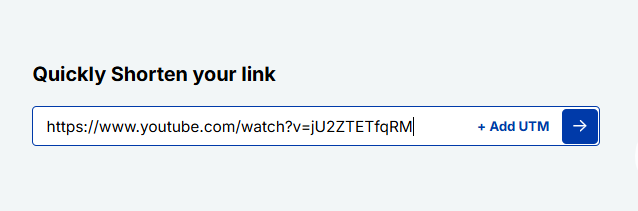
Step 2: On the main home page, locate the “Quickly Shorten your link” bar in the top-left corner. Paste the URL you want to uniquely shorten, here.
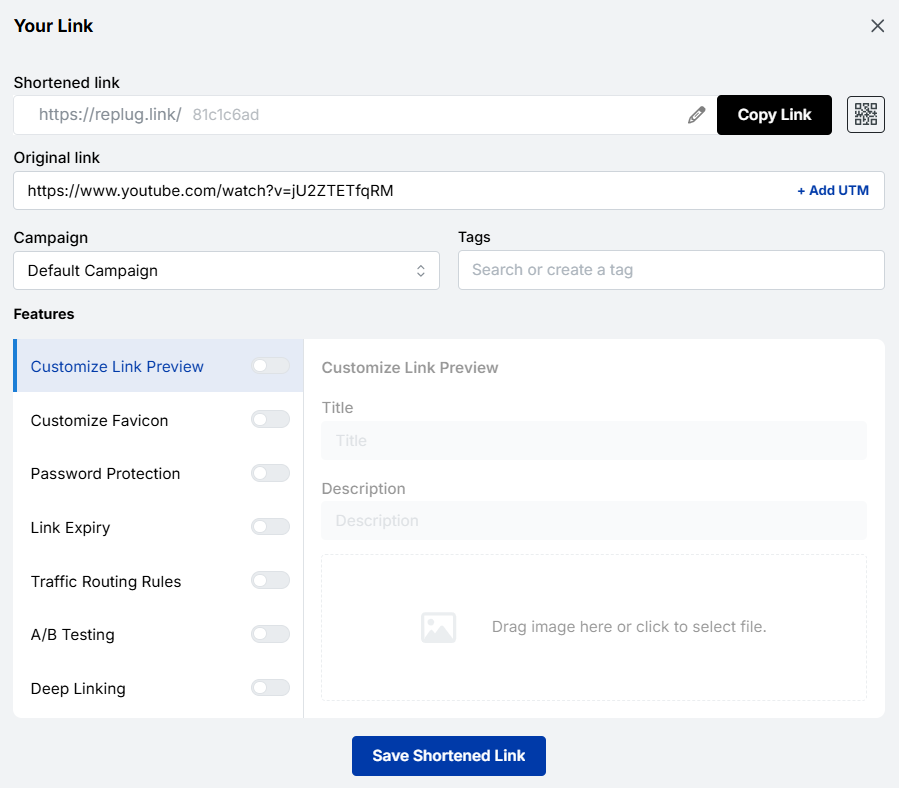
Step 3: Press Enter. The following screen will appear.
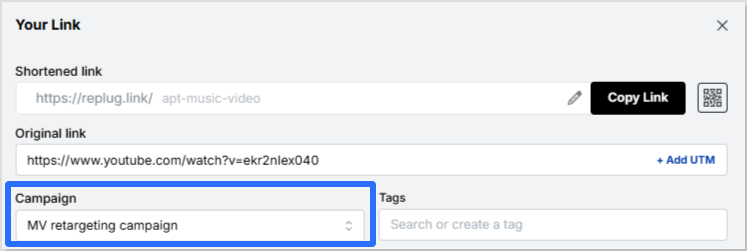
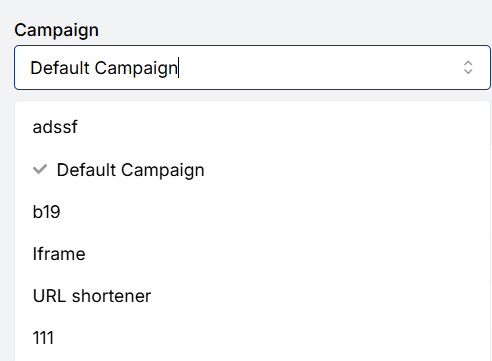
Here, you’ll spot the “Campaign” option. Go with the default campaign, or choose one from your existing campaigns in the dropdown menu.
Note: Creating a campaign takes only a few seconds. It can be the name of your project, allowing you to navigate it easily. For instance, if you’re creating a unique URL, your campaign can be titled “unique URL”.
Step 4: After that, customize your URL slug to make it unique. Once done, click the check mark to save the customization.
Step 6: Once done, click the “Save Shortened Link” button.
And you’re done!
Actionable link data: Replug’s analytics at your service
Replug not only provides powerful URL management capabilities but also offers rich analytics for each of your links. With Replug’s analytics feature, you can gain valuable insights into the performance and impact of your links, empowering you to make data-driven decisions and optimize your online strategies.
By using this amazing feature, you can track key metrics such as click counts, traffic sources, and your audience’s geographic distribution. You can also dive deeper into user behavior by analyzing details like click times, devices used, and referring websites.
Additionally, Replug lets you set up conversion tracking to measure the effectiveness of your campaigns and accurately assess the return on your marketing efforts.
Other methods to generate unique URLs
If you need to create distinct, trackable, or personalized URLs (rather than the same generic link everyone gets), there are some additional simple methods you can use.
These help with tracking, engagement, and giving users their own “space”, so you know exactly where traffic is coming from and who’s clicking what.
Add campaign parameters
One common way to make URLs unique and trackable is by adding tracking parameters (like UTM parameters) to the URL.
For example, you might append,
“?utm_source=facebook&utm_medium=social&utm_campaign=black_friday_sale” to the base link.
These parameters let you see where your visitors came from and which campaign drove them.
Create personalized user links
Another method is to generate links specific to each user, so that when “User A” clicks their link, it differs from “User B’s”.
These personalized URLs (sometimes called pURLs) can include a user-ID, name, or other unique identifier. They’re great for one-to-one campaigns, tracking individual engagement, or giving users their own landing space.
Generate custom short links
Instead of awkward long URLs, you can create short, branded vanity URLs that are easier to share and remember. These custom short links are not only cleaner visually but also offer analytics so you can track clicks, changes, or destinations.
Customize a user profile URL
Finally, when you have user profiles (on a site or network), you can allow each user to have a unique, customized URL (such as example.com/username) rather than something generic like example.com/profile/12345. This makes the link memorable, improves user experience, and can even help with SEO in some cases.
Unique URLs are special links you create so each recipient, source, or situation leads to a slightly different web address. This small tweak unlocks a lot of value.
Check out the top scenarios for using unique URLs.
Marketing & analytics
You can use unique URLs (for instance, links with tracking codes) to see exactly where your traffic is coming from and how people behave once they land.
Using parameters like “utm_source” or “utm_medium” helps you measure campaign performance in tools like Google Analytics and Usermaven. It also means you can compare which channels or messages are working best, and optimize accordingly.
Branding & sharing
When you give someone a link tailored for them (or their group), it feels more personal and thoughtful. People still click more when the link seems custom.
Also, unique URLs can help partner pages, influencer referrals, or social sharing be tracked and attributed back to your brand more cleanly.
User personalization
Finally, unique URLs allow you to customize what the user sees once they click. For example, the link might include a user ID or segment code, so the landing page shows their name, preferred product category, local currency, or language. This makes the experience feel relevant and boosts engagement.
Make your links truly yours: Introducing Replug’s white-label feature
Replug’s white-label solution empowers users to customize their experience like never before. With the ability to add their own branding elements to URLs, emails, reports, logos, and favicons, users can create a seamless brand identity.
By rebranding Replug, users can make it appear as if they developed the product or service themselves without investing extensive time and resources in its creation.
White-labeling becomes the go-to choice for companies looking to expand their offerings and reach new customers without the expense of building new products from scratch.
Unlocking the power of this top-notch feature allows users to establish a consistent and credible brand presence. By incorporating their own branding elements into Replug, they can deliver a personalized experience that captivates their audience and builds trust.
With Replug’s white-label solution, users can maximize their brand’s impact, extend their reach, and conquer new markets. It’s a fantastic opportunity to customize Replug and effortlessly advance their brand to new heights.
How to set up Replug’s white-label feature?
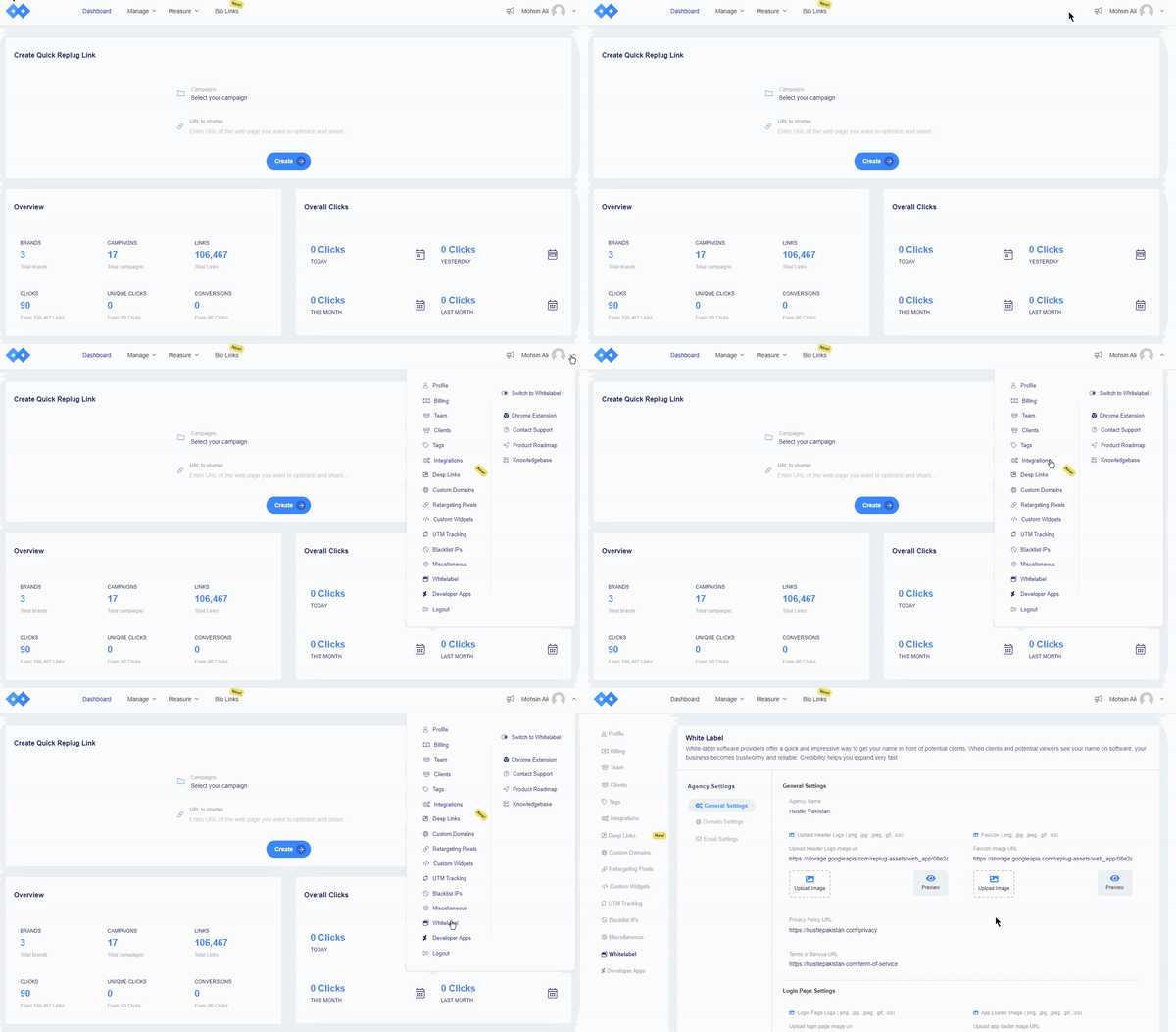
Navigate to Replug settings and click on the “white-label” option. You need to fill in the given field settings to set up your custom white-label URL shortener. The given field settings are:
General Settings
Domain Settings
Email Settings
Note: Read this setup guide for a complete know-how!
Once you have filled the required fields, switch to white-label. To do that, just click your profile name or icon in the top-right corner.
FAQs on unique URLs
What are the benefits of using unique URLs for tracking and analytics?
Using unique URLs for tracking and analytics offers numerous benefits, including understanding user behavior, measuring engagement, and optimizing your marketing campaigns for better results.
What role do unique URLs play in improving user experience?
Unique URLs improve user experience by ensuring visitors are directed to relevant content, reducing the risk of broken or outdated links, and allowing for more accurate tracking and analytics.
Can unique URLs be used for A/B testing and conversion rate optimization?
Yes, unique URLs can be used for A/B testing and conversion rate optimization. By creating different variations of a URL and measuring their performance, you can identify the most effective elements and optimize your campaigns accordingly.
Which is the best unique URL shortener online in 2026?
For a top-tier unique URL shortener in 2026, go with Replug. It excels as a unique URL generator offering full link management, retargeting, custom domains, and robust analytics. Two other popular choices to consider are:
– Bitly, renowned for being a widely used, unique URL builder with strong tracking, and –Rebrandly, which focuses intensely on branded short links and gives you a premium, unique URL link experience.
What is Replug’s white label feature?
Replug’s white-label feature lets users customize Replug with their branding elements. It helps businesses create a consistent brand experience without developing new products.
Google’s goo.gl link shortening service has been a trusted tool for condensing long URLs for years. But come August 2025, Google will officially discontinue goo.gl, leaving millions of links inactive.
What does this mean? All those goo.gl links you’ve created will stop working, which could seriously impact websites, campaigns, and digital strategies relying on them.
If you’ve been using goo.gl for your business or personal projects, now’s the perfect time to explore new options.
The good news? There are plenty of great alternatives out there, like Replug, TinyURL, and Rebrandly. However, one standout solution is Replug, offering advanced features like link retargeting and detailed analytics.
Boost ROI with branded URLs!
Enhance your marketing campaigns by creating shareable, trackable, and fully multi-purpose
customizable branded URLs.
In this blog, we’ll walk you through the best alternatives to goo.gl and show you how to switch without breaking a sweat, ensuring your marketing efforts run smoothly.
Why do you need to act now? With goo.gl links disappearing in August 2025, migrating to a new platform sooner rather than later will save you from headaches down the road. Plus, modern URL shorteners offer innovative tools like retargeting, branded links, and detailed analytics that goo.gl never supported.
Best goo.gl links alternative of 2026
There are plenty of alternatives to goo.gl that not only replace the service but also offer enhanced features for better link management. Among them, Replug stands out as the top choice. It’s the ultimate solution to ensure your marketing efforts keep thriving in 2026 and beyond.
Replug – The all-in-one link solution
Best for: Agencies and marketers who need more than just shortened links.
Best features:
Custom-branded URLs to elevate brand visibility and credibility.
Password protection to keep your links secure and private.
Deep linking to seamlessly redirect users to in-app content.
Design unique calls to action that stand out and resonate with your audience.
A/B testing to optimize your links based on performance data.
Branded QR codes that are easy to scan and share, aligning with your branding.
UTM tracking to monitor campaign performance with detailed insights.
White-label dashboards are needed to rebrand the platform fully without the Replug logo showing.
Replug makes marketing smarter and easier without burning a hole in your budget. If you’re a SaaS company chasing growth, an agency managing campaigns, or an e-commerce brand using powerful ecommerce software to expand your audience, Replug has your back.
A complete link management solution
for marketing professionals & agencies.
Try Replug for free
Get access to powerful features wrapped in a super intuitive interface, making it easy to use from day one. You can customize your links effortlessly, track performance in real-time, and get support whenever you need it, thanks to their 24/7 customer service.
Plus, with seamless integrations with popular platforms like Zapier, Google, Facebook, and more, it fits perfectly into your existing workflow.
Why is Replug the best alternative to goo.gl?
Replug offers a wide range of features, making it an excellent replacement for goo.gl.
Here are some of the key reasons why you should consider switching to Replug:
1. Customizable links
One of the standout features of Replug is its ability to further customize a shorten link the way you like. Unlike goo.gl, which provides generic short links, Replug allows you to create branded URLs consistent with your business identity.
This makes your links look more professional and helps with brand recognition and trust.
You can choose custom domains and add meaningful text to your short URLs, making them more clickable and relevant.
2. Advanced analytics
Replug doesn’t just shorten links—it also provides in-depth analytics to help you track the performance of your links. You can easily monitor the number of clicks, the geographic locations of your visitors, and the devices they use.
3. Retargeting features
Another major advantage of Replug is its ability to add retargeting pixels to your links. This feature is ideal for businesses and marketers who want to retarget visitors with ads on social media platforms like Facebook, Instagram, and Google.
Adding a retargeting pixel to a Replug link lets you track and reconnect with users who clicked on your link but didn’t take the desired action. This feature is a game-changer for improving conversion rates and driving sales.
4. Link management dashboard
Replug provides an easy-to-use link management dashboard that allows you to organize all your shortened links in one place. You can categorize links by campaign, monitor their performance, and edit or delete them if necessary.
In addition, the dashboard offers several powerful features to optimize your link strategy, such as creating link previews, customizing favicons, and running A/B tests. You can also change link destinations, rotate traffic, and bulk import or export links for greater efficiency.
Drive more clicks, conversions, and app installations by deep linking
to your favorite platforms.
Try deep links for free
For added control, Replug enables you to set link expirations and password-protect your links, ensuring both flexibility and security in your link management process.
5. Team collaboration
For businesses with multiple team members, Replug offers team collaboration features that allow users to manage and share links with colleagues.
This is particularly useful for agencies or marketing teams working on many campaigns, as it ensures everyone is on the same page and can access the necessary data.
How to migrate from goo.gl to Replug?
Migrating from goo.gl to Replug is a straightforward process. Here’s how you can do it in just a few simple steps:
1. Export tour goo.gl link data
The Google URL shortener login lets you access your account and download your link data before goo.gl links are deactivated.
Exporting this data provides you with a record of all your long URL analytics and statistics, which can be crucial for making informed decisions moving forward.
2. Sign up for Replug
Visit the Replug website and choose the plan that best fits your needs.
You can start with a 14-day free trial to get familiar with the platform and its features or opt for a premium plan for more advanced capabilities.
3.Create custom links
Once you’ve signed up, you can start shortening your URLs with Replug. Enter the long URL you want to shorten, and Replug will provide a custom short link.
You can also change the link name to make it more relevant and memorable by adding keywords or your brand name.
4. Update old goo.gl links
If you have existing goo.gl links, it’s time to replace them with Replug links. If those links are already shared across websites, social media, or email campaigns, it’s important to update them to ensure that your audience is directed to the correct destination.
You can also track these links with Replug’s analytics to see how they perform compared to the old goo.gl links.
5. Monitor link performance
Once your Replug links are live, use the platform’s analytics tools to track their performance.
Replug gives you detailed insights into how many clicks your links receive, where those clicks are coming from, and how they’re performing across different channels. This data will help you refine your campaigns and make necessary adjustments.
Benefits of switching to Replug before August 2025
With Google discontinuing goo.gl in August 2025, it’s important to start transitioning your links to a more reliable and feature-rich link optimization platform.
Here are a few key benefits of making the switch now:
No service interruptions: By migrating to Replug early, you ensure that your links continue to work without any downtime once goo.gl shuts down.
Improved link management: Replug’s advanced analytics, retargeting features, and easy link management tool dashboard give you greater control over your links and marketing campaigns.
Better branding opportunities: Customizable links allow you to build a stronger brand presence and make your links more memorable to your audience.
Future-proofing: As digital marketing continues to evolve, Replug’s features will keep you ahead of the curve with new updates and tools designed to enhance your marketing efforts.
Maximize marketing ROI
by transforming ordinary URLs into branded short links that convert.
Try Replug for free
Final thoughts
As Google’s goo.gl link shortening service heads for retirement, it’s essential to find a reliable alternative to keep your marketing campaigns on track.
Replug stands out as the best option with its powerful features, including customizable links, analytics, retargeting capabilities, and easy link management.
By migrating to Replug now, you can ensure a seamless transition and continue driving effective marketing campaigns long after goo.gl is gone.
Start using Replug today and experience the difference it can make to your link management and overall digital marketing strategy.
FAQs
Why is goo.gl shutting down?
Google will discontinue the goo.gl link shortener in August 2025 as part of its strategy to focus on other products and services.
How can I migrate my links from goo.gl?
You can easily export your goo.gl data, sign up for Replug, and replace your old goo.gl links with custom Replug URLs.
What are the benefits of using Replug over goo.gl?
Replug offers customizable branded links, detailed analytics, retargeting options, and a user-friendly dashboard, all of which goo.gl didn’t provide.
Is Replug suitable for businesses?
Yes, Replug is ideal for businesses of all sizes, offering advanced features like retargeting, custom domains, and analytics for effective marketing campaigns.
Imagine this: your website’s link lands in the search results. Isn’t that a good start?
But then you notice it reads like a random string of nonsense, full of messy parameters and no clues about what the page is about.
That’s the problem with non-optimized URLs. With around 13.7 billion searches happening on Google every single day, each URL becomes a tiny battleground for clicks and visibility.
Now here’s where it gets even worse. A confusing, long URL won’t just annoy visitors; it can drag down your search ranking and click-through rate, spoiling your chances even before users arrive.
The perfect solution?
Crafting SEO-friendly URLs that both search engines and real humans love. In the following sections, we’ll discuss exactly what an SEO-friendly URL looks like and why it matters so much.
So, let’s get started!
What is an SEO-friendly URL?
An SEO-friendly URL is simply a web address that’s easy to read, meaningful to both people and search engines, and gives a quick clue about what the page is all about.
According to experts, “such URLs are unique URLs or links designed to meet the high standards of Google search engines and users”.
Key characteristics of SEO-friendly URLs:
Descriptive: It clearly describes the content of the page, so someone taking a quick look at it can guess what it’s about.
Keyword-rich: It includes the page’s main topic or keyword, not in a spammy way, but naturally.
Human-readable: It treats humans in a really nice way. No strings full of code, numbers, or random characters.
Short & precise: It doesn’t carry on forever. The shorter and more to the point it is, the easier it is to remember and share.
Lowercase letters: Using all lowercase letters avoids confusion and problems with case-sensitive systems.
Static (not dynamic): It avoids long query strings, lots of URL parameters, and IDs, keeping the link stable and meaningful.
Use hyphens: Words are separated by hyphens (“-”) rather than underscores (“_”) or no separators, because search engines treat hyphens as word breaks.
By sticking to these attributes, your URLs become far more user-friendly, shareable, and better understood by both search engines and humans.
Example of an SEO-friendly URL (bad one):
Example of an SEO-friendly URL (good one):
Why SEO-friendly URLs are important
Your URL is more than a link. It’s a sneak peek into your content!
When your URLs speak the same language as your audience and search engines, you win on multiple fronts — more clicks, better rankings, greater trust, and ease of use.
Here’s why SEO-friendly URLs matter:
Improves search engine rankings: A clean, descriptive URL gives search engines helpful context about your page. Even if it’s a moderate factor, it adds up.
Enhances click-through rates: When users see a URL that makes sense and reflects the content, they’re more likely to click. Descriptive URLs like “exampledotcom/best-coffee-recipes” attract more clicks than generic ones like “exampledotcom/page123”.
Better user experience: Easy-to-read URLs help users understand what a page is about before they click, which builds confidence.
Enhances user trust & avoids confusion: A cluttered or disorganized URL full of parameters and random numbers looks inadequate; a clean and readable one feels trustworthy and credible.
Make search results more meaningful: When the URL itself contains readable words relevant to the content, search results become more transparent and aligned with user intent.
Enhances crawlability & indexing: Search engines prefer logical, structured URLs. They’re quite easier to crawl and index.
Optimizes link sharing: Clean, short URLs are easier to copy, paste, and share on social media and other sites, boosting visibility.
Simplifies site navigation: A well-organized URL structure helps users and crawlers understand your site’s hierarchy and navigate more intuitively.
Supports a long-term SEO strategy: Rather than quick fixes, an SEO-friendly URL structure lays the foundation for scalable, maintainable SEO over time. This helps in fewer redirects, no broken links, and less confusion.
20 best practices for creating SEO-friendly URLs
Crafting SEO-friendly URLs isn’t just about adding keywords; it’s about building clear, meaningful links that both users and search engines can easily understand.
To help you get it right every time, here’s a quick breakdown of the essential do’s and don’ts. Simple rules you can follow to make every link count.
Do’s
Don’ts
Use descriptive keywords: Include primary keywords relevant to the content.
Avoid keyword stuffing: Repeating the same keyword excessively.
Keep it short and simple: Aim for concise and easy-to-read URLs.
Avoid long URLs: Don’t include unnecessary words or parameters.
Use hyphens to separate words: Makes URLs more readable for both users and search engines.
Avoid underscores or spaces: These can confuse search engines and users.
Ensure the URL structure matches the site hierarchy: Helps users navigate more easily.
Avoid complex structures: URLs with excessive parameters or IDs are harder to read and rank lower in search results.
Use lowercase letters: Prevents duplicate content issues.
Avoid mixed-case URLs: They can cause confusion and potential errors.
Make it evergreen: Use URLs that remain relevant even as content updates.
Avoid dates in URLs: Limits the perceived freshness of content.
Optimize for mobile users: Ensure URLs are user-friendly on mobile devices.
Avoid unintuitive URLs: Random strings of letters and numbers are off-putting.
Use secure URLs: Always use HTTPS to build trust and boost rankings.
Avoid HTTP: Non-secure links can harm rankings and trust.
Test URLs periodically: Ensure they lead to the correct pages and load properly.
Avoid broken links: Damages SEO and user experience.
Incorporate branding when possible: Branded URLs boost recognition.
Avoid generic URLs: URLs like “page1.html” lack context.
Let’s take a closer look!
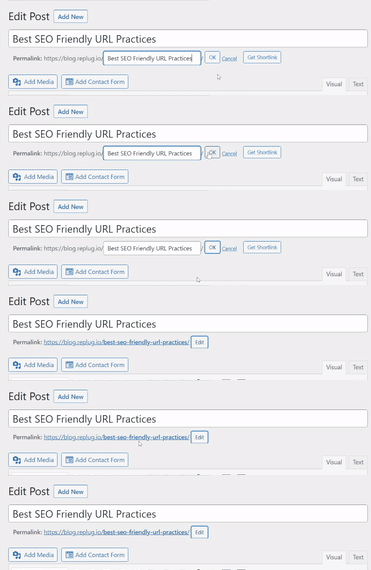
1. Optimize the URL slug
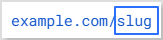
The URL slug is the part of the URL after the domain name, such as:
Keep it relevant and descriptive, clearly signaling the webpage’s content.
Take out non-essential words in the slug, such as random characters, special symbols, and numbers that don’t contribute to clarity.
Helpful Tip: If you’re updating content, avoid changing the slug unless necessary, to retain backlinks and traffic.
2. Choose a top-level domain (TLD)
Your domain extension (e.g., .com, .edu, .net, .org) influences user trust. While TLDs don’t directly affect SEO, “.com” is widely recognized and preferred by users, which creates a sense of credibility and reliability.
3. Keep the URL short & precise
Short links, or URLs, perform better in search engines and are easier to remember and share. Aim for a URL length of under 60 characters. While Google doesn’t penalize long URLs, shorter URLs contribute to a better user experience and higher click-through rates.
Maximize marketing ROI
by transforming ordinary URLs into branded short links that convert.
Try Replug for free
4. Avoid using the full blog title as the URL
Don’t use complete blog titles as your URL slug, as they can use up unnecessary characters. Long blog titles result in lengthy URLs.
Optimize your URL by choosing a relevant focus keyword related to that web page. The aim should be to create descriptive URLs, so users are not confused about the particular page’s content.
5. Remove punctuation marks
Punctuation can unnecessarily complicate URLs, making them harder to handle efficiently. By eliminating them, you can create clean, user-friendly URLs that are easy for both visitors and search engines to interpret.
6. Incorporate the primary keyword (must)
Including the primary keyword in your URL contributes to improved SEO. This practice reinforces the topic of your page, increasing its likelihood of matching search queries and ranking higher in search results.
For instance, if you’re offering SEO services in a specific region or state, using a URL that emphasizes “SEO services in California” helps signal both the service and location to search engines. Pairing this approach with a local citations service further strengthens local signals, improving search rankings and attracting users specifically looking for SEO services in California.
7. Use lowercase letters
Some servers treat uppercase and lowercase URLs differently, potentially causing duplicate content issues. Stick to lowercase to avoid complications and ensure SEO-friendly URLs.
Note: WordPress users shouldn’t worry, as it automatically puts URLs in lowercase and adds hyphens.
8. Use hyphens, not underscores
Google treats hyphens as spaces, making it easier to analyze your links. Underscores, however, can obscure your meaning.
For example:
Good: seo-friendly-url
Bad: seo_friendly_url
Using hyphens makes it easier for Google’s web crawlers to understand and estimate the information on your website, helping in generating steady results.
9. Incorporate keywords strategically
Keywords in URLs can boost SEO and enhance user understanding. But it is a good practice to avoid keyword stuffing.
1–2 keywords are enough. You must never repeat a keyword in a URL. Google will never reward you for using the same keyword in a URL more than once.
For instance:
Good practice:
Bad practice:
10. Limit folders & subfolders in the URL structure
Keep URLs short and straightforward by minimizing the use of folders and subfolders. This practice improves readability and user experience, as excessively nested subfolders can make navigation complex for visitors and search engines.
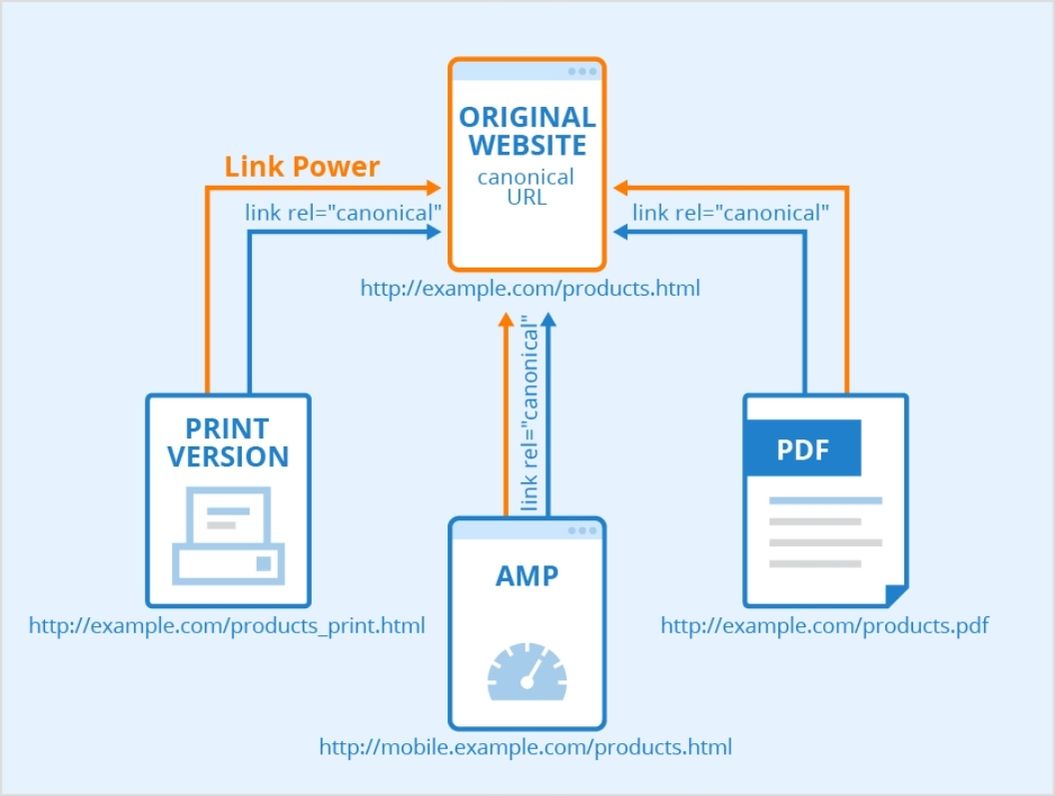
11. Use canonical tags for duplicate content
If the same content exists on multiple URLs, canonical tags tell search engines which version is the original. This prevents duplicate content issues and ensures proper indexing.
Look at the figure below to know how canonical tags work:
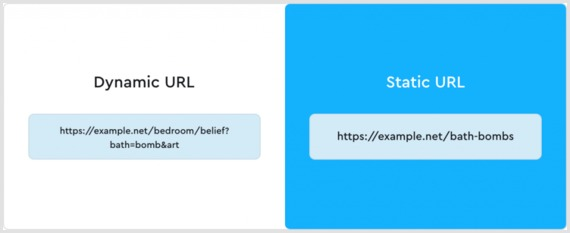
12. Prefer static over dynamic URLs
Static URLs are more straightforward, easier to read, and more SEO-friendly. Dynamic URLs, on the other hand, are less search-engine-friendly, include UTM parameters, and are complex to understand.
Pro Tip: Using a first-rate, SEO friendly short URL generator gives you more control over your links through customization and tracking.
Minimizing redirect loops improves site speed and user experience. While redirects are sometimes necessary, excessive use can lead to issues with search engine crawlers. When needed, opt for 301 redirects for better SEO results.
Besides, regularly check for and fix broken links, as they can harm your site’s credibility, disrupt user journeys, and negatively impact your SEO performance.
14. Utilize futureproof URLs
Refrain from incorporating dates in URLs to prevent content from becoming outdated. Futureproofing URLs by excluding time-sensitive information enables content updates without altering the URL structure.
15. Hide “www” and HTTPS prefixes
Modern browsers already indicate secure connections with a lock icon, so hiding prefixes like “www” or “https” can streamline your URLs.
Sub-domains can help organize content for specific markets or purposes. Anyhow, use them conservatively to avoid diluting your website’s authority.
These domains improve navigation and organize your website. The end goal of SEO is to improve user experience, and sub-domains just do that.
17. Eliminate stop words
Words like “the,” “is,” or “of” are often unnecessary in URLs. Removing them reduces URL length while retaining clarity.
For example:
Before (👎):
After (👍):
18. Use “safe” characters
Stick to alphanumeric characters and hyphens in your URLs. Avoid spaces, &, %, #, and other special symbols that require encoding and may confuse both users and search engines.
19. Prioritize readability
Your URL should clearly convey what the page is about. Use meaningful words, separate them with hyphens, and keep it easy to read so both users and crawlers understand it at a glance.
20. Avoid over-optimization
Don’t force keywords into the URL or make it unnaturally long. Overloaded, spammy URLs harm user trust and may reduce SEO value even if technically allowed.
Make every link count: Build SEO-friendly URLs with Replug!
And there you have it!
Everything you need to know about creating SEO-friendly URLs that rank higher, attract clicks, and keep your visitors coming back.
Remember, a clean, clear URL isn’t just suitable for search engines; it’s a trust signal for real people, too. So, take a few minutes to clean up your links, and you’ll see the difference in your traffic and engagement.
Ready to take things up a notch? Give Replug a try today! It’s one of the best tools out there for generating short, branded, and truly SEO-friendly URLs!
Frequently asked questions
Which URL is best for SEO?
A “vanity URL”, like “yourbrand.com/seo-guide”, is ideal because it’s short, easy to remember, and clearly communicates the page’s topic. That kind of clean address helps both users and search engines alike.
How to check SEO-friendly URL?
Use a tool like an SEO-friendly URL checker to evaluate whether your URL is readable, descriptive, uses hyphens, and avoids unnecessary parameters.
Should a URL include keywords?
Yes, including one relevant keyword helps users and gives a minor context signal to search engines. However, just don’t stuff in multiple keywords redundantly.
Which is the best example of a SEO-friendly URL?
Something like this:
example.com/how-to-create-seo-friendly-urls
Human-readable, descriptive, hyphen-separated, lowercase, and no weird characters or long query strings.
How long can a URL be for SEO?
There’s no strict character limit for SEO. Aim for ~60–70 characters or fewer to keep it clean and share-friendly, but readability and clarity matter more than exact length.
Are long URLs bad for SEO?
Not necessarily bad, but longer, cluttered URLs can hurt readability and user trust. They might cut off in search results or be harder to share.
How to use SEO-friendly URLs in your site?
Make sure when you publish or edit content, you:
– use lowercase letters – hyphen-separate words – keep the slug short & meaningful – avoid dynamic parameters and session IDs – maintain a logical folder structure
How much easier would hitting big growth goals feel if one simple link could guide people to every offer, video, and signup page at once?
Many brands push more content and ads while ignoring this quiet traffic leak. Clicks slip away because followers cannot find what they actually came for.
If you have ever searched for how to add multiple links in one link, you already know this pain.
Are you tired of swapping the single link in your Instagram or TikTok bio every time you launch something new? Long strings of URLs stuffed into captions make posts look messy and hard to follow.
The good news is that there is a smarter way!
By creating one master link that points to a clean landing page, you can send people to all your important links with a single tap.
In this guide, you will see five clear methods, from beginner-friendly options like Google Docs and Canva to professional link-in-bio tools with analytics and customization, so you can pick the right setup for your goals.
So, without any further ado, let’s get started!
What does it mean to add multiple links in one link?
Adding “multiple links in one link” means you share a single URL that points to a landing page containing many different destinations.
Instead of posting separate URLs for a website, shop, YouTube channel, and lead magnet, you give people one gateway link. When someone taps this master link, they land on a simple page that lists buttons or cards for every place you want to send them.
This approach is often called a link-in-bio, link hub, or link aggregation. It is very different from dropping several URLs in a caption, which can look cluttered and hard to click, especially on mobile.
A well-built bio link page is mobile-first, fast to scan, and easy to tap with a thumb. For platforms that limit bios to one clickable link, this is the cleanest way to turn that single spot into a full link menu.
For example, your master link might sit in your Instagram bio and open a page that lists your latest video, online store, newsletter, and contact form in one place.
Why you need to consolidate multiple links into one
Most social platforms allow you to add only one clickable link to your profile. Instagram and TikTok bios allow a single website field, and even on X or LinkedIn, character limits make long lists of URLs painful. When you need to promote many things at once, that rule blocks traffic and slows growth.
A single master link creates a central hub for your entire online presence. It looks professional, keeps your branding consistent, and prevents captions from becoming walls of links. Visitors see a focused set of clear buttons, which makes it easier to move from curious scrolling to clicking to action.
There is also a strong performance benefit. With the right multi-link tool, you can:
Track clicks on each button and see what people care about most
Update every destination from one dashboard without editing bios all the time
Test new offers faster and keep only the ones that perform
Support monetization through affiliate links, product pages, and email opt-ins
Use QR codes and branded URLs across both online and offline channels
Over time, those improvements give you better data and smoother workflows, instead of guessing which links matter.
Various methods to add multiple links in one link
There is more than one way to group many URLs together under a single click. Some options are quick workarounds using tools you already know, while others are built specifically for marketers and creators who want tracking and branding.
The methods below move from link-in-bio tools to practical hacks with Google Drive, Google Docs, Canva, and advanced URL shorteners.
Method #01: Using a link-in-bio tool for social media/general use
Using a reliable link-in-biotool is the fastest, most flexible answer when you want one link for many URLs on different social platforms.
1. Choose a service or tool
Start with a multi-link tool that goes beyond basic link lists. Replug.iostands out by combining bio link pages, branded short links, deep links, and analytics in one place. You can visit the website and create an account in a few minutes.
Compared with simple bio link generators available online, Replug also offers A/B testing, link rotator feature, and retargeting pixels, which matter when campaigns scale.
2. Create your landing page
Inside your dashboard, set up a new bio link page that will serve as your master link hub. Add buttons for everything you want to promote, such as social profiles, shop categories, recent videos, affiliate offers, and email signup forms.
Each item simply needs a clear title and the destination URL. Within a short time, you have one page that turns a single click into many paths.
3. Customize
Design matters when followers move from your profile to your bio link page. Replug lets you match your brand colors, upload a logo or profile image, and pick themes and button styles that feel like an extension of your content.
You can group links under simple headings, highlight time-limited links for launches, and add custom calls to action that appear on top of your shared content to drive more signups or sales.
4. Share
Once your bio link page looks right, Replug gives you one short URL that works everywhere. Add it to your Instagram, TikTok, YouTube, and X bios, and include it in email signatures or podcast descriptions.
You can also generate a QR code from inside Replug, so people at live events, on print flyers, or from product packaging can reach the same multi-link page with a quick scan. From that point on, you update links only in your Replug dashboard, and the master link remains the same.
Method #02: Using a Google Drive add-on for file collections & sharing
If your main objective is to share collections of files, such as media kits, client folders, or course materials, Google Drive can serve as a simple multi-link hub.
By using an add-on or extension, you can turn several Drive items into one shareable entry point. This keeps file sharing tidy without sending long lists of separate links.
1. Use an add-on or extension
Look for a Google Workspace add-on that lets you combine multiple Drive files or folders into a single share page. These tools often read the contents of a specific folder and then produce a simple index page that lists each item.
You can decide which files or subfolders to include and which to hide. This keeps sensitive content private while still giving clients or team members one clean link.
2. Generate links
Once the add-on (Google Drive Direct Download Link Generator) knows which files to include, you can generate a master URL that people can visit in any browser. When they open it, they will see a list of all the included Drive items, each with a clear name that matches your file titles.
This works well for asset packs, onboarding documents, or lesson libraries where people need everything in one place. You only need to update the underlying folder when you add or remove content.
3. Shorten (optional)
The auto-generated link from Google Drive or an add-on can be long and hard to remember. But don’t worry, you can easily shorten a link and turn it into a branded link that is easy to share and track with Replug.
This gives you analytics for every click on that shared Drive hub, lets you add retargeting pixels, and makes it simple to swap in a new target if you reorganize your folders later without changing the short link.
Method #03: Using online URL shorteners
Online tools, including both free and paid URL shorteners, can also help when you want to add or put multiple links into one link, especially for campaigns and testing.
Basic shorteners only replace a long URL with a shorter one, but advanced platforms such as Replug go further with even more advanced features.
When building your link-in-bio page, using a trustworthy link shortener tool lets you create branded, memorable short links that are easier to share and track.
Custom short links not only look more professional but also give you valuable analytics on which links your audience clicks most. This data helps you optimize your link-in-bio strategy and understand what content resonates with your followers.
Method #04: Using Google Docs
Google Docs can act as a simple, no-design multi-link page when you need something fast. It is not as polished as a dedicated bio link page, but it works well for internal lists, quick resource sheets, or temporary campaigns.
1. Create & format your document
Open a new Google Doc and start with a short heading that explains what the document covers, such as weekly promos or client resources. Under that, list the items you want to share in a clear order, for example, newest at the top.
Turn each line of text into a hyperlink by highlighting it, using the link option (🔗) in the toolbar, and pasting your URL. You can use bold text or simple dividers to group links into sections.
2. Set sharing permissions
Once your document looks organized, click the “Share” button and adjust the settings. For broad audiences, choose the option that lets anyone with the link view the document without signing in.
For private or paid content, restrict access to specific email addresses or domains so only approved people can open it. Always double-check permissions to avoid exposing internal files by mistake.
3. Share or shorten your Doc link
Copy the shareable Google Docs URL and test it in a private browser window to confirm that it loads as a read-only page.
If the link looks too long and messy, shorten it to a branded URL that reflects your brand name. This makes your simple Doc feel more professional, lets you track how many people click it, and allows you to improve the title and preview that appear when you post it on social media.
Finally, share this link wherever you want!
Method #05: Using Canva
Canva is a smart choice that lets you build a visual page with your branding, images, and buttons, then share it via a single URL. This is perfect for creators and small brands that care a lot about visuals.
1. Design a one-page layout
In Canva, start with a blank design sized for a phone screen or pick one of the simple website templates. Add your logo, a short intro, and a clear headline that tells visitors what they can expect to find.
Then drop in buttons or text boxes for each place you want to send people, such as Shop, Newsletter, Latest Video, and Contact. Keep the layout clean with enough white space so each tap target is easy to hit on mobile.
2. Add hyperlinks to elements
Select each button or text block and use Canva’s link option to attach the correct URL. Test carefully by clicking through in Canva’s preview so you know every button goes to the right destination.
You can use colors and size to highlight the most important link, such as a current launch or lead magnet. If your brand uses a certain palette or font, apply those styles so this page matches your existing content.
3. Publish & share your Canva link
When your design is ready, you will receive a single URL using Canva’s share options that loads your design in a browser like a landing page.
Now your Canva design works just like a bio link page, and you can place or share that one link wherever your audience meets you.
Social networks give you precious little space to share links, which makes it hard to promote more than one thing at a time.
Learning how to add multiple links in one link turns that tight limit into a central hub that sends people to every profile, product, and piece of content that matters. Instead of messy captions full of URLs, you offer a single clean tap that feels professional and easy to use.
Across this guide, you saw five ways to do that, from full-featured link-in-bio tools to handy workarounds with Google Drive, Google Docs, and Canva.
The next move is simple!
Decide which method fits your current stage, then build your first multi-link page and share the master URL across your profiles.
If you want professional features and room to grow, start with Replug today. Set up your bio link page, and watch how much smoother your link sharing becomes. One well-planned link can support every launch, partnership, and piece of content you create from now on.
Go beyond generic link pages!
Create custom bio links that truly fit your brand
With Replug, you can create bio links that are unique, engaging, and built to convert.
The most practical way is to create a small landing page that lists all your important URLs, then share a single link to that page. A modern link-in-bio generator, such as Replug, makes this quite simple.
You just add buttons for each destination and receive a single master URL. You can then place that master link in your social bios, emails, or QR codes, etc.
How to add multiple links in one link on iPhone?
On an iPhone, you follow almost the same steps as on a desktop, just on a smaller screen. Open Safari or your browser of choice, sign up for a link-in-bio tool, and create your bio link page with titles and URLs. Once it looks right, copy the master link from your dashboard.
Then open Instagram, TikTok, or another social app, edit your profile, and paste the master link into the website field so every mobile visitor reaches your full list of links, hassle-free.
How to put multiple links in one Excel cell?
Excel supports only one standard hyperlink per cell, so you cannot include multiple clickable URLs in a single cell using standard methods. As a workaround, you can place several short labels in nearby cells, each with its own hyperlink, and style them so they look like a group.
Another way is to add a single link in a cell, then press Ctrl + Enter or Alt + Enter. This lets you add another URL or link, and, following the same process, you can add as many links as you want in a single cell. But this is too frustrating if you have a very long list of links at hand.
One more option is to insert shapes or text boxes on top of a cell, then assign each shape its own link. For most people, it is easier to move the link list to a small web page or document and then share one master link to that page.
What is the best tool to add multiple links in one link?
The best tool depends on your goals, but for most marketers, creators, and agencies, Replug is a strong choice. It covers both sides of the problem, giving you bio link pages for visual link hubs and powerful branded short links for campaigns.
Can I create a multi-link page for free?
Yes, you can build a multi-link page without spending much, and in some cases with no direct cost. Simple options include using Google Docs or Google Sites to list your URLs, then sharing that single link.
Many bio link tools also offer entry-level plans that let you build one basic page with a limited set of links and features. However, as your needs grow and you want extras such as branded short links, A/B testing, and advanced analytics, paid tools become a solid investment.
Can you put multiple links in one LinkedIn post?
LinkedIn lets you paste several URLs into a single post, and they will be clickable once the post is published. That said, too many separate links can look cluttered and may distract people from your main call to action.
A cleaner approach is to use a single master link that leads to a well-organized bio link page, and explain in the post that all resources are available on that page. This keeps your post focused while still giving followers access to everything you want to share.
Ever needed to share content with a time limit? We get it—managing when and how long something is accessible can be tricky. But don’t worry! A temporary URL is all that you’ll need to resolve this problem. These genius links let you set an expiration time or click limits, automatically redirecting users to a new destination once the link is no longer relevant.
In this guide, we’ll explain how to create temporary URLs in simple, easy-to-follow steps. So, let’s get started!
What is a temporary URL?
A temporary URL, also known as an expiring link, is a web link that is only valid for a limited period. It allows you to share content such as documents, files, or web pages with others while ensuring that access to that content expires after a specific duration.
This temporary access helps maintain control over who can view the content and for how long, making it particularly useful for securely sharing sensitive or time-sensitive information. Once the expiration has passed, the URL becomes invalid, preventing further access to the shared content.
Temporary URLs are commonly used in various scenarios, including sharing confidential documents, distributing promotional materials for a limited time, and granting temporary access to private web pages or resources.
How do you create a temporary URL with Replug?
Replug simplifies link management, allowing you to quickly create short links and track their performance. With powerful features like real-time analytics and optimized link performance, Replug helps you streamline your marketing strategy, boost engagement, and drive better results—all in one seamless platform.
Replug.io provides extensive features like password protection, expiring links, and custom link previews. Additionally, it allows you to personalize favicons, establish traffic routing rules, conduct A/B testing, facilitate deep linking, and much more, enabling you to optimize and customize your links precisely.
A complete link management solution
for marketing professionals & agencies.
Try Replug for free
Here’s how to create a temporary URL in Replug
Step 1: Sign in to Replug or create a free account.
Step 2: Once you’ve signed in, enter the link you want to shorten under the “Quickly Shorten your link” box:
Step 3: Simply toggle the “Link Expiry” button and set your desired expiry date for the link.
Step 4 (Optional): Set up password protection to add an extra layer of security. This is useful when you want only the intended recipients to have access to your content. It also reduces the risk of unauthorized access to links.
Step 5: Save the shortened link. Your temporary link will be live and ready to share!
Link tracking and analytics with Replug
Utilize Replug’s robust tracking and analytics features to gain valuable insights into the performance of your shortened URLs. Here’s how:
Track metrics such as click-through rates, geographic location of clicks, and referral sources to gain insights into audience engagement.
Analyze data trends over time to refine your marketing strategies and optimize link-sharing efforts.
Access detailed reports and metrics directly from the Replug dashboard to inform decision-making and measure campaign effectiveness.
By utilizing Replug’s tracking and analytics features, you can better understand your audience, refine your marketing strategies, and drive better business results.
A complete link management solution
for marketing professionals & agencies.
Try Replug for free
FAQs
How do I create a temporary URL?
You can use a URL-shortening service like Replug to create a temporary URL. Simply sign in or create an account, paste the long URL you want to shorten, set the expiry date and time, customize the link if desired, and save it.
How long will the temporary URL be active?
The duration of a temporary URL’s validity depends on the settings you choose during the creation process. You can set the link to expire after hours, days, weeks, or even months.
Can I customize the temporary URL?
Yes! Many URL shortening services, including Replug, allow you to customize the temporary URL to reflect your brand or campaign. You can often add a custom URL slug or edit the link to make it more memorable and relevant to your audience.
What happens when the temporary URL expires?
Once the specified expiry date and time are reached, the temporary URL will no longer be accessible. Users attempting to access the link after expiration will typically be redirected to a designated landing page or receive an error message.
Can I track the performance of my temporary URL?
Yes, most URL shortening services offer tracking and analytics features that allow you to monitor the performance of your temporary URL. You can track metrics such as click-through rates, geographic location of clicks, and referral sources to gain insights into audience engagement.
Have you ever clicked on a piece of text and instantly landed on another page? That simple action powers much of the web.
With around 6 billion people (about 74% of the global population) now using the internet, links are the tiny bridges that connect billions of pages together every second.
For bloggers, marketers, and website owners, clickable links are more than just navigation. They help guide readers, boost SEO, and keep visitors exploring your content.
And considering that over 96% of web pages get little to no organic traffic, knowing how to properly link your content can make a real difference in visibility.
The good news?
Creating a clickable link takes only a few seconds once you know how. But before jumping into the steps, let’s start with the basics: what exactly is a clickable link?
What is a clickable link?
A clickable link(also called a “hyperlink”) is a piece of text, image, button, or icon that you can click or tap to open another webpage, file, or location on the internet.
Behind the scenes, the link contains a URL (Uniform Resource Locator), basically the address of the destination page. When someone clicks the link, their browser reads that URL and loads the corresponding content instantly.
The main goal of a clickable link is simple: to connect different pieces of information on the web and make navigation easy for users.
Without links and URLs connecting pages, the internet would just be a collection of isolated documents instead of the interconnected web we use every day.
How does it work
A clickable link contains a URL, which is the exact address of the destination page or resource.
Here’s how it works:
When someone clicks the link, the web browser reads the URL and requests that page from the server.
The server then sends the requested page back to the browser, which loads the new content instantly.
Links can point to:
another website,
another page on the same site,
a file, or
even a specific section within a page.
Note: Clickable links don’t have to be just text. They can also be images, buttons, icons, or graphics, all connected through URLs. Most browsers visually highlight links (often blue or underlined), so users know they are clickable and lead somewhere else.
The importance of clickable links in 2026
Navigation: Clickable links help users move from one page to another quickly, making the web easy to explore.
Content discovery: They connect related articles, resources, and tools through URLs, helping readers find more useful information.
SEO benefits: Search engines use links to understand website structure and relevance, which can influence how pages rank in search results.
User engagement: Well-placed links keep visitors exploring your site longer, which can reduce bounce rates and improve conversions.
Credibility: Linking to trusted sources through URLs can make your content look more reliable and well-researched.
In short, clickable links are the connective tissue of the internet. They guide readers, share knowledge, and keep the web organized and accessible.
How do you make a link (URL) clickable?
Making a URL or a link clickable is usually very simple. In most apps, websites, and social platforms, you just need to paste the URL into a text field, and the platform automatically turns it into a clickable link.
The exact steps may vary slightly depending on the device or platform you’re using, but the process is generally quick and beginner-friendly.
Let’s walk through how to do it on different platforms step by step!
How to make a link clickable on a phone
If you’re using a smartphone (Android/iOS), creating a clickable URL is mostly about copying and pasting the link. Most messaging apps automatically convert the pasted URL into a clickable link.
Step-by-step guide:
1. Open your phone’s browser (Chrome, Safari, etc.) and go to the page you want to share.
2. Tap the address bar at the top and copy the full URL.
3. Open the messaging app you want to use (Messages, WhatsApp, Messenger, etc.).
4. Tap inside the message box.
5. Press and hold the screen, then tap Paste.
6. Send the message.
Once sent, the URL automatically becomes a clickable link that the recipient can tap to open the webpage.
How to make a link clickable on Instagram
Instagram doesn’t allow clickable URLs directly inside most post captions. Instead, the main clickable link appears in your profile bio (often called the “link in bio”).
Step-by-step guide:
1. Open the Instagram app and go to your Profile.
2. Tap Edit Profile.
3. Scroll down and find the Links or Website section. In some cases, you will see an “Add link” option. Tap it.
4. Tap Add link,Add external link, or Add new link.
5. Paste your URL into the field, and give it a title.
6. Save the changes by tapping the ✔ icon.
Now the URL in your bio becomes clickable for anyone visiting your profile.
Useful tip: Many creators add text like “Click the link in bio” in their posts or stories to direct followers to that clickable link.
How to make a link clickable on TikTok
On TikTok, clickable links usually appear in your profile bio or website field. However, accounts need 1,000 followers or a Business Account to add a website link.
Step-by-step guide:
1. Open the TikTok app.
2. Tap Profile at the bottom.
3. Tap Edit profile.
4. Find the Website or Links section.
5. Paste your URL (starting with https://) into the field.
6. Save your changes.
After saving, the URL becomes a clickable link on your TikTok profile, allowing viewers to open your website or landing page directly.
How to make a link clickable in Word
Creating a clickable link in Microsoft Word is very simple. You can turn any text, image, or phrase into a link that opens a webpage, file, or email address.
Step-by-step guide:
1. Open Microsoft Word and open your document.
2. Highlight the text or phrase that you want to turn into a clickable link (e.g., Visit our website).
3. Go to the Insert tab in the top menu.
4. Click Link or Hyperlink in the “Links” section.
5. A dialog box will appear. In the Address field, paste the URL you want to link to.
6. Click OK.
Your selected text will now appear as a blue, underlined, clickable link that opens the URL when clicked (“Ctrl + click”).
Quick tip: You can also press “Ctrl + K” after selecting text to quickly add a hyperlink.
How to make a link clickable in Excel
Excel also allows you to create clickable links inside cells. This is useful when you want to link data, websites, or files directly from your spreadsheet.
Step-by-step guide:
1. Open your Excel worksheet.
2. Click the cell where you want the clickable link to appear.
3. Right-click the cell and select Link or Hyperlink.
4. Click on Insert Link.
5. In the dialog box, paste the URL in the Address field.
6. Click OK.
Now the cell contains a clickable link that opens the destination when clicked.
Alternative method:
You can also create a link using the formula:
=HYPERLINK(“https://example.com”, “Open Website”)
This formula creates a clickable link with custom display text inside the cell.
Note: You can also type or paste a web address (e.g., https://replug.io/) directly into a cell and press Enter or Tab. Excel usually converts it automatically. Or, you can use the Insert tab option as well. It’s totally up to you to use the method that suits you the best!
In PowerPoint, clickable links can be added to text, images, icons, or shapes. This is often used in presentations to open websites or jump to other slides, hassle-free.
Step-by-step guide:
1. Open your PowerPoint presentation.
2. Select the text, image, or object that you want to turn into a clickable link.
3. Go to the Insert tab on the top menu.
4. Click Link (or Insert Link).
5. In the Address box, paste the URL you want to link to.
6. Click OK.
Your text or object is now a clickable link. When clicked during the slideshow, it will open the linked webpage or file.
Helpful tip: You can also link to another slide inside the same presentation, which is useful for interactive presentations or navigation menus. For long research briefs, an AI agent for PowerPoint can draft a clean first-draft deck, saving hours before you add the clickable links described above.
How to make a link clickable in Gmail
Adding a clickable link in Gmail helps make your emails cleaner and easier to read. Instead of pasting a long URL, you can attach it to simple text like Visit our website.
Step-by-step guide:
1. Open Gmail and click Compose to start a new email.
2. Write your email message as you normally would.
3. Type the text you want people to click (e.g., Check our latest report).
4. Highlight that text with your mouse.
5. Click the Insert link icon (it looks like a small chain) in the email toolbar.
6. A small box will appear. Paste the URL you want to link to in the address field.
7. Click OK or Apply.
Your selected text will now become a clickable link that opens the URL when the recipient clicks it.
Quick tip: You can also press Ctrl + K (Windows) or Cmd + K (Mac) after selecting the text to insert a link faster.
How to make a link clickable in Google Docs
In Google Docs, you can turn any word, phrase, or even an image into a clickable link that opens a webpage, file, or another section of your document.
Step-by-step guide:
1. Open your Google Docs document.
2. Highlight the text you want to turn into a clickable link.
3. Click the Insert menu at the top of the page.
4. Select Link from the dropdown menu (or click the chain icon in the toolbar).
5. In the link box, paste the URL you want to connect to.
6. Click Apply.
Your text will now appear as a clickable hyperlink that opens the linked webpage when someone clicks it.
Helpful tip: You can also press Ctrl + K after selecting text to insert a link quickly in Google Docs.
How to make a link clickable in a PDF
Making a URL clickable in a PDF usually requires a PDF editor such as Adobe Acrobat or another PDF editing tool.
Step-by-step guide:
1. Open your PDF file in a PDF editor (e.g., Adobe Acrobat).
2. Go to Tools and select Edit PDF.
3. Click Link, then choose Add/Edit Web or Document Link.
4. Use your mouse to draw a rectangle around the text or area where you want the clickable link.
5. A dialog box will appear. Choose Open a web page as the link action.
6. Paste the URL of the webpage you want to link to.
7. Click OK and then save the PDF.
Now the selected text or area becomes a clickable link that opens the URL when someone clicks it in the PDF.
Helpful tip: If you still have the original document (Word, Google Docs, etc.), it’s often easier to insert the link there and then export the file as a PDF so the clickable URL is preserved automatically.
How to make a link clickable in Canva
In Canva, adding a clickable link is very quick. You can attach a URL to text, images, buttons, or shapes. When the design is downloaded as a PDF or shared online, the link remains clickable.
Step-by-step guide:
1. Open your design in Canva.
2. Highlight the text, image, or button you want to link.
3. From the available options, click the Link icon (it looks like a small chain).
4. Paste or enter the link you want to connect to.
5. Press Enter or click Done.
6. Download your design as a PDF (standard or print) or share it online.
Now, anyone viewing the exported PDF or online design can click the element to open the URL.
Quick tip: Canva links work best when you export your design as a PDF or present it digitally, since links don’t work in printed versions.
Best practices for making a clickable link: Create effective hyperlinks
Creating a clickable link is easy, but crafting a good hyperlink takes a little thought. A well-made link helps readers understand where they’re going before they click and makes your content easier to navigate.
Following a few simple practices can improve usability, accessibility, and even SEO.
Descriptive link text: Use text that clearly explains where the link leads. Instead of vague phrases like “click here,” write something meaningful like “Download the SEO checklist.” Clear link text helps users understand the link’s purpose and improves accessibility for screen readers.
Concise phrasing: Keep hyperlink text short but informative. Long or overly wordy links can be harder to read and navigate, especially for users relying on assistive tools.
Visual accessibility: Make sure links are easy to recognize. Typically, they appear underlined or in a different color so users can quickly spot them.
Open in new tab: For external links, opening them in a new tab can help readers stay on your page while still exploring the linked content.
HTML structure: On websites, hyperlinks are usually created with the HTML <a> tag and a valid href attribute, which tells browsers where the link should go.
Using these simple practices makes your hyperlinks clearer, more user-friendly, and easier for everyone to navigate.
Create branded, short clickable links with Replug!
If you regularly share links online, you’ve probably noticed how long and messy some URLs can look. That’s where Replug comes in!
It’s a powerful link management platform that helps you shorten, brand, and track your links all from one dashboard. With its custom URL shortener, you can turn long URLs into clean, professional links that are easier to share and remember.
Maximize marketing ROI
by transforming ordinary URLs into branded short links that convert.
Try Replug for free
Replug isn’t just about shortening links; it also helps you manage and optimize them. The platform allows you to create branded, clickable short links using custom domains, track clicks with detailed analytics, and organize your links for marketing campaigns.
Many marketers and businesses use Replug because it makes link sharing look more professional while also giving insights into how people interact with those links. You can even run A/B tests, add tracking parameters, and monitor link performance in real time.
In short, if you want your links to look cleaner & clickable, more trustworthy, and easier to manage, Replug’s link shortener is a great tool to try.
Wrapping up
In the end, making a link clickable is a small skill that makes a big difference online. From understanding what hyperlinks are to creating them on platforms like Word, Excel, Gmail, PDFs, or social media, the process is actually quite simple once you know the steps.
Clickable links help connect information across the web and make it easier for readers to navigate between pages, documents, and resources with a single click.
By usingclear link text, following good linking practices, and even using tools like Replug to create branded short links, you can make your content cleaner, more useful, and easier to explore.
So the next time you share a URL, take a few extra seconds to turn it into a clickable link. It’s a small tweak that greatly improves the reader’s experience.
Frequently asked questions
How do I copy a website link and make it clickable?
Here’s how to do it:
1. Open the webpage you want to share. 2. Copy the URL from the browser’s address bar (Ctrl + C). 3. Paste it into your document, email, or message (Ctrl + V). 4. Most platforms automatically convert the pasted URL into a clickable hyperlink. If not, highlight it and add a link manually.
How to make a link clickable with Ctrl?
Here’s how:
1. Highlight the text you want to turn into a link. 2. Press Ctrl + K on your keyboard. 3. A link box will appear. 4. Paste the URL and click OK.
This shortcut works in many apps like Word, Gmail, and Google Docs.
How to make a link clickable without seeing the web address?
Here’s how to do it:
1. Write the text you want people to click (e.g., Visit our guide). 2. Highlight that text. 3. Insert the URL using the Insert Link option or Ctrl + K.
Now the reader sees only the text, not the full web address.
How to make a link clickable in an email?
Here’s how:
1. Open your email composer (Gmail, Outlook, etc.). 2. Write your message and highlight the text you want to link. 3. Click the link icon or press Ctrl + K. 4. Paste the URL in the box, and apply it.
This is useful when you send newsletters, share resources, or collect email addresses through sign-up forms or landing pages.
How to make a link clickable in images?
Here’s how to do it:
1. Select the image in your editor or website builder. 2. Click Insert Link or Add hyperlink. 3. Paste the URL and apply it.
In HTML, this is done by placing the image inside an anchor tag (<a>), which makes the image clickable.
How to make a link clickable in text editors?
Here’s how:
1. Highlight the word or phrase. 2. Click the link icon in the editor toolbar or press Ctrl + K. 3. Paste the URL and confirm.
Most modern editors like Google Docs, WordPress, and Notion follow this same process.
How do I turn a plain text link into a hyperlink?
Here’s how to do it:
1. Select the plain text URL or phrase. 2. Use Insert Link or Ctrl + K. 3. Paste or confirm the destination URL.
This converts the text into a formatted hyperlink that users can click seamlessly.
How do I turn a word into a clickable link?
Here’s how:
1. Type the word you want to use as the link. 2. Highlight the word. 3. Add the destination URL using the Insert Link tool or Ctrl + K.
The word will now act as a clickable hyperlink.
How to create a link for a document that is clickable?
Here’s how to do it:
1. Upload the document to a location such as Google Drive, OneDrive, or your website. 2. Copy the shareable link for the document. 3. Paste that link into text and add it as a hyperlink.
When clicked, it will open or download the document.
How to create a link to a website that is clickable?
Here’s how:
1. Copy the website’s URL from the browser’s address bar. 2. Highlight the text where you want the link to be placed. 3. Insert the URL using Insert Link or Ctrl + K, and save changes.
Websites typically use the HTML <a> tag with an href attribute to define the link destination.