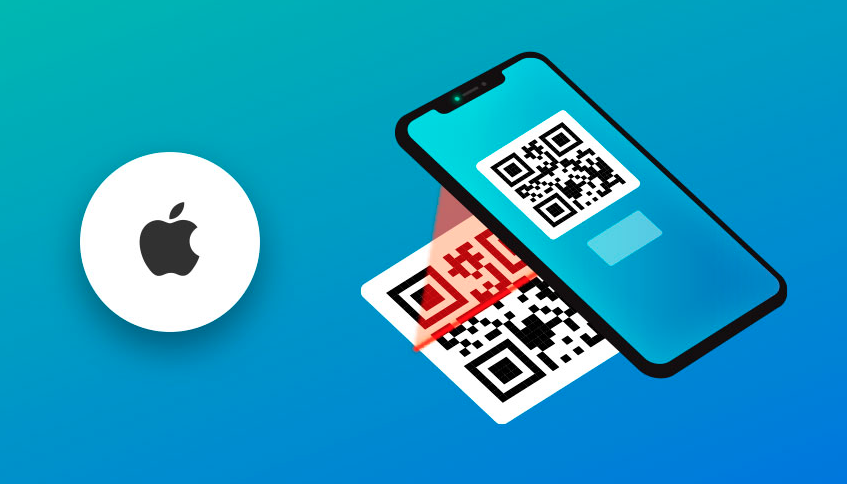
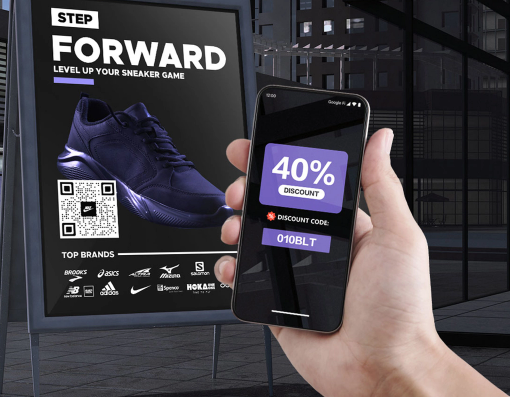
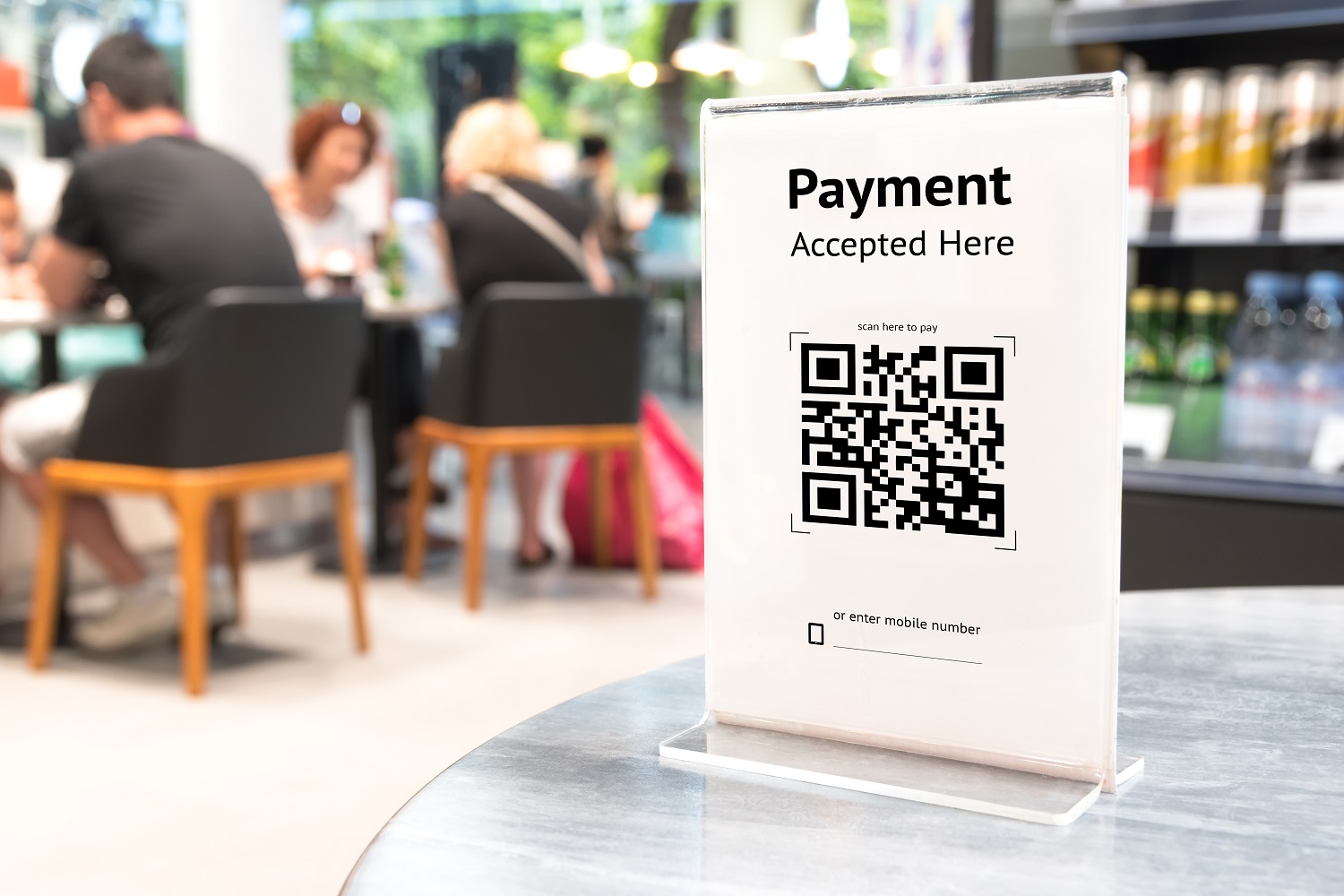
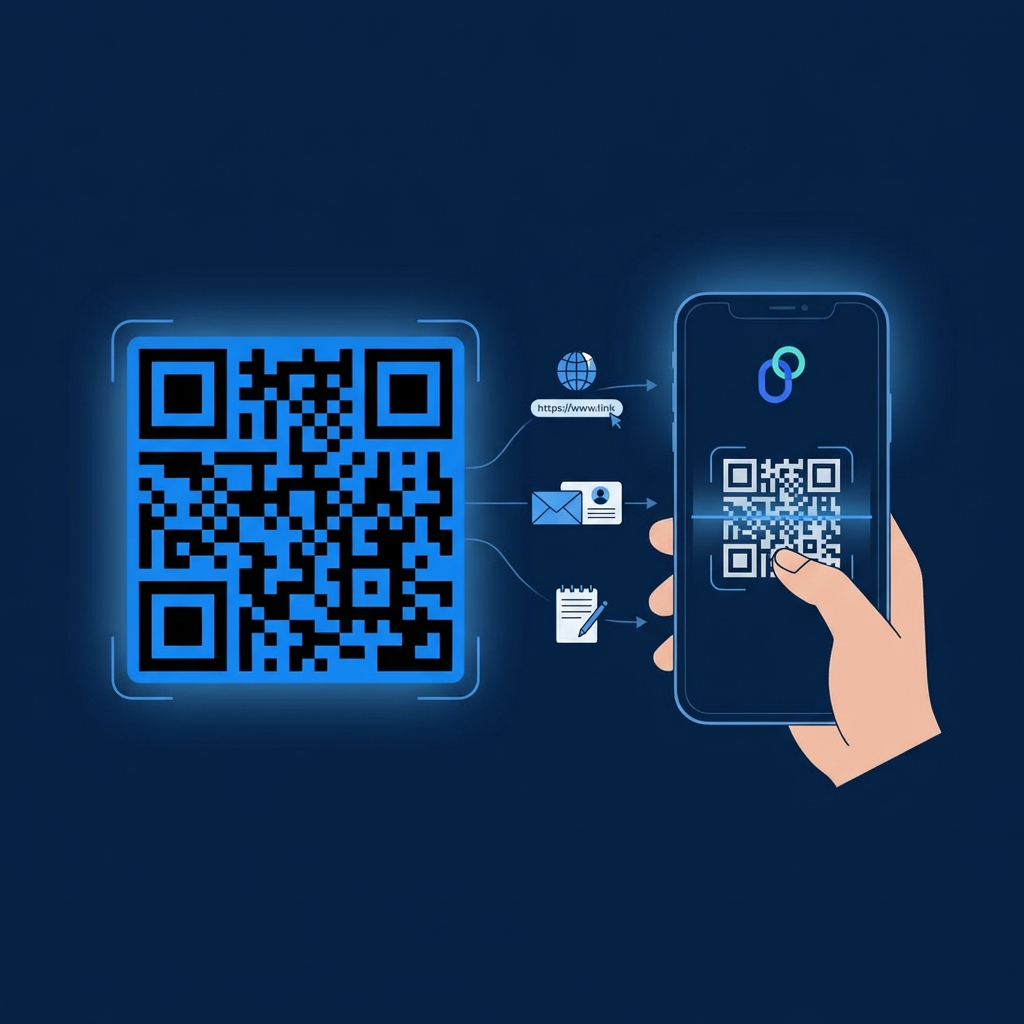
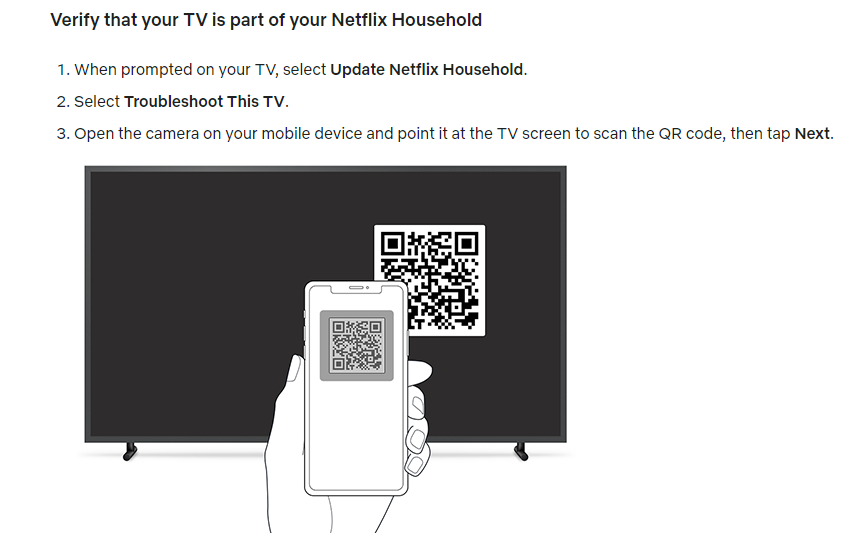
QR codes make accessing links, menus, and information effortless. Whether you’re on the go or browsing a menu, QR codes simplify the process. If you’re using an Apple device, scanning a QR code on your iPhone is a breeze, thanks to the built-in scanner in the Camera app.
Below, we’ve outlined three simple methods to scan a QR code using your iPhone’s camera.
3 methods to scan a QR code on an iPhone
Method 1: Using the Camera app to scan QR Codes
Apple has made QR scanning a breeze. Just follow these steps:
Open the Camera app.
Point your camera at the QR code, ensuring it’s within the frame.
Hold still for a moment—your device will recognize the code and display a notification banner at the top.
Tap the banner to open the link or perform the action associated with the QR code.
Note: If your camera doesn’t pick up the code immediately, try adjusting the distance or ensuring there’s good lighting.
Activating QR Code scanning in settings
In rare cases, QR scanning might not work right away. If that happens, make sure the feature is turned on:
Open the Settings app.
Scroll down and select Camera.
Toggle Scan QR Codes on.
Want to test it out? Try scanning this QR code we generated using Replug!
Replug not only helps generate QR codes but also tracks clicks and engagement, making it an excellent free link shortener online for businesses and marketers.
Method 2: Using the QR Scanner in the Control Center
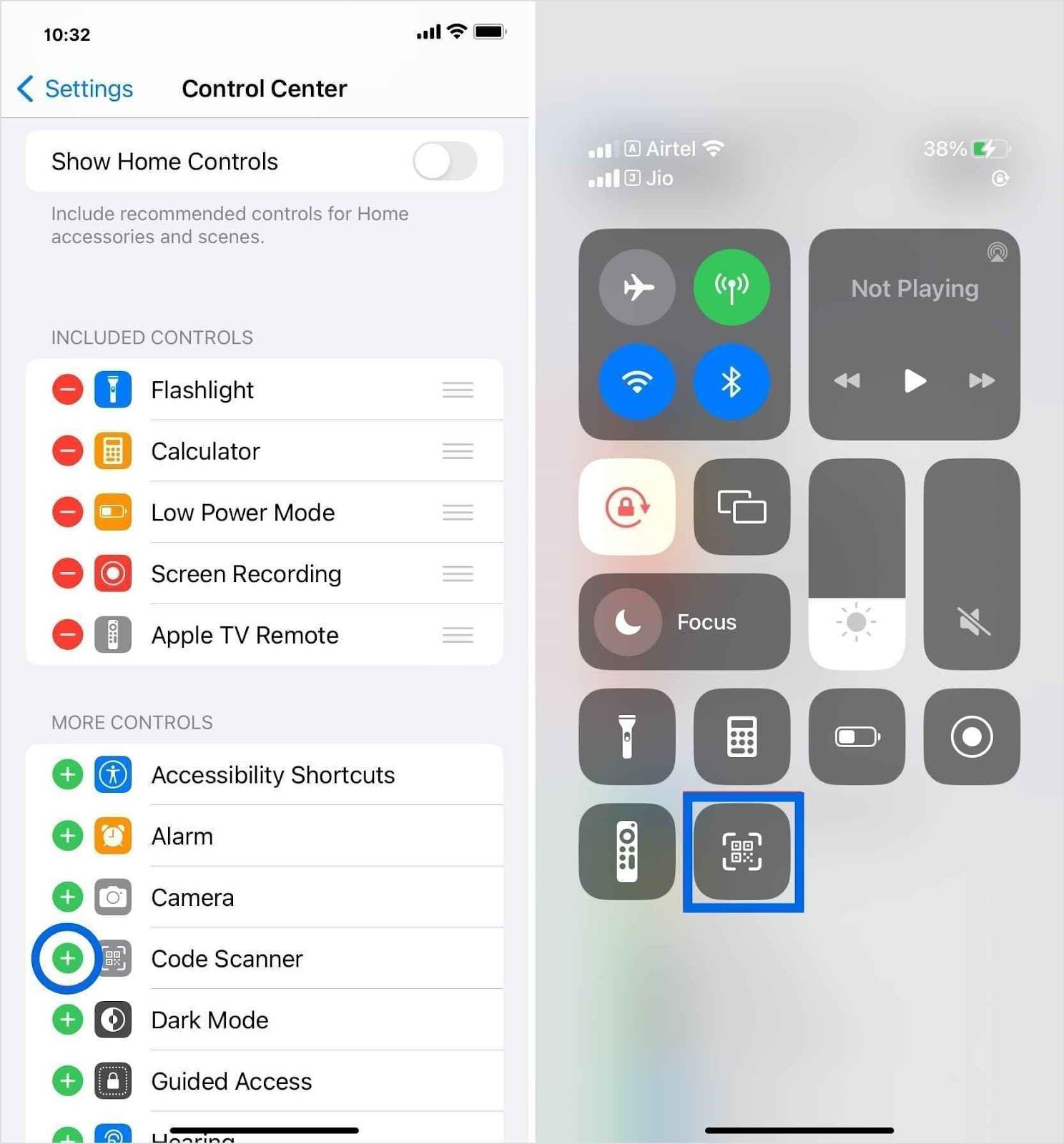
For quicker access, you can add a QR scanner shortcut to your Control Center:
Go to Settings > Control Center.
Tap the green plus icon next to the Code Scanner.
Open Control Center by swiping down from the top-right corner (on newer iOS models) or up from the bottom (on older models).
Tap the QR scanner icon and point your camera at the code.
Method 3: Scanning QR Codes from photos or screenshots
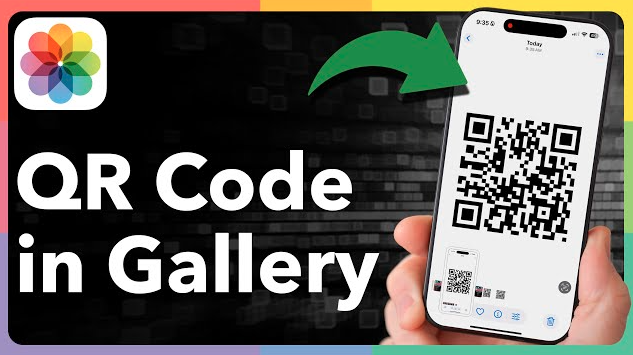
Received a QR code in a message or saved an image with one? No problem! Here’s how you can scan it directly from your gallery:
Open the Photos app and select the image with the QR code.
Touch and hold the QR code on your screen.
A pop-up will appear with the option to open the link or take action.
Note: If your device doesn’t support QR scanning through the camera, you can always download a third-party QR scanner app from the App Store.
Similarly, you can explore other productivity tools, like Call Recorder for iPhone, to safely record and manage your phone conversation.
Scan, track, and optimize Your QR Codes with Replug
QR codes are more than just a way to share links—they’re a powerful marketing tool when used strategically. With Replug’s custom QR code generator, you can go beyond basic QR generation and track every scan, analyze performance, and optimize your campaigns for better results.
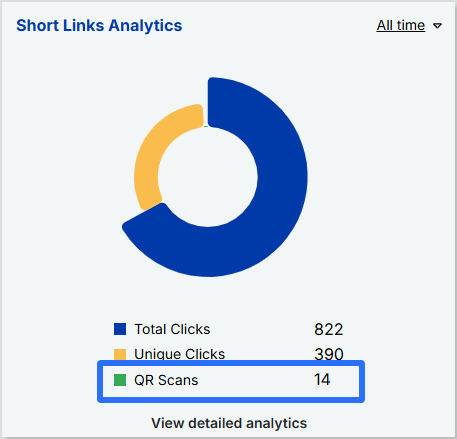
Track every scan in real-time
Monitor QR scans, unique clicks, and total interactions.
Get insights into scan locations, devices, and referral sources.
View QR graph charts to analyze trends and optimize performance.
Optimize for maximum impact
Create dynamic QR codes that allow you to update the destination URL without reprinting the code.
Add UTM parameters to track campaign effectiveness across different marketing channels.
Download your QR codes in multiple formats (PNG, SVG) for high-quality use.
Final thoughts
Scanning QR codes on an iPhone is incredibly easy, whether through the Camera app, Control Center, or even from saved images. For businesses and marketers, using tools like Replug can take QR code functionality to the next level by providing tracking, analytics, and customization options.
FAQs for how to scan a QR code on your iPhone
How can you scan a QR code on an iPhone without a camera?
If your camera isn’t working or you prefer an alternative method, you can use the Code Scanner in the Control Center or a third-party QR scanner to scan codes directly from images or files.
How do I scan a QR code inside my phone without using another phone?
You can scan a QR code from an image stored on your iPhone by using the Live Text feature in the Photos app or a third-party QR scanning app that allows you to upload and scan codes effortlessly.
Can I customize my QR code’s appearance?
Yes! While iPhones can scan basic QR codes, tools like Replug let you customize colors, add logos, and even create branded QR codes to match your business identity.
How to scan QR code iPhone from a photo?
1. Open the Photos app and select the image containing the QR code. 2. Tap and hold the QR code until a pop-up appears. 3. Select the option to open the link or take action.
How to scan a QR code on your screen?
If you come across a QR code while browsing online, take a screenshot and follow the steps to scan a QR code.
How can I track the number of times my QR code has been scanned?
Apple’s default scanner doesn’t track scans, but Replug lets you monitor scan activity, view analytics, and measure engagement in real-time.
QR codes are those little black-and-white squares that are seemingly everywhere now (on menus, packaging, ads, and even TV screens). Knowing how to scan a QR code quickly can save a lot of time, especially when you run campaigns or track engagement across channels.
Recent reports estimate that more than 6 billion people use smartphones worldwide, and almost all modern phones ship with a built-in QR code reader in the camera. That means every printed code can turn into a tap or visit within seconds.
This guide walks through how to read a QR code on Android, iPhone, Mac, and Windows, as well as from screenshots and gallery images. Before moving into step-by-step QR code scanning methods, it helps to understand what a QR code actually is.
What is a QR code: A brief overview
A “QR code (Quick Response code)” is a two‑dimensional barcode made of tiny black and white squares arranged in a grid. When a camera scans a pattern, software converts it into data, such as a URL, text, contact card, Wi‑Fi login, or payment info.
QR codes were first created in the 1990s by Denso Wave, a Japanese company, to track car parts in factories. Because they hold far more data than traditional barcodes and can be scanned from any angle, they are spreading from manufacturing to marketing, payments, tickets, and more.
Their main goal is simple:Move someone from offline to online content with a single scan.
Static QR codes, which always point to the same data once printed.
Dynamic QR codes, which point to a short link that can redirect to different pages and record analytics.
Dynamic codes are helpful when you want to update campaigns without reprinting and see how many people scanned each code.
Why QR codes matter so much
QR codes may seem simple, but they carry significant value, especially for today’s marketers and content creators.
They make it effortless to move people from print or physical spaces to links, landing pages, apps, and social profiles with a single scan rather than a long URL. This reduces friction and leads to more visits, sign‑ups, and actions from the same campaign assets.
They are easily trackable when linked to analytics or short URLs, so every scan can show where, when, and on what device someone engaged. That turns posters, packaging, and flyers into measurable channels rather than guesswork.
They work across many use cases, from menus and payments to event check‑ins, affiliate links, and lead magnets. A single code snippet can support many campaign goals, making it a very efficient tool for marketing professionals.
They are also low-cost to generate and print, so you can test QR campaigns on posters, product inserts, or receipts before investing in larger placements.
How to scan a QR code on Android
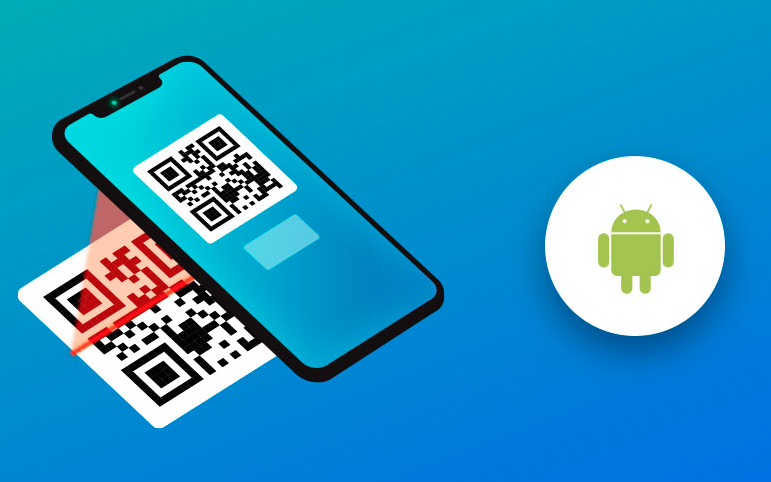
Most modern Android phones can seamlessly scan QR codes without a dedicated QR code reader app. You can use the camera, Quick Settings, Google Lens, or even scan from an image already saved on your phone.
Android Camera app
The default “Camera app” is the fastest way to scan a QR code on an Android phone.
1. Open the Camera app from your home screen, app drawer, or lock‑screen shortcut.
2. Point the rear camera at the QR code and make sure the whole code is inside the viewfinder.
3. Hold the phone steady for a second so the camera can focus and detect the code.
4. When a link or prompt appears on the screen, tap it to open the website, app, payment page, or other action.
Note: If nothing happens, check your camera settings for an option like “Scan QR codes” and turn it on.
QR code scanner
Many Android phones have a dedicated QR scanner shortcut in the “Quick Settings” panel.
1. Swipe down from the top of the screen to open your notifications and Quick Settings.
2. Look for a tile called “Scan QR code,” “QR scanner,” or similar. If you do not see it, tap the edit icon and add it to the panel.
3. Tap the scanner tile to open a simple scanning screen without photo controls in the way.
4. Point your camera at the code and wait for the link or prompt, then tap to open it.
This method is handy when scanning many codes during a workday or event.
Google Lens or Circle to Search
Google Lens and Circle to Search are powerful QR code-scanning features on newer Android devices.
1. Open the Google app or the Camera app.
2. You’ll see the Lens icon. Tap it.
3. Point the camera at the QR code and wait while Lens detects it.
4. The link or action will appear at the bottom of the screen. Tap it to continue.
On supported phones, Circle to Search lets you scan QR codes already on your screen. Long‑press the home button or navigation bar, circle the QR code with your finger, and tap the result that appears.
Scanning from a saved image (screenshot or photo) via Google Photos
You might need to scan a QR code in a screenshot, email, or social post at times. So, here is how to do it:
1. Save or screenshot the QR code, so it appears in your Gallery or Google Photos library.
2. Open the Google Photos app and tap the image that contains the code.
3. Tap the Lens icon at the bottom of the screen to start analysis.
4. Google Photos will detect the QR code and show the link or data, which you can then open or copy easily.
How to scan a QR code on an iPhone
On an iPhone, scanning a QR code is just as simple. The Camera app, Control Center tools, and Photos all include built‑in support, so extra apps are rarely needed.
iPhone Camera app
1. Open the Camera app from the Home Screen, Lock Screen, or Control Center.
2. Switch to the rear camera and point it at the QR code so the whole code fits on the screen.
3. Hold still for a moment. A yellow frame may appear around the code when it is detected.
4. A banner will show at the top of the screen with the link or action. Tap it to open Safari or the related app.
Note: If scanning does not work, go to Settings → Camera and make sure “Scan QR Codes” is turned on.
QR code scanner
iOS also includes a dedicated code scanner shortcut in Control Center.
1. Open Settings and tap “Control Center.”
2. In the list of controls, find “Code Scanner” and tap the green plus button to add it.
3. Swipe down from the top‑right corner (or up from the bottom on older models) to open Control Center.
4. Tap the Code Scanner icon to open a clean scanning screen. Point it at the QR code and tap the prompt that appears.
This is slightly faster than opening the full Camera app, especially if you often scan during campaigns or events.
Live Text (iOS 15 & later)
Live Text lets your iPhone recognize text and QR codes in photos or in the camera view.
1. Open the Camera app and point it at a QR code on a screen or printed page.
2. Look for the small Live Text icon in the corner of the viewfinder. That shows iOS has detected content.
3. Tap the Live Text icon or tap directly on the QR code area.
4. A link or action card will appear. Tap it to visit the page or run the action.
This is helpful when a QR code sits next to important text you also want to copy or translate.
Scanning from a saved image (screenshot or photo) via the Apple Photos app
To scan a QR code stored in your Photos library:
1. Take a screenshot or save the image that includes the QR code.
2. Open the Photos app and tap the image.
3. Press and hold on the QR code area inside the photo.
4. A small menu or link preview will appear. Tap the link or action text to open it in Safari or the related app.
How to scan a QR code on a MacBook
MacBooks cannot scan codes on their own, but it is still easy to read QR codes with a mix of third‑party apps, Safari tools, and the built‑in camera.
Third-party apps (QR Capture or QR Journal)
Apps like QR Capture or QR Journal let your MacBook scan codes with just a few clicks.
1. Download a QR reader app such as QR Capture or QR Journal from the Mac App Store.
2. Open the app and grant camera access when asked.
3. Hold a printed QR code in front of your MacBook’s webcam, or drag an image file with a QR code into the app window.
4. The app will display the decoded link or data so you can open it in your browser or copy it.
Safari right-click option
When a QR code appears as an image in Safari, you might not need a separate reader.
1. Right‑click (or Control‑click) directly on the QR code image in Safari.
2. If Safari detects a link inside the code, you will see options such as “Open Link” or “Open Link in New Tab.”
3. Click the option you prefer, and Safari will open the URL encoded in the QR code.
This works best for clear, high‑quality QR images on websites.
MacBook’s webcam
Some web‑based tools can scan QR codes using your MacBook’s webcam.
1. Search for a trusted site that lets you scan a QR code online using the camera.
2. Open the site in Safari or Chrome, and allow camera access when prompted.
3. Hold the printed QR code in front of your MacBook’s webcam so the full code stays in frame.
4. Wait for the site to read the code and show the result. Then click to open or copy.
iPhone/iPad camera
Occasionally, the simplest way to scan a QR code on your Mac’s screen is with your iPhone or iPad.
1. When a QR code appears on your MacBook screen, grab your iPhone/iPad.
2. Open the Camera app and point it at the code on your Mac’s display.
3. Tap the banner that appears on your iOS device to open the link.
4. If you want to continue on Mac, use Handoff or simply copy the URL and paste it into a Mac browser.
This is quick when you already have your phone in hand.
Photo Booth app
Photo Booth can help when you need to turn a physical code into an image for later scanning.
1. Open the Photo Booth app on your MacBook.
2. Hold the printed QR code in front of the webcam and take a clear photo.
3. Save the photo, then open a trusted online QR reader in your browser.
4. Upload the Photo Booth image to that site so it can scan and display the link or data.
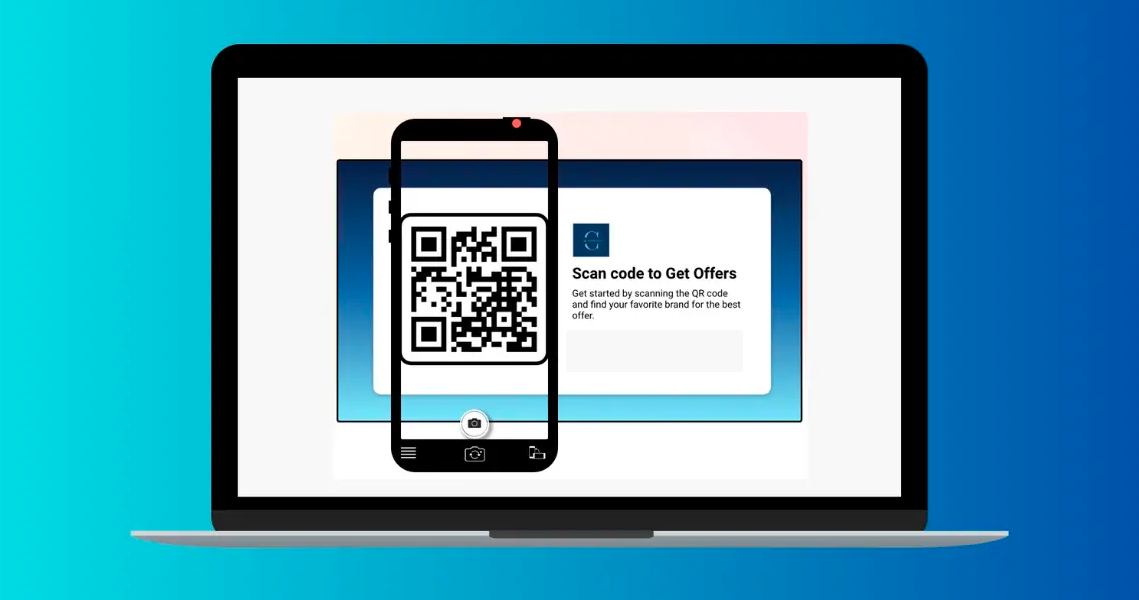
How to scan a QR code on a computer (Windows PC)
On Windows, there are several ways to read QR codes, from browser tools to the built‑in Camera app and online scanners.
Google Chrome
Google Chrome offers handy support for QR codes, especially when you already have an image at hand.
1. Right‑click an image of a QR code and choose an option like “Search image with Google” if available.
2. On the results page, Google may detect the QR code content and display the URL so you can open it.
3. If that is not enough, install a trusted Chrome extension described as a QR code reader/scanner app and follow its instructions.
4. Use the extension’s button to scan images on a page or upload files containing QR codes.
Windows Camera app
You can also scan a printed QR code using your PC’s webcam.
1. Open the Start menu and search for “Camera,” then open the Camera app.
2. If your version includes a dedicated “Scan QR code” or “Barcode” mode, switch to that mode.
3. Hold the QR code in front of your webcam so it fills most of the preview window.
4. When the app recognizes the code, it will show the decoded text or URL, which you can copy into your browser.
If your Camera app does not support QR codes, use an online scanner with webcam access instead.
Online QR scanner (webcam or file)
Online tools are a simple, hassle-free way to scan a QR code on Windows.
1. Open a reputable QR scanning website that supports camera and file uploads.
2. Choose whether to scan with your webcam or by uploading an image file.
3. If you use the webcam, allow camera access, and hold the code in front of your PC.
4. If you upload, pick the screenshot or photo with the QR code embedded. The site will read it and show the result within seconds.
Screenshot & scan (best for screen-based codes)
For QR codes that sit on your monitor, a screenshot is often the cleanest option.
1. Take a screenshot of the QR code using tools like Snipping Tool, Snip & Sketch, or the Print Screen key.
2. Save the screenshot as an image file.
3. Go to an online QR scanner or use a desktop app that accepts image uploads.
4. Upload the screenshot so the tool can read and display the link or content behind the code.
iCloud Passwords extension
iCloud Passwords on Windows can help with codes used for two‑factor authentication.
1. Install iCloud for Windows and the iCloud Passwords browser extension for Chrome or Edge.
2. When a website displays a QR code to set up an authentication app, open the iCloud Passwords app.
3. Add or edit the login, then choose the option to add a verification code.
4. Follow the prompts to use the QR image shown in your browser, either by scanning it with a paired Apple device or entering the key, so your logins stay synced.
How to scan a QR code on your phone’s gallery
At times, the QR code is already on your phone, inside a screenshot, email, or saved photo instead of on paper. In that case, you do not need a second device to scan it.
Long-press on gallery images
On both Android and iOS, you can scan many QR codes directly from the gallery.
1. Open your Gallery or Photos app and tap the image that contains the QR code.
2. On iPhone, press and hold the code. On many Android phones, tap the Lens or similar icon.
3. Wait for the system to detect the QR and show a link preview or action.
4. Tap the link to open it in your browser, or copy it for later.
Even when someone knows how to scan a QR code, a few habits make scanning faster and safer across all devices.
Inspect for tampering
Before scanning, take a quick look at the physical QR code for any damage or other issues. If it looks like a sticker placed over another code or part of a sign, it might be fake. In those cases, skip the scan or confirm with staff before using it.
Preview the URL
Most cameras show a link preview before opening it. Read the domain name carefully and watch for odd spellings or strange characters. If the URL looks suspicious or unrelated to the context, avoid tapping it.
Avoid sensitive actions
Be careful when a QR code leads directly to pages that ask for login credentials, card details, or personal data. Instead of entering details right away, open the brand’s website manually in a new tab. This small step helps avoid phishing and fake payment pages.
Beware of unknown sources
Random QR codes on poles, parking meters, or flyers with no clear brand are risky. When there is no logo, explanation, or context, the safer choice is to simply ignore the code. Focus scans on codes from brands, venues, or partners that you trust.
Use the native camera
For basic scanning, the built‑in camera on Android or iPhone is usually the safest option. It has no ads and better system‑level protections than many third‑party apps. Only install extra apps when you truly need advanced features.
Good lighting & focus
Cameras need light and clarity to read tiny squares. Move closer to a window or turn on your phone’s flashlight when the code is in a dark place. Wait until the image looks sharp on screen before expecting a successful scan.
Distance & stability
If you stand too close or too far, the code becomes blurry. Adjust your distance so the code fills most of the frame without cutting off the edges. Moreover, hold your hands steady for a second to give the camera time to focus.
Optimal angle
Try to keep your camera as straight as possible in front of the QR code. Strong angles or curved surfaces can distort the pattern. A small tilt is fine, but a near‑front view will give the best chance of a quick scan.
How QR code technology works: The future of QR codes!
QR codes store data in a grid of black and white squares. When a camera looks at the code, the software finds the large squares in the three corners, uses them for alignment, and then reads the smaller modules as a string of bits. That data maps to content such as a URL, text, Wi‑Fi settings, or a contact card, which the device then opens or runs.
Behind the scenes, QR codes also use error correction, which lets scanners read the code even if part of it is smudged, scratched, or covered by a small logo. Different “versions” of QR codes hold more or less data depending on how dense the grid is, which is why some codes look more crowded than others.
For marketers, this means every print asset can have a direct, measurable digital action behind it. As phones get smarter, QR experiences will keep improving with features such as on‑screen scanning, deeper analytics, and stronger security checks. Expect QR codes to remain central to payments, ticketing, and campaigns, where a single scan can trigger a full-funnel experience.
Create your custom QR code today with Replug!
Knowing how to scan a QR code is only half the game. To run real campaigns, teams also need QR codes that are on‑brand, trackable, and easy to update. That is where Replug comes in!
Replug is an all‑in‑one link management platform featuring a top-notch custom QR code generator built for marketers, creators, growth teams, etc.
You can create dynamic QR codes for branded short links, files, social profiles, and landing pages, then change the destination later without reprinting anything. Design options let you add your logo, pick colors, and match your brand so people feel safe scanning.
Dynamic QR codes
for modern brands, marketers,
and creators.
Every scan feeds into a real‑time analytics dashboard with data on devices, locations, and referral sources. You can add retargeting pixels, A/B test different URLs behind the same code, and send traffic to different pages based on device or country. That turns a simple square into a smart entry point for your entire campaign.
Wrapping up
QR codes turn any surface into a clickable call to action, as long as people know how to scan them quickly and safely.
With the built‑in tools on Android, iPhone, Mac, and Windows, plus gallery and screenshot tricks, there is rarely a need for extra hardware.
Combine these scanning habits with safe‑browsing tips, and every code becomes a smooth step into your content, funnel, or offer.
When you are ready to go beyond basic codes and run trackable, branded campaigns, Replug can help you generate and manage them from one clean dashboard.
Frequently asked questions
How to scan a QR code without a scanner app?
Most modern phones scan QR codes with the default camera, so no extra app is needed.
– On Android, open the Camera or Quick Settings scanner, then point it at the code. – On iPhone, use the Camera or the Code Scanner in Control Center. Wait for the banner to appear and tap it.
How do I scan a QR code inside my phone without using another phone?
Use your gallery and built‑in tools. Save or screenshot the image with the QR code, then open it in Google Photos or Apple Photos. Tap the Lens icon on Android or long‑press the code on iPhone, and the system will detect and open the link without needing a second device.
How to scan a QR code on the camera from Google?
Open the Google app and tap the camera or Lens icon next to the search bar. Point the camera at the QR code and hold it steady. Google Lens will recognize the code and show the embedded link or action, which you can tap to open.
How to scan a QR code without the camera app?
– On phones, you can use Control Center’s Code Scanner on iOS or the QR scanner tile in Android’s Quick Settings. – On desktops, you can scan a QR code online by uploading an image or using your webcam in a browser tool.
Many social and payment apps also include built‑in scanners.
What types of QR codes can I scan with an online QR code scanner?
Most online scanners can read standard QR codes that contain URLs, plain text, contact cards, Wi‑Fi details, or payment links. When you upload a clear image or use your webcam, the site reads the content and shows the text or link. From there, you can copy it into your browser or app of choice.
What are the issues associated with QR code scanning? Provide troubleshooting tips as well.
Common issues include poor lighting, blurry focus, damaged codes, or blocked camera permissions. Try moving to a brighter area or turning on your flashlight, then hold the phone steady and adjust the distance. Clean the camera lens and make sure QR scanning is turned on in settings. If a code is torn or low‑quality, look for another copy or type the URL manually if visible.
How to scan a QR code online for free?
Search for a well‑reviewed free QR scanner website that supports both camera and file uploads. Open the site, allow camera access, or upload your QR image, and it will read the content at no cost. Rather than naming a single “best” tool, focus on sites that use https, avoid aggressive ads, and have strong user reviews.
What are the ways to scan a QR code on your Galaxy phone or tablet?
On Samsung Galaxy devices, you can scan directly from the Camera app or using the Quick Settings panel with the built‑in QR scanner tile. Some models also let you scan codes inside the Gallery app using Bixby Vision. When moving to a new Galaxy device with Smart Switch, you may see QR codes that help link devices and Wi‑Fi. Just point your old or new phone’s camera at those codes as prompted.
What to do after scanning a QR code successfully?
Once the QR code is scanned, review the link or action shown on your screen. If it looks safe and matches the context, tap to continue to the landing page, payment screen, app store, or contact card. From there, complete the desired action, such as signing up, following, paying, or saving the details for later.
Have you ever wondered if a small barcode could streamline your menu updates and boost guest satisfaction at the same time?
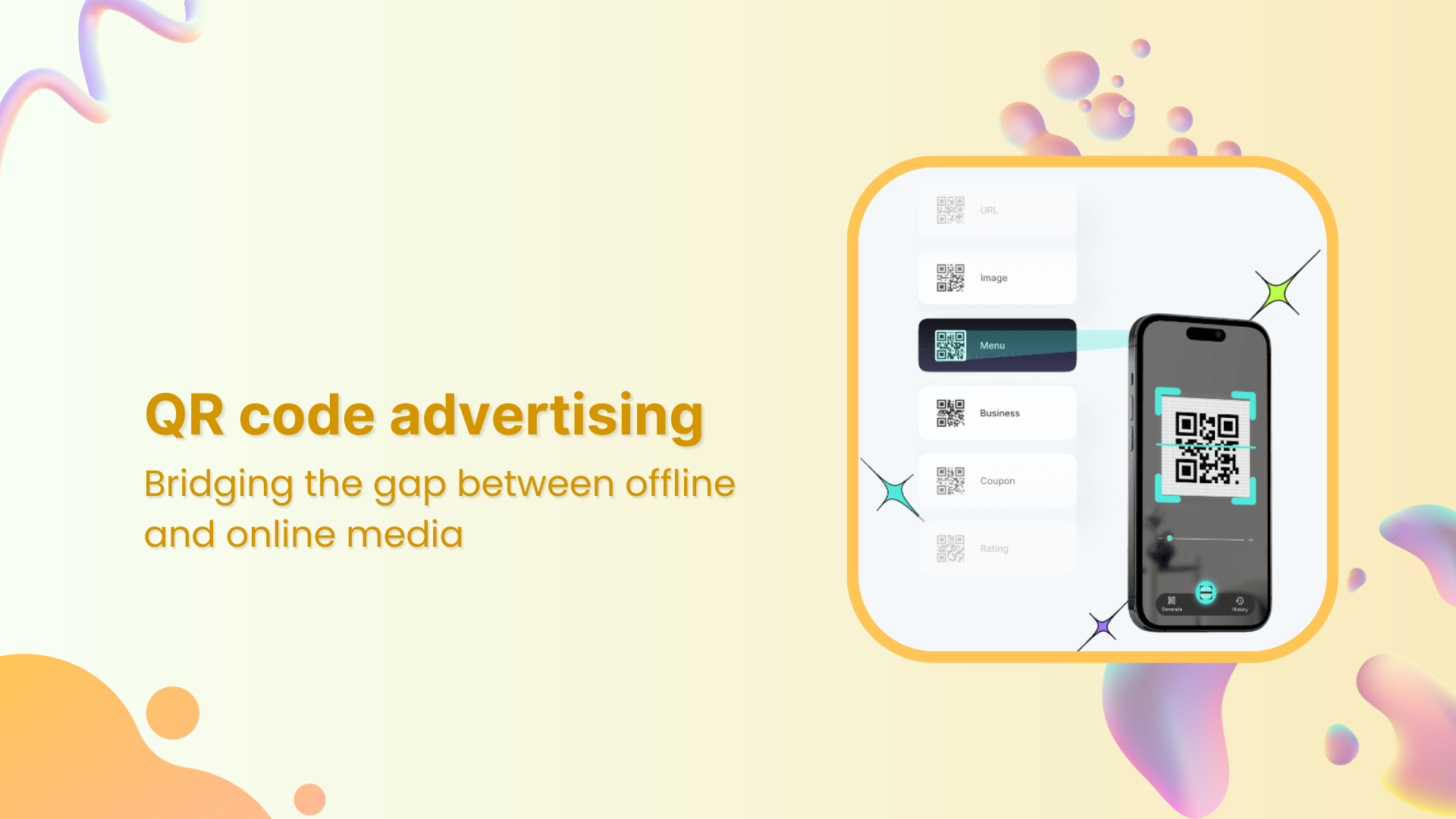
Over the past couple of years, QR code menus have gained massive popularity amongst restaurants, and this trend is increasing day by day. Due to the increased smartphone usage, these scannable squares are changing how diners access information and place orders. From simplifying operations to enhancing customer satisfaction, QR code advertising has revolutionized how menus are presented.
Before we discuss the benefits, creation, and uses of QR code menus, let’s take a step back and explore why QR codes have become a staple in the restaurant business.
The rise of QR code menus
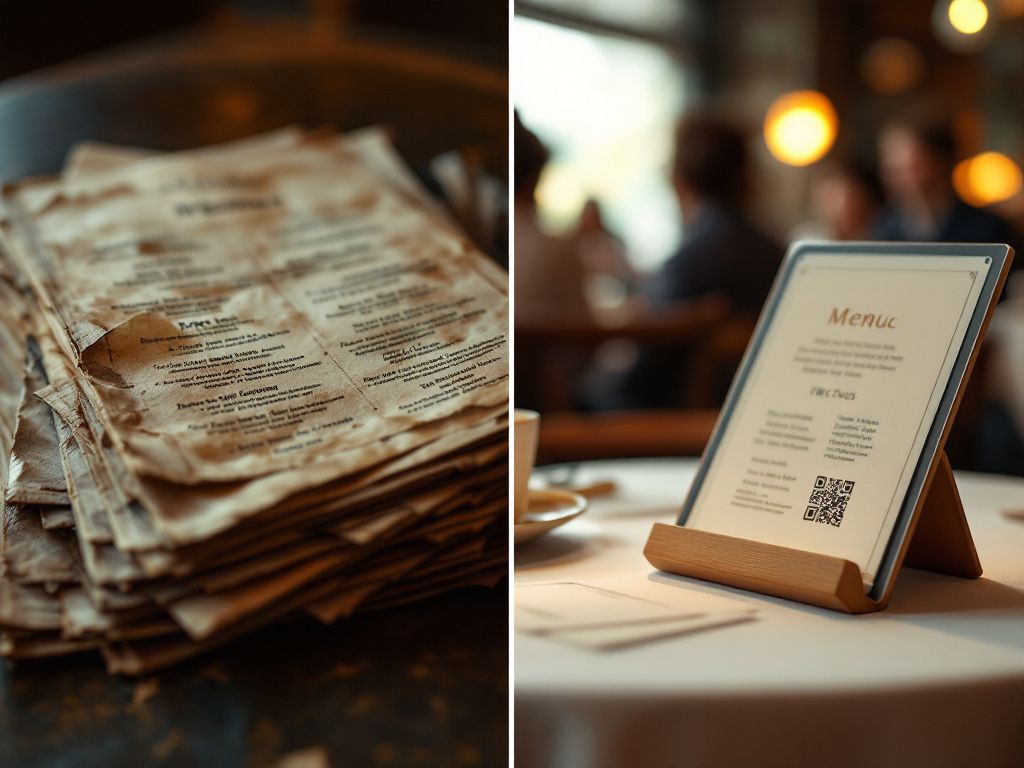
Traditional menu vs. QR code menu
What are QR code menus?
QR code menus are two-dimensional barcodes scanned with a smartphone, linking customers to digital menus and eliminating the need for physical ones.
While they gained popularity as a contactless solution during the pandemic, their benefits go beyond hygiene.
In today’s world, where diners prioritize convenience and customization, QR code menus combine technology with practicality, transforming menus into dynamic, interactive experiences.
A complete link management solution
for marketing professionals & agencies.
Try Replug for free
Now that we’ve set the stage, let’s explore the top five benefits of using QR codes for restaurant menus.
5 benefits of using QR codes for restaurant menus
1. Enhanced hygiene and safety
Some diners worry about germs spreading through shared menus. QR code menus solve this by eliminating physical menus that change hands multiple times daily. Each table has a code that customers scan to view the menu on their device, offering a safer dining experience.
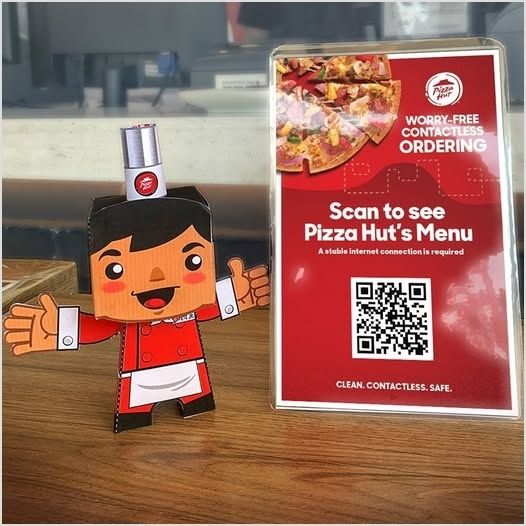
For example, Pizza Hut’s “Clean. Contactless. Safe” system uses tabletop QR codes, letting customers access menus on their smartphones. This approach not only promotes hygiene but also adds convenience.
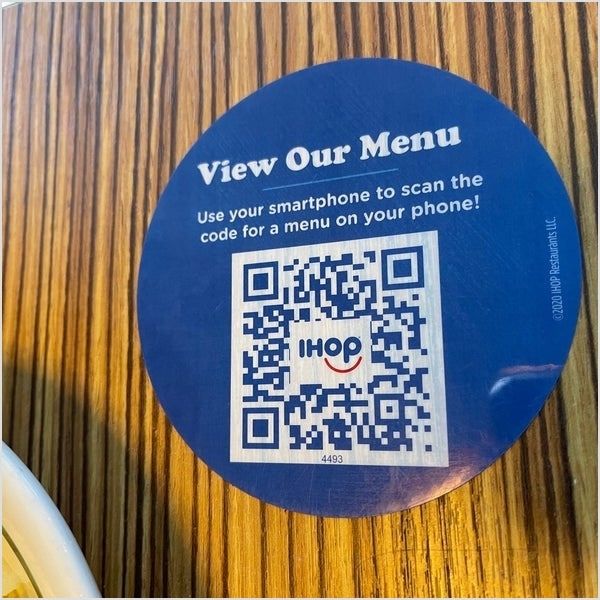
Here’s another example of IHOP, the famous American multinational pancake house restaurant chain. They’ve also implemented QR code menus for a more hygienic experience:
Staff also benefit from this approach. They can focus on clearing tables and attending to other tasks instead of constantly wiping down menus or distributing them multiple times per shift.
Pro Tip: Pair your QR code menus with digital payment options to create a fully contactless dining experience.
2. Real-time updates and cost savings
Printed menus are costly and hard to update, especially with frequent changes. QR code menus solve this by allowing real-time updates for seasonal specials, price changes, or out-of-stock items—no reprinting needed.
This eco-friendly approach reduces paper waste and aligns with sustainability. Restaurants can also use digital signage platforms like Juuno to keep on-screen menus and promotions consistent with the latest information available through their QR codes.
For example, a café can update daily specials each morning using QR codes, ensuring customers always see the latest options hassle-free.
3. Improved customer experience
QR codes can connect customers to interactive digital menus featuring high-quality images, detailed descriptions, and pairing suggestions. For example, scanning a QR code at an Italian restaurant could reveal not only pasta options but also recommended wine pairings. These menus can include dietary filters, helping customers with allergies or specific preferences navigate with ease.
Language options further enhance accessibility, welcoming a diverse range of customers. Additionally, promotions like “happy hour pizza” deals can be seamlessly showcased, making digital menus a versatile and engaging tool for restaurants.
Bonus features to consider:
Multilingual menus for international diners.
Direct links to customer reviews or chef’s notes.
Integration with loyalty programs for exclusive discounts.
Promoting limited-time promotions and special deals
We absolutely love how McDonald’s uses QR codes in their marketing strategy. Here’s how they strategically used QR codes to engage customers with the Kartik Aaryan meal, offering interactive experiences and boosting brand loyalty:
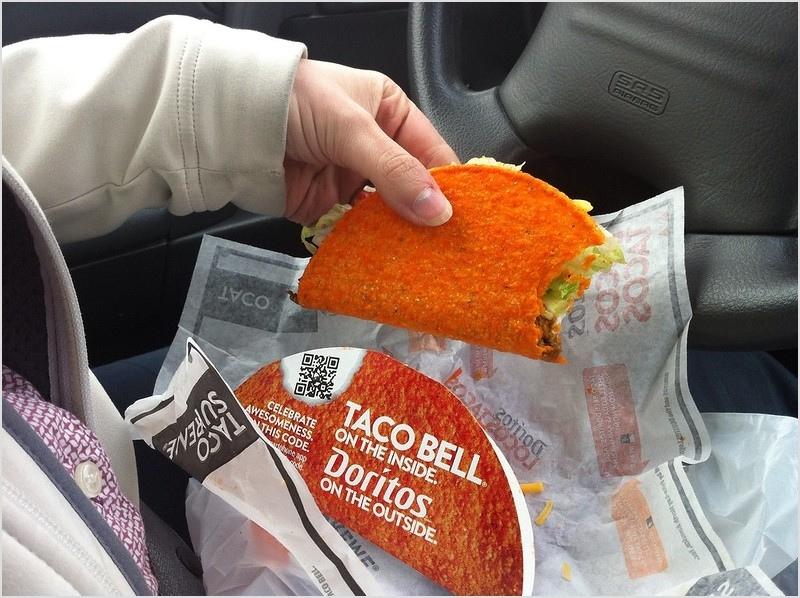
Here’s another example of Taco Bell’s Laco Tacos QR code marketing:
4. Increased upselling opportunities
QR code menus provide a unique opportunity to upsell dishes and drinks. Unlike traditional menus, digital menus can showcase dynamic content such as promotional banners, combo deals, or chef’s specials that capture attention in real-time.
For example, when a customer views a dessert section, your QR code menu could pop up with a tempting “Pair this cake with our signature latte for just $2 more!” offer. These subtle nudges can significantly boost your revenue.
5.Advanced analytics and insights
QR code menus offer valuable data. With tools like Replug, restaurant owners can track clicks on popular pages, campaign results, and peak menu scan times.
This feedback helps refine dishes, promotions, and inventory. For example, if an appetizer gets clicks but few orders, the description or photo can be adjusted. Real-time insights also prevent shortages, allowing owners to respond to trends effectively and align offerings with customer preferences.
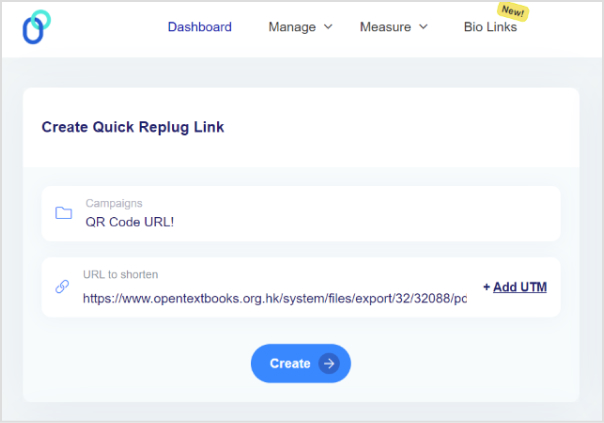
Here’s how you can create QR codes for restaurant menus using Replug, i.e., your go-to custom url shortener.
Important note: Before getting started, ensure your digital menu is uploaded online. This will provide you with the URL needed to link to your QR code.
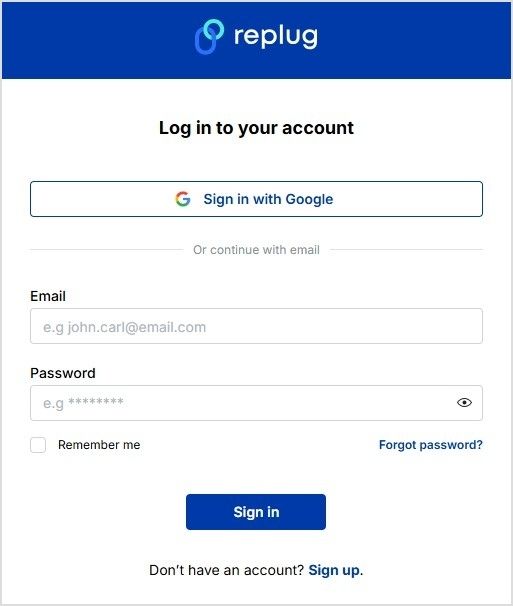
Step 1:Log in to your Replug account or sign up if you don’t already have one.
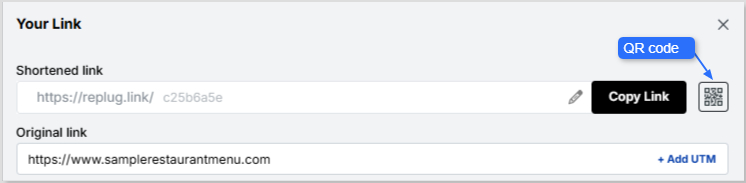
Step 2: Paste your menu URL into the field under “Quickly Shorten Your Link.”
Step 3: Once your link is shortened, you’ll see a QR code icon next to it. Click the icon to generate your QR code.
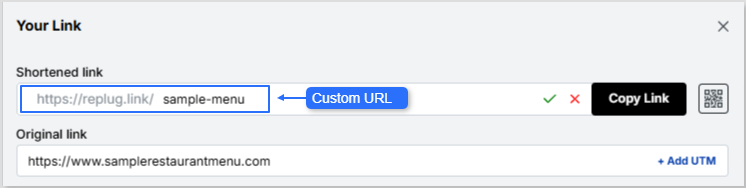
You can also create a custom URL by changing the short link slug so that when customers scan the QR code, they instantly recognize that the link leads directly to your restaurant’s menu. This boosts clarity and trust.
Step 4: Customize the QR code’s background and foreground colors to align with your branding and make it visually appealing.
Step 5: Test your QR code using your phone or tablet’s camera to ensure it works perfectly. Don’t skip this crucial step!
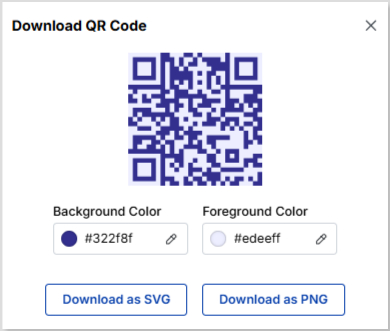
Step 6: Download your QR code in PNG or SVG format, and place it wherever you need, such as tables, walls, menus, or marketing materials.
That’s it! You have successfully generated a QR code using Replug’s QR code generator. Your QR code is now ready to make your menu more accessible and interactive.
The best part about using Replug for creating your QR codes is the ability to create dynamic QRs. This means you can update the link behind your QR code anytime without needing to print a new one, whether for special promotions, seasonal menu updates, or even changing the link to a new location!
Best practices for implementing QR code menus
If you’re ready to take advantage of the benefits of QR code menus, here are some tips to ensure their success:
Clear placement: Make sure the QR codes are easily visible and accessible. Place them on tables, flyers, walls, or even your receipts!
Mobile-friendly design: Ensure your digital menu is optimized for smartphones. A clunky or slow-loading menu can frustrate customers.
Test for functionality: Regularly test your QR codes to ensure they work seamlessly and direct users to the correct menu.
Train your staff: Educate your team on how to assist customers unfamiliar with QR codes. Using mentoring software can support this training by providing expert guidance to the team members.
Add branding: Incorporate your logo or colors into the QR code design to make it visually appealing and aligned with your brand. This feature will soon be available in Replug.
Where can you use QR codes for menus?
QR codes for menus are incredibly versatile and can be utilized in various areas of your restaurant to enhance accessibility and convenience. Here are some practical placements to consider:
On tables: Place QR codes on table tents or coasters, allowing diners to quickly scan and view the menu from their seats.
At the entrance: Display a QR code at the entrance so customers can browse the menu while waiting to be seated.
On walls or posters: A QR code on a prominent wall, poster, or digital signage can help streamline ordering for walk-in customers for casual or fast-casual setups.
On takeout packaging: Include QR codes on your takeout bags or boxes, linking to your menu or a special offer to encourage repeat orders.
In marketing materials:Add QR codes to flyers, coupons, or advertisements, letting potential customers preview your menu before visiting.
On your website: Link your QR code to your website. This way, you can easily share menu updates without printing new copies and enhance customer experience.
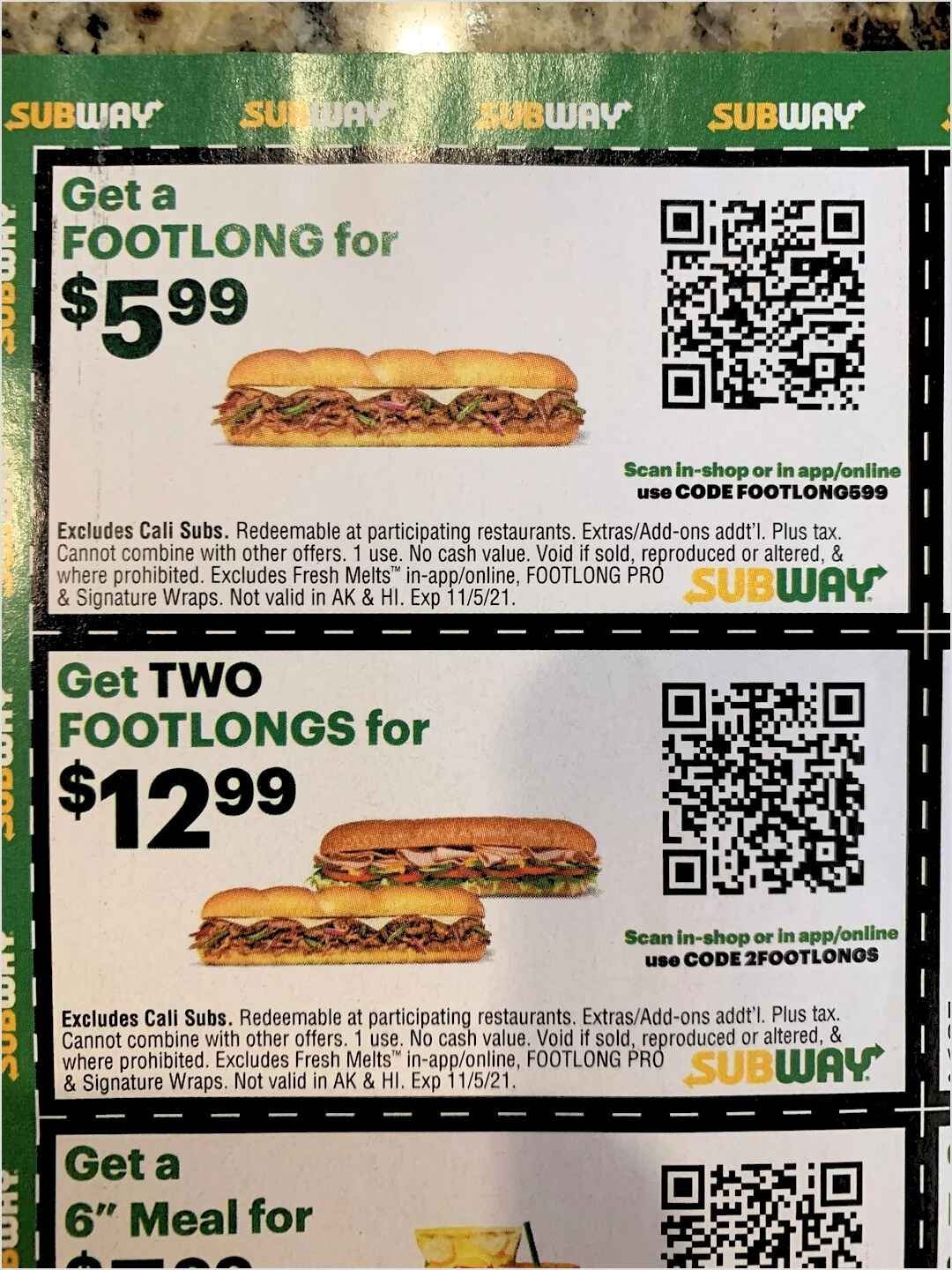
Subway used QR codes on their coupons for footlong subs. By scanning the QR in-shop/app/online, the customer would get a footlong sub at a discounted price:
By strategically placing QR codes, you create multiple touchpoints for customers to engage with your restaurant, improving their overall experience while simplifying your operations.
The takeaway
QR code menus have revolutionized the dining experience, offering unmatched convenience, cost-effectiveness, and enhanced customer engagement. From improving hygiene to providing dynamic content and upselling opportunities, the benefits are too compelling to ignore.
Whether you’re a fine dining restaurant or a cozy café, integrating QR code menus is a smart move that caters to modern diner expectations.
Ready to make the switch? Start by designing a sleek, user-friendly QR code menu today, and watch as your restaurant thrives in the digital age!
A complete link management solution
for marketing professionals & agencies.
Try Replug for free
FAQs for QR code menus
How do QR code menus improve restaurant efficiency?
QR code menus eliminate the need for physical menus, streamlining ordering and reducing staff time spent cleaning or distributing menus. Customers can access the menu directly on their phones, saving time.
Can QR code menus be easily updated with new items or prices?
Yes! QR codes link to a digital menu that can be updated in real-time. No need to print new copies. Simply update your menu online, and it’s automatically reflected.
How do QR code menus enhance the dining experience for customers?
QR codes offer interactive features like detailed descriptions, high-quality images, and language options, making it easier for customers to find what they want and enjoy a personalized experience.
How can Replug help restaurants optimize QR code menu tracking?
Replug provides data insights into which menu items are most clicked and viewed, helping restaurants fine-tune their offerings and promotions. You can track customer preferences and make informed decisions for better engagement.
Have you ever seen a poster or a magazine ad that caught your eye and wished you could learn more instantly?
That’s where QR codes come in! These nifty little squares are revolutionizing the way we interact with advertising by creating a direct line from the physical world to the digital one.
With a quick smartphone scan, you can access exclusive deals and exciting videos and even connect with brands on social media. It’s like having a mini gateway to a world of information right in your pocket!
QR code usage in marketing has grown exponentially, with global scans increasing by 57% across 50 countries. Experts project that this trend will continue, forecasting a 22% rise in usage by 2025.
In this blog, we’ll explore how QR code advertising is not only enhancing consumer experiences but also helping businesses connect with their audience in new and engaging ways. Let’s get into the details!
What is QR code advertising?
QR code advertising involves using Quick Response (QR) codes in promotional materials to connect users directly to the brand’s online content. These codes can be scanned using smartphones, leading consumers to websites, videos, social media pages, etc.
How do QR codes work?
QR codes are two-dimensional barcodes that store information in a grid pattern.
Scanning: Users scan the QR code using a smartphone camera or a dedicated QR code reader app.
Decoding: The scanner decodes the information stored in the QR code, which typically includes a URL or text.
Accessing content: After decoding, the user is directed to the encoded link, leading them to websites, videos, social media pages, or special offers.
Interactivity: QR codes can facilitate actions like downloading apps, adding contacts, or sending messages, enhancing user engagement.
Tracking and analytics: Businesses can track how often QR codes are scanned, providing insights into consumer behavior and campaign effectiveness.
Dynamic QR codes: The game changer for marketers
One of the most significant innovations in QR code technology is the rise of dynamic QR codes. Unlike static QR codes, dynamic codes can be updated after being printed. This means you can change the destination URL or the content the code links to without needing to print new materials.
Dynamic QR codes also offer advanced analytics, allowing businesses to track real-time user interactions. For example, you can see how many people scanned the code, where they scanned it, and what type of device they used. This provides valuable insights into customer behavior and helps you optimize your marketing efforts.
Benefits of QR code advertising
Benefits of QR code advertising
Personalized experiences
QR codes can be used to deliver personalized content based on user preferences or demographics.
Measurable results
By tracking the number of scans and user behavior, marketers can gain valuable insights into the effectiveness of their campaigns.
Real-time updates
It can be updated dynamically, allowing marketers to change or add information as needed quickly.
Cost-effective
QR codes can be easily incorporated into existing marketing materials, making them a cost-effective way to enhance campaigns.
Advanced accessibility
It can be used to provide information in multiple languages or formats, making it accessible to a wider audience, including those with disabilities.
17 creative ways to use QR code advertising
Now, here’s the exciting part about QR codes: they’re incredibly versatile! Not only can you print them on physical materials to reach your audience, but you can also share them digitally across online platforms.
This dual approach opens up endless possibilities for engaging your customers innovatively.
Let’s explore some of the bestexamples and effective uses of QR codes in both digital and offline worlds.
Digital QR code advertising
Digital platforms are the perfect space for QR code advertising. They allow brands to reach vast audiences while offering cost-effectiveness and precise targeting.
1) Add QR codes to your brand website
Adding QR codes to your website is a smart way to enhance user experience. These codes can direct visitors to product details, promotions, or downloadable resources. You can also track QR code scans using advanced QR code generators to gain insights into user preferences and behavior.
For example, the clothing brand Shein uses QR code advertising on their website to direct customers to their app, simplifying the shopping experience and increasing app downloads.
2) Utilize deep links in QR code advertising
Deep linking with QR codes allows you to guide users directly to specific content on your site or app. This is especially useful in email campaigns, mobile ads, and social media posts, where users want quick access to content.
For instance, deep linking can streamline the checkout process on e-commerce sites, directing users to their shopping cart or payment page.
Pro Tip: While QR codes can simplify navigation, don’t rely solely on them for frequent site visits. Short URLs are often easier for customers to remember.
3) Promote QR codes in social media posts
Integrating QR code advertising into your social media strategy is a highly visual way to engage followers. Platforms like Instagram, Facebook, and TikTok allow brands to post QR codes, encouraging users to scan for exclusive content or offers.
Event organizers, for example, can include QR codes in their posts to simplify ticket purchasing or RSVPs. Additionally, partnering with influencers to promote QR codes can greatly increase traffic and engagement.
4) QR codes in TV commercials
TV commercials featuring QR codes offer a new level of interactivity. Viewers can scan the code on the screen, taking them directly to your brand’s website or social media pages for more information.
During the Super Bowl 2022, Coinbase ran a successful QR code advertising campaign that led to a surge in app downloads when viewers scanned the code shown on TV.
5) Boost sign-ups with QR codes in email marketing
Including QR codes in your email newsletters is a powerful tactic to increase engagement. Subscribers can scan the QR code to access special discounts, product launches, or exclusive content.
As mobile device usage dominates online browsing, QR code advertising in mobile ads offers a fast, seamless experience for users. QR codes can direct them to multimedia content like videos or slideshows that tell your brand’s story.
Travel agencies, for instance, use mobile QR code advertising to provide instant access to boarding passes and itineraries.
7) Enhance virtual events with QR code advertising
For virtual events, QR codes simplify the registration and participation process. Attendees can scan the code to access live sessions, download materials, or engage with interactive event content.
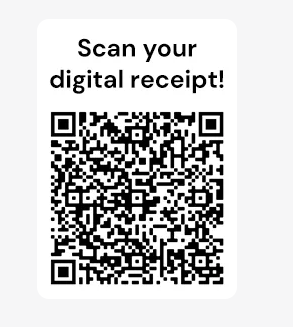
8) Use QR codes for digital receipts
Switching from paper to digital receipts with QR codes is both eco-friendly and convenient. Retailers can link digital receipts to loyalty programs or exclusive offers, encouraging repeat purchases and improving customer engagement.
9) Gather quick customer feedback with QR codes
Collecting customer feedback through QR codes can enhance your business. By placing QR codes on digital receipts, packaging, or promotional materials, customers can easily access a survey and provide feedback.
Offline QR code advertising
While digital advertising is essential, offline QR code advertising is equally effective. Integrating QR codes into print media, packaging, and physical locations can drive traffic and engagement.
10) QR codes in print advertising
Print advertising comes alive when combined with QR code advertising. Whether it’s a brochure, magazine, or flyer, adding a QR code provides readers with instant access to more content. For instance, a local boutique, they could include a QR code in their magazine ad that directs customers to their online store.
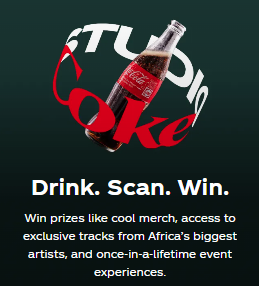
11) QR codes on product packaging
Many brands are leveraging QR code advertising on their product packaging. Coca-Cola uses QR codes to give customers access to interactive content, such as games or special promotions.
This type of QR code advertising helps create a deeper connection with the brand and enhances the overall product experience.
12) Business cards with QR codes
Adding a QR code to your business card can make a memorable impact. Graphic designers often use QR codes to link their business cards to online portfolios, offering potential clients a seamless way to view their work.
Pro Tip: Use a short URL in situations where users have less time to scan QR codes, like networking events.
13) Enhance in-store promotions with QR code advertising
QR code advertising within in-store promotions enhances the shopping experience. For example, grocery stores can place QR codes next to sale items, linking customers to recipes or nutritional information, which can influence purchasing decisions.
14) Real estate listings with QR codes
In real estate, QR code advertising helps potential buyers access property details quickly. QR codes on For Sale signs can lead to virtual tours, photos, and pricing information, providing a convenient and pressure-free browsing experience. For example, real estate businesses can efficiently showcase numerous properties by incorporating high-resolution virtual tours into QR advertising. This approach captures consumer interest through interactive and immersive visual content
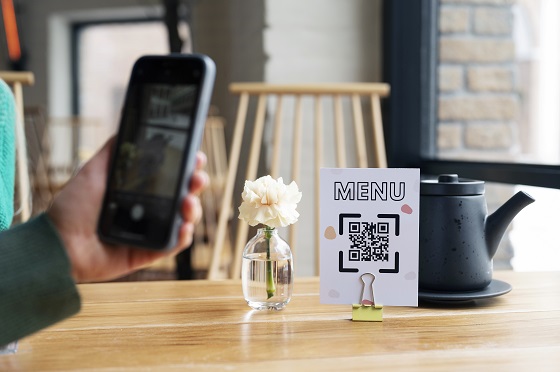
15) QR codes on restaurant menus
QR code menus in restaurants have become a standard in the hospitality industry. They allow customers to browse the menu, check out daily specials, or even place orders digitally, enhancing the dining experience.
16) QR code billboards
Billboards featuring QR code advertising provide a unique way for brands to engage passersby. For instance, a concert billboard with a QR code could lead directly to ticket sales or event information.
Brands like Nike have used QR codes on billboards to link to exclusive product launches or behind-the-scenes videos.
17) Authenticate purchases with QR codes
QR codes are also used for product authentication, particularly in industries plagued by counterfeiting.
Luxury brands like Louis Vuitton include QR codes on product tags, allowing customers to verify authenticity and access care instructions.
How to create a QR Code for advertising?
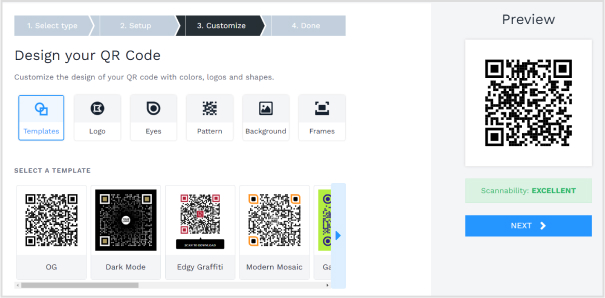
Creating a QR code is very easy. You just need to have an advanced QR code generator. Many QR code generators are available online, both free and paid. Look for one that allows customization and analytics tracking, such as Replug.
Replug is a link management platform that allows you to create short, branded links, including QR codes. It also offers a URL shortener free tool, making it easy for marketers to track engagement and analyze link performance without upfront costs.
Here’s how you can use Replug to create a QR code.
Sign up: Create an account on Replug’s website.
Create a link: After setting up your workspace, Input the URL or content you want to link to and customize it as needed.
Generate a QR code: Once you have your link, you’ll spot the option to copy the QR code for that link.
Download and share: Download the QR code and add it to your advertising materials.
Track performance: Monitor the analytics dashboard to see how your QR code is performing and adjust your strategy as needed.
Here are 3 top tips every marketer should follow when creating a QR code.
Use a reliable QR code generator: Opt for reputable QR code generators that offer high-resolution codes and customization options. This ensures that your QR code is scannable and visually appealing.
Optimize your QR codes: Ensure that the URL linked to your QR code is optimized for mobile devices. A mobile-friendly page will enhance user experience and increase the likelihood of engagement.
Test your QR code links before deploying: Before launching your advertising campaign, test different QR code links to see which one performs best.
Additionally, A/B testing multiple QR codes can provide insights into which offers or content resonate more with your audience.
In summary, QR code advertising represents a dynamic shift in the marketing landscape, seamlessly linking the physical and digital realms. This innovative approach not only enhances customer engagement but also provides brands with critical data to refine their strategies.
Frequently asked questions
Are QR codes still relevant in 2026?
Yes, QR codes remain relevant and increasingly popular due to their ease of use and ability to connect physical and digital experiences.
Do QR codes require an app to scan?
Most modern smartphones have camera apps that scan QR codes, so no additional app is necessary.
Can QR codes be customized?
Absolutely! Many QR code generators allow you to customize the design, color, and logo within the code to align with your brand.
How can I track the performance of my QR code?
You can use tracking features provided by many QR code generators, which allow you to see the number of scans and user interactions.
What type of content is best suited for QR codes?
QR codes work best with mobile-friendly content, such as landing pages, promotional offers, videos, or social media links.
QR codes are literally everywhere, on restaurant menus, product packaging, billboard ads, and even your doctor’s office wall. And the numbers back it up!
QR code usage surged over 323% between 2021 and 2024, and nearly 100 million Americans are expected to scan a QR code by 2026. That’s a lot of scanning.
But here’s something most people overlook: size matters more than you’d think.
A QR code that’s too small gets ignored or fails to scan. Too large, and it looks awkward and out of place.
No matter if you’re printing one on a business card, a storefront banner, or a product label, getting the size right can be the difference between a scan and a skip.
This guide breaks it all down for you. But first, let’s make sure we’re on the same page. What exactly is a QR code?
What is a QR code: A brief overview
QR stands for Quick Response, and the name pretty much says it all.
A QR code is a two-dimensional barcode that stores information (like a URL, contact details, or plain text) in a pattern of black and white squares. Point your phone camera at one, and within seconds, you’re taken exactly where it wants you to go.
The concept isn’t new. QR codes were actually invented back in 1994 by a Japanese company called Denso Wave, originally to track car parts during manufacturing. Fast forward to today, and they’re one of the easiest ways to bridge the gap between the physical and digital world.
The primary goal is simple: make information instantly accessible without any typing or searching.
Whether you’re a business owner looking to create a QR code for your menu or just someone sharing their Wi-Fi password with guests, QR codes get the job done in the most frictionless way possible.
Think of it as a shortcut. One scan, instant action!
Why does size matter for a QR code?
Size isn’t just a design choice; it directly affects whether your QR code actually works or not. Getting the QR code size requirements right from the start saves you from reprints, failed scans, and frustrated users.
Here’s what’s really at play:
Scanning distance: The farther away someone is from your QR code, the bigger it needs to be. A general rule of thumb: for every 1 inch of QR code size, it can be scanned from roughly 10 inches away.
Data density: The more information you pack into a QR code, the more complex its pattern becomes. Also, complex patterns need more physical space to remain scannable without errors.
Physical constraints: Sometimes your printing surface decides the size for you. A business card has very different real estate than a billboard, so your QR code needs to fit the medium it lives on.
QR code minimum size guidelines: Most experts recommend a minimum size of 2 x 2 cm (about 0.8 x 0.8 inches) for print materials. Anything smaller than that and most phone cameras will simply struggle to lock on.
What is the smallest QR code size?
For everyday use, the minimum recommended QR code size is 2 x 2 cm; anything smaller, and most phone cameras start to struggle.
There’s also a format called micro QR code size, which is a compact version of the standard QR code designed for smaller surfaces with limited data needs.
But if you really want to talk extremes, the world’s smallest QR code was created by researchers at TU Wien in Austria. It measures just 1.977 square micrometers and can only be scanned using an electron microscope.
So don’t expect to get that one on a product label anytime soon. Cool fact, but not exactly practical for your next marketing campaign!
What is the largest QR code size?
Technically, there’s no hard upper limit on how big a QR code can get. As long as it’s scannable, you’re good, and people have really pushed that boundary.
The current record holder for the world’s largest QR code is the Yuengling Stars and Stripes code in Farmland, Indiana. It is made entirely from farm-grown crops and measures roughly a quarter mile by a quarter mile (about 30 acres). Yes, you’d need a drone to scan it!
For real-world use, though, large-format QR codes on billboards or signage typically range from 30 cm to several meters wide (whatever it takes to be scannable from the intended viewing distance).
What is the minimum QR code size for a business card?
Business cards are small, so space is tight, but your QR code still needs to be scannable.
The sweet spot for a business card QR code is 2 x 2 cm (about 0.8 x 0.8 inches), which is also the general minimum recommended size for any printed QR code. Don’t go smaller than that, or you’re just printing a decorative square that nobody can scan.
Since someone will typically be holding the card in their hand, the scanning distance is short, which works in your favor and means you don’t need to go much bigger than 3 x 3 cm either.
For print materials (think brochures, flyers, posters, or packaging), the minimum recommended QR code size is 1.2 x 1.2 cm (about 0.5 x 0.5 inches). That’s the baseline.
But honestly, bigger is usually better in print, because you can’t control how far away someone will be standing when they try to scan it. A flyer on a notice board needs a larger code than one handed directly to someone.
A good practical rule: aim for at least 3 x 3 cm for most standard print use cases, and always test a physical print before going to a full print run.
Standard QR code sizes by use case
Different placements call for different sizes; there’s no one-size-fits-all answer here.
No matter if you’re running a QR code marketing campaign or just need a quick reference, this QR code sizes chart below breaks it down by use case so you can get it right the first time.
The sizes reflect real-world best practices practical enough to work, not so oversized that they dominate the design.
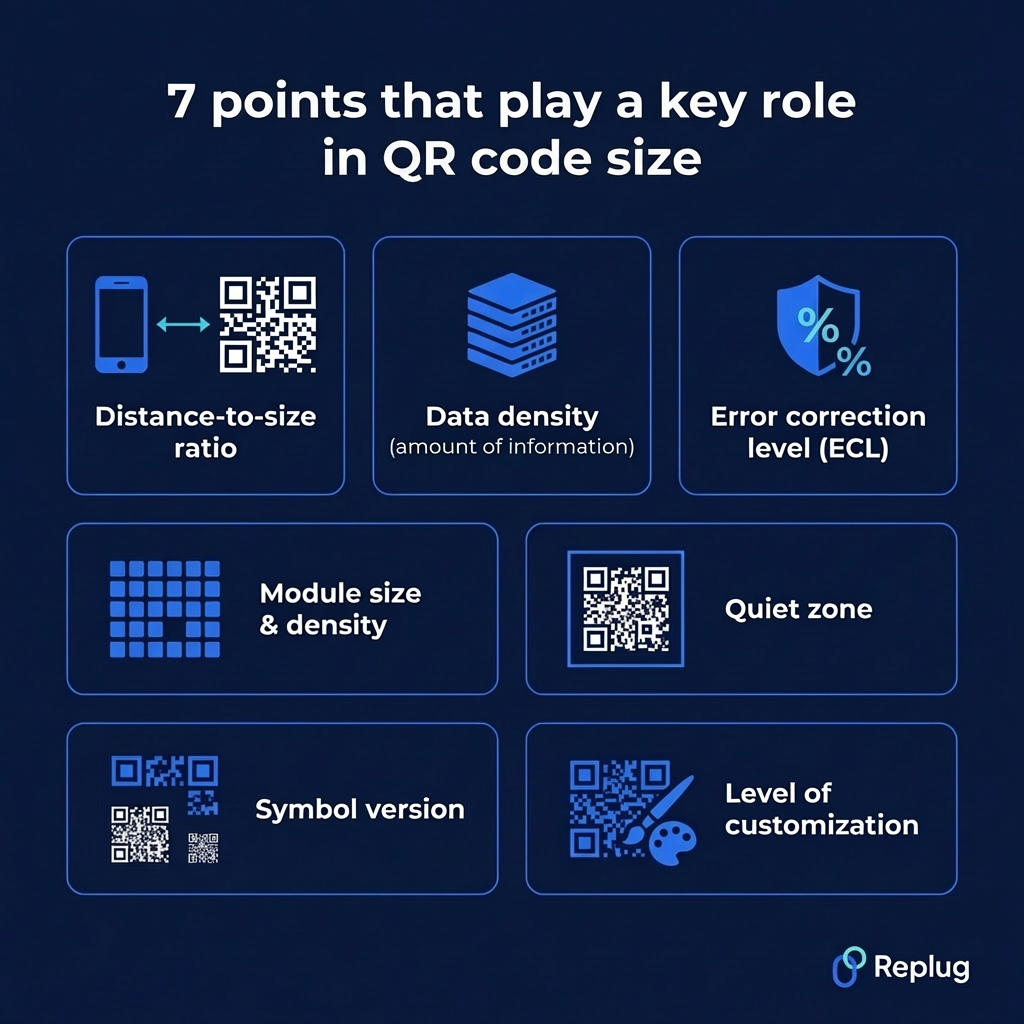
Points that play a significant role in QR code size
A few technical factors quietly influence how big or small your QR code needs to be, and ignoring them is usually why codes fail to scan. Understanding these helps you make smarter sizing decisions before you print or publish anything.
Distance-to-size ratio: The farther away your audience is when scanning, the bigger the code needs to be. A simple rule: for every 1 inch of QR code size, expect a reliable scan from about 10 inches away.
Data density (amount of information): More data packed into a QR code means more modules (the tiny squares), which makes a denser pattern. And, such a pattern needs more physical space to stay readable.
Error correction level (ECL): QR codes have four error correction levels, i.e., L, M, Q, and H. Higher levels add redundancy so the code survives damage or dirt, but they also increase complexity, which might require a larger size.
Module size & density: A module is the smallest square unit inside a QR code. If modules are too tiny to distinguish from each other, scanners struggle. Keeping modules at a legible size directly impacts the overall code dimensions.
Quiet zone: This is the blank white border surrounding your QR code. It’s not decorative; scanners need it to identify where the code starts and ends. The standard quiet zone is 4 modules wide on all sides, so always factor it into your total size.
Symbol version: QR codes have 40 versions, with Version 1 being the smallest (21×21 modules) and Version 40 the largest (177×177 modules). The more data you store, the higher the version and the bigger the code needs to be.
Level of customization: Adding colors, logos, or design elements to your QR code can interfere with scannability. The more customized it is, the larger it may need to be to maintain enough contrast and clarity for a reliable scan.
How to select the right QR code size for your needs: Key points to consider!
Picking the right QR code size doesn’t have to be guesswork. You just need to think through a few practical factors before finalizing your design or sending anything to print.
Here’s what to keep in mind:
Scanning distance (10:1 rule): A reliable rule to follow! Your QR code should be 1/10th of the scanning distance. So if someone will be scanning from 10 inches away, your code should be at least 1 inch wide. Scale up from there accordingly.
Data complexity: If your QR code stores along URL, vCard, or multiple data fields, it’ll naturally be more complex. More complex codes need more space to stay scannable, so size up when you’re storing a lot of information.
Minimum practical size: Never go below 2 x 2 cm for any printed material; that’s the floor. Below that, most smartphone cameras simply won’t lock on, regardless of how good the print quality is.
The quiet zone: Always leave a clean, white margin around your QR code, at least 4 modules wide on every side. Crowding the code edge-to-edge with other design elements is one of the most common reasons code fails in the real world.
Material & quality: Printing on rough, textured, or dark surfaces can swallow up scannability fast. The lower the print quality or the trickier the surface, the larger and bolder your QR code needs to be to compensate.
Generate high-quality QR codes of all sizes easily with Replug!
If you’re looking for a reliable tool to create and customize QR codes without any hassle, Replug.io is worth checking out.
With Replug, you can design QR codes that actually match your brand. It allows you to add your logo, pick your colors, choose your style, and download in high-resolution formats like PNG, SVG, or PDF.
Whether it’s for a business card, a product label, or a billboard, the codes come out sharp and scan-ready at any size.
Plus, you get built-in analytics to track scans, locations, and device data in real time. So you’re not just generating codes, you’re learning from them too.
Final words
Getting your QR code size right isn’t complicated anymore. It just takes a little thought up front.
No matter if you’re printing on a business card, a magazine, or a billboard, the right size can mean the difference between a seamless scan and a completely missed opportunity.
Keep the 10:1 scanning rule in mind, respect the quiet zone, don’t stuff in more data than necessary, and always test before you commit to a full print run. Once you nail the sizing, everything else falls into place.
And if you need a tool that makes the whole process easier, Replug has you covered, from creation to tracking, all in one place.
Frequently asked questions
How big is a normal QR code?
A “normal” QR code size really depends on where it’s being used. For most everyday print materials, a standard size falls somewhere between 2 x 2 cm and 4 x 4 cm. For digital use, 200 x 200 px to 450 x 450 px is pretty typical.
As for the QR code size limit on the higher end, there isn’t a strict one, as long as it scans. The minimum, however, is firmly at 2 x 2 cm for print. Stick within these ranges for day-to-day use, and you’ll rarely run into any issues.
What is the minimum resolution for a QR code?
For print, the minimum recommended resolution is 300 DPI, which keeps the modules sharp and scannable. For digital use (screens, emails, websites),72–96 DPI is generally sufficient. Going below 300 DPI in print is where things start getting blurry and unreliable.
Does the error correction level have a major impact on QR code size?
Yes, it does. Higher error correction levels (like Q or H) add more redundant data to the code, which increases its complexity and pushes the size up. If space is tight, using a lower ECL (like L or M) can help keep the code smaller. Just make sure the surface and conditions don’t require heavy error correction.
Can a QR code be resized after it is created without affecting its functionality?
Yes, but only if you’re scaling it up or down proportionally and using a vector format like SVG. Stretching it unevenly or scaling a low-resolution PNG too far up will degrade quality and hurt scannability. Always export in vector format if you anticipate resizing later.
How does the amount of encoded data affect QR code size?
More data = more modules = a more complex pattern = a bigger code size
A QR code storing just a short URL will always be simpler and more compact than one storing a full vCard with a phone number, email, address, and website. Keep your data lean when space is limited.
Is there a max QR code size limit?
Technically, no! There’s no upper size limit. A QR code can be as large as a crop field (as we covered earlier!). The only real ceiling is practicality. On the data side, though, a single QR code can store up to 7,089 numeric characters or 4,296 alphanumeric characters at maximum capacity.
Does the version affect QR code size or not?
Absolutely! QR codes have 40 versions in total. Version 1 starts at 21×21 modules, and Version 40 goes up to 177×177 modules. The version increases automatically based on how much data you’re storing, and a higher version directly means a physically larger code to remain scannable.
Is it possible to reduce the size of a QR code once it is created?
You can scale it down visually, but there’s a floor. Go below 2 x 2 cm in print, and it likely won’t scan reliably. If you want genuinely smaller code, the better approach is to reduce the data it stores (e.g., use a shortened URL) or lower the error correction level before generating it.
Does the type or shape of a QR code affect its size?
The shape can affect it slightly.
– Standard QR codes are square, and that’s what most scanners are optimized for. – Micro QR codes are smaller by design but hold far less data. – Custom-shaped or heavily designed QR codes may need to be larger to maintain enough scannability, especially if the design interferes with the module pattern.
What are the best QR code size guidelines to follow in 2026?
Here’s a quick cheat sheet:
– Minimum size (any print): 2 x 2 cm – Business cards: 2–3 x 2–3 cm – Flyers & brochures: 2.5 x 2.5 cm – Posters & packaging: 4–6 x 4–6 cm – Billboards & signage: 6+ inches, scaled to viewing distance – Digital screens: At least 450 x 450 px – Always maintain a quiet zone of at least 4 modules on all sides
What are the major factors that affect scanning beyond standard QR size?
Size is just one piece of the puzzle. Other factors that affect scanning include:
– print quality, – surface texture, – lighting conditions, – color contrast between the code and background, – camera quality of the scanning device, and – how much customization (logos, colors) has been applied to the code
How much white space is required around a QR code for it to function optimally?
The standard recommendation is a quiet zone of at least 4 modules wide on all four sides of the QR code. In practical terms, that usually works out to around 4–5 mm for a standard-sized code. Cutting into this space is one of the most common and easily avoidable reasons QR codes fail to scan.
You pull out your phone, point it at a QR code, and… nothing. You try again, and still nothing. Frustrating, right?
A blurry or poorly generated QR code isn’t just annoying; it’s costing real opportunities. And given that nearly 99.5 million Americans scanned a QR code in 2025 and QR code usage grew by 323% between 2021 and 2025, this little square has become way too important to get wrong.
No matter if you’re a business owner, a marketer, or just someone who needs a working QR code, a blurry one can make people give up in seconds.
The good news? Fixing it is simpler than you’d think!
But before we jump into solutions, let’s make sure we’re all on the same page. So let’s quickly cover what a QR code actually is and how it works.
What is a QR code?
A QR code(short for “Quick Response code”) is a two-dimensional barcode that stores information like a website URL, contact details, or a payment prompt and can be instantly read by a smartphone camera.
Unlike the old barcodes you see on grocery items, a QR code holds way more data and works in any direction you scan it.
Its main purpose is simple:to bridge the gap between the physical and digital world in the fastest way possible.
How does it work?
When you create a QR code, the information you enter gets encoded into a pattern of black and white squares.
When someone scans it, their phone’s camera reads that pattern and decodes it back into the original information (opening a link, displaying text, or triggering an action).
Think of it like a secret visual language your phone can instantly translate. The whole thing happens in under a second, which is exactly why QR codes have become so popular.
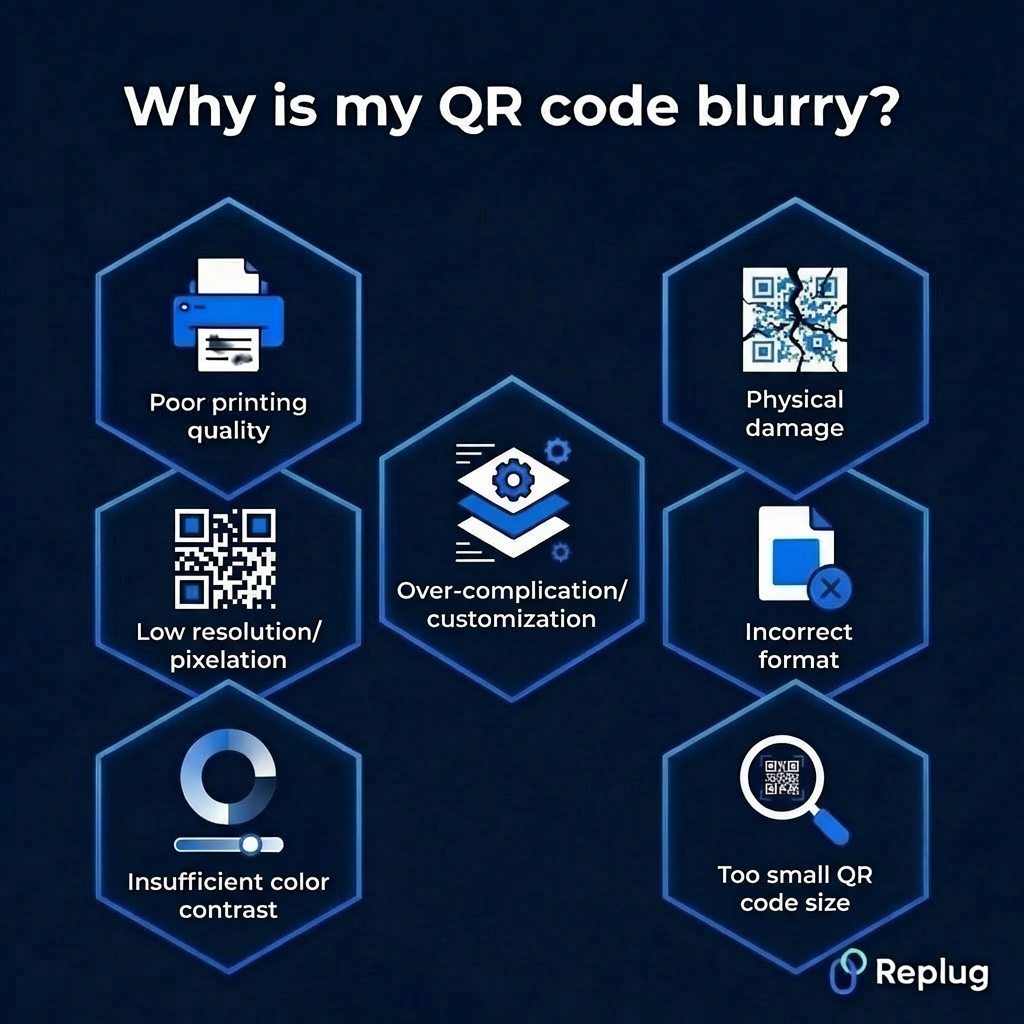
Why is my QR code blurry?
Before you can fix a blurry QR code, it helps to know what’s causing it in the first place. There are actually quite a few reasons a QR code can become unscannable, and most of them are pretty easy to avoid once you know what to look out for.
Low resolution/pixelation
This is probably the most common culprit. When a QR code is created at a low resolution and then stretched or scaled up, the edges get pixelated, and the scanner simply can’t read it cleanly. Always generate your QR code at the highest resolution available.
Poor printing quality
Even a perfectly designed QR code can go bad in print. If your printer is low on ink, using poor-quality paper, or set to a low print quality mode, the fine details of the code get lost. This makes it blurry or patchy and hard to scan.
Insufficient color contrast
QR codes rely on a clear contrast between the dark modules and the light background to be readable. Using similar shades (like a dark grey code on a black background) confuses the scanner and makes the code practically useless.
Over-complication/customization
Adding too many design elements, heavy colors, or large logos right in the center of your QR code can interfere with the data embedded in it. A little customization is fine, but overdoing it often pushes the code past the point where it can still be scanned reliably.
Physical damage
A QR code on a printed flyer, product label, or sticker is vulnerable to real-world wear and tear. Scratches, moisture, fading, or even a bad fold across the code can damage enough of the pattern to make it unreadable.
Incorrect format
Saving or exporting your QR code in the wrong file format can seriously hurt its quality. Formats like JPEG compress image data and can introduce blurriness, while vector formats like SVG or high-resolution PNGs keep the code sharp and crisp at any size.
Too small QR code size
There’s a minimum size a QR code needs to be to work properly. If it’s printed or displayed too small, the individual squares within the code become too tiny for a camera to distinguish. This ultimately makes scanning nearly impossible, especially from any reasonable distance.
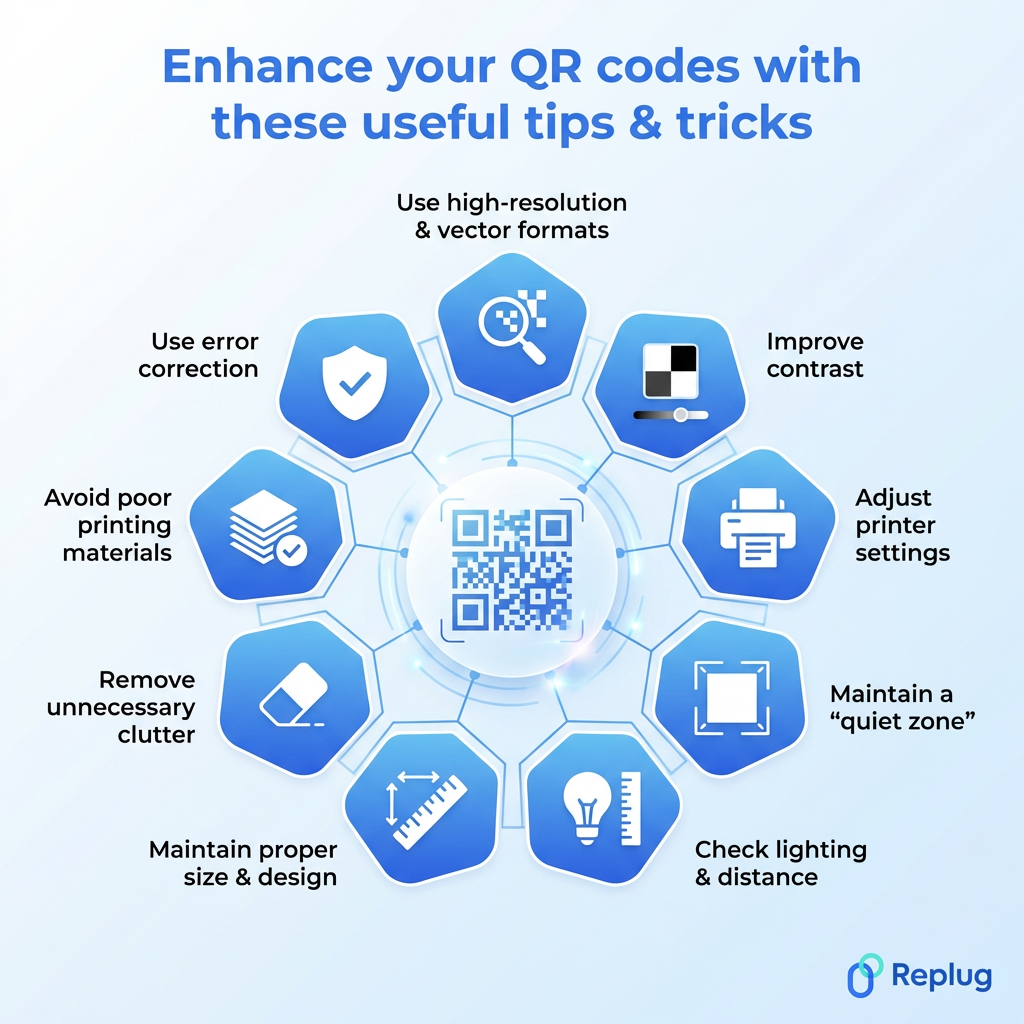
Enhance your QR codes with these useful tips & tricks
Now that you know what’s causing the blur, let’s talk about how to actually fix it. These tips are straightforward, practical, and easy to apply, whether you’re designing a QR code from scratch or trying to rescue an existing one.
Tip #01: Use high-resolution & vector formats
Always export your QR code as an SVG or high-resolution PNG rather than a JPEG. Vector formats scale to any size without losing sharpness, so your code stays crisp no matter if it’s on a business card or a billboard. This single change alone can make a huge difference.
Tip #02: Improve contrast
Stick to the classic dark module on a light background combo. It’s the most reliable for scanning. If you want to use custom colors, make sure there’s a strong enough contrast between the two. When in doubt, test your QR code on multiple devices before publishing it.
Tip #03: Adjust printer settings
Before hitting print, optimize your printer settings to the highest quality mode available. Also, make sure your ink levels are good. A half-empty cartridge often produces faded or uneven prints that can make a QR code blurry and completely unscannable.
Tip #04: Maintain a “quiet zone”
A quiet zone is the blank white border surrounding your QR code, and it’s not just for looks; it’s actually essential. Without enough white space around the edges, scanners struggle to identify where the code begins and ends. A quiet zone of at least four modules wide is generally recommended.
Tip #05: Check lighting & distance
Sometimes the issue isn’t the code itself, it’s the scanning conditions. Make sure the QR code is well-lit and that you’re holding your phone at a comfortable distance, not too close and not too far. Glare from glossy surfaces can also interfere, so consider a matte finish for printed codes.
Tip #06: Maintain proper size & design
As a general rule, your QR code size should be at least 2 x 2 cm for close-range scanning, and bigger if it’s meant to be scanned from a distance. Keep the design clean and avoid distorting the shape of the code. Even minor stretching can cast off the scanner.
Tip #07: Remove unnecessary clutter
Less is actually more when it comes to QR code design. Overlapping text, excessive design elements, or a logo that’s too large can all interfere with the embedded data. If you want to add a logo, keep it small and centered, and make sure it doesn’t cover more than 30% of the code.
Tip #08: Avoid poor printing materials
The surface you print on matters more than people realize. Thin or low-quality paper can cause ink to bleed, and shiny or textured surfaces can distort the pattern. For best results, use a smooth, matte, medium-weight paper or a professional-grade label material.
Tip #09: Use error correction
QR codes come with a built-in error correction feature that allows them to remain scannable even if part of the code is damaged or obscured. Setting your error correction level to “H” (High) means up to 30% of the code can be recovered. A real lifesaver for codes used in physical environments.
Generate clear, high-quality QR codes using Replug’s custom QR code generator
If you’re looking for a reliable tool to create clean, scannable QR codes without the hassle, Replug.io is worth checking out. It’s a free URL shortener and an all-in-one link management platform that does a whole lot more than just shorten links.
One of its standout features is the custom QR code generator, which lets you generate high-quality, fully customizable, dynamic QR codes in seconds.
Dynamic QR codes
for modern brands, marketers,
and creators.
You can tweak the colors, add your logo, and adjust the design, all while keeping the code sharp and perfectly scannable.
Whether you’re a marketer, a business owner, or just someone who needs a quick and reliable QR code, Replug makes the whole process effortless and clean from start to finish.
Wrapping up
A blurred QR code is honestly more of a fixable inconvenience than a real problem, and now you have everything you need to sort it out.
From using the right file formats and fixing contrast issues to choosing quality print materials and enabling error correction, the fixes are simple once you know what to look for.
The key is paying attention to the small details that most people overlook. And if you want to skip the guesswork entirely, a tool like Replug makes it easy to generate clean, high-quality QR codes right from the start.
Put these tips into practice, and you’ll never have to deal with an unscannable, blurry QR code again.
Frequently asked questions
What is the best QR code enhancer online?
There are several solid options out there, but the best QR code sharpener is one that lets you export in high-resolution or vector formats like SVG or PNG.
Tools like Replug, QR Code Generator, and QRTiger are popular choices that offer customization, dynamic codes, and clean, scannable outputs without much technical know-how required.
How do you fix a QR code that is too blurry?
Start by regenerating the QR code at a higher resolution instead of trying to fix the existing one. Make sure you’re exporting it as an SVG or high-res PNG, printing on quality material, and keeping enough white space around the edges.
In most cases, simply recreating it from scratch is faster and more reliable than trying to restore a blurry version.
How do I make my QR code clear?
Use a vector-based format, maintain strong color contrast, keep the design simple, and always test it on multiple devices before using it publicly. If you’re printing it, use a high-quality printer with fresh ink and a smooth paper surface.
These small steps go a long way in keeping your QR code consistently clear and scannable.
How to increase the quality of a QR code?
Generate your QR code at the highest resolution possible and export it in SVG or PNG format. Set the error correction level to “H” for maximum durability, avoid over-customizing the design, and make sure it’s sized appropriately for its intended use.
If you’re using any marketing automation software that includes QR code generation, check whether it supports high-resolution exports (not all of them do).
Is it possible to scan a partially blurry QR code?
Yes, sometimes, but it depends on how much of the code is damaged or blurry. QR codes have a built-in error correction feature that can recover up to 30% of the data even if part of the code is obscured or damaged.
So a slightly blurry or partially damaged code might still scan, but a heavily distorted one likely won’t.
Is it possible to edit a blurry QR code to make it scannable?
Not really, no! Once a QR code is blurry or corrupted, editing the image itself won’t restore the lost data.
Even AI productivity software with advanced image enhancement features can improve visual clarity to some extent, but it can’t fully recover a QR code that’s too far gone. Your best bet is always to regenerate the code from the original source.
How to sharpen a blurry QR code?
If the blurriness is minor, you can try running it through an image-sharpening tool to improve the edges slightly. However, for anything beyond a subtle blur, regenerating the QR code at a higher resolution is the most effective solution.
Make sure to export it in the right format, test it before deploying, and you should be good to go.
Ever had trouble scanning a QR code? It’s frustrating, right? These little black-and-white squares are supposed to make things easier, but sometimes they just don’t cooperate. Well, don’t worry – we’re here to help you figure out what’s going on.
QR codes are everywhere these days – on ads, products, and even restaurant menus. They’re meant to be a quick and easy way to access information or make payments. But when they don’t work, it can be a real headache.
In this guide, we’ll walk you through nine common reasons why your QR code might not be scanning properly. Whether you’re a business owner trying to improve customer experience or just someone trying to scan a code for the first time, we’ll help you troubleshoot the problem. Let’s get started!
A complete link management solution
for marketing professionals & agencies.
Try Replug for free
9 reasons why your QR code is not working:
1) Blurry QR code
Issue: A blurry QR code is often caused by downloading or resizing it incorrectly, leading to a loss of image quality.
Impact: A scanner may struggle to interpret a blurry QR code, resulting in scanning failures.
Solution: Always test printed QR codes and ensure they’re of high quality. Download in formats like SVG or PNG to maintain resolution.
2) Color inversion
Issue: Inverting colors, such as having a dark background with a light foreground, renders the QR code unscannable.
Impact: QR code scanners expect a dark foreground on a light background for optimal scanning.
Solution: Stick to the classic white background with a black foreground for maximum compatibility.
3) Small QR code size
Issue: QR codes below the minimum size (2×2 cm) may not scan reliably, impacting readability and functionality.
Impact: Tiny QR codes may go unnoticed or fail to scan, especially on marketing materials.
Solution: Adjust QR code size based on usage and location, ensuring it’s noticeable and meets minimum dimensions.
4) Contrast issues
Issue: Lack of contrast between the QR code and background can hinder scanning, especially with dull or blended colors.
Impact: QR codes blending into backgrounds or lacking contrast may be overlooked or fail to scan.
Solution: Maintain a 40% darker foreground than the background for optimal visibility. Avoid over-customization that compromises scannability.
5) Incorrect placement
Issue: QR codes placed too high, too low, or behind reflective surfaces may not be noticed or scanned effectively.
Impact: Poor placement diminishes QR code visibility and accessibility to users.
Solution: Position QR codes at eye level, ensuring they’re noticeable and not obstructed by reflective surfaces.
6) Overcrowding
Issue: Overloading QR codes with excessive content reduces scanning efficiency and compromises readability.
Impact: Crowded QR codes take longer to scan and may cause scanning errors due to reduced quiet space and corner visibility.
Solution: Keep QR codes neat and concise to facilitate faster scanning and maintain scanning accuracy.
7) Expired QR code
Issue: QR codes created from low-quality, free generators may have expiration dates or scan limits, leading to redirection errors or unscannable codes.
Impact: Users may unknowingly scan expired QR codes, resulting in incorrect or inaccessible information.
Solution: Switch to a reliable QR code generator like Replug.io, which provides ongoing monitoring and notifications of potential issues. Regularly test QR codes to ensure they remain functional and avoid expiration-related problems.
8) Broken links
Issue: QR codes directing users to broken or non-existent web pages due to URL errors or website malfunctions.
Impact: Broken links frustrate users and diminish trust in QR code campaigns, resulting in poor user experiences and wasted opportunities.
Solution: Thoroughly test QR code links to ensure they lead to functional and relevant web pages. Employ dynamic QR codes to modify destinations as needed, preventing link rot and ensuring continued usability.
9) Over-customization
Issue: Excessive customization of QR codes, such as complex data patterns, dark background images, or unreadable URLs, can hinder scanning reliability.
Impact: Overly customized QR codes may become unrecognizable to scanners, reducing scan success rates and compromising campaign effectiveness.
Solution: Strike a balance between customization and scannability by avoiding elements that obscure QR code data or alter its fundamental structure. Stick to simple customization techniques like adding logos or adjusting colors while maintaining code readability and functionality.
Additional tips for troubleshooting QR code scanning issues
Check camera settings
Issue: Camera settings on your device may affect QR code scanning performance, especially if Google Lens suggestions are disabled.
Solution: Ensure Google Lens suggestions are enabled on your device to improve QR code recognition accuracy. Navigate to your device’s settings and enable this feature if it’s disabled.
Try a third-party QR code scanner
Issue: Built-in QR code scanners on iPhones or Android devices may not always provide optimal scanning results.
Solution: Experiment with third-party QR code scanner apps available on your device’s app store. Choose apps with high ratings and positive user reviews for improved scanning accuracy and reliability. You can also try web scanning options like the QR Code Scanner to quickly get redirect links on your device.
Automate and validate with testRigor
Issue: Manual testing of QR codes can be time-consuming and prone to human error.
Solution: Learn how to test QR codes using testRigor to automate QR code scanning, verify redirects, and ensure consistent results across devices and environments.
A complete link management solution
for marketing professionals & agencies.
Try Replug for free
Unlock limitless possibilities with Replug’s QR code generator
Elevate your QR code game with Replug’s dynamic QR code generator, seamlessly integrated to enhance audience interaction in the digital age. Craft instant QR codes effortlessly, linking physical spaces to your digital content, promotions, and experiences. With unlimited scans throughout its lifetime, our QR codes empower you to engage customers across diverse industries without limitations.
Transform the way you connect with your audience – unlock the potential of QR codes with Replug today. Start by using Replug’s free link shortener to create branded, trackable links that seamlessly integrate with your QR campaigns.
Final words:
Resolving QR code scanning issues requires a combination of understanding common problems and implementing effective solutions. By addressing issues like blurry codes, color inversion, size constraints, contrast issues, incorrect placement, overcrowding, expired codes, broken links, and over-customization, you can ensure that your QR code campaigns remain functional and user-friendly.
Furthermore, don’t forget to check your device’s camera settings and consider using third-party QR code scanner apps for enhanced scanning accuracy. With these tips in mind, you can overcome any challenges and leverage the full potential of QR code technology in your business or personal endeavors.
A complete link management solution
for marketing professionals & agencies.
Try Replug for free
Frequently asked questions
Why is my QR Code not working?
Test the QR Code for over-customization, broken links, contrast issues, expiry, and placement. If issues persist, try a third-party QR Code scanner or update your device’s operating system.
Why is my camera not scanning QR Codes?
Ensure the camera is level with the QR Code surface. Adjust the camera angle for optimal scanning performance.
Will my QR Code stop working?
No, QR Codes do not expire. Unlimited scans are available with Replug’s free static QR Codes, while dynamic QR Codes offer editable options for updates and analytics.
Why is my QR Code not working when printed?
Check QR Code size, placement, and functionality from a distance, and for broken links or errors.
In a world where time is money and convenience is king, imagine having the power to streamline your document sharing with just a scan. Introducing QR code for PDFs– your ultimate solution for effortlessly converting PDFs into QR codes!
Whether you’re a busy professional managing presentations, a student diving into research, or a home organizer keeping recipes in check, QR code is your secret tool for seamless document distribution. With just a few clicks, you can turn any PDF into a scannable QR code, instantly accessible to anyone with a smartphone. No more time-consuming file attachments or endless email chains – just scan and go!
In this guide, we’ll walk through the simple steps to create QR codes, making it easier to distribute and access digital content. Let’s get started!
A complete link management solution
for marketing professionals & agencies.
Try Replug for free
How to Make a QR Code for a PDF using Replug?
To create a QR code for a PDF using Replug’s free QR code generator, follow these simple steps:
Step 1: Log in to your Replug account using your credentials. If you don’t have an account yet, you can sign up for free.
Step 2: Select “Campaign” on your Replug dashboard once logged inor create a new campaign in just a few seconds.
Step 3: In the provided field, enter the URL of the PDF document you want to create a QR code for and click “Create”. Make sure the PDF is hosted online and accessible via a URL.
Step 4: Replug allows you to shorten a link and customize its various settings, such as link alias, password protection, link preview, link expiry, etc. Adjust these settings according to your preferences.
Step 5: After customizing, click on the “Update” button. Replug will instantly generate a QR code for your PDF link.
Download your PDF link as a QR code:
Step 6: On the Replug dashboard, click “Manage” then “Replug links”. Here you’ll find your PDF link.
Step 7: Click on the three dots under “Actions” and select “Download QR code.” Your PDF URL will be downloaded as a QR code.
Choosing Replug for your QR Code marketing offers a plethora of advantages that makes it stand out as a top-notch link optimization platform. Here’s why Replug is the ultimate choice for your QR Code marketing needs:
A complete link management solution
for marketing professionals & agencies.
Try Replug for free
Effortless QR code creation:
With Replug, generating QR codes for your URLs is a breeze. Say goodbye to complex processes – with just a few clicks, you can create instant QR codes, seamlessly connecting your audience to your digital content.
Customization galore:
Make your QR codes uniquely yours. Replug lets you customize your QR codes to perfectly align with your brand identity. Add logos, choose color schemes, and create branded QR codes that reflect your style effortlessly.
Versatility across industries:
No matter what sector you’re in, Replug’s QR codes have covered you. From tourism to retail, e-commerce to sports, Replug offers a versatile solution to connect with your audience, drive engagement, and boost sales across various industries.
No expiry hassles:
With Replug, your QR codes don’t come with an expiration date – unless you set one yourself. Enjoy the flexibility to change destination links or add passwords without the hassle of regenerating QR codes.
Insightful analytics:
Replug’s comprehensive tracking and analytics feature gives you valuable insights into your QR code performance. Track user actions, analyze click-through rates, and gather geographical data to refine and optimize your marketing strategies effectively.
Exportable scan metrics:
Depending on your plan, Replug enables you to export scan metrics for in-depth analysis. This feature enhances your ability to organize and utilize the data obtained from your QR code campaigns, empowering you to make data-driven decisions with ease.
A complete link management solution
for marketing professionals & agencies.
Try Replug for free
Frequently asked questions
What is a QR code?
A QR code is a two-dimensional barcode that can store information such as URLs, text, or other data. Using a QR code for a PDF allows you to provide a convenient way for users to access the document by simply scanning the code with their smartphone or tablet.
Can I customize the appearance of the QR code?
Yes, many QR code generators allow you to customize the appearance of the QR code by adding logos, changing colors, and selecting different shapes and styles.
Can I track how many times the QR code is scanned?
Yes, some QR code generators offer tracking and analytics features that allow you to monitor how many times the QR code is scanned, where it is scanned, and other valuable data.
Do QR codes for PDFs expire?
It depends on the QR code generator you use. Some QR codes may have expiration dates, while others do not expire unless you specify a timeframe or manually deactivate the code.
Are your flyers due for a modern makeover? Enter QR codes—the quick, straightforward solution to elevate your print game.
In this guide, we get straight to it, showing you how to seamlessly integrate QR codes for a straightforward, tech-savvy boost. Follow this guide, and transform your flyers into interactive powerhouses. Time to make your prints work smarter, not harder. Let’s get started!
What are QR codes on flyers?
QR Codes on flyers refer to Quick Response Codes incorporated into print materials, typically paper-based promotional items. These matrix barcodes, when scanned using a smartphone or QR code reader, direct users to a designated URL.
This integration serves as a bridge between traditional print marketing and the digital realm, offering opportunities for enhanced engagement, in-store traffic generation, and data-driven campaign optimization.
Why add a QR code to your flyer?
1. Boosts audience engagement:
Blend the best of traditional and digital marketing. QR Codes on flyers create an interactive experience, ensuring your audience not only notices but engages with your content.
2. ROI tracking made easy:
Measure your marketing success with precision. QR Codes enable you to track user engagement, providing insights like scan numbers, operating systems used, and user locations. Understand the impact of your print ad and determine its worth.
3. Mobile-friendly magic:
Cater to the mobile-savvy crowd. Modern smartphones come equipped with built-in QR code scanners, making information readily accessible. Bridge the physical and digital realms, ensuring your audience can connect with your online content effortlessly.
4. Always accessible info:
Avoid the risk of lost flyers. A QR Code synchronizes your physical and digital content, allowing your audience to access crucial information even if they misplace the flyer. Forge instant connections and stand out with this seamless mobile advantage.
A complete link management solution
for marketing professionals & agencies.
Try Replug for free
Important note: A longer URL makes your QR code more complex and difficult to scan. Use our URL shortener tool to create short links and download them as QR codes. By doing so, your content will be easier to scan and access.
Step 1: Sign in to your Replug account or create a free account if you’re new.
Step 2: On the main dashboard, click “Select your campaign” or swiftly create a new campaign.
Step 3: Under “Select your campaign,” enter the destination URL you want to link to your flyer QR code and click “Create.”
Step 4: Customize your shortened URL by adjusting the URL slug to align with your brand or campaign.
Step 5: Copy the shortened URL and click “update.”
Download your destination URL as a QR code:
Step 6: Navigate back to the main dashboard, click “manage,” then select “Replug links.”
Step 7: Locate your newly created short URL in the list.
Step 8: Click on the three dots under “Actions,” then choose “Download QR code.”
Place the QR code strategically on your flyer, ensuring it’s easily visible and scannable.
Accompany the QR code with a brief call-to-action, prompting users to scan for exclusive content or additional information.
Test the QR code with various devices to ensure compatibility and seamless user experience.
Pro Tip: Replug provides detailed analytics, helping you monitor the performance of your QR codes. Track metrics such as click-through rates and geographical data to refine your marketing strategy. Elevate your flyer by seamlessly integrating dynamic QR codes—bridging the gap between your print material and the digital realm!
Best practices for using QR codes on flyers:
Use colors that pop:
Move beyond black and white. Use vibrant colors that align with your brand’s palette. Enhance brand recognition by ensuring your QR Code is consistent with your overall design scheme. Keep it visually appealing and on-brand.
Incorporate your brand’s identity:
Make space not just for colors but also for your brand’s logo. Whether you’re a small business or a content creator, adding a logo adds a personal touch and boosts brand recognition. It’s a professional move that sets your marketing materials apart.
Opt for dynamic QR codes:
Choose dynamic over static for printed materials. Dynamic QR Codes allow easy content modification without reprinting. Whether it’s a link update or a change in information, dynamic QR Codes offer flexibility, saving both time and money. Additionally, they provide valuable scan data for tracking and analysis.
Ensure design consistency:
Maintain a consistent design across your marketing collateral. Your QR Code should seamlessly blend with the overall aesthetics of your flyer. Cohesiveness in design enhances professionalism and ensures that your QR Code doesn’t feel out of place.
A complete link management solution
for marketing professionals & agencies.
Try Replug for free
Frequently asked questions
What is a QR Code and how does it work on flyers?
A QR Code, or Quick Response Code, is a two-dimensional barcode that stores information. On flyers, it works by encoding a link or information, allowing users to scan it with their smartphones to access the encoded content.
Why should I use QR Codes on my promotional flyers?
QR Codes on flyers enhance interactivity, bridge the gap between print and digital, and offer a convenient way for users to access additional information, promotions, or websites.
What are the best practices for placing QR Codes on flyers?
Use vibrant colors, incorporate your brand’s identity, opt for dynamic QR Codes for flexibility, and ensure design consistency with your flyer’s overall aesthetics.
How can I track the performance of QR Codes on my flyers?
Use QR Code analytics tools like Replug to track metrics such as the number of scans, geographical data, and other valuable insights to measure the effectiveness of your campaign.
QR codes come with more tricks than a magician’s hat. ???? A Dynamic QR code is all about redefining how you connect with information.
Usually, a QR code is printed on the packages or product boxes to access the product details specifications, or other information regarding the product.
However, the dynamic QR code is something most of you haven’t heard of before. You’ll be amazed at how these codes are changing the game for businesses, educators, and more.
So let’s dive deep into it and learn more about this specific type of QR code.
What is a dynamic QR code?
A dynamic QR code is flexible and adaptable codes can be edited, replaced, and updated after their creation. enabling real-time information updates and tracking of user interactions.
The core purpose of a QR code is to direct visitors to a specific website page or information linked to it. These codes are not your standard QR codes; they transform, adapt, and offer unparalleled tracking and customization.
How does dynamic QR code work?
Dynamic QR codes are made using specific software or online tools. Users input the content they want the QR code to show, like a website link or text. The QR code generator then produces a QR code that links to a server or database where the content is kept. You can change the content even after making the QR code.
Dynamic QR codes are responsible for showcasing the QR code analytics for tracking purposes. It also provides an option to edit or alter the destination URL or link information to the QR code. Therefore, the users don’t have to generate new QR codes in case of a change in the information, such as website URL, email address, or phone number.
Moreover, a dynamic QR code also integrates with several third-party tools and softwares to analyze the digital marketing campaign performance. So that’s why it’s important for brands and entrepreneurs to embrace the effectiveness of the dynamic QR codes.
The key steps in how dynamic QR codes work are:
Creation: A dynamic QR code is generated using a QR code generator or software. During this process, a URL (web address) pointing to the server or database is typically included in the QR code.
User Scanning: When a user scans the dynamic QR code using a smartphone or QR code reader, the app decodes the code and sends a request to the included URL.
Server Interaction: The server receives the request and dynamically generates the relevant content. This could be a webpage, text, image, or any other data.
Content Display: The server then sends the content back to the user’s device, which displays the updated information.
Tracking (Optional): Dynamic QR code systems often include tracking capabilities, allowing the QR code owner to collect data on how often the code is scanned.
Static QR code vs. dynamic QR code
Most businesses have been using static QR codes for a while without fashioning the innovation in the process. Therefore, it’s vital to discuss the core differences between a static and dynamic QR code to bring clarity to the readers’ minds.
Let’s do a side-by-side comparison of static and dynamic QR codes to give you perspective on capitalizing on this fantastic marketing and engagement opportunity:
Static QR Codes
Dynamic QR Codes
Permanent
Editable
Non-Trackable
Tackable
No Retargeting Capability
Retargeting Capability
Long Clunky URL
Short URL
Takes Time To Scan
Quick Scanning
Static QR Code
Static QR codes are permanent and cannot be edited, which is the key difference between both types of QR codes
The data linked to a static QR code remains unchanged indefinitely no matter what QR software is used to create the code
One of the factors of static QR codes is that they can’t be tracked regardless of the QR code generator
A huge perk of creating a static QR code is that it’s free to use and the users don’t need a subscription to create a QR code
Static QR codes are compatible with both Android and iOS devices
Dynamic QR Code
The biggest perk of the dynamic QR codes is that they are editable and trackable, making them ideal for businesses to alter the stored information going forward
Dynamic QR codes flawlessly redirect users to various types of information, such as website pages, videos, podcasts, and other information sources
Users can easily store rich media content like videos, images, audio, or custom webpages using dynamic QR codes
Analytics help marketers analyze the performance of their content or product. The performance of the dynamic QR codes can be tracked to analyze the campaign outcome
A dynamic QR code campaign can provide access to detailed reports, showcasing information about the total number of scans, scan locations, scan times, and the scanning device
Dynamic QR code allows users to integrate the QR code with third-party tools, such as Google Analytics, Zapier, and other SAAS products
A complete link management solution
for marketing professionals & agencies.
Try Replug for free
Examples of QR codes
QR codes are a rapidly growing trend without a doubt. Businesses of all sizes are adopting QR codes for marketing and engagement purposes.
Let’s shed some light on the diverse use cases of QR codes to understand the acceptability of this innovation:
i. Netflix: Household verification
Netflix is a popular OTT streaming service that has millions of users globally. The streaming platform recently implemented a household user verification system through QR codes.
Netflix asks the users to verify their identity to ensure that the subscription is in the same household when the user logs in on a different device or through a different internet connection.
The users are required to scan the QR code using their smartphone’s camera and then they’re redirected to the Netflix app once it’s verified.
Key takeaways:
Streamlined sign-up process, reducing friction for new users.
Enhanced user engagement and personalized recommendations for existing users.
An intuitive and convenient way to access the app’s features using a smartphone’s camera.
ii. AliExpress triggers app installations through the dynamic QR codes
AliExpress is a well-known Chinese e-commerce platform with customers across the globe.
This e-commerce giant has been using the QR code to direct the audience toward their respective mobile app store.
The iPhone users are redirected to the App Store, whereas the Android users are redirected toward the Google Play Store.
So it’s yet another use case of QR code that’s worth noticing. Brands could elicit this strategy and use the QR code to increase their mobile app downloads for more sales and engagement.
Key takeaways:
Dynamic QR codes offer a streamlined and efficient way for e-commerce platforms.
Brands could elicit this strategy and use the QR code to increase their mobile app downloads for more sales and engagement.
Use cases & uses of QR codes
Now that we have seen some popular examples of dynamic qr codes. But the story does not end there, as there are a number of ways you can use QR codes.
Let’s have a look at the use cases below where dynamic QR codes can be valuable.
i. Marketing Campaigns:
A company runs a marketing campaign with dynamic QR codes on promotional materials. Using it, they can monitor how many times the QR code is scanned, where and when scans occur, and the conversion rate to gauge the campaign’s success.
ii. Contactless Payments:
Dynamic QR codes are employed for contactless payments, where customers can scan the code to make payments at stores, restaurants, or for online purchases.
iii. Retail price updates:
Retailers can update the pricing information on their products by utilizing dynamic QR codes on price tags. This is especially useful during sales or when price changes are frequent.
iv. Inventory tracking in a warehouse:
Warehouse staff can update the QR code to indicate changes in the contents of a shelf or aisle. This allows for accurate and up-to-date inventory tracking without the need for manual record-keeping.
v. Product recalls:
If a product recall is necessary, the company can update the QR code to provide consumers with recall instructions, replacement options, or safety information. This ensures that consumers have access to the most current and critical information.
vi. Restaurant menus:
Restaurants use dynamic QR codes on printed menus to provide customers with access to digital menus. These menus can be updated in real-time to reflect daily specials, pricing changes, or new dishes.
vii. Emergency contact information:
In case of an emergency, first responders can scan the QR code to access the person’s medical history and emergency contacts. The individual can update this information as needed, ensuring accurate data is available during critical situations.
The above cases are just to name a few. These codes can be further utilized in various services departments like travel, real-estate, event management etc. These codes essential in making life easier through real-time updates and convenient processes.
When it comes to QR codes, the benefits are greater than we think. Let’s dive in further to learn about the key benefits.
Benefits of using a dynamic QR code
Dynamic QR codes have relatively broader capabilities as compared to static QR codes. No wonder top brands, marketing agencies, and social media influencers prefer dynamic QR codes for marketing and user engagement.
Let’s take a look at some of the benefits of using a dynamic QR code:
i. Easily editable
The first and foremost benefit of a dynamic QR code is that it can be edited going forward. The information attached to a dynamic QR code can be altered if needed. On the contrary, the static QR codes can’t be edited once created. The QR code is editable, which makes the dynamic QR code a clear choice for most brands and companies. It’s one of the differentiators between dynamic and static QR codes.
ii. Track performance
Static QR codes aren’t trackable, whereas dynamic QR codes can be tracked. Performance tracking makes dynamic QR codes more effective from the data and analytical standpoint. Brands and e-commerce websites use dynamic QR codes so that they can track their products’ reach, engagement, and sales.
iii. Fast processing
Dynamic QR codes are quicker when it comes to processing. The static QR codes are generally free to create. However, dynamic QR codes are available on premium plans. Therefore, it’s crystal clear that dynamic QR codes would be faster than static ones.
iv. Third-party integrations
Third-party tools integration takes any tool or service to the next level. When it comes to dynamic QR code generators, they seamlessly integrate with other tools for marketing and management. Marketers and brands may want to connect their QR codes with analytics tools to keep track of their QR codes’ performance.
v. Retargeting capability
One of the benefits of dynamic QR codes is that they can be used for retargeting the audience through ad networks such as Facebook ads and Google ads. The marketers can launch a retargeting campaign targeting the visitors who scanned the dynamic QR code and increase the likelihood of a conversion.
Add a dynamic QR code to your website using Replug
Adding a dynamic QR code to your website, landing page, or app would be a game-changer in engaging prospective customers or new visitors from a standpoint.
Since the QR code makes it easier for the visitors to access the stored information, the visitors would be able to access the URL or other information swiftly.
Replug is one of the best URL shortening and link management tools out there. You can use its free URL changer to create trackable, shortened links that enhance your campaigns with powerful analytics and seamless management.
One of the most significant features of Replug is QR code generation for the shortened URLs. Here’s how you can add a dynamic QR code to your website link using Replug:
Step 1: Log in to your Replug account
Start by logging in to your Replug account using your credentials.
Create a free account if you haven’t tried it yet. Replug has a 14-day free trial.
Step 2: Generate a short link
After logging in, the next thing you should do is to generate a short link that you want to associate with a QR code. This can be a link to your website, content, or any other online resource. Replug will automatically generate a QR code for it. You don’t need to do anything specific to initiate this process.
Maximize marketing ROI
by transforming ordinary URLs into branded short links that convert.
Try Replug for free
Step 3: Access the “Manage” section
Once a short link is created, navigate to the “Manage” section within your Replug account. Then select “Replug Links” to proceed further to get your QR code.
Step 4: Locate the link
Now locate the specific link you want to download the QR code for to proceed. To get the QR code for the short link you generated, open the settings of the short link by clicking the three-dot icon of that link.
Step 5: Download the QR code
Upon clicking on the three-dot icon, a menu would appear. Click on the option that says “download QR code.” It will prompt Replug to generate and download the QR code image associated with your chosen short link.
Once you’ve clicked on “download QR code,” the image of the QR code will be saved to your device. That will be your dynamic QR code for that specific link.
That’s it!
FAQs about QR codes
Let’s take a look at some of the commonly asked questions about QR codes:
Do dynamic QR codes expire?
The dynamic QR codes can expire depending on the rules set while creating them. The brand that creates the QR code gets to decide the expiration date of the QR code.
Can I change the URL on a dynamic QR code?
Absolutely. You can change the URL on a dynamic QR code. All you need is to go to the QR code tool, locate the respective link, and edit the QR code setting to make the required changes.
Can I reuse an old QR code?
A dynamic QR code could be reused if it’s changed, meaning the information has been altered or updated for reuse. However, the static QR code can’t be changed or reused once created.
Which QR codes never expire?
Static QR codes never expire. Similarly, these QR codes can’t be edited or changed once created. You may have to create a new one if you need to make some changes to the stored information.
What is a unique QR code?
Every QR code is unique. The QR pattern makes them different from one another. The reason why it’s necessary for a QR code to be unique is to ensure that it stores and accesses the appropriate information.