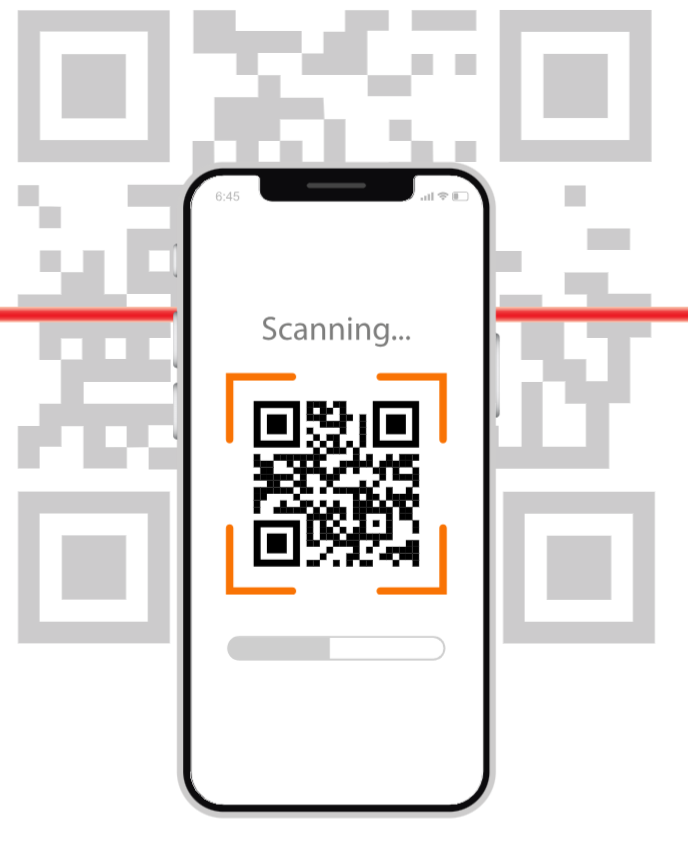
Category: QR codes

Explore blogs on QR codes, creative use cases, and marketing strategies. Learn how to engage audiences with smart QR campaigns.

  • 50+ different types of QR codes with examples & use cases [2026]

    50+ different types of QR codes with examples & use cases [2026]

    With the passage of time, QR codes went from a small black‑and‑white square on packaging to a daily habit.

    Recent surveys indicate that billions of scans happen every year across payments, menus, tickets, and ads. For marketers and creators, knowing the different types of QR codes is now as basic as knowing ad formats or social post types.

    Some codes are simple “scan and forget,” while others can be edited, tracked, routed, and branded. Use the wrong one, and you lock yourself into a bad link or lose valuable data. However, if you pick the right one, you can turn any surface into a smart, trackable entry point.

    This guide breaks down 50+ QR code types with clear examples and use cases, so picking the right format feels easy. Before we go deep, it helps to get on the same page about one thing: What exactly is a QR code?

    What is a QR code?

    A “QR code (Quick Response code)” is a two‑dimensional barcode made of tiny squares arranged in a grid (specific pattern). It can store much more information than a regular barcode and is readable by almost every smartphone camera or a QR code scanner.
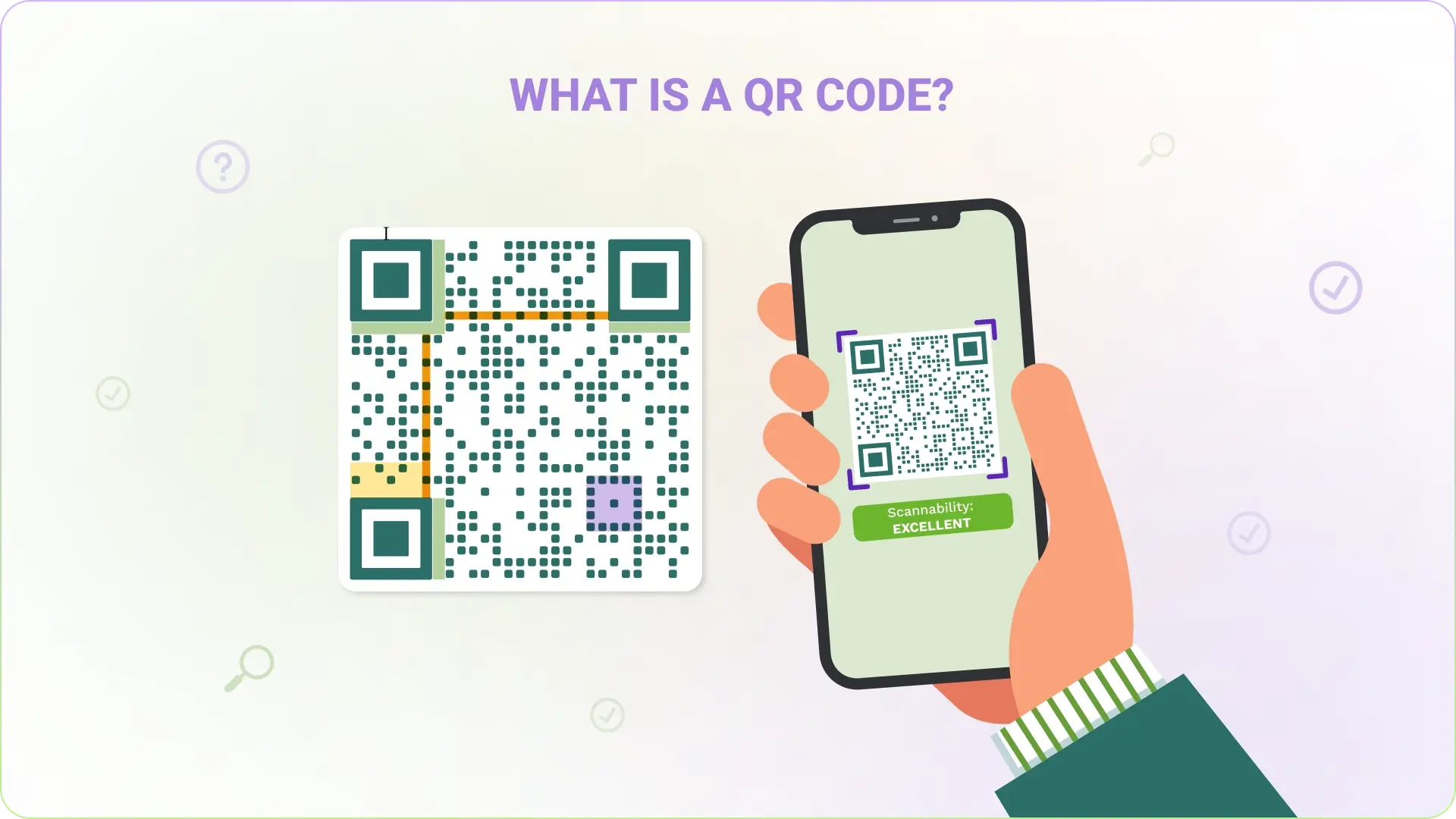
    What is a QR code

    Its main job is to connect the physical world to digital actions in one scan.

    • Flexible data types: QR codes can store many types of data, including website links, contact cards, Wi‑Fi details, files, and payment info.
    • Fast and forgiving: They scan quickly from any angle and can still work even if part of the code is scratched, dirty, or covered by a small logo.
    • Low‑cost and trackable: They are easy to create, cheap to print, and, when used with dynamic links, can provide analytics on scans, devices, and locations, hassle-free.

    Brief history of QR codes

    QR codes were invented in 1994 by Denso Wave, a Japanese automotive company. They needed a better way to track parts than standard barcodes, which held limited data. The new square code stored far more information and could be scanned fast on assembly lines.

    Over time, smartphones gained built‑in QR readers, and marketing pros realized they could use the same technology for websites, apps, tickets, and payments. That shift turned QR codes into a standard tool for both brands and everyday users.

    How many types of QR codes are there?

    There is no fixed number, because “types” can mean different structures, content formats, or actions.

    On the technical side, there are a handful of core standards and variants. Once you look at real‑world usage, though, there are dozens of different QR code types based on what happens after the scan.

    All types of QR codes and their uses + examples

    This section covers the technical and functional types of QR codes that sit behind most marketing use cases. These determine factors such as editability, error correction, and how much data you can store.

    Once you understand these, the application types later will make a lot more sense.
    Types of QR codes

    Static QR codes

    A static QR code stores the final data directly in its pattern, such as a full URL or a block of text. Once created and printed, that information can’t be changed.
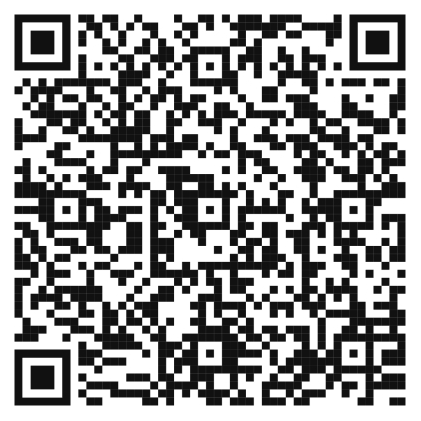
    Static QR code

    Static codes are best for details that stay the same for a long time, like Wi‑Fi passwords in an office or a permanent support page. For instance, a café might print a static QR code on a sign that always opens their Google Maps listing.

    Dynamic QR codes

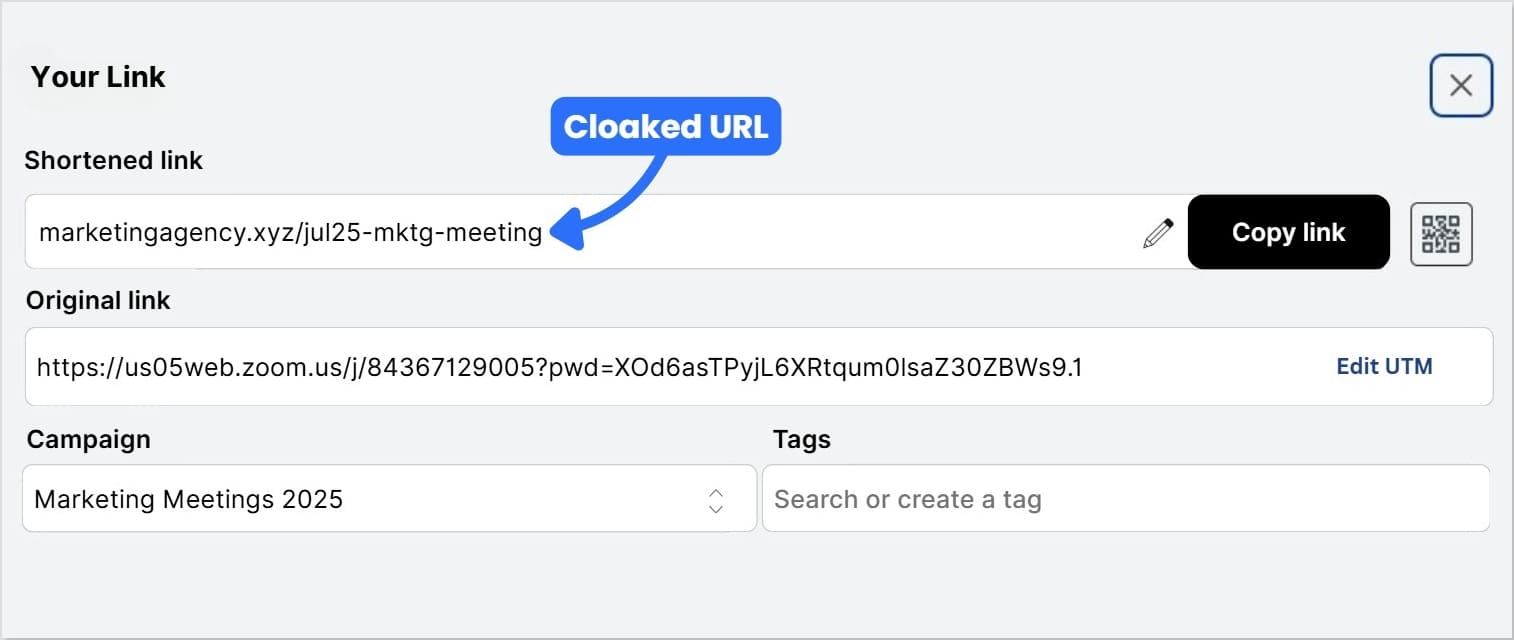
    A dynamic QR code stores a short redirected link rather than the final URL or content. That link is managed by a platform like Replug, so you can seamlessly change where scans go without reprinting the code.

    Dynamic QR code

    Dynamic codes also support:

    • Scan analytics (time, location, device)
    • Device targeting (different pages for iOS vs. Android)
    • Time‑based redirects
    • A/B testing and campaign rotation

    A brand might print a dynamic code on product packaging and later update it from a holiday offer page to a tutorial video using their dashboard.

    QR Code Model 1 & 2

    Model 1 and Model 2 refer to the original QR standards from Denso Wave:

    • Model 1 was the first version, with lower capacity and no alignment patterns, and is rarely used now.
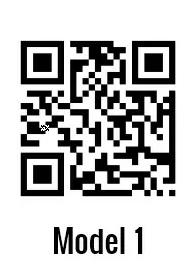
    QR Code Model 1
    • Model 2 is what almost every modern QR code uses, including the ones created in QR tools and apps today.
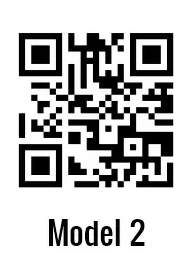
    QR Code Model 2

    When you generate any normal QR code, you are almost always working with a Model 2 symbol.

    Secure QR code (SQRC)

    A Secure QR code (SQRC) looks like a regular code but has both public and private data areas. The private part is encrypted and only readable by authorized scanners that hold the key.

    Secure QR code (SQRC)

    This format is helpful wherever sensitive data lives alongside public information. A hospital, for example, might use SQRC on patient wristbands so nurses can see basic details with standard scanners, while specialized devices reveal full medical records.

    Rectangular Micro QR (rMQR)

    Rectangular Micro QR (rMQR) is a slim, rectangular version of a QR‑style code. It was designed for tight, narrow spaces where a square code would not fit nicely.
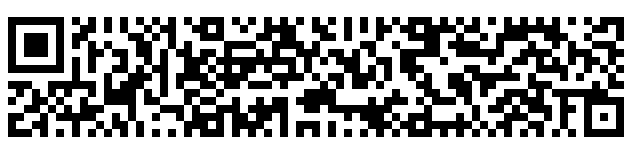
    Rectangular Micro QR (rMQR)

    You often see this style on the edges of labels, small electronic parts, or thin product packaging. A cosmetics brand could print an rMQR along the side of a lipstick box to link to ingredient details without covering the front design.

    High Capacity Colored 2D Code (HCC2D)

    The High Capacity Colored 2D Code (HCC2D) is an experimental format that uses multiple colors instead of just black and white. By encoding data with colors, it can store far more information in the same area.
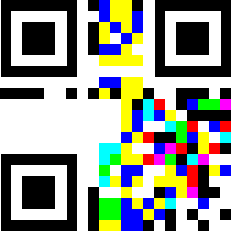
    High Capacity Colored 2D Code (HCC2D)

    Currently, it is still in research and not a mainstream marketing option. In theory, though, a future campaign could use an HCC2D symbol on a poster to deliver large offline data files without needing an internet connection.

    Accessible QR (AQR)

    Accessible QR (AQR) is designed to help people who are blind or have low vision. It pairs a standard QR pattern with a tactile dot‑dash border so users can find it by touch.
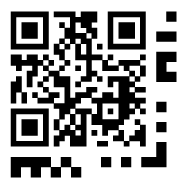
    Accessible QR (AQR)

    When scanned with a compatible app, the code reads out structured product information using screen reader features. A supermarket could add AQR codes to store‑brand packaging so shoppers can hear ingredient lists, allergy warnings, and cooking instructions.

    FrameQR

    FrameQR adds a decorative “frame” to the QR code’s structure, leaving a central area for images, logos, or text. Unlike simply placing a logo over a standard code, FrameQR rearranges the data so the design remains reliably scannable.
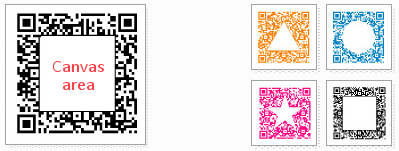
    FrameQR

    This makes it great for brand‑heavy use, like on posters, flyers, and product labels. A clothing brand might use FrameQR on hang tags, with its logo centered within the code, linking to a lookbook or style guide.

    iQR code

    The iQR code is a high‑density code that can be square or rectangular and packs more data into less space than a regular QR code. It also supports an additional error‑correction level, making it very tolerant of damage.
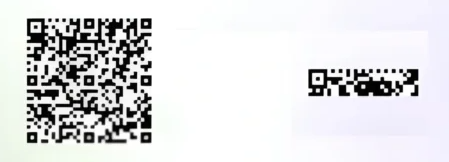
    iQR code

    Because it has been tied to proprietary tools, it appears mostly in industrial and logistical contexts. For instance, a manufacturer might print small iQR codes on parts to store long serial numbers and production data.

    tQR

    The term tQR is used by some providers to refer to tracking‑focused QR implementations built on top of standard models. In practice, these work much like dynamic QR codes with rich analytics features.
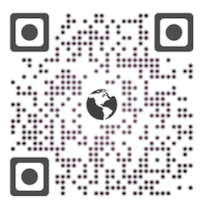
    tQR

    They are used where detailed performance data matters more than the underlying format. A marketer might run a nationwide poster campaign with tQR codes to compare scan performance by region, creative, and channel in one reporting view.

    Other types of QR codes

    Now, let’s look at the application‑based types of QR codes. Most of these are still Model 2 codes under the hood. What changes is the content and action triggered after the scan, which is where the real marketing strategy comes in.

    Website URL QR code

    A website URL QR code opens a specific web page immediately after scanning. It is the classic choice for sending people to homepages, product pages, or blog posts from print or packaging.
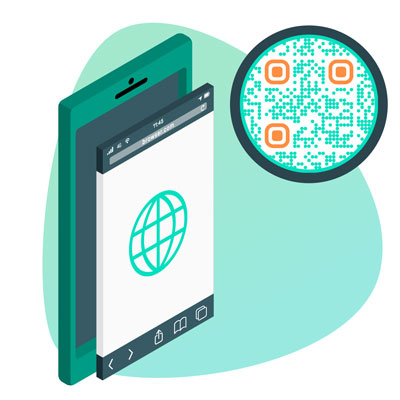
    Website URL QR code

    For instance, a local gym can print a website QR code on street posters that links directly to its membership page.

    Multi-URL QR code

    A multi‑URL QR code can send different people to different links based on rules such as device type, language, location, or scan time. It is usually implemented as a dynamic code with smart routing.
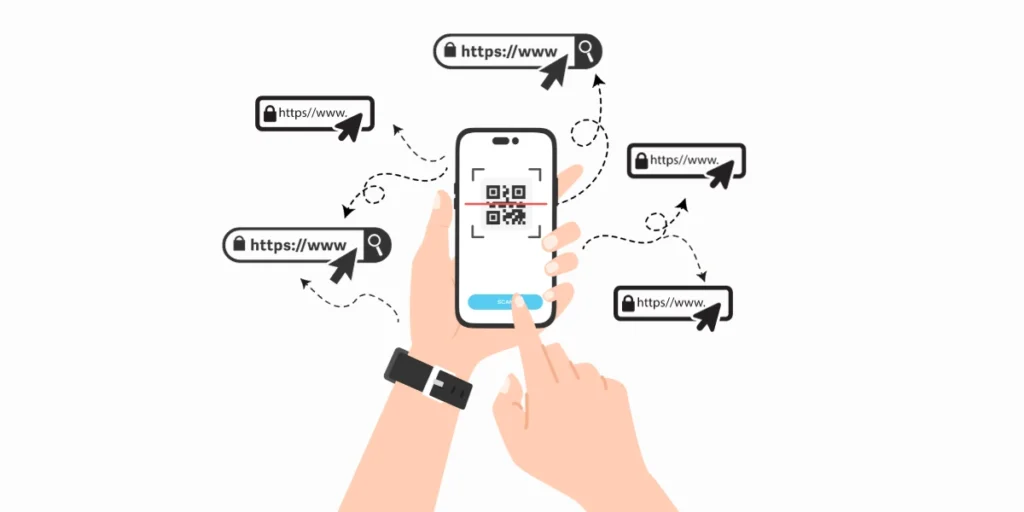
    Multi-URL QR code

    An event organizer could use a single multi‑URL code across all flyers and route mobile users to a ticketing page, while desktop users see the full event site.

    Link QR code

    A link QR code is a simple code that opens a single hyperlink, which might be a short URL managed in a link management platform. This is the base type behind many other use cases.
    Link QR code

    For example, a podcaster might print a link QR code on merchandise that leads to their show’s main website.

    Biolink QR code

    A biolink QR code opens a “link‑in‑bio” style page that aggregates multiple links on a single screen. It is perfect when a single QR placement needs to promote several channels at once.
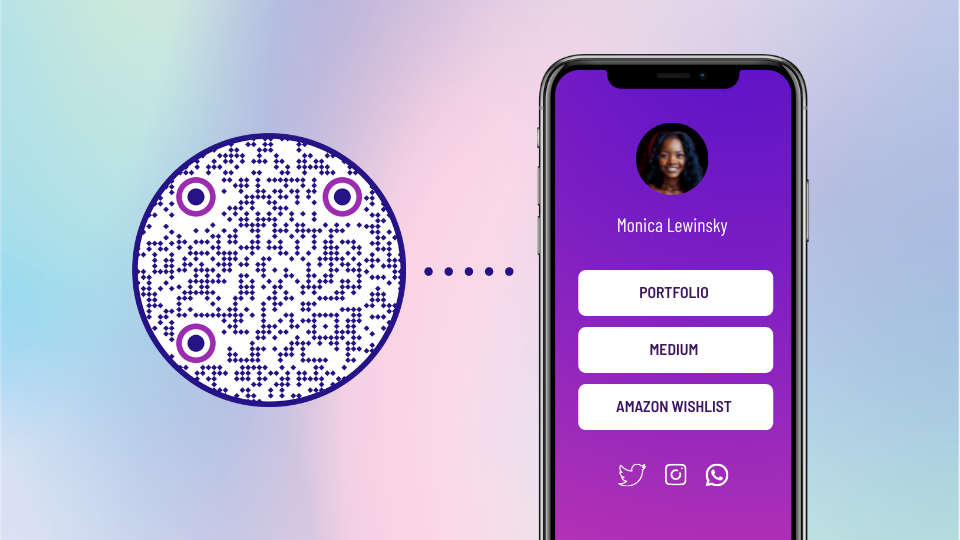
    Biolink QR code

    A creator at a conference could use a biolink QR code on their banner so visitors can easily choose between newsletter signup, course page, and social profiles, etc.

    Landing page QR code

    A landing page QR code links to a focused, mobile‑friendly page built specifically for a single campaign. The page can live on a website or be hosted by a QR platform.
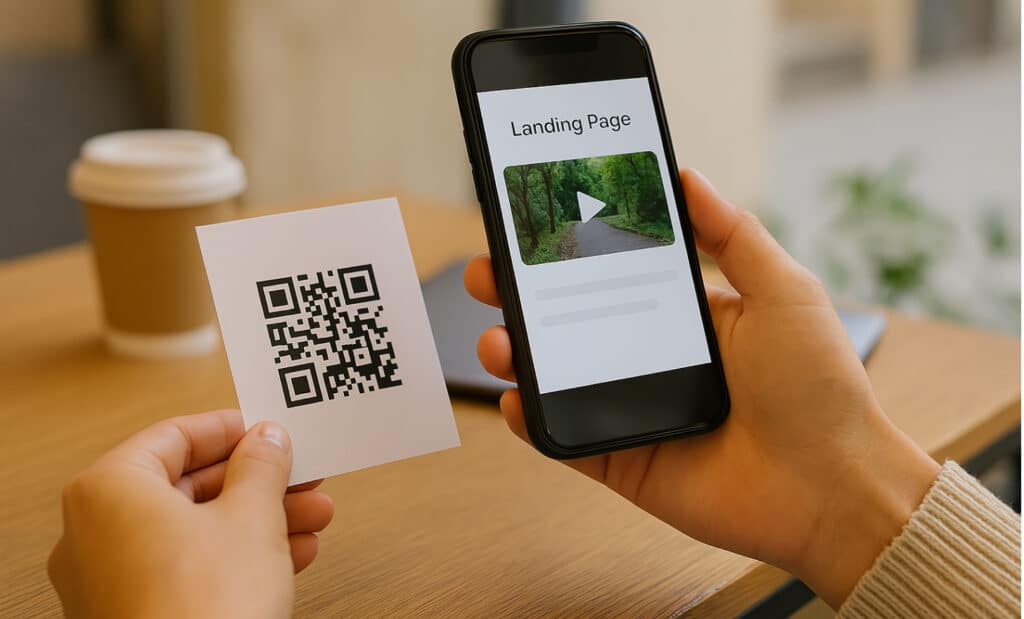
    Landing page QR code

    Think of a restaurant using a landing page QR in table tents that shows a seasonal promo, images, and a clear “Book now” button.

    Phone QR code

    A phone QR code triggers the dialer on the user’s device, pre-filling a contact number. The user just taps call to connect. This is handy anywhere you want quick phone contact without manual typing.
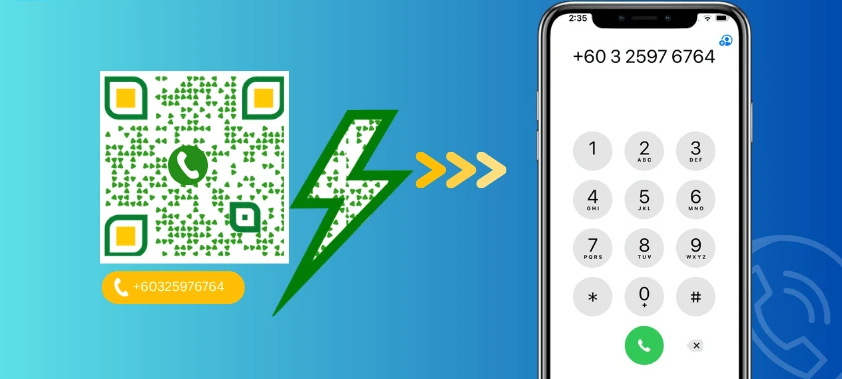
    Phone QR code

    For example, a roadside assistance company might place a QR code on car stickers so drivers can call support quickly (especially in emergency situations).

    Scan-to-call QR code

    A scan‑to‑call QR code is very similar to a phone QR code but is often branded with a clearer call‑to‑action, such as “Scan to call support.” The intent is purely immediate voice contact.
    Scan-to-call QR code

    A doctor’s office could add this type of QR code to appointment cards so patients can reach the front desk in one step.

    Email QR code

    An email QR code opens the default email app with the address, subject, and optional message already filled in. This removes friction for support, feedback, or sales outreach.
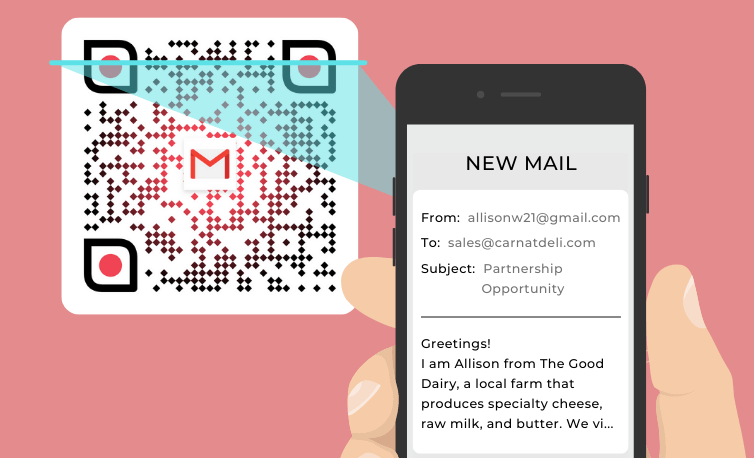
    Email QR code

    For instance, a SaaS company might add an email QR code at the end of a printed setup guide so customers can contact support with a single scan.

    Outlook QR code

    An Outlook QR code is optimized so that, when scanned, it opens a new message in Microsoft Outlook with fields pre‑filled. It is especially helpful in corporate settings where Outlook is the main email client.

    Outlook QR code

    An internal IT team might print a QR code of this nature on help posters so staff can report issues directly to the right inbox.

    Form/Survey QR code

    A form or survey QR code opens an online form built in tools like Google Forms, Typeform, or a custom page. It lowers the barrier to collecting feedback or data.
    Form or Survey QR code

    A hotel can place survey QR codes on receipts so guests share their stay rating while the experience is still fresh.

    SMS QR code

    An SMS QR code opens the messaging app with a phone number and a pre‑written text message. The user only needs to tap the send button. Brands often use this for opt‑ins, quick confirmations, or support.
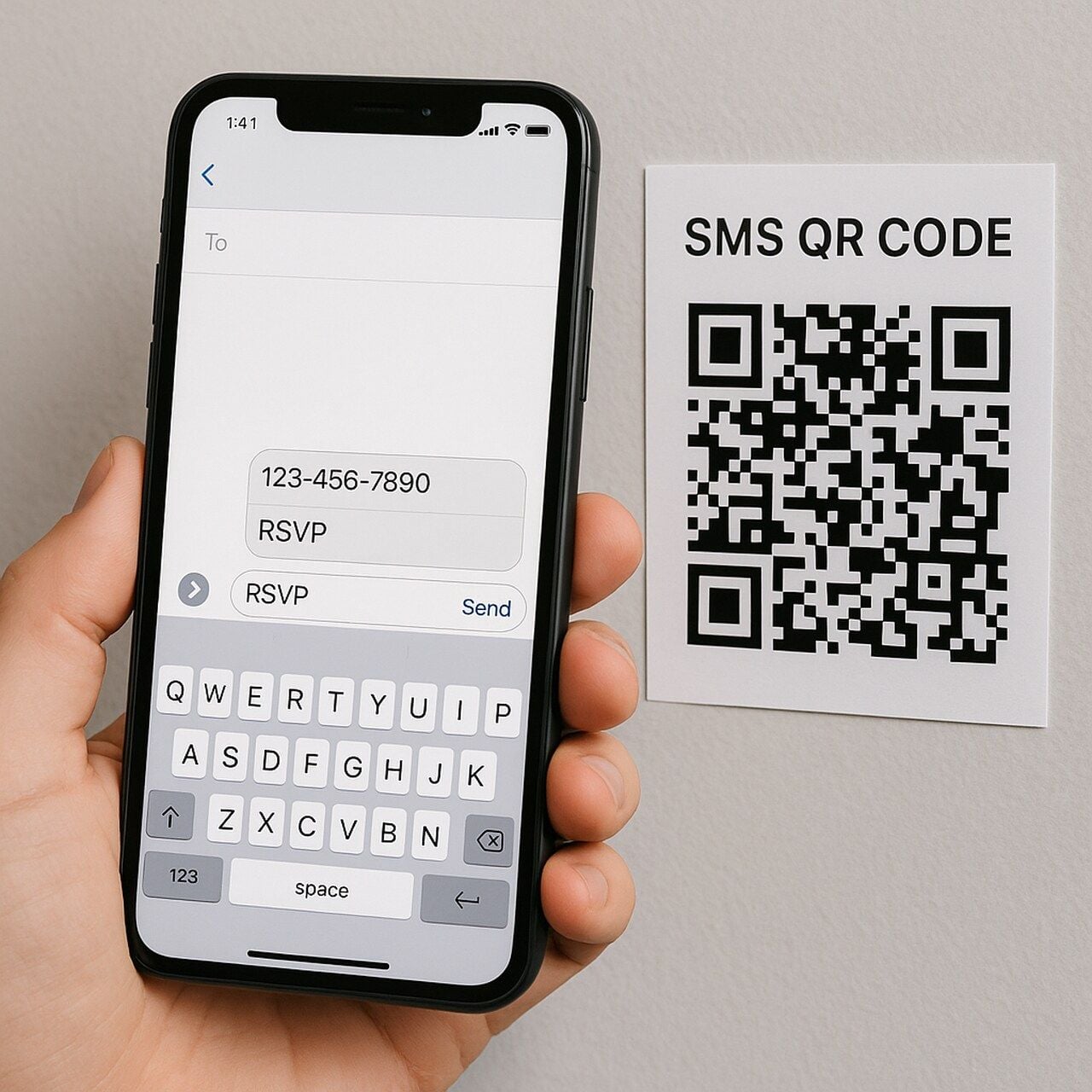
    SMS QR code

    A radio station, for example, might use an SMS QR on posters to let listeners text in song requests.

    vCard QR code

    A vCard QR code stores contact details in digital business card format. Scanning it lets the user save a full contact to their phone without having to type every single digit manually. This is perfect for printed business cards or conference badges.
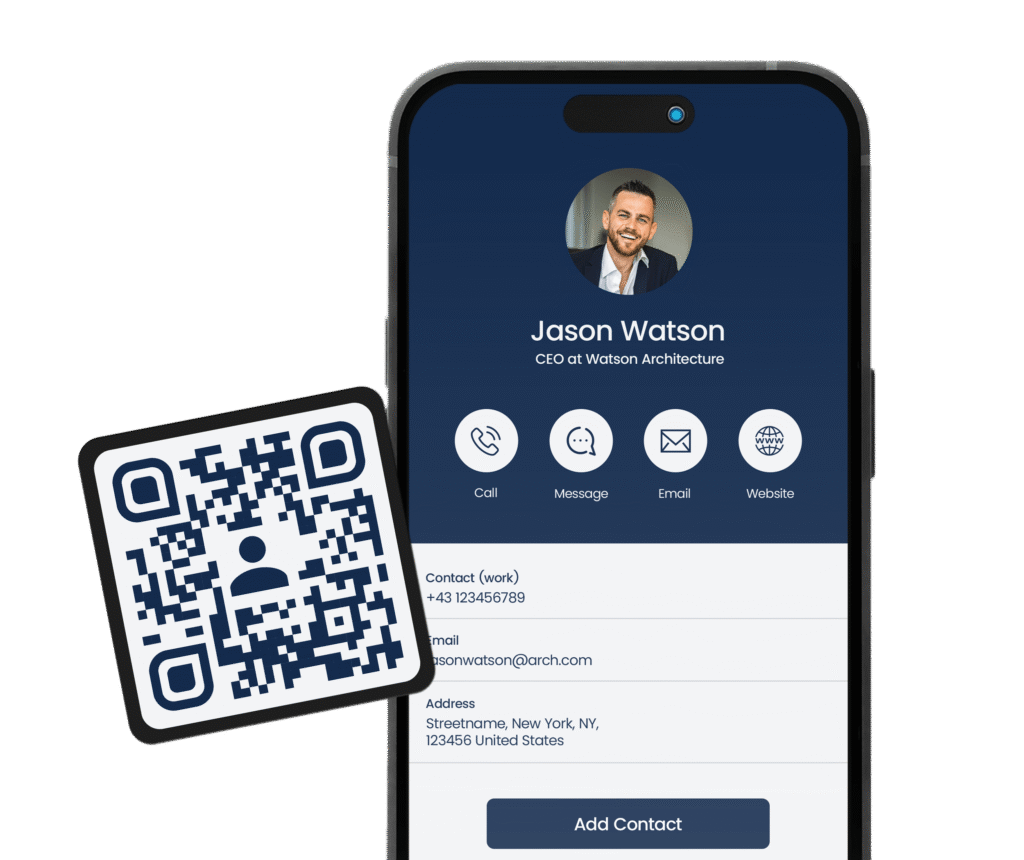
    vCard QR code

    A consultant could share their vCard QR instead of handing out stacks of physical cards. It is both cost-effective and pretty user-friendly.

    Wi-Fi QR code

    A Wi‑Fi QR code contains the network name, password, and encryption type. Scanning it lets devices automatically join the wireless network within seconds.
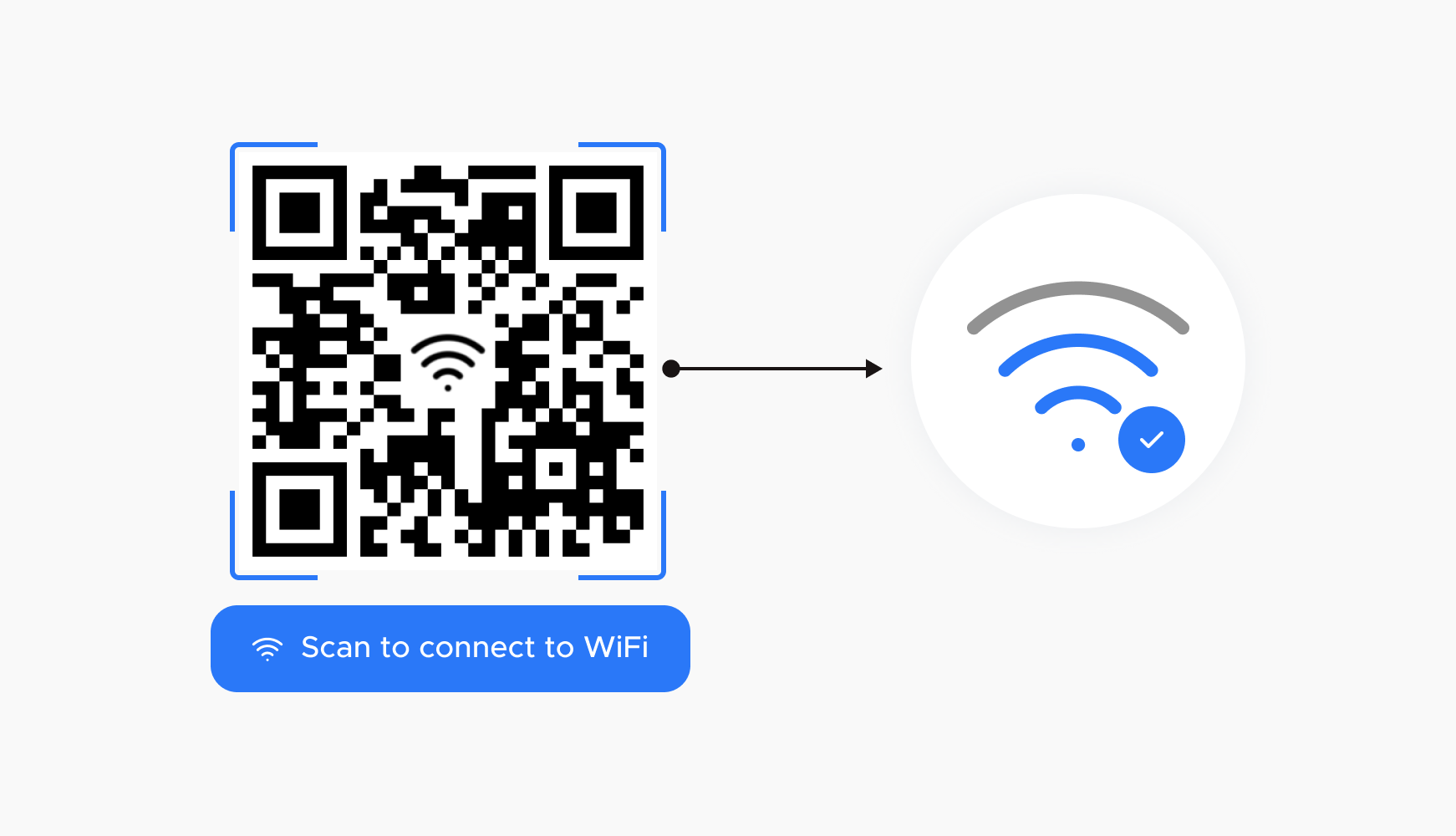
    Wi-Fi QR code

    Cafés, coworking spaces, and hotels often print Wi‑Fi QR codes on signs or keycards so guests can connect without asking staff for passwords.

    Text QR code

    A text QR code simply displays a block of text after scanning, without opening a browser. It is good for short instructions, coupon codes, or internal notes.
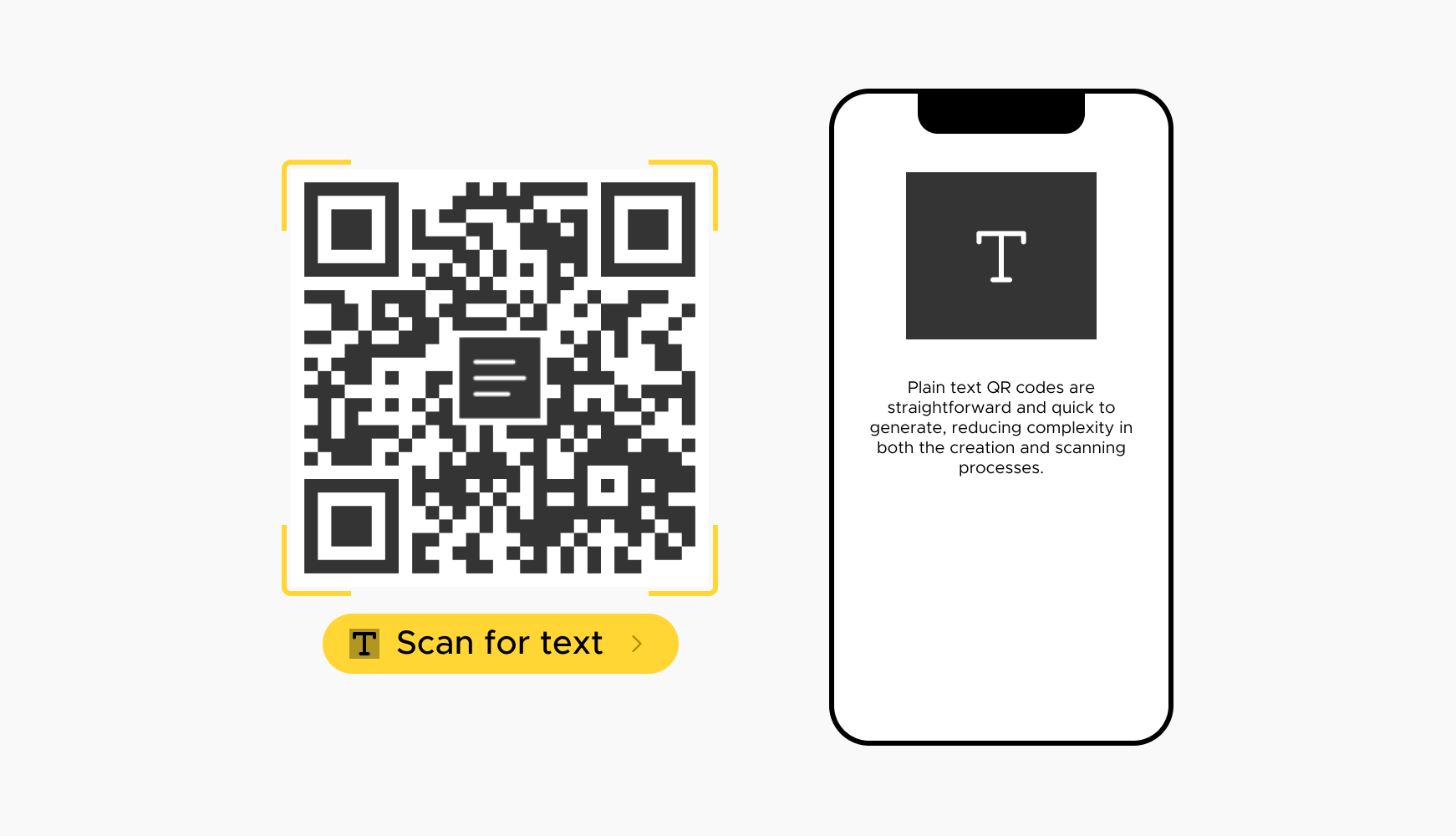
    Text QR code

    For example, a warehouse might use a text QR on equipment to display safety reminders directly on screen.

    PDF QR code

    A PDF QR code links to a dedicated PDF file stored online. This works well for manuals, catalogs, menus, or longer documents that would otherwise clutter a small print piece.
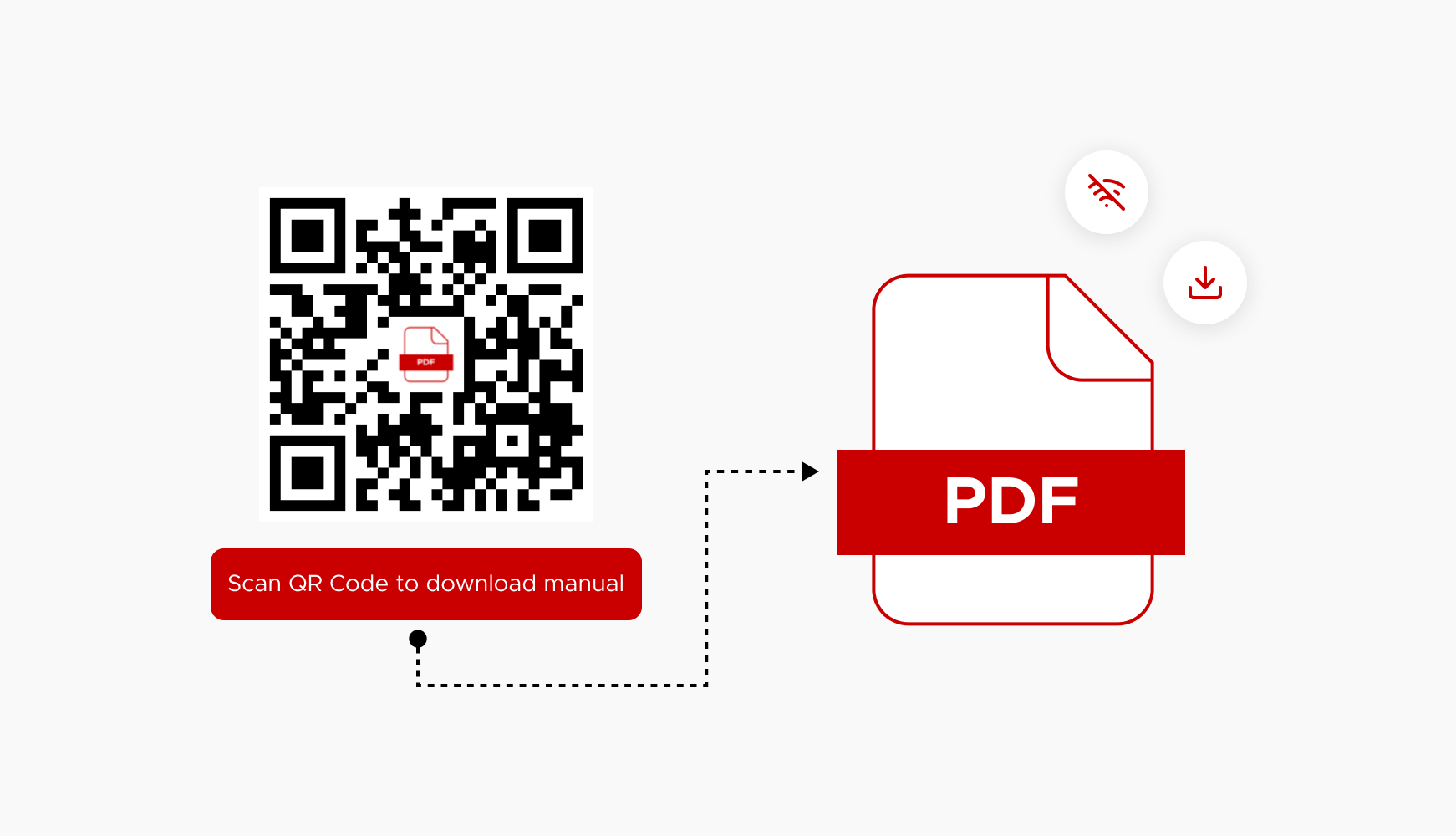
    PDF QR code

    A furniture brand could place a PDF QR on product tags that opens a full assembly guide, making the process hassle-free for the buyers.

    Image QR code

    An image QR code often opens a single image or a complete gallery. It is helpful for visual content, where photos explain more than text alone.

    Image QR code

    A real estate agent might put an image QR on a yard sign that links to additional property photos beyond what fits on printed flyers.

    Video QR code

    A video QR code sends the audience straight to a hosted video, such as YouTube, Vimeo, or a landing page with an embedded player. Video is ideal for demos, explainers, and tours.
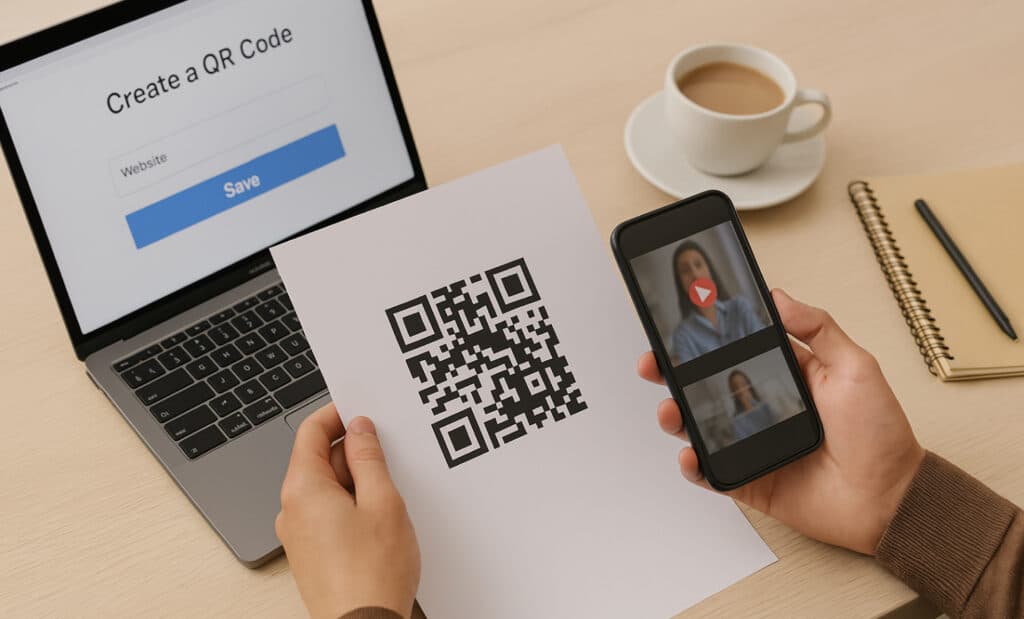
    Video QR code

    A museum could place video QR codes next to exhibits so visitors can watch short curator clips on their phones effortlessly.

    Audio QR code

    An audio QR code opens an audio file or streaming link, such as a podcast episode or MP3. This works well for guided tours, music promotion, or audio lessons.
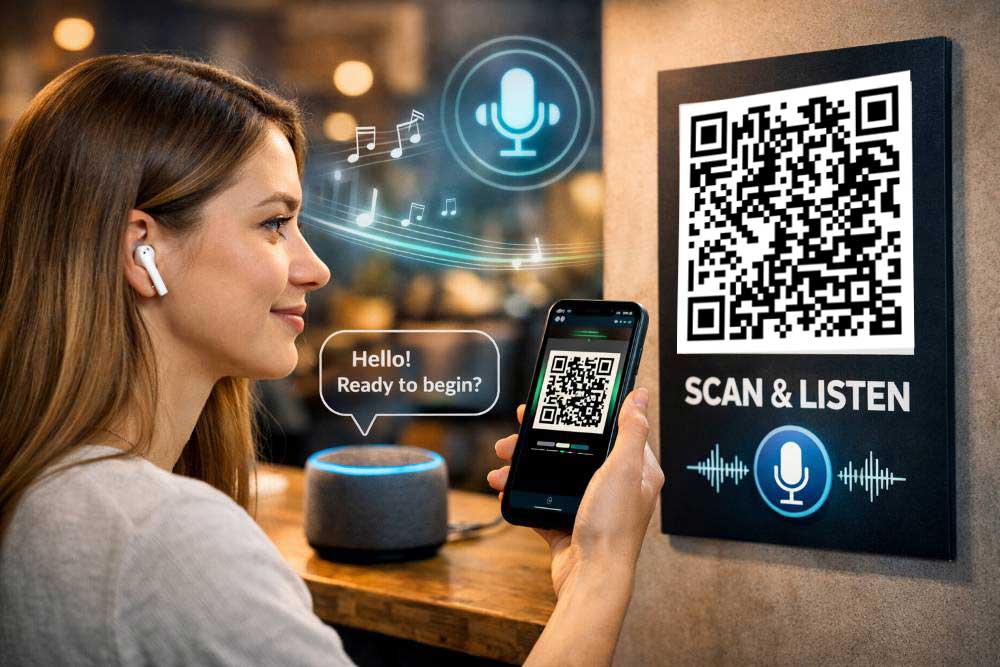
    Audio QR code

    A language school might add audio QR codes in workbooks so students hear native pronunciation for each unit.

    Social media QR codes

    Social media QR codes connect scans to profiles, pages, or a hub of social links. They make it easy to grow followers from print assets, packaging, or in‑person events.
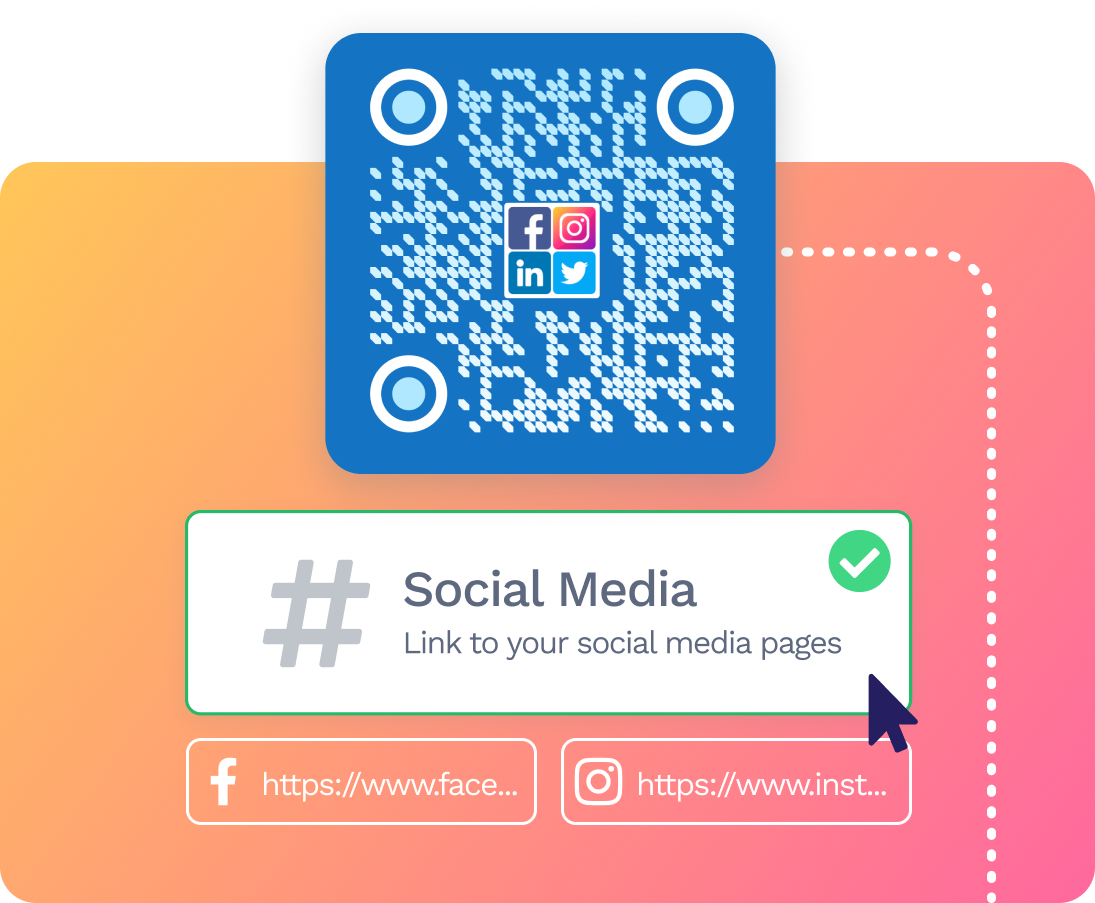
    Social media QR codes

    A brand could print one social QR code on receipts that leads to a social hub where users can seamlessly pick their favorite platform.

    Instagram QR code

    An Instagram QR code opens an Insta profile, hashtag, or specific Reel or post when scanned. It is handy on posters, flyers, and product packaging that aim to grow followers or engagement.
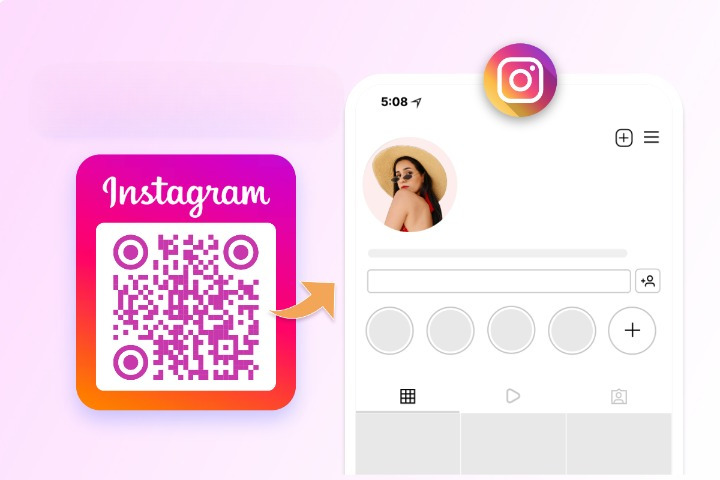
    Instagram QR code

    A café might use an Instagram QR on cups to promote their feed of daily specials.

    YouTube QR code

    A YouTube QR code leads directly to a YouTube channel, playlist, or single video. It helps move offline viewers into long‑form video content.
    YouTube QR code

    A software company could print a YouTube QR on product boxes that opens a setup tutorial playlist.

    TikTok QR code

    A TikTok QR code opens a creator profile or a chosen TikTok video. It is great for short, fun content and audience building, especially for beginners.
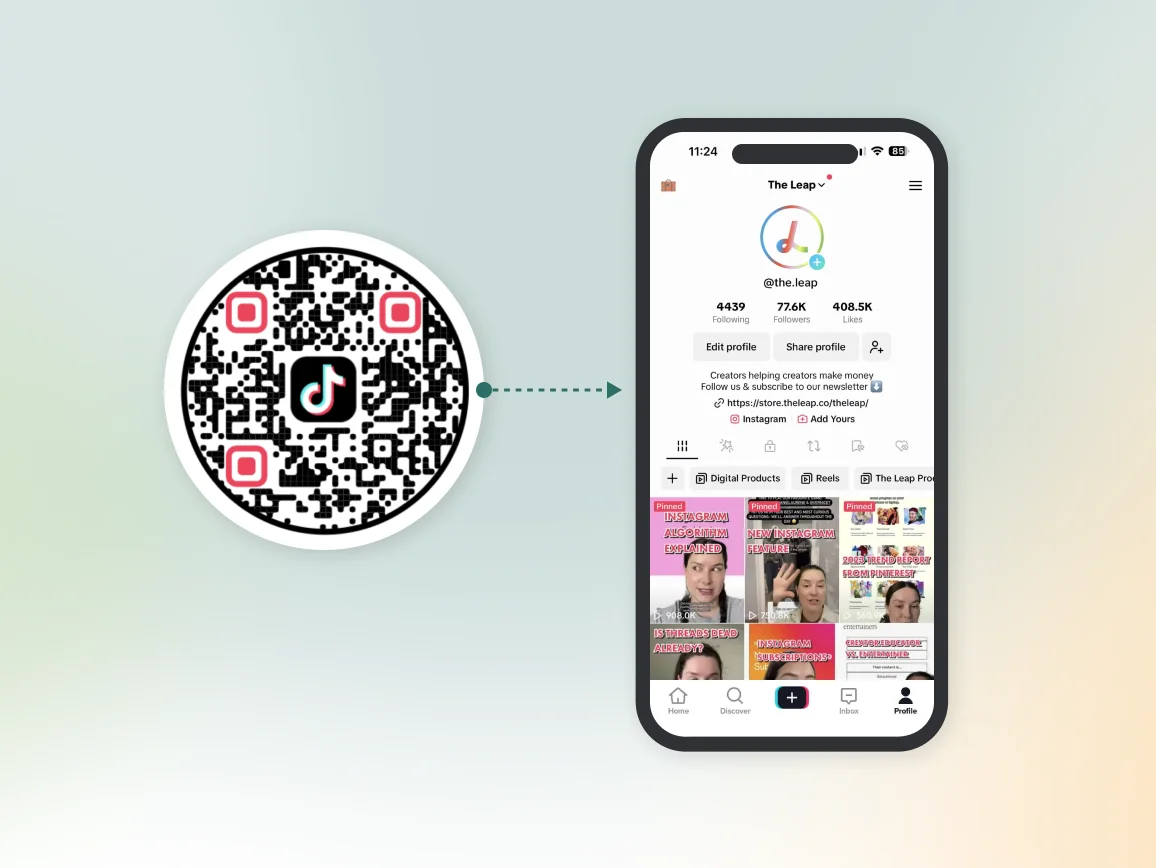
    TikTok QR code

    Streetwear brands might add TikTok QR codes to tags so buyers can watch styling clips and make up their mind to purchase the item.

    Facebook QR code

    A Facebook QR code links to a particular FB page, group, or event. It supports things like community building or RSVPs from print pieces.
    Facebook QR code

    A nonprofit might place a Facebook QR on flyers that opens their event page for easy “Interested” or “Going” clicks.

    WhatsApp QR code

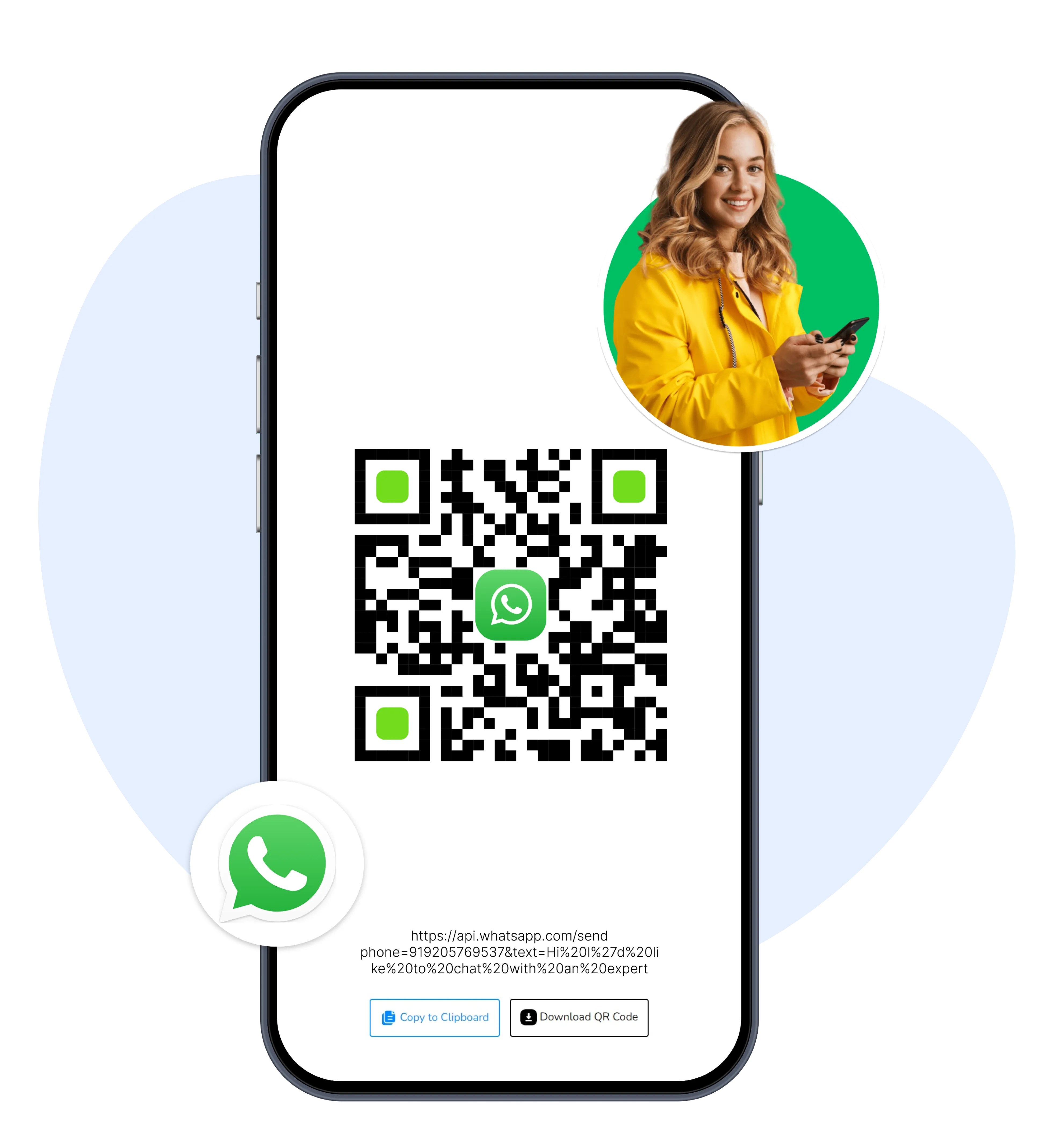
    A WhatsApp QR code starts a chat with a specific number or business account. It helps brands offer one‑to‑one support without sharing long numbers.
    WhatsApp QR code

    Small shops can display a WhatsApp QR at the counter so customers can easily scan and message about orders or reservations on the go.

    Twitter (X) QR code

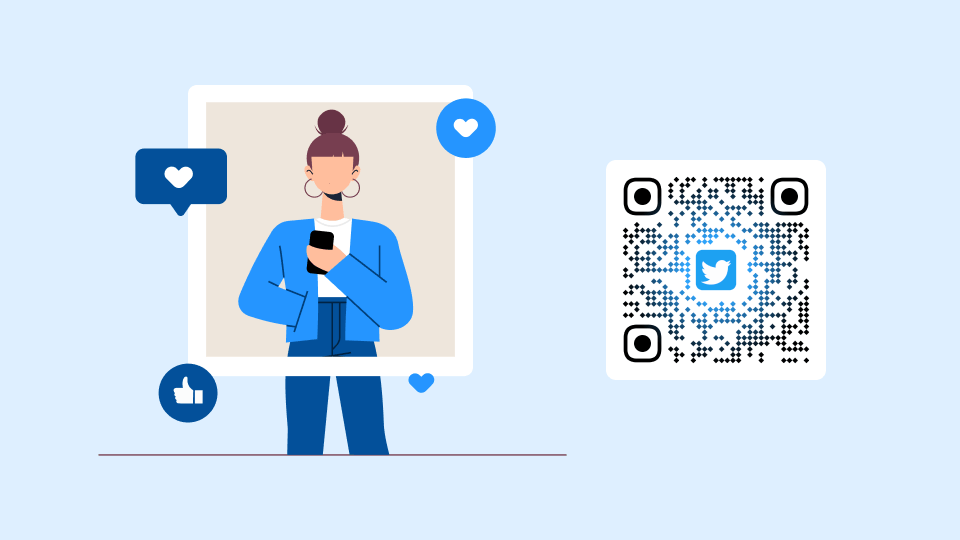
    A Twitter (X) QR code points to a specific Twitter profile or tweet. It works well for sharing live updates or commentary.
    Twitter (X) QR code

    Speakers at events might add an X QR code to slides so attendees can follow them instantly, without any hesitation.

    Threads QR code

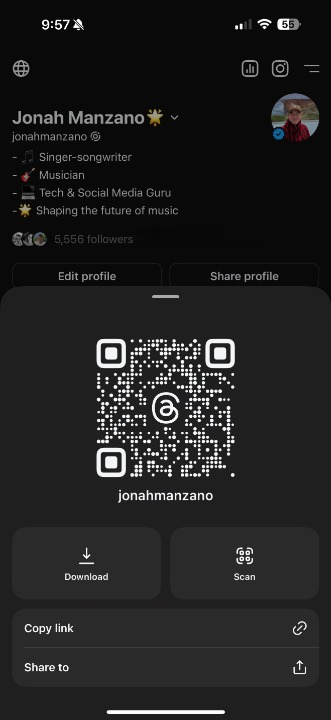
    A Threads QR code leads to a Threads profile or post, helping creators grow audiences on Meta’s text‑focused platform.
    Threads QR code

    Writers could use a Threads QR in newsletters so readers can follow their real‑time thoughts.

    LinkedIn QR code

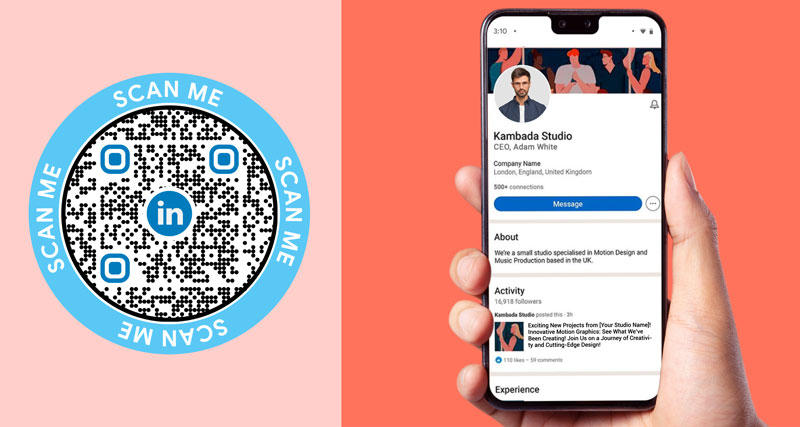
    A LinkedIn QR code links to a personal profile or a company page. It is a strong fit for networking and B2B marketing.
    LinkedIn QR code

    At a trade show, sales reps can display LinkedIn QR codes on lanyards to quickly connect with leads.

    Discord QR code

    A Discord QR code invites people to join a Discord server or channel. It is perfect for building private or semi‑private communities.
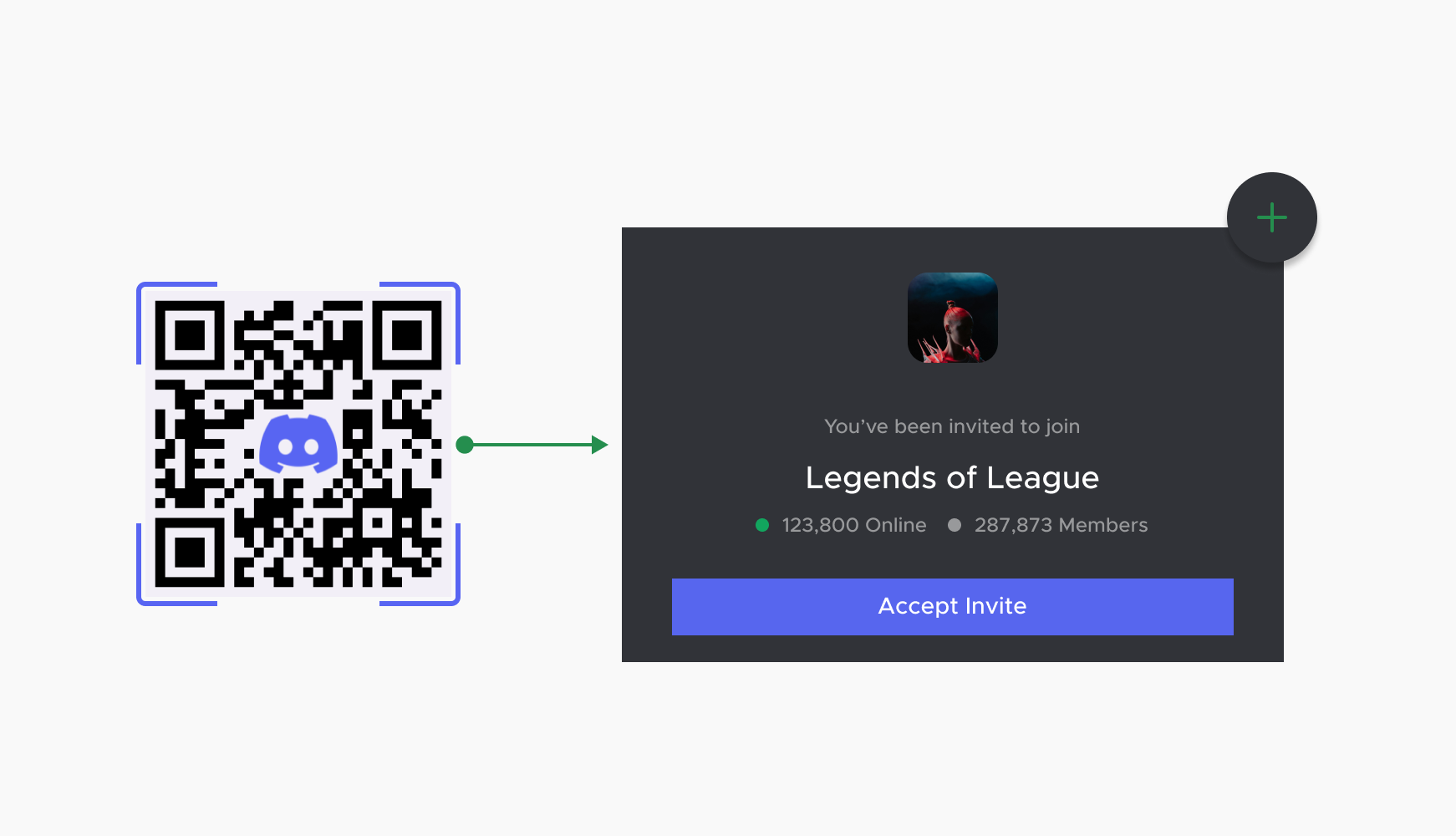
    Discord QR code

    A game studio might use a Discord QR on posters so fans can join their official server without any difficulty.

    Bluesky QR code

    A Bluesky QR code opens a Bluesky profile for followers on the decentralized social platform. Early‑adopter brands and creators can use it to connect experimental audiences.
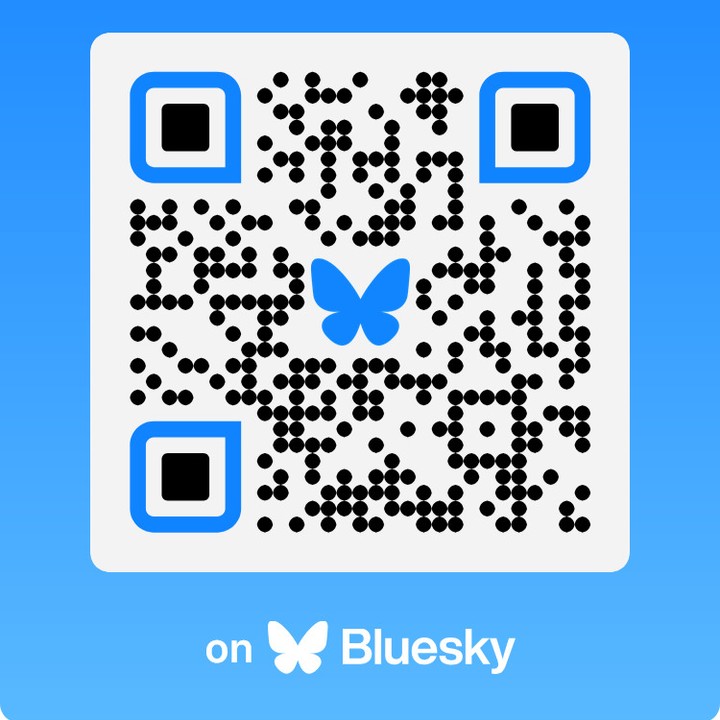
    Bluesky QR code

    For example, a tech newsletter could add a Bluesky QR at the end of print zines (or magazines) to grow that channel.

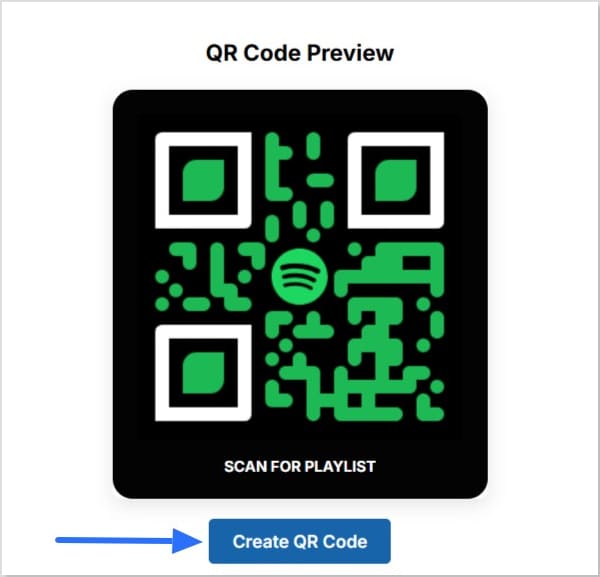
    Spotify QR code

    A Spotify QR code sends users to a track, playlist, album, or artist page. It is ideal for music promotion or branded playlists.
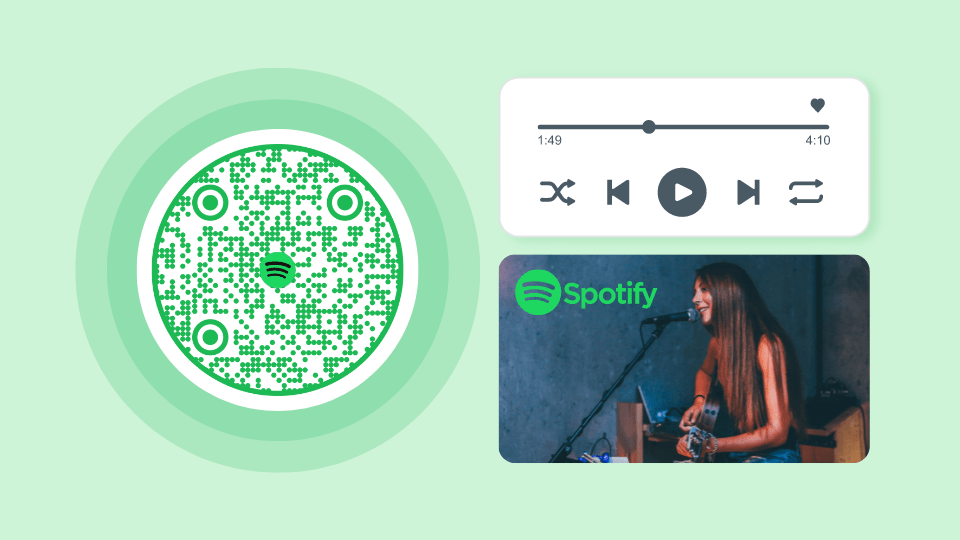
    Spotify QR code

    A gym might put a Spotify QR on wall art that opens its official workout playlist.

    Payment QR codes

    Payment QR codes trigger or pre‑fill a payment within a specific app or system. They are central to contactless payments, tipping, and peer‑to‑peer transfers.
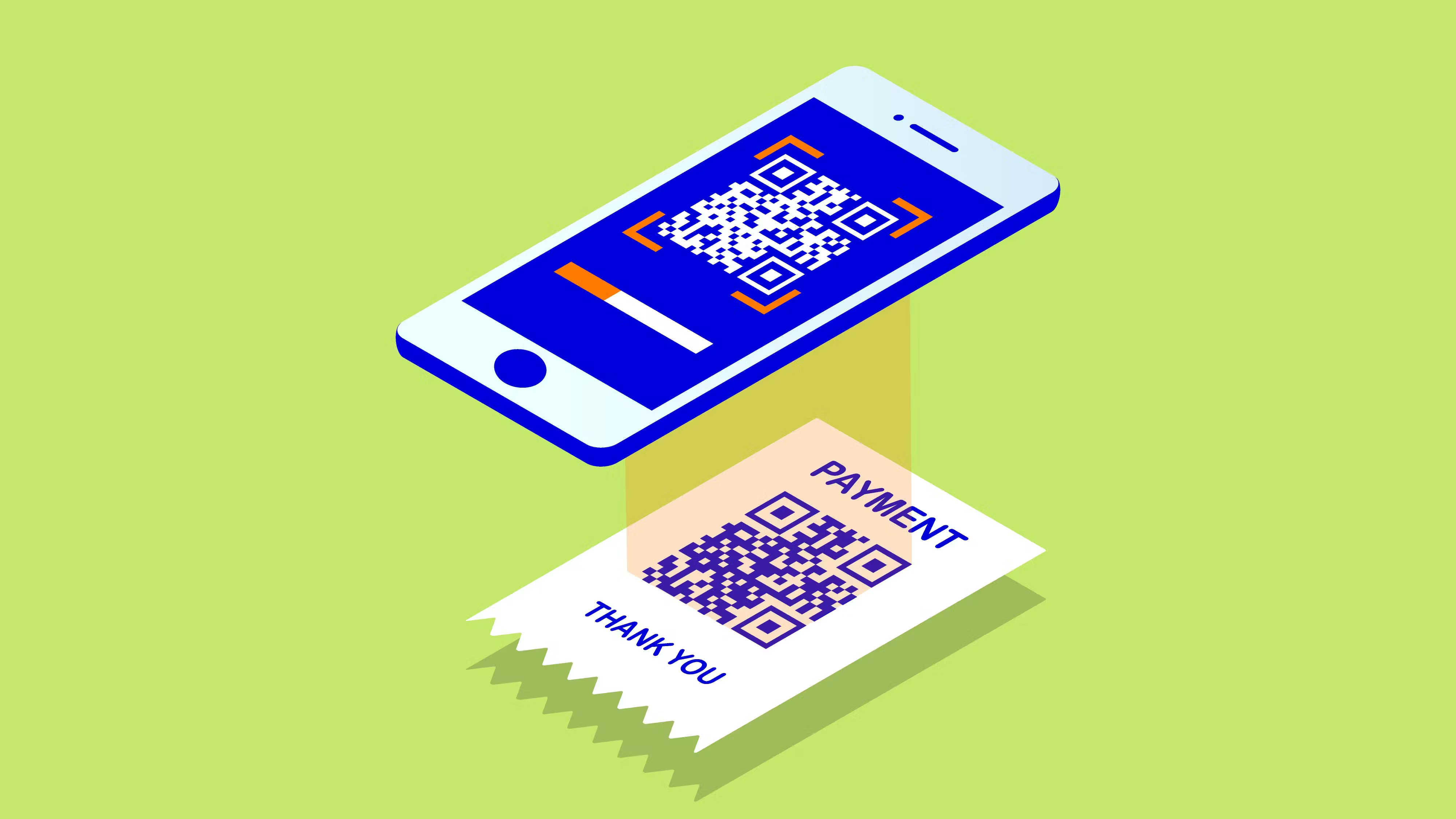
    Payment QR codes

    You will often see them on checkout counters, in invoices, in donation boxes, and in print ads that invite quick contributions.

    Zelle QR code

    A Zelle QR code opens the Zelle flow with the recipient pre‑selected, making transfers much faster. The user just chooses the amount and confirms.
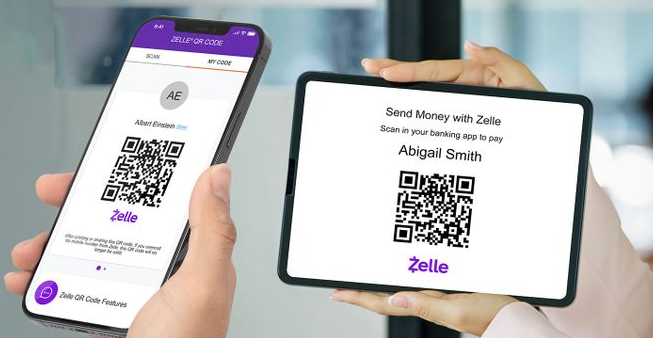
    Zelle QR code

    Local service providers can print Zelle QR codes on invoices to receive bank transfers without sharing account details verbally.

    Venmo QR code

    A Venmo QR code opens a Venmo profile or business page, so the payer can send money or follow the page if he/she desires.
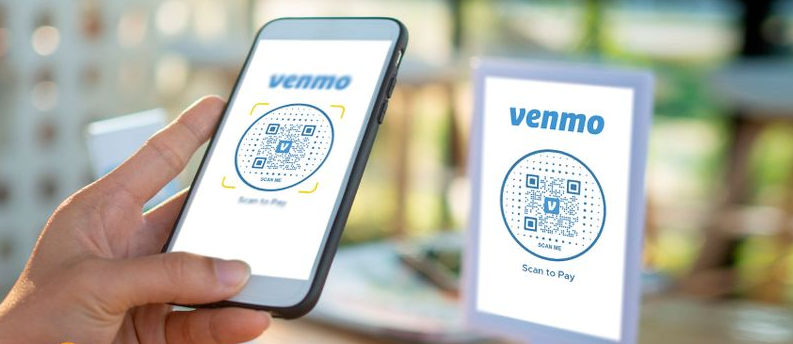
    Venmo QR code

    Food trucks often display Venmo QR codes on their windows so customers can pay or tip in seconds.

    PayPal QR code

    A PayPal QR code starts a PayPal payment to a specific account or checkout. It is common in both online‑first and brick‑and‑mortar businesses.
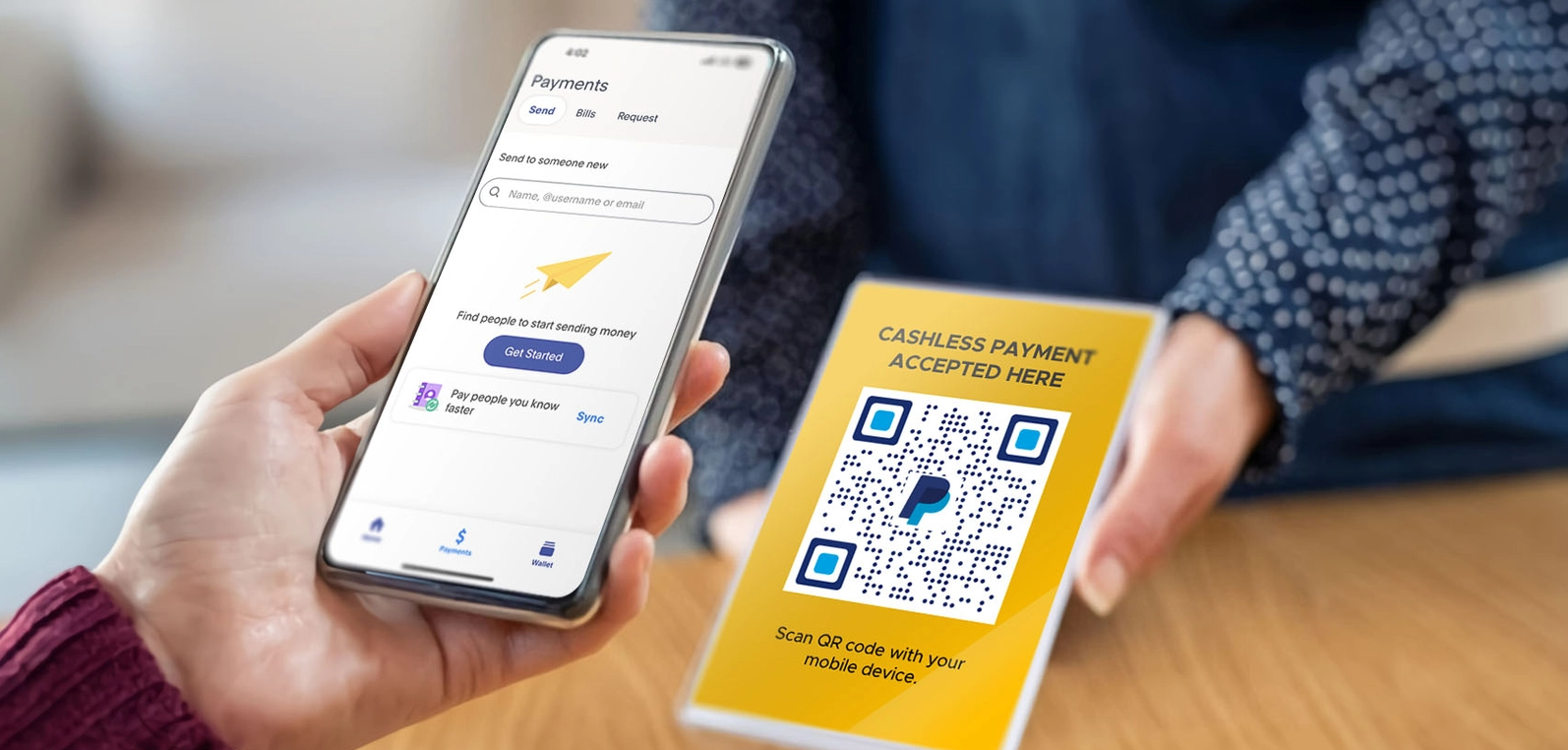
    PayPal QR code

    A charity might place PayPal QR codes on posters so supporters can donate on the spot just by scanning the code with their smartphone.

    App QR code

    An app QR code opens an installed app using a deep link or sends the user to the most relevant in‑app screen. This can guide users to specific features rather than just the home screen.
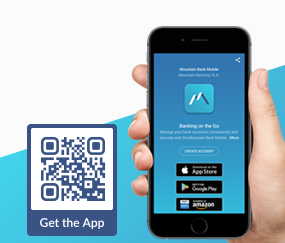
    App QR code

    For example, a bank may use an app QR inside brochures that opens the “Open account” section in their mobile app.

    App Store QR code

    An App Store QR code takes users directly to an app listing on Apple’s App Store or Google Play. Smarter versions auto‑detect the device type.

    App Store QR code

    A startup can print these QR codes on flyers handed out at events to boost installs with minimal effort.

    Product QR code

    A product QR code connects a physical product to online information or experiences. It might show specs, tutorials, reviews, or warranties.
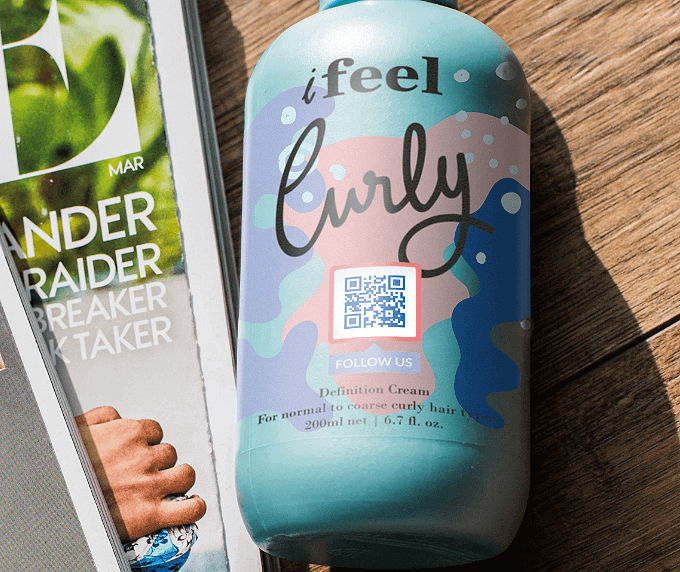
    Product QR code

    A skincare brand could add product QR codes to bottles that explain ingredients, usage tips, and cross‑sell related items.

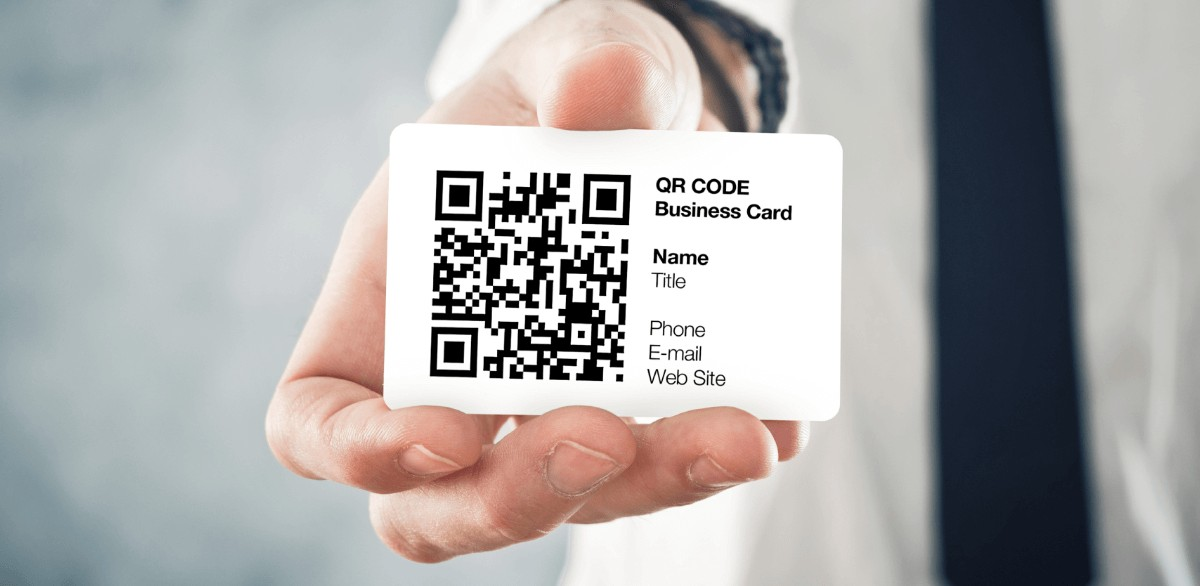
    Business card QR code

    A business card QR code is a scannable contact point placed on a traditional card. It usually stores a vCard or a link to a more detailed profile.
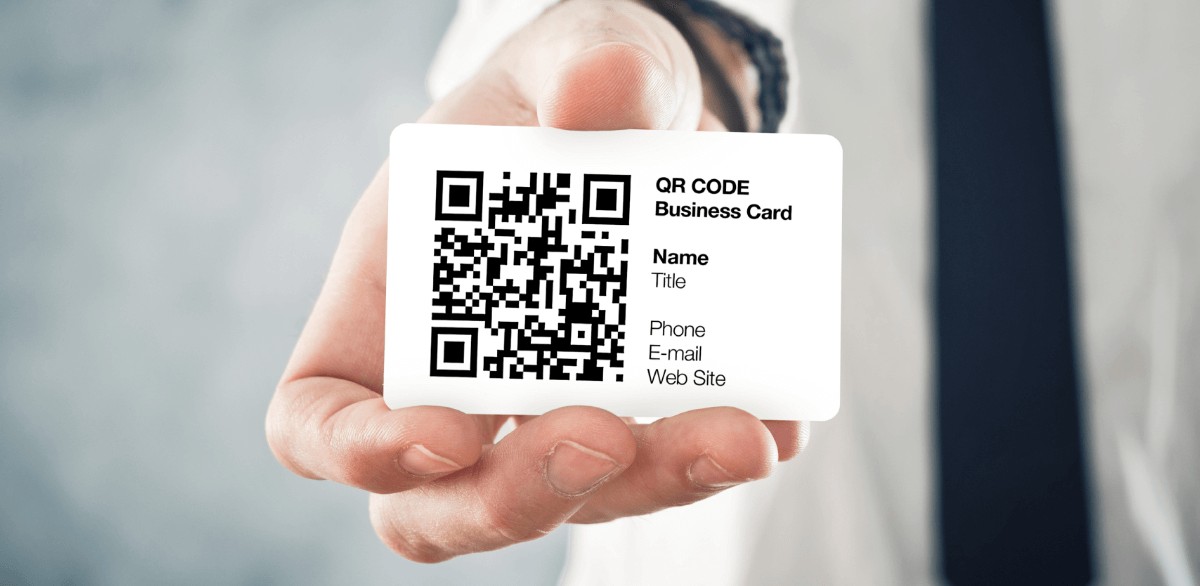
    Business card QR code

    This lets recipients save contact details with one scan while still having a physical card for reference.

    Business page QR code

    A business page QR code opens a branded landing page about the company or organization, not just a single contact. It can include an address, a map, services, social links, and calls to action.
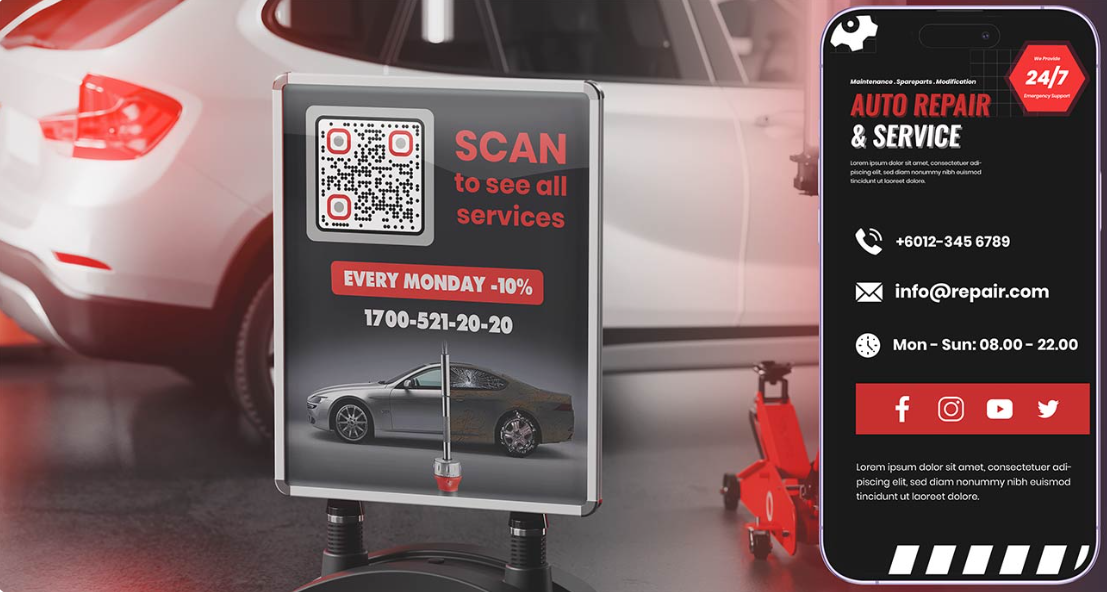
    Business page QR code

    A local agency might place a business page QR on window decals so passersby quickly understand what they offer.

    Online booking QR code

    An online booking QR code sends users right to a scheduling page in tools like Calendly, Fresha, or a built‑in booking system.
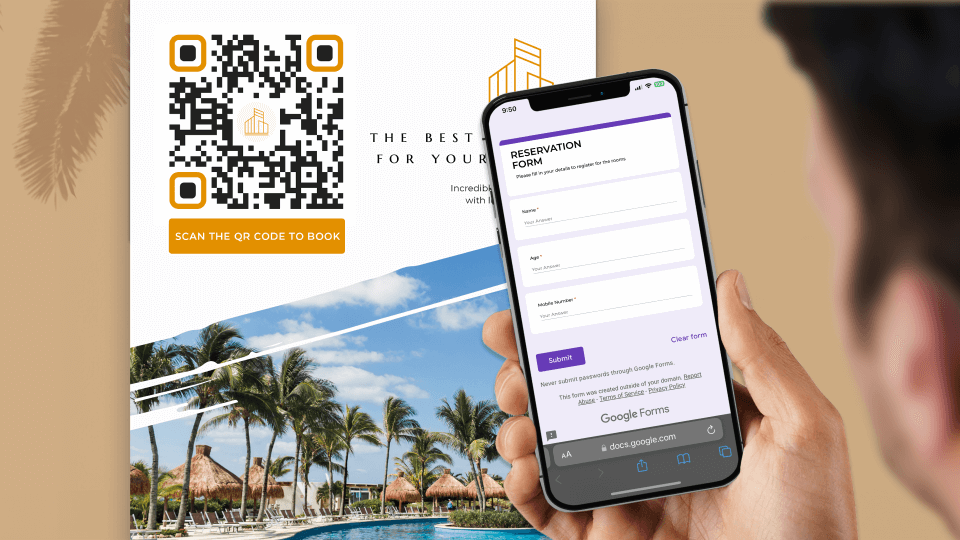
    Online booking QR code

    Hair salons, clinics, and studios often use these on posters and cards so clients can pick time slots without calling.

    Event QR code

    An event QR code contains event details or links to registration and ticketing pages. It can also be encoded as a calendar entry.
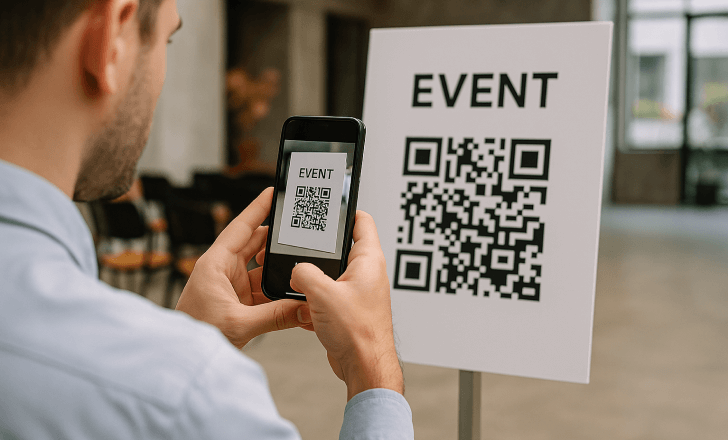
    Event QR code

    A conference might put event QR codes on invite cards so guests can register or add the event to their calendars in seconds.

    Calendar QR code

    A calendar QR code stores event information in a format that phone calendars can easily understand. After scanning, users get an option to add the event directly.
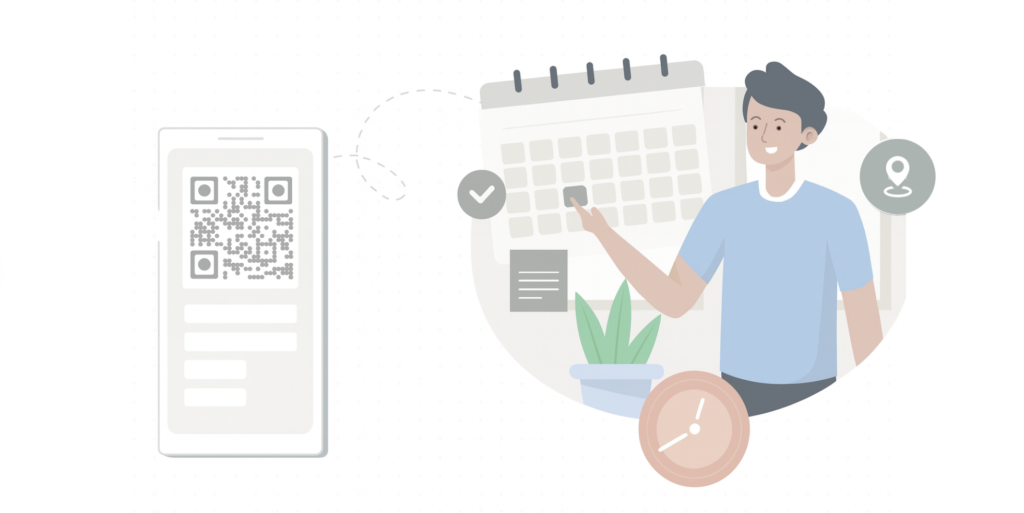
    Calendar QR code

    This is great for classes, webinars, or local meetups that rely on good attendance.

    Menu QR code

    A menu QR code opens a dedicated menu with a list of options or a restaurant or café menu in the browser or as a PDF. It became common during the pandemic and has stayed because it is easy to update.
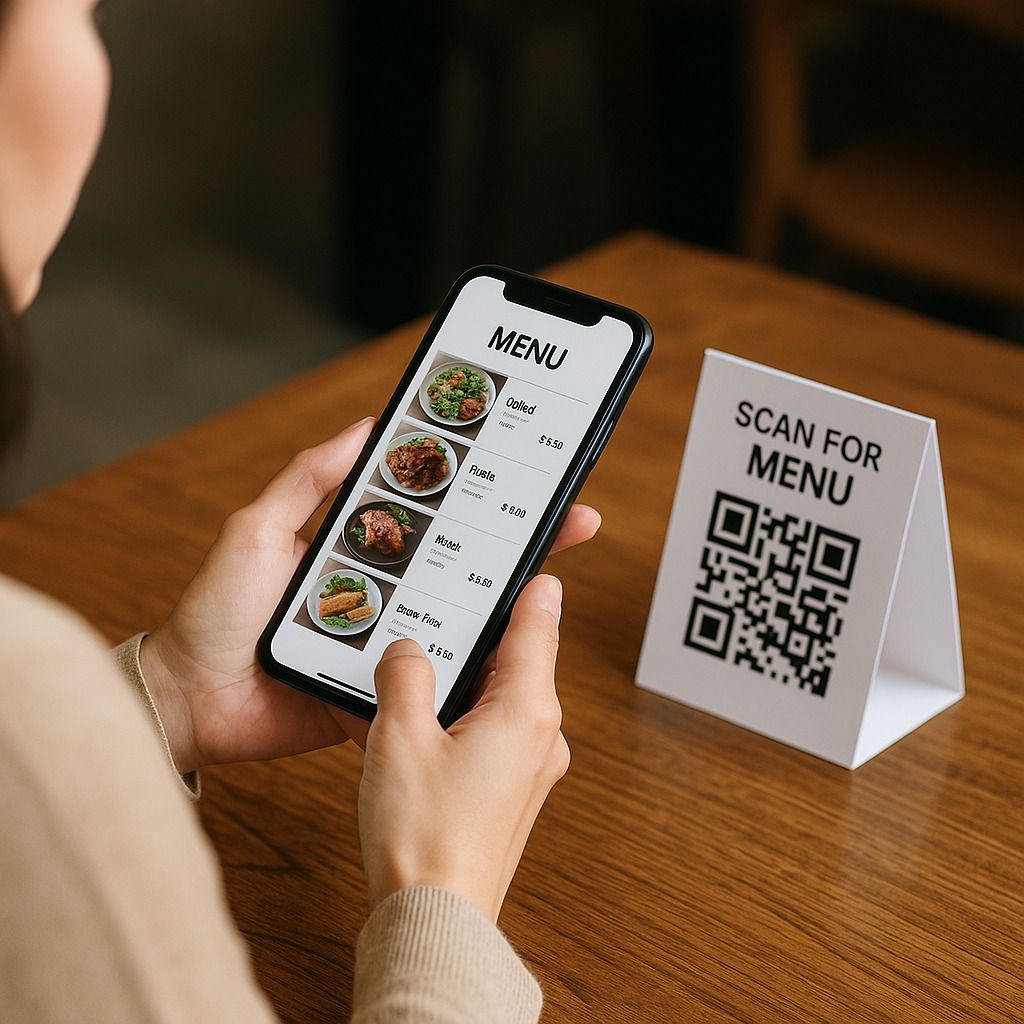
    Menu QR code

    Restaurants can update prices, items, or specials via a dynamic menu QR code without reprinting table tents.

    Coupon QR code

    coupon QR code, once scanned, delivers a discount code or promotional page to the user’s phone. It can display rules, expiry dates, and redemption instructions.
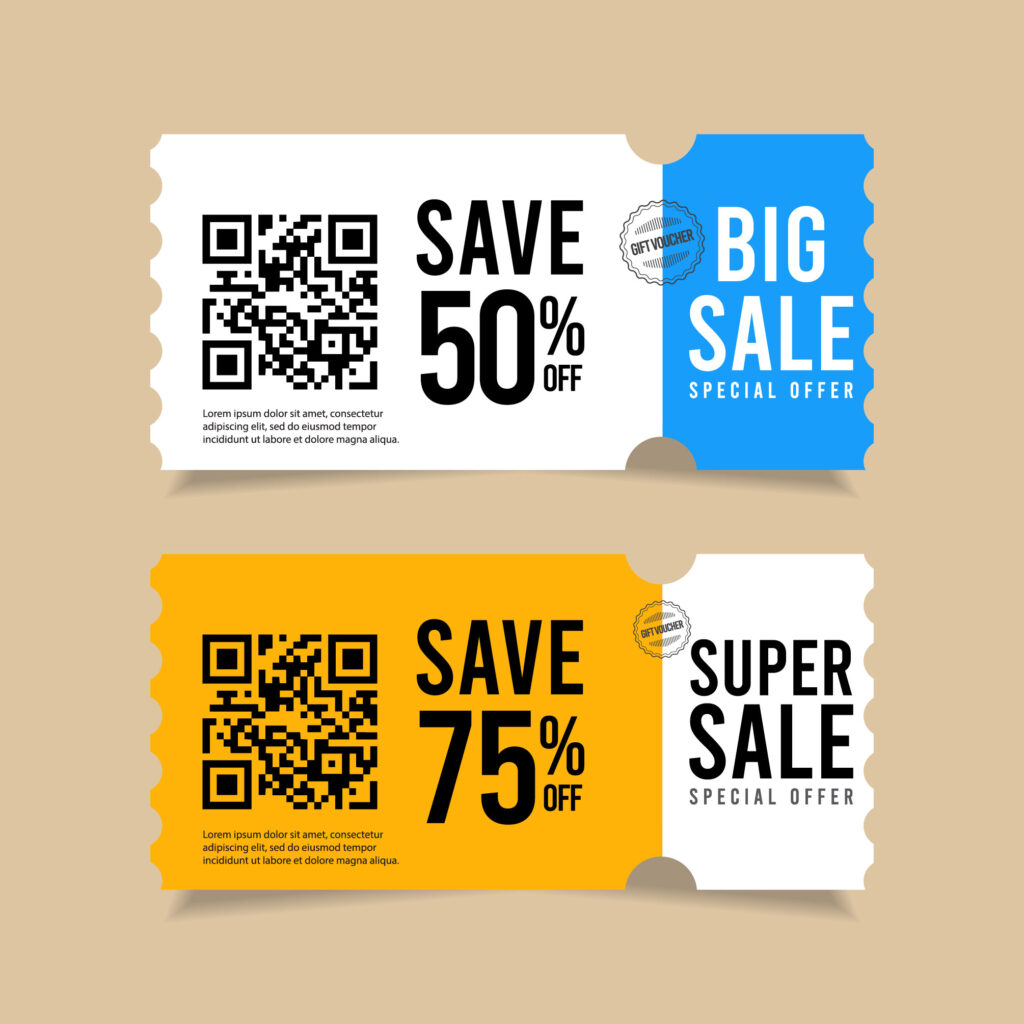
    Coupon QR code

    Retailers might add coupon QR codes to print ads or receipts so buyers can claim limited‑time offers seamlessly.

    Map/Geolocation QR code

    A map or geolocation QR code opens a map app (e.g., Google Maps) with coordinates or an address pre‑filled. It is very helpful for venues that are otherwise difficult to find.
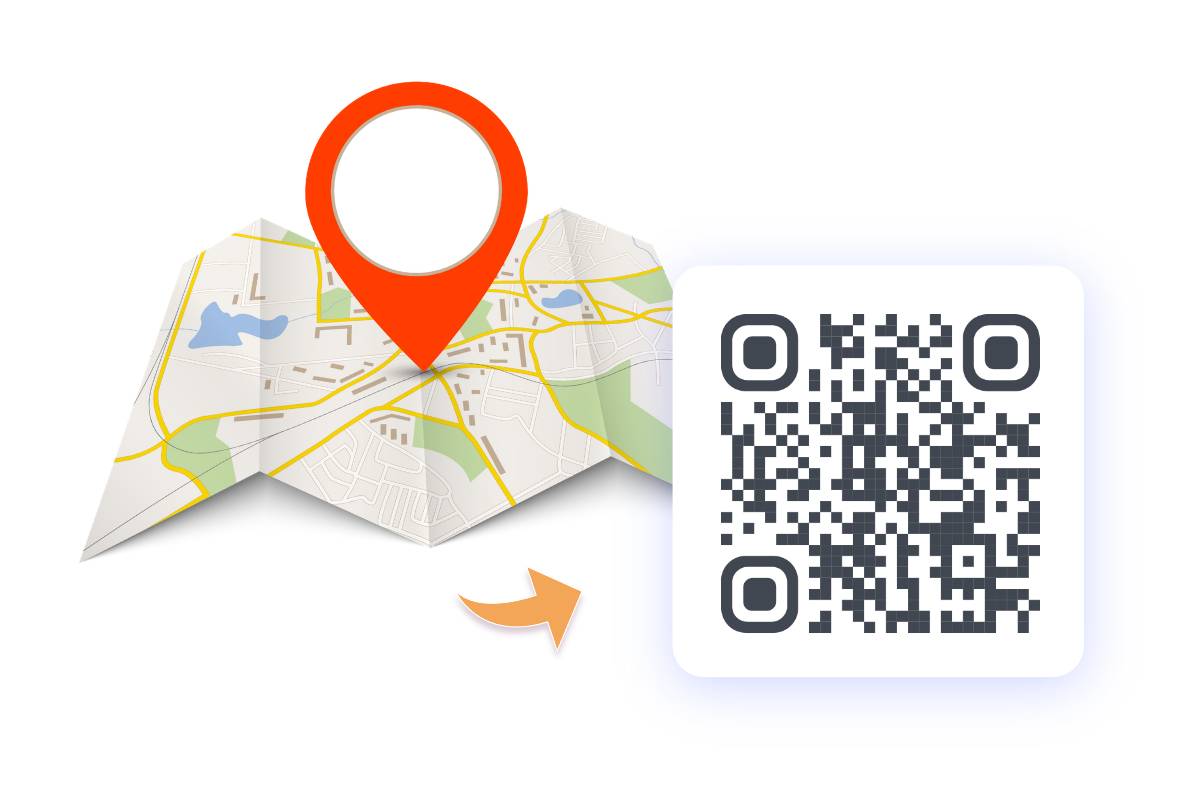
    Map or Geolocation QR code

    Wedding invitations, for instance, can include map QR codes so guests get driving directions with a single scan.

    Alphanumeric QR code

    An alphanumeric QR code uses the alphanumeric encoding mode of the QR standard. It is more efficient for strings that mix digits and capital letters. This matters when you pack codes, IDs, or short messages into small symbols.
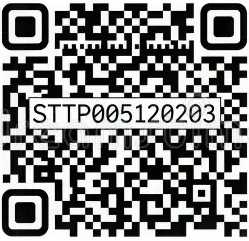
    Alphanumeric QR code

    A factory might encode batch IDs like “AB3F21” in alphanumeric mode to save space.

    Binary QR code

    A binary QR code uses byte or binary mode to store arbitrary data as raw bytes. It can hold any character in supported sets, not just letters and numbers.
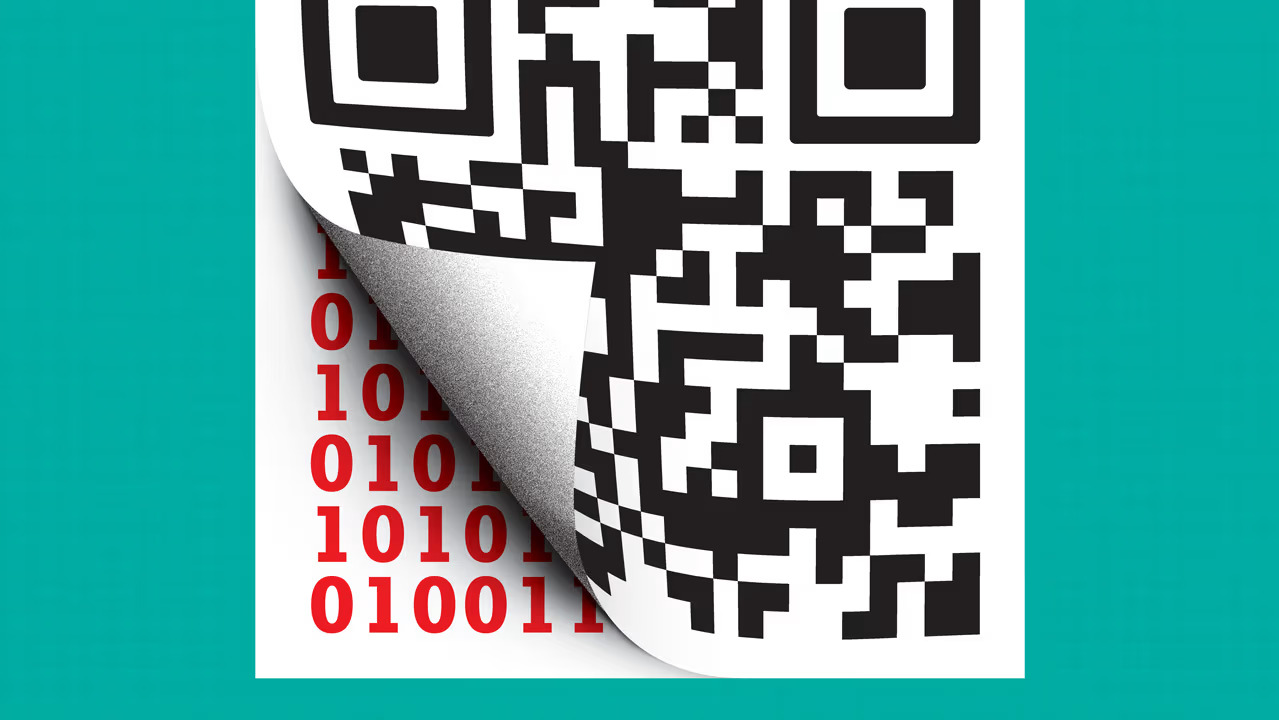
    Binary QR code

    Developers might use binary QR codes to share configuration files, encrypted blobs, or small data packets offline.

    Smart rules QR code

    A smart rules QR code uses conditions such as device, location, language, or time to decide where to send each scan. It is always dynamic and rule‑driven.
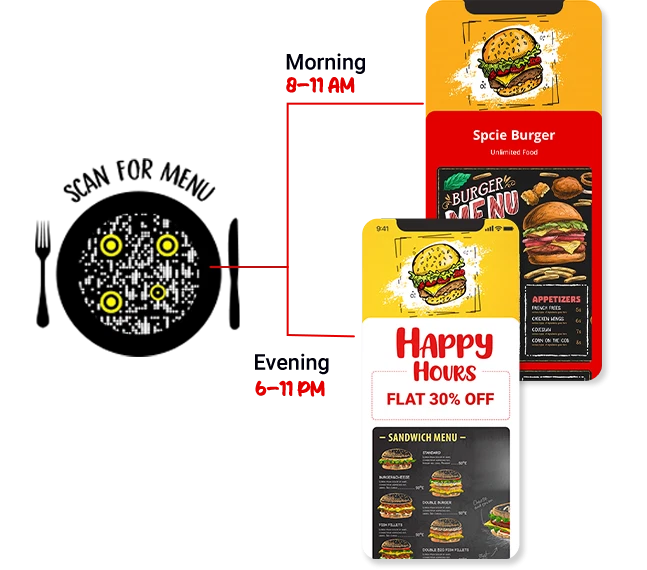
    Smart rules QR code

    With Replug, for example, you can point one smart rules QR to different sales pages by region, or show different offers before and after a launch date. Smart rules and analytics turn QR codes into measurable campaign hooks rather than blind links.

    Structured append QR code

    Structured append QR codes split large datasets into multiple QR symbols that work together in harmony. When scanned in sequence, the reader reassembles the full content.

    Structured append QR code

    This is rarely needed for marketing but is helpful in technical or archival contexts where big data chunks must be printed across several codes.

    Screenshot QR code

    A screenshot QR code is any QR designed mainly for use on screens rather than print. The idea is that people screenshot it and scan from their gallery or another device, hassle-free.
    Screenshot QR code

    Creators often add screenshot‑friendly QR codes to videos or livestreams so viewers can quickly grab the code and visit links later.

    Kanji QR code

    A Kanji QR code uses the special Kanji encoding mode optimized for Japanese characters. This packs Japanese text more compactly than basic byte mode.

    Kanji QR code

    Businesses targeting Japanese speakers can use this type of QR code to store messages, addresses, or product names in a much smaller space.

    Types of 2D QR codes

    When people talk about “2D QR codes,” they often group quick response codes with other matrix and stacked symbols. They are not all technically QR, but they solve similar problems.

    Knowing these options helps when picking a code type for packaging, tickets, or industry systems.
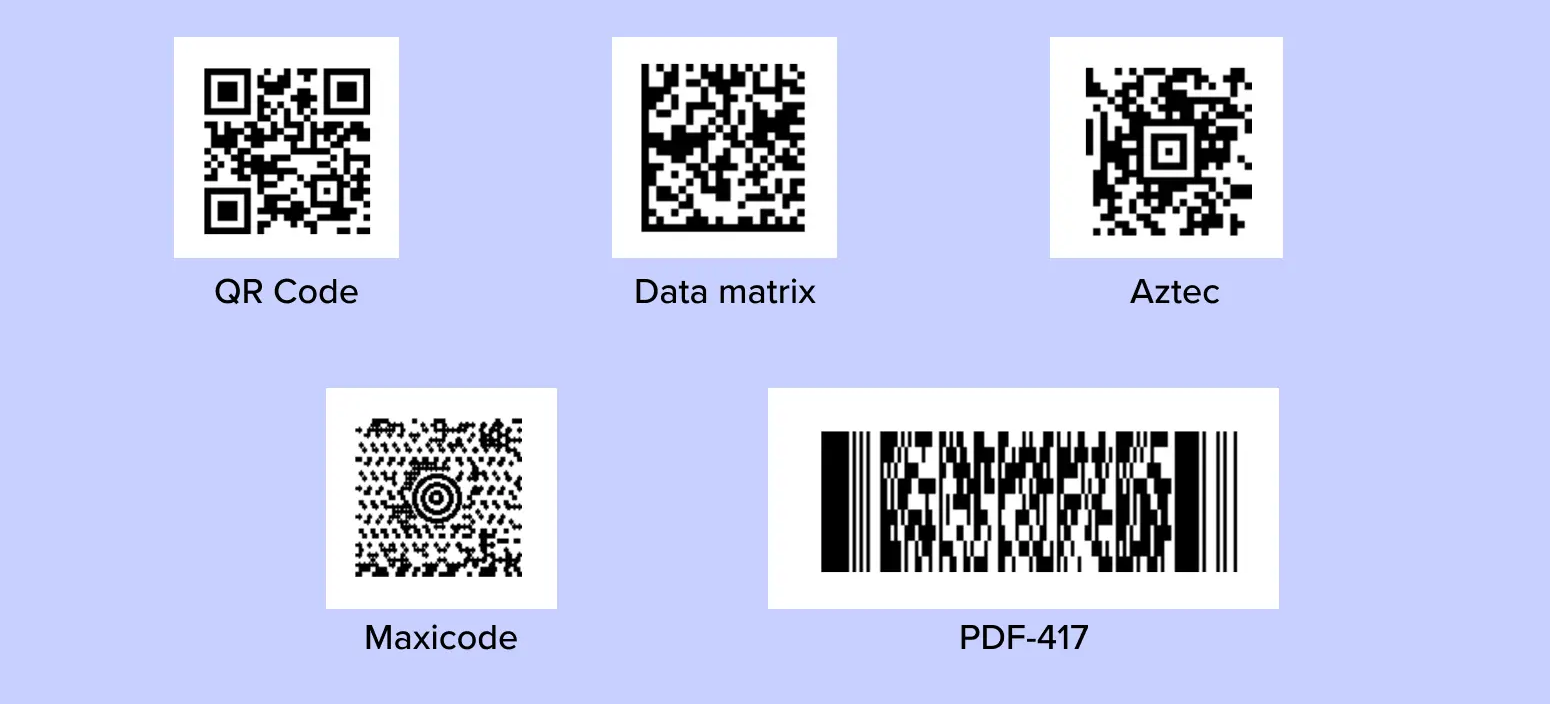
    Types of 2D QR codes

    Standard QR code

    The standard QR code is the square, three‑cornered symbol most people generally know. It supports multiple encoding modes, four error‑correction levels, and 40 size versions.
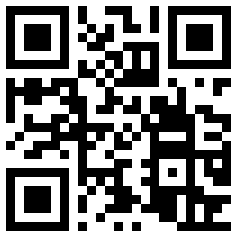
    Standard QR code

    This is what most online QR code generators create by default for marketing, menus, and payments, etc.

    Micro QR code

    Micro QR code is a compact version of QR with just one corner finder pattern. It is designed for small items such as circuit boards, cables, or small labels.
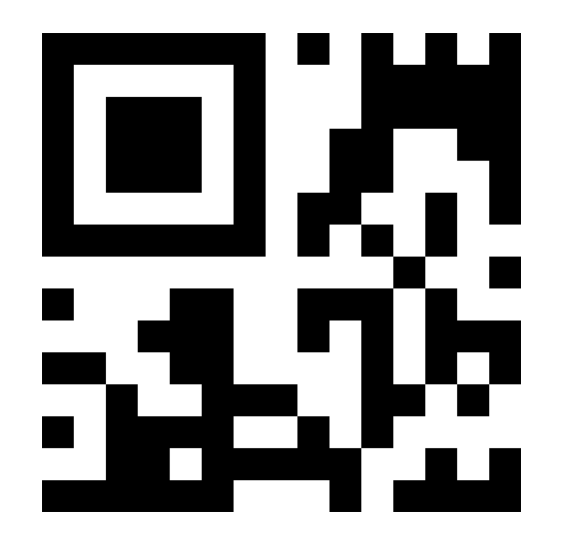
    Micro QR code

    Where space is tight, and only a few characters are needed, Micro QR is a much better fit than a full symbol.

    DataMatrix QR code

    Data Matrix is another 2D code format, not a true QR code, but often discussed in the same breath. It uses a square or rectangular grid with a solid L‑shaped border.
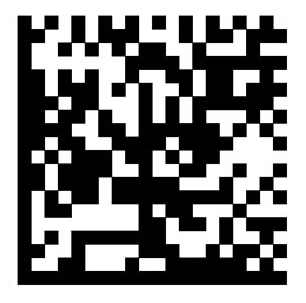
    DataMatrix QR code

    You see it widely in the pharmaceutical and electronics industries, where small, high‑density marks are needed on parts.

    GS1 DataMatrix

    GS1 DataMatrix applies GS1 standards to the Data Matrix format to encode things such as GTIN, lot numbers, and expiry dates. It supports traceability across supply chains.
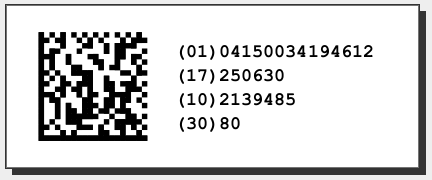
    GS1 DataMatrix

    Pharma packaging, medical devices, and regulated products commonly use GS1 DataMatrix for compliance and recall management.

    PDF417

    PDF417 is a stacked barcode made of several linear rows. It can store large amounts of data, including photos and long text.
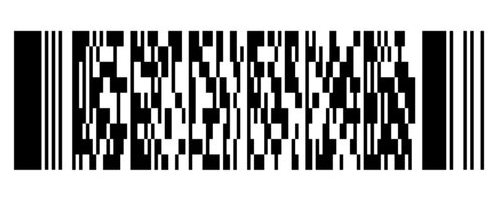
    PDF417

    Boarding passes, ID cards, and shipping labels often rely on PDF417, where big payloads are required in one single code.

    QR Code Model 2

    QR Code Model 2 is the modern standard for QR symbols, defined in ISO/IEC 18004. It includes alignment patterns, strong error correction, and broad reader support.
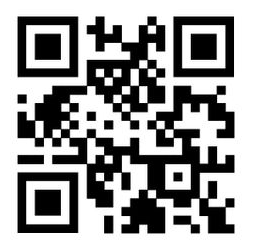
    QR Code Model 2

    If your QR code gets easily scanned with a smartphone camera today, it is almost certainly Model 2.

    MaxiCode

    MaxiCode is a circular 2D code with a bullseye pattern in the center. It was initially created for high‑speed sorting and routing.
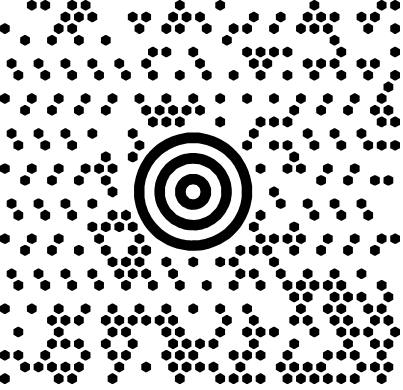
    MaxiCode

    Parcel firms such as UPS have used MaxiCode on shipping labels to guide packages through conveyor systems.

    DotCode

    DotCode uses small dots instead of squares and is tailored for high‑speed printing on curved or uneven surfaces.
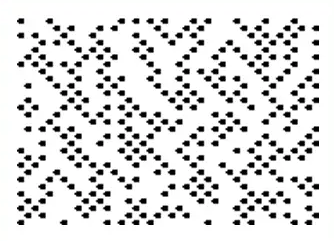
    DotCode

    It appears on cigarette packs, beverage cans, and other items that are marked by continuous inkjet printers at very high speed.

    Han Xin

    Han Xin code is a 2D symbol designed in China, optimized for Chinese characters but capable of storing other data as well. It supports a wide range of sizes and capacities in the best possible fashion.
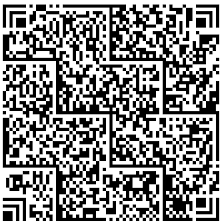
    Han Xin

    It is used in some regional payment and identification systems, where its text support and high capacity prove helpful.

    Aztec Code

    Aztec Code has a central point and data rings around it, allowing it to work well even when printed small or with minimal quiet zones.
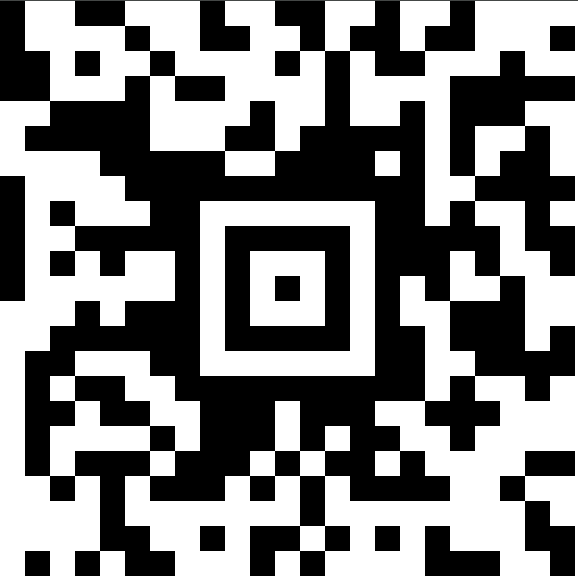
    Aztec Code

    Transport tickets, such as train or boarding passes in some countries, often use Aztec because it scans reliably on screens and paper.

    How to pick the right QR code type: Key points to consider!

    With so many types of QR codes, the best option depends on what you want the scan to do, how often the content might change, and where the code will live. A little planning here saves reprints and headaches later.
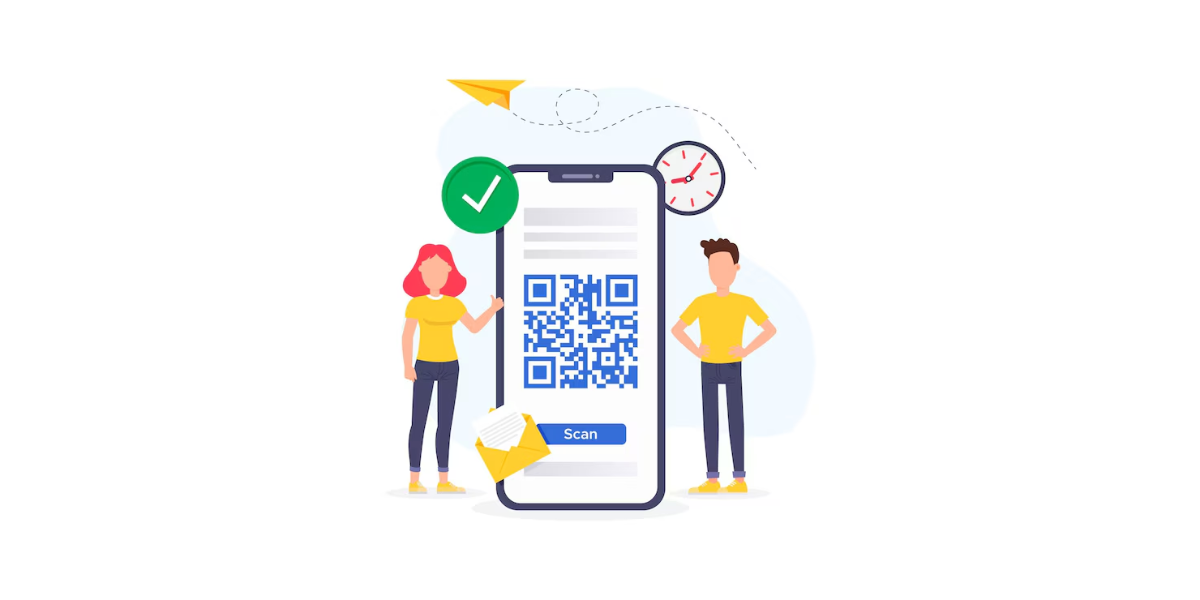
    How to pick the right QR code type

    Dynamic vs. static

    The first choice is whether the content should ever change. If the link needs updates, tracking, or targeting at a later stage, dynamic QR codes are usually the right option.

    Static codes are fine for:

    • Permanent details
    • Plain text notes or instructions
    • Simple maps or addresses that rarely change

    For campaigns, product packaging, and paid media, dynamic QR codes give you the safety net to fix links, run A/B tests, and read scan data.

    Content type

    Next, match the QR code to the content or action.

    For example:

    • If you want traffic to a website, a URL or a landing page QR code might be the best option.
    • For rich contact sharing, vCard or business page QR codes make more sense.
    • For bookings, payments, or feedback, use online booking, payment, or survey QR codes designed for that flow.

    Start with your end action, then choose the format that gets users there with the fewest taps.

    Design & usability guidelines

    Design matters as much as function.

    Keep these basics in mind:

    • Maintain a strong contrast between code and background.
    • Avoid very light colors or busy patterns behind the code.
    • Leave enough white space (quiet zone) around the code.
    • Make the printed size large enough for comfortable scanning at expected distances.
    • Add clear microcopy, such as “Scan for menu” or “Scan to pay,” so people know what will happen.

    Note: Before going live, test your QR codes on multiple devices, both printed and on screens, under different lighting conditions.

    Applications of QR codes

    The real power lies in the various uses of QR codes across everyday touchpoints. From payments to packaging, they quietly connect offline experiences to digital actions. Here are some of the most common ways industries rely on them.
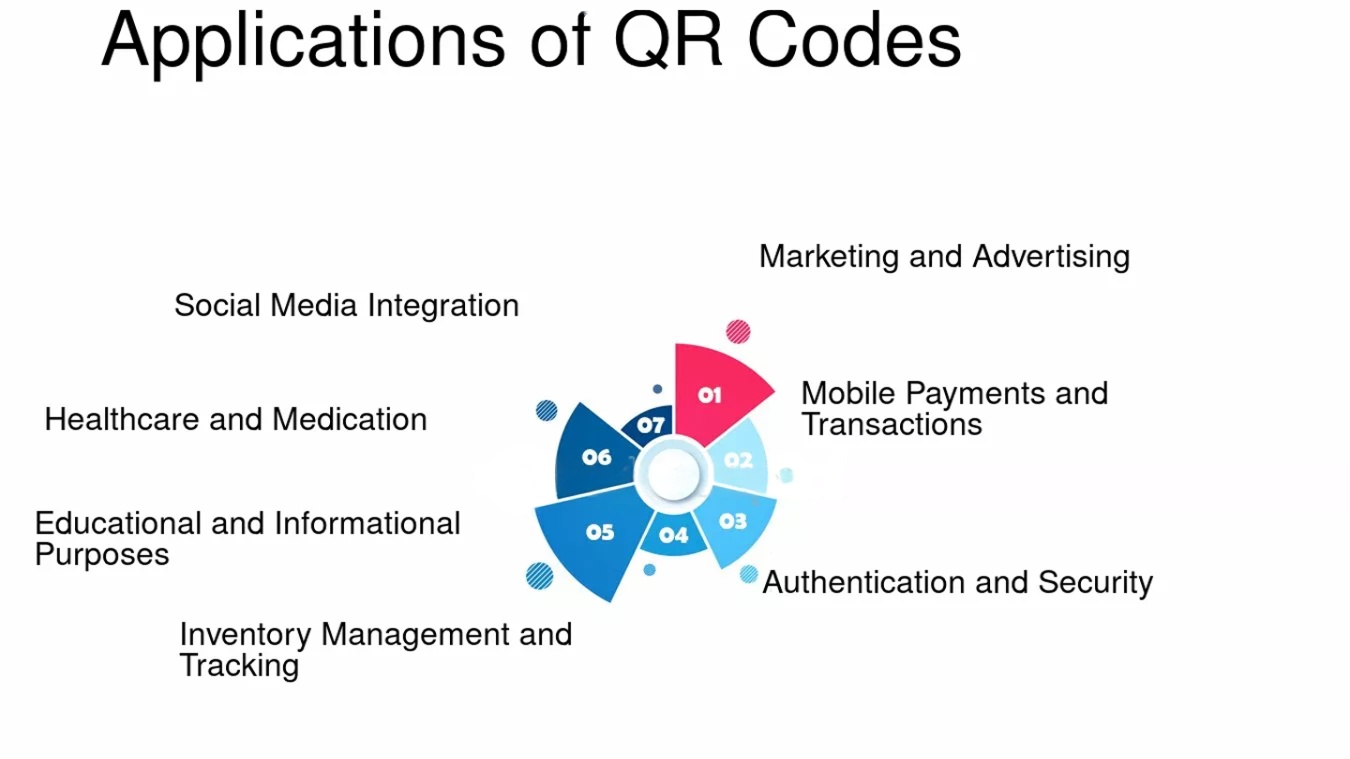
    Applications of QR codes

    Payments & finance

    Banks, wallets, and fintech apps use QR codes for payments and instant transfers. They cut down on card terminals and cash handling while still giving clear records.
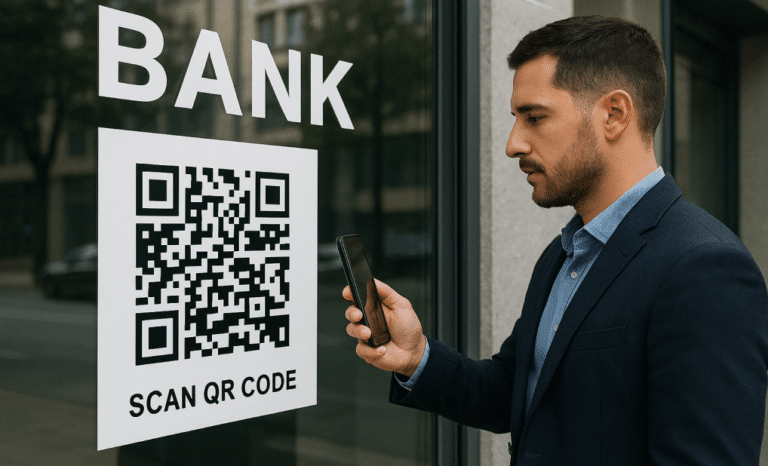
    Using QR codes for payments & finance

    Street vendors, small shops, and freelancers can also accept digital payments just by printing a code and linking it to their personal wallet.

    Marketing & advertising

    In marketing, QR codes turn posters, print ads, out‑of‑home placements, and packaging into clickable media. They pull people into websites, videos, and social feeds without manual typing.
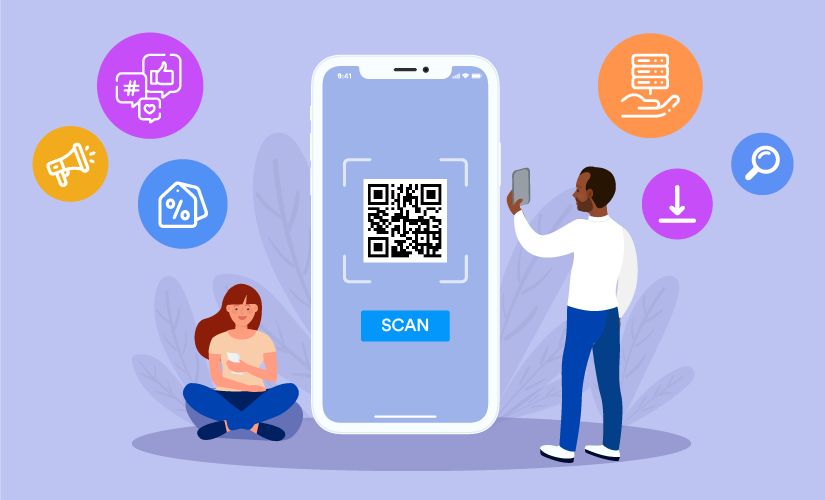
    Using QR codes for marketing & advertising

    By using dynamic QR codes with analytics, marketers can see which designs, placements, or channels drive the most scans and conversions. They can then adjust settings or offers based on real data.

    Product information (smart packaging)

    Brands place QR codes on boxes and labels to share rich product stories: origin, ingredients, user guides, and sustainability details. This keeps the packaging clean while still providing detailed information.
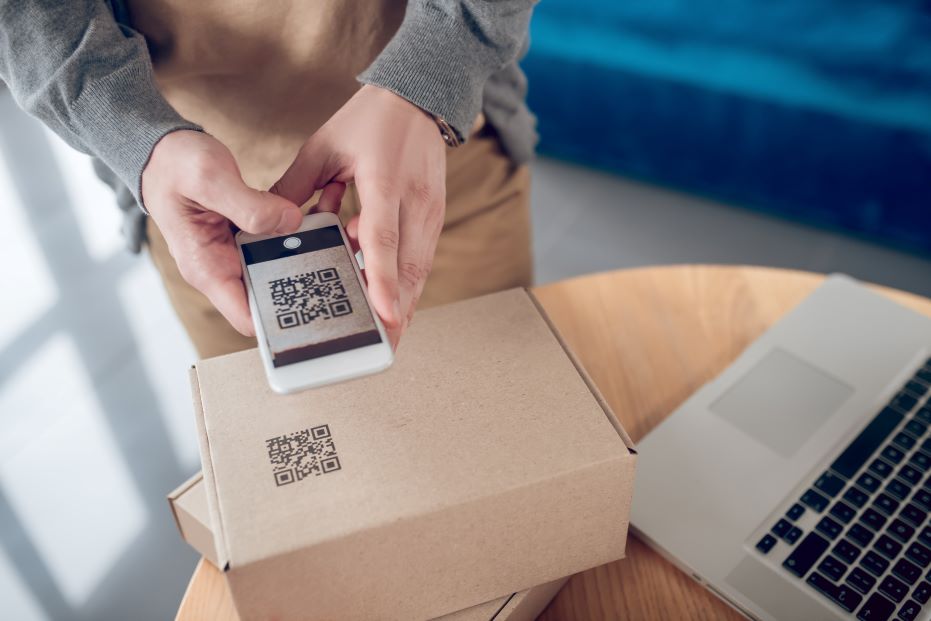
    Using QR codes for product information (smart packaging)

    Smart packaging codes also help drive post‑purchase engagement, such as tutorials, care tips, feedback forms, and loyalty programs.

    Hospitality & dining

    Restaurants and hotels rely on QR codes for menus, room information, and ordering flows. Menus can change daily behind one stable code, saving on reprints.
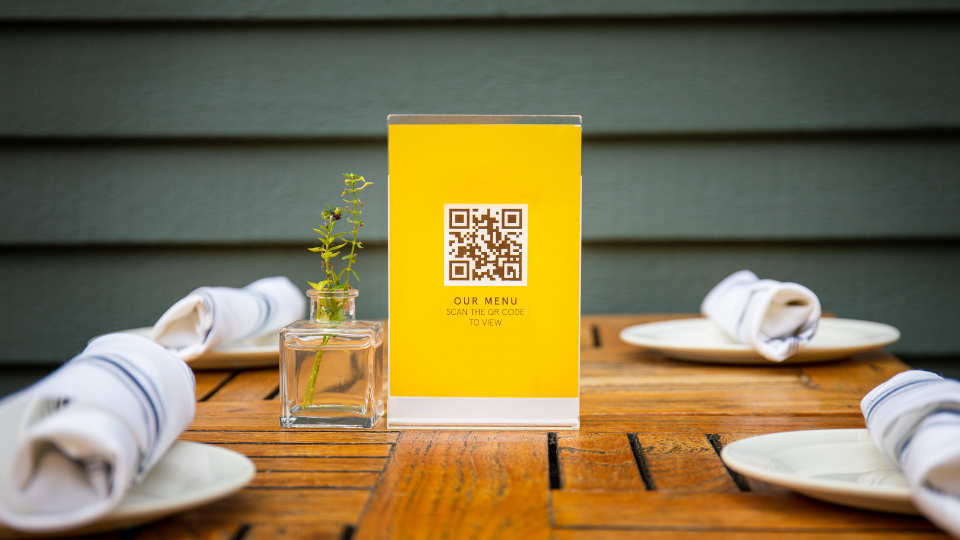
    Using QR codes for hospitality & dining

    Resorts use QR codes for Wi‑Fi access, spa bookings, or local guides, available right from room cards or lobby signs, reducing pressure on front‑desk staff.

    Logistics & inventory

    In logistics, QR and related 2D codes help track items through warehouses, trucks, and stores. They carry serial numbers, lot codes, and dates in a compact form.
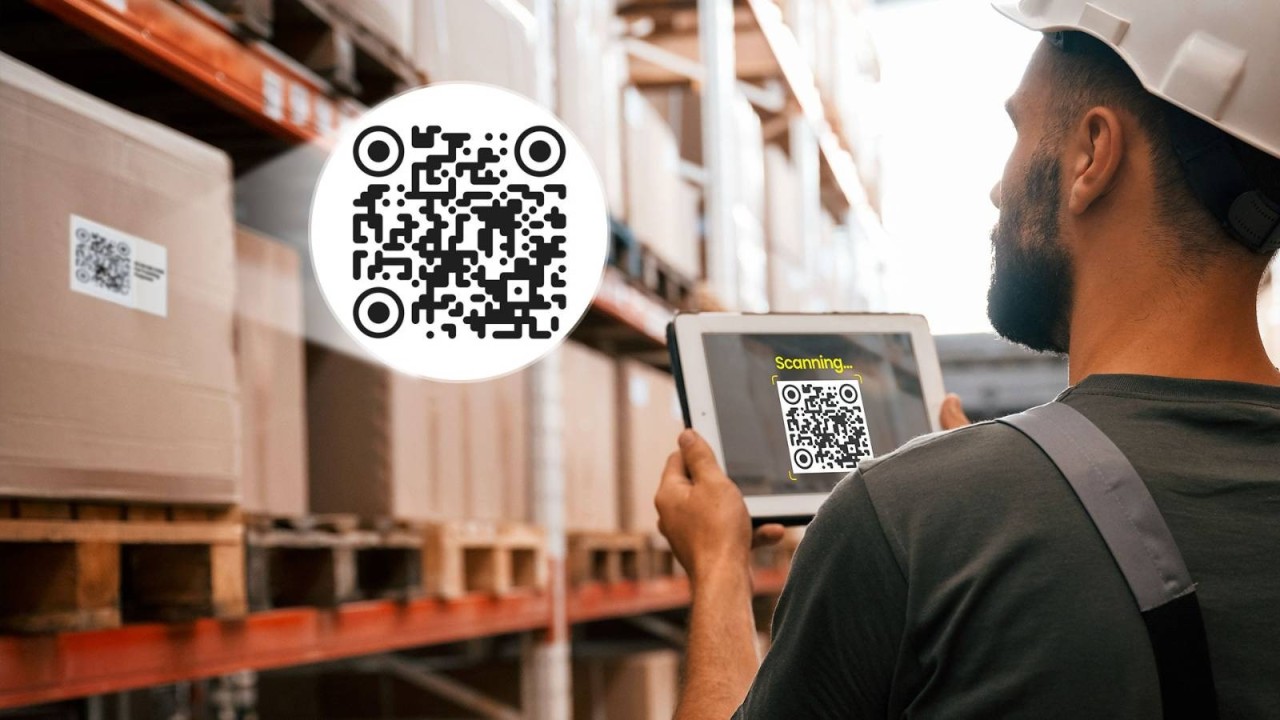
    Using QR codes for logistics & inventory

    Teams scan codes to:

    • Update stock levels
    • Confirm deliveries
    • Trace goods for quality checks or recalls

    This makes audits and recalls faster and more accurate.

    Authentication & information sharing

    QR codes support anti‑counterfeiting and secure data sharing. Serialized codes let customers verify a product’s authenticity via a branded page.
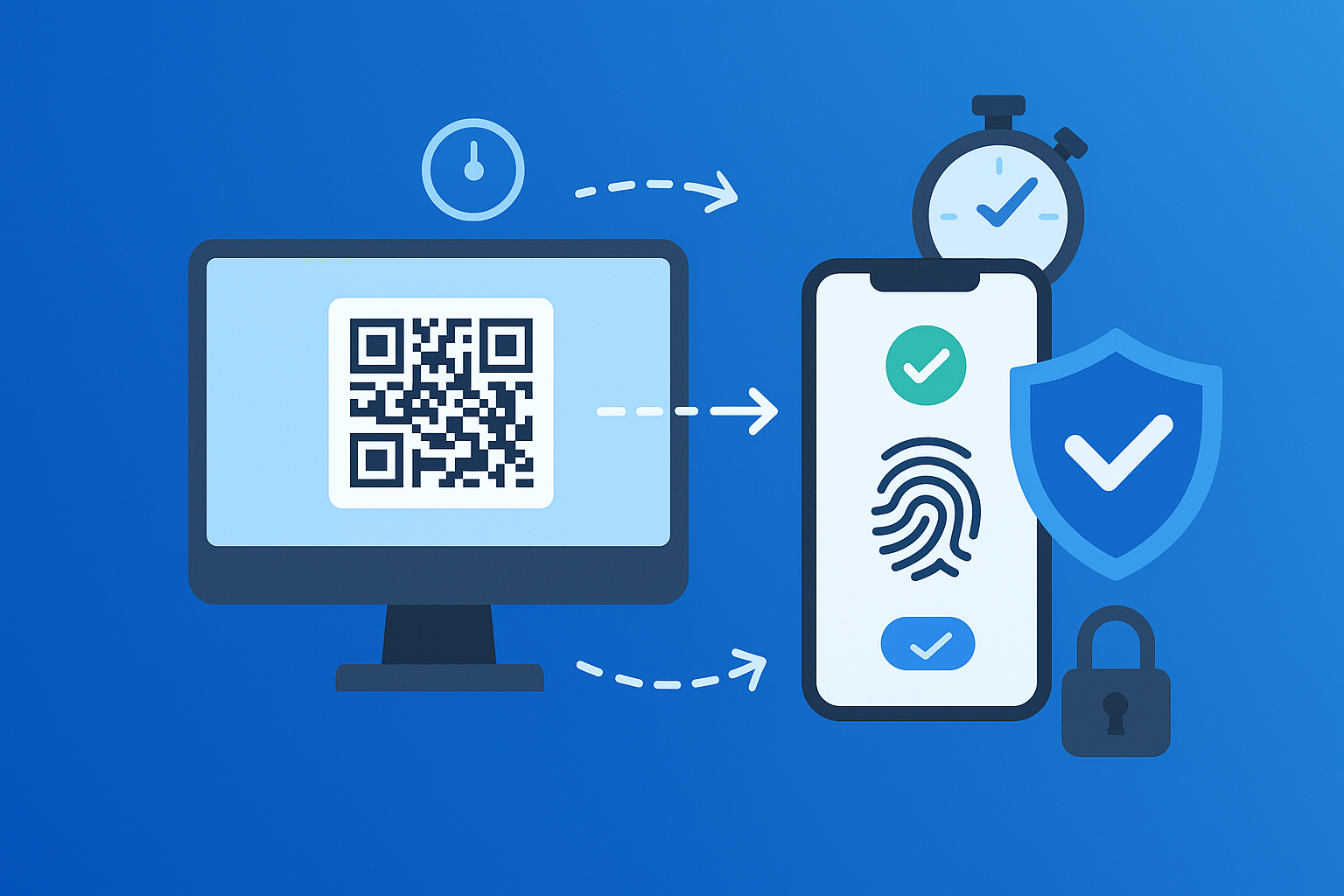
    Using QR codes for authentication & information sharing

    Secure formats like SQRC can hold private data visible only to authorized scanners, which is useful for healthcare, access control, or employee IDs.

    Personal utility

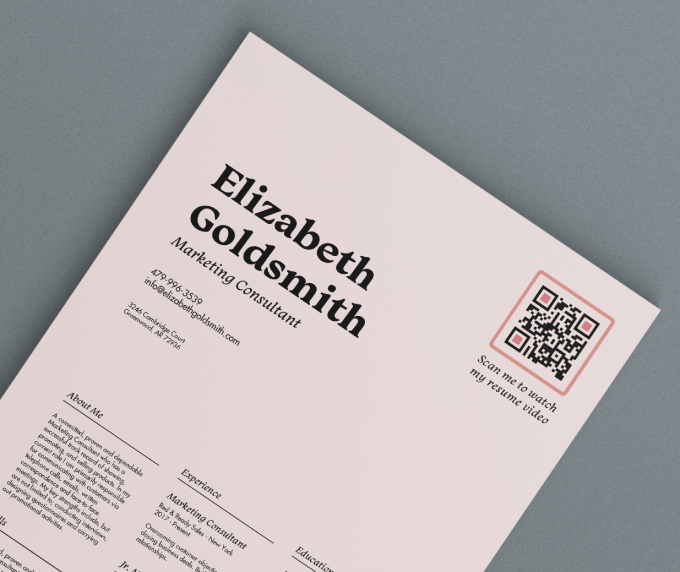
    On the personal side, people use QR codes on resumes, portfolios, wedding invites, or personal cards. They connect printed materials to online profiles, maps, or playlists.
    Using QR codes for personal utility

    Content creators and freelancers often share a single biolink QR that bundles their portfolio, social handles, and booking links.

    How to create a QR code for your business with Replug’s QR code generator!

    Replug is an all‑in‑one link management platform with a built-in, powerful dynamic QR code generator. You can create branded, trackable QR codes that update any time without touching the printed code.

    Here is a simple way to get started!

    1. Decide what you want people to do after scanning

    Clarify the main goal first, such as visiting a sales page, watching a video, joining your email list, or booking a call. A clear action makes it easier to pick the right QR type and landing experience.

    2. Sign up or log in to Replug

    Create an account on Replug, or if you already have one, sign in and open the dashboard. You will manage your QR codes and analytics from this central place.

    Replug dashboard

    3. Go to the QR codes section

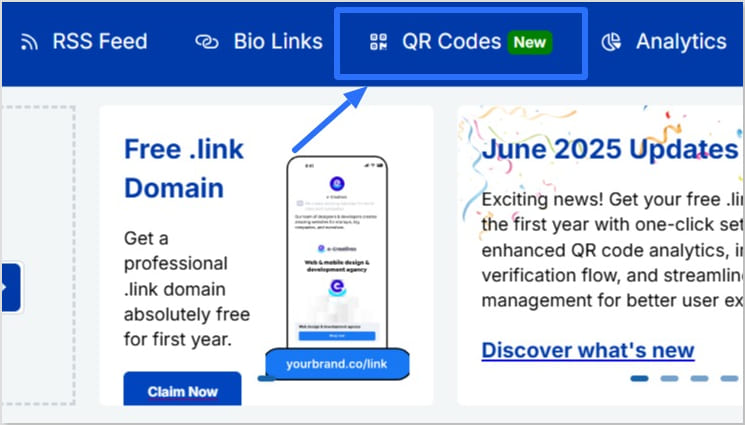
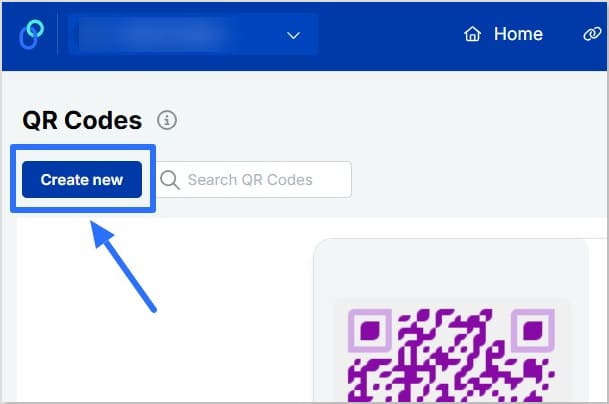
    Inside the header, you will see various options. Here, click the one labeled “QR Codes.”

    QR Codes option in Replug

    4. Generate your QR code

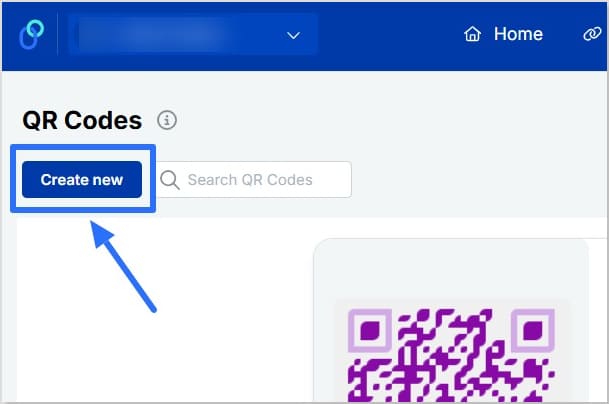
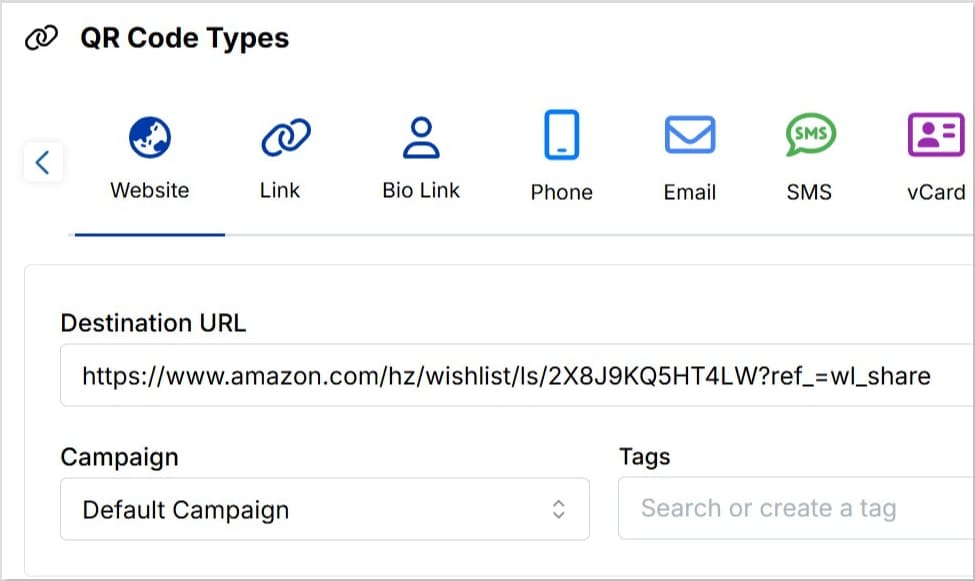
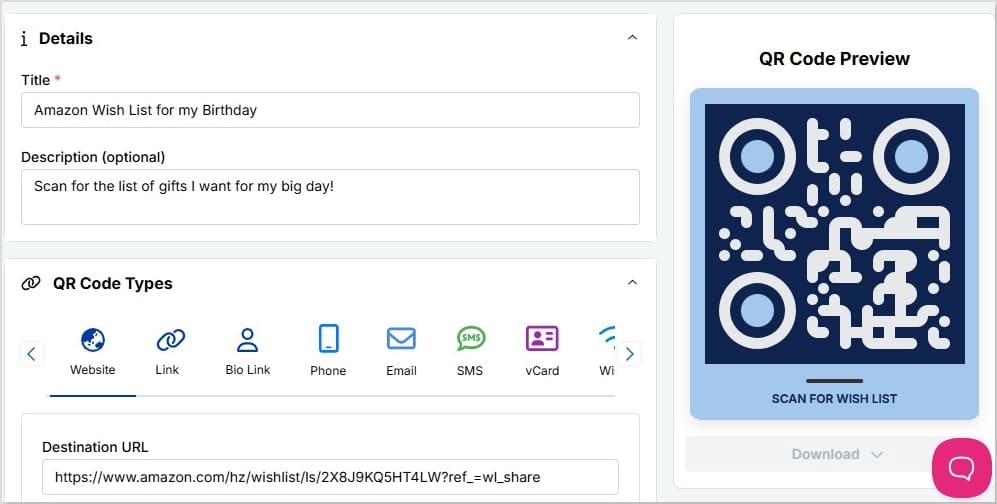
    Now, click the button “Create QR Code.” Subsequently, fill in the required field, i.e., “Title,” with a name of your choice that best represents the QR code. Moreover, select the type of QR code you want, and enter the required details.

    Create QR Code button in Replug

    5. Customize the design to match your brand

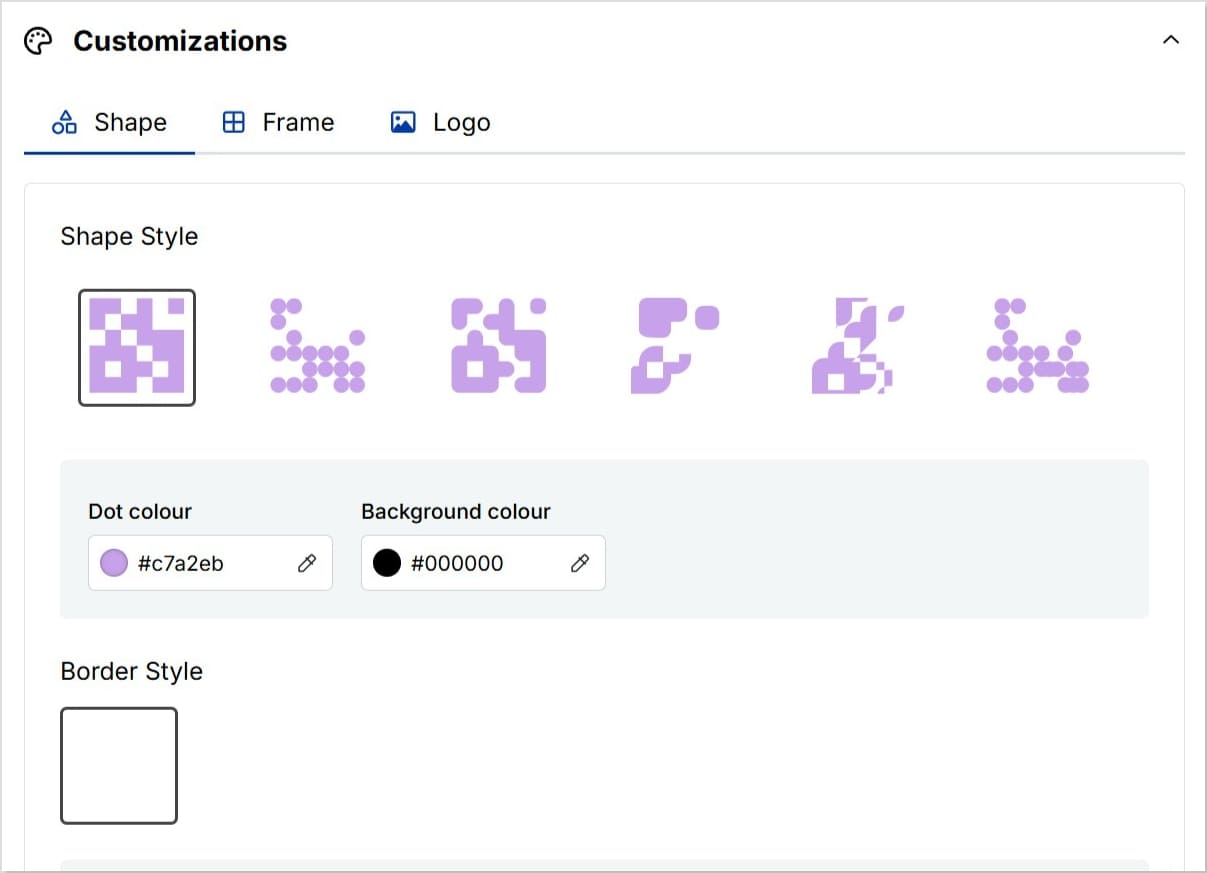
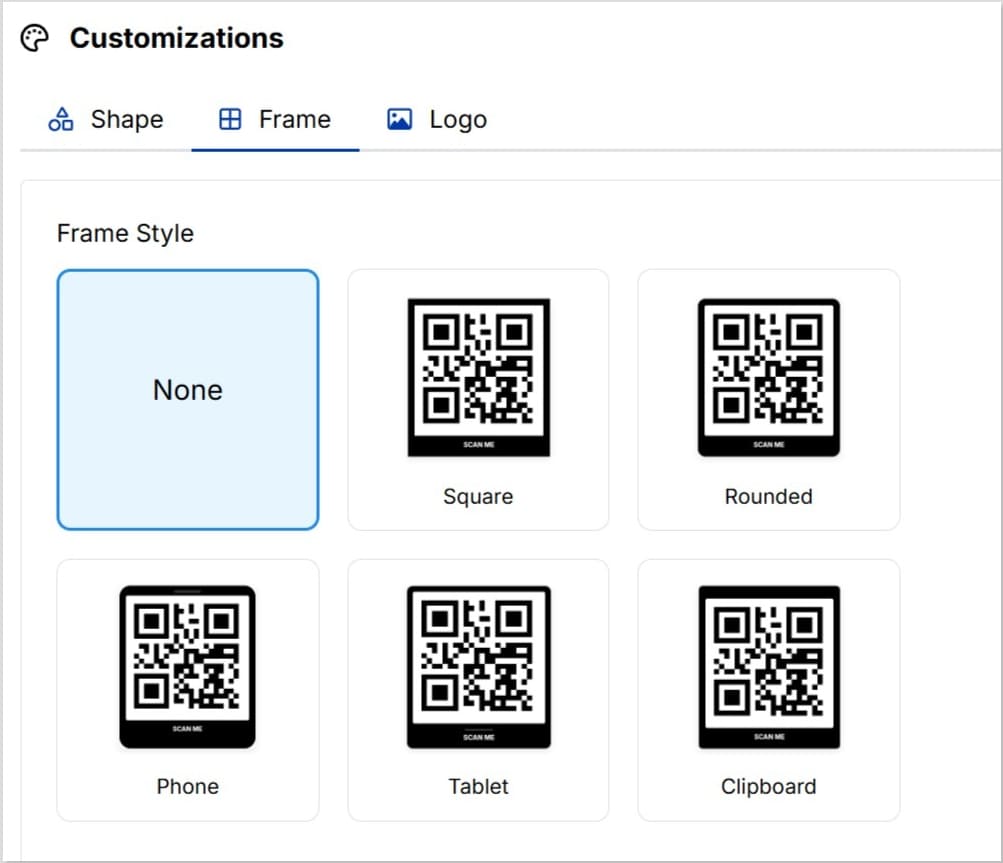
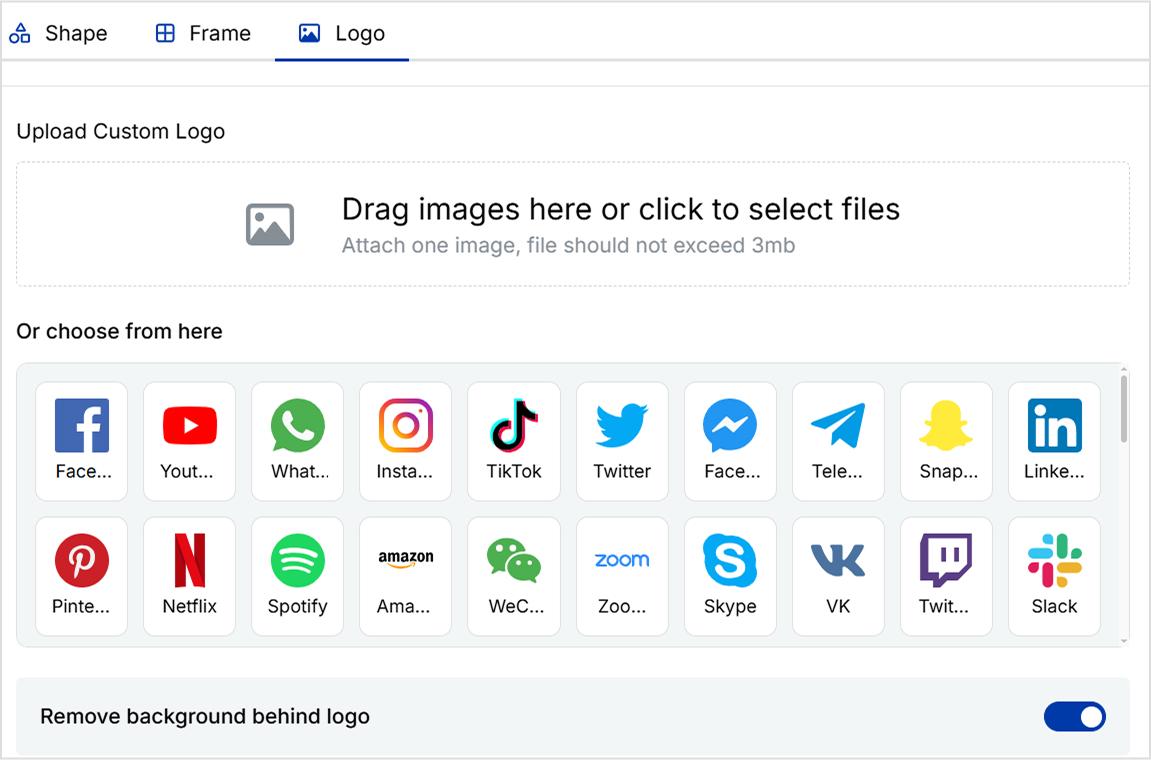
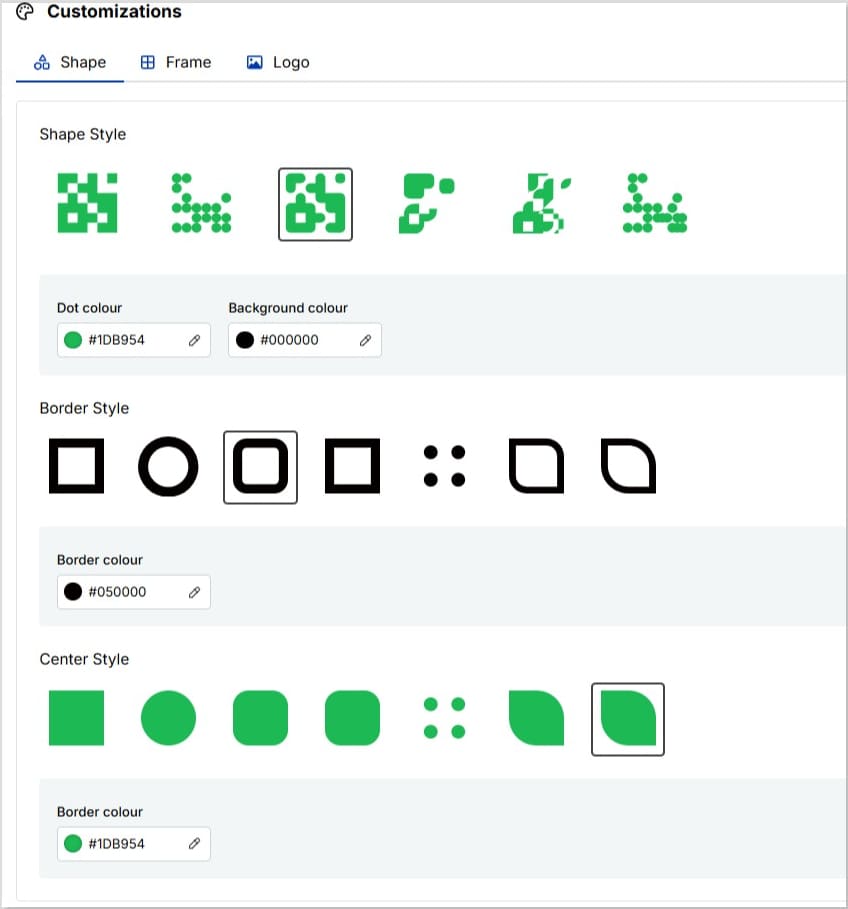
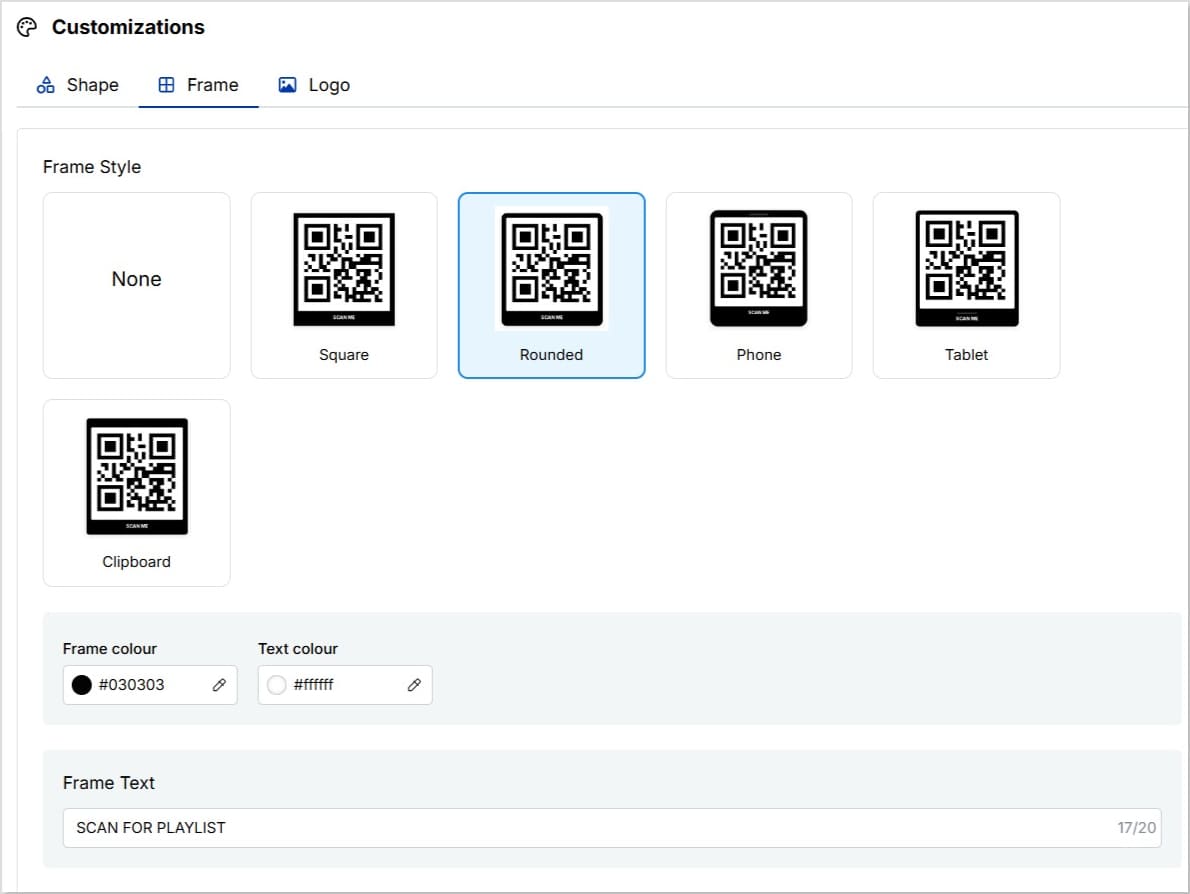
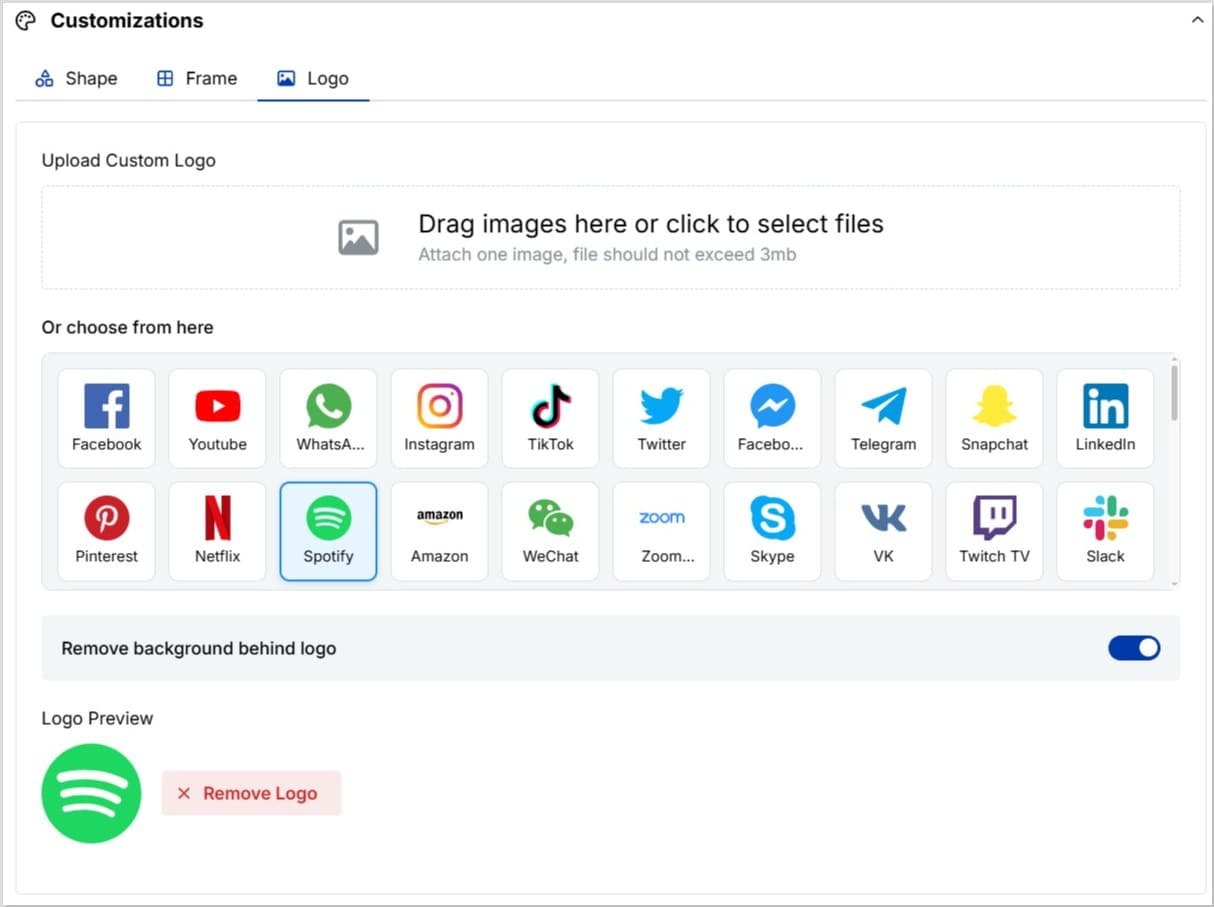
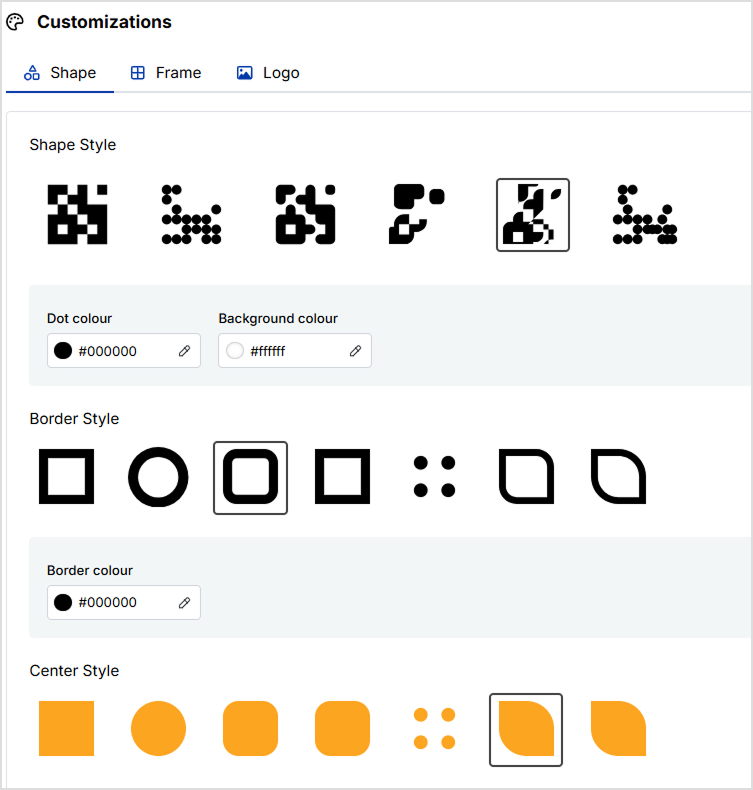
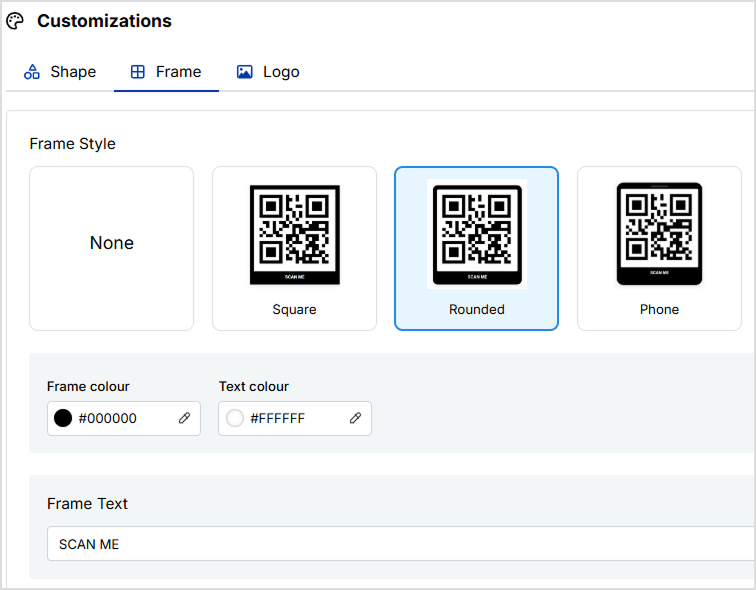
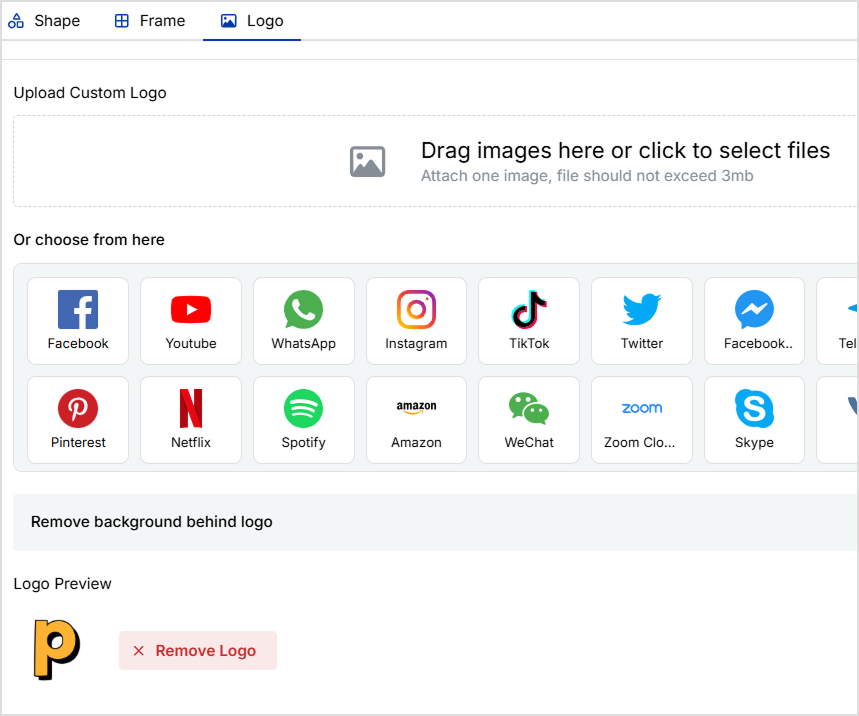
    Adjust the “Shape,” “Frame,” “Logo,” and “GPS Location Tracking” options while keeping a clear, quiet zone.
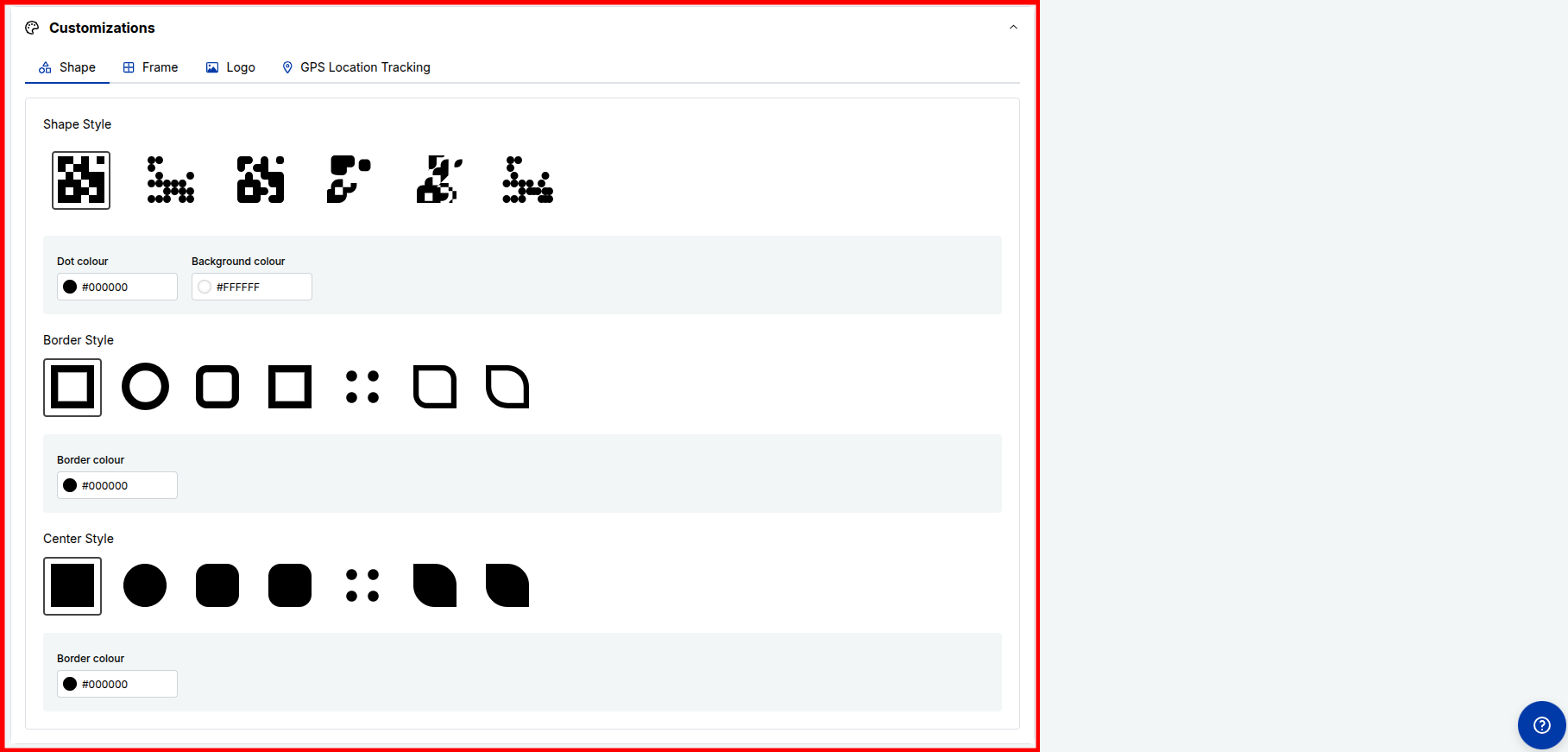
    QR Code customization options

    6. Download in the right format and test

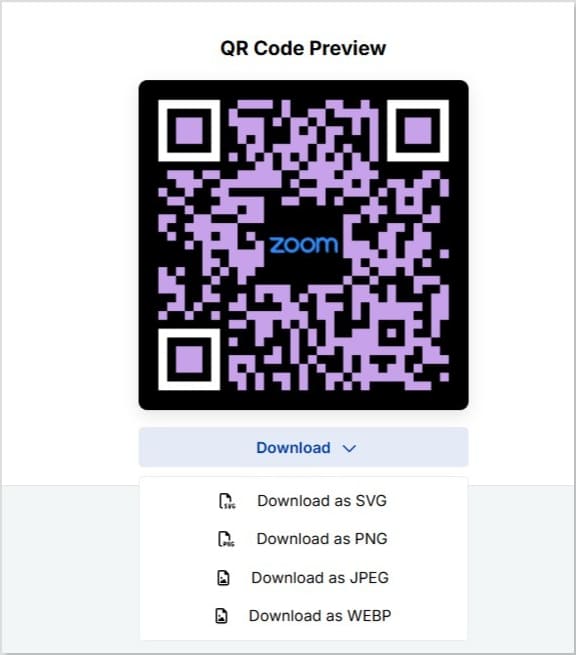
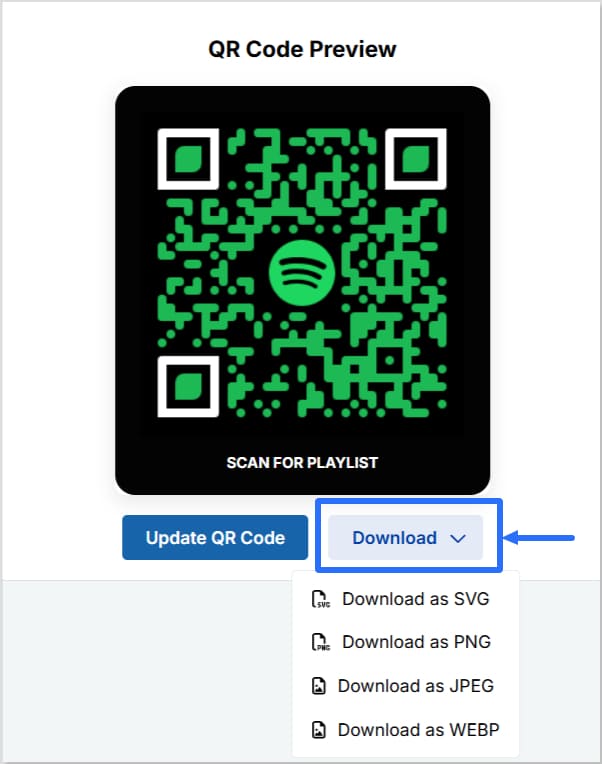
    Now click the “Create QR Code” button in the top-right corner. Export the QR code in high‑resolution SVG, PNG, JPEG, or WEBP, depending on where you will use it. Print a sample or place it in your design, then scan it with multiple phones to make sure it works smoothly.
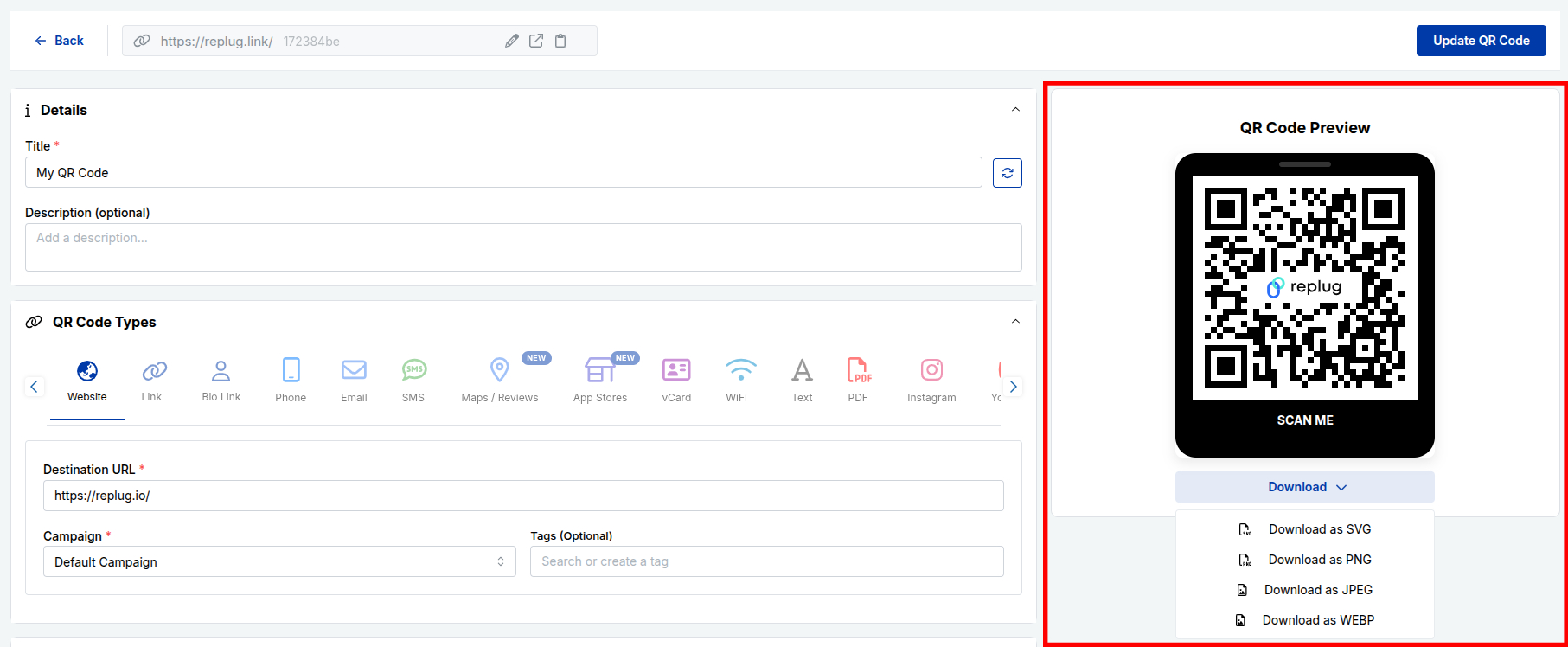
    Download QR Code in desired format

    7. Track performance and improve campaigns

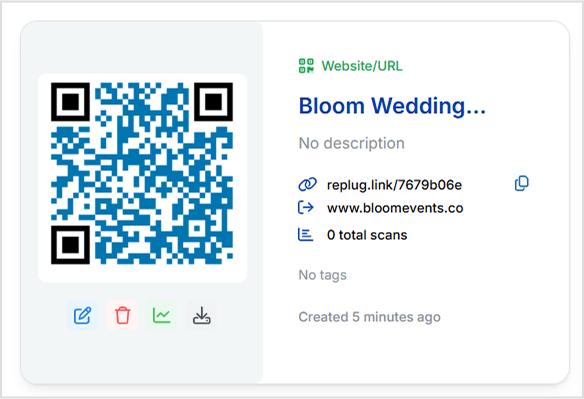
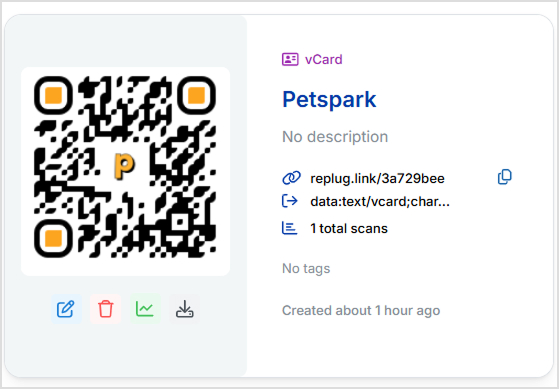
    Back in Replug, watch total scan counts and detailed stats. Use this data to tweak your pages, offers, or placements, and update the QR destination whenever your campaign needs a change.
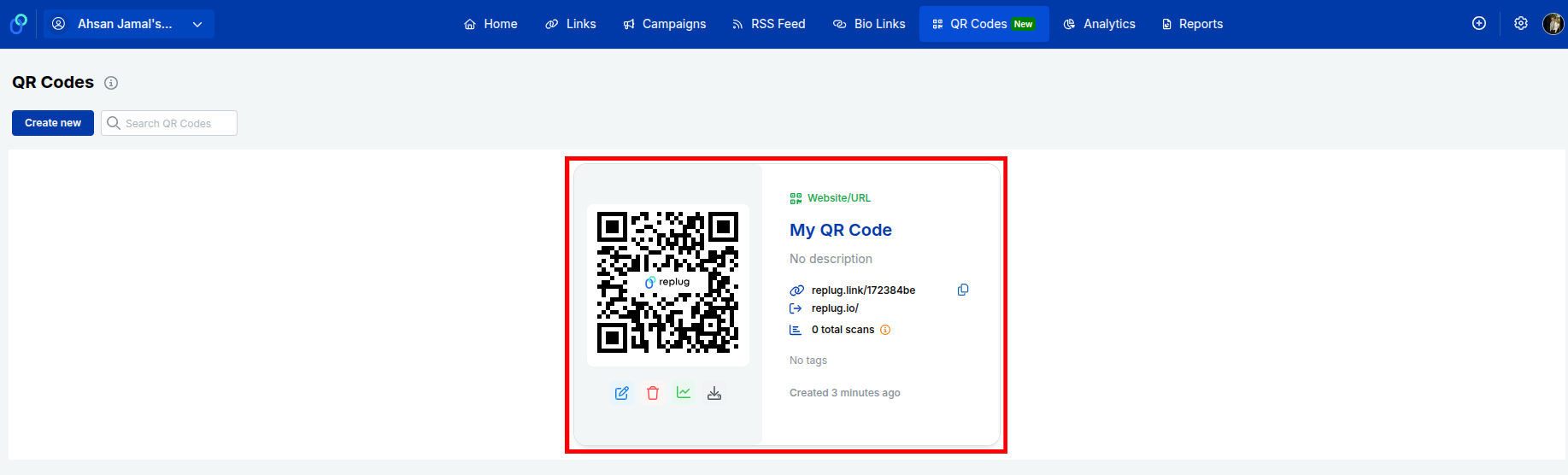
    Generated QR Code with important information

    Related: How to create a QR code using Replug?

    QR code vs. barcode: Major differences explained!

    QR codes and traditional barcodes both store data for machines to read, but they do it in very different ways. That leads to significant differences in capacity, use cases, and user experience.

    FeatureQR codeBarcode (1D)
    ShapeSquare matrix of small modulesHorizontal lines of varying widths
    Data directionTwo‑dimensional, across rows and columnsOne‑dimensional, along a single line
    Data capacityThousands of characters are possibleUsually 20–25 characters at most
    Typical contentURLs, text, contacts, Wi‑Fi, payments, moreProduct IDs for price lookup
    Error handlingBuilt‑in error correction; can read when partly damagedVery sensitive to damage or distortion
    Scanning devicesReadable by smartphone cameras and 2D scannersNeeds laser barcode scanners or special apps
    Space efficiencyStores lots of data in a small areaNeeds more width as data grows
    EditabilityDynamic codes let you change destinations laterThe encoded value is fixed once printed
    User interactionActs as a bridge to websites, apps, and mediaDesigned mainly for internal inventory systems

    Static QR code vs. dynamic QR code: Which one works best!

    Static and dynamic QR codes look almost identical, but behave very differently once people start scanning. Knowing when to use each one will save you from broken campaigns and reprints.

    FeatureStatic QR codeDynamic QR code
    Data storageFinal data (full URL, text) is stored directlyStores a short redirect URL managed online
    Edit after printNot editable, needs a new code for any changeDestination and rules can be updated anytime
    AnalyticsNo built‑in trackingTracks scans, devices, locations, and more
    Size and densityCan become dense with long URLsOften simpler because the link is short
    Advanced rulesNot supportedSupports device, location, and time‑based routing
    Best forPermanent info that rarely changesMarketing, campaigns, packaging, and tests

    Static codes are fine for long‑term, stable information, such as Wi‑Fi details in a small office or a simple contact label. Dynamic codes, on the other hand, are better for almost every marketing use, from flyers and posters to smart packaging and menus. With a platform like Replug, dynamic QR codes give you control, data, and flexibility without changing the physical print.

    Wrapping up

    QR codes started as a tool for tracking car parts and grew into a simple way to connect anything printed with anything online.

    Once you understand the main types of QR codes, from static and dynamic to payment, social, and smart rules, it becomes much easier to design flows that feel smooth for users and useful for teams.

    Creators, marketers, and businesses can now turn every card, label, poster, and package into a trackable entry point. With a dynamic QR code generator like Replug, you keep control even after the ink is dry, updating destinations and reading real‑time scan data.
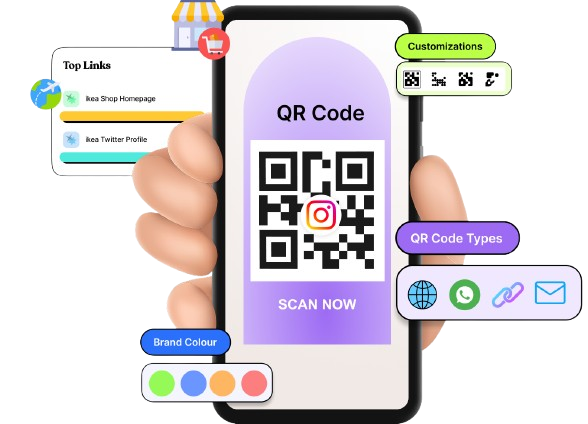

    Dynamic QR Codes
    Dynamic QR codes for modern brands, marketers,
    and creators.
    • Update content anytime without reprinting
    • Track scans to measure engagement
    Create QR codes for free

    The next time you plan a campaign or redesign packaging, think first about the action you want from a scan. Then pick the QR type that gets you there with the fewest steps!

    Frequently asked questions

    What is the most common QR code?

    The most common format is the standard Model 2 QR code used as a website URL or landing page code. Almost every code you see on menus, posters, or packaging falls into this category. It is widely supported by phone cameras and QR apps.

    Which is better for QR codes, SVG or PNG?

    For print, SVG is usually better because it is a vector file that stays sharp at any size. PNG is fine for web use, slides, and social posts where you do not need massive scaling. Many tools, including Replug, let you download both formats.

    Are there different types of QR codes?

    Yes, there are many different QR code types and variants.

    – On the technical side, you have static, dynamic, Micro QR, and secure versions, among others.
    – On the practical side, there are QR codes for links, Wi‑Fi, payments, files, and more.

    How many different QR codes can there be?

    The QR standard supports an enormous number of possible patterns. Thanks to different versions, encoding modes, and data combinations. In simple terms, there are far more possible codes than we will ever use in real life. For marketing, what matters most is picking the right type, not the raw number.

    How do I know what type of QR code I have?

    Scan the code and see what happens:

    – If it always goes to the same URL and you cannot change it in a dashboard, it is probably static.
    – If you created it in a platform like Replug and can edit the destination or see analytics, it is a dynamic QR code.

    What are the two types of QR codes most common in 2026?

    The two most common categories are static QR codes and dynamic QR codes. Static codes handle fixed tasks, such as Wi‑Fi access or plain text, while dynamic codes power most campaigns, menus, and packaging because they are editable and trackable.

    Can two QR codes be the same?

    Yes, two QR codes can encode the same data and therefore look identical. In practice, though, most dynamic QR tools generate different short URLs, so the codes differ even if they lead to similar pages. For tracking, it is usually better to give each placement its own specific code.

    Is it possible to edit my QR code after it’s created?

    You can edit a dynamic QR code by changing the destination or rules inside your platform. The printed graphic stays the same while the behavior changes. Static QR codes cannot be edited; you must create and use a new one.

    Why do marketing professionals pick QR codes over barcodes?

    Marketers prefer QR codes because they hold richer data and work with standard smartphone cameras. They can open websites, apps, videos, or forms in one scan, which is ideal for engagement. Barcodes are still useful for inventory, but are less friendly for consumer interactions.

    What are the risks and limitations associated with QR codes?

    – Risks include malicious code that leads to phishing sites, fake payment pages, or unsafe apps. There are also privacy concerns if scan data is collected without notice.

    – Limitations include the need for internet access for most actions, plus scan issues when codes are too small, low‑contrast, or badly placed.

    What are the different types of QR code images available?

    Common image formats for QR codes are PNG, JPEG, SVG, PDF, and WEBP.

    PNG and JPEG work well for screens and simple print jobs.
    SVG, WEBP, and PDF are ideal for designers and printers who need sharp graphics at any size.

    List the various types of scan codes?

    Scan codes include:

    1D barcodes: UPC, EAN, Code 39, Code 128
    2D codes: QR, Data Matrix, Aztec, PDF417, MaxiCode, Han Xin

    Each type suits different industries and data sizes.

    What are the most common types of QR barcodes?

    The most common types are standard Model 2 QR codes, Micro QR codes for small items, and dynamic QR codes for marketing. Data Matrix and GS1 DataMatrix are also very common in packaging and healthcare, even though they are technically different symbologies.

    Provide a list of the different types of QR code generators available online?

    Online QR tools range from simple, free generators to full marketing platforms:

    – Basic sites that create static code only
    – Mid‑tier tools that make a limited number of dynamic codes
    – Advanced platforms like Replug that combine short links, dynamic QR, smart rules, and analytics

    Many of them also provide a built‑in QR code scanner in their mobile apps.

    Can I use different QR code formats or variants for my business?

    Yes, you can mix formats based on your needs.

    For example, you might use:

    – Standard dynamic QR codes for campaigns
    – Wi‑Fi QR codes on premises
    – Payment QR codes at checkout

    The key is to keep everything organized in one system, so you always know what each code does and how it performs.
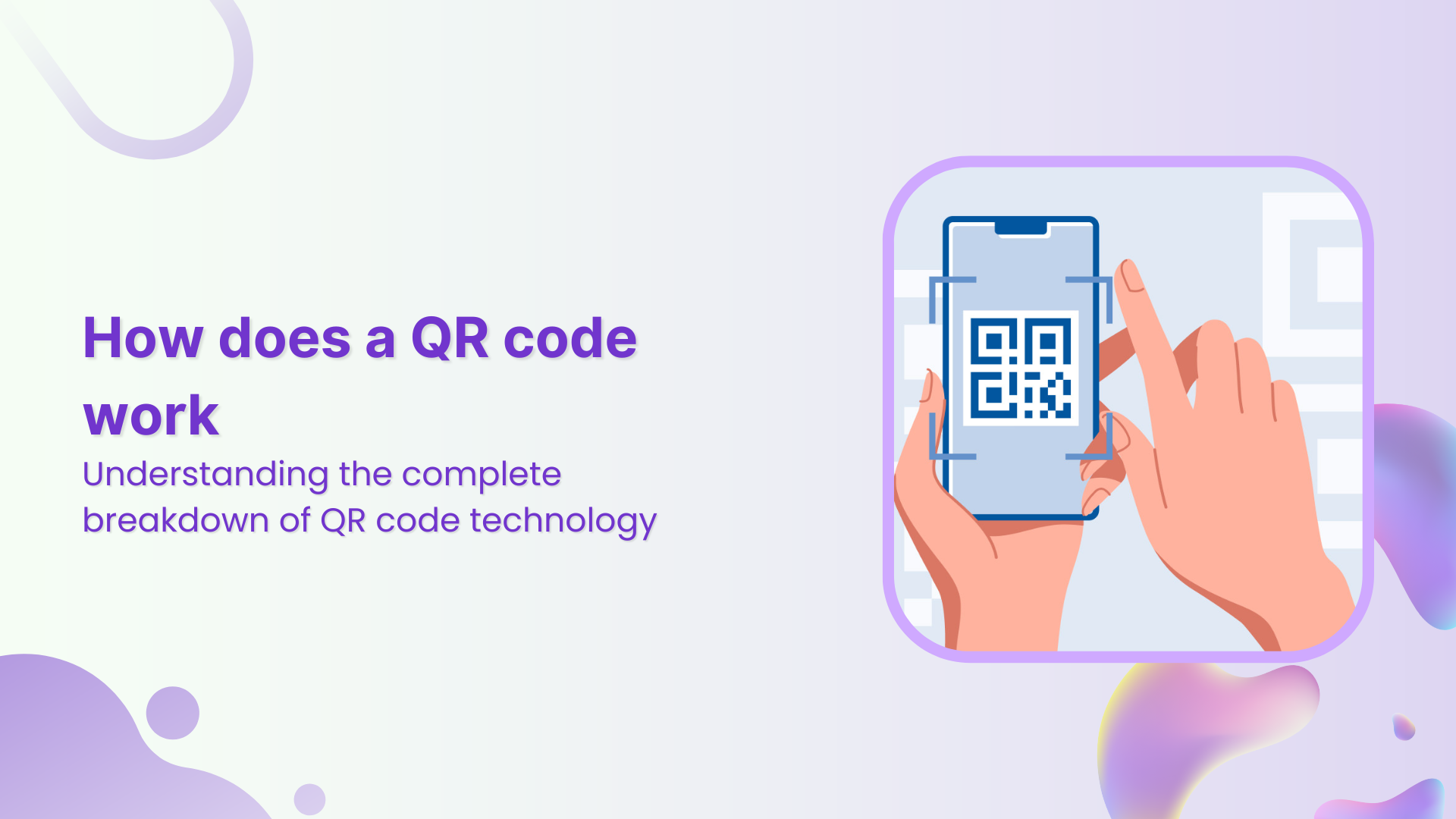
  • How does a QR code work: Understanding the complete breakdown of QR code technology

    How does a QR code work: Understanding the complete breakdown of QR code technology

    Every time you pull out your phone and scan that little black-and-white square, you’re tapping into a surprisingly powerful piece of technology. 

    The problem? Despite its ubiquity, most people still treat the QR code like magic (a shortcut), without ever really understanding how it works. That assumption can leave you frustrated when a code doesn’t scan, confused about what it’s doing, or even vulnerable to misuse. 

    It’s worth paying attention: In 2025, about 59% of consumers scan QR codes daily, and global scan rates are projected to grow by 22% by year’s end. 

    And, here’s the good news!

    The technology behind QR codes is both clever and understandable, and by the end of this post, you’ll know what actually happens behind the scan.

    So, without any delay, let’s get started!

    What is a QR code?

    A QR code is a type of two-dimensional barcode made up of a grid of black and white squares that a smartphone or camera can easily scan in seconds.

    Its primary objective is to bridge the physical and digital worlds by encoding information like a website link, contact card, or Wi-Fi password that you can access instantly with a scan.

    When you explore how a QR code is made, you’ll uncover how data gets encoded into those little squares. Plus, you will learn how error-correction allows it to survive smudges or odd angles, and how built-in positioning markers let a phone recognize the code’s orientation and interpret it correctly.

    What is a QR code used for? 

    Here’s a friendly breakdown of where and how these codes are used.

    • Contactless payments: Rather than pulling out a card or cash, many retail outlets let you scan a QR code from your phone to pay. This offers convenience and fewer touchpoints.
    • Product & packaging info: Imagine you’re in a store and want more details about a product. Scanning a QR code on the packaging can lead you to ingredient lists, origins, how-to videos, or user manuals effortlessly.
    • Marketing links & engagement: QR codes pop up on ads, posters, business cards, and even museum exhibits so you can instantly jump from “see this ad” to “learn more” or “join the mailing list”.
    • Check-ins & tickets: Events, transport systems, hotels, and other services increasingly use QR codes for digital tickets or check-ins rather than paper passes.
    • Education, training & healthcare: Beyond retail, QR codes help in hospitals and classrooms. For example, providing just-in-time learning resources, labelling items for simulation training, or linking to digital documentation.

    QR code structure: 7 key components of a QR code

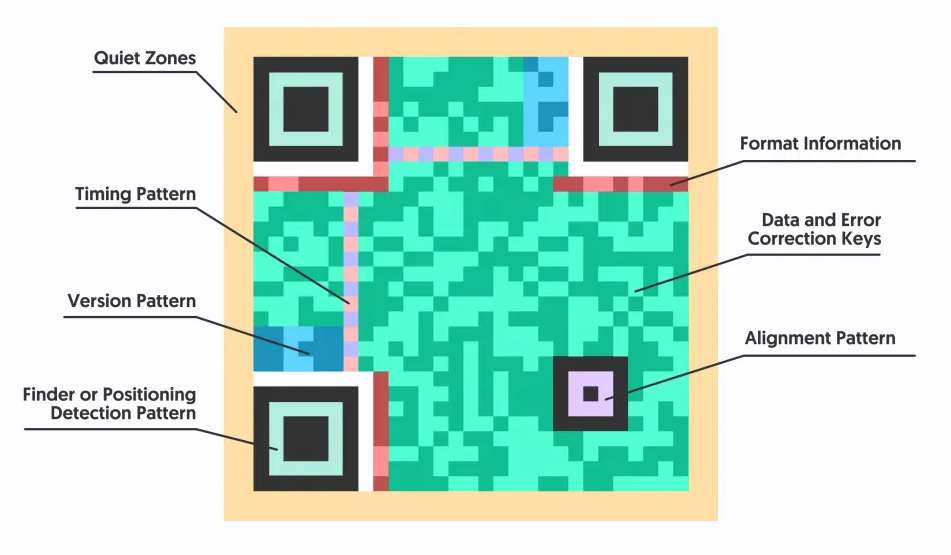
    At its core, a QR code is built from a number of distinct functional zones, each with its own role in ensuring the code is readable, even when the camera isn’t perfectly steady or the print isn’t ideal.

    7 key components of a QR code

    Below are the seven main parts of a QR Code that make it tick.

    1. Quiet zone

    This is the empty white border that surrounds the QR code. It gives the scanning device a clear “frame” to know where the code begins and ends, helping avoid interference from surrounding graphics or text.

    2. Timing pattern

    These are the alternating dark and light modules, arranged in a 1×1 grid, typically running between the finder patterns. They act as a ruler for the scanner, helping it determine how the grid is laid out and where each cell begins.

    3. Version pattern or information

    This part tells the scanner which QR code version it’s looking at, and thus how many rows and columns the symbol has. It appears only in larger versions (version 7 and above).

    4. Finder or position detection pattern

    These are the three large square markers at the corners of the QR code (typically top-left, top-right, and bottom-left). They help the scanner detect the orientation and locate the symbol in the image.

    5. Data and error correction keys

    This zone contains the actual information (e.g., a URL, text, etc.) plus error-correction blocks so that even if part of the code is damaged or obscured, the data can still be recovered.

    6. Alignment pattern

    Smaller than the finder patterns, these help the scanner cope with distortion when the code is printed on a curved surface, bent, or read at an angle. Larger QR codes may have several of these.

    7. Format information

    Located around the finder patterns (near the corner zones). This encodes parameters such as the error-correction level and the mask pattern used in the code, which are essential for correct decoding.

    With these components in mind, you’ll understand not just what you’re looking at when you see a QR code, but why it’s arranged that way.

    How does a QR code work on your phone

    A QR code works by storing information in a grid of black-and-white squares that a scanning device can interpret hassle-free. The three large squares located at the corners, known as “finder patterns”, help the scanner determine the code’s position and orientation.

    How does a QR code work on your phone

    When you use your smartphone’s camera or a QR code scanner app, it recognizes these markers, then reads the smaller modules (the individual squares) that make up the grid. 

    Each module represents binary data, which the device translates into readable information, such as a web address, plain text, or contact details.

    How the scanning process works

    • Orientation: The phone’s camera or QR scanner first detects the three large corner squares. These guide the system in locating and aligning the code, ensuring it can be read accurately from any angle, even if the image is rotated or upside down.
    • Decoding: Next, the scanner divides the QR code into a precise grid. It examines each small square, assigning a digital/binary value (“0” or “1”) based on whether it’s black or white, effectively converting the pattern into binary data.
    • Data interpretation: The binary sequence is then decoded into a recognizable format, such as a URL, message, or contact information, that the device can understand seamlessly.
    • Action: Once the data is decoded, your phone displays the information and may prompt you to take an action, like opening a website, joining a Wi-Fi network, or saving contact details.
    • Error correction: QR codes also include built-in error correction. This feature keeps the code scannable and accurate even if a certain part of it is damaged, smudged, or obscured.

    Also read: How to scan QR code from screenshot or photo: A practical guide for iPhone and Android users

    How does a QR code work on iPhone

    When you use your iPhone to scan a QR code, it’s as simple as opening your Camera app (or the “Code Scanner” from Control Center) and pointing it at the code so it’s clearly visible on-screen.

    The camera will automatically detect the code and show a notification banner. Just tap that notification to open the link, download the content, or perform the QR code’s action. 

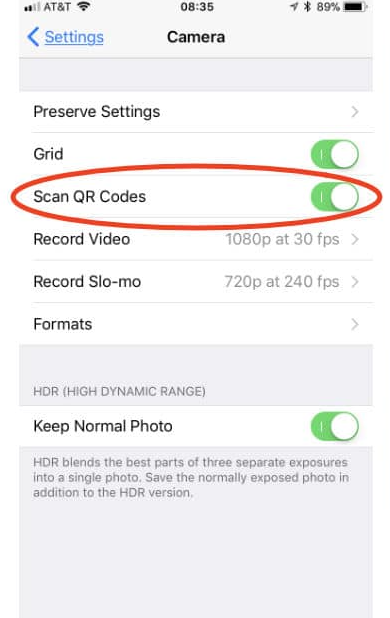
    Note: If, for some reason, nothing happens, you can check in Settings → Camera and make sure “Scan QR Codes” is enabled.

    Scan QR Codes option on iPhone

    It’s fast, built-in, and you don’t need a third-party app. All you need is an iPhone with a workable camera and good lighting.

    Related: How to scan a QR code on your iPhone?

    How do QR codes work on Android

    If you’re using an Android phone, scanning a QR code is usually super simple. Just open your Camera app, point it at the code, and wait a moment for a banner to pop up. Tap it and you’re off.

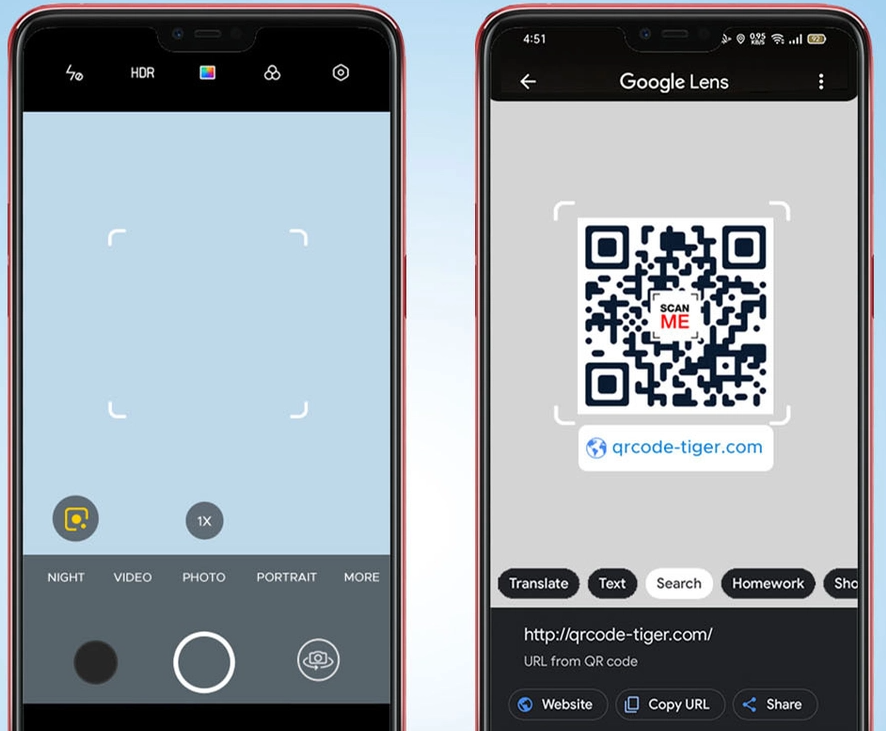
    Note: If nothing happens, check your camera settings to make sure QR or code scanning is enabled, or use Google Lens (either standalone or via the Google app) to detect codes, even from screenshots or odd angles.

    Google Lens QR code scan

    And that’s it! Quick, easy, and you don’t need a separate app in most cases, unless your phone is a bit older.

    Related: How to scan a QR code on Samsung?

    How does a QR code work for payment

    When you’re paying using this method, here’s roughly how a QR code works for payment:

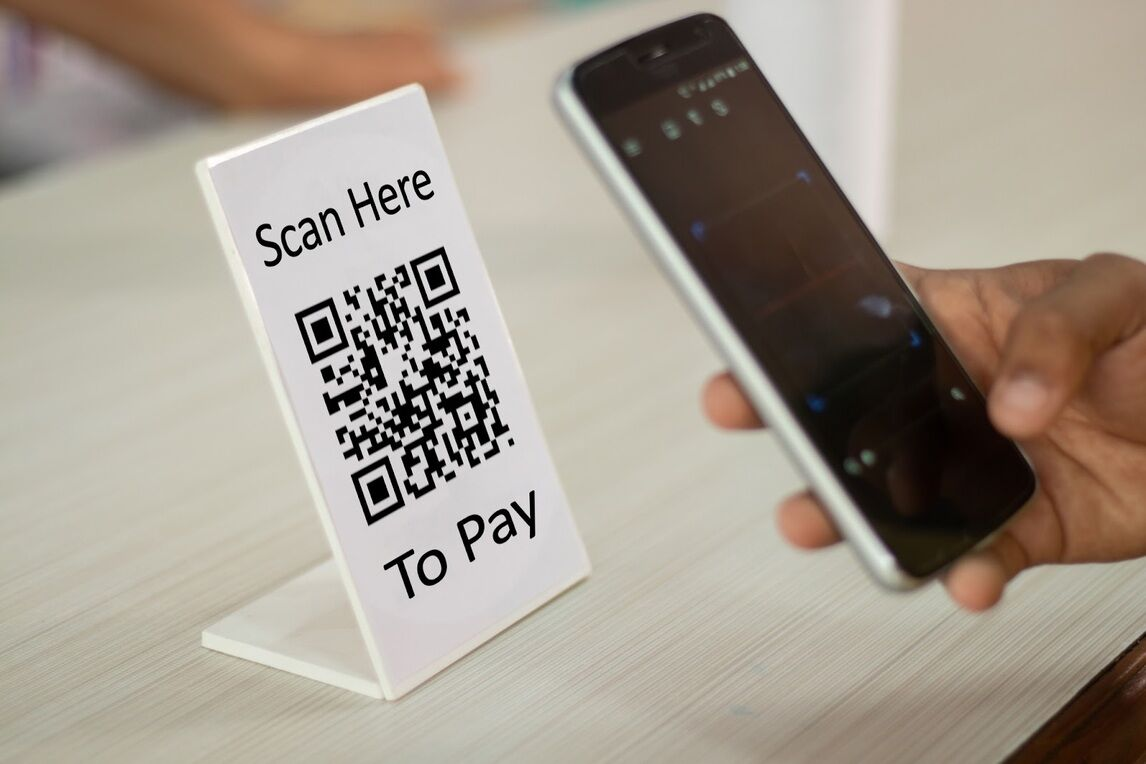
    Pay via QR code scan
    1. First, the merchant displays a QR code (either printed or on-screen) that contains all the necessary payment info.
    2. Next, you scan that code with your phone’s banking or wallet app, which then reads the encoded data (merchant ID, payment amount, etc.) and automatically fills it in. 
    3. After that, you just confirm the transaction (sometimes by entering your PIN or approving via biometrics), and the funds are transferred from your account to the merchant’s almost instantly.

    That’s all there is to it! It’s fast, contactless, and removes the need to type in card numbers or mess with physical terminals.

    Read also:Top 7 E-commerce Payment Trends of 2025

    How does a QR code work on a business card

    When you place a QR code on your business card, it acts like a smart shortcut from paper to digital. Someone scans the code with their phone and instantly gets your contact info, website, social profile, or portfolio without typing a thing.

    QR code on a business card

    It’s not just about sharing a name and number; it can lead straight to your digital business card, let people save you as a contact, explore your work, or follow you online. 

    And because it’s so convenient and quick, it turns what used to be a “let me collect your card” moment into a “here’s a quick scan to connect” moment.

    Related:How to create a QR code for a business card?

    Different types of QR codes

    Mentioned next are the various kinds of QR codes, what they are, and when you might use each one:

    Types of QR codes
    • Static QR codes: These encode fixed information directly into the code (like a URL, Wi-Fi login, or contact info). Once you print or display one, you can’t change what it points to.
    • Dynamic QR codes: These don’t directly hold the full target info. Instead, they point to a short URL or a redirect, which means you can update where the QR code leads after printing, and you can track scans and metrics.
    • Custom/Branded QR codes: These are visually styled versions of static or dynamic codes (think added logo, colors, or frame) built for brand identity or marketing flair.
    • Variant formats (e.g., Micro QR, rMQR, iQR, SQRC): For special use cases, such as very small spaces or unusual shapes, there are formats like micro QR or rectangular QR codes that pack similar functionality in different form factors.

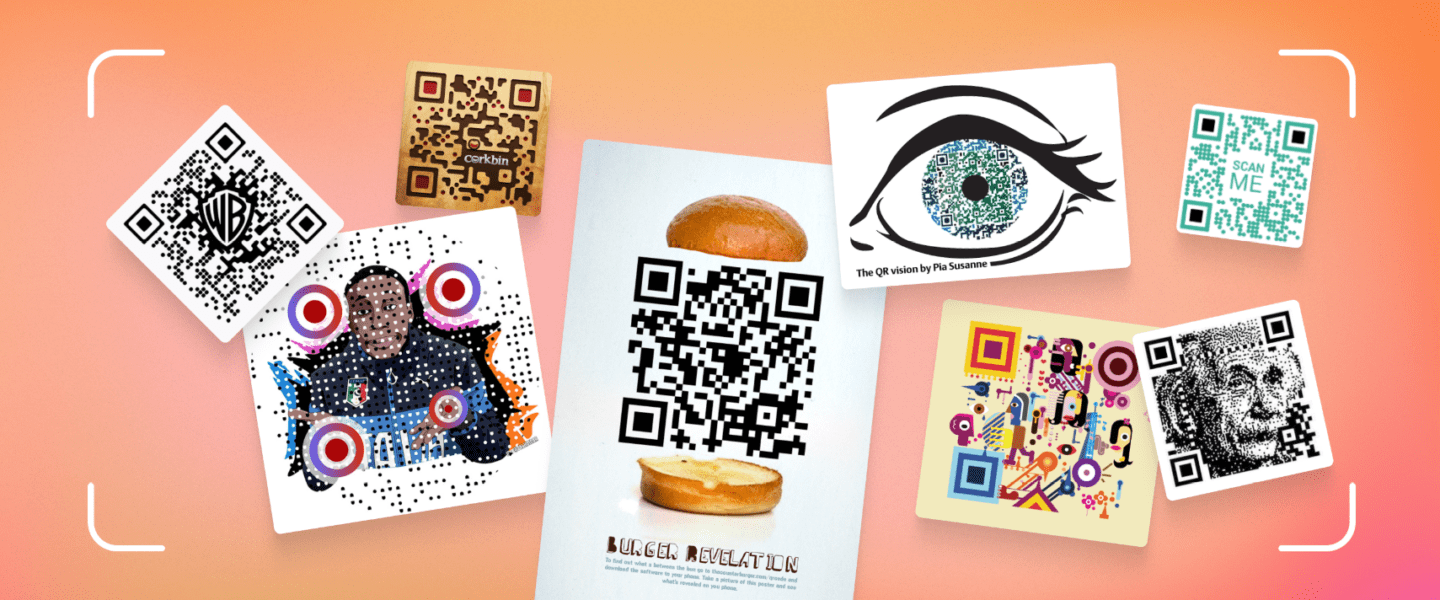
    Numerous styles of QR codes

    QR codes come in a variety of formats, each designed to serve different purposes and suit specific use cases.

    All QR codes share the same fundamental principle of storing and transmitting data through patterns of squares. However, their appearance, function, and level of customization can vary widely depending on how they’re created and what information they’re meant to convey.

    Styles of QR codes
    • Classic black-and-white style: The traditional look! High contrast, easy to scan, and reliable in almost any setting.
    • Colored or branded style: Instead of pure black and white, these use your brand’s colors or gradients (dark foreground/light background is common) to make the QR code feel like part of your identity.
    • Gradient or multi-tone style: A smooth transition of colors (say purple to blue) across the QR pattern, giving a more modern or premium look while keeping it functional.
    • Custom shape & “eye” styles: Changing the look of the modules (the squares/dots) or the “finder patterns” to circles, rounded ends, hearts, or patterned corners to fit a creative theme.
    • Themed/artistic styles: These play with textures, backgrounds, or even incorporate logos/images in the center or behind the code. Ideal for campaigns or packaging, while still being scannable.

    Choosing a style comes down to where it’s placed, what mood you want to evoke, and making sure it still scans reliably (which means good contrast and keeping key functional parts intact).

    Summing Up

    So, there you have it! A complete breakdown of how QR codes actually work, from their structure and types to how they power payments, business cards, and more. 

    What started as a simple way to track car parts has now become a powerful bridge between the physical and digital worlds. Whether you’re a marketer, business owner, or just someone curious about tech, knowing how QR codes function helps you use them smarter and more creatively. 

    And if you’re ready to put that knowledge into action, give Replug a try today. It’s one of the best custom URL shorteners out there, and comes with a free QR code generator to help you create dynamic, fully personalized QR codes that truly match your style.

    Frequently asked questions

    How do QR codes work, and why are they superior to barcodes?

    A QR code stores information both horizontally and vertically, so it can hold much more data than a traditional barcode. It also uses error-correction so it can still be read even if part of it’s dirty or damaged.

    How does a QR code work at the post office?

    At the post office, a QR code might be printed on a package label or postage receipt. When scanned, it provides tracking info, routing instructions, or links to shipment status, allowing faster sorting and easier delivery updates.

    How do QR codes work for dummies?

    Imagine a little square made of black-and-white tiles: your phone’s camera reads the pattern, decodes the data hidden within, and then acts on it (say, opening a web link or showing contact info). No typing, just point & scan.

    Do QR codes work without internet?

    Yes, if the QR code contains simple text, numbers, or Wi-Fi login details (i.e., it’s a static code), the phone can display the info without internet. But if the code points to an online link or content (dynamic), you’ll need the internet to actually load it.

    How to read a QR code efficiently?

    1. Open your camera app or built-in scanner. 
    2. Point at the code so it’s well-lit, and you can see the whole square. 
    3. Wait for your phone to recognize it.
    4. Then tap the prompt. Make sure there’s contrast between black & white and no major damage or distortion.

    What is the difference between static and dynamic QR codes?

    Static QR codes hold fixed information directly inside them (it can’t be changed later) and often don’t track scans. Dynamic QR codes, on the other hand, redirect through a URL, so you can update the target later, track usage, and modify behavior.

    Are QR codes safe? What is the danger, and what should I do to be safe?

    The QR code format itself is safe; the danger comes from what it leads to. Scanning a malicious code can send you to a phishing site, download malware, or capture your data. To stay safe, only scan codes from trusted sources, check the URL before proceeding, and keep your device’s security up to date.

    Do QR codes collect my personal information and data?

    The codes themselves don’t inherently collect personal info; they just hold data. However, when you tap the link they lead to, the target website or app might collect data.

    Can someone hack a QR code?

    You can’t hack the QR code technology itself easily, but someone can replace or overlay a legitimate QR code with a malicious one (called a quishing attack) that redirects you to a harmful site.

    What are the disadvantages of using a QR code?

    Here are some downsides:

    – If the code’s poorly printed or damaged, it might not scan.
    – Dynamic codes rely on the internet or a redirect service.
    – Users may hesitate to scan codes from unknown sources.
    – Malicious uses exist, which may reduce trust.

  • How to scan QR code from screenshot or photo: A practical guide for iPhone & Android users

    How to scan QR code from screenshot or photo: A practical guide for iPhone & Android users

    Have you ever snapped a screenshot or taken a photo of a QR code and then wondered, “Can I scan a QR code from a screenshot?” That little gray box may hold a surprise link, coupon, event invite, or just a stuck image. 

    And here’s the major problem. Although over 4.8 billion people worldwide owned a smartphone in 2024 and QR code usage continues to surge, many users still aren’t sure how to scan one when the image isn’t live.

    What makes it worse is that you might be missing out on instant access to offers, menus, or information simply because you don’t know how to scan a QR code from a screenshot. 

    But no need to worry anymore! 

    In this post, we’ll walk you through exactly how to scan a QR code, no matter if it’s from a live camera view or a saved photo, so you never miss a scannable opportunity again.

    First up, let’s explore the different methods available for iPhone users.

    How to scan QR code from screenshot on iPhone

    Here’s the good news: Now, you don’t need to print the QR code or have someone else hold their phone up to it.

    If you’ve captured a screenshot or saved a photo of a QR code on your iPhone, you can tap into several built-in methods (and one optional app) to make the link behind that code come alive.

    Let’s walk through each option one by one, so you can pick the one that works best for you.

    Method #1: Using the Photos app

    Photos app

    If the image with the QR code is already in your Photos app, this is the most straightforward route.

    Steps:

    1. Open the Photos app and tap the screenshot or photo that contains the QR code.
    2. iOS will often detect the QR code automatically. You’ll also see a yellow, little Live Text / QR icon appear in the bottom-right corner.
    3. Tap it (or press and hold the QR code) to get a pop-up with options: open link, copy link, share, etc.
    4. Choose the action you want (e.g., “Open in Safari”).

    And boom! You’ve successfully scanned the QR code from a screenshot.

    Method #2: Using the built-in “Live Text” tool

    Live Text iPhone

    Live Text is Apple’s feature that recognizes text (and sometimes QR codes) inside photos. 

    This method is handy when the QR code is part of an image, and you might also want to interact with other text in that image.

    Steps:

    1. Make sure your iPhone is running iOS 15 or later and has Live Text enabled in Settings.
    2. Go to the Photos app and select the screenshot containing the QR code.
    3. If you see the Live Text icon (a little yellow square with lines) in the lower right, tap it. If not, you can also press and hold the QR code in the image.
    4. Once Live Text highlights the zone, tap the QR code itself. A menu will appear with options (open link, copy, select all, share, etc.).
    5. Tap “Open” or the appropriate action.

    That’s it! You’ve scanned the QR code via Live Text.

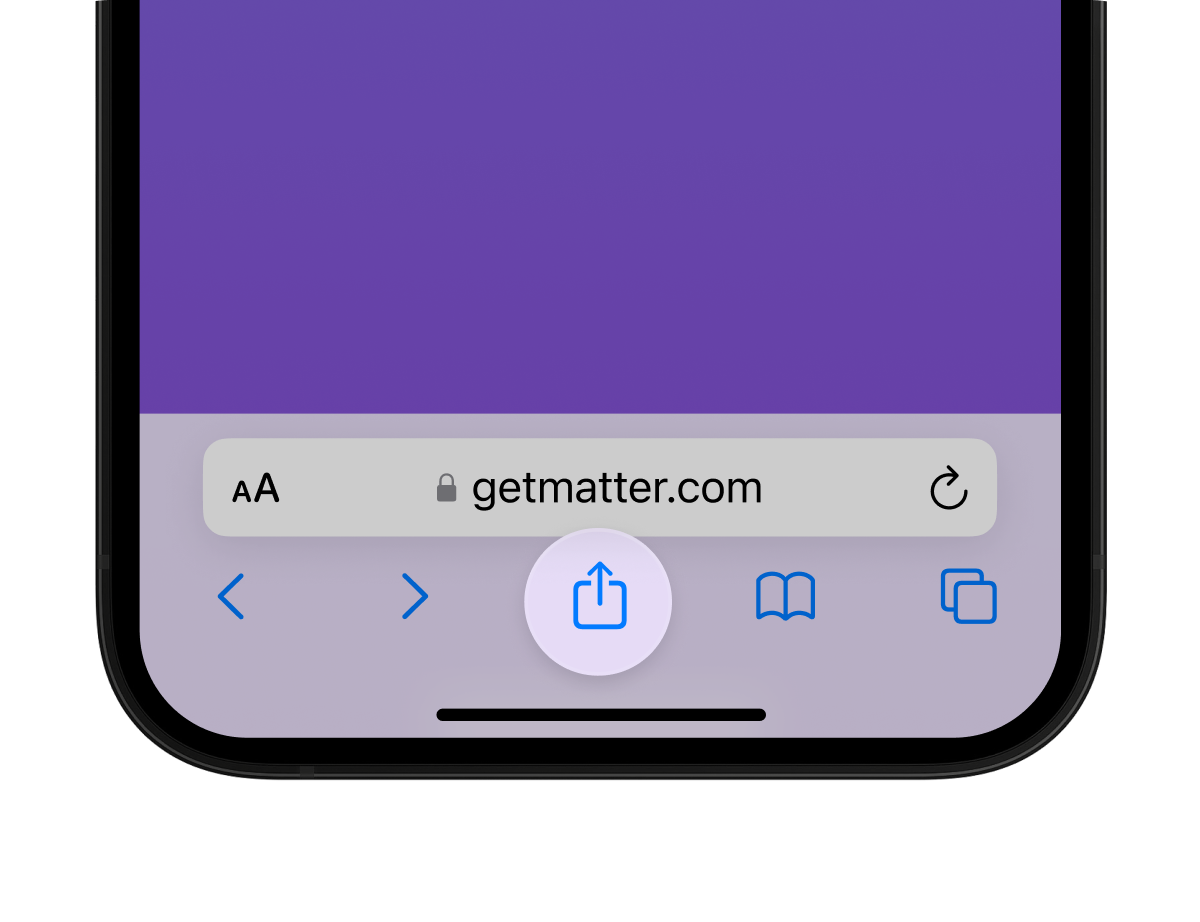
    Method #3: Using the built-in “Share” option

    Share icon iPhone

    Sometimes the Photos app might not immediately trigger when you scan a QR code; using the share menu gives you another option.

    This is a bit of a workaround, but it is pretty useful, especially when the direct detection doesn’t happen instantly.

    Steps:

    1. In the Photos app, open the screenshot/photo with the QR code.
    2. Tap the share icon (square with an arrow) to bring up the share sheet.
    3. Look for an option like “Detect QR Code,” “Live Text,” or “Copy Link” (depending on your iOS version). Some apps list “Open in Safari” if they detect it.
    4. Select the option that corresponds to the QR code action (open link, copy link, share).

    Time to proceed, you’ve scanned via the share menu within a matter of seconds!

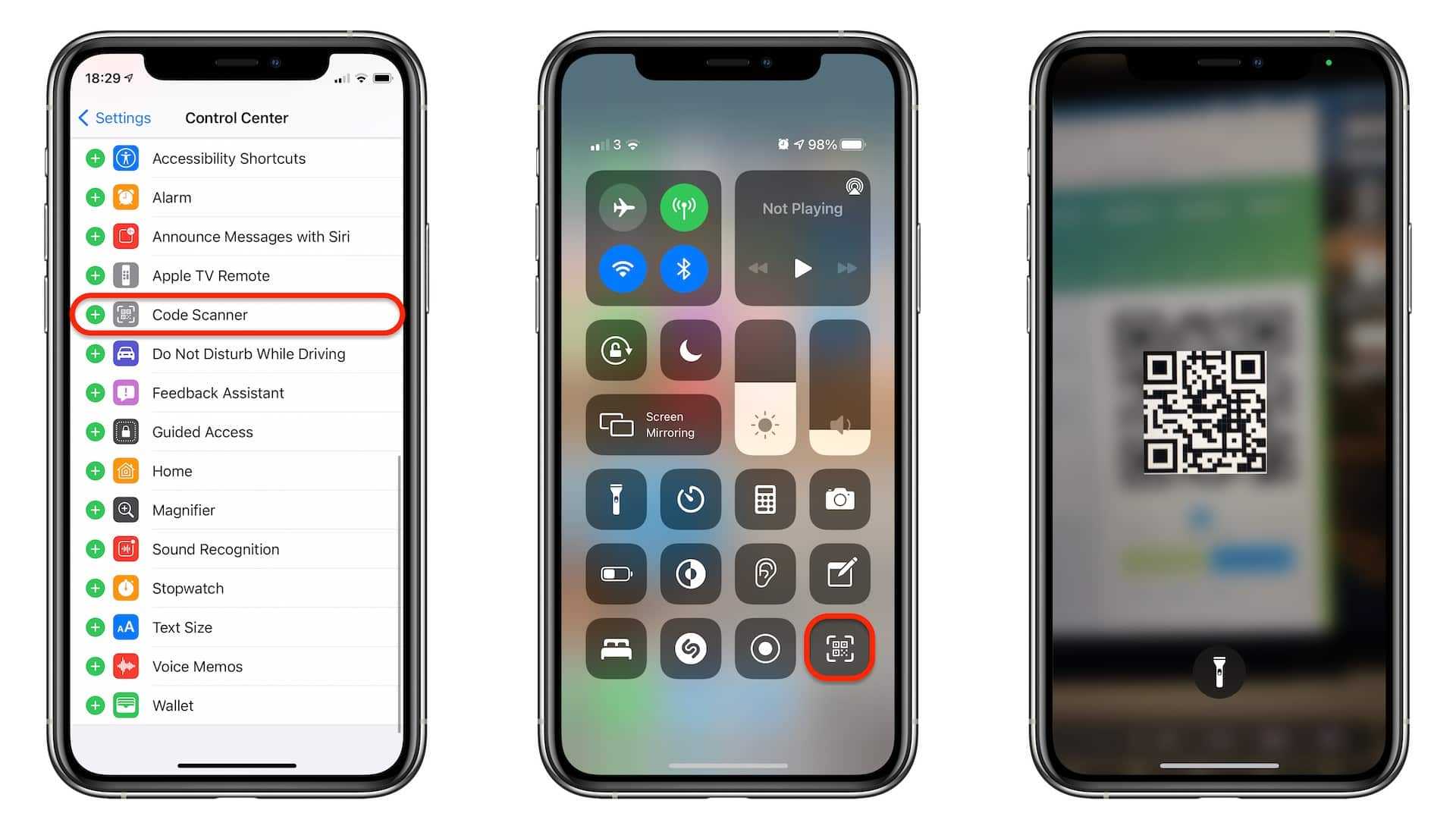
    Method #4: Using the code scanner in the control center

    Code scanner in the control center on iPhone

    Code Scanner is a built-in tool you can add to your iPhone’s Control Center. Once added, you can use it to scan QR codes hassle-free, even ones displayed on your screen via screenshot.  

    If you prefer scanning QR codes more directly (and not always via the Photos app), this method is for you.

    Steps:

    1. Open Settings → Control Center → tap the “+” next to Code Scanner to add it.
    2. Now swipe down (or up, depending on your iPhone model) to open Control Center.
    3. Then tap the Code Scanner icon (it looks like a QR code symbol).
    4. With the screenshot visible on your screen, point the camera at it (or display it on another device) so the QR code is visible to the scanner.
    5. The Code Scanner will detect the QR code and show the prompt: tap or click to open.

    Done and dusted! You’ve successfully scanned the QR code via the Control Center quick tool.

    Method #5: Using a QR code scanner for iOS

    QR code scanner for iOS

    Many apps in Apple’s App Store specialize in scanning QR codes from saved images or screenshots. These can pick up codes even in low-quality photos.  

    If none of the built-in methods work (e.g., the image is blurry or in an odd format), a dedicated app is the ultimate fallback.

    Steps:

    1. Open the App Store and search for a highly-rated QR scanner app (look for ones that say “scan from photos”).
    2. Install and open the app.
    3. In the app, choose the option to scan from your photo library.
    4. Select the screenshot/photo containing the QR code.
    5. The app will process the image and show the link or action: “tap to open or copy”.

    Once it’s finished, you’re all set. You’ve used a third-party QR code scanner to get the job done!

    Note: Choose whichever method works best based on your iPhone model and how the QR code is stored.

    Related:How to scan a QR code on your iPhone?

    How to scan QR code from screenshot on Android

    If you’ve got a screenshot or photo on your Android phone that contains a QR code, you don’t need to print it or open it on another device. There are numerous ways to scan that QR code directly. 

    Let’s go through these methods, so you can pick whichever works best for your setup.

    Method #1: Using the Google Photos app

    Google Photos app

    If you already use Google Photos to browse your phone’s images, this method is super convenient.

    Steps:

    1. Open Google Photos and find the screenshot or photo that has the QR code.
    2. Tap the image to open it full-screen.
    3. Look for the Lens icon (a square with a dot) or the “Lens” prompt in the bottom area of the screen.
    4. Once Lens is engaged, it will detect the QR code and show a pop-up with a link or option to open the content.
    5. Tap the link or action to complete the scan.

    That’s it! You’ve used Google Photos to scan the QR code from your screenshot.

    Method #2: Using the built-in “Google Lens” tool

    Google Lens

    Many Android phones come with Google Lens, either standalone or integrated. It’s great for scanning QR codes inside screenshots or images.

    Steps:

    1. If you don’t have the Lens app already, install it from the Play Store. 
    2. Open the app (or choose Lens from Google Photos or Google Search) and select “Gallery” or “Image” mode.
    3. Choose the screenshot/photo with the QR code.
    4. Now, wait a moment. Lens will analyze and highlight the QR code, then present a link or option. 
    5. Tap the detected link to open it.

    There you go! The QR code inside the snapshot is scanned.

    Method #3: Using the built-in “Share” option

    Share option Android

    This is another technique you can use to accomplish the task at hand directly on your Android smartphone. It offers a convenient way to get things done efficiently.

    Steps:

    1. Open your Gallery or any photo viewer app.
    2. Go to the screenshot/photo with the QR code, and tap on it.
    3. Tap the Share icon (usually a three-connected circles symbol) to open up the sharing options.
    4. Here, look for something like “Google Lens”, “Search image”, “Scan QR code”, or “Open link”, depending on your device and installed apps. 
    5. Tap that option. The system will scan the image for a QR code and show the result.
    6. Once the link or data appears, tap to open or copy.

    Good job! You’re done scanning the code in the image.

    Method #4: Using a camera with QR mode

    Camera with QR mode

    This method lets you use your camera app’s QR-scanner mode by pointing it at another device showing the screenshot, if you prefer a more direct “point camera at code” feel.

    Steps:

    1. Ensure your camera app supports QR scanning mode. Many Android devices support native QR scanning in the camera.
    2. On a second device (or computer screen), display the screenshot/photo of the QR code.
    3. On your Android phone, open the camera and switch to “QR mode” or just the default photo mode (if QR read is supported).
    4. Point the camera at the displayed QR code image and wait for the detection prompt.
    5. Tap the prompt (link, open, etc.) once it appears.

    The QR code from your screenshot has been scanned.

    Method #5: Using a QR code scanner for Android

    QR code scanner for Android

    If your device primarily doesn’t support scanning QR codes from images, a dedicated QR scanner app from the Play Store is your ideal substitute.

    Steps:

    1. Open the Google Play Store and search for a “QR code scanner” or “scan from photo” app.
    2. Install a reputable one (check ratings, reviews, permissions, etc.).
    3. Open the app and select the option to scan from the gallery/photo (not just live camera).
    4. Choose the screenshot/photo with the QR code from your image library.
    5. Let the app process it. It will detect the QR code and show the link/action.

    Tap the result and you’re done!

    Method #6: Using the Google app

    Google app

    The Google App itself has a built-in Lens function that lets you pick images and scan QR codes. Quite convenient if you already use the Google search app.

    Steps:

    1. Open the Google app.
    2. Tap the camera icon (Lens) in the search bar. According to resources, this works for scanning QR codes in screenshots.
    3. From the Lens view, switch to “Photos” / “Gallery” and choose the screenshot/photo with the QR code.
    4. Wait for the app to detect the QR code. It will highlight and show the link or action.
    5. Tap the result to open it.

    Congratulations! You’ve scanned the QR code inside the screenshot via the Google app within seconds.

    Method #7: Using Google Assistant

    Google Assistant

    If you like using the Google Assistant (hold home or say “Hey Google”), we have good news for you. You can use it to scan QR codes in images, too. Here is how to do it.

    Steps:

    1. Activate Google Assistant (voice or long-press home).
    2. Tap the Lens icon or say “Scan this QR code” (then pick the image). Some devices support selecting an existing photo.
    3. Choose the screenshot/photo from your gallery when prompted.
    4. Wait for Lens (via Assistant) to detect the QR code and show the result.
    5. Tap the link/action once it appears.

    Nicely done! QR code scanned through Google Assistant.

    Note: Select the method that feels easiest for you, depending on what apps you already use and your particular Android version.

    Related:How to scan a QR code on Samsung?

    Points to keep in mind when scanning a QR code from a screenshot

    When you scan a QR code from a screenshot, it might feel quick and easy. But a few simple precautions will help keep things smooth and safe as well.

    Whether the code came from a trusted friend or popped up in a group chat, these pointers will help you avoid glitches and potential risks.

    • Only scan from trusted sources. Make sure you know where the screenshot came from or that the code was provided by someone you trust. 
    • Preview the link before opening it. After you tap “open”, check that the URL looks right (brand name spelled correctly, appropriate domain, uses HTTPS) before you proceed. 
    • Check the image quality. If the screenshot is blurry, rotated wrong, or partly cut off, the scanner might misread the code or fail altogether.
    • Be aware of tampering or fake codes. Even for screenshots, a code could be manipulated. If something about the image feels off (weird layout, odd sender), proceed with caution. 
    • Use built-in or trusted scanner tools when possible. Avoid installing unfamiliar third-party scanner apps unless you’re sure they’re safe. 
    • Maintain your device’s security. Make sure your phone’s OS and apps are up-to-date, because that keeps features like QR-scanning and link handling working correctly and securely. 
    • Think before you act: if the scan result asks for sensitive info, downloads an app, or prompts an unexpected payment, stop and verify. It might be a phishing or malware trick.

    See Also: How to scan a QR code from an image?

    How Replug makes it easier to generate and scan your QR codes

    If you’re looking for a smart way to handle your QR codes and link management, Replug is the buddy you didn’t know you needed. It’s not just a link shortener, it’s a full-fledged hub that helps you create, customize, and track your QR codes with ease.

    Here’s how Replug makes things smoother:

    • With its built-in QR code generator, you can pick from multiple types (website, bio link, WiFi, vCard, and more) and draw out a QR code in minutes.
    • You get complete design control: add your logo, tweak colors, change frame and design elements so your QR code actually fits your brand.
    • It’s dynamic: you can update the destination URL after you’ve printed or shared the QR code, so one code can live across many campaigns.
    • Tracking is built in: see how many times the code was scanned, what devices were used, and where the scans came from. Super helpful for analyzing if your QR campaign is working.

    In short, if you’ve ever wondered “Can I scan a QR code from a printed flyer or screenshot?” or “How do I make my brand’s QR code look good and trackable?”, Replug has got you covered with both creation and insight.

    Summing Up

    Scanning a QR code from a screenshot or photo doesn’t have to be confusing anymore. It doesn’t matter if you’re on an iPhone or Android device, you now know multiple quick and reliable ways to get the job done.

    Just remember to stay cautious about where your QR codes come from and use trusted tools for scanning. And if you’re ready to take things a step further, i.e., creating branded, trackable, and beautifully designed QR codes, Replug is your go-to solution. 

    It’s more than just a QR code generator; it’s your all-in-one platform for smarter link handling from one dedicated dashboard. 

    So go ahead, give Replug.io a try today and make your next QR code campaign effortless and professional!

    Frequently asked questions

    How to scan a QR code in a screenshot on iPad?

    Here’s how to do it:

    1. Open the photo with the QR code in the Live Text-enabled Photos app (iPadOS 15 or later). 
    2. Then tap or press & hold the QR code.
    3. Finally, tap the link that appears.

    That’s it!

    Can I scan a QR code from a picture on my phone?

    Absolutely! On modern iPhones and many Android smartphones, you can open the picture in your gallery and use built-in tools (Live Text or Lens) or an app to detect and open the link embedded in that QR code image.

    Can you scan a QR code from the camera roll?

    Yes! The camera roll is just your photo library. Open the image containing the QR code, then use your phone’s detection tool (gallery share menu, Live Text, Google Lens, etc.) to scan it.

    Why would you want to scan a QR code from a picture?

    Because sometimes QR codes come to you as screenshots, images in chats or emails, or printed flyers you photographed. Scanning directly from those saves time, avoids the need to re‐print, and helps you access the content right away.

    Provide some of the best third-party QR code scanners for Android and iOS?

    Here are good ones:

    Google Lens: Works on Android and iOS. Scans QR codes and other items precisely.
    QR & Barcode Scanner by Gamma Play: Highly rated on Android.
    Kaspersky QR Scanner: Includes security checks for scanned links.

    Are there any limitations on scanning QR codes from screenshots?

    Yes! If the image is too blurry, distorted, low resolution, rotated badly, or has partial code missing, the scanner may not detect it. Also, some older devices or software versions might lack the “scan from image” capability.

    What are the troubleshooting tips if some fail to scan a QR code from a screenshot?

    Here are some top troubleshooting tips:

    – Ensure the image is clear and well-lit. Crop out distractions if needed.
    – Zoom in or rotate the image so the QR code is upright and fills the frame.
    – Update your OS or scanner app to make sure it supports image scanning features.
    – If built-in tools fail, try a dedicated app like those listed above.

  • What are square QR codes? The ultimate manual

    What are square QR codes? The ultimate manual

    QR codes have become a vital tool for connecting the physical and digital worlds. But have you ever wondered why most QR codes are square? In this blog, we’ll dive into the square QR code, explore the role of its shape, explain whether QR codes must always be square, and show you how to get and use these codes effectively. 

    Whether you’re interested in a square QR code generator or want to create a square website QR code, this guide will give you clear insights.

    What is a square QR code?

    A square QR code is a type of two-dimensional barcode made up of black and white squares arranged in a larger square grid. It stores data such as website URLs, text, or contact details that can be quickly scanned and decoded by smartphones or QR scanners.

    Unlike traditional barcodes, which are linear and one-dimensional, QR codes can hold much more data due to their square grid design. Since becoming an international standard in 2000, QR codes have found use in marketing, supply chain tracking, and everyday interactions like menu scanning.

    Are QR codes always square, and why is their shape important?

    You might wonder, does a QR code have to be square? 

    The truth is, while most standard QR codes are square, not all QR or 2D codes strictly follow that shape. The classic QR code’s square design comes from its evenly arranged grid of modules in rows and columns. This geometric structure provides distinct corners and alignment points that scanners use to quickly determine orientation and accurately decode information.

    The square shape remains the most popular because its symmetry and clear edges make scanning fast and reliable. However, modern designs sometimes feature rounded corners, custom shapes, or embedded logos that give QR codes a less boxy look. Even so, these creative variations still maintain the essential square or rectangular grid underneath to ensure they remain scannable.

    In short, while there’s flexibility in design, the underlying square structure is key to how QR codes function effectively.

    How to get a square QR code

    If you’re wondering how to get a square QR code, the process is simple. Most square QR code generators produce the standard square format by default. Simply:

    • Choose a trusted QR code generator 
    • Input the data you want the QR code to contain (URL, text, contact info)
    • Customize colors or add logos if you want, while keeping the square layout intact
    • Download and use your square QR code on your website, packaging, or marketing materials

    Creating a square QR code with Replug is just as easy and helps direct users to specific web pages effortlessly.

    Beyond just generating QR codes, Replug allows you to create branded short URLs that enhance trust and click-through rates when embedded in your codes. Plus, with Replug’s analytics dashboard, you can track every scan, add UTM parameters for campaign insights, and even run A/B tests to optimize your QR code performance. This makes managing and measuring your QR code campaigns smarter and more effective.

    Replug Branded Short Links CTA
    Maximize marketing ROI
    by transforming ordinary URLs into
    branded short links that convert.
    Try Replug for free

    Benefits of using square QR codes

    Here are some top benefits of why you should use square QR codes in your marketing strategy:

    Reliable scanning

    The square shape of QR codes, combined with their distinct corner patterns, allows scanning devices to quickly detect the code’s orientation. This ensures fast and accurate reading even from different angles or under less-than-ideal lighting conditions. The symmetry and alignment markers built into the square design make it easier for almost all smartphones and scanners to decode the information reliably.

    Higher data capacity

    Compared to traditional one-dimensional barcodes, square QR codes can store significantly more information. Thanks to their two-dimensional square grid, they can encode URLs, text, contact details, product information, and more, all in a compact space. This makes them ideal for applications requiring detailed or lengthy data, such as marketing campaigns, inventory tracking, and digital menus.

    Robust error correction

    Square QR codes are designed with error correction capabilities, which means they can still be read accurately even if part of the code is damaged, dirty, or obscured. Depending on the error correction level, up to 30% of the code can be compromised without affecting scanability. This makes square QR codes highly durable and practical in real-world environments where wear and tear are common.

    Also read: Why is my QR code blurry & how can I fix it?

    Versatility across industries

    Square QR codes are incredibly versatile. They’re widely used in marketing to drive user engagement, in retail for product labeling, in logistics and supply chain management for tracking inventory, and in event management for fast check-ins. Their ability to store diverse types of data makes them a universal tool across various sectors.

    Increased adoption for contactless solutions

    Since the pandemic, the use of square QR codes has surged due to their effectiveness in enabling contactless interactions. Restaurants use them for touch-free menus and ordering, retailers for digital payments, and public venues for health check-ins. This trend shows how the square QR code’s design supports both convenience and safety in today’s world.

    How Replug enhances QR code usage

    Replug isn’t just a link shortener; it’s also a complete QR code solution that helps you create, optimize, and measure the impact of your square QR codes.

    Custom, dynamic square QR codes

    With Replug, you can generate fully customizable square QR codes that match your brand’s style. Dynamic QR codes allow you to change the destination URL anytime without needing to reprint the code, saving costs and boosting flexibility. Whether it’s for a new campaign or an updated product page, your QR codes stay relevant and effective.

    A/B testing for better performance

    Not sure which landing page drives more engagement? Replug enables you to A/B test multiple URLs linked to different QR codes. This data-driven approach helps you identify the best-performing links and optimize your campaigns for higher conversions.

    Multiple download formats

    Whether you need high-resolution PNGs, SVGs, JPEG for crisp scaling, or WEBP for websites, Replug lets you download your square QR codes in the format that fits your marketing needs. This versatility ensures your codes look perfect everywhere, from billboards to social media posts.

    Retargeting pixels

    Replug allows you to add retargeting pixels to your QR code links, so anyone who scans your code can be retargeted with follow-up ads on platforms like Facebook and Google, helping turn interest into action.

    Share across all digital channels 

    Replug makes QR code distribution seamless, so your audience can access your content wherever they engage with your brand.

    Detailed analytics and tracking

    Replug provides a dedicated dashboard that tracks how many people scanned your QR codes, when, and from where. These insights help you understand audience behavior and the effectiveness of your QR code campaigns. You can also add UTM parameters to your QR code URLs to monitor traffic sources and campaign success 

    Deep linking for smooth user journeys

    Replug supports deep linking, meaning QR codes can take users directly into specific pages or features within your mobile app. This eliminates extra navigation steps, making the customer journey smoother and increasing the likelihood of engagement and conversions.

    Replug Branded Short Links CTA
    Drive more clicks, conversions, and app installations by deep linking
    to your favorite platforms.
    Try deep links for free

    Customizing your square QR code: tips and tricks

    Though the QR code square shape must remain intact for scanability, you can customize it:

    • Use high-contrast colors for better readability.
    • Incorporate your logo without covering essential parts.
    • Maintain adequate size to ensure easy scanning.
    • Avoid distorting the square grid or alignment markers.

    Custom designs can boost brand recognition while keeping codes functional.

    Conclusion

    Square QR codes are the standard because their shape supports fast, reliable scanning and high data capacity. While QR codes don’t always have to look perfectly square, the underlying square grid is crucial for their function.

    Whether you want to create a simple square website QR code or customize your codes with branding, tools like Replug can help you track and optimize your QR code campaigns effectively.

    Ready to create your own square QR codes? Try Replug today and start enhancing your marketing efforts with smart, trackable links!

    FAQs on square QR codes

    Does a QR code have to be square?

    Standard QR codes are almost always square because their scanning technology depends on the square grid and corner patterns. However, some designer QR codes have creative shapes but keep an underlying square or rectangular structure for scanability.

    How do I get a square QR code?

    Use a trusted square QR code generator online that creates standard square QR codes by default.

    Can I customize the shape of my QR code?

    You can add logos or adjust colors, but the QR code’s essential square grid and alignment markers must remain intact to ensure it scans properly.

    What is a square website QR code?

    A QR code in square format that directs users to a website or a specific web page.

    How does Replug work with QR codes?

    Replug creates branded short URLs ideal for QR codes, offers analytics on scan performance, and enables retargeting for better campaign results.

  • How to create a square QR code: Step-by-step guide

    How to create a square QR code: Step-by-step guide

    Need a quick, scannable way to share your links offline? Replug makes it easy. This guide walks you through how to create a square QR code in just a few clicks; no design skills needed.

    What is a square QR code?

    A square QR code is the most widely recognized type of QR code. It has a square-shaped pattern that scanners can read easily, making it the default and most reliable format for marketers and businesses. 

    Whether you’re linking to your main website, product page, lead form, or social profile, a square QR code is both reliable and universally recognizable.

    How to create a square QR code in Replug

    Creating a square QR code in Replug is quick, user-friendly, and customizable.

    Step 1: Log in or sign up

    Sign in to your Replug account or sign up. Signing up gives you a 14-day free trial with access to all features.

    Step 2: Click “QR codes”

    From the navigation menu on your Replug dashboard, click “QR Codes”, then click “Create new

    Click on QR Codes
    Click on Create new to start creating QR code

    Step 3: Enter your QR code details

    Fill in the basic details such as:

    • Title
    • Destination link (shortened or original)
    • Campaign name (optional)

    Step 4: Customize your QR code

    • Select Square as your QR code shape style.
    Choose Square as QR code shape

    To make it fully square:

    • Choose Square for the border style
    • Choose Square for the center style
    • Set the frame shape as Square
    Choose Square as your QR code frame
    • Add your logo in the center for branding
    Add logo to your square QR code

    Step 5: Create and download

    • Click “Create QR code” to generate it.
    Click on Create QR Code
    • Then click Download to save your QR code in either PNG, SVG, JPEG, or WEBP
    Download QR code

    Tip: Always test your QR code using multiple devices before printing or sharing

    Tips to maximize your QR code’s performance with Replug

    Want your QR code to work harder for you? Here are a few bonus tips:

    Use branded short URLs for credibility

    Branded links make your QR codes look more trustworthy and memorable. Instead of generic URLs, use your brand name in the link to boost click-through rates and build brand recognition.

    Add UTM parameters to track campaign success

    UTM parameters help you understand where your traffic is coming from. Add tags like source, medium, and campaign to your URLs before generating the QR code, so you can measure results inside Replug’s dashboard.

    Set up retargeting pixels for those who scan

    With Replug, you can add retargeting pixels to any link behind your QR code. This allows you to re-engage scanners later through Facebook Ads, Google Ads, or other retargeting platforms.
    Try A/B testing with multiple QR codes

    Create two or more square QR codes for the same destination but with slight differences, like call-to-action text or design style. Monitor which version performs better and optimize accordingly.

    Use deep linking to take users straight into apps

    Don’t just send users to a mobile webpage. Use deep links to take them directly into apps like Spotify, YouTube, or WhatsApp. It improves the user experience and can significantly boost conversions.

    Why use a square QR code

    There are multiple benefits of using QR codes, especially for marketers and businesses. Here’s why square QR codes are the go-to choice:

    • Universally scannable across all devices
    • Easy to align in print and digital formats
    • Compatible with most QR code scanners
    • Clean, symmetrical, and professional-looking
    • Ideal for packaging, flyers, posters, and business cards

    Whether you’re running a campaign or linking to content, using a reliable QR code generator like Replug ensures consistency and trackability.

    Best practices for using square QR codes

    To get the best results from your QR codes:

    • Use high-resolution formats when printing
    • Keep whitespace (quiet zone) around the code
    • Avoid placing it on reflective or dark surfaces
    • Test it under different lighting conditions
    • Always verify the link before distribution

    Replug’s QR code generator allows you to monitor scans and gather analytics, making it one of the most effective free QR code generator tools (14-day trial) available.

    Also read: Why is My QR Code Not Working: 9 Reasons to Consider

    Conclusion

    Using Replug’s QR code generator, you can create a QR code that’s stylish, functional, and completely trackable. Whether it’s for packaging, business cards, posters, or digital campaigns, square QR codes help bridge the offline-online gap seamlessly.

    Try Replug’s QR code feature today and unlock smarter offline engagement.

    Replug Branded Short Links CTA
    Maximize marketing ROI
    by transforming ordinary URLs into
    branded short links that convert.
    Try Replug for free

    Frequently asked questions

    What is a square QR code?

    It’s the standard type of QR code with a square matrix structure, designed for universal scanning compatibility.

    How to get a square QR code using Replug?

    Simply go to the QR code section in Replug, fill in the details, and select Square as the shape during customization.

    Can I add a logo to my square QR code?

    Yes, Replug lets you upload your logo and center it within the QR code.

    Can I generate QR Codes for free?

    Replug offers a 14-day free trial with access to all QR code generation and tracking features.

    What file types can I download my QR code in?

    You can download your QR code in PNG, SVG, JPEG, or WEBP format.

  • How to create a QR code for Zoom meetings

    How to create a QR code for Zoom meetings

    Need to share Zoom invites faster? This guide explains how to create a QR code for Zoom meeting using Replug. 

    We’ll walk through each step so your audience can join easily by scanning your Zoom meeting QR code.

    Boost ROI with branded URLs - Replug dashboard showing performance metrics and branded URL creation
    Boost ROI with
    branded URLs!

    Enhance your marketing campaigns by creating shareable, trackable, and fully multi-purpose customizable branded URLs.

    Try Replug for free

    Why use a QR code for Zoom meeting?

    Sharing a Zoom meeting QR code makes it effortless for attendees to join. Instead of copying and pasting long URLs, participants simply scan your QR code.

    A Zoom meeting QR code is especially helpful when:

    • Running webinars, classes, or workshops
    • Sharing invites on posters, slides, or printed materials
    • Posting on social media or websites

    How to create a QR code for Zoom meeting in Replug

    Replug is the best QR code generator for Zoom meeting links. Here’s a step-by-step on how to create one inside the app:

    Step 1: Sign in to Replug

    Go to Replug and sign in. If you don’t have an account yet, create one and start your free 14-day trial.

    Step 2: Find your Zoom meeting link

    Open Zoom, create a new meeting, and copy the “Invite Link”. This is the link you’ll turn into a Zoom QR code.

    Tip: Double-check your link so your Zoom meeting QR code points to the correct meeting.

    Step 3: Generate your Zoom QR code

    • In Replug, go to the “QR Codes” section
    Click on QR Codes
    • Click “Create new”
    Click on Create new
    • Select “Website” as your QR code type and paste your Zoom meeting link in the “Destination URL” bar
    Select Website as your QR code type and paste Zoom meeting URL
    • Choose the campaign you created (optional)

    Step 4: Customize your Zoom meeting QR code

    Now you can:

    • Change colors and patterns
    Customize your QR code shape
    • Adjust frame and CTA text
    Customize your QR code frame
    • Add your Zoom logo or brand image
    Customize your QR code logo

    Step 5: Download your QR code

    When you’re happy with the design:

    • Click download
    • Save your Zoom meeting QR code as PNG, SVG, WEBP, or JPEG
    Download your Zoom meeting QR code

    Step 6: Enable link cloaking (optional)

    Zoom meeting links are long and messy, and can often get confusing for attendees. To counter this issue, Replug allows you to cloak your Zoom meeting link:

    • In Replug’s dashboard, locate your Zoom meeting link and click “Edit.”
    • Connect a custom domain and choose a short, branded slug.
    Create Zoom meeting cloaked URL
    • Toggle Link Cloaking and save your shortened URL.
    Enable link cloaking for your Zoom meeting

    Also read: How to make a QR code for a video?

    How to scan your Zoom meeting QR code

    Once you’ve created your QR code in Replug, sharing it is just the first step. Here’s how your audience can scan and join the meeting easily:

    • Open the camera app in your smartphone to scan the QR code (iOS and Android support built-in QR scanning)
    • Point the camera at the Zoom QR code so it’s clearly visible on the screen
    • Wait for a pop-up notification or link to appear on the screen
    • Tap the notification to instantly open the Zoom meeting link in the Zoom app or browser

    If someone’s device doesn’t support built-in scanning, they can download a free QR code scanner app from their app store.

    By explaining this to your attendees, you’ll make sure everyone knows how to join quickly just by scanning; no need to type or copy long URLs.

    Tips for sharing your Zoom meeting QR code

    1. Test it first

    Scan the QR code yourself (and ask a friend too) to confirm it opens the correct Zoom meeting.

    2. Add it to your calendar invites

    Include the QR code image directly in your Google Calendar, Outlook, or iCal invite so attendees can simply scan and join.

    3. Include it in your presentation slides

    If you’re hosting a webinar, class, or workshop, show the QR code on the intro or break slides.

    Tip: Add a short call to action phrase like: “Scan to join or save the meeting!”

    4. Email it as part of your meeting confirmation

    Attach the QR code image or embed it in your email footer for the meeting invite, reminders, or thank you emails.

    5. Print it on physical materials

    If your event is hybrid or in-person, print the QR code on:

    • Posters
    • Flyers
    • Table tents
    • Badges or welcome cards

    6. Share on social media or messaging apps

    Post the QR code image on LinkedIn, Facebook groups, WhatsApp, Slack, or Discord. 

    Add clear text like: “Scan to join our next Zoom session!” so people know what the code is for.

    7. Add it to your website or landing page

    If your event is public, add the QR code to a dedicated event page, blog post, or banner.

    8. Use dynamic QR codes

    Instead of static codes, use tools like Replug to create dynamic QR codes.

    Benefits:

    • Edit the meeting link later without changing the code.
    • Track QR scans to see how many people joined through scanning. 

    9. Make it clear what it’s for

    Always add a label or caption such as:
    “Scan to join Zoom meeting”
    “Save this meeting link”

    Replug Branded Short Links CTA
    Maximize marketing ROI
    by transforming ordinary URLs into
    branded short links that convert.
    Try Replug for free

    Conclusion

    Creating a Zoom meeting QR code with Replug is simple, quick, and powerful. In just a few steps, you can generate a Zoom meeting QR code that helps people join your meeting easily by scanning.

    With this powerful link optimization platform, you also get link customization options and scan tracking to see how your audience engages.

    Start using Replug today to create custom QR codes and branded short links for all your meetings. You won’t find a more reliable link shortener tool elsewhere!

    Frequently asked questions

    How do I create a QR code for Zoom meeting?

    You can use tools like Replug to generate a QR code by pasting your Zoom meeting link. Customize it with your logo and colors if needed.

    How do I join a Zoom meeting with a QR code?

    Simply open your phone’s camera or a QR scanner app, point it at the code, and tap the link that pops up. It will open the Zoom meeting in your app or browser.

    How do I generate a Zoom meeting code?

    Schedule or start a Zoom meeting and copy its link. Then use a QR code generator like Replug to convert that link into a QR code.

    What is the QR code for Zoom webinar registration?

    A Zoom webinar QR code lets attendees scan and register for your webinar instantly. Just generate a QR code for your webinar registration link and share it online or offline.

    Can I create a dynamic QR code for a Zoom meeting in Replug?

    Yes. Replug lets you create dynamic QR codes so you can update the Zoom link anytime without printing a new code.

    Is Replug’s QR code generator for Zoom meetings free?

    Replug offers a free trial. To unlock full customization and scan analytics, you’ll need a paid plan.

    Can I track scans of my Zoom meeting QR code?

    Yes. Replug’s dashboard shows detailed scan analytics, including the number of scans and where they happened.

  • How to create a random QR code using Replug?

    How to create a random QR code using Replug?

    In the beginning, QR code generators were mostly used for testing or simple features in games where the destination didn’t really matter. But today, a reliable random QR code generator is an asset for developers, marketers, agencies, and everyday users alike. 

    What is a random QR code?

    A random QR code is a dynamic QR code that leads users to a different destination each time it’s scanned by rotating between multiple URLs.

    Whether you’re testing QR code functionality, running A/B marketing experiments, or creating quick, scannable links for your projects, QR codes have the speed and flexibility to get it done effortlessly.

    QR code usage has exploded in recent years. In 2025 alone, global scans reached 41.77 million, marking a 433% increase over the past four years. With this rapid growth, more businesses and creators are turning to smart tools like Replug.io to automate QR code creation

    Replug allows you to easily shorten links, rotate multiple URLs, and generate trackable, customizable QR codes, all from one single platform.
    Replug Branded Short Links CTA
    Maximize marketing ROI
    by transforming ordinary URLs into
    branded short links that convert.
    Try Replug for free

    Step 1: Sign in to your Replug dashboard

    • Sign in to the Replug app. If you don’t have an account, sign up to get access to a 14-day free trial with full features.

    Step 2: Create a short link campaign

    • Once you’re on the main dashboard, paste your base URL into the “Quickly shorten your link” bar and hit Enter. Then, click on the “Traffic Routing” option to start setting up your rotating destinations.
    • Click on “+ Add New Rule” to open a new window. 
    traffic routing rules

    Step 3: Use Replug’s traffic routing feature

    • Here, you can define custom destination URLs based on filters like country, date range, device type, operating system, and more.
    add rules
    • Replug allows you to add up to seven different destinations for a single short link.
    • Since it’s a dynamic QR code generator, you can update or change these destinations anytime, even after the QR code has been created.
    add multiple destinations

    Step 4: Generate a QR code for the short link

    • Once you’ve set up your random rotation link, head to the “QR code” tab in Replug. Click the small QR code icon next to your short link to generate your code.

    Step 5: Customize your QR code

    Replug lets you design your QR code exactly how you want it. You can:

    • Choose from different QR shapes, styles, and colors
    design your QR code
    • Add your preferred frame and frame text
    select youe frame
    • Add your brand logo if you want 
    choose your preffered logo

    And you’re done.

    Step 6: Save and download your QR code

    Once your design is ready, click “Create QR Code” at the bottom left.

    After the QR code is created, you can download it in high-resolution formats like PNG, SVG, or PDF, perfect for both digital and print use.

    QR code dashboard

    Why use random QR codes?

    Here are a few creative use cases:

    • They help you run A/B tests by directing users to different landing pages without needing separate QR codes.
    • They make content distribution more efficient by linking to various blog posts, videos, or product pages.
    • They boost user engagement by offering something new with every scan, adding an element of surprise.
    • You can update or change the destination URLs anytime, even after the QR code is printed or shared.
    • They support personalized user journeys based on filters like country, device type, or time of day.
    • They’re perfect for gamified experiences like “scan to win,” hidden discounts, or rotating messages.
    • They reduce costs and streamline workflows, especially for agencies managing multiple campaigns.
    • Tools like Replug offer detailed analytics, allowing you to track scans, devices, and user behavior in real time.
    • They work well in print media, one QR code on a flyer or package can serve fresh content over time.
    • They enhance the overall user experience by making interactions more dynamic, interactive, and memorable.

    Also read: QR Advertising: Your gateway to consumer engagement

    Final thoughts

    Random QR codes have come a long way from basic functionality to becoming powerful tools for testing, marketing, and user engagement. With platforms like Replug, creating and managing these codes is not only simple but highly customizable and data-driven. Whether you’re looking to rotate links, run A/B tests, or craft interactive experiences, random QR codes offer the flexibility you need. And with Replug, you can do it all from one smart dashboard.

    FAQs on random QR code

    What is a random QR code?

    A random QR code is a dynamic code that redirects users to different destinations with each scan. It can rotate between multiple URLs or display randomized content like discount codes, messages, or landing pages.

    Can I control which links the QR code rotates between?

    Yes. Replug’s traffic routing feature lets you manually set up to seven different destinations. Which can be shown based on rules like country, device type, etc.

    Can I update the destination URLs after generating the QR code?

    Absolutely. Since Replug generates dynamic QR codes, you can change, edit, or add new destinations anytime, without needing to reprint or redistribute the QR code.

    Is the QR code trackable?

    Yes. Every QR code generated in Replug is connected to a trackable short link. You can monitor scans, devices, locations, and other analytics from your dashboard in real time.

    Can I add my brand’s logo or customize the QR design?

    Definitely. Replug lets you fully customize your QR code’s style, color, frame, and logo. So it matches your branding and looks professional wherever it’s displayed.

    Do I need a paid plan to use the traffic routing and QR code features?

    Replug offers a 14-day free trial with full access to all features, including traffic routing and QR code customization. After the trial, these features are available on paid plans.

  • How to make a QR code for your Amazon Wish List

    How to make a QR code for your Amazon Wish List

    Amazon Wish Lists feel like mini mood boards for life’s special moments; from baby showers, to birthdays and weddings. Creating this Wish List is often the fun part; picking out things you love, imagining them in your life, and sharing that excitement with the people who care. But, sharing a messy Amazon Wish List URL into every invite or group chat? Not exactly pretty.

    So, instead of sending long, clunky URLs, why not create a beautiful, scannable QR code your friends and family can use instantly?

    In this guide, you’ll discover how to make a QR code for Amazon Wish List with Replug so you can share your list easily, track its analytics, and keep it updated anytime.

    Let’s begin!

    Replug Branded Short Links CTA
    Maximize marketing ROI
    by transforming ordinary URLs into
    branded short links that convert.
    Try Replug for free

    Why create an Amazon Wish List QR code

    A Wish List isn’t just a list of things; it’s part of the excitement around big moments and small celebrations.

    Creating a gift registry QR code means your guests, friends, or followers don’t have to copy-paste long URLs. Instead, they can scan and instantly see your Wish List from anywhere: wedding placards, baby shower invites, thank-you cards, or even an Instagram story. It’s the easiest way to make your Wish List feel modern, thoughtful, and completely your own.

    With Replug, your QR code can be:

    • Dynamic, so you can change the destination URL of your Amazon Wish List anytime without needing to recreate or resend your QR code.
    • Branded, with your colors, logo, and style.
    • Trackable, so you know how many times it’s been scanned and from where.

    Now, let’s move on to how you can make an Amazon Wish List QR code using this efficient link management platform.

    How to make a QR code for Amazon Wish List with Replug

    Step 1: Find and copy your Amazon Wish List URL

    Amazon Wish List dashboard

    First, you’ll need your Wish List link:

    • Log into Amazon and click ‘Accounts and Lists’ on the top right.
    • Pick ‘Wish List’ or ‘Your Lists’ to see what you’ve already created.
    • Choose permissions: View only (great for sharing) or Edit (if you want others to add items).
    • When you’re ready to share, simply click the “Invite” button at the top of your list. From there, you can copy the link directly or send it using the “Email” or “Text Message” options.

    Tip: For smooth sharing, set your list to Public or Shared. Go to the three dots > Manage List to check this.

    Step 2: Generate your Amazon Wish List QR code in Replug

    Now for the fun part!

    • Sign in to the Replug app. If you don’t have an account, Sign up to get access to a 14-day free trial with full features
    • Click “QR Codes” on the left, then hit “Create new”
    Click QR codes
    Create new QR code
    • Add a title and description (optional) for your Amazon Wish List QR code 
    • Choose “Website” as your QR code type and paste in your copied Amazon Wish List URL in the “Destination URL” bar
    Choose website as QR code type
    • Connect it to a campaign if you want (optional)

    In seconds, you’ve got the start of a Wish List QR code you can make yours uniquely.

    Step 3: Customize your QR code

    A black-and-white square works, but why stop there?

    • Choose frames, shapes, and colors that match your event theme
      Upload your logo or icon
    • Add call-to-action text like “Scan for Wish List”

    Replug makes it easy to create visually appealing QR codes, perfect for wedding invites, e-commerce QR codes, or even baby shower signs.

    Make a custom QR code for your Amazon Wish List

    Step 4: Download, scan, and test your Amazon Wish List QR code

    Once you love how it looks:

    1. Click “Create QR code,” then download your design as SVG, PNG, JPEG, or WEBP.
    2. Scan it yourself (and ask a friend too) to make sure it opens your Amazon Wish List exactly as you want.

    Whether it’s going on printed invites or digital posts, testing gives peace of mind.

    Step 5: Cloak your link (optional)

    If you’d like, you can cloak the long Amazon link behind a branded, clean URL:

    1. In Replug’s dashboard, locate your Amazon Wish List link and click “Edit.”
    2. Connect a custom domain and choose a short, branded slug.
    3. Toggle Link Cloaking and save your shortened URL.
    Cloaked Amazon WIsh List URL

    Now your QR code points to a short and memorable URL. Once the user clicks your shared link, they will see your cloaked URL in the browser.

    Step 6: Track scans and update anytime 

    Here’s where Replug really shines with its dynamic QR codes. You can:

    • See real-time data: total QR scans, clicks, devices, location, and referrals.
    • Discover your top channels: Use it to spot which channels work best (like email, Instagram, or printed cards).
    Replug QR code dashboard

    So you’re not just sharing; you’re learning what works.

    Read also: How to create a QR code for a business card?

    Creative ways to share your Amazon Wish List QR code

    Your QR code isn’t limited to invitations or cards. You can share it almost anywhere people already connect with you:

    • Print it on wedding invitations, baby shower cards, or birthday party stationery
    • Add it to thank-you cards, menus, seating charts, or event signage so guests can scan it right at the venue
    • Share it on Instagram stories, TikTok videos, or include it in your bio links so your Wish List is always one tap away
    • Include it in email newsletters, holiday e-cards, or digital announcements
    • Place it on packaging inserts if you sell products online. It can double as a gift registry or curated list
    • Try adding seasonal or event-specific Wish Lists with unique QR codes to keep things fresh

    Tip: Adding a short caption like “Scan to view our Wish List” makes it clear what the code leads to, especially for guests who might not be used to scanning QR codes.

    Best practices to make your Amazon Wish List QR code 

    Here are some best practices to help your Amazon Wish List QR codes look polished, stay scannable, and feel personal wherever you share them:

    • Set your Amazon Wish List to Public or Shared, so anyone can view it after scanning.
    • Use Replug’s dynamic QR codes to update your Wish List link anytime without reprinting.
    • Match your QR code’s shape, colors, and frame to your event or brand style.
    • Add short text like “Scan to view our Wish List” near the code so people know what it links to.
    • Test your QR code on multiple devices and screen sizes before sharing widely.
    • Cloak your Amazon Wish List URL with a branded short URL to keep it clean and trustworthy.
    • Add UTM parameters before shortening your link so you can track which channels drive scans.
    • Keep your Wish List updated, especially for seasonal events, so guests see your latest picks.
    • Print on high-quality materials to keep your QR code sharp and scannable.
    • Consider making separate Wish Lists (and QR codes) for special events or holidays.
    • Include a quick line of instructions for guests unfamiliar with scanning QR codes.

    These small steps help your Wish List QR code feel personal, reliable, and easy for anyone to use, whether it be online or in print.

    To wrap it up…

    Your Amazon Wish List is about bringing people together to celebrate life’s moments, big and small. With Replug, you can easily learn how to make a QR code for Amazon Wish List, personalize it, keep it updated anytime, and see how people interact with it.

    It’s a small step that makes sharing feel thoughtful, modern, and effortless.

    FAQs for how to make a QR code for Amazon Wish List

    Can I create a QR code for an Amazon Wish List?

    Yes. Using a QR code generator, you can easily create a scannable code for your Amazon Wish List. Just copy your Wish List URL, paste it into the generator, and customize the design to match your style or event.

    Can I track who scans my QR code?

    You can’t see individual names, but with tools like Replug you can track total scans, unique scans, clicks, locations, devices, and referral sources. This helps you see which channels (like Instagram, email, or printed cards) bring the most engagement.

    What if I add new items to my Wish list later?

    As long as you keep the same Amazon Wish List URL, your QR code will still work. And if you create a new Wish List with a different URL, you can simply update the destination link if you’re using a dynamic QR code in Replug.

    Where should I share my Wish list QR code?

    You can print it on wedding or baby shower invitations, thank-you cards, event signage, menus, and packaging inserts. You can also share it digitally in Instagram stories, TikTok videos, bio links, email newsletters, or even as part of seasonal campaigns.

    How do I create a link for my Amazon Wish List?

    Go to Amazon, click “Accounts and Lists,” choose your Wish List, then select “Send List to Others.” Choose your sharing permissions, click “Copy Link,” and you’ll get a shareable Amazon Wish List URL.

    How to find a Wish List on Amazon?

    In Amazon’s menu, go to “Accounts and Lists,” then click “Your Lists” to see your own lists. To find someone else’s Wish List, go to “Find a List or Registry” and search by name or email if their list is set to public.

  • How to create a Spotify QR code?

    How to create a Spotify QR code?

    Artists and creators often need more than a simple link to share their work. That’s where a Spotify QR code comes in. It’s a quick, scannable way to connect audiences to playlists, albums, or podcasts. 

    In this step-by-step guide for Replug users, you’ll learn how to create, customize, and track a QR code that connects your audience directly to your Spotify content

    Let’s tune in!

    Replug Branded Short Links CTA
    Maximize marketing ROI
    by transforming ordinary URLs into
    branded short links that convert.
    Try Replug for free

    What is a Spotify QR code?

    A Spotify QR code is a scannable code that links directly to any Spotify URL, such as a playlist, album, podcast, or song. Fans simply scan your code to access your content instantly, making it easier to share music anywhere, such as on posters, social media, websites, or even business cards.

    Unlike Spotify’s built-in codes, Replug’s dynamic QR code for Spotify can be edited later and includes scan tracking, branding, and full customization options.

    Why create a Spotify QR code with Replug?

    Spotify has over 678 million users worldwide, and a QR code for Spotify bridges the gap between your online content and offline promotions. Replug is a link optimization platform that makes it easy to create, customize, and manage your QR code with features like:

    • Custom branding: colors, logo, frames, and CTAs
    • Flexibility to edit your Spotify link later
    • Real-time tracking data: scans by location, time, and device
    • Options to share any Spotify content: playlists, albums, podcasts, and more

    Spotify QR codes vs “Spotify Codes”: What’s the difference?

    In 2017, Spotify launched its in-app “Spotify Codes”. But here’s why many creators choose Replug’s dynamic QR codes for Spotify instead:

    FeatureSpotify CodesReplug’s QR codes
    AccessibilityMust be scanned inside the Spotify appCan be scanned by any camera or QR scanner
    Edit anytimeFixed once createdUpdate your Spotify link anytime without reprinting
    Track scansNo scan dataQR code tracking: total scans, unique scans, location, referral, OS, browser, comparison graphs
    CustomizationLimited styling optionsFully customizable: add logo, choose colors, frames, CTA

    How to create a Spotify QR code with Replug

    Follow these quick steps to create your own custom Spotify QR code with Replug:

    Step 1: Copy your Spotify URL

    • Choose what you want to share: playlist, album, song, podcast, or profile.
    • Right-click and copy the Spotify link.

    Tip: Always double-check you’ve got the right link before generating your code

    Step 2: Sign in to Replug

    • Go to Replug and log in to your account.
    • Don’t have one? Sign up to get a 14-day free trial with all our advanced features.

    Step 3: Create a new QR code

    • Go to your Replug homepage.
    • Click on “QR Codes” from the navigation. From here, you’ll be led to your QR codes dashboard.
    Click QR Codes
    • Once you’re in, click on the blue “Create new” button.
    Click on Create New

    Step 4: Customize your QR code

    Replug gives you the option to customize the shape, frame and logo of your QR code. Here’s a quick snapshot of how many customization options you have:

    • Customize shape
    Customize QR code shape
    • Customize frame
    Customize QR code frame
    • Customize logo
    Customize QR code logo

    Step 5: Save and download

    • Click “Create QR code”
    Click on Create QR code
    • After creating your QR code, you’ll see the option to “Download”. Click on it to download your QR code for Spotify in either SVG, PNG, JPEG, or WEBP.
    Download your QR code in SVG, PNG, JPEG, or WEBP

    Step 6 (optional): Cloak your QR code

    For cleaner, branded URLs, use Replug’s link cloaking feature. This hides the original Spotify URL behind your custom domain, making your QR code link look more professional and trustworthy.

    • First, go back to the homepage and find the shortened link you just created in your list of recent links, with Replug’s link shortener tool.
    • From the three-dot menu under Action, click on Edit
    • In the edit screen:
      • Connect your custom domain

    Don’t have a custom domain? No worries! Get a free .link domain with Replug today!

    • Change the URL slug to something branded and memorable
    Cloak your Spotify link in Replug
    • Enable “Link Cloaking” to hide the original Spotify URL behind your custom URL
    Toggle link cloaking
    • Save your shortened link. Now, each time someone scans your code, they’ll see your cloaked link in their browser.

    By using Replug as your Spotify link shortener, you can not only cloak and brand your links but also track clicks, audience locations, and engagement metrics in one place. This ensures that every Spotify link you share, whether through QR codes, social media, or email, looks polished, performs better, and builds audience trust over time.

    You may also like: The ultimate guide to creating a Discord QR code

    Track and optimize

    Replug’s dynamic QR code isn’t just a design asset; it’s also a powerful link analytics tool:

    • Track scans in real time
    • See when and where your QR code was scanned
    • Identify devices and locations that bring the most traffic

    Use these insights to refine your campaigns and enhance engagement; whether you’re using a Spotify playlist QR code, Spotify song QR code, or a QR code to promote your concert.

    Benefits of using Replug

    Here are the benefits that make Replug’s QR code generator the best choice for creators and marketers alike:

    • Share playlists, podcasts, albums, or even a single track effortlessly
    • Edit Spotify links anytime without reprinting your QR code
    • Customize your code to match any campaign: colors, logos, and call-to-action
    • Reach offline listeners at events, gigs, or retail stores
    • Measure ROI with detailed scan tracking and performance data

    It’s an easy way to promote music with a QR code and use QR code marketing for musicians to grow your audience.

    Replug Branded Short Links CTA
    A complete link management solution
    for marketing professionals & agencies.
    Try Replug for free

    Best practices

    • Use high-contrast colors to ensure your code scans quickly
    • Keep the printed size at least 3 × 3 cm for clarity
    • Add a clear call-to-action like “Scan to Listen!”
    • Track scans and adjust your marketing strategy over time

    By following these tips, your code will not only look professional but also perform better, helping you connect with more listeners wherever they are.

    Spotify QR codes wrapped

    A Spotify QR code is more than just a shortcut; it’s a smart, scannable bridge connecting your audience directly to playlists, albums, podcasts, or songs. With Replug, creating a QR code becomes an easy, flexible, and trackable process.

    From designing a fully branded code to cloaking your link and measuring real-time scans, you’re equipped to take your music or podcast promotion further; online, offline, and everywhere in between.

    Ready to share your sound with the world? Create your QR code with Replug today!

    FAQs on how to create a QR code for Spotify

    What is the difference between “Spotify Codes” and a Spotify QR code?

    Spotify Codes are a built‑in feature from Spotify that lets users share and discover content easily within the app. A Spotify QR Code (like the one you create in Replug) is a standard QR code that anyone can scan using any camera or QR scanner.

    How to make a Spotify Code?

    Inside the Spotify app, tap the three dots next to any song, playlist, album, or podcast. You’ll see a code displayed below the artwork. Friends can scan this code within the Spotify app to access the content directly.

    Can you create a QR code for Spotify?

    Yes. With tools like Replug, you can turn any Spotify link, whether it’s a playlist, album, podcast, or song, into a scannable QR code. These codes can be customized, tracked, and shared anywhere online or offline.

    How do I create a QR code for a song?

    Copy the Spotify link for the song you want to share. Then, use Replug’s QR code generator: paste the link, customize the design, and download your QR code. You can then use this code on posters, social media, business cards, and more.

    How do I find my QR code for Spotify?

    In the Spotify app, go to the content you want to share, tap the three dots, and the Spotify Code will appear under the cover image. If you’ve created a QR code with Replug, you can find it in your Replug dashboard under your recent links.

    Can I track how many people scanned my Spotify QR code?

    Yes, if you use Replug to create a dynamic QR code. You’ll get detailed analytics like total scan and unique scans from different locations, browsers, referrals, and device types. “Spotify Codes” not offer this tracking feature.

  • How to create a QR code for a business card?

    How to create a QR code for a business card?

    Your business card shouldn’t just sit in someone’s wallet; it should make them act. In a world where everyone’s glued to their phones, no one wants to type out links. A QR code on your business card gives them instant access to your contact details, portfolio, or LinkedIn. Just a quick, and they have all your details.

    With Replug’s QR code generator, you can create a branded, trackable QR code for a business card that links directly to your vCard, website, resume, or any digital touchpoint. It’s modern, efficient, and adds a smart edge to your printed card.

    Ready to upgrade your first impression? Let’s walk through the simple steps to create a QR code for your business card using Replug.

    Replug Branded Short Links CTA
    A complete link management solution
    for marketing professionals & agencies.
    Try Replug for free

    Step 1: Log in to your Replug account

    Visit this amazing link optimization platform and log in to your dashboard. If you don’t have an account yet, you can sign up for a free trial.

    Step 2: Go to the “QR codes” section

    From the top navigation bar, click on “QR codes.” Once inside the QR code dashboard, click the “Create new” button in the top-right corner.

    Create New QR code

    Step 3: Add your contact info for the QR code on the business card

    In the QR code type category, choose the vCard QR type, it’s the best format for creating a QR code for a business card that lets users save your details with one scan.

    choose vCard

    This allows people to save their contact details instantly with just one scan. Next, fill in your business card details:

    • Full name
    • Email address
    • Phone number
    • Brand or personal website URL
    • Job Title or Designation
    add contact information

    Step 4: Customize your QR code design

    Replug lets you create your QR code and design it exactly how you want it. You can:

    • Choose from different QR shapes, styles, and colors
    select shape, border or color of your QR code
    • Add your preferred frame and frame text
    choose frame for you QR code
    • Add your brand logo if you want 
    Add brand logo to you QR code

    Step 5: Create, save, and download

    Once your design is complete, click the “Create QR Code” located below your QR code preview. Now your QR code for business card can be downloaded in high-resolution formats like PNG, SVG, PDF, or WebP, ready to be added to your design and printed professionally.

    • PNG (for most uses)
    • SVG (for scalable designs)
    • PDF (for print-ready files)
    • WebP (for fast-loading on websites and mobile platforms)
    QR code preview for business card

    Now you can add it to your business card layout and print with confidence.

    Benefits of adding a QR code to your business card

    Adding a QR code to your business card isn’t just trendy, it’s strategic. It blends traditional networking with digital convenience, making it easier for people to engage with you on the spot. Here’s why every professional should consider using QR advertising for business interactions:

    1. Instant contact sharing

    One scan saves your full contact details to the recipient’s phone, no manual typing required.

    2. Drive traffic to your digital assets

    Link your QR code to your website, portfolio, social media, calendar, or lead form to guide people where you want them.

    3. Stand out professionally

    A QR-enabled card shows you’re tech-savvy, modern, and intentional about how you present yourself.

    4. Real-time tracking with Replug

    Use Replug’s analytics to see how many people scan your card, where they’re scanning from, and on which device.

    5. Edit anytime with dynamic QR codes

    Need to update your job title or switch websites? Dynamic QR codes let you change the destination without reprinting.

    6. Supports multiple file types

    Download your QR in high-quality formats like PNG, SVG, PDF, or WebP, perfect for both print and digital use.

    Boost ROI with branded URLs - Replug dashboard showing performance metrics and branded URL creation
    Boost ROI with
    branded URLs!

    Enhance your marketing campaigns by creating shareable, trackable, and fully multi-purpose customizable branded URLs.

    Try Replug for free

    Conclusion

    Your business card is no longer just a printed rectangle; A QR code for a business card makes it easier for people to connect, remember, and engage with you instantly. You’re giving every contact the power to connect with you instantly, without typing or searching. Whether you’re a freelancer, entrepreneur, or corporate professional, this simple upgrade can dramatically boost your networking game.

    With Replug, you don’t need a designer or a developer, just a few clicks and you’re done. Whether you’re attending conferences, networking events, or casual meetups, your QR-enhanced card ensures you’re remembered, saved, and contacted faster.

    Ready to make your business card unforgettable? Create your QR code for business card with Replug today and step into a smarter, more connected way of networking.

    And while you’re at it, don’t forget to try our this short URL shortener to make your links cleaner and more professional, perfect for your next digital business card!

    Frequently asked questions

    What type of QR code should I use for my business card?

    The best option is a vCard QR code, which allows people to save your contact details instantly. Replug supports this format, letting you include your name, email, phone number, website, and more.

    Can I update my QR code’s destination after printing my business cards?

    Yes, if you use Replug’s dynamic QR code feature. You can change the URL or content anytime without needing to reprint your business cards.

    Where should I place the QR code on my business card?

    Common placements include the bottom corners or the back side of the card. Just make sure the code has enough white space around it to remain scannable and clean.

    What file format should I download for printing?

    Replug offers several formats. For print, use PDF or SVG for the best quality. For web use, PNG and WebP work great; WebP is especially fast-loading for mobile and online platforms.
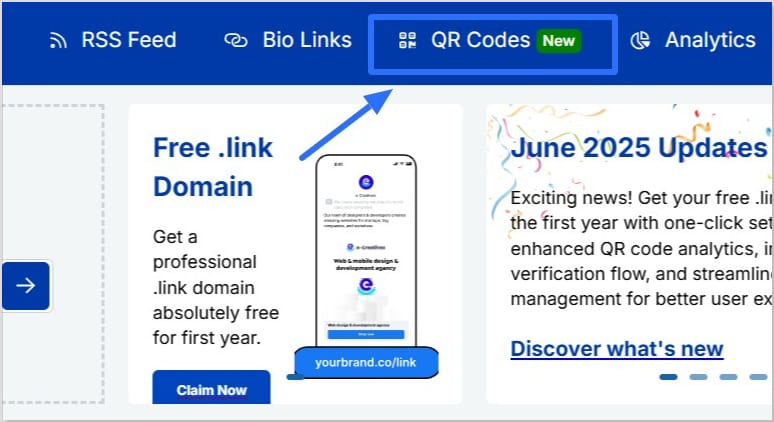
    Will people actually scan my QR code on a business card?

    Definitely! A well-placed, branded QR code on a business card with a clear CTA is highly effective in modern networking.