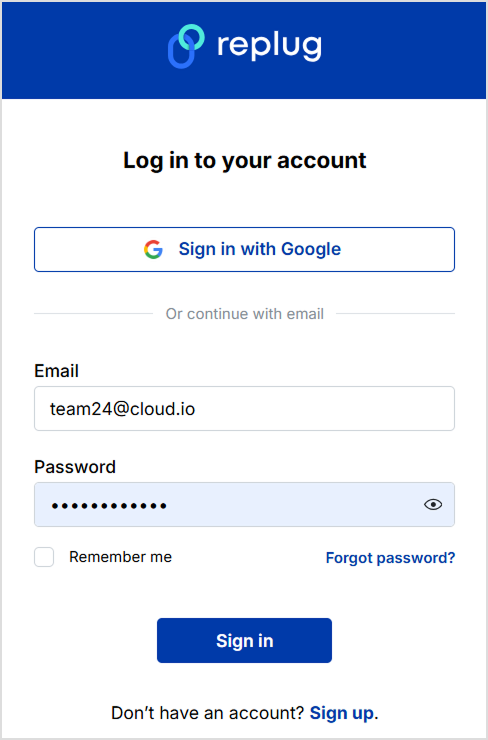
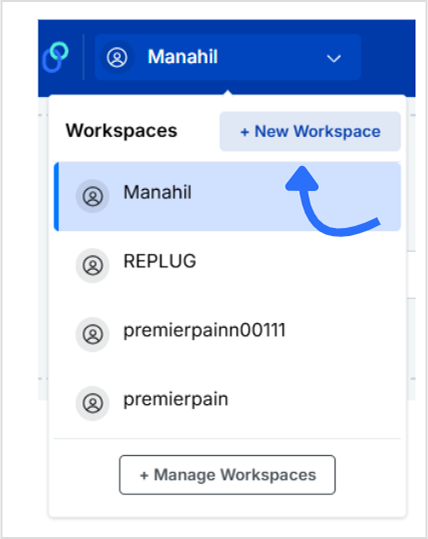
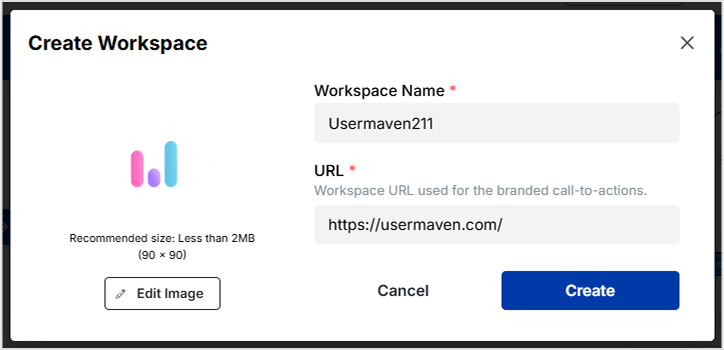
Today, we’re here with another guide, showing you how to create a workspace in Replug.
Replug’s workspace feature makes it super easy to keep everything organized. You can manage links, retargeting pixels, CTA campaigns, and team members, all in one place, without any mix-ups.
Each workspace acts like a separate space for a brand or project, so you stay focused and clutter-free. In this guide, we’ll show you how to create a workspace in just a few easy steps. Let’s get started!
A complete link management solution
for marketing professionals & agencies.
Try Replug for free
Invite team members (optional)
After creating your workspace, you can:
Add team members with different roles (admin, editor, viewer)
Grant access to only this specific workspace, great for clients or departments
Why use multiple workspaces?
Client separation: Avoid mixing links, campaigns, and analytics across different clients.
Team permissions: Assign specific access levels and keep internal processes secure.
Cleaner dashboard: Stay organized with clearly labeled, focused workspaces.
Scalability: Easily handle multiple projects, brands, or departments under one Replug account.
Final thoughts
Creating a workspace in Replug takes just a minute, but can massively improve how you manage your marketing tasks. Whether you’re running a solo project or handling multiple clients, workspaces keep things simple, secure, and scalable.
Besides, when paired with a reliable short URL shortener , your workspaces become even more powerful, helping you organize, track, and optimize every campaign with ease.
FAQs on Replug workspace
What is a workspace in Replug?
A workspace in Replug is a dedicated space where you can manage everything related to a specific project, brand, or client, including links, pixels, bio-links, campaigns, and team members, without mixing it with other workspaces.
Can I create multiple workspaces under one Replug account?
Yes! Replug allows you to create and manage multiple workspaces under a single account, making it ideal for agencies, marketing teams, or freelancers handling multiple clients or projects. Check the pricing page and choose teh required plan.
Do team members have access to all workspaces?
No. You can choose which team members have access to specific workspaces. This helps you maintain privacy and control while collaborating with clients, departments, or external partners.
Can I brand each workspace differently?
Absolutely. Each workspace can have its own name, logo, custom domain/subdomain, and campaign settings, so you can tailor the experience for each brand or client.
Will deleting a workspace remove all its data?
Yes. Deleting a workspace will permanently remove all its associated data, including links, campaigns, and analytics. Make sure to back up anything important before deleting.
You’ve got that one link in bio carrying your shop, your latest drop, or your best video, all in a single click. But do you really know what happens after someone taps it? Are people exploring your links, or dropping off after the first click?
That’s where link in bio analytics comes in. It shows which links get the most love, where your audience is coming from, and when they’re most active. And with tools like Replug, checking it all is as simple as open, tap, scroll.
Let’s break down how to use these insights to get real results.
Maximize marketing ROI
by transforming ordinary URLs into branded short links that convert.
Try Replug for free
What is the best way to track link in bio analytics?
The most effective way to track link in bio analytics is by combining detailed tracking with the best bio link tools that help you act on what you learn easily.
Replug makes this simple. It shows how many clicks your link in bio is getting, where your audience is coming from, and when engagement peaks, all in real time. Beyond numbers, it helps you create branded short links that build trust and boost click-through rates with the help of its efficient URL shortener free tool.
By adding UTM parameters, you can track the performance of your link in bio, all within Replug’s dashboard. This way, you get a clear view of what’s working and can refine your strategy as you go. Together, these features turn your link in bio from a basic list of links into a powerful, data-driven marketing asset.
Let’s discuss the two easy ways to track your link in bio analytics using a top-notch link in bio generator.
How to track your link in bio analytics (two easy ways)
First things first: make sure you’re signed into your Replug account.
Haven’t signed up yet? You can start with a 14-day free trial and get full access to your link in bio analytics.
Now, here are two quick ways to see what’s really happening behind your bio links:
Method 1: Quick check from the bio links tab
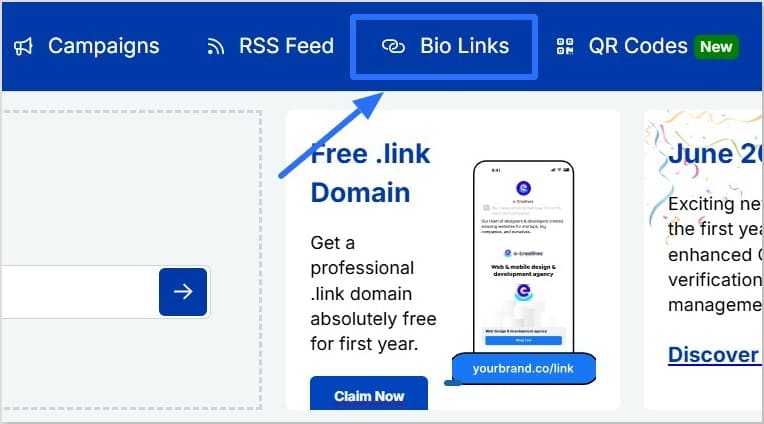
Go to “Bio Links” in your Replug dashboard.
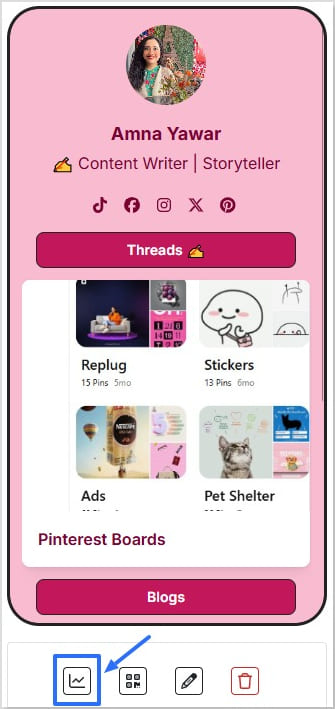
Find the bio link you want to check.
Click the small line chart icon right under it.
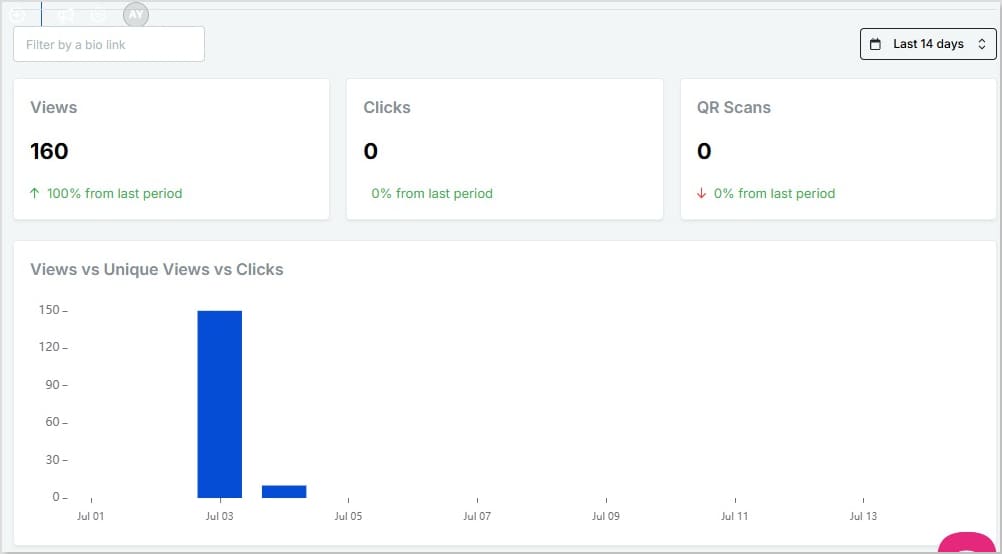
This opens up your analytics for that specific bio link, showing:
Views, unique views, clicks, and QR scans
A bar chart comparing views vs. unique views vs. clicks
Geotargeting filters so you can see data by referral source, location, browser, and operating system
Real-time stats and custom date ranges (check today, last month, or all time — no limits)
They’re little tags you add to the end of a URL so tools like Replug can track where each click came from.
For example:
Share the same link in a reel and a story
Add utm_medium=reel to one and utm_medium=story to the other
Now you’ll know which actually brings traffic, and which just looks good. Inside Replug, you can create and manage UTM-tagged links easily, so you can track smarter without extra hassle.
Another handy tip: Create a QR code for your bio link
Replug also lets you create a QR code for any of your bio links. So, if you share your link in bio offline on posters, packaging, slides, business cards, or anywhere else; you’re still not flying blind.
Data is great, but action is what makes it matter:
Move your best-performing links higher up
Swap out links that aren’t getting clicks
Post when your audience is most active
Test different headlines, emojis, or thumbnails to see what bumps up clicks
Focus promotion on platforms that actually send traffic
Conclusion
Your bio link shouldn’t just look pretty. It should work. Clicks, sign-ups, sales, traffic – whatever your real goal is.
And the good news? It’s simpler than you think.
With Replug’s link in bio analytics, you can see what’s working, what’s getting ignored, and where your audience is coming from, all in a few clicks.
Add UTM parameters to track which posts drive traffic, and use QR codes to bring in offline scans too. Then adjust: move your best links up, drop the ones that flop, and post when your audience is most active.
Your link in bio is more than a link. It’s your quiet traffic driver and digital storefront.
Now you know how to use link in bio analytics to make it deliver.
A link in bio is the clickable URL on your Instagram, TikTok, or other profiles. Since most platforms allow only one, tools like Replug let you turn it into a mini landing page with multiple links to your shop, videos, or content.
What is a tracking link?
A tracking (or trackable) link has extra tags, like UTM codes, that show where your clicks come from and what drives traffic. Tools like Replug can create these automatically.
How to track link in bio analytics on Instagram?
In Replug’s analytics dashboard, you can see referral sources, so you’ll know how much traffic is coming from Instagram.
How to track link in bio analytics on TikTok?
In Replug’s analytics dashboard, you can check referral sources to see how many visitors came from TikTok.
Your business card shouldn’t just sit in someone’s wallet; it should make them act. In a world where everyone’s glued to their phones, no one wants to type out links. A QR code on your business card gives them instant access to your contact details, portfolio, or LinkedIn. Just a quick, and they have all your details.
With Replug’s QR code generator, you can create a branded, trackable QR code for a business card that links directly to your vCard, website, resume, or any digital touchpoint. It’s modern, efficient, and adds a smart edge to your printed card.
Ready to upgrade your first impression? Let’s walk through the simple steps to create a QR code for your business card using Replug.
A complete link management solution
for marketing professionals & agencies.
Try Replug for free
Step 1: Log in to your Replug account
Visit this amazing link optimization platform and log in to your dashboard. If you don’t have an account yet, you can sign up for a free trial.
Step 2: Go to the “QR codes” section
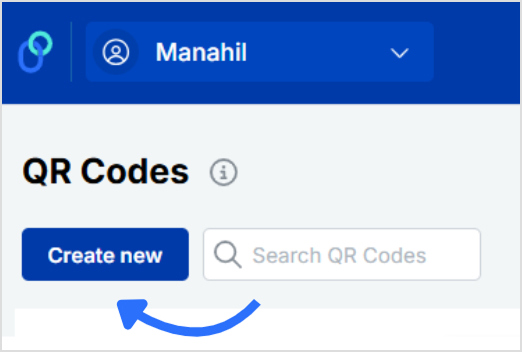
From the top navigation bar, click on “QR codes.” Once inside the QR code dashboard, click the “Create new” button in the top-right corner.
Step 3: Add your contact info for the QR code on the business card
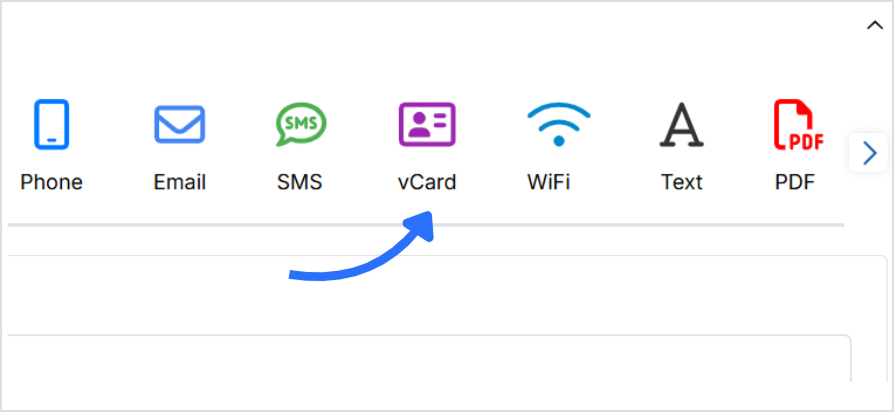
In the QR code type category, choose the vCard QR type, it’s the best format for creating a QR code for a business card that lets users save your details with one scan.
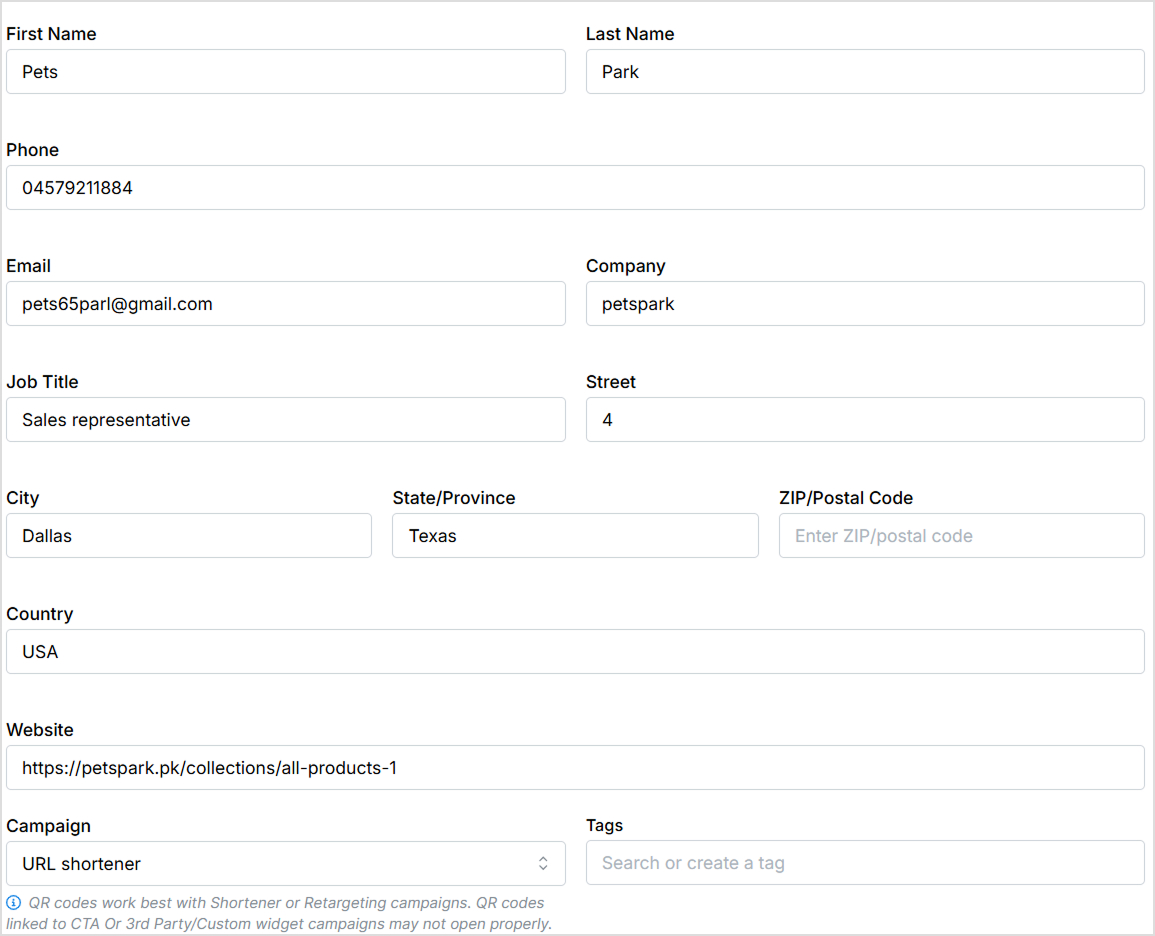
This allows people to save their contact details instantly with just one scan. Next, fill in your business card details:
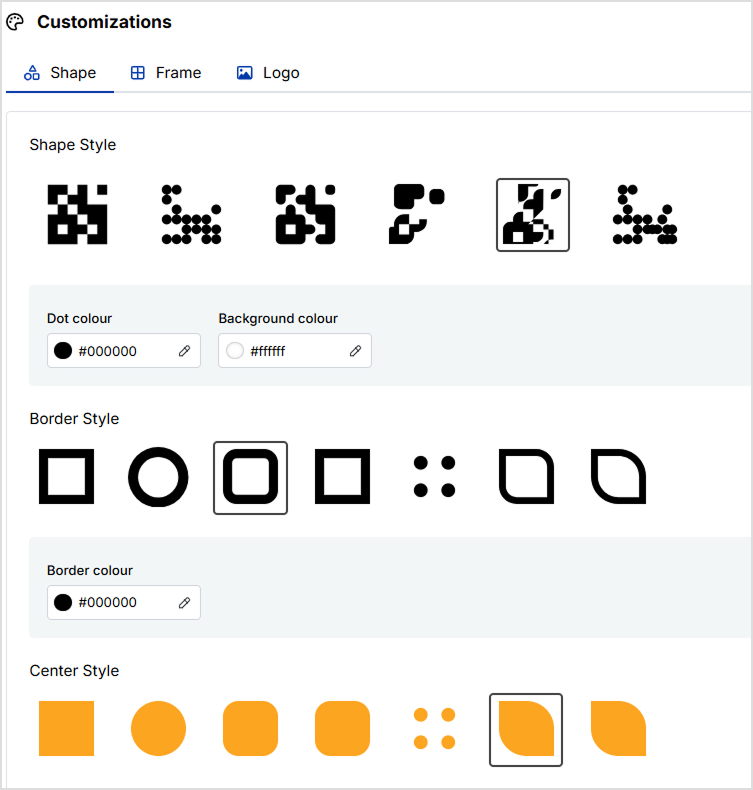
Replug lets you create your QR code and design it exactly how you want it. You can:
Choose from different QR shapes, styles, and colors
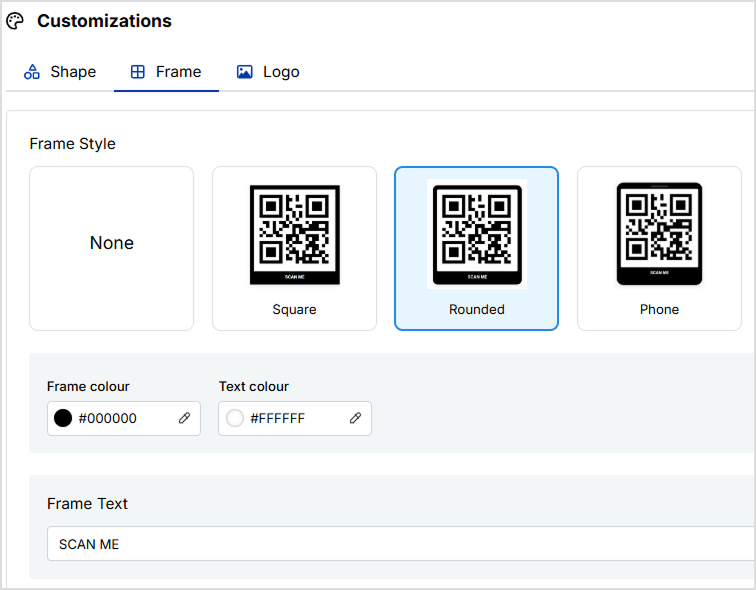
Add your preferred frame and frame text
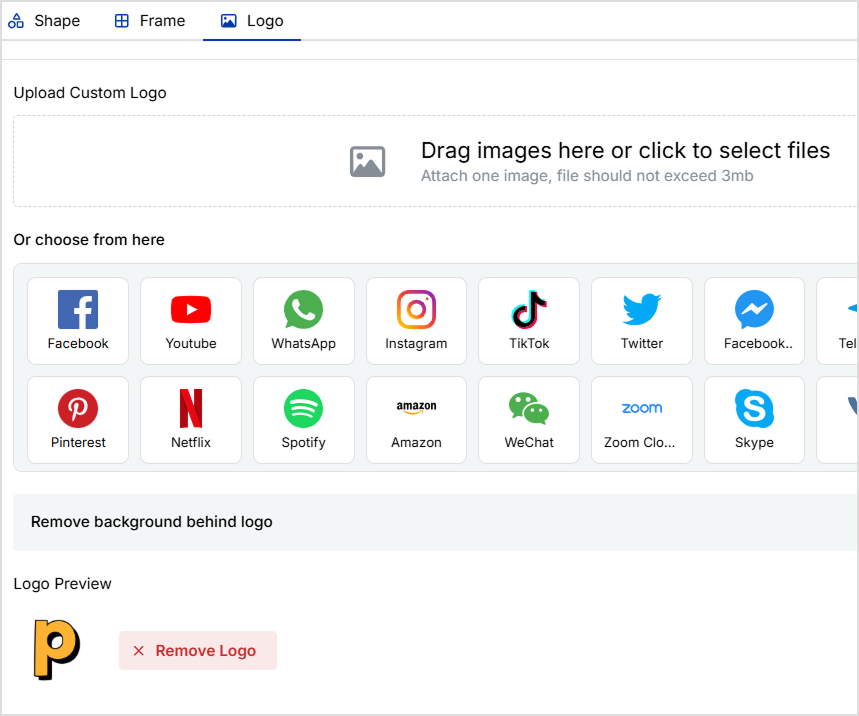
Add your brand logo if you want
Step 5: Create, save, and download
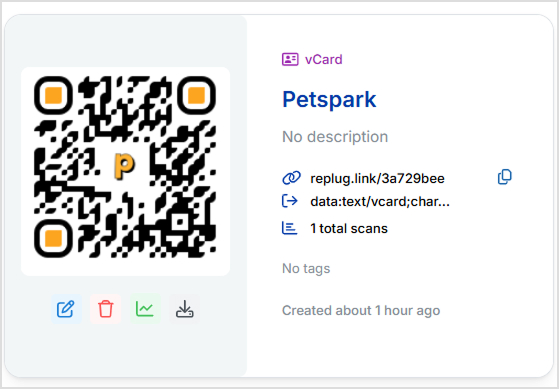
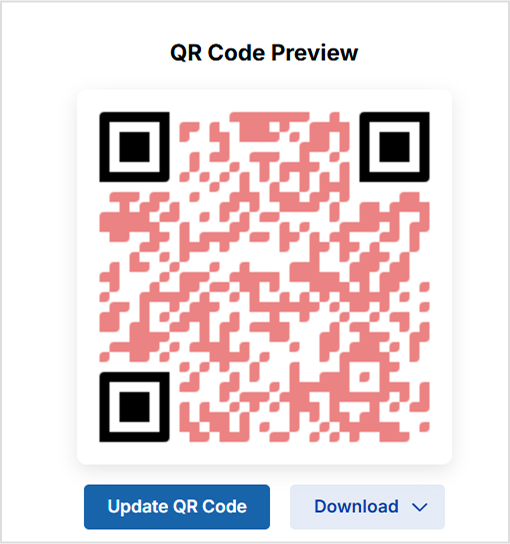
Once your design is complete, click the “Create QR Code” located below your QR code preview. Now your QR code for business card can be downloaded in high-resolution formats like PNG, SVG, PDF, or WebP, ready to be added to your design and printed professionally.
PNG (for most uses)
SVG (for scalable designs)
PDF (for print-ready files)
WebP (for fast-loading on websites and mobile platforms)
Now you can add it to your business card layout and print with confidence.
Benefits of adding a QR code to your business card
Adding a QR code to your business card isn’t just trendy, it’s strategic. It blends traditional networking with digital convenience, making it easier for people to engage with you on the spot. Here’s why every professional should consider using QR advertising for business interactions:
1. Instant contact sharing
One scan saves your full contact details to the recipient’s phone, no manual typing required.
Your business card is no longer just a printed rectangle; A QR code for a business card makes it easier for people to connect, remember, and engage with you instantly. You’re giving every contact the power to connect with you instantly, without typing or searching. Whether you’re a freelancer, entrepreneur, or corporate professional, this simple upgrade can dramatically boost your networking game.
With Replug, you don’t need a designer or a developer, just a few clicks and you’re done. Whether you’re attending conferences, networking events, or casual meetups, your QR-enhanced card ensures you’re remembered, saved, and contacted faster.
Ready to make your business card unforgettable? Create your QR code for business card with Replug today and step into a smarter, more connected way of networking.
And while you’re at it, don’t forget to try our this short URL shortener to make your links cleaner and more professional, perfect for your next digital business card!
Frequently asked questions
What type of QR code should I use for my business card?
The best option is a vCard QR code, which allows people to save your contact details instantly. Replug supports this format, letting you include your name, email, phone number, website, and more.
Can I update my QR code’s destination after printing my business cards?
Yes, if you use Replug’s dynamic QR code feature. You can change the URL or content anytime without needing to reprint your business cards.
Where should I place the QR code on my business card?
Common placements include the bottom corners or the back side of the card. Just make sure the code has enough white space around it to remain scannable and clean.
What file format should I download for printing?
Replug offers several formats. For print, use PDF or SVG for the best quality. For web use, PNG and WebP work great; WebP is especially fast-loading for mobile and online platforms.
Will people actually scan my QR code on a business card?
Definitely! A well-placed, branded QR code on a business card with a clear CTA is highly effective in modern networking.
If you’re still running ads that drop people straight onto an affiliate product page, we need to have a talk.
It’s like texting someone and saying, “Hey nice to meet you! Wanna buy this $300 course?”
No context. Minimal warming up. Zero chance it’ll go well.
Because here’s the deal: When you’re an affiliate marketer, you don’t control the product page. You can’t tweak the copy, add testimonials, or even change a single headline. All you can do is hope that random visitors magically feel convinced enough to buy.
And let’s not forget: Platforms like Facebook and Google hate it. They’ll shut your ads down if your landing page is just a sales pitch or direct affiliate link.
So, what do smart affiliate marketers do?
They build something in between: a bridge page, also known as a pre-sell page, warm-up page, or primer page.
In this guide, you’ll learn:
What exactly a bridge page is (without the jargon)
Why it works so ridiculously well
Different ways to set it up
Real-life examples
And finally, how you can create a bridge page easily (even if you hate design or coding), with Replug, i.e., an all-in-one link optimization platform.
Let’s break it down.
What is a bridge page?
At its simplest, a bridge page is an intermediate landing page between your ad (or traffic source) and the final affiliate offer.
But, it’s more than that.
It’s your chance to:
Tell a story
Build trust
Address objections
Qualify your leads
And most importantly, prime visitors to buy
That’s why people also call them:
Pre-sell pages (because you’re selling the click, not the product… yet)
Warm-up pages (because you’re taking cold traffic and making them toasty)
Primer pages (focusing on mental “priming”)
Transition pages (guiding traffic smoothly to the offer)
Affiliate landing pages (if it feels more natural in your niche)
Whether you’re an Amazon affiliate trying to boost your commissions or promoting high-ticket digital offers, the goal is the same: create an intentional step that makes people care before they see the price.
Why bridge pages work: the psychology behind them
Bridge pages (and the broader bridge funnel strategy) tap into a powerful psychological principle: priming.
When you show someone a persuasive copy, engaging content, or even a quick quiz before asking them to buy, you do more than just inform them; you change their mental state.
Instead of landing cold on a product page and wondering:
“Do I really need this?”
They arrive already thinking:
“Wow! This actually fixes a problem I have.”
That’s the beauty of a bridge page: You’re not selling right away. You’re setting the stage so the sale becomes the next logical step.
Why bridge pages work: a quick example
Let’s say you’re running an affiliate ad for a high-ticket coffee machine. If someone clicks and lands straight on Amazon or the brand’s sales page, what happens?
They see a price tag, specs, and maybe some reviews; but no context. No storytelling. No reason why this coffee machine should matter to them.
Result? They bounce.
A bridge page fixes this.
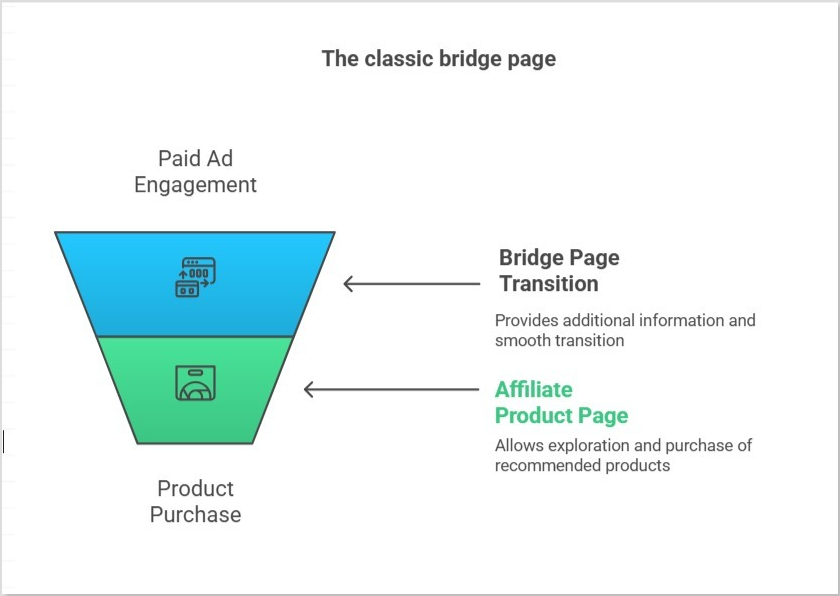
It adds a warm-up step in between:
Your ad
A bridge page you control (with persuasive copy, testimonials, benefits)
The affiliate offer page
Instead of asking cold traffic to buy right away, you guide them, answer objections, and prime them to click “buy.”
That’s the “bridge”: You move people from just being curious to actually wanting the product.
Now let’s move to the fun part: b?
How to create a bridge page for affiliate marketing?
There are plenty of ways to create a bridge page; from hiring a designer to wrestling with WordPress plugins. But if you want a faster, cleaner, and ad-friendly solution, Replug makes the whole process refreshingly simple.
With Replug, you can design a branded, persuasive bridge page without any coding. Add your story, images, and call-to-action, cloak your affiliate links so they look professional, and track everything from clicks to conversions, all in one place.
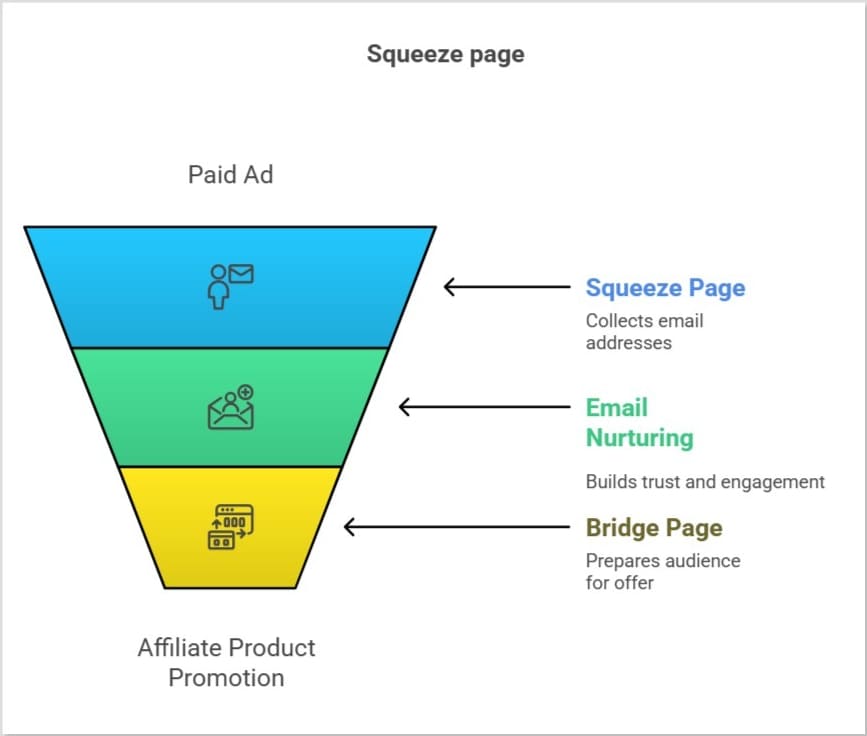
In the next section, we’ll walk you through the steps on how to create a bridge page in Replug, whether you want a classic bridge, or even a squeeze page to grow your email list. Let’s dive in!
How to create a bridge page in Replug (step by step)
Step 1: Sign in or create an account
Start by signing up for Replug. If you don’t have an account, sign up and you’ll get a free 14-day trial to explore all the features without any risk.
Once you’re in, you’ll have everything you need to build, brand, and track your bridge page.
Step 2: Create your campaign
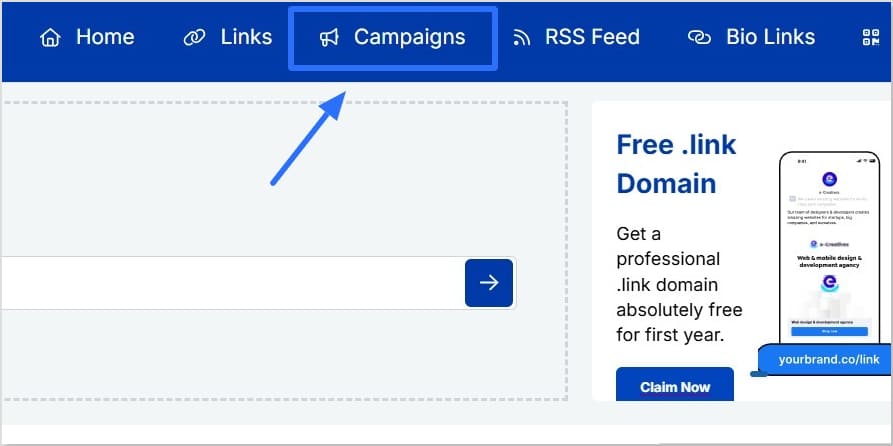
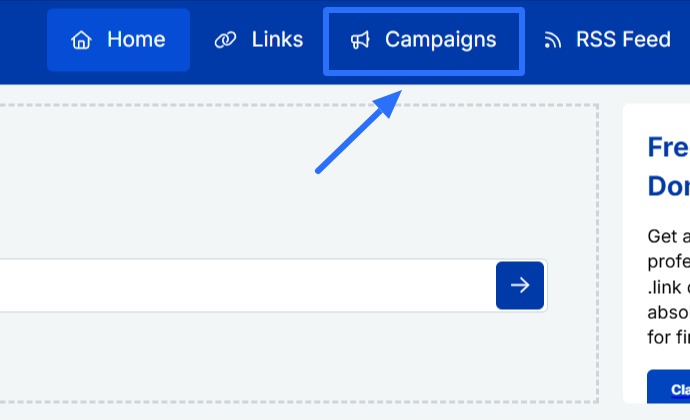
Inside your Replug dashboard, head to Campaigns → Create New
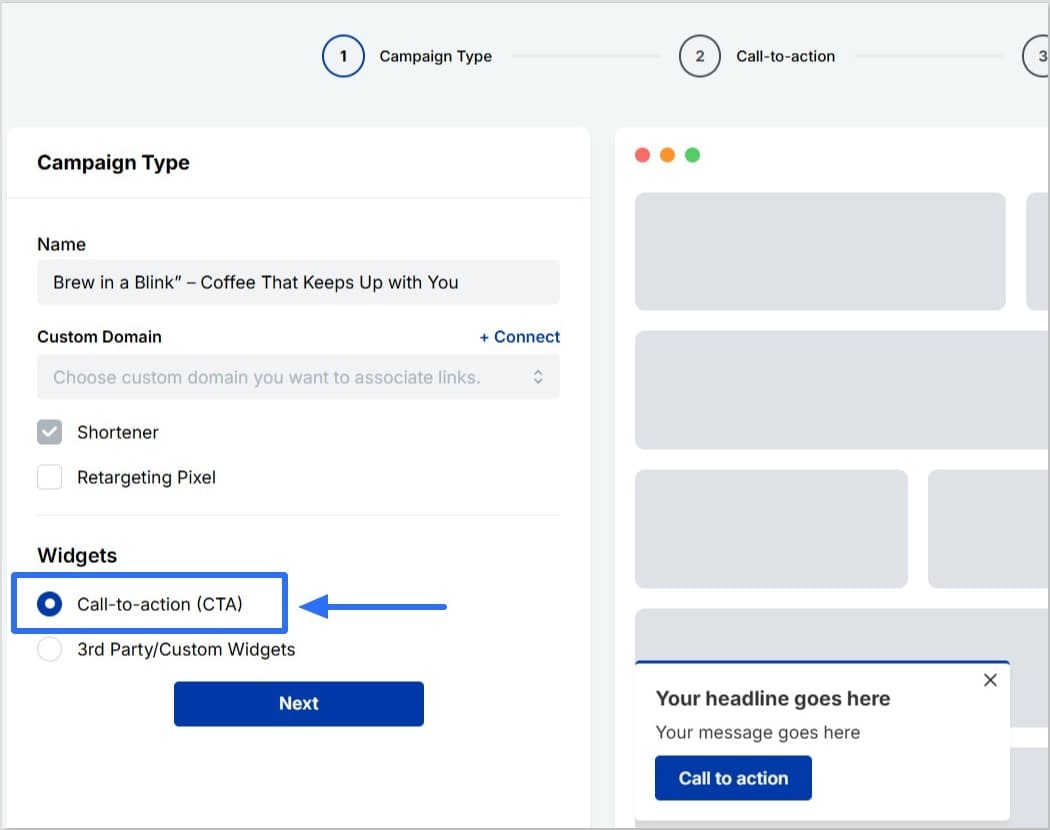
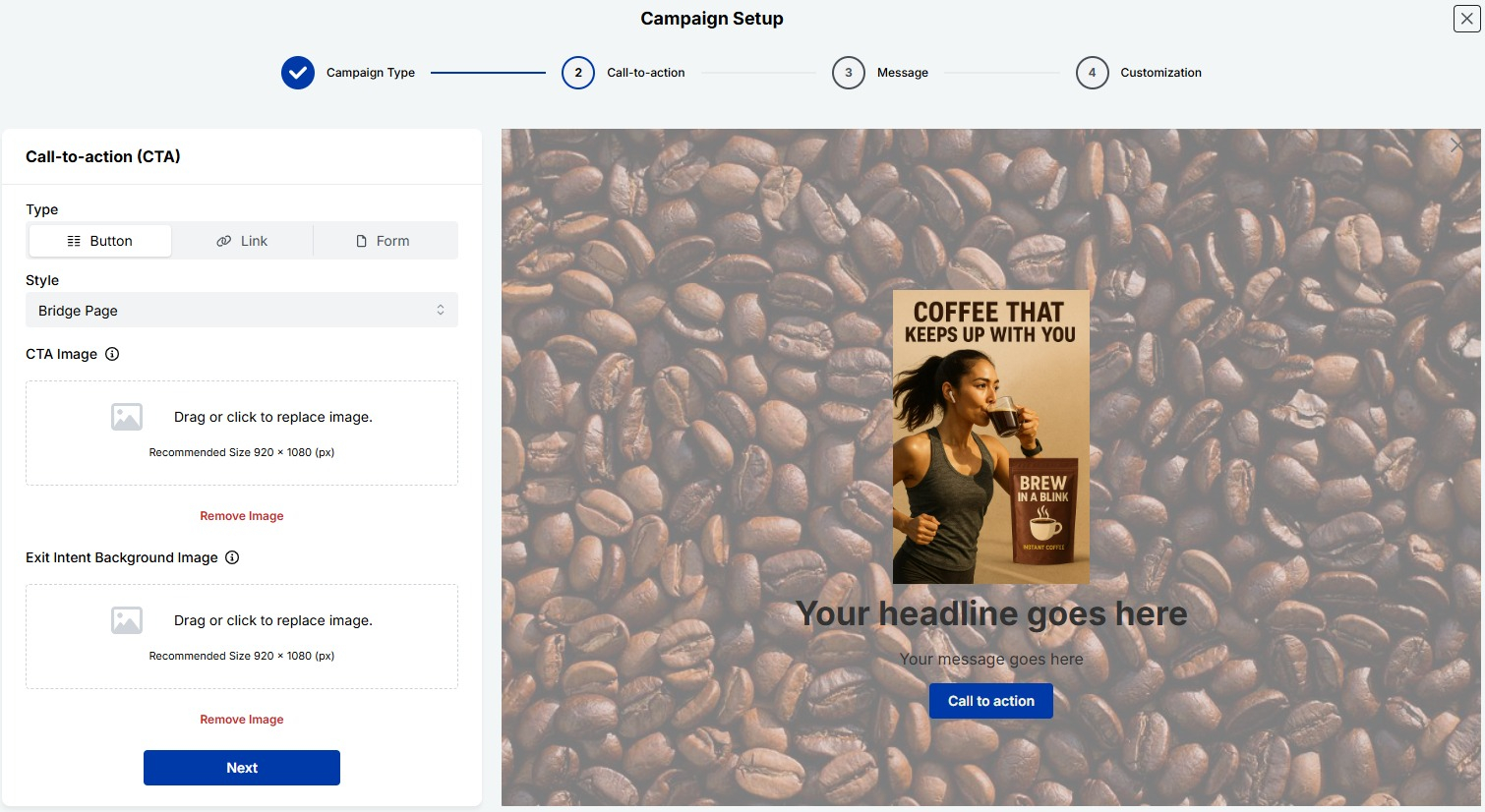
When prompted, choose the “Call to Action” campaign type.
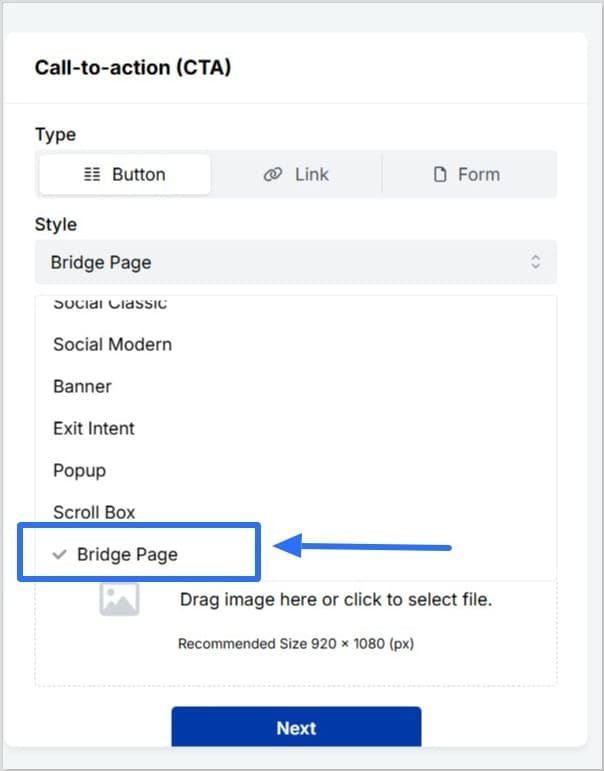
Select “Bridge Page” as the style from the dropdown. This will let you design a bridge page (or pre-sell page) that does more than just redirect. You can choose from CTA button, link, or form as your preferred CTA type. It’s your call!
Add your CTA Image and Exit Intent Background Image.
Tip: If you want to create a squeeze page, you’ll simply choose “Form” as your call-to-action type. This lets you capture emails right on your bridge page and build your list while warming up leads.
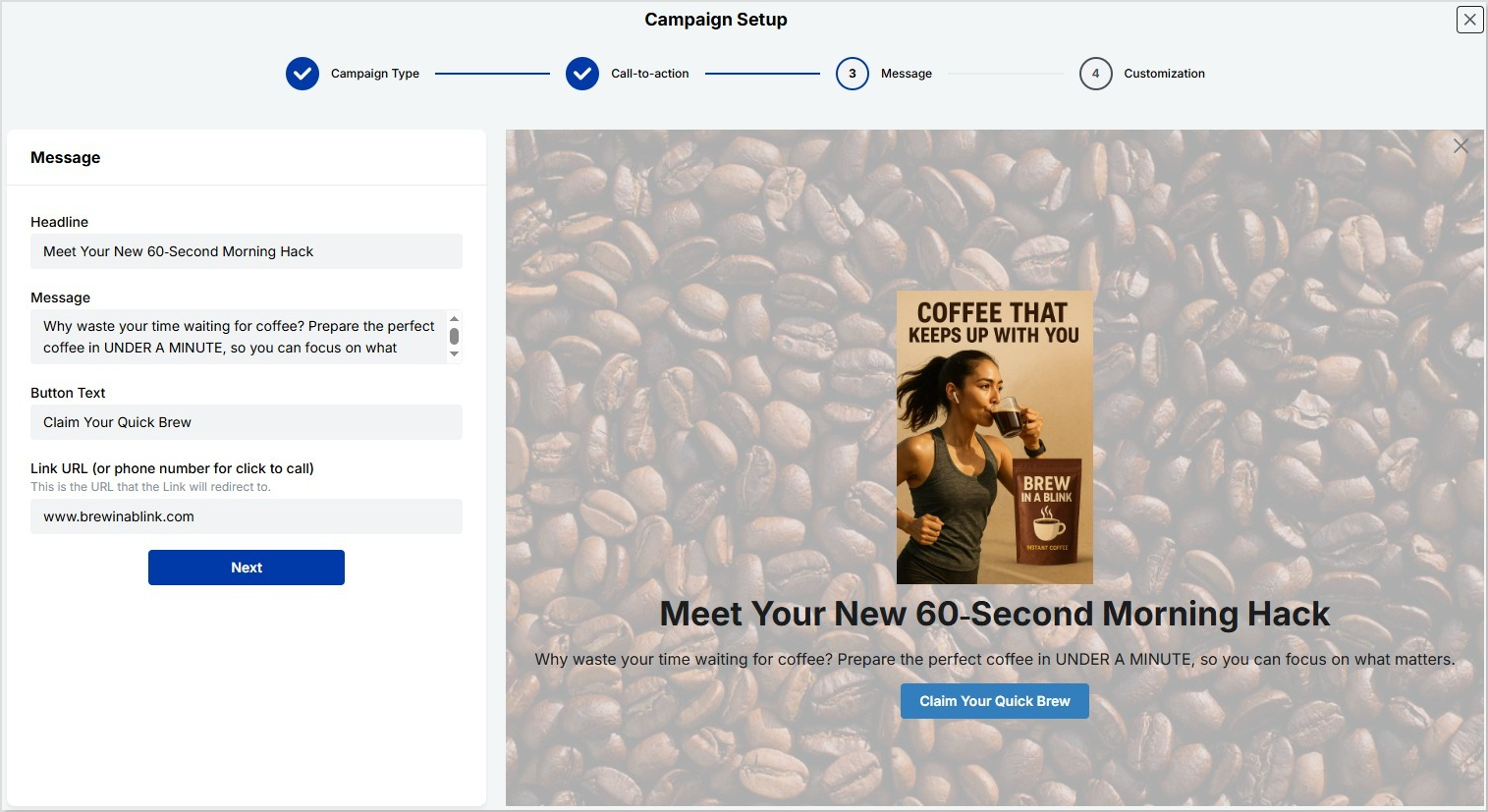
Now it’s time to create a compelling copy for your bridge page. Here’s what to do:
Write a clear, attention-grabbing headline that makes people want to click
Add a short message or story that explains why the product matters
Write acatchy call-to-action button text
Finally, add the affiliatelink for the affiliate product you’re promoting, or your phone number if you’re using a click-to-call option
Remember: you’re not pitching the product directly; you’re helping people see why the product matters to them.
Step 4: Customize your bridge page
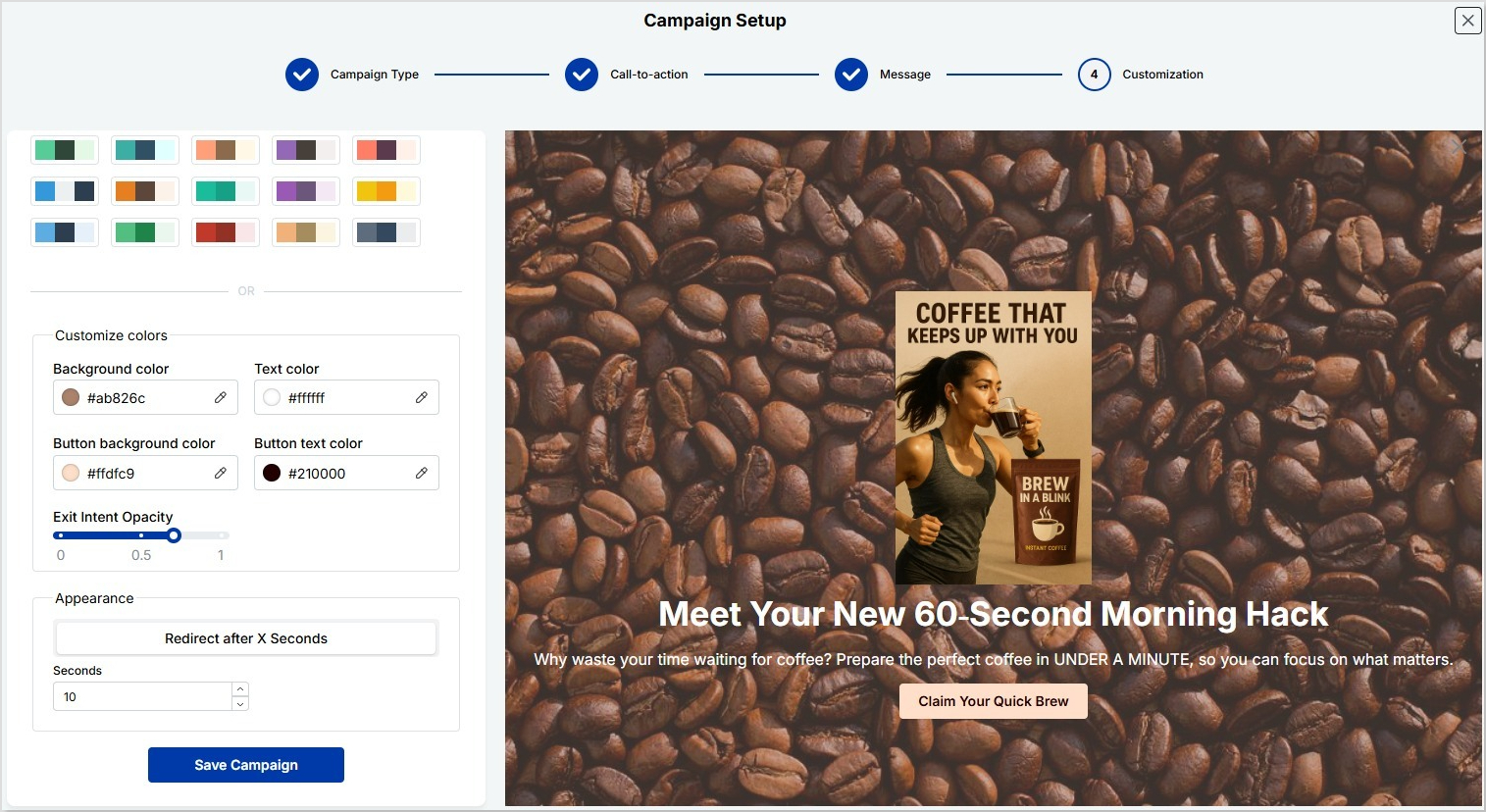
Make your page stand out by matching it to your brand or product vibe. Here’s what you can adjust:
Color palette: Choose from preset themes or set your own colors:
Background color
Text color
Button background color
Button text color
Redirection time: Decide how long visitors stay on your bridge page before being redirected to the affiliate offer. Example: set it to 10 seconds for a smooth experience
Exit intent opacity: Control how your bridge page appears if someone tries to leave early
This small customization step helps your page look professional and keeps it consistent with your branding.
If you’ve built affiliate bridge pages the “old school” way, you know how time-consuming it can be. But with Replug, it’s completely different. You can launch, track, and optimize your bridge pages in minutes; without coding, plugins, or tech headaches.
Why Replug makes it so easy
Old way
With Replug
Hire a designer and build pages in WordPress
Use ready-made templates to launch bridge pages quickly
Example: Collect emails with a lead magnet (e.g., “Free guide: 5 mistakes to avoid when buying X”) → build trust → send them to bridge page → offer page.
Keep it mobile-friendly (most clicks come from phones)
Use one clear CTA
Test different headlines & images
Add urgency or scarcity only when it’s real
Stop losing sales and start building bridges
If you’re still sending cold ad traffic directly to an affiliate product page, you’re leaving money (and trust) on the table.
A bridge page changes everything: it gives visitors context, tells your story, answers objections, and makes buying feel natural. Instead of hoping your ad clicks magically convert, you guide them to that “yes.”
And if you’ve been wondering how to create bridge page content You get ready-made templates, branded short links, retargeting pixels, A/B testing, and detailed analytics; all without touching a single line of code.
Build smarter funnels, keep your ads compliant, and see what difference a bridge can make for your affiliate campaigns.
Ready to try? Your free 14-day trial is waiting!
FAQs on how to build a bridge page for affiliate marketing
What is an example of a bridge page?
A classic example: you run an ad for a high-ticket coffee machine. Instead of sending traffic straight to Amazon, you send them to your bridge page first. This page has a short story, benefits, maybe a video review, and a CTA like “See price on Amazon.” It warms them up before they see the offer.
What is a bridging page?
It’s the same thing as a bridge page: an intermediate page that sits between your ad (or traffic source) and the affiliate product page.
What is an example of bridging?
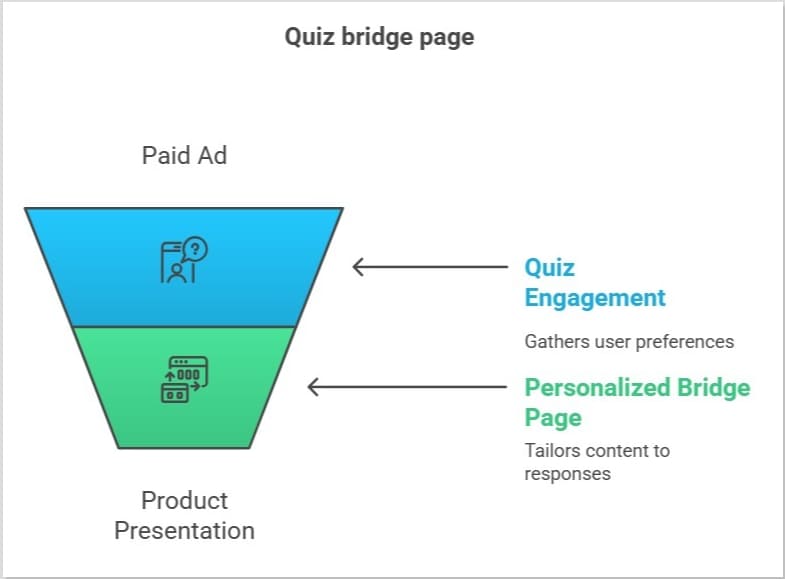
Think of a quiz funnel: “Which running shoe fits your style?” After the quiz, people see a personalized bridge page recommending one product, instead of dropping them directly on a store page.
Can I build a bridge page in Replug?
Yes! Replug makes it super simple. You can create branded bridge pages, add retargeting pixels, cloak affiliate links, A/B test different versions, and track everything; all without coding. Plus, you can rotate links, share anywhere, and keep your ads compliant.
What’s the difference between a bridge page and a landing page?
A landing page is any standalone page designed for a single goal (sign-up, download, sale, etc.). A bridge page is a specific type of landing page used mainly in affiliate marketing to “bridge” the gap between your ad and the final offer, warming up visitors so they’re more likely to convert.
A website QR code lets you turn any URL into a scannable code, making it easy for users to visit your webpage without typing a thing. Just point, scan, and go.
It’s one of the easiest ways to connect your offline materials with your online presence. Whether you’re sharing your website on flyers, packaging, menus, business cards, or storefronts, a custom QR code for your website helps users reach your site instantly. It’s fast, convenient, and highly effective for driving traffic and boosting engagement.
What is the best way to create a QR code for a website?
The best way is by using an advanced QR code generator that offers customization, analytics, and flexibility. We recommend Replug, a powerful tool that lets you design on-brand QR codes, track real-time scan data, and even update the destination link without reprinting the code.
A complete link management solution
for marketing professionals & agencies.
Try Replug for free
Step 1: Log in to your Replug account
Visit Replug and log in to your dashboard. If you don’t have an account yet, you can sign up for a free trial.
Step 2: Go to the “QR codes” section
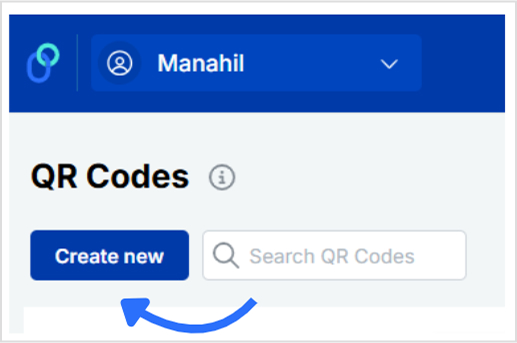
From the top navigation bar, click on “QR codes.” Once inside the QR code dashboard, click the “Create new” button in the top-right corner.
You’ll be redirected to a new window with three tabs:
Details, QR code types, and Customization.
(optional)
Details tab: Give your QR code a name and an optional description for easier management.
Step 3: Add your website URL
Here’s what to do:
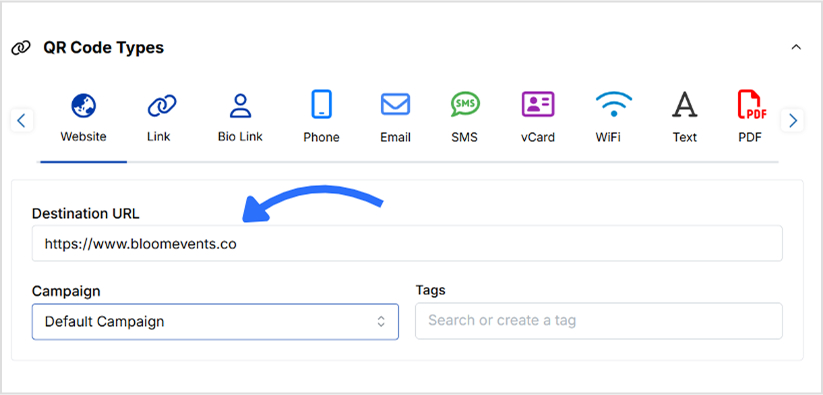
Move to the QR code types tab and select Website.
Paste the URL of your website.
Step 4: Customize your QR code
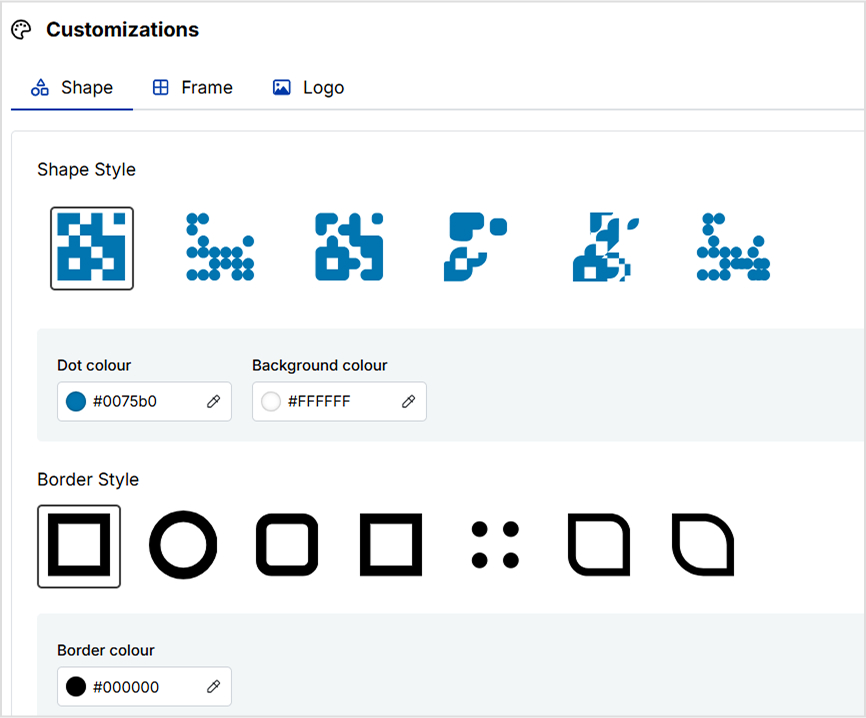
Replug lets you design your QR code exactly how you want it. You can:
Choose from different QR shapes, styles, and colors
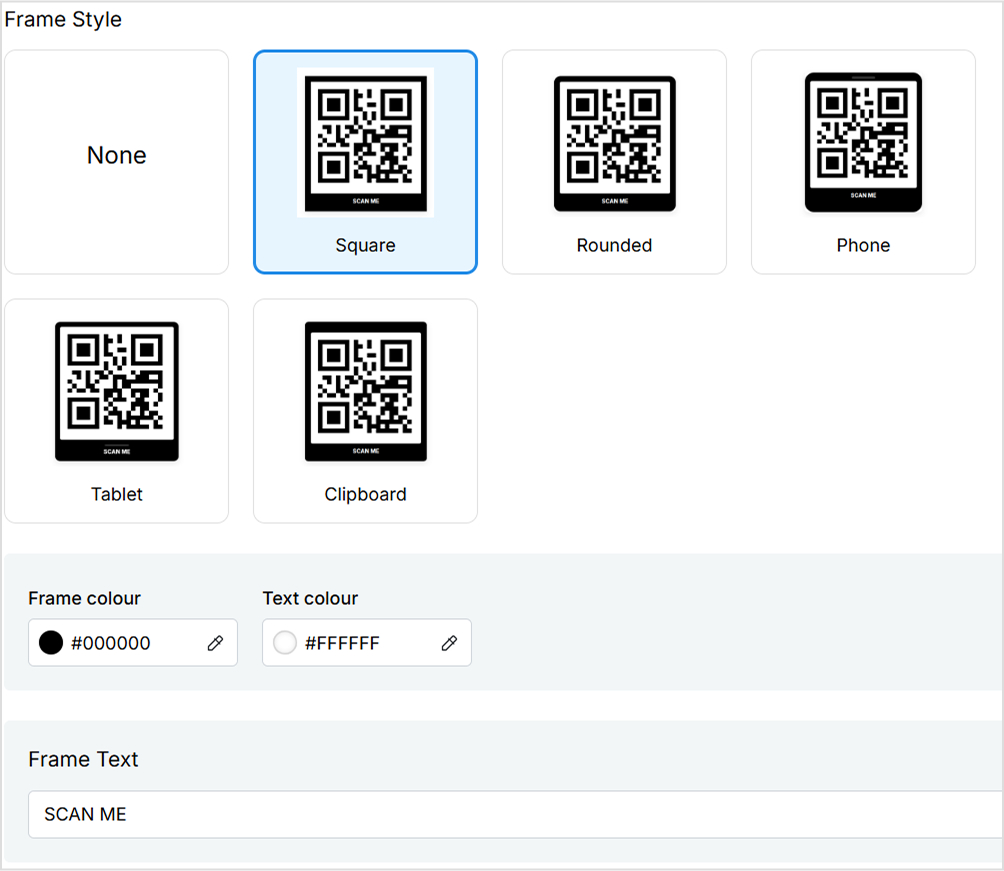
Add your preferred frame and frame text
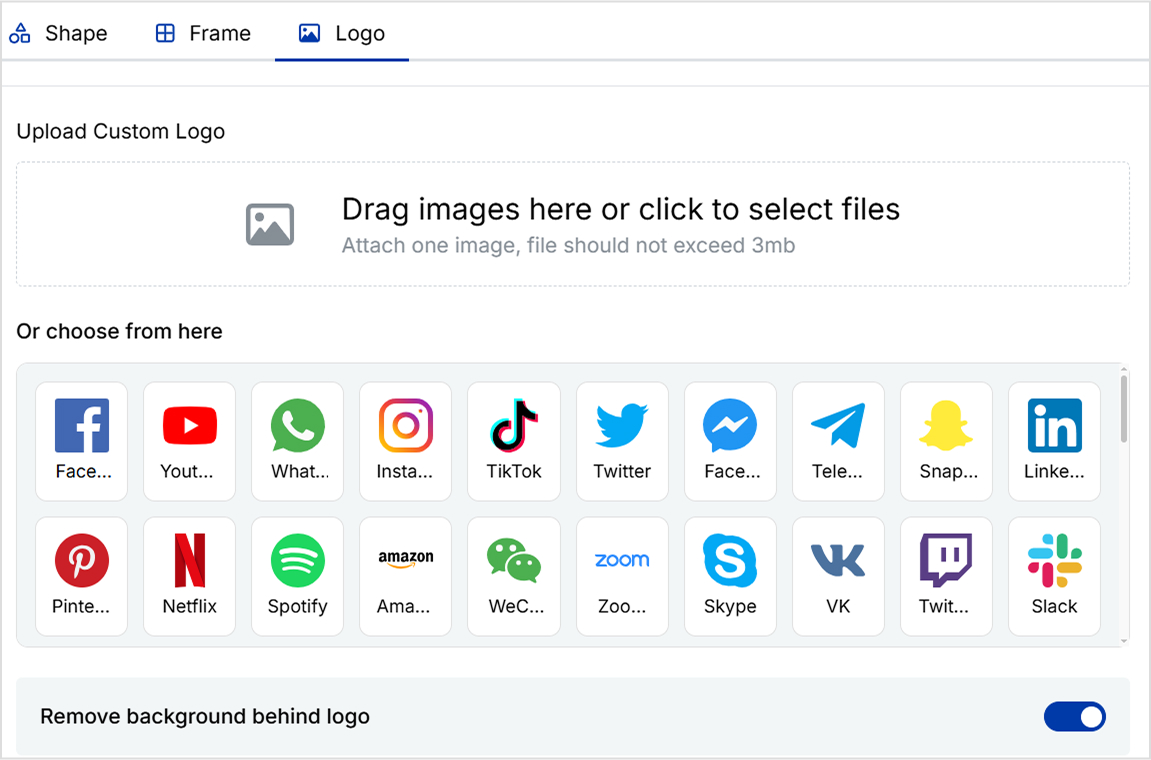
Add your brand logo if you want
💡 Tip: Use high-contrast colors to ensure your QR code scans correctly. And always test it before finalizing.
And you’re done.
Step 5: Save and download your QR code
Once your design is ready, click “Create QR Code” at the bottom left.
After the QR code is created, you can download it in high-resolution formats like PNG, SVG, or PDF, perfect for both digital and print use.
Track QR code performance from your Replug dashboard
Once your QR code is live, Replug doesn’t just leave you hanging, it gives you full visibility into how it’s performing. With dynamic and trackable QR codes, you can access real-time data right from your dashboard. Monitor how many people have scanned your code, what devices they used, where they scanned it from, and even the time of each scan.
A complete link management solution
for marketing professionals & agencies.
Try Replug for free
Need to update the destination URL after printing? No problem. Replug is a top-notch link management platform that lets you edit your link anytime without needing to create or reprint a new code. You can also pause or restart campaigns with a single click. These insights help you make smarter marketing decisions and continuously improve your offline-to-online strategy.
Final thoughts
With Replug, creating a custom QR code for your website is not only easy, it’s smart. You get full design control, dynamic editing options, and built-in analytics to measure real-world impact. Pair it with our URL shortener for enhanced link tracking.
Skip the plain black-and-white codes now. Create one that’s uniquely yours with Replug, today!
Frequently asked questions
Can I edit the website link after printing the QR code?
Yes, if you create a dynamic QR code in Replug, you can update the destination URL anytime without needing to reprint your QR code.
What is a QR code?
A QR code (Quick Response code) is a two-dimensional barcode that can be scanned using a smartphone camera. When scanned, it instantly redirects users to a website, landing page, contact details, or other digital content. It’s fast, contactless, and perfect for marketing.
Does Replug track how many people scan my QR code?
Absolutely! Replug offers real-time analytics showing scan counts, locations, devices used, and more, right from your dashboard.
Can I add my brand logo to the QR code?
Yes! Replug allows you to upload your logo and place it in the center of your QR code for stronger brand visibility and trust.
Why choose Replug for your website QR code?
Easy-to-use interface (no tech skills required) Fully customizable designs Dynamic QR codes (edit anytime) In-depth analytics GDPR-compliant and secure
Can you redirect a URL connected to a printed QR code? Can QR codes be deactivated? And what about changing what’s behind it once it’s already out in the world?
It’s a common worry. You’ve printed thousands of flyers, menus, or product boxes only to realize you need to change where the QR code leads. Maybe your landing page changed, there was a typo, or your campaign goals shifted.
Here’s the good news: you can change a QR code after printing, but only if you use the right type of QR code from the start. In this guide, we’ll walk you through why you might need to change it, how dynamic QR codes make it possible, and steps to do it using Replug.
Maximize marketing ROI
by transforming ordinary URLs into branded short links that convert.
Try Replug for free
Why change your QR code after printing?
Here are a few scenarios where you might need to change a QR code destination after printing:
Your team printed 5,000 event posters, but the event landing page URL changed a week later.
You promoted a seasonal offer, and now you’d rather redirect traffic to a new summer sale page.
A typo slipped through and now the QR code leads nowhere.
Instead of reprinting everything, wouldn’t it be easier to just update where the QR code sends users? That’s exactly what dynamic QR codes allow you to do; change QR code destination after printing, and keep campaigns running smoothly.
QR Code editing with dynamic QR codes
Let’s say you’ve shared a printed menu in your restaurant with a scannable QR code on it. Next month, you add new dishes or adjust prices. With a dynamic QR code, you don’t need to print new menus, all you have to do is just update the linked digital menu, and diners will instantly see the latest version.
Dynamic QR codes act like a smart layer: the printed code stays the same, but the destination can change anytime in your dashboard.
Exception to know
If you use a static QR Code, it will be “locked in” and can’t be edited. But if it’s dynamic, you’re free to change or replace the destination whenever you need.
How to change a QR code after printing using Replug?
Changing a QR code after printing sounds tricky, but with Replug’s dynamic QR codes, it’s actually simple. Here’s how you can quickly update your printed QR code’s destination without starting from scratch:
Step 1: Sign in or create an account
Log in to your Replug account. If you haven’t signed up yet, create an account and you’ll get access to a free 14-day trial with full features.
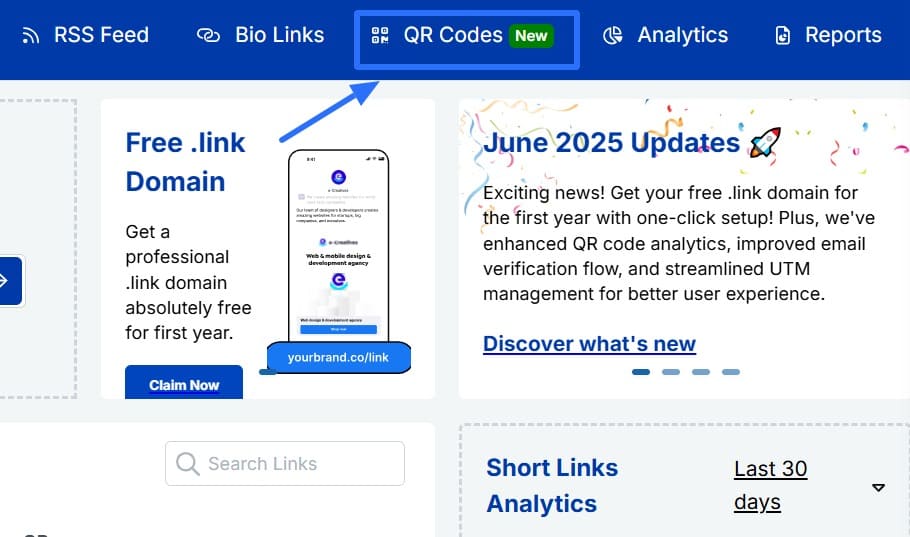
Step 2: Go to “QR Codes”
From your Replug dashboard, navigate to the “QR Codes” section where all your existing QR codes are listed.
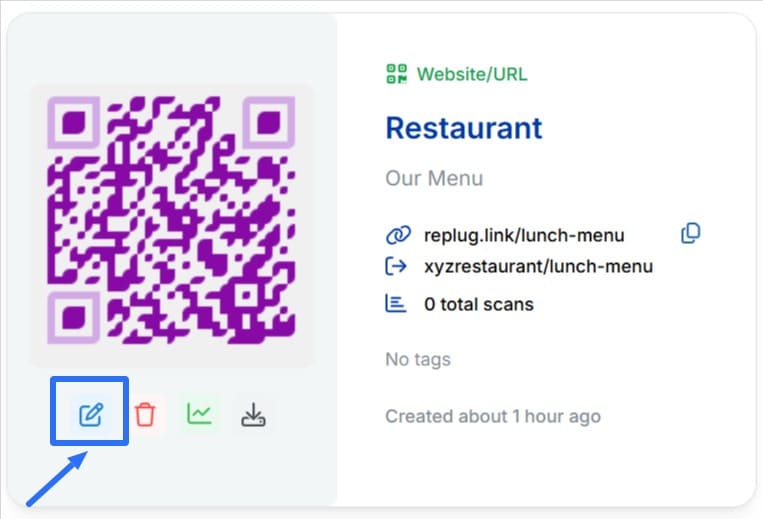
Step 3: Edit your QR code
Find the QR code you want to update and click the small pen icon in the bottom right corner. This will open the editing screen.
Step 4: Open the “QR code types” dropdown
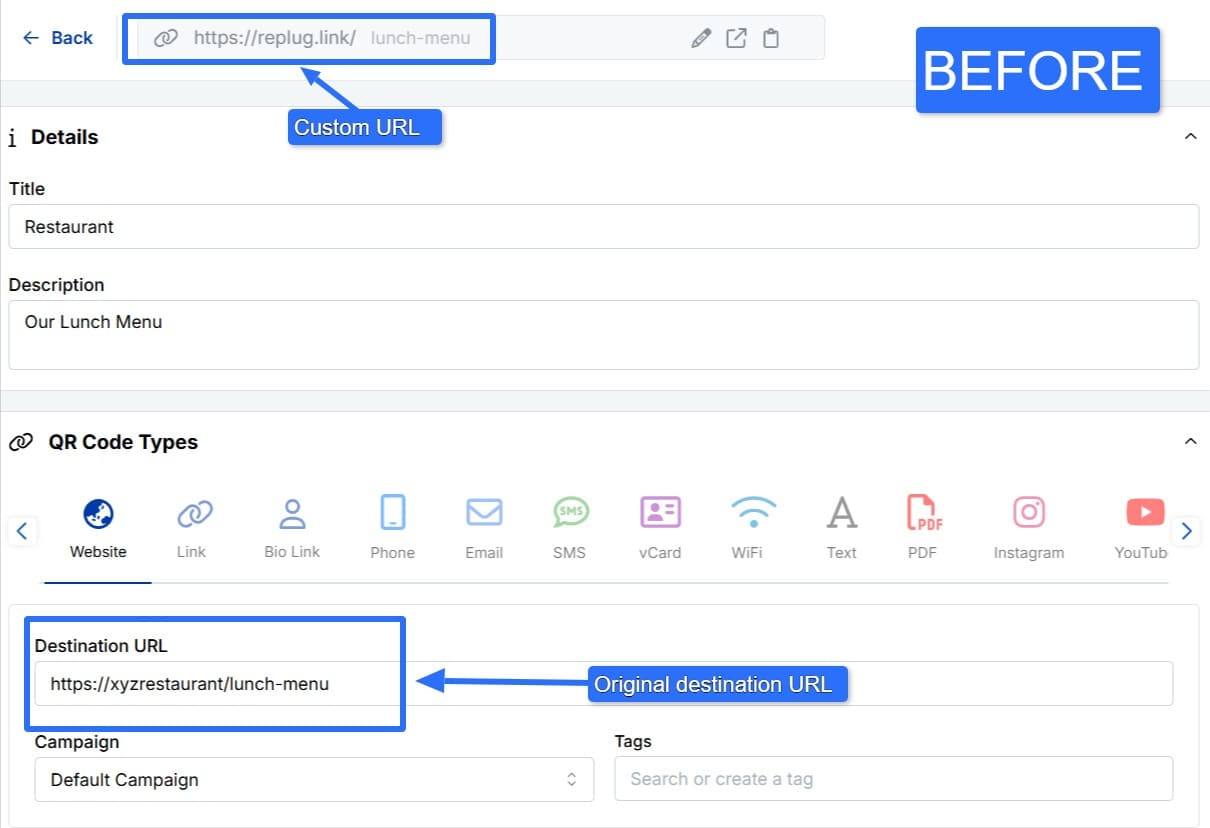
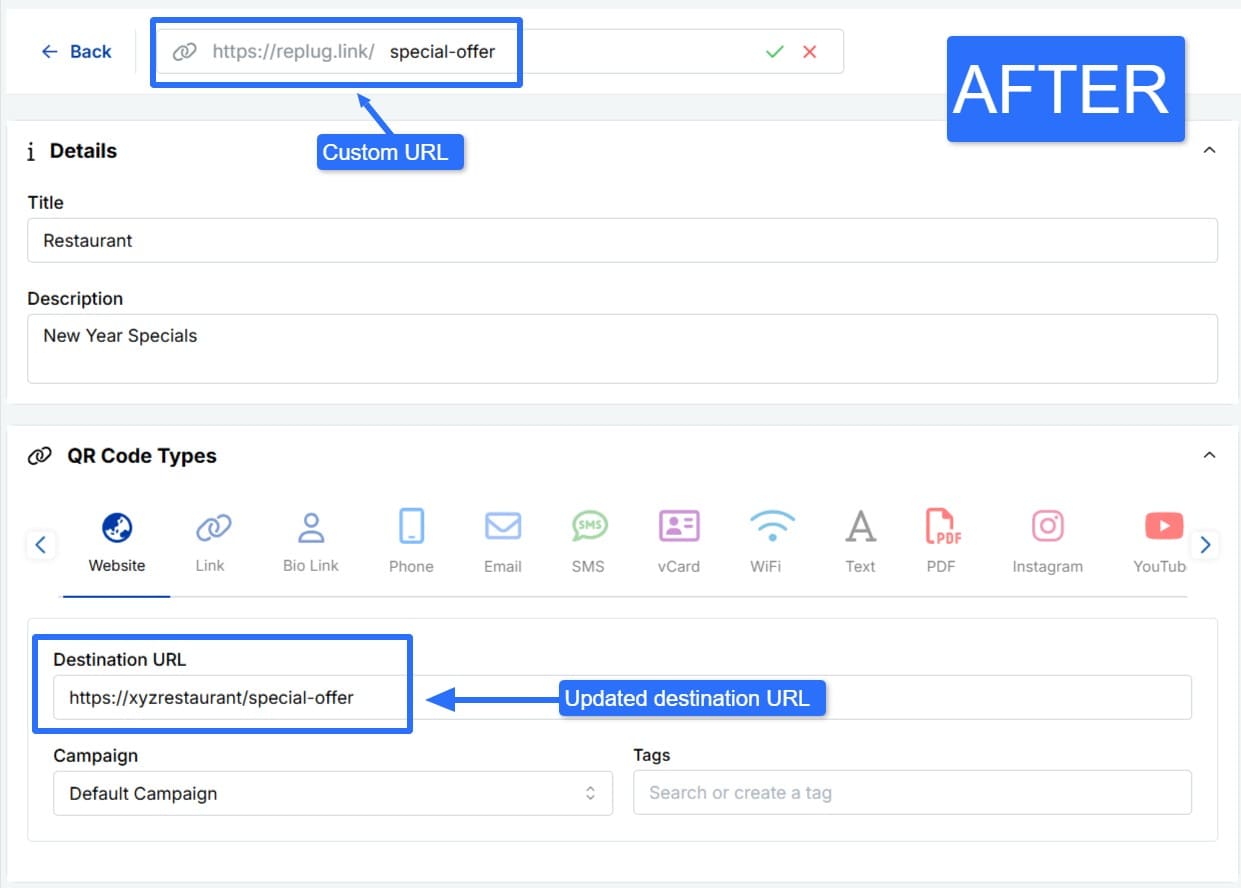
Here, you can change what your QR code points to, depending on the type you created. You can also update the custom URL.
Boost ROI with branded URLs!
Enhance your marketing campaigns by creating shareable, trackable, and fully multi-purpose
customizable branded URLs.
For example, if you originally linked to your standard lunch menu, you could update the QR code to direct customers to a seasonal dinner menu, a special holiday offer page, or a new weekend brunch menu.
Before:
After:
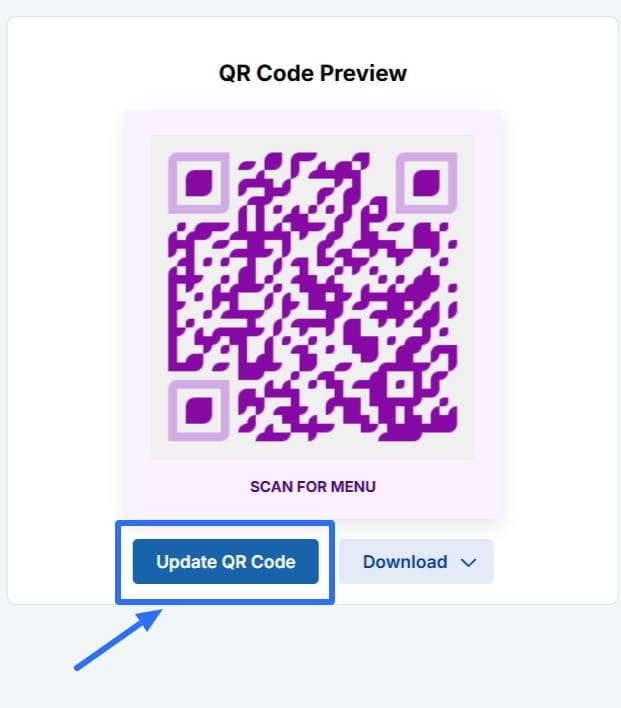
Step 5: Click “Update QR Code”
Once you’re done making changes, click “Update QR Code.” Your printed QR code will now redirect anyone who scans it to the new destination.
Running a limited-time campaign? Replug allows you to turn them off temporarily without deleting them.
For example:
Pause your Black Friday offer QR code until the sale starts.
Stop traffic to an event page after the event is over.
How to do it inside Replug
Click “Home” from the navigation menu.
You’ll see a list of all the links you’ve created.
Find the link connected to the QR code you want to pause.
From Actions, click “Edit.”
Click on “Link Expiry.”
Set an expiration date for when the link should become inactive.
Once you’re ready to go live again, you can easily reactivate the QR code
Bonus: What else can you do with Replug?
Apart from just changing the URL of your QR code and deactivating it temporarily, Replug allows you to:
Change the link preview: Customize the title and description that appear when someone scans your QR code, so your campaign always looks fresh and relevant.
Customize the favicon: Upload your own brand favicon, so users see your logo or chosen icon in their browser tab after scanning
Set traffic routing: Send users to different destinations through dynamic link rotation, based on location, device, or other rules. For instance, a café could show a different seasonal menu or special offer to users in different states, all from the same QR code.
Link cloaking: Display a clean, branded short URL instead of a long original link, so the user’s browser shows a consistent and professional URL after scanning your QR code.
Maximize marketing ROI
by transforming ordinary URLs into branded short links that convert.
Try Replug for free
Add UTM codes for tracking: Attach UTM parameters to your QR code links to track which campaign, source, or medium drives the most traffic.
QR code analytics: Use Replug’s dedicated QR code analytics dashboard to track clicks and QR scans for your campaign, helping you measure what’s working.
Create call-to-action campaigns: Add CTA buttons to your QR code landing pages, encouraging users to sign up, shop now, download an app, or take any action you choose.
Final thoughts
In marketing, change is constant. Landing pages get updated, offers change, and sometimes, mistakes happen. Choosing a dynamic QR code is the easiest way to change a QR code destination after printing, pause campaigns, or adjust content, without wasting time, budget, or paper.
Think of it as future-proofing your print materials. So next time, print once, but keep the power to adapt whenever you need.
Ready to change your QR code without reprinting? Try this free link shortener today!
Frequently asked questions
Can you change an already printed QR code?
Yes, but only if you created a dynamic QR code. With dynamic codes, you can change the destination (like a URL, video, or landing page) anytime from your dashboard without reprinting the QR code itself. If you printed a static QR code, the link or content is locked in and can’t be changed after printing.
How to reuse a printed QR code?
If it’s a dynamic QR code, you can reuse the same printed code by updating its destination whenever your campaign or offer changes. For example, you could switch from promoting a seasonal sale to directing customers to a loyalty program page, all without reprinting your flyers, menus, or packaging.
Can you reallocate a QR code?
Yes. Reallocating a QR code simply means changing where it sends users. With a dynamic QR code, you can reassign or redirect it to a new landing page, product page, video, or special offer instantly, right from your dashboard.
How to edit a QR code in Word?
If you insert a static QR code image into a Word document or Google Docs, you can’t edit the code itself inside Word. You’ll need to go back to a reliable QR code generator, update or create a new QR code, and then replace the old image in your Word document.
Can QR code information be upgraded?
QR codes store what you add when you first create them. You can’t “upgrade” a static QR code to hold more data later. But with dynamic QR codes, you can change or expand what users see without changing the printed code itself. Just keep in mind that very large files might slow down the loading experience when someone scans the code.
Can I change a QR code type after printing?
Yes, as long as it’s a dynamic QR code. For example, you might start with a Facebook QR code linking to a single profile, then later switch to a Social Media QR code showing multiple profiles , all while using the same printed code. This flexibility makes dynamic codes perfect for materials like business cards, menus, brochures, and packaging that need to stay relevant over time.
Tracking performance is key to improving any marketing effort. Whether you’re running a one-time promotion or managing multiple campaigns across different platforms, understanding what’s working (and what’s not) helps you make better decisions.
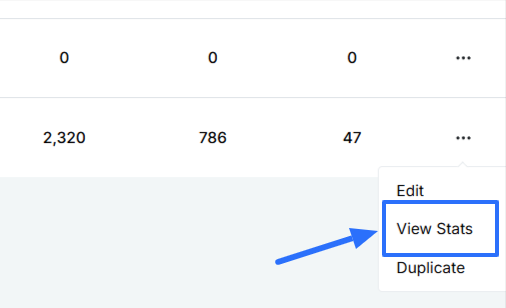
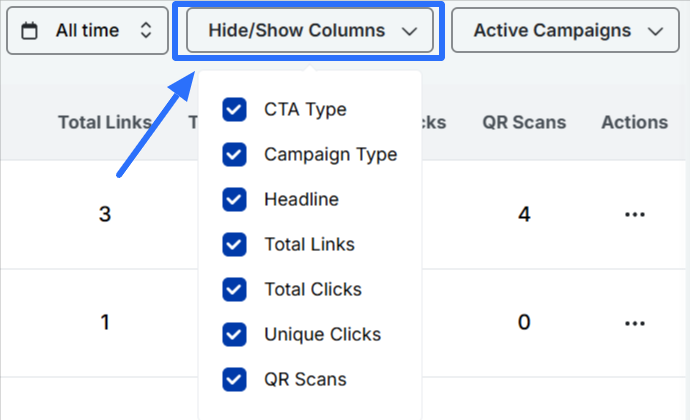
This guide walks you through how to measure campaign performance in Replug, step by step, so you can gain clear insights, optimize your strategy, and get more out of every click.
A complete link management solution
for marketing professionals & agencies.
Try Replug for free
What is campaign analytics?
Campaign analytics is the process of tracking URLs and analyzing data from marketing campaigns to measure performance and refine strategies. It helps marketers understand which channels drive conversions, how users interact with content, and where to focus efforts for maximum impact.
In link tracking and URL management, campaign analytics is essential. It tracks clicks, conversions, and audience behavior for each link, helping you optimize performance and improve ROI.
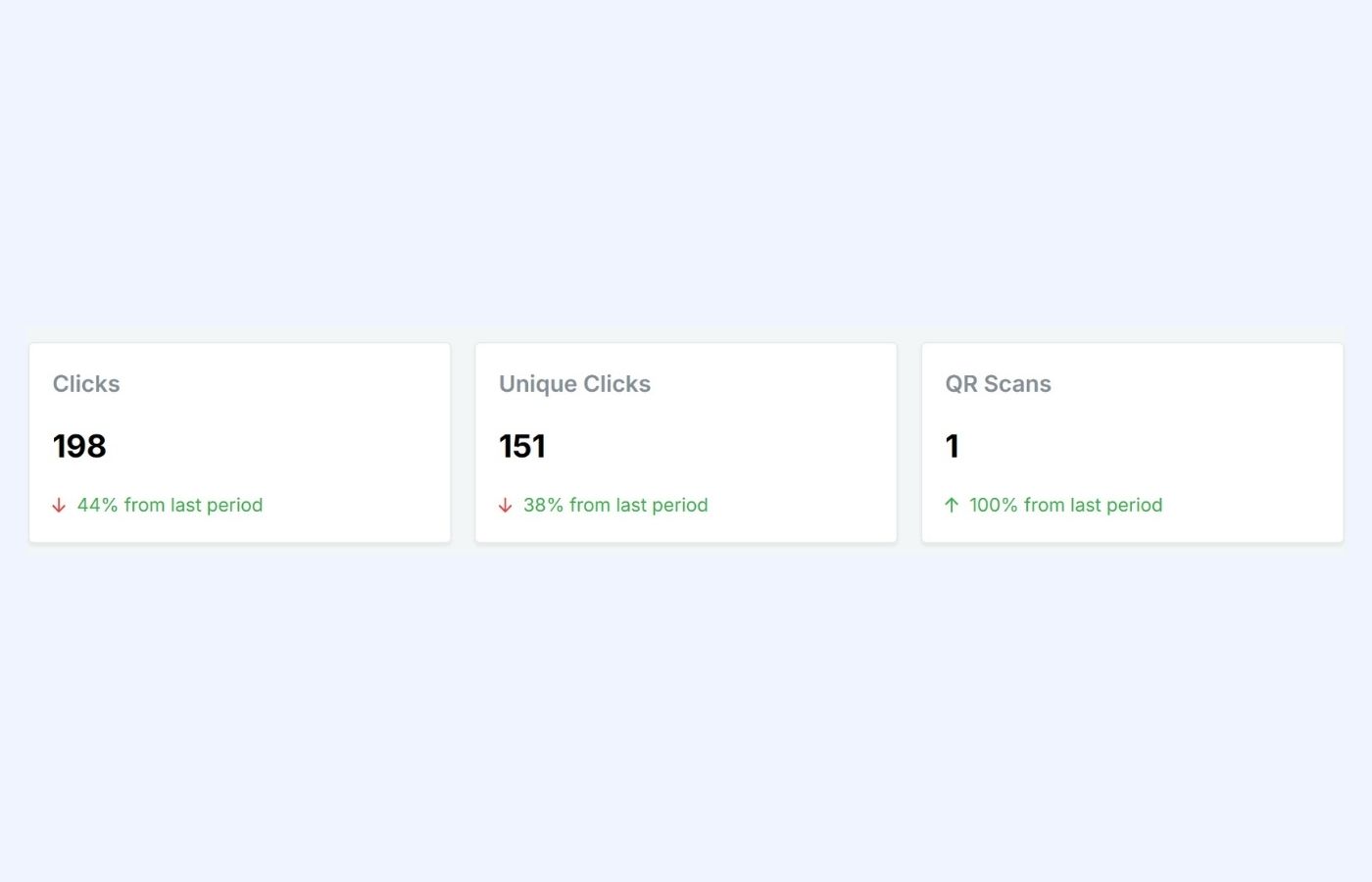
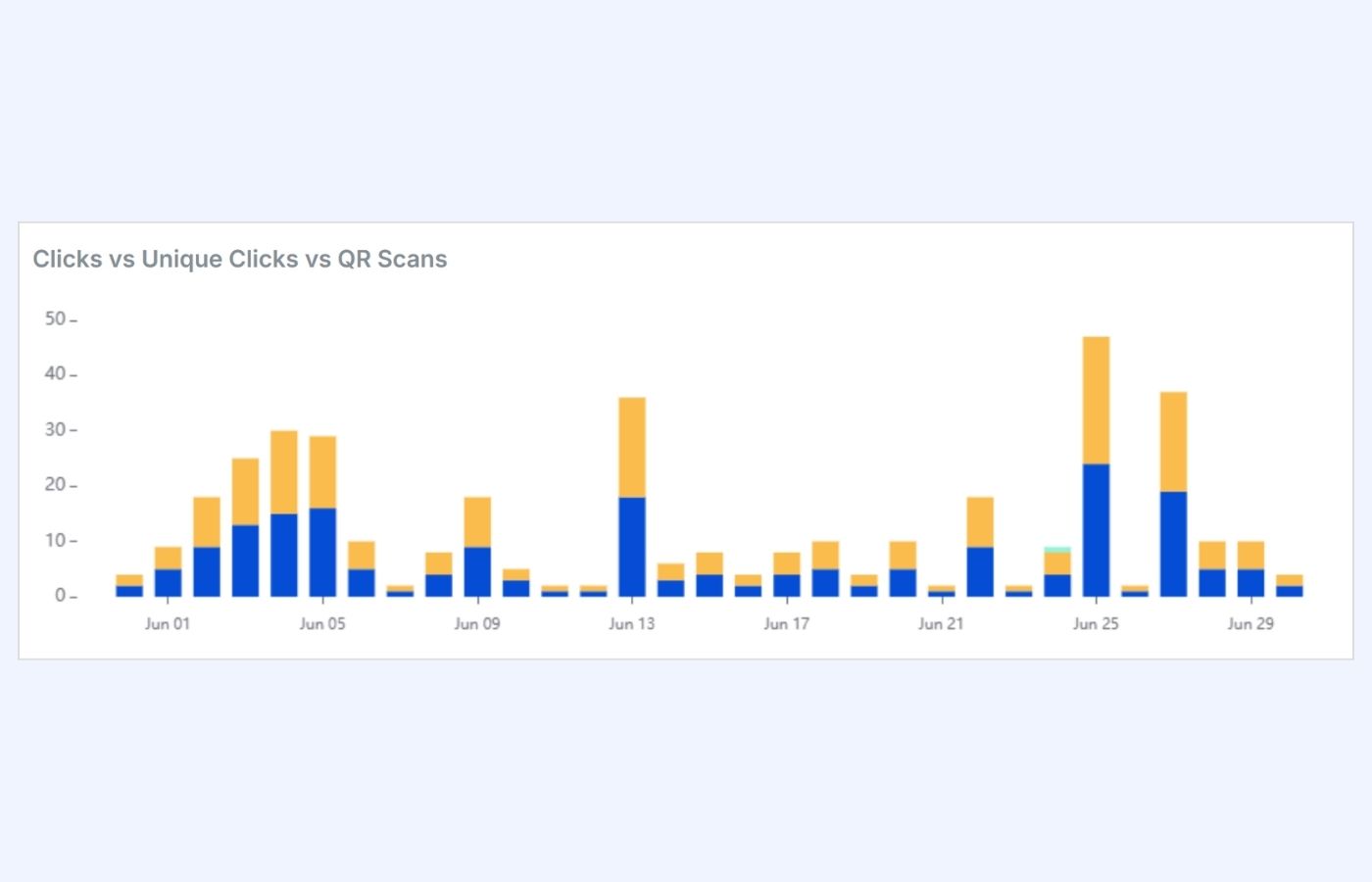
Compare activity trends over time. You can spot peaks, analyze dips, and assess overall campaign momentum.
Detailed breakdown
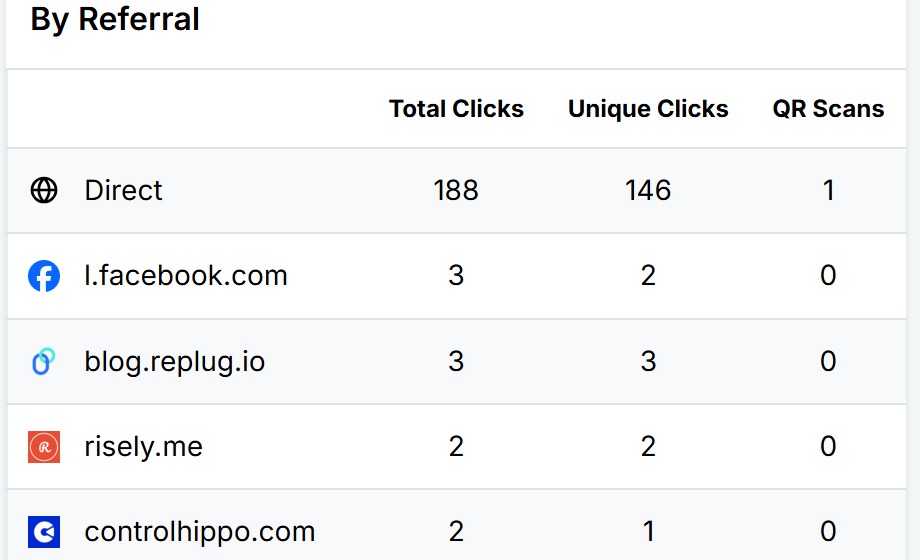
By referral source: See which platforms or websites are sending you traffic
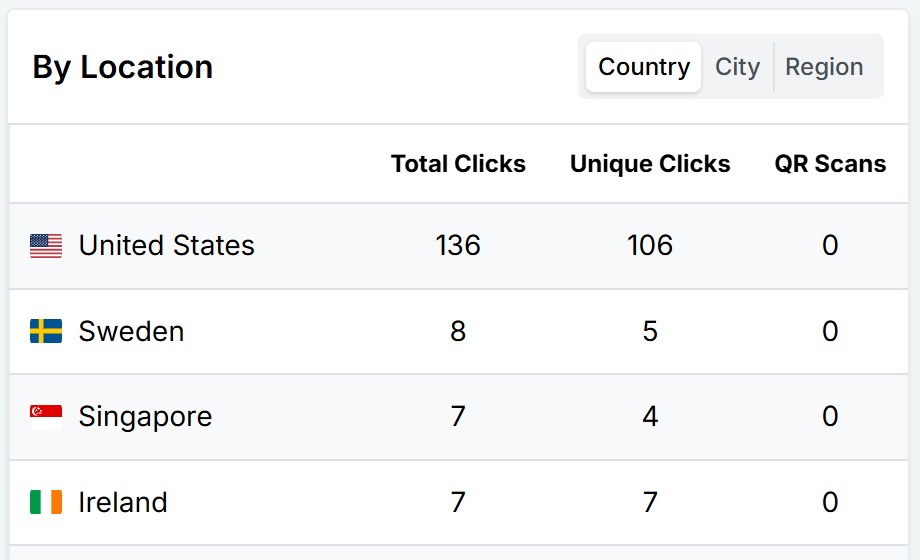
By location: Identify which countries or cities are engaging the most
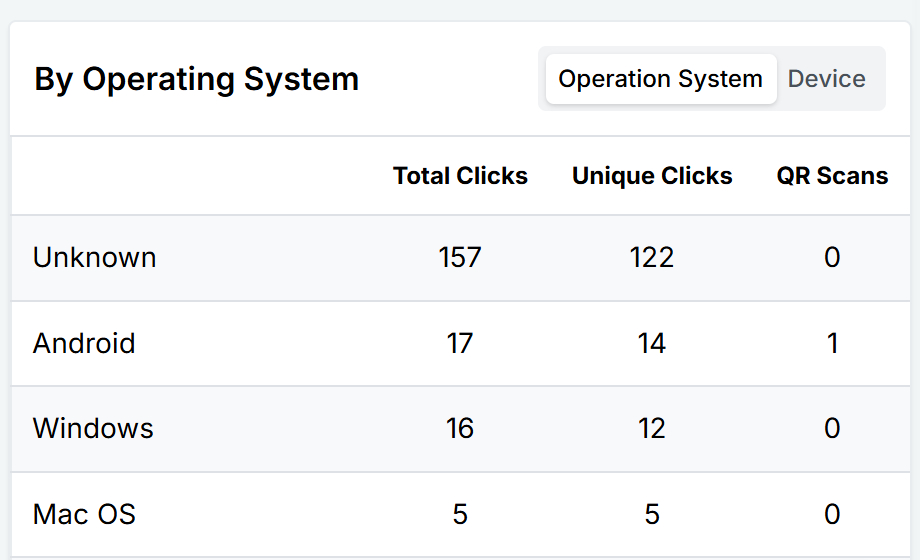
By operating system: Understand what devices people are using (e.g., iOS, Android, Windows)
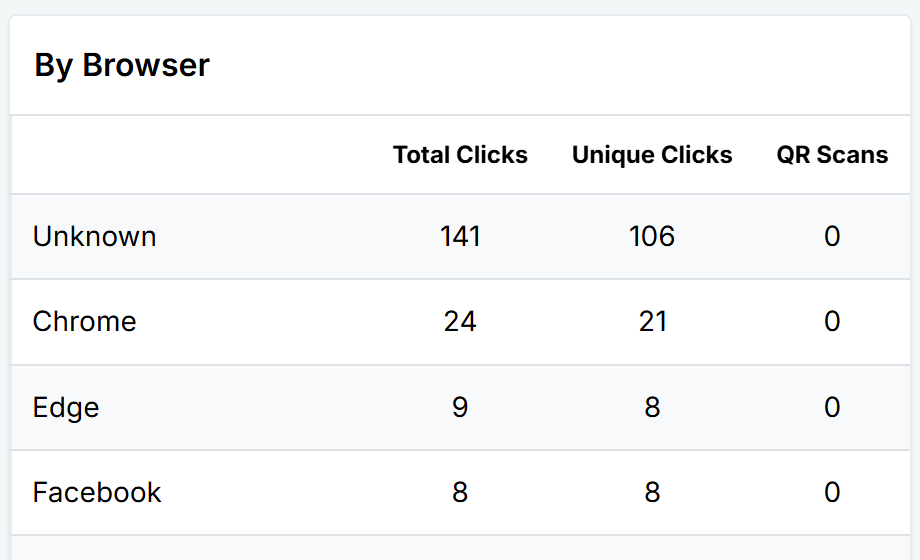
By browser: Know which browsers your audience prefers (e.g., Chrome, Safari, Firefox)
Step 5: Apply campaign filters for deeper insights
To fine-tune your analysis, Replug lets you filter your data by:
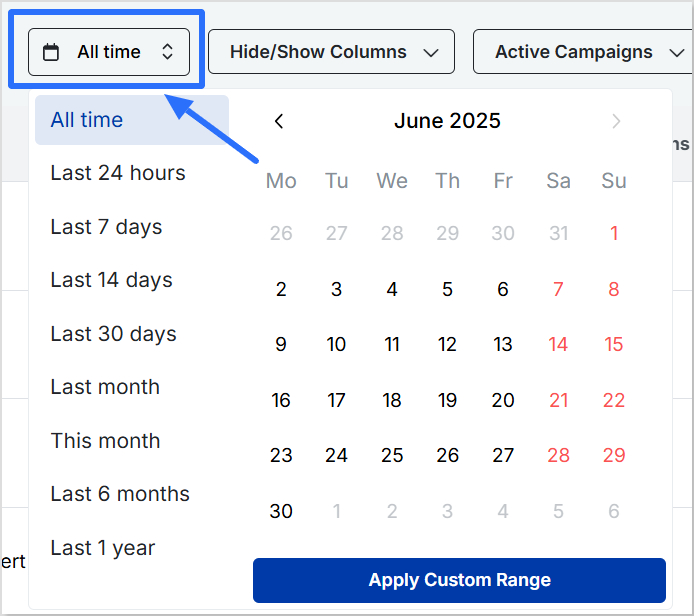
Time period: Choose from preset ranges or set a custom date range.
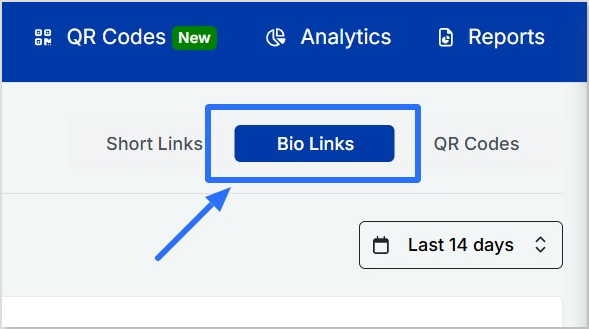
Link type: The comparison graph will adjust based on the type of campaign selected: • Short links: Clicks vs Unique Clicks vs QR Scans • Bio links: Views vs Unique Views vs Clicks • QR codes: QR Scans vs Total Clicks
This helps you compare different formats and gain insights into how each type performs.
Benefits of analyzing campaigns with Replug
Here’s how campaign analytics with Replug can elevate your marketing efforts:
Easy visual comparison: The real-time graph shows how your campaign is performing over time, helping you quickly spot spikes, dips, and trends.
Optimize campaign performance: Identify your best-performing content, platforms, and formats, so you can focus on what brings the highest ROI.
Tweak strategies in real time: See what’s working while your campaign is live and make adjustments on the go to improve results.
Smarter marketing decisions: Insights by location, device, browser, and referral source help you shape future campaigns more strategically.
Better reporting and client updates: Export clear, presentation-ready data to share progress with clients or internal teams, and pair it with a polished deck built using an AI presentation tool for a more compelling client update.
Improved retargeting and remarketing: Use behavior data to segment your audience and retarget them more effectively.
💡 Want to go a step further? Replug’s retargeting pixels let you re-engage people who click your links across ad platforms.
Content and platform testing: Use data to A/B test formats and messaging across different channels and learn where your audience is most responsive.
Cross-campaign insights: Compare short links vs. bio links vs. QR codes to see which formats bring the most traction.
Maximize marketing ROI
by transforming ordinary URLs into branded short links that convert.
Try Replug for free
Understand audience preferences: Get to know your users better, what they use, where they’re from, how they click, and tailor your marketing accordingly.
Conclusion
Replug is an all-in-one link management platform that gives you more than just link shortening; it gives you clarity. With its detailed analytics dashboard, campaign filtering, and real-time metrics, you can dig deep into performance, uncover valuable insights, and improve your marketing strategy with confidence.
Whether you’re running a single link campaign or managing dozens, Replug makes measuring success simple and actionable. Check out its free link shortener tool today and get short links hassle-free in no time at all!
FAQs on how to measure campaign performance
Can I export performance reports from Replug?
Yes, Replug lets you export data for use in reports, presentations, or internal updates.
Does Replug show stats in real time?
Absolutely. Replug updates metrics live, so you always have the latest performance data.
Can I track QR code performance?
Yes. QR scans are tracked alongside link clicks and displayed in the campaign dashboard.
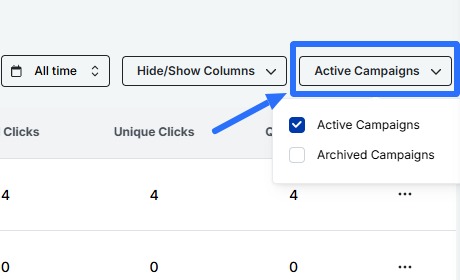
Will I still see stats for archived campaigns?
Yes. Just filter by “archived” campaigns and you’ll be able to view their full performance history.
Using QR codes in print campaigns, product packaging, event booths, or posters? Great, but if you’re not adding UTM tags, you’re missing out on valuable data.
UTM codes, parameters, or tags are not just digital marketing fluff; they’re a vital tracking tool that turns blind QR scans into actionable insights.
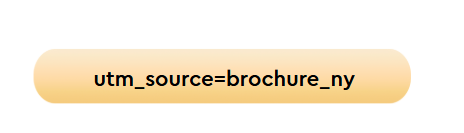
Let’s say you distribute the same digital brochure in two cities, New York and Chicago. If both QR codes lead to the same bare URL, you’ll never know which city drove more traffic or conversions.
But with UTM parameters like
or
You can pinpoint exactly where your results are coming from.
By embedding UTM tags into your QR code URLs, you unlock the power to analyze campaign performance, A/B test locations, rotate traffic, compare design versions, and optimize your strategy – all with data you can use. The best part? It only takes a few extra seconds.
This guide will show you how to create UTM-tagged links, generate QR codes, and track results like a pro. Whether managing a product launch, hosting a trade show booth, or running a local flyer drop, it’s time to make your QR codes work smarter, not just harder.
A complete link management solution
for marketing professionals & agencies.
Try Replug for free
How to add UTM tags to QR codes in Replug (step-by-step)?
Go to Replug.io and log in to your dashboard. If you don’t have an account, sign up for a 14-day free trial.
Step 01: Paste your link
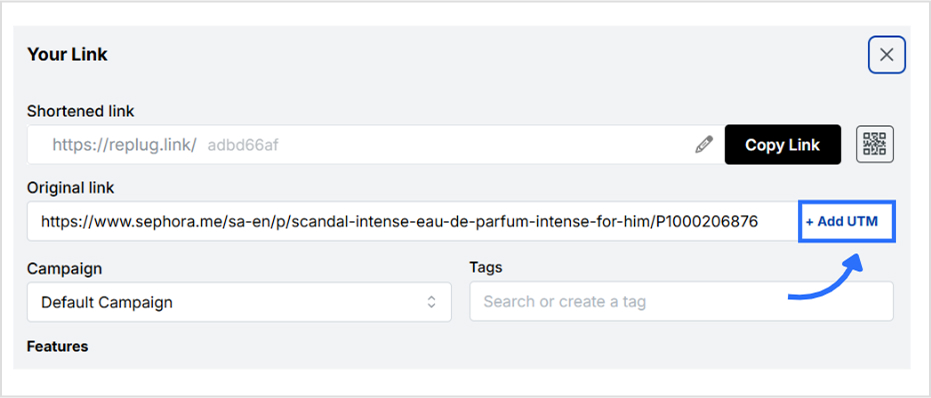
On the homepage, paste the link you want to use in your QR code campaign into the “quickly shorten your link” bar.
Press Enter, and a pop-up window will appear.
Step 02: Add UTM parameters
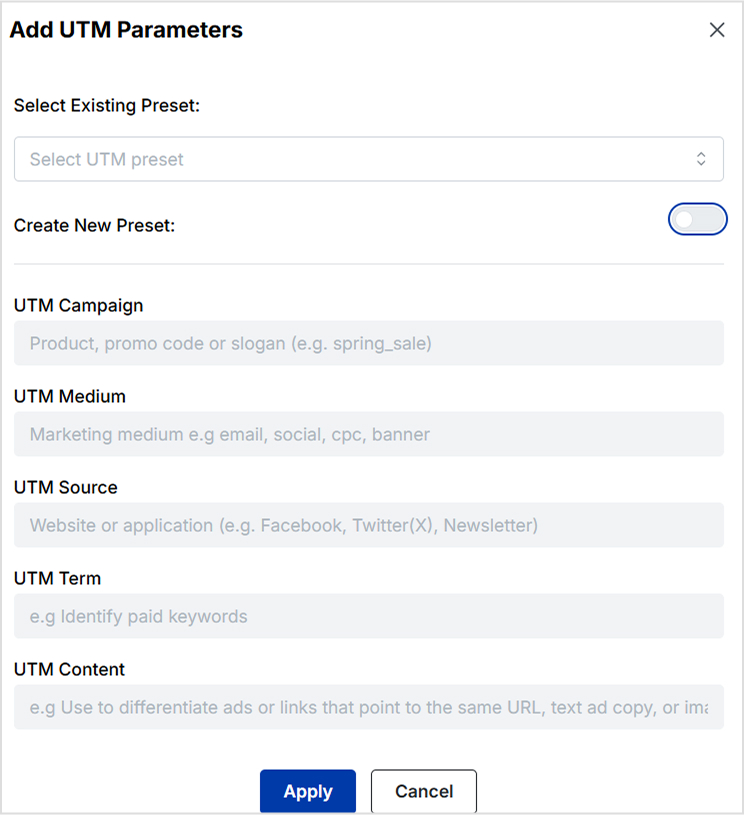
Click on the “add UTMs” button next to your original link.
Fill in your preferred UTM parameters (source, medium, campaign, etc.), then click apply.
After adding preferred UTM data, click on Apply. Your UTMs will be added.
Step 03: Generate a QR code
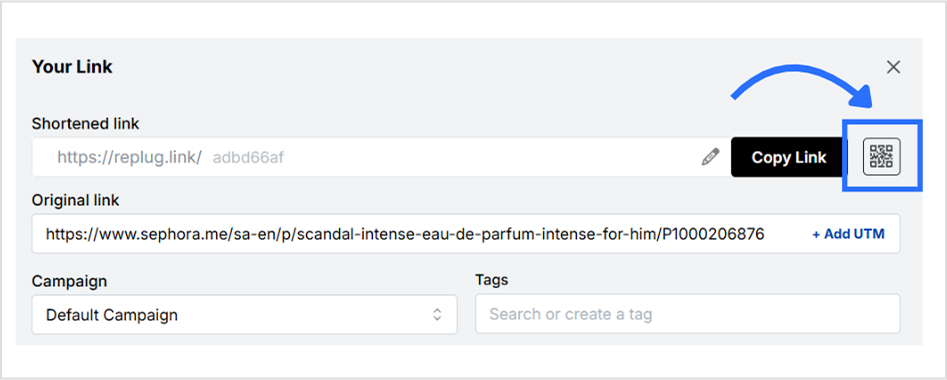
From the same pop-up, click on the QR code button next to the copy link button.
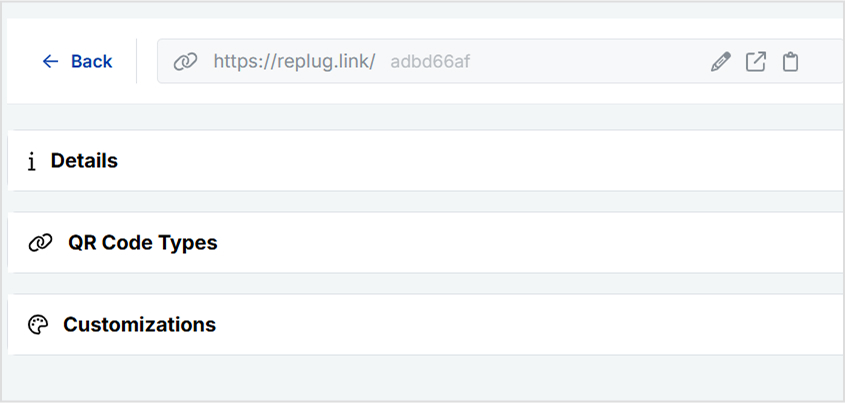
You’ll be redirected to the QR code customization window, where you can style it with custom colors, shapes, and logos.
Step 04: Download and share
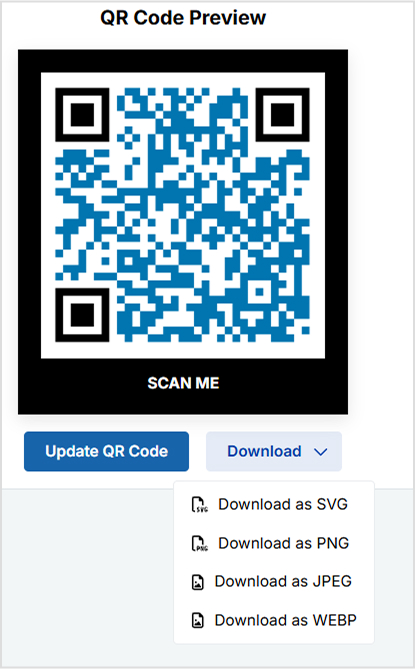
Download your QR code in PNG, JPEG, SVG, or WEBP format. Add it to business cards, packaging, flyers, or anywhere else you want to guide people with a quick scan.
Step 05: Track QR code performance
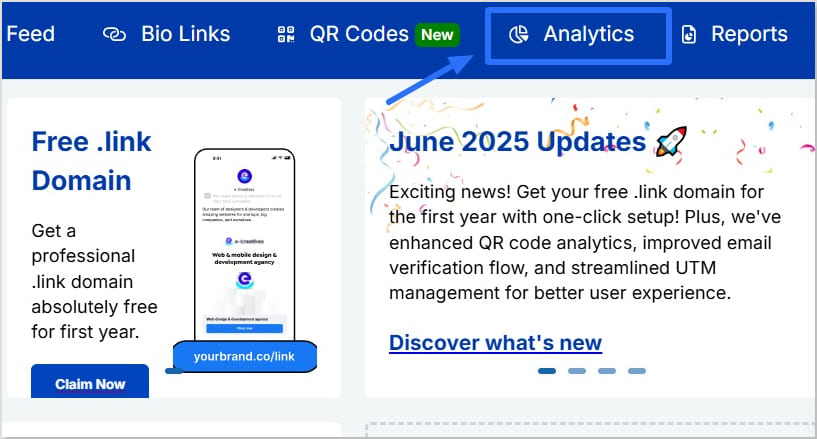
For QR code tracking, head to the analytics tab. Filter performance data by campaign or time and see real-time insights including:
Total scans
Referral sources
Device types
Geographic locations
A complete link management solution
for marketing professionals & agencies.
Try Replug for free
Conclusion
Incorporating UTM tags into your QR codes isn’t optional; it’s the difference between guessing and knowing. Without UTM tracking, your analytics can’t differentiate between a scan from a product box, a printed flyer, or an event badge. That’s a huge blind spot, especially when you’re running multiple offline campaigns and need to justify marketing ROI.
Let’s be real: QR codes are everywhere. However, most businesses still miss the mark by using plain URLs that provide zero context after a scan. UTM tags change that. With just a few parameters added to your links, you gain full visibility into campaign performance, scan sources, and user behavior – all visible in your analytics dashboard.
For even better outcomes, try using our free UTM builder. You won’t regret your decision!
FAQs on adding UTM tags to QR codes
Can I edit UTM tags after the QR code is printed?
Only if you’re using a dynamic QR code service like Replug. You can update the destination URL even after print.
Are UTM tags readable by QR scanners?
No, the scanner just reads the full URL. The tags aren’t “read”- they’re passed into your analytics tool when the link loads.
Will longer UTM-tagged URLs affect QR code scannability?
Yes, longer URLs can generate denser QR codes, making them harder to scan. Use a URL shortener free tool or dynamic QR code generator to keep it clean.
Link disguising is all about hiding a link so that it looks like another link. Though the term itself might sound dubious, it is very useful in the digital world. People generally mask links to shorten them and brand them.
Disguising a link means concealing the bad parts or random characters of the URL to make it look clean, and here’s where URL shorteners come in handy for turning these messy and random links into something meaningful and useful.
In this article, you’ll learn how to disguise a link effectively and how to rename a link with the help of tools like Replug. If you’re thinking about changing a URL to improve branding, user trust, or click-through rates, you’re in the right place.
A disguised link (also called a cloaked URL or masked URL) hides the original URL and redirects traffic to the original destination URL without damaging the user experience.
Advanced URL shorteners make disguising a URL easy and allow you to quickly create a customized URL (or vanity URL/branded link) that appears to the users when you share with them.
Now the real question arises. Why do people use disguised links?
Why disguise a link?
Creates a great first impression: A URL is something that people see at first sight when you share a profile, video link, company website, or even when promoting your website builder software. So, if it looks suspicious, no one is going to click.
Increases your sales: Disguising a link can significantly improve e-commerce sales, brand engagement, and user experience since users are more likely to click a link that looks branded and clean.
Tracks link performance: URL tracking tools not only disguise links but also allow track performance by creating custom links.
They are easy to create: With the right tools, learning how to disguise a link takes just a few steps. So, why not go for a branded URL rather than one that looks like a jumble of random characters?
Boost ROI with branded URLs!
Enhance your marketing campaigns by creating shareable, trackable, and fully multi-purpose
customizable branded URLs.
Affiliate marketers often rely on link disguising for a cleaner presentation and to protect their affiliate IDs from theft or malware. Using Replug or similar tools, they can:
A URL shortener is your secret weapon to transform any clunky link into a sleek, hidden gem. But that’s just the beginning. You can also track performance, analyze click data, and enhance your links with CTAs, bio links, retargeting pixels, and more!
Let’s say that you are promoting a new line of Columbia whole coffee beans that you just launched.
Here’s how you can use Replug to disguise your link:
Step 1: Sign in or create an account
Sign in to your Replug account. You will get a 14-day free trial if you’re a new user.
Step 2: Enter the URL you want to disguise
Step 3: Disguise your URL
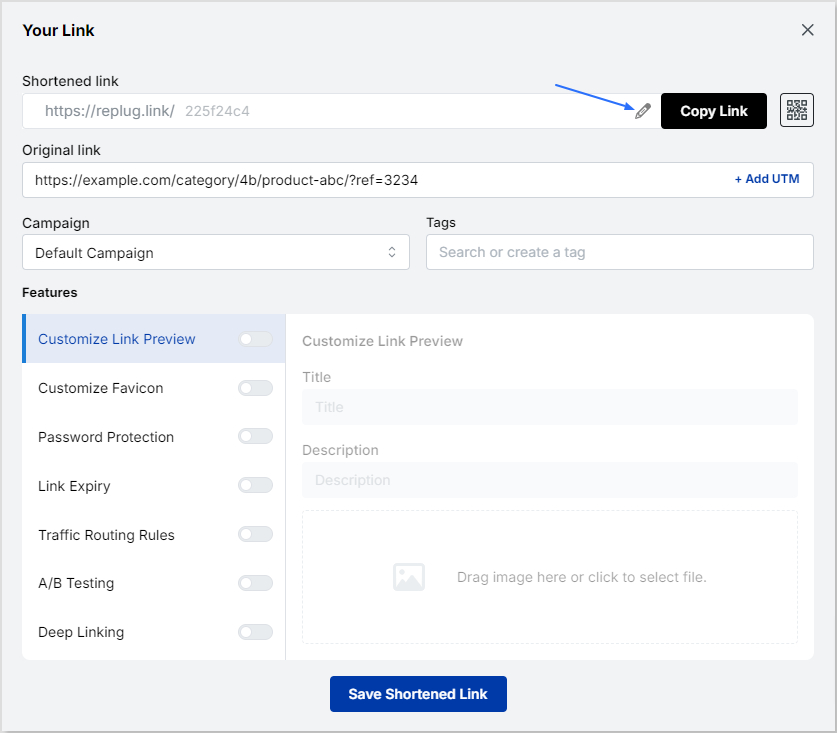
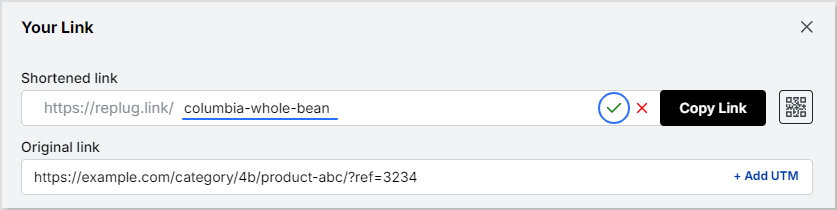
After you click on the blue next button, you’ll be led to a popup. From there, you can change the URL slug, thereby masking your URL so that it doesn’t look spammy.
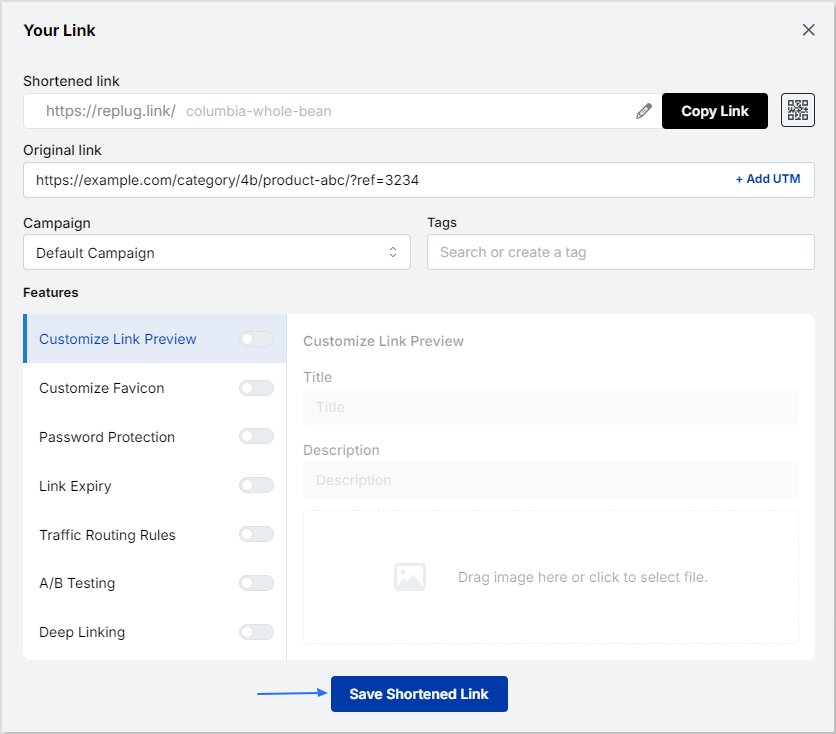
From here you can also set additional parameters that you want for your campaign, such as customized favicon, deep linking, A/B testing, etc. You can also add a UTM parameter to track your links’ performance.
Now just type the slug (in our example “/columbia-whole-bean”) and click on the green tickmark icon to save your disguised URL.
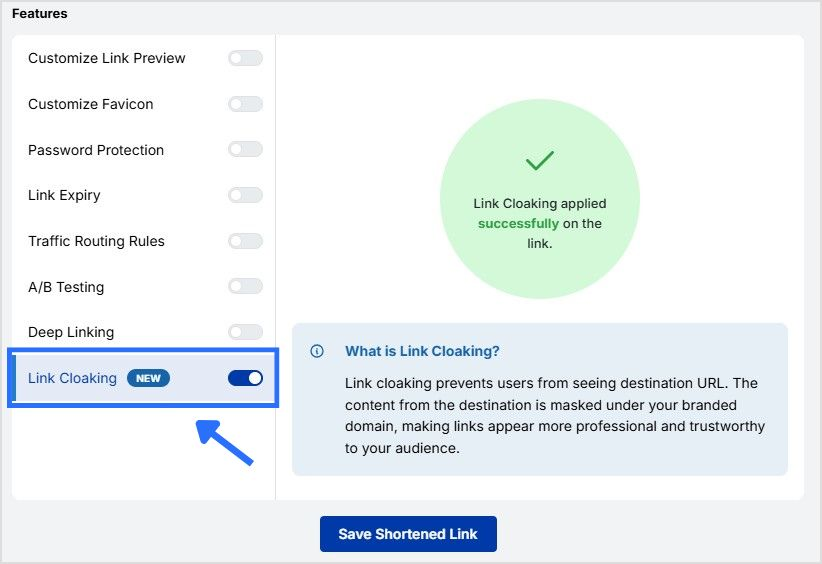
Step 4: Enable link cloaking
Enable link cloaking in Replug to display only your custom, branded link in the browser’s address bar, thereby disguising the original URL. This keeps your link clean, professional, and more trustworthy.
Step 5: Save and share!
Once done, just click on the “Save Shortened Link” button and share it with your audience, whenever, wherever!
Maximize marketing ROI
by transforming ordinary URLs into branded short links that convert.
Try Replug for free
Replug key features
Link management
Multiple link shortening tools are available in the market, but Replug is among the few best link shorteners that offers link disguising, tracking & optimization as well as a catchy calls to action.
Replug is an easy URL shortening and tracking platform that allows you to:
Create eye-catching branded URLs.
Generate social media bio links
Add URL tracking with custom URL UTM parameters, and tags
Add retargeting pixels with powerful analytics and branded links.
A complete link management solution
for marketing professionals & agencies.
Try Replug for free
Replug Chrome extension
Replug’s chrome extension makes it easier to create disguise links. You can download the Google Chrome extension and log into your Replug account by entering your login credentials.
Once completed, you’ll have full control of using Replug features in no time.
Link analytics
Replug stands higher among all link management tools when it comes to link analytics. You can make a profitable brand strategy by keeping an eye on link analytics.
Below are some great click analytics you can track using Replug:
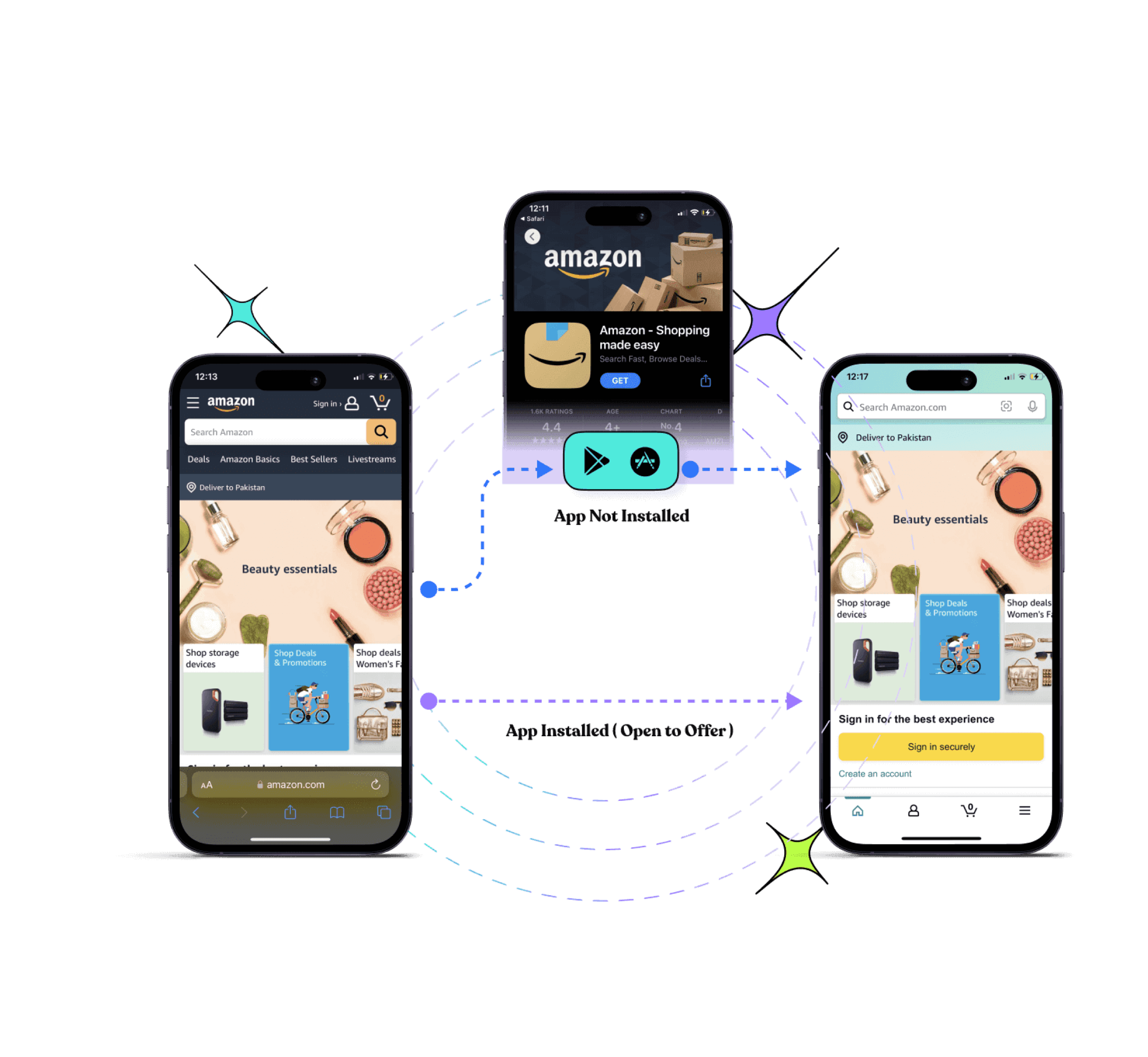
Deep links let users go to the specific application rather than going through the hassle of visiting irrelevant web pages. These powerful links increase overall engagement and conversion rates.
Drive more clicks, conversions, and app installations by deep linking
to your favorite platforms.
Try deep links for free
Link rotation
With the help of Replug’s link rotation (or traffic routing) feature, you can reach your target audience by setting multiple filters such as geography, browser, and device. You can also select the IP address, dates, and time. Hence, link rotation allows you to redirect users and deliver a unique experience on the base of these filters.
QR codes
Replug allows you to create custom, dynamic QR codes. After you you’ve disguised your URL, you can quickly create a branded QR code by changing the customizing the colours, adding a frame, and incorporating your logo. This allows for seamless sharing across all platforms, and also makes your link look cleaner and quicker to access.
Retargeting pixels
Every branded URL can include retargeting pixels to help you retarget website visitors who bounced before buying. This is especially useful for e-commerce brands looking to reduce cart abandonment, re-engage lost leads, and improve return on ad spend. One clean link can bring customers back right when it matters most.
A/B testing
A/B testing features allow you to redirect links to several destinations. With Replug, you can efficiently distribute the weightage and start testing up to 10 links simultaneously.
Final words
Using a URL shortener to disguise a link is not only for the people of the e-commerce world. In fact, URL shorteners are way much more than just a shortening tool.
You can create bio links, test landing pages via A/B testing, add CTA’s for special offers and discounts, route and redirect traffic etc. And this is just the tip of the iceberg.
Ready to disguise and hide your links like a pro? Try Replug today!
Frequently asked questions
What is a disguised link, and why is it useful?
A disguised link (or cloaked URL) hides the original URL, making it cleaner and more trustworthy. It improves click-through rates, builds trust, and is commonly used in affiliate marketing and e-commerce.
How can I track the performance of my disguised links?
Advanced link management tools provide metrics like click-through rates, locations, and conversions. You can also add UTM parameters to gain deeper insights.
How to disguise a link in text?
To disguise a link in text, hyperlink a word or phrase instead of displaying the full URL. For example, use anchor text like “read more” or “visit now”. This improves readability, builds trust, and boosts click-through rates. Use a URL shortener like Replug to create a clean, branded link before embedding it.
What is the best tool for disguising links?
One of the best tools for disguising links is Replug. It offers easy link customization, tracking, and branding features to enhance link performance.
“Link in Bio” is all about breaking the limits of a single link. It’s a way to share multiple links, content, and products, making it an essential tool for individuals, businesses, and influencers.
In this guide, we’ll explore the basics, the role it plays in personal branding and marketing, and how it’s revolutionizing the way we navigate the online world. Whether you’re a social media pro or a newbie, link in bio is your shortcut to success in today’s fast paced world.
Here’s what you need to know.
What does “link in bio” mean?
Link in bio refers to a clickable URL appearing in your profile description, often on platforms like Instagram, TikTok, and Twitter. This link allows users to direct their audience to external websites, content, products, or any other online destinations.
Since many social media platforms limit the number of links or direct clickable links in posts and comments, the link in bio or “bio link”serves as a workaround, enabling users to share multiple links or promote specific content more effectively by directing their followers to their bio section, where they can find and click on the desired link.
It has become a valuable strategy for personal branding, content promotion, and marketing.
If you’re active on social media, you’ve probably run into the dreaded “limited links” problem. Instagram gives you five spots (generous…ish), but TikTok? Just one lonely link. Not exactly the dream when you’ve got a podcast, a blog, a product launch, and a playlist to share. That’s where a link in bio saves the day, turning that single space into a mini hub for everything you want your audience to click on.
Here’s why you should create a link in bio:
One link, many destinations: Social media platforms limit you to just adding a few links in your bio. A link in bio helps you make it count by leading visitors to multiple pages.
Showcase everything: Whether it’s your website, shop, blog, videos, or sign-up forms, you can share it all in one neat place.
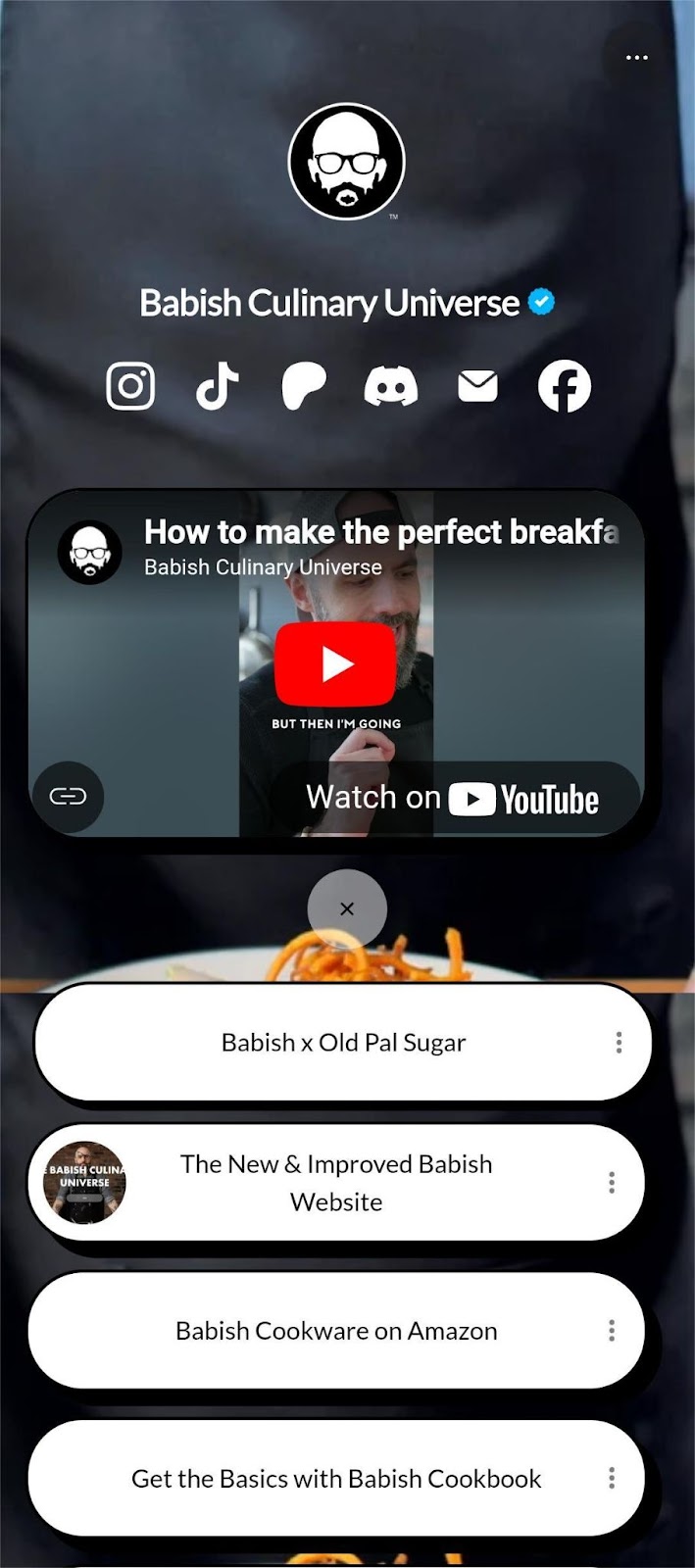
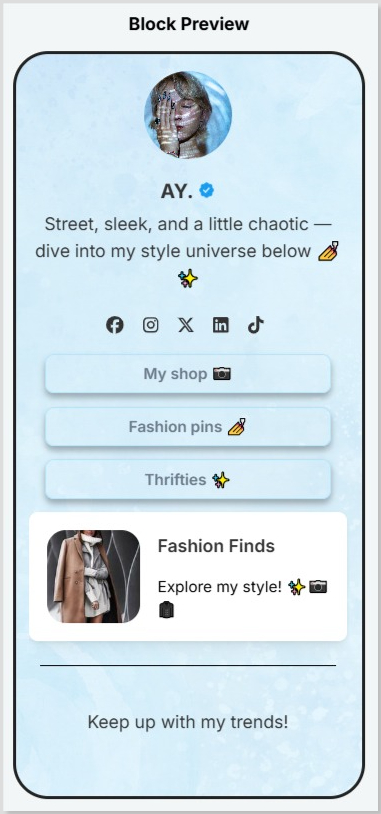
Here’s an example of the famous American Cook, Andrew Rea’s link in bio page for his series “Babish Culinary Universe”:
Make navigation easy: No more “link in latest post” confusion. Your audience knows exactly where to go.
Stay organized: Keep your important links tidy, clickable, and easy to update whenever you need.
Boost engagement: Get more clicks, views, leads, and conversions by directing people to the right content at the right time.
Top benefits of link in bio
A link in bio does more than hold a single URL; it helps you organize, optimize, and amplify your online presence. Here’s a quick look at why it’s a must-have for anyone growing their brand:
Combines all your important links into one
Instead of juggling multiple URLs, your link in bio leads followers to everything you want them to see, whether it’s your latest YouTube video, blog post, or product drop.
Simplifies the path to purchase or action
A link in bio lets you turn browsers into buyers by placing shop links, discount codes, or sign-ups just one tap away, all in one neatly organized spot.
Lets you retarget everyone who clicks
With tools like Replug, your link in bio becomes retargetable so that every click can feed into future ad campaigns and bring people back to your page.
Shows what content your audience loves
You can track clicks on your link in bio from one single dashboard using a top-notch link management platform. This tells you what’s resonating—so you can do more of what works.
Lets you create a fully branded mini landing page
Instead of a plain list of links, your link in bio can become a branded microsite that matches your aesthetic and makes your profile look polished and pro.
Automatically updates with your latest content
Add an RSS feed to your link in bio to keep it fresh, so whenever you post a new video, blog, or podcast, it shows up without you lifting a finger.
Boosts visibility through SEO-friendly design
An optimized, custom link in bio page can be indexed by search engines, giving your most important content extra visibility beyond just social clicks.
💡 Who benefits from a link in bio? Creators, brands, freelancers, agencies; anyone using social media to drive traffic, grow followers, or sell online.
To create a winning link in bio using Replug’s bio links feature, you can follow these steps:
Step 1: Access your Replug account
Sign in to your Replug account, or create one to start your 14-day free trial if you’re new to the platform.
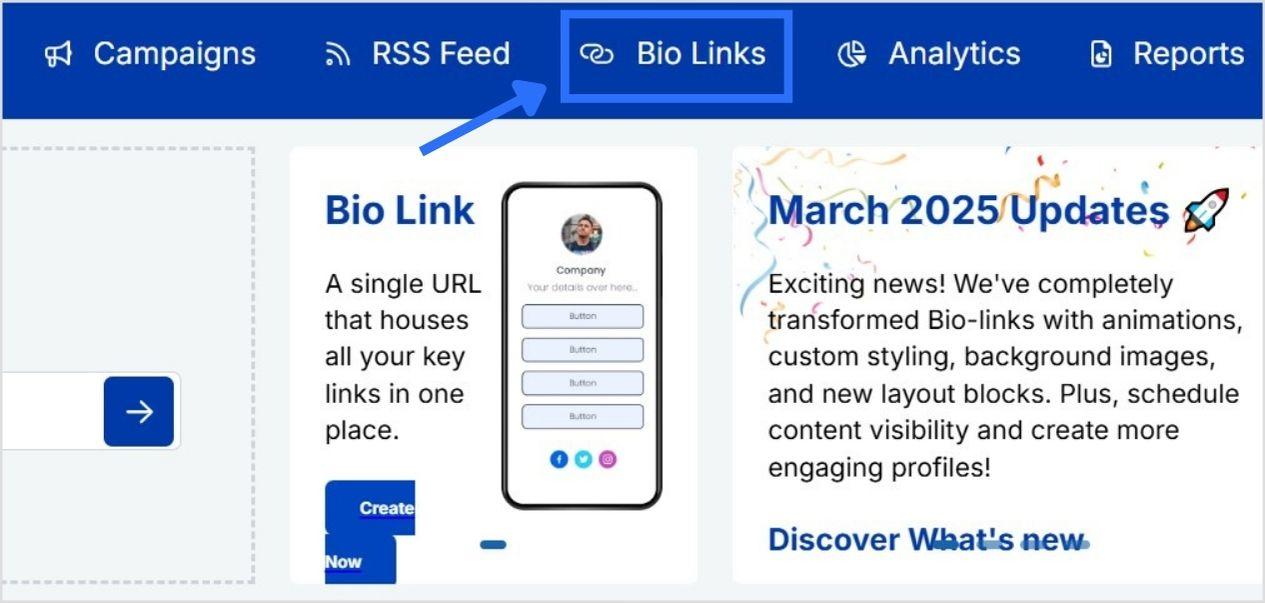
Step 2: Click on “Bio Links”
Once you’re logged in, go to the Replug dashboard and click on “Bio Links” from the navigation bar to get started.
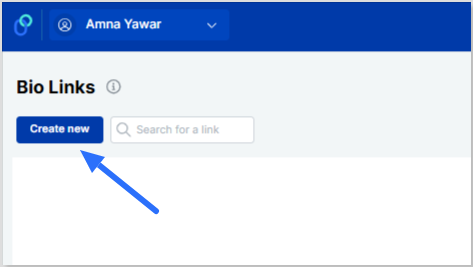
Step 3: Start creating a new link in bio
This will take you to the “Bio Links dashboard. From here, click on the “Create new” button to start creating a new bio link.
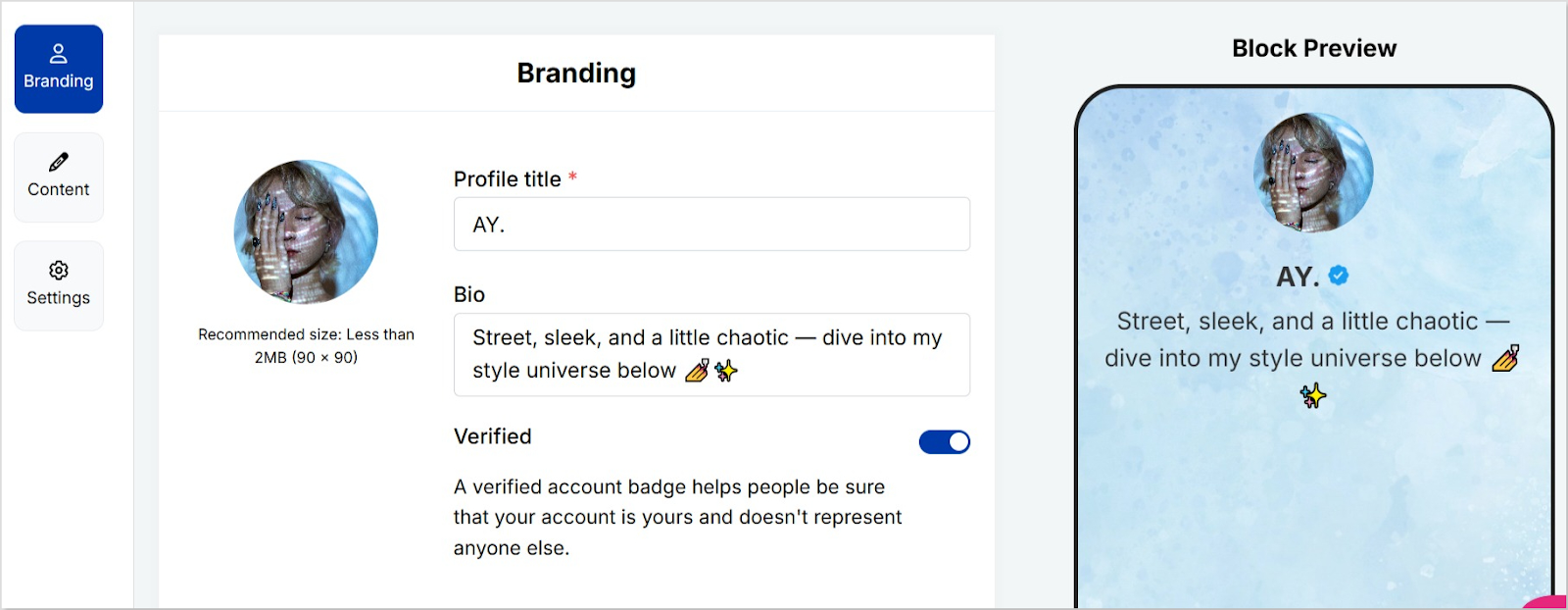
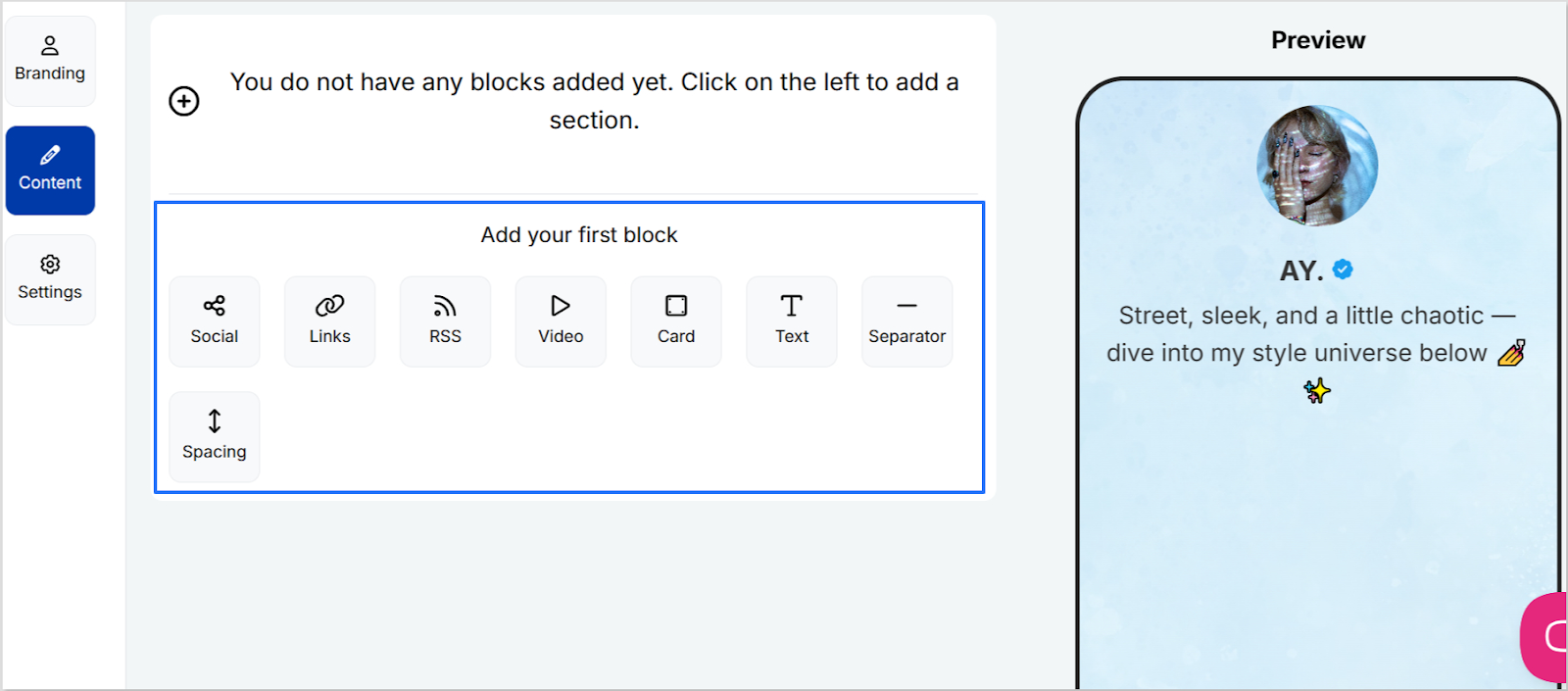
Replug lets you easily manage your bio profile with three main categories: Branding, Content, and Settings.
Branding: Customize the look and feel of your profile with themes, colors, fonts, and button styles.
Content: Add and organize different blocks like links, videos, images, and more to showcase your content.
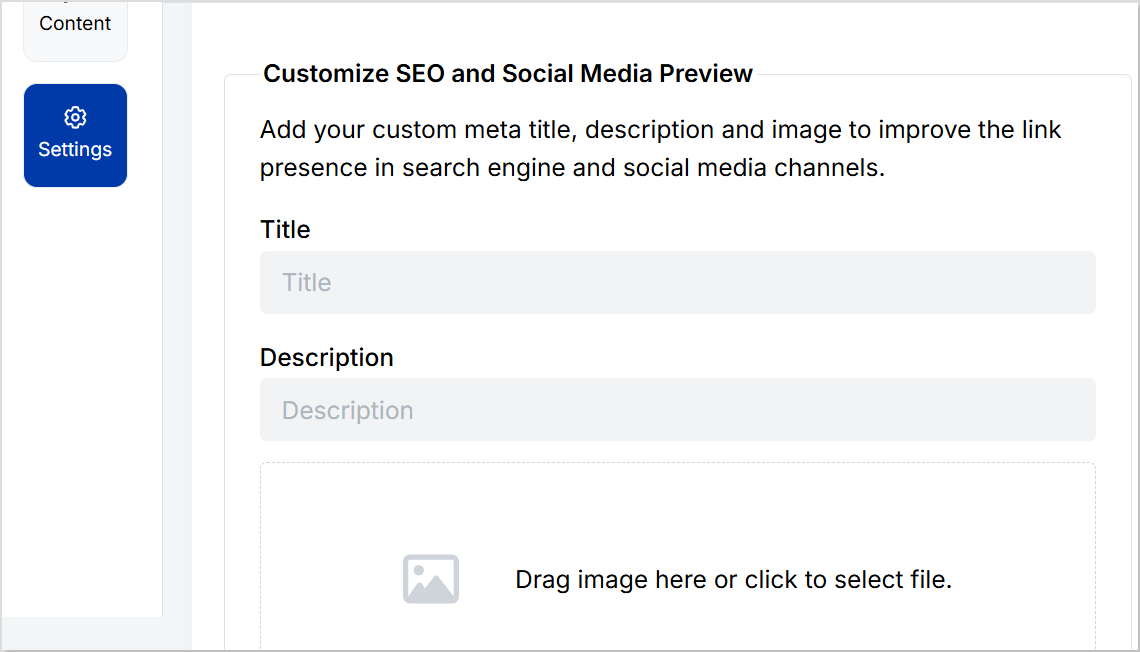
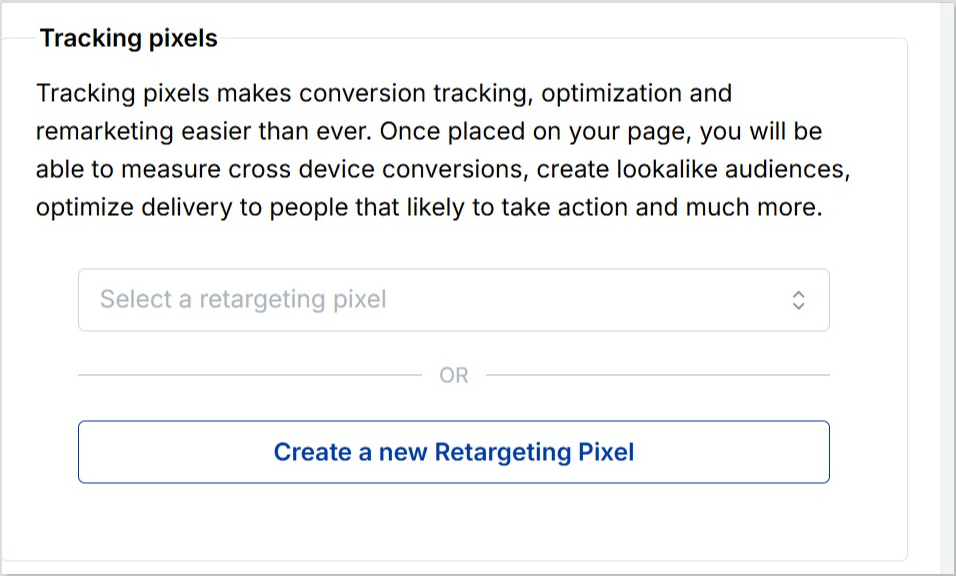
Settings: Adjust SEO settings, control how your profile appears in social media previews, and add tracking pixels.
Step 4: Brand your link in bio
Customize your bio profile to match your personal style or brand. Upload a profile image, add your title and bio, and choose from a variety of themes, button styles, and colors.
You can also enable a background image and adjust its opacity for a more personalized look. If your account is verified, a badge will appear to help others recognize it’s officially you.
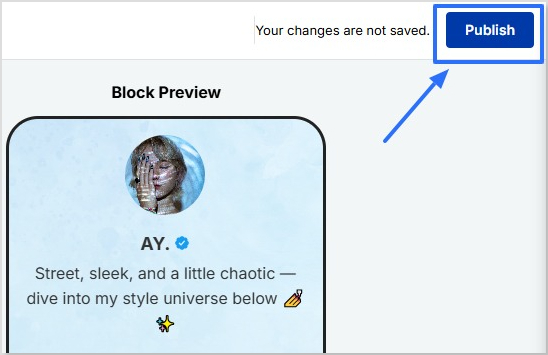
Click on the “Publish” button on the top rightto start customizing your bio link further. If you don’t, you won’t be able to save changes in real-time.
Step 5: Choose content blocks
Choose the type of content blocks you want to add to your bio link page.
Replug offers various content block options, including social icons, links, RSS feeds, audio, video, text, cards, separator, and spacing. Select the ones that best suit your needs.
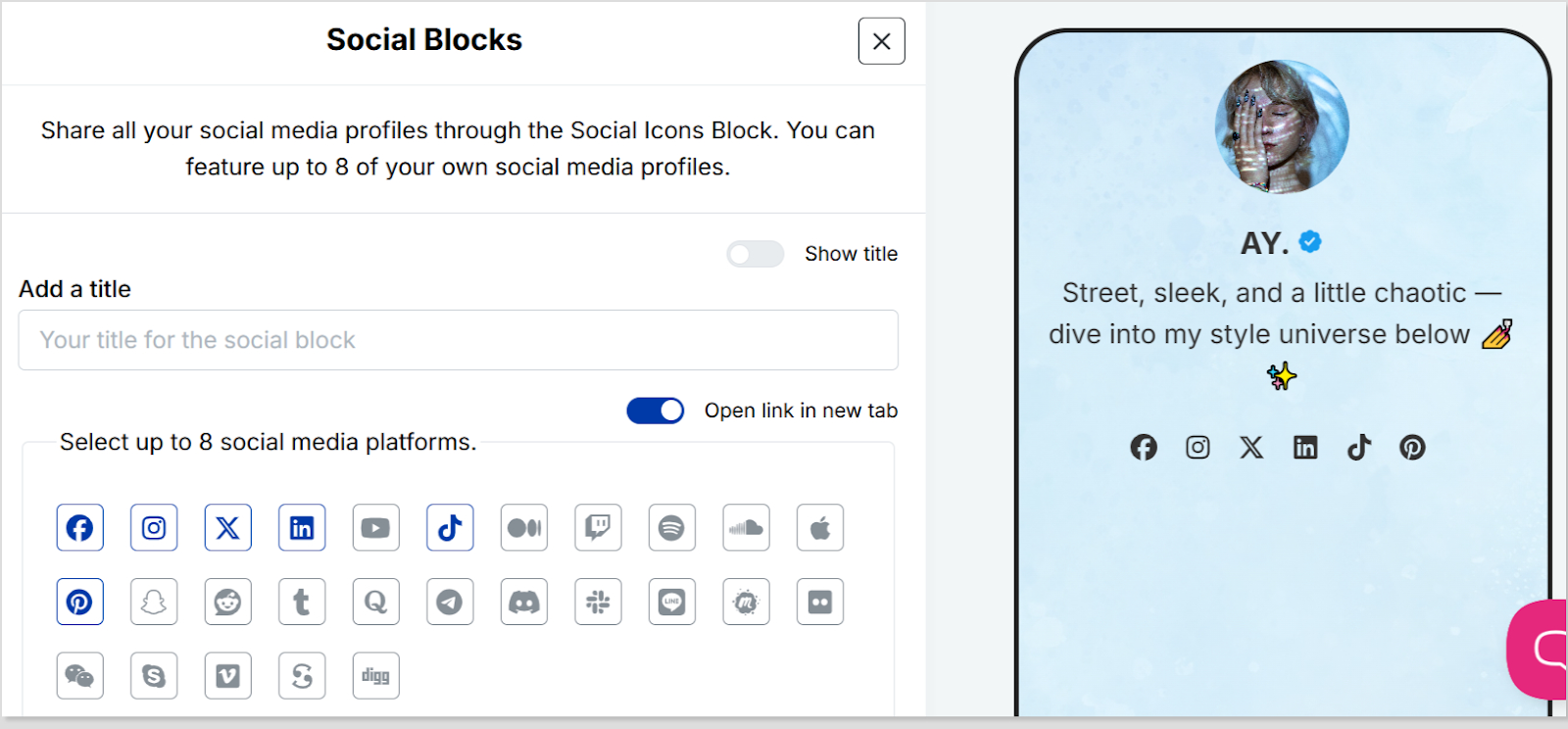
As an example, let’s start with adding social icons. For that, click on the “Social” block button.
Provide titles for each platform, customize the colors for the social icons, and paste the corresponding links. To add each platform, click the “Add Block” button.
You can also schedule, animate, or customize the appearance of your blocks.
Step 6: Go to Settings and Customize SEO and Social Media Preview
Go to “Settings” to customize your bio link page further by adding a custom meta title, description, image, favicon image.
Furthermore, you can also add tracking pixels for conversion tracking, optimization, and remarketing.
Step 7: Review link in bio page
Review your link in bio page as you create it to ensure it looks and functions as you intended. Take advantage of the preview feature to see how it will appear.
Step 8: Update and create a custom URL for your bio link
Update your bio link to save changes.
Create a custom URL by changing the slug of your bio link. You can also connect your custom domain if you have one.
With your Replug-generated bio link, you can effectively share multiple links and content with your audience, making it a valuable tool for content promotion and marketing on the platform.
Enhance this even further by using this custom URL shortener free to create branded, trackable links that boost engagement.
Go beyond generic link pages!
Create custom bio links that truly fit your brand
With Replug, you can create bio links that are unique, engaging, and built to convert.
Make sure your bio link is short and easy to remember.
Use a clear and concise title for your bio link.
Add a description that tells people what they can expect to find on your bio link.
Use an eye-catching image for your bio link.
Share your bio link across your social profiles and include it in your emails. An email signature generator makes it easy to add your link professionally, so every message subtly drives traffic to your content.
Promote your bio link in your email signature and on your website.
Frequently asked questions
What is a “Link in Bio”?
A “Link in Bio” is a clickable hyperlink placed in the bio or profile description of a social media account, allowing users to direct their audience to external websites, content, or products.
Why use a “Bio Link”?
Users employ “Bio Link” to overcome limitations on the number of links in social media posts, making it easier to share multiple links, promote content, and enhance user experience.
How can I add a “Link in Bio” on Instagram?
To add a “Link in Bio” on Instagram, go to your profile, click on “Edit Profile,” and enter your desired link in the website field. This link becomes your “Bio Link.”
Are there tools or services to manage “Link in Bio”?
Yes, there are third-party bio link tools and services like Replug that provide features to create and manage “Link in Bio” pages with multiple links.
Can I customize my “Link in Bio” page?
Yes, many “Link in Bio” services allow users to customize the appearance of their bio link page by adding branding elements, titles, and descriptions.